
SBW-S1 Pro - Blu-ray player ASUS - Free user manual and instructions
Find the device manual for free SBW-S1 Pro ASUS in PDF.


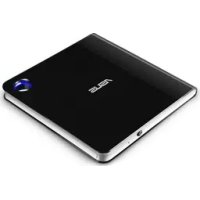
| Product Type | External USB Blu-ray Writer with Built-in Sound Card |
| Brand | ASUS |
| Model | SBW-S1 Pro |
| Interface | USB 2.0 |
| Read Speed | CD-ROM: 24X, DVD-ROM (SL/DL): 8X, BD-ROM (SL/DL): 6X, BD-R (SL/DL): 6X, BD-R (TL/QL): 4X, BD-RE (SL/DL): 6X, BD-RE (TL): 2X |
| Write Speed | CD-R: 24X, CD-RW: 16X, DVD-R: 8X, DVD-R DL: 6X, DVD-RW: 6X, DVD+R: 8X, DVD+R DL: 6X, DVD+RW: 8X, DVD-RAM: 5X, BD-R (SL): 6X, BD-R (DL): 2X, BD-R (TL/QL): 2X, BD-RE (SL/DL): 2X, BD-RE (TL): 2X |
| Audio Performance | SNR (A-weighted) up to 114 dB, THD+N at 1kHz: up to 0.0005623% (-105 dB), Frequency Response: 10 Hz - 48 kHz |
| Output Voltage | Line out: 2 Vrms, Headphone out: 7 Vrms |
| Audio Processor | Cmedia 6631A High-Performance Sound Processor |
| D-A Converter | Cirrus CS4398 |
| Sample Rate & Resolution | Up to 192 kHz / 24 bit |
| Dimensions | 210 x 168 x 50 mm |
| Weight | 850 g |
| Power Supply | External adapter (included) |
| System Requirements | Windows 7/8/8.1, Mac OS X 10.6+, USB 2.0 port, Intel Core 2 Duo E6750 or better, 2 GB RAM, HDCP-compatible display and graphics card |
| Package Contents | Main drive, Driver CD, Quick Start Guide, Safety Notice, USB 2.0 cable, Adapter, Power cord, Y-splitter audio cable |
| Special Features | Built-in 7.1-channel audio output, headphone amplifier, virtual surround sound, ASIO 2.2 driver support |
| Cleaning | Use a soft, dry cloth to clean the exterior. Do not use liquids or solvents. |
| Safety | Use only with the supplied adapter. Keep away from liquids. Do not disassemble. Ensure proper ventilation. |
| Spare Parts & Repairability | No user-serviceable parts. Contact ASUS support for repairs. |
Frequently Asked Questions - SBW-S1 Pro ASUS
User questions about SBW-S1 Pro ASUS
0 question about this device. Answer the ones you know or ask your own.
Ask a new question about this device
Download the instructions for your Blu-ray player in PDF format for free! Find your manual SBW-S1 Pro - ASUS and take your electronic device back in hand. On this page are published all the documents necessary for the use of your device. SBW-S1 Pro by ASUS.
USER MANUAL SBW-S1 Pro ASUS
External USB DVD / Blu-ray Writer With Sound Card
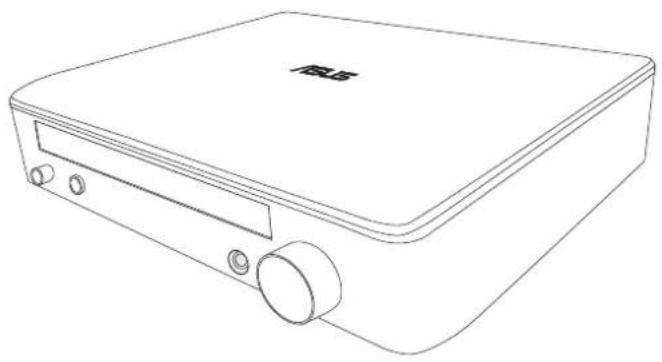
User Guide
E10236
First Edition
April 2015
Copyright © 2015 ASUSTeK Computer Inc. All Rights Reserved.
No part of this manual, including the products and software described in it, may be reproduced, transmitted, transcribed, stored in a retrieval system, or translated into any language in any form or by any means, except documentation kept by the purchaser for backup purposes, without the express written permission of ASUSTeK Computer Inc. ("ASUS").
Product warranty or service will not be extended if: (1) the product is repaired, modified or altered, unless such repair, modification of alteration is authorized in writing by ASUS; or (2) the serial number of the product is defaced or missing.
ASUS PROVIDES THIS MANUAL "AS IS" WITHOUT WARRANTY OF ANY KIND, EITHER EXPRESS OR IMPLIED, INCLUDING BUT NOT LIMITED TO THE IMPLIED WARRANTIES OR CONDITIONS OF MERCHANTABILITY OR FITNESS FOR A PARTICULAR PURPOSE. IN NO EVENT SHALL ASUS, ITS DIRECTORS, OFFICERS, EMPLOYEES OR AGENTS BE LIABLE FOR ANY INDIRECT, SPECIAL, INCIDENTAL, OR CONSEQUENTIAL DAMAGES (INCLUDING DAMAGES FOR LOSS OF PROFITS, LOSS OF BUSINESS, LOSS OF USE OR DATA, INTERRUPTION OF BUSINESS AND THE LIKE), EVEN IF ASUS HAS BEEN ADVISED OF THE POSSIBILITY OF SUCH DAMAGES ARISING FROM ANY DEFECT OR ERROR IN THIS MANUAL OR PRODUCT.
SPECIFICATIONS AND INFORMATION CONTAINED IN THIS MANUAL ARE FURNISHED FOR INFORMATIONAL USE ONLY, AND ARE SUBJECT TO CHANGE AT ANY TIME WITHOUT NOTICE, AND SHOULD NOT BE CONSTRUED AS A COMMITMENT BY ASUS. ASUS ASSUMES NO RESPONSIBILITY OR LIABILITY FOR ANY ERRORS OR INACCURACIES THAT MAY APPEAR IN THIS MANUAL, INCLUDING THE PRODUCTS AND SOFTWARE DESCRIBED IN IT.
Products and corporate names appearing in this manual may or may not be registered trademarks or copyrights of their respective companies, and are used only for identification or explanation and to the owners' benefit, without intent to infringe.
Contents
1. Introduction
1.1 Overview....4
1.2 Package contents....4
1.3 System requirements....4
1.4 Specifications summary 5
1.5 Getting to know your device....6
2. Setting up your device
Step 1: Connecting to your computer ....7
Step 2: Installing the driver on Windows® OS....7
Step 3: Connecting output devices....8
A. Connecting stereo headphones 8
B. Connecting powered analog speaker systems....8
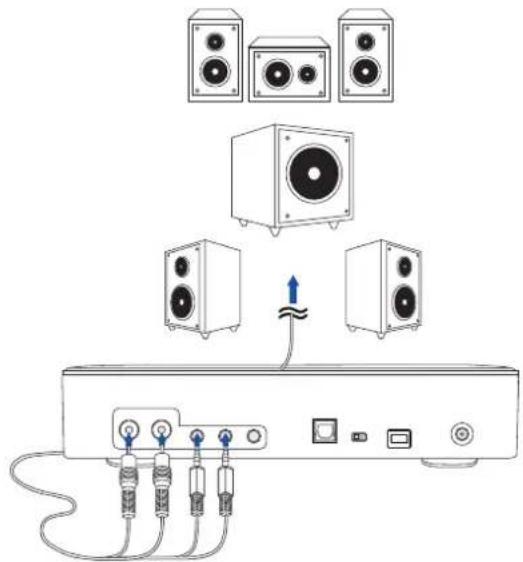
C. Connecting 7.1 or 5.1-channel speakers....8
Step 4: Configuring the audio settings....9
On Windows ® OS....9
On Mac OS 11
3. Using your device
3.1 Installing CyberLink Media Suite on Windows® OS 13
3.2 Playing an audio or video disc on Windows ® OS....14
Remote-control your playback using PowerDVD Remote FREE 14
3.3 Burning files to disc on Windows® OS 15
3.4 Playing a disk and burning files on Mac OS 16
4. Troubleshooting
1. Introduction
1.1 Overview
The ASUS SBW-S1 PRO is the world's first optical drive to have a built-in sound card that provides 7.1-channel audio output and a headphone amplifier. It delivers clear and precise sound for those who seek truly immersive audio and video entertainment experiences.
1.2 Package contents
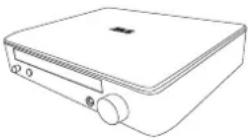 |  |  |  |
| Main drive Driver CD Quick Start Guide Safety Notice | |||
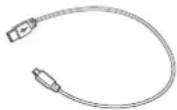 | 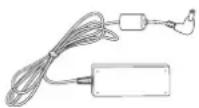 | 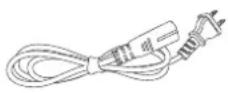 | 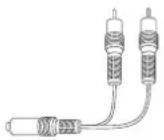 |
| USB 2.0 cable Adapter Power cord* Y-splitter audio cable | |||
* Type and quantity may vary regionally.
NOTE: If any of the items is damaged or missing, contact your retailer.
1.3 System requirements
To ensure a successful installation of the ASUS SBW-S1 PRO, make sure that your computer meets the following requirements:
• USB 2.0 port or above
• CPU: Intel ® Core TM 2 Duo E6750 (2.66GHz) or above
• Memory: 2GB or more is recommended
- Graphics Card: Intel® HD Graphics, AMD Radeon™ HD 5000, NVIDIA GeForce® 400 series or above
• Use HDCP Compatible display and VGA card to High Definition digital output
- Windows® 8.1/ Windows® 8/ Windows® 7
• MAC OS X 10.6 or above
• High quality headphones or powered analog speakers
1.4 Specifications summary
| General Specification | |
| READ | CD-ROM:24X |
| DVD-ROM (SL/DL):8X | |
| BD-ROM (SL/DL):6X | |
| CD-R:24X | |
| CD-RW:24X | |
| DVD-R (SL/DL):8X | |
| DVD-RW:8X | |
| DVD+R (SL/DL):8X | |
| DVD+RW:8X | |
| DVD-RAM:5X | |
| BD-R (SL/DL):6X | |
| BD-R (TL/QL):4X | |
| BD-RE (SL/DL):6X | |
| BD-RE (TL):2X | |
| CD-Video:10X | |
| DVD-Video:3X | |
| BD-Movie:2X | |
| WRITE | CD-R:24X |
| CD-RW:16X | |
| DVD-R:8X | |
| DVD-R DL:6X | |
| DVD-RW:6X | |
| DVD+R:8X | |
| DVD+R DL:6X | |
| DVD+RW:8X | |
| DVD-RAM:5X | |
| BD-R (SL):6X | |
| BD-R (DL):2X | |
| BD-R (TL/QL):2X | |
| BD-RE (SL/DL):2X | |
| BD-RE (TL):2X | |
| Audio Performance | |
| Output Signal-to-Noise Ratio (A-Weighted) up to 114dB | |
| Output Total Harmonic Distortion + Noise at 1kHz(A-Weighted): | up to 0.0005623% (-105dB) |
| Frequency Response (-3dB, 24-bit/192kHz format): | 10Hz to 48kHz |
| Output Full-Scale Voltage 2 Vrms (5.65 Vp-p) for line out, 7 Vrms (19.8 Vp-p) for headphone out | |
| Main Chipset | |
| Audio Processor Cmedia 6631A High-Performance Sound Processor | |
| D-A Converter of Digital Sources Cirrus CS4398 x1 | |
| Sample Rate and Resolution | |
| Analog Playback Sample Rate and Resolution 44.1/48/96/192kHz @ 16/24bit | |
| S/PDIF Digital Output 44.1/48/96/192kHz @ 16/24bit | |
| ASIO 2.2 Driver Support 44.1/48/96/192kHz @ 16/24bit | |
| Others | |
| Interface USB 2.0 | |
| Dimensions 210 x 168 x 50 mm | |
| Weight 850g | |
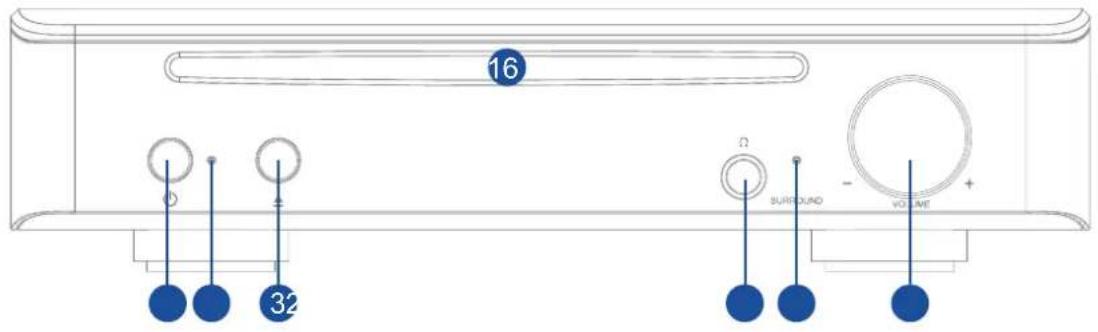
1.5 Getting to know your device
Front view
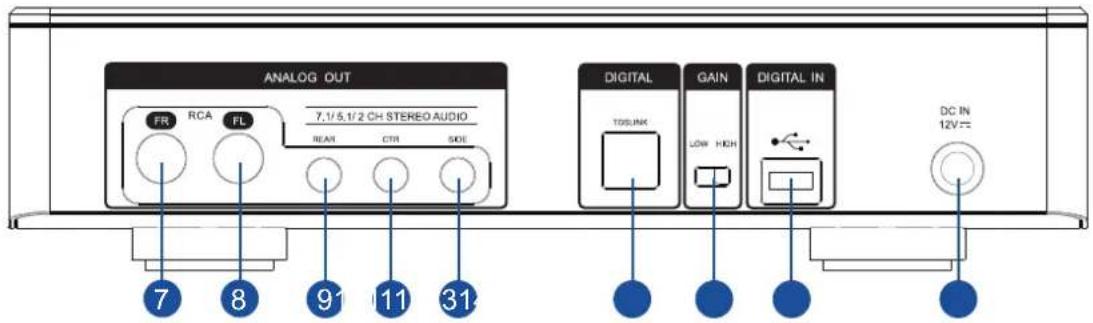
Rear view
| No. | Items Description | |
| 1 | Power on/off button | Press the button to switch on/off the device. |
| 2 | Power indicator | The LED will light up when powered on. |
| 3 | Eject button | Press the button to eject the optical disc. |
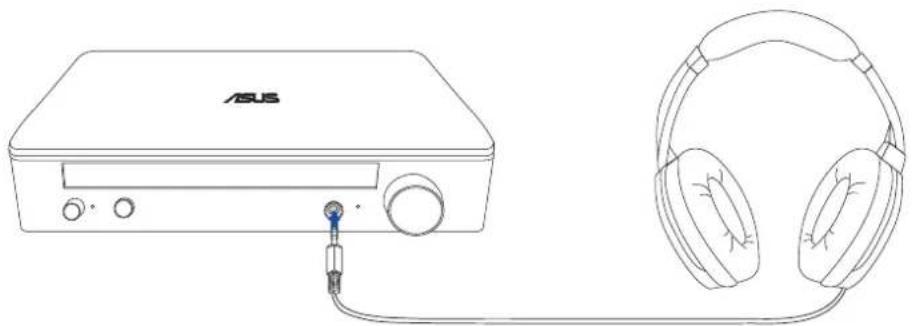
| 4 | Headphone out port | Connect your headphone to this port. |
| 5 | Virtual surround indicator | The LED will light up when virtual surround is on. |
| 6 | Volume and virtual surround control | Rotate to adjust the playback volume. Press to switch on/off virtual surround. |
| 7 | Front (R) out port | For 2/5.1/7.1 channel speaker systems, connects to the front right input on the powered speakers. |
| 8 | Front (L) out port | For 2/5.1/7.1 channel speaker systems, connects to the front left input on the powered speakers. |
| 9 | Rear out port | Connects to the rear surround input on 4/5.1/7.1 powered analog speakers. |
| 10 | Center/ subwoofer out port | Connects to the center/subwoofer input on 5.1/7.1 powered analog speakers. |
| 11 | Side surround out port | Connects to the side surround channel input on 7.1 powered analog speakers. |
| 12 | Toslink out port | Connects to an external digital decoder or digital speaker systems, Home Theater systems, AV receivers. |
| 13 | Gain switch | Pre-set low gain, you can switch to high gain when using high impedance headphone. |
| 14 | USB port | Connects to your computer using a USB 2.0 cable. |
| 15 | DC in | Connects to the adapter. |
| 16 | Optical drive bezel | Insert an optical disc here. |
2. Setting up your device
Step 1: Connecting to your computer
- Connect the type A USB connector of the bundled USB 2.0 cable to your computer, and the Micro-B connector to the optical drive.
- Connect the adapter to the main drive.
- Connect one end of the power cord to the adapter and plug the other end into a wall socket.
![graph TD A["PC"] -->|①| B["Switch"] B --> C["Laptop"] C --> D["Power Plug"] D --> E["USB Cable"] E --> F["Switch"] style A fill:#f9f,stroke:#333 style B fill:#ccf,stroke:#333 style C fill:#cfc,stroke:#333 style D fill:#fcc,stroke:#333 style E fill:#cff,stroke:#333 style F fill:#ffc,stroke:#333](/content/2026/05/1031328/images/145a8dd3f3b0461b876c8ee243ac2b478800c30d9ecfb6320daffa05d3cd04d7.jpg)
Step 2: Installing the driver on Windows® OS
After connecting the drive to your computer, you need to install the device driver that enables the drive to work with Windows ® operating system.
To install the driver on your computer:
- Power on your device.
- Insert the bundled driver CD into the optical drive bezel.
-
On the AutoPlay window, click Run setup.exe.
-
On the next screen, click installation.

on-screen instructions to complete the
- After the installation is complete, restart your computer.
NOTES:
• The driver works only when you connect SBW-S1 PRO to a desktop PC or notebook PC.
• The version and contents of the support CD are subject to change without notice.
- The driver is for Windows® operating system only. Driver installation is not required for Mac OS.
Step 3: Connecting output devices
There are three options to connect output devices.
A. Connecting stereo headphones
B. Connecting powered analog speaker systems
Connecting 2-channel speakers
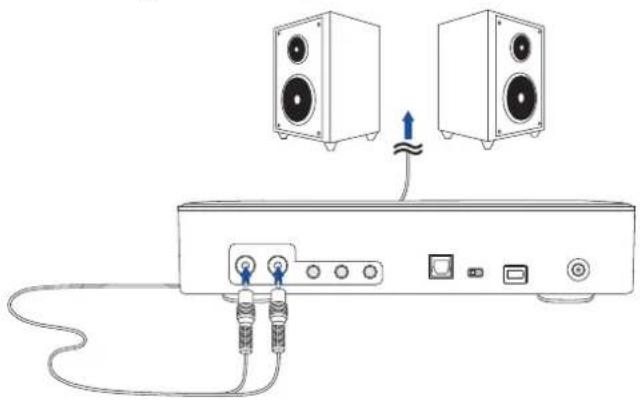
NOTE: You can use the bundled Y-splitter cable if needed.
C. Connecting 7.1 or 5.1-channel speakers
7.1-channel speakers
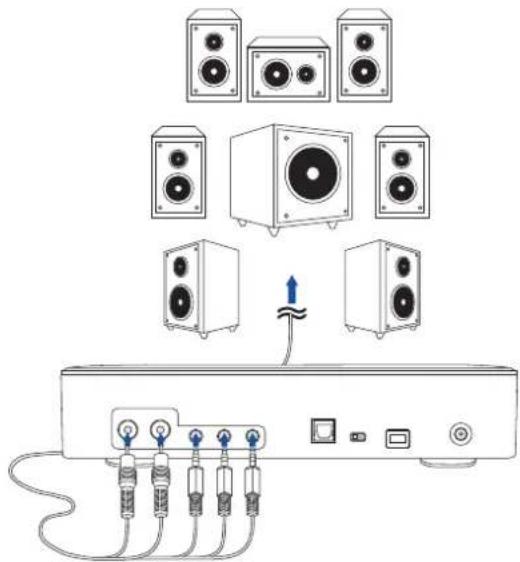
5.1-channel speakers
Step 4: Configuring the audio settings
On Windows® OS
Follow these steps to configure the audio settings:
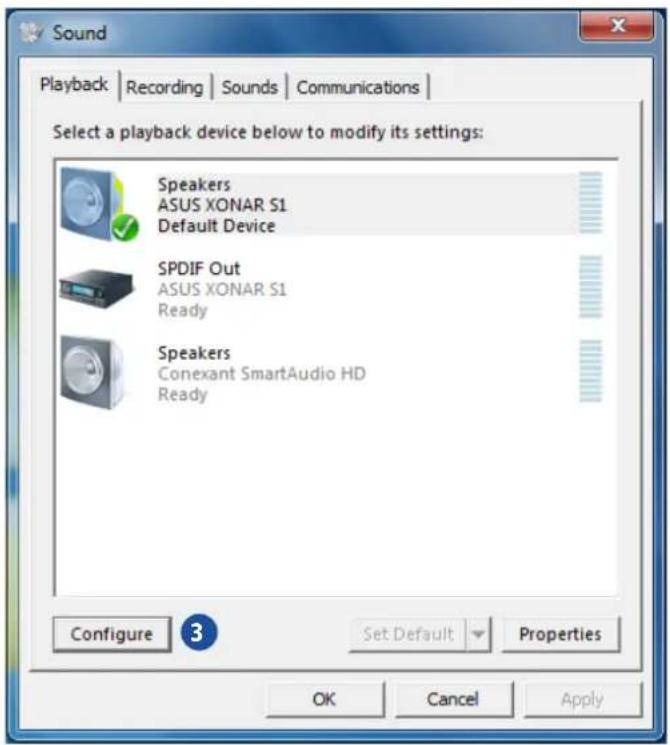
- Go to Control Panel and click Sound.
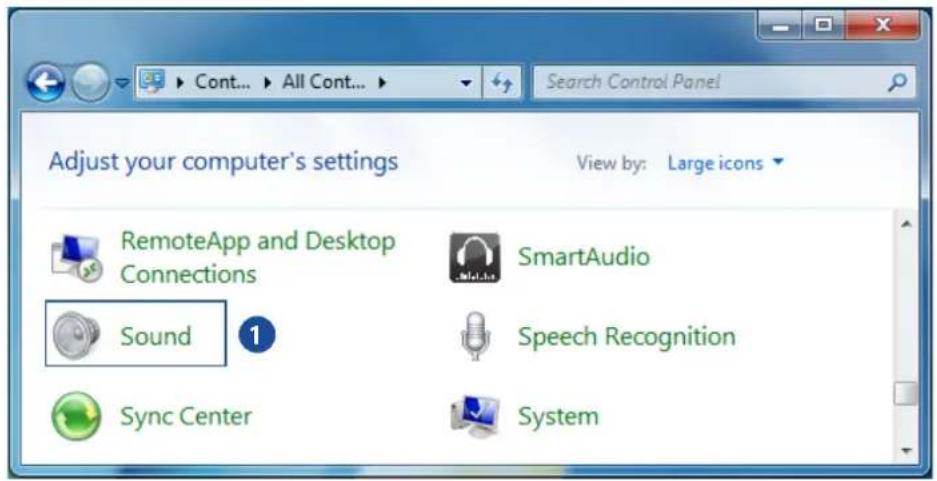
- Select ASUS XONAR S1 and click Set Default to set ASUS XONAR S1 as the default audio output.
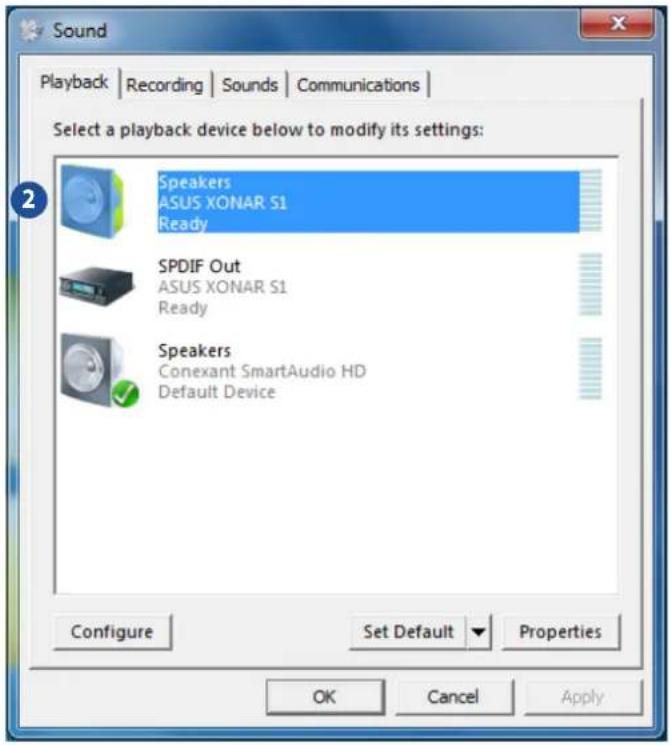
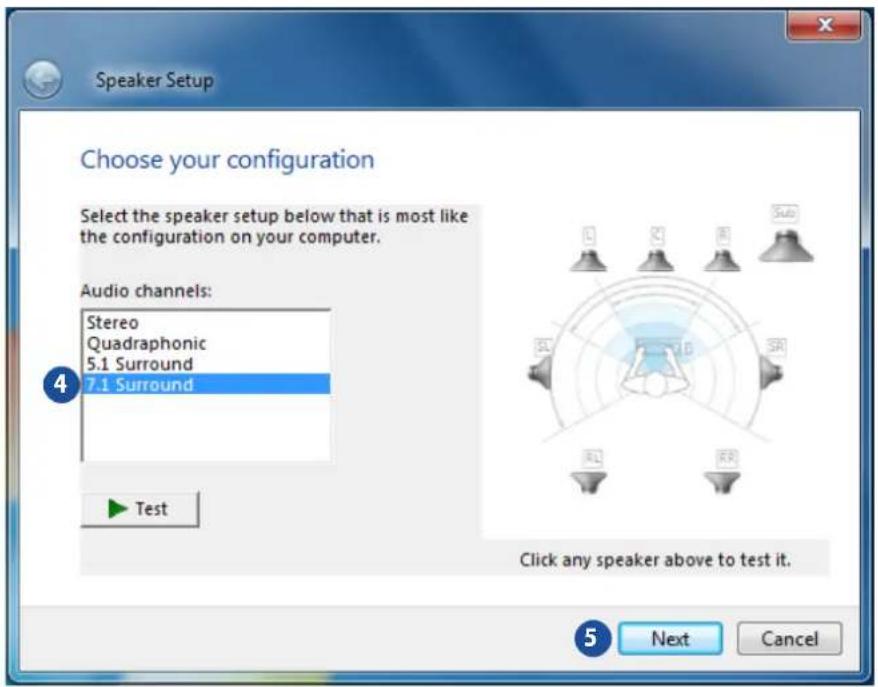
- If you want to connect your device to multi-channel speakers, click Configure to set up your speaker.
- Choose the appropriate configuration according to the type of your speaker.
- Follow the on-screen instructions to complete the setup.
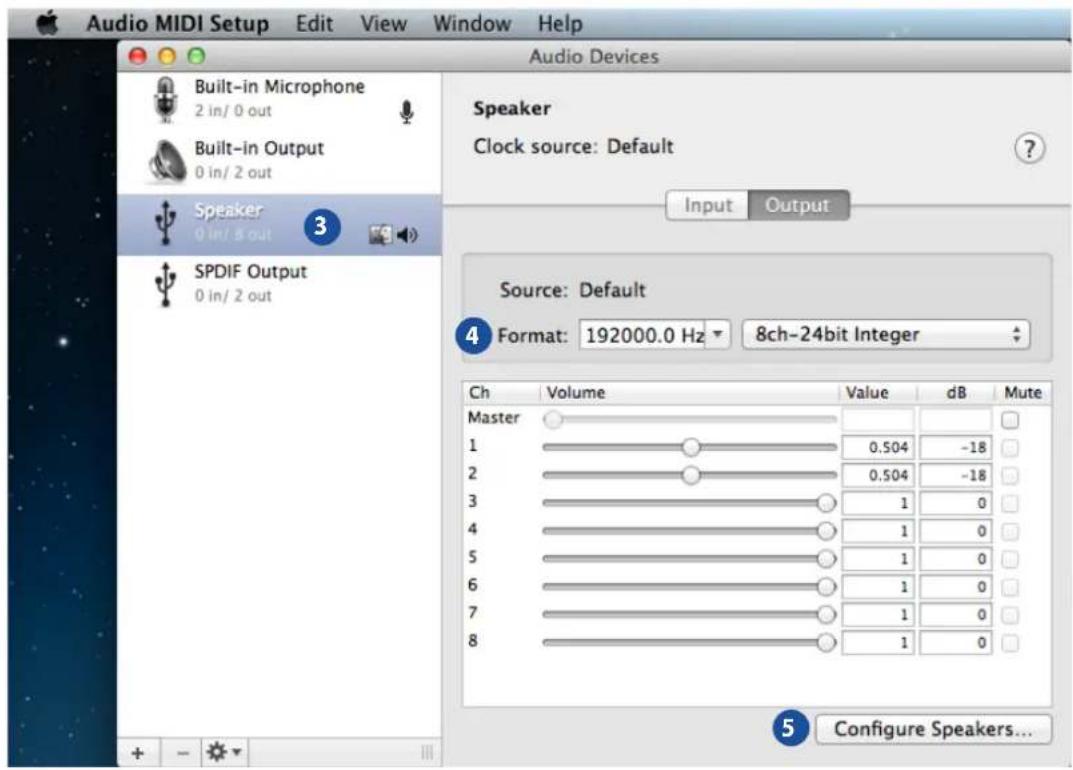
On Mac OS
Follow these steps to configure the audio settings:
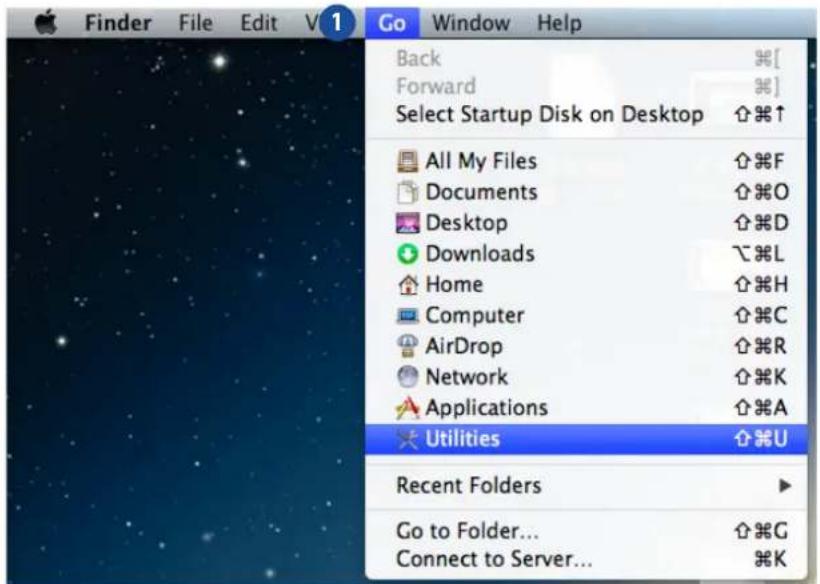
- Click Go on the control bar then select Utilities.
- Double-click Audio MIDI Setup.
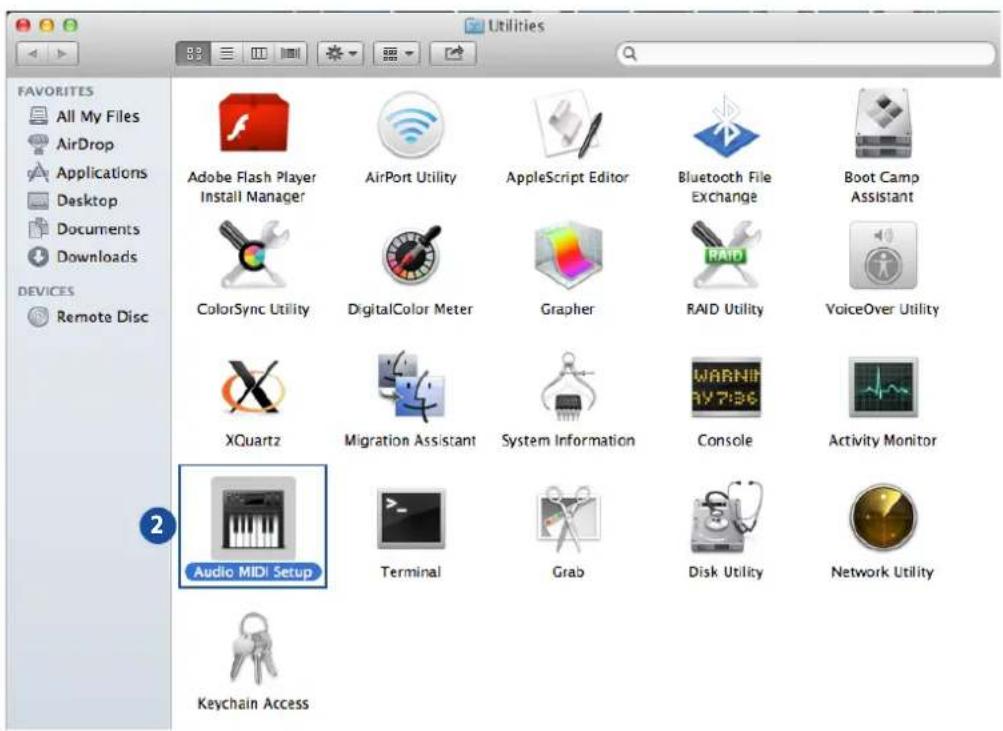
- From the Audio MIDI Setup screen, select Speaker.
- Select an output format according to your speakers.
- Click Configure speakers and follow the on-screen instructions to complete the setup.
3. Using your device
3.1 Installing CyberLink Media Suite on Windows® OS
CyberLink Media Suite is an all-in-one multimedia suite that includes the following four utilities:
• PowerDVD 12*
- Power2Go 8
• PowerBackup 2.5*
- InstantBurn 5*
* Only available on SBW-S1 PRO
NOTE: Click ? on the right-upper corner of the Media Suite screen to see the detailed instructions on how to use CyberLink Media Suite.
To install CyberLink Media Suite on your computer:
- Power on your device.
- Insert the bundled driver CD into the optical drive bezel.
- On the AutoPlay window, click Run setup.exe.
- On the next screen, click and follow the on-screen instructions to complete the installation.
- After the installation is complete, restart your computer.
3.2 Playing an audio or video disc on Windows® OS
While your system is on, insert an audio or video disc into the optical drive bezel with the label side up. PowerDVD 12 will play the audio or video disc automatically.
If your disc is not played automatically, click Computer then double-click the drive icon to play the audio or video disc using PowerDVD 12.
NOTES:
- Refer to section 3.1 Installing CyberLink Media Suite on Windows® OS on how to install PowerDVD 12.
- Click ? on the right-upper corner of the PowerDVD screen to see the detailed instructions on how to use PowerDVD 12.
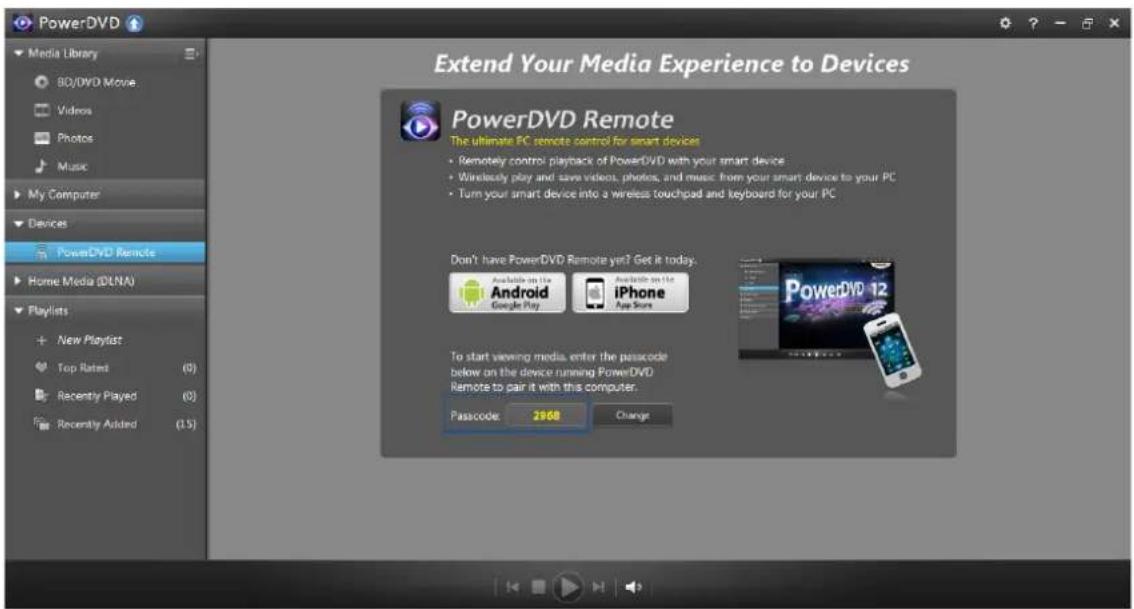
Remote-control your playback using PowerDVD Remote FREE
- On your mobile device, download and install PowerDVD Remote FREE from Google Play or App Store.
NOTE: Ensure that your mobile device and your computer are in the same network.
- On your computer, click All Programs > CyberLink Media Suite > CyberLink PowerDVD 12 > CyberLink PowerDVD 12 to launch PowerDVD 12.
- Click the Devices tab then click PowerDVD Remote to open the PowerDVD Remote screen.
- On your mobile device, launch PowerDVD Remote FREE then enter the passcode displayed on the PowerDVD Remote screen on your computer. Now you can remote-control the playback using your mobile device.
3.3 Burning files to disc on Windows® OS
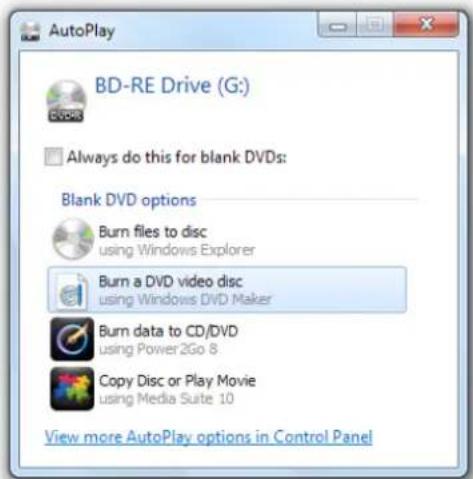
Burning data to CD/DVD using Power2Go 8
To burn data to CD/DVD using Power2Go 8
- While your system is on, insert a blank disc into the optical drive bezel with the label side up.
- Click Burn data to CD/DVD from the AutoPlay window.
- Click an icon to create a data disc.
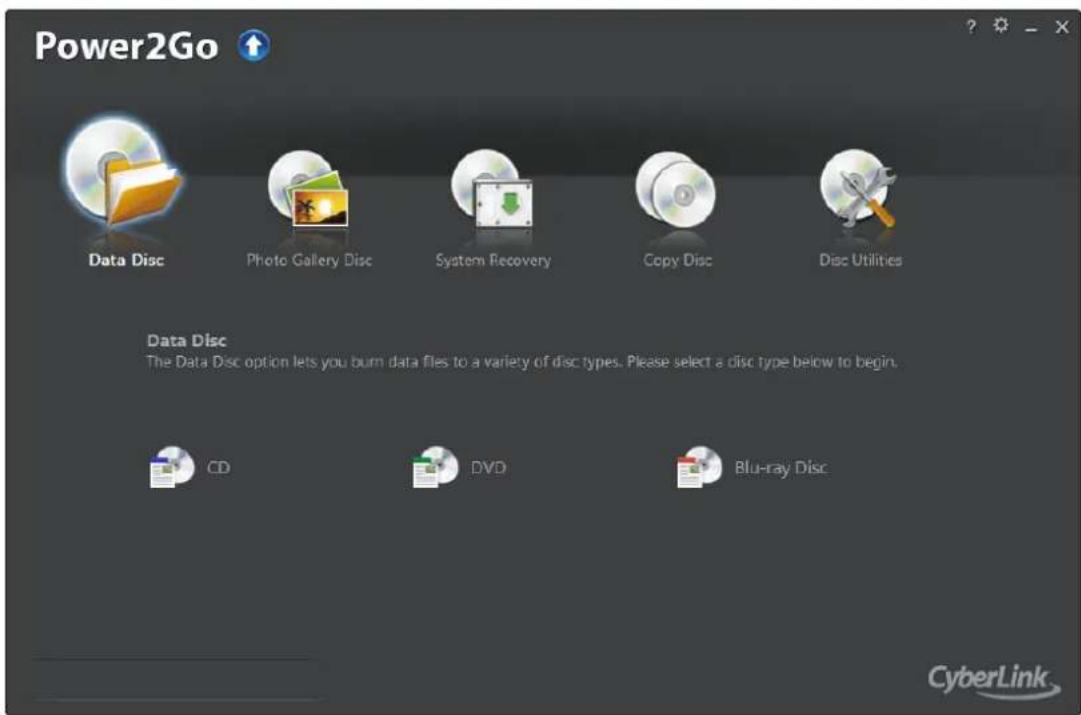
NOTE: Click ? on the right-upper corner of the Power2Go screen to see the detailed instructions on how to use Power2Go 8.
3.4 Playing a disk and burning files on Mac OS
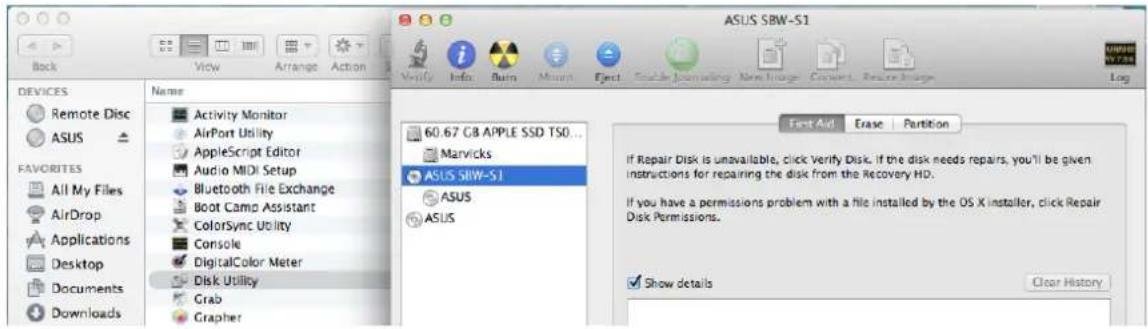
Checking if your Mac has detected the ODD
- Click Go on the control bar then select Utilities.
- Double-click Disk Utility. You can find the optical drive in the list.
Playing a disc
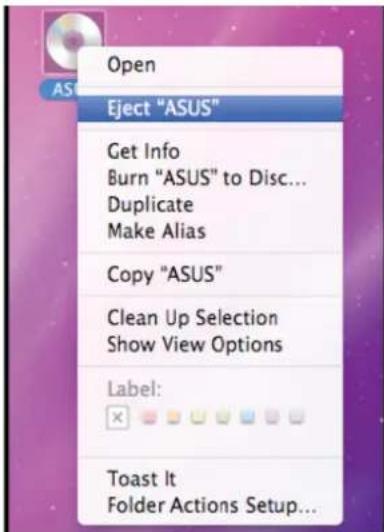
- Insert a disc that contains files. A disc icon appears on the desktop when you insert a disc.
- Double-click the disc icon to play the disc.
To eject the disc, right-click the disc icon then select Eject [Disc Name].
NOTE: The Eject button does not work on Mac OS.

Burning files
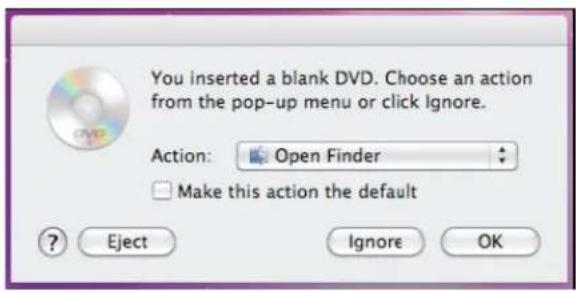
- A menu will pop-up when you insert a blank disc. Select an action and click OK.
- A disc icon will be created on your desktop.

-
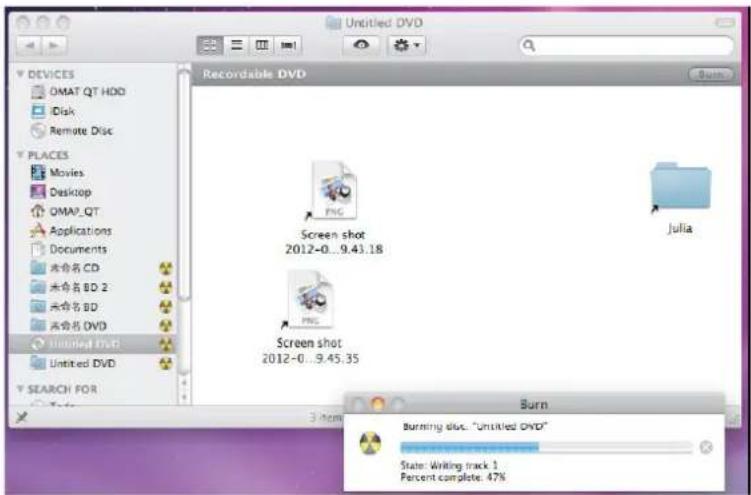
Click on the disc icon to open the disc burning application.
-
Drag the files that you wish to burn into the application.
-
Click Burn.
NOTES:
• Mac OS supports DVD burning and playback.
- Mac OS supports burning to a Blu-ray disc. You need to purchase third-party software if you want to play movies from Blu-ray discs.
- Does not support BOOTCAMP INSTALL Windows® OS.
4. Troubleshooting
1. I cannot install the driver in my PC.
a) Ensure that you have connected SBW-S1 PRO properly to the USB port of your computer and powered it on.
b) Ensure that your computer has Windows ® 7, Windows ® 8 or Windows ® 8.1 installed.
c) Restart your computer.
2. My computer failed to detect the external optical drive.
a) Shut down your computer.
b) Ensure that the USB cable and the power adapter are connected properly, the device is powered on, and the LED light up.
c) Turn on your computer.
3. I cannot find ASUS XONAR S1 from Windows® Control Panel > Sound.
a) Ensure that you have connected SBW-S1 PRO properly to the USB port of your computer and powered it on.
b) Ensure that you have installed the driver properly.
c) Ensure that your computer has Windows ® 7, Windows ® 8 or Windows ® 8.1 installed.
d) Restart your computer.
4. I cannot hear any sound from my analog speakers.
a) Ensure that you have connected speakers properly and have powered on your speakers.
b) Go to Windows® Control Panel > Sound to check if the playback default device is set to Speakers of ASUS XONAR S1. If not, set it to Speakers of ASUS XONAR S1.
c) Restart your computer.
5. I cannot hear any sound from the S/PDIF output.
a) Ensure that you have powered on the S/PDIF device and properly set it up.
b) If you are using 192kHz PCM output, make sure that your decoder can support 192kHz decoding. Try changing it to 44.1k or 48kHz first.
c) Go to Windows® Control Panel > Sound to check if the playback default device is set to S/PDIF Out of ASUS XONAR S1. If not, set it to S/PDIF Out of ASUS XONAR S1.
d) Restart your computer.
- COPYRIGHT © 2015 ASUSTEK COMPUTER INC. ALL RIGHTS RESERVED
- CONTENTS
- INTRODUCTION
- SETTING UP YOUR DEVICE
- USING YOUR DEVICE
- TROUBLESHOOTING
- OVERVIEW
- PACKAGE CONTENTS
- SYSTEM REQUIREMENTS
- SPECIFICATIONS SUMMARY
- GETTING TO KNOW YOUR DEVICE
- STEP 1: CONNECTING TO YOUR COMPUTER
- STEP 2: INSTALLING THE DRIVER ON WINDOWS® OS
- NOTES
- STEP 3: CONNECTING OUTPUT DEVICES
- CONNECTING STEREO HEADPHONES
- CONNECTING POWERED ANALOG SPEAKER SYSTEMS
- CONNECTING 7.1 OR 5.1-CHANNEL SPEAKERS
- STEP 4: CONFIGURING THE AUDIO SETTINGS
- ON WINDOWS® OS
- ON MAC OS
- INSTALLING CYBERLINK MEDIA SUITE ON WINDOWS® OS
- TO INSTALL CYBERLINK MEDIA SUITE ON YOUR COMPUTER
- PLAYING AN AUDIO OR VIDEO DISC ON WINDOWS® OS
- REMOTE-CONTROL YOUR PLAYBACK USING POWERDVD REMOTE FREE
- BURNING FILES TO DISC ON WINDOWS® OS
- BURNING DATA TO CD/DVD USING POWER2GO
- TO BURN DATA TO CD/DVD USING POWER2GO
- PLAYING A DISK AND BURNING FILES ON MAC OS
- CHECKING IF YOUR MAC HAS DETECTED THE ODD
- PLAYING A DISC
- BURNING FILES
- I CANNOT INSTALL THE DRIVER IN MY PC
- MY COMPUTER FAILED TO DETECT THE EXTERNAL OPTICAL DRIVE
- I CANNOT FIND ASUS XONAR S1 FROM WINDOWS® CONTROL PANEL > SOUND
- I CANNOT HEAR ANY SOUND FROM MY ANALOG SPEAKERS
- I CANNOT HEAR ANY SOUND FROM THE S/PDIF OUTPUT
Brand : ASUS
Model : SBW-S1 Pro
Category : Blu-ray player