HMIP-HAP - Access Point EQ-3 - Free user manual and instructions
Find the device manual for free HMIP-HAP EQ-3 in PDF.


| Product Type | Smart Home Access Point |
| Brand | eQ-3 |
| Model | HMIP-HAP |
| Dimensions (W x H x D) | 110 mm x 110 mm x 30 mm |
| Weight | 150 g |
| Power Supply | 5 V DC via USB cable (included) |
| Power Consumption | Max 2.5 W |
| Wireless Protocol | Homematic IP (868 MHz) |
| Ethernet Interface | 1x RJ45 (10/100 Mbit/s) |
| Maximum Supported Devices | Up to 100 Homematic IP devices |
| Indoor Range | Up to 30 m (typical) |
| Operating Temperature | 5 °C to 35 °C |
| Storage Temperature | -10 °C to 60 °C |
| Operating Humidity | Max 85% non-condensing |
| Main Functions | Connects Homematic IP devices to the internet; enables control via app; local automation without cloud; firmware updates |
| Maintenance | Clean with a soft, dry cloth; do not use chemicals |
| Safety | For indoor use only; keep away from moisture; disconnect power before cleaning |
| Spare Parts | USB power adapter and cable available separately |
| Repairability | Not user-serviceable; contact support for defects |
| General Information | Part of the Homematic IP smart home system; CE certified; compatible with Homematic IP app (iOS/Android) |
Frequently Asked Questions - HMIP-HAP EQ-3
User questions about HMIP-HAP EQ-3
0 question about this device. Answer the ones you know or ask your own.
Ask a new question about this device
Download the instructions for your Access Point in PDF format for free! Find your manual HMIP-HAP - EQ-3 and take your electronic device back in hand. On this page are published all the documents necessary for the use of your device. HMIP-HAP by EQ-3.
USER MANUAL HMIP-HAP EQ-3
natural_image
Two people smiling while looking at a smartphone together (no visible text or symbols)Home Control Access Point
HMIP-HAP
Lieferumfang
Anzahl Bezeichnung
1 Homematic IP Home Control Access Point
Printed in Hong Kong
natural_image
Line drawing of a laptop with a labeled point A on the front panel (no other text or symbols)text_image
Line drawing of a hand holding a smartphone displaying a QR code, with no text or symbols present.1 Homematic IP Home Control Access Point
1 Plug-in mains adapter
1 Network cable
2 Screws
2 Plugs
1 Operating manual
1st English edition 03/2015
Documentation © 2015 eQ-3 AG, Germany
All rights reserved. Translation from the original version in German. This manual may not be reproduced in any format, either in whole or in part, nor may it be duplicated or edited by electronic, mechanical or chemical means, without the written consent of the publisher.
Typographical and printing errors cannot be excluded. However, the information contained in this manual is reviewed on a regular basis and any necessary corrections will be implemented in the next edition. We accept no liability for technical or typographical errors or the consequences thereof.
All trademarks and industrial property rights are acknowledged.
Printed in Hong Kong
Changes may be made without prior notice as a result of technical advances.
Version 1.0 // 140889
Table of contents
1 Homematic IP - the next smart home generation 19
2 Function and device overview 19
3 Information about this manual....21
4 Hazard information....21
5 Start-up 22
5.1 Set-up and mounting 22
5.2 First steps: Teaching-in devices and adding rooms....24
5.3 Home screen 25
5.4 Operation 25
5.4.1 Heating profiles 25
5.4.2 Eco mode....26
5.4.3 Boost....26
5.5 Configuration of rooms 27
6 Troubleshooting 27
6.1 Command not confirmed....27
6.2 Duty cycle 27
6.3 Error codes and flashing sequences 28
7 Restore factory settings....29
8 Maintenance and cleaning....29
9 General information about radio operation....30
10 Technical specifications....30
1 Homematic IP - the next smart home generation
With Homematic IP, you can install your smart climate control solution in just a few little steps.
The Homematic IP Home Control Access Point is the central unit of the climate control solution of Homematic IP and communicates via the HmIP radio protocol. All devices of the climate control solution can be configured comfortably and individually with a smartphone via the Homematic IP app. The available functions provided by the Homematic IP system in combination with other components are described in the Homematic IP User Guide. All current technical documents and updates are provided at www.eQ-3.de.
2 Function and device overview
The Homematic IP Home Control Access Point is the central unit of the climate control solution and offers individual control of the room temperature according to individually tailored heating phases.
The Access Point connects the smartphone via the Homematic IP cloud with all Homematic IP devices and transmits the configuration data and control commands of the app to all Homematic IP devices. With Homematic IP, you can simply adjust your climate control solution to your personal needs at any time and place.
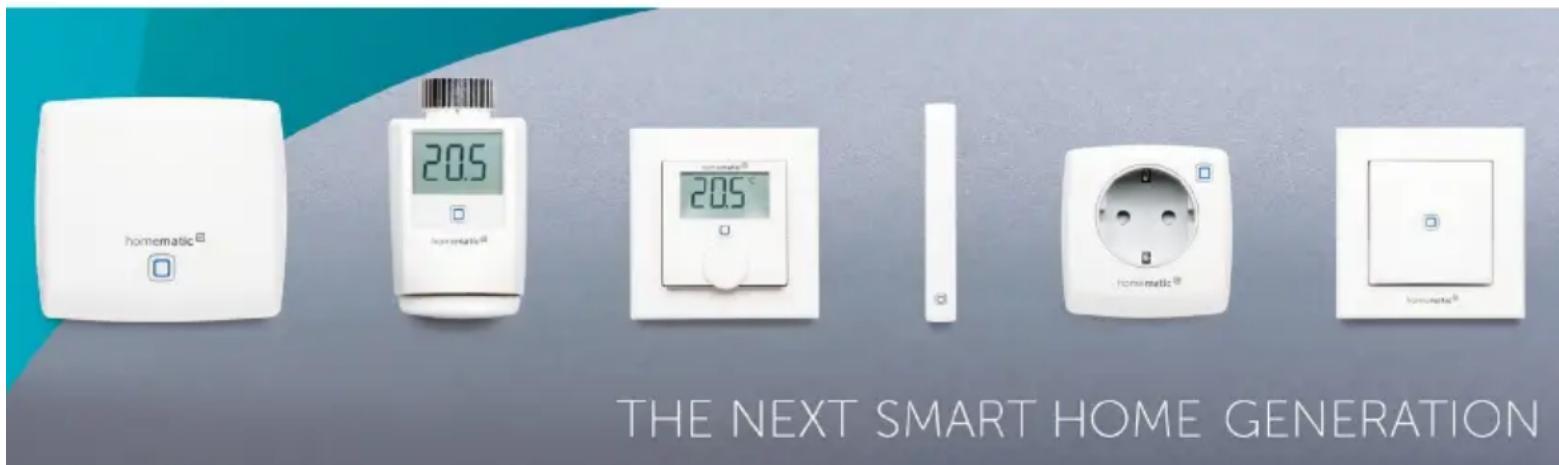
text_image
homematic® 205 homematic® 205 ° homematic® homematic® THE NEXT SMART HOME GENERATIONDevice overview
Front
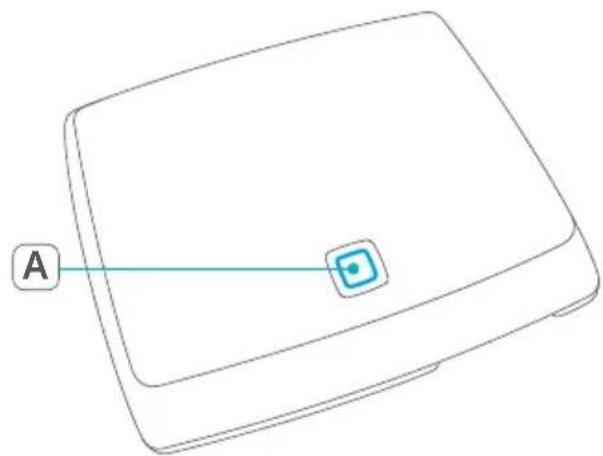
natural_image
Line drawing of a device casing with a labeled point A and a small square button (no text or symbols beyond label)(A) System button and LED
Back
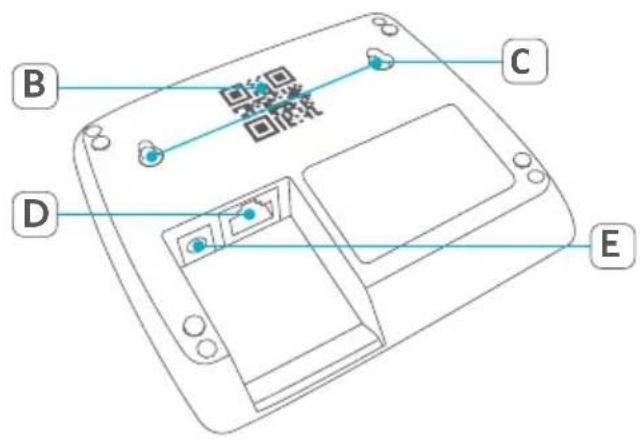
text_image
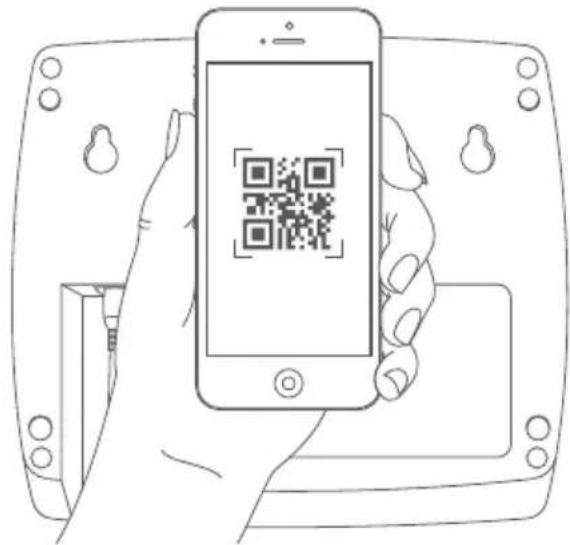
B C D E(B) QR code and device number (SGTIN)
(C) Screw holes
(D) Interface: Network cable
(E) Interface: Plug-in mains adapter
3 Information about this manual
Please read this manual carefully before beginning operation with your Homematic IP components. Keep the manual so you can refer to it at a later date if you need to. If you hand over the device to other persons for use, please hand over this manual as well.
Symbols used:

Attention!
This indicates a hazard.

Note.
This section contains important additional information!
4 Hazard information

We do not assume any liability for damage to property or personal injury caused by improper use or the failure to observe the hazard information. In such cases, any claim under warranty is extinguished! For consequential damages, we assume no liability!

Do not use the device if there are signs of damage to the housing, control elements or connecting sockets, for example, or if it demonstrates a malfunction. If you have any doubts, please have the device checked by an expert.

Do not open the device. It does not contain any parts that can be maintained by the user. In the event of an error, please have the device checked by an expert.

For safety and licensing reasons (CE), unauthorized change and/or modification of the device is not permitted.

The device may only be operated indoors and must be protected from the effects of moisture, vibrations, solar or other methods of heat radiation, cold and mechanical loads.

The device is not a toy; do not allow children to play with it. Do not leave packaging material lying around. Plastic films/bags, pieces of polystyrene, etc. can be dangerous in the hands of a child.

For power supply, only use the original plug-in mains adapter (5 Vdc/550 mA) delivered with the device.

The device may only be connected to an easily accessible power socket outlet. The mains adapter must be pulled out if a hazard occurs.

Always lay cables in such a way that they do not become a risk to people and domestic animals.

The device may only be operated within residential buildings.

Using the device for any purpose other than that described in this operating manual does not fall within the scope of intended use and shall invalidate any warranty or liability.
5 Start-up
This section describes how to set up your Homematic IP climate control solution step by step.
First install the Homematic IP app on your smartphone and set up your Access Point as described in the following sections. Once your Access Point has been installed successfully, you can add and integrate new Homematic IP devices to your system.
5.1 Set-up and mounting

The Homematic IP app is available for iOS and Android and can be downloaded for free in the corresponding app stores.
- Please download the app in the app store and install it on your smartphone.
- Start the app.
- Place the Access Point close to your router and a socket.
Start-up
- Connect the Access Point with the router using the supplied network cable (F). Provide power supply for the device using the supplied plug-in mains adapter (G).
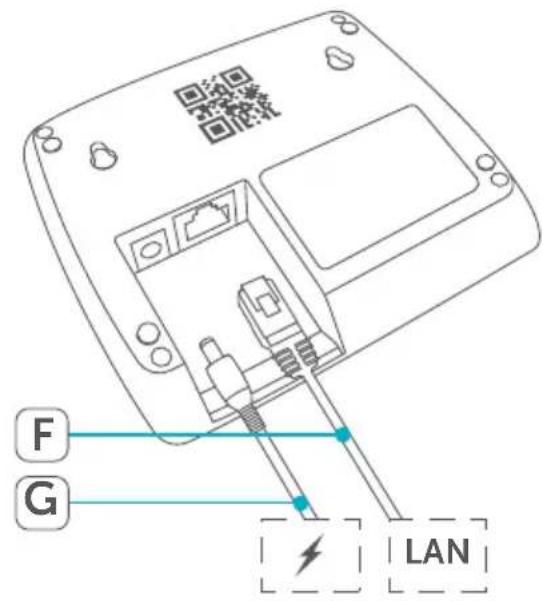
text_image
F G LAN- Scan the QR code (B) on the back side of your Access Point. You can also enter the device number (SGTIN) (B) of your Access Point manually.
text_image
Line drawing of a hand holding a smartphone displaying a QR code, with no text or symbols present.- Please confirm in the app if the LED of your Access Point lights up permanently blue.

If the LED lights up differently, please follow the instructions in the app or see „6.3 Error codes and flashing sequences“ on page 28.
- The Access Point is registered to the server. This may take a few minutes. Please wait.
- After successful registration, please press the system button of your Access Point for confirmation.
• Teaching-in will be carried out. - The Access Point is now set up and immediately ready for use.
5.2 First steps: Teaching-in devices and adding rooms
As soon as your Homematic IP Access Point and the Homematic IP app are ready for use, you can teach-in additional Homematic IP devices and allocate them in the app to different rooms.
- Tap on the menu symbol in the top left of the screen of your app (see „5.3 Home screen“ on page 25) and select the menu item "Teach-in device".
- Establish the power supply of the device you want to teach-in, in order to activate the teach-in mode. For further information, please refer to the operating manual of the corresponding device.
• Follow the instructions of the app step by step. - In the app, give the device a name and create a new room or allocate the device to an existing room.

Please define the device names very carefully in order to avoid assignment errors when using various devices of the same type. You can also change the device and room names later on.
5.3 Home screen
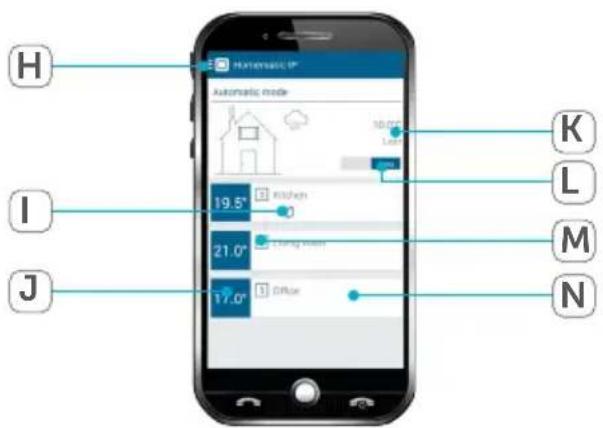
After having taught-in your Homematic IP devices and allocated them to rooms, they will be displayed in the home screen of your app along with additional information.
text_image
H Automatic Mode 10.0° Lush K I 19.5° Kitch 0 21.0° Living man M J 17.0° Office N(H) Main menu
(I) Symbols (e.g. radio communication errors, open window, empty battery)
(J) Current setpoint temperature
(K) Location and weather information
(L) Automatic or eco mode
(M) Current heating profile
(N) Room
5.4 Operation
You can use different control elements in the Homematic IP app for a time-controlled regulation of the room temperature according to your personal settings.
5.4.1 Heating profiles
With freely programmable heating profiles you can define individually tailored temperatures for each room at any time. No matter if you have a regular daily routine or if you are working in a shift: you can define up to three individually tailored heating profiles per room with up to six heating and cooling phases per day.
- Tap on the menu symbol (H) and select the menu item "Heating profiles".
- Select the profile in the desired room.
• You can adjust the profile name (e.g. early shift). - Select a weekday to configure the heating phases.

The base temperature defines the permanent temperature that is maintained in a room, if the heating profile is not in a heating or cooling phase.
- Tap on "+" to add new heating and cooling phases.
- You can adjust up to six single heating and cooling phases. Therefore, please define the time period and the temperature for each phase. The heating and cooling phases are displayed in a bar graph.
- Repeat this steps if you want to add further heating profiles.

You can copy profiles and days with a long press on the heating profile or single weekdays.
5.4.2 Eco mode
In the eco mode, the temperature in the house can be reduced
• temporarily, e.g. for the weekly shopping,
• scheduled, e.g. for holidays, or
• permanently, for an undefined period of time, in order to save energy.
- Tap on the menu symbol (H) and select the menu item "Eco mode / Wall-mount remote control".
- You can define the rooms for activating the eco mode and lowering the temperature by tapping on "Rooms in eco mode".
- The temperature for the eco mode can be defined under "Eco temperature".
• To activate the eco mode via the wall-mount
remote control you can define the duration under "Eco duration via wall-mount remote control".
Simply push the Homematic IP Wall-mount Remote Control or slide the switch in the home screen of your app from "Auto" to "Eco" to activate the eco mode. You can adjust the eco duration at any time via the app.
5.4.3 Boost
With the boost function, cool rooms can be heated within short time. You can activate the boost function via app or the device (Homematic IP Radiator or Wall Thermostat). The radiator valve opens completely. There will be a pleasant room temperature right away because of the radiated heat. By the end of the boost phase, the devices automatically change back to the prior operating mode.
- In the app, tap on the room and then on the boost symbol or press the control wheel of the Homematic IP Radiator or Wall Thermostat to activate the boost function.
5.5 Configuration of rooms
Tap on a room in the home screen of the app and select "Configuration" to adjust the following settings:
Minimum temperature
Set the minimum temperature for this room. The temperature e.g. in heating profiles or during operation of the radiator thermostat, will not fall below the set minimum value.
Maximum temperature
Set the maximum temperature for this room. The temperature e.g. in heating profiles or during operation of the radiator thermostat, will not exceed the set maximum value.
Open-window-temperature
Set the temperature that has to be maintained in this room during ventilation.
Boost duration
Set the boost duration for this room.
6 Troubleshooting
6.1 Command not confirmed
If at least one receiver does not confirm a command, this may be caused by radio interference (see „9 General information about radio operation“ on page 30). The error will be displayed in the app and may be cause by the follow:
• Receiver cannot be reached
- Receiver is unable to execute the command (load failure, mechanical blockade, etc.)
- Receiver is defective
6.2 Duty cycle
The duty cycle is a legally regulated limit of the transmission time of devices in the 868 MHz range. The aim of this regulation is to safeguard the operation of all devices working in the 868 MHz range.
In the 868 MHz frequency range we use, the maximum transmission time of any device is 1% of an hour (i.e. 36 seconds in an hour). Devices must cease transmission when they reach the 1% limit until this time restriction comes to an end. Homematic IP devices are designed and produced with 100% conformity to this regulation. During normal operation, the duty cycle is not usually reached.
However, repeated and radio-intensive teach-in processes mean that it may be reached in isolated instances during start-up or initial installation of a system. If the duty cycle limit is exceeded, the device may stop working for a brief period. The device starts working correctly again after a short period (max. 1 hour).
6.3 Error codes and flashing sequences
| Flashing code | Meaning Solution | |
| Permanent orange lighting | Access Point is starting | Please wait shortly and observe the subsequent flashing behaviour. |
| Fast blue flashing | Connection to the server is being established | Wait until the connection is established and the LED lights permanently blue. |
| Permanent blue lighting | Normal operation, connection to server is established | You can continue operation. |
| Fast yellow flashing | No connection to network or router | Connect the Access Point to the network/router. |
| Permanent yellow lighting | No Internet connection | Please check the Internet connection and firewall settings. |
| Alternately long and short orange flashing | Update in progress | Please wait until the update has been completed. |
| Fast red flashing | Error during update | Please check the server and Internet connection. Re-start the Access Point. |
| Fast orange flashing | Stage before restoring the factory settings | Press and hold down the system button again for 4s, until the status LED lights up green. |
| 1x long green lighting | Reset confirmed You can continue operation. | |
| 1x long red lighting | Reset failed Please try again. | |
7 Restore factory settings

The factory settings of the Access Point can be restored. This will delete all settings of the entire Homematic IP system. The factory settings of your Homematic IP devices have to be restored as well.
To restore the factory settings of the Access Point, please proceed as follows:
- Disconnect the Access Point from the power supply. Therefore, unplug the mains adapter.
- Plug-in the mains adapter again and press and hold down the system button for 4s at the same time, until the LED will quickly start flashing orange.
• Release the system button. - Press and hold down the system button again for 4s, until the status LED lights up green. If the LED lights up red, please try again.
- Release the system button to finish the procedure.
The device will perform a restart.
8 Maintenance and cleaning

The device does not require you to carry out any maintenance. Enlist the help of an expert to carry out any maintenance or repairs.
Clean the device using a soft, lint-free cloth that is clean and dry. You may dampen the cloth a little with lukewarm water in order to remove more stubborn marks. Do not use any detergents containing solvents, as they could corrode the plastic housing and label.
9 General information about radio operation
Radio transmission is performed on a non-exclusive transmission path, which means that there is a possibility of interference occurring. Interference can also be caused by switching operations, electrical motors or defective electrical devices.

The range of transmission within buildings can differ greatly from that available in the open air. Besides the transmitting power and the reception characteristics of the receiver, environmental factors such as humidity in the vicinity have an important role to play, as do on-site structural/screening conditions.
eQ-3 AG hereby declares that this device complies with the essential requirements and other relevant regulations of Directive 1999/5/EC. You can find the full declaration of conformity at www.eQ-3.de.
10 Technical specifications
Device short description: HMIP-HAP
Supply voltage
plug-in mains adapter (input): 100 V-240 V/50 Hz
Power consumption
plug-in mains adapter: 1.5 W max.
Supply voltage: 5 VDC
Current consumption: 500 mA max.
Standby
power consumption: 1.1 W
Degree of protection: IP20
Ambient temperature: 5 to 35 °C
Dimensions (W x H x D): 118 x 104 x 26 mm
Weight: 153 g
Radio frequency: 868.3 MHz/ 869.525 MHz
Receiver category: SRD category 2
Typ. open area RF range: >150 m
Network: 10/100 MBit/s, Auto-MDIX
Subject to technical changes.
Instructions for disposal

Do not dispose of the device with regular domestic waste! Electronic equipment must be disposed of at local collection points for waste electronic equipment in compliance with the Waste Electrical and Electronic Equipment Directive.
Information about conformity

The CE sign is a free trading sign addressed exclusively to the authorities and does not include any warranty of any properties.

For technical support, please contact your retailer.
homematic IP
text_image
homematic®
Bevollmächtigter des Herstellers: Manufacturer's authorised representative:

eQ-3 AG Maiburger Straße 29 26789 Leer / GERMANY www.eQ-3.de