
GIGAVAULT - Storage system SONY - Free user manual and instructions
Find the device manual for free GIGAVAULT SONY in PDF.


| Product Type | IEEE 1394 interface adapter for portable hard disk drive support |
| Interface | IEEE 1394a-2000 (FireWire / i.LINK) - 2 ports (6-pin and 4-pin) |
| Maximum transfer rate | 400 Mbps (SPB-2) |
| File system | FAT32 (compatible with Windows and Mac) |
| Compatibility | Windows XP/Me/2000/98 SE, Mac OS 9.0 and later |
| Power supply | AC adapter (100-240 V AC, 50/60 Hz) |
| Power consumption | Power via AC adapter (not specified) |
| Access indicator | Green (standby), Flashing orange (transfer), Off (no power) |
| Dimensions (approx.) | 130 x 80 x 25 mm (adapter only) |
| Weight (approx.) | 200 g (adapter only) |
| Package contents | Interface adapter, hard disk drive support (depending on model), 2 IEEE 1394 cables (6-6 and 6-4 pin), desktop stand, AC adapter, power cord, instruction manual, label |
| Main functions | External storage expansion, Plug and Play, Windows/Mac data sharing, high-speed transfer |
| Maintenance and cleaning | Avoid exposure to sunlight, humidity, heat, and strong vibrations. Do not move during use. In case of condensation, wait 1 hour before use. |
| Safety | Never disconnect the cable or AC adapter during data transfer. Disconnect the device before turning on the computer. Use the locking screw to prevent accidental disconnection. |
| Spare parts and repairability | In case of malfunction, contact Sony customer information center. Do not open the device. |
| General information | Compliant with EN55022 Class B and EN55024 standards for residential, commercial, and light industrial environments. Certified for Canada (NMB-003 Class B). |
Frequently Asked Questions - GIGAVAULT SONY
User questions about GIGAVAULT SONY
0 question about this device. Answer the ones you know or ask your own.
Ask a new question about this device
Download the instructions for your Storage system in PDF format for free! Find your manual GIGAVAULT - SONY and take your electronic device back in hand. On this page are published all the documents necessary for the use of your device. GIGAVAULT by SONY.
USER MANUAL GIGAVAULT SONY
IEEE 1394 Interface Adaptor for Portable HardDisk Media
Operating Instructions ____ GB
For Customers in the U.S.A. and Canada
WARNING
Keep away from children. If swallowed, promptly see a doctor.
To prevent fire or shock hazard, do not expose the unit to rain or moisture.
To avoid electrical shock, do not open the cabinet. Refer servicing to qualified personnel only.
Note
Data is safe in the following environments: In X-ray security systems at airports.
Owner's Record
The model number and serial number are located on the back of the product. Record the serial number in the space provided here. Refer to the model and serial number when you call the Sony Customer Information Center.
Model No. RHCIL, RHK80IL Serial No. ____
Regulatory Information
Declaration of Conformity
Trade Name: SONY
Model No.: RHCIL, RHM80
Responsible Party: Sony Electronics Inc.
Address: 680 Kinderkamack Road, Oradell, NJ 07649 U.S.A.
Telephone No.: 201-930-6972
This device complies with Part 15 of the FCC Rules. Operation is subject to the following two conditions: (1) This device may not cause harmful interference, and (2) this device must accept any interference received, including interference that may cause undesired operation.
SONY
RHCIL/RHM80

Tested To Comply With FCC Standards
FOR HOME OR OFFICE USE
Caution
You are cautioned that any changes or modifications not expressly approved in this manual could void your authority to operate this equipment.
Note
This equipment has been tested and found to comply with the limits for a Class B digital device, pursuant to Part 15 of the FCC Rules. These limits are designed to provide reasonable protection against harmful interference in a residential installation. This equipment generates, uses, and can radiate radio frequency energy and, if not installed and used in accordance with the instructions, may cause harmful interference to radio communications. However, there is no guarantee that interference will not occur in a particular installation. If this equipment does cause harmful interference to radio or television reception, which can be determined by turning the equipment off and on, the user is encouraged to try to correct the interference by one or more of the following measures:
– Reorient or relocate the receiving antenna. - Increase the separation between the equipment and receiver. - Connect the equipment into an outlet on a circuit different from that to which the receiver is connected. - Consult the dealer or an experienced radio/TV technician for help.
The supplied interface cable must be used with the equipment in order to comply with the limits for a digital device pursuant to Subpart B of Part 15 of the FCC Rules.
For Customers in the U.S.A.
For technical support, please visit http://www.sony.net/gigavault/, or call 1-866-654-SONY (7669). The number in the declaration of conformity on the previous page is for FCC-related matters only.
For Customers in Canada
This Class B digital apparatus complies with Canadian ICES-003.
For Customers in Europe
This equipment has been tested and found to comply with the limits set out in the EMC Directives using a connection cable shorter than 3 meters.
This equipment complies with EN55022 Class B and EN55024 for use in the following areas: residential, commercial, and light-industrial.
This equipment conforms with the following European Directives: 89/336/EEC, 92/31/EEC (EMC directive).
- Giga Vault and i.LINK are trademarks of Sony Corporation.
- Microsoft and Windows are registered trademarks of Microsoft Corporation in the United States and other countries.
- FireWire is a trademark of Apple Computer, Inc., registered in the United States and other countries.
- Other system names and product names that appear in this manual are registered trademarks or trademarks of their respective owners. Note that the TM and ® symbols are not used in this manual.
Table of Contents
Features 4
Package Contents 4
Connection 4
Connecting the Portable HardDisk Media .... 4
Connecting the Unit to the Power Outlet.... 5
Connecting the Unit to your Computer 5
Before Using the Unit 6
Windows XP, Windows Me, Windows 2000, and Windows 98 SE....6
Mac OS 9.0 or Higher ...... 6
Using the Unit....6
Disconnecting the Unit from your Computer 7
About the Included Software .... 7
Troubleshooting 8
Usage Notes 9
Specifications 31
User Registration 32
Features
The RHCIL (hereafter “the unit”) is an IEEE 1394a-2000 interface adaptor for the Portable HardDisk Media. By connecting the unit, you can easily use the Portable HardDisk Media as an external storage device. The unit is an IEEE 1394 device, so it is possible to use it with the Windows or Macintosh default device driver (Plug and Play). Because IEEE 1394a is SPB-2-compliant, you can achieve a maximum 400 Mbps data transfer rate with the unit. Also, the Portable HardDisk Media is FAT32-formatted, which means that you can easily share Windows and Macintosh data.
Package Contents
When you open the package, make sure that it contains the following. If any of the items listed below are missing or damaged, call the Sony Customer Information Center.
- IEEE 1394 Interface Adaptor
- Portable HardDisk Media (included only with the RHK80IL. Sold separately and necessary to use the RHCIL)
- IEEE 1394 cable (2) (6-pin to 6-pin, 6-pin to 4-pin)
- Stand (included only with the RHK80IL)
- AC adaptor
- Power cord
- Operating instructions (this document)
- Label (included only with the RHK80IL)
Connection
Connecting the Portable HardDisk Media
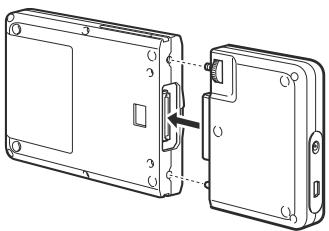
Before connecting the Portable HardDisk Media, remove the protective cover from the Portable HardDisk Media connector.
Align the unit and Portable HardDisk Media so that the connectors mate correctly. Connect the Portable HardDisk Media to the unit, then secure with the screw at the back of the unit.
Connecting the Unit to the Power Outlet
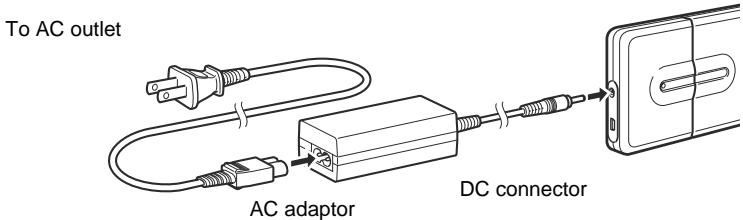
Connect the power cord to the AC adaptor. Next, connect the DC cable of the AC adaptor to the DC connector of the unit. Finally, connect the power cord to the power outlet.
Make sure that the power outlet is close to the unit and readily accessible.
Notes
- The shape of the power cord varies depending on the country or region of purchase.
- When using the drive with the 6-pin to 4-pin IEEE 1394 cable, you must connect the AC adaptor and power cord to the unit. This is not necessary when using a 6-pin to 6-pin IEEE 1394 cable.
Connecting the Unit to your Computer
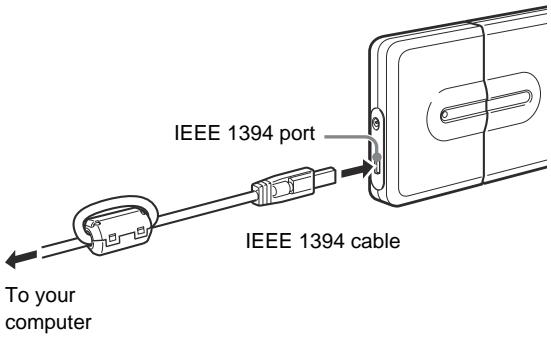
Connect the IEEE 1394 cable to the unit. Then, connect the cable to a IEEE 1394 port of your computer.
Note
A default device driver is installed the first time you use the unit.
Before Using the Unit
You can use the unit without having to install a device driver.
Windows XP, Windows Me, Windows 2000, and Windows 98 SE
You can use the unit with the default device driver of your operating system.
Connect the unit to the IEEE 1394 port (or i.LINK port on certain computers) of your computer. Your Windows operating system automatically detects the unit and you can start using it immediately.
Mac OS 9.0 or Higher
You can use the unit with the default device driver of your operating system.
Connect the unit to the FireWire port of your computer. Your Mac OS automatically detects the unit and you can start using it immediately.
Using the Unit
When you connect the unit to your computer with the IEEE 1394 cable, the Portable HardDisk Media appears as “GIGA VAULT (D:)” (where “D” is the letter of the drive. This letter may vary depending on your computer). The Portable HardDisk Media is recognized as an external mass storage device, therefore you can use it as you would any other hard disk to save files and/or folders.
The access indicator on the Portable HardDisk Media allows you to verify its status when you access it.
| Indicator | Status |
| Green, lit | Portable HardDisk Media is on standby. |
| Orange, flashing | Data transfer in progress. (Never disconnect the unit or cable when the Portable HardDisk Media is in this state.) |
| Off | The AC adaptor is not connected and operation under bus power is not possible (when using the 6-pin to 4-pin cable). |
Access indicator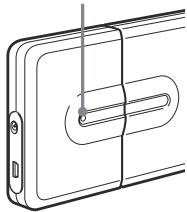
Disconnecting the Unit from your Computer
With Windows XP
Click the icon on the Windows taskbar. Click the appropriate command on the shortcut menu. When your computer prompts you, disconnect the unit.
With Windows Me and Windows 2000
Click the icon on the Windows taskbar. Click the appropriate command on the shortcut menu. When your computer prompts you, click [OK] and disconnect the unit.
With Windows 98 SE
Click 📄 on the Windows taskbar. Click the command on the shortcut menu. When your computer prompts you, click [OK] and disconnect the unit.
With Mac OS 9.0 or Higher
Drag the icon of the unit on your desktop to the trash bin. Confirm that the unit goes on standby (the access indicator lights green), and then disconnect the unit from the FireWire connector of your computer.
Note
Do not disconnect the unit from your computer when the unit icon appears on your desktop or the access indicator is flashing orange. Doing so may result in damage to the unit and/or data it contains.
About the Included Software
Detailed information about the included software is available on the Web sites of the software manufacturers and distributors. (Accessible from the links in each software.)
Troubleshooting
| Symptom | Cause/Remedy |
| The unit is not detected by your computer and the access indicator is off. | → It is possible that the unit and Portable HardDisk Media are not connected correctly, or power from the computer may be insufficient. Make sure that the unit and Portable HardDisk Media connectors are correctly mated and the screw at the back of the unit is secure. If the problem persists, connect the supplied AC adaptor. |
| The unit is not detected by your computer and the access indicator is lit. | → Make sure that you are using an operating system that supports the unit. You cannot use the unit with operating systems that do not support it. |
| The unit is not detected by your computer for reasons different than those outlined above. | → Depending on the status of your computer, it is possible that it may not detect the unit. In this situation, visit the troubleshooting Web page at http://www.sony.net/gigavault/(English only). |
| The unit does not function properly when connected to an IEEE 1394 hub. | → If you connect the unit to an IEEE 1394 hub, the unit may not function properly, depending on your hub. We recommend that you connect the unit directly to your computer. |
| The unit does not function properly when using it at the same time as other IEEE 1394 devices. | → When using the unit at the same time as other IEEE 1394 devices, the unit may respond more slowly than usual. |
| The unit does not function properly when using it in a daisy chain. | → If you connect the unit to a daisy chain, the unit may not function properly. We recommend that you connect the unit directly to your computer. |
| You cannot disconnect the unit, because a message indicating that the storage device is in use appears. | → One or several programs using the unit may still be running. Quit any such program before attempting to disconnect the unit. |
| The unit rattles when it is shaken. | → This is not indicative of damage |
| Windows does not start when you turn on your computer. | → Depending on your computer, turning it on while the unit is still connected may prevent Windows from starting. If so, press CTRL+ALT+DELETE to restart your computer. If your computer encounters this problem, make sure that you disconnect the unit before turning on your computer. |
Usage Notes
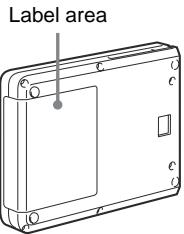
- Affix the label accompanying the unit on the label area as illustrated.
- Starting or shutting down your computer, or awakening it from sleep mode while the unit is connected may cause it to function erratically. Always disconnect the unit from your computer before performing these operations.
- Never disconnect the IEEE 1394 cable and/or AC adaptor from your computer or unit while the unit is in use.
- To avoid an accidental disconnection during use, make sure that the unit and Portable HardDisk Media are firmly connected and secured with the screw at the back of the unit.
- Do not store the unit or Portable HardDisk Media in direct sunlight, humid locations, hot locations, or locations subjected to strong vibrations.
- Avoid moving the unit and Portable HardDisk Media during use as this may cause them to malfunction.
- Avoid sudden temperature changes. If you move the unit and Portable HardDisk Media from a cold to a warm environment or the ambient temperature rises suddenly, do not use them immediately as condensation may have formed inside them. If this occurs while you are using the unit and Portable HardDisk Media, suspend use for an hour or more, then deactivate them.
- In the unlikely event of a malfunction or defect, or if a foreign object penetrates the unit or Portable HardDisk Media, disconnect the AC adaptor and/or IEEE 1394 cable. Then, contact the Sony Customer Information Center.
Please Record Responsibly
Before copying anything onto the Portable HardDisk Media, please make sure that you are not violating copyright laws. Most software companies allow you to make a backup or archive copy of software. Check your software's license agreement for details.
PLEASE READ THIS INSTRUCTION MANUAL CAREFULLY BEFORE CONNECTING AND OPERATING THIS EQUIPMENT.
REMEMBER THAT MISUSE OF YOUR DEVICE COULD VOID THE WARRANTY.
Specifications
IEEE 1394 Interface Adaptor (i.LINK, FireWire)
Interface
IEEE 1394a (i.LINK, FireWire)
Connector type
IEEE 1394 (6-pin)
Power supply
5 V (AC adaptor)
8-30 V (bus power)
Power consumption
0.8 W
Maximum transfer rate
400 Mbps
Compatible OS
Windows XP, Windows Me, Windows 2000, Windows 98 SE, Mac OS 9.0 or higher
Operating temperature range
41 to 95°F (temperature gradient 68°F/h or less) 5 to 35°C (temperature gradient 20°C/h or less)
Operating humidity range
8 to 90 % (non-condensing)
Storage temperature range
-4 to 149°F (temperature gradient 68°F/h or less) -20 to 65°C (temperature gradient 20°C/h or less)
Storage humidity range
5 to 95 % (non-condensing)
External dimensions (W × H × D)
2.1 × 3.3 × 0.7 in. (54 × 85 × 18 mm) (excluding projections) 6.9 × 3.3 × 0.7 in. (175 × 85 × 18 mm) (when the Portable HardDisk Media is connected)
Weight
Approximately 2.6 oz. (75 g)
Accessories
IEEE 1394 interface adaptor, stand (included only with the RHK80IL), IEEE 1394 cable (6-pin to 6-pin), IEEE 1394 cable (6-pin to 4-pin), AC adaptor, power cord, operating instructions
Portable HardDisk Media
Capacity
80 GB *1
Average power consumption
2.5 W (reading)
Operating temperature range
Same as for the IEEE 1394 Interface Adaptor
Operating humidity range
Same as for the IEEE 1394 Interface Adaptor
External dimensions (W × H × D)
4.7 × 3.3 × 0.7 in. (120 × 85 × 18 mm)
Weight
Approximately 6.3 oz. (180 g)
*1 1 GB = 1,000,000,000 bytes. Depending on the format, the value of 1 GB may vary slightly.
User Registration
Congratulations on your purchase of the Sony Giga Vault Portable HardDisk Media.
Please register your product within 30 days on the web. During registration, make sure that you specify the serial number (C + 7-digit number) found on the adaptor. Proper registration will enable Sony to send you periodic communications about new products, related software, and other important information. Registration will also allow Sony to contact you in the unlikely event that your product requires technical modifications. Thank you.
For Customers in the U.S.A.
http://www.onlineregister.com/sony
For Customers in Canada
http://www.sonystyle.ca
For Customers in Europe
http://www.sonydigital-link.com/gigavault
http://www.sony.net/gigavault/

Printed on 100% recycled paper using VOC (Volatile Organic Compound)-free vegetable oil based ink.
- IEEE 1394 INTERFACE ADAPTOR FOR PORTABLE HARDDISK MEDIA
- FOR CUSTOMERS IN THE U.S.A. AND CANADA
- WARNING
- KEEP AWAY FROM CHILDREN. IF SWALLOWED, PROMPTLY SEE A DOCTOR
- TO PREVENT FIRE OR SHOCK HAZARD, DO NOT EXPOSE THE UNIT TO RAIN OR MOISTURE
- TO AVOID ELECTRICAL SHOCK, DO NOT OPEN THE CABINET. REFER SERVICING TO QUALIFIED PERSONNEL ONLY
- NOTE
- OWNER'S RECORD
- REGULATORY INFORMATION
- DECLARATION OF CONFORMITY
- SONY
- CAUTION
- FOR CUSTOMERS IN THE U.S.A
- FOR CUSTOMERS IN CANADA
- FOR CUSTOMERS IN EUROPE
- TABLE OF CONTENTS
- FEATURES
- PACKAGE CONTENTS
- CONNECTION
- CONNECTING THE PORTABLE HARDDISK MEDIA
- CONNECTING THE UNIT TO THE POWER OUTLET
- NOTES
- CONNECTING THE UNIT TO YOUR COMPUTER
- BEFORE USING THE UNIT
- WINDOWS XP, WINDOWS ME, WINDOWS 2000, AND WINDOWS 98 SE
- MAC OS 9.0 OR HIGHER
- USING THE UNIT
- DISCONNECTING THE UNIT FROM YOUR COMPUTER
- WITH WINDOWS ME AND WINDOWS
- WITH WINDOWS 98 SE
- WITH MAC OS 9.0 OR HIGHER
- ABOUT THE INCLUDED SOFTWARE
- USAGE NOTES
- PLEASE RECORD RESPONSIBLY
- SPECIFICATIONS
- IEEE 1394 INTERFACE ADAPTOR (I.LINK, FIREWIRE)
- INTERFACE
- CONNECTOR TYPE
- POWER SUPPLY
- POWER CONSUMPTION
- MAXIMUM TRANSFER RATE
- COMPATIBLE OS
- OPERATING TEMPERATURE RANGE
- OPERATING HUMIDITY RANGE
- STORAGE TEMPERATURE RANGE
- STORAGE HUMIDITY RANGE
- EXTERNAL DIMENSIONS (W × H × D)
- WEIGHT
- ACCESSORIES
- PORTABLE HARDDISK MEDIA
- CAPACITY
- AVERAGE POWER CONSUMPTION
- USER REGISTRATION
Brand : SONY
Model : GIGAVAULT
Category : Storage system