ManualGo.com
MV-700HR - Video camera SONY - Free user manual and instructions
Find the device manual for free MV-700HR SONY in PDF.


Download the instructions for your Video camera in PDF format for free! Find your manual MV-700HR - SONY and take your electronic device back in hand. On this page are published all the documents necessary for the use of your device. MV-700HR by SONY.
USER MANUAL MV-700HR SONY
2-595-492-26(1) Portable DVD Player Operating Instructions
For installation and connections, refer to “Connection” on page 9. MV-700HR © 2005 Sony Corporation Warning This label is located on the bottom of the chassis.
CAUTION :CLASS 1M VISIBLE/INVISIBLE LASER
RADIATION WHEN OPEN AND INTERLOCKS DEFEATED. DO NOT VIEW DIRECTLY WITH OPTICAL INSTRUMENTS. This label is located besides the disc cover.
- Do not place the player in locations exposed to high humidity levels such as in a bathroom or close to a humidifier.
- The player shall not be exposed to dripping or splashing and that no objects filled with liquids, such as vases, shall be placed on the player. CAUTION
- When installing, be sure to fix the unit securely.
- While operating, be sure to fasten seatbelts to avoid injuries caused by a sudden movement of the vehicle.
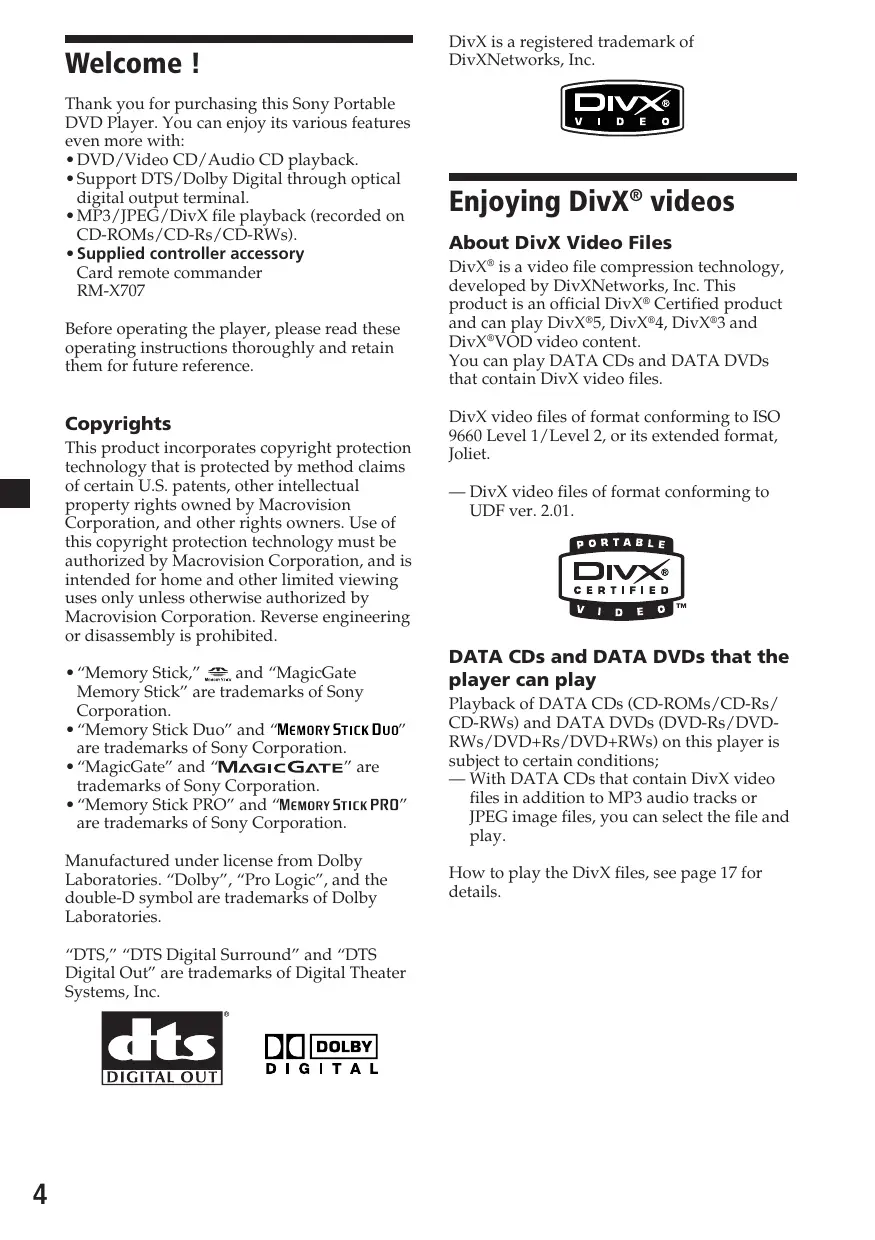
DivX is a registered trademark of DivXNetworks, Inc. Welcome ! Thank you for purchasing this Sony Portable DVD Player. You can enjoy its various features even more with:
- Support DTS/Dolby Digital through optical digital output terminal.
- MP3/JPEG/DivX file playback (recorded on CD-ROMs/CD-Rs/CD-RWs).
- Supplied controller accessory Card remote commander RM-X707 Before operating the player, please read these operating instructions thoroughly and retain them for future reference. Copyrights This product incorporates copyright protection technology that is protected by method claims of certain U.S. patents, other intellectual property rights owned by Macrovision Corporation, and other rights owners. Use of this copyright protection technology must be authorized by Macrovision Corporation, and is intended for home and other limited viewing uses only unless otherwise authorized by Macrovision Corporation. Reverse engineering or disassembly is prohibited.
- “Memory Stick,” and “MagicGate Memory Stick” are trademarks of Sony Corporation.
- “Memory Stick Duo” and “ are trademarks of Sony Corporation.
- “MagicGate” and “ ” are trademarks of Sony Corporation.
- “Memory Stick PRO” and “ are trademarks of Sony Corporation. About DivX Video Files DivX® is a video file compression technology, developed by DivXNetworks, Inc. This product is an official DivX® Certified product and can play DivX®5, DivX®4, DivX®3 and DivX®VOD video content. You can play DATA CDs and DATA DVDs that contain DivX video files. DivX video files of format conforming to ISO 9660 Level 1/Level 2, or its extended format, Joliet. — DivX video files of format conforming to UDF ver. 2.01. DATA CDs and DATA DVDs that the player can play
Manufactured under license from Dolby Laboratories. “Dolby”, “Pro Logic”, and the double-D symbol are trademarks of Dolby Laboratories. “DTS,” “DTS Digital Surround” and “DTS Digital Out” are trademarks of Digital Theater Systems, Inc.
Enjoying DivX® videos Playback of DATA CDs (CD-ROMs/CD-Rs/ CD-RWs) and DATA DVDs (DVD-Rs/DVDRWs/DVD+Rs/DVD+RWs) on this player is subject to certain conditions; — With DATA CDs that contain DivX video files in addition to MP3 audio tracks or JPEG image files, you can select the file and play. How to play the DivX files, see page 17 for details. Precautions To avoid the risk of serious injury or accident, read the following precautions before installing and operating the player. On safety Do not put any foreign objects in the DC IN 12V jack. On power sources
- Use house current or a car battery (12 V DC).
- For use in your house, use the AC power adaptor supplied with the player. Do not use any other AC power adaptor since it may cause the player to malfunction. Polarity of the plug
- Connect the AC power adaptor to an easily accessible AC outlet. Should you notice an abnormality in the AC power adaptor, disconnect it from the AC outlet immediately.
- Do not place the AC power adaptor in a confined space, such as a bookcase or built-in cabinet.
- To reduce the risk of fire or electric shock, do not use the AC power adaptor in a place exposed to water or moisture. Do not place objects filled with liquids, such as vases, on the player.
- The player is not disconnected from the AC power source (mains) as long as it is connected to the wall outlet, even if the player itself has been turned off.
- If you are not going to use the player for a long time, be sure to disconnect the power supply (AC power adapter or car battery cord). To remove the AC power adaptor from the wall outlet, grasp the plug itself; never pull the cord. Park the car in a safe place when the driver watches and operates the player or uses the headphones.
- While operating — Do not insert your hands, fingers or foreign objects into the player. It may cause injury or damage to the player. — Take extra care not to wind the wire of the headphones around your neck avoiding injury or suffocation in the event of a sudden movement of the vehicle. — Keep small articles out of the reach of children.
- If the player does not work, check the connections first. If everything is in order, check the fuse.
- If your car was parked in direct sunlight, allow the player to cool off before operating it.
- Avoid installing the player in places: — subject to temperature below 0°C or above 45°C — subject to direct sunlight — near heat sources (such as heaters) — exposed to rain or moisture — exposed to excessive dust or dirt — subject to excessive vibration — subject to heat: Keep the player away from nearby hot vehicle components that heat up over time such as hoses, high current wires, and braking systems components. Make sure to leave enough room for ventilation on openings and slots to protect from over heating. If you have any questions or problems concerning the player, please consult your nearest Sony dealer. On heat build-up Heat may build up in the player if it is used for an extended period of time. This, however, is not a malfunction. For driver‘s safety Comply with your local traffic rules and regulations.
- While driving — The driver must not watch or operate the player. It may lead to distraction and cause an accident. — The driver must not use the headphones. It may lead to distraction and cause an accident.
- Be sure to use the supplied AC power adaptor.
- If you do not use the player for a long time, remove the rechargeable battery from the player and keep it in the cool, dry place. To prevent degradation of the rechargeable battery, make sure not to store the rechargeable battery when it is either completely discharged or fully charged.
- The rechargeable battery may become hot during the charging procedure; this, however poses no danger.
- Charge the rechargeable battery pack at a temperature between 5°C (41°F) and 35°C (95°F). The charging time will vary according to the surrounding temperature. (If the surrounding temperature is low, the required charging time will be longer. This is a characteristic of the built-in lithium-ion battery.)
- Because of the battery characteristics, the capacity of the rechargeable battery pack may be smaller than normal when it is used for the first time or after a long period of disuse. In this case, charge and discharge the battery several times. The normal battery life will be restored.
- If the capacity of the rechargeable battery pack drops to half the normal amount, consult your nearest Sony dealer. On battery Incorrect battery usage may lead to leakage of battery fluid or bursting battery. To prevent such accidents, observe the following precautions:
- Install the + and – poles of the battery correctly.
- When the player is not to be used for a long time, be sure to remove the battery.
- If a battery leak should develop, carefully and thoroughly wipe away battery fluid from the battery compartment before inserting new ones. Moisture condensation On a rainy day or in a very damp area, moisture condensation may occur inside the lenses. Should this occur, the player will not operate properly. In such a case, remove the disc and wait for about an hour until the moisture has evaporated. To maintain high sound quality Be careful not to splash a drink such as juice or other soft drinks onto the player or discs.
About this manual Conventions
- Instructions in this manual describe how to use the player mainly by using the controls on the supplied wireless card remote commander.
- ”DVD” may be used as a general term for DVD VIDEOs, DVD-Rs/DVD+Rs and DVDRWs/DVD+RWs.
- The icons below are used in this manual: Icon Meaning Function available for DVD VIDEOs, DVD-Rs/DVD+Rs or DVD-RWs/DVD+RWs in video mode, or for DVD-RWs/ DVD+RWs in VR (Video Recording) mode Functions available for Video CDs or CD-Rs/CD-RWs in video CD format Functions available for music CDs or CD-Rs/CD-RWs in music CD format Functions available for files in MP3 format stored on CD-ROMs/CDRs/CD-RWs, DVD-Rs/DVD+Rs or DVD-RWs/DVD+RWs Functions available for files in JPEG format stored on CD-ROMs/ CD-Rs/CD-RWs, DVD-Rs/ DVD+Rs or DVD-RWs/DVD+RWs Functions available for files in DivX format stored on CD-ROMs/ CD-Rs/CD-RWs, DVD-Rs/ DVD+Rs or DVD-RWs/DVD+RWs About the discs this player can play This player can play the following discs:
- CD-R/CD-RW Format of discs DVD VIDEO DVD-R* DVD-RW* DVD+R* Notes on CD-Rs (recordable CDs)/ CD-RWs (rewritable CDs)/DVD-Rs (recordable DVDs)/DVD+Rs/DVDRWs (rewritable DVDs)/DVD+RWs
- Some CD-Rs/CD-RWs/DVD-Rs/DVD+Rs/ DVD-RWs/DVD+RWs (depending on the equipment used for its recording or the condition of the disc) may not play on this player.
- You cannot play a CD-R/CD-RW that is not finalized*.
- You can play MP3/JPEG/DivX files recorded on CD-ROMs, CD-Rs, CD-RWs, DVD-Rs, DVD+Rs, DVD-RWs and DVD+RWs.
- A process necessary for a recorded CD-R/CD-RW disc to be played on the CD player. Region code of DVDs this player can play This player has a region code printed on the bottom of the player and will only play DVDs that are labeled with identical region codes. DVDs labeled ALL will also be played on this player. If you try to play any other DVD, the message “Wrong Region” will appear on the screen. Depending on the DVD, the region code indication may not appear even if the DVD is prohibited by area restrictions. DVD+RW* Video CD Region code Audio CD CD-R* CD-RW*
- Including MP3/JPEG/DivX® files. “DVD VIDEO”, “DVD-R”, “DVD-RW”, “DVD+R” and “DVD+RW” are trademarks. Note on the picture skipping If a DVD has a crack, dirt, etc., it may be unable to be read or a picture skipping may occur. Very rarely, playback sound could be skipped due to compatibility with the player. In this case, take the disk and the player to your nearest Sony dealer.
- This player CANNOT play these discs. — DVD-Audio — DVD-RAM — DVD-ROM (the data other than the MP3/JPEG/ DivX file) — CD-G — SVCD — CD-I — Photo-CD — VSD — Active-Audio (Data) — Super Audio CD (SACD) — CD-Extra (Data) — Mixed CD (Data) — CD-ROM (the data other than the MP3/JPEG/ DivX file)
- This product incorporates copyright protection technology that is protected by method claims of certain U.S. patents and other intellectual property rights owned by Macrovision Corporation and other rights owners. Use of this copyright protection technology must be authorized by Macrovision Corporation, and is intended for home and other limited viewing uses only unless otherwise authorized by Macrovision Corporation. Reverse engineering or disassembly is prohibited. Note on DTS-encoded CDs When playing DTS*-encoded CDs, excessive noise will be heard from the analog stereo outputs. To avoid possible damage to the audio system, the consumer should take proper precautions when the analog stereo outputs of this player are connected to an amplification system. To enjoy DTS Digital Surround™ playback, an external 5.1-channel DTS Digital Surround™ decoder system must be connected to the digital output of this player.
- “DTS”, “DTS Digital Surround” and “DTS Digital Out” are trademarks of Digital Theater Systems, Inc. Terms for discs DVD structure Disc Title Chapter Note on PBC (Playback Control) Video CD/Audio CD structure This player conforms to Ver. 1.1 and Ver. 2.0 of Video CD standards. You can enjoy two kinds of playback according to the disc type. Disc type You can Video CDs without Video playback (moving PBC functions pictures) as well as music. (Ver. 1.1 discs) Video CDs with PBC functions (Ver. 2.0 discs)
- Interactive software with menu screens displayed on the monitor (PBC Playback, page 30).
- Video playback functions.
- High-resolution still pictures if they are included on the disc. Disc Track
- Title The longest section of a picture or music feature on a DVD, e.g., a movie for video software, or an album for audio software, etc.
- Chapter Sections of a picture or a music feature that are smaller than titles. A title is composed of several chapters. Each chapter is assigned a chapter number enabling you to locate the chapter you want. Depending on the disc, chapters may not be recorded.
- Track Sections of a picture or a music feature on a Video CD/Audio CD. Each track is assigned a track number enabling you to locate the track you want.
- Scene On a Video CD with PBC (playback control) functions, the menu screens, moving pictures and still pictures are divided into sections called “scenes.” Each scene is assigned a scene number enabling you to locate the scene you want. Connection This player is supplied in two kinds of connection method. When using at home, connect it to the AC outlet. When using in a car, connect the player using the supplied installation kit. When using the AC power supply To a digital amplifier, etc. OUTPUT Optical cable (not supplied) HEADPHONES/ OPTICAL OUT
DC IN 12V FM antenna (supplied) AC power cord (supplied) AC power adaptor (supplied) Audio/video cable (supplied) To a wall outlet TV, etc. To audio/video input connectors
- Polarity of the plug
When using the installation kit Rechargeable battery (not supplied) Black To a metal surface of the car chassis Red Battery rechargeable cable (supplied) To ignition switch Fuse (1 A) Yellow Fuse (5 A) To car battery (12 V) Power cable (supplied) Installation cradle To the ciger lighter socket When using the ciger cable (supplied) Audio/video cable (supplied) RCA cable (not supplied) INPUT VIDEO OUTPUT VIDEO From game, etc. RCA cable (not supplied) To other monitor, etc. Notes
- Be sure to connect the power input cord after all other cords have been connected.
- Be sure to insert each connector securely, as vibration through driving may cause a poor connection.
- When removing the cable, hold the connector to avoid damages.
On A/V OUTPUT connectors You can connect a TV to the A/V OUTPUT connectors to output the contents being played back on the player. Connect the yellow plugs of the audio/video cable to the video connectors on both the TV and the player, and connect the white plugs to the white (left audio) connectors and the red plugs to the red (right audio) connectors respectively. Before attaching, adjust the rod spacing A depending on your headrest. 15 mm 12 mm
On A/V INPUT connectors You can connect a VTR, etc. to the A/V INPUT connectors to input the contents being played back on the device. You can connect the device in the same way as described on “On A/V OUTPUT connectors” above.
On HEADPHONES jack You can connect a set of headphones to the HEADPHONES jack. Notes
- When connecting another device to the player, be sure to connect the player to the power source after all other connections are completed.
- If an obstacle such as cigar ash is caught inside the cigar lighter socket, the contact between the power cord plug and the socket becomes incomplete and the plug may get extremely hot during use. To avoid this, check the socket and clean it if necessary before connecting the power cord. Attaching the headrest installation kit to the seat The player can be installed behind the headrest by using the supplied headrest installation kit. Remove the headrest and attach the installation kit to the rods. You can adjust the lateral position of the monitor by sliding the installation kit from side to side before tightening the screw. Front Installation kit
Attach the installation cradle to the installation kit and tighten the screw on the bottom using things like a coin. Installation cradle Seat types on which you can mount the installation kit
- A seat with 2 headrest rods of diameter 10 mm to 15 mm.
- A seat with rods spaced between 42 mm and 192 mm. Note Depending on the seat type, it may not be possible to mount this unit. Ø10 mm~ 15 mm Installation kit continue to next page t 42 mm~ 192 mm
Adjust the depth positioning of the sliding part of the installation kit according to the thickness of the headrest, and tighten the screws. If necessary, loosen the knob and adjust the angle of the installation cradle. Once adjusted, tighten the knob firmly. Using the rechargeable battery Attach the rechargeable battery as illustrated below. Rechargeable battery MV-100BAT (not supplied) knob Slide up the rechargeable battery until you hear the click sound. Removing the rechargeable battery from the player Note The backside of the installation cradle should be as close as possible to the headrest to prevent the monitor from vibrating during driving. If the headrest is thick, take out the screws, slide out the part of the installation kit and retighten the screws. Push to release Push the release button on the rechargeable battery and slide it off. Charging the rechargeable battery Charge the rechargeable battery using AC power adaptor and AC power cord. You can charge the rechargeable battery while it is attached to the unit. To charge the rechargeable battery in a car, use the supplied Connection box and Battery rechargeable cable. Replace the headrest to the seat.
Slide the player on the cradle until you hear the click sound. Removing the player from the installation cradle AC power adaptor (supplied) Remove the player while pressing the button on the installation cradle. To a wall outlet Push to release
AC power cord (supplied) When attached to the main unit While charging: Lights in orange Charging completed: Lights in green Charging error: Flashes in green
- The charging time may vary depending on the surrounding temperature. Battery duration Approximately 150 minutes** (fully charged) ** When used at room temperature. When the monitor settings (S-MENU) are set to default. CAUTION AC power adaptor (supplied) AC power cord (supplied) To a wall outlet When attached in a car Rechargeable battery MV-100BAT (not supplied)
- Remove the rechargeable battery from the main unit if you do not intend to use the player for an extended period of time.
- Charge the rechargeable battery before use if it has not been used for an extended period of time.
- Once charging is completed, remove the AC power adapter from the rechargeable battery. Do not recharge the fully charged battery. (If you charge the fully charged battery, it will take about 60 minutes for the lamp of the battery to light in green again.)
- To charge the rechargeable battery in a car, use the supplied connection box and battery rechargeable cable. Inserting the back-up battery To the car battery, or to the cigar lighter socket* Insert CR2032 battery into the battery compartment of the player. This battery save the memory data (clock setting and calendar setting). Battery rechargeable cable (supplied) Connection box XA-121 (supplied)
- Refer also “When using the installation kit” on page 10. When to charge the rechargeable battery
- Charge the rechargeable battery when “LOW BATTERY” appears in the display.
- It usually takes about 6 hours* to complete charging the battery. The lamp of the rechargeable battery indicates the charging conditions.
Notes on lithium battery
- Keep the lithium battery out of the reach of children. Should the battery be swallowed, immediately consult a doctor.
- Wipe the battery with a dry cloth to assure good contact.
- Be sure to observe the correct polarity when installing the battery.
- Do not hold the battery with metallic tweezers, otherwise a short-circuit may occur. Resetting the player Before operating the player for the first time, you must reset the player. Press (RESET) with a pointed object, such as a ballpoint pen. Pushing it with force by using a needle may damage the player. RESET WARNING Battery may explode if mistreated. Do not recharge, disassemble, or dispose in fire. Replacing the back-up battery When the battery becomes weak, the calendar and clock will not be displayed correctly. Replace the battery with a new CR2032 lithium battery. Use of any other battery may present a risk of fire or explosion. Notes
- When you press (RESET), some of the previous settings may be lost. If this occurs, make the settings again.
- It takes about 10 seconds for the player to reset itself after pressing (RESET). Do not insert a disc during this time. If you do, the player may not be reset properly.
Location of controls MV-700HR
Refer to the pages listed for details. 1 POWER (on/off) button 17, 18, 37 To turn on/off the monitor. 2 u (play/pause) button 17-19 3 x (stop) button 17, 18, 19, 25 4 . (previous)/> (next) buttons 18, 21, 30 5 S-MENU button 38 To make various display settings. 6 VOLUME–/+ buttons 17, 37,38 To turn up or down the volume or to select the item during menu operation. 7 SOURCE button 23, 37 To select the input source. 8 Receptor for the card remote commander/Transmitter for the cordless headphones 9 “Memory Stick” slot 23 0 Release lever qa PUSH OPEN 17
Card remote commander RM-X707
The corresponding buttons of the card remote commander control the same functions as those on the player. Instructions in this manual describe how to use the player by mainly using the card remote commander. Tip Refer to “Replacing the lithium battery of the card remote commander” for details on how to replace the battery (page 41).
Refer to the pages listed for details.
Number buttons 17, 23, 25, 36 CLEAR button 25 x (stop) button 18, 19, 21, 26 [/1 (power on/off) button 17, 18 u (play/pause) button 19,20
Place a disc with the label side up and push around the center of it.
Close the disc cover. Playback starts automatically. If a disc is already inserted or playback does not start automatically, press u to start playback.
Adjust the tilt of the monitor.
Press (VOL) (+) or (VOL) (–) ((VOLUME) (+) or (VOLUME) (–) on the monitor) to adjust the volume. Various Playback This chapter describes various functions for playback. Playing a disc SOURCE `/1
Press (POWER) to turn on the player. On the card remote commander, press The monitor turns on and the green light of the POWER switch on the player lights up.
Press (SOURCE) to select DVD.
Press (PUSH OPEN) to open the disc cover.
To turn off the power Press (POWER) (or on the card remote commander) so that the green light of the POWER switch on the player turns off. After use Operation for playback Stop playback Eject the disc Do this Press x*1 Press PUSH OPEN on the player Press u *2 Press again to resume playback. Press > Turn off the player and disconnect the power cord from the power source. Pause Note on using the player in the car Go to the next chapter, track, or scene Go back to the preceding Press . chapter, track, or scene Fast forward/ Press M/m while fast reverse playing*3 *4 Each press changes the playback speed as follows: 2 times of normal speed t 4 times of normal speed t 8 times of normal speed t 16 times of normal speed t 32 times of normal speed t normal playback speed. Slow forward Press y/ while (DVD/Video CD/DivX playing only)/Slow reverse Each press changes (DVD only) the playback speed as follows: 1/2 times of normal speed t 1/4 times of normal speedt 1/8 times of normal speedt 1/16 times of normal speedt normal playback speed. Using the player while the ignition key is in ACC position and the engine is stopped may cause the car battery to run down. Notes
- Read the instruction manual supplied with the disc to play with this player.
- Do not open the disc cover during playback.
- Depending on the recording method used on the disc, it may take a minute or more before playing.
- Depending on the condition of the disc, it may not play back (page 42).
- A high-bit rate MP3 file such as 320 kbps may not playback properly. *1 If the resume playback function is activated, you can resume playback later by pressing u. For details, see “Resume playback” (page 19). *2 DVD/Video CD/Audio CD/MP3/DivX “X” is displayed on the screen. *3 DVD/Video CD/DivX No sound is output during fast forward or fast reverse. *4 A MP3 disc returns to normal playback when a MP3 file finishes.
During playbacks, press (SEARCH) to display search screen. Each time you press (SEARCH), the search screen changes as follows: Resume playback You can resume playback from the point where the playback has been stopped. The player memorizes the point even after the power is turned off.
During playback, press x to stop. The player memorizes the point where playback is stopped.
- DVD/Video CD/Audio CD “Press Play Key To Continue” appears on the screen.
Press u to start playback. Playback starts from the point where playback has been stopped.
- MP3/JPEG/DivX When resume playback is activated, playback starts from the beginning of the MP3/JPEG/DivX file (track) which you have stopped playback.
Press the number buttons to enter the desired chapter/title/track number. Notes
- When you playback a “Memory Stick”, the resume function is deactivated. Even if a disc is being played, the resume function is deactivated when a “Memory Stick” is inserted in the player.
- To deactivate the resume function, press x again while playback is stopped. “Press Play Key To Continue” appears on the screen at this time.
- The resume function will be deactivated when the disc is ejected.
- For MP3/JPEG/DivX, the resume playback will not function when the unit is turned off. When “Title” and “Chapter” are displayed Title 01/01 Chapter --/01 When “Title” and “Time” are displayed Title
- You can use the number buttons on the card remote commander to select the track. Note You cannot set “0.”
Press u. Playback starts and the MP3/JPEG/DivX menu appears on the screen. Screen example for MP3: Current file number/Total file number Elapsed playing time/Total playing time of current file
- This player supports ID3 tag of MP3 files version 1.0. To select a folder or a file 00:00 00:00 001/016
Various ID3 tag information* Current file number/Total file number Current status Track01 wer ntain icle Friend While the player is stopped, use M or m button to select the folder or a file, then press (ENTER). When you press (ENTER) after selecting a folder, files inside the folder appear. To select the display mode
- for DivX Current file number/Total file number Current status 00:00 00:00 001/004 Press (PROGRAM). Each time you press (PROGRAM), the screen will change to folder mode or file list mode. In the file list mode, you can see all the files in the disc. Also if you press (DSPL), you can change the display mode to the current status. \Album1 AVI AVI AVI AVI
Press x while the JPEG image is displayed. Images of files appear in 12 subscreens. To select the playback mode Press (REP) to select the playback mode. Each time you press (REP), playback mode changes as follows:
- MP3 Folder (plays all the tracks) Shuffle (plays tracks at random; tracks are played only once) Random (plays tracks at random; the same track may be played more than once) Slide Show Help Prev Next Single (plays one track)
Select the image you want to view by pressing M/m/</, buttons and press (ENTER). A JPEG image is displayed on the screen. Repeat One (repeats one track) Repeat Folder (repeats all the tracks)
- DivX/JPEG To go to the next or previous JPEG image list, press M/m/</, to select “g Prev” or “Next G”, then press (ENTER). To view the images as a slideshow, press M/m/</, to select “Slide Show”, then press (ENTER). The slideshow starts from the selected image. To return to the MP3/JPEG/DivX menu, press (MENU). To view the remote key functions You can view the remote key functions in thumbnail mode. Press M/m/</, to select “Help”, then press (ENTER). Key Function Program Stop Play Transition Effect Thumbnail Mode Next Picture Previous Picture Picture Mode Invert Mirror Continue Single (plays one track) Repeat One (repeats one track) Repeat All (repeats all the tracks) Repeat Off (returns to normal play) Shuffle (plays tracks at random; tracks are played only once) Random (plays tracks at random; the same track may be played more than once) Notes
- While playing back, you cannot change a folder or file with the MP3/JPEG/DivX menu. Only the files in the selected folder can be selected with the ./> button. To change the folder, stop playback.
- Names for the MP3/JPEG/DivX folders and files are displayed properly when they consist of alphabets, numbers, or symbols only. The characters which this unit does not support are displayed as “-”. Key Function Contrarolate Rotate Clockwise Exit Help
DivX video files that the player can play The player can play data that is recorded in DivX format, and data that has the extension “.AVI” or “.DIVX”. The player will not play files with the extension “.AVI” or “.DIVX” if they do not contain a DivX video. Notes
- The player may not play a DivX video file when the file has been combined from two or more DivX video files.
- The player cannot play a DivX video file of a size more than 720 (width) × 576 (height)/2 GB.
- Depending on the DivX video file, the picture may be unclear or the sound may skip.
- The player cannot play some DivX video files that are longer than 3 hours.
- Depending on the DivX video file, the picture may pause or be unclear. In that case, it is recommended that you create the file at a lower bit rate. If the sound is still noisy, MP3 is the recommended audio format. Note, however, this player does not conform to WMA (Windows Media Audio) format.
- Because of the compression technology used for DivX video files, it may take some time after you press u for the picture to appear.
- Depending on the DivX video file, the sound may not match the picture on the screen.
Playing a “Memory Stick” To eject the “Memory Stick” Push in the “Memory Stick” momentarily, then remove it. You can playback MP3/JPEG files in a “Memory Stick”. Notes
- ”Memory Stick Duo” and “Memory Stick PRO” cannot be used.
- Data playback that requires MagicGate functions cannot be performed. `/1 SOURCE
- Insert the “Memory Stick” in a right direction.
- Do not forcefully remove the “Memory Stick”.
Insert a “Memory Stick” into the player until it clicks.
Press (SOURCE) repeatedly to select “MS”. The MP3/JPEG menu appears on the screen. Press the number buttons or M/m/</, buttons to select the desired folder/file (page 20). Note Depending on the recording method and size of data, it may take some time before playback of the first track/file.
Playing repeatedly (Repeat Playback) You can play all of the chapters or titles on a disc or a single track repeatedly. You can use a combination of Program Playback mode. `/1 SOURCE
During playback, press (REP). Chapter Each time you press the button, repeat playback mode changes as follows:
- DVD Chapter: repeats the current chapter. Title: repeats the current title on a disc*. ALL: repeats all titles and chapters in the disc. OFF: normal playback
- Video CD (only when PBC is off)/Audio CD Track: repeats the track currently being played. ALL: repeats all tracks in the disc. OFF: normal playback
- You cannot select during playback. To return to normal playback
Press (REP) repeatedly until the repeat icon disappears.
- Video CD (when PBC is off)/Audio CD Example: to select track “02”. Press 0 and 2 on the number buttons. Creating your own program (Program Playback) P r o g r a m : T r a c k (01-10) You can play the contents of a disc in the order you want by arranging the order of the titles, chapters, or tracks on the disc to create your own program. You can program up to 20 titles, chapters, and tracks.
Press M/m/</, buttons to select “Start”, then press (ENTER). To repeat the program playback ENTER Press (REPEAT) to select “ ALL” during program playback. The player repeats all programmed tracks. PROGRAM Number buttons
To return to normal playback DSPL
Press x during program playback. To change a program Press (PROGRAM). The program menu screen appears.
Follow step 2 of “Creating your own program (Program Playback)” for new programming. Program:T(05)/C(--)
Exit NEXT To cancel the program
Select the title, chapter or track you want to program. Press (PROGRAM) when the program menu screen appears.
- Video CD (when PBC is off)/Audio CD Single Elapsed (Elapsed time of the disc) Single Remain (Remaining time of the track) You can display the elapsed time and the remaining time of DVDs, Video CDs and Audio CDs.
- It is not displayed when playing back an audio CD. To turn off the time information REP MENU Press (DSPL) repeatedly to select “OFF.” CLOCK ENTER
DSPL During playback, press (DSPL). The elapsed time or the remaining time is displayed at the upper left. Each time you press (DSPL), the display changes as follows:
- DVD Title Elapsed (Elapsed time of the title) Title Remain (Remaining time of the title) Chapter Elapsed (Elapsed time of the chapter) Chapter Remain (Remaining time of the chapter) Display Off (default display)
- Video CD (when PBC is on)/DivX Single Elapsed (Elapsed time of the disc) Single Remain (Remaining time of the track) Display Off (default display)
Total Remain (Remaining time of the disc) Display Off (default display)* `/1 SOURCE Total Elapsed (Elapsed time of the disc) Changing the subtitle language Some DVDs have recorded subtitles in one or more languages. You can turn the subtitles on or off, or change the subtitle language on such DVDs. `/1 SOURCE
AUDIO SUBTITLE ANGLE To turn off the subtitle Press (SUBTITLE) repeatedly to select “Off.” Notes
- You can also change the subtitle languages by changing Setup*. See “Subtitle” (page 35).
- You can change to a specific subtitle language using the DVD SETUP menu, only if the language is included in both the disc and the menu. In some discs, the initial language to be displayed is specified regardless of the DVD SETUP menu setting.
- This function varies or may not work, depending on the DVDs.
During playback, press (SUBTITLE). The subtitle language is displayed at the upper left. Example: a subtitle language display The disc contains 2 subtitle languages and the first language is currently selected. subtitle 0 1 / 0 2: J a p a n e s e When the subtitle is language which cannot be selected on the Setup menu, “Others” will be displayed. Each time you press (SUBTITLE), the language switches within the list of subtitle languages recorded on the disc.
Using the MENU button Using a DVD menu With some DVDs you can use the original menu such as Title menu and DVD menu. In title menu, you can play your favorite scene or song by selecting titles of songs and scenes. You can select an item, subtitle language, audio language etc. by selecting a DVD menu. The contents of title menus and DVD menus differ depending on the DVD. There may be some DVDs which have no recorded menus. `/1 SOURCE
Using the TOP MENU button Some DVDs have a title menu. From the title menu you can select a title for playback. Titles are the longest sections of a picture or music feature on a DVD, e.g., a movie, or an album for audio software, etc. The TOP MENU button is available to display the initial menu screen.
During DVD playback, press (TOP MENU). The title menu* (top menu) is displayed.
- The contents of the title menu differ, depending on the DVD.
During a DVD playback, press (MENU). The DVD menu is displayed.
Press (ENTER). If additional selection screens appear, repeat step 2 and 3.
REP SETUP Some DVDs have more comprehensive menu that includes things such as the audio languages, subtitle languages, titles, and chapters, etc.
Press M/m/</, to select the desired title.
Press (ENTER). The title you selected starts to play. Notes
- Some DVDs do not have a DVD menu and on some DVDs, the contents of the DVD menu and title menu are the same.
- On some DVDs, “DVD Menu” may be expressed as “MENU.”
- On some DVDs, “Press ENTER” may be expressed as “Press SELECT” in step 3.
- The contents of the DVD menu differ, depending on the DVDs.
- Read the instruction manual supplied with a DVD. Changing the audio language Changing angles Some DVDs have multiple audio languages you can choose from. Some DVDs have multiple alternative angles recorded for certain scenes. If you have set “Angle Mark” to “On” (page 33), a notice appears at the scene. `/1
CLEAR During playback, press (AUDIO) repeatedly to select the desired audio language. The current audio language is displayed at the upper left. Example: an audio language display Audio 1 / 2:Dolby D 2CH When the display for the language code appears, input the language code corresponding to the desired language (page 35). Notes
- You can switch the audio language only if multiple audio languages are recorded on the DVD.
- You can also change the audio languages by using the DVD menu (page 28) or the DVD SETUP menu* (page 35).
- You can change to a specific audio language using the DVD SETUP menu, only if the language is included in both the disc and the menu. In some discs, the initial language to be output is specified regardless of the DVD SETUP menu setting.
- This function varies or may not work, depending on the DVDs. VOL
During playback of a DVD having multiple alternative angles recorded, press (ANGLE) when a notice appears. The number of the currently selected angle is displayed at the upper right.
Press (ANGLE) repeatedly to select your favorite angle number, while the angle number is displayed. Each time you press (ANGLE), the angle number switches. English The format of the sound source (Dolby D, DTS, or LPCM) may appear.
1/2 The angle number you have currently selected/the total number of multiple alternative angles Notes
- You can switch the angle only if multiple angles are recorded on the DVD.
- The total number of recorded angles differs depending on the DVDs and scenes.
- You can switch the angle only during normal playback. You cannot switch the angle during fast forward/reverse playback.
- When the selected scene with multi angles appears, the angle is automatically switched to the angle number you selected in step 2.
- This function varies or may not work, depending on the DVDs.
Changing the audio output Using the PBC (playback control) function You can select the desired audio output from “Stereo”, “Mono Left”, “Mono Right” or “MixMono” during Video CD or Audio CD playback. During playback of a PBC compatible Video CD, you can display the PBC menu and select the item from the menu. `/1 SOURCE `/1
Start playback a Video CD with PBC functions. The menu for your selection appears.
Press the number buttons to select the number of the desired item.
Follow the instructions in the menu for interactive operations. Refer to the instructions supplied with the disc, as the operating procedure may differ depending on the Video CDs. During playback, press (AUDIO). The current output is displayed at the upper left. Right Press (AUDIO) to select the desired output from “Stereo”, “Mono Left”, “Mono Right” or ”Mix-Mono” while the output is displayed. Each time you press (AUDIO), the output switches. To return to the menu Press O. Tip To play without using PBC, press (TOP MENU). “PBC Off” appears on the TV screen and the player starts continuous play. To return to PBC playback, press (TOP MENU) again. Notes
- During playback of a Video CD with “PBC On”, press ./> to change the item. The PBC menu is not displayed but the item you selected starts to play.
- During playback of a Video CD with “PBC On”, press O to display the PBC menu and the B mark.
Presetting radio stations Using the radio You can preset up to 10 FM radio stations.
Listening to the radio Tune in the station you want to preset. Press and hold the number button of the preset number which you want to store the station on. The selected preset number blinks pink. You can listen to FM broadcasts. Preset 1 Note In the car, you cannot listen to the radio with this player. `/1 SOURCE SOURCE FM Frequency
Press Prev Next Vv or Source
Press (SOURCE) repeatedly until "TUNER" is displayed.
Press M or m. You can tune in the desired preset station directly by pressing the number buttons. DSPL
Press (SOURCE) repeatedly until “TUNER” is displayed.
Press . or > repeatedly to tune in a station. FM Frequency 87.5MHz Press Prev Next Vv or Source To adjust the volume Press (VOL) (+) or (VOL) (–) ((VOLUME) (+) or (VOLUME) (–) on the monitor). To improve the reception Move the antenna to the suitable location for reception.
Changing Setup Press (SETUP). -- Ge Monit Angle Scree Color Defau DivX You can set up and adjust this player using the on-screen setup menus. Most settings need to be set when you first use this player.
- General Setup Page (system settings)
Press M or m button to select the desired setting.
Press M/m/</, to select (adjust) the setting option.
CLEAR ENTER VOL DSPL
Refer to “Settings by using the S-MENU button on the monitor” (page 38) for settings of the monitor.
Setting for DVD player - General Setup Page
ver tem NTSC ♦ Screen Saver If you set the “Screen Saver” setting to “On”, the screen saver image appears when you leave the player in pause or stop mode for more than 15 minutes. The screen saver will prevent the monitor from damage.
Select:<, Set:Enter Quit:SETUP ♦ Monitor Type On Turns on the screen saver. Off Turns off the screen saver. ♦ Color System When you connect the player to a TV to watch the DVD on TV screen, make this setting according to the color system of your country. When you connect the player to a TV to watch the DVD on TV screen, make this setting according to the type of the TV screen. PAL NTSC The default settings are underlined. 4:3/Pan Scan Select this when you connect a 4:3 screen TV. The wide picture will be automatically displayed on the entire screen and the portions that do not fit will be cut off. 4:3/Letter Box Select this when you connect a 4:3 screen TV. The wide picture with the bands on the upper and lower portions of the screen will be displayed. 16:9 Select this when you connect a wide-screen TV or a TV with a wide mode function. ♦ Default ♦ Angle Mark ♦DivX If various angles (multi-angles) for a scene are recorded on the DVD and you have set the “Angle Mark” to “On”, a notice appears at the scene. Always outputs the PAL signal. Always outputs the NTSC signal. You can reset setup menus to the factory setting.
Press (SETUP), then press < or , button repeatedly until “General Setup Page” appears on the screen.
Press M or m button repeatedly to select “Default”.
Press (ENTER). Displays the registration code for this player. For more information, go to http://www.divx.com/vod on the Internet. On A notice will appear at the scene. Off A notice will not appear at the scene.
Select:<, Set:Enter Quit:SETUP ♦ Downmix You can select the downmix mode from “Surround” or “Normal”. The downmix function is used to create stereo (2-channel) signals from more than 5 separated digital signals of a source. This setting affects the outputs of AUDIO OUTPUT. Surround Select this when the connected audio equipment supports Dolby Surround (Pro Logic). Normal Select this when the connected audio equipment does not support Dolby Surround (Pro Logic). ♦ SPDIF Output You can set the mode of the audio signals output from the OPTICAL OUTPUT connector. Off RAW PCM 48K No signal is output from OPTICAL OUTPUT connector. Select this when you connect an audio component with a built in Dolby Digital decoder or DTS decoder. Select this when you do not connect an audio component with a built in Dolby Digital decoder or DTS decoder. Notes
- When “Off” is selected, no signal is output from the OPTICAL OUTPUT connector.
- When you connect the player and a digital recording device such as an MD player through an optical cable to record the CD contents with that device, the contents will be recorded as one continuous track.
♦ Audio DRC Makes the sound clear when the volume is turned down when playing a DVD that conforms to “Audio DRC”. You can set the DRC (Dynamic Range Control) level from 8 steps. This setting affects the outputs of AUDIO OUTPUT. FULL: Makes the low sounds clear even if you turn the volume down. OFF Language settings for DVD playback - Language Setup Page
iginal ♦ Audio Switches the language of the sound track. When you select “Original”, the language given priority in the disc is selected. Notes
- Regardless of your setting, the language other than you set may be automatically activated, depending on the DVDs.
- Some DVDs are prohibited to change the audio language output, even if multiple languages are recorded. Select:<, Set:Enter Quit:SETUP ♦ OSD Switches the language used for the menus on the screen. ♦ Menu You can select the desired language for the disc’s menu. Note Regardless of your setting, the language other than you set may be automatically activated, depending on the DVD. ♦ Subtitle Switches the language for the subtitle recorded on the DVD VIDEO. Note Regardless of setting to the desired language, other language may be automatically activated, depending on the DVD.
Settings for the Parental Control - Parental Setup page Setting the password - Password
Press (SETUP), then press < or , button repeatedly until “Parental Setup Page” appears on the screen.
Press M or m button repeatedly to select “Password”, then press (ENTER).
Press the number buttons to enter “5370”. The player is ready to accept a new password. When you set the password for the first time, be sure to set the parental control together. Selecting the Parental Control mode on and off - Parental Control
Old Password New Password Confirm PWD
Press the number buttons to enter a new password.
Press < or , button repeatedly until “Parental Setup Page” appears on the screen.
Press the number buttons to enter the password again to confirm.
Press (SETUP) to exit the Setup menu.
Press M or m button repeatedly to select “Parental Control”, then press (ENTER). Note If you forget your registered password, enter “5370”.
Press M or m button repeatedly to select “On” or “Off”, then press (ENTER).
Press (SETUP) to exit the Setup menu. Preparing for the initial parental setting - Level Playback of some DVDs can be limited according to a predetermined level, such as the age of the viewer. The Parental control function allows you to set a playback limitation level. This setting is possible only when a password is entered as described in “Setting the password - Password” (page 36).
Press (SETUP), then press < or , button repeatedly until “Parental Setup Page” appears on the screen.
Press M or m button repeatedly to select “Level”, then press (ENTER).
Press M or m button repeatedly to select the limitation level, then press (ENTER).
Press (SETUP) to exit the Setup menu. Refer to the following table. Parental levels of the table are on the MPAA (Motion Picture Association of America) rating system. If you set this player to level “4” for example, DVDs with levels “5”, “6”, ‘7", and “8” cannot be played. This Player “1” “2” “3” “4” “5” “6” “7” “8” MPAA Rating System “G”: General audience “PG”: Parental guidance suggested “PG13”: Parents strongly cautioned “R”: Restricted “NC17”: No one 17 and under admitted No restriction Monitoring video signals input from the connected device Switch the input channel to monitor video signals input from the device connected to the A/V INPUT connector of the player.
Press (POWER) to turn on the player. The current input channel (DVD) appears on the screen for 5 seconds.
Press (SOURCE) on the card remote commander repeatedly to select “VIDEO.” Each time you press the button, “DVD”, “MS”, “TUNER” and “VIDEO” alternate. Be sure to change the input channel setting to “DVD” to play the DVD with this player. Selecting the color system for the input video signal The player detects the color system of the input video signal (PAL or NTSC) and changes the setting automatically (auto mode). Follow the steps below to change the color system setting for the input video signal manually.
Press (POWER) to turn on the player. The current input channel (DVD) appears on the screen for 5 seconds.
Press (VOLUME) +/– on the monitor repeatedly to select “PAL” or “NTSC.” Note When changed manually, the color system setting for the input video signal does not return to auto mode until the player is turned off or input channel setting is changed. Therefore, when it is set to “PAL”, the DVD recorded in NTSC system cannot be viewed on the monitor of the player unless you turn off the player, then turn it on again.
Settings by using the S-MENU button on the monitor You can make settings for the monitor by using (S-MENU) on the monitor. Each time you press (S-MENU), the setting screen changes in the following sequence: Picture t Brightness t Color t Hue*1 t Dimmer t Video Adjust t Mode t Blue Back t IR Headphone t DVD LEVEL REVISION t Time Mode t Date Mode t SYSTEM MENU OFF. *1 “Hue” appears only when the NTSC color system is selected as the input source (page 37). Note While making the following settings, the VOL +/– buttons on the card remote commander can be used to adjust the volume. How to set preference
Press (S-MENU) on the monitor repeatedly to select desired item. Picture
Press (VOLUME) (+) or (VOLUME) (–) on the monitor to select (or adjust) the setting option. Exiting the menu operation
Press (S-MENU) on the monitor repeatedly until the “SYSTEM MENU OFF” appears.
Press (S-MENU) on the monitor again. The normal screen resumes. When 5 seconds elapse with no button pressed, normal display resumes. The default settings are underlined. Settings Picture Brightness Color Hue Dimmer Video Adjust Setting options Settable range: 0 to 63 (default setting is “36”) Adjusting the contrast. Settable range: 0 to 63 (default setting is “30”) Adjusting the brightness. Settable range: 0 to 63 (default setting is “36”) Adjusting the color. Adjust this if the picture is reddish or greenish. The default setting is “CTR (center)”.
- ”Hue” is displayed for NTSC system only. On, Off Adjusting the dimmer. Resetting the picture, brightness, color, hue, dimmer setting at single operation. Note Input channel, color system for the input video signal (PAL/NTSC), screen mode, and blue background setting will not be reset when you reset the adjustments. Mode Blue Back IR Headphone
Time Mode Date Mode Normal, Wide, Full, Zoom Setting the screen mode. Normal: An image with an aspect ratio of 4 to 3 (regular image). Wide: An image with an aspect ratio of 4 to 3 enlarged to the left and right edges of the screen. Full: An image with an aspect ratio of 16 to 9. Zoom: An image with an aspect ratio of 4 to 3 enlarged to the left and right edges of the screen, with the overflowing parts (top and bottom) cut off to fill the screen. On, Off Setting the blue background screen. On, Off Turning on and off the IR(Infrared Ray) headphone. When this item is set to “On”, you can use the IR headphone On, Off Reducing gap of the audio output level. If the playback sound of DVD is low, set this item to “On”. The player reduces gap of the audio output level. 12H, 24H Switching the 12- and 24-hour standard time. YYYY.MM.DD, MM.DD.YYYY, DD.MM.YYYY Setting the calendar display mode. YYYY: year MM: month DD: day
Setting the clock and calendar Setting the reference volume You can set the current date and time. You can set the reference volume level for adjusting the volume by using (VOLUME) +/– on the monitor.
Press (SETUP). The calendar setting display appears.
Press M/m/</, to set the date and time. To select the number, press M/m. To move to next/previous digit, press </
Press (SETUP) to exit. When 5 seconds elapse with no button pressed, normal display resumes. To change the display mode The display changes between calendar mode and clock mode by pressing < or ,.
Press (VOLUME) +/– on the monitor while no menu screen or no source menu appears. The settable range is 0 to 47, and the default setting is 10. When you keep pressing down the button, the value changes continuously. Replacing the lithium battery of the card remote commander Additional information When the battery becomes weak, the range of the card remote commander becomes shorter. Replace the battery with a new CR2025 lithium battery. Use of any other battery may present a risk of fire or explosion. Maintenance Fuse replacement When replacing the fuse of the power cord for the cigar lighter socket, be sure to use one matching the amperage rating stated on the original fuse. If the fuse blows, check the power connection and replace the fuse. If the fuse blows again after replacement, there may be an internal malfunction. In such a case, consult your nearest Sony dealer.
While pushing the lock lever (1), pull out the battery holder (2). + side facing up
Notes on lithium battery Fuse (4 A) Warning Never use a fuse with an amperage rating exceeding the one supplied with the player as this could damage the player.
- Keep the lithium battery out of the reach of children. Should the battery be swallowed, immediately consult a doctor.
- Wipe the battery with a dry cloth to assure good contact.
- Be sure to observe the correct polarity when installing the battery.
- Do not hold the battery with metallic tweezers, otherwise a short-circuit may occur. WARNING Battery may explode if mistreated. Do not recharge, disassemble, or dispose in fire.
Notes on discs Music discs encoded with copyright protection
- To keep the disc clean, do not touch the surface. Handle the disc by its edge.
- Keep your discs in their cases or disc magazines when not in use. Do not subject the discs to heat/high temperature. Avoid leaving them in parked cars or on dashboards/rear trays. This product is designed to play back discs that conform to the Compact Disc (CD) standard. Recently, various music discs encoded with copyright protection are marketed by some record companies. Please be aware that among those discs, there are some that do not conform to the CD standard and may not be playable by this product. Note on DualDiscs
- Do not attach labels, or use discs with sticky ink/residue. Such discs may stop spinning when used, causing a malfunction, or may ruin the disc.
- Do not use any discs with labels or stickers attached. The following malfunctions may result from using such discs: — Inability to eject a disc (due to a label or sticker peeling off and jamming the eject mechanism). — Inability to read audio data correctly (e.g., playback skipping, or no playback) due to heat shrinking of a sticker or label causing a disc to warp.
- Discs with non-standard shapes (e.g., heart, square, star) cannot be played on this player. Attempting to do so may damage the player. Do not use such discs.
- Before playing, clean the discs with a commercially available cleaning cloth. Wipe each disc from the center out. Do not use solvents such as benzine, thinner, commercially available cleaners, or antistatic spray intended for analog discs.
A DualDisc is a two sided disc product which mates DVD recorded material on one side with digital audio material on the other side. However, since the audio material side does not conform to the Compact Disc (CD) standard, playback on this product is not guaranteed. The playback order of the MP3 files About MP3 files MP3 (MPEG 1 Audio Layer-3) is a standard technology and format for compressing a sound sequence. The file is compressed to about 1/10 of its original size. Sounds outside the range of human hearing are compressed while the sounds we can hear are not compressed. The playback order of the folders and files is as follows:
Recommended MP3 file format Sampling frequency (Hz) Folder (album)
Notes on discs/”Memory Stick” You can play MP3 files recorded on CD-ROMs, CD-Rs, and CD-RWs. The disc must be in the ISO 9660* level 1 or level 2 format, or Joliet in the expansion format.
- ISO 9660 Format The most common international standard for the logical format of files and folders on a CD-ROM. There are several specification levels. In level 1, file names must be in the 8.3 format (no more than 8 characters in the name, no more than 3 characters in the extension “.MP3”) and in capital letters. Folder names can be no longer than 8 characters. There can be no more than 8 nested folder levels. Level 2 specifications allow file names up to 31 characters long. Each folder can have up to 8 trees. For Joliet in the expansion format, make sure of the contents of the writing software, etc. Notes
- With formats other than ISO 9660 level 1 and level 2, folder names or file names may not be displayed correctly.
- When naming, be sure to add the file extension “.MP3” to the file name.
- If you put the extension “.MP3” to a file other than MP3, the player cannot recognize the file properly and will generate random noise that could damage your speakers.
- The following discs/”Memory Stick” take a longer time to start playback. — a disc/”Memory Stick” recorded with complicated tree structure. — a disc to which data can be added.
- A high-bit rate MP3 file such as 320 kbps may not play back properly.
Tree 1 (root) Tree 2 Tree 3 Tree 4 Tree 5 Tip To specify a desired playback order, before the folder or file name, input the order by number (e.g., “01”, “02”), then record contents onto a disc (The order differs depending on the writing software).
About “Memory Stick” What is a “Memory Stick”? “Memory Stick” is a compact, portable and versatile Integrated Circuit recording medium with a data capacity that exceeds a floppy disk. “Memory Stick” is specially designed for exchanging and sharing digital data among “Memory Stick” compliant products. Because it is removable, the “Memory Stick” can also be used for external data storage. Types of “Memory Stick” “Memory Stick” is available in the following types to meet various requirements in functions.
- “Memory Stick” Stores any type of data except copyrightprotected data that requires the MagicGate copyright protection technology. You can use “Memory Stick” in this player.
- “Memory Stick Duo” About half the size of a standard “Memory Stick.” “Memory Stick Duo” cannot be used in this player. If you insert a “Memory Stick Duo” in this player, you may be unable to remove the “Memory Stick Duo.”
- “MagicGate Memory Stick” Equipped with the MagicGate copyright protection technology. Data playback that requires MagicGate functions cannot be performed in this player.
- “Memory Stick PRO” Equipped with the MagicGate copyright protection technology and can be used only with “Memory Stick PRO” compliant products. “Memory Stick PRO” cannot be used in this player.
- “Memory Stick” (MagicGate/High-speed data transfer compatible) Equipped with MagicGate, and supports high speed data transfer. This player does not support parallel highspeed data transfer.
- “Memory Stick-ROM” Stores pre-recorded, read-only data. You cannot record on “Memory Stick-ROM” or erase the pre-recorded data.
- “Memory Stick” (with memory select function) This is a “Memory Stick” that has (128 MB) plural memory in it. You can select memory to use for whatever purposes through the memory select switch on the back of the “Memory Stick.” Not all types of Memory Stick media are guaranteed to operate. Notes
- “Memory Stick” is not ATRAC or ATRAC3 compatible.
- The maximum memory capacity of a “Memory Stick” supported by this player is 128 MB. Notes on use To avoid damaging data, do not – release the “Memory Stick” during reading or writing of data. – use the “Memory Stick” in a location subject to static electricity or electric noise. On formatting the “Memory Stick” The “Memory Stick” is shipped with a FAT format as the standard format. When formatting the “Memory Stick,” do not use the format function on the Windows Explorer. On handling the “Memory Stick” A B LOCK
- When the “Memory Stick” erasure prevention switch is set to “LOCK”, data cannot be recorded, erased or edited. (B)
- Do not attach any other material than the supplied label on the label space. (C)
- Attach the label so that it does not stick out from the proper attachment location.
- Do not touch the “Memory Stick” connector with your finger or metallic objects. (A)
- Do not bend, drop or apply strong shock to the “Memory Stick.”
- Do not disassemble or modify the “Memory Stick.”
- Do not allow the “Memory Stick” to get wet.
- Do not use or store the “Memory Stick” in a location that is subject to: – Extremely high temperature, such as in a car parked in the sun – Direct sunlight – High humidity or places with corrosive substances
- To prolong the life of the “Memory Stick,” use the supplied storage case. On cleaning Clean the player casing with a soft cloth slightly moistened with water or a mild detergent solution. Do not use any type of abrasive pad, scouring powder or solvent such as alcohol or benzene as it may mar the finish of the casing.
Specifications System Laser Signal format system Monitor Semiconductor laser PAL/NTSC Audio characteristics Frequency response Signal to noise ratio Harmonic distortion Dynamic range Wow and flutter 20 Hz to 20 kHz 90 dB (A) 0.03% 90 dB below measurable limits (±0.001% W PEAK) Radio section Tuning range Intermediate frequency Usable sensitivity Frequency response S/N ratio FM: 87.50 - 108.00 MHz 225 kHz 20 dBf
66 dB (stereo) 66 dB (mono) Harmonic distortion at 1 kHz 0.8% (stereo) 0.8% (mono) Separation 30 dB at 1 kHz Inputs Power requirements Dimensions Mass Operating temperature Supplied accessories
(1 V rms) 75 Ω 1 Vp-p 170 × 40 × 80 mm (w/h/d) Approx. 260 g MPEG Layer-3 audio coding technology and patents licensed from Fraunhofer IIS and Thomson. Design and specifications are subject to change without notice. General Outputs System Display Drive system Audio/video output Headphones output Optical output Audio/video input DC 12V input 12 V DC Approx. 220 × 44 × 152 mm (w/h/d) Approx. 1.2 kg 0˚C to 45˚C AC power adaptor (1) (including AC power cord (1)) Cigar cable (1) Power cable (1) Battery rechargeable cable (1) Audio/video cable (1) FM antenna (1) Card remote commander RM-X707 (1) Connection box XA-121 Headrest installation kit (1) Installation cradle (1) Lithium battery for memory back-up CR2032 (1) Carrying bag (1) Operating Instructions (1) Troubleshooting The following checklist will help you remedy problems you may encounter with the player. Before going through the checklist below, check the connection and operating procedures. General This player does not turn on.
- Check the connections.
- If you find the connections in order, check the fuse. t If the fuse is blown, replace it with a correctly rated fuse. t If the fuse blows again, consult your nearest Sony dealer.
- The player may be overheated. t Make sure that the player is turned off. Wait until the player cools off, then press (POWER) again. The contents of the memory have been erased.
- The power lead or battery has been disconnected.
- The power connecting lead is not connected properly. Stored settings are erased. The fuse has blown. The leads are not matched correctly with the car’s accessory power connector. No power is being supplied to the unit. Check the connection. If everything is in order, check the fuse. Disc/“Memory Stick” playback A disc cannot be loaded.
- Another disc is already loaded.
- The disc is forcibly inserted upside down or in the wrong way. MP3 files cannot be played back.
- Recording was not performed according to the ISO 9660 level 1 or level 2 format, or the Joliet convention in the expansion format.
- The file extension “.MP3” is not added to the file name.
- Files are not stored in MP3 format. JPEG files cannot be displayed. JPEG files are not displayed correctly.
- The file extension “.JPG” is not added to the file name.
- Files are not stored in JPEG format. MP3/JPEG files take longer to play back than others. The following discs/“Memory Stick” take a longer time to start playback. — a disc/“Memory Stick” recorded with a complicated tree structure. — a disc to which data can be added. Playback functions such as pause are deactivated.
- The RESET button has been pressed.
- The disc/“Memory Stick” is ejected. The sound skips.
- Dirty or defective disc.
- The player is installed in the place subject to severe vibrations. A “Memory Stick” cannot be played. A “Memory Stick” that cannot be played on this player is inserted. continue to next page t
Picture There is no picture.
- Colour system setting has been changed manually while playing a DVD. t Change the setting according to the colour system of the DVD, turn off the player and turn it on again, or switch the input channel to “VIDEO,” then switch it to “DVD.”
- Check that the device connected to the AUDIO/VIDEO INPUT connectors is connected correctly.
- If there is no picture on the screen, etc. connected to the player, check that the device connected to the AUDIO/VIDEO OUTPUT connectors is connected correctly. Picture noise appears. Dirty or defective disc. Some stationary green, blue or red dots may appear on the monitor. These are called bright spots, and can happen with any LCD. The LCD panel is highly sophisticated, and more than 99.99% of the segments used in the panel are flawless. However, there is a possibility that less than 0.01% of the segments are defective and may not light up properly. Operation The card remote commander does not function.
- Remove any obstacles between the card remote commander and this player.
- Use the card remote commander closer to the remote control sensor.
- Point the light emitter of the commander at the remote control sensor of the player.
- Replace the battery in the remote if it is weak. The player does not play from the beginning when playing a disc.
- Resume Playback may be activated. t Press x again or eject the disc.
- Depending on the DVD, a title menu or a DVD menu may automatically appear on the monitor during playback. t Select the desired menu (page 28).
- Depending on the Video CD, the PBC menu display automatically appears on the monitor during playback. t Select the desired menu (page 30).
Playback stops automatically. The disc may contain an auto pause signal. While playing such a disc, this player stops playback at the signal. You cannot perform certain functions, such as Stop or Search Playback. With some discs, you cannot activate these functions. The language for the sound title/chapter cannot be changed when you play a DVD.
- Multilingual titles are not recorded on the DVD.
- Changing the language for the title is prohibited on the DVD. The subtitle language cannot be changed when you play a DVD.
- Multilingual subtitles are not recorded on the DVD.
- Changing the language for the subtitles is prohibited on the DVD. The subtitles cannot be turned off when you play a DVD. Depending on the DVD, you may not be able to turn the subtitles off. The angles cannot be changed when you play a DVD.
- Multi-angles are not recorded on the DVD.
- Change the angles at a scene recorded with multiple angles (page 29).
- Changing the angles is prohibited on the DVD. This player does not operate properly. Static electricity, etc., may affect this player’s operation. t Turn off the player, allow the player to cool, then press (POWER) again. The lamp of the rechargeable battery flashes in green. The rechargeable battery may be damaged. t Consult your nearest Sony dealer. The lamp of the rechargeable battery does not light. Once charging is completed, the lamp of the rechargeable battery will not light for 60 minutes even if you try to recharge it. This is not malfunction. t Remove the AC power adopter from the rechargeable battery and leave the battery for about 60 minutes. Error display Error displays The following indications will be displayed for about 8 seconds.
The player may be overheated. tAllow the player to cool off, then press (POWER) again. Wrong Region The region code of the DVD currently in the player does not conform to the player. tMake sure the region code of the DVD and the player (page 7). Unknown Disc
- The data recorded on the disc is damaged.
- The player does not support the format in which the data is recorded to the disc. Unknown Data The player does not support the format in which the data is recorded to the “Memory Stick”. The operation cannot be done.
Track01 Various Best Selection
Exit NEXT `/1 SOURCE
Afar Abkhazian Afrikaans Amharic Arabic Assamese Aymara Azerbaijani Bashkir Byelorussian Bulgarian Bislama Bengali Tibetan Breton Catalan Corsican Czech Welsh Danish German Bhutani Greek English Esperanto Spanish Estonian Basque Persian Finnish Fijian Faroese French Frisian Irish Scots/Gaelic Gallcian Guarani Gujarati Hausa Hindi Croatian Hungarian Armenian Interlingua Indonesian Icelandic Italian Hebrew Japanese Yiddish Javanese Georgian Kazakh Greenlandic Cambodian Kannada Korean Kashmiri Kurdish Kirghiz Latin Lingala Laotian Lithuanian Latvian Lettish Malagasy Maori Macedonian Malayalam Mongolian Moldavian Marathi Malay Maltese Burmese Nauru Nepali Dutch Norwegian Oriya Punjabi Polish Pushto/Pashto Portuguese Quechua Raeto-Romance Romanian Russian Kinyarwanda Sanskrit Serbo-Croatian Sinhalese Slovak Slovenian Samoan Shona Somali Albanian Serbian Sundanese Swedish Swahili Tamil Tegule Tajik Thai Tigrinya Turkmen Tagalog Tonga Turkish Tatar Twi Ukrainian Urdu Uzbek Vietnamese Volap k Wolof Xhosa Yoruba Chinese Zulu Sony Corporation Printed in Korea