MXPVR-500 - Media player Mvix - Free user manual and instructions
Find the device manual for free MXPVR-500 Mvix in PDF.


| Product Type | Media Player |
| Brand | Mvix |
| Model | MXPVR-500 |
| Dimensions (approx.) | 200 x 150 x 50 mm |
| Weight (approx.) | 1.2 kg |
| Power Supply | AC 100-240V, 50/60Hz, DC output 12V/2A |
| Video Output | HDMI 1.4, Composite, Component |
| Audio Output | HDMI, Optical, RCA Stereo |
| Supported Video Formats | MPEG-2/4, H.264, AVI, MKV, MOV, WMV |
| Supported Audio Formats | MP3, WMA, AAC, FLAC, OGG |
| Storage | Internal 3.5" SATA HDD bay (not included), USB 2.0/3.0 ports |
| Network | Ethernet RJ-45, Wi-Fi 802.11 b/g/n |
| Maintenance | Clean with dry cloth; do not use liquids or solvents |
| Safety | Do not expose to moisture; keep away from heat sources |
| Spare Parts and Repairability | Contact Mvix support; fusion parts available online |
| General Information | Full HD 1080p playback, supports subtitles, firmware upgradable |
Frequently Asked Questions - MXPVR-500 Mvix
User questions about MXPVR-500 Mvix
0 question about this device. Answer the ones you know or ask your own.
Ask a new question about this device
Download the instructions for your Media player in PDF format for free! Find your manual MXPVR-500 - Mvix and take your electronic device back in hand. On this page are published all the documents necessary for the use of your device. MXPVR-500 by Mvix.
USER MANUAL MXPVR-500 Mvix
English/German/Korean
natural_image
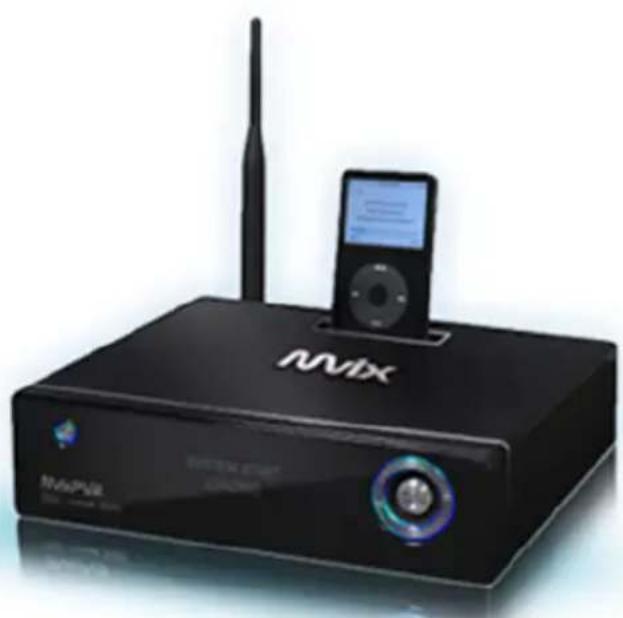
Black NV6X networking device with antenna, CD, and iPod (no visible text or symbols on main body)HD Multimedia Player with Personal Video Recorder
English
HD Multimedia Player with Personal Video Recorder
natural_image
Black NVIX wireless device with antenna and iPod (no visible text or symbols on main body)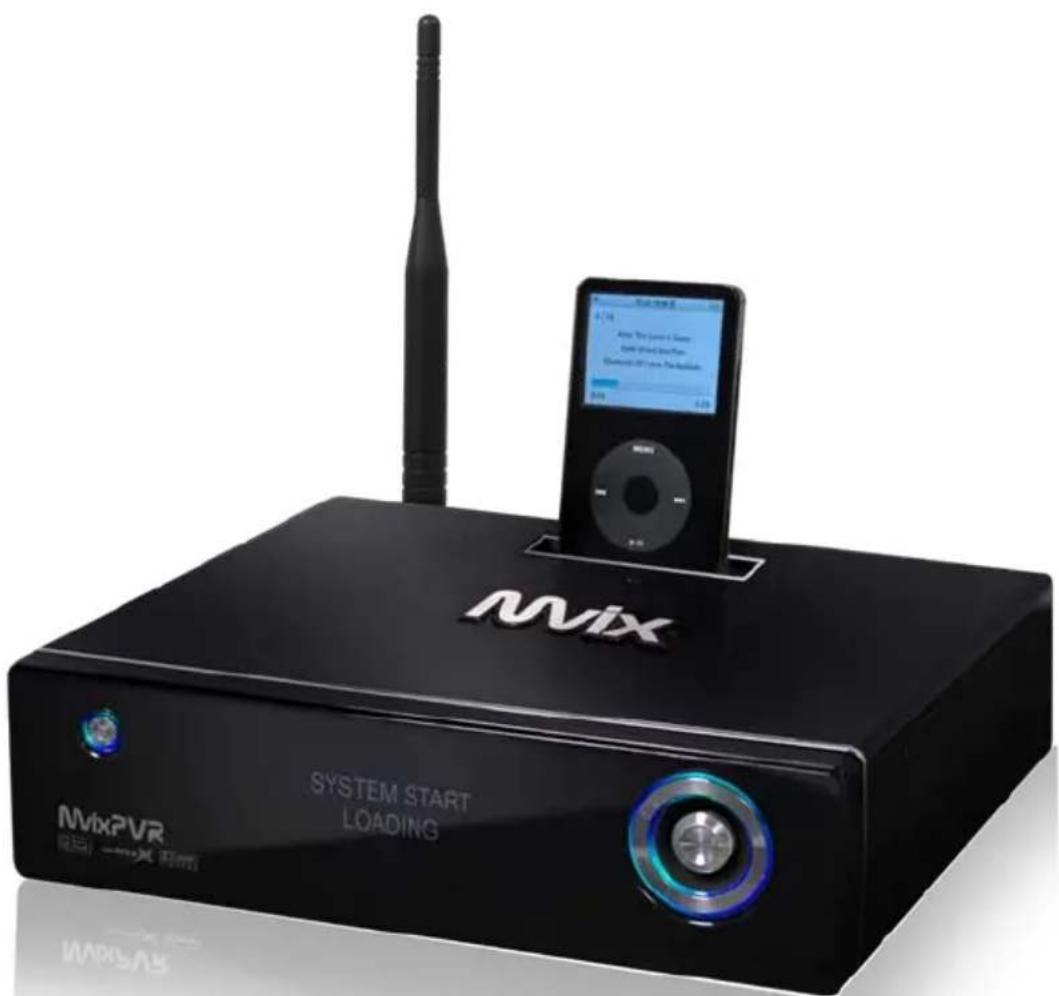
Ver 2.0
User Guide
www.mvix.net
The following are to protect safety of user and to prevent damages to property. Use product properly after carefully reading the following contents.

Warning
Caution may lead to serious
injury or death.

Violating instructions may lead to slight injury or damage to product.
○ Instructions

Act prohibited

Contact by wet hand prohibited

Modification prohibited Power

separated from power outlet
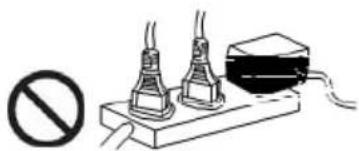
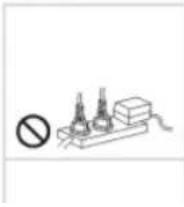
Do not connect a number of power plugs at the same time. (This may generate heat or cause fire.)
natural_image
Simple line drawing of a battery with two batteries and a switch, no text or symbols present.Do not forcefully pull out power cord. (Breakage of power cord may cause fire and electric shock.)


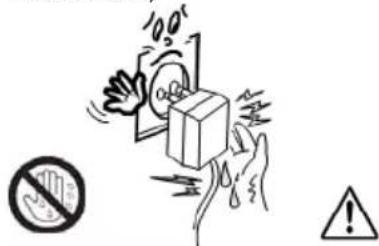
Do not insert of pull out power plug with wet hand. (This may cause electric shock.)
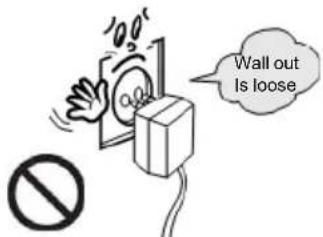
Do not insert power plug if it fits loose to power outlet. (This may cause fire or electric shock.)
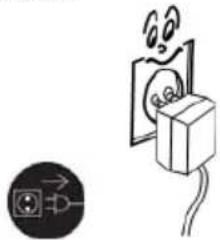
Make sure to turn off power switch and pull out power plug when moving product.
natural_image
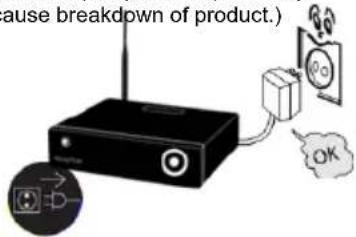
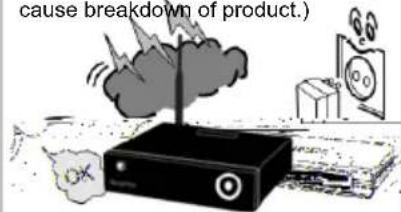
Simple line drawing of an electrical socket connected to a wall, with a close-up icon below (no text or symbols)Do not place plant pots, cups or objects filled with chemical or water, etc. on top of product. (This may cause breakdown of product.)
Clean the outside of product by wiping it with lightly wet or dry towel. (Using detergent for grease removal, thinner or heavily wet towel, etc. may cause breakdown of product.)
Product must not be disassembled, repaired or modified. Take caution not to have foreign substances inserted into products. (This may cause breakdown of product or electric shock.)
natural_image
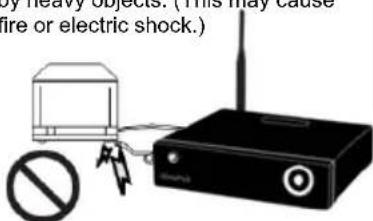
Black electronic device with no visible text or symbols, including a prohibition symbol (no readable text)Do not forcefully bend the connected power cord or have it pressed down by heavy objects. (This may cause fire or electric shock.)
The following are to protect safety of user and to prevent damages to property. Use product properly after carefully reading the following contents.

Warning
Violating instructions may lead to serious injury or death.

Caution
Violating instructions may lead to slight injury or damage to product.
○ Instructions

Act prohibited

Contact by wet hand prohibited

Modification prohibited
Power plug to be separated from power outlet
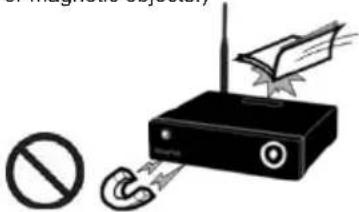
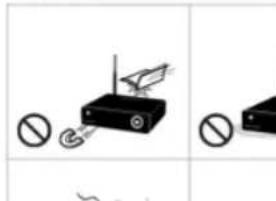
Do not drop objects on top of product or exert impact to product. Keep product away from severe vibration or magnetic objects.)
natural_image
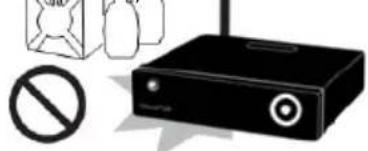
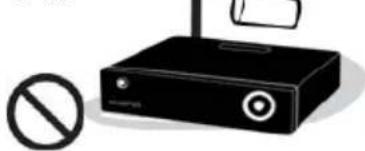
Illustration of a wireless router emitting a packet, with a prohibition symbol nearby (no text or labels)Do not place plant pots, cups or containers filled with chemical or water, etc. on top of product. (This may cause fire/ electric shock. Falling of the objects may also cause injury.)
natural_image
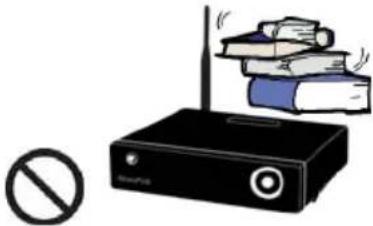
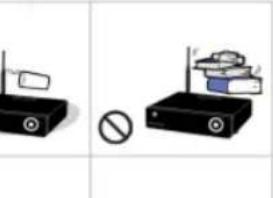
Black electronic device with a prohibition symbol nearby (no text or labels)Do not place heavy objects on top of product. (Falling of objects may cause injury.)
natural_image
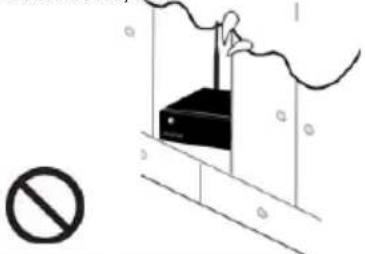
Illustration of a wireless router with a stack of books on top, no text or symbols presentDo not cover up product or install it in places with poor ventilation, such as a wall closet, etc.
natural_image
Diagram showing a person standing near a wall with a diagonal line and a prohibition symbol (no text or labels)Install product in level and stable place. (Otherwise, product may not operate normally.)
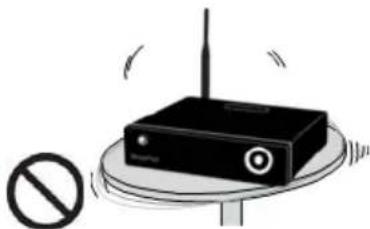
natural_image
Illustration of a wireless router on a stand with a prohibition symbol nearby (no text or labels)Product must not be disassembled, repaired or modified. Take caution not to have foreign substances inserted into products. (This may cause breakdown of product or electric shock.)
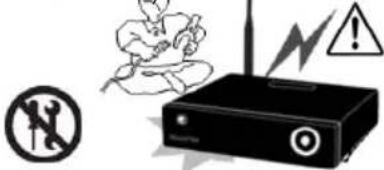
Do not install product in places where temperature is too high (35° or higher)/ too low (5° or less) or humidity is high.
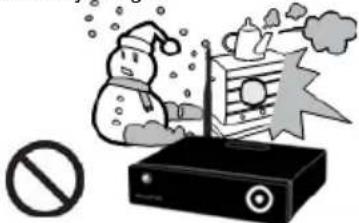
natural_image
Illustration of a snowman in a snowy environment with a radio, a megaphone, and a prohibition symbol (no text or labels)Do not install product under direct sunlight or near objects of heat, such as lit candle, cigarette or fire, etc.
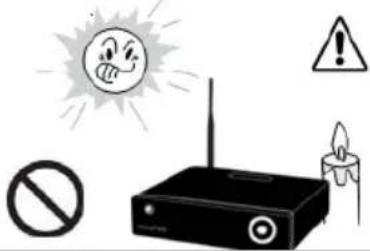
Do not place product in water. (This may cause breakdown of product or electric shock.)

natural_image
Illustration of a bowl with liquid and chopsticks, accompanied by a warning symbol (no text or labels)Table of Contents
Safety Notes 2
About Product 6....
Notes 8....
Specifications 9
Components 11
Hardware Installation 12
Connection 14....
Remote Control Functions 17
Chapter 1. PVR Setting
1) HDD Formatting 20.
2) Language/ Resolution/ Time Setting in Wizard 23......
3) Network Setting in Wizard 24
Summary of Main Menus 25
Chapter 2. Major Functions
1) MEDIAPLAY 26
1-1 Music 26
1-2 Photo 27
1-3 Movie 28
1-4 Network Share Folder and MvixFTS 30
1-5 My List Function 33
2-1 Video In Recording 34
2-2 Simultaneous Use of Recording and Media Play 35
2-3 Time Shift 35
3-1 Play Recorded Title 36
3-2 Sort Recorded Title 37
3-3 Change Name of Recorded Title 38
3-4 Edit Recorded Title 38
3-5 Delete Recorded Title 42
Table of Contents
Chapter 3. For Advanced Users
1) Timer 43.
1-1 Add Preset Recording 43
1-2 Delete Timer 45
1-3 Timer Status Change 45
1-4 Timer History 46
2) File Manager 47....
2-1 Copy Function 47
3) Mvix Live Function 49....
Search Movies in YouTube 50
Picasa Function 51
4) UPnP Server Function (LCD/ iPod Update) 55
Chapter 4. Media Environment Setting
1) Language Setting 57.
2) Audio Setting 58....
3) Video Setting 59.
4) REC Setting 60
5) Network Setting 62
5-1 Wired Network 62
5-2 Wireless Network 63
6) System Setting 64
7) Other Settings 65
Chapter 5. MvixFTS Use and Share
1) MvixFTS Installation 68
2) Windows XP Share Folder Setting 69
3) Change/ Give Power for Windows XP Share Folder (Copy Function) 70
4) Windows Vista Share Folder Setting 71
5) Change/ Give Power for Windows Vista Share Folder (Copy Function) 74
Chapter 6. iPod Expanded Connection Control 75
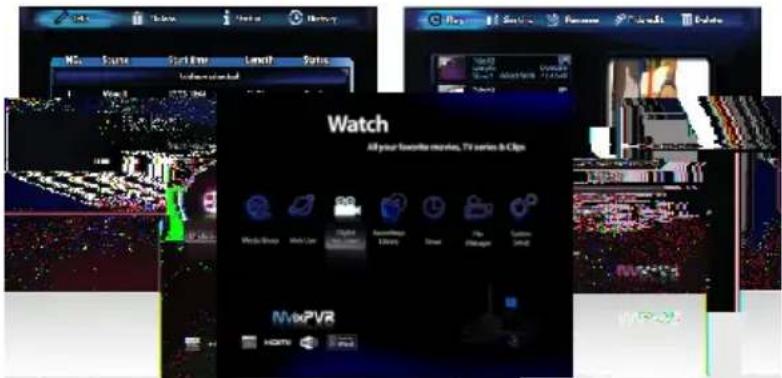
PVR Function
Using MvixPVR, you can record a film you are watching on real-time basis with a single remote control button. Also, while record is in progress, you can check the film being recorded. Using Recording library menu, you can view title of the film being recorded. By playing the title of the recorded film, you can view the film per stage in slow motion with the Slow key on the remote control. This function is convenient to use when watching sports with fast actions.
The new MvixLIVE function has been created to use the massive media data that exist in the Internet, such as YouTube media files and Picasa serviced by Goggle, etc. We will provide you with better and greater service through continuous update.







MvixPVR supports time shift function. The film you are watching can be temporarily stopped on a real-time basis. The time shift function will allow you to stop watching a the TV show at any point (for a unexpected reasons) and allow you to continue where you stopped at a later stage so as to ensure that you do not miss out on the TV show. During time-shifting mode you can also rewind or use slow motion in progress. (Time shift does not create recorded file.)
MvixPVR supports scheduler function that executes recoding by automatic booting on the preset date and time, even when the product function has been stopped..
MvixPVR supports the basic function to easily edit video content. You can simply cut, separate, split, merge and copy video content by using the buttons on the remote control.
MvixPVR supports UPnP server functions. MvixPVR supports free DDNS so that you can connect to the internal HDD of the PVR not only from your local PC, but also from any PC with a Internet connection. This function can be used from an external device that supports UPnP client.
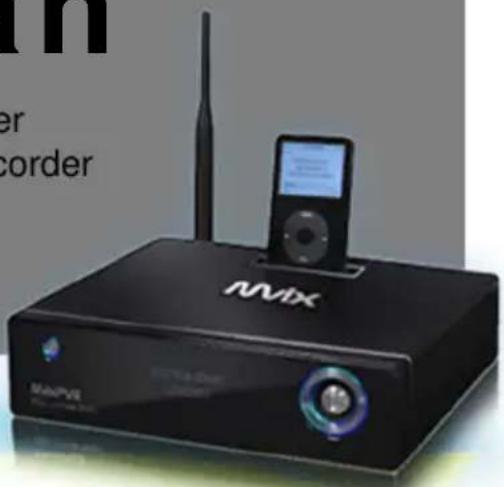
The built in iPod dock makes it possible to use your iPod on the MvixPVR. When using a iPod that that supports TV-OUT function you can easily display your iPod video content on your TV. iPod recording and charging functions are also supported. The MvixPVR remote also controls many of the iPod functions.
* Unicorn Information System does not hold responsibilities for recording commercial broadcasting contents and showing them for illegal/ commercial purposes rather than personal/ non-commercial use or trading the recorded contents illegally. Note that the person recording the contents shall wholly assume civil accountability/ criminal responsibility.

Multimedia library
High Resolution HD-level File Play: MvixPVR supports the max. of 1920X1080 interface scan to provide clear and high resolution picture quality.

Supporting Diverse Movie Format Types
MvixPVR supports a variety of HD files, such as TP, TS and TRP files, but also MPEG, Divx (3/4/5), Xvid, DAT, ISO, DVD (VOB, IFO) and MKV / WMV / ASF / MOV (if using MvixFTS), etc. You can conveniently enjoy watching movies anywhere as long as you have access to a display device, such as TV, etc. (supporting SD-level film play for MKV).

Convenient Copy
MvixPVR allows you to copy a recorded media file (with FAT32 partition) to a network-connected PC. Also, you can copy files by high-speed from PC to MvixPVR HDD or to USB storage device connected to MvixPVR.

Supporting Diverse Music Files
MvixPVR supports a variety of music sources, such as MP3, OGG, WAV, WMA, AC3 and DTS, etc. As the player supports fast rewind/ forward functions, you can quickly find the desired part you require for listening.

Digital Photo Album
MvixPVR supports the upgraded JPEG and BMP image files. The entire family can enjoying watching the files through TV, etc. Also, vertically photographed filed can be rotated in screen for viewing without requiring modification.

Network-shared File Play
Files shared on a network can be played through wired/ wireless means without having to move them to the MvixPVR hard disk..

Supporting USB Host
MvixPVR supports 2 USB2.0 hosts. By connecting USB external storage devices, you can easily add additional storage to the MvixPVR and play the files on the external USB devices. A USB type memory card reader, etc. can also be used.

Supporting High Resolution HDMI
Built in with HDMI terminal for digital signal output, MvixPVR enables you to enjoy video content with better picture quality..

5.1CH Audio Output and Down Mix Function
MvixPVR provides 5.1CH AC3 audio and DTS, etc. Also, down mix function lets you play 2CH audio through TV, etc. without requiring an additional decoding device, such as amplifier, etc. (optical, coaxial).
| 1 | Contents with copyright, such as music sources or media contents, etc., are protected pursuant to the related laws and regulations, such as Copyright Act, etc. The legal responsibilities in violating copyright or intellectual property right by using this product shall be assumed by the user. |
| 2 | Make sure to check CODEC of the file to be played. This product does not support media files of all CODEC types. Only the playable CODEC files must be used. Change media file or CODEC that is not supported into the supported file by using specific utilities, etc. Even if CODEC is playable, the file may not be successfully played according to file characteristics or user environment. |
| 3 When removing USB after connection to a PC, make sure to protect data and prevent erroneous operation of product by removing safety device. Also, make sure to turn off power of product when connecting or disconnecting separate storage devices to USB host of product. Otherwise, it may cause erroneous operation of product. | |
| 4 For hard disk, use 3.5" SATA type HDD. It must be formatted by the format method used by product. So, make sure to complete formatting when using product for the first time. Format erases all data. Make sure to back up. | |
| 5 This product uses a Windows PC and network sharer function. Network sharer may not operate normally due to error in Windows program or user environment. Unicorn Information System is not liable for this. | |
| 6 | Save data stored in this product separately in a safe location. Unicorn Information System does not assume responsibilities for loss of or damage to the stored data. |
| 7 Do not drop or exert impact to product. This may cause breakdown of product. | |
| 8 | Protect inside of product from metallic objects or combustible foreign substances, etc. This may cause fire or breakdown of product. |
| 9 | Do not randomly disassemble, modify or repair product. This may cause breakdown of product. After-sale service will be provided at cost for breakdowns caused by random disassembly, modification or repair. |
| 10 | Keep product not to be in contact with water or liquid. Also, do not use product in a humid area. This may cause fire, electric shock or breakdown of product. |
| 11 | Do not clean the surface of product with chemical substances or detergents. This may damage the surface of product. |
| 12 | Do not expose product to high heat or direct sunlight. Long-term storage or use in high temperature may cause breakdown or disable successful file play. Make sure to use product in a well-ventilated area. |
| 13 Do not leave product near highly magnetic objects. This may lead to data loss and breakdown of product. | |
| 14 | Connect all cables when power to MvixPVR and TV is turned off. Mvix can be used as a multimedia player and a mobile disk when connected to PC. However, both functions cannot be used simultaneously. |
| 15 | Product may not operate successfully if used for a long period of time or used in areas with harmful elements. If buffering occurs, stop operation and restart product. Or rebooting is also recommended. |
Specifications
MvixPVR
Titles of Parts
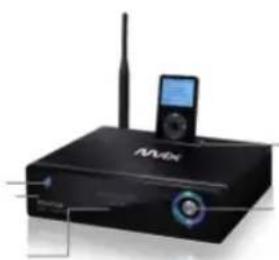
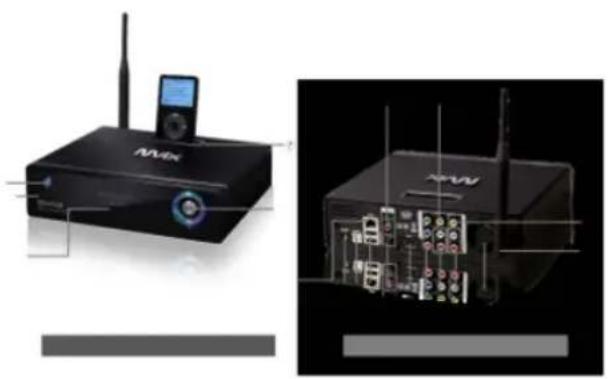
natural_image
Black NVIDIA audio device with antenna and CD, no visible text or symbols on bodyForient
Direction key (up/downs/left/right)
① Direction law OK (unless)
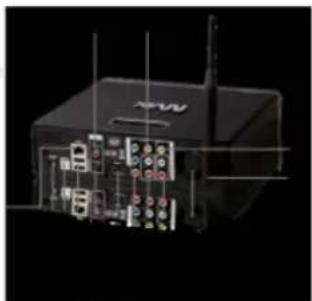
natural_image
3D rendering of a black electronic device with visible ports and wiring (no text or symbols)natural_image
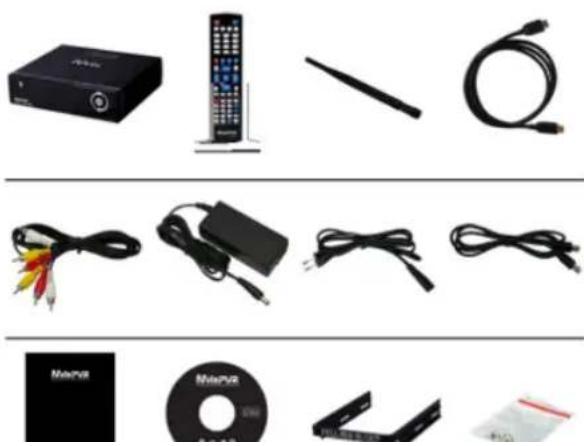
Coiled black cable with three colored audio/video cables (red, yellow, white) attached at the end (no text or symbols visible)
natural_image
Black electronic device with attached cable and power connector (no visible text or symbols)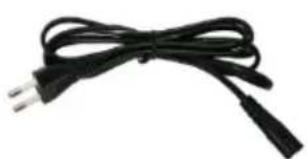
natural_image
Black cable with two leads tied together (no text or symbols visible)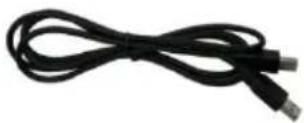
A/V Cable Power Adaptor Power Cable USB Cable

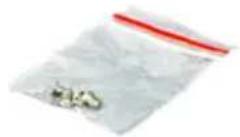
User Manual Driver CD HDD Guard HDD Fixing Screw
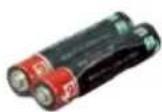
AAA Battery
natural_image
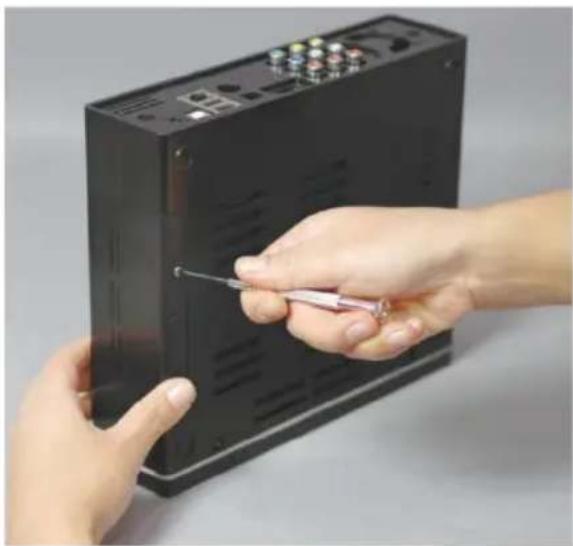
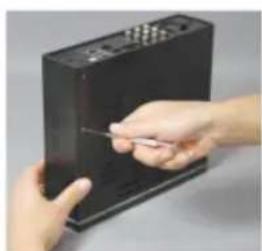
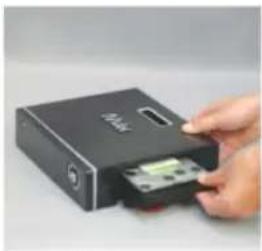
Close-up of hands holding a black electronic device with a screwdriver inserted (no visible text or symbols)- As shown above, unfasten the HDD cover screw and open the HDD cover on the side of product.
natural_image
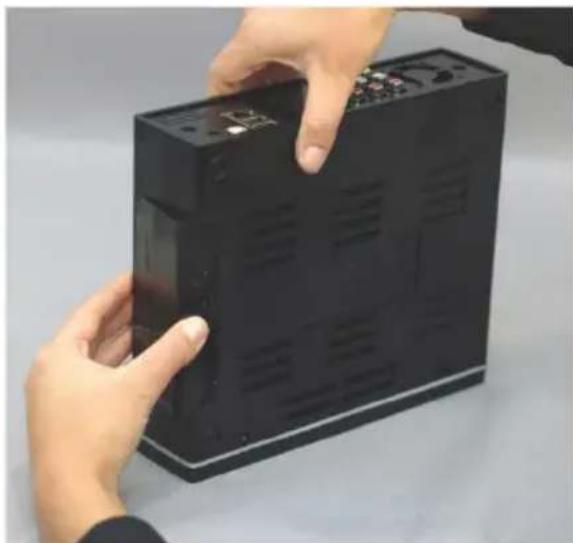
Close-up of hands installing or adjusting a black electronic device casing (no visible text or symbols)- Remove the HDD cover on the side of product by pressing it down in the middle as shown in the picture.
natural_image
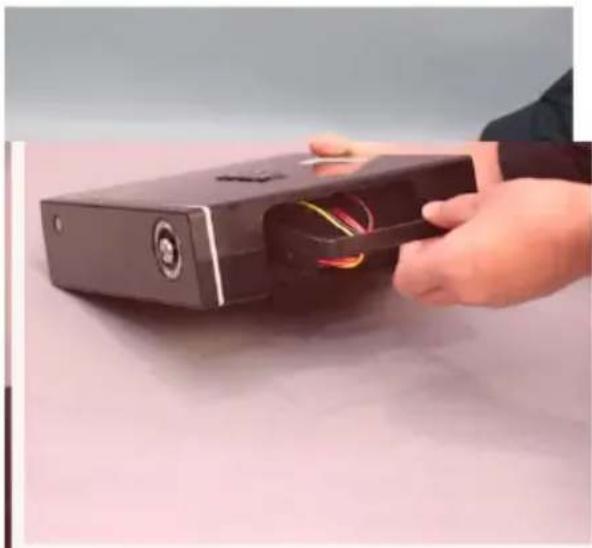
Hand inserting wires into a black electronic device (no visible text or symbols)- Separate the HDD guard from the main body of MvixPVR.
natural_image
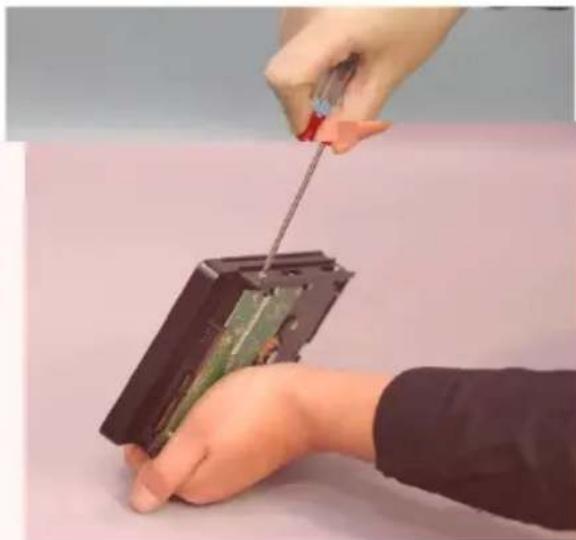
Close-up of hands using a screwdriver to disassemble or install an electronic device into a black plastic case (no text or symbols visible)- Connect the HDD guard and SATA HDD as shown In the picture. Fasten screws.
⚠️ HDD connection terminal must be on the left.
natural_image
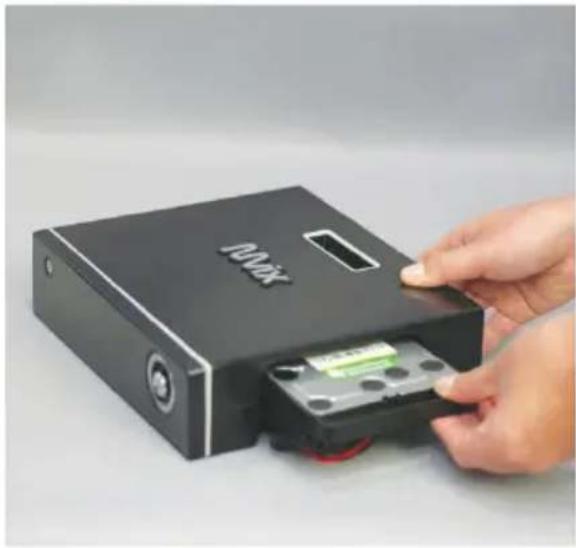
Hand inserting a black electronic device into a battery, labeled 'POMX' on the cover (no other text or symbols visible)- As shown above, slowly push the HDD guard together with the SATA HDD into the main body of MvixPVR.
natural_image
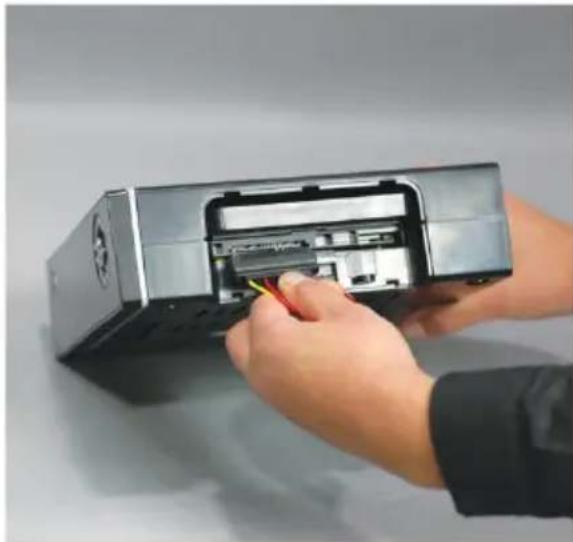
Person inserting into a computer drive into an internal storage unit (no visible text or symbols)- Install power cable and SATA cable to the mounted hardware.
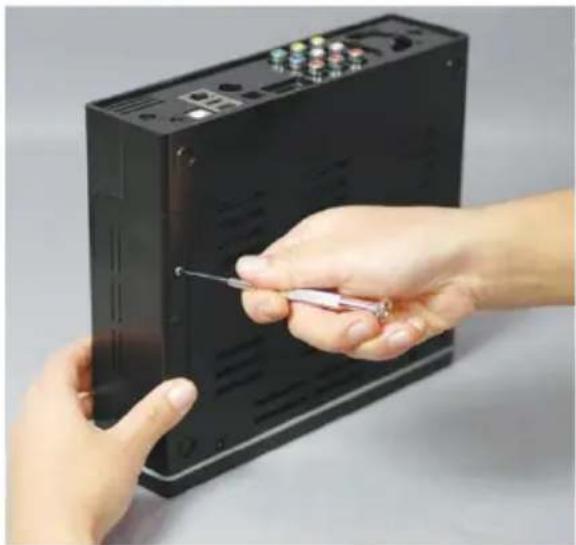
natural_image
Close-up of hands holding a black electronic device with a screwdriver inserted (no visible text or symbols)- When hardware mounting is completed, close the cover and fasten the screw by rotating it in clockwise direction.
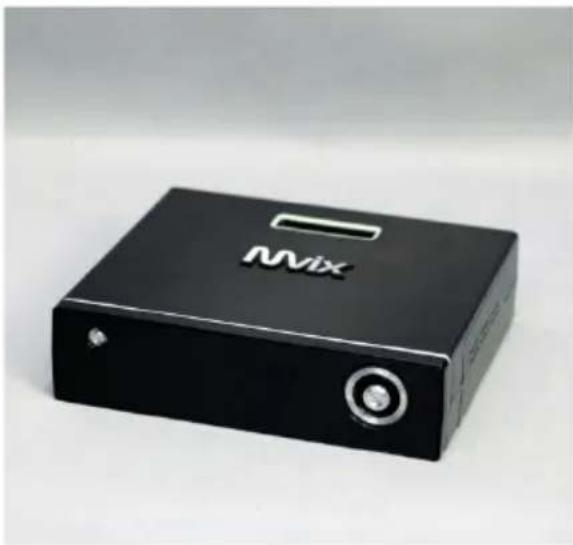
natural_image
Black Mix electronic device with a circular button and LED, shown against a plain background (no text or symbols visible on the device body)- Hardware installation of the MvixPVR has been completed.
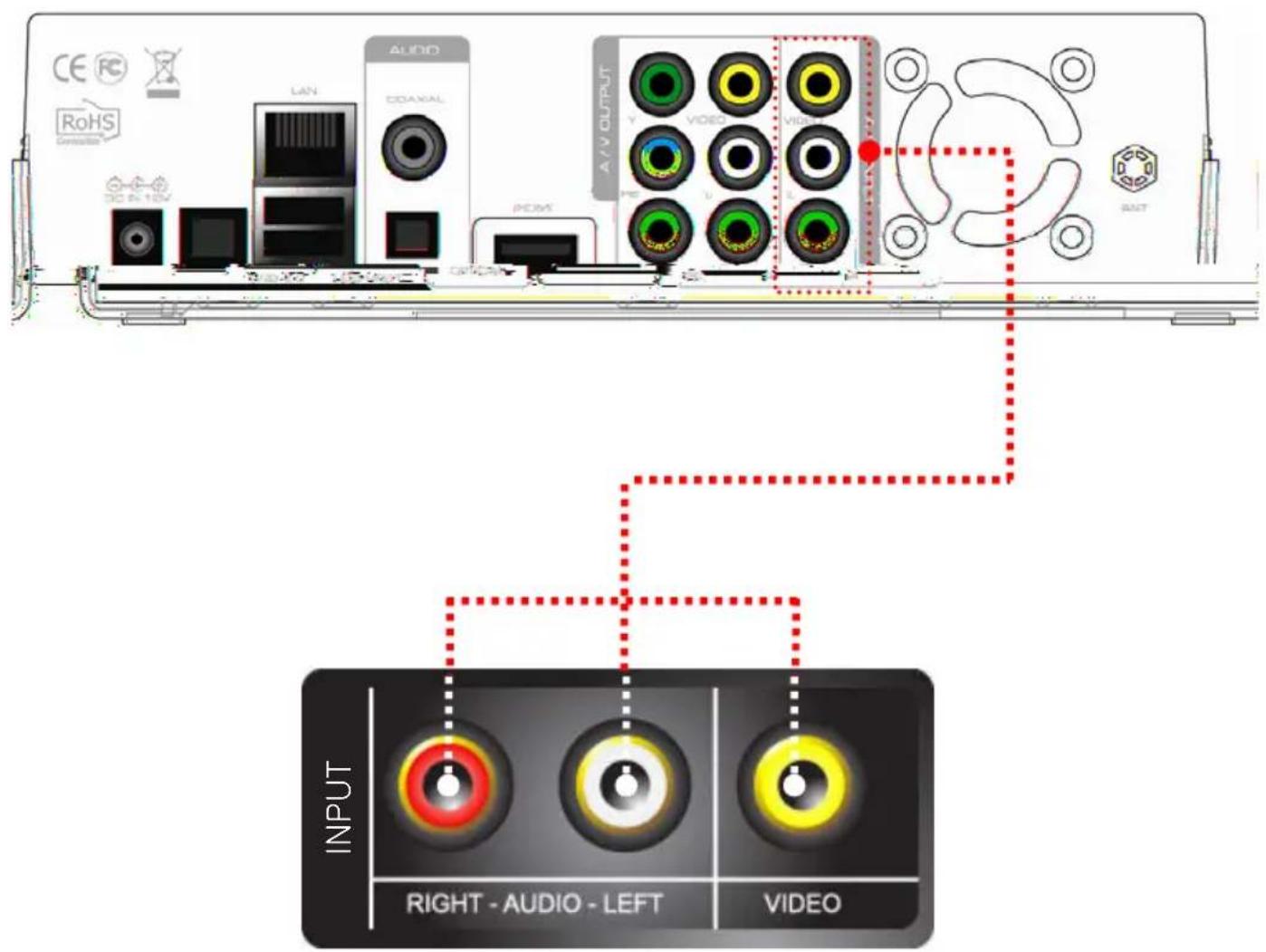
Composite Output Device Connection to Video In (Video IN)
natural_image
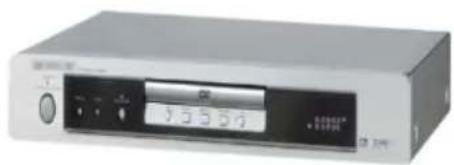
Exterior view of a silver audio workstation (no visible text or symbols)IPTV Set Top Box Input Device Connection
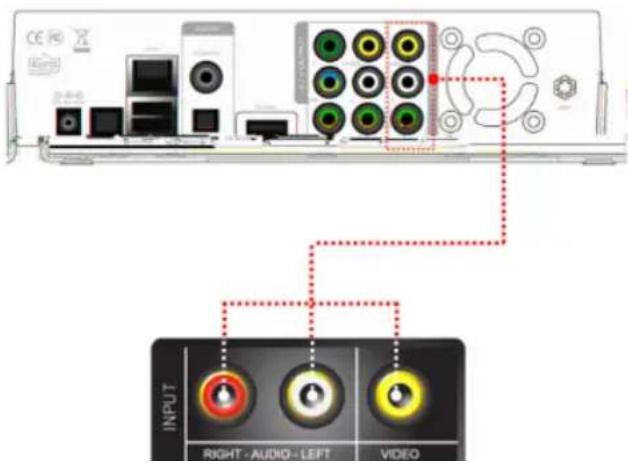
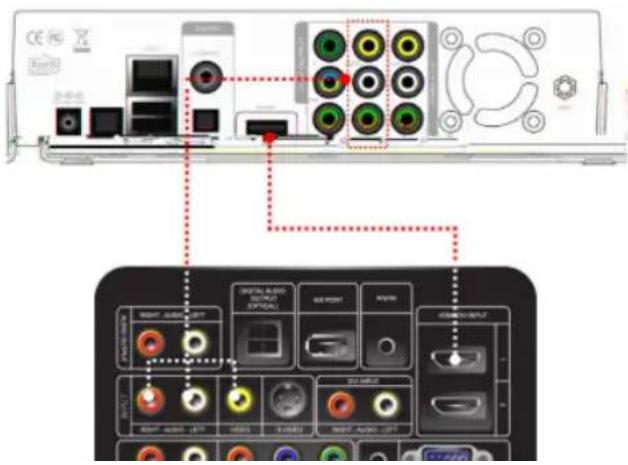
Only composite connection input is possible. Therefore, composite input terminal must be connected to Mvix in the set top box. In set top box, connect yellow cable for video signal as well as red and white cables for audio signal output. Then, to A/V INPUT terminal at the back of Mvix, connect yellow, red and white cables accordingly.
Bypass Support (Composite => Power Off => Composite)
Even when Mvix power is turned off, signals sent into A/V Input are still transmitted. Bypass function of MvixPVR can be activated only when using composite input and output. If Mvix power is on, all outputs to HDMI/ component/ composite are supported.
HDMI and Composite Output Connection
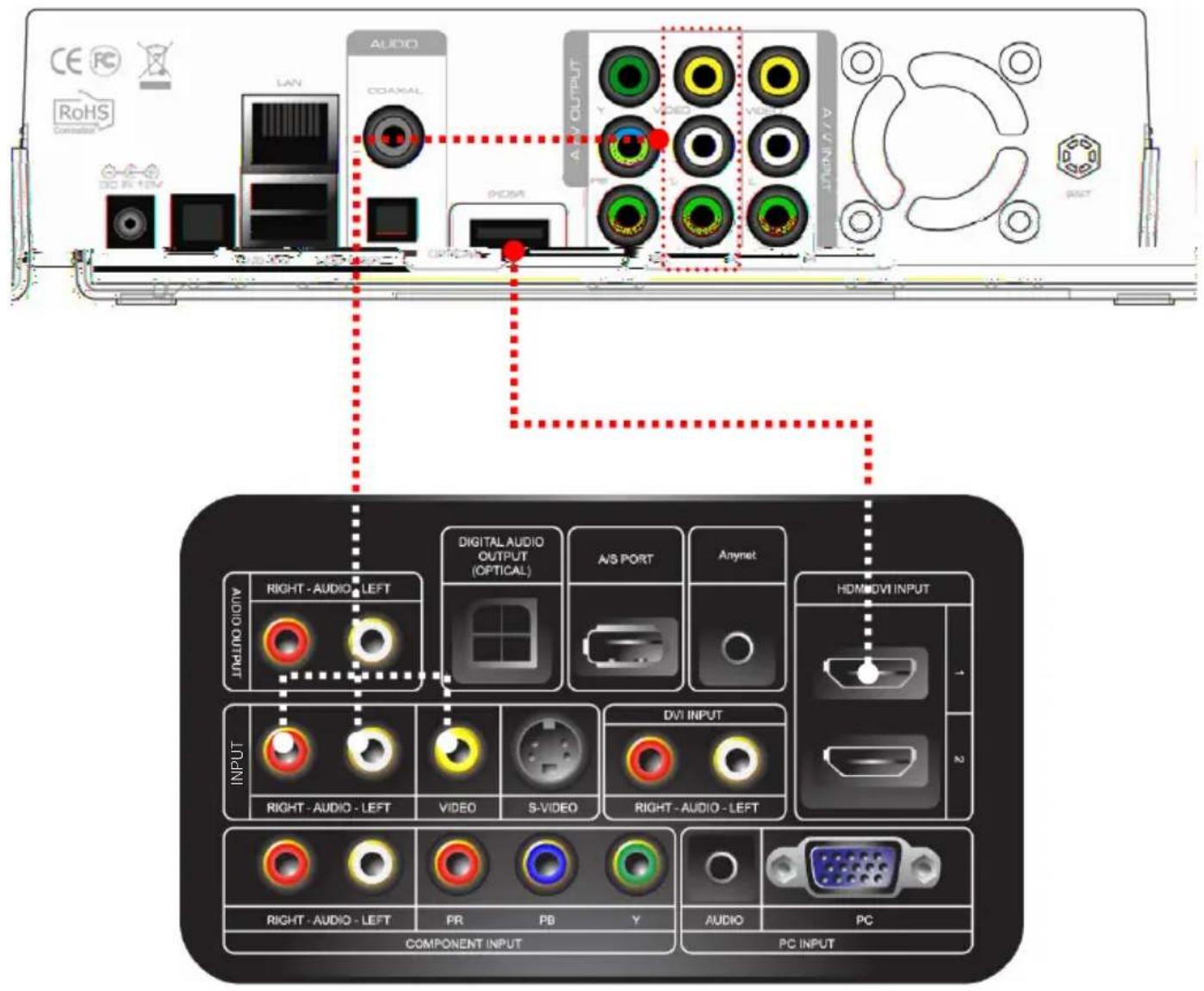
natural_image
Front view of a computer monitor displaying an internal circuit board (no visible text or symbols)Composite Cable Connection
Connect yellow cable for video signal to the terminal located at the back of side of TV. Then, select external input of TV. Connect the remaining red and white terminal cables to the left/right and audio output terminal at the back of the device. Then, connect red and white cables to the left/right terminal of DTV input or component audio input located at the back of digital TV.
HDMI Cable Connection
Connect HDMI cable to HDMI terminal at the back of product. Connect the remaining cable terminal to HDMI terminal at the back of digital TV
※ Make sure to carefully distinguish between input and output terminals.
Audio Output Connection
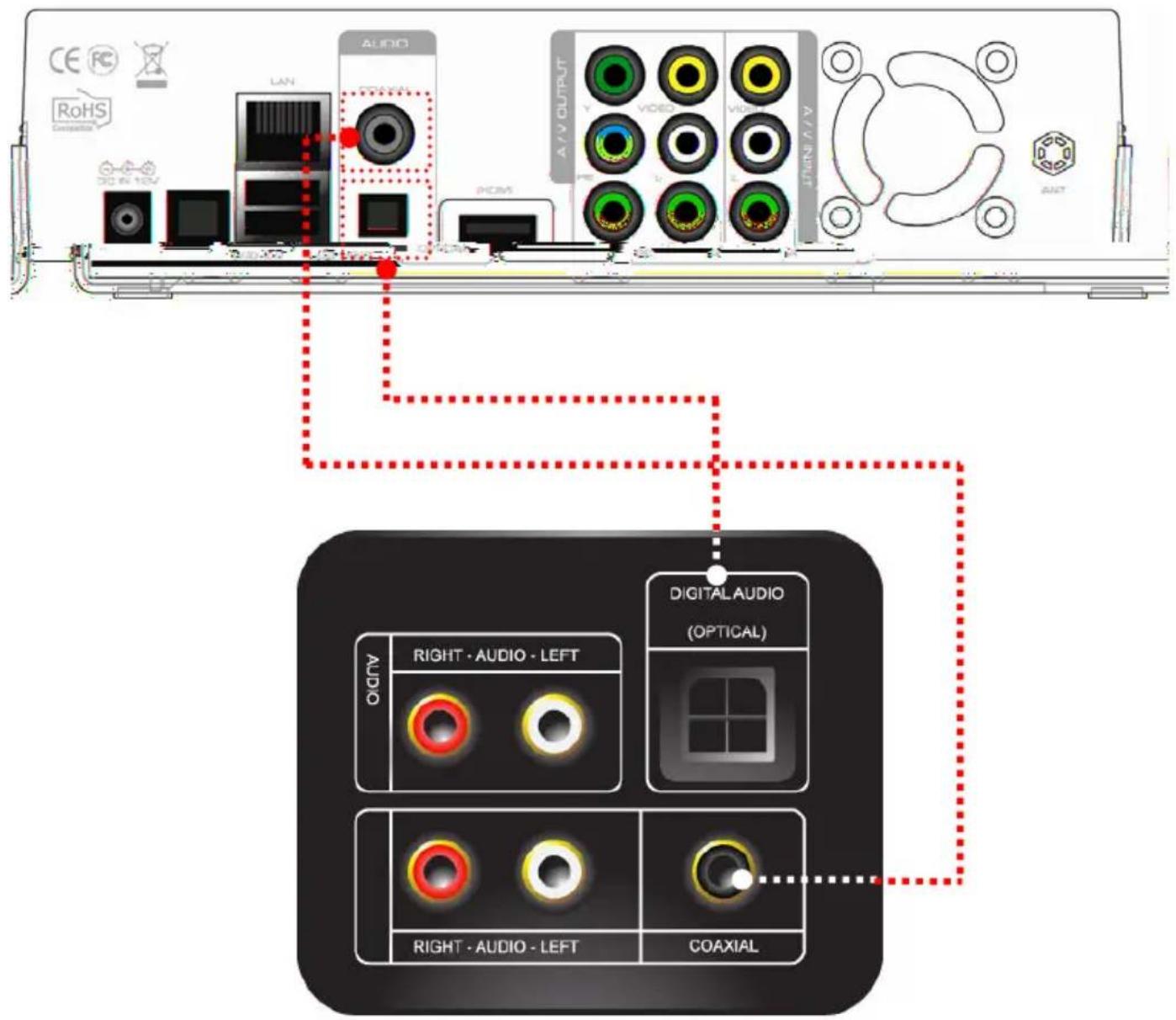
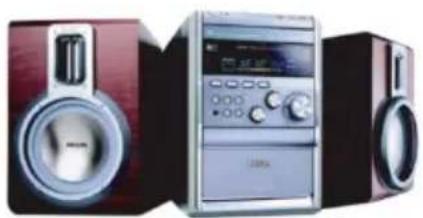
natural_image
Three vintage audio synthesizer units in front and back views, featuring speakers and a digital display (no visible text or symbols)Coaxial Cable Connection
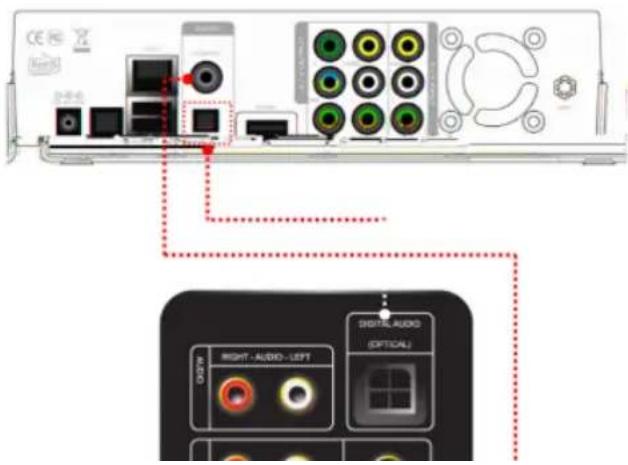
You can enjoy high-quality sound 5.1CH if the audio device is an amplifier or a receiver with coaxial cable input terminal. Connect coaxial cable to Coaxial of Mvix as shown above. Then, connect amplifier or receiver to enjoy 5.1CH.
Optical Cable Connection
You can enjoy high-quality sound 5.1CH if the audio device is an amplifier or a receiver with optical output cable input terminal. Connect optical cable to Optical, the optical output terminal of Mvix as shown above. Then, connect amplifier or receiver to enjoy 5.1CH.
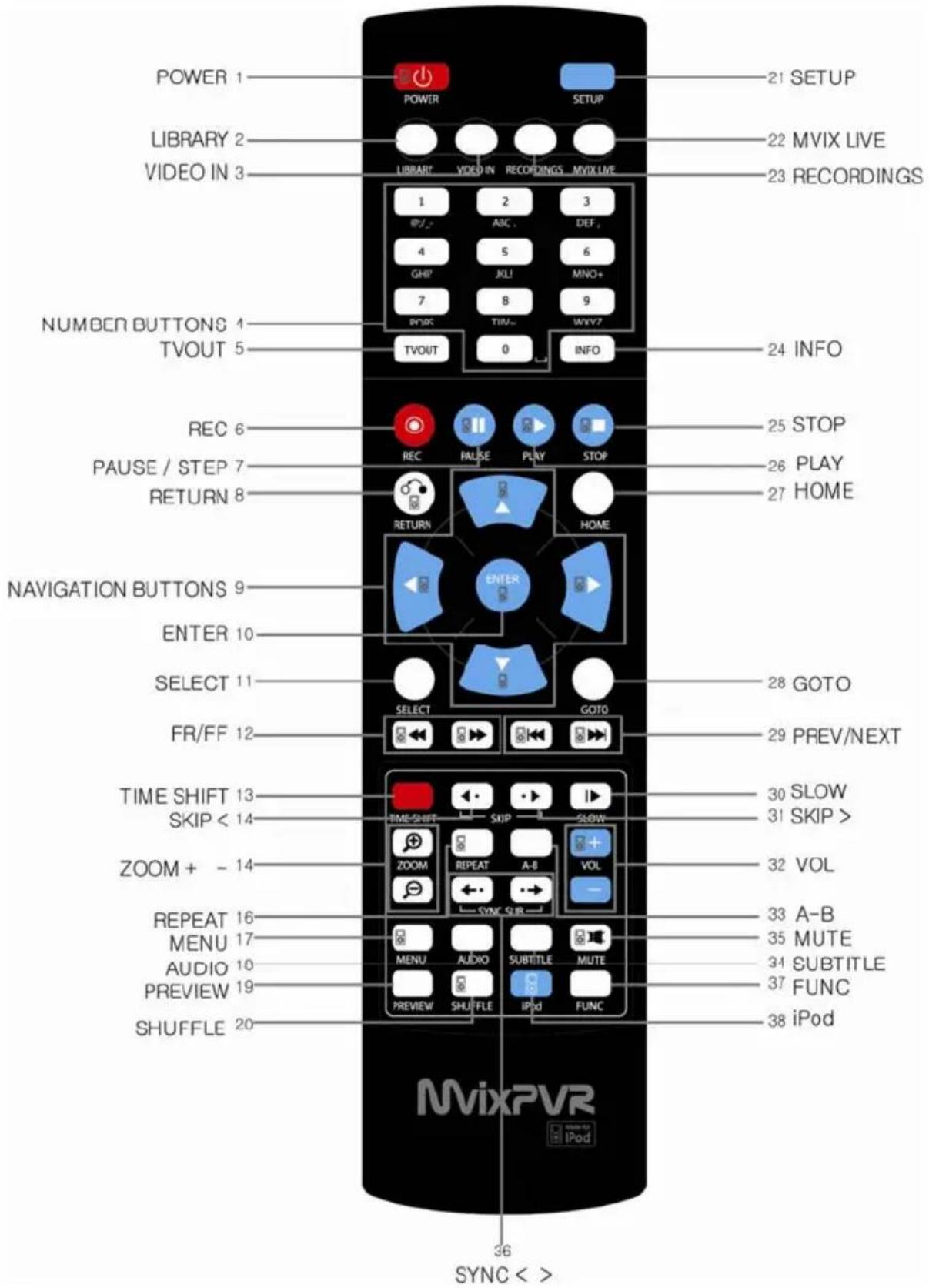
Remote Control Functions
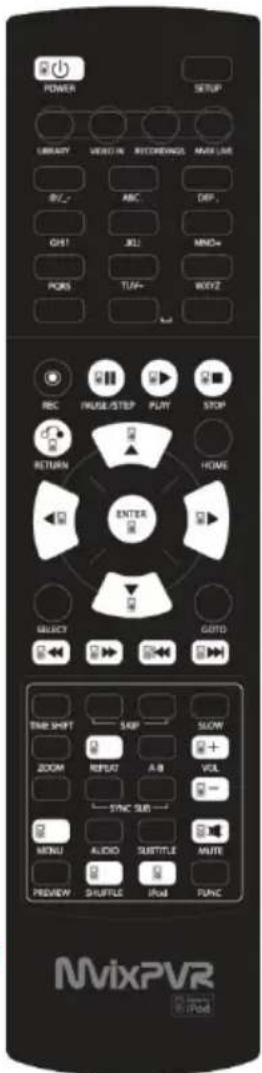
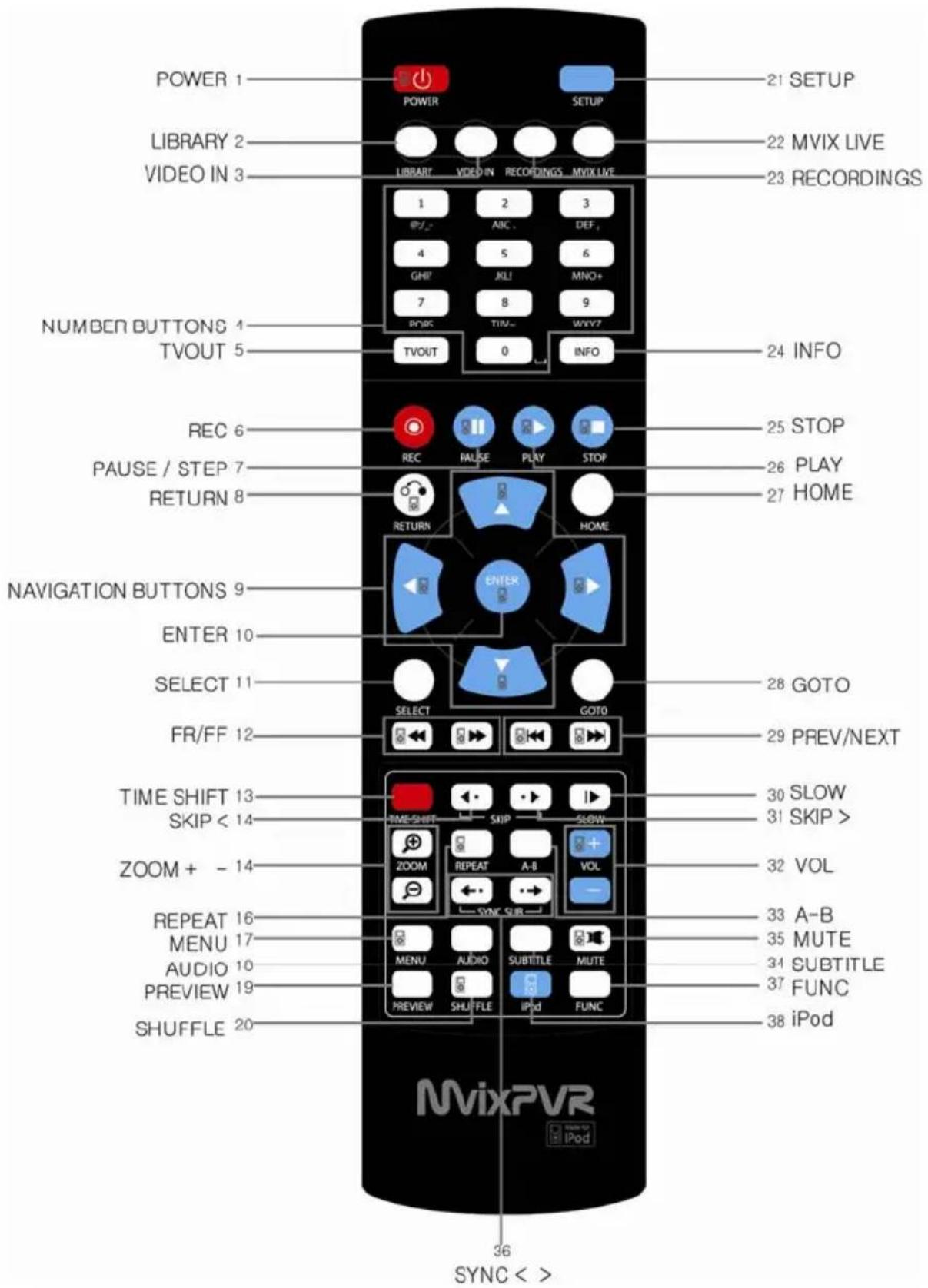
| No. Button Function | ||
1 POWER: To  off power or stand-by mode off power or stand-by mode | ||
2 LIBRARY: SI  LIBRARY menu LIBRARY menu | ||
3 VIDEO IN: SI  DIGITAL RECORDER menu DIGITAL RECORDER menu | ||
| 4 |  | NUMBER BUTTON: To press buttons for numbers 0 ~ 9 |
5 TVOUT: Sho  HOME (menu) screen when playing DVD file HOME (menu) screen when playing DVD file | ||
| 6 |  | REC: To start recording/ repetitive pressing for recording by one-touch recording (OTR) with the fixed value of 30min/ 60min/ 90min/ 120min/ 180 min |
| 7 |  | TEMPORARY STOP: To stop screen temporarily/ repetitive pressing for moving screen per 1 frame |
8 RETURN/ CA  For returning For returning | ||
| 9 DIR |  and select cursor and select cursor | |
 | ||
 | ||
 | ||
| 10 ENTER: To confirm selection/play | ||
 | ||
| 11 SELECT: To select files to be copied when using copy function | ||
| 12 |  | F.B / F.F: 1.5x/2x/4x/8x/16x/32x speed, function available in mp3 as wellSound output available in 2x speed |
| 13 |  | TIME SHIFT: Stop watching TV at any point and continue where you stopped at a later stage |
 | ||
| 14 SKP <-: To go back to screen in play by 10 seconds | ||
 | ||
| 15 |  | ZOOM + / - : To enlarge and reduce screen/ repetitive pressing for adjusting zooming +/- percentage/moving to position of enlarged output by using direction keysFunction available for use during film/ photo file play (2x/3x/4x/8x) |
 | ||
| 16 REPEAT: To select audio tracks of file in play | ||
| 17 |  | MENU: To change or set DVD file menus by moving to MENU screen during DVD(VOB) file play |
| 18 AUDIO: TO select audio tracks of file in play | ||
Remote Control Functions
No. Button Function
19

PREVIEW: To turn on/off preview screen automatically displayed in media play file search mode
20 Shuffle: To change play sequence to shuffle (for iPod only)
21

SETUP: Function available when playing media file or using menu's in VIDEO IN screen To display various setup screens
22 MVIXLIVE: Shortcut to MVIXLIVE menu
23 RECORDINGS: Shot5: hay'À×23Fun1eens
INFO


Chapter 1. PVR Setting
MvixPVR
1) HDD Formatting
Tissue product, connect HDD and format X by using automatic format menu. (HDD formatted-in Windows is formatted again.) After mounting HDD in PVR, moves to SETUP->SYSTEMMenu. Select "HDD Format" menu to display autemenus.

Kolo : Formalling erases all files saved in HDD and the files cannot be restored. Make sure to backup important files. Format is carried out upon user's consent. Therefore, we do not assume responsibility for loss caused by
When HOURS is connected, the screen may not be displayed. This is because the method of image output does not match up with TV. If screen is not displayed, correct TV using AV cable.
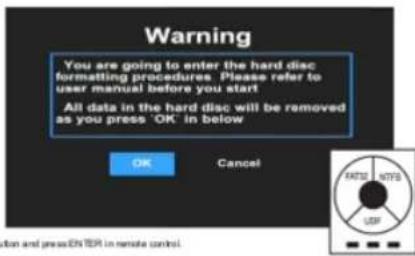
- Select OK tendon and press ENTER in remote control
Chapter 1. PVR Setting
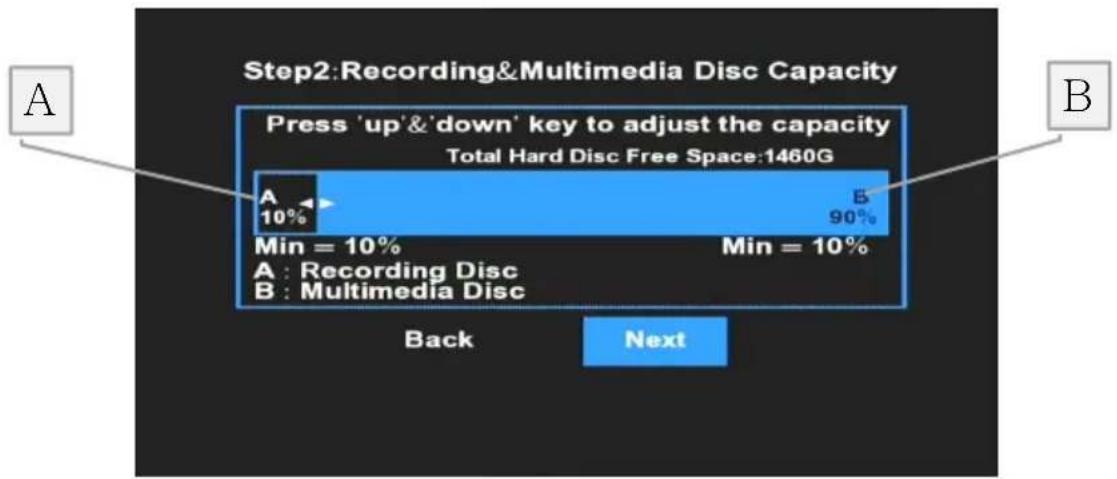
- Adjust the second stage of multimedia and recording. Capacity allocated to multimedia is divided again in FAT32 and NTFS, the next stage of Windows file system. After setup, select 'Next'.
Default: 10%, Min.: 10% file system UNIX (UDF)
A: Recording disc space
B: Multimedia space
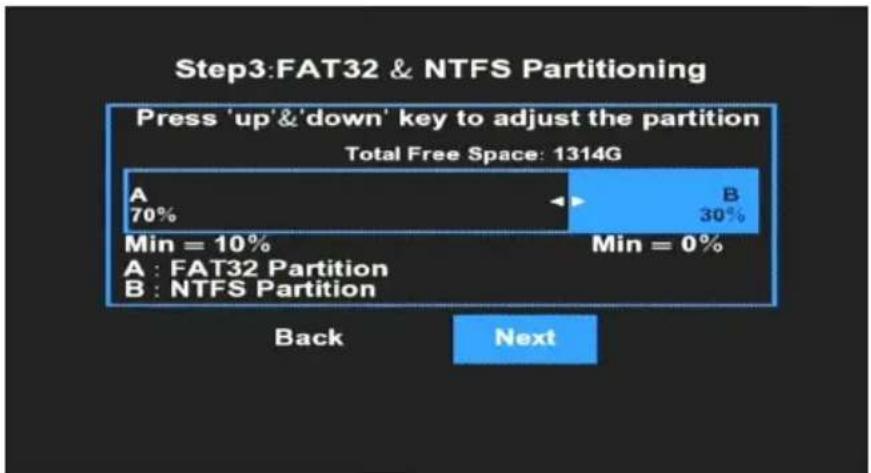
- Adjust the third stage of FAT32/ NTFS. In case of FAT32 partition, the minimum value is 10% or higher. For NTFS partition, there is no restriction in minimum value allocation. Therefore, it can be allocated as 0%. After FAT32 and NTFS partition is done, Copy Recordings Here, which is displayed after format completion, is FAT32 file system and Media Library is NTFS file system. When NTFS is set as 0%, only HDD1 (FAT32) is displayed. After adjusting capacity, select 'Next'.
Default: 70%, FAT32 : Min. 10% NTFS : 0%
A : FAT32 Copy Recordings Here
B : NTFS Media Library
TIP
In partition composition of Copy Recordings Here (FAT32), the recorded file is also used as the copy area. Allocate sufficient capacity if intending to record and store high-capacity files.
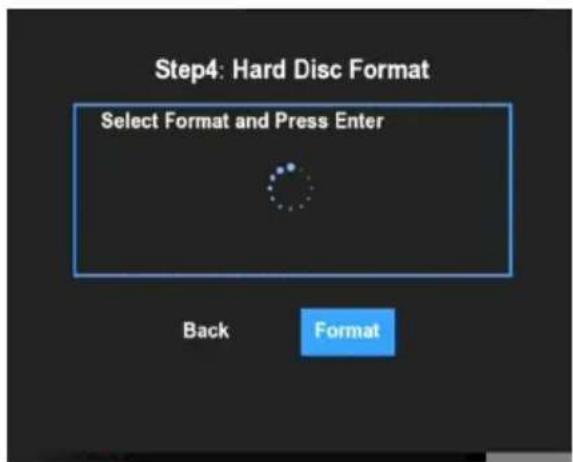
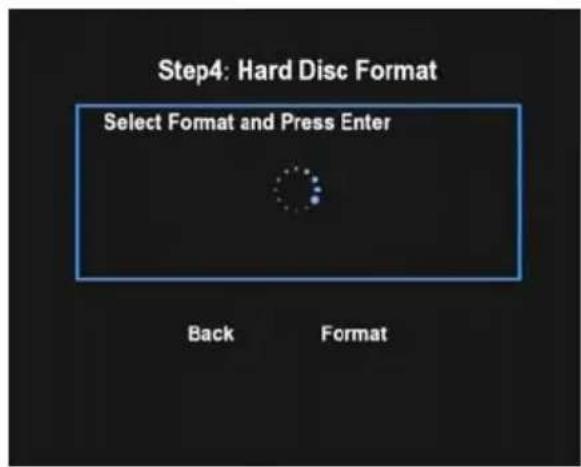
- When setup is finished, select 'Format' and press 'Enter' to proceed formatting. Do not turn off or adjust power of product while formatting is in progress. This may cause breakdown of HDD.
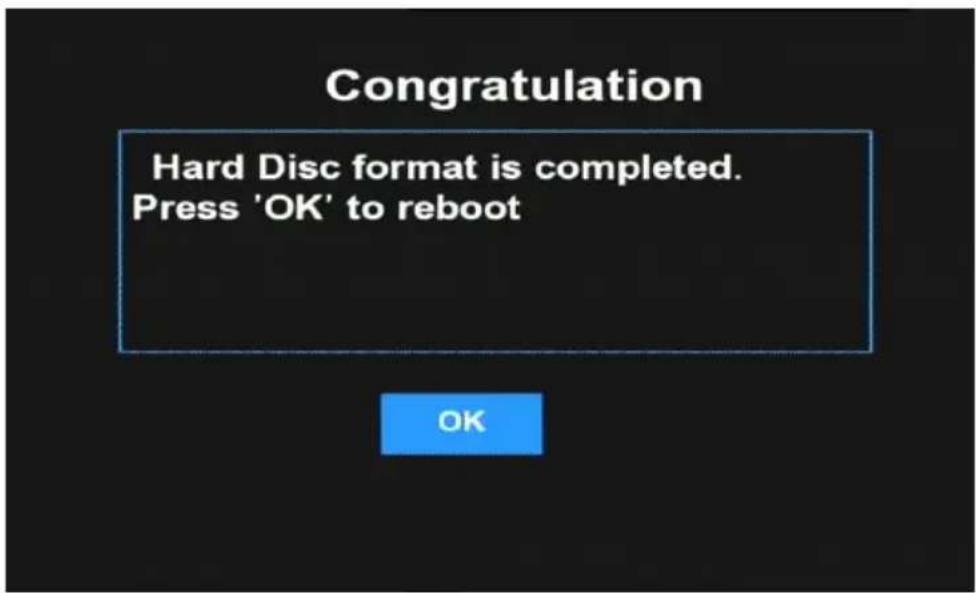
- When message informing format completion is displayed, press 'OK'. Rebooting is automatically carried out. When rebooting is completed, HDD initialization is completed.
※ Disc is divided into 2 partitions and each disc has the following uses and features.
Copy_Record_Here: This is where recorded files are extracted, File Manager is copied to and UPnP File Manager and upload are executed. Copy is unable when a single file is of 2GB or more.
Media Library: When a single file is of 2GB or more, use the file by copying it to Media Library (NTFS). This is the area where using of File Manager and UPnP functions is limited.
2) Language/ Resolution/ Time Setting in Wizard
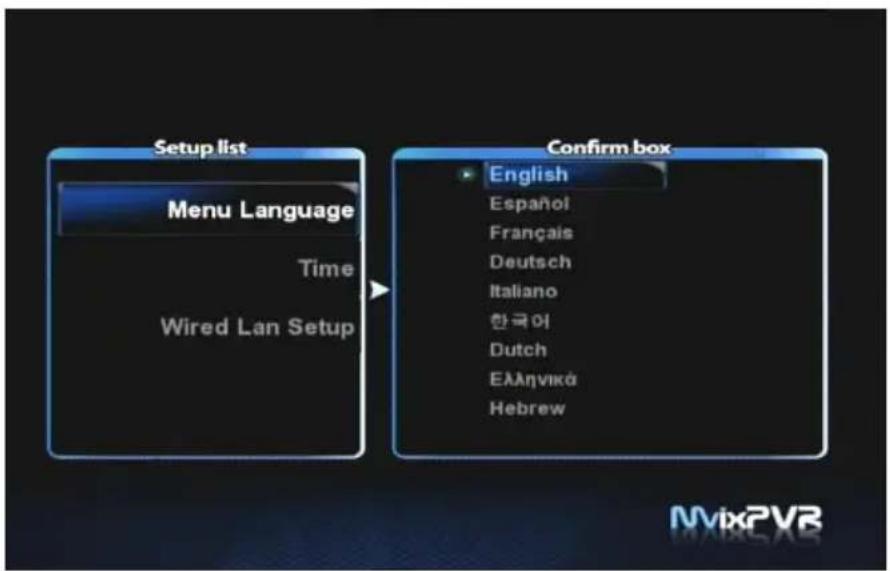
flowchart
graph LR
    A["Setup list"] --> B["Menu Language"]
    B --> C["Time"]
    B --> D["Wired Lan Setup"]
    E["Confirm box"] --> F["English"]
    F --> G["Espanol"]
    F --> H["Français"]
    F --> I["Deutsch"]
    F --> J["Italiano"]
    F --> K["한국어"]
    F --> L["Dutch"]
    F --> M["Ελληνικά"]
    F --> N["Hebrew"]
- When HDD is formatted, initial setup screen is displayed as shown in the picture. Select the language used and press OK.
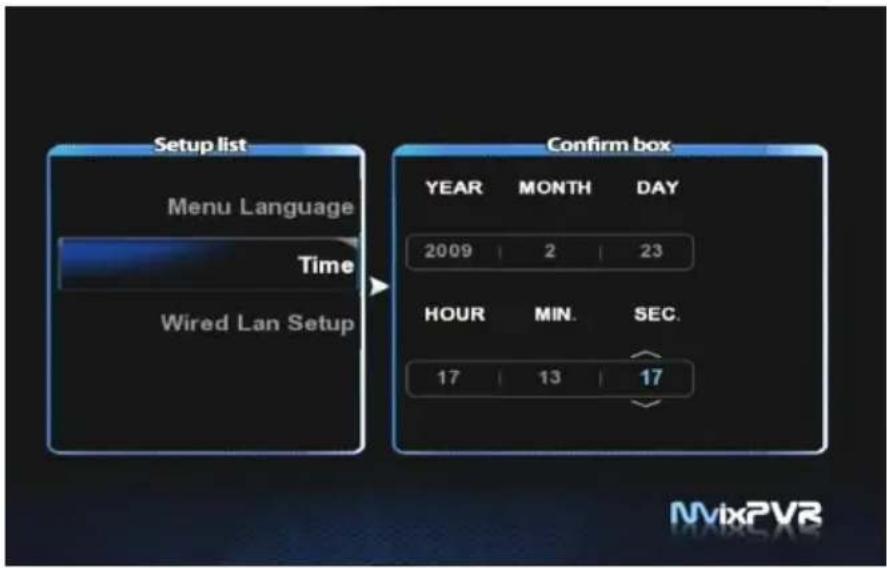
- Set current date and time by pressing up/ down button. Press OK.
TIP Make sure to set time to be the same as current time in order for normal recording with record preset function of TIMER.
Chapter 1. PVR Setting
3) Network Setting in Start Wizard
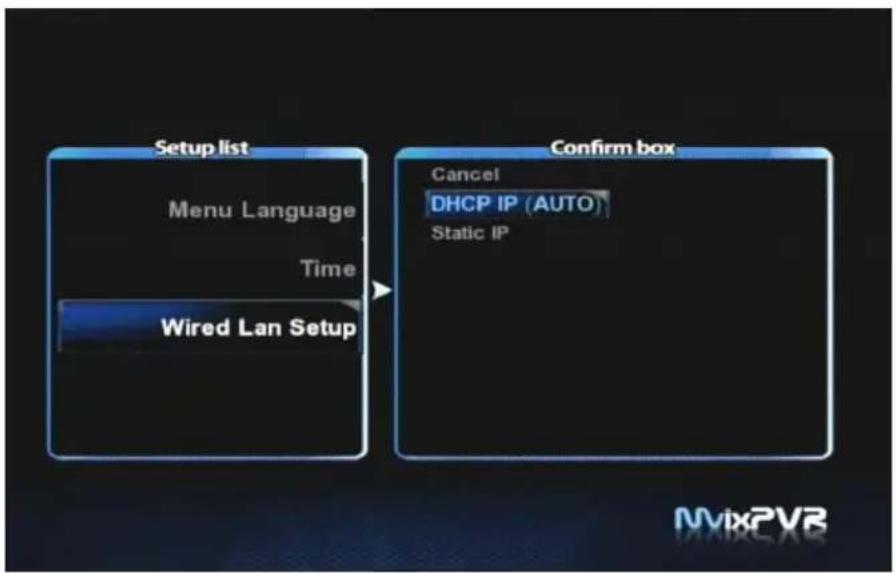
flowchart
graph LR
    A["Setup list"] --> B["Menu Language"]
    B --> C["Time"]
    C --> D["Wired Lan Setup"]
    E["Confirm box"] --> F["Cancel DHCP IP (AUTO)"]
    E --> G["Static IP"]
- Select the method to connect wired LAN to network. DHCP IP automatically allocates IP address.
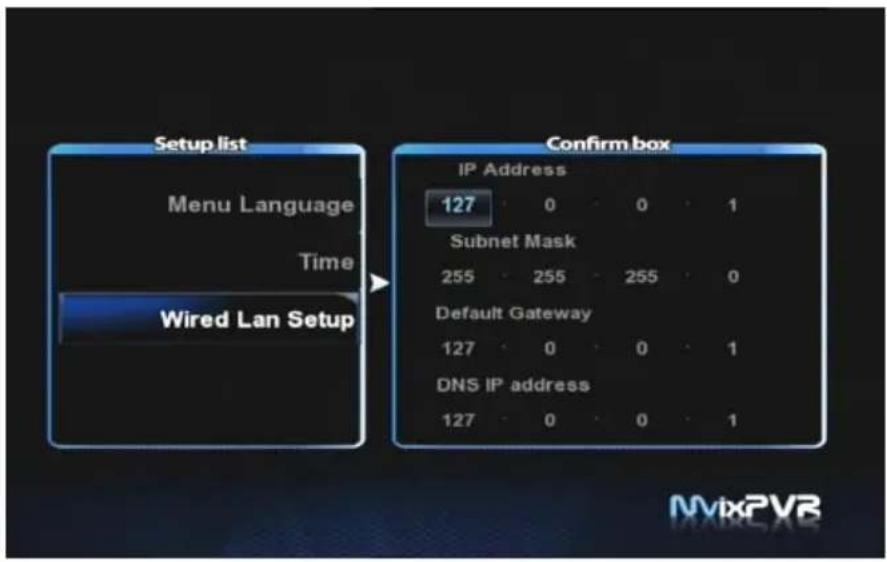
- To set static IP address and allocated them, make and save input by using number keys in remote control.

Note Normal operation is not possible if setting the same IP as peripherals. Make sure to enter accurate IP address within IP bandwidth that can be used in router.
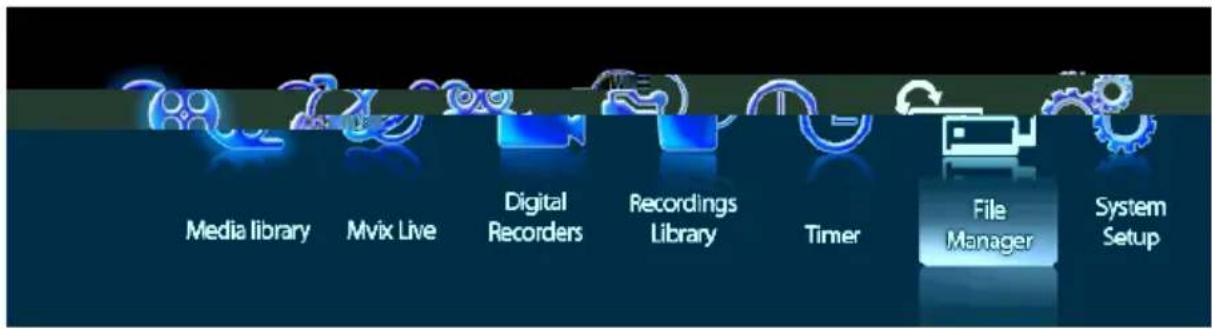
1. MEDIA LIBRARY
You can play media of various files, such as film, music and photograph, etc. connected to USB, HDD and NET or enjoy high-resolution movies. Also, you can connect to and play share files in a computer that is connected to network. MvixPVR also supports the functions of preview or to control storage devices connected to USB host. In addition, you can play media file while recording is in progress. By connecting USB card reader to USB host, various memory chips can be expanded for use. Digital camera and mobile phone, etc., which can be used as mobile storage device, can be directly connected to play and copy media files. (Function not available if HDD is not mounted)
2. MvixLIVE
Supporting online RSS, this function enables you to view movies, photos and weather information directly.
3. DIGITAL LIBRARY
Video input is directly displayed. Also, video content on the display can be recorded or processed for time shift function. MvixPVR supports multi-threading function that enables you to use the MEDIA LIBRARY menu by returning to the HOME screen while maintaining the recording status.
Recorded and saved media files can be viewed. This menus provides the basic editing functions, such as cut, split, merge and extract file based on Windows file system.
5. TIMER
Set preset recording from VIDEO IN source. When unit is switched off the MvixPVR will automatically turn on and begin recording. When recording is completed, it will be automatically turned off.
6. FILE MANAGER
Without the complication of having to copy files between storage devices by connecting them to your PC, you can copy files using USB/ HDD/ NET from PC to HDD, from USB storage device to HDD or from MvixPVR to network - connected PC.
7. SYSTEM SETUP
This function is used to make or change various system setups, such as menu language/ subtitle coding method/ network/ TV output method and audio and video recording setup, etc. Settings can be changed while file is being played. Setup is immediately applied.
8. iPod DOCKING (Expansion)
Chapter 2. Major Functions
1) MEDIA LIBRARY
1-1. Music
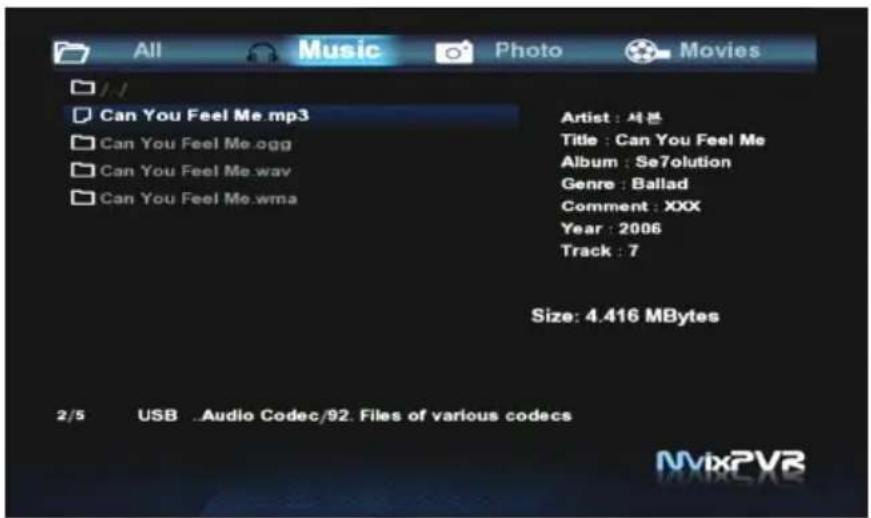
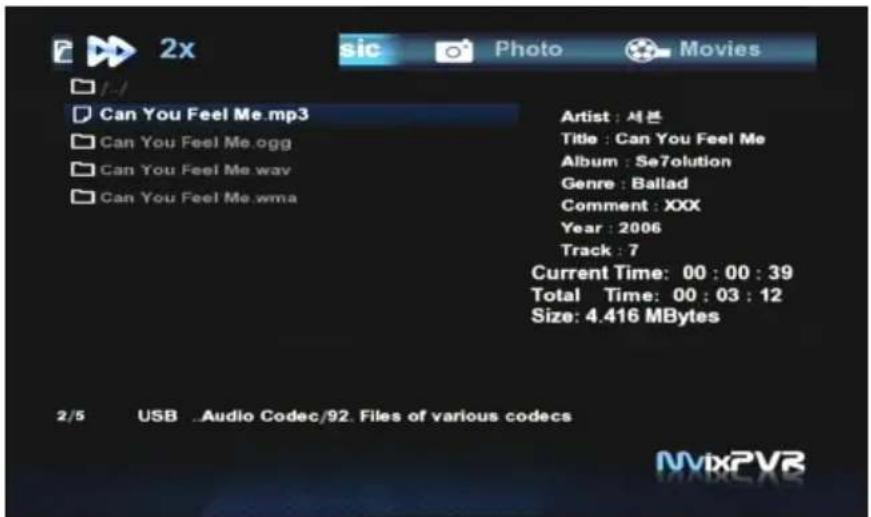
Music
This menu displays only the music files. In preview screen, file capacity and ID3TAG (V1) are displayed. You can listen to music while experiencing the upgraded photo conversion effect.
TIP
Shortcut to MEDIA LIBRARY is possible from any menu by using LIBRARY quick button in remote control.
Chapter 2. Major Functions
1-2. Photo
natural_image
Close-up of a mechanical gear assembly with a magnifying glass icon labeled '8X' in the corner (no readable text or symbols on the gear itself)Photo
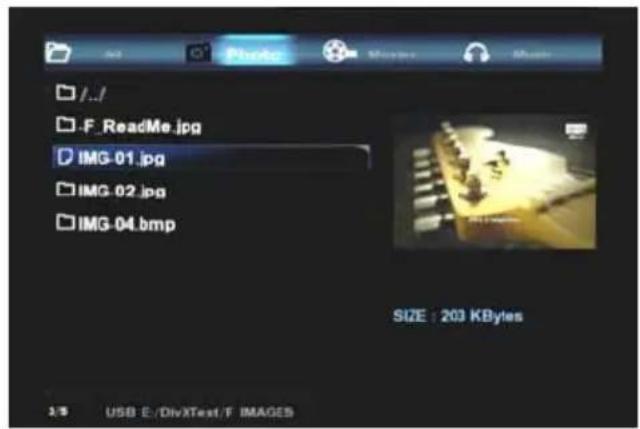
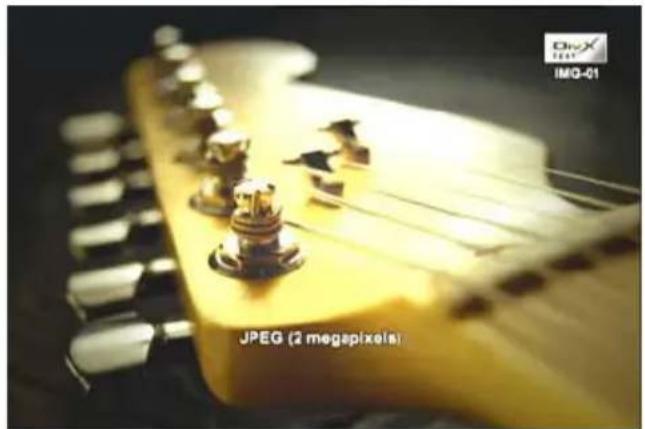
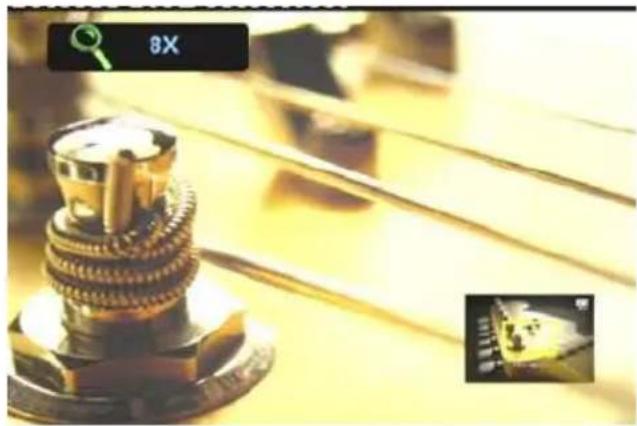
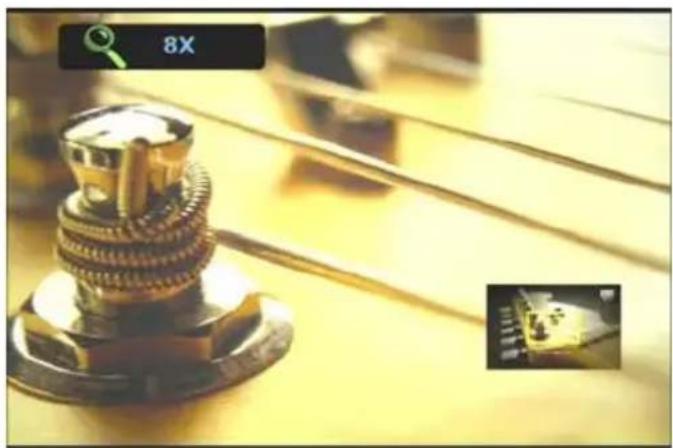
This menus displays only the photo files. Zooming function (2x/4x/6x/8x/16x/Fit) lets you expand photos and check their locations. Using
All photos in folder are automatically displayed in slide show. The interval of slide show can be adjusted as 2/5/10/30 Seconds or 1/2minutes. A variety of conversion effects are also available.
TIP
You can enjoy slide show with music and diverse effects by activating SETUP->SYSTEM -> MISC -> Transition Effect setup.
Chapter 2. Major Functions
1-3. Movie
![[TS] [AC3] 매트릭스 2. 2003 Cd2 [1920x1080 Progressive 14200kbps 23.98fps [TS] [AC3] 매트릭스 2. 2003 Cd3 [1920x1080 Progressive 14200kbps 23.98fps [TS] [AC3] 엄질 [1920x1080 65000kbps 29.97fps, 48000Hz 384kbps 2Ch] (trp) [TS] [AC3] 코오테 - 1!2!3!4! [1920x1088 17500kbps 29.97fps, 48000Hz 256kbp [TS] [DTS] 글레디에이터, 2000 Cd2 [1920x1080 Progressive 45000kbps 23.98f ] 글레디에이터, 2000 Cd3 [1920x1080 Progressive 45000kbps 23.98fps, 4 [TS] [MPG1 L2] BBTV [480x480 15000kbps 29.97fps, 48000Hz 256kbps 2Ch] t: [TS] [MPG1 L2] Kara-2 [352x480 2535kbps 29.97fps, 44100Hz 128kbps 2Ch] t: [TS] [MPG1 L2] Kara-3 [352x480 2535kbps 29.97fps, 44100Hz 128kbps 2Ch] t: [VOB] [AC3] Baby One More Time [720x480 7000kbps 29.97fps, 48000Hz 192l [VOB] [AC3] 길건 흔들어바 [720x480 2522kbps 29.97fps, 48000Hz 192kbps 2C [VOB] [AC3] 서지영 - 너를 힘해 [1920x1080 18000kbps 29.98fps, 48000Hz 192l 19/25 USB ..01. Video Codec/02. MPEG-2 Video, H.262 MvixPVR](/content/2026/05/1025659/images/54aa9c520ad0c3aac0369e57c4c43c702cb8b27fc9a8dfe8fe5a9f9e0d9e79d6.jpg)
Preview On/ Off Setup
In video list, preview setting is turned on as default. This results in preview loading time due to automatic preview setup at moving of files. If you do not want this, make sure to turn off this setup. If not using preview function, file name can be written with as many as approximately 70 letters.
TIP
Setup can be turned on/off immediately by pressing Preview button in remote control.
Chapter 2. Major Functions
1-3. Movie
natural_image
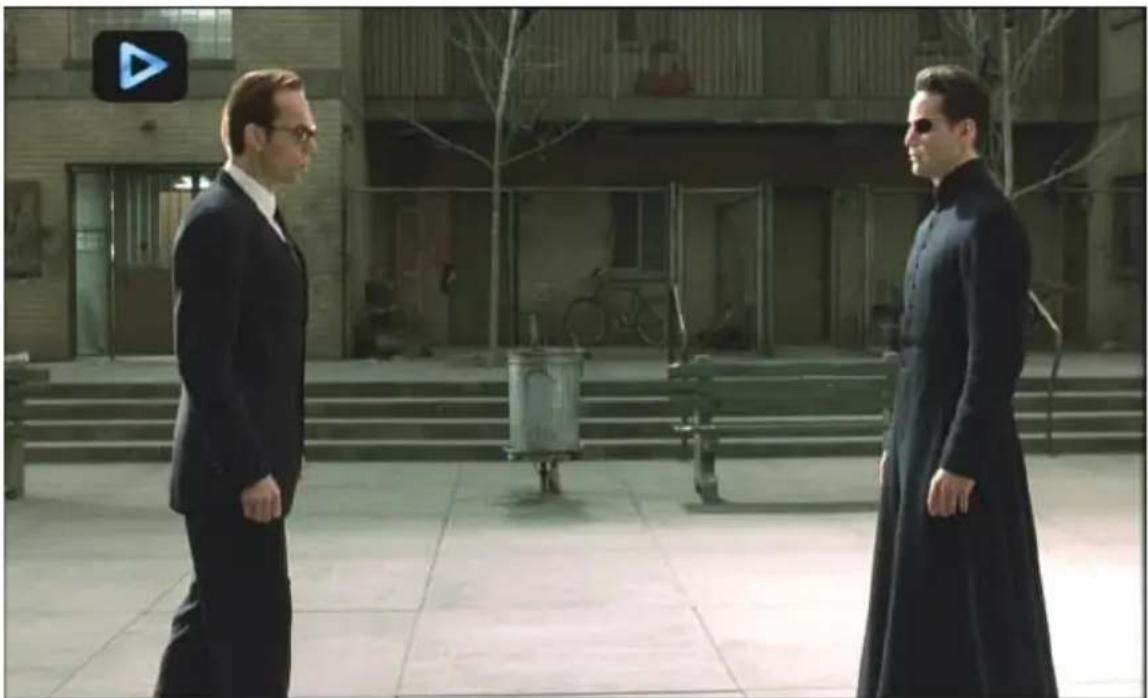
Two men in formal black coats standing outdoors in front of a building with green benches and bare trees (no visible text or symbols)< Screen for Movie Play >
Movie
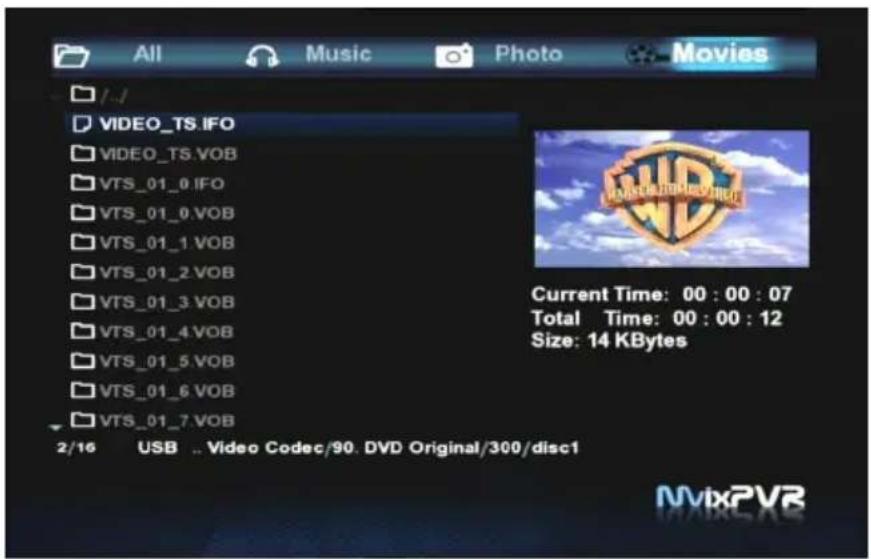
This menus displays only the movie files. Supporting quick preview function, this menus enables you to check before playing files. You can change and apply setup by entering setup menu while various files (media file, etc.) are being played.
Chapter 2. Major Functions
1-4. Network Share Folder and Using MvixFTS
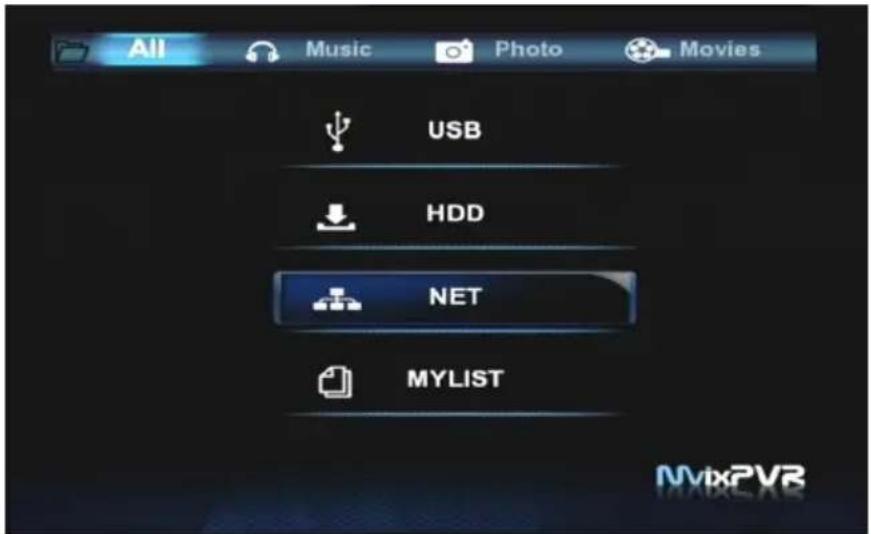
- Access net in the first screen of MEDIA LIBRARY.
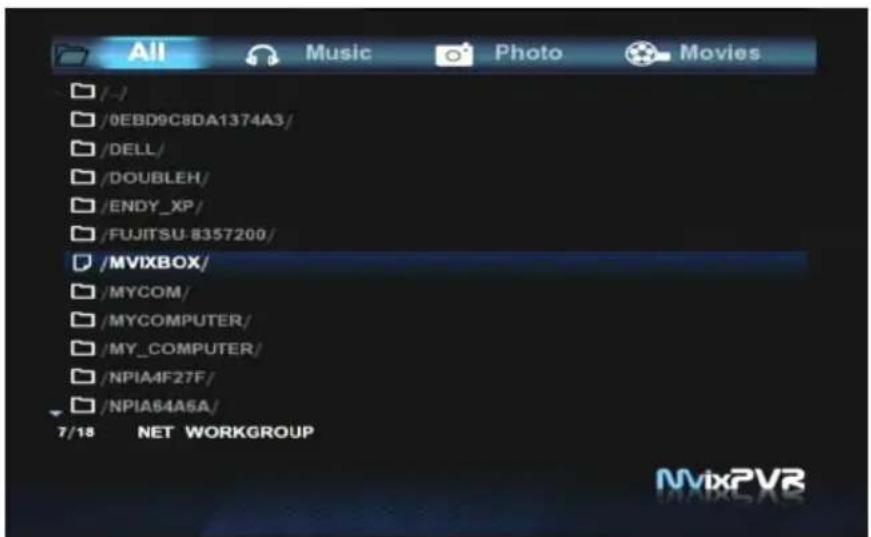
- Access net while network is being successfully connected to display network group name. Move to the position of shared folder in PC and play media file through network streaming. To directly access PC installed with MvixFTS, select My Neighbors and search shared folder to play media file.
※ Refer to MvixFTS program installation in page 68.
Chapter 2. Major Functions
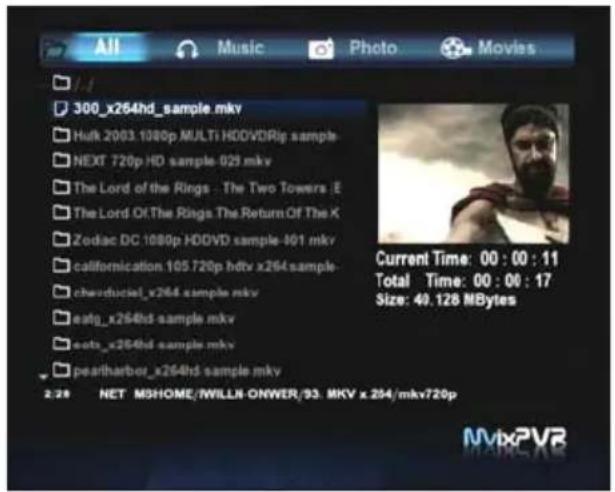
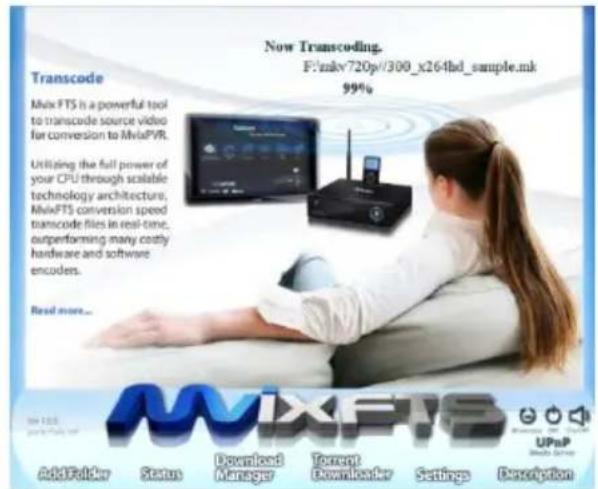
< MKV Preview Screen Using Mvix FTS >
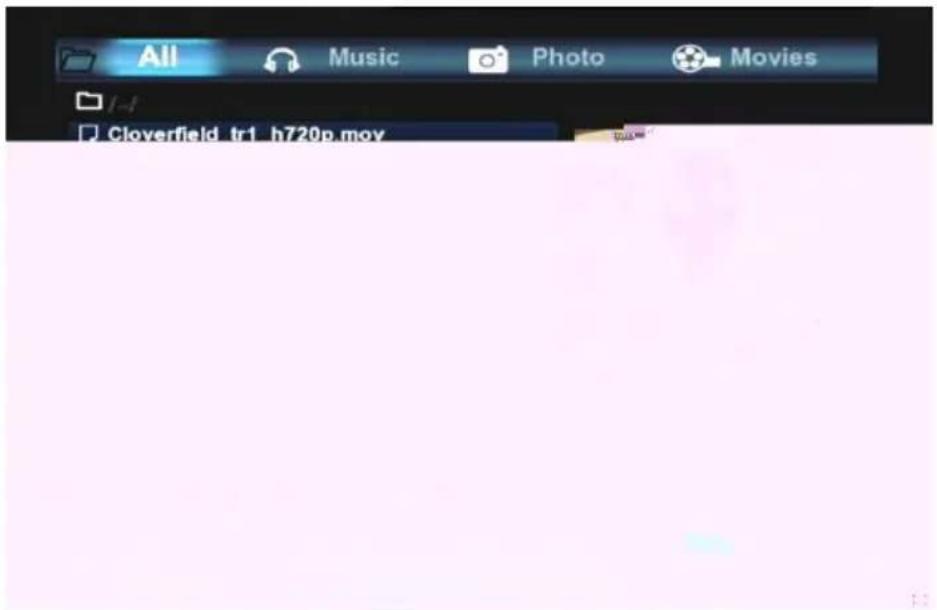
TIP If "The file you have requested cannot be displayed directly. Please use Mvix FTS installed in your PC." message is displayed, install MvixFTS program in PC. In MvixPVR, play the movie located in PC.
Chapter 2. Major Functions
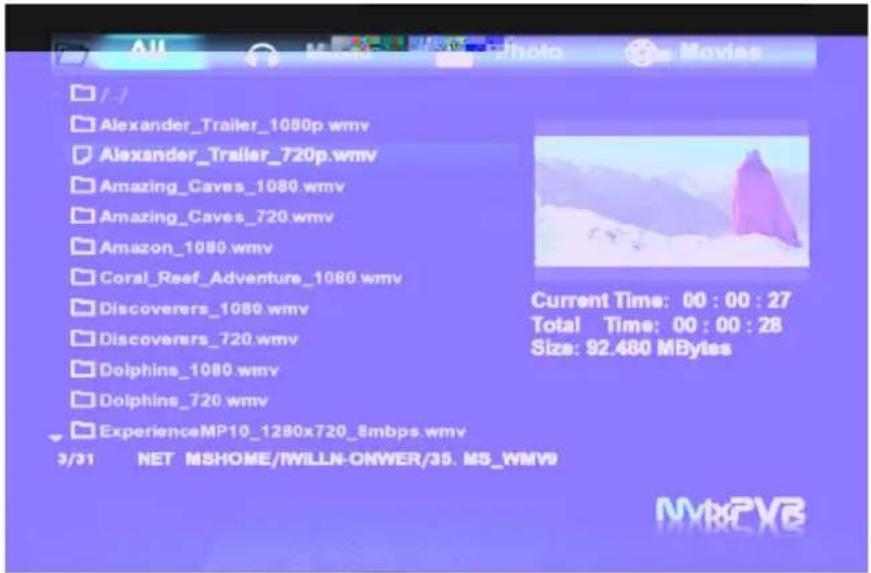
![All Music Photo Movies [Real] [RA10 AAC] Gundam Seed 44 [640x4 A10 AAC] Gundam Seed 45 [640x480 46 Current Time: 00 : 00 : 04 Total Time: 00 : 00 : 11 Size: 92.800 MBytes 3/3 NET .WILLN-ONWER/41. Real Video 4 (Real Video V9) + 17 PVR](/content/2026/05/1025659/images/135e7d3fbf7ac70ebbd9d15cce6b740b33688d959ce15bd398c823a5e821d7f7.jpg)
※ About MvixFTS Program
Using MvixFTS program included in product, you can enjoy watching movies that are not supported by self-play, such as MKV/WMV/MOV and RMVB, etc. In case of MKV, self-play function is supported. However, in case of HD level (x.264) MKV CODEC, play is only possible by using MvixFTS. Using MvixFTS requires a high CPU use in the PC. Therefore, a high-spec PC lets you enjoy watching movies without buffering. Successful play of 720P level movie is possible. For video files of 1080P level that require high specifications, successful play may not be possible in some PC environments. Unicorn Information System does not provide a guarantee for this.
Chapter 2. Major Functions
1-5. Using My List Functions
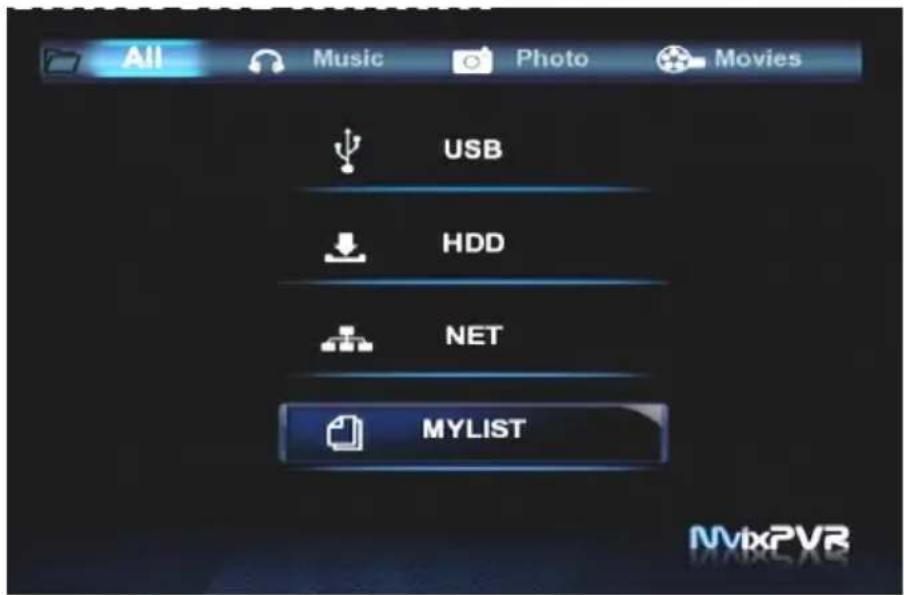
- My List is used to designate the favorite video, photo and music files.
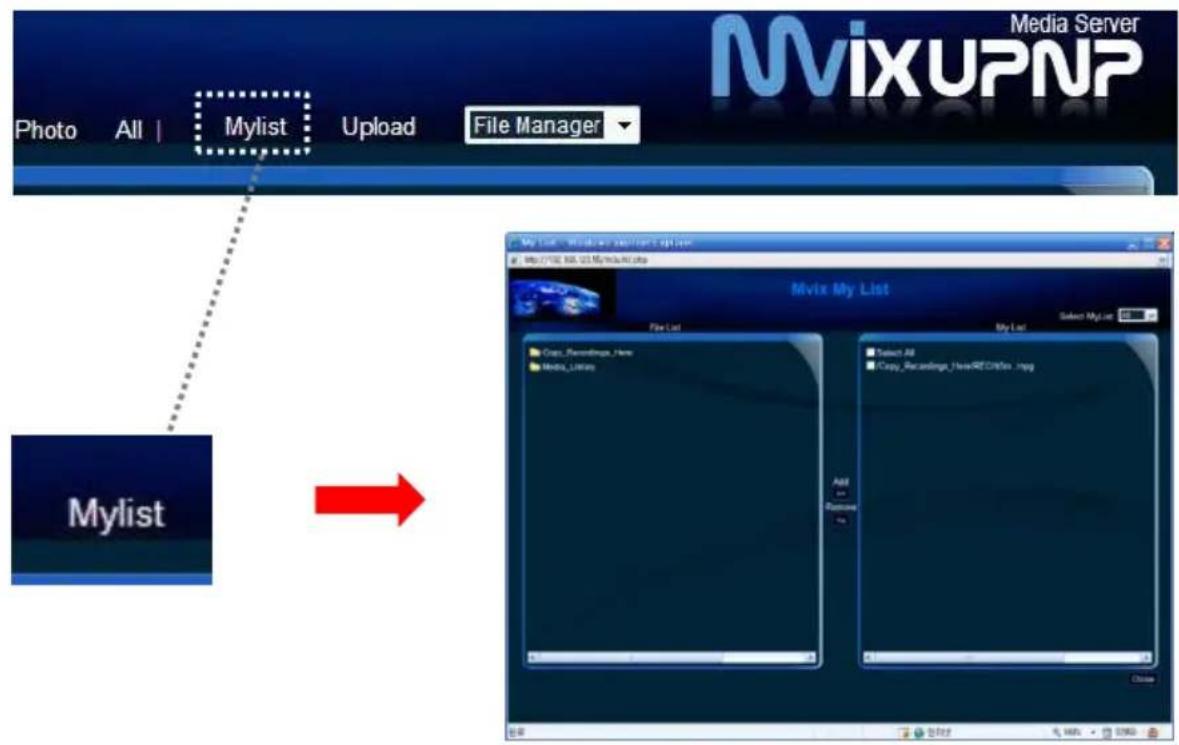
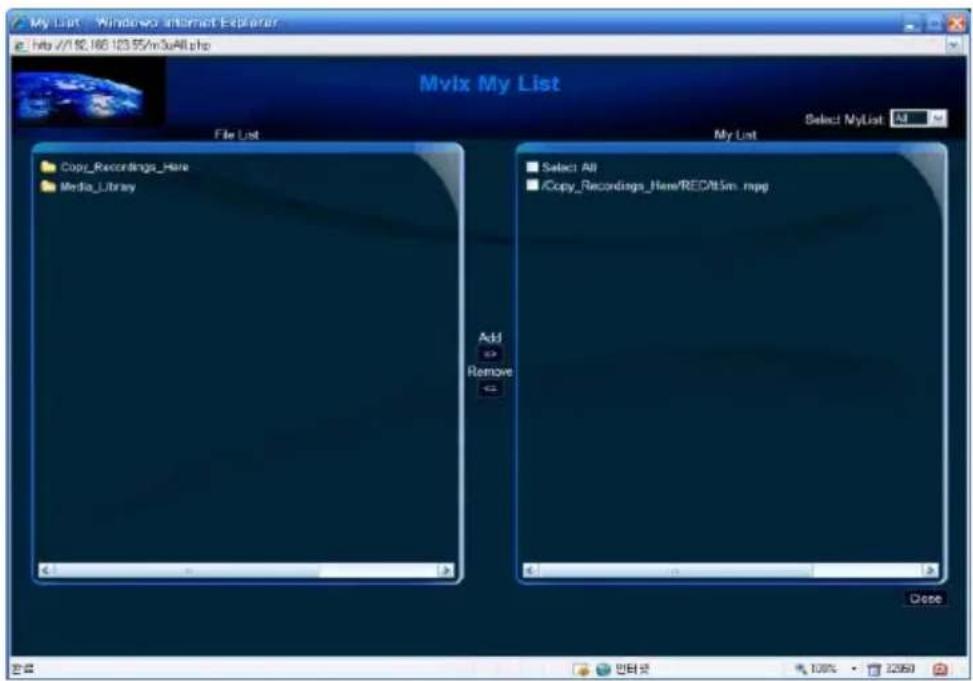
- Connect to UPNP Media Server and click My List button. Then, select the file to be added to My List. My List moved can be immediately checked in MvixPVR
※ Refer to UPnP Media Server connection in page 53
Chapter 2. Major Functions
2) Digital Recorder
2-1. Video In Recording
natural_image
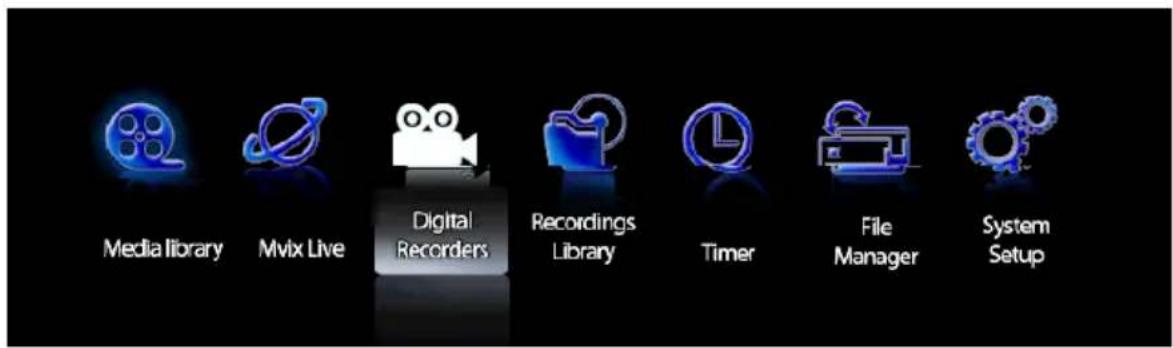
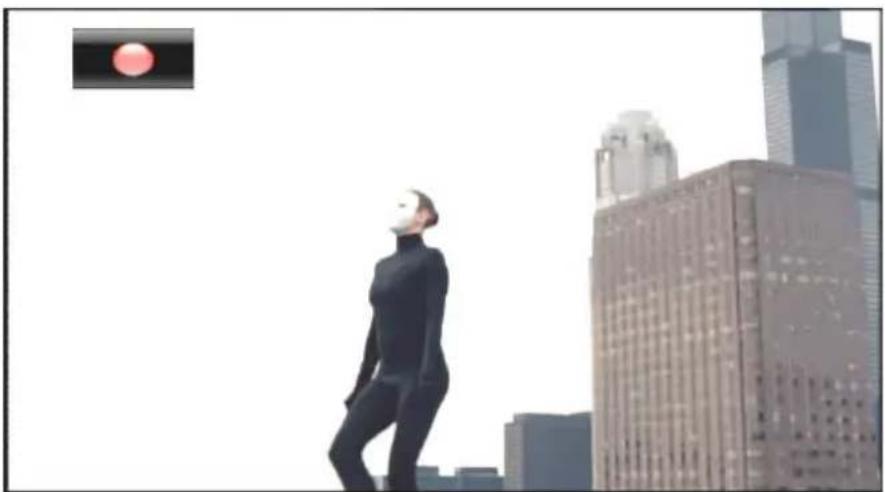
Person in black suit standing on city skyline with high-rise buildings and a red circular light source (no text or symbols)Select DIGITAL RECORDER menu to display the Video Input digital media. To record the desired part, press in remote control to start recording. Each time the button is pressed, recording time is designated as 30/60/90/120/180/240 min./ off. When recording starts, image of REC button is displayed at the top left-hand corner of screen.
TIP
Using ○ VIDEO IN quick button in remote control, you can access shortcut function from any menu. This must be in the state in which movie is being entered into Video In (input) terminal. Recording is not possible if the input signal itself does not exist.
2-2. Simultaneous Use of Recording and Media Library
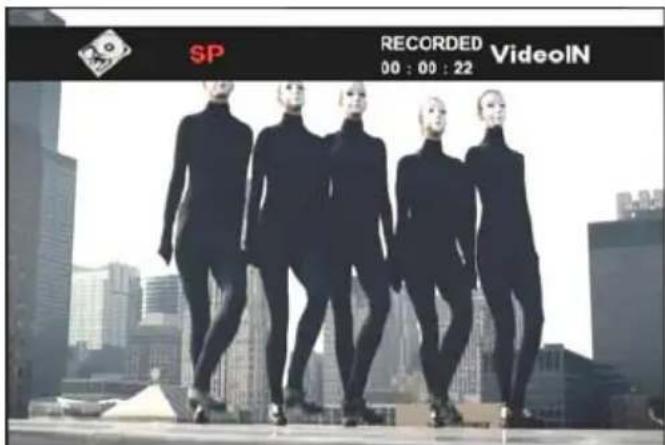
To check recording status, press INFO INFO in remote control and check save position, quality setting status and recording progress. To stop recording, press STOP in remote control.
Press ○ HOME in remote control while recording is in progress and play movie in MEDIA LIBRARY menu.
2-3. Time Shift
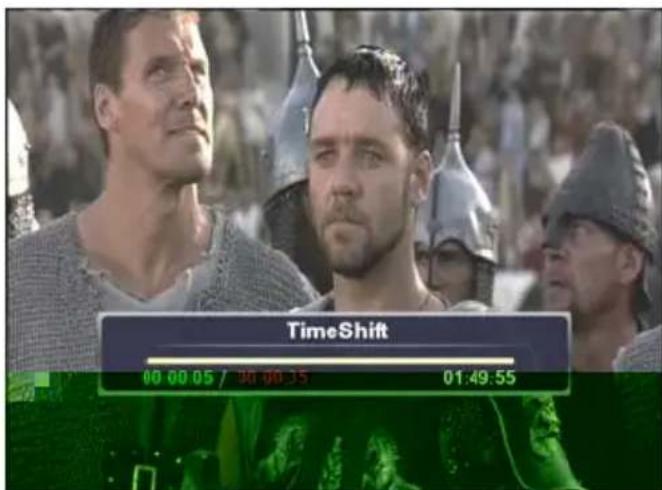
Press TIME SHIFT button on remote control to temporary stop live broadcasting.
Press PLAY button to continue playing the movie. Using TIME SHIFT function keys, slow motion/ rewind and review/ fast view, etc. are possible. Activate TIME SHIFT function from the beginning
Times indicated in examples
00:00:05= Indicating file playback time 00:00:35= Indicating the part saved with Time Shift 01:49:55= Total time shift time
TIP You can hide/ show OSD in the status bar of TIME SHIFT by pressing INFO INFO button. Activate Setup -> Record -> Automatic Time Shift. With Digital Recorder menu, apply automatic time shift for convenient use.
Chapter 2. Major Functions
3) Recordings Library
3-1. Play Recorded Title
In Home screen, select RECORDINGS LIBRARY menu.
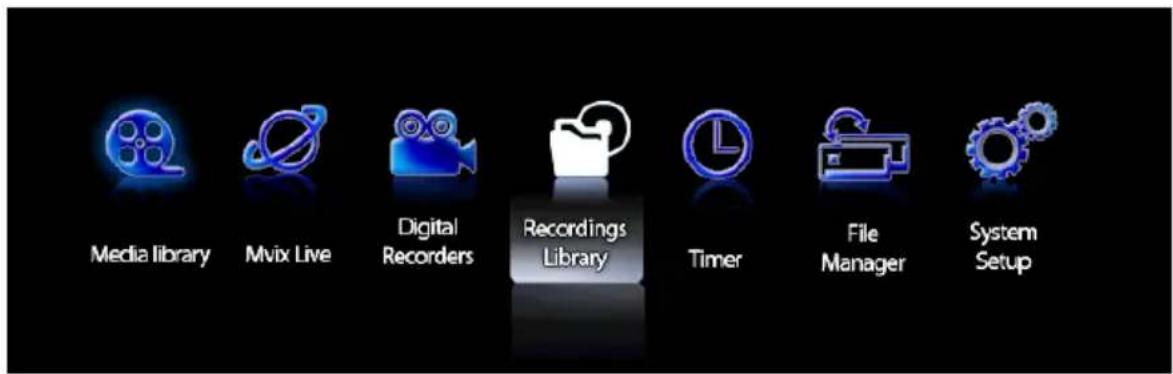

RECORDINGS LIBRARY menu displays the recorded and saved titles. Select a title and select medium in the left screen to
preview the title. Therefore, the saved screen can be checked instantly. In PLAY menu, press ENTER button to play the selected title file. After activating recording, enjoy watching media file in MEDIA LIBRARY menu. Then, enter RECORDINGS LIBRARY menu to play the recorded title from the beginning without stopping the recording status.
TIP TIME SHIFT is not saved. However, with this method, TIME SHIFT function can be used while saving is simultaneously carried out.
3-2. Sort Recorded Title
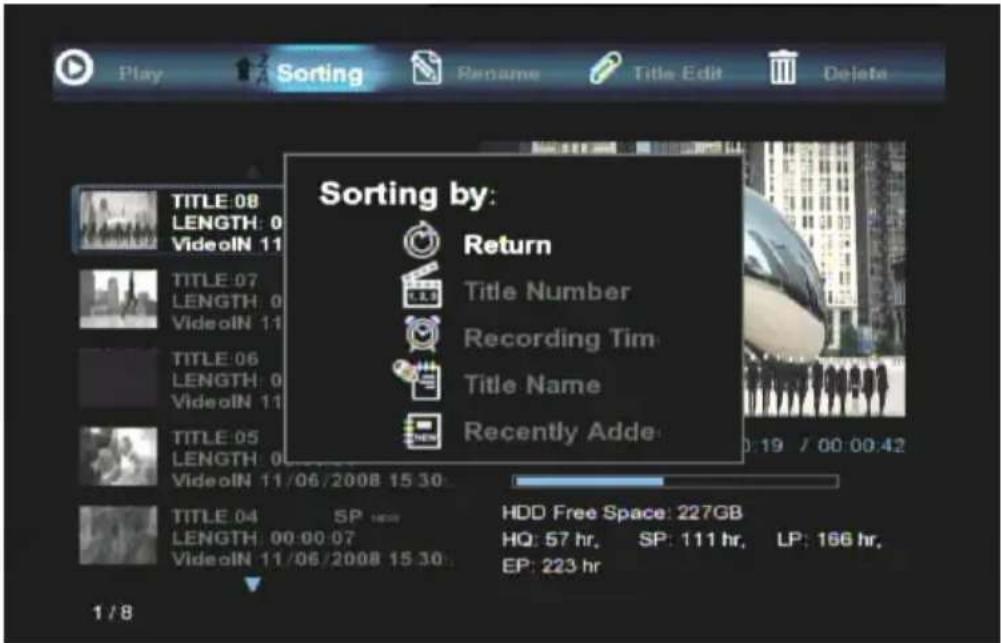
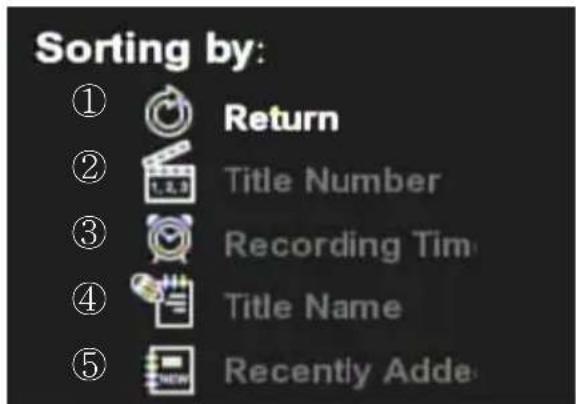
| 1 Return To return to the previous screen | |
| 2 Title Number To sort title according to title number, the order of recording | |
| 3 Recording Time To sort titles according to recording time | |
| 4 Title Name To sort titles according to title name | |
| 5 Recently Added Title | To sort titles according to the recently added files |
3-3. Change Name of Recorded Title
![Play Delete Rename Sorting Tools Edit Tools My CF 1 2 3 4 5 OK 6 7 8 9 0 Q W E R T CAPS Y U I O P A S D F G DEL H J K L - Z X C V B Keyword N M / \ _ ' = [ ] ? Shift ; ' . SP 478 MyxPVR](/content/2026/05/1025659/images/a8f0acca62f1ace8385ba17c4092d119638c4a2e28cb720c857043f6759aa0c1.jpg)
Name Change
Names of titles saved with input line and recording time as default can be changed. Make selection by using

buttons of remote control. Then, press OK to change title name.
3-4. Edit Recorded Title
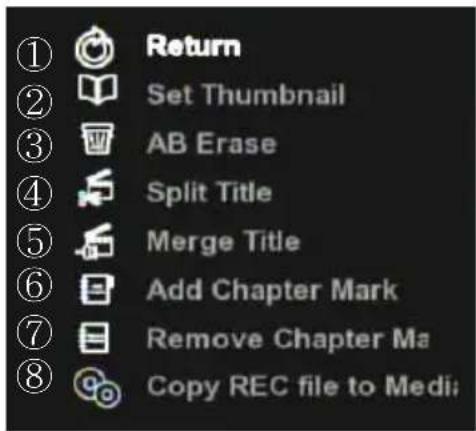
| 1 Return To return to previous screen | |
| 2 Set Thumbnail To designate and set preview screen | |
| 3 A-B Erase To set and delete the desired zone of A and B | |
| 4 Split Title To set and delete the desired zone of A and B | |
| 5 Merge Title To merge the recently recorded title and the previous title | |
| 6 Add Chapter Mark To set the desired point in advance | |
| 7 Remove Chapter Mark To delete the set point | |
| 8 Copy REC file to Media | To copy recorded file to record diskWhen copying high-capacity file of 2GB or more, recorded file is automatically split and saved per 2GB unit. |
TIP As the basic position of file extraction, file is saved in MEDIA LIBRARY -> Copy Recordings Here disk.
Chapter 2. Major Functions
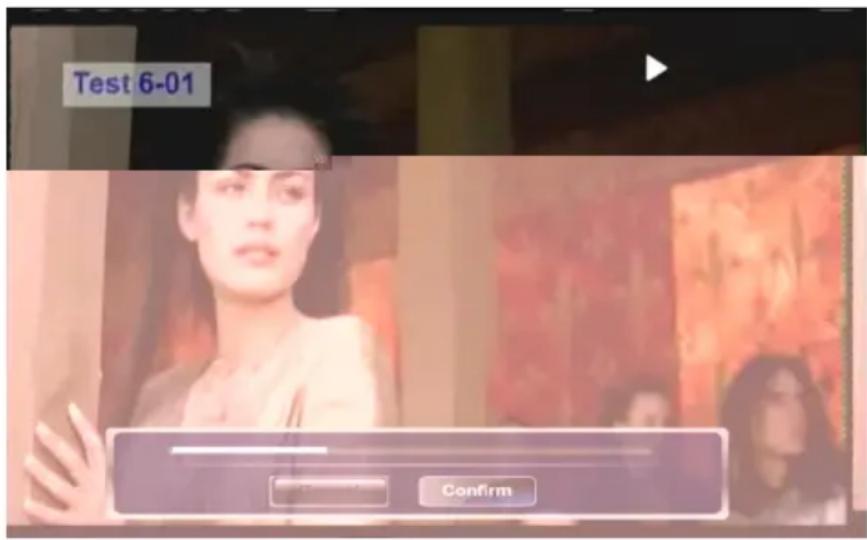
Thumbnail Setting
Set the parts displayed in preview screen. You must press PLAY button at start as it is in temporary stop status. Then select Confirm and press ENTER button in remote control.
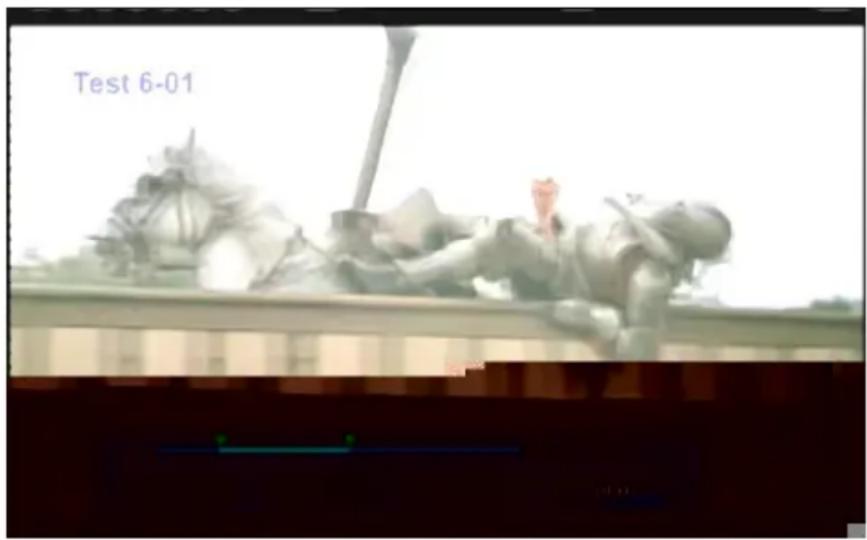
Cut A-B Zone
Set the desired points in the recorded file and delete the designated zone.
Designate starting point as SET A and ending point as SET B. Press OK to delete the designated A-B zone. The deleted part cannot be restored. Therefore, accurately check the points before deletion by using rewind or fast forward function.
TIP
To accurately designate A-B zone, play file with SLOW button rather than PLAY. This way, you can designate the zone more accurately.
Chapter 2. Major Functions
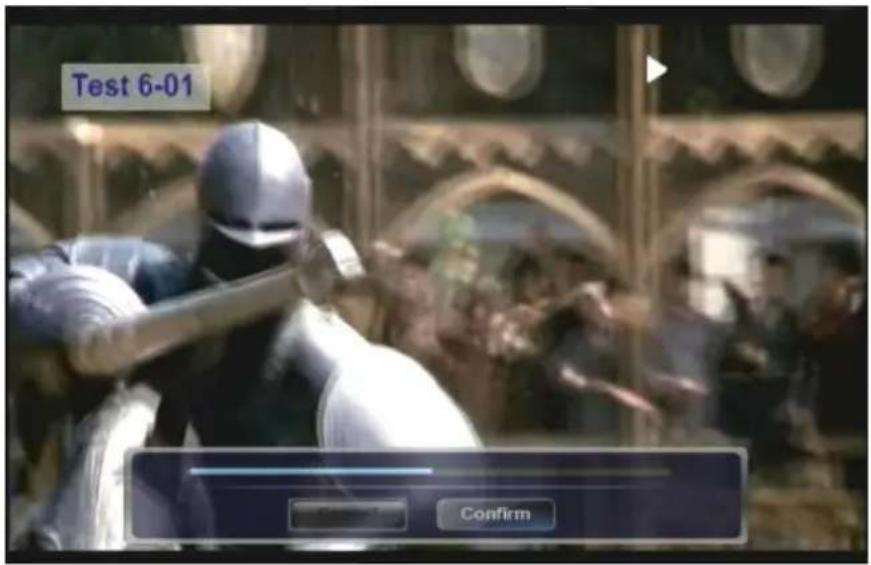
Split
A single recorded file is split into two. Move to the part for splitting by pressing button forward function.

PLAY button or using


FR/FF
Then, Press OK. The point of split can be accurately designated by using

SLOW button (3/4x / 1/2x / 1/4x / 1/8x / 1/16x/ 1x).
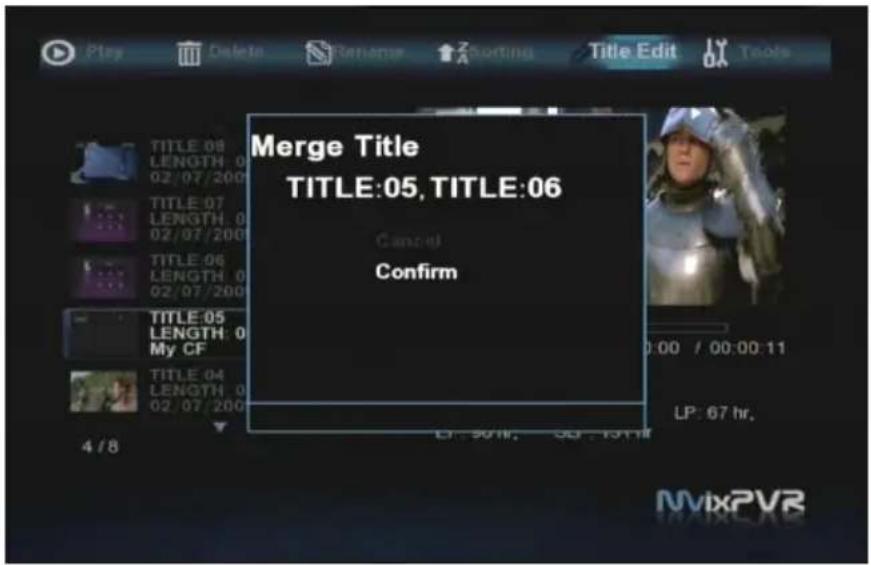
Merge
Two recorded titles are merged. The selected title is merged with the previous title. With a simple button control, two titles can be merged into one to create a film of which a variety of frames are combined.
Chapter 2. Major Functions
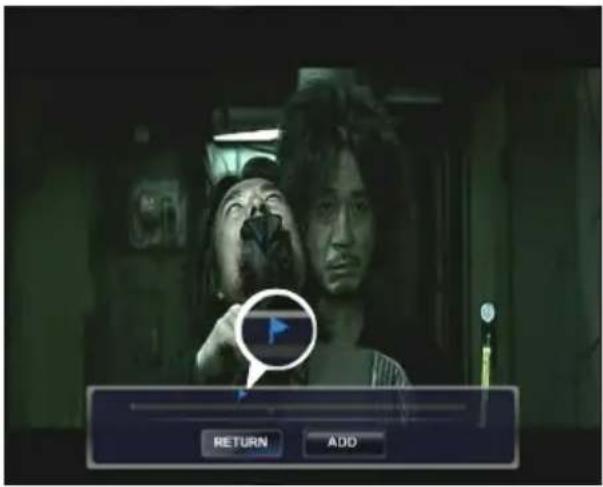
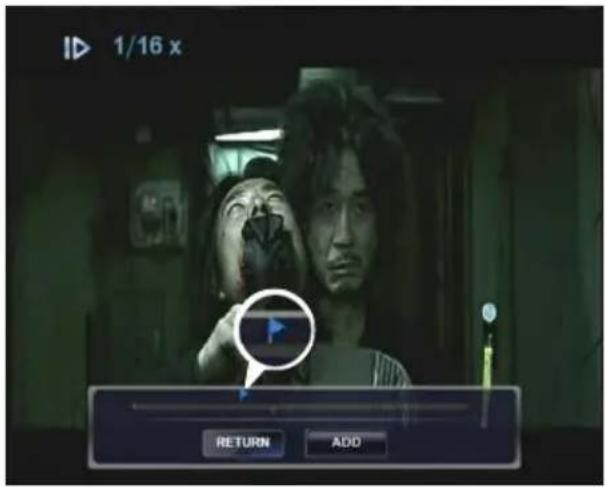
Chapter Designation/ Memory
Quick screen conversion is possible in play position by designating/ memorizing random position in recorded title. If Using GOTO function, you can move immediately to the designated chapter position without having to memorize play time.
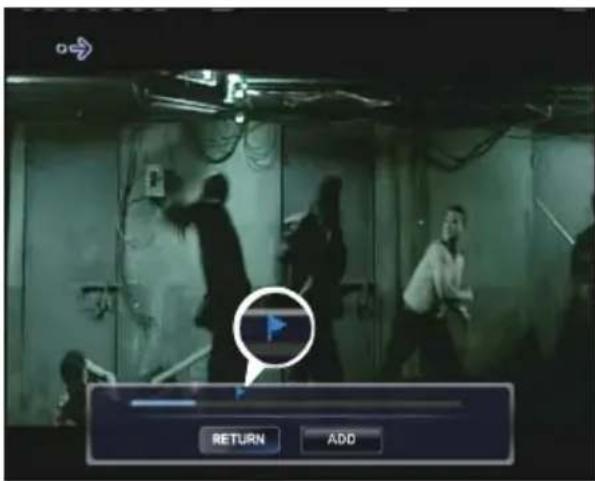
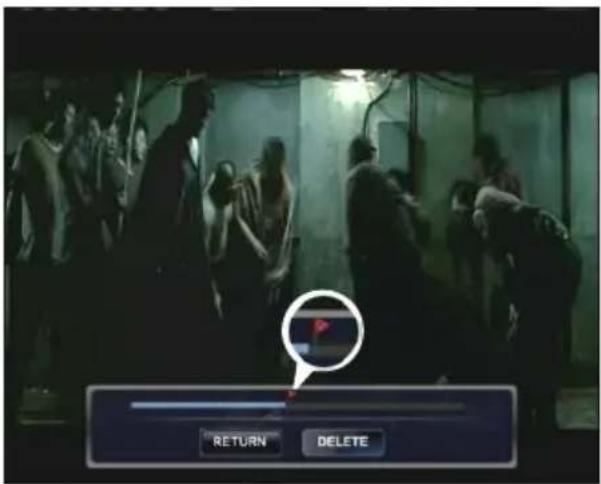
Clear Chapter Designation/ Memory
This function is used to re-designate or delete the chapter for which random position has been designated/ memorized in recorded title. Using rewind/ fast forward, etc. move to the required position and press DELETE to delete the memorized chapter.
TIP The part designated as chapter can be used when pressing GOTO button during play.
Chapter 2. Major Functions
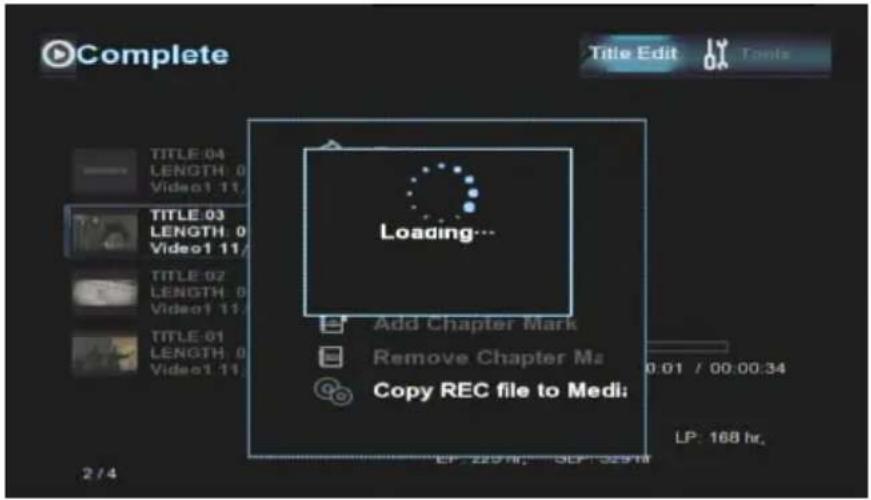
Copy to Record Disk
Recorded titles saved in UDF system are copied to Copy Recordings Here disk. Video and audio CODEC of the saved file are encoded and saved as MPEGII.
3-5. Delete Recorded Title
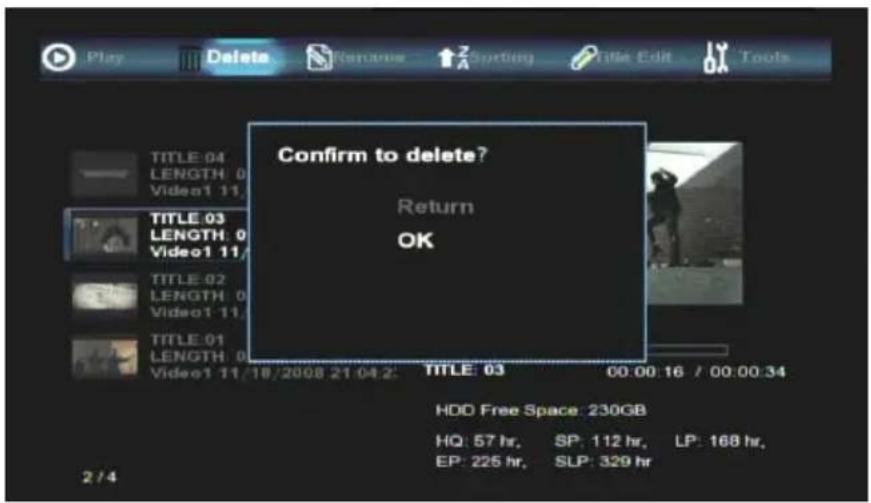
Delete Recorded Title
Recorded titles are deleted. Place selection bar on the recorded title to delete. Then, move it in


left/right
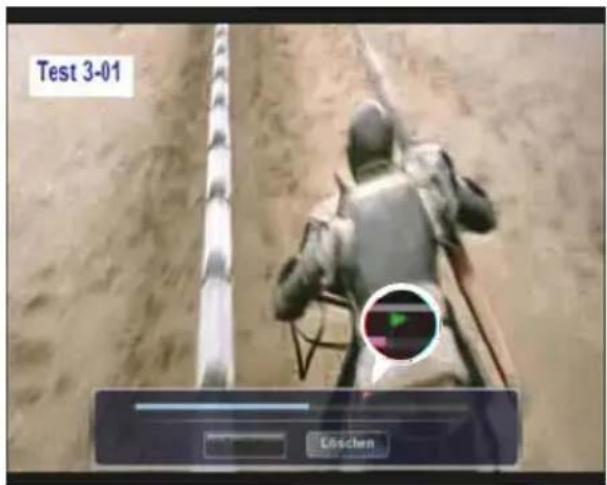
direction to select DELETE menu. Deleted titles cannot be restored. If you are intending to increasing reserve space for recording while leaving the recorded titles, it is recommended to delete titles after copying them to Copy Recordings Here partition.
TIP
To copy titles saved in RECORDINGS LIBRARY through connection to USB SLAVE in Windows OS, execute Copy to Record Hard and connect the titles to USB SLAVE. Then, the files can be viewed in the hard disk in PVR.
Chapter 3. For Advanced Users
1) TIMER
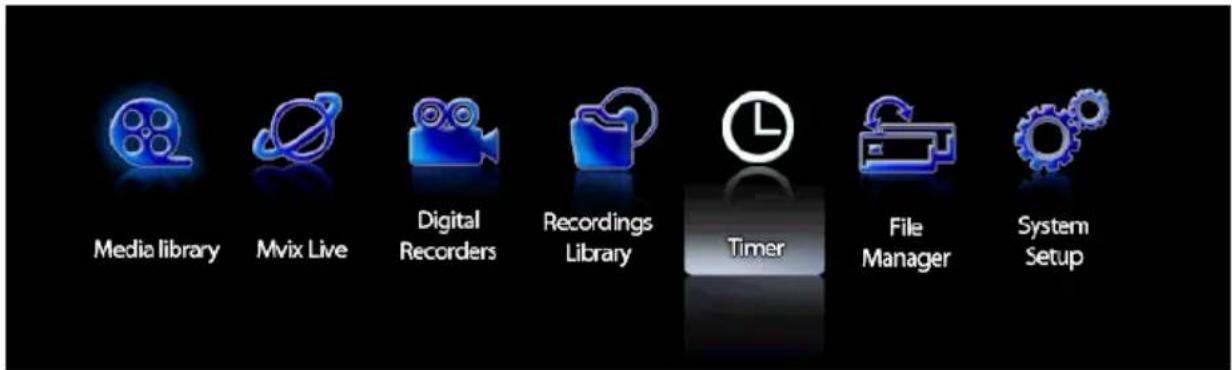
Timer
Automatic booting is carried out to start recording on the date and time designated by preset recording function. The time applied to scheduler is based on the time applied in MvixPVR. Therefore, before using product, set time to be the same as actual time in SETUP -> SYSTEM -> TIME.
1-1. Add Preset Recording
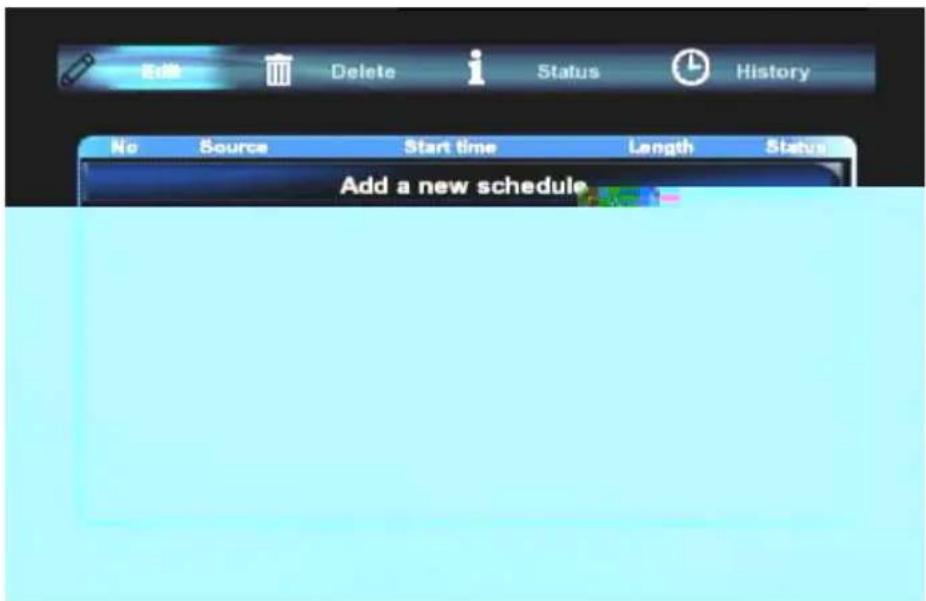
Preset Recording
In scheduler, press OK in Edit menu to display a window to preset time for recording.
Chapter 3. For Advanced Users
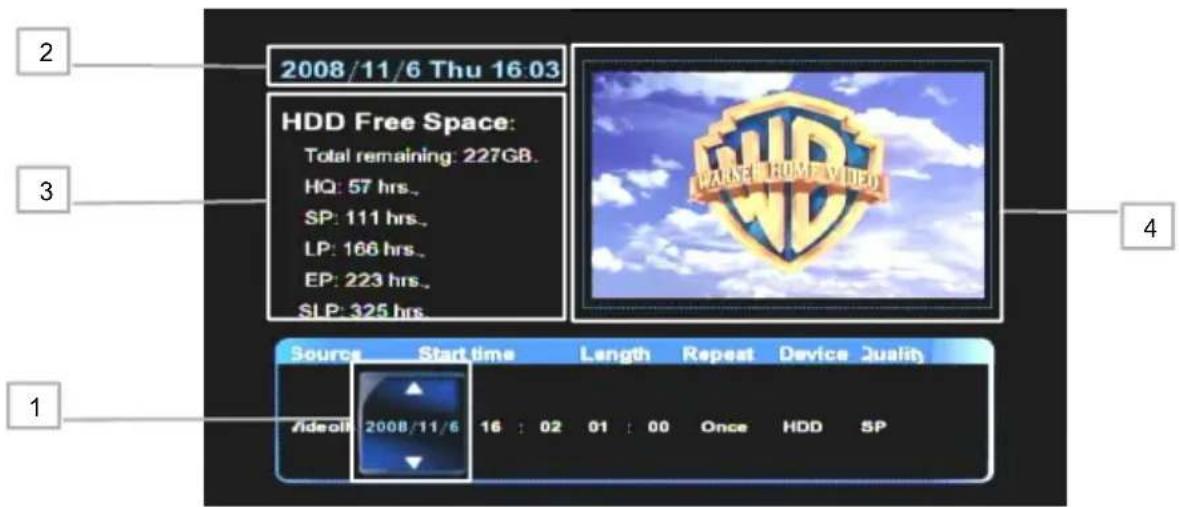
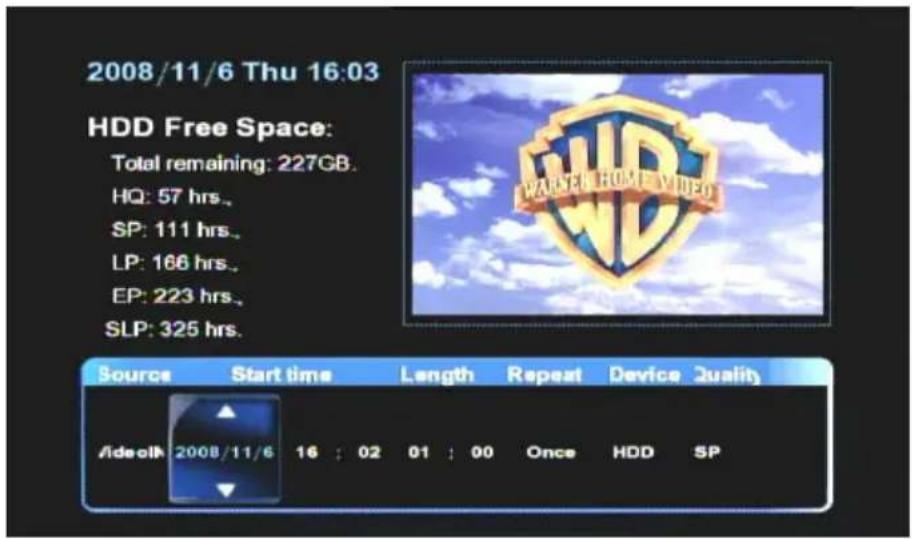
1 Screen to preset recording date and time is displayed. Preset recording date, time and recording time are designated in order. It is not necessary to add/ modify the designation each time. Setting is repetitively made in the order of once, daily, Monday \~ Friday, Monday \~ Saturday, Sunday, Monday, Tuesday, Wednesday, Thursday, Friday and Saturday.
2 Shows the time set in MvixPVR.
3 Displays the reserve space of HDD as time according to quality type.
4 Shows the current input screen. (For details on quality type, refer to page 60)
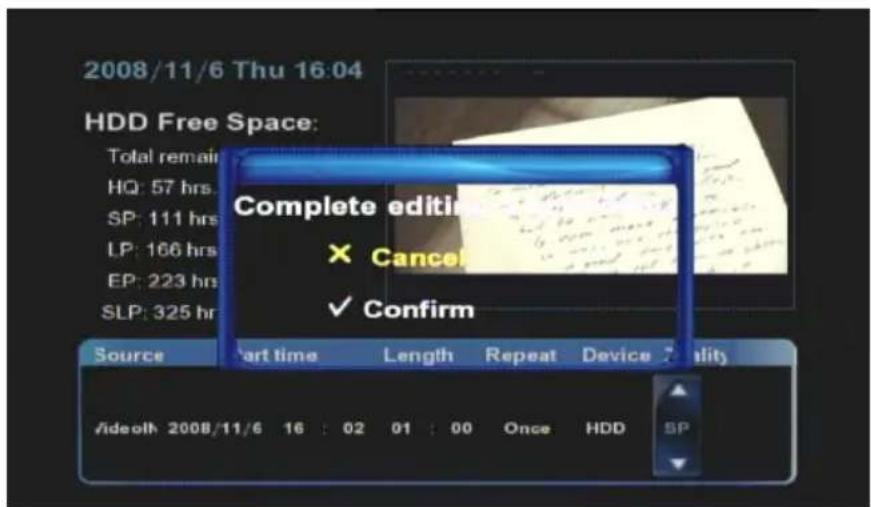
Finish up preset recording time setting and press OK. Then a window is displayed to ask you whether to add the designated contents in scheduler. Select OK and apply the setting.
TIP
When preset recording schedule is saved and power is turned off, you will automatically enter standby mode. Then, the middle and right LEDs in the main body of PVR simultaneously start blinking.
Chapter 3. For Advanced Users
1-2. Delete Timer
Delete Timer
Move to delete menu to find Select Menu in which you can delete the presetting selected from the preset list in scheduler and menu window where you can delete all preset list. Press OK to use the function.
1-3. Timer Status Change
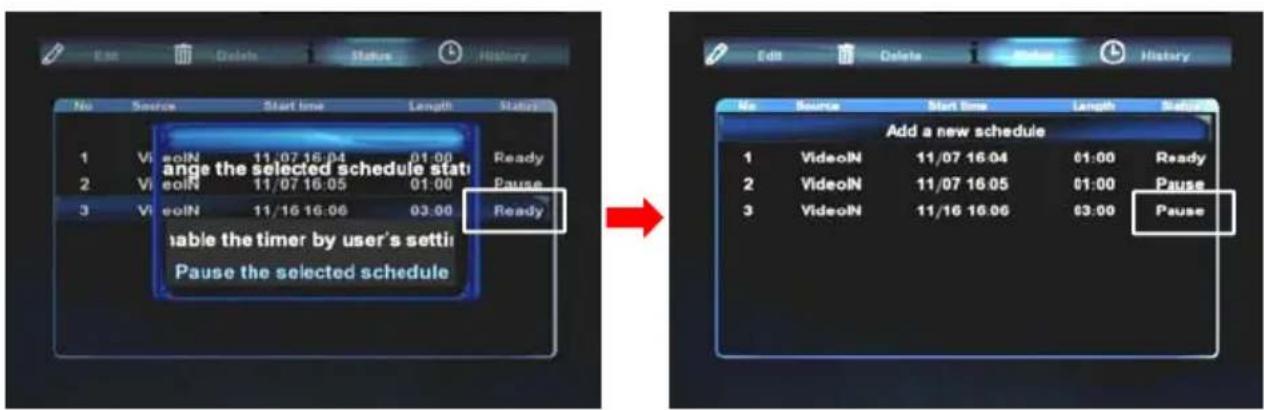
Timer Status Change
This function is used to temporarily stop the status of using the saved preset recording list or to change the status back to 'use'. To change the status of preset recording list, place cursor on the list to change and press OK button in remote control. When status change window is displayed, select 'use timer with user setup/ temporarily stop the selected schedule' menu.
Chapter 3. For Advanced Users
1-3. Timer History
| Result | Source | Start time | Length | Device |
| OK | VideoIN | 11/06 16:13 | 00:03 | HDD |
| OK | VideoIN | 11/06 16:17 | 00:03 | HDD |
| OK | VideoIN | 11/06 16:20 | 00:03 | HDD |
Timer History
This function is used to check the record scheduler menu. You can check the success status of schedules that have been completed within the preset recording window. Success is indicated as OK and failure as Fail.
Chapter 3. For Advanced Users
2) FILE MANAGER
1-1. Copy Function
Copy
File is copied to either the storage device that is connected to MvixPVR or to a share folder on a network-connected PC. File can be is copied both ways by using USB, HDD and NET.
This function enables you to use USB->HDD, NET / HDD->USB, NET / NET ->USB, HDD.
Copy is not possible in Media Library file system among target disks (Copy Recordings Here (FAT32)/ Media Library (NTFS)). Copy is possible to Copy Recordings Here disk. As for partition, copy is possible at present only to disk of FAT32 file system.
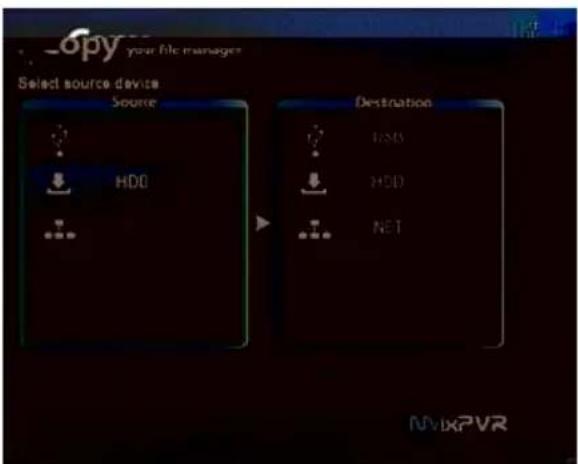
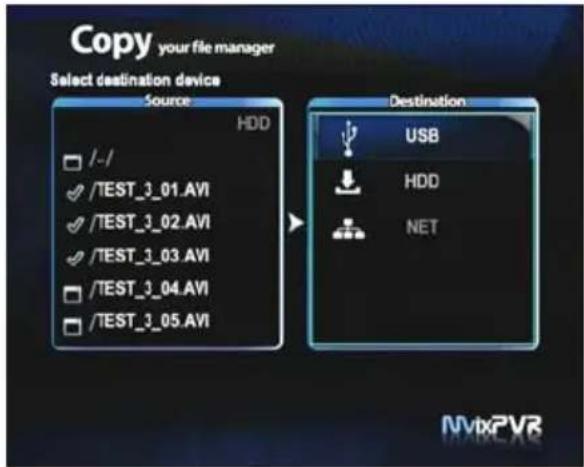
MvixPVR supports the function to conveniently copy files among USB/ HDD/ NET only with a remote control.
Firstly, search file to copy in source window screen. Place cursor over the file and press Select in remote control to select the file. If a folder is selected, all files in the folder are copied. MvixPVR also supports the function to select and copy files from various folder
TIP
Copy function can be used for all files in addition to video files. Two drives appear when accessing HDD mounted in PVR. Each drive holds the file system of Media Library : NTFS/ Copy Recordings Here : FAT32.
Chapter 3. For Advanced Users
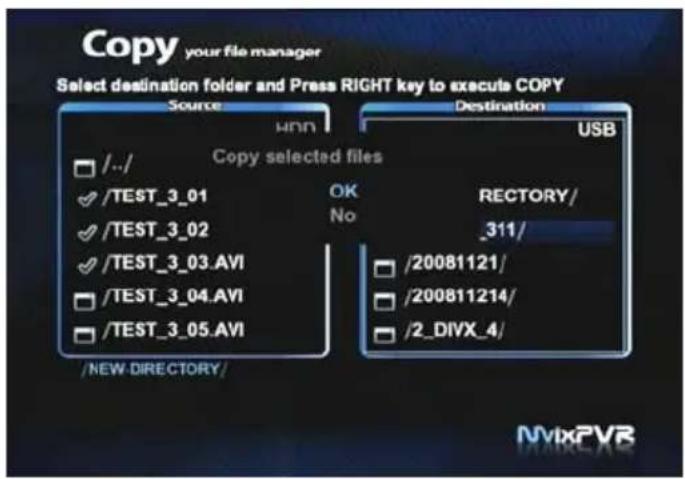

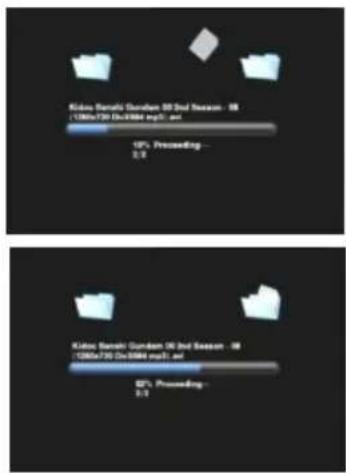
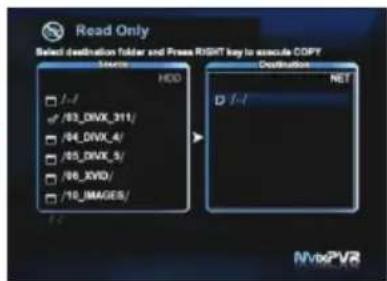
Check the original file to copy as shown above. Then, select the "copy to" position. Press right direction key in remote control to display a window asking for the status to proceed copy. Select OK and press NTER in remote control. When copy proceeds, the above screen is displayed.
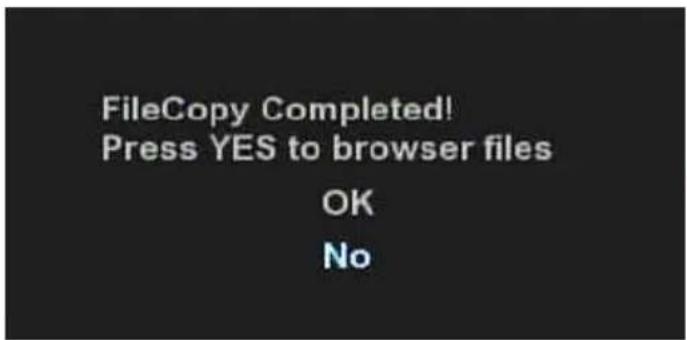

When copy is completed, the above screen is displayed. If OK is selected, the screen will display the browse file menu. If No is selected, you will be returned to the first screen for copy.

Refer to network setting in page 70 if the above message is displayed when attempting to copy files into a share folder of a PC located on the network.
Chapter 3. For Advanced Users
3) Mvix LIVE
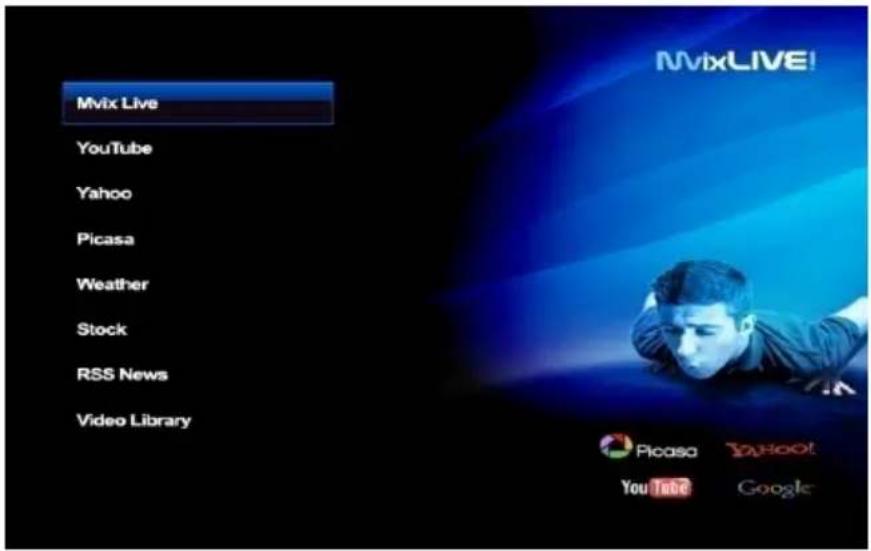
What is Mvix Live?
Mvix Live supports real-time broadcasting streaming. Using online RSS, You can use popular film, digital photo and weather functions. For user convenience, Mvix Live also supports search function to satisfy diverse tastes of users.
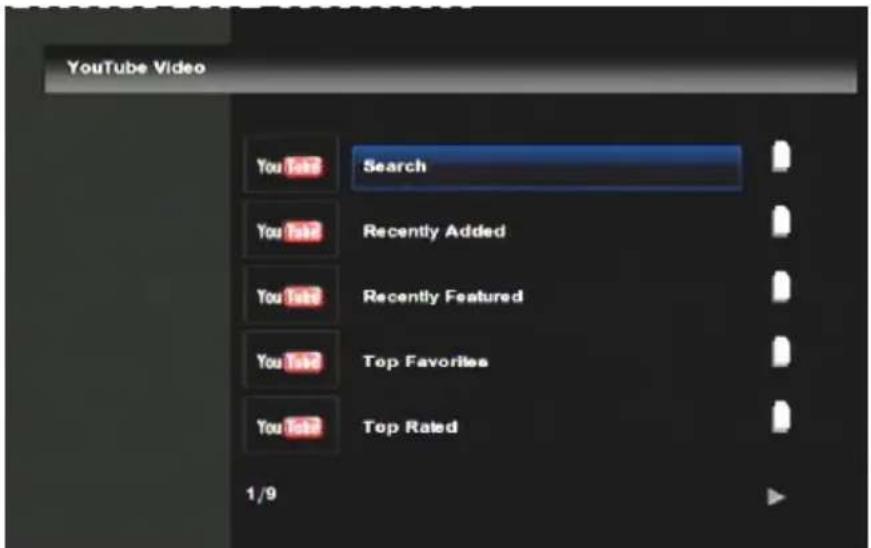
How to Use You Tube
Select You Tube in MvixLive. Search/ Recent contains 9 You Tube files, such as Added UCC/ Recommended UCC/ Favorite UCC/ Frequently Viewed UCC, etc.
TIP
Connection may be disabled if link is not normal or blocked. MvixLIVE menu is subject to change according to manufacturer's conditions.
Chapter 3. For Advanced Users
![mvix 1 2 3 4 5 OK 6 7 8 9 0 q w e r t CAPS y u i o p a s d f g DEL h j k l - z x c v b Keyword n m / \ _ ' = [ ] ? Shift : . . . SP](/content/2026/05/1025659/images/0354d71f888db79d7e6f6e732deb278ffa2e7c89a51d8a02b3792404b21fc29f.jpg)
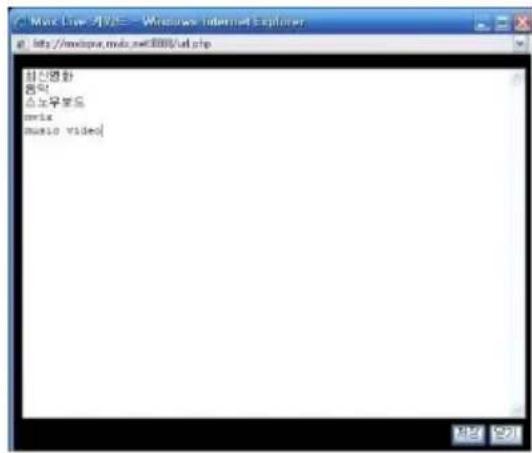
Search Video in You Tube
Select Search. When keyboard input window is displayed, search the desired file name. Or, the pre-defined contents can be searched by using Keyword. Currently, only English input is supported in MvixLIVE. However, you can search files conveniently asKeyword function processes inputs made in Korean and other languages.
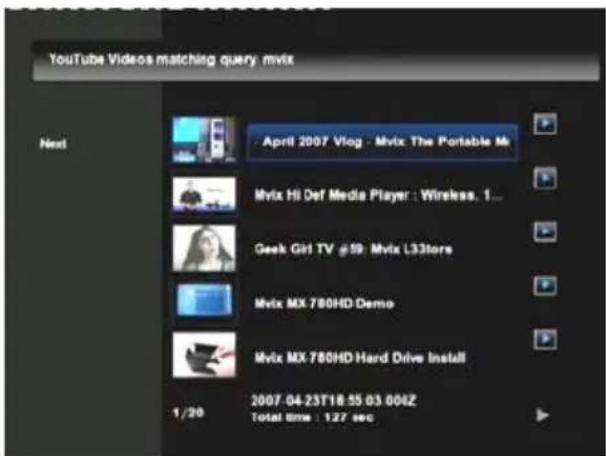
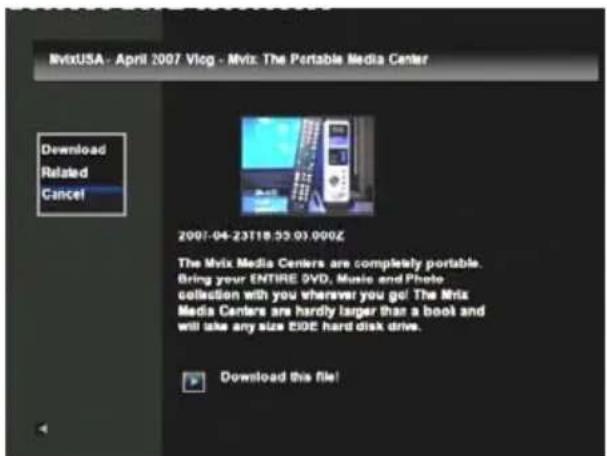
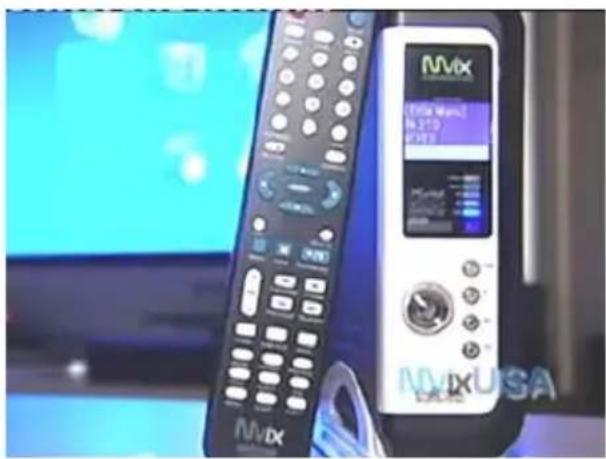
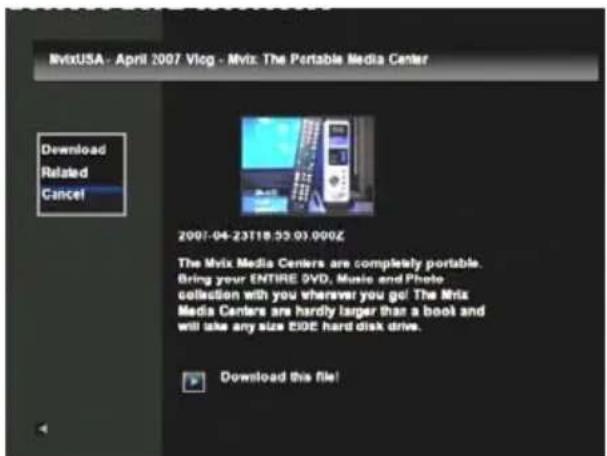
Save and Play the Searched Movie File
Press > in the searched screen to view the selected contents. When selecting Download menu, the contents are saved in MvixLIVE -> Video Library even without Internet connection.
Chapter 3. For Advanced Users
natural_image
Two MVX remote devices on a blue background, one black and one white, with no visible text or symbols.
Using Picasa Function
What is Picasa Function?
This is the free album function provided in Goggle. You can register to the site and use the service free of charge. All images registered in Picasa can be searched with keywords. Also, you can view your own albums by registering them in MvixLIVE. The folder structure of Picasa is supported so that you can conveniently use this service.
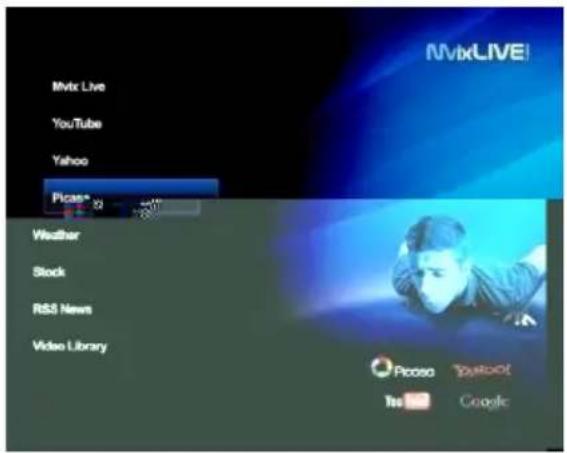
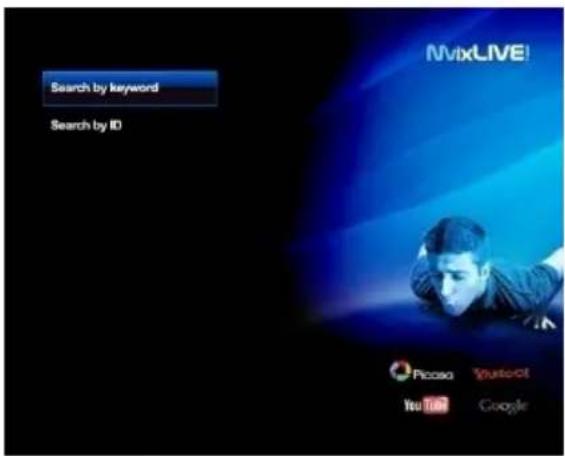
- Select search keyword or Picasa ID search in the menu displayed after selecting Picasa menu.
TIP
Select ID search and search MvixLive ID set as default to check the latest manual of MvixPVR.
Chapter 3. For Advanced Users
![snowboard 1 2 3 4 5 OK 6 7 8 9 0 q w o r t CAPS y u i o p a s d f g DEL h j k l - z x c v b Keyword n m / \ _ ' = [ ] ? Shift : ' . . SP](/content/2026/05/1025659/images/17a457452d350c25c058d901e89745af9c3398af0afde3e161b9a0dcc01adecc.jpg)
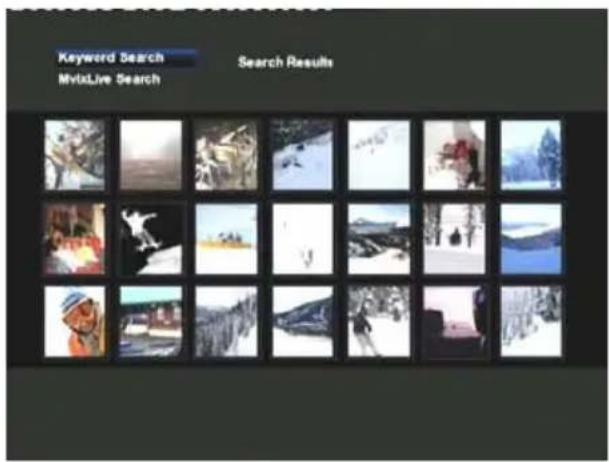
- Enter the words to be searched in the screen keyboard and select OK. Wait for the searched screen.

natural_image
Black-and-white photo of a skateboarder mid-jump at night, captured in motion with no visible text or symbols.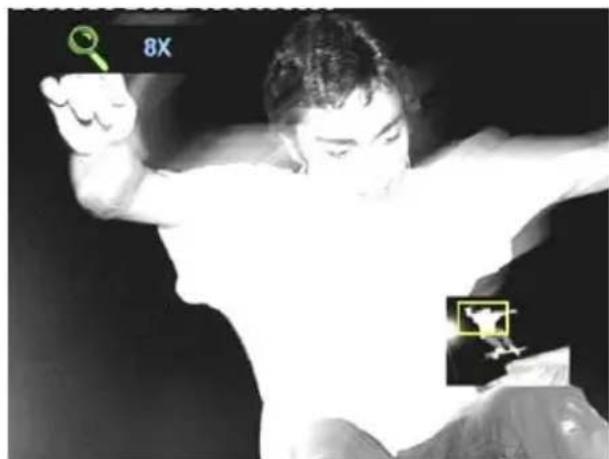
natural_image
Black-and-white photo of a person in motion, holding a green key and a yellow magnifying glass (no text or symbols visible)Slide and enlarged view functions let you view the searched images and photos uploaded into your own account. When using the service after entering Picasa account, images can be searched in MvixLive only with open view setup. Simultaneous use of photo slide show with background music is not supported in MvixLive status. This function is available only in Media Library.
Chapter 3. For Advanced Users
MvixPVR
4) UPnP Media Server
Using Music UPnP Media Server
SYSTEM SETUP→MISC→UPNP MEDIA SERVER→ON
Activate Mio PVR UPnP Function through the active sequence
In SYSTEM SETUP -> NETWORK, after the allocated IP address for connection to MacPVR UPnP Server.
By using the free COPY of www.moucat, you can connect to the MioPWR anywhere, anytime.
Default values of most records in 80. For most records of random values, use to be a third harmonic combination can be used
Stamps is granted for conventional families outside (if same, sold separately).
4-1 UPnP to Connect
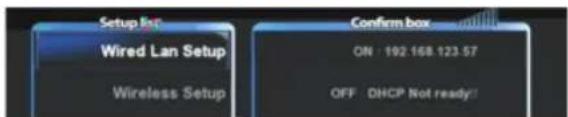
- Check the allocated IP address in System Setup => Network menu

- Or execute MoFTS program and click QFHP Media Server

Chapter 3. For Advanced Users
- You can directly connect to MvixUPnP in the Windows as the intrinsic function of UPnP.
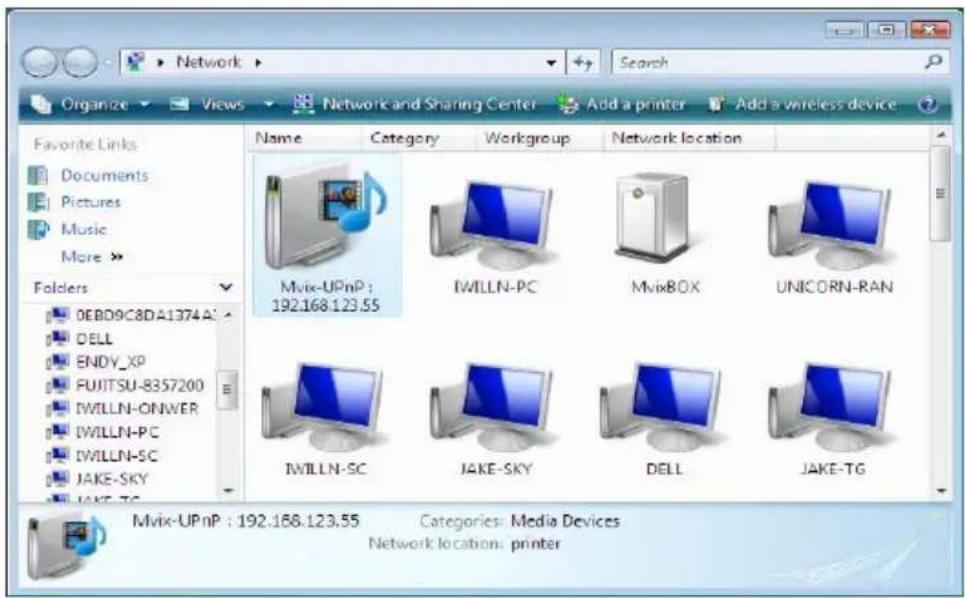
- Check in My Computer => network or click Network in the background screen to display the icon shown above. Click the icon to conveniently connect to UPnP page.
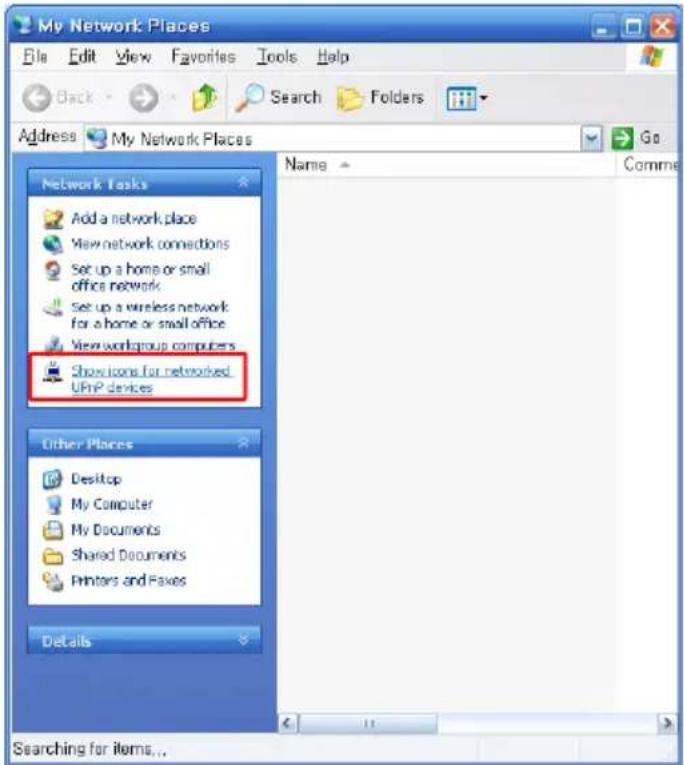
- Check in My Computer => Network. Or, if it is not shown in Network in the background screen, you must activate 'Display Icon for Network UPnP Device' menu. When UPnP function of XP is activated, UPnP device is searched and displayed.
※ Window is rebooted if necessary.
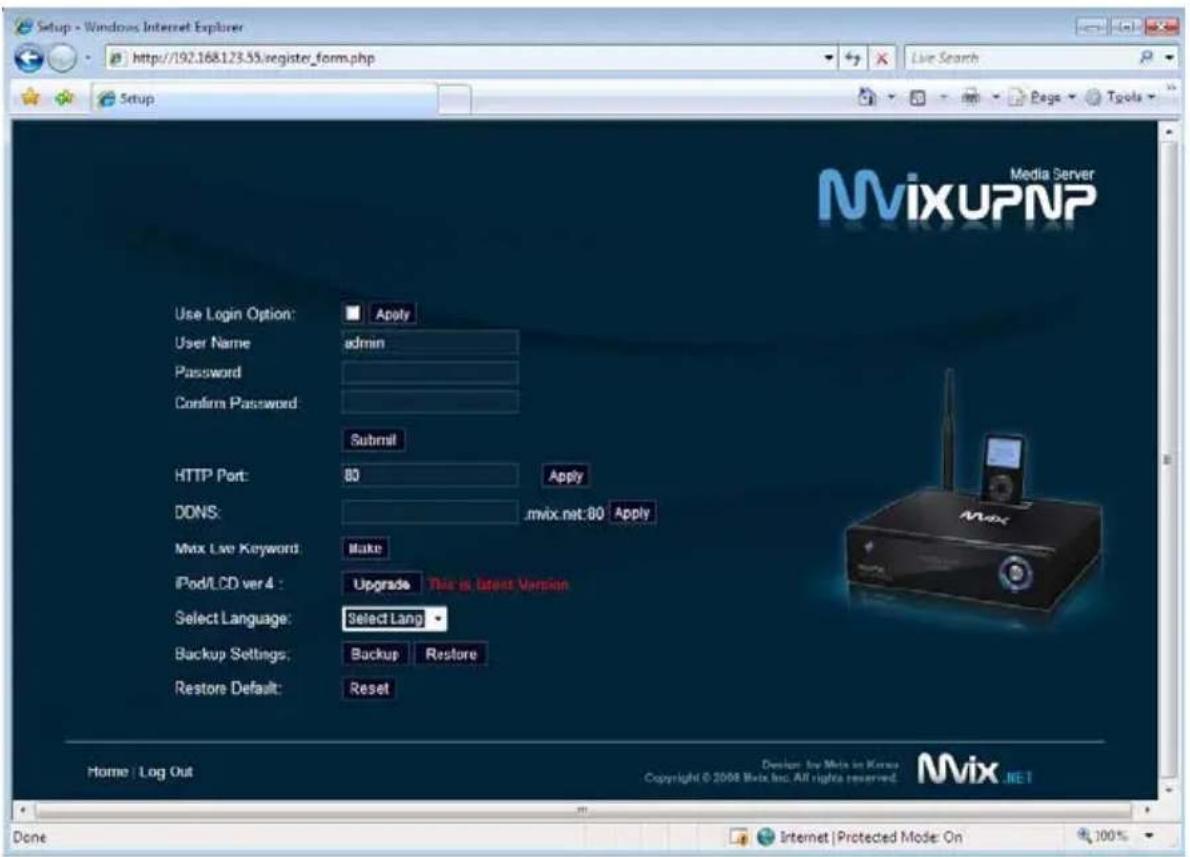
- When connecting to setup page, you can randomly set HTTP port and DDNS address.
For DDNS, you can use addresses with the exception of the domain that is already occupying your own address.
- After DDNS is set, change port number. Some communications companies restrict port number for external connection. You can set port number within the usable HTTP port range of 80 \~ 90 and from 7000 to 9999.
Ex) Presuming MvixPVR IP: 192.168.123.37, Port No.: 8888 and DDNS: mvixpvr, activate setup by connecting to sharer setup and entering 9999 port applied in UPnP and the IP of MvixPVR to port forwarding function.
When all setups are successfully completed, you can connect to the address of 'Http://mvixpvr.mvix.net:8888' from outside. Details of port forwarding function may vary according to each sharer manufacturer. Please inquire the manufacturer.
-
For the menu that uses login authorization, the status of using ID and password login method is displayed if connecting to MvixPVR from inside or outside.
-
MvixLIVE Keyword: Languages and search keywords not supported of input in MvixLIVE are designated in advance for convenient use.
-
iPod/ LCD Version: Compatibility to iPod products and LCD function firmware can be updated. When update exists, this button is automatically activated. Just by clicking the button, update is automatically administered. (This is online firmware update, therefore requires Internet connection.)
TIP. If you forget the ID and Password, do the following
Go to "SETUP" → "SYSTEM" → "Restore Default" in PVR menu and Pow prod0(e4d) -10oef -50(T)83(h)13(e,n)30UPnP (w prill(-)30 beresest
4-3. File Upload & Download
![File Upload - Windows Internet Explorer http://192.168.123.55/upload.php?dir=/Copy_Record_Here/20090225 File Upload Upload to: Copy Recordings_Here/20090225 New Folder: Create Add files to upload Browse... Total size of files should be less than 1 GB Add File Upload Close Caulion [TV Function Stop/Start] If total filesize > 500MB must press Skip button first! After finishing upload, click on Start button. Stop Start Internet | Protected Mode: On 100%](/content/2026/05/1025659/images/9a7c4d4af43caff34e2bd7530f25b5bc06796c3f7c12642841033378a5376d77.jpg)
UPnP Upload
- Connect to UPnP and click Copy_Record_Here disc.
- Click Upload button displayed on screen.
- Sequential uploading of up to 10 files is supported when uploading a number of files at once.
Due to safety restriction, total size of the files uploaded at the same time must not exceed 1GB.
※ When converting to NAS Mode Only, video output is suspended in MvixPVR. Therefore, TV screen does not show anything. When converting to this mode, file up/download function is slightly enhanced.
To upload a file of 500MB or more, upload is not completed if not converting to NAS Mode Only. Make sure to administer mode conversion.
To upload a file of 500MB or less, upload can be completed without starting NAS Mode Only.
File Download
- Connect to UPnP and move to the position of disc to download.
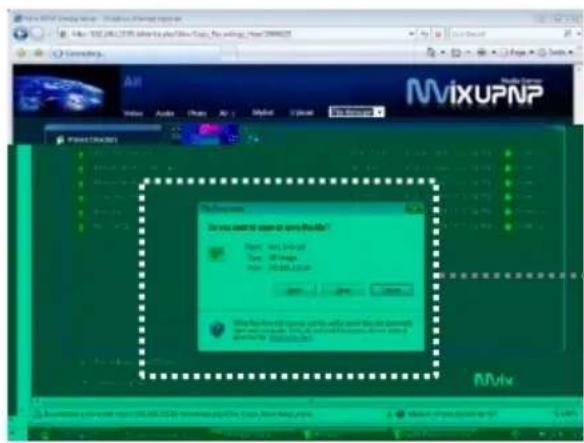
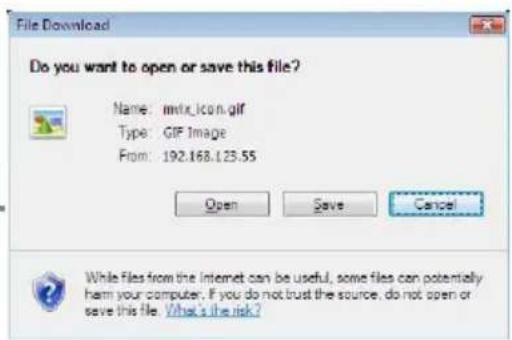
- Click file name and downloading of the file is administered immediately. Also, you can use the WMP/GOM/VLC applications in UPnP itself.
For stability of MvixPVR Media Player, maximum speed of up/download must not exceed 1.4MB/s. Note that UPnP File Manager function can only be used in FAT32 disc.
1) Language Setting
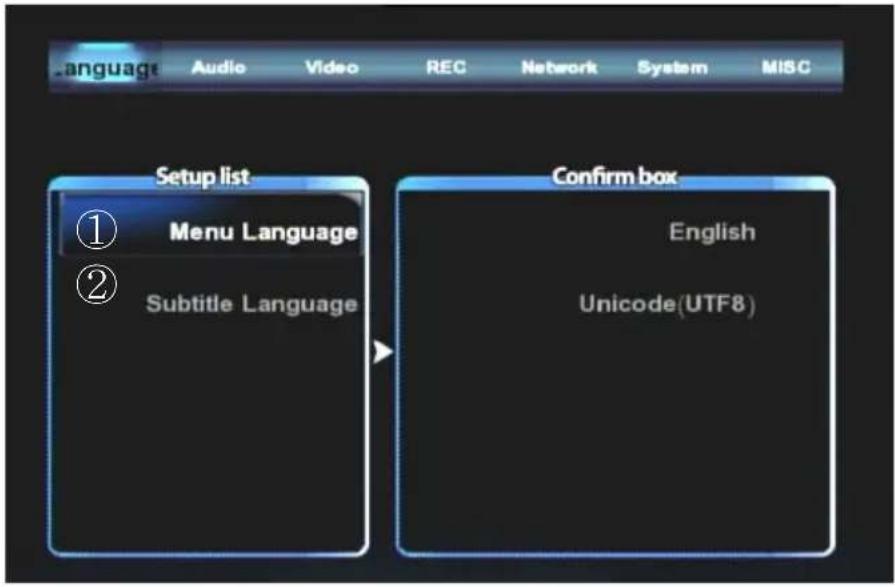
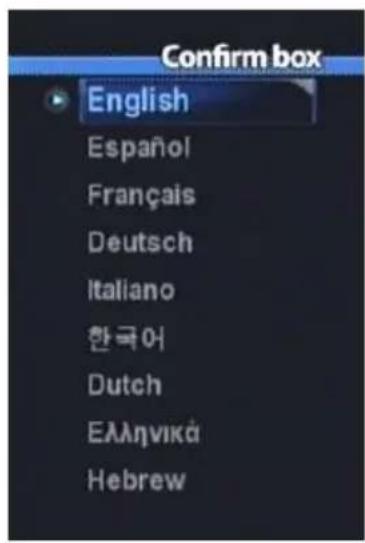
1. Menu Language
Language for menu is changed. Available languages are English, Spanish, French, German, Italian, Greek, Hebrew, Korean and Dutch. The changed language is immediately applied.
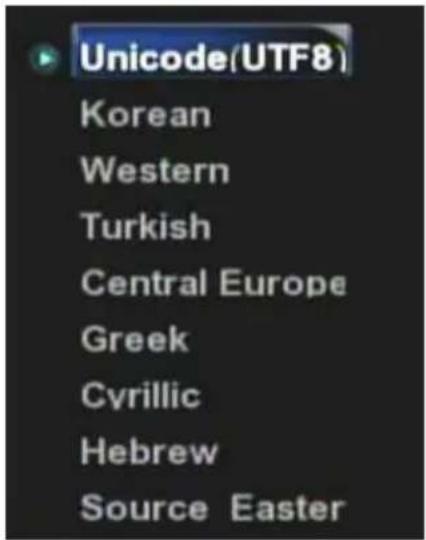
2.Text Encoding
Method of display to fetch subtitle file from computer is changed.
Unicode(UTF8)/ Korean/ Western/ Turkish/ Central European/ Greek/ Cyrillic/ Hebrew/ Source Eastern are available.
TIP
Unicode, the industrial standard designed to consistently express and handle all letters of the world in a computer, environment.
2) Audio Setting
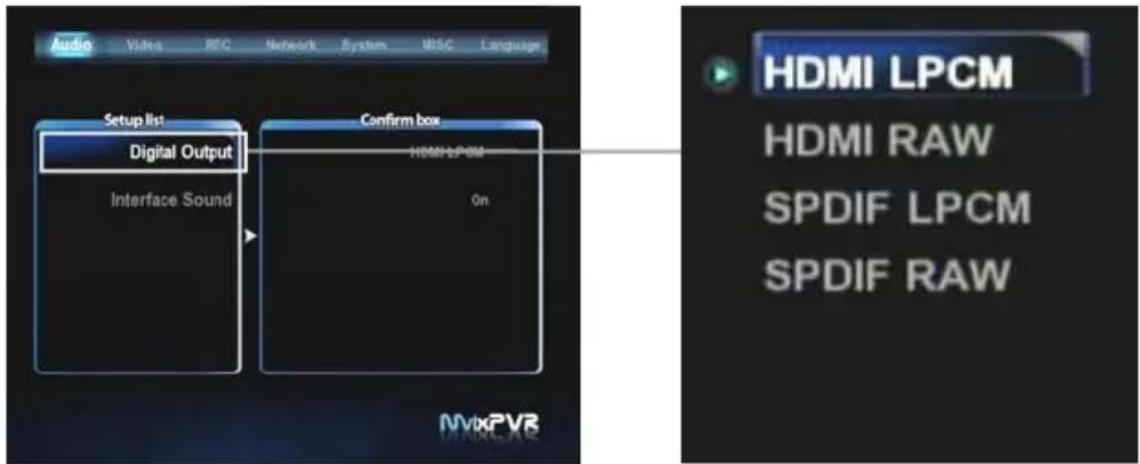
Digital Audio Output
To output down-mixing option of DTS and Dolby5.1 to 2 channel stereo select HDMI/ SPDIF output as LPCM, To output DTS and Dolby 5.1 select RAW HDMI/ SPDIF, connect coaxial or optical cable to amplifier/ receiver, and it will decode the 5.1CH DTS/ Dolby digital output.
Effect sound
Sound effect for MvixPVR menus is set.
3) Video Setting
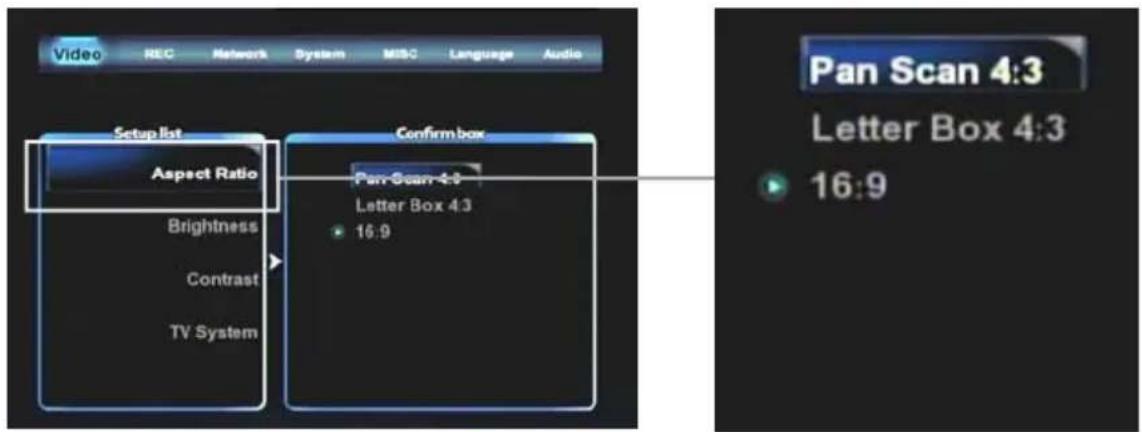
Aspect Ratio
Screen ratio can be set to suit TV type. Setting is changed to Pan Scan 4:3/Letter Box 4:3/16:9.
| PanScan 4:3 | This ratio is used when aspect ratio of TV is 4:3. This setting is to show the film of 16:9 ratio by cutting it to 4:3 size. |
| LatterBox 4:3 | This ratio is used when aspect ratio of TV is 4:3. This setting is to show the 16:9 film full of screen in its original ratio. |
| 16:9 | This ratio is used when aspect ratio of TV is 16:9 to show film with the ratio of 16:9.As of 4:3 ratio, this ratio shows the film full of screen. |
Chapter 4. Media Environment Setting
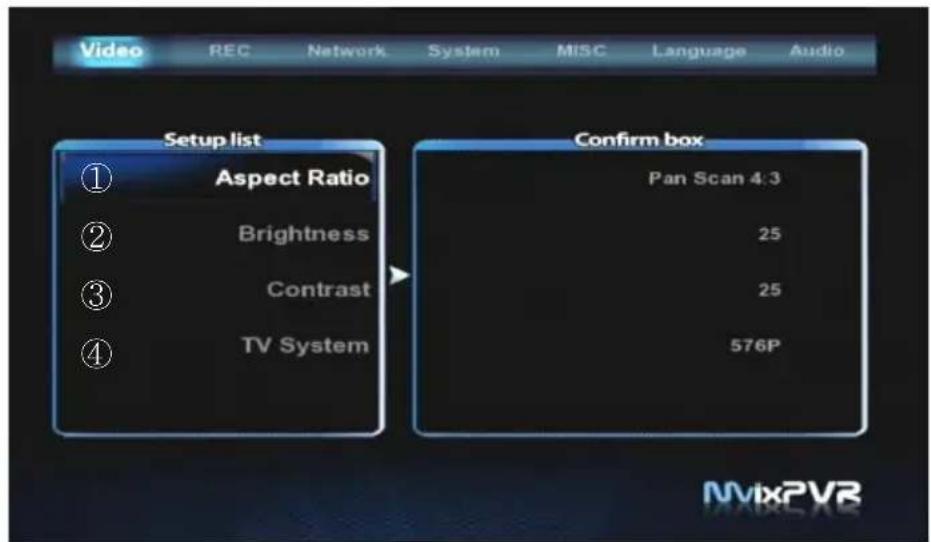
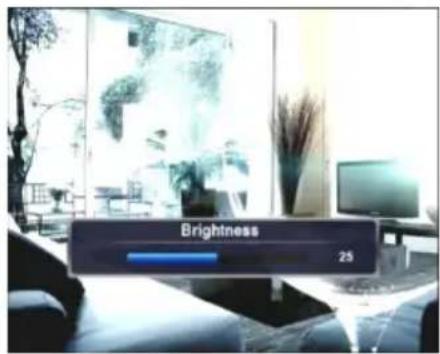
1. Brightness
Brightness of the displayed screen is adjusted. While video is in play, press SETUP in remote control. Brightness can be adjusted while Video is in play.
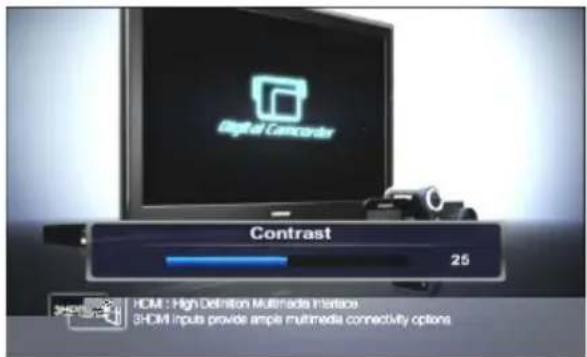
2. Contrast
Contrast of the displayed screen is adjusted. While video is in play, press SETUP button in remote control. Contrast can be adjusted while video is in play.
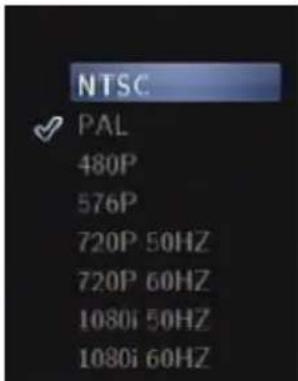
3. TV System
Video output resolution is changed. PAL and NTSC modes are not compatible with each other. Therefore, it must be adjusted to the TV in use. There is a function that automatically adjusts output to TV system. Therefore, it is not necessary to change PAL/NTSC modes.
PAL Mode: 576P/720P 50Hz/1080i 50Hz NTSC Mode: 480P/720P 60Hz/1080i 60Hz
Repeating TV – OUT with Remote Control HDMI Connection: Repeating 480P (576P) -> 720P -> 1080i -> 480P... (automatic PAL/ NTSC recognition) Composite/ Component Connection: Repeating NTSC -> PAL -> 480P -> 576P -> 720P -> 1080i -> NTSC...
TIP
Screen is not displays if selecting NTSC output mode in PAL system TV. In this case, repetitively press TVOUT TVOUT button in remote control to display screen or repetitively change output resolution.
4) REC Setting
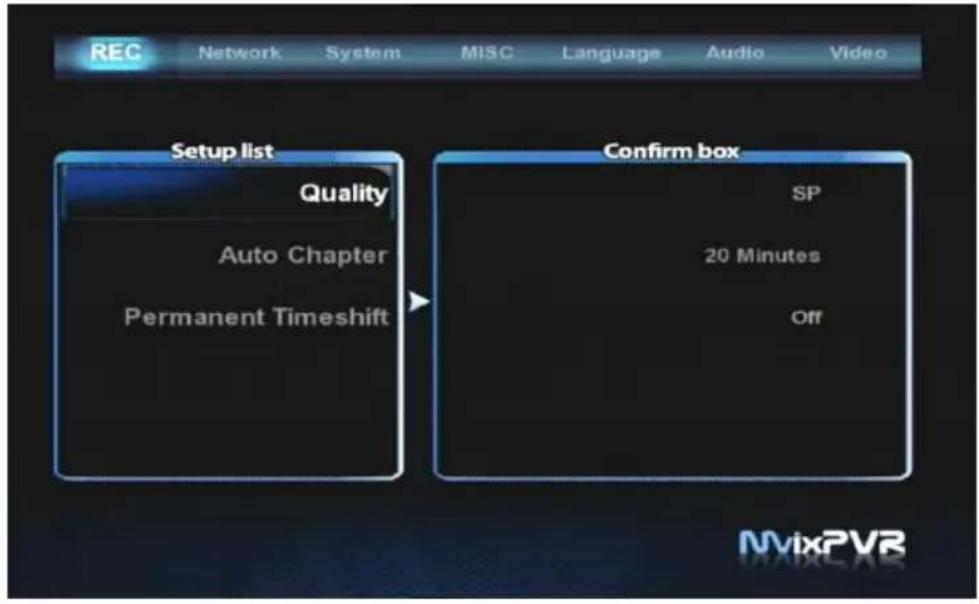
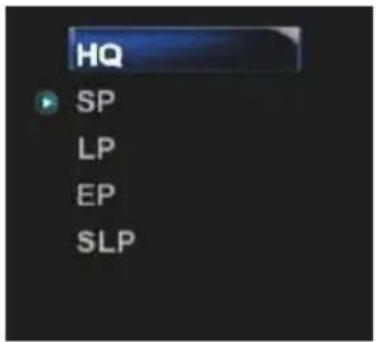
Recording Quality
Quality of recording is designated.
For information on recording quality, refer to the table below. (Video CODEC: MPEG 2, Audio CODEC: MPEG2, 2CH)
| Recording Mode | Average Bitrates (Video) | Resolution (PAL) | Resolution (NTSC) | Audio Format | |
| HQ High Quality 1,096 KB/s 720x576 720x480 48KHz stereo, 256Kbps | |||||
| SP Standard Play 549 KB/s 720x576 720x480 48KHz stereo, 256Kbps | |||||
| LP Long Play 355 KB/s 720x576 720x480 48KHz stereo, 256Kbps | |||||
| EP Extended Play 257 KB/s 352x576 352x480 48KHz stereo, 256Kbps | |||||
| SLP Super Long Play 178 KB/s 352x576 352x480 48KHz stereo, 192Kbps | |||||
Chapter 4. Media Environment Setting
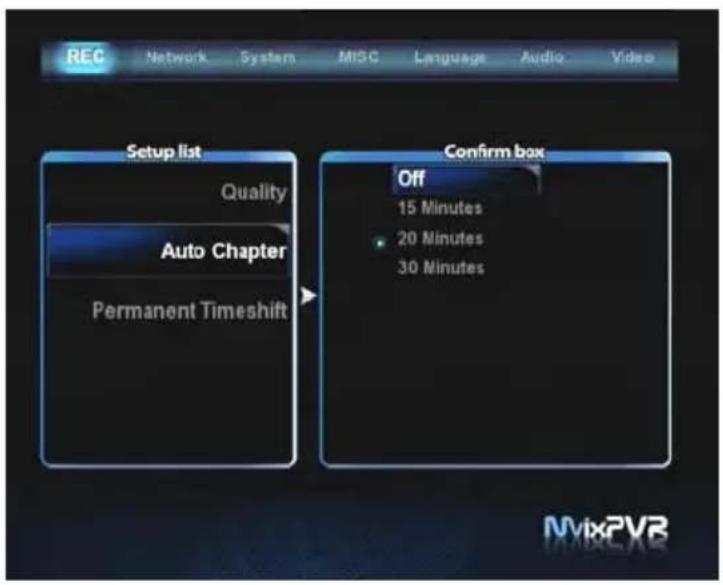

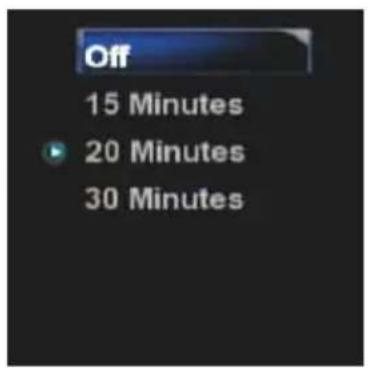
Auto Chapter
Time of automatic chapter use is designated.
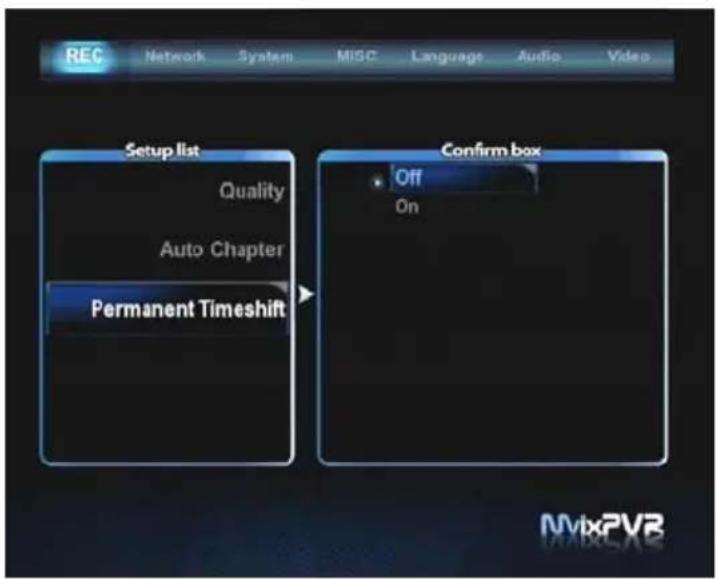

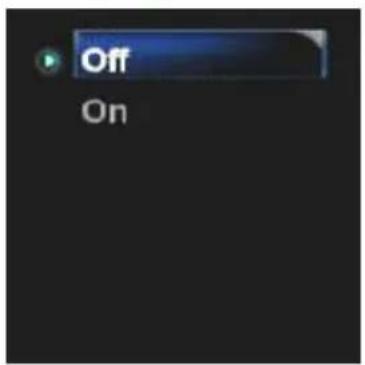
Permanent Time Shift
Status of permanent time shift is set in using time shift function.
Default: Off
* In case of USB device, only the file system of FAT32 is applicable.
5) Network Setting
5-1. Wired Network Setting
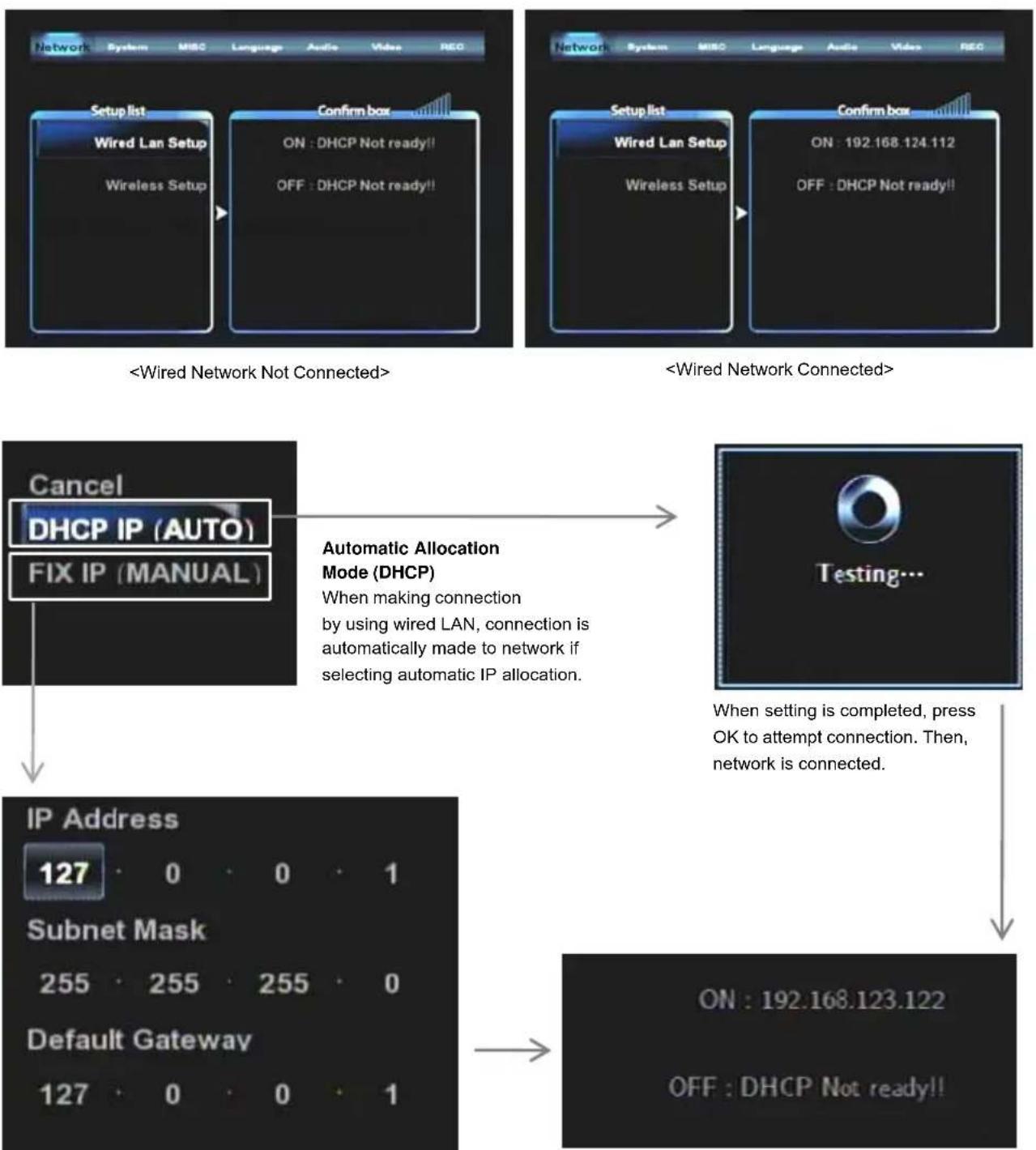
Manual Static IP
This function is for using static IP or for manual connection.
If IP address is displayed as of the example on the right, network connection is completed with IP successfully received.
Chapter 4. Media Environment Setting
5-2. Wireless Network Setting
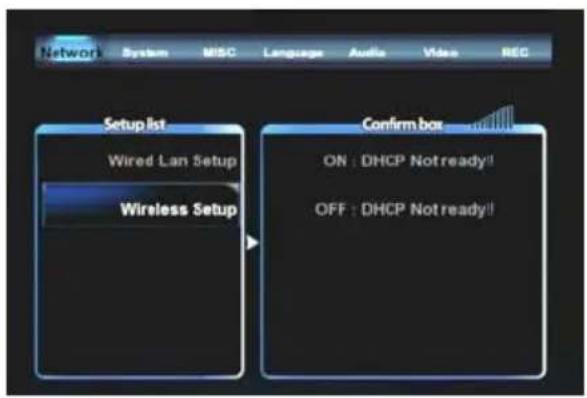
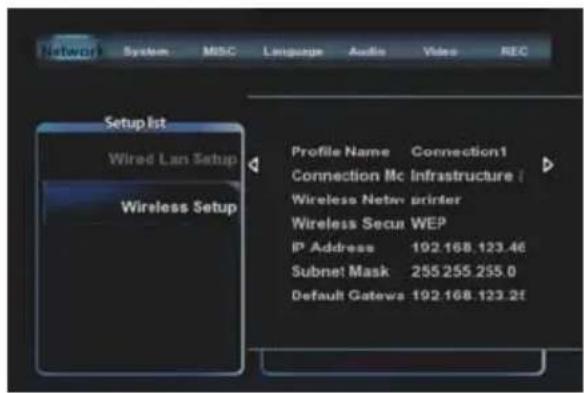
The following are descriptions on the method of wireless network connection by searching signals.
To use wireless network, you need wired/ wireless sharer.
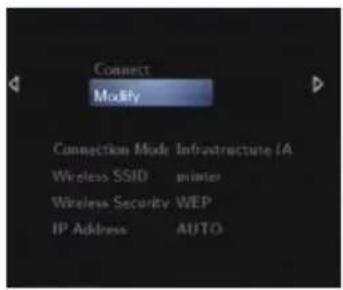
Select Modify and move to the next step.
※ Only WEP encrypted connection is explained.
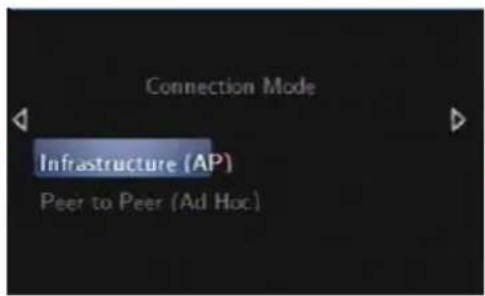
Select signal search mode. Move to the next step.
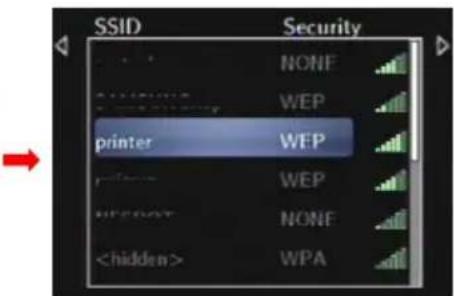
When SSID for connection is displayed, select it and move to the next step.
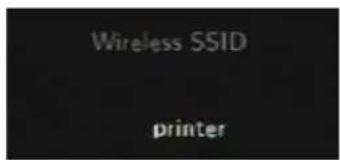
Check the selected SSID. Press OK and move to the next step.
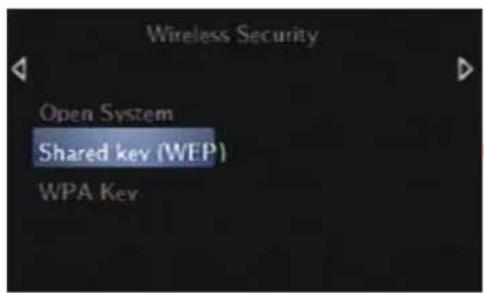
Select wireless security encryption. WEP Auto (Open/Shared key) / WPA is supported.
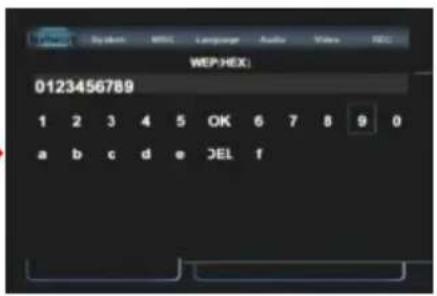
When encryption input screen is displayed, enter the accurate password and press OK to attempt connection.
6) System Setting
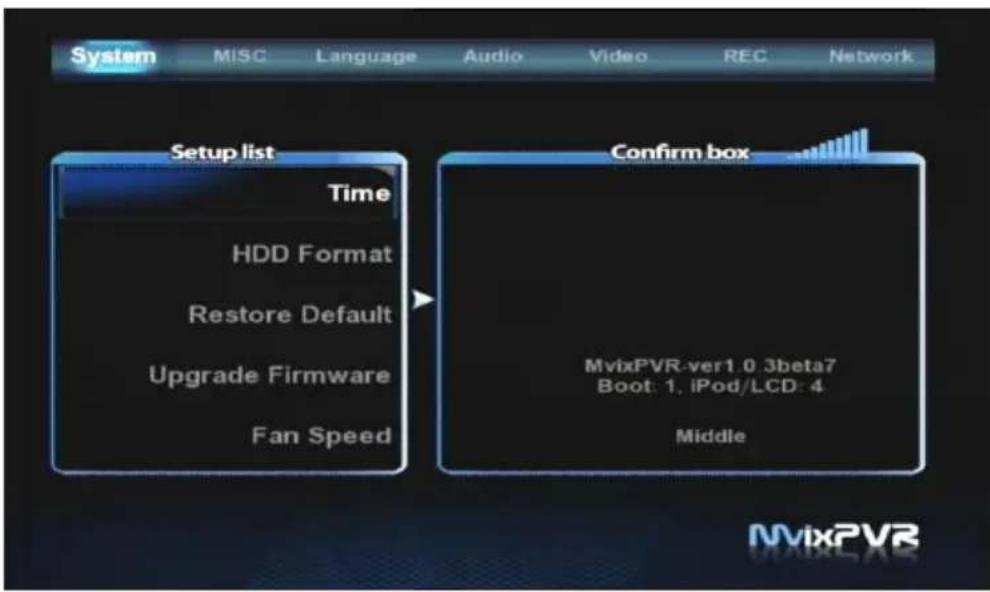
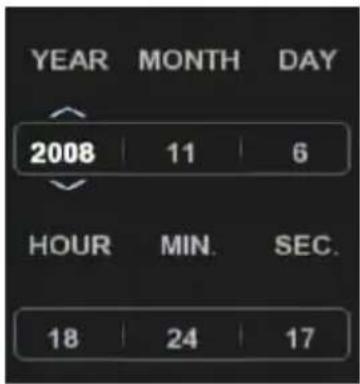
1. Time
Set time of MvixPVR that serves as the basis of using TIMER function.
Using up/ down/ left/ right keys in remote control,
set year/ month/ day/ hour/ minute/ second.
Press OK to save the set values.
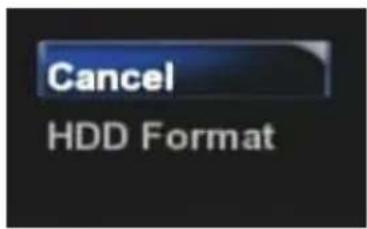
2. HDD Format
Manual format is enabled when installing hard disk for the first time or replacing it.

Formatting erases all data in hard disk. Caution is required as the erased data cannot be restored.
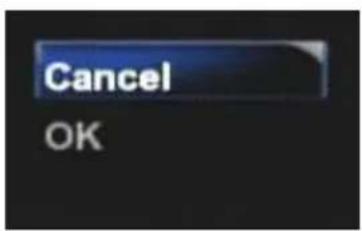
3. Restoring Default Value
All set values are restored to default.

Data in hard disk are not deleted or initialized.
To initialize HDD, use HDD Format menu.
Chapter 4. Media Environment Setting
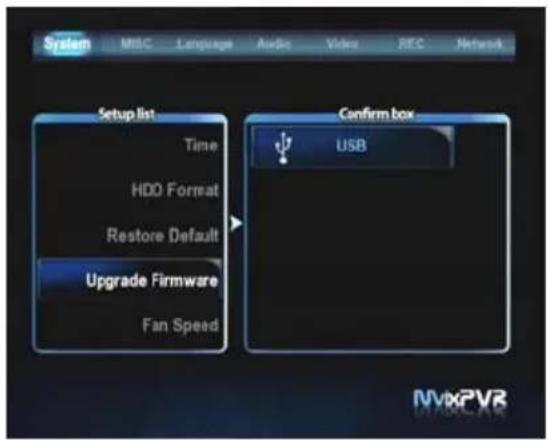
- Select USB memory. 2. Select firmware update file in root.
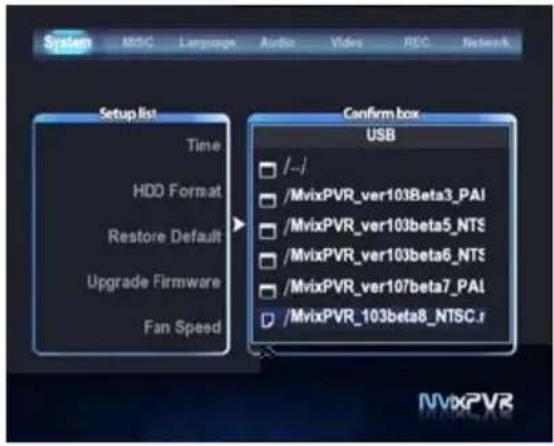
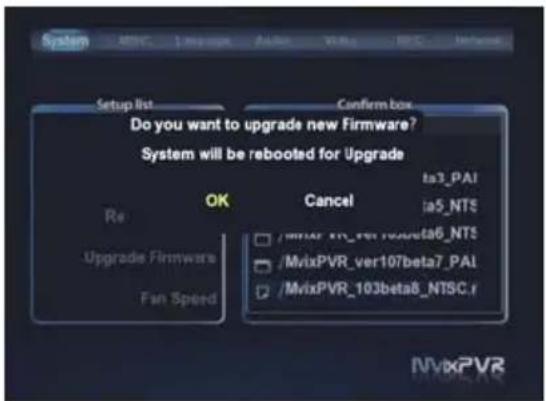
- Press OK to start firmware update without system rebooting.
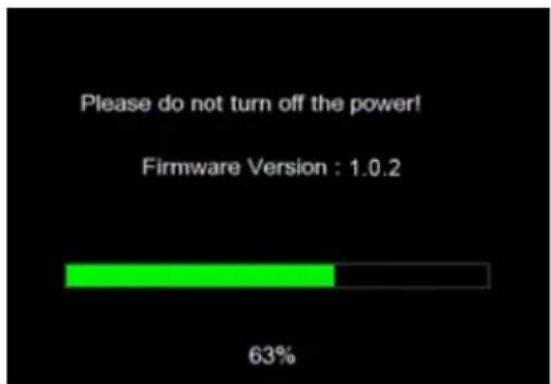
- Firmware update begins.
4. Check before Firmware Upgrade
To proceed with firmware update, all movies downloaded in MvixLIVE are deleted. You must backup or download the movies again.
Also, the setup value of UPnP is changed to default value. So, use the UPnP setup backup menu.
Currently, firmware version is displayed and firmware update through USB storage device is possible.
Update is administered only when copying firmware to a root that is not located at the lower position of a folder in USB flash memory (Ex.: D:).
Visit our website (http://www.eunicorn.co.kr / http://www.mvix.net) for more details on firmware download and update.
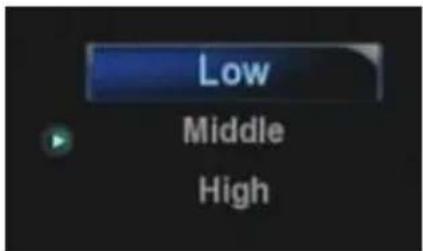
5.Cooling Fan Speed Control
Cooling Fan Speed: Fan speed can be adjusted in 3 levels.
When ambient temperature is high, it may lead to lowering of speed or system down. This function lets you adjust fan noise level and speed to suit the ambient temperature..
7) Other Settings
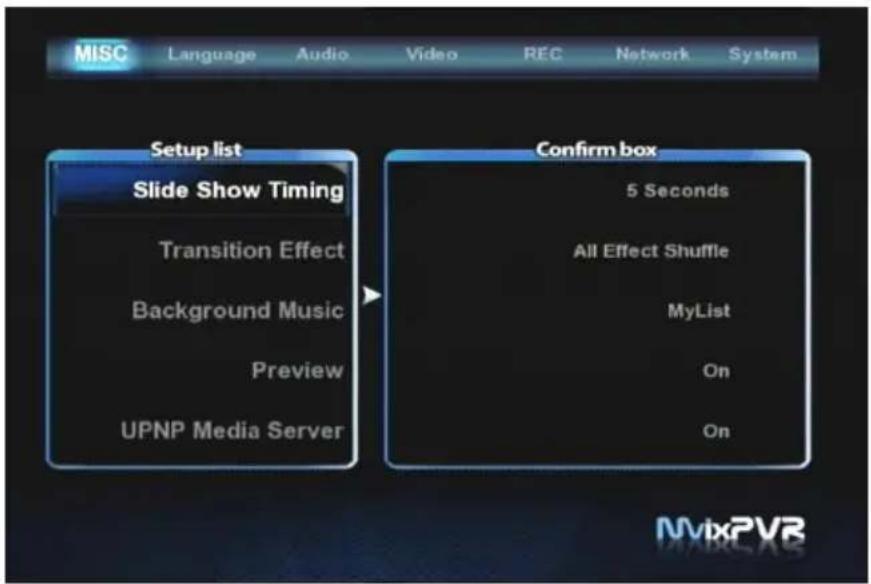
1.Slide Show Time
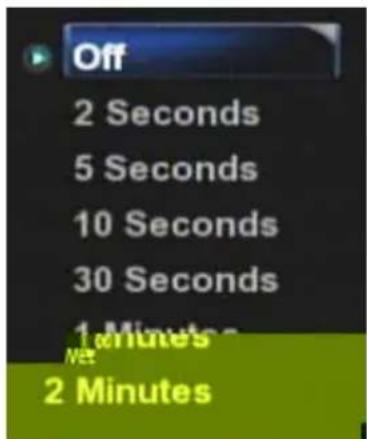
This is to set the time of which
display is produced and maintained when viewing photos.
Time can be designated as off/ 2sec/ 5sec/ 10sec/ 30sec/ 1min/ 2min.
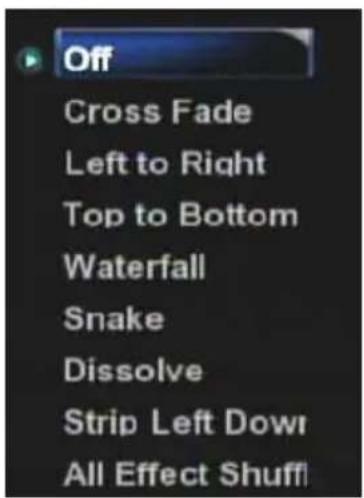
2.Transition Effect
When viewing photos, transition effect to move to the next photo is set. Total of 7 effects are available. All other randomly applied effects are also supported.
Chapter 4. Media Environment Setting
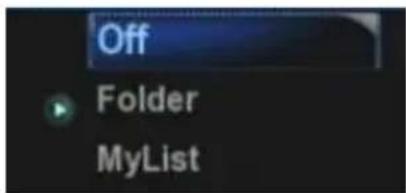
3. Background Music
Folder: the MP3 file automatically replays in the same folder of picture files MyList: This function can be used by connecting to UPnP Media Server.
Music files listed as favorites in My List of Media Library are played together with slide show.
4. Preview
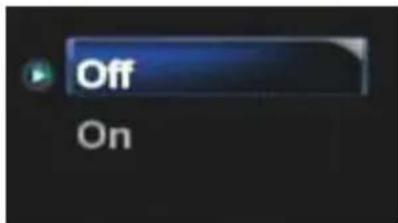
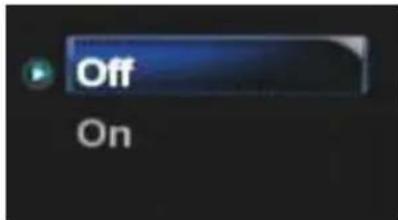
In Media Play function, you can disable or enable preview function. This is not applied in Playback menu. On/Off setting can be made by using Preview key in remote control.
5.UPNP Media Server
UPnP server implementation is possible. You can play or download HDD files by connecting with IP address of MvixPVR from local PC.
1) Mvix FTS Installation
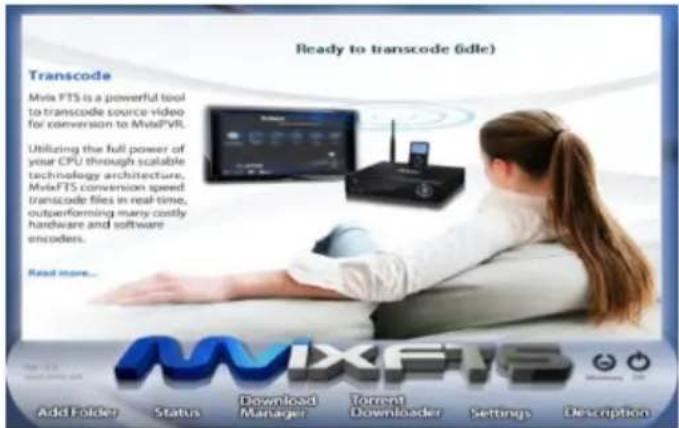
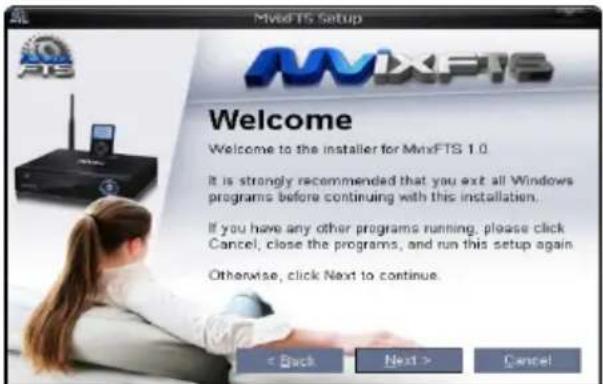
When the above screen appears, click Next.
What is Mvix FTS?
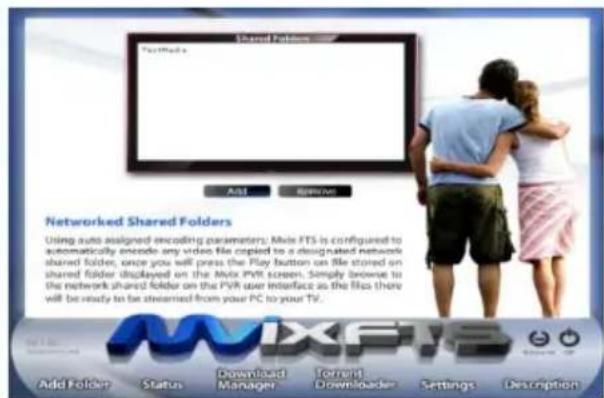
This program converts and transmits movies made with a CODEC that is not supported in MvixPVR into MPEG CODEC on a real-time basis. MvixFTS enables to transcode the output of movies in H.264/WMV/MOV/RMVB/RM mode. MvixFTS can be used only when it is installed in a PC that is connected to the same local network. This function is limited to movie sources saved in PC rather than H.264 files saved in HDD built inside MvixPVR.
Find Mvix FTS program in the CD enclosed in this product package and start installation.
Mvix FTS program can be downloaded in data room at http://www.mvix.net or http://www.eunicorn.co.kr
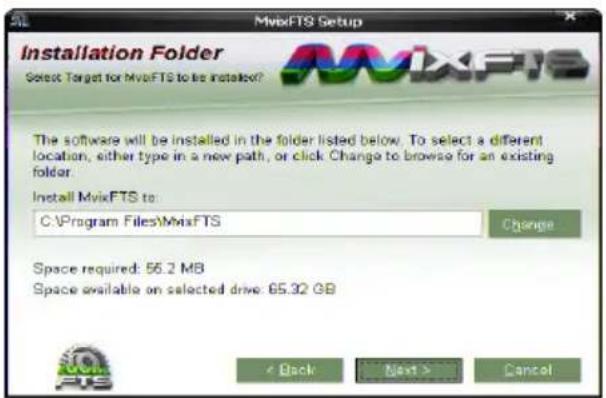
Screen to designate program installation route is displayed. Click Install.
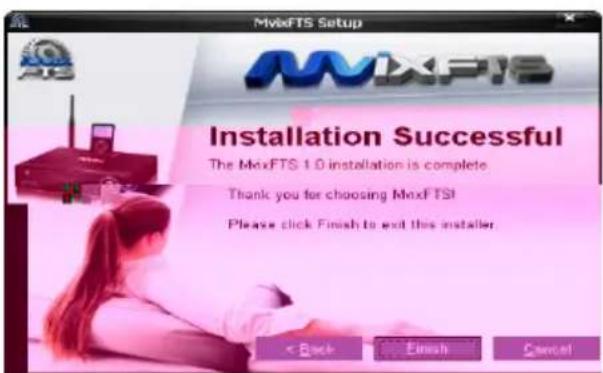
Installation is completed. Program will be executed.

Shortcut Icon
TaskBar Icon

Program is executed by icon on background screen or in 'Start -> Program -> Mvix FTS program group.
Chapter 5. MvixFTS Use and Share
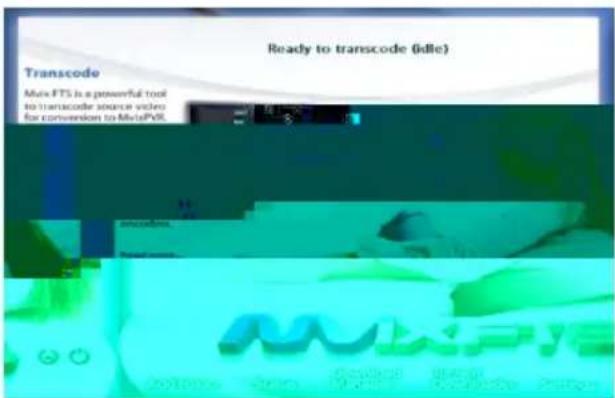
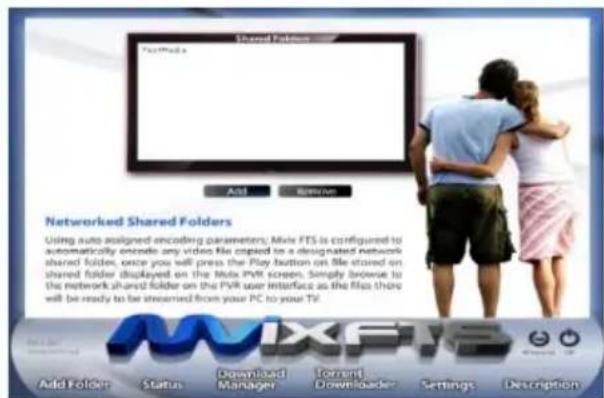
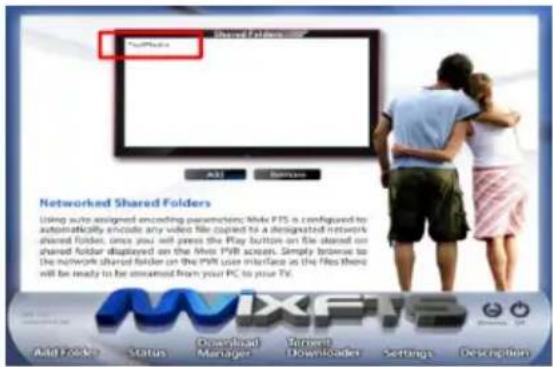
When running program, the above screen is displayed. Click Net Share Dialog to display the following screen. If share folders exist in PC, the folders will be displayed in list. If the share folder added is not displayed, click Add and set the corresponding folder. In some virus vaccines, firewall function disables streaming. Make sure to clear firewall before use.
2) Windows XP Share Folder Setting
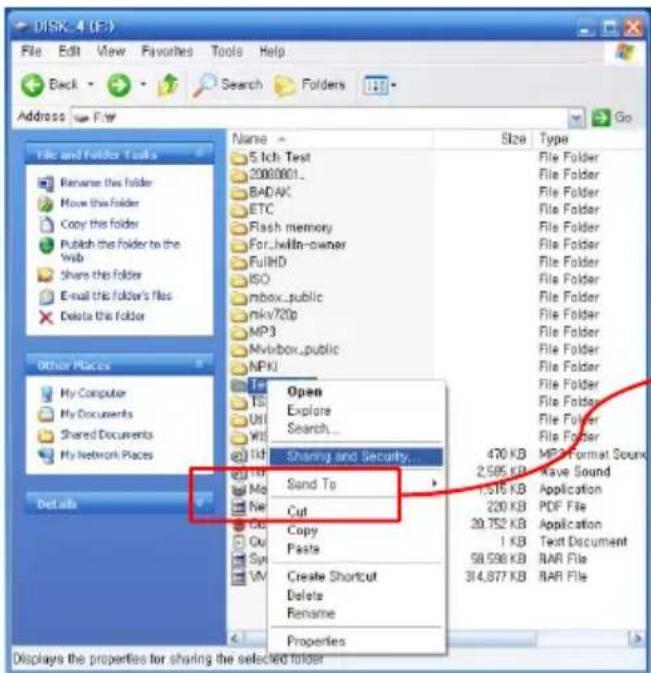
First, you must share the folder that includes a movie you intend to play by using MvixFTS server. This Description is given based on Windows XP SP3.
As shown in the picture, select a folder and right-click it to display a popup. Then, select the menu.

3) Change/ Give Power for Windows XP Share Folder (Copy Function)
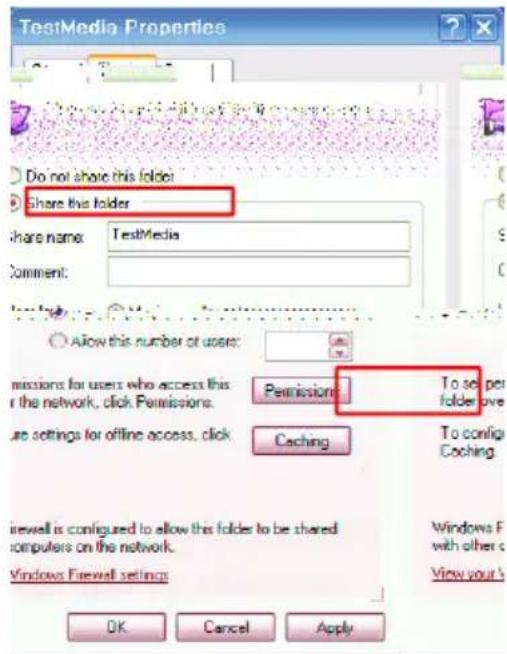
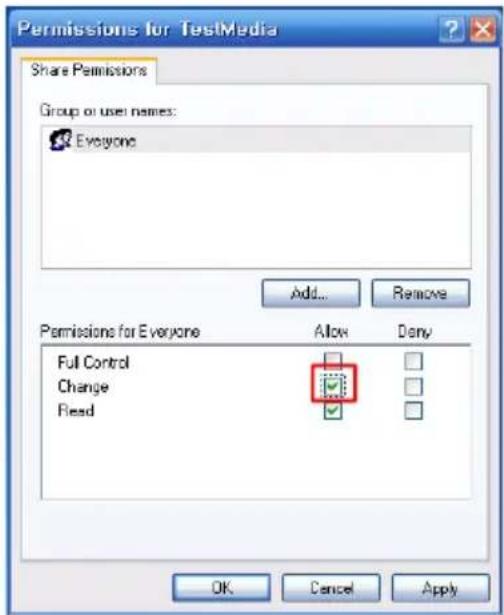
Share setting screen of folder registration info. is displayed as of the following.
Check 'share this folder in network' and press OK.
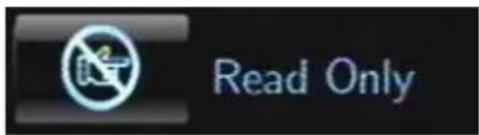
Check share attributes of share folder if 'Read Only' is displayed as of the above when copying a file to the share folder of NET PC using COPY function. Check 'network user can change my file'. Then, you can copy files to the share folder of PC in network when using MvixPVR COPY function.
※ COPY function can be used not only for video files, but also for all other files.
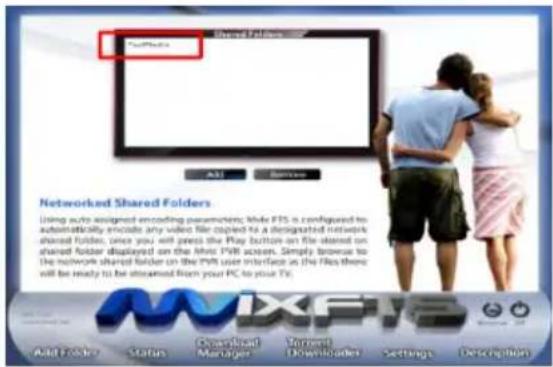
Run Mvix FTS program again and press OK in Net Share Dialog menu. You will see that a folder designated of network share setting is automatically added.
Video files of H.264/ WMV/ PMVB/ RM/ MOV mode contained in a share folder registered in MvixFTS can be played by streaming in MvixPVR.
MvixFTS program must be kept on in PC. Play will be stopped if PC is turned off or program is closed.

MvixFTS program does not operate when playing CODEC supported by PVR in network. Therefore, it is not necessary to execute the program. Run MvixFTS program when playing the movies of H.264/WMV/RMVB/MOV/RM, etc.
Note
For operation test of MvixFTS program, we guarantee operation in operation system with the latest security patch of Windows XP SP3 and Vista SP1. In case PC specifications do not allow successful converting of H.264 movies or of abnormal OS status, program operation may be disabled. We do not guarantee operation in these cases.
If program execution is not successful, install Microsoft Visual C++ or download the latest security patch.
4) Windows Vista Share Folder Setting
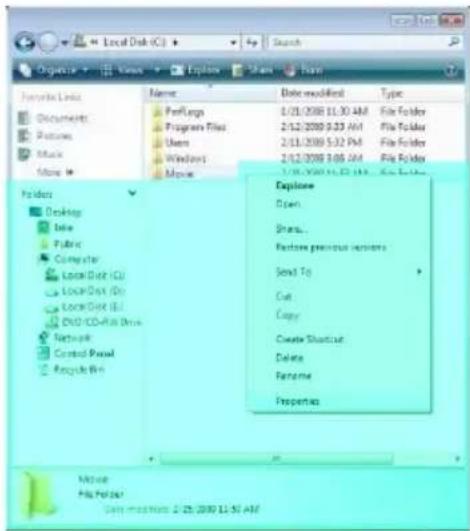
Set and Apply Share Folder & Copy To Folder in Windows Vista
- Select a folder in Windows Explorer to activate of the functions for playing share folder using network and for copying files to in Windows Vista. Right-click the folder. When popup is displayed, click 'Properties'.
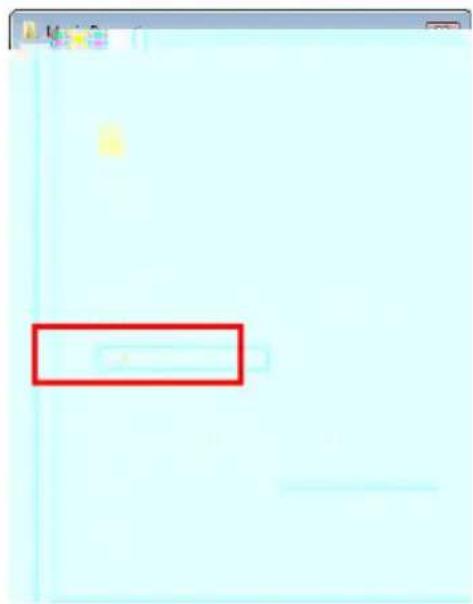
- Click 'advanced share'.
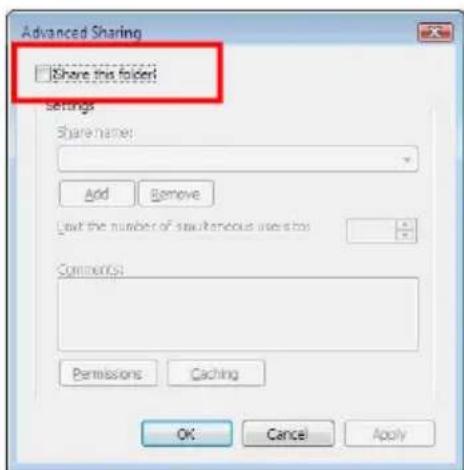
- Click and check the selected share folder. Then, click power.
Chapter 5. MvixFTS Use and Share
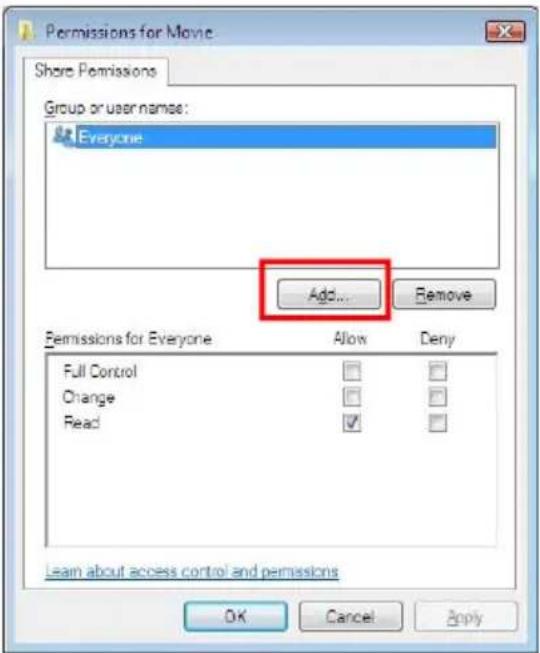
- When a menu to set the power of use is displayed, you will see that 'everyone' has been added as default. You need to register 'Guest' user here. Click 'Add'.
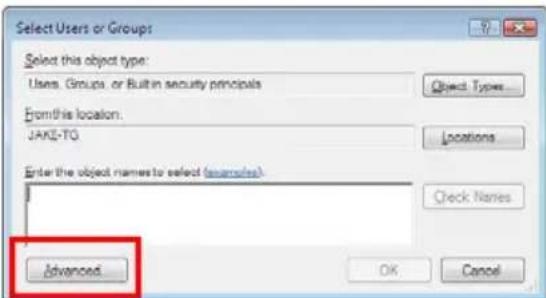
- When another window is displayed to add a user or group, 'click 'Advance'.
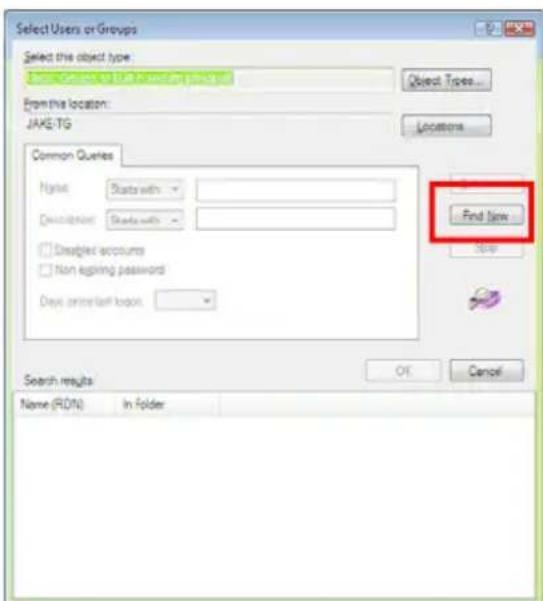
- Click 'Search Now' marked in the picture.
Chapter 5. MvixFTS Use and Share
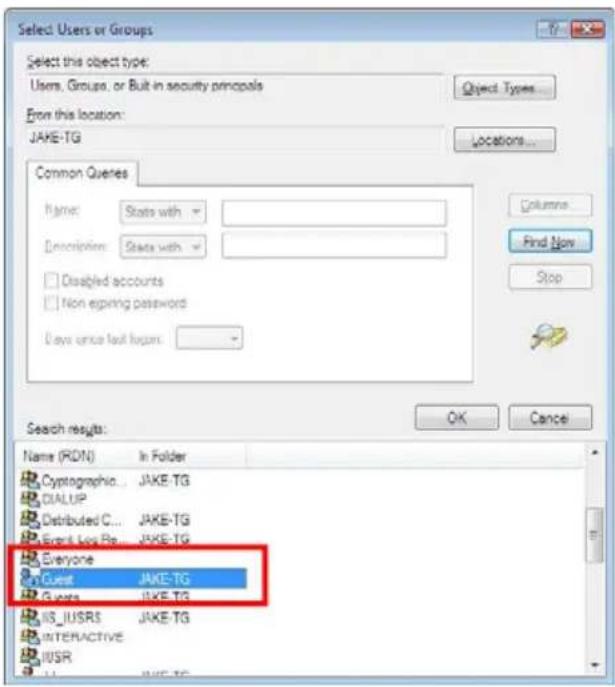
- The list of search results shows 'Guest'. Select it as of the picture and either double-click it or click OK.
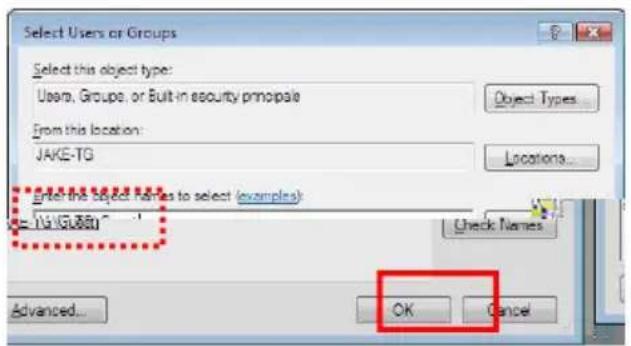
- Check that 'computer\Guest" has been added as of the picture. Click OK.
5) Change/ Give Power for Windows Vista Share Folder (Copy Function)
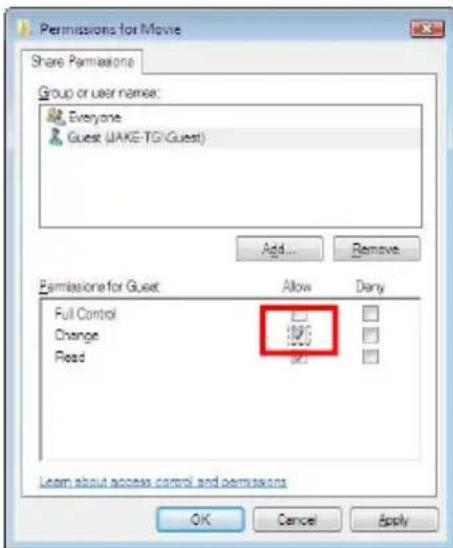
- Check 'Allow Change' when guest account is added. When the following screen is displayed, press OK. Checking 'Allow Change' enables you to copy files to the corresponding folder when using COPY function. Do not check it if you only intend to play media files through network share.
Caution is required as all users of the same network status can access the folder and administer read/modify/write/delete.
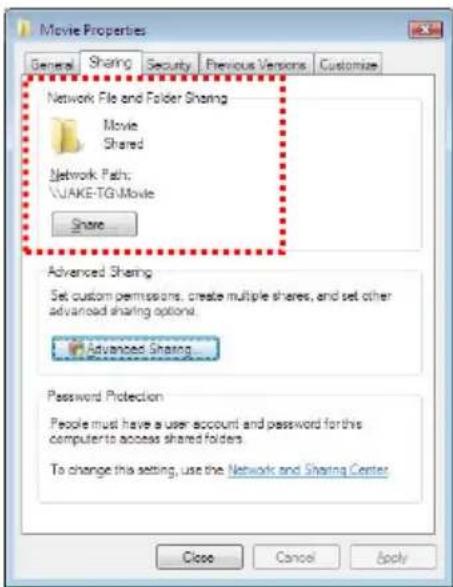
- Press OK or Apply if the procedure up to No. 9 has been successfully completed. Check if share folder has been added as in the picture. Complete the process of giving power for share folder in Windows Vista.
※ If file is not visible in Windows Vista, check setups as of the following.
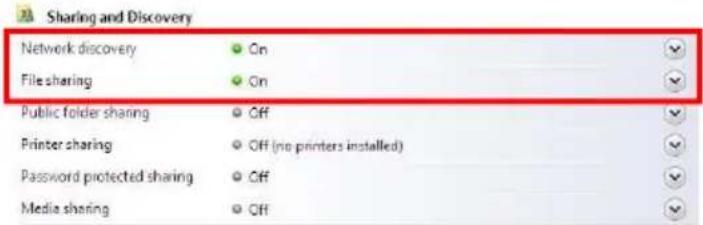
Show me all the files and folders I am sharing Show me all the shared network folders on this computer
In Control Panel -> Network and Share Center, check setups for 'Use File Sharing' and 'Not Password protected sharing' as of the above.
IPod Expanded Connection
System Requirements
iPod® compatibility
This product may not be compatible to all iPod models according to iPod firmware version and model.
※ iPod is not included in product package. iPod is the trademark of Apple Inc. registered in the US and other countries.
※ The following contents have been written based on iPod classic.
natural_image
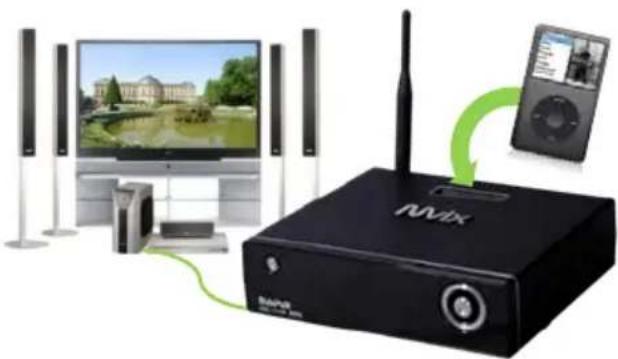
Exterior view of a NBVIX audio device connected to a monitor and an iPod (no signage or text visible)-Place iPod facing the same direction as the front of PVR product. Connect iPod by using dock connector.
-This can be used as iPod® charger.
-Press iPod key on PVR power on/off button on remote control to change mode to iPod control. Here, LCD window displays 'iPod'. This means that iPod mode conversion has succeeded.
-Each time iPod button is pressed, reception of remote control alternates between PVR and iPod.
-Press Play key in remote control to play MP3 against the background of movie or photo slide.
- Photo files are displayed by TVOUT in iPod only when they are played in slide show by pressing Play.
-Button in blue are used used when remote control is converted to iPod mode.
※ TVOUT function must be activated when playing movie and running photo slide function in iPod so that they can be displayed through digital recorder screen of MvixPVR. Standard menu screens, such as of file list, etc. displayed in iPod LCD window, are not displayed in MvixPVR. Therefore, the screens are not displayed through TVOUT.
※ To play mp3 only after connecting iPod to MvixPVR, sound signal is automatically transmitted through MvixPVR. However, according to the media play devices connected, sound signal may be blocked and not produced if there is no image signal.
German
HD Multimedia Player with Personal Video Recorder
natural_image
Black NVIX wireless device with antenna and iPod screen (no visible text or symbols on main body)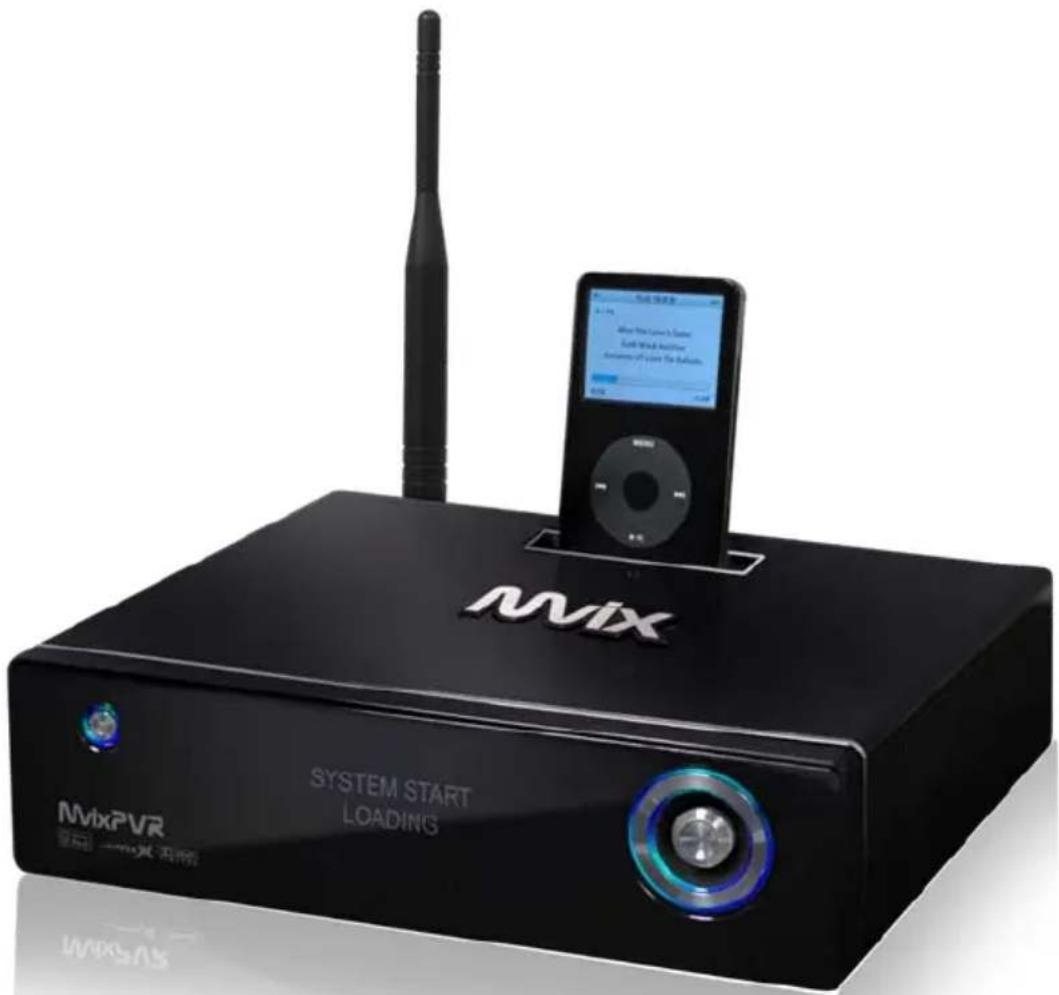
Ver 2.0
Benutzerhandbuch
www.mvix.net
natural_image
Black rectangular film drive with visible serial number and label (no readable text or symbols beyond branding)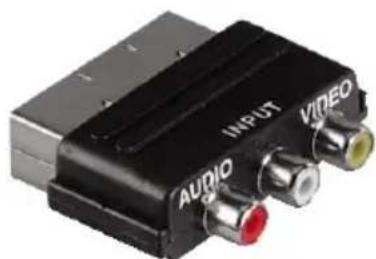
natural_image
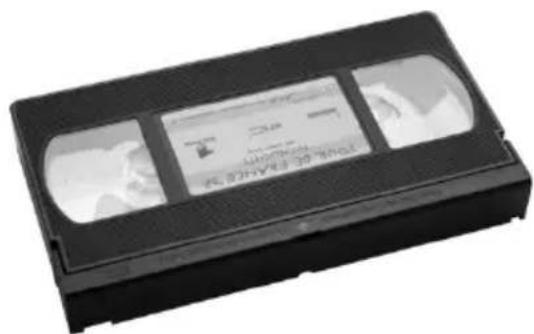
Black audio/video connector with labeled ports (INPUT, AUDIO, VIDEO) and colored connectors (no readable text beyond labels)Digitalisieren alter VHS-Kassetten
natural_image
Illustration of a device emitting sound waves with a prohibition symbol nearby (no text or labels)natural_image
Illustration of a portable electronic device with a prohibition symbol nearby (no text or symbols present)natural_image
Simple line drawing of a device with a prohibition symbol (no text or labels)natural_image
Illustration of a black electronic device on a stand with a 'no' symbol nearby (no text or labels)natural_image
Illustration of a device with warning symbol and lightning bolt (no text or labels)natural_image
Illustration of a snowman in snowy conditions with a device and explosion, no text or symbols presentnatural_image
Illustration of a wireless device with a prohibition symbol and a lit candle, no text or labels present.natural_image
Illustration of a pot with liquid and two utensils, accompanied by a prohibition symbol (no text or labels)Vorwort 2
PVR Funktion

natural_image
Black NVIDIA audio amplifier device with antenna, microphone, and iPod (no visible text or symbols)Vandariselle
①. Distrzy contracte (other) urban (other's rights).
12. Rechtsrechte OK (inklizen)
natural_image
3D rendering of an electronic device labeled 'Risdomine' with visible ports and wiring (no readable text beyond label)- Dettachar Amischum
Technische Daten
natural_image
Coiled black cable with multiple colored audio/video cables (red, yellow, white) attached at the end (no text or symbols visible)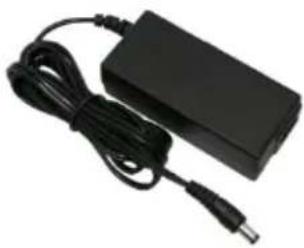
natural_image
Black electronic device with attached cable and power connector (no visible text or symbols)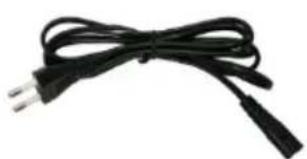
natural_image
Black cable with two leads tied together (no text or symbols visible)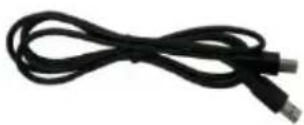

natural_image
Close-up of hands holding a black electronic device with a screwdriver inserted (no visible text or symbols)natural_image
Close-up of hands installing or adjusting a black electronic device with ports and buttons (no visible text or symbols)natural_image
Hand inserting a black electronic device into a plastic housing with visible wiring (no text or symbols)natural_image
Close-up of hands using a screwdriver to adjust or install a green electronic component (no text or symbols visible)natural_image
Hand inserting a 100MHz drive into a black box (no visible text or symbols)natural_image
Person inserting a USB into a device into a plastic case (no visible text or symbols)natural_image
Close-up of hands holding a black electronic device with a screwdriver inserted (no visible text or symbols)natural_image
Black electronic device labeled 'Mix' with a circular button and lens, shown against a plain background (no additional text or symbols visible)natural_image
Exterior view of a silver audio device with control panel and display (no visible text or symbols)IPTV Set Top Box Input Device Connection
natural_image
Computer monitor displaying a grid of connected modules on its screen (no visible text or symbols)natural_image
Exterior view of industrial equipment including a pressure vessel and control panel (no visible text or symbols)1. MEDIA LIBRARY (DATEN-ARCHIV)
natural_image
Close-up of a yellow electric guitar fretboard with visible mechanical components and wiring (no text or symbols)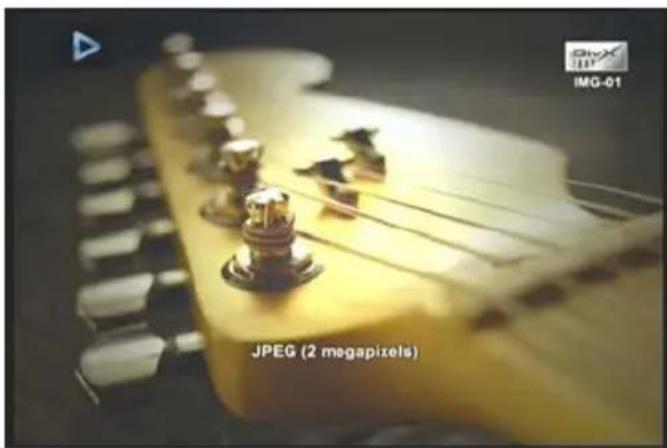
natural_image
Close-up of a mechanical gear with metallic components on a table, no visible text or symbolsFoto
natural_image
Two men in formal black coats standing outdoors in front of a building with visible stairs and a trash bin (no text or symbols)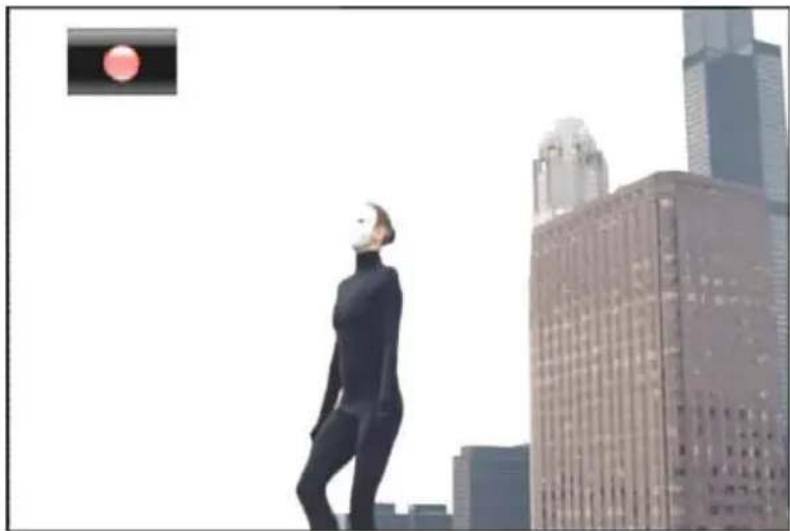
natural_image
Silhouette of a person in a suit standing in front of modern skyscrapers, with a traffic light visible in the top-left corner (no text or symbols on the figures or buildings)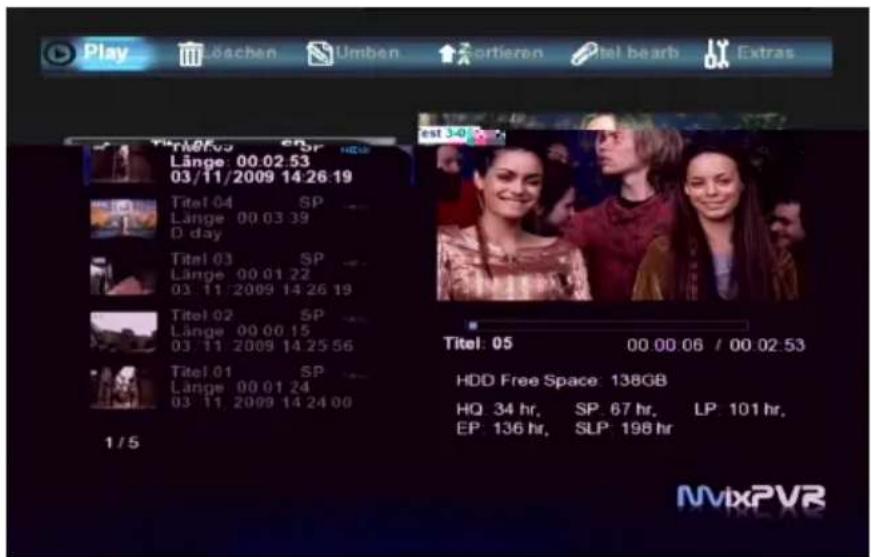
Kopieren
USB->HDD, NET / HDD->USB, NET / NET ->USB, HDD.
Videos in You Tube suchen
natural_image
Two Mvix remote devices on a screen, one black and one white, with no visible text or symbols on the devices themselves.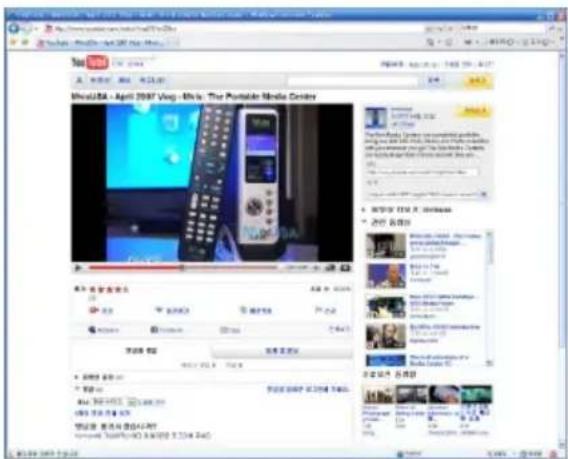
natural_image
Black-and-white photo of a skateboarder mid-jump at night, captured in motion with no visible text or symbols.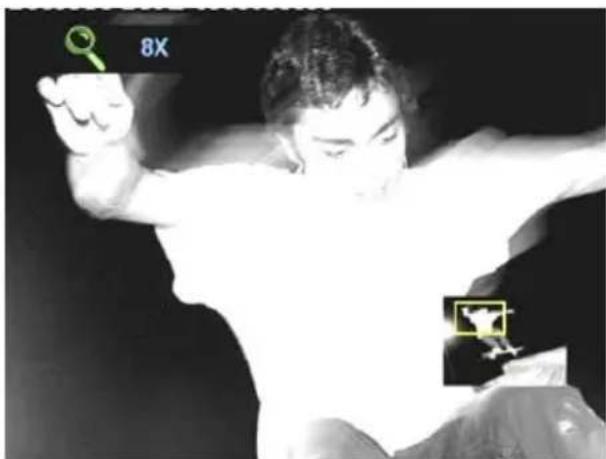
natural_image
Black-and-white photo of a person in motion, holding a green key and a yellow object with '8X' label (no readable text or symbols)2.Textkodierung
Aufnahmequalität
3. Hintergrundmusik
Was ist Mvix FTS?

natural_image
Exterior view of a modern office building (no signage)HD Multimedia Player with Personal Video Recorder
natural_image
Black NVIX wireless device with antenna and iPod (no visible text or symbols on main body)
Ver 2.0
User Guide
www.mvix.net
제품안전 주의사항
MIXPVR
! 경고
! 주의




제품안전 주의사항
MvixPVR
natural_image
Illustration of two electronic devices with a prohibition symbol (no text or labels)목록
MixPVR
목록
MvixPVR
제품소개
NVixPVR


제품소개
MixPVR

주의사항
MvixPVR
제품외형 및 사양
MixPVR
natural_image
Exterior and interior views of a black NMX electronic device showing front, top, and side views (no text or symbols visible)제품외형 및 사양
| Product Name | VR | |
| Operating System | lux | |
| File Format | Recording Partition: UDF (UNIX file system)File Partition: FAT32 / NTFS | |
| Encoding(Recording) | Recording Mode | HQ, SP,LP,EP,SLP |
| Video MPEG II | (PAL 720x576, 352x576 / NTSC 720x480, 352x480) | |
| Audio MPEG II | (48KHz Stereo 256Kbps / 192Kbps) | |
| Supported Files &Formats | Video | MPEG2 HD(ts,tp), Divx HD(avi), Xvid HD(avi), MPEG1/2 (dat,mpg.vob.ifo.iso), Divx (avi),Xvid(avi), MKV(NOT H.264),(MvixFTS use: MKV(H.264 720P), RMVB, MOV,WMV) |
| Audio | MP3, WMA, ACC, OGG, WAV, AC3,DTS decoding including down-mixing, DTS pass through | |
| Image BMP, HD | JPEG/JPG,GIF,PNG,TIFF/TIF(Progressive JPEG not supported) | |
| Video Input | , | |
| Video Output | ite, Component, and HDMI 1.1 With CEC | |
| Audio Output | Analog Stereo RCA | |
| Digital Coaxial, Optical | ||
| TV System | -, or HDMI AUTO | |
| Hi-Def Decoding | HD COMPONENT Y, Pb, Pr (480, 720,1080) / HD HDMI (480, 720,1080i) | |
| WMV, ASF, AVI and MP4 formats | ||
| Audio Decoding | MPEG-1 and MPEG-2 Layers I, II and III (MP3), MPEG-2 BC multi-channel layers I, II and III, MPEG-2 andMPEG-4 AAC-LC,WMA9 and WMA9 Pro decoding | |
| Networking | Wire Ethernet (10/100) LAN via RJ-45 Port | |
| Wireless | Wireless LAN | |
| Network Security | less: WEP, WPA, | |
| Network Protocol | Wireless: IEEE802.11b/g, 5dBi antenna (SMA type)Wire: 10/100Mbps Fast Ethernet (RJ45)TCP/IP (DHCP client mode, Manual IP mode) | |
| Hard-Disk Type | 3.5" Internal SATA I / II (Not included) | |
| USB Interface | host, USB2.0 Slave | |
| Power | Adapter: Input: AC 100V-240V, 50/60Hz Out put: DC 12V, 3ADC In: 12V | |
| Dimension | X 200mm(H) X 59mm(D) | |
제품구성물
MvixPVR
하드웨어 설치
MvixPVR
natural_image
Close-up of hands holding a black electronic device with a pen inserted (no visible text or symbols)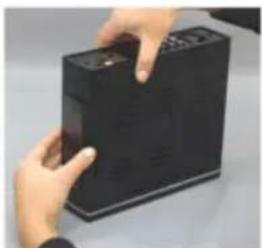
natural_image
Close-up of hands holding a black electronic device with ventilation slots (no visible text or symbols)

하드웨어 설치
MvixPVR
natural_image
Hand inserting a black USB into a black device (no visible text or symbols)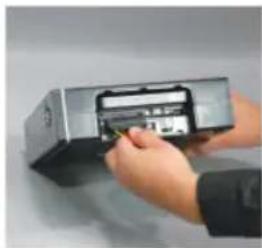
natural_image
Close-up of hands inserting a device into a silver case (no visible text or symbols)

연결방법
MvixPVR
연결방법
MvixPVR
연결방법
NVixPVR
리모컨 기능 안내
리모컨 기능 안내
1 POWER :  : [3675] : [3675] | ||
| 2 LIBRARY [1040] RY | ||
3 VIDEO IN  AL RECORDER AL RECORDER | ||
| 4 | 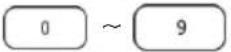 | : (0~9) . |
5 TVOUT :  | (HOME) . | |
| 6 |  | REC : / 30 / 30 / 90 / 120 / 180(OTR) . |
| 7 | :  / [IMAGE] / [IMAGE] | 1 . |
| 8 / | :  [IMAGE] [IMAGE] | |
| 9 |  [IMAGE] [IMAGE] | |
10 ENTER :  [IMAGE] [IMAGE] | ||
11 SELECT :  | ||
| 12 |  | F.B / F.F :(1.5x/2x/4x/8x/16x/32x) mp32x . |
| 13 |  | TIME SHIFT : Video in . |
14 SKIP <-  10 10 | ||
| 15 |  [STSY] [STSY] | ZOOM + / - : . / /(2x/3x/4x/8x) |
16 REPEAT  [IMAGE] [IMAGE] | ||
17 MENU :  (B) [IMAGE] (B) [IMAGE] | MENU DVD . | |
| 18 | (AUDI  | |
리모컨 기능 안내
| 19 |  | PREVIEW : MEDIAPLAY ON/OFF |
20 Shuffle :  | [iPod ] | |
| 21 |  | SETUP : VIDEO IN |
22 MVIXLIVE  XLIVE XLIVE | ||
23 RECORDING  RECORDINGS RECORDINGS | ||
| 24 |  | INFO : . TIME SHIFT OSD |
25 STOP :  | ||
26 PLAY :  | ||
27 HOME :  | ||
| 28 |  | GOTO : . |
29 PREV/NEXT  ( ) ( ) | ( ) . | |
| 30 |  | SLOW : 3/4x / 1/2x / 1/4x / 1/8x / 1/16x / 1x . |
31 SKIP -> :  30 30 | ||
32 VOL :  | ||
33 A-B :  | ||
34 SUBTITLE  | ||
35 MUTE :  | ||
36 SYNC < />  | .(100ms/0.1) | |
37 FUNC : ~  | ||
38 iPod :  | PVR . | |

※
1장 PVR 처음설정
MIXPVR
△
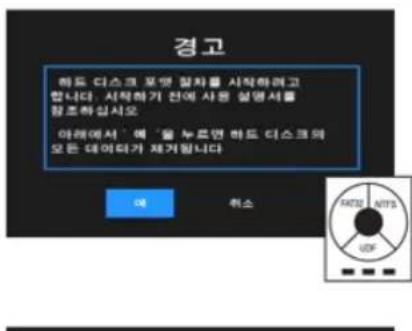
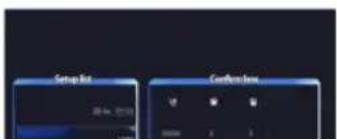
1장 PVR 처음설정
MvixPVR
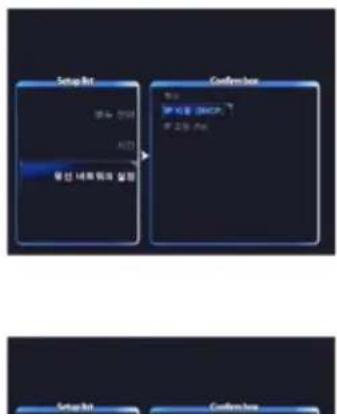
주요메뉴 기능설명
MvixPVR
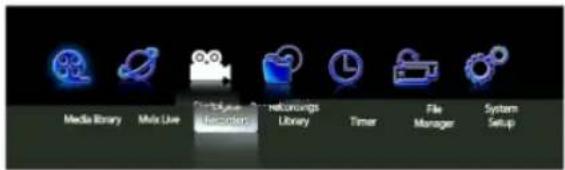
2장 주요기능 설명
MvixPVR
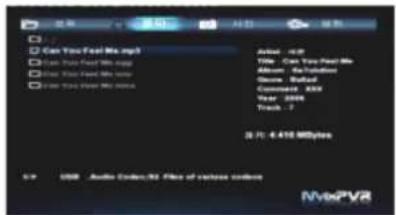
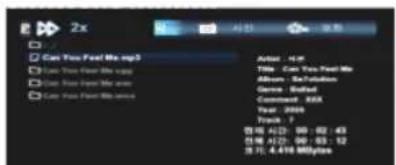
2장 주요기능 설명
MixPVR
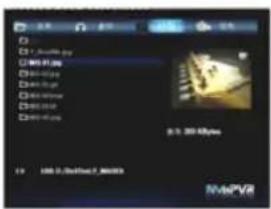
natural_image
Close-up of a golden object with scattered dark specks, possibly a food item or artifact (no visible text or symbols)
natural_image
Close-up of a yellow electronic component with metallic pins and a glowing surface (no visible text or symbols)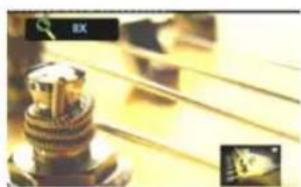
natural_image
Close-up of a mechanical component with metallic gears and a close-up inset showing a magnified view (no visible text or symbols)2장 주요기능 설명
MixPVR
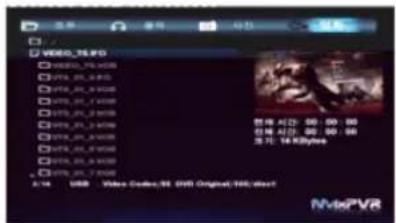
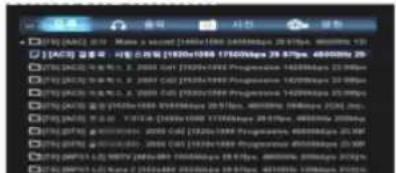
2장 주요기능 설명
NVixPVR
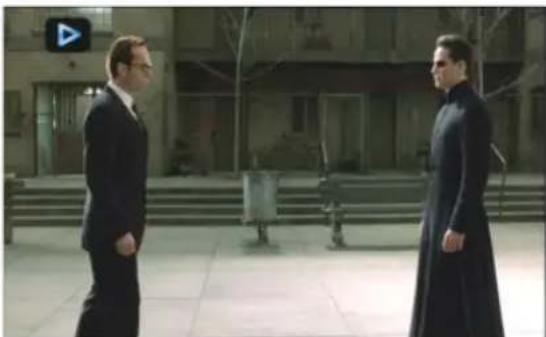
natural_image
Two men in dark suits standing in a courtyard with city buildings and steps (no visible text or symbols)2장 주요기능 설명
MIXPVR
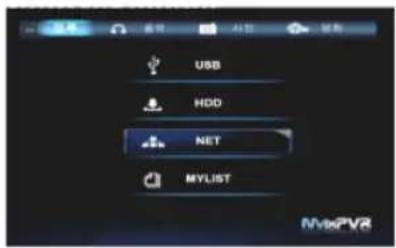
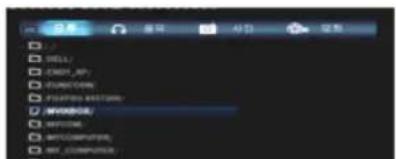
2장 주요기능 설명
MixPVR
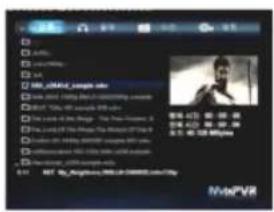
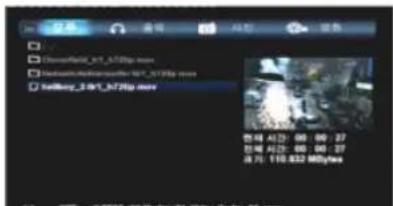
2장 주요기능 설명
MixPVR
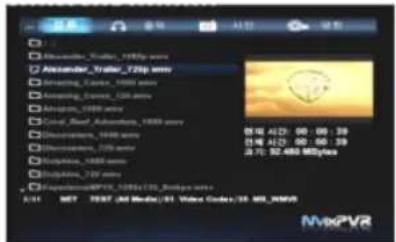
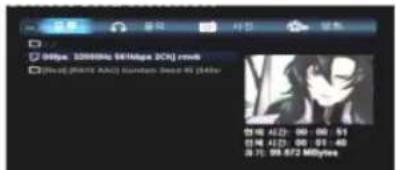
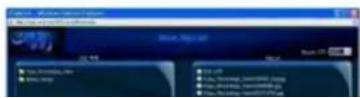
2장 주요기능 설명
MixPVR
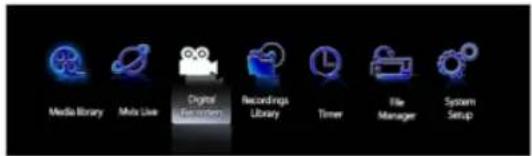
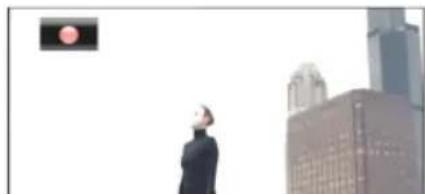
natural_image
Silhouette of a person standing in front of a city skyline with a traffic light in the background (no visible text or symbols)2장 주요기능 설명
NVixPVR



2장 주요기능 설명
MvixPVR
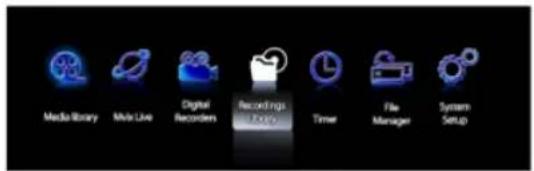
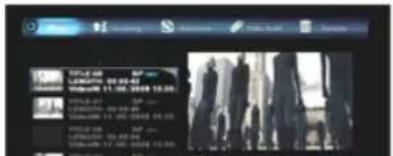
2장 주요기능 설명
MvixPVR
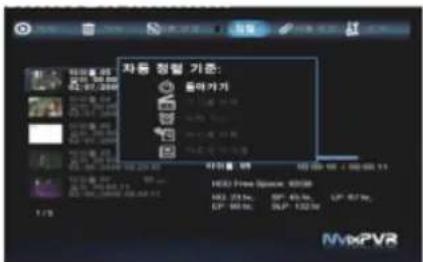
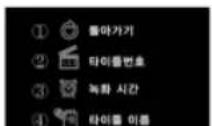
2장 주요기능 설명
MvixPVR
![my UCC 1 2 3 4 5 OK & T 8 9 0 Q W E R T CAPS Y U I O P A S D F G DSL H J K L - Z K C V B Monet N M - [ ] ? Shift - - SP NotePVR](/content/2026/05/1025659/images/f74e7159fe6794593a66ea56134ac5e81450de5c70cc540fcac470e9a1b7d9e5.jpg)

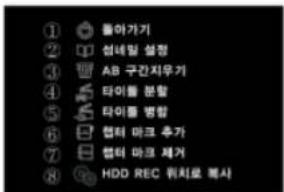
natural_image
Person in a futuristic helmet and armor inside a dimly lit room with mechanical structures (no visible text or symbols)
natural_image
Simple line drawing of a balance scale with a blue dot above and small animal figures below (no text or symbols)2장 주요기능 설명
MvixPVR
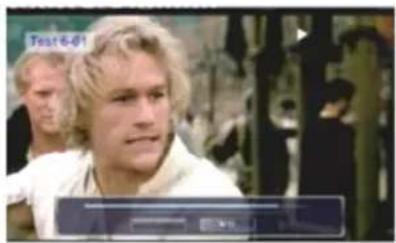
©


(34n) 1/2n / 1/4n / 1/8n
/1/16x /1x) SiOW
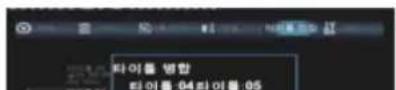
2장 주요기능 설명
MvixPVR
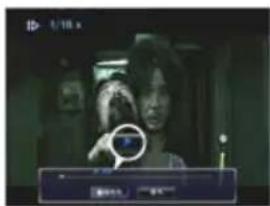
O
natural_image
Interior scene with silhouettes of people in a dimly lit room, no visible text or symbols
natural_image
Interior view of a dimly lit room with silhouetted people and overhead equipment (no visible text or symbols)2장 주요기능 설명
MvixPVR
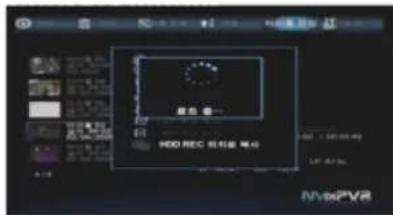
3장 고급사용자를 위한 기능설명
MvixPVR
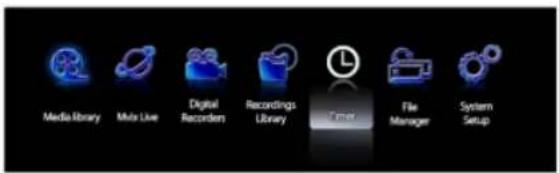
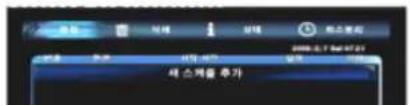
3장 고급사용자를 위한 기능설명
MixPVR
![mvia 1 2 3 4 5 OK 6 7 8 9 0 Q W Q F T CAPS Y V I O P A B C D E F G DEL H J K L R S E V H NSAM N M / L - - [ ] ? SHAK - - SP](/content/2026/05/1025659/images/7f41bb8c2e9647d3e5a0b5206352e5147340e9ee09f6ad1b37e89b9e6a1270f9.jpg)
natural_image
Close-up of a retro-style remote control with visible keypad and display screen (no readable text or symbols)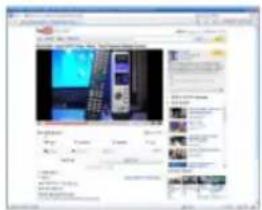
natural_image
Silhouette of a person skiing down a slope at night (no text or symbols visible)
natural_image
Black-and-white photo of a person in motion, possibly dancing or performing a martial arts pose (no visible text or symbols)3장 고급사용자를 위한 기능설명
MvixPVR
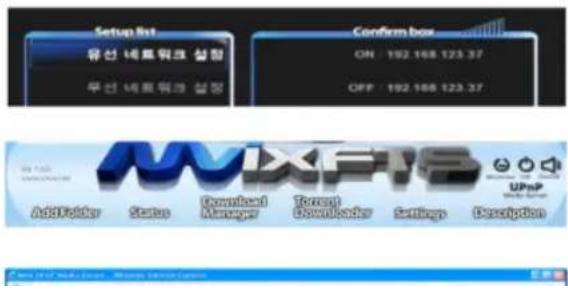
3장 고급사용자를 위한 기능설명
MvixPVR
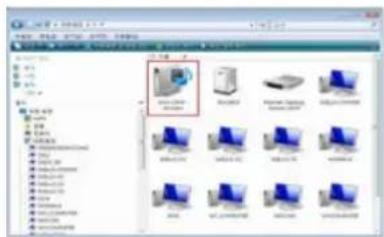
3장 고급사용자를 위한 기능설명
MvixPVR
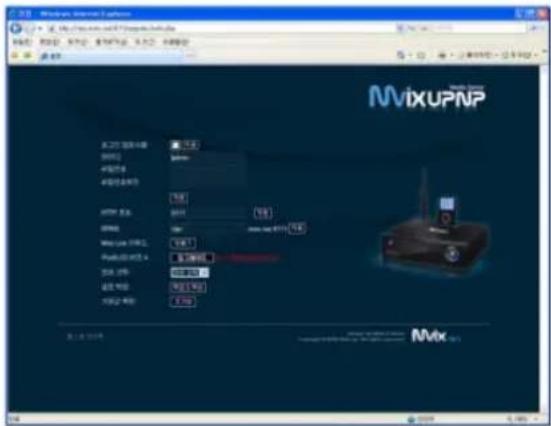
3장 고급사용자를 위한 기능설명
MixPVR
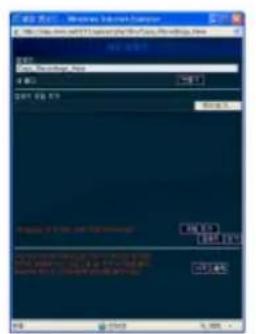
4장 미디어 환경설정
MixPVR
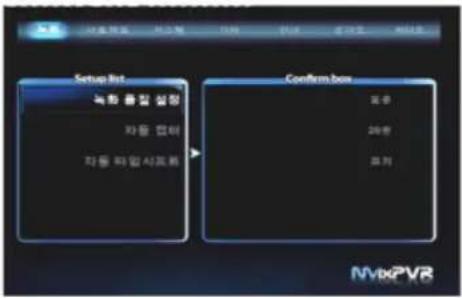
natural_image
Dark image with two dark rectangular shapes and a blue horizontal bar at the top (no visible text or symbols)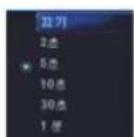
4장 미디어 환경설정
MixPVR
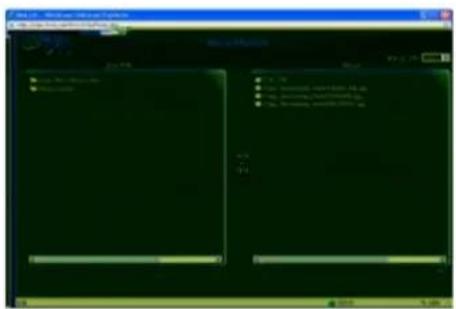
5장 MVIX FTS 이용과 공유
MIXPVR
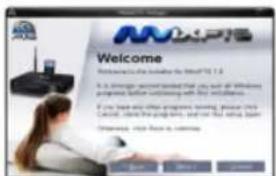
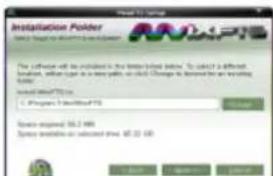
5장 MVIX FTS 이용과 공유
MvixPVR
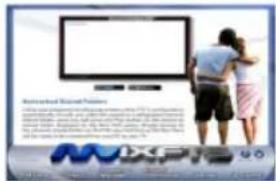
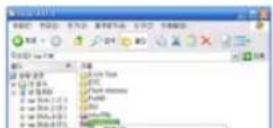
5장 MVIX FTS 이용과 공유
MvixPVR
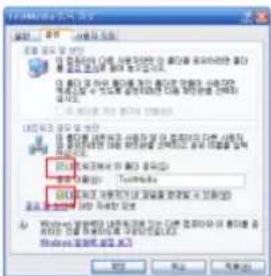
natural_image
Exterior view of a black wireless router connected to a green network device, with a monitor and earphones visible (no text or symbols)
제품보증서
- 4
中