
D-NE800LS - Portable CD player SONY - Free user manual and instructions
Find the device manual for free D-NE800LS SONY in PDF.


| Product Type | Portable CD Player |
| Brand | SONY |
| Model | D-NE800LS |
| Dimensions (approx.) | 12.6 x 13.6 x 2.4 cm |
| Weight (with batteries) | Approx. 210 g |
| Power Source | 2 AAA (LR03) batteries or AC adapter |
| Supported Formats | CD-Audio, CD-R, CD-RW, MP3 |
| MP3 Bitrates | 16 to 320 kbps (VBR included) |
| MP3 Sampling Frequencies | 32, 44.1, 48 kHz |
| Maximum Number of Folders | 999 |
| Max. Number of Characters for File Names | 255 |
| Anti-Shock (G-Protection) | Yes, built-in |
| Headphone Output | 3.5 mm stereo mini-jack |
| Playback Functions | Repeat, shuffle, program, group play |
| Battery Life (alkaline batteries) | Up to 50 hours (CD) / 100 hours (MP3) |
| Maintenance and Cleaning | Clean with a soft, dry cloth. Do not use solvents. |
| Safety | Use only recommended batteries. Do not expose to moisture. |
| Spare Parts and Repairability | Contact SONY customer service or an authorized center. |
| General Information | User manual available for download (128 pages). |
Frequently Asked Questions - D-NE800LS SONY
User questions about D-NE800LS SONY
0 question about this device. Answer the ones you know or ask your own.
Ask a new question about this device
Download the instructions for your Portable CD player in PDF format for free! Find your manual D-NE800LS - SONY and take your electronic device back in hand. On this page are published all the documents necessary for the use of your device. D-NE800LS by SONY.
USER MANUAL D-NE800LS SONY
Operating Instructions GB
GB
CS
User's Guide KR


Atrac3plus
"WALKMAN" is a registered trademark of Sony Corporation to represent Headphone
Stereo products. WALKMAN is a trademark of Sony Corporation.
D-NE800LS
WARNING
To prevent fire or shock hazard, do not expose the unit to rain or moisture.
Do not install the appliance in a confined space, such as a bookcase or built-in cabinet.
To prevent fire, do not cover the ventilation of the apparatus with newspapers, tablecloths, curtains, etc. And don't place lighted candles on the apparatus.
To prevent fire or shock hazard, do not place objects filled with liquids, such as vases, on the apparatus.
CAUTION
The use of optical instruments with this product will increase eye hazard.
Certain countries may regulate disposal of the battery used to power this product. Please consult with your local authority.
CAUTION
• INVISIBLE LASER RADIATION WHEN OPEN • DO NOT STARE INTO BEAM OR VIEW DIRECTLY WITH OPTICAL INSTRUMENTS - CLASS 1M INVISIBLE LASER RADIATION WHEN OPEN • DO NOT VIEW DIRECTLY WITH OPTICAL INSTRUMENTS
The validity of the CE marking is restricted to only those countries where it is legally enforced, mainly in the countries EEA (European Economic Area).
ATRAC3plus and ATRAC3 are trademarks of Sony Corporation.
Table of Contents
Enjoy your ATRAC CD Walkman!
Music sources playable on this CD player .. 6
ATRAC3plus and ATRAC3 7
MP3 7
The structure of ATRAC3plus/ATRAC3 and MP3 files 8
Getting started
Checking the supplied accessories ..... 10
Locating the controls 11
Playing a CD
- Insert a CD. 15
- Connect your CD player. 15
- Play a CD. 16
Playback options
Playing tracks repeatedly (Repeat play) .... 19
Playing all files in a selected group (Group play) (ATRAC CD/MP3 CD only) .... 19
Playing a single track (Single play) ...... 20
Playing tracks in random order (Shuffle play)....20
Playing all files in a selected group in random order (Group shuffle play) (ATRAC CD/MP3 CD only) ...... 20
Playing your favorite play lists (m3u play list play) (MP3 CD only) 20
Playing your favorite tracks by adding Bookmarks (Bookmark track play) ..... 21
Playing the 10 tracks you have played most frequently (Auto ranking play)....22
Playing tracks you have played most frequently in random order (Auto ranking shuffle play) 22
Playing tracks in your favorite order (PGM play).... 23
Searching for groups or tracks/files ...... 24
Available features
Adjusting sound quality (Parametric equalizer) 25
The G-PROTECTION function ...... 26
Protecting your hearing (AVLS) 27
Stopping playback automatically (OFF TIMER) 27
Locking the controls (HOLD) 28
Turning off the beep sound 28
Saving power 29
Playing tracks continuously (SEAMLESS) (ATRAC CD only) 30
Connecting your CD player
Connecting a stereo system 31
Connecting to a power source
Using the rechargeable batteries .... 33
Using the dry batteries 35
Notes on the power source 36
Additional information
List of menus 37
Precautions 38
Maintenance 38
Troubleshooting 39
Specifications 42
Optional accessories 43
Enjoy your ATRAC CD Walkman!
Thank you for purchasing the D-NE800LS. This CD Walkman is called an “ATRAC CD Walkman,” because you can enjoy “ATRAC CDs” on it.
You can make your own ATRAC CD easily.
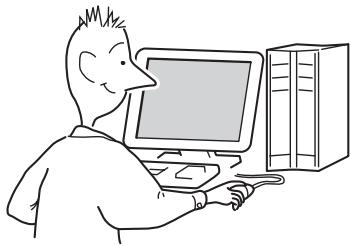
Step 1 Install
Install the supplied "SonicStage Simple Burner" software.
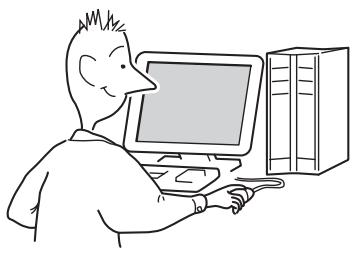
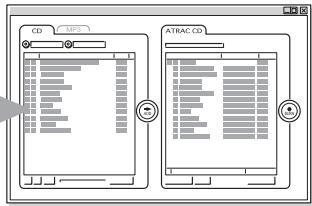
Step 2: Burn
Create a disc image and burn it onto a CD-R/RW using your PC.
Audio CDs
MP3 files or
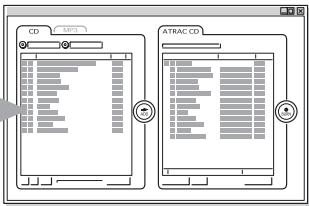
Audio data is converted to the ATRAC3plus/ATRAC3 format by the SonicStage Simple Burner.
How to use the SonicStage Simple Burner
Refer to the supplied booklet “SonicStage Simple Burner.”
What is an ATRAC CD?
An ATRAC CD is a CD-R/RW on which audio data compressed in the ATRAC3plus/ATRAC3 format has been recorded. About 30 audio CDs can be recorded on a CD-R/RW.* You can also record MP3 files by converting the files to the ATRAC3plus/ATRAC3 format.
* When total playing time of one CD (album) is estimated at 60 minutes and you are recording on a 700 MB CD-R/RW at 48 kbps in ATRAC3plus format.
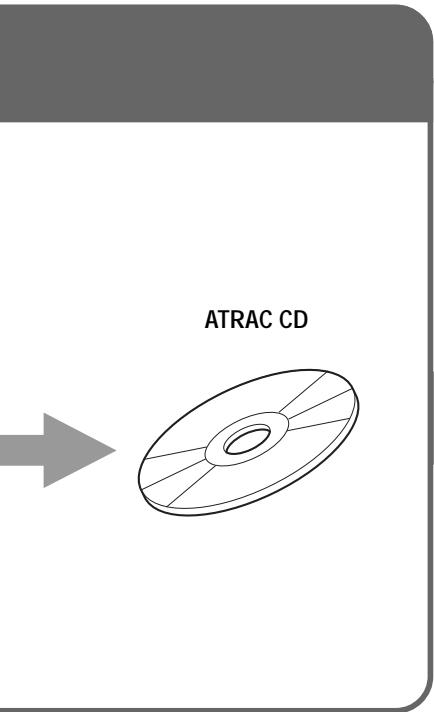
Step 3: Listen
You can enjoy listening to your own ATRAC CDs on your ATRAC CD Walkman.
You can also enjoy audio CDs on your CD Walkman.
What is the ATRAC3plus/ATRAC3 format?
Refer to pages 6 - 9 of this manual.
Music sources playable on this CD player
You can play the following 3 music sources on this CD player:
• Audio CDs (CDDA format) • CDs with ATRAC3plus/ATRAC3 format files (ATRAC CD) • CDs with MP3 format files (MP3 CD)
Usable disc formats
You can use ISO 9660 Level 1/2 and Joliet extension format discs only.
About CD-Rs/RWs
This CD player can play CD-Rs/RWs recorded in the ATRAC3plus/ATRAC3, MP3 or CDDA* format, but playback capability may vary depending on the quality of the disc and the condition of the recording device.
* CDDA is the abbreviation for Compact Disc Digital Audio. It is a recording standard used for the Audio CDs.
Music discs encoded with copyright protection technologies
This product is designed to play back discs that conform to the Compact Disc (CD) standard. Recently, various music discs encoded with copyright protection technologies are marketed by some record companies. Please be aware that among those discs, there are some that do not conform to the CD standard and may not be playable by this product.
Notes
- This CD player cannot record music content on recordable media, such as CD-Rs/RWs.
- CD-Rs/RWs recorded in the ATRAC3plus/ATRAC3 format cannot be played on your computer.
ATRAC3plus and ATRAC3
“ATRAC3plus,” which stands for “Adaptive Transform Acoustic Coding3plus” is audio compression technology, developed from the ATRAC3 format. Though the ATRAC3plus format can compress music content to about 1/20 of its original size at 64 kbps, you can still enjoy high quality sound. The available transfer bit rates are 256 kbps, 64 kbps and 48 kbps.
“ATRAC3,” which stands for “Adaptive Transform Acoustic Coding3” is audio compression technology that satisfies the demand for high sound quality and high compression rates. The ATRAC3 format can compress music content to about 1/10 of their original size, which contributes to reduction of the media volume. The available transfer bit rates are 132 kbps, 105 kbps and 66 kbps.
The usable number of groups and files
• Maximum number of groups: 255 • Maximum number of files: 999
For details, refer to the supplied booklet “SonicStage Simple Burner.”
Note on saving files on the media
Do not save files in other formats (except MP3 files) and do not make unnecessary folders on a disc that has ATRAC3plus/ATRAC3 files.
MP3
MP3, which stands for MPEG-1 Audio Layer3, a standard for audio files compression supported by the Motion Picture Experts Group, an ISO (International Organization for Standardization) working group, enables compression of audio files to about 1/10 of the data size of a standard compact disc.
The major specifications of the acceptable disc format are:
• Maximum directory levels: 8 - Acceptable characters: A - Z, a- z, 0 - 9, _ (underscore)
Notes
- When naming files, be sure to add the file extension "mp3" to the file name.
- If you add the extension “mp3” to a file other than an MP3 file, the player will not be able to recognize the file properly.
(Continued)
The usable number of groups and files
• Maximum number of groups: 255 • Maximum number of files: 999
Settings for compression and writing software
- This CD player is able to play MP3 files with the following specifications: Bit rate: 16 - 320 kbps, and sampling frequencies: 32/44.1/48 kHz. Variable Bit Rate (VBR) files can also be played.
To compress a source for an MP3 file, we recommend setting the compression software to “44.1 kHz,” “128 kbps,” and “Constant Bit Rate.”
- To record up to the maximum capacity, set to “halting of writing.”
- To record at one time up to the maximum capacity on media that has nothing recorded on it, set to “Disc at Once.”
Notes on saving files on the media
- Do not save files in other formats (except MP3/ATRAC3plus/ATRAC3 format files) or unnecessary folders on a disc that has MP3 files.
- When a disc is inserted, the CD player reads all the information of folders and files on that disc. If there are many folders on the disc, it may take a long time for play to begin or for the next file to start playback.
The structure of ATRAC3plus/ATRAC3 and MP3 files
Groups and folders
The ATRAC3plus/ATRAC3 format has a very simple structure. It consists of “files” and “groups.” A “file” is equivalent to a “track” of an audio CD. A “group” is a bundle of files and is equivalent to an “album.” A “group” has no directory-type structure (a new group cannot be made within an existing group).
When referring to MP3 CDs, a “file” is equivalent to a “track” and a “group” is equivalent to an “album.” This CD player is designed to recognize an MP3 folder as a “group” so that it can play CD-Rs/RWs recorded in both the ATRAC3plus/ATRAC3 format and those recorded in the MP3 format with the same operation.
ATRAC3plus/ATRAC3/MP3 file structure and playing order
- ATRAC3plus/ATRAC3
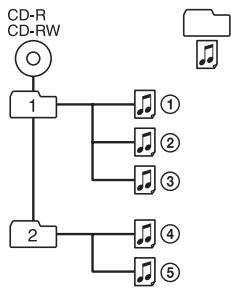
Group ATRAC3plus/ ATRAC3 file
•MP3![graph TD A["CD-R"] --> B["1"] C["CD-RW"] --> B B --> D["①"] B --> E["②"] B --> F["③"] D --> G["②"] E --> H["②"] F --> I["③"] G --> J["③"] H --> K["③"] I --> L["③"] J --> M["④"] K --> N["④"] L --> O["⑤"] M --> P["⑤"] N --> Q["⑤"] style A fill:#f9f,stroke:#333 style C fill:#f9f,stroke:#333 style B fil…](/content/2019/08/102545/images/a5ddf17b0888ec421d78c9d75e0330f60d0535e11f33cdbf152c06edb0d1ed26.jpg)
Notes
- A group that does not include an MP3 file is skipped.
- If ATRAC3plus/ATRAC3 files and MP3 files are recorded on the same CD, this CD player plays the ATRAC3plus/ATRAC3 files first.
- Depending on the method used to record MP3 files on the disc, the playing order may be different from the one shown above.
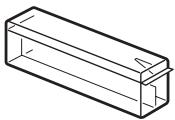
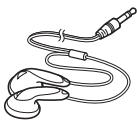
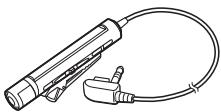
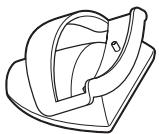
Checking the supplied accessories
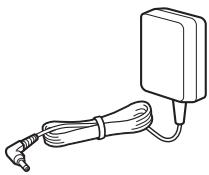
AC power adaptor (1)
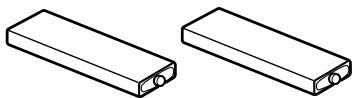
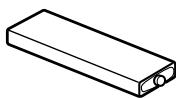
Rechargeable batteries (2)
Battery carrying case (1)
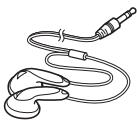
Headphones/earphones (1)
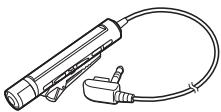
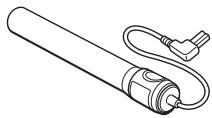
Remote control (1)
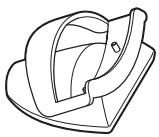
Charging stand (1)
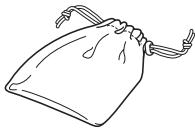
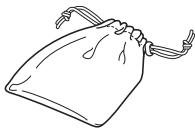
Carrying pouch (1)
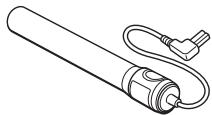
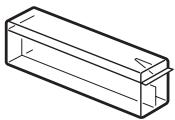
External battery case (1)
CD-ROM* (SonicStage Simple Burner) (1)
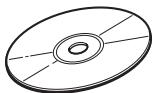
*Do not play a CD-ROM on an audio CD player.
User's guide for SonicStage Simple Burner (1)
Locating the controls
CD player
For details, see the pages in parentheses.
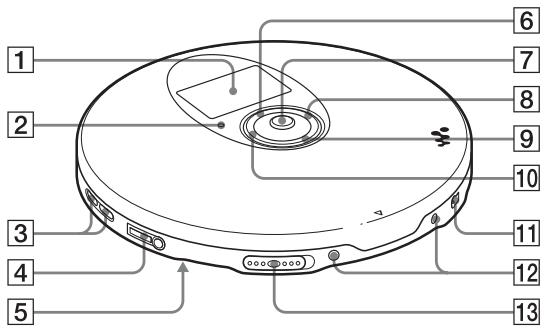
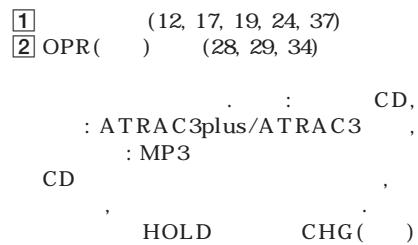
1 Display (12, 17, 19, 24, 37) 2 OPR (operation) lamp (28, 29, 34)
Color of the lamp changes according to the type of music source being played.
Red: Audio CD, Green: ATRAC3plus/ATRAC3 file, Orange: MP3 file
For some time after the CD is inserted, the lamp lights up in red, orange and green in turn.
This lamp also functions as the HOLD lamp and the CHG (charge) lamp.
3 VOL (volume) +*1/- buttons (16) 4 Ⓞ (headphones)/LINE OUT (OPTICAL) jack (15, 31)
Switch the function of the jack, using the menu.
5 HOLD switch (rear) (28)
Slide the switch in the direction of the arrow to disable the buttons on the CD player.
6 ↑ button (19 - 31, 37)
Use to select a file, play mode, etc.
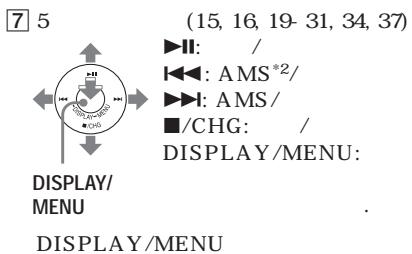
7 5-way control key (15, 16, 19 - 31, 34, 37)
DISPLAY/MENU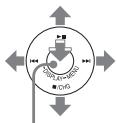
▶II: play/pause ◀: AMS *2 /rewind ▶▶▶: AMS/fast forward ■/CHG: stop/charge
DISPLAY/MENU: Use to select menu items and enter the selection.
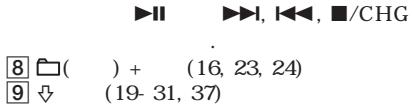
Push the control key toward ▶II, ▶▶I,
or ■/CHG with your finger on DISPLAY/MENU.
8 (group) + button (16, 23, 24) 9 ↓ button (19 - 31, 37)
Use to select a file, play mode, etc.
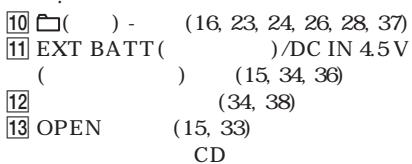
10 □ (group) - button (16, 23, 24, 26, 28, 37) 11 EXT BATT (external battery)/
DC IN 4.5 V (external power input) jack (15, 34, 36)
12 Terminals for the charging stand (34, 38) 13 OPEN switch (15, 33)
Slide the switch to open the CD player lid.
*1 The button has a tactile dot. *2 Automatic Music Sensor
Display (CD player)
For details, see the pages in parentheses.
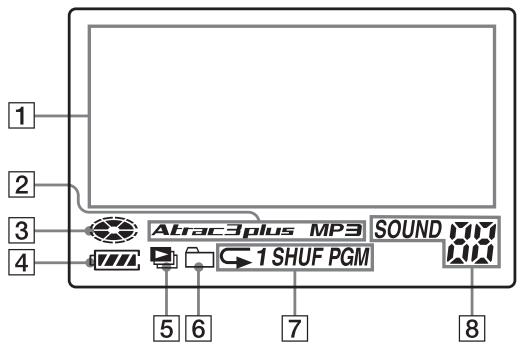
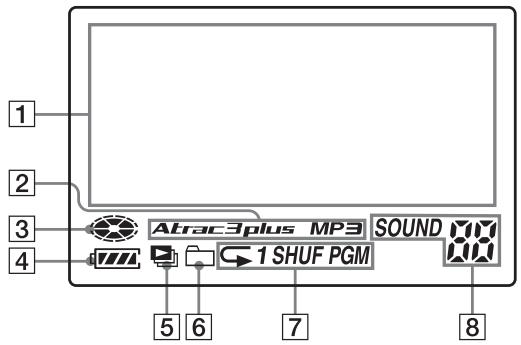
1 Character information display (17) While playing an audio CD, disc name, track name, etc. appear in 4 lines, if recorded on the CD. While playing an ATRAC CD/MP3 CD, group name, file name, etc. appear in 4 lines, if recorded on the CD. Menu items also appear in this display. 2 Atrac3plus/MP3 indication 3 Disc indication Lights up while the CD player is playing. 4 Battery indication (33) Roughly shows the remaining power of the battery. If "☐" flashes, the batteries are depleted.
5 Play list indication (21) For MP3 CD only 6 Group indication (19, 20) For ATRAC CD/MP3 CD only 7 Play mode indication (19 - 24) Shows various play modes such as shuffle play and program play. "◀" shows repeat play. 8 SOUND indication (25, 26) Shows the SOUND setting which has been selected on the menu.
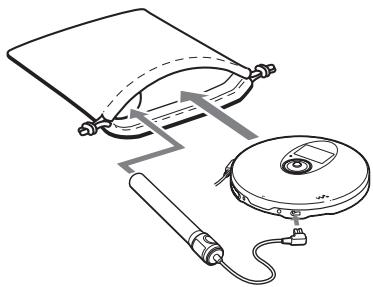
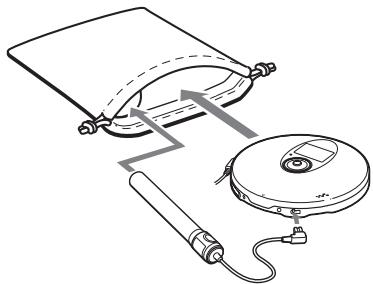
Using the carrying pouch
You can carry your player and its battery case together using the supplied carrying pouch. Insert them into the proper places in the pouch as illustrated.
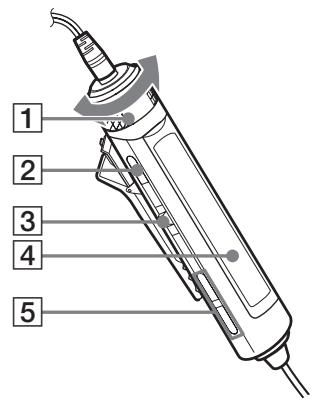
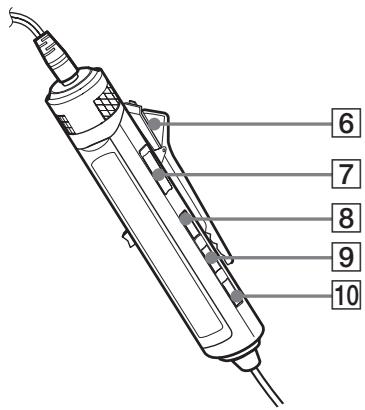
Remote control
For details, see the pages in parentheses.
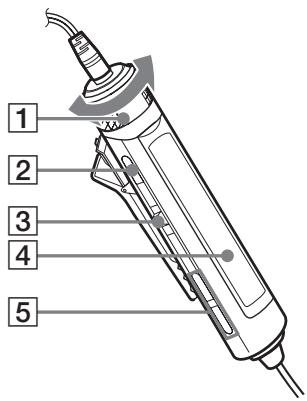
1 VOL (volume) +/- control (16, 26, 28) Turn to adjust the volume. 2 ■ (stop) button (16, 26, 28, 37) 3 Jog lever (◀◀ ▶||/ENT ▶▶) (16, 21 - 23, 25 - 31)
▶II (play/pause)/ENT (enter):
Press during stop to start play, and press during play to pause play. When selecting menu items, press to enter the selection.
Flick toward ◀◀◀ or ▶▶▶: AMS, rewind, fast forward
4 Display (14, 17) 5 (group) +/- buttons (16, 23, 24)
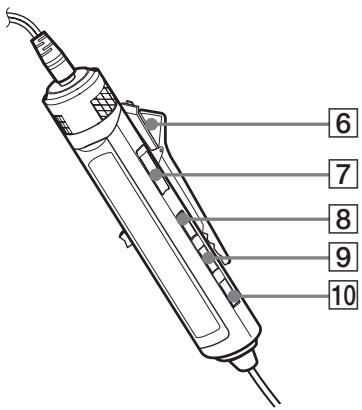
6 Clip (14) 7 HOLD switch (28)
Slide the switch in the direction of the arrow (a yellow mark appears) to disable the buttons on the remote control.
8 DISPLAY button (24, 26 - 31, 37) 9 P MODE/→ button (19 - 24) 10 SOUND button (25, 37)
Note
Use only the supplied remote control. You cannot operate this CD player with the remote control supplied with other CD players.
(Continued)
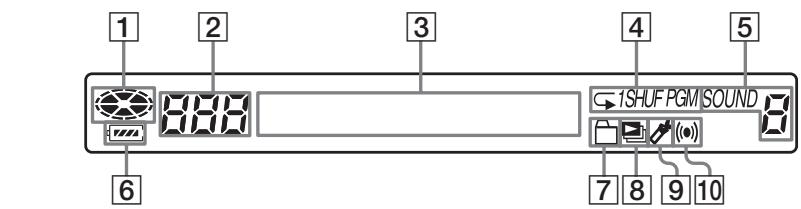
Display (remote control)
For details, see the pages in parentheses.
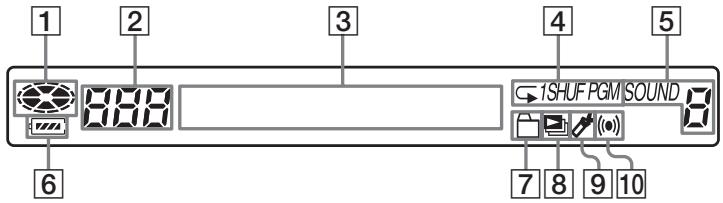
1 Disc indication 2 Track number indication (23) 3 Character information display (17) 4 Play mode indication (19 - 23) 5 SOUND indication (25, 26) 6 Battery indication (33) 7 Group indication (19, 20)
8 Play list indication (21) 9 Bookmark indication (21, 22) During play, the indication shows a track has a Bookmark. 10 Timer indication (27) Shows the OFF TIMER setting has been selected on the menu.
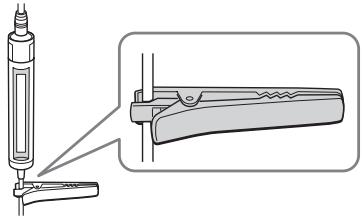
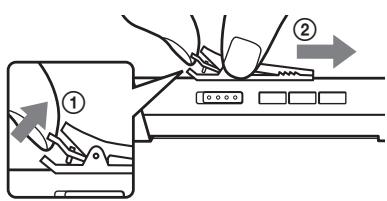
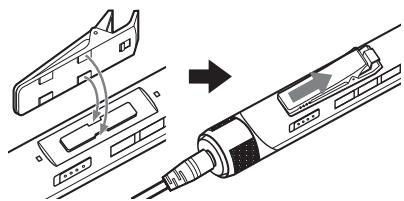
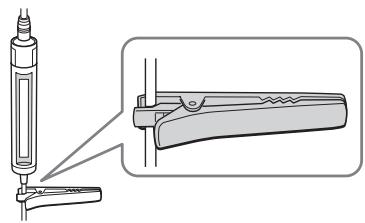
To use the clip on the remote control
You can remove the clip from the remote control and change the direction of the clip.
To remove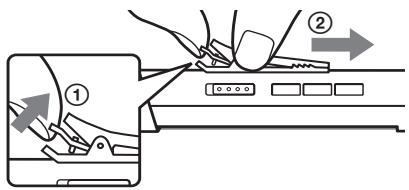
To attach in the reverse direction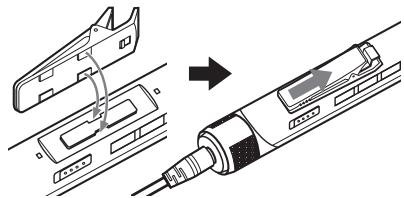
You can pass the cord of the remote control through this clip.
1. Insert a CD.
① Slide OPEN to open the CD player lid.
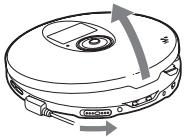
OPEN switch
② Place the CD on the tray and close the lid.
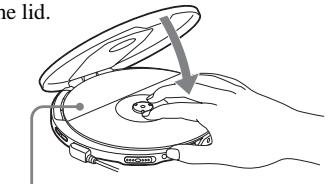
Label side up
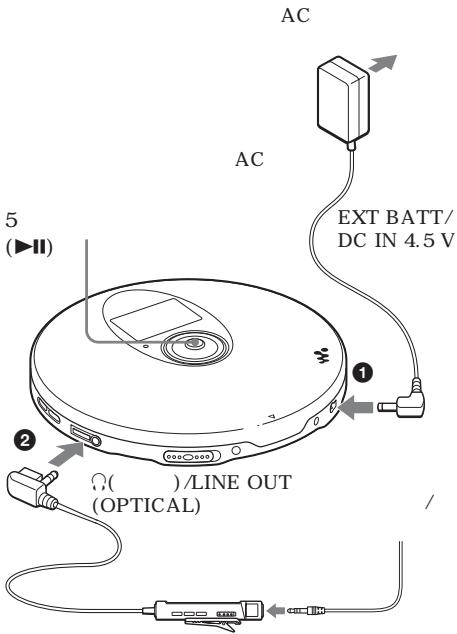
2. Connect your CD player.
You can use the following power sources:
• Rechargeable batteries (page 33) • LR6 (size AA) alkaline batteries (external battery case) (page 35) - AC power adaptor
We explain how to use your CD player on house current on this page. Connect the plugs and terminals securely.
① Connect the AC power adaptor. ② Connect the headphones/earphones with the remote control to the CD player.
to an AC outlet
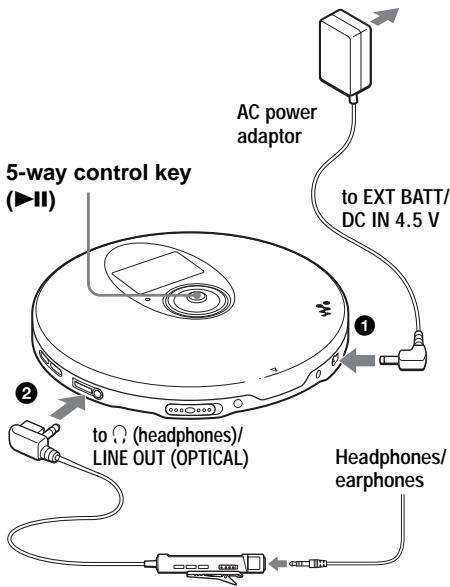
Remote control
(Continued)
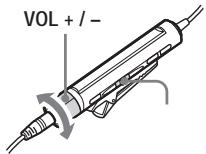
3. Play a CD.
5-way control key (▶II)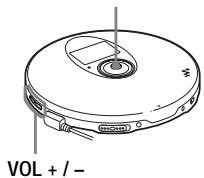
① Push the control key toward ▶II. ② Adjust the volume by pressing VOL + or -.
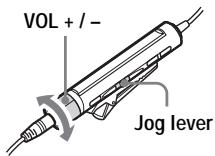
① Press the jog lever. ② Adjust the volume by turning VOL +/-.
| To | CD player | Remote control |
| Play (from a point where you stopped previously) | Push the control key toward ▶II.Playback starts from the point where you stopped. | Press the jog lever.Playback starts from the point where you stopped. |
| Play (from the first track) | While the CD player is stopped, push and hold the control key toward ▶II until the play of the first track starts. | While the CD player is stopped, press and hold the jog lever until the play of the first track starts. |
| Pause/resume play after pause | Push toward ▶II. | Press the jog lever. |
| Stop*2 | Push toward ■/CHG. | Press ■. |
| Find the beginning of the current track (AMS*1)*2 | Push toward ◀◀. | Flick the jog lever toward ◀◀ once. |
| Find the beginning of previous tracks (AMS)*3 | Push toward ◀◀ repeatedly. | Flick the jog lever toward ◀◀ repeatedly. |
| Find the beginning of the next track (AMS)*2,*3 | Push toward ▶▶. | Flick the jog lever toward ▶▶ once. |
| Find the beginning of succeeding tracks (AMS)*3 | Push toward ▶▶I repeatedly. | Flick the jog lever toward ▶▶I repeatedly. |
| Go backwards quickly *2,*5 | Push and hold toward ◀◀. | Hold the jog lever toward ◀◀. |
| Go forward quickly *2,*5 | Push and hold toward ▶▶. | Hold the jog lever toward ▶▶. |
| Jump to succeeding groups *4 | Press □ + repeatedly. | Press □ + repeatedly. |
| Jump to previous groups *4 | Press □ – repeatedly. | Press □ – repeatedly. |
*1 Automatic Music Sensor
*2 These operations can be carried out during both play and pause.
*3 After you have played the last track, you can return to the beginning of the first track by flicking the jog lever toward ▶▶▶ (by pushing the control key toward ▶▶▶ on the CD player). Similarly, if you are at the first track, you can locate the last track by flicking the jog lever toward ◀◀◀ (by pushing the control key toward ◀◀◀ on the CD player).
*4 Only when you play an ATRAC CD/MP3 CD
*5 These operations cannot be carried out when using an MP3 file recorded on a CD-R/RW in a packet write format.
Checking CD information on the display
You can check CD information by repeatedly pressing DISPLAY/MENU on the CD player or DISPLAY on the remote control.
When you are playing a CD containing text information such as CD-TEXT, “track name,” “album name,” “artist name,” etc. are displayed as shown in parentheses in the following table. When you are playing an ATRAC CD, information you input using the SonicStage Simple Burner software is displayed. When you are playing an MP3 CD containing MP3 files with an ID3 tag *1 , ID3 tag information is displayed.
CD player
Each time you press DISPLAY/MENU, the display changes as follows:
| Audio CD | ATRAC CD/MP3 CD |
| Track number, elapsed playing time(Track name, artist name, album name) | File name, artist name*3, group name,file number, elapsed playing time |
| Track number, remaining time of the current track(Track name, artist name) | File name, CODEC information*4,file number, remaining time of the current file |
| The total number of tracks on the CD,the total playing time of the CD,the number of tracks left*2, the time remaining on the CD*2 | Total number of files, total number of groups,file number, elapsed playing time |
| List of track names | List of group names/file names |
Remote control
Each time you press DISPLAY, the display changes as follows:
| Audio CD | ATRAC CD/MP3 CD |
| Track number, elapsed playing time, (Track name) | File number, file name, elapsed playing time |
| Track number, remaining time of the current track (Track name, artist name) | File number, artist name, CODEC information*4, remaining time of the current file |
| The number of tracks left*2, the time remaining on the CD*2 (Album name, artist name) | Group name, total number of files |
| Animation screen | |
*1 An ID3 tag is a format for adding certain information (track name, album name, artist name, etc.) to MP3 files. This CD player conforms to Version 1.1/2.2/2.3 of the ID3 tag format (for MP3 files only). *2 Not displayed during Single play, Shuffle play, Bookmark track play, Auto ranking play, Auto ranking shuffle play or PGM play. *3 During play, “artist name” is not displayed if the disc does not have ID3 tag information. When the list of group names/file names appears in the display, “artist name” is not displayed. *4 Bit rate and sampling frequencies. While an MP3 file made at VBR (variable bit rate) is being played, "VBR" appears on the display instead of a bit ratae. In some cases, "VBR" appears halfway through playback, not from the beginning.
(Continued)
Notes
- The following characters can be displayed on this CD player:
- the alphanumeric characters A - Z, a - z, 0 - 9 and _ – Chinese characters (for the Chinese model) – Korean characters (for the Korean model)
On the remote control supplied, neither Chinese nor Korean characters can be displayed.
- Before playing a file, the CD player reads all file and group (or folder) information on the CD. “READING” is displayed. Depending on the content of the CD, it may take some time to accomplish this reading.
- If the group does not have a group name, “ROOT” appears in the display.
- If the file does not have ID3 tag information, “- - - -” appears in the display.
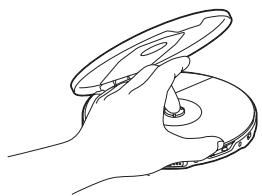
Removing the CD
Remove the CD while pressing the pivot in the center of the tray.
▶ Playback options
You can enjoy the following playback options using the P MODE/→ button on the remote control or the menu function on the CD player.
- Playing tracks repeatedly (Repeat play)
- Playing all files in a selected group (Group play)
- Playing a single track (Single play)
- Playing tracks in random order (Shuffle play)
- Playing files in a selected group in random order (Group shuffle play)
- Playing your favorite playlists (m3u playlist play)
- Playing your favorite tracks by adding bookmarks (Bookmark track play)
- Playing the 10 tracks you have played most frequently (Auto ranking play)
- Playing tracks you have played most frequently in random order (Auto ranking shuffle play)
- Playing tracks in your favorite order (PGM play)
Selecting playback options on the CD player
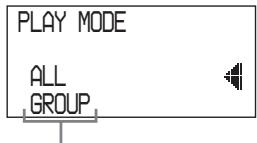
Enter the PLAY MODE menu using the following procedures, then select each playback option.
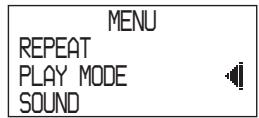
1 Press DISPLAY/MENU until the MENU screen appears.
2 Press ↑ or ↓ to select “PLAY MODE,” then press DISPLAY/MENU.
3 Press ↑ or ↓ to select the playback option you want. The default setting is “ALL” (normal).
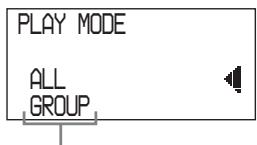
Playback options appear.
Selecting playback options using the remote control
Press P MODE/→ repeatedly to select the playback option you want.
Playing tracks repeatedly (Repeat play)
You can repeat various playback options.
Using the remote control
During play, press and hold P MODE/▶ until “◀” appears.
001 02:34
On the CD player
1 Press DISPLAY/MENU until the MENU screen appears. 2 Press ↑ or ↓ to select “REPEAT,” then press DISPLAY/MENU. 3 Press ↩ or ↓ to select "ON," then press DISPLAY/MENU to enter the selection.
Playing all files in a selected group
(Group play) (ATRAC CD/MP3 CD only)
During play, press P MODE/← repeatedly until “☐” appears. (CD player: Perform steps 1 and 2 of “Selecting playback options on the CD player” (this page), press ↑ or ↓ to select “GROUP,” then press DISPLAY/MENU to enter the selection.)
005 03:45
Playing a single track
(Single play)
During play, press P MODE/→ repeatedly until “1” appears. (CD player: Perform steps 1 and 2 of “Selecting playback options on the CD player” (page 19), press ↑ or ↓ to select “1,” then press DISPLAY/MENU to enter the selection.)

005
03:45
Playing tracks in random order (Shuffle play)
During play, press P MODE/→ repeatedly until “SHUF” appears. (CD player: Perform steps 1 and 2 of “Selecting playback options on the CD player” (page 19) and press ↩ or ↓ to select “SHUFFLE”, then press DISPLAY/MENU to enter the selection.)

003
01:25
SHUF
Playing all files in a selected group in random order (Group shuffle play) (ATRAC CD/MP3 CD only)
During play, press P MODE/ repeatedly until “☐ SHUF” appears. (CD player: Perform steps 1 and 2 of “Selecting playback options on the CD player” (page 19) and press ↑ or ↓ to select “GROUP SHUFFLE”, then press DISPLAY/MENU to enter the selection.)

003
01:25
SHUF

Playing your favorite play lists (m3u play list play) (MP3 CD only)
You can play your favorite m3u play lists.* * An “m3u play list” is a file for which an MP3 file playing order has been encoded. To use the play list function, record MP3 files on a CD-R/RW using encoding software that supports the m3u format.
1 During play, press P MODE/ repeatedly until “☐” (play list) appears. (CD player: Perform steps 1 and 2 of “Selecting playback options on the CD player” (page 19) and press ↑ or ↓ to select “PLAY LIST”, then press DISPLAY/MENU to enter the selection.)
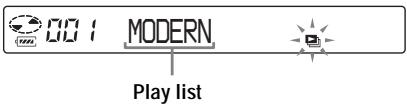
2 Flick the jog lever toward ◀◀ or ▶▶I to select a play list you want. (CD player: Press ⬇ or ↓ to select a play list.)

3 Press the jog lever. (CD player: Push the 5-way control key toward ▶II.)

Playing your favorite tracks by adding Bookmarks (Bookmark track play)
While the CD player is playing, you can add Bookmarks to the tracks you want and play them only.
Audio CD: up to 99 tracks for each CD (up to 10 CDs)
ATRAC CD: up to 999 tracks for each CD (up to 5 CDs)
MP3 CD: up to 999 tracks for each CD (up to 5 CDs)
Adding Bookmarks
1 During play of the track to where you want to add a Bookmark, press and hold the jog lever until “√” flashes. (CD player: Push and hold the 5-way control key toward ▶II until “√” flashes.) When the Bookmark has been added successfully, “√” flashes slower. 2 Flick the jog lever toward ◀◀◀ or ▶▶◀ (CD player: Push the 5-way control key toward ◀◀◀ or ▶▶◀) to select the track to where you want to add a Bookmark, then repeat step 1 to add Bookmarks to the tracks you want.
Playing the tracks with Bookmarks
1 Press P MODE/ repeatedly until “ ” (Bookmark) flashes frequently. (CD player: Perform steps 1 and 2 of “Selecting playback options on the CD player” (page 19), press ⇧ or ⇧ to select “BOOK MARK,” then press DISPLAY/MENU. The play of the tracks with the Bookmarks starts.) 2 Press the jog lever to light up “√”. The play of the tracks with the Bookmarks starts.
(Continued)
Playing your favorite tracks by adding Bookmarks
To remove the Bookmarks
During play of the track with a Bookmark, press and hold the jog lever until “√” disappears from the display. (CD player: Push and hold the 5-way control key toward ▶II until “√” disappears from the display.)
To check the tracks with Bookmarks
During playback of the tracks with Bookmarks, “⚡” flashes slowly in the display.
Notes
- During play of tracks with Bookmarks, tracks are played in order of track number, and not in the order you added the Bookmarks.
- If you try to add Bookmarks to the tracks on the 11th CD (on a 6th CD when playing ATRAC CDs/MP3 CDs), the Bookmarks of the CD you played first will be erased.
- All Bookmarks stored in memory will be erased: – if you remove all the power sources, or – if you continue playing the CD player on the rechargeable batteries without charging the batteries even though “Lobatt” is displayed.
Playing the 10 tracks you have played most frequently (Auto ranking play)
The CD player automatically memorizes up to 10 tracks you have played most frequently from the CD being played, and plays them from the 10th to the top.
During play, press P MODE/ repeatedly to select "a00 (auto ranking)" and press the jog lever to enter the selection. (CD player: Perform steps 1 and 2 of "Selecting playback options on the CD player" (page 19), press ↑ or ↓ to select "AUTO RANKING," then press DISPLAY/MENU to enter the selection.)
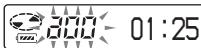
Playing tracks you have played most frequently in random order (Auto ranking shuffle play)
The CD player plays up to 32 tracks which the player has automatically memorized as the most frequently played ones. In Auto ranking shuffle play, these tracks are played in random order.
During play, press P MODE/→ repeatedly to select “a00 (auto ranking) SHUF” and press the jog lever to enter the selection. (CD player: Perform steps 1 and 2 of “Selecting playback options on the CD player” (page 19), press ↑ or ↓ to select “RANKING SHUF,” then press DISPLAY/MENU to enter the selection.)
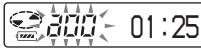
SHUF
Note
The CD player memorizes the tracks you have played from up to 10 CDs, whether you have changed the CDs or not. If the CD player tries to memorize tracks from an 11th CD, the data memorized first will be erased.
Playing tracks in your favorite order (PGM play)
You can program the CD player to play up to 64 tracks in your favorite order.
1 While play is stopped, press P MODE/ repeatedly until "PGM" (program) appears. (CD player: While play is stopped, perform steps 1 and 2 of "Selecting playback options on the CD player" (page 19) and press ↑ or ↓ to select "PROGRAM", then press DISPLAY/MENU to enter the selection.)
Audio CD/CD-TEXT
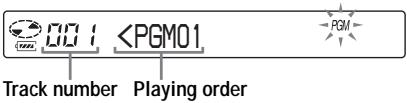
Checking the program
While programming:
Press and hold the jog lever repeatedly before step 4. (CD player: Push and hold the 5-way control key toward ▶II repeatedly or press DISPLAY/MENU repeatedly.)While play is stopped:
Press DISPLAY. While the indications are displayed, press P MODE/→ repeatedly until “PGM” flashes, then press the jog lever until the display changes. (CD player: Press DISPLAY/MENU repeatedly until the list of the tracks programmed appears. To display tracks from the third track on, push the 5-way control key toward ▶II.)Notes
- When you finish entering the 64th track in step 3, the first selected track number (audio CD) or the first selected file name (ATRAC CD/MP3 CD) appears on the display. - If you select 65 tracks or more, the first selected tracks are erased.Searching for groups or tracks/files
While the CD player is playing, you can search for and play the group (ATRAC CD only) or track/file you want quickly using ↑ or ↓ on the CD player.1 During play, press ↑ or ↓ until the search screen appears.
2 Press ☐ + or ☐ – to select the group you want, then push the 5-way control key toward ▶II.
The CD player starts playing from the first file in the group you selected.Selecting the track/file you want
1 Perform step 1 above, then press ☐ + or ☐ – to select the group you want. 2 Press ↑ or ↓ to select the track/file you want, then push the 5-way control key toward ▶II. The CD player starts playing from the track/ file you selected.To exit the search mode
Push the 5-way control key toward ■/CHG. If about 40 seconds at most have passed without any operation being performed, the screen returns to the previous one.Note
If you try to operate the CD player using the remote control during a search, “MENU” appears and you cannot perform any operation.Adjusting sound quality (Parametric equalizer)
You can enjoy your favorite sounds by adjusting sound quality in the following two ways: - Selecting a preset sound pattern → “Selecting the sound quality you want” - Adjusting sound quality by yourself → “Customizing sound quality” Selecting the sound quality you want| Indication | Sound quality |
| SOFT/SOUND S | For vocals, stressing middle range audio |
| ACTIVE/SOUND A | Lively sounds, emphasizing high and low range audio |
| HEAVY/SOUND H | Powerful sounds, further emphasizing high and low ranges compared with ACTIVE sound |
| CUSTOM/SOUND C | Customized sound |
Using the remote control
Press SOUND repeatedly to select the sound quality you want.On the CD player
1 Press DISPLAY/MENU until the MENU screen appears. 2 Press ⇧ or ⇧ to select “SOUND,” then press DISPLAY/MENU. 3 Press ↩ or ↽ to select the sound quality you want, then press DISPLAY/MENU to enter the selection.Customizing sound quality
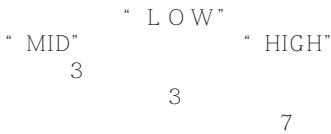
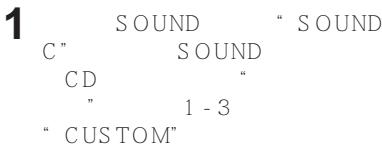
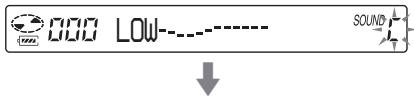
You can customize sound quality by adjusting the sound volume in the 3 frequency ranges “LOW” (low range audio), “MID” (middle range audio) and “HIGH” (high range audio). For each frequency range, you can select the wave pattern from among 3 patterns, and can also adjust the sound volume in 7 levels for the pattern you select. Adjust sound quality by checking the shape of the wave on the display. 1 Press SOUND repeatedly to select "SOUND C", then press SOUND until the display changes. (CD player: Perform steps 1 - 3 of "Selecting the sound quality you want" and select "CUSTOM.") 2 Flick and hold the jog lever toward ◀◀◀ or ▶▶◀ until the frequency range you want appears. (CD player: Push the 5-way control key toward ◀◀◀ or ▶▶◀ for 2 seconds or more to select the frequency range.) “LOW” is displayed first. (CD player: “LOW” flashes.)  (Continued)Adjusting sound quality
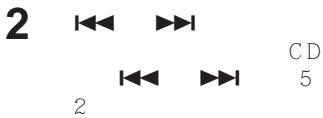
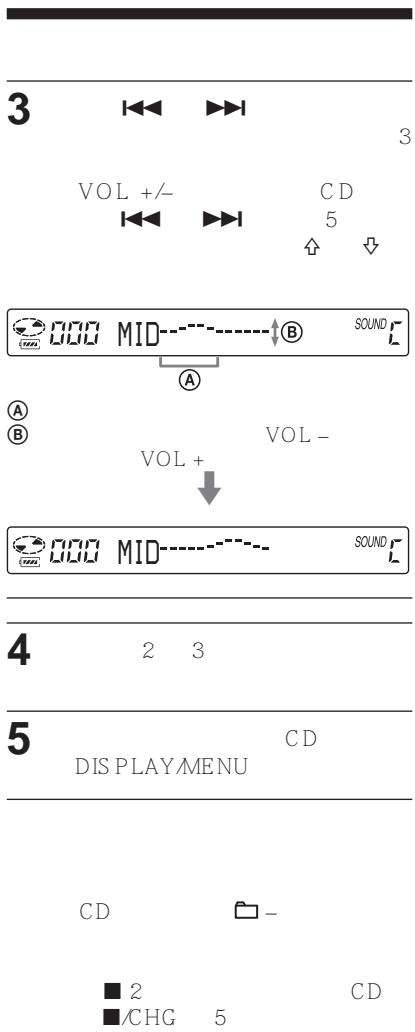
3 Flick the jog lever toward I◀◀ or ▶▶▶I repeatedly to select the shape of the wave from the 3 shapes stored in memory for each frequency range, then turn the VOL +/- repeatedly to select the sound volume. (CD player: Push the 5-way control key toward I◀◀ or ▶▶▶I repeatedly to select the shape of the wave, then press ↑ or ↓ to select the sound volume.)  Ⓐ: Frequency range ⑧: Sound volume (To turn up the volume, use VOL -. To turn it down, use VOL +.)   4 Repeat steps 2 and 3 to make adjustment for the remaining 2 frequency ranges. 5 Press the jog lever to enter the selection. (CD player: Press DISPLAY/MENU to enter the selection.) To return to the previous screen Press ☐ – on the CD player. To cancel the adjustment operation Press ■ for 2 seconds or more. (CD player: Push the 5-way control key toward ■/CHG.)Notes
- When you select CUSTOM sound, sound may be distorted depending on your sound settings when you turn up the volume. If this happens, turn the volume down. - You may feel a difference in sound volume between the CUSTOM sound setting and other sound settings. Adjust the volume for your preference.The G-PROTECTION function
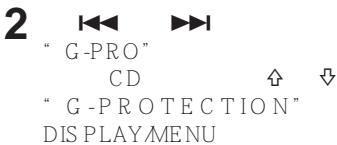
The G-PROTECTION function has been developed to provide excellent protection against sound skipping during many active uses. 1 While play is stopped, press DISPLAY until the display changes. (CD player: While play is stopped, press DISPLAY/MENU until the MENU screen appears. Press ↑ or ↓ to select "OPTION," then press DISPLAY/MENU.) 2 Flick the jog lever toward ◀◀◀ or ▶▶◀ to select “G-PRO,” then press the jog lever to enter the selection. (CD player: Press ↗ or ↓ to select “G-PROTECTION,” then press DISPLAY/MENU to enter the selection.) 3 Flick the jog lever toward ◀◀◀ or ▶▶◀I to select “G-PRO 1” or “G-PRO 2,” then press the jog lever to enter the selection. (CD player: Press ↩ or ↓ to select “G-PRO 1” or “G-PRO 2,” then press DISPLAY/MENU to enter the selection.) If you select “G-PRO 2,” the G-PROTECTION function will be enhanced compared to “G-PRO 1.” To enjoy high quality CD sound, select “G-PRO 1.”Note
Sound may skip: – if the CD player receives stronger continuous shock than expected, - if a dirty or scratched CD is played, or - when using poor-quality CD-Rs/RWs or if there is a problem with the original recording device or application software.Protecting your hearing (AVLS)
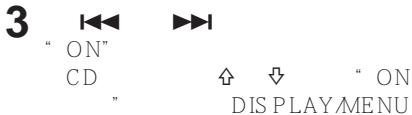
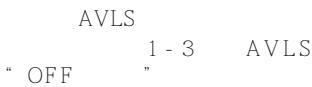
The AVLS (Automatic Volume Limiter System) function keeps the maximum volume down to protect your hearing. 1 Press DISPLAY until the display changes. (CD player : Press DISPLAY/MENU until the MENU screen appears. Press ↗ or ↓ to select "OPTION," then press DISPLAY/MENU.) 2 Flick the jog lever toward ◀◀◀ or ▶▶◀ to select “AVLS,” then press the jog lever to enter the selection. (CD player: Press ↩ or ↓ to select “AVLS,” then press DISPLAY/MENU to enter the selection.) 3 Flick the jog lever toward I◀◀ or ▶▶▶I to select “ON,” then press the jog lever to enter the selection. (CD player: Press ↩ or ↓ to select “ON,” then press DISPLAY/MENU to enter the selection.)To cancel the AVLS function
Perform steps 1 - 3, changing the AVLS setting to “OFF.”Stopping playback automatically (OFF TIMER)
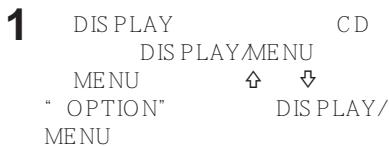
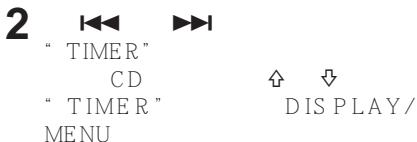
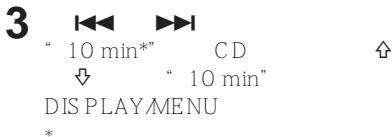
You can set the CD player to stop the play automatically within a range of 1 to 99 minutes. While the timer function is working, the following indications appear: - CD player: “山区” appears at about 5-second intervals. - Remote control: “((●))” is displayed. 1 Press DISPLAY until the display changes. (CD player: Press DISPLAY/MENU until the MENU screen appears. Press ↑ or ↓ to select "OPTION," then press DISPLAY/MENU.) 2 Flick the jog lever toward ◀◀◀ or ▶▶◀ I to select “TIMER,” then press the jog lever to enter the selection. (CD player: Press ↗ or ↓ to select “TIMER,” then press DISPLAY/MENU to enter the selection.) 3 Flick the jog lever toward ◀◀◀ or ▶▶◀ to select “10 min*”. (CD player: Press ↑ or ↓ to select “10 min,” then press DISPLAY/MENU.) * Default setting. If you have changed the setting, the length of time already set appears. (Continued)Stopping playback automatically
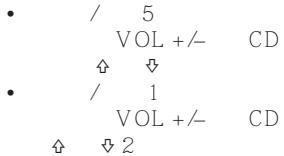
4 Turn VOL +/- to select the length of time you want to set, then press the jog lever to enter the selection. (CD player: Press ↑ or ↓ to select the length of time you want to set, then press DISPLAY/MENU to enter the selection.) - To increase/decrease by 5 minutes: Turn VOL +/- repeatedly. (CD player: Press or repeatedly.) - To increase/decrease by 1 minute: Keep turning VOL +/-. (CD player: Press or for 2 seconds or more.)To return to the previous screen
Press ■. (CD player: Press □ -.)To cancel the setting operation
Press DISPLAY or ■ for 2 seconds or more. (CD player: Push the 5-way control key toward ■/CHG.)To check the length of time before the CD player stops playback
During play, perform steps 1 - 3.To cancel the OFF TIMER function
Perform steps 1 - 3, changing the OFF TIMER setting to “OFF.”Locking the controls (HOLD)
You can lock the controls on your CD player to prevent accidental button presses. The OPR lamp flashes if you press any button when the HOLD function is activated.Slide HOLD in the direction of the arrow.
You can use the HOLD function with both the CD player and the remote control. You can still operate your CD player using the remote control when HOLD on the remote control is set to off.To unlock the controls
Slide HOLD in the direction opposite to that of the arrow.Note
Even if the HOLD function is working, “HOLD” will not appear in the display of the remote control.Turning off the beep sound
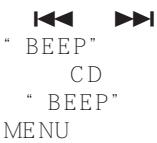
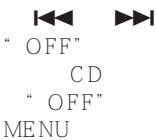
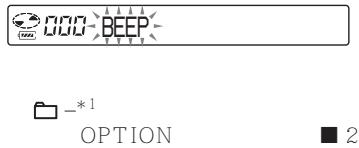
You can turn off the beep sound that is heard from your headphones/earphones when you operate your CD player. 1 Press DISPLAY until the display changes. (CD player: Press DISPLAY/MENU until the MENU screen appears. Press ↑ or ↓ to select "OPTION," then press DISPLAY/MENU.) 2 Flick the jog lever toward ◀◀◀ or ▶▶◀ to select “BEEP,” then press the jog lever to enter the selection. (CD player: Press ↩ or ↓ to select “BEEP,” then press DISPLAY/MENU to enter the selection.) 3 Flick the jog lever toward ◀◀◀ or ▶▶◀ to select “OFF,” then press the jog lever to enter the selection. (CD player: Press ↩ or ↓ to select “OFF,” then press DISPLAY/MENU to enter the selection.)To turn on the beep sound
Perform steps 1 - 3, changing the BEEP setting to “ON.”Saving power
You can select lighting options for the OPR lamp on the CD player so that you can save battery power. 1 Press DISPLAY until the display changes. (CD player: Press DISPLAY/MENU until the MENU screen appears. Press ↑ or ↓ to select "OPTION," then press DISPLAY/MENU.) 2 Flick the jog lever toward ◀◀◀ or ▶▶◀ to select “LIGHT,” then press the jog lever to enter the selection. (CD player: Press ↩ or ↓ to select “LIGHT,” then press DISPLAY/MENU to enter the selection.) 3 Flick the jog lever toward ◀◀◀ or ▶▶◀ to select “LIGHT OFF” or “LIGHT 2,” then press the jog lever to enter the selection. (CD player: Press ↗ or ↓ to select “LIGHT OFF” or “LIGHT 2,” then press DISPLAY/MENU to enter the selection.) About the LIGHT setting| Setting | OPR lamp on the CD player |
| LIGHT OFF | Turned off |
| LIGHT 1 | Lights up fully during play or during operation |
| LIGHT 2* | Lights up with less brightness during play or during operation |
Playing tracks continuously (SEAMLESS)
(ATRAC CD only) You can play live concert music, etc. without space between the tracks. 1 While play is stopped, press DISPLAY until the display changes. (CD player: While play is stopped, press DISPLAY/MENU until the MENU screen appears. Press ↑ or ↓ to select "OPTION," then press DISPLAY/MENU.) 2 Flick the jog lever toward ◀◀◀ or ▶▶◀I to select “SEAMLESS,” then press the jog lever to enter the selection. (CD player: Press ↗ or ↓ to select “SEAMLESS,” then press DISPLAY/MENU to enter the selection.) 3 Flick the jog lever toward I◀◀ or ▶▶▶I to select “ON,” then press the jog lever to enter the selection. (CD player: Press ↩ or ↓ to select “ON,” then press DISPLAY/MENU to enter the selection.)Note
The tracks may not be played continuously depending on how the source music was recorded.Connecting a stereo system
You can listen to CDs through a stereo system and record CDs on a cassette tape or MiniDisc. For details, see the instruction manual that comes with the device you want to connect. Be sure to turn off all devices before making connections.  MiniDisc recorder, DAT deck, etc. Stereo system, cassette recorder, radio cassette recorder, etc. 1 While play is stopped, press DISPLAY until the display changes. (CD player: While play is stopped, press DISPLAY/MENU until the MENU screen appears. Press ↑ or ↓ to select "OPTION," then press DISPLAY/MENU.) 2 Flick the jog lever toward ◀◀◀ or ▶▶◀I to select “AUDIO OUT,” then press the jog lever to enter the selection. (CD player: Press ↗ or ↓ to select “AUDIO OUT,” then press DISPLAY/MENU to enter the selection.) 3 Flick the jog lever toward ◀◀◀ or ▶▶◀I to select the setting appropriate for the connected device, then press the jog lever to enter the selection. (CD player: Press ↑ or ↓ to select the setting, then press DISPLAY/MENU to enter the selection.)| Connected device* | Setting |
| Headphones | “HP” |
| Device connected using the connecting cord | “LINE” |
Connecting a stereo system
Notes
- Before you play a CD, turn down the volume of the connected device to avoid damaging the connected speakers. - Use the AC power adaptor for recording. If you use the rechargeable batteries or dry batteries as a power source, the batteries may become completely depleted during recording. - Adjust the volume properly on the connected device so that the sound will not be distorted. - This CD player uses the Serial Copy Management System, which allows only first-generation digital copies to be made. - When recording or playing an ATRAC CD/MP3 CD using a connected device, use only the analog connecting cord. - If you change the connected device, make sure to change the “AUDIO OUT” setting.When the headphones or other devices are connected to the Ω/ LINE OUT (OPTICAL) jack
When an optical digital connecting cord is connected, the output is automatically switched to an optical digital output. When a remote control or a connecting cord is connected, the current AUDIO OUT setting (“HP” or “LINE”) flashes for about 5 seconds. If you connect another device to the / LINE OUT (OPTICAL) jack, first remove the device and connect the headphones again, then switch the AUDIO OUT setting to "HP."When AUDIO OUT is set to "LINE"
You cannot adjust the volume of using VOL + / - on the CD player or the remote control.When using an optical digital connecting cord
To record a CD on a MiniDisc, DAT, etc., make sure that the CD player is paused before starting the recording procedures.About the G-PROTECTION and equalizer functions when using the connecting cord or the optical digital connecting cord
- To record high quality CD sound, set the G-PROTECTION setting to “G-PRO 1” on the menu. - If the AUDIO OUT setting is set to “LINE,” the parametric equalizer function does not work.▶ Connecting to a power source
You can check the remaining power of the batteries in the display.  Lobatt* * Beep sounds. When the batteries are depleted, charge the rechargeable batteries or replace the dry batteries with new ones. • Using the rechargeable batteries (this page) - Using the dry batteries (external battery case) (page 35)Notes
- The indicator sections of roughly show the remaining battery power. One section does not always indicate one-fourth of the battery power. - Depending on operating conditions, the indicator sections of □ may increase or decrease. - When using the rechargeable batteries and dry batteries together to extend power, use a fully charged rechargeable batteries and new dry batteries. For the battery life and charging time of the rechargeable batteries, see “Specifications.”Using the rechargeable batteries
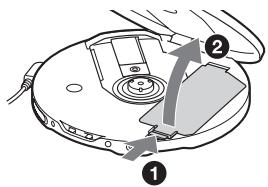
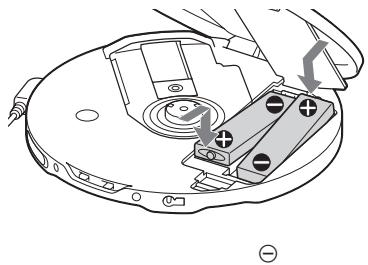
Charge the rechargeable batteries before using them for the first time. To keep the original battery capacity for a long time, charge the batteries only when it is completely depleted. You can use only the following rechargeable batteries for your CD player. • NH-10WM (supplied) • NH-14WM (not supplied) 1 Slide OPEN to open the lid of your CD player, then open the battery compartment lid inside the player.  2 Insert rechargeable batteries by matching the to the diagram in the battery compartment and close the lid until it clicks into place.  Insert the end first (for both batteries). (Continued)Using the rechargeable batteries
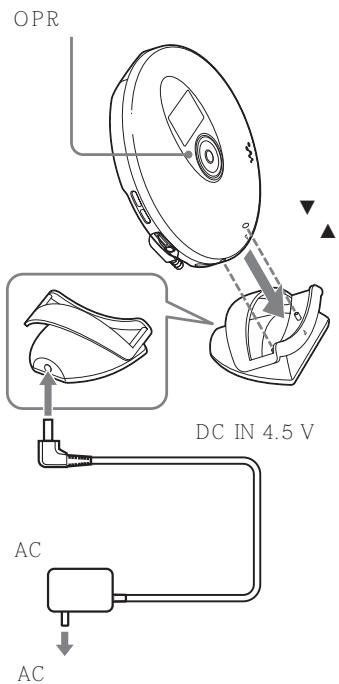
3 Connect the AC power adaptor to the DC IN 4.5 V jack of the supplied charging stand and an AC outlet. Then place the CD player on the supplied charging stand, aligning the ▼ mark on the CD player with the ▲ mark on the stand. Charging of the batteries starts. In the display of the remote control, “Charging” indication flashes and the indicator sections of 772 light up in succession. The OPR lamp lights up on the CD player. When the batteries is completely charged, all indications on the display disappear and the OPR lamp goes off. Notes on the supplied charging stand
- The supplied charging stand can be used only with this CD player. No other model can be charged using this stand. - When using the supplied charging stand, charge the NH-10WM rechargeable batteries only. Do not charge any other batteries. - During charging, the CD player and the rechargeable batteries become hot. This poses no danger. - Do not place coins or other metallic objects on the charging stand. If the terminal on the charging stand is accidentally brought into contact with a metallic object, it may short-circuit and begin to heat up.To charge the rechargeable batteries without using the supplied charging stand
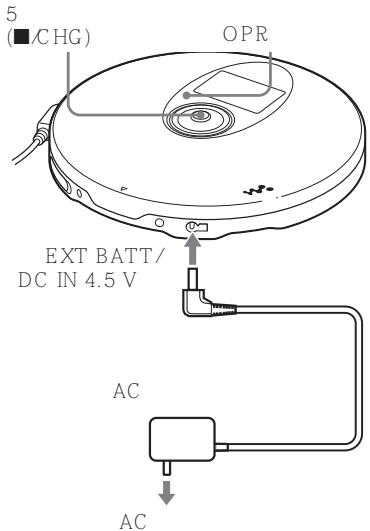
Connect the AC power adaptor to the EXT BATT/DC IN 4.5 V jack of your CD player and an AC outlet, then push the 5-way control key toward ■/CHG. Charging starts. Notes
- When charging the batteries using the charging stand, be sure to remove the external battery case. - During charging, the CD player and the rechargeable batteries become hot. This poses no danger. - If you push the 5-way control key toward ▶ lever during charging, charging stops and playback of the CD starts. - If you place the CD player on the charging stand during play, play stops and charging starts. - Place the CD player on the charging stand securely, aligning the ▼ mark on the CD player with the ▲ mark on the stand. Make sure that the OPR lamp on the CD player lights up. Wrong placement interrupts charging or play.To remove the rechargeable batteries
Push end to remove the batteries. When to replace the rechargeable batteries
If the battery life becomes shorter by about half, replace the batteries with new rechargeable batteries.Note on the rechargeable batteries
If the batteries are new or have not been used for a long time, they may not be charged completely. In that case, charge them until the OPR lamp goes off and then use the CD player until the batteries are depleted completely (“Lobatt” appears in the display). Repeat this procedure several times.Note on carrying the rechargeable batteries
Use the supplied battery carrying case to prevent unexpected heat. If the rechargeable batteries and the metallic objects are contacted, heat or fire may occur due to a short circuit.Using the dry batteries
You can extend power by inserting rechargeable batteries in the CD player and attaching the external battery case. 1 Align the lines below PUSH as illustrated, then draw out the battery case while pressing PUSH.  2 Insert two LR6 (size AA) alkaline batteries (not supplied) by matching the ⊕ to the diagram in the battery case. Insert the battery case and lock the case by turning LOCK in the direction of the arrow.  (Continued)Using the dry batteries
3 Connect the external battery case to the CD player.
Notes
- When the batteries are depleted, replace the batteries with new ones. - The batteries in the CD player and those in the external battery case are discharged simultaneously.Notes on the power source
Disconnect all power sources when the CD player is not used for a long time.On AC power adaptor
\- Use only the AC power adaptor supplied. If your CD player is not supplied with the one, use the AC-E45HG AC power adaptor. Do not use any other AC power adaptor. It may cause a malfunction. Polarity of the plug  - Do not touch the AC power adaptor with wet hands. - Connect the AC power adaptor to an easily accessible AC outlet. Should you notice an abnormality in the AC power adaptor, disconnect it from the AC outlet immediately.On rechargeable batteries and dry batteries
- Do not charge the dry batteries. - Do not throw the batteries into fire. - Do not carry the batteries with coins or other metallic objects. It can generate heat if the positive and negative terminals of the batteries are accidentally contacted by a metallic object. - Do not mix rechargeable batteries with dry batteries. - Do not mix new batteries with old ones. - Do not use different types of batteries together. - When the batteries are not to be used for a long time, remove them. - If battery leakage occurs, wipe off any deposit in the battery compartment, and install new batteries. In case the deposit adheres to you, wash it off thoroughly.List of menus
On the CD player, press DISPLAY/MENU until the MENU screen appears, then press ⇧ or ⇧ to select the menu you want. On the remote control, press SOUND (for sound settings) or DISPLAY (for other settings) repeatedly. CD player  Remote control  To return to the previous screen, press ■ (CD player: press ☐ -*1). To cancel the setting operation, press DISPLAY (for OPTION menu only) or ■ for 2 seconds or more (CD player: push the 5-way control key toward ■/CHG). Items marked ● are default settings.| Setting of sound (page) | Menu 1 → | Menu 2 → | Menu 3 |
| Adjusting sound quality (25) | SOUND*2 | ● OFFSOFTACTIVEHEAVYCUSTOM | — |
| Setting various functions (page) | Menu 1 → | Menu 2 → | Menu 3 |
| Protecting against sound skipping (26) | OPTION | G-PROTECTION*4 | ● G-PRO 1G-PRO 2 |
| Protecting your hearing (27) | OPTION | AVLS | ON● OFF |
| Stopping playback automatically (27) | OPTION | TIMER | 10 min*3● OFF |
| Connecting a stereo system (31) | OPTION | AUDIO OUT*4 | ● HPLINE |
| Turning off the beep sound (28) | OPTION | BEEP | ● ONOFF |
| Saving power (29) | OPTION | LIGHT | LIGHT OFF● LIGHT 1LIGHT 2 |
| Playing tracks continuously (30) | OPTION | SEAMLESS*4, *5 | ON● OFF |
Precautions
On safety
- Should any solid objects or liquid fall into the CD player, unplug it and have it checked by qualified personnel before operating it any further. - Do not put any foreign objects in the DC IN 4.5 V (external power input) jack.On the CD player
- Keep the lens on the CD player clean and do not touch it. If you do so, the lens may be damaged and the CD player will not operate properly. - Do not put any heavy object on top of the CD player. The CD player and the CD may be damaged. - Do not leave the CD player in a location near heat sources, or in a place subject to direct sunlight, excessive dust or sand, moisture, rain, mechanical shock, unleveled surface, or in a car with its windows closed. - If the CD player causes interference to the radio or television reception, turn off the CD player or move it away from the radio or television. - Discs with non-standard shapes (e.g., heart, square, star) cannot be played on this CD player. Attempting to do so may damage the CD player. Do not use such discs.On handling CDs
- To keep the CD clean, handle it by its edge. Do not touch the surface. - Do not stick paper or tape onto the CD. - Do not expose the CD to direct sunlight or heat sources such as hot air ducts. Do not leave the CD in a car parked under direct sunlight.On headphones/earphones Road safety
Do not use headphones/earphones while driving, cycling, or operating any motorized vehicle. It may create a traffic hazard and is illegal in some areas. It can also be potentially dangerous to play your headsets at high volume while walking, especially at pedestrian crossings. You should exercise extreme caution or discontinue use in potentially hazardous situations.Preventing hearing damage
Avoid using headphones/earphones at high volume. Hearing experts advise against continuous, loud and extended play. If you experience a ringing in your ears, reduce volume or discontinue use.Consideration for others
Keep the volume at a moderate level. This will allow you to hear outside sounds and to be considerate to the people around you.Maintenance
To clean the casing
Use a soft cloth slightly moistened in water or a mild detergent solution. Do not use alcohol, benzine or thinner.To clean the terminals
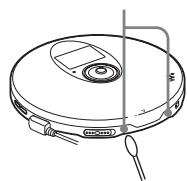
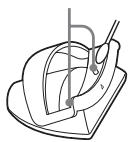
If the terminals on the charging stand or on the CD player become dirty, the batteries may not be charged properly. Clean the terminals with a cotton swab or a dry cloth periodically as illustrated below. Troubleshooting
Should any problem persist after you have checked these symptoms, consult your nearest Sony dealer.| Symptom | Cause and/or corrective action |
| The volume does not increase even if you turn VOL +/- in the + direction repeatedly (even if you press VOL + repeatedly on the CD player). | → AVLS is set to “ON”. Set it to “OFF.” (page 27)→ AUDIO OUT is set to “LINE”. Set it to “HP.” (page 31) |
| No sound, or noise is heard. | → Connect the headphones/earphones plugs firmly. (page 15)→ Plugs are dirty. Clean the headphones/earphones plugs with a dry soft cloth periodically. |
| Certain files cannot be played. | → You tried to play files saved in a format that is not compatible with this CD player. (page 6) |
| The playing time is too short when powered with the dry batteries. | → Check that you are using alkaline batteries and not manganese batteries. (pages 35 - 36)→ Replace the batteies with new LR6 (size AA) alkaline batteries. (pages 35 - 36) |
| The playing time is too short when powered with the rechargeable batteries. | → Charge and discharge the rechargeable batteries several times. (page 35) |
| “Lobatt” appears in the display. The CD does not play. | → The rechargeable batteries are used up completely. Charge the batteries. (pages 33 - 35)→ Replace the batteries with new LR6 (size AA) alkaline batteries. (pages 35 - 36) |
| “HI dc In” appears in the display. | → An AC power adaptor which is rated higher than the one supplied or recommended is being used. Use only the supplied AC power adaptor or the car battery cord recommended in “Optional accessories.” (page 43) |
| Symptom | Cause and/or corrective action |
| The CD does not play or “No disc” appears in the display when a CD is placed in the CD player. | → The CD is dirty or defective.→ Check that the CD is inserted with the label side up. (page 15)→ Moisture condensation has occurred.Leave the CD player aside for several hours until the moisture evaporates.→ Close the lid of the battery compartment firmly. (page 33)→ Make sure the batteries are inserted correctly. (pages 33, 35)→ Connect the AC power adaptor to an AC outlet securely. (page 15)→ Press the jog lever (CD player: push the 5-way control key toward ▶II) after one second or more has passed since the AC power adaptor was connected.→ The CD-R/RW is blank.→ There is a problem with the quality of the CD-R/RW, recording device, or application software. |
| OPR lamp flashes on the CD player when you press a button, and the CD does not play. | → The buttons are locked. Slide the HOLD switch back. (page 28) |
| Cannot adjust the volume | → AUDIO OUT is set to “LINE.” Adjust the volume using the volume control on the connected device. (page 31)→ Set AUDIO OUT to “HP.” Adjust the volume using VOL +/- on the CD player. (page 31) |
| During recording with optical digital connection, the track number cannot be recorded correctly. | → Record the track number again using a MiniDisc recorder, DAT recorder, etc. (page 31)→ See the instruction manual that comes with the recording device. (page 31) |
| The rechargeable batteries cannot be charged. | → The rechargeable batteries are not inserted in the battery compartment.→ The terminals on the CD player or the charging stand are dirty.Wipe them with a dry soft cloth. (page 38)→ The CD is playing. Stop playing.→ The CD player is not placed securely on the charging stand. Place the player on the stand, aligning the ▼ mark on the player and the ▲ mark on the stand. Make sure that the OPR lamp lights up. (page 34) |
| Playback starts from the point you stopped. (resume function) | → The resume function is working. To start play from the first track, press the jog lever during stop (CD player: Push and hold the 5-way control key toward ▶II) until the first track starts playing, or open the lid of the CD player. Or remove all power sources, then insert the batteries or connect the AC power adaptor again. (pages 15, 16, 33, 35, 36) |
| Rustling noise is heard from the CD. | → Close the lid of the battery compartment firmly. (page 33) |
| When using with a connected stereo system, the sound is distorted or noisy. | → AUDIO OUT is set to “LINE.” Adjust the volume of the connected device. (page 31)→ AUDIO OUT is set to “HP.” Adjust the volume using VOL +/- on the CD player. (page 31) |
| During playback of an ATRAC CD or MP3 CD, the CD does not rotate but you can hear the sound normally. | → The CD player is designed to stop the rotation of an ATRAC CD or MP3 CD during playback to reduce the power consumption. The player is not malfunctioning. |
| “NO FILE” appears in the display after the jog lever is pressed (CD player: after you push the 5-way control key toward ▶II) or the lid of the CD player is closed. | → There are no ATRAC3plus/ATRAC3/MP3 files in the CD.→ A CD-R/RW from which the data has been erased is being used.→ The CD is dirty. |
| When closing the lid of the CD player, the CD starts to rotate. | → The CD player is reading the information on the CD. The player is not malfunctioning. |
| The LCD display becomes hard to see or slows down. | → You are using your CD player at high temperatures (above 40°C/104°F) or at low temperatures (below 0°C/32°F). At room temperature, the display will return to its normal operating condition. |
| “√” is flashing quickly in the display of the remote control, and you cannot locate the beginning of the track or a specific point in the track. | → The CD player has entered the preparation stage of Bookmark track play. Change the PLAY MODE setting to “ALL”. |
| You cannot operate the CD player properly using the remote control. | → The buttons on the CD player are kept pressed by mistake. |
| Play is stopped abruptly. | → OFF TIMER has been set. Change the setting to “OFF.” |
Specifications
System
Compact disc digital audio systemLaser diode properties
Material: GaAlAs Wavelength: λ = 770 - 800 nm Emission duration: Continuous Laser output: Less than 44.6 μW (This output is the value measured at a distance of 200 mm from the objective lens surface on the optical pick-up block with 7 mm aperture.)D-A conversion
1-bit quartz time-axis controlFrequency response
20 - 20 000 Hz +1-2 dB (measured by JEITA)Output (at 4.5 V input level)
Line output (stereo minijack) Output level 0.7 V rms at 47 kΩ Recommended load impedance over 10 kΩ Headphones (stereo minijack) Approx. 5 mW + Approx. 5 mW at 16 Ω Optical digital output (optical output connector) Output level: -21 - -15 dBm Wavelength: 630 - 690 nm at peak levelPower requirements
- Two Sony NH-10WM rechargeable batteries: 1.2 V DC × 2 - Two LR6 (size AA) batteries: 1.5 V DC × 2 - AC power adaptor (DC IN 4.5 V jack): 220 V, 50 Hz (Model for China) 120 V, 60 Hz (Model for Mexico)Battery life*1 (approx. hours)
When you use the CD player on a flat and stable surface. When LIGHT mode and SOUND mode are set to "OFF." Playing time varies depending on how the CD player is used. When using two NH-10WM (charged for about 5 hours *2 )| G-PROTECTION | ||
| "G-PRO 1" | "G-PRO 2" | |
| Audio CD | 25 | 23 |
| ATRAC CD*3 | 44 | 44 |
| MP3 CD*4 | 33 | 33 |
| G-PROTECTION | ||
| "G-PRO 1" | "G-PRO 2" | |
| Audio CD | 55 | 50 |
| ATRAC CD*3 | 86 | 86 |
| MP3 CD*4 | 70 | 70 |
| G-PROTECTION | ||
| "G-PRO 1" | "G-PRO 2" | |
| Audio CD | 80 | 73 |
| ATRAC CD*3 | 130 | 130 |
| MP3 CD*4 | 103 | 103 |
Operating temperature
5°C-35°C(41°F-95°F)Dimensions (w/h/d) (excluding projecting parts and controls)
Approx. 130 × 20.7 × 130 mm (5 1/8 × 27/32 × 5 1/8 in.)Mass (excluding accessories)
Approx. 178 g (6.3 oz.) US and foreign patents licensed from Dolby Laboratories. Design and specifications are subject to change without notice. Optional accessories| AC power adaptor* | AC-E45HG |
| Active speaker system | SRS-Z1SRS-Z30 |
| Car battery cord | DCC-E345 |
| Car battery cord with car connecting packDCC-E34CP | |
| Car connecting pack | CPA-9C |
| Connecting cord | RK-G129RK-G136 |
| Earphones | MDR-EX71SLMDR-Q55SL |
ATRAC CD
CD 6 ATRAC3plus ATRAC3 7 MP3....7 ATRAC3plus/ATRAC3 MP3 8 .... 10 .... 11CD
1. CD 15 2. CD 15 3. CD 16 .... 19 ATRAC CD/MP3CD 19 ...... 20 ..... 20 ATRAC CD/MP3CD 20 m3u MP3 CD 20 Bookmark .. 21 10 .... 22 ...... 22 PGM 23 24 25 G-PROTECTION 26 (AVLS) 27 (OFF TIMER) 27 (HOLD) 28 28 29 ATRAC CD 30CD
31 33 35 36 37 38 38 39 42 43ATRAC CD
D-NE 800LS CD “ ATRAC CD” “ ATRAC CD ” ATRAC CD 1 “ SonicStage Simple Burner”  2 CD-R/RW PC CD  MP 3   SonicStage Simple Burner ATRAC 3plus/ATRAC 3 S onicStage Simple Burner “ SonicStage Simple Burner”ATRAC CD
ATRAC CD 30 CD-R/RW CD ATRAC3plus/ATRAC3 CD-R/RW * ATRAC3plus/ATRAC3 * CD MB CD-R/RW MP3 60 48 kbps ATRAC3plus 700  3 ATRAC CD ATRAC CD  CD CD ATRAC 3plus/ATRAC 3 6-9CD
CD 3 - CD CDDA • ATRAC3plus/ATRAC3 CD (ATRAC CD) • MP3 CD (MP3CD) ISO 9660 Level 1/2 Joliet extensionCD-R/RW
CD ATRAC3plus/ATRAC3 MP3 CDDA* CD-R/ RW * CDDA Compact Disc Digital Audio CD Compact Disc (CD) CD - CD CD-R/RW • ATRAC3plus/ATRAC3 CD-R/RW ATRAC 3plus ATRAC 3| “ ATRAC3plus” | “ | 3+” | ||
| ATRAC3 | ATRAC3plus | 64 kbps | ||
| 1/20 | 256 kbps | 64 kbps | ||
| 48 kbps | ||||
| “ ATRAC3” | “ | 3” | ||
| ATRAC3 | 1/10 | |||
| 132 kbps | 105 kbps | 66 kbps |
| MP3 | MPEG-1 Audio Layer3 | ISO |
| /10 |
ATRAC 3plus/ATRAC 3 MP3
 - ATRAC 3plus/ATRAC 3  ATRAC 3plus/ ATRAC 3 • MP 3  MP3 - ATRAC3plus/ATRAC3 MP3 ATRAC3plus/ATRAC3 MP3 AC (1) (A C - E S 455K)  (2)   (1)  (1)  (1)  (1)  (1)  (1)  CD-ROM* SonicStage Simple Burner (1)  * CD CD-ROM SonicStage Simple Burner (1) CD  1 (12, 17, 19, 24, 37) 2 OPR (28, 29, 34) CD ATRAC3plus/ATRAC3 MP3 CD CD HOLD CHG 3 VOL +*1/- (16) 4 LINE OUT (OPTICAL) (15, 31) 5 HOLD (28) CD 6 (19 - 31, 37) 7 5 (15, 16, 19 - 31, 34, 37)  DISPLAY/MENU ▶|| / AMS*2/ AMS/ ■/CHG / DISPLAY/MENU / DISPLAYMENU  8 + (16, 23, 24) 9 ↓ (19 - 31, 37) 10 37) - (16, 23, 24, 26, 28, 11 EXT BATT DC IN 4.5 V (15, 34, 36) 12 (34, 38) 13 OPEN (15, 33) CD *1 *2 CD  1 (17) CD CD ATRAC CDMP3CD CD 5 (20, 21) MP3 CD 6 (19, 20) ATRAC CDMP3CD 7 (19 - 23)  2 Atrac3plus/MP3 3 CD 4 (33) 8 SOUND (25, 26) SOUND    1 VOL +/− (16, 26, 28) 2 ■ (16, 26, 28, 37) 3 (◄◄►►ENT ►►►) (16, 21 - 23, 25 - 31) ▶|| /ENT   AMS 4 (14, 17) 5 +/- (16, 23, 24)  6 (14) 7 HOLD (28) 8 DISPLAY (23, 26 - 31, 37) 9 P MODE/ (19 - 24) 10 SOUND (25, 37)  CD CD  1 2 (23) 3 (17) 4 (19 - 23) 5 SOUND (25, 26) 6 (33) 7 (19, 20) 8 (20, 21) 9 Bookmark (21) 10 (27) OFF TIMER   1. CD
1 OPEN CD  2 CD 2. CD
33 - LR6 AA 5 35 • AC CD 1 AC 2 CD   | CD | |||||
| CD | DISPLAY/MENU | / | |||
| DISPLAY | CD | ||||
| CD-TEXT | CD | “ | ” | “ | |
| ” | ATRAC CD | SonicStage | |||
| Simple Burner | ID3 tag*1 MP3 | MP3 CD | |||
| ID3 tag | |||||
| CD | ATRAC CD/MP3 CD | |||||
| *3 | ||||||
| CODEC *4 | ||||||
| CD | *2 | CD | *2 | |||
| / | ||||||
| CD | ATRAC CD/MP3 CD | |||
| CODEC | *4 | |||
| *2 | CD | *2 | ||
| *1 ID3 tagID3 tag | MP31.1/2.2/2.3 | MP3 | CDPGM/ |
| *2 | |||
| *3“” | ID3 tag | “” | |
| *4 | VBR“ VBR” | MP3 | “ VBR” |
| CD | ||
| - | A-Z a-z 0-9 _ | |
| - | ||
| - | ||
| CD | CD | “READING” |
| CD | “ROOT” | |
| ID3 tag | “----” | |
| CD | ||
2 + ▶ 5
CD
1 1 + -
2 ↑ ↓ 5
CD
■/CHG 5 40
“MENU” CD

SOFT/
SOUND S
ACTIVE/
SOUND A
HEAVY/
SOUND H ACTIVE
CUSTOM/
SOUND C
SOUND
CD
1 DISPLAY MENU
MENU
2 ↑ ↓ “ SOUND”
DISPLAY MENU
3
DISPLAY MENU


- CUSTOM
- CUSTOM
G-PROTECTION G-PROTECTION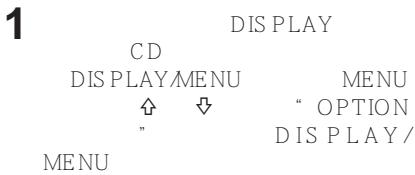
(AVLS)
AVLS
| (OFF TIMER) | ||
| CD | 1 99 | |
| CD | “ ⏻ ” | 5 |
| • | “(●)” | |
4
VOL +/−
CD


DISPLAYMENU

CD


CD

■/CHG
5
1 - 3
OFF TIMER
1 - 3 OFF TIMER " OFF
(HOLD)
CD
HOLD
OPR
HOLD
CD
HOLD
HOLD
CD
HOLD
HOLD
"HOLD"
CD
1
DISPLAY
CD
DISPLAYMENU
MENU


"OPTION"
DISPLAY/
MENU
2
3
"ON"
1 - 3 BEEP
CD
OPR
1
2
3
LIGHT
CD
OPR
LIGHT OFF
LIGHT 1
LIGHT 2*
1
DISPLAY
CD
DISPLAY MENU
MENU


"OPTION"
DISPLAY MENU
2


"AUDIO OUT"
CD
"AUDIO OUT"
DISPLAY MENU


3


CD


DISPLAY MENU
"HP"
"LINE"
*
G-PROTECTION
CD G-PROTECTION "G-PRO 1" • AUDIO OUT "LINE"
![graph LR A["Power Supply"] --> B["Battery"] B --> C["Load"] C --> D["Load"] D --> E["Load"] style A fill:#f9f,stroke:#333 style E fill:#bbf,stroke:#333 note right of A: Lobatt* classDef memory fill:#fff,stroke:#000,stroke-width:2px; class A,B,C,D,E memory;](/content/2019/08/102545/images/44ebba64e7b8f80bca6a3dff970e2a38276d2485b81175259788f3856ca0f351.jpg)
*
•
•


.
•
35

CD
- NH-10WM
- NH-14WM
1
OPEN
CD
2
⊕
3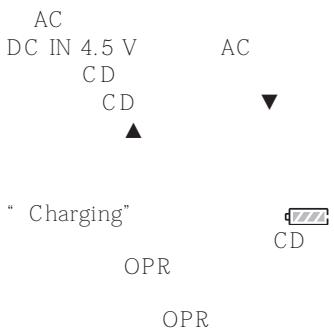
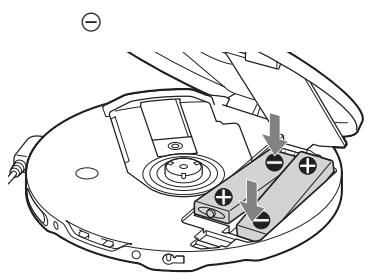
OPR CD “ Lobatt”
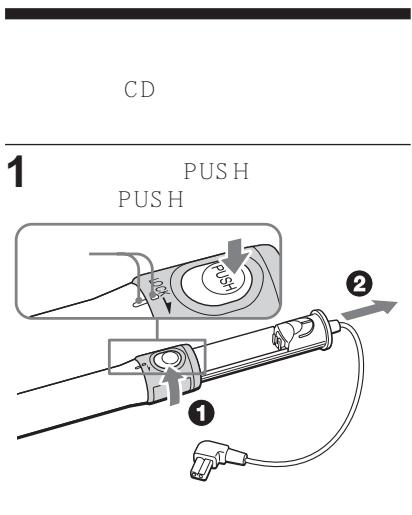
2 LR6 AA 5 ⊕
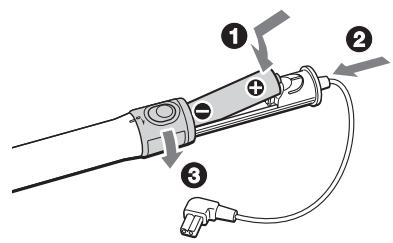
3 CD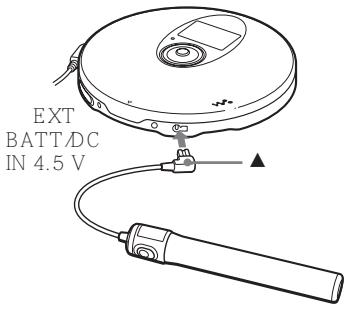
CD
AC
AC
CD
AC
AC-E 45HG
AC
AC
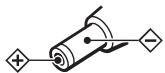
AC
AC
AC
AC
AC
AC
+ -

CD
CD
| 1 → | 2 → | 3 | |
| (25) | SOUND*2 | ● OFF SOFT ACTIVE HEAVY CUSTOM | - |
| 1 → | 2 → | 3 | |
| (26) | OPTION | G-PROTECTION*4 | ● G-PRO 1 G-PRO 2 |
| (27) | OPTION | AVLS | ON ●OFF |
| (27) | OPTION | TIMER | 10 min*3 ●OFF |
| (31) | OPTION | AUDIO OUT *4 | ●HP LINE |
| (28) | OPTION | BEEP | ● ON OFF |
| (29) | OPTION | LIGHT | LIGHT OFF ●LIGHT 1 LIGHT 2 |
| (30) | OPTION | SEAMLESS*4.*5 | ON ●OFF |
*1 " PGM" *2 CD *3 *4 *5 ATRAC CD
CD
• DC IN 4.5 V
CD
CD
CD
CD
CD CD
CD
CD
CD
CD
CD
CD
CD
CD
CD
CD
CD
CD
CD
Sony
| VOL +/-VOL + | +CD | →AVLS | “ON” | “OFF” | 27 | ||
| →AUDIO OUT31 | “LINE” | “HP” | |||||
| → | 15 | ||||||
| → | CD | ||||||
| 6 | |||||||
| → | 35 - 36 | ||||||
| → | LR6 | AA | 5 | 35 - 36 | |||
| → | 35 | ||||||
| CD | “Lobatt” | → | 33 - 35 | ||||
| → | LR6 | AA | 5 | 35 - 36 | |||
| “HI dc In” | → | ACAC43 | “ AC | ||||
| CD | CD | → | CD | |||||
| CD | → | CD | 15 | |||||
| “No disc” | → | |||||||
| CD | ||||||||
| → | 33 | 33 | 35 | |||||
| → | 15 | |||||||
| → | AC | AC | ||||||
| → | AC | |||||||
| CD | ▶II | 5 | ||||||
| → | CD-R/RW | |||||||
| → | CD-R/RW | |||||||
| CD | → | HOLD | 28 | |||||
| OPR | ||||||||
| CD | ||||||||
| → | AUDIO OUT | “LINE” | ||||||
| → | AUDIO OUT | “HP” | CD | VOL +/- | ||||
| 31 | ||||||||
| → | DAT | 31 | ||||||
| → | 31 | |||||||
| → | ||||||||
| → | CD | |||||||
| 38 | ||||||||
| → | CD | |||||||
| → | CD | |||||||
| OPR | ▼ | ▲ | ||||||
| → | 34 | |||||||
| CD | ▶II | 5 | ||||||
| CD | AC | |||||||
| 15, 16 | 33 | 35 | 36 | |||||
| CD | → | 33 | ||||||
| → | AUDIO OUT | “LINE” | ||||||
| 31 | “HP” | CD | VOL +/- | |||||
| → | AUDIO OUT | 31 | ||||||
| ATRAC CD | MP3 | →CD | ATRAC CD | MP3CD | ||||
| CD | CD | |||||||
| CD | →CD | ATRAC3plus/ATRAC3MP3 | ||||||
| 5 | → | CD-R/RW | ||||||
| CD | →CD | |||||||
| “NO FILE” | ||||||||
| CD | →CD | CD | ||||||
| CD | ||||||||
| → | 40 | 0 | CD | |||||
| “[782] | →CD | Bookmark | ||||||
| PLAY MODE | “ALL” | |||||||
| CD | → | CD | ||||||
| → | OFF TIMER | “OFF” | ||||||
CD
GaAlAs
λ = 770 - 800 nm
44.6 μW
7 mm
200 mm
D-A - 1
20 20 000 Hz +1 -2 dB JEITA 4.5 V
0.7 V rms 47 kΩ
10 kΩ
5 mW + 5 mW 16Ω
-21 -15 dBm
630 690 nm
- Sony NH-10WM 1.2 V DC × 2
• LR6 AA 5 1.5 V DC × 2
- AC DC IN 4.5 V
220 V 50 Hz
120 V 60 Hz
500 mA
*1
CD
LIGHT SOUND "OFF"
CD
| *2\NH-10WM | 5 | |
| G-PROTECTION“ G-PRO 1” “ G-PRO 2” | ||
| CD | 25 | 23 |
| ATRAC CD*3 | 44 | 44 |
| MP3 CD*4 | 33 | 33 |
| *5 | ||
| G-PROTECTION“ G-PRO 1” “ G-PRO 2” | ||
| CD | 55 | 50 |
| ATRAC CD*3 | 86 | 86 |
| MP3 CD*4 | 70 | 70 |
| NH-10WM*5 | ||
| G-PROTECTION“ G-PRO 1” “ G-PRO 2” | ||
| CD | 80 | 73 |
| ATRAC CD*3 | 130 | 130 |
| MP3 CD*4 | 103 | 103 |
*1 JEITA (Japan Electronics and Information Technology Industries Association)
| *2 | ||
| *3 | 48 kbps | |
| *4 | 128 kbps | |
| *5 | Sony | LR6 (SG) |
5 35
130 × 20.7 × 130 mm
178 g
Dolby Laboratories
| AC | * | AC-E45HG |
| SRS-Z1 | ||
| SRS-Z30 | ||
| DCC-E345 | ||
| DCC-E34CP | ||
| CPA-9C | ||
| RK-G129 | ||
| RK-G136 | ||
| MDR-EX71SL | ||
| MDR-Q55SL |
* AC


ATRAC CD Walkman !
CD 6
ATRAC3plus ATRAC3....7
MP3....7
ATRAC3plus/ATRAC3 MP3 8
10
...... 11
CD
- CD 15
- CD ..... 15
- CD 16
( )....19
( ) (ATRAC CD/MP3 CD ) ..... 19 ( ) ..... 20
( ) 20
( ) (ATRAC CD/MP3 CD ) ...... 20
(m3u) (MP3 CD ) 20
( ) 21 10
( ) 22
( ) ...... 22
(PGM) 23
/ 24
( )
25
G- PROTECTION 26
(AVLS) 27
(OFF TIMER) ... 27
(HOLD) ...... 28
28
29
(SEAMLESS)
(ATRAC CD ) 30
CD
31
33
35
36
37
38
38
? 39
42
43
ATRAC CD Walkman
!
D- NE800LS
CD Walkman "ATRAC CD"
"ATRAC CD Walkman"
ATRAC CD
1
SonicStage Simple Burner
2
PC CD-R/RW
CD

MP3

SonicStage Simple Burner ATRAC3plus/ATRAC3
SonicStage Simple Burner "SonicStage Simple Burner"
ATRAC CD ?
ATRAC CD ATRAC3plus/ATRAC3
30
CD
CD-R/RW
ATRAC3 MP3
* 1 CD( )
RW
60
ATRAC3plus
48 kbps
700 MB CD-R/
CD-R/RW
ATRAC3plus/
3
ATRAC CD ATRAC CD
Walkman
ATRAC CD
CD Walkman
CD
ATRAC3plus/ATRAC3
?
6-9
CD
CD 3
• CD (CDDA) - ATRAC3plus/ATRAC3 CD (ATRAC CD) - MP3 CD (MP3 CD)
ISO 9660 Level 1/2 Joliet
CD-R/RW
CD ATRAC3plus/ATRAC3, MP3 CDDA* CD-R/RW
* CDDA Compact Disc Digital Audio . CD
(CD)
CD
- CD CD-R/RW
- ATRAC3plus/ATRAC3 CD-R/RW
ATRAC3plus ATRAC3
“ATRAC3plus” “Adaptive Transform Acoustic Coding3plus” ATRAC3 . ATRAC3plus 64 kbps
1/20
256 kbps, 64 kbps, 48 kbps
“ATRAC3” “Adaptive Transform Acoustic Coding3”
. ATRAC3
1/10
132 kbps, 105 kbps, 66 kbps
• : 255
• : 999
"SonicStage Simple Burner"
(MP3)
ATRAC3plus/ATRAC3
MP3
MPEG-1 Audio Layer3
Picture Experts Group
1/10
MP3 ISO( )
Motion
• : 8
- “halting of writing”
• “Disc at Once”
- MP3 (MP3 /ATRAC3plus/ATRAC3)
CD
ATRAC3plus/ATRAC3 MP3
- CD ATRAC3plus/ATRAC3 MP3 ATRAC3plus/ATRAC3
MP3
CD
AC (1)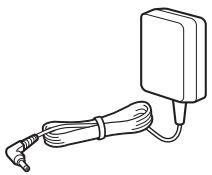
(2)
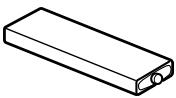
(1)
(1)
/
(1)
(1)
(1)
(1)
CD-ROM (SonicStage Simple Burner) (1) *CD-ROM CD SonicStage Simple Burner (1)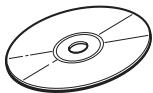
CD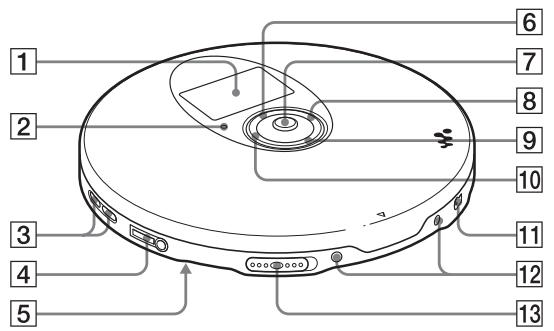

1 2Automatic Music Sensor(
( )
(CD)
1
(17)
CD
CD
4
ATRAC CD/MP3 CD
CD
4
5
(21)
MP3 CD
6
(19, 20)
ATRAC CD/MP3 CD
7
(19-24)

8
SOUND
(25, 26)
SOUND
② ATRAC3plus/MP3
3
CD
4
(33)

① VOL( ) +/- (16, 26, 28) 2 ■( ) (16, 26, 28, 37) 3 (◄◄►|/ENT ►►) (16, 21-23, 25-31)
▶II( / )/ENT( ):

: AMS,
4 (14, 17) 5( ) +/- (16, 23, 24)
6 (14) 7 HOLD (28)
( ).
8 DISPLAY (24, 26-31, 37) 9 P MODE/ (19-24) 10 SOUND (25, 37)

CD
CD
( )
( )
1 2 3 (23) (17) 4 (19-23) 5 SOUND (25, 26) 6 (33) 7 (19, 20)
8 (21) 9 (21, 22)
10 (27)
OFF TIMER
1. CD
① OPEN CD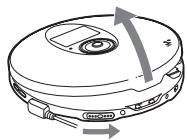
OPEN
② CD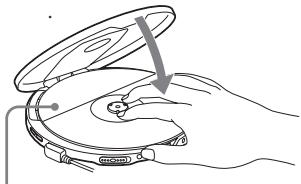
2. CD
:
(33) - LR6(AA)
( ) (35 )
• AC
CD
① AC 2 / CD
( )
3. CD
5 (▶II)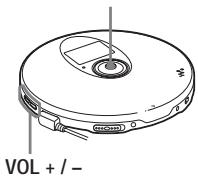
1 ▶|| ② VOL +
② VOL + /-
| CD | ||||
| ( ) | ▶II | . | ||
| . | ||||
| . | ||||
| ( ) | CD | CD | ||
| ▶II | . | . | ||
| / | ▶II | . | . | |
| *2 | ■/CHG | . ■ | . | |
| |◀| | . | |◀| | ||
| (AMS*1)*2 | . | |||
| (AMS)*3 | |◀| | |◀| | ||
| . | . | |||
| (AMS)*2, *3 | ▶I | . | ▶I | |
| . | ||||
| (AMS)*3 | ▶I | ▶I | ||
| . | . | |||
| *2, *5 | |◀| | |◀| | ||
| . | . | |||
| *2, *5 | ▶I | ▶I | ||
| . | . | |||
| *4 | □+ | . □+ | . | |
| *4 | □- | . □- | . | |
| *1 Automatic Music Sensor( ) | ||||
| *2 | . | |||
| *3 | ▶I | (CD | ▶I | |
| . | ||||
| |◀| | (CD | |◀| | ) | |
| *4ATRAC CD/MP3 CD | ||||
| *5 | CD-R/RW | MP3 | . | |
CD CD DISPLAY/MENU DISPLAY CD CD-TEXT CD

P MODE/CD
CD
PLAY MODE
1 MENU DISPLAY/MENU 2 ↑ ↓ “PLAY MODE” DISPLAY/MENU 3 ↑ ↓ . "ALL"()
P MODE/

CD
1 MENU DISPLAY/MENU 2 ↑ ↓ “REPEAT” DISPLAY/MENU 3 ↑ ↓ "ON" DISPLAY/MENU

( )

005
03:45
1
( )
"SHUF"

003
01:25
SHUF
( ) (ATRAC CD/MP3 CD )
“S HUF”

003
01:25
SHUF

(m3u) (MP3 CD)
m3u
*
* “m3u play list” MP3
m3u
CD-R/RW MP3
1
"" ( )
P MODE/
. (CD
: "CD
"(19)
1 2
↑
↓
"PLAY LIST"
DISPLAY/
MENU
.)

001
MODERN

2


(CD
:
↓
.)

001
LATEST

3
5
. (CD
▶||
.)

001:IS THAT
( )
CD
CD: CD 99
(CD 10)
ATRAC CD: CD 999
(CD 5)
MP3 CD: CD 999
(CD 5)
1

. (CD
5


.)

2


(CD
: 5


1
1
“”( )
P MODE/
(CD
: “CD
"(19)
1 2
↑
↓
"BOOK MARK"
DISPLAY/MENU
.)
2


• 11 CD (ATRAC CD/MP3 CD 6 CD) CD
- : - "Lobatt" CD


(PGM)
64
CD
1
"PGM" ( )
P MODE/
. (CD
: "CD
" (19)
1 2
↑ ↓
"PROGRAM"
DISPLAY/MENU
.)
CD/CD-TEXT

001
<PGM01
PGM
ATRAC CD/MP3 CD

001 In Your H
PGM
2


. (CD
: 5


DISPLAY/MENU
.)
MP3 CD
. ATRAC CD/
+

CD/CD- TEXT

005 <PGM12
PGM
ATRAC CD/MP3CD
3
2
4
PGM
. (CD
: 5

.)
( )
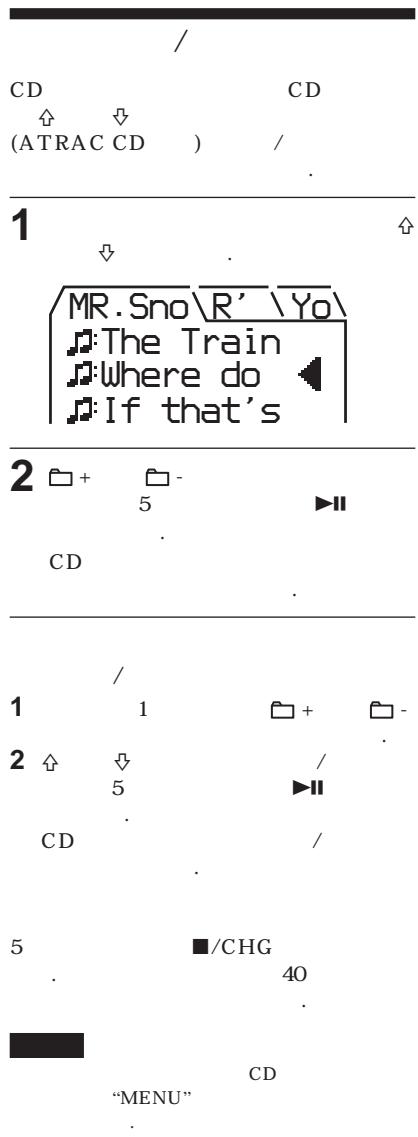
( )
2
SOFT/
SOUND S
ACTIVE/
SOUND A
HEAVY/ ACTIVE
SOUND H
CUSTOM/
SOUND C
SOUND
CD
1 MENU
DISPLAY/MENU
2 ↑ ↓ "SOUND"
DISPLAY/MENU
3 ↑ ↓
DISPLAY/MENU
"LOW" ( ), "MID" ( ), "HIGH" ( ) 3
3
7
1 SOUND "SOUND
C"
SOUND . (CD :
“ ” 1-3
“CUSTOM”
2
2
.)
“LOW” . (CD
: "LOW"



( )
3

3
VOL +/-
. (CD
5


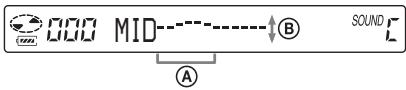
A:
B:
VOL -
VOL +



4
2 3
2
5
. (CD
: DISPLAY/MENU .)
CD

■
2
(CD
5
/CHG
.)
- CUSTOM
- CUSTOM
G- PROTECTION
G- PROTECTION
1
DISPLAY
(CD
:
MENU
DISPLAY/MENU
.
↓
"OPTION"
DISPLAY/MENU
.)
2

"G-PRO"
. (CD
:
↓
"G- PROTECTION"
DISPLAY/MENU
.)
3

"G-PRO1"
"G-PRO
2"
. (CD
:
↓
"G-PRO 1"
“G-
PRO 2"
DISPLAY/MENU
.)
"G-PRO 2"
G- PROTECTION
“G-PRO
1”
CD
"G-PRO 1"
: - CD
- CD - CD-R/RW
(AVLS)
AVLS (Automatic Volume Limiter System)
1 DISPLAY . (CD: MENU DISPLAY/ MENU. ↑ ↓ "OPTION" DISPLAY/ MENU.)
2 "AVLS"
(CD: ⇧ ⇧ "AVLS" DISPLAY/MENU .)
3 "ON" : ♠ ↓ DISPLAY/MENU .)
AVLS 1-3 AVLS "OFF"
(OFF TIMER)
1~99 CD
- CD: 5 "①"
•: "((●))"
1 DISPLAY . (CD: MENU DISPLAY/MENU . ↑ ↓ "OPTION" DISPLAY/MENU .)
2 “TIMER”
(CD: ↑ ↓ "TIMER" DISPLAY/MENU.)
3 (CD: ↑↓ "10 min*" min" DISPLAY/MENU.)
( )
(HOLD)
4 VOL +/-
. (CD: ⇌
↓
DISPLAY/MENU
.)

| OFF TIMER | |
| 1-3 | OFF TIMER |
| “OFF” | . |
CD
. HOLD
OPR
HOLD

HOLD
CD /
2

"BEEP"
(CD
"BEEP"
:
↓
DISPLAY/MENU
.)
3

"OFF"
(CD
"OFF"
MENU
.)
:
↓
DISPLAY/
1-3
BEEP
"ON"
CD
OPR
1
DISPLAY
. (CD
: MENU
DISPLAY/
MENU
.
"OPTION"
DISPLAY/
MENU
.)
2

"LIGHT"
(CD
:
"LIGHT"
DISPLAY/
MENU
.)
3

"LIGHT OFF"
"LIGHT 2"
. (CD
: 个
↓
"LIGHT
OFF"
"LIGHT 2"
DISPLAY/MENU
.)
LIGHT
| CD | OPR | |
| LIGHT OFF | ||
| LIGHT 1 | . | |
| LIGHT 2* |
* "LIGHT 1" "LIGHT 2"
(SEAMLESS)(ATRAC CD)
1
2


"SEAMLESS"
3


"ON"
(CD
"ON"
:
↓
DISPLAY/MENU
.)
CD CD
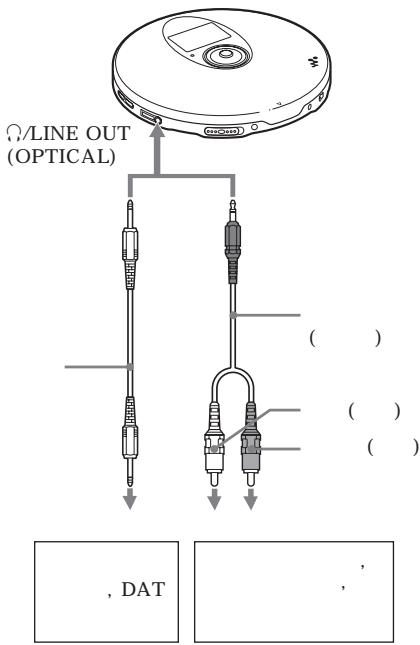
1
DISPLAY . (CD : MENU DISPLAY/MENU ↑ ↓ "OPTION" DISPLAY/MENU .)
2
. (CD : ↑ ↓ "AUDIO OUT" DISPLAY/MENU .)
3

. (CD: ↑↓ DISPLAY/MENU.)
* "HP" "LINE" *
( )
G- PROTECTION
• CD
AC
CD
G- PROTECTION "G- PRO 1"
- AUDIO OUT
"LINE"
CD
Serial Copy Management System
• ATRAC CD/MP3CD
• “AUDIO OUT”
LINE OUT
(OPTICAL)
AUDIO OUT (“HP” “LINE”)
5
○/LINE OUT(OPTICAL)
AUDIO OUT
"HP"
AUDIO OUT "LINE"
CD VOL +/-
CD , DAT
CD
![graph LR A["Power Supply"] --> B["Battery"] B --> C["Battery"] C --> D["Battery"] D --> E["Charging Current"] E --> F["Charging Current"]](/content/2019/08/102545/images/ce36c8f0c8ba0bf0f37161230a600739e089c07110de00d860fe1169ad6b4eef.jpg)
Lobatt*
*
• ( )
• ( ) (35 )


. 1 1/4

- NH-10WM( )
- NH-14WM( )
1 OPEN CD
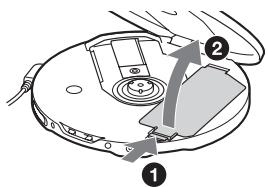
2 ⊕ 2
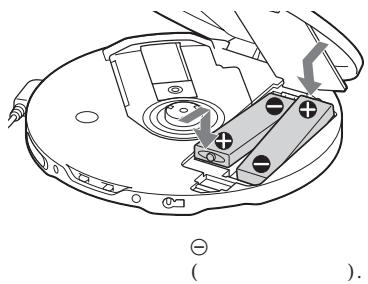
( )
3 AC DC IN 4.5 V AC CD CD
"Charging" OPR OPR
OPR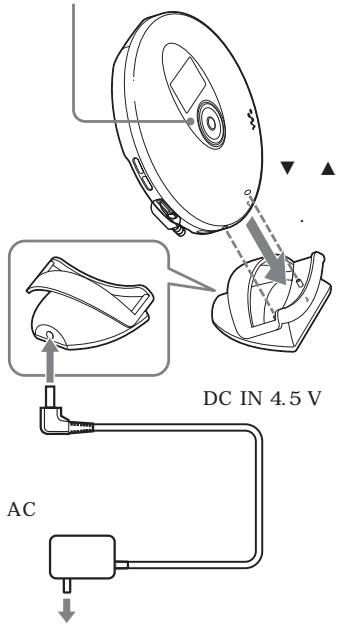
AC CD 10WM CD A C EXT BATT/DC IN 4.5 V 5
NH- AC /CHG 5 (■/CHG) OPR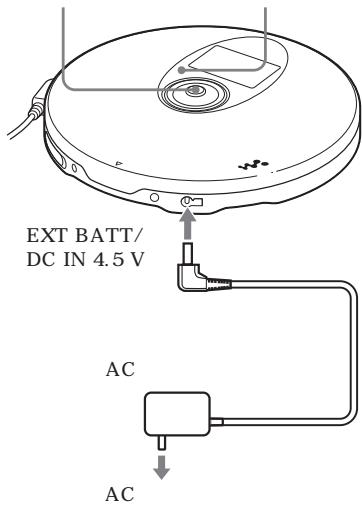
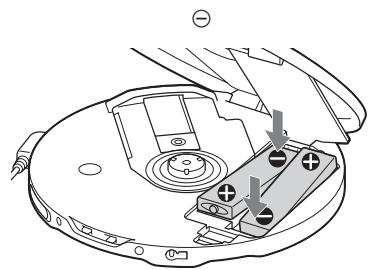
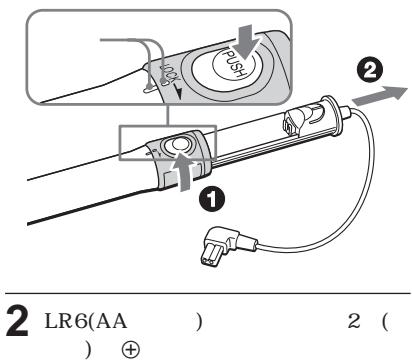
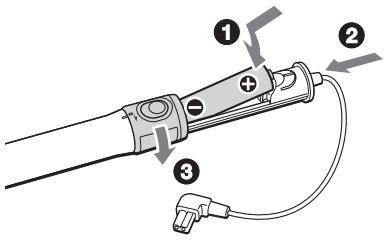
( )
3 CD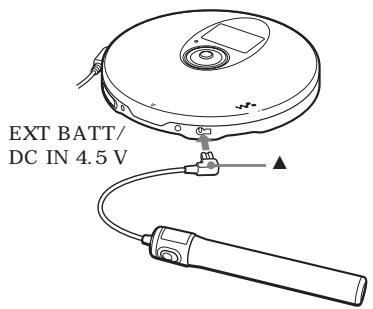
?
Sony
| VOL +/- (CD) | → AVLS “ON” . (27 ) | .“OFF” |
| VOL + . | → AUDIO OUT “LINE” . (31 ) | .“HP” |
| → / | . (15 ) | |
| → | / | |
| → CD . (6 ) | ||
| → . (35- 36 ) | ||
| → LR6(AA ) . (35- 36 ) | ||
| → (35 ) | ||
| “Lobatt” . CD | → . (33- 35 ) | |
| → LR6(AA ) . (35- 36 ) | ||
| “HI dc In” . | → AC “ . (43 ) |
( )
| ? | |||||
| CD | CD | → | CD | . | |
| “No disc” | → | CD(15) | |||
| → | . | ||||
| CD | .(33) | ||||
| → | . | ||||
| → | |||||
| (33, 35) | |||||
| → | AC(15) | AC | |||
| → | AC:5 | 1 | (CD) | ||
| → | CD- R/RW | ▶II | . | ||
| → | CD- R/RW | , | |||
| . | |||||
| OPR | CD | → | .HOLD | ||
| CD | CD | .(28) | |||
| . | → | AUDIO OUT | “LINE” | .(31) | |
| → | AUDIO OUT VOL+/- | “HP” | .CD(31) | ||
| → | .DAT(31) | ||||
| → | .(31) | ||||
| → | |||||
| → | .(38) | ||||
| → | CD | . | |||
| → | CD | ▲ | |||
| ▼ | . OPR | ||||
| .(34) | |||||
| ( ) | → | . | |||
| :5 | ▶II | (CD) CD | |||
| . | |||||
| AC16, 33, 35, 36 | ) | .(15, | |||
| CD | → | .(33) | |||
| → | AUDIO OUT | “LINE” | .(31) | ||
| → | AUDIO OUT VOL+/- | “HP” | .CD(31) | ||
| ATRAC CD | MP3 CD | → | CD | ATRAC | |
| CD | CD | MP3 CD | . | ||
| . | . | ||||
| (CD : 5) | CD | → | CD | ATRAC3plus/ATRAC3/MP3CD-R/RW | . |
| CD | → | CD | . | . | |
| “NO FILE” | |||||
| CD | → | CD | CD | . | |
| CD | . | . | |||
| LCD | → | CD | (40°C) | (0°C) | |
| . | . | ||||
| “♦” | → | CDMODE | “ALL” | . | |
| . | |||||
| CD | → | CD | |||
| . | |||||
| . | → | OFF TIMER | . | “OFF” | |
: GaAlAs : λ = 770 800 nm : : 44.6 µ W (7 mm 200 mm D-A
1 20 ~ 20 000 Hz +1-2 dB (JEITA ) (4.5 V ) ( )
: 47 kΩ 0.7 V rms : 10 kΩ ( )
16 Ω 5 mW + 5 mW
( )
: - 21 ~ - 15 dBm
: 630 ~ 690 nm
- Sony NH- 10WM 2 :
1.2 V DC × 2
- LR6(AA ) 2 :
1.5 V DC × 2
- AC (DC IN 4.5 V):
220 V, 50 Hz( )
120 V, 60 Hz( )
*1( )
CD
LIGHT SOUND "OFF"
CD
| NH- 10WM 1 | ( 5 | *2) |
G-PROTECTION
| “G-PRO 1” | “G-PRO 2” | |
| CD | 25 | 23 |
| ATRAC CD* 3 | 44 | 44 |
| MP3 CD* 4 | 33 | 33 |
| ( | 1 | *5) |
| G-PROTECTION | ||
| "G-PRO 1" | "G-PRO 2" | |
| CD | 55 | 50 |
| ATRAC CD*3 | 86 | 86 |
| MP3 CD*4 | 70 | 70 |
NH-10WM 1
( 1 *5)
G-PROTECTION
| “G-PRO 1” | “G-PRO 2” | |
| CD | 80 | 73 |
| ATRAC CD* 3 | 130 | 130 |
| MP3 CD* 4 | 103 | 103 |
*1 JEITA ( )
*2
*3 48 kbps
*4 128 kbps
*5 Sony LR6(SG) ( )
5°C to 35°C
(w/h/d) (
)
130 × 20.7 × 130 mm
( )
178 g
Dolby Laboratories
| AC | * | AC- E45HG |
| SRS- Z1 | ||
| SRS- Z30 | ||
| DCC- E345 | ||
| DCC- E34CP | ||
| CPA- 9C | ||
| RK- G129 | ||
| RK- G136 | ||
| MDR- EX71SL | ||
| MDR- Q55SL |
* AC
- WARNING
- TO PREVENT FIRE OR SHOCK HAZARD, DO NOT EXPOSE THE UNIT TO RAIN OR MOISTURE
- CAUTION
- TABLE OF CONTENTS
- ENJOY YOUR ATRAC CD WALKMAN
- GETTING STARTED
- PLAYING A CD
- PLAYBACK OPTIONS
- AVAILABLE FEATURES
- CONNECTING YOUR CD PLAYER
- CONNECTING TO A POWER SOURCE
- ADDITIONAL INFORMATION
- YOU CAN MAKE YOUR OWN ATRAC CD EASILY
- STEP 1 INSTALL
- STEP 2: BURN
- HOW TO USE THE SONICSTAGE SIMPLE BURNER
- WHAT IS AN ATRAC CD
- STEP 3: LISTEN
- WHAT IS THE ATRAC3PLUS/ATRAC3 FORMAT
- MUSIC SOURCES PLAYABLE ON THIS CD PLAYER
- USABLE DISC FORMATS
- ABOUT CD-RS/RWS
- MUSIC DISCS ENCODED WITH COPYRIGHT PROTECTION TECHNOLOGIES
- NOTES
- ATRAC3PLUS AND ATRAC
- THE USABLE NUMBER OF GROUPS AND FILES
- NOTE ON SAVING FILES ON THE MEDIA
- MP
- SETTINGS FOR COMPRESSION AND WRITING SOFTWARE
- NOTES ON SAVING FILES ON THE MEDIA
- THE STRUCTURE OF ATRAC3PLUS/ATRAC3 AND MP3 FILES
- GROUPS AND FOLDERS
- ATRAC3PLUS/ATRAC3/MP3 FILE STRUCTURE AND PLAYING ORDER
- CHECKING THE SUPPLIED ACCESSORIES
- LOCATING THE CONTROLS
- CD PLAYER
- DISPLAY (CD PLAYER)
- USING THE CARRYING POUCH
- REMOTE CONTROL
- NOTE
- DISPLAY (REMOTE CONTROL)
- TO USE THE CLIP ON THE REMOTE CONTROL
- INSERT A CD
- CONNECT YOUR CD PLAYER
- PLAY A CD
- CHECKING CD INFORMATION ON THE DISPLAY
- REMOVING THE CD
- SELECTING PLAYBACK OPTIONS ON THE CD PLAYER
- SELECTING PLAYBACK OPTIONS USING THE REMOTE CONTROL
- PLAYING TRACKS REPEATEDLY (REPEAT PLAY)
- USING THE REMOTE CONTROL
- ON THE CD PLAYER
- PLAYING ALL FILES IN A SELECTED GROUP
- PLAYING A SINGLE TRACK
- PLAYING TRACKS IN RANDOM ORDER (SHUFFLE PLAY)
- PLAYING ALL FILES IN A SELECTED GROUP IN RANDOM ORDER (GROUP SHUFFLE PLAY) (ATRAC CD/MP3 CD ONLY)
- PLAYING YOUR FAVORITE PLAY LISTS (M3U PLAY LIST PLAY) (MP3 CD ONLY)
- PLAYING YOUR FAVORITE TRACKS BY ADDING BOOKMARKS (BOOKMARK TRACK PLAY)
- ADDING BOOKMARKS
- PLAYING THE TRACKS WITH BOOKMARKS
- PLAYING YOUR FAVORITE TRACKS BY ADDING BOOKMARKS
- TO REMOVE THE BOOKMARKS
- TO CHECK THE TRACKS WITH BOOKMARKS
- PLAYING THE 10 TRACKS YOU HAVE PLAYED MOST FREQUENTLY (AUTO RANKING PLAY)
- PLAYING TRACKS YOU HAVE PLAYED MOST FREQUENTLY IN RANDOM ORDER (AUTO RANKING SHUFFLE PLAY)
- PLAYING TRACKS IN YOUR FAVORITE ORDER (PGM PLAY)
- PLAYING TRACKS IN YOUR FAVORITE ORDER CHECKING THE PROGRAM
- WHILE PROGRAMMING
- WHILE PLAY IS STOPPED
- SEARCHING FOR GROUPS OR TRACKS/FILES
- DURING PLAY, PRESS ↑ OR ↓ UNTIL THE SEARCH SCREEN APPEARS
- PRESS ☐ + OR ☐ – TO SELECT THE GROUP YOU WANT, THEN PUSH THE 5-WAY CONTROL KEY TOWARD ▶II
- SELECTING THE TRACK/FILE YOU WANT
- TO EXIT THE SEARCH MODE
- ADJUSTING SOUND QUALITY (PARAMETRIC EQUALIZER)
- CUSTOMIZING SOUND QUALITY
- ADJUSTING SOUND QUALITY
- THE G-PROTECTION FUNCTION
- PROTECTING YOUR HEARING (AVLS)
- TO CANCEL THE AVLS FUNCTION
- STOPPING PLAYBACK AUTOMATICALLY (OFF TIMER)
- STOPPING PLAYBACK AUTOMATICALLY
- TO RETURN TO THE PREVIOUS SCREEN
- TO CANCEL THE SETTING OPERATION
- TO CHECK THE LENGTH OF TIME BEFORE THE CD PLAYER STOPS PLAYBACK
- TO CANCEL THE OFF TIMER FUNCTION
- LOCKING THE CONTROLS (HOLD)
- SLIDE HOLD IN THE DIRECTION OF THE ARROW
- TO UNLOCK THE CONTROLS
- TURNING OFF THE BEEP SOUND
- TO TURN ON THE BEEP SOUND
- SAVING POWER
- PLAYING TRACKS CONTINUOUSLY (SEAMLESS)
- CONNECTING A STEREO SYSTEM
- WHEN THE HEADPHONES OR OTHER DEVICES ARE CONNECTED TO THE Ω/ LINE OUT (OPTICAL) JACK
- WHEN AUDIO OUT IS SET TO "LINE
- WHEN USING AN OPTICAL DIGITAL CONNECTING CORD
- ABOUT THE G-PROTECTION AND EQUALIZER FUNCTIONS WHEN USING THE CONNECTING CORD OR THE OPTICAL DIGITAL CONNECTING CORD
- USING THE RECHARGEABLE BATTERIES
- NOTES ON THE SUPPLIED CHARGING STAND
- TO CHARGE THE RECHARGEABLE BATTERIES WITHOUT USING THE SUPPLIED CHARGING STAND
- TO REMOVE THE RECHARGEABLE BATTERIES
- WHEN TO REPLACE THE RECHARGEABLE BATTERIES
- NOTE ON THE RECHARGEABLE BATTERIES
- NOTE ON CARRYING THE RECHARGEABLE BATTERIES
- USING THE DRY BATTERIES
- CONNECT THE EXTERNAL BATTERY CASE TO THE CD PLAYER
- NOTES ON THE POWER SOURCE
- ON AC POWER ADAPTOR
- ON RECHARGEABLE BATTERIES AND DRY BATTERIES
- LIST OF MENUS
- PRECAUTIONS
- ON SAFETY
- ON HANDLING CDS
- ON HEADPHONES/EARPHONES ROAD SAFETY
- PREVENTING HEARING DAMAGE
- CONSIDERATION FOR OTHERS
- MAINTENANCE
- TO CLEAN THE CASING
- TO CLEAN THE TERMINALS
- TROUBLESHOOTING
- SPECIFICATIONS
- SYSTEM
- LASER DIODE PROPERTIES
- D-A CONVERSION
- FREQUENCY RESPONSE
- OUTPUT (AT 4.5 V INPUT LEVEL)
- POWER REQUIREMENTS
- BATTERY LIFE*1 (APPROX. HOURS)
- OPERATING TEMPERATURE
- DIMENSIONS (W/H/D) (EXCLUDING PROJECTING PARTS AND CONTROLS)
- MASS (EXCLUDING ACCESSORIES)
- ATRAC CD
- CD
- CD-R/RW
- ATRAC 3PLUS/ATRAC 3 MP
- SOUND
- DISPLAYMENU
- G-PROTECTION
- ATRAC CD WALKMAN
- ATRAC3PLUS ATRAC
- ATRAC3PLUS/ATRAC3 MP
- G- PROTECTION
- (AVLS)
- (OFF TIMER)
- VOL
- DISPLAY/MENU
Brand : SONY
Model : D-NE800LS
Category : Portable CD player