sliderX - Remote control SMART - Free user manual and instructions
Find the device manual for free sliderX SMART in PDF.


| Product Type | Remote Control |
| Brand | Smart |
| Model | sliderX |
| Color | Black |
| Dimensions (L x W x H) | 15 x 4 x 2 cm |
| Weight | 80 g |
| Power Source | 2x AAA batteries (not included) |
| Operating Range | 10 m (typical) |
| Frequency | Infrared (IR) |
| Compatible Devices | Smart TVs, streaming devices, projectors |
| Number of Buttons | 20 |
| Primary Functions | Power, Volume, Channel, Navigation, Input, Menu |
| Material | ABS plastic |
| Cleaning Instructions | Wipe with a soft, dry cloth. Do not use liquids or solvents. |
| Storage Conditions | Dry, room temperature, away from direct sunlight |
| Safety Precautions | Do not expose to moisture or extreme heat. Remove batteries if not used for extended periods. |
| Spare Parts Availability | Battery cover and replacement batteries available at retailers |
| Warranty | 1 year limited warranty |
| Certifications | CE, FCC |
Frequently Asked Questions - sliderX SMART
User questions about sliderX SMART
0 question about this device. Answer the ones you know or ask your own.
Ask a new question about this device
Download the instructions for your Remote control in PDF format for free! Find your manual sliderX - SMART and take your electronic device back in hand. On this page are published all the documents necessary for the use of your device. sliderX by SMART.
USER MANUAL sliderX SMART
natural_image
Black computer keyboard with colorful buttons and a small mouse on top (no visible text or symbols)1 Introduction 10
2 Safety Instructions 10
3 Put in the batteries (always use NEW batteries) 11
4 Functions of the keys 11
5 Programming your TV, DVD and AMP modes 12
6 Manual code search 13
7 Programming a Combo (combined device such as TV/VCR, TV/DVD...) 13
8 Volume Control 14
9 Normal operation 14
10 Keyboard 14
11 Problems and troubleshooting 15
12 Statement of Compliance 15
smart electronic GmbH
Industriestraße 29
78112 St. Georgen
The 4 in 1 Universal Remote Control is designed to control your smart Satellite Receiver (STB key) ^1 and up to 3 devices (TV, DVD and AMP). The smart sliderX contains a library of codes that are pre-programmed into the remote control. This library covers nearly all the audio video products on the market today.
2 Safety Instructions
The smart sliderX must be used only in the way described in this instruction manual and may not be used for a purpose not intended.
- Before using the remote control, please read these operating instructions carefully. Please keep the instruction manual for consultation purposes or for possibly handing it over to third parties.
- Do not try to repair the remote control yourself.
- Do not expose your remote control to dust, intense sunlight, humidity, high temperatures or mechanical shocks.
- Do not use any corrosive or aggressive cleansing agents.
Batteries
- Do not mix different types of batteries or new and old batteries.
- Do not use rechargeable batteries.
- In order to avoid any risk of explosion, observe polarities indicated inside the battery compartment.
- Replace only with the type of batteries specified.
- Do not throw batteries into a fire, do not recharge them.
- If you are not using the remote control for a long period of time, remove the batteries.
- Keep batteries away from children. Do not leave batteries lying about - children or animals can swallow them. If that nevertheless occurs, you should immediately turn to a doctor.
Disposal

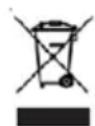
- Dispose of the smart sliderX sales package on the yellow bag or the yellow bin. We charged a waste management company to recycle it according to the appropriate national law (only for Germany).
- Inquire at your city or local government about proper and environmentally suitable disposal methods for the unit.
• Take used-up batteries to your dealer or to a collection point.
Scope of application
This universal remote control is designed to control 4 devices such as:
STB : Your smart receiver TV : TV
DVD : DVD player, DVD recorder HDD ... AMP : Amplifier
Please note:
The designations on the MODE keys “DVD” and “AMP” have the only purpose to facilitate their identification. You can assign other types of device to these keys. The TV mode is fixed (only a
TV code can be programmed under the TV mode key). The STB mode is dedicated to your smart receiver; it is not possible to reprogram this mode key.
After programming the sliderX for a certain unit, you can only operate this unit, if you pressed just before the appropriate mode key!
3 Put in the batteries (always use NEW batteries)
- Open the cover on the back of the smart sliderX.
- Insert two AA batteries (1.5Volts) and verify they are placed correctly with the + on the battery in the same position as marked inside the battery compartment.
4 Functions of the keys
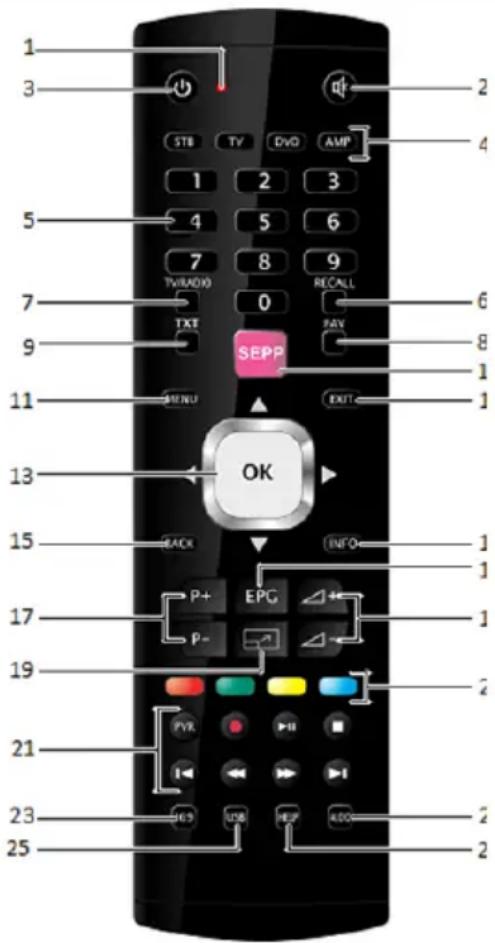
| No. | Key Function | |
| 1 | LED indicator | The indicator light flashes when the remote is operating or lights continuously while you are programming the remote. |
| 2 | Mute, turns on/off the sound of the selected equipment. | |
| 3 | Power, switches on / off the selected device. | |
| 4 | STB, TV, DVD, AMP | Select the device you wish to control. The STB allows you to control your smart STB. It is not possible to reprogram this mode key to use another type of device. |
| 5 | 0 - 9 | Direct access to channels, Device Code selection and alphanumeric text entry (T9). |
text_image
1 3 STB TV DVD AMP 2 4 5 4 5 6 7 8 9 TWIADIO RECALL 7 0 TXT PAY 9 SEPP 1 11 MENU EXIT 13 OK 15 BACK INFO 1 17 P+ EPG P- 19 21 PVR 23 USB HELP ADD 25| No. | Key Function | |
| 6 | RECALL | Switches to previous channel. |
| 7 | TV/RADIO | STB Mode: Switches between TV mode and Radio mode.Other mode: This button allows you with some equipment and brand to select directly 2 digit channels. |
| 8 | FAV | STB Mode: Opens favorite list.Other modes: Text Hold. |
| 9 | TXT | Starts Teletext (on some equipment stops also the Teletext). |
| 10 | SEPP | Opens the smart portal (if your STB is connected to the internet). |
| 11 | MENU | Enter the menu of the selected device. |
| 12 | EXIT | Exits Menu of the selected device. |
| 13 | ▲/▼/◄/► | Navigation key in a menu up, down, left, right. |
| OK | Confirms menu selection. | |
| 14 | INFO | Displays information of the selected device. |
| 15 | BACK | STB Mode: Back to the previous menu item.Other modes: Text stop. |
| 16 | EPG | Opens the Electronic Program Guide. |
| 17 | P+/P- | Select the next or the previous channel of the selected equipment. |
| 18 |  | Control the volume of the selected equipment. |
| 19 | [YSCA] | Full screen mode (only for smart portal). |
| 20 | Colored keys | Fast text function. |
| 21 | PVR | PVR / media player functions: ► || Play/Pause, ►▶ Fast Forward, ■Stop, ◀◀ Rewind, ◀◀ Previous chapter / previous track, ►I Next chapter/ next track, ●Record: This key works the same way as the one on youroriginal remote. In order to avoid a mistake you have to press this keytwice to activate this feature. |
| 22 | AUDIO | Displays the audio menu of the selected equipment (when available). |
| 23 | 16/9 | Changes the size of the image (4/3, 16/9, etc...) |
| 24 | HELP | Opens the smart support homepage (only if your STB is connected to theinternet). |
| 25 | USB | Selects an external source (SCART, HDMI, USB ...). |
Important: The STB key is dedicated to your smart STB. It is not possible to change the code of this key to control another type of equipment. When programming your remote control, before entering in Setup Mode, make sure your remote control is in TV, DVD or AMP Mode. If the remote control is in STB Mode, you will not be able to enter in Setup mode.
5 Programming your TV, DVD and AMP modes
Note: you can dedicate any appliance (TV, DVD, SAT...) to the DVD and AMP modes: you just need to enter the 4 digit code (found in the code book) of the appliance, i. e. a VCR code under the AMP key. In any case, follow the steps below:
-
Make sure your equipment is switched on (for example TV).
-
Press and release the Mode key (4) of the device you want to control (TV, DVD or AMP). The red LED indicator (1) blinks once. Make sure your Universal Remote Control is not in STB Mode.
- Press and hold the Mute (2) and Power (3) keys together until the LED indicator (1) blinks and remains on. Release the Mute and Power keys.
- Using the numeric keypad (5), enter the 4 digit code from the Code Book. The LED (1) turns off after the last digit is entered. If you entered a wrong code the LED (1) blinks for 3 seconds and then goes off. You have to repeat from step 2.
- Point the remote in the direction of your device and press the Power button (3). Your device should turn off. Check other functions (for example for a DVD: ▶ (Play) or ▶▶ (Fast Forward), etc...). If certain functions are not responding this indicates that the entered code is not the correct one. In that case repeat the above procedure with the next corresponding code of your brand.
- Repeat this procedure from step 1 for the other equipment you want to control (TV, DVD, AMP)
6 Manual code search
If your equipment (TV, DVD, etc....) does not respond, try the other codes for your brand. If it still doesn't respond, try the Code Search method.
Note: as you can dedicate any appliance (TV, DVD, SAT...) to the DVD and AMP modes, you need first to enter any 4 digit code for the kind of appliance you wish to control (found in the code book), i. e.: If you want to program a SAT under the DVD key, enter any SAT code found in the code book and then follow the steps below:
- Make sure your equipment is switched on.
- Press and release the Mode key (4) of the device you want to control (TV, DVD or AMP). The red LED indicator (1) blinks once. Make sure your Universal Remote Control is not in STB Mode.
- Press and hold the Mute (2) and Power (3) keys together until the LED indicator (1) blinks and remains on. Release the Mute and Power keys.
- Point the remote control at the device you wish to control and press P+ (17) repeatedly until the channel changes. If you step pass the correct code use P- (17) to go back to the right code. Each time you press the P+ (or P-), the red LED indicator will blink.
- When the equipment you want to control reacts press OK (13) to confirm the code. That's all.
Notes:
- If your equipment doesn't have P+, you can use the Power (3) or ▶Play (21) key.
- If all codes have been searched, the LED indicator will blink for about 3 seconds.
- If certain functions of your equipment can't be controlled you have to find a different code for your brand.
7 Programming a Combo (combined device such as TV/VCR, TV/DVD...)
Depending on the brand and the kind of COMBO (TV/VCR, VCR/DVD, etc.), you will be required to enter a single code for both devices in the COMBO, or to enter two codes, one code per device. Consult the code list.
Before you start programming, you must find the code of the device to be controlled, refer to the code list supplied with this user manual.
- Switch on manually the Combo you wish to control.
- Follow one of the programming methods described previously. Make sure your smart sliderX is not in STB Mode.
- If a second code programming is required, then repeat step 2 above.
8 Volume Control
In its delivered state, the smart sliderX is programmed such that all modes will use their own Volume and Mute functions if present.
Adjustment of ALL volume controls under a specific mode
You can program the remote control so that the volume and mute keys control a specific device (the volume control must exist on the corresponding device). E.g. control of TV sound in TV Mode, DVD Mode and AMP Mode.
Note STB Mode will always use its own volume control.
- Press and release the Mode key (TV, DVD,...) corresponding to the device whose volume will always be controlled by the V+/V- (18) and Mute (2) keys. Make sure your Universal Remote Control is not in STB Mode.
- Press and hold the Mute (2) and Power (3) keys together until the LED indicator (1) blinks and remains on. Release the Mute and Power keys.
- Press and hold Mute (2) until the LED indicator (1) blinks once. Release Mute.
- Press the Mute (2) key once.
Restoring the universal Volume/Mute functions
If you have changed the universal volume and mute functions, as described in the previous two sections, you can reset the functions back to the factory settings:
- Press and release the TV (4) Mode key.
- Press and hold the Mute (2) and Power (3) keys together until the LED indicator (1) blinks and remains on. Release the Mute and Power keys.
- Press and hold Mute (2) until the LED indicator (1) blinks once. Release Mute.
- Press the Mute (2) key once.
9 Normal operation
After having programmed your remote control for your audio/video devices, your remote control will in respect of the most common main functions work like the original remote control of the respective device.
Point your remote control at the respective device and press the appropriate MODE key. All functions will now be activated by pressing the respective function key of your remote control. For each transmitted IR signal, the red LED indicator lights and blinks rapidly.
10 Keyboard
In order to enter numbers, letters and special characters, you can slide on the lower part of the smart sliderX. Now a full (QWERTZ ^2 ) keyboard is available, also on the left side a field with the navigation buttons ▲/▼/◄/► and the OK button and on the right side a field with four colored function keys.
If you own one of the smart receivers Zappix HD+, CX10 or VX10 and it is connected via HDMI with your TV set, you can assign different functions to the navigation buttons ▲/▼/◄/►: Press the key EPG (16), in order to use the navigation buttons ▲/▼/◄/► not anymore to scroll up, down, left and right, but to move a cursor to each possible position. Press EPG once more, in order to increase or decrease the screen image with the buttons ▲/▼. Press EPG once again, in order to go back to the original function of the navigation buttons.
11 Problems and troubleshooting
The remote doesn't work:

After programming the sliderX for a certain unit, you can only operate this unit, if you pressed just before the appropriate mode key. To be sure press the right mode key once more!
- Confirm with your original remote that the equipment works correctly.
- If the listed code does not work, try the Code Search method or enter the next code of that brand.
- To find the corresponding code for your equipment use the manual search.
- Check that the batteries have the correct polarity position.
- The programming of the remote requires 2 AA batteries 1.5Volt (new).
- If the red LED indicator is lit permanently, in general it will be necessary to replace the batteries.
There are several device codes listed under the brand name of my device. How do I determine the correct device code?
- To determine the correct device code for your device, try each consecutive code until most of the functions of the device function properly.
The devices only respond to a few remote control commands:
- Continue testing further codes until the devices respond to the commands accordingly.
- If manual code entry and automatic code search are unsuccessful, it may be that the device is not compatible to your smart sliderX.
12 Statement of Compliance
Smart electronic GmbH, Industriestraße 29, 78112 St. Georgen, Germany, hereby states that this product complies with the following directive and standards:
• Electromagnetic Compatibility Directive 2004/108/EC
• EN 550132001 + A1: 2003 + A2: 2006
• EN 5502@007