LDD2265 - TV Reflexion - Free user manual and instructions
Find the device manual for free LDD2265 Reflexion in PDF.


User questions about LDD2265 Reflexion
0 question about this device. Answer the ones you know or ask your own.
Ask a new question about this device
Download the instructions for your TV in PDF format for free! Find your manual LDD2265 - Reflexion and take your electronic device back in hand. On this page are published all the documents necessary for the use of your device. LDD2265 by Reflexion.
USER MANUAL LDD2265 Reflexion
21.6" FULL HD LED TV with DVB-T/-C/-S2 & Cl+ Slot Model No.: LDD-2265 BLACK
natural_image
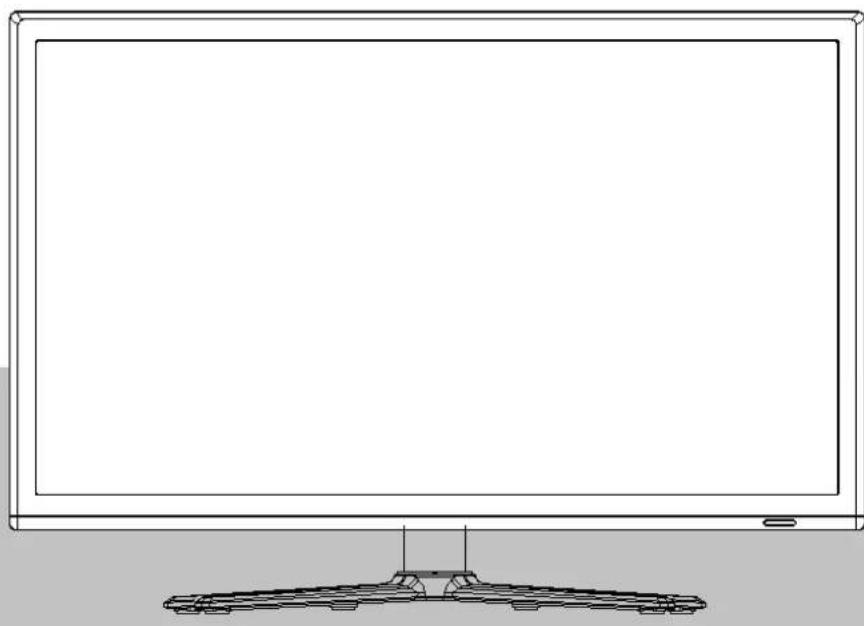
Line drawing of a flat-screen monitor with a base mount (no text or symbols)Read all of the instructions before using this TV and keep the instruction manual in a safe place for future reference.
Contents
| Safety Information | 1-3 |
| Product Introduction | 4 |
| Connections | 5 |
| Remote Control | 6-7 |
| Basic Operation | 8 |
| OSD Menu | 9-15 |
| 1. Picture menu | 9 |
| 2. Sound menu | 10 |
| 3. Channel menu | 11-14 |
| 4. Feature menu | 15-16 |
| 5. Setup menu | 17 |
| Multimedia Operation 18-20 | |
| EPG menu 21 | |
| DVD Operation | 22-29 |
Safety Information
IMPORTANT SAFETY INSTRUCTIONS - READ CAREFULLY BEFORE USE.
Take note of the following safety information which appears on the back of the TV.

CAUTION TO PREVENT ELECTRICAL SHOCK, DO NOT REMOVE ANY COVER SCREWS, NO USER SERVICEABLE PARTS INSIDE, REFER SERVICING TO QUALIFIED SERVICE PERSONNEL.

This symbol indicates that there are important operating maintenance instructions in the literature accompanying this unit.

This symbol indicates that dangerous voltage constituting a risk of electric shock is present within this unit.
Keep these instructions
• Do not use this TV near water.
• Clean only with a slightly damp cloth.
• Do not block any ventilation openings.
• Install in accordance with the supplied Quick Start Guide and this User Guide.
- Protect the power chord from being walked on or pinched, particularly at plugs, and the point where it exits from the TV.
- Do not allow the power chord to overhang the edge of a table.
- Unplug this TV during lightening storms or when unused for long periods of time.

WARNING! TO REDUCE THE RISK OF FIRE OR ELECTRICAL SHOCK, DO NOT EXPOSE THIS TV TO RAIN OR MOISTURE. THE TV MUST NOT BE EXPOSED TO DRIPPING AND SPLASHING AND NO OBJECTS FILLED WITH LIQUIDS SHOULD BE PLACED ON THE TV.
NOTE: No naked flames such as candles should be placed on the TV.
Safety Information
IMPORTANT SAFETY INFORMATION (Continued)
This unit has been produced according to all current safety regulations. The following safety tips should safeguard users against careless use and the dangers connected with such use.
- Although this appliance has been carefully manufactured and rigorously checked prior leaving the factory, as with all electrical appliances it is possible for problems to develop. If you notice smoke, an excessive build up of heat or any other unexpected phenomena, you should disconnect the plug from the mains power socket immediately.
- Ensure that the unit is sufficiently ventilated! Never place next to or underneath curtains!
- The mains plug or appliance coupler is used as the disconnect device, the disconnect device shall remain readily operable.
- This set should only be connected to a mains power supply which matches that stated on the label on the rear of the TV – do not attempt to connect it to any other type of supply.
- The socket – outlet must be installed near the equipment and easily accessible.
- To prevent overload, don't share the same mains supply socket with too many other items of equipment.
- Apparatus with Class 1 construction shall be connected to a mains socket outlet with a protective earthing connection.
- Keep away from rodents. Rodents enjoy biting into electric flexes.
- Always hold the plug when pulling out the plug from the mains supply socket. Do not pull on the flex, the flex can become overloaded and cause a short circuit.
- Set up the unit so that no one is able to trip over the flex.
- Do not place heavy items on the flex, which may damage it.
- Take note that the flex cannot be reached and pulled by young children, avoiding injury.
- Do not set up the unit near to heat sources. The casing and the flex could be damaged by the impact of heat.
- The screen is made of plastic and can break if damage is done to it. Be careful when collecting sharp edged plastic splinters to avoid injury.
- Avoid placing the unit on any surfaces that may be subject to vibrations or shocks.
- To protect the unit during a thunderstorm unplug the AC power cable and disconnect the aerial. Caution: Do not touch the aerial (RF) connector.
- When you leave your home for long periods of time, unplug the AC power cable for safety reasons.
- The unit becomes warm when in operation. Do not place any covers or blankets on the unit in order to prevent overheating. The ventilation holes are not to be blocked. Do not set up near radiators. Do not place in direct sunshine. When placing on a shelf leave 5 cm (2") free space around the whole unit.
- Do not allow water or moisture to enter the TV. Do NOT use in wet or moist areas such as Bathrooms, steamy kitchens or near swimming pools.
- Do not use this unit when moisture condensation may occur
- Any repairs must be carried out by qualified personnel only.
- Do not open this unit. A non-expert attempting to repair the unit could be dangerous and potentially cause a fire hazard.
Safety Information
IMPORTANT SAFETY INFORMATION (continued)
- Liquids spilt into the unit can cause serious damage. Switch the set OFF and disconnect the mains power supply, then consult a qualified service person before attempting to use the unit again.
- Do NOT remove the safety covers. There are no useable or serviceable parts inside. You may invalidate the warranty. Qualified personnel must only service this apparatus.
- Do NOT tap or shake the screen, you may damage the internal circuits. Take good care of the remote control, do not drop.
- Never place hot objects or open flame sources on or close to the TV.
- High temperatures can melt plastic and lead to fires.
- To clean the TV use a soft dry cloth. Do NOT use solvents or petrol based fluids. For stubborn stains, you may use a damp cloth with dilute detergent.
Headphone Warning
Loud music can damage your hearing irreversibly, therefore do not set the volume to a high level when listening through headphones, particularly for lengthy listening periods.
Where to install
Locate the television away from direct sunlight and strong lights, soft indirect lighting is recommended for comfortable viewing. Use curtains or blinds to prevent direct sunlight falling on the screen. Place the TV on a sturdy platform of which the surface should be flat and steady. This will prevent it from falling over.
Make sure the television is located in a position where it cannot be pushed or hit by objects, as pressure will break or damage the screen, and so that small objects cannot be inserted into the ventilation slots or openings in the cabinet.
Product Introduction
Front View

LED indicator Remote Control window(keep clear)
The functions of the TV buttons are described below.
MENU: Press to display the OSD menu, Press again to exit the menu.
CH-/CH+: Press to scan through channels.
They are also can be used to move down/up in the OSD menu screen.
VOL-/VOL+: Press to adjust the volume.
They are also can be used to move left/right in the OSD menu screen.
VOL+ button can be used to skip forward to next menu.
INPUT: Press to select the source.
PLAY: Play/pause the disc playing.
EJECT: Eject the disc.
POWER: Turn on/off the TV set.
Connections
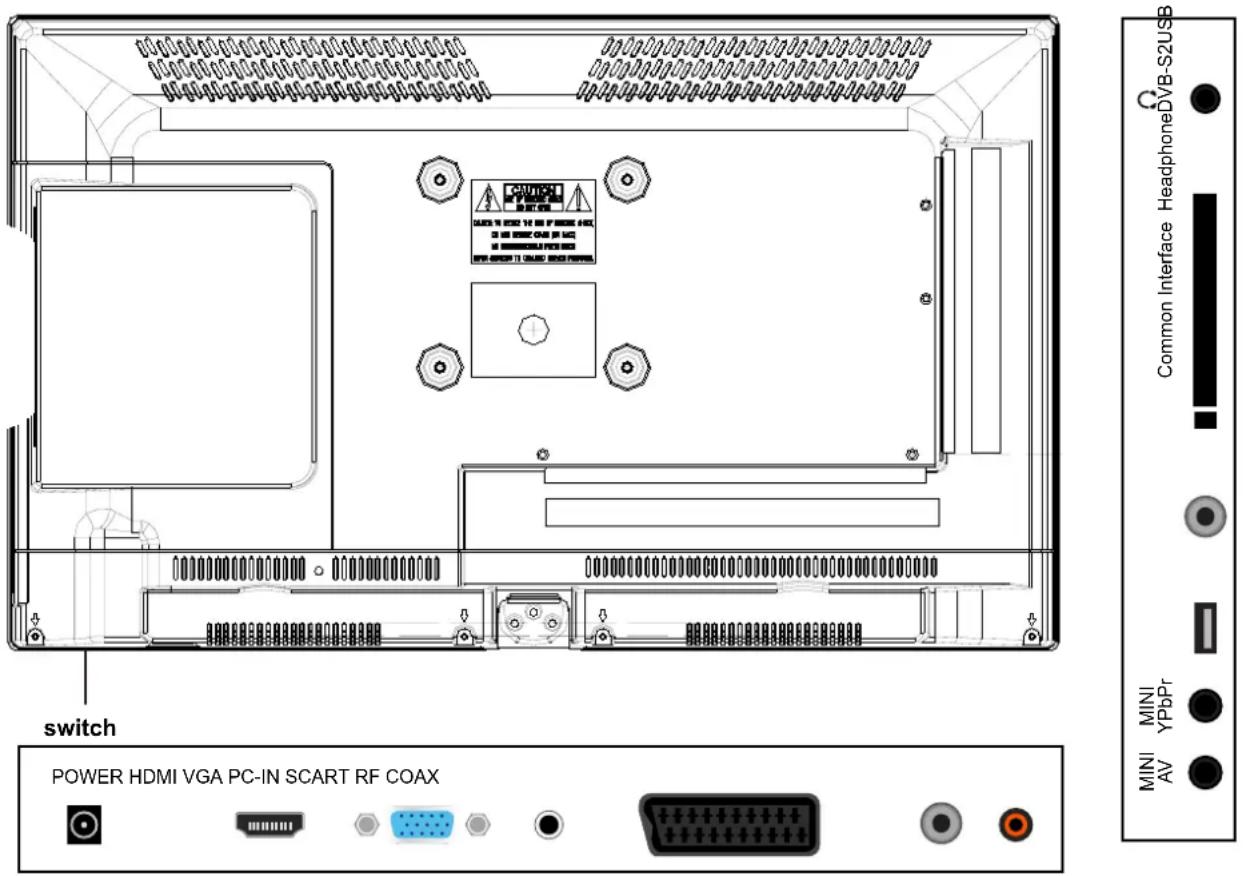
POWER: Connect to the mains adaptor.
HDMI: Connect it to the HDMI of DVD or other equipment.
VGA: For PC display. Connect it to the D-Sub 15 pins analog output connector of the PC.
PC-IN: Connect it to the audio output terminal of PC.
SCART: Connect them to the SCART video output terminal of DVD.
RF: Connect antenna or cable 75 Ohm coaxial to receive TV signal.
Coax: Digital output to AV receiver.
MINI AV: Connect it to the audio & video output terminal of DVD with the Converter cable. (Audio terminals are shared with YPbPr)
MINI YPbPr: Connect it to the YPbPr video output terminal of DVD with the Converter cable.
USB: Connect to USB device for multimedia
DVB-S2: Connect a Satellite signal.
Common Interface: CI slot.
Headphone: Connect it to your headphone or other audio equipment.
Remote Control
The remote control is using Infra-Red(IR). Point it towards the front of the LED TV. The remote control may not work correctly if it is operated out of range or out of angle.
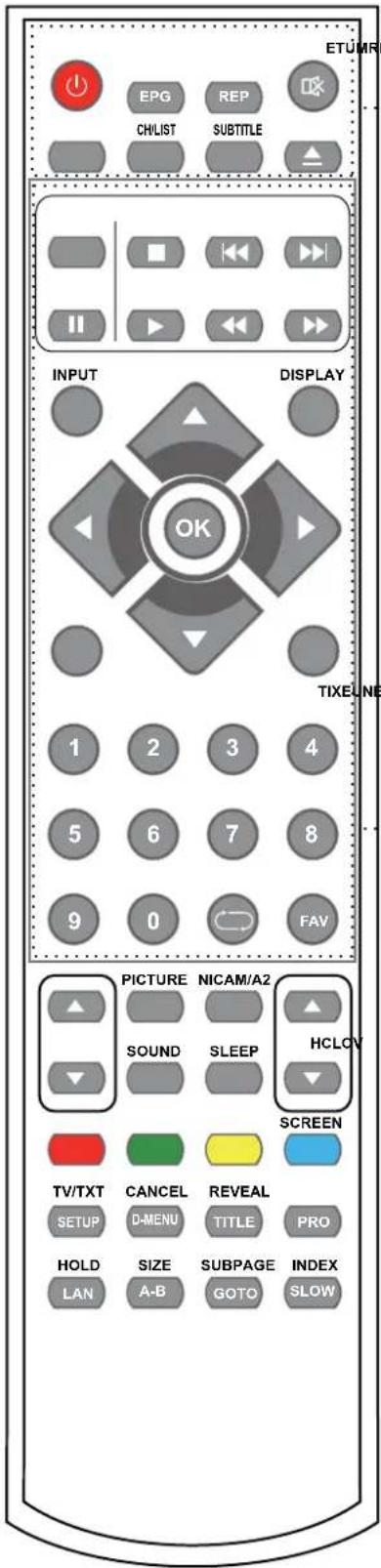
POWER: Turn the TV on/standby.
MUTE: Press to mute the sound, press again or press VOL+ to unmute.
CH/LIST: Display the programs list.
SUBTITLE: Turn on/off the subtitle display in DTV mode and DVD mode.
EPG: To show the Electronic Program Guide during no-menu state only in DTV mode.
REP: Repeat playing the title or chapter.
▲ : Load/eject DVD disc.
■ : Stop program.
◀◀ : Previous chapter.
▶▶ : Next chapter.
II : Pause program.
▶ : Play program.
◀ : Fast reverse.
▶▶ : Fast forward.
INPUT: Press to display the input source menu.
DISPLAY: Press to display the current mode's information.
MENU: System setup menu.
EXIT: Exit the OSD menu.
FAV: Display the favorite program list.
NUMBER BUTTONS
Press0-9 to select a TV channel directly when you are watching TV.

Return to the previous channel viewed.
CURSOR KEYS (▲/▼/◄/►/OK)
Allows you to navigate the on-screen menus and adjust the system settings to your preference.
Remote Control
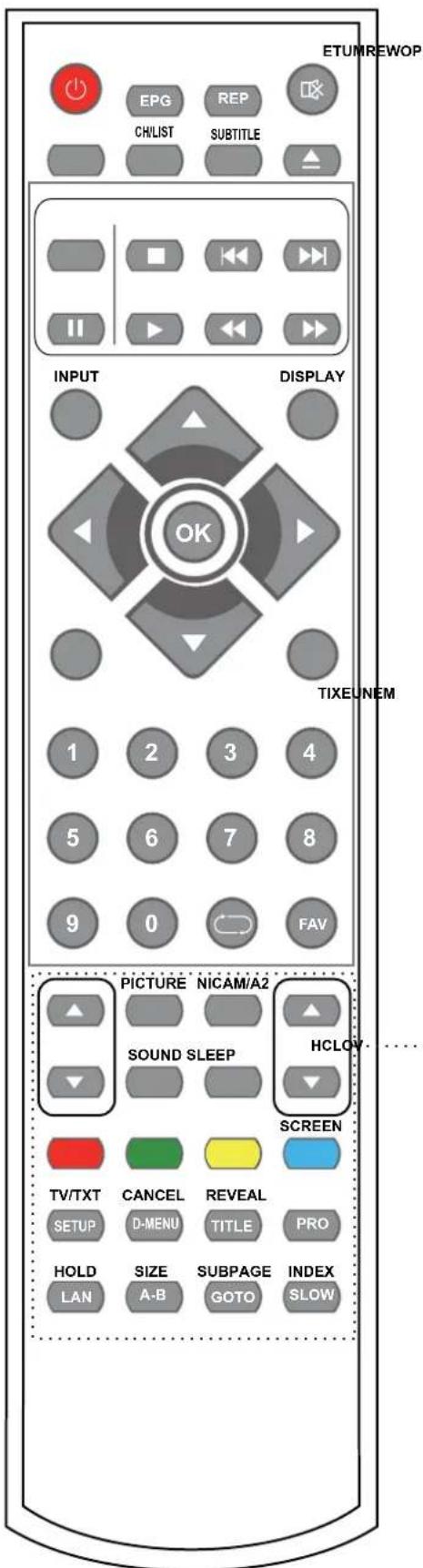
CH▲/▼: Scan through channels.
VOL▲/▼: Adjust the volume.
PICTURE: Select the picture mode.
NICAM/A2: TV Nicam/A2 select.
SOUND: Select the sound mode.
SLEEP: Standby timer.
SCREEN: VGA Auto Adjust.
TV/TXT: Turn off/on the Teletext display.
CANCEL: Cancel the Teletext display.
REVEAL: Reveal any hidden text.
HOLD: Hold or carry on the current subpage.
SIZE: Press to see top half of page double size, Press again to see the bottom
half of page double size. Press again for normal size.
SUBPAGE: Press to enter subpages, pressagain to cancel.
INDEX: Go to index.
Colour buttons: Short cuts-follow the coloured links in the text
SETUP: DVD system setup.
D-MENU: DVD play list/Disc menu.
TITLE: DVD title.
PRO: Edit the program and play.
LAN: Select DVD disc language.
A-B: Select and play the preferable paragraph of DVD program by pressing this key twice at the beginning and end of it.
GOTO: Play your favorite title/chapter/track.
SLOW: Play DVD programs at slow speed.
Basic Operation
Power on/off
- Connect to the power supply with the adaptor.
- -To turn on the TV
Press POWER button on the TV or remote control.
-To turn off the TV
Press POWER button on the TV or remote control.
Input Source select
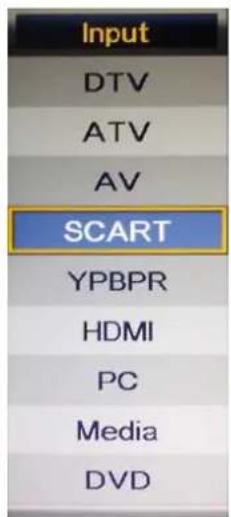
Press INPUT button on the TV set or remote control to display the input source menu, and use CH+/- button on the TV set or ∧/∨ button on remote control to select the input source, press OK button on the remote control to enter.
Note: Before you select the input source, make sure the connections are prepared.
Basic OSD Menu operation
Press MENU button to display the OSD menu as below:
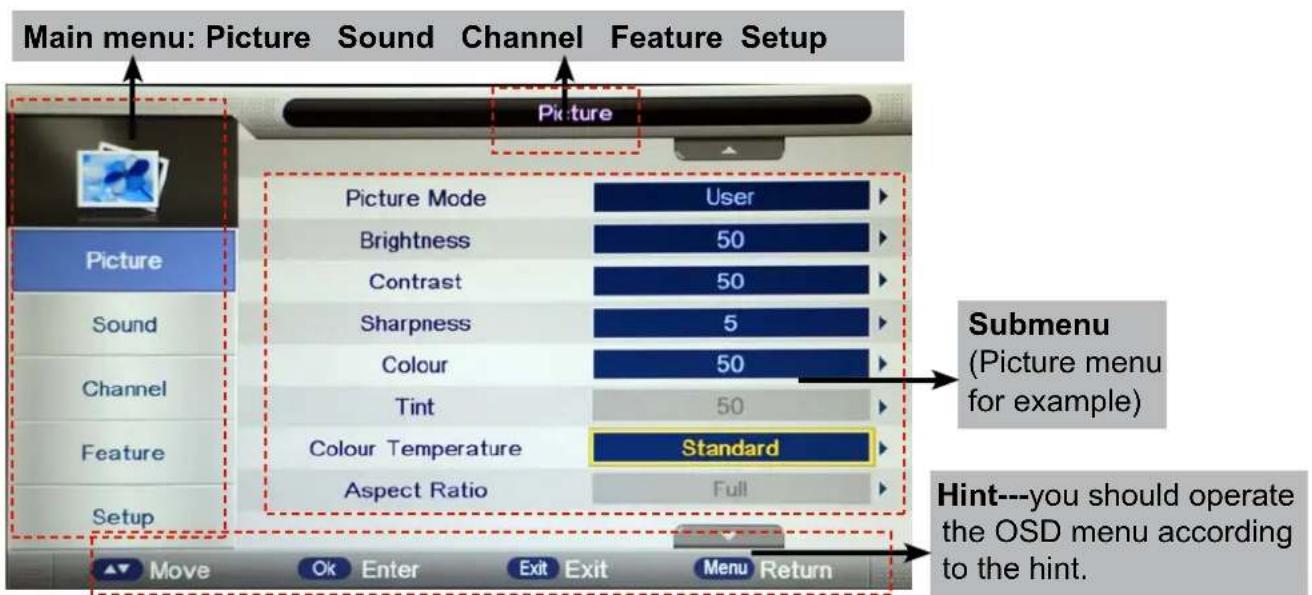
Use ∧ ∨ button to select the main menu, and press > / OK button to enter the submenu. In the submenu, use ∧/ ∨ button to select the function item, press > / OK button to enter the setup menu, then press < /> button to adjust, or press ∧/ ∨ to select and press OK / < /> button to confirm.
* (Press MENU / <button to return to the upper menu.)
* (Press EXIT button to exit the menu display.)
Note1: Only when you input the suitable signal, the relevant items can be activated Note2: Please operating the OSD menu according to hint on the bottom of the banner.
OSD Menu
1. Picture menu
Description
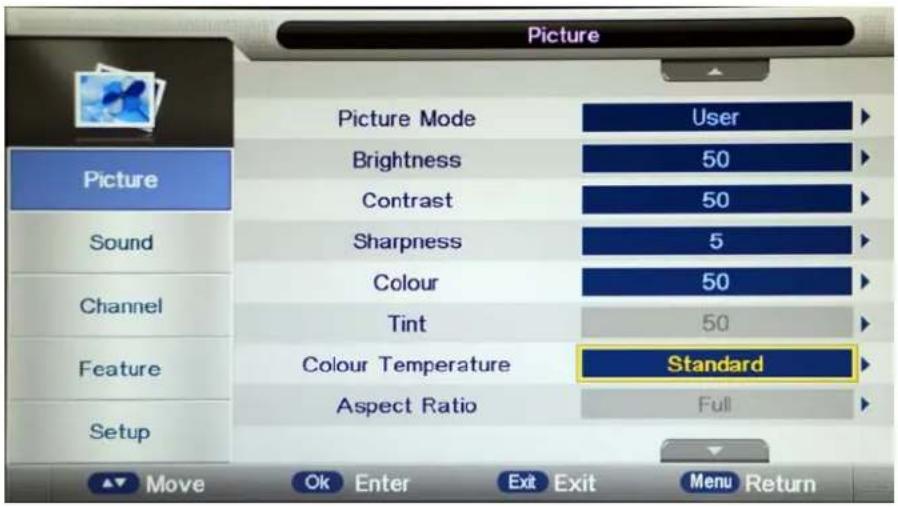
Picture Mode: Select your desired picture mode from Dynamic, Standard, Mild and User.
Brightness: Adjust image black level.
Contrast: Adjust image contrast.
Sharpness: Adjust the sharpness(Gray and invalid in VGA/PC mode).
Colour: Adjust image colour from black and white.
Tint: Control the tint (NTSC mode only).
Colour Temp.: Select an optimum color temperature mode to suit your eyes for viewing from Warm, Cool, Standard.
Aspect Ratio: Change the aspect for the screen from 4:3,16:9,Zoom1,Zoom2 or Panorama etc....
Noise Reduction: If the broadcast signal received is weak, you can select the Noise Reduction option to reduce the video noise level between Off, Low, Middle and High.
OSD Menu
2. Sound menu
Description
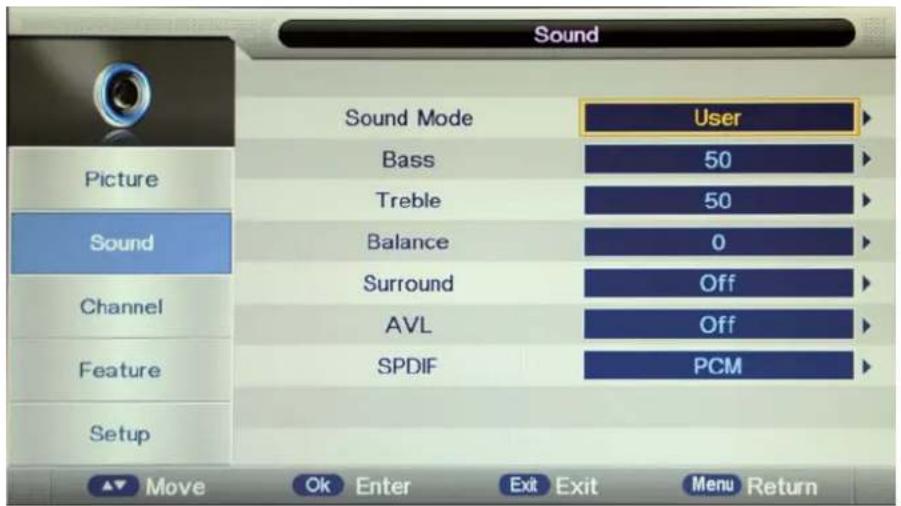
Sound Mode: Select your desired sound mode from Standard, Movie, Music, Speech and User.
Bass: Adjust the level of the lower-pitched sounds.
Treble: Adjust the level of the higherpitched sounds.
Balance: Adjust the audio output between left and right speakers.
Surround: Turn on/off the surround sound function.
Auto Volume Level (AVL): The volumes of all sources will be maintained when the function's on.
SPDIF: Select the spdif mode for the TV from off, PCM and Auto.
OSD Menu
3. Channel menu(In ATV/DTV mode)
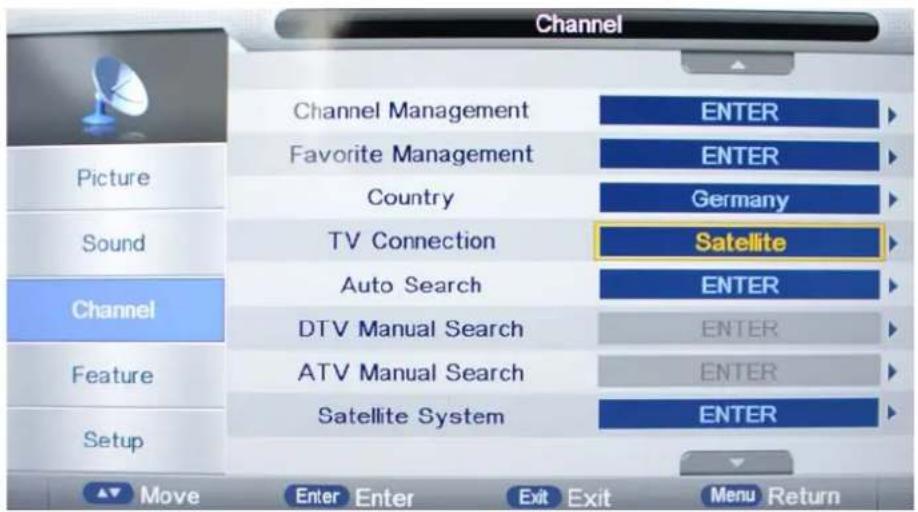
Description
Channel Management: Enter the Channel management menu to edit the channels.
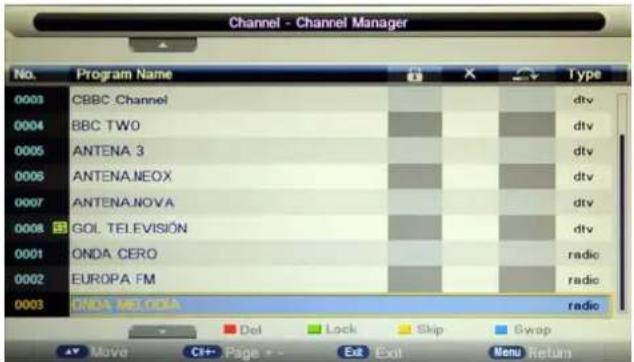
Press Release button to sign the channels you want to delete, it will hint you when you exit.
Lock: User must set the "Lock enable" (Feature-Lock-Lock enable) at ON to active this function. Press GREEN button to sign(lock) or cancel(unlock) the channel. And you have to enter the password to view the program.
Skip: Press YELLOW button to skip the channel or cancel the setting, and the program will not be programmed by CH+/- button.
Swap: Press BLUE button to sign the channel, press ∧/∨ button to move, and press OK button to swap the position.
Rename: Press OK button to enter the rename menu to rename the ATV channel.
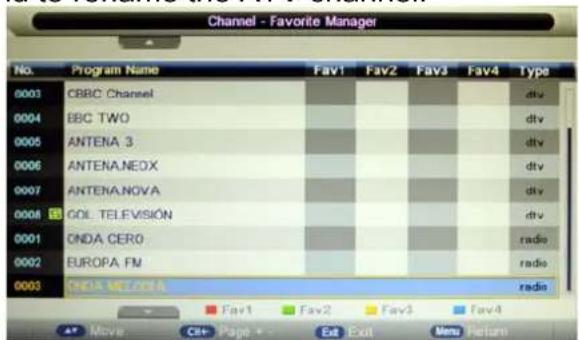
Favorite Management: Add or remove favourite channels by the colour buttons.
Up to 4 favourite lists are available, RED-Fav1, GREEN-Fav2, YELLOW-Fav3, BLUE-Fav4.
Note: You could display the Favourite list 1/2/3/4 by press the FAV button once/twice/three times/four times.
OSD Menu
Country: Select the country.
TV Connection: Select DTV type, you can choose Air(DVB-T), Cable(DVB-C), Satellite(DVB-S2), as you like.
When the Child Lock is on, please enter the Password (Lock Password in Feature menu) to start Auto and Manual Search.
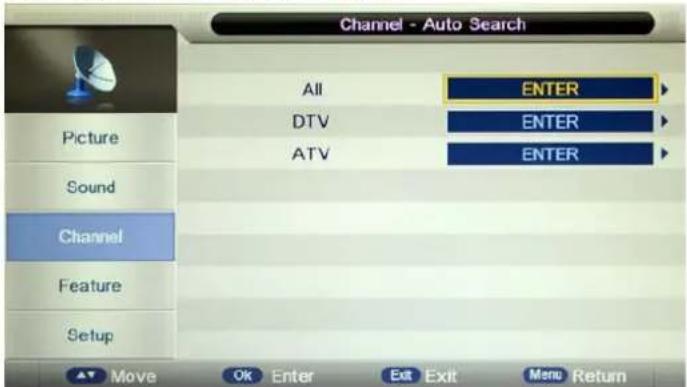
Auto Search: Press OK button to enter the Auto Search menu, select search mode, and press OK button to start auto search.
Note:
-
ALL: Auto search channels for DTV, ATV and Radio. DTV: Auto search channels for DTV and radio. ATV: Auto search channels for ATV.
-
When the TV is auto-tuning, you could press MENU button to stop auto-tuning and return to preview menu.
DTV Manual Search : Enter the DTV Manual Search menu.
Press ∧/∨ button to select the "Channel" item, and press </ > button to select the channel, then press ∧/∨ button to select the "Start" item, and press </ > button to manual search.
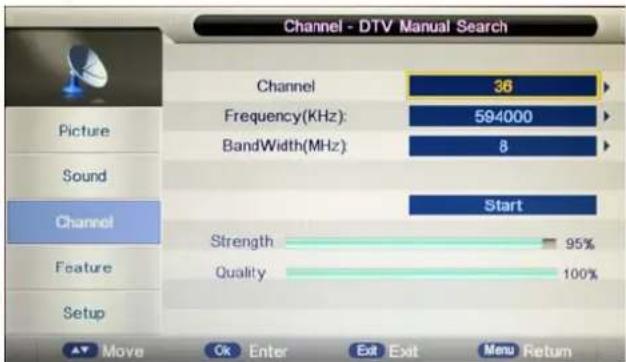
DVB-T
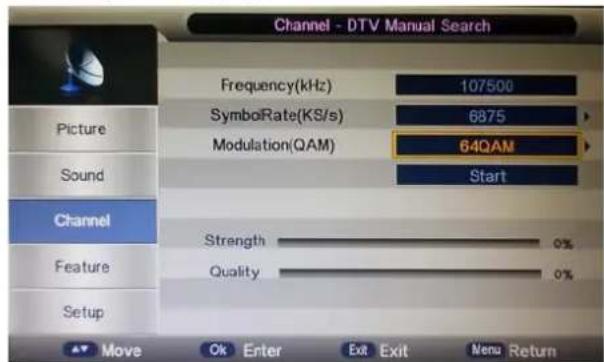
DVB-C
ATV Manual Search : Enter the ATV Manual Search menu.
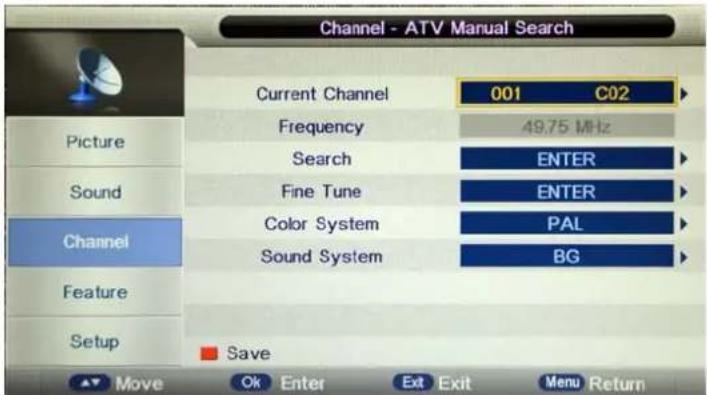
Current Channel: Select the current channel for manual searching.
Search: Press OK button to enter the search menu, and manual search the frequency by < / > button.
Fine Tune: Press OK button to enter the Fine tune menu, and fine tune the frequency by < / > button.
Color/Sound System: Select the Color/Sound system for the program.
OSD Menu
Satellite System
Press ∧/∨ button to select the "TV Conection", and set it on "Satellite".
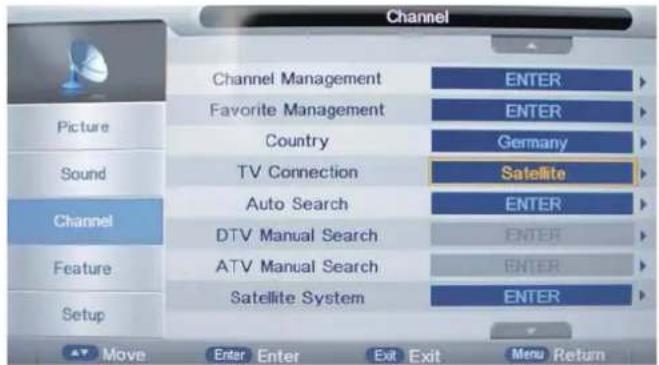
Select "Auto Search" as follow:
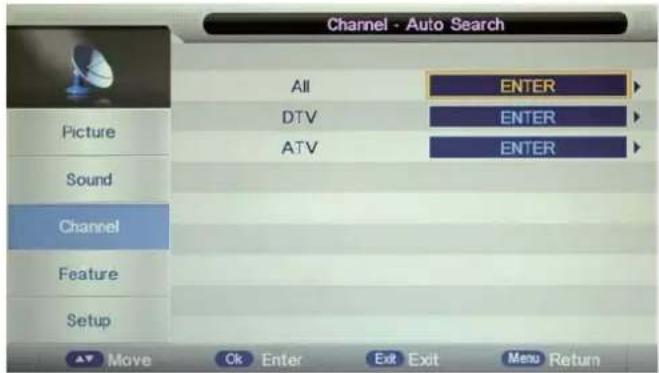
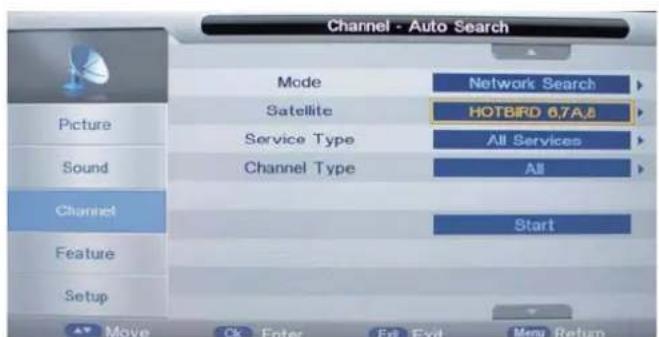
Operations in satellite Auto Search menu are shown in the following table
| Option | Value |
| Mode Default, Network Search, Full Search | |
| Satellite | 65 satellite for searching(3 user edit satellite) |
| Service Type All Services, Free Service | |
| Channel Type All, TV Only | |
OSD Menu
Satellite System
Press ∧/∨ button to select the "TV Conection", and set it on "Satellite".
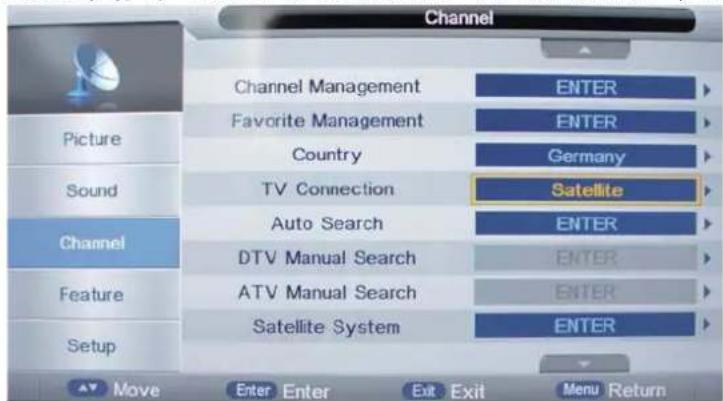
Press ∧/∨ button to select the "Satellite System", show as follow:
Operations in Satellite List Menu are shown in the following table:
| Satellite | Transponder | ASTRA 1E1G3A |
| 0002 ASTRA 1H,1KR,1_ | 0001 11325 H 22000 | LNB Type 9750/10600 |
| 0003 ASTRA 2A,2B,2D | 0002 11357 H 22000 | |
| 0004 ASTRA 1E.1G.3A | 0003 11798 H 27500 | LNB Power Os |
| 0005 NLESAT 101, 10 | 0004 11836 H 27500 | 22KHz Auto |
| 0006 EUTELSAT W3A | 0005 11876 H 27500 | Toneburst Nose |
| 0007 EUTELSAT WI | 0006 11914 H 27500 | DisEqC1.0 Nose |
| 0008 BADR-2,3.4EURO | 0007 11954 H 27500 | DisEqC1.1 Nose |
| 0009 EUTELSAT SES_ | 0008 11982 H 27500 | |
| Strength Quality | 0% 0% | Edit Scan |
| noitcAekortSyeK | |
| KEY_UP use cursor to up | |
| KEY_DOWN | use cursor to down |
| KEY_LEFT | switch operation to satellite system parameters setting list |
| KEY_RIGHT | switch operation to Transponder list |
| KEY_MENU Back to Main Menu. | |
| KEY_EXIT | Exit Main Menu. |
| KEY_GREEN Enter satellite edit menu | |
Operations in Transponder List Menu are shown in the following table:
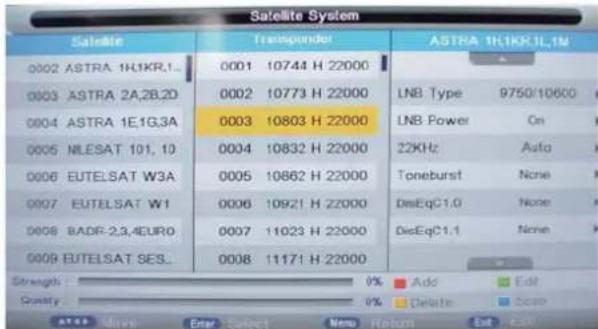
| Key Stroke | Action |
| KEY_UP | use cursor to up |
| KEY_DOWN | use cursor to down |
| KEY_LEFT | switch operation to Satellite list |
| KEY_RIGHT | switch operation to satellite system parameters setting list |
| KEY_ENTER | Select/unselect cursor item Transponder. |
| KEY_MENU | Back to Satellite list. |
| KEY_EXIT | Exit Main Menu. |
| KEY_RED | Enter Transponder Add menu |
| KEY_GREEN | Enter Transponder Edit menu |
| KEY_YELLOW | Enter Transponder Delete confirm menu |
| KEY_BLUE | Enter Transponder scan menu |
Operations in Setting Menu are shown in the following table:
| Satellite System | ||||
| Satellite | Transponder | Setting | ||
| 0001 HOTBRO 6.7A5 | 0001 10723 H 29500 | HOTBRO 6.7A5 | ||
| 0002 ASTRA 1H1KFL | 0002 10750 H 15000 | LNB Type | 9750/10500 | |
| 0003 ASTRA 2A2S2D | 0003 10775 H 28500 | LNB Power | On | |
| 0004 ASTRA 1E103A | 0004 10830 H 3333 | 22kVc | Auto | |
| 0005 NLESAT 101, 10 | 0005 10853 H 27500 | DlsEqC1.0 | Burst A | |
| 0006 EUTELSAT W3A | 0006 10892 H 27500 | Motor | DlsEqC1.3 | |
| 0007 EUTELSAT W1 | 0007 10930 H 27500 | |||
| 0008 BAZR-2.34EURO | 0008 10971 H 27500 | |||
| Strength: | OS | |||
| Quality: | OS | |||
| ekortS/kε | nɔiA | |
| KEY_UP | use cursor to up | |
| KEY_DOWN | use cursor to down | |
| KEY_MENU | Back to Transponder liat. | |
| KEY_EXIT | Exit Main Menu. | |
| Option | Value |
| LNB Type | 9750/10600,9750/10750,05150,05750,09750,10600,10750,11300,11475,User Single,User Dual |
| LNB Power | On,Off |
| 22KHz | Auto,off,on |
| DisEqC Mode | Off,LNB1,LNB2,LNB3,LNB4,Burst A,Burst B |
| Motor | None,DisEqC1.2,DisEqC1.3 |
OSD Menu
4. Feature menu
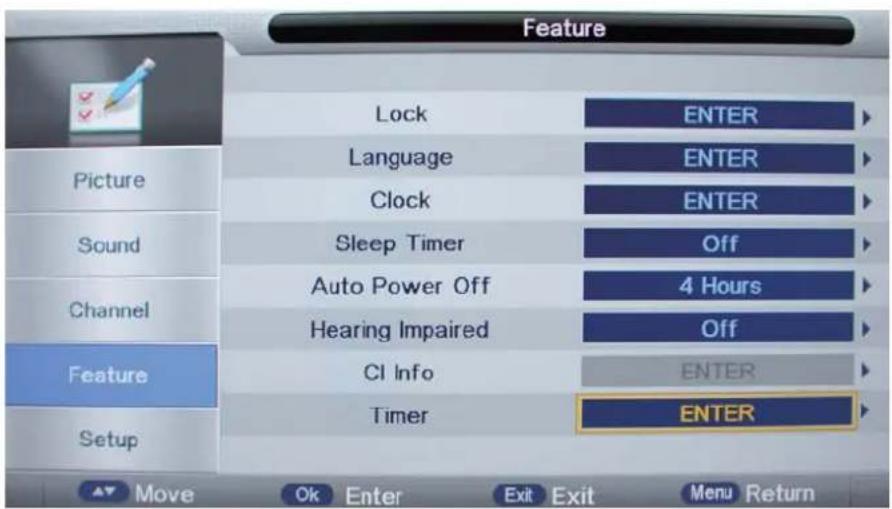
Description
Lock: This menu allows you to lock certain features of the television so that they can not be used or viewed. For example if you don't want certain channels viewed by children or if the television is to be used in a hotel and you want certain channels be locked.
When you enter the system lock menu you will be asked for a password. As default it is 0000.
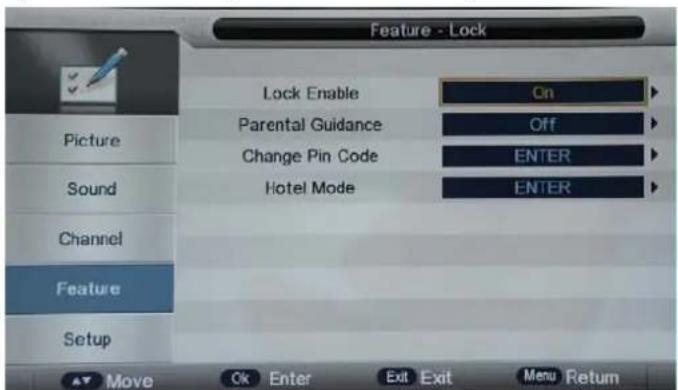
Lock Enable - Turn on/off the Lock functions.
Note: When it is be turned on, the functions of Parental Guidance and Change Pin code below will be locked, and the functions Lock(in Channel Management), Auto Search, DTV Manual Search, ATV manual Search in Channel menu will also be locked.
Parental Guidance - Select the Parental Guidance mode, or turn off the function.
Change Pin Code – Press OK button to enter, first enter the current code, then enter your new code and confirm your new code.
OSD Menu
Hotel Mode - Enter the Hotel Setting menu.
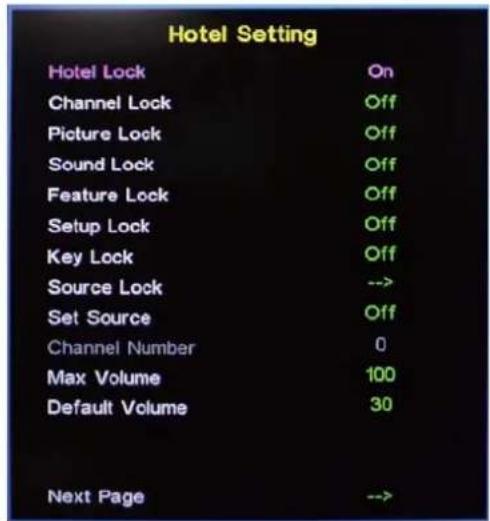
Hotel Lock: Turn on/off the Hotel Lock function.
Channel Lock: Disable the Channel menu in OSD.
Picture Lock: Disable the Picture menu in OSD.
Sound Lock: Disable the Sound menu in OSD.
Feature Lock: Disable the Feature menu in OSD.
Setup Lock: Disable the Setup menu in OSD.
Key Lock: Disable the buttons on the TV set.
Source Lock: Disable the input source you desired.
Set Source: Select the default source when you turn on the TV.
Channel Number: Select the default channel number when you turn on the TV.
Max Volume: Set the Max volume for the TV.
Default Volume: Set the default volume when the program is on.
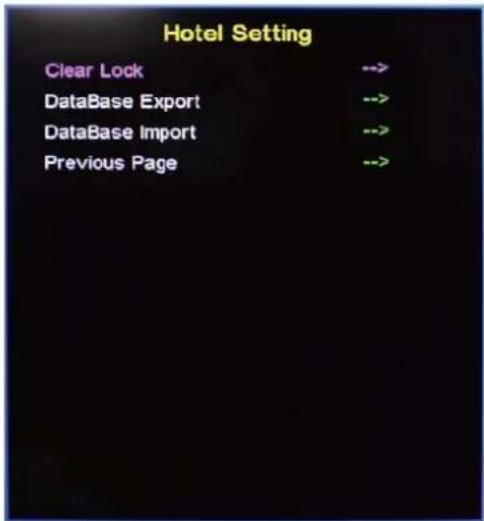
Clear Lock: Clear all the locks above, it means set all the locks to OFF and max volume to 100.
Database Export: Export all Hotel Settings to the USB device.
Database Import: Import all Hotel Settings from the USB device.
Previous Page: Select Previous Page items, press the ok button to return to the previous page.
Language: Lets you adjust the different language options available.
Clock: Allows you to set the clock (as default the information is taken automatically from the digital signal).
Sleep Timer: Lets you set the sleep timer so the television automatically switches off after a certain amount of time.
Auto Power Off: The TV will switch off itself automatically if no change in status within the time you select. You can choose 1H, 2H, 4H or off.
Hearing Impaired: You can switch on the hearing impaired feature, this provides additional information and subtitles
CI Info: Pay per view services require a "smartcard" to be inserted into the TV.
If you subscribe to a pay per view service the provider will issue you with a 'CAM' and a "smartcard". The CAM can then be inserted into the COMMON INTERFACE PORT (CI Card In).
Timer: Set up Menu for Timer, please see the "EPG".
OSD Menu
5. SETUP menu
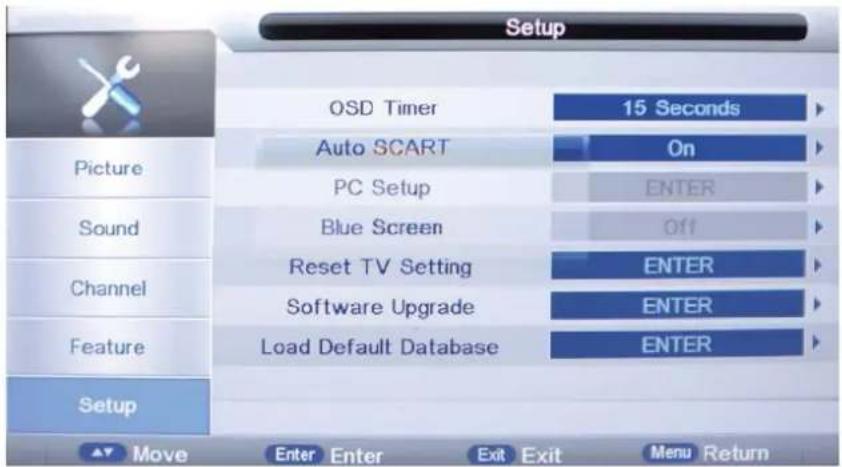
Description
OSD Timer: Lets you adjust the amount of time the On Screen Menu stays on the screen before disappearing.
Auto SCART: The TV will be changed to SCART source automatically when you connect the TV to the SCART device.
PC Setup: Change the PC Settings in PC mode.
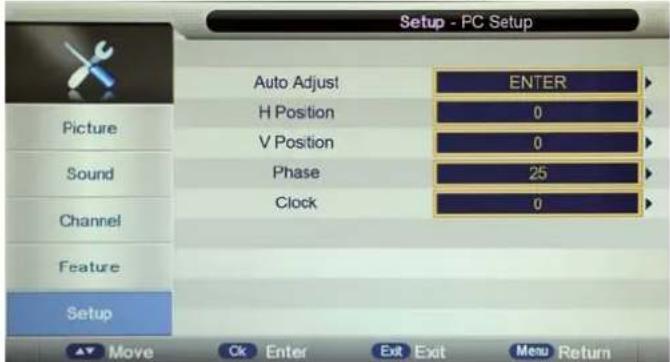
Auto Adjust: Setup the parameter of the screen automatically.
H/V-Position: Adjust the transverse/vertical position of the screen.
Phase: Adjust the phase of the ADC sampling clock relative to the sync signal, until a stable image is obtained.
Clock: Adjust the pixel clock frequency, until the image size is maximized for the screen.
Blue Screen: Changes the background when there is no input between clear and a blue background (Only available in some sources).
Reset TV Setting: This clears all the TV settings for the television.
Software Upgrade: From time to time we may release new firmware to improve the running of the television (available to download). This menu lets you upgrade that software onto the television. Further details of how to do this will be issued with the firmware. Contact the helpline or refer to the ‘product support’ section of the website.
Load Default Database: Import the default satellites and channel, so that the user can watch programs directly.
Multimedia Operation
Basic Operation
1). Press the INPUT button on the remote control to display the input source menu, select Media source by the ▲ /▼ buttons, and press OK button to enter the Multimedia menu as shown below.
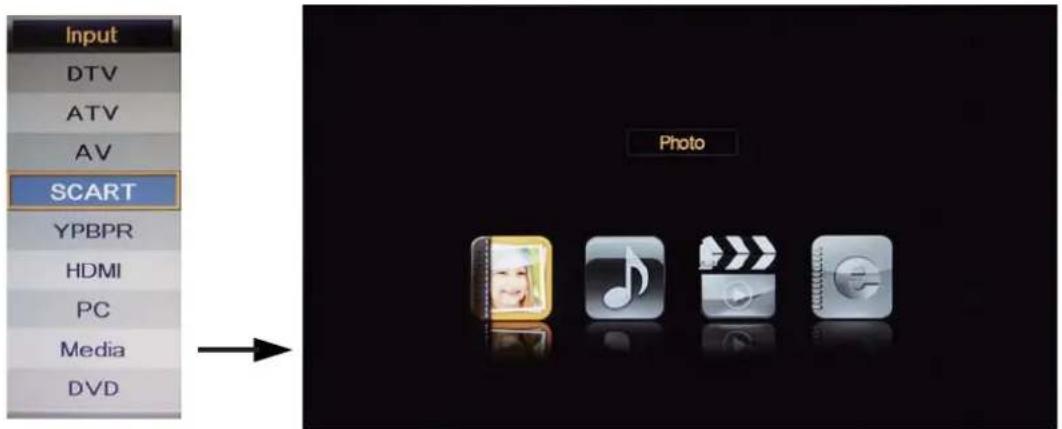
2). Insert USB device, and select the Media mode form Photo, Music, Movie and eBook, then you will find the name of the device display on the screen as shown below.
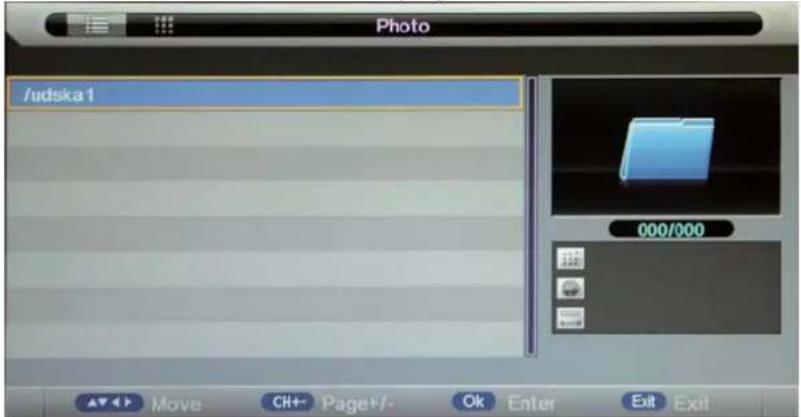
Hints for operation
3). Press ∧/∨ button to select the USB device and press OK button to enter the file list as shown below.
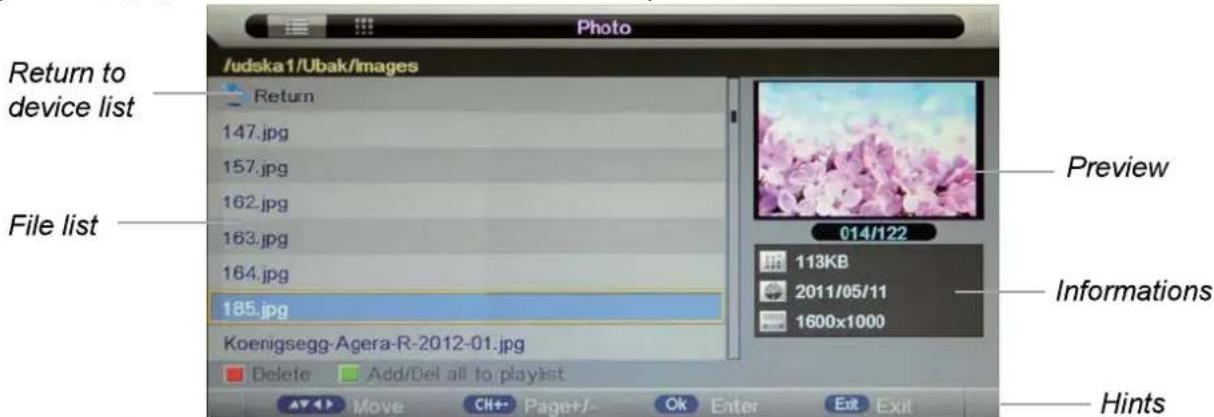
Press ∧/∨ buttons to move (press OK button to select the file or unfold the folder);
Press RED button to delete the file; Press GREEN button to sign or cancel all the files to playlist;
Press OK button to sign or cancel the selected file to playlist.
Press < button to previous menu, Press EXIT button to select the file view type list(< ) or thurnbnail( ).
Press Exit again to return to the root MENU.
Then press ▶ button to program the files (be signed) you select or the files in the fold you select.
Press ■ button to stop and exit the full screen program, please notes the hints on the bottom.
Multimedia Operation
1. Photo
Play the photo
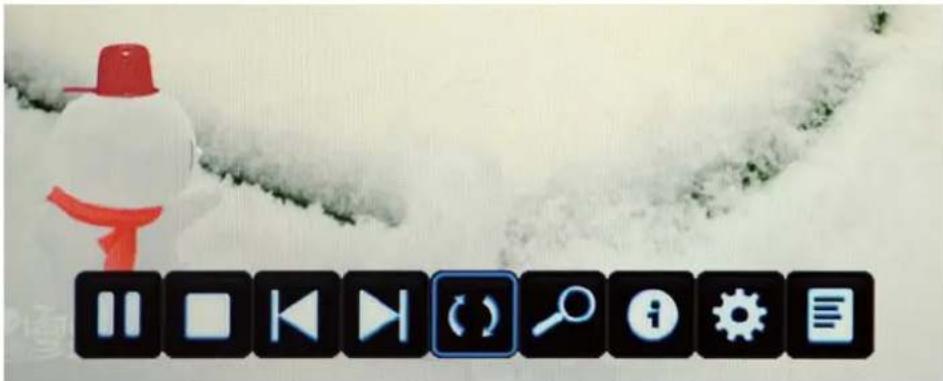
Press ◀/▶ button to select the option on the table, and press OK button to change.
Note: You could press OK button to display the option table when it disappears.
▶/II Play/Pause the photo playing.
■ Stop and exit the full screen program.
|◀▶| Play the previous or next file directly.
(2) Ratate the picture(0, 90, 180, 270).
Zoom in/out the picture, you could move the picture by Cursor left/right/up/down button in Zoom mode.
i Display the information of the current file.
☐ Display the photo setup menu, and select the Repeat mode, Background Music, Music Source, Slide Time, Effect.
■ Display the playing list.
2. Music
Play the music
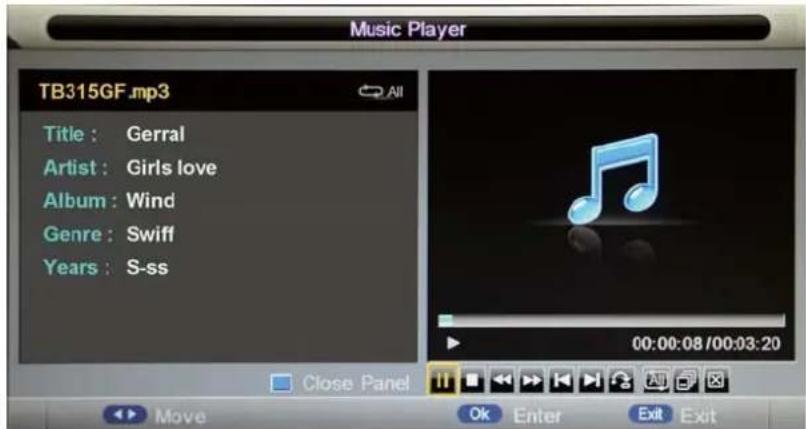
Press ◀/▶ button to select the option on the table, and press OK button to change.
▶/II Play/Pause the music playing.
■ Stop and exit the music playing.
◀◀ ▶▶ Play fast backword or forward.
|◀▶| Play the previous or next file directly.
ALL Select the repeat mode for playing music.
Switch the window between "Information" and "Playlist".
Switch off the screen displaying (BLUE button as quick button), and it will be turned on by exepet power button).
Multimedia Operation
3. Movie
Play the movie
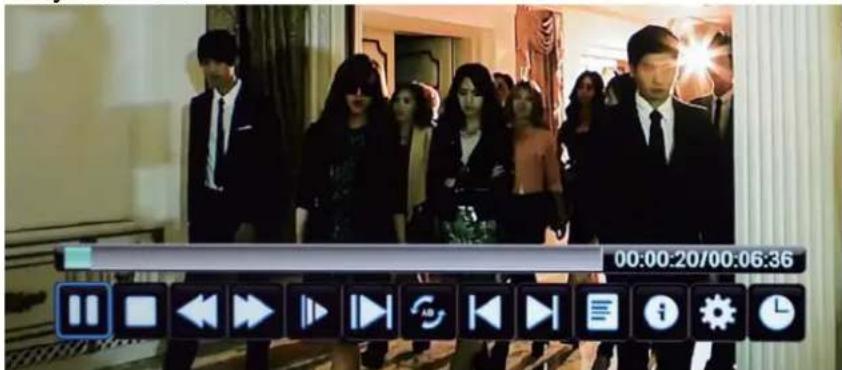
Press ◀/▶ button to select the option on the table, and press OK button to change.
Note: You could press OK button to display the option table when it disappears.
▶/II Play/Pause the movie playing.
■ Stop and exit the full screen program.
◀◀ ▶▶ Play fast backword or forward.
▶ Play the movie in slow mode.
▶ Play the movie in step mode.
Set the A-B repeat playing mode.
▶ Play the previous or next file directly.
■ Display the playing list.
i Display the information of the current file.
Display the movie setup menu, and setup the Program, Subtitle, Audio, Repeat mode.
Goto mode, Input the time and start playing directly.
4. eBook
Play the text
![8,12I have 35 match(es) for robin hobb in listfile: MAJECKI_MAIN . Type @majeckibiglist to obtain the whole list !majecki Robin Hobb - [The Tawny Man 01] - Fool's Errand (v0.9) [rtf].rar -------- 409.53 KB !majecki Robin Hobb - [The Tawny Man 01] - Fool's Errand [covers & map].rar -------- 255.8 KB 1/1 Add/Del bookmark Go to page Bookmark list Playlists Page - Page + Exit Exit](/content/2026/05/1024823/images/f7c9715c1cb325032cb1a621bb45a50b1ffb45a5e19f9237982a8dd0368e74c2.jpg)
◀◀ ▶▶ Turn to previous/next page of the text.
RED button: Add or delete the bookmark.
GREEN button: Goto the appoint page.
YELLOW button: Display the bookmark list.
BLUE button: Display the playlist.
EPG menu
Press EPG button on the remote control to display the EPG menu.
![EPG Weekly Mode 0002 BBC NEWS 24 20/07/2005 12:09:53 20/07/2005 12:00-20/07/2005 13:00 BBC News News as it breaks, with live reports from Britain and around the world. [SL] Wed 20/07 Wed Thu Fri Sat Sun Mon Tue Wed BBC ONE 12:00-13:00 BBC News BBC NEWS 24 13:00-14:00 BBC News CBBC Channel 14:00-15:00 BBC News BBC TWO 15:00-16:00 BBC News ANTENA 3 16:00-17:00 BBC News ANTENA.NEOX 17:00-17:45 BBC News ANTENA.NOVA 17:45-18:00 Sportsday Daily Prev Day Next Day Move Exit Exit](/content/2026/05/1024823/images/f0b24b27c8541468d65972f60a148e1f5f4de7a6cf7cbb2a43075d5c0ed9599b.jpg)
EPG mode: Press RED button to change the EPG display mode.
Daily mode: shows the information of the programs to be broadcasted in daily mode.
Weekly mode: shows the information of the programs to be broadcasted in weekly mode.
Reminder: Press GREEN button once to remind the program for watching, and press GREEN button again to cancel. For detail reminder settings, please take following for reference.
Timer
Enter the Timer menu (Menu → Feature → Timer) to setup the timer recording settings.
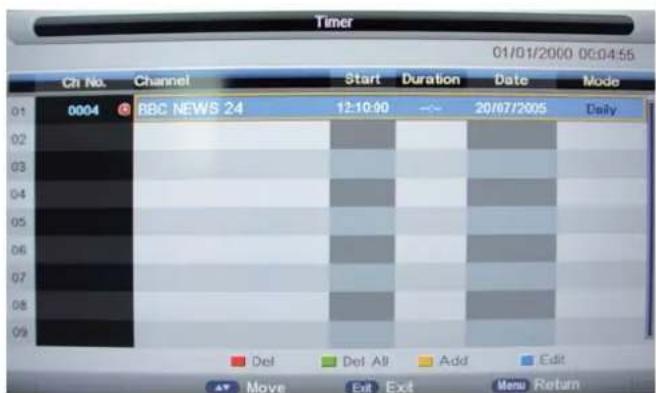
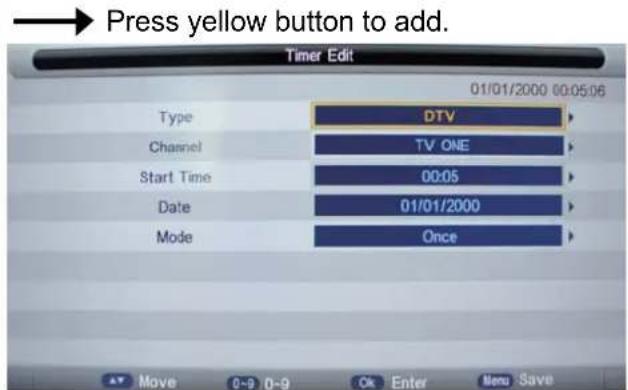
Type: Select the type of the program you want to timer.
Channel: Select the channel you want to timer.
Start Time: Setup the start time for timer the program.
Date: Select the date for timer.
Mode: Select the mode for timer.
Previous/Next Day: Press YELLOW/BLUE button to display the programs on previous or next day.
DVD Operation
Basic Operation
Press the Power button on the TV or the remote control, then press the INPUT button to select DVD mode. If there is no disc in the DVD player the screen will show "NO DISC".
Insert Disc according to picture next to disc slot.
Do not touch the playing surface.
Hold the disc around the outside with your fingers and place the disc into the slot. The player will automatically draw the disc into the player.
To "Eject" the disc, press the EJECT button on the TV or the "▲" button on the remote control.
DVD Setup Mode
- Setup Mode provides the menu for the configuration of General Setup Page, Audio Setup Page, Dolby Digital, Setup, Preference Page.
- Item selection in the Setup Menu is done by using the Navigation Arrows, SETUP button and the OK button.
- Press the SETUP button first, enter into SETUP menu, then press the DIRECTION RIGHT button, you can enter into the next Sub-menu.
- Press the SETUP button again to exit the Setup Menu.
General Setup
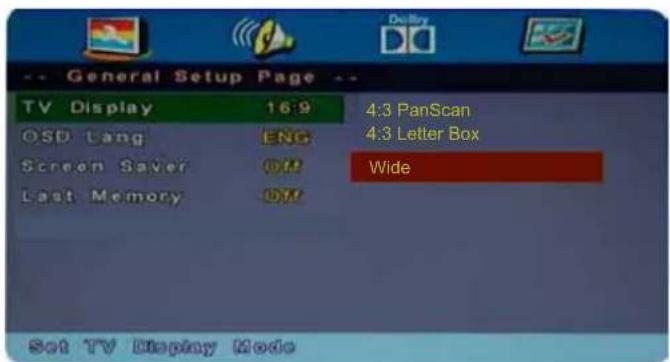
TV Display
• 4:3 Pan Scan
This is selected when the DVD player is connected to a normal TV. Wide-screen images are shown on the screen, but with some parts cut automatically.
• 4:3 Letter Box
This is selected when the player is connected to a normal TV. Wide-screen images are shown on the screen, with black belt on the top and bottom.
- Wide
This is selected when the player is connected to a wide-screen TV.
DVD Operation
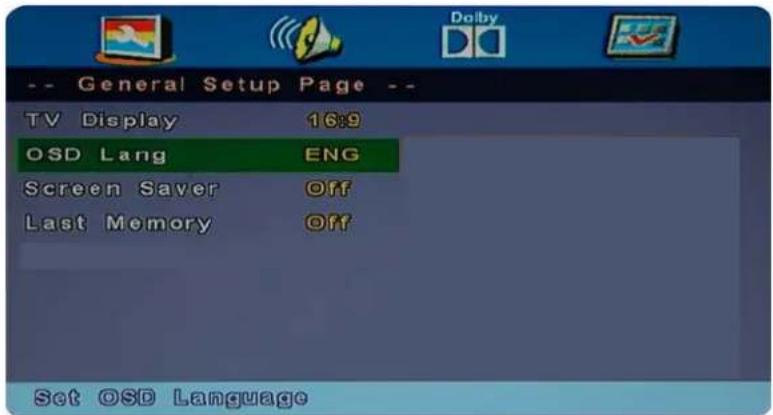
OSD Language
This is used to select the OSD language.
Screen Saver
Start the screen saver, the screen saver image will appear when the player stops or the picture is frozen for a few minutes. This saver can keep the screen from being damaged.
- On (Start the screen saver)
- Off (Remove the screen saver).
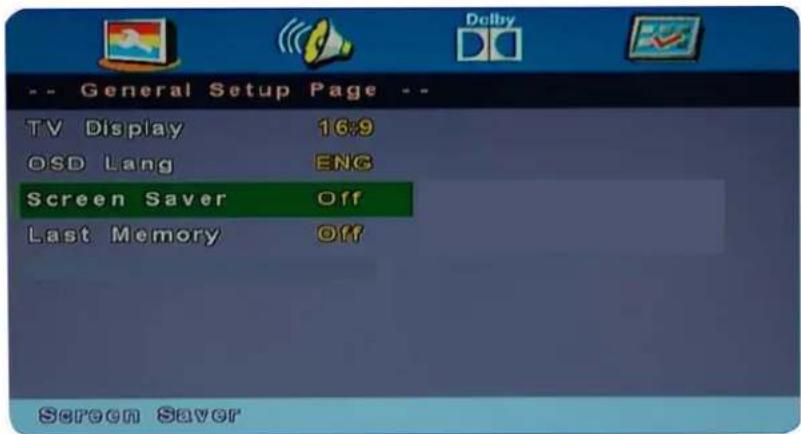
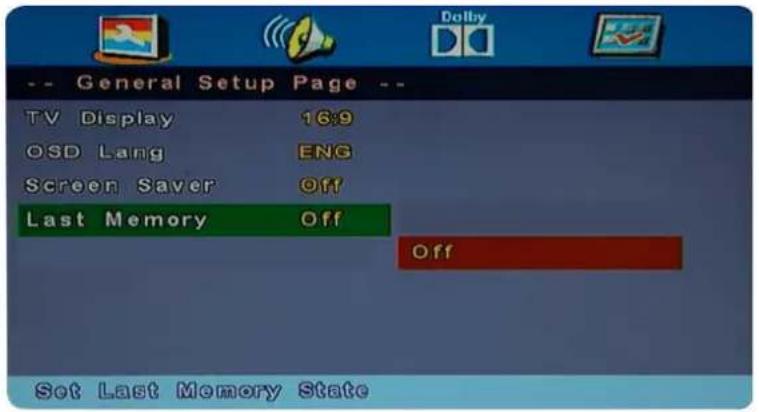
Last Memory
Can set the items on the last memory, "on" and "off" option.
Select "On", the shutdown will shutdown the machine before the settings for memory, re-boot the machine settings. Set near the same time.
Select "Off", every time the machine automatically switched back to the default settings
- On (Start the memory)
- Off (Remove the memory).
DVD Operation
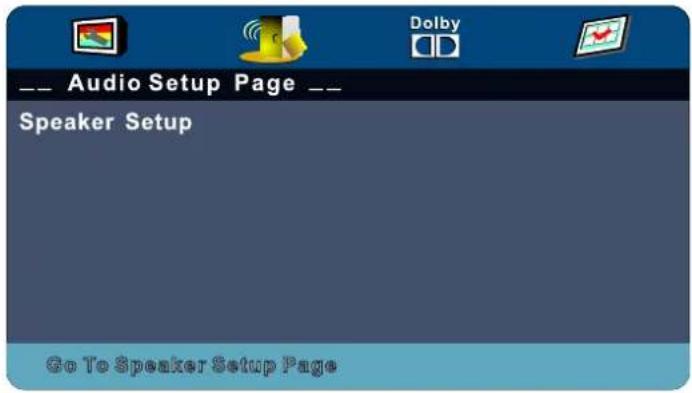
AUDIO Setup
- Speaker Setup
In the "Audio Setup page" press "▼" button to select "Speaker Setup" item, press the "OK ENTER" or "►" button (play) into the "Speaker Setup Page".
DVD Operation
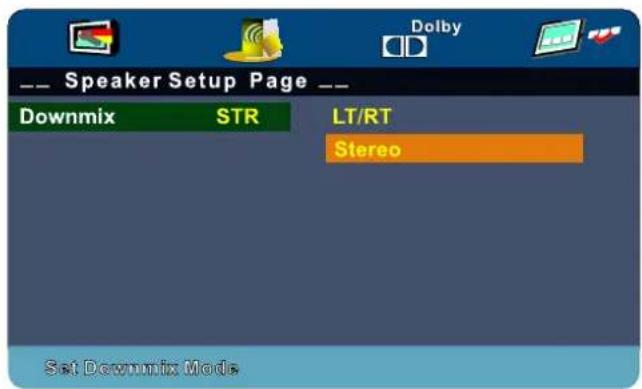
Downmix
• LT/RT
A disc recorded multi channel soundtrack, the output signal will be incorporated to left and right channel.
- Stereo
A disc recorded multi channel soundtrack, The output signal will be incorporated to stereo.
DVD Operation
Dolby Digital Setup
Dynamic
This option is used to set the compression ratio in order to control the sound contrast.
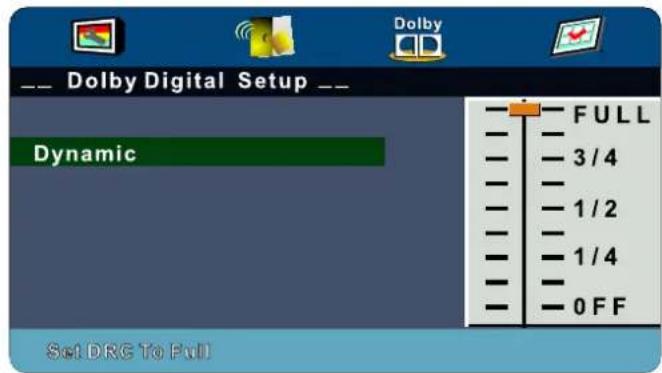
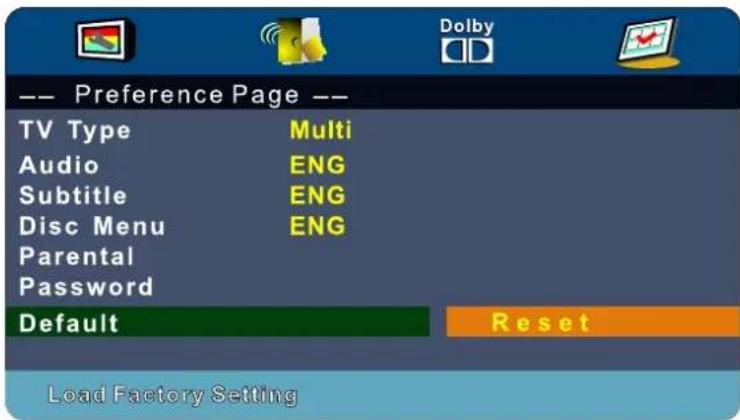
Preference Setup
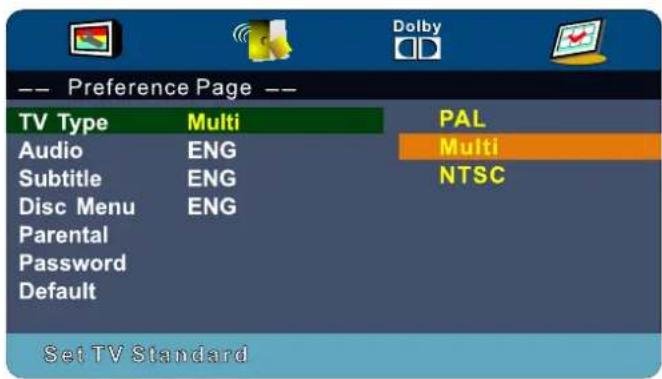
You must press STOP twice to enter Preference Page or NO disc
TV Type
· PAL
This is selected when the player is connected to an PAL System TV.
• MULTI
The player will set the TV system according to the disc in the tray.
• NTSC
This is selected when the player is connected to a NTSC System TV.
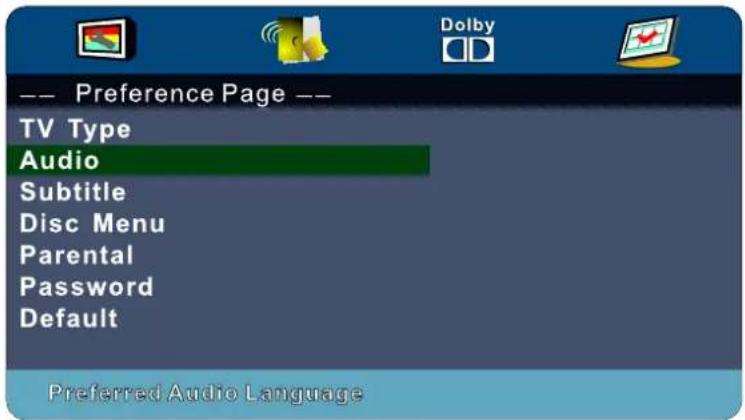
Audio
If a language listed below is recorded on the disc, you can play the sound in such language. If not, the language recorded will be used.
DVD Operation
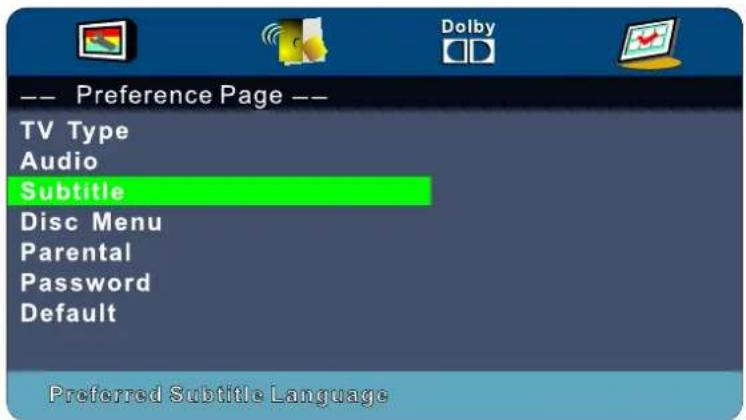
Subtitle
If a language listed below is recorded on the disc, you set the subtitle to be displayed in such language. If not, the language recorded will be used.
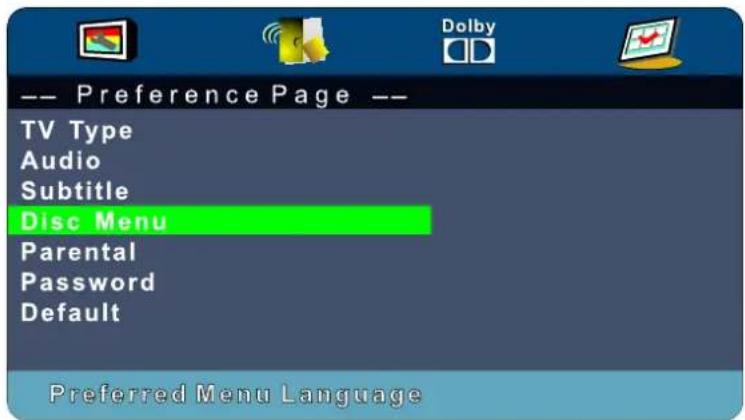
Disc Menu
If a language listed below is record on the disc, you can set the Menu to be displayed in such language. If not, the language recorded will be used.
DVD Operation
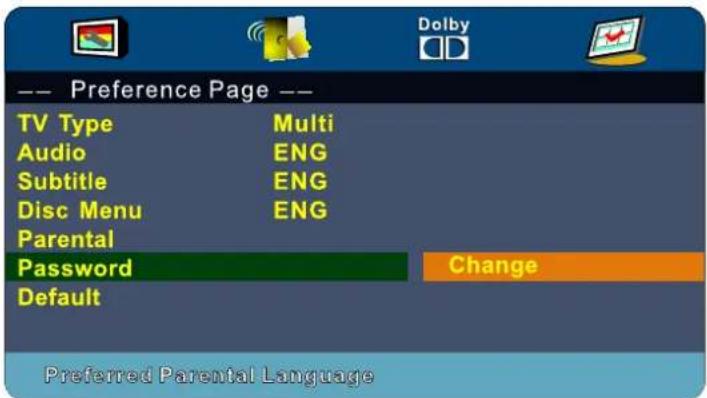
Parental
When playing disc with parental lock function, you may select an Age Control Grade according to grade of disc and your own preference. For example, if PG is selected, DVD Video disc rated higher than the PG grade cannot be played.
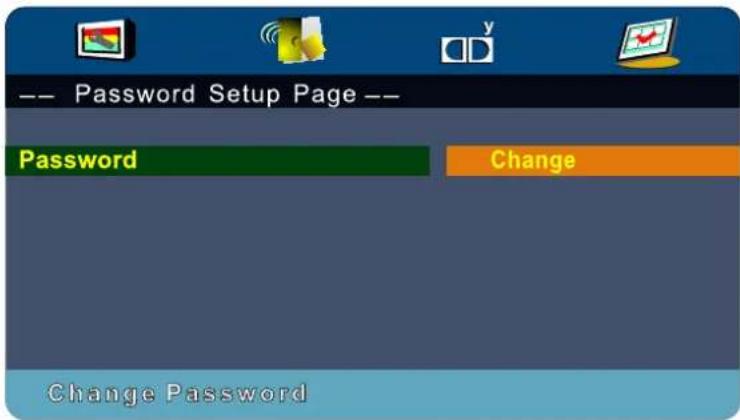
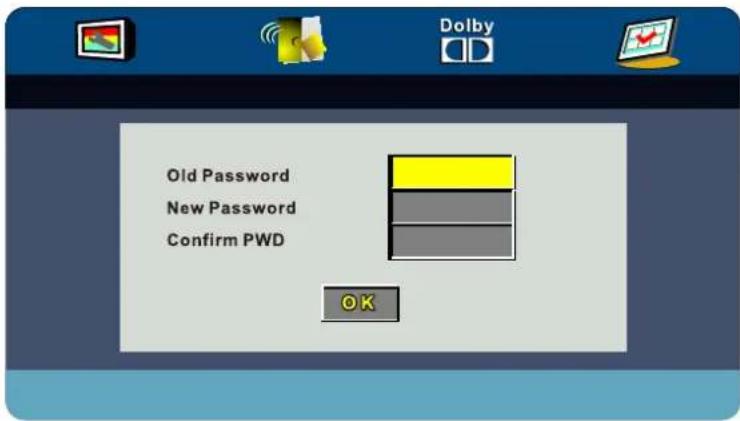
User can change the password that is required when the user wants to change the Age Control Grade in the Parental Lock function.
NOTE:(Default password is 123456)
DVD Operation
Default
User can load the original factory setting by choose RESET and press OK button.
Technical Specifications
| Display technology LCD/TFT with LED-backlight | ||
| Screen size, visible 21.6Inch | ||
| Screen format 16:9 | ||
| Resolution 1920*1080 | ||
| Minimum contrast ratio 600:1 | ||
| Minimum brightness 200cd/m2 | ||
| Display colors 16.7M colors | ||
| Minimum viewing angle | 170(horizontal) /160 (vertical) | |
| Maximum response time 8ms | ||
| Picture repetition rate 50/60Hz | ||
| Video color systems PAL / SECAM | ||
| TV Functions | TV Standard | BG, DK, I, L/L' |
| CATV (optional) | S1~S41 Kanal, Hyper Band | |
| Chanels (ATV / DVB-T / -C / -S) | 100 / 1000(T+C) / 5000(S) | |
| Videotext (ATV / DTV) | Total 1000 Pages | |
| Connections | DC 12 Volt INPUT | yes |
| USB | 1 | |
| HDMI | 1 | |
| SCART | 1 | |
| PC AUDIO IN | 1 | |
| VGA | 1 | |
| AV (viar adapter cable) | 1 | |
| YPBPR (via adapter cable) | 1 | |
| COAXIAL OUTPUT | 1 | |
| DVB-T/-C / TVRF ANT. JACK | 1 | |
| DVB-S ANTENNA JACK | 1 | |
| CI+ SLOT | 1 | |
| EARPHONE OUTPUT | 1 | |
| OSD language | English/German etc. | |
| Audio output | 3Watt | |
| Gross weight | 4.1KG | |
| TV weight (incl. Stand) | 5.5KG | |
| Power requirement | DC 12V, 3A, | |
| Power consumption maximum | 36W | |
| Power consumption „ON“ for EN 62087 | 29W | |
| Peak luminance ratio in % | <75% | |
| Power consumption in stand-by mode | 0.4W | |
| Mercury content in mg / contains lead | 0,00 mg / Yes | |
| VESA | 100 x 100 | |

ENERG
енергия · EVERУЕЯ


REFLEXION
LDD-2265 BLACK
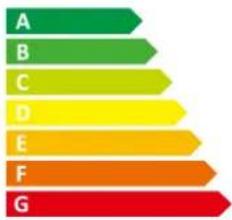
B
ENERGIA · ЕНЕРГИЯ ЕНЕРГЕИА · ENERGIJA ENERGY · ENERGIE ENERGI

29 Watt
43 kWh/annum
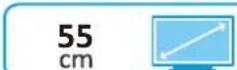
21,6 inch
2010/1062 - 2011