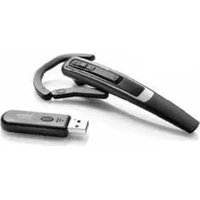
M5390 USB - Headphones JABRA - Free user manual and instructions
Find the device manual for free M5390 USB JABRA in PDF.


| Product Type | Wired USB Headset |
| Model | M5390 USB |
| Brand | Jabra |
| Dimensions (approx.) | 180 x 160 x 70 mm (headband unfolded) |
| Weight | 150 g |
| Power Source | USB bus-powered (5V, 500mA) |
| Connection | USB Type-A to PC/laptop |
| Speaker Size | 40 mm |
| Frequency Response | 150 Hz – 20 kHz |
| Impedance | 32 Ω |
| Microphone Type | Omnidirectional, noise-cancelling |
| Microphone Frequency Range | 100 Hz – 10 kHz |
| Cable Length | 1.5 m |
| Control Buttons | Volume up/down, mute microphone |
| Features | Background noise reduction, wideband audio, inline controls |
| Compatibility | Windows, macOS, Chrome OS, Linux |
| Cleaning | Wipe with a soft, dry cloth. Do not use liquids. |
| Safety Instructions | Do not expose to moisture. Avoid high volume levels to prevent hearing damage. |
| Spare Parts and Repair | Contact Jabra support for replacement ear cushions and cables. Not user-serviceable. |
| Regulatory Compliance | CE, FCC, RoHS |
Frequently Asked Questions - M5390 USB JABRA
User questions about M5390 USB JABRA
0 question about this device. Answer the ones you know or ask your own.
Ask a new question about this device
Download the instructions for your Headphones in PDF format for free! Find your manual M5390 USB - JABRA and take your electronic device back in hand. On this page are published all the documents necessary for the use of your device. M5390 USB by JABRA.
USER MANUAL M5390 USB JABRA
natural_image
Line drawing of a medical or laboratory instrument with a curved handle and internal components (no text or symbols)User manual
Jabra
The Jabra brand is wholly owned by GN Netcom. Customer service is provided by GN Netcom. Please see details below.
Australia 61 3 8823 9111
Austria 43 1 403 4134
Canada 1 905 212 11 02
Denmark 45 43 43 15 52
France 33 1 30 58 30 31
Germany 49 803 126 510
Hong Kong 852 21 04 68 28
Italy 39 02 5832 8253-61-74
Japan 81 3 5297 7975
P. R. China 86 10 6583 2311
Singapore 65 65 42 45 50
Spain 34 91 639 80 64
Sweden 46 8 693 09 00
United Kingdom 44 1784 220 140
USA 1 603 598 1100
Thank you
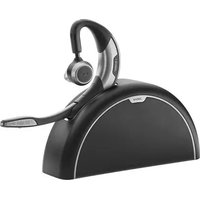
Thank you for purchasing the Jabra M5390 USB Multiuse headset.
The Jabra M5390 USB Multiuse headset is supplied together with the Jabra A335w Dongle. This unique combination allows you to use one single headset for all your communication needs. The Jabra M5390 USB Multiuse headset connects simultaneously to mobile phones and PC softphones.
The A335w dongle allows the headset to communicate with a softphone such as Microsoft Office Communicator, Skype or Cisco IP Communicator, etc. through your PC or laptop.
The headset can also be connected directly to your Bluetooth®-enabled mobile phone.
Furthermore, the headset and dongle have been optimised for the new wideband technology and are compliant to the TIA-920 specifications that ensure clear and crisp voice reception and transmission (wideband is only supported between the dongle and the headset).
Contents
- Overview 2
- Fitting the headset ....3
- Setting up your mobile phone 4
- Making and answering a call from your mobile phone .....5
- Features....7
- Reset/Pairing 9
- Using the Jabra M5390 USB Multiuse Headset with multiple Bluetooth®-enabled devices 10
- Troubleshooting & FAQ ....10
- Maintenance, safety and disposal .....11
1. Overview

natural_image
Coiled cable with connector (no text or symbols visible)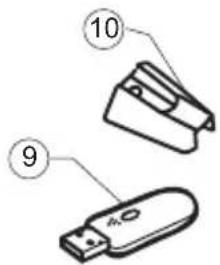
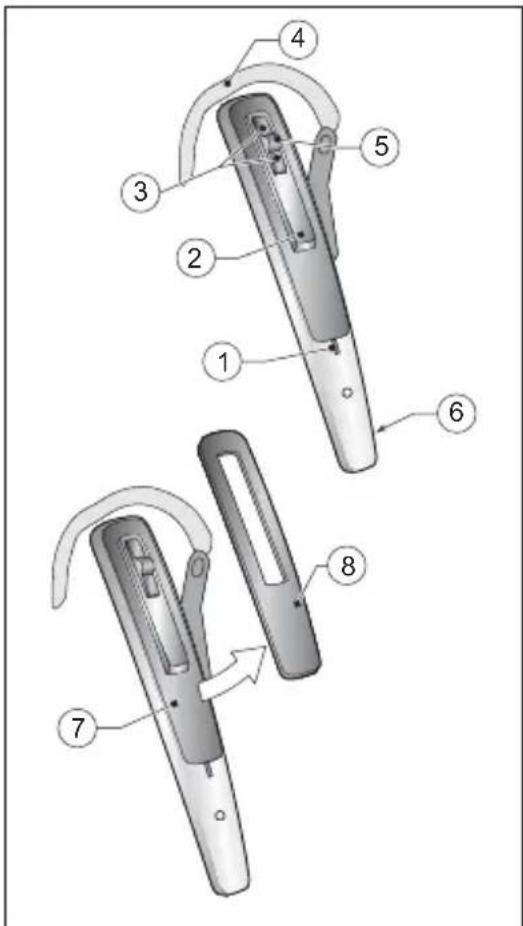
Headset
[1] Visual indicator
[2] Answer/End button
[3] Volume up/down
[4] Ear hook
[5] Mute button
[6] Microphone
[7] Reset button
[8] Snap-on cover (replaceable)
A335w Dongle
[9] Dongle
[10] Travel charger
[11] USB cable for travel charger

Definition of "Tap, double tap and press":
Tap = Button press for up to 0.8 sec.
Press = Button press for longer than 0.8 sec, and release before 1.5 sec. Tone indication is heard.
Double tap = Two taps made within 0.5 sec.
2. Fitting the headset
natural_image
Diagram of a hand gripping a device with a curved handle and lever mechanism (no text or symbols)
natural_image
Illustration of a person's head with a medical device attached to the ear, showing no text or symbols.Fitting to ear
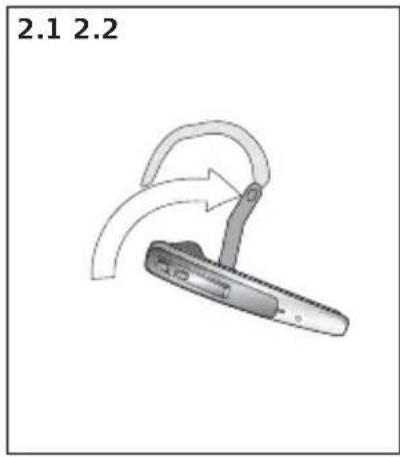
2.1 Open hinged ear hook as wide as possible. 1)
2.2 Hold headset to the ear so speaker fits comfortably and microphone points towards the mouth.
natural_image
Diagram of a mechanical device with curved arrows indicating motion, no text or symbols present
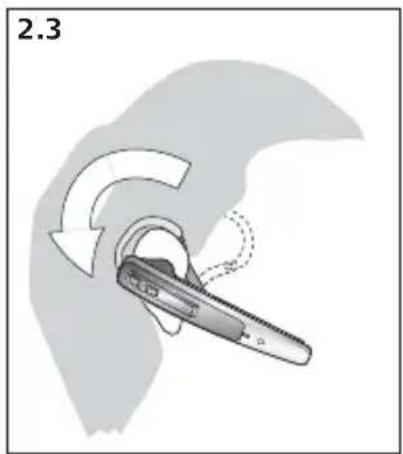
2.3 Close hinged ear hook over the ear.
2.4 Adjust ear hook for a comfortable fit.

natural_image
Diagram of a mechanical device with curved arrows indicating motion or rotation (no text or symbols)Fitting to left ear
2.5 Pull ear hook hinge from the slot and insert it on opposite side of headset marked with L. Perform steps 2.1 - 2.4 above.
3. Setting up your mobile phone
Setup
Pairing your headset with your mobile phone
Before using your Jabra M5390 USB Multiuse headset with a mobile phone, you need to pair it with your mobile phone.
- Make sure the headset is off.
- During start-up keep pressing the Answer/End button for three seconds. Alternatively remove the snap-on cover and press the reset button on the headset for three seconds. The visual indicator on headset will light constant blue. (see 6.1)
2 sec

natural_image
Illustration of a hand holding a tool with an arrow indicating motion (no text or symbols)Turn on headset by pressing Answer/End button for 1 sec. (visual indicator will fl ash blue four times and headset will beep three times), or by placing headset in charge cradle. Turn off headset by pressing Answer/End button for 2 sec. (visual indicator will fl ash blue four times and headset will beep three times).
- Set your Bluetooth® phone to 'discover' the Jabra M5390 USB Multiuse headset:
o Follow your phone's User Manual. This usually involves going to a 'setup,' 'connect' or 'Bluetooth' menu on your phone and selecting the option to 'discover' or 'add' a Bluetooth® device.
o Your phone will find the Jabra M5390 USB Multiuse headset and ask if you want to pair with it.
- Accept pairing by pressing Yes/OK (or similar) on the phone and confirm with the passkey or PIN '0000' (4 zeros).
- Your phone will confirm when pairing is complete. If pairing is unsuccessful, repeat the steps above. Some mobile phones require manual connection after pairing. Note that on some mobile phones, the headset has to be set as "Trusted device".
NOTE: If you accidentally put the headset into pairing mode, tap the Answer/End button to exit pairing mode.
IMPORTANT: The same headset can be paired with multiple mobile phones. However, if you have multiple mobile phones paired, switched on and within range of the headset, the headset will not be able to connect to the base. It is only possible to be connected to one mobile phone and the headset base at a time. To be able to connect to the headset base, only have one paired mobile phone turned on and within range of the headset.
4. Making and answering a call from your mobile phone
Making and ending a mobile phone call
- When you make a call from your mobile phone, the call will transfer to your headset automatically (this is subject to phone settings, see your mobile phone's User Manual to find out how to activate this feature).
If your phone does not allow this feature, see your mobile phone's User Manual on how to answer a call with a headset.
- To end a call, tap the headset Answer/End button, OR press End/No (or similar) on your mobile phone.
Answering and ending an incoming mobile phone call
- To answer, tap the headset Answer/End button on your headset after the first ring OR, if the headset is placed in the base, simply remove it from the base.
- To end a call, tap the headset Answer/End button, OR press End/No (or similar) on your mobile phone, or place the headset in the base.
IMPORTANT: If you answer a call on your mobile phone handset, some mobile phone models will not automatically transfer the call to your headset.
Switching from headset to mobile phone
You can switch from your headset to your mobile phone during an active call. You might want to do this if, for example, your headset battery is running low.
- Use the menu on your mobile phone to switch from headset to mobile phone during an active call (see your mobile phone's User Manual).
Switching from mobile phone to headset
It is possible to switch from your mobile phone to your headset during an active call.
- Use the menu on your mobile phone to switch from mobile phone to headset during an active call (see your mobile phone's User Manual).
Rejecting an incoming call
- Press the headset Answer/End button when the phone rings to reject an incoming call.
Depending on your phone settings, the person who called will either be forwarded to your voice mail or hear a busy signal.
Making a call with Voice Dial
- Tap the headset Answer/End button to enter Voice Dial mode. (Consult your mobile phone's User Manual for more information about how to use this feature.)
For best results, record the voice dialing tag through your headset.
Redialing the last number
- Double tap the headset Answer/End button.
Handling multiple calls
Having one active call in headset
- Double tap on Answer/End button will put active call on hold and make a call to last dialled phone number.
Having one active call while receiving one additional incoming call
- Tap on Answer/End button will end active call and answer incoming call.
- Double tap on Answer/End button will reject incoming call.
- Press Answer/End button for app. 1.5 sec to put active call on hold and answer incoming call.
Having one active call plus one call on hold
- Tap on Answer/End button will end active call and retrieve call on hold.
- Press Answer/End button for app. 1.5 sec. to switch between the two calls.
Please note that this behaviour might change depending on connected phone type.
Staying within range
The sound in your headset will deteriorate if you move beyond range. 1) Move back into range to restore sound quality. If you move too far from your mobile phone, the call might be ended or re-routed to your mobile phone from the headset, depending on what mobile phone model you are using. Please see your mobile phone's User Manual for more information on this function.
Remember!
For optimal performance, wear the Jabra M5390 USB Multiuse headset and your mobile phone on the same side of your body or within line of sight. In general, you will get better performance when there are no obstructions between your headset and your mobile phone.
5. Features


Muting & unmuting
5.1 Press Mute button on headset. A dual tone will be heard in the headset.
5.2 To unmute, press Mute button again. A dual tone will be heard in the headset.
1) Note: If answering a call with telephone handset, make sure the headset is placed in charge cradle. Otherwise, the call will be routed through the headset.

Low battery
5.3 Approx. 10 minutes before the headset runs out of battery, the visual indicator on headset will start to flash with a red light and a series of tones will be heard. If the battery runs out of power, visual indicator on headset will switch off automatically. Replace headset in charge cradle and continue the call using telephone handset. The headset contains a battery level indicator. By tapping the Vol. up/down button the visual indicator will flash quickly twice - green, yellow or red depending on the battery level.
Out of range
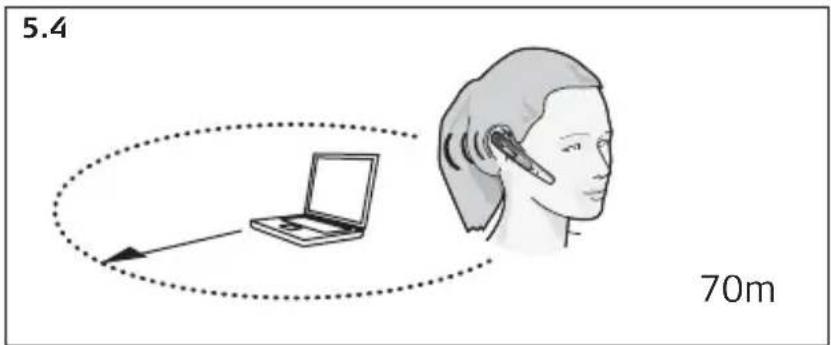
5.4 If you go out of range (app. 70 m), all buttons except Answer/End button will stop working until back in range again. 2) Please note that the majority of mobile phones only support 10 m.
If headset is muted when going out of range, it will also be muted when going within range again.
2) Important: If headset is out of range for more than 1 min., the link between base and headset will be terminated.
6. Reset/Pairing
6.1

6.1 Under start-up, keep pressing the Answer/End button for three seconds. Alternatively, remove the snap-on cover and press the reset button on the headset for three seconds.
Visual indicator on headset will light constant blue. 1)
6.2
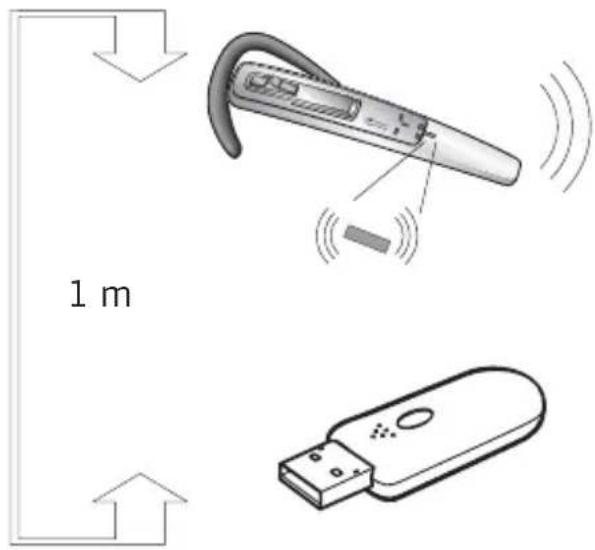
6.2 Make sure headset and A335w Dongle are within 1 m of each other. When pairing is successful, both visual indicators will flash blue 5 times, and the visual indicator on A335w Dongle will turn to steady green.
1) Note: The headset is already paired with the A335w Dongle from the factory. Pairing should only be necessary if a new headset has to work with an existing A335w Dongle (or vice versa).
7. Using the Jabra M5390 USB Multiuse headset with multiple Bluetooth®-enabled devices
Your Jabra M5390 USB Multiuse headset can be paired with up to 8 devices. However, only two can be connected (paired with the headset, turned on and in range) with the headset at one time. This could be any two Bluetooth ® devices (for example. The Jabra A335w Dongle and a mobile phone, or two mobile phones).
The headset is per default paired with the dongle. This means that the headset will automatically connect to the A335w Dongle from the factory if in range and turned on.
It is also possible to have two Bluetooth®-enabled mobile phones connected to the Jabra M5390 USB
Multiuse headset simultaneously. In this case, the A335w dongle should be disconnected from the headset.
8. Troubleshooting & FAQ
Q: Nothing happens when I try to adjust the clear dial tone.
A: Make sure the base is powered (visual indicator on base unit is steady green). Then establish a voice link between base and headset (visual indicators on base unit and headset are flashing green). Also ensure that the telephone is activated (handset is off the hook or "line" button is pressed).
Q: I cannot hear anything in my headset when using my mobile phone.
A: - Increase the volume on the headset (or phone).
- As the volume level needed might vary between your desk phone and mobile phone, it might be best to adjust the level on the phones.
- Then use the headset volume level adjustments for general adjustments (but ensure that the headset is paired with the mobile phone).
- Make sure that the phone is connected to the headset - if it does not connect either from the phone's Bluetooth® menu or by tapping the Answer/End button, follow the pairing procedure (see section 4 "Pairing your headset with your mobile phone" in this guide).
Q: Can I use wideband with a mobile phone?
A: No, the headset only supports wideband with the Jabra A335w Dongle. Please see the Jabra A335w Dongle manual for wideband settings.
Note: If your desk phone has a volume button, it might help to adjust it to optimize the sound quality in your headset.
9. Maintenance, safety and disposal
Maintenance
The ear hook can be wiped with a dry or slightly damp cloth. Avoid getting moisture or liquids into any button sockets, receptors or other openings. Avoid exposing the product to rain.
Children and product packaging
The packaging, including plastic bags and wrapping parts, are not toys for children. The bags themselves or the small parts they contain may cause choking if ingested.
Batteries and product disposal
Do not expose the headset batteries to heat. Dispose of the product and/or batteries according to local standards and regulations.
Need more help?
For your country's support details, see the European and Australasia Safety & Declaration or NorthAmerican Declaration & Warranty that came with your Jabra M5390 USB Multiuse.
Charger
Warning: Do not attempt to charge your Jabra headset with anything other than the AC adapter provided. The use of any other AC adapter may damage or destroy the headset and may invalidate any approval or warranty, and may be dangerous. For availability of approved accessories, please check with your dealer. When you disconnect the power cord of any accessory, grasp and pull the plug, not the cord. Never use a charger that is damaged. Important: The “colour” indicator light will be on while charging and will turn off when charging is complete. The Jabra headset cannot be used while charging.
Battery information
Your device is powered by a rechargeable battery. The full performance of a new battery is achieved only after two or three complete charge and discharge cycles. The battery can be charged and discharged hundreds of times, but will eventually wear out. Recharge your battery only with the provided approved chargers designated for this device. Unplug the charger from the electrical plug and the device when not in use. Do not leave a fully charged battery connected to a charger, since overcharging may shorten its lifetime. If left unused, a fully charged battery will lose its charge over time. Leaving the device in hot or cold places, such as in a closed car in the summer or in winter conditions, will reduce the capacity and lifetime of the battery. Always try to keep the battery between 15°C and 25°C (59°F and 77°F). A device with a hot or cold battery may not work temporarily, even when the battery is fully charged. Battery performance is particularly limited in temperatures well below freezing. Do not dispose of batteries in a fire as they may explode. Batteries may also explode if damaged. Dispose of batteries according to local regulations. Please recycle when possible. Do not dispose as household waste.
© 2008 GN Netcom A/S. All rights reserved. Jabra® is a registered trademark of GN Netcom A/S. All other trademarks included herein are the property of their respective owners. The Bluetooth® word mark and logos are owned by the Bluetooth SIG, Inc. and any use of such marks by GN Netcom A/S is under license. (Design and specifications subject to change without notice).
www.jabra.com
MADE IN CHINA

Bluetooth
User manual
Jabra
- The Jabra brand is wholly owned by GN Netcom. Customer service is provided by GN Netcom. Please see details below.
- Thank you
- Contents
- Overview
- Headset
- A335w Dongle
- Fitting the headset
- Fitting to ear
- Fitting to left ear
- Setting up your mobile phone
- Setup
- Pairing your headset with your mobile phone
- Making and answering a call from your mobile phone
- Making and ending a mobile phone call
- Answering and ending an incoming mobile phone call
- Switching from headset to mobile phone
- Switching from mobile phone to headset
- Rejecting an incoming call
- Making a call with Voice Dial
- Redialing the last number
- Handling multiple calls
- Staying within range
- Remember!
- Features
- Muting & unmuting
- Low battery
- Out of range
- Reset/Pairing
- Using the Jabra M5390 USB Multiuse headset with multiple Bluetooth®-enabled devices
- Troubleshooting & FAQ
- Maintenance, safety and disposal
- Maintenance
- Children and product packaging
- Batteries and product disposal
- Need more help?
- Charger
- Battery information
Brand : JABRA
Model : M5390 USB
Category : Headphones