TP7-1500DC - Tablet CnMemory - Free user manual and instructions
Find the device manual for free TP7-1500DC CnMemory in PDF.


| Product Type | Tablet |
| Brand | CnMemory |
| Model | TP7-1500DC |
| Screen Size | 7 inches |
| Screen Resolution | 1024 x 600 pixels |
| Processor | Quad-core 1.3 GHz |
| RAM | 1 GB |
| Internal Storage | 8 GB (expandable via microSD) |
| Operating System | Android |
| Battery Capacity | 3000 mAh |
| Connectivity | Wi-Fi 802.11 b/g/n, Bluetooth 4.0, USB 2.0 |
| Cameras | Front 0.3 MP, Rear 2.0 MP |
| Dimensions | 191 x 108 x 10 mm |
| Weight | Approximately 300 g |
| Power Supply | DC 5V via USB charger (included) |
| Maintenance | Wipe gently with a soft, dry cloth |
| Safety Precautions | Keep away from water and extreme temperatures; do not disassemble |
| Spare Parts Availability | Battery, screen, and charger available from service centers |
| Reparability | Professional repair recommended; user replaceable parts: none |
| Certifications | CE, FCC |
| Included Accessories | USB cable, charger, user manual |
Frequently Asked Questions - TP7-1500DC CnMemory
User questions about TP7-1500DC CnMemory
0 question about this device. Answer the ones you know or ask your own.
Ask a new question about this device
Download the instructions for your Tablet in PDF format for free! Find your manual TP7-1500DC - CnMemory and take your electronic device back in hand. On this page are published all the documents necessary for the use of your device. TP7-1500DC by CnMemory.
USER MANUAL TP7-1500DC CnMemory
* Kostenfrei aus allen deutschen Netzen / Free from all German telephone networks
24000

Deutsch
1-4 Touchscreen
natural_image
Colorful 3D geometric design with green and purple blocks, no text or symbols visiblenatural_image
Colorful 3D geometric shapes with no visible text or symbols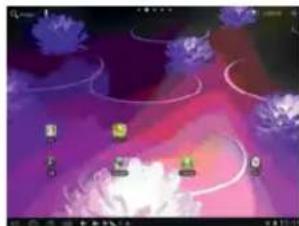
natural_image
Game interface screenshot showing purple and pink gradient background with floating icons and control buttons (no readable text or symbols)4-1-1 WI-FI Verbindung
natural_image
Close-up of a blue USB cable connector with a black connector attached, against a plain wall (no text or symbols visible)Bemerkungen:
C: Zeit einstellen:
All trademarks, registered trademarks and logos are the property of their respective owners. Alle Angaben ohne Gewähr.
natural_image
Three smartphones with charging cables and battery modules, no visible text or symbolsnatural_image
Product photo of a battery pack and smartphone with an Eurostecker logo (no text on main subjects)PB-3000PB-5000
- Before using the tablet PC, please read all the information provided first, to ensure this product is used correctly. Please make sure that you have read this manual carefully before using this product.
- This manual is copyrighted by our Company, any full or partial commercial duplication or interpretation of the manual is forbidden.
- All information covered in this manual is based on the latest information, and products are subject to change for further development, without notice. We are not liable for any mistakes or discrepancies within this manual. For additional product information, visit the company's website.
- When using this product, please backup your data, as our company is only responsible for the actual hardware, and will not be held responsible for any loss or damage of personal data and information.
Precautions
This manual includes important information on safety precautions and proper use of this product.
To prevent any accident, please make sure that you have read this manual carefully before using this product.
- Do not keep this product in a hot, humid or dusty location. In particular, do not use this product in a car with shut windows during the summer, and keep out of direct sunlight.
- Avoid dropping and heavy shocks to this product. Also, do not shake the device violently, otherwise this may damage it, causing it to not work correctly.
- Please choose a suitable volume. Avoid an excessively high volume when using a headset. If the noise affects your ears, please decrease the volume.
- Do not suddenly cease connection when this product is formatting, uploading or downloading material, as this may cause errors.
- The producer will not be held responsible for any lost data due to product damage, repairing the product, or for any other reasons.
- Do not disassemble this product by yourself, and do not clean the surface of this product with alcohol, thinner or benzene.
- Do not use this product in a place where using electronic devices is prohibited, such as on an aeroplane.
- Do not use this product while driving a car or walking in the street, as this could cause a traffic accident.
- The producer reserves the right to improve and develop this product. No further notice will be provided on any variation of the specification and design of this product!
(This product is not waterproof)
Content
Important Information 24
Precautions....24
Main Functions....26
Appearance and Buttons....26
- Quick Start ...... 27
1-1 Power ON/OFF/Lock/Unlock....27
1-2 Battery and Charge....28
1-3 Computer Connection & File Transfer 28
1-4 Using the Touch Screen 29
1-5 G-Sensor 29
1-6 Solving Problems of the Machine Running Slowly....29
1-7 Entering text....29
- Main Screen Function/Icons....30
2-1 Main Screen Function 30
2-2 Main Interface 31
2-3 Add/Move/Delete Desktop Icon....31
2-4 Shortcut 32
- Application Installation .... 32
3-1 Methods of how to Acquire 33
3-2 Program Install....33
3-3 Program Uninstall ....33
- Internet....33
4-1 Network Setting 33
4-2 Ethernet Setting 34
4-3 Webpage Browser 36
-
File Manager....38
-
OTG Function....38
- External USB Keyboard and Mouse 38
-
Usage of Micro SD/SDHC (TF)-Card 38
-
Basic Setting ......39
9-1 Wireless & Network Setting 39
9-2 Display Settings....40
9-3 Security....40
9-4 Setting Date and Time....41
-
Troubleshooting ....41
-
Specifications 42
-
i.onik Products ....46
Pictures may differ from original product.
Main Functions:
- 7 inch, G + G capacitive 5 Point touch-screen, 800 x 480 pixel resolution.
• Supports built-in 0.3 Mega front camera.
• Supports built-in microphone recording function.
• Supports external USB mouse, keyboard, etc. - Supports OTG function and USB stick, portable OTG hard disc to transfer data. (Whilst connecting to the portable hard disc, DC power must be connected to the product's power supply, otherwise the tablet PC will crash due to insufficient power supply).
- Multiple network access to the Internet. As WI-FI is supported, you can enjoy the Internet anywhere, at anytime.
- With the Gravity sensor (G-sensor), in addition to being able to switch the screen horizontally and vertically, you can also install various software to improve this function, such as flicking through text, changing songs, fun games, etc.
- With the Google Android intelligent operating system, you can create your own personalized space with APKs.
- Supporting APK installation and application, existing software can be downloaded and installed from the Play Store or Internet to your MID or PC.
- With this product, you can easily conduct business and also be entertained through existing applications, such as E-Mail, Word, website browsing, the news, instant messaging, financial activity, blogs, online games, online videos, the stock market, weather reports, mobile TV, maps, general "fun" software, etc.
• Supports MP3, M4A, WMA, APE, FLAC, AAC, MID, WAV, AMR, OGG etc. - Supports full HD video decoding (2160P, 1080P, 720P, 480P); video formats: MKV, AVI, RM/RMVB, WMV, 3GP, MOV, MP4, ASF, MPG, DAT, VOB, FLV, etc.
• Supports JPG, JPEG, BMP, PNG, etc, and formats image browsing. - Supports Micro SD/SDHC (TF) Card, with a capacity of up to 32 GB.
- Personalized settings - freely adjustable brightness, key tone on or off, changing wallpaper and so on.
- Multilingual.
- More functions could be added by updating Firmware.
Appearance and Buttons
Definition:
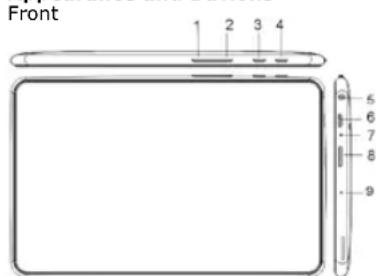
- V-: volume down
- V+: volume up
- ☐: Back – press this button to go to previous screen or previous menu
- ☐: Power Button – hold down this button to turn the device on or off, or simply press this button to lock screen in order to avoid any errors.
- Earphone Jack
- USB Port: Micro USB 5 Pin data cable supports external USB stick, wired mouse, 3G wireless Internet card, etc.
- Reset and upgrading key
- Micro SD/SDHC (TF) card slot
- MIC recording hole: microphone
1. Quick Start
1-1 Power On/Off and unlock
When the power is off, hold down ☐ for three seconds to turn the power on. It will take a little time to turn on, please be patient. It will take about 100 seconds to enter the system, drag the unlock icon ☐ to the camera icon on the left to take a photo, and to the unlocking icon on the right to unlock, see below:
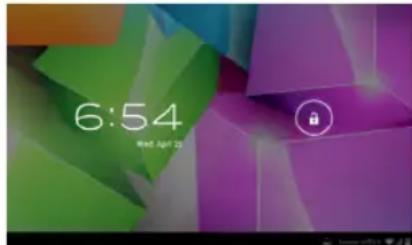
Energy-saving and locking mode: When the machine is not being used, the system will automatically enter into the energy-saving mode. Press ☐ to awaken the screen, the system will then be ready to unlock in one second, touch ☐ to unlock.
Notes: In energy saving mode, the system will still be turned on, only the LCD screen will be off, showing a black screen. Music or video will continue to play.
Power Off: Whilst using the product, press for 5 seconds, the screen will give a "power off" option. Select this "Power off" option, confirm your choice and the system will then automatically turn off. Select "Cancel" to cancel the machine powering off.
Notes: When at low power, a warning will be given; at this point, connect the DC adapter and begin to charge, it will then automatically turn off. If the product cannot boot, please check the battery.
1-2 Battery and Charge
The battery should be charged for 8 to 12 hours for the first time, in order to make sure the battery has enough power. Please use the provided charger. Now that the device is being charged, the battery icon will show that the device is charging. Please do not disconnect the charger until the device is fully charged. The battery icon will show when it is fully charged. Please note the following precautions for protecting the lithium battery:
a. Don't charge in or under a high temperature (for example, under direct sunlight).
b. The lithium battery does not need to be completely empty before the user can charge it.
c. While charging, it is normal that both the charger and the device will heat up.
1-3 Computer Connection & File Transfer
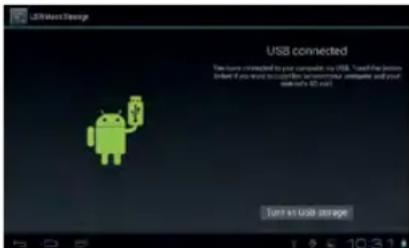
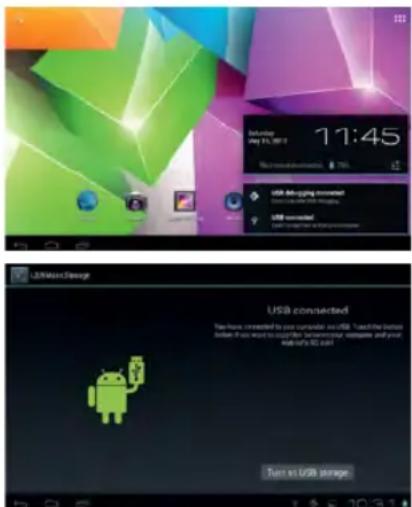
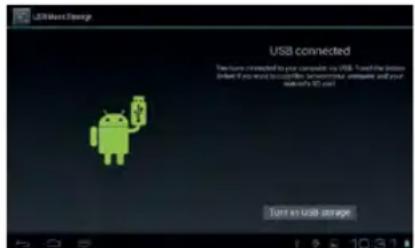
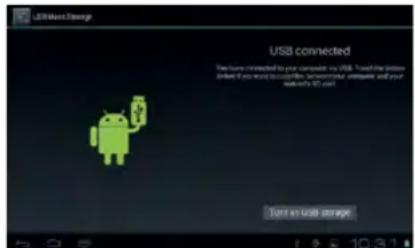
Upon connection of the product to the computer with a USB cable, the status bar will show that the USB has connected. The product's default is set for a USB connection. If you are connecting an external mobile hard disc, "USB connected" needs to be showing on the status bar. Click the option to enable the USB status to be altered, with reference to the icon on the bottom right, "Open USB storage equipment", switch this into the USB storage status. Now, the user can access the external hard disc. On USB storage, click the icon again to disconnect USB and recover to charge mode. The USB storage mode system will limit the user's access to the local disc application. By disconnecting USB storage mode, the system will go back to the normal status, as seen in the following image:
1-4 Using the Touch Screen
There are various ways to operate this. You can view the main screen, menu and application.
1-4-1 Click
When you want to use the screen keyboard or select the application in the main menu, it can be done by using your fingers or stylus to click.
1-4-2 Press
When you want to open a file, shortcut, or application in the main menu, just press "OK".
1-4-3 Movement
Movement with your finger or stylus to make the screen drag horizontally or vertically.
1-4-4 Drag
Before dragging, please use your finger or stylus to press, to get to the required location.
1-5 G-Sensor
The product has the function of a G-sensor. After activating the function in the settings (default setting is active), by rotating the machine 90 degrees, the screen will switch from horizontal to vertical automatically.
As well as the screen switching from horizontal to vertical, it can support more functions too, such as flicking through text, changing music and fun games.
1-6 Solving problems of the machine running slowly
After using the product for some time, even though applications have been shut down, they are still running in the background, thus making the system run slowly. Therefore, you need to end these programs in Advanced Task Manager to allow the product to run smoothly.
1-7 Entering Text
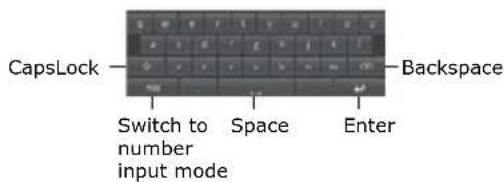
When you start an application or select the text edit box to enter text or numbers, the screen keyboard will appear. The keyboard has the following options to select:
- Android keyboard
- Google Pinyin IME (Input Method Editor)
1-7-1 Select IME
With the original setting of the product, the Android keyboard will appear when you input the words.
- On the main screen press the menu key, and then click settings
-
Click language & input
-
In the language & input area, the product will list the installed IME
- Select it after selecting the IME you need
Android Keyboard Panel
2 Main Screen Function/Icon
2-1 Main Screen Function
natural_image
Computer desktop wallpaper showing abstract geometric shapes in green, purple, and orange tones (no text or symbols visible)| Icon Definition Icon Definition | ||
 | Google Search Settings | |
| [2T68] | Back Function Modu | Menu |
 | Back to main screen from any interface | Camera |
| [6A0H] | Current time Battery | |
| WI-FI signal Menu | ||
 | New device found St-Eng Menu | |
2-2 Main Interface
natural_image
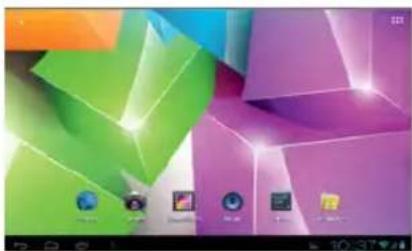
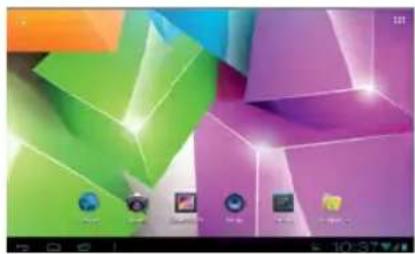
Abstract 3D geometric design with green, purple, and orange blocks (no text or symbols)Hold down "Power" to turn on, the screen is then locked after the power is on, press the unlock key to unlock and enter the main screen as below. On this screen, you can view the status bar, change wallpaper, add widgets, add program shortcuts, start programs, etc.
2-2-1 Status Bar
With a stylus, slide down to read prompts in the status bar to open the notification bar and you can see today's date.
2-2-2 Menu
Press menu button ■ or press ■ to open open screen menu:
- Wallpaper: in this menu, you can choose your favourite photos for the main screen background.
- Manage Applications: You can check all the programs that are within this device, and remove all installed programs.
- System Set: Click to enter the system setting menu screen directly.
2-3 Add, move or delete Desk Icon
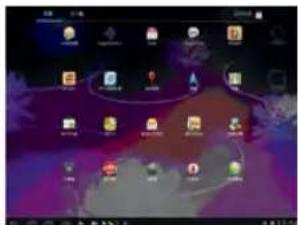
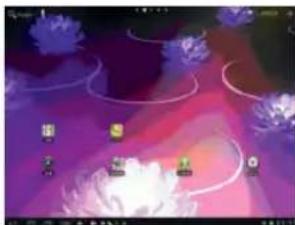
On the main screen, click 🎯 to enter the function menu list, displaying applications of all web pages. Press and hold to drag the icon to copy it to current desktop, for example, creating shortcuts on the desktop.

natural_image
Game interface screenshot showing purple and pink gradient background with floating characters and UI elements (no readable text or symbols)You can delete the icon which is added to main screen, by highlighting the icon which you are going to delete. Now there will be an "X" on the top, just drag this icon to "X" to delete.
2-4 Shortcut
click to show all function icons as below:
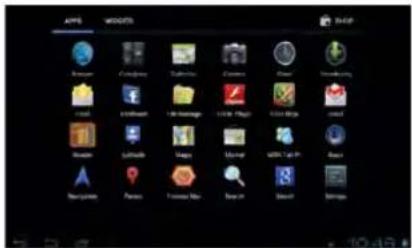
This window shows all the function icons, click any icon to enter corresponding screen, see the following:
Sending/Receiving E-Mails.
Browser: Click to enter the Internet to browse web pages.
Calendar: Check the calendar and settings.
Calculator Icon: Click this icon to use the calculator.
Alarm Clock: Clock icon, click this icon to set an alarm.
Play music.
Video player icon or photo browser: Click this icon to play videos and view photos.
Webpage research.
Camera.
Enter recording screen.
File Manager: Check all file types and content.
Advanced task manager: Manage applications and remove. When the machine runs slowly, this function will shut down unused applications in order to prevent the machine running slowly.
Setting icon: Click this icon to enter system setting screen.
3. Application Installation
This device can install APKs (Android Packages) with ease, you can get third-party applications which are suitable for this Android system from the "Play Store" and the Internet. APKs can be installed on this machine.
First select "Setting/Application Program", then select "unknown sources".
3-1 Methods of how to Acquire
Method 1: Download from the website and copy the applications onto the Micro SD/SDHC (TF) card and insert into the product.
Method 2: Through the product's "Play Store", by downloading the application onto the Micro SD/SDHC (TF) card.
3-2 Program Install
Click the main screen's shortcut key, then select "File Manager". Now select the SD card sub-menu and click on the APK.
Note: On the website, all files have the .apk suffix in the third-party program.
3-3 Program Uninstall
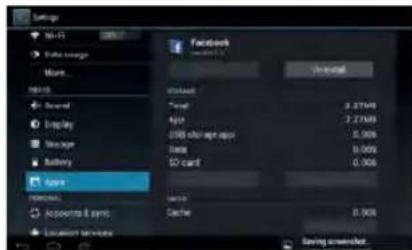
Click „Settings" then select Apps and then click „uninstall".
Uninstall: Uninstall this application, click ■ to go back to previous screen.
4. Internet
4-1 Network Setting
Click the shortcut on the main screen, choose "Setting/Wireless and Network" to enter the network setting screen:
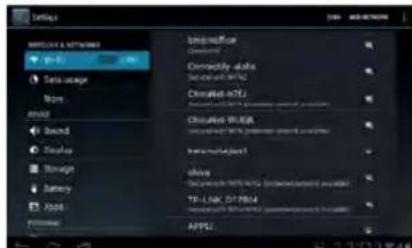
4-1-1 WI-FI Connection
Click the shortcut on the main screen, select "Internet Connection Manager", click "WI-FI setting", then enter the WI-FI setting screen, now select "WI-FI" and activate it.
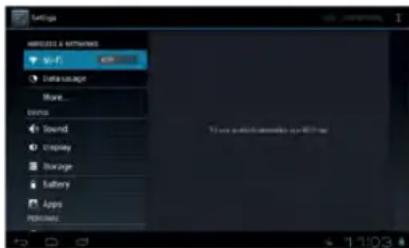
After WI-FI has opened, it will automatically search for wireless network, this shows on the menu, now click wireless network, enter the password screen, and now input the password and connect. Seconds later, the system will connect to wireless network automatically.
When WI-FI is open, this will make the machine use 25 % more power. When not using WI-FI, please turn it off to extend the battery life.
4-2 Ethernet Setting
Using the Ethernet card (USB-RJ45) when connecting to the Internet. There are two requirements needed to use USB-RJ45 to connect to the Internet, and these are detailed below:
- ADSL account and password are set up correctly on router.
- USB-RJ45 network card is the model which is supported by this device.
Models supported are listed below:
AX88772/AX88772a/AX88772B/AX88178/AX88760/QF9700/
SR9600/MCS7830/MCS7832/MCS7730
Steps for Internet Connection:
First connect the network cable to the USB Ethernet card, then insert the USB OTG cable which is meant for this device into USB Ethernet card and the other end into USB port of the device.
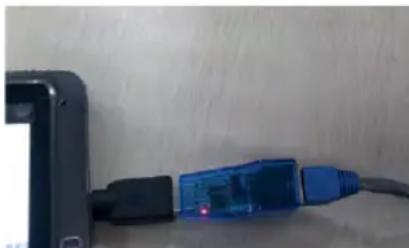
natural_image
Close-up of a blue USB cable connector attached to a black rectangular device (no visible text or symbols)Notes:
- First close the WI-FI network, only one network can be used, otherwise there will be errors.
- This device will automatically detect the USB Ethernet card and switch on the "Ethernet". There will now be a network icon in the status column.
-
Wait a moment, as this device will try to connect to Internet automatically. If the router and the DHCP service are already open, and the netgate, DNS and relevant settings have been applied, then the device will connect to the Internet automatically. (The Ethernet card function must be selected already).
-
If the device fails to connect, usually this is because the settings in the router are not correct. You can set the parameters in the device as follows:
a. Enter setting/Ethernet setting, select and open Ethernet. Enter configuration information, choose "static IP setting", then enter the static IP setting screen (the default setting is automatic acquiring IP. Usually, automatic acquiring IP is fine for everything, but some companies' routers will use specified IPs, not allowing automatic acquiring IP, it depends on router settings, therefore static IP needs to be used at this time).
b. There is no need to fill in the Ethernet card device and physical address. The machine will automatically detect this, after successfully connecting the Ethernet. In the IP address column, enter the IP address, the default usually being 192.168.1.1xx.
c. In "subnet mask", enter network segment mask, the default is 255.255.255.0.
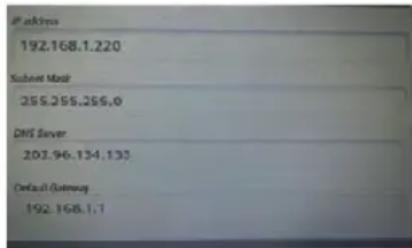
d. In the "DNS server", enter your local network service provider's DNS server IP. A different location has a different DNS server IP - if you are unsure, you can search by Google.
e. Enter the gateway in the „default gateway". The general default is 192.168.1.1 (you can check the router's manual for confirmation). It must be set to the same as the router; otherwise connection will be shown, however cannot connect to the Ethernet.
f. Finally, click the lower right corner of the "Save" button, then select Save. The system will automatically connect after saving, then you can use the Ethernet.
- Close the Ethernet, unplug the "Ethernet" cable, now you can turn off the Ethernet connection.
- Unplug the OTG cable.
Attention:
- If you are unsure about router settings and the DHCP service, please consult the router's manufacturer, point-of-service, network service providers (or ask network management, network experts, etc.), or research independently. Our company does not supply this kind of service and support.
- If you are not using Ethernet, please unplug the OTG cable and Ethernet card, otherwise the machine will continue to use power.
4-3 Webpage Browser
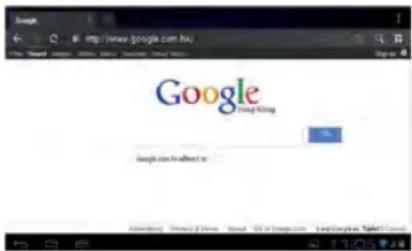
Set up the network as in chapter 4-1, you can then use the browser to browse the web. Click the shortcut on the main screen. Enter the required URL in the address bar. Open the web page; then slide your finger up and down the screen to view other parts of the page.
4-3-1 Bookmark Manager
- SettingBookmarks
On the browsing screen, if you want to add the current address to bookmark, click the "star" icon select "Bookmark", then click "Add bookmark". Click "Yes" to confirm.
- Open Bookmarks
On the browser screen, click the icon "flag with star" to select "Bookmark", then select the bookmark which you want and open the web page.
- Edit Bookmarks
hold down the bookmark which you like to edit, then select "Edit bookmark" to edit it, and click "Yes" to confirm.
4-3-2 Open new Window
- Open new Browser Window
On the browser screen, click "Menu", then select "New tab" to open a new browser window.
- Switching the Browser Window
The tabs are shown in the top task bar. Here you can switch the tabs.
4-3-3 Change your Startpage
On the browser screen, click "Menu", and the settings menu will appear. Then click "More", and then "Settings", then "Settings homepage" on the settings screen, then enter the required URL, finally click "Yes" to save it.
4-3-4 Browser Settings
On the browser screen, click "Menu", then "Settings" to configure the browser.
4-3-5 E-Mail
You can receive and send E-Mails with this machine. You can add a POP3 OR an IMAP E-Mail account from a standard web E-Mail server (Such as Yahoo, Gmail, or Hotmail).
Notes: Before setting up E-Mail, please ensure your Internet is connected.
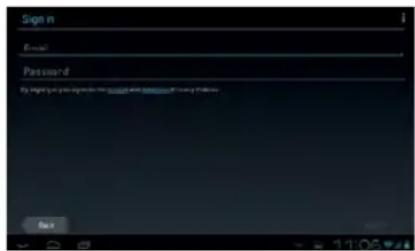
4-3-6 E-Mail Setting Guide
Click the shortcut on the main screen, then an E-Mail settings guide will appear to help set up.
Click the "Next" button, enter your E-Mail address and password of your E-Mail account. Then, click the "Next" button. Select your E-Mail type, either POP3 or IMAP. Click the "Next" button to check whether the sending and receiving servers for E-Mail can be used, then enter your account name and E-Mail name, then click "Finish". When E-Mail arrives, it will now enter your inbox automatically.
4-3-7 Receiving and Sending E-Mail
Click the shortcut on the main screen, select the "E-Mail" icon to enter your inbox. The system will refresh automatically, click to read new E-Mails.
Click the icon "envelope +" to write a new E-Mail. Enter the receiver's E-Mail address, subject matter and write the body of your E-Mail. Then if you want to add an attachment, click the icon "paper clip" to bring up the menu, click "Add attachment" to select the attachment. Then click "Send" to send the E-Mail.
Notes: If you have more than one account, and aim to send E-Mail using one specific account, click and choose the desired account name, write the E-Mail.
4-3-8 Delete E-Mail Account
You can delete the POP3 or IMAP E-Mail account from your E-Mail program.
Choose the account you want to delete, then click "Delete account". Click "Yes" to delete.
4-3-9 Instant Messaging
You can send instant messages with friends through "Google Talk" or "Mobile QQ" or other APKs.
5. File Manager
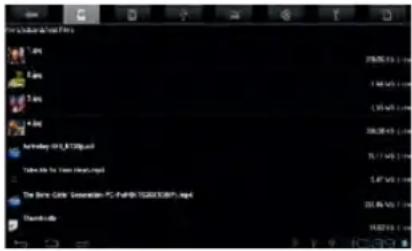
On the main screen, click the file manager icon ☐, then select the storage location to show the files. Here you can copy, move, paste or rename files. Hold down a single folder or file, the Edit box will then pop up with choices to delete, rename, copy, paste or send E-Mail.
6. OTG Function
This product has an OTG function. It can support a USB stick and some other devices like self-powered hard disc, etc. This product will automatically detect the USB device after connecting to it via an OTG cable. You have access to the USB device files, as you do the files on your machine.
With a low battery or the DC charger not plugged in and charging, please do not use the OTG function, or the machine may turn off automatically because of low power.
7. External USB Keyboard and Mouse
After the mouse is connected, the pointer will appear on the screen. The left button is to select, the right button is to return and the middle slider to slide up and down.
Note: Some keys cannot work on this machine. The keyboard will be revised as per the definition of the Android system. We recommend a standard USB keyboard to be used.
8. Usage of Micro SD/SDHC (TF) Card (following TF)
This product comes with TF-card slot. It supports reading files on the TF-card. When using, insert the TF-card into the machine. To take out the TF-card, push the TF-card inside a little then release. The TF-card will then pop out automatically, and you can now remove it. This product supports a TF-card from 1 GB to 16 GB.
Tips:
A. Please insert the TF-card into the card slot correctly.
B. When the TF-card is working (such as reading, copying, etc.), please do not pull out the card as this will lead to data errors.
C. Avoid using the memory card in a high temperature or humid environment.
D. Keep the memory card away from liquid or corrosive material.
Note: if you cannot take out the memory card, or it is stuck in the machine, you can use tweezers or other tools to pull it out slowly and carefully.
9. Basic Setting
Click the icon to enter the settings menu: Wireless & Networks, Sound, Display, Storage, Battery, Applications, Accounts & Sync, Location Services, Security, Language & Input, Backup & Reset, Date & Time, Accessibility, and Developer. Press and drag the screen up or down to turn pages.
9-1 Wireless & Network Setting
Click WLAN in Wireless & Network in the "Settings" menu to enter (shown here):
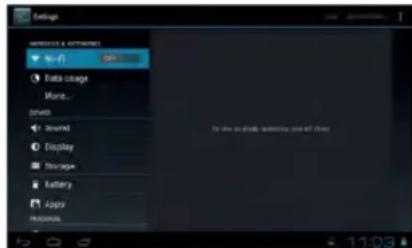
- WI-FI: Click "ON" to open WI-FI.
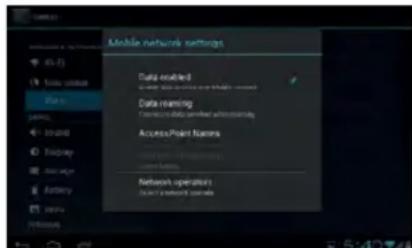
- Mobile networks: Click "More", then "Mobile networks", and turn on the Modem power. If WI-FI is on, this will bring up a box saying, "Please turn off WI-FI first". Click "Yes", now WI-FI will shut down automatically.
- Mobile network settings: Click to set Data Enabled, Data Roaming, Access Point Names, Network Operators, etc.
- Ethernet Settings: Please refer to the chapter 4-3 relating to Ethernet Settings.
9-2 Display Settings
Click Display in the Settings menu to enter the settings screen (as below):
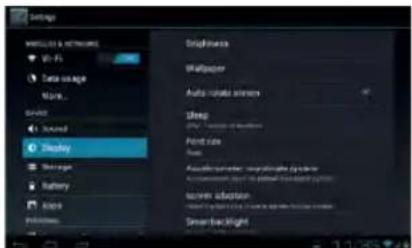
A. Brightness: Click here to adjust the brightness of the screen.
B. Wallpaper: Click here to set Live Wallpaper, Wallpapers.
C. Screen Auto-rotation: Screen Auto-rotation: Click here to activate or deactivate screen auto-rotation function.
D.Sleep: Click here to adjust the time for automatic screen lock with choices of 15 seconds, 30 seconds, 1 minute, 2 minutes, 5 minutes, 10 minutes, or 30 minutes.
E. Font size: Click here to adjust the font size.
F. Accelerometer coordinate system: Click here to set a special coordinate for some games.
G. Screen adaption: Click here to adjust the screen size for some games.
9-3 Security
You can set up device administration, screen lock and password visibility.
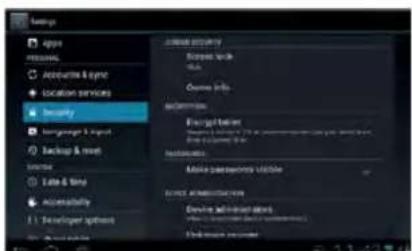
- Unknown sources: Allow installation of non-Market applications.
- Screen Unlock:
A. None: Disable screen unlock security
B. Pattern: Draw pattern to unlock screen
C. PIN: Enter a numeric PIN to unlock screen
D. Password: Enter a password to unlock screen
9-4 Setting Date and Time
Click "date & time" in the men to enter into setting interface, cancel auto selection, then you can change the date, time zone and time manually.
A: Set Date:
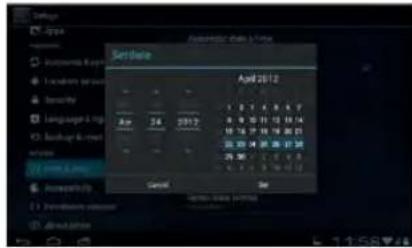
Click ■ to set up year, month, day, click to confirm.
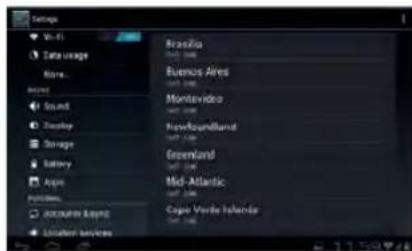
B: Select Time Zone – select your time zone and confirm.
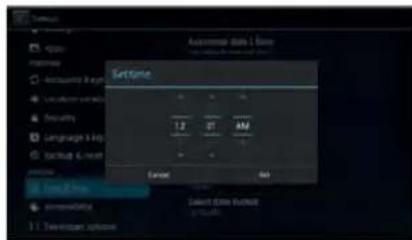
C: Set Time - Click ■ to set up hour, minute, for example, 10:56 then click ■ to confirm.
D: Set Date Format - Click the date format you prefer and confirm.
10. Trouble Shooting
1. The tablet turns on slowly the first time
- After a system update, or a factory restore, it takes about 2-3 minutes to install some pre-installed applications the first time, then this will speed up.
2. Unable to connect WI-FI or there is a weak signal
- Ensure the Network is working properly.
- Ensure the username and password are correct.
- Ensure the internal antenna is not blocked.
- Ensure the tablet is within the proper distance of the Network and there is no obstruction in between.
3. Fail to copy files
- Ensure the tablet is connected to the computer correctly.
- Ensure there is still disc space.
- Ensure the USB cable is functioning well.
4. No sound in the earphone
- Ensure that the volume is not set to 0.
- Check whether the headset is correctly connected and if the wire is broken.
5. General issues with the system
- When you install some third-party applications it may lead to various issues. You can restart the tablet or uninstall the applications.
6. Unable to set up E-Mail or use registration applications.
- Ensure your Network is working properly.
- Ensure the E-Mail account is correctly set up.
- Ensure your system time is the same as the local time.
- Run the "Advanced Task Manager" to stop some other applications running.
7. The memory capacity is different from the nominal figure
- Just like the hard disc on a computer, the capacity shown is usually less than the nominal capacity; this is due to different unit conversion used by computer and storage device manufacturers. On a computer, 1 GB = 1024 MB, but storage device manufacturers use 1 GB = 1000 MB as default. The actual capacity is not lower.
-
The OS of this tablet pre-installs some applications, games and the OS itself takes up some capacity. This is also one reason why the capacity that can be used for storage is less than the nominal figure.
-
Specification
| Dimension ca. 192 | mm x 122 mm x 10 mm | |
| Display | 7 inch, G + G capacitive 5 point touch-screen;resolution 800 x 480 pixels | |
| PC connection High | speed USB 2.0 | |
| Configuration | CPU Boxchip A13, 1 GHz | |
| RAM | 512 MB DDR III | |
| Memory 4 GB (Internal) | ||
| Micro SD/SDHC(TF) card | up to 32 GB (optional) | |
| Configuration | Operation System | Android 4.0.4 |
| Access Network WI-FI IEEE 802.11 | b/g/n | |
| Power | Battery 2350 m | Ah |
| DC Adapter DC | 5V/1.5A | |
| Audio Parameter | max. earphone output | (L) 7 mW +(R) 7 mW (32 ohm) |
| MP3 bit rate 32 | K bps - 320 K bps | |
| WMA bit rate 16 | K bps -320 K bps | |
| Frequency response | 20 Hz-20 KHz +/-3 dB | |
| SNR >= 85 dB | ||
| Distortion degree | <0.6% | |
| Music Formats | MP3, M4A, WMA, APE, FLAC, AAC, MID, WAV, AMR, OGG, etc. | |
| Video Formats | supporting Full HD video decoding (2160P, 1080P, 720P, 480P);Video formats: MKV, AVI, RM/RMVB, WMV, 3GP, MOV, MP4, ASF, MPG, DAT, VOB, FLV, etc. | |
| Image Formats | JPG, JPEG, BMP, etc. | |
| Environment Temperature | -5 to 40 °C | |
| Language | multi-languages supported | |
| OS Supported | from WindowsXP/Linux2.4/MAC OS 10.4 | |
All trademarks, registered trademarks and logos are the property of their respective owners. We do not guarantee any data with respect to their content, completeness or up-to-dateness
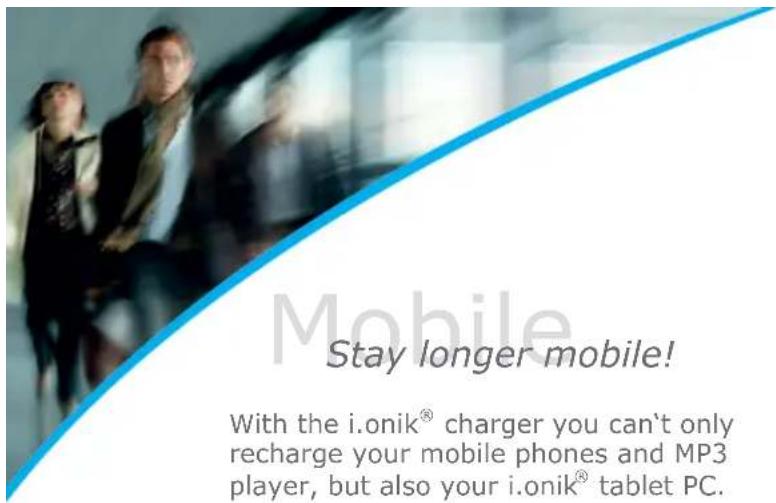
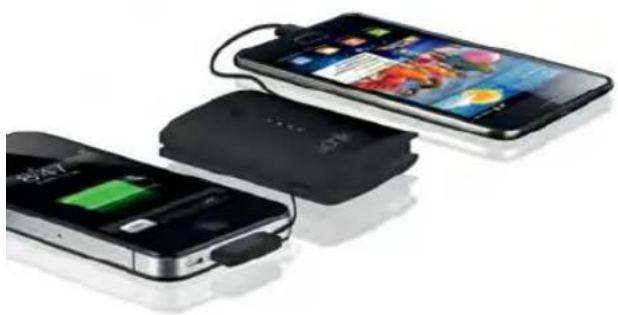
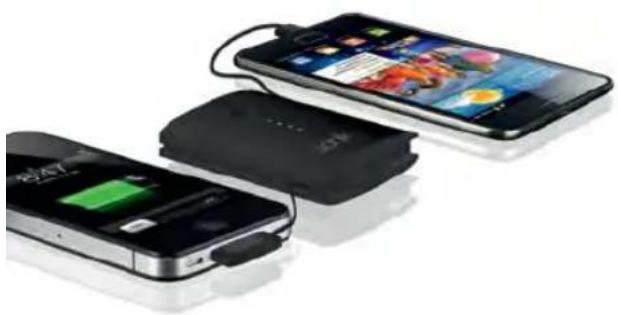
Stay longer mobile!
With the i.onik ^ charger you can't only recharge your mobile phones and MP3 player, but also your i.onik ^ tablet PC.
natural_image
Three smartphones with charging loads and battery modules, arranged diagonally (no visible text or symbols)- Charging time: PB-5000: ca. 6 h
• Standby time: PB-5000: up to 780 h
• Talk time: PB-5000: up to 3G/18 h; 2G/6 h
• Audio: PB-5000: up to 100 h
• Video: PB-5000: up to 26 h
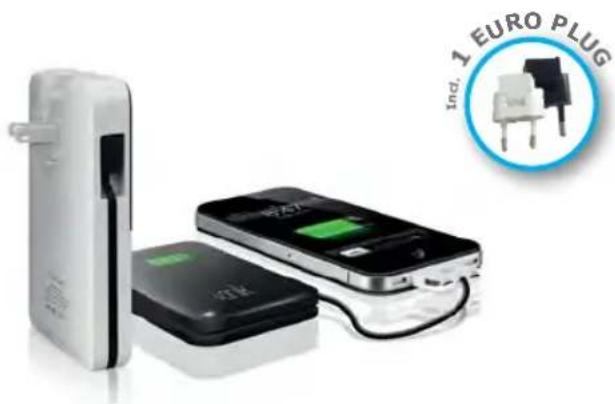
Powerbank PB-3000/PB-5000
natural_image
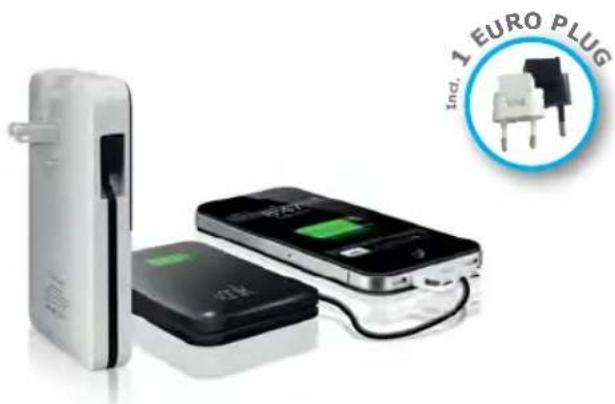
Product photo of a white electronic device with battery and charging case, alongside a circular logo featuring an '1 EURO PLUG' symbol (no text on devices)PB-3000PB-5000
• Charging time: PB-3000: ca. 3,5 h
• Standby time: PB-3000: up to 420 h
- Talk time: PB-3000: up to 15 h
• Audio: PB-3000: up to 55 h
• Video: PB-3000: up to 14 h
i.onik
mobile
i. onik mobile
TP7-1000-metal Tablet PC
* Kostenfrei aus allen deutschen Netzen / Free from all German telephone networks
Deutsch
1-4 Touchscreen
natural_image
Abstract 3D geometric design with green and purple blocks, no text or symbols visiblenatural_image
Computer desktop wallpaper showing colorful geometric shapes and application icons (no readable text or symbols)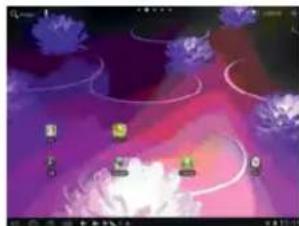
natural_image
Game scene with purple and pink gradient background, featuring floating characters and curved lines (no readable text or symbols)4-1-1 WI-FI Verbindung
natural_image
Close-up of a blue USB cable connector with a black connector attached, against a plain wall (no text or symbols visible)Bemerkungen:
C: Zeit einstellen:
All trademarks, registered trademarks and logos are the property of their respective owners. Alle Angaben ohne Gewähr.
natural_image
Three smartphones with charging cables and battery modules, no visible text or symbolsnatural_image
Product photo of a battery pack and smartphone with an Eurostecker logo (no text on main subjects)PB-3000PB-5000
- Before using the tablet PC, please read all the information provided first, to ensure this product is used correctly. Please make sure that you have read this manual carefully before using this product.
- This manual is copyrighted by our Company, any full or partial commercial duplication or interpretation of the manual is forbidden.
- All information covered in this manual is based on the latest information, and products are subject to change for further development, without notice. We are not liable for any mistakes or discrepancies within this manual. For additional product information, visit the company's website.
- When using this product, please backup your data, as our company is only responsible for the actual hardware, and will not be held responsible for any loss or damage of personal data and information.
Precautions
This manual includes important information on safety precautions and proper use of this product.
To prevent any accident, please make sure that you have read this manual carefully before using this product.
- Do not keep this product in a hot, humid or dusty location. In particular, do not use this product in a car with shut windows during the summer, and keep out of direct sunlight.
- Avoid dropping and heavy shocks to this product. Also, do not shake the device violently, otherwise this may damage it, causing it to not work correctly.
- Please choose a suitable volume. Avoid an excessively high volume when using a headset. If the noise affects your ears, please decrease the volume.
- Do not suddenly cease connection when this product is formatting, uploading or downloading material, as this may cause errors.
- The producer will not be held responsible for any lost data due to product damage, repairing the product, or for any other reasons.
- Do not disassemble this product by yourself, and do not clean the surface of this product with alcohol, thinner or benzene.
- Do not use this product in a place where using electronic devices is prohibited, such as on an aeroplane.
- Do not use this product while driving a car or walking in the street, as this could cause a traffic accident.
- The producer reserves the right to improve and develop this product. No further notice will be provided on any variation of the specification and design of this product!
(This product is not waterproof)
Content
Important Information 24
Precautions....24
Main Functions....26
Appearance and Buttons....26
-
Quick Start ...... 27
1-1 Power ON/OFF/Lock/Unlock....27
1-2 Battery and Charge....28
1-3 Computer Connection & File Transfer 28
1-4 Using the Touch Screen 29
1-5 G-Sensor 29
1-6 Solving Problems of the Machine Running Slowly....29
1-7 Entering text....29 -
Main Screen Function/Icons....30
2-1 Main Screen Function 30
2-2 Main Interface 31
2-3 Add/Move/Delete Desktop Icon....31
2-4 Shortcut 32
- Application Installation .... 32
3-1 Methods of how to Acquire 33
3-2 Program Install....33
3-3 Program Uninstall ....33
- Internet....33
4-1 Network Setting ......33
4-2 Ethernet Setting 34
4-3 Webpage Browser 36
-
File Manager....38
-
OTG Function....38
-
External USB Keyboard and Mouse 38
-
Usage of Mircro SD/SDHC (TF)-Card 38
-
Basic Setting ......39
9-1 Wireless & Network Setting 39
9-2 Display Settings....40
9-3 Security....40
9-4 Setting Date and Time....41
-
Troubleshooting ....41
-
Specifications 43
-
i.onik Products ....46
Pictures may differ from original product.
Main Functions:
- 7 inch, G + G capacitive 5 Point touch-screen, 800 x 480 pixel resolution.
• Supports built-in 0.3 Mega front camera. - Supports built-in microphone recording function.
• Supports vibration function.
• Supports external USB mouse, keyboard, etc. - Supports OTG function and USB stick, portable OTG hard disc to transfer data. (Whilst connecting to the portable hard disc, DC power must be connected to the product's power supply, otherwise the tablet PC will crash due to insufficient power supply).
- Multiple network access to the Internet. As WI-FI is supported, you can enjoy the Internet anywhere, at anytime.
- With the Gravity sensor (G-sensor), in addition to being able to switch the screen horizontally and vertically, you can also install various software to improve this function, such as flicking through text, changing songs, fun games, etc.
- With the Play Store intelligent operating system, you can create your own personalized space with APKs.
- Supporting APK installation and application, existing software can be downloaded and installed from the Android Market or Internet to your MID or PC.
- With this product, you can easily conduct business and also be entertained through existing applications, such as E-Mail, Word, website browsing, the news, instant messaging, financial activity, blogs, online games, online videos, the stock market, weather reports, mobile TV, maps, general "fun" software, etc.
- Supports MP3, M4A, WMA, APE, FLAC, AAC, MID, WAV, AMR, OGG, etc.
- Supports full HD video decoding (2160P, 1080P, 720P, 480P); video formats: MKV, AVI, RM/RMVB, WMV, 3GP, MOV, MP4, ASF, MPG, DAT, VOB, FLV, etc.
- Supports JPG, JPEG, BMP, PNG, etc, and formats image browsing.
- Supports Micro SD/SDHC (TF) Card, with a capacity of up to 32 GB.
- Personalized settings - freely adjustable brightness, key tone on or off, changing wallpaper and so on
- Multilingual
- More functions could be added by updating Firmware.
Appearance and Buttons

Definition:
- F: Back – press this button to go to previous screen or previous menu
- V-: volume down
- V+: volume up
- ☐: Power Button-hold down this button to turn the device on or off, or simply press this button to lock screen in order to avoid any errors
- Earphone Jack
- MIC Recording Jack: microphone
- USB Port: Micro USB 5 Pin data cable supports external USB stick, MP3, MP4, wired mouse, 3G wireless Internet card, etc.
- Micro SD/SDHC (TF) card slot
1. Quick Start
1-1 Power On/Off and unlock
When the power is off, hold down ⏻ for three seconds to turn the power on. It will take a little time to turn on, please be patient. It will take about 100 seconds to enter the system, drag the unlock icon to the camera icon on the left to take a photo, and to the unlocking icon on the right to unlock, see below:
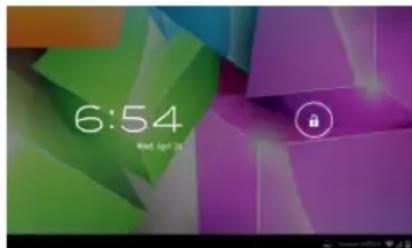
Energy-saving and locking mode: When the machine is not being used, the system will automatically enter into the energy-saving mode. Press to awaken the screen, the system will then be ready to unlock in one second, touch to unlock.
Notes: In energy saving mode, the system will still be turned on, only the LCD screen will be off, showing a black screen. Music or video will continue to play.
Power Off: Whilst using the product, press for 5 seconds, the screen will give a "power off" option. Select this "Power off" option, confirm your choice and the system will then automatically turn off. Select "Cancel" to cancel the machine powering off.
Notes: When at low power, a warning will be given; at this point, connect the DC adapter and begin to charge, it will then automatically turn off. If the product cannot boot, please check the battery.
1-2 Battery and Charge
The battery should be charged for 8 to 12 hours for the first time, in order to make sure the battery has enough power. Please use the provided charger. Now that the device is being charged, the battery icon will show that the device is charging. Please do not disconnect the charger until the device is fully charged. The battery icon will show when it is fully charged. Please note the following precautions for protecting the lithium battery:
a. Don't charge in or under a high temperature (for example, under direct sunlight).
b. The lithium battery does not need to be completely empty before the user can charge it.
c. While charging, it is normal that both the charger and the device will heat up.
1-3 Computer Connection & File Transfer
Upon connection of the product to the computer with a USB cable, the status bar will show that the USB has connected. The product's default is set for a USB connection. If you are connecting an external mobile hard disc, "USB connected" needs to be showing on the status bar. Click the option to enable the USB status to be altered, with reference to the icon on the bottom right, "Open USB storage equipment", switch this into the USB storage status. Now, the user can access the external hard disc. On USB storage, click the icon again to disconnect USB and recover to charge mode. The USB storage mode system will limit the user's access to the local disc application. By disconnecting USB storage mode, the system will go back to the normal status, as seen in the following image:
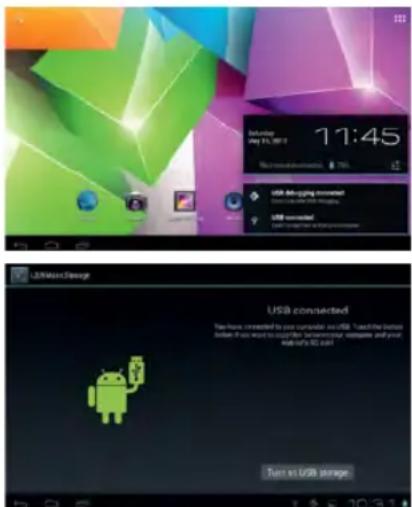
1-4 Using the Touch Screen
There are various ways to operate this. You can view the main screen, menu and application.
1-4-1 Click
When you want to use the screen keyboard or select the application in the main menu, it can be done by using your fingers or stylus to click.
1-4-2 Press
When you want to open a file, shortcut, or application in the main menu, just press "OK".
1-4-3 Movement
Movement with your finger or stylus to make the screen drag horizontally or vertically.
1-4-4 Drag
Before dragging, please use your finger or stylus to press, to get to the required location.
1-5 G-Sensor
The product has the function of a G-sensor. After activating the function in the settings (default setting is active), by rotating the machine 90 degrees, the screen will switch from horizontal to vertical automatically.
As well as the screen switching from horizontal to vertical, it can support more functions too, such as flicking through text, changing music and fun games.
1-6 Solving problems of the machine running slowly
After using the product for some time, even though applications have been shut down, they are still running in the background, thus making the system run slowly. Therefore, you need to end these programs in Advanced Task Manager to allow the product to run smoothly.
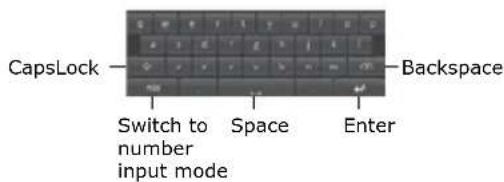
1-7 Entering Text
When you start an application or select the text edit box to enter text or numbers, the screen keyboard will appear. The keyboard has the following options to select:
- Android keyboard
- Google Pinyin IME (Input Method Editor)
1-7-1 Select IME
With the original setting of the product, the Android keyboard will appear when you input the words.
- On the main screen press the menu key, and then click settings
-
Click language & input
-
In the language & input area, the product will list the installed IME
- Select it after selecting the IME you need
Android Keyboard Panel
2 Main Screen Function/Icon
2-1 Main Screen Function
natural_image
Computer desktop wallpaper showing abstract geometric shapes in green, purple, and orange tones (no text or symbols visible)| Icon Definition Icon Definition | |||
| Google Search Settings | ||
 | Back Function Modu | Menu | |
| Back to main screen from any interface | Camera | |
 | Current time Battery | ||
 | WI-FI signal Menu | ||
| New device found | Singing Menu | ||
2-2 Main Interface
natural_image
Abstract 3D geometric design with green, purple, and orange blocks (no text or symbols)Hold down "Power" to turn on, the screen is then locked after the power is on, press the unlock key to unlock and enter the main screen as below. On this screen, you can view the status bar, change wallpaper, add widgets, add program shortcuts, start programs, etc.
2-2-1 Status Bar
With a stylus, slide down to read prompts in the status bar to open the notification bar and you can see today's date.
2-2-2 Menu
Press menu button ■ or press ■ to open open screen menu:
- Wallpaper: in this menu, you can choose your favourite photos for the main screen background.
- Manage Applications: You can check all the programs that are within this device, and remove all installed programs.
- System Set: Click to enter the system setting menu screen directly.
2-3 Add, move or delete Desk Icon
On the main screen, click 🎯 to enter the function menu list, displaying applications of all web pages. Press and hold to drag the icon to copy it to current desktop, for example, creating shortcuts on the desktop.

natural_image
Game interface screenshot showing purple and pink gradient background with floating characters and UI elements (no readable text or symbols)You can delete the icon which is added to main screen, by highlighting the icon which you are going to delete. Now there will be an "X" on the top, just drag this icon to "X" to delete.
2-4 Shortcut
click to show all function icons as below:
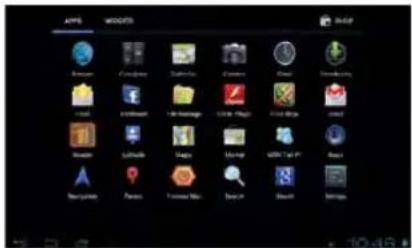
This window shows all the function icons, click any icon to enter corresponding screen, see the following:
Sending/Receiving E-Mails.
Browser: Click to enter the Internet to browse web pages.
Calendar: Check the calendar and settings.
Calculator Icon: Click this icon to use the calculator.
Alarm Clock: Clock icon, click this icon to set an alarm.
Play music.
Video player icon or photo browser: Click this icon to play videos and view photos.
Webpage research.
Camera.
Enter recording screen.
File Manager: Check all file types and content.
Advanced task manager: Manage applications and remove. When the machine runs slowly, this function will shut down unused applications in order to prevent the machine running slowly.
Setting icon: Click this icon to enter system setting screen.
3. Application Installation
This device can install APKs (Android Packages) with ease, you can get third-party applications which are suitable for this Android system from the "Play Store" and the Internet. APKs can be installed on this machine.
First select "Setting/Application Program", then select "unknown sources".
3-1 Methods of how to Acquire
Method 1: Download from the website and copy the applications onto the Micro SD/SDHC (TF)-card and insert into the product.
Method 2: Through the product's "Play Store", by downloading the application onto the Micro SD/SDHC (TF)-card.
3-2 Program Install
Click the main screen's shortcut key, then select "File Manager". Now select the SD card sub-menu and click on the APK.
Note: On the website, all files have the .apk suffix in the third-party program.
3-3 Program Uninstall
Click „Settings" then select Apps and then click „uninstall".
Uninstall: Uninstall this application, click ■ to go back to previous screen.
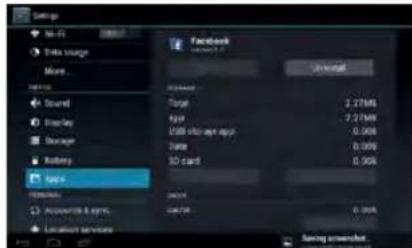
4. Internet
4-1 Network Setting
Click the shortcut on the main screen, choose "Setting/Wireless and Network" to enter the network setting screen:
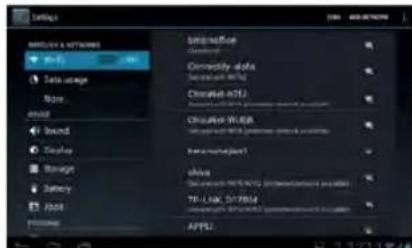
4-1-1 WI-FI Connection
Click the shortcut on the main screen, select "Internet Connection Manager", click "WI-FI setting", then enter the WI-FI setting screen, now select "WI-FI" and activate it.
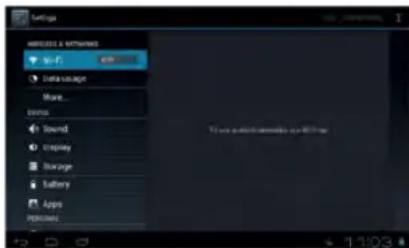
After WI-FI has opened, it will automatically search for wireless network, this shows on the menu, now click wireless network, enter the password screen, and now input the password and connect. Seconds later, the system will connect to wireless network automatically.
When WI-FI is open, this will make the machine use 25 % more power. When not using WI-FI, please turn it off to extend the battery life.
4-2 Ethernet Setting
Using the Ethernet card (USB-RJ45) when connecting to the Internet. There are two requirements needed to use USB-RJ45 to connect to the Internet, and these are detailed below:
- ADSL account and password are set up correctly on router.
- USB-RJ45 network card is the model which is supported by this device.
Models supported are listed below:
AX88772/AX88772a/AX88772B/AX88178/AX88760/QF9700/
SR9600/MCS7830/MCS7832/MCS7730
Steps for Internet Connection:
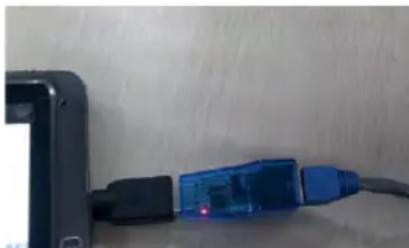
First connect the network cable to the USB Ethernet card, then insert the USB OTG cable which is meant for this device into USB Ethernet card and the other end into USB port of the device.
natural_image
Close-up of a blue USB cable connector attached to a black rectangular device (no visible text or symbols)Notes:
- First close the WI-FI network, only one network can be used, otherwise there will be errors.
- This device will automatically detect the USB Ethernet card and switch on the "Ethernet". There will now be a network icon in the status column.
-
Wait a moment, as this device will try to connect to Internet automatically. If the router and the DHCP service are already open, and the netgate, DNS and relevant settings have been applied, then the device will connect to the Internet automatically. (The Ethernet card function must be selected already).
-
If the device fails to connect, usually this is because the settings in the router are not correct. You can set the parameters in the device as follows:
a. Enter setting/Ethernet setting, select and open Ethernet. Enter configuration information, choose "static IP setting", then enter the static IP setting screen (the default setting is automatic acquiring IP. Usually, automatic acquiring IP is fine for everything, but some companies' routers will use specified IPs, not allowing automatic acquiring IP, it depends on router settings, therefore static IP needs to be used at this time).
b. There is no need to fill in the Ethernet card device and physical address. The machine will automatically detect this, after successfully connecting the Ethernet. In the IP address column, enter the IP address, the default usually being 192.168.1.1xx.
c. In "subnet mask", enter network segment mask, the default is 255.255.255.0.
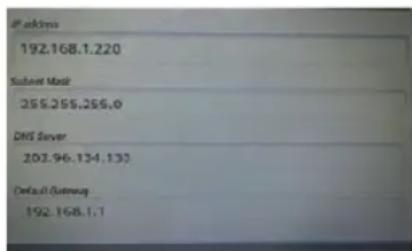
d. In the "DNS server", enter your local network service provider's DNS server IP. A different location has a different DNS server IP - if you are unsure, you can search by Google.
e. Enter the gateway in the „default gateway". The general default is 192.168.1.1 (you can check the router's manual for confirmation). It must be set to the same as the router; otherwise connection will be shown, however cannot connect to the Ethernet.
f. Finally, click the lower right corner of the "Save" button, then select Save. The system will automatically connect after saving, then you can use the Ethernet.
- Close the Ethernet, unplug the "Ethernet" cable, now you can turn off the Ethernet connection.
- Unplug the OTG cable.
Attention:
- If you are unsure about router settings and the DHCP service, please consult the router's manufacturer, point-of-service, network service providers (or ask network management, network experts, etc.), or research independently. Our company does not supply this kind of service and support.
- If you are not using Ethernet, please unplug the OTG cable and Ethernet card, otherwise the machine will continue to use power.
4-3 Webpage Browser
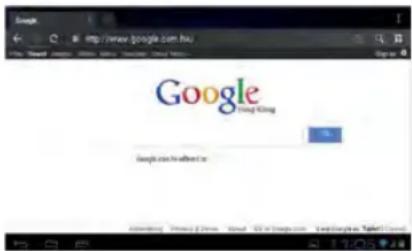
Set up the network as in chapter 4-1, you can then use the browser to browse the web. Click the shortcut on the main screen. Enter the required URL in the address bar. Open the web page; then slide your finger up and down the screen to view other parts of the page.
4-3-1 Bookmark Manager
- SettingBookmarks
On the browsing screen, if you want to add the current address to bookmark, click the "star" icon select "Bookmark", then click "Add bookmark". Click "Yes" to confirm.
- Open Bookmarks
On the browser screen, click the icon "flag with star" to select "Bookmark", then select the bookmark which you want and open the web page.
- Edit Bookmarks
hold down the bookmark which you like to edit, then select "Edit bookmark" to edit it, and click "Yes" to confirm.
4-3-2 Open new Window
- Open new Browser Window
On the browser screen, click "Menu", then select "New tab" to open a new browser window.
- Switching the Browser Window
The tabs are shown in the top task bar. Here you can switch the tabs.
4-3-3 Change your Startpage
On the browser screen, click "Menu", and the settings menu will appear. Then click "More", and then "Settings", then "Settings homepage" on the settings screen, then enter the required URL, finally click "Yes" to save it.
4-3-4 Browser Settings
On the browser screen, click "Menu", then "Settings" to configure the browser.
4-3-5 E-Mail
You can receive and send E-Mails with this machine. You can add a POP3 OR an IMAP E-Mail account from a standard web E-Mail server (Such as Yahoo, Gmail, or Hotmail).
Notes: Before setting up E-Mail, please ensure your Internet is connected.
4-3-6 E-Mail Setting Guide
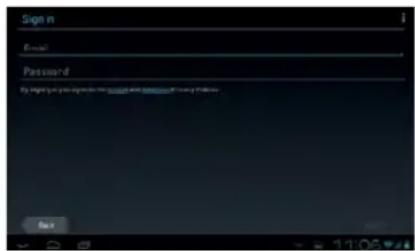
Click the shortcut on the main screen, then an E-Mail settings guide will appear to help set up.
Click the "Next" button, enter your E-Mail address and password of your E-Mail account. Then, click the "Next" button. Select your E-Mail type, either POP3 or IMAP. Click the "Next" button to check whether the sending and receiving servers for E-Mail can be used, then enter your account name and E-Mail name, then click "Finish". When E-Mail arrives, it will now enter your inbox automatically.
4-3-7 Receiving and Sending E-Mail
Click the shortcut on the main screen, select the "E-Mail" icon to enter your inbox. The system will refresh automatically, click to read new E-Mails.
Click the icon "envelope +" to write a new E-Mail. Enter the receiver's E-Mail address, subject matter and write the body of your E-Mail. Then if you want to add an attachment, click the icon "paper clip" to bring up the menu, click "Add attachment" to select the attachment. Then click "Send" to send the E-Mail.
Notes: If you have more than one account, and aim to send E-Mail using one specific account, click and choose the desired account name, write the E-Mail.
4-3-8 Delete E-Mail Account
You can delete the POP3 or IMAP E-Mail account from your E-Mail program.
Choose the account you want to delete, then click "Delete account". Click "Yes" to delete.
4-3-9 Instant Messaging
You can send instant messages with friends through "Google Talk" or "Mobile QQ" or other APKs.
5. File Manager
On the main screen, click the file manager icon ☐, then select the storage location to show the files. Here you can copy, move, paste or rename files. Hold down a single folder or file, the Edit box will then pop up with choices to delete, rename, copy, paste or send E-Mail.
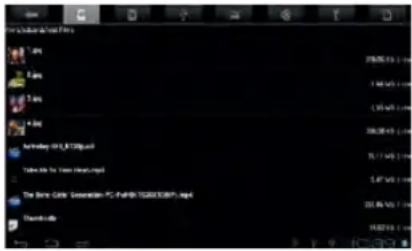
6. OTG Function
This product has an OTG function. It can support a USB stick and some other devices like self-powered hard disc, etc. This product will automatically detect the USB device after connecting to it via an OTG cable. You have access to the USB device files, as you do the files on your machine.
With a low battery or the DC charger not plugged in and charging, please do not use the OTG function, or the machine may turn off automatically because of low power.
7. External USB Keyboard and Mouse
After the mouse is connected, the pointer will appear on the screen. The left button is to select, the right button is to return and the middle slider to slide up and down.
Note: Some keys cannot work on this machine. The keyboard will be revised as per the definition of the Android system. We recommend a standard USB keyboard to be used.
8. Usage of Micro SD/SDHC (TF) Card (following TF)
This product comes with TF-card slot. It supports reading files on the TF-card. When using, insert the TF-card into the machine. To take out the TF-card, push the TF-card inside a little then release. The TF-card will then pop out automatically, and you can now remove it. This product supports a TF card from 1 GB to 16 GB.
Tips:
A. Please insert the TF-card into the card slot correctly.
B. When the TF-card is working (such as reading, copying, etc.), please do not pull out the card as this will lead to data errors.
C. Avoid using the memory card in a high temperature or humid environment.
D. Keep the memory card away from liquid or corrosive material.
Note: if you cannot take out the memory card, or it is stuck in the machine, you can use tweezers or other tools to pull it out slowly and carefully.
9. Basic Setting
Click the icon to enter the settings menu: Wireless & Networks, Sound, Display, Storage, Battery, Applications, Accounts & Sync, Location Services, Security, Language & Input, Backup & Reset, Date & Time, Accessibility, and Developer. Press and drag the screen up or down to turn pages.
9-1 Wireless & Network Setting
Click WLAN in Wireless & Network in the "Settings" menu to enter (shown here):
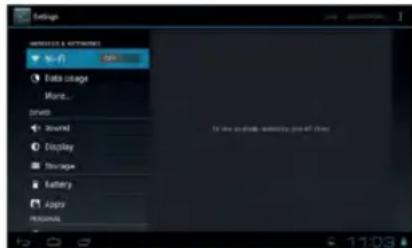
- WI-FI: Click "ON" to open WI-FI.
- Mobile networks: Click "More", then "Mobile networks", and turn on the Modem power. If WI-FI is on, this will bring up a box saying, "Please turn off WI-FI first". Click "Yes", now WI-FI will shut down automatically.
- Mobile network settings: Click to set Data Enabled, Data Roaming, Access Point Names, Network Operators, etc.
- Ethernet Settings: Please refer to the chapter 4-3 relating to Ethernet Settings.
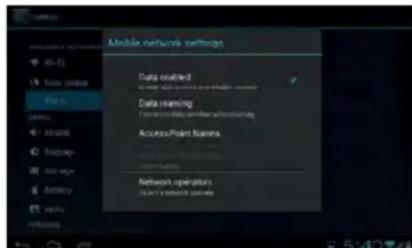
9-2 Display Settings
Click Display in the settings menu to enter the settings screen (as below):
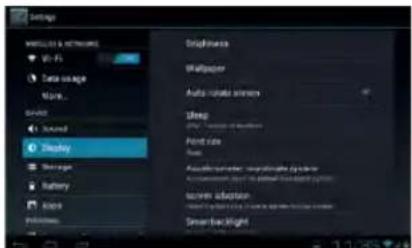
A. Brightness: Click here to adjust the brightness of the screen.
B. Wallpaper: Click here to set Live Wallpaper, Wallpapers.
C. Screen Auto-rotation: Screen Auto-rotation: Click here to activate or deactivate screen auto-rotation function.
D.Sleep: Click here to adjust the time for automatic screen lock with choices of 15 seconds, 30 seconds, 1 minute, 2 minutes, 5 minutes, 10 minutes, or 30 minutes.
E. Font size: Click here to adjust the font size.
F. Accelerometer coordinate system: Click here to set a special coordinate for some games.
G. Screen adaption: Click here to adjust the screen size for some games.
9-3 Security
You can set up device administration, screen lock and password visibility.
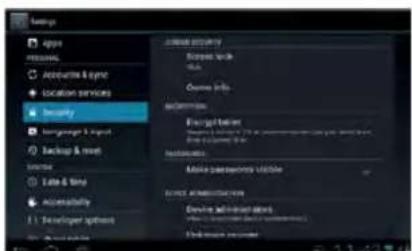
- Unknown sources: Allow installation of non-Market applications.
- Screen Unlock:
A. None: Disable screen unlock security
B. Pattern: Draw pattern to unlock screen
C. PIN: Enter a numeric PIN to unlock screen
D. Password: Enter a password to unlock screen
9-4 Setting Date and Time
Click "date & time" in the men to enter into setting interface, cancel auto selection, then you can change the date, time zone and time manually.
A: Set Date:
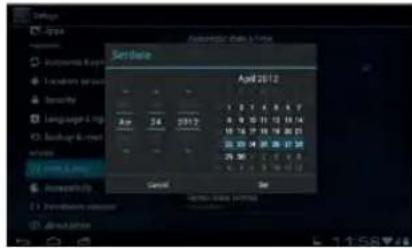
Click ■ to set up year, month, day, click to confirm.
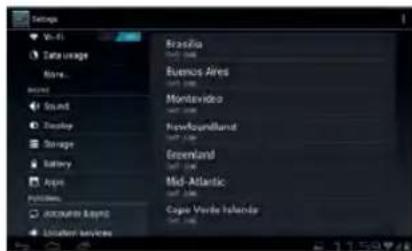
B: Select Time Zone – select your time zone and confirm.
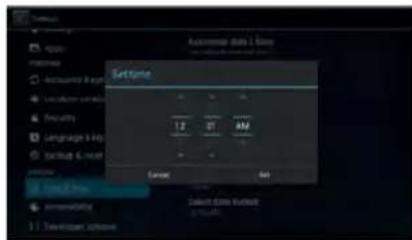
C: Set Time - Click ■ to set up hour, minute, for example, 10:56 then click ■ to confirm.
D: Set Date Format - Click the date format you prefer and confirm.
10. Trouble Shooting
1. The tablet turns on slowly the first time
- After a system update, or a factory restore, it takes about 2-3 minutes to install some pre-installed applications the first time, then this will speed up.
2. Unable to connect WI-FI or there is a weak signal
- Ensure the Network is working properly.
- Ensure the username and password are correct.
- Ensure the internal antenna is not blocked.
- Ensure the tablet is within the proper distance of the Network and there is no obstruction in between.
3. Fail to copy files
- Ensure the tablet is connected to the computer correctly.
- Ensure there is still disc space.
- Ensure the USB cable is functioning well.
4. No sound in the earphone
- Ensure that the volume is not set to 0.
- Check whether the headset is correctly connected and if the wire is broken.
5. General issues with the system
- When you install some third-party applications it may lead to various issues. You can restart the tablet or uninstall the applications.
6. Unable to set up E-Mail or use registration applications.
- Ensure your Network is working properly.
- Ensure the E-Mail account is correctly set up.
- Ensure your system time is the same as the local time.
- Run the "Advanced Task Manager" to stop some other applications running.
7. The memory capacity is different from the nominal figure
- Just like the hard disc on a computer, the capacity shown is usually less than the nominal capacity; this is due to different unit conversion used by computer and storage device manufacturers. On a computer, 1 GB = 1024 MB, but storage device manufacturers use 1 GB = 1000 MB as default. The actual capacity is not lower.
-
The OS of this tablet pre-installs some applications, games and the OS itself takes up some capacity. This is also one reason why the capacity that can be used for storage is less than the nominal figure.
-
Specification
| Dimension ca. 193 | mm x 121 mm x 9,5 mm | |
| Display | 7 inch, G + G capacitive 5 point touch-screen;resolution 800 x 480 pixels | |
| PC connection High | speed USB 2.0 | |
| Configuration | CPU Boxchip A13, 1 GHz | |
| RAM | 512 MB DDR III | |
| Memory | 8 GB (internal) | |
| Micro SD/SDHC(TF) card | up to 32 GB (optional) | |
| Operation System | Android 4.0.4 | |
| Access Network WI-FI IEEE802.11b/g/n | ||
| Power | Battery Lithium | battery 3.7 V |
| DC Adapter DC | 5 V, 1.5-2 A | |
| Audio | max. earphone output | (L) 7 mW +(R) 7 mW(32 ohm) |
| MP3 bit rate 32 | K bps - 320 K bps | |
| WMA bit rate 16 | K bps -320 K bps | |
| Frequency response | 20 Hz-20 KHz +/-3 dB | |
| SNR >= 85 dB | ||
| Distortion degree | <0.6% | |
| Music Formats | MP3, M4A, WMA, APE, FLAC, AAC, MID, WAV,AMR, OGG, etc. | |
| Video Formats | supporting Full HD video decoding(2160P, 1080P, 720P, 480P);Video formats: MKV, AVI, RM/RMVB, WMV,3GP, MOV, MP4, ASF, MPG, DAT, VOB, FLV, etc. | |
| Image Formats JPG, JPEG, BMP, etc. | ||
| Environment Temperature | -5 to 40 °C | |
| Language | multi-languages supported | |
| OS Supported | from WindowsXP/Linux2.4/MAC OS 10.4 | |
All trademarks, registered trademarks and logos are the property of their respective owners. We do not guarantee any data with respect to their content, completeness or up-to-dateness
Stay longer mobile!
With the i.onik ^ charger you can't only recharge your mobile phones and MP3 player, but also your i.onik ^ tablet PC.
natural_image
Three smartphones with charging loads and battery modules, arranged diagonally (no visible text or symbols)- Charging time: PB-5000: ca. 6 h
• Standby time: PB-5000: up to 780 h
• Talk time: PB-5000: up to 3G/18 h; 2G/6 h
• Audio: PB-5000: up to 100 h
• Video: PB-5000: up to 26 h
Powerbank PB-3000/PB-5000
natural_image
Product photo of a white electronic device with battery and charging case, alongside a circular logo featuring an '1 EURO PLUG' symbol (no text on devices)PB-3000PB-5000
• Charging time: PB-3000: ca. 3,5 h
• Standby time: PB-3000: up to 420 h
- Talk time: PB-3000: up to 15 h
• Audio: PB-3000: up to 55 h
• Video: PB-3000: up to 14 h
i.onik
mobile
i. onik mobile
TP7-1500DC-metal Tablet PC
* Kostenfrei aus allen deutschen Netzen / Free from all German telephone networks
24007
i.onik mobile
Deutsch
1-4 Touchscreen
natural_image
Abstract 3D geometric design with green and purple blocks, no text or symbols visiblenatural_image
Computer desktop wallpaper showing colorful geometric shapes and application icons (no readable text or symbols)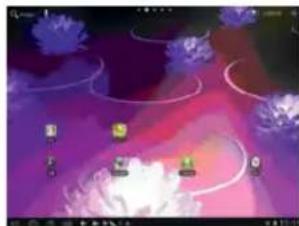
natural_image
Game scene with purple and pink gradient background, featuring floating characters and curved lines (no readable text or symbols)4-1-1 WI-FI Verbindung
natural_image
Close-up of a blue USB cable connector with a black connector attached, against a plain wall (no text or symbols visible)Bemerkungen:
C: Zeit einstellen:
natural_image
Three smartphones with charging cables and battery modules, no visible text or symbolsnatural_image
Product photo of a battery pack and smartphone with an Eurostecker logo (no text on main subjects)PB-3000PB-5000
- Before using the tablet PC, please read all the information provided first, to ensure this product is used correctly. Please make sure that you have read this manual carefully before using this product.
- This manual is copyrighted by our Company, any full or partial commercial duplication or interpretation of the manual is forbidden.
- All information covered in this manual is based on the latest information, and products are subject to change for further development, without notice. We are not liable for any mistakes or discrepancies within this manual. For additional product information, visit the company's website.
- When using this product, please backup your data, as our company is only responsible for the actual hardware, and will not be held responsible for any loss or damage of personal data and information.
Precautions
This manual includes important information on safety precautions and proper use of this product.
To prevent any accident, please make sure that you have read this manual carefully before using this product.
- Do not keep this product in a hot, humid or dusty location. In particular, do not use this product in a car with shut windows during the summer, and keep out of direct sunlight.
- Avoid dropping and heavy shocks to this product. Also, do not shake the device violently, otherwise this may damage it, causing it to not work correctly.
- Please choose a suitable volume. Avoid an excessively high volume when using a headset. If the noise affects your ears, please decrease the volume.
- Do not suddenly cease connection when this product is formatting, uploading or downloading material, as this may cause errors.
- The producer will not be held responsible for any lost data due to product damage, repairing the product, or for any other reasons.
- Do not disassemble this product by yourself, and do not clean the surface of this product with alcohol, thinner or benzene.
- Do not use this product in a place where using electronic devices is prohibited, such as on an aeroplane.
- Do not use this product while driving a car or walking in the street, as this could cause a traffic accident.
- The producer reserves the right to improve and develop this product. No further notice will be provided on any variation of the specification and design of this product!
(This product is not waterproof)
Content
Important Information 24
Precautions....24
Main Functions....26
Appearance and Buttons....26
-
Quick Start ...... 27
1-1 Power ON/OFF/Lock/Unlock....27
1-2 Battery and Charge....28
1-3 Computer Connection & File Transfer 28
1-4 Using the Touch Screen 29
1-5 G-Sensor 29
1-6 Solving Problems of the Machine Running Slowly....29
1-7 Entering text....29 -
Main Screen Function/Icons....30
2-1 Main Screen Function 30
2-2 Main Interface 31
2-3 Add/Move/Delete Desktop Icon....31
2-4 Shortcut 32
- Application Installation .... 32
3-1 Methods of how to Acquire 33
3-2 Program Install....33
3-3 Program Uninstall ....33
- Internet....33
4-1 Network Setting 33
4-2 Ethernet Setting 34
4-3 Webpage Browser 36
-
File Manager....38
-
OTG Function....38
-
External USB Keyboard and Mouse 38
-
Usage of Micro SD/SDHC (TF)-Card 38
-
Basic Setting ......39
9-1 Wireless & Network Setting 39
9-2 Display Settings....40
9-3 Security....40
9-4 Setting Date and Time....41
-
Troubleshooting ....41
-
Specifications 43
-
i.onik Products ....46
Pictures may differ from original product.
Main Functions:
- 7 inch, G + G capacitive 5 Point touch-screen, 1024 x 600 pixel resolution.
• Supports built-in 0.3 mega pixels front, 5 mega pixels back camera. - Supports OTG function and USB stick, portable OTG hard disc to transfer data. (Whilst connecting to the portable hard disc, DC power must be connected to the product's power supply, otherwise the tablet PC will crash due to insufficient power supply).
- Multiple network access to the Internet. As Wi-Fi is supported, you can enjoy the Internet anywhere, at anytime.
- With the Gravity sensor (G-sensor), in addition to being able to switch the screen horizontally and vertically, you can also install various software to improve this function, such as flicking through text, changing songs, fun games, etc.
- With the Play Store intelligent operating system, you can create your own personalized space with APKs.
- Supporting APK installation and application, existing software can be downloaded and installed from the Android Market or Internet to your MID or PC.
- With this product, you can easily conduct business and also be entertained through existing applications, such as E-Mail, Word, website browsing, the news, instant messaging, financial activity, blogs, online games, online videos, the stock market, weather reports, mobile TV, maps, general "fun" software etc.
- Supports MP3, M4A, WMA, APE, FLAC, AAC, MID, WAV, AMR, OGG etc.
- Supports full HD video decoding (2160P, 1080P, 720P, 480P); video formats: MKV, AVI, RM/RMVB, WMV, 3GP, MOV, MP4, ASF, MPG, DAT, VOB, FLV etc.
- Supports JPG, JPEG, BMP, PNG, etc, and formats image browsing.
- Supports Micro SD/SDHC (TF) Card, with a capacity of up to 64 GB.
- Personalized settings - freely adjustable brightness, key tone on or off, changing wallpaper and so on.
- Multilingual
- More functions could be added by updating Firmware.
Appearance and Buttons
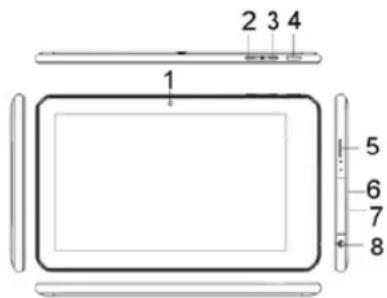
Definition:
- Front 0.3 mega pixels camera
- "V-": Volume down
3."V+": Volume up
4." "Power Button, long press this button to turn On/Off the player, short press this button to lock screen in order to avoid operation error - Micro SD/SDHC (TF) card slot
- HDMI slot
- USB Port: Micro USB 5 Pin data cable supports external USB sticks, MP3, MP4, wired mouse, 3G wireless Internet card, etc.
- Earphone Jack
1. Quick Start
1-1 Power On/Off and unlock
When the power is off, hold down for three seconds to turn the power on. It will take a little time to turn on, please be patient. It will take about 100 seconds to enter the system, drag the unlock icon to the camera icon on the left to take a photo, and to the unlocking icon on the right to unlock, see below:
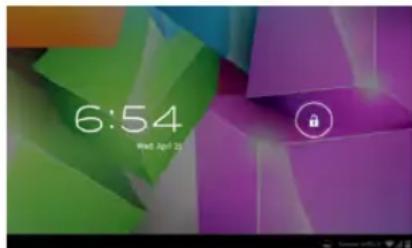
Energy-saving and locking mode: When the machine is not being used, the system will automatically enter into the energy-saving mode. Press ☐ to awaken the screen, the system will then be ready to unlock in one second, touch ☐ to unlock.
Notes: In energy saving mode, the system will still be turned on, only the LCD screen will be off, showing a black screen. Music or video will continue to play.
Power Off: Whilst using the product, press ① for 5 seconds, the screen will give a "power off" option. Select this "Power off" option, confirm your choice and the system will then automatically turn off. Select "Cancel" to cancel the machine powering off.
Notes: When at low power, a warning will be given; at this point, connect the DC adapter and begin to charge, it will then automatically turn off. If the product cannot boot, please check the battery.
1-2 Battery and Charge
The battery should be charged for 8 to 12 hours for the first time, in order to make sure the battery has enough power. Please use the provided charger. Now that the device is being charged, the battery icon will show that the device is charging. Please do not disconnect the charger until the device is fully charged. The battery icon will show when it is fully charged. Please note the following precautions for protecting the lithium battery:
a. Don't charge in or under a high temperature (for example, under direct sunlight).
b. The lithium battery does not need to be completely empty before the user can charge it.
c. While charging, it is normal that both the charger and the device will heat up.
1-3 Computer Connection & File Transfer
Upon connection of the product to the computer with a USB cable, the status bar will show that the USB has connected. The product's default is set for a USB connection. If you are connecting an external mobile hard disc, "USB connected" needs to be showing on the status bar. Click the option to enable the USB status to be altered, with reference to the icon on the bottom right, "Open USB storage equipment", switch this into the USB storage status. Now, the user can access the external hard disc. On USB storage, click the icon again to disconnect USB and recover to charge mode. The USB storage mode system will limit the user's access to the local disc application. By disconnecting USB storage mode, the system will go back to the normal status, as seen in the following image:
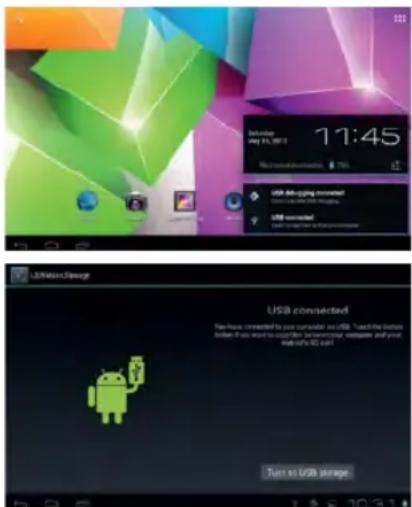
1-4 Using the Touch Screen
There are various ways to operate this. You can view the main screen, menu and application.
1-4-1 Click
When you want to use the screen keyboard or select the application in the main menu, it can be done by using your fingers or stylus to click.
1-4-2 Press
When you want to open a file, shortcut, or application in the main menu, just press "OK".
1-4-3 Movement
Movement with your finger or stylus to make the screen drag horizontally or vertically.
1-4-4 Drag
Before dragging, please use your finger or stylus to press, to get to the required location.
1-5 G-Sensor
The product has the function of a G-sensor. After activating the function in the settings (default setting is active), by rotating the machine 90 degrees, the screen will switch from horizontal to vertical automatically.
As well as the screen switching from horizontal to vertical, it can support more functions too, such as flicking through text, changing music and fun games.
1-6 Solving problems of the machine running slowly
After using the product for some time, even though applications have been shut down, they are still running in the background, thus making the system run slowly. Therefore, you need to end these programs in Advanced Task Manager to allow the product to run smoothly.
1-7 Entering Text
When you start an application or select the text edit box to enter text or numbers, the screen keyboard will appear. The keyboard has the following options to select:
- Android keyboard
- Google Pinyin IME (Input Method Editor)
1-7-1 Select IME
With the original setting of the product, the Android keyboard will appear when you input the words.
- On the main screen press the menu key, and then click settings
-
Click language & input
-
In the language & input area, the product will list the installed IME
- Select it after selecting the IME you need
Android Keyboard Panel
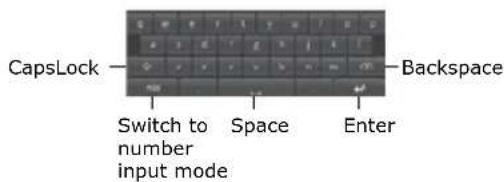
2 Main Screen Function/Icon
2-1 Main Screen Function
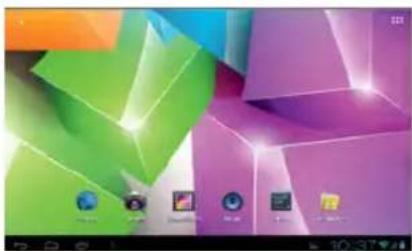
natural_image
Computer desktop wallpaper showing abstract geometric shapes in green, purple, and orange tones (no text or symbols visible)| Icon Definition Icon Definition | |||
 | Google Search Settings | ||
 | Back Function Modu | Menu | |
 | |||
 | Back to main screen from any interface | Camera | |
 | |||
 | Current time Battery | ||
 | WI-FI signal Menu | ||
 | New device found | Singing Menu | |
2-2 Main Interface
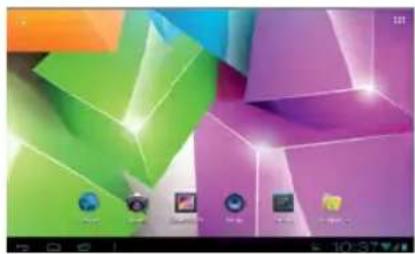
natural_image
Abstract 3D geometric design with green, purple, and orange blocks (no text or symbols)Hold down "Power" to turn on, the screen is then locked after the power is on, press the unlock key to unlock and enter the main screen as below. On this screen, you can view the status bar, change wallpaper, add widgets, add program shortcuts, start programs, etc.
2-2-1 Status Bar
With a stylus, slide down to read prompts in the status bar to open the notification bar and you can see today's date.
2-2-2 Menu
Press menu button ■ or press ■ to open open screen menu:
- Wallpaper: in this menu, you can choose your favourite photos for the main screen background.
- Manage Applications: You can check all the programs that are within this device, and remove all installed programs.
- System Set: Click to enter the system setting menu screen directly.
2-3 Add, move or delete Desk Icon
On the main screen, click 🎯 to enter the function menu list, displaying applications of all web pages. Press and hold to drag the icon to copy it to current desktop, for example, creating shortcuts on the desktop.
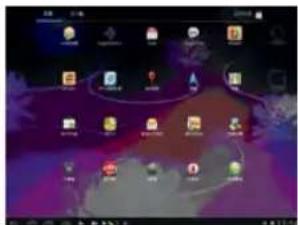

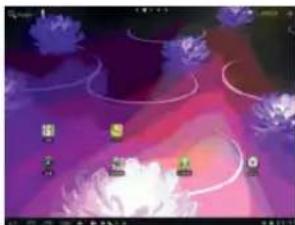
natural_image
Game interface screenshot showing purple and pink gradient background with floating characters and UI elements (no readable text or symbols)You can delete the icon which is added to main screen, by highlighting the icon which you are going to delete. Now there will be an "X" on the top, just drag this icon to "X" to delete.
2-4 Shortcut
click to show all function icons as below:
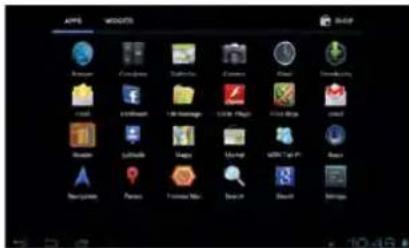
This window shows all the function icons, click any icon to enter corresponding screen, see the following:
Sending/Receiving E-Mails.
Browser: Click to enter the Internet to browse web pages.
Calendar: Check the calendar and settings.
Calculator Icon: Click this icon to use the calculator.
Alarm Clock: Clock icon, click this icon to set an alarm.
Play music.
Video player icon or photo browser: Click this icon to play videos and view photos.
Webpage research.
Camera.
Enter recording screen.
File Manager: Check all file types and content.
Advanced task manager: Manage applications and remove. When the machine runs slowly, this function will shut down unused applications in order to prevent the machine running slowly.
Setting icon: Click this icon to enter system setting screen.
3. Application Installation
This device can install APKs (Android Packages) with ease, you can get third-party applications which are suitable for this Android system from the "Play Store" and the Internet. APKs can be installed on this machine.
First select "Setting/Application Program", then select "unknown sources".
3-1 Methods of how to Acquire
Method 1: Download from the website and copy the applications onto the Micro SD/SDHC (TF)-card and insert into the product.
Method 2: Through the product's "Play Store", by downloading the application onto the Micro SD/SDHC (TF)-card.
3-2 Program Install
Click the main screen's shortcut key, then select "File Manager". Now select the SD card sub-menu and click on the APK.
Note: On the website, all files have the .apk suffix in the third-party program.
3-3 Program Uninstall
Click „Settings" then select Apps and then click „uninstall".
Uninstall: Uninstall this application, click ■ to go back to previous screen.
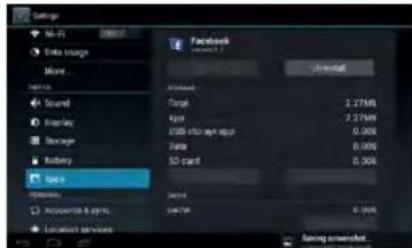
4. Internet
4-1 Network Setting
Click the shortcut on the main screen, choose "Setting/Wireless and Network" to enter the network setting screen:
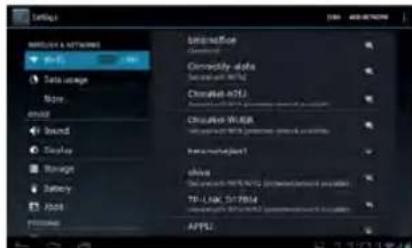
4-1-1 WI-FI Connection
Click the shortcut on the main screen, select "Internet Connection Manager", click "WI-FI setting", then enter the Wi-Fi setting screen, now select "WI-FI" and activate it.
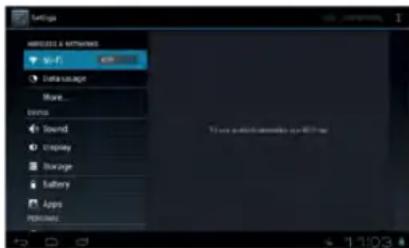
After WI-FI has opened, it will automatically search for wireless network, this shows on the menu, now click wireless network, enter the password screen, and now input the password and connect. Seconds later, the system will connect to wireless network automatically.
When WI-FI is open, this will make the machine use 25 % more power. When not using WI-FI, please turn it off to extend the battery life.
4-2 Ethernet Setting
Using the Ethernet card (USB-RJ45) when connecting to the Internet. There are two requirements needed to use USB-RJ45 to connect to the Internet, and these are detailed below:
- ADSL account and password are set up correctly on router.
- USB-RJ45 network card is the model which is supported by this device.
Models supported are listed below:
AX88772/AX88772a/AX88772B/AX88178/AX88760/QF9700/
SR9600/MCS7830/MCS7832/MCS7730
Steps for Internet Connection:
First connect the network cable to the USB Ethernet card, then insert the USB OTG cable which is meant for this device into USB Ethernet card and the other end into USB port of the device.
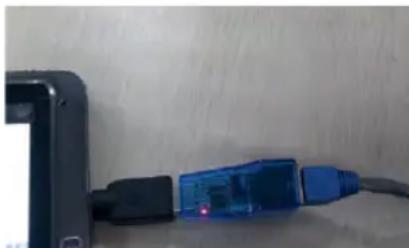
natural_image
Close-up of a blue USB cable connector attached to a black rectangular device (no visible text or symbols)Notes:
- First close the WI-FI network, only one network can be used, otherwise there will be errors.
- This device will automatically detect the USB Ethernet card and switch on the "Ethernet". There will now be a network icon in the status column.
-
Wait a moment, as this device will try to connect to Internet automatically. If the router and the DHCP service are already open, and the netgate, DNS and relevant settings have been applied, then the device will connect to the Internet automatically. (The Ethernet card function must be selected already).
-
If the device fails to connect, usually this is because the settings in the router are not correct. You can set the parameters in the device as follows:
a. Enter setting/Ethernet setting, select and open Ethernet. Enter configuration information, choose "static IP setting", then enter the static IP setting screen (the default setting is automatic acquiring IP. Usually, automatic acquiring IP is fine for everything, but some companies' routers will use specified IPs, not allowing automatic acquiring IP, it depends on router settings, therefore static IP needs to be used at this time).
b. There is no need to fill in the Ethernet card device and physical address. The machine will automatically detect this, after successfully connecting the Ethernet. In the IP address column, enter the IP address, the default usually being 192.168.1.1xx.
c. In "subnet mask", enter network segment mask, the default is 255.255.255.0.
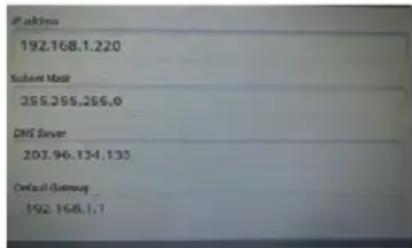
d. In the "DNS server", enter your local network service provider's DNS server IP. A different location has a different DNS server IP - if you are unsure, you can search by Google.
e. Enter the gateway in the „default gateway". The general default is 192.168.1.1 (you can check the router's manual for confirmation). It must be set to the same as the router; otherwise connection will be shown, however cannot connect to the Ethernet.
f. Finally, click the lower right corner of the "Save" button, then select Save. The system will automatically connect after saving, then you can use the Ethernet.
- Close the Ethernet, unplug the "Ethernet" cable, now you can turn off the Ethernet connection.
- Unplug the OTG cable.
Attention:
- If you are unsure about router settings and the DHCP service, please consult the router's manufacturer, point-of-service, network service providers (or ask network management, network experts, etc.), or research independently. Our company does not supply this kind of service and support.
- If you are not using Ethernet, please unplug the OTG cable and Ethernet card, otherwise the machine will continue to use power.
4-3 Webpage Browser
Set up the network as in chapter 4-1, you can then use the browser to browse the web. Click the shortcut on the main screen. Enter the required URL in the address bar. Open the web page; then slide your finger up and down the screen to view other parts of the page.
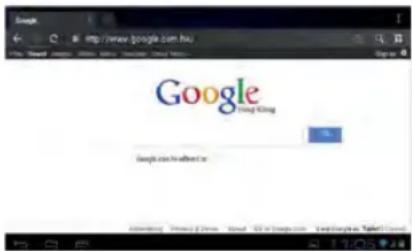
4-3-1 Bookmark Manager
- SettingBookmarks
On the browsing screen, if you want to add the current address to bookmark, click the "star" icon select "Bookmark", then click "Add bookmark". Click "Yes" to confirm.
- Open Bookmarks
On the browser screen, click the icon "flag with star" to select "Bookmark", then select the bookmark which you want and open the web page.
- Edit Bookmarks
hold down the bookmark which you like to edit, then select "Edit bookmark" to edit it, and click "Yes" to confirm.
4-3-2 Open new Window
- Open new Browser Window
On the browser screen, click "Menu", then select "New tab" to open a new browser window.
- Switching the Browser Window
The tabs are shown in the top task bar. Here you can switch the tabs.
4-3-3 Change your Startpage
On the browser screen, click "Menu", and the settings menu will appear. Then click "More", and then "Settings", then "Settings homepage" on the settings screen, then enter the required URL, finally click "Yes" to save it.
4-3-4 Browser Settings
On the browser screen, click "Menu", then "Settings" to configure the browser.
4-3-5 E-Mail
You can receive and send E-Mails with this machine. You can add a POP3 OR an IMAP E-Mail account from a standard web E-Mail server (Such as Yahoo, Gmail, or Hotmail).
Notes: Before setting up E-Mail, please ensure your Internet is connected.
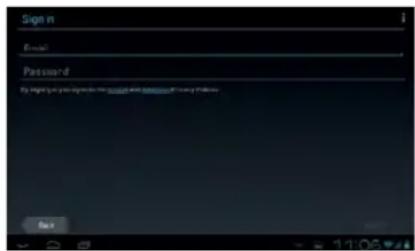
4-3-6 E-Mail Setting Guide
Click the shortcut on the main screen, then an E-Mail settings guide will appear to help set up.
Click the "Next" button, enter your E-Mail address and password of your E-Mail account. Then, click the "Next" button. Select your E-Mail type, either POP3 or IMAP. Click the "Next" button to check whether the sending and receiving servers for E-Mail can be used, then enter your account name and E-Mail name, then click "Finish". When E-Mail arrives, it will now enter your inbox automatically.
4-3-7 Receiving and Sending E-Mail
Click the shortcut on the main screen, select the "E-Mail" icon to enter your inbox. The system will refresh automatically, click to read new E-Mails.
Click the icon "envelope +" to write a new E-Mail. Enter the receiver's E-Mail address, subject matter and write the body of your E-Mail. Then if you want to add an attachment, click the icon "paper clip" to bring up the menu, click "Add attachment" to select the attachment. Then click "Send" to send the E-Mail.
Notes: If you have more than one account, and aim to send E-Mail using one specific account, click and choose the desired account name, write the E-Mail.
4-3-8 Delete E-Mail Account
You can delete the POP3 or IMAP E-Mail account from your E-Mail program.
Choose the account you want to delete, then click "Delete account". Click "Yes" to delete.
4-3-9 Instant Messaging
You can send instant messages with friends through "Google Talk" or "Mobile QQ" or other APKs.
5. File Manager
On the main screen, click the file manager icon ☐, then select the storage location to show the files. Here you can copy, move, paste or rename files. Hold down a single folder or file, the Edit box will then pop up with choices to delete, rename, copy, paste or send E-Mail.
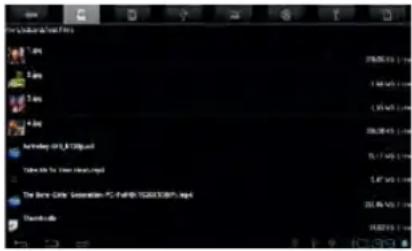
6. OTG Function
This product has an OTG function. It can support a USB stick and some other devices like self-powered hard disc, etc. This product will automatically detect the USB device after connecting to it via an OTG cable. You have access to the USB device files, as you do the files on your machine.
With a low battery or the DC charger not plugged in and charging, please do not use the OTG function, or the machine may turn off automatically because of low power.
7. External USB Keyboard and Mouse
After the mouse is connected, the pointer will appear on the screen. The left button is to select, the right button is to return and the middle slider to slide up and down.
Note: Some keys cannot work on this machine. The keyboard will be revised as per the definition of the Android system. We recommend a standard USB keyboard to be used.
8. Usage of Micro SD/SDHC (TF) Card (following TF)
This product comes with TF-card slot. It supports reading files on the TF-card. When using, insert the TF-card into the machine. To take out the TF-card, push the TF-card inside a little then release. The TF-card will then pop out automatically, and you can now remove it. This product supports a TF card from 1 GB to 16 GB.
Tips:
A. Please insert the TF-card into the card slot correctly.
B. When the TF-card is working (such as reading, copying, etc.), please do not pull out the card as this will lead to data errors.
C. Avoid using the memory card in a high temperature or humid environment.
D. Keep the memory card away from liquid or corrosive material.
Note: if you cannot take out the memory card, or it is stuck in the machine, you can use tweezers or other tools to pull it out slowly and carefully.
9. Basic Setting
Click the icon to enter the settings menu: Wireless & Networks, Sound, Display, Storage, Battery, Applications, Accounts & Sync, Location Services, Security, Language & Input, Backup & Reset, Date & Time, Accessibility, and Developer. Press and drag the screen up or down to turn pages.
9-1 Wireless & Network Setting
Click WLAN in Wireless & Network in the "Settings" menu to enter (shown here):
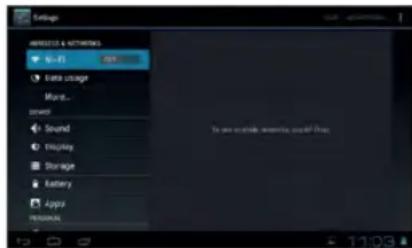
- WI-FI: Click "ON" to open WI-FI
- Mobile networks: Click "More", then "Mobile networks", and turn on the Modem power. If WI-FI is on, this will bring up a box saying, "Please turn off WI-FI first". Click "Yes", now WI-FI will shut down automatically.
- Mobile network settings: Click to set Data Enabled, Data Roaming, Access Point Names, Network Operators, etc.
- Ethernet Settings: Please refer to the chapter 4-3 relating to Ethernet Settings.
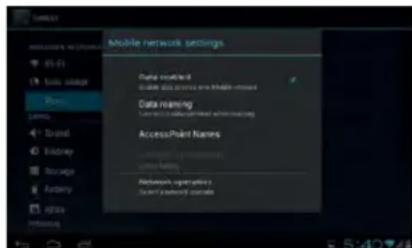
9-2 Display Settings
Click Display in the Settings menu to enter the settings screen (as below):
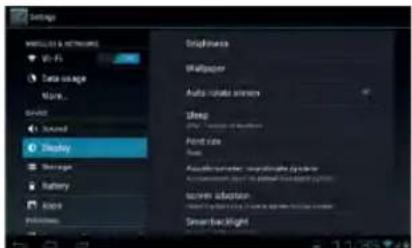
A. Brightness: Click here to adjust the brightness of the screen.
B. Wallpaper: Click here to set Live Wallpaper, Wallpapers.
C. Screen Auto-rotation: Screen Auto-rotation: Click here to activate or deactivate screen auto-rotation function.
D.Sleep: Click here to adjust the time for automatic screen lock with choices of 15 seconds, 30 seconds, 1 minute, 2 minutes, 5 minutes, 10 minutes, or 30 minutes.
E. Font size: Click here to adjust the font size.
F. Accelerometer coordinate system: Click here to set a special coordinate for some games.
G. Screen adaption: Click here to adjust the screen size for some games.
9-3 Security
You can set up device administration, screen lock and password visibility.
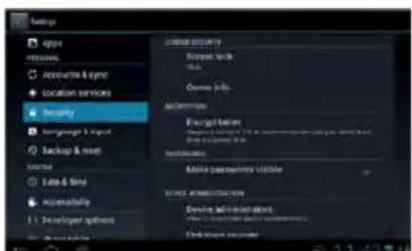
- Unknown sources: Allow installation of non-Market applications.
- Screen Unlock:
A. None: Disable screen unlock security
B. Pattern: Draw pattern to unlock screen
C. PIN: Enter a numeric PIN to unlock screen
D. Password: Enter a password to unlock screen
9-4 Setting Date and Time
Click "date & time" in the men to enter into setting interface, cancel auto selection, then you can change the date, time zone and time manually.
A: Set Date:
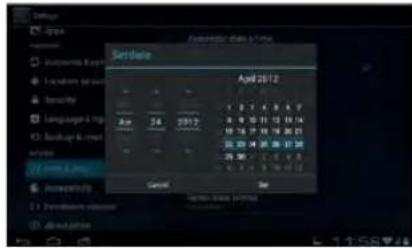
Click ■ to set up year, month, day, click to confirm.
B: Select Time Zone – select your time zone and confirm.
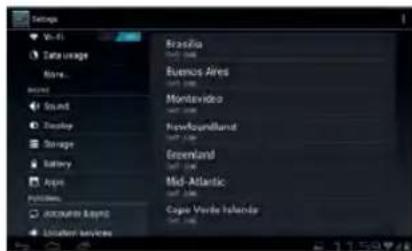
C: Set Time - Click ■ to set up hour, minute, for example, 10:56 then click ■ to confirm.
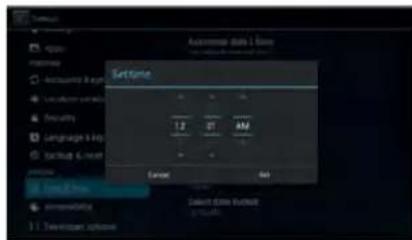
D: Set Date Format - Click the date format you prefer and confirm.
10. Trouble Shooting
1. The tablet turns on slowly the first time
- After a system update, or a factory restore, it takes about 2-3 minutes to install some pre-installed applications the first time, then this will speed up.
2. Unable to connect WI-FI or there is a weak signal
- Ensure the Network is working properly.
- Ensure the username and password are correct.
- Ensure the internal antenna is not blocked.
- Ensure the tablet is within the proper distance of the Network and there is no obstruction in between.
3. Fail to copy files
- Ensure the tablet is connected to the computer correctly.
- Ensure there is still disc space.
- Ensure the USB cable is functioning well.
4. No sound in the earphone
- Ensure that the volume is not set to 0.
- Check whether the headset is correctly connected and if the wire is broken.
5. General issues with the system
- When you install some third-party applications it may lead to various issues. You can restart the tablet or uninstall the applications.
6. Unable to set up E-Mail or use registration applications.
- Ensure your Network is working properly.
- Ensure the E-Mail account is correctly set up.
- Ensure your system time is the same as the local time.
- Run the "Advanced Task Manager" to stop some other applications running.
7. The memory capacity is different from the nominal figure
- Just like the hard disc on a computer, the capacity shown is usually less than the nominal capacity; this is due to different unit conversion used by computer and storage device manufacturers. On a computer, 1 GB = 1024 MB, but storage device manufacturers use 1 GB = 1000 MB as default. The actual capacity is not lower.
- The OS of this tablet pre-installs some applications, games and the OS itself takes up some capacity. This is also one reason why the capacity that can be used for storage is less than the nominal figure.
If the tablet can't work properly or does not respond for long time, please press the reset button with a needle/clip or something like that to reset.
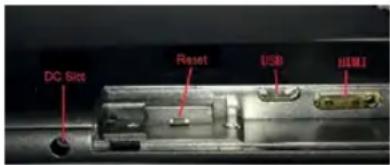
- Specification
| Dimension ca. 190 | x 117.5 x 9 mm | |
| Display | 7 inch, G + G capacitive 5 point touch-screen;resolution:1024 x 600 pixel | |
| PC connection High | speed USB 2.0 | |
| Configuration | CPU RK3066, ARM Cortex A9 DualCore bis zu 1,5 GHz | |
| RAM | 1 GB DDR III | |
| Memory | 8 GB (internal) | |
| Micro SD/SDHC(TF) card | up to 64 GB (optional) | |
| OS Android 4.1 | ||
| Access Network WI-FI IEEE802.11b/g/n | ||
| Power | Internal Lithium battery 3600 mAh | |
| DC output DC 5V/2A | ||
| Audio | max.earphone output | (L) 7mW + (R9 7mW (32 ohm) |
| MP3 bit rate 32 | K bps - 320 K bps | |
| WMA bit rate 16 | K bps -320 K bps | |
| Frequency response | 20 Hz to 20 KHz +/- 3 dB | |
| SNR ≥ 85 dB | ||
| Distortion degree | < 0.6 % | |
| Music Formats | MP1, MP2, MP3, WMA, WAV, OGG, OGA, APE,FLAC, AAC, M4A, 3GPP, etc. | |
| Video Formats | MPEG-1, MPEG-2, MPEG-4, H.263, H.264, AVS,VC-1, RV, VP6/VP8, Sorenson Spark, MVC1920 x 1080P 60FPS, etc. | |
| Image Formats | JPG,JPEG, BMP, GIF, PNG, JFIF, etc. | |
| Environment Temperature | -5 to 40 °C | |
| Language | multi-languages supported | |
| OS Supported from | WindowsXP/Linux2.4/MAC OS 10.4 | |
All trademarks, registered trademarks and logos are the property of their respective owners. We do not guarantee any data with respect to their content, completeness or up-to-dateness
Stay longer mobile!
With the i.onik ^ charger you can't only recharge your mobile phones and MP3 player, but also your i.onik ^ tablet PC.
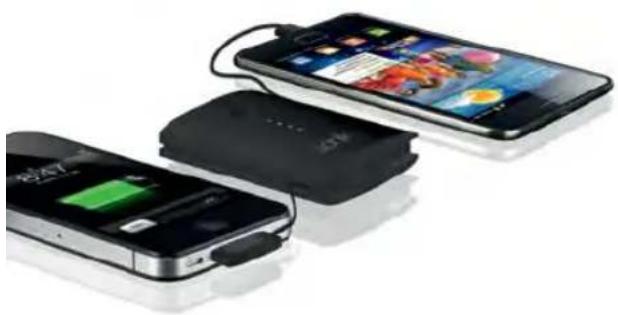
natural_image
Three smartphones with charging loads and battery modules, arranged diagonally (no visible text or symbols)- Charging time: PB-5000: ca. 6 h
• Standby time: PB-5000: up to 780 h
• Talk time: PB-5000: up to 3G/18 h; 2G/6 h
• Audio: PB-5000: up to 100 h
• Video: PB-5000: up to 26 h
Powerbank PB-3000/PB-5000
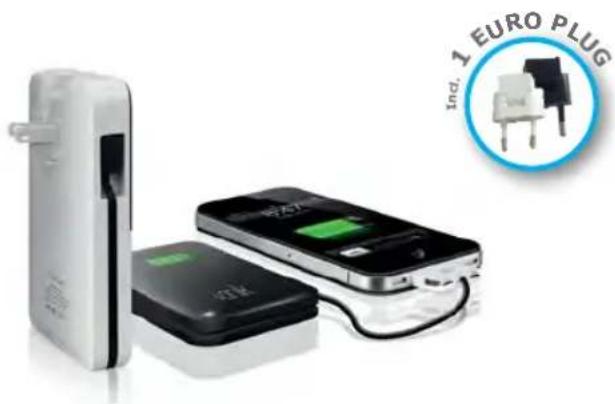
natural_image
Product photo of a white electronic device with battery and charging case, alongside a circular logo featuring an '1 EURO PLUG' (no text on devices or background)PB-3000PB-5000
• Charging time: PB-3000: ca. 3,5 h
• Standby time: PB-3000: up to 420 h
- Talk time: PB-3000: up to 15 h
• Audio: PB-3000: up to 55 h
• Video: PB-3000: up to 14 h
i.onik
mobile