
LPR-1000MD - Printer SONY - Free user manual and instructions
Find the device manual for free LPR-1000MD SONY in PDF.


| Product Type | Inkjet line printer (Line Shot) |
| Brand | Sony |
| Model | LPR-1000MD |
| Print Method | Line shot (fixed page-width head) |
| Print Speed | Approx. 5 pages per minute (A4) |
| Maximum Resolution | 600 dpi |
| Interface | Hi-Speed USB (USB 2.0) |
| Supported Paper Sizes | A4 only |
| Input Tray Capacity | Up to 60 sheets (Sony high-quality paper) / 100 sheets (plain paper) |
| Printable Area | 200 × 287 mm (with 5 mm margins) |
| Ink Cartridges | Black (EPI-L100BL) and Gray (EPI-L100GL) |
| Number of Nozzles | Black: 5120 × 1; Gray: 5120 × 1 |
| Power Supply | 100 to 240 V AC, 50/60 Hz |
| Power Consumption (Printing) | Approx. 70 W |
| Power Consumption (Standby) | Approx. 16 W or less |
| Dimensions (with Tray) | Approx. 350 × 202 × 519 mm (W × H × D) |
| Dimensions (Printing) | Approx. 350 × 202 × 643 mm (W × H × D) |
| Weight | Approx. 15.5 kg |
| Operating Temperature | 10 to 35 °C |
| Operating Humidity | 20 to 80 % (non-condensing) |
| Noise Level | Approx. 38 dB or less (standard mode) |
| Maintenance | Head cleaning via driver or panel; replaceable cleaning roller |
| Supplied Accessories | Ink cartridges (black and gray), input tray, USB cable, cleaning roller, CD-ROM (drivers and manuals) |
Frequently Asked Questions - LPR-1000MD SONY
User questions about LPR-1000MD SONY
0 question about this device. Answer the ones you know or ask your own.
Ask a new question about this device
Download the instructions for your Printer in PDF format for free! Find your manual LPR-1000MD - SONY and take your electronic device back in hand. On this page are published all the documents necessary for the use of your device. LPR-1000MD by SONY.
USER MANUAL LPR-1000MD SONY
Instructions For Use
CE
LPR-1000MD
Owner's Record
The model and serial numbers are located at the rear. Record these numbers in the space provided below. Refer to these numbers whenever you call upon your Sony dealer regarding this product.
Model No. ____ Serial No. ____
WARNING
To prevent fire or shock hazard, do not expose the unit to rain or moisture.
To avoid electrical shock, do not open the cabinet. Refer servicing to qualified personnel only.
THIS APPARATUS MUST BE EARTHED.
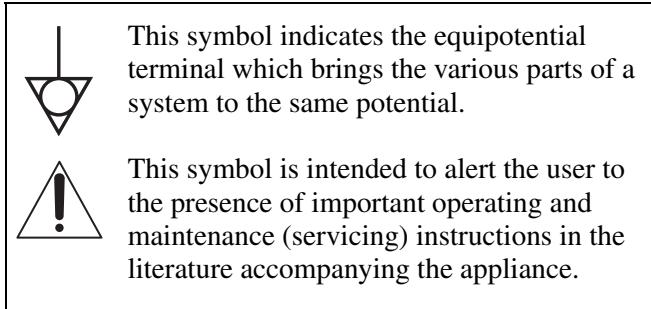
For the customers in the U.S.A.
This equipment has been tested and found to comply with the limits for a Class A digital device, pursuant to Part 15 of the FCC Rules. These limits are designed to provide reasonable protection against harmful interference when the equipment is operated in a commercial environment. This equipment generates, uses, and can radiate radio frequency energy and, if not installed and used in accordance with the instruction manual, may cause harmful interference to radio communications. Operation of this equipment in a residential area is likely to cause harmful interference in which case the user will be required to correct the interference at his own expense.
You are cautioned that any changes or modifications not expressly approved in this manual could void your authority to operate this equipment.
The shielded interface cable recommended in this manual must be used with this equipment in order to comply with the limits for a digital device pursuant to Subpart B of Part 15 of FCC Rules.
For the customers in Canada
This unit has been certified according to Standard CSA C22.2 NO.60601.1.
For the customers in the U.S.A and Canada
Model LPR-1000MD is Non-Patient Equipment. This unit can not be used in the vicinity of patients.
* Patient Vicinity
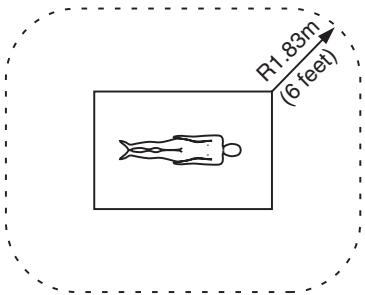
Important safeguards/notices for use in the medical environments
- All the equipments connected to this unit shall be certified according to Standard IEC60601-1, IEC60950, IEC60065 or other IEC/ISO Standards applicable to the equipments.
- When this unit is used together with other equipment in the patient area*, the equipment shall be either powered by an isolation transformer or connected via an additional protective earth terminal to system ground unless it is certified according to Standard IEC60601-1.
* Patient Area
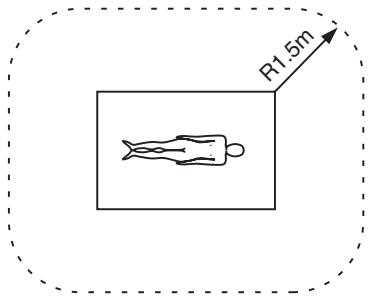
- The leakage current could increase when connected to other equipment.
- This equipment generates, uses, and can radiate frequency energy. If it is not installed and used in accordance with the instruction manual, it may cause interference to other equipment. If this unit causes interference (which can be determined by unplugging the power cord from the unit), try these measures: Relocate the unit with respect to the susceptible equipment. Plug this unit and the susceptible equipment into different branch circuit.
Consult your dealer. (According to standard EN60601-1-2 and CISPR11, Class B, Group 1)
Caution
When you dispose of the unit or accessories, you must obey the law in the relative area or country and the regulation in the relative hospital.
Warning on power connection
Use a proper power cord for your local power supply.
-
Use the approved Power Cord (3-core mains lead) / Appliance Connector / Plug with earthing-contacts that conforms to the safety regulations of each country if applicable.
-
Use the Power Cord (3-core mains lead) / Appliance Connector /Plug conforming to the proper ratings (Voltage, Ampere).
Warning on power connection for medical use
Please use the following power supply cord.
With connectors (plug or female) and cord types other than those indicated in this table, use the power supply cord that is approved for use in your area.
| United States | Canada | |
| Plug Type | HOSPITAL GRADE* | HOSPITAL GRADE* |
| Female end | E62405, E35708 | LR53182, LL022442, LL088408 |
| Cord type | E159216, E35496Min.Type SJTMin.18 AWG | LL112007-1, LL20262, LL32121, LL84494Min.Type SJTMin.18AWG |
| Minimum cord set rating | 10A/125V | 10A/125V |
| Safety approval | UL Listed | CSA |
*Note: Grounding reliability can only be achieved when the equipment is connected to an equivalent receptacle marked ‘Hospital Only’ or ‘Hospital Grade’.
僅適用於台灣
(For Customers in Taiwan only)

廢電池請回收
Table of Contents
Introduction
About This Manual .... 5
System Overview 6
Location and Function of Parts and Controls .... 6
Front 6
When the Head Cover is Opened 7
Rear 8
Preparation
Turning the Printer On/Off 9
Turning the Printer On 9
Setting the Printer to Standby Mode 9
Turning the Printer Off 9
Relationship Between the ON/STANDBY Indicator and the READY indicator .... 10
Preparing Paper 11
Recommended Paper 11
Available Printing Area 11
Notes on Paper 11
Loading Paper 12
Operation
Performing Basic Print Settings .... 15
Displaying the Print Preferences Dialog Box from a Software Application .... 15
Displaying the Printing Preferences Dialog Box from the Windows Start Menu .... 15
Common Operations on Each Tab of the Printing Preferences Dialog Box .... 16
Performing Settings on the Main Tab ...... 17
Settings for Paper 17
Selecting the Gamma Type 18
Performing Settings on the Layout Tab ...... 19
Setting the Print Orientation 19
Printing Multiple Pages on One Sheet 19
Printing Single Page Printing Data on Multiple Sheets 21
Using the Help Window 22
Displaying the Description of Functions of Setting Items 22
Displaying Information on Operation Methods 23
Cancelling a Print Job 23
Cancelling a Print Job from the Windows Spooler Window 23
Cancelling a Print Job from the Status Monitor ... 24
Cancelling a Print Job From the Operation Panel of the Printer 24
Useful Functions ......25
Aligning the Print Position 25
Advanced Functions 26
Embedding Stamps on the Printouts ......26
Sort Printing 33
Setting the Printing Order 34
Saving and Retrieving Print Settings ....34
Saving Print Settings 34
Changing the Print Settings 35
Retrieving the Print Settings Saved ......36
Deleting Unnecessary Print Settings ....37
Monitor Function
Using the Status Monitor ....38
Displaying the Status Monitor ....38
Confirming the Ink Level 38
Controlling the Print Job 38
Maintenance
Cleaning the Head 40
Cleaning the Head from the Printer Driver .....40
Cleaning the Head From the Operation Panel ..41
Printing a Test Page 42
Printing a Test Page from the Printer Driver ....42
Printing a Test Page From the Operation Panel 42
Replacing the Ink Cartridges ....43
Replacing the Head Cleaning Roller ....46
Miscellaneous
Precautions ....50
Safety 50
Handling the Printer 50
Installation 50
Before Moving the Printer 51
Before Transporting the Printer ....51
Before Asking Repairment 52
When Not Using the Printer for Long Periods .52
Troubleshooting 52
Error Messages 54
Warning Display 54
Error Messages ....54
If the Paper Jams 56
Before Consulting Your Dealer ....59
Specifications 59
Requirements for the Printer Driver 60
Menu Flow of the Printer Window Display .....62
Setting Items for the Printer Driver ......65
Customer Confirmation Sheet ......65
Index 66
About This Manual
The following manuals are supplied with the LPR-1000MD printer.
Setup Manual
Be sure to read this manual, first.
This manual gives advice including operating instructions, for tasks you should perform before you make printouts using this printer after you purchase it. This manual also gives advice on installing the printer, information on locations and functions of parts and controls, information on assembling the printer, information on connections to the computer and setup required for using the printer, and advice on installing and uninstalling printer drivers, and so on.
Instructions For Use (this manual)
The Operating Instructions manual is included on the CD-ROM in PDF format.
Read this manual before starting actual printing.
This manual describes basic operations and functions, as well as how to use the LPR-1000MD. It includes information on basic operating procedures, how to setup the various printing methods, maintenance, troubleshooting, and so on.
CD-ROM
This disc includes the printer drivers, and PDF files of the multi-lingual Instructions For Use and Setup Manual.
Help window
An explanation appears when you click the “?” mark on the upper right of the window of the printer driver or when you click the “Help” button.
Read this manual when you are in trouble.
Conventions used
Cross references
Throughout this manual you will find references to other sections of the manual that contained related information.
Also, when the related information is contained in the printed Setup Manual, you will find the title of the printed Setup Manual.
Important note
Be sure to read sections of the manual marked Note
To prevent damage and avoid trouble or unexpected
results, pay careful attention to these precautions, and the “Precautions” on page 50.
Operation panel display
On the operation panel display of the printer, messages are displayed on two lines. In this manual, a slash (/) is inserted between information displayed on the upper and lower lines.
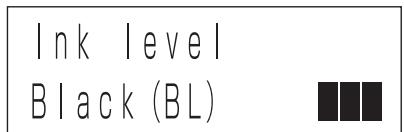
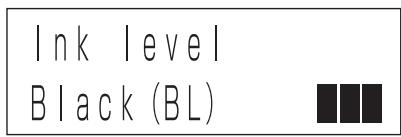
Ink level /Black (BL)
Windows screen
In this manual, Windows XP screens are used for explanation.
System Overview
The Sony LPR-1000MD is an ink jet printer which is equipped with a high-speed line shot.
The LPR-1000MD has the following features.
High-speed line shot
The printer is equipped with a high-speed line shot. Since the line shot method is applied, the ink is sprayed out at a stretch while the paper passes under the print head of the longer page width to print the pictures and characters of the print data. It takes only six seconds for the paper to pass under the print head. That is the actual printing time. Also, the optimum LD shot technology is incorporated in the line shot.
A quiet printer for a work-friendly environment
Use of a fixed-type print head reduces the noise or vibration which occurs while the print head is printing. This allows you to enjoy a quiet, work-friendly environment.
USB connector
The printer is equipped with a USB connector.
Pure paper extracting the printer characteristics
The EPP-300A4MD Sony High Quality Paper (not supplied) comes in 100 sheet packs and has good color and a high degree of whiteness. Since this coated paper absorbs the ink quickly, printouts without blotted characters and with clear, high-quality images can be made.
Location and Function of Parts and Controls
The following diagrams show the printer after it is assembled.
For details, see the pages indicated in parenthesis.
Front
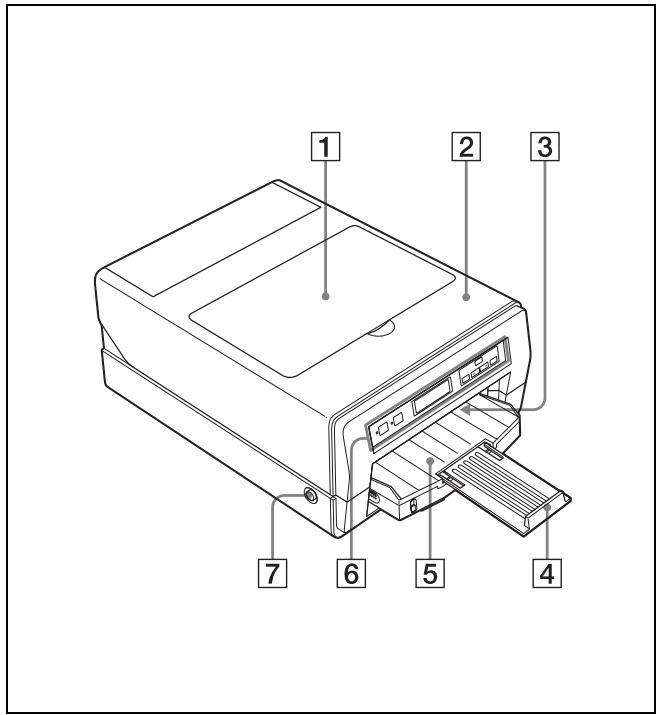
1 Head cover (44)
Open this cover to replace the ink cartridges.
2 Main cover (57)
Open this cover when removing jammed paper or correcting a situation where the supplied head cleaning unit is not inserted correctly.
3 Output slot
Printed sheets (printouts) are ejected here.
4 Output support (13)
Pull out this output support to hold the ejected paper.
5 Auto sheet feeder tray (12)
Individual sheets of paper are loaded automatically, one at a time.
6 Operation panel
flowchart
graph TD
    A["ON STADIPT"] --> B["READY"]
    C[" "] --> D["MEN"]
    E[" "] --> D
    F["BACK"] --> D
    G[" "] --> D
    H[" "] --> D
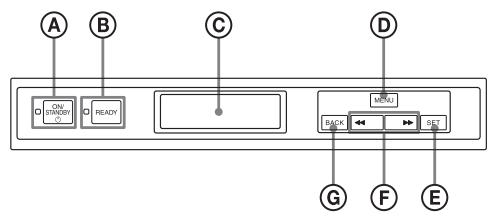
Ⓐ ⏻ ON/STANDBY button/indicator (9, 10)
Used to switch the printer to on or to standby status. When the ON/STANDBY button is set to on, the power is on and the indicator lights in green. When the printer is in standby mode, the indicator lights in orange. To restore the power from the standby mode, push the ON/STANDBY button again. In the standby mode, the printer does not print, however, power is saved. When the printer is not used for a long time, it is recommended that you turn the printer off. To turn the printer off, set this ON/STANDBY button to the standby mode and set the main power switch on the rear panel to off.
Note
If the main power switch on the rear panel is not set to on, the power is not on, even though the ON/STANDBY button on the front is set to on.
⑧ READY button/indicator (9, 10, 46, 56)
Used to set the printer so that it is ready to receive data from a computer so that it can be printed. When you push the MENU button during setup, when confirming the status, or performing maintenance, the READY indicator goes off. When the READY indicator is not lit, the printer cannot print. If the READY indicator is not lit when you want to print, push the READY button so that the indicator will light.
Also, if you push the READY button during printing, the READY indicator starts blinking and the printer stops printing temporarily. To restart printing, push the READY button again.
For detailed information on the relationship between the ON/STANDBY indicator and the READY indicator, see “Relationship Between the ON/STANDBY Indicator and the READY indicator” on page 10.
© Printer window display (Liquid Crystal Display (LCD)) (41, 42, 46, 55, 62)
Displays messages during setup, when confirming the status, or performing maintenance.
(D) MENU button (41, 42, 46, 62)
Push this button to display the menu on the LCD.
⑤ SET button (41, 42, 46, 63)
Used to execute the operation displayed on the LCD and to go to the next operation/step.
⑤ ◀◀/▶▶ (select) buttons (41, 42, 46, 62)
Used to change setting items or the numerical values displayed on the LCD.
© BACK button (63)
Used to cancel the condition displayed on the LCD and to go back to the previous step.
7 Eject buttons (57)
Provided on both the left and right sides of the printer.
Used to open the main cover when removing paper jammed inside the printer, and so on. Push both left and right buttons so that the main cover pops open and you can pull it upward.
When the Head Cover is Opened
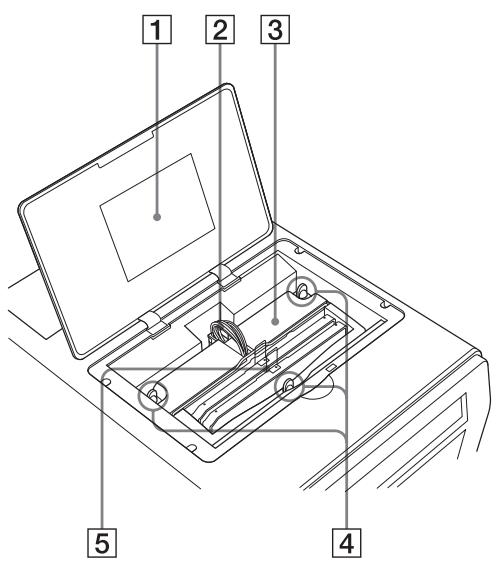
1 Label
Shows the note on handling the head cover.
2 Head cartridge cable
Provided to supply power to the head cartridge.
3 Head cartridge
This head cartridge is equipped with a print head. The ink sprays out from the print head when printing.
4 Head cartridge lock screws (three positions)
Used to lock the head cartridge. Do not move these screws from the lock position.
5 Ink cartridge holder (43)
One black ink cartridge holder and one gray ink cartridge holder are attached. If one of them runs out, the printer cannot print.
Use the following ink cartridges for replacing.
Black: EPI-L100BL Sony Ink Cartridge
Gray:EPI-L100GL Sony Ink Cartridge
Rear
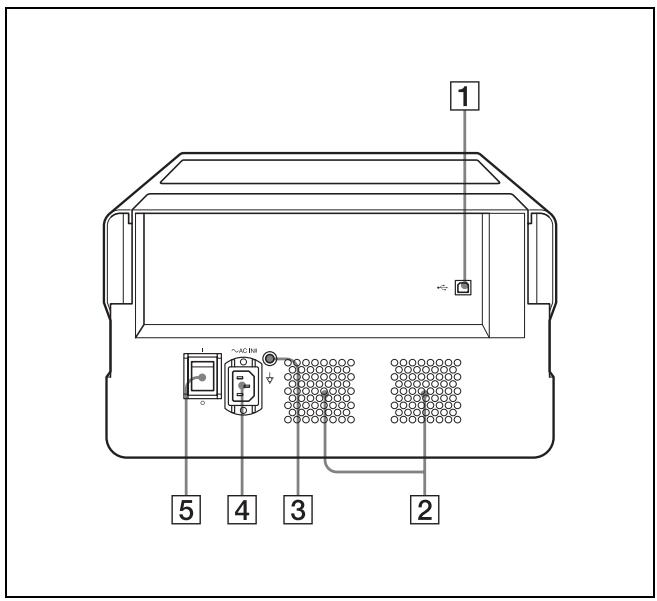
1 USB connector (60)
Connects the supplied USB cable.
2 Ventilation holes (51)
Provided to prevent the printer from overheating.
3 Equipotential ground terminal connector
Used to connect the unit to the equipotential plug of peripheral equipment to bring the various parts of the system to the same potential.
Refer to “Important safeguards/notices for use in the medical environments” on page 2.
4 \~AC IN connector
Used to connect the printer to a wall outlet with a power cable.
Refer to “Warning on power connection” on page 3 and “Warning on power connection for medical use” on page 3.
5 Main power switch (9)
This is the main power switch of the printer. Used to turn the printer on or off. When this switch is set
to on, the power to the printer is on when the ON/STANDBY button on the front panel is set to on.
Note on turning the main power off
The printer may automatically perform maintenance operations when print operations are not being performed. Also, when the printer is set to standby mode by pushing the ON/STANDBY button, the printer may also automatically perform maintenance tasks so that the printer will work properly when the power is turned on again. After this maintenance is performed, the printer is reset to standby mode. During maintenance, the READY indicator blinks and the printer moves to the standby mode after completing the maintenance. Before turning the main power off, be sure to set the printer to the standby mode by pushing the ON/STANDBY button, and then set the main power switch to off.
Preparation
Turning the Printer On/Off
Turning the Printer On
Turn the printer power on after you connect the AC power cord.
For detailed information on how to connect the AC power cord, refer to “Turning the Printer On” described in the printed Setup Manual supplied with the printer.
Note
Be sure to remove the sponge stopper attached inside the printer at the factory before connecting the AC power cord.
For detailed information on how to remove the sponge stopper, refer to “Sponge stopper” described in the printer Setup Manual supplied with the printer.
To turn the printer on
Set the main power switch to the ON (I) side.
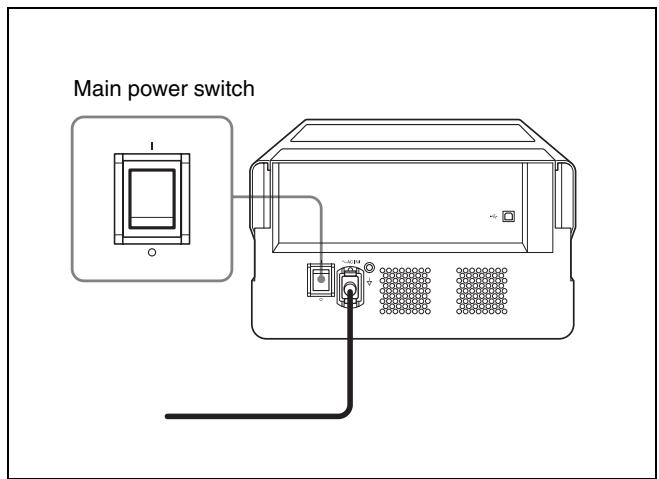
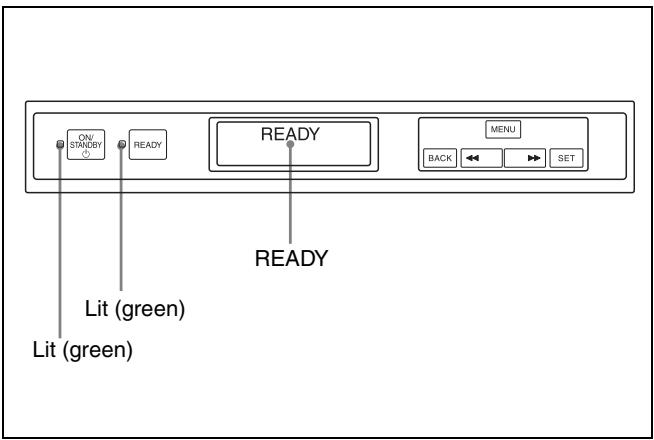
The ON/STANDBY indicator lights up in orange and the printer starts.
When both the ON/STANDBY and READY indicators light in green after a while and “READY” appears on the printer window display, the printer is ready to print.
Setting the Printer to Standby Mode
In standby mode, the printer cannot print. However, the power can be saved when the printer is not being used.
To set the printer to standby mode
Push the ON/STANDBY button.
The ON/STANDBY and READY indicators light in orange and the printer enters the standby mode.
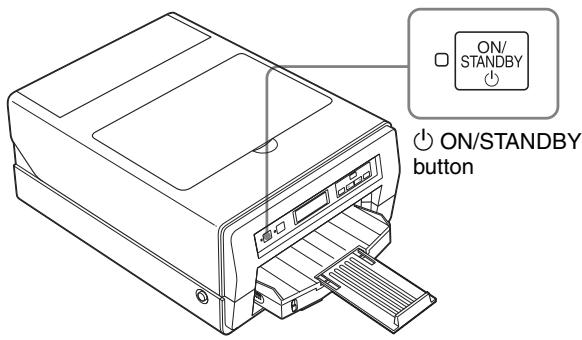
To restore the printer from standby mode
Push the ON/STANDBY button again.
The ON/STANDBY and READY indicators light in green and the message “READY” appears on the printer window display.
Turning the Printer Off
Use the ON/STANDBY button placed on the front of the printer to turn the printer on or off during daily use.
When you do not intend to use the printer for a long time, turn the printer off as follows.
1 Push the ON/STANDBY button.
The printer enters in standby mode.
2 Set the main power switch placed on the back of the printer to the OFF ( ) side.
Note
Be sure not to set the main power switch to the OFF ( ) side directly. Set the printer to standby mode once, and then set the main power switch to the OFF ( ) side. The printer turns the power off after it performs maintenance so that it will start in good condition when the power is turned on next time.
Relationship Between the ON/STANDBY Indicator and the READY indicator
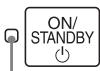
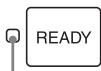
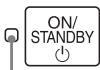
You can confirm the status of the printer according to the lighting status of the ON/STANDBY and READY indicators placed on the front panel.
| Indicator status | Printer status | |
| Not lit | Not lit | The printer is turned off. |
| Lit (Orange) | Not lit | The printer is in standby mode. |
| Blinks (Orange) | Not lit | Initializing (Starting)Wait for a while. |
| Lit (Green) | Lit (Green) | Print modeThe printer is ready to print. |
| Lit (Green) | Blinks (Green) | The printer is cleaning the print head. Or the printer has stopped printing temporarily because the READY button was pushed while printing was in progress. |
| Indicator status | Printer status | |
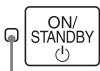 | 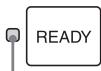 | The printer is in setting mode, confirming mode or maintenance mode. The printer cannot print. |
| Lit (Green) | Not lit | |
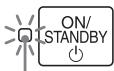 | 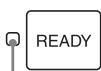 | The ON/STANDBY button was pushed while printing was in progress. After completing a print job, the printer goes to standby mode. |
| Blinks (Green) | Lit (Green) or  | |
| Blinks (Green) | ||
 |  | Set the main power switch placed on the back of the printer to the OFF side, then set it to the ON side again. If the printer does not start correctly even after you perform the above operation, the printer has malfunctioned. Contact your dealer. |
| Lit (Green) | Lit (Orange) | |
 |  | An error has occurred. The error message is displayed on the printer window display. Solve the problem, referring to “Error Messages” on page 54. |
| Lit (Green) | Blinks (Orange) | |
Preparing Paper
Recommended Paper
Be sure to use the paper recommended.
It is required to perform settings of Paper on the Main tab in the Printing Preferences dialog box.
For detailed information on settings for paper, see
"Settings for Paper" on page 17.
| Setting for the Media Type in the Printing Preferences dialog | Sony High Quality Paper | Plain Paper |
| Number of sheets which can be loaded in the auto sheet feeder tray | Up to 60 sheets | Up to 100 sheets |
| Number of printed pages which can be ejected on the tray | Up to 30 printed pages | Up to 30 printed pages |
| Size | A4 | A4 |
| Paper loading method | Place papers in the auto sheet feeder tray, facing the more whitish side down. | Place papers in the auto sheet feeder tray, facing the printing side down. |
| Sheet feeding method | Automatic paper feeding | Automatic paper feeding |
| Product name | EPP-300A4MD Sony High Quality Paper (300 sheets) | Plain paper Plain recycled paper |
Note
The number of printed pages which can be ejected the maximum number. In actual printing, the number of printed pages which can be ejected may be reduced depending on use environment where the printer is used.
Notes on using paper other than paper manufactured by Sony Corporation
- When using mat coated paper manufactured by another company, the number of sheets which can be loaded and ejected depends on the thickness of the paper. Thus, those numbers may be different from ones listed on the above table. In the case of double-sided mat paper, the number of sheets may be about 20 pages.
- It is recommended that you use mat coated paper with a thickness between 0.1mm and 0.27mm.
- You cannot use the following paper: Plain paper whose weight is less than 60g / m^2 or higher than 105g / m^2 .
Available Printing Area
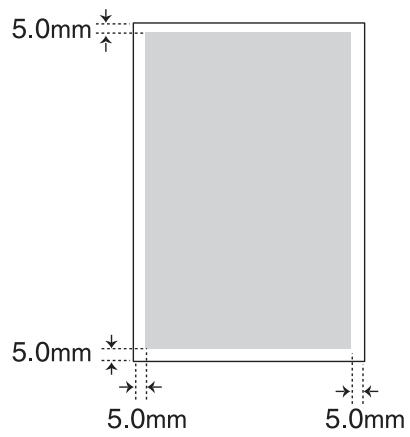
To maintain the quality of print, margins are set at the top, bottom, right and left of the paper. The range on which text or images can be printed is the area inside these margins.
Available printing area
200 × 287 mm (width × height)
Notes on Paper
Notes on handling paper
- When holding paper, hold it at both ends of the sheet so as not to touch the printing surface. Dust, scratches or finger prints on the paper are likely to cause unsatisfactory printing.
- After printing, do not touch the surface printed until the ink dries. Also, if you wet the printed sheet with water, do not touch the surface printed until it dries.
- There are some types of paper whose printed surface warps and is rubbed when printing photos or graphics using a large amount of ink. This type of paper is not suitable for printing photos or graphics. Use this type of paper when printing print data consisting of characters or text.
When storing paper
- Use the original package for unused paper.
- Avoid storing paper in a location subject to:
– high temperatures
– high humidity - excessive dust
– direct sunlight
- Place the unused paper on a flat surface so that it will not warp or bend.
Unsuitable paper
Do not use the following paper. Doing so is likely to result in malfunctions such as paper jams.
- Folded paper
- Warped paper
- Wrinkled paper
- Wet paper
- Thin paper (less than a weight of 60g / m^2 )
- Thick paper (more than a weight of 105g / m^2 , excluding paper manufactured by Sony Corporation)
• Paper with holes (such as loose-leaf paper)
Loading Paper
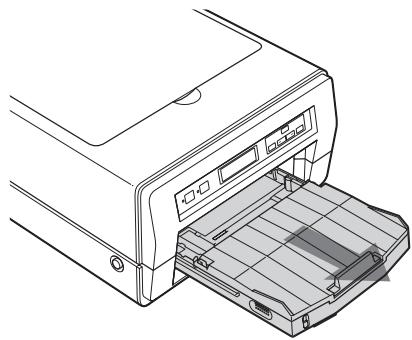
The printer feeds paper automatically one sheet at a time from the auto sheet feeder tray (supplied).
To load paper, follow the procedure below. Be careful not to touch the printing surface.
1 Remove the auto sheet feeder tray. If you use the printer for the first time, skip this step. Start from step 2.
natural_image
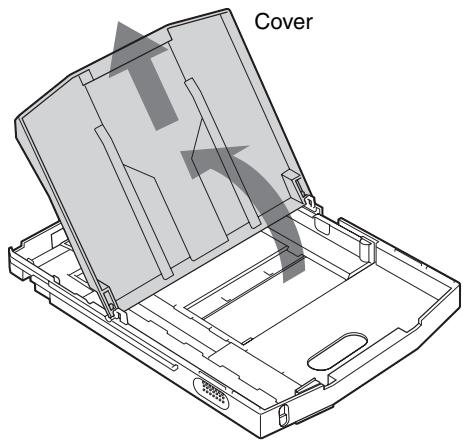
Line drawing of a printer with an open drawer showing internal components (no text or symbols)2 Open the cover of the auto sheet feeder tray.
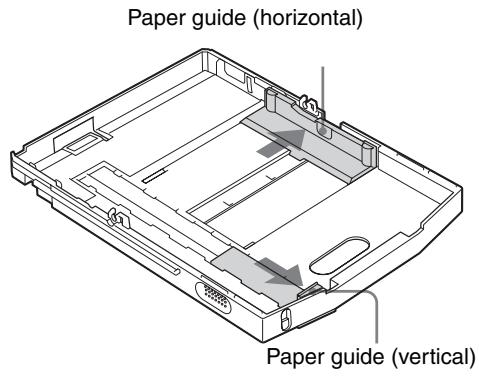
3 Move the paper guides (vertical and horizontal) to the ends.
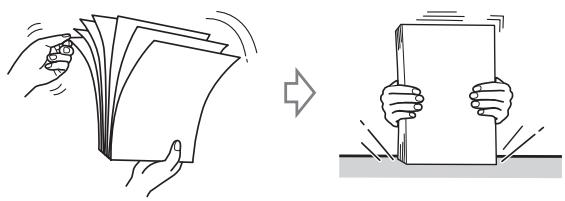
4 Riffle the paper so that it is even.
Note
Be careful not to touch the printing surface.
natural_image
Illustration showing a hand holding a stack of papers being folded, and another hand holding a blank sheet (no text or symbols present)5 When plain paper is used, place the paper in the auto sheet feeder tray so that the printing surface faces down. When Sony High Quality Paper is used, place the paper in the auto sheet feeder tray so that the more whitish side faces down. Then, secure the paper in place by sliding the paper guides inward towards the paper.
Set the paper securely at this point.
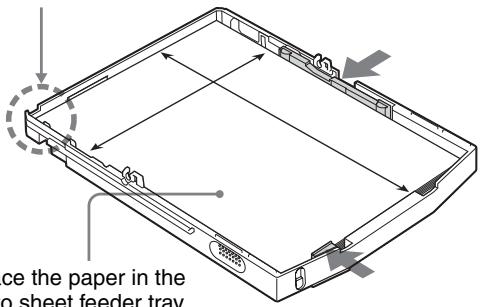
Place the paper in the auto sheet feeder tray with facing the printing surface down.
Notes
- Place the paper against the back of the auto sheet feeder tray towards the left side.
- Place the paper with the long side placed vertically and the short side horizontally.
6 Reattach the cover to the auto sheet feeder tray and insert it into the printer.
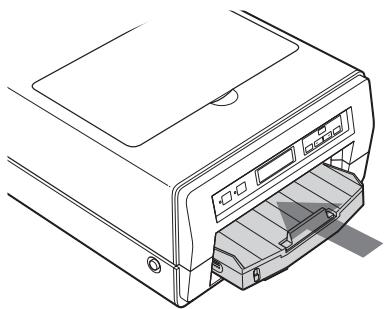
natural_image
Line drawing of a printer with paper feed and control panel (no text or symbols)Notes
- When printing, be sure to pull out the output support completely. If it is pull out halfway, the paper may jam.
- The number of sheets which the automatic paper feeding tray can hold depends on the type of paper in use. For detailed information on the maximum number of sheets which can be loaded, see page 11.
- Do not mix different types of paper in the auto sheet feeder tray.
- To remove jammed paper, push the READY button, blinking in orange. The jammed paper is automatically ejected. Should the jammed paper remain after you have pushed the READY button, see “If the Paper Jams” on page 56.
- Do not use paper listed in “Unsuitable paper” on page 12.
- Do not pull the paper out when printing has started and the paper is being fed. Doing so is likely to result in malfunctions or paper jams.
- It is often difficult to feed paper from the auto sheet feeder tray, or sometimes it may be fed at an angle, depending on the usage circumstances. In such a case, add one sheet of the same type of paper in the auto sheet feeder tray and try to print again.
- The paper may warp depending on the circumstances and the warped paper may stick up out from the auto sheet feeder tray. In this case, the printer will not be able to feed the paper. Try to make the warped paper lie flat or reduce the number of sheets set in the auto sheet feeder tray.
- When plain paper is loaded in the auto sheet feeder tray, if a different media type is selected on the Main tab of the Printing Preferences dialog box, the printed paper may not be ejected correctly. For detailed information on how to select the media type, see “Settings for Paper” on page 17.
Performing Basic Print Settings
Displaying the Print Preferences Dialog Box from a Software Application
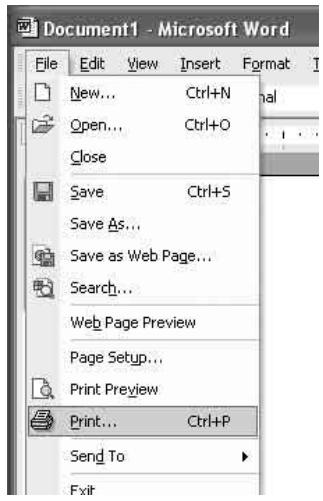
When printing from a software application such as word processing software or image processing software, perform print settings using the following operating procedures. Depending on a software application, the method to display the Printing Preferences dialog box and the dialog boxes may be a little different. In this section, WordPad on Windows XP is used for explanation.
1 Select [Print] from the File menu in software application.
The Print Settings dialog box appears.
2 Select [Sony LPR-1000MD] from the list, and then click the [Preferences] button.
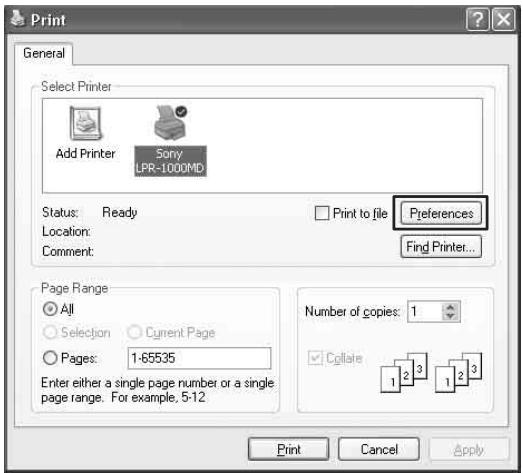
The “Sony LPR-1000MD Properties” dialog box appears.
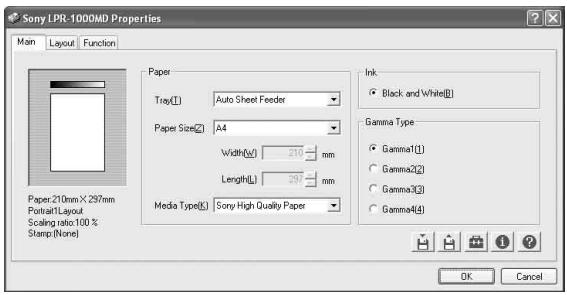
3 Perform the required settings on the Main tab, Layout tab, and Function tab respectively. For detailed information on how to perform settings on each tab, see the corresponding pages of each tab.
“Performing Settings on the Main Tab” on page 17
“Performing Settings on the Layout Tab” on page 19
“Advanced Functions” on page 26
4 After the required settings have been completed, click the [OK] button to start printing.
Displaying the Printing Preferences Dialog Box from the Windows Start Menu
When you want to change the settings of the printer or perform cleaning or maintenance regardless of the special application software, use the following method. Depending on the version of your Windows operating system, the method used to display the Printing
Preference dialog box and the dialog boxes may be a little different. In this section, Windows XP dialog boxes are used for explanation.
1 Select [Start], [Control Panel], [Printers and other hardware], and [Printers and Fax], in turn, so as to display the Printer window.
2 Right-click [Sony LPR-1000MD], and then select [Properties] from the context menu.
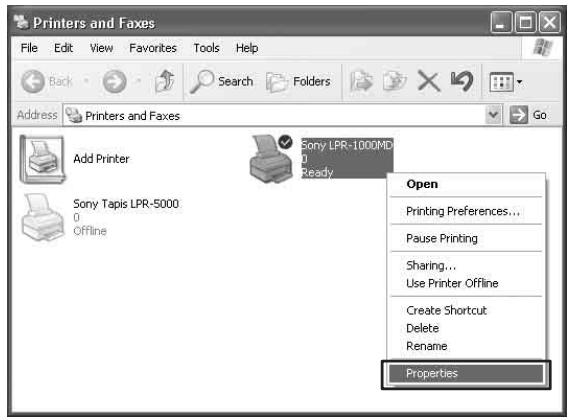
The “Sony LPR-1000MD Properties” dialog box appears.
3 Click [Printing Preferences...].
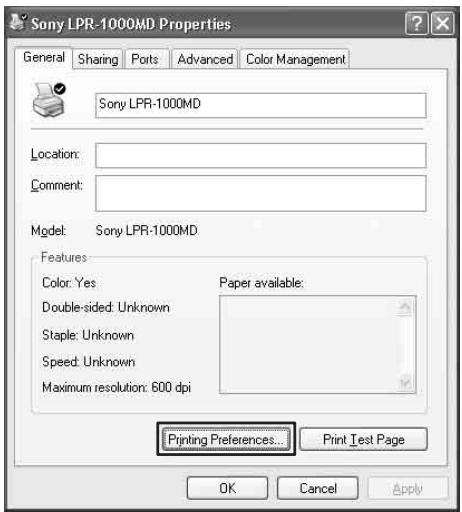
The “Sony LPR-1000MD Printing Preferences” dialog box appears.
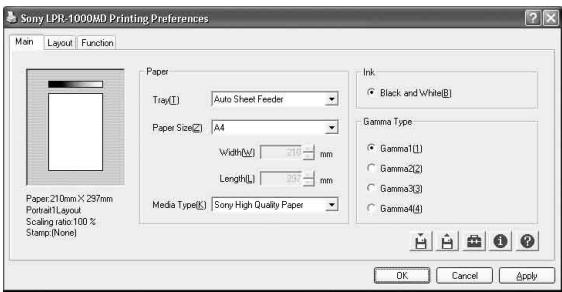
4 Perform the required settings on the Main tab, Layout tab, and Function tab respectively. For detailed information on how to perform settings on each tab, see the corresponding pages of each tab.
“Performing Settings on the Main Tab” on page 17
“Performing Settings on the Layout Tab” on page 19
“Advanced Functions” on page 26
5 After the required settings have been completed, click the [OK] button.
About the Printing Preferences dialog box
The Sony LPR-1000MD Properties dialog box which appears when you click the [Properties] or [Preferences] button after displaying the Print Settings dialog on the software application or the Sony LPR-1000MD Printing Preferences dialog box from the Windows Start menu are basically same window and have similar functions.
Common Operations on Each Tab of the Printing Preferences Dialog Box
The following operations are common to each tab.
- (Save) button (pages 34)
Click to save the current settings as a named file. - (Retrieve Settings) button (pages 36 and 37)
Click to retrieve the saved settings.
• (Utilities) button
Click to display the Utilities dialog box when performing print position adjustment (page 25), head cleaning (page 40) and test printing (page 42). - i (Version) button
Click to display the version information of the printer driver. - (Help) button (page 23)
Click to display the help window which gives operating instructions on the Printing Preferences dialog box.
- [OK] button
Click to execute the settings or changes made to previous settings, or to start printing.
- [Cancel] button
Click to cancel setting operations done in the dialog box.
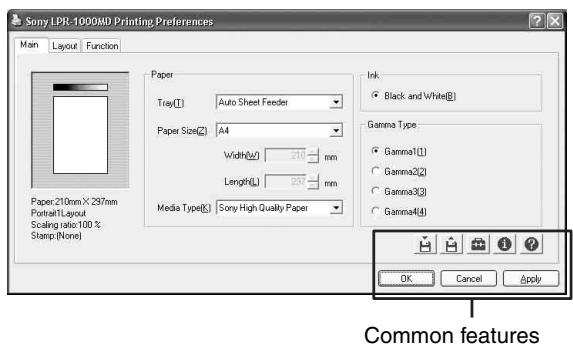
Performing Settings on the Main Tab
The Main tab allows you to perform the following basic settings required for printing.
- Paper
- Tray (paper feeding method)
– Paper size - Media type
- Ink
This printer supports only black and white printing.
- Gamma type
Sets the quality level of the printouts.
Main tab
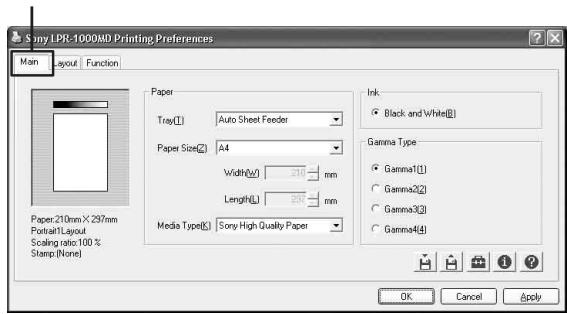
Settings for Paper
1 Click the [Main] tab.
The Main tab dialog appears.
2 Select the proper settings according to the paper loaded in the auto sheet feeder tray.
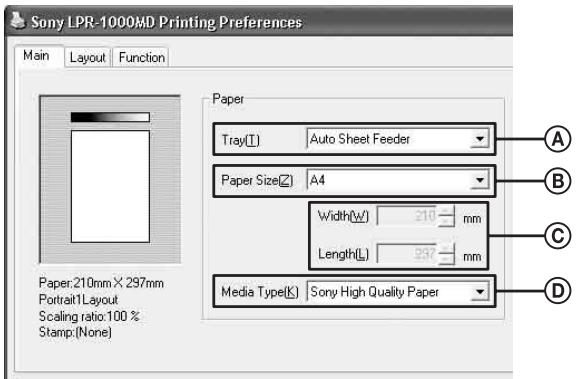
Ⓐ Tray
Since the printer corresponds to automatic paper feeding system, “Auto Sheet Feeder” is
automatically selected. Another tray type can not be selected.
B Size
Since the printer corresponds to size A4, “A4” is automatically selected. Another paper size can not be selected.
© Width and Length
The width and length of A4 paper sheets are displayed. You cannot adjust the width and length since they are fixed.
© Media Type
Click [▼] to select the type of the paper loaded in the tray. The printer performs printing suitable to the media type selected.
For detailed information on media types, see “Recommended Paper” on page 11.
3 Click the [OK] button.
The settings appropriate to the paper are saved.
Selecting the Gamma Type
You can set the quality level of the printout.
You can select the gamma type according to the print data and the purpose of the printout.
1 Click the [Main] tab.
2 Click the radio button corresponding to the desired gamma type.
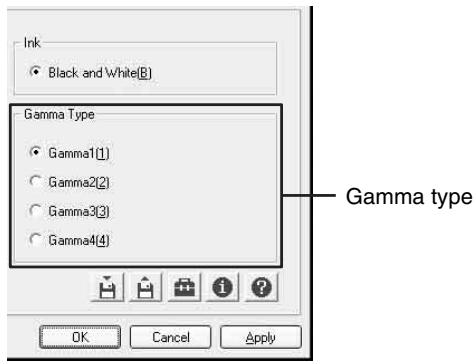
| Gamma type | Comments |
| Gamma 1 | To make a printout of a normal image. |
| Gamma 2 | To emphasize the half tone. |
| Gamma 3 | To emphasize the bright portions. |
| Gamma 4 | To emphasize the bright portions, the halftones, and the dark parts. |
3 Click the [OK] button.
The setting of the gamma type is saved.
Performing Settings on the Layout Tab
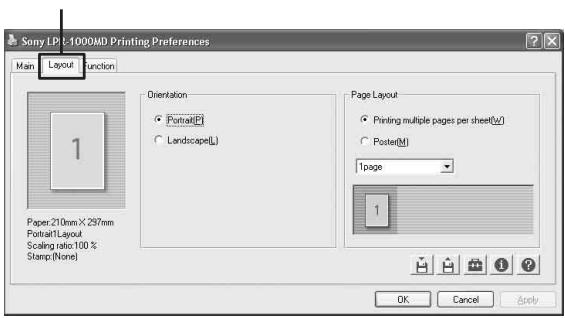
The Layout tab allows you to perform the following settings.
- Orientation You can select the orientation of printouts.
- Page layout
- Printing multiple pages per sheet You can specify the number of pages of printing data to be printed on a single sheet.
- Poster You can divide one page of printing data onto multiple sheets.
Layout tab
Setting the Print Orientation
You can select portrait or landscape orientation for printing.
To print multiple pages on one sheet, be sure to set the orientation, and then select the layout of the page.
Note
The setting of portrait or landscape orientation depends on the page setting of the printing data. When the page setting is not included in the printing data, printing is carried out according to the setting made using the following procedure.
1 Click the [Layout] tab.
The Layout tab dialog box appears.
2 Select the [Orientation].
Portrait/Landscape
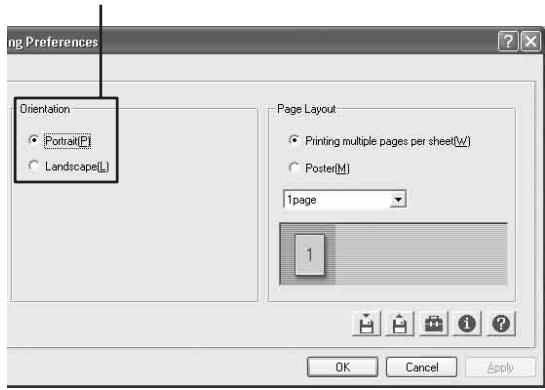
| Orientation | Comments |
| Portrait | To print the printing data in portrait orientation when the page layout is not set in the printing data. |
| Landscape | To print the printing data in landscape orientation when the page layout is not set in the printing data. |
Note
The setting of portrait or landscape orientation of the page is automatically switched according to the page layout of the printing data. Therefore, even if the [Portrait] setting is selected, the printer may not print the printing data in portrait orientation.
3 Click the [OK] button.
The orientation setting is saved.
Printing Multiple Pages on One Sheet
You can specify the number of pages of printing data to be printed on a single sheet.
1 Click the [Layout] tab.
When printing one page on one sheet, go to step 3. When printing multiple pages on one sheet, go to step 2.
2 Set the print orientation.
Portrait/Landscape
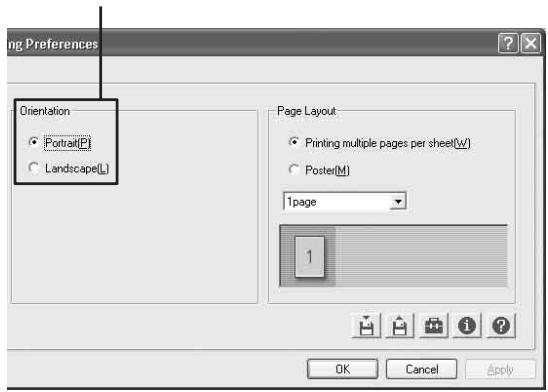
Set the print orientation using [Orientation] according to the page orientation of the printing data.
3 Click the [Printing multiple pages per sheet] radio button in the Page Layout group.
[Printing multiple pages per sheet]
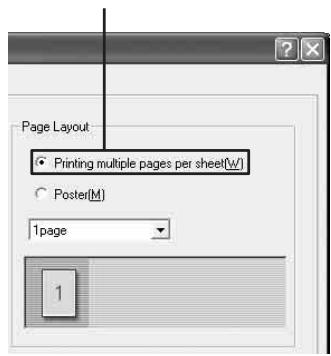
4 Click [▼] and select the pages to be printed on one sheet.
![Page Layout ✓ Printing multiple pages per sheet(W) ○ Poster(M) 1page 1 Click [▼] .](/content/2019/08/102195/images/fe601befa27561f7345a28c49aa4e84fe64d6b3ed4fecca59b38767de87c0a8d.jpg)
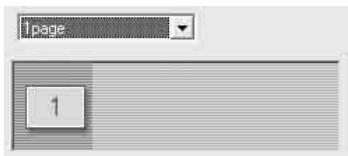
To print one page on one sheet
Select [1 page].
When the print orientation is set to [Portrait]:
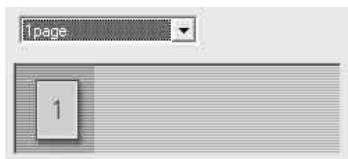
When the print orientation is set to [Landscape]:
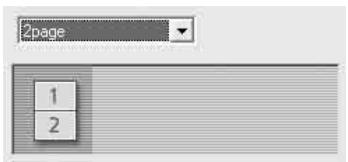
To print two pages on one sheet
① Select [2 Page].
② Select the page layout to be used on the page. When page orientation is set to [Portrait]:
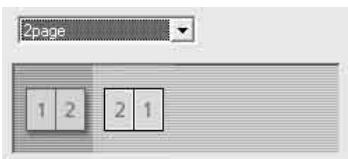
When page orientation is set to [Landscape]:
To print four pages on one sheet
① Select [4 Page].
② Select the page layout to be used on the page.
When page orientation is set to [Portrait]
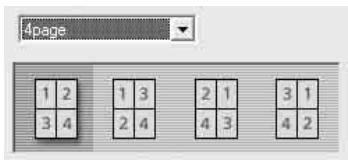
When page orientation is set to [Landscape]:
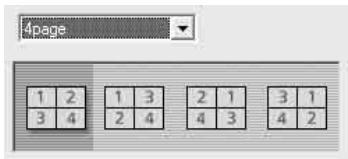
5 Click the [OK] button.
The setting for the printing of multiple pages per sheet is saved.
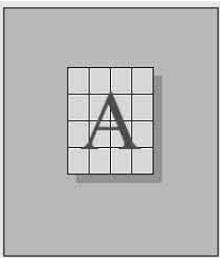
Printing Single Page Printing Data on Multiple Sheets
You can divide single page data and print the results on multiple sheets.
1 Click the [Layout] tab.
2 Set the print orientation according to the page layout setting of the printing data.
Portrait/Landscape
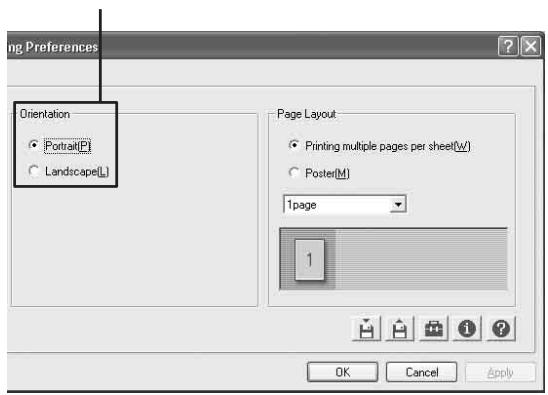
3 Click the [Poster] button on the Page Layout group.
![Page Layout Printing multiple pages per sheet(W) Poster(M) 4page(2x2) [Poster]](/content/2019/08/102195/images/c85e4314e4b2a3fcd2a6cfeda288776708a86b7c67e3c9bd4c6d610d74cde118.jpg)
4 Click [▼] and select the dividing method.
![Page Layout Printing multiple pages per sheet(W) Poster(M) 4page(2x2) Click [▼].](/content/2019/08/102195/images/bd8a50321da92c721b9d56b5c6f8fe19054f490a4e8819558d2b5bc7728afc84.jpg)
| Item | Comments |
| 4 Page (2 × 2) | To divide one page of printing data and print the results on four sheets. |
 | |
| 9 Page (3 × 3) | To divide one page of printing data and print the results on nine sheets. |
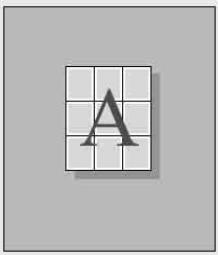 | |
| 16 Page (4 × 4) | To divide one page of printing data and print the results on 16 sheets. |
 |
5 Click the [OK] button. The poster setting is saved.
Using the Help Window
On the Printing Preferences dialog box, you can display a description of functions or operation methods using the help window.
To display the Printing Preferences dialog box, see “Displaying the Print Preferences Dialog Box from a Software Application” on page 15 or “Displaying the Printing Preferences Dialog Box from the Windows Start Menu” on page 15.
Displaying the Description of Functions of Setting Items
1 Click [?] at the right top on the Printing Preferences dialog box.
The pointer changes to a?.
![[?] button Sony LPR-1000MD Printing Preferences Main Layout Function Paper Treg(I) Auto Sheet Feeder Paper Size(Q) A4 Width(W) 210 mm Length(H) 297 mm Media Type(K) Sony High Quality Paper Ink Black and White(B) Gamma Type Gamma1(I) Gamma2(C) Gamma3(C) Gamma4(D) OK Cancel Apply Paper:210mm×297mm ForkartLayout Scaling ratio:100 % Stamp(None)](/content/2019/08/102195/images/449243ace839777e37536a0b37158aa187406ca57fa2ade5947c415124176d72.jpg)
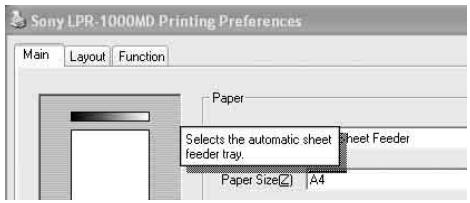
2 Click the setting item whose function you want to know about.
A popup window describing the function of the setting item appears.
3 Click any point on the window to close the popup window.
Displaying Information on Operation Methods
You can display detailed information on an operation method by searching it using the table of contents or a keyword.
1 Click the 🔒 (Help) button at the right down of the Printing Preferences dialog box.
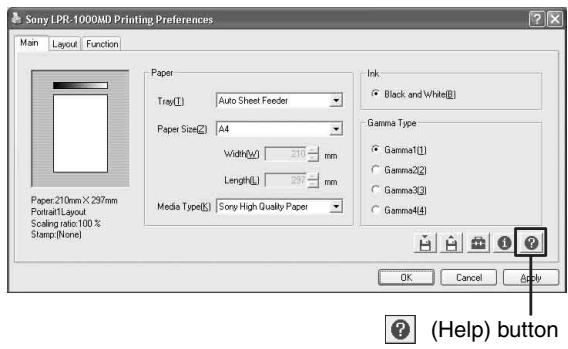
The help window appears.
2 Search for detailed information on the operation method which you want to know about by clicking the [Contents] tab or [Index] tab.
![Sony LPR-1000MD Hide Back Forward Contents Index Search Sony LPR-1000MD Main Paper Sheet feeder Paper Size Paper Media Si Ink Print quality Layout Function Saving print setting Utility Error messages Tray (sheet feeding method) The printer uses a system where the paper is fed from an auto sheet feeder tray. Another tray type cannot be selected. [Notes on using the auto sheet feeder tray] • Place the paper in the auto sheet feeder tray so that the printing surface faces down. • Place the paper with the long side towards the left side of the tray and place the top end of the paper towards the back of the auto sheet feeder tray (Be sure to place the paper with the printing side facing down and its long side squared off vertically and the short side squared off horizontally, seen from the front side of the printer.) • Secure the paper with the paper guides inside the auto sheet feeder tray. • Reattach the cover of the tray. The cover also functions as the eject tray.](/content/2019/08/102195/images/1410a26e3f3ec7a9c499d2faf1ad4f53a28d0ed762797c23657996a4897140d7.jpg)
3 Click [X] at the top right of the help window to close the help window.
Cancelling a Print Job
You can cancel the print job using one of the following three methods after you click the [Print] button.
- Cancelling the print job from the Windows spooler window (page 23)
- Cancelling the print job from the status monitor (page 24)
- Cancelling the print job from the operation panel of the printer (page 24)
Cancelling a Print Job from the Windows Spooler Window
1 Select [Start], [Control Panel], [Printers and other hardware], and [Printers and Fax], in turn, so as to display the Printer window.
2 Double click [Sony LPR-1000MD]. The Windows spooler window appears. You can cancel the print job in this window.
3 Right click the job you want to cancel, and select [Cancel] from the drop down list.
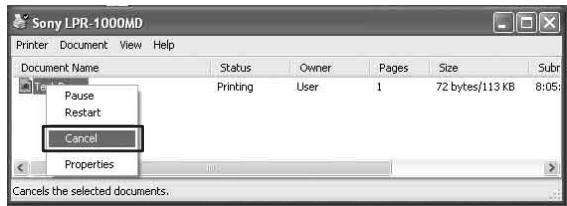
The following confirmation message appears.
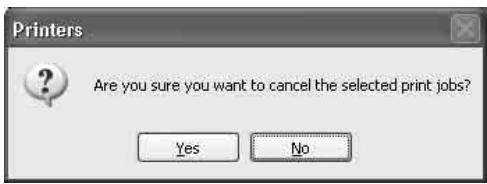
4 Click the [Yes] button.
The selected job is cancelled and disappears from the spooler window.
5 Click [X] at the right top corner to close the spooler window.
Cancelling a Print Job from the Status Monitor
1 Double click the i icon on the task bar to open the status monitor.
When printing starts, the status monitor automatically starts and the ⓘ icon appears on the task bar.
2 Click the [Job] button.
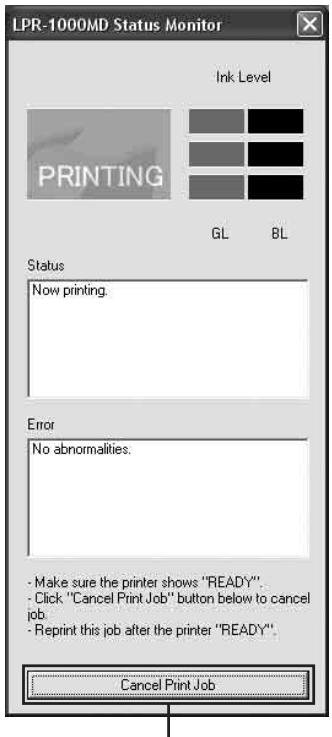
Click the [Job] button.
The Windows spooler window appears.
3 Right click the job you want to cancel and select [Cancel] from the drop down list.
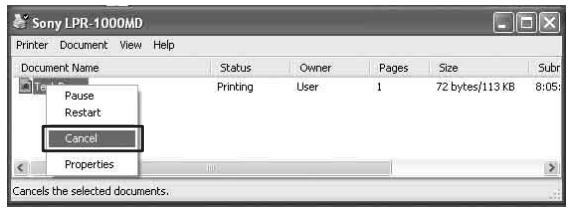
The following confirmation message appears.
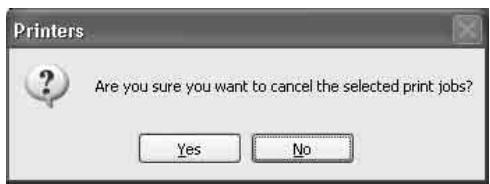
4 Click the [Yes] button.
The print job is cancelled and the selected print job disappears from the Windows spooler window.
5 Click [X] at the right top corner to close the Windows spooler window.
Cancelling a Print Job From the Operation Panel of the Printer
You can cancel a print job which is just starting from the operation panel of the printer.
This method is to be used when you want to stop a printing job while printing multiple sheets.
It can be used in the following two situations:
- When the printing data is left on the spooler window, first, cancel the job from the spooler window following instructions given in “Cancelling a Print Job from the Windows Spooler Window” on page 23, and then perform the following operation.
- When the printing data has been sent to the printer and the print job is not displayed in the spooler window.
Note
The page currently being printed is printed.
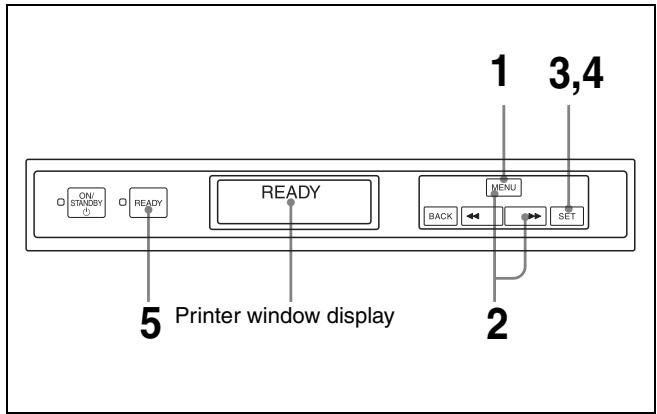
1 Push the MENU button on the operation panel of the printer.
The READY indicator goes off and the message “Ink level” appears on the printer window display.
2 Keep pushing the MENU button or the [▶] button until the message “Print job cancel” appears.

3 Push the SET button. The message “Cancel print job?/Yes_”

4 Push the SET button. The print job is cancelled.
5 Push the READY button. The READY indicator lights in green and the message “READY” appears on the printer window display.
To cancel print data waiting to be printed
Cancel the print job from the Windows spooler window or the status monitor.
It is not necessary to cancel the print job from the operation panel of the printer.
Useful Functions
Aligning the Print Position
You can align the print position on one sheet.
1 Display the Sony LPR-1000MD Printing Preferences dialog box from the Start menu of Windows. For detailed information on how to display, see “Displaying the Printing Preferences Dialog Box from the Windows Start Menu” on page 15.
2 Click the 📄 (Utility) button.
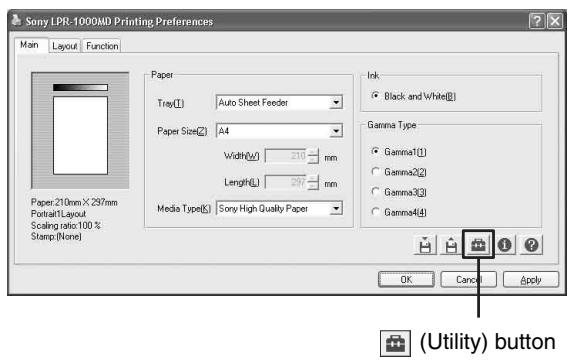
The Utilities dialog box appears.
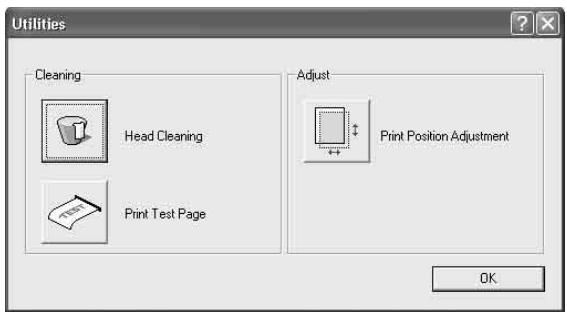
3 Click the [Print Position Adjustment] button on the Adjust group.
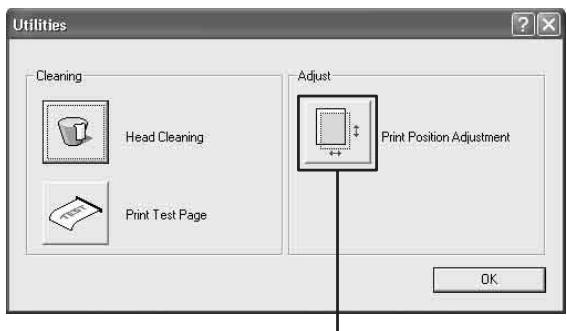
[Print Position Adjustment] button
The Print Position Alignment window appears.
4 Enter the numerical value of the amount by which you want to move the position.
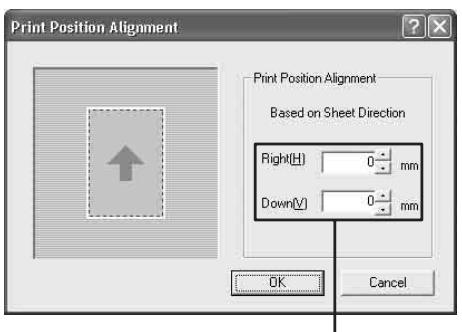
Enter the dimensions.
[Right]: Enter the numerical value of the amount by which you want to move towards the right in printers of mm. To move towards the left, attach a – (minus) before the numerical value.
[Down]: Enter the numerical value of the amount by which you want to move downward in printers of mm. To move upward, attach a – (minus) before the numerical value.
Note
The alignment range to the right is between -100 mm and +100mm and the alignment range downward is between -100 mm and +100 mm.
5 Click the [OK] button on the Print Position Alignment window, and then click the [OK] button on the Utilities dialog box.
The Utilities dialog box disappears, and the window returns to the Printing Preferences dialog box.
6 Click the [OK] button on the Printing Preferences dialog box. The print position alignment setting is saved.
Advanced Functions
The Function tab allows you to set the following advanced functions.
- Embedding stamps
You can embed stamps on the printout. - Sort printing
You can print by volume or by sheet. - Printing order
You can print from first page to last, or last page to first.
Function tab
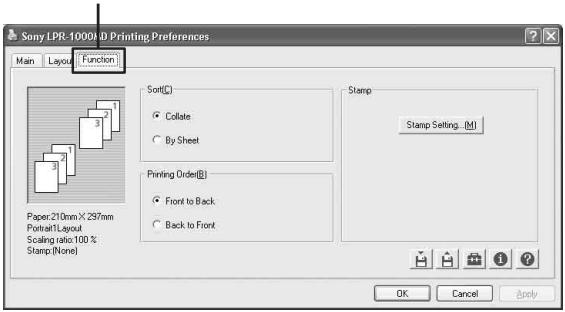
Note
When print settings are performed on a software application such as word processing or image processing software, it is recommended that you do not use advanced functions. The printer may not be able to print correctly if the settings on the Function tab of the printer and the settings of the software application interfere each other. For example, if “Back to Front” is selected on the print setup window of both application software and the printer, the two settings will cancel each other out, and the printing order is first page to last.
Embedding Stamps on the Printouts
You can embed character strings such as “Confidential” or bitmap images on the printouts without processing the printing data. This is called a stamp.
Note
The density of the part of the stamp which lays on the characters and images printed may be dark.
Adding new stamps
Seven kinds of stamp character strings have already been registered as defaults.
You can add new stamps using the Add/Remove Stamp dialog.
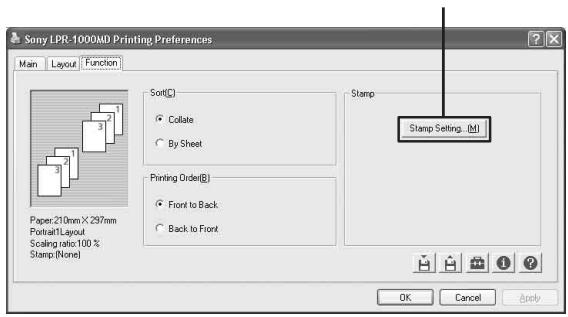
1 Click the [Function] tab on the Printing Preferences dialog box.
2 Click [Stamp Setting...].
![[Stamp Setting...] button Main Layout Function Sort(C) Collate By Sheet Printing Order(B) Front to Back Back to Front Stamp Setting... [M] Paper: 210mm X, 297mm PortfolioLayout Scaling ratio: 100 % Stamp (None) OK Cancel Apply](/content/2019/08/102195/images/1892e6ae6e3e692ea4c821a9e95f3700e1eb65508f7950b250f49add589a97f2.jpg)
The Stamp dialog box appears.
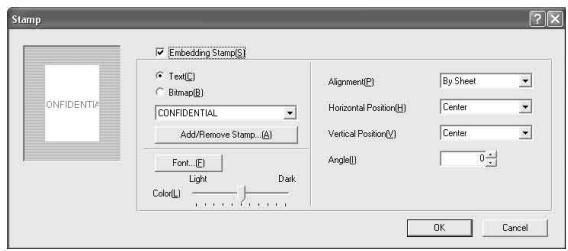
3 Place a check mark in the [Embedding Stamp] box.
[Embedding Stamp]
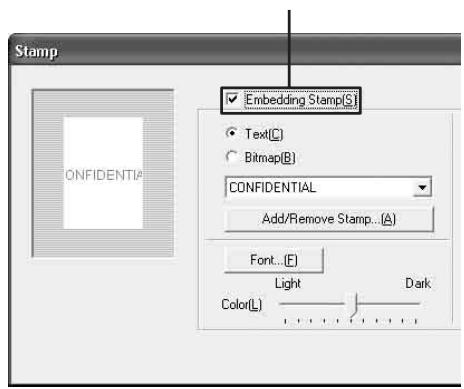
4 Select the type of stamps which you want to add by clicking either the [Text] or [Bitmap] radio button.
![Stamp ONFIDENTIAL Embedding Stamp(S) Text(C) Bitmap(B) CONFIDENTIAL Add/Remove Stamp... (A) Font... (E) Light Dark Color(L) [Text] or [Bitmap]](/content/2019/08/102195/images/51dcf211ad8111a82c387bb0ba3003ba993f837a3cafe5dfc680925af380ac36.jpg)
5 Click the [Add/Remove Stamp] button.
![Stamp Embedding Stamp(S) Text(C) Bitmap(B) CONFIDENTIAL Add/Remove Stamp...(A) Font...(E) Light Color(L) Dark [Add/Remove Stamp]](/content/2019/08/102195/images/2f41ba167c23da56c57bed08e23584fc80727f188c5ba7c147565b53c06ab642.jpg)
The Add/Remove Stamp dialog box appears.
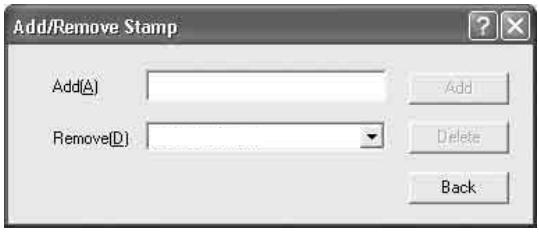
6 Add a new stamp.
When a stamp character string is added:
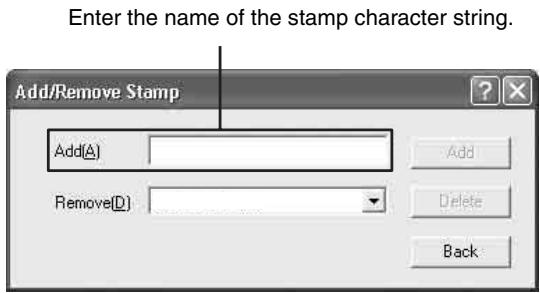
① Enter the name of the character string which you want to add as a stamp in the [Add] text box.
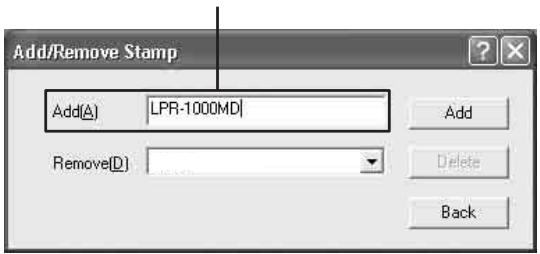
② Click the [Add] button, and then click the [Back] button. The stamp character sting is registered and the window returns to the Stamp dialog box.
Notes
- You cannot register the same character string twice.
- You can register any number of characters, between one and 60, as a stamp string.
When a graphics stamp is added:
① Enter the stamp name.
Enter the name of the graphics stamp.
② Click the [Add] button.
The Stamp dialog box reappears.
③ Specify the bitmap file to be used.
You can specify the bitmap file using the following two methods.
- Enter the name of the bitmap file in the bitmap file text box.
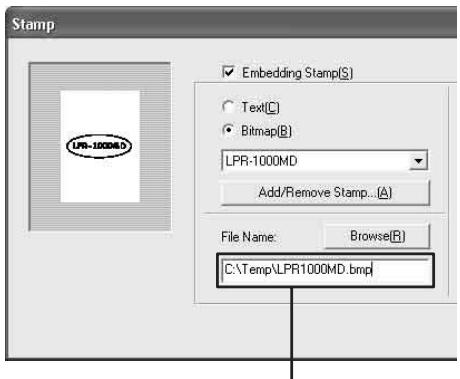
Enter the name of the bitmap file.
- Click the [Browse] button.
![Stamp Embedding Stamp(S) Text(C) Bitmap(B) LPR-1000MD Add/Remove Stamp... (A) File Name: Browse(R) [Browse] button](/content/2019/08/102195/images/950c8758e692f4098104a149e55e5d1e714c3bd184c197c0821bb4b4fb644f66.jpg)
The Select File dialog box appears.
Specify the bitmap file to be used, and then click the [Open] button.
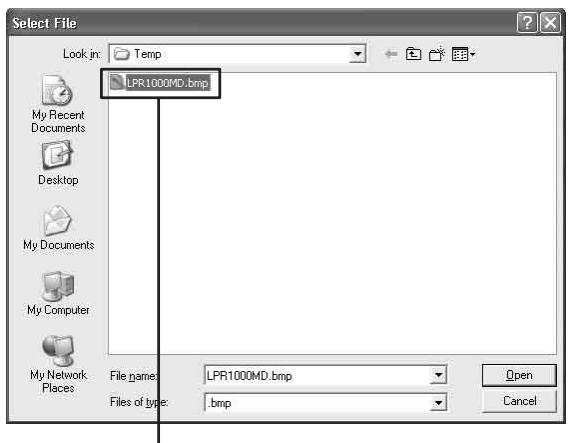
Specify the bitmap file.
Notes
- You cannot register the same stamp name twice.
- The number of bitmap files that you can register is not limited.
- You can register and use are 1, 4, 8 and 24 bit bitmap data.
7 Click the [OK] button on the Stamp window.
8 Click the [OK] button on the Printing Preferences dialog box.
The settings for a new stamp entry is saved.
Embedding a stamp character string
Seven kinds of stamps such as “CONFIDENTIAL”, “URGENT”, “DRAFT”, “TENTATIVE”, “SAMPLE”, “INFORMATIVE” and “PROPOSAL” are registered already. You can add other character strings as stamps.
1 Click the [Function] tab on the Printing Preferences dialog box.
2 Click [Stamp Setting...].
[Stamp Setting...] button
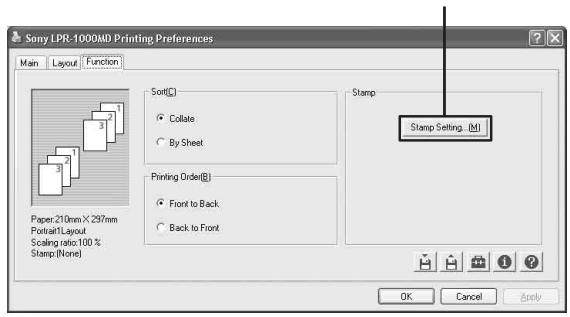
The Stamp dialog box appears.
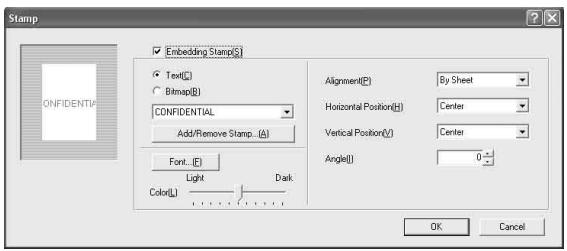
3 Place a check mark in the [Embedding Stamp] box, and then click the [Text] radio button.
Place a check mark in the [Embedding Stamp].
![Stamp Embedding Stamp(S) Text(C) Bitmap(B) CONFIDENTIAL Add/Remove Stamp...(A) Font... (E) Light Dark Color(L) Select [Text].](/content/2019/08/102195/images/f14d08fe610c221d4a94fec8c74f58c5a20d04f90e233c7ab6040f5eeadcd4bd.jpg)
4 Select the stamp character string to be embedded.
Click [▼] at the right of the list and select the desired stamp character string from the list.
![Stamp Embedding Stamp(S) Text(I) Bitmap(B) CONFIDENTIAL CONFIDENTIAL URGENT DRAFT TENTATIVE SAMPLE INFORMATIVE PROPOSAL Central Alignment(E): By Sheet Horizontal Position(I): Center Vertical Position(V): Center Angle(I): 0 ° OK Cancel Click [▼].](/content/2019/08/102195/images/27c0d5ac2c1a0979841b5fe2a6e3586a2fd2773ae0c8d7e0362ae5c95b398f00.jpg)
You can embed a new character string as a stamp. For detailed information on how to add a character string, see “Adding new stamps” on page 27.
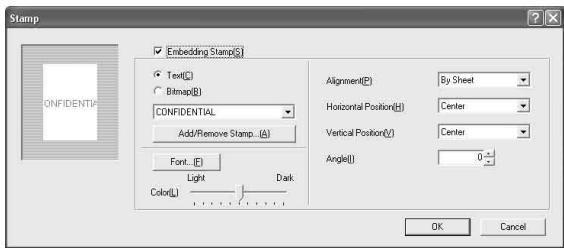
5 Specify how to embed a stamp by setting each item in the Stamp dialog.
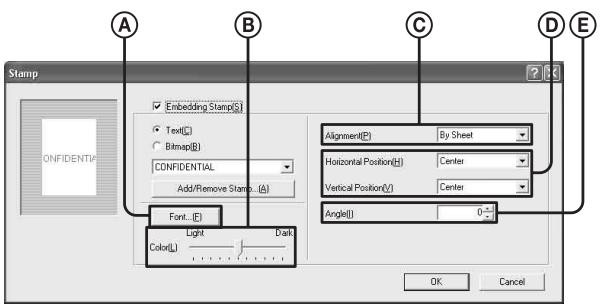
Ⓐ [Font]: Select a font for the stamp character string.
You can select any font for the stamp character string.
Click the [Font] button.
The Font dialog box appears.
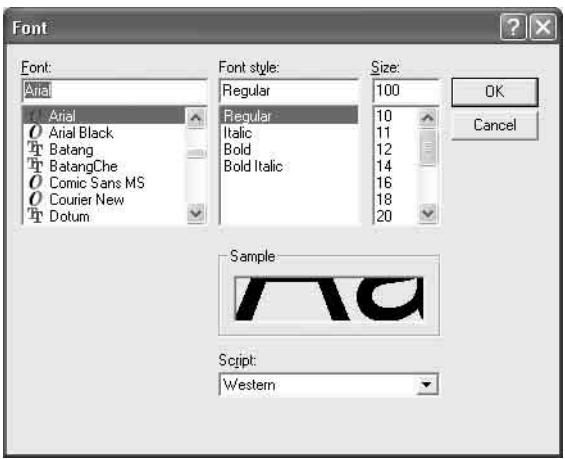
Specify [Font], [Font style] and [Size], and then click the [OK] button.
The Font dialog box disappears.
Notes
- You can specify the size other than those listed by entering the font size directly between 10 points and 500 points.
- Depending on the font, characters may not be displayed properly. In such a case, select another font. Changing a font may allow the characters to be displayed.
(B) [Color]: Adjusts the brightness of a stamp. You can adjust the brightness of a stamp in 11 steps. A stamp becomes lighter toward the Light direction. A stamp becomes darker toward the Dark direction.
© [Alignment]: You can select the page on which the stamp is to be embedded from among [First Sheet Only], [By sheet], and [By Page].
(D) [Horizontal Position] and [Vertical Position]: Specify the position of which the stamp is to be embedded. You can select a position from among nine positions in the horizontal direction and nine positions in the vertical direction, 81 positions in total. You can check the specified position on the Stamp dialog.
E [Angle]: Specify the print angle for the stamp. (You can specify the angle between -90^ and +90^ ).
6 Click the [OK] button on the Stamp dialog box after settings have been completed.
The window returns to the Function tab.
7 Click the [OK] button on the Printing Preferences dialog box.
The settings for the stamp character string to be embedded are saved.
Embedding graphic data (bitmap file) as a stamp
You can use a bitmap file as a stamp by specifying a bitmap file.
1 Click the [Function] tab on the Printing Preferences dialog box.
2 Click [Stamp Setting...].
[Stamp Setting...] button
The Stamp dialog box appears.
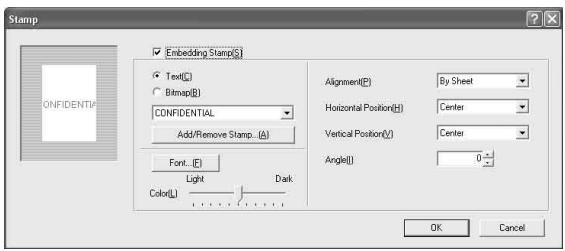
3 Place a check mark in the [Embedding Stamp] box, and then click the [Bitmap] radio button.
Place a check mark in the [Embedding Stamp].
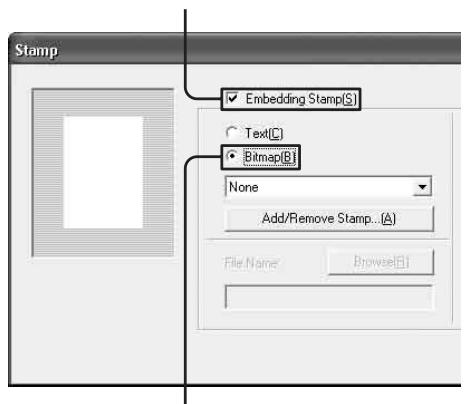
Select [Bitmap].
4 Select the stamp name corresponding to the bitmap file which you want to be embedded.
Click [▼] at the right of the list and select the desired stamp name of the graphics data to be embedded from the list.
![Stamp Embedding Stamp(S) Text(C) Bitmap(B) None None logo Printer File Name: Browse(B) Alignment(E): By Sheet Horizontal Position(L): Center Vertical Position(V): Center Size(S): 100 % Density(L): 100 % OK Cancel Click [▼].](/content/2019/08/102195/images/f340d5db64ac1eca24a4f37e2c37df219721c6bfbaa58b64c553ce2ec35167e4.jpg)
You can embed a new graphic.
For detailed information on how to add a new graphic stamp, see “Adding new stamps” on page 27.
5 Specify how the stamp is to be embedded by setting each item on the Stamp dialog.
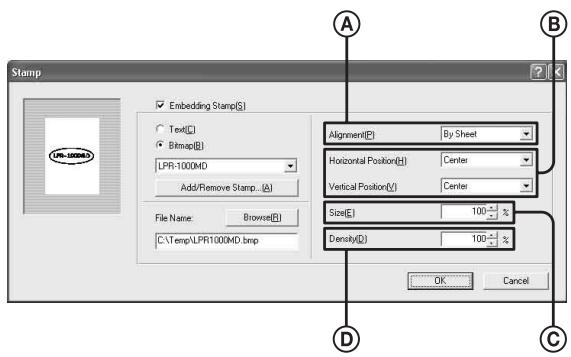
Ⓐ [Alignment]: Select the page to which the stamp is to be embedded from among [First Sheet Only], [By sheet], and [By Page].
(B) [Horizontal Position] and [Vertical Position]: Specify the position at which the stamp is to be embedded. You can select the position from among nine positions in the horizontal direction and nine positions in the vertical direction, 81 positions in total. You can check the specified position on the Stamp dialog.
© [Size]: Select the size of a stamp, between 1% and 100%.
(D) [Density]: Specify the density of the stamp between 0% and 100%.
6 Click the [OK] button on the Stamp dialog box after the settings have been completed.
The window returns to the [Function] tab.
7 Click the [OK] button on the Printing Preferences dialog box.
The settings for the graphic stamp to be embedded are saved.
Printing without a stamp
Proceed as follows to print without embedding stamps.
1 Click the [Function] tab on the Printing Preferences dialog box.
2 Click [Stamp Setting...].
The Stamp dialog box appears.
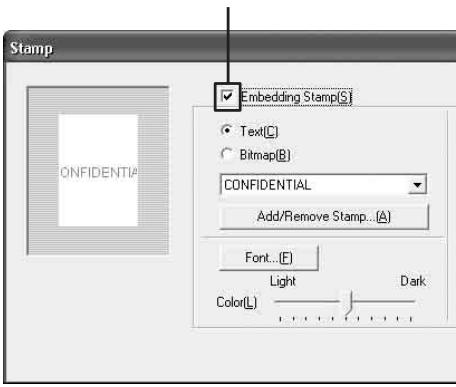
3 Remove the check mark from the [Embedding Stamp] check box.
Remove the check mark from the [Embedding Stamp] check box.
4 Click the [OK] button on the Stamp dialog box after the settings have been completed.
The window returns to the Function tab.
5 Click the [OK] button on the Printing Preferences dialog box.
Removing stamp entries
You can remove unnecessary stamps using the Add/Remove Stamp dialog box.
1 Click the [Add/Remove Stamp] button. The Add/Remove Stamp dialog box appears.
2 Click [▼] on the [Remove] column on the Add/Remove Stamp dialog.
![Add/Remove Stamp Add(A) Remove(D) None Add Delete Back Click [▼].](/content/2019/08/102195/images/dfbe91edb4298d9c3c0c10185a59ff78715b41a584a5c0fec0a1d113b227ee1b.jpg)
A drop down list appears.
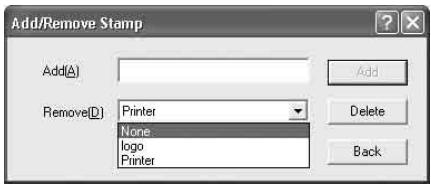
All of the stamp character strings and the names of graphics stamps are displayed on the drop down list.
3 Click the stamp which you want to remove. The stamp name clicked appears.
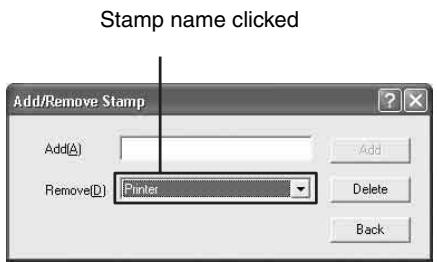
4 Click the [Delete] button.
A message asking you to confirm that you want to delete the stamp appears.
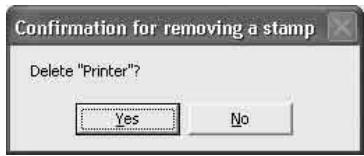
5 Click the [Yes] button.
6 Click the [Back] button on the Add/Remove Stamp dialog.
The window returns to the Stamp dialog box.
7 Click the [OK] button on the Stamp dialog box.
Note
You cannot remove the stamps registered as defaults.
Sort Printing
You can print in a set or by sheet using the Function tab window.
1 Click the [Function] tab on the Printing Preferences dialog box.
2 Specify [Sort] as follows.
![[Sort] Sony LPR-1000MD Printing Preferences Main Layout Function 3 2 1 3 2 3 1 Sort(C) Collate By Sheet Paper:210mm X 297mm Portrait1Layout Scaling ratio:100 % Stamp:(None) Printing Order(B) Front to Back Back to Front](/content/2019/08/102195/images/894c002e6ef5a049a6ee3ccc9eec5ccaa1ded22ea2359ffd66809049e0e0e952.jpg)
| Item | Comments |
| [Collate] | To print a document consisting of multiple pages in sets |
| [By Sheet] | To print a document consisting of multiple pages by sheet |
3 Click the [OK] button.
The sort printing setting is saved.
Setting the Printing Order
You can set the printing order.
1 Click the [Function] tab on the Printing Preferences dialog box.
2 Select the printing order.
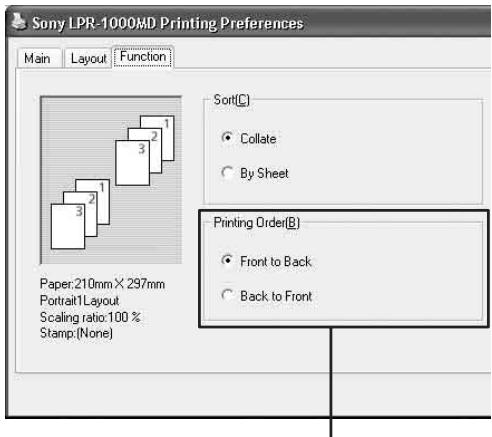
[Printing Order]
| Item | Comments |
| Front to Back | To print from first page to last. The first page comes at the bottom and the last page comes on the top. |
| Back to Front | To print from last page to first. Since the printed sheets are piled up upwards, the printed sheets are piled up in the page order (the first page comes on the top). |
3 Click the [OK] button.
The printing order setting is saved.
Saving and Retrieving Print Settings
You can save print settings as a file.
By retrieving the file in which print settings are saved, you can set the printer to the desired print settings quickly and easily.
Saving Print Settings
1 Perform print settings on the [Main] tab, [Layout] tab, [Function] tab, and/or the [Print Alignment Position] window of the Utilities dialog box.
All of items set in those dialog boxes can be saved as a file.
2 Click the 📄 (Save) button on the Printing Preferences dialog box.
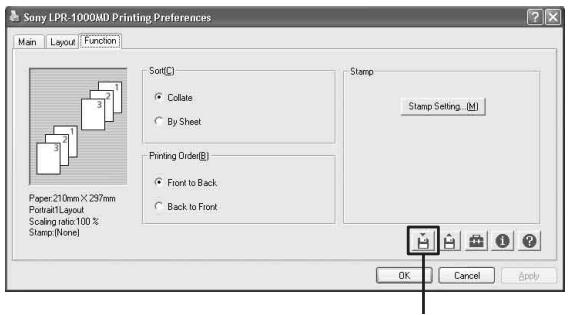

(Save) button
The Save Settings dialog box appears.
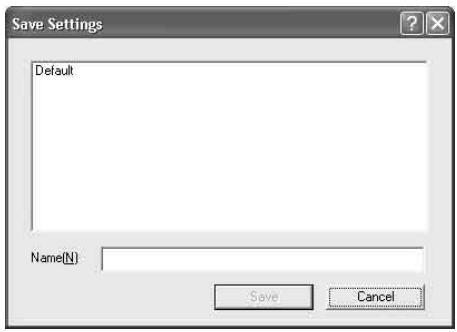
3 Name the file in which the print settings will be saved.
Enter the name in the "Name" text box.
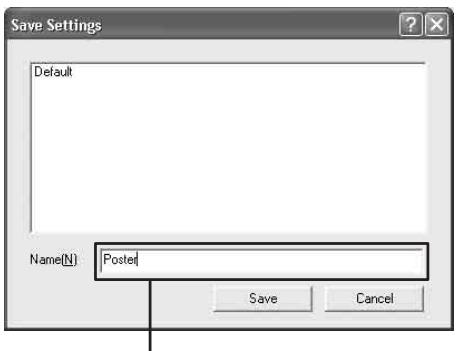
Enter the file name.
You can use file names of one to 60 characters. The number of print setting files that can be saved is not limited.
4 Click the [Save] button on the Save Settings dialog box.
![Save Settings Default Name(N): Posted Save Cancel [Save] button](/content/2019/08/102195/images/69fbc27214a1a33b37c52456c64a06f05f820ac8babe6100ae37917f1610410b.jpg)
Settings performed on the [Main] tab, [Layout] tab, [Function] tab, and the [Print Alignment Position] window of the Utilities dialog box are saved as a file and the Save Setting dialog disappears.
Note
Settings made for adding new stamps and removing stamp entries are not included in the file.
Changing the Print Settings
You can change some parts of print settings saved as a file.
1 Re-enter the value for the print settings you want to change on the [Main] tab, [Layout] tab, [Function] tab and/or the [Print Alignment Position] window of the Utilities dialog box.
2 Click the 📄 (Save) button on the Printing Preferences dialog box.
The Save Setting dialog appears.
The names of files currently saved are listed.
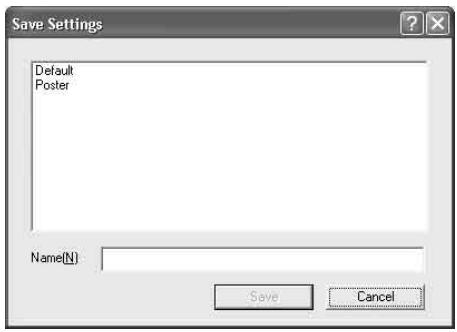
3 Click the file containing settings you wish to change.
The name of the file selected is displayed in the Name text box.
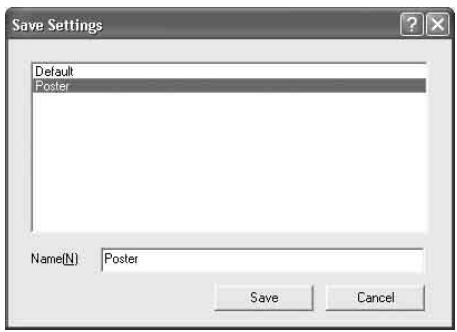
4 Click the [Save] button on the Save Settings dialog box.
A confirmation message appears.
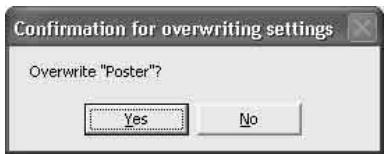
5 Click the [Yes] button.
The settings of the file selected in step 3 are changed to the settings changed in step 1.
Note
You cannot change default print settings.
For detailed information on default print settings, see “Setting Items for the Printer Driver” on page 65.
Retrieving the Print Settings Saved
You can retrieve the print settings any time.
1 Click the 🔒 (Retrieve Settings) button on the Printing Preferences dialog box.
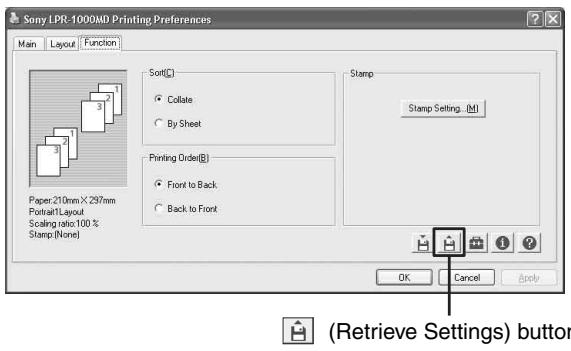
The Retrieve Settings dialog box appears.
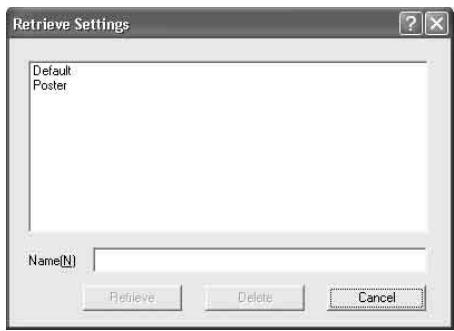
2 Click the file name you wish to retrieve from the list.
The file name is displayed in the Name text box.
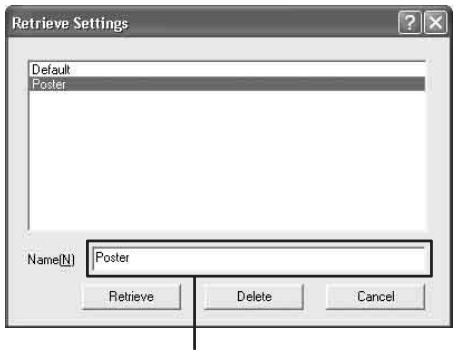
The file name selected in step 2 is displayed.
3 Click the [Retrieve] button.
The Retrieve Settings dialog disappears. The printer switches to the print settings retrieved.
Note
Settings for adding and removing stamps are not saved.
Resetting the print settings to default settings
1 Click the 🔒 (Retrieve Settings) button on the Printing Preferences dialog box.
2 Select "Default" from the list.
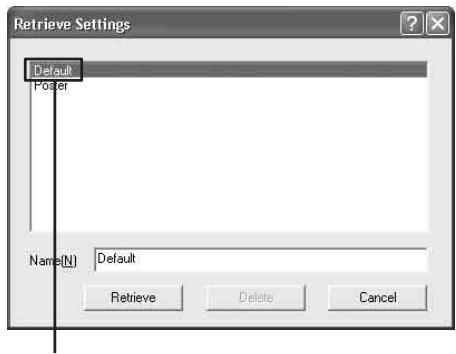
Select "Default."
3 Click the [Retrieve] button on the Retrieve Setting dialog box.
The printer changes in default settings status. For detailed information on default settings, see “Setting Items for the Printer Driver” on page 65.
Deleting Unnecessary Print Settings
1 Click the 🔒 (Retrieve Settings) button on the Printing Preferences dialog box. The Retrieve Settings dialog appears.
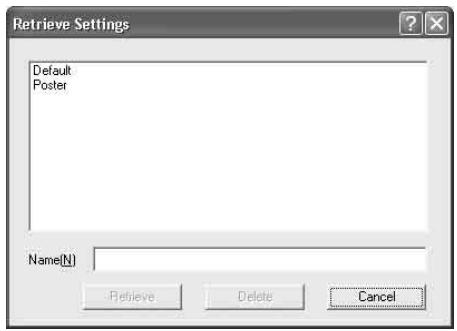
2 Click the file name which you wish to delete on the list.
The selected file name is displayed in the Name text box.
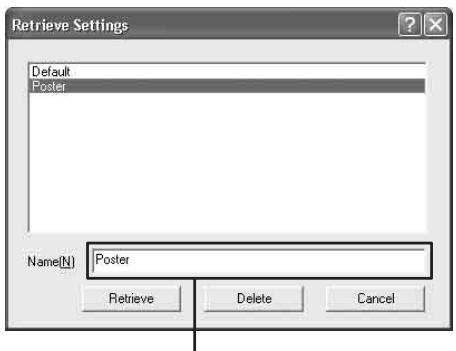
The file name selected in step 2 is displayed.
3 Click the [Delete] button. A confirmation window appears.
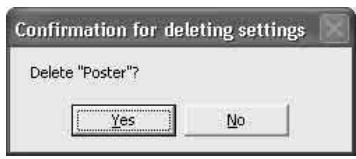
4 Click the [Yes] button. The file selected in step 2 is deleted.
Monitor Function
Using the Status Monitor
The printer allows you to monitor the printer status via a USB connection. This is called the status monitor.
The status monitor has the following functions.
- Displaying the current printer status and job processing status (page 38)
- Displaying the ink level (page 38)
- Displaying error messages (page 55)
- Pausing printing or cancelling printing by opening the Windows spooler window (page 38)
Displaying the Status Monitor
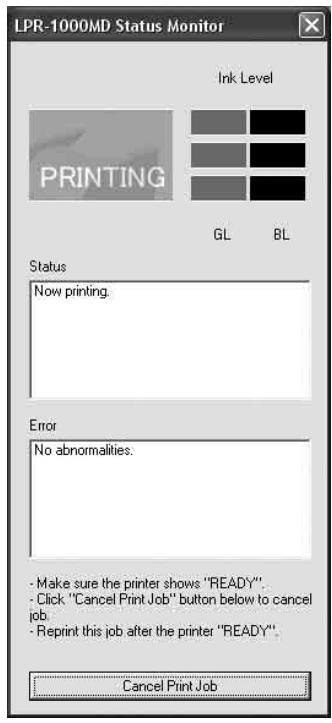
When executing a print command, the status monitor starts automatically and the ⓘ icon appears on the task bar.
When you double-click the ⓘ icon, the status monitor appears.
When printing is completed, the status monitor automatically disappears.
Status monitor
Confirming the Ink Level
Display the status monitor by double-clicking the icon.
The ink level is displayed at the right top corner of the window.
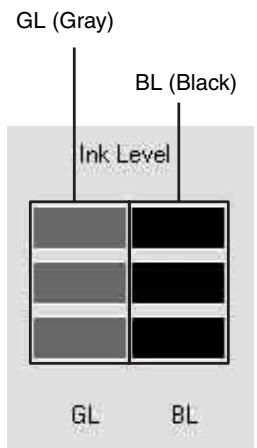
How to check the ink level
The number of squares indicates the remaining amount of the ink.
■■■ : The ink level is sufficient.
■■□ : The ink level is 10 to 50%.
■□□ : The ink level is less than 10%. With the remaining amount of ink, about 100 sheets can be printed. Prepare a new ink cartridge.
□□□ : The ink level is 0%. The ink has run out. Replace the ink cartridge.
For detailed information on how to replace the ink cartridge, see “Replacing the Ink Cartridges” on page 43.
Controlling the Print Job
The status monitor allows you to monitor and control the print job.
When the monitor is displayed, the printer status is displayed.
1 Click the [Job] button.
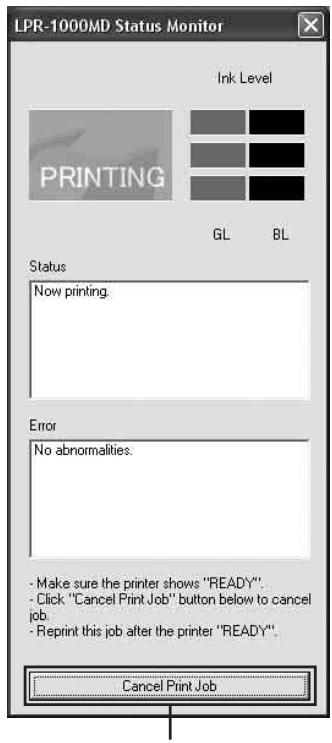
Click the [Job] button.
The Windows spooler window appears.
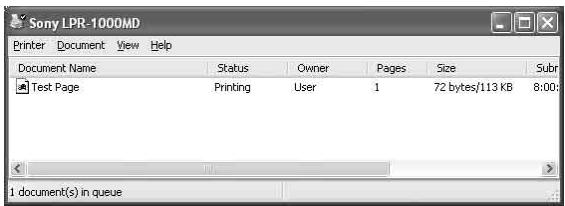
2 Right-click the name of the job you wish to control. A drop down list appears.
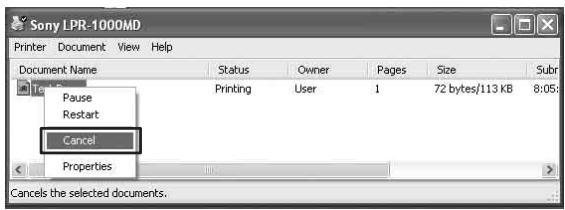
3 Select the desired item.
| Item | Comments |
| Pause | To pause printing |
| Restart | To reset the printer so that it is ready to print (ready status) |
| Cancel | To cancel the print job |
Cleaning the Head
Clean the printer head when it is dirty, or whenever a test printing indicates it is necessary.
Since the head cleaning consumes ink, perform the head cleaning only when necessary.
You can clean the head with either one of the following two methods:
- Cleaning the head from the printer driver (page 40)
- Cleaning the head from the operation panel of the printer (page 41)
Cleaning the Head from the Printer Driver
Note
When there is a print job left to be done, the head cleaning is not performed. Start cleaning the head after the printing of the current job is completed.
1 Display the Sony LPR-1000MD Printing Preferences dialog box according to the operation procedure of “Displaying the Printing Preferences Dialog Box from the Windows Start Menu” on page 15.
2 Click the 📋 (Utility) button.
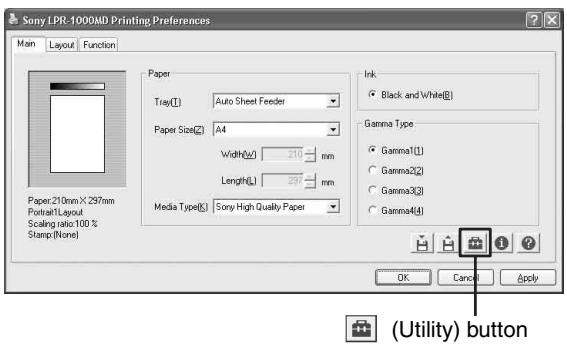
The Utilities dialog box appears.
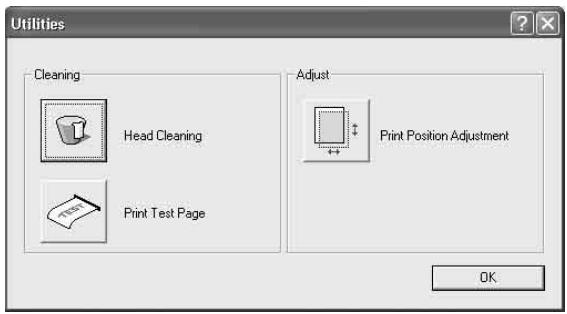
3 Click the [Head Cleaning] button.
[Head Cleaning] button
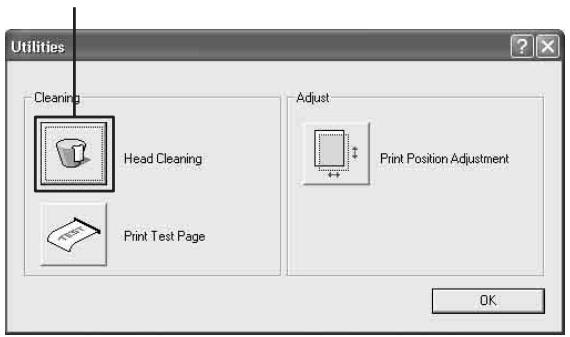
The printer starts cleaning the head.
It takes one minute to one minute and 30 seconds to clean the head.
When the head cleaning is completed
Check the result of the head cleaning by printing a test page.
For detailed information on test printing, see “Printing a Test Page” on page 42.
If stain or smudges remain on the test sheet, repeat the head cleaning until the stain disappears.
If the printer cannot print a test page, the ink may have run out. Replace the ink cartridge.
For detailed information on replacing the ink cartridge, see “Replacing the Ink Cartridges” on page 43.
Cleaning the Head From the Operation Panel
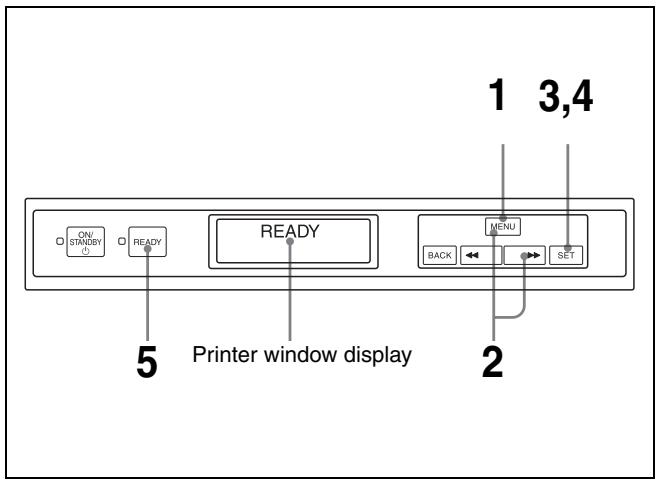
1 Push the MENU button.
The READY indicator goes off and the message “Ink level” appears.
2 Push and hold the MENU button or ▶▶ button until the message “Cleaning.” appears on the printer window display.
Cleaning.
3 Push the SET button.
The message “Clean?/Yes_” appears.
Clean?
Yes_
4 Push the SET button.
The printer starts cleaning the head.
When the printer is cleaning the head, the following message appears.
Now cleaning
head.
When the printer finishes cleaning the head, the message “Cleaning.” appears again.
5 Push the READY button.
The READY indicator lights in green, and the message “READY” appears on the printer window display.
When the head cleaning is completed
Check the result of the head cleaning by printing a test page.
For detailed information on test printing, see “Printing a Test Page” on page 42.
If stains or smudges remain on the test sheet, repeat the head cleaning until the stain disappears.
If the printer cannot print a test page, the ink may have run out. Replace the ink cartridge.
For detailed information on replacing the ink cartridge, see “Replacing the Ink Cartridges” on page 43.
Printing a Test Page
Print a test page for checking whether the ink jets from the nozzle of the head cartridge or the print position has shifted.
You can perform a test printing using either of the following two methods:
• Test printing from the printer driver (page 42)
- Test printing from the operation panel of the printer (page 42)
Printing a Test Page from the Printer Driver
Note
When there is a print job left to be done, the test printing is not performed. Start the test printing after the printing of the current job is completed.
1 Display the Sony LPR-1000MD Printing References dialog using the procedure explained in “Displaying the Printing Preferences Dialog Box from the Windows Start Menu” on page 15.
2 Click the 📄 (Utility) button.
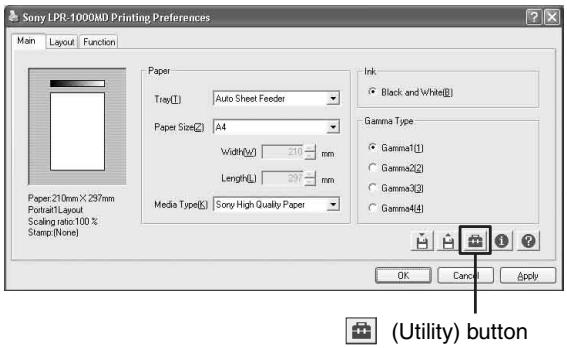
The Utilities dialog box appears.
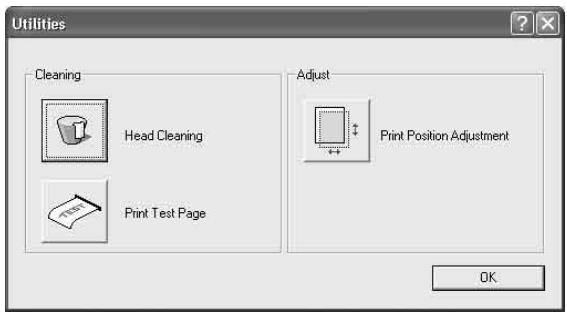
3 Click the [Print Test Page] button.
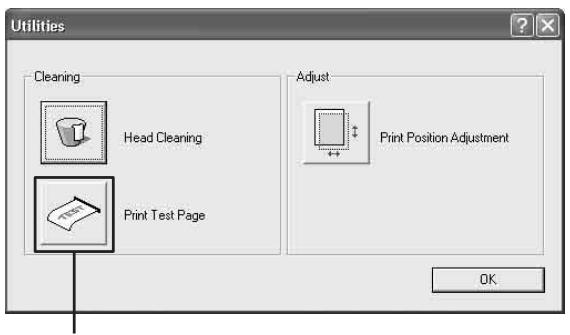
[Print Test Page] button
The printer starts printing a test page.
4 Check whether there are any uneven spots or any blank spots.
Printing a Test Page From the Operation Panel
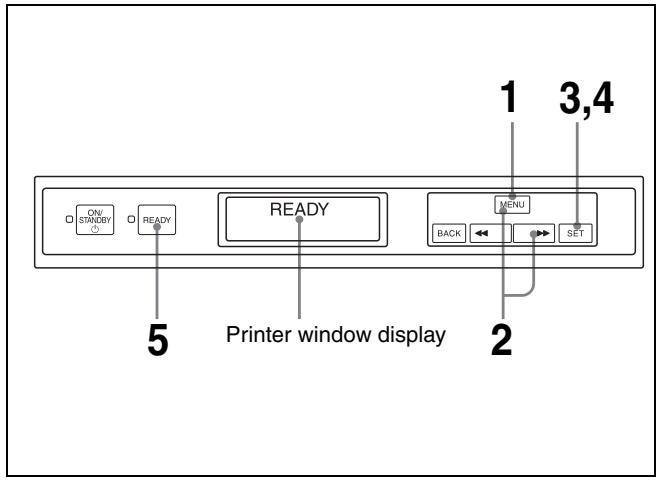
1 Push the MENU button.
The READY indicator goes off and the message “Ink Level” appears.
2 Push and hold the MENU button or ▶▶ button until the message “Print test page.” appears on the printer window display.
Print test page.
3 Push the SET button.
The message “Test print?/Yes_” appears.
Test print?
Yes_
4 Push the SET button.
The printer starts printing a test page.
While the printer is printing the test page, the following message appears.
Print test page.
Test printing.
When the printer finishes printing the test page, the message “Print test page./Test printing.” appears again.
5 Push the READY button.
The READY indicator lights in green, and the message “READY” appears on the printer window display.
6 Check whether there are any uneven spots or any blank spots.
Replacing the Ink Cartridges
When the ink runs out, proceed as follows to replace the ink cartridges.
Recommended Ink Cartridges (not supplied)
| Color | Product name |
| Black | EPI-L100BL Sony Ink Cartridge |
| Gray | EPI-L100GL Sony Ink Cartridge |
Notes on using the ink cartridge
- Be sure to remove the protective cap before using a new ink cartridge. If you don't, you cannot load the ink cartridge correctly in the printer.
- Load the ink cartridge in the printer promptly after you remove the protective cap. If dust accumulates in the ink cartridge, this may choke the print head and cause a malfunction of the printer.
- Do not close the air hole located on the top of the ink cartridge. If the air hole is covered, the ink cartridge cannot spray the ink and this may cause a malfunction.
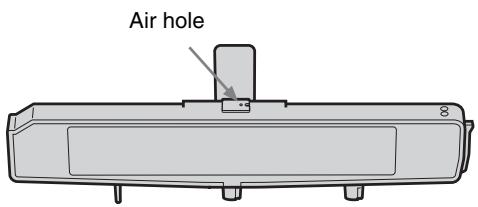
- It is recommended that you use the ink cartridge by the recommended date noted on the carton of the ink cartridge. To maintain the best print quality, use up the ink cartridge within six months of opening it.
- If you refill the ink cartridge or modify it, we will not guarantee its operation.
- Be sure not to remove or load the ink cartridge except when replacing it.
- Be careful not to injure your fingers with pins when changing the ink cartridge.
- Replace the ink cartridge when the printer is turned on (the ON/STANDBY indicator is lit in green).
1 Open the head cover.
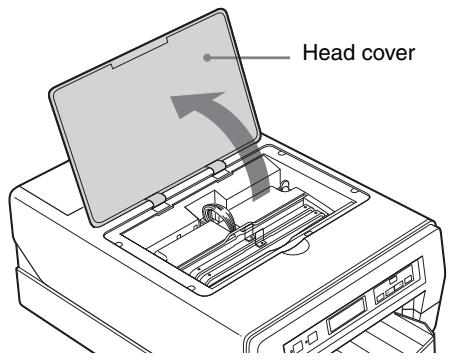
Note
Do not push the head cover backward after it has been opened a little. If extra force is applied at the hinges of the head cover, it may be hard to open it from then on.
2 Remove the empty ink cartridge.
Pull it up by holding the handle of the ink cartridge.
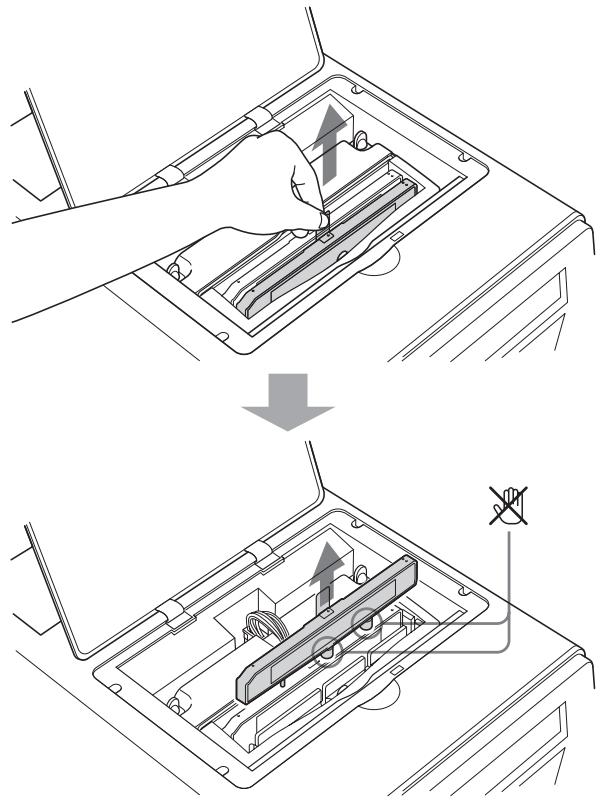
Do not touch the points marked with ✗.
If you touch those points, the ink may get on your fingers.
3 Remove the protective cap from the new ink cartridge.
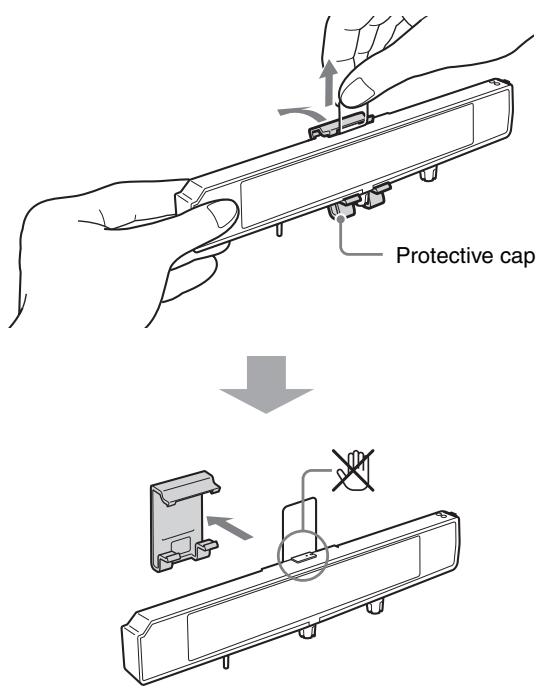
Do not touch the points marked with ✗. If you touch those points, the ink may get on your fingers.
Check that the air hole located on the top of the ink cartridge is open.
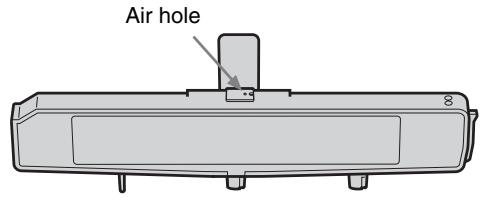
4 Matching the protruding part placed on the right side of the ink cartridge with the groove of the
printer, insert it horizontally until the ink cartridge and the head cartridge line up.
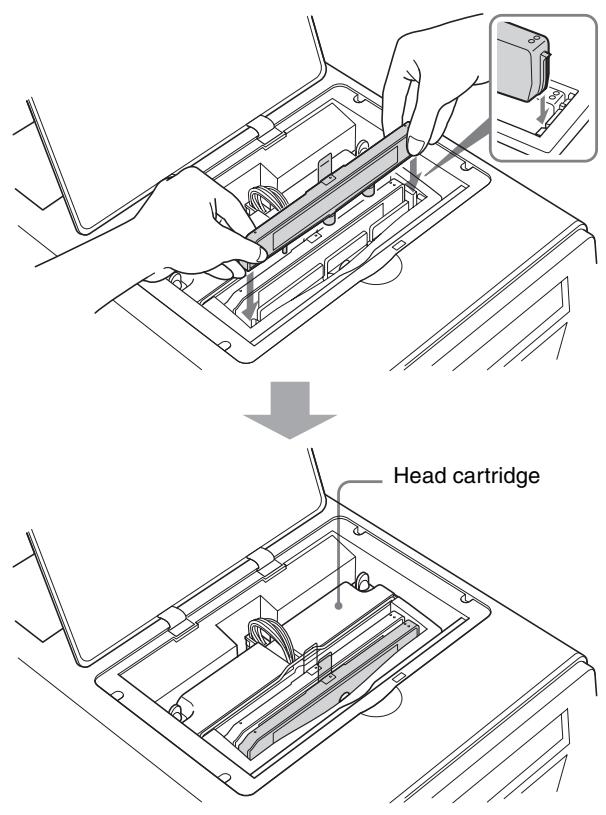
Load the remaining ink cartridges using the same procedure, matching the ink cartridge and its proper location.
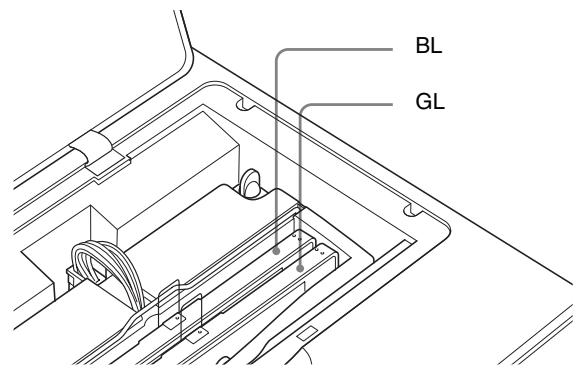
| Location | Ink cartridge |
| BL | Black, EPI-L100BL Sony Ink Cartridge |
| GL | Gray, EPI-L100GL Sony Ink Cartridge |
5
Close the head cover.
Notes
- If the head cartridge and/or ink cartridge are not loaded correctly, you cannot close the head cover. If you cannot close the head cover, check that the cartridges are loaded correctly.
- Insert the ink cartridges that flush against the top of the head cartridge without allowing them to move about. If they are not inserted securely, the unit may not print correctly because the ink cartridges are crooked. Also, even if the remaining ink is sufficient, the message “Ink depleted” may appear. Before replacing the ink cartridge, check the remaining amount of ink. If there is enough left, insert the same ink cartridge again without replacing it.
6
Push the READY button.
The READY indicator lights in green, and the message “READY” appears on the printer window display. Now the printer is ready to print.
Note
Used ink cartridges and head cartridges are a mixture of plastic, metal, and ink. Put them in a plastic bag and throw them away as incombustible waste.
Replacing the Head Cleaning Roller
This section explains how to replace the head cleaning roller.
Use an EPA-5CR head cleaning roller (not supplied).
Notes
- When replacing the cleaning roller, keep the power of the printer on. Before replacement, be sure to remove the auto sheet feeder tray.
- When replacing the cleaning roller, be careful of ink stain around the head cleaning roller and the head cleaning unit. The ink may stain your hands and clothes.
- We recommend that you put on gloves when replacing the cleaning roller.
- Do not press buttons on the printer during replacement.
1 Remove the auto sheet feeder tray.
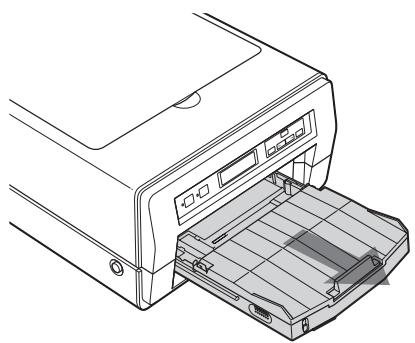
natural_image
Line drawing of a printer with an open drawer showing internal components (no text or symbols)2 Push the MENU button. The READY indicator goes out and the message “Ink level/Black (BL)” appears on the printer window display.
3 Push the MENU button or the ◀◀/▶▶ button and hold it until the message “Replace roller.” appears on the printer window display.
Replace roller.
4 Push the SET button. The message “Replace?/Yes_” appears on the printer window display.
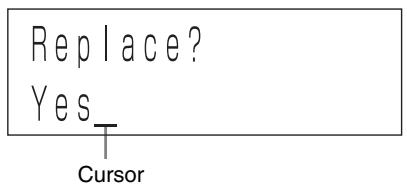
If the message “Replace?/No_” appears Display “Yes_” by pressing the ◀◀/▶▶ button, and then push the SET button.
5 Push the SET button.
The message changes from “Warming up” to “Ready to replace”, and then, after several seconds, the message “End?/Yes” appears.
Note
While the cleaning roller is being replaced, the message “Ready to replace.” or “End?/Yes.” appears.
At this time, do not open the main cover. If you open the main cover, this may cause the printer to malfunction.
6 Remove the used head cleaning roller in use as follows.
① Put on the glove supplied with the head cleaning roller.
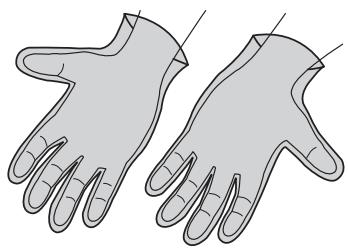
natural_image
Illustration of two human gloves with visible skin texture and fingers (no text or symbols)② Slide the two tabs in the direction of the arrows (A).
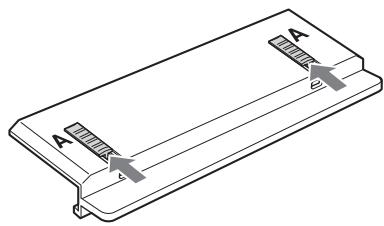
natural_image
Isometric line drawing of a rectangular plate with two labeled points A and B, showing internal structure (no text or symbols beyond labels)③ Insert the unit ejector Ⓐ horizontally in the direction of the arrow until it clicks.
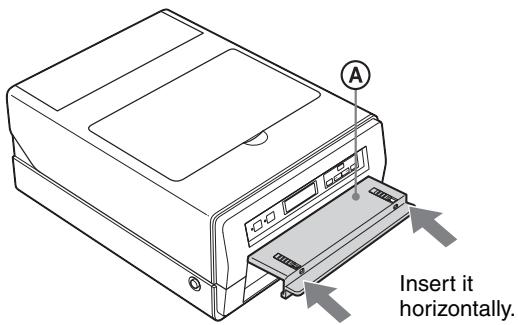
④ Pull the unit ejector toward you to remove the head cleaning unit Ⓑ.
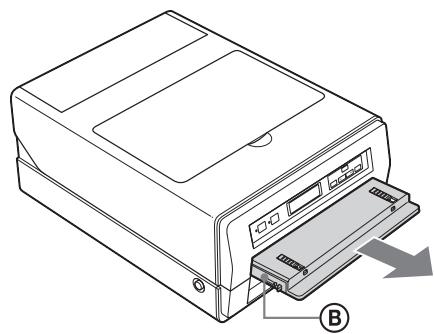
natural_image
Line drawing of a printer with a paper feed into the case, showing internal components and a labeled arrow (B) pointing to it.Note
Do not leave the printer without the head cleaning unit for a long period of time. When the head cleaning unit is removed, do not open the main cover of the printer or insert your hand into the inside of the printer.
7 Remove the head cleaning roller from the head cleaning unit, and then attach the new head cleaning roller.
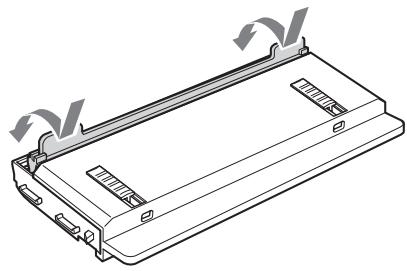
① Press the roller ejector © into the metal parts at both ends of the roller straight down until it clicks.
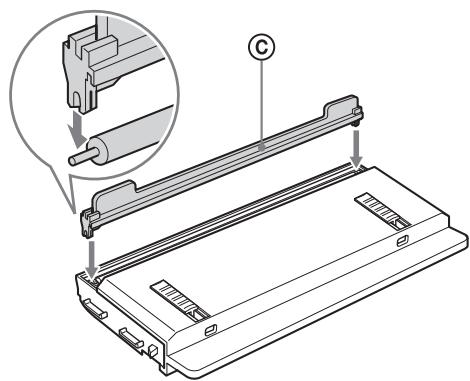
Notes
- The cleaning roller may come off, if it is not caught securely. Be sure to press the roller ejector until it clicks.
- To prevent the cleaning roller from being deformed or stained, do not touch the white part of the cleaning roller.
② Rotate the roller ejector in the direction of the arrows, and unlock the cleaning roller.
natural_image
Technical line drawing of a rectangular electronic device with mounting brackets and ventilation slots (no text or symbols)Note
Hold the parts of the roller ejector indicated with the arrows.
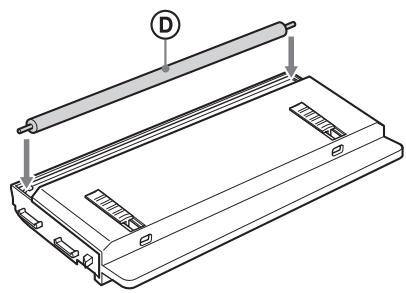
③ Insert the new head cleaning roller Ⓓ until it clicks at both ends.
natural_image
Technical line drawing of a mechanical device with labeled components (no text or symbols)Note
The cleaning roller may come off it is not fully inserted.
8 Replace the head cleaning unit in the printer.
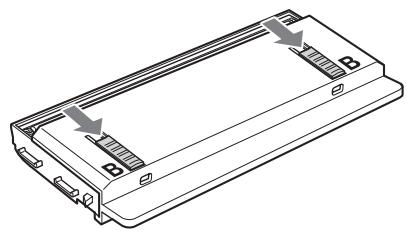
① Slide the two tabs in the direction of the arrow (B).
natural_image
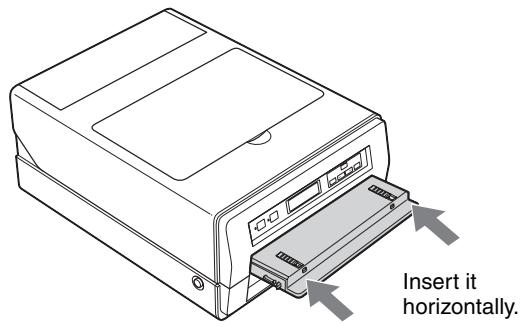
Technical line drawing of a rectangular electronic device with labeled ports and connectors (no text or symbols)② Insert the head cleaning unit with the unit ejector attached into the printer horizontally as far as it will go until it clicks.
After it is inserted, push it in at two points so that it can not move around inside the unit.
Note
If it is not inserted completely, the unit cannot clean the head properly.
③ Pull the two claws at the bottom of the unit ejector downward, and remove the unit ejector horizontally.
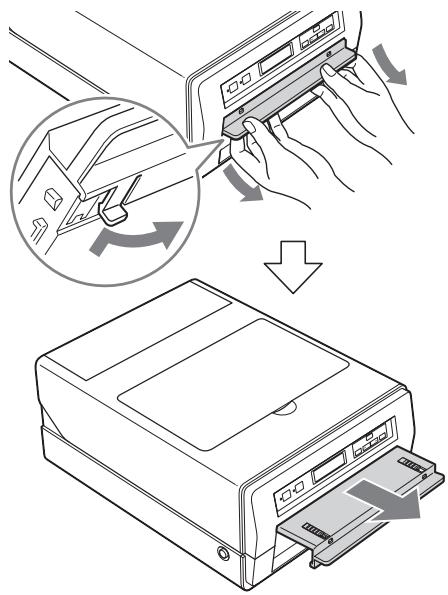
9 After confirming that the message "End?/Yes_" has appeared, push the SET button.
The printer starts cleaning and the message “Now cleaning head.” is displayed.
Now cleaning head.
When the printer finishes cleaning, the message returns to “Replace roller.”
10 Push the READY button.
The READY indicator lights in green and the message “READY” appears on the printer window display.
The head cleaning roller replacement is completed.
11 Attach the auto sheet feeder tray as it was.
Notes
- Do not reuse the head cleaning roller once it is removed from the printer, as foreign material on the head cleaning roller may cause clogging of the printer head.
- Dispose of the used head cleaning roller with the roller ejector attached, and throw away the unit ejector and the gloves, too.
- The head cleaning roller is a mixture of plastic, metal and ink. Dispose of it as incombustible waste, observing local rules and regulations.
Precautions
Safety
- Operate the printer using the power source specified in “Specifications” on page 59.
- Be careful not to damage the AC power cord by placing or dropping heavy objects on it; it is dangerous to use the printer with a damaged AC power cord.
- If you do not intend to use the printer for a long time, disconnect the AC power cord.
- Unplug the AC power cord by grasping the plug, not the cable itself.
- Do not disassemble the printer.
- Do not remove the cover. There is a danger of electric shock from the internal parts.
- Be careful not to spill water or other liquids on the printer, or to allow combustible or metallic material to enter the cabinet. If used with foreign matter in the cabinet, the printer is liable to fail, or present a risk of fire or electric shock.
- Ventilation holes are provided to prevent the printer from overheating. Be careful not to obstruct them with other printers or by covering the printer with a cloth, etc.
- If the printer malfunctions or if a foreign body falls into the cabinet, disconnect the AC power cord immediately and consult your dealer.
Handling the Printer
When handling the printer for assembly and so on, pay attention to the following:
- The printer is heavy. When lifting the printer, be careful not to hurt your back.
- When lifting the printer, put your hands under the bottom of the printer from both sides and pick it up horizontally.
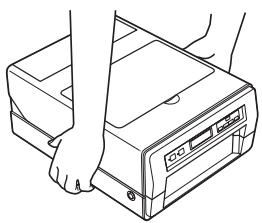
natural_image
Line drawing of hands operating a printer with a door and control panel (no text or symbols)- Be sure not to lift the printer by paper outlet or head cover. If you do so, these parts may break, or the printer may fall and this may cause injury.
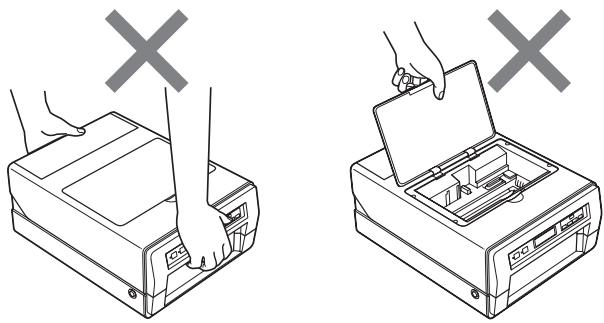
natural_image
Illustration of two hands inserting a printer into a device, with no text or symbols present.- When putting the printer down, put the back feet of the printer first, and then put the front feet down slowly.
Installation
The printer is a precision instrument which contains liquid ink.
- Place the printer in a location which meets the following conditions:
- 10^ to 35^ (50°F to 95°F) temperature and 20 to 80% humidity
- horizontal (within ± 2.0^ ) and stable
- If you place the printer on a slanted surface, the printer may not print correctly because the ink will spray out at an angle.
- To protect the printer from damage, place it:
– Away from slippery surfaces
– Away from mechanical vibration
– Away from excessive dust
– Away from extremely hot or cold wind
– Away from direct or excessive sunlight
– Away from water or other liquids. - Do not cover the printer with a cloth, etc. and place it in a location with good ventilation.
- Place the printer so that the four feet of the printer are on a flat surface. If you place the printer at a slant, the paper may not feed correctly.
- Place the printer keeping spaces towards the back, front, left, and right, and a space over the top as shown in the following diagram.
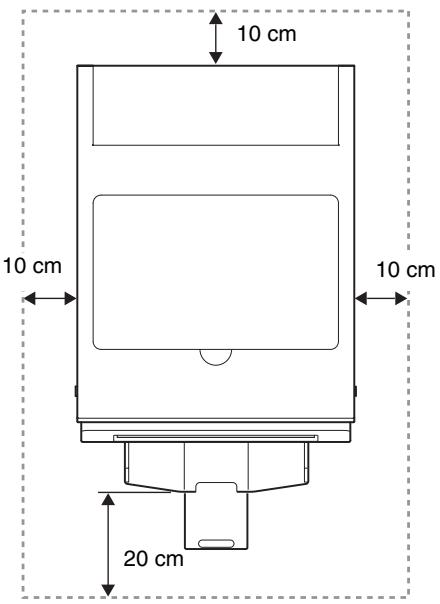
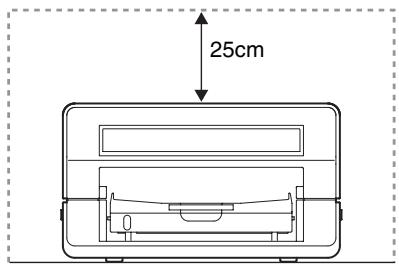
- Ventilation holes are provided on the back of the printer. Keep the back of the printer 10cm or more away from the wall.
- Keep the front of the printer clear for 20cm or more for loading or ejecting paper.
- Keep the top of the printer clear for 25cm or more for loading ink cartridges or removing jammed paper.
Attention-when the product is installed in Rack:
1. Prevention against overloading of branch circuit
When this product is installed in a rack and is supplied power from an outlet on the rack, please make sure that the rack does not overload the supply circuit.
2. Providing protective earth
When this product is installed in a rack and is supplied power from an outlet on the rack, please confirm that the outlet is provided with a suitable protective earth connection.
3. Internal air ambient temperature of the rack
When this product is installed in a rack, please make sure that the internal air ambient temperature of the rack is within the specified limit of this product.
4. Prevention against achieving hazardous condition due to uneven mechanical loading
When this product is installed in a rack, please make sure that the rack does not achieve hazardous condition due to uneven mechanical loading.
5. Install the equipment while taking the operating temperature of the equipment into consideration For the operating temperature of the equipment, refer to the specifications on page 59.
6. When performing the installation, keep the rear of the unit 10 cm (4 inches) or more away from walls in order to obtain proper exhaust and radiation of heat.
Before Moving the Printer
- Remove the AC power cord from the printer.
- Move the printer with the ink cartridge loaded.
- Hold the printer horizontally and be careful not to give vibrations to the printer. Doing so causes leakage of the ink.
Before Transporting the Printer
- Remove the ink cartridge.
- Insert the yellow rubber cap and the dummy pack removed from the ink feeding inlets when setting up the printer. Insert the dummy pack into the center ink feeding inlets so that the side onto which the labels attached faces to the left.
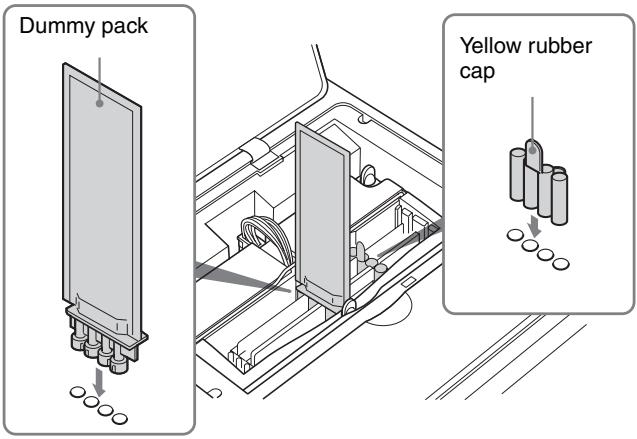
- Retain the head cartridge inside the printer without removing.
- Pack the printer using the original carton and packing materials supplied with the printer when you purchased the printer.
Before Asking Repairment
- Remove the ink cartridge from the printer.
- Insert the yellow rubber cap and the dummy pack removed from the ink feeding inlets when setting up the printer. Attach the dummy pack into the center ink feeding inlets so that the side onto which the labels attached comes to the left side.
- Retain the head cartridge inside the printer without removing.
When Not Using the Printer for Long Periods
- Remove the AC power cord from the printer.
- Keep the printer with the ink cartridge loaded. If you remove the ink cartridge, the ink inside the ink cartridge may dry up. This may cause the print head to clog. If you retain the ink cartridge removed from the printer, cover the ink feeding inlets with the yellow rubber caps and the dummy pack removed when setting up the printer after unpacking.
- Avoid placing the printer in a location subject to:
– excessive dust. Since many precise nozzles are located on the head, excessive dust may cause to choke the head. - extremely high or low temperatures. This may cause these nozzles to clog up.
- mechanical vibration
- Do not put the printer on a slanted surface. If you place the printer on a slanted surface, this may cause leakage of the ink.
- If you do not intend to use the printer for a long period, it is recommended to put a cover over the printer.
Troubleshooting
The following troubleshooting checks will help you correct the most common problems you may encounter with your printer. Before proceeding with these trouble checks, first check that the power cord is firmly connected. Should the problem persist after you have applied the remedy suggested below, unplug the printer and contact your dealer.
| Symptoms | Possible causes and remedies |
| The printer is not turned on. (The ON/STANDBY indicator does not light in green.) | The main power switch located on the back of the printer is not set to ON. Set the main power switch to ON. (page 9)The power cord connection may not be correct. Check the connections and rectify, if necessary. (Refer to “Turning the Printer On” described in the printed Setup Manual.) Check whether power is supplied to the wall outlet. |
| The printer does not ready itself to print. (ON/STANDBY indicator blinks or is lit in orange. | An error message is displayed on the status monitor or printer window display. Take remedies according to the message. (page 54) |
| The ON/STANDBY indicator is lit in green and the READY button is lit in orange. | Proceed as follows to correct:1 Push and hold the ON/STANDBY button for three seconds.2 After the ON/STANDBY indicator turns to orange, push the ON/STANDBY button again.If the ON/STANDBY and READY indicators do not light in green, disconnect the AC power cord and try to perform the above operations again. If the printer does not start even after you take the above remedies, the printer is malfunctioning. Contact your dealer. |
| Printing does not start. | An error message is displayed on the status monitor. Take remedies according to the message. (page 54)The main power switch is set to off. Set the main power switch to on. (page 9)Neither the ON/STANDBY indicator nor the READY indicators are lit in green. Turn both the ON/STANDBY indicator and the READY indicator to green. (page 10) |
| Paper in the auto sheet feeder tray is not fed. | The printer is not in print mode.→Check the status of the ON/STANDBY and READY indicators, and turn both the ON/STANDBY indicator and the READY indicator to green.(page 10)Paper is not loaded.→Load paper. (page 12)The paper guides (vertically and horizontally) are not correctly set.→Set them correctly. (page 12)Too much paper is loaded.→Do not exceed the number of sheets which the automatic paper feed tray can hold. (page 11)Warped paper is being used.→Try to make the warped paper lie flat and load it again. (page 12)Folded or wrinkled paper is being used.→Do not use folded or wrinkled paper. (page 12)Paper is stacked improperly.→Riffle the paper and load it again.The printer is not placed on a flat surface.→Place the printer on a flat surface.(page 50)An error message is displayed on the printer window display.→Take remedies according to the message. (page 54) |
| The last sheet of paper cannot be fed. | It is often difficult to feed paper from the automatic paper feed tray, or sometimes it may be fed at an angle, depending on the circumstances.→Add one sheet of the same type of paper to the automatic paper feed tray and try to print again. (page 13) |
| The surface of printouts is dirty, especially the beginning of the printed surface. | The life span of the head cleaning roller may have run out.→Try head cleaning two or three times and print a test page. If the printed surface is still dirty, replace the head cleaning roller. (page 46) |
| Symptoms | Possible causes and remedies |
| The printed surface is dirty. | The paper path system may be dirty.→Open the top cover and wipe the plastic surface gently with a cotton swab to remove the dust.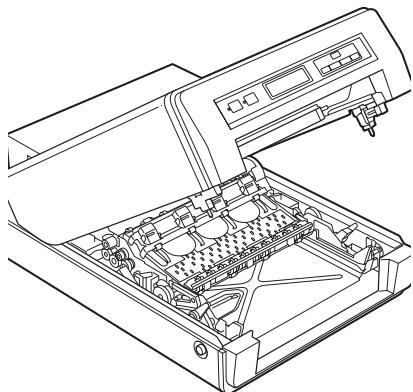 -NoteDo not use alcohol.The life span of the head cleaning roller may have run out.→Try head cleaning two or three times and print a test page. If the printed surface is still dirty, replace the head cleaning roller. (page 46)The ink of the printout just ejected is smeared on the ejected paper.→The next printout is ejected before the previous printout is dry and its printed surface may be dirty. In such a case remove the ejected printout one by one from the auto sheet feeder tray. -NoteDo not use alcohol.The life span of the head cleaning roller may have run out.→Try head cleaning two or three times and print a test page. If the printed surface is still dirty, replace the head cleaning roller. (page 46)The ink of the printout just ejected is smeared on the ejected paper.→The next printout is ejected before the previous printout is dry and its printed surface may be dirty. In such a case remove the ejected printout one by one from the auto sheet feeder tray. |
| The printout is smeared or smudged. | Unsuitable paper is being used.→Use suitable paper. If you use paper except other than that recommended, this may cause the ink to spray unevenly or run. (page 11)The amount of ink is excessive for the paper in use.→The paper loaded in the auto sheet feeder tray is different from the media type specified in the Printing Preferences dialog box. Specify the correct media type. It is recommended to use the paper manufactured by Sony Corporation. (page 17) |
| The printout is blurry, or white stripes or scorches appear. Or there is a part which is not printed. | The print head is dirty.→Try head cleaning two or three times and print a test page. (pages 40 and 42) If the printed surface is still dirty, consult your dealer. |
| Back to front printing cannot be done. | The setting of the printer and the print settings of the application software interfere with each other.→Deactivate “Back to Front” item on the Printing Preferences dialog box of the printer or the print setup dialog box of the software application. |
| Printing multiple pages per sheet cannot be done. | The setting on the layout tab and the print settings of the application software interfere each other.→Deactivate “Printing multiple pages per sheet” item on the Printing Preferences dialog box of the printer or the print setup dialog box of the software application. |
Error Messages
On the printer window display, warning messages recommending the replacement of consumable parts or warnings stating the causes of errors, or error messages are displayed.
Error messages are also displayed on the status monitor. Take steps to remedy troubles or prepare the replacement of used or worn out products.
Warning Display
The printer monitors the life span of consumable parts and warning messages that state the time for replacement is coming is displayed.
When such warning messages appear, prepare the replacement parts. However, you can continue printing.
| Warning message | Possible causes/remedies |
| READY/Ink low xx^a) | The amount of ink left is less than 10%.→Prepare a new ink cartridge. (page 43) |
| READY/Roller full | The head cleaning roller is almost used up.→Replace the head cleaning roller. (If you do not replace it, the top part of the paper becomes dirty when printed. (page 46) |
| READY/Drain sheet full | The head cleaning unit is almost used up.→Replace the head cleaning unit. (If you do not replace it, the top part of the paper becomes dirty or color mixture may occur when printed.) For detailed information on the optional head cleaning unit, contact your dealer. |
| READY/Absorber full | The waste ink absorber is full.→Contact your dealer. (If you continue to use the printer without replacing the waste ink absorber, printouts may be dirty.) |
a) xx means the last alphabetic characters of the message. These indicates the color and location of the ink. For detailed information, see “Replacing the Ink Cartridges” on page 43.
Error Messages
If a problem occurs, an error message is displayed on the printer window display and on the status monitor.
Take remedies according to the message.
Error messages are displayed as follows.
Printer window display
Out of paper
Status Monitor
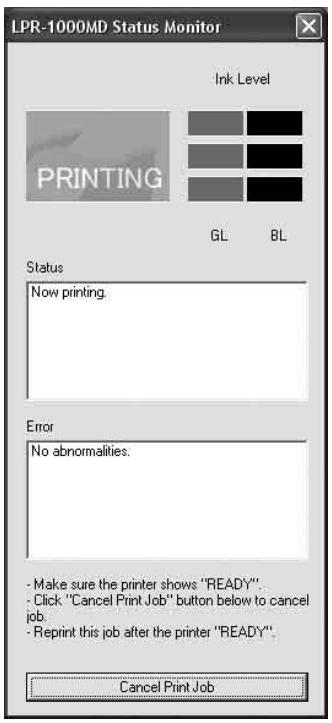
In the following table, the upper error messages are displayed on the printer window display and the lower error messages are displayed on the status monitor.
After removing the causes of errors
Push the READY button so that the printer is reset to print mode (both ON/STANDBY and READY indicators light in green).
Errors related to paper
| Error message | Causes/remedies |
| Out of paper(Auto sheet feeder try is empty.) | Paper is not loaded in the auto sheer feeder tray.→Load paper in the auto sheet feeder tray. (page 12)The auto sheet feeder tray is not set correctly.→Check that the auto sheet feeder tray is completely inserted. (Refer to “Attaching the Auto Sheet Feeder Tray” described in the printed Setup Manual.) |
| Wrong paper size(Paper size does not match up with paper size setting.) | The printer has been designed to use size A4 paper. Do not use paper other than size A4 paper. |
| Paper feed error(A Paper Feed error has occurred.) | The printer is not in print mode.→Make the ON/STANDBY and READY indicators light in green. (page 10)The Auto sheet feeder tray is empty.→Load the paper. (page 12)Paper other than size A4 paper is loaded.→Be sure to use size A4 paper.The paper guides (vertically and horizontally) are not correctly set.→Set them correctly. (page 12)Too much paper is loaded.→Do not exceed the number of sheets which the automatic paper feed tray can hold. (page 11)Warped paper is being used.→Try to make the warped paper lie flat and load it again. (page 12)Folded or wrinkled paper is being used.→Do not use folded or wrinkled paper. (page 12)Paper is stuck.→Riffle the paper and load it again. (page 12)The printer is not placed on a flat surface.→Place the printer on a flat surface. |
| Paper jam(Paper jam) | The paper is jammed.→Remove the jammed paper. (page 56) |
Errors related to ink
| Error messages | Causes/remedies |
| Ink depleted xx^a) (xx ink has run out.)(xx ink cartridge is not attached.) | The amount of ink is low.→Replace the ink cartridge.(page 43)The ink cartridge is not set correctly.→Check and set the ink cartridge, if necessary. (page 43)The head cartridge is not set correctly.→Check and set the head cartridge, if necessary. (Refer to “Attaching the Head Cartridge” described in the printed Setup Manual.) |
a) xx means the last alphabetic characters of the message. These indicates the color and location of the ink. For detailed information, see “Replacing the Ink Cartridges” on page 43.
Error related printer status
| Error messages | Causes/remedies |
| Cooling down | The temperature of the head or of the inside of the printer rises.→This is not a malfunction. Wait for a while. If the room temperature is high, the printer may run hot. Be careful about the room temperature. |
| Head cartridge/is not attached(The print head cartridge is not attached.) | The head cartridge is not attached correctly.→Confirm whether the head cartridge is attached correctly.(Refer to “Attaching the Head Cartridge” described in the printed Setup Manual.) |
| Head cover/is open(The print head cover is open.) | The head cover is open.→Close the cover firmly.The head cartridge lock screws are not tightened securely.→Check them and tighten them securely. (Refer to “Attaching the Head Cartridge” described in the printed Setup Manual.)The harness of the head cartridge cable is not pushed in to the groove securely.→Push the harness of the head cartridge cable into the groove securely. (Refer to “Attaching the Head Cartridge” described in the printed Setup Manual.) |
| Main cover/is open(The main cover is open.) | The main cover is not closed.→Close the main cover until both left and right eject buttons click and lock. |
| Error messages | Causes/remedies |
| Cleaning unit/is not attached. | The head cleaning unit is not attached. Attach the head cleaning cartridge.(Refer to “Attaching the Head Cartridge” described in the printed Setup Manual.) |
| Cleaning unit/is not closed. | The head cleaning unit is not inserted securely. Open the main cover by pushing both left and right eject buttons and push the head cleaning unit until it is seated properly. (Refer to “Attaching the Head Cleaning Unit” described in the printed Setup Manual.) |
| A print data error/has occurred.(Print data error.) | Print data error occurs.Remove the print data error. Cancel the print job when the print data is left in the spooler.(page 23) Push the READY button. If the printer does not recover even when you push the READY button, push and hold the ON/STANDBY button for about three seconds so that the printer is in standby mode. Then push the ON/STANDBY button again so that the printer is set to on. If the printer does not recover even after you push the ON/STANDBY button, set the main power switch located on the back of the printer to the off side, and then turn the printer on again. |
| Malfunction/xxx | The printer is in need of repairment.Consult your dealer. xxx indicates the error code. If you write the code on the status column of “Customer Confirmation Sheet,” the service personal understand the nature of the problem. |
If the Paper Jams
When the paper jams, the error message “Paper jam” appears on the printer window display. Remove the jammed paper following the steps below.
Note
When you put your hands inside of the printer, be careful not to hurt yourself by touching hot or sharp parts.
Ejecting the jammed paper automatically
Push the READY button on the printer. The jammed paper is ejected automatically. When the jammed paper is not ejected and the message “Paper jam” does not disappear on the printer window display even though you push the READY button, proceed as follows to remove the jammed paper.
When the paper fed from the auto sheet feeder tray stops halfway
1 Remove the auto sheet feeder tray, and check whether or not the paper has jammed near the back.
2 If the jammed paper can be easily removed, pull the jammed paper out slowly.
If you cannot remove the jammed paper from the outside, remove it according to instructions in step, and after, in “When the paper is jammed inside the printer.”
When the paper is jammed inside the printer
1 If you can remove the jammed paper from the feeding input or output slot, pull the jammed paper straight out slowly.
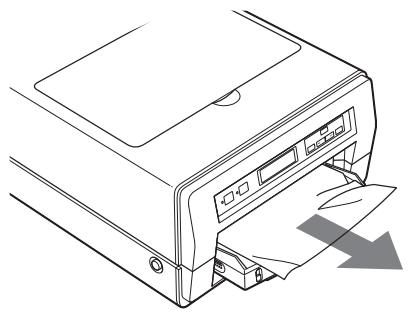
natural_image
Line drawing of a printer with paper being inserted, showing paper sheet and printer slot (no text or symbols)If you cannot remove the jammed paper from the outside, go to the next step.
2 Set the printer to standby mode by pushing the ON/STANDBY button and turn the power of the printer off by setting the main power switch to the off side.
3 Remove the auto sheet feeder tray.
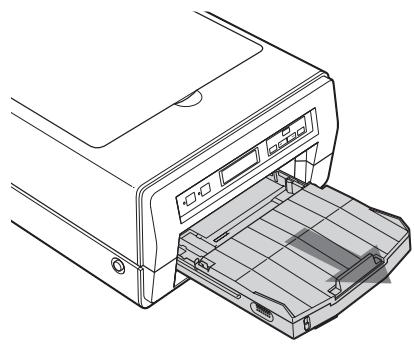
natural_image
Line drawing of a printer with an open drawer showing internal components (no text or symbols)4 Push both the right and left eject buttons to open the main cover.
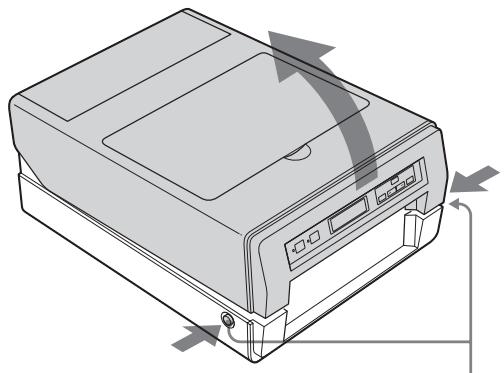
natural_image
Illustration of a printer with directional arrows indicating orientation (no text or symbols)Eject buttons
5 If the head cleaning unit is open, push the head cleaning unit without touching the print head to close it.

6 Pull the section with belts located inside the printer up slowly and remove the paper jammed between the openings.
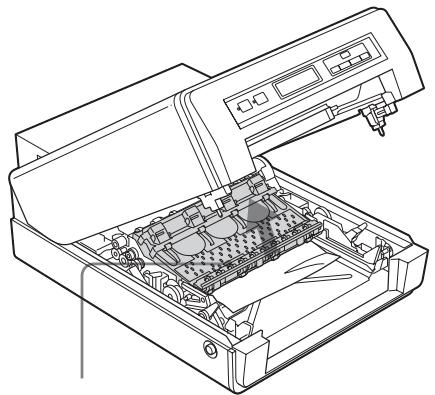
natural_image
Line drawing of an open printer with internal components and a control panel (no text or symbols)Pull this section up slowly.
If you can remove the jammed paper, go to step 8. When the edge of the jammed paper can not be seen, go to step 7.
7 Roll the green roller back and forth so that the jammed paper comes out. Then remove it slowly.
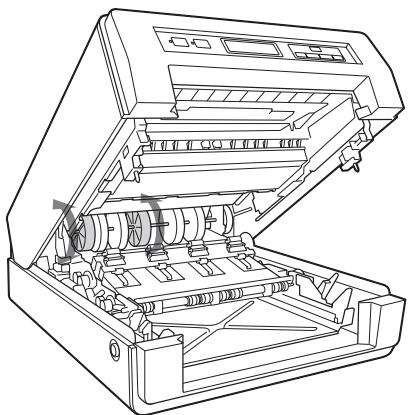
natural_image
Line drawing of an open industrial machine with internal components (no text or symbols)Note
Be careful not to touch any parts except the green roller.
8 Reset the section with the belts as it was, after you have removed the jammed paper, and then close the main cover.
Note
When resetting the section with belts, be sure to put the shaft located at the front of the section into the center groove. If you put the shaft into the wrong groove, the printer may break.
9 Re-insert the auto sheet feeder tray.
10 Pull out the output support completely. If it is pulled out halfway, the paper may jam again.
Before Consulting Your Dealer
Should the problem persist after you have applied the remedies suggested in Troubleshooting, consult your dealer on following points.
Is the printer malfunctioning?
The printer does not work or serious errors occur even if you try to apply the suggested remedies, the printer seems to be broken.

Consult your dealer.
Is a computer malfunctioning?
If the printer works correctly and the printer driver is installed correctly, the printer cable or computer system (OS, memory, hard disk, interface, etc.) seems to be the source of the trouble.

Consult the dealer from whom you purchased the computer or the computer manufacturer.
Is the application software malfunctioning?
If trouble occurs with special application software, this may be a problem peculiar to that application software.

Consult the dealer or the manufacturer of the application software.
The problem may be solved if you upgrade the printer driver to the latest version.

For detailed information on how to upgrade the printer driver, see the home page of the Sony ink jet printer.
Specifications
Printer
Printing system Line shot method
Printing speed Standard: Approx. 5ppm
Printing width Maximum 210mm
Receiving buffer
56MB
Interface Hi-Speed USB (USB2.0)
Interface connector
Printer side: USB regulation series B receptacle
Cable side: USB regulation series B plug
Ordinary noise level
Approx. 38dB or less (when the printer is in standard mode)
Operating temperature
10^ to 35^ (50°F to 95°F)
Operating humidity
20% to 80% (no condensation allowed)
Storage and transport temperature
-10^ to 45^ (14°F to 113°F)
Storage and transport humidity
20% to 80% (no condensation allowed)
Temporary storage temperature in the user environment
0^ to 35^ (32°F to 95°F)
Temporary storage humidity in the user environment
20% to 80% (no condensation allowed)
Power requirements
100 to 240 V AC, 50/60 Hz
Input Current 4.0 to 1.6 A max. at 25°C
Power consumption
At standby: Approx. 16W or less
When printing: Approx. 70W
Dimensions With the auto sheet feeder tray
Approx. 350 × 202 × 519 mm (w/h/d)
(13 7/8 × 8 × 20 1/2 inches)
When printing
Approx. 350 × 202 × 643 mm (w/h/d)
(13 7/8 × 8 × 25 3/8 inches)
Mass Approx. 15.5 kg (34 lb 3 oz)
Sheet feeding system
Auto sheet feeding
Paper size A4
Print head Black:
Number of nozzles: 5120 × 1
Gray:
Number of nozzles: 5120 × 1
Supplied accessories
Plug holder (1)
Head cartridge (packed inside the silver package) (1)
Auto sheet feeder tray (1)
Ink cartridges (black and gray) (2)
Head cleaning unit (1)
USB cable (1)
High Quality Paper (1)
Setup Manual (1)
CD-ROM (including multi-lingual operating instructions and setup manuals, and printer drivers) (1)
Optional accessories
| Ink cartridge | Black: EPI-L100BL Sony ink cartridgeGray: EPI-L100GL Sony ink cartridge |
| Paper | EPP-300A4MD Sony High Quality Paper |
| Head cleaning roller | EPA-5CR |
Medical Specifications
| Protection against electric shock:Class I |
| Protection against harmful ingress of water:Ordinary |
| Degree of safety in the presence of flammable anesthetics or oxygen:Not suitable for use in the presence of flammable anesthetics or oxygen |
| Mode of operation:Continuous |
Environmental performance
| Resource efficiency |
| Mass: Approx. 15.5kg (34 lb 3 oz) |
| Dimensions: |
| With the auto sheet feeder tray |
| Approx. 350 × 202 × 519 mm (w/h/d) |
| (13 7/8 × 8 × 20 1/2 inches) |
| When printing |
| Approx. 350 × 202 × 643 mm (w/h/d) |
| (13 7/8 × 8 × 25 3/8 inches) |
| Environment consideration |
| Harmful materials parts |
| All parts composing of the printer: |
| Special bromine flame retarder (PBB, PBDE) are not used. |
| Exterior plastic: |
| Heavy metals (Pb, Hg, Cr (VI), Cd) and halogen flame retarder are not used. |
| Ordinary noise level |
| 38dB (when the printer is in standard mode) |
Packing material
Heavy metals (Pb, Hg, Cr (VI), Cd) are not used. (Carton)
Applied regulation
International Energy Star program
Design and specifications are subject to change without notice.

As an ENERGY STAR Partner, Sony Corporation has determined that this is product meets the ENERGY STAR guidelines for energy efficiency.
Outline of the International ENERGY STAR Office Equipment Program
The International ENERGY STAR Office Equipment Program promotes energy saving through the use of computers and other office equipment. The program backs the development and dissemination of products with functions that effectively reduce energy consumption. It is an open system in which business proprietors can participate voluntarily. The targeted products are office equipment such as computers, displays, printers facsimiles, and copiers. Their standards and logos are uniform among participating nations/regions.
Requirements for the Printer Driver
Computer
A computer on which Microsoft Windows XP Home Edition/Professional (English version) or Microsoft Windows 2000 Professional (English version) runs. Also, a computer equipped with a USB interface.
Basic software
Microsoft Windows XP (English version) Microsoft Windows 2000 (English version)
Hard disk space required
Disk space required when installing the printer driver (including the memory to be used temporarily): 25Mbytes
To connect a USB cable to a Windows computer
It is necessary to use a computer which satisfies the following conditions and a USB port that is guaranteed by the computer maker.
- A computer on which either Windows XP or Windows 2000 is preinstalled
- Use the peripheral equipment which has obtained USB 2.0 certification. If you use peripheral equipment which is not certified, this may cause trouble. Also,
there are cases where the performance of the printer cannot be guaranteed.
- Use a cable of less than 3m in length.
To connect the printer to Windows via a Hi-Speed USB
Use the Microsoft Windows XP/2000 USB2.0 driver.
Note
Do not use the extension USB 2.0 board such as PCI, PCMCIA and so on since the operation may become unstable.
This printer is applied to Hi-Speed USB.

When the printer is connected to the computer which corresponds to Hi-Speed USB, the data can be loaded at high speed (maximum 480Mbsp ^a ).
If the printer is connected to the computer which does not correspond to Hi-Speed USB, the down loading speed is based the specifications of the computer.
a) 480Mbps is the maximum value on the theory of the Hi-Speed transfer of USB2.0 regulation. The actual transfer speed depends on the devices, conditions and so on.
Menu Flow of the Printer Window Display
The messages of the printer window display changes as follows whenever you push the MENU button and you can perform settings.
How to read the flow chart
- The arrow in the flow chart indicates that you push the button.
- MENU, SET, BACK and ◀◀, ▶▶ indicate the buttons on the operation panel of the printer.
- “_” indicates the blinking of the cursor, and this is the status where the printer is waiting to push the SET or BACK button.
- : Indicates the status that the printer is processing in some operation.
Main flow
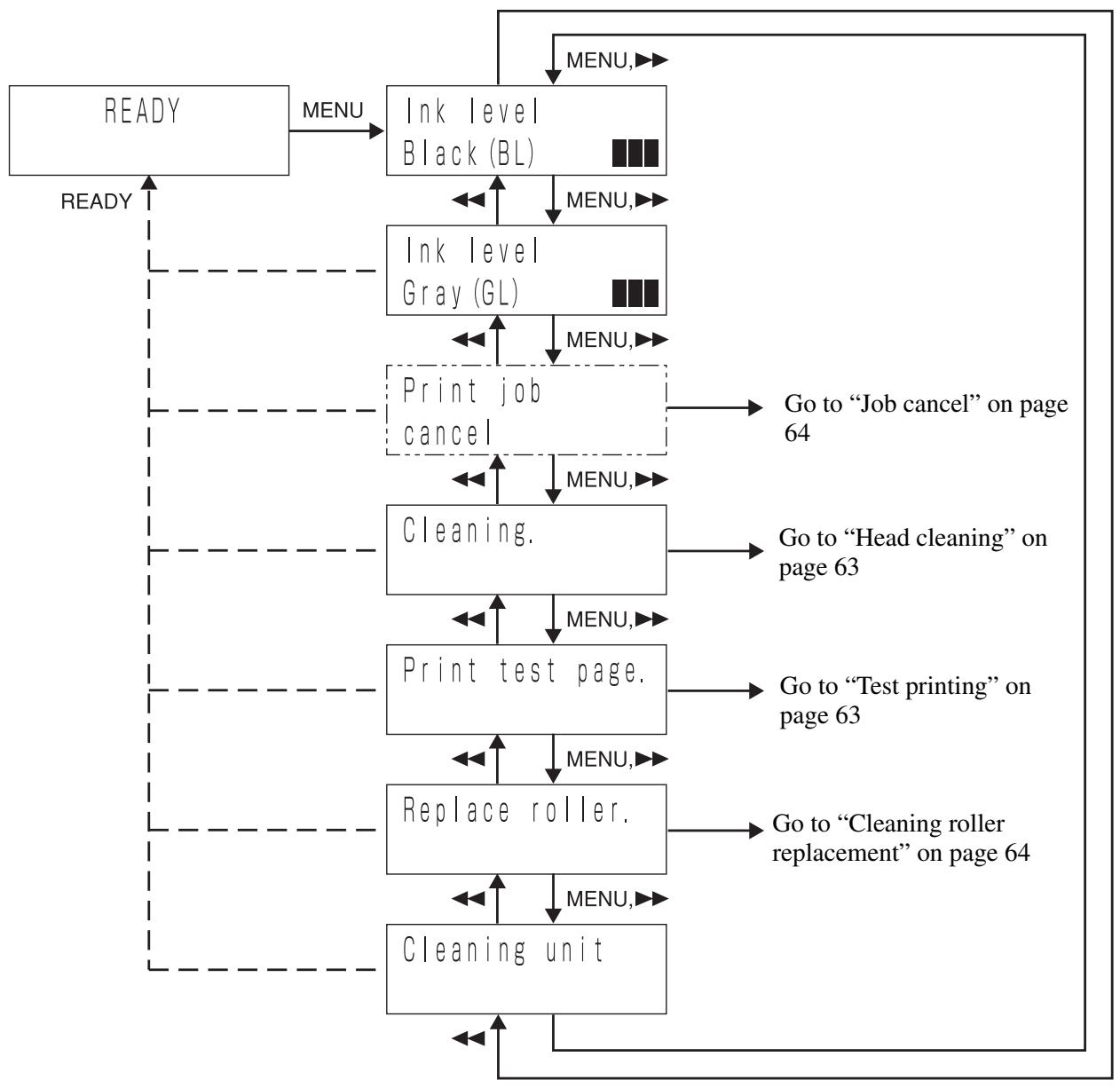
flowchart
graph TD
    A["READY"] -->|MENU| B["Ink level Black (BL)"]
    B -->|MENU,▶| C["Ink level Gray (GL)"]
    C -->|MENU,▶| D["Print job cancel"]
    D -->|MENU,▶| E["Cleaning."]
    E -->|MENU,▶| F["Print test page."]
    F -->|MENU,▶| G["Replace roller."]
    G -->|MENU,▶| H["Cleaning unit"]
    H -->|MENU,▶| I["Go to “Job cancel” on page 64"]
    I --> J["Go to “Head cleaning” on page 63"]
    J --> K["Go to “Test printing” on page 63"]
    K --> L["Go to “Cleaning roller replacement” on page 64"]
    L --> M["Menu,▶"]
    M --> N["Menu,▶"]
    N --> B
    style A fill:#f9f,stroke:#333
    style B fill:#ccf,stroke:#333
    style C fill:#ccf,stroke:#333
    style D fill:#cfc,stroke:#333
    style E fill:#cfc,stroke:#333
    style F fill:#cfc,stroke:#333
    style G fill:#cfc,stroke:#333
    style H fill:#cfc,stroke:#333
    style I fill:#fcc,stroke:#333
    style J fill:#fcc,stroke:#333
    style K fill:#fcc,stroke:#333
    style L fill:#fcc,stroke:#333
    style M fill:#fcc,stroke:#333
Head cleaning
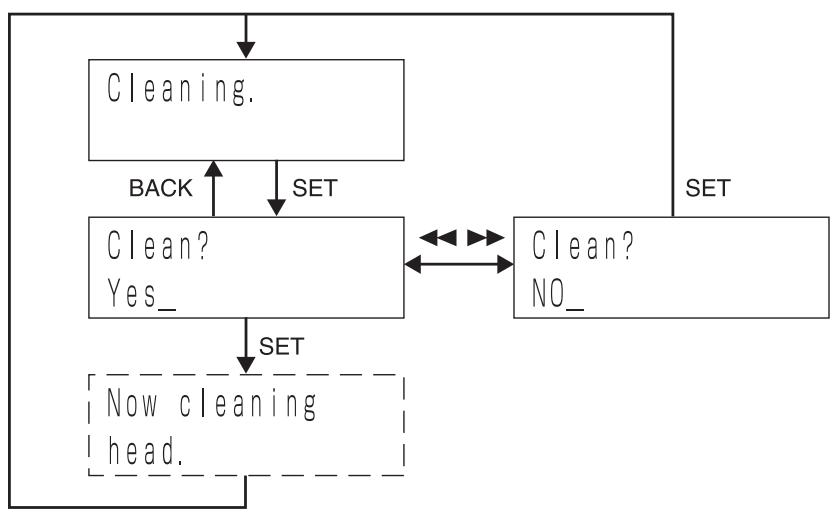
flowchart
graph TD
    A["Cleaning."] -->|SET| B["Clean? Yes_"]
    B -->|SET| C["Now cleaning head."]
    C --> D["SET"]
    D --> E["Clean? NO_"]
    E -->|BACK| B
    E --> F["SET"]
Test printing
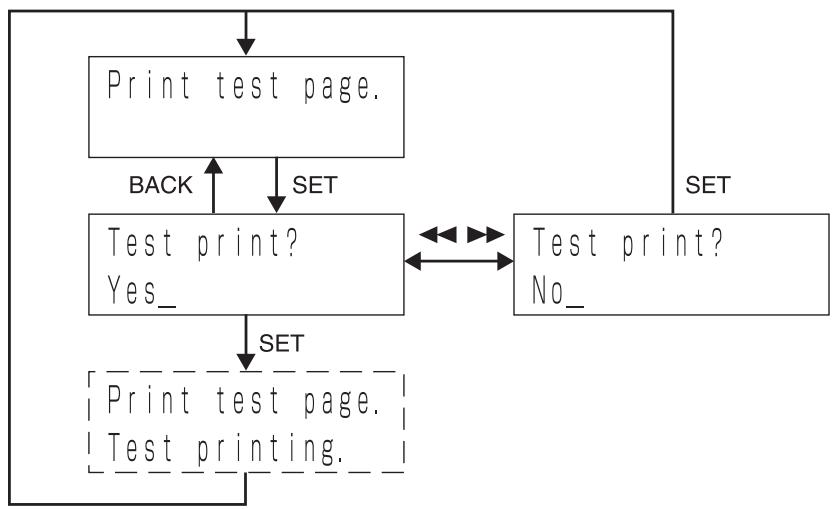
flowchart
graph TD
    A["Print test page."] --> B["Test print? Yes_"]
    B --> C["SET"]
    C --> D["Print test page. Test printing."]
    D --> E["BACK"]
    E --> B
    F["Test print? No_"] --> C
    G["SET"] --> C
Job cancel
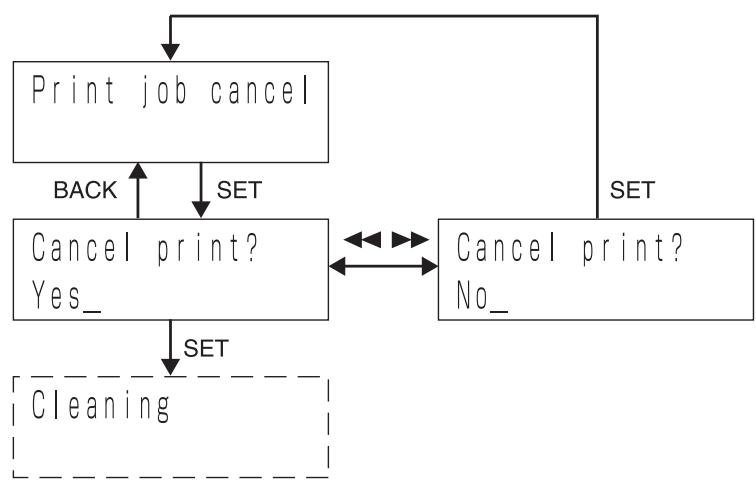
flowchart
graph TD
    A["Print job cancel"] -->|SET| B["Cancel print? Yes_"]
    B -->|SET| C["Cleaning"]
    D["Cancel print? No_"] -->|SET| A
    D -->|BACK| B
Cleaning roller replacement
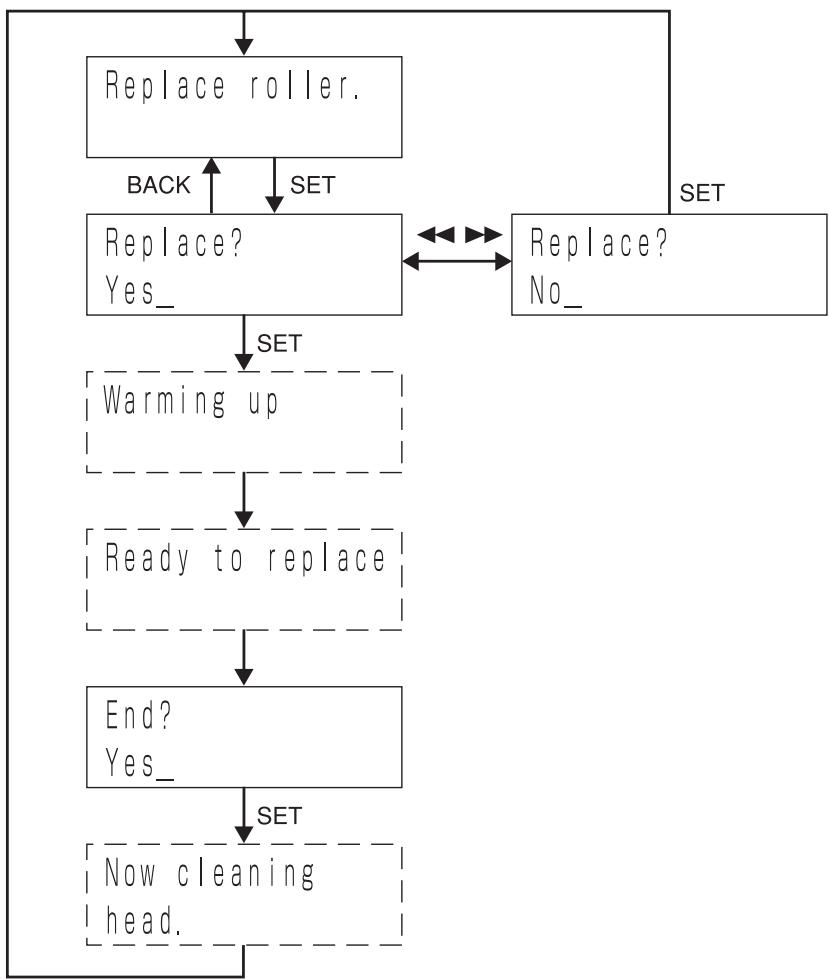
flowchart
graph TD
    A["Replace roller."] -->|SET| B["Replace? Yes_"]
    B -->|SET| C["Warming up"]
    C --> D["Ready to replace"]
    D --> E["End? Yes_"]
    E -->|SET| F["Now cleaning head."]
    B <--> G["Replace? No_"]
    G --> H["SET"]
    H --> A
    style A fill:#f9f,stroke:#333
    style B fill:#ccf,stroke:#333
    style C fill:#cfc,stroke:#333
    style D fill:#fcc,stroke:#333
    style E fill:#cff,stroke:#333
    style F fill:#ffc,stroke:#333
    style G fill:#fcc,stroke:#333
    style H fill:#ffc,stroke:#333
Setting Items for the Printer Driver
| Tab | Item | Selections | Default setting |
| Main | Tray | Auto Sheet Feeder | Auto Sheet Feeder |
| Size | A4 (Fixed) | A4 | |
| Width | 210 (Fixed) | 210 (Fixed) | |
| Length | 297 (Fixed) | 297 (Fixed) | |
| Media Type | Sony high quality coated paper/Plain paper | Sony high quality coated paper | |
| Ink | Black and white (Fixed) | Black and white | |
| Gamma | Gamma 1/ Gamma 2/ Gamma 3/ Gamma 4 | Gamma 1 | |
| Orientation | Portrait/ Landscape | Portrait | |
| Printing multiple pages per sheet | 1page/2page/ 4page | 1page | |
| Poster | 4page (2 × 2)/ 9page (3 × 3)/ 16page (4 × 4) | 4page (2 × 2)/ | |
| Function | Stamp Setting... | Text/Bitmap | Text |
| Printing Order | Front to Back (from the first page)/Back to Front (from the last page) | Front to Back | |
| Sort | Collate/By Sheet | Collate |
Customer Confirmation Sheet
When consulting with your dealer, write down the status of the printer beforehand so that troubles can be solved easier.
| 1 | Model name of the printer | |
| 2 | Serial No. | |
| 3 | Computer manufacturer | |
| 4 | Computer OS | □Windows2000 SP□WindowsXP SP |
| Memory | MB | |
| Hard disk space | GB | |
| 5 | Connecting cable of the printer | USB cable |
| 6 | Usage environment | |
| 7 | Software application used when printing | Software application |
| Manufacturer | ||
| Version | ||
| When printing other print data | □Prints correctly□Cannot print | |
| When printing with another software application | □Prints correctly□Cannot print | |
| 8 | Printer driver | Version |
| Re-installation of the printer driver | □Re-installed□Not re-installed | |
| 9 | Status | |
| Symptoms | ||
| From when | □From long ago□Just lately | |
| Frequency | □Every time□Sometimes | |
| The test pattern built in the printer is printed correctly. | □Yes□No |
Index
A
About this manual 5
Aligning the print position 25
C
Cancelling a print job
from the operation panel of the printer 24
from the status monitor 24
from the Windows spooler window 23
Cleaning the head
from the operation panel 41
from the printer driver 40
E
Error messages
related to ink 56
related to paper 55
related to printer status 56
F
Function tab
embedding stamps on the printout 26
setting the printing order 34
sort printing 33
G
Gamma type 18
H
Head cleaning roller
option 46
replacing 46
Help window
how to display the description of functions 22
Help window how to display
information on operation methods 3
|
Ink cartridges
notes on using 43
recommended 43
replacing 43
L
Layout tab
printing multiple pages on one sheet 19
printing single page printing data on multiple sheets 21
setting the gamma type 18
setting the print orientation 19
settings for paper 17
Location and function of parts and controls
front 6
rear 8
when the head cover is opened 7
M
Menu flow of the printer window display
head cleaning 63
main flow 62
P
Paper
loading 12
notes on paper 11
recommended paper 11
settings for paper 17
Paper jams 56
Power
setting the printer to standby mode 9
turning the printer off 9
turning the printer on 9
Precautions
before asking repairment 52
before transporting the printer 51
handling the printer 50
installation 50
mounting the printer on a rack 51
safety 50
when not using the printer for long periods 52
Print Preferences dialog box
common operations on each tab 16
displaying from a software application 15
Function tab 26
Main tab 17
Print settings
changing 35
deleting 37
retrieving 36
saving 34
Printer driver
requirements for the printer driver
60
version information 16
Printing a test page
from the operation panel 42
from the printer driver 42
Printing multiple pages on one sheet 19
Printing order 34
Printing Preferences dialog box
displaying from the Windows start menu 15
Layout tab 19
Printing single page printing data on multiple sheets 21
S
Sort printing 33
Specifications
environmental performance 60
printer 59
requirements for the printer driver 60
Stamp
adding new stamps 27
embedding a stamp character string 29
embedding graphic data 31
pinting without a stamp 32
removing stamp entries 32
Status monitor
cancelling a print job 24
confirming the ink level 38
controlling the print job 38
displaying error messages 54, 55
how to display 38
System overview 6
T
Troubleshooting 52
U
Utilities dialog box
aligning the print position 25
cleaning the head 40
printing a test page 42
W
Warning messages 54


- Owner's Record
- WARNING
- For the customers in the U.S.A.
- For the customers in Canada
- For the customers in the U.S.A and Canada
- Important safeguards/notices for use in the medical environments
- Caution
- Warning on power connection
- Warning on power connection for medical use
- 僅適用於台灣
- Table of Contents
- Introduction
- Preparation
- Operation
- Monitor Function
- Maintenance
- Miscellaneous
- About This Manual
- Setup Manual
- Instructions For Use (this manual)
- CD-ROM
- Help window
- Conventions used
- Cross references
- Important note
- Operation panel display
- Windows screen
- System Overview
- High-speed line shot
- A quiet printer for a work-friendly environment
- USB connector
- Pure paper extracting the printer characteristics
- Location and Function of Parts and Controls
- Operation panel
- Ⓐ ⏻ ON/STANDBY button/indicator (9, 10)
- Note
- ⑧ READY button/indicator (9, 10, 46, 56)
- © Printer window display (Liquid Crystal Display (LCD)) (41, 42, 46, 55, 62)
- MENU button (41, 42, 46, 62)
- ⑤ SET button (41, 42, 46, 63)
- ⑤ ◀◀/▶▶ (select) buttons (41, 42, 46, 62)
- © BACK button (63)
- Eject buttons (57)
- When the Head Cover is Opened
- Label
- Head cartridge cable
- Head cartridge
- Rear
- Note on turning the main power off
- Turning the Printer On/Off
- Turning the Printer On
- To turn the printer on
- Setting the Printer to Standby Mode
- To set the printer to standby mode
- To restore the printer from standby mode
- Turning the Printer Off
- Push the ON/STANDBY button.
- Relationship Between the ON/STANDBY Indicator and the READY indicator
- Preparing Paper
- Recommended Paper
- Notes on using paper other than paper manufactured by Sony Corporation
- Available Printing Area
- Notes on Paper
- Notes on handling paper
- When storing paper
- Unsuitable paper
- Loading Paper
- Notes
- Performing Basic Print Settings
- Displaying the Print Preferences Dialog Box from a Software Application
- Displaying the Printing Preferences Dialog Box from the Windows Start Menu
- About the Printing Preferences dialog box
- Common Operations on Each Tab of the Printing Preferences Dialog Box
- Performing Settings on the Main Tab
- Settings for Paper
- Selecting the Gamma Type
- Performing Settings on the Layout Tab
- Setting the Print Orientation
- Select the [Orientation].
- Printing Multiple Pages on One Sheet
- Set the print orientation.
- Click the [Printing multiple pages per sheet] radio button in the Page Layout group.
- Click [▼] and select the pages to be printed on one sheet.
- To print one page on one sheet
- To print two pages on one sheet
- To print four pages on one sheet
- Click the [OK] button.
- Printing Single Page Printing Data on Multiple Sheets
- Using the Help Window
- Displaying the Description of Functions of Setting Items
- Displaying Information on Operation Methods
- Cancelling a Print Job
- Cancelling a Print Job from the Windows Spooler Window
- Cancelling a Print Job from the Status Monitor
- Cancelling a Print Job From the Operation Panel of the Printer
- To cancel print data waiting to be printed
- Useful Functions
- Aligning the Print Position
- Advanced Functions
- Embedding Stamps on the Printouts
- Adding new stamps
- Add a new stamp.
- When a stamp character string is added:
- When a graphics stamp is added:
- Embedding a stamp character string
- Embedding graphic data (bitmap file) as a stamp
- Printing without a stamp
- Removing stamp entries
- Sort Printing
- Click the [OK] button.
- Setting the Printing Order
- Saving and Retrieving Print Settings
- Saving Print Settings
- Changing the Print Settings
- Retrieving the Print Settings Saved
- Resetting the print settings to default settings
- Deleting Unnecessary Print Settings
- Using the Status Monitor
- Displaying the Status Monitor
- Confirming the Ink Level
- How to check the ink level
- Controlling the Print Job
- Click the [Job] button.
- Right-click the name of the job you wish to control. A drop down list appears.
- Select the desired item.
- Cleaning the Head
- Cleaning the Head from the Printer Driver
- Click the [Head Cleaning] button.
- When the head cleaning is completed
- Cleaning the Head From the Operation Panel
- Printing a Test Page
- Printing a Test Page from the Printer Driver
- Printing a Test Page From the Operation Panel
- Replacing the Ink Cartridges
- Notes on using the ink cartridge
- Open the head cover.
- Remove the empty ink cartridge.
- Remove the protective cap from the new ink cartridge.
- Matching the protruding part placed on the right side of the ink cartridge with the groove of the
- Replacing the Head Cleaning Roller
- Precautions
- Safety
- Handling the Printer
- Installation
- Attention-when the product is installed in Rack:
- Prevention against overloading of branch circuit
- Providing protective earth
- Internal air ambient temperature of the rack
- Prevention against achieving hazardous condition due to uneven mechanical loading
- Install the equipment while taking the operating temperature of the equipment into consideration For the operating temperature of the equipment, refer to the specifications on page 59.
- When performing the installation, keep the rear of the unit 10 cm (4 inches) or more away from walls in order to obtain proper exhaust and radiation of heat.
- Before Moving the Printer
- Before Transporting the Printer
- Before Asking Repairment
- When Not Using the Printer for Long Periods
- Troubleshooting
- Error Messages
- Warning Display
- Printer window display
- Status Monitor
- After removing the causes of errors
- If the Paper Jams
- Ejecting the jammed paper automatically
- When the paper fed from the auto sheet feeder tray stops halfway
- When the paper is jammed inside the printer
- Before Consulting Your Dealer
- Is the printer malfunctioning?
- Is a computer malfunctioning?
- Is the application software malfunctioning?
- Specifications
- Printer
- Outline of the International ENERGY STAR Office Equipment Program
- Requirements for the Printer Driver
- Computer
- Basic software
- Hard disk space required
- To connect a USB cable to a Windows computer
- To connect the printer to Windows via a Hi-Speed USB
- Menu Flow of the Printer Window Display
- How to read the flow chart
- Main flow
- Job cancel
- Cleaning roller replacement
- Setting Items for the Printer Driver
- Customer Confirmation Sheet
- Index
- A
- C
- E
- F
- G
- H
- |
- L
- M
- P
- S
- T
- U
- W
Brand : SONY
Model : LPR-1000MD
Category : Printer