
HG06106A - LED Bulb Livarno Lux - Free user manual and instructions
Find the device manual for free HG06106A Livarno Lux in PDF.


| Product Type | Smart Colour-Change LED Light Bulb |
| Model | HG06106A |
| Lamp Socket | GU10 |
| Rated Power | 4.5 W |
| Total Luminous Flux (at 6500 K, 90° cone) | 250 lm |
| Colour Temperature Range | 2200 – 6500 K |
| Colour Rendering Index (CRI Ra) | >95 |
| Beam Angle | 90° |
| Dimmable | Yes (via app or remote control) |
| Operating Voltage | 230 V~, 50 Hz |
| Dimensions (Diameter x Length) | 50 mm x 65 mm |
| Weight | Approx. 50 g |
| Rated Lifetime | 30,000 hours |
| Number of Switching Cycles | 100,000 |
| Warm-up Time (to 60% light) | < 1 s |
| Wireless Protocol | ZigBee 3.0 |
| Frequency Band | 2.4 – 2.485 GHz |
| Max. Transmitted Power | 13 dBm |
| Reception Range (free area) | Approx. 70 m |
| Operating Temperature | -10 °C to +40 °C |
| Operating Humidity | 10 – 80 % |
| Intended Use | Private indoor use only |
| Required App | Lidl Home app (iOS 9.0+ / Android 5.0+) |
| Required Gateway | Lidl Home Gateway (IAN 341809_1910 etc.) |
| Special Functions | Colour change, white temperature control, scenes, music sync, countdown timer, schedule, Tap-to-Run automations |
| Cleaning | Wipe with slightly damp cloth; do not immerse in water |
| Warranty | 3 years from date of purchase |
Frequently Asked Questions - HG06106A Livarno Lux
User questions about HG06106A Livarno Lux
0 question about this device. Answer the ones you know or ask your own.
Ask a new question about this device
Download the instructions for your LED Bulb in PDF format for free! Find your manual HG06106A - Livarno Lux and take your electronic device back in hand. On this page are published all the documents necessary for the use of your device. HG06106A by Livarno Lux.
USER MANUAL HG06106A Livarno Lux


SMART COLOUR-CHANGE LED LIGHT BULB
GB IE NI MT CY
SMART COLOUR-CHANGE LED LIGHT BULB
Operation and safety notes
SMART COLOUR-CHANGE LED LIGHT BULB
Warnings and symbols used Page 4
Introduction Page 4
Intended use Page 5
You will need.... Page 5
Technical data Page 6
Pairing product and mobile device.... Page 7
Creating a product group Page 9
Removing a product group.... Page 9
Unpairing product from mobile device Page 9
Switching on / off Page 9
Settings Page 10
Time settings Page 14
Additional functions ...... Page 16
Privacy policy Page 18
Tap-to-Run / Automation Page 18
Resetting product manually.... Page 19
Cleaning and care Page 19
Troubleshooting Page 19
Disposal Page 20
Warranty Page 20
Simplified EU declaration of conformity Page 21
| Warnings and symbols usedThe following warnings are used in the instruction manual, quick start guide, safety instructions and on the packaging: | |||||
 | DANGER! This symbol in combination with the signal word “Danger” marks a high-risk hazard that if not prevented could result in death or serious injury. |  | Luminous flux | ||
 | Number of switching cycles before premature failure | ||||
 | WARNING! This symbol in combination with the signal word “Warning” marks a medium-risk hazard that if not prevented could result in death or serious injury. |  | Nominal lifetime of the product | ||
 GU10 GU10 |  E14 E14 |  E27 E27 | Lamp socket | ||
 | CAUTION! This symbol in combination with the signal word “Caution” marks a low-risk hazard that if not prevented could result in minor or moderate injury. |  | Beam angle (for HG06106A only) | ||
 | Dimmable via the app or remote control | ||||
 | ATTENTION! This symbol with the signal word “Attention” indicates a possible property damage. |  -10°C+40°C -10°C+40°C | Ambient temperature | ||
 <1s=60% <1s=60% | Warm-up time up to 60% of the full light output is less than 1 second. | ||||
 | NOTE: This symbol in combination with “Note” provides additional useful information. |  | The product is not suitable for use in dusty and moist conditions. | ||
| Alternating current / voltage | |||||
 | Zigbee 3.0 wireless technology | ||||
Introduction
We congratulate you on the purchase of your new product. You have chosen a high quality product. The instructions for use are part of the product. They contain important information concerning safety, use and disposal.
Before using the product, please familiarise yourself with all of the safety information and instructions for use. Only use the product as described and for the specified applications. If you pass the product on to anyone else, please ensure that you also pass on all the documentation with it.
- Intended use
This smart colour-change LED light bulb (hereinafter called "product") is used for lighting up interiors.
Suitable Not suitable
Private use
Industrial/commercial purposes
Use in tropical climates
Any other use is considered improper. Any claims resulting from improper use or due to unauthorised modification of the product will be considered unwarranted. Any such use is at your own risk.
The Lidl Home app is required to control and set up the product.
- You will need
Gateway:
IAN 341809_1910 /
IAN 341809_2001 /
IAN 343820_1910 /
IAN 343820_2001 /
IAN 343821_1910 /
IAN 343821_2001
Router:
2.4 GHz, IEEE 802.11b/g/n

Mobile device:
iOS 9.0 or higher
Android 5.0 or higher

Safety notices
BEFORE USING THE PRODUCT, PLEASE FAMILIARIZE YOURSELF WITH ALL OF THE SAFETY INSTRUCTIONS AND INSTRUCTIONS FOR USE! WHEN PASSING THIS PRODUCT ON TO OTHERS, PLEASE ALSO INCLUDE ALL THE DOCUMENTS!
WARNING! DANGER TO LIFE AND RISK OF ACCIDENT FOR INFANTS AND CHILDREN!
⚠️ DANGER! Risk of suffocation!
Never leave children unsupervised with the packaging material. The packaging material poses a suffocation hazard. Children frequently underestimate the dangers.
The packaging material is not a toy.
⚠️ DANGER! Risk of electric shock! To prevent risk of electric shock, turn off the power at the main circuit breaker box or disconnect the luminary from the socket-outlet before installation.

Use in dry locations only! The product is not suitable for use under dust and moisture.
The increased weight may reduce the mechanical stability of certain luminaires and lampholders and may impair contact making and lamp retention.
■ LEDs emit bright light. Avoid looking directly into the light source for prolonged periods.
■ The LEDs is/are not replaceable.

Technical data
 |  | 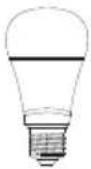 | |
| Model HG06106A | HG06106B | HG06106C | |
| Rated power 4.5 W 6.5 W 9 W | |||
| Lamp socket GU10 E14 E27 | |||
| Total luminous flux (6500 K) 90° cone: 250 lm 470 lm 806 lm | |||
| Measurements (mm) (∅ x L) 50 x 65 | 39 x 120 | 60 x 115 | |
| Operating voltage 230 V~, 50 Hz | |||
| Frequency band | 2.4 to 2.485 GHz | ||
| Max. transmitted power | 13 dBm | ||
| Life | 30000 h | ||
| Switching cycles | 100000 | ||
| Communication protocol ZigBee 3.0 | |||
| Reception range | approx. 70 m (free area) | ||
| Operating temperature | -10 to +40 °C | ||
| Operating humidity | 10 to 80 % | ||
| Colour temperature | 2200 to 6500 K | ||
| Colour rendering index Ra | >95 | ||
| Warm-up time (60 %) | < 1 s = 60 % light | ||
| Brightness control | Dimmable via the app or remote control | ||

Trademark notices
- iOS and Apple are registered trademarks of Apple Inc. in the USA and other countries. App Store is a registered trademark of Apple Inc.
■ Android, Gmail, Google Play and Google Assistant* are registered trademarks of Google Inc.
Zigbee is a registered trademark of The Zigbee Alliance.
The LIVARNOLUX trademark and trade name is the property of their respective owners.
■ Any other names and products may be trademarks or registered trademarks of their respective owners.
* Google Assistant is not available in certain languages and countries.
● Pairing product and mobile device
i NOTES:
■ Screenshots are from the iOS 13.3 app version (if not otherwise marked). Older iOS versions may have functional limitations.
The Android version of the app follows the same principles as the iOS version; you might encounter discrepancies between the two platforms, such as slightly different on-screen commands or icons.
- Updating the firmware might result in changes to the app's functionality.
An updated instruction manual can be found here:

Me tab:
Tap
User Manual
Preparation
- Install Lidl Home app and setup Gateway (→Gateway instruction manual).
- Light switch off.
- Screw product into lamp socket.
- Light switch on. Product flashes slowly.
- Ready for pairing.
- Open Lidl Home app.
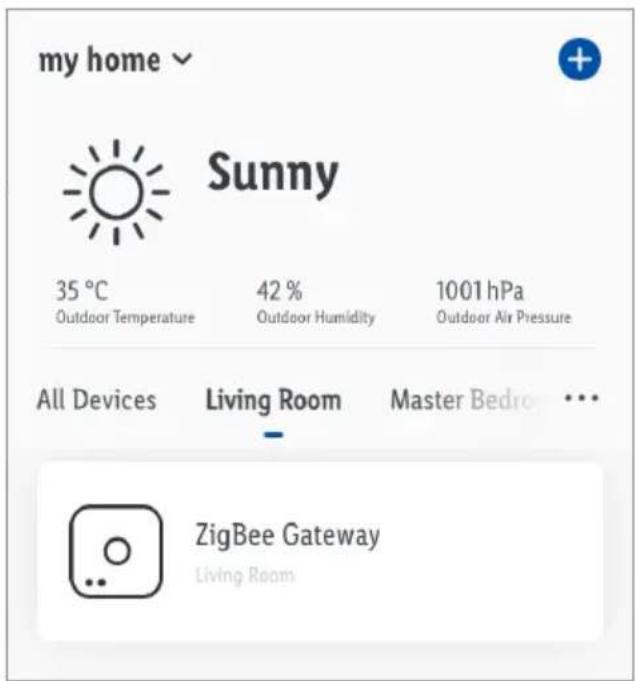
- Home tab:
Tap + (add further devices).
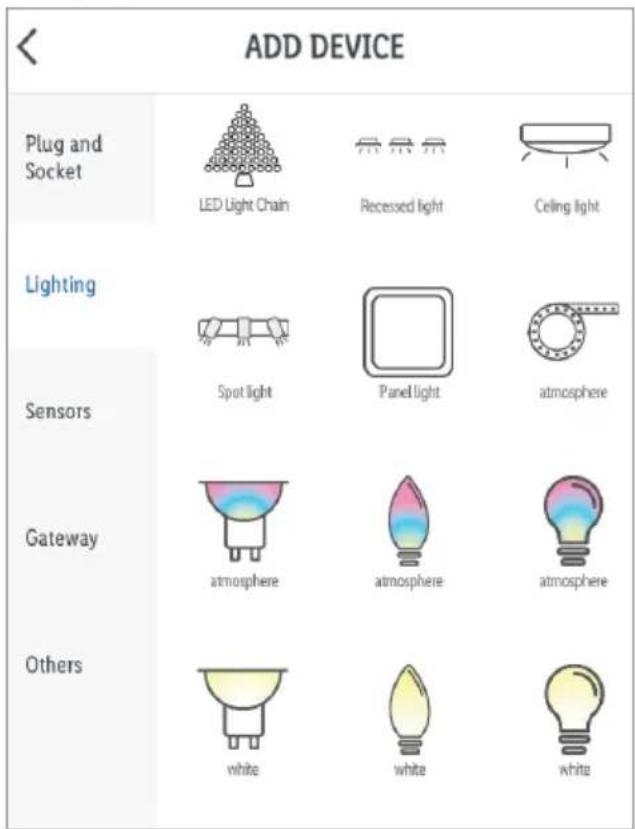
- Select category: Lighting
8. Select:
Smart colour-change LED light
bulb
- iOS:
Atmosphere
- Android
Atmosphere

- Select Gateway.
① Only necessary, if you have 2 or more Gateways.
10. Follow the app instructions.
11. Establishing connection.
12. Naming the product:
Tap

and enter a name.

- Tap one of the rooms to set location of product (selected room is grayed out).
If more than one product is connected: You can rename the product and define its location. - Tap Done.
- Pairing completed.
- Return to home screen:
Tap

- Creating a product group
- Open Lidl Home app.
- Home tab:
Tap on one of the connected LED bulbs.
- Tap (top right).
- Tap Create Group.
- Select devices.
- Tap Confirm.
- Enter a group name.
- Tap Save.
● Removing a product group
- Open Lidl Home app.
- Home tab:
Tap on the group you want to remove.
- Tap (top right).
- Tap Dismiss Group.
- Tap Confirm.
● Unpairing product from mobile device
- Open Lidl Home app.
- Home tab:
Tap Atmosphere.
- Tap
- Tap Remove Device.
Select:
- Disconnect
or -
Disconnect and wipe data
(→ "Additional functions"). -
Tap Confirm.
- Switching on / off
Left time

Schedule
- Tap

Settings
● Colour temperature / brightness (white)
Tab White:
- Adjust settings using the 2 sliders.
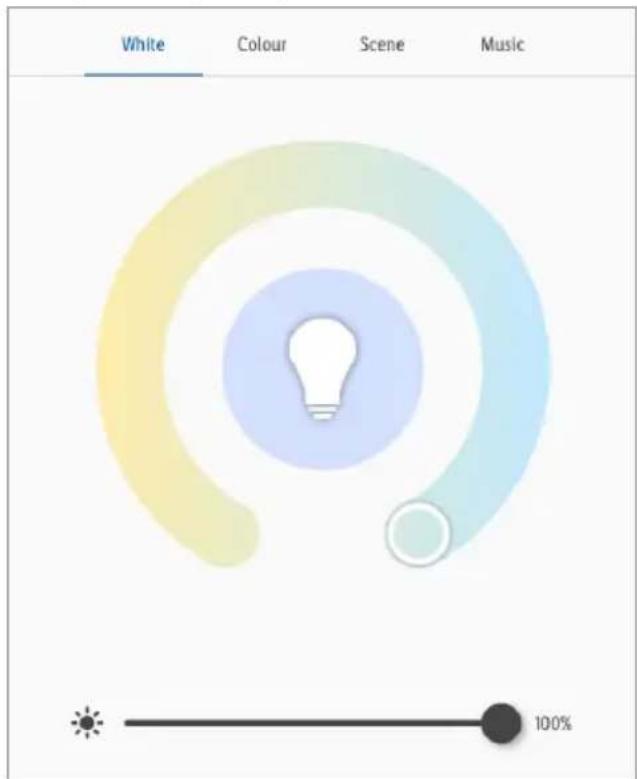
:Colourtemperature
(warm white to cool white)
: Brightness
: Current setting
Colour settings
Tab Colour:
- Adjust settings using the 3 sliders.

: Colour
: Brightness
: Contrast
: Current setting

Scenes
Tab Scene:
- Select one of the default light scenes:
| White | Colour | Scene | Music |
| Edit |
| Name | Setting Brightness Temp. Colour | ||
 | Night | low warm - | |
 | Read | high neutral white - | |
 | Working | high cold - | |
 | Leisure | medium neutral white - | |
 | Soft | high - | green |
 | Colorful | high - | changing multi-colour |
 | Gorgeous | high - | changing multi-colour |
Editing scenes
- Tap on one of the scene logos
(for example:

-
Tap Edit.
-
Tap on the default photo to replace it with another one.
Select:
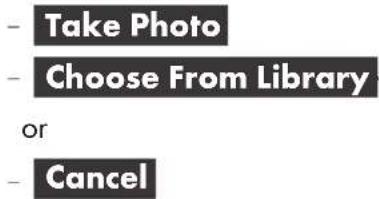
(cancel photo replacement)
Access to the mobile devices' camera and photo library is required.
-
Scene Name: Change scene name.
-
Scene Colour tab:
Tap and adjust settings using the slider.
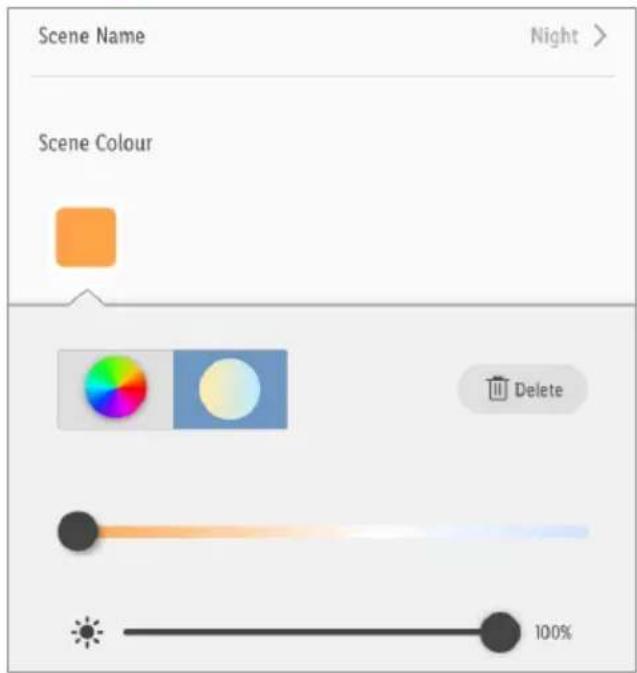
: Colourful light
: White light
: Brightness
: Colour contrast (colourful light)
- Colour Flash Mode: Choose flash mode.

Static = Static light
Flash = * Flash light
Breath = * Pulsing light
Done = Confirm setting

* Colour Flash Speed : Adjust flash speed setting using the slider.

* Scene Colour :
- Adding more colours:
Tap +.
- Deleting colours:
Tap
Tap Delete.

7. Reset :
Reset of selected scene to default settings.
8. Confirm :
Confirm settings.
Music
Tab Music:
- Tap Music . Function is activated.

- The product synchronises to ambient music (as registered by your mobile phone's microphone).
- Colour and brightness changes following the audio input.
Access to the mobile devices' microphone is required to use this function.
Time settings
Countdown
Switches the product automatically on/off after a countdown (this function is available for a single product only).
- Tap Left time

- Set Hour (00 to 11) and Minute (00 to 59).
- Tap Confirm.
- Remaining time is displayed on the bottom left.
- Cancelling countdown prematurely:
Tap the remaining time.
Tap
Countdown deactivated.
Tap Confirm.
Schedule
① Switches the product automatically on/off following a user-defined time plan.
- Tap Schedule.

- Tap Add.

| < | Add Schedule | SAVE |
| 05 | 16 | |
| 07 | 16 | |
| 08 | 17 | |
| 09 | 18 | |
| 10 | 19 | |
| 11 | 20 | |
| 12 | 21 | |
| Repeat | Once > | |
| Note | > | |
| Notification | ○ | |
| Switch | ON > |
-
Set the time.
-
Optional: Tap Repeat.
| < | Repeat |
| Execute once by default if you select none | |
| Monday | √ |
| Tuesday | √ |
Select weekday(s).
= selected weekdays
Cancel selection:
Tap on weekday again.
Selection completed: Tap
- Tap Note.
Put down your notes for this schedule.
Tap SAVE.
- Notification :
Tap to turn on function.
- Tap Switch.
Select:

or

Selection completed:
- iOS:
- Android:

- Tap SAVE.
Action is added to the time plan.

- Deactivate action:
Tap
- Delete action:
- iOS:
Wipe action to the left.
- Android:
Tap and hold.
Tap Delete.
- Add more actions, if desired.
Additional functions
- Tap (top right).

- Tap
Select:
Icon:
* Take Photo
or
* Select from Album
Name
Rename product.
Location
Assign a room to the product.
* i
Access to the mobile devices' camera and photo library is required.
- Device Information :
Virtual ID and product's time zone are displayed.
- Tap-to-Run and Automation:
View smart scenes/automations involving the product.
Device offline notification
Offline notification

Others
Share Device
Create Group
FAQ
Check for Firmware Upgrade >
REMOVE DEVICE
5. Offline Notification:
A notification is sent when the product is offline for more than 30 minutes.
- Offline notification on:
Tap .
- Offline notification off:
Tap.
6. Share Device :
Share access to the device with other family members.
7. Create Group:
Add product to a group in order to synchronise the use of all grouped devices.
= selected devices.
Tap Confirm.
Name group.
Tap Save.
Group is shown on the app's home screen.
8. FAQ:
Check FAQ related to the product.
9. Check for Firmware Upgrade :
Displays the ZigBee module's Firmware version.
10. Remove Device:
Select:
Disconnect
Remove product from the app. Data remaining the product's memory.
This operation only resets the product to offline mode and starts the pairing mode. If you want to remove all data of the product and the cloud, read the following point.
Disconnect and wipe data
Reset to factory settings.
This function deletes all data from the product and in the cloud.
①se this function if you pass on, dispose of or return the product to the manufacturer.
Make sure that all data on the product and in the cloud has been deleted.
Follow the instructions in the app.
or
Cancel
Cancel removing the product.
Privacy policy

Me tab:
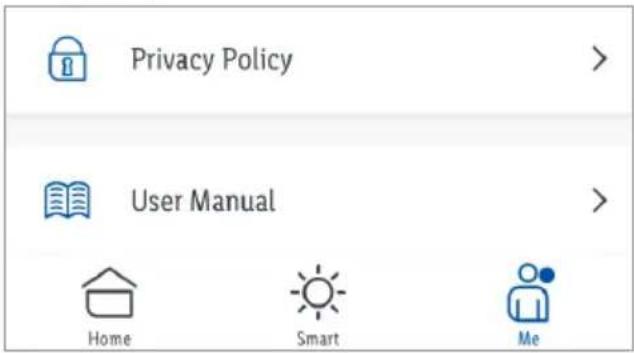
Privacy Policy :
Our complete privacy policy is available here.
Tap-to-Run / Automation
The app offers the possibility to integrate the product together with other smart Home devices in user-defined scenarios and automatic actions.
1. Smart tab:
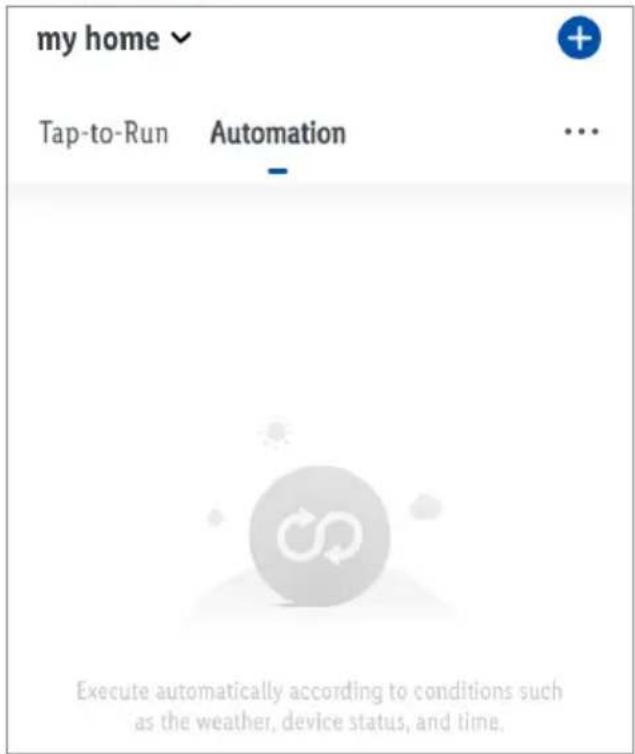
2. Select:

NOTE: Detailed description of these functions can be found in the Gateway manual.
Me tab:
Tap User Manual.
- Resetting product manually
-
Light switch on/off 3 times.
-
Light switch on. Product flashes slowly. Reset successful.
This function only resets the data which is stored in the local memory of the product. If you want to reset the cloud memory as well, perform a reset via the app (see "Additional functions", Disconnect and wipe data).
● Cleaning and care
Cleaning
⚠ WARNING! Risk of electric shock!
Before changing luminary, cleaning or maintenance: Switch off the product. Remove fuse or switch off the circuit breaker in the fuse box (position O).
⚠ WARNING! Risk of electric shock!
During cleaning or operation, do not immerse the electrical parts of the product in water or other liquids. Never hold the product under running water.
■ Let product cool for at least 5 minutes.
- Clean the product and its accessories with a slightly moistened cloth.
- Do not allow any water or other liquids to enter the product's interior.
- Do not use abrasives, harsh cleaning solutions or hard brushes for cleaning.
■ Let all parts dry afterwards.
Storage
- When not in use, store the product in its original packaging.
■ Store the product in a dry, secure location away from children.
● Troubleshooting
Problem Cause Solution
| Distance between Gateway and product too large. | Re-position Gateway or sub-device. | |
| Product cannot be controlled. | Walls or obstacles between Gateway and product. |
Light switch on. Light switch off.
● Disposal
Before passing on, disposing of or returning the product to the manufacturer, make sure that all data has been deleted from the product and the cloud.
To do this, refer to the chapter:
"Additional functions", menu point:
Disconnect and wipe data
The packaging is made entirely of recyclable materials, which you may dispose of at local recycling facilities.
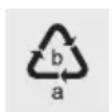
Observe the marking of the packaging materials for waste separation, which are marked with abbreviations (a) and numbers (b) with following meaning: 1–7: plastics / 20–22: paper and fibreboard / 80–98: composite materials.

The product and packaging materials are recyclable, dispose of it separately for better waste treatment.
The Triman logo is valid in France only.

Contact your local refuse disposal authority for more details of how to dispose of your worn-out product.
To help protect the environment, please dispose of the product properly when it has reached the end of its useful life and not in the household waste. Information on collection points and their opening hours can be obtained from your local authority.
Warranty
The product has been manufactured to strict quality guidelines and meticulously examined before delivery. In the event of product defects you have legal rights against the retailer of this product. Your legal rights are not limited in any way by our warranty detailed below.
The warranty for this product is 3 years from the date of purchase. Should this product show any fault in materials or manufacture within 3 years from the date of purchase, we will repair or replace it – at our choice – free of charge to you.
The warranty period begins on the date of purchase. Please keep the original sales receipt in a safe location. This document is required as your proof of purchase. This warranty becomes void if the product has been damaged, or used or maintained improperly.
The warranty applies to defects in material or manufacture. This warranty does not cover product parts subject to normal wear, thus possibly considered consumables (e.g. batteries) or for damage to fragile parts, e.g. switches, rechargeable batteries or glass parts.
Warranty claim procedure
To ensure quick processing of your case, please observe the following instructions:
Please have the till receipt and the item number (e.g. IAN 123456_7890) available as proof of purchase.
You will find the item number on the rating plate, an engraving, on the front page of the instructions for use (bottom left), or as a sticker on the rear or bottom of the product.
If functional or other defects occur, please contact the service department listed either by telephone or by e-mail.
You can return a defective product to us free of charge to the service address that will be provided to you. Ensure that you enclose the proof of purchase (till receipt) and information about what the defect is and when it occurred.
Service

Service Great Britain
Tel.:08000569216
E-Mail:owim@lidl.co.uk

Service Ireland
Tel.:1800200736

Service Northern Ireland
Tel.:0800927852
E-Mail:owim@lidl.ie

Service Malta
Tel.:80062960
E-Mail:owim@lidl.com.mt

Service Cyprus
Tel.:80094211
E-Mail:owim@lidl.com.cy
● Simplified EU declaration of conformity
Hereby, OWIM GmbH & Co. KG, Stiftsbergstraße 1, 74167 Neckarsulm, GERMANY declares that the product SMART COLOUR- CHANGE LED LIGHT BULB HG06106A, HG06106B, HG06106C is in compliance with Directive 2014/53/EU, 2011/65/EU and 2009/125/EC.
The full text of the EU declaration of conformity is available at the following internet address: www.owim.com

OWIM GmbH & Co. KG
Stiftsbergstraße 1
74167 Neckarsulm
GERMANY
Model No.: HG06106A / HG06106B / HG06106C
Version: 08/2020
IAN 334403_2001

- SMART COLOUR-CHANGE LED LIGHT BULB
- INTRODUCTION
- INTENDED USE
- SUITABLE NOT SUITABLE
- YOU WILL NEED
- SAFETY NOTICES
- WARNING! DANGER TO LIFE AND RISK OF ACCIDENT FOR INFANTS AND CHILDREN
- ⚠️ DANGER! RISK OF SUFFOCATION
- ⚠️ DANGER! RISK OF ELECTRIC SHOCK! TO PREVENT RISK OF ELECTRIC SHOCK, TURN OFF THE POWER AT THE MAIN CIRCUIT BREAKER BOX OR DISCONNECT THE LUMINARY FROM THE SOCKET-OUTLET BEFORE INSTALLATION
- TECHNICAL DATA
- TRADEMARK NOTICES
- ● PAIRING PRODUCT AND MOBILE DEVICE
- I NOTES
- PREPARATION
- SELECT
- CREATING A PRODUCT GROUP
- ● REMOVING A PRODUCT GROUP
- ● UNPAIRING PRODUCT FROM MOBILE DEVICE
- SWITCHING ON / OFF
- SETTINGS
- ● COLOUR TEMPERATURE / BRIGHTNESS (WHITE)
- TAB WHITE
- COLOUR SETTINGS
- TAB COLOUR
- SCENES
- TAB SCENE
- EDITING SCENES
- RESET
- CONFIRM
- MUSIC
- TAB MUSIC
- TIME SETTINGS
- COUNTDOWN
- SCHEDULE
- ADDITIONAL FUNCTIONS
- REMOVE DEVICE
- OFFLINE NOTIFICATION
- SHARE DEVICE
- CREATE GROUP
- FAQ
- CHECK FOR FIRMWARE UPGRADE
- DISCONNECT
- DISCONNECT AND WIPE DATA
- CANCEL
- PRIVACY POLICY
- TAP-TO-RUN / AUTOMATION
- SMART TAB
- RESETTING PRODUCT MANUALLY
- ● CLEANING AND CARE
- CLEANING
- ⚠ WARNING! RISK OF ELECTRIC SHOCK
- STORAGE
- ● TROUBLESHOOTING
- ● DISPOSAL
- WARRANTY
- WARRANTY CLAIM PROCEDURE
- SERVICE
- SERVICE GREAT BRITAIN
- SERVICE IRELAND
- SERVICE NORTHERN IRELAND
- SERVICE MALTA
- SERVICE CYPRUS
- ● SIMPLIFIED EU DECLARATION OF CONFORMITY
Brand : Livarno Lux
Model : HG06106A
Category : LED Bulb