USER MANUAL CDR760 PHILIPS
Instructions for use
Mode d'emploi
- Read Instructions - All the safety and operating instructions should be read before the appliance is operated.
- Retain Instructions - The safety and operating instructions should be retained for future reference.
- Heed Warnings - All warnings on the appliance and in the operating instructions should be adhered to.
- Follow Instructions - All operating and use instructions should be followed.
- Water and Moisture - The appliance should not be used near water - for example, near a bathtub, washbowl, kitchen sink, laundry tub, in a wet basement, or near a swimming pool, and the like.
- Carts and Stands - The appliance should be used only with a cart or stand that is recommended by the manufacturer.
6A.

An appliance and cart combination should be moved with care. Quick stops, excessive force, and uneven surfaces may cause the appliance and cart combination to overturn.
- Wall or Ceiling Mounting - The appliance should be mounted to a wall or ceiling only as recommended by the manufacturer.
- Ventilation - The appliance should be situated so that its location or position does not interfere with its proper ventilation. For example, the appliance should not be situated on a bed, sofa, rug, or similar surface that may block the ventilation openings; or, placed in a built-in installation, such as a bookcase or cabinet that may impede the flow of air trough the ventilation openings.
- Heat - The appliance should be situated away from heat sources such as radiators, heat registers, stoves, or other appliances (including amplifiers) that produce heat.
-
Power Sources - The appliance should be connected to a power supply only of the type described in the operation instructions or as marked on the appliance.
-
Grounding or Polarization - The precautions that should be taken so that the grounding or polarization means of an appliance is not defeated.
- Power-Cord Protection - Power-Supply cords should be routed so that they are not likely to be walked on or pinched by items placed upon or against them, paying particular attention to cords at plugs, convenience receptacles, and the point where they exit from the appliance.
- Cleaning - The appliance should be cleaned only as recommended by the manufacturer.
- Nonuse Periods - The power cord of the appliance should be unplugged from the outlet when left unused for a long period of time.
- Object and Liquid Entry - Care should be taken so that objects do not fall and liquids are not spilled into the enclosure through openings.
- Damage Requiring Service - The apliance should be seviced by qualified service personnel when :
a. The power-supply cord or plug has been damaged; or
b. Objects have fallen, or liquid has been spilled into the appliance; or
c. The appliance has been exposed to rain ; or
d. The appliance does not appear to operate normally or exhibits a marked change in performance; or
e. The appliance has been dropped, or the enclosure damaged.
17 Servicing - The user should not attempt to service the appliance beyond that described in the operating instructions. All other servicing should be referred to qualified service personnel.
WARNING
TO REDUCE THE RISK OF FIRE OR ELECTRIC SHOCK, DO NOT EXPOSE THIS APPLIANCE TO RAIN OR MOISTURE.
The lightning flash with arrowhead symbol, within an equilateral triangle, is intended to alert the user to the presence of uninsulated “dangerous voltage” within the product’s enclosure that may be of sufficient magnitude to constitute a risk of electric shock to persons.

The exclamation point within an equilateral triangle is intended to alert the user to the presence of important operating and maintenance (servicing) instructions in the literature accompanying the appliance.
CONTENTS
English 4
English
Français....19
Français
Español 37
Enpanol
CAUTION
USE OF CONTROLS OR ADJUSTMENTS OR PERFORMANCE OF PROCEDURES OTHER THAN THOSE SPECIFIED HEREIN MAY RESULT IN HAZARDOUS RADIATION EXPOSURE.
The set complies with the FCC-Rules, Part 15 and with 21 CFR 1040.1
CAUTION
TO PREVENT ELECTRIC SHOCK, MATCH WIDE BLADE OF PLUG TO WIDE SLOT, FULLY INSERTED.
ATTENTION
POUR EVITER LES CHOCS ELECTRIQUES, INTRODUIRE LA LAME LA PLUS LARGE DE LA FICHE DANS LA BORNE CORRESPONDANTE DE LA PRISE ET POUSSER JUSQU AU FOND.

Canada
This digital apparatus does not exceed the Class B limits for radio noise emissions from digital apparatus as set out in the Radio Interference Regulations of the Canadian Department of Communications.
Beam divergence 60 degree
This warning label is located on the rearside and inside this laser product.
CAUTION: INVISIBLE
LASER RADIATION
WHEN OPEN. DO NOT STARE INTO BEAM
DANGER: INVISIBLE LASER RADIATION WHEN OPEN.
VARO!
AVOID DIRECT EXPOSURE TO BEAM
AVATTAESSA JA SUOJALUKITUS OHITEJTAESSA OLET
ALTTIINANAKYMATTOMAALLE LASERSATEILYLLE.ALA
KATSO SATEESEEN.
WARNING!
OSYNLIG LASERSTRÅLNING NÄR DENNA DEL ÄR ÖPPNAD
OCH SPARREN AR URKOPPLAD. BETRAKTA EJ STRALEN
or
DANGER - Invisible laser radiation when open.
AVOID DIRECT EXPOSURE TO BEAM
THIS DEVICE COMPLIES WITH PART 15 OF THE FCC (U.S.A.) RULES.
OPERATION IS SUBJECT TO THE FOLLOWING TWO CONDITIONS : (1) THIS DEVICE MAY NOT CAUSE HARMFUL
INTERFERENCE, AND (2) THIS DEVICE MUST ACCEPT ANY INTERFERENCE RECEIVED, INCLUDING INTERFERENCE THAT MAY CAUSE UNDESIRED OPERATION.
NOTE
This equipment has been tested and found to comply with the limits for a Class B digital device, pursuant to part 15 of the FCC Rules. These limits are designed to provide reasonable protection against harmful interference in a residential installation. This equipment generates, uses and can be used in accordance with the instructions, may cause harmful interference to radio communications. However, there is no guarantee that interference will not occur in a particular installation.
If this equipment does cause harmful interference to radio or television reception, which can be determined by turning this equipment off and on, the user is encouraged to try to correct the interference by one or more of the following measures :
- reorient or relocate the receiving antenna.
- increase the separation between the equipment and receiver.
- connect the equipment into an outlet on a circuit different from that to which the receiver is connected.
- consult the dealer or an experienced radio/TV technician for help.
IMPORTANT
THIS PRODUCT WAS FCC VERIFIED UNDER TEST CONDITIONS THAT INCLUDED USE OF SHIELDED CABLES AND CONNECTORS BEWTEEN SYSTEM COMPONENTS. IT IS IMPORTANT THAT YOU USE SHIELDED CABLES TO REDUCE THE POSSIBILITY OF CAUSING INTERFERENCE TO RADIOS, TELEVISION SETS AND OTHER ELECTRONIC DEVICES. IF YOU HAVE ANY PROBLEMS CONTACT YOUR DEALER.
ANY CHANGE OR MODIFICATIONS TO THE EQUIPMENT BY THE USER NOT EXPRESSLY APPROVED BY THE GRANTEE OR MANUFACTURER COULD VOID THE USER'S AUTHORITY TO OPERATE SUCH EQUIPMENT.
CD-R PLAYER
90 Days Free Labor
One Year Exchange Warranty on Parts
This product must be carried in for repair.
WHO IS COVERED?
You must have proof of purchase to receive warranty service. A sales receipt or other document showing that you purchased the product is considered proof of purchase.
WHAT IS COVERED?
Warranty coverage begins the day you buy your product. For 90 days thereafter, all parts will be repaired or replaced, and labor is free. From 90 days to one year from the day of purchase, all parts will be repaired or replaced, but you pay for all labor charges. After one year from the day of purchase, you pay for the replacement or repair of all parts, and for all labor charges.
All parts, including repaired and replaced parts, are covered only for the original warranty period. When the warranty on the product expires, the warranty on all replaced and repaired parts also expires.
WHAT IS EXCLUDED?
Your warranty does not cover:
- labor charges for installation or setup of the product, adjustment of customer controls on the product, and installation or repair of antenna systems outside of the product.
- product repair and/or part replacement because of misuse, accident, unauthorized repair or other cause not within the control of Philips Consumer Electronics Company.
- reception problems caused by signal conditions or cable or antenna systems outside the unit.
- a product that requires modification or adaptation to enable it to operate in any country other than the country for which it was designed, manufactured, approved and/or authorized, or repair of products damaged by these modifications.
- incidental or consequential damages resulting from the product. (Some states do not allow the exclusion of incidental or consequential damages, so the above exclusion may not apply to you. This includes, but is not limited to, prerecorded material, whether copyrighted or not copyrighted.)
- a product that is used for commercial or institutional purposes (including but not limited to rental purposes).
WHERE IS SERVICE AVAILABLE?
Warranty service is available in all countries where the product is officially distributed by Philips Consumer Electronics Company. In countries where Philips Consumer Electronics Company does not distribute the product, the local Philips service organization will attempt to provide service (although there may be a delay if the appropriate spare parts and technical manual(s) are not readily available).
MAKE SURE YOU KEEP ...
Please keep your sales receipt or other document showing proof of purchase. Attach it to this owner's manual and keep both nearby. Also keep the original box and packing material in case you need to return your product.
BEFORE REQUESTING SERVICE...
Please check your owner's manual before requesting service. Adjustments of the controls discussed there may save you a service call.
TO GET WARRANTY SERVICE IN U.S.A., PUERTO RICO OR U.S.VIRGIN ISLANDS...
Take the product to a Philips factory service center (see enclosed list) or authorized service center for repair. When the product has been repaired, you must pick up the unit at the center. Centers may keep defective parts.
(In U.S.A., Puerto Rico and U.S. Virgin Islands, all implied warranties, including implied waarranties of merchantability and fitness for a particular purpose, are limited in duration to the duration of this express warranty. Because some states do not allow limitations on how long an implied warranty may last, this limitation may not apply to you.)
TO GET WARRANTY SERVICE IN CANADA...
Take the product to a Philips consumer service center (listed below), self-servicing dealer ar autorized service depot.
Philips Electronics Ltd.
601 Milner Avenue, Scarborough, Ontario, MIB IM8
(416) 292-5161
4977 Levy Street, St. Laurent Québec, H4R 2N9
(514) 956-0120
1741 Boundary Road, Vancouver, B.C. VSM 3Y7
(604) 294-3441
(In Canada, this warranty is given in lieu of all other warranties. No other warranties are expressed or implied, including any implied warranties of merchantability or fitness for a particular purpose. Philips is not liable under any circumstances for any direct, indirect, special, incidental or consequential damages, howsoever incurred, even if notified of the possibility of such damages.)
REMEMBER...
Please record the model and serial numbers found on the product below. Also, please fill out and mail your warranty registration card promptly. It will be easier for us to notify you if necessary.
MODEL #
SERIAL #
This warranty gives you specific legal rights. You may have other rights which vary from state/province to state/province.
Philips Service Company, P.O. Box 555, Jefferson City, Tennessee 37760, (423) 475-8869
EL6191E001 / MAC 6058 / 10-96
Table of contents
Technical information....4
Disc for recording....5
Discs for playback 5
Maintenance 5
Accessories 5
Operating buttons on the front 6
Connections on the back 6
DISPLAY
DISPLAY explanation ....7
DISPLAY messages....7
INSTALLATION
Connections general....8
Analogue connections 8
Digital coaxial connections 9
Digital optical connections 9
Power supply 10
Set-up recommendations....10
Inserting batteries in the remote control....10
REMOTE CONTROL & INSERTING DISCS
Remote control commands ....11
Inserting discs 11
RECORDING
Remarks about recording 12
Digital recording - unsynchronized 12
Synchronized digital recording - CD-SYNC ....13
Analogue recording 14
Finalizing CD-R & CD-RW discs 15
Unfinalizing CD-RW discs 15
ERASING & PLAYING
Erasing CD-RW discs ....16
Playing a CD 16
PLAYING
Selecting a track or searching ....17
Shuffle play 17
Repeat CD, track or program .....17
Programming 17
FIXING PROBLEMS
Troubleshooting ....18
Diagnostic program ....18
Welcome!
Thank you for buying this Philips Compact Disc Recorder.
In the 1980s Philips invented a new audio system - the CD. The CD (compact disc) revealed the new dimensions of digital sounds and enhanced the pleasures of audio.
Compact disc technology permits a high contrast in both loud and quiet passages, with perfect channel separation. Philips has continued to develop compact disc technology and the result is the CD recorder.
With your Philips CD-Recordable/ReWritable Recorder, you can record, play and erase your own high-quality audio CDs, subject only to legal restrictions on copying.
Naturally, you will also be able to play all pre-recorded audio CDs, and combined CDs such as CD Extra.
Recordings may only be made for personal use. It is forbidden to copy material protected by copyright, including computer programs, films, television and audio recordings. This appliance may not be used for such applications.
Subject to modification without notice.
Digital frequency response 0-22,050Hz
Playback S/N 100dB
Playback dynamic range 95dB
Play back total harmonic distortion....0.0056%, -85dB
Recording S/N (Analogue)....90dB
Recording S/N (Digital)......Equal to source
Recording dynamic range 92dB
Recording total harmonic distortion ....0.0056%, -85dB
Digital coaxial input (IEC 958) ....44.1Khz +/-100ppm
Digital optical input (IEC958) ....44.1Khz +/- 100ppm
Analogue input (level potmeter) ....500mVrms/50kΩ=0dB
Audio output ....2V RMS ±2dB
Digital coaxial output 0.5 Vpp/75Ω
Headphones 0-5V RMS/8-2000Ω
Dimensions....435 x 305 x 88mm
Weight 4kg
Power consumption....15W
Operating temperature....5 - 35°C
Power Supply......AC 120V
Discs for recording
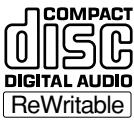
For recording use, special audio discs must be used (for music only). These Discs bear the logos as shown below. The text 'DIGITAL AUDIO' is present! Copyright fees have been paid on these discs in some countries.
With your recorder you can use two types of discs for recording purposes:
- CD-Audio Recordable (CD-R) discs:
Fully recorded and finalized, these discs play on all CD players and recorders.

- CD-Audio ReWritable (CD-RW) discs:
Can be recorded, erased and re-recorded hundreds of times. When finalized, they play on CD-RW compatible CD players and recorders. In the course of 1999 most Philips CD players and recorders will be CD-RW com
Discs for playback
Your CD recorder is able to play:
- All prerecorded audio CDs, and combined CDs such as CD Extra.
- All Audio CD-R and Audio CD-RW.
Note: CD-R discs recorded with a computer can only be used when they are correctly treated according the audio standard (IEC958: Consumer part). Single session only!
Maintenance
It is extremely important that the discs used for recording are free of dust and scratches.
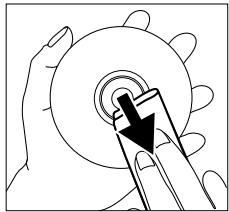
To clean a CD, wipe it in a straight line from the center towards the outer edge using a soft, lint-free cloth. Cleaning agents may damage the disc! Write only on the printed side of a CD-R or CD-RW, and only with a soft felt-tipped pen.
natural_image
Illustration of a hand turning a circular component with a black arrow indicating direction (no text or symbols)
Clean the CD recorder with a soft, slightly dampened lint-free cloth. Do not use any cleaning agents as they may have a corrosive effect.
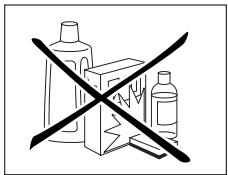
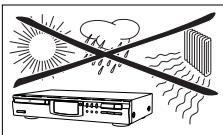
Do not expose the CD recorder, batteries or CDs to humidity, rain, sand or excessive heat (caused by heating equipment or direct sunlight).
If the CD recorder cannot read CDs correctly, use a cleaning CD to clean the lens before taking the CD player to be repaired. Other cleaning methods may destroy the lens.
Always keep the tray closed to avoid dust on the lens.
The lenses may cloud over when the CD recorder is suddenly moved from cold to warm surroundings, making it temporarily impossible to play a CD. Leave the CD recorder in a warm environment until the moisture evaporates.
Accessories
- 2 Analogue audio cables (with red and white plugs)
- 1 Digital coaxial cable (with black plugs)
- Power cord
- 2 Batteries
- Remote control
- Guarantee
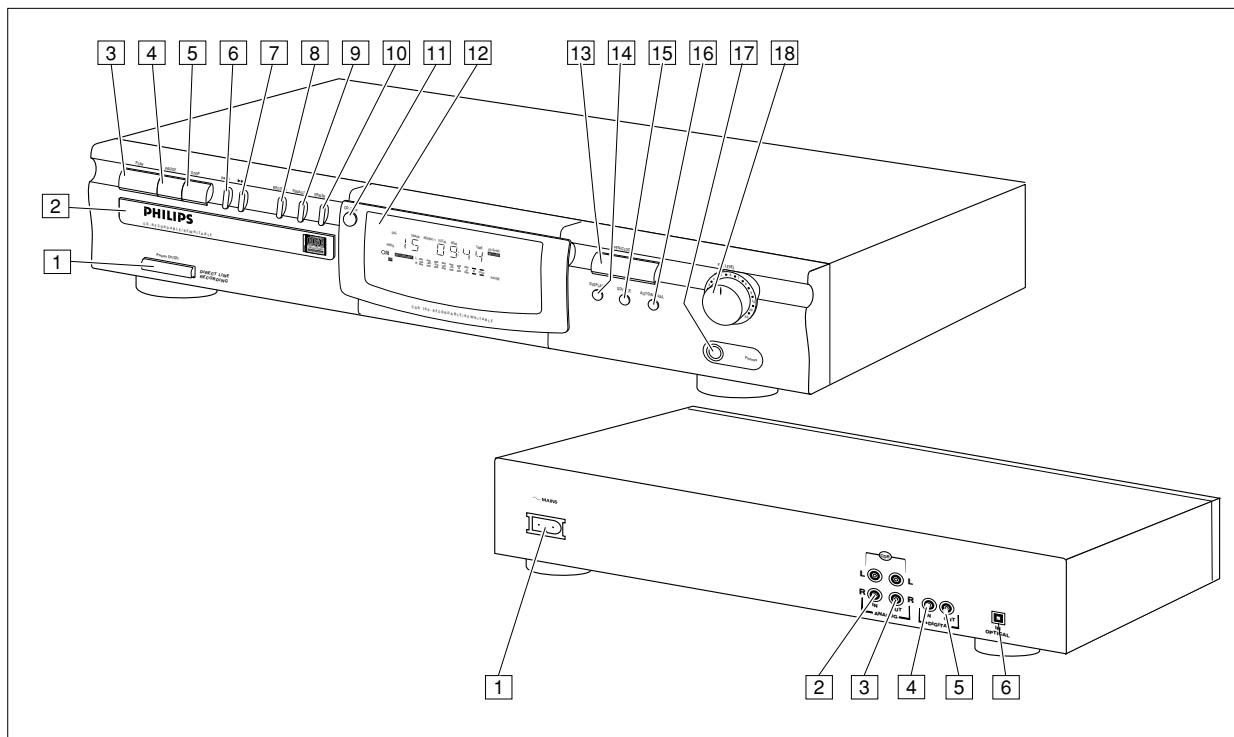
1 ON/OFF ..... turn the CD recorder ON and OFF
2 Disc tray
3 PLAY ▶...... start to play or record
4 PAUSE II ..... interrupt play
5 STOP ■ .... stops
6 ◀◀ previous track/search back
7 ▶▶I . . . . . . . . . next track/search forward/new track
8 RECORD......record
9 FINALIZE .... . finalize recording
10 ERASE .... erase recording
11 CD-SYNC .....synchronized recording (automatic start when recording)
12 DISPLAY (information screen)
13 OPEN/CLOSE....open/close disc tray
14 DISPLAY ..... select display information
15 SOURCE .....select digital or analogue input
16 AUTO/MANUAL .. select track numbering method
17 PHONES ..... plug for headphones
18 REC LEVEL ..... adjust the recording level (analogue)
Connections on the back
1 Connection to power supply
2 ANALOG IN ..... connects to the line output of an amplifier (left and right)
3 ANALOG OUT.... connects to the line input of an amplifier (left and right)
4 DIGITAL IN ..... connects to the digital coaxial output of a CD player
5 DIGITAL OUT .... connects to the digital coaxial input of e.g. amplifier or recording device
6 OPTICAL IN ..... connects to the digital optical output of a CD player
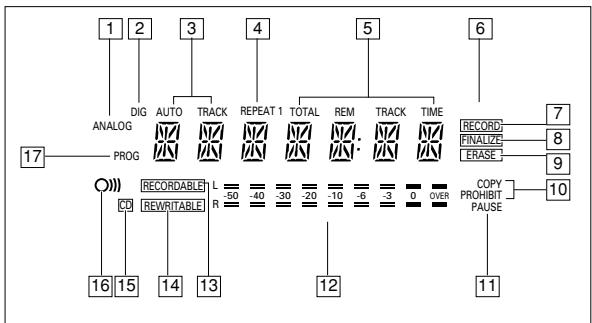
Display explanation
flowchart
graph TD
    A["1"] --> B["ANALOG"]
    C["2"] --> D["PROG"]
    E["3"] --> F["AUTO"]
    G["4"] --> H["TRACK"]
    I["5"] --> J["REPEAT 1"]
    K["6"] --> L["TOTAL"]
    M["7"] --> N["RECORD"]
    O["8"] --> P["FINALDZE"]
    Q["9"] --> R["ERASE"]
    S["10"] --> T["COPY PROHIBIT PAUSE"]
    U["11"] --> V["12"]
    W["12"] --> X["13"]
    Y["13"] --> Z["14"]
    AA["14"] --> AB["15"]
    AC["15"] --> AD["16"]
    AE["16"] --> AF["17"]
1 ANALOG..... analogue input is selected
2 DIG . . . . . . lights up when digital input is selected and flashes when digital input is incorrect.
3 AUTO TRACK..... automatically increase track numbers
4 REPEAT (1).....repeat function activated during play
5 Track number and time.
6 CD-SYNC ..... synchronized recording is active.
7 RECORD ..... lights up during recording and flashes in record standby
8 FINALIZE ..... lights up during finalizing and flashes in finalize standby
⑨ ERASE ..... lights up during erase recording and flashes in erase standby
10 COPY PROHIBIT .. Lights when trying to record digital protected audio
11 PAUSE .... pause function is active
12 Record/play level bar (analogue)
13 RECORDABLE .... Unfinalized CD-R disc inserted
14 REWRITABLE.....CD-RW disc inserted
15 CD ....CD inserted (a pre-recorded CD or finalized CD-R or CD-RW disc)
16 0) remote control active
17 PROG ..... programmed play
Display messages
Messages as listed and explained here may appear on the display for your guidance.
READING .....player is reading disc information
OPC ....during OPC procedure
OPEN ......during tray opening
CLOSE .....during tray closing
NO DISC .....no disc inserted or disc unreadable
UPDATE ......updating disc contents
ERROR ......write error during recording
RECOVER .....during recovery procedure
WAIT ......recording stop (4 seconds) in progress
SYNC ....during synchronized recording standby
TRACK ......during erase-track standby
DISC ......during erase-disc standby
SERVICE .....self-test failed
OPCFAIL .....laser power calibration failed. Further recording not possible
FULL ......program full
CD FULL .....no more recording possible
EMPTY......no recordings on disc, finalizing not possible
NO AUDIO ....(flashing) no audio disc loaded or failure to read data
FINAL .....laser power calibration performed 96 times, finalize disc
CORXIAL .....digital coaxial input selected
OPTICAL .....digital optical input selected
SHUFFLE .....during shuffle
RC-DISC .....recovered disc. Finalizing not possible
TOC ......flashes during unfinalize disc standby, lights during unfinalize disc
INPUT ......during input selection (CD-SYNC)
ANALOG ......analogue input selected
Connections general
The CD recorder has the following recording inputs:
- Digital optical input
- Digital coaxial input
- Analogue input
The CD recorder has the following playback outputs:
- Digital coaxial output
- Analogue output
The connections to be made depend upon the possibilities your audio equipment offers. Please refer to the user manuals for your other audio equipment first.
Recordings made from a digital source (CD player) via the digital optical or digital coaxial connection will give the best performance in audio and usability (e.g. auto-track).
(The digital optical connection is less sensitive to external disturbances).
If your equipment does not offer digital connections, the high quality Analogue-Digital-Converter of your CD recorder will ensure high audio performance when recordings are made from the analogue input.
Playback via the digital coaxial output of the CD recorder gives the best audio performance. If your equipment does not offer digital connections the high quality Digital-Analogue-Converter of the CD recorder ensures a high sound quality via the analogue output.
We recommend that both digital and analogue connections be made, so that analogue recordings can be made when digital recording is not possible.
The most common ways of connecting the CD recorder are explained below. If you still have difficulties with the connections, feel free to contact the Philips Consumer Service desk in your country.
Analogue connections
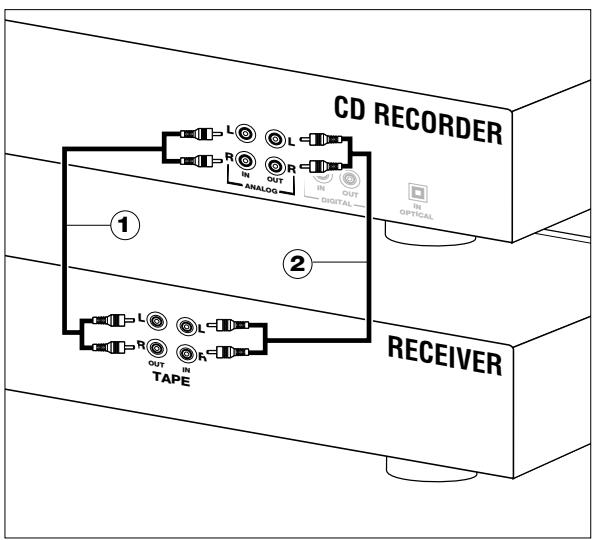
flowchart
graph TD
    A["RECEIVER"] --> B["CD RECORDER"]
    B --> C["IN OUT DIGITAL"]
    B --> D["IN IN ANALOG"]
    B --> E["IN IN L"]
    B --> F["IN L"]
    B --> G["IN R"]
    B --> H["IN L"]
    style A fill:#f9f,stroke:#333
    style B fill:#ccf,stroke:#333
    style C fill:#cfc,stroke:#333
    style D fill:#fcc,stroke:#333
    style E fill:#cff,stroke:#333
    style F fill:#ffc,stroke:#333
    style G fill:#cfc,stroke:#333
    style H fill:#fcc,stroke:#333
Use the audio cables supplied. Connect the red plugs to the R sockets, and the white plugs to the L sockets.
1 For recording, connect cable ① between the ANALOGUE IN sockets on the CD recorder and the LINE- or TAPE OUT sockets of an amplifier.
Note: For recording directly from a CD player the analogue input of the CD recorder should be connected to the analogue output of the CD player.
2 For playback, connect cable ② between the ANALOGUE OUT sockets on the CD recorder and the input sockets of an amplifier e.g. TAPE IN, CD-R or AUX.
Note: Never use the PHONO input.
Digital coaxial connections
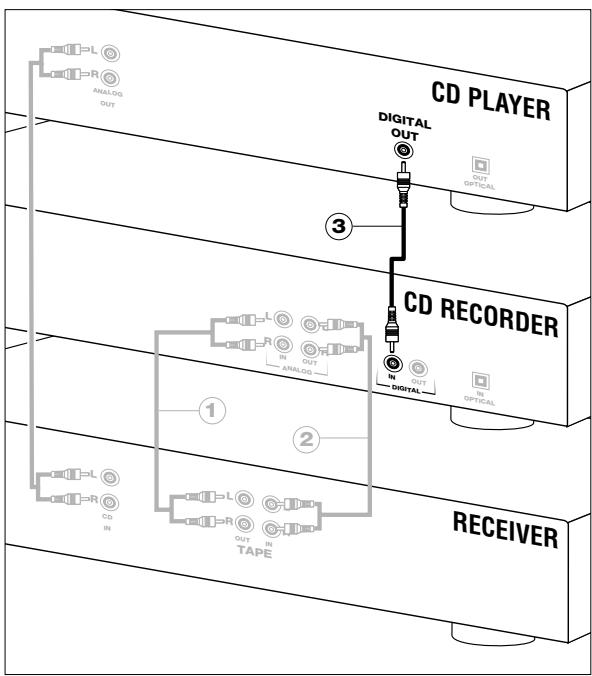
flowchart
graph TD
    A["CD PLAYER"] --> B["CD RECORDER"]
    B --> C["RECEIVER"]
    subgraph CD Player
        D["ANALOG OUT"] --> E["R"]
        F["DIGITAL OUT"] --> G["OUT"]
        H["IN"] --> I["IN"]
    end
    subgraph CD Recorder
        J["IN OUT"] --> K["IN"]
        L["DIGITAL OUT"] --> M["IN"]
        N["DIGITAL OUT"] --> O["OPTICAL"]
    end
    subgraph Receiver
        P["IN TAPE"] --> Q["R"]
        R["DIGITAL IN"] --> S["L"]
        T["IN"] --> U["R"]
        V["DIGITAL IN"] --> W["L"]
        X["DIGITAL OUT"] --> Y["OUT"]
    end
Use the supplied cable with the black plugs.
1 For recording, connect the cable ③ between the DIGITAL IN socket on the CD recorder and the DIGITAL OUT socket of a CD player.
Note: Your CD recorder is equipped with a digital coaxial output. This output can be used for digital playback.
Digital optical connections
1 Remove the dust caps from the digital optical connections. (We recommend that you save the caps).
2 For recording, connect a fiber-optic cable ④ between the digital optical input of the CD recorder and the digital-optical output of a CD player.
Note: For playback the digital coaxial output or analogue output should be connected to an amplifier.
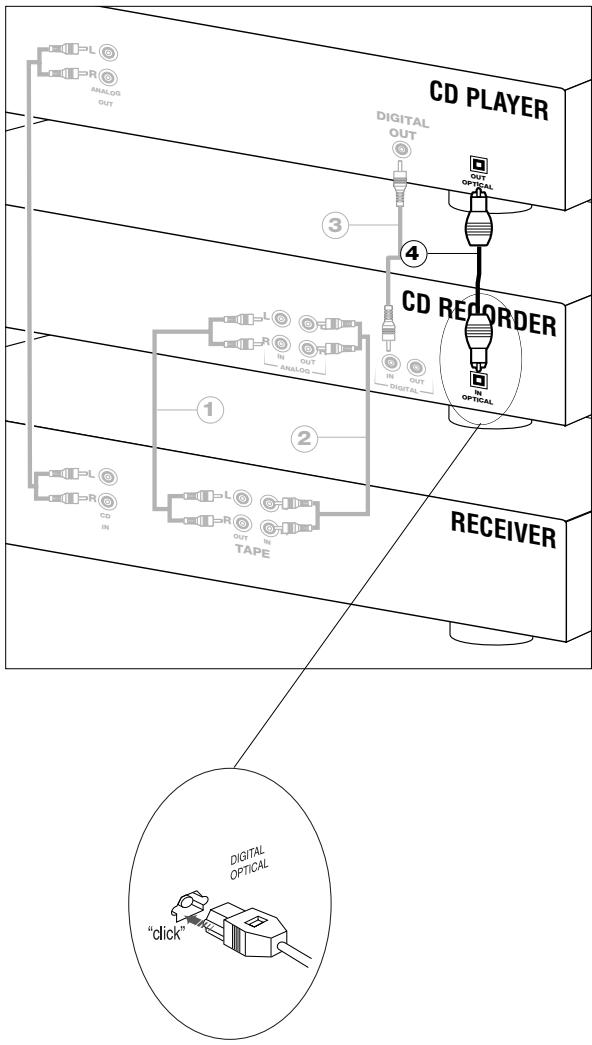
flowchart
graph TD
    A["CD PLAYER"] --> B["Digital OUT"]
    B --> C["CD REORDER"]
    C --> D["RECEIVER"]
    A --> E["Analog OUT"]
    E --> F["In Analog"]
    F --> G["OUT"]
    G --> H["Digital"]
    H --> I["Optical"]
    J["Digital Optical"] --> K["click"]
    style J fill:#f9f,stroke:#333
When connecting the Digital Optical cable, make sure it is fully inserted until there is a click.
Power supply
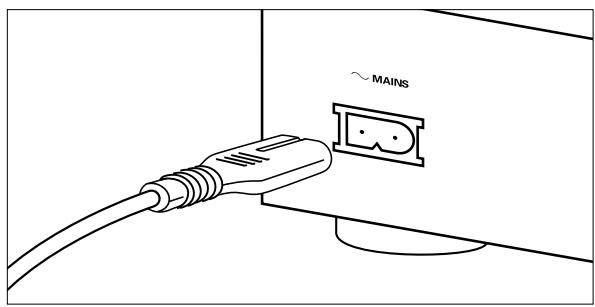
1 Plug the power cord supplied into the MAINS connector on the CD recorder, then into a wall socket.
2 Press ON/OFF to turn the CD recorder on.
Note:
- The CD recorder will automatically adjust to the local mains voltage.
- When the CD recorder is in the "OFF" position, it is still consuming some power. If you wish to disconnect your CD recorder completely from the mains, withdraw the plug from the AC Outlet.
Set-up recommendations
- Place the CD recorder on a solid, vibration free surface.
- Do not place the CD recorder near a source of heat or in direct sunlight.
- Do not use the CD recorder under extremely damp conditions.
- If the CD recorder is placed in a cabinet, make sure that a one-inch space remains free on all sides of the recorder for proper ventilation.
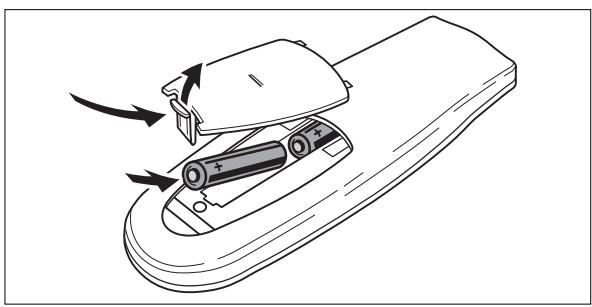
Inserting batteries in the remote control
natural_image
Diagram of a remote control device with battery and plug, showing internal components and directional arrows (no text or symbols)
1 Open the battery compartment cover.
2 Insert 2 batteries (AAA, R03 or UM-4; as supplied) as shown.
3 Replace the cover.
Note: We recommend using 2 batteries of the same type and condition.
Batteries contain chemical substances; dispose of them properly.
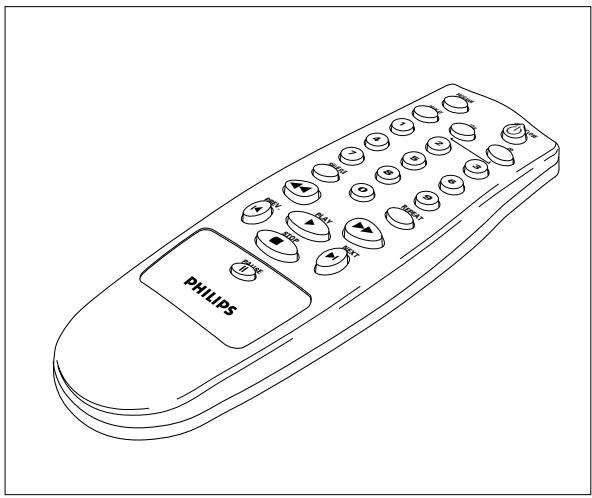
Remote control commands
natural_image
Line drawing of a Philips remote control with multiple buttons and a 'PHILIPS' button (no text or symbols on the device itself)
PROGRAM.....programs track numbers
DISPLAY .... selects display information
Number keys 0 - 9 . . . select a track by number
SHUFFLE .... plays CD(RW) or program in random order
◀. . . . . . . . . searches backward
PREVIOUS ◀ ..... selects the beginning of a previous track
STOP ■ .... stops CD(RW) and clears a program
PAUSE II .... interrupts CD(RW) play
NEXT ▶I ....... selects the beginning of subsequent
PLAY▶ . . . . . . . . . . . . . starts CD(RW) play
▶▶ ....searches forward
REPEAT .... repeat play
CD CDR 765 only
CD-R.....CDR 765 only
OPEN/CLOSE .....opens or closes the disc tray
When you press a button on the remote control, the indicator on the display will light up.
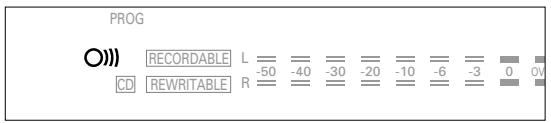
Note: Unless otherwise stated, all operating buttons are on the front of the CD recorder. The corresponding buttons on the remote control can also be used.
Inserting discs
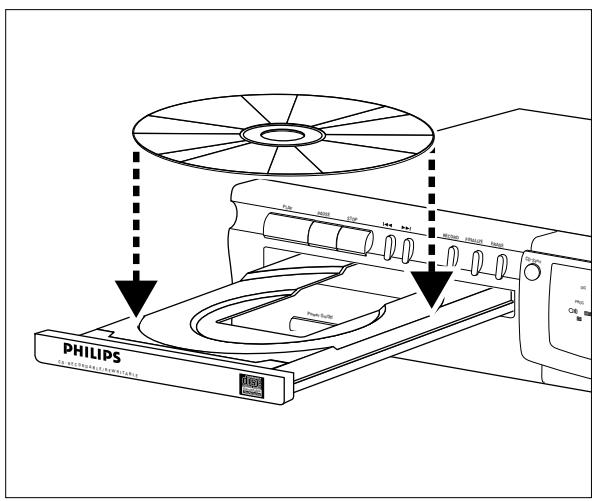
1 Press OPEN/CLOSE (13) to open the disc tray.
2 Insert a CD, CD-R or CD-RW in the appropriate recess in the tray, label side up.
IMPORTANT:
For recording it is important that the blank disc be completely free of dust particles or scratches. (see Disc Maintenance, p.5).
3 Gently push the front of the tray or press OPEN/CLOSE to close the tray (see also Playing a CD).
→ The display will indicate the type of disc you have inserted.
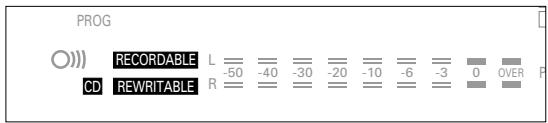
- If a CD-R is finalized the display will indicate CD.
- If a CD-RW is finalized it is still a CD-ReWritable and the display will indicate CD REWRITABLE.
If you insert a blank or partly-recorded CD-R or CD-RW, the CD recorder will calibrate the disc for optimum recording. During this process the display will first show □PC and then the number of audio tracks previously recorded. Calibration can take up to 25 seconds.
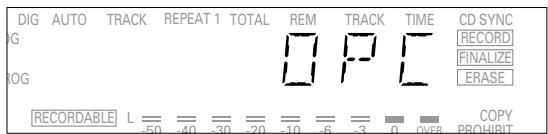
Note: Only Audio CDs will be accepted. If a non-audio disc is inserted, the display will indicate NO AUDIO.
You will soon discover how easy it is to make your own CDs. Nevertheless, we recommend that you use a CD-RW disc for your first try. The three ways to make recordings are described below:
- Digital unsynchronized
- Digital synchronized
-
Analogue
-
The recording procedure is the same for CD-Rs or CD-RWs.
- If the disc is a CD-RW and is already finalized you must unfinalize it first (page 15).
- If the disc already contains recordings, the CD recorder will automatically search for the end of the last track, so that you can start recording from there.
- There must be at least 7 seconds of recording time left on the disc, or you will not be able to activate the record standby mode.
- If the display indicates COPY PROHIBIT, no digital recording can be made of the source material. Recording will not start or will stop after 4 seconds.
-
The Serial Copy Management System (SCMS) only allows digital recording under specific conditions:
-
It is not possible to make a digital copy from a digital copy.
- Analogue recording is always possible!
- The number of recordings from the original is unlimited.
- A maximum of 99 tracks can be recorded on a disc. The minimum allowable track length is 4 seconds.
- Digital recordings can be made from CDs (or other sources with an output Sample Frequency of 44.1 kHz +/- 100 ppm) via the digital input.
Important:
If you want to play the recorded CD-R disc on a regular CD player, it must be finalized first. See finalizing discs (p.15).
Finalized CD-RW discs play only on CD-RW compatible CD players.
Digital recording - unsynchronized
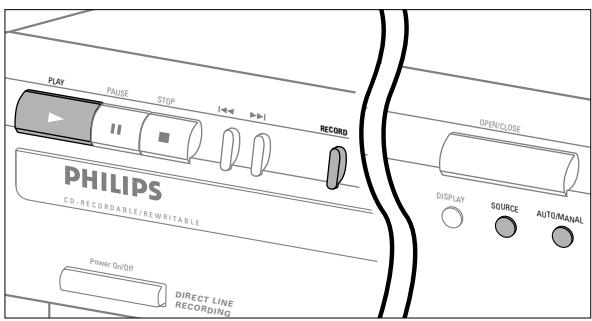
Preparing for digital recording
1 Make sure the disc is absolutely free of scratches and dust particles.
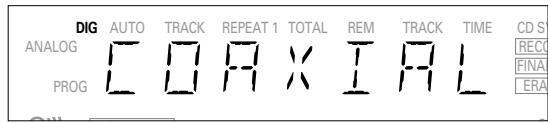
2 Press Source repeatedly until (depending on the digital connection used):
→ DIG CORXIAL or DIG OPTICAL appears on the display.
3 Press AUTO/MANUAL to switch between auto and manual track numbering.
→ If AUTO is selected, (preferred) AUTO TRACK will appear on the display.

- AUTO: The track increments are automatically copied from the digital source material.
- MANUAL: Track numbers can be incremented manually by pressing ▶. (minimum track length is 4 seconds).
(This can also be done in AUTO mode).
- Track numbers cannot be changed after recording.
Note: Auto track works only with Consumer Sources with a digital output signal according to the IEC 958 (consumer part) audio standard.
Start digital recording
1 With the recorder stopped, press RECORD to enter the Record standby mode.
→ RECORD will flash.
![DIG AUTO TRACK REPEAT 1 TOTAL REM TRACK TIME CD SYNC ANALOG RECORD PROG FINALIZE ERASE [RECORDABLE] — — — — — — — — — — — COPY](/content/2019/08/100783/images/fffc77ebc9f8f49f2551a8f7cb0071845aec97862c79e5105478a5510b1a513d.jpg)
- If DIG also flashes, the digital connection is incorrect.
2 To start recording, press PLAY and immediately start the source (from stop mode).
→ RECORD lights continuously. The track number and recording time used will be indicated on the display.
- To record a 3-second silence at the start of a track, press PAUSE.
- To check the (remaining) recording time, press DISPLAY. (This can also be done during the recording.)
3 To stop recording, press STOP on the CD recorder.
→ RECORD will go out.
- To interrupt recording, press PAUSE.
→ RECORD starts to flash. Resume at step 2.
After recording the display will show UPDATE for several seconds.
Note: With AUTO TRACK on, the recorder will stop automatically. Recordings from DAT or DCC will stop after 20 seconds silence. With AUTO TRACK off, the AUTO STOP mode is disabled.
Synchronized digital recording - CD-SYNC
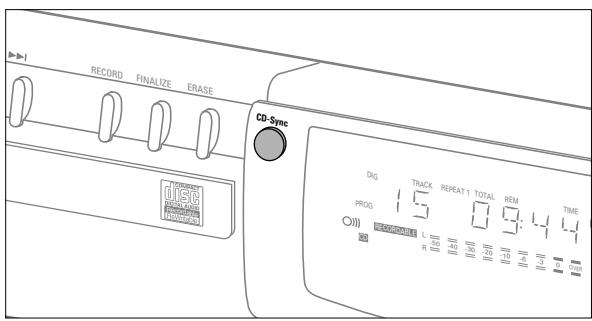
Preparing for synchronized digital recording
The CD-SYNC feature enables you to make a fast and easy digital recording of a CD. Track increments are automatically detected from the digital source material. Track increments cannot be added manually.
1 Make sure the disc is absolutely free of scratches and dust particles.
2 Press Source repeatedly until (depending on the connection used):
→ DIG CORXIAL or DIG OPTICAL will appear on the display.
Start synchronized digital recording
1 With the CD recorder stopped, press CD-SYNC.
→ On the display, CD-SYNC & SYNC appears. After a time, RECORD starts to flash.
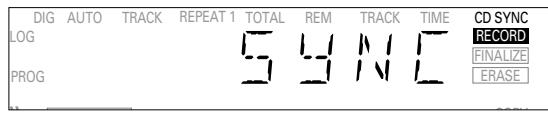
- If DIG also flashes, the digital connection is incorrect.
2 To start recording, press Play on the digital source.
→ The CD recorder automatically starts to record and RECORD lights continuously. The track number and recording time used will be indicated on the display
- If you start the source during a track, CD-SYNC will not start recording until the beginning of the next track.
- To check the (remaining) recording time, press Display. (This can also be done during recording)
3 To stop recording, press STOP on the CD recorder.
→ CD-SYNC and RECORD will go out.
- To interrupt recording, press PAUSE.
→ RECORD will start to flash. To resume, press PLAY on the CD recorder.
After recording the display will show UPDATE for several seconds.
Note:
- The CD recorder will not start until it recognizes a digital signal. Although the reaction time is less than 200 milliseconds, the very beginning of the music may sometimes not be recorded. If this happens, you can start the recording manually (see digital recording-unsynchronized).
- Recordings from DAT or DCC will only stop after 20 silence.
Analogue recording
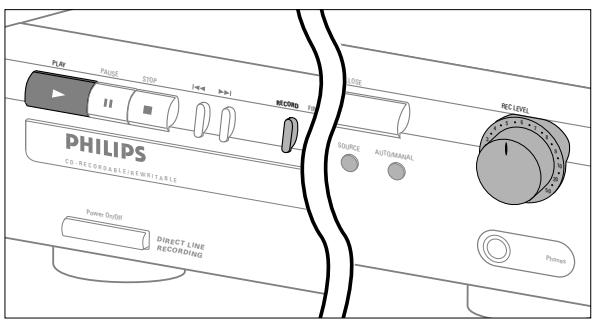
Only make analogue recordings if digital recording is not possible.
Preparing for analogue recording
1 Make sure the disc is absolutely free of scratches and dust particles.
2 Press Source repeatedly until:
→ ANALOG appears on the display.
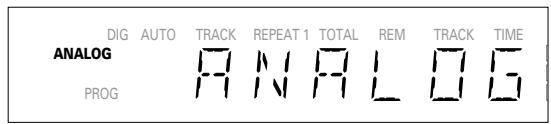
3 Press AUTO/MANUAL to switch between auto and manual track numbering.
→ If Auto is selected (preferred), AUTO TRACK appears on the display.
- AUTO: The track number is automatically incremented after a silence on the original of at least 3 seconds.
- MANUAL: Track numbers can be incremented manually by pressing ▶. (minimum track length is 4 seconds). (This can also be done in AUTO mode)
- Track numbers cannot be changed after recording.
4 With the recorder stopped, press RECORD to enter Record standby mode.
→ RECORD will flash

5 Play the source first to set the optimal recording level on the CD recorder.
6 Adjust the REC LEVEL until all blue segments on the Record/Play Level bar light up but no red segments light continuously during the loudest passages.
7 Stop the source.
Start analogue recording
1 To start recording, press PLAY on the CD recorder and immediately start the source.
→ RECORD lights continuously. The track number and recording time used appear on the display.
- To record a 3-second silence at the beginning of a track, press PAUSE.
- To check the (remaining) recording time, press Display. (This can also be done during the recording.)
2 To stop recording, press STOP on the CD recorder.
→ RECORD will go out.
- To interrupt recording, press PAUSE.
→ RECORD will start to flash. Resume at step 1.
After recording the display will show UPDATE for several seconds.
Note: With AUTO TRACK on, the recorder will stop automatically after 20 seconds silence. With AUTO TRACK off, the AUTO STOP mode is disabled.
Finalizing CD-R & CD-RW discs
Finalizing is a simple procedure that is necessary in order to play the discs on a regular (non-recording) CD player.
Note: Finalizing prevents any further recording on a CD-R. A finalized CD-RW must be unfinalized to allow further recording or erasure of tracks.
1 Make sure the disc is absolutely free of scratches and dust particles.
2 With the recorder stopped press FINALIZE and then within 3 seconds press RECORD.
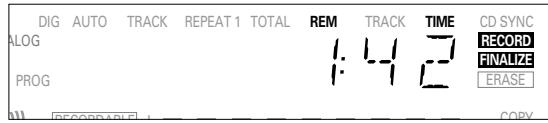
→ The approximate finalization time will appear in the display. RECORD & FINALIZE lights up.
The display counts down through the finalization. On completion, the total number of tracks and the total time recorded will appear on the display.
For CD-R CD RECORDABLE will change to CD on the display. For CD-RW no change will be seen on the display.
Finalizing will last at least 2 minutes.
Note: During finalization, the CD recorder will not accept operating commands.
Unfinalizing CD-RW discs
For CD-RW discs only.
If you want to make more recordings (or to erase tracks) on a finalized disc you must unfinalize it first. The Table of Contents (TOC) on the disc will be removed.
To unfinalize:
1 Press ERASE twice.
→ On the display, TOC and ERASE will flash.
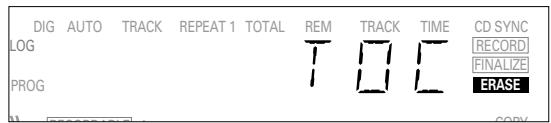
2 Press RECORD within 3 seconds.
→ TOC and ERASE light up continuously during erasure.
Note: This will take approximately 1 minute.
Erasing CD-RW discs
For CD-RW discs only.
You can erase:
- track by track from the end.
- the entire disc.
To erase the last track :
1 Make sure the disc is not finalized (Showing OPC on display during start up). Otherwise unfinalizeize first (p. 15)
2 Press ERASE.
→ On the display, TRACK and ERASE will flash.
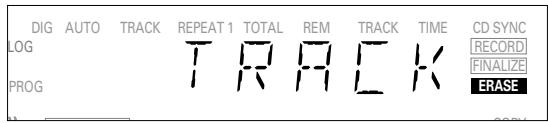
3 Press RECORD within 3 seconds.
→ TRACK and ERASE light continuously during erasure.
To erase the entire disc:
1 Press ERASE once (for finalized CD-RW) and twice (for unfinalized CD-RW).
→ On the display, BISC and ERASE will flash.
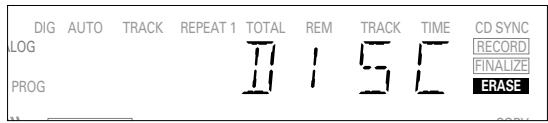
2 Press RECORD within 3 seconds.
→ DISC and ERASE light continuously during erasure.
Erasure of a complete disc may take up to 1.5 minutes.
Playing a CD
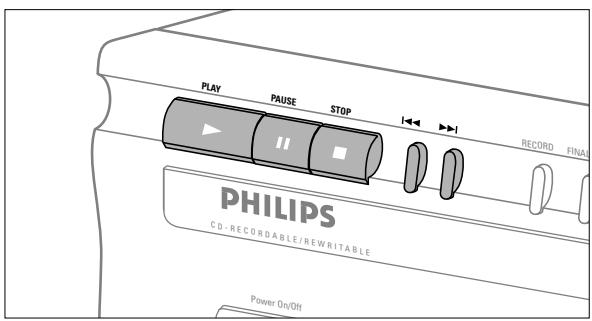
1 Press PLAY to start CD play.
→ The track number and track time appear on the display, together with the record/play level indicator.
2 Press Display once, twice, or three times to see:
→ remaining track time; Total remaining time; Track time with the record/play level bar off.
3 To interrupt play temporarily, press PAUSE.
→ PAUSE will light up on the display
4 To continue play, press PAUSE again or press PLAY.
5 To stop play, press STOP.
→ The number of tracks and the total playing time will appear on the display.
Selecting a track or searching
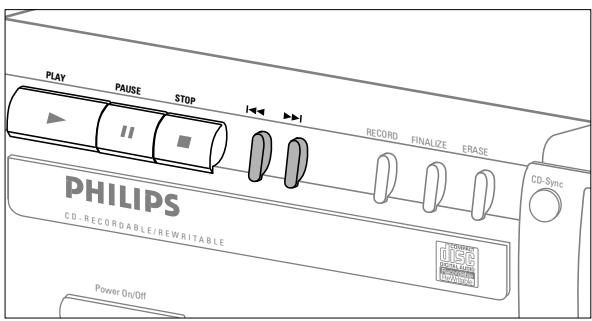
Selecting a track during play
1 Briefly press ◀◀ or ▶▶ one or more times.
→ Play skips to the beginning of the present, previous or following track.
or
- Press the required track number using the numerical keys on the remote control. For 2-digit track numbers, press the keys in rapid succession.
→ Play skips to the beginning of the selected track.
Selecting a track when CD play is stopped
1 Briefly press ◀◀ or ▶▶ one or more times.
2 Press PLAY.
→ Play starts at the selected track.
or
- Press the required track number using the numerical keys on the remote control. For 2-digit track numbers, press the keys in rapid succession.
Searching during CD play
1 Hold down ◀◀ or ▶▶ (or ◀◀ or ▶▶ on the remote control).
→ The player first searches backwards or forwards at 10 times normal speed with sound at low volume, then goes to fast reverse or fast forward with sound muted.
2 Release the button at the desired passage.
→ Play starts at the desired passage.
Note: During Shuffle, Repeat or Program play, search is restricted to within the track being played at the time.
Shuffle play
natural_image
Illustration of a remote control panel with circular buttons and directional arrows (no text or symbols)
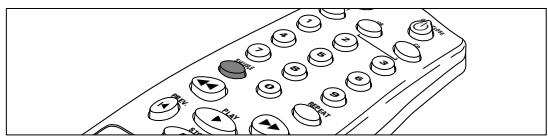
1 Press SHUFFLE (or PLAY) on the remote control before or during CD play to start shuffle play.
→ The tracks on the CD (or program if set) play in random order. SHUFFLE will appear on the display between tracks.
2 Press SHUFFLE again to return to normal CD play.
Note: Shuffle is also cleared when you open the disc tray.
Repeat CD, track or program
1 Press REPEAT on the remote control one or more times during CD play.
→ When REPEAT 1 appears on the display, the current track plays repeatedly. When REPEAT appears on the display, the disc or program plays repeatedly.
2 To return to normal play, press REPEAT one or more times until:
→ the REPEAT message disappears from the display.
Note:
- You can use shuffle in combination with repeat CD or program play.
- Repeat is also cleared when you open the disc tray.
Programming
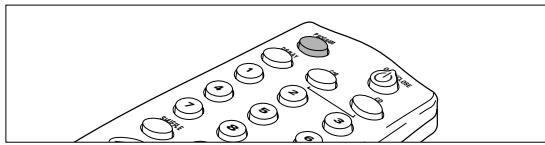
You can program up to 30 tracks to play in any desired sequence. Tracks can be programmed more than once, but each time counts as a track.
natural_image
Illustration of a computer mouse with control buttons and a small screen (no text or symbols)
1 On the remote control press PROGRAM to start programming.
→ PROG flashes on the display.
2 Press a track number with the number keys. For 2-digit numbers, press the keys in rapid succession.
→ On the display, the track number appears briefly, followed by the total programmed tracks and total program time.
3 Repeat step 2 for all tracks to be programmed.
4 Press STOP or PROGRAM to end programming.
→ PROG lights continuously.
Note:
- To review the program, press ◀◀ or ▶▶ in stop mode.
- To add more tracks to the program, repeat steps 1 through 4.
- If you try to store more than 30 tracks, FULL appears on the display
5 Press PLAY to start programmed play.
Clearing a program
1 Press STOP if necessary to stop programmed play.
2 Press STOP again to clear the program.
→ PROG disappears from the display.
Note: The program is also cleared when you open the disc
tray.
Troubleshooting
If you think your CD recorder is defective, it is wise to check this list first and run the diagnostic program. Maybe you have forgotten a simple step.
Warning!
Under no circumstances should you attempt to repair the CD recorder yourself as this will invalidate the guarantee.
SYMPTOM: • SOLUTION:
No power
- check to ensure that the ON/OFF button is on
- check to ensure that the power cable is plugged in correctly
- switch the recorder OFF and then immediately back ON
Auto track does not work
- check to ensure that auto track is selected.
- check to ensure that there are 3 seconds silence in between the tracks (analogue recording only)
- check to ensure that the source is a consumer source with the digital output according the IEC audio standard.
No sound
- check the audio connections
- if using an amplifier, try using a different source
Amplifier sound is distorted
- check to ensure that the CD recorder analogue output is not connected to the amplifier Phono input.
Play will not start
- check to ensure that the label of the CD is facing up
- clean the disc
- check to ensure that the disc is not defective by trying another disc
Remote control does not work
- point the remote control directly at the CD recorder
- check the batteries and replace if necessary
- select the right source first
Will not record
- clean the disc.
- check to ensure that CD-RW is not finalized
- check to ensure that the disc is recordable and replace if necessary
- the disc is not an AUDIO disc
- wrong input source selected.
Analog recording is distorted
• make sure the recording level is correct
20 second pause between recordings
• see synchronized digital recording (CD-SYNC) p. 8
Player does not react
- switch the ON/OFF button on the front of the player off and back then on
SERVICE on display after switching on
- try switching off and on again
RECOVER on display
- a power failure has occurred during recording; the CD recorder is attempting to repair the disc.
- if RC-DISC then appears on the display, the disc cannot be recorded further, and cannot be finalized. However, it can be played on a CD recorder.
- on a CD-RW disc, the track being recorded is lost, but further recording and finalization can still be done.
- if OPC FAIL appears, no further recording is possible. You can still use the disc as a CD on this recorder.
Diagnostic program
If the malfunction continues, perform the Diagnostic Program:
1 Switch the recorder off using ON/OFF.
2 Simultaneously press PLAY and STOP and switch the recorder back on using ON/OFF.
→ The display will now indicate BUSY and after a few minutes, the message will change to ERROR or PASSED
- If the ERROR message appears, your recorder is defective and needs to be repaired. Consult your supplier or call the Philips Consumer Line to find the nearest service center. The number of the Consumer Line can be found in the guarantee booklet.
- If the PASSED message appears, you may be misinterpreting the user instructions or using an inappropriate disc, or there may be a mechanical defect or an incorrect connection. Carefully read the user instructions once again; and if necessary contact your supplier.
- If you cannot solve the problem, contact to the nearest service center.
3 Switch off the recorder using ON/OFF to exit from the Diagnostic Program.
Table des matières
GÉNÉRALITÉS
Sortie audio ....2V RMS ±2dB
natural_image
Illustration of a hand holding a circular object with a black arrow indicating direction (no text or symbols)
natural_image
Diagram of a handheld device with battery and plug, showing internal components and directional arrows (no text or symbols)
natural_image
Line drawing of a Philips remote control with multiple keypad buttons (no text or symbols on the device itself)
natural_image
Illustration of a remote control with multiple circular buttons and icons (no text or symbols)
natural_image
Line drawing of a remote control panel with buttons and dials (no text or symbols)
natural_image
Illustration of a hand using a tool to press or adjust a circular component (no text or symbols visible)
flowchart
graph TD
    A["CD RECORDER"] --> B["IN ANALOG"]
    B --> C["L IN R"]
    C --> D["L OUT"]
    D --> E["R OUT"]
    E --> F["IN DIGITAL"]
    F --> G["IN OPTICAL"]
    H["RECEIVER"] --> I["IN TAPE"]
    I --> J["L OUT"]
    J --> K["L IN"]
    K --> L["R OUT"]
    L --> M["R OUT"]
flowchart
graph TD
    A["CD PLAYER"] --> B["Digital OUT"]
    B --> C["CD RECORDER"]
    C --> D["RECEIVER"]
    subgraph Top
        E["ANALOG OUT"] --> F["L"]
        G["R"] --> H["R"]
        I["OUT"] --> J["IN"]
        K["OUT"] --> L["IN"]
        M["IN"] --> N["OUT"]
        O["IN"] --> P["OUT"]
        Q["IN"] --> R["IN"]
        S["IN"] --> T["IN"]
        U["IN"] --> V["IN"]
    end
    subgraph Bottom
        W["CD IN"] --> X["L"]
        Y["R"] --> Z["R"]
        AA["OUT"] --> AB["IN TAPE"]
        AC["IN"] --> AD["IN"]
        AE["IN"] --> AF["IN"]
        AG["IN"] --> AH["IN"]
        AI["IN"] --> AJ["IN"]
    end
    subgraph Bottom
        AK["click"]
    end
    style Top fill:#f9f,stroke:#333
    style Bottom fill:#ccf,stroke:#333
    style Bottom Right
    style Bottom Left
    style Bottom Left
    style Bottom Right
    style Bottom Right
    style Bottom Left
    style Bottom Left
    style Bottom Right
    style Bottom Left
    style Bottom Right
    style Bottom Left
    style Bottom Right
    style Bottom Right
    style Bottom Left
    style Bottom Left
    style Bottom Right
    style Bottom Left
    style Bottom Right
    style Bottom Left
    style Bottom Right
    style Bottom Right
    style Bottom Left
    style Bottom Left
    style Bottom Right
    style Bottom Left
    style Bottom Right
    style Bottom Left
    style Bottom Right
    style Bottom Right
    subgraph Top
        B1["DIGITAL OUT"]
        C1["OUT"]
        D1["OPTICAL"]
        E1["IN"]
        F1["IN"]
        G1["IN"]
        H1["IN"]
        I1["IN"]
        J1["IN"]
        K1["IN"]
        L1["IN"]
        M1["IN"]
        N1["IN"]
        O1["IN"]
        P1["IN"]
        Q1["IN"]
        R1["IN"]
        S1["IN"]
        T1["IN"]
        U1["IN"]
        V1["IN"]
        W1["IN"]
        X1["IN"]
        Y1["IN"]
        Z1["IN"]
        AA1["IN"]
        AB1["IN"]
        AC1["IN"]
        AD1["IN"]
        AE1["IN"]
        AF1["IN"]
        AG1["IN"]
        AH1["IN"]
        AI1["IN"]
        AJ1["IN"]
        AK1["IN"]
        AL1["IN"]
        AM1["IN"]
        AN1["IN"]
        AO1["IN"]
        AP1["IN"]
        AQ1["IN"]
        AR1["IN"]
        AS1["IN"]
        AT1["IN"]
        AU1["IN"]
        AV1["IN"]
        AW1["IN"]
        AX1["IN"]
        AY1["IN"]
        AZ1["IN"]
        BA1["IN"]
        BB1["IN"]
        BC1["IN"]
        BD1["IN"]
        BE1["IN"]
        BF1["IN"]
        BG1["IN"]
        BH1["IN"]
        BI1["IN"]
        BJ1["IN"]
        BK1["IN"]
        BL1["IN"]
        BM1["IN"]
        BN1["IN"]
        BO1["IN"]
        BP1["IN"]
        BP2["IN"]
        BP3["IN"]
        BP4["IN"]
        BP5["IN"]
        BP6["IN"]
        BP7["IN"]
        BP8["IN"]
        BP9["IN"]
        BP10["IN"]
        BP11["IN"]
        BP12["IN"]
        BP13["IN"]
        BP14["IN"]
        BP15["IN"]
        BP16["IN"]
        BP17["IN"]
        BP18["IN"]
        BP19["IN"]
        BP20["IN"]
        BP21["IN"]
        BP22["IN"]
        BP23["IN"]
        BP24["IN"]
        BP25["IN"]
        BP26["IN"]
        BP27["IN"]
        BP28["IN"]
        BP29["IN"]
        BP30["In"]
natural_image
Diagram of a handheld device with battery and plug, showing internal components and directional arrows (no text or symbols)
natural_image
Line drawing of a Philips remote control with keypad and scroll buttons (no text or symbols beyond branding)
natural_image
Illustration of a remote control with multiple function keys and buttons (no text or symbols)
natural_image
Diagram of a computer mouse with multiple circular buttons arranged on top (no text or symbols)



