
equIP H3D1F - Sicherheitskamera HONEYWELL - Kostenlose Bedienungsanleitung
Finden Sie kostenlos die Bedienungsanleitung des Geräts equIP H3D1F HONEYWELL als PDF.


| Produkttyp | Sicherheitskamera |
| Marke | Honeywell |
| Modell | equIP H3D1F |
| Auflösung | 720p (HD) |
| Objektiv | 3,3–12 mm Variofokal, Auto-Iris |
| Stromversorgung | 24 V AC oder PoE (IEEE 802.3af) |
| Netzwerk | RJ45 Ethernet (CAT5) |
| ONVIF-Kompatibilität | Ja |
| Videoausgang | Lokaler BNC-Anschluss (nur zur Einrichtung) |
| Betriebstemperatur | -10 °C bis +50 °C |
| Schwenk-/Neigebereich | Horizontal 360°, Neigung 90° (einstellbar) |
| Gehäusematerial | Kunststoff, weiße Kuppel |
| Montage | Decken- oder Wandeinbau (Aufputz oder Unterputz mit Adapterplatte) |
| Audio | Audio-Eingang und -Ausgang (Klemmenblock) |
| Alarm | 4 Alarmeingänge (Klemmenblock) |
| Software | Honeywell IP Utility, Webbrowser (Internet Explorer) |
| Sicherheit | Standardpasswort: 1234 (Admin), gast (Gast) |
| Zubehör im Lieferumfang | Kuppel, Turret, Adapterplatte (Unterputz), Schrauben, Abdeckkappen |
| Entsorgung | WEEE-konform (elektrische und elektronische Altgeräte) |
| Zertifikate | UL 60950-1, CSA C22.2 Nr. 60950-1, FCC Klasse B, CE |
Häufig gestellte Fragen - equIP H3D1F HONEYWELL
Benutzerfragen zu equIP H3D1F HONEYWELL
0 Frage zu diesem Gerät. Beantworten Sie die, die Sie kennen, oder stellen Sie Ihre eigene.
Eine neue Frage zu diesem Gerät stellen
Laden Sie die Anleitung für Ihr Sicherheitskamera kostenlos im PDF-Format! Finden Sie Ihr Handbuch equIP H3D1F - HONEYWELL und nehmen Sie Ihr elektronisches Gerät wieder in die Hand. Auf dieser Seite sind alle Dokumente veröffentlicht, die für die Verwendung Ihres Geräts notwendig sind. equIP H3D1F von der Marke HONEYWELL.
BEDIENUNGSANLEITUNG equIP H3D1F HONEYWELL
Honeywell

Network Setup
Honeywell IP Utility
Note Before installing and using the Honeywell IP Utility, ensure that your camera is connected to your network through a CAT5 Ethernet cable.
Note It is recommended that you disable any Norton's AntiVirus software that might be running on the workstation.
To discover the IP camera devices and configure their network settings, you must first install the IP Utility. See the appropriate user guide located on your software DVD or on the Honeywell product web site. You must have Windows administrator privileges for the workstation on which the Honeywell IP Utility is being installed.
-
Insert the DVD. Autorun will start the installation. If autorun does not start, browse to the DVD drive and run Honeywell IP Utility Setup.exe.
-
Follow the steps in the InstallShield Wizard.
- Log on to the IP Utility by double-clicking the IP Utility icon (☐) on the desktop. The main IP utility screen appears.
Note This camera supports the ONVIF™ specification for interoperability between network video products. There is no support for legacy equIP and equIP2 products.
Configuring the Network
-
After you log on to the IP utility, the devices on the network are automatically discovered and listed in the Discovery pane. After the initial discovery, auto-refresh continues to discover newly added network devices.
-
Connect to your IP camera device by double-clicking it in the Discovery pane or by selecting it and clicking
-
Configure the IP network settings: • Automatically. Connect to the device, click the System tab, select to Obtain an IP Address automatically, enter the Device Name, and click Apply. The network settings are automatically assigned from the network server.
- Manually. Connect to the device, click the System tab. Ensure Obtain an IP Address automatically is not selected, then enter the Device Name, IP Address, Subnet Mask, and Gateway. Click Apply.
Caution Check the IP network settings before clicking Apply. Incorrect values might cause a failure when connecting the tool to the device.
Note Contact your network administrator if you have any network-related issues or questions about your network.

Camera Operation
The camera has a web client that enables you to view video and configure device settings for the camera using a standard web browser. See the appropriate user guide located on your software DVD to set up your web browser to view video. To log on to the web client application:
-
Launch Internet Explorer and enter the URL (IP address) for the network camera. OR, launch the web client application from the IP Utility by clicking Launch Browser.
-
Enter the case-sensitive password and click 📋. The default passwords are 1234 (Administrator) or guest (Guest user).
Warnings
Installation and servicing should be performed only by qualified and experienced technicians to conform to all local codes and to maintain your warranty.
WARNING! 24 V AC models require the use of CSA Certified/UL Listed Class 2 power adapters to ensure compliance with electrical safety standards. Power over Ethernet (PoE) should meet the IEEE 802.3 af PoE standard.
WEEE (Waste Electrical and Electronic Equipment). Correct disposal of this product (applicable in the European Union and other European countries with separate collection systems). This product should be disposed of, at the end of its useful life, as per applicable local laws, regulations, and procedures.
FCC Compliance Statement
Information to the User: This equipment has been tested and found to comply with the limits for a Class B digital device. Pursuant to Part 15 of the FCC Rules, these limits are designed to provide reasonable protection against harmful interference in a residential installation. This equipment generates, uses, and can radiate radio frequency energy and, if not installed and used in accordance with the instruction manual, may cause harmful interference to radio communications. However, there is no guarantee that interference will not occur in a particular installation.
If this equipment does cause harmful interference to radio or television reception, which can be determined by turning the equipment off and on, the user is encouraged to try to correct the interference. For example, try reorienting or relocating the receiving antenna, increasing the separation between the equipment and receiver, or connecting the equipment to an outlet on a different circuit.
Changes or modifications not expressly approved by the party responsible for compliance could void the user's authority to operate the equipment.
This Class B digital apparatus complies with Canadian ICES-003.
North America
The equipment supplied with this guide conforms to UL 60950-1 and CSA C22.2 No. 60950-1.
Manufacturer's Declaration of Conformance
The manufacturer declares that the equipment supplied with this guide is compliant with the essential protection requirements of the EMC directive 2004/108/EC and the General Product Safety Directive 2001/95/EC, conforming to the requirements of standards EN 55022 for emissions, EN 50024 for immunity, and EN 60950 for Electrical Equipment safety.
Contact Information
Honeywell
www.honeywellvideo.com +1.800.323.4576 (North America only) HVSsupport@honeywell.com
Document 800-13169 - Rev A - 11/2012
© 2012 Honeywell International Inc. All rights reserved. No part of this publication may be reproduced by any means without written permission from Honeywell. The information in this publication is believed to be accurate in all respects. However, Honeywell cannot assume responsibility for any consequences resulting from the use thereof. The information contained herein is subject to change without notice. Revisions or new editions to this publication may be issued to incorporate such changes.
H3 Series
ONVIF Indoor High Resolution TDN IP Indoor Minidome Cameras
Quick Install Guide
Document 800-13169 – Rev A – 11/2012
Introduction
Thank you for purchasing a Honeywell H3 Series Indoor High Resolution True Day/Night IP Indoor Minidome Camera. Before installing the camera, please read this guide carefully and verify your model:
equIP Series
H3D1F/H3D1FX, 720p resolution, 3.3 - 12 mm Vari-focal Auto Iris lens
H3D2F/H3D2FX, 1080p resolution, 3 - 9 mm Vari-focal Motorized Focus and Zoom lens
H3W1F/H3W1FX, Wide Dynamic 720p resolution, 3.3 - 12 mm Vari-focal Auto Iris lens
Performance Series
H3S1P/H3S1PX, 720p resolution, 3.3 - 12 mm Vari-focal Auto Iris lens
H3SVP/H3SVPX, VGA resolution, 3.3 - 12 mm Vari-focal Auto Iris lens
For detailed information for your specific camera, please refer to the appropriate user guide located on the IP Utility DVD.
Before installing the camera, Honeywell recommends that you download the latest software updates. Go to www.honeywellsystems.com/support/download-center/index.html and follow the instructions on the page to logon, find your camera, and then download software updates.
Operating Notes
Power Supply This dome camera can operate on 24 V AC or PoE.
Operating Conditions Avoid:
- Viewing bright objects (for example, light fixtures) for extended
• Operating or storing the unit in the following locations
- Extremely humid, dusty, hot/cold environments (where the operating temperature is outside the recommended range of 14^ to 122^ [-10^ to +50^] )
- Close to sources of powerful electromagnetic radiation, such
as radio of TV transmitters
- Close to fluorescent lamps or objects reflecting light
• Under unstable light sources (may cause flickering)
Document 800-13169 – Rev A – 11/2012

Preparation
1. Preparing the Camera
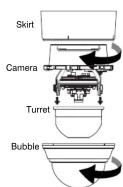
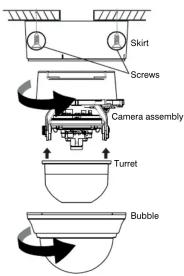
- Rotate the bubble counterclockwise until it disconnects.
- Remove the turret.
- Rotate the camera counterclockwise until it
disconnects from the skirt. - Set aside the bubble, turret, and camera.
2. Preparing the Mounting Surface (Surface or Flush Mount)
-
Mark the mounting surface for the screw holes and the wire access hole.
-
Use the mounting template if you are surface
mounting your camera.
- Use the flush mount adapter plate as a template if you are flush mounting your
- Pre-drill holes in the mounting surface as required.
3. Connecting the Wiring
- Pull the wires through the hole until you have at least 4 inches of wire.
- Remove the green connector strip from the camera base and make all the necessary connections.
Note The Audio and Alarm I/O connections are not available on H3SVP and H3S1P cameras.
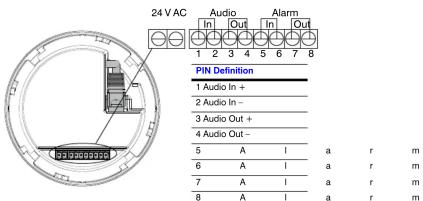
- Connect a twisted pair (UTP) cable from each peripheral alarm contact to each alarm input on the terminal block. For detailed audio and alarm configuration information, refer to the appropriate user guide located on your software DVD.
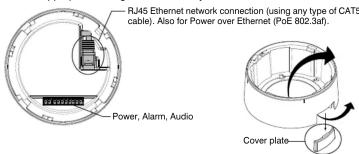
Note It is not recommended that you supply both 24 V AC and PoE at the same time.
4. Pull the cables through the back or side entries of the camera skirt, then connect to the camera assembly. You might have to remove the cover plate for flush mount.

Camera Mounting
Surface Mount
- Secure the skirt to the ceiling (hardware not supplied) or to the wall using the supplied hardware.
Note You must use screws that are able to support at least three times the weight of the camera. - Rotate and align the camera assembly yellow label with the skirt yellow label
- Secure the camera assembly to the skirt by pushing it into the skirt, then twisting it clockwise until it
then twisting it clockwise until it clicks securely in place. 4. Adjust the camera's field of view (see Camera Adjustment) - Install the turret by clicking it into
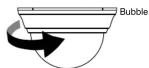
- Install the bubble by placing it on the camera with the tabs to the left of the slots, then turning it clockwise until the tabs click securely into place.
Flush Mount (with or without 4S box) (4S box shown)
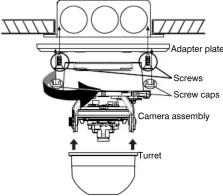
- Use the screws (not supplied) to connect the adapter plate directly to the ceiling or wall. Or, use your own screws to connect the adapter plate to the 4S box which is attached to the ceiling or wall.
Note You must use screws that are able to support at least three times the weight of the camera. - Gently push the screw caps into place over the screw heads.
- Secure the camera assembly to the adapter plate by twisting clockwise until it clicks securely in place.
- Adjust the camera's field of view
(see Camera Adjustment) - Install the turret by clicking it into
- Install the bubble by placing it on the camera with the tabs to the left of the slots, then turning it clockwise until the tabs click securely into place.
4S box (not supplied and optional)

Camera Adjustment
- Apply power to the camera.
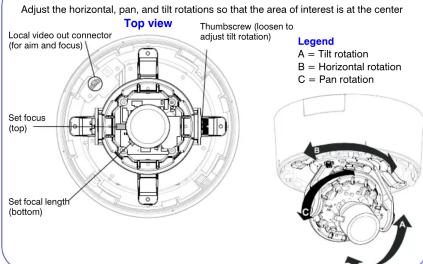
- Connect the BNC video cable to the local video out connector and view the video signal (see illustration below).
Note If your installation involves a 24V AC power source, then please wait approximately 60 seconds after connecting to a power source for video to appear on the local video out.
- Loosen the thumbscrew that locks the gimbal assembly in place to adjust the tilt rotation.
- Adjust the camera to the desired view.
H3D1F(X) / H3W1F(X) / H3SVP(X) / H3S1P(X)
H3D2F(X)
Adjust the horizontal, pan, and tilt rotations so that the area of interest is at the center. Final zoom and focus adjustments can be made using the camera's web client.
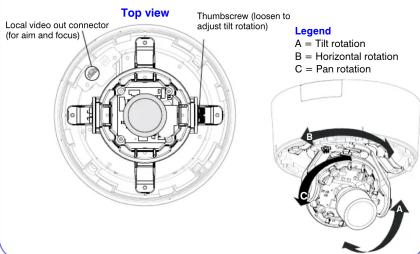
- Retighten the thumbscrew to lock the gimbal assembly in place.
- Disconnect the BNC video cable.


- Honeywell
- Network Setup
- Honeywell IP Utility
- Configuring the Network
- Camera Operation
- Warnings
- FCC Compliance Statement
- North America
- Manufacturer's Declaration of Conformance
- Contact Information
- H3 Series
- ONVIF Indoor High Resolution TDN IP Indoor Minidome Cameras
- Quick Install Guide
- Introduction
- equIP Series
- Performance Series
- Operating Notes
- Preparation
- Preparing the Camera
- Preparing the Mounting Surface (Surface or Flush Mount)
- Connecting the Wiring
- Camera Mounting
- Surface Mount
- Flush Mount (with or without 4S box) (4S box shown)
- Camera Adjustment
Marke : HONEYWELL
Modell : equIP H3D1F
Kategorie : Sicherheitskamera