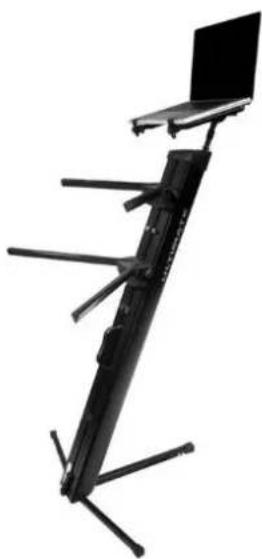
HYM-100 QR - Nicht kategorisiert Ultimate - Kostenlose Bedienungsanleitung
Finden Sie kostenlos die Bedienungsanleitung des Geräts HYM-100 QR Ultimate als PDF.


Waehlen Sie Ihre Sprache und Ihre E-Mail-Adresse: wir senden Ihnen eine speziell uebersetzte Version.
Benutzerfragen zu HYM-100 QR Ultimate
0 Frage zu diesem Gerät. Beantworten Sie die, die Sie kennen, oder stellen Sie Ihre eigene.
Eine neue Frage zu diesem Gerät stellen
Noch keine Fragen. Stellen Sie die erste.
Laden Sie die Anleitung für Ihr Nicht kategorisiert kostenlos im PDF-Format! Finden Sie Ihr Handbuch HYM-100 QR - Ultimate und nehmen Sie Ihr elektronisches Gerät wieder in die Hand. Auf dieser Seite sind alle Dokumente veröffentlicht, die für die Verwendung Ihres Geräts notwendig sind. HYM-100 QR von der Marke Ultimate.
BEDIENUNGSANLEITUNG HYM-100 QR Ultimate
T-Stand Adapter Instructions (HyperStation QR & HyperMount QR)
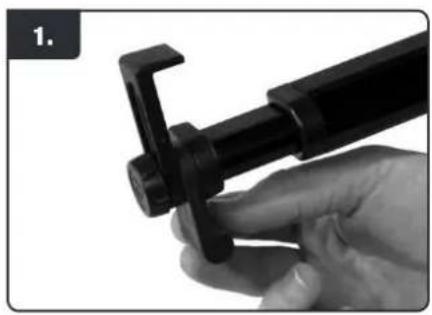
natural_image
Close-up of a hand holding a black mechanical clamp or clip (no text or symbols visible)- Loosen Knob, adjust rubber front foot down, while clamp is facing up, and tighten knob.
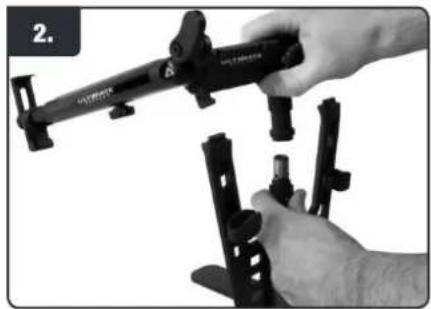
natural_image
Close-up of a hand holding a black mechanical device with attached brackets (no visible text or symbols)- Pull down on QuickRelease post to disengage support arms (for HyperStation QR).
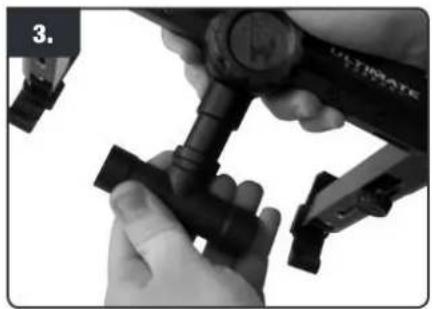
natural_image
Close-up of hands assembling or adjusting a mechanical component (no visible text or symbols)- Place included T-Stand Adapter into open post.
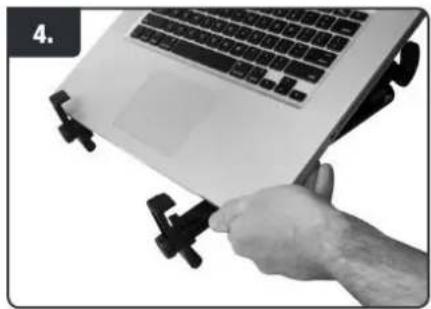
natural_image
Hand holding a laptop with black clips attached, no visible text or symbols- Place laptop into position.
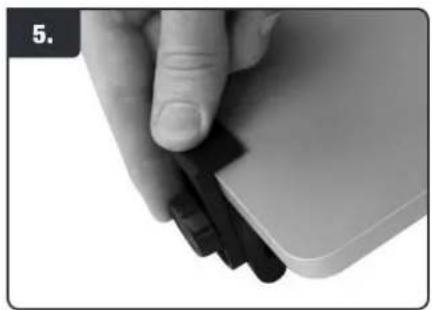
natural_image
Close-up of a hand holding a white computer mouse with black buttons (no text or symbols visible)- Loosen knob and clamp laptop into place, then tighten knob.
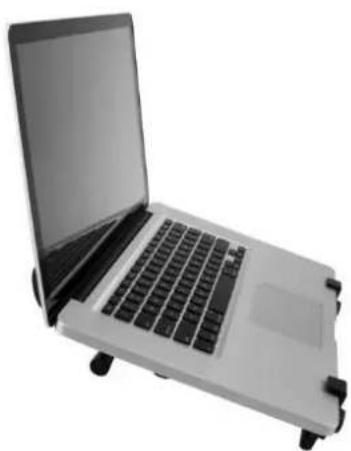
natural_image
Exterior view of a modern laptop with visible keyboard and front panel (no text or symbols)Mic Stand Instructions (HyperStation QR & HyperMount QR)
natural_image
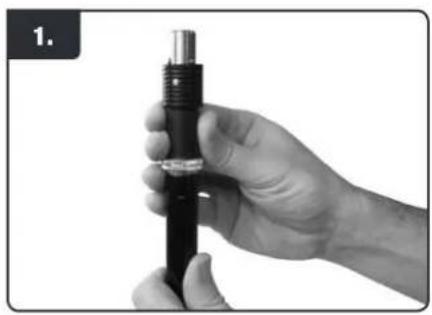
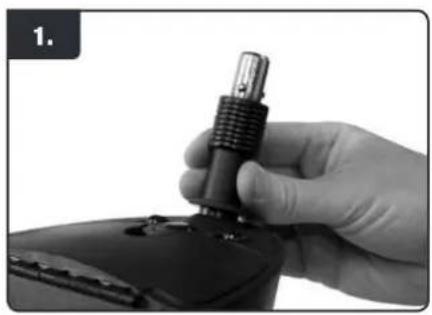
Close-up of a hand holding a black cylindrical device with a metallic tip, no visible text or symbols- Put QuickRelease bottom piece onto top of mic stand (5/8" thread).
natural_image
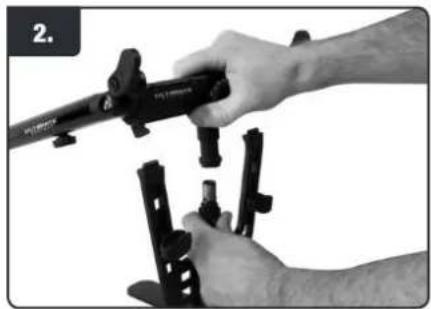
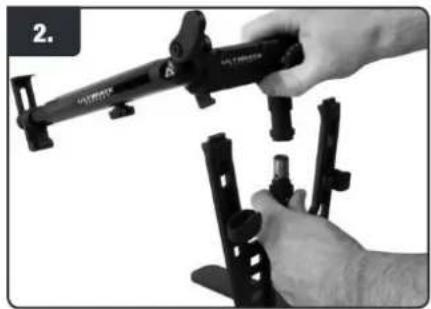
Close-up of hands holding a camera lens assembly (no visible text or symbols)- Pull down on QuickRelease post to disengage support arms (for HyperStation QR).
natural_image
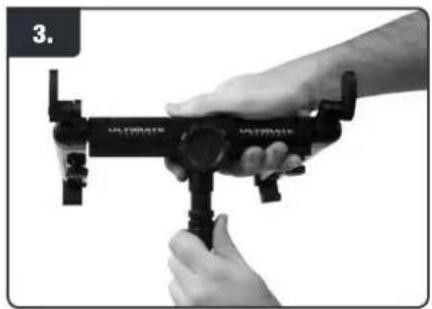
Close-up of hands operating a Ultrasonic camera with a mounted lens (no text or symbols visible)- Pull down on QuickRelease bottom piece and place arms on top of mic stand, then release QuickRelease bottom piece to lock stand in place.
natural_image
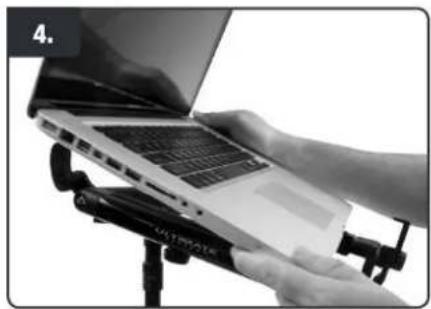
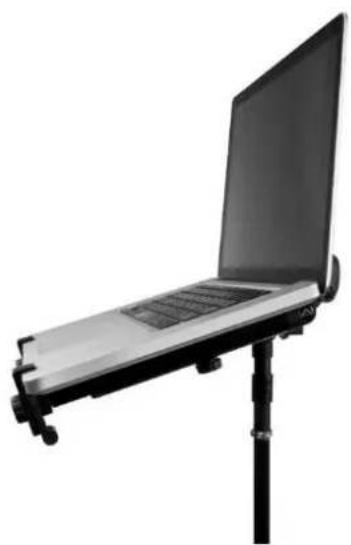
Person using a laptop on a stand with a camera mount (no visible text or symbols)- Place laptop into position.
natural_image
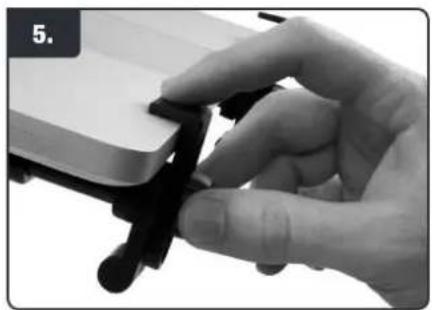
Close-up of a hand holding a black plastic clip device (no visible text or symbols)- Loosen knob and clamp laptop into place, then tighten knob.
natural_image
Black-and-white photo of a laptop stand with adjustable legs and a flat top (no text or symbols visible)AX-48 Pro Laptop Mount Instruction (HyperStation QR & HyperMount QR)
natural_image
Close-up of a hand holding a black mechanical component, no visible text or symbols- Screw QuickRelease bottom piece onto top of AX-48 Pro keyboard stand (must have optional AX-48TA Thread Adapter).
natural_image
Close-up of a hand holding a black mechanical device with attached brackets (no visible text or symbols)- Pull down on QuickRelease post to disengage support arms (for HyperStation QR).
natural_image
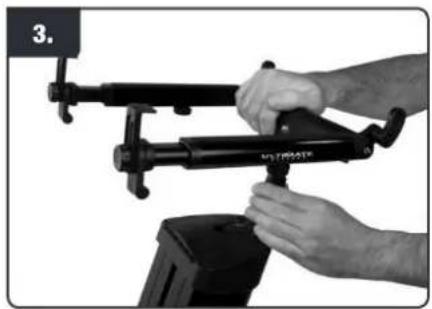
Close-up of hands operating a black metal device with adjustable arms (no visible text or symbols)- Pull down on QuickRelease bottom piece and place arms on top of mic stand, then release QuickRelease bottom piece to lock stand in place
natural_image
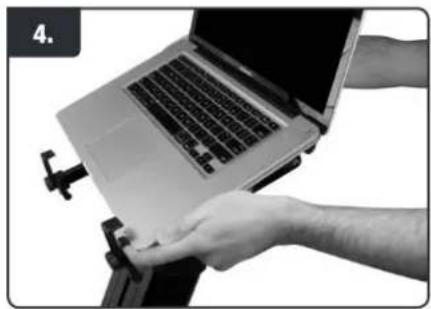
Close-up of a person using a laptop to press or install a small object, no visible text or symbols- Place laptop into position.
natural_image
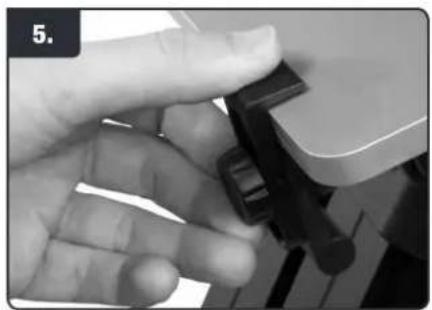
Close-up of a hand holding a black mechanical component, no visible text or symbols- Loosen knob and clamp laptop into place, then tighten knob.