
CDP-C7ESD - CD-Player SONY - Kostenlose Bedienungsanleitung
Finden Sie kostenlos die Bedienungsanleitung des Geräts CDP-C7ESD SONY als PDF.
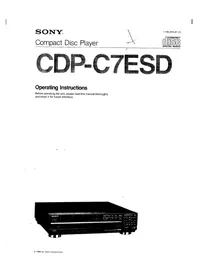


| Produkttyp | CD-Player mit 5-Disc-Wechsler (Magazin) |
| Modell | CDP-C7ESD |
| Marke | Sony |
| Abmessungen (B x H x T) | 430 x 125 x 380 mm |
| Gewicht | 10,5 kg |
| Stromversorgung | 220-230 V, 50/60 Hz, 15 W |
| Wiedergabeformate | CD-Audio, CD-R, CD-RW |
| DA-Wandler | 1-Bit Pulscodemodulation |
| Ausgänge | Analoge Cinch, optischer Digitalausgang |
| Klangregelung | Vorprogrammierte Equalizer-Modi |
| Fernbedienung | Ja, im Lieferumfang enthalten |
| Magazinkapazität | 5 CDs |
| Zufallswiedergabe | Ja, Shuffle-Modus |
| Wiederholfunktionen | Titel, Disc, Alle, Programm |
| Timerfunktion | Einschlaf-Timer |
| Gehäusematerial | Aluminiumfront, Stahlchassis |
| Betriebstemperatur | 5 °C bis 35 °C |
| Reinigung | Gehäuse mit weichem, trockenem Tuch abwischen; Linse mit speziellem Reinigungs-CD |
| Sicherheitshinweise | Gerät nicht öffnen, keine Flüssigkeiten eindringen lassen, Netzstecker bei Gewitter ziehen |
| Reparatur und Ersatzteile | Nur durch autorisiertes Fachpersonal; originale Ersatzteile über Sony-Service |
| Umgebungsbedingungen | Nur für den Innenbereich, relative Luftfeuchtigkeit unter 80 % |
| Garantie | 2 Jahre gesetzliche Gewährleistung |
| Lieferumfang | CD-Player, Fernbedienung, 2x AAA-Batterien, Netzkabel, Bedienungsanleitung |
Häufig gestellte Fragen - CDP-C7ESD SONY
Benutzerfragen zu CDP-C7ESD SONY
0 Frage zu diesem Gerät. Beantworten Sie die, die Sie kennen, oder stellen Sie Ihre eigene.
Eine neue Frage zu diesem Gerät stellen
Laden Sie die Anleitung für Ihr CD-Player kostenlos im PDF-Format! Finden Sie Ihr Handbuch CDP-C7ESD - SONY und nehmen Sie Ihr elektronisches Gerät wieder in die Hand. Auf dieser Seite sind alle Dokumente veröffentlicht, die für die Verwendung Ihres Geräts notwendig sind. CDP-C7ESD von der Marke SONY.
BEDIENUNGSANLEITUNG CDP-C7ESD SONY
CDP-C7ESD
Bedienungsanleitung
Bitte lesen Sie diese Anleitung vor der Inbetriebnahme des Geräts sorgfältig durch und bewahren Sie sie für späteres Nachschlagen auf.
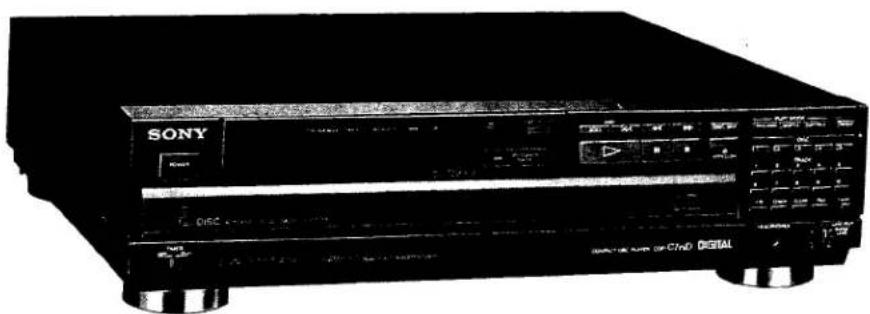
Besitzvermerk
Modell- und Seriennummern befinden sich auf der Rückseite. Notieren Sie die Seriennummer im unten vorgesehenen Feld. Bitte geben Sie diese Nummern an, wenn Sie sich wegen dieses Produkts an Ihren Sony-Händler wenden.
Modell-Nr. CDP-C7ESD
Serien-Nr. ____
Warnung
Um Brand- oder Stromschlaggefahr zu vermeiden, setzen Sie das Gerät nicht Regen oder Feuchtigkeit aus.
Dieses Symbol soll den Benutzer auf das Vorhandensein von nicht isolierter "gefährlicher Spannung" im Inneren des Produkts aufmerksam machen, die möglicherweise stark genug ist, um eine Gefahr eines elektrischen Schlags für Personen darzustellen.

Dieses Symbol soll den Benutzer auf wichtige Betriebs- und Wartungsanweisungen in der dem Gerät beiliegenden Literatur aufmerksam machen.
INFORMATION
Dieses Gerät erzeugt und verwendet Hochfrequenzenergie. Wenn es nicht ordnungsgemäß und in strikter Übereinstimmung mit den Anweisungen des Herstellers installiert und verwendet wird, kann es Störungen des Radio- und Fernsehempfangs verursachen. Es wurde typgeprüft und entspricht den Grenzwerten für ein Computergerät der Klasse B gemäß den Spezifikationen in Unterabschnitt J von Teil 15 der FCC-Bestimmungen, die einen angemessenen Schutz gegen solche Störungen in einer Wohnanlage bieten sollen. Es gibt jedoch keine Garantie, dass in einer bestimmten Installation keine Störungen auftreten. Wenn dieses Gerät tatsächlich Störungen des Radio- oder Fernsehempfangs verursacht, was durch Ein- und Ausschalten des Geräts festgestellt werden kann, wird der Benutzer aufgefordert, die Störungen durch eine oder mehrere der folgenden Maßnahmen zu beheben:
Richten Sie die Empfangsantenne neu aus.
Stellen Sie das Gerät relativ zum Empfänger neu auf. Entfernen Sie das Gerät vom Empfänger.
Schließen Sie das Gerät an eine andere Steckdose an, sodass Gerät und Empfänger an unterschiedlichen Stromkreisen angeschlossen sind. Falls erforderlich, sollte der Benutzer den Händler oder einen erfahrenen Radio-/Fernsehtechniker um weitere Vorschläge bitten. Der Benutzer kann die folgende Broschüre, die von der Federal Communications Commission vorbereitet wurde, hilfreich finden:
"So identifizieren und lösen Sie Radio-TV-Interferenzprobleme". Diese Broschüre ist erhältlich beim U.S. Government Printing Office, Washington, DC 20402, Bestellnummer 004-000-00345-4.
VORSICHT
Die Verwendung optischer Instrumente mit diesem Produkt erhöht die Augengefahr.
Inhaltsverzeichnis
Erste Schritte
Merkmale 3
Sicherheitshinweise 4
Hinweis zur Transportsicherung 4
Installation 5
Anschlüsse Hinweise zum Anschluss .... 6 Anschlussdiagramm .... 6
Teileidentifikation Frontplatte .... 8 Fernbedienung .... 9
Grundlegende Bedienung
Verwendung Ihres CD-Players
Disc-Wiedergabe 10
Wiedergabe einer einzelnen CD 11
Wiedergabe einer einzelnen Auswahl auf der CD 11
Anzeige von Zeitinformationen 11
Auswahl einer gewünschten CD 12
Ansteuern einer bestimmten Auswahl 12
Ansteuern einer bestimmten Stelle in einer Auswahl 12
Erweiterte Bedienung
Wiedergabe in einer bestimmten Reihenfolge – Programmwiedergabe 13
Wiedergabe in zufälliger Reihenfolge – Zufallswiedergabe 15
Wiederholen von Auswahlen – Wiederholungswiedergabe 17
Schreiben eines Kommentars zu einer CD 18
Speichern des Programms im Speicher 20
Timer-gesteuerte Wiedergabe 22
Pflege Ihres Geräts
Wartung 23
Getting into the Details
Specifications 23
Troubleshooting
Troubleshooting Guide 24
Features
Der CD-Player ist mit einem 5-fach-Wechsler für langes, kontinuierliches Abspielen von CDs ausgestattet.
Sie können jederzeit die gewünschte Disc auswählen.
Verschiedene Wiedergabemodi
- Die Programm-Wiedergabe spielt bis zu 32 Titel auf einer beliebigen Disc in der gewünschten Reihenfolge ab.
- Die Zufallswiedergabe spielt Titel in zufälliger Reihenfolge ab.
- Die Wiederholungswiedergabe spielt einen einzelnen Titel, eine einzelne Disc oder alle Discs wiederholt ab.
Benutzerdefinierte Datei
• Disc-Memo speichert Ihre Kommentare zu einer Disc. - Programm-Speicherfunktion zum Speichern einer programmierten Abspielreihenfolge.
Vorsichtsmaßnahmen
Zur Sicherheit
- Betreiben Sie das Gerät nur mit 120 V Wechselspannung, 60 Hz.
- Falls Flüssigkeit oder feste Gegenstände in das Gehäuse gelangen, ziehen Sie den Netzstecker und lassen Sie das Gerät von qualifiziertem Fachpersonal überprüfen, bevor Sie es weiter verwenden.
- Ziehen Sie den Netzstecker aus der Steckdose, wenn das Gerät längere Zeit nicht verwendet wird. Zum Trennen des Kabels ziehen Sie es am Stecker heraus. Ziehen Sie niemals am Kabel selbst.
- Da der Laserstrahl in diesem CD-Player schädlich für die Augen ist, versuchen Sie nicht, das Gehäuse zu zerlegen. Überlassen Sie Wartungsarbeiten nur qualifiziertem Fachpersonal.
Zum Betrieb
Wenn das Gerät nicht verwendet wird, schalten Sie es aus, um Energie zu sparen und die Lebensdauer des Geräts zu verlängern.
Wichtig
Da das CD-System einen großen Dynamikbereich bietet, werden die Spitzen hochpegeliger Eingänge mit hoher Wiedergabetreue aufgezeichnet, und der Rauschpegel ist sehr niedrig. Drehen Sie die Lautstärke nicht auf, während Sie einen Abschnitt ohne Audiosignale oder mit sehr niedrigen Eingangspegeln hören. Wenn Sie dies tun, können die Lautsprecher beschädigt werden, wenn ein Abschnitt mit Spitzenpegel abgespielt wird.
Ausführliche Sicherheitshinweise finden Sie im Faltblatt „WICHTIGE SICHERHEITSHINWEISE“.
Wenn Sie Fragen oder Probleme bezüglich Ihres Geräts haben, wenden Sie sich bitte an Ihren nächsten Sony-Händler.
Hinweis zum Transportschlüssel
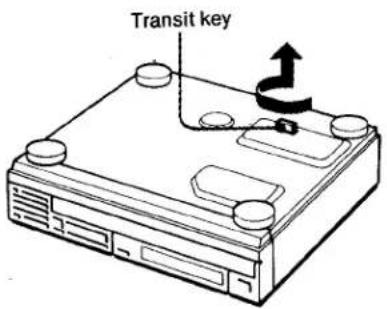
Der weiße Transportschlüssel an der Unterseite des Geräts schützt das optische System während des Transports vor Stößen. Entfernen Sie den Schlüssel vor dem Betrieb des CD-Players unbedingt gemäß den Anweisungen auf dem Etikett und bewahren Sie ihn an einem sicheren Ort auf.
Beim Transport des Geräts:
1 Schalten Sie den Strom aus, nachdem der Cursor unter der Disc-Nummer im Anzeigefenster (siehe Seite 10) aufhört zu blinken. 2 Setzen Sie den Schlüssel wieder in das ursprüngliche Loch ein und verriegeln Sie ihn.
Installation
Hinweise zur Installation
Stellen Sie das Gerät an einem Ort mit ausreichender Luftzirkulation auf, um einen internen Wärmestau im Gerät zu verhindern.
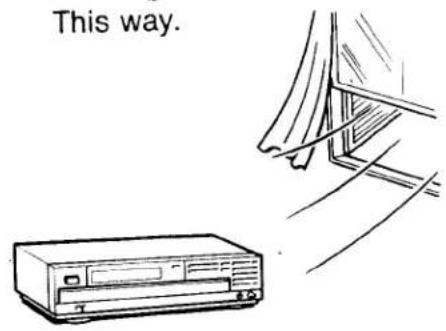
Stellen Sie das Gerät nicht auf eine weiche Oberfläche, wie z. B. einen Teppich, der die Lüftungsschlitze an der Unterseite blockieren würde.
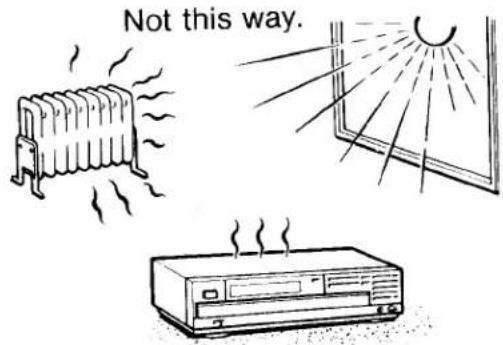
- Installieren Sie das Gerät nicht: – in der Nähe von Wärmequellen wie Heizkörpern oder Luftkanälen. – an einem Ort, der direkter Sonneneinstrahlung, übermäßigem Staub, mechanischen Vibrationen oder Stößen ausgesetzt ist.
- Bewegen Sie das Gerät nicht, während sich Discs darin befinden, da die Discs sonst aus dem Fach fallen können und Sie sie nicht mehr entfernen können. • Hinweis zu Feuchtigkeitskondensation
Wenn das Gerät direkt von einem kalten an einen warmen Ort gebracht wird oder in einem sehr feuchten Raum aufgestellt wird, kann Feuchtigkeit an der Linse im Inneren des Geräts kondensieren.
Sollte dies auftreten, funktioniert das Gerät nicht. Entfernen Sie in diesem Fall die Disc und lassen Sie das Gerät etwa eine Stunde lang eingeschaltet, bis die Feuchtigkeit verdunstet ist.
Einlegen der Batterien
Legen Sie die Batterien in die mitgelieferte Fernbedienung ein, um die Fernbedienung zu verwenden.
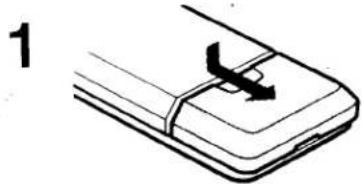
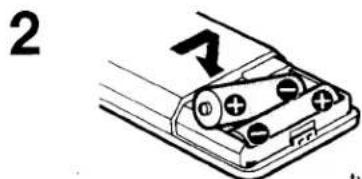
zwei Batterien der Größe AA (R6)
Wenn Sie das Gerät zum ersten Mal verwenden
Schalten Sie das Gerät ein, indem Sie POWER drücken und gleichzeitig ERASE und FILE gedrückt halten.
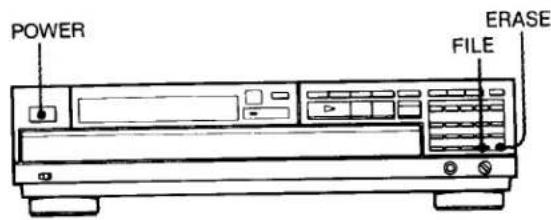
Dadurch wird der interne Speicher gelöscht, falls Ihnen im Geschäft, in dem Sie den CD-Player gekauft haben, die Verwendung der benutzerdefinierten Dateifunktion erklärt wurde. Somit kehrt das Gerät in den Werkszustand zurück.
Zur Batterielebensdauer
Bei Verwendung der Sony SUM-3 (NS)-Batterien kann eine normale Betriebsdauer von etwa einem halben Jahr erwartet werden.
Wenn die Batterien erschöpft sind, funktioniert die Fernbedienung nicht mehr. In diesem Fall ersetzen Sie beide Batterien durch neue.
Um Schäden durch auslaufende Batterien und Korrosion zu vermeiden
Wenn die Fernbedienung längere Zeit nicht verwendet wird, entfernen Sie die Batterien.
Werfen Sie den Karton und das Verpackungsmaterial nicht weg!
Er ist ein idealer Behälter für den Transport des Geräts oder für den Versand zur Reparatur.
Anschlüsse
Hinweise zum Anschluss
- Schalten Sie den Verstärker aus, bevor Sie Verbindungen herstellen.
- Stecken Sie die Stecker fest in die Buchsen. Lockere Verbindungen können Brummen und Rauschen verursachen.
- Lassen Sie etwas Spielraum im Verbindungskabel, um versehentliche Stöße oder Vibrationen zu berücksichtigen.
- Verbinden Sie den roten Stecker des mitgelieferten Verbindungskabels mit der Buchse für den rechten Kanal (R) des Verstärkers und den weißen Stecker mit der Buchse für den linken Kanal (L). Andernfalls werden der rechte und der linke Kanal vertauscht.
Anschlussdiagramm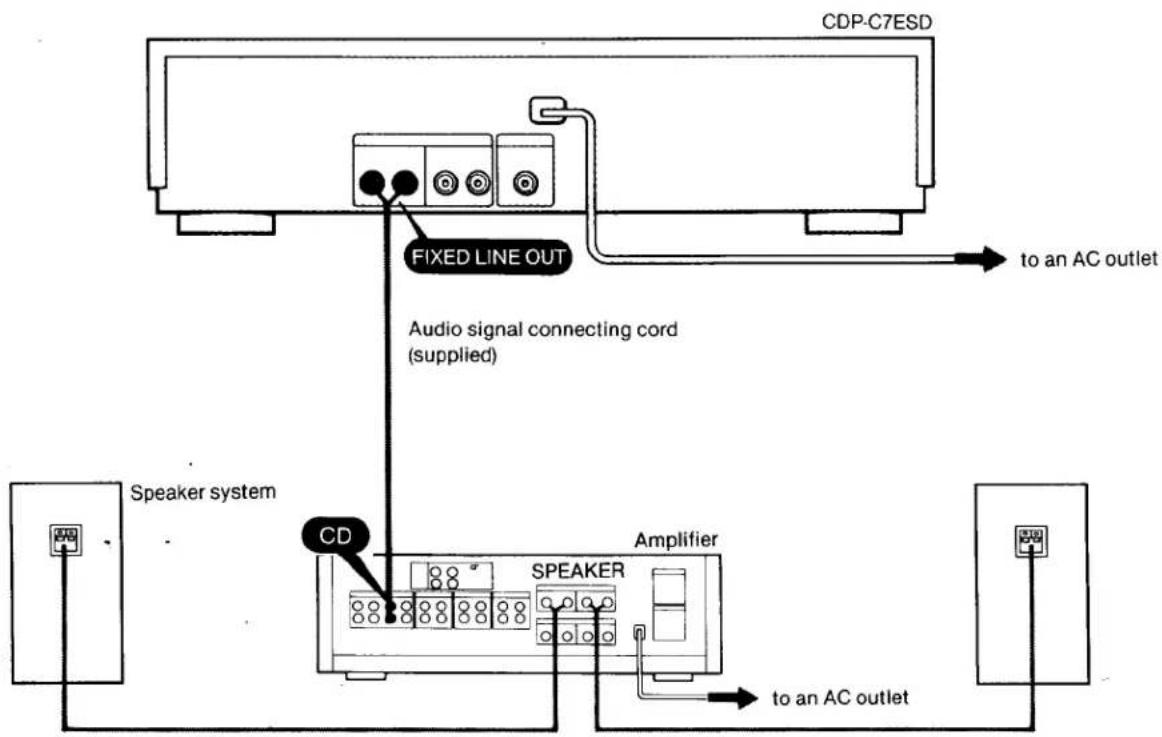
Hinweise zu den LINE OUT-Buchsen
Diese Buchsen können mit den CD- oder AUX-Eingängen eines Verstärkers verbunden werden.
FIXED: Normalerweise diese Buchsen verwenden.
Der Ausgangspegel ist fest eingestellt.
VARIABEL: Der Ausgangspegel kann mit dem Regler LINE OUT/PHONE LEVEL variiert werden.
Hinweis: Der Regler LINE OUT/PHONE LEVEL stellt den Ausgangspegel der Kopfhörerbuchse und der VARIABLE LINE OUT-Buchsen ein.
Wenn der Regler LINE OUT/PHONE LEVEL während der Aufnahme über die VARIABLE LINE OUT-Buchsen gedreht wird, weicht der aufgenommene Pegel von dem ab, der mit den Aufnahmepegelreglern des Tonbandgeräts eingestellt wurde.
Anschluss von D/A-Wandler und Verstärker
Der D/A-Wandler Sony DAS-702ES oder ein anderer gleichwertiger D/A-Wandler mit digitaler Audioschnittstelle kann an die DIGITAL OUT-Buchse angeschlossen werden.
![graph TD A["CDP-C7ESD"] --> B["Digital OUT"] B --> C["Digital connecting cord (optional)"] C --> D["D/A converter unit"] D --> E["CD/AUX"] E --> F["Audio connecting cord"] F --> G["Amplifier"] G --> H["to an AC outlet"] B --> I["Digital IN"] I --> J["FIXED LINE OUT"] J --> K["to an AC outlet"]](/content/2026/05/805392/images/f4f447ca1f3c9b49642d169bf45168ea9bccb8a59c2f6eba3b525722fb1a061a.jpg)
Teileidentifikation
Beachten Sie die Seiten, die mit ● gekennzeichnet sind, für Details.
Frontblende
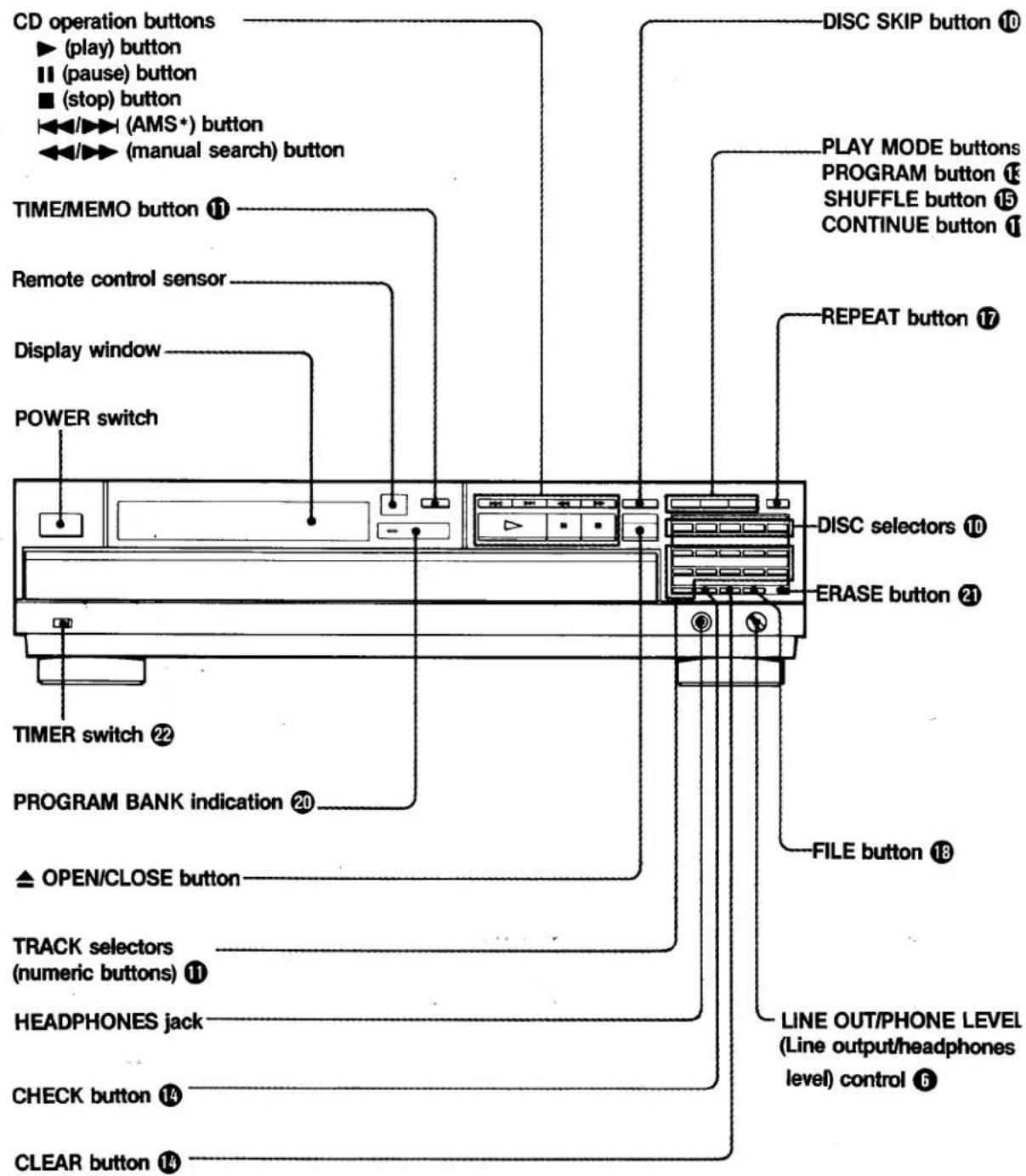
* AMS ist die Abkürzung für Automatic Music Sensor.
Fernbedienung
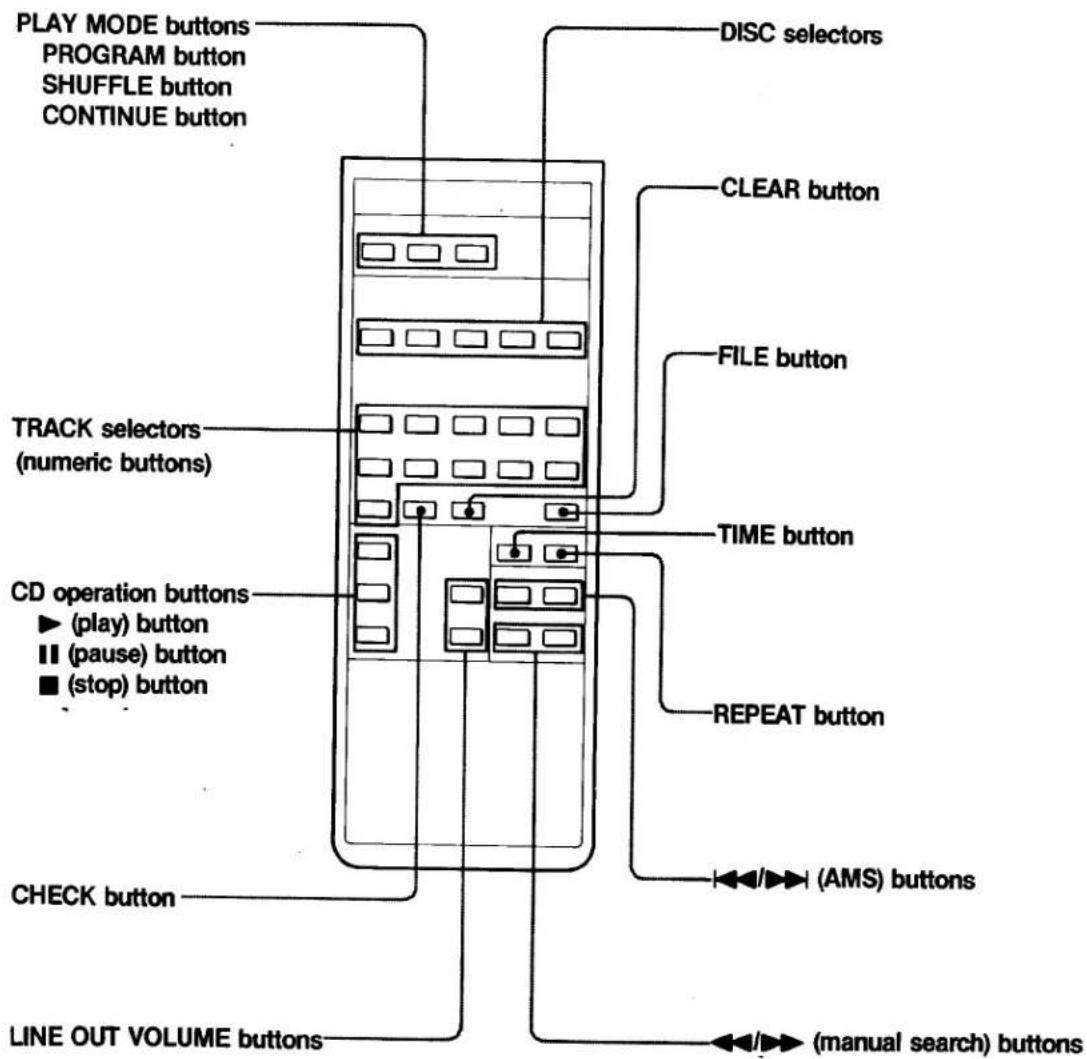
Hinweise zur Fernbedienung und zum Fernbedienungsbetrieb
- Halten Sie die Fernbedienung von extrem heißen oder feuchten Orten fern.
- Vermeiden Sie das Eindringen von Fremdkörpern in das Gehäuse der Fernbedienung, insbesondere beim Austauschen der Batterien.
- Um Fehlfunktionen zu vermeiden, drücken Sie nicht gleichzeitig zwei oder mehr Tasten.
Vermeiden Sie, dass der Sensor der Fernbedienung direktem Sonnenlicht oder Beleuchtungseinrichtungen ausgesetzt ist. Eine solche Einwirkung kann eine Fehlfunktion verursachen.
Disc-Wiedergabe
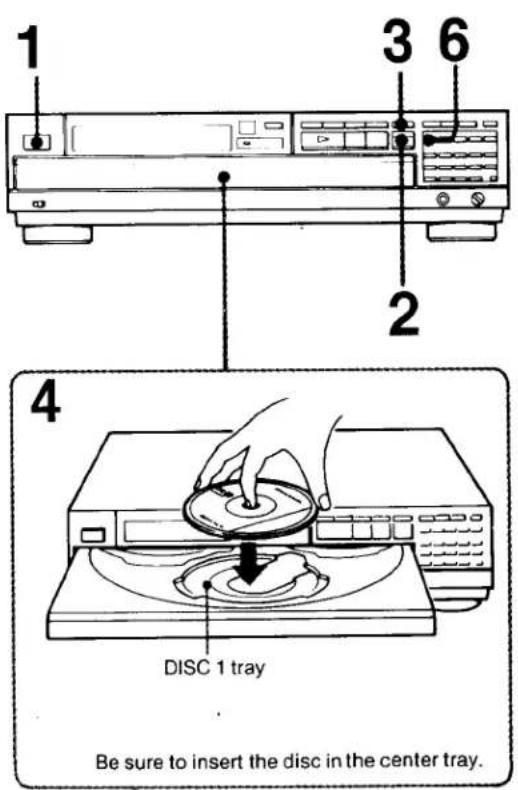
1 POWER drücken. 2 ▲ drücken. Das Fach öffnet sich. 3 DISC SKIP drücken, bis sich das Disc-1-Fach in die vordere Position dreht. 4 Legen Sie die Disc mit der Etikettseite nach oben in das DISC-1-Fach. 5 Um mehr als eine Disc abzuspielen, wiederholen Sie die Schritte 3 und 4, um weitere Discs in der gewünschten Reihenfolge einzulegen. 6 DISC 1 drücken. Das Fach schließt sich und die Wiedergabe beginnt mit dem ersten Titel der Disc im DISC-1-Fach.
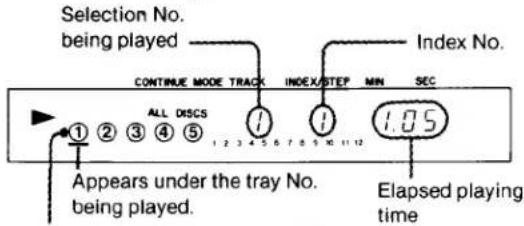
Zeigt an, dass das Fach belegt ist.
Wiedergabe stoppen
| To pause during play | Press ||.To restart play, press || again. |
| To stop play | Press ■. |
| To stop play and open the compartment | Press ▲.To close the compartment, press ▲ or the compartment itself. |
Stellen Sie ein leeres Fach in die vordere Position und legen Sie die Disc hinein. Wenn Sie die Disc in ein anderes als das vordere Fach einlegen, kann das Gerät die Disc möglicherweise nicht finden. Verwenden Sie unbedingt DISC SKIP, um zum nächsten leeren Fach zu drehen.
Hinweis zur 3-Zoll-CD
Sie können eine 3-Zoll-CD auf dem inneren Kreis des Fachs abspielen. Legen Sie keine normale CD (5 Zoll) darüber.
Wiedergabe einer einzelnen Disc
1 ≈ drücken. 2 Legen Sie die Disc mit der Etikettseite nach oben in das Fach. 3 ≠ drücken.
4 CONTINUE drücken, bis "1 DISC" angezeigt wird.
5 Gewünschten DISC-Wähler drücken. Die Wiedergabe beginnt mit dem ersten Titel der ausgewählten Disc.
Wiedergabe eines einzelnen Titels auf der Disc
1 ≈ drücken. 2 Legen Sie die Disc mit der Etikettseite nach oben in das Fach. 3 ≈ drücken. 4 CONTINUE drücken, bis "1" angezeigt wird. 5 Den gewünschten DISC-Wähler drücken. 6 Mit den TRACK-Wählern die gewünschte Titelnummer auswählen. Nur der ausgewählte Titel wird abgespielt.
Anzeige von Zeitinformationen
Um die Gesamtzahl der Auswahlen anzuzeigen
Wenn Sie ▲ oder das Fach selbst drücken, um das Fach zu schließen, werden die Gesamtzahl der Auswahlen und die Gesamtspielzeit der zuletzt eingelegten Disc für einige Sekunden angezeigt.

Wenn eine Disc mit mehr als 20 Auswahlen eingelegt wird, erscheint OVER (was "über 20 Auswahlen" bedeutet).
Um die verbleibende Zeit einer Auswahl anzuzeigen, drücken Sie während der Wiedergabe oder Pause einmal TIME/MEMO.

Um zur normalen Anzeige zurückzukehren, drücken Sie zweimal TIME/MEMO. Wenn Sie jedoch ein Disc-Memo auf die Disc geschrieben haben (siehe Seite 18), drücken Sie dreimal TIME/MEMO.
Um die verbleibende Zeit der Disc und die Anzahl der Auswahlen auf der Disc anzuzeigen, drücken Sie zweimal TIME/MEMO.

Um zur normalen Anzeige zurückzukehren, drücken Sie einmal TIME/MEMO. Wenn Sie jedoch ein Disc-Memo auf die Disc geschrieben haben, drücken Sie zweimal TIME/MEMO.
Hinweise zu Discs
Fassen Sie die Disc am Rand an. Berühren Sie die Oberfläche nicht, um die Disc sauber zu halten.
So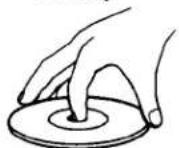
Kleben Sie kein Papier oder Klebeband auf.
Nicht so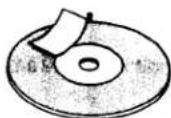
Setzen Sie die Disc nicht direktem Sonnenlicht oder Wärmequellen wie Heißluftkanälen aus, und lassen Sie sie nicht in einem Auto liegen, das in direktem Sonnenlicht geparkt ist, wo die Temperatur erheblich ansteigen kann.
Was bedeutet diese Anzeige?
Während eine Auswahlnummer 21 oder höher
Wenn diese Option ausgewählt ist, erscheint diese Anzeige im
Anzeigefenster anstelle der Nummer, wenn Sie TIME/MEMO drücken.
Disc-Wiedergabe
Auswählen einer gewünschten Disc
Mit den DISC-Wählern oder der DISC-SKIP-Taste können Sie während der Wiedergabe den Anfang einer beliebigen Disc ansteuern.
| To select a particular disc | Press the corresponding DISC selector. |
| To move to the disc tray next to the current one | Press DISC SKIP. |
Auffinden eines bestimmten Titels
Auffinden eines Titels in der Reihenfolge (Automatischer Musiksensor)
Sie können den Anfang eines Titels auf der gerade gespielten Disc ansteuern.
| To locate the beginning of the selection being played | Press ▶ once. |
| To locate the beginning of the next selection. | Press ▶ once. |
Drücken Sie weiter, bis der gewünschte Titel gefunden wurde.
Direktes Auffinden eines Titels
Drücken Sie die TRACK-Wähler (1 bis 10), um die gewünschte Titelnnummer einzugeben.
Auffinden einer bestimmten Stelle in einem Titel
Auffinden einer Stelle in der Reihenfolge (Manuelle Suche)
Sie können während der Wiedergabe eine bestimmte Stelle in einem Titel finden, indem Sie den schnellen Ton überwachen.
| To go back at high speed | Keep ←→ pressed. |
| To go ahead at high speed | Keep ►→ pressed. |
Lassen Sie die Taste los, wenn Sie die gewünschte Stelle im Titel erreicht haben.
Um direkt eine Auswahl zu treffen, deren Nummer größer als 10 ist, verwenden Sie die Tasten +10 und 1 bis 10.
Bsp.: Um ab Titel Nr. 32 zu spielen
1 Drücken Sie +10 dreimal.
2 Drücken Sie 2.
Bsp.: Um ab Titel Nr. 30 zu spielen
1 Drücken Sie +10 zweimal.
2 Drücken Sie 10.
Für die Schnellsuche
Drücken Sie im Pausenmodus ◀◀ oder ▶▶. Die Suchgeschwindigkeit erhöht sich um das Dreifache, aber es ist kein Ton zu hören. Finden Sie die gewünschte Stelle, indem Sie die Zahlen im Display beobachten.
Wiedergabe in einer bestimmten Reihenfolge – Programmwiedergabe
Programmieren von Titeln
Sie können bis zu 32 Titel in der gewünschten Reihenfolge abspielen.
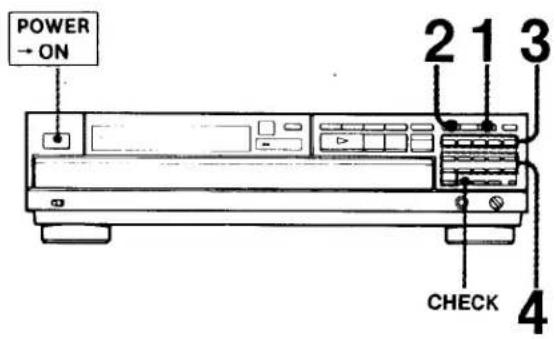
1 Drücken Sie CONTINUE, bis die Anzeige "ALL DISCS" erscheint. 2 Drücken Sie PROGRAM. 3 Drücken Sie den DISC-Wähler, der der gewünschten Disc entspricht. 4 Geben Sie die gewünschte Titelnnummer mit den TRACK-Wählern ein. 5 Um weitere Titel auf derselben Disc zu programmieren, wiederholen Sie Schritt 4. Um weitere Titel auf einer anderen Disc zu programmieren, wiederholen Sie die Schritte 3 und 4.
Wiedergabe der programmierten Titel: Drücken Sie ▶.
Zur Rückkehr zum normalen Wiedergabemodus: Drücken Sie CONTINUE.
Um eine Pause in Ihr Programm einzufügen
Drücken Sie während der Programmierung an einer Stelle zwischen zwei Titeln die Taste Ⅱ. Wenn das Programm abgespielt wird und diese Stelle erreicht, stoppt der Disc-Player und wartet, bis Sie die Taste Ⅱ erneut drücken. Mit dieser Funktion können Sie bei einer Aufnahme das Band wechseln. Eine Pause kann nicht als erster Titel im Programm stehen.

P (Pause) wurde programmiert. Es ist der 3. Titel in der Programmliste.
Wenn Sie Titel einer bestimmten Disc programmieren
In Schritt 1 kann entweder die Anzeige "ALL DISCS" oder "1 DISC" erscheinen.
Die maximale Anzahl von Titeln, die in der gewünschten Reihenfolge abgespielt werden können
Wenn "ALL DISCS" angezeigt wird: bis zu 32 Titel
Wenn "1 DISC" angezeigt wird: bis zu 20 Titel
Anzahl der programmierbaren Titel
Wenn "ALL DISCS" angezeigt wird: bis zum 30. Titel auf jeder Disc
Wenn "1 DISC" angezeigt wird: bis zum 99. Titel
So zeigen Sie die Gesamtspielzeit des Programms an: Drücken Sie vor dem Start der Wiedergabe die Taste TIME/MEMO.

(z. B. 1 Stunde, 36 Minuten und 25 Sekunden.)
So zeigen Sie die verbleibende Zeit eines Titels an
Drücken Sie einmal die Taste TIME/MEMO, während sich das Gerät im Wiedergabe- oder Pausenmodus befindet.
Um zur normalen Anzeige zurückzukehren, drücken Sie TIME/MEMO, bis die normale Anzeige erscheint.
Programmierung bei geöffnetem Disc-Fach
Sie können die Titel bei geöffnetem Disc-Fach programmieren.
Wiedergabe in einer bestimmten Reihenfolge – Programmwiedergabe
Programmierung einer gesamten Disc unter einer Programmnummer
Eine Disc wurde mit den DISC-Wahltasten ausgewählt. Die TRACK-Anzeige zeigt BLL, was bedeutet, dass alle Titel der Disc unter einer einzigen Programmnummer programmiert wurden.
Hinzufügen von Titeln zu einem Programm während der Programmwiedergabe Um einen Titel hinzuzufügen, drücken Sie die TRACK-Wahltasten, die der gewünschten Titelnnummer entsprechen, während sich das Gerät im Wiedergabe- oder Pausenmodus befindet.
Um eine gesamte Disc hinzuzufügen, drücken Sie die DISC-Wahltaste, die der gewünschten Disc-Nummer entspricht.
Das Programm wird in den folgenden Situationen gelöscht:
- wird während des Stopps gedrückt.
- wird gedrückt. • Das Gerät wird ausgeschaltet.
Überprüfen der programmierten Titel
Drücken Sie CHECK.
Jedes Mal, wenn Sie CHECK drücken, wird ein Titel für einige Sekunden in der Reihenfolge angezeigt, in der sie programmiert wurden.
Löschen der programmierten Titel
Löschen des gesamten Programms
Drücken Sie ■ einmal während des Stopps oder zweimal während der Wiedergabe. Alle Auswahlen werden gelöscht.
Löschen der letzten Auswahl in einem Programm
Drücken Sie CLEAR während des Stopps oder der Wiedergabe. Die letzte Auswahl wird jedes Mal gelöscht, wenn CLEAR gedrückt wird.
Löschen einer bestimmten Auswahl
1 Drücken Sie CHECK wiederholt, bis die zu löschende Auswahl angezeigt wird. 2 Drücken Sie CLEAR, während die Auswahlnummer angezeigt wird. Die Auswahl wird aus dem Programm gelöscht.
Überspringen zur nächsten programmierten Auswahl Drücken Sie ▶▶ während der Wiedergabe.
Zurück zum Anfang der gerade gespielten Auswahl Drücken Sie ◀ während der Wiedergabe.
So stoppen Sie die Programm-Wiedergabe
Drücken Sie ■.
Um die Wiedergabe fortzusetzen, drücken Sie ▶. Die Wiedergabe beginnt am Anfang des Programms.
Was bedeutet diese Anzeige?
Ende
Diese Anzeige erscheint, wenn die letzte Auswahl erreicht ist, während Sie die programmierten Auswahlen überprüfen.
Wiedergabe in zufälliger Reihenfolge – Shuffle-Wiedergabe
Wiedergabe aller Titel im Fach in zufälliger Reihenfolge
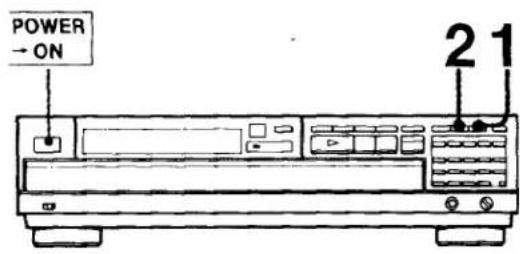
1 Drücken Sie CONTINUE, bis "ALL DISCS" angezeigt wird.
2 Drücken Sie SHUFFLE
3 Drücken Sie ▶.
Die Zufallswiedergabe beginnt.
Wenn sich zwei oder mehr Discs im Fach befinden:
Alle Discs und Titel werden in zufälliger Reihenfolge abgespielt. Nach einem Titel wird der nächste Titel von einer anderen Disc abgespielt.
Wenn sich nur eine Disc im Fach befindet:
Nachdem alle Titel in zufälliger Reihenfolge abgespielt wurden, stoppt die Wiedergabe.
Zur Rückkehr zur normalen Wiedergabe
Drücken Sie CONTINUE.
Was bedeutet diese Anzeige?
Diese Anzeige erscheint, während der Player die Titel "mischt".
Wiedergabe aller Titel einer Disc in zufälliger Reihenfolge
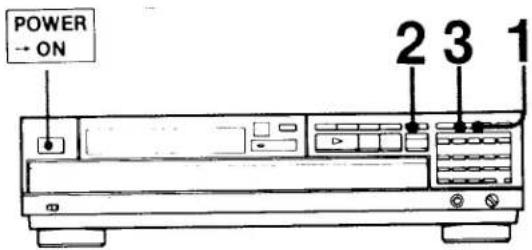
1 Drücken Sie CONTINUE, bis "1 DISC" angezeigt wird. 2 Wählen Sie die gewünschte Disc mit DISC SKIP. 3 Drücken Sie SHUFFLE. 4 Drücken Sie ▶.
Wiederholung von Titeln – Repeat Play
Sie können die Wiedergabe aller Discs im Fach, einer ganzen Disc oder eines einzelnen Titels wiederholen. Die Programm- oder Zufallswiedergabe kann ebenfalls wiederholt werden.
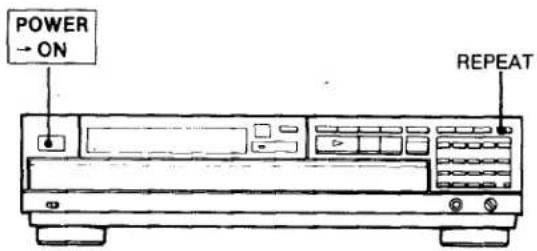
Drücken Sie während der Wiedergabe oder Pause REPEAT.
Die Wiederholungswiedergabe beginnt entsprechend dem aktuellen Wiedergabemodus.
| Play mode | Selections to be repeated | |
| ALL DISCS | All the selections of all discs | |
| 1 DISC | All the selections on a disc | |
| 1 | The selection being played | |
| PROGRAM | ALL DISCS | All the programmed selections |
| 1 DISC | All the programmed selections on a disc | |
| SHUFFLE | ALL DISCS | All the selections of all discs |
| 1 DISC | All the selections on a disc | |
Schreiben eines Kommentars auf eine Disc – Disc-Memo
Schreiben eines Disc-Memos
Mit der Disc-Memo-Funktion können Sie einen Kommentar von bis zu 10 Buchstaben zu einer Disc schreiben.
Das Memo erscheint im Display, jedes Mal wenn Sie die Disc in den Player einlegen.
Sie können ein Disc-Memo pro Disc schreiben.
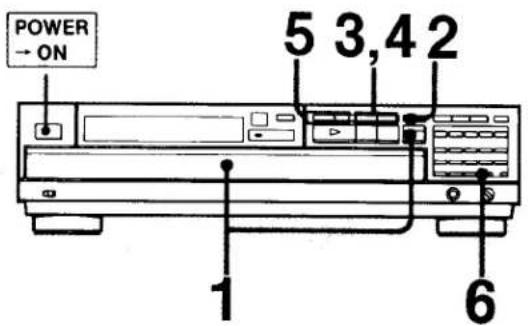
1 Legen Sie die Discs in das Fach und drücken Sie , um es zu schließen. 2 Wählen Sie die gewünschte Disc mit DISC SKIP. 3 Drücken Sie ◀◀ oder ▶▶.
Ein blinkender Cursor (der die Stelle anzeigt, an der ein Buchstabe geschrieben wird) erscheint.
4 Drücken Sie ◀◀ oder ▶▶, bis der gewünschte Buchstabe erscheint.
Beispiel: Wenn ▶▶ 6 Mal gedrückt wird

5 Drücken Sie ▶▶, um den Cursor zur nächsten Position zu bewegen, und wählen Sie den gewünschten Buchstaben.

Wiederholen Sie die Schritte 4 und 5, um das Memo zu vervollständigen.
6 Drücken Sie FILE
"FILE" erscheint im Fenster. Nach einigen Sekunden wird der von Ihnen geschriebene Text angezeigt.
Um einen Kommentar für eine andere Disc zu schreiben, wiederholen Sie die Schritte 2 bis 6.
Jedes Mal, wenn die Disc in den Player eingelegt wird, wird der Text angezeigt.
Was bedeutet diese Anzeige?
FULL
Dies zeigt an, dass im Speicher kein Platz für eine neue Datei ist.
Diese Anzeige erscheint, wenn FILE gedrückt wird, während für die eingelegte Disc keine benutzerdefinierte Datei gespeichert werden kann. Um eine benutzerdefinierte Datei für die Disc zu erstellen, löschen Sie die benutzerdefinierte Datei einer anderen Disc.
Verwendbare Buchstaben und Symbole
Für den Disc-Text können 46 Buchstaben und Symbole sowie ein Leerzeichen verwendet werden. Wenn die Taste ◀◀/▶▶ zum ersten Mal gedrückt wird, erscheint das Leerzeichen. Jedes Mal, wenn ▶▶ gedrückt wird, erscheinen Buchstaben und Symbole in der folgenden Reihenfolge.
(Leerzeichen) A B C D E F G H I J K L M N O P Q R S T U V W X Y Z ※ 0 * 4 + / 1 > < 9876543210 -
Verwenden Sie ◀◀, um ein vorheriges Zeichen aufzurufen.
Löschen des Disc-Texts
1 Legen Sie die Disc, deren Text Sie löschen möchten, in den Player ein. 2 Drücken Sie ◀◀ oder ▶▶ am Player. Die Tasten ◀◀/▶▶ auf der Fernbedienung können nicht verwendet werden. 3 Drücken Sie CLEAR. 4 Drücken Sie FILE "FILE CLR" wird im Fenster angezeigt.
Speichern des Programms im Speicher – Programmspeicher
Speicherung eines Programms
Nachdem Sie die Auswahl programmiert haben, können Sie das Programm speichern, sodass die Disc immer in der festgelegten Reihenfolge abgespielt wird. Das gespeicherte Programm wird als "Programmbank" bezeichnet.
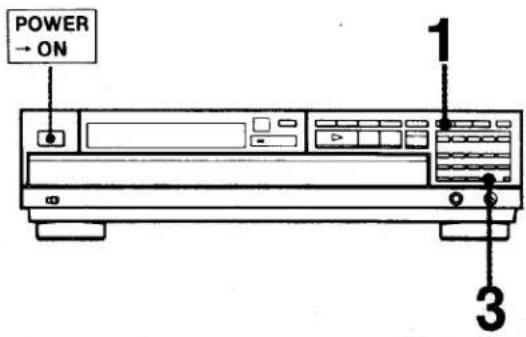
1 Drücken Sie zweimal PROGRAM, sodass die Anzeigen "PGM" und "PROGRAM BANK" aufleuchten. 2 Programmieren Sie die Auswahl wie gewünscht. (Siehe Seite 13.) 3 Drücken Sie FILE. CONTINUE MODE TRACK INDEX/STEP MIN SEC PGM ALL DISCS PGMFILE ① ② ③ ④ ⑤ Erlischt nach etwa einer Sekunde.
Das Programm wird im Speicher abgelegt. Für eine Disc kann nur eine Programmbank erstellt werden.
Abspielen der Disc mit der Programmbank
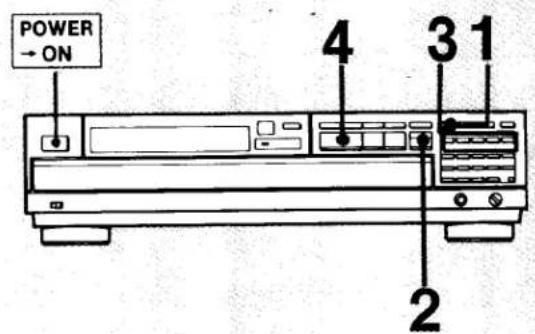
1 Drücken Sie zweimal PROGRAM. Die Anzeige PROGRAM BANK leuchtet auf. 2 Drücken Sie △ und legen Sie die Disc in das Fach. 3 Drücken Sie den DISC-Wähler, der der gewünschten Disc entspricht. 4 Drücken Sie ▶.
Was bedeutet diese Anzeige?
FULL
Dies zeigt an, dass im Speicher kein Platz mehr ist, um eine neue Datei zu speichern.
Diese Anzeige erscheint, wenn FILE gedrückt wird, während für die aktuell eingelegte Disc keine benutzerdefinierte Datei gespeichert werden kann. Um eine benutzerdefinierte Datei für die Disc zu erstellen, löschen Sie die benutzerdefinierte Datei einer anderen Disc.
Löschen der Programmbank
1 Legen Sie die Disc, deren Programmbank gelöscht werden soll, in den Player. 2 Drücken Sie den DISC-Wähler, der der Disc entspricht, deren Programm Sie löschen möchten. 3 Drücken Sie ■, um das Programm zu löschen. 4 Drücken Sie FILE. "PGM CLR" wird angezeigt, und die Programmbank wird gelöscht.
Zu "Benutzerdefinierten Dateien"
Der CD-Player verfügt über einen Speicher, in dem Sie zwei Arten von Informationen speichern können, die als "benutzerdefinierte Dateien" bezeichnet werden.
Wie vielen Discs können benutzerdefinierte Dateien zugewiesen werden? Sie können bis zu 225 Discs benutzerdefinierte Dateien zuweisen.
Speichersicherung für die benutzerdefinierten Dateien Benutzerdefinierte Dateien bleiben nach dem Speichern etwa 1 Monat lang im Speicher des CD-Players erhalten, auch wenn die Stromversorgung unterbrochen wird.
Timer-Wiedergabe
Durch Anschluss eines handelsüblichen Timers kann die Disc-Wiedergabe zu jeder gewünschten Zeit gestartet werden.
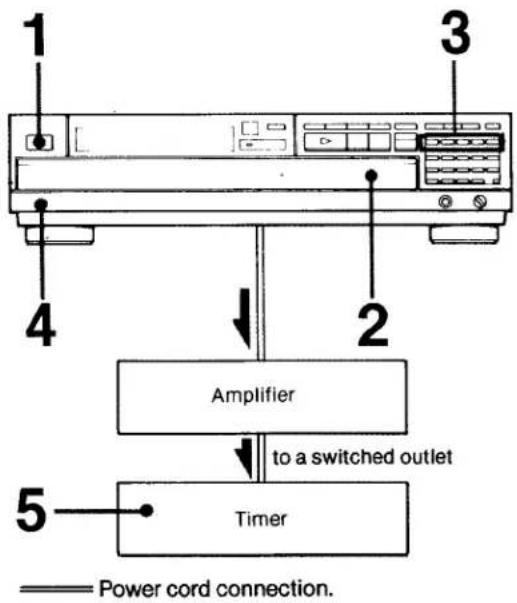
1 Drücken Sie POWER. 2 Legen Sie die Discs in das Disc-Fach und schließen Sie das Fach. 3 Wählen Sie die zuerst abzuspielende Disc mit den DISC-Wahltasten aus. 4 Setzen Sie TIMER auf ON. 5 Stellen Sie den Timer auf die gewünschte Zeit ein. Die Wiedergabe beginnt automatisch zur voreingestellten Zeit.
So starten Sie die PROGRAM-Wiedergabe zur voreingestellten Zeit
Bei Schritt 3 oben stellen Sie wie folgt ein
1 Speichern Sie das Programm (PROGRAM BANK: siehe Seite 20). 2 Drücken Sie PROGRAM, sodass die PGM-Anzeige aufleuchtet. 3 Wiederholen Sie die Schritte 4 und 5 oben.
So starten Sie die SHUFFLE-Wiedergabe zur voreingestellten Zeit
Drücken Sie bei Schritt 3 oben SHUFFLE und wählen Sie den Wiedergabemodus mit CONTINUE.
Wartung
Reinigung des Gehäuses
Reinigen Sie Gehäuse, Bedienfeld und Bedienelemente mit einem weichen Tuch, das leicht mit einer milden Reinigungslösung angefeuchtet ist. Verwenden Sie keine Scheuerschwämme, Scheuerpulver oder Lösungsmittel wie Alkohol oder Benzin.
Reinigung von Discs
Reinigen Sie die Disc vor dem Abspielen mit dem Reinigungstuch. Wischen Sie die Disc von der Mitte nach außen.
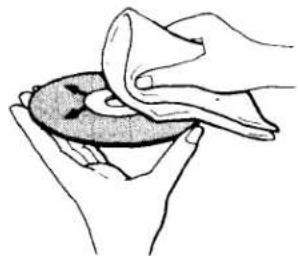
Verwenden Sie keine Lösungsmittel wie Benzin, Verdünner, handelsübliche Reiniger oder Antistatik-Sprays, die für analoge Schallplatten bestimmt sind.
Nach dem Abspielen die Disc in ihrer Hülle aufbewahren.
Technische Daten
CD-SPIELER
| System | Compact disc digital audio system |
| Laser | Semiconductor laser ( λ = 780 nm)Emission duration: continuous |
| Laser output | Max. 0.4 mWThis output is the value measured at a distance of about 1.6 mm from the objective lens surface on the Optical Pick-up Block. |
Frequenzgang
| 2 Hz - 20 kHz (±0.3 dB) |
Signal-Rausch-Verhältnis
| More than 100 dB |
Dynamikbereich
| More than 90 dB |
Klirrfaktor
| Less than 0.05% (1 kHz) |
Kanaltrennung
| More than 95 dB (1 kHz) |
Gleichlaufschwankungen
| Below measurable limit |
Ausgänge
| Max. output level | Load impedance | Output impedance | |
| LINE OUT (FIXED) | 2 V (50 kilohms) | More than 10 kilohms | 2 kilohm |
| LINE OUT - (VARIABLE) | 2 V (50 kilohms) | More than 50 kilohms | — |
| HEAD-PHONES | 28 mW Variable, max | 32 ohms | — |
| DIGITAL OUT | 0.5 V p-p | 75 ohms | 75 ohms |
Allgemein
Stromversorgung
120 V Wechselspannung, 60 Hz
Leistungsaufnahme
12 W
Abmessungen
Ca. 430 × 110 × 385 mm (B/H/T)
(17 × 4³/8 × 15¹/4 Zoll)
ohne hervorstehende Teile und Bedienelemente
Gewicht
Ca. 5,7 kg (12 lbs 10 oz), netto
FERNBEDIENUNG
Fernbedienungssystem
Infrarotsteuerung
Stromversorgung
3 V Gleichstrom mit zwei AA-Batterien (R6)
Abmessungen
Ca. 67 × 18 × 175 mm (B/H/T)
(2⁷/₈ × ³/₄ × 7 Zoll)
Gewicht
Ca. 130 g (5 oz)
einschließlich Batterien
MITGELIEFERTES ZUBEHÖR
Fernbedienung (1)
Audio-Signalkabel (Klinke × 2 ←→ Klinke × 2) (1)
Sony-Batterien SUM-3 (NS) (2)
Änderungen von Design und technischen Daten ohne Vorankündigung vorbehalten.
Fehlerbehebungsanleitung
Die folgenden Überprüfungen helfen bei der Behebung der meisten Probleme, die mit Ihrem Gerät auftreten können. Sollte ein Problem nach diesen Überprüfungen weiterhin bestehen, wenden Sie sich an Ihre nächste Sony-Kundendienststelle. Bevor Sie die folgende Checkliste durchgehen, lesen Sie zuerst die Anschluss- und Bedienungsanleitung.
| Trouble | Causes | Remedy |
| No audio from one or both channels | Incorrect operation of the amplifier | Operate correctly. |
| Loose connection | Connect the cords firmly. | |
| Play does not begin. | No disc in the disc compartment | Put disc(s) in the compartment. |
| The player is in the pause mode. | Press III to release pause. | |
| Moisture condensation | Leave the player turned on for about an hour. | |
| The disc is set upside down. | Set the disc with the label side up. | |
| The disc is tilted. | Set the disc correctly. | |
| The disc is extremely dirty. | Clean the disc. | |
| Discs cannot be played continuously. | Play did not start from the disc in the DISC 1 tray. | Press DISC 1 to start play. |
| Remote commander does not operate the unit. | The batteries are exhausted. | Replace both batteries. |
| The remote commander is not pointed at the remote control sensor. | Point the remote commander to the sensor. | |
| There is an obstacle between the remote commander and the unit. | Remove the obstacle. | |
| The remote commander is too far from the unit. | Move closer. | |
| Any operation is not possible. | The internal control program may not run. | Turn OFF the power and turn it ON again. |
- CDP-C7ESD
- BEDIENUNGSANLEITUNG
- BESITZVERMERK
- WARNUNG
- INFORMATION
- VORSICHT
- INHALTSVERZEICHNIS
- ERSTE SCHRITTE
- GRUNDLEGENDE BEDIENUNG
- VERWENDUNG IHRES CD-PLAYERS
- ERWEITERTE BEDIENUNG
- PFLEGE IHRES GERÄTS
- GETTING INTO THE DETAILS
- TROUBLESHOOTING
- FEATURES
- DER CD-PLAYER IST MIT EINEM 5-FACH-WECHSLER FÜR LANGES, KONTINUIERLICHES ABSPIELEN VON CDS AUSGESTATTET
- VERSCHIEDENE WIEDERGABEMODI
- BENUTZERDEFINIERTE DATEI
- VORSICHTSMASSNAHMEN
- ZUR SICHERHEIT
- ZUM BETRIEB
- WICHTIG
- HINWEIS ZUM TRANSPORTSCHLÜSSEL
- BEIM TRANSPORT DES GERÄTS
- INSTALLATION
- HINWEISE ZUR INSTALLATION
- EINLEGEN DER BATTERIEN
- WENN SIE DAS GERÄT ZUM ERSTEN MAL VERWENDEN
- ZUR BATTERIELEBENSDAUER
- UM SCHÄDEN DURCH AUSLAUFENDE BATTERIEN UND KORROSION ZU VERMEIDEN
- WERFEN SIE DEN KARTON UND DAS VERPACKUNGSMATERIAL NICHT WEG
- ANSCHLÜSSE
- HINWEISE ZUM ANSCHLUSS
- HINWEISE ZU DEN LINE OUT-BUCHSEN
- ANSCHLUSS VON D/A-WANDLER UND VERSTÄRKER
- TEILEIDENTIFIKATION
- FRONTBLENDE
- FERNBEDIENUNG
- DISC-WIEDERGABE
- HINWEIS ZUR 3-ZOLL-CD
- WIEDERGABE EINER EINZELNEN DISC
- WIEDERGABE EINES EINZELNEN TITELS AUF DER DISC
- ANZEIGE VON ZEITINFORMATIONEN
- UM DIE GESAMTZAHL DER AUSWAHLEN ANZUZEIGEN
- UM DIE VERBLEIBENDE ZEIT EINER AUSWAHL ANZUZEIGEN, DRÜCKEN SIE WÄHREND DER WIEDERGABE ODER PAUSE EINMAL TIME/MEMO
- UM DIE VERBLEIBENDE ZEIT DER DISC UND DIE ANZAHL DER AUSWAHLEN AUF DER DISC ANZUZEIGEN, DRÜCKEN SIE ZWEIMAL TIME/MEMO
- HINWEISE ZU DISCS
- WAS BEDEUTET DIESE ANZEIGE
- AUSWÄHLEN EINER GEWÜNSCHTEN DISC
- AUFFINDEN EINES BESTIMMTEN TITELS
- AUFFINDEN EINES TITELS IN DER REIHENFOLGE (AUTOMATISCHER MUSIKSENSOR)
- DIREKTES AUFFINDEN EINES TITELS
- AUFFINDEN EINER BESTIMMTEN STELLE IN EINEM TITEL
- AUFFINDEN EINER STELLE IN DER REIHENFOLGE (MANUELLE SUCHE)
- WIEDERGABE IN EINER BESTIMMTEN REIHENFOLGE – PROGRAMMWIEDERGABE
- PROGRAMMIEREN VON TITELN
- UM EINE PAUSE IN IHR PROGRAMM EINZUFÜGEN
- PROGRAMMIERUNG EINER GESAMTEN DISC UNTER EINER PROGRAMMNUMMER
- HINZUFÜGEN VON TITELN ZU EINEM PROGRAMM WÄHREND DER PROGRAMMWIEDERGABE UM EINEN TITEL HINZUZUFÜGEN, DRÜCKEN SIE DIE TRACK-WAHLTASTEN, DIE DER GEWÜNSCHTEN TITELNNUMMER ENTSPRECHEN, WÄHREND SICH DAS GERÄT IM WIEDERGABE- ODER PAUSENMODUS BEFINDET
- DAS PROGRAMM WIRD IN DEN FOLGENDEN SITUATIONEN GELÖSCHT
- ÜBERPRÜFEN DER PROGRAMMIERTEN TITEL
- DRÜCKEN SIE CHECK
- LÖSCHEN DER PROGRAMMIERTEN TITEL
- LÖSCHEN DES GESAMTEN PROGRAMMS
- LÖSCHEN DER LETZTEN AUSWAHL IN EINEM PROGRAMM
- LÖSCHEN EINER BESTIMMTEN AUSWAHL
- SO STOPPEN SIE DIE PROGRAMM-WIEDERGABE
- WIEDERGABE IN ZUFÄLLIGER REIHENFOLGE – SHUFFLE-WIEDERGABE
- WIEDERGABE ALLER TITEL IM FACH IN ZUFÄLLIGER REIHENFOLGE
- WIEDERGABE ALLER TITEL EINER DISC IN ZUFÄLLIGER REIHENFOLGE
- WIEDERHOLUNG VON TITELN – REPEAT PLAY
- DRÜCKEN SIE WÄHREND DER WIEDERGABE ODER PAUSE REPEAT
- SCHREIBEN EINES KOMMENTARS AUF EINE DISC – DISC-MEMO
- SCHREIBEN EINES DISC-MEMOS
- VERWENDBARE BUCHSTABEN UND SYMBOLE
- LÖSCHEN DES DISC-TEXTS
- SPEICHERN DES PROGRAMMS IM SPEICHER – PROGRAMMSPEICHER
- SPEICHERUNG EINES PROGRAMMS
- ABSPIELEN DER DISC MIT DER PROGRAMMBANK
- LÖSCHEN DER PROGRAMMBANK
- ZU "BENUTZERDEFINIERTEN DATEIEN
- TIMER-WIEDERGABE
- SO STARTEN SIE DIE PROGRAM-WIEDERGABE ZUR VOREINGESTELLTEN ZEIT
- SO STARTEN SIE DIE SHUFFLE-WIEDERGABE ZUR VOREINGESTELLTEN ZEIT
- WARTUNG
- REINIGUNG DES GEHÄUSES
- REINIGUNG VON DISCS
- TECHNISCHE DATEN
- ALLGEMEIN
- MITGELIEFERTES ZUBEHÖR
- FEHLERBEHEBUNGSANLEITUNG
Marke : SONY
Modell : CDP-C7ESD
Kategorie : CD-Player