
Movetime Family - Smartwatch ALCATEL - Kostenlose Bedienungsanleitung
Finden Sie kostenlos die Bedienungsanleitung des Geräts Movetime Family ALCATEL als PDF.


| Produkttyp | Smartwatch für Kinder |
| Modell | Movetime Family (MT30) |
| Hersteller | TCL Communication Ltd. |
| Marke | Alcatel |
| Bildschirm | Touchscreen, 8 verschiedene Zifferblätter |
| Akku | Li-Ion-Polymer, nicht entfernbar, 500 mA Ladegerät empfohlen |
| Laden | Magnetische Ladeschale mit USB-Anschluss |
| Betriebssystem | Eigenes Betriebssystem, kompatibel mit TCLMOVE App (Android 4.3+/iOS 8.0+) |
| Netzwerk | 2G/3G (GSM 900/1800, WCDMA 900/2100), Nano-SIM erforderlich |
| Positionierung | GPS, AGPS, WLAN, LBS |
| Hauptfunktionen | Anrufe, Sprachnachrichten, Emojis, SOS-Taste, sichere Zonen, Schulzeitmodus, Erinnerungen, Spiele (Hamster), Sprachverzerrer, Taschenrechner |
| Wasserdichtigkeit | IP67: staubdicht, wassergeschützt bis 1 Meter für 30 Minuten |
| SAR-Wert | 0,88 W/kg (Körper) |
| Frequenzbänder | Bluetooth 2,4 GHz, 2G/3G |
| Garantie | 12 Monate auf Material- und Verarbeitungsfehler |
| Pflege und Reinigung | Mit weichem, trockenem Tuch reinigen; aggressive Reinigungsmittel vermeiden |
| Sicherheitshinweise | Abstand zu medizinischen Geräten > 15 cm; nicht selbst öffnen; nicht über 55 °C aussetzen |
| Reparierbarkeit | Nicht vom Benutzer reparierbar; nur autorisierte Servicezentren |
| Entsorgung | Elektrogeräte und Akku getrennt entsorgen (gemäß lokalen Vorschriften) |
| Betriebstemperatur | -10 °C bis +50 °C (Lagertemperatur: -20 °C bis +55 °C) |
| Lieferumfang | Smartwatch, Ladeschale, USB-Kabel, Kurzanleitung |
Häufig gestellte Fragen - Movetime Family ALCATEL
Benutzerfragen zu Movetime Family ALCATEL
0 Frage zu diesem Gerät. Beantworten Sie die, die Sie kennen, oder stellen Sie Ihre eigene.
Eine neue Frage zu diesem Gerät stellen
Laden Sie die Anleitung für Ihr Smartwatch kostenlos im PDF-Format! Finden Sie Ihr Handbuch Movetime Family - ALCATEL und nehmen Sie Ihr elektronisches Gerät wieder in die Hand. Auf dieser Seite sind alle Dokumente veröffentlicht, die für die Verwendung Ihres Geräts notwendig sind. Movetime Family von der Marke ALCATEL.
BEDIENUNGSANLEITUNG Movetime Family ALCATEL
MOVETIME
Family Watch
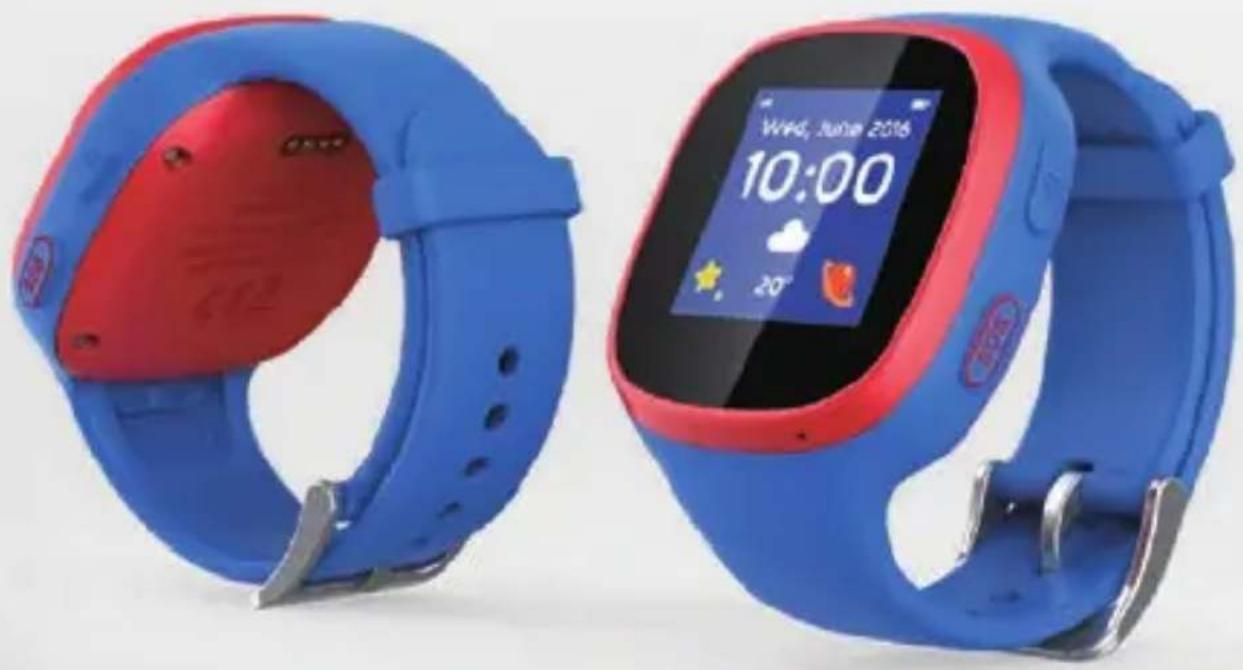
natural_image
Two blue and red smartwatches displayed side by side, one open showing front camera, the other closed with a digital display (no readable text or symbols)Content
Product layout....4
Buttons....4
Charger....5
Charging your watch 5
Watch strap....6
Changing your watch strap....6
Setting up your watch....7
Getting a SIM card....7
Inserting the SIM card 8
Removing the SIM card 10
Powering on your watch 10
Powering off your watch 10
Pairing your Family watch with your smartphone....11
Step 1: Download and install the TCLMOVE app on your smartphone....11
Step 2: Create an account .... 12
Step 3: Log in to your account....13
Step 4: Pairing....14
TCLMOVE app....18
App main screen 18
Profile information....18
Adding a new watch....19
Messaging....22
Safe zones 24
School time 25
Reminders....26
Scheduled power on/off....28
Additional functions....29
Time settings....30
Language settings....31
APN settings 32
Updates....34
SOS 35
Unpair 36
Using your Family watch 37
Screen....37
Changing the watch face 38
Calls 38
Messaging....39
Friends....40
Group chat 41
Games & tools 42
SOS 43
Volume and brightness controls 43
Settings 43
Notifications....44
Vibration 45
Safety and use 45
Traffic safety 45
General information....52
Disclaimer 53
Warranty 53
FAQ 54

This device meets applicable national SAR limits of 2.0W/kg.
Product layout
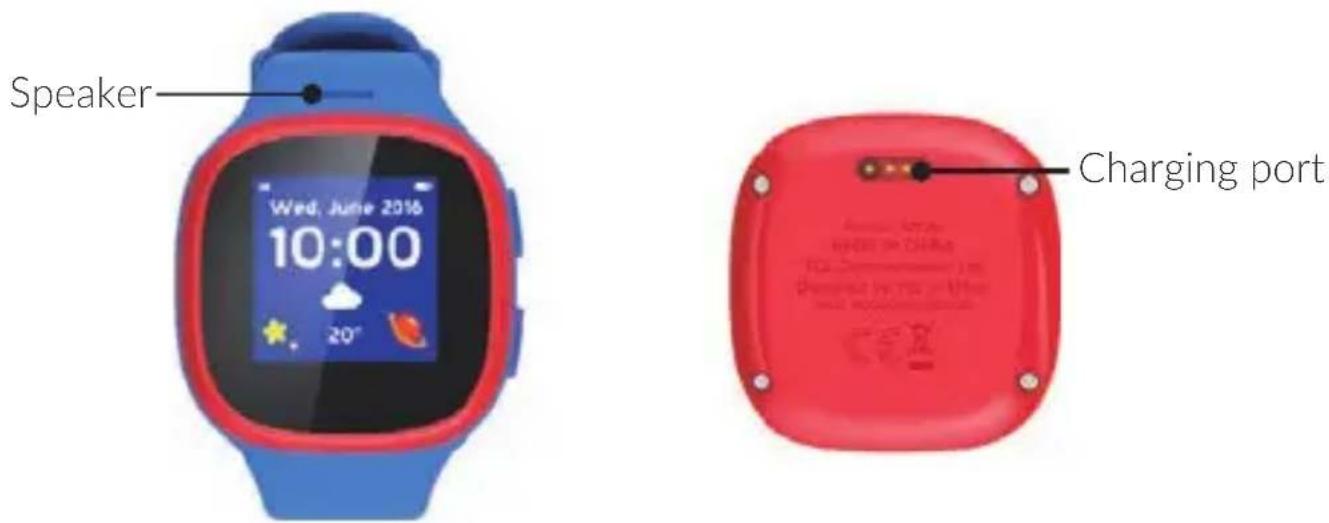
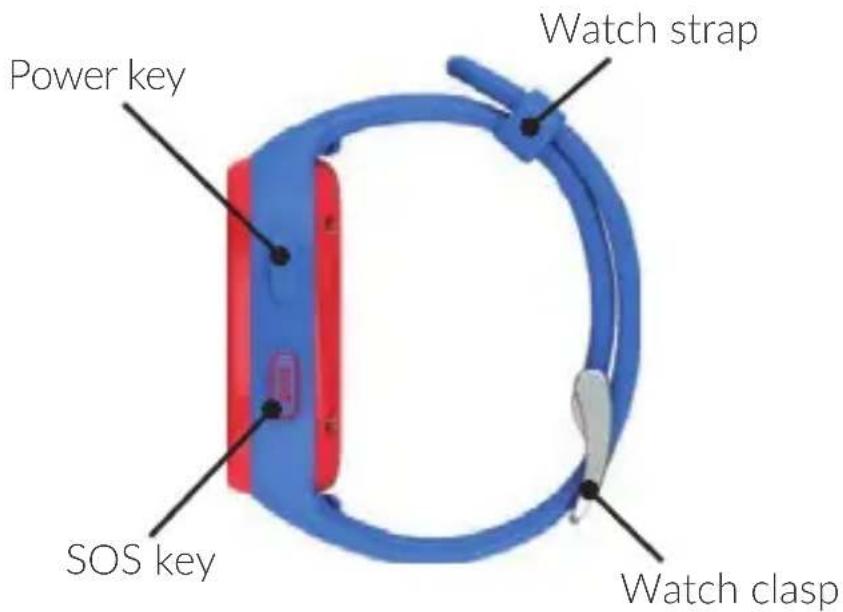
Notes:
- Press any key to wake up the device.
- Swipe right to go back to previous screen.
- Do not remove the screws. Otherwise, it may damage the device.
Buttons
| Button Functions | |
| Power key Long | press for 3 seconds: Power on/offLong press for 10 seconds: Force to restartShort press: Return to Home screen. Press again to turn off the screen |
| SOS key Long press for 5 seconds: SOS callShort press: Back to previous screen | |
Charger
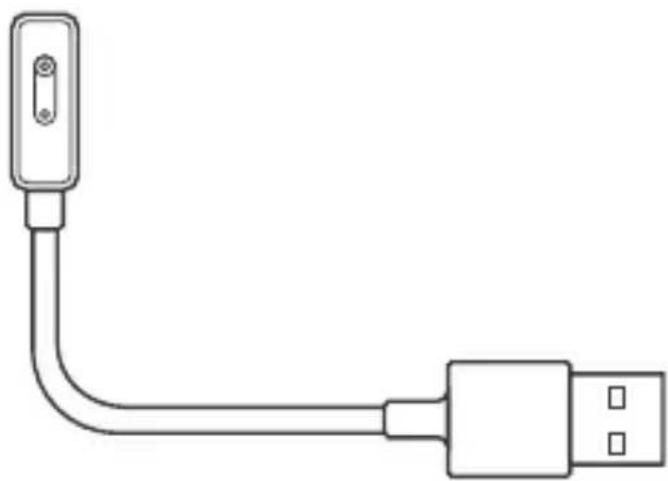
natural_image
Line drawing of a USB cable with a terminal connector (no text or symbols)Charging your watch
- Ensure that the pins in the charging dock are aligned with the pins on the back of your watch.
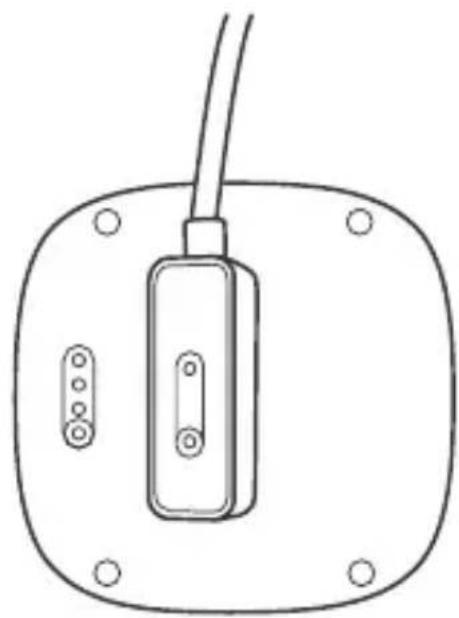
natural_image
Line drawing of a device with a rectangular component and two circular ports, mounted on a rounded base (no text or symbols)- Using a USB cable, connect the charging dock to either a computer or USB power adapter to begin charging.
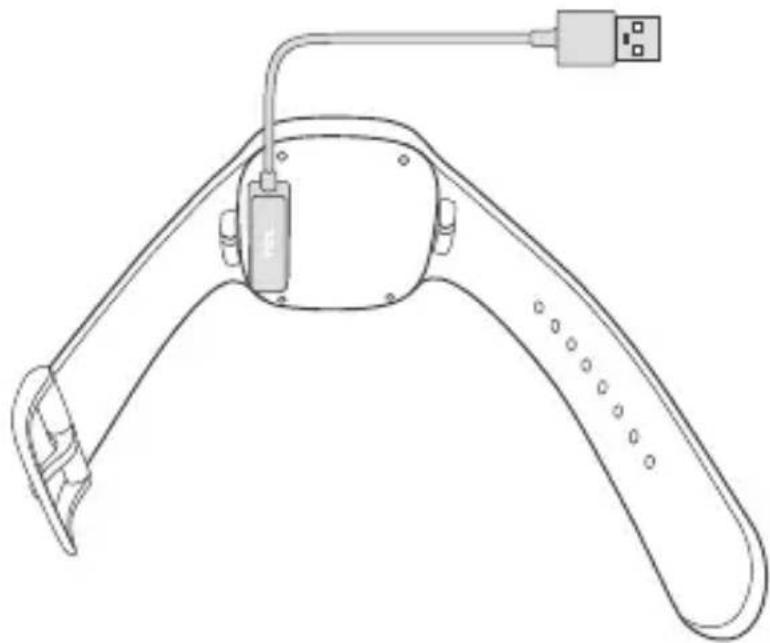
natural_image
Line drawing of a smart device with attached sensor and connector (no text or symbols)- Once the battery is fully charged, remove the charger dock and disconnect it from your watch.
Watch strap
Changing your watch strap
- Remove the watch strap
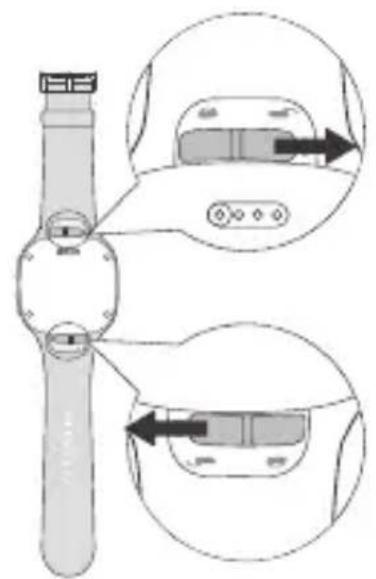
1
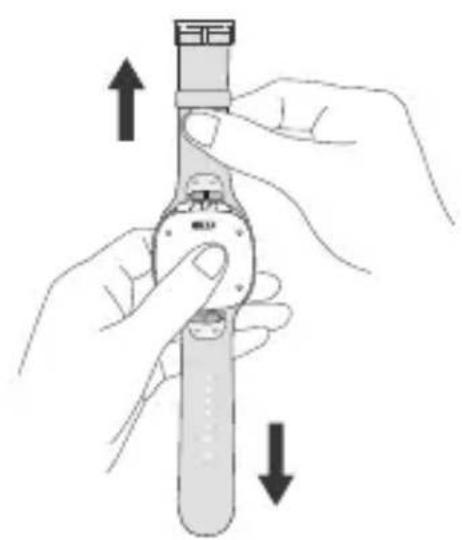
natural_image
Illustration of hands holding a tool with directional arrows indicating movement (no text or symbols)②
- Replace the new watch strap.
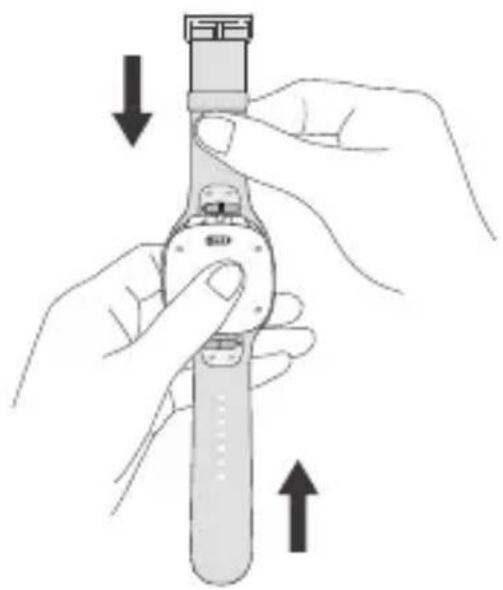
natural_image
Illustration of hands holding a device with directional arrows indicating movement (no text or symbols)1
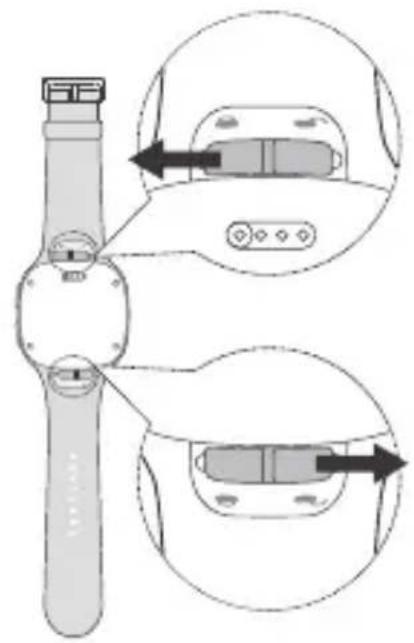
2
Setting up your watch
Getting a SIM card
A nano-SIM (not included) is required in order to set up and use your contact your network operator to request a nano-SIM with a voice and data plan.
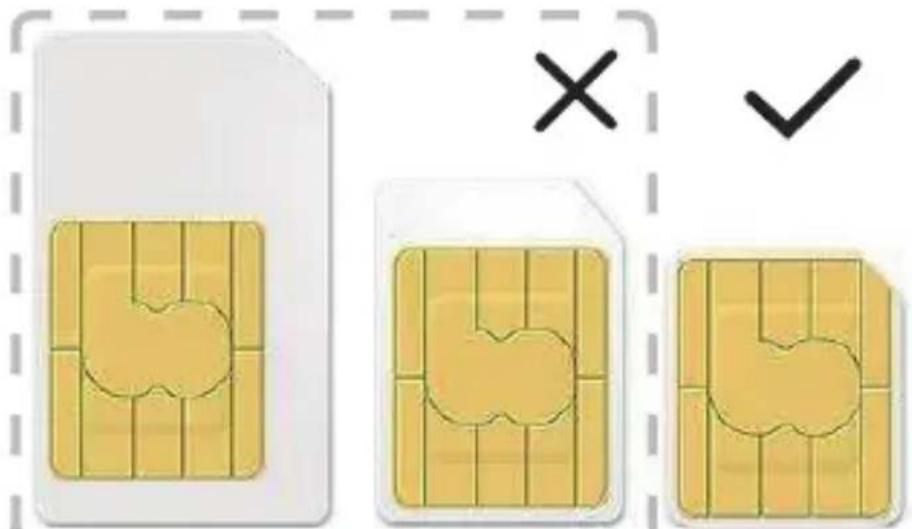
Standard Micro Nano
Inserting the SIM card
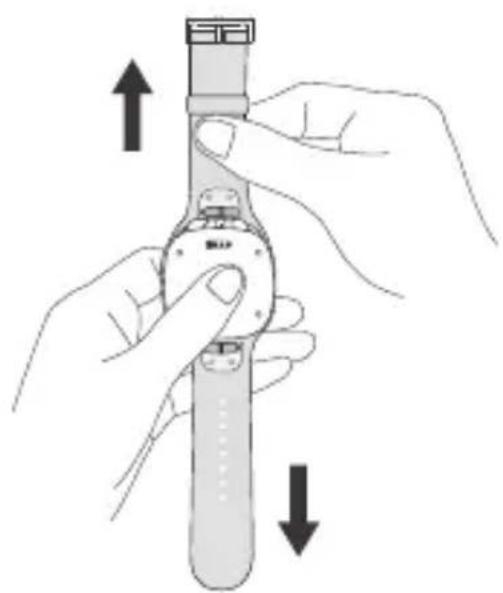
Refer to the following steps when inserting your SIM card.
- Remove the strap.
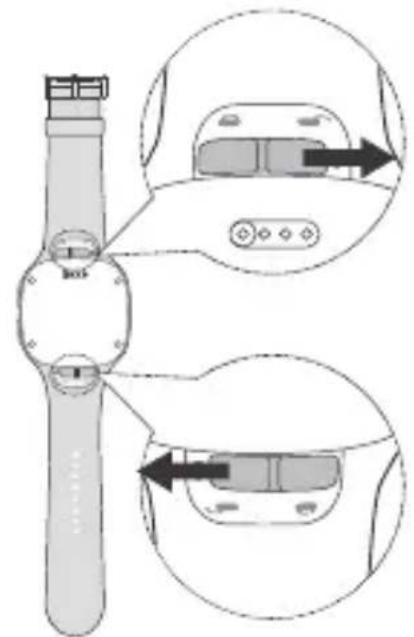
1
natural_image
Illustration of hands holding a tool with directional arrows indicating movement (no text or symbols)2
- Remove the SIM card cover and insert the SIM card.
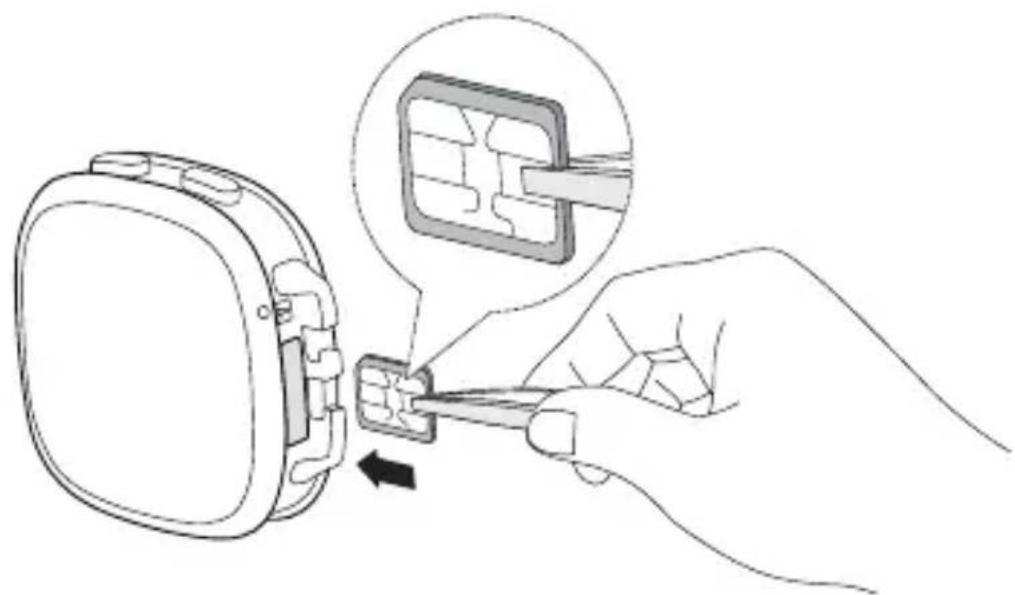
natural_image
Line drawing of a hand using a tool to adjust or install a small component, with an inset showing a close-up of the component (no text or symbols present)- Push the SIM card softly using a tweezer and replace the cover.
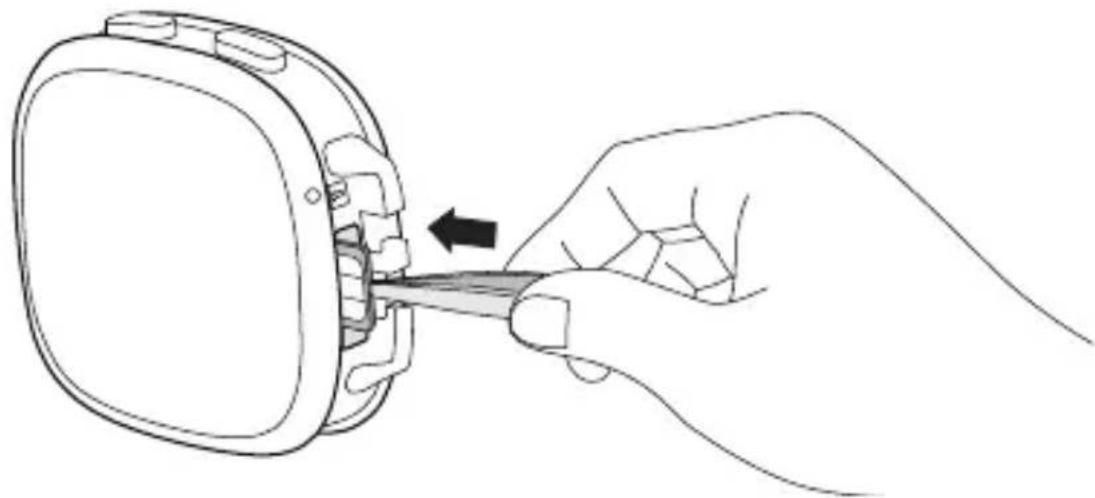
natural_image
Line drawing of a hand holding a small electronic device with a tool inserted, showing a black arrow indicating the process (no text or symbols present)- Replace the strap.
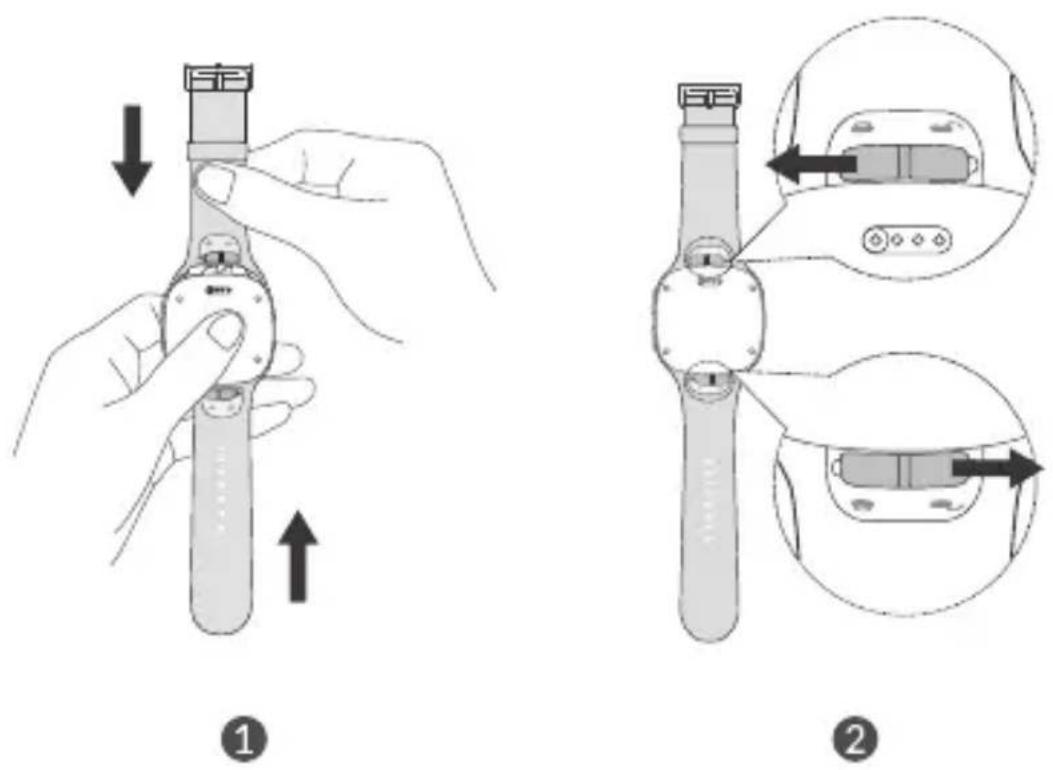
Removing the SIM card
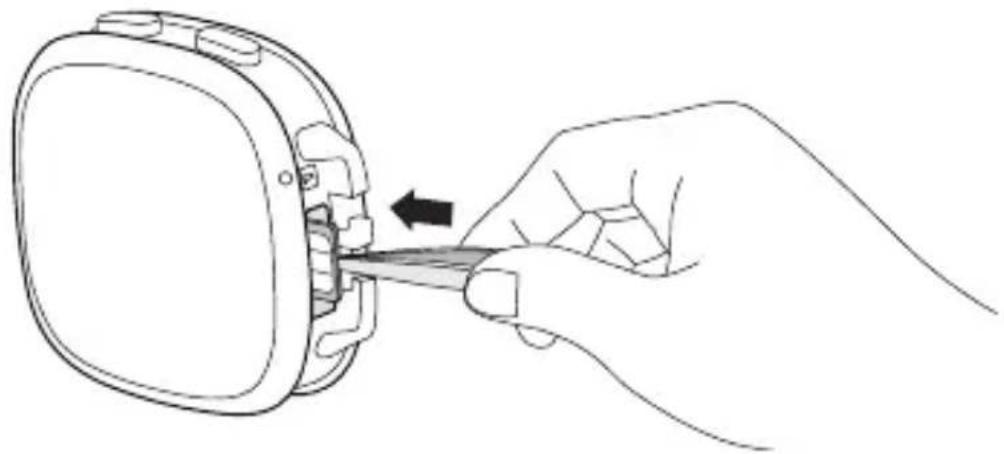
- Remove the SIM card cover and push the SIM card softly using a tweezer.
natural_image
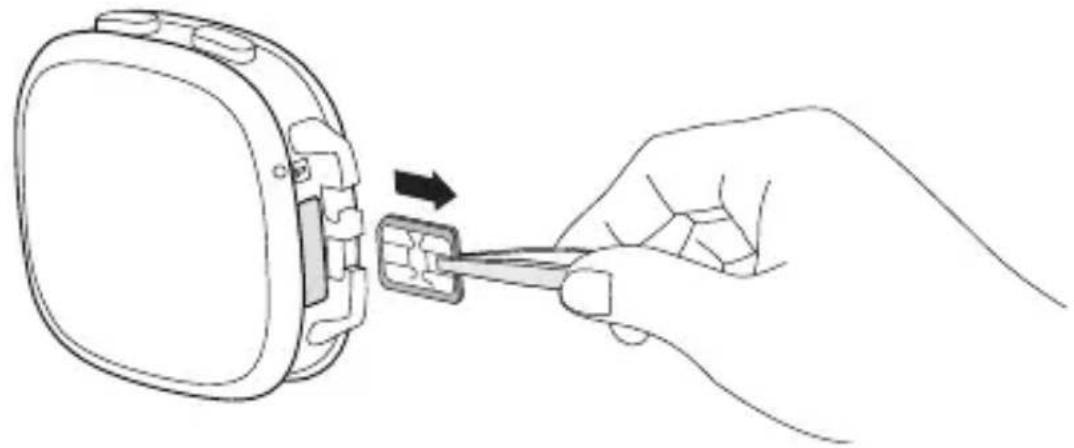
Line drawing of a hand holding a tool interacting with a device component (no text or symbols)- Take out the SIM card carefully.
natural_image
Line drawing of a hand holding a small electronic device with an arrow indicating the process (no text or symbols present)Powering on your watch
Long press the Power key for 3 seconds to power on your watch.
Powering off your watch
- Long press the Power key for 3 seconds. Press the SOS key to cancel the power-off operation.
- Long press the Power key for 10 seconds to force restart the watch.
Pairing your Family watch with your smartphone
To pair your MOVETIME Family Watch with a smartphone, download and install the TCLMOVE app on your smartphone.
Step 1: Download and install the TCLMOVE app on your smartphone
To download the app, you can;
- Search for "TCLMOVE" in the Google Play store (For Android 4.3 and above) or App store (For iOS 8.0 and above).
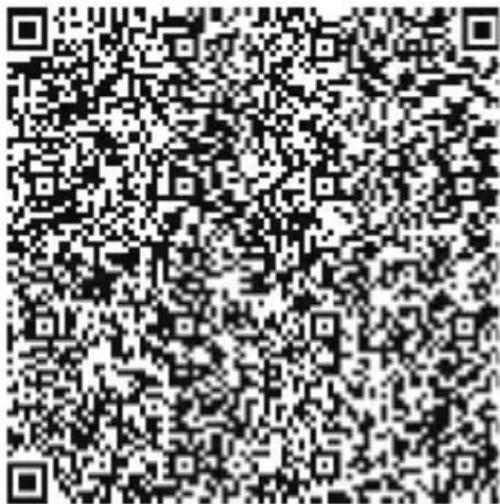
- Scan the following QR code.
Step 2: Create an account
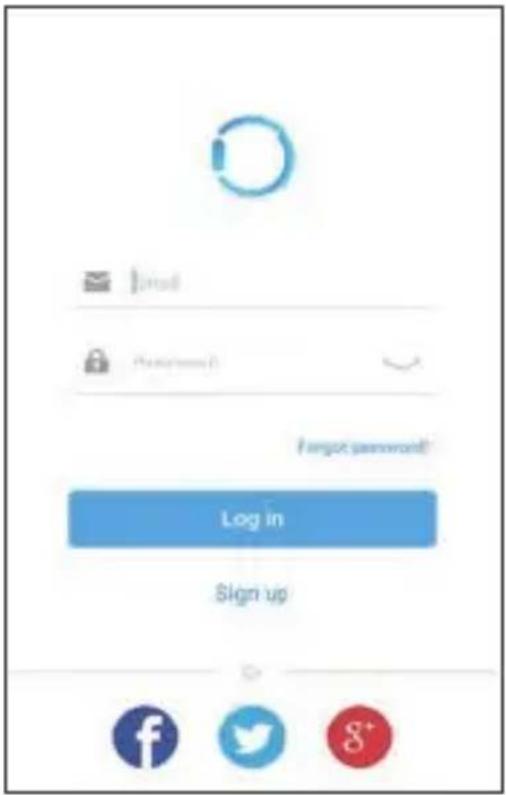
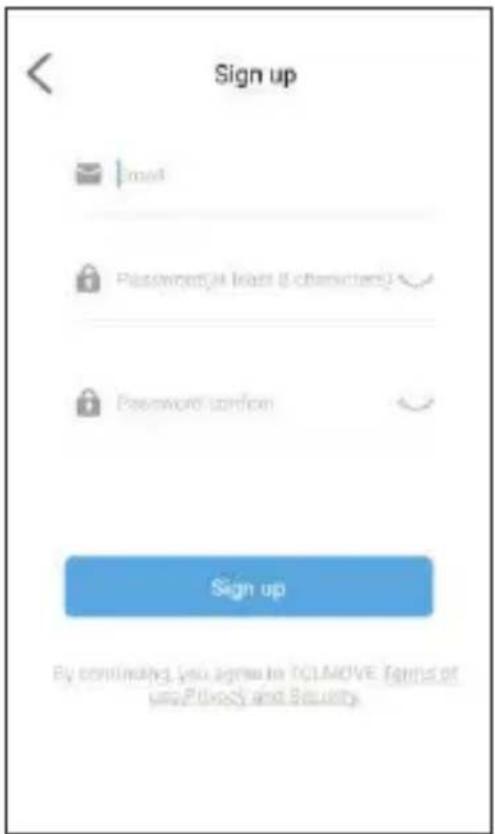
- Touch Sign up to create your TCLMOVE account.
- Enter your email address and set a password for your account.
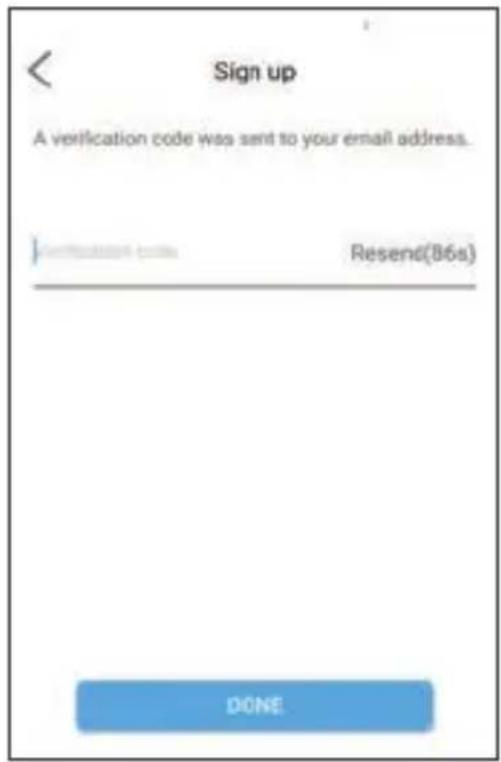
- Enter the verification code sent to your email address. This email address will be used to help you reset your password should you forget it in the future.
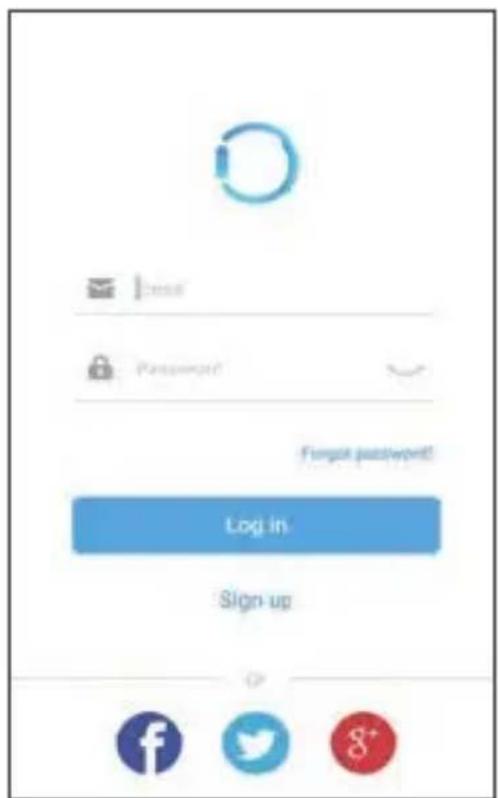
Step 3: Log in to your account
Enter your email address and password to log in. You can also log in using your Facebook, Twitter or Google account.
Step 4: Pairing
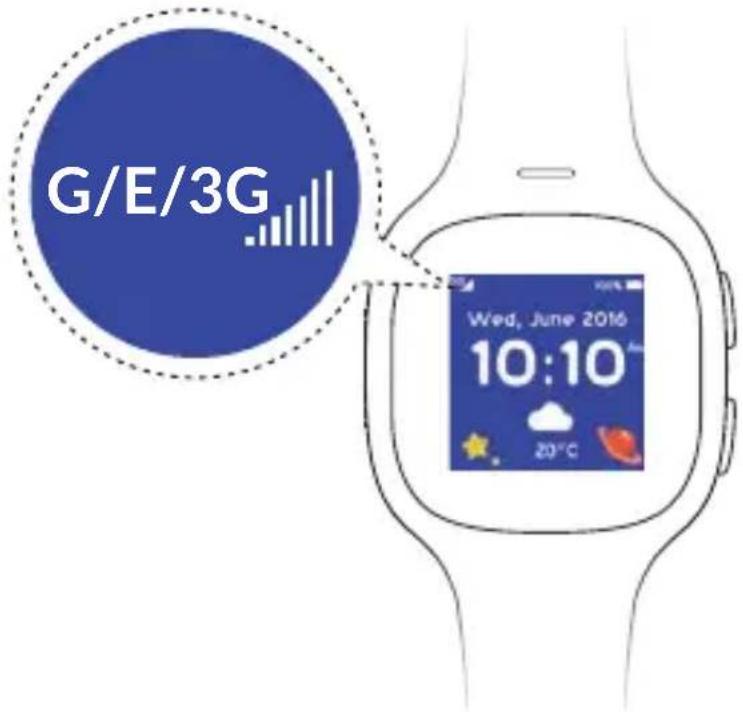
Make sure the SIM card is correctly inserted and internet is Qconnected before pairing your watch with your phone. G, E, or 3G will appear on the left top of your watch once connected to the internet.
1. Pair your watch with your phone
There are 2 ways to pair your watch with your phone.
- Scan the QR code to pair your watch
Swipe left Qfrom Qthe QHome Qscreen of your watch Qto Qobtain Qthe QQI when pairing the watch for the first time.
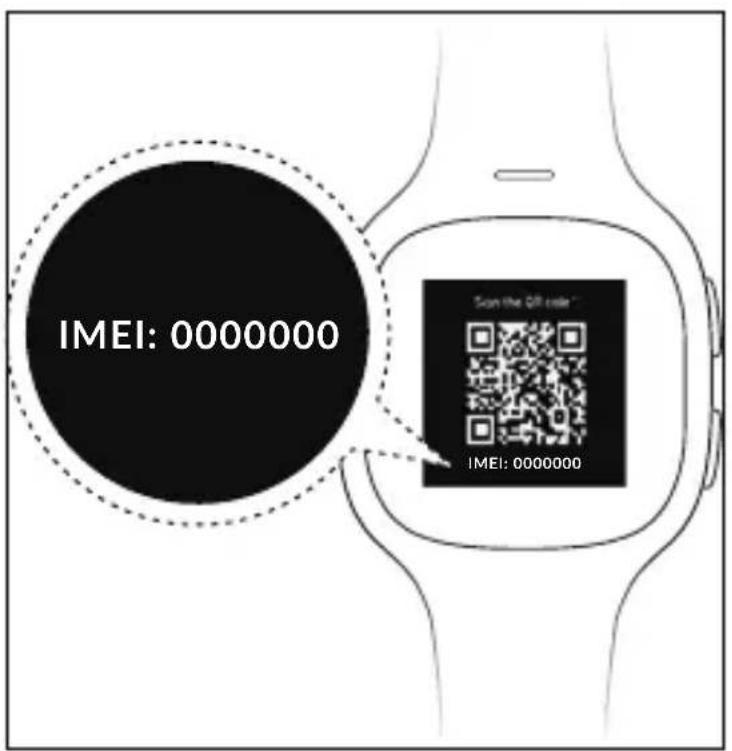
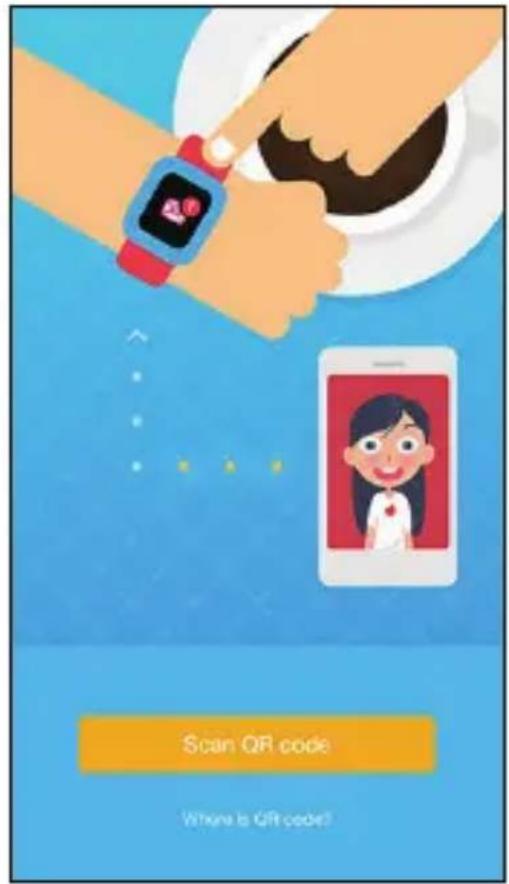
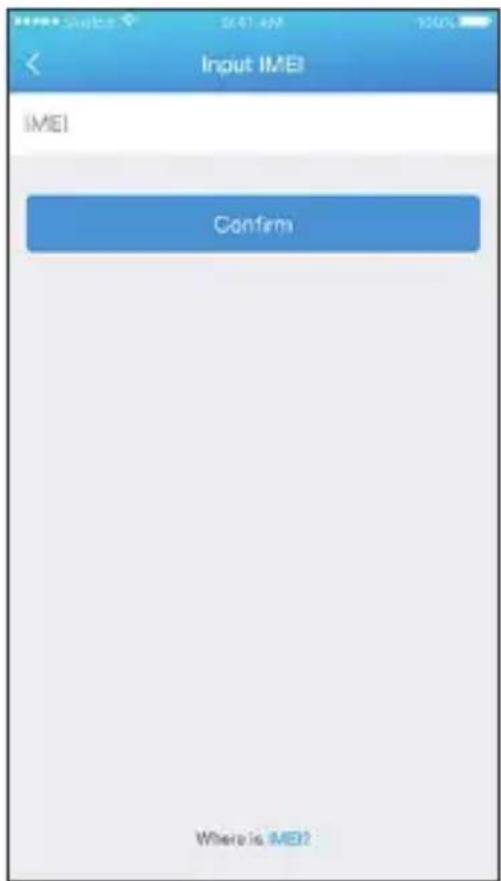
- Enter the IMEI number to pair your watch
The IMEI number is printed on a label on the device packaging. You can also swipe left from the Home screen of your watch to obtain the number when pairing the watch for the first time. Enter the IMEI number of your MOVETIME Family Watch and touch Confirm to pair your watch with your phone.
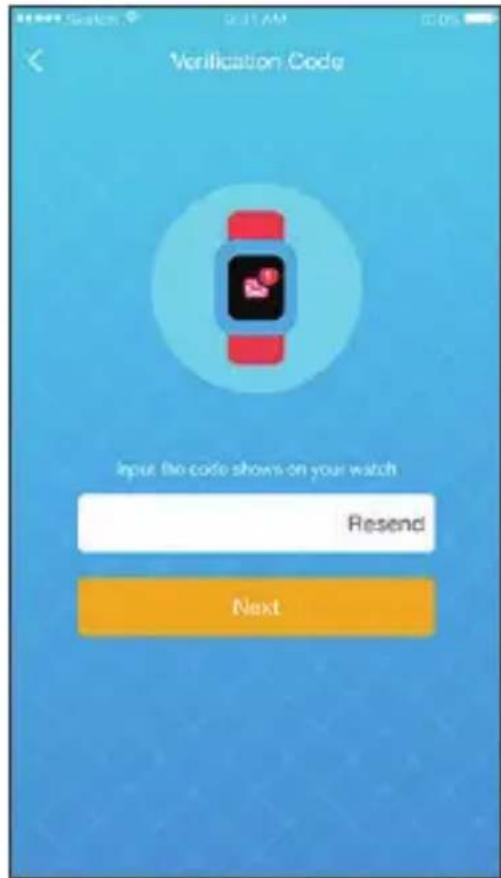
A verification code will be sent to your watch and will appear on screen. Enter the verification code and touch Confirm.
- Enter your phone number.
- Enter your title.
- Enter your child's name and phone number (the phone number of the SIM inserted in the watch). Complete your child's personal information (profile picture, birthday, height, etc.) and touch Done.
Your child's personal information will appear as below:
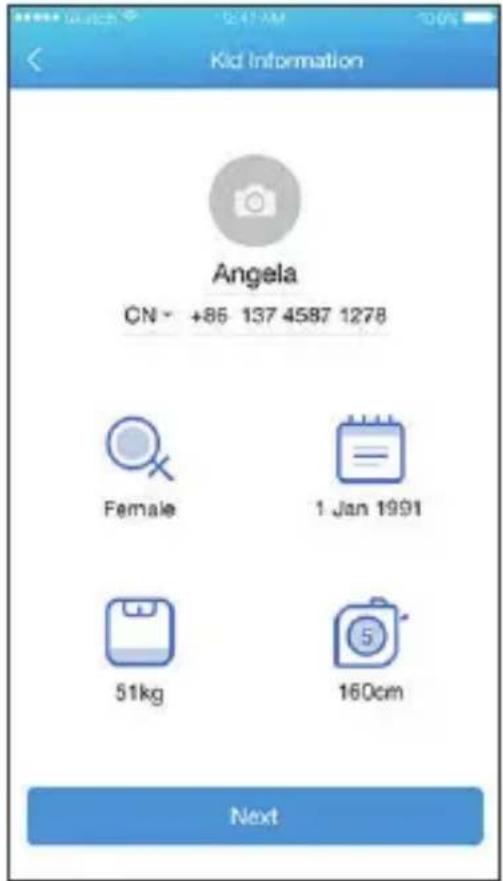
Once the MOVETIME Family Watch has been successfully paired w phone, you will be brought to the application main screen. The location of the watch will be displayed here on the map.
TCLMOVE app
App main screen
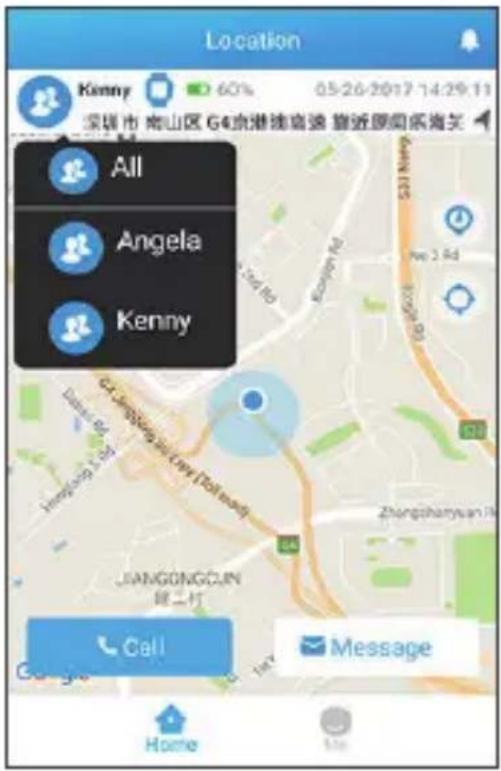
System notification
Watch status
Battery status
Detailed information on watch location. Touch to navigate.
Touch to locate the current position of the watch
Touch for location history
Watch location
Touch to place a call to the watch
Touch to send a message to the watch
Profile information
Viewing and changing profile information
-
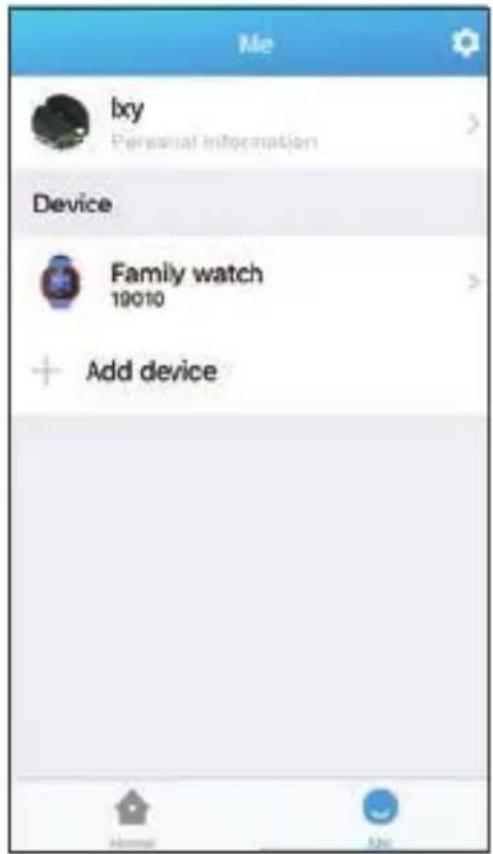
Touch Me on the application main screen.
-
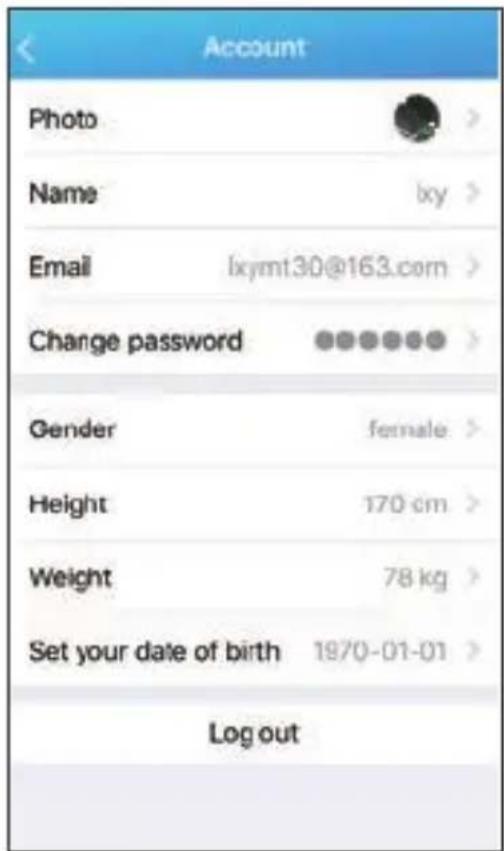
Select your account.
- Edit your photo, name, email address, password, gender, height, weight and date of birth.
- Touch Log out to exit your account.
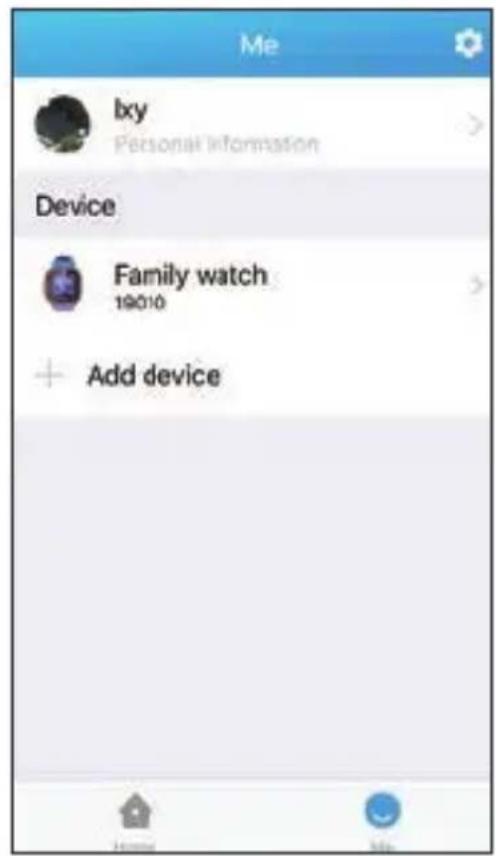
Adding a new watch
You can add and manage multiple watches with your account.
- Touch Me on the application main screen.
- Touch Add device.
- Start to add new device. (For more information on pairing a watch with your phone, ref to "Step 4: Pairing" on page 14 of this user manual.)
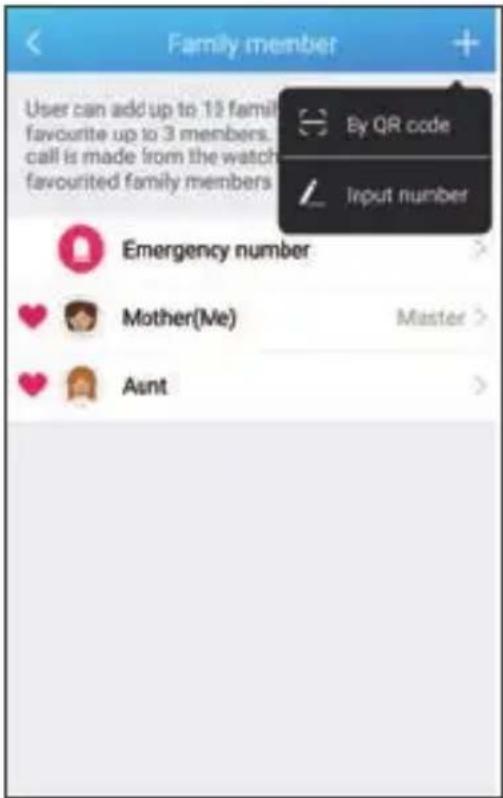
Family member management
Family Qmembers Qcan Qbe Qadded Qusing Qthe Qadministrator's Qapplication Qe manually or by scanning a QR code.
Adding a family member manually
- Touch Me on the application main screen.
- Select a Family watch.
- Touch Family watch contacts.
- Touch Family members.
- Touch + and then select Add manually.
- Enter a name/title and number. You can also upload a photo (optional).
- Touch Save.
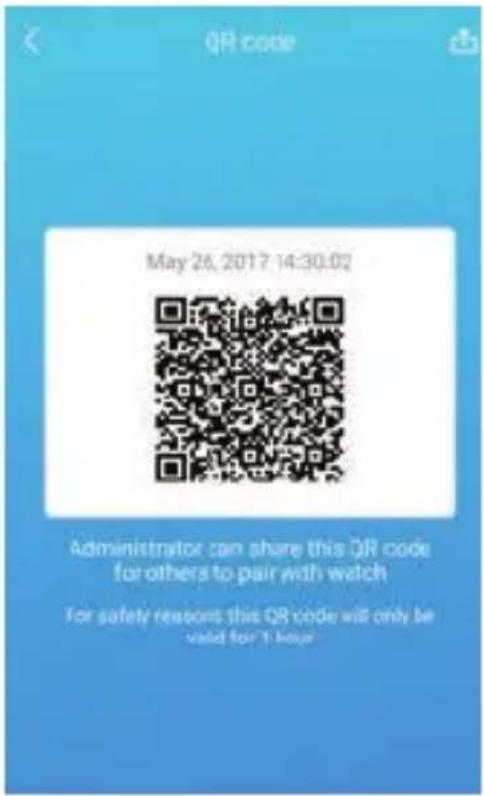
Adding a family member via QR code
- Touch Me on the application main screen.
- Select a MOVETIME Family Watch.
- Touch Family watch contacts.
- Touch Family members.
- Touch + and then select Scan QR code.
- A QR code will appear on screen. If the invited family member is next to you they can scan it directly using their TCLMOVE app. If the invited family member is not in your vicinity, touch Q to send them the QR code.
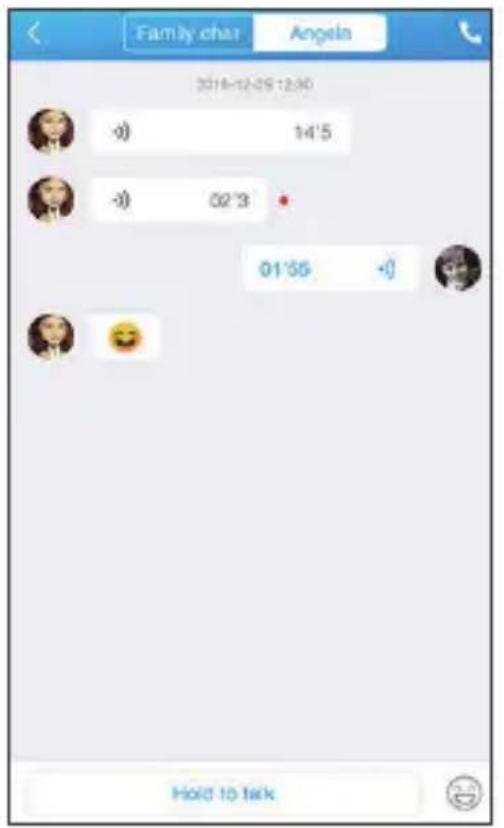
Messaging
Voice messages and Emojis
Sending a voice message and emojis
-
Touch the message icon 📄.
-
Select whether to send a voice message or emojis to your child's watch or to the family chat.
-
Touch and hold the bottom of the screen to send a voice message. Voice messages can be up to 30 seconds. Touch😊 at the bottom right of the screen to view emojis, then touch one to send.
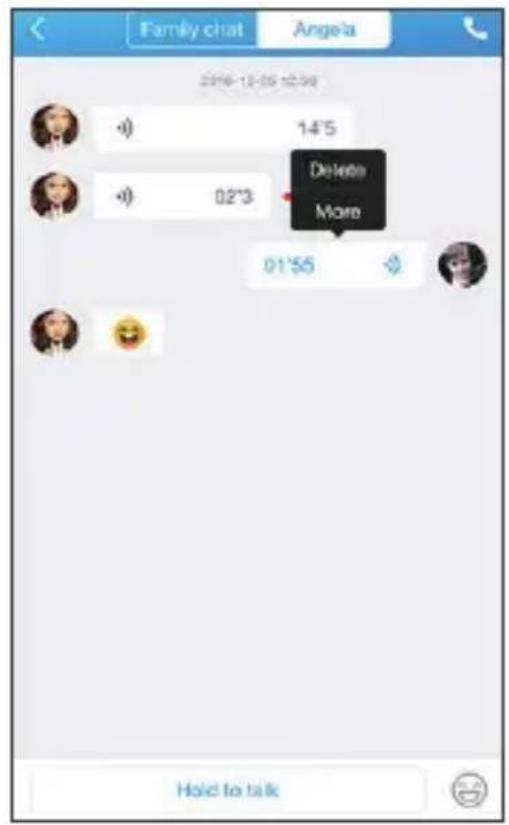
Deleting a voice message
-
Long press the message you wish to delete.
-
To delete the selected message, touch Delete in the popup menu. To delete all messages in the chat, touch More and then Delete all.
Notes:
- Unheard messages are indicated with a red dot.
- Touch a message to listen to it.
Safe zones
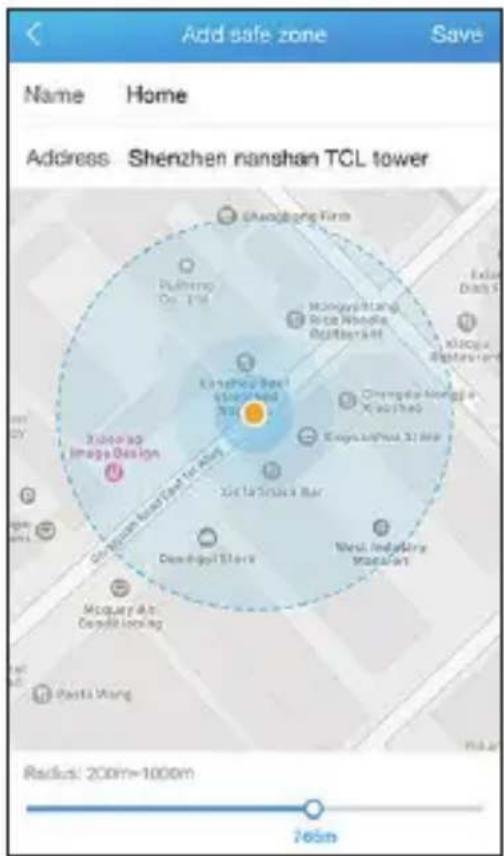
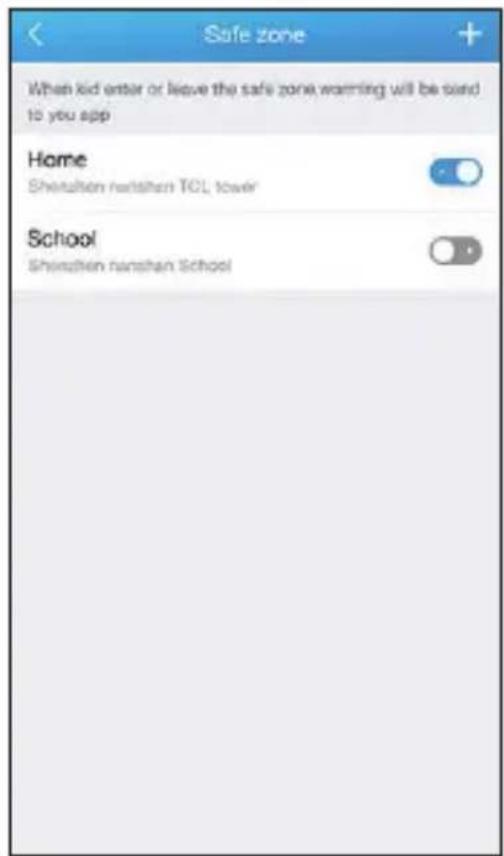
You can set up areas called safe zones for places frequently visited by your child (e.g. your home, your child's school, etc.) Once set up, you'll receive notifications from the TCLMOVE app every time your child enters or leaves a safe zone.
Set up a safe zone
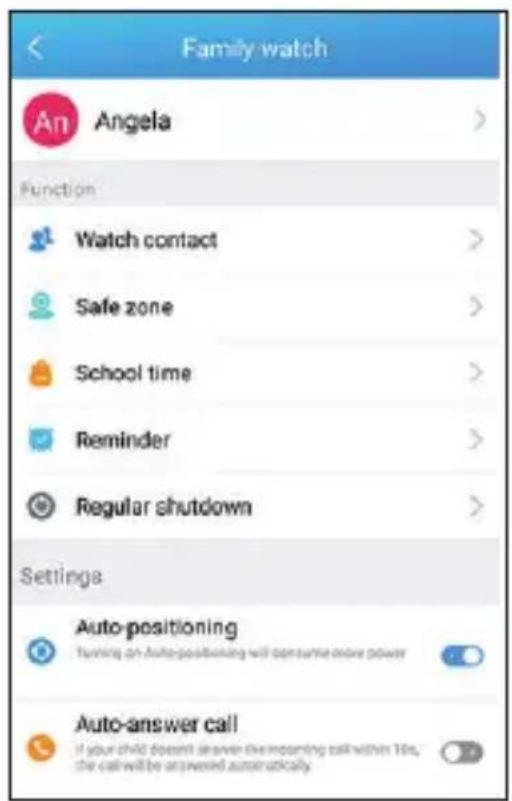
- Touch Me on the application main screen.
- Select a Family watch.
- Touch Safe zone.
- Touch +.
- Enter a name for the safe zone and enter the address.
- Set the range.
- Touch Save.
- Touch the switch to enable/disable the safe zone.
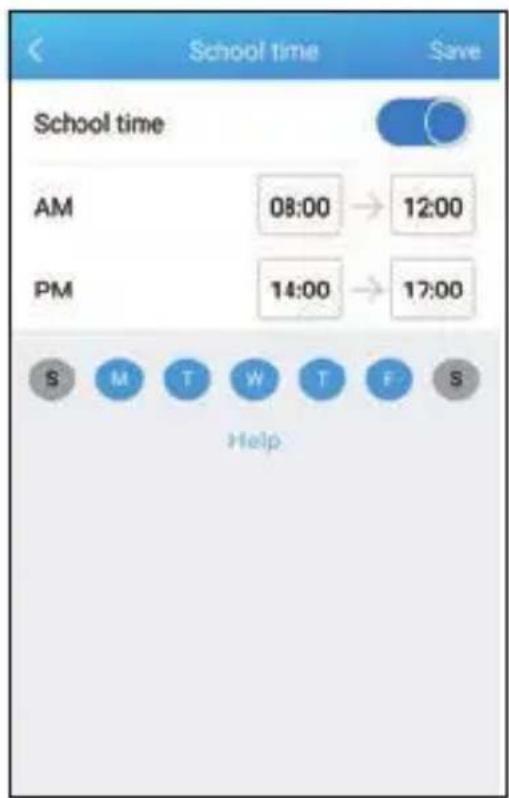
School time
You can disable certain functions of the Family watch during the time your child is at school. You can set the watch to vibration mode and disable group ch games, and friend features, for the duration of the school day.
Set up school time
- Touch Me on the application main screen.
- Select a Family watch.
- Touch School time.
- Set when the school day starts and ends. Set when you want to school time mode in the morning (AM) and afternoon (PM) separately.
- Select which days of the week to activate school time mode.
- Touch Save.
- Touch the switch to enable/disable school time mode.
Reminders
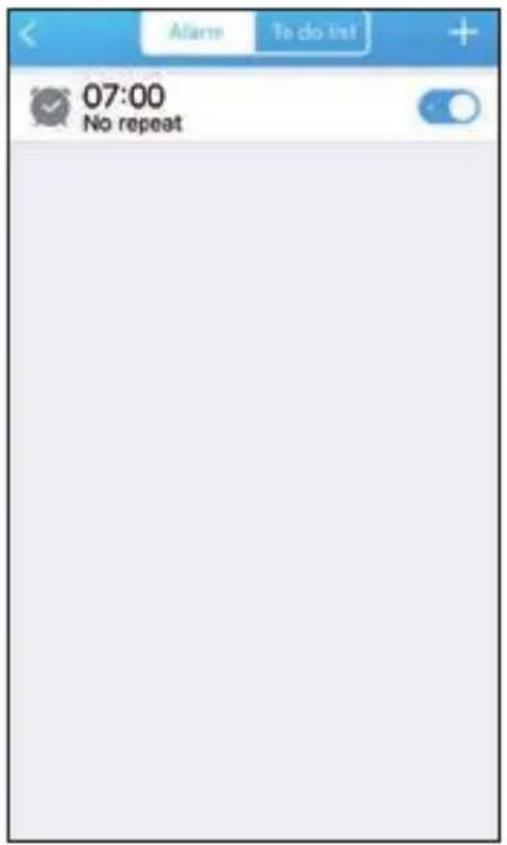
Set an alarm
- Touch Me on the application main screen.
- Select a Family watch.
- Touch Reminders.
- Touch Alarms.
- Touch +.
- Set the alarm time.
- Set which days the alarm should repeat.
- Touch Save.
- Touch the switch to turn on/off the alarm.
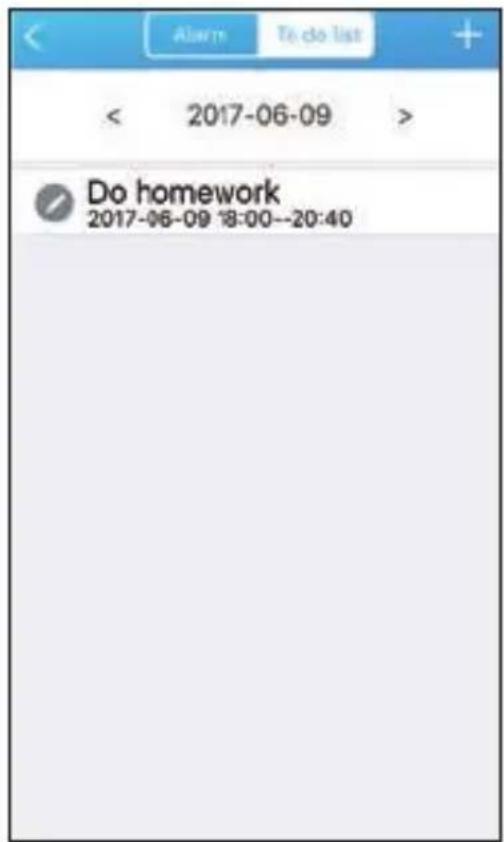
Set a reminder
- Touch Me on the application main screen.
- Select a Family watch.
- Touch Reminders.
- Touch Reminders again on the following screen.
- Touch +.
- Set a title and add a remark (optional).
- Set when the event should begin and end.
- Set when the to do list should repeat.
- Touch Save.
Scheduled power on/off
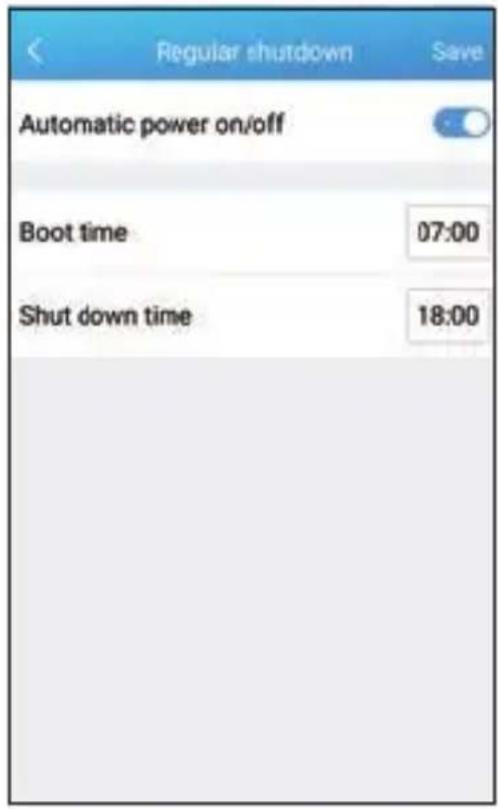
You can set the watch to power on/off automatically at scheduled times. A pop-up will appear on the watch 5 minutes before the scheduled power off time. The watch user can then choose whether to keep the watch on or turn it off in the pop-up.
- Touch Me on the application main screen.
- Select a Family watch.
- Touch Scheduled power on/off.
- Set a power on time and a power off time.
- Touch Save.
- Touch the switch to enable/disable scheduled power on/off.
Additional functions
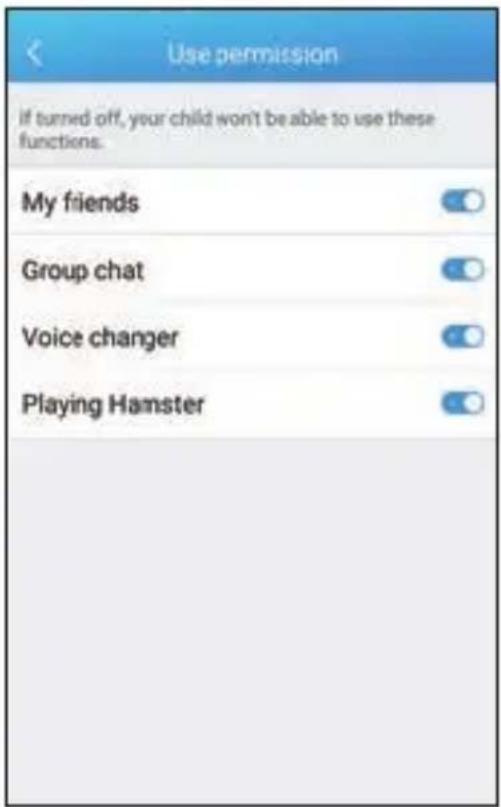
You can enable or disable certain functions, such as group chat, games and friend features. All functions are on by default.
- Touch Me on the application main screen.
- Select a Family watch.
- Scroll down and touch Additional functions.
- Touch the switches to enable/disable functions.
Time settings
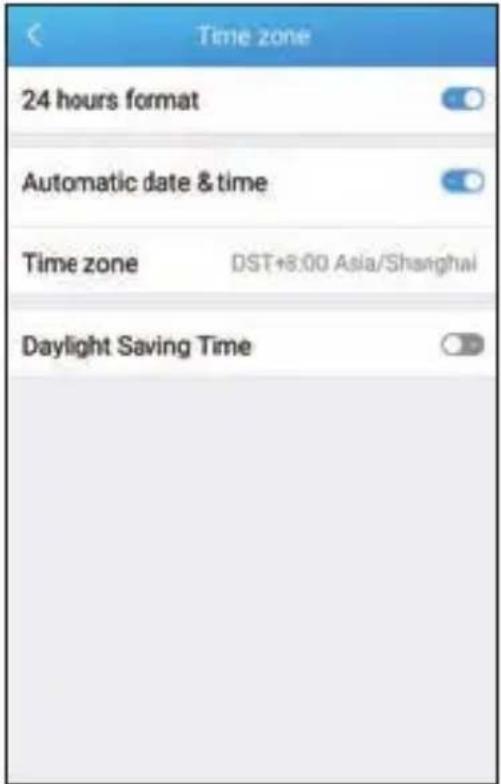
In the time settings menu you can set your time zone, enable/disable automatic date & time, enable/disable DST and set 12-hour/24-hour format.
Language settings
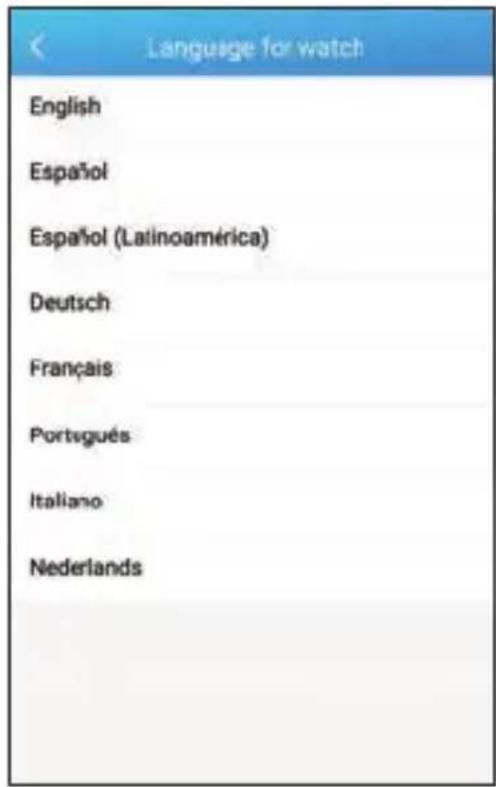
The language set for the Family watch will follow the language of the parent's TCLMOVE app by default. English is set by default.
APN settings
If there is no 3G/G/E/R indication displayed on your Family watch Home screen after inserting a SIM card and rebooting the watch, check with y operator to make sure your SIM is data enabled.
If your watch has not been paired
- Power on your watch.
- From the Home screen, swipe right. APN settings will be displayed.
- Make sure your phone has Bluetooth turned on.
- In the TCLMOVE app, go to Me > Family watch > APN. Select your watch, set the APN, and touch Save.
If your watch has been paired
- Power on your watch.
- From the Home screen, swipe right and touch Settings.
- Scroll down and touch APN.
-
Make sure your phone has Bluetooth turned on.
-
In the TCLMOVE app, go to Me > Family watch > APN. Select your watch, set the APN, and touch Save.
APN setting page
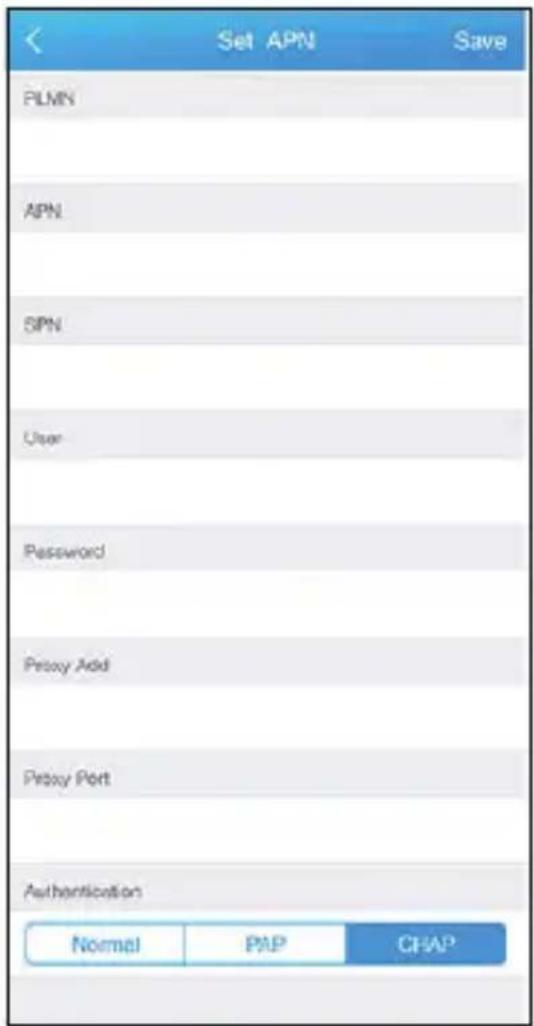
Contact your network operator and ask for the APN information needed to fill the following command template:
E.g. APN: uniwap; Auth: 0; User: cmnet; Password: cmnet; IP: 10.0.0.172; Port: 80;
Note: The above example is for reference only. APN information needs to be obtained from your network operator.
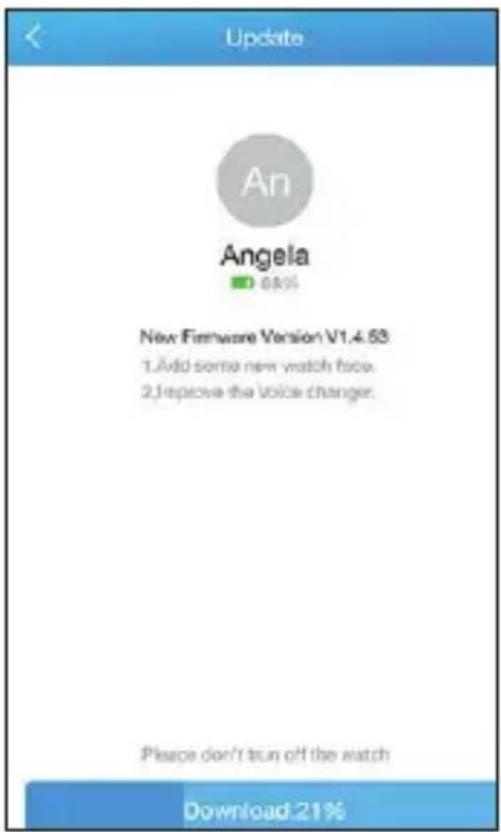
Updates
You can update your watch firmware or the TCLMOVE app version by following these steps below.
- Touch Me on the application main screen.
- Select a Family watch.
- Scroll down and touch Updates.
- Touch Download.
Note: Using mobile data to download updates may incur significant data charges. You watch will restart automatically after updating.
SOS
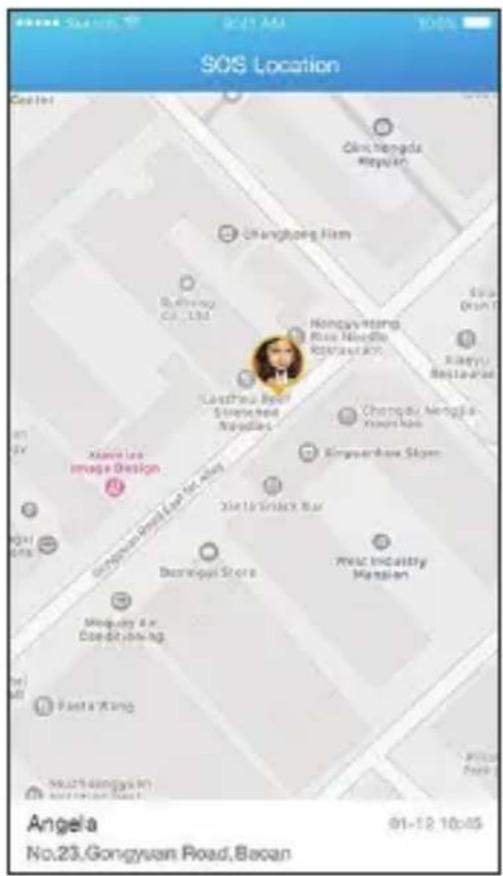
If your child makes an SOS call, an SOS message will be sent to all family members. This message contains a link. Touch the link to go directly to the SOS screen. Your child's location will be shown on the map.
Unpair
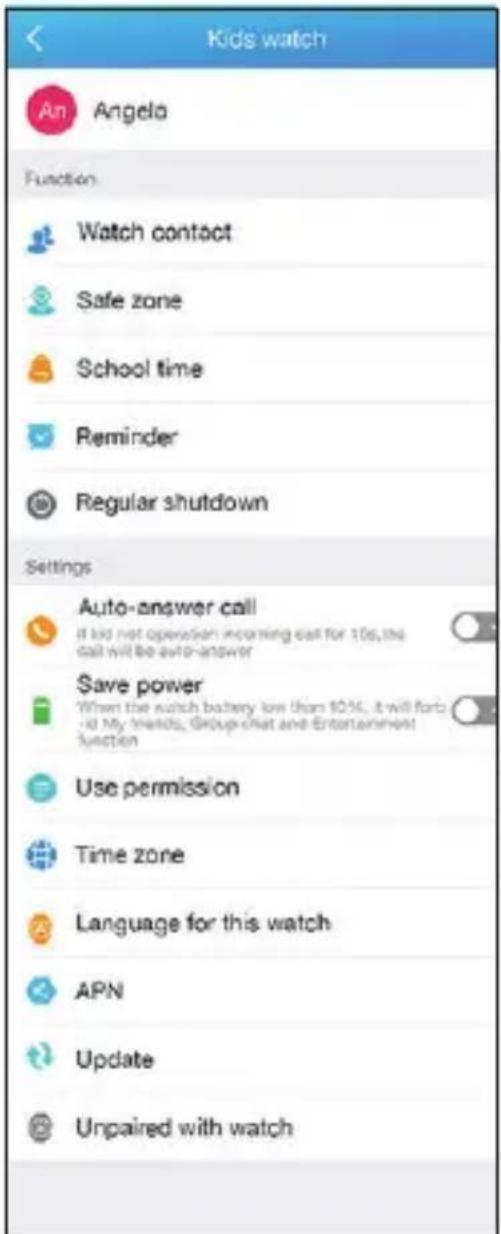
To unpair your watch follow the steps below.
- Touch Me on the application main screen.
- Select a Family watch.
- Scroll down and touch Unpair.
- Touch Unpair again in the popup dialog.
Using your Family watch
Screen
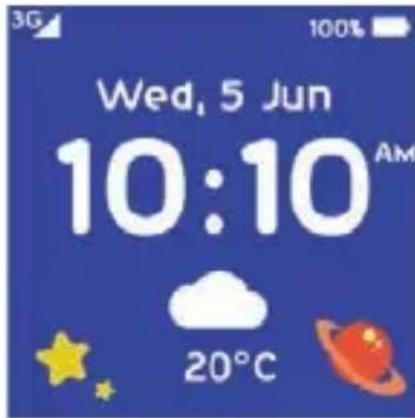
Press any key to wake up the Home screen.
Using the touch screen
Touch
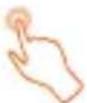
To select an application or confirm an action, use your finger to touch it.
Swipe left/right
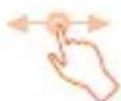
Swipe left/right to view applications, settings, and functions.
Swipe up/down
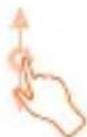
Swipe up from the Home screen to view notifications. Swipe down Home screen for volume and brightness controls.
Changing the watch face
Long press the Home screen, swipe left to view different options, and touch a watch face to select it.
Calls
Your child can make and receive calls to/from family members and friends using the Family watch.
Calling a family member or a friend
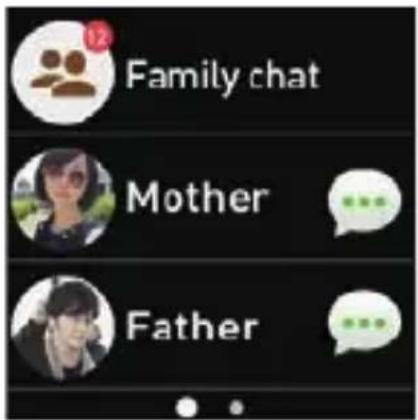
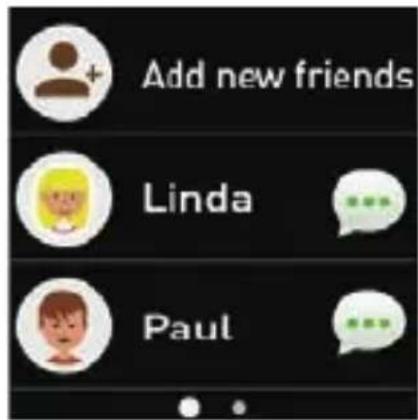
To view family contacts, swipe left from the Home screen and touch Family. Touch the contact to place a phone call.
Answering a call
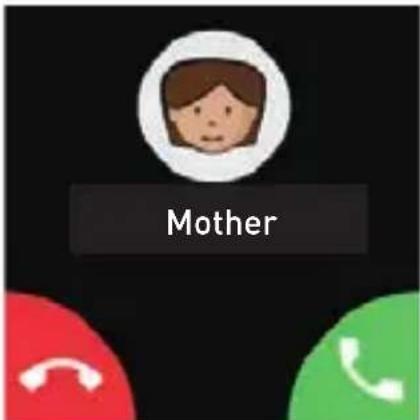
When there is an incoming call, the watch will vibrate and ring.
- Touch to answer the phone.
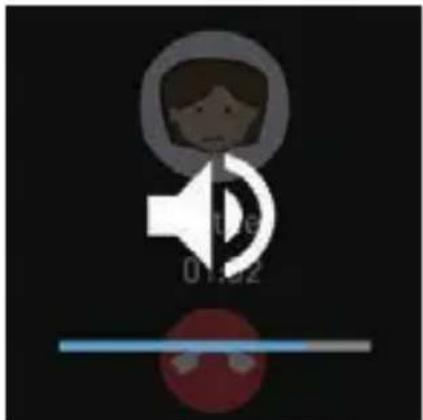
- Touch in the center to end the call.
- Press Power key to increase the call volume. Press SOS key to decrease the call volume.
Rejecting a call
Touch to reject the call.
Two calls
When there is a call ongoing and another call is incoming, touch 📋 to reject the incoming call. Touch 📋 to answer the incoming call and place the ongoing call on hold.
Missed call
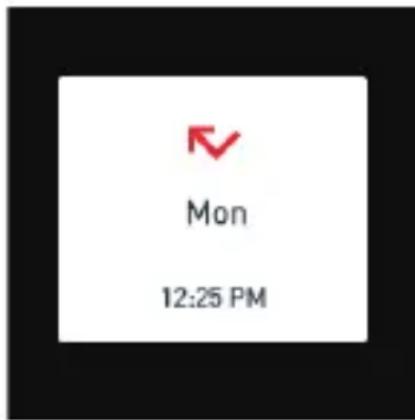
If a call is missed, a notification will appear on screen. Swipe up from the Home screen to view the notification. Touch the notification to call back.
Call log
Swipe left from the Family/ Friends contact list to view all calls made and received for the last 7 days.

Missed call/Rejected call

Received call

Placed call
Messaging
Your child can send and receive voice messages and emojis using watch.
Sending a message
Touch Family, Friends, or Group Chat to select a contact or a group. Hold 🤒 to record, and release to send. Touch 😊 to select and send an emoji.
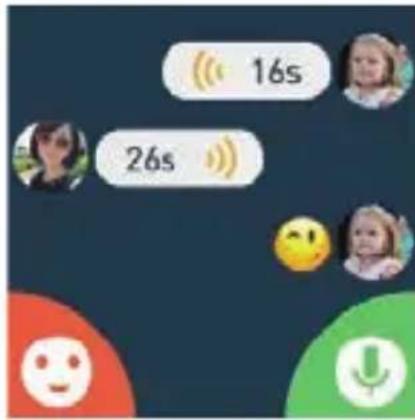
Note: If voice message or emoji fails to send, ⚠️ will appear next to the message. Touch the icon to resend the message.
Listening to voice messages
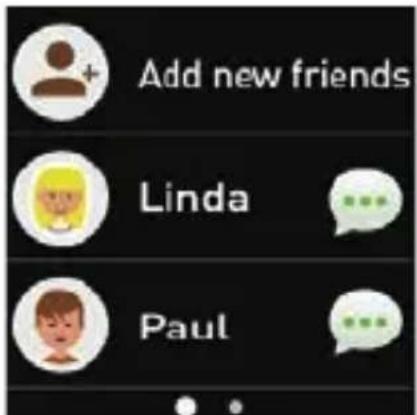
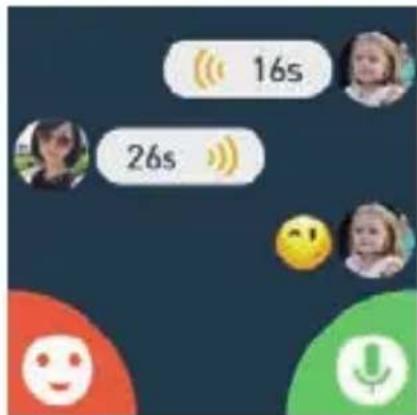
If there is a unheard voice message, a red dot and the number of unheard voice messages (up to 99) and will appear on the contact icon.
- Touch the contact.
- Touch the unheard voice message to listen.
Friends
Adding new friends
Swipe left from the Home screen and touch Friends. Keep both watches in close proximity, shake them, and touch OK.
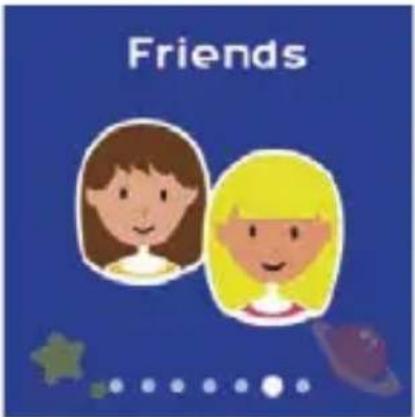
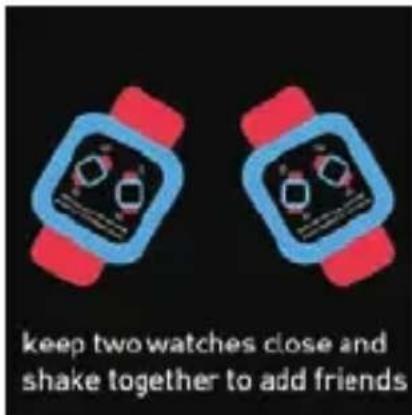
Note: Up to 15 friends can be added.
Deleting a friend
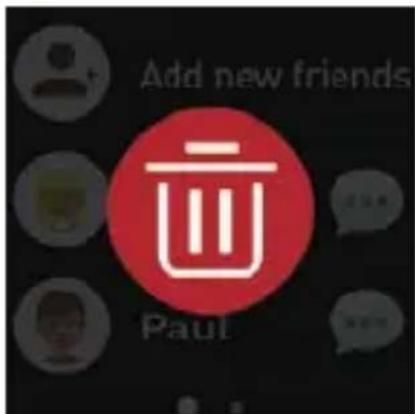
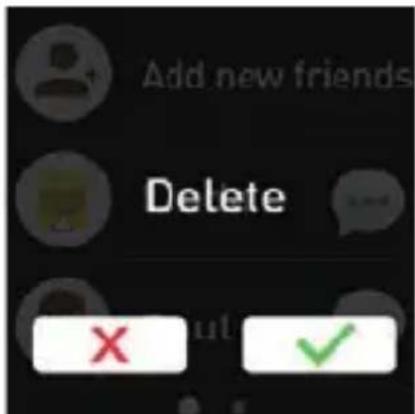
Long press a friend in the contact list. Touch the Delete icon that then appears on screen. Touch √ to confirm, or touch ✗ to cancel.
Group chat
Creating a group
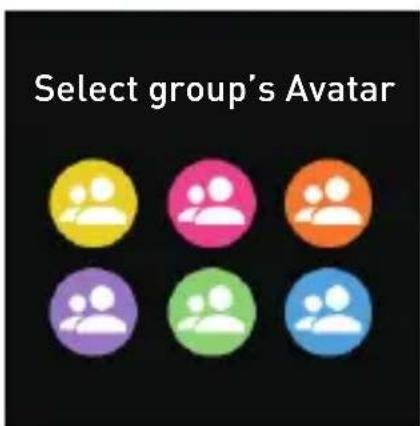
Add friends first before you create a group. Swipe left from the Home screen and touch Group Chat. Touch Create a group. Choose a group picture and invite friends. Touch to create a group, or touch to cancel.
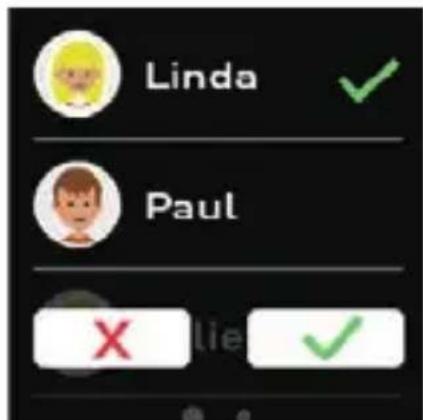
Manage group chat
Touch 🖱️ in the group chat screen to mute group notifications, a participants, or quit the group.
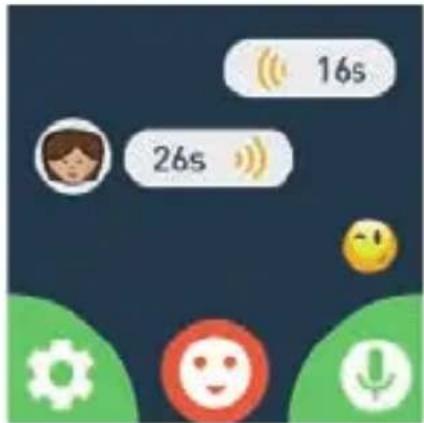
Note: Only the group creator can add new participants.
Games & tools
Voice changer
Your child can use Voice Changer to add fun voice effects to their recordings.
- Swipe right from the Home screen and touch Games & Tools.
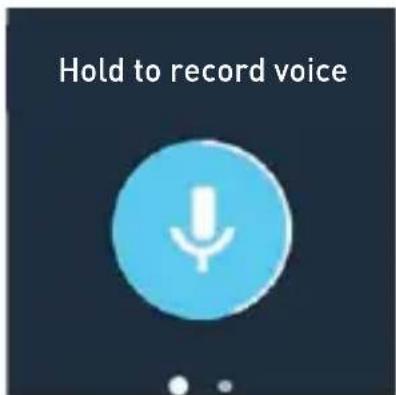
- Hold 📋 to record voice. (Recordings can be up to 60 seconds)
-
Release 🤨 to play voice recording.
-
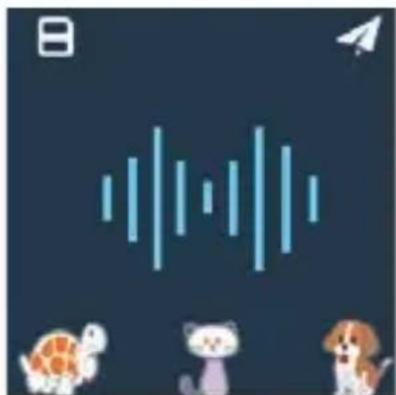
Touch one of the animals to add a fun voice effect.
-
Touch 8 to save, or touch 4 to share with family or friends.
natural_image
Game interface with icons for a cat, a dog, and a bird on a dark background (no text or symbols)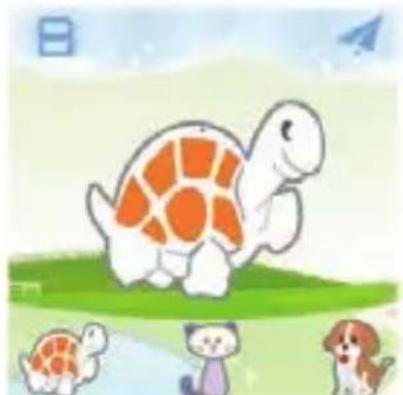
natural_image
Illustration of a turtle, two cats, and a dog on a grassy field with a paper airplane in the background (no text or symbols)Hamster
Hamster is a fun game for your child to enjoy. You have 60 seconds to hit a many hamsters as you can. Tap each hamster to hit them before they disappear.
Each time you hit a hamster you get 10 points. The ghost hamsters (blue) aren't worth any points. After your 60 seconds are up, your score and ranking will be displayed. You can also view your friends' rankings. You can touch the ♥ to "like" their score. You will receive a notification if one of your friends "like" your score.
Calculator
To access the Family watch calculator, swipe right from the Home screen, touch Games & Tools, and then touch Calculator.
SOS
Long press the SOS key for 5 seconds from any screen to activate SOS. When SOS is activated each family member will receive an app notification and an SMS informing them that an SOS alert has been issued. These messages will contain a link to the location of the watch. The watch will also make a call to the f favoured family member (the administrator). If there is no answer v seconds it will automatically call the next family member on the list. If none of the 4 favoured family members answer the call, a final call will be made to the emergency services.
Notes:
- To add and favourite family members please refer to the “Famil management” section of this user manual.
- The emergency services number is not set by default and should be added in the parent's TCLMOVE app. The number that should be set will depend on your region.
Volume and brightness controls
Swipe down from the Home screen for volume and brightness controls. Swipe left/right for different controls. To chto adjust volume and to adj brightness.
Settings
Aeroplane mode: To suspend radio-frequency signal transmission and disconnect from the mobile network, turn on aeroplane mode. This disable Bluetooth. To reconnect to the mobile network and re-enable Bluetooth, turn off aeroplane mode.
Ringtone: Set ringtones for incoming calls, alarms, and notifications.
Watch face: There are 8 different watch faces to choose from. Swipe left to view different watch faces and touch one to select it.
Screen time out: Your screen will turn off when not in use. Set a time interval of 10 seconds, 30 seconds, or 1 minute.
APN: For details about APN settings, refer to page 31 of this user manual.
Data roaming: Data roaming enables you to access mobile data when abroad. This may result in significant data charges. Data roaming is disabled by default.
About watch: Additional information about your watch such as IMEI, firmware version, hardware version, and network operator.
Notifications
Notification/Status icons
Icon Status Icon Status

Battery Signal


Aeroplane mode is on No SIM


Missed call Reminder


Voice message New "like" in Hamster


Emoji message No notification


Group invitation
- Missed call: Notification will appear when a call is missed. Touch the notification to call back.
- Voice message or emoji message: Notification will appear when a voice message or emoji message is received.
- Reminders: Notification will appear to remind you of an upcoming event.
- New “like” in Hamster: Notification will appear when a friend “likes” your Hamster score.
- Group invitation: Notification will appear when a group chat invite is received.
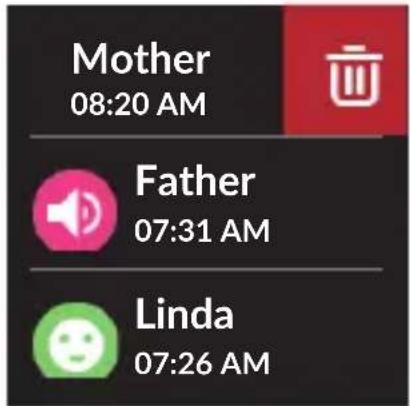
Viewing notifications
Swipe up from the Home screen to view notifications. Swipe down to go back.
Deleting notifications
Swipe left to dismiss a notification after viewing it.
Vibration
Your watch will vibrate for calls, messages, alarms, reminders, low battery, power on, power off, and notifications.
Safety and use
We recommend that you read this chapter carefully before using your c. The manufacturer disclaims any liability for damage, which may resu consequence of improper use or use contrary to the instructions c herein.
Traffic safety
Given that studies show that using a device while driving a vehicle constitutes a real risk, drivers are requested to refrain from using their device when the vehicle is not parked.
When switched on, MOVETIME Family Watch emits electromagnetic waves that can interfere with the vehicle's electronic systems such as ABS anti-lock brakes or airbags. To ensure that there is no problem:
- Do not place MOVETIME Family Watch on top of the dashboard or within an airbag deployment area.
Check with your car dealer or the car manufacturer to make sure dashboard is adequately shielded from RF energy.
CONDITIONS OF USE:
You are advised to switch off MOVETIME Family Watch from time to time optimise its performance.
Switch MOVETIME Family Watch off before boarding an aircraft.
Switch MOVETIME Family Watch off when you are in health care facilities except in designated areas. As with many other types of equipment now use, mobile devices can interfere with other electrical or electronic devices, or equipment using radio frequency.
Switch MOVETIME Family Watch off when you are near gas or flammable liquids. Strictly obey all signs and instructions posted in a fuel depot, petrol station, or chemical plant, or in any potentially explosive atmosphere.
When MOVETIME Family Watch is switched on, it should be kept at least 15 cm from any medical device such as a pacemaker, a hearing aid or insulin pump, etc.
Do not let children use MOVETIME Family Watch and/or play with accessories without supervision.
Please note that MOVETIME Family Watch is a unibody device, the battery is not removable. Do not attempt to disassemble MOVETIME Family V you disassemble your device the warranty will not apply. Also disassembling the device may damage the battery, and may cause leakage of substances that could create an allergic reaction.
Always handle your MOVETIME Family Watch with care and keep it in a clean and dust-free place.
Do not allow MOVETIME Family Watch to be exposed to adverse weather or environmental conditions (moisture, humidity, rain, infiltration of liquids, sea air, etc.). The manufacturer's recommended operating temperature range is -10^ to +50^ .
At over 55^ the legibility of the device's display may be impaired, though this is temporary and not serious.
Do not open, dismantle or attempt to repair your MOVETIME Fam yourself.
Do not drop, throw or bend your MOVETIME Family Watch.
Do not use MOVETIME Family Watch if the glass made screen, cracked or broken to avoid any injury.
Do not paint it.
Use only batteries, battery chargers, and accessories which are recommended by TCL Communication Ltd. and its affiliates and are compatible with your device model. TCL Communication Ltd. and its affiliates disclaim any liability for damage caused by the use of other chargers or batteries.
Pay attention to any warnings.
Do not attempt to open or disassemble MOVETIME Family Watch. inappropriate operation, the device and battery can be damaged and hazardous to the human body and the environment.
Do not clean MOVETIME Family Watch with corrosive cleaning products.
Do not place MOVETIME Family Watch in dishwashers, washing orachir dryers.
Do not place MOVETIME Family Watch on or in heating devices, microwave ovens, stoves, or radiators.
Do not expose MOVETIME Family Watch to extreme temperatures. recommended temperature ranges from -20^ to 55^ .
Do not place MOVETIME Family Watch close to fire.
Do not dispose of MOVETIME Family Watch in a fire. This may cause the device to explode.
Prevent the USB connector from contacting water to avoid rust.
Do not crush, drop, or puncture your MOVETIME Family Watch.
Never allow children to play with MOVETIME Family Watch. Small components may present a choking hazard to children.
You are not recommended to wear MOVETIME Family Watch on the frequently-used hand.
IP (Ingress Protection) Rating
Your device has been tested in a controlled environment and certified to be water-and dust-resistant in specific situations (meets requirements of classification IP67 as described by the international standard IEC 60529 - Degrees of Protection provided by Enclosures [IP Code]; test conditions: 15 - 35 °C, 86 - 106 kPa, 1 metre, 30 minutes). Despite this classification, your device is not impervious to water damage in any situation.
You may, for example, wear and use the device during exercise (sweat is OK), in the rain, and while washing your hands with fresh water submerging your device is not recommended and the device is only protected against low pressure water stream. Therefore, it's not recommended to wear your device while swimming or taking a shower.
When using your device, note that:
If the device is exposed to fresh water, dry it thoroughly with a clean, soft cloth. If the device is exposed to any liquid other than fresh water, such as salt water, liquid chemicals, vinegar, alcohol, and liquid detergent, rinse the device with fresh water immediately and dry it thoroughly with a clean, soft cloth. Failure to rinse the device in fresh water and dry it as instructed may cause it to so operability or cosmetic issues.
Dry your device before charging.
Do not submerge the device.
Do not expose the device to pressurized water or high velocity water, such as water running from a tap, ocean waves, or waterfalls.
Do not wear your device in the sauna or steam room.
Even if your device is resistant to dust and water, you should avoid exposing it to environments with excessive dust, sand and mud or to moist environments with extreme high or low temperatures.
Your warranty does not cover damage or defects caused by abuse or improper use of your device (including use in environments where the relevant IP rating limitations are exceeded).
The first digit in the two-digit IP rating indicates the level of protection against solid objects, such as dust. The second digit indicates how resistant the device is to water, as explained in the table below:
Resistance to solid objects such as dust
0: No special protection
1: Protected against solid objects larger than 50mm in diameter
2: Protected against solid objects larger than 12mm in diameter
3: Protected against solid objects larger than 2.5mm in diameter
4: Protected against solid objects larger than 1mm in diameter
5: Protected against dust; limited ingress (no harmful deposit)
6: Totally protected against dust
Resistance to water
0: No special protection
1: Protected against dripping water
2: Protected against dripping water when device is tilted up to 15 degrees
3: Protected against spraying water
4: Protected against splashing water
5: Protected against low pressure jets of water from all directions
6: Protected against temporary flooding of water
7: Protected against the effects of immersion in up to 1 metre of water for 30 minutes
ALLERGENS:
TCL Communication Ltd. avoids using known allergens in ouFroprodu time to time, trace amounts of an allergen may be added during manufacture of a device or device component that could cause discomfort for some individuals.
This approach is common for many types of products. We recommend you monitor any products that may be in prolonged contact with your skin, and remove them if you experience skin irritation.
PRIVACY:
Please note that you must respect the laws and regulations in your office jurisdiction or other jurisdiction(s) where you will use your device regarding taking photographs and recording sounds with your device. Pursuant to such laws and regulations, it may be strictly forbidden to take photographs and/or the voices of other people or any of their personal attributes, and/or distribute them, as this may be considered to be an invasion of is the user's sole responsibility to ensure that prior authorisation should be if necessary, in order to record private or confidential conversations or the photograph of another person; the manufacturer, the seller or vendor of your device (including the operator) disclaim any liability which may result from the improper use of the device.
DATA PRIVACY
Please note by using MOVETIME Family Watch some of your personaldata may be shared with the main device (smartphone). It is under your own responsibility to protect your own personal data, not to share it with any unauthorized devices or third party devices connected to yours. Be sure to remove or clear all personal information before you recycle, return, or give away your product. Choose your apps and updates carefully, and install from trusted sources only. Some apps can impact your product's performance and/or have access to private information including account details, call data, location details and network resources.
Note that any data shared with TCL Communication Ltd. is stored accordance with applicable data protection legislation. For these purposes, TCL Communication Ltd. implements and maintains appropriate technical and organizational measures to protect all personal data, for example unauthorized or unlawful processing and accidental loss or destruction damage to such personal data whereby the measures shall provide a security that is appropriate having regard to
- the technical possibilities available,
- the costs for implementing the measures,
- the risks involved with the processing of the personal data, and
- the sensitivity of the personal data processed.
You can access, review and edit your personal information at any time by logging into your user account, visiting your user profile or by contacting through privacy.europe@tcl.com. Should you require us to edit or delete personal data, we may ask you to provide us with evidence of your identity before we can act on your request.
BATTERY:
Following air regulation, the battery of your product is not fully charged. Please charge it first.
Please note your MOVETIME Family Watch is a unibody device, the battery is not removable. Observe the following precautions:
- Do not attempt to open the back cover.
- Do not attempt to eject, replace and open battery.
- Do not punctuate the back cover of your device.
- Do not burn or dispose of your device in household rubbish or store it at temperature above 60^ C.
Device and battery as a unibody device must be disposed of in accordance with locally applicable environmental regulations.
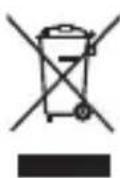
This symbol on your device, the battery and the accessories means that these products must be taken to collection points at the end of their life:
- Municipal waste disposal centres with specific bins for these items of equipment.
- Collection bins at points of sale.
They will then be recycled, preventing substances being disposed of environment, so that their components can be reused.
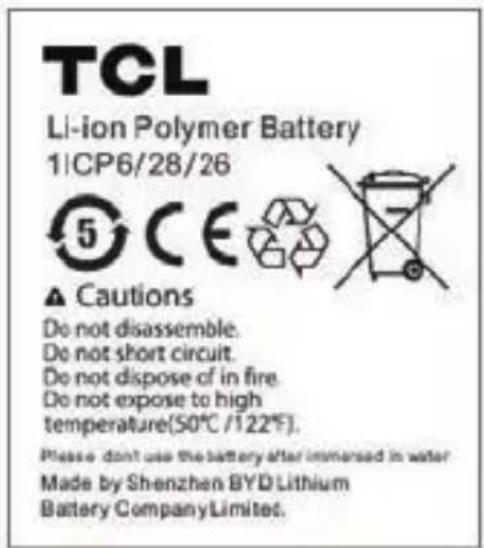
In European Union countries:
These collection points are accessible free of charge.
All products with this sign must be brought to these collection points.
In non European Union jurisdictions:
Items of equipment with this symbol are not to be thrown into or ordinary bins if your jurisdiction or your region has suitable recycling and collection instead they are to be taken to collection points for them to be recycled.
CAUTION: RISK OF EXPLOSION IF BATTERY IS REPLACED BY AN INCORRECT TYPE. DISPOSE OF USED BATTERIES ACCORDING TO THE INSTRUCTIONS.
CHARGERS
In order to avoid any technical issues, TCL recommends to charge 500mA via USB connector.
Mains powered chargers will operate within the temperature range of: 0^ C to 45^ C.
The chargers designed for MOVETIME Family Watch meet with the safety of information technology equipment and office equipment use. They are also compliant to the ecodesign directive 2009/125/EC. Due to applicable electrical specifications, a charger you purchased in one jurisdiction may not work in another jurisdiction. They should be used for this purpose only.
RADIO WAVES:
THIS DEVICE MEETS INTERNATIONAL GUIDELINES FOR EXPOSURE RADIO WAVES
Your device is a radio transmitter and receiver. It is designed not the limits for exposure to radio waves (radio frequency electromagnetic fields recommended by international guidelines. The guidelines were developed an independent scientific organization (ICNIRP) and include a substantial safety margin designed to assure the safety of all persons, regardless of age and health. The radio wave exposure guidelines use a unit of measurement known as Specific Absorption Rate, or SAR. The SAR limit for mobile devices is 2 W/kg. Tests for SAR are conducted using standard operating positions with the device transmitting at its highest certified power level in all tested frequency bands. The highest SAR values under the ICNIRP guidelines for this device model are:
| Maximum SAR for this model and conditions under which it was recorded. | ||
| Body-worn SAR WCDMA VIII 0.88 W/kg | ||
During use, the actual SAR values for this device are usually well below the values stated above. The lower the power output of the device, the lower its SAR value. Body-worn SAR testing has been carried out at a separation distance of 5 mm. For more information you can go to www.tclcom.com/wearables/
Additional information about electromagnetic fields and public health available on the following site: http://www.who.int/peh-emf.
General information
- Internet address: www.tclcom.com/wearables/
- Hotline: See the “SERVICES” leaflet that came with your device or go to our website.
• Manufacturer: TCL Communication Ltd. - Address: 5/F, Building 22E, 22 Science Park East Avenue, Hong Kong Science Park, Shatin, NT, Hong Kong.
On our website, you will find our FAQ (Frequently Asked Questions) section. You can also contact us by email to ask any questions you may have.
This radio equipment operates with the following frequency bands and maximum radio-frequency power:
BluetoothQ2402 - 2480 MHzQ-7.09 dBm 2GQ880 - 915MHzQ33.5 dBm 1710 - 1785MHzQ32 dBm 3GQ880 - 915MHzQ24 dBm 1920 - 1980MHzQ24 dBm
Hereby, TCL QCommunication QLtd. Qdeclares that Qthe Qradio Qequipment Qtyp MT30 is in compliance with Directive 2014/53/EU.
The full text of the EU declaration of conformity is available at the following internet address: http://www.tclcom.com/wearables/EU_doc.
The description of accessories and components, including software, which allow the radio equipment to operate as intended, can be obtained in the full text of the EU declaration of conformity at the following internet address: http://www.tclcom.com/wearables/EU_doc.
LICENCES
The QBluetooth Qword Qmark Qand Qlogos Qare Qowned Qby Qthe QSIG, Inc. and any use of such marks by TCL Communication Ltd. and its affiliates is under license. Other trademarks and trade names are those of their respective owners.
TCL MT30 Bluetooth Declaration ID D0XXXX

The Wi-Fi Logo is a certification mark of the Wi-Fi Alliance.
We Qhereby point out Qthat the end user warranty for infringement IPR Qis solely limited to the EU/EEA/Switzerland.
If and to the extent that the Product is exported, taken with by end customer or end user outside the EU/EEA/Switzerland any responsibility warranty or indemnification of manufacturer and its suppliers in regard to Product expires (including any indemnification in regard to infringement IPR).
Disclaimer
TCL Communication Ltd. will not be liable for any damages of any kind arising out of or relating to the use or the inability to use the software party application, its content or functionality, including but not limited damages caused by or related to errors, omissions, interruptions, defects, delay in operation or transmission, computer virus, failure to connect, network charges, in-app purchases, and all other direct, indirect, special, incidental, exemplary, or consequential damages even if TCL Communication Ltd. Has been advised the possibility of such damages. Some jurisdictions do not allow the exclusion or limitation of incidental or consequential damages, so the above or limitations may not apply to you. Notwithstanding the foregoing, Communication Ltd. total liability to you for all losses, damages, causes of action, including but not limited to those based on contract, tort, or otherwise, arising out of your use of the software or third party applications on this device, or any other provision of this eula, shall not exceed the amount you paid specifically for the TCLMOVE application or any such third party application that was included with this device. The foregoing limitations, exclusions, and disclaimers shall apply to the maximum extent permitted by applicable law, even if any remedy fails its essential purpose.
There may be certain differences between the user manual description and the MOVETIME Family Watch's operation, depending on the software rel your device or specific operator services.
Recycling
Please don't dispose of products or electrical accessories (shangers, or batteries) with your household waste. Warning: Never dispose of batteries either separately or within a mobile device, in a fire because they may explode. These items should be disposed of in accordance with the national col and recycling schemes operated by your local or regional authority. Or, you may return unwanted TCL products and electrical accessories to any TCL Approved Service Center in your region. Packaging and product guides should disposed of in accordance with national collection and recycling requirements. Please contact your regional authorities for more details.
Warranty
We aim at “creating value for consumers”. In order to better protect consumers’ rights, please read through the following points in case of controversy:
MOVETIME Family Watch is warranted against any defect or malfur which may occur in conditions of normal use during the warranty twelve (12) months from the date of purchase as shown on your original invoice.
(The warranty period may vary depending on your country.)
Within the warranty span, damages and defects deemed by authorized technical personnel as incurred from normal uses, are subject to free repair provided by the company and the company is allowed to charge or repair under the following.
Damage caused by accident or abuse.
Conducting or allowing unauthorized personnel to conduct tests, repa disassembly of the device.
Damages caused by usage of or connection to non-official accessories.
Battery
This Limited Warranty covers batteries only if battery capacity falls below 80% of rated capacity or the battery leaks, and this Limited Warranty does not cover any battery if:
The battery has been charged by a battery charger not specified or approved by TCL Communication Ltd. for charging the battery;
Any of the seals on the battery are broken or show evidence of tampering; or The battery has been used in equipment other than MOVETIME Family Watch for which it is specified.
Software
- Software Embodied in Physical Media.
No warranty is made that the software will meet your requirements or will work in combination with any hardware or software applications provided parties, that the operation of the software products will be uninterrupted or error free, or that all defects in the software products will be corrected.
- Software NOT Embodied in Physical Media.
Software that is not embodied in physical media (e.g. software that is downloaded from the Internet), is provided “as is” and without warranty.
FAQ
1. Unable to pair with your watch
i) Make sure the SIM is inserted correctly.
- If the SIM is inserted correctly, check to see if G, E, or 3G is displayed on the top left of the screen of your watch.
• If not, try restarting your watch.
ii) If the issue remains unresolved, contact your network operate configure APN settings.
iii) If G, E, or 3G is displayed, check to make sure there an network charges that need to paid.
2. Unable to obtain the position of your watch
i) Check to see if G, E, or 3G is displayed on the top left of the screen of your watch.
ii) If not, try restarting your watch.
iii) If the issue remains unresolved, contact your network operate configure APN settings.
iv) If G, E, or 3G is displayed, check to make sure there an network charges that need to paid.
3. Unable to obtain the verification code
You may need to activate the relevant SMS receiving service. For information, contact your network operator.
4. Waterproof notice
This product has an IP67 rating which means it is fully protected from dust and can withstand being submerged in 1 meter of static water for up to 30 minutes.
5. Positioning accuracy
Your watch will provide four different positioning tools: GPS, AGPS, WLAN, LBS.
Position accuracy will differ according to different positioning method.
6. Data service
The watch uses mobile data to send messages and location information to family members. The data charges incurred will need to be paid by you to the network operator.
7. SOS
All family members and the child should be familiar with the SOS operation. It is recommended to practice using the operation first.
8. Whether the material of this product is harmful to children
All materials used have passed the required safety tests.
9. Charging
Keep the charging port clean. If the charging port is corroded or dirty the charging process will be seriously affected.
10. Storage and use of location data for user
For all data related to you, we will only use the queries you submit to us. We will not use your data for any commercial application or development without authorisation.
© Copyright 2017 TCL Communication Ltd. All rights reserved
TCL Communication Ltd. reserves the right to alter material or tec specification without prior notice.
www.tclcom.com/wearables/
For more information on how to use MOVETIME Family Watch, please go to www.tclcom.com/wearables/ and download the complete user manual. Moreover, on the website, you can also find answers frequently asked questions, and so much more.


- MOVETIME
- Family Watch
- Content
- Product layout....4
- Charger....5
- Watch strap....6
- Setting up your watch....7
- Pairing your Family watch with your smartphone....11
- TCLMOVE app....18
- Using your Family watch 37
- Safety and use 45
- General information....52
- Disclaimer 53
- Warranty 53
- FAQ 54
- Product layout
- Notes:
- Buttons
- Charger
- Charging your watch
- Watch strap
- Changing your watch strap
- Setting up your watch
- Getting a SIM card
- Inserting the SIM card
- Removing the SIM card
- Powering on your watch
- Powering off your watch
- Pairing your Family watch with your smartphone
- Step 1: Download and install the TCLMOVE app on your smartphone
- Step 2: Create an account
- Step 3: Log in to your account
- Step 4: Pairing
- Pair your watch with your phone
- - Enter the IMEI number to pair your watch
- TCLMOVE app
- App main screen
- Profile information
- Viewing and changing profile information
- Adding a new watch
- Family member management
- Adding a family member manually
- Adding a family member via QR code
- Messaging
- Voice messages and Emojis
- Deleting a voice message
- Safe zones
- Set up a safe zone
- School time
- Set up school time
- Reminders
- Set an alarm
- Set a reminder
- Scheduled power on/off
- Additional functions
- Time settings
- Language settings
- APN settings
- If your watch has not been paired
- If your watch has been paired
- APN setting page
- Updates
- SOS
- Unpair
- Using your Family watch
- Screen
- Using the touch screen
- Touch
- Swipe left/right
- Swipe up/down
- Changing the watch face
- Calls
- Calling a family member or a friend
- Answering a call
- Rejecting a call
- Two calls
- Missed call
- Call log
- Sending a message
- Listening to voice messages
- Friends
- Adding new friends
- Deleting a friend
- Group chat
- Creating a group
- Manage group chat
- Games & tools
- Voice changer
- Hamster
- Calculator
- Volume and brightness controls
- Settings
- Notifications
- Notification/Status icons
- Icon Status Icon Status
- Viewing notifications
- Deleting notifications
- Vibration
- Safety and use
- Traffic safety
- CONDITIONS OF USE:
- IP (Ingress Protection) Rating
- When using your device, note that:
- Resistance to solid objects such as dust
- Resistance to water
- ALLERGENS:
- PRIVACY:
- DATA PRIVACY
- BATTERY:
- In European Union countries:
- In non European Union jurisdictions:
- CHARGERS
- RADIO WAVES:
- General information
- LICENCES
- TCL MT30 Bluetooth Declaration ID D0XXXX
- Disclaimer
- Recycling
- Warranty
- Battery
- Software
- FAQ
- Unable to pair with your watch
- Unable to obtain the position of your watch
- Unable to obtain the verification code
- Waterproof notice
- Positioning accuracy
- Data service
- SOS
- Whether the material of this product is harmful to children
- Charging
- Storage and use of location data for user
Marke : ALCATEL
Modell : Movetime Family
Kategorie : Smartwatch