
NV-MX2 - Camcorder PANASONIC - Kostenlose Bedienungsanleitung
Finden Sie kostenlos die Bedienungsanleitung des Geräts NV-MX2 PANASONIC als PDF.


| Produkttyp | Camcorder |
| Marke | Panasonic |
| Modell | NV-MX2 |
| Abmessungen (B x H x T) | ca. 80 x 100 x 200 mm |
| Gewicht | ca. 550 g (ohne Akku) |
| Stromversorgung | Akku (7,2 V) oder Netzteil |
| Akku-Typ | Lithium-Ionen, 7,2 V |
| Speichermedium | MiniDV-Kassette |
| Objektiv | 10-fach optischer Zoom |
| Display | 2,5-Zoll-LCD-Farbmonitor |
| Sucher | 0,33-Zoll-Elektroniksucher (Farb-LCD) |
| Hauptfunktionen | Videoaufnahme, Wiedergabe, Standbildaufnahme, Selbstauslöser |
| Bildstabilisator | Elektronischer Bildstabilisator |
| Anschlüsse | USB, AV-Ausgang, DV-Eingang/-Ausgang (IEEE 1394) |
| Zubehör (im Lieferumfang) | Netzteil, Akku, Fernbedienung, AV-Kabel, USB-Kabel, Trageriemen |
| Reinigung | Gehäuse mit weichem, trockenem Tuch reinigen; Objektiv mit speziellem Reinigungstuch |
| Sicherheit | Nicht in Wasser tauchen; nur Originalzubehör verwenden |
| Ersatzteile/Reparatur | Ersatzteile über autorisierten Panasonic-Service beziehbar |
| Allgemeine Informationen | Bedienungsanleitung als PDF verfügbar; Gerät für den Heimgebrauch bestimmt |
Häufig gestellte Fragen - NV-MX2 PANASONIC
Benutzerfragen zu NV-MX2 PANASONIC
0 Frage zu diesem Gerät. Beantworten Sie die, die Sie kennen, oder stellen Sie Ihre eigene.
Eine neue Frage zu diesem Gerät stellen
Laden Sie die Anleitung für Ihr Camcorder kostenlos im PDF-Format! Finden Sie Ihr Handbuch NV-MX2 - PANASONIC und nehmen Sie Ihr elektronisches Gerät wieder in die Hand. Auf dieser Seite sind alle Dokumente veröffentlicht, die für die Verwendung Ihres Geräts notwendig sind. NV-MX2 von der Marke PANASONIC.
BEDIENUNGSANLEITUNG NV-MX2 PANASONIC
Panasonic
Digital Video Camera
Model No.
NV-MX2B
NV-MX8B
Operating Instructions
Before use, please read these instructions completely.
Mini
DV
PAL
MultiMediaCard™
LEICA DICOMAR

Before Use
Dear Customer,
We would like to take this opportunity to thank you for purchasing this Panasonic Movie Camera. Please read these Operating Instructions carefully and keep them handy for future reference. Please note that the actual controls and components, menu items, etc. of your Movie Camera may look somewhat different from those shown in the illustrations in these Operating Instructions.
Information for Your Safety
Movie Camera
- The rating plate is on the underside of the Movie Camera.
AC Adaptor
- The rating plate is on the underside of the AC Adaptor.
- As this equipment gets hot during use, operate it in well ventilated place; do not install this equipment in a confined space such as a bookcase or similar unit.
Caution for AC mains lead
For your safety, please read the following text carefully.
This appliance is supplied with a moulded three-pin mains plug for your safety and convenience. A 5-ampere fuse is fitted in this plug.
Should the fuse need to be replaced, please ensure that the replacement fuse has a rating of 5-amperes and it is approved by ASTA or BSI to BS1362.
Check for the ASTA mark 📊 or the BSI mark ♥ on the body of the fuse.
If the plug contains a removable fuse cover you must ensure that it is refitted when the fuse is replaced. If you lose the fuse cover, the plug must not be used until a replacement cover is obtained. A replacement fuse cover can be purchased from your local Panasonic Dealer.
IF THE FITTED MOULDED PLUG IS UNSUITABLE FOR THE SOCKET OUTLET IN YOUR HOME THEN THE FUSE SHOULD BE REMOVED AND THE PLUG CUT OFF AND DISPOSED OF SAFELY.
THERE IS A DANGER OF SEVERE ELECTRICAL SHOCK IF THE CUT OFF PLUG IS INSERTED INTO ANY 13-AMPERE SOCKET.
If a new plug is to be fitted, please observe the wiring code as shown below.
If in any doubt, please consult a qualified electrician.
IMPORTANT
The wires in this mains lead are coloured in accordance with the following code:
Blue: Neutral
Brown: Live
As the colours of the wires in the mains lead of this appliance may not correspond with the coloured markings identifying the terminals in your plug, proceed as follows:
The wire which is coloured BLUE must be connected to the terminal in the plug which is marked with the letter N or coloured BLACK.
The wire which is coloured BROWN must be connected to the terminal in the plug which is marked with the letter L or coloured RED.
Under no circumstances should either of these wires be connected to the earth terminal of the three-pin plug, marked with the letter E or the Earth Symbol ± .
Before Use
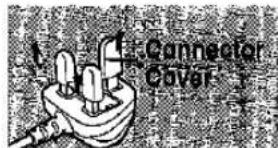
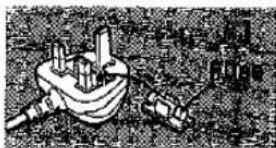
Remove the Connector Cover as follows.
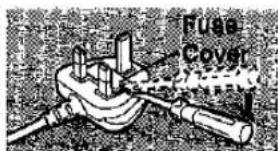
■ How to replace the Fuse
1) Remove the Fuse Cover with a screwdriver.
2) Replace the fuse and attach the Fuse Cover.
natural_image
Illustration of a mechanical device with gears and shafts (no visible text or symbols)Operating Instructions
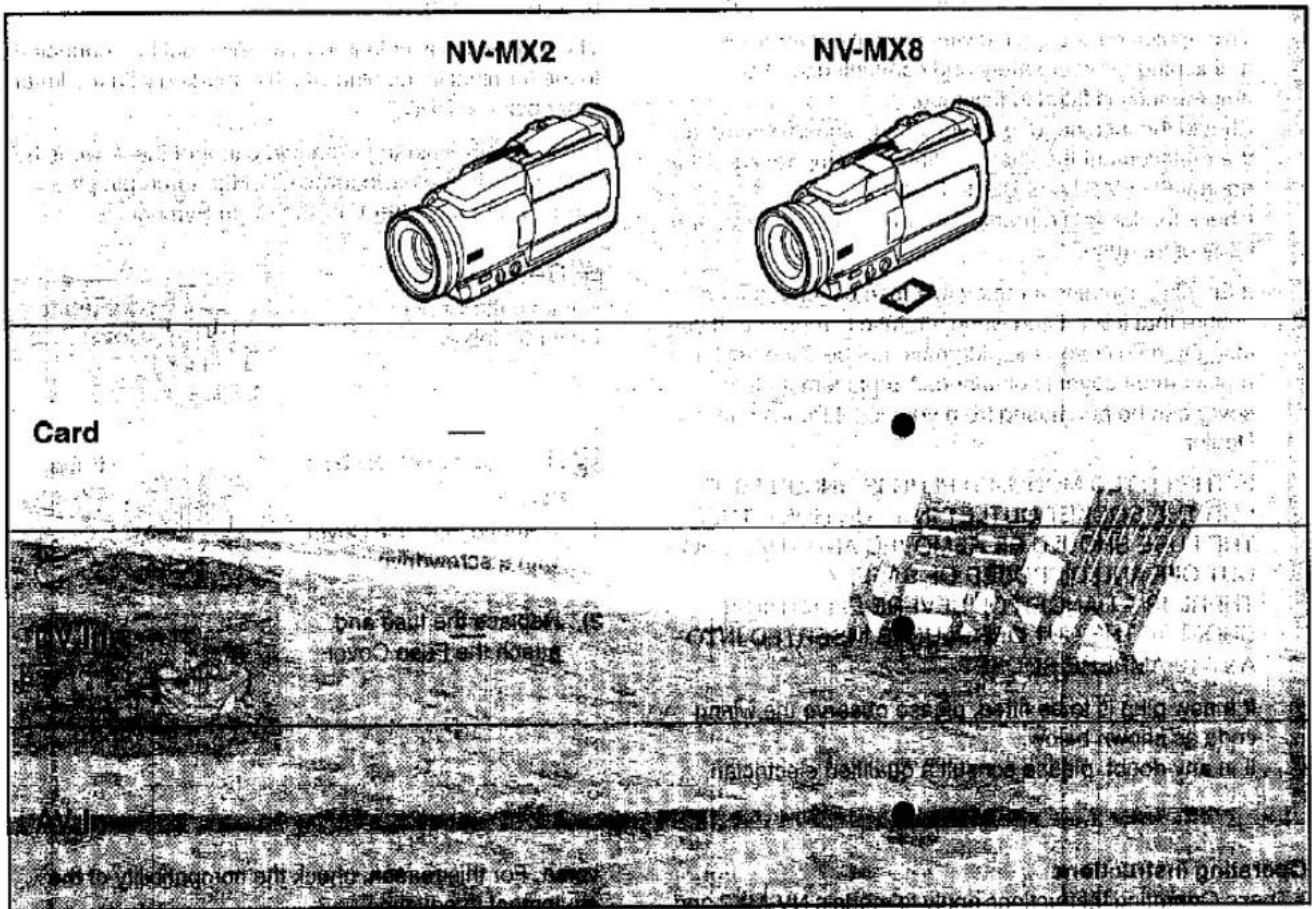
- These Operating Instructions apply to models NV-MX2 and NV-MX8.
- The illustrations used in these Operating Instructions show model NV-MX8, however, parts of the explanation refer to different models.
- Depending on the model, some functions are not available.
● Windows is a trademark or registered trademark of Microsoft Corporation U.S.A.
● Leica is a registered trademark of Leica microsystems IR GmbH and Dicomar is a registered trademark of Leica Camera AG. - SD Logo is a trademark.
- All other company and product names in the operating instructions are trademarks of their respective corporations.
Files recorded on a MultimediaCard or SD Memory Card (MX8 only)
It may not be possible to play back the pictures on this Movie Camera recorded on and created by other equipment or vice
versa. For this reason, check the compatibility of the equipment in advance.
Pages for reference
Pages for reference are indicated with an arrow, for example: (→ 00)
WARNING
To reduce the risk of fire or shock hazard and annoying interference, use only the recommended accessories and do not expose this equipment to rain or moisture. Do not remove the cover (or back); there are no user serviceable parts inside. Refer servicing to qualified service personnel.
■ Carefully observe copyright laws.
Recording of pre-recorded tapes or discs or other published or broadcast material for purposes other than your own private use may infringe copyright laws. Even for the purpose of private use, recording of certain material may be restricted.
Contents
Before Use
Information for Your Safety 2
Contents....3
Standard Accessories 4
Optional Accessories....4
Getting Started 5
Viewing What Has Been Recorded....5
Controls and Components....6
Remote Controller 8
Power Supply 10
Charging Time and Available Recording Time....10
Lens Cap and Grip Belt 11
Attaching the Shoulder Strap 11
Inserting a Cassette 11
Turning on the Movie Camera and Selecting Modes ..... 12
Using the Viewfinder 12
Using the LCD Monitor 12
Using the Menu Screen.... 13
List of Menus 14
Setting Date and Time.... 17
Internal Lithium Battery Recharge 17
LP Mode 17
Audio Recording Mode.... 17
CAMERA Mode
Recording....18
Photoshot 19
Zoom In/Out Functions....19
Digital Zoom Function 20
Optical Image Stabilizer Function....20
Fade In/Out Functions....20
Cinema Function 21
Backlight Compensation Function....21
Recording in Special Situations....21
Recording In Natural Colours 22
Adjusting White Balance Manually 22
Manual Shutter Speed Adjustment....23
Manual Iris Adjustment....23
Manual Focus Adjustment....23
Wind Noise Reduction Function 24
Using the Video Flash 24
Digital Effect Functions....25
VCR Mode
Playing Back....27
Finding a Scene You Want to Play Back....27
Slow Motion Playback 28
Still Playback/Still Advance Playback.... 28
Finding the End of Recording....28
Index Search Functions....29
Playback Zoom Function....29
Playback Digital Effect Functions.... 30
Playing Back on Your TV 32
Audio Dubbing....32
Copying on an S-VHS (or a VHS) Cassette 33
Recording the Contents of Other Equipment 33
Using the DV Cable for Recording 33
Using the Automatic Printing Function 34
Personal Computer Connection Kit.... 34
Using the USB Connection Kit 34
CARD Mode
Using a Card....35
Recording on a Card....35
Playing Back a Card 38
Recording Pictures on a Card to a Tape 40
Slide Show 41
Editing a Slide Show....41
Creating a Title 42
Adding a Title....42
Protecting the Files on a Card 43
Deleting the Files Recorded on a Card....43
Writing Printing Data on a Card 44
Formatting a Card....44
Others
Indications....45
Owner ID....46
Warning/Alarm Indications....46
Notes and Hints 47
Cautions for Use 52
Before Requesting Repair (Problems and Solutions) ..... 55
Explanation of Terms....56
Specifications....58
Index 59
natural_image
Two mechanical components: a coiled spring and a string, labeled VFC3773 (no text or symbols on the objects themselves)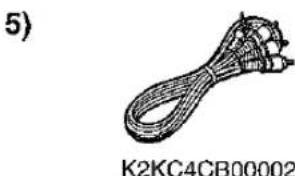
natural_image
Illustration of a coiled cable or wire with connectors, labeled 'K2KC4CB00002' (no other text or symbols)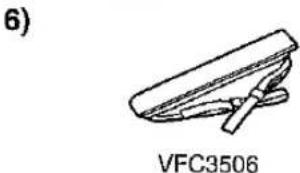
natural_image
Simple line drawing of a mechanical component labeled VFC3506 (no text or symbols on the diagram itself)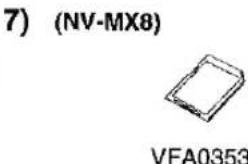
Standard Accessories
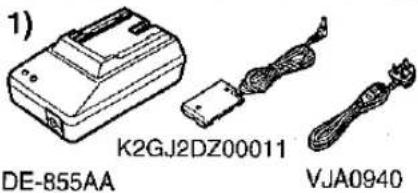
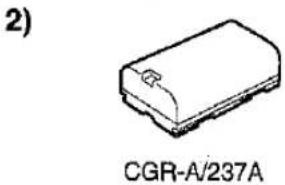
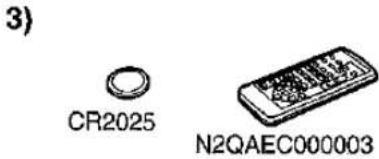
Illustrated on the left are accessories supplied with the Movie Camera.
1) AC Adaptor, DC Input Lead and AC Mains Lead (→ 10)
2) Battery Pack (→ 10)
3) Remote Controller and Button-Type Battery (→ 8, 9)
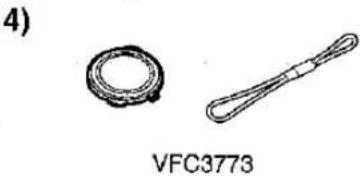
4) Lens Cap (→ 11)
5) AV Cable (→ 32, 33)
6) Shoulder Strap (→ 11)
7) SD Memory Card (NV-MX8 only) (→ 35)
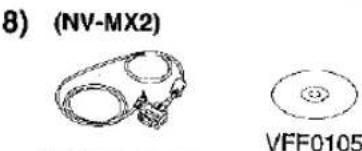
8) Personal Computer Connection Kit (NV-MX2 only) (→ 34)
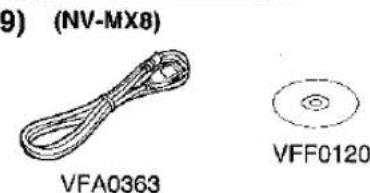
9) USB Connection Kit (NV-MX8 only) (→ 34)
Optional Accessories
1) AC Adaptor (VW-AD9B)
2) Battery Pack (Lithium/CGR-D08S/CGR-D120/800mAh)
3) Battery Pack (Lithium/CGP-D14S/CGP-D210/1400mAh)
4) Battery Pack (Lithium/CGR-D16S/CGR-D220/1600mAh)
5) Battery Pack (Lithium/CGP-D28S/CGP-D320/2800mAh)
6) Battery Pack (Lithium/CGR-D53S/CGR-D815/5300mAh)
7) Car Battery Charger (VW-KBD2E)
8) Wide Conversion Lens (VW-LW4307ME)
9) Tele Conversion Lens (VW-LT4314ME)
10) Filter Kit (VW-LF43WE)
11) Stereo Zoom Microphone (VW-VMS1E)
12) Stereo Microphone (VW-VMS2E)
13) Shoe Adaptor (VW-SK11E)
14) Tripod (VZ-CT55E)
15) Tripod with Remote Controller (VZ-CTR1E)
16) Personal Computer Connection Kit (VW-DTA10B/VW-DTA9E)
17) Edit Cable (VW-K8E)
18) DV Cable (VW-CD1E)
19) DV Editing Software with DV Interface Board (VW-DTM21E)
20) DV Editing Software with DV Interface Card (VW-DTM22E)
21) DV Editing Software (VW-DTM20E)
The following is for the NV-MX8 model only.
22) SD Memory Card Application Software (VW-SWA1E)
- "TitleStudio" software for title creation, and "SD-Jukebox" software for recording music are included. (However, this Movie Camera cannot play back music.)
23) MultiMediaCard (VW-MMC8E/VW-MMC16E)
24) SD Memory Card (RP-SD016/RP-SD032/RP-SD064)
25) PC Card Adaptor for SD Memory Card (BN-SDABPE)
26) USB Reader Writer for SD Memory Card (BN-SDCAPE)
- Some optional accessories may not be available in some countries.

- Order accessory and consumable items for all Audio Visual Products with ease and confidence either by telephoning our Customer Care Centre on 08705 357357 Mon–Friday 9:00am–5:30pm
- Or go on line through our Internet Accessory ordering application at www.panasonic.co.uk.
- Most major credit and debit cards accepted.
- All enquires transactions and distribution facilities are provided directly by Panasonic UK Ltd.
- It couldn't be simpler!
1
2
natural_image
Technical line drawing of a mechanical device with lever and base (no text or symbols)3
natural_image
Technical line drawing of a mechanical device (no text or symbols visible)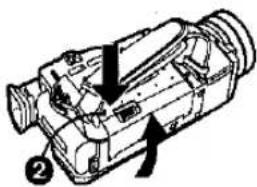
natural_image
Technical line drawing of a video camera with no visible text or symbols4,5,6
③,5,7

6
natural_image
Technical line drawing of a mechanical device with no visible text or symbolsGetting Started
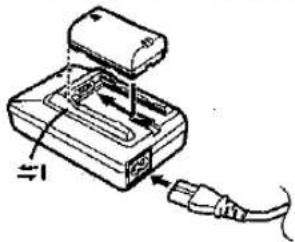
1 Charge the Battery. (→ 10)
- Attach the Battery to the AC Adaptor.
- Connect the AC Mains Lead. (Charging starts.)
- When the Charge Lamp [CHARGE] goes off, the Battery is fully charged.
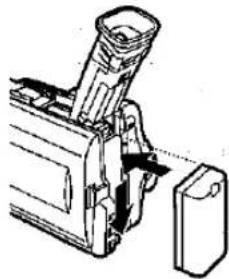
2 Attach the Charged Battery to the Movie Camera. (→ 10)
3 Insert the Cassette. (→ 11)
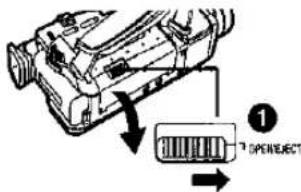
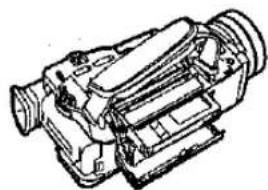
- Slide the ① Lever to the right and pull down to open the Cassette Compartment Cover.
- Insert the Cassette.
- Press the [PUSH CLOSE] mark ② to load the Cassetto.
- Close the Lower Compartment Cover.
4 Turn the Movie Camera on and start recording. (→ 12, 18)
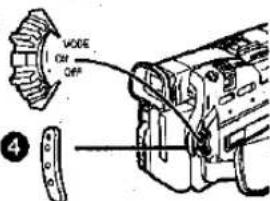
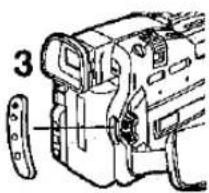
- Set the ③ Switch to [ON]. (The [CAMERA] Lamp lights up.)
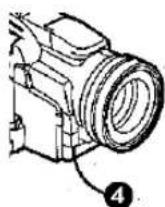
- Press the 4 Button. (Recording starts.)
- Press the 4 Button again to pause the recording.
Viewing What Has Been Recorded
5 Switch to the VCR Mode, rewind the tape, and play the tape back. (→ 27)
- Set the ⑤ Switch to [ON]. (The [VCR] Lamp lights up.)
- Push the ⑥ Lever towards [◀◀]. (Rewind the tape.)
- Push the ⑥ Lever towards [▶]. (Playback starts.)
- Push the 6 Lever towards [■]. (Playback stops.)
6 Turn the Movie Camera off. (→ 12)
- Set the ⑦ Switch to [OFF].
Controls and Components
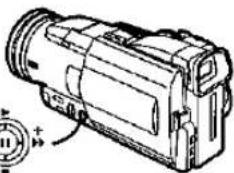
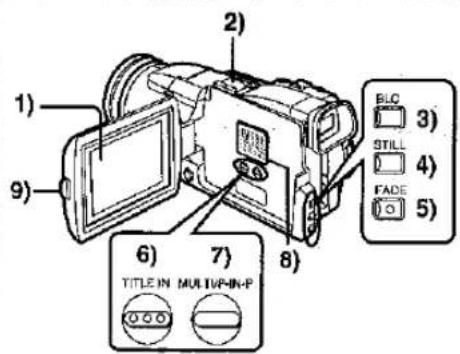
1) LCD Monitor ( 12, 54)
-
Due to limitations in LCD production technology, there may be some tiny bright or dark spots on the LCD Monitor screen. However, this is not a malfunction and does not affect the recorded picture.
2) Smart Accessory Shoe -
The Video Flash (VW-FLH3E:Optional) or the Stereo Microphone (VW-VMS2E:Optional), etc. can be attached here. Power is supplied directly from the Movie Camera when using an accessory supported by the Smart Accessory Shoe.
- Do not touch the connector part of the Smart Accessories Shoe.
3) Backlight Button [BLC] (→ 21)
4) Still Button [STILL] (→ 19)
5) Fade Button [FADE] (→ 20)
6) Title In Button [TITLE IN] (NV-MX8 only) (→ 42)
7) Multi/P-In-P Button [MULTI/P-IN-P] (→ 26, 42)
8) Speaker
9) LCD Monitor Open Button [PUSH OPEN] (→ 12)
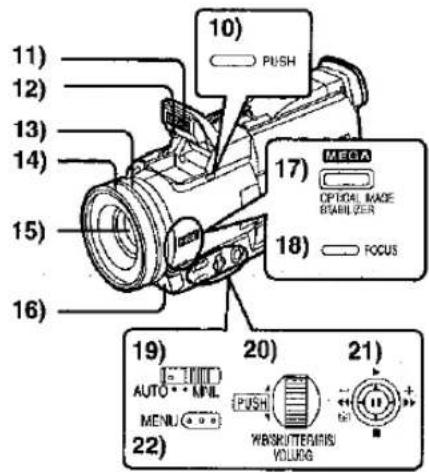
10) Flash Open Button [PUSH] (NV-MX8 only) (→ 24)
11) Built-in Video Flash (NV-MX8 only) (→ 24)
12) Flash sensor (NV-MX8 only)
13) Focus Ring (→ 23)
14) Lens Hood (→ 54)
15) Lens (LEICA DICOMAR)
16) Remote Control Sensor (→ 9)
17) Optical Image Stabilizer Button [OPTICAL IMAGE STABILIZER] ([OIS]) (→ 20)
18) Focus Button [FOCUS] (→ 23)
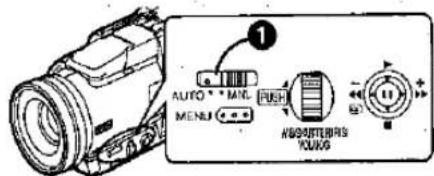
19) Mode Selector Switch [AUTO/MNL] (→ 18, 21, 22, 23)
20) Multi-Function Dial [PUSH] (→ 13, 22, 23, 27)
21) Operation Lever
Operates by pushing the lever to each direction.
Ⓐ:Reverse Search [−] (→ 18)
Rewind/Review [◀◀] (→ 27)
Forward Search [+] (→ 18)
Fast Forward/Cue [▶▶] (→ 27)
Recording Check [☐] (→ 18)
⑧:Playback [▶]
Pushing It twice activates the Variable Speed Search mode.
©:Stop [■] (→ 27, 36)
Operates by pressing.
⑭:Pause [III] (→ 28, 41)
22) Menu Button [MENU] (→ 13)
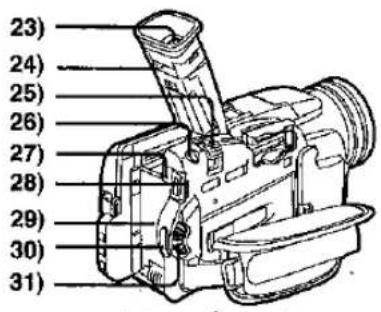
23) Viewfinder (→ 12, 54)
- Due to limitations in LCD production technology, there may be some tiny bright or dark spots on the Viewfinder screen. However, this is not a malfunction and does not affect the recorded picture.
24) Eyepiece Corrector Knob
25) Zoom Lever [W/T] (→ 19)
26) Photoshot Button [PHOTO SHOT] (→ 19, 35, 40, 42)
27) Battery Eject Button [BATT PUSH] (→ 10)
28) Mode Lamps (→ 12, 18, 27, 38)
29) Battery Holder
30) Recording Start/Stop Button (→ 18)
31) Power Off/On Mode Selector Switch [OFF/ON/MODE] (→ 12, 18, 52)
![47) AV INPUT PHONES 51) 48) D-Still PILOTURE SVIDEO INPUT 49) DIGITAL [CAUSB] EDTO [MIN] 50) DV MIC 52) 53) 54) 55)](/content/2026/05/794562/images/8ceb68066598381c592aabb576b5a26983df8f1ad565727c8cc1ed738ece8a34.jpg)
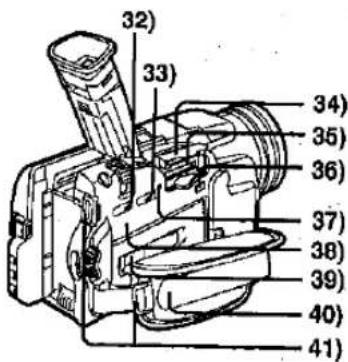
32) Tape/Card Selector [TAPE/CARD] (NV-MX8 only) (→ 35)
33) Card Mode Selector [PICTURE/MPEG4/VOICE] (NV-MX8 only) (→ 35)
34) Card Slot Cover (NV-MX8 only) (→ 35)
35) Card Slot (NV-MX8 only) (→ 35)
36) Card Slot Cover Open Lever [OPEN] (NV-MX8 only) (→ 35)
37) Card Access Lamp [ACCESS] (NV-MX8 only) (→ 35)
38) Reset Button [RESET] (→ 46)
39) Cassette Compartment Window (→ 46)
40) Grip Belt (→ 11)
41) Shoulder Strap Holder (→ 11)
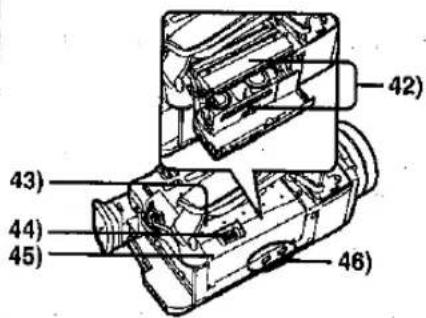
42) Cassette Holder (→ 11)
43) Upper Cassette Compartment Cover
44) Cassette Eject Lever [OPEN/EJECT] (→ 11)
45) Lower Cassette Compartment Cover (→ 11)
46) Tripod Receptacle
- Use for mounting the Movie Camera on an optional tripod.
47) Audio-Video Input/Output Socket [AV IN/OUT] (Input function on NV-MX8 model only) (→ 32, 33) Headphone Socket [PHONES] (→ 49)
- Connecting an AV Cable to this socket activates the Movie Camera's built-in speaker, but connecting a headphone, etc. deactivates it.
48) Digital Still Picture Terminal [D.STILL PICTURE] (→ 34)
49) Edit Socket [EDIT® (MINI)] (→ 34) USB Socket [DIGITAL (to USB)] (NV-MX8 only) (→ 34)
50) DV Terminal (i.LINK) [j] (→ 33)
- Connect this to the digital video equipment.
- "i.LINK" is the name of connectors in accordance with IEEE1394-1995, "i" is a logo marked on products conforming with the "i.LINK" specifications.
51) S-Video Input/Output Socket [S-VIDEO IN/OUT] (Input function on NV-MX8 Model only) (→ 32, 33, 34)
52) Microphone Socket [MIC]
- Connect with an external microphone or audio equipment. (When this socket is in use, the built-in microphone does not operate.)
53) White Balance Sensor
54) Recording Lamp (→ 18)
55) Microphone (built-in, stereo) (→ 19)
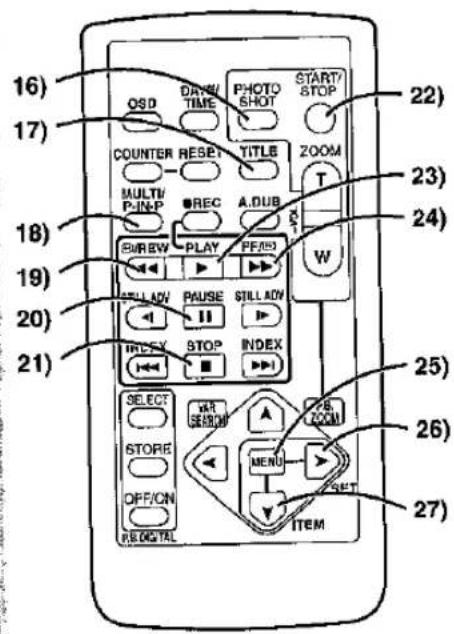
Remote Controller
Using the wireless Remote Controller that is supplied with the Movie Camera, most of the Movie Camera functions can be operated from a distance.
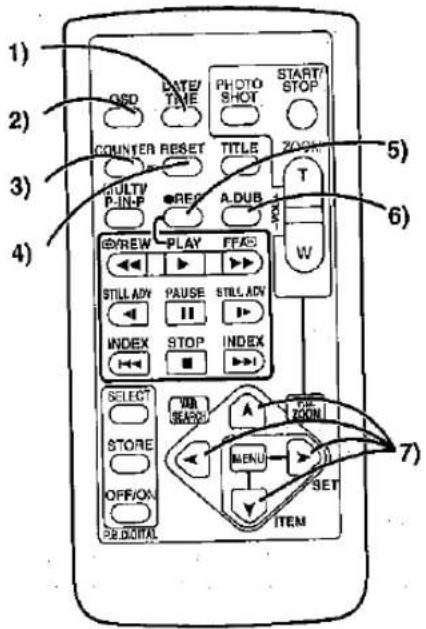
Buttons on the Remote Controller
1) Date/Time [DATE/TIME] (→ 46)
2) Indication Output Button [OSD] (→ 32)
3) Counter Indication Shift Button [COUNTER] (→ 46)
4) Reset Button [RESET] (→ 57)
5) Recording Button [REC] (Available only with NV-MX8) (→33)
6) Audio Dubbing Button [A.DUB] (→ 32)
7) Cursor Buttons for Variable Speed Search Function [▲, ▼] (→ 27)
Direction Buttons for Playback Zoom Function [▲, ▼, ◀, ▶] (→ 29)
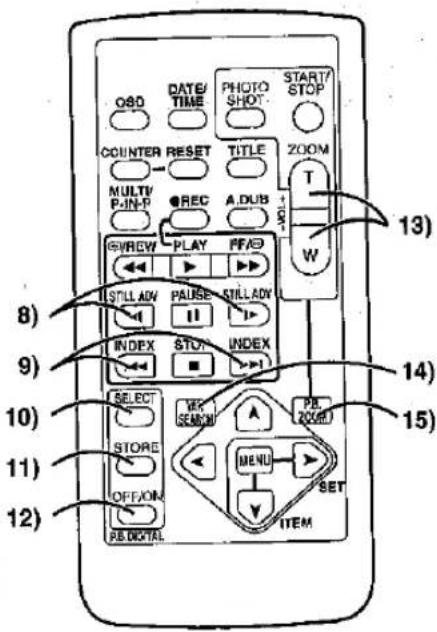
8) Slow Motion/Still Advance Buttons [◀, ▶] (◀:reverse, ▶:forward)
(→ 28)
9) Index Search Buttons [|◀◀, ▶▶] (|◀◀:reverse, ▶▶|:forward)
(→ 29)
10) Selection Button [SELECT] (→ 30)
11) Store Button [STORE] (→ 30)
12) Off/On Button [OFF/ON] (→ 30)
13) Zoom/Volume Button [ZOOM/VOL] (→ 19, 27, 29)
14) Variable Speed Search Button [VAR. SEARCH] (→ 27)
15) Playback Zoom Button [P.B. ZOOM] (→ 29)
The following buttons function in the same manner as the corresponding buttons on the Movie Camera.
16) Photoshot Button [PHOTO SHOT] (→ 19, 35, 40, 42)
17) Title In Button [TITLE] (Available only with NV-MX8) (→ 42)
18) Card Multi-Picture Button [MULTI/P-IN-P] (Available only with NV-MX8) (→ 42)
- This functions in the same manner as the [MULTI/P-IN-P] Button on the Movie Camera.
19) RewInd/Review Button [◀◀] (→ 18, 27)
20) Pause Button [II] (→ 28, 41)
21) Stop Button [■] (→ 27)
22) Recording Start/Stop Button [START/STOP] (→ 18)
23) Play Button [▶] (→ 27, 41)
24) Fast-forward/Cue Button [▶▶] (→ 18, 27)
25) Menu Button [MENU] (→ 13)
26) Set Button [SET] (→ 13)
27) Item Button [ITEM] (→ 13)
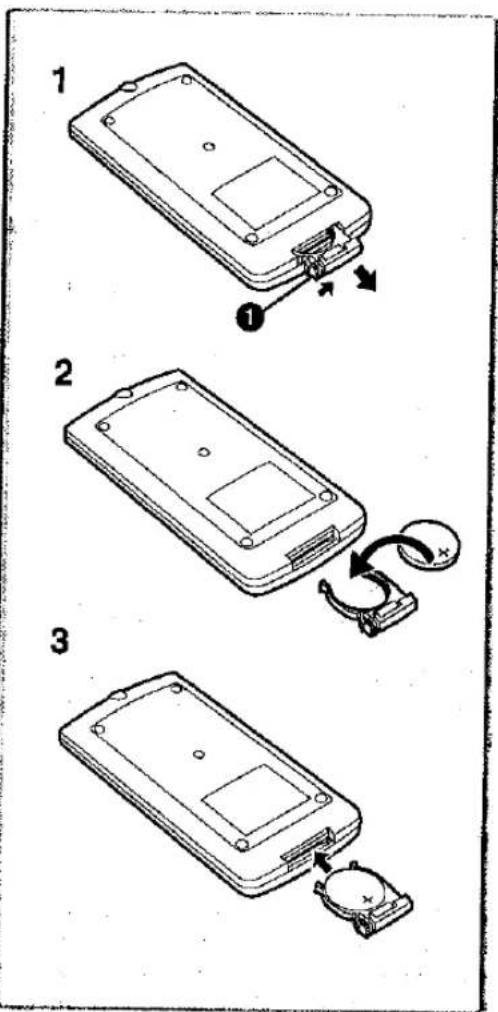
■Inserting a Button-type Battery
Before using the Remote Controller, insert the supplied button-type battery.
1 While pressing the Stopper ①, pull out the Battery Holder.
2 Insert the button-type battery with the imprint (+) facing upward.
3 Insert the Battery Holder into the Remote Controller.
- When the button-type battery is exhausted, replace it with a new CR2025 battery. (A battery is normally expected to last about 1 year. However, it depends on operation frequency.)
- Make sure to match the poles correctly when inserting the battery.
WARNING
"THE LITHIUM BATTERY IS A CRITICAL COMPONENT (TYPE NUMBER CR2025 MANUFACTURED BY PANASONIC).
IT MUST NEVER BE SUBJECTED TO EXCESSIVE HEAT OR
DISCHARGE. IT MUST THEREFORE ONLY BE FITTED IN EQUIPMENT DESIGNED SPECIFICALLY FOR ITS USE.
REPLACEMENT BATTERIES MUST BE OF THE SAME TYPE AND MANUFACTURER.
THEY MUST BE FITTED IN THE SAME MANNER AND LOCATION AS THE ORIGINAL BATTERY, WITH THE CORRECT POLARITY CONNECTIONS OBSERVED.
DO NOT ATTEMPT TO RE-CHARGE THE OLD BATTERY OR RE-USE IT FOR ANY OTHER PURPOSE. IT SHOULD BE DISPOSED OF IN WASTE PRODUCTS DESTINED FOR BURIAL RATHER THAN INCINERATION."
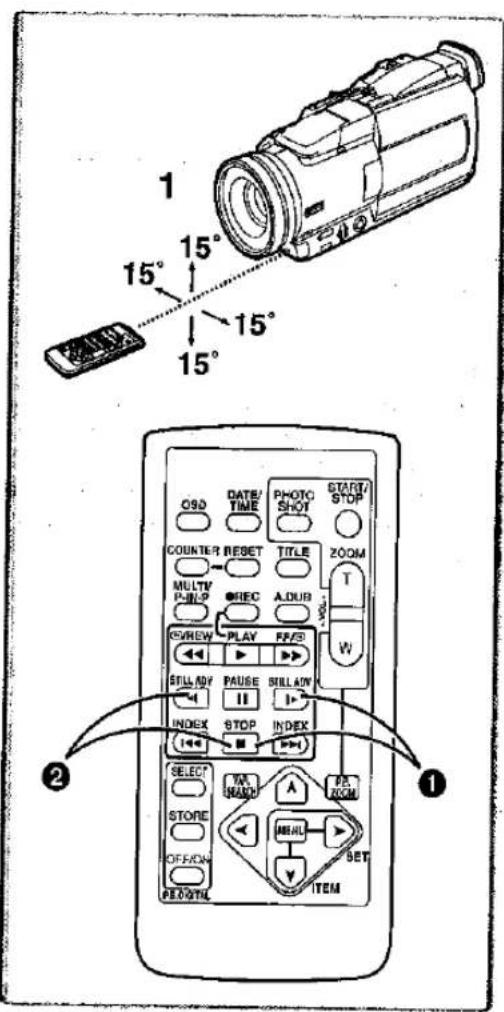
■ Using the Remote Controller
1 Direct the Remote Controller to the Remote Control Sensor of the Movie Camera and press an appropriate button.
• Distance from the Movie Camera: Within approximately 5 metres
- Angle: Within approximately 15^ in the vertical and horizontal directions from the central axis.
- The above operating ranges are for indoor use. Outdoors or under strong light, the Movie Camera may not operate properly even within the above ranges.
- Within a 1-metre range, you can also use the Remote Controller on the side (the [MENU] Button side) of the Movie Camera.
Selecting Remote Controller Modes
When 2 Movie Cameras are used simultaneously, they can be operated individually by selecting different Remote Controller Modes.
- If the Remote Controller Mode of the Movie Camera and that of the Remote Controller do not match, [REMOTE] Indication is displayed.
Setup on the Movie Camera:
Set [REMOTE] on the [OTHER FUNCTIONS] Sub-Menu to the desired Remote Controller Mode. (→ 13)
Setup on the Remote Controller:
[VCR1]:Press the [▶] Button and [■] Button simultaneously. ① [VCR2]:Press the [◀] Button and [■] Button simultaneously. ②
- When the battery in the Remote Controller is replaced, the mode is automatically reset to [VCR1] Mode.
| NV-MX2 | NV-MX8 | ||
| CGR-D08RCGR-D08SCGR-D120 | A | 1 h. | 1 h. |
| B | 1 h 30 min. (1 h 15 min.) | 1 h 30 min. (1 h 10 min.) | |
| C | 45 min. (40 min.) | 45 min. (35 min.) | |
| CGP-D14SCGP-D210 | A | 1 h 50 min. | 1 h 50 min. |
| B | 2 h 30 min. (2 h 05 min.) | 2 h 30 min. (2 h ) | |
| C | 1 h 15 min. (1 h 05 min.) | 1 h 15min. (1 h) | |
| CGR-D16SCGR-D220 | A | 2 h. | 2 h. |
| B | 3 h (2 h 30 min.) | 3 h (2 h 20min.) | |
| C | 1 h 30 min. (1 h 15 min.) | 1 h 30 min. (1 h 10 min.) | |
| CGP-D28SCGP-D320 | A | 3 h 15 min. | 3 h 15 min. |
| B | 5 h 10 min. (4 h 15 min.) | 5 h 10 min. (4 h 05 min.) | |
| C | 2 h 35 min. (2 h 10 min.) | 2 h 35 min. (2 h 05 min.) | |
| CGR-D55SCGR-D615 | A | 5 h 20 min. | 5 h 20 min. |
| B | 9 h 40 min. (8 h ) | 9 h 40 min. (7h 40min.) | |
| C | 4 h 50 min. (4 h ) | 4 h 50 min. (3 h 50min.) |
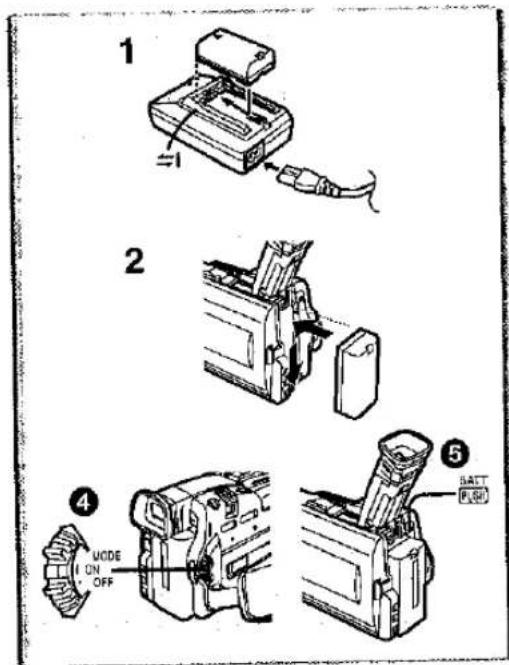
Power Supply
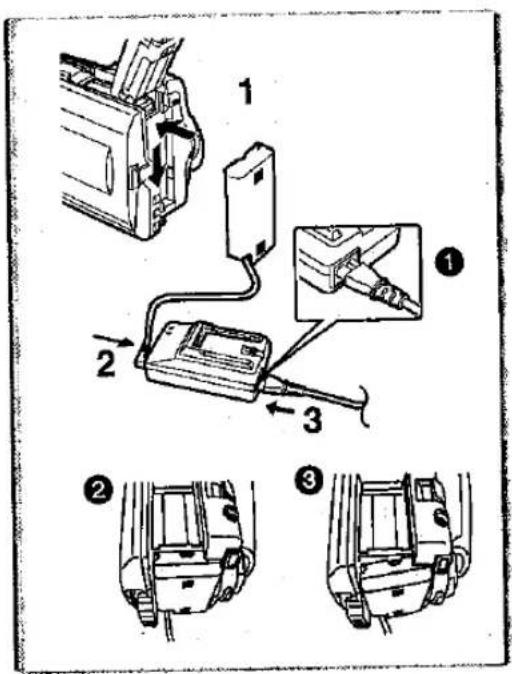
Using the AC Adaptor
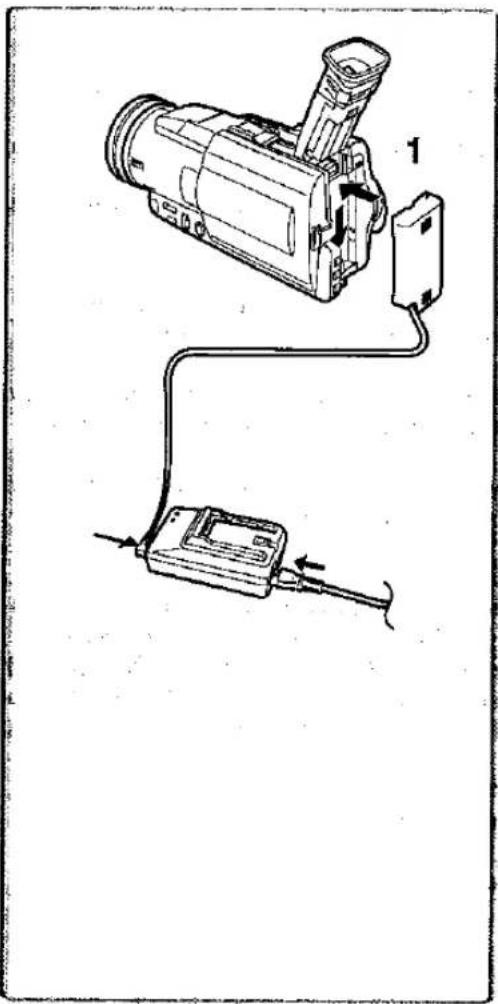
1 Connect the DC Input Lead to the Movie Camera.
2. Connect the DC Input Lead to the AC Adaptor.
3 Connect the AC Mains Lead to the AC Adaptor and the AC mains socket.
- The AC Mains Lead does not fit entirely into the AC Adaptor socket. A gap will remain as shown ①.
- Please confirm whether the DC Input Lead is connected completely.
② Correct ③ Wrong
- Before disconnecting the power supply, set the [OFF/ON/MODE] Switch on the Movie Camera to [OFF].
- It cannot be charged if DC cord is connected to AC Adapter.
Using the Battery
Before use, fully charge the Battery.
1 Attach the Battery to AC Adaptor and charge it.
- Since the Battery will not be charged when the DC Input Lead is connected to the AC Adaptor, disconnect them.
• The [POWER] Lamp and [CHARGE] Lamp light up, and charging starts. - When the [CHARGE] Lamp goes off, charging is completed.
2 Attach the charged Battery to the Movie Camera.
To Remove the Battery
Set the [OFF/ON/MODE] Switch ④ to [OFF], and while pressing the [BATT PUSH] Button ⑤, slide the Battery to remove it.
■ Using the Car Battery Charger
If you use the Car Battery Charger (VW-KBD2E; optional), you can supply power to the Movie Camera and charge the battery inside your car. For further information, refer to the instruction manual of the Car Battery Charger.
- Be sure to start the car engine before you connect the Car Battery Charger, otherwise the fuse may blow.
- For other notes concerning this item, see page 47.
Charging Time and Available Recording Time
Ⓐ Charging Time
(B) Maximum Continuous Recording Time
© Intermittent Recording Time
(Intermittent Recording Time is the available recording time with repeated recording and stopping actions.)
- "1h10min." indicates 1 hour and 10 minutes.
●Battery CGR-D08R is supplied. - The times shown in the table are approximate times. The numbers in parentheses indicate the recording time when the LCD Monitor is used. In actual use, the available recording time may be shorter.
- The times shown in the table are for continuous recording at a temperature of 20^ and humidity of 60% . If the Battery is charged at a higher or lower temperature, the charging time may be longer.
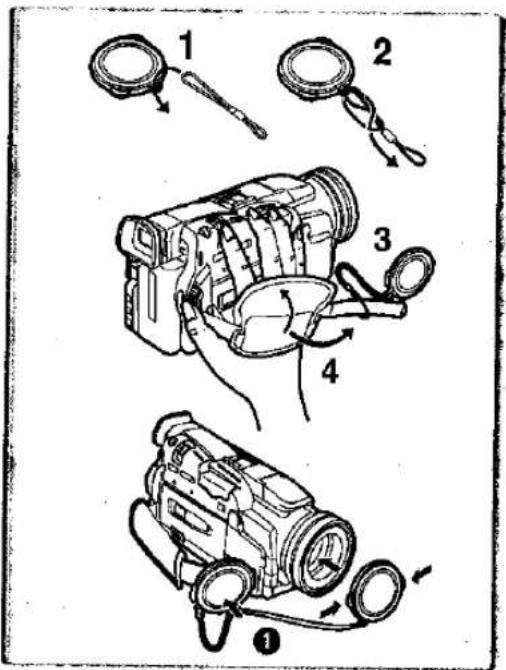
Lens Cap and Grip Belt
To protect the Lens surface, attach the Lens Cap. Adjust the length of the Grip Belt to the size of your hand.
1 Pass the longer loop of the Lens Cap Cord through the attached eye on the Lens Cap.
2 Then pass the shorter loop of the Lens Cap Cord through the centre of the longer loop and pull tight.
3 Attach the Lens Cap to the Grip Belt.
4 Put your hand through the Grip Belt and adjust the length.
- The removed Lens Cap can be hooked onto the Grip Belt ①. (When you are not recording, be sure to keep the Lens Cap attached to the Lens for protection.)
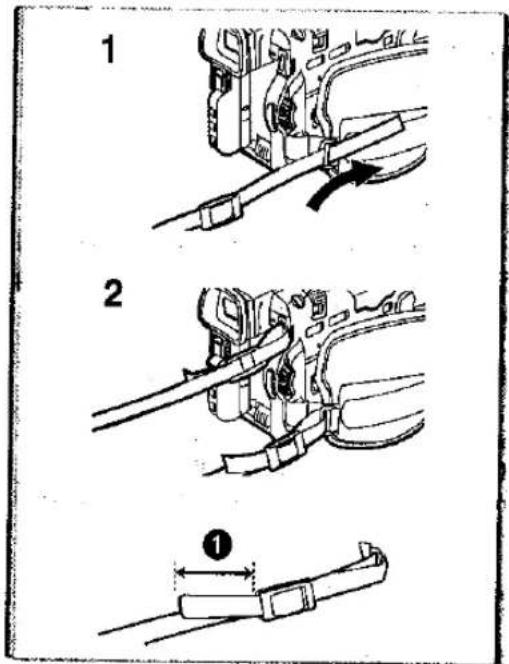
Attaching the Shoulder Strap
We recommend that you attach the Shoulder Strap before going out of doors to record so as to avoid dropping the Movie Camera.
1 Pull the end of the Shoulder Strap through the Shoulder Strap Holder on the Movie Camera.
2 Fold the tip of the Shoulder Strap, run it through the Shoulder Strap Length Adjuster, and pull it.
- Pull it out more than 2 cm ① from the Shoulder Strap Length Adjuster so that it cannot slip off.
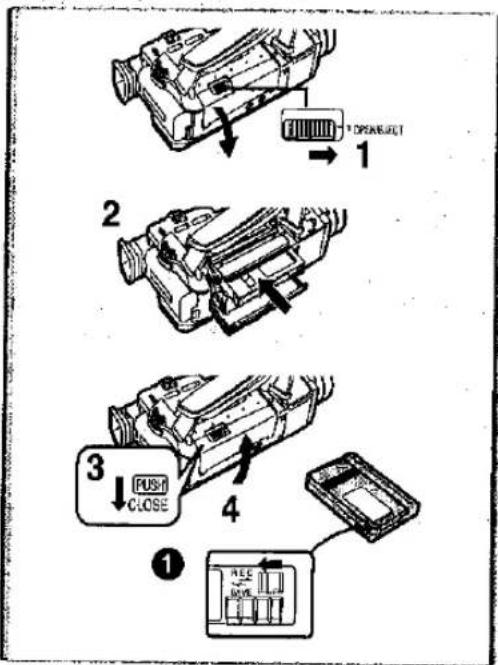
Inserting a Cassette
When power is supplied to the Movie Camera, the Cassette can be taken out without turning the Movie Camera [ON].
1 Slide the [OPEN/EJECT] Lever to the right and pull down to open the Cassette Compartment.
2 Insert a Cassette.
3 Close the Cassette compartment and lock the Cassette Compartment by pressing the [PUSH CLOSE] mark.
4 Close the Lower Cassette Compartment Cover.
Accidental Erasure Prevention
Opening the accidental erasure prevention slider ① on the cassette (by sliding it in the [SAVE] arrow direction) prevents recording. To enable recording, close the accidental erasure prevention slider (by sliding it in the [REC] arrow direction).
- For other notes concerning this item, see page 47.
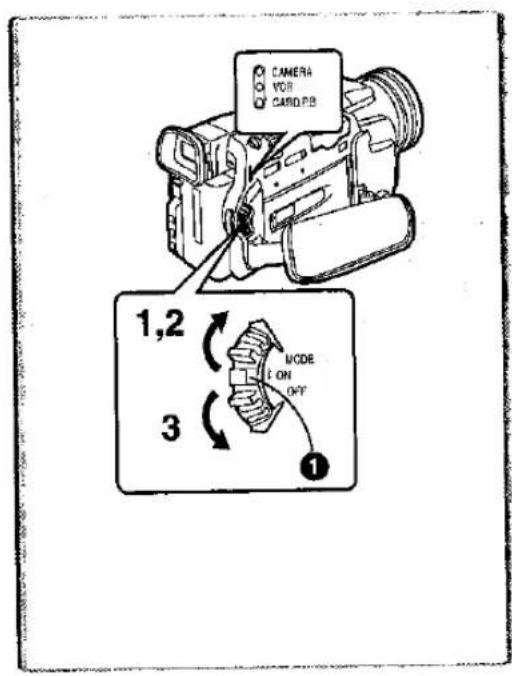
Turning on the Movie Camera and Selecting Modes
Turn on the power first and then select modes.
How to Turn on the Power
1 Slide the [OFF/ON/MODE] Switch to [ON] while pressing the centre button ①.
●The [CAMERA] Lamp lights up.
How to Switch Modes
2 Slide the [OFF/ON/MODE] Switch.
- With each slide of the Switch, the Mode switches in the order of Camera Mode, VCR Mode, and Card Playback Mode.
●The appropriate Mode Lamp lights up.
How to Turn off the Power
3 Slide the [OFF/ON/MODE] Switch to [OFF] while pressing the centre button ①.
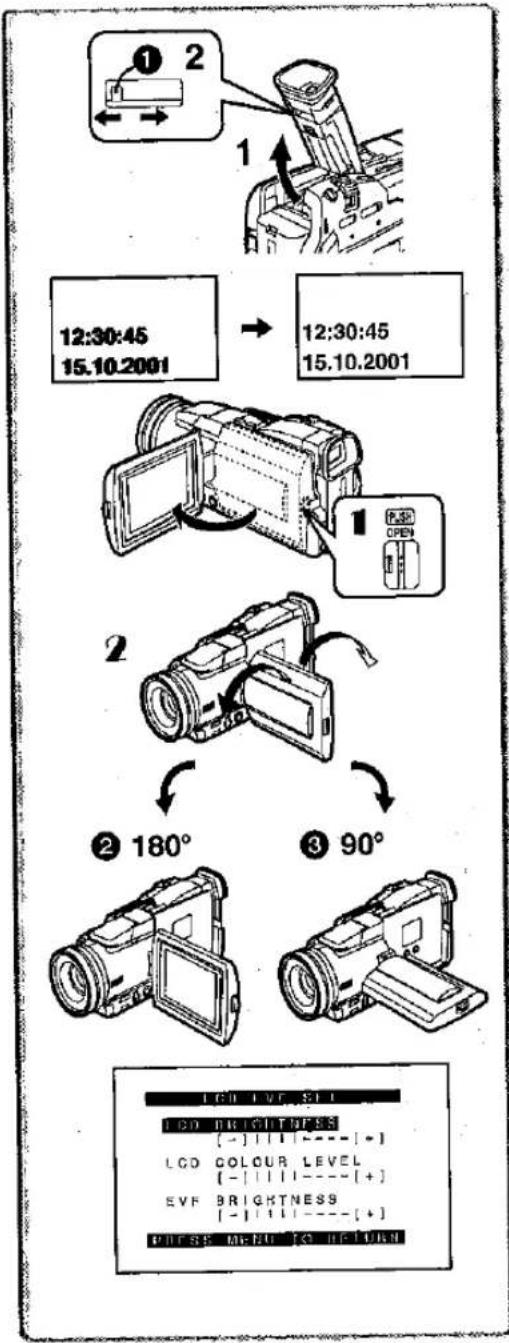
Using the Viewfinder
Before using the Viewfinder, adjust the field of view so that the displays inside the Viewfinder become clear and easy to read.
1 Tilt the Viewfinder upward.
●The Viewfinder can also be pulled out for use.
- Do not pull on the Eyecup to extend the Viewfinder.
2 Adjust by sliding the Eyepiece Corrector Knob ①.
flowchart
graph TD
    A["12:30:45\n15.10.2001"] --> B["12:30:45\n15.10.2001"]
    B --> C["180°"]
    C --> D["90°"]
Using the LCD Monitor
With the LCD Monitor open, you can also record the picture while watching it.
1 Press the [PUSH OPEN] Button and, at the same time, bring the LCD Monitor out about 90° in the direction of the arrow.
• The Viewfinder goes off.
2 Adjust the LCD Monitor angle according to the desired recording angle.
- The LCD Monitor can rotate a maximum of 180^ ② from the vertical position to the upward direction and a maximum of 90^ ③ to the downward direction. Forcefully rotating the LCD Monitor beyond those ranges will damage the Movie Camera.
Closing the LCD Monitor
Push the LCD Monitor until the [PUSH OPEN] Button is securely locked.
■Adjusting Brightness and Colour Level
When [LCD/EVF SET] on the [DISPLAY SETUP] Sub-Menu is set to [YES], the following items are displayed. (→ 13)
LCD Brightness [LCD BRIGHTNESS]
It adjusts the brightness of the image on the LCD screen.
LCD Colour Level [LCD COLOUR LEVEL]
It adjusts the colour saturation of the image on the LCD screen.
Brightness of the Viewfinder [EVF BRIGHTNESS]
It adjusts the brightness of the image in the Viewfinder.
To Adjust
Press the [PUSH] Dial and select the item to be adjusted, and then turn the [PUSH] Dial to raise or lower the number of vertical bars in the Bar Indication.
- A larger number of vertical bars indicates stronger brightness or colour saturation.
Increasing the Brightness of the Entire LCD Monitor
Set the [LCD MODE] on the [DISPLAY SETUP] Sub-Menu to [BRIGHT].
- These adjustments do not affect the recorded images.
- For other notes concerning this item, see page 54.
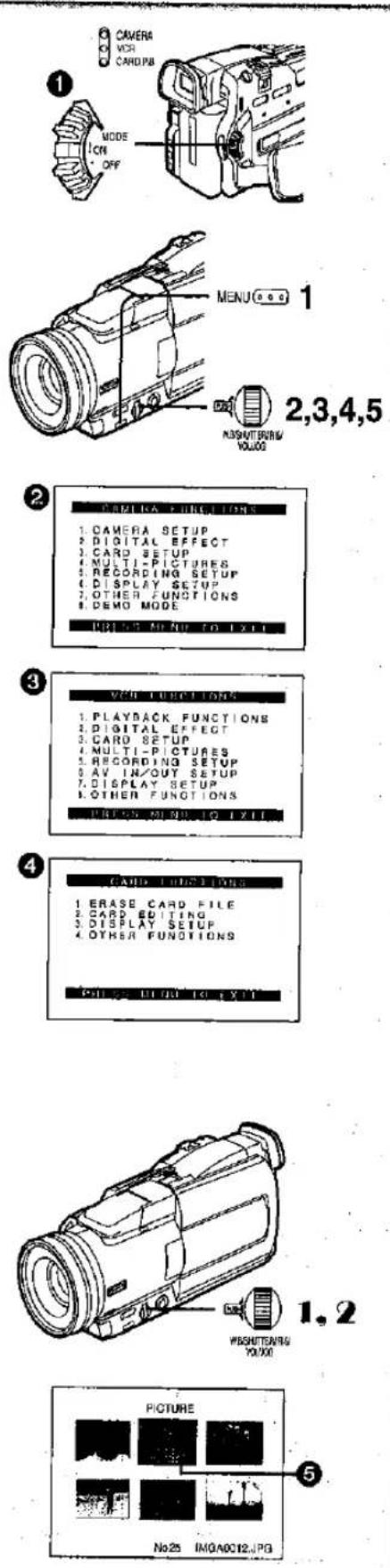
Using the Menu Screen
To facilitate the selection of a desired function or setup, this Movie Camera displays various function settings on Menus.
1 Press the [MENU] Button.
- The Menu corresponding to the Mode selected by using the [OFF/ON/MODE] Switch ① is displayed.
- When the [CAMERA] Lamp is on, the Camera Function Menu is displayed. 2
- When the [VCR] Lamp is on, the VCR Function Menu is displayed. ③
- When the [CARD P.B.] Lamp is on, the Card Function Menu is displayed. ④ (NV-MX8 only)
2 Turn the [PUSH] Dial to select a desired Sub-Menu.
- Turn the [PUSH] Dial to display the highlightened item.
3 Press the [PUSH] Dial to display the selected Sub-Menu.
4 Turn the [PUSH] Dial to select the item to be set.
5 Press the [PUSH] Dial to set the selected item to a desired Mode.
- With each press of the [PUSH] Dial, the cursor [▶] moves to the subsequent Mode. Menu items that cannot be used in combination with the selected item are displayed in dark blue.
●While a Menu is displayed, you cannot record or play back. Menus can be displayed during playback but not during recording. The above operations can be done using the [MENU] Button, [SET] Button and [ITEM] Button on the Remote Controller. (→ 8)
To Exit the Menu Screen
Press the [MENU] Button again.
About the Menu Mode Setting
The setting selected on the Menu will be retained even when the Movie Camera is turned off. However, if the Battery or AC Adaptor is disconnected before turning off the Movie Camera, the selected setup may not be retained. (But, the setups of [EFFECT2] (→ 25) are not retained.)
- Menu operation flow is shown in this text by >>.
■ File Selection in the Card Playback Mode (NV-MX8 only)
A File Selection Operation may be necessary during Menu Operations. In this case, carry out the following procedure.
1 Turn the [PUSH] Dial and select a file.
- The selected file is marked by a frame 5.
2 Press the [PUSH] Dial to confirm the selection of the file.
- After the above File Selection Procedure, carry out the various Menu Operations. (The above procedure will not be repeated in the following instructions.)
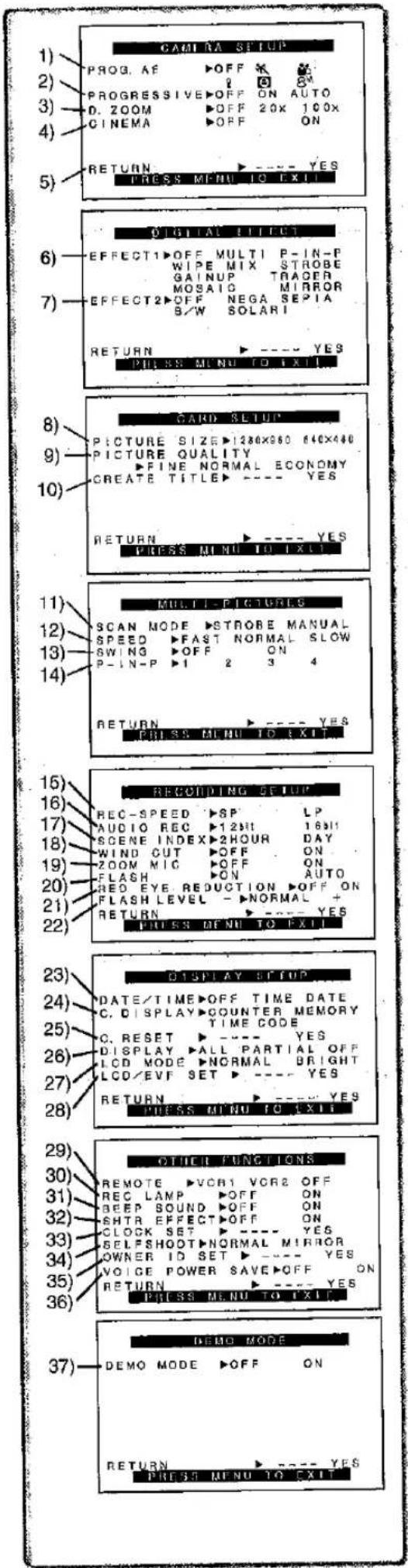
List of Menus
The figures of the Menus are for explanation purposes only, and they are different from the actual Menus.
Camera Mode Main-Menu [CAMERA FUNCTIONS]
[CAMERA SETUP] Sub-Menu
1) Auto Exposure Mode [PROG.AE] (→ 21)
2) Progressive Photoshot Mode [PROGRESSIVE] (→ 19)
3) Digital Zoom [D.ZOOM] (→ 20)
4) Cinema-like Format Recording [CINEMA] (→ 21)
5) Returning to the Main-Menu [RETURN]
[DIGITAL EFFECT] Sub-Menu
6) Digital Effects 1 [EFFECT1] (→ 25)
7) Digital Effects 2 [EFFECT2] (→ 25)
[CARD SETUP] Sub-Menu (NV-MX8 only)
8) Picture Size [PICTURE SIZE] (→ 35)
9) Picture Quality [PICTURE QUALITY] (→ 35)
10) Title Creation [CREATE TITLE] (→ 42)
[MULTI-PICTURES] Sub-Menu
11) Multi-Picture Mode [SCAN MODE]
12) Strobe Multi-Picture Speed [SPEED] (→ 26)
13) Swing Mode [SWING] (→ 26)
14) Position of Small Picture Inside Normal Picture [P-IN-P] (→ 26)
[RECORDING SETUP] Sub-Menu
15) Recording Speed Mode [REC SPEED] (→ 17)
16) Audio Recording Mode [AUDIO REC] (→ 17)
17) Scene Index Mode [SCENE INDEX] (→ 29)
18) Wind Noise Reduction [WIND CUT] (→ 24)
19) Zoom Microphone [ZOOM MIC] (→ 19)
20) Flash [FLASH] (NV-MX8 only) (→ 24)
21) Red Eye Reduction [RED EYE REDUCTION] (NV-MX8 only) (→ 24)
22) Flash Level [FLASH LEVEL] (NV-MX8 only)
[DISPLAY SETUP] Sub-Menu
23) Date and Time Indication [DATE/TIME] (→ 46)
24) Counter Display Mode [C.DISPLAY] (→ 46)
25) Counter Reset [C.RESET] (→ 57)
- It resets the counter to zero. However, it cannot reset the Time Code.
26) Display Mode [DISPLAY] (→ 46)
27) LCD Lighting Mode [LCD MODE] (→ 12)
28) LCD and Viewfinder Adjustment [LCD/EVF SET] (→ 12)
[OTHER FUNCTIONS] Sub-Menu
29) Remote Controller Mode [REMOTE] (→ 9)
30) Recording Lamp [REC LAMP] (→ 18)
31) Beep Sound [BEEP SOUND] (→ 47)
32) Shutter Effect [SHTR EFFECT] (→ 19)
33) Date and Time Setting [CLOCK SET] (→ 17)
34) Self-Recording [SELFSHOOT] (→ 18)
35) Owner ID Set [OWNER ID SET] (→ 46)
36) Voice Power Save [VOICE POWER SAVE] (NV-MX8 only)
[DEMO MODE] Sub-Menu
37) Demonstration Mode [DEMO MODE]
- If no operation takes place for approximately 10 minutes after the AC Adaptor was connected to the Movie Camera and the [OFF/ON/MODE] Switch was turned to [ON] without inserting a Cassette, the Movie Camera is automatically set to Demonstration Mode for introducing its functions. If any button is pressed or operated, the Demonstration Mode is cancelled. The Demonstration Mode can be started by setting [DEMO MODE] to [ON] and by exiting the Menu. To terminate the Demonstration Mode, insert a Cassette or set the [DEMO MODE] to [OFF].
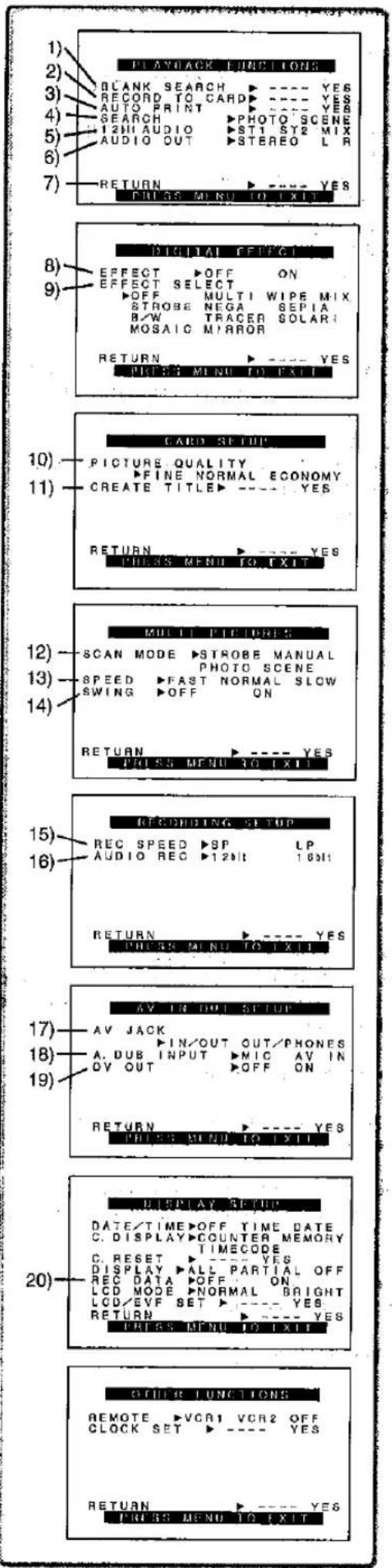
VCR Mode Main-Menu [VCR FUNCTIONS]
[PLAYBACK FUNCTIONS] Sub-Menu
1) Blank Search [BLANK SEARCH] (→ 28)
2) Recording to Card [RECORD TO CARD] (NV-MX8 only) (→ 36)
3) Automatic Printing [AUTO PRINT] (→ 34)
4) Index Search Mode [SEARCH] (→ 29)
5) Audio Selector [12bit AUDIO] (→ 32)
6) Audio Output Mode [AUDIO OUT] (NV-MX8 only) (→ 49)
7) . Returning to the Main-Menu [RETURN]
[DIGITAL EFFECT] Sub-Menu
8) Digital Effect On/Off [EFFECT] (→ 30)
9) Digital Effect Selection [EFFECT SELECT] (→ 30)
[CARD SETUP] Sub-Menu (NV-MX8 only)
10) Picture Quality [PICTURE QUALITY] (→ 36)
11) Title Creation [CREATE TITLE] (→ 42)
[MULTI-PICTURES] Sub-Menu
12) Multi-Picture Mode [SCAN MODE]
13) Strobe Multi-Picture Mode [SPEED] (→ 31)
14) Swing Mode [SWING] (→ 31)
[RECORDING SETUP] Sub-Menu
15) Recording Speed Mode [REC SPEED] (→ 17)
16) Audio Recording Mode [AUDIO REC] (→ 32)
[AV IN/OUT SETUP] Sub-Menu (NV-MX8 only)
17) AV Socket [AV JACK] (→ 32, 33)
18) Audio Dubbing Input [A.DUB INPUT] (→ 32)
19) Analog-Digital Conversion Output [DV OUT] (→ 50)
[DISPLAY SETUP] Sub-Menu
20) Camera Data [REC DATA]
- If you set [REC DATA] to [ON], the settings (shutter speed, irls (→ 23) and white balance settings (→ 22), etc.) used during the recordings are displayed during playback. [...] appears on the display when there is no data.
- The settings information may not displayed properly if the camera data of this Movie Camera are played back on other equipment.
The camera data will not be recorded in the following cases:
- When the data are recorded from a card to a tape.
- When recording proceeds with no input signals supplied.
- When recording involves the use of the S-Video or AV Input Jack.
- When pictures with no camera data are recorded using the DV Terminal.
- When displaying a list of titles.
[OTHER FUNCTIONS] Sub-Menu
All of the Items on the [OTHER FUNCTIONS] Sub-Menu are the same as those on the [OTHER FUNCTIONS] Sub-Menu of the
[CAMERA FUNCTIONS] Main-Menu.
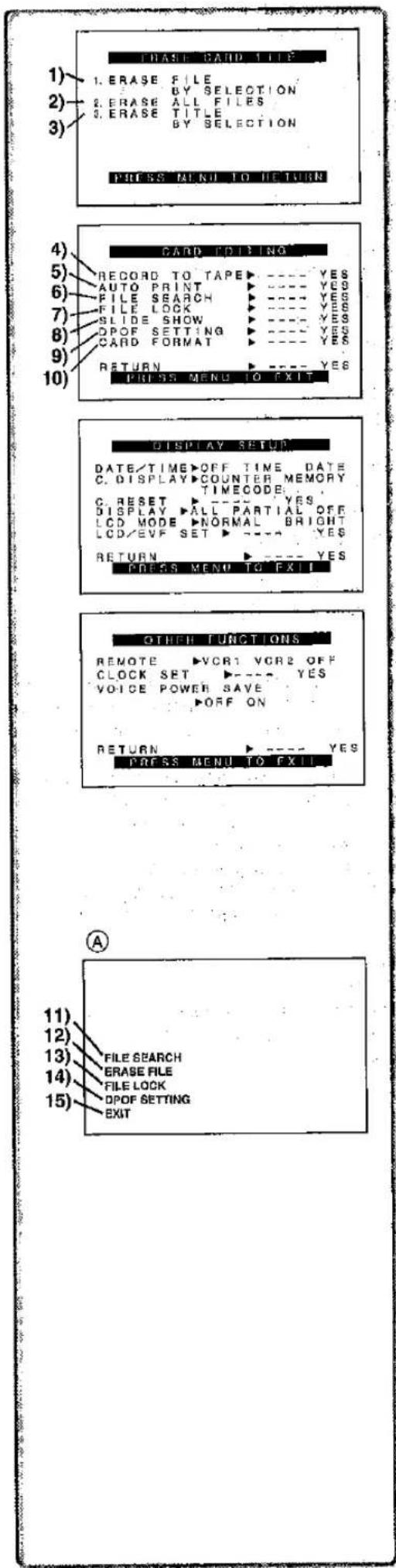
Card Playback Mode Main-Menu [CARD FUNCTIONS]
(NV-MX8 only)
[ERASE CARD FILE] Sub-Menu
1) Selecting and Erasing a File [ERASE FILE BY SELECTION] (→ 43)
2) Erasing All Files [ERASE ALL FILES] (→ 43)
3) Selecting and Erasing a Title [ERASE TITLE BY SELECTION] (→ 43)
[CARD EDITING] Sub-Menu
4) Recording to Tape [RECORD TO TAPE] (→ 40)
5) Automatic Printing [AUTO PRINT] (→ 34)
6) Searching a File [FILE SEARCH] (→ 39)
7) Setting the Lock [FILE LOCK] (→ 43)
8) Setting a Slide Show [SLIDE SHOW] (→ 41)
9) Setting DPOF [DPOF SETTING] (→ 44)
10) Formatting a Card [CARD FORMAT] (→ 44)
[DISPLAY SETUP] Sub-Menu
All of the items on the [DISPLAY SETUP] Sub-Menu are the same as those on the [DISPLAY SETUP] Sub-Menu of the [CAMERA FUNCTIONS] Main-Menu.
[OTHER FUNCTIONS] Sub-Menu
All of the items on the [OTHER FUNCTIONS] Sub-Menu are the same as those on the [OTHER FUNCTIONS] Sub-Menu of the [CAMERA FUNCTIONS] Main-Menu.
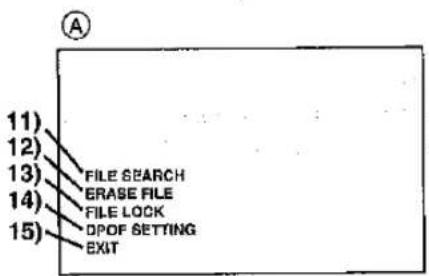
Short-Cut Menus of the Card Playback Mode (NV-MX8 only) Ⓐ
If you use the Short-Cut Menu, the Card Playback Mode Menu can be called up quickly. Press the [PUSH] Dial to display the Short-Cut Menu, and turn the [PUSH] Dial to select the desired Menu.
11) [FILE SEARCH]:
The [FILE SEARCH] Menu for finding files by number appears. (→ 39)
12) [ERASE FILE]:
The [ERASE FILE] Menu for erasing the file being displayed appears.
(→ 43) Use this Menu after the file to be erased appears.
13) [FILE LOCK]: The [FILE LOCK] Menu for avoiding accidental erasure of files (Lock Setting) being displayed appears. (→ 43) Use this Menu after the file to be locked appears.
14) [DPOF SETTING]: The [DPOF SETTING] Menu for setting DPOF to the File displayed appears. (→ 44) Use this Menu after the File for DPOF Setting appears.
15) [EXIT]: It is for terminating the Short-Cut Menu.
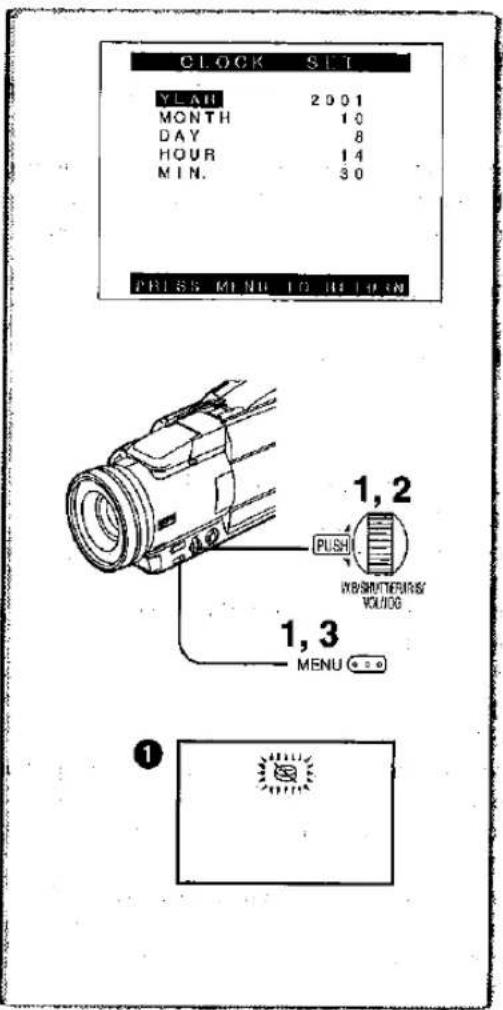
Setting Date and Time
Since the internal clock of the Movie Camera has a slight imprecision, make sure to check the time before recording.
1 Set [OTHER FUNCTIONS] >> [CLOCK SET] >> [YES].
2 Press the [PUSH] Dial to select [YEAR]/[MONTH]/[DAY]/[HOUR]/[MIN.] and turn to set it to a desired value.
●Year will cycle in the order shown below. 2000, 2001, ..., 2089, 2000, ...
3 Press the [MENU] Button to finish setting the date and time.
●The clock operation starts from [00] second.
• The Menu will disappear when the [MENU] Button is pressed again.
- If the built-in battery is weak, the [icon] indication ① flashes. In this case, charge the built-in battery.
• The clock employs the 24-hour system.
Internal Lithium Battery Recharge
- The internal lithium battery sustains the operation of the clock. When the [∅] indication is lit, the internal lithium battery is near exhaustion.
1 Connect the AC adaptor to the Movie Camera with the power turned off and then connect to the AC Mains socket.
- After charging for 4 hours, the built-in lithium battery can power the clock for approximately 3 months.
WARNING
THE LITHIUM BATTERY IN THIS EQUIPMENT MUST ONLY BE REPLACED BY QUALIFIED PERSONNEL. WHEN NECESSARY, CONTACT YOUR LOCAL PANASONIC SUPPLIER.
natural_image
Technical line drawing of a handheld device connected to a battery via cable (no text or symbols)LP Mode
A desired recording speed can be selected with [REC SPEED] on the [RECORDING SETUP] Sub-Menu. (When recording to tape only) If LP Mode is selected, the recording time becomes 1.5 times longer than that of SP Mode.
Although the image quality does not decrease with the LP Mode recording, mosaic-pattern noise may appear on a playback image, or some normal functions may be restricted.
- The contents that are recorded in LP Mode are not completely compatible with other equipment.
●Audio dubbing is not possible with LP Mode. (→ 32)
Audio Recording Mode
The sound quality of the recorded sound can be selected with [AUDIO REC] on the [RECORDING SETUP] Sub-Menu.
High sound-quality recording is possible with "16 bit 48 kHz 2 track" Mode. With the "12 bit 32 kHz 4 track" Mode, the original sound can be recorded on 2 tracks in stereo, while the other 2 tracks can be used for Audio Dubbing.
2
3
5
8
natural_image
Simple diagram with two rectangular shapes and a vertical line, no text or symbols presentCAMERA Mode
Recording
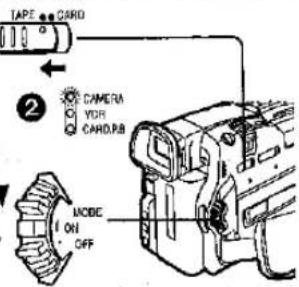
When recording with the Mode Selector Switch ① set to [AUTO], the Movie Camera automatically adjust the focus and white balance. In some cases, they cannot be adjusted automatically and need to be adjusted manually.
(→ 22, 23)
1 Set the [OFF/ON/MODE] Switch to [ON].
•The [CAMERA] Lamp lights up. ②
2 Slide the [TAPE/CARD] Selector towards [TAPE]. (NV-MX8 only)
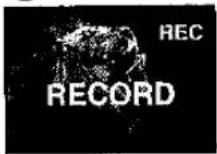
3 Press the Recording Start/Stop Button.
●Recording starts.
● After the [RECORD] is displayed, it changes to [REC]. ③
Recording Lamp (Tally Lamp) ④
The Recording Lamp lights up during recording and alerts those being recorded that recording is in progress.
- The Recording Lamp does not light up if the [REC LAMP] on the [OTHER FUNCTIONS] Sub-Menu is set to [OFF].
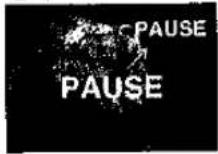
To Pause the Recording
Press the Recording Start/Stop Button again.
The [PAUSE] Indication is displayed. 5
- If the Recording Pause Mode continues for more than 6 minutes, the power is turned off automatically for tape protection and power conservation. To resume recording from this condition, turn on the power again.
To Check the Recording
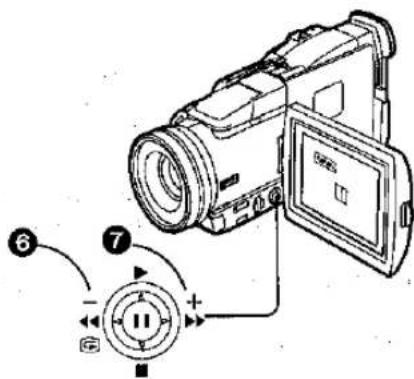
By pushing the Operation Lever towards [CF] 6 briefly in the Recording Pause Mode, you can play back the last few seconds of the recorded scene.
- The [CHK] Indication is displayed. After checking, the Movie Camera resumes the Recording Pause Mode.
■ To View the Recorded Scene while the Recording Is Paused
(Camera Search)
The recorded scene can be viewed by keep pushing the Operation Lever towards [-]⑥ or [+]⑦ in the Recording Pause Mode.
- When the Operation Lever is pushed towards [-], images are played back in the reverse direction.
- When the Operation Lever is pushed towards [+] , images are played back in the forward direction.
Recording Yourself
By opening the LCD Monitor and rotating it frontward (to the lens side), you can let the subject in front of the Movie Camera monitor the shot while recording is in progress.
- When the LCD Monitor is opened, the Viewfinder is disabled automatically. However, when the LCD Monitor is rotated frontward, the image is also shown in the Viewfinder.
- If you prefer to have the image on the LCD Monitor to look like an image in a mirror, set [SELFSHOOT] on the [OTHER FUNCTIONS] Sub-Menu to [MIRROR].
Images are recorded normally and no left and right reversal occurs.
- If [MIRROR] is used during self-recording, only the basic indications, such as the Recording Indication ☐, Recording Pause Indication ☐ and Remaining Battery Power Indication [☐], are displayed.
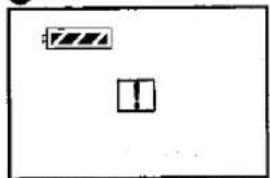
- If a general Warning/Alarm Indication [!] appears, return the LCD Monitor to the original position in order to check the specific content of the Warning/Alarm Indication.
■ To Finish the Recording
Set the [OFF/ON/MODE] Switch to [OFF].
- For other notes concerning this item, see page 47.
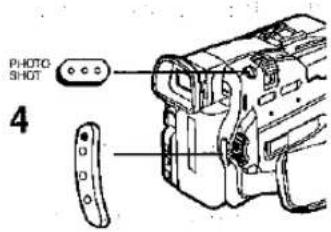
Photoshot
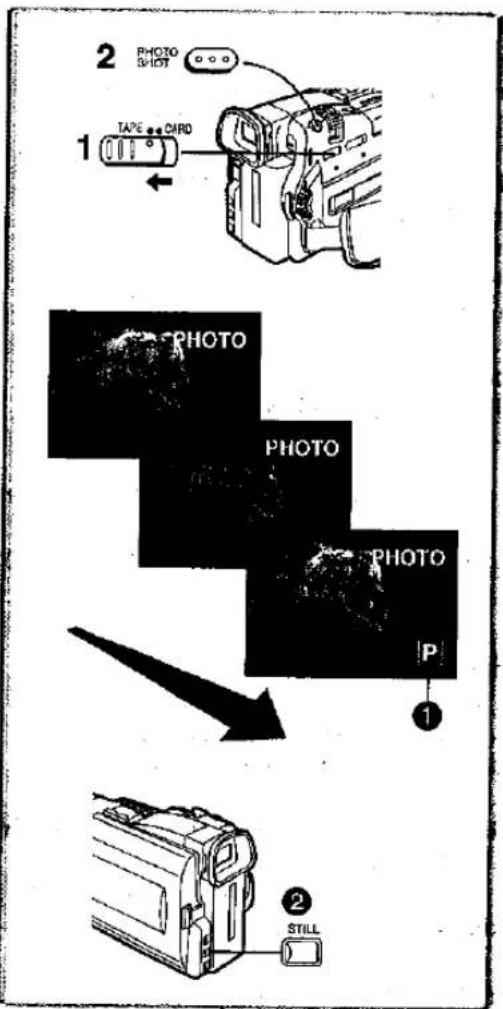
This Movie Camera can record still pictures with sound for approximately 7 seconds each on the cassette.
1 Slide the [TAPE/CARD] Selector towards [TAPE]. (NV-MX8 only)
2 Press the [PHOTO SHOT] Button in the Recording Pause Mode.
- The Movie Camera records a still picture for about 7 seconds and then switches back to the Recording Pause Mode.
Progressive Photoshot
With the Progressive Photoshot Function, you can record still pictures with higher resolution than with the normal Photoshot Function.
- When [PROGRESSIVE] on the [CAMERA SETUP] Sub-Menu is set to [ON] or [AUTO], the [P] Indication 1 is displayed. When the [P] Indication is displayed, press the [PHOTO SHOT] Button in the Recording Pause Mode.
- This function may not work with some function setups.
- If you select Card Mode, [PROGRESSIVE] is set to [ON].
Continuous Photoshot
If you set [SHTR EFFECT] on the [OTHER FUNCTIONS] Sub-Menu to [ON] and keep the [PHOTO SHOT] Button pressed, the Movie Camera will continuously record still pictures in approximately 0.7 seconds intervals until the button is released. (However, this does not operate when using Progressive Photoshop.)
- The screen blinks and, at the same time, a shutter clicking sound is recorded.
- When [PROGRESSIVE] on the [CAMERA SETUP] Sub-Menu is [ON] or [AUTO], this function cannot be used.
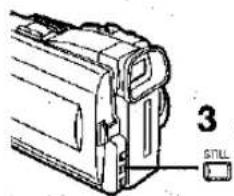
Digital Still Picture
When the [STILL] Button 2 is pressed, images become still pictures. When the button is pressed again, the Digital Still Picture Mode is cancelled.
- We recommend that you press the [STILL] Button first at the position where you wish to record the picture so as to enter the Digital Still Picture Mode and then press the [PHOTO SHOT] Button.
●While a still picture is on the screen, Multi-Picture Mode cannot be used, - For other notes concerning this item, see page 47.
Zoom In/Out Functions
It gives special effects to the video by recording objects close by or with wide-angle shot.
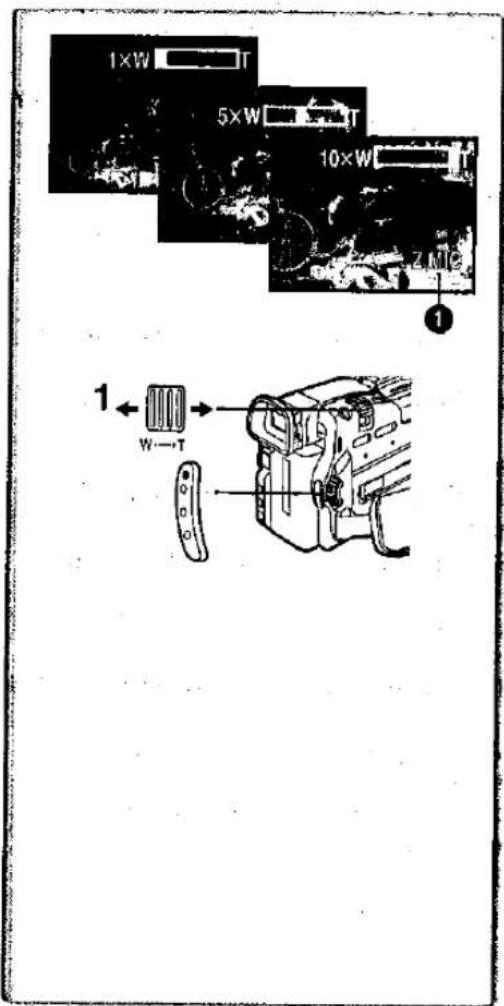
1 For wide-angle shots (zoom out):
Push the [W/T] Zoom Lever towards [W].
For close-ups (zoom In):
Push the [W/T] Zoom Lever towards [T].
- Zoom Magnification Indication is displayed for a few seconds.
To Take Close-up Shots of Small Subjects (Macro Close-up Function)
When the zoom magnification is 1×, the Movie Camera can focus on a subject that is as close as approximately 35 mm from the Lens. With this, small subjects like insects can be recorded.
To Use the Zoom Microphone Function
Along with the zooming operation, the microphone's directional angle and sensitivity are varied for recording sounds.
- Set [ZOOM MIC] on the [RECORDING SETUP] Sub-Menu to [ON]. (The - [Z.MIC] Indication is displayed. 1)
- The Zoom Microphone Function may not work effectively if the surrounding noise is too loud.
- For other notes concerning this item, see page 47.
Digital Zoom Function
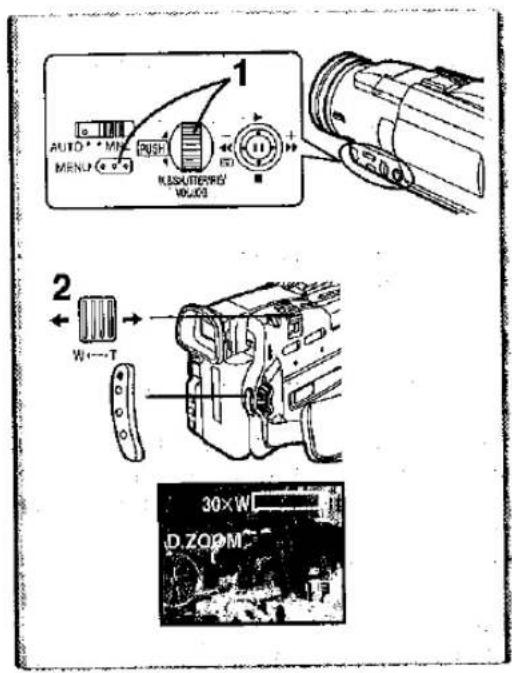
This function is useful when you want to record close-up shots of subjects located beyond a normal zoom range of 1× to 10× magnification. With the Digital Zoom Function, you can select a magnification of 20× or even to 100×.
1 Set [CAMERA FUNCTIONS] >> [CAMERA SETUP] >> [D.ZOOM] >> [20×] or [100×].
-20×: Digital zooming to 20×
- 100×: Digital zooming to 100×
2 Push the [W/T] Zoom Lever towards [W] or towards [T] to zoom in or out.
To cancel the Digital Zoom Function
Set [D.ZOOM] on the [CAMERA SETUP] Sub-Menu to [OFF].
- As the magnification of digital zoom increases, the quality of image may deteriorate.
- By pressing the [W/T] zoom lever to [W] or to [T] in Recording Pause Mode, you can zoom 1·10× at the maximum speed of 0.3 seconds.
- During recording, you can zoom 1-10× in as short a time as approximately 0.8 seconds.
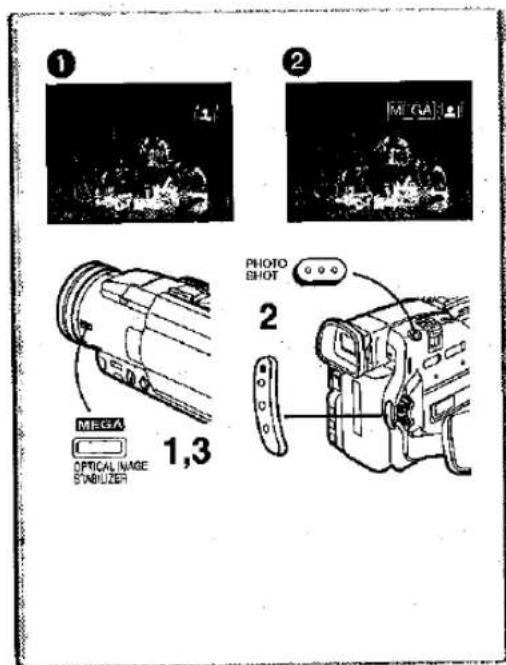
Optical Image Stabilizer Function
If you are recording in unstable situations and the Movie Camera is shaky, you can use this function to correct the distortion in these images.
- If the Movie Camera shakes too much, this function may not be able to stabilize images.
1 Press the [OPTICAL IMAGE STABILIZER] Button repeatedly until the [☐] indication ① appears.
2 Press the Recording Start/Stop Button or [PHOTO SHOT] Button to start recording.
MEGA OIS (Optical Image Stabilizer) Function
This function increases the effect. We recommend using MEGA OIS (Optical Image Stabilizer) Function when performing Card Photo Shot Function.
3 Press the [OPTICAL IMAGE STABILIZER] Button repeatedly until the [MEGA ①] Indication ② appears.
- For other notes concerning this item, see page 47.
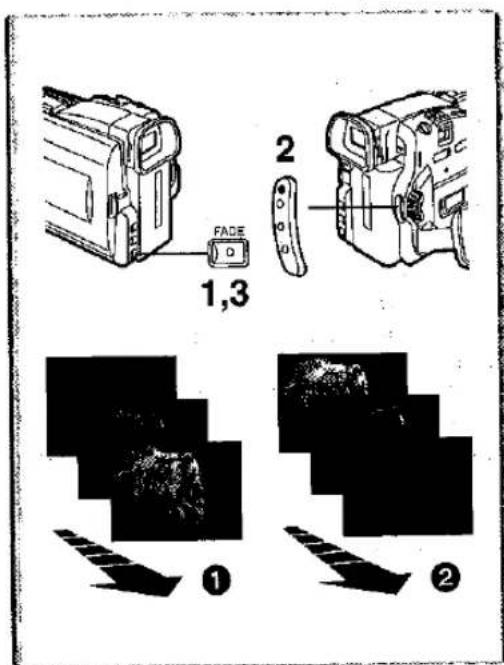
Fade In/Out Functions
Fade In 1
Fade In brings out images and sounds gradually from a black screen at the beginning of a scene.
1 Keep pressing the [FADE] Button during the Recording Pause Mode.
●The image fades out gradually.
2 When the image is completely gone, press the Recording Start/Stop Button to start recording.
3 Release the [FADE] Button about 3 seconds after starting recording.
●The image reappears gradually.
Fade Out ②
Fade Out causes images and sounds to disappear gradually, leaving a black screen at the end of a scene.
1 Keep pressing the [FADE] Button while recording.
●The image fades out gradually.
2 When the image is completely gone, press the Recording Start/Stop Button to stop recording.
3 Release the [FADE] Button.
●The still picture cannot fade in or fade out.
Cinema Function
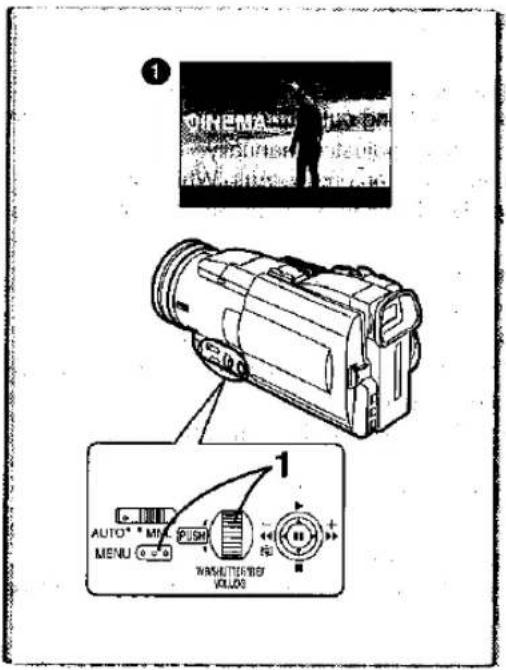
This function is for recording in a cinema-like wide screen.
1 Set [CAMERA FUNCTIONS] >> [CAMERA SETUP] >> [CINEMA] >> [ON].
- Black bars appear at the top and bottom of the screen.
To Cancel the Cinema Mode
Set [CAMERA FUNCTIONS] >> [CAMERA SETUP] >> [CINEMA] >> [OFF].
- For other notes concerning this item, see page 47.
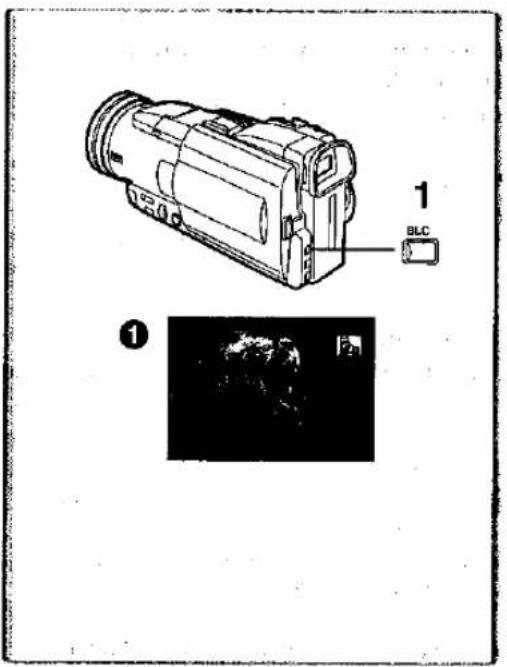
Backlight Compensation Function
This prevents a recording subject from being recorded darker in backlight. (Backlight is the light that shines from behind a recording subject.)
1 Press the [BLC] Button.
• The [P_0] Indication 1 flashes and then is displayed.
To Resume Normal Recording
Press the [BLC] Button.
- When the [BLC] Button is pressed, the entire screen becomes brighter.
- By operating the [OFF/ON/MODE] Switch, the Backlight Compensation Function is cancelled.
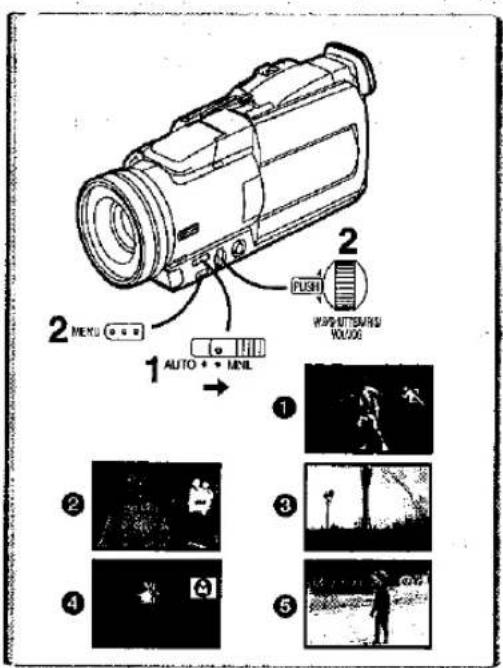
Recording in Special Situations
(Programme AE)
You can select optimal automatic exposures under specific recording.
1 Slide the Mode Selector Switch to [MNL].
●The [MNL] Indication appears.
2 Select the [CAMERA SETUP] on the [CAMERA FUNCTIONS] Main-Menu, and press the [PUSH] Dial to select the desired mode ([ ], [ ], [], [ ] or [].
●The indication of the selected mode appears.
[ ] Sports Mode 1
For recording scenes involving quick movements, such as sports scenes.
[ ] Portrait Mode ②
For bringing up people clearly from the background.
[△] Low Light Mode ③
For recording a dark scene brighter.
[8] Spotlight Mode 4
For recording a subject under spotlight in a party, theatre, etc.
[8] Surf & Snow Mode 5
For recording in a glaring surrounding, such as skiing grounds, beaches, etc.
To Cancel the Programme AE Function
Set the [PROG.AE] on the [CAMERA SETUP] sub-menu to [OFF]. Or, set the Mode Selector Switch to [AUTO].
●For other notes concerning this item, see page 48.
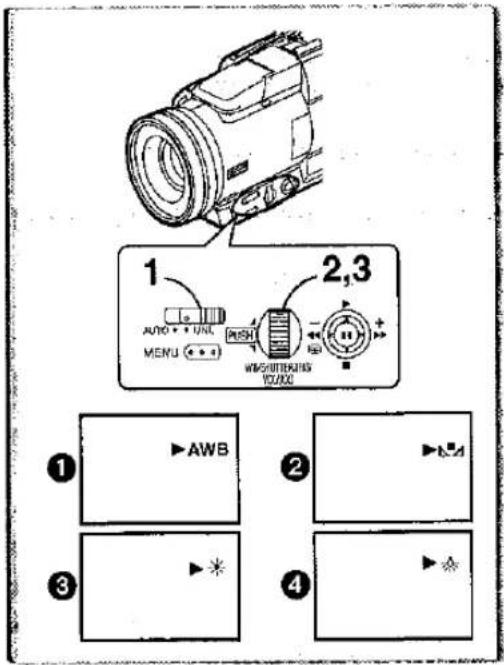
Recording in Natural Colours
(White Balance)
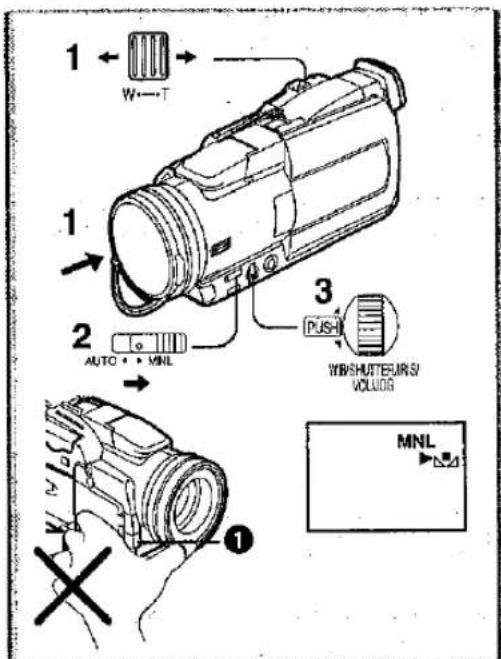
Depending on the scene or light condition, the Automatic White Balance Adjustment Mode may not be able to bring out natural colours. (→ 22, 56) In such a case, the white balance can be adjusted manually.
When power is turned on with the lens cap on, the Auto White Balance adjustment may not work properly. Please turn on the Movie Camera after removing the lens cap.
1 Set the Mode Selector Switch to [MNL].
• The [MNL] indication appears.
2 Press the [PUSH] Dial.
3 Turn the [PUSH] Dial to set a desired White Balance Mode.
① Automatic White Balance Adjustment [AWB]
② The white balance setting that was previously set manually [△△].
③ Outdoor Mode [※]
4 Indoor Mode (recording under incandescent lamp) [※]
To Resume Automatic Adjustment
Turn the [PUSH] Dial until the [AWB] Indication is displayed. Or, set the Mode Selector.Switch to [AUTO].
Adjusting White Balance Manually
For light outside the functional Auto White Balance Adjustment range, use the Manual White Balance Adjustment Mode.
1 Attach the Lens Cap and zoom in until the entire screen becomes white.
2 Set the Mode Selector Switch to [MNL].
• The [MNL] Indication appears.
3 Keep pressing the [PUSH] Dial until the [■■] Indication stops flashing.
To Resume Automatic Adjustment
Turn the [PUSH] Dial until the [AWB] Indication is displayed. Or, set the Mode Selector Switch to [AUTO].
■ About White Balance Sensor
The White Balance Sensor ① determines the nature of the light source during recording.
- Do not cover the White Balance Sensor with your hand during recording. Otherwise, White Balance will not work normally.
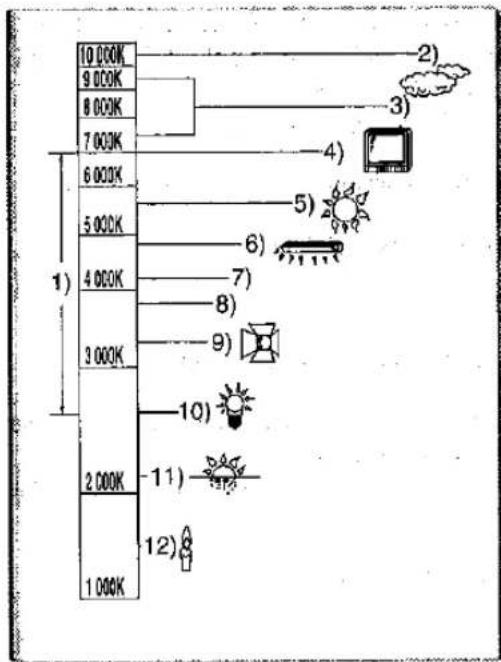
Outside of the effective range of Automatic White Balance Adjustment, the image will become reddish or bluish. Even within the effective range of Automatic White Balance Adjustment, the Automatic White Balance Adjustment may not function properly if there is more than one light source. In this case, adjust the White Balance.
1) The effective range of Automatic White Balance Adjustment on this Movie Camera
2) Blue sky
3) Cloudy sky (Rain)
4) TV screen
5) Sunlight
6) White fluorescent lamp
7) 2 hours after sunrise or before sunset
8) 1 hour after sunrise or before sunset
9) Halogen light bulb
10) Incandescent light bulb
11) Sunrise or sunset
12) Candlelight
- For other notes concerning this item, see page 48.
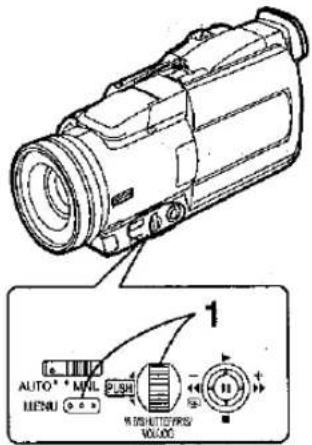
Manual Shutter Speed Adjustment
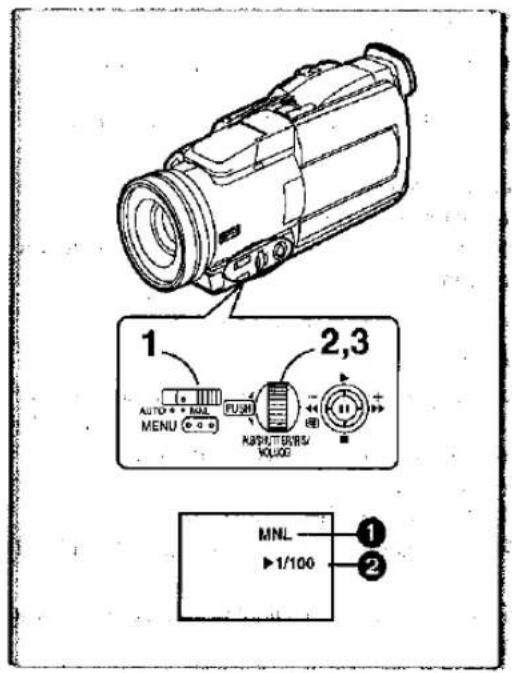
It is useful for recording fast-moving subjects.
1 Set the Mode Selector Switch to [MNL].
• The [MNL] Indication ① appears.
- Press the [PUSH] Dial until the Shutter Speed Indication ② appears.
3 Turn the [PUSH] Dial to adjust the shutter speed.
Range of Shutter Speed Adjustment
1/50-1/8000s (1/25-1/500s in Card Mode)
The standard shutter speed is 1/50 s.
Selecting a speed closer to [1/8000] causes the shutter speed to be faster.
To Resume Automatic Adjustment
Set the Mode Selector Switch to [AUTO].
- For other notes concerning this item, see page 48.
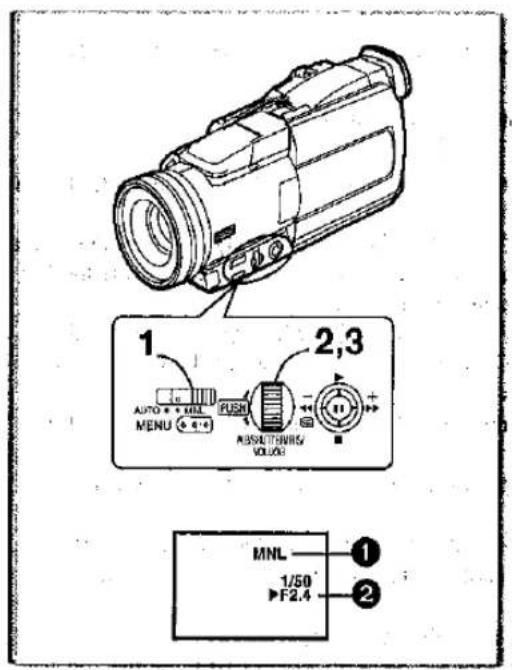
Manual Iris Adjustment
(F Number)
You can use this function when the screen is too bright or too dark.
1 Set the Mode Selector Switch to [MNL].
•The [MNL] Indication 1 appears.
2 Press the [PUSH] Dial until the Iris indication ② appears.
3 Turn the [PUSH] Dial to adjust the iris.
Range of Iris Adjustment
CLOSE (Closed), F16, ..., F2.0,
OP (Opened)+0dB,..., OP+18dB
When a value closer to [CLOSE] is selected, the image becomes darker.
When a value closer to [OP+18dB] is selected, the image becomes brighter.
The value to which +dB is attached indicates a Gain-up value. If this value is too large, the quality of the image deteriorates.
To Resume Automatic Adjustment
Press the [PUSH] Dial. Or set the Mode Selector Switch to [AUTO].
- For other notes concerning this item, see page 48.
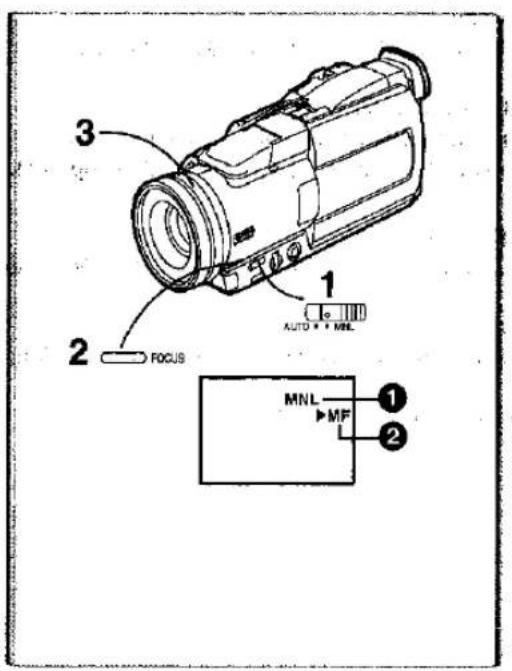
Manual Focus Adjustment
Focus can be adjusted manually for recording in a situation where auto focus may not function well.
1 Set the Mode Selector Switch to [MNL].
• The [MNL] indication ① appears.
2 Press the [FOCUS] Button.
- The [MF] Indication (Manual Focus Mode) ② appears.
3 Turn the Focus Ring to adjust the focus.
To Resume Automatic Adjustment
Press the [FOCUS] button to turn off the [MF] indication. Or set the Mode Selector Switch to [AUTO].
1
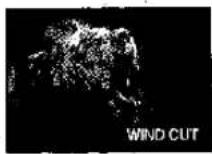
Wind Noise Reduction Function
This function reduces the sound of a wind hitting the microphone when recording.
1 Set [CAMERA FUNCTIONS] >> [RECORDING SETUP] >> [WIND CUT] >> [ON].
• The [WIND CUT] Indication 1 appears.
- It does not work with an external microphone.
- When it is set to [ON], directivity of microphone is regulated depending on the strength of wind to reduce wind noise.

Using the Video Flash
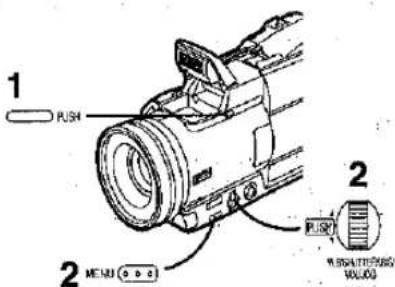
The Built-in Video Flash enables you to record still pictures in a dark place. The following is the steps to operate the Video Flash Function with the NV-MX8. When using the optional Video Flash (VW-FLH3E), refer to the operating instructions of the Video Flash.
1 Press the [PUSH] Button to open the Video Flash.
2 Set [FLASH] on the [RECORDING SETUP] Sub-Menu to [ON] or [AUTO].
- If [AUTO] is selected, Video Flash is set off if light is needed by sensing the surrounding luminosity.
3 Press the [STILL] Button.
- Video Flash is set off.
4 Press the [PHOTO SHOT] Button or Recording Start/Stop Button.
● Video Flash is not set off when recording.
- If either [] , [ +] or [ -] indication is lit, flash is set off. If flashing or dark, Video Flash is not set off.
- The available range of the Video Flash is approximately 1 to 2.5 metres in a dark places. Picture will appear dark when they are recorded by using the Video Flash at distances greater than 2.5 metres.
- Using the Video Flash VW-FLH3E(optional) enables you to record still pictures farther than 2.5 metres in a dark place. The available range is approximately 1 to 4 metres.
- Video Flash VW-FLH3E(optional) and the built-in video flash cannot be used simultaneously.
- Object of recording may appear dark if flash is set off in front of white background.
- Tele Conversion Lens (VW-LW4307ME) or Wide Conversion Lens (VW-LW4314ME) can block flash light and may cause vignetting effect.
Adjusting Brightness of the Video Flash
Brightness of the Video Flash can be set in [FLASH LEVEL] on the [RECORDING SETUP] Sub-Menu.
Set [FLASH LEVEL] on the [RECORDING SETUP] Sub-Menu to desired Flash Level.
- Normally, set it to [NORMAL] ( [4] indication appears).
- If the brightness is not enough in [NORMAL] setting, set it to [+] ([ 14 +] indication appears), if it is too much, set it to [-] ([ 14 -] indication appears).
To make the "Red Eye" phenomenon reduce
Set the [RED EYE REDUCTION] on the [RECORDING SETUP] Sub-Menu to [ON].
•The [∅] Indication appears.
- You may get red eyes phenomenon depending on the recording condition.
- For other notes concerning this item, see page 48.
[EFFECT 1]
2) P-IN-P
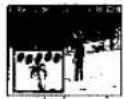
3) WIPE
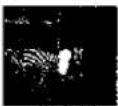
4) MIX
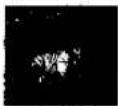
5) STROBE
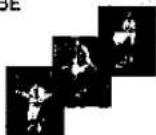
6) GAINUP
7) TRACER
8) MOSAIC
9) MIRROR
[EFFECT 2]
10) NEGA
11) SEPIA
12) BW
13) SOLARI
Digital Effect Functions
This Movie Camera is equipped with Digital Effect Functions that add special effects to the scene.
Digital Effects 1 [EFFECT1]
1) Multi Mode [MULTI]
2) Picture-In-Picture Mode [P-IN-P]
3) Wipe Mode [WIPE]
4) Mix Mode [MIX]
5) Strobe Mode [STROBE]
- It records images with a stroboscopic effect.
6) Gain-up Mode [GAINUP]
- It brightens images electronically.
- Adjust focus manually when using this mode. (→ 23)
7) Trailing Effect Mode [TRACER]
- It records images with a trailing effect.
8) Mosaic Mode [MOSAIC]
- It produces a mosaic-like image.
9) Mirror Mode [MIRROR]
●The right half of an image becomes a mirror image of the left half.
Digital Effects 2 [EFFECT2]
10) Negative Mode [NEGA]
- The colours of the recorded image are inverted as seen in a negative.
11) Sepia Mode [SEPIA]
- It records a scene with a brownish tint, like the colour of old pictures.
12) Black&White Mode [B/W]
- It records an image in black and white.
13) Solarisation Mode [SOLARI]
- It records an image with a painting-like effect.
To Select a Desired Digital Effect
Set [CAMERA FUNCTIONS] >> [DIGITAL EFFECT] >> [EFFECT1] or [EFFECT2] >> a desired Digital Effect.
To Cancel the Digital Effect
Set [CAMERA FUNCTIONS] >> [DIGITAL EFFECT] >> [EFFECT1] or [EFFECT2] >> [OFF].
- If the Movie Camera is turned off, the [EFFECT2] settings are cancelled.
- For other notes concerning this item, see page 49.
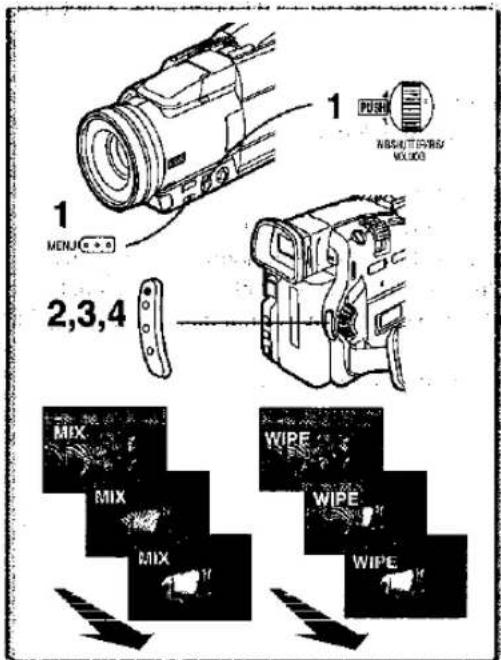
Wipe Mode and Mix Mode
Wipe Mode:
Like a curtain is being pulled, the still picture of the last recorded scene gradually changes to the moving image of a new scene.
Mix Mode:
While the moving image of a new scene fades in, the still image of the last recorded scene gradually fades out.
1 Set [DIGITAL EFFECT] >> [EFFECT1] >> [WIPE] or [MIX].
◆The [WIPE] or [MIX] Indication appears.
2. Press the Recording Start/Stop Button to start recording.
3 Press the Recording Start/Stop Button to pause the recording.
- The last scene is stored in memory. The [WIPE] or [MIX] Indication changes to [WIPE] or [MIX].
4 Press the Recording Start/Stop Button to restart the recording.
●The last image of the previous scene gradually changes to the new scene.
- For other notes concerning this item, see page 49.
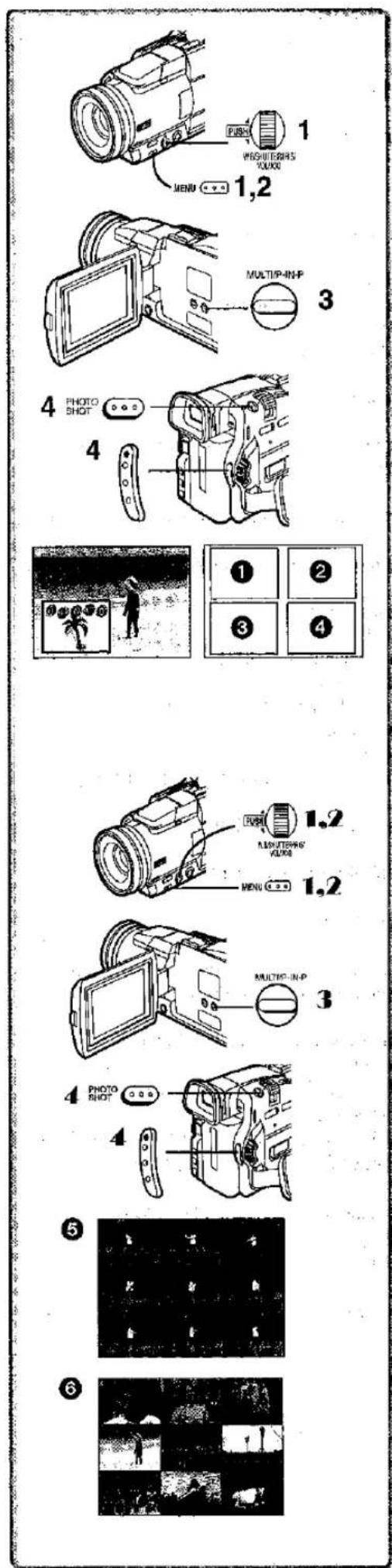
Picture-in-Picture Mode
You can display a sub-screen (still picture) inside the screen.
After setting [DIGITAL EFFECT] >> [EFFECT1] >> [P-IN-P].....
1 Select [P-IN-P] on the [MULTI-PICTURES] Sub-Menu and set the position (①②③④) where you want to Insert a small still picture.
2 Exit the menu by pressing the [MENU] Button.
3 Aim the Movie Camera at the scene you want to capture and press the [P-IN-P] Button to insert a small still picture.
- A small still picture is displayed in a Normal picture.
- If the [P-IN-P] Button is pressed again, the small still picture is cleared.
4 Press the Recording Start/Stop Button or the [PHOTO SHOT] Button to record on the Cassette.
- For other notes concerning this item, see page 49.
Multi-Picture Mode
Strobe Multi-Picture Mode 5:
You can capture and record 9 consecutive small still pictures.
Manual Multi-Picture Mode 6:
You can manually capture and record 9 small still pictures.
1 Set [DIGITAL EFFECT] >> [EFFECT 1] >> [MULTI].
2 Set [MULTI-PICTURES] >> [SCAN MODE] >> [STROBE] or [MANUAL].
When [STROBE] is selected:
- Set the [SPEED] to a desired strobe speed. At the [FAST] setting, 9 consecutive still pictures is captured within approximately 1 second, at [NORMAL] within approximately 2 seconds, and at [SLOW] within approximately 3 seconds.
- If you set [SWING] on the [MULTI-PICTURES] Sub-Menu to [ON], the intervals at which the 9 still pictures are taken are longer at the beginning and end than in the middle of the swing strobe period, and it is useful for analyzing swing motion,etc.,in sports.
When [MANUAL] is selected:
- You can select a desired scene one at a time up to 9 small pictures.
3 Press the [MULTI] Button.
- If [MANUAL] is selected, press the [MULTI] Button at each scene you want to capture.
4 Press the Recording Start/Stop Button or the [PHOTO SHOT] Button to record on the Cassette.
Deleting all the captured Multi-Pictures
While 9 multi-pictures are displayed, press the [MULTI] Button.
- If [MANUAL] has been selected, press the [MULTI] Button after 9 pictures are displayed.
To display the Multi-Pictures again
Press the [MULTI] Button for 1 second or longer.
To Delete Multi pictures one by one
(When pictures were captured in [MANUAL])
When the [MULTI] Button is pressed for 1 second or longer while the still pictures are displayed, the pictures captured last is deleted continuously.
● After still pictures are deleted one by one, they cannot be displayed again.
- For other notes concerning this item, see page 49.
VCR Mode
Playing Back
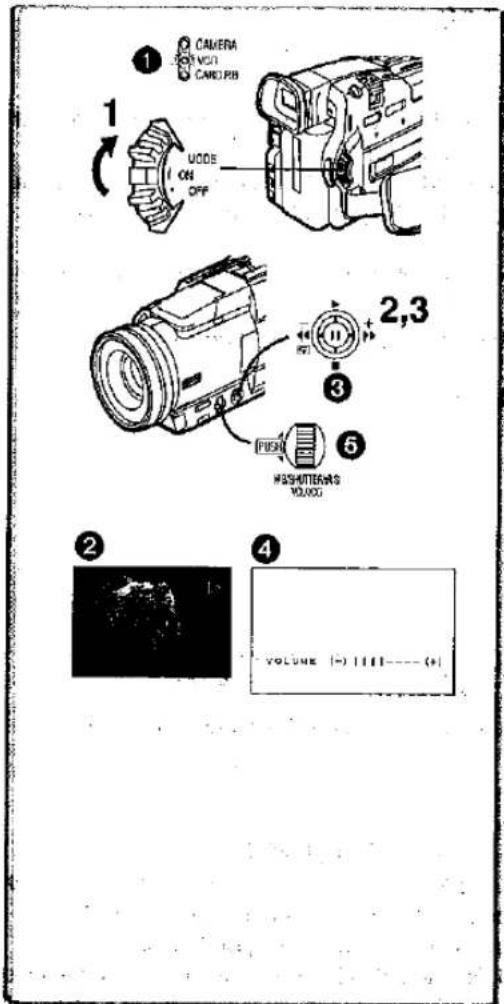
The recorded scene can be played back immediately after the recording.
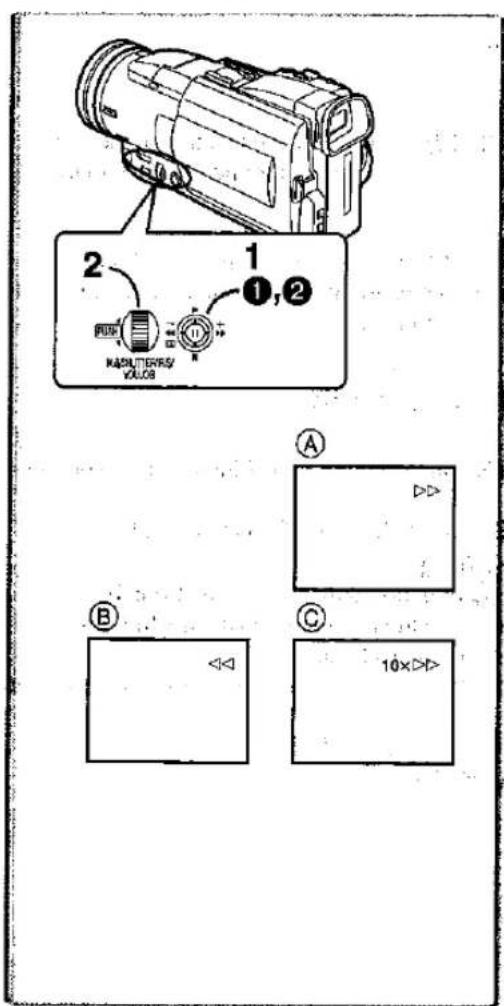
1 Slide the [OFF/ON/MODE] Switch and set the Movie Camera in the VCR Mode.
•The [VCR] Lamp lights up. ①
2 Push the Operation Lever towards [◀◀] to rewind the tape.
- Rewind the tape to the point where you want to start playback.
- When the tape reaches the beginning, rewinding stops automatically.
3 Push the Operation Lever towards [▶] to start playback.
•The [▷] Indication ② appears.
To Stop Playback
Push the Operation Lever towards [■] ③.
■Adjusting the Sound Volume
Until the [VOLUME] Indication 4 appears, keep pressing the [PUSH] Dial 5. Then, turn the [PUSH] Dial to adjust the volume. After the adjustment, press the [PUSH] Dial to make the [VOLUME] Indication disapper.
To adjust the volume with the Remote Controller, press the [T] or [W] Button to display the [VOLUME] Indication. Press the [T] Button to increase the volume or press the [W] Button to decrease the volume. The [VOLUME] Indication goes off a few seconds after the adjustment is finished.
- The sound volume cannot be adjusted using the Remote Controller in Playback Zoom Mode. (→ 29)
- If a cassette recorded with a copyright protection signal is played back, the picture is distorted by mosaic-like patterns.
- For other notes concerning this item, see page 49.
Finding a Scene You Want to Play Back
Cue/Review Playback
If the Operation Lever is pushed towards [▶▶] ① or [◀◀] ② during Playback, it turns to Cue Playback Ⓐ or Review Playback Ⓑ.
- If the Operation Lever is held continuously, it turns to Cue Playback or Review Playback until you release it.
- If the Operation Lever is pushed briefly, Cue Playback or Review Playback continues even when it is released.
Variable Speed Search Function ©
The speed of Cue Playback or Review Playback can be varied.
- During playback, push the Operation Lever towards [▶].
- The [1×D] Indication appears.
2 Turn the [PUSH] Dial to select a desired search speed.
The following 6 playback speeds are available for the Variable Speed Search Function in both the fast-forwarding and rewinding directions:
1/5× (slow playback in SP Mode only), 1/3× (slow playback in LP Mode only), 1×, 2×, 5×, 10× and 20×
To Resume Normal Playback
Push the Operation Lever towards [▶].
- During Cue or Review Playback, fast-moving images may show mosaic-pattern noise.
• The sound is muted during search.
Slow Motion Playback
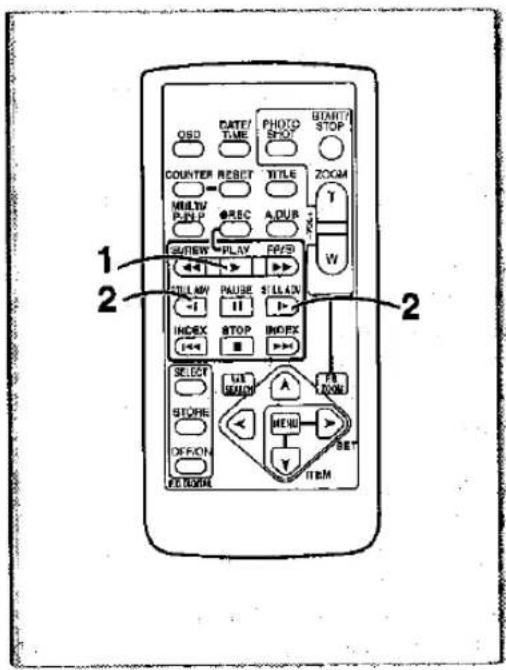
This Movie Camera can play back at a slow speed.
1 Press the [▶] Button.
2 Press the [◀] Button or [▶] Button on the Remote Controller.
•The [◀] or [▶] indication appears.
- When the [◀] Button is pressed, Slow Motion Playback proceeds in the reverse direction, while pressing the [▶] Button starts Slow Motion Playback in the forward direction.
Scenes recorded in the SP Mode are played back at approximately 1/5th of the normal speed.
Scenes recorded in the LP Mode are played back at approximately 1/3rd of the normal speed.
To Resume Normal Playback
Press the [▶] Button.
Still Playback/Still Advance Playback
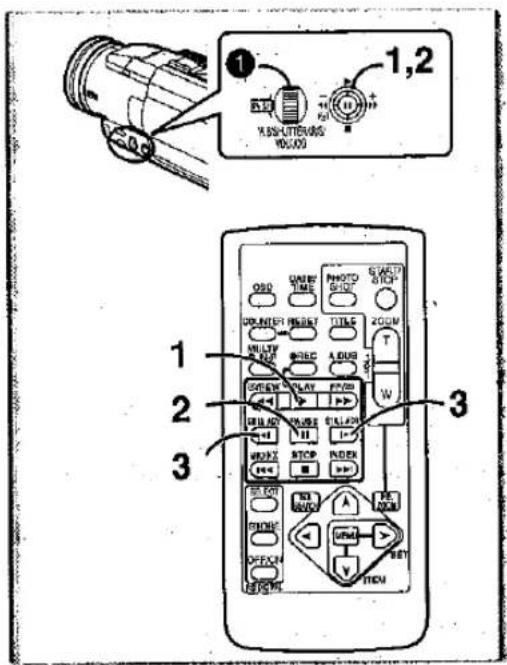
This Movie Camera is capable of still picture playback and frame-advance playback.
1 Press the [▶] Button.
2 Press the [11] Button.
◆The playback image stops in the Still Playback Mode.
3 Press the [◀] Button or [▶] Button on the Remote Controller.
With each pressing of the [◀] Button, still pictures advance in the reverse direction. With each pressing of the [▶] Button, still pictures advances in the forward direction. If either one of the buttons continues to be pressed, still pictures advance continuously 1 frame at a time until the button is released.
To Resume Normal Playback
Press the [▶] Button.
Jog Playback
By turning the Jog Dial ([PUSH] Dial) ① of the Movie Camera in the Still Playback Mode, still pictures can be advanced one frame at a time in the forward or backward direction.
- If the Movie Camera is left in the Still Playback Mode for more than 6 minutes, the Movie Camera switches to the Stop Mode to protect the video heads from excessive wear and tear.
Finding the End of Recording
(Blank Search Function)
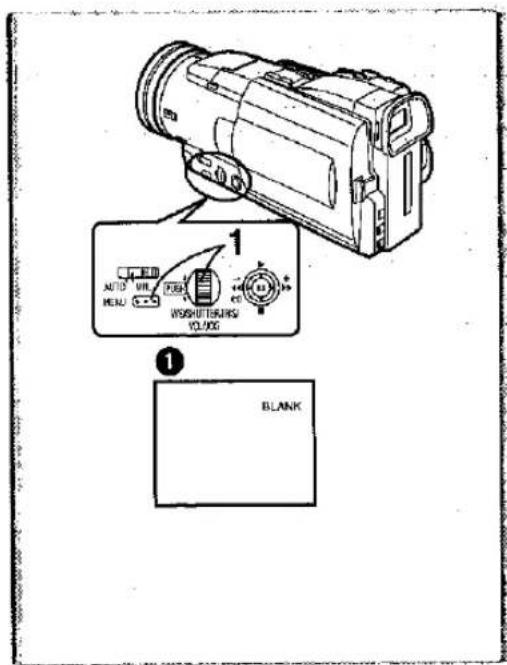
The Blank Search Function aids you locate the end of the recording on the Cassette quickly.
1 Set [VCR FUNCTIONS] >> [PLAYBACK FUNCTIONS] >> [BLANK SEARCH] >> [YES].
•The [BLANK] Indication 1 appears during the Blank Search.
- Approximately 1 second before the last recorded scene, the Movie Camera switches to the Still Playback Mode.
- If there is no blank portion left on the Cassette, the Movie Camera stops at the end of the tape.
To Cancel Blank Search Before Completion
Push the Operation Lever towards [■].
Index Search Functions
To facilitate searching of desired scene, this Movie Camera automatically records index signals during recording, as explained in the following.
Photoshot Index Signal
These signals are automatically recorded whenever still pictures are taken in Photoshop Mode. (→ 19) Photoshop Index: Signals are not recorded on still pictures recorded in Continuous Photoshop Mode.
Scene Index Signal
Scene Index Signals are automatically recorded when you start recording after inserting a Cassette.
- If [SCENEINDEX] of [RECORDING SETUP] Sub-Menu on the [CAMERA FUNCTIONS] Main-Menu is set to [2HOUR], an index signal is recorded when recording is restarted after an elapse of 2 hours or longer. If it is set to [DAY], an index signal is recorded when recording is restarted after the date has changed since the last recording. (While the index signal is recorded, the [INDEX] Indication flashes for a few seconds. Ⓐ)
- If the Movie Camera is switched from the VCR Mode to Camera Mode or if the date and time is set before the start of recording, the index signal is not recorded.
■Photoshot Index Search
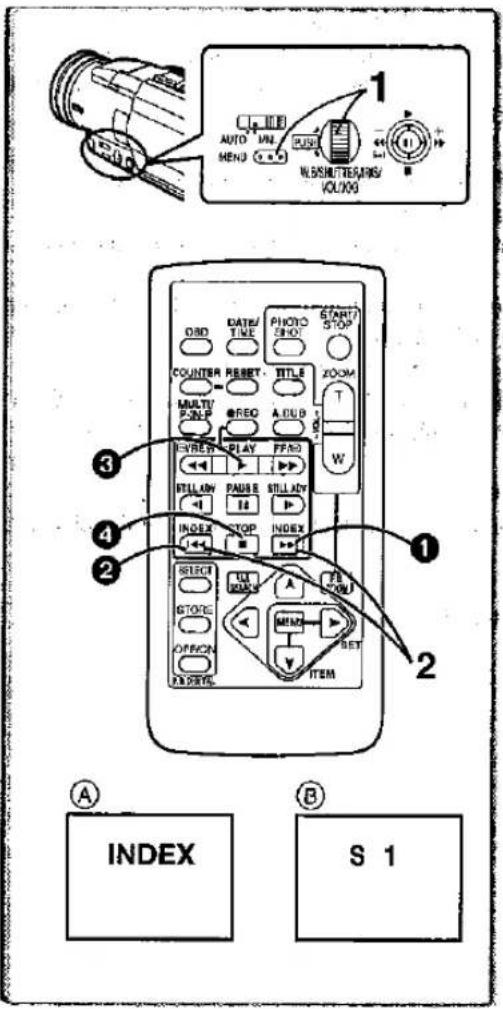
1 Set [VCR FUNCTIONS] >> [PLAYBACK FUNCTIONS] >> [SEARCH] >> [PHOTO].
2 Press the [▶▶] Button ① or [◀◀] Button ② on the Remote Controller.
- With each press of the corresponding button, still pictures recorded in Photoshop Mode are searched.
● Sounds are played back for approximately 4 seconds.
Scene Index Search
1 Set [VCR FUNCTIONS] >> [PLAYBACK FUNCTIONS] >> [SEARCH] >> [SCENE].
2 Press the [▶▶] Button or [◀◀] Button on the Remote Controller.
- When the corresponding button is pressed once, the [S 1] Indication ^⑧ appears, and searching of the subsequent scene marked with an index signal starts. Each time the button is pressed after the start of Scene Index Search, the indication changes from [S 2] to [S 9], and the beginning of the scene corresponding to the selected number will be searched.
- Up to 9 scene numbers can be selected.
Continuous Index Search
If the [▶▶] Button or the [◀◀] Button is pressed for 2 seconds or longer, search can be continued at several-second intervals. (To cancel, press the [▶] Button ③ or the [■] Button ④.)
- For other notes concerning this item, see page 49.
Playback Zoom Function
A part of the image can be enlarged up to 10 times during playback.
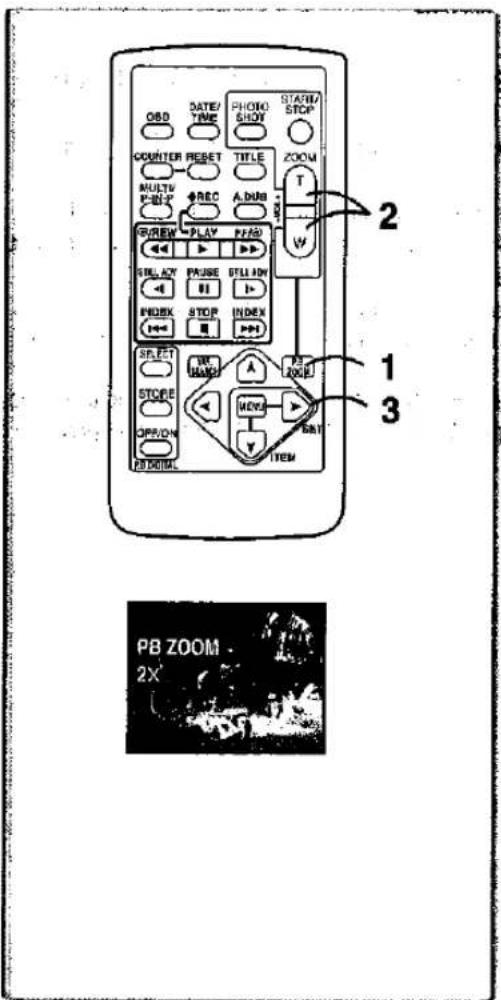
1 During playback, press the [P.B. ZOOM] Button on the Remote Controller.
- The centre of the image is enlarged to approximately 2 times.
To Change the Zoom Magnification
2 Change the magnification by pressing the [W] Button or [T] Button on the Remote Controller.
To Change the Enlarging Area of an Image
3 Press the Arrow Button (▲, ◀, ▶, ▼) on the Remote Controller that points to the area you want to enlarge.
To Cancel the Playback Zoom Function
Press the [P.B. ZOOM] Button on the Remote Controller.
- For other notes concerning this item, see page 49.
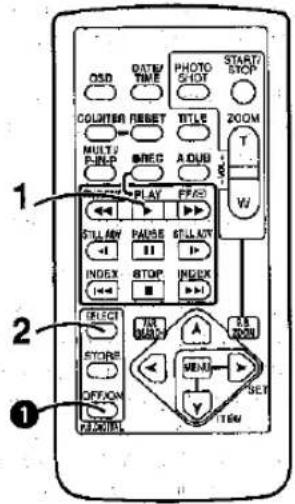
Playback Digital Effect Functions
During playback, special digital effects can be added to the recorded pictures. The same effects as those of Digital Effects 1 and 2, which are used during recording, are obtained.
1 Press the [▶] Button.
-
Press the [SELECT] Button of the Remote Controller to select a desired digital effect.
-
When the [SELECT] Button is pressed repeatedly, the digital effect selection changes.
- The same setting can be done using [DIGITAL EFFECT] Sub-Menu on the [VCR FUNCTIONS] Main-Menu.
To suspend Playback Digital Effect Temporarily
Press the [OFF/ON] Button ① to suspend or restart the digital effect. When the digital effect is paused temporarily, the selected effect's indication flashes.
To Cancel the Digital Effect
Press the [SELECT] Button on the Remote Controller and clear the digital effect indication.
- For other notes concerning this item, see page 49.
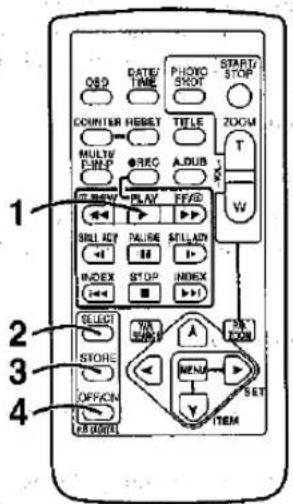
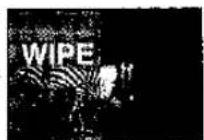
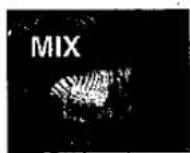
Wipe Mode and Mix Mode
1 Press the [▶] Button.
2 Press the [SELECT] Button on the Remote Controller and select [WIPE] or [MIX].
3 Press the [STORE] Button at the moment you want to save as a still picture.
- The [WIPE] or [MIX] Indication appears, and the image is saved.
4 Press the [OFF/ON] Button in the scene in which you want to use the Wipe or Mix effect.
• The scene changes as a result of the Wipe or Mix effect.
- The Wipe Function and Mix Function can be used only from the Remote Controller during playback.
- If the [OFF/ON] Button is pressed while Wipe or Mix is carried out, the effect will stop temporarily at that point. Pressing the [OFF/ON] Button again will bring back the effect.
- Panasonic
- Operating Instructions
- Before Use
- Dear Customer,
- Information for Your Safety
- Movie Camera
- AC Adaptor
- Caution for AC mains lead
- IMPORTANT
- ■ How to replace the Fuse
- Pages for reference
- WARNING
- ■ Carefully observe copyright laws.
- Contents
- CAMERA Mode
- VCR Mode
- CARD Mode
- Others
- Standard Accessories
- Optional Accessories
- Getting Started
- Viewing What Has Been Recorded
- Controls and Components
- Remote Controller
- ■Inserting a Button-type Battery
- ■ Using the Remote Controller
- Selecting Remote Controller Modes
- Setup on the Movie Camera:
- Setup on the Remote Controller:
- Power Supply
- Using the AC Adaptor
- Using the Battery
- To Remove the Battery
- ■ Using the Car Battery Charger
- Charging Time and Available Recording Time
- Lens Cap and Grip Belt
- Attaching the Shoulder Strap
- Inserting a Cassette
- Accidental Erasure Prevention
- Turning on the Movie Camera and Selecting Modes
- How to Turn on the Power
- How to Switch Modes
- Using the Viewfinder
- Using the LCD Monitor
- ■Adjusting Brightness and Colour Level
- Using the Menu Screen
- Press the [MENU] Button.
- Turn the [PUSH] Dial to select a desired Sub-Menu.
- Press the [PUSH] Dial to display the selected Sub-Menu.
- Turn the [PUSH] Dial to select the item to be set.
- Press the [PUSH] Dial to set the selected item to a desired Mode.
- To Exit the Menu Screen
- About the Menu Mode Setting
- ■ File Selection in the Card Playback Mode (NV-MX8 only)
- Turn the [PUSH] Dial and select a file.
- Press the [PUSH] Dial to confirm the selection of the file.
- List of Menus
- Camera Mode Main-Menu [CAMERA FUNCTIONS]
- [CAMERA SETUP] Sub-Menu
- [DIGITAL EFFECT] Sub-Menu
- [CARD SETUP] Sub-Menu (NV-MX8 only)
- [MULTI-PICTURES] Sub-Menu
- [RECORDING SETUP] Sub-Menu
- [DISPLAY SETUP] Sub-Menu
- [OTHER FUNCTIONS] Sub-Menu
- [DEMO MODE] Sub-Menu
- VCR Mode Main-Menu [VCR FUNCTIONS]
- [PLAYBACK FUNCTIONS] Sub-Menu
- [AV IN/OUT SETUP] Sub-Menu (NV-MX8 only)
- Card Playback Mode Main-Menu [CARD FUNCTIONS]
- (NV-MX8 only)
- [ERASE CARD FILE] Sub-Menu
- [CARD EDITING] Sub-Menu
- Short-Cut Menus of the Card Playback Mode (NV-MX8 only) Ⓐ
- Setting Date and Time
- Internal Lithium Battery Recharge
- LP Mode
- Audio Recording Mode
- Recording
- Recording Lamp (Tally Lamp) ④
- To Pause the Recording
- Press the Recording Start/Stop Button again.
- To Check the Recording
- ■ To View the Recorded Scene while the Recording Is Paused
- (Camera Search)
- Recording Yourself
- ■ To Finish the Recording
- Photoshot
- Progressive Photoshot
- Continuous Photoshot
- Digital Still Picture
- Zoom In/Out Functions
- To Take Close-up Shots of Small Subjects (Macro Close-up Function)
- To Use the Zoom Microphone Function
- Digital Zoom Function
- Optical Image Stabilizer Function
- Fade In/Out Functions
- Cinema Function
- Backlight Compensation Function
- Recording in Special Situations
- Recording in Natural Colours
- (White Balance)
- To Resume Automatic Adjustment
- Adjusting White Balance Manually
- ■ About White Balance Sensor
- Manual Shutter Speed Adjustment
- Manual Iris Adjustment
- Manual Focus Adjustment
- Wind Noise Reduction Function
- Using the Video Flash
- Adjusting Brightness of the Video Flash
- To make the "Red Eye" phenomenon reduce
- Digital Effect Functions
- Digital Effects 1 [EFFECT1]
- Digital Effects 2 [EFFECT2]
- To Select a Desired Digital Effect
- To Cancel the Digital Effect
- Wipe Mode and Mix Mode
- Wipe Mode:
- Mix Mode:
- Picture-in-Picture Mode
- Multi-Picture Mode
- Deleting all the captured Multi-Pictures
- To display the Multi-Pictures again
- To Delete Multi pictures one by one
- Playing Back
- Finding a Scene You Want to Play Back
- Slow Motion Playback
- Still Playback/Still Advance Playback
- Finding the End of Recording
- Index Search Functions
- Photoshot Index Signal
- Scene Index Signal
- ■Photoshot Index Search
- Scene Index Search
- Continuous Index Search
- Playback Zoom Function
- Playback Digital Effect Functions
- To suspend Playback Digital Effect Temporarily
Marke : PANASONIC
Modell : NV-MX2
Kategorie : Camcorder