
CLP-521Z - Drucker CITIZEN - Kostenlose Bedienungsanleitung
Finden Sie kostenlos die Bedienungsanleitung des Geräts CLP-521Z CITIZEN als PDF.


| Produkttyp | Thermodirekt-Etikettendrucker |
| Modell | CLP-521Z |
| Marke | Citizen |
| Druckverfahren | Thermodirekt (Direct Thermal) |
| Druckgeschwindigkeit | 4 IPS (Inch pro Sekunde) |
| Unterstützte Druckersprache | ZPL (Zebra Programming Language) |
| Bedienerschnittstelle | VuePrint-Konfigurationsmenü mit 4 Tasten |
| Mediensensor | Durchlichtsensor (See Through) |
| Schnittstellen | RS-232C (seriell), IEEE 1284 (parallel) |
| Abreißkante | Ja (Tear-Modus) |
| Schneidfunktion | Ja (Cutter-Modus einstellbar) |
| Maximale Medienlänge | 10 Zoll (254 mm) |
| Einstellbare Parameter | Druckgeschwindigkeit, Druckdichte, Vertikalposition, Horizontalverschiebung |
| Stromversorgung | Externes Netzteil |
| Betriebssystemkompatibilität | Windows (mit Treiber von Seagull Scientific) |
| Besonderheiten | Für ältere Anwendungen optimiert, ZPL-Emulation |
| Verwendung | Etiketten- und Barcodedruck im gewerblichen Bereich |
| Reinigung | Druckkopf und Sensor regelmäßig mit Isopropylalkohol reinigen |
| Garantie | Herstellergarantie (Details siehe Handbuch) |
Häufig gestellte Fragen - CLP-521Z CITIZEN
Benutzerfragen zu CLP-521Z CITIZEN
0 Frage zu diesem Gerät. Beantworten Sie die, die Sie kennen, oder stellen Sie Ihre eigene.
Eine neue Frage zu diesem Gerät stellen
Laden Sie die Anleitung für Ihr Drucker kostenlos im PDF-Format! Finden Sie Ihr Handbuch CLP-521Z - CITIZEN und nehmen Sie Ihr elektronisches Gerät wieder in die Hand. Auf dieser Seite sind alle Dokumente veröffentlicht, die für die Verwendung Ihres Geräts notwendig sind. CLP-521Z von der Marke CITIZEN.
BEDIENUNGSANLEITUNG CLP-521Z CITIZEN
3 Windows® Printers Drivers
Citizen's CLP 521Z and CLP 621Z printers are designed for use in specific applications where compatibility with an older application is needed. Generally these are applications which are not Microsoft Windows® compatible.
Your printer w/primer with written correction of adstandable citizen CLP Worldw/user@clt. W However, we recommend that the following printers driver is used to ensure compatibility with these printers.
Please visit Seagull Scientific's Web Site: www.seagullscientific.com
Find the section allowing you to download a printer driver. Select the Zebrâ range of drivers and download the driver file. Follow the usual instruction to install this printer driver but select a compatible printer according to the following list:
for a CLP 521Z
for a CLP 621Z
select a Zebr ^ LP 2844Z ^TM driver
select a Zebr® TLP 2844Z™ driver
If you have any further questions, please contact us at the address shown below.
\* For Further Information ...
For further information and more detailed instructions on the use of your new printer, please refer to the complete user manual included on the CD-ROM accompanying your printer. Alternatively, you may find it easier to contact your local Citizen office as follows:
For Europe, Middle East and Africa
For North and South America:
Citizen Systems Europe
Citizen Systems America
www.citizen-europe.com
www.citizen-systems.com
Tel UK: +44 (0) 20 8893 1900
Torrance, California.
Tel Germany: +49 (0) 711 3906 420
Tel: +1 310 781 1460
Printed in Europe
JM74915-Z0
CITIZEN®
Z-START
GUIDE
This guide gives you specific information for the CLP 521Z and CLP 621Z printers from Citizen that is not contained in the other user manuals and documents.
Thermal Label & Barcode Printer
CLP-521Z
CLP-621Z
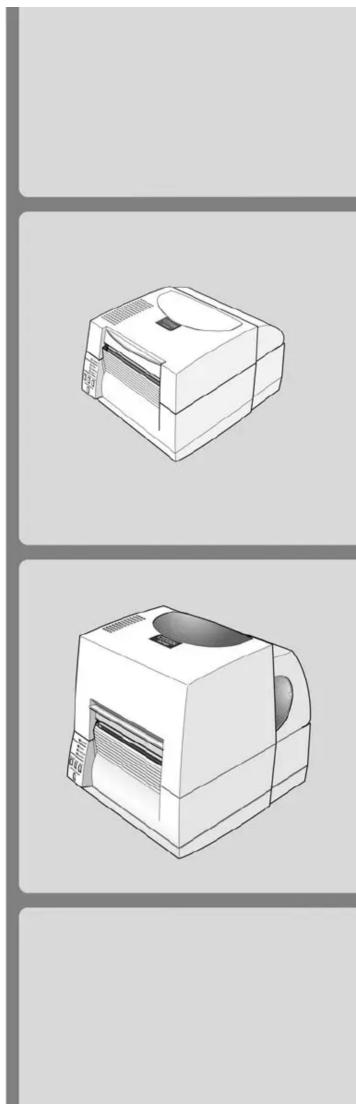
natural_image
Two technical line drawings of a printer or scanner device, shown from top and side views (no text or symbols visible)1 Introduction
What does the “Z” mean?
Label printers talk a variety of different languages! Our printers usually use their own Citizen language but we have created a version that specifically understand the ZPL® language from Zebra®.
So your CLP 521Z or CLP 621Z printer understands this ZPL language instead of the normal Citizen language.
How does this affect me?
In normal operation, you will notice no difference in operation of your printer. It will still print labels in the same way and media and ribbons are loaded in exactly the same way to a normal printer.
Please refer to the other quick-start guides for details of media loading and operation of the printer.
However, the configuration and setup of some of the printer's internal settings will be a little different. This may not affect you either if your printer can be used in an 'out of the box' configuration.
What does this guide say?
This guide explains the differences in the printer's configuration system and also explains the best printer driver to use with different applications including the Windows® operating systems
Windows® is a registered trademark of Microsoft Corporation in the United States and/or other countries. ZPL® and Zebra® are registered trademarks of Zebra Technologies (ZIH Corp) in the United States and/or other countries.
2 Using VuePrint™ Configuration System
Machine Information
| Model Number | : CLP-521Z |
| Boot Version | : 0000 |
| ROM Version | : CM000000 |
| ROM Date (DD/MM/YY) | : 00/00/05 |
| ROM Check Sum | : 0000 |
| Head Check | : OK |
| Print Counter | : 0.045 km |
| Service Counter | : 0.045 km |
| Sensor Monitor | : 1.14 V |
| Option Interface | : None |
Current Menu Settings
| [Page Setup Menu] | |
| Print Speed | : 4 IPS |
| Print Darkness | : 10 |
| Darkness Adjust | : 00 |
| Print Method | : Direct Thermal |
| Continuous Media Length | : 4.00 inch |
| Vertical Position | : 0.00 inch |
| Horizontal Shift | : 0.00 inch |
| Media Sensor | : See Through |
| Small Media Adjustment | : Off |
| Small Media Length | : 1.00 inch |
| [System Setup Menu] | |
| Sensor Level | : 1.5 V |
| Buzzer Select | : On |
| Metric/Inch for VuePrint | : Inch |
| Max Media Length | : 10.00 inch |
| Settings Lock | : Off |
| Keyboard Lock | : Off |
| Control Prefix | : (>) 7EH |
| Format Prefix | : (>) 5EH |
| Delimiter Prefix | : (>) 2CH |
| Media Power Up | : On |
| [After Print Menu] | |
| AutoConfigure | : On |
| Function Select | : Tear |
| Cutter Action | : Backfeed |
| Paper Position | : 0.00 inch |
| Mode/Repeat Key | : Disabled |
| [Interface Menu] | |
| RS-232C Baud rate | : 9000 bps |
| RS-232C Parity | : None |
| RS-232C Length | : 0 bit |
| RS-232C Stop bit | : 1 bit |
| RS-232C X-ON | : Yes |
| IEEE 1284 | : On |
Do you want to print the current menu settings? Yes=(PAUSE) No=(STOP)
Citizen CLP-521Z VuePrint Menu System
| The four control panel buttons are used to select different options. Generally: | |
| Yes / Select / Save | = PAUSE(P) key |
| No / Next Item / Increase Item | = STOP(S) key |
| Next Digit | = FEED(F) key |
| Exit to previous menu | = MODE(M) key |
How to Use VuePrint™
The VuePrint menu system is used to make changes to the settings of the printer. Please refer to the Quick Start Guide for more details on its operation. You can access the VuePrint system by switching on the printer holding down the [MODE] key.
Machine Information
This section of the print out will give you details specific to your printer, such as the version of firmware, total distance printed by your printer and the media sensor or optional interfaces.
Current Menu Settings
The "Page Setup", "After Print" and "Interface" menus are exactly the same on these printers. However, the System Setup menu has some different parameters.
- The Metric/ Inch option is only used to change the display in the VuePrint menu output and has no effect on printer operation and layout
- The Control Prefix, Format Prefix and Delimiter Prefix are all changeable in these printers. This changes the 'command codes' that the printer recognizes as actions for the printer. You will only need to change this for specific customer applications.
- The “Media Power Up” option (either On or Off) determines whether or not the printer feeds the paper to the top-of-form (start of a new label) when the printer is turned on. This is “on” by default but you may choose to switch this off for certain applications.
- The “Control Code” and “Emulation Select” menu options are not present or needed on the CLP 521Z or 621Z printers.
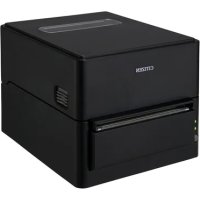
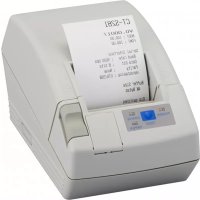
Marke : CITIZEN
Modell : CLP-521Z
Kategorie : Drucker