CD5435 - Autoradio ECLIPSE - Kostenlose Bedienungsanleitung
Finden Sie kostenlos die Bedienungsanleitung des Geräts CD5435 ECLIPSE als PDF.


| Produkttyp | Autoradio |
| Marke | Eclipse |
| Modell | CD5435 |
| Kategorie | CD-Receiver |
| Bauform | 1 DIN (178 x 50 mm) |
| Gewicht | ca. 1,5 kg |
| Stromversorgung | 12 V Gleichstrom (Masse negativ) |
| Maximale Ausgangsleistung | 4 x 50 Watt |
| Abspielmedien | CD, CD-R, CD-RW |
| Tuner-Bänder | UKW, MW |
| Senderspeicher | 30 (18 UKW + 12 MW) |
| Display | LCD mit mehrfarbiger Beleuchtung |
| Fernbedienung | enthalten |
| Audiofunktionen | EQ-Voreinstellungen, Bass-/Höhenregelung, Loudness |
| Eingänge | AUX-Eingang vorne, CD-Wechsler-Steuerung |
| Ausgänge | Vorverstärker (RCA) vorne/hinten, Subwoofer |
| Abnehmbare Frontplatte | Ja |
| Wartung | Reinigung mit weichem, trockenem Tuch; Lösungsmittel vermeiden |
| Sicherheit | Vor der Installation Minuspol der Batterie abklemmen |
| Reparierbarkeit | Ersatzteile über autorisierte Servicezentren erhältlich |
Häufig gestellte Fragen - CD5435 ECLIPSE
Benutzerfragen zu CD5435 ECLIPSE
0 Frage zu diesem Gerät. Beantworten Sie die, die Sie kennen, oder stellen Sie Ihre eigene.
Eine neue Frage zu diesem Gerät stellen
Laden Sie die Anleitung für Ihr Autoradio kostenlos im PDF-Format! Finden Sie Ihr Handbuch CD5435 - ECLIPSE und nehmen Sie Ihr elektronisches Gerät wieder in die Hand. Auf dieser Seite sind alle Dokumente veröffentlicht, die für die Verwendung Ihres Geräts notwendig sind. CD5435 von der Marke ECLIPSE.
BEDIENUNGSANLEITUNG CD5435 ECLIPSE
OWNER'S MANUAL
text_image
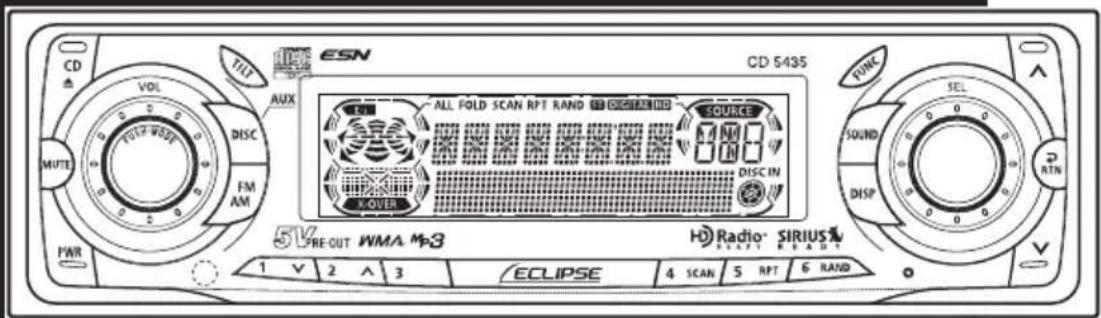
CD VOL DISC FM AM MUTE FWR ESN CD 5435 ALL FOLD SCAN RPT RAND SOURCE SIRIUS10 DISC IN POWER 5K PRE-OUT WMA MP3 ECLIPSE 4 SCAN 5 RPT 6 RAND TAIN SEL SOUND DISP RTNCD5435
ESN E5 High-Power "Full-Face" CD Receiver with MP3/WMA Decoder and Remote
We appreciate your purchase of this receiver. Please read through this manual for correct operation. We suggest that after reading it you keep this manual in a safe place for future reference.
For your safety in using the
CD5435
Warnings and caution signs, illustrated below, are posted throughout this manual as well as on the CD5435. They show safe and correct ways to handle the product so as to prevent personal injury to you, others and to avoid property damage.
Before reading through the manual, take time to read through and learn the important information listed in this section.

Warning
This sign indicates a situation in which incorrect handling or disregard of this sign might result in death or serious personal injury.

Caution
This sign indicates a situation in which incorrect handling or disregard of this sign might result in personal injury or may result solely in damage to property.

Warning
- Do not modify this system for use other than that specified herein. Also, do not deviate from the installation procedures described herein; Eclipse will not be held liable for damages including, but not limited to serious injury, death or property damage resulting from installations that enable unintended operation.
● This equipment requires 12V DC and should only be installed in a vehicle with a 12V negative ground electrical system. Any other installation may cause a fire or other severe damage to the equipment and the vehicle. - Never install this equipment where it will interfere with safe operation of the vehicle. Never block the drivers' view. Do not install equipment where it may interfere with operation of the brakes, the steering or any safety equipment, including seat belts and air bags.

Warning
● Before drilling holes in a vehicle for installation, you must confirm the locations of pipes, tanks, electrical wiring, and other vehicle systems and components to ensure that there will be no interference or contact. In addition, you must also apply rust prevention and leak prevention measures at the drilling area. Otherwise, fire or electric shock could occur.
- When installing equipment do not remove or alter existing vehicle fasteners, including nuts, bolts, screws, clips, and fittings. Never detach, move or alter existing vehicle wiring, including electrical grounds and straps. Alteration of existing vehicle components may make vehicle unsafe to operate.
- Before installation, remove the negative (-) battery terminal to prevent shocks, electrical arcing, fires, and damage to vehicle wiring and the equipment you are installing.
- Secure wiring with tape or plastic ties so that wires do not interfere with vehicle operation, including brake pedal, gear shifter and steering. Position wires so that they will not be rubbed, abraded, or damaged by moving vehicle components, including power seats.
● To avoid equipment and vehicle damage, including fire, never supply power to installed equipment in a way which will overload the capacity of an existing vehicle circuit. Never leave a power supply wire or connection uninsulated. Always install supplied fuses, circuit breakers, and relays.
● Air bags are vital safety equipment. Never install equipment in a way which will alter air bag wiring or interfere with air bag deployment. Air bags must function properly in the event of an accident.
- When installation is complete, test all vehicle electrical systems for proper operation, including lights, horn, brake lights, and emergency flashers.
- For your protection, never use a power drill without safety glasses or goggles. Debris or broken drill bits may cause severe eye injuries, including blindness.
- Use electrical tape to insulate the ends of all wires, even if not used. Proper insulation prevents arcs, shocks and fires.

Warning
● Some equipment uses batteries. Never install equipment where young children can get access to batteries. If a battery is swallowed, seek medical attention immediately.
- When vehicle is moving, never take your eyes off the road to make adjustments to the equipment. You must pay attention to the road to avoid accidents, do not let the operation or adjustment of the equipment distract you from proper vehicle operation.
● The driver should not look at the screen while driving. Accidents may result if you are not paying attention to the forward direction.
- Do not put foreign objects in the loading slot of disc. Fires or shocks may result.
- Do not disassemble or alter this equipment. Accidents, fires or shocks may result.
- Do not let water or foreign objects enter the internal parts of this equipment. Smoke, fires or shocks may result.
● Pay attention to where the remote control is left. Traffic accidents or problems with driving may result if the remote control makes its way under the foot pedals etc. when the vehicle is stopped or when it goes around a corner.
- Do not use when it is broken (the screen is not lit or no sound comes out). Accidents, fires or shocks may result.
● Always replace fuses with fuses of identical capacity and characteristics. Never use a high capacity fuse than the original. Using the wrong type of fuse may cause a fire or severe damage.
- If foreign objects or water enters the equipment, smoke comes out, or there is a strange odor, stop using it immediately, and contact your dealer. Accidents, fires, or shocks may result if you continue to use it in these conditions.
● The driver should not change the CD while driving. As accidents may result if you are not paying attention to the forward direction, first stop the car at a safe location and then proceed.
● Plastic bags and wrappings may cause suffocation and death. Keep away from babies and children. Never put bag over your head or mouth.

Caution
● Wiring and installing this equipment requires expertise and experience. Professional installation is recommended. Consult with your dealer or a professional installer. Incorrect wiring may damage the equipment or interfere with safe vehicle operation.
- Use only the accessory parts as specified. Using other parts may cause damage to the equipment or cause parts to fall or fly off the equipment.
- Do not install the unit in places where it may get dew condensation on (around the air conditioning hose, etc.), come in contact with water, or in condition of high moisture, dust or oily smoke. If water, moisture, dust or oily smoke enters this unit, smoke, fires or malfunctions may result.
- Avoid installing in places where it cannot be fastened securely or where there are strong vibrations. Also, if you installed the unit with double-sided tape, first wipe away dirt and wax from the installation area. Otherwise, the unit may come loose due to vibration while driving, causing problems for driving and resulting in traffic accidents or injuries.
- Do not install in places with direct sunlight or where it will be hit directly by hot air from the heater. This may increase the temperature of the interior of this equipment, resulting in fires and malfunctions.
- Do not block the fan, heat sink or vents of this unit. When fan, heat sink or vent is blocked, the interior overheats, and fires may result.
- Connect as specified in the installation manual. If not connected normally, fires or accidents may result.
- When installing in vehicles equipped with air bags, check the manufacturer's cautions regarding operation before operating. Airbags may not operate properly.
- Carry out the wiring such that cords are not pinched by movable parts such as seat rails, and screw parts of the vehicle body. Accidents, fires and shocks may result from disconnection and electrical shorts.
- Carry out the wiring such that the cord does not make contact with metal parts. The cord maybe be damaged by contact with metal parts, resulting in fire and shocks.

Caution
● Avoid hot surfaces when wiring equipment. High temperatures may damage wiring, causing shorts, arcing and fires.
- When changing the installation location for this equipment, please consult the dealer where you bought it for safety reasons. Expertise is necessary for removal and installation.
- Keep volume to a reasonable level so that you can hear sounds from outside the vehicle, including warning sounds, voices, and sirens. Failure to do so may cause an accident.
- Be careful that hands and fingers are not pinched when adjusting the tilting angle or closing display. Injuries may result.
- Do not put your hands or fingers into the loading slot of disc. Injuries may result.
- Do not touch the heat dissipating part of the amp. Burns may result from the heat of this part.
- Do not recharge dry batteries. Dry batteries may rupture, resulting in injuries.
- Do not use batteries other than those specified. Also, do not mix old and new batteries. Injuries or pollution to the surroundings may result from battery ruptures and leakage.
- When inserting batteries into the equipment, be careful with the polarity (positive/negative), and insert them as indicated. If the battery polarities are incorrect, injuries and pollution to the surroundings may result from battery ruptures and leakage.
- Replace used batteries as soon as possible; they may leak and damage equipment. Battery leakage can burn your skin or your eyes. Wash hands after handling.
- If alkaline solution from alkaline dry batteries makes contact with your skin or clothes, flush with clean water. If any of the solution gets in your eyes, also flush clean with water and then seek medical attention.
- When disposing of lithium dry batteries, affix insulating tape to the positive and negative terminals, and after they are insulated, dispose of them according to the "Local municipal ordinances". Shorts, fires and ruptures may result from disposal when coming contact with other electrically conductive objects such as metal parts, etc.

Caution
- Do not short, disassemble or heat the batteries, or place them in fire or water. Fire and injuries may result from battery rupture and leakage.
- Store the remote control in a place away from direct sunlight, high temperatures, and high moisture levels. The case may change shape, and the batteries may rupture and leak.
- Do not use this equipment except for in-vehicle use. Shocks or injuries may result.
- Be careful of the position of the volume when turning the power source ON. Hearing damage may result if very loud noise is emitted when the power is turned ON.
- Do not operate under abnormal conditions such as when the sound is broken or distorted. Fires may result.
● This equipment uses invisible laser light. Do not disassemble or alter this equipment. If trouble occurs, contact the dealer where you bought the equipment.
Altering this equipment may cause exposure to laser emissions (worsening eyesight), or result in accidents, fires or shocks. - If the equipment is dropped or the cosmetics appear broken, turn off the power to the main unit and contact your dealer. If used in this condition, fires or shocks may result.
Table of Contents
Operating precautions.... 13
Notes on operation....13
About compact discs....14
About cleaning a CD 16
Names of controls and parts 17
ESN security operating procedure.... 18
About ESN 18
How to operate the ESN (Key CD) security ....19
How to program the Key CD....19
How to cancel the Key CD....20
How to change the Key CD ....21
How to resume normal operation (ESN security lock out)....21
What happens if an incorrect CD is inserted? 22
How to turn the security indicator on/off....23
How to read the Electronic Serial Number 24
Basic operation 25
Turning the power on and off 25
Listening to CD 26
Listening to the tuner 27
Adjusting audio volume 28
Switching audio control modes ....29
VOL (VOLUME) Mode....29
BASS Mode 29
MID (MIDDLE) Mode 30
TREB (TREBLE) Mode....30
BAL (BALANCE) Mode 30
FAD (FADER) Mode....30
NON-F (NON-FADER) Mode....30
SVC (Source Volume Control) Mode....31
LOUD Mode....32
Recording user presets for the equalizer ....33
Changing the equalizer mode ....33
How to operate the Sound Adjustment Mode ....34
About Sound Adjustment Mode ....34
Making changes with Sound Adjustment Mode ....36
Crossover adjustment (X-Over FR) 37
Crossover adjustment (X-Over NF) 38
Non-fader phase selection (NON-F Phase).... 39
Making changes with Display Adjustment Mode....40
Contrast adjustment....41
Changing illumination Color.... 42
Making changes with Function Mode....43
Disabling the guide tone feature (for button operation) 44
Clock display on/off....45
Setting the time....46
Setting the steering switch function (U.S.A. only)....47
Others 51
Adjustment of the front panel angle....51
How to operate the CD player.... 52
Listening to CDs....52
Advancing to the next track or returning to the beginning of the track being played .... 53
Fast Forward/Rewind....53
Playing the beginning of tracks (SCAN).... 53
Repeating the same track (REPEAT) 54
Playing tracks in random order (RANDOM)....54
Ejecting the disc....55
Displaying CD TEXT 56
How to operate the MP3/WMA player.... 57
About MP3/WMA 57
What is MP3/WMA? 57
Playable MP3 file standards ....57
playable WMA file standards....57
ID3/WMA tags 58
Media....58
Format of discs 59
File names 59
Multi-sessions 60
Playing MP3/WMA 60
MP3/WMA playing time display 60
Display order of MP3/WMA file/folder names 60
Listening to MP3/WMA file.... 61
Advancing to the next track (file) or returning to the beginning of the track (file)
being played....62
Skipping to the next or previous folder.... 62
Fast Forward/Rewind....62
Return to the root directory of the CD 63
Playing the beginning of files (SCAN).... 64
Repeating the same file (REPEAT) 64
Playing files in random order (RANDOM) 65
Displaying title....65
How to operate the tuner.... 66
Tuning to a station 66
Entering stations into memory automatically (The automatic preset mode: ASM)......67
Manually setting stations into memory 68
Preset station scan 69
Changing the reception sensitivity for automatic scanning ....70
Changing the radio band location ....71
FM reception characteristics....72
FM reception differs from AM 72
Fading out....72
Reception area of FM broadcasts.... 73
Multipath....73
How to operate the AREA SHOT function (U.S.A. only) 74
About the AREA SHOT 74
To use the AREA SHOT function ....74
Reading the AREA SHOT data 75
Changing the AREA SHOT mode ....77
Using the AREA SHOT mode ....78
Switching between guidance points....78
Re-scrolling through text information 78
Changing AREA SHOT screens 78
Display Arrows....79
How to use the remote control 80
Precautions in use of the remote control 80
Cleaning the remote control....80
Turning the power on/off 81
Adjusting the audio volume....81
Muting the volume 81
Switching playback modes....82
How to play the tuner 82
Selecting the FM/AM band 82
Selecting a station (manually or automatically) 83
Selecting preset stations....83
How to play CDs 83
Switching disc modes 83
Advancing to the next track or returning to the beginning of the track being played 84
Skipping to the next or previous disc....84
How to play MP3/WMA 85
Switching disc modes 85
Advancing to the next file or returning to the beginning of the file being played..... 85
Skipping to the next or previous folder 85
Replacing the battery....86
How to operate the receiver with an optional CD changer connected 88
Listening to a CD 88
Advancing to the next track or returning to the beginning of the track being played ....88
Fast Forward/Rewind 88
Playing the beginning of tracks (SCAN)....89
Repeating the same track (REPEAT) 89
Playing tracks in random order (RANDOM)....90
Skipping to the next or previous CD 90
Specifying a CD to play....91
How to operate the tuner when the optional HD Radio tuner connected (U.S.A. only).... 92
About HD Radio 92
Tuning to a station 93
Entering stations into memory automatically
(The automatic preset mode: ASM) 94
Manually setting stations into memory 95
Preset station scan 96
Switching between displays when receiving HD Radio.... 97
HD Radio reception settings 97
How to operate the tuner with an optional SIRIUS satellite radio tuner connected (U.S.A. only) 99
About SIRIUS satellite radio 99
Selecting the radio mode 100
Selecting a channel....100
Category selection 101
Direct channel selection....101
Manually setting channels into memory 102
Preset channel scan 103
Switching displays when using the SIRIUS satellite radio ....103
Others 104
Connecting portable audio players to the AUX jack....104
Changing auxiliary input sensitivity....105
User Registration Key display....106
If you have a question: 107
Displayed information (for troubleshooting) 108
Specifications.... 111
Before installation.... 113
Components....113
Installation angle 113
Mounting instruction 114
Mounting the main unit....114
Names of lead wires and destinations 117
System 118
How to contact customer service.... 123
Operating precautions
Notes on operation
● For your safety, play only at volume levels that allow outside sounds to be heard.

text_image
COMPACT DISC DIGITAL AUDIO COMPACT DISC DIGITAL AUDIO TEXT COMPACT DISC DIGITAL AUDIO Recordable COMPACT DISC DIGITAL AUDIO ReWritable- We recommend using with this player a disc with the logo shown to the left.
- You can play music CDs(CD-R/CD-RW) on this player. Be sure to use discs that have been properly processed. Depending on the editing equipment used, some discs may not play properly.
text_image
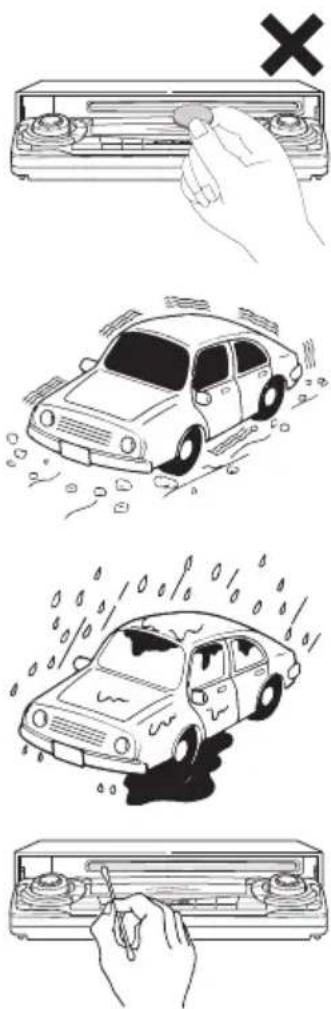
Illustration showing four different scenarios of car damage or repair, with hand and cross symbols indicating failure or rejection.- Do not insert anything other than a CD into the head unit.
Do not insert any foreign objects, such as coins or credit cards, into the disc slot. Be especially watchful of children's mischief in this regard.
● Avoid severe mechanical shock.
When the player is subjected to severe vibration while traveling over a rough surface, playback may be intermittent. When a situation like this occurs, resume playback after returning to a smoother road.
● About dew condensation.
In cold or rainy weather, just as the interior glass surface gets fogged, dew (water condensation) may also settle on the deck. When this occurs, disc playback may become intermittent or impossible. Dehumidify the air in the vehicle for a while before resuming playback.
● Cleaning the disc slot.
The disc slot tends to get dusty. Clean it occasionally to prevent accumulated dust from scratching the discs.
About compact discs
● The signal recorded on a compact disc is read by a laser beam, so nothing touches the disc surface. A scratch on the recorded surface or a badly warped disc may cause deteriorated sound quality or intermittent playback. Observe the following precautions to ensure high quality sound performance:
natural_image
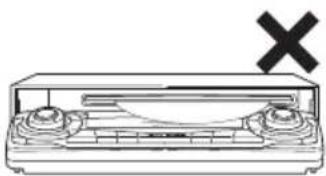
Diagram of a device with two ports and a cross symbol (no text or labels)- Do not leave an ejected disc in the disc slot for very long; the disc may warp. Discs should be stored in their cases and kept away from high temperature and humidity.
natural_image
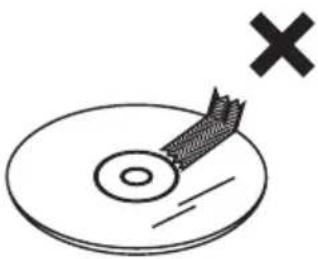
Simple line drawing of a CD or DVD disc with a cross mark and a small object on top (no text or symbols)- Do not stick a piece of paper or tape. Do not write on or scratch either side of a disc.
natural_image
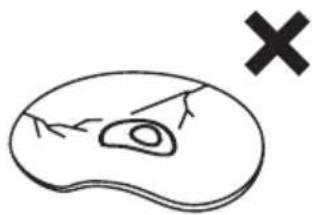
Simple line drawing of a biological structure with a cross mark, no text or symbols present● Discs spin at a high speed inside the deck. Keep cracked or warped discs out of the player to avoid damage it.
natural_image
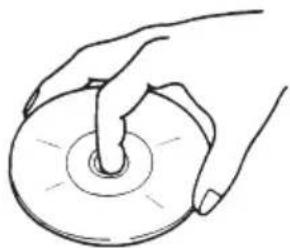
Line drawing of a hand holding a CD or DVD disc (no text or symbols)● Avoid touching the recorded surface when handling a disc; handle discs by their edges.
About brand new CDs
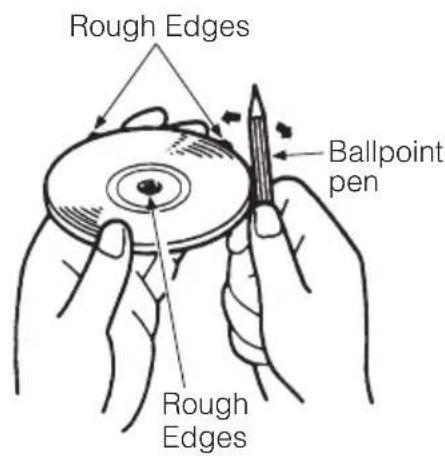
- You may notice that some brand new discs are rough around the center hole or outside edge. Remove the rough edges with the side of a ballpoint pen, etc. Rough edges may prevent proper loading in the deck. Flakes from the rough edges may also stick to the recorded surface and interfere with playback.
text_image
Rough Edges Ballpoint pen Rough Edges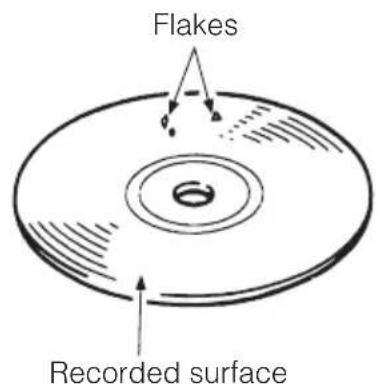
text_image
Flakes Recorded surfaceAbout CD accessories
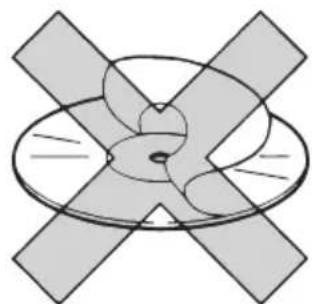
- Do not use accessories (stabilizers, protective seals, laser lens cleaners, etc.) sold for "improving sound performance" or "protecting CDs." The changes in CD thickness or outside dimensions made by these accessories may cause problems in the player.
natural_image
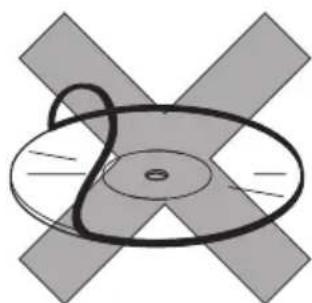
Abstract geometric diagram with intersecting planes and central circular pattern (no text or symbols)- Please be sure NOT to attach any ring-shape protector (or other accessory) to your discs. Those protectors are commercially available and said to protect disc and to improve sound quality (and antivibration effect), but they can do more harm than good in regular uses. The most common problems are disc insertion, disc ejections, and won't play problems due to the protector ring that came off in the disc mechanism.
natural_image
Abstract geometric diagram with intersecting X and Y axes and concentric circles (no text or symbols)About borrowed CDs
- Do not use a CD with glue or remnants of adhesive tape or labels. They may cause the CD to get stuck inside or damage the deck.
How to remove CDs
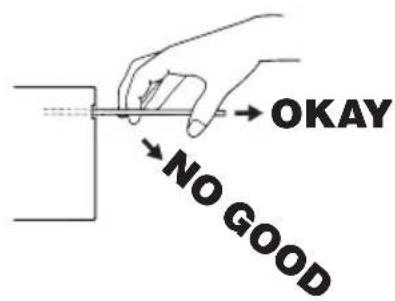
- When removing the ejected disc, pull it straight out along the slot. Pressing downward in the process may scratch the recorded surface of the disc.
text_image
OKAY NO GOODAbout irregularly-shaped CDs
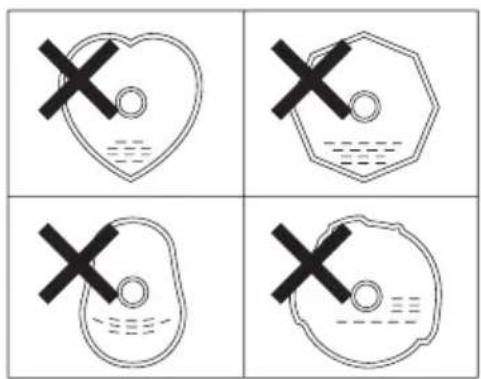
● Specially-shaped CDs, like heart-shaped or octagonal CDs, cannot be played. Do not attempt to play them, even with an adapter, since they may damage the player.
text_image
Four-panel grid showing heart-shaped and shield-shaped icons with black X marks, likely for educational or safety assessment.About cleaning a CD
natural_image
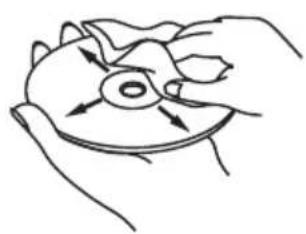
Line drawing of hands holding a disc with directional arrows indicating motion (no text or symbols)- Use a commercially available compact disc cleaner to clean a CD, wiping gently from the center to the edge.
text_image
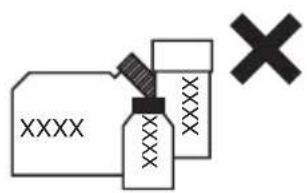
XXXX XXXX- Do not use benzine, thinner, LP record spray or other cleaners on CDs. They may damage a CD's finish.
Names of controls and parts
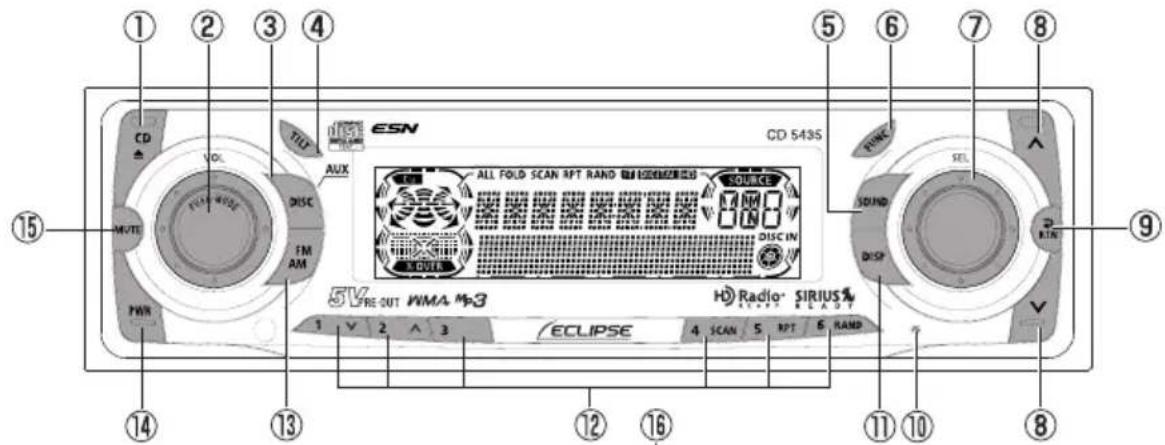
Front view
text_image
1 2 3 4 ESN CD 5435 CD VOL TLD AUX ALL FOLD SCAN RPT RAND SOURCE SOUND DISP DISC IN 5V PRE-OUT WMA M3 H Radio SIRIUS ECLIPSE 4 SCAN 5 RPT 6 RAND 1 V 2 ^ 3 12 16 11 10 8 9 15 14 13 12With the front open
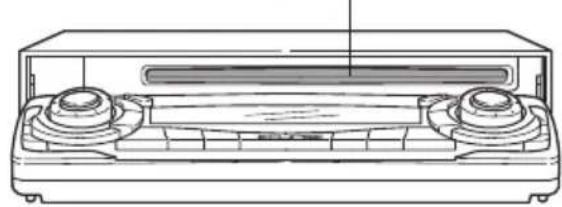
natural_image
Line drawing of a portable electronic device with two front-mounted fans and a central screen (no text or symbols)
Never place an object or rest your hands or the like on the front panel.
| 1 | [CD ▲button | Opens/closes front panel and ejects CD. |
| 2 | [AUDIO CONTROL] button | Adjusts volume and performs other functions. |
| 3 | [DISC] button Switches between disc modes and switches to AUX mode. | |
| 4 | [TILT] button Adjusts the front panel angle. | |
| 5 | [SOUND] button Turns the sound adjustment mode ON/OFF. | |
| 6 | [FUNC] button Turns function mode ON/OFF. | |
| 7 | [SEL] button Selects radio stations and CD tracks. | |
| 8 | [ ∧] button | Automatically finds radio reception or to fast forward/rewind. |
| 9 | [RTN] button Returns to previous screen. | |
| 10 | [RESET] button Resets deck functions to default settings. | |
| 11 | [DISP] button | Turns screen adjustment mode ON/OFF and switches screen display. Displays User Registration Key. |
| 12 | Buttons [1] to [6] Selects radio preset channels and performs disc mode functions. | |
| 13 | [FM AM] button Switches to radio mode and switches radio bands. | |
| 14 | [PWR] button Turns deck power ON/OFF. | |
| 15 | [MUTE] button* Activates and deactivates mute. | |
| 16 | Disc slot | Inserts compact discs. |
*: Double function button → "MUTE" & "AREA SHOT" functions
ESN security operating procedure
About ESN
This deck incorporates ESN (ECLIPSE Security Network). The ESN is a security system which disables all deck functions when the power is restored if the deck is stolen from the vehicle. Once the ESN is activated, removing power to the deck or vehicle will activate the security feature.
Setting or canceling of the security feature can be done with a "Key CD". It is necessary to register a music CD as the "Key CD" in advance.
text_image
[CD] button [FUNC] button CD VOL TILT ESC AUX DISC M/TE FM AM PWR 51V PRE-OUT WMA-M3 ALL FOLD SCAN RPT RAND ON DIMENSION SOURCE 4000 DISC IN SOURCE ECLIPSE 4 SCAN 5 RPT 6 RAND ECLIPSE 51V PRE-OUT WMA-M3 H Radio SIRIUS SIRIUS RESET 1 V 2 ^ 3 ECLIPSE 4 SCAN 5 RPT 6 RAND RANK SEL SOUND DISP RTN Button [6]How to operate the ESN (Key CD) security
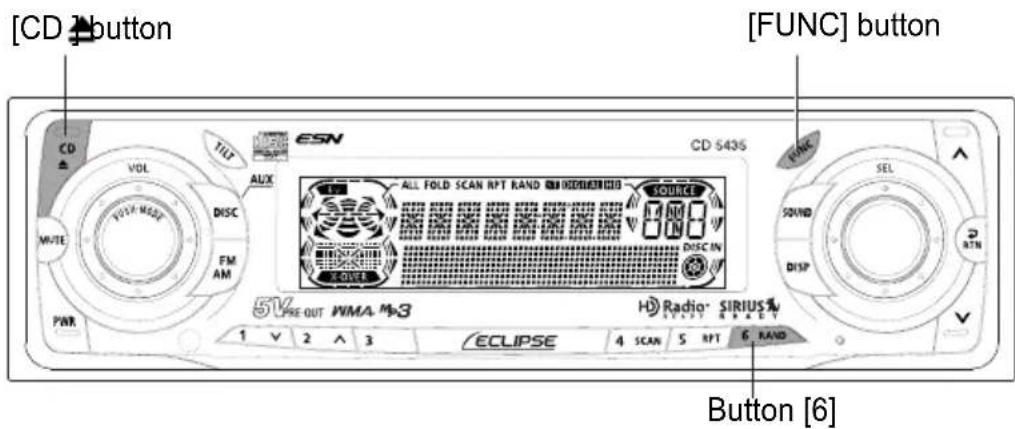
How to program the Key CD
1 Check that the unit is in standby.
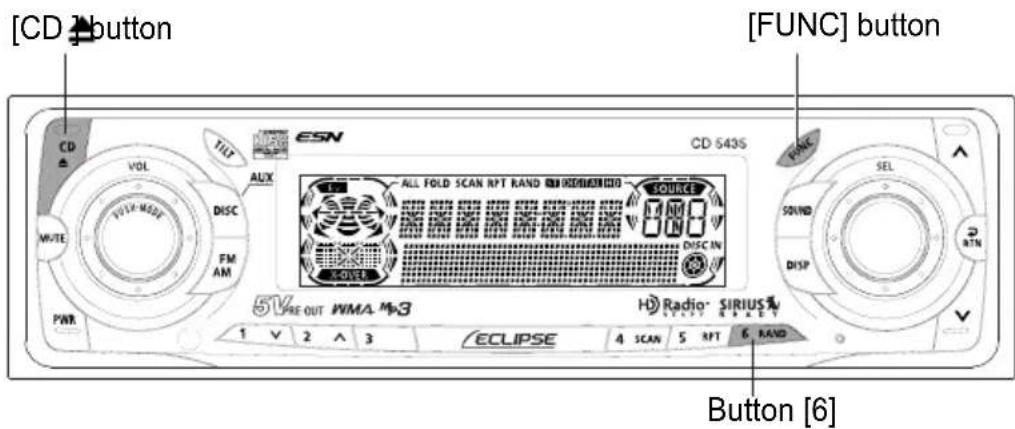
2 Press and hold button [6], then the [FUNC] button, and hold both for more than one second.
A [SEC] message appears, in two seconds it will change to [DISC].

- If a CD has already been inserted, a [SEC] message appears, and then the front panel opens and the CD is ejected.
- If a security is activated, programming the Key CD is not available.
3 Press the [CD♠button.
The front panel opens; The CD5435 is now ready for your Key CD in the CD slot.
4 Insert the CD into the slot.
A [SEC] message appears, then the Key CD is ejected.
5 Press the [CD♠button.
The front panel closes.

- If there is a problem with the inserted CD, an [ERR] message will appear for two seconds and the CD will be ejected. Reinsert the ejected CD.
- If a CD causes the [ERR] message to appear twice in a row, a [CHANGE] message will appear for two seconds. Try another CD.
● Copy Protected CD and MP3/WMA CD-ROM cannot be programmed for Key CD security.
● The Security indicator will flash whenever the vehicle's ignition is switched off.
How to cancel the Key CD
1 Check that the unit is in standby.
2 Press and hold button [6], then the [FUNC] button, and hold both for more than one second.
A [SEC] message appears, then in two seconds it will change to [DISC].
3 Press the [CD♠button.
The front panel opens; The CD5435 is now ready to your Key CD in the CD slot.

If a CD has already been inserted, a [SEC] message appears, and then the front panel opens and the CD is ejected.
4 Insert your Key CD into the slot.
A [CANCEL] message appears, then the Key CD is ejected. The Key CD is cancelled.

● This process cancels the protection for ESN deck.
- If power to the ESN deck is disconnected, then reconnected, a Key CD will not need to be inserted in order to return the unit to normal operation.
- Inserting a CD other than the Key CD will not cancel the protection. Instead, the display [ERR] for two seconds, then the normal CD playback mode will activate.
5 Press the [CD♣button.
The front panel closes.
text_image
[CD] button [FUNC] button CD VOL TILT ALIX DISC FM AM PWR 51VREF OUT WMA M3 ECLIPSE 4 SCAN 5 RPT 6 RAND CD-543S ALL FOLD SCAN RPT RAND AND DIMENSION SOURCE DISC IN COVEL SELECT SEL 2 ATN SOUND DISP Button [6]How to change the Key CD
1 First, cancel the existing Key CD.
Refer to "How to cancel the key CD".
2 Next, program a new Key CD.
Refer to "How to program the Key CD".
How to resume normal operation (ESN security lock out)
If power is disconnected while ESN security is active (a Key CD was programmed), operation is disabled until power is restored and the unit unlocked. Follow this procedure to resume normal operation.
When the power is turned on after disconnecting the battery power, a [SEC] message will appear for two seconds. Thereafter, message changes to [DISC] and the press the [CD4 button, then the CD5435 is ready to accept your Key CD into the slot.
2 Insert your Key CD.
If the correct CD is inserted, an [OK] message will appear for two seconds and the CD will begin playing.

- If the incorrect CD is inserted, an [ERR_] ("ERR" and error number) message will appear for two seconds, after which the CD will be ejected.
- If [ERR5] (the 5th time an error has occurred) appears, [HELP] will appear, after which the CD will be ejected. When [HELP] appears, carry out the operations for an ESN security lock out by following the procedure in "What happens if an incorrect CD is inserted?" on page 22.
- You must be use the same CD used for Key CD programming; a duplicate CD may not work properly.
What happens if an incorrect CD is inserted?
1 After the 5th incorrect attempt, the display reads [HELP] for five seconds.
After the [HELP] message will appear for five seconds, serial number will appear.
2 Press the [CD▲button to close the front panel.
3 Press button [6], then the [FUNC] button, and hold them for five seconds.
After the [SEC] message will appear for two seconds, rolling code (six digit) will appear.
4 Press [FUNC] button.
A [DISC] message appears.
You will have five more attempts the to insert correct disc.
5 Insert the Key CD into the slot.
If the correct CD is inserted, an [OK] message will appear for two seconds and the CD will be ejected.
- If an incorrect CD is inserted, an [ERR_ ] ("ERR" and error number) message will appear for two seconds, after which the CD will be ejected.
● This process cancels the protection for ESN deck.
Note
If after 5 tries the correct Key CD is not inserted, the display reads [CALL800]; the unit must be returned to Eclipse to be reset. In this case, please contact your Eclipse dealer for assistance. For country-specific customer service information, refer to "How to contact customer service" on page 123.
Your Key CD can be easily forgotten. Write the album name in a reminder note (See page 126).
text_image
[FUNC] button CD VOL TILT ALEX DISC FM AM PWR 5V PRE-OUT WMA M3 ALL FOLD SCAN RPT RAND SIRIUS100 SOURCE DISC IN EQUI ECLIPSE 4 SCAN 5 RPT 6 RAND SDR SEL 2 RTN DISP 1 V 2 A 3 H Radio SIRIUS100 Button [2]How to turn the security indicator on/off
Once ESN security is activated, the indicator flashes whenever the vehicle's ignition switch is turned off, warning potential thieves that the unit is protected. However, if do not want this visible deterrent, it may be turned off.
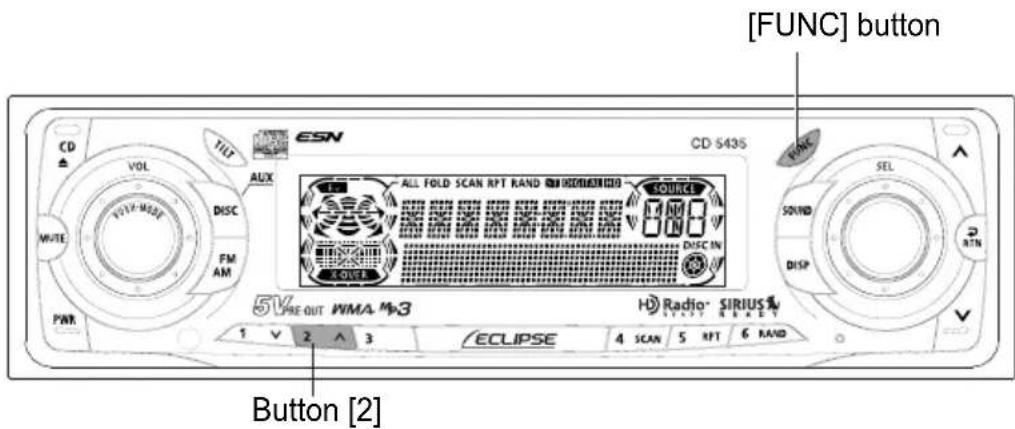
1 With the unit in standby, press button [2], then [FUNC] button and hold both for more than one second.
2 [IND. FLASH] or [IND. ----] appears on the display.
[IND. FLASH] means the security indicator will flash when the vehicle's ignition switch is off, and [IND.----] means it will not. Repeat the above steps to reactivate the flash mode.
text_image
[FUNC] button CD VOL TILT ALEX DISC FM AM PWR 5V PRE-OUT WMA M3 ALL FOLD SCAN RPT RAND SINDIUM1000 COURSE DISC IN ECLIPSE 4 SCAN 5 RPT 6 RAND H3 Radio SIRIUS 2 ATN SEL SOUND DISP 1 V 2 ^ 3 ECLIPSE Button [4]How to read the Electronic Serial Number
1 Check that the unit is in standby.
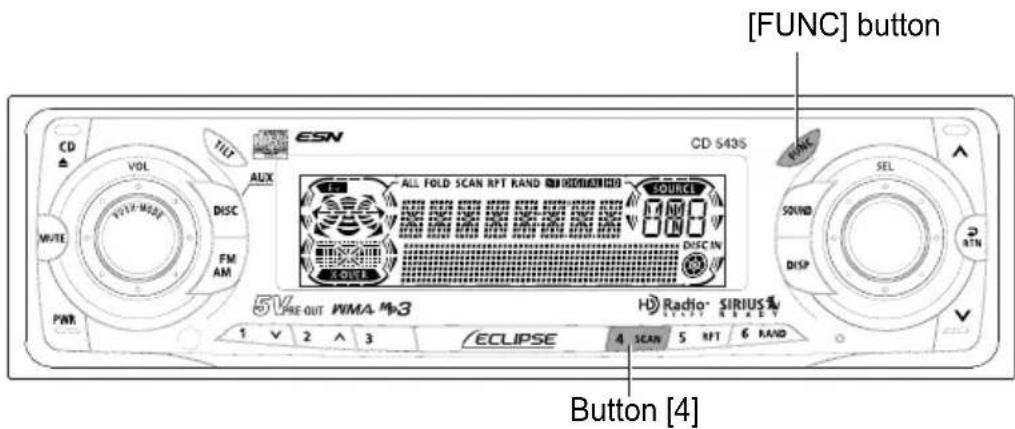
2 Press and hold button [4], then the [FUNC] button, and hold both for more than one second.
[ESN] appears on the display, followed by an eight-digit number; this number is your electronic serial number (ESN). You may use this number to identify your Eclipse CD5435 in the event of theft recovery.
Basic operation
text_image
CD VOL TILT ALIX DISC FM AM MVTE PWR 5V VRE OUT WMA-M3 ALL FOLD SCAN RPT RAND SIRIUS1000 SOUIC 0.00 0.00 DISC IN SOUIS H Radio® SIRIUS® 1 2 3 ECLIPSE 4 SCAN 5 RPT 6 RAND [ PWR ] button CD 5435 PONE SEL SOUND DISP RTNThis section covers basic operating procedures. For additional details, please refer to the sections on specific functions.
Turning the power on and off
When the power is turned on, the state used when the power was turned off such as CD and tuner playback is restored.
When the vehicle has no ACC position on the ignition switch, care is needed when turning off the deck. Follow Step 2 or Step 3 when turning off the power.
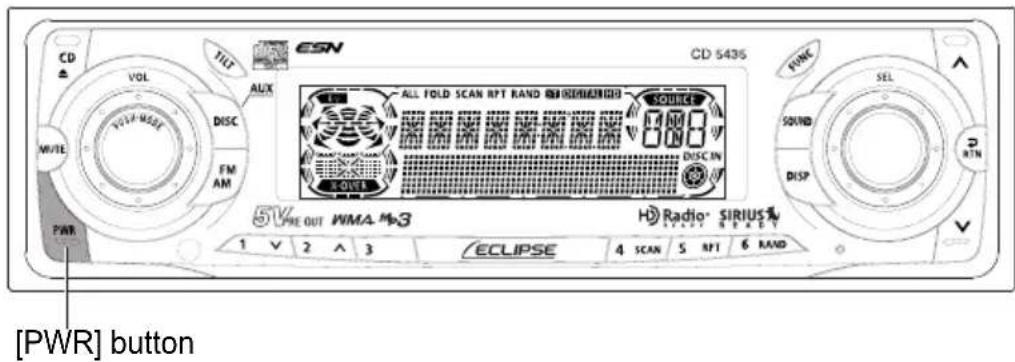
1 When power is OFF, press the [PWR] button.
The power will come ON.
![ECLIPSE CD5435 - When power is OFF, press the [PWR] button. - 1](/content/2026/05/1066218/images/641d05f1b558c9a9947fbd82c2f0da5c5dfd0b2e8bfd814b821951d0a0a2b982.jpg)
When the deck's power is turned on for the first time or if the battery terminals have been disconnected because of a reason such as vehicle maintenance and the power is then turned back on, the deck will start up in FM1 mode. After this, the broadcast stations will be searched for automatically and stored in buttons [1] to [6].
2 When power is ON, press the [PWR] button for less than two seconds.
The power will go OFF and the deck will be in Standby.
If you press the [PWR] button again for more than one second, the power will go completely off.
3 When power is ON, press the [PWR] button for more than two seconds.
The power will go completely OFF.
![ECLIPSE CD5435 - When power is ON, press the [PWR] button for more than two seconds. - 1](/content/2026/05/1066218/images/4c2b39be8dbab2d30fec950645fa6b02fb0e74e7bfce345aeaed98fcb9dcc4e7.jpg)
If a car is not equipped with an ACC position (for example, a European car), press the [PWR] button for more than two seconds.
![ECLIPSE CD5435 - When power is ON, press the [PWR] button for more than two seconds. - 2](/content/2026/05/1066218/images/065f58648d27e0bac5e9abb061f8b92cba22f89d1f5699f33d9a05926367e83c.jpg)
text_image
[CD▲button] CD VOL DISC MUTR FIN AN PWR E5N CD 543S ALL FOLD SCAN RPT RAND SINDISSIONAL SOURCE 1000 DISC IN 220 514 PRE OUT WMA M-3 H Radio- SIRIUS ECLIPSE 4 SCAN 5 NT 6 RAND 1 V 2 ^ 3Listening to CD
1 Press the [CD▲button.
The front panel opens.
2 Insert a CD into the disc slot, label side up.
The CD will immediately start playing.

When a CD is already loaded, press the [DISC] button to switch to the CD mode.
text_image
[^] button CD ± VOL TILT ESN CD 543S ALL FOLD SCAN RPT RAND ON/OFFICER/DO SOURCE M AM DISC IN PWR FM AM 5V PRE OUT WMA M3 H Radio- SIRIUS1 1 V 2 ^ 3 ECLIPSE 4 SCAN 5 NPT 6 RAND SEL SOUND DISP V Buttons [1] to [6][FM AM] button [SEL] button buttonListening to the tuner
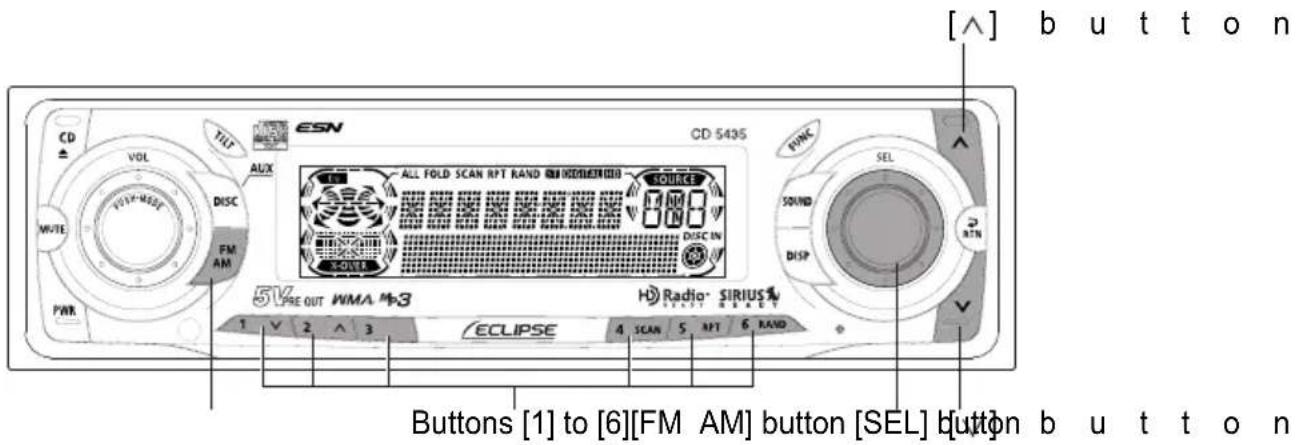
1 Press the [FM AM] button.
This will turn the tuner on.
2 Press the [FM AM] button for less than one second to switch to the desired FM or AM bands.
Radio bands will switch from FM1 → FM2 → FM3 → AM in order each time the button is pressed.
3 Turn the [SEL] button to the left or right to tune to a station.
Turn to the right: Tunes to higher frequencies.
Turn to the left: Tunes to lower frequencies.
4 Press the [λ] or [ ] button to start the automatic station search.
[ ] button: Starts searching toward higher frequencies.
[ ]button: Starts searching toward lower frequencies.

- If stations have been stored in memory, pressing a button from [1] to [6] will directly select a station. (Refer to the section "Manually setting stations into memory" on page 68)
- When an optional HD Radio tuner units is connected, digital broadcasts have reception priority. (U.S.A. only)
text_image
[MUTE] button CD VOL TIFF AUX ESN CD 543S ALL FOLD SCAN RPT RAND SOURCE SOUND DISC IN POWER PWR 5V PRE-OUT WMA M-3 H Radio SIRIUS1 1 V 2 ^ 3 ECLIPSE 4 SCAN 5 RPT 6 RAND [SIGNATURE] button [AUDIO CONTROL] buttonAdjusting audio volume
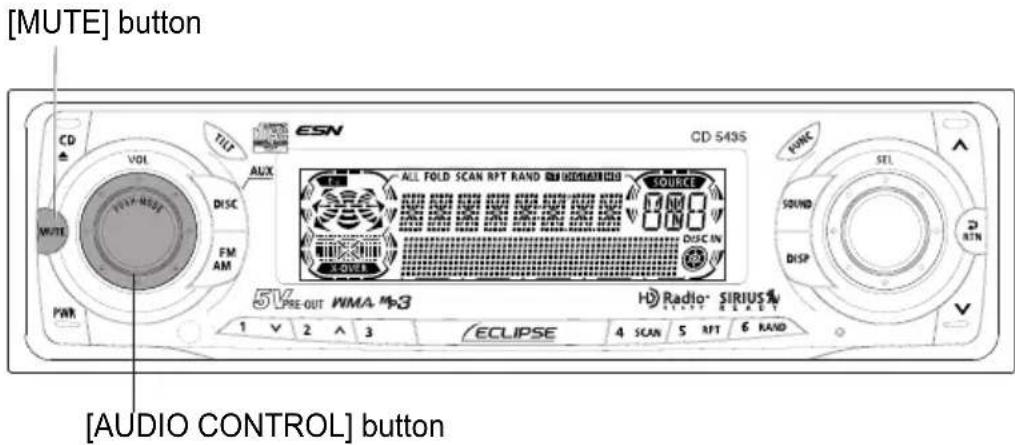
1 Turn the [AUDIO CONTROL] button to the left or right.
Turn to the right: Increases the volume.
Turn to the left: Decreases the volume.
![ECLIPSE CD5435 - Turn the [AUDIO CONTROL] button to the left or right. - 1](/content/2026/05/1066218/images/f59c657f27b786bab84fbd0b62fab018d96ee0d44b197db37be2f0a29c8a837d.jpg)
Press the [MUTE] button for less than one second to cut the volume or restore it instantly.
![ECLIPSE CD5435 - Turn the [AUDIO CONTROL] button to the left or right. - 2](/content/2026/05/1066218/images/b98e56d0ce7ec24dd5525014d1456921dd1dfcfa53f3e5dcc07339b8aa79c1d2.jpg)
Do not adjust the volume or other controls while driving the vehicle. Do so only while parked in a safe location.
![ECLIPSE CD5435 - Turn the [AUDIO CONTROL] button to the left or right. - 3](/content/2026/05/1066218/images/bfeb975b0e85864a299431afa49339457e9292bf12cea800dbf704635b0a51ff.jpg)
text_image
CD VOL TILT MUX ALL FOLD SCAN RPT RAND 100% 100% 100% SOURCE DISC.IN AVOUR 5V PRE-OUT WMA #3 H Radio· SIRIUS START CLKET ECLIPSE 4 SCAN 5 NT 6 HAND 1 V 2 ^ 3[AUDIO CONTROL] button
Switching audio control modes
Various audio control modes may be fine-tuned using this procedure.
1 Press the [AUDIO CONTROL] button for less than one second to select the item to be adjusted.
Modes will switch in the order shown below each time the button is pressed.
![ECLIPSE CD5435 - Press the [AUDIO CONTROL] button for less than one second to select the item to be adjusted. - 1](/content/2026/05/1066218/images/8f37c6d27f095a3442b7921e2b3e051ff777f79aa7d54b4ede2f1fe7b8d46336.jpg)
flowchart
graph LR
    A["VOL"] --> B["BASS"]
    B --> C["MID"]
    C --> D["TREB"]
    D --> E["BAL"]
    E --> F["LOUD"]
    F --> G["SVC*2"]
    G --> H["NON-F *1"]
    H --> I["FAD"]
*1: NON-FADER output does not reflect BASS, MIDDLE, TREBLE, LOUDNESS and EQUALIZER settings.
*2: Setting cannot be made in FM mode.
VOL (VOLUME) Mode
Adjusts volume.
Turn the [AUDIO CONTROL] button to the left or right.
Turn to the right: Increases the volume.
Turn to the left: Decreases the volume.
BASS Mode
Adjusts bass level. Bass mode can be adjusted for each source (CDP/CDC, FM and AM).
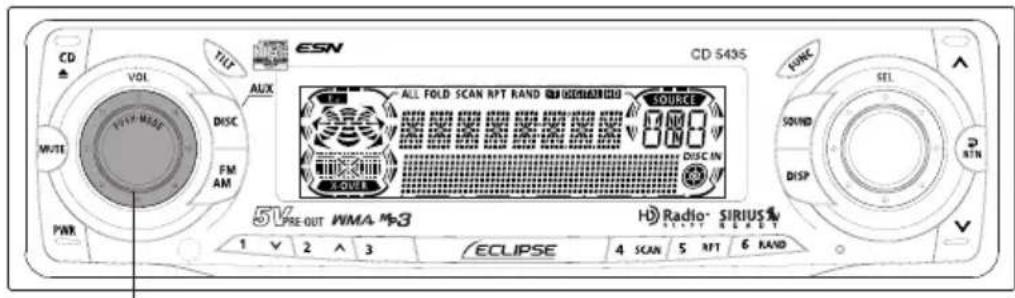
Turn the [AUDIO CONTROL] button to the left or right.
Turn to the right: Emphasizes low sounds.
Turn to the left: Softens low sounds.
text_image
CD VOL TILT MUX MUTE FM AM PWR CD 543S ALL FOLD SCAN RPT RAND ON DIMENSION SOURCE DISC.IN AVOUR 5V PRE-OUT WMA #3 H Radio- SIRIUS START RESET 1 V 2 ^ 3 ECLIPSE 4 SCAN 5 MT 6 RAND[AUDIO CONTROL] button
MID (MIDDLE) Mode
Adjusts middle level. Mid mode can be adjusted for each source (CDP/CDC, FM and AM).
Turn the [AUDIO CONTROL] button to the left or right.
Turn to the right: Emphasizes medium sounds.
Turn to the left: Softens medium sounds.
TREB (TREBLE) Mode
Adjusts treble level. Treble mode can be adjusted for each source (CDP/CDC, FM and AM).
Turn the [AUDIO CONTROL] button to the left or right.
Turn to the right: Emphasizes high sounds.
Turn to the left: Softens high sounds.
BAL (BALANCE) Mode
Adjusts left/right speaker balance.
Turn the [AUDIO CONTROL] button to the left or right.
Turn to the right: Emphasizes right speakers.
Turn to the left: Emphasizes left speakers.
FAD (FADER) Mode
Adjusts front/rear speaker balance.
Turn the [AUDIO CONTROL] button to the left or right.
Turn to the right: Emphasizes front speakers.
Turn to the left: Emphasizes rear speakers.
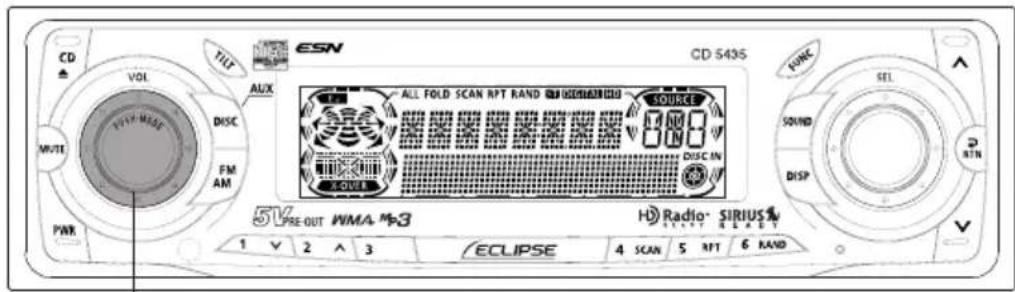
NON-F (NON-FADER) Mode
Adjusts non-fader level (for connected sub-woofers, etc.).
Turn the [AUDIO CONTROL] button to the left or right.
Turn to the right: Increases level.
Turn to the left: Decreases level.
text_image
CD VOL AUX MULTI FM AM PWR TILT CD 543S ALL FOLD SCAN RPT RAND CD SQUISER SOURCE DISC IN X-OVER FONIC SEL SOUND DISP D RTN 5V PRE-OUT WMA M3 H Radio- SIRIUS START REEET 1 V 2 A 3 ECLIPSE 4 SCAN 5 RPT 6 RAND[AUDIO CONTROL] button
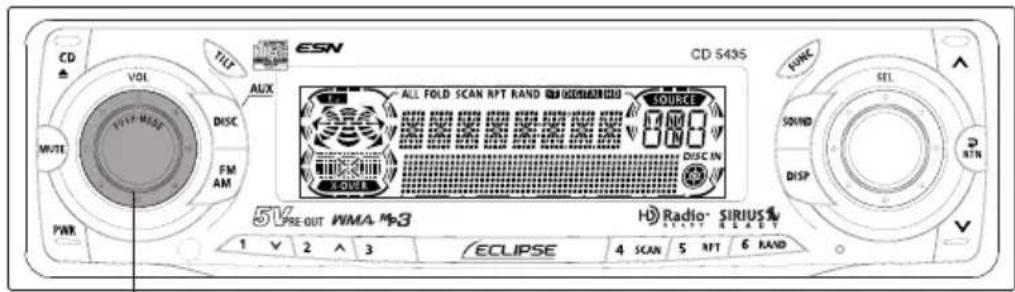
SVC (Source Volume Control) Mode
You can set different volume levels for each audio mode. The volume for the initial FM mode (default value: 40) is used as a reference for storing the differences in volume that have been set for each audio mode. When SVC is set, the volume level can change as shown in the example settings in the table below.
Setting examples:
| Audio mode FM AM CD | |||
| Default value (Volume level) | Reference (40) | 0 (40) | 0 (40) |
| SVC setting (Volume level) | Reference (40) | SVC setting value +15 (55) | SVC setting value -10 (30) |
| When volume level in FM mode is adjusted from 40 to 45 | 45 | 55 → 60 | 30 → 35 |
| When volume level in CD mode is adjusted from 35 to 60 | 45 → 70 | 60 → 80* | 60 |
| When volume level in AM mode is adjusted from 80 to 20 | 70 → 5 | 20 | 60 → 0* |
*: The volume levels can be set to a maximum of 80 and a minimum of 0. If you try to go past the maximum or minimum volume level, the level will not change. For the CD changer, SVC adjusts the volume using the setting value for the CD player.
text_image
CD VOL MUX ALL FOLD SCAN RPT RAND CD S100000000 SOURCE DISC.IN 5V PRE-OUT WMA M3 ECLIPSE 4 SCAN 5 RPT 6 RAND CD 543S FONIC SEL SOUND DISP RPN 1 V 2 ^ 3 H Radio- SIRIUS START BLADET[AUDIO CONTROL] button
Turn the [AUDIO CONTROL] button to the left or right.
Turn to the right: Increases the SVC setting value.
Turn to the left: Decreases the SVC setting value.
The volume difference can be set within a range of -10 to +20.

If the battery terminals have been disconnected because of a reason such as vehicle maintenance, the SVC settings will return to their default values. If this happens, you will need to make the settings again.
LOUD Mode
The loudness control may be turned on to emphasize low and high frequencies at low volume levels.
Loudness compensates for the apparent weakness of low and high frequencies at low volume by boosting the bass and treble levels.
Turn the [AUDIO CONTROL] button until the [LOUD ON] display appears on the screen.

To disable the loudness feature, repeat the above procedure to display the [LOUD OFF] indication.
text_image
[SOUND] button CD VOL TILT ESN CD 543S ALL FOLD SCAN RPT RAND SOURCE DISC IN 5V PRE-OUT WMA #3 H Radio SIRIUS 1 V 2 ^ 3 ECLIPSE 4 SCAN 5 RPT 6 RAND [SOUND] SEL DISP RTN [AUDIO CONTROL] buttonRecording user presets for the equalizer
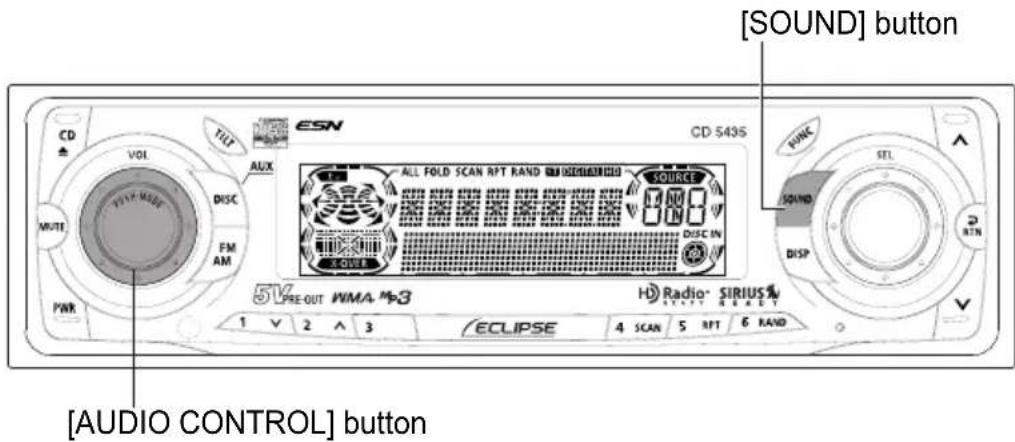
The adjustment values for BASS, MIDDLE and TREBLE settings made in the audio control mode can be stored. The stored adjustment values can be called by changing the equalizer mode. For detail, see "Changing the equalizer mode" on page 33.
1 Press the [AUDIO CONTROL] button for more than one second.
The adjusted values are stored.
Changing the equalizer mode
EQ (equalizer) mode can be used to adjust the frequency of the audio channels being played back in accordance with the genre and instruments of the music being played. Apart from four equalizer modes, this deck offers the audio adjustment mode in which you can store set BASS, MIDDLE, and TREBLE adjustment values, and the CUSTOM MODE in which and you can apply these adjustment values.
1 Press the [SOUND] button for less than one second.
Each time the button is pressed, the equalizer mode changes in the following order.
![ECLIPSE CD5435 - Press the [SOUND] button for less than one second. - 1](/content/2026/05/1066218/images/d1b9953b2ae3ed66c93754209b09b20a54c9da5d69468b9cbc089e026a31059d.jpg)
flowchart
graph TD
    A["DEFEAT (equalizer OFF)"] --> B["POWER (bass tones emphasized)"]
    B --> C["SHARP (high tones emphasized)"]
    C --> D["VOCAL (mid tones emphasized)"]
    D --> E["CUSTOM (memorized user-preset values for the equalizer)"]
How to operate the Sound Adjustment Mode
About Sound Adjustment Mode
The system has several features that allow you to adjust the acoustic characteristics inside the cabin. In the Sound Adjustment Mode, the following characteristics can be adjusted.
Crossover
The frequency band that is stored by audio media such as CDs is a fairly wide range from 20 Hz to 20 kHz, and it is difficult for a single speaker to be able to play back all frequencies in such a wide range.
Because of this, several speakers can be used, with different frequency bands (such as treble, medium and bass) allotted to each speaker so that wide frequency ranges can be played back.
The "Crossover" function is used to allot the frequency ranges that are to be played back by each speaker in accordance with the installed speaker units and the layout of the speakers, in order to obtain the maximum level of performance from the speakers and to provide the most stable frequency characteristics.
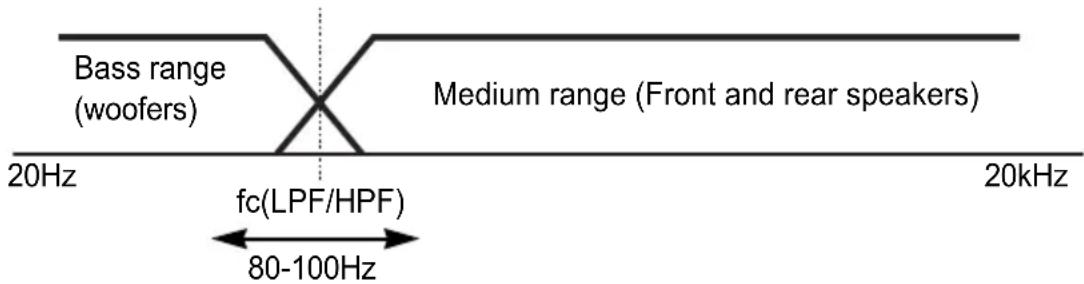
The crossover function includes a high-pass filter (HPF) for playing back treble sounds, and a low-pass filter (LPF) for playing back bass sounds. In addition, the HPF and LPF are used in combination in order to play back sounds in the medium range.

line
| Frequency | Bandpass Range | | --------- | -------------- | | 20Hz | -3dB | | fc1(LPF) | Medium range | | fc2(HPF) | Medium range | | fc3(LPF) | Medium range | | fc4(HPF) | Medium range |fc*: Cutoff frequency
For example, when adjusting the HPF, frequencies that are lower than the specified frequency are progressively dampened, rather than simply not being played back at all. The "slope" adjustment function is the function that is used to adjust these dampening characteristics.
The slope characteristics of a filter are such that with larger slope values (for example 12 dB/oct), the slope becomes steeper, and so the amount of sound mixing in with neighboring bands becomes less so that only the target band is played back. However, it also causes the merging of sound between speakers to become poorer and can result in greater distortion.
● The crossover function is a filter that allocates specified frequency bands.
● A high-pass filter (HPF) is a filter that cuts out frequencies that are lower than the specified frequency (bass range) and allows higher frequencies (treble range) to pass through.
● A low-pass filter (LPF) is a filter that cuts out frequencies that are higher than the specified frequency (treble range) and allows lower frequencies (bass range) to pass through.
● The slope is the signal level at which frequencies that are one octave higher or one octave lower are dampened.
The larger the slope value, the greater the slope. In addition, when "PASS" is selected, the slope is eliminated (sound does not pass through the filters), so that the crossover function has no effect.
This deck corresponds to basic speaker systems which comprise front speakers, rear speakers and an added sub-woofer if necessary. In such cases, the crossover can be used to apply the HPF to the front and rear speakers and the LPF to the sub-woofer so that the sound from all speakers merges properly.
text_image
Bass range (woofers) Medium range (Front and rear speakers) 20Hz fc(LPF/HPF) 80-100Hz 20kHzNon-fader phase
The sounds that are output from woofers include sounds that are in the same frequency ranges that are output from the front and rear speakers, and under the various conditions that can occur inside vehicle compartments, some of these sounds may cancel each other out. This phenomenon can be eliminated by changing the phase of the woofer.
The phase of the woofer can be set to normal timing (in which the output timing between the front and rear speakers and the woofer is the same) or reverse timing (in which the output timing between the front and rear speakers and the woofer is different), depending on the vehicle compartment conditions.
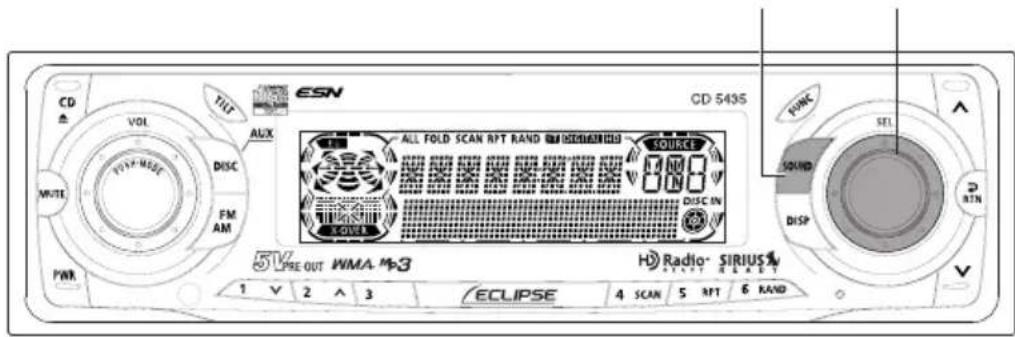
[SOUND] button [SEL] button
text_image
CD VOL DISC FM AM PWR TILT ALEX ALL FOLD SCAN RPT RAND 10 kHz/24 kHz/100 SOURCE 0.00 0.00 DISC IN 0.00 5V PRE OUT WMA 5x3 ECLIPSE 4 SCAN 5 RPT 6 RAND CD-543S FORK SEL SOUND DISP VMaking changes with Sound Adjustment Mode
1 Press the [SOUND] button for more than one second.
The mode will change to sound adjustment mode.
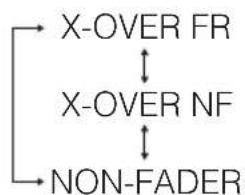
2 Turn the [SEL] button to select a setting item.
When the button is turned, the setting item changes in the following order and selected item is highlighted.
flowchart
graph TD
    A["X-OVER FR"] --> B["X-OVER NF"]
    B --> C["NON-FADER"]
3 Press the [SEL] button.
The selected mode will take effect.
text_image
[SOUND] button [SEL] button CD VOL DISC FM AM HWR ESN ALL FOLD SCAN RPT RAND EM DISCA/20100 SOURCE 8888 DISCIN 5.075 RINK SEL SOUND DISP RTN 5V PRE-OUT WMA-M3 Radio SIRIUS ECLIPSE 4 SCAN 5 RPT 6 RAND 1 2 3Crossover adjustment (X-Over FR)
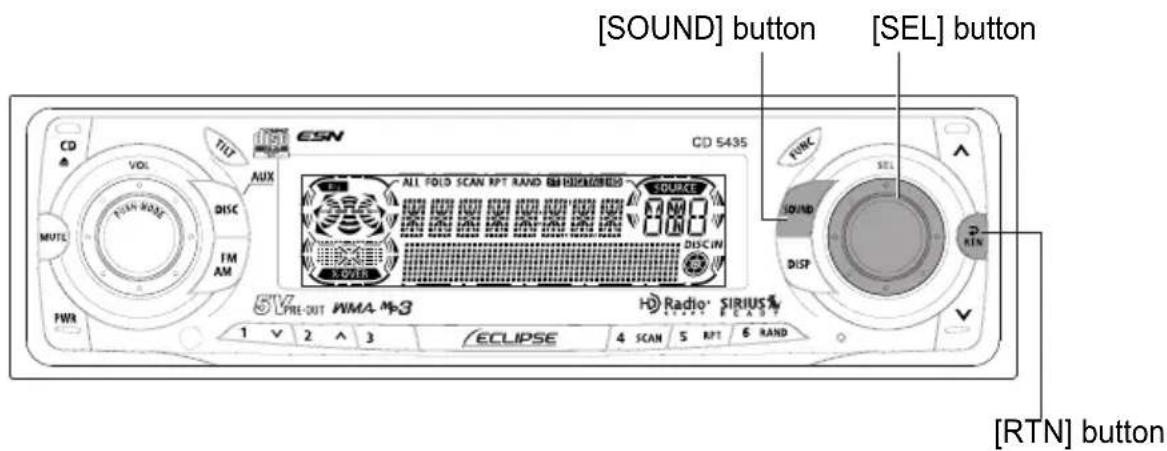
Adjusts front and rear speaker HPF (High Pass filter). The system allows you to select from several cut off frequencies: PASS, 80Hz and 100Hz.
1 Turn the [SEL] button to select the cut-off frequency.
When the button is turned, the frequency changes in the following order.
![ECLIPSE CD5435 - Turn the [SEL] button to select the cut-off frequency. - 1](/content/2026/05/1066218/images/9214ee12c2433ee759634aba5501601d1b91e030e722c7d3bcc41a27203233be.jpg)
![ECLIPSE CD5435 - Turn the [SEL] button to select the cut-off frequency. - 2](/content/2026/05/1066218/images/b5abc44d649f9861d2c1607fc980daf0e20359430074ca53cae837233241cf1c.jpg)
Slope is fixed at 18dB/oct. Adjustments cannot be made.
2 Press the [SEL] button.
The selected cut off frequency will take effect.
3 Press the [RTN] button.
At this time, other adjustments can also be made in sound adjustment mode.
4 Press the [SOUND] or [RTN] button to exit sound adjustment mode.
![ECLIPSE CD5435 - Press the [SOUND] or [RTN] button to exit sound adjustment mode. - 1](/content/2026/05/1066218/images/258125f4f2d27cd03bf0f1de64ef7cea72c9b17dc5bf09d7666172bf5e5d4f6d.jpg)
text_image
[SOUND] button [SEL] button CD VOL ISSN CD 5435 ALL FOLD SCAN RPT RAND EN INTERNATION SOURCE PINK SOL MUTE DISC FM AM 2-57EN DISC IN RIN PWR 5V PRE-OUT WMA M3 Radio SIRIUS ECLIPSE 4 SCAN 5 RPT 6 RAND 1 V 2 ^ 3 RTN) buttonCrossover adjustment (X-Over NF)
Adjusts woofer (non-fader output) LPF (Low Pass filter). The system allows you to select from several cut off frequencies: PASS, 80Hz and 100Hz.
1 Turn the [SEL] button to select the cut-off frequency.
When the button is turned, the frequency changes in the following order.
![ECLIPSE CD5435 - Turn the [SEL] button to select the cut-off frequency. - 1](/content/2026/05/1066218/images/e927e2ee4662fcc0961cb3ff4a451afe6b29c37ea3e63e9f133f2d0b1b963f52.jpg)
![ECLIPSE CD5435 - Turn the [SEL] button to select the cut-off frequency. - 2](/content/2026/05/1066218/images/e3f7be814bccffc55bf59a1e612f87ea71fd71872c7ae3b714d849703f23c86b.jpg)
Slope is fixed at 18dB/oct. Adjustments cannot be made.
2 Press the [SEL] button.
The selected cut off frequency will take effect.
3 Press the [RTN] button.
At this time, other adjustments can also be made in sound adjustment mode.
4 Press the [SOUND] or [RTN] button to exit sound adjustment mode.
![ECLIPSE CD5435 - Press the [SOUND] or [RTN] button to exit sound adjustment mode. - 1](/content/2026/05/1066218/images/616aa7497773c9373ba28ab87d685b40a5836d81c5bb61d53ab474ea3e3707d0.jpg)
text_image
[SOUND] button [SEL] button CD VOL DISC FM AM PWR TILT AUX ALL FOLD SCAN RPT RAND RECITEROR SOURCE DISC IN OUT 5Y PRE-OUT NMA M3 Radio· SIRIUS ECLIPSE 4 SCAN 5 RP 6 RAND 1 V 2 ^ 3 ECLIPSE FINK SEL SOUND DISP RTN [RTN] buttonNon-fader phase selection (NON-F Phase)
The merging of sound between the front and rear speakers and the woofer can be improved by selecting the phase.
Switch the phase to a phase which lets the speakers combine without any disharmony.
1 Turn the [SEL] button to select NORMAL or REVERSE.
NORMAL: Normal phase
REVERSE: Reverse phase
2 Press the [SEL] button.
The selected phase will take effect.
3 Press the [RTN] button.
At this time, other adjustments can also be made in sound adjustment mode.
4 Press the [SOUND] or [RTN] button to exit sound adjustment mode.
text_image
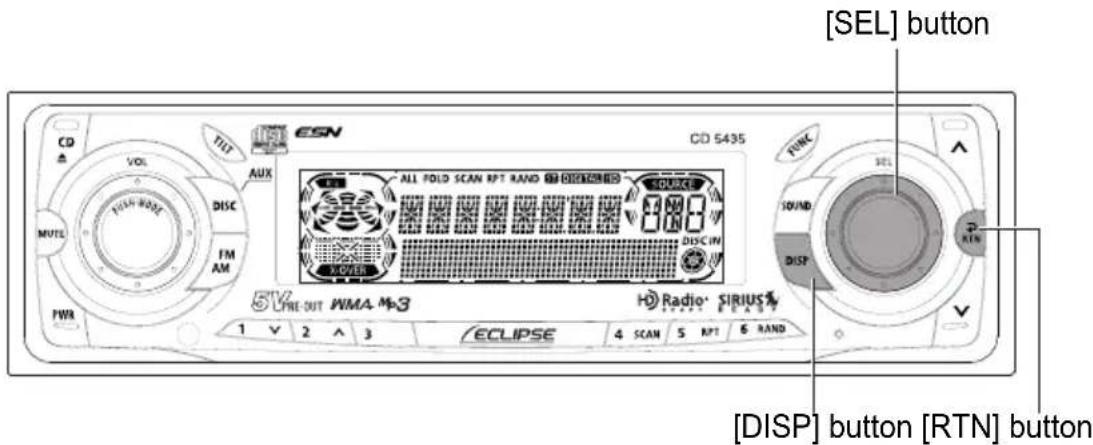
[SEL] button CD VOL TILT UES FM AM PWR 5V PRE OUT WMA M3 CD 543S ALL FOLD SCAN RPT RAND ON ISENOMAN100 CLOUST DISC IN ECLIPSE 4 SCAN 5 RPT 6 RAND H Radio SIRIUS RUT RLET PWR SOLN 2 RIN DISP [DISP] buttonMaking changes with Display Adjustment Mode
This function allows adjustment of display contrast and changing illumination colors.
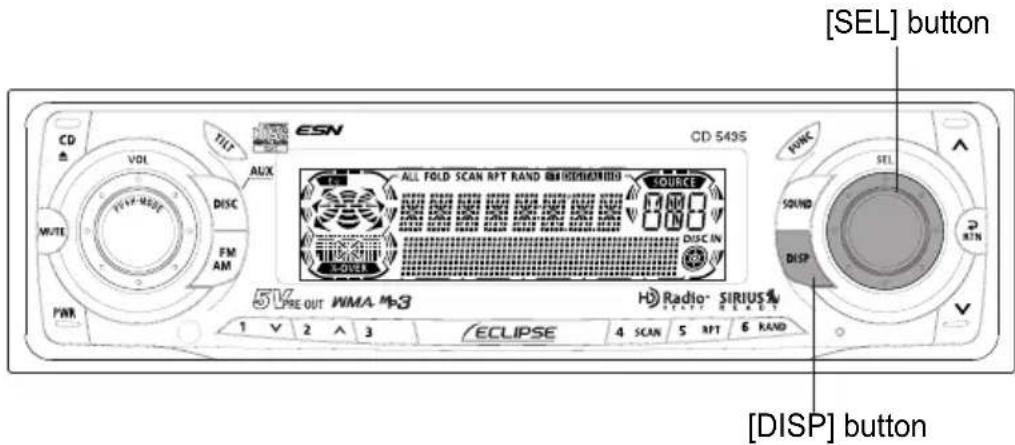
1 Press the [DISP] button for less than one second.
The display adjustment mode is activated.
2 Turn the [SEL] button in either direction to display setting items for selection.
When the button is turned, the setting item changes in the following order.
CONTRAST ILL COLOR
text_image
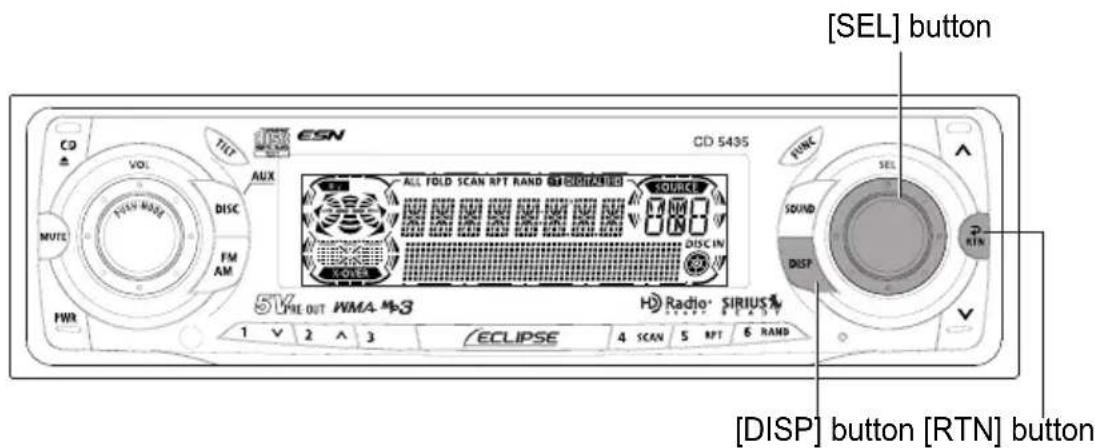
[SEL] button CD VOL TILT AUX ISSN ALL FOLD SCAN RPT RAND [DIMENSIONS] SOUCC 3.888 FM AM VOLVER DISC IN 5V PRE-OUT WMA M-3 Radio SIRIUS ECLIPSE 4 SCAN 5 RPT 6 RAND 1 V 2 ^ 3 ECLIPSE [SOUND] DISP [DISP] button [RTN] buttonContrast adjustment
Adjust the display contrast to the best level in accordance with the angle of viewing.
1 Turn the [SEL] button to select CONTRAST.
2 Press the [SEL] button.
Enters contrast adjustment mode.
3 Turn the [SEL] button to adjust contrast.
When the button is turned, the contrast level changes in the following order.
$$ - 5 \leftarrow 4 - 3 \leftarrow 2 - 1 0 \leftarrow 1 2 3 4 5 \leftrightarrow \leftrightarrow \leftrightarrow \leftrightarrow \leftrightarrow \leftrightarrow $$
4 Press the [SEL] button.
The selected settings will take effect.
5 Press the [RTN] button.
At this time, other adjustments can also be made in display adjustment mode.
6 Press the [DISP] or [RTN] button to exit display adjustment mode.
text_image
[SEL] button CD VOL TLET ESN ALL FOLD SCAN RPT RAND [SIRIUS] SOUND SOUND DISP DISC IN X-015 5Y PHE OUT WMA-M3 Radio SIRIUS ECLIPSE 4 SCAN 5 RPT 6 RAND 1 V 2 A 3 ECLIPSE [DISP] button [RTN] buttonChanging illumination Color
1 Turn the [SEL] button to select ILL COLOR.
2 Press the [SEL] button.
The screen for changing the illumination color will appear.
3 Turn the [SEL] button to select illumination color.
When the button is turned, the illumination color changes in the following order.

flowchart
graph LR
    A["Blue/Red"] --> B["Blue/Green"]
    B --> C["Blue/Amber"]
    C --> D["All Green"]
    D --> E["All Red"]
    E --> D
4 Press the [SEL] button.
The selected settings will take effect.
5 Press the [RTN] button.
At this time, other adjustments can also be made in display adjustment mode.
6 Press the [DISP] or [RTN] button to exit display adjustment mode.
text_image
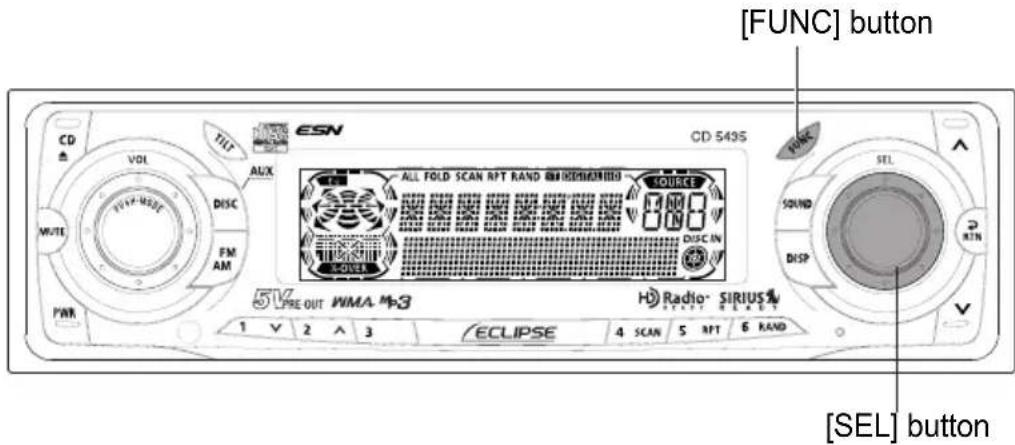
[FUNC] button CD VOL TILT E5N CD 543S ALL FOLD SCAN RPT RAND ON DISEMATIC COUNTER 5V PRE OUT WMA M3 H Radio SIRIUS 1 V 2 A 3 ECLIPSE 4 SCAN 5 RPT 6 RAND [SEL] buttonMaking changes with Function Mode
A variety of settings can be changed.
1 Press the [FUNC] button for less than one second.
The function mode is activated.
2 Turn the [SEL] button in either direction to display setting items for selection.
When the button is turned, the setting item changes in the following order.
![ECLIPSE CD5435 - Turn the [SEL] button in either direction to display setting items for selection. - 1](/content/2026/05/1066218/images/263864cacf5fadfff274212c9a252090a161a70429ca17aca18da52208dfe25d.jpg)
flowchart
graph LR
    A["AREA SHOT *1,4"] <--> B["GUIDE TONE"] <--> C["CLOCK DISP"]
    D["STEER SW *4"] <--> E["AUX SENSE *3"] <--> F["HD RADIO *2,4"] <--> G["CLOCK ADJ"]
*1: Cannot make settings other than for AREA SHOT operation. (Refer to page 74 for details on AREA SHOT operation.)
*2: This setting can only be chosen when HD radio reception is available. (Refer to page 92 for details on HD Radio operation.)
*3: Refer to page 105 for details on AUX Sensitivity.
*4: U.S.A. only.
![ECLIPSE CD5435 - Turn the [SEL] button in either direction to display setting items for selection. - 2](/content/2026/05/1066218/images/effcc03daa27d7efc6c52a85ce05a5b056ee198acf35366a274e036e997ffc32.jpg)
text_image
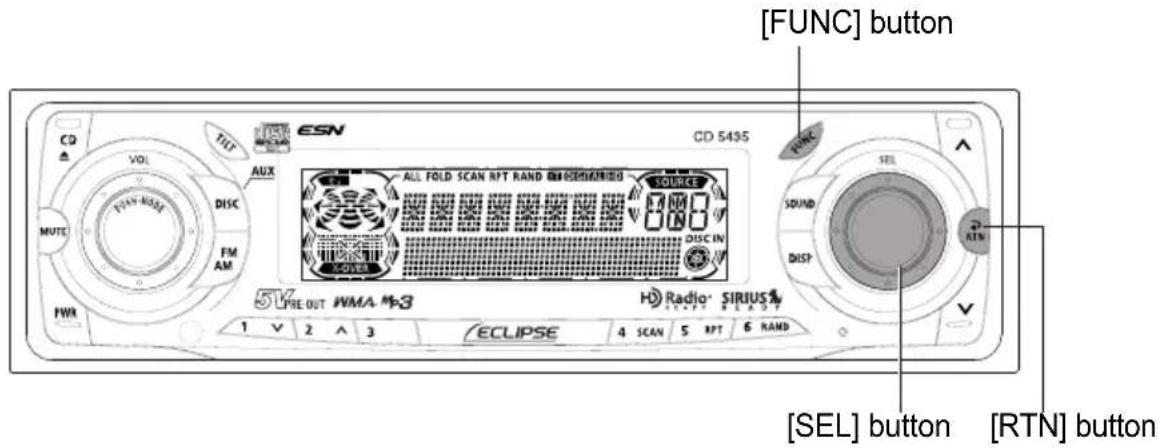
[FUNC] button CD 5435 VOL ESN ALL FOLD SCAN RPT RAND EN HORIZON/OFF SOURCE SOUND DISP SEN SYNC MUTEL FM AM PWR 5V PRE-OUT WMA M-3 H Radio· SIRIUS 1 V 2 ^ 3 ECLIPSE 4 SCAN 5 RPT 6 RAND [SEL] button [RTN] buttonDisabling the guide tone feature (for button operation)
The receiver is set at the factory to emit a beep tone in response to button operation. The guide tone feature may be disabled in the following procedure:
1 Turn the [SEL] button to select GUIDE TONE.
2 Press the [SEL] button.
The Guide Tone Mode will be switched ON/OFF.
3 Turn the [SEL] button to select ON or OFF.
4 Press the [SEL] button.
The selected settings will take effect.
5 Press the [RTN] button.
At this time, other adjustments can also be made in function mode.
6 Press the [FUNC] or [RTN] button to exit function mode.
text_image
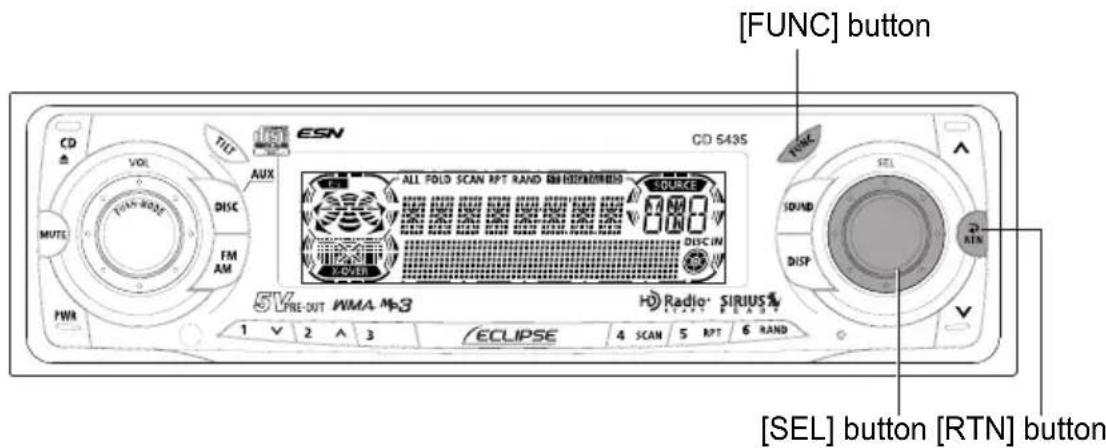
[FUNC] button CD VOL TILT ISSN CD 5435 ALL FOLD SCAN RPT RAND ON DISEMATIC SOURCE SOUND DISP INTN MUTE DISC FM AM DISC IN LONE 5V PRE OUT WMA M-3 Radio· SIRIUS# ECLIPSE 4 SCAN 5 RPT 6 RAND 1 V 2 ^ 3 [SEL] button [RTN] buttonClock display on/off
Switches the clock display to ON/OFF.
1 Turn the [SEL] button to select CLOCK DISP.
2 Press the [SEL] button.
The clock display ON/OFF mode is activated.
3 Turn the [SEL] button to select ON or OFF.
4 Press the [SEL] button.
The selected settings will take effect.
5 Press the [RTN] button.
At this time, other adjustments can also be made in function mode.
6 Press the [FUNC] or [RTN] button to exit function mode.
text_image
[FUNC] button CD VOL ISSN ESN CD 5435 ALL FOLD SCAN RPT RAND EN HAND/DRIN SOURCE SOUND DISP [SEL] button [RTN] button 5V PRE-OUT WMA M-3 H0 Radio SIRIUS ECLIPSE 1 V 2 ^ 3 4 SCAN 5 RPT 6 RANDSetting the time
This receiver uses the 12-hour display notation.
1 Turn the [SEL] button to select CLOCK ADJ.
2 Press the [SEL] button.
The clock adjustment mode is activated.
3 Press the [SEL] button to display the item to be selected for adjustment.
Hours or minutes will be switched each time the button is pressed.
4 Turn the [SEL] button.
Turn to the right: Turns the time forward.
Turn to the left: Turns the time back.
5 Press the [RTN] button.
At this time, other adjustments can also be made in function mode.
6 Press the [FUNC] or [RTN] button to exit function mode.
Setting the steering switch function (U.S.A. only)
The vehicle's factory loaded steering switch becomes inoperable when the CD5435 is installed. The ECLIPSE website (E-iSERV) provides software that enables steering switch operation even with the installation of the deck. Import this software into your CD5435. For details, contact the store from which you purchased your deck. Depending on your vehicle's make and model, material downloaded from the website may not be compatible with your steering switch.
Software for the steering switch can be downloaded and imported into the deck as follows:
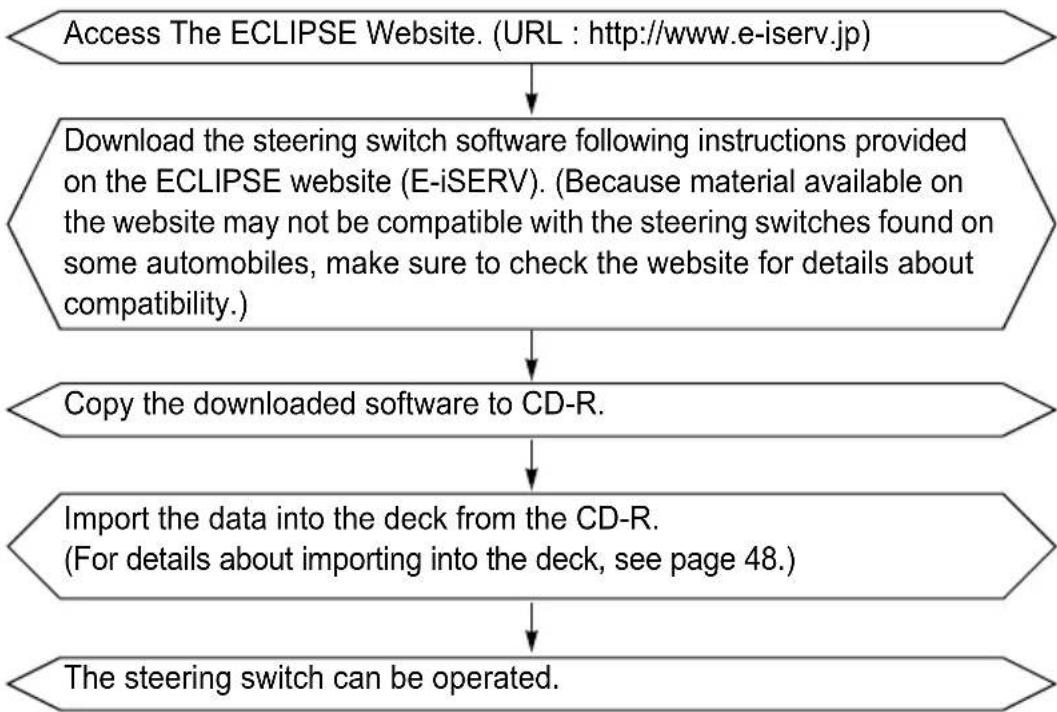
flowchart
graph TD
    A["Access The ECLIPSE Website. (URL : http://www.e-iserv.jp)"] --> B["Download the steering switch software following instructions provided on the ECLIPSE website (E-iSERV). (Because material available on the website may not be compatible with the steering switches found on some automobiles, make sure to check the website for details about compatibility.)"]
    B --> C["Copy the downloaded software to CD-R."]
    C --> D["Import the data into the deck from the CD-R.<br>(For details about importing into the deck, see page 48.)"]
    D --> E["The steering switch can be operated."]

Consult the store from which you purchased your CD5435 about compatibility and set-up procedures.
text_image
[CD▲button] [FUNC] button CD VOL TUF ISSN ALL FOLD SCAN RPT RAND [RUIDEN100] SOLIKE MUTE FM AM DISCIN PWR 5V PRE-OUT PIMA M23 ECLIPSE 4 SCAN 5 RPT 6 RAND Radio SIRIUS SELECT READY 1 2 3 [SEL] button [RTN] buttonReading steering switch data
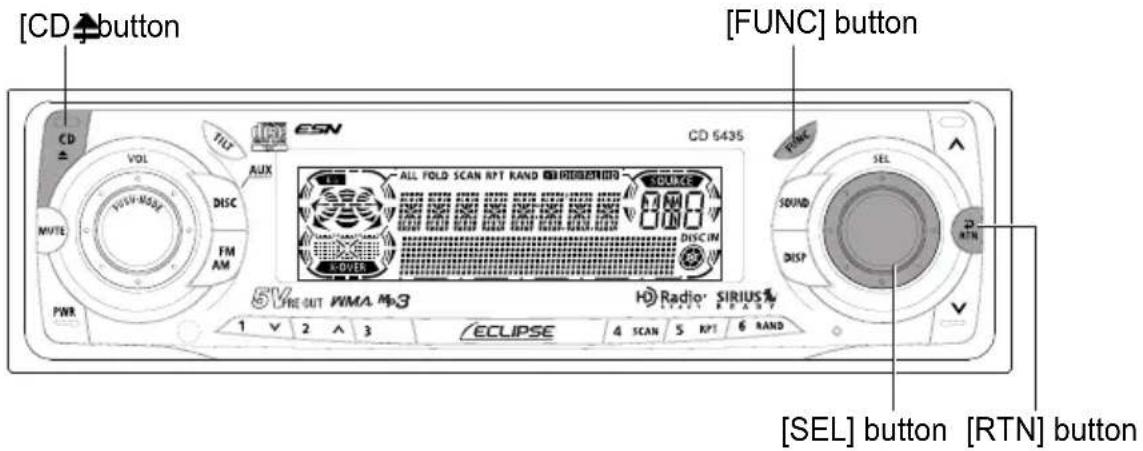
The steering switch data that has been download from E-iSERV (website) to a CD-R can be loaded into the deck and saved there.
1 Press the [FUNC] button for less than one second.
The function mode is activated.
2 Turn the [SEL] button to select STEER SW.
3 Press the [SEL] button.
[INSERT DISC] appears on the display and the panel opens automatically.
4 Insert the CD-R to be used for saving the steering switch data.
5 Press the [CD♦button to close the front panel.
6 Turn the [SEL] button to select the saving file.
The selection file name is highlighted.
7 Press the [SEL] button.
The system reads the CD-R files. While it is reading, [READING...] is displayed.
If the data can be read successfully, [COMPLETED] will appear on the display. After the data is read, the CD-R will automatically eject.

Do not turn off power or ignition switch during process. This will corrupt the data.

● The deck can only import file from CD-Rs that have been written in root directories.
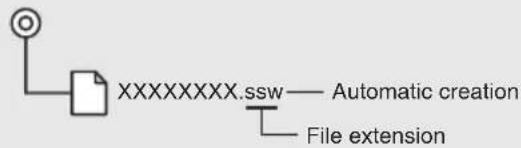
flowchart
graph TD
    A["File extension"] --> B["XXXXXXX.ssw"]
    B --> C["Automatic creation"]
● Disc formats that may be used are as follows:
- CD-ROM (MODE 1)
- CD-ROM (MODE2_FORM 1)
*CD-ROMs written in MODE2_FORM2 cannot be read.
● The file name can be changed using 8 alphameric characters (space cannot be used).
8 Press the [RTN] button.
At this time, other adjustments can also be made in function mode.
9 Press the [FUNC] or [RTN] button to exit function mode.
During Step 8 the function mode can also be cancelled by pressing the [FUNC] button.
Compatibility with various switches
Displays the compatibility of the system's modes and the steering switch.
| Switch Name*1 | Button operation | Mode | ||
| Tuner | Disc | mode AUX | ||
| SEEK+ | Short tap TUNE UP TRACK UP – | |||
| Hold | SEEK UP*2 | FAST UP – | ||
| SEEK- | Short tap TUNE DOWN TRACK DOWN – | |||
| Hold | SEEK DOWN*2 | FAST DOWN – | ||
| VOL+ | Short tap Volume UP Volume UP Volume UP | |||
| Hold | Gradually increases volume | Gradually increases volume | Gradually increases volume | |
| VOL- | Short tap | Volume DOWN | Volume DOWN | Volume DOWN |
| Hold | Gradually decreases volume | Gradually decreases volume | Gradually decreases volume | |
| MODE | – | Change to the disc mode | Change to the AUX mode | Change to the tuner mode |
| Switch Name*1 | Button operation | Mode | |
| Others | Power OFF | ||
| SEEK+ | - | - | - |
| SEEK- | - | - | - |
| VOL+ | Short tap Volume UP - | ||
| Hold | Gradually increases volume | - | |
| VOL- | Short tap | Volume DOWN - | |
| Hold | Gradually decreases volume | - | |
| MODE | - | Change to the various audio modes | Power ON in the tuner mode |
*1: Switch names change depending on vehicle make and model.
*2: If an optional SIRIUS satellite radio tuner is connected, categories can be switched when in the satellite mode.
text_image
[CD▲button [TILT] button CD VOL DISC FM AM PWR AUX CD 543S ALL FOLD SCAN RPT RAND SOURCE 5V PRE OUT WMA #3 H Radio- SIRIUS 1 V 2 ^ 3 ECLIPSE 4 SCAN 5 RPT 6 RAND SDNCK SOUND DISP RTNOthers
Adjustment of the front panel angle
Display angle can be adjusted.
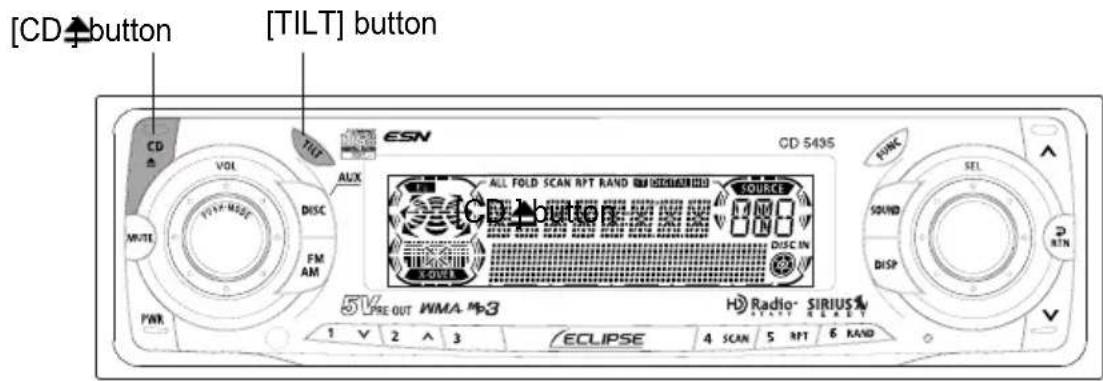
1 Push and hold the [TILT] button with the display completely closed.
While pushing the [TILT] button, the display will gradually open.
2 When the display has opened to the desired angle, release the [TILT] button.
Pressing the [TILT] button once again closes the display. After adjusting the display angle, pressing the [CD♠button opens the display. After a CD has been inserted or ejected the display will return to its adjusted angle.
How to operate the CD player
text_image
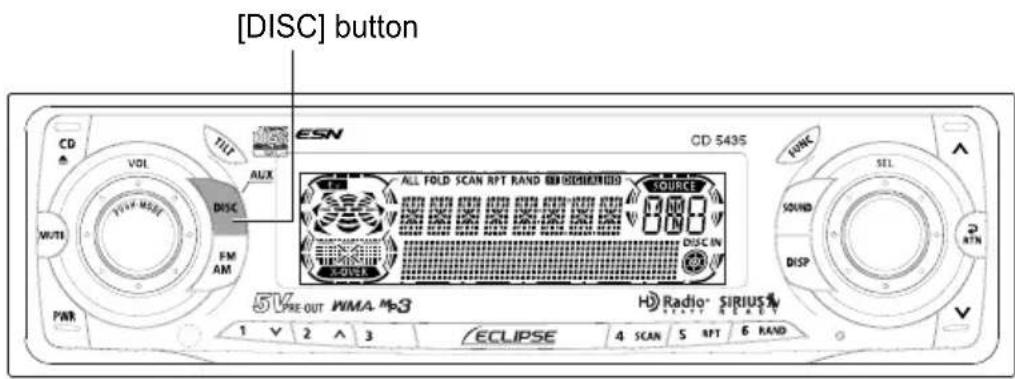
[DISC] button CD VOL W/FF M/SE PWM PWR TILT AUX DISC FM AM CD 543S ALL FOLD SCAN RPT RAND SIRIUS100 SOURCE DISC IN POWER 5V PRE-OUT WMA MR3 ECLIPSE 4 SCAN 5 RPT 6 RAND H Radio® SIRIUS1 1 V 2 ^ 3First press the [DISC] button for less than one second to switch to the disc mode. It is assumed here that a CD has already been loaded into the unit.
Listening to CDs
1 Press the [DISC] button for less than one second to switch to the CD player mode.
This starts CD play.
If an external CD changer is connected, each additional press of the [DISC] button will switch modes from CD changer 1 → CD changer 2 → CD player.
A changer or player with no discs loaded will be skipped.
![ECLIPSE CD5435 - Press the [DISC] button for less than one second to switch to the CD player mode. - 1](/content/2026/05/1066218/images/88dcfa0adf279fb2a91bb5c7c7404a0ab42337e50335d4f2e9e83dbf852048e0.jpg)
Caution
- Playback may be intermittent when there is a scratch on a CD or when the recorded side is dirty.
● Only two external CD changers may be connected.
![ECLIPSE CD5435 - Press the [DISC] button for less than one second to switch to the CD player mode. - 2](/content/2026/05/1066218/images/d62a6c13723186f47bc3520e6d7e8335f9688b2ac5b81cc4455bb927823aba0d.jpg)
text_image
[SEL] button [^] button CD VOL TOT EARN ALL FOLD SCAN RPT RAND REDRICHIN SOURCE DISC IN PINK VOUT DISC FM AM COVEB PWR 5V PRE OUT WMA. Mx3 ECLIPSE Radio SIRIUS 4 SCAN 5 RT1 6 RAND [4 SCAN] button [√] buttonAdvancing to the next track or returning to the beginning of the track being played
1 Turn the [SEL] button to the left or right.
Turn to the right: Advances to the next track.
Turn to the left: Returns to the beginning of the track being played. (Repeat turning for previous tracks.)
Fast Forward/Rewind
Fast forward or rewind the song currently being played.
1 Press and hold the [ ] or [ ] button.
[↑button: Fast forward.
[ ]button: Rewind.
Playing the beginning of tracks (SCAN)
1 Press the [4 SCAN] button.
Pressing the button causes the player to move up to the next track and play it for 10 seconds, then move up to the next track and play it for 10 seconds, and so on until the button is pressed again.
![ECLIPSE CD5435 - Press the [4 SCAN] button. - 1](/content/2026/05/1066218/images/d5344644b38aa8846a000eef4c5cc529cfd27299771b37b286d73039475fd6ec.jpg)
● To continue playing a desired track, press the button again to stop scanning.
● After the entire disc is scanned once, ordinary playback starts from the point where scanning started.
![ECLIPSE CD5435 - Press the [4 SCAN] button. - 2](/content/2026/05/1066218/images/d81f31e2593f9f2752686b1f1a4a849a92480ecdb8724d05ac9433a636713da0.jpg)
text_image
CD Δ VOL M/TE PWR AL/X DISC FM AM CD 543S ALL FOLD SCAN RPT RAND AND ROUNDLED SOURCE DISC IN R-OVER 5V VRE OUT WMA M3 ECLIPSE 4 SCAN 5 RPT 6 RAND H Radio SIRIUS START SPARET[6 RAND] button[5 RPT] button
Repeating the same track (REPEAT)
1 Press the [5 RPT] button to repeat the track being played.
To cancel, press the [5 RPT] button again.
Playing tracks in random order (RANDOM)
1 Press the [6 RAND] button to play the tracks in random order.
To cancel, press the [6 RAND] button again.

● During random playback, press the [5 RPT] button to repeat the track being played. To cancel repeat play (go back to random play), press the [5 RPT] button again.
During playback of a particular track: The track being played is played repeatedly.
While searching: The following track is played repeatedly.
- Occasionally the same track happens to be played (selected) two or more times in a row; this is normal operation and is not a sign of a problem.
- When any of the functions - "Playing the beginning of tracks", "Repeating the same track" and "Playing tracks in random order" - is selected, a message such as [SCAN], [RPT] or [RAND] appears on the display to verify the current function.
text_image
[CD▲button CD VOL TILT AUX DISC FM AM PWR 5V PRE OUT WMA #3 ECLIPSE 4 SCAN 5 RPT 6 RAND CD 543S ALL FOLD SCAN RPT RAND SIRIUS100 SOURCE DISC IN SOVER H Radio- SIRIUS1 START READYEjecting the disc
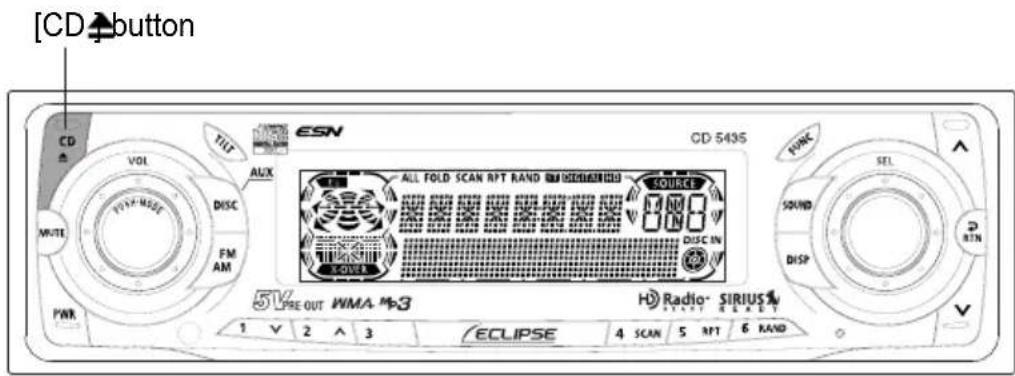
1 Press the [CD▲button.
The front panel opens and the disc is ejected.
2 Remove the disc and press the [CD4 button.
The front panel closes. If left alone for 15 seconds after the disc ejection, the front panel closes after the BEEP sound.

- Do not drive with the front panel open. The panel may cause unexpected personal injury during a panic stop, or the like.
- Do not attempt to close the front panel by hand. Doing so may damage the panel.
text_image
CD VOL TILT AUX VOUT-MODE DISC FM AM PWR 5V PRE-OUT WMA MP3 ALL FOLD SCAN RPT RAND DISCIN SOURCE DISC.IN FOUT H Radio- SIRIUS 1 V 2 ^ 3 ECLIPSE 4 SCAN 5 RPT 6 RAND CD 543S CD 543S FORC SEL SOUND DISP RTN V [DISP] buttonDisplaying CD TEXT
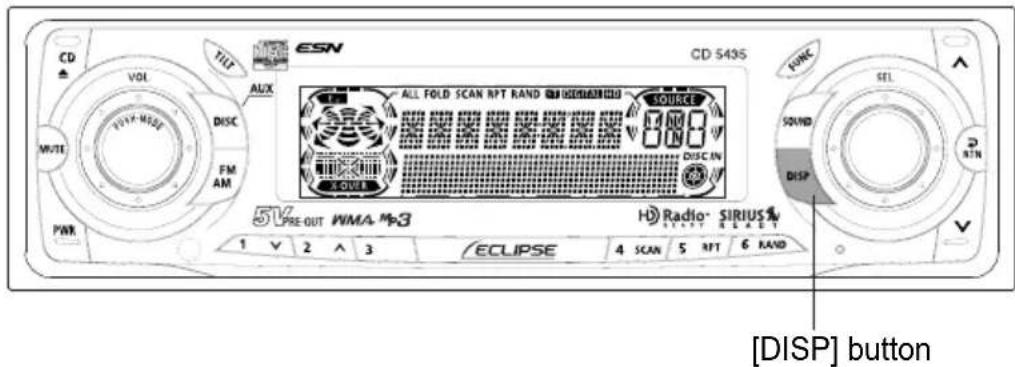
Only the built-in CD player supports CD TEXT. It can not be displayed with the optional CD changer. If the CD came with a logo shown below, it is recorded with a disc title and track titles. These information will be displayed during playback.

text_image
COMPACT DISC DIGITAL AUDIO TEXT1 Press the [DISP] button for more than one second.
Pressing the [DISP] button while text is displayed scrolls the display in the order DISC title → TRACK title, and then the display stops with the TRACK title.
CD TEXT recorded with characters other than alphanumeric and symbols cannot be displayed.
How to operate the MP3/WMA player
About MP3/WMA

The making of MP3/WMA files by recording from sources such as broadcasts, records, recordings, videos and live performances without permission from the copyright holder for uses other than personal enjoyment is prohibited.
What is MP3/WMA?
MP3 (MPEG Audio Layer III) is a standard format for audio compression technology. By using MP3, a file can be compressed to one-tenth the size of the original.
WMA (Windows Media™ Audio) is format for audio compression technology. WMA files can be compressed to a size smaller than MP3 files.
This deck has limitations on MP3/WMA file standards and recorded media and formats that can be used.
playable MP3 file standards
● Supported standards: MPEG-1 Audio Layer III
● Supported sampling frequencies: 44.1, 48 (kHz)
● Supported bit rate: 64, 80, 96, 112, 128, 160, 192, 224, 256, 288, 320 (kbps)
* Supports VBR. (64\~320kbps)
* Does not support free format.
● Supported channel modes: stereo
playable WMA file standards
● Supported standards: WMA Ver. 7
WMA Ver. 8
WMA Ver. 9
● Supported sampling frequencies: 32, 44.1, 48 (kHz)
● Supported bit rate: 48, 64, 80, 96, 128, 160, 192, 256, 320 (kbps)
* Supports VBR (48\~192 kbps).
* Does not support lossless compression.
* Does not support WMA files recorded at a frequency of 48kHz with a bit rate of 48kbps.
ID3/WMA tags
MP3/WMA files have an "ID3/WMA Tag" that allows input of information so that data such as song title and artist can be saved. This deck supports ID3v.1.0, 1.1 and WMA tags.
Media
Media capable of playing MP3/WMA includes CD-R and CD-RW discs. Compared to CD-ROM media commonly used for music discs, CD-R and CD-RW discs are fragile in high temperature/high humidity environments and one section of the CD-R and CD-RW may become incapable of playback. Fingerprints or scratches on the disc may prevent playback or cause skipping during playback. Sections of the CD-R and CD-RW may deteriorate if left inside a vehicle for long periods of time. It is also recommended that CD-R and CD-RW discs be kept in a light-blocking case because the discs are vulnerable to ultra-violet light.
Format of discs
The format of discs to be used must be ISO9660 Level 1 or Level 2. Control items for this standard are as follows:
● Maximum directory layers: 8 layers
● Maximum characters for folder names/file names: 32 (including "." and 3 letter file extension)
- Allowable characters for folder names/file names: A\~Z, 0\~9, _ (underscore)
● Number of files/folders possible on a single disc: 999
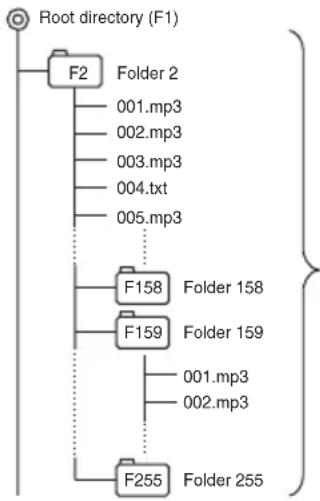
[Configuration example for CD supporting MP3/WMA]
flowchart
graph TD
    A["Root directory (F1)"] --> B["F2"]
    B --> C["Folder 2"]
    B --> D["001.mp3"]
    B --> E["002.mp3"]
    B --> F["003.mp3"]
    B --> G["004.txt"]
    B --> H["005.mp3"]
    B --> I["F158"]
    I --> J["Folder 158"]
    I --> K["F159"]
    K --> L["Folder 159"]
    K --> M["001.mp3"]
    K --> N["002.mp3"]
    K --> O["F255"]
    O --> P["Folder 255"]
Number of files/folders possible on a single disc is 999.
Files aside from MP3/WMA files (Example: 004.txt) also count as single files.
● Total number of folders possible on a single disc: 255
● Maximum folders this deck can recognize: 256*
*: A root directory is counted as one folder.
File names
Only files with the MP3/WMA file extension ".mp3", ".wma" can be recognized as MP3/WMA and played. Be sure to save MP3 files with the ".mp3" file extension. Be sure to WMA files with the ".wma" file extension. The "MP" or "WMA" letters of the file extension will be recognized whether entered as uppercase letters or lowercase letters.

If the ".mp3", ".wma" file extension is attached to a file other than an MP3/WMA file, that file will be mistakenly recognized by the deck as an MP3/WMA file and played, resulting in loud noise output that can damage the speakers. Be sure to avoid attaching the ".mp3", ".wma" file extension to files that are not MP3/WMA files.
Multi-sessions
Multi-sessions are supported, and playing of CD-R and CD-RW discs with annotated MP3/WMA files is possible. However, when "Track at once" has been written, close the session or process the warning message. Standardize the format of each session without changing the format.
Playing MP3/WMA
When a disc with recorded MP3/WMA files is inserted, the deck first checks all the files on the disc. No sound is output while the deck is checking the files on the disc. It is recommended that the disc be recorded without files other than MP3/WMA files and without unnecessary folders in order to speed up the checking of disc files by the deck.
MP3/WMA playing time display
It is possible that playing time will not be correct, depending on the writing condition of the MP3/WMA file.
* It is possible that playing time will not be correct when VBR Fast Up/Down is operated.
Display order of MP3/WMA file/folder names
Names of MP3/WMA folders and files within the same level are displayed in the following order.
- MP3/WMA folders displayed first, by ascending order of numbers, letters.
- Files displayed next, by ascending order of numbers, letters.
text_image
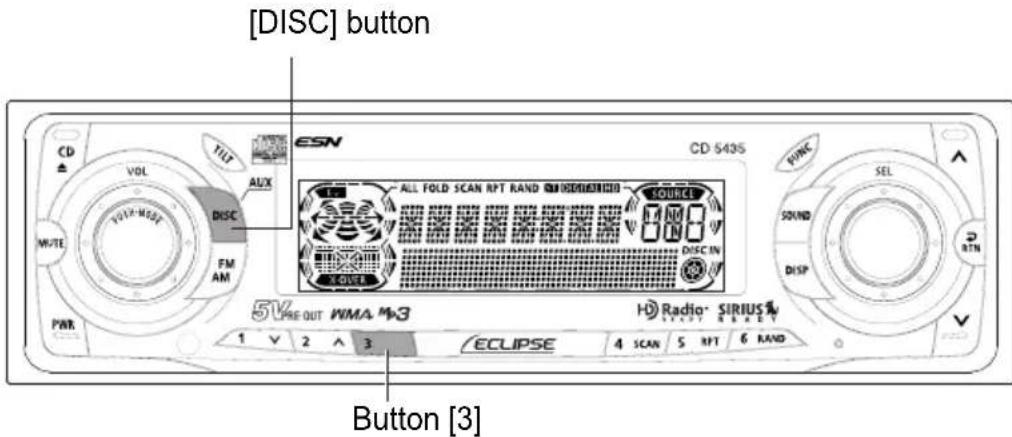
[DISC] button CD VOL TILT ALEX DISC FM AM PWR CD 543S ALL FOLD SCAN RPT RAND SINDIUMICIO SOURCE 5V PRE OUT WMA M3 ECLIPSE 4 SCAN 5 NFT 6 RAND H Radio- SIRIUS R乾7 R B K D 1 V 2 A 3 Button [3]Listening to MP3/WMA file
1 Press the [DISC] button for less than one second to switch to the CD player mode.
This starts MP3/WMA file play.
If an external CD changer is connected, each additional press of the [DISC] button will switch modes from CD changer 1 → CD changer 2 → CD player.
A changer or player with no discs loaded will be skipped.
![ECLIPSE CD5435 - Press the [DISC] button for less than one second to switch to the CD player mode. - 1](/content/2026/05/1066218/images/9dba49fac40c4e2ea09d76cc9f9d8431b982ce75e352c81aec18a049b17e3781.jpg)
● Playback may be intermittent when there is a scratch on a CD or when the recorded side is dirty.
● Only two external CD changers may be connected.
Note
- When music data recorded in the normal way (CD-DA) is present on the same disc with MP3/WMA music files, the normally recorded music data will be played. To listen to the MP3/WMA music files, press button [3] for more than one second.
- When a non-MP3/WMA file is played, "NOSUPPORT" will appear.
● The optional CD changer cannot be used to play MP3/WMA files.
● WMA files protected by license control are skipped. Playback continues after the skipped file. In the event that all files are protected by license control the CD-R will not playback and [PROTECT] will be displayed.
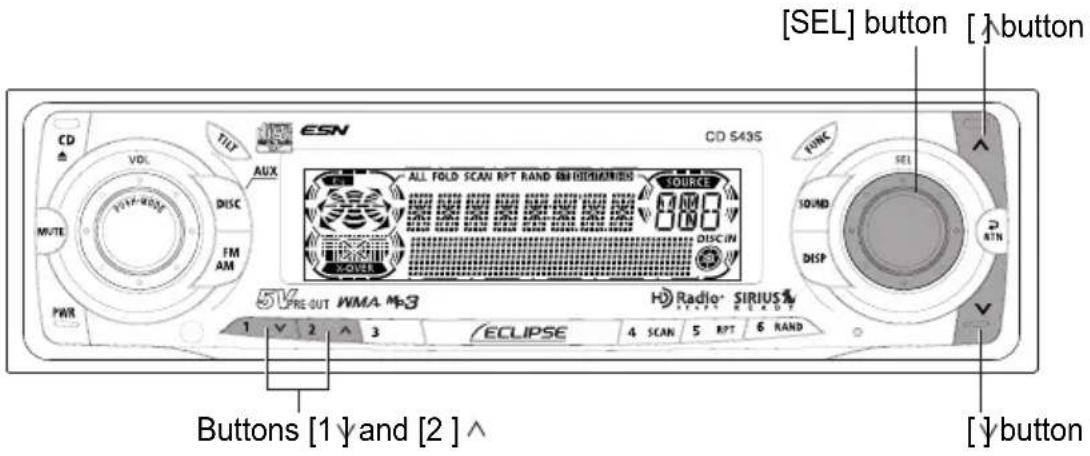
text_image
[SEL] button [ ]button CD VOL TTL ISSN ALL FOLD SCAN RPT RAND ON HUMAN/INS SOURCE 10/ND DISP INTN PWM FM AM 5V PRE OUT WMA M3 Radio+ SIRIUS 1 V 2 ^ 3 ECLIPSE 4 SCAN 5 RPT 6 RAND Buttons [1] and [2] ^ [ ]buttonAdvancing to the next track (file) or returning to the beginning of the track (file) being played
1 Turn the [SEL] button to the left or right.
Turn to the right: Advances to the next track (file).
Turn to the left: Returns to the beginning of the track (file) being played.
Repeat turning for previous tracks (files).
Skipping to the next or previous folder
1 Press button [1] or [2].^
Button [1]: Selects the next lower folder.
Button [2]: Selects the next folder.
Fast Forward/Rewind
Fast forward or rewind the song currently being played.
1 Press and hold the [ ] or [ ] button.
[↑button: Fast forward.
[ ]button: Rewind.
![ECLIPSE CD5435 - Press and hold the [ ] or [ ] button. - 1](/content/2026/05/1066218/images/0822f9913767b543007881ae8e4115cec54dce59d47380801730ea8180eb10c9.jpg)
text_image
CD VOL TILT ESN CD 543S AUX DISC FM AM MUTE PWR 5V PRE-OUT WMA M-3 ALL FOLD SCAN RPT RAND IN10000000000000000000000000000000000000000000000000000000000000000000000000000000 ECLIPSE 4 SCAN 5 RPT 6 RAND E2RND SYNC SEL SOUND DISP RTN [RTN] buttonReturn to the root directory of the CD
In the root directory, when a file cannot replay, the system will return to the first file that can perform a replay. (In the configuration example, the file is returning to 001.mp3. See page 59.)
1 Press the [RTN] button.
![ECLIPSE CD5435 - Press the [RTN] button. - 1](/content/2026/05/1066218/images/813475baf5c5255a3a42a64abf96abaf11c5cd62c3537b7039ec4b744601076d.jpg)
text_image
CD VOL AUX ESC DISC FM AM PWR VOUT MORE MUTE CD 5435 ALL FOLD SCAN RPT RAND S1 DIGITAL RED SOURCE DISC IN A-OVER 51/2 PRE OUT WMA M-3 ECLIPSE 4 SCAN 5 RPT 6 RAND H Radio- SIRIUS START RESET 1 V 2 A 3[4 SCAN] button [5 RPT] button
Playing the beginning of files (SCAN)
1 Press the [4 SCAN] button.
Press the button briefly to play just the first 10 seconds of each song for all the files in the same layer of the folder being played. Pressing the button until [FOLD SCAN] is displayed will play just the first 10 seconds of the first song in each folder.
![ECLIPSE CD5435 - Press the [4 SCAN] button. - 1](/content/2026/05/1066218/images/17e8c71b38803f495040e1dbbe41d328610bb80e94ce563b937a29e438c5ae79.jpg)
● To continue playing a desired file, press the button again to stop scanning.
● After the entire disc is scanned once, ordinary playback starts from the point where scanning started.
Repeating the same file (REPEAT)
1 Press the [5 RPT] button.
Press the button briefly to repeat the file being played. Pressing the button until [FOLD RPT] is displayed will repeat all the files in the same layer as the folder being played. To cancel, press the [5 RPT] button again.
![ECLIPSE CD5435 - Press the [5 RPT] button. - 1](/content/2026/05/1066218/images/d4bb9c02c95b9281675223efeb0c7e4cf2bd968d051a8b2ba73623b8ce93b57f.jpg)
text_image
CD VOL TILT AVX MUTE FM AM PWR 5V PRE OUT WMA M3 ECLIPSE ALL FOLD SCAN RPT RAND SINDIATION SOURCE DISCIN SOUND DISP 1 V 2 ^ 3 4 SCAN 5 NPT 6 RAND CD 5435 CD 5435 FONC SEL 2 ATN V[6 RAND] button[5 RPT] button [DISP] button
Playing files in random order (RANDOM)
1 Press the [6 RAND] button.
Press the button briefly to randomly play the files in the same layer as the folder being played.
Pressing the button until [ALL RAND] is displayed will randomly play the files in all the folders.
To cancel, press the [6 RAND] button again.
![ECLIPSE CD5435 - Press the [6 RAND] button. - 1](/content/2026/05/1066218/images/c52def03258376d0ea7b6a25fe8897f74b47db7fb783759ce094e346cc8643be.jpg)
● During random playback, press the [5 RPT] button to repeat the file being played. To cancel repeat play (go back to random play), press the [5 RPT] button again.
During playback of a particular file: The file being played is played repeatedly.
While searching: The following file is played repeatedly.
- Occasionally the same file happens to be played (selected) two or more times in a row; this is normal operation and is not a sign of a problem.
Displaying title
1 Press the [DISP] button for more than one second.
Each time the button is pressed, the following will be displayed in order.
Folder Name/File Name* → Folder No./File No. → Tag
*: The display area shows a maximum of 9 characters and then scrolls to display the remaining characters.
After the folder name is displayed, the file name will be displayed by scrolling. After the file name is scrolled, the display will be fixed.
![ECLIPSE CD5435 - Press the [DISP] button for more than one second. - 1](/content/2026/05/1066218/images/069b0f45f4c47771b4722b799571a65e13c09747b0994493c14fc0a5ddcea3f8.jpg)
Folder name/file name or tag recorded with characters other than alphanumeric and symbols cannot be displayed.
How to operate the tuner
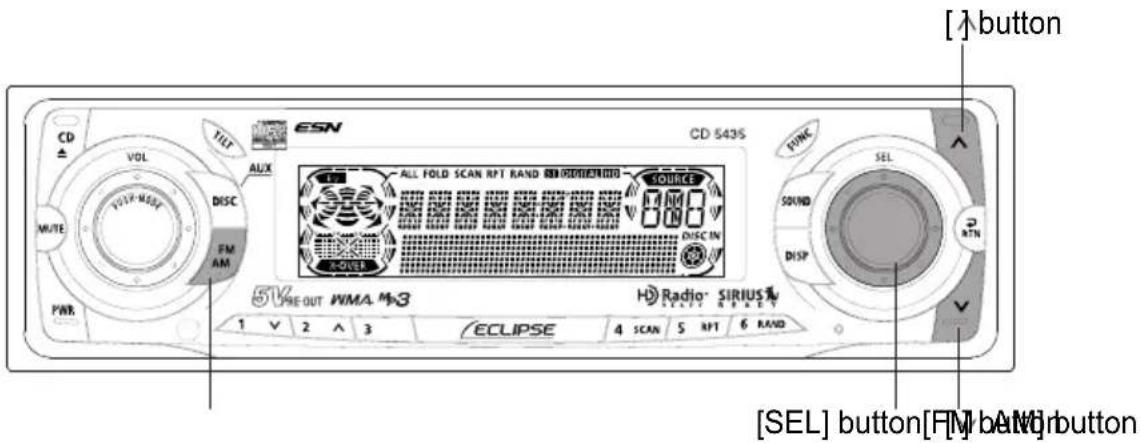
text_image
[ ] button CD ± VOL TILT AUX ESN CD 543S ALL FOLD SCAN RPT RAND SIRIUS1000 SOURCE M N D DISC IN R-OVER FONK SEL SOUND DISP RTN 5V PRE-OUT WMA M3 HD Radio SIRIUS ECLIPSE 4 SCAN 5 RPT 6 RAND 1 V 2 A 3 [SEL] button[FM] bA1W buttonFirst, press the [FM AM] button to start tuner operation.
There are automatic and manual methods for setting stations in memory. The receiver will accept up to 24 stations in memory: 6 in AM and 18 in FM (6 each for FM1, FM2 and FM3.) (Initial setting)
Tuning to a station
1 Press the [FM AM] button for less than one second to switch to the desired FM or AM bands.
Radio bands will switch from FM1 → FM2 → FM3 → AM in order each time the button is pressed.
2 Turn the [SEL] button to the left or right to tune to a station.
Turn to the right: Tunes to higher frequencies.
Turn to the left: Tunes to lower frequencies.
3 Press the [λ] or [ ] button to start the automatic station search.
[↑button: Starts searching toward higher frequencies.
[↓button: Starts searching toward lower frequencies.

- At times, it may be difficult to maintain optimum reception because the antenna affixed to your vehicle is in motion constantly (relative to the broadcast antenna), encountering continuous variation in the received radio signals' strength. Other factors affecting reception include interference from natural obstacles, sign posts, etc.
- When an optional HD Radio tuner units is connected, digital broadcasts have reception priority. (U.S.A. only)
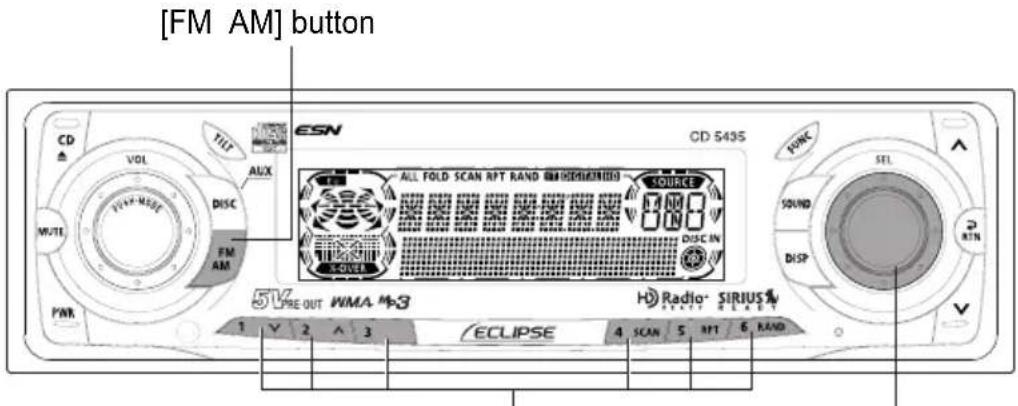
text_image
[FM AM] button CD VOL TILT AUX DISC FM AM PWR ESN CD 543S ALL FOLD SCAN RPT RAND MICHIGMINTO SOURCE 800 DISC IN SOVER 5V PRE OUT WMA M-3 ECLIPSE 4 SCAN 5 MT 6 RAND Radio SIRIUS 1 V 2 A 3 1 V 2 A 3 ECLIPSE 4 SCAN 5 MT 6 RAND[SËL] buttonButtons [1] to [6]
Entering stations into memory automatically (The automatic preset mode: ASM)
1 Press the [FM AM] button for less than one second to switch to the desired FM or AM bands.
Radio bands will switch from FM1 → FM2 → FM3 → AM in order each time the button is pressed.
2 Press the [SEL] button for more than two seconds until a beep is heard.
The automatic preset mode starts.
The [ASM ON] indicator on the screen flashes, and stations are automatically entered in memory under buttons [1] to [6].
These buttons are called preset buttons.

- Pressing the preset buttons ([1] to [6]) allows you to make one-touch station selections. The frequency of the selected station is on the display.
- When a new station is set in memory, the station previously set in memory will be deleted.
- If there are fewer than six receivable stations, the stations set in the remaining buttons will be retained.

If the vehicle's battery is disconnected (for repairs to the vehicle or for removing the receiver), all stations in memory will be lost. In such a case, set stations in the memory again.
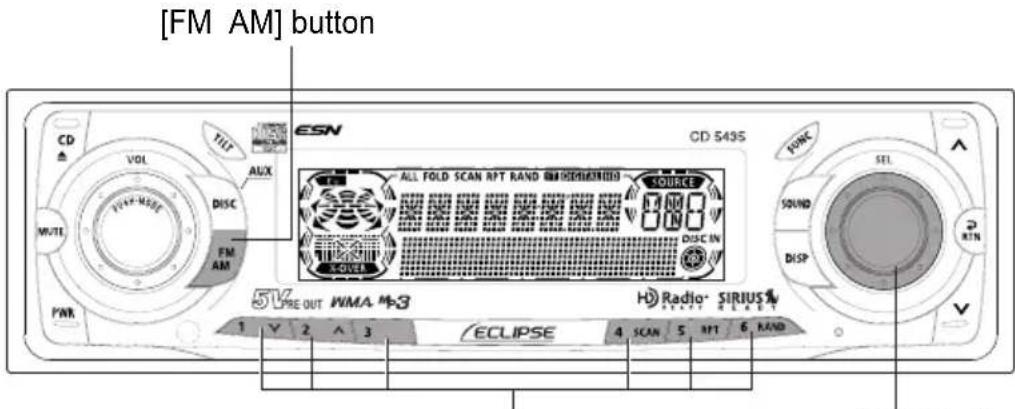
text_image
[FM AM] button CD VOL TILT AUX DISC FM AM PWR CD 549S ALL FOLD SCAN RPT RAND ON DIMENSION SOURCE DISC IN 5V PRE OUT WMA M3 ECLIPSE Radio- SIRIUS 1 V 2 ^ 3 4 SCAN 5 MT 6 HAND[SEL] buttonButtons [1] to [6]
Manually setting stations into memory
This section covers the setting of stations in memory under the numbered buttons.
1 Press the [FM AM] button for less than one second to switch between FM and AM.
2 Turn the [SEL] button to the right or left to tune to the station to be entered in memory.
3 Select any button, from [1] to [6], and press it for more than two seconds.
The tuned station is now memorized and set in the button selected. Repeat the procedure to set additional manually tuned stations in memory, in turn, for buttons [1] to [6]. These buttons are called the preset buttons.

Caution
If the vehicle's battery is disconnected (for repairs to the vehicle or for removing the receiver), all stations in memory will be lost. In such a case, set stations in memory again.
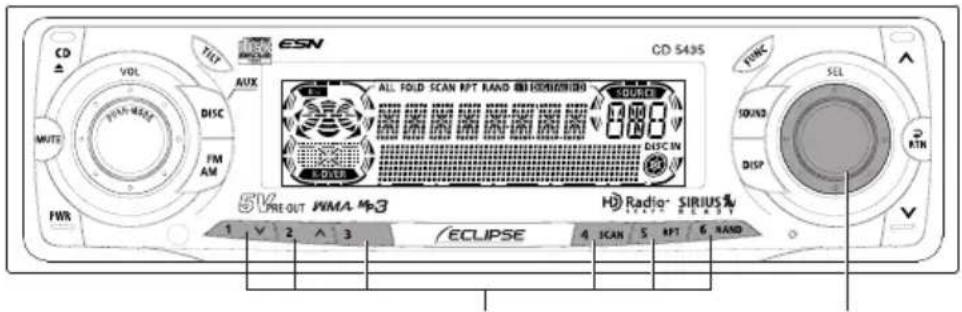
text_image
CD Δ VOL TILT ESN AUX DISC FM AM WUTE FWR ALL FOLD SCAN NPT RAND 10 HONOMINUM SOURCE 0.88 DISC IN 5-DIVER 5V PRE-OUT WMA M-3 ECLIPSE 4 SCAN 5 NPT 6 RAND CD 543S SYNC SEL 10UN2 DISP RTN V HD Radio SIRIUS[SEL] buttonButtons [1] to [6]
Preset station scan
This function enables reception of all the stations in the preset buttons for five seconds each.
1 Press the [SEL] button for less than two seconds.
[P SCAN] will appear on the display, and stations stored under preset buttons [1] through [6] will be played for five seconds each.
2 To stop the preset scan mode at a desired station, press the [SEL] button again.
The receiver will stay tuned to the desired station.
[FM AM] button
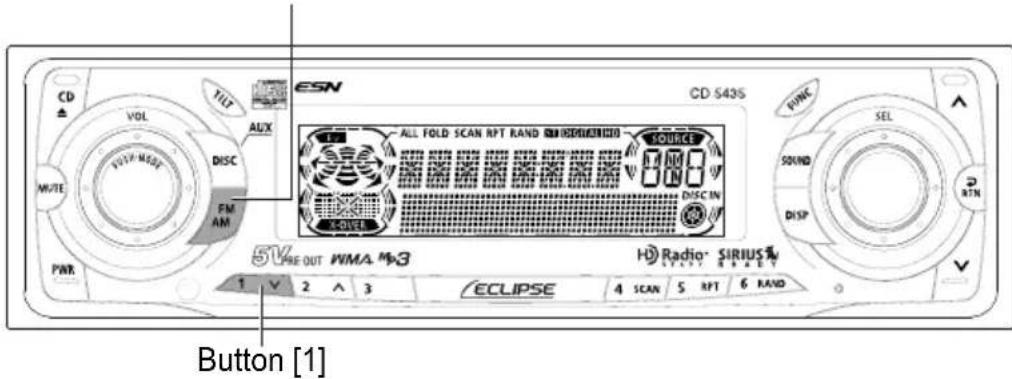
text_image
CD VOL TILT ALIX M/TE FTR/MSSY DISC FM AM PWR 5V REF OUT WMA M3 1 V 2 ^ 3 ECLIPSE ALL FOLD SCAN RPT RAND SINDIUMICO SOURCE 0.000 DISC IN X-OVER H Radio- SIRIUS SINN RAREY 4 SCAN 5 RFT 6 RAND PINC SEL SOUND DISP 3 ATN Button [1]Changing the reception sensitivity for automatic scanning
The deck lets you select the reception sensitivity to be used for automatic scanning of stations. The two sensitivity modes available for this deck are AUTO mode and DX mode.

When an optional HD Radio tuner unit is connected, reception sensitivity is set to the AUTO Mode. The DX Mode is unavailable. (U.S.A. only)
| AUTO Mode | During automatic scanning, the reception sensitivity switches automatically to one of two levels. Initially the reception sensitivity is set to the low level so that only stations with strong signals are received. If no stations could be received, the reception sensitivity is increased so that stations with weaker signals can also be received. |
| DX Mode | Because the reception sensitivity for automatic scanning is set to the high level from the start, even stations with weaker signals can be received. (Signal crossover may result in some stations being hard to hear.) |
1 Check that the deck is in standby mode.
2 Press and hold button [1], then the [FM AM] button, and hold both for more than three seconds.
The mode switches between AUTO mode and DX mode each time the buttons are pressed.
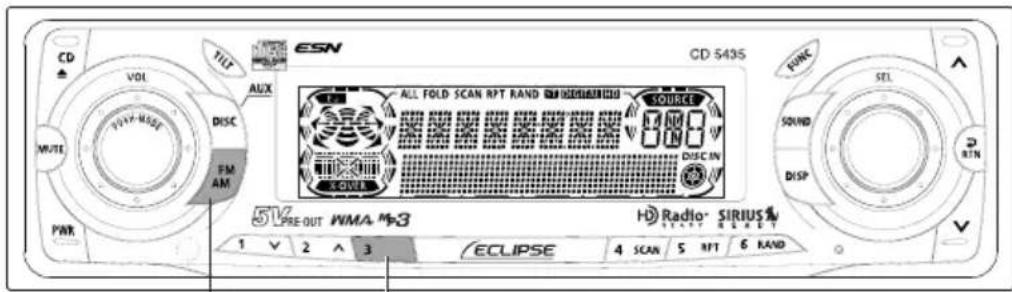
text_image
CD VOL MUX VOLT-MASE DISC FM AM PWR CD 543S ALL FOLD SCAN RPT RAND SIRIUS100 SOURCE DISC IN 5V PRE-OUT WMA M3 ECLIPSE 4 SCAN 5 RPT 6 RAND H Radio- SIRIUS START RAND 1 V 2 ^ 3[FM AM] button Button [3]
Changing the radio band location
The location for the radio bands used between the North American region and the Asia/Australia/Latin region can be switched. The default setting is USA (North America).

When an optional HD Radio tuner unit is connected, radio band location is set to USA. Other radio band locations are unavailable. (U.S.A. only)
1 Check that the deck is in standby mode.
2 Press and hold button [3], then the [FM AM] button, and hold both for more than three seconds.
The radio band switches in the order shown below each time the buttons are pressed.

flowchart
graph LR
    A["USA"] --> B["ASIA"]
    B --> C["AUS"]
    C --> D["LATIN"]
After this, the broadcast stations will be searched for automatically and stored in buttons [1] to [6].
FM reception characteristics
In general, FM has much better tonal quality than AM. However, FM and FM stereo reception encounter several characteristic problems not encountered with AM. FM is more difficult to receive than AM in a moving vehicle. The following are explanatory notes on what to expect from FM reception and on how to get satisfactory performance.
FM reception differs from AM
A characteristic of transmitted signals is that lower frequencies travel further. FM frequencies are much higher than AM's (similar to a ray of light): they won't bend but they will reflect. Often, they will be interrupted by tall buildings, mountains, etc., taking direct and indirect paths to your vehicle's antenna. The distance at which FM stations can be received satisfactorily is usually not nearly as far as that which AM stations can be received.
AM Radio Waves FM Radio Waves
Ionosphere Ionosphere
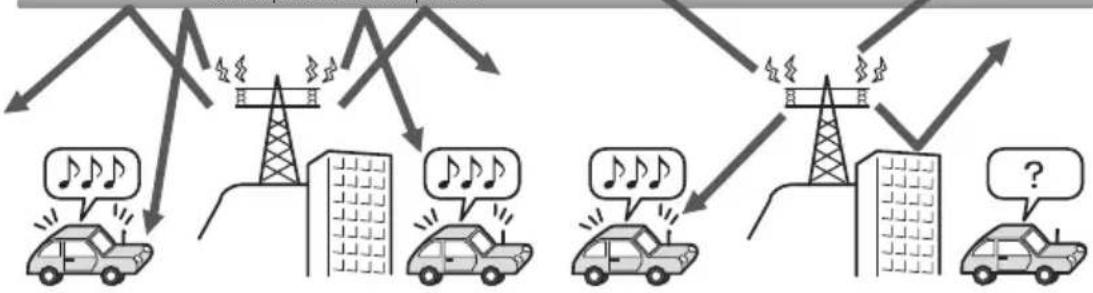
flowchart
graph TD
    A["Car with Note"] --> B["Radio Station"]
    C["Car with Note"] --> D["Radio Station"]
    E["Car with Note"] --> F["Radio Station"]
    G["Car with Note"] --> H["Radio Station"]
    I["Car with Note"] --> J["Radio Station"]
    K["Car with Note"] --> L["Radio Station"]
    M["Car with Note"] --> N["Radio Station"]
    O["Car with Note"] --> P["Radio Station"]
    Q["Car with Note"] --> R["Radio Station"]
    S["Car with Note"] --> T["Radio Station"]
    U["Car with Note"] --> V["Radio Station"]
    W["Car with Note"] --> X["Radio Station"]
    Y["Car with Note"] --> Z["Radio Station"]
    AA["Car with Note"] --> AB["Radio Station"]
    AC["Car with Note"] --> AD["Radio Station"]
    AE["Car with Note"] --> AF["Radio Station"]
    AG["Car with Note"] --> AH["Radio Station"]
    AI["Car with Note"] --> AJ["Radio Station"]
    AK["Car with Note"] --> AL["Radio Station"]
    AM["Car with Note"] --> AN["Radio Station"]
    AO["Car with Note"] --> AP["Radio Station"]
    AQ["Car with Note"] --> AR["Radio Station"]
    AS["Car with Note"] --> AT["Radio Station"]
    AU["Car with Note"] --> AV["Radio Station"]
    AW["Car with Note"] --> AX["Radio Station"]
    AY["Car with Note"] --> AZ["Radio Station"]
    BA["Car with Note"] --> BB["Radio Station"]
    BC["Car with Note"] --> BD["Radio Station"]
    BE["Car with Note"] --> BF["Radio Station"]
    BG["Car with Note"] --> BH["Radio Station"]
    BI["Car with Note"] --> BJ["Radio Station"]
    BK["Car with Note"] --> BL["Radio Station"]
    BM["Car with Note"] --> BN["Radio Station"]
    BO["Car with Note"] --> BP["Radio Station"]
    BZ["Car with Note"] --> CA["Radio Station"]
    CB["Car with Note"] --> CC["Radio Station"]
    CD["Car with Note"] --> CE["Radio Station"]
    CF["Car with Note"] --> CG["Radio Station"]
    CH["Car with Note"] --> CI["Radio Station"]
    CJ["Car with Note"] --> CK["Radio Station"]
    CL["Car with Note"] --> CM["Radio Station"]
    BN --> CN["Radio Station"]
    BO --> CO["Radio Station"]
    BX --> CY["Radio Station"]
    CT --> CY
    CX --> CY
    CY --> CY
    CY --> CY
    CY --> CY
    CY --> CY
    CY --> CY
    CY --> CY
    CY --> CY
    CY --> CY
    CY --> CY
    CY --> CY
    CY --> CY
    CY --> CY
    CY --> CY
    CY --> CY
    CY --> CY
    CY --> CY
    CY --> CY
    CY --> CY
    CY --> CY
    CY --> CY
    CX --> CY
    YX --> YB
    ZL --> ZM
    YG --> YH
    ZH --> ZI
    YK --> YL
    ZL --> ZM
    YM --> ZM
    ZH --> ZM
    YG --> ZM
    ZM --> ZM
    ZL --> ZM
    ZM --> ZM
    ZH --> ZM
    ZM --> ZM
    ZL --> ZM
    ZM --> ZM
    ZH --> ZM
    ZM --> ZM
    ZL --> ZM
    ZM --> ZM
    ZH --> ZM
    ZM --> ZM
    ZL --> ZM
    ZM --> ZM
    ZH --> ZM
    ZM --> ZM
    ZL --> YB
    ZM --> YH
    ZH --> YI
    ZM --> YJ
    ZH --> YK
    ZM --> YL
    ZH --> YM
    ZM --> YJ
    ZH --> YK
    ZM --> YL
    ZH --> YM
    ZM --> YJ
    ZH --> YK
    ZM --> YL
    ZH --> YM
    ZM --> YJ
    ZH --> YK
    ZM --> YL
    ZH --> YM
Fading out
In weak signal or “fringe” reception areas, FM stations may fade out completely, or fade in and out. When driving in weak signal areas, such as near hills, through valleys or tunnels, among tall buildings, etc., you may encounter unusual noise interference. THIS IS NOT A TUNER PROBLEM. In this case, you can only wait until you are in a better reception area, tune to a stronger station, or reduce the treble level.
Reception area of FM broadcasts
A home receiver can catch weak FM stereo signals through the use of a tall, directional or ultra-sensitive antenna. In a moving vehicle, the area for good reception is limited because of varying conditions encountered while driving, including the types and heights of broadcast antenna structures, signal strength, engine noise, etc. For best reception with manual antenna, extend the antenna mast as far as possible.
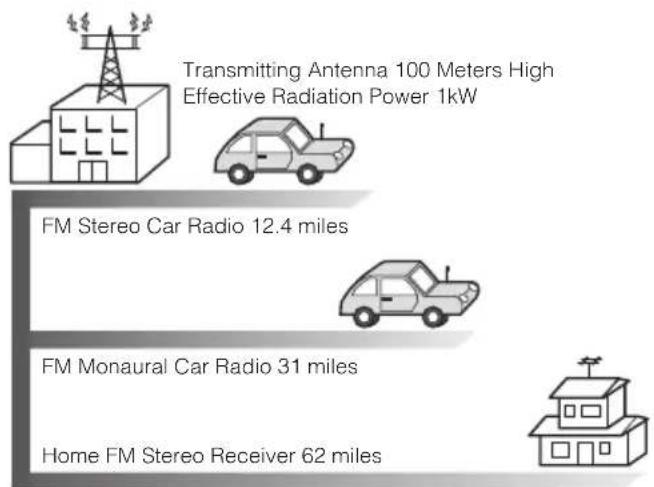
text_image
Transmitting Antenna 100 Meters High Effective Radiation Power 1kW FM Stereo Car Radio 12.4 miles FM Monaural Car Radio 31 miles Home FM Stereo Receiver 62 milesReception quality varies depending on the power of the FM station, natural and artificial barriers, weather conditions, etc.
Multipath
The reflection characteristics of FM waves cause another problem called multipath–FM wave signals reflecting off of buildings, mountains, etc. When the antenna receives direct and reflected waves at the same time, distortion of sound in the treble range often occurs, such as static or harsh-sounding voices. THIS IS NOT A TUNER PROBLEM. Only moving to another area with a clearer signal path can remedy the situation.
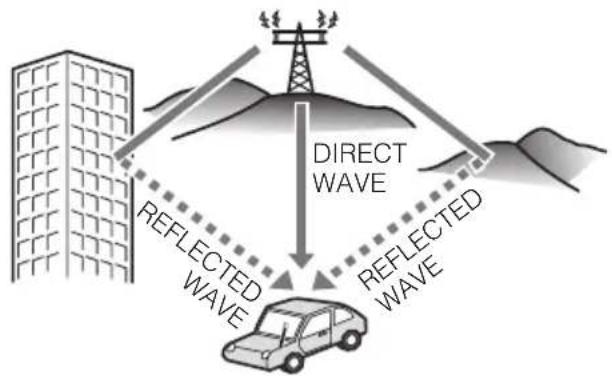
text_image
DIRECT WAVE REFLECTED WAVE REFLECTED WAVEHow to operate the AREA SHOT function (U.S.A. only)
About the AREA SHOT
With the AREA SHOT function, road information such as the direction of travel and the street names of turn intersections can be downloaded from the ECLIPSE website (E-iSERV), imported into the CD5435, and shown on the display
To use the AREA SHOT function
In order to use AREA SHOT, driving instructions such as the direction of travel and the street names of turn intersections must be downloaded from the ECLIPSE website (E-iSERV) and imported into the CD5435.
The process is as follows:
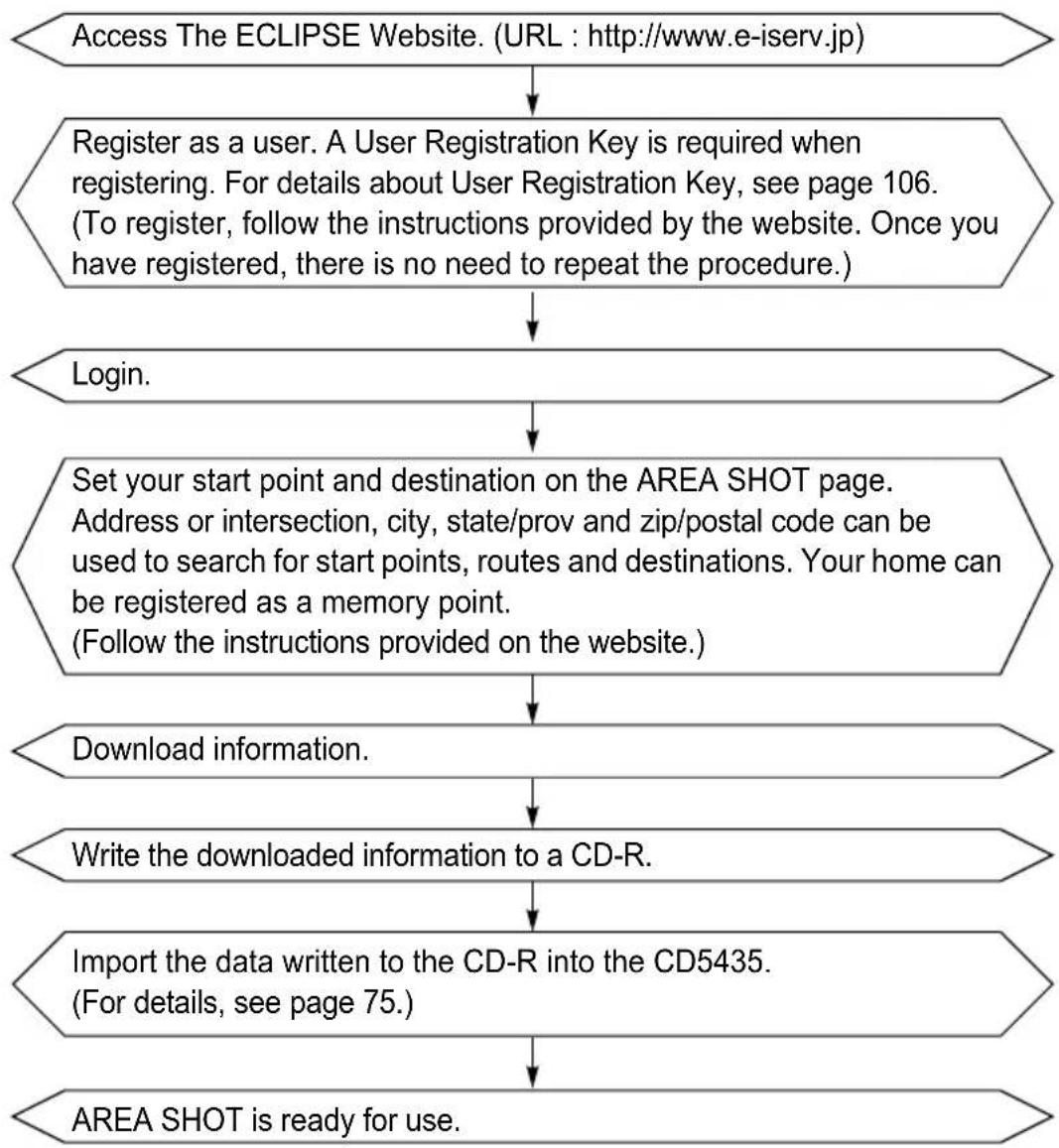
flowchart
graph TD
    A["Access The ECLIPSE Website. (URL : http://www.e-iserv.jp)"] --> B["Register as a user. A User Registration Key is required when registering. For details about User Registration Key, see page 106. (To register, follow the instructions provided by the website. Once you have registered, there is no need to repeat the procedure.)"]
    B --> C["Login."]
    C --> D["Set your start point and destination on the AREA SHOT page. Address or intersection, city, state/prov and zip/postal code can be used to search for start points, routes and destinations. Your home can be registered as a memory point. (Follow the instructions provided on the website.)"]
    D --> E["Download information."]
    E --> F["Write the downloaded information to a CD-R."]
    F --> G["Import the data written to the CD-R into the CD5435. (For details, see page 75.)"]
    G --> H["AREA SHOT is ready for use."]
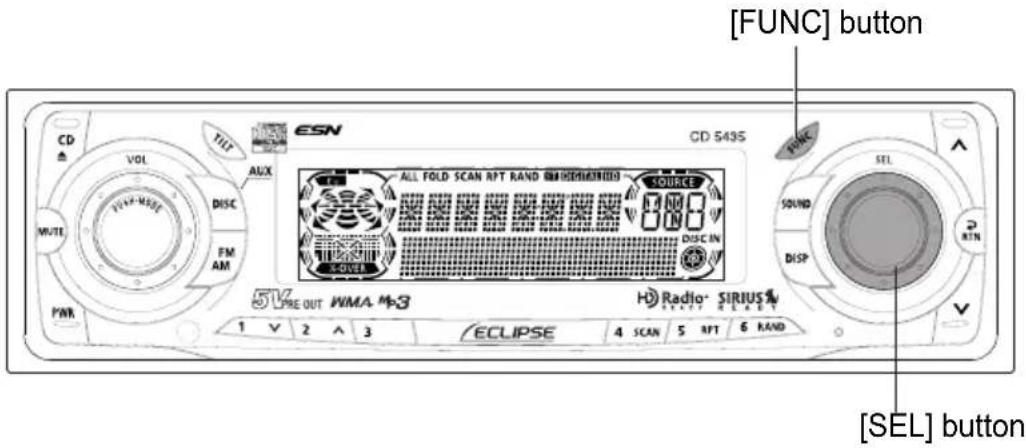
text_image
[FUNC] button CD VOL TILT ESN CD 543S ALL FOLD SCAN RPT RAND SIRIUSMATHOOO SOURCE SOUND DISC.IN PWR FM AM 5V PRE OUT WMA M-3 H Radio- SIRIUS 1 V 2 ^ 3 ECLIPSE 4 SCAN 5 RPT 6 RAND SEL button RIN DSPReading the AREA SHOT data
The AREA SHOT data that has been downloaded from E-iSERV (web site) to a CD-R can be loaded into the deck and saved there.
1 Press the [FUNC] button for less than one second.
The function mode is activated.
2 Turn the [SEL] button to select AREA SHOT.
3 Press the [SEL] button.
The panel opens automatically.
4 Insert the CD-R to be used for for saving the AREA SHOT data.
The panel closes automatically when a CD-R is inserted and the files are read. While the files are being read [READING...] is displayed.
If the CD-R does not contain the correct files, [NO DATA] will be displayed.
5 Turn the [SEL] button to select the saving file.
The selection file name is highlighted.

Press the [SEL] button.
The selected file will be saved. While the files are being read [READING...] will appear.
When reading has finished, [COMPLETED] will appear on the display and then it will return to the display for selecting the function mode.
![ECLIPSE CD5435 - Press the [SEL] button. - 1](/content/2026/05/1066218/images/9e307c0946a2ba4845a5d3d3b978604f537e957cc9767ddcceaeb2d851d6a7d4.jpg)
● The deck can only import file from CD-Rs that have been written in root directories.
![ECLIPSE CD5435 - Press the [SEL] button. - 2](/content/2026/05/1066218/images/20368b599d93ff10b7e36354c5a8e480d67827c3c5f09f87fa518708e33af7df.jpg)
flowchart
graph TD
    A["File Icon"] --> B["Microsoft Word"]
    B --> C["Automatic creation"]
    C --> D["File Extension"]
● Disc formats that may be used are as follows:
- CD-ROM (MODE 1)
- CD-ROM (MODE2_FORM 1)
*CD-ROMs written in MODE2_FORM2 cannot be read.
● The file name can be changed using 8 alphameric characters (space cannot be used).
![ECLIPSE CD5435 - Press the [SEL] button. - 3](/content/2026/05/1066218/images/3ddd3899e7cf36f097b247757746d03e9a7091bb4e51a363fe9b0be562e091b7.jpg)
Do not turn the power or ignition switch off while reading. Interrupting reading process might corrupt the data.
[MUTE] button
![ECLIPSE CD5435 - Press the [SEL] button. - 4](/content/2026/05/1066218/images/9442939a3f982a466982d7b41e9848d241a70f3778a3d3faee7ce7239ff4cc68.jpg)
text_image
CD Δ VOL TILT ESN CD 543S ALL FOLD SCAN RPT RAND SINDISSION SOURCE RAND DISCIN X-OVER PONE SEL SOUND DISP RTN WRITE FM AM 5V PRE-OUT WMA M3 H° Radio- SIRIUS1 ECLIPSE 4 SCAN 5 RPT 6 RAND 1 V 2 ^ 3Changing the AREA SHOT mode
1 Press the [MUTE] button for more than one second.
The AREA SHOT mode is activated. Information such as intersection street names and the direction of turns are displayed in text and with arrows.
Pressing and holding the [MUTE] button a second time, closes the AREA SHOT mode.
![ECLIPSE CD5435 - Press the [MUTE] button for more than one second. - 1](/content/2026/05/1066218/images/10f35a76ddb5ed011a0feec28f60ab91787681ad885d681274c4bb08b103549c.jpg)
- If buttons other than [↑, [ ],[DISP], [RTN] are pushed, the audio screen will be displayed and the audio system can be operated. If the audio system is not operated within 6 seconds, the system will return to the AREA SHOT screen.
- When resuming the AREA SHOT mode after it has been cancelled, the most recently used data will be displayed.
![ECLIPSE CD5435 - Press the [MUTE] button for more than one second. - 2](/content/2026/05/1066218/images/4a60b649b008aff96abf18ef982e381396306861d71493ff832ca89a58625400.jpg)
●Make sure to follow the actual traffic regulations when driving.
●Driving your vehicle while only following guidance point instructions may lead to traffic violations and cause accidents.
- Do not modify this system for use other than that specified herein. Also, do not deviate from the installation procedures described herein, ECLIPSE will not be held liable for damages including, but not limited to serious injury, death or property damage resulting from installations that enable unintended operation.
![ECLIPSE CD5435 - Press the [MUTE] button for more than one second. - 3](/content/2026/05/1066218/images/2bd1cce5d2a789dfac4ecc366cefee80a5831d524b26989a62eb956d1eaea99f.jpg)
text_image
[DISP] button [ ]button CD VOL TILT AUX DISC FM AM MUTE PWR CD 5435 ALL FOLD SCAN RPT RAND [ ]HISIANDRUS SOURCE DISC IN TORT SYNC SEL SOUND DISP RTN 5V PRE-OUT NMA 4-3 Radio· SIRIUS % 1 V 2 ^ 3 ECLIPSE 4 SCAN 5 RPT 6 RAND [ ]button [RTN] buttonUsing the AREA SHOT mode
By manually switching between guidance points, both previous and next guidance points can be confirmed during guidance. Intersection street names and the direction of turns are shown on the display in text and with arrows.
Switching between guidance points
After passing each location described in the guidance, it is necessary to switch manually to the next guidance screen. The previous screen can also be accessed manually and confirmed.
1 Press [ʌ] and [ ] to switch between guidance points.
[ ]button .....To switch to the next guidance point.
[ ]button .....To switch to the previous guidance point.
Re-scrolling through text information
Text information including intersection street names and turn directions can be scrolled across the screen by switching through guidance points. A maximum of 9 characters can be displayed on a single screen. Excess characters are scrolled on the display. When scrolling is complete, the first nine characters are once more displayed on the screen. To re-scroll perform the following operation:
1 Press the [DISP] button.
Guidance information can be re-scrolled.
Changing AREA SHOT screens
In the AREA SHOT mode, the audio screen can be accessed.
1 Press the [RTN] button.
Pressing the button repeatedly allows you to switch back and forth between the AREA SHOT screen and the Audio screen.
Display Arrows
Arrows for indicating turn directions are displayed as follows.
| Diagonally forward right |  | Diagonally left rear |  |
| Right Left |  |  | |
| Diagonally rear right |  | Diagonally forward left |  |
Depending on driving conditions, arrows indicate the following:
| Expressway Intersection | |||
| Traffic merges to the right |  | Right at the junction |  |
| Traffic merges to the left |  | Left at the junction |  |
| Right hand entrance |  | ||
| Left hand entrance |  | ||
| A right hand exit |  | ||
| A left hand exit |  | ||
How to use the remote control
Precautions in use of the remote control
- Be careful when handling the remote control, especially because it is small and light. Dropping or striking it hard may damage it, wear out the battery or cause a malfunction.
- Keep the remote control free of moisture, dust and water. Do not subject it to shock.
- Do not place the remote control unit where it will get hot, such as on the dashboard or near a heater vent. Allowing the remote control unit to overheat may warp its case or cause other problems.
- Do not operate the remote control unit while driving because doing so could cause an accident.
- When using the remote control, point it toward at the remote control light receptor.
● The light receptor may not operate correctly if it is exposed to bright light such as direct sunlight. - Be sure to press the [PWR] button on the main unit for more than two seconds to shut it down before leaving the car, or the car battery may be run down. When the main unit is shut down, the remote control will not work.
- Remove the batteries from the remote control unit whenever it is not to be used for a long time.
Cleaning the remote control
- Use a dry cloth to keep the unit clean. If the remote control unit gets extremely dirty, clean it with a cloth moistened with diluted liquid detergent. Do not use alcohol or thinner; these compounds may damage the finish.
- In no event should benzine or thinner be used. These substances will damage the case or finish.
Remote-control light receptor
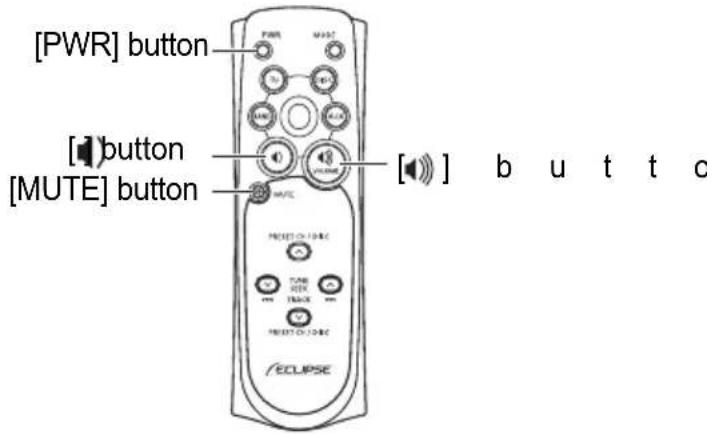
text_image
[PWR] button [button] [MUTE] button ECLIPSE [button] [button] b u t t cTurning the power on/off
When the power is turned on, the state used when the power was turned off such as CD and tuner playing is restored.
1 Press the [PWR] button.
The power turns on or off each time the button is pressed.
![ECLIPSE CD5435 - Press the [PWR] button. - 1](/content/2026/05/1066218/images/a6030bf0b76b2782dcae8563cd89a81200f89458492667bc6c40ff200c11086b.jpg)
When the main unit is shut down, the remote control will not work.
Adjusting the audio volume
1 Press the [] or [] button.
[ ]button:Increases the volume.
[button:Decreases the volume.
Muting the volume
Press the [MUTE] button for more than one second to cut the volume or restore it instantly.
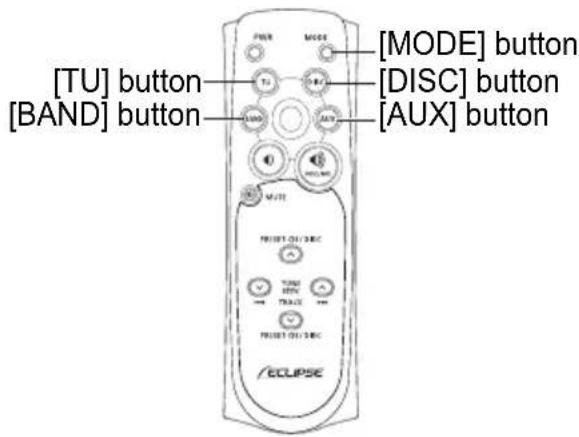
text_image
[TU] button [BAND] button [MODE] button [DISC] button [AUX] button ECLIPSESwitching playback modes
1 Press the [MODE] button.
Press the button to switch modes in the following sequence:
![ECLIPSE CD5435 - Press the [MODE] button. - 1](/content/2026/05/1066218/images/5a2352668a950aecd7403fcb367e1a21bda6ed55853816460e39972de45e2185.jpg)
![ECLIPSE CD5435 - Press the [MODE] button. - 2](/content/2026/05/1066218/images/51e82d866064a66a4e49587f5c64d48219d398e8ac9cad0fad20743f07e2179e.jpg)
Modes can be switched by pressing the following buttons:
[TU] button: The tuner mode is activated.
[DISC] button : The disc mode is activated.
[AUX] button : The AUX mode is activated.
How to play the tuner
Select the tuner mode first.
Selecting the FM/AM band
1 Press the [BAND] or [TU] button.
Each press will switch tuner modes from FM1 → FM2 → FM3 → AM.
![ECLIPSE CD5435 - Press the [BAND] or [TU] button. - 1](/content/2026/05/1066218/images/2ddd30c92c242420356a6a2cea7584d79e0d17ca066e4d1fc960f0b1442305ab.jpg)
- It is not possible to switch between FM/AM modes and SIRIUS with the remote control.
- If the optional SIRIUS tuner is connected, the selection will switch the mode from SR1 → SR2 → SR3 → SR4 in order.
![ECLIPSE CD5435 - Press the [BAND] or [TU] button. - 2](/content/2026/05/1066218/images/aa1060f0b4577b5f59d2436b603ccf83d73f592f7a0da69ecda6cf71577ca323.jpg)
text_image
[BAND] button [DISC] button [PRESET CH ] buttons [TUNE · SEEK ] buttonsSelecting a station (manually or automatically)
A short press of the button will allow manual station tuning. Pressing for more than one second will start automatic tuning.
1 Press the [VUNE·SEEK] button.
[λ] button: Tunes to higher frequency stations.
[¥button: Tunes to lower frequency stations.
Selecting preset stations
A total of six stations may be selected (preset tuning) out of those already set in memory through the main unit. (Refer to "Manually setting stations into memory" on page 68)
1 Press the [▼RESET CH] button.
[ ] button: Select the next higher number preset button.
[] button: Select the next lower number preset button.
How to play CDs
Switching disc modes
1 Press the [DISC] button.
The disc mode is activated.
2 Press the [BAND] or [DISC] button.
When one or two CD changers are connected, press the [BAND] or [DISC] button to change modes from CD player → CD changer 1 → CD changer 2.
The indicator will skip a changer or player that has no discs loaded.
![ECLIPSE CD5435 - Press the [BAND] or [DISC] button. - 1](/content/2026/05/1066218/images/647895b8a065e23bb75c29f4b7ec0e89eeb93646161ccb57585b8fd9cf481022.jpg)
text_image
[BAND] button [DISC] button [√ D I S C ] b u t [ o n ] ECLIPSE +/- + +/- + +/- + +/- + +/- + +/- + +/- + +/- + +/- + +/- + +/- + +/- + +/- + +/- + +/- + +/- + +/- + +/- + +/- + +/- + +/- + +/- + +/- + +/- + +/- + +/- + +/- + +/- + +/- + +/- + +/- + +/- + +/- + +/- + - TRACK ] buttonAdvancing to the next track or returning to the beginning of the track being played
1 Press the [TRACK] button.
[▶]button: Advances to the next track.
[+] button: Returns to the beginning of the track being played. (Press repeatedly to move to previous tracks.)
![ECLIPSE CD5435 - Press the [TRACK] button. - 1](/content/2026/05/1066218/images/8853370b448a0e4b874473fd565055c9f798686ce7906415569ba612f071f79e.jpg)
Hold the [▶] button down to fast forward, or the [ ] button to rewind through the track being played.
Skipping to the next or previous disc
1 Press the [DISC] button.
[▲button: Selects the next higher number disc.
[ ] button: Selects the next lower number disc.
![ECLIPSE CD5435 - Press the [DISC] button. - 1](/content/2026/05/1066218/images/54f9202c19530ecac8d60c05676fec0699a2761b6f1c70b32f0345b17e7a1f39.jpg)
text_image
[BAND] button [DISC] button [√ D I S C ] b u t [ o n ] ECLIPSE +/- + +/- + +/- + +/- + +/- + +/- + +/- + +/- + +/- + +/- + +/- + +/- + +/- + +/- + +/- + +/- + +/- + +/- + +/- + +/- + +/- + +/- + +/- + +/- + +/- + +/- + +/- + +/- + +/- + +/- + +/- + +/- + +/- + +/- + - TRACK ] buttonHow to play MP3/WMA
Switching disc modes
1 Press the [DISC] button.
The disc mode is activated.
2 Press the [BAND] or [DISC] button.
When one or two CD changers are connected, press the [BAND] or [DISC] button to change modes from CD player → CD changer 1 → CD changer 2.
The indicator will skip a changer or player that has no discs loaded.

● The optional CD changer cannot be used to play MP3/WMA files.
- If normally recorded data (CDDA) and MP3/WMA music file are mixed, then normally recorded music data will be played.
Advancing to the next file or returning to the beginning of the file being played
1 Press the [TRACK] button.
[ ] button: Advances to the next track (file).
[+] button: Returns to the beginning of the track (file) being played. (Press repeatedly to move to previous tracks (files).)

Hold the [▶] button down to fast forward, or the [ ] button to rewind through the track being played.
Skipping to the next or previous folder
1 Press the [DISC] button.
[↑button: Selects the next folder.
[¥button: Selects the next lower folder.
Replacing the battery

To prevent accidents, store batteries out of the reach of children. If a child has swallowed one, consult a doctor immediately.
Use two AAA size batteries.
1 Remove the back cover of the remote control unit by gently pressing and sliding it in the direction indicated by the arrow.
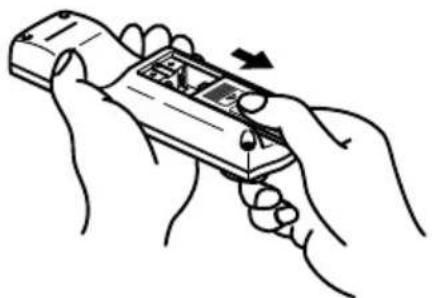
natural_image
Line drawing of hands holding a handheld device with an arrow indicating motion (no text or symbols)2 Install the two batteries provided into the compartment as illustrated inside the compartment.
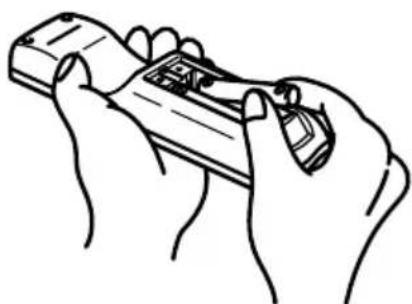
natural_image
Line drawing of two hands holding a game controller (no text or symbols)3 Return the back cover into place by sliding it in the direction indicated by the arrow.
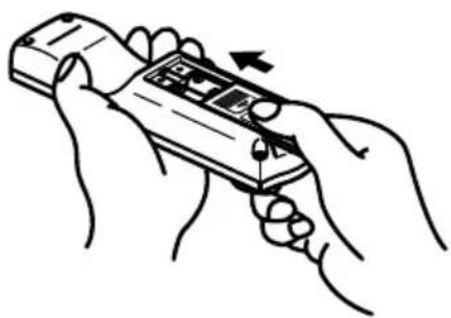
natural_image
Illustration of hands holding a handheld device with a scroll wheel (no text or symbols visible)
● Be extremely careful not to swallow the battery.
● The battery life is approximately one year. If the remote control unit does not operate correctly or if the button lamp gets dim, replace the batteries.
- Be sure to orient the batteries correctly so that the positive and negative poles match the diagram.
- Do not use one new battery and one old one; use two new batteries.
● Use only two of the same kind of battery.
- If any liquid is seen leaking from the batteries, remove both batteries and dispose of them properly. Thoroughly clean the battery compartment with a dry cloth. Then install new batteries.
How to operate the receiver with an optional CD changer connected
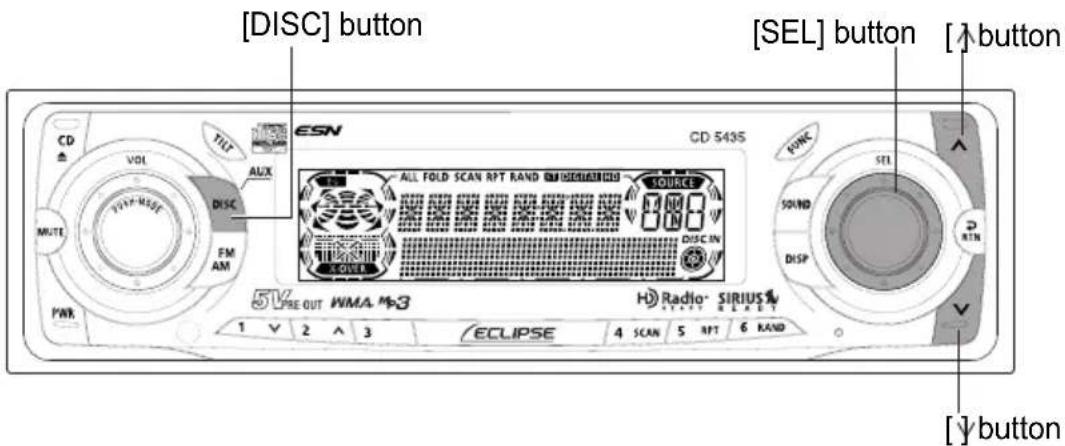
text_image
[DISC] button [SEL] button [↑button] CD VDI TILT MUX ESN ALL FOLD SCAN RPT RAND INFORMATION SOURCE 8.00 DISC IN COVER 5V PRE OUT WMA M-3 Radio- SIRIUS ECLIPSE 4 SCAN 5 RPT 6 RAND 1 V 2 ^ 3 ECLIPSE 4 SCAN 5 RPT 6 RAND PWR MUTE DISC FM AM RISC SEL SOUND DISP RBN [↓button]This section covers the operation of an optional CD changer that is connected to the receiver.
To switch from another mode, press the [DISC] button for less than one second.
Listening to a CD
1 Press the [DISC] button for less than one second.
Each press of the button switches the mode from CD Player → CD Changer 1 → CD Changer 2.
A changer or player with no discs loaded will be skipped.
Advancing to the next track or returning to the beginning of the track being played
1 Turn the [SEL] button to the left or right.
Turn to the right: Advances to the next track.
Turn to the left: Returns to the beginning of the track being played. (Repeat turning for previous tracks.)
Fast Forward/Rewind
Fast forward or rewind the song currently being played.
1 Press and hold the [ ] or [ ] button.
[ ]button: Fast forward.
[ ]button: Rewind.
![ECLIPSE CD5435 - Press and hold the [ ] or [ ] button. - 1](/content/2026/05/1066218/images/a62525fa6b9f8c20b965cf3551b2668b86b964a61bd6ec6e902a034140f157c7.jpg)
text_image
CD ± VOL TILT AUX CD 543S ALL FOLD SCAN RPT RAND SIRIUSM SOURCE SOUND DISP RPN MUTE DISC FM AM DISC IN SOVER 5V RE OUT WMA M3 H Radio® SIRIUS® ECLIPSE 1 V 2 ^ 3 4 SCAN 5 RPT 6 RAND[4 SCAN] button [5 RPT] button
Playing the beginning of tracks (SCAN)
1 Press the [4 SCAN] button.
Pressing the button for less than one second causes the changer to move up to the next track and play it for 10 seconds, then move up to the next track and play it for 10 seconds, and so on, on one CD, until the button is pressed again.
Hold the button until the [ALL SCAN] display appears to play the first 10 seconds of the first track of every CD loaded.
![ECLIPSE CD5435 - Press the [4 SCAN] button. - 1](/content/2026/05/1066218/images/c78226f2bc40edbec2453c19f37194120b229ce561963af329f25e8258e2066d.jpg)
● To continue playing a desired track, press the button again to stop scanning.
● After the entire disc is scanned once, ordinary playback starts from the point where scanning started.
Repeating the same track (REPEAT)
1 Press the [5 RPT] button.
Pressing on the button for less than one second causes the changer to repeat the track currently being played, until the button is pressed again.
Hold the button until the [ALL RPT] display appears to repeat all tracks on the CD being played.
![ECLIPSE CD5435 - Press the [5 RPT] button. - 1](/content/2026/05/1066218/images/78dcceca375943be4e788a23ae8e698428565de305624736f0796b4db4d8141c.jpg)
text_image
CD ± VOL TILT AUX MUTE DISC FM AM PWR 5V PRE OUT WMA Mx3 ECLIPSE ALL FOLD SCAN RPT RAND SIRIUS1000 SOURCES DISC IN SOLVE CD 5435 FUNC SEL SOUND DISP RTN Radio SIRIUS SIRIUS 1 V 2 A 3 4 SCAN 5 RPT 6 RANDButton [1] Button [2] [5 RPT] button [6 RAND] button
Playing tracks in random order (RANDOM)
1 Press the [6 RAND] button.
Pressing on the button for less than one second causes the changer to play the tracks on the currently playing CD in random order, until the button is pressed again.
Hold the button until the [ALL RAND] display appears to play tracks from all of CDs loaded in the currently selected changer, in random order.
![ECLIPSE CD5435 - Press the [6 RAND] button. - 1](/content/2026/05/1066218/images/d6ade11ce34efc1e69555b0d56cfce16878792b04750622c7f3d57db077b1698.jpg)
ATTENTION
● During random playback, press the [5 RPT] button to repeat the track being played. To cancel repeat play (go back to random play), press the [5 RPT] button again.
During playback of a particular track: The track being played is played repeatedly.
While searching: The following track is played repeatedly.
- Occasionally the same track happens to be played (selected) two or more times in a row, but it is not a sign of a problem.
- When any of the functions - "Playing the beginning of tracks," "Repeating the same track" and "Playing tracks in random order" - is selected, a message such as [SCAN], [ALL SCAN], [RPT], [ALL RPT], [RAND] or [ALL RAND] appears on the display to verify the current function.
● Random play is not canceled even if a magazine is ejected.
Skipping to the next or previous CD
1 Press button [1] Nor [2]. ^
Button [1]v Selects the next lower number disc.
Button [2]▲ Selects the next higher number disc.
![ECLIPSE CD5435 - Press button [1] Nor [2]. ^ - 1](/content/2026/05/1066218/images/fb5d292d550f5557160cdb9aaa90e9665c1cc110a7866cc0a52da16159e416a8.jpg)
text_image
[SEL] button CD Δ VDI TILT ESN CD 543S ALL FOLD SCAN RPT RAND ON REDADED SOURCE SOUND DISP FWR VOUT DISC FM AM DISC IN 5V PRE OUT WMA M-3 H Radio SIRIUS% 1 2 3 ECLIPSE 4 SCAN 5 RPT 6 RAND Buttons [1] to [6]Specifying a CD to play
A CD of your choice is directly selectable out of the loaded discs.
1 Press the [SEL] button for less than one second.
2 Press a button from [1] to [6].
| B | u | t | t | o | n | s | 1 | 2 | |
| C | D | 1 | 2 | 3 | 4 | 5 | 6 | ||
| 7 | 8 | 9 | 1 | 0 | 1 | 1 |
3 4 5 6
1 2
To select a CD from nos. 7 to 12, press the desired button considerably longer.
How to operate the tuner when the optional HD Radio tuner connected (U.S.A. only)
About HD Radio
If the optional HD Radio (High Definition Radio) tuner unit is connected, terrestrial digital broadcasts can be received.
When terrestrial digital broadcasts are received, FM reception has the same quality as a CD, and AM reception has the same quality as conventional FM sound.
Depending on the reception status, HD Radio can also receive analog broadcasts, which means reception is still possible in regions with no digital coverage.
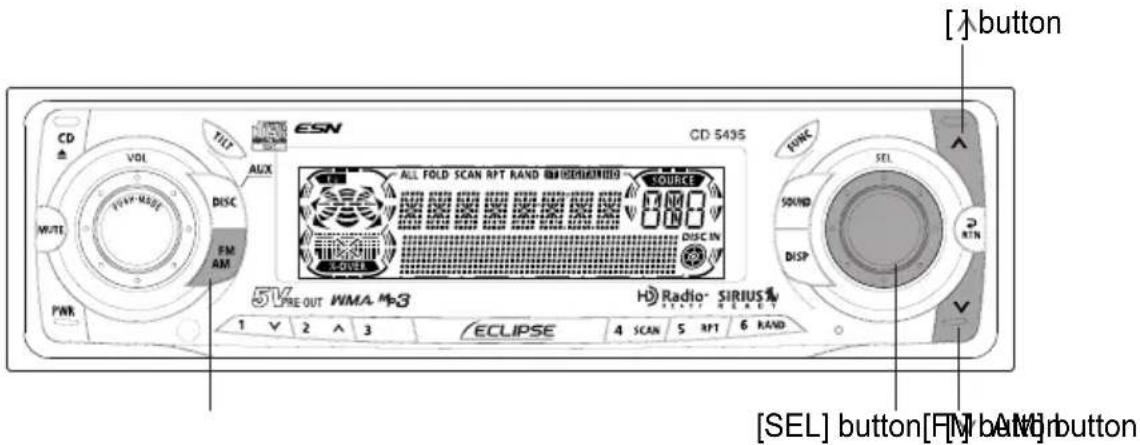
text_image
[ ] button CD Δ VOL DISC FM AM PWR TILT AUX ESN CD 5495 ALL FOLD SCAN RPT RAND [MISIUMIN] SOURCE SOUND DISC IN 1 V 2 ^ 3 ECLIPSE 4 SCAN 5 RPT 6 RAND Radio- SIRIUS 1 V 2 ^ 3 [SEL] button[FM] buttonFirst, press the [FM AM] button to start tuner operation.
There are automatic and manual methods for setting stations in memory. The receiver will accept up to 24 stations in memory: six in AM and 18 in FM (6 each for FM1, FM2 and FM3.) (Initial setting)
Tuning to a station
1 Press the [FM AM] button for less than one second to switch to the desired FM or AM bands.
Radio bands will switch from FM1 → FM2 → FM3 → AM in order each time the button is pressed.

If the optional SIRIUS satellite radio tuner unit is connected, radio mode will be switched between the satellite radio mode and FM AM radio mode by pressing the [FM AM] button for more than one second.
2 Turn the [SEL] button to the left or right to tune to a station.
Turn to the right: Tunes to higher frequencies. Turn to the left: Tunes to lower frequencies.
3 Press the [ʌ] or [ ] button to start the automatic station search.
[ ]button: Starts searching toward higher frequencies. [ ]button: Starts searching toward lower frequencies.

At times, it may be difficult to maintain optimum reception because the antenna affixed to your vehicle is in motion constantly (relative to the broadcast antenna), encountering continuous variation in the received radio signals' strength. Other factors affecting reception include interference from natural obstacles, sign posts, etc.
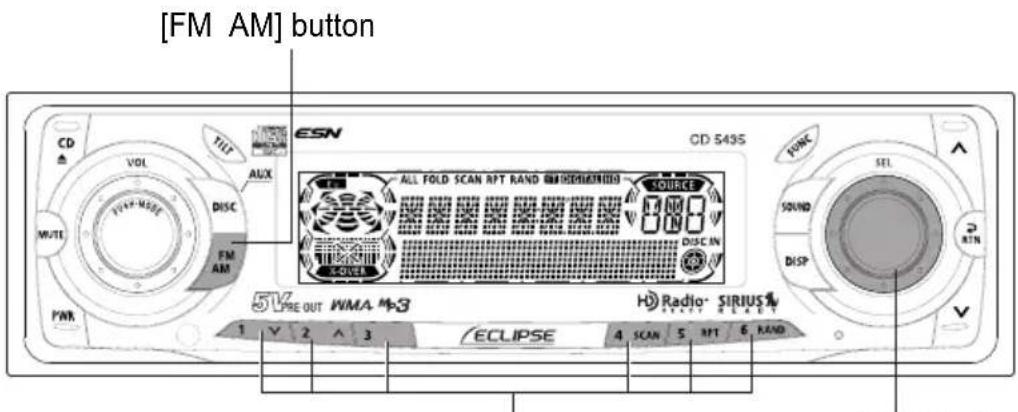
text_image
[FM AM] button CD VOL TILT AUX DISC FM AM PWR CD 543S ALL FOLD SCAN RPT RAND SIRISSIONAL SOURCE DISC IN 5V PRE OUT WMA M-3 ECLIPSE 4 SCAN 5 RFT 6 RAND Radio- SIRIUS 1 V 2 A 3 FORK SEL SOUND DISP RTN[SËL] buttonButtons [1] to [6]
Entering stations into memory automatically (The automatic preset mode: ASM)
1 Press the [FM AM] button for less than one second to switch to the desired FM or AM bands.
Radio bands will switch from FM1 → FM2 → FM3 → AM in order each time the button is pressed.
![ECLIPSE CD5435 - Press the [FM AM] button for less than one second to switch to the desired FM or AM bands. - 1](/content/2026/05/1066218/images/61b8032a4e49c65b8f971d35464adca16976ebd9a34a58ca52433839db2f549d.jpg)
If the optional SIRIUS satellite radio tuner unit is connected, radio mode will be switched between the satellite radio mode and FM AM radio mode by pressing the [FM AM] button for more than one second.
2 Press the [SEL] button for more than two seconds until a beep is heard.
The automatic preset mode starts.
The [ASM ON] indicator on the screen flashes, and stations are automatically entered in memory under buttons [1] to [6].
These buttons are called preset buttons.
![ECLIPSE CD5435 - Press the [SEL] button for more than two seconds until a beep is heard. - 1](/content/2026/05/1066218/images/2ff3298e85847982a3e333e0b1ff05ee531c44c36e5c0113f10e8a0d3582f4c0.jpg)
- When a new station is set in memory, the station previously set in memory will be deleted.
- If there are fewer than six receivable stations, the stations set in the remaining buttons will be retained.
![ECLIPSE CD5435 - Press the [SEL] button for more than two seconds until a beep is heard. - 2](/content/2026/05/1066218/images/b2d21c988c5d366fb9582e73be479e0dfd549c084ebcff62f09ebab510e71406.jpg)
text_image
[FM AM] button CD VOL TILT AUX DISC FM AM PWR CD 549S ALL FOLD SCAN RPT RAND ON DIMENSION SOURCE DISC IN COVER 5V PRE OUT WMA M3 ECLIPSE Radio- SIRIUS 1 V 2 ^ 3 4 ION 5 INT 6 HAND[SEL] buttonButtons [1] to [6]
Manually setting stations into memory
This section covers the setting of stations in memory under the numbered buttons.
1 Press the [FM AM] button for less than one second to switch between FM and AM.

If the optional SIRIUS satellite radio tuner unit is connected, radio mode will be switched between the satellite radio mode and FM AM radio mode by pressing the [FM AM] button for more than one second.
2 Turn the [SEL] button to the right or left to tune to the station to be entered in memory.
3 Select any button, from [1] to [6], and press it for more than two seconds.
The tuned station is now memorized and set in the button selected. Repeat the procedure to set additional manually tuned stations in memory, in turn, for buttons [1] to [6]. These buttons are called the preset buttons.

If the vehicle's battery is disconnected (for repairs to the vehicle or for removing the receiver), all stations in memory will be lost. In such a case, set stations in memory again.
text_image
CD ± VOL TILT E5N CD 5435 ALL FOLD SCAN RPT RAND SIRIUS SOURF SOUND DESP SEL RTN VOLT/WAV DISC FM AM DISC IN PWR 5V RE OUT WMA M3 H° Radio- SIRIUS # 1 V 2 ^ 3 ECLIPSE 4 SCAN 5 RPT 6 RAND[SEL] buttonButtons [1] to [6]
Preset station scan
This function enables reception of all the stations in the preset buttons for five seconds each.
1 Press the [SEL] button for less than two seconds.
[P SCAN] will appear on the display, and stations stored under preset buttons [1] through [6] will be played for five seconds each.
2 To stop the preset scan mode at a desired station, press the [SEL] button again.
The receiver will stay tuned to the desired station.
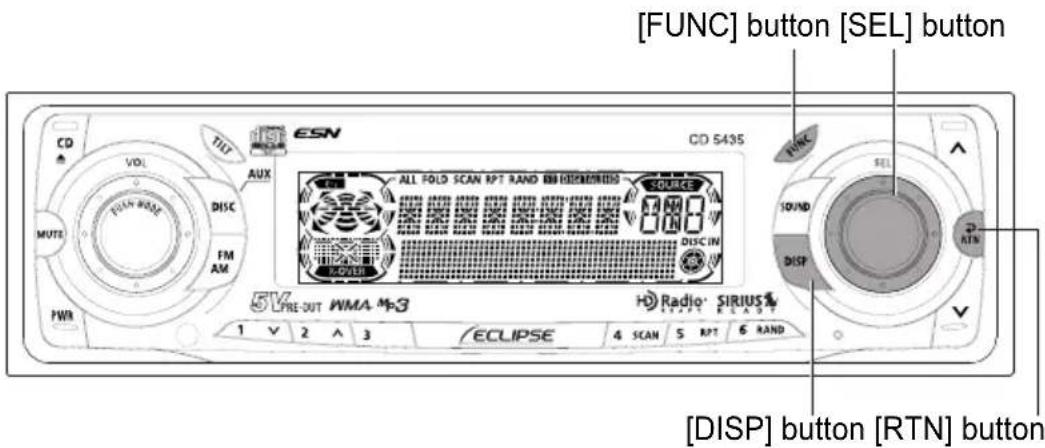
text_image
[FUNC] button [SEL] button CD VOL DISC FM AM TILT ESN CD 5435 ALL FOLD SCAN RPT RAND IN DIMENSIONS SOURCE 880 DISC IN 120000 5V PRE-OUT WMA-MS3 H Radio SIRIUS 1 V 2 ^ 3 ECLIPSE 4 SCAN 5 RPT 6 RAND RINK SOLD DISP RTN [DISP] button [RTN] buttonSwitching between displays when receiving HD Radio
During digital reception, the name of the station being received and other information can be displayed.
1 Press the [DISP] button for more than one second.
Each time the button is pressed the display item changes in the following order:
Station name → title* → artist* → album* → genre.
* Depending on the nature of the broadcast, no information may be shown.
![ECLIPSE CD5435 - Press the [DISP] button for more than one second. - 1](/content/2026/05/1066218/images/6ccd15c0bef9264f789737813ce012dd3dc475a47e765f1407b97d455fe1aaff.jpg)
The maximum number of characters that can be displayed for each item is as follows:
Long name: 48 characters
Short name: 7 characters
Song title: 32 characters
Album: 32 characters
Genre: 32 characters
HD Radio reception settings
The HD Radio reception method can be selected. When the HD Radio tuner is connected to this deck for the first time, it will be set at [AUTO] (automatic digital/analog selection).
1 Press the [FUNC] button for less than one second.
The function mode is activated.
2 Turn the [SEL] button to select HD Radio.
3 Press the [SEL] button.
The mode will change to reception setting mode.
4 Turn the [SEL] button to select AUTO or OFF.
In the [AUTO] setting, the selection is switched between digital and analog reception automatically. In areas where digital reception is not possible, reception is automatically switched to analog to avoid loss of reception.
During digital reception, [DIGITAL] is shown on the display. This is cleared during analog reception.
In the [OFF] setting, reception is always analog.
5 Press the [SEL] button.
The selected settings will take effect.
6 Press the [RTN] button.
At this time, other adjustments can also be made in function mode.
7 Press the [FUNC] or [RTN] button to exit function mode.
How to operate the tuner with an optional SIRIUS satellite radio tuner connected (U.S.A. only)
About SIRIUS satellite radio
If the optional SIRIUS satellite radio tuner unit is connected, satellite radio broadcast can be received.
With SIRIUS satellite radio, over 100 channels are available including music, sports, news, and entertainment programs.
The channel can be selected from categories such as POP and ROCK, or by selecting individual channel manually.
Reception of SIRIUS satellite radio is fee based; you have to subscribe to it.
It is possible to subscribe through the SIRIUS radio website.
URL: http://cdn.sirius.com

For information about the operation and set-up of the SIRIUS satellite radio tuner unit, see the SIRIUS satellite radio unit's owner's manual.
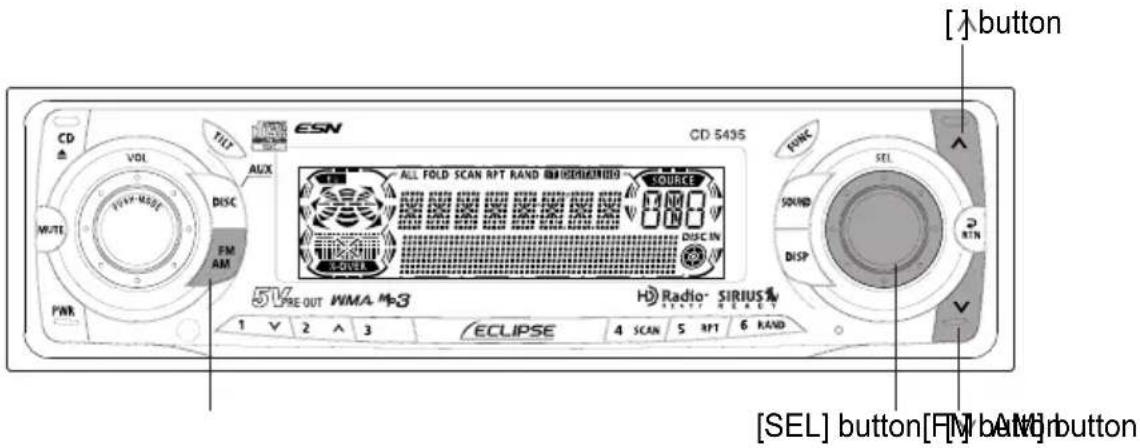
text_image
[ ] button CD VOL DISC FM AM PWR TILT AUX ESN CD 549S ALL FOLD SCAN RPT RAND [RHYPERM3] SOURCE 1 N N DISC IN FOUT ECLIPSE 4 SCAN 5 RPT 6 RAND 5V PRE OUT WMA M3 HD Radio- SIRIUS 1 V 2 ^ 3 ECLIPSE 4 SCAN 5 RPT 6 RAND SEL] button[FM] buttonThe receiver will accept up to 24 stations in memory.
Selecting the radio mode
1 Press the [FM AM] button for more than one second.
The mode switches between satellite radio mode and FM/AM radio mode each time the button is pressed.
Selecting a channel
1 Press the [FM AM] button for less than one second to switch to the desired SR bands.
Radio bands will switch from SR1 → SR2 → SR3 → SR4 in order each time the button is pressed.
2 Turn the [SEL] button to the left or right to tune to a channel.
Turn to the right: Select the higher channel.
Turn to the left: Select the lower channel.
3 Press the [ʌ] or [ ] button for less than one second to start the automatic channel search.
Reception is enabled for all channels within the currently selected category.
[ ] button: Starts searching toward higher channels.
[ ]button: Starts searching toward lower channels.
![ECLIPSE CD5435 - Press the [ʌ] or [ ] button for less than one second to start the automatic channel search. - 1](/content/2026/05/1066218/images/90cfcefd5c497883e52abb4260404b6a8a4a482883e273e91e67d6fa96c13d81.jpg)
text_image
[SEL] button [ ]button CD VOL TIFF AUX ESN CD 543S ALL FOLD SCAN RPT RAND SIRIUSMANTINIO SOURCE FM AM DISCIN 5V PRE OUT WMA M-3 ECLIPSE 4 SCAN 5 RPT 6 RAND SDISEL SOUND DISP SEL RTN 1 2 3 Buttons [1] to [3] Button [5] and [6] [ ]buttonCategory selection
The channel can be selected from among categories such as POP and ROCK. Consult the SIRIUS website for details of categories.
1 Press the [λ] or [ ] button for more than one second.
Categories will switch in order shown below each time button is pressed.
[ ]button .....Advance to next category. [ ]button .....Return to previous category.
Direct channel selection
The channel can be selected by inputting the channel directly.
1 Press and hold the [SEL] button for more than two seconds.
Select the direct channel selection mode.
2 Press the buttons [1], [2] and [3] to select the channel number to be input.
[1] button......Hundreds [2] button......Tens [3] button......Units
Each time you press the respective buttons, the numerals change as indicated below.
$$ 0 \rightarrow 1 \rightarrow 2 \rightarrow 3 \rightarrow 4 \rightarrow 5 \rightarrow 6 \rightarrow 7 \rightarrow 8 \rightarrow 9 $$
Pressing the [6] button clears the numeral at the previous digit.
3 Press the button [5].
Starts reception.
![ECLIPSE CD5435 - Press the button [5]. - 1](/content/2026/05/1066218/images/8547ca72a2ba9b95c005acf88e26acfcdff0c37c1db782dd24fff1efeb89e280.jpg)
text_image
CD VOL MUTE PWR TUT AUX DISC FM AM 51/4 PRE OUT WMA M3 ECLIPSE ALL FOLD SCAN RPT RAND SINDISSIONAL SOURCE DISC IN X-OVER CD 5435 PWR SEL SOUND DISP D ATN H Radio- SIRIUS 1 V 2 A 3 4 SCAN 5 RPT 6 RAND[SÉL] buttonButtons [1] to [6]
Manually setting channels into memory
This section covers the setting of channels in memory under the numbered buttons.
1 Turn the [SEL] button to the right or left to tune to the channel to be entered in memory.
2 Select any button, from [1] to [6], and press it for more than two seconds.
The tuned channel is now memorized and set in the button selected. Repeat the procedure to set additional manually tuned channels in memory, in turn, for buttons [1] to [6]. These buttons are called the preset buttons.

Caution
If the vehicle's battery is disconnected (for repairs to the vehicle or for removing the receiver), all channels in memory will be lost. In such a case, set channels in memory again.
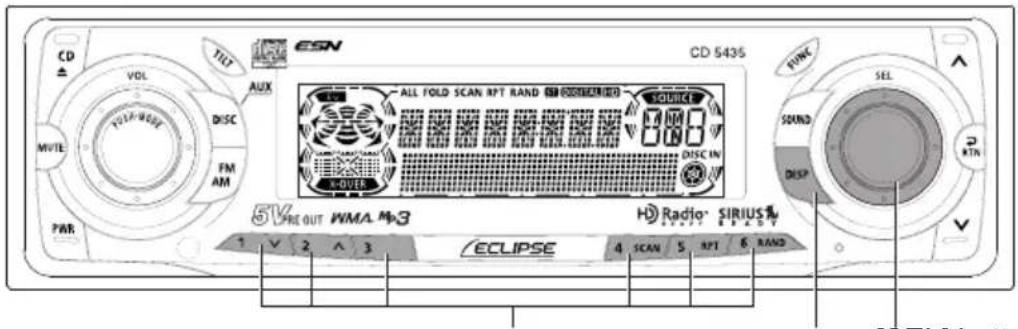
text_image
CD VOL TUT ESN CD 5435 ALL FOLD SCAN RPT RAND SISISSIONAL SOURCE TOL/P-000V DISC FM AM DISC IN K-OVER FINE SEL SOUND DISP 3 RTN PAR 5V PRE OUT WMA M3 HD Radio SIRIUS% 1 V 2 A 3 ECLIPSE 4 SCAN 5 RPT 6 RAND[SEL] buttonButtons [1] to [6]
Preset channel scan
This function enables reception of all the channels in the preset buttons for five seconds each.
1 Press the [SEL] button for less than two seconds.
[P SCAN] will appear at the display, and channels stored under preset buttons [1] through [6] will be played for five seconds each.
2 To stop the preset scan mode at a desired channel, press the [SEL] button again.
The receiver will stay tuned to the desired channel.
Switching displays when using the SIRIUS satellite radio
1 Press the [DISP] button for more than one second.
Each time the button is pressed the display item changes in the following order:
channel name → category name → title → artist → SIRIUS unit ID.
![ECLIPSE CD5435 - Press the [DISP] button for more than one second. - 1](/content/2026/05/1066218/images/ff86690fe150b9eac329ac8d997575104ac2c5354c75e4458b2e8f18f4c6fe0d.jpg)
● The maximum number of characters that can be displayed for each item is as follows:
Title: 38 characters
Artist: 38 characters
Channel: 20 characters
Category: 16 characters
- If there is no name, NO_DATA will appear.
Others
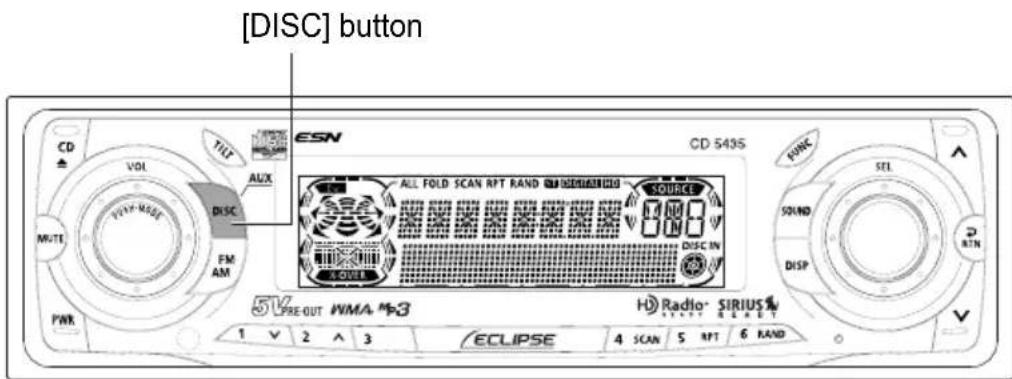
text_image
[DISC] button CD VOL TILT AUX DISC FM AM PWR CD 543S ALL FOLD SCAN RPT RAND SODDER/ANICID SOURCE DISC IN SOURCE 5V PRE-OUT WIMA *53 ECLIPSE 4 SCAN 5 RPT 6 RAND H Radio- SIRIUS 1 V 2 ^ 3Connecting portable audio players to the AUX jack
Use a commonly available accessory cord with the RCA connector to connect a portable audio player to the AUX (auxiliary) jack of this system.
1 Turn on the portable audio player and start its play function.
2 Switch to AUX mode by pressing the [DISC] button for more than one second.
Activation of the AUX mode will light the "AUX" indicator and channel audio player output to the system speakers.

● While the AUX mode is activated, actions such as turning off the audio player or pulling out the connection cord may cause noise spikes that can damage the system speakers. Be sure to avoid this possibility by turning off system power or switching from AUX mode to another mode before shutting off or disconnecting the portable audio player.
● Audio output levels will differ for the various devices that can be connected by this method. Carefully adjust volume until the output level of the connected player is known.
● Before using a portable audio player in a vehicle, read the player's operation manual carefully and confirm problem-free operation in the vehicle before proceeding.
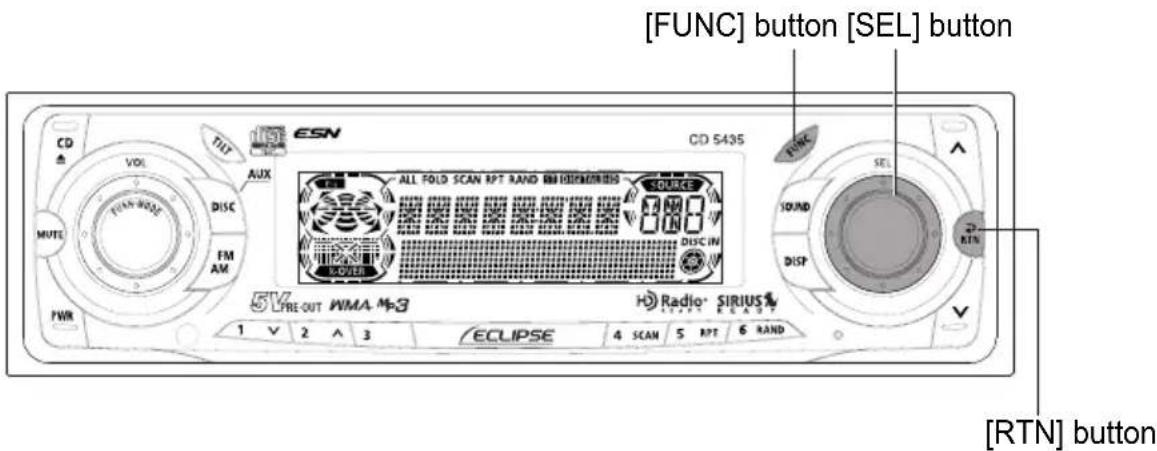
text_image
[FUNC] button [SEL] button CD VOL DISC FM AM MUTE FWR ESN CD 5435 ALL FOLD SCAN RPT RAND ENI DIMINERID SOURCE DISC IN 5V PRE-OUT WMA M-3 Radio® SIRIUS® 1 V 2 ^ 3 ECLIPSE 4 SCAN 5 RPT 6 RAND RINK SELEND SOUND DISP RTN [RTN] buttonChanging auxiliary input sensitivity
The sensitivity of the auxiliary mode can be changed.
1 Press the [FUNC] button for less than one second.
The function mode is activated.
2 Turn the [SEL] button to select AUX Sensitivity.
The selected item is highlighted.
3 Press the [SEL] button.
The AUX sensitivity mode is activated.
4 Turn the [SEL] button to select the sensitivity mode.
Turning the button allows you to toggle through sensitivity modes as follows:

flowchart
graph LR
    A["Low Mid-Low Mid-Hi"] --> B["→"]
    B --> C["→"]

Input sensitivity modes are roughly as follows:
Low 1Vrms
Mid-Low 480mVrms
Mid 240mVrms
Hi 120mVrms
5 Press the [SEL] button.
The selected settings will take effect.
6 Press the [RTN] button.
At this time, other adjustments can also be made in function mode.
7 Press the [FUNC] or [RTN] button to exit function mode.
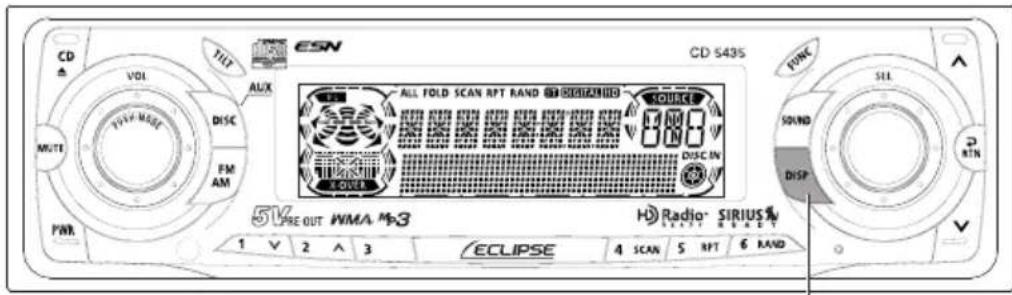
text_image
CD Δ VOL TILT AUX MUTI DISC FM AM PWR 5V PRE OUT WIMA M3 1 V 2 ^ 3 ECLIPSE 4 SCAN 5 RPT 6 RAND CD S43S ALL FOLD SCAN RPT RAND SOURCE DISC IN SOUND DISP H Radio- SIRIUS LETT RAND[DISP] button
User Registration Key display
User Registration Key is your CD5435's unique ID. In order to use the ECLIPSE website (E-iSERV), a 16-digit User Registration Key is necessary.
1 Check that the deck is in standby mode.
2 Press the [DISP] button for more than one second.
The first 8 digits of your User Registration Key will be displayed. Press and hold [DISP] once more (for a second or more) and the remaining 8 digits will be displayed.

Your User Registration Key is a 16-digit ID composed of numbers 0-9 and letters A-F.
If you have a question:
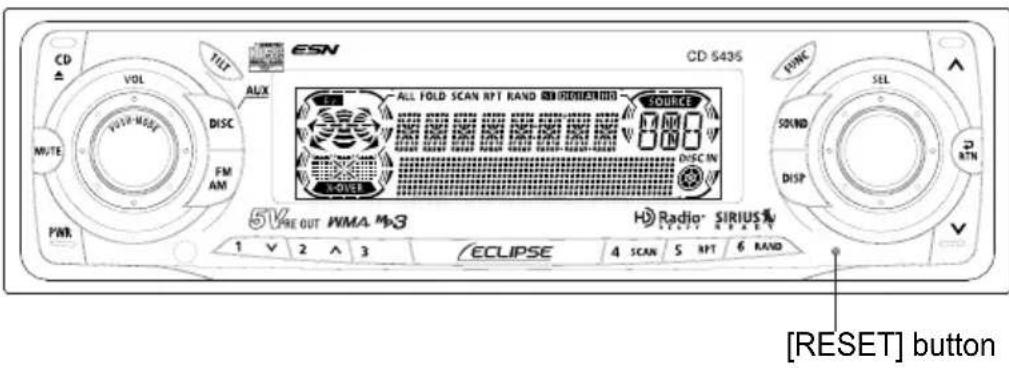
text_image
CD VOL TILT ALX ESN ALL FOLD SCAN RPT RAND SIRISSION SOURCE 5V RE OUT WMA M3 ECLIPSE 4 SCAN 5 NPT 6 RAND CD S435 PWR MVTE FM AM S-OVER SDIN S-OUT Radio SIRIUS 1 V 2 ^ 3 ECLIPSE 4 SCAN 5 NPT 6 RAND [RESET] buttonFirst check the items mentioned below before attempting to troubleshoot problems.

If a problem occurs, for instance when the unit does not respond to any button presses, or the display doesn't work correctly, press the [RESET] button using a paper clip or similar item.
Pressing the [RESET] button will delete all the entries from memory.
The settings will return to those made at the factory prior to shipment.
Displayed information (for troubleshooting)
The information listed in the chart below is displayed to show the status of the CD, AREA SHOT function, CD changer and SIRIUS satellite radio tuner. Refer to the chart for the appropriate action.
| Information Contents Explanation and remedial action to take | ||
| INFO 2 NO DISC LOADEDIN THE MAGAZINE | There is no disc in the magazine or player. Load a disc in the magazine. (Load a music disc.) | |
| INFO 3 DISCS ARE DIRTYOR DAMAGED | The loaded disc is dirty or upside down. Check it for proper orientation and verify it is clean. | |
| INFO 5 CD PLAYER AND CDCHANGER FAILSMECHANICALLY | • The CD player and CD changer is inoperative for some reason. Go through the magazine removal procedure.• If a magazine fails to eject, have your dealer fix problem. | |
| INFO 6 | WHEN THE CDPLAYER AND CDCHANGER INTERNALTEMPERATURE ISHIGH (TO PROTECTPICKUP UNIT) | • The temperature in the CD player and CD changer is too high for operation. Wait till it cools down.• Resume playing after the “High temperature sensed and CD stopped” display disappears. If the CD still cannot play, have your dealer repair it. |
| INFO 7 | AN INTERNAL POWERSUPPLY FAILURE ISOCCURRING | • Turn the ACC off once before turning it on once again to resume the operation.• If this condition persists, contact your dealer. |
| LOAD CD changer is in the process of verifying the presence of CDs after a magazine has been inserted into the CD changer. | ||
| LOAD_MAP_DATA | DAMAGE TO CD-RDATA | CD-R data is damaged because the ignition switch has been turned ON/OFF during the data import process. |
| AUTH_ERR AREA SHOT DATACANNOT BEIMPORTEDPROPERLY | Confirm the CD-R data | |
| SIZE_ERR THE VOLUME OFIMPORT DATA ISLARGE | Confirm the CD-R data | |
| ANTENNA SIRIUS ANTENNA ISDISCONNECTED | Connect the SIRIUS antenna. | |
| CALL888_539_SIRIUS | NO SUBSCRIPTIONTO THE SELECTEDCHANNEL | Subscribe to SIRIUS to receive the service by SIRIUS Satelite radio. |
| ACQUIRING | SERIUS SATELITERADIO SIGNALRECEVING FAILS | Select another channel. |
| Mode | Problem Causes | Remedial action to take | Refer to page | |
| Common to all | Dead or weak sound | Is the volume control up sufficiently? | Turn up the volume control. | 28 |
| Is the muting function in effect (MUTE)? | Cancel the muting (MUTE) function. | 28 | ||
| Is the fader or balance control set far to one side? | Readjust the fader and balance controls to more normal positions. | 29 | ||
| Other probable causes include broken audio-signal wiring or a faulty speaker. | Have your dealer check the problem. | — | ||
| Power does not turn on. | Are there too electrical items installed, causing a lack of power? | Have your dealer check the problem. | — | |
| Other probable causes include a run-down car battery, broken power or interconnection wiring. | Have your dealer check the problem. | — | ||
| Frequencies or titles set in memory are deleted. | Has the car battery been disconnected for repair or checked out? | Reenter them into memory. | 67, 68 | |
| Are there too electrical items installed and causing lack of available power? | Have your dealer check the problem. | — | ||
| Other probable causes include run-down car battery, broken power or interconnection wiring. | Have your dealer check the problem. | — | ||
| No guide tone sounds. | Is the guide tone disabled? Enable the guide tone. 44 | |||
| The remote control does not work. | Is the battery low? Replace battery. 86 | |||
| Is the battery installed in reverse polarity? | Reinstall the battery in the correct polarity. | 86 | ||
| Is direct sunlight hitting the remote control light receptor? | Use the remote control close to the receptor. | — | ||
| Other probable causes include a malfunctioning remote control. | Have your dealer check the problem. | — | ||
| CD | The disc cannot be inserted. The disc is ejected as soon as it is inserted. Or, the disc cannot be ejected. The disc cannot be changed. | Is an extra label or seal applied to the disc? | Do not apply labels or seals to the disc. | 14 |
| Are there rough edges, deformations or damaged areas on the disc? | Try inserting another disc. Remove any burrs. Do not use a deformed or damaged disc. | 15, 16 | ||
| Sound skips around. Sound is intermittent. Sound is bad in quality. | Is the disc damaged? (scratched, warped, etc.) | Try another disc. Do not play a damaged disc. | 14 | |
| Is the disc clean? Clean the disc. 16 | ||||
| Is the player mounted at a proper angle? Is the player mounted loosely? | Have your dealer check it out. | — | ||
| Are you driving over a rough surface? | Avoid playback while driving over rough surfaces. | 13 | ||
| The disc cannot be ejected. | If unknown | Press the [DISC] button a bit longer and then press the [OPEN] button (forced Eject). | — | |
| Mode | Problem Causes | Remedial action to take | Refer to page |
| Tuner | Receives no stations, or receives static noise. | Is the antenna retracted? Extend the antenna. — | |
| Is the tuner correctly tuned to a station? Tune to a station. 66 | |||
| Are you driving outside the service area of your preset stations? | Tune to a local station. (Please note, there may be no local stations servicing the area where you are currently driving.) | ||
| Are you operating other equipment such as computer, or a mobile phone, in your vehicle at the same time as your receiver? | Avoid operating such equipment while using the receiver. | ||
| Other problems may include a loose or disconnected antenna cable, a bad antenna cable or a bad | Have your authorized Eclipse retailer check the problem. |
Specifications
Power Supply 14.4V DC (11-16V)
Current Drain 3A
Dimensions (W x H x D)
In-Dash Unit 7" x 2" x 6-1/8" (178 x 50 x 155mm)
Mass (weight) Approx. 1.4kg
Usage temperature range -20°C to +65°C (-4°F to +149°F)
Storage temperature range -40°C to +85°C (-40°F to +185°F)
Frequency Range
USA: 87.75\~107.9MHz (0.2MHz step)
Asia: 87.5\~108MHz (0.05MHz step)
Australia: 87.5\~108MHz (0.1MHz step)
Latin America: 87.75\~107.9MHz (0.1MHz step)
Usable Sensitivity 13dBf
50dB Quieting Sensitivity 14dBf
Frequency Response 30\~15,000Hz, ±3dB
Stereo Separation 38dB (1kHz)
Frequency Range
USA: 530\~1,710kHz (10kHz step)
Asia: 522\~1,629kHz (9kHz step)
Australia: 522\~1,710kHz (9kHz step)
Latin America: 530\~1,710kHz (10kHz step)
Usable Sensitivity 20μV
Frequency Response 20\~20,000Hz, ±3dB
Wow & Flutter Below measurable limits
Stereo Separation 80dB
S/N Ratio (A-weighted) 95dB
Dynamic Range 95dB
Total Harmonic Distortion 0.008%
Power Output 14W x 4 (20Hz\~20kHz, 1% THD, 4Ω,
Vcc=14.4V) Max. 50W x 4
Output Level/Impedance 5V/55Ω line-out impedance
To ne Con t ro l
Bass: ±12dB at 80Hz
Middle: ±12dB at 630Hz
Treble: ±12dB at 10kHz
Loudness
+10dB at 100Hz/+6.5dB at 10kHz
Before installation
Note
Be sure to disconnect the vehicle battery's negative terminal before installing the receiver.
Components
| No. Item Q'ty | |
| 1 Main unit 1 | |
| 2 Mounting sleeve 1 | |
| 3 Side bracket 2 | |
| 4 Rear bracket 1 | |
| 5 Bezel 1 | |
| 6 Bushing 1 | |
| 7 Self-tapping screw (6 x 16 mm) 1 | |
| 8 Stud bolt 1 | |
| 9 Flat head screw (red: 5 x 8 mm) 4 | |
| 10 Hex-head bolt (red: 5 x 8 mm) 4 | |
| 11 Hex-head bolt (6 x 20 mm) | 1 |
| 12 Hex nut (5 mm) | 1 |
| 13 Hex nut (6 mm) | 1 |
| 14 Interconnecting cable | 1 |
| 15 Remote control | 1 |
Installation angle
In order to maintain proper functioning, install the unit within an angle of 30 degrees from horizontal (standard). If this is not done, sound skipping or ejection of the CD may occur.
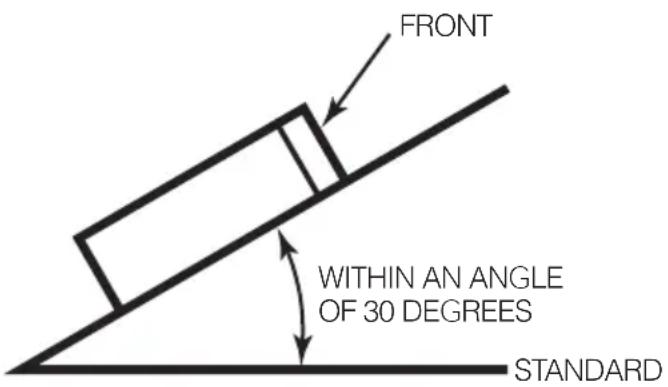
text_image
FRONT WITHIN AN ANGLE OF 30 DEGREES STANDARDMounting instruction
Mounting the main unit
-If installing the main unit by the mounting sleeve-
1 Insert the mounting sleeve into the opening in the vehicle dash board or console box.
2 Use a screwdriver or the like to bend the tabs in the mounting sleeve to secure the mounting sleeve.
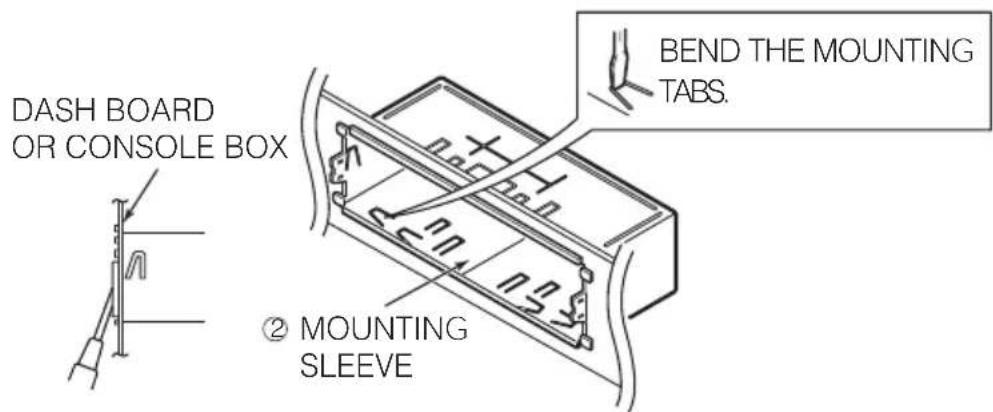
text_image
DASH BOARD OR CONSOLE BOX ② MOUNTING SLEEVE BEND THE MOUNTING TABS.3 Attach the side brackets to the main unit using flathead screws.
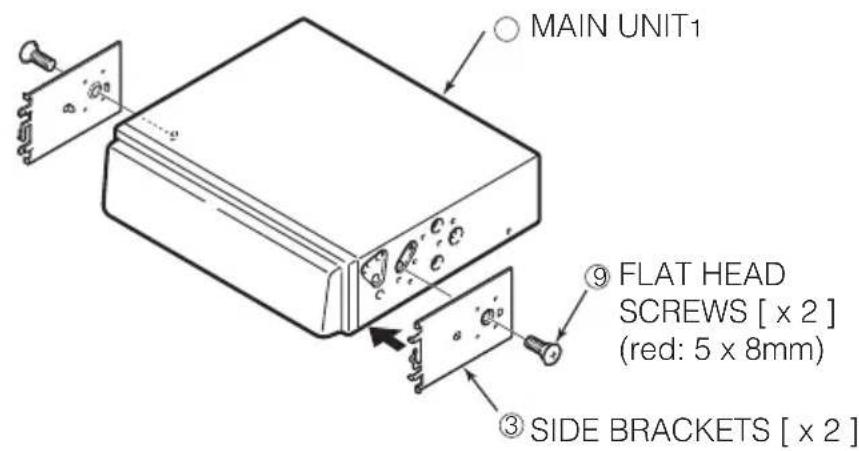
text_image
MAIN UNIT1 ⑨ FLAT HEAD SCREWS [ x 2 ] (red: 5 x 8mm) ③ SIDE BRACKETS [ x 2 ]4 Mount the stud bolt to the main unit.
5 Insert the main unit into the mounting sleeve until it locks in place.
6 Fasten the rear of the main unit using either method [A] or [B].
Some automobiles may be equipped to secure the back of the main unit using the stud bolt and supplied rubber support.
Select method [A] or [B] to suit the interior configuration of the vehicle.
7 Install the bezel on the main unit.
[A]
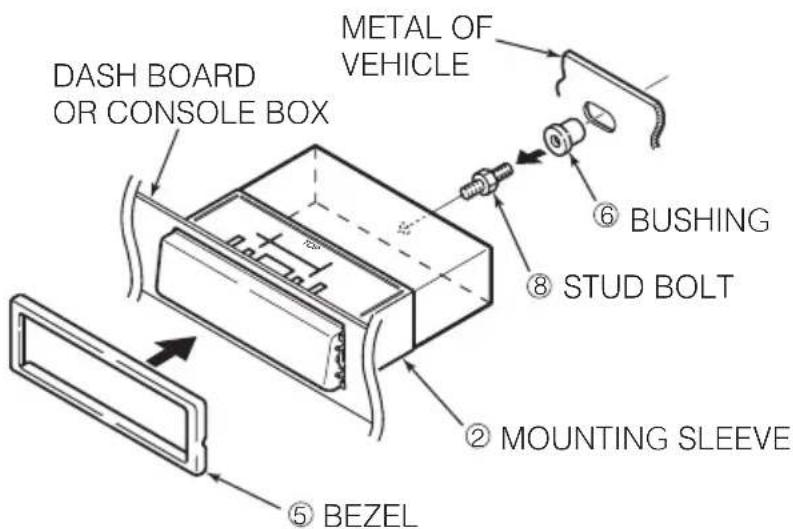
text_image
DASH BOARD OR CONSOLE BOX METAL OF VEHICLE ⑥ BUSHING ⑧ STUD BOLT ② MOUNTING SLEEVE ⑤ BEZEL[B]
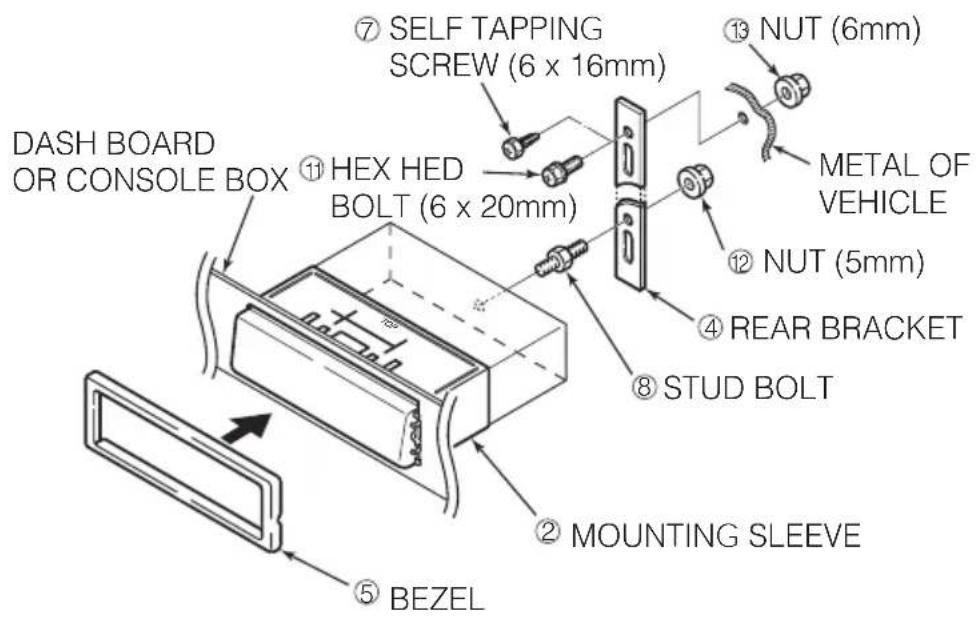
text_image
DASH BOARD OR CONSOLE BOX ⑦ SELF TAPPING SCREW (6 x 16mm) ⑪ HEX HED BOLT (6 x 20mm) ⑥ BEZEL ② MOUNTING SLEEVE ⑧ STUD BOLT ④ REAR BRACKET ⑫ NUT (5mm) METAL OF VEHICLE ⑬ NUT (6mm)-If installing the main unit by the side brackets of the vehicle-
1 Remove the pockets and any other accessories from the center cluster to make room for the main unit.
2 Remove the mounting side brackets for the pocket.
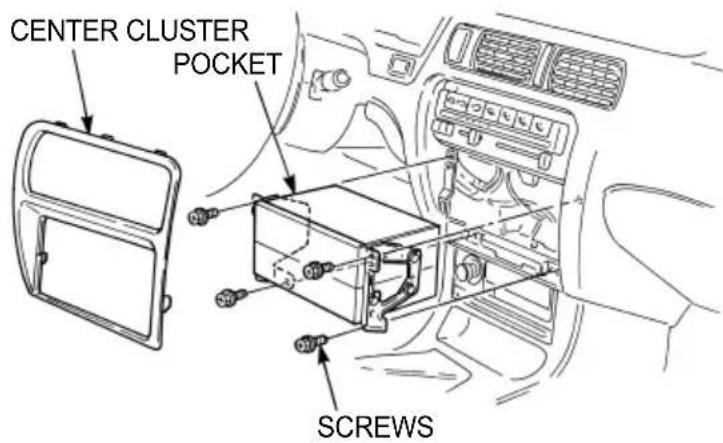
text_image
CENTER CLUSTER POCKET SCREWS3 Attach the side brackets to the main unit.
4 Install the main unit in the vehicle.
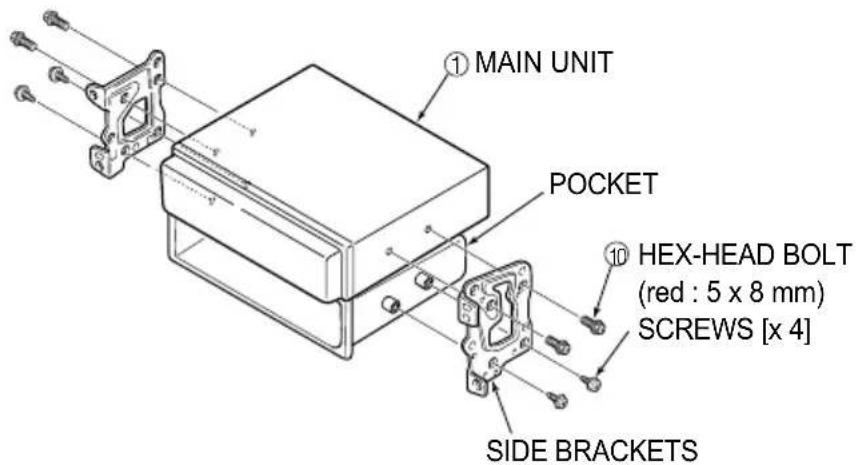
text_image
① MAIN UNIT POCKET ⑩ HEX-HEAD BOLT (red : 5 x 8 mm) SCREWS [x 4] SIDE BRACKETSNames of lead wires and destinations (refer to Page 119)
- Caution
Never connect the power supply to the speaker leads, otherwise it causes damage to the main unit.
- Note
To prevent unconnected leads from shorting out, insulate them by wrapping their tips with electrical tape. Similarly, insulate the ends of connected leads.
If an external amplifier is to be connected to the receiver, be sure to ground its outside housing to the vehicle body (a metal part).
| No. Name Wire color Destination | ||
| 1 ACC Red Connect where the power comes on when the ignition is in the ACC position. | ||
| 2 B+ Yellow Connect where the power is constantly available, regardless of the ignition switch's position. | ||
| 3 Ground Black Connect where good body grounding is available. | ||
| 4 Antenna power supply Blue | Connect to the automatic-antenna control terminal of the vehicle. | |
| 5 Illumination power Orange/white supply | Connect to where power comes on when the headlights are turned on. | |
| 6 Control power supply Blue/white Connect to the control terminal for the external amplifier, etc. | ||
| 7 E-LAN terminal Connect to the E-LAN terminal of the CD changer, etc. | ||
| 8 & 9 Line-out terminals | Connect to the RCA input connectors of an external amplifier. | |
| 10 Line-out terminals (Nonfader) | Connect to the RCA input connectors of an external amplifier, or to the RCA output connectors of a EQ. | |
| 11 Speaker leads | Connect them to their respective speaker leads. | |
| 12 AUX in terminals | Connect to the RCA output connectors of an external products. | |
| 13 Genuine steering remote control terminal | Connect to the vehicle steering remote control.* Compatibale vehicle models for installation: Vehicle with voltage detection-type steering remote control. Ask your dealer for details. | |
System
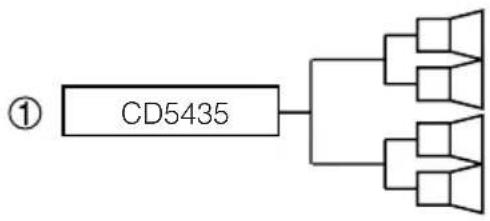
flowchart
graph TD
    A["CD5435"] --> B["Speaker 1"]
    A --> C["Speaker 2"]
    A --> D["Speaker 3"]
    A --> E["Speaker 4"]
Note: Adjust the external amplifier's input level.

flowchart
graph TD
    A["CD5435"] --> B["POWER AMP."]
    C["CH3083"] --> D["POWER AMP."]
    E["CH3083"] --> F["CD CHANGER"]
    B --> G["Speaker 1"]
    B --> H["Speaker 2"]
    D --> I["Speaker 3"]
    F --> J["Speaker 4"]
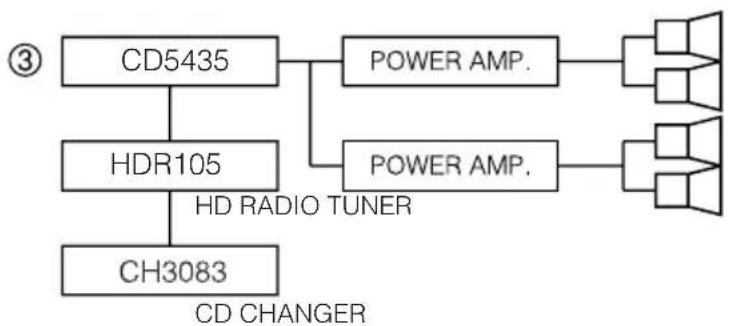
flowchart
graph TD
    A["CD5435"] --> B["POWER AMP."]
    C["HDR105"] --> D["POWER AMP."]
    E["CH3083"] --> F["HD RADIO TUNER"]
    B --> G["Speaker 1"]
    D --> H["Speaker 2"]
    F --> I["Speaker 3"]
    style A fill:#f9f,stroke:#333
    style C fill:#f9f,stroke:#333
    style E fill:#f9f,stroke:#333
    style B fill:#ccf,stroke:#333
    style D fill:#ccf,stroke:#333
    style F fill:#ccf,stroke:#333
    style G fill:#cfc,stroke:#333
    style H fill:#cfc,stroke:#333
    style I fill:#cfc,stroke:#333
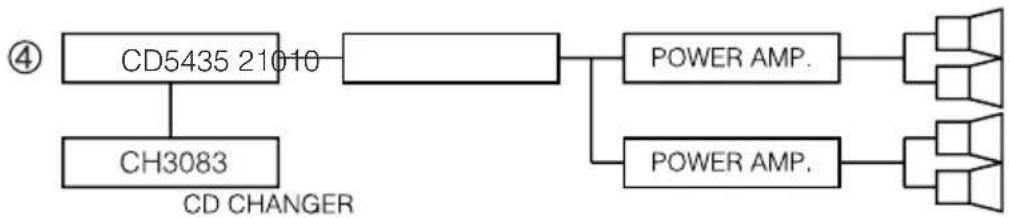
flowchart
graph LR
    A["CD5435 21010"] --> B["Power AMP."]
    C["CH3083"] --> D["Power AMP."]
    B --> E["Output 1"]
    D --> F["Output 2"]
1) CD5435 Receiver, used alone
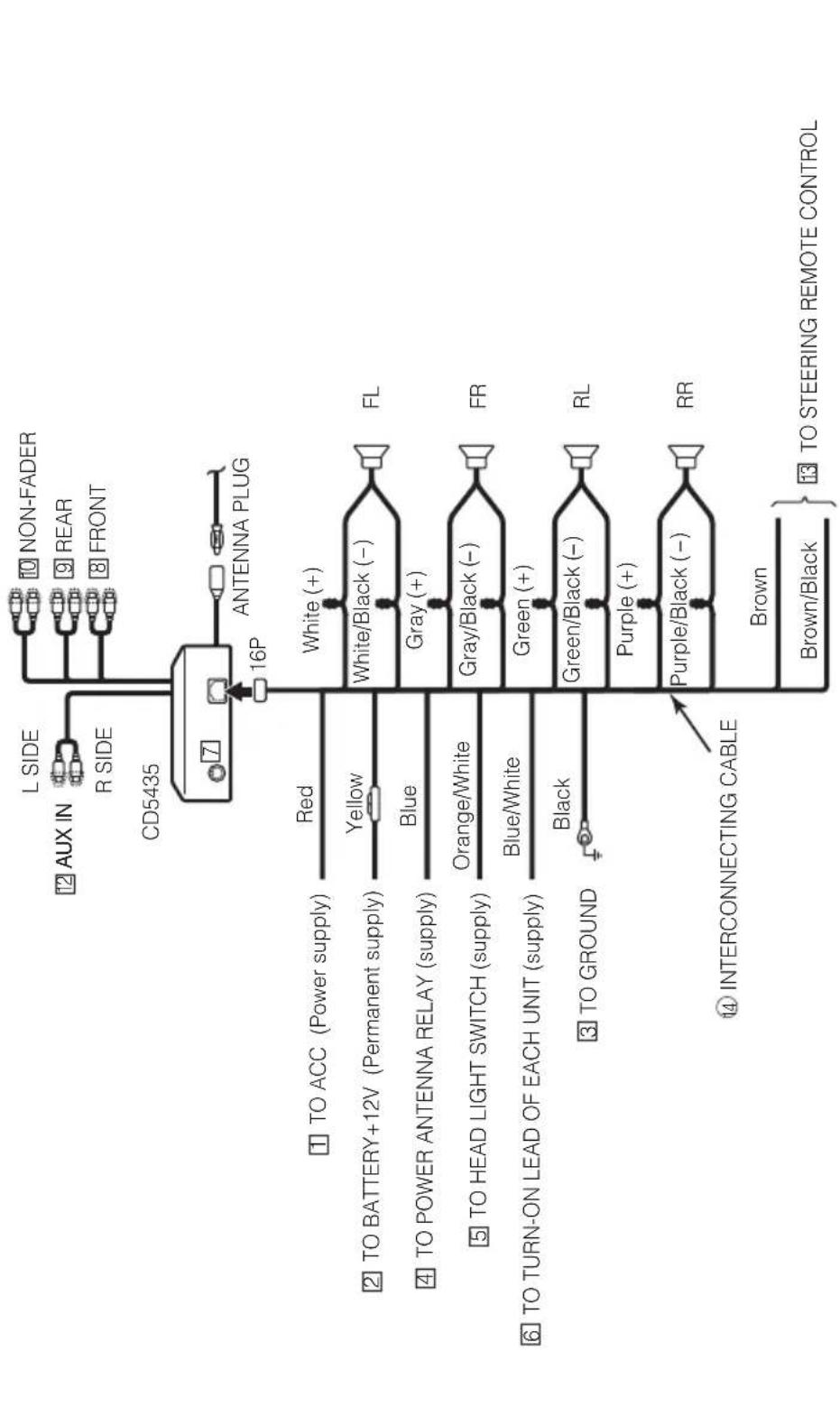
flowchart
graph TD
    A["CD5435"] --> B["L SIDE"]
    A --> C["R SIDE"]
    A --> D["16P"]
    A --> E["ANTENNA PLUG"]
    A --> F["INTERCONNECTING CABLE"]
    F --> G["Brown"]
    F --> H["Brown/Black"]
    A --> I["TO ACC (Power supply)"]
    A --> J["TO BATTERY+12V (Permanent supply)"]
    A --> K["TO POWER ANTENNA RELAY (supply)"]
    A --> L["TO HEAD LIGHT SWITCH (supply)"]
    A --> M["TO TURN-ON LEAD OF EACH UNIT (supply)"]
    A --> N["TO GROUND"]
    A --> O["White (+)"]
    A --> P["White/Black (-)"]
    A --> Q["Gray (+)"]
    A --> R["Gray/Black (-)"]
    A --> S["Green (+)"]
    A --> T["Green/Black (-)"]
    A --> U["Purple (+)"]
    A --> V["Purple/Black (-)"]
    A --> W["FL"]
    A --> X["FR"]
    A --> Y["RL"]
    A --> Z["RR"]
    A --> AA["10 NON-FADER"]
    A --> AB["9 REAR"]
    A --> AC["8 FRONT"]
    A --> AD["13 TO STEERING REMOTE CONTROL"]
Caution
Never connect the power supply to the speaker leads, otherwise it causes damage to the main unit.
2) CD5435 + CH3083 + CH3083 + Power Amplifier
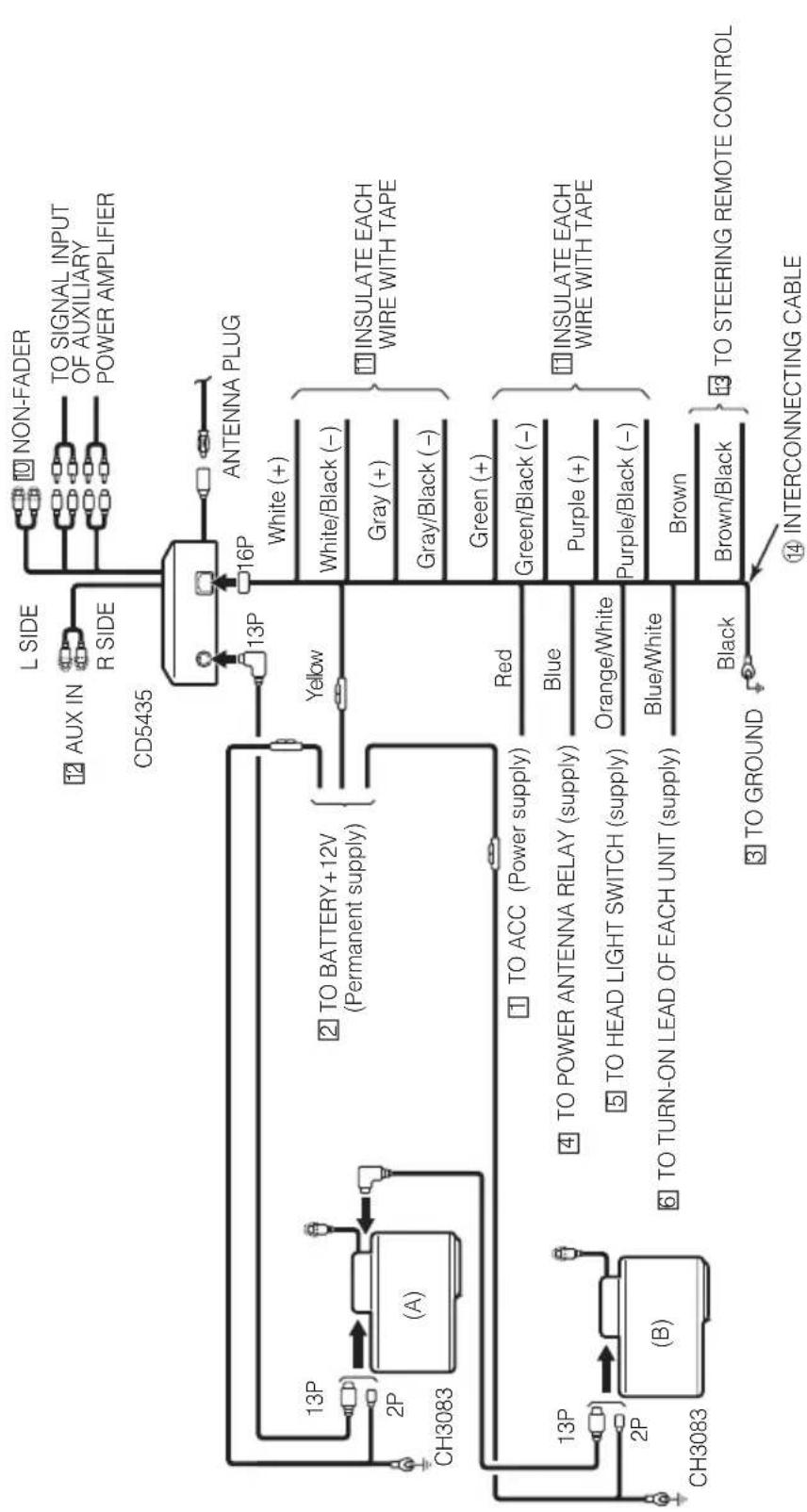
flowchart
graph TD
    A["CD5435 Sensor"] --> B["13P"]
    A --> C["16P"]
    B --> D["ANTENNA PLUG"]
    C --> D
    D --> E["NON-FADER"]
    D --> F["TO SIGNAL INPUT OF AUXILIARY POWER AMPLIFIER"]
    G["CH3083 System"] --> H["(A)"]
    H --> I["2P"]
    I --> J["13P"]
    J --> K["2P"]
    K --> L["CH3083 System"]
    M["TO BATTERY+12V (Permanent supply)"] --> N["Yellow"]
    O["TO ACC (Power supply)"] --> P["Red"]
    Q["TO POWER ANTENNA RELAY (supply)"] --> R["Blue"]
    S["TO HEAD LIGHT SWITCH (supply)"] --> T["Orange/White"]
    U["TO TURN-ON LEAD OF EACH UNIT (supply)"] --> V["Blue/White"]
    W["TO GROUND"] --> X["Black"]
    Y["INTERCONNECTING CABLE"] --> Z["Brown"]
    AA["INSULATE EACH WIRE WITH TAPE"] --> AB["White (+)"]
    AA --> AC["White/Black (-)"]
    AA --> AD["Gray (+)"]
    AA --> AE["Gray/Black (-)"]
    AA --> AF["Green (+)"]
    AA --> AG["Green/Black (-)"]
    AA --> AH["Purple (+)"]
    AA --> AI["Purple/Black (-)"]
    AA --> AJ["Brown"]
    AA --> AK["Brown/Black"]
    style A fill:#f9f,stroke:#333
    style M fill:#ccf,stroke:#333
    style O fill:#ccf,stroke:#333
    style U fill:#ccf,stroke:#333
    style W fill:#ccf,stroke:#333
    style Y fill:#ccf,stroke:#333
    style Z fill:#ccf,stroke:#333
    style AA fill:#ccf,stroke:#333
Caution
Never connect the power supply to the speaker leads, otherwise it causes damage to the main unit.
Note
1. The switch on the back side of CD changer (A) must be set the "L" position.
2. The switch on the back side of CD changer (B) must be set the "H" position.
3) CD5435 + HDR105 + CH3083 + Power Amplifier
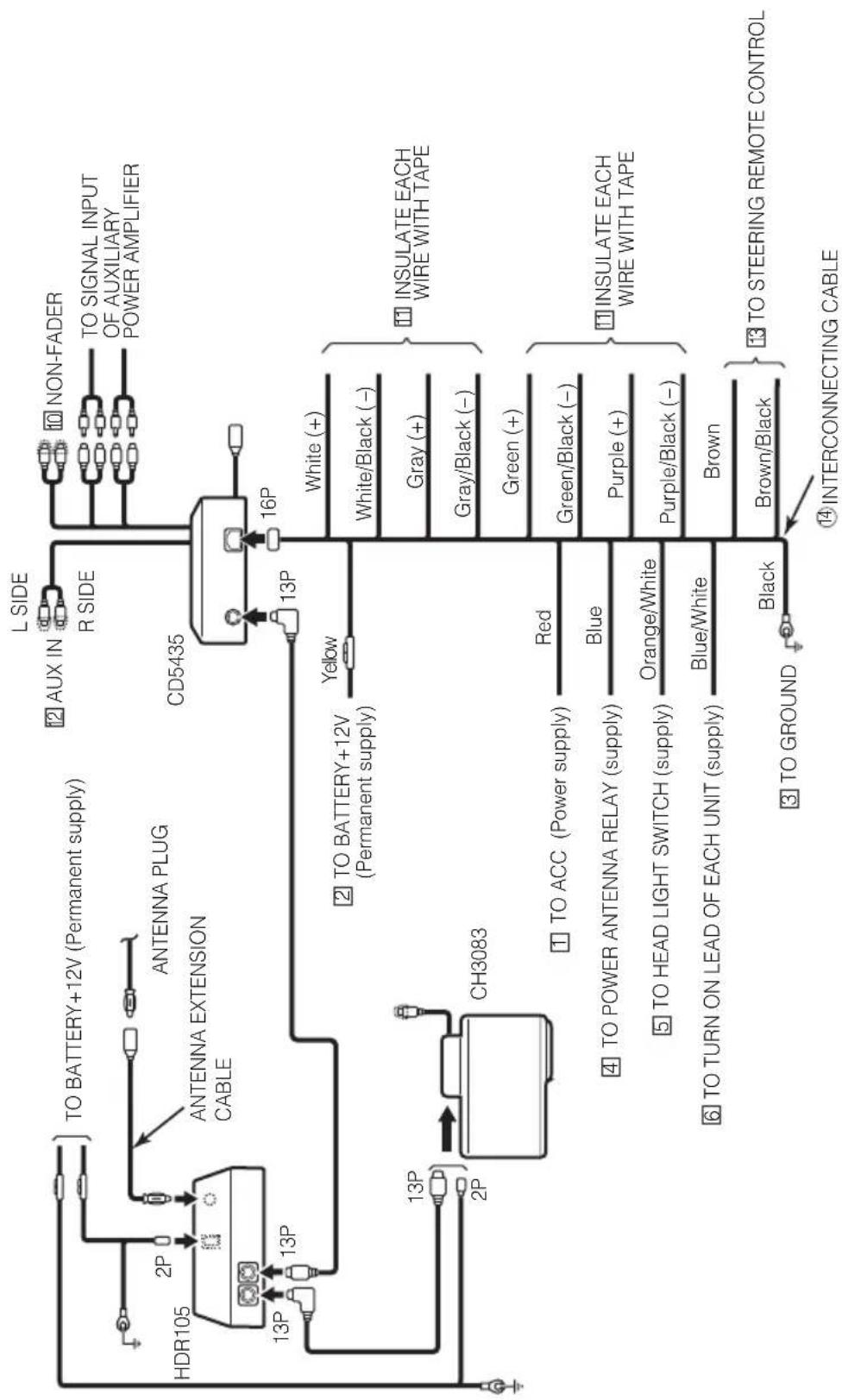
flowchart
graph TD
    A["HDR105"] -->|2P| B["TO BATTERY+12V (Permanent supply)"]
    A -->|13P| C["ANTENNA PLUG"]
    A -->|13P| D["ANTENNA EXTENSION CABLE"]
    A -->|2P| E["CH3083"]
    F["CD5435"] -->|13P| G["TO BATTERY+12V (Permanent supply)"]
    F -->|16P| H["INTERCONNECTING CABLE"]
    I["CH3083"] --> J["TO ACC (Power supply)"]
    I --> K["TO POWER ANTENNA RELAY (supply)"]
    I --> L["TO HEAD LIGHT SWITCH (supply)"]
    I --> M["TO TURN ON LEAD OF EACH UNIT (supply)"]
    I --> N["TO GROUND"]
    O["L SIDE"] --> P["NON-FADER"]
    Q["R SIDE"] --> R["TO SIGNAL INPUT OF AUXILIARY POWER AMPLIFIER"]
    S["Yellow"] --> T["INSULATE EACH WIRE WITH TAPE"]
    U["Red"] --> V["INSULATE EACH WIRE WITH TAPE"]
    W["Blue"] --> X["INSULATE EACH WIRE WITH TAPE"]
    Y["Orange/White"] --> Z["INSULATE EACH WIRE WITH TAPE"]
    AA["Blue/White"] --> AB["INSULATE EACH WIRE WITH TAPE"]
    AC["Brown"] --> AD["INSULATE EACH WIRE WITH TAPE"]
    AE["Black"] --> AF["TO STEERING REMOTE CONTROL"]
    AG["Interconnecting cable"] --> AH["INTERCONNECTING CABLE"]
Caution
Never connect the power supply to the speaker leads, otherwise it causes damage to the main unit.
4) CD5435 + CH3083 +21010 + Power Amplifier
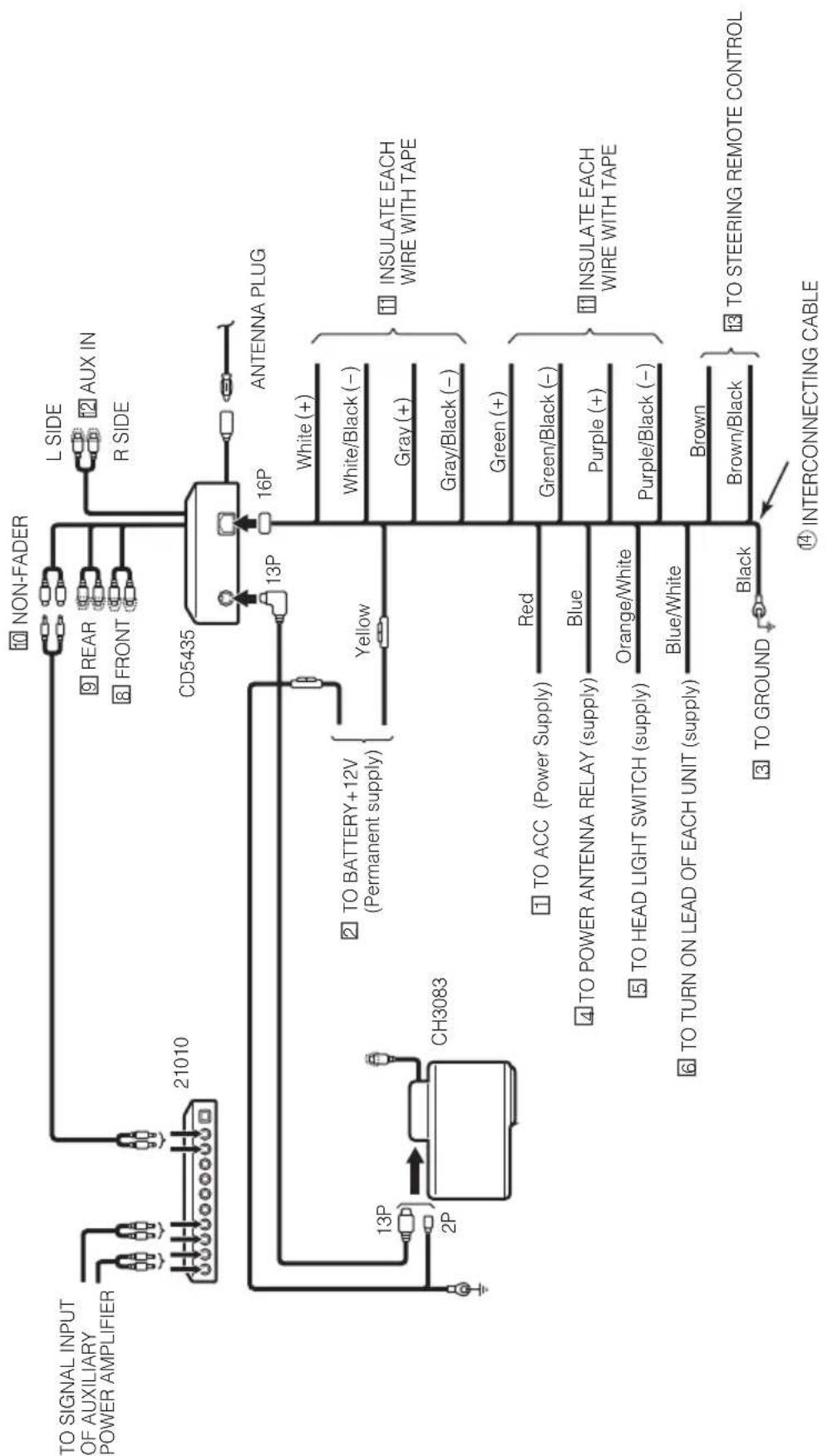
flowchart
graph TD
    A["TO SIGNAL INPUT OF AUXILIARY POWER AMPLIFIER"] --> B["21010"]
    B --> C["CD5435"]
    C --> D["NON-FADER"]
    C --> E["REAR"]
    C --> F["FRONT"]
    C --> G["L SIDE"]
    C --> H["R SIDE"]
    C --> I["AUX IN"]
    C --> J["ANTENNA PLUG"]
    C --> K["13P"]
    K --> L["16P"]
    L --> M["White (+)"]
    L --> N["White/Black (-)"]
    L --> O["Gray (+)"]
    L --> P["Gray/Black (-)"]
    L --> Q["Green (+)"]
    Q --> R["INSULATE EACH WIRE WITH TAPE"]
    L --> S["INSULATE EACH WIRE WITH TAPE"]
    L --> T["INSULATE EACH WIRE WITH TAPE"]
    L --> U["INSULATE EACH WIRE WITH TAPE"]
    L --> V["INSULATE EACH WIRE WITH TAPE"]
    L --> W["INSULATE EACH WIRE WITH TAPE"]
    L --> X["INSULATE EACH WIRE WITH TAPE"]
    L --> Y["INSULATE EACH WIRE WITH TAPE"]
    L --> Z["INSULATE EACH WIRE WITH TAPE"]
    L --> AA["INSULATE EACH WIRE WITH TAPE"]
    L --> AB["INSULATE EACH WIRE WITH TAPE"]
    L --> AC["INSULATE EACH WIRE WITH TAPE"]
    L --> AD["INSULATE EACH WIRE WITH TAPE"]
    L --> AE["INSULATE EACH WIRE WITH TAPE"]
    L --> AF["INSULATE EACH WIRE WITH TAPE"]
    L --> AG["INSULATE EACH WIRE WITH TAPE"]
    L --> AH["INSULATE EACH WIRE WITH TAPE"]
    L --> AI["INSULATE EACH WIRE WITH TAPE"]
    L --> AJ["INSULATE EACH WIRE WITH TAPE"]
    L --> AK["INSULATE EACH WIRE WITH TAPE"]
    L --> AL["INSULATE EACH WIRE WITH TAPE"]
    L --> AM["INSULATE EACH WIRE WITH TAPE"]
    L --> AN["INSULATE EACH WIRE WITH TAPE"]
    L --> AO["INSULATE EACH WIRE WITH TAPE"]
    L --> AP["INSULATE EACH WIRE WITH TAPE"]
    L --> AQ["INSULATE EACH WIRE WITH TAPE"]
    L --> AR["INSULATE EACH WIRE WITH TAPE"]
    L --> AS["INSULATE EACH WIRE WITH TAPE"]
    L --> AT["INSULATE EACH WIRE WITH TAPE"]
    L --> AU["INSULATE EACH WIRE WITH TAPE"]
    L --> AV["INSULATE EACH WIRE WITH TAPE"]
    L --> AW["INSULATE EACH WIRE WITH TAPE"]
    L --> AX["INSULATE EACH WIRE WITH TAPE"]
    L --> AY["INSULATE EACH WIRE WITH TAPE"]
    L --> AZ["INSULATE EACH WIRE WITH TAPE"]
    L --> BA["INSULATE EACH WIRE WITH TAPE"]
    L --> BB["INSULATE EACH WIRE WITH TAPE"]
    L --> BC["INSULATE EACH WIRE WITH TAPE"]
    L --> BD["INSULATE EACH WIRE WITH TAPE"]
    L --> BE["INSULATE EACH WIRE WITH TAPE"]
    L --> BF["INSULATE EACH WIRE WITH TAPE"]
    L --> BG["INSULATE EACH WIRE WITH TAPE"]
    L --> BH["INSULATE EACH WIRE WITH TAPE"]
    L --> BI["INSULATE EACH WIRE WITH TAPE"]
    L --> BJ["INSULATE EACH WIRE WITH TAPE"]
    L --> BK["INSULATE EACH WIRE WITH TAPE"]
    L --> BL["INSULATE EACH WIRE WITH TAPE"]
    L --> BM["INSULATE EACH WIRE WITH TAPE"]
    L --> BN["INSULATE EACH WIRE WITH TAPE"]
    L --> BO["INSULATE EACH WIRE WITH TAPE"]
    L --> BP["INSULATE EACH WIRE WITH TAPE"]
    L --> BQ["INSULATE EACH WIRE WITH TAPE"]
    L --> BR["INSULATE EACH WIRE WITH TAPE"]
    L --> BS["INSULATE EACH WIRE WITH TAPE"]
    L --> BT["INSULATE EACH WIRE WITH TAPE"]
    L --> BU["INSULATE EACH WIRE WITH TAPE"]
    L --> BV["INSULATE EACH WIRE WITH TAPE"]
    L --> BW["INSULATE EACH WIRE WITH TAPE"]
    L --> BX["INSULATE EACH WIRE WITH TAPE"]
    L --> BY["INSULATE EACH WIRE WITH TAPE"]
    L --> BZ["INSULATE EACH WIRE WITH TAPE"]
    L --> CA["INSULATE EACH WIRE WITH TAPE"]
    L --> CB["INSULATE EACH WIRE WITH TAPE"]
    L --> CC["INSULATE EACH WIRE WITH TAPE"]
    L --> CD["INSULATE EACH WIRE WITH TAPE"]
    L --> CE["INSULATE EACH WIRE WITH TAPE"]
    L --> CF["INSULATE EACH WIRE WITH TAPE"]
    L --> CG["INSULATE EACH WIRE WITH TAPE"]
    L --> CH["INSULATE EACH WIRE WITH TAPE"]
    L --> CI["INSULATE EACH WIRE WITH TAPE"]
    L --> CJ["INSULATE EACH WIRE WITH TAPE"]
    L --> CK["INSULATE EACH WIRE WITH TAPE"]
    L --> CY["INSULATE EACH WIRE WITH TAPE"]
    L --> CZ["INSULATE EACH WIRE WITH TAPE"]
    L --> DA["INSULATE EACH WIRE WITH TAPE"]
    L --> DB["INSULATE EACH WIRE WITH TAPE"]
    L --> DC["INSULATE EACH WIRE WITH TAPE"]
    L --> DD["INSULATE EACH WIRE WITH TAPE"]
    L --> DEA["INSULATE EACH WIRE WITH TAPE"]
    L --> DF["INSULATE EACH WIRE WITH TAPE"]
    L --> DG["INSULATE EACH WIRE WITH TAPE"]
    L --> DH["INSULATE EACH WIRE WITH TAPE"]
    L --> DIA["INSULATE EACH WIRE WITH TAPE"]
    L --> DJA["INSULATE EACH WIRE WITH TAPE"]
    L --> DKA["INSULATE EACH WIRE WITH TAPE"]
    L --> DLA["INSULATE EACH WIRE WITH TAPE"]
    L --> DVA["INSULATE EACH WIRE WITH TAPE"]
    L --> DWA["INSULATE EACH WIRE WITH TAPE"]
    L --> DXA["INSULATE EACH WIRE WITH TAPE"]
    L --> DXB[Insulate each wire with tape, white, black, red, blue, orange, purple, brown, brown, black, black, black, black, black, black, black, black, black, black, black, black, black, black, black, black, black, black, black, black, black, black, black, black, black, black, black, black, black, black, black, black, black, black, black, black, black, black, black, black, black, black, black, black, black, black, black, black, black, black, Black, black, black, black, black, black, black, black, black, black, black, black, black, black, black, black, black, black, black, black, black, black, black, black, black, black, black, black, black, black, black, black, black, black, black, black, black, black, black, black, black, black, black, black, black, black, black, black, black, black, kB
Caution
Never connect the power supply to the speaker leads, otherwise it causes damage to the main unit.
How to contact customer service
Should the product require service, please contact your nearest Eclipse dealer.
DIVISION OF FUJITSU TEN CORP. OF AMERICA
19600 SOUTH VERMONT AVENUE, TORRANCE, CA 90502
Phone: (310) 327-2151
FUJITSU TEN (AUSTRALIA) PTY LTD.
ECLIPSE AUSTRALIA
Phone: 1800-211-411
Cobra Malaysia. Sdn, bhd.
Level 5, Axis Plaza, Jalan U1/44, Glenmarie, 40150 Shah Alam,
Selangor D.E., Malaysia.
Phone: 03-5569-4200
Fax: 03-5569-4201
Cobra Singapore Pte Ltd
Trademark
60, Martin Road, # 05-20, Singapore 239065
Phone: 6737 2568
Fax : 6737 9538
Transpectra Co., Ltd.
115-16 nonhyun dong kangnam ku Seoul, Korea.
Phone: 02-540-4595
Fax: 02-2-540-4666
HYUNDAI AUTONET Co., LTD.
1st FL. Namhyoung Bldg, 746-23 Yeoksam-Dong, Kangnam-Ku,
Seoul, Korea 135-080
Phone: 02-508-6001
Fax: 02-2-508-6067
Sentrek Taiwan, LTD.
1, 9F, Lane 155, Section 3, Peishen RD., Shenkeng, Taipei Hsien, 222
Taiwan, R.O.C.
Phone: 02-2662-8110
Fax: 02-2662-8117
Sho-Ten Co., Ltd.
114/9 Soi Suwansawadi, Thungmahamek, Rama 4 Rd., Sathorn,
Bangkok 10120, Thailand.
Phone: 02-671-9610-12
Fax: 02-671-9614
Memo
Memo
IMPORTANT
RECORD YOUR "KEY CD" HERE...
STORE YOUR "KEY CD" ALONG WITH YOUR OWNER'S MANUAL TAKE THIS OUT.

This device complies with part 15 of the FCC Rules. Operation is subject to the condition that this device does not cause harmful interference.
CUSTOMER NOTICE
Please retain this booklet and write in the serial number of your CD5435 for identification.
The serial number is labeled or stamped on the chassis.
Serial No.