M7016 - Server AXIS - Kostenlose Bedienungsanleitung
Finden Sie kostenlos die Bedienungsanleitung des Geräts M7016 AXIS als PDF.


Benutzerfragen zu M7016 AXIS
0 Frage zu diesem Gerät. Beantworten Sie die, die Sie kennen, oder stellen Sie Ihre eigene.
Eine neue Frage zu diesem Gerät stellen
Laden Sie die Anleitung für Ihr Server kostenlos im PDF-Format! Finden Sie Ihr Handbuch M7016 - AXIS und nehmen Sie Ihr elektronisches Gerät wieder in die Hand. Auf dieser Seite sind alle Dokumente veröffentlicht, die für die Verwendung Ihres Geräts notwendig sind. M7016 von der Marke AXIS.
BEDIENUNGSANLEITUNG M7016 AXIS
USERMANUAL
AXISM7016VideoEncoder
AboutthisDocument
Thismanualisintendedforadministratorsandusersofthe AXISM7016VideoEncoder, andisapplicabletofirmware5.4 and later. It includes instructions for using and managing the product on your network. Previous experience of networking will be found when using this product. Some knowledge of UNIX or Linux-based systems may also be beneficial, for developing shell scripts and applications. Later version of this document will be posted to the Axis website, as required. See also the product's online help, available via the web-based interface.
LegalConsiderations
Videosurveillancecanberegulatedbylawsthatvaryfromcountryto country.Checkthelawsinyourlocalregionbeforeusingthisproduct forsurveillancepurposes.
Thisproductincludesone(1)H.264decoderlicense.Topurchase furtherlicenses,contactyourreseller.
Liability
Everycarehasbeentakeninthepreparationofthisdocument.Please informyourlocalAxisofficefanyinaccuraciesoromissions.Axis CommunicationsABcannotbeheldresponsibleforanytechnical or typographicalerrorsandreservestherighttomakechangestothe productandmanualswithoutpriornotice.AxisCommunicationsAB makesnowarrantyfanyakindwithregardtothematerialcontained withinthisdocument,including,butnotlimitedto,theimplied warrantiesofmerchantabilityandfitnessforaparticularpurpose.Axis CommunicationsABshallnotbeliablenorresponsibleforincidental or consequentialdamagesinconnectionwiththefurnishing,performance oruseofthismaterial.Thisproductisonlytobeusedforitsintended purpose.
IntellectualPropertyRights
AxisABhasintellectualpropertyrightsrelatingtotechnologyembodied intheproductdescribedinthisdocument.Inparticular,andwithout limitation,theseintellectualpropertyrightsmayincludeoneormore ofthepatentslistedatwww.axis.com/patent.htmandoneormore additionalpatentsorpendingpatentapplicationsintheUSandother countries.
Thisproductcontainslicensedthird-partysoftware.Seethemenuitem "About"intheproduct'suserinterfaceformoreinformation.
ThisproductcontainssourcecodecopyrightAppleComputer, Inc.,underthetermsofApplePublicSourceLicense2.0(see www.opensource.apple.com/aps/).Thesourcecodeisavailablefrom https://developer.apple.com/bonjour/
EquipmentModifications
This equipment must be installed and used in strict accordance with the instructions given in the user documentation. This equipment contains nouser-serviceable components. Unauthorized equipment changes or modifications will invalidate all applicable regulatory certifications and approvals.
TrademarkAcknowledgments
AXISCOMMUNICATIONS, AXIS, ETRAX, ARTPECandVAPIXare registeredtrademarksortrademarkapplicationsofAxisABinvarious jurisdictions. All other company names and products are trademarks or registered trademark of their respective companies.
Apple,Boa,Apache,Bonjour,Ethernet,InternetExplorer,Linux, Microsoft,Mozilla,Real,SMPTE,QuickTime,UNIX,Windows,Windows VistaandWWWareregisteredtrademarksoftherespectiveholders. JavaandallJava-basedtrademarksandlogosaretrademarkor registeredtrademarksofOracleand/oritsaffiliates.UPnP ^TM is certificationmarkoftheUPnP ^TM ImplementersCorporation. SD,SDHCandSDXCaretrademarksorregisteredtrademarksofSD-3C, LLCintheUnitedStates,othercountriesorboth.Also,miniSD,microSD, miniSDHC,microSDHC,microSDXCarealltrademarksorregistered trademarksofSD-3C,LLCintheUnitedStates,othercountriesorboth.
RegulatoryInformation
Europe

ThisproductcomplieswiththeapplicableCEmarkingdirectives monizedstandards:
- ElectromagneticCompatibility(EMC)Directive2004/108/EC.See ElectromagneticCompatibility(EMC),onpage2.
LowVoltage(LVD)Directive2006/95/ECSeeSafetyprpag@
- Restrictions of Hazardous Substances (RoHS) Directive 2011/65/EU. See Disposal and Recycling, on page 2. Acopy of the original declaration of conformity may be obtained from Axis Communications AB. See Contact Information, on page 3.
Electromagnetic Compatibility(EMC)
This equipment has been designed and tested to fulfill applicable standards for:
- Radiofrequencyemissionwheninstalledaccordingtothe instructionsandusedinitsintendedenvironment.
- Immunitytoelectricalandelectromagneticphenomenawhen installedaccordingtotheinstructionsandusedinitsintended environment.
USA
This equipment has been tested using a shielded network cable (STP) and found to comply with the limits for a Class Digital device, pursuant to part 15 of the FCC Rules. These limits are designed to provide reasonable protection against harmful interference in residential installation. This equipment generates, uses and can radiate radio frequency energy and, if not installed and used in accordance with the instructions, may cause harmful interference or radio communications. However, there is no guarantee that interference will not occur in particular installation. If this equipment does cause harmful interference or radio television reception, which can be determined by turning the equipment off and on, the user is encouraged to try to correct the interference by one or more of the following measures:
•Reorientorrelocatethereceivingantenna.
- Increase these separation between the equipment and receiver.
- Connecttheequipmentintoanoutletonacircuitdifferentfrom thattowhichthereceiverisconnected.
- Consultthedealeroranexperiencedradio/TVtechnicianforhelp. Canada
ThisClassBdigitalapparatuscomplieswithCanadianICES-003. CetappareilnumériquedelaclasseBestconfomeàlanorme NMB-003duCanada.
Europe
This digitalequipmentfulfillstherequirementsforRFemission according to the ClassBlimitofEN55022.
This product fulfill therequirements for immunity according to EN61000-6-1 residential, commercial and light-industrial environments.
Thisproductfulfillstherequirementsforimmunityaccordingto EN61000-6-2industrialenvironments.
Australia/NewZealand
This digitalequipmentfulfillstherequirementsforRFemission according to the ClassBlimitofAS/NZSCISPR22.
Japan
この装置は、クラスB情報技術装置です。この装置は、家庭環境で使用することを目的としていますが、この装置がラジオやテレビジョン受信機に近接して使用されると、受信障害を引き起こすことがあります。取扱説明書に従って正しい取り扱いをして下さい。
Korea
이기기는가정용(B급)전자파적합기기로서주로가정에서사용하는것을목적으로하며,모든지역에서사용할수있습니다.
Safety
ThisproductcomplieswithIEC/EN/UL60950-1,SafetyofInformation TechnologyEquipment.
The powersupply used with this product shall fulfill therequirements for Safety Extra Low Voltage (SELV) and Limited Power Source (LPS) according to IEC/EN/UL60950-1.
DisposalandRecycling
Whenthisproducthasreachedtheendofitsusefullife,disposeof itaccordingtolocalrawsandregulations.Forinformationabout yournearestdesignatedcollectionpoint,contactyourlocalauthority responsibleforwastedisposal.Inaccordencewithlocallegislation, penaltiesmaybeapplicableforincorrectdisposalofthiswaste.
Europe

Thissymbolmeansthattheproductshallnotbedisposedof togetherwithhouseholdorcommercialwaste.Directive2012/19/EU onwasteelectricalandelectronicequipment(WEEE)isapplicablein theEuropeanUnionmemberstates.Topreventpotentialharmto humanhealthandtheenvironment,theproductmustbedisposed ofinanapprovedandenvironmentallysaferecyclingprocess.For informationaboutyournearestdesignatedcollectionpoint,contact yourlocalauthorityresponsibleforwastedisposal.Businessesshould contacttheproductsupplierforinformationabouthowtodispose ofthisproductcorrectly.
ThisproductcomplieswiththerequirementsofDirective2011/65/EU ontherestrictionoftheuseofcertainhazardoussubstancesin electricalandelectronicequipment(RoHS).
China
Thisproductcomplieswiththerequirementsofthelegislative actAdministrationontheControlofPollutionCausedbyElectronic InformationProducts(ACPEIP).
ContactInformation
AxisCommunicationsAB
Emdalavägen14
22369Lund
Sweden
Tel:+46462721800
Fax:+4646136130
www.axis.com
Support
Shouldyourequireanytechnicalassistance,pleasecontactyourAxis reseller.Ifyourquestionscannotbeansweredimmediately,your resellerwillforwardyourqueriesthroughtheappropriatechannelsto ensurearapidresponse.Ifyouareconnectedtothelnternet,youcan:
- downloaduserdocumentationandsoftwareupdates
• findanswerstoresolvedproblemsintheFAQdatabase.Search byproduct, category, orphrase
• reportproblemstoAxissupportstaffbyloggingintoyourprivate supportarea
- chatwithAxissupportstaff(selectedcountriesonly)
- visitAxisSupportatwww.axis.com/techsup/
LearnMore!
VisitAxislearningcenterwww.axis.com/academy/forusefultrainings, webinars,tutorialsandguides.
TableofContents
HardwareOverview....5 ....5
ConnectorsandButtons....5
LEDIndicators....6
AccessingtheProduct....7
AccessfromaBrowser....7
AccessfromtheInternet....8
SettheRootPassword....8
TheLiveViewPage....9
MediaStreams....11
HowtoStreamH.264....11
MJPEG....11
AXISMediaControl(AMC)....11
AlternativeMethodsofAccessingtheVideoStream....12
SettingUptheProduct....14
BasicSetup....14
Video....15
VideoStream....15
Quadstream....16
StreamProfiles....16
CameraSettings....17
Overlay....17
PrivacyMask....19
LiveViewConfig....20
PTZ(PanTiltZoom)....22
PresetPositions....22
GuardTour....23
InstallingaPTZdriver....23
Advanced....23
ControlQueue....24
Detectors....25
CameraTampering....25
MotionDetection....25
Events....28
SettingUpanActionRule....29
Recipients....30
Schedules....31
Recurrences....31
Recordings....32
RecordingList....32
ContinuousRecording....32
Languages....33
SystemOptions....34
Security....34
Date&Time....36
Network 36
Storage....41
Ports&Devices....43
Maintenance....43
Support......43
Advanced....44
ResettoFactoryDefaultSettings....45
Troubleshooting......46
CheckingtheFirmware....46
UpgradingtheFirmware....46
Symptoms, Possible Causes and Remedial Actions......47
TechnicalSpecifications....50
Connectors....52
PerformanceConsiderations....52
HardwareOverview
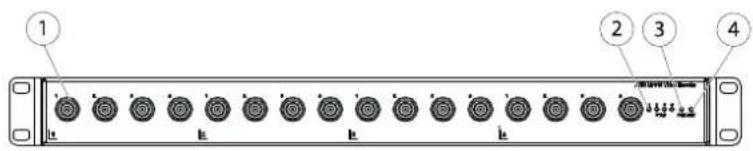
text_image
1 2 3 4 k k k1 VideoinputconnectorBNCx16
2 StatusLED1-4
3 PowerLED
4 NetworkactivityLEDRJ45
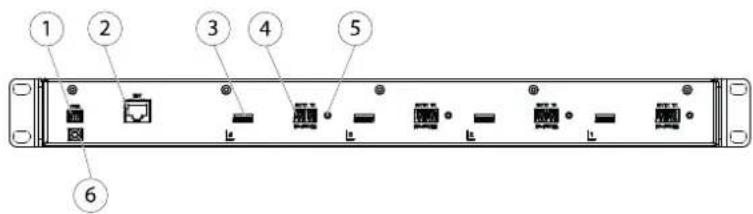
text_image
1 2 3 4 5 61 Powerconnector
2 NetworkconnectorRJ45
3 CardslotmicroSDx4
4 RS-485/422connectorx4
5 Controlbuttonx4
6 Protectiveearth
ConnectorsandButtons
Fortechnicalspecifications,seepage50.
BNCCConnector
Eachvideoinputisterminatedusingacoax/BNCconnector.Connecta750hmcoaxialvideocable;therecommendedmaximum lengthis250m(800ft).
Note
75Ohmidedeterminationcarbenabled/disabledthevideoinputthroughthproduct'swebpageVideoCamera SettingsVidedeterminationThisterminationisenabledorfactorydefaultcaseswherethoproductsbeconnected inparallelwithotherequipment,foroptimumvideoquality,itisrecommendedthatterminationbeenabledforonlythelast deviceinthevideosignalchain.
NetworkConnector
RJ45Ethernetconnector.
NOTICE
The product shall be connected using a shielded network cable (STP). All cables connecting the product to thenetwork switch shall be shielded (STP) and intended for their specific use. Makes sure that thenetwork switch is properly grounded. For information about regulatory requirements see Regulatory Information or page
PowerConnector
2-pinterminalblockforpowerinput.UseaSafetyExtraLowVoltage(SELV)compliantlimitedpowersource(LPS)witheitherarated outputpowerlimited≤100Varatedoutputcurrentlimited≤5A.
RS485/RS422Connector
TwoterminalblocksforRS485/RS422serialinterfaceusedtocontrolauxiliaryequipmentsuchasPTZdevices.
SDCardSlot
AmicroSDard (not included) has used folocarecording with removable storage from information see Technical Specifications, on page 50.
NOTICE
To prevent corruption recording the SCard should be unmounted before removal. Unmountgd Setup System Options > Storage > SDCardandclickUnmount.
ControlButton
Thecontrolbuttonisusedfor:
- Resetting the product to factory default settings. See page 45.
Connecting an AXISided Hosting System service Se page 38 connect press and hold the button for about second until the Status LED flashes green.
ConnectingtoAXISInterneDynamicDNServiceSepage38toconnectpressandholdhouttorforaboutseconds.
LEDIndicators
| LED | Color | Indication |
| Network | Green | Steadyforconnectiontoa1GBit/snetwork.Flashesfornetworkactivity. |
| Amber | Steadyforconnectiontoa10/100MBit/snetwork.Flashesfornetworkactivity. | |
| UnlitNonetwork | connection. | |
| Status | GreenSteadygreen | enformormaloperation. |
| Amber | Steadyduringstartupandwhenrestoringsettings. | |
| Red | Slowflashforfailedupgrade. | |
| Power | Green | Normaloperation. |
| Amber | Flashesgreen/amberduringfirmwareupgrade. |
Note
The StatuLEDcarbeconfigured downlituringnormabperationToconfigureSetupSystemsOptionsPorts &Devices>LED.Seetheonlinehelpformoreinformation.
- TheStatusLEDcanbeconfiguredtoflashwhileaneventisactive.
AccessingtheProduct
ToinstalltheAxisproduct, refertothel InstallationGuidesupplied with the product.
The product can be used with most operating systems and browsers. There recommended browsers are Internet Explorer with Windows, Safari with Macintosh and Firefox with the operating system. See Technical Specifications or page 50.
ToviewstreamingvideoinInternetExplorer, allow installation of AXISMediaControl(AMC) when prompted.
TheAxisproductincludesone(1)H.264decoderlicenseforviewingvideostreams. ThelicenseisautomaticallyinstalledwithAMC. Theadministratorcandisabletheinstallationofthedecoders,topreventinstallationofunlicensedcopies.
Note
- QuickTime ^TM is also supported for viewing H.264 streams.
- If your computer restrict the use of additional software components, the product can be configured to use a Java applet for viewing Motion JPEG.
AccessfromaBrowser
1.Startabrowser(InternetExplorer, Firefox, Safari).
2.EntertheIPaddressorhostnameoftheAxisproductinthebrowser'sLocation/Addressfield.ToaccesstheproductfromaMacintoshcomputer(MacOSX),clickontheBonjourtabandselecttheproductfromthedrop-downlist.
If you donot know the I paddress, use AXISIP Utility to locate the product on thenetwork. For information about how to discover and assign I address through installation and management software. Do the document Assign and I Address and Access the Video Stream on Axis Support web at www axis.com/techsup
- Enteryourusernameandpassword.Ifthisisthefirsttimetheproductisaccessed,therootpasswordmustfirstbe configured.Forinstructions,seeSettheRootPassword,onpage8.
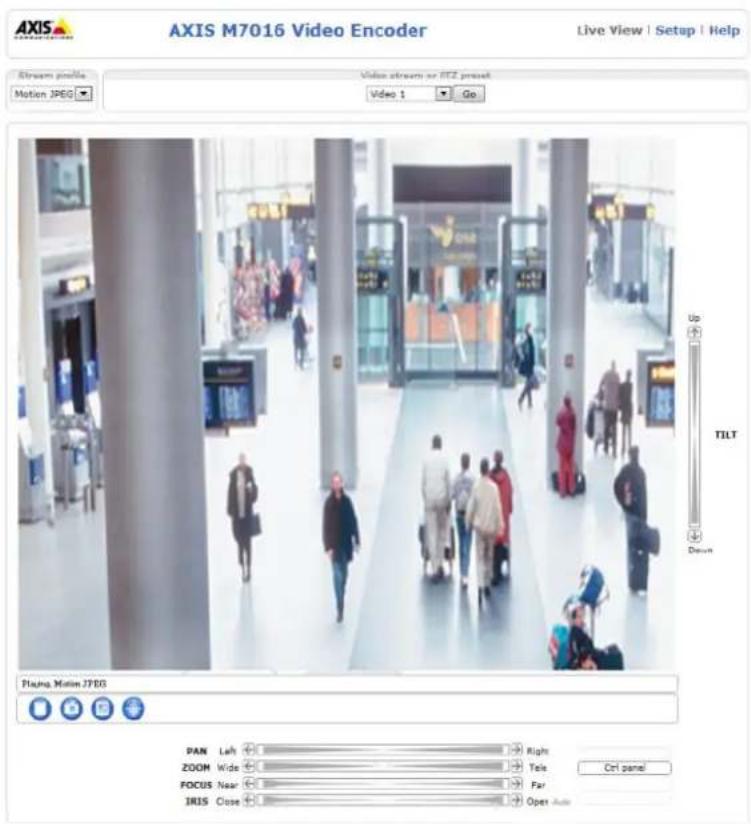
- The product'sLiveViewpageappearsinyourbrowser.
Note
The controls and layout of the liveView page may have been customized to meet specific installation requirements and user preferences. Consequently, some of the examples and functions featured her may differ from those displayed in your own live view page.
AccessingtheProduct
text_image
AXIS M7016 Video Encoder Live View | Setup | Help Stream profile Motion JPEG Video stream or ETC project Video 1 Go Up TILT Down Playing Motion JPEG PAN Left Right ZOOM Wide Tele FOCUS Near Far IRIS Close Open Auto Ctrl panelAccessfromthelnternet
Onceconnected,theAxisproductisaccessibleonyourlocalnetwork(LAN).ToaccesstheproductfromtheInternetyoumust configureyournetworkroutertoallowincomingdatatraffictotheproduct.Todothis,enabletheNAT-traversalfeature,which wilattemptautomaticallyconfiguretheroutetallowaccesstheproductThisenabledfromSetupSystemOptions>Network>TCP/IPAdvanced.
FomoreinformationedNATraversa(portmapping)ofPv4prpag3SealsAXISInterneDynamidDNService atwww.axiscam.net
ForTechnicalnotesonthisandothertopics,visittheAxisSupportwebatwww.axis.com/techsup
SettheRootPassword
Tacce the Axi product you must the password for the default administrator user of this slone in the Configur Root Passworddialog, which appears when the product is accessed for the first time.
Topreventnetworkeavesdropping,therootpasswordcanbesetviaanencryptedHTTPSconnection,whichrequiresanHTTPS certificate. HTTPS(HypertextTransferProtocoloverSSL)isaprotocolusedtoencrypttrafficbetweenwebbrowsersandservers.The HTTPScertificatensureencryptedexchangofinformationSedHTTPSprpage34.
The default administrator usenamroot permanent and cannot be deleted the password for root host the product must be reset the factor default settings See Reset Factory Default Settings page 45.
TosetthepasswordviaastandardHTTPconnection,enteritdirectlyinthedialog.
TosetthepasswordviaanencryptedHTTPSconnection,followthesesteps:
- ClickUseHTTPS.
A temporary certificate(validforoneyear)iscreated, enabling encryption of all traffic to and from the product, and the password cannot be set securely.
2.Enterapasswordandthenre-enterittoconfirmthespelling.
3.ClickOK.Thepasswordhasnowbeenconfigured.
TheLiveViewPage
The controls and layout of the liveView pagemay have been customized to meet specific installation requirements and user preferences. Consequently, some of the examples and functions featured her may differ from those displayed in your own live view page. The following provides an overview of each available control.
ControlsontheLiveViewPage
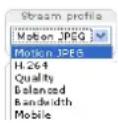
SelectstreamprofileoftheLiveViewpagefromthStreamProfiledrop-downlistEoinformationabouthowtoconfigurestreamprofiles,see page 16.

The ManualTriggerbuttonisuseddriggeractionrulefromtheliveViewpageInformationabouthowtoconfigureandenablethebutton,seeManualTrigger,onpage9.
ClickSnapshotaavessnapshotthe video imageRight-clickthe video imagesave in PEGformabyour computer.ThisbuttonisprimarilyintendedforusewhentheAXISMediaControlviewertoolbarsisnotavailable. EnablethisbuttonfromLiveViewConfig>ActionButtons.
ManualTrigger
The ManualTriggerused triggeraction rule from the live/view page. The manualatriggecarfoexample used to validate actions during product installation and configuration.
Toconfigurethemanualtrigger:
1.GotoSetup>Events.
2.ClickAddtoaddanewactionrule.
BonthTriggerdrop-downlistselectnpuSignal.
- From these second drop-down list, select Manual Trigger.
- Select the desired action and configure the other settings as required.
Formoreinformationaboutactionrules,seeEvents,onpage28.
ToshowthemanualtriggerbuttonsintheLiveViewpage:
- GotoSetup>LiveViewLayout.
UndeActionButtonsselectShowmanuatriggebutton.
AXISMediaControlviewertoolbar
TheAXISMediaControlviewetoolbarsavailableInterneExploreonlySeeAXISMediaControl(AMC)prpagefomore information.Thetoolbardisplaysthefollowingbuttons:
AccessingtheProduct

ThePlaybuttonconnectstotheAxisproductandstartsplayingamediastream.

TheStopbuttonstopsthemediastream.

ThSnapshobuttortakesnapshobthevideimageTheocationwhereimagessavedcanspecifiedintheAMCControlPanel.

ClickhViewFulScreenbuttonandtheimageovilFilthentirescreenPressESQEscapeorthecomputer keyboardtocancelfullscreenview.

TheRecordbuttonisusedrecordthecurrentvidestreamThelocationwhertherecordingsavedarbespecifiedn theAMControlPaneEnablehibuttonfromLiveViewConfigVieweSettings.
PTZControls
TheLiveViewpagealsodisplaysPan/Tilt/Zoom(PTZ)controls.Theadministratorcanenable/disablecontrolsforspecifiedusersunder SystemOptions>Security>Users.
With the PTZControlQueue enabled that each user is a control of the PTZ setting its limited click button or requests release a control of the PTZ control. The PTZ Control Queue setup is the PTZ Control Queue.

Click the Emulatjoystickmodeouttorand clickthimagemovthe cameraviewithdirectionof the mousepointer.

Click the Centemode button and click the image docent the camera view that position the centemode button could also be used to zoom on an as specific area. Click the image and drag to draw a rectangular surrounding the are at obemagnified. To zoom out, rotate the mouse wheel.

Click the CtrpanebuttonoperthePTZontropanewhichprovidesadditionaPTZcontrols. User-definedbuttonscanalsoappearintheControlpanel.SeeControls,onpage24.
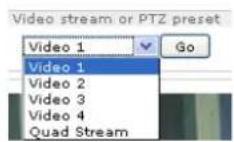
SelectthevideochanneloraPTZpresetpositiontosteerthecameraviewtothesavedposition.See PresetPositions,onpage22.

PanandTiltbars—Usethearrowstopanandtiltthecameraview,orclickonapositiononthebartosteerthe cameraviewtothatposition.
Zoombar-Usethearrowstozoominandout,orclickonapositiononthebartozoomthatposition.
FocubarClickorpositionorthfocusatoethfocuspositionThiswilldisabletheproduct'sutofocusTo re-enableusthePTzontropanelwhichispenedbyclickingtheCtrpanebutton(seabove).

text_image
PAN Left Right ZOOM Wide Tele FOCUS Near FarThe PTZ control is a disabled under PTZ Advanced Controls section page 24.
MediaStreams
TheAxisproductprovidesseveralvideostreamformats.Yourrequirementsandthepropertiesofyournetworkwilldeterminethe typeyouuse.
TheLiveViewpageintheproductprovidesaccesstoH.264andMotionJPEGvideostreams,andtothelistofavailablestreamprofiles. Otherapplicationsandclientscanaccessvideostreamsdirectly,withoutgoingviatheLiveViewpage.
HowtoStreamH.264
The videocompression standard H.264 makes good use of bandwidth, and can provide high quality video streams at less than 1 Mbit/s.
Deciding which combination of protocols and method stoused depends on your viewing requirements, and on the properties of your network. The available options in AXISMediaControl are:
| UnicastRTP | Thisunicastmethod(RTPoverUDP)isused forliveunicastvideo,especiallywhenitis importanttoalwayshaveanup-to-datevideo stream,evenifsomeimagesaredropped. | Unicastingisusedforvideo-on-demand transmissionsothatthereisnovideotraffic onthenetworkuntilaclientconnectsand requeststhestream.Notethatthereareamaximumof20 simultaneousunicastconnections. |
| RTPoverRTSP | Thisunicastmethod(RTPtunneledoverRTSP) isusefulasitisrelativelysimpletoconfigure firewallstoallowRTSPtraffic. | |
| RTPoverRTSPoverHTTP | Thisunicastmethodcanbeusedtotraverse firewalls.Firewallsarecommonlyconfiguredto allowtheHTTPprotocol,thusallowingRTPto betunneled. | |
| MulticastRTP | Thismethod(RTPoverUDP)shouldbeusedforlivemulticastvideo.Thevideostreamisalways up-to-date,evenifsomeimagesaredropped.Multicastingprovidesthemostefficientusageofbandwidthwhentherearelargenumbersof clientsviewingsimultaneously.Amulticastcannothowever,passanetworkrouterunlessthe routerisconfiguredtoallowthis.ItisnotpossibletomulticastoverthelInternet,forexample.Notealsothatallmulticastviewerscountasoneunicastviewerinthemaximumtotalof20 simultaneousconnections. | |
AXISMediaControlnegotiateswiththeAxisproducttodeterminethetransportprotocoltouse.Theorderofpriority,listedintheAMCControlPanel,canbechangedandtheoptionsdisabled,tosuitspecificrequirements.
Note
H.264islicensedtechnology.TheAxisproductincludesoneH.264viewingclientlicense.Installingadditionalunlicensed copiesoftheclientisprohibited.Topurchaseadditionallicenses,contactyourAxisreseller.
MJPEG
This formatusesstandardJPEGstillimagesforthevideostream. These images are then displayed and updated at a rate sufficient to create stream that shows constantly updated motion.
TheMotionJPEGstreamusesconsiderableamountsofbandwidth,butprovidesexcellentimagequalityandaccesstoeveryimage containedinthestream.TherecommendedmethodofaccessingMotionJPEGlivevideofromtheAxisproductistousetheAXISMediaControlInInternetExplorerinWindows.
AXISMediaControl(AMC)
AXISMediaControl(AMC)inInternetExplorerinWindowsistherecommendedmethodofaccessinglivevideofromtheAxisproduct.
TheAMCControlPanelcanbeusedtoconfigurevariousvideosettings.PleaseeseetheAXISMediaControlUser'sManualformore information.
TheAMCControlPanelisautomaticallyinstalledonfirstuse,afterwhichitcanbeconfigured.OpentheAMCControlPanelfrom:
- WindowsControlPanel(fromtheStartmenu)
Alternatively right-click the video image Interne Explore and click Settings.
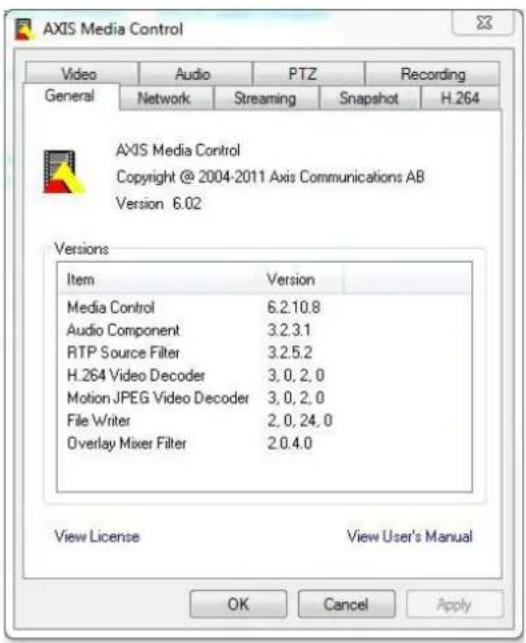
text_image
AXIS Media Control Video Audio PTZ Recording General Network Streaming Snapshot H.264 AXIS Media Control Copyright @ 2004-2011 Axis Communications AB Version 6.02 Versions Item Version Media Control 6.2.10.8 Audio Component 3.2.3.1 RTP Source Filter 3.2.5.2 H.264 Video Decoder 3,0,2,0 Motion JPEG Video Decoder 3,0,2,0 File Writer 2,0,24,0 Overlay Mixer Filter 2.0.4.0 View License View User's Manual OK Cancel ApplyAlternativeMethodsofAccessingtheVideoStream
YoucanalsoaccessvideoandimagesfromtheAxisproductinthefollowingways:
MotionPEGervepush(fupported by the client Firefox fo example) This option maintains proper HTTP connection to the browser and sends data as and when required, for as long as required.
StiUPEGimagesbrowserEntethepathhttp://
Window Media Player This requires AXIS Media Control and the 1.264 decoder to installed the following paths can be used:
-UnicastviaRTP:axrtpu://<ip>/axis-media/media.amp
-UnicastviaRTSP:axrtsp://<ip>/axis-media/media.amp
-UnicastviaRTSP,tunneledviaHTTP:axrtsphttp://<ip>/axis-media/media.amp
-Multicast:axrtpm://<ip>/axis-media/media.amp
- QuickTime TM. The following pathscanbeused:
-rtsp://<ip>/axis-media/media.amp
-rtsp://<ip>/axis-media/media.3gp
Note
=|Paddress
•TheAxisproductsupportsQuickTime6.5.1andlater.- QuickTimeaddslatencytothevideostream.
- It maybe possible to use other player's view the H.264 stream using the paths above, although Axis does not guarantee this.
SettingUptheProduct
The Axi product are configured by users with administrator operator rights to the product's setup pages specific Setup the top-right-hand corner of the Live View page.
- Administratorshaveunrestrictedaccesstoallsettings.
- OperatorshaveaccesstoallsettingsexceptSystemOptions
Seealsotheonlinehelp

BasicSetup
BasicSetupprovidesshortcutstothesettingsthatshouldbemadebeforeusingtheAxisproduct:
1.Users.Seepage34.
2.TCP/IP.Seepage36.
3. Date&Time.Seepage36.
4.VideoStream.Seepage15.
TheBasicSetupmenucanbedisabledfromSystemOptions>Security>Users.
Video
ItispossibletoconfigurethefollowingvideofeaturesinyourAxisproduct:
•Videostream.Seepage15.
- Streamprofiles.See page 16.
- Camerasettings.See page 17.
•Overlayimage.Seepage17.
- Privacymask.Seepage19.
VideoStream
You can define the following video stream settings from Video Stream:
- Image.Seepage15.
•H.264.Seepage16. - MJPEG.Seepage16.
Note
Videostreamcanbeconfiguredforeachchannelincludingquadstream.
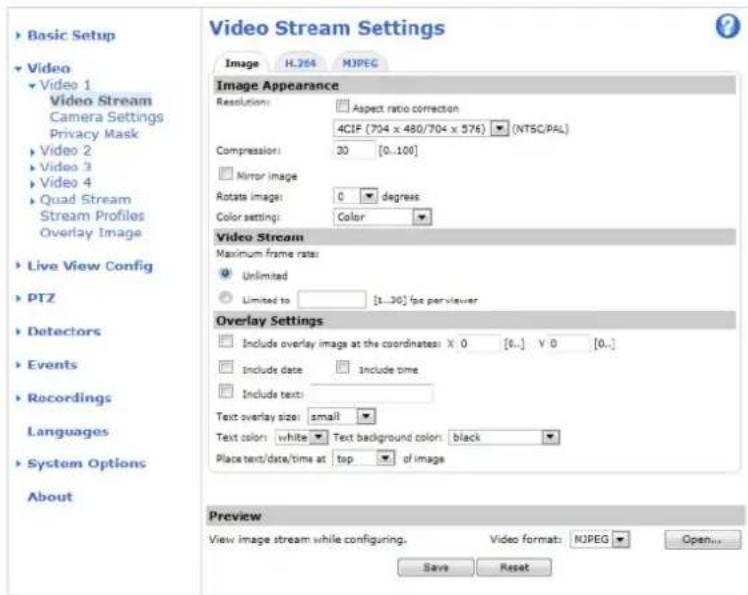
text_image
Basic Setup Video Video 1 Video Stream Camera Settings Privacy Mask Video 2 Video 3 Video 4 Quad Stream Stream Profiles Overlay Image Live View Config PTZ Detectors Events Recordings Languages System Options About Video Stream Settings Image H.264 MJPEG Image Appearance Resolution: Aspect ratio correction 4CIF (704 x 480/704 x 576) (NTSC/PAL) Compression: 30 [0..100] Mirror image Rotate image: 0 degrees Color setting: Color Video Stream Maximum frame rate: Unlimited Limited to [1..30] (no per viewer) Overlay Settings Include overlay image at the coordinates: X: 0 [1..] Y: 0 [0..] Include date Include time Include text: Text overlay size: small Text color: white Text background color: black Place text/date/time at top of image Preview View image stream while configuring. Video format: MJPEG Open... Save ResetImage
ThedefaultmagsettingscarbeconfiguredundeVideo>VideStreamSelectdImageab.
The followingsettingsareavailable:
- Resolution.Selectthedefaultresolution.
CompressionThe compression leveaffect the image quality bandwidth and file size of a vamed imagesthedowethe compression, the higher the image quality with higher bandwidth requirements and larger filesizes.
- Rotateimage.lfrequired, theimagecanberotated.
Maximum framerate avoid bandwidth problems the framerate allowed each viewer can be limited to fixed amount Alternatively the framerate car base. Unlimited which means the Axis product always delivers the highest framerate possible under the current conditions.
OverlayettingSeeOverlappage17.
ClickSavetoapplythenewsettings.
H.264
H.264,alsoknownasMPEG-4Part10/AVC,isavideocompressionstandardthatprovideshighqualityvideostreamsatlowbitrates. AnH.264videostreamconsistsofdifferenttypesofframessuchasl-framesandP-frames.Anl-frameisacompleteimagewhereas P-framesonlycontainthedifferencesfrompreviousframes.
The GOVength the number of frames between two consecutive frames Increasing the GOVength may save considerably in bandwidth requirements in some cases, but may also have an adverse effect on image equality.
The Axis product supports wD.264 profiles The Main profile provides higher compressior than the Baseline profile with the same video quality, but requires more processing power to decode.
The bitratecataVariableBiRate(VBR)ConstantBiRate(CBR)VBRadjustthebitataccordingtheimage complexity,usingupmorebandwidthforincreasedactivityintheimage,andlessforlowerimageactivity.CBRallowsyoutoseta fixedtargetathatconsumespredictableamountbandwidthAthebitatowouldusuallyneedincreaseforincreased imageactivity,butinthiscasecannot,framerateandimagequalityareaffectednegatively.Topartlycompensateforthis,itis possibletoprioritizeeitherframerateorimagequality.Notsettingaprioritymeansthatframerateandimagequalityareequally affected.Youmustsaveyoursettingsbeforetheycantakeeffect.
The current table can be set to appear text overlay. This select the include text checkbox option under Overlay Settings and enter them modifier #binthefield.
MJPEG
Sometimes the imagesize is large duolow light or complex scenery. Adjusting them a maximum framesize help to control the bandwidth and storage used by the Motion PEG video stream in these situations. Setting the framesize the Default setting provides consistently good image quality at the expense of increased bandwidth and storage usage in low light. Limiting the frame size optimizes bandwidth and storage usage, but may give poor image quality. Toprevent increased bandwidth and storage usage, the maximum framesizes should be set to an optimal value.
Quadstream
AQuadviewdisplaysimagesfromallfourchannelsonasinglescreen;wheretheimagesfromeachcameratakeupaquarterofthedisplayarea.Itispossibletodefinesettingsforthevideostreaminquadview.
StreamProfiles
Astreamprofileisasetofpredefinedstreamsettingsincludingresolution,compression,framerateandoverlaysettings.Stream profilescanbeused:
- Whensettinguprecordingusingactionrules.SeeEvents,onpage28.
- Whensettingupcontinuousrecording.SeeContinuousRecording,onpage32.
In theLiveViewpageselectstreamprofilefromtheStreamprofiledrop-downlist.
For quick setup, use one of the predefined stream profiles. Each predefined profile has a descriptiven name, indicating its purpose. If required, the predefined stream profile is can be modified and new customized stream profiles can be created.
To create new profile to modify existing profile to Setup Video Stream Profiles.
To select default stream profile for the live view page and Setup Live View Config.
CameraSettings
The Video Camer Settings page provides access to advanced image settings for the Axi product.
ImageAppearance
Thémage Brightness can be adjusted the range 0–100 where higher value produces brighter image.
The Contrast changes relative difference between light and dark carb-adjusted using the slidebar.
Videoinput
- EnteradescriptivenameforyourvideosourceintheVideosourcenamefield.
The values in the Offside Adjustments fields affect the horizontal and vertical synchronization for the image. This can be used to eliminate any black borders surrounding the image. High values, both negative and positive can put the image out of sync.
- De-interlacing-isusedtoimprovevideostreamimagequalityfromanalogdevices.Selectanyofthefollowingoptions fromtheDe-interlacingdrop-downlisSelectNonefle-interlacingnotecessaryBlendingforimprovedmage qualitythatnotaprocessointensiveAdaptivInterpolationperformsle-interlacingofthevidestreambyapplying differenfiltersortheimageThismayivebetteresulthanMotionAdaptivInterpolationnarecasesMotion AdaptivInterpolationperformsle-interlacingofthevidestreambyapplyingifferentfiltersdependingorthemotion indifferentpartsoftheimage.Thiswillinmostcasesresultinthebestimagequality.
Antialiasingwillminimizedistortionknowrasaliasingwhichhappenswhenhigh-resolutionimagesrepresentedatalowerresolution.
For each video input 50h via determination can be enabled/disabled via product's webpage Video Video Input Vide termination. The determinations are enabled for factory default cases where the products do connected in parallel with other equipment, for optimum video quality, it is recommended that termination been enabled for only the last device in the videosignal chain.
ImageSettings
Noise reduction Set Or enable noise reduction Noise reduction may increase the amount of motion blur.
Overlay
Overlaysareusedtoprovideextrainformation,forexampleforforensicvideoanalysisorduringproductinstallationand configuration.Overlaysaresuperimposedoverthevideostream.
Anoverlaytextcandisplaythecurrentdateandtime,oratextstring.Whenusingatextstring, modifierscanbeusedtodisplay informationsuch the currentbitato the currentframeDateInformationaboutavailable modifiersseFileNamingEt
Date/TimeFormatsintheonlinehelp
Italspossible displaytextwhenactionrulestriggeredsedUsingOverlayTextfranActionRule.
Toenableoverlays:
GoVideoVideStreamandelectdmagtab.
Tinclude overlayimages, select include overlayimage the coordinates The overlayimage must first be uploaded to the Axisproduct, see OverlayImage.
Bincluddatandimeselectncluddatandncludtime.
TincludetextstringselectncludetextandentethextrthfieldModifiersabusedseFileNamingt
Date/TimeFormatsintheonlinehelp.

- Definetextoverlaycharacteristicsintherelevantfields.
6.ClickSave.
Tomodify the date and time format to System Options Date Time See Date Time per page 36.
Note
Overlayisnotpossibleforquadstream.
OverlayImage
Anoverlayimageisastaticimagesuperimposedoverthevideostream.Theimage,forexamplecompanylogo,isusedtoprovide extrainformationortomaskapartoftheimage.
Sinceitisstatic, the position and size of an overlay image will remain the same regardless of resolution and Pan/Tilt/Zoom movements. To set up dynamic mask which will always mask the specific part of monitored area. See Privacy Mask page 19
Touseanoverlayimage, theimagemustfirstbeuploadedtotheAxisproduct:
GoVideoOverlaymage.
2.ClickBrowseandbrowsetothefile.
3.ClickUpload.
4. Select the imagetouse from the Use overlay imagelist.
5.ClickSave.
Todisplaytheoverlayimage:
GdVideoVideStreamandelectdImageab.
UndeOverlaySettingsselectIncludeoverlaymagathcoordinatesandentetheandcoordinates.
3.ClickSave.
Forinformationaboutsupportedimageformats,seetheonlinehelp

UsingOverlayTextinanActionRule
Actionulespage28;displayoverlaytextwhetherlestriggedltextabusedprovidenformationforforensicvideoanalysis,notifiesurveillanceoperatorsorvalidatetriggersandactionsduringproductinstallationandconfiguration.
T display overlay text when action rule triggered them modify should be used described below. Whether rules triggered, # Dwill bereplaced by the texts specified in the action rule.
Startbyenablingoverlaytextinthevideostream:
GoVideoVideStreamandelecthæmagetab.
UndeOverlassettingsselectncludtext.
Entethemodifie#Landoptionallyadditionatextwhichwilbeisplayedalsowhenthactionrulisnotactive.
Createtheactionrule:
- GotoEvents>ActionRules
2.ClickAddtocreateanewrule.
Video
SelectTriggerandoptionally,SchedulandAdditionaConditionsSethonlinehelpodetails.
- From the Actionslist, select OverlayText
Entethext Displayth Texfield This thextha # Dwill bereplaced by.
Specify the Duration The text bar displayed while the rule active for fixed number seconds.
Example
To display text Motion detected when motions detected then include text field and time Motion detected in the Textfield when setting up the action rule.
PrivacyMask
Aprivacymaskisanareaofsolidcolorthatprohibitsusersfromviewingpartsofthemonitoredarea.Privacymaskscannotbe bypassedviatheVAPIX®ApplicationProgrammingInterface(API).
The Privacy MaskList(VideoPrivacyMask) shows all the mask that are currently configured in the Axiproduct and indicates if they are enabled.
Youcanaddanewmask,re-sizethemaskwiththemouse,chooseacolorforthemask,andgivethemaskaname.
Formoreinformation,seetheonlinehelp

Important
Adding many privacy masks may affect the product's performance.
Note
Privacymaskisnotavailableforthequadstream.However,privacymasksconfiguredoneachchannelwillbedisplayedinthequad.
LiveViewConfig
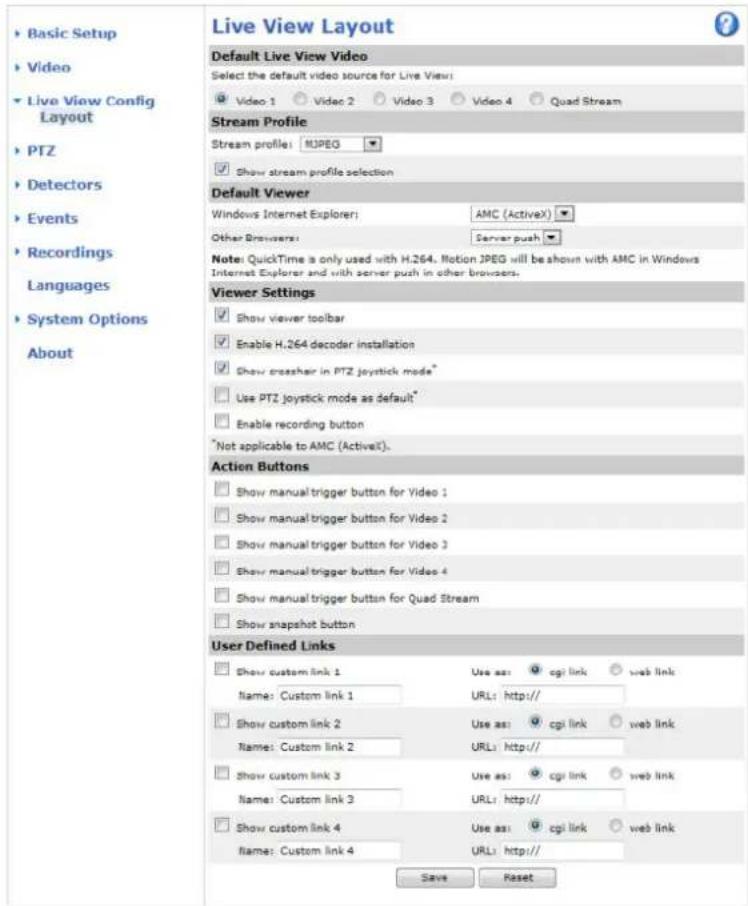
YoucancustomizetheLiveViewpageandalterittosuityourrequirements.ItispossibletedefinethefollowingfeaturesoftheLiveViewpage.
- StreamProfile.Seepage16.
- DefaultViewerforBrowser.Seepage20.
-ViewerSettings.Seepage21.
ActionButtonsThesearchbuttonsdescribedControlstheLiveViewPageprpag
-UserDefinedLinks.Seepage21.
text_image
Live View Layout Default Live View Video Select the default video source for Live View: Video 1 Video 2 Video 3 Video 4 Quad Stream Stream Profile Stream profile: MJPEG Show stream profile selection Default Viewer Windows Internet Explorer: AMC (ActiveX) Other browsers: Server push Note: QuickTime is only used with H.264, Motion JPEG will be shown with AMC in Windows Internet Explorer and with server push in other browsers. Viewer Settings Show viewer toolbar Enable H.264 decoder installation Show crashhair in PTZ joystick mode* Use PTZ joystick mode as default* Enable recording button Not applicable to AMC (ActiveX). Action Buttons Show manual trigger button for Video 1 Show manual trigger button for Video 2 Show manual trigger button for Video 3 Show manual trigger button for Video 4 Show manual trigger button for Quad Stream Show snapshot button User Defined Links Show custom link 1 Use as: cgi link web link Name: Custom link 1 URL: http:// Show custom link 2 Use as: cgi link web link Name: Custom link 2 URL: http:// Show custom link 3 Use as: cgi link web link Name: Custom link 3 URL: http:// Show custom link 4 Use as: cgi link web link Name: Custom link 4 URL: http:// Save ResetDefaultViewerforBrowsers
FromLiveViewConfigDefaultVieweselectdefaultmethodforviewingvideimagesyoubrowserTheproductattempts toshowthevideoimagesintheselectedvideoformatandviewer.Ifthisisnotpossible,theproductoverridesthesettingsand selectsthebestavailablecombination.
| BrowserViewerDescription | ||
| WindowsInternetExplorer | AMC | RecommendedviewerinInternetExplorer(H.264/MotionJPEG). |
| QuickTime | H.264. | |
| Javaapplet | AslowerimagingalternativetoAMC(MotionJPEG).Requiresoneofthe followinginstalledontheclient:•JVM(J2SE)1.4.2orhigher.•JRE(J2SE)5.0orhigher. | |
| StillimageDisplays | stillimagesonly.ClicktheRefreshbuttoninyourbrosertoviewa newimage. | |
| Otherbrowsers | ServerPush | Recommendedviewerforotherbrowsers(MotionJPEG). |
| QuickTime | H.264. | |
| Javaapplet | AslowerimagingalternativetoServerPush(MotionJPEGonly). | |
| StillimageDisplays | stillimagesonly.ClicktheRefreshbuttoninyourbrosertoviewa newimage. |
Formoreinformation,pleaseetheonlinehelp.

ViewerSettings
Toconfigureoptionsfortheviewer,gotoLiveViewConfig>ViewerSettings.
SelectShowewetoolbatalisplaytheAXISmediaControl(AMC)theQuickTimeviewetoolbaundethevideoimageinyourbrowser.
H.264lecodeinstallationThe administratorandisableinstallationofH.264lecodeincludedwithAXISMedia Control.Thisisusedtopreventinstallationofunlicensedcopies.Furtherdecoderlicensescanbepurchasedfromyour Axisreseller.
SelectShovercrosshainPTJoystickmode enable crosshatwill indicate the center of the image PTJoystick mode.
SelectUsePTZystickmodasdefaultenablejoystickmode. The mode can be changed temporarily from the PTZcontrolpanel.
SelectEnableecordingbuttonEnablerecordingfromtheLiveViewpagThisbuttonisavailablewhenusingtheAMCviewer.TherecordingsaresavedtothelocationspecifiedintheAMCControlPanel.SeeAXISMediaControl(AMC),onpage 11.
UserDefinedLinks
Todisplayuser-definedinkinthliveViewpageselecthShowcustomlinkoptiongivthdlnnameandherentethdURL tolinkto.Whendefiningaweblinkdonotremovethehttp://fromtheURLaddress.Customlinkscanbeusedtorunscriptor activateexternaldevicesconnectedtotheproduct,ortheycanlinktoawebpage.Customlinksdefinedascgilinkswillrunthe scriptinthebackground,inahiddenframe.Definingthelinkasaweblinkwilllopenthelinkinanewwindow.
PTZ(PanTiltZoom)
The PTZmenuavailablePTZdrivehasbeenuploadedSednstallingPTZdriverprpage23.
PresetPositions
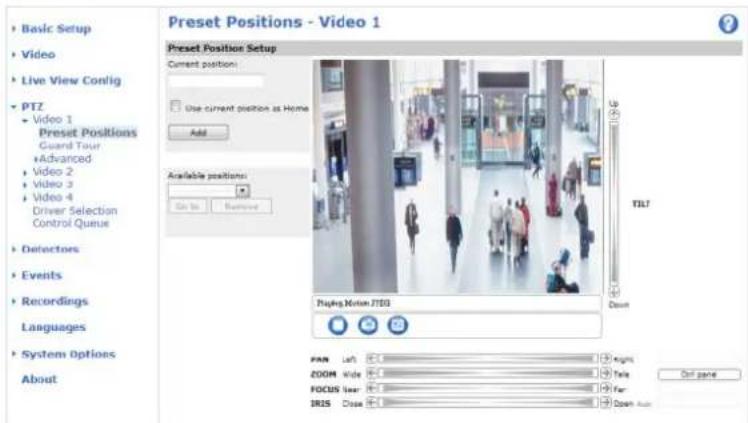
Apresetpositionisapredefinedviewthatcanbeusedtoquicklysteerthecameratoaspecificlocation.Presetpositionscan beaccessedinseveralways:
Byelecting the prese from the Prese positions drop-down list the live view Page.
- Whensettingupactionrules.Seepage28.
- WhensettingupGuardTour.Seepage23.
Toaddapresetposition:
- GotoPTZ>PresetPositions.
- Usethepan, tilt and zoom control, tosteer the camera view to the desired position.
3.EnteradescriptivenameintheCurrentpositionfield. - If required, select UsecurrentpositionasHome.
TheHompositionreadilyaccessiblebyclickingthHomboutortheLiveViewpagandthePresePositionsetupwindow.
To set customized home position select Use current position Home when adding preposition The user-defined home position will have (H) added, forexample, Entrance (H). The default Home position called "Home", will still be available.
TheproductcanbeconfiguredtoreturntotheHomepositionwhenthePTZfunctionalityhasbeeninactiveforaspecifiedlengthofimEntethdengthofimethReturnhomwheninactivefieldandlicSaveSethdimdzerdpreventheproductfromautomaticallyreturningtotheHomeposition.
To include the prepositionam and the overlay text to video select including overlay text and the modification Birthfield.
FomoreinformationaboutmodifiersseeFileNamingDate/TimeFormatsthonlinhelp

text_image
Preset Positions - Video 1 Preset Position Setup Current position: Use current position as Home Add Available positions: Get to Remove Playing Motion J150 TILT Down PAN Left ZOOM Wide FOCUS User IRIS Close Right Side Far Down pane Basic Setup Video Live View Config PTZ Video 1 Preset Positions Guard Tour Advanced Video 2 Video 3 Video 4 Driver Selection Control Queue Detectors Events Recordings Languages System Options AboutGuardTour
Aguardtourdisplaysthevideostreamfromdifferentpresetpositions,one-by-one,inapredeterminedorderoratrandomandforconfigurabletimeperiods.Theenabledguardtourwillkeeprunningaftertheuserhasloggedofforclosedthebrowser.
Toaddaguardtour:
GdPTZGuardTouandclicAdd.
2.Enteradescriptivename.
-
Specifythepauselengthbetweenruns.
-
SelectanavailablepresetpositionandclickApply.
-
SpecifytheMoveSpeed.
-
Specify theViewTimeinsecondsorminutes.
SpecifyViewOrderselecttheRandomviewDeoption.
8.ClickSave.
TomodifyremoveguardoursgctPTZGuardTourselectheguardouirthGuardTouListandclickModify/Remove.
Formoreinformationseetheonlinehelp

InstallingaPTZdriver
ThisAxisproductsupportsseveralPTZdevices.Pleaseeseewww.axis.comforacompletelistofsupporteddevices,andtoobtainthe correctdriver.ToinstallaPTZdeviceyouneedtoinstallthePTZdriver.
TinstalthePTDrivegdcPTZ-DriveSelectionBrowsefindthedrive(e.driver.ptz)andUploadfdrivewas successfullyuploadedappearsithSelectrivetausdrop-downlistFronthisdrop-downlistselectdrivetoinstallorremove,andclickSave.
SelectActivatePTZenablePTZTheaddressofconnecteddevicappearsgainsDeviceDChoosthDevicetypfromthe drop-downlist.Tofindwhichdevicetypetouse,consultthedocumentationsuppliedbythePTZdriver.
To complete the installation and System Options Ports Devices COMPort (see COMPort) and verify the settings.
Advanced
DeviceSettings
TheDeviceSettingswindowdisplaysdriverspecificsettings.Theappearanceofthiswindowcanvarydependingonthedriver installed.Optionsthatcanbeconfiguredinclude:
- DriverSpecificSettingsfromVideoSource
•MechanicalLimitsforMovingVideoSource
•LightControlVideoSource - ExtendedDriverSpecificSettingsforVideoSource
ForddownloadandinstallationinformationaboutPTZdriversforyourAxisproductpleasevisitwww.axis.com/techsup/
Controls
PaneShortcuCommandButtonsabeconfiguredprovide direct access commandissued via APIX® Application ProgrammingInterface. The button will be displayed in the PTZ control panel, which is available in the Live View page through the Ctr pane button se page 10.
OSDMenu
If the PTZ units supports an internal configuration menu, this can be accessed using the On-Screen Display(OSD). Configure the analog cameraby opening and navigating through its internal menu in this display.
ControlQueue
The administrator setup que ufo PTZ controller from PTZ Control Dueo Onc set up the PTZ Control Dueu buttons appear in the live View page offering one viewer exclusive control for a limited period of time. Other users will be placed in queue.
AisewhbelongtsgroupsedUsersprpage34)withhighePTpriorityandbeforetheusersithqueueandtakecontroloftheproduct.Theorderofpriorityisasfollows:
Administrator\Administrator takesovePTZ control regardless of who's first queue. The administrator will be removed from the queue 60 seconds after the last PTZ control command.
Event-TheAxiproductarbeconfiguredtopresepositionwhertriggeredbyalarm(seEventsorpage28). Theeventwillimmediatelybeplacedfirstinthequeueexceptwhenanadministratorisincontrol.
- Operator—Sameas administrator but with lower priority
GuardTour-Aguardou(se page23)hasPTZontrofoanindefinitperiodbfimd.mayboverridderbvan operator,eventoradministrator.Theguardtourwillresumewhenhigherprioritygroupsleavethequeue.
Viewer-MultipleviewersmustwaifotheiturnTheviewhasSecondsPTZontrobeforecontrolpassed ontothenextviewerinqueue.
Note
- The administratorcanenableanddisablePTZcontrolsforselectedusers.
- Toidentifydifferentusersintheviewergroup,cookiesmustbeenabledontheclient.
Detectors
CameraTampering
CameraTamperingcangenerateanalarmwheneverthecameraisrepositioned,orwhenthelensiscovered,sprayedorseverely defocused.Tosendanalarm,forexampleanemail,anactionrulemustbesetup.
Toconfiguretampering:
- GotoDetectors > CameraTampering.
SethMinimundurationthattheimehatmustlapsbeforealarmgeneratedThisamelprevent falsealarmsforknownconditionsthataffecttheimage.
Select Alarmfor dark images for alarm should be generated, fights are dimmed, turned off, forthenis sprayed, covered, or rendered severely out of focus.
4.ClickSave.
Toconfiguretheproducttosendanalarmwhentamperingoccurs:
- GotoEvents>ActionRules.
2.ClickAddtosetupanewactionrule.
- EnteraNamefortheactionrule.
UndeConditionselecDetectorsfromtheTriggerlist.
- SelectTamperingfromthelistofdetectors.
6.Selectthevideochannel.
- Optionally, select as schedule and set additional conditions.
SelectactionTosendaremailselectSendNotificationandselectRecipientfromtheisbfefineddecipients.
Note
The Whileu16active option under Duration can be used with camera tamperings since camera tampering does not have duration and once it has been triggered by will not automatically return to its untriggered state.
Formoreinformationonactionsrules,seeEvents,onpage28.
MotionDetection
Motiondetectionisusedtogenerateanalarmwhenevermovementstartsorstopsinthecameraview.
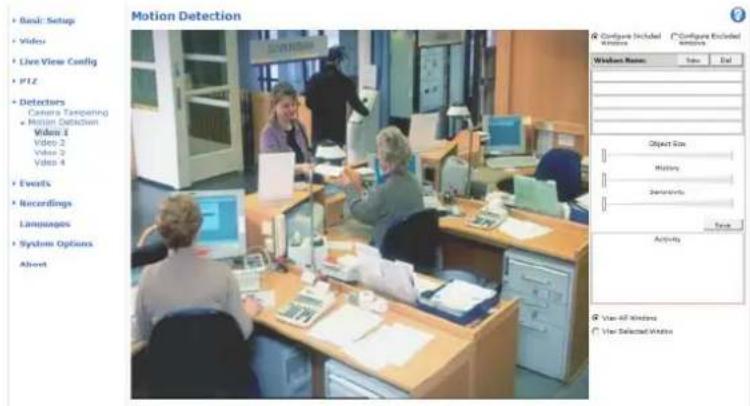
Motiondetectionisconfiguredbydefiningupto10IncludeandExcludewindows:
- Includewindows—defineareaswheremotionsshouldbedetected
Exclude windows define areas within an include window that should be ignored (areas outside include windows are automatically ignored).
Forinstructions, see SetupMotionDetectionWindows, onpage26.
To control the number of motion detection alarms, parameter ObjectSizeHistory and Sensitivity are adjusted. See MotionDetectionParameters, on page 26.
Oncemotiondetectionwindowsareconfigured, theAxisproductcanbeconfiguredtoperformactionswhenmotionisdetected. Possible actions include uploading images and start recording from information settingUpActionRuleprpage29.
Detectors
Note
- Usingthemotiondetectionfeaturemaydecreasetheproduct'soverallperformance.
- ThepositionoftheMotionDetectionWindowisrelativetotheorientationoftheCamera.Changingtheorientationofthe camerawillalsochangethepositionoftheMotionDetectionWindow.
text_image
Motion Detection Basic: Setup Video Live View Config PTZ Detectors Camera Tampering Mission Outback Video 1 Video 2 Video 3 Video 4 Events Recordings Languages System Options Abort Configure Included Windows Name Type Del Object Size History Settings View Activity View All Windows View Selected WindowsSetUpMotionDetectionWindows
TosetupamotiondetectionIncludeWindow, followtheseinstructions:
- GotoDetectors > MotionDetection.
Select the Configure included Windows option and click New Select the new window with this distribution and enter adescriptivename.
- Adjustthesize(dragthebottomright-handcorner)andtheposition(clickonthetextatthetopanddragtothedesired position)ofthewindow.
Adjust the Object Size History and Sensitivity profile leader (see Motion Detection Parameters for details) Any detected motion within an active window is indicated by red peaks in the Activity window.
5.ClickSave.
To exclude parts of the inclusion window, select the Configur Excluded Window and position the exclusion window within the inclusion window.
ToletetincludorexcludowindowselecthowindowirtheistoWindowsandlicDel.
MotionDetectionParameters
The parameters controlling motion detection are described in the table below:
| Parameter | ObjectSize | History | Sensitivity |
| Description | Objectsizerelativetowindow size. | Objectmemorylength. | Differenceinluminance betweenbackground and object. |
| Highlevel(100%) | Onlyverylargeobjectstrigger motiondetection. | Anobjectthatappearsin thewindowtriggersmotion detectionforalongtime beforeitisconsideredas non-moving. | Ordinarycoloredobjectson ordinarybackgroundstrigger motiondetection. |
Detectors
| Mediumlevel(50%) | Alargedifferenceinluminance isrequiredtotriggermotion detection. | ||
| Lowlevel(0%) | Evenverysmallobjectstrigger motiondetection. | Anobjectthatappearsin thewindowtriggersmotion detectiononlyforaveryshort timebeforeitisconsideredas non-moving. | Onlyverybrightobjectson adarkbackgroundtrigger motiondetection. |
| Recommendedvalues | 5–15%60–90%75–95% | ||
| Defaultvalues | 15%90%90% |
Note
- Totriggeronsmallobjectsormovements,useseveralsmallmotiondetectionwindowsratherthanonelargewindow andselectalowobjectsize.
- To avoid triggering on small objects, select a high object size.
- While monitoring an are a where removing objects are not expected, select a high history level. This will cause motion detection to trigger a long asthe object is present in the window.
- Toonlydetectflashinglight,selectalowsensitivity.Inothercaseshighsensitivityisrecommended.
Events
TheAxisproductcanbeconfiguredtoperformactionswhendifferenteventsoccur,forexample,startarecordingwhenmotionis detectedThesecondditionshatefineshowandwhethactionstriggeredsalledActionRule.
Available action rule triggers and conditions include:
- Detectors
LivStreamAccessedTrigger rule when any stream is accessed and during storage playback. This can forexample be used to send notifications.
MotionDetectionTrigger the rule when motion is detected. See Motion Detection page 25.
TamperingTriggetheulewhertamperingsdetectedSeeCameraTamperingpage25.
- Hardware
-VideoSignal-Triggertheruleifvideosignalislost.
NetworkTriggertheulifetworkconnectionisostrestoredThisarforexampleusedstart recordingtotheSDcard.
TemperatureTrigger rule if temperature falls outside inside the operating angle product This can forexamplebeused to send maintenance notifications.
- InputSignal
ManualTriggerTriggerButtonusingtheManualTriggerbuttonirtheLiveViewpagSeeControlson theLiveViewPage,onpage9.Thiscanforexamplebeusedtovalidateactionsduringproductinstallation andconfiguration.
VirtualInputscarbused by MSVidedManagemenSystemdriggeactionsVirtualInputscanfor example, beconnectedtobuttonsintheVMSuserinterface.
•PTZ
ErrorTriggetheulethePTFunctionalitynotworkingcorrectlyThisarfoexampleusedosendmaintenancenotifications.
MovingTrigger rule whether the cameraview moves dueto PTZ operation This is a example used as an additional condition to prevent an action rule triggered by motion detection to record videowhile the cameraview moves dueto PTZ operation.
PreseReachedTrigger rule when the camera stops at prese position This can be example used with the SendImages action to upload images from the preset position.
ReadyTrigger the rule where the PTZ functionality is ready to be used. This can example be used to enter the camerato as specific preset position when the product is started.
•Storage
DisruptionTriggetheuleStorageproblems are detected for example the storage devices unavailable, removed, full, locked or if other reader or write problems occur. This can forexample be used to send maintenance notifications.
•System
SystemReadyTrigger the rule whether product has been started and services are running. This can for example be used to send an notification when the product restarts.
•Time
Events
RecurrenceTriggetheulperiodicallySeeRecurrencesprpage3Thisafoexampleusedupload animationevery5minutes.
UsScheduleTriggerRuleaccordingthe selected schedule Se Schedulesprpage31.
Availableactionsinclude:
OverlayTextDisplayroverlatextSeeUsingOverlayTextfranActionRuleprpage18.
- PTZControl
-PresetPosition-Gotoapresetposition.
GuardTourStartguardouSeeGuardTourprpage23.
- RecordVideo–Recordvideotoaselectedstorage.
- SendImages–Sendimagestoarecipient.
- SendNotifications–Sendanotificationmessagetoarecipient.
- SendVideoClip-Sendavideocliptoarecipient.
Statul EDFlas the EIndicator This afo example should validate triggers such motion detection during product installation and configuration.
SettingUpanActionRule
Anactionruledefinestheconditionsthatmustbemetfortheproducttoperformanaction,forexemplerecordvideoorsendan emailnotification.Iffmultipleconditionsaredefined,allofthemmustbemettotriggertheaction.
The following example describes how to setup an action rule to record video to an network share if there is movement in the camera's field of view.
Setupmotiondetectionandaddanetworkshare:
Gad Detectors Motion Detection and configure motion detection window page 26
QdsSystemOptionsStorageandetupthetworkshareseepage42.
Setuptheactionrule:
GdEventsActionRulesandclicAdd.
- SelectEnableruleandenteradescriptivenamefortherule.
SelectDetectorfromthTriggerdrop-downlist.
SelectMotionDetectionfromthedrop-downlistSelectthemotiondetectionwindowtause.
Optionallyselect Scheduland Additionaconditionssebelow.
UndeActionsselecRecordVidefromthTypdrop-downlist.
SelectStreamprofilandconfiguretheDurationsettingsdescribedbelow.
- SelectNetworkSharefromtheStoragedrop-downlist.
TadditionacriteriaselecttheAdditionaconditionsoptionandadditionatriggerTopreventractionfrombeing triggeredepeatedlyWaiateastimcarbeseEntethdimhoursminutesandecondsduringwhichthrigger shouldbeignoredbeforetheactionrulecanbeactivatedagain.
Events
The recording Duration of actions can be set in each immediately before and after the event Select Pre-trigger time and/or Post-triggered number seconds. When the results are enabled and the action triggered again during the post-trigger time, thereocording timewill be extended with another post-trigger time period.
Formoreinformation,seetheonlinehelp

FallbackAction
Afallbackactionisstartediftheprimaryactioncannotbestarted,forexampleifconnectiontoarecipientcannotbeestablished.
Fallbackactionsaretypicallyusedtosendemailnotificationsonfailedactionsortuploadimagestoasecondaryrecipient.
Recipients
Recipientsreceivemediafilesandnotificationmessages.Thefollowingrecipientsareavailable:
| RecipientUsewithaction | |
| Email^1 | SendImagesSendNotificationSendVideoClip |
| FTP | SendImagesSendVideoClip |
| HTTP | SendImagesSendNotificationSendVideoClip |
| NetworkShare^2 | SendImagesSendVideoClip |
| TCPSendNotification |
Some email providers have security filters to prevent users from receiving viewing charges, amount attachments from receiving scheduled emails and similar. Check the email provider's security policy to avoid delivery problems and locked email accounts. At workshare is also based storage device recorded video system Options Storage configuration network share before setting up continuous recording function update record video Storage page for more information about storage devices.
Toaddarecipient:
GoEventsRecipientandclickAdd.
2.Enteradescriptivename.
3.SelectarecipientType.
4.Entertheinformationneededfortherecipienttype.
5.ClickTesttotesttheconnectiontotherecipient.
6.ClickOK.
SettingUpanEmailRecipient
Emailrecipientscanbeconfiguredbyselectingoneofthelistedemailproviders,orbyspecifyingtheSMTPserver,portand authenticationusedby,forexample,accorporateemailserver.
Note
Some email providers have security filter that prevent users from receiving or viewing large amount of attachments, from receiving scheduled emails and similar. Check the email provider's security policy to avoid delivery problems and locked email accounts.
Tosetupanemailrecipientusingoneofthelistedproviders:
GddEventsRecipientandclicAdd.
EnterNameandelecEmaifronthTypeist.
Entethemailaddresses send email forth Toield Usecommasseparatemultipladdresses.
- Select the email provider from the Provider list.
5.EntertheuserlDandpasswordfortheemailaccount.
6.ClickTesttosendatestemail.
ToetupremairecipientusingforexamplecorporatemaierverfollowtheinstructionsabovebutelectUdefinedsProviderEntethemailaddressappeansendeithFrontfieldSelectAdvancedettingsandspecifythSMTServeraddressportandauthenticationmethodOptionallyselectUsencryptiontoendmailsoverencryptedconnectionTheservercertificatecanbevalidatedusingthecertificatesavailableintheAxisproduct.Forinformationonhowtuploadcertificates,seeCertificates,onpage35.
Schedules
Schedulescanbeusedasactionruletriggersorasadditionalconditions,forexampletorecordvideoifmotionisdetectedoutside officehours.Useoneofthepredefinedschedulesorcreateanewscheduleasdescribedbelow.
Tocreateanewschedule:
GddEventsSchedulesandlicAdd.
- Enteradescriptivename and the information needed for daily, weekly, monthly or yearly schedule.
3.ClickOK.
TouscheduliraractionruleselectshedschedulfromthScheduldrop-downlistrtheActionRulSetuppage.
Recurrences
Recurrencesareusedtotriggeractionrulesrepeatedly,forexampleevery5minutesoreveryhour.
Tosetuparecurrence:
GdEventsRecurrencesandlicAdd.
2.Enteradescriptivenameandrecurrencepattern.
3.ClickOK.
Toustherecurrence:anactionrulefirstselectTimerontheTriggerdrop-downlisttheActionRulSetuppagandthen selecttherecurrencefromthesecondrop-downlist.
TomodifyremoverecurrencesselecttherecurrencarthRecurrenceListandClickModifyRemove.
Recordings
TheAxisproductcanbeconfiguredtorecordvideocontinuouslyoraccordingtoanactionrule:
- Tostartacontinuousrecording,see page32.
- Tosetupactionrules,seepage29.
•Toaccessrecordings,seeRecordingList,onpage32. - Toconfigurecameracontrolledstorage,seeStorage,onpage41.
RecordingList
Recorded videos and the Recordings List page. The shows each recording 'start lat and time duration and the event that triggered therecording.
Toplayordownloadarecording, followthesesteps:
- GotoRecordings>List.
Use filter to narrow disb recording Enteth desired filter criterion and lic Filte Some filters may take along timetocomplete.
3.Selecttherecording.
@licPlayplaythecordingorclickDownloaddownloadhrecording.
Multiple recordingscarbdownloadedatthesamtimeSelectrecordingsandlicDownloadThedownloadedfilezipfile containingaminimumofthreefiles,ofwhichtheMatroska(mkv)filesaretheactualrecordings.Therecordingsaretime-stamped withthedateandtimetheyweredownloaded(thatis,notthedatetherecordingsweremade).
Note
ToplayrecordingsinWindowsMediaPlayer,AXISMatroskaFileSplittermustbeinstalled.AXISMatroskaFileSplitter canbedownloadedfromwww.axis.com/techsup/software
For detailed recording and video information, select recording and lic Properties.
Toremovearecording,selecttherecordingandclickRemove.
ContinuousRecording
The AxiproductarbeconfiguredcontinuouslyavoidedstoragedeviceSeeStorageprpage4fomoreinformation aboutstoragedevices.Topreventthediskfrombecomingfull,itisrecommendedtoconfigurethedisktoautomaticallyremoveold recordings.Ifanewstreamprofileisselectedwhilearecordingisongoing,therecordingwillbestoppedandsavedintherecording listandanewrecordingwiththenewstreamprofilewillstart.Allpreviouscontinuousrecordingswillremainintherecordinglist untiltheyareremovedmanuallyyorthroughautomaticremovalofoldrecordings.
Tostartacontinuousrecording,followthesesteps:
- GotoRecordings>Continuous.
2.SelectEnabled. - SelecttypeofstoragedevicefromtheDisklist.
- SelectaStreamprofiletouseforcontinuousrecordings.
5.ClickSavetosaveandstarttherecording.
Languages
MultiplelanguagescanbeinstalledintheAxisproduct.AllwebpagesincludingtheonlinehelpwillbedisplayedintheselectedlanguageTowitchLanguagesgetSetupLanguagesandfirstuploadthenewlanguagefileBrowseendocatetheilandclicktheUploadLanguagebutton.SelectthenewlanguagefromthelistandclickSave.
Note
- Resetting the product to factory default settings will erase any uploaded language file and reset the product language to English.
- ClickingtheRestorebuttonontheMaintenancepagewillnotaffectthelanguage.
- Afirmwareupgradewillnotaffectthelanguageused.Howeverifyouhaveuploadedanewlanguagetotheproductandlaterupgradethefirmware,itmayhappenthatthetranslationnolongermatchestheproduct'swebpages.Inthiscase,uploadanupdatedlanguagefile.
- Alanguagealreadyinstalledintheproductwillbereplacedwhenacurrentoralaterverersionofthelanguagefileisuploaded.
SystemOptions
Security
Users
Use access controlled enabled by default and bar configured under System Options Security Users Administrator can setup other users by giving them user names and passwords. It is also possible to allow anonymous viewer login, which means that anybody may access the Live View page.
Theuserlistdisplaysauthorizedusersandusergroups(accesslevels):
Viewer-AccesstotheLiveViewpage
Operator-Access to theLiveViewpage and to all settingsexceptSystemOptions
Administrator-Unrestrictedaccesstoallsettings;canadd,modifyandremoveotherusers.
UndeHTTP/RTSIPasswordSettingsselectthypopasswordallowYoumayneedallowunencryptepasswordsthere areviewingclientsthatdonotsupportencryption,orifyouupgradedthefirmwareandexistingclientssupportencryptionbutneed tologinagainandbeconfiguredtousethisfunctionality.
UndeUseSettingsselecttheEnablanonymousviewelogimptionallowanonymoususersaccesstheLiveViewpage.
Select the Enablenonymou PTZontrologirtallovanonymoususeraccess the PTZ controls.
Deselect the Enable Basi Setup option to hide the Basi Setup menu Basi Setup provides quick access settings that should be made before using the Axis product.
ONVIF
ONVIF(OpenNetworkVideoInterfaceForum)isaglobalinterfacestandardthatmakesiteasierforendusers,integrators,consultants,andmanufacturerstotakeadvantageofthepossibilitiesofferedbynetworkvideotechnology.ONVIFenablesinteroperabilitybetweendifferentvendorproducts,increasedflexibility,reducedcostandfuture-proofsystems.
BycreatingauseryouautomaticallyenableONVIFcommunication.UsetheusernameandpasswordwithallONVIFcommunication withtheproduct.Formoreinformationseewww.onvif.org
IPAddressFilter
IAddressfiltering enableorth SystemOptions Security/AddressFiltepage Once enabled the listed address are allowed denied access the Axiproduct Select Allow Denfrom the dashed Apply to enable address filtering.
The administrator can add up to 256IP addressentriestothelist (asingleentry can contain multiple IP addresses).
HTTPS
HTTPS(HyperTextTransferProtocoloverSecureSocketLayer,orHTTPoverSSL)isawebprotocolprovidingencryptedbrowsing. HTTPScanalsobeusedbyusersandclientstoverifythatthecorrectdeviceisbeingaccessed.Thesecuritylevelprovidedby HTTPSisconsideredadequateformostcommercialexchanges.
TheAxisproductcanbeconfiguredtorequireHTTPSwhenusersfromdifferentusergroups(administrator,operator,viewer)connect.
TousHTTPSarHTTPScertificatenusfirsbeinstalledGoSystemOptionsSecurityCertificatesinstallandmanage certificates.See Certificates,onpage35.
ToenableHTTPSontheAxisproduct:
- GotoSystemOptions>Security>HTTPS
SystemOptions
- Selectan HTTPS certificate from the list of installed certificates.
- Optionally, click Ciphers and select the encryption algorithm for SSL.
- SettheHTTPSConnectionPolicyforthedifferentusergroups.
5.ClickSavetoenablethesettings.
TaccesstheAxiproductviathelesireprotocolenthttps://ohttp://irtheaddressfieldnbrowser.
The HTTP Sport change of the System Options Network TCP/IP Advance page.
IEEE802.1X
IEEE802.1Xisastandardforport-basedNetworkAdmissionControlprovidingsecureauthenticationofwiredandwirelessnetwork devices.IEEE802.1XisbasedonEAP(ExtensibleAuthenticationProtocol).
ToaccessanetworkprotectedbyIEEE802.1X,devicesmustbeauthenticated.Theauthenticationisperformedbyanauthentication servertypicallyRADIUServerexampleswhicharFreeRADIUSandMicrosoftInternetAuthenticationService.
InAxisimplementation, theAxisproductandtheauthenticationserveridentifythemselveswithdigitalcertificatesusingEAP-TLS (ExtensibleAuthenticationProtocolTransportLayerSecurity)ThecertificatesareprovidedbyCertificationAuthority(CA). Youneed:
- aCAcertificatetoauthenticatetheauthenticationserver
- aCA-signedclientcertificatetoauthenticatetheAxisproduct.
TreatandInstallcertificatesgdSystemOptionsSecurityCertificateSecCertificatesprpage3ManCAcertificates arepreinstalled.
ToallowtheproducttoaccessanetworkprotectedbyIEEE802.1X:
- GotoSystemOptions>Security>IEEE802.1X. Select CACertificate and Client Certification from the list of installed certificates.
UndeSettingsselect the EAP0version and provide the EAPidentity associated with the client certificate.
- ChecktheboxtoenableIEEE802.1XandclickSave.
Note
Forauthenticationtoworkproperly, the date and timesettings in the Axis product should be synchronized with an NTP server. See Date & Time, on page 36.
Certificates
Certificatesareusedtoauthenticateddevicesonanetwork.Typicalapplicationsincludeencryptedwebbrowsing(HTTPS),network protectionviaIEEE802.1Xandsecureuploadofimagesandnotificationmessagesforexampleviaemail.Twotypesofcertificates canbeusedwiththeAxisproduct:
Server/Clientcertificates-toauthenticatetheAxisproduct
CAcertificates:authenticatpeercertificatesforexamplethecertificato:authenticationserveincastheAxisproducts connectedtoanIEEE802.1Xprotectednetwork.
Note
Installedcertificates,exceptpreinstalledCAcertificates,willbedeletediftheproductisresettofactorydefault.Preinstalled CAcertificatesthathavebeendeletedwillbereinstalled.
Server/Client certificate can self-signed issued by Certificate Authority (CA) Self-signed certificate offers limited protection and can be used before CA-issued certificate has been obtained.
SystemOptions
Toinstallaself-signedcertificate:
- GotoSystemOptions>Security>Certificates.
- ClickCreateself-signedcertificateandprovidetherequestedinformation.
TocreateandinstallaCA-signedcertificate:
- Createaself-signedcertificateasdescribedabove.
- GotoSystemOptions>Security>Certificates.
ClickCreatecertificatesigningequestanprovidetherequestedinformation. - CopythePEM-formattedrequestandsendtotheCAofyourchoice.
Whether signed certificates returned clicked install certificate and upload certificate.
Server/Clientcertificatesarbeninstalled.Certificatfromsigningequesba.CertificatonprivatekeySelectCertificate andprivatekeyiftheprivatekeyistobeuploadaseparatefileorifthecertificateisinPKCS#12format.
The Axis product shipped with severapreinstalled C certificates, required addition a certificates are installed:
- GotoSystemOptions>Security>Certificates
- ClickInstallcertificateanduploadthecertificate.
Date&Time
The Axi product's datandim setting are configured under System OptionsDateTime.
CurrenServeTimedisplaythecurrentlatandtime(24clock)Theimcarbelisplayedn12clockrthetexverlay(see below).
TochangethelatandimsettingsselecthpreferredTimmodeundeNewServeTime:
Synchronize with computetimes at and time according to the computer's clock. With this option, data and time are set once and will not be updated automatically.
SynchronizovitNTBerveobtainlatandimfromNTBerveWiththisoptiondatandimsettingare updatedcontinuouslyEoinformationorNTBettingsseedNTPConfigurationprpage38.
If using hostname for the NTServer, DNServer must be configured. See DNSConfiguration or page 38.
- Setmanuallyallowsyoutomanuallysetdateandtime.
If using NTBerverselect your Timezonefrontthedrop-downlistrequiredcheckAutomaticallyadjustfordaylightsaving timechanges.
TheDateTimeFormaUsedImagesethdatandimformatdisplayedstexoverlaythevidestreamUsethe
predefinedformatsorseeFileNaming&Date/TimeFormatsintheonlinehelp forinformationonhowtocatecustomdateand timeformatsIncluddatandimirthoverlaytextgdoVideandelectIncluddatandIncludtime.
Network
BasicTCP/IPSettings
TheAxisproductsupportsIPversion4andIPversion6.Bothversionscanbeenabledsimultaneously, andatleastoneversion mustalwaysbeenabled.
IPv4AddressConfiguration
Bydefault, theAxisproductissettouseIPv4(IPversion4) and to obtain theIPaddress automatically via DHCP. TheIPv4 settings are configured under SystemOptions > Network > TCP/IP > Basic.
DHCP(DynamicHostConfigurationProtocol) allows network administrator stocentrally manage and automate the assignment of IP addresses. DHCP should only be enabled if using dynamicIP address notification, or if the DHCP can update a DNS server. It is then possible to access the Axis product by name (hostname).
If DHCP is enabled and the product cannot be accessed, run AXISIPUtility to search then network for connected Axis products, or reset the product that factory default settings page 45 and then perform then installation again.
To restatid Paddress check Used following Paddress and specify the Paddress subnet masland default router.
IPv6AddressConfiguration
IfIPv6(IPversion6)isenabled,theAxisproductwillreceiveanIPaddressaccordingtotheconfigurationinthenetworkrouter.
TenablePv6gdoSystemOptionsNetworkTCP/IPBasicOthersettingsforIPvShouldbeconfiguredrthenetworkrouter.
ARP/Ping
The product's Address can be assigned using ARP and Ping for instructions see Assign/Address Using ARP/Ping on page 37.
TheARP/Pingserviceisenabledbydefaultbutisautomaticallydisabledtwominutesaftertheproductisstarted,orassoonasanIP addressisassigned.Tore-assignIPaddressusingARP/Ping,theproductmustberestartedtoenableARP/Pingforanadditional twominutes.
TalisabletheServicegotoSystemOptionsNetworkTCP/IPBasicandleathoptionEnableARP/PingettingofPaddress.
Pinging the product is still possible when the service is disabled.
AssignIPAddressUsingARP/Ping
Theproduct'sIPaddresscanbeassignedusingARP/Ping.Thecommandmustbeissuedwithin2minutesofconnectingpower.
- AcquireafreestaticIPaddressonthesamenetworksegmentasthecomputer.
- Locatetheserialnumber(S/N) on the product label.
3.Openacommandpromptandenterthefollowingcommands:
Linux/Unixsyntax
arp-s<IPaddress><serialnumber>temp
ping-l408<IPaddress>
Linux/Unixexample
arp-s192.168.0.12500:40:8c:18:10:00temp
ping-1408192.168.0.125
Windowssyntax(thismayrequirethatyourunthecommandpromptasanadministrator)
arp-s<IPaddress><serialnumber>
ping-1408-t<IPaddress>
Windowsexample(thismayrequirethatyourunthecommandpromptasanadministrator)
arp-s192.168.0.12500-40-8c-18-10-00
ping-l408-t192.168.0.125
- Check that thenetwork cable is connected and then restart the product by disconnecting and reconnecting power.
SystemOptions
Glosthe comma prompt whether products respond with Reply from 92.168.0.125:..osimilar.
Openbrowseandyp:http://
intheLocation/Addressfield.Fothemethods of assigning the Address through installation and Management Software, CDothelocument AssignorIP Address and Access the Video Stream on Axis Support web at www.axis.com/techsup
Note
ToperformmanpromptWindowspperthStartmenuandtypecmdrthRun/Searchfield.
- TousetheARPcommandinWindows7/WindowsVista,right-clickthecommandprompticonandselectRunas administrator.
ToopercommanspromptMacOSxoperthTerminalutilityfromApplicationUtilities.
AXISVideoHostingSystem(AVHS)
AVHSusedinconjunctionwithanAVHSservice,provideaseasyandsecureInternetaccesstoliveandrecordedvideoaccessiblefromanylocation.FormoreinformationandhelptofindalocalAVHSServiceProvidergotowww.axis.com/hosting
The AVHSettings are configured under SystemOptionsNetworkTCPBasicThe possibility to connect AVHService is enabled by default. Todisable, clear the Enable AVHSbox.
One-clickenabledPresthproduct'sontrobuttonisedHardwareOverviewpropag &connectanAVHServiceovethe InternetOnceregisteredAlwayswillbenabledtheAxiproductstaysconnectedtheAVHServicdfhproductnot registeredwithin24hoursfromwhenthebuttonispressed,theproductwilldisconnectfromtheAVHSservice.
Always The AxiproductwilconstantlyattemptconnecttheAVHServicovethdInternet. Once registered the product will stayconnectedtotheservice.Thisoptioncanbeusedwhentheproductisalreadyinstalledanditisnotconveniettousethe one-clickinstallation.
AXISInternetDynamicDNSService
AXISnterneDynamidDNServicassignshostnamefocasyaccessdthproductFomoreinformationsewww.axiscam.net
Toregister the Axis product with AXIS Interne Dynamic DNS service for System Options Network TCP/IPBasid Under Services click the AXIS Interne Dynamic DNS Service Settings button (requires access to the Internet) The domain name currently registered at AXIS Internet Dynamic DNS service for the product can at any time be removed.
AdvancedTCP/IPSettings
DNSConfiguration
DNS(DomainNamServiceprovides the translation of hostname to addresses The DNS settings are configured under System Options > Network > TCP/IP > Advanced.
SelectObtainDNServeaddress via DHCP to the DNSetting provided by the DHCP server.
TomakemanuatasettingsselectUsethefollowingDNServeaddressandspecifythefollowing:
DomainnameEntethdomain(s)searchforthoshnameusedbytheAxiproductMultipldomainsarbeseparated by semicolonsThehoshnameiswaythefirstparbfullyqualifieddomainameforexamplemyserveristhoshnamethefullyqualifieddomainamemyserver.mycompany.comwheremycompany.comith-domainame.
Primary/SecondaryDNServerEntethdAddressesofthprimaryandsecondaryDNServersThesecondaryDNServes optionalandwillbeusediftheprimaryisunavailable.
NTPConfiguration
NTP(NetworkTimeProtocol)isusedtosynchronizetheclocktimesofdevicesinanetwork.TheNTPsettingsareconfiguredunder SystemOptions>Network>TCP/IP>Advanced.
SystemOptions
SelectObtainNTBervaddressidHCRusethNTBettingprovidedbytheDHCServer.
TomakemanuabettingsselectUsefollowingNTBervaddressandentethosthamorAddressoftheNTBerver.
HostNameConfiguration
TheAxisproductcanbeaccessedusingahostnameinsteadofanIPaddress.ThehostnameisusuallythesameastheassignedDNS nameThehostnameconfiguredundesystemOptionsNetworkTCP/IBAdvanced.
SelectObtainmoshamviaPv4DHCRoushostamprovidedbythDHCBerverunningrlPv4.
SelectUsethehostnametosetthehostnamemanually.
SelectEnableDynamidDNSUpdates dynamicallyupdateocaDNServerswhenevertheAxiproduct'sAddresschanges.
Formoreinformation,seetheonlinehelp
Link-LocalIPv4Address
Link-LocalAddressenabledbydefaultandassigntheAxiproductadditionalAddresswhichcarbasedaccess theproductfromotherhostsonthesamesegmentonthelocalnetwork.TheproductcanhaveaLink-LocalIPandastatic orDHCP-suppliedIPaddressatthesametime.
This function can be disabled under System Options Network TCP/IP Advanced.
HTTP
The HTTP port used by the Axisproduct are changed under SystemOptionsNetworkTCP/IP Advanced addition to the default setting, which is 80, any port in therange 1024-65535 can be used.
HTTPS
The HTTP sport used by the Axi product are changed under System Options Network TCP/IP Advanced addition to the default setting, which is 443, any portion in the range 1024-65535 can be used.
TenableHTTPSgdsystemOptionsSecurityHTTPSFomoreinformationsedHTTPSprpage34.
NATtraversal(portmapping)forIPv4
Anetworkrouterallowsdevicesonaprivatenetwork(LAN)toshareasingleconnectiontotheInternet.Thisisdonebyforwarding networktrafficfromtheprivatenetworktothe"outside",thatis,theInternet.Securityontheprivatenetwork(LAN)isincreased sincemostroutersarepre-configuredtostopattemptsstoaccesstheprivatenetwork(LAN)fromthepublicnetwork(Internet).
UsNATraversawhethAxiproductlocatedmaintrane(LAN)andyouwistomaketavailablefromtheother (WAN)sideofaNATrouter.WithNATtraversalproperlyconfigured,allHTTPtraffictoanexternalHTTPportintheNATrouter isforwardedtotheproduct.
NATraversalconfiguredundeSystemOptionsNetworkTCP/IPAdvanced.
Note
- ForNATtraversaltowork, this must be supported by the router. Therouter must also support UPnP
TM. - Therouterhasmanydifferentnames:"NATrouter","Networkrouter","InternetGateway","Broadbandrouter","Broadband sharingdevice"or"Homefirewall"buttheessentialpurposeofthedeviceisthesame.
Enable/DisableWhenenabledtheAxisproductattemptsconfigurportmappingnNATouteoryounetworkusingUPnP NotethatUPnP™ mustbeenabledintheproduct(seeSystemOptions>Network>UPnP).
TM.
Usmanually selected NATouteSelect this option manually select NAToute and enter the address other router in the field. If norouter is specified, the product automatically searches for NATrouterson your network. If more than one router is found, the default router is selected.
SystemOptions
Alternative HTTP port Select this option manually defines externa HTTP port Ent the port number in the field of ports entered here, a port number is automatically selected when NAT traversalis enabled.
Note
- AnalternativeHTTPportcanbeusedorbeactiveevenifNATtraversalisdisabled.ThisisusefulifyourNATrouterdoesnot supportUPnPandyouneedtomanuallyconfigureportforwardingintheNATrouter.
- If you attempt to manually enter a port that is already in use, another available port is automatically selected.
WhertheportselectedautomaticallyitsdisplayedrthisfieldTochangthisentenewpornumbeandlicSave.
FTP
TheFTPserverrunningintheAxisproductenablesuploadofnewfirmware,userapplications,etc.TheFTPservercanbedisabled underSystemOptions>Network>TCP/IP>Advanced.
Note
ThisFTPserverhasnothingtodowiththeproduct'sabilitytotransferimagesviaFTPtootherlocationsandservers.
RTSP
TheRTSPserverrunningintheAxisproductallowsaconnectingclienttostartanH.264stream.TheRTSPportnumbercanbe changedundeSystemOptionsNetworkTCP/IBAdvancedThedefaultports54.
Note
H.264videostreamswillnotbeavailableiftheRTSPserverisdisabled.
SOCKS
SOCKSisanetworkingproxyprotocol.TheAxisproductcanbeconfiguredtouseaSOCKSservertoreachnetworksontheother sideofafirewallorproxyserver.ThisfunctionalityisusefuliftheAxisproductislocatedonalocalnetworkbehindafirewall,and notifications,uploads,alarms,etcneedtobesenttoadestinationoutsidethelocalnetwork(forexamplethelnternet).
SOCKSconfigured under SystemOptions Network SOCKS from information set on lin help

QoS(QualityofService)
QoS(QualityofService)guaranteesacertainlevelofaspecifiedresourcetoselectedtrafficonanetwork.AQoS-awarenetwork prioritizesnetworktrafficandprovidesagreaternetworkreliabilitybycontrollingtheamountofbandwidthanapplicationmayuse.
TheQoSettings are configured under SystemOptionsNetworkQoSUsingDSCR Differentiated ServiceCodepointvalues the Axisproduct can mark the following types of traffic: live video, event/alarm traffic and management traffic.
SMTP(email)
TosendemailmessagesfromtheAxisproductviaSMTP(SimpleMailTransferProtocol),anSMTPmailservermustbesetup.This isdoneunderSystemOptions>Network>SMTP(email).
Entethosnames of addresses and for numbers to the primary and secondary maiservers in the fields provided. From email address is also required, the maiserver requires authentication check. Use authentication to get this server and enter the necessary information.
SNMP
TheSimpleNetworkManagementProtocol(SNMP) allows remotemanagementofnetworkdevices.AnSNMPcommunityisthe groupofdevicesandmanagementstationrunningSNMP.Communitynamesareusedtoidentifygroups.
The Axi product are configured support SNMPorth System Options Network SNMPage.
Dependingonthelevelofsecurityrequired,selecttheversiononSNMPtouse.
SystemOptions
SNMR1/v2provide the lowest website security. The community name can be specified as password for ahead of read/write access supported SNMR devices. The default password for the community public and default password for the write community is write.
Note
IfHTTPSisenabled,SNMPv1andSNMPv2cshouldbedisabled.
TrapfoSNMR1/v2areused by the Axiproductendmessage management system important events and status change. ChecEnabletrapandentetherAddresswherethetrapmessageshouldsentandthetrapcommunitythat shouldreceivethemessage.
The followingtrapsareavailable:
•Coldstart
•Warmstart
- Linkup
- Authenticationfailed
SNMR3 provides encryption and secure passwords to strap with SNMR3 and SNMR3 management application required.
TousSNMR3HTTPSnusbenabledsedHTTPSprpage34enableSNMR3checkboxanprovidethenitialuser password.
Note
The initial password can only be set once. If the password is lost, the Axis product must be reset to factory default, see Resetto Factory Default Settings, on page 45.
UPnP ^TM
TheAxisproductincludessupportforUPnP ^TM .UPnP ^TM isenabledbydefaultandtheproductisautomaticallydetectedbyoperating systemsandclientsthatsupportthisprotocol.
UPnP™ canbedisabledunderSystemOptions>Network>UPnP TM.
RTP/H.264
The RTPortrangeandmulticastsettings are configured under SystemOptionsNetworkRTP.
The RTP portranged defines the range of ports from which the video ports are automatically selected. Form multicast streams, only certain IP addresses and port numbers should be used.
SelectAlwayMulticasVidedstartmulticaststreamingwithoubpeningRTSBession.
Bonjour
TheAxisproductincludessupportforBonjour.Bonjourisenabledbydefaultandtheproductisautomaticallydetectedbyoperating systemsandclientsthatsupportthisprotocol.
BonjourcanbedisabledunderSystemOptions>Network>Bonjour.
Storage
SDCard
TheAxisproductsupportsSDcardswithupto64GBofstorage.Forbestrecordingperformance,useanSDHCorSDXCcard withspeedclass10.
NOTICE
Topreventcorruptionofrecordings, the SDcardshouldalwaysbeunmountedbeforeitisejected.
TheAxisproductsupportsSDcardswiththefollowingfilesystems:
ext4-recommended but resilienc against datlosif the cards ejected if there is bruppoweloss to access datastored on the card from the Windows operating system,athird-partyext4driverorapplication is required.
• vFAT—mostSDcardsarepre-formattedwithvFATwhenpurchased.
Ifrequired, theSDcardcanbemanuallyformattedtothedesiredfilesystem.ToformattheSDcard:
- Insert the SD card in the SD card slot.
GoSystemOptionsStorageandlicSICard.
- ClickFormatandselectthedesiredfilesystem.
Note
During formatting any previous data stored on the disk will belost.
Mountingisdoneautomaticallywhenthecardisinsertedorwhentheproductisstarted.Amanualmountisonlyrequiredifthe cardhasbeenunmountedandnotejectedandre-inserted.
TounmounttheSDcard:
GoSystemOptionsStorageandlicSICard.
2.ClickUnmount.
- The cardcannowberemoved.
The SDcardsmanagedorthSystemOptionsStoragePageClickSDCardopenStorageManagement.
If the card's status shows a failed click Check disk to either problem can be found and ther't Repair This option only available for SD cards with next 4. For SD cards with v FAT, use a card reader or computer to troubleshoot the card.
T avoid filling the card is recommended to remove recordings continuously. Under Recording Settings select Remove recordings older than and select then number of days or weeks.
To stop writing the card an protect recordings from being removed select Lockunde Recording Settings.
NetworkShare
NetworkshareallowsyoutoaddnetworkstoragesuchasaNAS(NetworkAttachedStorage)oranyserverthatusesCIFS(Common InternetFileSystem)andusethemforstorageofrecordings.
Toaddanetworkshare:
- GotoSystemOptions>Storage.
2.ClickNetworkShare. - EntertheIPaddress, DNSorBonjourametothehostserverintheHostfield.
4.EnterthenameoftheshareintheSharefield.Subfolderscannotbeused.
I ^e quired ^s elect ^t hshare ^e quiresogirandentethusenamandpassword.
6.ClickConnect.
TocleanrecordingandatafromtheAxiproduct'sfoldeorthdesignatedshareclickClearundeStorageTools.
SystemOptions
T avoid filling the share if recommended remove recordings continuously Under Recording Settings; select Remove recordings older than and select then number of days or weeks.
TstopwritingdesharanprotectecordingsfrombeingemovedselectLockundeRecordingSettings.
Ports&Devices
COMPort
TheAxisproducthasoneRS-485/RS-422serialport.Theportsupportsthefollowingmodes:
- GenericHTTPallowstheAxisproducttoreceivedataandsendcommandsviaHTTP.
PaTilZoomusedcontrolPTZdeviceThePTZdevicerequiresdriveSednstallingPTZdrivefromore information.Driverscanbedownloadedfromwww.axis.com
GenericTCP/IPallows theAxisproduct receive data and commands via TCP/IPDaisychairserverAllowDaisy chainclientstocommunicatewiththeAxisproduct.
Select the desire for type from the drop-down list from information or Series Por Settings and Daisy Chain Por Settings seetheonline help ?
PortStatus
TheisbrthSystemOptionsPortsDevicesPorStatuspageshowststatusoftheproduct'sinputandoutputports.
Maintenance
The Axiproduc provides several maintenance functions. These are available under System Options Maintenance.
ClickRestart perform correct start the Axiproductsobehavings expected This will not affect any of the current settings.
ClickRestoreresetmostettingsthofactorydefaultvaluesThefollowingsettingsarenotaffected:
•thebootprotocol(DHCPorstatic)
- thestaticIPaddress
- thedefaultrouter
- thesubnetmask
- thesystemtime
•theIEEE802.1Xsettings
ClickDefaultresetSettingsincludingtheAddressFactorydefaultValuesThisbuttonshouldusedwithcautionTheAxiproductandalsodersetfactorydefaultusingthecontrolbuttonseeResetFactoryDefaultSettingspage45.
Forinformationaboutfirmwareupgrade,see UpgradingtheFirmware,onpage46.
Support
SupportOverview
Th SystemOptionsSupportSupportOverviewpageprovidesinformationtroubleshootingandcontactInformation, shouldyourequiretechnicalassistance.
SystemOptions
See also Troubleshooting, on page 46.
SystemOverview
Together overview of the Axi product status and settings for System Options Support System Overview Information that can be found here includes firmware version, IP address, network and security settings, event settings, imagesettings and recent log items. Many of the captions are linked to the proper setup page.
Logs&Reports
The SystemOptionsSupportLogReportpag generates logs and reports useful for system analysis and troubleshooting of contactingAxisSupport, please provide a valid ServerReport with your query.
SystemLog-Providesinformationaboutsystemevents.
AccesLogists failed attempt to access the product. The AccesLogans also configured disal connections the product (see below).
ServeReport Provides information about the product status: pop-up window. The Access Logs automatically included in the Server Report.
Youcanviewordownloadtheserverreport.Downloadingtheserverreportcreatesa.zipfilethatcontainsacompleteserverreport texfileUTF-formaSelectdIncludenapshowwithdefaultImagesettingsptiortincludesnapshofthproduct'sLiveViewthatalsshowthsettingsspecifiedundeVideStream>Image>ImageAppearanceTheserverreportzipfileshould alwaysbeincludedwhencontactingsupport.
ParameteLisShowProduct parameters and their current setting This may prove useful when troubleshooting or when contacting AxisSupport.
ConnectionList-Listsallclientsthatarecurrentlyaccessingmediastreams.
CrashReport-Generatesanarchivewithdebugginginformation.Thereporttakesseveralminutestogenerate.
TheogevelsothSystemLogandhAccessLogarsetundeSystemOptionsSupportLogReportsConfiguration. TheAccessLogcanbeconfiguredtolistallconnectionstotheproduct(selectCritical,Warnings&Info).
Advanced
Scripting
Scriptingallowsexperienceduserstocustomizeandusetheirownscripts.
NOTICE
ImproperusemaycauseunexpectedbehaviorandlossofcontactwiththeAxisproduct.
Axisstronglyrecommendsthatyoudonotusethisfunctionunlessyouunderstandtheconsequences.AxisSupportdoesnotprovide assistanceforproblemswithcustomizedscripts.
To Perth Script Editord System Options Advanced Scripting Scriptause problems reset product its factory default settings, see page 45.
Formoreinformation,seewww.axis.com/developer
FileUpload
Files,forexamplewebpagesandimages,canbeuploadedtotheAxisproductandusedascustomsettings.Touloadafile,go toSystemOptions>Advanced>FileUpload.
Uploadedfilesaccessedthroughhttp://
PlainConfig
PlainConfigisforadvanceduserswithexperienceofAxisproductconfiguration.Mostparameterscanbesetandmodifiedfromthis page.Helpisavailablefromthestandardhelppages.
ToperPlainConfigdSystemOptionsAdvancedPlainConfigAxisSupportdoesnoprovidassistance.
ResettoFactoryDefaultSettings
Important
Resettofactorydefaultshouldbeusedwithcaution.Aresettofactorydefaultwillresetallsettings,includingtheIP address,tothefactorydefaultvalues.
Note
The installation and management software tools are available on the CDs supplied with the product and from the support pages on www.axis.com/techsup
Toresettheproducttothefactorydefaultsettings:
- Disconnectpowerfromtheproduct.
Presandhold hcontrobutton and reconnect powe See Hardware Overview prpag 5 - Keep the control button pressed for about 15–30 seconds until the status LED indicator flashes amber.
- Release the control button. The process is complete when the status LED indicator turns green. The product has been reset to the factory default settings of DHC server available on the network the default address 92.168.0.90
- Using the installation and management software tools, assign anIP address, set the password, and access the videostream.
Note
Toresetasinglechanneltotheoriginalfactorydefaultsettings,usethebuttonprovidedinthatunit'swebinterface.
It's also possible to rese parameters factory default via the web interface Gdo Setup System Options Maintenance.
Troubleshooting
CheckingtheFirmware
Firmwareissoftwarethatdeterminesthefunctionalityofnetworkdevices.Oneofyourfirstactionswhentroubleshootingaproblem shouldbetocheckthecurrentfirmwareversion.Thelatestversionmaycontainacorrectionthatfixesyourparticularproblem.The currenfirmwareversiontheAxiproductsdisplayedthepagSetupBasiSetupandSetupAbout.
UpgradingtheFirmware
When you upgrade the Axis product with the latest firmware from Axis website, the product receives the latest functionality available. Always read the upgrade instructions and release notes available with each new release, before upgrading the firmware.
Toupgrade, followtheseinstructions:
- Savethefirmwarefiletoyourcomputer. The latest version of the firmware is available free of charge from Axis website at www.axis.com/techsup
- GotoSetup>SystemOptions>Maintenanceintheproduct'swebpages.
UndeUpgradServerClicBrowsandocatchfileyourcomputerClicUpgrade.
Afterstartingtheupgradeprocess,alwayswaitatleast5–10minutesbeforerestartingtheproduct,evenifyoususpectthe upgradehasfailed.
AXISCameraManagementabusedomultipleupgradeSeewww.axis.confomoreinformation.
Note
- Yourdealerreservestherighttochargeforanyrepairattributabletofaultyupgradebytheuser.
- Preconfiguredandcustomizedsettingsaresavedwhenthefirmwareisupgraded(providingthefeaturesareavailableinthenewfirmware)althoughthisisnotguaranteedbyAxisCommunicationsAB.
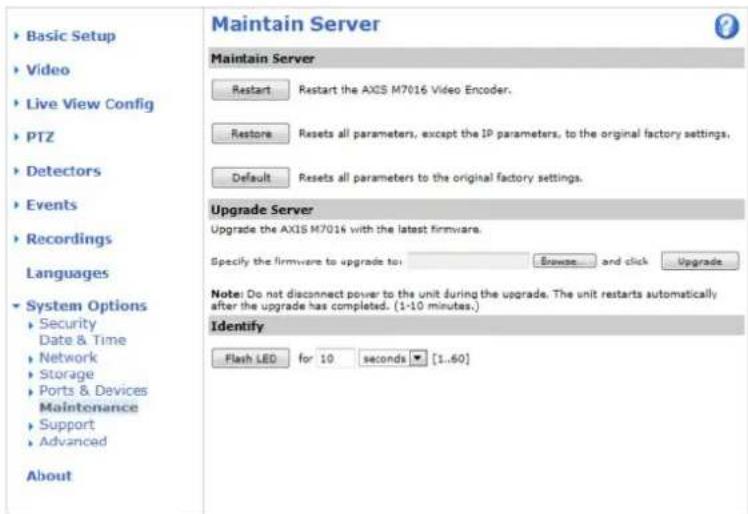
text_image
Maintain Server Maintain Server Restart Restart the AXS M7016 Video Encoder. Restore Resets all parameters, except the IP parameters, to the original factory settings. Default Resets all parameters to the original factory settings. Upgrade Server Upgrade the AXIS M7016 with the latest firmware. Specify the firmware to upgrade to: Browse and click Upgrade Note: Do not disconnect power to the unit during the upgrade. The unit restarts automatically after the upgrade has completed. (1-10 minutes.) Identify Flash LED for 10 seconds [1..60] Basic Setup Video Live View Config PTZ Detectors Events Recordings Languages System Options Security Date & Time Network Storage Ports & Devices Maintenance Support Advanced AboutEmergencyRecoveryProcedure
If power or network connection is lost during the upgrade, the process fails and the product becomes unresponsive. Flashing red Status indicator indicates a failed upgrade. Torecover the product, follow the steps below. The serial number is found on the product's label.
- In UNIX/Linux, typethefollowing from the commandline:
Troubleshooting
arp-s<IPaddress><serialnumber>temp
ping-1408<IPaddress>

In Window stypd following from command/DO prompt(this may require that your the command prompts an administrator);

arp-s<IPaddress><serialnumber>
ping-1408-t<IPaddress>
- If the product does not reply in 30 seconds, restart it and wait for areply. Press CTRL + Ctostop Ping.
Openbrowseandyparthropduct'sAddressrthepagthatappearsustheBrowsbuttontoselectheupgradefiletouse.ThenclickLoadtorestarttheupgradeprocess.
-
After the upgrade is complete (1–10 minutes), the product automatically restarts and shows a steady green on the Status indicator.
-
Reinstall the product, referring to the Installation Guide.
If the emergency recovery procedure does not get the product up and running again, contact Axissupport at www.axis.com/techsup/
Symptoms, Possible Causes and Remedial Actions
ProblemssettingtheIPaddress
| WhenusingARP/Ping | Trytheinstallationagain.TheIPaddressmustbesetwithintwominutesafterpowerhasbeen appliedtotheproduct.EnsurethePinglengththissetto408.Forinstructions,seeAssignIPAddressUsingARP/Ping,onpage37. |
| Theproductislocatedona differentsubnet | IfthelPaddressintendedfortheproductandthelPaddressofthecomputerusedtoaccessthe productarelocatedondifferentsubnets,youwillnotbeabletosethelPaddress.Contactyour networkadministratortoobtainanIPaddress. |
| ThelPaddressisbeingused byanotherdevice | DisconnecttheAxisproductfromthenetwork.RunthePingcommand(inaCommand/DOS window,typepingandthelPaddressoftheproduct):·Ifyoureceive:Replyfrom:bytes=32;time=10... thismeansthatthelPaddressmayalreadybeinusebyanotherdeviceonthenetwork. ObtainanewIPaddressfromthenetworkadministratorandreinstalltheproduct.·Ifyoureceive:Requesttimedout,thismeansthatthelPaddressisavailable forusewiththeAxisproduct.Checkallcablingandreinstalltheproduct. |
| PossibleIPaddressconflict withanotherdeviceonthe samesubnet. | ThestaticIPaddressintheAxisproductisusedbeforetheDHCPserversetsadynamicaddress. ThismeansthatifthesamedefaultstaticIPaddressisalsousedbyanotherdevice,theremay beproblemsaccessingtheproduct. |
| Theproductcannotbeaccessedfromabrowser | |
| Cannotlogin | WhenHTTPSisenabled,ensurethatthecorrectprotocol(HTTPorHTTPS)isusedwhenattempting tdognYoumayneedmanuallytypehttphttpsithebrowser'saddressfield. |
| Ifthepasswordfortheuserrootislost,theproductmustberesettothefactorydefaultsettings.SeeResettoFactoryDefaultSettings,onpage45. | |
Troubleshooting
| TheIPaddresshasbeen changedbyDHCP | IPaddressesobtainedfromaDHCPserveraredynamicandmaychange.IfthelPaddresshas beenchanged,useAXISIPUtilityorAXISCameraManagementtolocatetheproductonthe network.Identifytheproductusingitsmodelorserialnumber,orbytheDNSname(ifthename hasbeenconfigured).Ifrequired,astaticIPaddressscanbeassignedmanually.Forinstructions,seethInstallationand ManagemenSoftwareCDothedocumentAssignandAddressandAccesstheVideoStreamonAxisSupportwebatwww.axis.com/techsup. |
| Certificateerrorwhenusing IEEE802.1X | Forauthenticationtoworkproperly,thedateandtimesettingsintheAxisproductshouldbe synchronizedwithanNTPserver.SeeDate&Time,onpage36. |
Theproductisaccessiblelocallybutnotexternally
| RouterconfigurationToconfigureyourroutertoallowincomingdatatrafficitotheAxisproduct,enabletheNAT-traversalfeaturewhichwillattempttoautomaticallyconfiguretheroutertoallowaccesstotheAxisproductseeNATtraversal(portmapping)forPv4prpage39TheroutemustupportUPnP | TM. | |
| Firewallprotection | CheckthelInternetfirewallwithyournetworkadministrator. | |
| Defaultroutersrequired | CheckifyouneedtoconfiguretheroutersettingsfromSystemOptions>Network>TCP/IP>Basic. | |
ProblemswithstreamingH.264
| ProblemswithAXISMedia Control(InternetExplorer only) | ToenabletheupdatingofvideoimagesinInternetExplorer,setthebrowsertoallowActiveX controls.Also,makesurethatAXISMediaControlisinstalledonyourcomputer. |
| NoH.264displayedinthe client | CheckthattherelevantH.264connectionmethodsandcorrectinterfaceareenabledintheAMC ControlPanel(streamingtab).SeeAXISMediaControl(AMC),onpage11.IntheAMControPaneSelectheH.264bandlicSetdefaultH.264decoder.CheckhaRTSRenabledundesystemOptionsNetworkTCP/IPAdvanced. |
| MulticastH.264only accessiblebylocalclients | Checkifyourroutersupportsmulticasting,orifteroutersettingsbetweentheclientandthe productneedtobeconfigured.TheTTL(TimeToLive)valuemayneedtobeincreased. |
| NomulticastH.264 displayedintheclient | CheckwithyournetworkadministratorthatthemulticastaddressesusedbytheAxisproduct arevalidforyournetwork.Checkwithyournetworkadministratortoseeifthereisafirewallpreventingviewing. |
| Installationofadditional ActiveXcomponent restrictedorprohibited | ConfiguretheAxisproducttouseaJavaappletforupdatingvideoimagesinyourbrowser.Goto SetupLiveViewConfigandselectLavaappletundeDefaultviewer. |
| PoorrenderingofH.264 images | Ensurethatyourgraphicscardisusingthelatestdriver.Thelatestdriverscanusuallybe downloadedfromthemanufacturer'swebsite. |
| Colorsaturationisdifferent inH.264andMotionJPEG | Modifythesettingsforyourgraphicsadapter.Refertotheadapter'sdocumentationformore information. |
Troubleshooting
| Lowerframeratethan expected | SeePerformanceConsiderations,onpage52. |
| Reducethenumberofapplicationsrunningontheclientcomputer. | |
| Limitthenumberofsimultaneousviewers. | |
| Checkwiththenetworkadministratorthatthereisenoughbandwidthavailable. | |
| CheckintheAMCControlPanel(H.264tag)thatvideoprocessingisNOTsettoDecodeonly keyframes. | |
| Lowertheimageresolution. | |
| Themaximumframespersecondisdependentontheutilityfrequency(60/50Hz)oftheAxis product.SeeTechnicalSpecifications,onpage50. |
StatusandNetworkindicatorLEDsareflashingredrapidly
| Hardwarefailure | ContactyourAxisreseller. |
| Videoandimageproblems,general | |
| Imageunsatisfactory | CheckthevideestreamandcamersettingsundesetupVideoVideStreamandSetup>Video>CameraSettings. |
| MotionDetectiontriggersunexpectedly | |
| Changesinluminance | Motiondetectionisbasedonchangesinluminanceintheimage.Thismeansthatiftherearesuddenchangesinthelighting,motiondetectionmaytriggermistakenly.Lowerthesensitivitysettingtoavoidproblemswithluminance. |
| Storageanddiskmanagementproblems | |
| Storagedisruption | Astoragedisruptionalarmissentifastoragedeviceisunavailable,removed,full,lockedorifotherreadwriteproblemsoccurIdentify thesourceofheproblemchecktheSystemLogunderSystemOptions>Support>Logs&Reports.Dependingontheproblem,itmightbenecessarytore-mountthestorgagedevice.Forinformationonhowtosetupastoragedisruptionalarm,seeEvents,onpage28. |
| Videocannotberecorded | CheckthattheSDcardisnotwriteprotected(thatis,readonly). |
| SDcardcannotbemountedReformattheSDcardandthenclickMount. | |
TechnicalSpecifications
| Function/group | Item | Specifications |
| VideoEncoder | Model | AXISM7016(16channels) |
| Pan/Tilt/Zoom | WiderangeofanalogPTZcamerassupported(driversavailablefordownloadatwww.axis.com)100presets/camera,guardtour,PTZcontrolqueueSupportsWindowscompatiblejoysticks | |
| Video | Video compression | H.264(MPEG-4Part10/AVC)BaselineProfile(BP)andMainProfile(MP)MotionJPEG |
| Resolutions | 176x120to720x576176x120to1536x1152forquadview | |
| FramerateH.264 | 30/25(NTSC/PAL)fps15fpsinquadviewinfullresolution | |
| Framerate MotionJPEG | 30/25(NTSC/PAL)fps15fpsinquadviewinfullresolution | |
| Videostreaming | OneindividuallyconfiguredH.264andoneMotionJPEGstreamperchannelatfullframe rate.Morestreamsifidenticalorlimitedinframerate/resolution.Controllableframerateandbandwidth,VBR/CBRH.264 | |
| Imagesettings | Compression,color,brightness,contrastRotation:90°,180°,270°AspectratiocorrectionMirroringofimagesTextandimageoverlayPrivacymaskEnhanceddeinterlacefilterVideoterminationAnti-aliasingTemporalnoisefiltering | |
| Network | SecurityPasswordprotection,IPaddressfiltering,HTTPSencryption,IEEE802.1Xnetworkaccess control,digestauthentication,useraccesslogThisproductincludessoftwaredevelopedbytheOpenSSLProjectforuseinthe OpenSSIToolkit(www.openssl.org)andcryptographicsoftwarewriterbyEridYoung (eay@cryptsoft.com). | |
| Supported protocols | IPv4/v6,HTTP,HTTPS*,QoSlayer3DiffServ,FTP,CIFS/SMB,SMTP,Bonjour,UPnPTM, SNMPv1/v2c/v3(MIB-II),DNS,DynDNS,NTP,RTSP,RTP,TCP,UDP,IGMP,RTCP,ICMP, DHCP,ARP,CIFS/SMB,SOCKSThisproductincludessoftwaredevelopedbytheOpenSSLProjectforuseinthe OpenSSIToolkit(www.openssl.org)andcryptographicsoftwarewriterbyEridYoung (eay@cryptsoft.com). | |
| System Integration | Application Programming Interface | OpenAPIforsoftwareintegration,includingVAPIX®fromAxisCommunicationsavailableatwww.axis.comincludeshONVI Epecificationavailableatwww.onvif.orgSupportforAXISVideoHostingSystem(AVHS)withOne-ClickCameraconnection |
| IntelligentvideoVide | motiondetectionActivetamperingalarm | |
| Events | IntelligentvideoEdgestorageVideoloss | |
| AlarmactionsFileup | adviaFTP,HTTP,networkshareandemailNotificationviaemail,HTTPandTCPPTZpresetvideorecordingtoedgestoragePre-andpost-alarmvideobuffering | |
| Videoaccessfrom webbrowser | CameraliveviewVideorecordingtofile(ASF)CustomizableHTMLpagesDirectX9corhigherWindowsVista,XP,Windows7,andServer2008Forotheroperatingsystemsandbrowersseewww.axis.com/techsup | |
| DatastreamingEvent | data | |
| Built-inaidsin software | Pixelcounter | |
| Installation, management and maintenance | AXISCameraManagementtoolonCDandweb-basedconfigurationConfigurationofbackupandrestoreFirmwareupgradesoverHTTPorFTP,firmwareavailableonwww.axis.com | |
| General | Casing | MetalcasingStandaloneRackmountWallmount |
| Memory4x512MBRAM | 4x128MBFlash | |
| Power | AXISPS-Ppowersupply | |
| Connectors | 16xanalogcompositevideoinputs(BNC)1x10BASE-T/100BASE-TXEthernet4xRS-485/422fullduplex(terminalblocks)1xDCinputterminalblock | |
| Edgestorage | 4xMicroSD/microSDHC/microSDXCslotssupportingmemorycardswithupto64GB ofstorage.Forbestrecordingperformance,useanSDHCorSDXCcardwithspeedclassC10Supportforrecordingtodedicatednetwork-attachedstorage(NAS) | |
| Operating conditions | 0-50°C(32-122°F)Humidity20-80%RH(non-condensing) | |
| Approvals | EN55022ClassB,EN61000-3-2,EN61000-3-3,EN55024,EN61000-6-1,EN61000-6-2 FCCPart15SubpartBClassB,ICES-003ClassB,VCCIClassB,C-tickAS/NZSCISPR22,KCCClassB,KN24,UL/IEC/EN60950-1 | |
| Weight | 1850g(4.1lb) | |
| Included accessories | PowersupplyMountingandconnectorkitsInstallationGuideInstallationandManagementSoftwareCDWindowsdecoderuserlicenses | |
| Dimensions (HxWxD) | 44,5x440x113mm(1.8"x17.3"x4.5") | |
Connectors
PowerConnector
2-pinterminalblockforpowerinput. UseaSafetyExtraLowVoltage(SELV) compliantlimitedpowersource(LPS) witheitheraratedoutputpower limitedto≤100Woraratedoutput currentlimitedto≤5A.
DCpowerinput
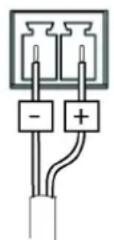
RS-485/422Connector
Two2-pinterminalblocksforRS485/RS422serialinterface.Theserial portcanbeconfiguredtosupport:
- Two-wireRS485halfduplex
- Four-wireRS485fullduplex
- Two-wireRS422simplex
- Four-wireRS422fullduplexpointtopointcommunication

RX/TX

TX
1 2 3 4
| FunctionPinNotes | ||
| RS485/RS422RX/TXA | 1 | (RX)ForfullduplexRS485/RS422(RX/TX)ForhalfduplexRS485 |
| RS485/RS422RX/TXB | 2 | |
| RS485/RS422TXA | 3 | (TX)ForfullduplexRS485/RS422 |
| RS485/RS422TXB | 4 |
SDCardSlot
SupportsmicroSDcardswithupto64GBofstorage.Forbestrecordingperformance,useamicroSDHCormicroSDXCcardwith speedclass10.
PerformanceConsiderations
Whensettingsupyoursystem, it is important to consider how various settings and situations will affect performance. Some factors affect the amount of bandwidth (the bitrate) required, others can affect the framerate, and some affect both. If the load on the CPU reaches its maximum, this will also affect the framerate.
The following factors are among them most important to consider:
- Highimageresolutionand/orlowercompressionlevelsresultinimagescontainingmoredata.Bandwidthaffected.
- AccessbylargenumbersofMotionJPEGand/orunicastH.264clients.Bandwidthaffected.
TechnicalSpecifications
- Simultaneousviewingofdifferentstreams(resolution, compression)bydifferentclients.Effectonframerateand bandwidth.
- AccessingMotionJPEGandH.264videostreamssimultaneously.Framerateandbandwidthaffected.
- Heavyusageofeventsettingsaffecttheproduct'sCPUload.Framerateaffected.
- Heavynetworkutilizationduetopoorinfrastructure.Bandwidthaffected.
- Viewingonpoorlyperformingclientcomputerslowersperceivedperformance.Framerateaffected.