
TX-25MD1L - Ti vi PANASONIC - Hướng dẫn sử dụng miễn phí
Tìm hướng dẫn sử dụng thiết bị miễn phí TX-25MD1L PANASONIC ở định dạng PDF.


Câu hỏi của người dùng về TX-25MD1L PANASONIC
0 câu hỏi về thiết bị này. Trả lời những câu bạn biết hoặc đặt câu hỏi riêng.
Đặt câu hỏi mới về thiết bị này
Tải xuống hướng dẫn cho thiết bị của bạn Ti vi ở định dạng PDF miễn phí! Tìm hướng dẫn của bạn TX-25MD1L - PANASONIC và lấy lại thiết bị điện tử của bạn. Trên trang này được đăng tải tất cả các tài liệu cần thiết để sử dụng thiết bị của bạn. TX-25MD1L thương hiệu PANASONIC.
HƯỚNG DẪN NGƯỜI DÙNG TX-25MD1L PANASONIC
Panasonic
Hướng dẫn vận hành
Tivi màu
TX-25MD1L

MỤC LỤC
Cảnh báo và biện pháp phòng ngừa....2
Phụ kiện....3
Lắp pin....3
Hướng dẫn khởi động nhanh....4
Điều khiển cơ bản....6
Menu hiển thị trên màn hình....7
Menu chính....9
Menu âm thanh....10
Menu thiết lập....11
Menu dò kênh....12
Chỉnh tay .....13
Menu cài đặt tự động....14
Đặt tên đài.....15
Chỉnh sửa chương trình....16
Chọn AV và cài đặt....18
Vận hành Teletext 19
Hướng dẫn sử dụng VCR và đầu thu vệ tinh ... 22
Vận hành VCR 23
Kết nối Âm thanh / Video (AV)..... 24
Qua AV3 phía trước Video và Âm thanh (RCA). 24
Kết nối tai nghe stereo ..... 24
Thông tin về đầu SCART .....24
Qua AV1 / AV2 phía sau 21 chân (SCART) và
Đầu ra âm thanh RCA....25
Xử lý sự cố....26
Để tham khảo....27
Thông số kỹ thuật....27
- TV này được thiết kế để hoạt động với nguồn điện xoay chiều 220 – 240V, 50Hz.
- TV này có khả năng thu được các tiêu chuẩn truyền hình sau: PAL I.
- Để tránh hư hỏng có thể gây điện giật hoặc hỏa hoạn, không để TV tiếp xúc với mưa hoặc độ ẩm quá mức. • CẢNH BÁO: ĐIỆN ÁP CAO!!! Không tháo nắp sau vì các bộ phận mang điện có thể tiếp cận được khi tháo nắp. Bên trong không có bộ phận nào người dùng có thể tự sửa chữa.
- Tránh để TV tiếp xúc trực tiếp với ánh nắng mặt trời và các nguồn nhiệt khác.
- Rút phích cắm điện khỏi ổ cắm trên tường khi không sử dụng TV trong một thời gian dài.
• BẢO QUẢN VỎ MÁY VÀ ỐNG HÌNH Rút phích cắm điện khỏi ổ cắm trên tường. Vỏ máy và ống hình có thể được lau chùi bằng vải mềm thấm dung dịch tẩy rửa nhẹ và nước. Không sử dụng dung dịch chứa benzen hoặc dầu mỏ. TV có thể tạo ra tĩnh điện, cần cẩn thận khi chạm vào màn hình TV. - Thông gió đầy đủ là cần thiết để ngăn ngừa hỏng hóc các linh kiện điện tử. Chúng tôi khuyên bạn nên chừa khoảng cách ít nhất 5cm xung quanh TV ngay cả khi đặt trong tủ hoặc giữa các kệ.
VÌ SỰ AN TOÀN CỦA BẠN, XIN VUI LÒNG ĐỌC KỸ VĂN BẢN SAU
Thiết bị này được cung cấp kèm phích cắm ba chân để đảm bảo an toàn và thuận tiện cho bạn. Một cầu chì 5 ampe được lắp trong phích cắm này. Nếu thay cầu chì, cầu chì thay thế phải có định mức 5 ampe và được chứng nhận bởi ASTA hoặc BSI theo tiêu chuẩn BS1362.
Kiểm tra dấu ASTA ATA hoặc dấu BSI S trên thân cầu chì.
Nếu phích cắm đi kèm có nắp che cầu chì tháo rời được, bạn phải đảm bảo lắp lại nắp khi thay cầu chì. Nếu làm mất nắp che cầu chì, không được sử dụng phích cắm cho đến khi có nắp thay thế. Nắp che cầu chì thay thế có thể mua tại đại lý Panasonic địa phương.
Phích cắm đi kèm thiết bị này có tích hợp mạch lọc nguồn. Nếu tháo hoặc thay bằng phích cắm không có bộ lọc, TV này sẽ không còn đáp ứng các tiêu chuẩn Châu Âu về Tương thích Điện từ (EMC). Nếu phích cắm đi kèm không phù hợp với ổ cắm trong nhà bạn, hãy sử dụng bộ chuyển đổi phù hợp.
Tuy nhiên, nếu thay phích cắm đi kèm, hãy tháo cầu chì và vứt bỏ phích cắm đã cắt một cách an toàn. Có nguy cơ bị điện giật nghiêm trọng nếu phích cắm đã cắt được cắm vào bất kỳ ổ cắm 13 ampe nào.
Nếu cần lắp phích cắm mới, hãy tuân thủ mã nối dây như hình dưới đây. Nếu có bất kỳ nghi ngờ nào, xin vui lòng tham khảo ý kiến thợ điện có chuyên môn.
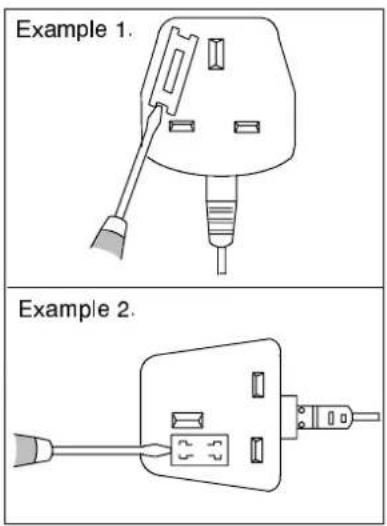
Cách thay cầu chì (đối với loại phích cắm như trong ví dụ 1):
Dùng tuốc nơ vít nâng ngăn chứa cầu chì có thể tháo rời ra, thay cầu chì mới, sau đó lắp lại chắc chắn vào phích cắm điện (xem ví dụ 1).
Cách thay cầu chì (đối với loại phích cắm như trong ví dụ 2):
Dùng tuốc nơ vít mở ngăn chứa cầu chì trên phích cắm điện, thay cầu chì mới, sau đó đóng nắp ngăn chứa cầu chì lại chắc chắn. (Xem ví dụ 2).
QUAN TRỌNG:— Các dây điện trong dây nguồn của thiết bị này được mã hóa màu theo quy định sau:— XANH DƯƠNG: DÂY TRUNG TÍNH NÂU: DÂY PHA
Vì màu sắc của các dây điện trong dây nguồn của thiết bị này có thể không tương ứng với các ký hiệu đánh dấu trên các đầu nối trong phích cắm của bạn, hãy tiến hành như sau:—
- Dây màu XANH DƯƠNG phải được kết nối với đầu nối được đánh dấu 'N' hoặc có màu đen.
- Dây màu NÂU phải được kết nối với đầu nối được đánh dấu 'L' hoặc có màu đỏ.
LƯU Ý QUAN TRỌNG: Trong mọi trường hợp, không được kết nối bất kỳ dây nào trong hai dây này với đầu nối đất của phích cắm ba chân, được đánh dấu bằng chữ 'E' hoặc ký hiệu nối đất.
Kiểm tra xem bạn đã có các phụ kiện được dịch như hình này chưa
Bảo hành TV
Sách hướng dẫn vận hành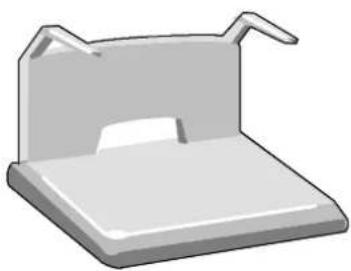
Chân đế TV TS 2800 (Hướng dẫn lắp ráp được bao gồm trong bao bì của chân đế)
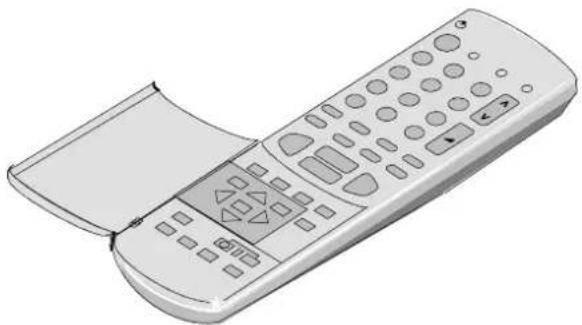
Bộ phát tín hiệu điều khiển từ xa EUR51920

Pin cho bộ phát tín hiệu điều khiển từ xa. (2 pin loại R6 (UM3))
Trượt nắp pin ra
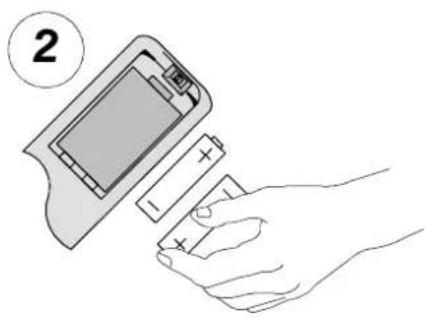
Lắp pin - chú ý đúng cực
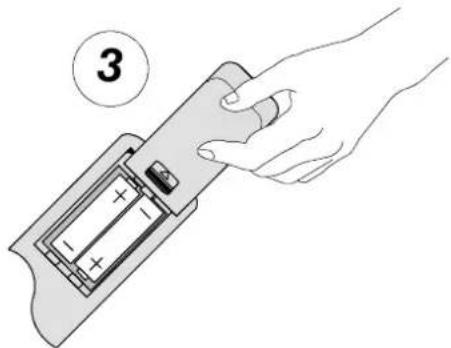
Đậy nắp lại
Lưu ý:
- Đảm bảo rằng pin được lắp đúng chiều.
- Không trộn pin cũ với pin mới. Loại bỏ ngay pin cũ đã hết điện.
- Không trộn các loại pin khác nhau, tức là pin kiềm và pin mangan. Không sử dụng pin sạc (Ni-Cad).
1.2.3.....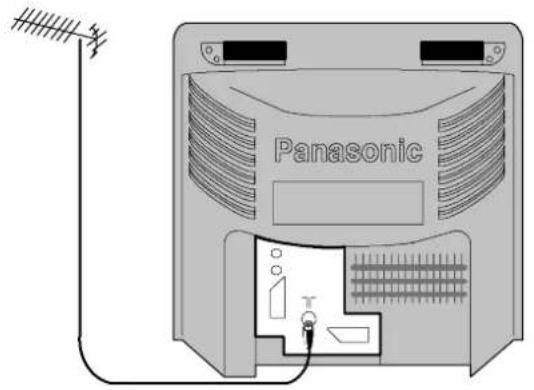
1
Chỉ TV
Kết nối cáp đồng trục ăng-ten trực tiếp vào ổ cắm RF IN của TV.
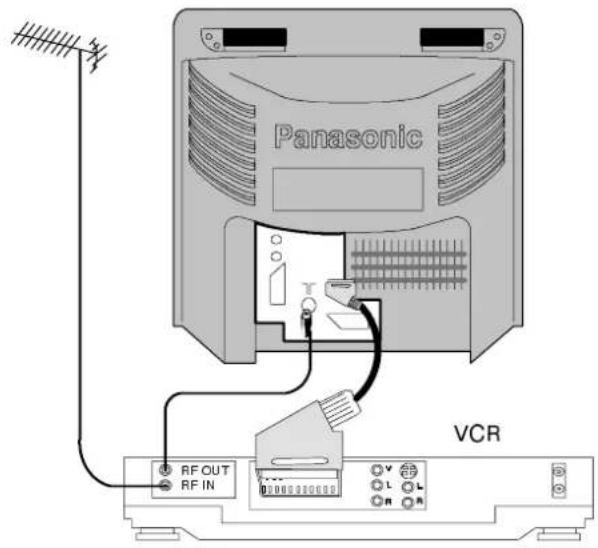
HOẶC
SỬ DỤNG ĐẦU VCR
Kết nối cáp đồng trục từ ăng-ten tới ổ cắm RF Input của VCR và một cáp đồng trục RF từ ổ cắm RF Out của VCR tới ổ cắm RF IN của TV.
VCR cũng có thể được kết nối với TV bằng dây SCART nếu bạn sử dụng VCR stereo. Sử dụng đầu nối 21 chân AV1 cho VCR. Để kết nối VCR S-Video, sử dụng đầu nối 21 chân AV2S.
Thông tin thêm về việc lắp đặt VCR và bộ thu vệ tinh với TV này có thể tìm thấy ở trang 22.
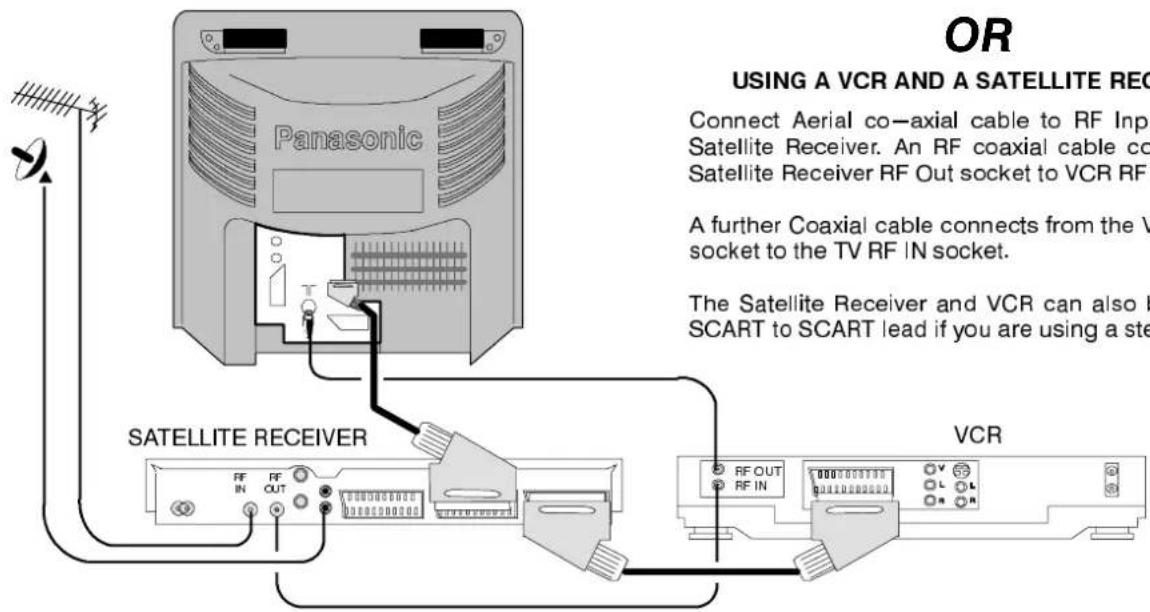
HOẶC
SỬ DỤNG VCR VÀ BỘ THU VỆ TINH
Kết nối cáp đồng trục từ ăng-ten tới ổ cắm RF Input của bộ thu vệ tinh. Một cáp đồng trục RF kết nối từ ổ cắm RF Out của bộ thu vệ tinh tới ổ cắm RF IN của VCR.
Một cáp đồng trục khác kết nối từ ổ cắm RF OUT của VCR tới ổ cắm RF IN của TV.
Bộ thu vệ tinh và VCR cũng có thể được kết nối bằng dây SCART nếu bạn sử dụng VCR stereo.
Thiết bị phụ trợ và dây cáp không được cung cấp kèm theo.

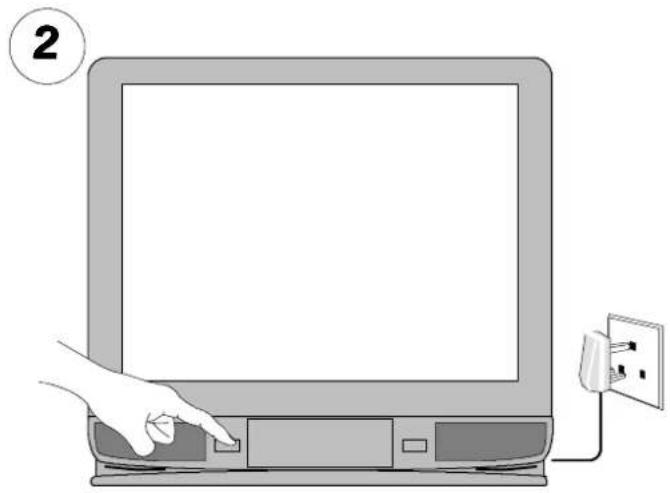
Bật nguồn VCR *1. Bật nguồn bộ thu vệ tinh *2. Cắm TV vào ổ cắm điện và bật nguồn.
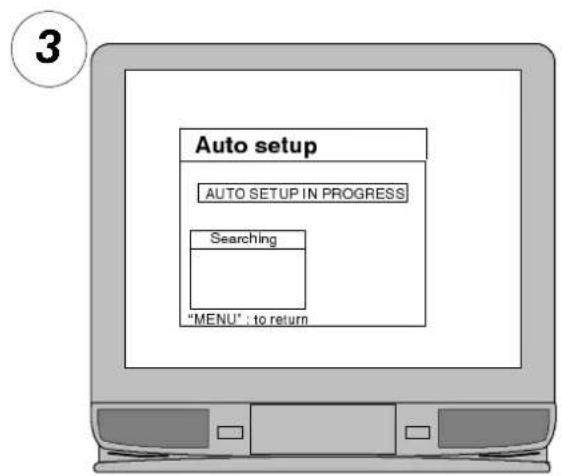
Các chương trình sẽ xuất hiện ngay lập tức nếu đại lý đã cài đặt TV cho bạn.
Nếu TV chưa được cài đặt, quá trình cài đặt tự động sẽ bắt đầu. Các kênh truyền hình sẽ được tìm thấy, sắp xếp theo thứ tự và lưu trữ để sử dụng 4.
Tắt tín hiệu kiểm tra của VCR *4.
...SẴN SÀNG SỬ DỤNG!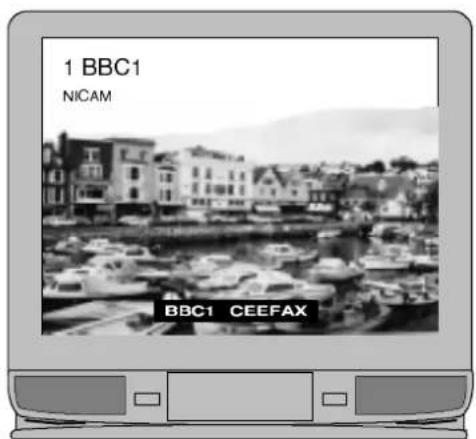
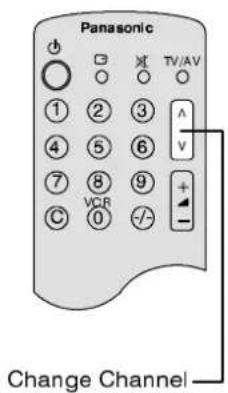
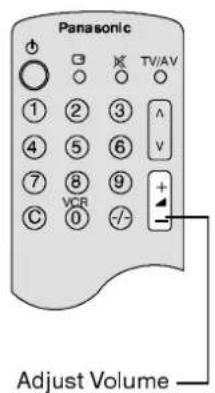
*1 Chúng tôi khuyên bạn nên bật tín hiệu kiểm tra của VCR – tham khảo sách hướng dẫn VCR để tìm công tắc tín hiệu kiểm tra (thường ở mặt sau VCR). *2 Chúng tôi khuyên bạn nên đặt bộ thu vệ tinh ở kênh SKY ONE hoặc SKY NEWS để đảm bảo dò kênh đáng tin cậy. *3 Thứ tự sắp xếp phụ thuộc vào tín hiệu TV, hệ thống phát sóng và điều kiện thu sóng. Nếu thứ tự không như ý muốn, bạn có thể sắp xếp lại. Tham khảo menu Chỉnh sửa chương trình – xem trang 16 để biết chi tiết. *4 Nếu tín hiệu kiểm tra của VCR xuất hiện như một vị trí kênh, bạn có thể xóa nó bằng menu Chỉnh sửa chương trình.
Điều quan trọng là bạn chỉ sử dụng vị trí chương trình '0' cho đầu VCR của mình. Nếu đầu VCR của bạn không hoạt động ở vị trí chương trình '0' (vị trí VCR), hãy tham khảo trang 22 để được hướng dẫn.
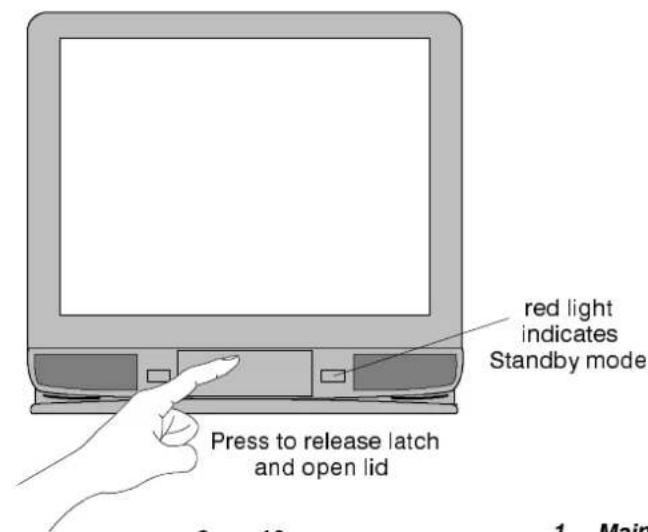
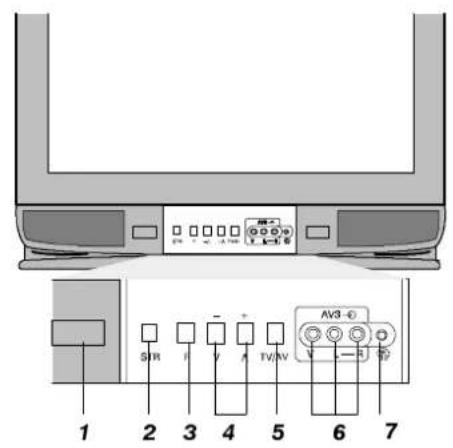
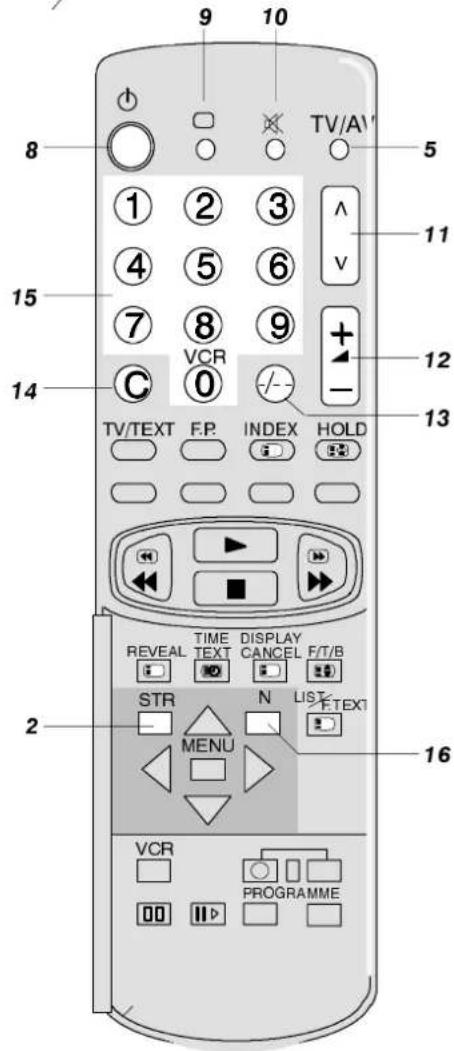
1 Công tắc nguồn chính (Mains On/Off) 2 Lưu chuẩn hóa (STR) Nhấn STR (trong khi ở menu Chính hoặc menu Âm thanh) sau khi điều chỉnh Âm lượng, Bass, Treble, Cân bằng, Màu sắc, Độ sáng hoặc Độ nét (cũng như Tint ở chế độ M.NTSC / NTSC), sẽ lưu các điều chỉnh này vào bộ nhớ làm cài đặt chuẩn của bạn (xem ghi chú 16 bên dưới). 3 Chọn chức năng (F) Hiển thị các chức năng trên màn hình. Nhấn liên tục để chọn từ các chức năng có sẵn: Âm lượng, Độ sáng, Độ tương phản, Màu sắc, Độ nét, Bass, Treble và Chế độ dò kênh (xem ghi chú bên dưới). 4 - / + / ∧ / ∨ Tăng hoặc giảm cài đặt kênh. Nếu một chức năng được hiển thị, bạn có thể điều chỉnh mức. 5 TV/AV chuyển đổi giữa hoạt động TV và Audio/Video. 6 Ổ cắm Audio/Video RCA để kết nối thiết bị Audio/Video, ví dụ: đầu VCR. 7 Ổ cắm tai nghe để kết nối tai nghe stereo với phích cắm 3,5mm. 8 Chế độ chờ (Standby) để bật/tắt TV ở chế độ chờ. TV cũng có thể được bật từ chế độ chờ bằng cách nhấn nút chương trình 0-9 hoặc nhấn - / + / ∧ / V trên bảng điều khiển phía trước. LƯU Ý: TV không thể được bật bằng công tắc nguồn chính nếu đang ở chế độ chờ. 9 Trạng thái (Status) hiển thị vị trí chương trình, tên và số kênh cũng như thời gian và hệ thống Teletext (nếu có) và hệ thống âm thanh. Trong khi ở chế độ Trạng thái, nhấn ◀ để hiển thị bảng Kênh/Chương trình 1 đến 31 cộng với VCR, 32 đến 63, 64 đến 95 và lần nữa cho 96 đến 99. 10 Tắt tiếng (Sound Mute) để tắt hoặc khôi phục âm thanh ngay lập tức. Màn hình sẽ hiển thị 'Mute' nếu đang sử dụng. 11 Chương trình Lên/Xuống để tăng hoặc giảm vị trí chương trình. 12 + / - Tăng hoặc giảm Âm lượng. 13 Vị trí chương trình để chọn vị trí chương trình từ 10–99. 14 Truy cập kênh trực tiếp cho phép truy cập trực tiếp vào các kênh địa phương qua các phím 0–9. 15 0-9 để chọn số chương trình hoặc trang Teletext. 16 Chuẩn hóa (N) để gọi lại các mức đã được đặt trước đó bằng phím lưu (STR).
Mặc dù bạn thường sẽ sử dụng các phương pháp dò kênh được cung cấp bởi các menu dò kênh xuất hiện sau này trong sách này, bạn vẫn có thể thực hiện điều khiển dò kênh cơ bản bằng cách nhấn liên tục phím 'F' trên bảng điều khiển phía trước cho đến khi đạt đến chế độ Dò kênh. Nhấn phím - hoặc + trên bảng điều khiển phía trước sẽ dẫn đến menu quy trình dò kênh. Làm theo hướng dẫn trên màn hình sẽ cho phép bạn dò và lưu bất kỳ vị trí chương trình nào.
| Tuning procedure (Front panel) | |
| - + | : To start search |
| "TV/AV" | : Select programme position |
| "STR" | : To store position |
| "F" | : To exit |
MENU HIỂN THỊ TRÊN MÀN HÌNH
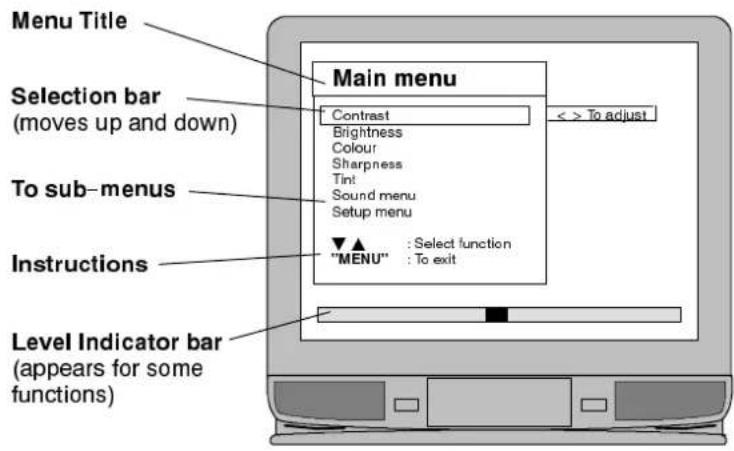
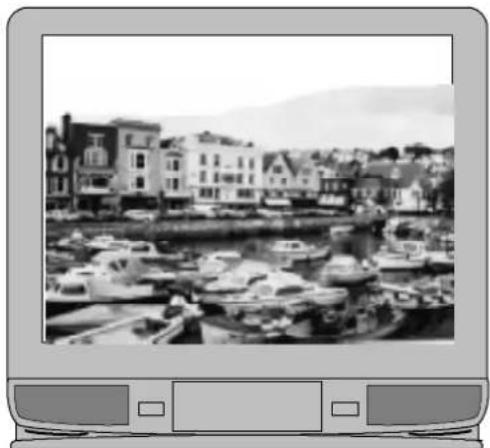
Các tính năng nâng cao của TV này được thiết lập bằng cách sử dụng các menu trên màn hình, được chứa trong cấu trúc menu bắt đầu từ menu Chính như hình dưới đây.
![graph TD A["Main menu"] --> B["Sound menu"] B --> C["Setup menu"] C --> D["Tuning procedure"] D --> E["Auto setup"] E --> F["Station naming"] F --> G["Programme edit"] G --> H["Accessed by front panel only"] subgraph In_TV_operation I1["Main menu: Contrast: Brightness Colour Sharpness Sound menu Set…](/content/2026/06/1235675/images/f317e50dc0ff83295de582d500c74298f03960f757dd7ebc46ab2408a9fa1edf.jpg)
TV này có hệ thống toàn diện các menu hiển thị trên màn hình để truy cập các điều chỉnh và tùy chọn.
Tất cả các menu (trừ chọn AV) đều bắt đầu từ menu Chính. Nếu bạn làm theo hướng dẫn trên màn hình, bạn sẽ có thể di chuyển đến các menu khác. Cấu trúc menu được hiển thị ở trang trước.
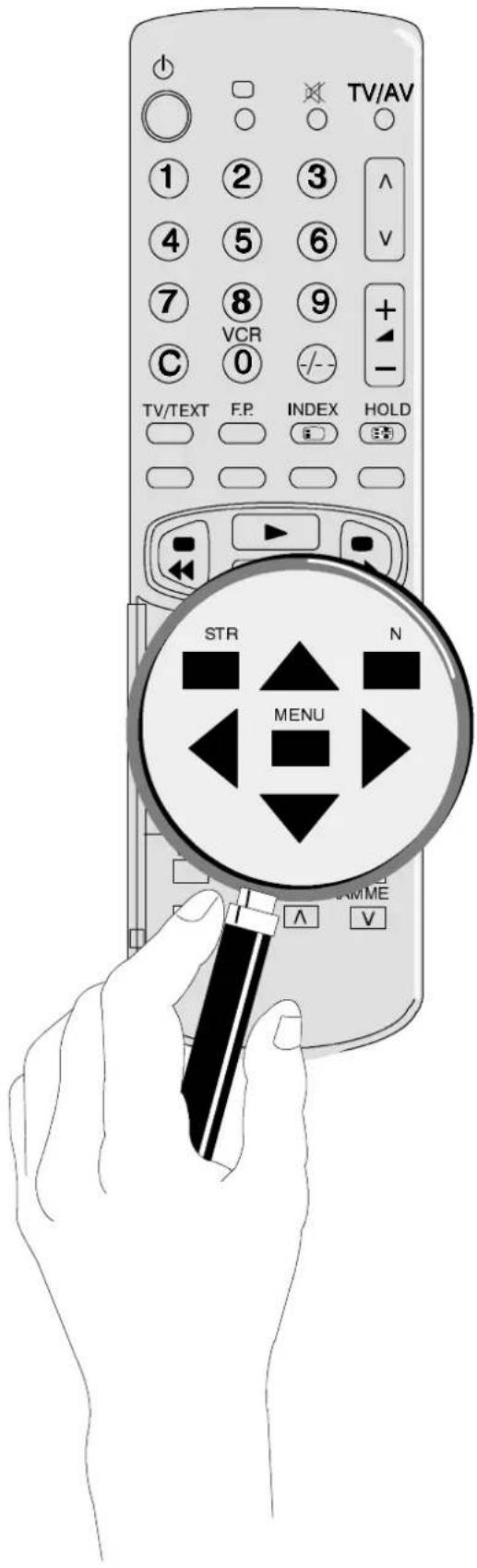
Các phím điều khiển từ xa sau đây có thể được sử dụng để truy cập và điều chỉnh các cài đặt từ menu hiển thị trên màn hình.
Một số lựa chọn, ví dụ: Độ tương phản, Độ sáng, Màu sắc và Độ nét sẽ hiển thị một thanh điều chỉnh màu.
Một số lựa chọn, ví dụ: Chế độ, cho phép đưa ra lựa chọn.
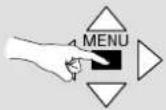 | The ‘MENU’ key is used to open the Main menu and also to return to either the Main menu or a previous menu. |
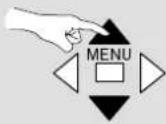 | The ▲▼ keys are used to move the selector up and down the menu. |
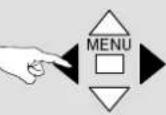 | The ◀▶ keys are used to access your selected function and either adjust levels or to make a choice. |
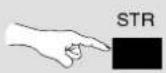 | The ‘STR’ key is used to store settings after your adjustment or choice has been made. |
 | The ‘N’ key is used to leave the menu system and return to the normal viewing screen. |
Ghi chú:
Các mức Độ tương phản, Độ sáng, Màu sắc, Độ nét và Sắc thái được điều chỉnh bằng cách sử dụng thanh màu, sẽ xuất hiện khi lựa chọn, làm hướng dẫn.
Nhấn STR (trong khi ở menu Chính hoặc Âm thanh) sau khi điều chỉnh Độ tương phản, Độ sáng, Màu sắc, Độ nét, (Sắc thái trong M.NTSC / NTSC), Âm lượng, Âm trầm và/hoặc Âm bổng sẽ lưu các điều chỉnh này vào bộ nhớ làm cài đặt thông thường của bạn. Nhấn nút N bất cứ lúc nào sẽ khôi phục TV về các cài đặt này.
Chức năng Sắc thái sẽ chỉ xuất hiện trên menu Chính nếu có kết nối đầu vào M.NTSC hoặc NTSC.
Các thanh điều chỉnh màu sẽ biến mất sau một thời gian ngắn nếu không có điều chỉnh nào được thực hiện.
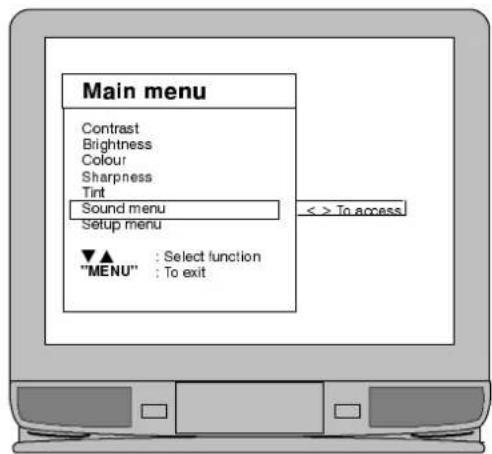
Nếu chọn menu Âm thanh hoặc Thiết lập thì chúng sẽ dẫn đến các menu khác như chi tiết ở trang 10 và 11.
1
MENU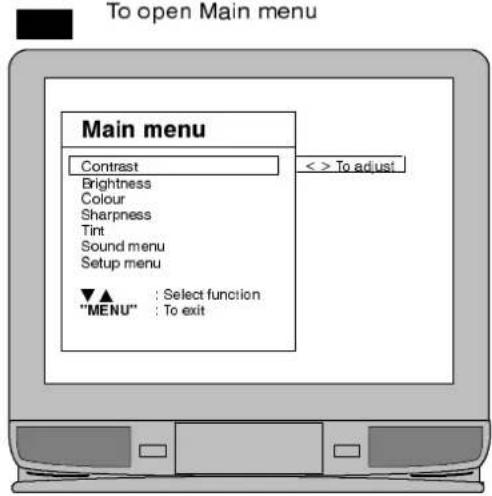
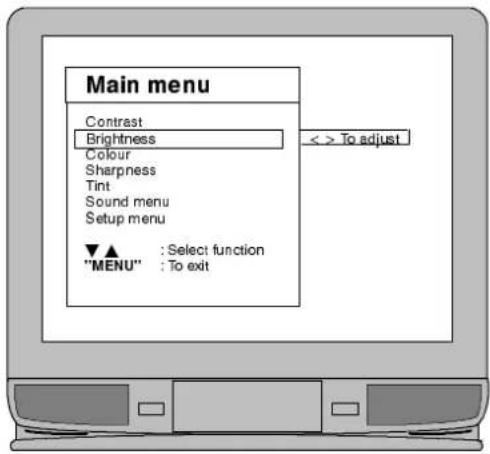
2

Để di chuyển bộ chọn lên hoặc xuống tới chức năng bạn muốn truy cập

Để truy cập lựa chọn của bạn
3
◀ ▶ Để tăng hoặc giảm mức sử dụng thanh màu làm hướng dẫn hoặc để truy cập menu Âm thanh hoặc Thiết lập
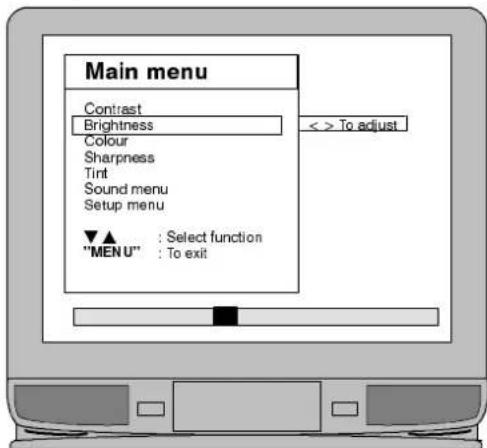
4
MENU
Để quay lại màn hình xem
Ghi chú:
Bass - điều chỉnh độ trầm.
Treble - điều chỉnh độ bổng.
Balance - điều chỉnh mức âm lượng giữa kênh trái và phải.
Hiệu chỉnh âm lượng - (chỉ ở chế độ AV) cho phép đặt mức âm lượng khác nhau cho tín hiệu TV và AV.
NICAM - Chọn NICAM: bật để phát lại âm thanh nổi
hoặc NICAM: tắt để phát âm thanh FM Mono.
Nếu đang phát NICAM Mono, hãy chọn FM Mono, NICAM Mono I (M1) hoặc NICAM Mono II (M2). Đầu ra phụ thuộc vào tín hiệu đang phát. Nên chuyển sang FM Mono nếu tín hiệu thu kém. Khi không nhận được tín hiệu NICAM, âm thanh sẽ chỉ là FM Mono.
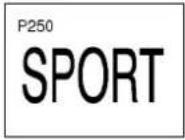
Chế độ - chất lượng âm thanh có thể được đặt thành Nhạc hoặc Lời nói, tùy theo yêu cầu, bằng cách chọn lựa chọn thích hợp.
Ambience - bộ tăng cường âm thanh động tạo cảm giác hiện diện âm thanh tốt hơn.
Nhấn STR (khi đang ở menu Chính hoặc Âm thanh) sau khi điều chỉnh Âm lượng, Bass, Treble, Contrast, Brightness, Colour, Sharpness và/hoặc (Tint trong M.NTSC / NTSC), sẽ lưu các điều chỉnh này vào bộ nhớ làm cài đặt bình thường của bạn. Nhấn nút N bất cứ lúc nào sẽ khôi phục TV về các cài đặt này.
1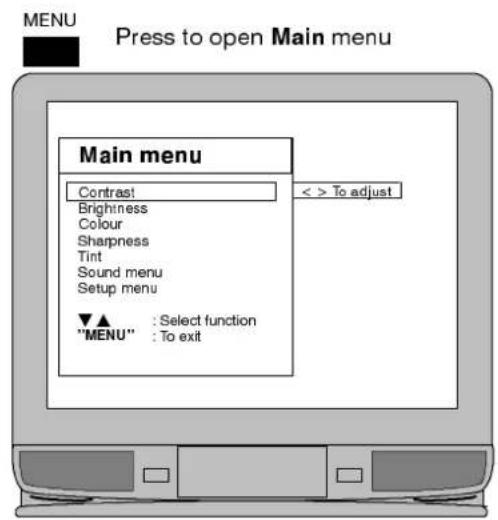
2
3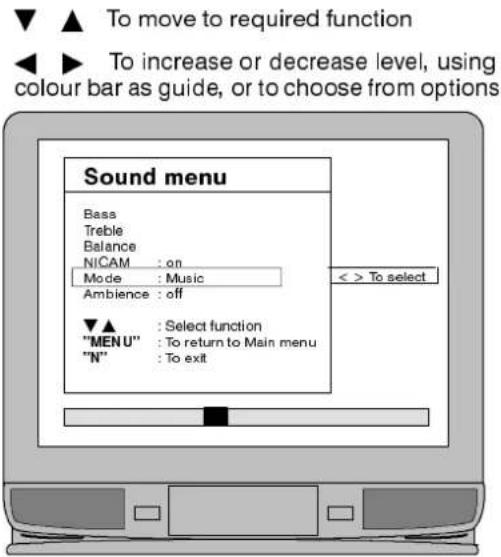
4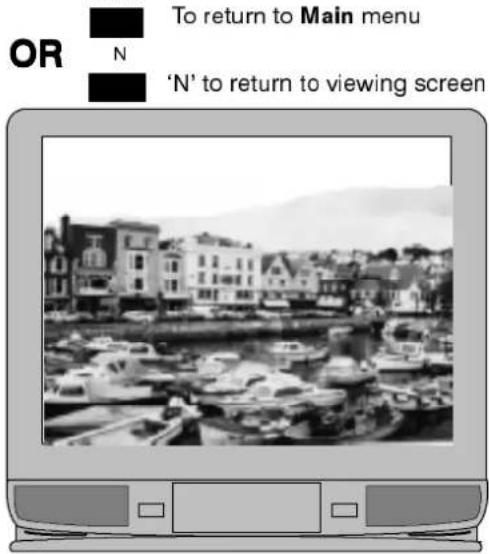
Ghi chú:
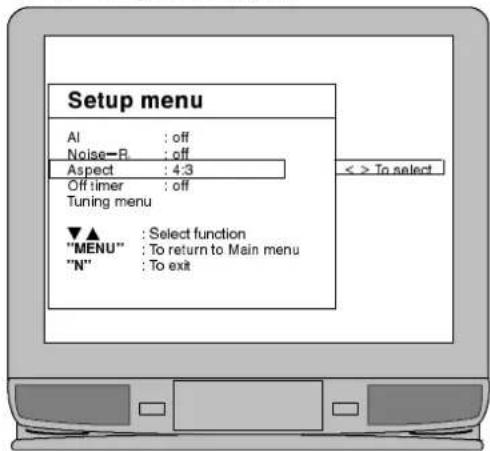
Trí tuệ nhân tạo (AI) cho phép TV tự động phân tích hình ảnh đến và xử lý để mang lại độ tương phản tốt nhất, độ sâu trường ảnh tối ưu và màu sắc sống động.
Giảm nhiễu (Giảm nhiễu hình ảnh) tự động giảm nhiễu hình ảnh không mong muốn.
Tỷ lệ khung hình (Định dạng hình ảnh) chọn 16:9 nếu nhận tín hiệu định dạng 16:9 qua đầu nối 21 chân AV1. Chọn 4:3 cho định dạng hình ảnh thông thường.
Hẹn giờ tắt cho phép bạn chọn thời gian 30, 60 hoặc 90 phút trước khi TV chuyển sang chế độ chờ.
Menu dò kênh cho phép truy cập vào menu dò kênh được trình bày chi tiết ở trang tiếp theo.
1
MENU

Nhấn để mở menu chính
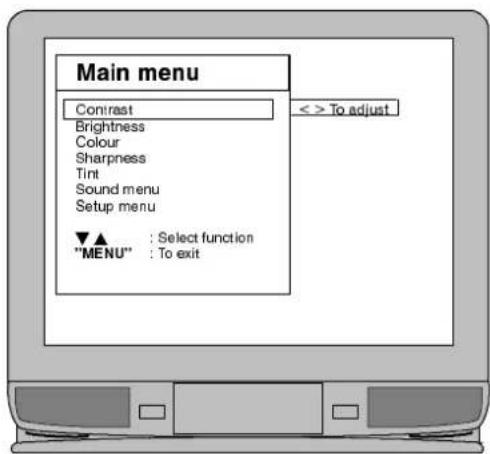
2

▲

Để di chuyển đến menu Thiết lập
Để truy cập menu Thiết lập
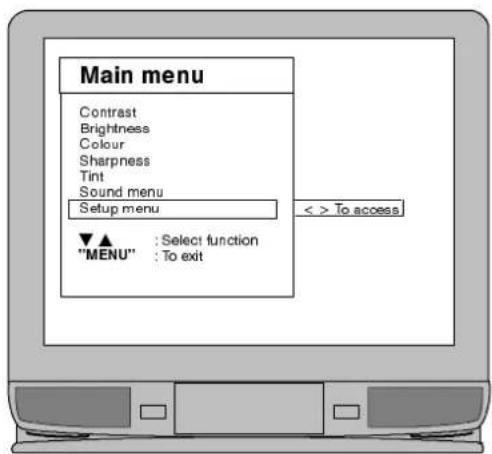
3

Để di chuyển đến chức năng cần thiết

Để truy cập các tùy chọn
4
MENU
HOẶC

Để quay lại menu Chính
N

Nhấn 'N' để quay lại màn hình xem
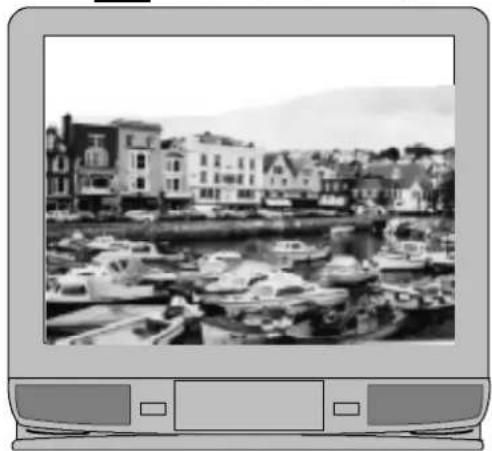
Ghi chú:
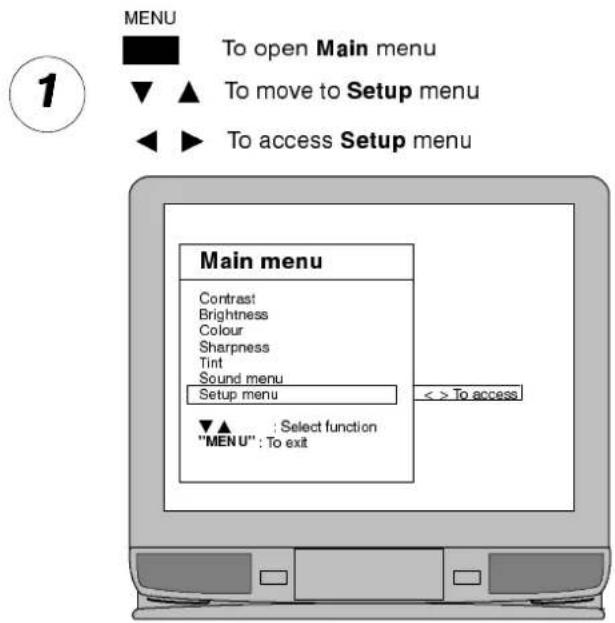
TV này có thể đã được đại lý của bạn lập trình sẵn sàng để sử dụng hoặc nó sẽ tự động dò kênh các đài truyền hình địa phương khi được lắp đặt.
Tuy nhiên, có thể có những trường hợp bạn muốn khởi tạo lại quá trình dò kênh tự động hoặc dò kênh thủ công cho các đài đã biết.
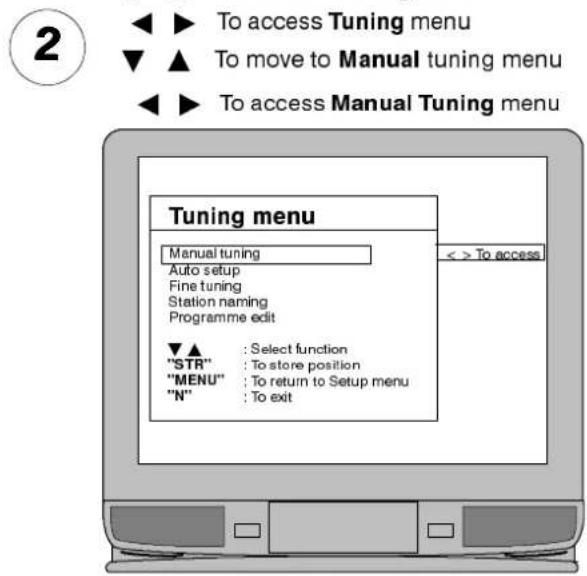
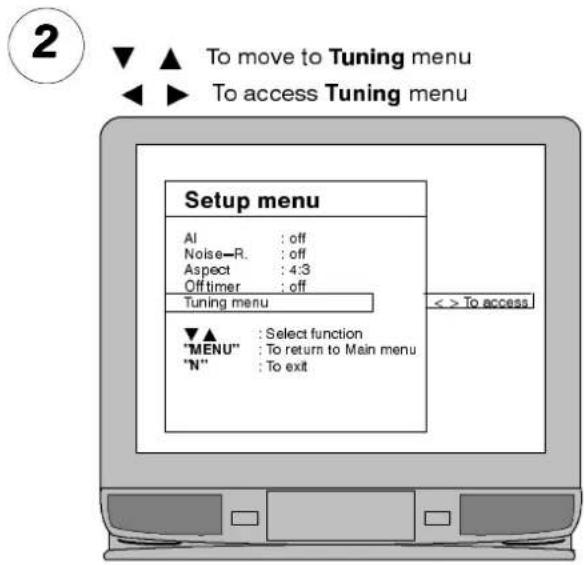
Cả hai phương pháp, Thiết lập tự động và Dò kênh thủ công, cũng như đặt tên kênh và chỉnh sửa chương trình đều được truy cập thông qua menu Dò kênh.

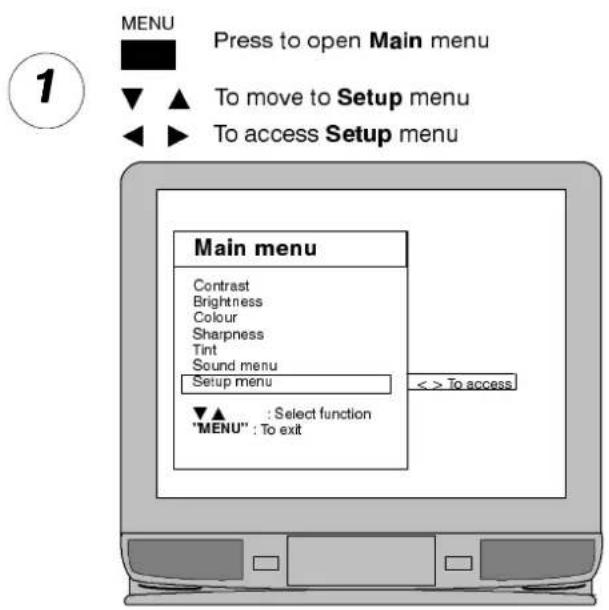
MENU: Nhấn để mở menu chính.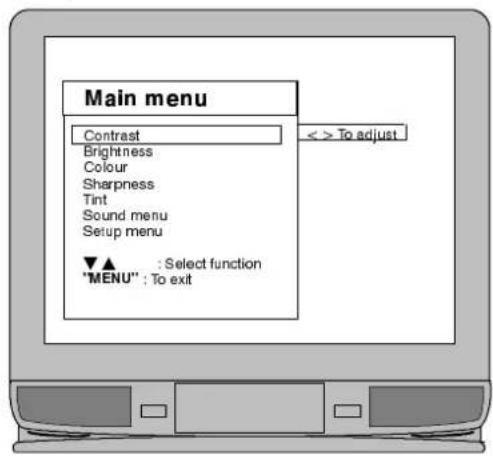
2
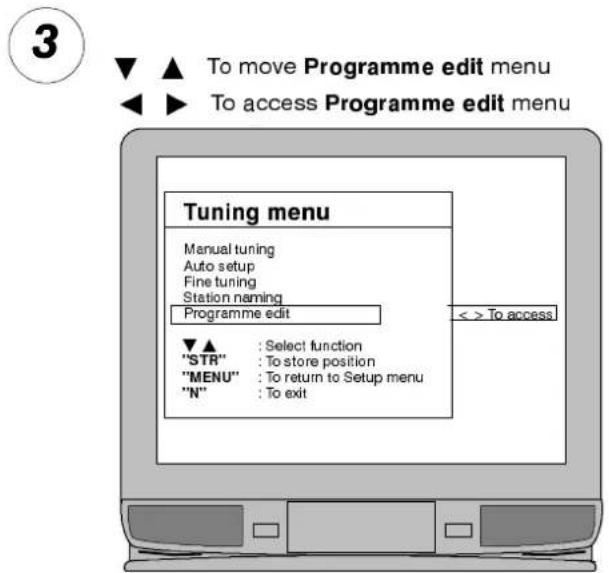
▼ ▲ Để di chuyển đến menu Thiết lập. ◀ ▶ Để truy cập menu Thiết lập. ▼ ▲ Để di chuyển đến menu Chỉnh.
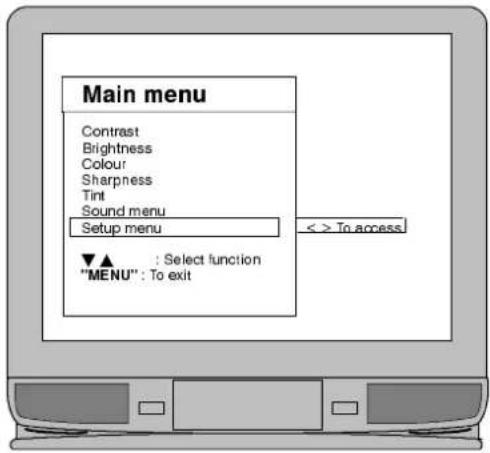

▼ ▲ Để chọn chức năng.
◀ ▶ Để truy cập chức năng cần thiết.
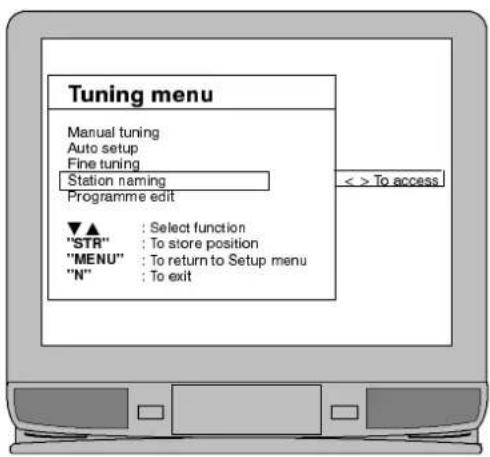
4
Tiến hành theo lựa chọn của bạn.
Chỉnh tay được mô tả ở trang 13.
Thiết lập tự động được mô tả ở trang 14.
Chỉnh tinh cho phép dò kênh đến mức tối ưu.
Đặt tên kênh được mô tả ở trang 15.
Menu chỉnh sửa chương trình được mô tả ở trang 16.

Ghi chú:
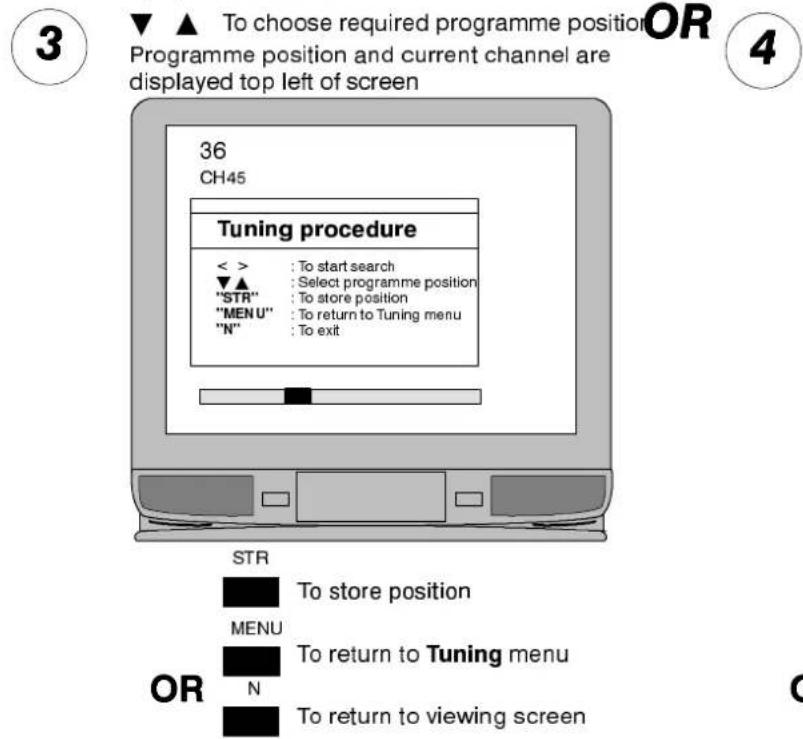
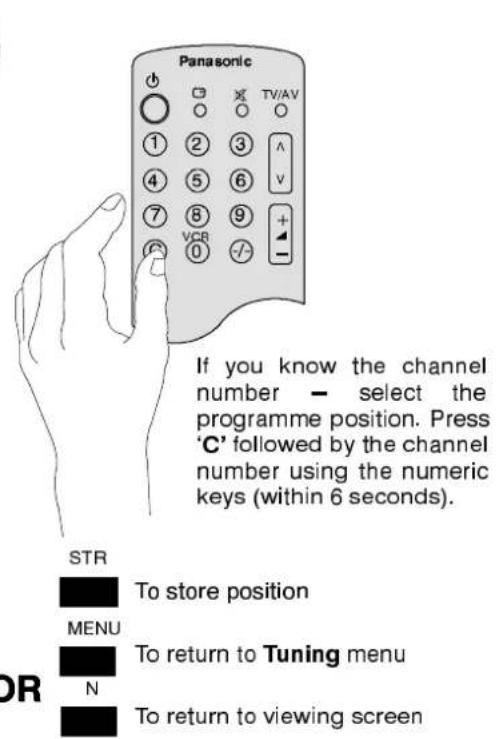
Các kênh cần thiết có thể được lưu thủ công bằng cách tìm kiếm kênh mong muốn trên màn hình hoặc nhập số kênh nếu biết.
Nếu đầu video (VCR) của bạn không hoạt động ở vị trí kênh '0', có thể đầu video của bạn chưa được dò đúng kênh 36. Điều này có thể được khắc phục bằng cách chọn vị trí kênh '0' và điều chỉnh kênh tần số RF của đầu video. Chi tiết thêm ở trang 22. QUAN TRỌNG: Chỉ sử dụng vị trí kênh '0' cho đầu video của bạn. Các vị trí kênh khác '0' không phù hợp để sử dụng với đầu video của bạn.
Có thể ở một số khu vực, bạn sẽ gặp hiện tượng nhiễu hình trên màn hình khi sử dụng đầu VCR với tín hiệu RF được cài đặt ở kênh 36. Điều này có thể được khắc phục bằng cách điều chỉnh kênh RF của đầu VCR sang một cài đặt khác, chi tiết thêm ở trang 22.
Ghi chú:
Nhà phân phối có thể đã cài đặt TV sẵn cho bạn. Nếu chưa, thì menu cài đặt tự động sẽ tự động chạy lần đầu tiên bạn bật TV. Trong điều kiện bình thường, bạn không cần truy cập menu này. Tuy nhiên, nếu bạn chuyển đến khu vực khác, bạn có thể muốn TV tự dò kênh theo các đài truyền hình địa phương mới bằng cách chạy menu cài đặt tự động.
Có thể, đặc biệt ở những khu vực bạn có thể thu được nhiều hơn một trạm phát, bạn muốn sắp xếp lại thứ tự các kênh. Điều này có thể thực hiện qua menu chỉnh sửa chương trình, như chi tiết ở trang 16 và 17.

MENU

Nhấn để mở menu chính

Để di chuyển đến menu Cài đặt

Để truy cập menu Cài đặt
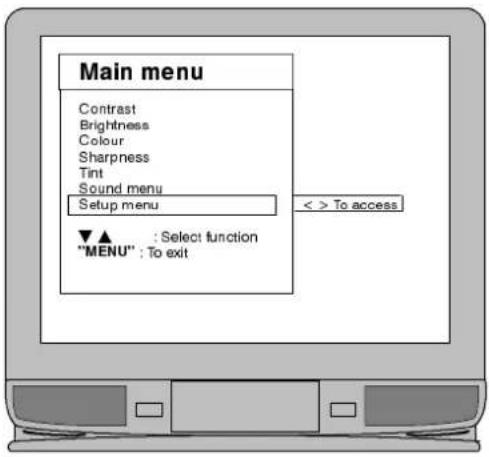
2
▼ ▲ Để di chuyển đến menu Dò kênh
◀ ▶ Để truy cập menu Dò kênh
▼ ▲ Để di chuyển đến menu Cài đặt tự động
◀ ▶ Để bắt đầu cài đặt tự động
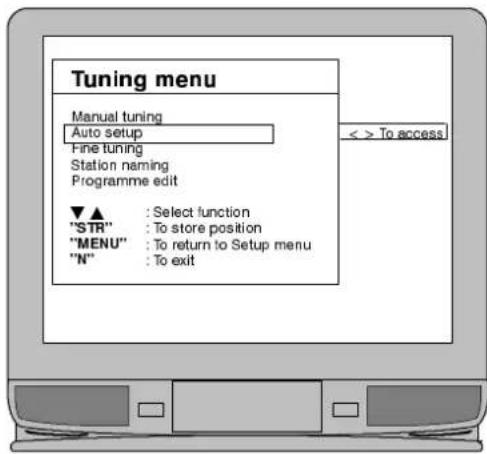
3
Quá trình cài đặt tự động sẽ bắt đầu, các kênh sẽ được tìm, sắp xếp và lưu lại để sử dụng.
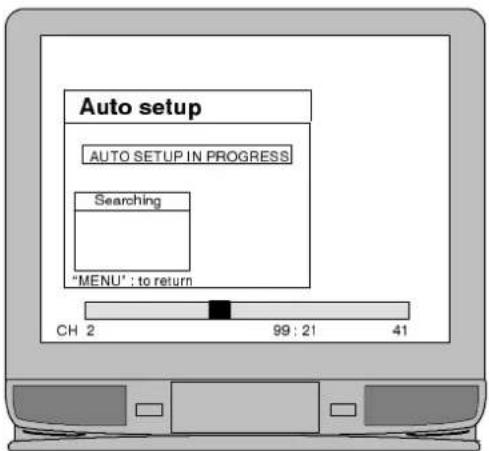
4
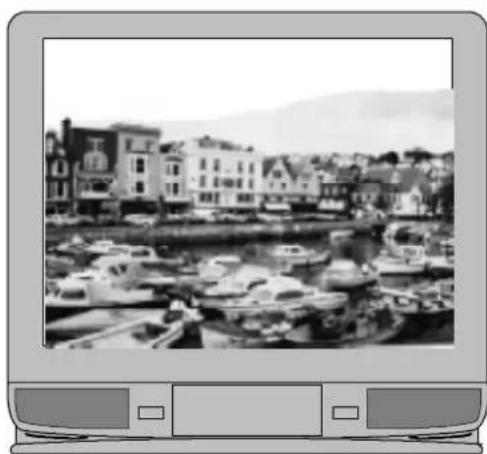
MENU

Để dừng Tự động thiết lập bất cứ lúc nào
Ghi chú:
Mỗi kênh có thể được đặt tên riêng để bạn có thể nhớ các kênh theo tên cũng như số chương trình. Ví dụ: bạn có thể đổi tên 'BBC-1' thành 'ONE' nếu muốn.
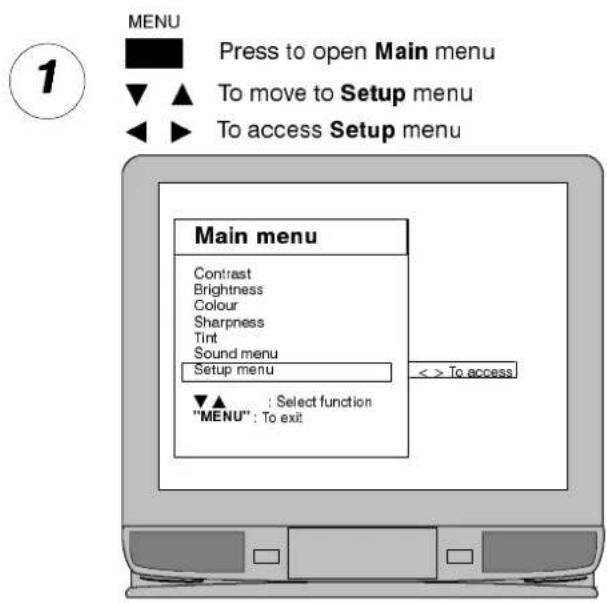
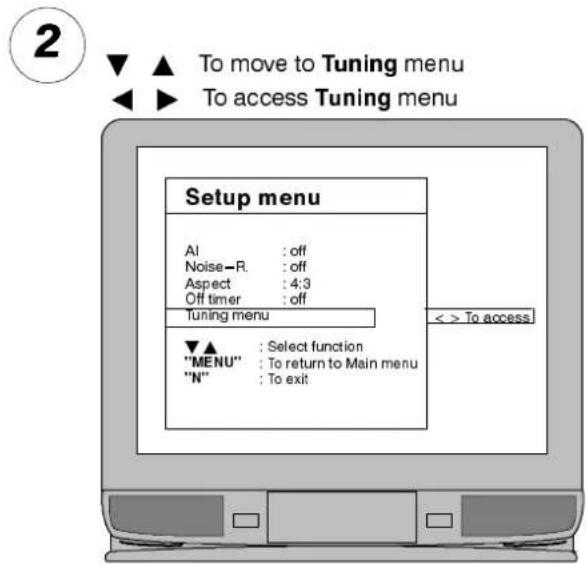
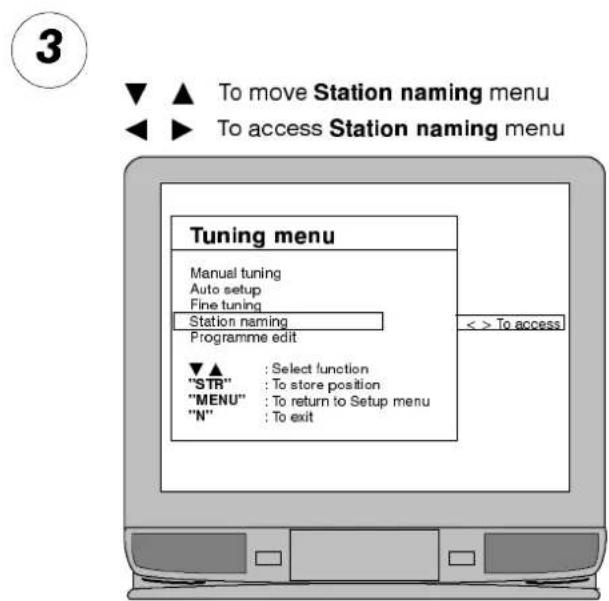
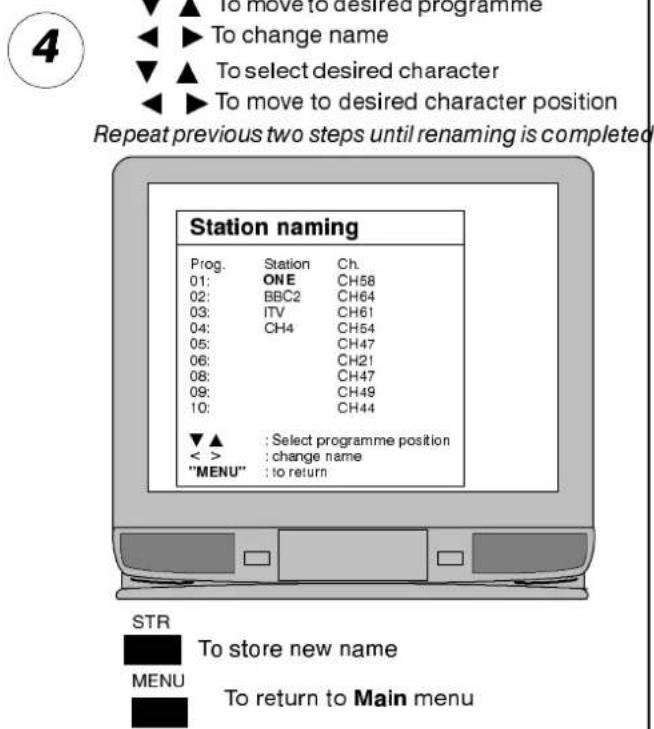
Ghi chú:
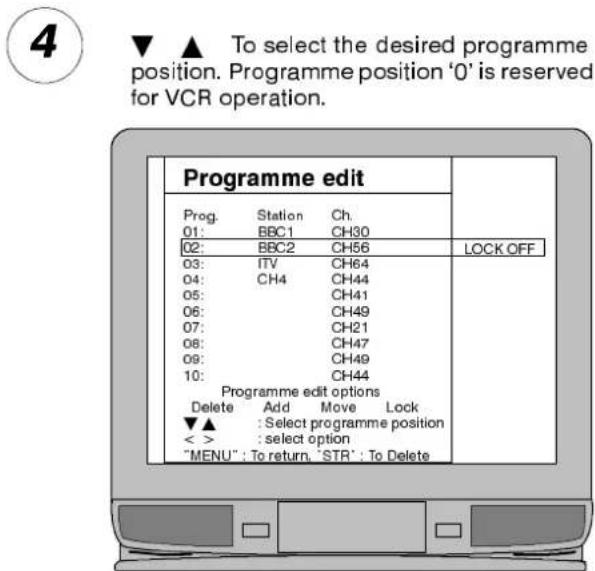
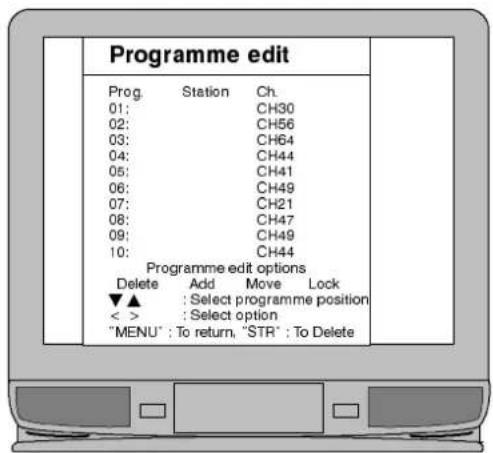
Các vị trí chương trình đã đặt tên có thể được di chuyển đến nơi khác trong thứ tự chương trình hoặc xóa khỏi thứ tự. Các chương trình mới có thể được thêm vào thứ tự. Các vị trí chương trình cũng có thể bị khóa để ngăn truy cập.
Truy cập vào vị trí chương trình '0'–VCR bị chặn trong menu này.
Tiếp tục đến các tùy chọn 5,6,7 hoặc 8
Ghi chú:
Tùy chọn 5 cho phép xóa tên đài và kênh
Tùy chọn 6 cho phép thêm chương trình và kênh mới
Tùy chọn 7 cho phép di chuyển vị trí chương trình
Tùy chọn 8 cho phép khóa vị trí chương trình

Để chọn Xóa
Nhấn hai lần để xóa kênh và đài đã chọn.

Để trở về chế độ xem TV bình thường.

Chọn Di chuyển.
Để di chuyển.
Chọn vị trí chương trình mới cho kênh hiện tại.
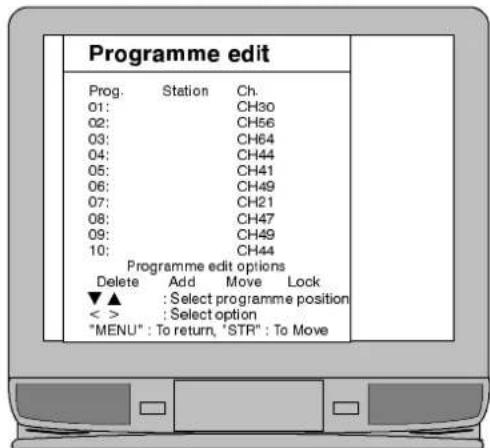
Để kết thúc thao tác di chuyển.
Để trở về chế độ xem TV bình thường.


Chọn Thêm.
Nhấn hai lần để chèn một kênh trống vào vị trí chương trình hiện tại.
Sau đó, kênh có thể được dò chỉnh như mô tả trong menu Dò kênh.
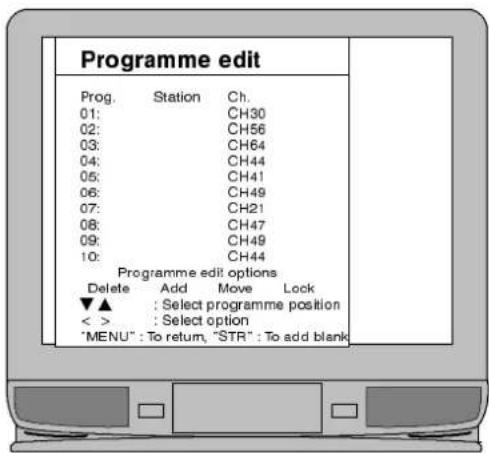

Để trở về chế độ xem TV bình thường.

Chọn Khóa.
Để khóa hoặc mở khóa vị trí chương trình hiện tại.
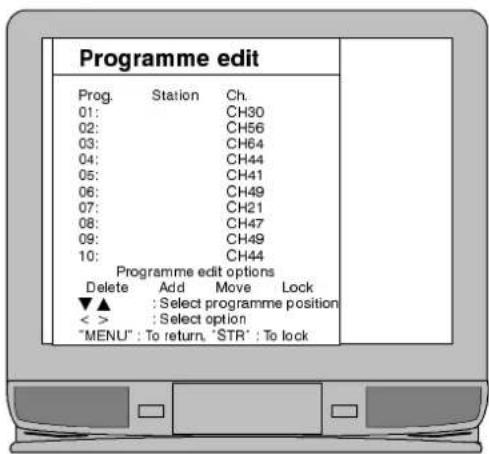

Để trở về chế độ xem TV bình thường.
Ghi chú:
Một số thiết bị nghe nhìn sẽ tự động chuyển AV1 và AV2 sang chế độ AV – màn hình sẽ hiển thị EC1 hoặc EC2.
AV2S phù hợp với đầu ghi băng video S-Video hoặc máy quay phim.
NTSC là hệ màu phát sóng của Hoa Kỳ (cũng được sử dụng ở một số quốc gia khác). Nếu bạn sử dụng chức năng AV để phát lại bản ghi NTSC từ đầu VCR, TV sẽ tự động nhận diện tín hiệu.
Các ví dụ về kết nối AV được trình bày ở trang 24 và 25.
1
Nhấn 'TV / AV' để chuyển sang chế độ Audio/Video
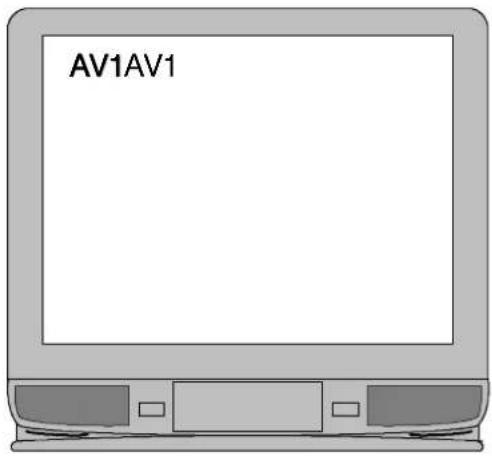
2
▼ ▲ Để chọn nguồn AV mong muốn AV1, AV2 hoặc AV3. ◀ ▶ Nếu bạn muốn chọn AV2S
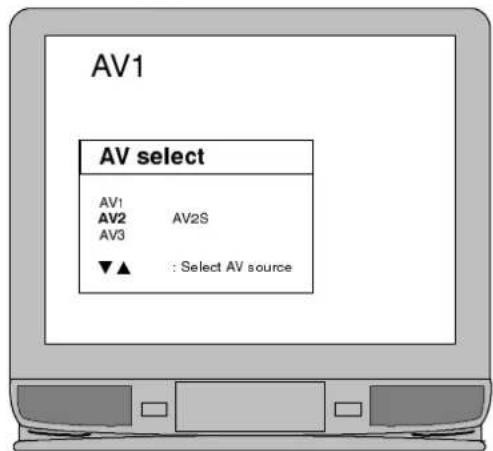
Menu sẽ tự động biến mất sau vài giây. Nhấn 'TV / AV' nếu bạn muốn quay lại chế độ TV
3
Bạn có thể muốn điều chỉnh trong menu Âm thanh và Cài đặt.
MENU

Nhấn để mở menu chính

Để di chuyển đến menu Cài đặt hoặc Âm thanh
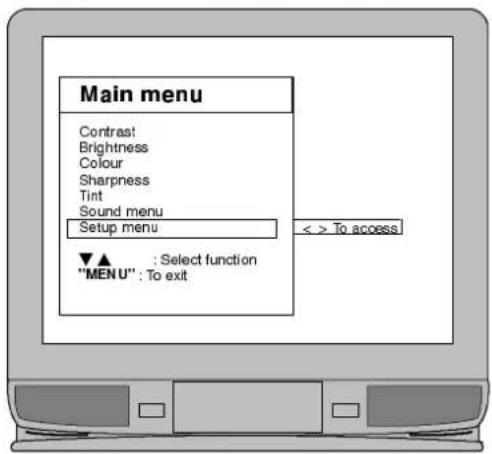
4
Bằng cách truy cập menu Âm thanh và điều chỉnh mục Bù âm lượng, bạn có thể đặt mức âm lượng khác cho các đầu vào AV.
Các tính năng Teletext có thể khác nhau tùy thuộc vào các công ty phát sóng và chỉ khả dụng nếu kênh được chọn đang truyền Teletext. TV này có khả năng nhận các bản phát sóng Teletext TOP của Đức; TV sẽ tự động chuyển sang chúng nếu đang nhận được bản phát sóng tiếng Đức, ví dụ như từ các kênh vệ tinh.
Nhấn phím 'MENU' trong khi đang ở chế độ Teletext sẽ cho phép điều chỉnh cài đặt Độ tương phản.
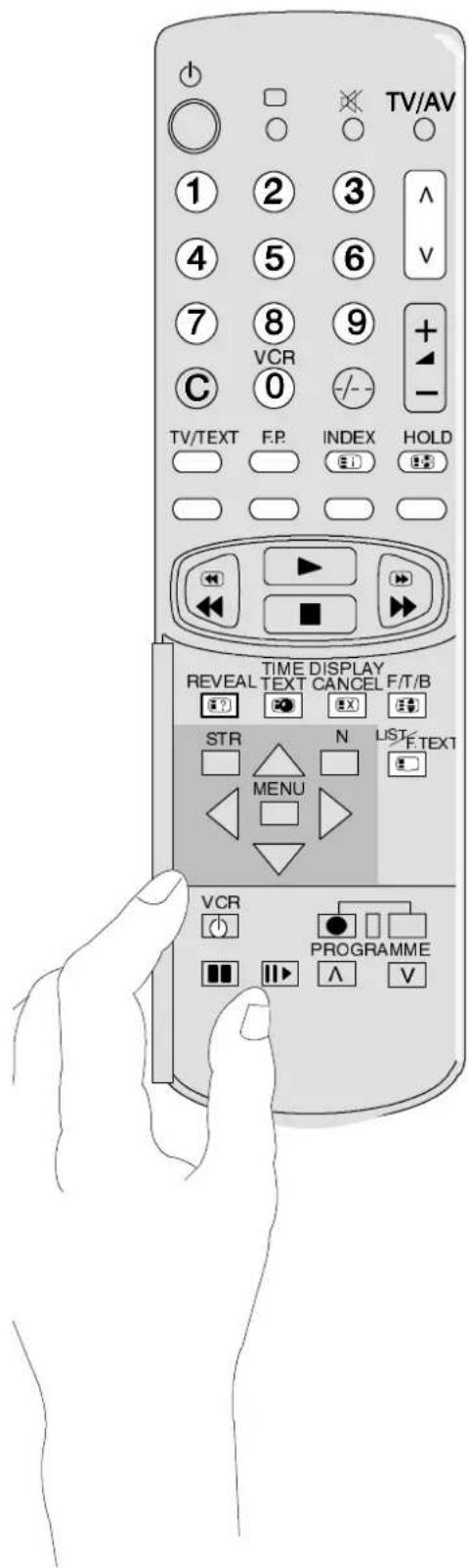
| TV/TEXTPress the TV/TEXT key.The screen will display the Teletext page.Press again when you wish to return to TV. mode. | |
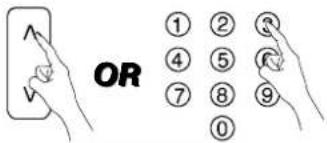
| Page SelectionThe Teletext pages can be selected either by using the Up / Down keys or by entering the page number using the 0-9 keys | |
| List / FASTEXTSee following pages | |
| IndexReturns to main index page if in FASTEXT mode. | |
| F/T/BExpands page for easier reading. | |
| RevealReveals hidden words and clues for quiz pages. | |
| Display CancelSee following pages | |
| F.P.Favourite PageStores a favourite page in memory for instant recall. | |
| HoldPress to hold the current page | |
| Time TextSee following pages | |
| Red / Green / Yellow / Blue KeysSee following pages |
 |  |  | TV/Teletextmode |
| TV | Teletext | ||
 |  |  | Page Selection |
 | 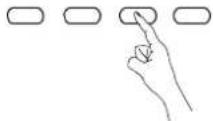 | 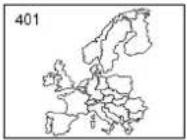 | FASTEXT and LLSTTIn FASTEXT mode the four differently coloured buttons Red / Green / Yellow / Blue are situated at the bottom of the display showing different subjects. |
| FASTEXT | |||
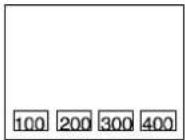 | 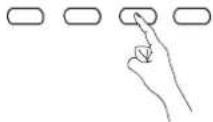 | In LIST mode the four differently coloured buttons Red / Green / Yellow / Blue are situated at the bottom of the display showing different page numbers. Each of these page numbers can be altered and stored. | |
| LIST | |||
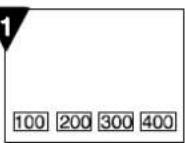 | 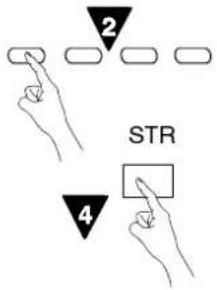 | 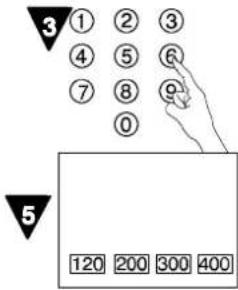 | ListStoneIn LIST mode the four page numbers can be altered (for channel positions 1 - 25 only).To do this, press one of the coloured keys and enter the new page number.Press and hold STR, the page numbers will change colour. |
 | 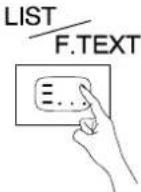 | 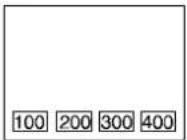 | List/FTextPress to change from FASTEXT mode to LIST mode and vice versa. |
| FASTEXT | LIST | ||
 |  |  | IndexWhen in FASTEXT operation.Press INDEX to return to the main index page. Depending on the way information is transmitted, this may have to be pressed more than once to return to the main index page. |
| FASTEXT | |||
 | 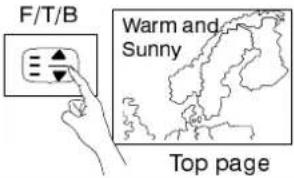 | 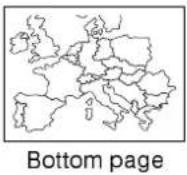 | Full/Top BottomPress to expand the TOP half of the page. Press again to expand the BOTTOM half. Press again to return to normal (FULL) size. |
| Full page | |||
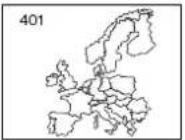 | HOLD | 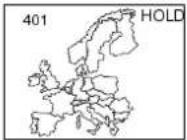 | HoldTo hold the Teletext page when viewing multipage information.Press again to return to automatic page update. |
FASTEXT và LLSST
Danh sách đá
Danh sách/FReext
Chỉ mục
Toàn màn hình//ToppB@bottom
Giữ
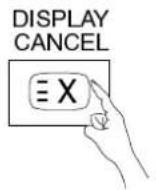

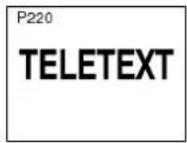


Hiển thị/Hủy
Tin nhanh
Khi một trang tin nhanh đã được chọn, nhấn DISPLAY CANCEL để xem hình TV; khi có bản cập nhật, nó sẽ được hiển thị trên màn hình.
Nhấn DISPLAY CANCEL để xóa tin tức đã cập nhật.
Nhấn TV / TEXT để trở về TV bình thường.
Nhấn DISPLAY CANCEL để xem hình TV trong khi đang tìm kiếm một trang Teletext.
Khi tìm thấy, màn hình sẽ hiển thị số trang ở góc trên bên trái.
Nhấn DISPLAY CANCEL để xem trang.
Nhấn TV / TEXT để trở lại TV bình thường.
Cập nhật
Nhấn DISPLAY CANCEL để xem thông tin cập nhật trên một số trang.
Khi có bản cập nhật được nhận, số trang sẽ được hiển thị ở góc trên bên trái màn hình.
Nhấn DISPLAY CANCEL để xem trang.
Nhấn TV / TEXT để trở lại TV bình thường.

Trang yêu thích (FH)
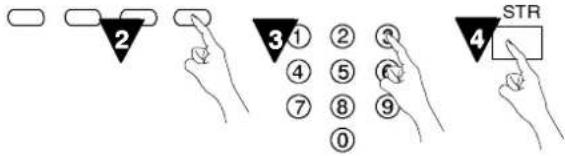
Lưu một trang yêu thích vào bộ nhớ để gọi lại ngay lập tức. Để lưu một trang như vậy, TV phải ở chế độ LIST và vị trí kênh phải từ 1 – 25. Nhấn phím BLUE, chọn số trang, sau đó nhấn STR. Số trang bây giờ đã được lưu.
Nhấn F.P. để gọi lại trang này.
Lưu ý: Tùy thuộc vào chuỗi truyền khi nhấn phím F.P., nội dung của trang yêu thích có thể mất một chút thời gian để hiển thị. Chỉ có số trang được lưu, không phải nội dung của nó.
DISPLAY
CANCEL
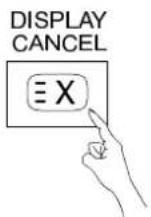
Truy cập trang mã phụ
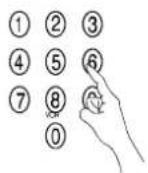
Khi thông tin teletext vượt quá một trang, có thể mất một thời gian để việc tự động thay đổi các trang phụ đạt đến trang phụ bạn cần. Bạn có thể nhập trang phụ cần thiết và tiếp tục xem chương trình bình thường cho đến khi tìm thấy trang phụ chính xác. Chọn số trang cần thiết bằng các phím 0 - 9.
Nhấn phím TIME TEXT, **** sẽ được hiển thị (góc trên bên phải màn hình).
Nhập số trang phụ mong muốn trước khi **** biến mất.
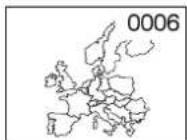
Để chọn trang 6, nhập 0, 0, 0 và 6.
Nếu ở chế độ LIST, chữ 'T' sẽ xuất hiện trong ô hiện tại ở phía dưới.
Nhấn DISPLAY CANCEL để xem chương trình TV bình thường.
Khi trang có sẵn, nhấn DISPLAY CANCEL để xem trang.
Để xóa trang, thực hiện một trong các thao tác sau:
- Chọn số trang mới.
- Nhấn TV/TEXT để trở về chế độ TV bình thường.
TV mới của bạn được cung cấp với vị trí chương trình '0' được dò để nhận kênh 36 của đầu VCR. Thông thường, đầu VCR cũng được cung cấp đã được dò sẵn để phát tín hiệu trên kênh 36 và trong những trường hợp này, đầu VCR của bạn sẽ hoạt động ngay qua TV mà không cần điều chỉnh thêm.
Tuy nhiên, nếu vì lý do nào đó đầu VCR của bạn được dò sang kênh khác, bạn sẽ không nhận được hình ảnh hoặc âm thanh từ đầu VCR ở vị trí chương trình '0' của TV. Bạn cần phải đặt lại tần số RF của đầu VCR sang kênh 36, hoặc điều chỉnh dò kênh của vị trí chương trình '0' trên TV cho đến khi nhận được kênh đầu ra RF của đầu VCR.
Để kết nối đầu VCR loại VHS, sử dụng ổ cắm AV1. Để kết nối đầu VCR loại S-Video, sử dụng ổ cắm AV2.
Lời khuyên này được đưa ra để sử dụng cùng với sách hướng dẫn của các thiết bị phụ trợ của bạn.
Lắp băng đã ghi và chọn phát lại
Đặt chương trình ở vị trí '0'
Điều chỉnh dò kênh
Hoàn tất thao tác
Lắp đặt VCR và đầu thu vệ tinh
Truy cập menu Dò kênh thủ công như chi tiết ở trang 13
▼ ▲ Để chọn vị trí chương trình '0' ◀ ▶ Để bắt đầu tìm kiếm tín hiệu phát lại từ VCR Vị trí chương trình và kênh hiện tại được hiển thị ở góc trên bên trái màn hình
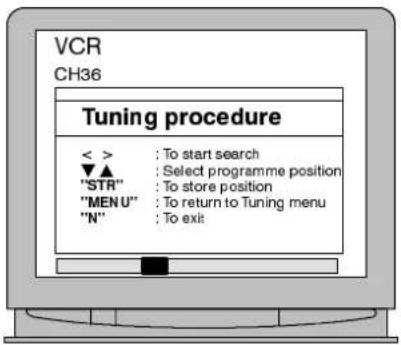
STR
Để lưu vị trí

Để trở về màn hình xem

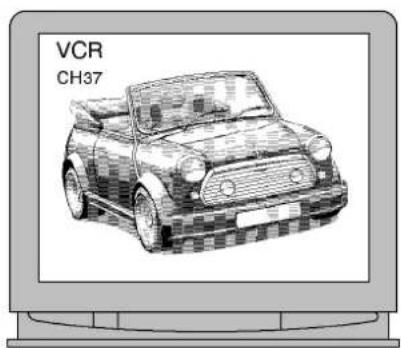
Nếu bạn định sử dụng đầu thu vệ tinh và VCR, điều quan trọng là cả hai thiết bị phải được cài đặt phát tín hiệu trên các kênh khác nhau để tránh xung đột khi dò kênh. Ví dụ: nếu VCR của bạn được cài đặt phát trên kênh 36, đầu thu vệ tinh có thể được đặt phát trên kênh 38. Tham khảo sách hướng dẫn của từng thiết bị để biết thông tin chính xác.
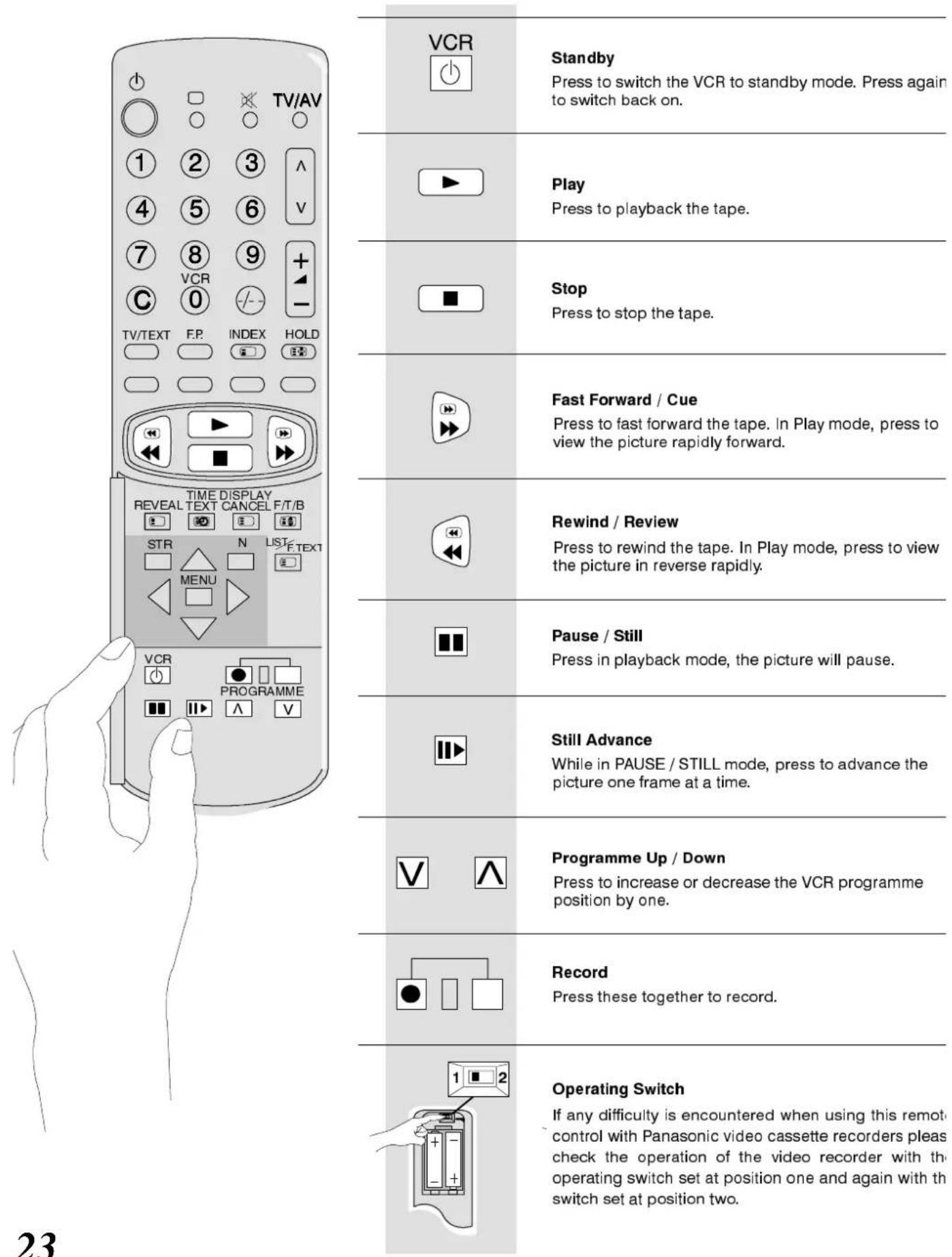
Điều khiển từ xa có thể vận hành một số chức năng của một số đầu VCR Panasonic được chọn. Vui lòng tham khảo ý kiến đại lý của bạn để biết chi tiết. Một số đầu VCR có các chức năng khác nhau, vì vậy để đảm bảo tương thích, hãy tham khảo sách hướng dẫn của đầu VCR.
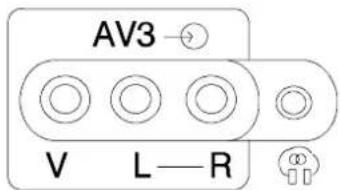
■Ổ cắm AV (Âm thanh/Video) và Tai nghe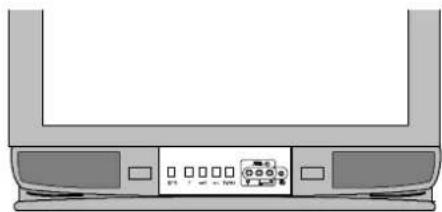
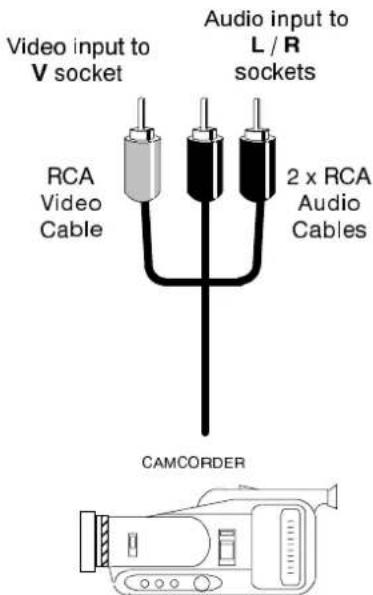

Lưu ý: Thiết bị phụ trợ và cáp hiển thị không được cung cấp kèm TV này.
■Cổng SCART
Đầu nối SCART 21 chân AV1
| Socket Earth | 21- | -20 | CVBS in (video) | |
| CVBS out (video) | 19- | -18 | RGB status earth | |
| CVBS earth | 17- | -16 | Status RGB | |
| Red in | 15- | -14 | Earth | |
| Red earth | 13- | -12 | -- | |
| Green in | 11- | -10 | -- | |
| Green earth | 9- | -8 | Status CVBS | |
| Blue in | 7- | -6 | Audio in (L) | |
| Blue earth | 5- | -4 | Audio earth | |
| Audio out (L) | 3- | -2 | Audio in (R) | |
| Audio out (R) | 1- |
Các tín hiệu phù hợp cho AV1 bao gồm RGB (Đỏ/Xanh lá/Xanh dương).
Đầu nối SCART 21 chân AV2
| Socket Earth | 21- | □ | □ | - 20 | CVBS in (video) |
| CVBS out (video) | 19- | □ | □ | - 18 | Earth |
| CVBS earth | 17- | □ | □ | - 16 | -- |
| S.C. - In | 15- | □ | □ | - 14 | Earth |
| Earth | 13- | □ | □ | - 12 | -- |
| -- | 11- | □ | □ | - 10 | -- |
| Earth | 9- | □ | □ | - 8 | Status CVBS |
| -- | 7- | □ | □ | - 6 | Audio in (L) |
| Earth | 5- | □ | □ | - 4 | Audio earth |
| Audio out (L) | 3- | □ | □ | - 2 | Audio in (R) |
| Audio out (R) | 1- | □ | □ |
Chân 15 và 20 phụ thuộc vào việc chuyển mạch S-VIDEO / VIDEO của AV2.
■ Phía sau AV1 / AV2 (S) Đầu nối SCART 21 chân và Đầu ra âm thanh RCA![graph TD A["Audio OUT"] --> B["Output from L-R AUDIO OUT Sockets"] A --> C["Input/Output from AV-2 SCART Socket"] A --> D["Input/Output from AV-1 SCART Socket"] subgraph Audio Out E["2 x RCA Audio Cables"] --> F["HI-FI SYSTEM"] end subgraph AV-2 SCART G["SCART Cable"] --> H["SECOND VCR OR S-VIDEO VC…](/content/2026/06/1235675/images/de5d927a971e3fe127ac6e448991a8c63d88031e1e4165184c207a6802fe4780.jpg)
LƯU Ý: Thiết bị phụ trợ và cáp hiển thị không được cung cấp kèm TV này. Không kết nối máy tính có đầu ra TTL (5V) với TV này.
| Symptoms | Checks | ||
| Picture | Sound | ||
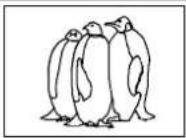
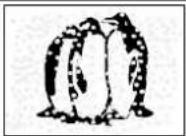 | 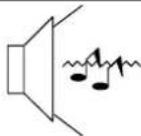 | Aerial location, direction or connection | |
| Snowy Picture | Noisy Sound | ||
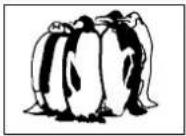 |  | Aerial location, direction or connection | |
| Multiple Images | Normal Sound | ||
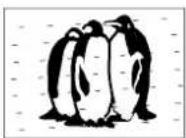 | 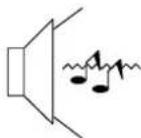 | Electrical appliancesCars / MotorcyclesFluorescent lightsSwitch on Noise-R in Setup menu to reduce picture noiseSwitch NICAM to Mono to improve sound. | |
| Interference | Noisy Sound | ||
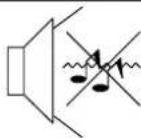
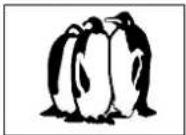 | 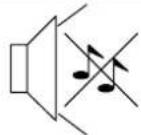 | Volume levelSound mute switched on | |
| Normal Picture | No Sound | ||
 | 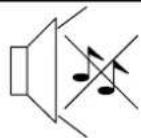 | TV set to AV modeNot plugged into A.C. outletNot switched onPicture / Sound controls set at minimum levelsCheck if in standby mode | |
| No Picture | No Sound | ||
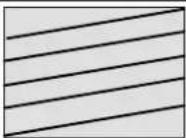
 |  | Colour controls set at minimum levels | |
| No Colour | Normal Sound | ||
 |  | Retune Channel(s) | |
| Poor or Distorted Picture | Weak or No Sound | ||
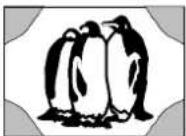 |  | Magnetic Interference from unshielded equipmentReceiver moved while switched ON, switch TV off for 30 minutes. | |
| Coloured Patches | Normal Sound | ||
■Dịch vụ
Trước khi yêu cầu dịch vụ, vui lòng tham khảo hướng dẫn khắc phục sự cố ở trang trước để xác định triệu chứng. Để được dịch vụ, vui lòng liên hệ đại lý Panasonic địa phương, cung cấp số model và số sê-ri (cả hai đều nằm ở mặt sau TV).
■Trò chơi TV/Máy tính gia đình
Việc sử dụng kéo dài trò chơi TV hoặc máy tính gia đình với bất kỳ TV nào có thể gây ra 'bóng mờ' vĩnh viễn trên màn hình. Loại hư hỏng ống hình không thể phục hồi này có thể được hạn chế bằng cách tuân thủ các điểm sau:
- Giảm độ sáng và độ tương phản xuống mức xem tối thiểu.
- Không vận hành TV liên tục trong thời gian dài khi sử dụng trò chơi TV hoặc máy tính gia đình.
- Loại hư hỏng ống hình này không phải là lỗi vận hành và do đó không được bảo hành bởi Panasonic.
■ Bộ nhớ vị trí cuối
Một số chức năng có bộ nhớ vị trí cuối, tức là cài đặt tại thời điểm tắt sẽ là cài đặt được sử dụng khi bật lại máy thu:—
| Programme | Tint (M.NTSC / NTSC only) |
| AV Position | Contrast |
| Volume | Sharpness |
| NICAM On/Off | Aspect |
| Bass | Standby |
| Treble | Artificial Intelligence (AI) |
| Colour | Brightness |
| Status | Balance |
Chế độ nhạc/lời nói
■ Tính năng hẹn giờ ngủ
Nếu TV không được tắt khi đài truyền hình ngừng phát sóng, TV sẽ tự động chuyển sang chế độ chờ sau 30 phút. Chức năng này sẽ không hoạt động khi TV ở chế độ AV.
THÔNG SỐ KỸ THUẬT
| TX-25MD1L/M | ||
| Power Source | 220 - 240V 50Hz A.C. | |
| Power Consumption | 92W | |
| Picture Tube | 59cm visible diagonal | |
| Audio Output | 15W x 2 (MPO) | |
| Dimensions | HWD | 531 mm601.4 mm439.7 mm |
| Weight (Kg) | 25 | |
| Receiving Systems / Band name | PAL I - UHF E21-69, VHF A1-S20, S21-41 (Hyperband)PAL 525/60 Playback NTSC tape from PAL Video recorders (VCR) with NTSC playback facilityM.NTSC Playback from M.NTSC Video recorders (VCR)NTSC (AV input only) Playback from NTSC Videorecorders (VCR) | |
| Aerial - rear | UHF/VHF | |
| Headphones - Front | 3,5mm | |
| AV - Rear | AV1 - 21 pin terminal - Audio / Video in / out, RGB in.AV2 - 21 pin terminal - Audio / Video in / out, S-Video in.2 x RCA Audio Monitor Out | |
| AV - Front | AV-3 2 x RCA Audio in, 1 x RCA Video in | |
- Thông số kỹ thuật có thể thay đổi mà không cần báo trước. Trọng lượng và kích thước được hiển thị là gần đúng.
Panasonic Ireland Ltd.
Đường Burton Hall,
Khu công nghiệp Sandyford,
Dublin 18.
- PANASONIC
- HƯỚNG DẪN VẬN HÀNH
- TIVI MÀU
- TX-25MD1L
- MỤC LỤC
- VÌ SỰ AN TOÀN CỦA BẠN, XIN VUI LÒNG ĐỌC KỸ VĂN BẢN SAU
- LƯU Ý
- HOẶC
- SỬ DỤNG ĐẦU VCR
- SỬ DỤNG VCR VÀ BỘ THU VỆ TINH
- MENU HIỂN THỊ TRÊN MÀN HÌNH
- GHI CHÚ
- FASTEXT VÀ LLSST
- DANH SÁCH ĐÁ
- DANH SÁCH/FREEXT
- CHỈ MỤC
- TOÀN MÀN HÌNH//TOPPB@BOTTOM
- GIỮ
- HIỂN THỊ/HỦY
- TIN NHANH
- CẬP NHẬT
- TRANG YÊU THÍCH (FH)
- TRUY CẬP TRANG MÃ PHỤ
- CỔNG SCART
- DỊCH VỤ
- TRÒ CHƠI TV/MÁY TÍNH GIA ĐÌNH
- BỘ NHỚ VỊ TRÍ CUỐI
- TÍNH NĂNG HẸN GIỜ NGỦ
Thương hiệu : PANASONIC
Mẫu : TX-25MD1L
Danh mục : Ti vi