
Viera TX-26LE7F - Televizor PANASONIC - Manual falas për përdoruesin
Gjeni manualet e pajisjes falas Viera TX-26LE7F PANASONIC në format PDF.


Pyetjet e përdoruesve rreth Viera TX-26LE7F PANASONIC
0 pyetje rreth kësaj pajisjeje. Përgjigjuni atyre që njihni ose bëni tuajin.
Bëni një pyetje të re rreth kësaj pajisjeje
Shkarko udhëzimet për tuajin Televizor në format PDF falas! Gjeni manualin tuaj Viera TX-26LE7F - PANASONIC dhe merrni pajisjen tuaj elektronike sërish në duar. Në këtë faqe janë publikuar të gjitha dokumentet e nevojshme për përdorimin e pajisjes suaj. Viera TX-26LE7F e markës PANASONIC.
MANUAL I PËRDORUESIT Viera TX-26LE7F PANASONIC
Panasonic®
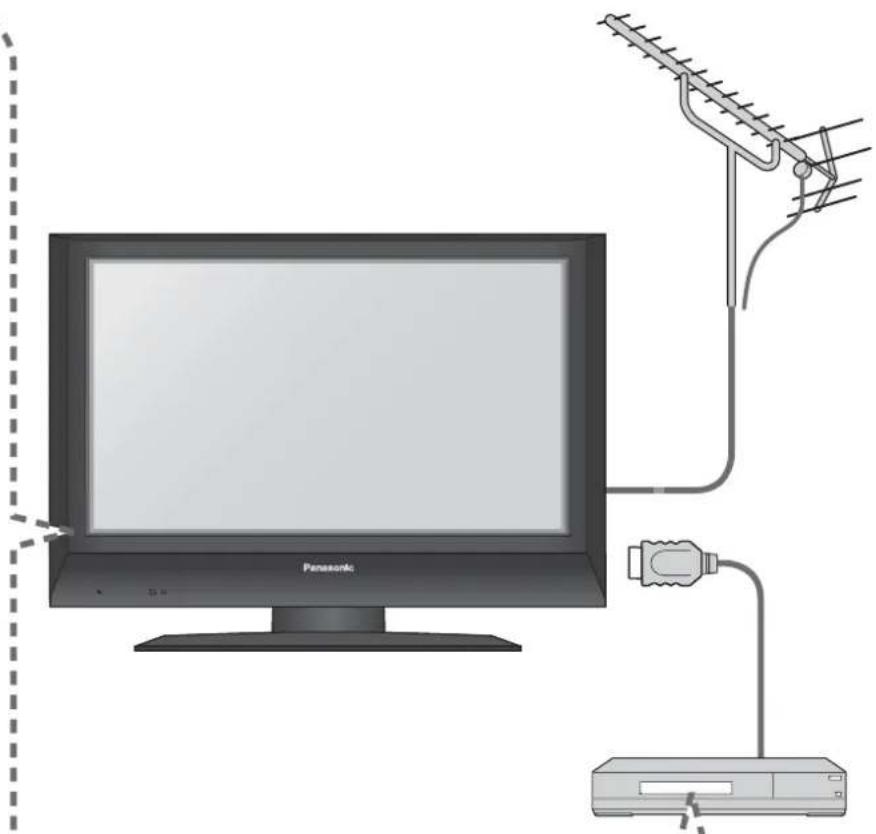
Operating Instructions
Wide LCD TV
Model No. TX-26LE7F
TX-32LE7F
VIERA

natural_image
Panasonic TV displaying a cityscape with mountains and a waterfront, no visible text or symbols on the screen.




English
Please read these instructions before operating your set and retain them for future reference. The images shown in this manual are for illustrative purposes only.

TQB0E0352U-1
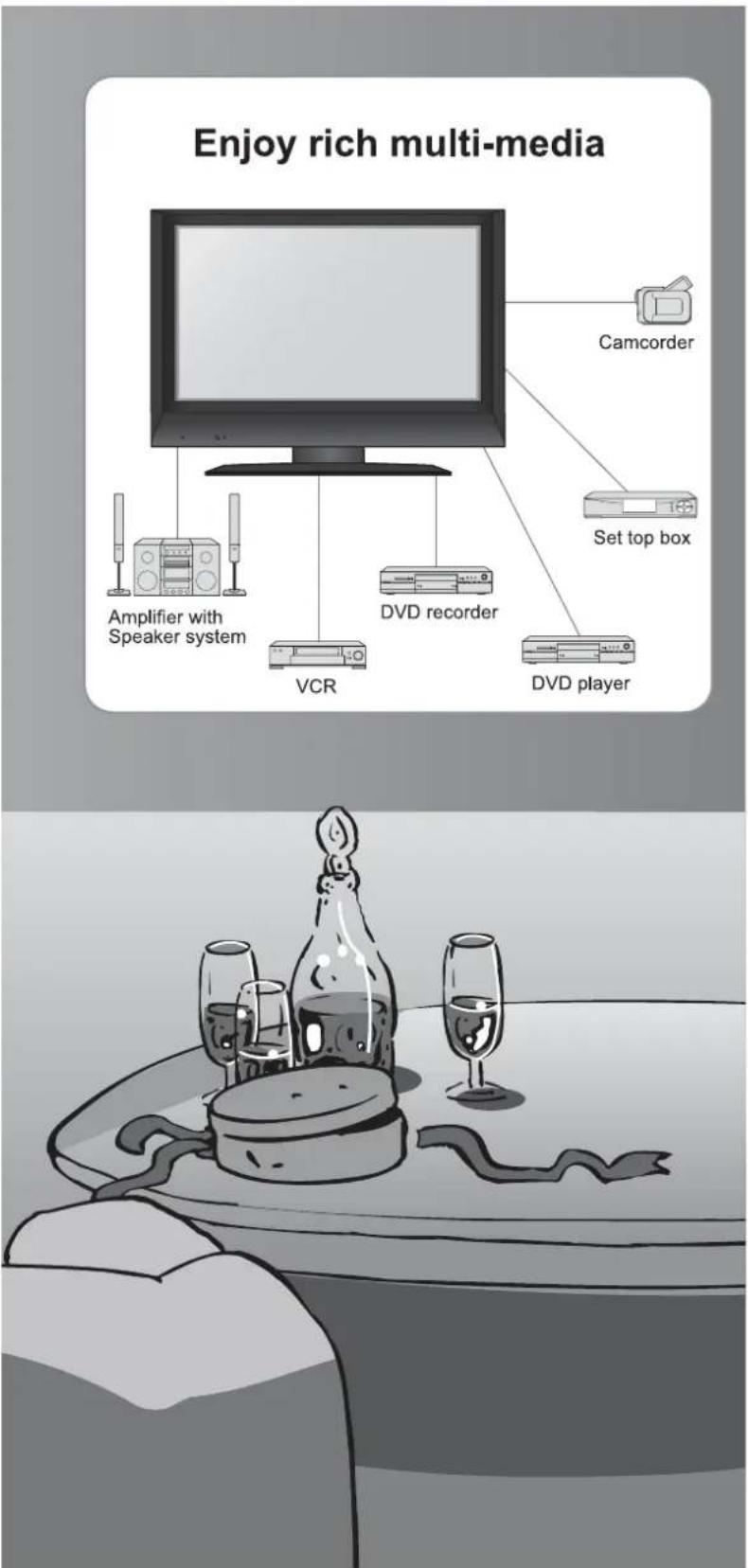
Turn your own living room into a movie theatre!
Experience an amazing level of multi-

natural_image
Illustration of a Panasonic air conditioner unit with a monitor and two air purifiers, placed on a bed near plants (no text or symbols)media excitement
Contents
Be Sure to Read
Safety Precautions 4
(Warning / Caution)
Notes 5
● Maintenance 5
Quick Start Guide
●Accessories / Options …… 6
●Identifying Controls 7
●Connection 8
●Auto Setup 9
Enjoy your TV!
Basic Features
● Watching TV 10
● Watching Videos and DVDs 11
Viewing Teletext 12
Advanced Features
● How to Use Menu Functions……14 (picture, sound quality, etc.)
● Editing and Setting Channels …… 16
External Equipment 18
(Q-Link / VIERA Link / Connections)
FAQs, etc.
● Technical Information 24
FAQs 27
Licence 29
Specifications 29
Safety Precautions
Warnings and Precautions
Handling the mains plug and lead
- Insert the mains plug fully into the socket outlet. (If the mains plug is loose, it could generate heat and cause fire.)
● Ensure that the mains plug is easily accessible. - Do not touch the mains plug with a wet hand. (This may cause electrical shock.)
-
Do not damage the mains lead. (A damaged lead may cause fire or electrical shock.)
-
Do not move the TV with the lead plugged in the socket outlet.
- Do not place a heavy object on the lead or place the lead near a high-temperature object.
- Do not twist the lead, bend it excessively, or stretch it.
- Do not pull on the lead. Hold onto the mains plug body when disconnecting lead.
- Do not use a damaged mains plug or socket outlet.

Do not remove covers NEVER modify the unit yourself
(High-voltage components may cause serious electrical shock.)
● Have the unit checked, adjusted, or repaired at your local Panasonic dealer.
Do not place foreign objects inside the unit
- Do not let any objects drop into the unit through the air vents (fire or electrical shock may result).
Do not expose to direct sunlight and other sources of heat
- Avoid exposing the TV set to direct sunlight and other sources of heat. To prevent fire never place any type of candle or naked flame on top or near the TV set.
Keep liquids away from the TV
● To prevent damage which may result in fire or shock hazard, do not expose this appliance to dripping or splashing.
- Do not place containers with water (flower vase, cups, cosmetics, etc.) above the set. (including on shelves above, etc.)
■Do not place the TV on an unstable surface
■Use only the dedicated stands / mounting equipment
● Using an unauthorized stand or other fixtures may make the unit unstable, risking injury. Be sure to ask your local Panasonic dealer to perform setup.
● Use optional stands / mounts (p. 6).
Notes
■When cleaning the TV unit, remove the mains plug
(Cleaning an energized unit may cause electrical shock.)
■Remove the mains plug from the wall socket when TV is not in use for a prolonged period of time. Remove the mains plug from the wall socket before connecting or disconnecting any leads.
● This TV will still consume some power even in the Standby mode, as long as the mains plug is still connected to a live socket outlet. On /Off switch see page 7.
■Allow sufficient space around the unit for radiated heat
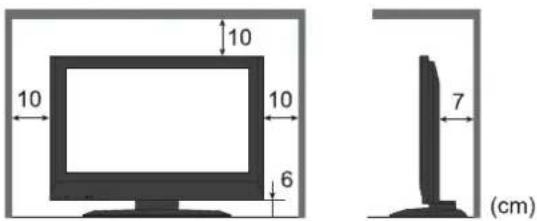
■Do not block the rear air vents
- Blocked ventilation by curtains, etc. may cause overheating, fire or electrical shock.

■ Keep the TV away from this equipment
Electronic equipment
In particular, do not place video equipment too close the TV (electromagnetic interference may distort images / sound).
● Equipment with an infrared sensor
Remote Controller of this TV also emits infrared rays (this may affect operation of other equipment).
■ Do not expose your ears to excessive sound pressure from headphones. Irreversible damage can be caused.
Maintenance
First, remove the mains plug from the socket outlet.
Display panel
Daily care: Gently wipe the surface clean of dirt by using a soft cloth.
Detail: Wipe the surface clean using a soft cloth dampened with clean water or water containing a small amount of neutral detergent. Then, using a soft dry cloth, evenly wipe the surface clean until it is dry.
Caution
● The surface of the display panel has been specially treated and may be easily damaged. Do not tap or scratch the surface with your fingernail or other hard object.
- Use care not to subject the surface to bug repellent, solvent, thinner, or other volatile substances (this may degrade surface quality).
Cabinet
Daily care: Wipe the surface clean using a soft dry cloth.
Detail: Dampen a soft cloth with clean water or water containing a small amount of neutral detergent. Then, wring the cloth and wipe the surface clean with it. Finally, wipe the surface clean with a dry cloth.
Caution
- Use care not to subject the TV unit's surfaces to detergent.
(A liquid inside the TV unit could lead to product failure.) - Use care not to subject surfaces to bug repellent, solvent, thinner, or other volatile substances (this may deteriorate the surface by peeling the paint).
- Do not allow the cabinet to make contact with a rubber or PVC substance for a long time.
Mains plug
Wipe the mains plug with a dry cloth at regular intervals. (Moisture and dust may lead to fire or electrical shock.)
Accessories / Options
Standard accessories
□ Remote Control
Transmitter
EUR7651030A

Check that you have the accessories and items shown
□Batteries for the Remote
Control Transmitter (2)
R6 (UM3)
□ Operating Instructions
□Pan European Guarantee Card

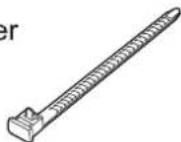
□Clamper
Installing remote's batteries
1

2
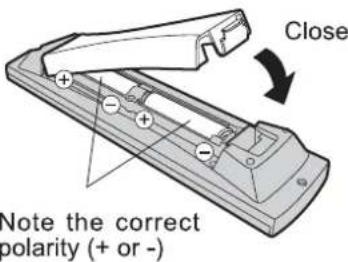
Caution
- Incorrect installation may cause battery leakage and corrosion, resulting in damage to the remote control unit.
- Do not mix old and new batteries.
- Do not mix different battery types (such as alkaline and manganese batteries).
- Do not use rechargeable (Ni-Cd) batteries.
- Do not burn or breakup batteries (see page 32).
Attaching the clamper

Bundle the cables
To tighten:
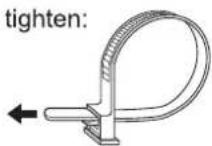
To loosen:

① Keep the
knob pressed
- Do not bundle the RF cable and mains lead together (could cause distorted image).
● Fix cables with clampers as necessary. - When using the optional accessory, follow the option's assembly manual to fix cables.
Optional accessories
Wall-hanging bracket
• TY-WK32LX20W
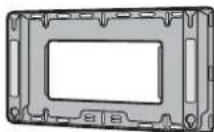
Caution
- In order to maintain the unit's performance and safety, be absolutely sure to ask your dealer or a licenced contractor to secure the wall-hanging brackets.
● Handle the TV carefully during installation since subjecting it to impact or other forces may cause product damage.
Take care when fixing wall brackets to the wall. Always ensure that there are no electrical cables or pipes in the wall before hanging bracket.
Identifying Controls


Connection
External equipments and cables shown in this manual are not supplied with this TV.
Please ensure that the unit is disconnected from the mains before attaching or disconnecting any leads.
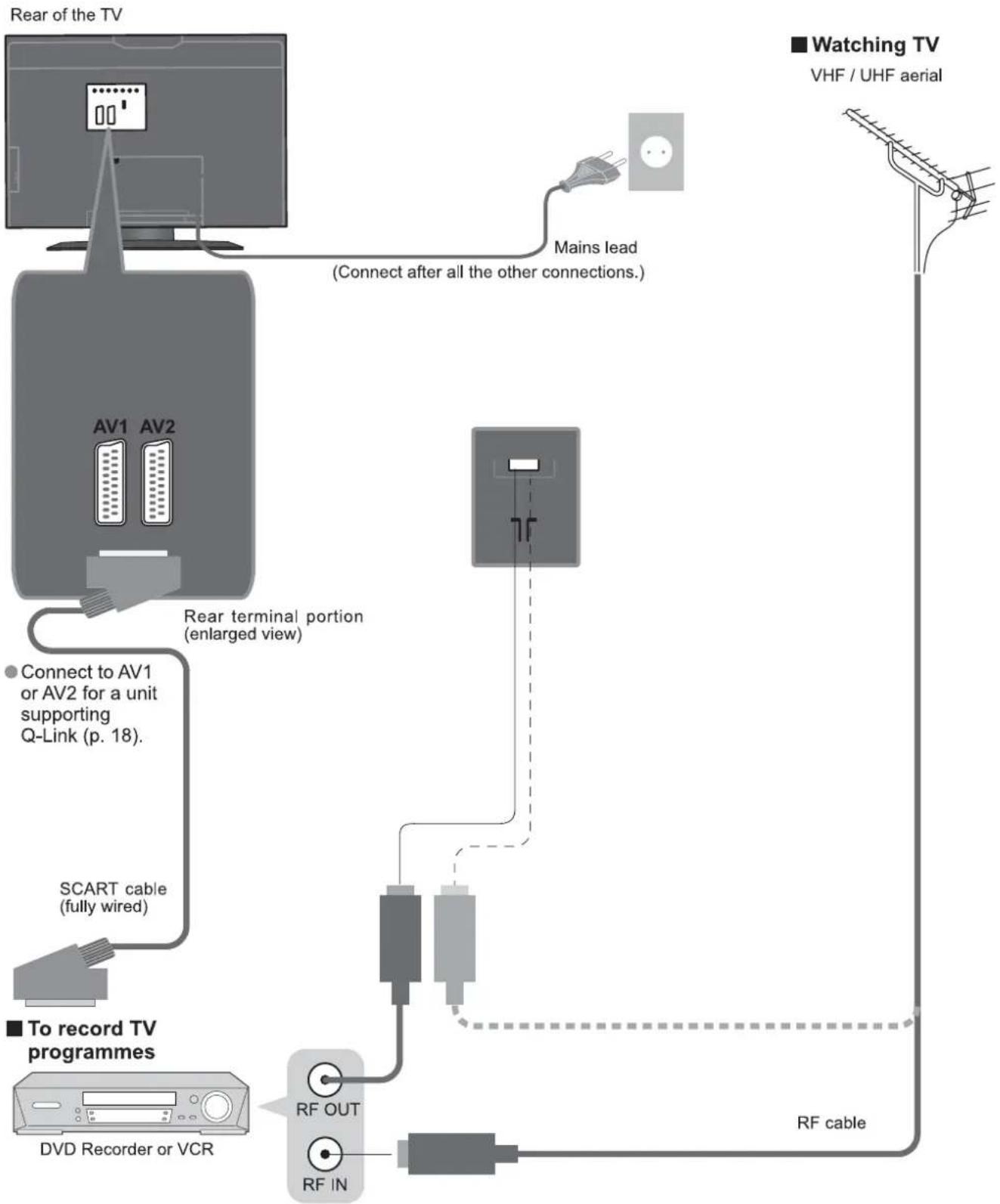
flowchart
graph TD
    A["Rear of the TV"] --> B["Mains lead"]
    B --> C["Watching TV VHF / UHF aerial"]
    D["AV1 AV2"] --> E["Connect to AV1 or AV2 for a unit supporting Q-Link (p. 18)."]
    F["SCART cable (fully wired)"] --> G["To record TV programmes"]
    H["RF OUT"] --> I["RF cable"]
    J["RF IN"] --> K["RF cable"]
    L["Rear terminal portion (enlarged view)"] --> M["SCART cable (fully wired)"]
    N["Video Streaming Device"] --> O["Main Lead"]
Auto Setup
Search and store TV channels automatically.
These steps are not necessary if the setup has been completed your local dealer.

- You can now use the remote control to turn On the unit or turn the unit to standby mode. (Power lamp: On)
- For Belgium, Switzerland and E.Eu, select the desired language → - To set manually → green (p. 16)
● Auto Setup will start to search for TV channels and store them.
- If Q-Link (p. 16) equipment is connected, channel information is automatically downloaded to the equipment.
● To edit channels → "Programme edit" (p. 16)
Watching TV
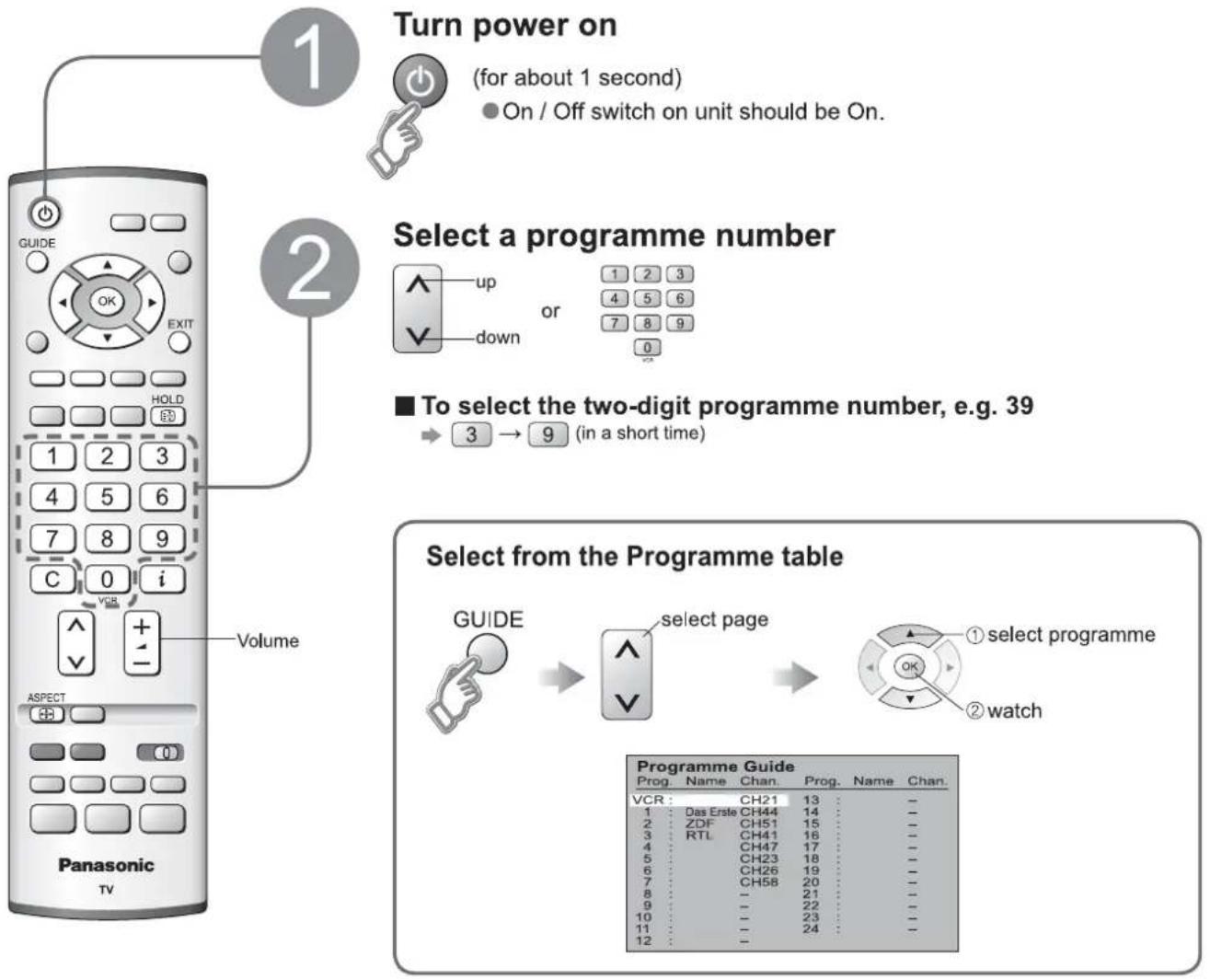
flowchart
graph TD
    A["1: Turn power on"] --> B["2: Select a programme number"]
    B --> C["3: To select the two-digit programme number, e.g. 39"]
    C --> D["4: Select from the Programme table"]
    D --> E["5: Select programme"]
    E --> F["6: Select page"]
    F --> G["7: Select programme"]
    G --> H["8: Select programme"]
    H --> I["9: Select programme"]
    I --> J["10: Select programme"]
    J --> K["11: Select programme"]
    K --> L["12: Select programme"]
■ Other Useful Functions (Operate after ②)
| Hold | Freeze / unfreeze picture HOLD | |
| Display status information | Display / hide status information i ● Displayed information: Programme number / Programme name / Channel number / MPX mode (p. 14) / Sound system (p. 14) / Aspect mode | |
| Change aspect ratio | Change the aspect ratio (p. 24) ASPECT 14:9 Each press changes the mode. (Auto aspect / 16:9 / 14:9 / Just / 4:3 / 4:3 Full / Zoom1 / Zoom2 / Zoom3 While the bar is displayed → red green | |
Watching Videos and DVDs
It is possible to connect a variety of external equipment to the TV unit. Once the equipment is connected, use the following procedure to view the input. To connect the equipment (p. 24)
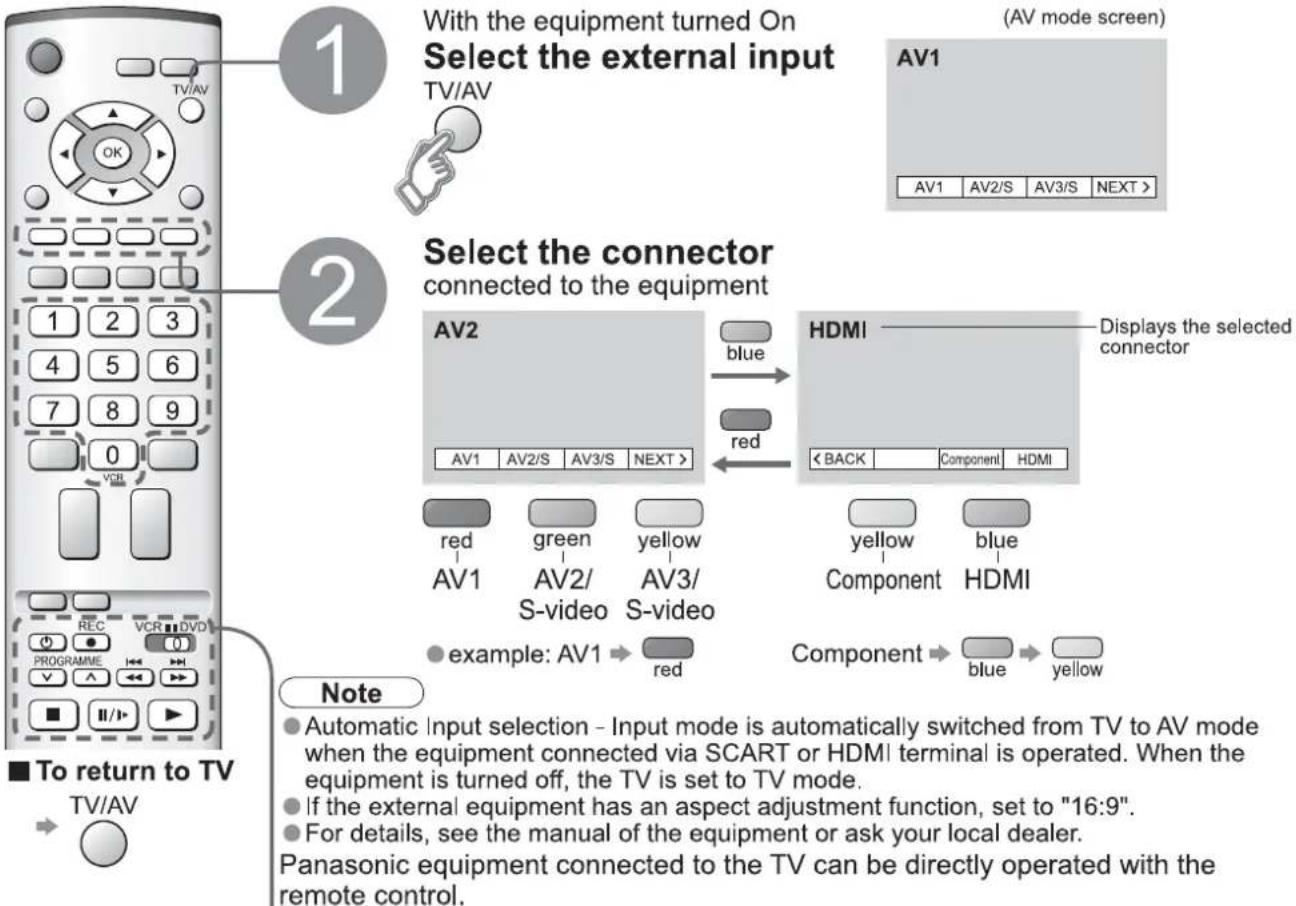
flowchart
graph TD
    A["1"] --> B["With the equipment turned On"]
    B --> C["Select the external input"]
    C --> D["2"]
    D --> E["Select the connector connected to the equipment"]
    E --> F["AV2"]
    F --> G["AV1 AV2/S AV3/S NEXT >"]
    G --> H["HDMI"]
    H --> I["Displays the selected connector"]
    I --> J["AV1 AV2/S AV3/S NEXT >"]
    J --> K["AV1 AV2/S AV3/S NEXT >"]
    L["Note"] --> M["Automatic Input selection - Input mode is automatically switched from TV to AV mode when the equipment connected via SCART or HDMI terminal is operated. When the equipment is turned off, the TV is set to TV mode."]
    M --> N["If the external equipment has an aspect adjustment function, set to "16:9"."]
    N --> O["For details, see the manual of the equipment or ask your local dealer."]
    O --> P["Panasonic equipment connected to the TV can be directly operated with the remote control."]
| VCR DVD | VCR / DVD switch*Select VCR to operate Panasonic VCR or DVD equipmentSelect DVD to operate Panasonic DVD equipment or Player theatre | Fast-forward / Skip / SearchVCR: Fast-forward, cue (during playback)DVD: Skip to the next track or titlePress and hold to search forward | |
| StandbySet to Standby mode / Turn on | |||
| PlayPlayback VCR / DVD | PausePause / RestartDVD: Press and hold for slow-motion play | ||
| StopStop the operations | |||
| Rewind / Skip / SearchVCR: Rewind, review (during playback)DVD: Skip to the previous track or titlePress and hold to search backward | Programme Up / DownSelect programme | ||
| RecordStart recording |
*The remote control will be available for various Panasonic equipment with the following settings.

VCR
| Equipment | Code |
| VCR | 10 (default) |
| DVD | 11 |
DVD
| Equipment | Code |
| DVD | 70 (default) |
| Player theatre | 71 |
Note
● After setting, execute operation confirmation.
● The respective VCR / DVD code is turned to the default when battery has been exchanged. Set it again.
● Depending on the model, operation may not be possible.
Viewing Teletext
You can enjoy teletext broadcasting, including news, weather forecasts and subtitles, if this service is provided by the broadcasters.
What is FLOF mode?
In FLOF mode, four differently coloured subjects are situated at the bottom of the display. To access more information about one of these subjects, press the appropriately coloured button. This facility enables fast access to information on the subjects shown.
What is TOP mode?
TOP Teletext makes the task of selecting the desired Teletext pages easier and shorter. In fact page access time is almost instantaneous, just press the button and the page appears.
What is List mode?
In List mode, four differently coloured page numbers are situated at the bottom of the screen. Each of these numbers can be altered and stored in the TV's memory. ("Store Frequently viewed pages", p. 13)
■ To change mode → "Teletext" in Setup menu (p. 14)
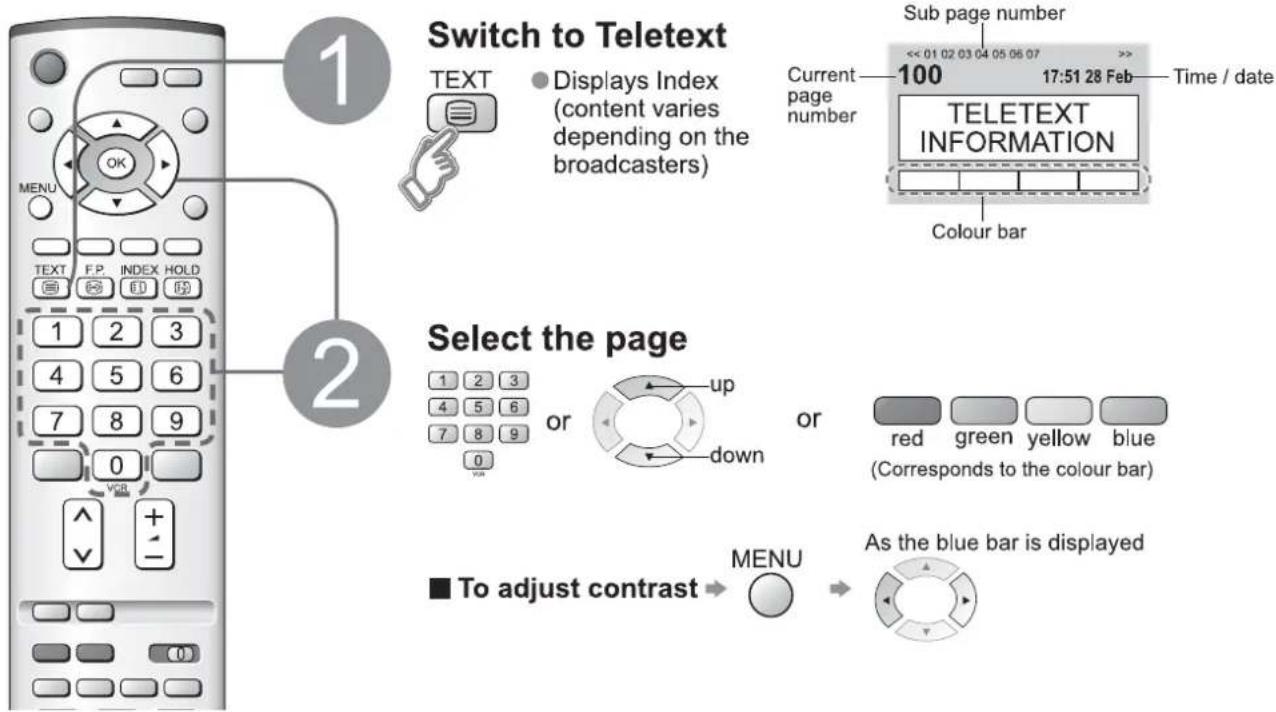
flowchart
graph TD
    A["Switch to Teletext"] --> B["Select the page"]
    B --> C["To adjust contrast"]
    C --> D["Sub page number: 100, Time / date: 17:51 28 Feb"]
    D --> E["Display Index (content varies depending on the broadcasters)"]
    E --> F["Current page number: 100"]
    F --> G["Colour bar"]
    G --> H["UP or down"]
    H --> I["red: green: yellow: blue (Corresponds to the colour bar)"]
    H --> J["As the blue bar is displayed"]
■ To return to TV

■ Using teletext conveniently
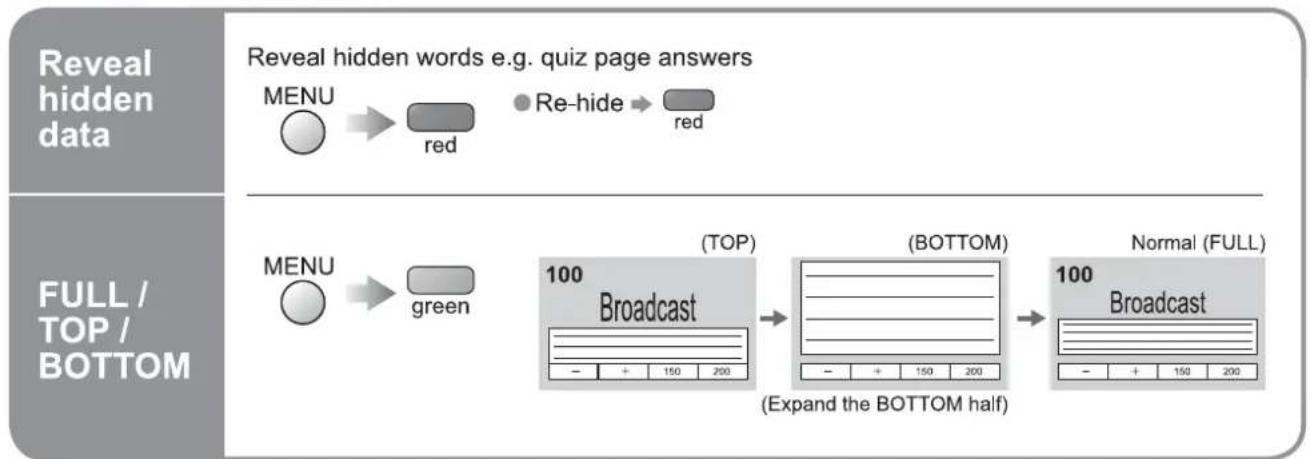
flowchart
graph LR
    A["Reveal hidden data"] --> B["MENU"]
    B --> C["re"]
    C --> D["Re-hide"]
    D --> E["red"]
    F["FULL / TOP / BOTTOM"] --> G["MENU"]
    G --> H["green"]
    H --> I["(TOP)"]
    I --> J["(BOTTOM)"]
    J --> K["Normal (FULL)"]
    I --> L["(Expand the BOTTOM half)"]
    L --> M["Broadcast"]
| HOLD | [0254] You wish to hold the current page without updatingStop or resume automatic updating ■To resume → HOLD ■To resume → HOLD |
| INDEX | [048W]turn to the main index pageINDEX ●TOP / FLOF mode only |
| Call up a favourite pages | [HTA4] ●Call up the page stored in "blue".●Factory setting is "103". ●Call up the page stored in "blue".●Factory setting is "103". |
| View in multi window | [047D] titch TV and Teletext in two windows at once (Press twice) (Press twice)   ●Select Picture and text On or Off ●Select Picture and text On or Off  Operations can be made only in Teletext screen. Operations can be made only in Teletext screen. |
| Store frequently viewed pages | Store frequently viewed pages(List mode only)[List mode only](List mode only)Store frequently viewed pages(List mode only)Store frequently viewed pages(List mode only)Store frequently viewed pages(List mode only)Store frequently viewed pages(List mode only)Store frequently viewed pages(List mode only)Store frequently viewed pages(List mode only)Store frequently viewed pages(List mode only)Store frequently viewed pages(List mode only)Store frequently viewed pages(List mode only)Store frequently viewed pages(List mode only)Store frequently viewed pages(List mode only)Store frequently viewed pages(All mode only)Store frequently viewed pages(All mode only)Store frequently viewed pages(All mode only)Store frequently viewed pages(All mode only)Store frequently viewed pages(All mode only)Store frequently viewed pages(All mode only)Store frequently viewed pages(All mode only)Store frequently viewed pages(All mode only)Store frequently viewed pages(All mode only)Store frequently viewed pages(All mode only)Store frequently viewed pages(All mode only)Store frequently viewed pages(All modes only)Store frequently viewed pages(All modes only)Store frequently viewed pages(All modes only)Store frequently viewed pages(All modes only)Store frequently viewed pages(All modes only)Store frequently viewed pages(All modes only)Store frequently viewed pages(All modes only)Store frequently viewed pages(All modes only)Store frequently viewed pages(All modes only)Store frequently viewed pages(All modes only)Store frequently viewed pages(All modes only)Store frequently viewed pages(All modes all modes only)Store frequently viewed pages(All modes all modes only)Store frequently viewed pages(All modes all modes only)Store frequently viewed pages(All modes all modes only)Store frequently viewed pages(All modes all modes only)Store frequently viewed pages(All modes all modes only)Store frequently viewed pages(All modes all modes only)Store frequently viewed pages(All modes all modes only)Store frequently viewed pages(All modes all modes only)Store frequently viewed pages(All modes all states only)Store frequently viewed pages(All modes all states only)Store frequently viewed pages(All modes all states only)Store frequently viewed pages(All modes all states only)Store frequently viewed pages(All modes all states only)Store frequently viewed pages(All modes all states only)Store frequently viewed pages(All modes all states only)Store frequently viewed pages(All modes all states only)Store frequently viewed pages(All modes all states only)Store frequently viewed pages(All modes all states every)Store frequently viewed pages(All modes all states every)Store frequently viewed pages(All modes all states every)Store frequently viewed pages(All modes all states every)Store frequently viewed pages(All modes all states every)Store frequently viewed pages(All modes all states every)Store frequently viewed pages(All modes all states every)Store frequently viewed pages(All modes all states every)Store frequently viewed pages(All modes all states every)Store frequently viewed pages(All modes all states every). |
| View sub page | View sub page (Only when teletext is more than one page)[0770] <<01 02 03 04 05 Appears at upper-left corner of the screen■To view specific sub page[TTT2] MENU → blue T**** Broadcast → Enter the 4-digit number example: P6 T0006Sub pages: The number of sub pages varies depending on the broadcasters (up to 79 pages). It may take some time for searching, during which time you can watch TV. |
| Watch TV while waiting for update | View the TV picture while searching for a teletext page[22A2] Text automatically updates itself when new information becomes available.Changes to TV screen temporarilyMENU → yellow → [108] Appears when updating is completed → yellow → View the updated page[477W] yellow (You cannot change the channel.)The news page provides a function that indicates arrival of latest news ("News Flash"). |


How to Use Menu Functions
Various menus allow you to make settings for the picture, sound, and other functions so that you can enjoy watching TV in your own way.

■ Menu list
| Menu | Item | |
| Picture menu | Viewing mode | |
| Adjust by each viewing mode | Backlight, Contrast, Brightness,Colour, Sharpness | |
| Tint | ||
| Colour balance | ||
| P-NR | ||
| 3D-COMB | ||
| Sound menu | Bass | |
| Treble | ||
| Balance | ||
| Headphone volume | ||
| MPX | ||
| Mode | ||
| Ambience | ||
| HDMI input | ||
| Setup menu | VIERA Link | |
| Q-Link | ||
| AV1 out | ||
| AV2 out | ||
| Teletext | ||
| Off timer | ||
| Text language | ||
| Tuning menu | Programme edit | |
| Auto setup | ||
| Manual tuning | ||
| Fine tuning | ||
| Colour system | ||
| Volume correction | ||
| OSD language | ||
| Colour system | ||
| Volume correction | ||
| Adjustments / Configurations (alternatives) | |||
| Basic picture mode (Dynamic / Normal / Cinema)● Set for each input signal | Viewing mode | Dynamic | |
| Adjusts backlight, colour, brightness, etc. for each picture mode to suit your taste | BacklightContrastBrightnessColourSharpness | - + + - + + - + + | |
| Adjusts tint of image● For NTSC signal reception only | Tint | ||
| Chooses the colour balance of the entire image (Cool / Normal / Warm) | Colour balance | Normal | |
| Automatically reduces unwanted picture noise (Off / Normal / Dynamic / Auto)● Not valid on HDMI, and HD signal | P-NR | Auto | |
| Automatically makes still pictures and slow pictures look more vivid (Off / On)● For PAL or NTSC signal reception only● Not valid on RGB, S-Video, components and HDMI | 3D-COMB | On | |
| Adjusts the output level of deep bass (High ⇔ Low) | Bass | ||
| Adjusts the output level of high-pitch, shrill sound (High ⇔ Low) | Treble | ||
| Adjusts volume level of right and left speakers | Balance | ||
| Adjusts the volume of the headphones (High ⇔ Low) | Headphone volume | ||
| Select stereo / monaural (Mono / Stereo)● Normally: Stereo● Stereo signal cannot be received: Mono● M1 / M2: Available while mono signal is transmitted | MPX | Stereo | |
| Improves sound quality for music and dramas (Music / Speech) | Mode | Music | |
| Gives a greater spatial effect by using dynamic enhancer (Off / On) | Ambience | Off | |
| Chooses according to the signal when HDMI is connected (Auto / Digital / Analogue) (p. 25) | HDMI input | Auto | |
| VIERA Link function (Off / On) (p. 19) | VIERA Link | On | |
| Chooses the connector to which a Q-Link compatible equipment is connected (Off / AV1 / AV2) (p. 22) | Q-Link | AV2 | |
| Chooses the signal to be transmitted from the TV to Q-Link (TV / AV2 / AV3 / Monitor)● Monitor: Image displayed on screen● Component signals cannot be outputted | AV1 out | Monitor | |
| Chooses the signal to be transmitted from the TV to Q-Link (TV / AV1 / AV3 / Monitor)● Monitor: Image displayed on screen● Component signals cannot be outputted | AV2 out | Monitor | |
| Teletext display mode (TOP (FLOF) / List) (p. 12) | Teletext | TOP | |
| Sets the time the unit automatically turns Off. (Off / 15 / 30 / 45 / 60 / 75 / 90) (minutes) | Off timer | Off | |
| Selects teletext language (West / East1 / East2)● West: English, French, German, Greek, Italian, Spanish, Swedish, Turkish● East1: Czech, English, Estonian, Lettish, Rumanian, Russian, Ukrainian● East2: Czech, Hungarian, Lettish, Polish, Rumanian | Text language | West | |
| Edits channels (p. 16) | Programme edit | Access | |
| Sets channels automatically (p. 16) | Auto setup | Access | |
| Sets channels manually (p. 16) | Manual tuning | Access | |
| Fine tuning of channels (during rain, etc.) | Fine tuning | ||
| Selects optional colour system depending on video signals (Auto / PAL / SECAM / M.NTSC) | Colour system | Auto | |
| Adjusts volume of individual stations | Volume correction | ||
| Changes language for on-screen displays | OSD language | Access | |
| Selects optional colour system based on video signals in AV mode | Colour system | Auto | |
| Adjusts volume for AV and HDMI mode | Volume correction | ||
- In AV mode, the Sound menu and Setup menu give a smaller number of options.
Editing and Setting Channels
The current channel settings can be changed according to your needs and reception conditions.
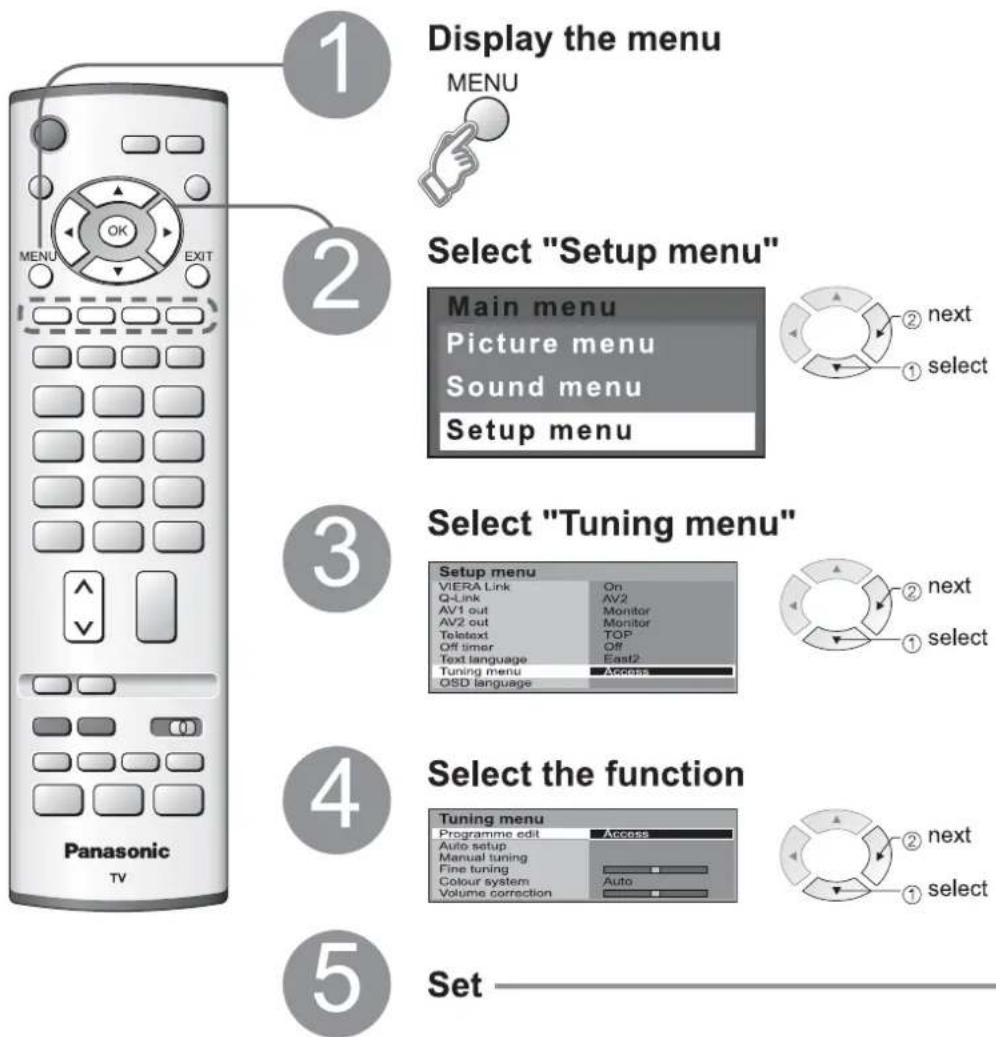
flowchart
graph TD
    A["1: Display the menu"] --> B["2: Select "Setup menu""]
    B --> C["3: Select "Tuning menu""]
    C --> D["4: Select the function"]
    D --> E["5: Set"]
■ To exit

● No data is stored if an Auto setup sequence is interrupted.
For Manual tuning, using the buttons on the unit
("Tuning mode" on p. 7)
① □ (Press repeatedly until "Tuning mode" appears)
② □ or □ (Access "Manual tuning")
③ □ (Search, Change TV system, Change programme)
④ □ or □ (Change programme or start searching channels)
⑤ STR (Store)
⑥ ③-⑤ (Repeat)
■ To return to TV


Edit channels
Programme edit
Delete
Add
Move
Change channel number
Change name
Lock
Change sound system
■ Download to equipment
Set automatically
Auto setup
Set manually
Manual tuning
① Select the programme number to edit

Programme number

② Edit



■ To change channel number
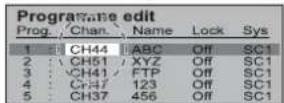
Select the "Chan." field
Change number (can also be changed with "C" and number buttons)
■ To change the name of the broadcaster displayed when selecting channels

Select the "Name" field
To next character
Repeat
③ Store

■ To lock
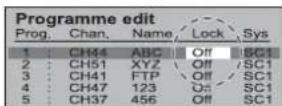
Select the "Lock" field
Select "On" ("Off" to unlock)
- You cannot select the channel with number buttons or the "C" button when locked.
■ To change sound system based on signals

Select the "Sys" field
Select sound system
SC1: PAL B, G / SECAM B, G
SC2: PALI
SC3: PAL D, K / SECAM D, K
F : SECAM L / L'
→ blue → Automatically transmitted (for a few sec.)
● For details (p. 18)
● Not available if "Q-Link" is "Off" in the Setup menu. (p. 14)
■ To download channel information to a Q-Link compatible equipment connected to the unit
Automatically set the channels received in the area
① Start Auto setup

② Select your country

flowchart
graph TD
    A["set"] --> B["Country"]
    B --> C["Oxford Island"]
    B --> D["Österreich"]
    B --> E["Frankfurt"]
    B --> F["Netherlands"]
    B --> G["Slovakia"]
    B --> H["Portugal"]
    B --> I["Sweden"]
    B --> J["Finland"]
    B --> K["Switzerland"]
    B --> L["Norway"]
    B --> M["Belgium"]
    B --> N["Switzerland"]
    B --> O["EUropa"]
    B --> P["Petro-Venezuela"]
    B --> Q["Republic of Europe"]
③ Settings are made automatically


● The settings are downloaded to a Q-Link compatible equipment connected to the unit.
● All previous settings are erased.
- When the sequence is completed, the broadcast of programme number "1" will appear.
To freely change settings after Auto setup
① Select the programme number and search through the channel

-Programme number -Channel


② Store
● The programme number blinks.
- If a VCR is connected with only the RF cable, select programme number "0".
③ Repeat ① and ②
Note
External Equipment
Q-Link
Q-Link interlocks the TV unit and VCR / DVD recorder, enables easy recording and playback.
Condition
- Use the VCR / DVD recorder with the following logos:
"Q-Link", "NEXTVIEWLINK", "DATA LOGIC", "Easy Link", "Megalogic", or "SMARTLINK" - Connect the equipment to this unit's AV1 or AV2 terminal via a "fully-wired" SCART cable. (p. 20)
● Q-Link terminal setup in Setup menu (Q-Link, AV1/AV2 out). (p. 14)
■ Download channel settings
● Perform Auto setup. (p. 16)
When first using this unit, see "Auto Setup". (p. 9)
● Perform download to the equipment. (p. 16)
■ Features available
Some recording equipments are not applicable. Read the manuals of the equipment.
What you see is What you record
Direct TV Recording:
Recording the current programme in VCR / DVD recorder immediately.

- When Direct TV Recording is performed, the recording equipment is automatically turned on if it is in Standby mode.
● The recording equipment is recording from its own tuner. You can turn the TV off during recording. - Do not turn the TV off during recording AV source. Otherwise the recording will be stopped.
Information / Message
Recording information or if recording is not possible, a message is displayed. (Only when the programme number is "0" or "AV mode" for some equipment.)
Power on link and Easy playback
Insert a videocassette or DVD in the recording equipment and it is operated, TV is turned on and input mode is switched automatically so that you can view the content. (Only when TV is in Standby mode.)
Power off link
When TV is set to Standby mode, the recording equipment is also automatically set to Standby. (Only when the videocassette or DVD is not active.)
- "DATA LOGIC" (a trademark of Metz Corporation) • "Megalogic" (a trademark of Grundig Corporation)
- "Easy Link" (a trademark of Philips Corporation) • "SMARTLINK" (a trademark of Sony Corporation) Read the manuals of the equipment too.
VIERA Link "HDAVI Control"\*
*Enjoy additional HDMI Inter-Operability with Panasonic products which have "HDAVI Control" function. HDMI connections to some Panasonic equipments (Panasonic DVD Recorder DIGA, Panasonic Player theatre, Panasonic Amplifier, etc.) allow you to enjoy the easy playback or home theatre. About connections, see "Connections" (p. 20, 22). Read the manuals of the equipment too. Non-HDMI-compliant cables cannot be utilized. About applicable equipments, consult your local Panasonic dealer.
Preparations
(For the first time / When adding new equipment, reconnecting equipment or changing setup) After connection turn the equipment on and then switch the TV on. Select the input mode to HDMI (p. 11, 14), and make sure that an image is displayed correctly.
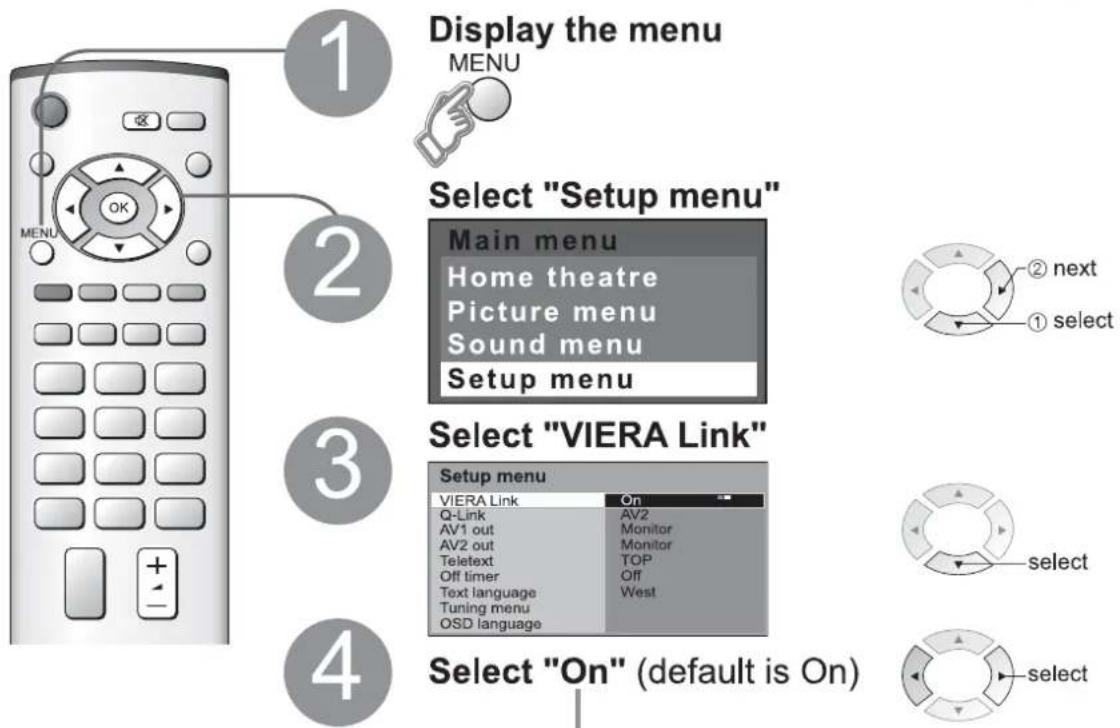
| Easy playback | Automatic Input switching-When the connected Panasonic equipment is operated, input mode is switched automatically. When it is stopped operating, input mode is returned. | |
| Theatre speaker | You can control the theatre speaker with TV's remote control.This function is available when Panasonic Amplifier or Player theatre is connected.1 Display the menu → MENU2 Select "Home theatre" or "TV speaker"Main menuHome theatrePicture menuSound menuSetup menu | ■ Home theatre:Adjustment for equipment (automatically turned on if it is in Standby mode)Volume up / down → +Mute → ☑■ TV speaker:TV speakers are active. |
| Power on link | When the connected Panasonic equipment is operated, TV is also automatically turned on and the content is reproduced. (Only when TV is in Standby mode.) | |
| Power off link | When TV is set to Standby mode, the connected Panasonic equipment is also automatically set to Standby. | |
External Equipment
Connections
● External equipments and cables shown are not supplied with this TV.
■ Connect VCR / DVD recorder (Recording, Playback)
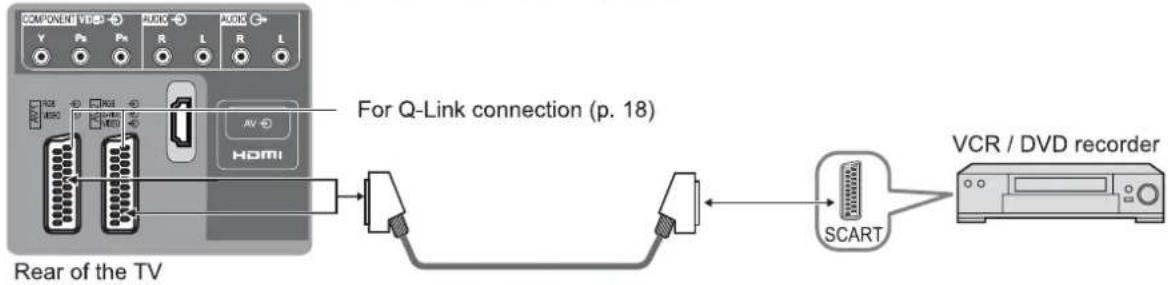
flowchart
graph LR
    A["Component"] -->|Y P5 P6 R L| B["Home"]
    C["Audio"] -->|R R L| B
    D["Home"] -->|AV| B
    E["For Q-Link connection (p. 18)"] --> F["Switch"]
    G["Rear of the TV"] --> F
    F --> H["SCART"]
    H --> I["VCR / DVD recorder"]
■ Connect DVD player (Playback)

flowchart
graph TD
    A["Side of the TV"] --> B["Connect the S-VIDEO or VIDEO terminal."]
    B --> C["DVD player"]
    C --> D["HDMI"]
    C --> E["SCART"]
    F["Rear of the TV"] --> G["Component: V, Pn, Pr, R, L, AMI, HDMI"]
    G --> H["Switch"]
    H --> I["or"]
    I --> J["or"]
    J --> K["or"]
    K --> L["or"]
    L --> M["or"]
    M --> N["or"]
    N --> O["or"]
    O --> P["or"]
    P --> Q["or"]
    Q --> R["or"]
    R --> S["or"]
    S --> T["or"]
    T --> U["or"]
    U --> V["or"]
    V --> W["or"]
    W --> X["or"]
    X --> Y["or"]
■ Connect Set top box (RGB input)

flowchart
graph TD
    A["Side of the TV"] --> B["Connect the S-VIDEO or VIDEO terminal."]
    B --> C["S-V"]
    B --> D["V"]
    B --> E["L"]
    B --> F["R"]
    G["Component"] --> H["or"]
    I["Audio"] --> H
    J["Audio"] --> H
    K["Residential"] --> L["HDMI"]
    M["Residential"] --> N["Set top box"]
    O["Residential"] --> P["SCART"]
    Q["Back of the TV"] --> R["Residential"]
    R --> S["Residential"]
    T["Residential"] --> U["SCART"]
■ Connect VCR / DVD recorder and Set top box (example)
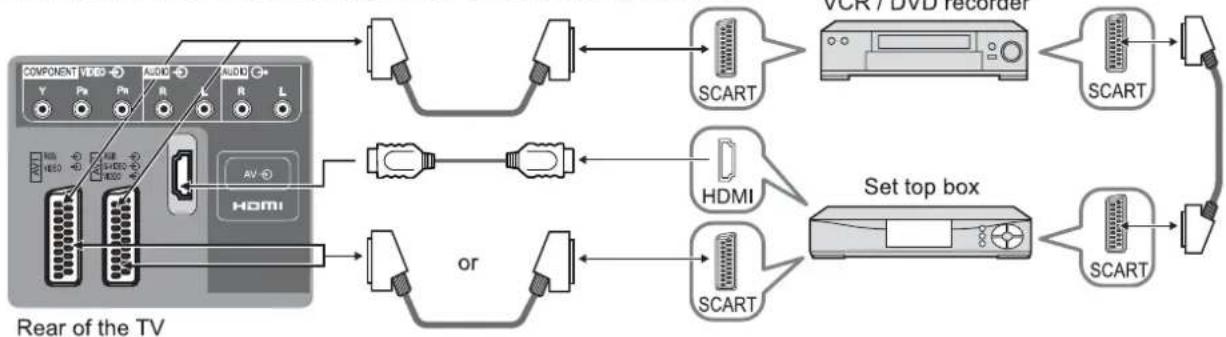
flowchart
graph LR
    A["Component"] --> B["SCART"]
    C["Video"] --> D["SCART"]
    E["Audi"] --> F["SCART"]
    G["Audio"] --> H["SCART"]
    I["AV"] --> J["SCART"]
    K["HDMI"] --> L["SCART"]
    M["or"] --> N["SCART"]
    O["VCR / DVD recorder"] --> P["SCART"]
    Q["Set top box"] --> R["SCART"]
    S["SCART"] --> T["SCART"]
■ Connect DVD recorder and VCR (example)
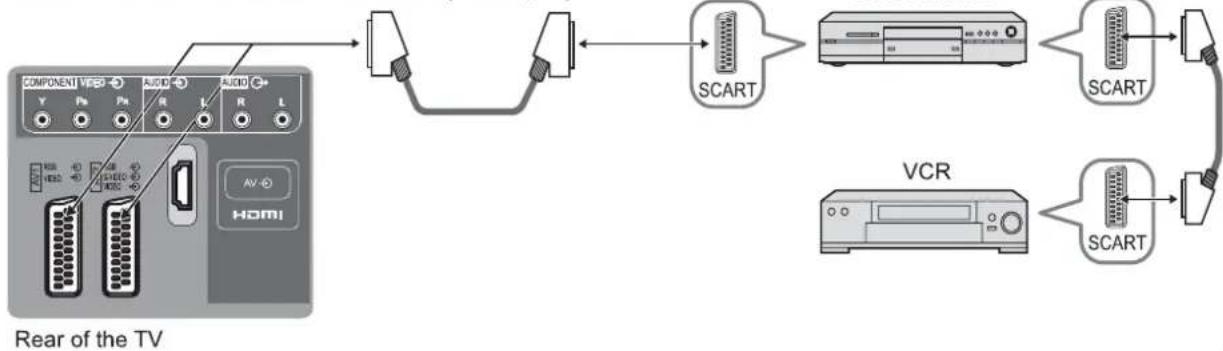
flowchart
graph LR
    A["Component"] --> B["Switch"]
    C["Audio"] --> B
    D["Home"] --> B
    B --> E["SCART"]
    E --> F["Video Device"]
    F --> G["SCART"]
    G --> H["Radio Connection"]
    H --> I["VCR"]
    I --> J["SCART"]
    J --> K["Radio Connection"]
    K --> L["SCART"]
    L --> M["Radio Connection"]
VIERA Link (p. 19)
Easy playback

flowchart
graph LR
    A["Component"] -->|Y| B["Video"]
    A -->|Pb| C["Audio"]
    A -->|Pa| D["Radio"]
    A -->|R| E["L"]
    A -->|L| F["R"]
    A -->|L| G["L"]
    H["Home"] --> I["Residential Display"]
    J["Antenna"] --> K["Residential Display"]
    L["AV"] --> M["HDMI"]
    N["HDMI"] --> O["Residential Display"]
    P["HDMI"] --> Q["Panasonic DVD recorder DIGA"]
    style A fill:#f9f,stroke:#333
    style P fill:#ccf,stroke:#333
Home theatre
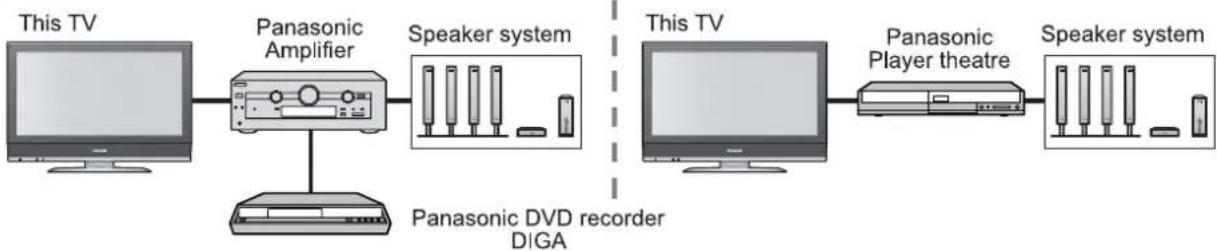
flowchart
graph LR
    A["This TV"] --> B["Panasonic Amplifier"]
    B --> C["Speaker system"]
    C --> D["This TV"]
    D --> E["Panasonic Player theatre"]
    E --> F["Speaker system"]
    B --> G["Panasonic DVD recorder DIGA"]
Read the manuals of Panasonic Amplifier or Player theatre for details.
- It is recommended that you use Panasonic's HDMI cable.
Recommended part number: RP-CDHG15 (1.5 m)
RP-CDHG30 (3.0 m)
RP-CDHG50 (5.0 m)
External Equipment
Connections (overview)
These diagrams show our recommendations for how to connect the TV unit to your various equipment. For other connections, consult the instructions of each equipment, the table below, and the specifications (p. 29).
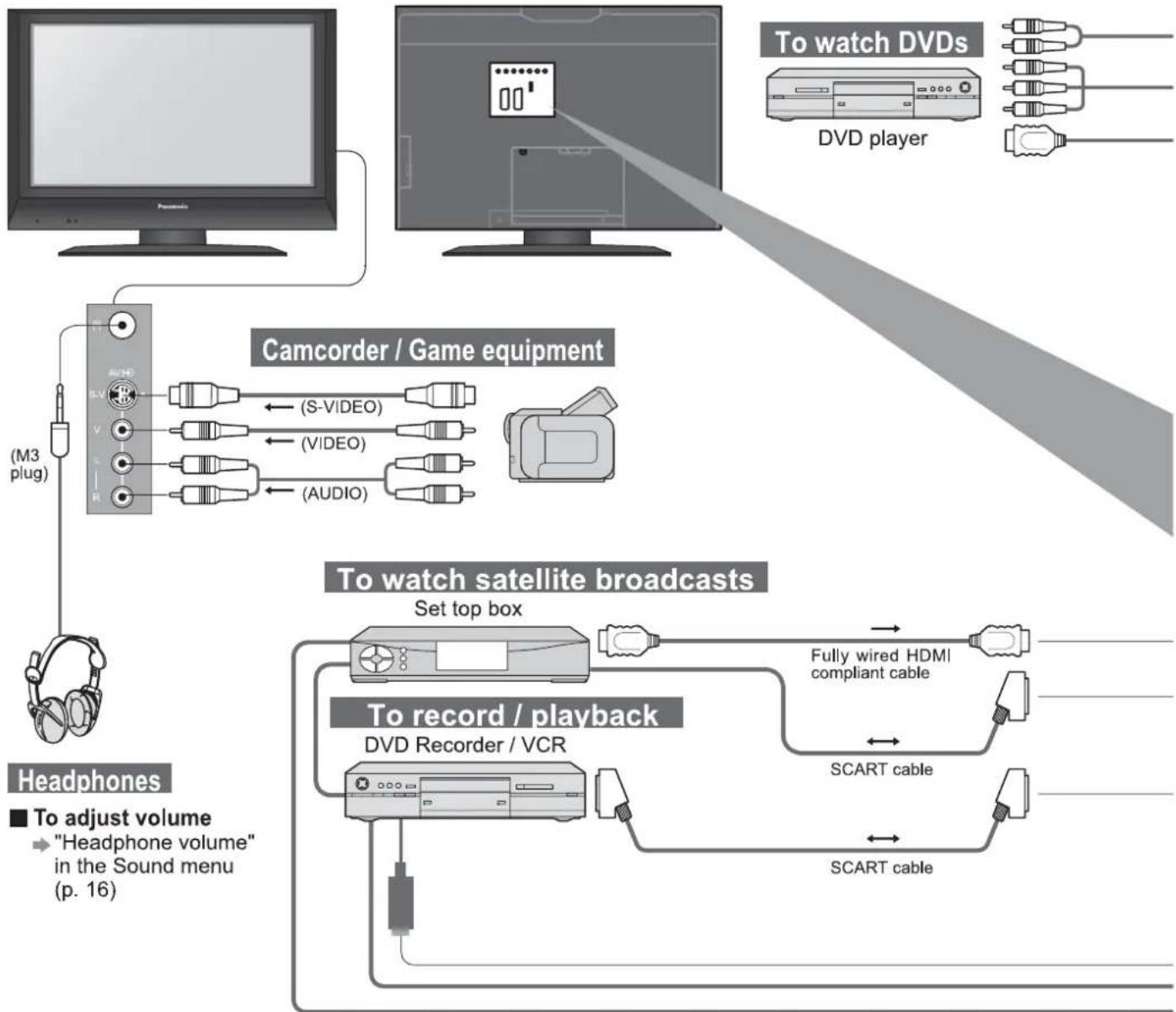
flowchart
graph TD
    A["Headphones"] --> B["To adjust volume"]
    B --> C[""Headphone volume" in the Sound menu (p. 16)"]
    C --> D["Set top box"]
    D --> E["To record / playback"]
    E --> F["DVD Recorder / VCR"]
    F --> G["To watch satellite broadcasts"]
    G --> H["Fully wired HDMI compliant cable"]
    G --> I["SCART cable"]
    H --> J["To watch DVDs"]
    I --> J
    J --> K["DVD player"]
    A --> L["(M3 plug)"]
    L --> M["Camcorder / Game equipment"]
    M --> N["(S-VIDEO)"]
    M --> O["(VIDEO)"]
    M --> P["(AUDIO)"]
Types of connectable equipment to each connector
| ConnectorRecording / Playback (equipment) |  AV1 AV1 | [AZX0] AV2 |  AV3 AV3 | |
| ■To record / playback videocassettes / DVDs(VCR / DVD recorder) | ○ | ○ | ||
| ■To watch DVDs (DVD player) | ○ | ○ | ○ | |
| ■To watch camcorder images (Video camera) | ○ | ○ | ○ | |
| ■To watch satellite broadcasts (Set top box) | ○ | ○ | ○ | |
| ■To play games (Game equipment) | ○ | ○ | ○ | |
| ■Q-Link | ○ | ○ | ||
| ■Direct TV Recording | ○ | ○ | ||
| ■VIERA Link |

flowchart
graph TD
    A["PC"] -->|To listen with speakers\nAmplifier with speaker system| B["Computer"]
    B --> C["Listener"]
    C --> D["RF cable"]
    D --> E["VIERA Link (p. 19)\nDIGA or Panasonic Amplifier\nFully wired HDMI compliant cable"]
    E --> F["HDMI"]
    G["COMPONENT VIDEO"] --> H["AV1 RGB VIDEO AV2 RGB S-VIDEO VIDEO"]
    H --> I["AV"]
    J["AUDIO"] --> K["AV1"]
    L["AUDIO"] --> M["AV2"]
    N["RF cable"] --> O["RF cable"]
    P["Computer"] --> Q["Listener"]
    R["RF cable"] --> S["RF cable"]
| COMPONENTY Ph Ph | HOMI |
| ○ | ○ |
| ○ | |
| ○ |
○: Recommended Connection
Technical Information
Aspect Ratio
The optimum size and aspect can be chosen, and you can enjoy finer images. (p. 10)
■ Auto aspect: Auto aspect determines the best aspect ratio to use to fill your screen. It does this using a four step process to determine if the picture being viewed is a widescreen picture.
If Auto aspect detects a widescreen signal it switches into the appropriate 16:9 or 14:9 widescreen mode. If Auto aspect does not detect a widescreen signal then this advanced TV set enhances the picture for optimum viewing pleasure.
The text shown on the screen indicates how Auto aspect determined which ratio to use:
"WIDE" appears in the top left of the screen if a widescreen identification signal (WSS) is found or a signal found through a SCART terminal. Auto aspect switches to the appropriate 16:9 or 14:9 widescreen ratio. This function will also work in any aspect mode. "Auto aspect" appears in the top left of the screen if black stripes above and below the picture are detected. Auto aspect chooses the best ratio and expands the picture to fill the screen. This process can take several minutes, depending on the darkness of the picture.
| Signal name | Aspect modes | Aspect Control Signal | |||||||||||||||
| Widescreen signal (WSS) | Control signal through SCART terminal (pin 8) | ||||||||||||||||
| Auto aspect | 16:9 | 14:9 | Just | 4:3 | 4:3 Full | Zoom1 | Zoom2 | Zoom3 | TV | AV1 | AV2 | AV3 | Component | AV1 | AV2 | ||
| /AV1/AV2AV3 | PAL I | O | O | O | O | O | - | O | O | O | O | O | O | O | - | O | O |
| PAL 525/60 | O | O | O | O | O | - | O | O | O | - | - | - | - | - | O | O | |
| M.NTSC | O | O | O | O | O | - | O | O | O | - | - | - | - | - | O | O | |
| NTSC (AV input only) | O | O | O | O | O | - | O | O | O | - | - | - | - | - | O | O | |
| Component/HDMI | 525(480)/60i | O | O | O | O | O | - | O | O | O | - | - | - | - | - | - | - |
| 525(480)/60p | O | O | O | O | O | - | O | O | O | - | - | - | - | - | - | - | |
| 625(576)/50i | O | O | O | O | O | - | O | O | O | - | - | - | - | O | - | - | |
| 625(576)/50p | O | O | O | O | O | - | O | O | O | - | - | - | - | O | - | - | |
| 750(720)/50p | O | O | O | O | O | O | O | O | O | - | - | - | - | - | - | - | |
| 750(720)/60p | O | O | O | O | O | O | O | O | O | - | - | - | - | - | - | - | |
| 1125(1080)/50i | O | O | O | O | O | O | O | O | O | - | - | - | - | - | - | - | |
| 1125(1080)/60i | O | O | O | O | O | O | O | O | O | - | - | - | - | - | - | - | |
Note
● The ratio varies depending on the programme, etc. If the ratio is greater than the standard "16:9", black bands may appear at the top and bottom of the screen.
- If the screen size looks unusual when a widescreen-recorded programme is played back on a VCR, adjust the tracking of the VCR. (See the VCR manual.)
● To select the ratio manually:
16:9
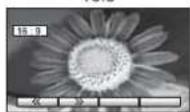
Directly displays the image at "16:9" without distortion (anamorphic).
14:9
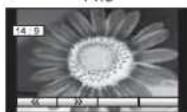
Displays the image at the standard "14:9" without enlargement.
Just
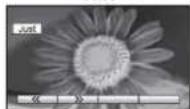
Displays a 4:3 image full-screen. Stretching is only noticeable at the left and right edges.
4:3
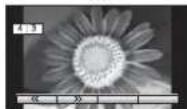
Displays the image at the standard "4:3" without distortion.
4:3 Full

Displays a "4:3" image enlarged horizontally to fit the screen.
Zoom1
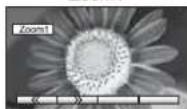
Displays a "16:9" letterbox or "4:3" image without distortion.
Zoom2

Displays a "16:9" letterbox (anamorphic) image full-screen without distortion.
Zoom3

Displays a "21:9" letterbox (anamorphic) image full-screen without distortion. At "16:9", displays the image at its maximum (with slight enlargement).
HDMI connection
HDMI (high-definition multimedia interface) allows you to enjoy high-definition digital images and high-quality sound by connecting the TV unit and the equipment.
HDMI-compatible equipment (*1) with an HDMI or DVI output terminal, such as a set top box or a DVD player, can be connected to the HDMI terminal using an HDMI compliant (fully wired) cable.
- HDMI is the world's first complete digital consumer AV interface complying with a non-compression standard.
- If the external equipment has only a DVI output, connect to the HDMI terminal via a DVI to HDMI adapter cable (*2).
- When the DVI to HDMI adapter cable is used, connect the audio cable to the audio input terminal.
● Audio settings can be made on the "HDMI input" menu screen. (p. 11)
● Applicable audio signal sampling frequencies (2ch L.PCM): 48 kHz, 44.1 kHz, 32 kHz
(*1): The HDMI logo is displayed on an HDMI-compliant equipment. (*2): Enquire at your local digital equipment retailer shop.
Note
- Use with a PC is not assumed.
● The 720p/1080i signals will be reformatted before being displayed on the screen. - If the connected equipment has an aspect adjustment function, set the aspect ratio to "16:9".
● This HDMI connector is "type A". - An equipment having no digital output terminal may be connected to the input terminal of either "Component", "S-VIDEO", or "Video" to receive analogue signals.
● The HDMI input terminal can be used with only the following image signals: 480i, 480p, 576i, 576p, 720p and 1080i. Match the output setting of the digital equipment.
● For details of the applicable HDMI signals, see p. 26.
VIERA Link
HDMI connections to some Panasonic equipments allow you to enjoy the easy playback or home theatre.
- Setup the equipment to enable this function. Read the manual of the equipment.
● This function may not work normally depending on the equipment condition. - Image or sound may not be available for the first few seconds when the playback starts.
- Image or sound may not be available for the first few seconds when Input mode is switched.
● Volume function will be displayed when adjusting the volume of the equipment
● Easy playback is also available by using the remote control for Amplifier. Read the manuals of Amplifier.
Technical Information
SCART, S-video and HDMI terminals information
■ AV1 SCART terminal
(RGB, VIDEO, Q-Link)
Suitable inputs for AV1 include RGB (Red / Green / Blue).
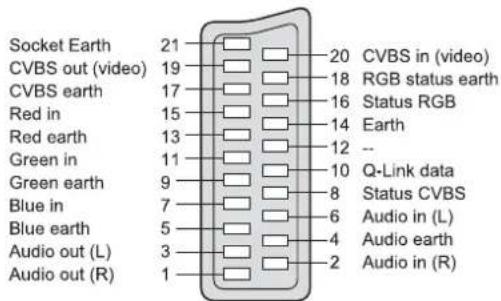
■ AV2 SCART terminal
(RGB, VIDEO, S-VIDEO, Q-Link)
Suitable inputs for AV2 include RGB (Red / Green / Blue).
AV2 - Pins 15 and 20 are dependent on AV2 S-VHS / VIDEO switching.

■ AV3 S-VIDEO 4 pin terminal

HDMI terminal

Input signal that can be displayed
* Mark: Applicable input signal for Component (Y, PB, PR) and HDMI
| Signal name | Horizontal frequency (kHz) | Vertical frequency (Hz) | Component | HDMI |
| 525 (480) / 60i | 15.73 | 59.94 | * | * |
| 525 (480) / 60p | 31.47 | 59.94 | * | * |
| 625 (576) / 50i | 15.63 | 50.00 | * | * |
| 625 (576) / 50p | 31.25 | 50.00 | * | * |
| 750 (720) / 60p | 45.00 | 60.00 | * | * |
| 750 (720) / 50p | 37.50 | 50.00 | * | * |
| 1,125 (1,080) / 60i | 33.75 | 60.00 | * | * |
| 1,125 (1,080) / 50i | 28.13 | 50.00 | * | * |
Note
● Signals other than above may not be displayed properly.
● The above signals are reformatted for optimal viewing on your display.
FAQs
Before requesting service or assistance, please follow these simple guides to resolve the problem. If problem still persists, please contact your local Panasonic dealer or Panasonic Customer Care Centre for assistance.
White spots or shadow images (noise)

natural_image
Two penguin illustrations, one with a spotted pattern and the other with three black-and-white penguins (no text or symbols)- Check the position, direction, and connection of the aerial.
Direct TV record / Q-Link functions not recording
- Please confirm SCART cable and connection. Also please set "AV1/AV2 out" in the Setup menu (p. 16).
There may be red spots, blue spots, green spots and black spots on the screen
- This is a characteristic of liquid crystal panels and is not a problem. The liquid crystal panel is built with very high precision technology giving you fine picture details. Occasionally, a few non-active pixels may appear on the screen as a fixed point of red, green, blue or black. Please note this does not affect the performance of your LCD.
The LCD panel moves slightly when it is pushed with a finger Clattered sound might be heard
- There are some looseness around the panel to prevent the damage to the panel. The panel might move slightly when it is pushed with a finger, and clattered sound might be heard. This is not a malfunction.

natural_image
Front view of a Panasonic TV remote control with standard buttons and scroll (no text or symbols on the device itself)Pictures from an equipment are unusual when the equipment is connected via HDMI
● Is the HDMI cable connected properly? (p. 22)
● Turn Off the TV unit and equipment, then turn them On again.
- Check an input signal from the equipment. (p. 20)
● Use an equipment compliant with EIA/CEA-861/861B.
The remote control does not work
● Are the batteries installed correctly?
(p. 6)
● Has the TV unit been switched On?
FAQs
| Problem | Actions | |
| Screen | Chaotic image, noisy | Set "P-NR" in the Picture menu (to remove noise).(p. 14)Check nearby electrical products(car, motorcycle, fluorescent lamp). |
| No image can be displayed | Is "Colour" or "Contrast" in the Picture menu set to the minimum? (p. 14) | |
| Blurry or distorted image(no sound or low volume) | Reset channels. (p. 16) | |
| Neither image nor sound is produced | Is the unit in "AV mode"?Is the mains lead plugged into the socket outlet?Is the TV unit turned On?Check Picture menu (p. 14) and volume. | |
| Sound | No sound is produced | Is "Sound Mute" active? (p. 7)Is the volume set to the minimum? |
| Sound level is low or sound is distorted | Sound signal reception may be deteriorated.Set "MPX" (p. 14) in the Sound menu to "Mono". | |
| HDMI | Sound is unusual | Set the sound setting of the connected equipment to "2ch L.PCM".Check the "HDMI input" setting in the Sound menu.(p. 14)If digital sound connection has a problem, select analogue sound connection. (p. 25) |
| An error message appears | Contact the authorized Service Centre. | |
| "VIERA Link" function does not work | Switch the TV unit on again with the equipment on.Set "VIERA Link" to "Off", then set to "On" again. (p. 19) | |
| Other | TV unit goes into "Standby mode" | The sleep function is activated.The TV unit enters "Standby mode" about 30 min. after broadcasting ends. |
| An error message appears | Follow the message's instructions.If the problem persists, contact the authorized Service Centre. | |
Licence
Trademark Credits
● VGA is a trademark of International Business Machines Corporation.
● Macintosh is a registered trademark of Apple Computer, USA.
● S-VGA is a registered trademark of the Video Electronics Standard Association.
Even if no special notation has been made of company or product trademarks, these trademarks have been fully respected.
- HDMI, the HDMI Logo and High-Definition Multimedia Interface are trademarks or registered trademarks of HDMI Licensing LLC.
HDAVI Control™ is a trademark of Matsushita Electric Industrial Co., Ltd.
Specifications
| TX-26LE7F | TX-32LE7F | |||
| Power Source | AC 220-240 V, 50 Hz | |||
| Power Consumption | Average use | 93 W | 144 W | |
| Standby condition | 1 W | |||
| Display panel | Aspect Ratio | 16:9 | ||
| Visible screen size | 66 cm | 80 cm | ||
| Number of pixels | 1,049,088 (1,366 (W) × 768 (H)) | |||
| Audio Output | 2 × 8 W RMS, 8 Ω | |||
| Headphones | M3 (3.5 mm) Jack × 1 | |||
| Receiving Systems / Band name | PAL B, G, I, SECAM B, G SECAM L / L'VHF E2 - E12 VHF H1 - H2 (ITALY)VHF A - H (ITALY) UHF E21 - E69CATV (S01 - S05) CATV S1 - S10 (M1 - M10)CATV S11 - S20 (U1 - U10) CATV S21 - S41 (Hyperband)PAL D, K, SECAM D, KVHF R1 - R2 VHF R3 - R5VHF R6 - R12 UHF E21 - E69PAL 525/60 :Playback of NTSC tape from some PAL Video recorders (VCR).M.NTSC :Playback from M. NTSC Video recorders (VCR).NTSC (AV input only) :Playback from NTSC Video recorders (VCR). | |||
| Aerial - Rear | VHF / UHF | |||
| Operating Conditions | Temperature : 5 °C - 35 °CHumidity : 5 % - 90 % RH (non-condensing) | |||
| Teletext pages | 200 | |||
| Connection Terminals | AV1 (Scart terminal) | 21 Pin terminal (Audio/Video in, Audio/Video out, RGB in, Q-Link) | ||
| AV2 (Scart terminal) | 21 Pin terminal (Audio/Video in, Audio/Video out, RGB in, S-Video in, Q-Link) | |||
| AV3 | VIDEO | RCA PIN Type × 1 1.0 V[p-p] (75 Ω) | ||
| S-VIDEO | Mini DIN 4-pin Y:1.0 V[p-p] (75 Ω) C:0.286 V[p-p] (75 Ω) | |||
| AUDIO L - R | RCA PIN Type × 2 0.5 V[rms] | |||
| Others | COMPONENT | YPB, PR 1.0 V[p-p] (including synchronization)±0.35 V[p-p] | ||
| HDMI | TYPE A Connector | |||
| AUDIO L - R | RCA PIN Type × 2 0.5 V[rms] | |||
| Output | AUDIO L - R | RCA PIN Type × 2 0.5 V[rms] (high impedance) | ||
| Dimensions (W × H × D) | ||||
| Including TV stand | 657 mm × 525 mm × 239 mm | 791 mm × 615 mm × 239 mm | ||
| TV set only | 657 mm × 473 mm × 107 mm | 791 mm × 563 mm × 107 mm | ||
| Weight | 12,5 kg Net | 16 kg Net | ||
Note
- Design and Specifications are subject to change without notice. Weight and Dimensions shown are approximate.
● This equipment complies with the EMC standards listed below.
EN55013:2001+A1:2003, EN55020:2002+A1:2003+A2:2005, EN61000-3-2:2000+A2:2006, EN61000-3-3:1995+A1:2001
Information on Disposal for Users of Waste Electrical & Electronic Equipment (private households)
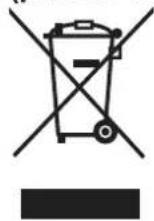
This symbol on the products and/or accompanying documents means that used electrical and electronic products should not be mixed with general household waste.
For proper treatment, recovery and recycling, please take these products to designated collection points, where they will be accepted on a free of charge basis. Alternatively, in some countries you may be able to return your products to your local retailer upon the purchase of an equivalent new product.
Disposing of this product correctly will help to save valuable resources and prevent any potential negative effects on human health and the environment which could otherwise arise from inappropriate
waste handling. Please contact your local authority for further details of your nearest designated collection point.
Penalties may be applicable for incorrect disposal of this waste, in accordance with national legislation.
For business users in the European Union
If you wish to discard electrical and electronic equipment, please contact your dealer or supplier for further information.
Information on Disposal in other Countries outside the European Union
This symbol is only valid in the European Union.
If you wish to discard this product, please contact your local authorities or dealer and ask for the correct method of disposal.
Customer's Record
The model number and serial number of this product may be found on its rear panel. You should note this serial number in the space provided below and retain this book, plus your purchase receipt, as a permanent record of your purchase to aid in identification in the event of theft or loss, and for Warranty Service purposes.
Model Number
Serial Number
- Panasonic®
- Operating Instructions
- Wide LCD TV
- VIERA
- Experience an amazing level of multi-
- media excitement
- Contents
- Be Sure to Read
- Quick Start Guide
- Enjoy your TV!
- Basic Features
- Advanced Features
- FAQs, etc.
- Safety Precautions
- Warnings and Precautions
- Handling the mains plug and lead
- Do not remove covers NEVER modify the unit yourself
- Do not place foreign objects inside the unit
- Do not expose to direct sunlight and other sources of heat
- Keep liquids away from the TV
- ■Do not place the TV on an unstable surface
- ■Use only the dedicated stands / mounting equipment
- Notes
- Maintenance
- Display panel
- Caution
- Cabinet
- Mains plug
- Accessories / Options
- Standard accessories
- Check that you have the accessories and items shown
- Installing remote's batteries
- Attaching the clamper
- Optional accessories
- Identifying Controls
- Connection
- Auto Setup
- Watching TV
- ■ Other Useful Functions (Operate after ②)
- Watching Videos and DVDs
- Note
- Viewing Teletext
- What is FLOF mode?
- What is TOP mode?
- What is List mode?
- How to Use Menu Functions
- Editing and Setting Channels
- ■ To exit
- For Manual tuning, using the buttons on the unit
- ■ To return to TV
- Edit channels
- Set automatically
- Set manually
- External Equipment
- Q-Link
- Condition
- ■ Download channel settings
- ■ Features available
- Direct TV Recording:
- VIERA Link "HDAVI Control"\*
- Preparations
- Connections
- Connections (overview)
- Technical Information
- Aspect Ratio
- HDMI connection
- VIERA Link
- SCART, S-video and HDMI terminals information
- ■ AV1 SCART terminal
- ■ AV2 SCART terminal
- Input signal that can be displayed
- FAQs
- White spots or shadow images (noise)
- Direct TV record / Q-Link functions not recording
- There may be red spots, blue spots, green spots and black spots on the screen
- The LCD panel moves slightly when it is pushed with a finger Clattered sound might be heard
- Pictures from an equipment are unusual when the equipment is connected via HDMI
- The remote control does not work
- Licence
- Trademark Credits
- Information on Disposal for Users of Waste Electrical & Electronic Equipment (private households)
- For business users in the European Union
- Information on Disposal in other Countries outside the European Union
- Customer's Record
Marka : PANASONIC
Modeli : Viera TX-26LE7F
Kategori : Televizor