
SCC-C7437P - Barra de som SAMSUNG - Manual de utilização gratuito
Encontre gratuitamente o manual do aparelho SCC-C7437P SAMSUNG em formato PDF.


| Tipo de produto | Câmera de vigilância dome externa |
| Marca | Samsung |
| Modelo | SCC-C7437P |
| Resolução | 600 linhas TV |
| Zoom óptico | x34 |
| Zoom digital | Até x16 (total x544) |
| Função Dia/Noite | Sim, comutação automática |
| Alimentação | 24V AC, 1.5A |
| Protocolo de comunicação | RS-485/RS-422, múltiplos protocolos |
| Dimensões (aproximadamente) | Diâmetro: 160 mm, Altura: 200 mm |
| Peso (aproximadamente) | 2 kg |
| Temperatura de operação | -50°C a 50°C |
| Funções principais | Pan/Tilt/Zoom, detecção de movimento, zonas de privacidade, predefinições, varredura automática |
| Manutenção | Limpar a lente com um pano macio e etanol; verificar as junções de vedação |
| Segurança | Instalação segura, uso de cabo de segurança, aterramento |
| Acessórios incluídos | Manual de utilização, graxa, pinos |
| Acessórios opcionais | Suportes de parede, teto, poste, ângulo, parapeito |
Perguntas frequentes - SCC-C7437P SAMSUNG
Perguntas dos utilizadores sobre SCC-C7437P SAMSUNG
0 pergunta sobre este aparelho. Responda às que conhece ou faça a sua.
Faça uma nova pergunta sobre este aparelho
Baixe as instruções para o seu Barra de som em formato PDF gratuitamente! Encontre o seu manual SCC-C7437P - SAMSUNG e retome o controlo do seu dispositivo eletrónico. Nesta página estão publicados todos os documentos necessários para a utilização do seu dispositivo. SCC-C7437P da marca SAMSUNG.
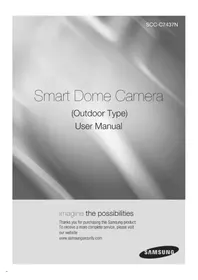
MANUAL DE UTILIZADOR SCC-C7437P SAMSUNG
Smart Dome Camera
(Tipo Externo)
Manual do Usuário
imagine as possibilidades
Obrigado por adquirir este produto Samsung.
Para receber um serviço mais completo, visite
nosso site
www.samsungsecurity.com
CUIDADO
RISCO DE CHOQUE ELÉTRICO. NÃO ABRA

CUIDADO: PARA REDUZIR O RISCO DE CHOQUE ELÉTRICO, NÃO REMOVA A TAMPA (OU A PARTE TRASEIRA). NÃO HÁ PEÇAS INTERNAS QUE POSSAM SER REPARADAS PELO USUÁRIO. ENCAMINHE A MANUTENÇÃO A PESSOAL QUALIFICADO.
Este símbolo indica que tensão perigosa, constituindo risco de choque elétrico, está presente dentro desta unidade.

Este símbolo indica que há instruções importantes de operação e manutenção na literatura que acompanha esta unidade.
AVISO
- Para reduzir o risco de incêndio ou choque elétrico, não exponha este aparelho à chuva ou umidade.
- Para evitar ferimentos, este aparelho deve ser firmemente fixado ao chão/parede de acordo com as instruções de instalação.
- Use apenas o adaptador CA de 24V, 60Hz para alimentação. Use um adaptador de mais de 3A quando o aquecedor estiver funcionando.
AVISO
- Certifique-se de usar apenas o adaptador padrão especificado na folha de especificações. Usar qualquer outro adaptador pode causar incêndio, choque elétrico ou danos ao produto.
- Conectar incorretamente a fonte de alimentação ou substituir a bateria pode causar explosão, incêndio, choque elétrico ou danos ao produto.
- Não conecte várias câmeras a um único adaptador. Exceder a capacidade pode causar geração anormal de calor ou incêndio.
- Conecte firmemente o cabo de alimentação na tomada elétrica. Conexão insegura pode causar incêndio.
- Ao instalar a câmera, fixe-a com segurança e firmeza. A queda da câmera pode causar ferimentos pessoais.
2_ visão geral
- Não coloque objetos condutores (por exemplo, chaves de fenda, moedas, peças metálicas, etc.) ou recipientes cheios de água sobre a câmera. Isso pode causar ferimentos pessoais devido a incêndio, choque elétrico ou queda de objetos.
- Não instale a unidade em locais úmidos, empoeirados ou com fuligem. Isso pode causar incêndio ou choque elétrico.
- Se sentir cheiros incomuns ou fumaça saindo da unidade, pare de usar o produto. Nesse caso, desconecte imediatamente a fonte de alimentação e entre em contato com o centro de serviço. Continuar a usar nessas condições pode causar incêndio ou choque elétrico.
- Se este produto não funcionar normalmente, entre em contato com o centro de serviço mais próximo. Nunca desmonte ou modifique este produto de qualquer forma. (A SAMSUNG não se responsabiliza por problemas causados por modificações não autorizadas ou tentativa de reparo.)
- Ao limpar, não pulverize água diretamente sobre as partes do produto. Isso pode causar incêndio ou choque elétrico.
- Não exponha o produto ao fluxo de ar direto de um ar-condicionado. Caso contrário, pode causar condensação de umidade dentro do Clear Dome devido à diferença de temperatura entre o interior e o exterior da câmera dome.
- Se você instalar este produto em uma área de baixa temperatura, como dentro de uma câmara fria, deve vedar o tubo de fiação com silicone, para que o ar externo não possa fluir para dentro do invólucro. Caso contrário, o ar externo quente e úmido pode fluir para dentro do invólucro, acumulando umidade ou vapor dentro do produto devido à diferença entre as temperaturas interna e externa.
CUIDADO
- Não deixe cair objetos sobre o produto nem aplique golpes fortes nele. Mantenha-o longe de locais sujeitos a vibração excessiva ou interferência magnética.
- Não instale em locais sujeitos a alta temperatura (acima de 50°C), baixa temperatura (abaixo de -50°C) ou alta umidade. Isso pode causar incêndio ou choque elétrico.
- Se você quiser realocar o produto já instalado, desligue a energia e depois mova ou reinstale-o.
- Remova o plugue de alimentação da tomada quando houver tempestade com raios. Negligenciar isso pode causar incêndio ou danos ao produto.
- Mantenha-o longe da luz solar direta e de fontes de radiação de calor. Isso pode causar incêndio.
- Instale-o em um local com boa ventilação.
- Evite apontar a câmera diretamente para objetos extremamente brilhantes, como o sol, pois isso pode danificar o sensor de imagem CCD.
- O aparelho não deve ser exposto a gotejamento ou respingos, e nenhum objeto cheio de líquidos, como vasos, deve ser colocado sobre o aparelho.
- O plugue de alimentação é usado como dispositivo de desconexão e deve permanecer prontamente operável em qualquer momento.
- Quando a unidade for armazenada em ambiente de alta umidade, pode ocorrer umidade dentro da cúpula da carcaça. Antes da instalação, abra a cúpula e limpe toda a umidade com um pano macio e seco.
DECLARAÇÃO FCC
Este dispositivo está em conformidade com a parte 15 das Regras da FCC. A operação está sujeita às seguintes duas condições:
1) Este dispositivo não pode causar interferência prejudicial e 2) Este dispositivo deve aceitar qualquer interferência recebida, incluindo interferência que possa causar operação indesejada.
Cuidado
Este equipamento foi testado e está em conformidade com os limites para um dispositivo digital Classe A, de acordo com a parte 15 das Regras da FCC. Esses limites são projetados para fornecer proteção razoável contra interferência prejudicial quando o equipamento é operado em um ambiente comercial.
Este equipamento gera, usa e pode irradiar energia de radiofrequência e, se não for instalado e usado de acordo com o manual de instruções, pode causar interferência prejudicial às comunicações de rádio. A operação deste equipamento em uma área residencial provavelmente causará interferência prejudicial, caso em que o usuário será obrigado a corrigir a interferência por sua própria conta.

Aviso de Conformidade IC
Este aparelho digital Classe A atende a todos os requisitos dos Regulamentos de Equipamentos que Causam Interferência do ICES-003 do Canadá.
INSTRUÇÕES IMPORTANTES DE SEGURANÇA
- Leia estas instruções.
- Guarde estas instruções.
- Preste atenção a todos os avisos.
- Siga todas as instruções.
- Não use este aparelho perto de água.
- Limpe apenas com pano seco.
- Não bloqueie nenhuma abertura de ventilação. Instale de acordo com as instruções do fabricante.
- Não instale perto de fontes de calor, como radiadores, registros de calor ou outros aparelhos (incluindo amplificadores) que produzam calor.
- Não anule a finalidade de segurança do plugue polarizado ou de aterramento. Um plugue polarizado tem duas lâminas, uma mais larga que a outra. Um plugue de aterramento tem duas lâminas e um terceiro pino de aterramento. A lâmina larga ou o terceiro pino são fornecidos para sua segurança. Se o plugue fornecido não couber na sua tomada, consulte um eletricista para substituir a tomada obsoleta.
- Proteja o cabo de alimentação de ser pisado ou apertado, especialmente nos plugues, receptáculos de conveniência e no ponto onde saem do aparelho.
- Use apenas acessórios especificados pelo fabricante.
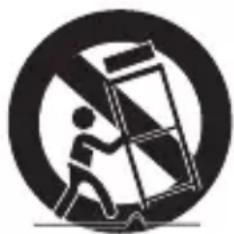
- Use apenas com o carrinho, suporte, tripé, bracket ou mesa especificados pelo fabricante ou vendidos com o aparelho. Quando um carrinho for usado, tenha cuidado ao mover a combinação carrinho/aparelho para evitar ferimentos por tombamento.
- Desconecte este aparelho durante tempestades com raios ou quando não for usado por longos períodos.
- Encaminhe todos os reparos a pessoal de serviço qualificado. A manutenção é necessária quando o aparelho foi danificado de alguma forma, como cabo de alimentação ou plugue danificado, líquido derramado ou objetos caídos dentro do aparelho, o aparelho foi exposto à chuva ou umidade, não funciona normalmente ou foi derrubado.

O aparelho não deve ser exposto a gotejamento ou respingos e nenhum objeto cheio de líquidos, como vasos, deve ser colocado sobre o aparelho.
6_ visão geral
VISÃO GERAL
2
6 Instruções de Segurança Importantes 7 Conteúdo 8 Recursos 8 O que está Incluído 9 De relance
INSTALAÇÃO E CONEXÃO
10
10 Acessórios Opcionais para Instalação 12 Precauções 12 Preparação 13 Instalação 16 Configuração Inicial 19 Conexão com Outro Dispositivo
CONFIGURAÇÃO
22
22 Como usar o Controlador de Teclado 23 Menu Principal 24 Perfil 26 Configuração da Câmera 35 Vídeo Inteligente 36 Zona de Privacidade 37 Preset 39 Auto Set 43 Zone Set 44 Alarm Set 46 Clock Set 46 Other Set 48 Comunicação 48 Informações do Sistema 49 Idioma
APÊNDICE
50
50 Teclas de Atalho 51 Especificações 53 Aparência do Produto
CARACTERÍSTICAS
- Com a tecnologia de processamento digital de sinais de última geração, processamento digital completo de imagem e algoritmo especial de alta resolução de 600 linhas implementado
- Câmera de vigilância de alto desempenho, equipada com lente de zoom x34 e circuito integrado de zoom digital, permitindo monitoramento de até 544 vezes
- DIA/NOITE para melhorar a sensibilidade por conversão automática para o modo preto e branco à noite ou em ambiente com baixa iluminação
- Balanço de branco para controlar o brilho de acordo com a iluminação
- Compensação de contraluz sob holofote ou iluminação extremamente brilhante
- Foco automático para ajustar automaticamente o foco ao movimento do objeto
- Zona de privacidade para ocultar uma área específica por privacidade pessoal • PAN/TILT para controle preciso em alta velocidade
O QUE ESTÁ INCLUÍDO
Verifique se a sua câmera e os acessórios estão todos incluídos na embalagem do produto.
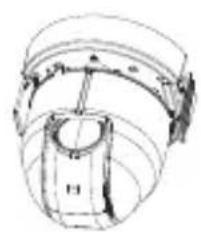
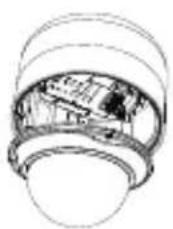
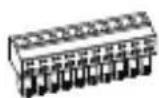
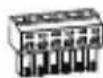


Conectores da carcaça da câmera

Manual do usuário, graxa, pino e bucha
CÂMERA
CONFIGURAÇÃO DO QUADRO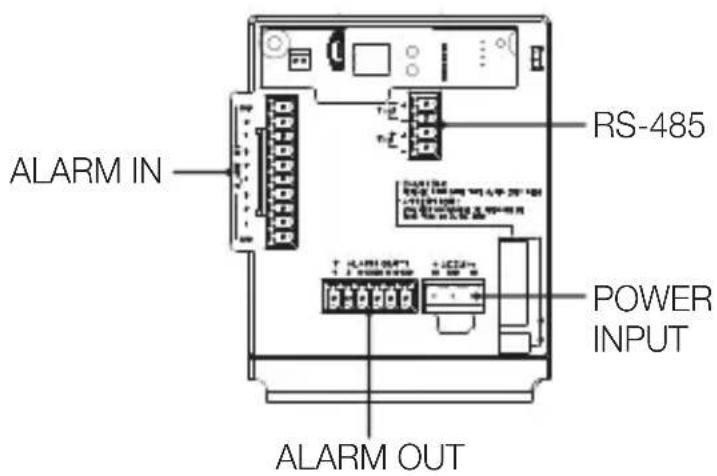
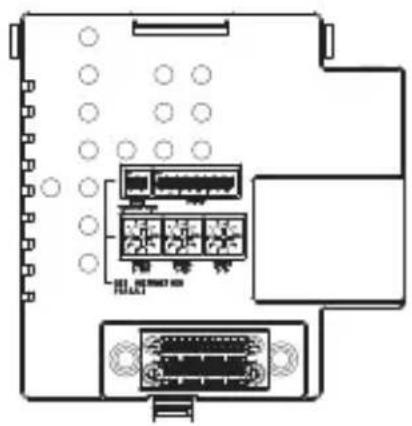

■ Limpe suavemente a superfície suja da lente com um lenço de lente ou pano no qual você aplicou etanol.
ACESSÓRIOS OPCIONAIS PARA INSTALAÇÃO
Para facilitar a instalação, você pode adquirir os acessórios opcionais apropriados disponíveis.
- ADAPTADOR DE MONTAGEM NA PAREDE (SCX-300WM) Este é um adaptador de montagem na parede, usado para instalação de unidades SMART DOME CAMEA na parede.
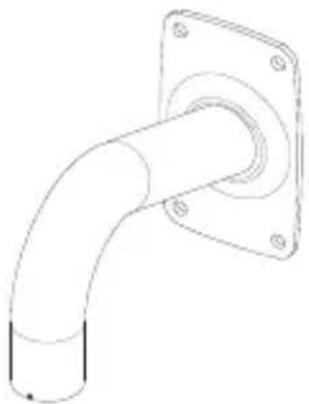
- ADAPTADOR DE MONTAGEM NO TETO (SCX-300CM) Este é um adaptador de montagem no teto, usado para instalação de unidades SMART DOME CAMEA em teto de concreto.
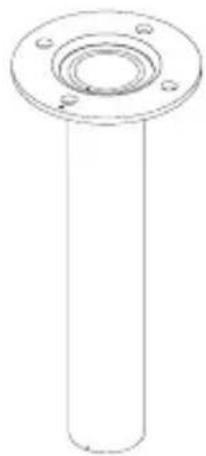
- ADAPTADOR DE MONTAGEM EM POSTE (SCX-300PM) Este é um adaptador para instalação do ADAPTADOR DE MONTAGEM NA PAREDE (SCX-300WM) em um poste com diâmetro maior que 80 mm.
10_ instalação e conexão
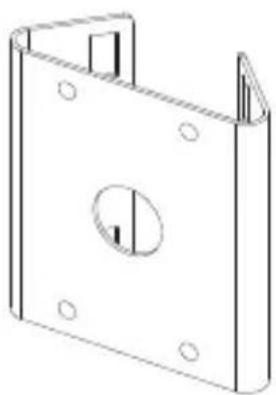
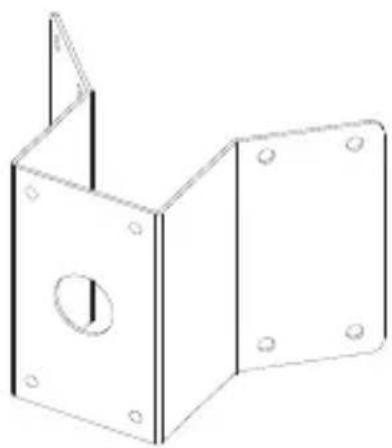
- ADAPTADOR DE MONTAGEM EM CANTO (SCX-300KM) Este é um adaptador para instalação do ADAPTADOR DE MONTAGEM NA PAREDE (SCX-300WM) no canto de uma junta de parede.
Português
- MONTAGEM EM PARAPEITO (LONGO) (SCX-300LM) Este é um kit de montagem usado para instalação de unidades SMART DOME CAMEA em um parapeito.

PRECAUÇÕES
- Selecione um local de instalação que suporte mais de 4 vezes o peso do produto.
- Ao instalar, evite que pessoas se aproximem para evitar ferimentos pessoais. Mova objetos de valor para um local mais seguro antes de instalar.
PREPARAÇÃO
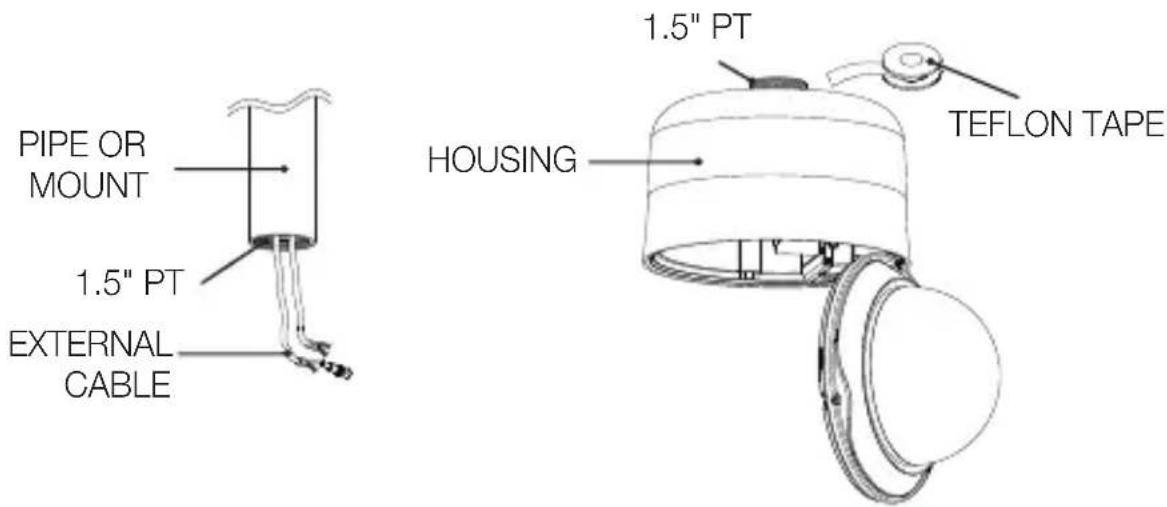
Passe todos os cabos externos pelo TUBO ou orifício de MONTAGEM do adaptador do suporte. Enrole a fita de Teflon ao redor do orifício do parafuso da CARCAÇA.
12_ instalação e conexão
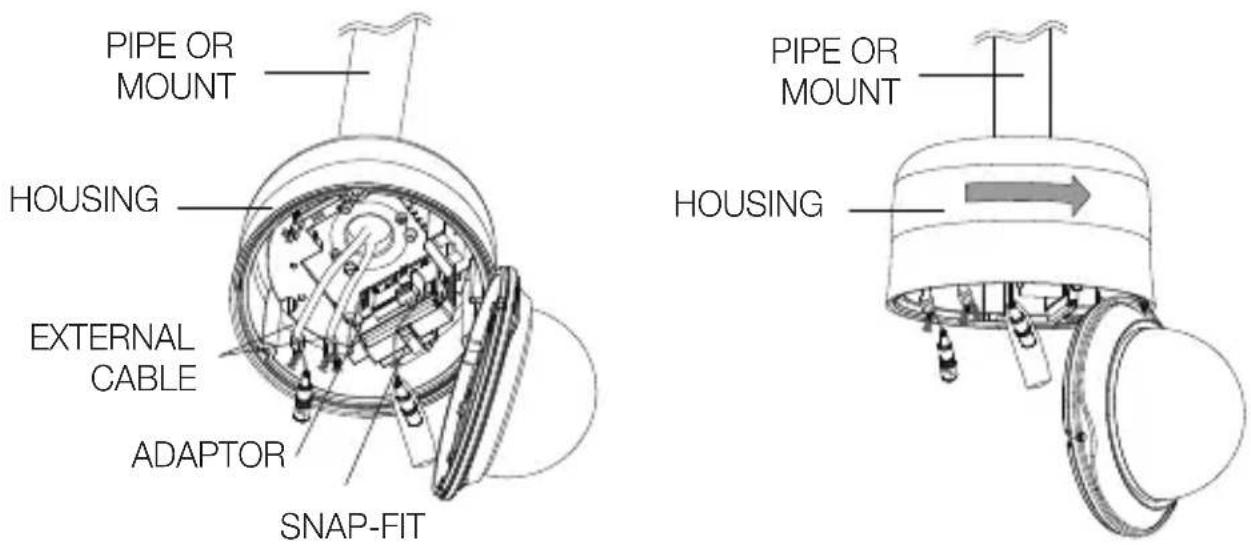
- Pressione o SNAP FIT do ADAPTADOR na CARCAÇA para abrir a parte do ADAPTADOR e, em seguida, insira todos os cabos externos na CARCAÇA. Fixe a CARCAÇA no TUBO ou no SUPORTE girando-a no sentido horário.
(Aperte bem os dois componentes para evitar que a CARCAÇA se solte.)
- Conecte os cabos externos aos CONECTORES (ALARME IN, ALIMENTAÇÃO, RS-485, ALARME OUT) e conecte o CONECTOR ao ADAPTADOR. Insira o cabo no CONJUNTO DA MOLDURA e feche o ADAPTADOR.
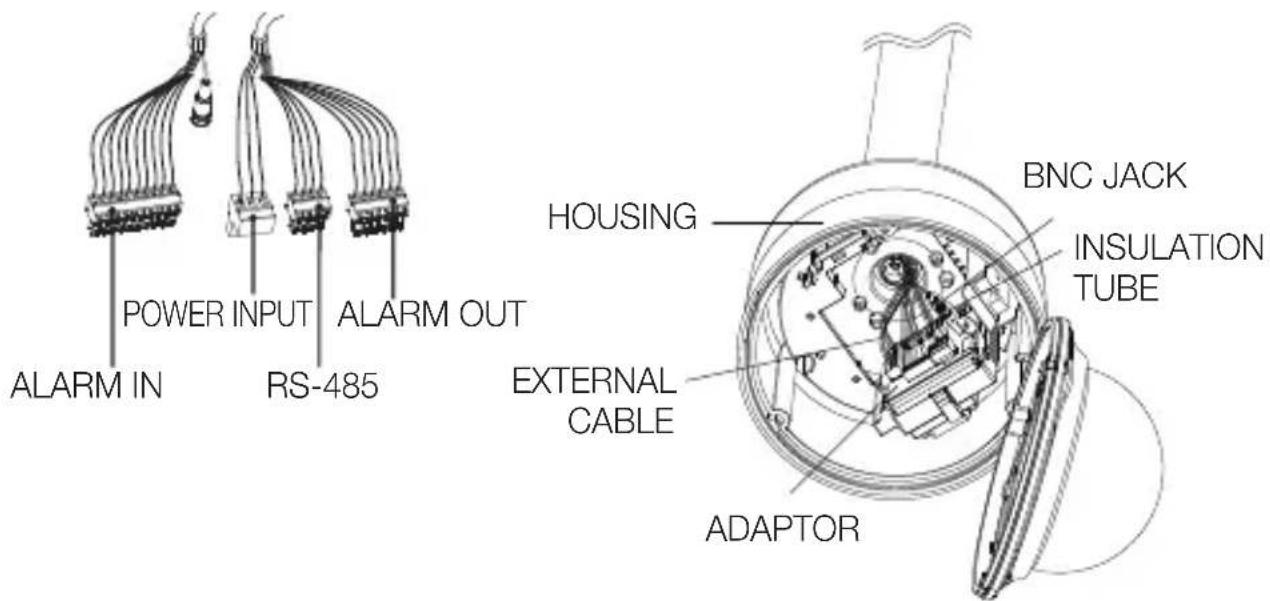

■ Em seguida, envolva o CONECTOR BNC com o TUBO ISOLANTE e use fita isolante para selar a extremidade do TUBO ISOLANTE, de modo que o CONECTOR BNC não fique saliente para fora do revestimento do TUBO ISOLANTE.
Para mais informações sobre a conexão de cabos, consulte Conectando o cabo do adaptador. (página 21)
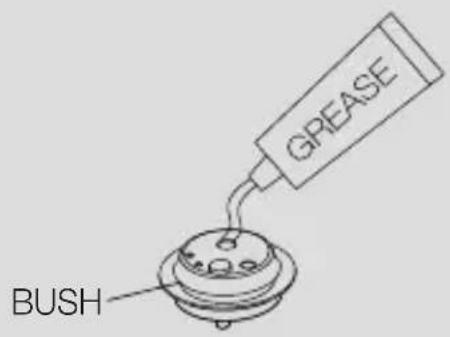
Observe que as BUCHAS são fornecidas para instalações externas onde há exposição à umidade através do TUBO ou SUPORTE. Instale a CARCAÇA usando a BUCHA para evitar a entrada de umidade.
- Aplique graxa na quantidade adequada na BUCHA antes da montagem e passe os cabos por cada furo das buchas. Use PINOS para tampar os furos vazios que não tenham cabos passando.
- Monte a BUCHA na parte superior interna da CARCAÇA, conforme mostrado no diagrama abaixo. No momento, aplique pressão uniformemente na BUCHA para fixá-la firmemente à CARCAÇA, como mostrado no diagrama.
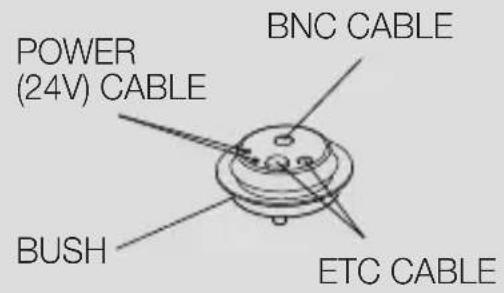

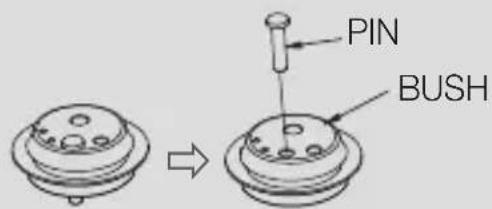
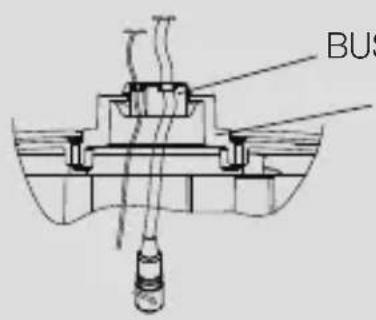
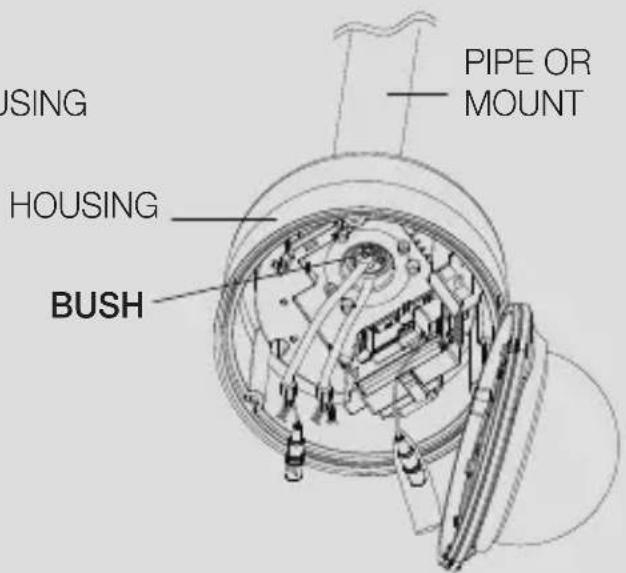
- Amarre o CABO DE SEGURANÇA da CÂMERA no CABO DO SUPORTE do CONJUNTO DA MOLDURA.
Alinhe o CONECTOR 22P da CÂMERA com o do ADAPTADOR, empurre os GANCHOS em ambas as extremidades da CÂMERA na direção do SUPORTE do CONJUNTO DA MOLDURA para fixar os dois.
Em seguida, certifique-se de que os dois GANCHOS se encaixem corretamente no SUPORTE.
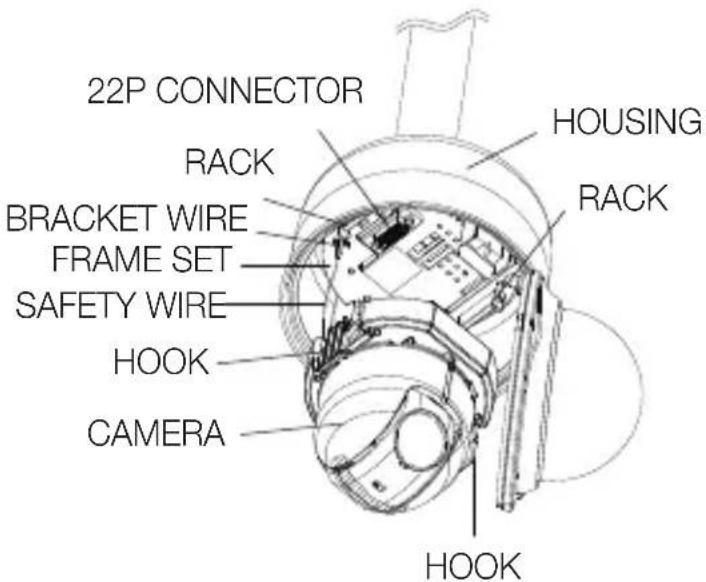
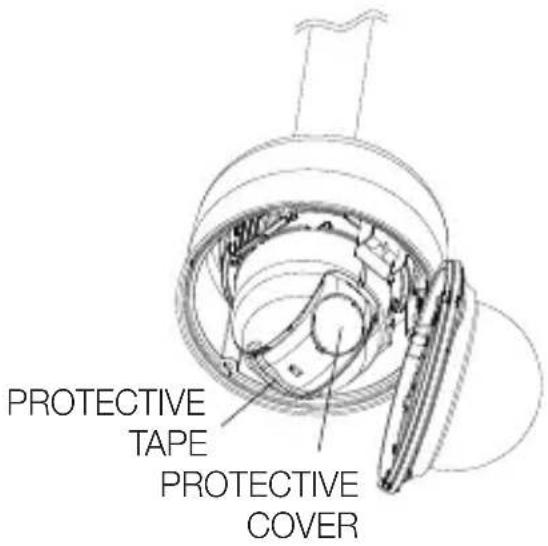

- Quando a instalação estiver concluída, remova a TAMPA DE PROTEÇÃO e a FITA DE PROTEÇÃO da lente.
- Alinhe cada um dos 3 PARAFUSOS da CÚPULA DA TAMPA e os 3 FUROS PARA PARAFUSOS da CARCAÇA, respectivamente, e monte a CÚPULA DA TAMPA e a CARCAÇA. Durante a montagem, observe o seguinte.
- Insira e organize o CABO DE SEGURANÇA na CARCAÇA sem perturbar o funcionamento da câmera.
- Certifique-se de que o componente JUNTA DOmE não se separe da TAMPA DOmE. (Se a JUNTA DOmE não estiver montada corretamente, isso danifica a estanqueidade.)
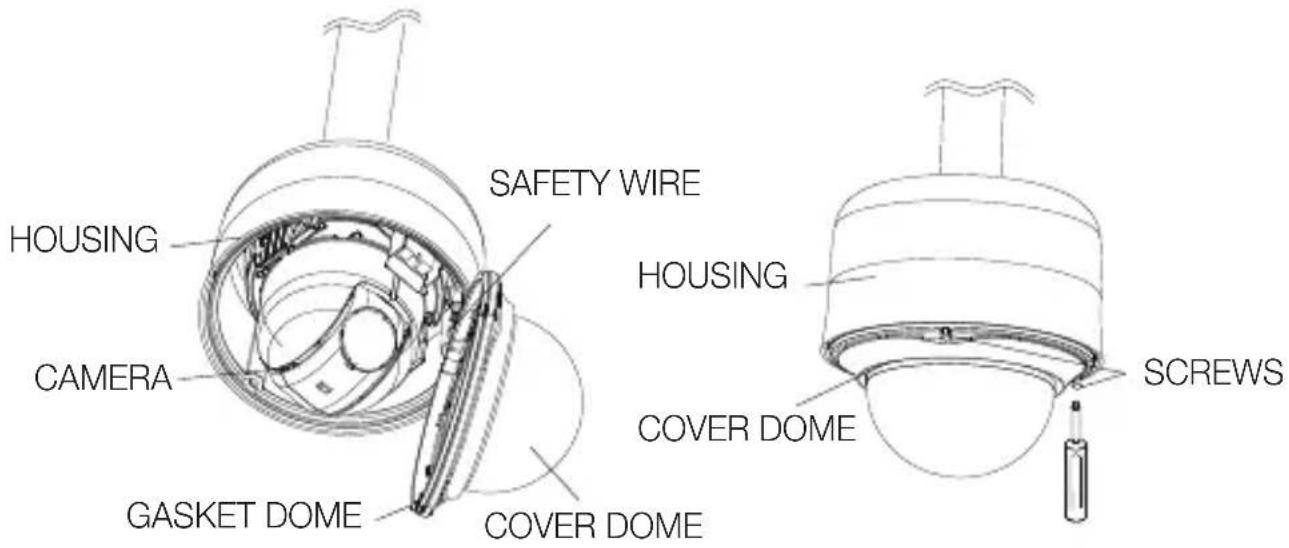
CONFIGURAÇÃO INICIAL
Configuração do Endereço da Câmera
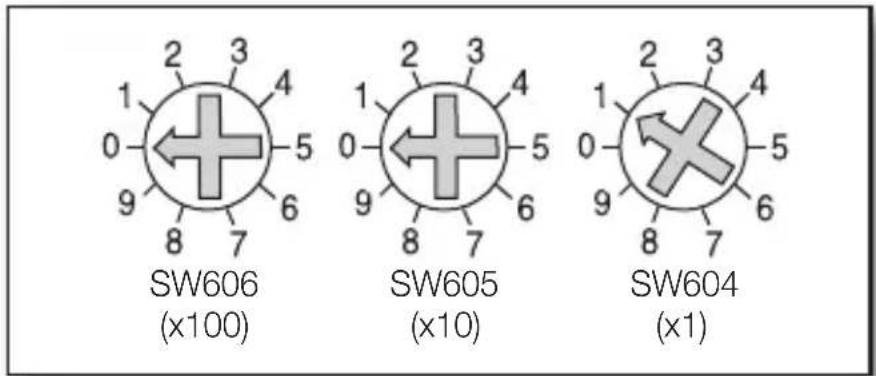
Use SW606, SW605 e SW604 para especificar o endereço da câmera.
Você pode especificar entre 0 e 255 para o endereço, onde o dígito das centenas é com SW606, o dígito das dezenas com SW605 e o dígito das unidades com SW604.
ex) Endereço da câmera: Se o endereço for 1, siga os passos na figura abaixo.
Configuração do Protocolo de Comunicação
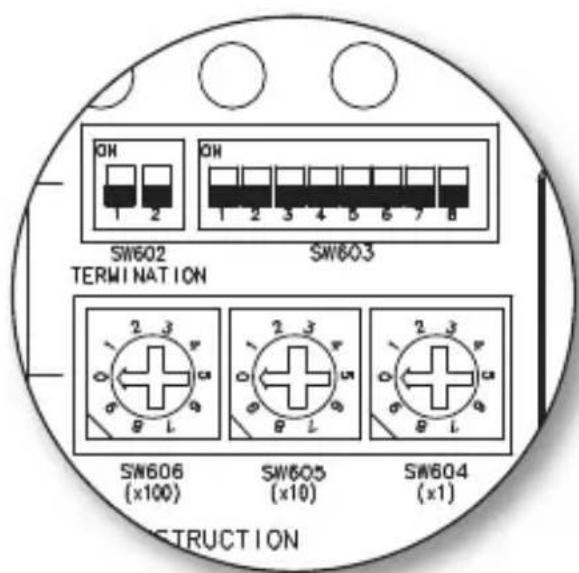
Use os pinos #1\~#4 do SW603 para especificar o protocolo de comunicação.
| PIN Comp | PIN1 | PIN2 | PIN3 | PIN4 | |
| A OFF | OFF | OFF | OFF | ||
| B ON | OFF | OFF | OFF | ||
| C OFF | ON | OFF | OFF | ||
| D ON | ON | OFF | OFF | ||
| E OFF | OFF | ON | OFF | ||
| F ON | OFF | ON | OFF | ||
| G OFF | ON | ON | OFF | ||
| H ON | ON | ON | OFF | ||
| I OFF | OFF | OFF | ON | ||
| J ON | OFF | OFF | ON | ||
| K OFF | ON | OFF | ON | ||
| L ON | ON | OFF | ON | ||
| M OFF | OFF | ON | ON | ||
| N ON | OFF | ON | ON | ||
| O OFF | ON | ON | ON | ||
| P ON | ON | ON | ON |
A : SAMSUNG HALF B : SAMSUNG FULL
Configuração da Taxa de Transmissão
Use os pinos #5, #6 do SW603 para definir a taxa de transmissão.
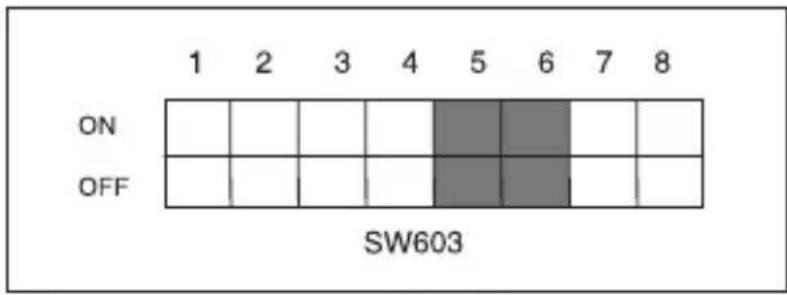
| BAUD RATE PIN 5 PIN 6 | ||
| 4800 BPS ON ON | ||
| 9600 BPS OFF ON | ||
| 19200 BPS ON OFF | ||
| 38400 BPS OFF OFF |
O padrão de fábrica é 9600 BPS.
Configuração do Terminador RS-422A/RS-485
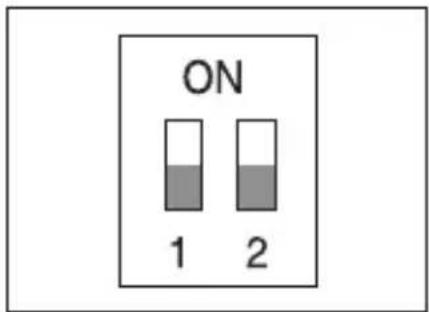
Como mostrado no mapa de estrutura, quando o Controlador e RS-422A/RS-485 estão conectados, deve ser terminado de acordo com a característica de impedância do cabo em cada extremidade da linha de transmissão para transferir os sinais em longas distâncias, controlando a reflexão dos sinais ao mínimo.
![graph LR A["Controller"] -->|Termination TX+(DATA+)| B["RAM 1"] A -->|Termination TX-(DATA-)| C["RAM 2"] B --> D["RAM n-1"] C --> E["RAM n"] F["n < 32"] --> G["Termination SW1-ON"] G --> H["RAM +"] I["<RS-485 Half Duplex Organization>"] --> J["RAM n-1"] I --> K["RAM n"]](/content/2026/04/663445/images/b42bcdebbd8d3923ef1c34e9ebfaa741e8898f1dff366878a49e907f3aebd5b3.jpg)
Terminação: Usando os pinos 1 e 2, gire para e será terminado.
![graph LR A["Controller"] -->|Tx (+)| B["CAM 2CAM 1"] A -->|Tx (-)| B A -->|Rx (+)| B A -->|Rx (-)| B A -->|Termination| C["CAM n-1"] A -->|Termination| D["CAM n"] B -->|n < 32| E["SW1-ON"] B -->|n < 32| F["SW2-ON"] style A fill:#f9f,stroke:#333 style B fill:#ccf,stroke:#333 style C fill:#cfc,stroke:…](/content/2026/04/663445/images/b339e01535cb4a3142d4544fb7d2a6f149a148b98d358a4fffe4ebd848486e4e.jpg)

Pode ocorrer um erro de comunicação se você conectar várias câmeras com o mesmo endereço na rede.
![graph TD A["MONITOR"] --> B["controller"] B --> C["Controller/DVR"] C --> D["POWER SOURCE"] D --> E["ALARM OUT"] E --> F["ALARM IN"] F --> G["Monitor"]](/content/2026/04/663445/images/d9675660005747189de0e917fb0adc944c5088a0cbb4e3bcefe374d72fd88f59.jpg)
Conectando a um monitor
- Conecte uma extremidade do conector do cabo de vídeo BNC ao Terminal de Saída de Vídeo (VIDEO OUT).
- Conecte a outra extremidade do conector ao Terminal de Entrada de Vídeo do monitor.
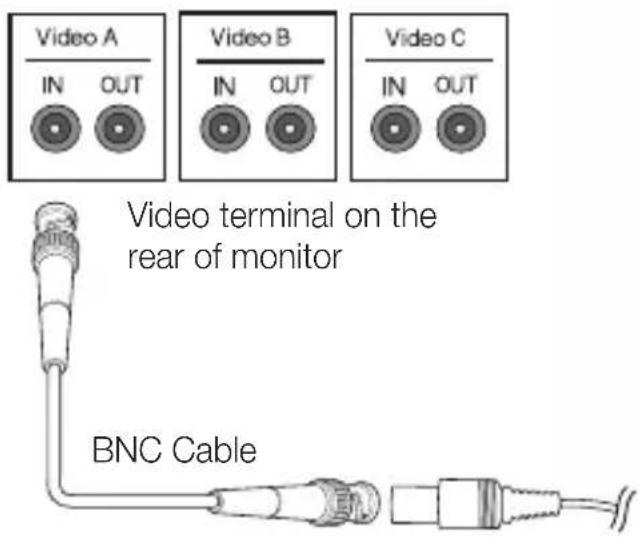
Para conectar ALARm IN
- Conecte uma extremidade da linha de sinal do dispositivo externo a uma porta ALARM IN correspondente do monitor.
- Conecte a outra extremidade da linha de sinal à porta de aterramento [GND].
Para conectar ALARm OUT
- Conecte uma extremidade da linha de sinal do dispositivo externo a uma porta ALARM OUT correspondente do monitor.
- Conecte a outra extremidade da linha de sinal à porta comum [COm].
Para conectar o controlador
Conecte um controlador externo ou DVR à câmera, com o qual você pode ajustar a câmera.
- Conecte o pino Rx+ da câmera ao pino Tx+ do controlador.
- Conecte o pino Rx- da câmera ao pino Tx- do controlador.
- Conecte o pino Tx+ da câmera ao pino Rx+ do controlador.
- Conecte o pino Tx- da câmera ao pino Rx- do controlador.
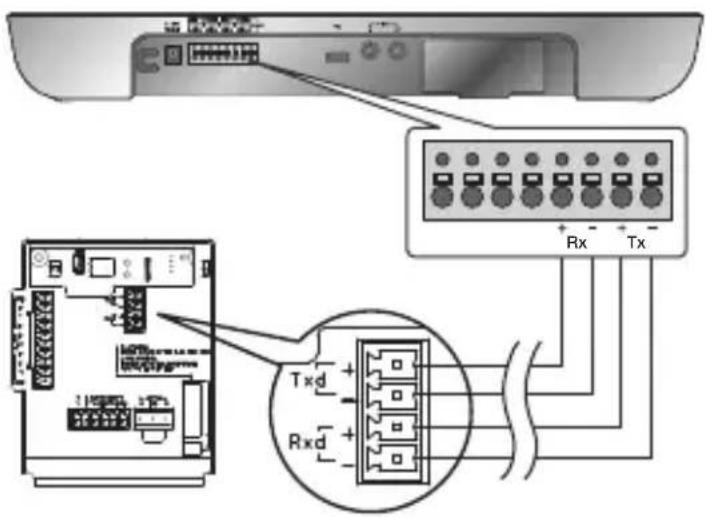
Conectando o cabo adaptador
Placa adaptadora![graph TD A["AC24V"] --> B["POWER (24VAC 1.5A)"] B --> C["VIDEO OUT (1.0Vpp 75 ohms)"] C --> D["ALARM IN(1) (5mA shk)"] D --> E["External Relay"] E --> F["External"] F --> G["Logic"] G --> H["Half Duplex Type Controller Data (-) Data (+)"] H --> I["Full Duplex Type Controller Tx (+) Tx (-) Rx (-) Rx…](/content/2026/04/663445/images/e152248861875ca0ec6a036fc4823195de65f6b9544773b09d0c8b39b84a54ff.jpg)
Fonte de alimentação
Conecte os cabos conforme necessário e ligue a câmera para verificar se ela funciona corretamente.
- Conecte o adaptador ao terminal de alimentação da câmera.
- Conecte o cabo de alimentação do adaptador à tomada.
Conecte a câmera ao controlador de teclado ou DVR, com o qual você pode manipular e alterar as configurações da câmera.
COMO USAR O CONTROLADOR DE TECLADO
Siga os passos abaixo para configurar o menu da câmera usando o controlador.
- Abra a tela de configuração da câmera.
- Use o joystick para navegar pelos menus.
- Pressione [ENTER] para selecionar um item do menu.
- Use o joystick para alterar o valor do item selecionado.
- Pressione [ENTER] para aplicar as alterações.
Usando ícones OSD
- ◀▶: Se estes ícones aparecerem no canto esquerdo e direito de um item de menu, você pode usar o joystick para mover para o menu anterior ou próximo.
- (EXIT): Sai da tela de configuração do menu.
Antes de sair da tela de configuração, selecione para salvar suas configurações em todos os menus, ou para cancelá-las.
- (RET): Salva suas configurações e retorna à tela anterior. • (HOME): Retorna ao menu principal.
- (SAVE): Use este ícone se quiser salvar suas configurações depois de especificar a área de máscara e a área de privacidade, etc.
Depois de salvar suas configurações, as alterações permanecem intactas mesmo se você selecionar ao sair.
- (DEL): Use este ícone se quiser excluir uma máscara, ou área de privacidade, etc. Depois de excluir suas configurações, as exclusões permanecem válidas mesmo se você selecionar ao sair. • 📁: Este ícone aparece à direita de um menu que contém submenus.

■ Enquanto qualquer operação de PRESET, AUTO PAN, SCAN e PATTERN estiver em execução, e se a câmera for desligada e ligada novamente sem qualquer manipulação particular, a câmera retomará a última operação em execução. - Você pode definir o item de menu somente se o ângulo de inclinação estiver dentro de 90°. Se você entrar na tela de configuração do menu com a câmera posicionada fora de uma inclinação de 90°, a câmera girará 180° para cair na posição oposta dentro de uma inclinação de 90°.
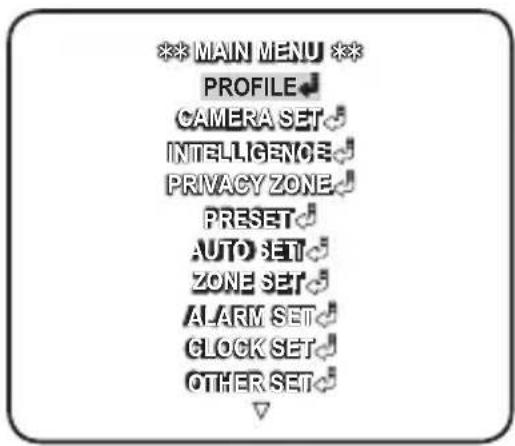
Esta é a primeira tela que você vê ao ligar a câmera, onde você pode definir o ambiente da câmera de acordo com suas necessidades.
Para selecionar e salvar cada item de menu, consulte "Como usar o controlador de teclado". (página 22)
- PERFIL
Selecione um modo apropriado para o ambiente de instalação da câmera.
- CONFIGURAÇÃO DA CÂMERA
Você pode configurar as configurações da câmera.
• INTELIGÊNCIA
Oferece funções de detecção e rastreamento de movimento.
- ZONA DE PRIVACIDADE
Você pode configurar as configurações de privacidade.
- PRESET
Você pode definir a POSIÇÃO PRESET e a DURAÇÃO.
- CONFIGURAÇÃO AUTOMÁTICA
Contém subitens de PAN AUTOMÁTICO, PADRÃO e VARREDURA.
- CONFIGURAÇÃO DE ZONA
Você pode definir o azimute padrão e a área da zona para a câmera.
- CONFIGURAÇÃO DE ALARME
Você pode definir a prioridade do alarme e a sequência de E/S.
- CONFIGURAÇÃO DE RELÓGIO
Você pode definir a hora de exibição e o formato.
- OUTRAS CONFIGURAÇÕES
Você pode redefinir a câmera ou ajustar a cor do OSD de acordo com sua preferência.
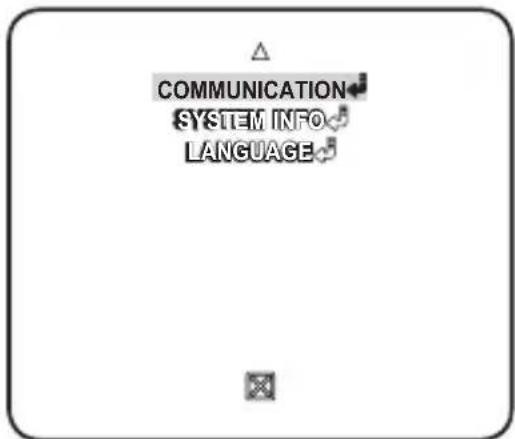
• COMUNICAÇÃO
Configura as configurações relacionadas à comunicação RS-485.
- INFORMAÇÕES DO SISTEMA
Mostra as informações do sistema, como a versão da câmera ou as configurações de comunicação.
- IDIOMA
Selecione um dos idiomas suportados.
PERFIL
Você pode selecionar uma das configurações pré-determinadas de acordo com o ambiente específico de instalação da sua câmera.
Sua seleção em cada item do PERFIL afetará todas as outras configurações da câmera.
- PADRÃO
Otimiza automaticamente as configurações da câmera para o ambiente normal.
• ITS
Esta configuração permite analisar a situação do tráfego e obter as informações de trânsito de uma só vez.
- RETROILUMINAÇÃO
Esta definição permite-lhe ver um fundo e um objeto nítidos mesmo numa cena com forte contraluz.
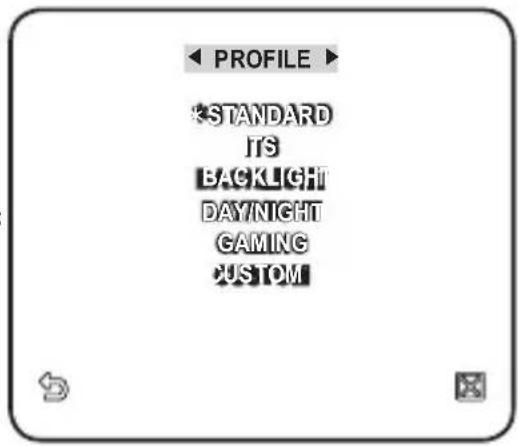
- DIA/NOITE
Otimiza automaticamente as definições da câmara para a cena diurna e noturna.
• JOGOS
Isto configura automaticamente as definições para que possa trabalhar numa condição de iluminação estável, como em ambientes interiores.
PERSONALIZADO
A sua alteração em qualquer uma das definições de PERFIL mudará o ecrã para PERSONALIZADO.
| CAMERA SETUP MENU | STANDARD ITS BACKLIGHT DAY/NIGHT GAMING | |||||
| Parent Menu | Sub-menus | |||||
| IRIS | ALC ALC ALC ALC ALC | |||||
| ALC - - - - | ||||||
| LEVEL | 0 0 0 0 0 | |||||
| BACKLIGHT OFF OFF BLC OFF OFF | ||||||
| MOTION | (F.FAST)--- | (F.FAST)--- | NORM | (F.FAST)--- | SLOW | |
| DNR MEDIUM MEDIUM MEDIUM MEDIUM MEDIUM | ||||||
| SHUTTER OFF OFF OFF OFF | ||||||
| SENSE UP | AUTO X4 | AUTO X2 | AUTO X4 | AUTO X4 | AUTO X4 | |
| XDR | MEDIUM MEDIUM MEDIUM MEDIUM MEDIUM | |||||
| DAY/NIGHT | AUTO AUTO DAY AUTO DAY | |||||
| NIGHT - - - - | ||||||
| BURST OFF ON OFF OFF OFF | ||||||
| EXT | - - - - - | |||||
| BURST OFF ON OFF OFF OFF | ||||||
| WHITE BAL | DAY DAY/NIGHT DAY DAY/NIGHT DAY | |||||
| DAY | - - - - - | |||||
| MODE | ATW2 ATW1 ATW1 ATW1 ATW1 | |||||
| RED 0 0 0 0 0 | ||||||
| BLUE 0 0 0 0 0 | ||||||
| NIGHT - - - - | ||||||
| BRIGHTNESS | Custom Setting | MEDIUM | Custom Setting | MEDIUM | Custom Setting | |
| MODE | OFF | ATW2 OFF | ATW2 | OFF | ||
| RED | Custom Setting | 0 | Custom Setting | 0 | Custom Setting | |
| BLUE | Custom Setting | 0 | Custom Setting | 0 | Custom Setting | |
| DETAIL | 2 2 2 2 2 | |||||
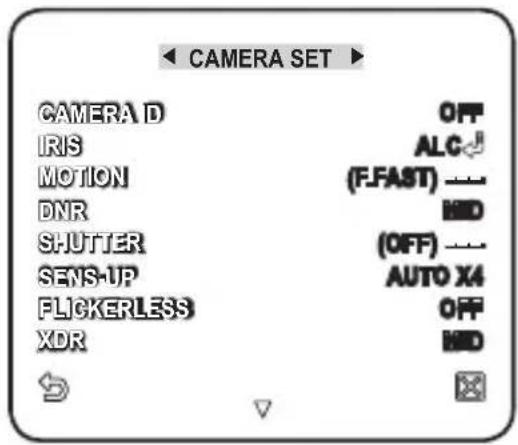
DEFINIÇÕES DA CÂMARA
Pode configurar as definições gerais do módulo da câmara.
Para selecionar e guardar cada item do menu, consulte "Como utilizar o controlador de teclado". (página 22)
- Selecione - . O menu Definições da Câmara aparece.
- Altere as definições conforme necessário, ou selecione um item para verificar.
ID DA CÂMERA
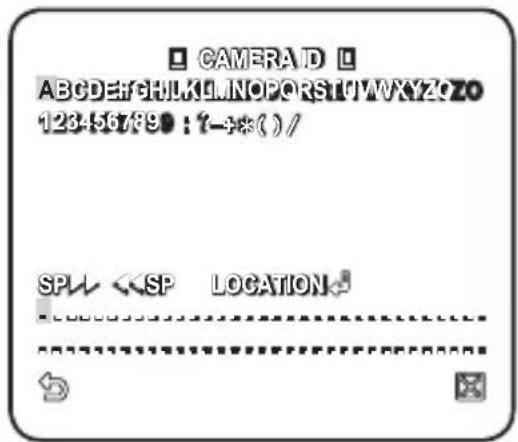
Forneça o ID e a localização de uma câmera que aparece na tela.
Para selecionar e salvar cada item do menu, consulte "Como usar o controlador de teclado". (página 22)
- Selecione - .
- Use o joystick para selecionar o caractere desejado e pressione [ENTER].
Na caixa de entrada inferior da tela, o caractere selecionado será inserido.
■ Você pode inserir até 54 caracteres, incluindo letras, números e caracteres especiais.
- LOCALIZAÇÃO: Especifique a posição de exibição do ID da câmera.
- Quando terminar, pressione [ENTER].
O ID da câmera será exibido na posição especificada.
ÍRIS
O menu ÍRIS é útil se você definir para ajustar a intensidade da radiação que entra na câmera.
- ALC: Ajusta a abertura e o fechamento do diafragma.
- NÍVEL: Selecione um nível geral de brilho.
- BLC: Com definido para , você pode especificar a área BLC.
Com AREA definido para , você pode especificar a posição e o tamanho.
![ALG NÍVEL [ 00] ----1---- RETROILUMINAÇÃO ÁREA BLC USUÁRIO EED LATION](/content/2026/04/663445/images/19575a9f1cadf79e0078189adca6784cf152dd206d418d975dd5820f840b75e6.jpg)
- MANUAL: Ajuste o nível do obturador manualmente.

■ O alvo geral de brilho de uma câmera será definido para o nível ALC 0, enquanto o obturador pode ser ajustado manualmente.
![MANUAL NÍVEL [ 00] ----1----](/content/2026/04/663445/images/03791c86d26cabc6f8fb42eb67bc684f6e98a6110b521d1b203ebcbdb27769bf.jpg)
AGC
Com isso, você pode ajustar o nível de AGC de uma câmera.
Com o AGC ativo, se a intensidade do sinal cair abaixo do nível padrão, o AGC amplificará o sinal de vídeo para melhorar automaticamente a sensibilidade.
Se estiver definido para , ou modo, o menu mudará para .
Com o submenu USER(◀) selecionado, pressione [ENTER] para exibir a tela correspondente. Neste modo, você pode selecionar de VERY LOW
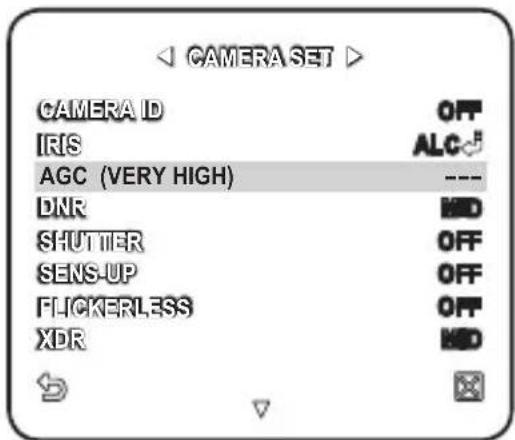
a VERY HIGH em 16 níveis, permitindo escolhas mais profundas e amplas para sua conveniência. Com o submenu FIX(💡) selecionado, pressione [ENTER] para exibir a tela correspondente. Neste modo, você pode selecionar um modo individualizado em 16 níveis, independentemente do brilho.

Enquanto o menu DAY/NIGHT estiver definido como AUTO em Camera Setup, o menu AGC não estará disponível. Enquanto FLICKERLESS estiver definido como ON, o modo AGC não estará disponível.
mOTION
Você pode especificar um nível de AGC para controlar o movimento da câmera.
Isso está disponível apenas se o menu SENSE UP estiver definido como AUTO.
Selecione F.FAST se quiser monitorar um objeto que se move muito rapidamente em uma cena de baixo contraste, e S.SLOW se estiver monitorando um objeto inanimado que se move muito lentamente na mesma condição.
Enquanto DAY/NIGHT estiver definido como , o menu não estará disponível.
DNR
Reduz o ruído na imagem da câmera.
Quanto maior o nível, maior o efeito.
Defina-o para especificar o nível.
SHUTTER
Você pode selecionar uma velocidade de obturador eletrônico rápido fixa em 7 opções variando de 1/100 a 1/10k, que é usada principalmente para fotografar um objeto em movimento rápido.
- Enquanto SENSE UP estiver definido como AUTO, FIXED / FLICKERLESS como ON, o menu SHUTTER não estará disponível.
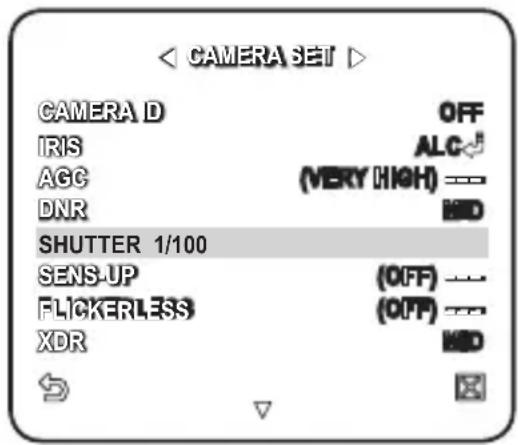
SENS-UP
Detecta automaticamente o nível de escuridão à noite ou em uma cena de baixo contraste e estende o tempo de acumulação de acordo; você pode selecionar ou para uma imagem brilhante e nítida.

Se o menu SHUTTER estiver definido para o modo de obturador eletrônico fixo, o menu SENSE UP não estará disponível. Enquanto o FLICKERLESS estiver definido como ON, você não poderá definir o SENS-UP FIX.
FLICKERLESS
Isso evitará possíveis distorções na tela devido a uma incompatibilidade entre a frequência de sincronização vertical e a frequência de oscilação da iluminação; se definido como , a velocidade do obturador será fixada em 1/100 de segundo.
Se SHUTTER estiver definido como FIX, SENSE UP como FIX e AGC como FIX, o menu não estará disponível.
XDR
Isso corrigirá a diferença de brilho entre diferentes cenas para a visibilidade ideal, calculando o contraste de luminância ambiente em uma determinada unidade de pixels. Quanto maior o valor, maior o nível de correção.
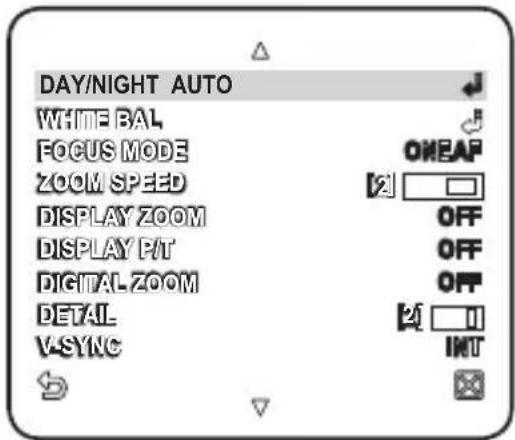
DIA/NOITE
Você pode especificar um modo de gravação de acordo com a cena.
Para selecionar e salvar cada item do menu, consulte "Como usar o controlador de teclado". (página 22)
- Selecione - .
- Selecione um modo de transição de tela de acordo com a iluminação e defina as opções conforme apropriado.
- DIA: Fixado no modo DIA, independentemente da cena.
- NOITE: Fixado no modo NOITE, independentemente da cena.
Se BURST estiver definido como , o sinal de rajada será emitido junto com o sinal de vídeo composto em preto e branco.
- AUTO: De acordo com a luminância, isso alternará do modo DIA para NOITE, ou vice-versa.
- BURST: Se definido como , o sinal de rajada não será emitido no modo NOITE.
- BRILHO DIA→NOITE: Especifique o nível de brilho para alternar do filtro COLOR para BW. Ajustar de ALTO para BAIXO fará com que o filtro alterne em uma tela mais escura.
- TEMPO DE PERMANÊNCIA DIA→NOITE: Tempo necessário para determinar a troca de filtro.
- BRILHO NOITE→DIA: Especifique o nível de brilho para alternar do filtro PB para COLOR. Ajustar de ALTO para BAIXO fará com que o filtro alterne em uma tela mais escura.
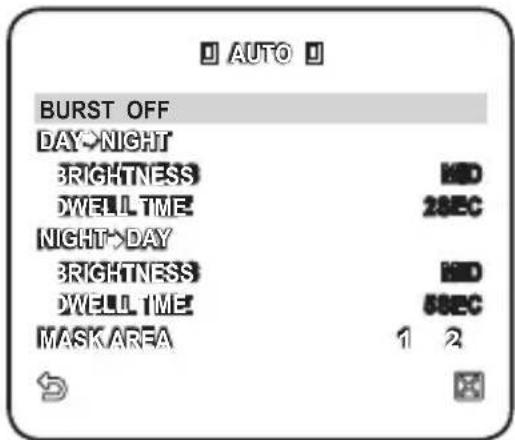
- TEMPO DE PERMANÊNCIA NOITE→DIA: Tempo necessário para determinar a troca de filtro.
- ÁREA DE MÁSCARA: Se houver uma fonte de luz pontual brilhante em uma cena noturna, você pode especificar o tamanho e a posição conforme necessário.
Isso evitará um erro na troca de filtro ou falha na determinação da troca de filtro em uma cena noturna onde existe uma fonte de luz pontual brilhante.
Qualquer área excessivamente brilhante em uma cena noturna será mascarada.
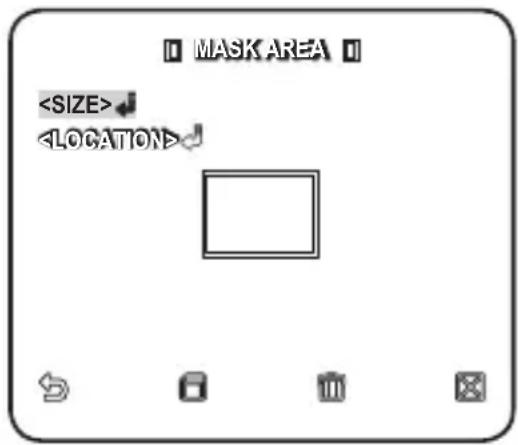
■ Você pode especificar MÁSCARA 1 e 2 simultaneamente. Se estiver definido como , a função ÁREA DE MÁSCARA não estará disponível. - EXT: A interface para um alarme externo permite uma troca automática entre os modos DIA e NOITE.
Se você definir como EXT e alarme #1 como NO/NC em ALARM SET-ALARM IN SET, o alarme pode ser usado para um sinal de entrada no modo EXT de .
Se ocorrer um sinal de alarme, o modo mudará para NOITE.

Se estiver definido como EXT, ALARM1 em ALARM OUT SET e ALARM1 em ALARM SET-AUTO SET não estarão disponíveis. Se você usar uma fonte de luz infravermelha no modo AUTO, isso pode causar falha no AUTO SWITCH ou no AUTO FOCUS.
BALANÇO DE BRANCO
Se você precisar ajustar a cor de acordo com a iluminação ambiente, você pode usar a função.
Para selecionar e salvar cada item do menu, consulte "Como usar o controlador de teclado". (página 22)
A iluminação é geralmente referida como temperatura de cor, que é representada em uma medida de kelvin (K). As temperaturas de cor para iluminação comum são as seguintes:
No menu, você pode definir um modo para corrigir o .
- ATW1,2: Se você definir o menu para o modo ou, isso monitorará a mudança da temperatura de cor para corrigir conforme necessário. As seguintes faixas de temperatura de cor são garantidas em modos individuais:
ATW1: 2500K \~ 9300K (※1)
ATW2: 2000K \~ 10000K
(adequado para fonte de luz de sódio) Ⓧ2
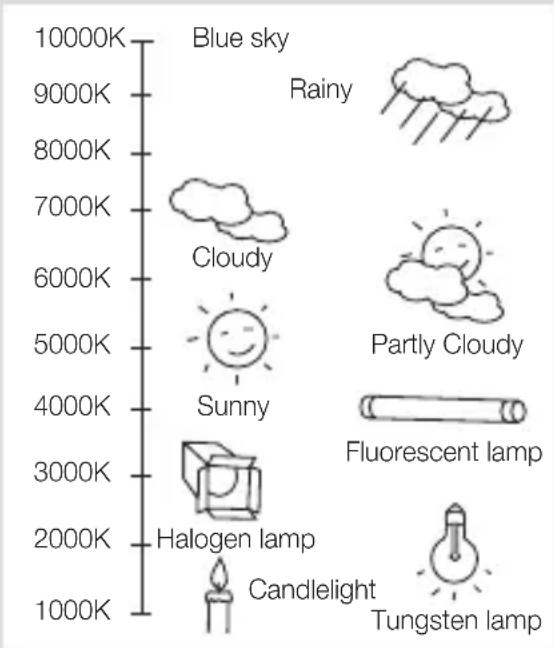
※1: Com o modo ativo em um ambiente de temperatura de cor que ultrapasse a faixa entre 2500K e 9300K, um valor de balanço de branco adequado pode não ser produzido; se for o caso, é recomendável usar o modo. ※2: Com o modo ativo em um ambiente predominantemente de uma única cor, a cor exibida e a real podem diferir; portanto, selecione um modo apropriado para o seu ambiente de temperatura de cor.
- Selecione - .
- Selecione um modo onde você define o .
- DAY: Você pode definir o valor de RED e BLUE no modo DAY.
A tela será exibida em cores de acordo com suas configurações.
- Você pode definir o valor de R-GAIN e B-GAIN apenas no modo. Se AGC estiver definido para ou , o menu NIGHT não pode ser acessado.
![BALANÇO DE BRANCO DIA/NOITE DIA MODO AWC #ED [00] --- 1 --- #UE [00] --- 1 --- R-GANHO [0064] E-GANHO [0064]](/content/2026/04/663445/images/c87674e2a93936b140145291bb983c913dca4c05badfcb885f6795cf9ab32a78.jpg)
- NIGHT: Você pode definir o de acordo com a iluminação ambiente. Se o modo NIGHT estiver definido para , o operará em um modo especificado no modo DAY o tempo todo; caso contrário, a tela mudará para um modo especificado em .
Você pode definir o valor de RED, BLUE e BRIGHTNESS no modo DAY.
A tela será exibida em cores de acordo com suas configurações.
![BALANÇO DE BRANCO DIA/NOITE BRILHO MODO AWC D:ED [00]--------J------------------ UEJE [00]--------J------------------ R-GANHO [0064] B-GANHO [0064]](/content/2026/04/663445/images/726b6d8ecd9d7a96cadfa83464bfbccef5790460a380a97c95141223a163cd04.jpg)
- De acordo com o modo de gravação especificado, selecione um modo com as opções necessárias.
- ATW1,2 : A câmera pode ajustar automaticamente a temperatura de cor em tempo real, de acordo com as condições ambientais. (Faixa de temperatura de cor 1: 2500K \~ 9300K, 2: 2000K \~ 10000K)
- AWC : Pressionar [ENTER] em um item desejado executará ATW uma vez.
- Você pode definir o valor de R-GAIN/B-GAIN.
- 3200K : Defina a temperatura de cor para 3200K.
- 5600K : Defina a temperatura de cor para 5600K.
- BRILHO : Especifique um nível de brilho para alternar do modo DIA para o modo NOITE.
- VERMELHO : Ajuste a intensidade da cor vermelha.
- AZUL : Ajuste a intensidade da cor azul.
- R-GAIN/B-GAIN : Especifique manualmente a temperatura de cor atual.
MODO DE FOCO
Você pode selecionar um modo de foco de acordo com o ângulo que você ajustou para a gravação da câmera.
- AF : Isso monitorará a tela continuamente para focar automaticamente. Se você ajustar o foco manualmente, isso operará da mesma forma que em . Isso também restaurará o foco após a operação de pan/tilt/zoom.
- ONEAF : Restaura o foco após a operação de pan/tilt/zoom e opera da mesma forma que em , a menos que a operação de pan/tilt/zoom seja executada.
- MF : Você pode ajustar o foco manualmente.
![DIA/NOITE AUTO BALANÇO DE BRANCO MODO DE FOCO ONEAF VELOCIDADE DO ZOOM [2] EXIBIR ZOOM DESLIGADO EXIBIR P/T DESLIGADO ZOOM DIGITAL X10 DETALHE- [7] V-SYNC INT →](/content/2026/04/663445/images/aba0c2c35018a33abafb7225a8783e7a67f248ac20eeb5c415777b1446e61a89.jpg)

Enquanto estiver a trabalhar nos seguintes objetos, pode não funcionar corretamente. Se for esse o caso, use em vez disso.
- Objeto muito brilhante ou objeto dominante numa cena escura
- Objeto contra o lado traseiro de um vidro húmido ou sujo
- Uma cena onde objetos próximos e distantes coexistem
- Parede branca ou objeto de cor única
- Persianas e outros objetos com listras horizontais
VELOCIDADE DO ZOOM
Pode ajustar a velocidade de operação do zoom.
EXIBIR ZOOM
Pode definir para exibir o estado do zoom no ecrã.
- Desaparecerá em cerca de 3 segundos se o fator de zoom não sofrer mais alterações.
EXIBIR P/T
Pode definir para exibir o estado de operação do pan/tilt quando estiver ativo.
- Desaparecerá em cerca de 3 segundos se a posição do pan/tilt não sofrer mais alterações. No entanto, o erro admissível é de ±2°.
ZOOM DIGITAL
Você pode definir a proporção máxima de zoom digital permitida.
O Zoom Digital começará a operar após o zoom até a proporção óptica máxima de x34. Se você definir ZOOM DIGITAL para x16, poderá tirar uma foto em até x544 (34x16).
DETALHE
Usado para ajustar a distinção vertical e horizontal, respectivamente.
v-SYNC
Você pode definir o modo V-SYNC.
- Se você selecionar , a câmera usará a sincronização interna.
- Se selecionar , a câmera usará uma frequência de energia externa para sincronização. O LL-PHASE pode ser ajustado conforme apropriado.
SUP DE COR AGC
Você pode ajustar a faixa de reprodução de cores de acordo com o AGC.
REVERSO
Você pode inverter o sinal de vídeo da esquerda para a direita, de cabeça para baixo, ou vice-versa, conforme sua conveniência.
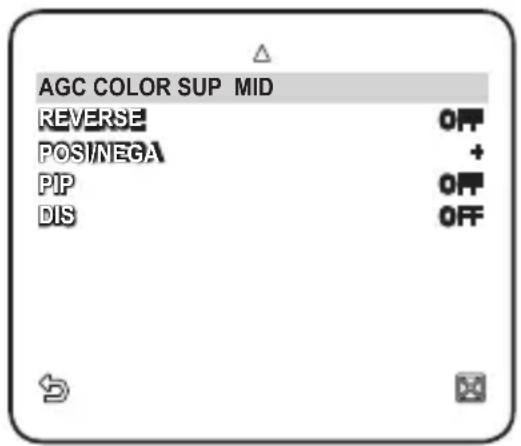
POSI/NEGA
Você pode definir o sinal de brilho do vídeo como normal ou reverso.
PIP
Você pode visualizar uma imagem principal com uma imagem secundária na mesma tela.

Se mais de uma ZONA DE PRIVACIDADE for especificada e PRIVACIDADE definida como , a função PIP não estará disponível. Enquanto SENSE UP estiver definido como FIXO, o menu PIP não estará disponível. - De acordo com a luminância, o PIP desaparecerá se o menu SENSE UP estiver definido como AUTO.
DIS
Se você defini-lo para uma câmera que esteja tremendo ou vibrando devido a uma mudança ambiental, isso compensará automaticamente a oscilação na tela.

Se você definir como , a imagem será ampliada com zoom digital na área compensada. Se você definir o zoom digital para uma proporção maior do que a ampliação real para compensação, a função será desativada. - Pode não funcionar corretamente nas seguintes imagens: planas, ou seja, sem padrão regular / cena de baixo contraste / imagem de alta frequência capturada sob lâmpada fluorescente / imagem com padrão regular
34_ configuração
Você pode habilitar as funções de detecção e rastreamento de movimento.
Para selecionar e salvar cada item do menu, consulte "Como usar o controlador de teclado". (página 22)
- Selecione - .
- Selecione cada item e defina adequadamente.
MOVIMENTO
Você pode habilitar as funções de detecção e rastreamento de movimento.
![INTELIGÊNCIA MOVIMENTO AVANÇADO ÁREA DE MÁSCARA EXIBIÇÃO SENSIBILIDADE RESOLUÇÃO SAÍDA DE ALARME DESLIGADO DESLIGADO 1 2 3 4 LIGADO [+] [3]](/content/2026/04/663445/images/ce21cf745334918a4383708812c1617315c7f79856744fbec72b83d0323f2e26.jpg)

Se você defini-lo como , a opção do menu AVANÇADO não estará disponível.
Nas seguintes situações, a função de detecção e rastreamento de movimento pode não funcionar corretamente.
- Quando houver mudanças repentinas de brilho
- Quando o dispositivo se move
- Quando o movimento de um certo objeto preenche a maior parte da área de enquadramento
- Quando há dificuldades em distinguir o objeto em movimento e o fundo
AVANÇADO
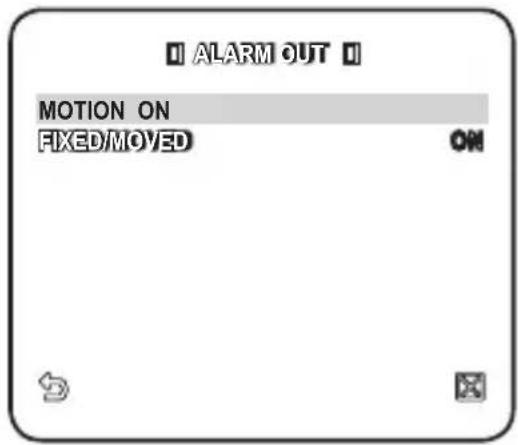
Você pode detectar movimentos e marcar o vídeo que contém tal movimento, e permite o rastreamento do movimento.
Selecionar a opção marcará uma região se um objeto existente desaparecer, ou um novo objeto aparecer e ficar fixo por um certo período de tempo.

Nas seguintes situações, a detecção FIXO/MOVIMENTO pode não funcionar corretamente.
- Quando múltiplos movimentos continuam arbitrariamente.
- Quando o objeto que está fixo continua a se mover na mesma posição.
- Quando um objeto recém-aparecido oculta outro objeto que está se movendo.
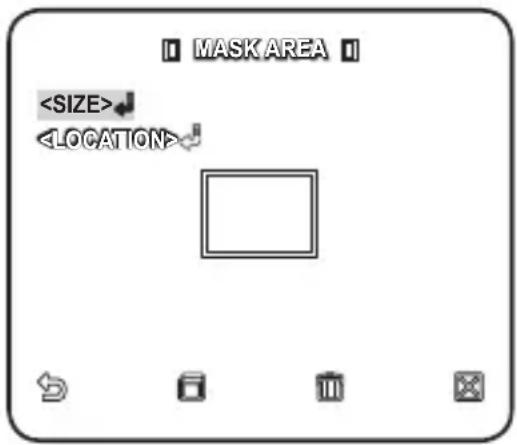
ÁREA DE MÁSCARA
- Selecione o número da área a ser mascarada que será excluída da detecção de movimento.
- Selecione o número da máscara e defina o tamanho da máscara e sua cobertura.
EXIBIÇÃO
Quando selecionado, exibe o movimento detectado e a detecção da função avançada configurada.
SENSIBILIDADE
Define a sensibilidade do sensor de movimento.
RESOLUÇÃO
Quanto maior a definição de resolução, menor o objeto que pode ser detectado.
SAÍDA DE ALARME
Quando selecionado, emite sinal de alarme quando o movimento é detectado e na detecção de função avançada configurada.
ZONA DE PRIVACIDADE
Você pode configurar até 12 zonas de privacidade que serão ocultadas para privacidade do sujeito durante a gravação.
Configuração de Zona
Para selecionar e salvar cada item de menu, consulte "Como usar o controlador de teclado". (página 22)
- Selecione - .
- Selecione o número da zona e pressione [ENTER].
A tela de configuração de zona aparece.
- Selecione e pressione [ENTER].
Usando o joystick, ajuste a panorâmica, a inclinação e o zoom da câmera.

- Selecione . Selecione o nível de pixel para as configurações de TAMANHO e LOCALIZAÇÃO.
- Selecione e pressione [ENTER]. Usando o joystick, defina o tamanho da zona de privacidade.
- Selecione e pressione [ENTER]. Usando o joystick, defina a posição da zona de privacidade.
- Salve as alterações e volte para a tela anterior e selecione


- SMART DOME CAMERA
- (TIPO EXTERNO)
- MANUAL DO USUÁRIO
- CUIDADO
- AVISO
- VISÃO GERAL
- DECLARAÇÃO FCC
- AVISO DE CONFORMIDADE IC
- INSTRUÇÕES IMPORTANTES DE SEGURANÇA
- INSTALAÇÃO E CONEXÃO
- CONFIGURAÇÃO
- APÊNDICE
- CARACTERÍSTICAS
- O QUE ESTÁ INCLUÍDO
- ACESSÓRIOS OPCIONAIS PARA INSTALAÇÃO
- PRECAUÇÕES
- PREPARAÇÃO
- CONFIGURAÇÃO INICIAL
- CONFIGURAÇÃO DO ENDEREÇO DA CÂMERA
- CONFIGURAÇÃO DO PROTOCOLO DE COMUNICAÇÃO
- CONFIGURAÇÃO DA TAXA DE TRANSMISSÃO
- CONFIGURAÇÃO DO TERMINADOR RS-422A/RS
- CONECTANDO A UM MONITOR
- PARA CONECTAR ALARM IN
- PARA CONECTAR ALARM OUT
- PARA CONECTAR O CONTROLADOR
- CONECTANDO O CABO ADAPTADOR
- FONTE DE ALIMENTAÇÃO
- COMO USAR O CONTROLADOR DE TECLADO
- USANDO ÍCONES OSD
- PERFIL
- CONFIGURAÇÃO DA CÂMERA
- INTELIGÊNCIA
- ZONA DE PRIVACIDADE
- PRESET
- CONFIGURAÇÃO AUTOMÁTICA
- CONFIGURAÇÃO DE ZONA
- CONFIGURAÇÃO DE ALARME
- CONFIGURAÇÃO DE RELÓGIO
- OUTRAS CONFIGURAÇÕES
- COMUNICAÇÃO
- INFORMAÇÕES DO SISTEMA
- IDIOMA
- PADRÃO
- ITS
- RETROILUMINAÇÃO
- DIA/NOITE
- JOGOS
- PERSONALIZADO
- DEFINIÇÕES DA CÂMARA
- ID DA CÂMERA
- ÍRIS
- AGC
- MOTION
- DNR
- SHUTTER
- SENS-UP
- FLICKERLESS
- XDR
- BALANÇO DE BRANCO
- MODO DE FOCO
- VELOCIDADE DO ZOOM
- EXIBIR ZOOM
- EXIBIR P/T
- ZOOM DIGITAL
- DETALHE
- V-SYNC
- SUP DE COR AGC
- REVERSO
- POSI/NEGA
- PIP
- DIS
- MOVIMENTO
- AVANÇADO
- ÁREA DE MÁSCARA
- EXIBIÇÃO
- SENSIBILIDADE
- RESOLUÇÃO
- SAÍDA DE ALARME
Marca : SAMSUNG
Modelo : SCC-C7437P
Categoria : Barra de som