
Lumix DMC-FT1EG-G - Aparat fotograficzny PANASONIC - Bezpłatna instrukcja obsługi
Znajdź bezpłatnie instrukcję urządzenia Lumix DMC-FT1EG-G PANASONIC w formacie PDF.


| Typ produktu | Aparat cyfrowy |
| Marka | Panasonic |
| Model | Lumix DMC-FT1 |
| Rozdzielczość efektywna | 12,1 mln pikseli |
| Matryca | 1/2,33" CCD, 12,7 mln pikseli |
| Zoom optyczny | 4,6× (odpowiednik 28–128 mm dla filmu 35 mm) |
| Zoom cyfrowy | Maks. 4× |
| Zoom ekstra optyczny | Maks. 9,1× |
| Wyświetlacz | 2,7" TFT LCD, ok. 230 000 punktów |
| Wodoodporność | IPX8 – do 3 m głębokości przez 60 minut |
| Pyłoszczelność | IP5X |
| Odporność na upadek | MIL-STD 810F – upadek z 1,5 m na sklejkę 5 cm |
| Bateria | Litowo-jonowa DMW-BCF10E (3,6 V, 940 mAh) |
| Ładowarka | DE-A60A (wejście 110–240 V~) |
| Wymiary (szer. × wys. × gł.) | Ok. 98,3 × 63,1 × 23,0 mm (bez wystających części) |
| Masa | Ok. 162,5 g (bez karty i baterii) / ok. 183,8 g (z kartą i baterią) |
| Pamięć wewnętrzna | Ok. 40 MB |
| Nośniki zewnętrzne | SD / SDHC / MMC (MMC tylko do zdjęć) |
| Czas pracy baterii (zdjęcia) | Ok. 340 zdjęć (wg CIPA) |
| Czas pracy baterii (film) | Ok. 100 min (tryb AVCHD Lite) |
| Funkcje specjalne | Wodoodporność, pyłoszczelność, odporność na upadek, tryb podwodny, stabilizacja obrazu |
Często zadawane pytania - Lumix DMC-FT1EG-G PANASONIC
Pytania użytkowników dotyczące Lumix DMC-FT1EG-G PANASONIC
0 pytanie dotyczące tego urządzenia. Odpowiedz na te, które znasz, lub zadaj własne.
Zadaj nowe pytanie dotyczące tego urządzenia
Pobierz instrukcję dla swojego Aparat fotograficzny w formacie PDF za darmo! Znajdź swoją instrukcję Lumix DMC-FT1EG-G - PANASONIC i weź swoje urządzenie elektroniczne z powrotem w ręce. Na tej stronie opublikowane są wszystkie dokumenty niezbędne do korzystania z urządzenia. Lumix DMC-FT1EG-G marki PANASONIC.
INSTRUKCJA OBSŁUGI Lumix DMC-FT1EG-G PANASONIC
Panasonic®

natural_image
Illustration of a flat-screen digital camera module with mounting holes and a small square lens (no text or symbols)Operating Instructions
Digital Camera
Model No. DMC-FT1
Before use, please read these instructions completely.


VIERA Link
Dear Customer,
We would like to take this opportunity to thank you for purchasing this Panasonic Digital Camera. Please read these Operating Instructions carefully and keep them handy for future reference. Please note that the actual controls and components, menu items, etc. of your Digital Camera may look somewhat different from those shown in the illustrations in these Operating Instructions.
Carefully observe copyright laws.
- Recording of pre-recorded tapes or discs or other published or broadcast material for purposes other than your own private use may infringe copyright laws. Even for the purpose of private use, recording of certain material may be restricted.
Information for Your Safety
WARNING:
TO REDUCE THE RISK OF FIRE, ELECTRIC SHOCK OR PRODUCT DAMAGE,
• DO NOT EXPOSE THIS APPARATUS TO RAIN, MOISTURE, DRIPPING OR SPLASHING AND THAT NO OBJECTS FILLED WITH LIQUIDS, SUCH AS VASES, SHALL BE PLACED ON THE APPARATUS.
- USE ONLY THE RECOMMENDED ACCESSORIES.
- DO NOT REMOVE THE COVER (OR BACK); THERE ARE NO USER SERVICEABLE PARTS INSIDE. REFER SERVICING TO QUALIFIED SERVICE PERSONNEL.
IF THE POWER CORD OF THIS EQUIPMENT IS DAMAGED, IT MUST BE REPLACED WITH AN ELECTRICALLY APPROVED POWER CORD.
THE SOCKET OUTLET SHALL BE INSTALLED NEAR THE EQUIPMENT AND SHALL BE EASILY ACCESSIBLE.
Product Identification Marking is located on the bottom of units.
■ About the battery pack
CAUTION
Danger of explosion if battery is incorrectly replaced. Replace only with the same or equivalent type recommended by the manufacturer. Dispose of used batteries according to the manufacturer's instructions.
- Do not heat or expose to flame.
- Do not leave the battery(ies) in an automobile exposed to direct sunlight for a long period of time with doors and windows closed.
Warning
Risk of fire, explosion and burns. Do not disassemble, heat above 60 °C or incinerate.
■ About the battery charger
CAUTION!
• DO NOT INSTALL OR PLACE THIS UNIT IN A BOOKCASE, BUILT-IN CABINET OR IN ANOTHER CONFINED SPACE. ENSURE THE UNIT IS WELL VENTILATED. TO PREVENT RISK OF ELECTRIC SHOCK OR FIRE HAZARD DUE TO OVERHEATING, ENSURE THAT CURTAINS AND ANY OTHER MATERIALS DO NOT OBSTRUCT THE VENTILATION VENTS.
- DO NOT OBSTRUCT THE UNIT'S VENTILATION OPENINGS WITH NEWSPAPERS, TABLECLOTHS, CURTAINS, AND SIMILAR ITEMS.
- DO NOT PLACE SOURCES OF NAKED FLAMES, SUCH AS LIGHTED CANDLES, ON THE UNIT.
• DISPOSE OF BATTERIES IN AN ENVIRONMENTALLY FRIENDLY MANNER.
- The battery charger is in the standby condition when the AC power supply cord is connected. The primary circuit is always "live" as long as the power cord is connected to an electrical outlet.
■ Care of the camera
- Do not strongly shake or bump the camera by dropping or hitting it. Do not subject to strong pressure.
— The camera may malfunction, recording pictures may become impossible, or the lens, the LCD monitor or the external case may be damaged.
— It may blemish the waterproof function.
- Do not open or close the Card/Battery door or the terminal cover with a wet hand, or in the water.
- Wipe off the water before opening if there is any water on the camera.
- When there is water inside the Card/Battery door or terminal cover, wipe it off completely, and then use attached brush to remove any foreign objects.
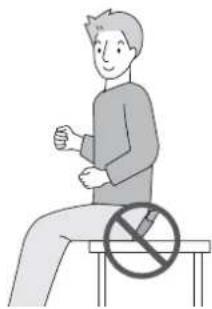
- We strongly recommend you do not leave the camera in your trousers pocket when you sit down or forcefully insert it into a full or tight bag etc. Damage to the LCD monitor or personal injury may result.
- Do not attach any other items to the hand strap that's included with your camera. While being stored, that item can rest against the LCD monitor and damage it.
• Take extra care when handling in places with sand and dust, since it may cause malfunction. - Do not touch the lens or terminal areas with dirty hand.
• Take care so fluid, sand, or foreign objects do not fall into the gap of the buttons.
■ About Condensation (When the lens is fogged up)
- Condensation occurs when the ambient temperature or humidity changes. Be careful of condensation since it causes lens stains, fungus and camera malfunction.
- If condensation occurs, turn the camera off and leave it for about 2 hours. The fog will disappear naturally when the temperature of the camera becomes close to the ambient temperature.
- If the fog does not disappear, it may help opening the Card/Battery door or terminal cover for a while. (Do not open or close around the water)
■ Read together with the "Cautions for Use". (P130)
natural_image
Illustration of a person sitting on a bench with a no-smoking symbol (no text or labels)-If you see this symbol-
Information on Disposal in other Countries outside the European Union
This symbol is only valid in the European Union.
If you wish to discard this product, please contact your local authorities or dealer and ask for the correct method of disposal.

natural_image
Symbol of a trash bin crossed with no visible text or labelsContents
Before Use
Information for Your Safety....2
Quick Guide 8
(Important) About the waterproof/
dustproof and anti-shock
performance of the camera....9
Standard Accessories....12
Names of the Components 13
Preparation
Attaching the hand strap....15
Charging the Battery 16
- About the Battery (charging/number of recordable pictures) ..... 17
Inserting and Removing the Card (optional)/the Battery 19
About the Built-in Memory/ the Card 21
Setting Date/Time (Clock Set) 22
- Changing the clock setting....23
Setting the Menu....24
- Setting menu items 25
• Using the quick menu 26
About the Setup Menu 27
Selecting the [REC] mode, and record still picture or motion picture ....
- Playback the recorded still pictures or motion picture....35
Basic
Taking pictures using the automatic function
(iA: Intelligent Auto Mode) 36
- Scene detection....37
• Face Recognition....38
• AF Tracking Function....38
- About the flash....38
- Settings in Intelligent auto mode ....39
Taking pictures with
your favourite settings
(☐: Normal picture mode) 40
- Focusing 40
- When the subject is not in focus (such as when it is not in the centre of the composition of the picture you want to take) ....41
- Preventing jitter (camera shake)......41
- Direction detection function ...... 41
Taking Pictures with the Zoom....42
- Using the Optical Zoom/ Using the Extra Optical Zoom (EZ)/Using the Digital Zoom .... 42
Playing back Pictures
([NORMAL PLAY]) 43
- Displaying Multiple Screens (Multi Playback) 44
• Using the Playback Zoom....44
- Switching the [PLAYBACK] mode....45
Deleting Pictures....45
• To delete a single picture......45
- To delete multiple pictures (up to 50) or all the pictures....46
Advanced (Recording pictures)
About the LCD Monitor 47
Taking Pictures using the
Built-in Flash 49
- Switching to the appropriate flash setting .... 49
Taking Close-up Pictures....52
Taking Pictures with the Self-timer .....54
Compensating the Exposure .....55
Taking Pictures using
Auto Bracket 56
Take the outdoors
scene expressively 57
• [SPORTS] 57
• [SNOW]......57
• [BEACH & SURF] 57
Taking pictures that match the scene being recorded
(SCN: Scene mode)....58
• [PORTRAIT]....59
• [SOFT SKIN]....59
• [TRANSFORM] 59
• [SELF PORTRAIT]......60
• [SCENERY] 60
• [PANORAMA ASSIST]......60
• [NIGHT PORTRAIT]......61
• [NIGHT SCENERY] 61
• [FOOD] 62
• [PARTY]....62
• [CANDLE LIGHT]......62
• [BABY1]/[BABY2]....63
• [PET] 63
• [SUNSET] 64
• [HIGH SENS.] 64
• [HI-SPEED BURST]...... 64
• [FLASH BURST]....65
• [STARRY SKY]....66
• [FIREWORKS] 66
• [AERIAL PHOTO] 67
• [PIN HOLE] 67
• [FILM GRAIN] 67
• [UNDERWATER]......68
Recording Motion Picture 69
- Changing [REC MODE] and [REC QUALITY] 72
• C-AF [CONTINUOUS AF] 74
• ≈ [WIND CUT]....75
• 3D [LED LIGHT] 75
Taking a picture with
Face Recognition function 76
• Face Recognition functions ..... 76
- Face settings 76
Useful Functions at
Travel Destinations 79
- Recording which Day of the Vacation You Take the Picture....79
- Recording Dates/ Times at Overseas Travel Destinations (World Time)....81
Using the [REC] Mode Menu 83
• [PICTURE SIZE] 83
• [QUALITY]......84
• [ASPECT RATIO] 84
• ISO [INTELLIGENT ISO] 84
• ISO [SENSITIVITY]......85
• WB [WHITE BALANCE] 85
• [FACE RECOG.] 87
• AF [AF MODE] 87
• ^AF [PRE AF]....89
• i① [I.EXPOSURE]....89
• [BURST]......90
• [DIGITAL ZOOM] 91
• [COLOR MODE] 91
• ( ) [STABILIZER] 92
• MIN [MIN. SHTR SPEED] 92
• [AUDIO REC.] 93
• AF* [AF ASSIST LAMP]....93
• ⏻ [CLOCK SET] 93
Taking and viewing
clipboard pictures
(☐: Clipboard mode)....94
• Taking clipboard pictures....94
• Viewing clipboard pictures 95
Advanced (Playback)
Playing Back Pictures in Sequence
(Slide Show) 97
Selecting Pictures and
Playing them Back
([CATEGORY PLAY]/
[FAVORITE PLAY]) 99
• [MODE PLAY]......99
• [CATEGORY PLAY] 99
• [FAVORITE PLAY]...... 100
Playing Back Motion Pictures/
Pictures with Audio 101
- Motion pictures ...... 101
• Pictures with audio....101
Using the [PLAYBACK]
mode menu....102
• CAL [CALENDAR] 102
• [TITLE EDIT].... 103
• [TEXT STAMP] 104
• [RESIZE] Reducing the picture size (number of pixels) ..... 106
• × [TRIMMING] 107
• [LEVELING] 108
• 田A [ROTATE DISP.]....108
• ★ [FAVORITE].... 109
• [PRINT SET].... 110
• [PROTECT].... 111
• [AUDIO DUB.] 112
• [FACE RECOG.].... 112
• [COPY] 113
Playing Back Pictures on
a TV Screen....114
- Playing back pictures using the AV cable (supplied) 114
- Playing back pictures on a TV with an SD Memory Card slot.... 115
- Playing back on the TV with HDMI socket.... 115
Connecting to other equipment
Saving the recorded still pictures and motion pictures 119
- Copy the playback image using an AV cable .... 119
- Copying to a PC.... 120
Connecting to a PC....120
Printing the Pictures....124
- Selecting a single picture and printing it.... 125
- Selecting multiple pictures and printing them.... 125
• Print Settings 126
Others
Screen Display.... 128
Cautions for Use 130
Message Display 134
Troubleshooting 137
Number of Recordable Pictures and
Available Recording Time....145
Specifications....149
Quick Guide
This is an overview of how to record and play back pictures with the camera. For each step, be sure to refer to the pages indicated in brackets.

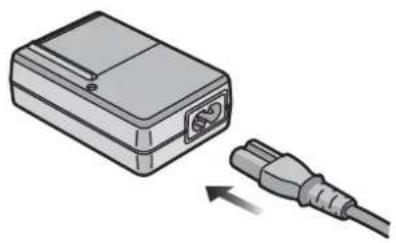
Charge the battery. (P16)
- The battery is not charged when the camera is shipped. Charge the battery before use.
natural_image
Illustration of a device with an attached plug and cable, no text or symbols present
Insert the battery and the card. (P19)
- When you do not use the card, you can record or play back pictures on the built-in memory. (P21) Refer to P21 when you use a card.

natural_image
Illustration of a digital camera module with an attached card showing a lightning bolt (no text or symbols)
Turn the camera on to take pictures.
① Press the shutter button to take pictures. (P36)


Play back the pictures.
① Press [▶].
② Select the picture you want to view. (P43)

(Important) About the waterproof/dustproof and anti-shock performance of the camera
- Please observe the following precautions, and avoid using this camera in any situation where the camera is subject to high water pressure. This camera's waterproof/dustproof rating complies with the "IPX8" and "IP5X" ratings. Provided the care and maintenance guidelines described in this document are strictly followed, this camera can operate underwater, to a depth not exceeding 3 m for a time not exceeding 60 minutes. ^1 This camera also complies with "MIL-STD 810F (Method 516.5-Shock). ^2 The camera has cleared a drop test from a height of 1.5 m onto 5 cm thick plywood. In most cases this camera should not sustain any damage if dropped from a height not exceeding 1.5 m.
- Supplied accessories are not waterproof.
*1 This means that the camera can be used underwater for specified time in specified pressure in accordance with the handling method established by Panasonic. This does not guarantee no destruction, no malfunction, or waterproofing in all conditions.
*2 This does not guarantee no destruction, no malfunction, or waterproofing in all conditions. Observe the following precautions and avoid using under water pressure exceeding the guaranteed performance, and in an environment with excessive dust or sand. Waterproofing is not guaranteed if the unit is subject to an impact as a result of being hit or dropped etc.
When an impact is applied to the camera, it is recommended to consult Panasonic's Service Centre and perform a checkup (subject to a fee) to see if the waterproofing has been retained properly.
Any malfunction caused by customer misuse, or mishandling will not be covered by the warranty.
■ Handling of the camera
- Do not leave the camera under low temperature in the cold climate, or where it has high temperature above 40 °C (especially where strong sunlight is shining, inside a car under the sun, close to a heater, in the ship, beach, etc.) for long period of time. (Waterproof performance will degrade.)
- Do not open or close the card/battery door or terminal cover close to the water at the sea, lake, river or with wet hands.
- Waterproof function of the camera is for sea water and fresh water only.
■ Confirm that there is no foreign object
- In the areas adjacent to location Ⓑ, please be sure that no droplets of water are present before opening the battery door.
- Before closing the card/battery door or terminal cover, confirm that there are no foreign objects (hair, lint, sand, dust, fluid, etc.) on the part (® and ©) coloured black in the figure. When the camera is used underwater with foreign objects clamped on the card/battery door or the terminal cover, water may leak in, causing a malfunction.
- Wipe it off with a dry soft cloth if there is any liquid.
- If there is any foreign object, remove it with attached brush.
- If there is any crack or deformation in the area coloured black in the figure, contact Panasonic's Service Centre.
- Keep the Brush out of reach of children to prevent swallowing.
Ⓐ Card/Battery door
⑧ Rubber seal
© Area where rubber seal sits
(D) Terminal cover
⑤ Hair and lint
⑤ Sand and dust
© Crack and deformation
H Fluid
① Brush (supplied)

■ Securely close the SD card/battery door and terminal cover
Ⓐ Red part
- To prevent water leakage please check very carefully that no foreign object such as sand, hair, dust or fluid is present anywhere within the area of the door seal and door. Close the door by pressing it firmly until it clicks. Confirm that the "red" area on the lock tab is not visible.

■ Using the camera underwater
- This camera can be used under water to a depth not exceeding 3 m, where the water temperature is between 0 °C to 40 °C and not longer than 60 minutes continuously.
- If there is water or dirt on the camera, use it after wiping it off with a dry soft cloth and dried in a well ventilated area.
- Do not open or close the card/battery door or terminal cover.
- Do not apply shock to the camera underwater. (Waterproof performance may not be maintained, and there is a chance of water leak.)
- Do not dive into the water holding the camera. Do not use the camera at the location where the water will splash strongly, such as rapid flow or waterfall. (Strong water pressure may be applied, and it may cause malfunction.)
- The camera will sink in the water. Take care not to drop the camera and lose it underwater by securely placing the hand strap around your wrist or similar measure.
- Do not use in water that exceeds 40^ such as in baths, hot tubs, spas and hot springs.
- When the camera is splashed with detergent, soap, hot spring, bath additive, sun oil, sun screen, chemical, etc., wipe it off immediately.
- Card and battery are not waterproof. Do not handle with a wet hand. Also, do not insert wet card or battery into the camera.
■ Caring of the camera after using it underwater
• After all underwater use, dry the camera thoroughly, as quickly as possible using a lint free cloth. This must be done within 60 minutes of use, or the waterproof seals may be damaged.
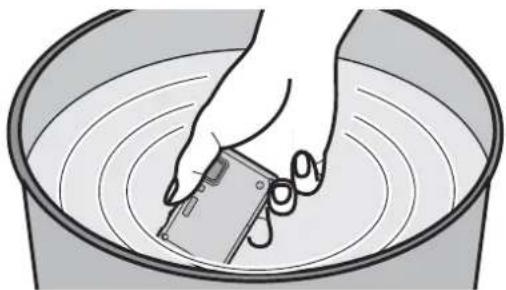
- If the camera was used in salt water the camera must be thoroughly rinsed and cleansed as quickly as possible. It's recommended that it is first rinsed with fresh water, then submersed in fresh water in a shallow container for about 10 minutes. When the camera is removed, thoroughly dry it.
natural_image
Illustration of a hand using a tool to clean or wash material in a circular basin (no text or symbols)- Droplets of water may collect in the area around the battery door. Before opening the door make sure this area is water-free.
- This camera has a water drain that allows water that has accumulated under the plastic trim to drain. This may continue for up to 10 minutes, even after the camera is dried. You can place the camera in a vertical position on a dry cloth during this time.
- If the zoom lever or mode dial does not move smoothly, it may be caused by the adhesion of foreign objects. It may cause malfunctions, such as locking up, so wash off any foreign objects on the zoom lever or mode dial by shaking the camera in fresh water. Confirm that the zoom lever and mode dial moves smoothly after cleaning.
• After soaking or washing the unit, wipe off water drops with a dry soft cloth and dry the unit in an area of shade with a draft. - This unit incorporates drain design, draining water in gaps in the power button and zoom lever etc. As a result of this, bubbles may come out when you soak the unit in water, but it is not a malfunction. Make sure that water is completely drained from the unit after soaking in water by standing the unit on a dry cloth for a while.
- Do not dry the camera with hot air from dryer or similar. Waterproof performance will deteriorate due to deformation.
- Do not use chemicals, such as benzine, thinner, or alcohol, soap, detergents.
■ Replacing the waterproof seal
- The integrity of the waterproof seals may decrease after about 1 year, with use and age. To avoid permanently damaging the camera the seals should be replaced once each year. Please contact Panasonic's Service Centre for related costs and other information.
Standard Accessories
Check that all the accessories are included before using the camera.
1 Battery Pack (Indicated as battery in the text) Charge the battery before use.
2 Battery Charger (Indicated as charger in the text)
3 AC Cable
4 USB Connection Cable
5 AV Cable
6 CD-ROM
- Software:
Use it to install the software to your PC.
7 Brush
8 Hand Strap
9 Battery Case
- SD Memory Card, SDHC Memory Card and MultiMediaCard are indicated as card in the text.
• The card is optional. You can record or play back pictures on the built-in memory when you are not using a card.
- Consult the dealer or your nearest Service Centre if you lose the supplied accessories. (You can purchase the accessories separately.)
1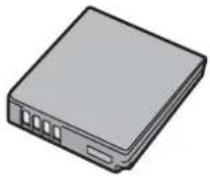 DMW-BCF10E DMW-BCF10E | 2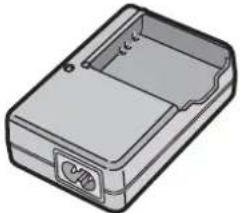 DE-A60A DE-A60A |
2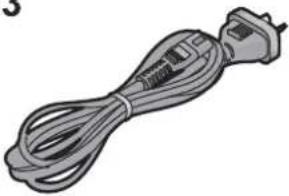 K2CJ2DA00008 K2CJ2DA00008 | 4 K1HA14AD0001 K1HA14AD0001 |
5 K1HA14CD0001 K1HA14CD0001 | 6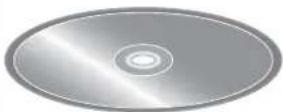 |
7 VFC4364 VFC4364 | 8 VFC4393 VFC4393 |
9 VGQ0D56 VGQ0D56 |
Names of the Components
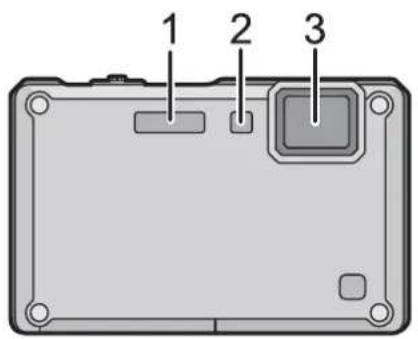
1 Flash (P49)
2 Self-timer indicator (P54)
AF assist lamp (P93)/LED light (P75)
3 Lens (P3, 131)
4 LCD monitor (P47, 128)
5 Status indicator (P19, 29, 33)
6 Playback button (P24)
7 MENU/SET button (P22)
8 [DISPLAY] button (P47)
9 [Q.MENU] (P26)/Delete (P45) button
10 Motion picture button (P33)
11 Mode dial (P33)

12 Cursor buttons
(A): ▲/Exposure compensation (P55)/Auto bracket (P56)/White balance fine adjustment (P86)
⑧: ▼/Macro mode (P52) AF Tracking (P38, 88)
©: ◀/Self-timer button (P54)
(D): ▶/Flash setting button (P49)

flowchart
graph TD
    A["A"] --> M["MENU /SET"]
    C["C"] --> M
    M --> D["D"]
    B["B"] --> M
    M --> A
    M --> B
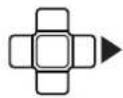
In these operating instructions, the cursor buttons are described as shown in the figure below or described with ▲/▼/◄/►. e.g.: When you press the ▼ (down) button
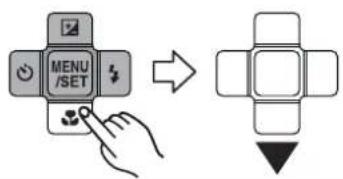
or
Press ▼
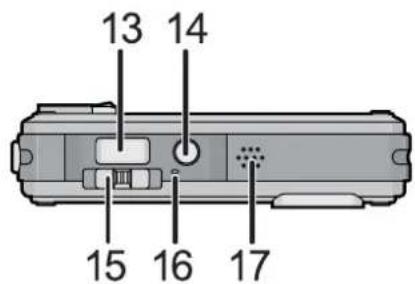
13 Shutter button (P36)
14 Camera ON/OFF button (P22)
15 Zoom lever (P42)
16 Microphone (P70, 93, 112)
17 Speaker (P101)
18 Hand strap eyelet (P15)
19 [HDMI] socket (P115, 116)
20 [AV/DIGITAL/MULTI] socket (P20, 114, 120, 124)
- When using an AC adaptor, ensure that the Panasonic multi conversion adaptor (DMW-MCA1; optional) and AC adaptor (DMW-AC5G; optional) are used. For connection details, refer to P20.
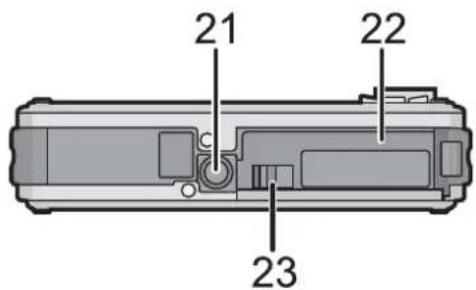
21 Tripod receptacle
- When you use a tripod, make sure the tripod is stable when the camera is attached to it.
22 Card/Battery door (P19)
23 Release lever (P10, 19)

Attaching the hand strap

Run the hand strap into the hand strap eyelet on the camera.
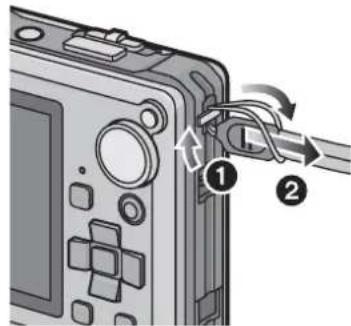

Insert your hand following the arrow, then adjust the length.

natural_image
Illustration of a hand holding a small electronic device with a cable, showing motion arrows (no text or symbols)
Note
- Attach the hand strap correctly following the procedure.
• The camera will sink in the water, so use it underwater with the strap around your wrist.
Charging the Battery
■ About batteries that you can use with this unit The battery that can be used with this unit is DMW-BCF10E.
It has been found that counterfeit battery packs which look very similar to the genuine product are made available to purchase in some markets. Some of these battery packs are not adequately protected with internal protection to meet the requirements of appropriate safety standards. There is a possibility that these battery packs may lead to fire or explosion. Please be advised that we are not liable for any accident or failure occurring as a result of use of a counterfeit battery pack. To ensure that safe products are used we would recommend that a genuine Panasonic battery pack is used.
- Use the dedicated charger and battery.
- This unit has a function that can distinguish useable batteries. Exclusive batteries (DMW-BCF10E) are supported by this function. (Conventional batteries not supported by this function cannot be used)
- The battery is not charged when the camera is shipped. Charge the battery before use.
- Charge the battery with the charger indoors.
- Charge the battery in a temperature between 10^ to 35^ . (The battery temperature should also be the same.)

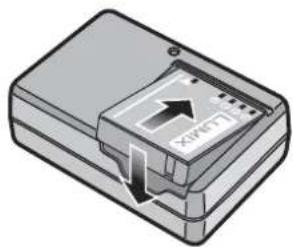
Attach the battery with attention to the direction of the battery.
natural_image
Illustration of a USB flash drive with an arrow indicating compression (no text or symbols)
Connect the AC cable.
- The AC cable does not fit entirely into the AC input terminal. A gap will remain as shown on the right.
- Charging starts when the [CHARGE] indicator Ⓐ lights green.
- Charging is complete when the [CHARGE] indicator Ⓐ turns off (after approx. 130 min maximum).

natural_image
Illustration of a device with an attached plug and labeled point A (no text or symbols present)
natural_image
Line drawing of an electronic device with a cable inserted into a housing (no text or symbols)
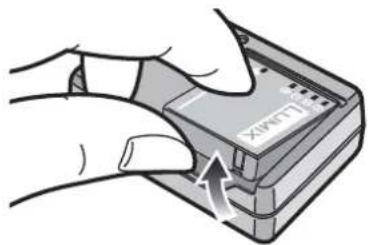
Detach the battery after charging is completed.
natural_image
Illustration of hands inserting a device into a rectangular box with an arrow indicating rotation (no text or symbols)■ When the [CHARGE] indicator flashes
- The battery temperature is excessively high or low. The charging time will be longer than normal. Also, charging may not be completed.
• The terminals of the charger or the battery are dirty. In this case, wipe them with a dry cloth.
![PANASONIC Lumix DMC-FT1EG-G - ■ When the [CHARGE] indicator flashes - 1](/content/2026/06/1174107/images/16cc4c6f2e17da5322bdc7bd38c120fe0058b0b369ce0ede01ad5c961c0af26e.jpg)
Note
- Disconnect the charger from the power outlet after the charging is completed.
- The battery becomes warm after using it and during and after charging. The camera also becomes warm during use. This is not a malfunction.
• The battery will be exhausted if left for a long period of time after being charged. - The battery can be recharged even when it still has some charge left, but it is not recommended that the battery charge be frequently topped up while the battery is fully charged. (The battery has characteristics that will reduce its operating duration and cause the battery to swell up.)
- When the operating time of the camera becomes extremely short even after properly charging the battery, the life of the battery may have expired. Buy a new battery.
- Do not leave any metal items (such as clips) near the contact areas of the power plug. Otherwise, a fire and/or electric shocks may be caused by short-circuiting or the resulting heat generated.
About the Battery (charging/number of recordable pictures)
■ Battery indication
The battery indication is displayed on the LCD monitor.
[It does not appear when you use the camera with the AC adaptor (DMW-AC5G; optional) connected.]

- The indication turns red and blinks if the remaining battery power is exhausted. (The status indicator blinks when the LCD monitor turns off.) Recharge the battery or replace it with a fully charged battery.
■ The battery life
| Number of recordable pictures | Approx. 340 pictures | By CIPA standard in normal picture mode |
| Recording time | Approx. 170 min |
Recording conditions by CIPA standard
• CIPA is an abbreviation of [Camera & Imaging Products Association].
• Temperature: 23 °C/Humidity: 50% when LCD monitor is on.*
• Using a Panasonic SD Memory Card (32 MB).
• Using the supplied battery.
- Starting recording 30 seconds after the camera is turned on. (When the optical image stabilizer function is set to [AUTO].)
- Recording once every 30 seconds with full flash every second recording.
- Sliding the zoom lever from Tele to Wide or vice versa in every recording.
- Turning the camera off every 10 recordings and leaving it until the temperature of the battery decreases.
* The number of recordable pictures decreases in Auto Power LCD mode and Power LCD mode. (P28)
The number of recordable pictures varies depending on the recording interval time. If the recording interval time becomes longer, the number of recordable pictures decreases. [e.g. When recording once every 2 minutes, the number of recordable pictures decreases to about 85.]
| Playback time | Approx. 300 min |
The number of recordable pictures and playback time will vary depending on the operating conditions and storing condition of the battery.
| Available continuous recording time (motion picture) | Approx. 100 min |
- Recorded continuously setting the recording mode to [AVCHD Lite] and [QUALITY] to [SHI]
Available recording time is different depending on the recording intervals or conditions of use.*
* Available recording time becomes shorter when [ON]/[OFF] of the power, start/stop of the recording, or zoom operation are repeated.
■ Charging
| Charging time | Approx. 130 min maximum |
Charging time and number of recordable pictures with the optional battery pack (DMW-BCF10E) are the same as above.
The charging time will vary slightly depending on the status of the battery and the conditions in the charging environment.
When the charging has been completed successfully, the [CHARGE] indicator turns off.

Note
- The battery may swell and its operating time may become shorter as the number of times it is charged increases. For long term battery use, we recommend you do not frequently charge the battery before it is exhausted.
- There may be a residual image on the LCD monitor when used in low temperature, such as at the ski resort. Also, performance of the battery may temporary degrade, resulting to shorter usage time, less number of pictures, etc. In such cases, it is recommended to purchase spare batteries.
Inserting and Removing the Card (optional)/the Battery
- Check that this unit is turned off.
- Confirm that there is no foreign object. (P10)
• We recommend using a Panasonic card.

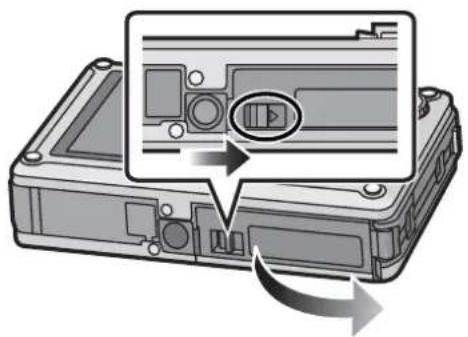
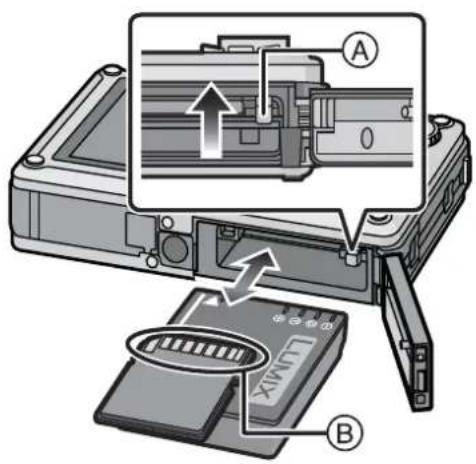
Slide the release lever in the direction of the arrow and open the card/battery door.
• Always use genuine Panasonic batteries (DMW-BCF10E).
- If you use other batteries, we cannot guarantee the quality of this product.
natural_image
Diagram of a device rear panel with a close-up inset showing internal components (no text or symbols)
Battery: Insert until it is locked by the lever Ⓐ being careful about the direction you insert it. Pull the lever Ⓐ in the direction of the arrow to remove the battery.
Card: Push it fully until it clicks being careful about the direction you insert it. To remove the card, push the card until it clicks, then pull the card out upright.
⑧: Do not touch the connection terminals of the card.
- The card may be damaged if it is not fully inserted.

Close the card/battery door until it clicks.
- If the card/battery door cannot be completely closed, remove the card, check its direction and then insert it again.
- Confirm that the red part on the release lever is not showing.

natural_image
Diagram of a computer case with an inset showing a device's internal components and a scroll arrow indicating rotation (no text or symbols present)
Note
- Remove the battery after use. Store the removed battery in the battery case (supplied).
- Do not remove the battery until the LCD monitor and the status indicator (green) turn off as the settings on the camera may not be stored properly.
• The supplied battery is designed only for the camera. Do not use it with any other equipment. - Before removing the card or battery, turn the camera off, and wait until the status indicator has gone off completely. (Otherwise, this unit may no longer operate normally and the card itself may be damaged or the recorded pictures may be lost.)
■ About the card/battery door.
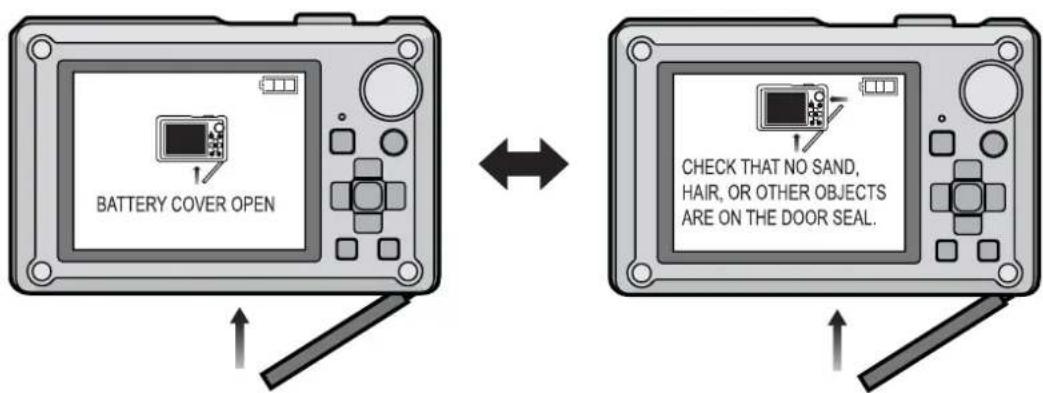
If you turn on the power with the card/battery door open, a warning sound will go off in order to avoid immersion and the message shown below will appear on the LCD monitor. (P136) The camera cannot be operated when the card/battery door is open. (Only the ON/OFF button can be operated) Close it securely so no foreign object is clamped.
- Messages are not displayed when the terminal cover is opened. Also, the camera can be operated, but close the cover securely so no foreign object is clamped before using the camera.
If there is any foreign object, remove it with attached brush.
■ Connecting the AC adaptor and multi conversion adaptor instead of the battery Always purchase the AC adaptor (DMW-AC5G; optional) and the multi conversion adaptor (DMW-MCA1; optional) as a set. The AC adaptor (DMW-AC5G; optional) cannot be used by itself. Also, read the instruction for the multi conversion adaptor (DMW-MCA1; optional) regarding the connection.

① Open the terminal cover
② Connect the camera with the multi conversion adaptor (DMW-MCA1; optional)
- Ensure that only the AC adaptor (DMW-AC5G; optional) and multi conversion adaptor (DMW-MCA1; optional) for this camera are used. Using any other equipment may cause damage.
③ Connect the AC mains lead to the AC adaptor and a wall outlet.
4 Connect the AC adaptor to the multi conversion adaptor.

Note
• Always use a genuine Panasonic AC adaptor (DMW-AC5G; optional).
• Always use a genuine Panasonic multi conversion adaptor (DMW-MCA1; optional).
About the Built-in Memory/the Card
The following operations can be performed using this unit.
- When a card has not been inserted: Pictures can be recorded in the built-in memory and played back.
- When a card has been inserted: Pictures can be recorded on the card and played back.
- Clipboard pictures (P94) are stored on the built-in memory even if a card is inserted.
- When using the built-in memory
IN→→IN (access indication*)
- When using the card → (access indication*)
* The access indication lights red when pictures are being recorded on the built-in memory (or the card).

natural_image
Portrait of a smiling woman with blonde hair, wearing a white top and necklace, outdoors with palm trees and a stone wall in the background (no visible text or symbols)Built-in Memory
• Memory size: Approx. 40 MB
- Recordable motion pictures: QVGA (320×240 pixels) only
- The built-in memory can be used as a temporary storage device when the card being used becomes full.
- You can copy the recorded pictures to a card. (P113)
- The access time for the built-in memory may be longer than the access time for a card.
Card
The following types of cards can be used with this unit. (These cards are indicated as card in the text.)
| Type of card | Characteristics | |
| SD Memory Card (8 MB to 2 GB)(Formatted using the FAT12 or FAT16 format in compliance with the SD standard) | Fast recording and writing speedWrite-Protect switch A provided (When this switch is set to the [LOCK] position, no further data writing, deletion or formatting is possible. The ability to write, delete and format data is restored when the switch is returned to its original position.) |  |
| SDHC Memory Card(4 GB to 32 GB)* (Formatted using the FAT32 format in compliance with the SD standard) | ||
| MultiMediaCard | Still pictures only. | |
* The SDHC Memory Card is a memory card standard decided by the SD Association in 2006 for high capacity memory cards more than 2 GB.
* You can use an SDHC Memory Card in equipment that is compatible with SDHC Memory Cards however you cannot use an SDHC Memory Card in equipment that is only compatible with SD Memory Cards. (Always read the operating instructions for the equipment being used.)
- You can only use cards with SDHC logo (indicating compliance with the SD standard) if using cards with 4 GB or more capacity.
- It is recommended to use a card with SD Speed Class* with "Class 6" or higher when recording motion pictures.
* SD speed class is the speed standard regarding continuous writing.
- Please confirm the latest information on the following website. http://panasonic.co.jp/pavc/global/cs
(This Site is English only.)

Note
- Do not turn this unit off, remove its battery or card, or disconnect the AC adaptor (DMW-AC5G; optional) when the access indication is lit [when pictures are being written, read or deleted, or the built-in memory or the card is being formatted (P32)].
Furthermore, do not subject the camera to vibration, impact or static electricity.
The card or the data on the card may be damaged, and this unit may no longer operate normally.
If operation fails due to vibration, impact or static electricity, perform the operation again.
- The data on the built-in memory or the card may be damaged or lost due to electromagnetic waves, static electricity or breakdown of the camera or the card. We recommend storing important data on a PC etc.
- Do not format the card on your PC or other equipment. Format it on the camera only to ensure proper operation. (P32)
- Keep the Memory Card out of reach of children to prevent swallowing.
Setting Date/Time (Clock Set)
• The clock is not set when the camera is shipped.

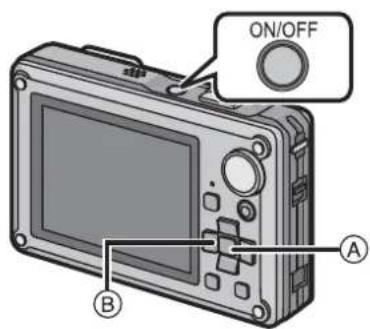
Press and hold down the ON/OFF button.
- The [PLEASE SET THE CLOCK] message appears. (This message does not appear in [PLAYBACK] mode.)
Ⓐ MENU/SET button
⑧ Cursor buttons

Press [MENU/SET].

![PANASONIC Lumix DMC-FT1EG-G - Press [MENU/SET]. - 2](/content/2026/06/1174107/images/ebc3ea41b684dcf012eeb828cadb01d744ecb42a1df60d18d6bc998be70daafe.jpg)
Press ◀/▶ to select the items (year, month, day, hour, minute, display sequence or time display format), and press ▲/▼ to set.
Ⓐ: Time at the home area
⑧: Time at the travel destination (P81)
☐: Cancel without setting the clock.
- Select either [24HRS] or [AM/PM] for the time display format.
- AM/PM is displayed when [AM/PM] is selected.
- When [AM/PM] is selected as the time display format, midnight is displayed as AM 12:00 and noon is displayed as PM 12:00. This display format is common in the US and elsewhere.


Press [MENU/SET] to set.
• After completing the clock settings, turn the camera off. Then turn the camera back on, switch to recording mode, and check that the display reflects the settings that were performed.
- When MENU/SET has been pressed to complete the settings without the clock having been set, set the clock correctly by following the "Changing the clock setting" procedure below.
Changing the clock setting
Select [CLOCK SET] in the [REC] or [SETUP] menu, and press ▶. (P25)
- It can be changed in steps 3 and 4 to set the clock.
- The clock setting is maintained for 3 months using the built-in clock battery even without the battery. (Leave the charged battery in the unit for 24 hours to charge the built-in battery.)
![PANASONIC Lumix DMC-FT1EG-G - Select [CLOCK SET] in the [REC] or [SETUP] menu, and press ▶. (P25) - 1](/content/2026/06/1174107/images/8bdbe0facb0681ddbb0499701c7cd4e79368dee1e8acd4415b49813500cc12c6.jpg)
Note
- The clock is displayed when [DISPLAY] is pressed several times during recording.
- You can set the year from 2000 to 2099.
- If the clock is not set, the correct date cannot be printed when you stamp the date on the pictures with [TEXT STAMP] (P104) or order a photo studio to print the pictures.
- If the clock is set, the correct date can be printed even if the date is not displayed on the screen of the camera.
Setting the Menu
The camera comes with menus that allow you to set the settings for taking pictures and playing them back just as you like and menus that enable you to have more fun with the camera and use it more easily.
In particular, the [SETUP] menu contains some important settings relating to the camera's clock and power. Check the settings of this menu before proceeding to use the camera.

Ⓐ [▶] button
| [MODE] playback mode menu (P43, 97 to 100) | [REC] mode menu (P83 to 93) | ||
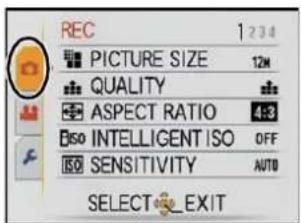
| • This menu lets you select the setting of the playback methods such as playback or slide show of only the pictures set as [FAVORITE]. |  | • This menu lets you set the colouring, sensitivity, aspect ratio, number of pixels and other aspects of the pictures you are recording. | 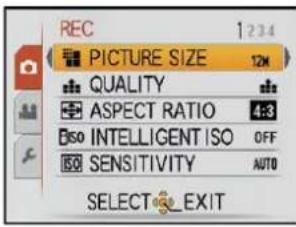 |
| ▶ [PLAYBACK] mode menu (P102 to 113) | [ MOTION PICTURE] mode menu (P69 to 75) | ||
| • This menu lets you make the protection, trimming or print settings (DPOF), etc. of recorded pictures. |  | • This menu lets you set the [REC MODE], [REC QUALITY], and other aspects for motion picture recording. | 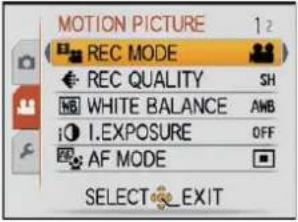 |
[SETUP] menu (P27 to 32)
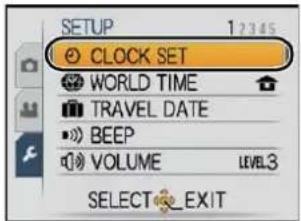
- This menu lets you perform the clock settings, select the operating beep tone settings and set other settings which make it easier for you to operate the camera.
- The [SETUP] menu can be set from either the [REC MODE] or [PLAYBACK MODE].
| SETUP | 12345 |
| CLOCK SET | |
| WORLD TIME | |
| TRAVEL DATE | |
| BEEP | |
| VOLUME | LEVEL3 |
| SELECT EXIT | |
![PANASONIC Lumix DMC-FT1EG-G - [SETUP] menu (P27 to 32) - 1](/content/2026/06/1174107/images/50d812f80d9a254552b6bb8490d1da9036140d4cec76c9e63a18d1fb2eff4faf.jpg)
Note
- There are functions that cannot be set or used depending on the modes or menu settings being used on the camera due to the specifications.
Setting menu items
This section describes how to select the normal picture mode settings, and the same setting can be used for the [PLAYBACK] menu and [SETUP] menu as well.
Example: Setting [AF MODE] from [■] to [●] in the normal picture mode

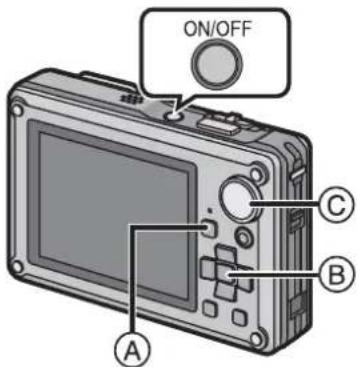
Press and hold down the ON/OFF button.
Ⓐ [▶] button
⑧ MENU/SET button
© Mode dial

Set the mode dial to [☐].
- To set the playback menu, proceed to step 3 by pressing the [▶].
![PANASONIC Lumix DMC-FT1EG-G - Set the mode dial to [☐]. - 2](/content/2026/06/1174107/images/a1d90e02b3845769896c01a7a67c8442eff42d4057a2b4a1df4878e4920bd79e.jpg)
Press [MENU/SET] to display the menu.
- You can switch menu screens from any menu item by sliding the zoom lever.

![PANASONIC Lumix DMC-FT1EG-G - Press [MENU/SET] to display the menu. - 2](/content/2026/06/1174107/images/6b8cf82582402a6f014553b05f783ea492040437a6b5120ae4408aae8a07a441.jpg)
Switching to other menus
e.g.: Switching to the [SETUP] menu

Press ◀.


Press ▼ to select the [SETUP] menu icon [✗].


Press ▶.
- Select a menu item next and set it.


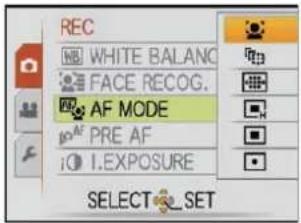
Press ▲/▼ to select [AF MODE].
- Select the item at the very bottom, and press ▼ to move to the second screen.

![PANASONIC Lumix DMC-FT1EG-G - Press ▲/▼ to select [AF MODE]. - 2](/content/2026/06/1174107/images/d1c4c4cfbce471d2d3f37dd876547415aa8569a2523003f3adc8e5ddd1c6c1e5.jpg)
![PANASONIC Lumix DMC-FT1EG-G - Press ▲/▼ to select [AF MODE]. - 3](/content/2026/06/1174107/images/0039301be13f6709f6e404af12b9f5460a4c9f06f0294fca3b94d869d2f18c52.jpg)
Press ▶.
- Depending on the item, its setting may not appear or it may be displayed in a different way.


Press ▲/▼ to select [ˈɛː]
![PANASONIC Lumix DMC-FT1EG-G - Press ▲/▼ to select [ˈɛː] - 1](/content/2026/06/1174107/images/4d44d771e0c67249d41fc8a0e1cb0bc0acd14786e93e8909406d4d222658630d.jpg)
Press [MENU/SET] to set.
![PANASONIC Lumix DMC-FT1EG-G - Press [MENU/SET] to set. - 2](/content/2026/06/1174107/images/d88d6f6399f16e44ab6a088e34771940560ba937de8bd77f41bc26f80285f9c9.jpg)
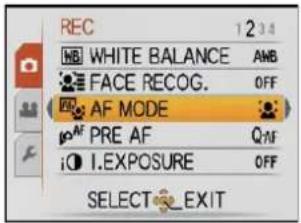
![PANASONIC Lumix DMC-FT1EG-G - Press [MENU/SET] to set. - 4](/content/2026/06/1174107/images/228d60bb272ecded360a3d5218491c369a39e0ff7676b52ea2968da18f68869e.jpg)
![PANASONIC Lumix DMC-FT1EG-G - Press [MENU/SET] to set. - 5](/content/2026/06/1174107/images/1a5e4cc34f30041b1e65b4cfc4daeefb861262abea12e3c872b329650573225e.jpg)
Press [MENU/SET] to close the menu.
Using the quick menu
By using the quick menu, some of the menu settings can be easily found.
- Some of the menu items cannot be set by the modes.

Press and hold [Q.MENU] when recording.
![PANASONIC Lumix DMC-FT1EG-G - Press and hold [Q.MENU] when recording. - 1](/content/2026/06/1174107/images/0b549aa2c6ce44658f42835d373477b3a2160052454f51b785f73e4f6a5c5d2c.jpg)
Press ▲/▼/◄/► to select the menu item and the setting and then press [MENU/SET] to close the menu.
Ⓐ The items to be set and the settings are displayed.

Perform these settings if you need to.
About the Setup Menu
[CLOCK SET], [ECONOMY] and [AUTO REVIEW] are important items. Check their settings before using them.
- In the Intelligent auto mode, only [CLOCK SET], [WORLD TIME], [BEEP] and [LANGUAGE] can be set.
For details on how to select the [SETUP] menu settings, refer to P25.
| ➊ [CLOCK SET] | Setting Date/Time. |
• Refer to P22 for details.
| [WORLD TIME] | Set the time in your home area and travel destination. |
| ↗ [DESTINATION]:Travel destination area↘ [HOME]:Your home area |
• Refer to P81 for details.
| [TRAVEL DATE] | Set the departure date and the return date of the vacation. | |
| [TRAVEL SETUP][OFF]/[SET] | [LOCATION][OFF]/[SET] | |
• Refer to P79 for details.
| ■) [BEEP] | This allows you to set the beep and shutter sound. | |
| ■)) [BEEP LEVEL]:[※] (Muted)[◇)] (Low)[◇] (High) | [SHUTTER VOL.]:[◇×] (Muted)[◇•] (Low)[◇•] (High) | |
| ◇1 [BEEP TONE]:[◇1]/[◇2]/[◇3] | ◇1 [SHUTTER TONE]:[◇1]/[◇2]/[◇3] | |
| [VOLUME] | Adjust the volume of the speaker to any of 7 levels. |
- When you connect the camera to a TV, the volume of the TV speakers does not change.
| ※ [MONITOR] | Adjust the brightness of the LCD monitor in 7 steps. |
| LCD [LCD MODE] | These menu settings make it easier to see the LCD monitor when you are in bright places. |
| [OFF][A* [AUTO POWER LCD]:The brightness is adjusted automatically depending on how bright it is around the camera.[* [POWER LCD]:The LCD monitor becomes brighter and easier to see even when taking pictures outdoors. |
- The brightness of the pictures displayed on the LCD monitor is increased so some subjects may appear differently from actuality on the LCD monitor. However, this does not affect the recorded pictures.
- The LCD monitor automatically returns to normal brightness after 30 seconds when recording in Power LCD mode. Press any button to make the LCD monitor bright again.
- If the screen is difficult to see because of sunlight etc. shining on it, use your hand or another object to block the light.
• The number of recordable pictures decreases in Auto Power LCD mode and Power LCD mode.
• [AUTO POWER LCD] cannot be selected in playback mode.
| A2A [DISPLAY SIZE] | Change the display size of some icons and menu screens. |
| [STANDARD]/[LARGE] |
| [GUIDE LINE] | Set the pattern of the guide lines displayed when taking pictures. You can also set whether or not to have the recording information displayed when the guide lines are displayed. (P47) | |
| [REC. INFO.]: [OFF]/[ON] | [PATTERN]: [☐]/[☐] | |
- The [PATTERN] setting is fixed to [☐] in the Intelligent auto mode and the clipboard mode.
| [HISTOGRAM] | This allows you to set either to display or not display the histogram. (P48) |
| [OFF]/[ON] |
| REC AREA | Angle of view for motion picture recording can be checked. |
| [OFF]/[ON] | |
| ECO [ECONOMY] | You can conserve the battery life by setting these menus.Also, it will turn off the LCD monitor automatically when not in use to prevent discharge of the battery. |
| OFF [AUTO POWER OFF]:The camera is automatically turned off if the camera has not been used for the time selected on the setting.[OFF]/[2MIN.]/[5MIN.]/[10MIN.] | |
| OFF [AUTO LCD OFF]:The LCD monitor is automatically turned off if the camera has not been used for the time selected on the setting.[OFF]/[15SEC.]/[30SEC.] |
• [AUTO POWER OFF] is set to [5MIN.] in the Intelligent auto mode and the clipboard mode.
• [AUTO POWER OFF] is fixed to [2MIN.] when [AUTO LCD OFF] is set to [15SEC.] or [30SEC.].
- The status indicator lights while the LCD monitor is turned off. Press any button to turn on the LCD monitor again.
• [AUTO LCD OFF] does not work while operating menu or playback zoom.
• [AUTO POWER OFF] does not work in the following cases.
— When using the AC adaptor
- When connecting to a PC or a printer
— When recording or playing back motion pictures
— During a slide show
- [AUTO DEMO]
• [AUTO LCD OFF] does not work in the following cases.
- When using the AC adaptor
- When connecting to a PC or a printer
- While the self-timer is set
- While recording motion pictures
- While the menu screen is displayed
- [AUTO DEMO]
| [AUTO REVIEW] | Set the length of time that the picture is displayed after taking it. |
| [OFF][1SEC.][2SEC.] [HOLD]: The pictures are displayed until one any of the buttons is pressed. [ZOOM]: The picture is displayed for 1 second and then enlarged 4× and displayed for 1 more second. |
- The auto review function is activated regardless of its setting when using auto bracket (P56), [HI-SPEED BURST] (P64) and [FLASH BURST] (P65) in scene mode, burst mode (P90) and when recording still pictures with audio (P93). (The pictures cannot be enlarged.)
- In Intelligent auto mode, the auto review function is fixed to [2SEC.].
• [AUTO REVIEW] does not work in recording motion pictures.
| [NO.RESET] | Reset the file number of the next recording to 0001. |
• The folder number is updated and the file number starts from 0001. (P123)
- A folder number between 100 and 999 can be assigned.
When the folder number reaches 999, the number cannot be reset. We recommend formatting the card (P32) after saving the data on a PC or elsewhere.
- To reset the folder number to 100, format the built-in memory or the card first and then use this function to reset the file number.
A reset screen for the folder number will then appear. Select [YES] to reset the folder number.
| x_R [RESET] | The [REC] or [SETUP] menu settings are reset to the initial settings. |
- When the [RESET] setting is selected during recording, the operation that resets the lens is also performed at the same time. You will hear the sound of the lens operating but this is normal and not indicative of malfunctioning.
- When the [REC] mode settings are reset, data registered with [FACE RECOG.] will be also reset, too.
- When [SETUP] menu settings are reset, the following settings are also reset. In addition, [ROTATE DISP.] (P108) is set to [ON], and [FAVORITE] (P109) is set to [OFF] in [PLAYBACK] mode menu.
- The birthday and name settings for [BABY1]/[BABY2] (P63) and [PET] (P63) in scene mode.
– The settings of [TRAVEL DATE] (P79) (departure date, return date, location)
- The [WORLD TIME] (P81) setting.
- The folder number and the clock setting are not changed.
| USB [USB MODE] | Select the USB communication system after or before connecting the camera to your PC or your printer with the USB connection cable (supplied). |
| [SELECT ON CONNECTION]:Select either [PC] or [PictBridge(PTP)] if you connected the camera to a PC or a printer supporting PictBridge.[PictBridge(PTP)]:Set after or before connecting to a printer supporting PictBridge.[PC]:Set after or before connecting to a PC. |
- When [PC] is selected, the camera is connected via the "USB Mass Storage" communication system.
- When [PictBridge(PTP)] is selected, the camera is connected via the "PTP (Picture Transfer Protocol)" communication system.
| → [VIDEO OUT] | Set to match the colour television system in each country. (Playback mode only) |
| [NTSC]: Video output is set to NTSC system.[PAL]: Video output is set to PAL system. |
- This will operate when the AV cable or HDMI mini cable (optional) is connected.
| [TV ASPECT] | Set to match the type of TV.(Playback mode only) |
| [16:9]: When connecting to a 16:9 screen TV.[4:3]: When connecting to a 4:3 screen TV. |
- This will work when the AV cable is connected.
| HDMI[HDMI MODE] | Set the format for the HDMI output when playing back on the HDMI compatible high definition TV connected with this unit using the HDMI mini cable (optional). |
| [AUTO]:The output resolution is automatically set based on the information from the connected TV.[1080i]:The interlace method with 1080 available scan lines is used for output.[720p]:The progressive method with 720 available scan lines is used for output.[576p]* ^1 /[480p]* ^2 :The progressive method with 576* ^1 /480* ^2 available scan lines is used for output. |
*1 When [VIDEO OUT] is set to [PAL]
*2 When [VIDEO OUT] is set to [NTSC]
• Interlace method/progressive method
i= interlace scanning is scanning the screen with half of the effective scanning lines every 1/50 seconds, where p= progressive scanning is a high density image signal that is scanning the screen with all the effective scanning lines every 1/50 seconds.
The [HDMI] terminal on this unit is compatible with high definition output [1080i]. It is necessary to have a compatible TV to enjoy progressive and high definition images.
- If the images are not output on the TV when the setting is [AUTO], match with the image format your TV can display, and select number of effective scanning lines. (Please read the operating instructions for the TV.)
- This will work when the HDMI mini cable (optional) is connected.
• Refer to P115 for details.
| VIERA Link [VIERA Link] | Setup so this unit can be controlled by the remote control of the VIERA by automatically coupling this unit with the VIERA Link compatible equipment using HDMI mini cable (optional). |
| [OFF]: Operation is performed with the buttons on this unit.[ON]: Remote control operation of the VIERA Link compatible equipment is enabled. (Not all operations are possible)Button operation of the main unit will be limited. |
- This will work when the HDMI mini cable (optional) is connected.
• Refer to P116 for details.
| [SCN] [SCENE MENU] | Set the screen that is displayed when the mode dial is set to SCN. |
| [OFF]: The recording screen in the currently selected scene mode appears.[AUTO]: The scene mode menu screen appears. (P58) |
| Ver. [VERSION DISP.] | It is possible to check which version of firmware is on the camera. | VERSION DISP.FIRMWAREVer. 1.0CANCEL |
| [FORMAT] | The built-in memory or card is formatted. Formatting irretrievably deletes all the data so check the data carefully before formatting. |
- Use a battery with sufficient battery power or the AC adaptor (DMW-AC5G; optional) and multi conversion adaptor (DMW-MCA1; optional) when formatting. Do not turn the camera off during formatting.
- If a card has been inserted, only the card is formatted. To format the built-in memory, remove the card.
- If the card has been formatted on a PC or other equipment, format it on the camera again.
- It may take longer to format the built-in memory than the card.
- If you cannot format, contact the dealer or your nearest Service Centre.
| [LANGUAGE] | Set the language displayed on the screen. |
| [ENGLISH]/[DEUTSCH]/[FRANÇAIS]/[ESPAÑOL]/[ITALIANO]/【日本語】 |
- If you set a different language by mistake, select [Q] from the menu icons to set the desired language.
| DEMO [DEMO MODE] | The camera automatically detects jitter and the movement of the subject and displays these on the indicator. ([JITTER, SUBJ. MOVE DEMO.]) The camera's features are displayed as slide shows. ([AUTO DEMO]) | |
| [JITTER, SUBJ. MOVE DEMO.]A Jitter detection demonstrationB Movement detection demonstration | 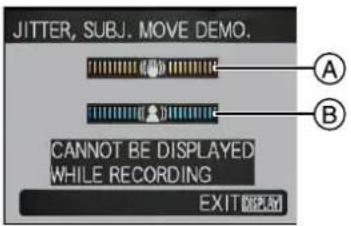 | |
| [AUTO DEMO]: [OFF][ON] | ||
- In playback mode, [JITTER, SUBJ. MOVE DEMO.] cannot be displayed.
- Press [DISPLAY] to close [JITTER, SUBJ. MOVE DEMO.].
Press MENU/SET to close [AUTO DEMO].
• [JITTER, SUBJ. MOVE DEMO.] is an approximation.
• [AUTO DEMO] has no TV output capability even when it is in playback mode.
Mode switching
Selecting the [REC] mode, and record still picture or motion picture
![PANASONIC Lumix DMC-FT1EG-G - Selecting the [REC] mode, and record still picture or motion picture - 1](/content/2026/06/1174107/images/4c3d9a325686e00041232055d9d5a1304beb3961647ed0e5f6f4b64e1346d1ee.jpg)
Press and hold down the ON/OFF button.
Ⓐ Motion picture button
(B) Mode dial
© Shutter button
- The status indicator Ⓓ lights when the ON/OFF button is pressed. (It will turn off in approximately 1 second)

Switching the mode by rotating the mode dial.
Align a desired mode with part Ⓔ.
- Rotate the mode dial slowly and surely to adjust to each mode.


■ List of [REC] modes
iA Intelligent auto mode (P36)
The subjects are recorded using settings automatically selected by the camera.
Normal picture mode (P40)
The subjects are recorded using your own settings.
Sports mode (P57)
Use this mode to take pictures of sporting events, etc.
* It will be a normal motion picture recording during the motion picture recording.
Snow mode (P57)
This allows you to take pictures that show the snow as white as possible at a ski resort or a snow-covered mountain.
Beach & Surf mode (P57)
This mode is optimal for taking pictures up to 3 m underwater and at the beach.
SCN Scene mode (P58)
This allows you to take pictures that match the scene being recorded.
Clipboard mode (P94)
Record as a memo.
* Motion picture cannot be taken in Clipboard mode.
■ Tips for taking good pictures
Ⓐ Flash
⑧ AF assist lamp/LED light
- Hold the camera gently with both hands, keep your arms still at your side and stand with your feet slightly apart.
- Be careful not to move the camera when you press the shutter button.
- Do not block the flash and AF assist lamp/LED light with your fingers.
- Do not touch the front of the lens.

Take the still picture after setting the mode dial

Press the shutter button halfway to focus.


Press the shutter button fully (push it in further), and take the picture.

Take the motion picture after setting the mode dial

Press the motion picture button to start the recording.


Press the motion picture button again to stop the recording.

■ For more details, refer to "Recording Motion Picture" (P69).
Playback the recorded still pictures or motion picture

Press [▶].
Ⓐ [▶] button

Press ◀/▶ to select the picture.
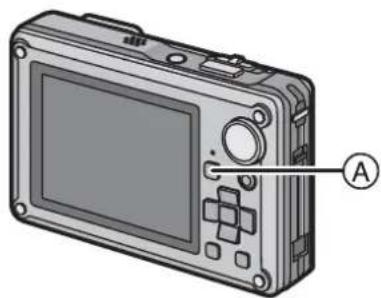
natural_image
Illustration of a digital camera with labeled component A (no text or symbols beyond label)■ For more details, refer to "Playing back Pictures ([NORMAL PLAY])" (P43), "Playing Back Motion Pictures/Pictures with Audio" (P101).
[REC] mode: iA
Taking pictures using the automatic function
(iA: Intelligent Auto Mode)
The camera will set the most appropriate settings to match the subject and the recording conditions so we recommend this mode for beginners or those who want to leave the settings to the camera and take pictures easily.
• The following functions are activated automatically.
- Scene detection/[STABILIZER]/[INTELLIGENT ISO]/Face detection/[QUICK AF]/[I.EXPOSURE]/Digital Red-eye Correction/Backlight Compensation
1 Set the mode dial to [iA].
2 Press the shutter button halfway to focus.
- The focus indication ① (green) lights when the subject is focused.
- The AF area ② is displayed around the subject's face by the face detection function. In other cases, it is displayed at the point on the subject which is in focus.
• The focus range is 5 cm (Wide)/30 cm (Tele) to ∞. - The maximum close-up distance (the shortest distance at which the subject can be taken) differs depending on the zoom magnification.

3 Press the shutter button fully (push it in further), and take the picture.
- The access indication (P21) lights red when pictures are being recorded on the built-in memory (or the card).

■ When taking pictures using the flash (P49)
■ When taking pictures using the zoom (P42)
■ When recording motion pictures (P69)
Scene detection
When the camera identifies the optimum scene, the icon of the scene concerned is displayed in blue for 2 seconds, after which its colour changes to the usual red.
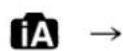

[i-PORTRAIT]

[i-SCENERY]

[i-MACRO]

[i-NIGHT PORTRAIT]

[i-NIGHT SCENERY]

[i-BABY]*
- Only when [A] is selected
- Only when [💡] is selected
• [1A] is set if none of the scenes are applicable, and the standard settings are set.
- If a tripod is used, for instance, and the camera has judged that camera shake is minimal when the scene mode has been identified as [图], the shutter speed will be set to a maximum of 8 seconds. Take care not to move the camera while taking pictures.
- An optimum scene for the specified subject will be chosen when set to AF tracking (P88).
- When [FACE RECOG.] is set to [ON], and the face similar to the registered face is detected, [R] is displayed in the top right of [12], [13] and [14].
* When [FACE RECOG.] is set to [ON], [icon] will be displayed for birthdays of registered faces already set only when the face of a person 3 years old or younger is detected.
■ Face detection
When [▶],[▶] or [▶] is selected, the camera automatically detects a person's face, and it will adjust the focus and exposure. (P88)

Note
- Due to conditions such as the ones below, a different scene may be identified for the same subject.
- Subject conditions: When the face is bright or dark, The size of the subject, The distance to the subject, The contrast of the subject, When the subject is moving, When zoom is used
- Recording conditions: Sunset, Sunrise, Under low brightness conditions, Underwater, When the camera is shaken
• To take pictures in an intended scene, it is recommended that you take pictures in the appropriate recording mode. - Face detection may become slower or it may not detect underwater.
■ The Backlight Compensation
Backlight refers to when light comes from the back of a subject.
In this case, the subject will become dark, so this function compensates the backlight by brightening the whole of the picture automatically.
Face Recognition
Face of the person that is taken often can be registered along with information such as name and birthday.
When a picture is taken with [FACE RECOG.] turned [ON], it will search for the face similar to the registered face, setting the focus and exposure preferentially. The camera will also remember the face during the face recognition, and detect the face that the picture is taken for many times automatically, displaying the face recognition registration screen. (P76)


Note
- [FACE RECOG.] will find a face similar to the registered face, and does not guarantee secure recognition of a person.
- Faces with similar distinctive features such as those of parents and children or siblings may not be correctly recognised.
- Face Recognition may take more time to select and recognise distinctive facial features than regular face detection.
AF Tracking Function
It is possible to set the focus to the specified subject. Focus will keep following the subject automatically even if it moves.
1 Press ▲.
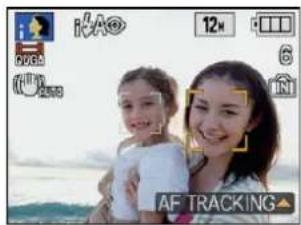
- [ˈrɛː] is displayed in the upper left of the screen.
- AF Tracking frame is displayed in the centre of the screen.
- Press ▲ again to cancel.

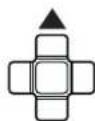
2 Bring the subject to the AF tracking frame, and press ▼ to lock the subject.
• AF tracking frame will turn yellow.
- An optimum scene for the specified subject will be chosen.
- Press ▲ to cancel.


Note
- Please read the Note regarding the AF tracking on P88.
About the flash
- When [A] is selected, [iA], [iA] or [iS] is set depending on the type of subject and brightness.
- When [i≠A◎] or [i≠S◎] is set, digital red-eye correction (P50) is enabled, and the flash is activated twice.
Settings in Intelligent auto mode
- Only the following functions can be set in this mode.
[REC] mode menu
- [PICTURE SIZE]*1 (P83)/[BURST] (P90)/[COLOR MODE]*1 (P91)/[FACE RECOG.] (P76)
*1 The settings which can be selected are different from when other [REC] modes are used.
[MOTION PICTURE] mode menu
- [REC MODE] (P72)/[REC QUALITY]*2 (P72)/[COLOR MODE]*2 (P91)/[LED LIGHT] (P75)
*2 The settings which can be selected are different from when other [REC] modes are used.
[SETUP] menu
- [CLOCK SET]/[WORLD TIME]/[BEEP]/[LANGUAGE]
• The settings of the following items are fixed.
| Item | Settings |
| [GUIDE LINE] (P28) | [REC. INFO.]: [OFF] |
| [ECONOMY] ([AUTO POWER OFF]) (P29) | [5MIN.] |
| [AUTO REVIEW] (P29) | [2SEC.] |
| Flash (P49) | A/∅ |
| Self-timer (P54) | 10 seconds/off |
| [WIND CUT] (P75) | [OFF] |
| [QUALITY] (P84) | |
| [INTELLIGENT ISO] (P84) | ISOMAX 1600 |
| [WHITE BALANCE] (P85) | [AWB] |
| [AF MODE] (P87) | (Set to [●●●] when a face cannot be detected*1) |
| [PRE AF] (P89) | Q-AF |
| [I.EXPOSURE] (P89) | [ON] |
| [STABILIZER] (P92) | [AUTO]*2 |
| [AF ASSIST LAMP] (P93) | [ON] |
*1 Fix to [■] when a face is not recognised during motion picture recording
*2 Fix to [MODE 1] during motion picture recording
• The following functions cannot be used.
– [AUTO LCD OFF]/[EXPOSURE]/[AUTO BRACKET]/White balance fine adjustment/[DIGITAL ZOOM]/[AUDIO REC.]/[MIN. SHTR SPEED]/[HISTOGRAM]
- The other items on the [SETUP] menu can be set in a mode such as the normal picture mode. What is set will be reflected in the Intelligent auto mode.
[REC] mode:
![PANASONIC Lumix DMC-FT1EG-G - [SETUP] menu - 1](/content/2026/06/1174107/images/f6ce690cd6ef23bd08b77fb30331783055908c632b3090a1d8b3c225a5ac985e.jpg)
Taking pictures with your favourite settings
(☐: Normal picture mode)
The camera automatically sets the shutter speed and the aperture value according to the brightness of the subject.
You can take pictures with greater freedom by changing various settings in [REC] menu.

Set the mode dial to [☐].
Ⓐ Mode dial
- To change the setting while taking pictures, refer to "Using the [REC] Mode Menu" (P83).
![PANASONIC Lumix DMC-FT1EG-G - Set the mode dial to [☐]. - 1](/content/2026/06/1174107/images/fe6cfa04b89c48ae12e986e4255d9bb1463296909e73ed3e2213d63a34a63684.jpg)
Aim the AF area at the point you want to focus on.

natural_image
Illustration of a digital camera with labeled button (A), no text or symbols present
Press the shutter button halfway to focus.
- The focus indication (green) lights when the subject is focused.
• The focus range is 30 cm to ∞. - If pictures are to be taken at an even closer range, refer to "Taking Close-up Pictures" (P52).

natural_image
Portrait of a smiling woman with blonde hair, wearing a white top and necklace, outdoors near a stone wall (no visible text or symbols)

Press the halfway pressed shutter button fully to take a picture.
- The access indication lights (P21) red when pictures are being recorded on the built-in memory (or the card).

■ To adjust the exposure and take pictures at times when the image appears too dark (P55)
■ To adjust the colours and take pictures at times when the image appears too red (P85)
■ When recording motion pictures (P69)
Focusing
Aim the AF area at the subject, and then press the shutter button halfway.
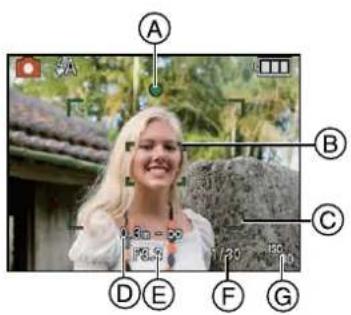
| Focus | When the subject is focused | When the subject is not focused |
| Focus indication | On | Blinks |
| AF area | White→Green | White→Red |
| Sound | Beeps 2 times | Beeps 4 times |
Ⓐ Focus indication
⑧ AF area (normal)
© AF area (when using the digital zoom or when it is dark)
(D) Focus range
⑤ Aperture value*
⑤ Shutter speed*
© ISO sensitivity
* If correct exposure cannot be achieved, it will be displayed in red. (However, it will not be displayed in red when the flash is used.)
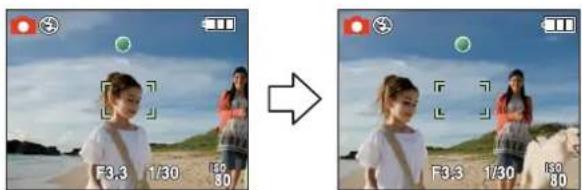
When the subject is not in focus (such as when it is not in the centre of the composition of the picture you want to take)
1 Aim the AF area at the subject, and then press the shutter button halfway to fix the focus and exposure.
2 Press and hold the shutter button halfway while moving the camera as you compose the picture.
- You can repeatedly retry the actions in step 1 before pressing the shutter button fully.
We recommend that you use the face detection function when taking pictures of people. (P87)
■ Subjects and recording conditions which are difficult to focus
- Fast-moving subjects, extremely bright subjects or subjects without contrast
- When the recordable range display has appeared in red
- When recording subjects through windows or near shiny objects
- When it is dark or when jitter occurs
- When the camera is too close to the subject or when taking a picture of both distant and near subjects
Preventing jitter (camera shake)
When the jitter alert [☐] appears, use [STABILIZER] (P92), a tripod or the self-timer (P54).
- Shutter speed will be slower particularly in the following cases. Keep the camera still from the moment the shutter button is pressed until the picture appears on the screen. We recommend using a tripod.
- Slow sync./Red-eye reduction
- In [NIGHT PORTRAIT], [NIGHT SCENERY], [PARTY], [CANDLE LIGHT], [STARRY SKY] or [FIREWORKS] in scene mode (P58)
- When the shutter speed is slowed in [MIN. SHTR SPEED]
Direction detection function
Pictures recorded with the camera held vertically are played back vertically (rotated). (Only when [ROTATE DISP.] (P108) is set to [ON])
- Pictures may not be displayed vertically if they were taken with the camera aimed up or down.
- Motion pictures taken with the camera held vertically are not displayed vertically.
- Pictures may not be displayed vertically if they were taken with the camera aimed up or down. - Motion pictures taken with the camera held vertically are not displayed vertically.
[REC] mode:


Taking Pictures with the Zoom
Using the Optical Zoom/Using the Extra Optical Zoom (EZ)/Using the Digital Zoom
You can zoom-in to make people and objects appear closer or zoom-out to record landscapes in wide angle. To make subjects appear even closer [maximum of 9.1×], do not set the picture size to the highest setting for each aspect ratio (4:3 / 3:2 / 16:9). Even higher levels of magnification are possible when [DIGITAL ZOOM] is set to [ON] in [REC] menu.
To make subjects appear closer use (Tele)
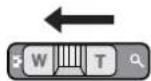
Slide the zoom lever towards Tele.
To make subjects appear further away use (Wide)
Slide the zoom lever towards Wide.

■ Types of zooms
| Feature | Optical zoom | Extra optical zoom (EZ) | Digital zoom |
| Maximum magnification | 4.6× | 9.1×* | 18.6× [including optical zoom 4.6×]36.3× [including extra optical zoom 9.1×] |
| Picture quality | No deterioration | No deterioration | The higher the magnification level, the greater the deterioration. |
| Conditions | None | [PICTURE SIZE] with P7(P83) is selected. | [DIGITAL ZOOM] (P91) on the [REC] menu is set to [ON]. |
| Screen display |  |  A [E7] is displayed. A [E7] is displayed. | 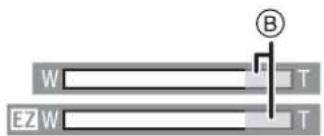 B The digital zoom range is displayed. B The digital zoom range is displayed. |
- When using the zoom function, an estimate of the focus range will appear in conjunction with the zoom display bar. (Example: 0.3m - )
* The magnification level differs depending on [PICTURE SIZE] and [ASPECT RATIO] setting.
■ Extra optical zoom mechanism
When you set the picture size to [3M] (3 million pixels), the 12M (12.1 million pixels) CCD area is cropped to the centre 3M (3 million pixels) area, allowing a picture with a higher zoom effect.

Note
- The digital zoom cannot be set when iA, or has been selected.
• The indicated zoom magnification is an approximation. - "EZ" is an abbreviation of "Extra optical Zoom".
- The optical zoom is set to Wide (1×) when the camera is turned on.
- If you use the zoom function after focusing on the subject, focus on the subject again.
- When using the digital zoom, [STABILIZER] may not be effective.
- When using the digital zoom, we recommend using a tripod and the self-timer (P54) for taking pictures.
• The extra optical zoom cannot be used in the following cases.
-In macro zoom mode
- In [TRANSFORM], [HIGH SENS.], [HI-SPEED BURST], [FLASH BURST], [PIN HOLE] or [FILM GRAIN] in scene mode
—when recording motion pictures
• [DIGITAL ZOOM] cannot be used in the following cases.
- In [TRANSFORM], [BABY1]/[BABY2], [PET], [HIGH SENS.], [HI-SPEED BURST], [FLASH BURST], [PIN HOLE] or [FILM GRAIN] in scene mode
- When [INTELLIGENT ISO] is set
[PLAYBACK] mode:
Playing back Pictures ([NORMAL PLAY])
![PANASONIC Lumix DMC-FT1EG-G - Playing back Pictures ([NORMAL PLAY]) - 1](/content/2026/06/1174107/images/b77113c68d36cfdcdac2cc444bc50c20d356056e9f029a53e40fdfc037f1851a.jpg)
Press [▶].
Ⓐ [▶] button
- When the mode dial is set to [☐], clipboard will be displayed. Refer to "Viewing clipboard pictures" (P95) for information about playing back the clipboard.
![PANASONIC Lumix DMC-FT1EG-G - Press [▶]. - 1](/content/2026/06/1174107/images/e001dd163a4d488a226e5bfaeab6751f0bf8ea4920e326c782e109b42b69af25.jpg)
natural_image
Illustration of a digital camera with labeled component A pointing to the screen (no text or symbols beyond label)![PANASONIC Lumix DMC-FT1EG-G - Press [▶]. - 2](/content/2026/06/1174107/images/9f796a40599ff5bd2c8c9bf18805de89027684d4a399b1d234c25bd8e6e2069c.jpg)
Press ◀/▶ to select the picture.
◀: Play back the previous picture
▶: Play back the next picture
- Speed of picture forwarding/rewinding changes depending on the playback status.
■ Fast forwarding/Fast rewinding
Press and hold ◀/▶ during playback.
◀: Fast rewind
▶: Fast forward
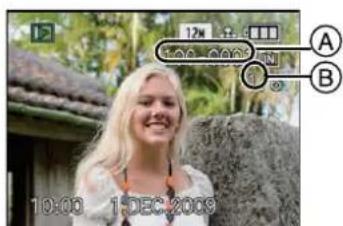
- The file number Ⓐ and the picture number Ⓑ only change one by one. Release ◀/▶ when the number of the desired picture appears to play back the picture.
- If you keep pressing ◀/▶, the number of pictures forwarded/rewound increases.
■ To finish playback
Press [▶] again, press the motion picture button or press the shutter button halfway.

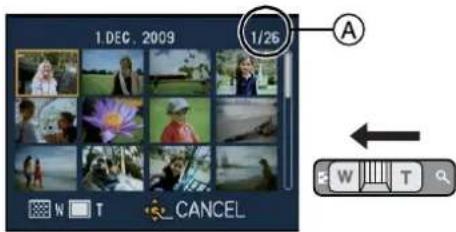
Displaying Multiple Screens (Multi Playback)
Slide the zoom lever towards [☐] (W).
1 screen→12 screens→30 screens→Calendar screen display (P102)
Ⓐ Number of the selected picture and the total number of recorded pictures
- Slide the zoom lever towards [Q] (T) to return to the previous screen.
• Pictures are not rotated for display.
■ To return to normal playback
1 Press ▲/▼/◄/► to select a picture.
- An icon will be displayed depending on the recorded picture and the settings.
2 Press MENU/SET.
• The picture that was selected will appear.
Using the Playback Zoom
Slide the zoom lever towards [Q] (T).
$$ 1 \times \rightarrow 2 \times \rightarrow 4 \times \rightarrow 8 \times \rightarrow 1 6 \times $$
- When you slide the zoom lever towards [☐] (W) after enlarging the picture, the magnification becomes lower.
- When you change the magnification, the zoom position indication Ⓐ appears for about 1 second, and the position of the enlarged section can be moved by pressing ▲/▼/◄/►.
• The more a picture is enlarged, the more its quality deteriorates. - When you move the position to be displayed, the zoom position indication appears for about 1 second.

![PANASONIC Lumix DMC-FT1EG-G - Slide the zoom lever towards [Q] (T). - 2](/content/2026/06/1174107/images/95e031c6eb94ecf5fcbe0be6e53fb44410cf6c9d8e49aa31a34b4d0c3df392f9.jpg)
Note
- This camera complies with the DCF standard "Design rule for Camera File system" established by JEITA "Japan Electronics and Information Technology Industries Association" and with Exif "Exchangeable Image File Format". Files which do not comply with the DCF standard cannot be played back.
- If you want to save the enlarged picture, use the trimming function. (P107)
• The playback zoom may not operate if pictures have been recorded with other equipment. - Playback zoom cannot be used during motion picture playback or pictures with audio playback.
Switching the [PLAYBACK] mode
1 Press MENU/SET during playback.
2 Press ▶.
3 Press ▲/▼ to select the item and then press MENU/SET.
[NORMAL PLAY] (P43)
All the pictures are played back.

![PANASONIC Lumix DMC-FT1EG-G - Switching the [PLAYBACK] mode - 2](/content/2026/06/1174107/images/9c87ad333db088918faea41a2892b1ca7157b93e4652e706a4e3c9b604c6ea93.jpg)
[SLIDE SHOW] (P97)
The pictures are played back in sequence.
[MODE PLAY] (P99)
Playback in [PICTURE], [AVCHD Lite] ^*1 , or [MOTION JPEG] can be selected.
*1 This is the specification to record and playback high definition images.
[CATEGORY PLAY] (P99)
The pictures grouped together in categories are played back.
[FAVORITE PLAY] (P100)*2
Your favourite pictures are played back.
*2 [FAVORITE PLAY] is not displayed when [FAVORITE] has not been set.
[PLAYBACK] mode:
Deleting Pictures
Once deleted, pictures cannot be recovered.
- Pictures on the built-in memory or the card, which is being played back will be deleted.
To delete a single picture

Select the picture to be deleted, and then press [☐].
Ⓐ [DISPLAY] button
⑧ [☐] button
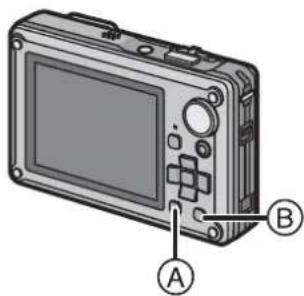

Press ◀ to select [YES] and then press MENU/SET.
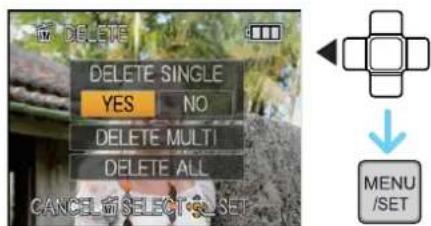
To delete multiple pictures (up to 50) or all the pictures

Press [血].
![PANASONIC Lumix DMC-FT1EG-G - Press [血]. - 1](/content/2026/06/1174107/images/fe341162410aca33f01b79577133ec469d30f3f7337b1d8a669a00be13dc7dcd.jpg)
Press ▲/▼ to select [DELETE MULTI] or [DELETE ALL] and then press [MENU/SET].
- [DELETE ALL] step 5.
![PANASONIC Lumix DMC-FT1EG-G - Press ▲/▼ to select [DELETE MULTI] or [DELETE ALL] and then press [MENU/SET]. - 1](/content/2026/06/1174107/images/ba2ce820495cb60d1a787b093eaf0bcae0d5976bb9596f076b52ac58b7f4d741.jpg)
Press ▲/▼/◄/► to select the picture, and then press [DISPLAY] to set. (Repeat this step.)
- [盎] appears on the selected pictures. If [DISPLAY] is pressed again, the setting is cancelled.
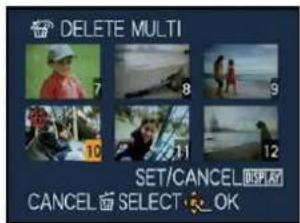
![PANASONIC Lumix DMC-FT1EG-G - Press ▲/▼/◄/► to select the picture, and then press [DISPLAY] to set. (Repeat this step.) - 2](/content/2026/06/1174107/images/2862ddb0df1fcb1ca3b7b5cc1ebdcf70febf9753cb52e918aa11bad2ad8a4ec5.jpg)
![PANASONIC Lumix DMC-FT1EG-G - Press ▲/▼/◄/► to select the picture, and then press [DISPLAY] to set. (Repeat this step.) - 3](/content/2026/06/1174107/images/bc22d74c16a38da57ea7eecc7d66b6af7b33408e34085f33943f0851b697429d.jpg)
Press [MENU/SET].
![PANASONIC Lumix DMC-FT1EG-G - Press [MENU/SET]. - 1](/content/2026/06/1174107/images/1cd9eaa6b74e98f1559252196982404095c29ca2e89476abdad43ec0ddbcb77c.jpg)
Press ▲ to select [YES] and then press [MENU/SET] to set.
■ When [DELETE ALL] has been selected with the [FAVORITE] (P109) setting
The selection screen is displayed again. Select [DELETE ALL] or [ALL DELETE EXCEPT★], press ▲ to select [YES] and delete the pictures. ([ALL DELETE EXCEPT★] cannot be selected if no pictures have been set as [FAVORITE].)
![PANASONIC Lumix DMC-FT1EG-G - ■ When [DELETE ALL] has been selected with the [FAVORITE] (P109) setting - 1](/content/2026/06/1174107/images/ed7aee7185358eaf65748e73fd0c5fd168317bda22d4c4eb76dc43af12a6243f.jpg)
Note
- Do not turn the camera off while deleting (while [☐] is displayed). Use a battery with sufficient battery power or the AC adaptor (DMW-AC5G; optional) and multi conversion adaptor (DMW-MCA1; optional).
- If you press MENU/SET while deleting pictures using [DELETE MULTI], [DELETE ALL] or [ALL DELETE EXCEPT ★], the deleting will stop halfway.
- Depending on the number of pictures to be deleted, it may take some time to delete them.
- If pictures do not conform to the DCF standard or are protected (P111), they will not be deleted even if [DELETE ALL] or [ALL DELETE EXCEPT★] is selected.
About the LCD Monitor
Press [DISPLAY] to change.
Ⓐ LCD monitor
⑧ [DISPLAY] button
- When the menu screen appears, the [DISPLAY] button is not activated. During playback zoom (P44), while playing back motion pictures (P101) and during a slide show (P97), you can only select "Normal display Ⓖ" or "No display Ⓔ".
In recording mode
© Normal display*1,2
(D) Normal display*1,2
⑤ No display
⑤ No display (Recording guide line) ^*1,3

©

D
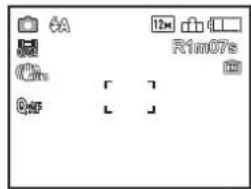
E


natural_image
Simple geometric diagram with four small squares inside a rectangle (no text or symbols)
natural_image
Simple gray upward-pointing arrow on white background (no text or symbols)F
In playback mode
© Normal display
⑧ Display with recording information ^*1
① No display
©
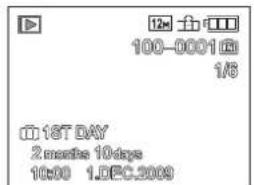
H

①


natural_image
Empty white rectangle with black border (no text or symbols)
*1 If the [HISTOGRAM] in [SETUP] menu is set to [ON], histogram will be displayed.
*2 It will switch between available recording time and number of recordable pictures.
*3 Set the pattern of the guide lines displayed by setting [GUIDE LINE] in [SETUP] menu. You can also set whether or not to have the recording information displayed when the guide lines are displayed.

Note
- In [NIGHT PORTRAIT], [NIGHT SCENERY], [STARRY SKY] and [FIREWORKS] in scene mode, the guide line is grey. (P58)
■ Recording guide line
When you align the subject on the horizontal and vertical guide lines or the cross point of these lines, you can take pictures with well-designed composition by viewing the size, the slope and the balance of the subject.
A
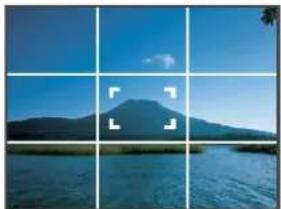
natural_image
Scenic mountain lake under clear blue sky, no text or symbols visibleB

natural_image
Street view of a tree-lined road with white painted lane markings and green grass (no text or symbols visible)Ⓐ [图标]: This is used when dividing the entire screen into 3 × 3 for taking pictures with a well-balanced composition.
⑧ [图]: This is used when you want to position the subject at the exact centre of the screen.
■ About the Histogram
A histogram is a graph that displays brightness along the horizontal axis (black to white) and the number of pixels at each brightness level on the vertical axis. It allows you to easily check a picture's exposure.
Examples of histogram
① Properly Exposed
② Underexposed
③ Overexposed
* Histogram
1
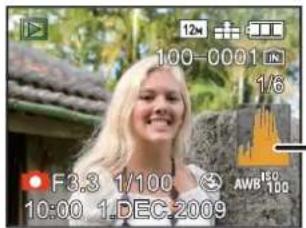
2
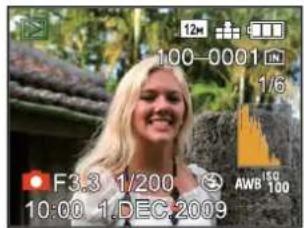
3


Note
- When you take pictures with the flash or in dark places, the histogram is displayed in orange because the recorded picture and the histogram do not match each other.
• The histogram is an approximation in recording mode.
• The histogram of a picture may not match in recording mode and playback mode. - The histogram displayed in this camera does not match histograms displayed by picture editing software used in PCs etc.
• Histograms are not displayed in the following cases. - Intelligent Auto Mode
- Multi Playback
– recording motion pictures
-Playback zoom - Clipboard Mode
- Calendar
- When HDMI cable is connected
[REC] mode:


Taking Pictures using the Built-in Flash
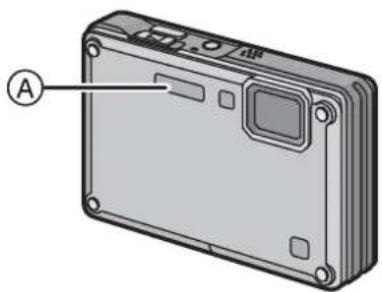
natural_image
Illustration of a rectangular electronic device with labeled component A (no text or symbols beyond label)Ⓐ Photo flash
Do not cover it with your fingers or other objects.
Switching to the appropriate flash setting
Set the flash to match the recording.

Press ▶ [⚡].

Press ▲/▼ to select a mode.
- You can also press ▶ [⚡] to select.
- For information about flash settings that can be selected, refer to "Available flash settings by recording mode". (P50)
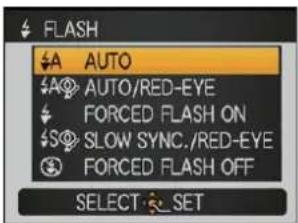

Press [MENU/SET].
- You can also press the shutter button halfway to finish.
- The menu screen disappears after about 5 seconds. At this time, the selected item is automatically set.
| Item | Description of settings |
| A: AUTO | The flash is automatically activated when the recording conditions make it necessary. |
| AUTO/Red-eye reduction* | The flash is automatically activated when the recording conditions make it necessary.It is activated once before the actual recording to reduce the red-eye phenomenon (eyes of the subject appearing red in the picture) and then activated again for the actual recording.Use this when you take pictures of people in low lighting conditions. |
| Forced flash ON Forced ON/Red-eye reduction* | The flash is activated every time regardless of the recording conditions.Use this when your subject is back-lit or under fluorescent light.The flash setting is set to [♦♦♦] only when you set [PARTY] or [CANDLE LIGHT] in scene mode. (P58) |
| Slow sync./Red-eye reduction* | If you take a picture with a dark background landscape, this feature will slow the shutter speed when the flash is activated so that the dark background landscape will become bright. Simultaneously it reduces the red-eye phenomenon.Use this when you take pictures of people in front of a dark background. |
| Forced flash OFF | The flash is not activated in any recording conditions.Use this when you take pictures in places where the use of the flash is not permitted. |
* The flash is activated twice. The subject should not move until the second flash is activated. Interval until the second flash depends on the brightness of the subject.
■ About the digital red-eye correction
When the flash is used with the Red-eye reduction ([A], [Z], [S]) selected, it will automatically detect and correct the red-eye in the image data.
* It may not be able to correct the red-eye depending on the recording conditions. It may also correct objects other than red-eye.
■ Available flash settings by recording mode
The available flash settings depend on the recording mode.
(○: Available, —: Not available, ●: Scene mode initial setting)
| ZA | ZA | S | S | S | S | |
| ○* | — | — | — | — | ○ | |
| ○ | ○ | ○ | ○ | — | ○ | |
| ● | — | ○ | — | — | ○ | |
| ● | — | ○ | — | — | ○ | |
| ● | — | ○ | — | — | ○ | |
| ○ | ● | ○ | — | — | ○ | |
| ○ | ● | ○ | — | — | ○ | |
| ○ | ● | ○ | — | — | ○ | |
| ○ | ● | ○ | — | — | ○ | |
| — | — | — | — | — | ● | |
| — | — | — | — | — | ● | |
| — | — | — | ● | — | ○ | |
| — | — | — | — | — | ● | |
| ○ | — | ○ | — | — | ● | |
| — | — | — | ● | ○ | ○ |
| A | A | S | S | S | S | |
| — | — | — | ○ | ○ | ● | |
| ○ | ● | ○ | — | — | ○ | |
| ○ | ● | ○ | — | — | ○ | |
| ○ | — | ○ | — | — | ● | |
| — | — | — | — | — | ● | |
| ○ | — | ○ | — | — | ● | |
| — | — | — | — | — | ● | |
| — | — | ● | — | — | — | |
| — | — | — | — | — | ● | |
| — | — | — | — | — | ● | |
| — | — | — | — | — | ● | |
| ● | — | ○ | — | — | ○ | |
| ● | — | ○ | — | — | ○ | |
| ○ | — | ○ | — | — | ● | |
| ○ | — | ○ | — | — | ○ |
* When [A] is selected, [iA], [iA] or [iS] is set depending on the type of subject and brightness.
- The flash setting may change if the recording mode is changed. Set the flash setting again if necessary.
- The flash setting is memorised even if the camera is turned off. However, the scene mode flash setting is reset to the initial setting when the scene mode is changed.
- Flash will not be activated when recording motion picture.
■ The available flash range to take pictures
• The available flash range is an approximation.
| ISO sensitivity | Available flash range | |
| Wide | Tele | |
| AUTO | 30 cm to 5.1 m | 30 cm to 2.8 m |
| ISO80 | 30 cm to 1.4 m | 30 cm to 80 cm |
| ISO100 | 30 cm to 1.6 m | 30 cm to 90 cm |
| ISO200 | 40 cm to 2.3 m | 40 cm to 1.2 m |
| ISO400 | 60 cm to 3.2 m | 60 cm to 1.8 m |
| ISO800 | 80 cm to 4.6 m | 60 cm to 2.5 m |
| ISO1600 | 1.15 m to 6.5 m | 90 cm to 3.6 m |
- In [HIGH SENS.] (P64) in scene mode, the ISO sensitivity automatically switches to between [ISO1600] and [ISO6400] and the available flash range also differs.
Wide: Approx. 1.15 m to approx. 13.0 m
Tele: Approx. 90 cm to approx. 7.3 m
- In [FLASH BURST] (P65) in scene mode, the ISO sensitivity automatically switches to between [ISO100] and [ISO3200] and the available flash range also differs.
Wide: Approx. 30 cm to approx. 3.4 m
Tele: Approx. 30 cm to approx. 1.9 m
■ Shutter speed for each flash setting
| Flash setting | Shutter speed (Sec.) |
| A | 1/30 to 1/1300th*1 |
| Flash setting | Shutter speed (Sec.) |
| 1 to 1/1300th*11 or 1/4th to 1/1300th*2 | |
*1 It may vary depending on the [MIN. SHTR SPEED] setting (P92).
*2 When Intelligent ISO is set (P84)
• *2: The shutter speed becomes a maximum of 1 second in the following cases.
- When the optical image stabilizer is set to [OFF].
- When the camera has determined that there is little jitter when the optical image stabilizer is set to [MODE1], [MODE2] or [AUTO].
• In Intelligent auto mode, shutter speed changes depending on the identified scene.
- The shutter speed for [SPORTS], [SNOW], [BEACH & SURF] and scene modes will be different from above table.

Note
- If you bring the flash too close to an object, the object may be distorted or discoloured by the heat or lighting from the flash.
- When you take a picture beyond the available flash range, the exposure may not be adjusted properly and the picture may become bright or dark.
- When the flash is being charged, the flash icon blinks red, and you cannot take a picture even when you press the shutter button fully. When [AUTO LCD OFF] is set, the LCD monitor turns off and the status indicator lights.
- The white balance may not be properly adjusted if the flash level is insufficient for the subject.
- When the shutter speed is fast, the flash effect may not be sufficient.
- It may take time to charge the flash if you repeat taking a picture. Take a picture after the access indication disappears.
- The red-eye reduction effect differs between people. Also, if the subject was far away from the camera or was not looking at the first flash, the effect may not be evident.
[REC] mode:
Taking Close-up Pictures
This mode allows you to take close-up pictures of a subject, e.g. when taking pictures of flowers. You can take pictures of a subject as close as 5 cm from the lens by sliding the zoom lever upmost to Wide (1×). (AF macro mode)
You can take a picture with the digital zoom up to 3× while maintaining the distance to the subject for the extreme Wide position (5 cm). (Macro zoom mode)

Press ▼ [✿].

Press ▲/▼ to select a mode.
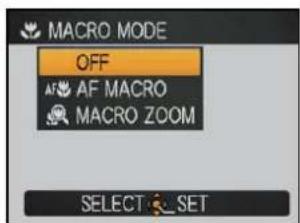

Press [MENU/SET].
- You can also press the shutter button halfway to finish.
- The menu screen disappears after about 5 seconds. At this time, the selected item is automatically set.
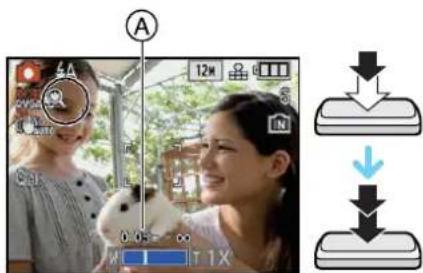
![PANASONIC Lumix DMC-FT1EG-G - Press [MENU/SET]. - 2](/content/2026/06/1174107/images/0c0bf70d968943d46b3a401354ad201c614d826e3246134c0ef5192d3b4f3c06.jpg)
Press the shutter button halfway to focus and then press it fully to take the picture.
Ⓐ Focus range
• [AF] is displayed during AF Macro mode and [icon] is displayed during Macro zoom mode.
• To cancel, select the [OFF] in step 2.
- Zoom range, focus range, and zoom magnification are displayed during zooming. Zoom range will be displayed in blue (digital zoom range) during Macro zoom mode.
■ Focus range in AF macro mode
* The focus range changes in steps.

- Focus range will be 5cm to during macro zoom mode regardless of the zoom position.

Note
• We recommend using a tripod and the self-timer.
- We recommend setting the flash to [💡] when you take pictures at close range.
- If the distance between the camera and the subject is beyond the focus range of the camera, the picture may not be properly focused even if the focus indication lights.
- When a subject is close to the camera, the effective focus range is significantly narrowed. Therefore, if the distance between the camera and the subject is changed after focusing on the subject, it may become difficult to focus on it again.
- Macro mode gives priority to a subject close to the camera. Therefore, if the distance between the camera and the subject is more than 30 cm it takes longer to focus on it.
- When you take pictures at close range, the resolution of the periphery of the picture may decrease slightly. This is not a malfunction.
• The image quality when recording in [MACRO ZOOM] is poorer than during normal recording.
- The extra optical zoom will not function when [MACRO ZOOM] is set.
- Macro mode cannot be used when [F] in [AF MODE] is set.
• [INTELLIGENT ISO] does not work during [MACRO ZOOM].
[REC] mode:


Taking Pictures with the Self-timer

Press ◀ [💡].

Press ▲/▼ to select a mode.
- You can also press ◀ [💡] to select.


Press MENU/SET.
- You can also press the shutter button halfway to finish.
- The menu screen disappears after about 5 seconds. At this time, the selected item is automatically set.

Press the shutter button halfway to focus and then press it fully to take the picture.
- The self-timer indicator Ⓐ blinks and the shutter is activated after 10 seconds (or 2 seconds).
- If you press MENU/SET while the self-timer is set, the self-timer setting is cancelled.

natural_image
Group photo of three women outdoors, no visible text or symbols

natural_image
Diagram of a device casing with labeled component A (no text or symbols beyond label)
Note
- When using a tripod etc., setting the self-timer to 2 seconds is a convenient way to avoid the jitter caused by pressing the shutter button.
- When you press the shutter button once fully, the subject is automatically focused just before recording. In dark places, the self-timer indicator will blink and then may turn on brightly operating as an AF assist lamp (P93) to allow the camera to focus on the subject.
• We recommend using a tripod when recording with the self-timer.
• The number of pictures which can be taken in [BURST] is fixed to 3. - The number of pictures which can be taken in [FLASH BURST] in scene mode is fixed to 5.
- Self-timer cannot be set to 2 seconds in Intelligent auto mode.
- Self-timer cannot be set to 10 seconds in [SELF PORTRAIT] in scene mode or clipboard mode.
- Setting of the self-timer cannot be performed in following conditions.
- In [HI-SPEED BURST] and [UNDERWATER] in scene mode
- When recording motion pictures
[REC] mode:


Compensating the Exposure
Use this function when you cannot achieve appropriate exposure due to the difference in brightness between the subject and the background. Look at the following examples.
Underexposed

natural_image
Portrait of a smiling woman with blonde hair wearing an orange cardigan, standing by the seaside (no text or symbols visible)Compensate the exposure towards positive.
Properly exposed
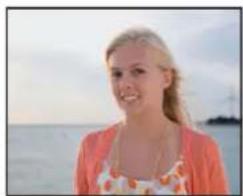
natural_image
Portrait of a smiling woman with blonde hair wearing an orange cardigan, standing by the seaside (no text or symbols visible)Overexposed

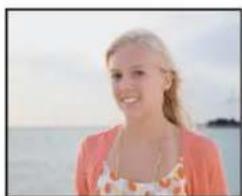
natural_image
Portrait of a smiling woman with blonde hair wearing an orange top, standing by the seaside (no text or symbols visible)Compensate the exposure towards negative.
1
Press ▲ [☑] until [EXPOSURE] appears, compensate the exposure with ◀/▶.
- Select [0 EV] to return to the original exposure.
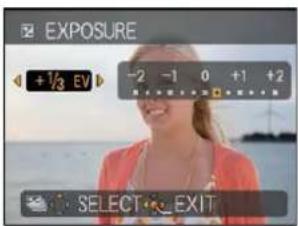
2
Press MENU/SET to finish.
- You can also press the shutter button halfway to finish.

Note
- EV is an abbreviation of [Exposure Value]. It refers to the amount of light given to the CCD by the aperture value and the shutter speed.
• The exposure compensation value appears on the lower left of the screen. - The set exposure value is memorised even if the camera is turned off.
- The compensation range of the exposure will be limited depending on the brightness of the subject.
- Exposure compensation cannot be used when in [STARRY SKY] in scene mode.
[REC] mode:


Taking Pictures using Auto Bracket
In this mode, 3 pictures are automatically recorded in the selected exposure compensation range each time the shutter button is pressed. You can select the picture with the desired exposure from the 3 pictures with different exposures.
With auto bracket ±1 EV
1st picture
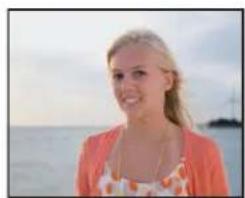
natural_image
Portrait of a smiling woman with blonde hair wearing an orange cardigan, standing by the seaside (no text or symbols visible)±0 EV
2nd picture
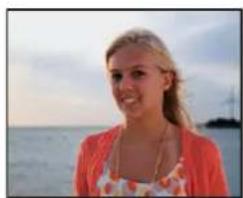
natural_image
Portrait of a smiling woman with blonde hair wearing an orange top, standing by the sea (no text or symbols visible)-1 EV
3rd picture

natural_image
Portrait of a smiling woman with blonde hair wearing a pink cardigan, standing by the seaside (no text or symbols visible)+1 EV

Press ▲ [+] until [AUTO BRACKET] appears, set the compensation range of the exposure with ◀/▶.
- When you do not use auto bracket, select [OFF] (0).

![PANASONIC Lumix DMC-FT1EG-G - Press ▲ [+] until [AUTO BRACKET] appears, set the compensation range of the exposure with ◀/▶. - 2](/content/2026/06/1174107/images/b45b725134bfe2771fce81b8c96ec6377b7f49ac8f6094ce3ba485907a97040d.jpg)
Press [MENU/SET] to finish.
- You can also press the shutter button halfway to finish.
![PANASONIC Lumix DMC-FT1EG-G - Press [MENU/SET] to finish. - 1](/content/2026/06/1174107/images/b6376e49251ca4bab6e1e64007686f32bae83971a46b2fda68afe9e8eb0b5568.jpg)
Note
- When setting auto bracket, [+] appears on the screen.
- When taking pictures using auto bracket after setting the exposure compensation range, the pictures taken are based on the selected exposure compensation range.
When the exposure is compensated, the exposure compensation value appears on the lower left of the screen. - The auto bracket setting is cancelled if you turn the camera off or [AUTO POWER OFF] is activated.
- When auto bracket is set, the auto review function is activated regardless of the auto review setting. (The picture is not enlarged.) You cannot set the auto review function in the [SETUP] menu.
- The exposure may not be compensated with auto bracket depending on the brightness of the subject.
• [∅] is set for the flash when auto bracket is set. - Burst is cancelled when auto bracket is set.
- Setting of the auto bracket cannot be performed in following conditions.
- In [TRANSFORM], [PANORAMA ASSIST], [HI-SPEED BURST], [FLASH BURST], [STARRY SKY], [PIN HOLE] and [FILM GRAIN] in scene mode
- When recording motion pictures
[REC] mode:


Take the outdoors scene expressively
By setting the mode dial to [icon], [icon], or [icon], pictures can be taken more effectively matching the conditions such as sports, snow, beach & surf.

Note
- The mode flash setting is reset to the initial setting when the mode is changed.
- Tone of the colour of the image may change when picture is taken with unmatched usage.

[SPORTS]
Set here when you want to take pictures of sports scenes or other fast-moving events.
![PANASONIC Lumix DMC-FT1EG-G - [SPORTS] - 1](/content/2026/06/1174107/images/d585c761288de79c847e5e87e96af50935625d454cca91041ce332527e6c90e3.jpg)
Note
- It will be a normal motion picture recording during the motion picture recording.
- This mode is suitable for taking pictures of subjects at distances of 5 m or more.
• [I.EXPOSURE] is automatically activated for [SPORTS].
• [INTELLIGENT ISO] is activated, and maximum ISO sensitivity level becomes [ISO1600].
• The shutter speed becomes 1st of a second to 1/1300th of a second.

[SNOW]
This allows you to take pictures that show the snow as white as possible at a ski resort or a snow-covered mountain.
![PANASONIC Lumix DMC-FT1EG-G - [SNOW] - 1](/content/2026/06/1174107/images/46138f80e61f4f2b30206b3d7f321a16a800ba4b8d665550bcb648e1eaeb865f.jpg)
Note
- To prevent water leakage, make sure that there are no foreign objects, such as sand, hair, dust, etc., clamped and close the card/battery door and terminal cover all the way until it clicks. Also, read “(Important) About the waterproof/dustproof and anti-shock performance of the camera” (P9) before using the camera.
• The shutter speed becomes 1/8th of a second to 1/1300th of a second.

[BEACH & SURF]
This mode is optimal for taking pictures up to 3 m underwater and at the beach.
White balance fine adjustment
You can adjust the hue to match the water depth and the weather.
1 Press ▲ [+] three times to display WB+ [WB ADJUST.].
2 Press ◀/▶ to adjust the white balance.
◀ [RED]: Press when the hue is bluish.
▶ [BLUE]: Press when the hue is reddish.
- Select [0] if you do not want to finely adjust the white balance.
3 Press MENU/SET to close the menu.
- If you adjust the white balance, [AWB] appears on the screen in red or blue.


Note
- To prevent water leakage, make sure that there are no foreign objects, such as sand, hair, dust, etc., clamped and close the card/battery door and terminal cover all the way until it clicks. Also, read “(Important) About the waterproof/dustproof and anti-shock performance of the camera” (P9) before using the camera.
- Dip the camera in fresh water in a shallow container for 10 minutes or less after using it, then wipe the water off with dry soft cloth. (P11)
• The initial setting for [AF MODE] is [■].
• [I.EXPOSURE] will work automatically.
• The shutter speed becomes 1/8th of a second to 1/1300th of a second.
[REC] mode: SCN
Taking pictures that match the scene being recorded (SCN: Scene mode)
When you select a scene mode to match the subject and recording situation, the camera sets the optimal exposure and hue to obtain the desired picture.

Set the mode dial to [SCN].
![PANASONIC Lumix DMC-FT1EG-G - Set the mode dial to [SCN]. - 1](/content/2026/06/1174107/images/ac51079df833ce7d2c17b0dd2f566d822171d4c412d50026c821b3eda4951231.jpg)
Press ▲/▼/◄/► to select the scene mode.
- You can switch menu screens from any menu item by sliding the zoom lever.

Press [MENU/SET] to set.
- The menu screen is switched to the recording screen in the selected scene mode.

■ About the information
- If you press [DISPLAY] when selecting a scene mode in step 2, explanations about each scene mode are displayed. (If you press [DISPLAY] again, the screen returns to the scene mode menu.)


Note
- To change the scene mode, press MENU/SET and then press ▶, and return to step 2 above.
- The scene mode flash setting is reset to the initial setting when the scene mode is changed.
- When you take a picture with a scene mode that is not adequate for the purpose, the hue of the picture may differ from the actual scene.
- The following items cannot be set in scene mode because the camera automatically adjusts them to the optimal setting.
- [INTELLIGENT ISO]/[SENSITIVITY]/[I.EXPOSURE]/[COLOR MODE]/[MIN. SHTR SPEED]
• [I.EXPOSURE] is activated automatically in the following scene modes.
- [PORTRAIT]/[SOFT SKIN]/[TRANSFORM]/[SELF PORTRAIT]/[SCENERY]/[NIGHT PORTRAIT]/[PARTY]/[CANDLE LIGHT]/[BABY1]/[BABY2]/[SUNSET]/[HIGH SENS.]/[FLASH BURST]
- Shutter speed for scene modes, except [NIGHT PORTRAIT], [NIGHT SCENERY], [CANDLE LIGHT], [BABY1]/[BABY2], [PET], [FLASH BURST], [STARRY SKY] and [FIREWORKS], will be from 1/8th of a second to 1/1300th of a second.
[PORTRAIT]
When taking pictures of people outdoors during the daytime, this mode allows you to improve the appearance of the persons concerned and make their skin tones look healthier.
■ Technique for Portrait mode
To make this mode more effective:
① Slide the zoom lever as far as possible to Tele.
② Move close to the subject to make this mode more effective.

Note
- The initial setting for [AF MODE] is [💡].
[SOFT SKIN]
When taking pictures of people outdoors during the daytime, this mode enables the texture of their skin to appear even softer than with [PORTRAIT]. (It is effective when taking pictures of people from the chest up.)
■ Technique for Soft skin mode
To make this mode more effective:
① Slide the zoom lever as far as possible to Tele.
② Move close to the subject to make this mode more effective.

Note
- If a part of the background etc. is a colour close to skin colour, this part is also smoothed.
- This mode may not be effective when there is insufficient brightness.
- The initial setting for [AF MODE] is [●].
[TRANSFORM]
Subject can be recorded either slim or stretched, and at the same time, skin can be recorded smoothly.
1 Press ▲/▼ to select the setting, and then press MENU/SET.
- It can be set from the quick menu (P26).
2 Take pictures.

![PANASONIC Lumix DMC-FT1EG-G - [TRANSFORM] - 2](/content/2026/06/1174107/images/209c24efa3e4818c5ea720d571ebd6fa66c7dcd8626f15258517e09a65b1fcc0.jpg)
Note
- [PICTURE SIZE] and [ASPECT RATIO] are fixed as given below.
- [3M] for [4:3], [2.5M] for [3:2] and [2M] for [16:9]
• [QUALITY] is automatically fixed to [■]. - You can take pictures suitable for 4"×6"/10×15 cm printing.
• The initial setting for [AF MODE] is [💡]. - It cannot be used without notifying the copyright owner, except when enjoying in private.
- Do not use the material against the public order and morals, or to offend someone.
- Do not use the material against the object's interest.
[SELF PORTRAIT]
Select this to take pictures of yourself.
■ Technique for Self portrait mode
- Press the shutter button halfway to focus. The self-timer indicator lights up when you are brought into focus. Making sure you hold the camera still, press the shutter button fully to take the picture.
- The subject is not focused when the self-timer indicator is blinking. Make sure to press the shutter button halfway again to focus.
- The recorded picture automatically appears on the LCD monitor for reviewing.
- If the picture is blurry due to the slow shutter speed, we recommend using the 2 second self-timer.
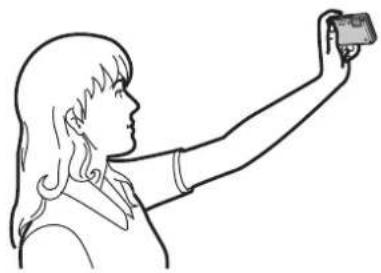
natural_image
Line drawing of a person taking a selfie with one hand extended (no text or symbols)
Note
• The focus range is about 30 cm to 1.2 m.
- You can take a picture of yourself with audio (P93). If you do this, the self-timer indicator will light up while recording the audio.
• The zoom magnification is automatically moved to Wide (1×).
- The self-timer can only be set to off or 2 seconds. If it is set to 2 seconds, this setting will remain until the camera is turned off, the scene mode is changed or [REC] mode or [PLAYBACK] mode is selected.
• The stabilizer function mode is fixed to [MODE2]. (P92)
- The initial setting for [AF MODE] is [●].
[SCENERY]
This allows you to take pictures of a wide landscape.
![PANASONIC Lumix DMC-FT1EG-G - [SCENERY] - 1](/content/2026/06/1174107/images/57d90e861578d75d408de0ee2701876a85ed3bfddb8d54292d56c7a4625d82c6.jpg)
Note
• The flash setting is fixed to [∅].
• The focus range is 5 m to ∞.
[PANORAMA ASSIST]
You can take pictures with connections suitable for creating panorama images.
■ Setting the recording direction
1 Press ▲/▼ to select the recording direction and then press MENU/SET.
- The horizontal/vertical guideline will be displayed.

2 Take the picture.
- You can retake the picture by selecting [RETAKE].
3 Press ▲ [NEXT] to select and press MENU/SET.
- You can also press the shutter button halfway to set the menu.
- Part of the recorded image is displayed as a transparent image.
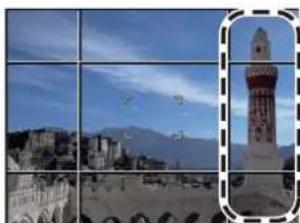
natural_image
Composite image showing a cityscape with a prominent tower and mountain in the background, alongside a grid of framed photos (no text or symbols visible)4 Take picture after moving the camera horizontally or vertically so the transparent image overlaps.
- When taking the third and later pictures, repeat steps 3 and 4.
- You can retake the picture by selecting [RETAKE].
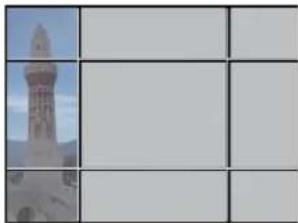
natural_image
Grid of three rows with a central tower image, no text or symbols present5 Press ▲/▼ to select [EXIT] and then press [MENU/SET].
![PANASONIC Lumix DMC-FT1EG-G - Press ▲/▼ to select [EXIT] and then press [MENU/SET]. - 1](/content/2026/06/1174107/images/b79290820fb5edfc477cebb4bee7c6f4703db24eb6e59b83e5905a3af16c8d0f.jpg)
Note
- It will be a normal motion picture recording during the motion picture recording.
• The flash setting is fixed to [∅]. - The focus, zoom, exposure, white balance, shutter speed and ISO sensitivity are fixed to the settings for the first picture.
- The shutter may remain closed (max. about 8 sec.) after taking the picture because of signal processing. This is not a malfunction.
• We recommend using a tripod. - The recorded images can be combined into panorama pictures using the software "ArcSoft Panorama Maker" on the CD-ROM (supplied).

[NIGHT PORTRAIT]
This allows you to take pictures of a person and the background with near real-life brightness.
■ Technique for Night portrait mode
- Use the flash. (You can set to [S].)
- Since the shutter speed becomes slower, we recommend using a tripod and the self-timer for taking pictures.
- Ask the subject not to move while taking a picture.
- We recommend sliding the zoom lever to Wide (1×) and being about 1.5m from the subject when taking a picture.

Note
- It will be low light motion picture recording when recording a motion picture.
• The focus range is 90 cm (Wide)/1.2 m (Tele) to 5 m.
- The shutter may remain closed (max. about 8 sec.) after taking the picture because of signal processing. This is not a malfunction.
- Noise may become visible when you take pictures in dark places.
• The initial setting for [AF MODE] is [💡].

[NIGHT SCENERY]
This allows you to take vivid pictures of the nightscape.
■ Technique for Night scenery mode
- When the camera is set to [STABILIZER] and there is very little jitter, or if [STABILIZER] is set to [OFF], shutter speed may slow down up to 8 seconds. We recommend using the tripod and the self-timer for taking picture.

Note
- It will be low light motion picture recording when recording a motion picture.
• The flash setting is fixed to [∅].
• The focus range is 5 m to ∞.
- The shutter may remain closed (max. about 8 sec.) after taking the picture because of signal processing. This is not a malfunction.
- Noise may become visible when you take pictures in dark places.
[FOOD]
This mode allows you to take pictures of food with a natural hue without being affected by the ambient light in restaurants etc.
![PANASONIC Lumix DMC-FT1EG-G - [FOOD] - 1](/content/2026/06/1174107/images/21a94c5eaefadf651d993bb0a461ff5f2a43d94e6e6f680ea588150b4da25866.jpg)
Note
• The focus range is 5 cm (Wide)/30 cm (Tele) to ∞.
[PARTY]
Select this when you want to take pictures at a wedding reception, an indoor party etc. This allows you to take pictures of people and the background with near real-life brightness.
■ Technique for Party mode
- Use the flash. (You can set to [⚡S☉] or [⚡○].)
• We recommend using a tripod and the self-timer for taking pictures. - We recommend rotating the zoom lever to Wide (1×) and being about 1.5m from the subject when taking pictures.

Note
- The initial setting for [AF MODE] is [ˈæt].
[CANDLE LIGHT]
This mode allows you to take pictures with a candle-lit atmosphere.
■ Technique for Candle light mode
• This is more effective when taking pictures without using the flash.
- We recommend using a tripod and the self-timer for taking pictures.

Note
• The focus range is 5 cm (Wide)/30 cm (Tele) to ∞.
- The shutter may remain closed (max. about 1 sec.) after taking the picture because of signal processing. This is not a malfunction.
• The initial setting for [AF MODE] is [●].
^1 [BABY1]/ ^2 [BABY2]
This takes pictures of a baby with a healthy complexion. When you use the flash, the light from it is weaker than usual.
It is possible to set different birthdays and names for [BABY1] and [BABY2]. You can select to have these appear at the time of playback, or have them stamped on the recorded image using [TEXT STAMP] (P104).
■ Birthday/Name setting
1 Press ▲/▼ to select [AGE] or [NAME] and then press ▶.
2 Press ▲/▼ to select [SET] and then press MENU/SET.
3 Enter the birthday or name.
Birthday: ◀/▶: Select the items (year/month/day).
▲/▼: Setting.
Name: For details on how to enter characters, read the [TITLE EDIT] section on P103.
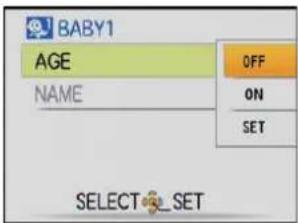
- When the birthday or name is set, [AGE] or [NAME] is automatically set to [ON].
- If [ON] is selected when the birthday or name has not been registered, the setting screen appears automatically.
4 Press [MENU/SET] to finish.
■ To cancel [AGE] and [NAME]
Select the [OFF] setting in step 2 of the "Birthday/Name setting" procedure.
![PANASONIC Lumix DMC-FT1EG-G - ■ To cancel [AGE] and [NAME] - 1](/content/2026/06/1174107/images/76f9a07250614c499e8a3539ca7172d98046fddbd4113f784792261c8e4a2fee.jpg)
Note
- It will be set to [PORTRAIT] when recording a motion picture.
- The age and name can be printed out using the "PHOTOfunSTUDIO 3.0 HD Edition" bundled software on the CD-ROM (supplied).
- If [AGE] or [NAME] is set to [OFF] even when the birthday or name has been set, the age or name will not be displayed. Before taking pictures, set [AGE] or [NAME] to [ON].
• The focus range is 5 cm (Wide)/30 cm (Tele) to ∞.
• [INTELLIGENT ISO] is activated, and maximum ISO sensitivity level becomes [ISO1600]. - If the camera is turned on with [BABY1]/[BABY2] set, the age and name are displayed at the lower left of the screen for about 5 seconds, along with the current date and time.
- If the age is not properly displayed, check the clock and birthday settings.
- The birthday setting and name setting can be reset with [RESET].
• The initial setting for [AF MODE] is [💡].
• LED light is fixed to [≡D]
[PET]
Select this when you want to take pictures of a pet such as a dog or a cat.
You can set your pet's birthday and name. You can select to have these appear at the time of playback, or have them stamped on the recorded image using [TEXT STAMP] (P104).
For information about [AGE] or [NAME], refer to [BABY1]/[BABY2] on P63.
![PANASONIC Lumix DMC-FT1EG-G - [PET] - 1](/content/2026/06/1174107/images/4e3dee72b2a3c9677617811bd6045af8fa709f2e1bb0ece34e3fc0303f3397b0.jpg)
Note
- It will be a normal motion picture recording during the motion picture recording.
• The initial setting for the AF assist lamp is [OFF].
• The initial setting for [AF MODE] is [☐].
• Refer to [BABY1]/[BABY2] for other information about this mode.
[SUNSET]
Select this when you want to take pictures of sunset view. This allows you to take vivid pictures of the red colour of the sun.
![PANASONIC Lumix DMC-FT1EG-G - [SUNSET] - 1](/content/2026/06/1174107/images/ca0fa54d0ed73c4b288d91585fb00a8c250c19934a8f19a9cded1682897837e2.jpg)
Note
• The flash setting is fixed to [∅].
[HIGH SENS.]
This mode minimises the jitter of the subjects, and enables you to take pictures of these subjects in dimly lit rooms. (Select this for high-sensitivity processing. The sensitivity automatically switches to between [ISO1600] and [ISO6400].)
■ Picture size and aspect ratio
1 Press ▲/▼ to select the picture size and aspect ratio and then press MENU/SET to set.
• 3M (4:3), 2.5M (3:2) or 2M (16:9) is selected as the picture size.
2 Take pictures.

Note
• [QUALITY] is automatically fixed to [■].
- You can take pictures suitable for 4"×6"/10×15 cm printing.
• The focus range is 5 cm (Wide)/30 cm (Tele) to ∞.
[HI-SPEED BURST]
This is a convenient mode for shooting rapid movement or a decisive moment.
■ Picture size and aspect ratio
1 Press ▲/▼ to select [SPEED PRIORITY] or [IMAGE PRIORITY] and then press MENU/SET to set.
2 Press ▲/▼ to select the picture size and aspect ratio and then press MENU/SET to set.
• 3M (4:3), 2.5M (3:2) or 2M (16:9) is selected as the picture size.
3 Take pictures.
- Still pictures are taken continuously while the shutter button is pressed fully.
| Maximum Burst speed | approx. 10 pictures/second (Speed priority) approx. 6 pictures/second (Image priority) |
| Number of recordable pictures | approx. 15 (Built-in memory) approx. 15 to 100* (Card) * The maximum is 100. |
• The burst speed changes according to the recording conditions.
- The number of burst recording pictures are limited by the picture-taking conditions and the type and/or status of the card used.
- The number of burst recording pictures increase immediately after formatting.

Note
- It will be a normal motion picture recording during the motion picture recording.
• The flash setting is fixed to [∅].
• [QUALITY] is automatically fixed to [.] - You can take pictures suitable for 4"×6"/10×15 cm printing.
• The focus range is 5 cm (Wide)/30 cm (Tele) to ∞. - The focus, zoom, exposure, white balance, shutter speed and ISO sensitivity are fixed to the settings for the first picture.
- [SENSITIVITY] will be adjusted automatically as following. However, the [SENSITIVITY] will be set higher to make the shutter speed faster.
- When [SPEED PRIORITY] is selected: Adjust between [ISO200] and [ISO1600]
- When [IMAGE PRIORITY] is selected: Adjust between [ISO500] and [ISO800]
- Depending on the operating conditions, it may take time to take the next picture if you repeat taking a picture.

[FLASH BURST]
Still pictures are taken continuously with flash. It is convenient to take continuous still pictures in dark places.
■ Picture size and aspect ratio
1 Press ▲/▼ to select the picture size and aspect ratio and then press MENU/SET to set.
• 3M (4:3), 2.5M (3:2) or 2M (16:9) is selected as the picture size.
2 Take pictures.
- Still pictures are taken continuously while the shutter button is pressed fully.
| Number of recordable pictures | max. 5 pictures |

Note
- It will be a normal motion picture recording during the motion picture recording.
• [QUALITY] is automatically fixed to [.] - You can take pictures suitable for 4"×6"/10×15 cm printing.
• The shutter speed becomes 1/30th of a second to 1/1300th of a second.
• The focus range is 5 cm (Wide)/30 cm (Tele) to ∞. - The focus, zoom, exposure, shutter speed, ISO sensitivity, and flash level are fixed to the settings for the first picture.
• ISO sensitivity will be switch between [ISO100] and [ISO3200] automatically.
• See the Note on P52 when using the flash.
[STARRY SKY]
This allows you to take vivid pictures of a starry sky or a dark subject.
■ Setting the shutter speed
Select a shutter speed of [15 SEC.], [30 SEC.] or [60 SEC.].
1 Press ▲/▼ to select the number of seconds and then press [MENU/SET].
- It is also possible to change the number of seconds using the quick menu. (P26)
2 Take pictures.
- Press the shutter button fully to display the countdown screen. Do not move the camera after this screen is displayed. When countdown finishes, [PLEASE WAIT...] is displayed for the same length of time as the set shutter speed for signal processing.
- Press MENU/SET to stop taking the picture while the countdown screen is displayed.

■ Technique for Starry sky mode
- The shutter opens for 15, 30 or 60 seconds. Be sure to use a tripod. We also recommend taking pictures with the self-timer.

Note
- It will be low light motion picture recording when recording a motion picture.
• The flash setting is fixed to [∅].
• The optical image stabilizer function is fixed to [OFF].
• ISO sensitivity is fixed to [ISO80].
[FIREWORKS]
This mode allows you to take beautiful pictures of fireworks exploding in the night sky.
■ Technique for Fireworks mode
- Since the shutter speed becomes slower, we recommend using a tripod.

Note
- It will be a normal motion picture recording during the motion picture recording.
• The flash setting is fixed to [∅].
• This mode is most effective when the subject is 10 m or more away.
• The shutter speed becomes the following.
– Image stabiliser function [OFF]: 2 seconds
- When [AUTO], [MODE1] or [MODE2] is set on the optical image stabilizer function: 1/4th of a second or 2 seconds (The shutter speed becomes 2 seconds only when the camera has determined that there is little jitter such as when using a tripod etc.)
- You can change the shutter speed by compensating the exposure.
• The AF area is not displayed.
• ISO sensitivity is fixed to [ISO80].

[AERIAL PHOTO]
This mode allows you to take pictures through an airplane window.
■ Technique for Aerial photo mode
- We recommend using this technique if it is difficult to focus when taking pictures of clouds etc. Aim the camera at something with high contrast, press the shutter button halfway to fix the focus and then aim the camera at the subject and press the shutter button fully to take the picture.

Note
• The flash setting is fixed to [∅].
• The focus range is 5 m to ∞.
- Turn the camera off when taking off or landing.
- When using the camera, follow all instructions from the cabin crew.
- Be careful about the reflection from the window.

[PIN HOLE]
Picture is taken darker and with soft focus around the subjects.
■ Picture size and aspect ratio
1 Press ▲/▼ to select the picture size and aspect ratio and then press MENU/SET to set.
• 3M (4:3), 2.5M (3:2) or 2M (16:9) is selected as the picture size.
2 Take pictures.

Note
• [QUALITY] is automatically fixed to [■].
- You can take pictures suitable for 4"×6"/10×15 cm printing.
• The focus range is 5 cm (Wide)/30 cm (Tele) to ∞.
- Face detection may not operate normally in the dark areas around the edges of the screen.

natural_image
Dry landscape with sparse trees under a clear blue sky (no text or symbols visible)
[FILM GRAIN]
Picture is taken with a grainy texture as though blasted with sand.
■ Picture size and aspect ratio
1 Press ▲/▼ to select the picture size and aspect ratio and then press MENU/SET to set.
• 3M (4:3), 2.5M (3:2) or 2M (16:9) is selected as the picture size.
2 Take pictures.
![PANASONIC Lumix DMC-FT1EG-G - [FILM GRAIN] - 1](/content/2026/06/1174107/images/a7078a8b4a096600b1d6202c1dea57b9f66694fc1ad9447b7eaa29cc0f10eb0a.jpg)
Note
• [QUALITY] is automatically fixed to [■].
- You can take pictures suitable for 4"×6"/10×15 cm printing.
• ISO sensitivity is fixed to [ISO1600].
• The focus range is 5 cm (Wide)/30 cm (Tele) to ∞.
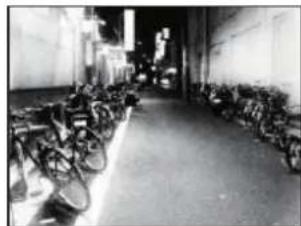
natural_image
Black-and-white photo of a narrow alleyway with parked bicycles and streetlights (no visible text or signage)[UNDERWATER]
This is optimal to take pictures underwater 3 m or more using the marine case (DMW-MCFT1; optional).
* This camera has a waterproof/dustproof function equivalent to "IP58". It is possible to take pictures in 3.0 m depth for 60 minutes.
Fixing the focus underwater (AF Lock)
You can fix the focus before taking a picture with AF lock. This is useful if you want to take pictures of a fast moving subject etc.
1 Aim the AF area at the subject.
2 Press ◀ to fix the focus.
- The AF lock icon Ⓐ appears when the subject is focused.
- Press ◀ again to cancel AF lock.
- When you slide the zoom lever, the AF lock is cancelled. In this case, focus on the subject and fix the focus again.
- You cannot set to AF lock when [AF MODE] is set to [T]:

natural_image
Underwater scene with fish swimming near a poolside, no visible text or symbolsWhite balance fine adjustment
You can adjust the hue to match the water depth and the weather.
1 Press ▲ [+] three times to display WB+ [WB ADJUST.].
2 Press ◀/▶ to adjust the white balance.
◀ [RED]: Press when the hue is bluish.
▶ [BLUE]: Press when the hue is reddish.
- Select [0] if you do not want to finely adjust the white balance.
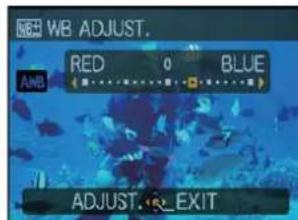
3 Press [MÊNU/SET] to close the menu.
- If you adjust the white balance, [AWB] appears on the screen in red or blue.
![PANASONIC Lumix DMC-FT1EG-G - Press [MÊNU/SET] to close the menu. - 1](/content/2026/06/1174107/images/e8ae8495ab2b03f78fb8b449cdbb25c3e5f79d1ba12c1561e9ebf9dc2b1f8e07.jpg)
Note
- To prevent water leakage, make sure that there are no foreign objects, such as sand, hair, dust, etc., clamped and close the card/battery door and terminal cover all the way until it clicks. Also, read “(Important) About the waterproof/dustproof and anti-shock performance of the camera” (P9) before using the camera.
- Dip the camera in fresh water in a shallow container for 10 minutes or less after using it, then wipe the water off with dry soft cloth. (P11)
• The focus range is 5 cm (Wide)/30 cm (Tele) to ∞.
• LED light is fixed to [ ≡ OFF ].
• [AF ASSIST LAMP] is fixed to [OFF].
[REC] mode:


Recording Motion Picture
High definition image complying with AVCHD standard can be recorded (P72).

Select the mode
Ⓐ Mode dial
⑧ Motion picture button

■ Modes that can be recorded for motion picture
| Item | Settings / Note |
| iA Intelligent auto mode | Intelligent auto motion picture |
| Normal picture mode | Normal motion picture |
| [SPORTS] | Normal motion picture |
| [SNOW] | [SNOW] motion picture |
| [BEACH & SURF] | [BEACH & SURF] motion picture |
| Scene mode | Scene motion picture |

Note
- It will be recorded in following categories for certain scene modes.
| Selected scene mode | Scene mode while recording motion picture |
| [BABY1]/[BABY2] | Portrait mode |
| [NIGHT PORTRAIT], [NIGHT SCENERY], [STARRY SKY] | Low light mode |
| [HI-SPEED BURST], [FLASH BURST], [FIREWORKS], [PANORAMA ASSIST], [PET] | Normal motion picture |
- A motion picture recording matching each scene will be performed for the ones not listed above. (P58 to 68)

Start recording by pressing the motion picture button.
- The available recording time Ⓐ is displayed on the top right and the elapsed recording time Ⓑ is displayed on the bottom right of the screen.
- Release the motion picture button right after you press it. Audio will not be recorded for few second after it starts recording if it is kept pressed.
- The audio is also recorded simultaneously from the built-in microphone on this unit. (Motion pictures cannot be recorded without audio.)
- The screen will become dark momentarily, and recording will start after adjusting the display.


Stop the recording by pressing the motion picture button again.
- If the built-in memory or the card becomes full in the middle of recording, the camera stops recording automatically.

Note
• The screen will change as following when the motion picture button is pressed in steps 2 and 3.
Ⓐ Still picture recording screen
⑧ Motion picture mode setting ^*1
© Motion picture recording screen
(D) Still picture mode setting

flowchart
graph TD
    A["Device A"] --> B["Film Strip"]
    B --> C["Camera Image"]
    C --> D["Camera Icon"]
    D --> A
*1 The screen that is displayed during motion picture mode setting is different depending on the setting of the [REC MODE].
- It is possible to set from following [MOTION PICTURE] mode menu.
- [REC MODE] (P72)/[REC QUALITY] (P72)/[WHITE BALANCE] (P85)/[I.EXPOSURE] (P89)/[AF MODE]*2 (P87)/[CONTINUOUS AF] (P74)/[DIGITAL ZOOM] (P91)/[COLOR MODE]*2 (P91)/[WIND CUT] (P75)/[LED LIGHT] (P75)
*2 The setting which can be selected are different from still picture [REC] mode menu.
• The flash setting is fixed to [∅].
• Refer to P148 for information about the available recording time.
- The available recording time displayed on the screen may not decrease regularly.
- Depending on the type of the card, the card access indication may appear for a while after recording motion pictures. This is not a malfunction.
- When motion pictures recorded with the camera are played back on other equipment, the quality of the picture and sound may deteriorate and it may not be possible to play them back. Also the recording information may not be displayed correctly.
- Operational sound of the unit, which may be caused by operation or zooming, might be recorded.
- Noise may be recorded underwater.
- When operating the zoom in recording motion pictures, it may take time to come into focus.
- If the Extra optical zoom was used before pressing the motion picture button, recordable area will be changed drastically since these settings are cancelled.
- Sound from motion pictures (When [REC MODE] is set to [MOTION JPEG]) or pictures with audio recorded by this camera cannot be played back by older models of Panasonic digital camera (LUMIX) launched before July 2008.
- In recording motion pictures, [STABILIZER] is fixed to [MODE1].
• In recording motion pictures, the following functions cannot be used.
– Direction detection function
– [NATURAL] and [VIVID] in [COLOR MODE]
– Extra optical zoom (EZ)
- [FACE RECOG.]
- This unit does not support recording motion pictures on MultiMediaCards.
- Angle of view may be narrower in the motion picture compared with the still picture.
- Field of view during the recording of motion picture is displayed when [RECA AREA] (P28) is set to [ON].
When set to intelligent auto mode
- When intelligent auto mode is selected in step 1, motion picture recording matching to the subject or recording situation can be performed.
■ Scene detection
When the camera identifies the optimum scene, the icon of the scene concerned is displayed in blue for 2 seconds, after which its colour changes to the usual red.

![[i-PORTRAIT] [i-SCENERY] [i-LOW LIGHT] [i-MACRO]](/content/2026/06/1174107/images/a3463e0bae2f8bdc0291d3aa0d0c6a417ce3de6279d36e50fbd3de103f95acf0.jpg)
- [1A] is set if none of the scenes are applicable, and the standard settings are set.
■ Face detection
When [☐] is selected, the camera automatically detects a person's face, and it will adjust the focus and exposure (P88).

Note
- Following [MOTION PICTURE] mode menu cannot be set because the camera sets automatically.
[WHITE BALANCE]/[I.EXPOSURE] - It is only possible to set the [COLOR MODE] to [STANDARD], [B/W], or [SEPIA].
- Due to conditions such as the ones below, a different scene may be identified for the same subject.
- Subject conditions: When the face is bright or dark, The size of the subject, The distance to the subject, The contrast of the subject, When the subject is moving, When zoom is used
- Recording conditions: Sunset, Sunrise, Under low brightness conditions, When the camera is shaken
- To take pictures in an intended scene, it is recommended that you take pictures in the appropriate recording mode.
- Face detection may become slower or it may not detect underwater.
- To take pictures in an intended scene, it is recommended that you take pictures in the appropriate recording mode.
- Face detection may become slower or it may not detect underwater.
Changing [REC MODE] and [REC QUALITY]
![PANASONIC Lumix DMC-FT1EG-G - Changing [REC MODE] and [REC QUALITY] - 1](/content/2026/06/1174107/images/0082c6c20e769d4741c193d0edb2685998d20ce2ceadea7699ba4be3165b1150.jpg)
Select [REC MODE] from the [MOTION PICTURE] mode menu, and press ▶. (P25)
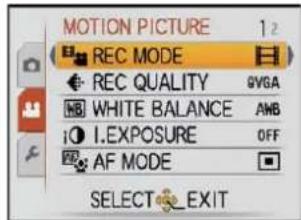
![PANASONIC Lumix DMC-FT1EG-G - Changing [REC MODE] and [REC QUALITY] - 3](/content/2026/06/1174107/images/2480349f8a5aacd23957220b9d70a8255ffb6c0307cab4e6ab69321c5418ae49.jpg)
Press ▲/▼ to select the item and then press MENU/SET.

| Recording format | Effect |
| [AVCHD Lite] | This is the data format appropriate to playback on the high definition TV, etc. High definition motion picture can be recorded for long time. |
| [MOTION JPEG] | This is the data format appropriate to playback on the PC, etc. It can be recorded with small picture size, making it convenient when there is not much space left on the memory card or when you want to attach the motion picture to an e-mail on the PC later. |
![PANASONIC Lumix DMC-FT1EG-G - Changing [REC MODE] and [REC QUALITY] - 5](/content/2026/06/1174107/images/22af39067ca033eccd111f10459828b76b3d425d0558979a0644e5aed0064f29.jpg)
Press ▲/▼ to select [REC QUALITY] and then press ▶.
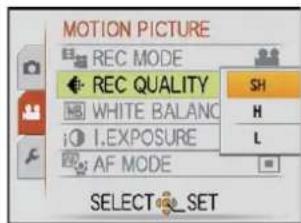
![PANASONIC Lumix DMC-FT1EG-G - Changing [REC MODE] and [REC QUALITY] - 7](/content/2026/06/1174107/images/ca507753106e13ade0b229f5af79e732764b40a3be0eb1f3951c651fba8bf8ea.jpg)
Press ▲/▼ to select the item and then press [MENU/SET].
When [AVCHD Lite] is selected in step 2
| Item | Quality (bit rate)*1 | Aspect ratio | |
High quality![PANASONIC Lumix DMC-FT1EG-G - When [AVCHD Lite] is selected in step 2 - 1](/content/2026/06/1174107/images/98f53243ff89a249239bbcfc02fdefc0ec04ecdadfe203e5cd34b77dc97e9a78.jpg) Longer time Longer time | ![PANASONIC Lumix DMC-FT1EG-G - When [AVCHD Lite] is selected in step 2 - 2](/content/2026/06/1174107/images/cbe21b9afee16422f53c036c19276433e56eb45ed67dfe69edc6f2df9722d8cf.jpg) | 1280 × 720 pixels 17 Mbps^*2 | 16:9 |
![PANASONIC Lumix DMC-FT1EG-G - When [AVCHD Lite] is selected in step 2 - 3](/content/2026/06/1174107/images/69425c39ae965d6f8704c0b891bd1d098abe32d34d153f21be1698c1899a835f.jpg) | 1280 × 720 pixels 13 Mbps^*2 | ||
![PANASONIC Lumix DMC-FT1EG-G - When [AVCHD Lite] is selected in step 2 - 4](/content/2026/06/1174107/images/99dadf9a74ec892fa9f99b39afff69b60f553604407233bdef061bd53fca3831.jpg) | 1280 × 720 pixels 9 Mbps^*2 |
\*1 What is bit rate
This is the volume of data for definite period of time, and the quality becomes higher when the number gets bigger. This unit is using the "VBR" recording method. "VBR" is an abbreviation of "Variable Bit Rate", and the bit rate (volume of data for definite period of time) is change automatically depending on the subject to record.
Therefore, the recording time is shortened when a subject with fast movement is recorded.
\*2 What is Mbps
This is an abbreviation of "Megabit Per Second", and it represents the speed of transmission.
When [MOTION JPEG] is selected in step 2
| Item | Picture size | fps | Aspect ratio | |
| [4ABA] | 1280 × 720 pixels | 30 | 16:9 | |
![PANASONIC Lumix DMC-FT1EG-G - When [MOTION JPEG] is selected in step 2 - 1](/content/2026/06/1174107/images/721536fa6fd19d53c10708cc193ce7fb1dcbfac8d2519c25a8e465fdaeeb8928.jpg) | 848 × 480 pixels | |||
| [BTG4] | 640 × 480 pixels | 4:3 | ||
![PANASONIC Lumix DMC-FT1EG-G - When [MOTION JPEG] is selected in step 2 - 2](/content/2026/06/1174107/images/8690197837846f98937c934504236f9a4296d8adb38d00b99f877db6d5d2db68.jpg) | 320 × 240 pixels | |||
\*3 This item cannot be set in the Intelligent auto mode.
- With the [HD] for [AVCHD Lite] or [MOTION JPEG], high quality motion picture can be enjoyed on the TV by using the HDMI mini cable (optional). For details, see “Playing back on the TV with HDMI socket” on P115.
- It cannot be recorded to built-in memory except for the [H-H]

Press [MENU/SET] to close the menu.
- You can also press the shutter button halfway to close the menu.
![PANASONIC Lumix DMC-FT1EG-G - Press [MENU/SET] to close the menu. - 1](/content/2026/06/1174107/images/94d56b10c723c342f0e6ab40d40726302b152e5e472c8f20c88839d9a08727ee.jpg)
Note
- It is recommended to use a card with SD Speed Class ^*1 with "Class 6" or higher when recording motion pictures.
*1 The SD Speed Class Rating is the speed standard for successive writes. - When you set the picture quality to [HD], [HG] or [HG], we recommend using a high-speed card with "10MB/s" or greater displayed on the package.
- Motion picture recorded continuously in [MOTION JPEG] is up to 2 GB. Only the maximum recordable time for 2 GB is displayed on the screen. [AVCHD Lite] can be recorded to the capacity of the card. ^2
*2 The recording may stop even if there is more space left in the card depending on the life of the battery. (P17) - The motion pictures recorded in [AVCHD Lite] can be played back with an AVCHD compatible device. Check the compatibility with the instruction manual of the device. However, some of the compatible device may playback with lower image or audio qualities, or may not playback. Also, the recording information may not display correctly. In these cases, playback with this unit.
- The motion pictures recorded in [AVCHD Lite] cannot be played back with devices not compatible with AVCHD (such as conventional DVD recorders).
- Motion picture recorded in [AVCHD Lite] does not comply with the "DCF/Exif", so some information will not display while playback.
- A sound might be muffed or warped when there is water on the microphone or the speaker. Wipe the residues after letting the water drip out from the microphone and speaker by tipping it down, and use it after letting it dry for a while. (P131)
C-AF [CONTINUOUS AF]
It will continually keep on focusing to the subject that the focus was once set.
![PANASONIC Lumix DMC-FT1EG-G - C-AF [CONTINUOUS AF] - 1](/content/2026/06/1174107/images/94d0cfae96d9964a5e43daa1e7e47c63023e35152c5994b8d34e976b331dda86.jpg)
Select [CONTINUOUS AF] from motion picture [MOTION PICTURE] menu, and press ▶. (P25)
![PANASONIC Lumix DMC-FT1EG-G - Select [CONTINUOUS AF] from motion picture [MOTION PICTURE] menu, and press ▶. (P25) - 1](/content/2026/06/1174107/images/42277785827f91788645aeab481b9666168bbed52490d265c3370e425f006da7.jpg)
Press ▼ to select [ON] and then press [MENU/SET].

![PANASONIC Lumix DMC-FT1EG-G - Press ▼ to select [ON] and then press [MENU/SET]. - 2](/content/2026/06/1174107/images/a4cd2401a11daf1884eb95b00671a6402b732a1b24c040d9411e9675f5fde484.jpg)
Press [MENU/SET] to close the menu.
- You can also press the shutter button halfway to close the menu.
- Set to [OFF] when you would like to fix the focus.
![PANASONIC Lumix DMC-FT1EG-G - Press [MENU/SET] to close the menu. - 1](/content/2026/06/1174107/images/9810a202b7ddf30cbcbac76de4fe2f45d635088d4434d6871e4dc7f5773e542b.jpg)
Note
• [CONTINUOUS AF] is continuously fixed to [ON] in intelligent auto mode.
- It may take a while for the recording to start when the [CONTINUOUS AF] is set to [ON].
≈[WIND CUT]
This will reduce the noise from wind hitting the built-in microphone.
![PANASONIC Lumix DMC-FT1EG-G - ≈[WIND CUT] - 1](/content/2026/06/1174107/images/ef136dcf5a290738e8c54d999dcbd840751de0a8b59b1b58d328d8d56c9923ee.jpg)
Select [WIND CUT] from motion picture [MOTION PICTURE] menu, and press ▶. (P25)
![PANASONIC Lumix DMC-FT1EG-G - ≈[WIND CUT] - 2](/content/2026/06/1174107/images/e5f5ea1e521bf620f1cde0360925026ddb57597563b088a4bdf01e48106404b6.jpg)
Press ▼ to select [ON] and then press MENU/SET.

![PANASONIC Lumix DMC-FT1EG-G - ≈[WIND CUT] - 4](/content/2026/06/1174107/images/de6852dc427b90251274912c2f90819a592712217b73a2cd377145594c8b98b9.jpg)
Press MENU/SET to close the menu.
- You can also press the shutter button halfway to close the menu.
![PANASONIC Lumix DMC-FT1EG-G - ≈[WIND CUT] - 5](/content/2026/06/1174107/images/a1bd018853412922eb6fa6c4998303a9ae1d3d57f257c636a4d9a1e90f14288d.jpg)
Note
- Sound quality will be different than usual when [WIND CUT] is set to [ON].
• [WIND CUT] cannot be set for intelligent auto mode and some of the scene modes.
ED [LED LIGHT]
This will illuminate the subject with a lamp when taking picture in dark surrounding.
![PANASONIC Lumix DMC-FT1EG-G - ED [LED LIGHT] - 1](/content/2026/06/1174107/images/a76a9c64272ce73ea9ba9435674666cc2723427923425b5979d7f258d4cd48df.jpg)
Select [LED LIGHT] from motion picture [MOTION PICTURE] menu, and press ▶. (P25)
![PANASONIC Lumix DMC-FT1EG-G - ED [LED LIGHT] - 2](/content/2026/06/1174107/images/b04b68f69193a45574ae27fb9dec05e1277bcf726f86bb0ecde14dba08e03c8e.jpg)
Press ▲/▼ to select [ ≃ Auto ] or [ ≃ ON ] and then press ▶.
[ ≡M]: The light is turned on automatically depending on the condition when recording motion picture.
[≡] : LED light is turned on continuously while recording a motion picture.
[≡D]: LED light is turned off continuously while recording a motion picture.
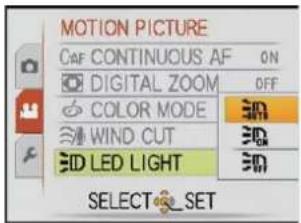
![PANASONIC Lumix DMC-FT1EG-G - ED [LED LIGHT] - 4](/content/2026/06/1174107/images/0767a52f0306c6726de7f05414bcc1766e9e59cd9df1644093f8de0b120a2ea1.jpg)
Press MENU/SET to close the menu.
- You can also press the shutter button halfway to close the menu.
![PANASONIC Lumix DMC-FT1EG-G - ED [LED LIGHT] - 5](/content/2026/06/1174107/images/54adeb71feb00608e4828282f2008a0c76e5657ac7eeeefb4cd083d84b18bc6c.jpg)
Note
Ⓐ LED light
• Maximum illuminating range of the LED light is 70 cm.
- The life of battery will decrease when the LED light is turned on constantly.
- It may not turn on even in a dark place when the battery is low while set to [≡IN]_{AUTO}.
- Set to [ ≡] for places where the usage of the light is prohibited or if the LED light does not turn off in bright places when it is set to [ ≡].
- It is fixed to [ ≧] for [BABY1], [BABY2], and [UNDERWATER] of the scene mode.

[REC] mode:


Taking a picture with Face Recognition function
For details on [REC] mode menu settings, refer to P25.
Face Recognition functions
Following [FACE RECOG.] functions will work when [FACE RECOG.] in [REC] mode menu is set to [ON].
- It will search for the face similar to the registered face, setting the focus and exposure preferentially.
- If a name is set for a registered face, the name is displayed when the camera detects the registered face.
- The camera will remember the face during the face recognition when the [AUTO REGISTRATION] is set to [ON], and detect the face that the picture is taken for many times automatically, displaying the face recognition registration screen.
- It is possible to display the name during playback, or only display image with that name with [CATEGORY PLAY]. (P99)

Face settings
Up to 6 face images can be registered together with information such as name and birthday. It makes the recognition easier by registering multiple images of same person.
■ Registering from the [REC] mode menu

Select [FACE RECOG.] on the [REC] mode menu and then press ▶. (P25)

Press ▲/▼ to select [SET] and then press MENU/SET.


Press ▲/▼ to select [MEMORY] and then press MENU/SET.
- A list of registered people is displayed when there are 6 people already registered. Select the person to be replaced. Information of the person that was replaced will be deleted.
- To edit a face that is already registered, select [EDIT], select the person to edit, and perform the operation from step 6.


Take the picture adjusting the face with the guide.
- The faces of subjects other than people (pets, etc.) cannot be registered.
• Take a picture of a face from the front
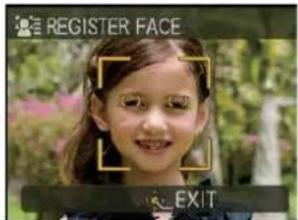

Press ▲ to select [YES] and then press [MENU/SET].
![PANASONIC Lumix DMC-FT1EG-G - Press ▲ to select [YES] and then press [MENU/SET]. - 1](/content/2026/06/1174107/images/be5bfe0bb6942f0900f1543fcc41004e0ef686aff1f1614435cda227f13ce0da.jpg)
Press ▲/▼ to select the item and then press ▶.
[NAME]:
It is possible to register names.
For details on how to enter characters, read the [TITLE EDIT] section on P103.
Ⓐ Face image
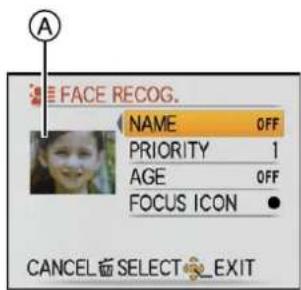
Edit screen
[PRIORITY]:
The focus and exposure are preferentially adjusted for higher-priority faces.
The priority can be changed in following operation.
Press ▲/▼/◄/► to select the priority and then press MENU/SET.
[AGE]:
Press ◀/▶ to select the items, and then press ▲/▼ to set and then press MENU/SET.
[FOCUS ICON]:
Change the displayed focus icon when the subject is focused.
Press ▲/▼ to select the focus icon, and then press MENU/SET.
- Face image can be retaken by selecting Ⓐ by pressing ◀ in the edit screen, and then pressing MENU/SET.
Return to step 4 by selecting [YES] with ▲, and pressing MENU/SET.

Press [MENU/SET] to close the menu.
■ Registering from the automatic registration screen
When the [AUTO REGISTRATION] is set to [ON] in step 3 of the "Face settings", the registration screen will display automatically after taking the picture of a face that has high number of appearance.
(Registration screen is displayed after approximately 5 pictures. It is not counted when the burst mode and auto bracket is set.)
1 Press ▲ to select [YES] and then press [MENU/SET].
- Selection screen is displayed again when [NO] is selected, and when [YES] is selected with ▲, [AUTO REGISTRATION] will be set to [OFF].
2 Use the operation in Step 6 and following in "Face settings".
• Automatic register screen is not displayed when there are 6 people already registered.

■ Deleting information for registered faces
1 In Step 3 of "Face settings", select [DELETE] and then press MENU/SET.
2 Press ▲/▼/◄/► to select the image of the person to delete and then press MENU/SET.
3 Press ▲ to select [YES] and then press MENU/SET.
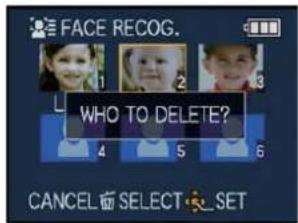

Note
• [AF MODE] is fixed to ['●'].
- Face Recognition may not be possible or may not recognise faces correctly even for registered faces in the following instances, depending on the facial expression and environment.
— When the face is not facing the camera
- When the face is at an angle
— When the face is extremely bright or dark
– Hidden by sunglasses, glasses reflecting light, hair, hat, etc.
—When the face appears small on the screen
— The entire face is not in the screen
— When distinctive facial features have changed with age
– Facial expression is very different
— When there is little contrast on the faces
- When there is rapid movement
— When the camera is shaking
- When digital zoom is used
- After pressing the shutter halfway down, a different person's picture information may be added when the camera is turned to a different subject to take the photograph.
- When a person who is registered is not recognised, correct by re-registering.
- [FACE RECOG.] can be used in the following Scene modes.
- [SPORTS]
- [SNOW]
- [BEACH & SURF]
-
[PORTRAIT]/[SOFT SKIN]/[SELF PORTRAIT]/[SCENERY]/[NIGHT PORTRAIT]/[PARTY]/[CANDLE LIGHT]/[BABY1]/[BABY2]/[PET]/[SUNSET]/[HIGH SENS.]/[PIN HOLE]
-
Name registered with [FACE RECOG.] does not display for an image with names set in [BABY1]/[BABY2] and [PET] of the scene mode, [LOCATION] in travel date, or characters set in [TITLE EDIT].
- Software "PHOTOfunSTUDIO 3.0 HD Edition" in the CD-ROM (supplied) allows to check information of up to 3 people registered in one picture.
[REC] mode:


Useful Functions at Travel Destinations
Recording which Day of the Vacation You Take the Picture
For details on the [SETUP] menu settings, refer to P25.
If you set the departure date or the travel destination of the vacation in advance, the number of days that have passed since the departure date (which day of the vacation it is) is recorded when you take the picture. You can display the number of days that have passed when playing back the pictures and stamp it on the recorded pictures with [TEXT STAMP] (P104).
- The number of days that have passed since the departure date can be printed out using the "PHOTOfunSTUDIO 3.0 HD Edition" bundled software on the CD-ROM (supplied).
- Select [CLOCK SET] to set the current date and time in advance. (P22)
![PANASONIC Lumix DMC-FT1EG-G - For details on the [SETUP] menu settings, refer to P25. - 1](/content/2026/06/1174107/images/2d8e1965bd505804c022edf4cb62cae36638afd33d593dc88e828035a7a8a843.jpg)
Select [TRAVEL DATE] from the [SETUP] menu, and then press ▶.
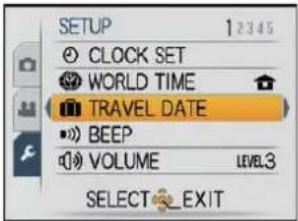
![PANASONIC Lumix DMC-FT1EG-G - For details on the [SETUP] menu settings, refer to P25. - 3](/content/2026/06/1174107/images/f4fe46a7fbe659e9a00e6b29ac7f170679c0e91789a2114edb6cdc68122a5718.jpg)
Press ▲ to select [TRAVEL SETUP] and then press ▶.
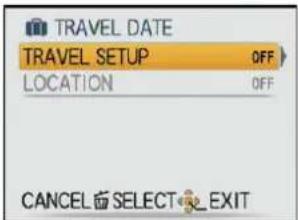
![PANASONIC Lumix DMC-FT1EG-G - For details on the [SETUP] menu settings, refer to P25. - 5](/content/2026/06/1174107/images/2003fa29cfc6d18d3112c11db917ea22e532d2a30a9f455c6c268e572217410a.jpg)
Press ▼ to select [SET] and then press MENU/SET.

![PANASONIC Lumix DMC-FT1EG-G - For details on the [SETUP] menu settings, refer to P25. - 7](/content/2026/06/1174107/images/889429d5202abeb2d7c9f801bdace783386ef36b0c7862ab56a3b68a2e1c4419.jpg)
Press ▲/▼/◄/► to set the departure date (year/month/day), and then press MENU/SET.
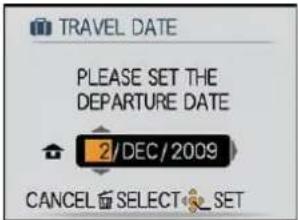
![PANASONIC Lumix DMC-FT1EG-G - For details on the [SETUP] menu settings, refer to P25. - 9](/content/2026/06/1174107/images/37b274326ea149149f63ec3364304c1e28ab52bc304e4295503293db8a26e7a5.jpg)
Press ▲/▼/◄/► to set the return date (year/month/day), and then press [MENU/SET].
- If you do not want to set the return date, press MENU/SET while the date bar is displayed.

![PANASONIC Lumix DMC-FT1EG-G - Press ▲/▼/◄/► to set the return date (year/month/day), and then press [MENU/SET]. - 2](/content/2026/06/1174107/images/65b3d39c03a89f3116908f0d85c2fea5eb45f1ca68152d31fb4d418b91c94c1e.jpg)
Press ▼ to select [LOCATION] and then press ▶.

![PANASONIC Lumix DMC-FT1EG-G - Press ▼ to select [LOCATION] and then press ▶. - 2](/content/2026/06/1174107/images/0dfb865c18ac55f2b5cd815afc422485ce709ad831935af63337caa74c68c115.jpg)
Press ▼ to select [SET] and then press [MENU/SET].

![PANASONIC Lumix DMC-FT1EG-G - Press ▼ to select [SET] and then press [MENU/SET]. - 2](/content/2026/06/1174107/images/88dc6a879bd6c66624368a0999e91f0918ee88e3bbd8e3d5e8d4d10c96f60dfc.jpg)
Enter the location.
- For details on how to enter characters, read the [TITLE EDIT] section on P103.

Press [MENU/SET] twice to close the menu.
![PANASONIC Lumix DMC-FT1EG-G - Press [MENU/SET] twice to close the menu. - 1](/content/2026/06/1174107/images/73e770015f9fe33e4c3808472b1b0c71d7b2455b4afdbaf48bb3054a6cf460b1.jpg)
Take a picture.
- The number of days that have passed since the departure date is displayed for about 5 seconds if this unit is turned on etc. after setting the travel date or when the travel date is set.
- When the travel date is set, [☐] appears on the lower right of the screen.
■ Cancelling the travel date
The travel date is automatically cancelled if the current date is after the return date. If you want to cancel the travel date before the end of the vacation, select [OFF] on the screen shown in step 3 or 7 and then press MENU/SET twice. If the [TRAVEL SETUP] is set to [OFF] in step 3, [LOCATION] will be also set to [OFF].

Note
- The travel date is calculated using the date in the clock setting and the departure date you set. If you set [WORLD TIME] (P81) to the travel destination, the travel date is calculated using the date in the clock setting and the travel destination setting.
• The travel date setting is memorised even if the camera is turned off. - If [TRAVEL DATE] is set to [OFF], the number of days that have passed since the departure date will not be recorded even if you set the travel date or the return date. Even if [TRAVEL DATE] is set to [SET] after taking the pictures, which day of the vacation you took them is not displayed.
- If you set a departure date and then take a picture on a date before this departure date, [-] (minus) is displayed in orange and the day of the vacation that you took the picture is not recorded.
- If the travel date is displayed as [-] (minus) in white, there is a time difference that involves date change between the [HOME] and [DESTINATION]. (It will be recorded)
- The text set as [LOCATION] can be edited later with [TITLE EDIT].
- The name for [BABY1]/[BABY2] and [PET] in scene mode will not be recorded when [LOCATION] is set.
- [LOCATION] cannot be recorded when taking motion pictures.
- Intelligent auto mode cannot be set. Setting of other recording mode will be reflected.
Recording Dates/Times at Overseas Travel Destinations (World Time)
For details on the [SETUP] menu settings, refer to P25.
You can display the local times at the travel destinations and record them on the pictures you take.
- Select [CLOCK SET] to set the current date and time in advance. (P22)
![PANASONIC Lumix DMC-FT1EG-G - For details on the [SETUP] menu settings, refer to P25. - 1](/content/2026/06/1174107/images/3d575af68a85d86d84a42a5dcc766a0bf9be5d8b1e4c976ce45007550f8a24b3.jpg)
Select [WORLD TIME] from the [SETUP] menu, and then press ▶.
- When first using the camera after purchasing it, the [PLEASE SET THE HOME AREA] message appears. Press MENU/SET, and set the home area on the screen in step 3.

![PANASONIC Lumix DMC-FT1EG-G - Select [WORLD TIME] from the [SETUP] menu, and then press ▶. - 2](/content/2026/06/1174107/images/6b41f810478658eb242e5aa973a712195bd16ae56d550ee90e0a6a2085fc3a79.jpg)
Press ▼ to select [HOME], and then press [MENU/SET].

![PANASONIC Lumix DMC-FT1EG-G - Press ▼ to select [HOME], and then press [MENU/SET]. - 2](/content/2026/06/1174107/images/86c01e547b5c3cb51cdaed43f167fd698cb3a6d27a0cdc738ac1dbfeebe1b301.jpg)
Press ◀/▶ to select the home area, and then press [MENU/SET].
Ⓐ Current time
⑧ Time difference from GMT (Greenwich Mean Time)
- If daylight saving time [⚙️] is used at the home area, press ▲. Press ▲ again to return to the original time.
- The daylight saving time setting for the home area does not advance the current time. Advance the clock setting by one hour.

![PANASONIC Lumix DMC-FT1EG-G - Press ◀/▶ to select the home area, and then press [MENU/SET]. - 2](/content/2026/06/1174107/images/18dbdf2cd9fc029aab44145fb756331468c077115ff154e027ad924dbd6e1722.jpg)
Press ▲ to select [DESTINATION] and then press [MENU/SET] to set.
© Depending on the setting, the time at the travel destination area or the home area is displayed.

![PANASONIC Lumix DMC-FT1EG-G - Press ▲ to select [DESTINATION] and then press [MENU/SET] to set. - 2](/content/2026/06/1174107/images/d2bee65ad9b190fc407730e78c27fbf736ea776cf6edfe9ba340891c798ecfc6.jpg)
Press ◀/▶ to select the area the travel destination is in and then press [MENU/SET] to set.
(D) Current time of the destination area
(E) Time difference
- If daylight saving time [💡] is used at the travel destination, press ▲. (The time advances by one hour.) Press ▲ again to return to the original time.

![PANASONIC Lumix DMC-FT1EG-G - Press ◀/▶ to select the area the travel destination is in and then press [MENU/SET] to set. - 2](/content/2026/06/1174107/images/09830cc1b50d63c6f67d61b7a97a1749e9595d7c4b5ae30aa2a22b28f87165e1.jpg)
Press [MENU/SET] to close the menu.
![PANASONIC Lumix DMC-FT1EG-G - Press [MENU/SET] to close the menu. - 1](/content/2026/06/1174107/images/472e204b9cad5c8c6338e358e1005a9cf595c499fad985d4a27e54f29b84fbf7.jpg)
Note
- Return the setting to [HOME] when the vacation is finished by performing steps 1, 2 and 3.
- If [HOME] is already set, change only the travel destination, and use.
- If you cannot find the travel destination in the areas displayed on the screen, set by the time difference from the home area.
- Except for the motion pictures recorded in [AVCHD Lite], the pictures recorded at travel destination will display [→] on the screen when played back.
Using the [REC] Mode Menu
[PICTURE SIZE]
For details on [REC] mode menu settings, refer to P25.
Set the number of pixels. The higher the numbers of pixels, the finer the detail of the pictures will appear even when they are printed onto large sheets.
Applicable modes: iA
■ When the aspect ratio is [4:3].
* This item cannot be set in the Intelligent auto mode.
| 12M (12M) | 4000×3000 pixels |
| 8M (8M 7 )* | 3264×2448 pixels |
| 5M (5M 7 ) | 2560×1920 pixels |
| 3M (3M 7 ) | 2048×1536 pixels |
| 2M (2M 7 )* | 1600×1200 pixels |
| 0.3M (0.3M 7 )* | 640×480 pixels |
■ When the aspect ratio is [3:2].
| 10.5M (10.5M) | 4000×2672 pixels |
| 7M (7M )* | 3264×2176 pixels |
| 4.5M (4.5M )* | 2560×1712 pixels |
| 2.5M (2.5M )* | 2048×1360 pixels |
■ When the aspect ratio is [16:9].
| 9M (9M)* | 4000×2248 pixels |
| 6M (6M )* | 3264×1840 pixels |
| 3.5M (3.5M )* | 2560×1440 pixels |
| 2M (2M ) | 1920×1080 pixels |
![PANASONIC Lumix DMC-FT1EG-G - ■ When the aspect ratio is [16:9]. - 1](/content/2026/06/1174107/images/eae53a82920c8e3065de6e32d39777b2c47576b07c2447861d780274e1a1c7a8.jpg)
Note
- “EZ” is an abbreviation of “Extra optical Zoom”.
- A digital picture is made of numerous dots called pixels. The higher the numbers of pixels, the finer the picture will be when it is printed on a large piece of paper or displayed on a PC monitor.
Ⓐ Many pixels (Fine)
⑧ Few pixels (Rough)
* These pictures are examples to show the effect.
- If you change the aspect ratio, set the picture size again.
- The extra optical zoom does not work when macro zoom is set or in [TRANSFORM], [HIGH SENS.], [HI-SPEED BURST], [FLASH BURST], [PIN HOLE] or [FILM GRAIN] in scene mode so the picture size for [EZ] is not displayed.
• Pictures may appear mosaic depending on the subject and the recording conditions. - Refer to P145 for information about the number of recordable pictures.
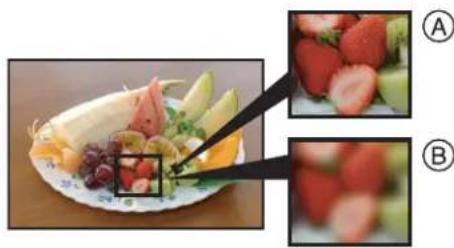
natural_image
Close-up of a fruit presentation with a slide and two inset images (A and B), showing fresh strawberries and garnishes.[QUALITY]
For details on [REC] mode menu settings, refer to P25.
Set the compression rate at which the pictures are to be stored.
Applicable modes:
[...] Standard (when using the standard picture quality and increasing the number of pictures to be recorded without changing the number of pixels)

Note
• Refer to P145 for information about the number of recordable pictures.
[ASPECT RATIO]
For details on [REC] mode menu settings, refer to P25.
This allows you to select the aspect ratio of the pictures to suit printing or the playback method.
Applicable modes: 📷 🐵 🌿 🍻 SCN
[4:3]: [ASPECT RATIO] of a 4:3 TV
[3:2]: [ASPECT RATIO] of a 35 mm film camera
[16:9]: [ASPECT RATIO] of a high-definition TV, etc.
[4:3]

natural_image
Portrait of a young girl outdoors in a garden setting (no visible text or symbols)[3:2]

natural_image
Portrait of a young girl outdoors in a garden setting (no visible text or symbols)[16:9]
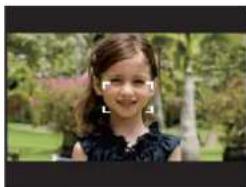
natural_image
Portrait of a smiling young girl outdoors with greenery and trees in the background (no visible text or symbols)
Note
• The ends of the recorded pictures may be cut at printing so check before printing. (P143)
ISO [INTELLIGENT ISO]
For details on [REC] mode menu settings, refer to P25.
The camera automatically sets the optimum ISO sensitivity and shutter speed to suit the movement of the subject and brightness of the scene to minimise the jitter of the subject.
Applicable modes:
[OFF]/[ISOMAX 400]/[ISOMAX 800]/[ISOMAX 1600]
• The upper limit of the ISO sensitivity can be set.
- The higher the value set for the ISO sensitivity, the more the jitter is reduced but the greater the amount of picture noise.
![PANASONIC Lumix DMC-FT1EG-G - [OFF]/[ISOMAX 400]/[ISOMAX 800]/[ISOMAX 1600] - 1](/content/2026/06/1174107/images/1b61d0dfb123686eef23223f946575dfd71bd67cf2c671875cc420b728b4a664.jpg)
Note
- Depending on the brightness and how fast the subject is moving, jitter may not be avoided.
- Movements may not be detected when a moving subject is small, when a moving subject is at the edge of the screen or when a subject has moved at the very moment when the shutter button was pressed fully.
• To avoid picture noise, we recommend decreasing maximum ISO sensitivity level or setting [COLOR MODE] to [NATURAL]. (P91)
ISO [SENSITIVITY]
For details on [REC] mode menu settings, refer to P25.
This allows the sensitivity to light (ISO sensitivity) to be set. Setting to a higher figure enables pictures to be taken even in dark places without the resulting pictures coming out dark.
Applicable modes:
[AUTO]/[80]/[100]/[200]/[400]/[800]/[1600]
| ISO sensitivity | 80 ↔ 1600 | |
| Recording location (recommended) | When it is light (outdoors) | When it is dark |
| Shutter speed | Slow | Fast |
| Noise | Less | Increased |

Note
- When setting to [AUTO], the ISO sensitivity is automatically adjusted to a maximum of [ISO400] according to the brightness. (It can be adjusted to a maximum of [ISO1000] when using the flash.)
- The setting is not available when [INTELLIGENT ISO] is being used. ([ISO] is displayed.)
• To avoid picture noise, we recommend that you either reduce the ISO sensitivity level or set [COLOR MODE] to [NATURAL], and then take pictures. (P91)
WB [WHITE BALANCE]
For details on [REC] mode menu settings, refer to P25.
In sunlight, under incandescent lights or in other such conditions where the colour of white takes on a reddish or bluish tinge, this item adjusts to the colour of white which is closest to what is seen by the eye in accordance with the light source.
Applicable modes: 📷 SCN
[AWB]: Automatic adjustment
[★]: When taking pictures outdoors under a clear sky
[💡]: When taking pictures outdoors under a cloudy sky
[合]: When taking pictures outdoors in the shade
[●]: When taking pictures under incandescent lights
[■]: Value set by using [■SET]
[SET]: Set manually

Note
- The optimal white balance will differ depending on the type of halogen lighting being recorded under so use [AWB] or [SET].
- The white balance setting is memorised even if the camera is turned off. (However, the white balance setting for a scene mode returns to [AWB] when the scene mode is changed.)
-
White balance is fixed to [AWB] in following conditions.
-
[SNOW]
- [BEACH & SURF]
- In [SCENERY], [NIGHT PORTRAIT], [NIGHT SCENERY], [FOOD], [PARTY], [CANDLE LIGHT], [SUNSET], [FLASH BURST], [STARRY SKY], [FIREWORKS], [AERIAL PHOTO], [FILM GRAIN] or [UNDERWATER] in scene mode
■ Setting the white balance manually
Set the white balance value. Use to match the condition when taking photographs.
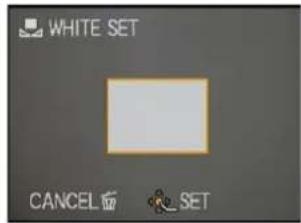
1 Select [SET] and then press MENU/SET.
2 Aim the camera at a sheet of white paper etc. so that the frame in the centre is filled by the white object only and then press MENU/SET.
■ Finely adjusting the white balance [WB±]
You can finely adjust the white balance when you cannot acquire the desired hue by setting the white balance.
- Set the white balance to [☀]/[♣]/[合]/[:-○-]/[■].
1 Press ▲ [+] several times until [WB ADJUST.] appears and then press ◀/▶ to adjust the white balance.

◀ [RED]: Press when the hue is bluish.
▶ [BLUE]: Press when the hue is reddish.
- Select [0] to return to the original white balance.
2 Press [MÉNU/SET] to finish.
- You can also press the shutter button halfway to finish.
- The white balance icon on the screen turns red or blue.
- You can finely adjust the white balance independently for each white balance item.
- The white balance fine adjustment setting is reflected in the picture when using the flash.
- The white balance fine adjustment setting is memorised even if the camera is turned off.
- The white balance fine adjustment level in [■] returns to [0] when you reset the white balance using [■SET].
- In the [BEACH & SURF] or [UNDERWATER] in scene mode, the white balance is fixed at [AWB], but it can be finely adjusted.
- White balance fine adjustment cannot be set for [B/W], [SEPIA], [COOL] and [WARM] in [COLOR MODE].
■ Auto white balance
Depending on the conditions prevailing when pictures are taken, the pictures may take on a reddish or bluish tinge. Furthermore, when a multiple number of light sources are being used or there is nothing with a colour close to white, auto white balance may not function properly. In a case like this, set the white balance to a mode other than [AWB].
1 Auto white balance will work within this range.
2 Blue sky
3 Cloudy sky (Rain)
4 Shade
5 TV screen
6 Sunlight
7 White fluorescent light
8 Incandescent light bulb
9 Sunrise and sunset
10 Candlelight
K=Kelvin colour Temperature
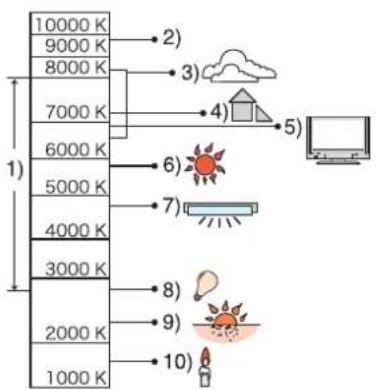

[FACE RECOG.]
For details on [REC] mode menu settings, refer to P25.
Specify a person's face and use the face recognition functions.
Applicable modes: iA
[OFF]/[ON]/[SET]
![PANASONIC Lumix DMC-FT1EG-G - [OFF]/[ON]/[SET] - 1](/content/2026/06/1174107/images/dde61a78067f6e1ca06a0ce98e1d4c8963134c5708698fac15aa74a3c5c49795.jpg)
Note
• Refer to P76 for details.

[AF MODE]
For details on [REC] mode menu settings, refer to P25.
This allows the focusing method that suits the positions and number of the subjects to be selected.
Applicable modes: 📷 🐵 🌿 🍻 SCN
| [:●]: Face detection | The camera automatically detects the person's face. The focus and exposure can then be adjusted to fit that face no matter what portion of the picture it is in. (max. 15 areas) |
| [:●]: AF Tracking | Focus can be adjusted to a specified subject. Focus will keep on following the subject even if it moves. (Dynamic tracking) |
| [:●]: 11-area-focusing | The camera focuses on any of 11 focus areas. This is effective when the subject is not in the centre of the screen. |
| [:●]: 1-area-focusing (High speed) | The camera quickly focuses on the subject in the AF area on the centre of the screen. |
| [:●]: 1-area-focusing | The camera focuses on the subject in the AF area on the centre of the screen. |
| [:●]: Spot-focusing | The camera focuses on a limited narrow area in the screen. |

Note
- The camera is focusing on all the AF areas when multiple AF areas (max. 11 areas) light at the same time in [☐]. If you want to determine the focus position to take pictures, switch the AF mode to [☐], [☐] or [☐].
- If the AF mode is set to [■■■], the AF area is not displayed until the picture is brought into focus.
- Switch the AF mode to [■] or [■] if it is difficult to focus using [•].
- The camera may detect the subjects other than a person as the face. In this case, switch the AF mode to any modes other than [●] and then take a picture.
- It will be fixed to [ˈɛː] when the [FACE RECOG.] is set to [ON].
- The AF mode cannot be set in [FIREWORKS] in scene mode.
- It is not possible to set [ˈɛt] in the following cases.
– In [PANORAMA ASSIST], [NIGHT SCENERY], [FOOD], [STARRY SKY], [AERIAL PHOTO] and [UNDERWATER] in scene mode.
■ About [ˈɑːdʒ]
The following AF area frames are displayed when the camera detects the faces.
Yellow:
When the shutter button is pressed halfway, the frame turns green when the camera is focused.
![PANASONIC Lumix DMC-FT1EG-G - ■ About [ˈɑːdʒ] - 1](/content/2026/06/1174107/images/826bfe5aacdc10fd9a4ad34bc767f8ad8746039238b2141000e02053bdaa3566.jpg)
natural_image
Three women posing together outdoors, no visible text or symbolsWhite:
Displayed when more than one face is detected. Other faces that are the same distance away as faces within the yellow AF areas are also focused.
- Under certain picture-taking conditions including the following cases, the facial recognition function may fail to work, making it impossible to detect faces. [AF MODE] is switched to [■■].
— When the face is not facing the camera
- When the face is at an angle
—When the face is extremely bright or dark
— When there is little contrast on the faces
— When the facial features are hidden behind sunglasses, etc.
— When the face appears small on the screen
— When there is rapid movement
— When the subject is other than a human being
- When the camera is shaking
- When digital zoom is used
— Taking picture underwater
■ About [H]
- You can focus on the subject more quickly than in other AF modes.
- The picture may stop moving for a moment before being brought into focus when you press the shutter button halfway. This is not a malfunction.
■ Setting up [ˈtʃ] (AF Tracking)
1 Bring the subject to the AF tracking frame, and press ▼ to lock the subject.
- AF tracking frame will continuously focus on the subject's movement once the subject is recognised.
- AF tracking is turned off when ▼ is pressed again.
Before locking

natural_image
Person standing on a grassy field with trees and buildings in the background (no visible text or symbols)Locked

2 Take the picture.

Note
- Dynamic tracking function may fail to lock, lose the subject in AF tracking, or track different subject depending on the recording conditions such as the ones below.
- When the subject is too small
- When the recording location is too dark or bright
- When the subject is moving too fast
- When the background has the same or similar colour to the subject.
- When jitter is occurring
- When using the zoom
– Taking picture underwater - If it fails to lock, AF area will flash in red, and disappear. Press ▼ again.
- AF Tracking will not operate when the subject is not specified, the subject is lost, or has failed to be tracked. The picture will be taken with [■] in [AF MODE] in that case.
• [FACE RECOG.] does not work when AF tracking is active.
• [QUICK AF] will not operate during AF tracking. - It is not possible to set [ˈtʃɛː] in [PANORAMA ASSIST], [STARRY SKY], [FIREWORKS], [PIN HOLE], [FILM GRAIN], or in the recording motion pictures.
- It is not possible to set [T:] in [B/W], [SEPIA], [COOL], or [WARM] in [COLOR MODE].
• The focus range is 5 cm (Wide)/30 cm (Tele) to ∞.
AF [PRE AF]
For details on [REC] mode menu settings, refer to P25.
The camera will adjust focus automatically depending on the settings.
Applicable modes:
| [OFF] | |
| [Q-AF]: Quick AF | [Q-AF] is displayed on the screen. |
| [C-AF]: Continuous AF* | [C-AF] is displayed on the screen. |
* In recording motion pictures, only [C_AF] (Continuous AF) can be selected.
About [Q-AF] and [C-AF]
[Q:AF] will adjust the focus automatically when the jitter of the camera gets small. [C:AF] will adjust the focus at all times (continuous AF operation).
The camera will adjust the focus automatically, and the focus adjustment when the shutter button is pressed becomes faster. It is effective when you do not want to miss the photo opportunity.
![PANASONIC Lumix DMC-FT1EG-G - About [Q-AF] and [C-AF] - 1](/content/2026/06/1174107/images/d2c17092d28c5873aab3d8e13b5f3caad200180a5297289ee0dd08063bcb8269.jpg)
Note
• The battery will be consumed faster than usual.
- Press the shutter button halfway again when it is difficult to focus on the subject.
• [Q-AF] will not operate during the AF tracking.
- It is not possible to set [Q:AF] in the following cases.
– In [NIGHT PORTRAIT], [NIGHT SCENERY], [STARRY SKY] and [FIREWORKS] in scene mode.
- When [PRE AF] is set to [C-AF] , it may take time to focus on the subject if you slide the zoom lever from Wide to Tele or suddenly change the subject from a distant one to a nearby one.
i0 [I.EXPOSURE]
For details on [REC] mode menu settings, refer to P25.
Contrast and exposure will be adjusted automatically when there is a big difference in brightness between the background and subject, to bring the image close to how you see.
Applicable modes:
[OFF]/[ON]
![PANASONIC Lumix DMC-FT1EG-G - [OFF]/[ON] - 1](/content/2026/06/1174107/images/7b2a375cdc54d39c09c3b2a73c2ac029a46f4a562abfe898d383c22d1509bf49.jpg)
Note
- When [ON] is set, [i①] is displayed on the screen.
- Even when the [SENSITIVITY] is set to [ISO80]/[ISO100], [SENSITIVITY] may be set higher than [ISO80]/[ISO100] if the picture is taken with [I.EXPOSURE] set to valid.
• Compensation effect may not be achieved depending on the conditions.
• [i①] in the screen turns to yellow when [I.EXPOSURE] is in effect.
[BURST]
For details on [REC] mode menu settings, refer to P25.
Pictures are taken continuously while the shutter button is pressed.
Select the ones you really like from among the pictures you have taken.
Applicable modes: iA
| [OFF] | ||||
| Burst speed (pictures/second) | — | approx. 2.3* | approx. 1.8 | |
| Number of recordable pictures | — | max. 3 | Depends on the remaining capacity of the built-in memory/card. | |
| — | max. 5 | |||
* The burst speed is constant regardless of the transfer speed of the card.
- The burst speed values given above apply when the shutter speed is 1/60 or faster and when the flash is not activated.
![PANASONIC Lumix DMC-FT1EG-G - For details on [REC] mode menu settings, refer to P25. - 1](/content/2026/06/1174107/images/22cca2a2eede0d948a433a42791574ba7854284774d6f6dc195f56d0e5ace2ac.jpg)
Note
- When the burst mode setting is set to Unlimited
- The burst speed becomes slower halfway. The exact timing of this depends on the type of card, the picture size and the quality.
- You can take pictures until the capacity of the built-in memory or the card is full.
• The focus is fixed when the first picture is taken. - When the burst speed is set to [☐], the exposure and white balance are fixed at the settings used for the first picture for the subsequent pictures as well. When the burst speed is set to [☐∞], they are adjusted each time you take a picture.
- When the self-timer is used, the number of recordable pictures in burst mode is fixed to 3.
- If you are following a moving subject while taking pictures in a place (landscape) indoors, outdoors etc. where there is a large difference between the light and shade, it may take time until the exposure is stable. If burst is used at this time, the exposure may not become optimal.
- The burst speed (pictures/second) may become slower depending on the recording environment such as in dark places, if the ISO sensitivity is high etc.
- Burst mode is not cancelled when the camera is switched off.
- If you take pictures in burst mode with the built-in memory, it will take time to write the picture data.
• [∅] is set for the flash when burst is set. - Auto bracket is cancelled when burst is set.
- Burst cannot be used in [TRANSFORM], [PANORAMA ASSIST], [HI-SPEED BURST], [FLASH BURST], [STARRY SKY], [PIN HOLE] or [FILM GRAIN] in scene mode.

[DIGITAL ZOOM]
For details on [REC] mode menu settings, refer to P25.
This can enlarge subjects even more than the optical zoom or extra optical zoom.
Applicable modes:
[OFF]/[ON]
![PANASONIC Lumix DMC-FT1EG-G - [OFF]/[ON] - 1](/content/2026/06/1174107/images/ea987a85fae7c45a50f2e0709e6ef491182c1a0d7bf6779e197f3c6ebf915269.jpg)
Note
• Refer to P42 for details.
- If camera shake (jitter) is a problem during zooming, it is recommended that [STABILIZER] be set to [AUTO] or [MODE 1].
- The setting is fixed to [ON] in macro zoom mode.

[COLOR MODE]
For details on [REC] mode menu settings, refer to P25.
Using these modes, the pictures can be made sharper or softer, the colours of the pictures can be turned into sepia colours or other colour effects can be achieved.
Applicable modes: iA
[STANDARD]: This is the standard setting.
[NATURAL]: The picture becomes softer.
[VIVID]: The picture becomes sharper.
[B/W]: The picture becomes black and white.
[SEPIA]: The picture becomes sepia.
[COOL]: The picture becomes bluish.
[WARM]: The picture becomes reddish.

Note
- When you take pictures in dark places, noise may become visible. To avoid noise, we recommend setting to [NATURAL].
- You cannot set [NATURAL], [VIVID], [COOL] or [WARM] in Intelligent auto mode.
- Different colour modes can be set in different [REC] modes.
(( ) [STABILIZER]
For details on [REC] mode menu settings, refer to P25.
Using one of these modes, jitter during picture taking is detected, and the camera automatically compensates the jitter, enabling jitter-free images to be taken.
Applicable modes: 📄 🎩 🌘 🐵 SCN
[OFF]
[AUTO]: The optimum jitter compensation is selected depending on the condition.
[MODE1]: Jitter is always compensated during [REC] mode.
[MODE2]: The jitter is compensated for when the shutter button is pressed.
![PANASONIC Lumix DMC-FT1EG-G - [OFF] - 1](/content/2026/06/1174107/images/1ba6dae78f6fc0d59749283cc8ce984e79ee6d62ceedb8fcc5f5752bbc86c136.jpg)
Note
- The stabilizer function may not be effective in the following cases.
- When there is a lot of jitter.
— When the zoom magnification is high.
– In digital zoom range.
— When taking pictures while following a moving subject.
— When the shutter speed becomes slower to take pictures indoors or in dark places.
Be careful of camera jitter when you press the shutter button.
- The setting is fixed to [MODE2] with [SELF PORTRAIT] in scene mode and to [OFF] in [STARRY SKY] in scene mode.
- The setting is fixed to [MODE1] in recording motion pictures.
MIN [MIN. SHTR SPEED]
For details on [REC] mode menu settings, refer to P25.
You can take a picture brightly in dark places by setting [MIN. SHTR SPEED] slower. Also, you can set it faster to reduce the blur of the subject.
Applicable modes:
[1/125], [1/60], [1/30], [1/15], [1/8], [1/4], [1/2], [1]
| Minimum shutter speed setting | 1/125-←→1- | |
| Brightness | Darker | Brighter |
| Jitter | Less | More |

Note
- This should usually be set to [1/8] to take pictures. (When you select a minimum shutter speed other than [1/8], [MIN] appears on the screen.)
- Setting [MIN. SHTR SPEED] to slower speed might increase the chance of jitter, so we recommend using a tripod and the self-timer for taking pictures.
- Setting [MIN. SHTR SPEED] to faster speed might make the picture darker, so we recommend recording the picture in well-lit area. If correct exposure cannot be achieved, [MIN] will flash in red when the shutter button is pressed halfway.
- The setting is not available when [INTELLIGENT ISO] is being used.
[AUDIO REC.]
For details on [REC] mode menu settings, refer to P25.
Audio can be recorded simultaneously with the image. You can record the conversation during the shooting or the situation as a memo.
Applicable modes: 📷 🐵 🐵 🐵 SCN
[OFF]: Audio will not be recorded.
[ON]: [☐] is displayed on the screen.
Audio will be recorded as soon as the image is recorded. (It will stop in 5 seconds)
- If you press MENU/SET during audio recording, the audio recording is cancelled.

Note
• The sound is set separately from [AUDIO REC.] (P94) in the clipboard mode.
- Audio is recorded from the built-in microphone on the camera.
- Audio recorded with this unit may not playback on other equipment.
- Sound from motion pictures (When [REC MODE] is set to [MOTION JPEG]) or pictures with audio recorded by this camera cannot be played back by older models of Panasonic digital camera (LUMIX) launched before July 2008.
• [AUDIO REC.] cannot be set in the following cases.
- When recording with Auto Bracket
– During burst shooting
— [PANORAMA ASSIST], [HI-SPEED BURST], [FLASH BURST] and [STARRY SKY] in scene mode
AF※ [AF ASSIST LAMP]
For details on [REC] mode menu settings, refer to P25.
Illuminating the subject makes it easier for the camera to focus when recording in low light conditions that make focusing difficult.
Applicable modes: 📷 🐵 🌿 🍻 SCN
[OFF]: The AF assist lamp does not turn on.
[ON]: When taking pictures in dark places, the AF assist lamp lights while the shutter button is pressed halfway. (Larger AF areas are now displayed.)

Note
• The effective range of the AF assist lamp is 1.5 m.
- When you do not want to use the AF assist lamp Ⓐ (e.g. when taking pictures of animals in dark places), set the [AF ASSIST LAMP] to [OFF]. In this case, it will become more difficult to focus on the subject.
- [AF ASSIST LAMP] is fixed to [OFF] in [SELF PORTRAIT], [SCENERY], [NIGHT SCENERY], [SUNSET], [FIREWORKS], [AERIAL PHOTO] and [UNDERWATER] in scene mode.

[CLOCK SET]
For details on [REC] mode menu settings, refer to P25.
To set the year, month, day and time.
It functions in exactly the same way as [CLOCK SET] (P27) in the [SETUP] menu.
Mode dial:
![PANASONIC Lumix DMC-FT1EG-G - For details on [REC] mode menu settings, refer to P25. - 1](/content/2026/06/1174107/images/dd28fddd3f87f4098763fb81fcf10ad3cb6ed80e91c17f4a37725d6d5af922a9.jpg)
Taking and viewing clipboard pictures
(☐: Clipboard mode)
This setting is useful when taking pictures of timetables, route maps or other information instead of taking notes. Regardless of whether a card is present or not, the data is stored in the dedicated clipboard folder of the built-in memory so it can be differentiated from the regular taken pictures and made available for immediate viewing. Clipboard pictures can be recorded, played back and deleted only when the mode dial is set to [☐].
- Motion picture cannot be taken in memo mode.
Taking clipboard pictures
1 Set the mode dial to [☐].
2 Take the pictures.
- Number of recordable pictures when using the built-in memory solely for clipboard pictures
| Picture size | 2M FZ | 1M FZ |
| Number of recordable pictures | 84 | 124 |
- If the built-in memory contains pictures recorded in another recording mode, fewer pictures can be recorded than the figures given above.
Clipboard recording menu
The menu screen appears when MENU/SET is pressed during clipboard picture recording.
1 Press ▲/▼ to select the menu item and then press ▶.
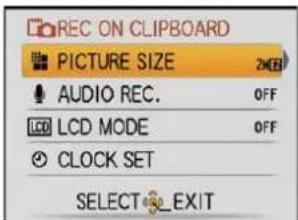
| Item | Description of setting |
| [PICTURE SIZE] | Used to change the picture size.2M FZ: initial setting (Prefer quality)1M FZ: prefer quantity |
| [AUDIO REC.] | Used to record sound (5 seconds) together with the pictures.*This setting is not reflected in [AUDIO REC.] (P93) in the [REC] mode menu. |
| [LCD MODE] | This has same function as the [LCD MODE] in the [SETUP] menu. (P28) |
| [CLOCK SET] | Used to set the clock. |
2 Press ▲/▼ to select the setting and then press MENU/SET.
3 Press MENU/SET to close the menu.
Viewing clipboard pictures
1 Set the mode dial to [图标].
2 Press [▶].
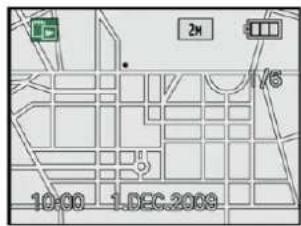
3 Press ◀/▶ to move the picture.
◀: Play back the previous picture.
▶: Play back the next picture.
- When the zoom lever is slidden to [☐] (W), a screen showing 12 pictures appears. To return to the full-screen display, slide the zoom lever to [Q] (T).
■ Deleting clipboard pictures
The steps taken are the same as for normal deletion. Refer to P45.
- When a picture with a zoom mark is deleted, it will no longer be possible to view the picture prior to zooming either.
- Zoomed pictures can also be deleted.
Enlarging clipboard pictures and storing them in the memory (zoom marks)
This function is useful for enlarging parts of maps, for instance, and storing them in the memory. For details on how to enlarge pictures, refer to "Using the Playback Zoom" on P44.
1 Select the position to record by zoom lever and ▲/▼/◄/►.
2 Press MENU/SET.
- The zoom mark [+] A now appears on the picture stored in the memory.
- To change the zoom magnification or position, repeat the steps above.
- To exit the zoom mark setting, return the zoom magnification to [☐] (W) (1×).
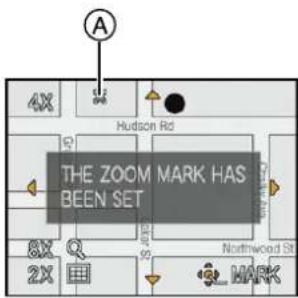
■ Viewing pictures stored in the memory
1 Press ◀/▶ to display the picture with the zoom mark [+]
2 Slide the zoom lever to [Q] (T).
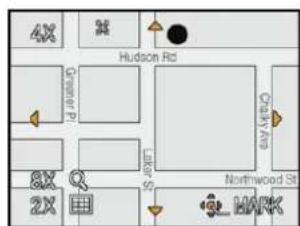
Clipboard playback menu
When MENU/SET is pressed during clipboard playback, the menu screen appears. (The steps taken are the same as for the "Clipboard recording menu" (P94).)
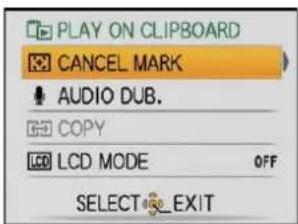
| Item | Description of setting |
| [CANCEL MARK] | Used to release the zoom position.1 Press ◀/▶ to select a clipboard pictures with zoom mark [+] .2 Press [MENU/SET] to cancel. |
| [AUDIO DUB.] | Used to add sound after the clipboard pictures are recorded.1 Press ◀/▶ to select the picture.2 Press [MENU/SET] to start/stop recording. |
| [COPY] | Used to copy clipboard pictures onto a card one at a time.*Zoom marks are not copied.1 Press ◀/▶ to select the picture and then press [MENU/SET].2 Press ▲ to select [YES] and then press [MENU/SET]. |
| [LCD MODE] | This has same function as the [LCD MODE] in the [SETUP] menu. (P28) |
Settings During Clipboard
- Following functions are fixed.
| Item | Description of settings |
| [GUIDE LINE] ([REC. INFO.]) | [OFF] |
| [GUIDE LINE] ([PATTERN]) | |
| [ECONOMY] ([AUTO POWER OFF]) | 5 minutes |
| [ECONOMY] ([AUTO LCD OFF]) | [OFF] |
| [SELFTIMER] | 2 seconds/ off |
| [QUALITY] |
| Item | Description of settings |
| [ASPECT RATIO] | 4:3 |
| [SENSITIVITY] | [AUTO] |
| [WHITE BALANCE] | [AWB] |
| [AF MODE] | |
| [AF ASSIST LAMP] | [ON] |
- In the clipboard mode, the following functions cannot be used.
– [AUTO BRACKET]/White balance fine adjustment/[INTELLIGENT ISO]/[PRE AF]/[I.EXPOSURE]/[BURST]/[DIGITAL ZOOM]/[COLOR MODE]/[MIN. SHTR SPEED]/[HISTOGRAM]/[SLIDE SHOW]/[CATEGORY PLAY]/[FAVORITE PLAY]
• The [STABILIZER] (P92) setting in [REC] mode is also reflected in clipboard mode. - Other items in the [SETUP] menu can be set in the normal picture mode, etc. Setting will be reflected to the clipboard mode.

Note
- Please bear copyrights and other such matters in mind.
• The [PLAYBACK] mode menu (P102) function cannot be used. - You cannot print while playing clipboard. (Clipboard image copied to card can be printed.)
[PLAYBACK] mode:
Playing Back Pictures in Sequence (Slide Show)
You can play back the pictures you have taken in synchronisation with music, and you can do this in sequence while leaving a fixed interval between each of the pictures.
Furthermore, you can play back the pictures grouped together by category or play back only those pictures you have set as favourites as a slide show.
This playback method is recommended when you have connected the camera to a TV set to view the pictures you have taken.

Press [▶] and then press [MENU/SET].
- Set the mode dial to anything except [☐].
![PANASONIC Lumix DMC-FT1EG-G - Press [▶] and then press [MENU/SET]. - 1](/content/2026/06/1174107/images/1c1f6fa51f3f381142ffad54da16491e9bd3c773dca83c6548e84f6b97b23bd8.jpg)
Press ▶.
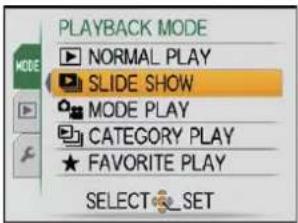
![PANASONIC Lumix DMC-FT1EG-G - Press [▶] and then press [MENU/SET]. - 3](/content/2026/06/1174107/images/19ba1fe76800ab1d36597cd7152a0516c195cf7292f2c3b4bc0d497481d5a533.jpg)
Press ▲/▼ to select [SLIDE SHOW], and then press [MENU/SET].
![PANASONIC Lumix DMC-FT1EG-G - Press ▲/▼ to select [SLIDE SHOW], and then press [MENU/SET]. - 1](/content/2026/06/1174107/images/327907881300c0c8db43e5b153023a1a0575ffa95a404e96de93acdd8bab9d6b.jpg)
Press ▲/▼ to select the item and then press [MENU/SET].
- [FAVORITE] can be selected only when [FAVORITE] on the [PLAYBACK] menu (P109) is at [ON] and there are pictures already set as favourites.

When [ALL], [PICTURE ONLY], [MOTION PIC. ONLY] or [FAVORITE] has been selected in step 4
![PANASONIC Lumix DMC-FT1EG-G - Press ▲/▼ to select the item and then press [MENU/SET]. - 2](/content/2026/06/1174107/images/03db0ac5d5068a9bc8a2e8f089147209fe255ba44878e4ae748454e748b2118c.jpg)
Press ▲ to select [START] and then press [MENU/SET].

![PANASONIC Lumix DMC-FT1EG-G - Press ▲ to select [START] and then press [MENU/SET]. - 2](/content/2026/06/1174107/images/244253af625a30efe36526a0e09bc781b94e968e6631ca61b8a9255a576737fc.jpg)
Press ▼ to finish the slide show.
- Normal playback resumes after the slide show finishes.
When [CATEGORY SELECTION] has been selected in step 4
![PANASONIC Lumix DMC-FT1EG-G - When [CATEGORY SELECTION] has been selected in step 4 - 1](/content/2026/06/1174107/images/f39c0f2b976e637bda8d6419dc39ae274cff7167e32e5aca26670348fba1e5ab.jpg)
Press ▲/▼/◄/► to select the category to play back and then press [MENU/SET] to set.
- For details on categories, refer to P99.

![PANASONIC Lumix DMC-FT1EG-G - Press ▲/▼/◄/► to select the category to play back and then press [MENU/SET] to set. - 2](/content/2026/06/1174107/images/96523b27642cc222e4a108202c2269263f2304830595fe735b1a4d0a34494b40.jpg)
Press ▲ to select [START] and then press [MENU/SET].
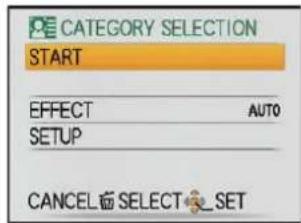
![PANASONIC Lumix DMC-FT1EG-G - Press ▲ to select [START] and then press [MENU/SET]. - 2](/content/2026/06/1174107/images/dd31d8986e7813cfcd8f0a860373f6a6a976890df61395ec2a4b9c4d68ec9e52.jpg)
Press ▼ to finish the slide show.
- Normal playback resumes after the slide show finishes.
■ Operations performed during slide show
The cursor displayed during playback is the same as ▲/▼/◄/►.
- The menu screen is restored when [☐] is pressed.
Ⓐ Play/Pause
⑧ Stop
© Back to previous picture*
(D) Ahead to next picture*
* These operations can be performed only in the pause mode.
⑤ Reduce volume level
⑤ Increase volume level
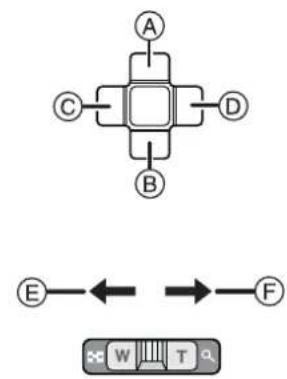
flowchart
graph TD
    A["A"] --> B["B"]
    B --> C["C"]
    C --> D["D"]
    D --> A
    E["E"] <--> F["F"]
    W["W"] --> T["T"]
    T --> F
■ Changing the slide show settings
You can change the settings for slide show playback by selecting [EFFECT] or [SETUP] on the slide show menu screen.
[EFFECT]
This allows you to select the screen effects or music effects when switching from one picture to the next.
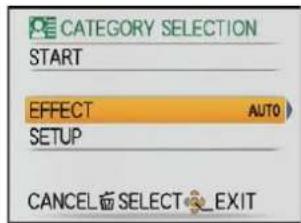
[NATURAL], [SLOW], [SWING], [URBAN], [OFF], [AUTO]
- When [URBAN] has been selected, the picture may appear in black and white as a screen effect.
- [EFFECT] is set to [OFF] when playing slide show with motion pictures only.
- [AUTO] can be used only when [CATEGORY SELECTION] has been selected. The pictures are played back with the recommended effects in each category.
[SETUP]
[DURATION] or [REPEAT] can be set.
| Item | Settings |
| [DURATION] | 1SEC./2SEC./3SEC./5SEC. |
| [REPEAT] | ON/OFF |
| [MUSIC]/[AUDIO] | ON/OFF |
• [DURATION] can be set only when [OFF] has been selected as the [EFFECT] setting.
- [AUDIO] will be displayed only when the [EFFECT] is set to [OFF]. Audio will be played along with the still picture with audio or audio of the motion picture by setting the [AUDIO] to [ON].
![PANASONIC Lumix DMC-FT1EG-G - [SETUP] - 1](/content/2026/06/1174107/images/8a1be8ae863abe2f3535d60dc273dbe801f38f89e55be8588ee287cf6e80a9d8.jpg)
Note
- It is not possible to add new music effects.
[PLAYBACK] mode:
Selecting Pictures and Playing them Back
([CATEGORY PLAY]/[FAVORITE PLAY])
[MODE PLAY]
Playback in [PICTURE], [AVCHD Lite], or [MOTION JPEG] can be selected.
1 Perform steps 1 and 2 on page 97.
2 Press ▲/▼ to select [MODE PLAY] and then press MENU/SET.
3 Press ▲/▼ to select the item and then press MENU/SET.

[CATEGORY PLAY]
This mode allows you to search images by scene mode or other categories (such as [PORTRAIT], [SCENERY] or [NIGHT SCENERY]) and sort the pictures into each of the categories. You can then play back the pictures in each category.
1 Perform steps 1 and 2 on page 97.
2 Press ▲/▼ to select [CATEGORY PLAY], and then press MENU/SET
3 Press ▲/▼/◄/► to select the category and then press MENU/SET to set.
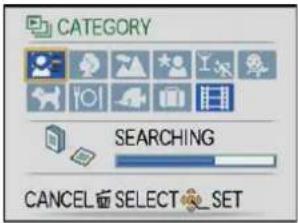
- If a picture is found in a category, the category icon turns blue.
- It may take time to search the picture files if there are a lot on the card or the built-in memory.
- If you press [血] while searching, the searching will stop halfway.
• Pictures are sorted into the categories shown below.
| [CATEGORY] | Recording information e.g. scene modes |
| [FACE RECOG.]*1 | |
| [PORTRAIT],[i-PORTRAIT],[SOFT SKIN],[TRANSFORM],[SELF PORTRAIT],[NIGHT PORTRAIT],[i-NIGHT PORTRAIT],[BABY1]/[BABY2],[i-BABY] | |
| [SCENERY],[i-SCENERY], [SUNSET],[AERIAL PHOTO] | |
| [NIGHT PORTRAIT],[i-NIGHT PORTRAIT],[NIGHT SCENERY],[i-NIGHT SCENERY],[STARRY SKY] |
| [CATEGORY] | Recording information e.g. scene modes |
| [SPORTS], [SNOW], [BEACH & SURF], [PARTY], [CANDLE LIGHT], [FIREWORKS], [AERIAL PHOTO] | |
| [BABY1]/[BABY2], [i-BABY] | |
| [PET] | |
| [FOOD] | |
| [UNDERWATER] | |
| [TRAVEL DATE]* ^2 | |
| [AVCHD Lite], [MOTION JPEG] |
* 1 Press ▲/▼/◄/► to select the person to playback and then press MENU/SET. Face Recognition may not be possible or may not recognise faces correctly even for registered faces, depending on the facial expression and environment.
* 2 The travel dates of images in the clipboard folder are not categorized.
[FAVORITE PLAY]
You can play back the pictures you have set as [FAVORITE] (P109) (Only when [FAVORITE] is set to [ON] and there are pictures which have been set to [FAVORITE]).
![PANASONIC Lumix DMC-FT1EG-G - [FAVORITE PLAY] - 1](/content/2026/06/1174107/images/4a4318fe848d6f0a401220e09ef6c6c722f7347f1ff2bc9f5ac6c8d46c1e7b2c.jpg)
Perform steps 1 and 2 on page 97.
![PANASONIC Lumix DMC-FT1EG-G - [FAVORITE PLAY] - 2](/content/2026/06/1174107/images/a789d26e2e4558ddef56f184ec8c7dc8f9129c4f0ea5300a59c2a5172aea1704.jpg)
Press ▲/▼ to select [FAVORITE PLAY], and then press MENU/SET.
![PANASONIC Lumix DMC-FT1EG-G - [FAVORITE PLAY] - 3](/content/2026/06/1174107/images/2ae7da1b236d75fafe9a440a5f5c7d9dfb1208099a811f4cc7f04e47fde8115d.jpg)
Note
- You can use only [ROTATE DISP.], [PRINT SET], [PROTECT] or [AUDIO DUB.] in the [PLAYBACK] menu.
[PLAYBACK] mode:
Playing Back Motion Pictures/Pictures with Audio
- File formats of motion pictures/still pictures with audio that can be played with this unit are QuickTime Motion JPEG or AVCHD Lite.
- For the motion picture recorded in [AVCHD Lite], only the motion picture that was recorded on this camera or the one that was edited with the "PHOTOfunSTUDIO 3.0 HD Edition" software that is in the CD-ROM (supplied) can be played back.
Motion pictures
Press ◀/▶ to select a picture with a motion picture icon (such as [H-H], and then press ▲ to play back.
Ⓐ Motion picture icon
⑧ The motion picture recording time
• After playback starts, the elapsed playback time is displayed on the upper right of the screen.
For example, 8 minutes and 30 seconds is displayed as [8m30s].
■ Operations performed during motion picture playback The cursor displayed during playback is the same as ▲/▼/◄/►.
Ⓐ Play/Pause
⑧ Stop
© Fast rewind, Frame-by-frame rewind*
(D) Fast forward, Frame-by-frame forward*
* These operations can be performed only in the pause mode.
⑤ Reduce volume level
⑤ Increase volume level


flowchart
graph TD
    A["A"] --> C["C"]
    A --> D["D"]
    C --> B["B"]
    D --> B
    B --> E["E"]
    E --> F["F"]
    F --> G["W"]
    G --> H["T"]
    H --> I["Q"]

Note
- Please note that the bundled software includes QuickTime or "PHOTOfunSTUDIO 3.0 HD Edition" to play back motion picture files created with the camera on the PC.
- QuickTime Motion JPEG motion pictures that were recorded with a PC or other equipment may have lower image quality or may not be able to playback with this unit.
Pictures with audio
Press ◀/▶ to select a picture with the audio icon [☐] and then press ▲ to play back.
Ⓐ Audio icon
• Refer to [AUDIO REC.] (P93) and [AUDIO DUB.] (P112) for information about how to create still pictures with audio.
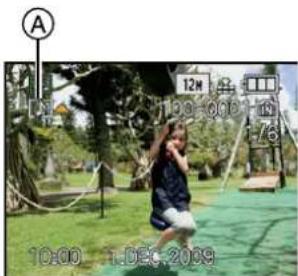
![PANASONIC Lumix DMC-FT1EG-G - Press ◀/▶ to select a picture with the audio icon [☐] and then press ▲ to play back. - 2](/content/2026/06/1174107/images/69341f543a413d04e237b65a89cb58735299c138bcf90463d4f6ab55efd43ffa.jpg)
Note
- Sound can be heard through the speaker. Refer to [VOLUME] (P27) for information about how to adjust the volume in the [SETUP] menu.
• Pictures with audio recorded with other equipment may not playback on this unit. - When using a high capacity card, it is possible that fast rewinding may be slower than usual.
[PLAYBACK] mode:
Using the [PLAYBACK] mode menu
You can use various functions in playback mode to rotate pictures, set protection for them etc.
- With [TEXT STAMP], [RESIZE], [TRIMMING] or [LEVELING], a new edited picture is created. A new picture cannot be created if there is no free space on the built-in memory or the card so we recommend checking that there is free space and then editing the picture.
CAL [CALENDAR]
You can display pictures by recording date.
![PANASONIC Lumix DMC-FT1EG-G - CAL [CALENDAR] - 1](/content/2026/06/1174107/images/a667b73af9aaa7b221d654d5c7dd001377523f5c699675d37da9785df5d3c03f.jpg)
Select [CALENDAR] on the [PLAYBACK] mode menu. (P25)
- You can also slide the zoom lever several times towards [☐] (W) to display the calendar screen. (P44)
![PANASONIC Lumix DMC-FT1EG-G - Select [CALENDAR] on the [PLAYBACK] mode menu. (P25) - 1](/content/2026/06/1174107/images/efb8b252f538897ce0906edbef5a6a4a843e2c0604621c84db696facd170c010.jpg)
Press ▲/▼/◄/► to select the date to be played back.
▲/▼: Select the month
◀/▶: Select the date
- If there were no pictures recorded during a month, the month is not displayed.


Press [MENU/SET] to display the pictures that were recorded on the selected date.
- Press [图标] to return to the calendar screen.
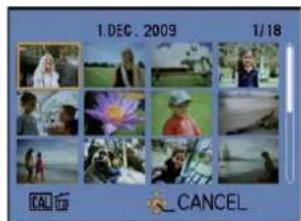
![PANASONIC Lumix DMC-FT1EG-G - Press [MENU/SET] to display the pictures that were recorded on the selected date. - 2](/content/2026/06/1174107/images/214fc0cb7c66d47adf340046d513ab737b84d63f4b5700981443a88170cfe1d4.jpg)
Press ▲/▼/◄/► to select a picture and then press [MENU/SET].
• The picture that was selected will appear.
![PANASONIC Lumix DMC-FT1EG-G - Press ▲/▼/◄/► to select a picture and then press [MENU/SET]. - 1](/content/2026/06/1174107/images/ee82e47df1cacbd83be420f6ac9f26f500d4c60ae2a0168b45df261de4969b92.jpg)
Note
- The recording date of the picture selected in the playback screen becomes the date selected when the calendar screen is first displayed.
- If there are multiple pictures with the same recording date, the first picture recorded on that day is displayed.
- You can display the calendar between January 2000 and December 2099.
- If the date is not set in the camera, the recording date is set as the 1st January, 2009.
- If you take pictures after setting the travel destination in [WORLD TIME], the pictures are displayed by the dates at the travel destination in calendar playback.
[TITLE EDIT]
You can add text (comments) to pictures. After text has been registered, it can be included in prints using [TEXT STAMP] (P104). (Only alphabetic characters and symbols can be entered.)
Names set in [BABY1]/[BABY2] and [PET] in scene mode or [LOCATION] in travel date are also recorded as the titles.
1 Select [TITLE EDIT] on the [PLAYBACK] mode menu. (P25)
2 Press ▲/▼ to select [SINGLE] or [MULTI] and then press [MENU/SET].

3 Select the picture, and then press [MENU/SET] to set.
- [√] is displayed for pictures with titles already registered.
[MULTI] setting Press [DISPLAY] to set (repeat), and then press MENU/SET to set.
[SINGLE]

Press ◀/▶ to select the picture.
[MULTI]
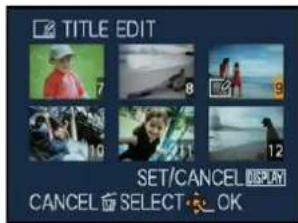
Press ▲/▼/◄/► to select the pictures.
- The setting is cancelled when [DISPLAY] is pressed again.
4 Press ▲/▼/◄/► to select text and then press [MENU/SET] to register.
- Press [DISPLAY] to switch text between [A] (capitals), [a] (small case) and [/1] (special characters and numbers).
- The entry position cursor can be moved left and right with the zoom lever.
- To enter a blank, move the cursor to [SPACE] or to delete an entered character, move the cursor to [DELETE], and press MENU/SET.
• To stop editing at any time during text entry, press [血]. - A maximum of 30 characters can be entered.(Maximum of 9 characters when setting names in [FACE RECOG.])
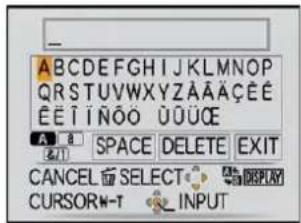
5 Press ▲/▼/◄/► to move the cursor to [EXIT] and then press [MENU/SET] to end text input.
6 Press [图标] to return to the menu screen.\*
*The menu screen is automatically restored when [MULTI] is selected.
- Press MENU/SET to close the menu.
■ Delete the title
[SINGLE] setting
1 In step 4, delete all the texts, select [EXIT], and press MENU/SET.
2 Press [囍].
3 Press MENU/SET to close the menu.
[MULTI] setting
1 In step 4, delete all the texts, select [EXIT], and press MENU/SET.
2 Press MENU/SET to close the menu.
![PANASONIC Lumix DMC-FT1EG-G - [MULTI] setting - 1](/content/2026/06/1174107/images/d30c8e8f53a8d063d70b04e72c84b04058678ef3e47798708547133c9809afcf.jpg)
Note
- Text can be scrolled if all of the registered text does not fit on the screen.
- The name setting of [FACE RECOG.] or [BABY1]/[BABY2] and [PET] in scene mode or [LOCATION] in travel date can also be registered by using the operation in steps 4 and following.
- The name setting of [BABY1]/[BABY2] or [PET] in scene mode, [LOCATION] in travel date and [TITLE EDIT] cannot be registered at the same time.
- You can print out texts (comments) using the "PHOTOfunSTUDIO 3.0 HD Edition" bundled software on the CD-ROM (supplied).
- You can set up to 50 pictures at one time with [MULTI].
- You cannot use title edit for the following pictures.
- Motion pictures
- Protected pictures
— Pictures recorded with other equipment

[TEXT STAMP]
You can stamp the recording date/time, age, travel date or title onto the recorded pictures. It is suitable for regular size printing. (Pictures with a picture size larger than [3M] will be resized when stamping the date etc. on them.)
![PANASONIC Lumix DMC-FT1EG-G - [TEXT STAMP] - 1](/content/2026/06/1174107/images/97771961950cdae89a8a0ad0359aa684cda944ce0ce6c7621b841ee5c62a853d.jpg)
Select [TEXT STAMP] on the [PLAYBACK] mode menu. (P25)
![PANASONIC Lumix DMC-FT1EG-G - Select [TEXT STAMP] on the [PLAYBACK] mode menu. (P25) - 1](/content/2026/06/1174107/images/0068ce7a5cfc3656d012c59d8cf41814698f7dd4e4923a48c7a6dade80e5bacb.jpg)
Press ▲/▼ to select [SINGLE] or [MULTI] and then press [MENU/SET].
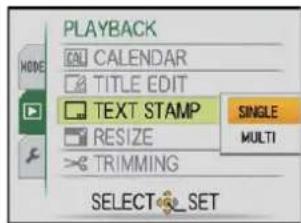
![PANASONIC Lumix DMC-FT1EG-G - Press ▲/▼ to select [SINGLE] or [MULTI] and then press [MENU/SET]. - 2](/content/2026/06/1174107/images/8523e9f7e4881069651328636e89df759e1d8945bd11c70ad0fde9677a3f01ef.jpg)
Select the picture, and then press [MENU/SET] to set.
- [▼] appears on screen if the picture is stamped with text.
[MULTI] setting Press [DISPLAY] to set (repeat), and then press [MENU/SET] to set.
- The setting is cancelled when [DISPLAY] is pressed again.
[SINGLE]
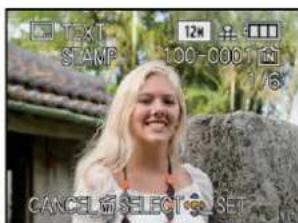
Press ◀/▶ to select the picture.
[MULTI]

Press ▲/▼/◄/► to select the pictures.
![PANASONIC Lumix DMC-FT1EG-G - [MULTI] setting Press [DISPLAY] to set (repeat), and then press [MENU/SET] to set. - 3](/content/2026/06/1174107/images/999bd4fec3a7ca04835117e9581ac4c4deb5ef903f2ebe68c0249ffe022db9ef.jpg)
Press ▲/▼/◄/► to select [SHOOTING DATE], [AGE], [TRAVEL DATE] or [TITLE] and then press [MENU/SET] to set each item.
[SHOOTING DATE]
[W/O TIME]: Stamp the year, month and date.
[WITH TIME]: Stamp the year, month, day, hour and minutes.
[AGE] (P63)
If this is set to [ON], [AGE] is stamped on the pictures.
[TRAVEL DATE]
If this is set to [ON], [TRAVEL DATE] is stamped on the pictures.
[TITLE]
Text is printed together with the image for pictures that have already been recorded with text in [FACE RECOG.] or [BABY1]/[BABY2] and [PET] name settings in scene mode, [LOCATION] in travel date or [TITLE EDIT].
![PANASONIC Lumix DMC-FT1EG-G - [TITLE] - 1](/content/2026/06/1174107/images/38026b40ddbf856982e0dbf790456d6a34211b92af5b00cabc8a6c9d67f4bd2a.jpg)
Press [MENU/SET].
- If you set [TEXT STAMP] for a picture with a picture size larger than 3M , the picture size will become smaller as shown below.
| Aspect ratio setting | Picture size |
| 4:3 | 12M / 8M / 5M 3M |
| 3:2 | 10.5M / 7M / 4.5M 2.5M |
| 16:9 | 9M / 6M / 3.5M 2M |
• The picture becomes slightly rougher.
![PANASONIC Lumix DMC-FT1EG-G - Press [MENU/SET]. - 1](/content/2026/06/1174107/images/2d945de54768bf46e4457c8bc735c015554b9965975df4b02a63dede928bcb77.jpg)
Press ▲ to select [YES] and then press [MENU/SET].
- The message [SAVE NEW PICTURES?] appears if the picture was recorded with a picture size [3M] or less.
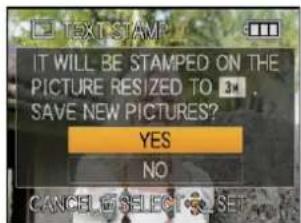
![PANASONIC Lumix DMC-FT1EG-G - Press ▲ to select [YES] and then press [MENU/SET]. - 2](/content/2026/06/1174107/images/ac3d19668aedbe7c41ce41ef0e0a1d8085e96630ec88190bdb6bae5c3b99fa08.jpg)
Press [☐] to return to the menu screen.\*
*The menu screen is automatically restored when [MULTI] is selected.
- Press MENU/SET to close the menu.
![PANASONIC Lumix DMC-FT1EG-G - Press [☐] to return to the menu screen.\* - 1](/content/2026/06/1174107/images/683d931161533ac8ab460c17ffa0332e2f6cdc5f6b6ead4a5d17c2fecefb64f2.jpg)
Note
- When you print pictures stamped with text, the date will be printed over the stamped text if you specify printing of the date at the photo shop or on the printer.
- You can set up to 50 pictures at one time in [MULTI].
- Depending on the printer being used, some characters may be cut at printing. Check before printing.
- When text is stamped onto the 0.3M pictures, it is difficult to read it.
-
Text and dates cannot be stamped on the pictures in the following cases.
-
Motion pictures
– Pictures with audio
– Pictures recorded without setting the clock and title
— Pictures that were previously stamped with [TEXT STAMP]
— Pictures recorded with other equipment

[RESIZE] Reducing the picture size (number of pixels)
We recommend resizing to [0.3M] if you want to attach a picture to an e-mail or use it on a website. (Pictures set to the minimum number of pixels for [ASPECT RATIO] cannot be further reduced in size.)
1 Select [RESIZE] on the [PLAYBACK] mode menu. (P25)
2 Press ▲/▼ to select [SINGLE] or [MULTI] and then press [MENU/SET].

3 Select the picture and size. [SINGLE] setting
1 Press ◀/▶ to select the picture, and then press MENU/SET.
2 Press ◀/▶ to select the size*, and then press MENU/SET.
* Only the sizes to which the pictures can be resized is displayed.
[MULTI] setting
1 Press ▲/▼ to select the size, and then press MENU/SET.
- When [DISPLAY] is pressed, an explanation of resizing is displayed.
2 Press ▲/▼/◄/► to select the picture, and then press [DISPLAY]. - Repeat this step for each picture, and press MENU/SET to set.
[SINGLE]


[MULTI]
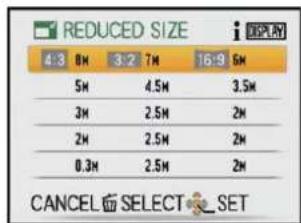
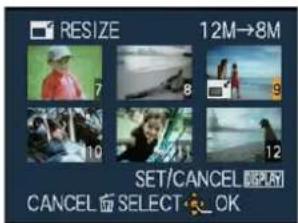
4 Press ▲ to select [YES] and then press [MENU/SET].
5 Press [图标] to return to the menu screen.\*
*The menu screen is automatically restored when [MULTI] is selected.
- Press MENU/SET to close the menu.

Note
- You can set up to 50 pictures at one time in [MULTI].
• The picture quality of the resized picture will deteriorate. - It may not be possible to resize pictures recorded with other equipment.
- Motion pictures, pictures with audio, and pictures stamped with [TEXT STAMP] cannot be resized.
[TRIMMING]
You can enlarge and then clip the important part of the recorded picture.
1 Select [TRIMMING] on the [PLAYBACK] mode menu. (P25)
2 Press ◀/▶ to select the picture, and then press [MENU/SET].

3 Use the zoom lever and press ▲/▼/◄/► to select the parts to be trimmed.

Zoom lever (T): Enlargement Zoom lever (W): Reduction ▲/▼/◄/►: Move
Reduction

natural_image
A young girl standing on a beach with waves of water and sky in the background (no text or symbols visible)Enlargement

natural_image
Young girl standing by the seaside wearing a white top and beige bag (no text or symbols visible)Move the position

natural_image
Young girl standing by the seaside, wearing a white top and carrying a straw bag (no text or symbols visible)
natural_image
Young girl standing by the seaside, wearing a white top and holding a scarf (no text or symbols visible)4 Press [MENU/SET].
5 Press ▲ to select [YES] and then press [MENU/SET].
6 Press [面] to return to the menu screen.
- Press MENU/SET to close the menu.

Note
- Depending on the cut size, the picture size of the trimmed picture may become smaller than that of the original picture.
• The picture quality of the trimmed picture will deteriorate. - It may not be possible to trim pictures recorded with other equipment.
- Motion pictures, pictures with audio, and pictures stamped with [TEXT STAMP] cannot be trimmed.
[LEVELING]
Minute tilting of the image can be adjusted.
1 Select [LEVELING] on the [PLAYBACK] mode menu. (P25)
2 Press ◀/▶ to select the picture, and then press MENU/SET.
3 Press ◀/▶ to adjust the tilting, and press MENU/SET.
▶: clockwise
◀: counter-clockwise
- Up to 2^ can be adjusted.
4 Press ▲ to select [YES] and then press MENU/SET.


5 Press [图标] to return to the menu screen.
- Press MENU/SET to close the menu.
![PANASONIC Lumix DMC-FT1EG-G - [LEVELING] - 3](/content/2026/06/1174107/images/cf484f5acaa79e063c4bae6aea6b8557212973b8da3cd86efd74a226a871ad37.jpg)
Note
• Quality of image may become coarse when levelling is performed.
- Recorded pixels may decrease compared to original image when levelling is performed.
• Levelling may not be performed on images recorded with other equipment.
- Motion pictures, pictures with audio, and pictures stamped with [TEXT STAMP] cannot be levelled.
A [ROTATE DISP.]
This mode allows you to automatically display pictures vertically if they were recorded holding the camera vertically.
1 Select [ROTATE DISP.] on the [PLAYBACK] mode menu. (P25)
2 Press ▼ to select [ON] and then press MENU/SET.
- The pictures are displayed without being rotated when you select [OFF].
• Refer to P43 for information about how to play back pictures.
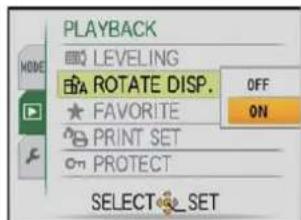
3 Press MENU/SET to close the menu.
![PANASONIC Lumix DMC-FT1EG-G - A [ROTATE DISP.] - 2](/content/2026/06/1174107/images/d705bfa27b412b57533db0c05f7a1771077c5ce0aa8f589fe27bdbed49609f53.jpg)
Note
- When you play back pictures on a PC, they cannot be displayed in the rotated direction unless the OS or software is compatible with Exif. Exif is a file format for still pictures which allows recording information etc. to be added. It was established by “JEITA (Japan Electronics and Information Technology Industries Association)”.
- It may not be possible to rotate pictures that have been recorded with other equipment.
• The display is not rotated during multi playback (P44) or [CALENDAR] (P102).
• Pictures recorded with the camera upside down will not be displayed rotated.
★ [FAVORITE]
You can do the following if a mark has been added to pictures and they have been set as favourites.
- Play back only the pictures set as favourites. ([FAVORITE PLAY])
- Play back the pictures set as favourites only as a slide show.
- Delete all the pictures not set as favourites. ([ALL DELETE EXCEPT★])
1 Select [FAVORITE] on the [PLAYBACK] mode menu. (P25)
2 Press ▼ to select [ON] and then press [MENU/SET].
- You cannot set pictures as favourites if [FAVORITE] is set to [OFF]. Also [★] will not appear when [FAVORITE] is set to [OFF] even if it was previously set to [ON].
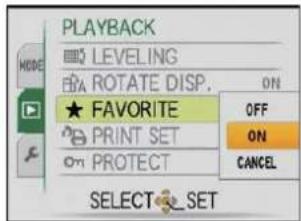
3 Press [MENU/SET] to close the menu.
4 Press ◀/▶ to select the picture and then press ▼.
- Repeat the above procedure.
- If is pressed again, the favourite setting is cancelled.

■ Cancelling all the [FAVORITE] settings
1 Select [CANCEL] on the screen shown in step 2 and then press MENU/SET.
2 Press ▲ to select [YES] and then press MENU/SET.
3 Press MENU/SET to close the menu.
- You cannot select [CANCEL] if not even one picture has been set as a favourite.
![PANASONIC Lumix DMC-FT1EG-G - ■ Cancelling all the [FAVORITE] settings - 1](/content/2026/06/1174107/images/9ff293d23651546de2a459e80b34ce55b4f650891af13621ec40c9ae9c3f4702.jpg)
Note
- You can set up to 999 pictures as favourites.
- When printing pictures at a photo printing store, [ALL DELETE EXCEPT★] (P46) is useful so only the pictures you want to be printed remain on the card.
- You may not be able to set pictures taken with other equipment as favourites.
- You can perform, check and cancel the settings of images as favourites using the "PHOTOfunSTUDIO 3.0 HD Edition" bundled software on the CD-ROM (supplied).
[PRINT SET]
DPOF "Digital Print Order Format" is a system that allows the user to select which pictures to print, how many copies of each picture to print and whether or not to print the recording date on the pictures when using a DPOF compatible photo printer or photo printing store. For details, ask at your photo printing store.
When you want to use a photo printing store to print pictures recorded on the built-in memory, copy them to a card (P113) and then set the print setting.
![PANASONIC Lumix DMC-FT1EG-G - [PRINT SET] - 1](/content/2026/06/1174107/images/f462b29bb3ddb0d9de803387fa63d51202374fd88d8e1ba7d03fdbfce6acf663.jpg)
Select [PRINT SET] on the [PLAYBACK] mode menu. (P25)
![PANASONIC Lumix DMC-FT1EG-G - Select [PRINT SET] on the [PLAYBACK] mode menu. (P25) - 1](/content/2026/06/1174107/images/051afd54644979f1b8f17320c135808a3cf5003c5003d027375bc4d70215410a.jpg)
Press ▲/▼ to select [SINGLE] or [MULTI] and then press MENU/SET.

![PANASONIC Lumix DMC-FT1EG-G - Select [PRINT SET] on the [PLAYBACK] mode menu. (P25) - 3](/content/2026/06/1174107/images/ae93dd032462b54a367d1b91dfd1c45c1a23fd42b5e5bee5cde6841804f16c26.jpg)
Select the picture, and then press MENU/SET.
[SINGLE]

Press ◀/▶ to select the picture.
[MULTI]
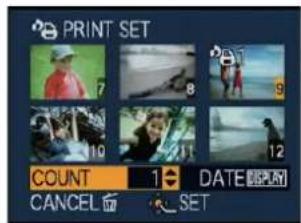
Press ▲/▼/◄/► to select the pictures.
![PANASONIC Lumix DMC-FT1EG-G - Select [PRINT SET] on the [PLAYBACK] mode menu. (P25) - 6](/content/2026/06/1174107/images/d551009a72a2f28b24dd8b9cfd5f4ffe412d95dbf05d7877a56a02e5d17b408a.jpg)
Press ▲/▼ to set the number of prints, and then press MENU/SET to set.
- When [MULTI] has been selected, repeat steps 3 and 4 for each picture. (It is not possible to use the same setting for a multiple number of pictures.)
![PANASONIC Lumix DMC-FT1EG-G - Select [PRINT SET] on the [PLAYBACK] mode menu. (P25) - 7](/content/2026/06/1174107/images/b26d2b51eb1caac7a39f0b3123b6811b52edb59f4988b0178adc78ee6b85507b.jpg)
Press [图标] to return to the menu screen.
- Press MENU/SET to close the menu.
■ Cancelling all the [PRINT SET] settings
1 Select [CANCEL] on the screen shown in step 2 and then press MENU/SET.
2 Press ▲ to select [YES] and then press MENU/SET.
3 Press MENU/SET to close the menu.
- You cannot select [CANCEL] if not even one picture has been set for printing.
■ To print the date
After setting the number of prints, set/cancel printing with the recording date by pressing [DISPLAY].
- When you go to a photo printing store for digital printing, be sure to order the printing of the date additionally if required.
- Depending on the photo printing store or the printer, the date may not be printed even if you set to print the date. For further information, ask at your photo printing store or refer to the operating instructions for the printer.
• The date cannot be printed on pictures stamped with text.
![PANASONIC Lumix DMC-FT1EG-G - Select [PRINT SET] on the [PLAYBACK] mode menu. (P25) - 8](/content/2026/06/1174107/images/8fe7c5dc08799b9c807dbb84e5a3c4e99cd870cc41f2b0ceb72bddb1c01a1d5a.jpg)
Note
• The number of prints can be set from 0 to 999.
- With a printer supporting PictBridge, the date print settings of the printer may take precedence so check if this is the case.
- It may not be possible to use the print settings with other equipment. In this case, cancel all the settings, and reset the settings.
- If the file is not based on the DCF standard, the print setting cannot be set.
ON [PROTECT]
You can set protection for pictures you do not want to be deleted by mistake.
![PANASONIC Lumix DMC-FT1EG-G - ON [PROTECT] - 1](/content/2026/06/1174107/images/db4b0414edf22447d631cd1e6e7dfe1920084e7d344344f5847cc6275b01c16c.jpg)
Select [PROTECT] on the [PLAYBACK] mode menu. (P25)
![PANASONIC Lumix DMC-FT1EG-G - Select [PROTECT] on the [PLAYBACK] mode menu. (P25) - 1](/content/2026/06/1174107/images/b93dd9e7c1eee316b6b453a6a418a04542a0825f0dd0106a1a16e1fc98e23775.jpg)
Press ▲/▼ to select [SINGLE] or [MULTI] and then press [MENU/SET].

![PANASONIC Lumix DMC-FT1EG-G - Press ▲/▼ to select [SINGLE] or [MULTI] and then press [MENU/SET]. - 2](/content/2026/06/1174107/images/dd2830e53a1d8b49011e8c7f62757073ee07afac5ab2ffcd424c0b537bc00ee1.jpg)
Select the picture, and then press [MENU/SET].
When [MULTI] has been selected
- Repeat these steps for each picture.
- The settings are cancelled when MENU/SET is pressed again.
[SINGLE]

Press ◀/▶ to select the picture.
[MULTI]
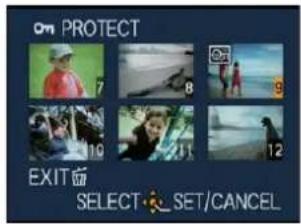
Press ▲/▼/◄/► to select the pictures.
![PANASONIC Lumix DMC-FT1EG-G - When [MULTI] has been selected - 3](/content/2026/06/1174107/images/2c64c5c2afdd995effec0c88a9d886def74f84ad456b90fd975743f50e07a004.jpg)
Press [图标] to return to the menu screen.
- Press MENU/SET to close the menu.
■ Cancelling all the [PROTECT] settings
1 Select [CANCEL] on the screen shown in step 2 and then press MENU/SET.
2 Press ▲ to select [YES] and then press MENU/SET.
3 Press MENU/SET to close the menu.
- If you press MENU/SET while cancelling protection, the cancelling will stop halfway.
![PANASONIC Lumix DMC-FT1EG-G - ■ Cancelling all the [PROTECT] settings - 1](/content/2026/06/1174107/images/86de9a52f716c503cc65c81d1079f472dcca2e0134de2e604d41ffd1d57920d2.jpg)
Note
• The protect setting may not be effective on other equipment.
- Even if you protect pictures in the built-in memory or a card, they will be deleted if the built-in memory or the card is formatted.
- Even if you do not protect pictures on an SD Memory Card or an SDHC Memory Card, they cannot be deleted when the card's Write-Protect switch is set to [LOCK].
[AUDIO DUB.]
You can add the audio after taking a picture.
1 Select [AUDIO DUB.] on the [PLAYBACK] mode menu. (P25)
2 Press ◀/▶ to select the picture and then press [MENU/SET] to start audio recording.
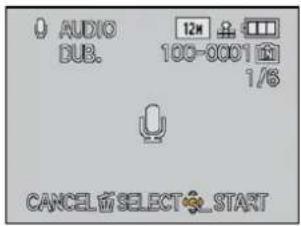
- The message [OVERWRITE AUDIO DATA?] screen appears when audio has already been recorded. Press ▲ to select [YES] and then press MENU/SET to start audio recording. (The original audio is overwritten.)
- Audio is recorded from the built-in microphone on the camera.
- If you press [☐], the audio dubbing is cancelled.
3 Press [MENU/SET] to stop recording.
- It will automatically stop after recording about 10 seconds without pressing MENU/SET.

4 Press [图标] to return to the menu screen.
- Press MENU/SET to close the menu.
![PANASONIC Lumix DMC-FT1EG-G - Press [图标] to return to the menu screen. - 1](/content/2026/06/1174107/images/11c235645de76d9e0afe1a6d8a4a83e01cde79e166209d4dbfbfa23146425a50.jpg)
Note
- Audio dubbing may not work properly on pictures recorded by other equipment.
• Audio dubbing does not work on motion pictures and protected pictures. - Sound from motion pictures (When [REC MODE] is set to [MOTION JPEG]) or pictures with audio recorded by this camera cannot be played back by older models of Panasonic digital camera (LUMIX) launched before July 2008.
[FACE RECOG.]
All the information regarding the [FACE RECOG.] of the selected image will be cleared.
1 Select [FACE RECOG.] on the [PLAYBACK] mode menu. (P25)
2 Press ◀/▶ to select the picture and then press [MENU/SET].
3 Press ▲ to select [YES] and then press [MENU/SET].
4 Press [图标] to return to the menu screen.
- Press MENU/SET to close the menu.
![PANASONIC Lumix DMC-FT1EG-G - Press [图标] to return to the menu screen. - 1](/content/2026/06/1174107/images/3ab0ea890c177d12e1815bb3e6ba27720f8c8a3b1e2bc8a58df39dff2a2f28d4.jpg)
Note
- Cleared information regarding the [FACE RECOG.] cannot be restored.
- Images Cleared of [FACE RECOG.] will not be categorized for [FACE RECOG.] for [CATEGORY PLAY].
- Clearing of [FACE RECOG.] cannot be done of the protected image.
[←] [COPY]
You can copy data of pictures you have shot from the built-in memory onto a card, from a card into the built-in memory or from a card into the dedicated clipboard folder.
1 Select [COPY] on the [PLAYBACK] mode menu. (P25)
2 Press ▲/▼ to select the copy destination and then press [MENU/SET].
INSD: All the picture data in the built-in memory are copied onto the card at one time. → step 4.
SD→IN: One picture at a time is copied from the card to the built-in memory. → step 3.
SD→Z: The images are copied from the card to the dedicated clipboard folder (built-in memory) one at a time. (Motion pictures cannot be copied.) → Step 3. - When copying clipboard pictures onto a card, select [COPY] on the clipboard playback menu. (P96)
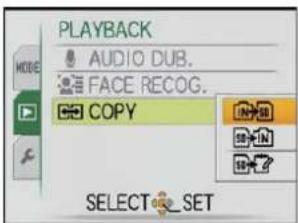
3 Press ◀/▶ to select the picture and then press [MENU/SET].
4 Press ▲ to select [YES], and then press [MENU/SET].
- If you press MENU/SET while copying pictures from the built-in memory to the card, the copying will stop halfway.
- Do not turn the camera off at any point during the copying process.
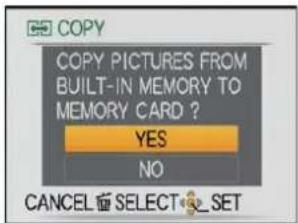
5 Press [图标] to return to the menu screen.
- Press MENU/SET to close the menu.
- If you copy from the built-in memory to a card, all the pictures are copied and then the screen automatically returns to the playback screen.
Note
- If you copy picture data from the built-in memory to a card which does not have sufficient free space, the picture data will only be copied halfway. We recommend using a card which has more free space than the built-in memory (about 40 MB).
- If a picture exists with the same name (folder number/file number) as the picture to be copied in the copy destination when [IN+SD] is selected, a new folder is created and the picture is copied. If a picture exists with the same name (folder number/file number) as the picture to be copied in the copy destination when [SD+IN] is selected, that picture is not copied. (P134)
- It may take time to copy the picture data.
- Only pictures recorded with a Panasonic digital camera (LUMIX) will be copied. (Even if the pictures were recorded with a Panasonic digital camera, you may not be able to copy them if they were edited with a PC.)
- Print settings on the original picture data will not be copied. Set the print settings again after copying is finished.
- Motion picture recorded in [AVCHD Lite] cannot be copied.
[PLAYBACK] mode:
Playing Back Pictures on a TV Screen
Playing back pictures using the AV cable (supplied)
Preparations:
Set the [TV ASPECT]. (P30)
Turn this unit and the TV off.

① Yellow: to the video input socket
② White: to the audio input socket
③ Red: to the audio input socket
Ⓐ Align the marks, and insert.
⑧ AV cable (supplied)
- Check the directions of the connectors, and plug them straight in or unplug them straight out. (Otherwise the connectors may be bent out of shape which will cause trouble.)

Connect the AV cable Ⓑ (supplied) to the video input and the audio input sockets on the TV.

Connect the AV cable to the [AV] socket on the camera.

Turn the TV on and select external input.

Turn the camera on.

Note
- Depending on the [ASPECT RATIO], black bands may be displayed on the top and bottom or the left and right of the pictures.
- Do not use any other AV cables except the supplied one.
- Read the operating instructions for the TV.
- When you play back a picture vertically, it may be blurry.
- You can view pictures on TVs in other countries (regions) which use the NTSC or PAL system when you set [VIDEO OUT] in the [SETUP] menu.
• Audio will be played back in monaural.
Playing back pictures on a TV with an SD Memory Card slot
Still pictures recorded on an SD Memory Card can be played back on a TV with an SD Memory Card slot.

Note
- Depending on the TV model, pictures may not be displayed on the full screen.
- Motion pictures recorded with [AVCHD Lite] can be played back on Panasonic TVs (VIERA) with the AVCHD logo mark. In all other cases, connect the camera to the TV using the AV cable (supplied) and playback the motion picture.
- You cannot play back pictures on SDHC cards if the TV does not support these cards.
- You may not be able to play back MultiMediaCards.
Playing back on the TV with HDMI socket
You can enjoy high quality pictures and motion pictures on the TV by connecting the camera with the HDMI compatible high definition TV using HDMI mini cable (optional).
What is HDMI?
HDMI is the interface for digital devices. When this unit is connected to a HDMI compatible device, the image and audio can be output with a digital signal. If you connect this unit to a HDMI compatible high definition TV and then play back the recorded high definition images, you can enjoy them in high resolution with high quality sound.
If you connect this unit to a Panasonic TV compatible with VIERA Link, linked operations (VIERA Link) are possible. (P116)
Preparations: Check the [HDMI MODE]. (P31)
Turn this unit and the TV off.

flowchart
graph LR
    A["Computer monitor"] -->|2| B["HDMI IN"]
    B --> C["Switch"]
    C --> D["Digital module with HDMI interface"]
    D --> E["Device with 3 ports"]
① HDMI socket
② TV with HDMI socket
③ HDMI mini (C type)
Ⓐ Align the marks, and insert.
⑧ HDMI mini cable (optional)
- Check the direction of the terminals and plug in/out straight holding onto the plug. (It may result in malfunction by the deforming of the terminal if it is plugged in obliquely or in wrong direction.)

Connect the HDMI mini cable Ⓑ (optional) to the HDMI input socket on the TV.

Connect the HDMI mini cable to the [HDMI] socket on the camera.

Turn the TV on and switch to HDMI input.

Turn the camera on and then press [▶].
- When [VIERA Link] (P31) is set to [ON] and the camera is connected to a TV supporting VIERA Link, input of the TV will be switched automatically and playback screen will be displayed (P116). (Except for memo mode)

Note
- Depending on the [ASPECT RATIO], bands may be displayed on the top and bottom or the left and right of the pictures.
- Do not use any other cables except a genuine Panasonic HDMI mini cable (RP-CDHM15, RP-CDHM30; optional).
Part numbers: RP-CDHM15 (1.5 m), RP-CDHM30 (3.0 m) - Output from the HDMI mini cable has priority when both AV cable and HDMI mini cable are connected.
- HDMI output is not possible even if you connect the HDMI mini cable while the unit is connected to the PC or the printer.
- HDMI connection is disabled and connection with the USB connection cable will take priority when you connect the USB connection cable while the HDMI mini cable is connected (P115).
- Image is not displayed on the LCD monitor when the HDMI mini cable is connected.
- When pictures are displayed, they may not be displayed properly depending on the type of TV.
- Read the operating instructions for the TV.
• Audio will be played back in monaural.
Playback using VIERA Link (HDMI) (HDAVI Control™)
What is the VIERA Link?
- This function allows you to use your remote control for the Panasonic TV for easy operations when this unit has been connected to a VIERA Link compatible device using a HDMI mini cable (optional) for automatic linked operations. (Not all operations are possible.)
- VIERA Link is a unique Panasonic function built on a HDMI control function using the standard HDMI CEC (Consumer Electronics Control) specification. Linked operations with HDMI CEC compatible devices made by other companies are not guaranteed. When using devices made by other companies that are compatible with VIERA Link, refer to the operating instructions for the respective devices.
- This unit is compatible with VIERA Link Ver.4. VIERA Link Ver.4 is the newest Panasonic version and is also compatible with existing Panasonic VIERA Link devices. (As of December 2008)
Preparations:
Set the [VIERA Link] to [ON]. (P31)
1 Connect this unit to a Panasonic TV compatible with VIERA Link with a HDMI mini cable (optional) (P115).
2 Operate with the remote control for the TV.

① Panasonic TV compatible with VIERA Link
② [OPTION] button
③ [EXIT] button
④ [OK] button
■ Usable functions
1) Multi playback
Select the image with ▲/▼/◄/► on the TV remote controller.
- Selected image will be displayed in one screen when you press [OK].
- You can set the slide show etc. when you press [OPTION].
2) One screen display
Select the image with ◀/▶ on the TV remote controller.
- Slide show will start when you press [OK].
- Operation icons can be hidden when you press [EXIT]. When you press [EXIT] again, the screen will be returned to multi playback. Also, operation icons will be displayed when you press [OPTION] while the operation icons are hidden.
- You can return to multi playback with ▼.
⑤ Operation icons
3) Slide show
Press [OK] on the TV remote controller to start/pause the slide show.
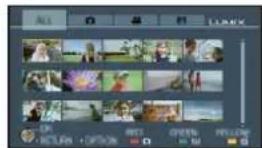

natural_image
Simple diagram showing a circular component with yellow internal markings and a numbered label '5' pointing to it (no text or symbols beyond the label)- Images can be switched forward/backward by pressing ◀/▶ while the slide show is paused.
- The screen will be returned to one screen display by pressing ▼.
-
Operation icons can be hidden when you press [EXIT]. When you press [EXIT] again, the screen will be returned to multi playback. Also, operation icons will be displayed when you press [OPTION] while the operation icons are hidden.
-
It is recommended to connect this unit to an HDMI terminal other than the HDMI1 if there are 2 or more HDMI input terminals on the TV.
- When the [VIERA Link] (P31) of this unit is set to [ON], operation using the button on this unit will be limited.
- VIERA Link must be activated on the connected TV. (Read the operating instructions of the TV for how to set etc.)
- If you are not using VIERA Link, set [VIERA Link] (P31) to [OFF].
■ Other linked operations
Turning the power off:
If you use the remote control for the TV to turn off the power, the power on this unit also turns off. (When connecting the unit to a PC with a USB cable, the power will not turn off.)
Automatic input switching:
- If you connect with a HDMI mini cable and then turn on the power on this unit, the input channel on the TV automatically switches to this unit's screen. If the TV's power is in standby status, it will turn on automatically (if [Set] has been selected for the TV's [Power on link] setting).
- Depending on the HDMI terminal on the TV, the input channel may not switch automatically. In this case, use the remote control for the TV to switch the input channel. (For details on how to switch input, please read the operating instructions for the TV.)
- If VIERA Link does not work properly, refer to page 142.

Note
- If you are unsure whether or not the TV you are using are compatible with VIERA Link, read the operating instructions for the devices.
• Available linked operations between this unit and a Panasonic TV is different depending on the types of Panasonic TVs even if they are compatible with VIERA Link. Refer to the operating instructions of the TV for the operations that support on the TV.
• Operation is not possible with a cable that is not based on the HDMI standard.
Do not use any other cables except a genuine Panasonic HDMI mini cable (RP-CDHM15, RP-CDHM30; optional).
Part numbers: RP-CDHM15 (1.5 m), RP-CDHM30 (3.0 m) - VIERA Link will not work even if you connect the HDMI mini cable while the unit is connected to the PC or the printer.
• [HDMI MODE] (P31) [1080i] is valid only for the following conditions:
Outputting to HDMI:
- When [PICTURE] is selected in the [MODE PLAY]
- When [PICTURE ONLY] is selected in the [SLIDE SHOW]
- When [CATEGORY SELECTION]* is selected in the [SLIDE SHOW]
When the [VIERA Link] is set to On:
- When the [☐] displayed on the TV screen is selected
- When [PICTURE ONLY] is selected for the [SLIDE SHOW]
- When [CATEGORY SELECTION]* is selected for the [SLIDE SHOW]
* Other than [ ] (travel date)
- It will be output as [720p] except for the above conditions.
- The screen will be blacked out for a while when displaying in 1 screen, the [HDMI MODE] (P31) of the camera is set to [AUTO] or [1080i], and [icon] displayed on the TV screen is selected, but this is not a malfunction.
• [☐] ([TRAVEL DATE]), [☐] ([AVCHD Lite]), or [☐] ([MOTION JPEG]) in the [CATEGORY SELECTION] of the [SLIDE SHOW] cannot be selected when the [☐] displayed on the TV screen is selected.
Saving the recorded still pictures and motion pictures
Method to acquire into other equipment is different for the still pictures and motion pictures recorded with this unit depending on their file format (JPEG, AVCHD Lite or MOTION JPEG). Select the following methods depending on the equipment to be used.
Copy the playback image using an AV cable
File formats that can be used: [AVCHD Lite], [MOTION JPEG]
Copy images played back with this unit to DVD disc, hard disk, or video using a DVD recorder, or video.
This can be played back with equipment that is not compatible with high definition (AVCHD), so it is convenient for distributing copies. Image will be standard quality instead of high definition at this time.

① Yellow: to the video input socket
② White: to the audio input socket
③ Red: to the audio input socket
Ⓐ AV cable (supplied)
1 Connect this unit with the recording equipment with an AV cable (supplied)
2 Start the playback of this unit
3 Start the recording on the recording equipment
- When ending the recording (copying), stop the playback on this unit after stopping the recording in recording equipment.

Note
- When you play back motion pictures on 4:3 aspect ratio TV, you must set [TV ASPECT] (P30) on this unit to [4:3] before starting a copy. The image will be vertically long if you play back motion pictures copied with [16:9] setting on a [4:3] aspect TV.
- Do not use any other AV cables except the supplied one.
- It is recommended to turn off the display of the screen by pressing the [DISPLAY] on the camera while copying. (P47)
• See the instruction manual for the recording equipment about the details of copying and playing back.
Copying to a PC
File formats that can be used: [JPEG]/[AVCHD Lite], [MOTION JPEG] It is possible to acquire still pictures and motion pictures recorded in [AVCHD Lite] or [MOTION JPEG] formats, or create standard quality DVD video which is not high definition from the motion picture that was recorded as [AVCHD Lite], using the software "PHOTOfunSTUDIO 3.0 HD Edition" in the CD-ROM (supplied). (P120)
- If the files and folders related to [AVCHD Lite] motion pictures are deleted, modified, or moved by the Windows Explorer or similar, it becomes unable to perform playback, edit, etc., so always use "PHOTOfunSTUDIO 3.0 HD Edition" to acquire the [AVCHD Lite] motion pictures.

natural_image
Illustration of a laptop and a CD (no text or symbols present)Connecting to a PC
You can acquire recorded pictures to a PC by connecting the camera and the PC.
- You can easily print out or mail the pictures you have imported. Use of the "PHOTOfunSTUDIO 3.0 HD Edition" bundled software on the CD-ROM (supplied) is a convenient way of doing this.
- Read the separate operating instructions for the supplied software for more information about the software in the CD-ROM (supplied) and how to install it.
■ PC that can be used
| Windows | Macintosh | |||
| 98/98SE | Me | 2000/XP/Vista | OS 9/OS X | |
| Can the PHOTOfunSTUDIO be used? | — | ^*1 | — | |
| Can the [AVCHD Lite] motion picture be acquired to the PC? | — | ^*2 | — | |
| Can the still pictures and [MOTION JPEG] motion pictures in the digital camera be acquired to the PC using a USB connection cable? | ○ | ○(OS 9.2.2/OS X [10.1~10.5]) | ||
| Is the installation of a USB driver required? | ○ | — | — | |
- PC with Windows 95 or older, or Mac OS 8.x or older cannot be connected via USB, but it can acquire the pictures if an SD memory card reader/writer can be used.
*1 It is necessary for Internet Explorer 6.0 or newer to be installed. PC with higher processing performance is required depending on the function to be used. It may not playback correctly or operate correctly depending on the environment of the PC used.
*2 Always acquire the [AVCHD Lite] motion pictures using the "PHOTOfunSTUDIO 3.0 HD Edition".
Acquiring of still pictures and [MOTION JPEG] motion pictures (other than [AVCHD Lite] motion pictures)
Preparations:
Turn on the camera and the PC.
Remove the card before using the pictures in the built-in memory.

Ⓐ USB connection cable (supplied)
- Check the directions of the connectors, and plug them straight in or unplug them straight out. (Otherwise the connectors may be bent out of shape which will cause trouble.)
⑧ Align the marks, and insert. - Use a battery with sufficient battery power or the AC adaptor (DMW-AC5G; optional). When using the AC adaptor (DMW-AC5G; optional), use the multi conversion adaptor (DMW-MCA1; optional). If the remaining battery power becomes low while the camera and the PC are communicating, the status indicator blinks and the alarm beeps.
Refer to "Disconnecting the USB connection cable safely" (P122) before disconnecting the USB connection cable. Otherwise, data may be destroyed.
![PANASONIC Lumix DMC-FT1EG-G - Acquiring of still pictures and [MOTION JPEG] motion pictures (other than [AVCHD Lite] motion pictures) - 2](/content/2026/06/1174107/images/ebaf1c07739d1b6a4590d7b32f58365d8078441e42c5a4e3dab15085cef6a0bb.jpg)
Connect the camera to a PC via the USB connection cable Ⓐ (supplied).
- Do not use any other USB connection cables except the supplied one. Use of cables other than the supplied USB connection cable may cause malfunction.

Press ▲/▼ to select [PC], and then press [MENU/SET].
- If [USB MODE] (P30) is set to [PC] in the [SETUP] menu in advance, the camera will be automatically connected to the PC without displaying the [USB MODE] selection screen. Since there is no need to set this each time you connect to the PC, it is convenient.
- When the camera has been connected to the PC with [USB MODE] set to [PictBridge(PTP)], a message may appear on the PC's screen. Select [Cancel] to close the screen, and disconnect the camera from the PC. Then set [USB MODE] to [PC] again.

![PANASONIC Lumix DMC-FT1EG-G - Press ▲/▼ to select [PC], and then press [MENU/SET]. - 2](/content/2026/06/1174107/images/a0b84dac05f14859457f2122240503318dcc2e028cd7986c69dd5816a2bb7569.jpg)
Double-click on [Removable Disk] in [My Computer].
- When using a Macintosh, the drive is displayed on the desktop. ("LUMIX", "NO_NAME" or "Untitled" is displayed.)
![PANASONIC Lumix DMC-FT1EG-G - Double-click on [Removable Disk] in [My Computer]. - 1](/content/2026/06/1174107/images/7426a51694c093b09a8ea87a5d7d68c30c8753faa1b52f140c99c61ade7f3493.jpg)
Double-click [DCIM] folder.
![PANASONIC Lumix DMC-FT1EG-G - Double-click [DCIM] folder. - 1](/content/2026/06/1174107/images/ceca47a74b0d114defcae04f6dc46c9347204ebb0fdb710399ade3dd2942c135.jpg)
Using a drag-and-drop operation, move the pictures you want to acquire or the folder storing those pictures to any different folder on the PC.
■ Disconnecting the USB connection cable safely
- Proceed with the hardware removal using "Safely Remove Hardware" on the task tray of the PC. If the icon is not displayed, check that [ACCESS] is not displayed on the LCD monitor of the digital camera before removing the hardware.

Note
- Turn the camera off before connecting or disconnecting the AC adaptor (DMW-AC5G; optional).
- Before inserting or removing a card, turn the camera off and disconnect the USB connection cable. Otherwise, data may be destroyed.
- If the camera is connected in clipboard mode, the built-in memory data is displayed even if a card is inserted.
- HDMI connection is disabled and connection with the USB connection cable will take priority when you connect the USB connection cable while the HDMI mini cable is connected (P115).
■ Viewing the contents of the built-in memory or card using the PC (folder composition)
Folders and images processed in the PC cannot be played back on the camera. It is recommended to use the "PHOTOfunSTUDIO 3.0 HD Edition" bundled software on the CD-ROM (supplied) when you write the image from PC to a card.

flowchart
graph TD
    A["Built-in memory"] --> B["DCIM"]
    C["Card"] --> D["100_PANA"]
    D --> E["P1000001.JPG"]
    E --> F["P1000002.JPG"]
    F --> G["P1000999.JPG"]
    G --> H["101_PANA"]
    H --> I["..."]
    I --> J["999_PANA"]
    K["MISC"] --> L["PRIVATE 1"]
    L --> M["MEMO0001.JPG"]
    M --> N["MEMO0002.JPG"]
    N --> O["PRIVATE"]
    O --> P["AVCHD"]

    style A fill:#f9f,stroke:#333
    style C fill:#f9f,stroke:#333
    style K fill:#ccf,stroke:#333
A new folder is created when pictures are taken in the following situations.
• After [NO.RESET] (P30) in the [SETUP] menu has been executed
- When a card containing a folder with the same folder number has been inserted (Such as when pictures were taken using another make of camera)
- When there is a picture with file number 999 inside the folder
■ Connection in the PTP mode (Windows® XP, Windows Vista® and Mac OS X only) Set [USB MODE] to [PictBridge(PTP)].
Data can now be read only from the card into the PC.
- When there are 1000 or more pictures on a card, the pictures may not be imported in the PTP mode.
• [AVCHD Lite] motion picture cannot be played back in PTP mode.
Printing the Pictures
If you connect the camera to a printer supporting PictBridge, you can select the pictures to be printed out and instruct that printing be started on the camera's LCD monitor.
Preparations:
Turn on the camera and the printer.
Remove the card before printing the pictures in the built-in memory.
Perform the print quality and other settings at the printer before printing the pictures.
Set the mode dial to anything except [☐].
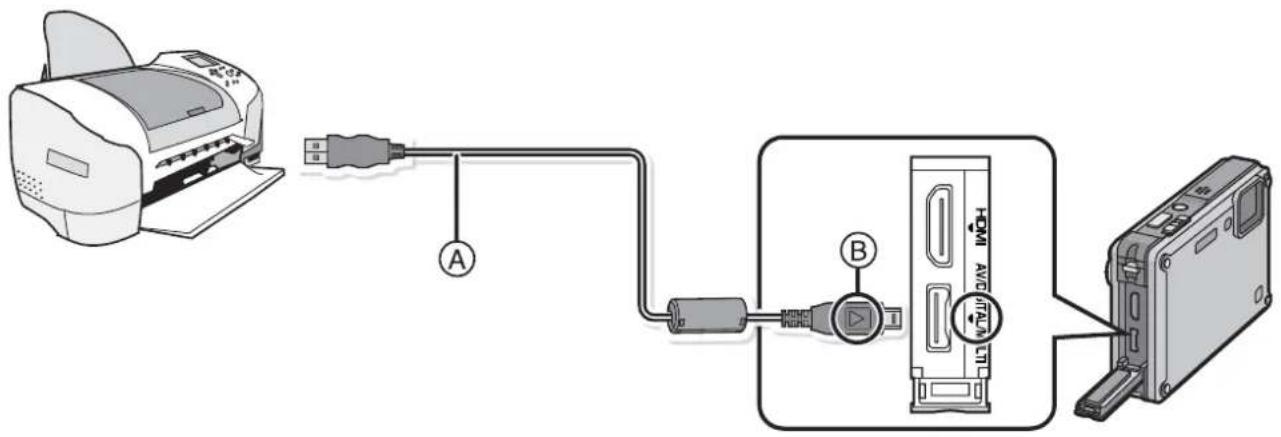
Ⓐ USB connection cable (supplied)
- Check the directions of the connectors, and plug them straight in or unplug them straight out. (Otherwise the connectors may be bent out of shape which will cause trouble.)
⑧ Align the marks, and insert.
- Use a battery with sufficient battery power or the AC adaptor (DMW-AC5G; optional). When using the AC adaptor (DMW-AC5G; optional), use the multi conversion adaptor (DMW-MCA1; optional). If the remaining battery power becomes low while the camera and the printer are connected, the status indicator blinks and the alarm beeps. If this happens during printing, stop printing at once. If not printing, disconnect the USB connection cable.
1 Connect the camera to a printer via the USB connection cable (supplied).
- When the camera is connected to the printer, the cable disconnect prohibit icon [✗] appears. Do not disconnect the USB cable while [✗] is displayed.
2 Press ▲/▼ to select [PictBridge(PTP)], and then press [MENU/SET].
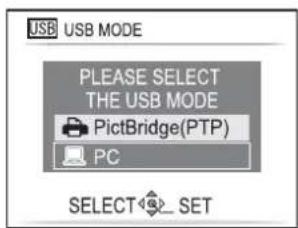
![PANASONIC Lumix DMC-FT1EG-G - Press ▲/▼ to select [PictBridge(PTP)], and then press [MENU/SET]. - 2](/content/2026/06/1174107/images/50774480927f99bd9ca09b3c612f301d6042458a24e662265fa4cf0d303f9ef3.jpg)
Note
- Do not use any other USB connection cables except the supplied one.
Use of cables other than the supplied USB connection cable may cause malfunction. - Turn the camera off before connecting or disconnecting the AC adaptor (DMW-AC5G; optional).
- Before inserting or removing a card, turn the camera off, and disconnect the USB connection cable.
- You cannot switch between the built-in memory and the card while the camera is connected to the printer. Disconnect the USB connection cable, insert (or remove) the card and then connect the USB connection cable to the printer again.
• The pictures recorded in clipboard mode, copy them onto a card (P96), and then print them out. - HDMI connection is disabled and connection with the USB connection cable will take priority when you connect the USB connection cable while the HDMI mini cable is connected (P115).
Selecting a single picture and printing it

Press ◀/▶ to select the picture and then press [MENU/SET].
• The message disappears in about 2 seconds.
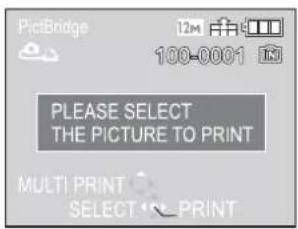
![PANASONIC Lumix DMC-FT1EG-G - Press ◀/▶ to select the picture and then press [MENU/SET]. - 2](/content/2026/06/1174107/images/a3c212576e72715377db69b207c4b2f804a9ccacd6cc95302b265f66ab43af3e.jpg)
Press ▲ to select [PRINT START] and then press [MENU/SET].
• Refer to P126 for the items which can be set before starting to print the pictures.
- Press MENU/SET to cancel printing halfway.
- Disconnect the USB connection cable after printing.
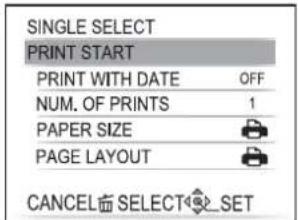
Selecting multiple pictures and printing them

Press ▲.

Press ▲/▼ to select an item and then press [MENU/SET].
- If the print check screen has appeared, select [YES], and print the pictures.

| Item | Description of settings |
| [MULTI SELECT] | Multiple pictures are printed at one time.·Press ▲/▼/◄/► to select the pictures, and then When [DISPLAY] is pressed, [☐] appears on the pictures to be printed. (When [DISPLAY] is pressed again, the setting is cancelled.)·After the pictures have been selected, press [MENU/SET]. |
| [SELECT ALL] | Prints all the stored pictures. |
| [PRINT SET (DPOF)] | Prints the pictures set in [PRINT SET] only. (P110) |
| [FAVORITE]* | Prints the pictures set as favourites only. (P109) |
* Only when [FAVORITE] is at [ON] and when there are pictures set as favourites. (P109)
![PANASONIC Lumix DMC-FT1EG-G - Press ▲/▼ to select an item and then press [MENU/SET]. - 2](/content/2026/06/1174107/images/ad8cd815c1a6996e30421023b4234f6fb5dca468958d6a5ee8a76523b8b48bdf.jpg)
Press ▲ to select [PRINT START] and then press [MENU/SET].
- Refer to P126 for the items which can be set before starting to print the pictures.
- Press MENU/SET to cancel printing.
- Disconnect the USB connection cable after printing.
| MULTI SELECT | |
| PRINT START | |
| PRINT WITH DATE | OFF |
| NUM. OF PRINTS | 1 |
| PAPER SIZE | |
| PAGE LAYOUT | |
Print Settings
Select and set the items both on the screen in step 2 of the "Selecting a single picture and printing it" and in step 3 of the "Selecting multiple pictures and printing them" procedures.
- When you want to print pictures in a paper size or a layout which is not supported by the camera, set [PAPER SIZE] or [PAGE LAYOUT] to [播放] and then set the paper size or the layout on the printer. (For details, refer to the operating instructions of the printer.)
- When [PRINT SET (DPOF)] has been selected, the [PRINT WITH DATE] and [NUM. OF PRINTS] items are not displayed.
| MULTI SELECT | |
| PRINT START | |
| PRINT WITH DATE | OFF |
| NUM. OF PRINTS | 1 |
| PAPER SIZE | |
| PAGE LAYOUT | |
| CANCEL SELECT_EXIT | |
[PRINT WITH DATE]
| Item | Description of settings |
| [OFF] | Date is not printed. |
| [ON] | Date is printed. |
- If the printer does not support date printing, the date cannot be printed on the picture.
- Since the printer's settings may take precedence over the print with date setting, check the printer's print with date setting as well.
- When printing images with a text stamp, please remember to set print with date to [OFF] or the date will print on top.
![PANASONIC Lumix DMC-FT1EG-G - [PRINT WITH DATE] - 1](/content/2026/06/1174107/images/2d90ae1b11b7ba1766f2cdd88738ae1dc2bf37acb7924316afd8a7160438a888.jpg)
Note
When asking the photo shop to print the pictures
- By stamping the date using [TEXT STAMP] (P104) or setting date printing at the time of the [PRINT SET] (P110) setting before going to a photo shop, the dates can be printed at the photo shop.
[NUM. OF PRINTS]
You can set the number of prints up to 999.
[PAPER SIZE]
| Item | Description of settings |
| Settings on the printer are prioritised. | |
| [L/3.5"×5"] | 89 mm×127 mm |
| [2L/5"×7"] | 127 mm×178 mm |
| [POSTCARD] | 100 mm×148 mm |
| [16:9] | 101.6 mm×180.6 mm |
| [A4] | 210 mm×297 mm |
| [A3] | 297 mm×420 mm |
| [10×15cm] | 100 mm×150 mm |
| [4"×6"] | 101.6 mm×152.4 mm |
| [8"×10"] | 203.2 mm×254 mm |
| [LETTER] | 216 mm×279.4 mm |
| [CARD SIZE] | 54 mm×85.6 mm |
- Paper sizes not supported by the printer will not be displayed.
[PAGE LAYOUT] (Layouts for printing that can be set with this unit)
| Item | Description of settings |
| Settings on the printer are prioritised. | |
| 1 picture with no frame on 1 page | |
| 1 picture with a frame on 1 page | |
| 2 pictures on 1 page | |
| 4 pictures on 1 page |
- An item cannot be selected if the printer does not support the page layout.
■ Layout printing
When printing a picture several times on 1 sheet of paper
For example, if you want to print the same picture 4 times on 1 sheet of paper, set [PAGE LAYOUT] to [REFR] and then set [NUM. OF PRINTS] to 4 for the picture that you want to print.
When printing different pictures on 1 sheet of paper
For example, if you want to print 4 different pictures on 1 sheet of paper, set [PAGE LAYOUT] to [B B] and then set [NUM. OF PRINTS] to 1 for each of the 4 pictures.

Note
- The camera is receiving an error message from the printer when the [●] indication lights orange during printing. After finishing printing, make sure there are no problems with the printer.
- If the number of prints is high, the pictures may be printed several times. In this case, the remaining number of prints indicated may differ from the number set.
Screen Display
In recording
Recording in normal picture mode [☐] (Initial setting)
1 Recording mode
2 Flash mode (P49)
3 AF area (P40)
4 Focus (P40)
5 Picture size (P83)
6 Quality (P84)
7 Battery indication (P17)
8 Number of recordable pictures (P145)
9 Built-in memory (P21)
→: Card (P21) (displayed only during recording)
10 Recording state
11 ISO sensitivity (P85)
12 Shutter speed (P40)
13 Aperture value (P40)
14 Quick AF (P89)
C-AF: Continuous AF (P74, 89)
15 Optical image stabilizer (P92)/((☐)): Jitter alert (P41)
16 REC MODE (P72)/Recording quality (P72)
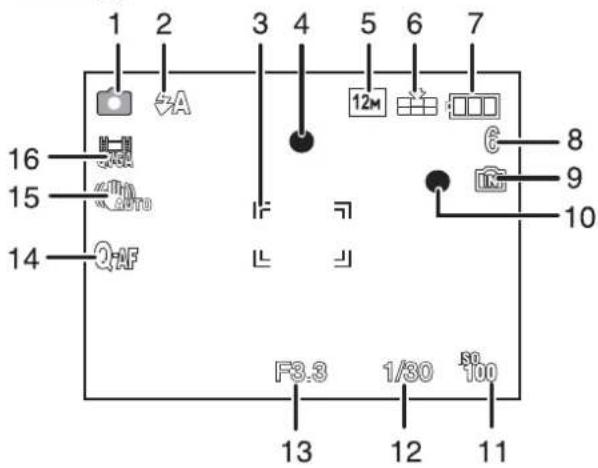
■ In recording (after settings)
17 AF Tracking (P88)
AF: AF macro mode (P52)
: Macro zoom mode (P52)
18 White balance (P85)
19 ISO sensitivity (P85) maximum ISO sensitivity level (P84)
20 Colour mode (P91)
21 Available recording time (P69): R8m30s
22 Spot AF area (P87)
23 Name ^*1 (P63)
24 Histogram (P48)
25 Travel date (P79)
26 Elapsed recording time (P69) AF tracking operation (P38, 88)
ISO : Intelligent ISO (P84)
27 Current date and time/↗: Travel destination setting*2 (P81)
EZW T 1X: Zoom/Extra optical zoom (P42)/Digital zoom (P42, 91)
28 Minimum shutter speed
29 Age*1 (P63)
Location*2 (P79)
30 Exposure compensation (P55)
31 Power LCD (P28)/
A*: Auto Power LCD (P28)

32 Intelligent Exposure (P89)
33 Burst (P90)/: Auto bracket (P56)/: Audio recording (P93)
34 AF assist lamp (P93)/ AF-L: AF Lock (P68)
35 Number of days that have passed since the travel date (P79)
36 Self-timer mode (P54)
37 WIND CUT (P75)
38 LED light (P75)
*1 This is displayed for about 5 seconds when this unit is turned on in [BABY1]/[BABY2] or [PET] in scene mode.
*2 This is displayed for about 5 seconds when the camera is turned on, after setting the clock and after switching from playback mode to recording mode.
In playback
1 Playback mode (P43)
2 Protected picture (P111)
3 Favourites (P109)
+: Zoom mark (P95)
4 Stamped with text indication (P104)
5 Picture size (P83)
6 Quality (P84)
7 Battery indication (P17)
8 Folder/File number (P123)
Built-in memory (P21)
Elapsed playback time (P101): 8m30s
9 Picture number/Total pictures
10 Motion picture recording time (P101): 8m30s
11 Histogram (P48)
12 Exposure compensation (P55)
13 Recording information (P47)
14 Favourites settings (P109)
15 Recorded date and time/Travel destination setting (P81)/Name (P63)/Location (P79)/Title (P103)
16 Age (P63)
17 Number of days that have passed since the travel date (P79)
18 Power LCD (P28)
19 Number of prints (P110)
20 Audio playback (P101)
▲: Motion picture playback (P101)/Rec quality (P72)
Cable disconnection warning icon (P124)

Cautions for Use
In the event of abnormal operation (e.g. if the unit emits smoke or an unusual smell), immediately stop operating the unit and consult the Panasonic Customer Care Centre on 132600.
(Important) About the waterproof/dustproof and anti-shock performance of the camera
- This camera has a waterproof/dustproof function equivalent to "IP58". It is possible to take pictures in 3.0 m depth for 60 minutes. ^*1
*1 This means that the camera can be used underwater for specified time in specified pressure in accordance with the handling method established by Panasonic. This does not guarantee no destruction, no malfunction, or waterproofing in all conditions. - Supplied accessories are not waterproof.
- The camera has cleared a drop test from a height of 1.5 m onto 5 cm thick plywood, which is compliant with "MIL-STD 810F Method 516.5-Shock".*2
*2 This does not guarantee no destruction, no malfunction, or waterproofing in all conditions. Waterproofing is not guaranteed if the unit is subject to an impact as a result of being hit or dropped etc.
When an impact is applied to the camera, it is recommended to consult the dealer or your nearest Service Centre, and perform a checkup (subject to a fee) to see if the waterproofing has been retained properly.
Malfunction caused by exposure to water due to mishandling by the customer will not be covered by the warranty.
For more detail, refer to “(Important) About the waterproof/dustproof and anti-shock performance of the camera” (P9).
Optimal use of the camera
Take care not to drop or knock the unit or put a lot of pressure on it.
• Take care not to knock or drop the bag/case that you inserted the camera in as the shock may cause damage to the camera, lens or LCD monitor.
- Do not attach any other items to the hand strap that's included with your camera. While being stored, that item can rest against the LCD monitor and damage it.
- Do not use a paper bag as it can easily rip causing the camera to fall and be damaged.
- We strongly recommend you purchase a good camera bag/case from your local dealer to protect your camera.
Keep the camera as far away as possible from electromagnetic equipment (such as microwave ovens, TVs, video games etc.).
- If you use the camera on top of or near a TV, the pictures and sound on the camera may be disrupted by electromagnetic wave radiation.
- Do not use the camera near cell phones because doing so may result in noise adversely affecting the pictures and sound.
- Recorded data may be damaged, or pictures may be distorted, by strong magnetic fields created by speakers or large motors.
- Electromagnetic wave radiation generated by microprocessors may adversely affect the camera, disturbing the pictures and sound.
- If the camera is adversely affected by electromagnetic equipment and stops functioning properly, turn the camera off and remove the battery or disconnect AC adaptor (DMW-AC5G; optional). Then reinsert the battery or reconnect AC adaptor and turn the camera on.
Do not use the camera near radio transmitters or high-voltage lines.
- If you record near radio transmitters or high-voltage lines, the recorded pictures and sound may be adversely affected.
Always use the supplied cords and cables. If you use optional accessories, use the cords and the cables supplied with them.
Do not extend the cords or the cables.
Do not spray the camera with insecticides or volatile chemicals.
- If the camera is sprayed with such chemicals, the body of the camera may be damaged and the surface finish may peel off.
- Do not keep rubber or plastic products in contact with the camera for a long period of time.
The performance of the camera is not guaranteed at the cold climate such as in ski resorts. Operation at -10^ is checked, but the zoom lever may get frozen and hard to move or card/battery door and terminal cover may become hard to open when the temperature drops rapidly, so take caution.
- When using the camera at the cold climate, place the camera inside the protective gear or clothing to keep it warm when using it.
Cleaning
Before cleaning the camera, remove the battery, or disconnect the power plug from the outlet. Then wipe the camera with a dry soft cloth.
- When the camera is soiled badly, it can be cleaned by wiping the dirt off with a wrung wet cloth, and then with a dry cloth.
- Do not use solvents such as benzine, thinner, alcohol, kitchen detergents, etc., to clean the camera, since it may deteriorate the external case or the coating may peel off.
- When using a chemical cloth, be sure to follow the accompanying instructions.
About the LCD monitor
- Do not press the LCD monitor with excessive force. Uneven colours may appear on the LCD monitor and it may malfunction.
- If the camera is cold when you turn it on, the picture on the LCD monitor will be slightly darker than usual at first. However, the picture will return to normal brightness when the internal temperature of the camera increases.
Extremely high precision technology is employed to produce the LCD monitor screen. However, there may be some dark or bright spots (red, blue or green) on the screen.
This is not a malfunction. The LCD monitor screen has more than 99.99% effective pixels with a mere 0.01% of the pixels inactive or always lit. The spots will not be recorded on pictures on the built-in memory or a card.
About the lens, the microphone, and the speaker
- Do not press the lens with excessive force.
- Do not leave the camera with the lens facing the sun as rays of light from the sun may cause it to malfunction. Also, be careful when placing the camera outside or near a window.
- If there is water or dirt on the lens, wipe it off with dry soft cloth before taking a picture.
- A sound might be muffed or warped when there is water on the microphone or the speaker. Wipe the residues after letting the water drip out from the microphone and speaker by tipping it down, and use it after letting it dry for a while.
- Do not poke the holes of microphone and speaker with sharp points. (It may damage the waterproof sheet inside, which may damage the waterproof performance)
Battery
The battery is a rechargeable lithium ion battery. Its ability to generate power comes from the chemical reaction that takes place inside it. This reaction is susceptible to the surrounding temperature and humidity. If the temperature is too high or too low, the operating time of the battery will become shorter.
Always remove the battery after use.
- Store the removed battery in the battery case (supplied).
If you drop the battery accidentally, check to see if the body of the battery and the terminals are damaged.
- Inserting a damaged battery in the camera will damage the camera.

natural_image
Illustration of a device with a labeled component and a separate housing (no text or symbols)Bring charged spare batteries when going out.
- Be aware that the operating time of the battery becomes shorter in low temperature conditions such as at a ski resort.
- When you travel, do not forget to bring the battery charger (supplied) so that you can charge the battery in the country that you are travelling in.
Dispose of unusable battery.
• The battery has a limited life.
- Do not throw the battery into fire because it may cause an explosion.
Do not allow battery terminals to come into contact with metal objects (such as necklaces, hairpins etc.).
- This can cause short circuiting or heat generation and you may be badly burned if you touch a battery.
Charger
- If you use the battery charger near a radio, the radio reception may be disturbed.
- Keep the charger 1 m or more away from radio.
• The charger may generate whirring sounds when it is being used. This is not a malfunction.
• After use, be sure to disconnect the power supply device from the electrical outlet. (A very small amount of current is consumed if it is left connected.)
- Keep the terminals of the charger and battery clean.
Card
Do not leave the card where the temperature is high, where electromagnetic waves or static electricity are easily generated or exposed to direct sunlight.
Do not bend or drop the card.
- The card may be damaged or the recorded content may be damaged or deleted.
- Put the card in the card case or the storage bag after use and when storing or carrying the card.
- Do not allow dirt, dust or water to get into the terminals on the back of the card and do not touch the terminals with your fingers.
Notice for when transferring to another party, or disposing of the memory card
- "Format" or "delete" using the camera or a PC will only modify the file management information, and it will not erase the data in the memory card completely.
It is recommended to physically destroy the memory card or use the commercially available computer data deletion software to completely erase the data in the memory card before transferring to another party or disposing.
Management of data in the memory card is the responsibility of the user.
About the personal information
If a name or birthday is set for [BABY1]/[BABY2]/face recognition function, this personal information is kept in the camera and included in the recorded image.
Disclaimer
• Information including personal information may be altered or vanish due to erroneous operation, effect of static electricity, accident, malfunction, repair, or other handlings. Please note in advance that Panasonic is not liable in any way for any direct or indirect damage from the alteration or vanishing of information or personal information.
When requesting a repair, transferring to another party or disposing
- Reset the settings to protect the personal information. (P30)
- If there are pictures stored in the built-in memory, copy them into the memory card (P113) before formatting the built-in memory (P32) as needed.
- Remove the memory card from the camera when requesting a repair.
• Built-in memory and settings may return to factory default when camera is repaired. - Please contact the dealer where you purchased the camera or your nearest Service Centre if above operations are not possible due to malfunction.
When transferring to another party, or disposing of the memory card, please refer to "Notice for when transferring to another party, or disposing of the memory card" on P132.
When not using the camera for a long period of time
- Store the battery in a cool and dry place with a relatively stable temperature: [Recommended temperature: 15^ to 25^ , Recommended humidity: 40% to 60%]
• Always remove the battery and the card from the camera. - If the battery is left inserted in the camera, it will discharge even if the camera is turned off. If the battery continues to be left in the camera, it will discharge excessively and may become unusable even if charged.
- When storing the battery for a long period of time, we recommend charging it once a year. Remove the battery from the camera and store it again after it has completely discharged.
- We recommend storing the camera with a desiccant (silica gel) when you keep it in a closet or a cabinet.
About the picture data
- Recorded data may be damaged or lost if the camera breaks down due to inappropriate handling. Panasonic will not be liable for any damage suffered due to loss of recorded data.
About tripods
- When you use a tripod, make sure the tripod is stable when this unit is attached to it.
- You may not be able to remove the card or the battery when using a tripod.
• Make sure that the screw on the tripod is not at an angle when attaching or detaching the camera. You may damage the screw on the camera if you use excessive force when turning it. Also, the camera body and the rating label may be damaged or scratched if the camera is attached too tightly to the tripod. - Read the operating instructions for the tripod carefully.
Message Display
Confirmation messages or error messages will be displayed on the screen in some cases. The major messages are described below as examples.
[THIS MEMORY CARD IS LOCKED]
→ The Write-Protect switch on the SD Memory Card and the SDHC Memory Card are moved to [LOCK]. Move the switch back to unlock it. (P21)
[NO VALID PICTURE TO PLAY]
→ Record a picture or insert a card with a recorded picture and then play it.
[THIS PICTURE IS PROTECTED]
→ Delete the picture after cancelling the protect setting. (P111)
[THIS PICTURE CANNOT BE DELETED]/[SOME PICTURES CANNOT BE DELETED]
- Pictures not based on the DCF standard cannot be deleted.
→ If you want to delete some pictures, format the card after saving necessary data on a PC etc. (P32)
[NO ADDITIONAL SELECTIONS CAN BE MADE]
- The number of pictures, which can be set at one time when [MULTI] has been selected for [DELETE MULTI] (P46), [FAVORITE] (P109), [TITLE EDIT] (P103), [TEXT STAMP] (P104) or [RESIZE] (P106) has been exceeded.
→ Reduce the number of pictures set, and then repeat the operation.
• More than 999 favourites have been set.
[CANNOT BE SET ON THIS PICTURE]
- [TITLE EDIT], [TEXT STAMP] or [PRINT SET] cannot be set for pictures not based on the DCF standard.
[NOT ENOUGH SPACE ON BUILT-IN MEMORY]/[NOT ENOUGH MEMORY ON THE CARD]
- There is no space left on the built-in memory or the card.
- When you copy pictures from the built-in memory to the card (batch copy), the pictures are copied until the capacity of the card becomes full.
[SOME PICTURES CANNOT BE COPIED]/[COPY COULD NOT BE COMPLETED]
• The following pictures cannot be copied.
- When a picture with the same name as the picture to be copied exists in the copy destination. (Only when copying from a card to the built-in memory.)
- Files not based on the DCF standard.
• Moreover, pictures recorded or edited by other equipment may not be copied.
[BUILT-IN MEMORY ERROR FORMAT BUILT-IN MEMORY?]
- This message will be displayed when you formatted the built-in memory on a PC.
→ Format the built-in memory on the camera again. (P32) The data on the built-in memory will be deleted.
[MEMORY CARD ERROR FORMAT THIS CARD?]
- This card has a format which is not recognised by the camera.
→ Format the card again with the camera after saving necessary data on a PC etc. (P32)
[PLEASE TURN CAMERA OFF AND THEN ON AGAIN]/[SYSTEM ERROR]
- This message will be displayed when the lens did not operate properly.
→ Turn the camera off and on. If the message persists, contact the dealer or your nearest Service Centre.
[MEMORY CARD PARAMETER ERROR]
→ Use a card compatible with this unit. (P21)
- You can only use an SDHC Memory Card if using cards with 4 GB or more capacity.
[MEMORY CARD ERROR PLEASE CHECK THE CARD]
- An error has occurred accessing the card.
→ Insert the card again.
→ Insert a different card.
[READ ERROR/WRITE ERROR PLEASE CHECK THE CARD]
- It has failed to read or write data.
→ Remove the card after turning the power [OFF]. Insert the card again, turn the power on, and try to read or write the data again.
• The card may be broken.
→ Insert a different card.
[MOTION RECORDING WAS CANCELLED DUE TO THE LIMITATION OF THE WRITING SPEED OF THE CARD]
- It is recommended to use a card with SD Speed Class* with "Class 6" or higher when recording motion pictures.
* SD speed class is the speed standard regarding continuous writing.
- When you set the picture quality to [HD], [WGA] or [WM], we recommend using a high-speed card with "10MB/s" or greater displayed on the package.
- In the event that it stops even after using a "10MB/s" card or higher, the data writing speed has deteriorated so it is recommended to make a backup and then format (P32).
- Depending on the type of SD Memory Card or SDHC Memory Card, motion picture recording may stop in the middle.
[A FOLDER CANNOT BE CREATED]
- A folder cannot be created because there are no remaining folder numbers that can be used. (P123)
→ Format the card after saving necessary data on a PC etc. (P32) If you execute [NO.RESET] in the [SETUP] menu after formatting, the folder number is reset to 100. (P30)
[PICTURE IS DISPLAYED FOR 4:3 TV]/[PICTURE IS DISPLAYED FOR 16:9 TV]
• The AV cable is connected to the camera.
→ Press MENU/SET if you want to delete this message at once.
→ Select [TV ASPECT] in the [SETUP] menu if you want to change the TV aspect. (P30)
- This message also appears when the USB connection cable is connected to the camera only. In this case, connect the other end of the USB connection cable to a PC or a printer. (P120, 124)
[PRINTER BUSY]/[PLEASE CHECK THE PRINTER]
• The printer cannot print. → Check the printer.
[NO BATTERY POWER REMAINS]
- The remaining battery power is low. → Charge the battery.
[THIS BATTERY CANNOT BE USED]
• The battery cannot be recognised by the camera.
→ Use a genuine Panasonic battery. If this message is displayed even when a genuine Panasonic battery is used, contact the dealer or your nearest Service Centre.
- The battery cannot be recognised as its terminal is dirty.
→ Remove any dirt etc. from the terminal.
[BATTERY COVER OPEN]
- Card/Battery door is opened. The camera cannot be operated while the card/battery door is opened.
- Close it securely making sure nothing gets caught in it.
[CHECK THAT NO SAND, HAIR, OR OTHER OBJECTS ARE ON THE DOOR SEAL.]
• Card/battery door is open.
• The camera cannot be operated while the card/battery door is opened.
Troubleshooting
First, try out the following procedures (P137–144).
If the problem is not resolved, it may be improved by selecting [RESET] (P30) on the [SETUP] menu when taking pictures.
Battery and power source
The camera cannot be operated even when it is turned on.
• The battery is not inserted correctly. (P19)
• The battery is exhausted.
- Keep the ON/OFF button pressed until the status indicator is turned on.
The LCD monitor turns off while the camera is turned on.
• Is [AUTO LCD OFF] (P29) of the [ECONOMY] mode active?
→ Press the shutter button halfway to cancel these modes.
• The battery is exhausted.
The camera turns off immediately after it is turned on.
• The battery is exhausted.
- If you leave the camera on, the battery will be exhausted.
→ Turn the camera off frequently by using the [ECONOMY] mode etc. (P29)
This unit is turned off automatically.
- If you connect to a TV compatible with VIERA Link with a HDMI mini cable (optional) and turn off the power on the TV with the remote control for the TV, the power on this unit also turns off. If you are not using VIERA Link, set [VIERA Link] to [OFF]. (P31)
The [CHARGE] lamp flashes.
- Is the temperature of the battery excessively high or low? If it is, it will take longer than usual to charge the battery or charging may remain incomplete.
- Are the terminals of the charger or battery dirty?
→ Wipe off the dirt using a dry cloth.
Recording
The picture cannot be recorded.
• Is the mode dial correctly set?
• Is there any memory remaining on the built-in memory or the card?
→ Delete the pictures which are not necessary to increase the available memory. (P45)
The recorded picture is whitish.
- The picture can become whitish if there is dirt e.g. fingerprints on the lens. → When it is dirty, lightly wipe the surface of the lens with soft and dry cloth.
The area around where the pictures were taken becomes dark.
- Was this picture taken with the flash at the close range when the zoom is near [W] (1×)?
→ Zoom in a little, and then take the pictures. (P42) - Is this a picture taken in [PIN HOLE] in scene mode?
The recorded picture is too bright or dark.
→ Check that the exposure is correctly compensated. (P55)
- Setting the [MIN. SHTR SPEED] to faster speed might make the picture darker.
→ Set the [MIN. SHTR SPEED] (P92) to slower speed.
2 or 3 pictures are taken at one time.
→ Set auto bracket (P56), [HI-SPEED BURST] (P64), [FLASH BURST] (P65) in Scene mode or [BURST] (P90) of the [REC] mode menu to [OFF].
The subject is not focused properly.
- The focus range varies depending on the recording mode.
→ Set to the proper mode for the distance to the subject.
• The subject is beyond the focus range of the camera. (P40) - There is camera shake (jitter) or the subject is moving slightly. (P41)
The auto-focus and other operations are not working normally.
- Turn the power on again. If the operations are still not working normally, remove the power and consult the dealer or your nearest service centre.
The recorded picture is blurred. The optical image stabilizer is not effective.
→ The shutter speed becomes slower when pictures are taken in dark places so hold the camera firmly with both hands to take the pictures. (P34)
→ When taking pictures at a slow shutter speed, use the self-timer. (P54)
Taking pictures using auto bracket is not possible.
• Is the number of recordable pictures 2 or less?
The recorded picture looks rough. Noise appears on the picture.
• Is the ISO sensitivity high or the shutter speed slow?
(ISO sensitivity is set to [AUTO] when the camera is shipped. Therefore, when taking pictures indoors etc. noise will appear.)
→ Decrease the ISO sensitivity. (P85)
→ Set [COLOR MODE] to [NATURAL]. (P91)
→ Take pictures in bright places.
- Has [HIGH SENS.] or [HI-SPEED BURST] in the scene mode been set? If so, the resolution of the recorded picture decreases slightly because of high sensitivity processing, but this is not a malfunction.
The brightness or the hue of the recorded picture is different from the actual scene.
- If recording under fluorescent light, the brightness or the hue may change slightly when the shutter speed becomes fast. This occurs due to the characteristics of fluorescent light. It is not a malfunction.
A reddish vertical line (smear) appears on the LCD monitor during picture-taking.
- This is a characteristic of CCDs, and it appears when the subject has a bright part. Some unevenness may occur in the surrounding areas, but this is not a malfunction.
It is recorded in motion pictures but is not recorded on still pictures.
- It is recommended that you take pictures while taking care not to expose the screen to sunlight or any other source of strong light.

natural_image
Interior view of a modern living room with large windows, a coffee table, and a minimalist chair (no visible text or symbols)Motion picture recording stops in the middle.
- It is recommended to use a card with SD Speed Class* with "Class 6" or higher when recording motion pictures.
* SD speed class is the speed standard regarding continuous writing. - Depending on the type of the card, recording may stop in the middle.
→ When you set the picture quality to [HDI], [WGA] or [HGI], we recommend using a high-speed card with "10MB/s" or greater displayed on the package.
→ In the event that it stops even after using a "10MB/s" card or higher, the data writing speed has deteriorated so it is recommended to make a backup and then format (P32).
- Are you using a MultiMediaCard? This unit does not support MultiMediaCards.
The subject cannot be locked. (AF track fails)
- If the subject has different colours as the periphery, set the AF area to those colours specific to the subject by aligning that area with the AF area. (P88)
Lens
Recorded image may be warped, or nonexistent colour is surrounding the subject.
- It is possible that the subject may be warped slightly, or the borders get coloured, depending on the zoom magnification, due to the characteristics of the lens. Also, the peripherals of the image might look warped because the perspective is enhanced when the wide angle is used. This is not a malfunction.
LCD monitor
The LCD monitor turns off although the camera is turned on.
- The LCD monitor turns off and the status indicator lights when [AUTO LCD OFF] (P29) is selected for the [ECONOMY] mode.
[This does not happen when using the AC adaptor (DMW-AC5G; optional).]
If the remaining battery power is low, it may take longer for the flash to be charged, and the time during which the LCD monitor is turned off may become longer.
The LCD monitor becomes darker or brighter for a moment.
- This phenomenon appears when you press the shutter button halfway to set the aperture value and does not affect the recorded pictures.
- This phenomenon also appears when the brightness changes when the camera is zoomed or when the camera is moved. This is because of operation of the automatic aperture of the camera, and it is not a malfunction.
The LCD monitor flickers indoors.
- The LCD monitor may flicker for a few seconds after turning the camera on indoors under fluorescent light. This is not a malfunction.
The LCD monitor is too bright or dark.
→ Adjust the brightness of the screen. (P27)
• [POWER LCD] is activated. (P28)
Black, red, blue and green dots appear on the LCD monitor.
• This is not a malfunction.
These pixels do not affect the recorded pictures.
Noise appears on the LCD monitor.
- In dark places, noise may appear to maintain the brightness of the LCD monitor. This does not affect the pictures you are recording.
Flash
The flash is not activated.
- Is the flash setting set to [💡]?
→ Change the flash setting. (P49) - Flash mode is not available when auto bracket (P56) or [BURST] (P90) in [REC] mode menu has been set.
Flash is activated several times.
• The flash is activated twice when red-eye reduction (P49) has been set.
- Has [FLASH BURST] (P65) in scene mode been set?
Playback
The picture being played back is rotated and displayed in an unexpected direction.
• [ROTATE DISP.] (P108) is set to [ON].
The picture is not played back.
- Did you press [▶]?
• Is there a picture on the built-in memory or the card?
→ The pictures on the built-in memory appear when a card is not inserted. The picture data on the card appears when a card is inserted.
- Is this a picture whose file name has been changed in the PC? If it is, it cannot be played back by this unit.
The recorded pictures are not displayed.
- Has [CATEGORY PLAY] or [FAVORITE PLAY] been set for playback?
→ Change to [NORMAL PLAY]. (P43)
The folder number and the file number are displayed as [—] and the screen turns black.
- Is this a non-standard picture, a picture which has been edited using a PC or a picture which was taken by another make of digital camera?
- Did you remove the battery immediately after picture-taking or did you take the picture using a battery with a low remaining charge?
→ Format the data to delete the pictures mentioned above. (P32)
(Other pictures will be deleted as well and it will not be possible to restore them.
Therefore, check well before formatting.)
With a calendar search, pictures are displayed on dates differing from the actual dates on which the pictures were taken.
• Is the clock in the camera set properly? (P22)
- When pictures edited using a PC or pictures taken by other equipment are searched, they may be displayed on dates differing from the actual dates on which the pictures were taken.
White round spots like soap bubbles appear on the recorded picture.
- If you take a picture with the flash in a dark place or indoors, white round spots may appear on the picture caused by the flash reflecting of particles of dust in the air. This is not a malfunction.
A characteristic of this is that the number of round spots and their position differ in every picture.

natural_image
Two people posing for a photo at night with blurred city lights in the background (no visible text or symbols)Red part of the recorded image has changed colour to black.
- When the flash is set to red-eye reduction ([A], [-, [S]) and if you take a picture of subject with red colour surrounded by a skin tone colour, that red part may be corrected to black by the digital red-eye reduction function.
→ It is recommended to take picture with flash mode set to [⚡A], [⚡], or [💡].
[THUMBNAIL IS DISPLAYED] appears on the screen.
- Is it a picture that has been recorded with other equipment? In such cases, these pictures may be displayed with a deteriorated picture quality.
A clicking sound is recorded in the motion pictures.
- This unit automatically adjusts the aperture during motion picture recording. At such times, a clicking sound is heard, and this sound may be recorded on the motion pictures. This is not a malfunction.
TV, PC and printer
The picture does not appear on the television.
• Is the camera connected to the TV correctly?
→ Set the TV input to external input mode.
- Output from the [HDMI] socket is not possible when it is connected to the PC or the printer.
→ Connect it only to the TV.
The display areas on the TV screen and the camera's LCD monitor are different.
- Depending on the TV model, the pictures may be extended horizontally or vertically or they may be displayed with their edges cut off.
The motion pictures cannot be played back on a TV.
- Are you trying to play back the motion pictures by directly inserting the card in the card slot of the TV?
→ Connect the camera to the TV with the AV cable (supplied), or with the HDMI mini cable (optional), and then play back the motion pictures on the camera. (P114, 115)
→ Motion pictures recorded in [AVCHD Lite] can be played back on Panasonic televisions (VIERA) with the AVCHD logo.
The picture is not displayed fully on the TV.
→ Check [TV ASPECT] setting. (P30)
VIERA Link does not work.
- Is it connected properly with the HDMI mini cable (optional)? (P115)
→ Confirm that the HDMI mini-cable (optional) is firmly fitted.
• Is the [VIERA Link] on this unit set to [ON]? (P31)
→ Depending on HDMI terminal of the TV, the input channel may not switch automatically. In this case, use the remote control for the TV to switch input. (For details on how to switch input, please read the operating instructions for the TV.)
→ Check the VIERA Link setting on the connected device.
→ Turn the power to the unit off and then back on again.
→ Set [VIERA Link] to [Off] on the TV and then turn it back to [On]. (Refer to the operating instructions of the TV for details.)
→ Check [VIDEO OUT] setting. (P30)
The picture cannot be transferred when the camera is connected to a PC.
• Is the camera connected to the PC correctly?
- Is the camera recognised by the PC correctly?
→ Set to [PC] in [USB MODE]. (P30, 120)
The card is not recognised by the PC. (The built-in memory is recognised.)
→ Disconnect the USB connection cable. Connect it again while the card is inserted in the camera.
- When the mode dial is set to [☐], contents of the built-in memory will be displayed.
→ Set the mode dial to anything except [☐].
The picture cannot be printed when the camera is connected to a printer.
- Pictures cannot be printed using a printer which does not support PictBridge.
→ Set to [PictBridge(PTP)] in [USB MODE]. (P30, 124)
The ends of the pictures are cut at printing.
→ When using a printer with a trimming or borderless printing function, cancel this function before printing. (For details, refer to the operating instructions for the printer.)
→ When you order photo studios to print pictures, ask the photo studio if the pictures can be printed with both ends.
Others
An unreadable language was selected by mistake.
→ Press MENU/SET, select the [SETUP] menu icon [✗] and then select the [☐] icon to set the desired language. (P32)
White lamp may come on when the shutter button is pressed halfway.
- AF assist lamp (P93) will turn on white in the dark place to assist the focusing.
The AF assist lamp does not turn on.
• Is [AF ASSIST LAMP] on the [REC] mode menu set to [ON]? (P93)
• The AF assist lamp does not turn on in bright places.
The camera becomes warm.
- The surface of the camera may become warm during use. This does not affect the performance or quality of the camera.
A part of the camera such as the zoom lever and card/battery door, and terminal cover does not move.
- The temperature of the camera may fall and the camera parts may not work well if you leave it as it is after taking it out of water, snow etc. following use in a cold environment such as low temperature water or on a snow-covered mountain etc. This is not a malfunction. The camera will recover after returning to normal temperature.
The lens clicks.
- When the brightness changes due to zoom or camera movement etc., the lens may click and the picture on the screen may drastically change. However, the picture is not affected. The sound is caused by the automatic adjustment of the aperture. This is not a malfunction.
The clock is reset.
- If you do not use the camera for a long time, the clock may be reset.
→ When the message [PLEASE SET THE CLOCK] appears, set the clock again. When you take a picture before setting the clock, [0:00 0. 0. 0] is recorded. (P23)
When pictures are taken using the zoom, they are slightly distorted and the areas around the subject contain colours which are not actually present.
- It is possible that the subject may be warped slightly, or the borders get coloured, depending on the zoom magnification, due to the characteristics of the lens, but this is not a malfunction.
Zooming stops instantaneously.
- When using the extra optical zoom, the zooming action will stop temporarily near [W]. This is not a malfunction.
Zoom does not go up to maximum magnification.
- Is the camera set to macro zoom mode? (P52) Maximum zoom during macro zoom mode is 3× digital zoom.
The file numbers are not recorded consecutively.
- When you perform an operation after taking a certain action, the pictures may be recorded in folders with different numbers from the ones used prior to the operation. (P123)
The file numbers are recorded in ascending order.
- If the battery was inserted or removed without first turning the camera's power off, the folder and file numbers for the pictures taken will not be stored in the memory. When the power is then turned back on and pictures are taken, they may be stored under file numbers which should have been assigned to previous pictures.
[AGE] is not displayed correctly.
- Check the clock (P22) and birthday settings (P63).
When the camera is left alone, the slide show is suddenly displayed.
- This is the [AUTO DEMO] to introduce the features of the camera. Press a button to return the camera to the original screen.
Number of Recordable Pictures and Available Recording Time
- The number of recordable pictures and the available recording time are an approximation. (These vary depending on the recording conditions and the type of card.)
- The number of recordable pictures and the available recording time varies depending on the subjects.
■ Number of recordable pictures
| Aspect ratio | 4:3 | ||||||||
| Picture size | 12M | 8M (EZ) | 5M (EZ) | 3M (EZ) | |||||
| Quality | |||||||||
| Built-in Memory (Approx. 40 MB) | 6 | 12 | 8 | 18 | 13 | 26 | 28 | 54 | |
| Card | 32 MB | 3 | 8 | 5 | 11 | 8 | 16 | 18 | 35 |
| 64 MB | 8 | 17 | 12 | 24 | 18 | 35 | 37 | 73 | |
| 128 MB | 17 | 35 | 25 | 50 | 37 | 72 | 77 | 145 | |
| 256 MB | 35 | 70 | 50 | 98 | 73 | 140 | 150 | 290 | |
| 512 MB | 70 | 135 | 99 | 195 | 145 | 280 | 300 | 580 | |
| 1 GB | 140 | 280 | 200 | 390 | 290 | 560 | 600 | 1160 | |
| 2 GB | 290 | 560 | 400 | 790 | 590 | 1130 | 1220 | 2360 | |
| 4 GB | 570 | 1110 | 800 | 1560 | 1170 | 2230 | 2410 | 4640 | |
| 6 GB | 860 | 1690 | 1220 | 2380 | 1780 | 3390 | 3660 | 7050 | |
| 8 GB | 1160 | 2270 | 1630 | 3180 | 2380 | 4540 | 4910 | 9440 | |
| 12 GB | 1750 | 3420 | 2460 | 4810 | 3590 | 6860 | 7400 | 14240 | |
| 16 GB | 2340 | 4570 | 3290 | 6410 | 4790 | 9150 | 9880 | 19000 | |
| 32 GB | 4690 | 9170 | 6600 | 12870 | 9620 | 18350 | 19820 | 38120 | |
| Aspect ratio | 4:3 | ||||
| Picture size | 2M (EZ) | 0.3M (EZ) | |||
| Quality | |||||
| Built-in Memory (Approx. 40 MB) | 45 | 84 | 200 | 320 | |
| Card | 32 MB | 29 | 54 | 130 | 200 |
| 64 MB | 60 | 110 | 270 | 420 | |
| 128 MB | 120 | 220 | 550 | 860 | |
| 256 MB | 240 | 440 | 1080 | 1690 | |
| 512 MB | 470 | 880 | 2150 | 3350 | |
| 1 GB | 950 | 1770 | 4310 | 6710 | |
| 2 GB | 1910 | 3610 | 8770 | 12290 | |
| 4 GB | 3770 | 7090 | 17240 | 24130 | |
| 6 GB | 5730 | 10790 | 26210 | 36700 | |
| 8 GB | 7670 | 14440 | 35080 | 49120 | |
| 12 GB | 11570 | 21790 | 52920 | 74090 | |
| 16 GB | 15440 | 29060 | 70590 | 98830 | |
| 32 GB | 30970 | 58310 | 141620 | 198260 | |
| Aspect ratio | 3:2 | ||||||||
| Picture size | 10.5M | 7M (EZ) | 4.5M (EZ) | 2.5M (EZ) | |||||
| Quality | |||||||||
| Built-in Memory (Approx. 40 MB) | 6 | 13 | 9 | 19 | 20 | 39 | 31 | 60 | |
| Card | 32 MB | 4 | 8 | 6 | 12 | 12 | 25 | 20 | 39 |
| 64 MB | 9 | 18 | 13 | 26 | 27 | 53 | 42 | 81 | |
| 128 MB | 19 | 38 | 27 | 53 | 55 | 105 | 87 | 165 | |
| 256 MB | 38 | 76 | 54 | 105 | 105 | 210 | 170 | 320 | |
| 512 MB | 77 | 150 | 105 | 210 | 210 | 420 | 330 | 640 | |
| 1 GB | 155 | 300 | 210 | 420 | 430 | 850 | 670 | 1280 | |
| 2 GB | 310 | 620 | 440 | 850 | 890 | 1700 | 1360 | 2560 | |
| 4 GB | 620 | 1210 | 860 | 1670 | 1740 | 3350 | 2680 | 5020 | |
| 6 GB | 940 | 1850 | 1310 | 2540 | 2650 | 5090 | 4070 | 7640 | |
| 8 GB | 1260 | 2480 | 1760 | 3410 | 3550 | 6820 | 5450 | 10230 | |
| 12 GB | 1900 | 3740 | 2660 | 5140 | 5360 | 10290 | 8230 | 15430 | |
| 16 GB | 2540 | 4990 | 3550 | 6860 | 7160 | 13720 | 10980 | 20590 | |
| 32 GB | 5100 | 10010 | 7130 | 13760 | 14360 | 27530 | 22020 | 41300 | |
| Aspect ratio | 16:9 | ||||||||
| Picture size | 9M | 6M (EZ) | 35M (EZ) | 2M (EZ) | |||||
| Quality | |||||||||
| Built-in Memory (Approx. 40 MB) | 7 | 15 | 10 | 21 | 23 | 46 | 41 | 79 | |
| Card | 32 MB | 4 | 9 | 6 | 13 | 15 | 30 | 26 | 51 |
| 64 MB | 10 | 21 | 14 | 28 | 32 | 62 | 56 | 105 | |
| 128 MB | 21 | 43 | 29 | 58 | 66 | 125 | 110 | 210 | |
| 256 MB | 43 | 85 | 59 | 110 | 125 | 240 | 220 | 420 | |
| 512 MB | 86 | 165 | 115 | 220 | 250 | 490 | 440 | 830 | |
| 1 GB | 170 | 340 | 230 | 450 | 510 | 990 | 880 | 1670 | |
| 2 GB | 350 | 680 | 470 | 930 | 1040 | 1980 | 1800 | 3410 | |
| 4 GB | 690 | 1350 | 940 | 1820 | 2040 | 3890 | 3540 | 6700 | |
| 6 GB | 1050 | 2060 | 1430 | 2770 | 3100 | 5910 | 5390 | 10190 | |
| 8 GB | 1410 | 2750 | 1910 | 3720 | 4160 | 7920 | 7220 | 13640 | |
| 12 GB | 2140 | 4160 | 2890 | 5610 | 6270 | 11950 | 10890 | 20580 | |
| 16 GB | 2850 | 5550 | 3860 | 7480 | 8370 | 15940 | 14530 | 27450 | |
| 32 GB | 5720 | 11130 | 7740 | 15010 | 16800 | 31970 | 29150 | 55070 | |
■ Available recording time (when recording motion pictures)
| File format | [AVCHD Lite] | [MOTION JPEG] | ||||||
| Recording quality setting | ||||||||
| Built-in Memory (Approx. 40 MB) | Cannot be used. | 1 min27 s | ||||||
| Card | 32 MB | Cannot be guaranteed in operation. | 4 s | 16 s | 17 s | 55 s | ||
| 64 MB | 12 s | 37 s | 38 s | 1 min57 s | ||||
| 128 MB | 29 s | 1 min18 s | 1 min21 s | 4 min00 s | ||||
| 256 MB | 59 s | 2 min35 s | 2 min40 s | 7 min50 s | ||||
| 512 MB | 3 min00 s | 4 min00 s | 7 min00 s | 2 min00 s | 5 min10 s | 5 min20 s | 15 min40 s | |
| 1 GB | 7 min00 s | 9 min00 s | 14 min00 s | 4 min00 s | 10 min20 s | 10 min50 s | 31 min20 s | |
| 2 GB | 15 min00 s | 20 min00 s | 29 min00 s | 8 min20 s | 21 min20 s | 22 min10 s | 1 h 4 min | |
| 4 GB | 30 min00 s | 40 min00 s | 1 h00 min | 16 min30 s | 41 min50 s | 43 min40 s | 2 h 5 min | |
| 6 GB | 46 min00 s | 1 h00 min | 1 h28 min | 25 min10 s | 1 h 3 min | 1 h 6 min | 3 h11 min | |
| 8 GB | 1 h00 min | 1 h20 min | 1 h54 min | 33 min40 s | 1 h25 min | 1 h28 min | 4 h15 min | |
| 12 GB | 1 h34 min | 2 h00 min | 2 h54 min | 50 min50 s | 2 h 8 min | 2 h14 min | 6 h26 min | |
| 16 GB | 2 h00 min | 2 h40 min | 4 h00 min | 1 h 8 min | 2 h52 min | 2 h59 min | 8 h35 min | |
| 32 GB | 4 h00 min | 5 h20 min | 8 h00 min | 2 h16 min | 5 h45 min | 5 h59 min | 17 h13 min | |
- Motion picture recorded continuously in [MOTION JPEG] is up to 2 GB. Only the maximum recordable time for 2 GB is displayed on the screen. [AVCHD Lite] can be recorded to the capacity of the card.*
* The recording may stop even if there is more space left in the card depending on the life of the battery. (P17)

Note
- The number of recordable pictures and the available recording time displayed on the screen may not decrease in order.
- This unit does not support recording motion pictures on MultiMediaCards.
- The extra optical zoom does not work when [MACRO ZOOM] is set or in [TRANSFORM], [HIGH SENS.], [HI-SPEED BURST], [FLASH BURST], [PIN HOLE], and [FILM GRAIN] in scene mode so the picture size for [E7] is not displayed.
Specifications
| Digital Camera: | Information for your safety |
| Power Source: | DC 5.1 V |
| Power Consumption: | 1.35 W (When recording)0.7 W (When playing back) |
| Camera effective pixels: | 12,100,000 pixels |
| Image sensor: | 1/2.33" CCD, total pixel number 12,700,000 pixels, Primary colour filter |
| Lens: | Optical 4.6×zoom, f=4.9 mm to 22.8 mm (35 mm film camera equivalent: 28 mm to 128 mm)/F3.3 to F5.9 |
| Digital zoom: | Max. 4× |
| Extra optical zoom: | Max. 9.1× |
| Focus: | Normal/AF Macro/Macro zoom/Face detection/AF Tracking/11-area-focusing/1-area-focusing (High speed)/1-area-focusing/Spot-focusing |
| Focus range: | Normal: 30 cm to∞Macro/Intelligent auto/Clipboard Mode:5 cm (Wide)/30 cm (Tele) to∞Scene mode: There may be differences in the above settings. |
| Shutter system: | Electronic shutter+Mechanical shutter |
| Burst recording | |
| Burst speed: | Approx. 2.3 pictures/second (Normal), Approx. 1.8 pictures/second (Unlimited) |
| Number of recordable pictures: | Max. 5 pictures (Standard), max. 3 pictures (Fine), Depends on the remaining capacity of the built-in memory or the card (Unlimited).(Performance in burst recording is only with SD Memory Card/SDHC Memory Card. MultiMediaCard performance will be less.) |
| Hi-speed burst | |
| Burst speed: | Approx. 10 pictures/second (Speed priority)Approx. 6 pictures/second (Image priority)(3M (4:3), 2.5M (3:2) or 2M (16:9) is selected as the picture size.) |
| Number of recordable pictures: | When using the built-in memory:Approx. 15 pictures (immediately after formatting)When using a Card: Max. 100 pictures (differs depending on the type of Card and the recording conditions) |
| ISO sensitivity: | AUTO/80/100/200/400/800/1600[HIGH SENS.] Mode: 1600 to 6400 |
| Shutter speed: | 8 seconds to 1/1300th of a second[STARRY SKY] Mode: 15 seconds, 30 seconds, 60 seconds |
Others
| White balance: | Auto white balance/Daylight/Cloudy/Shade/Incandescent lights/White set |
| Exposure (AE): | Programme AEExposure compensation (1/3 EV Step, -2 EV to +2 EV) |
| Metering Mode: | Multiple |
| LCD monitor: | 2.7" TFT LCD(Approx. 230,000 dots) (field of view ratio about 100%) |
| Flash: | Flash range: [ISO AUTO]Approx. 30 cm to 5.1 m (Wide)AUTO, AUTO/Red-eye reduction, Forced flash ON (Forced ON/Red-eye reduction), Slow sync./Red-eye reduction, Forced flash OFF |
| Microphone: | Monaural |
| Speaker: | Monaural |
| Recording media: | Built-in Memory (Approx. 40 MB)/SD Memory Card/SDHCMemory Card/MultiMediaCard (Still pictures only) |
| Picture size | |
| Still picture: | When the aspect ratio setting is [4:3]4000×3000 pixels, 3264×2448 pixels, 2560×1920 pixels, 2048×1536 pixels, 1600×1200 pixels, 640×480 pixelsWhen the aspect ratio setting is [3:2]4000×2672 pixels, 3264×2176 pixels, 2560×1712 pixels, 2048×1360 pixelsWhen the aspect ratio setting is [16:9]4000×2248 pixels, 3264×1840 pixels, 2560×1440 pixels, 1920×1080 pixels |
| Motion pictures: | [AVCHD Lite] (With audio)When set to [SH]: 1280×720 pixels(50p recording*/17 Mbps, only when card is used)/When set to [H]: 1280×720 pixels(50p recording*/13 Mbps, only when card is used)/When set to [L]: 1280×720 pixels(50p recording*/9 Mbps, only when card is used)* CCD output is at 25 fps[MOTION JPEG] (With audio)When set to [HD]: 1280×720 pixels(30 frames / sec., only when card is used) /When set to [WVGA]: 848×480 pixels(30 frames / sec., only when card is used) /When set to [VGA]: 640×480 pixels(30 frames / sec., only when card is used) /When set to [QVGA]: 320×240 pixels (30 frames / sec.) |
| Quality: | Fine/Standard |
| Recording file format | |
| Still Picture: | JPEG (based on “Design rule for Camera File system”, based on “Exif 2.21” standard)/DPOF corresponding |
| Pictures with audio: | JPEG (based on “Design rule for Camera File system”, based on “Exif 2.21” standard)+“QuickTime” (pictures with audio) |
| Motion pictures with audio: | AVCHD Lite/QuickTime Motion JPEG |
Interface
| Digital: | “USB 2.0” (High Speed) |
| Analogue video/ audio: | NTSC/PAL Composite (Switched by menu), Audio line output (monaural) |
| Terminal [AV/DIGITAL/MULTI]: [HDMI]: Dimensions: | Dedicated jack (14 pin) MiniHDMI TypeC Approx. 98.3 mm (W)×63.1 mm (H)×23.0 mm (D) (excluding the projecting parts) Approx. 162.5 g (excluding card and battery) Approx. 183.8 g (with card and battery) |
| Mass: | |
| Operating temperature: | 0 °C to 40 °C |
| Operating humidity: | 10% to 80% |
| Waterproof performance: | Equivalent to IEC 60529 “IPX8”. (Usable for 60 minutes in 3 m water depth) |
| Crash resistance performance: | The camera has cleared a single unit drop test from a height of 1.5 m onto 5 cm plywood, which is compliant with “MIL-STD 810F Method 516.5-Shock”. |
| Dustproof performance: | Equivalent to IEC 60529 “IP5X”. |
| Battery Charger (Panasonic DE-A60A): | Information for your safety |
| Input: | 110 V to 240 V~50/60 Hz, 0.2 A |
| Output: | CHARGE 4.2 V---0.65 A |
| Battery Pack (lithium-ion) (Panasonic DMW-BCF10E): | Information for your safety |
| Voltage/capacity (Minimum): | 3.6 V/940 mAh |
• SDHC Logo is a trademark.
- The "AVCHD Lite" and the "AVCHD Lite" logo are trademarks of Panasonic Corporation and Sony Corporation.
• Manufactured under license from Dolby Laboratories.
Dolby and the double-D symbol are trademarks of Dolby Laboratories.
• HDMI, the HDMI Logo and the High-Definition Multimedia Interface are the registered trademarks or trademarks of HDMI Licensing LLC.
- HDAVI Control™ is a trademark of Panasonic Corporation.
- QuickTime and the QuickTime logo are trademarks or registered trademarks of Apple Inc., used under license therefrom.
- Microsoft product screen shot(s) reprinted with permission from Microsoft Corporation.
- Other names, company names, and product names printed in these instructions are trademarks or registered trademarks of the companies concerned.
This product is licensed under the AVC patent portfolio license for the personal and non-commercial use of a consumer to (i) encode video in compliance with the AVC Standard ("AVC Video") and/or (ii) decode AVC Video that was encoded by a consumer engaged in a personal and non-commercial activity and/or was obtained from a video provider licensed to provide AVC Video. No license is granted or shall be implied for any other use. Additional information may be obtained from MPEG LA, LLC. See http://www.mpegla.com.
AVCHD
Lite TM

DOLBY
DIGITAL CREATOR


VQT1Z66
F0209KD0 (3000 Ⓐ)



- Panasonic®
- Operating Instructions
- Dear Customer,
- Carefully observe copyright laws.
- Information for Your Safety
- WARNING:
- IF THE POWER CORD OF THIS EQUIPMENT IS DAMAGED, IT MUST BE REPLACED WITH AN ELECTRICALLY APPROVED POWER CORD.
- ■ About the battery pack
- CAUTION
- Warning
- ■ About the battery charger
- CAUTION!
- ■ Care of the camera
- ■ About Condensation (When the lens is fogged up)
- ■ Read together with the "Cautions for Use". (P130)
- -If you see this symbol-
- Information on Disposal in other Countries outside the European Union
- Contents
- Before Use
- Preparation
- Basic
- Advanced (Recording pictures)
- Advanced (Playback)
- Connecting to other equipment
- Others
- Quick Guide
- Charge the battery. (P16)
- Insert the battery and the card. (P19)
- Turn the camera on to take pictures.
- Play back the pictures.
- (Important) About the waterproof/dustproof and anti-shock performance of the camera
- ■ Handling of the camera
- ■ Confirm that there is no foreign object
- ■ Securely close the SD card/battery door and terminal cover
- ■ Using the camera underwater
- ■ Caring of the camera after using it underwater
- ■ Replacing the waterproof seal
- Standard Accessories
- Names of the Components
- Cursor buttons
- Attaching the hand strap
- Note
- Charging the Battery
- Connect the AC cable.
- ■ When the [CHARGE] indicator flashes
- About the Battery (charging/number of recordable pictures)
- ■ Battery indication
- ■ The battery life
- Recording conditions by CIPA standard
- ■ Charging
- Inserting and Removing the Card (optional)/the Battery
- Slide the release lever in the direction of the arrow and open the card/battery door.
- Battery: Insert until it is locked by the lever Ⓐ being careful about the direction you insert it. Pull the lever Ⓐ in the direction of the arrow to remove the battery.
- Card: Push it fully until it clicks being careful about the direction you insert it. To remove the card, push the card until it clicks, then pull the card out upright.
- Close the card/battery door until it clicks.
- ■ About the card/battery door.
- About the Built-in Memory/the Card
- Built-in Memory
- Card
- Setting Date/Time (Clock Set)
- Press and hold down the ON/OFF button.
- Press [MENU/SET].
- Press ◀/▶ to select the items (year, month, day, hour, minute, display sequence or time display format), and press ▲/▼ to set.
- Press [MENU/SET] to set.
- Changing the clock setting
- Select [CLOCK SET] in the [REC] or [SETUP] menu, and press ▶. (P25)
- Setting the Menu
- [SETUP] menu (P27 to 32)
- Setting menu items
- Set the mode dial to [☐].
- Press [MENU/SET] to display the menu.
- Switching to other menus
- Press ▲/▼ to select [AF MODE].
- Press ▶.
- Press ▲/▼ to select [ˈɛː]
- Press [MENU/SET] to close the menu.
- Using the quick menu
- Press and hold [Q.MENU] when recording.
- Press ▲/▼/◄/► to select the menu item and the setting and then press [MENU/SET] to close the menu.
- About the Setup Menu
- • Interlace method/progressive method
- Mode switching
- Selecting the [REC] mode, and record still picture or motion picture
- Switching the mode by rotating the mode dial.
- ■ List of [REC] modes
- iA Intelligent auto mode (P36)
- Normal picture mode (P40)
- Sports mode (P57)
- Snow mode (P57)
- Beach & Surf mode (P57)
- SCN Scene mode (P58)
- Clipboard mode (P94)
- ■ Tips for taking good pictures
- Take the still picture after setting the mode dial
- Take the motion picture after setting the mode dial
- Playback the recorded still pictures or motion picture
- Taking pictures using the automatic function
- Set the mode dial to [iA].
- Press the shutter button halfway to focus.
- Press the shutter button fully (push it in further), and take the picture.
- Scene detection
- ■ Face detection
- ■ The Backlight Compensation
- Face Recognition
- AF Tracking Function
- Press ▲.
- Bring the subject to the AF tracking frame, and press ▼ to lock the subject.
- About the flash
- Settings in Intelligent auto mode
- [REC] mode menu
- [MOTION PICTURE] mode menu
- [SETUP] menu
- Taking pictures with your favourite settings
- (☐: Normal picture mode)
- Aim the AF area at the point you want to focus on.
- Press the shutter button halfway to focus.
- Press the halfway pressed shutter button fully to take a picture.
- Focusing
- When the subject is not in focus (such as when it is not in the centre of the composition of the picture you want to take)
- Preventing jitter (camera shake)
- Direction detection function
- Taking Pictures with the Zoom
- Using the Optical Zoom/Using the Extra Optical Zoom (EZ)/Using the Digital Zoom
- ■ Extra optical zoom mechanism
- Playing back Pictures ([NORMAL PLAY])
- Press [▶].
- Press ◀/▶ to select the picture.
- ■ Fast forwarding/Fast rewinding
- Press and hold ◀/▶ during playback.
- ■ To finish playback
- Displaying Multiple Screens (Multi Playback)
- Slide the zoom lever towards [☐] (W).
- ■ To return to normal playback
- Using the Playback Zoom
- Slide the zoom lever towards [Q] (T).
- Switching the [PLAYBACK] mode
- Deleting Pictures
- To delete a single picture
- To delete multiple pictures (up to 50) or all the pictures
- Press [血].
- Press ▲/▼ to select [DELETE MULTI] or [DELETE ALL] and then press [MENU/SET].
- Press ▲/▼/◄/► to select the picture, and then press [DISPLAY] to set. (Repeat this step.)
- Press ▲ to select [YES] and then press [MENU/SET] to set.
- ■ When [DELETE ALL] has been selected with the [FAVORITE] (P109) setting
- About the LCD Monitor
- Press [DISPLAY] to change.
- In recording mode
- In playback mode
- ■ Recording guide line
- ■ About the Histogram
- Examples of histogram
- Taking Pictures using the Built-in Flash
- Switching to the appropriate flash setting
- Press ▲/▼ to select a mode.
- ■ About the digital red-eye correction
- ■ Available flash settings by recording mode
- ■ The available flash range to take pictures
- ■ Shutter speed for each flash setting
- Taking Close-up Pictures
- Press the shutter button halfway to focus and then press it fully to take the picture.
- ■ Focus range in AF macro mode
- Taking Pictures with the Self-timer
- Compensating the Exposure
- Taking Pictures using Auto Bracket
- With auto bracket ±1 EV
- Press ▲ [+] until [AUTO BRACKET] appears, set the compensation range of the exposure with ◀/▶.
- Press [MENU/SET] to finish.
- Take the outdoors scene expressively
- [SPORTS]
- [SNOW]
- [BEACH & SURF]
- White balance fine adjustment
- Taking pictures that match the scene being recorded (SCN: Scene mode)
- Set the mode dial to [SCN].
- Press ▲/▼/◄/► to select the scene mode.
- ■ About the information
- [PORTRAIT]
- ■ Technique for Portrait mode
- [SOFT SKIN]
- ■ Technique for Soft skin mode
- [TRANSFORM]
- [SELF PORTRAIT]
- ■ Technique for Self portrait mode
- [SCENERY]
- [PANORAMA ASSIST]
- ■ Setting the recording direction
- Take picture after moving the camera horizontally or vertically so the transparent image overlaps.
- Press ▲/▼ to select [EXIT] and then press [MENU/SET].
- [NIGHT PORTRAIT]
- ■ Technique for Night portrait mode
- [NIGHT SCENERY]
- ■ Technique for Night scenery mode
- [FOOD]
- [PARTY]
- ■ Technique for Party mode
- [CANDLE LIGHT]
- ■ Technique for Candle light mode
- [BABY1]/ 2 [BABY2]
- ■ Birthday/Name setting
- Press [MENU/SET] to finish.
- ■ To cancel [AGE] and [NAME]
- [PET]
- [SUNSET]
- [HIGH SENS.]
- ■ Picture size and aspect ratio
- [HI-SPEED BURST]
- [FLASH BURST]
- [STARRY SKY]
- ■ Setting the shutter speed
- Press ▲/▼ to select the number of seconds and then press [MENU/SET].
- Take pictures.
- ■ Technique for Starry sky mode
- [FIREWORKS]
- ■ Technique for Fireworks mode
- [AERIAL PHOTO]
- ■ Technique for Aerial photo mode
- [PIN HOLE]
- [FILM GRAIN]
- [UNDERWATER]
- Fixing the focus underwater (AF Lock)
- Aim the AF area at the subject.
- Press ◀ to fix the focus.
- Press ▲ [+] three times to display WB+ [WB ADJUST.].
- Press ◀/▶ to adjust the white balance.
- Press [MÊNU/SET] to close the menu.
- Recording Motion Picture
- Select the mode
- Start recording by pressing the motion picture button.
- Stop the recording by pressing the motion picture button again.
- When set to intelligent auto mode
- ■ Scene detection
- Changing [REC MODE] and [REC QUALITY]
- Press ▲/▼ to select the item and then press [MENU/SET].
- When [AVCHD Lite] is selected in step 2
- \*1 What is bit rate
- \*2 What is Mbps
- When [MOTION JPEG] is selected in step 2
- \*3 This item cannot be set in the Intelligent auto mode.
- C-AF [CONTINUOUS AF]
- Select [CONTINUOUS AF] from motion picture [MOTION PICTURE] menu, and press ▶. (P25)
- Press ▼ to select [ON] and then press [MENU/SET].
- ≈[WIND CUT]
- ED [LED LIGHT]
- Taking a picture with Face Recognition function
- Face Recognition functions
- Face settings
- Take the picture adjusting the face with the guide.
- Press ▲ to select [YES] and then press [MENU/SET].
- Press ▲/▼ to select the item and then press ▶.
- ■ Registering from the automatic registration screen
- Press ▲ to select [YES] and then press [MENU/SET].
- Use the operation in Step 6 and following in "Face settings".
- ■ Deleting information for registered faces
- Useful Functions at Travel Destinations
- Recording which Day of the Vacation You Take the Picture
- For details on the [SETUP] menu settings, refer to P25.
- Press ▲/▼/◄/► to set the return date (year/month/day), and then press [MENU/SET].
- Press ▼ to select [LOCATION] and then press ▶.
- Press ▼ to select [SET] and then press [MENU/SET].
- Enter the location.
- Press [MENU/SET] twice to close the menu.
- Take a picture.
- ■ Cancelling the travel date
- Recording Dates/Times at Overseas Travel Destinations (World Time)
- Select [WORLD TIME] from the [SETUP] menu, and then press ▶.
- Press ▼ to select [HOME], and then press [MENU/SET].
- Press ◀/▶ to select the home area, and then press [MENU/SET].
- Press ▲ to select [DESTINATION] and then press [MENU/SET] to set.
- Press ◀/▶ to select the area the travel destination is in and then press [MENU/SET] to set.
- Using the [REC] Mode Menu
- [PICTURE SIZE]
- For details on [REC] mode menu settings, refer to P25.
- Applicable modes: iA
- ■ When the aspect ratio is [4:3].
- ■ When the aspect ratio is [3:2].
- ■ When the aspect ratio is [16:9].
- [QUALITY]
- Applicable modes:
- [ASPECT RATIO]
- Applicable modes: 📷 🐵 🌿 🍻 SCN
- ISO [INTELLIGENT ISO]
- [OFF]/[ISOMAX 400]/[ISOMAX 800]/[ISOMAX 1600]
- ISO [SENSITIVITY]
- WB [WHITE BALANCE]
- Applicable modes: 📷 SCN
- ■ Setting the white balance manually
- ■ Finely adjusting the white balance [WB±]
- Press ▲ [+] several times until [WB ADJUST.] appears and then press ◀/▶ to adjust the white balance.
- Press [MÉNU/SET] to finish.
- ■ Auto white balance
- [FACE RECOG.]
- [OFF]/[ON]/[SET]
- [AF MODE]
- ■ About [ˈɑːdʒ]
- ■ About [H]
- ■ Setting up [ˈtʃ] (AF Tracking)
- Bring the subject to the AF tracking frame, and press ▼ to lock the subject.
- Take the picture.
- AF [PRE AF]
- About [Q-AF] and [C-AF]
- i0 [I.EXPOSURE]
- [OFF]/[ON]
- [BURST]
- [DIGITAL ZOOM]
- [COLOR MODE]
- (( ) [STABILIZER]
- Applicable modes: 📄 🎩 🌘 🐵 SCN
- [OFF]
- MIN [MIN. SHTR SPEED]
- [AUDIO REC.]
- Applicable modes: 📷 🐵 🐵 🐵 SCN
- AF※ [AF ASSIST LAMP]
- [CLOCK SET]
- Taking and viewing clipboard pictures
- (☐: Clipboard mode)
- Taking clipboard pictures
- Set the mode dial to [☐].
- Take the pictures.
- Clipboard recording menu
- Press ▲/▼ to select the menu item and then press ▶.
- Viewing clipboard pictures
- ■ Deleting clipboard pictures
- Enlarging clipboard pictures and storing them in the memory (zoom marks)
- Clipboard playback menu
- Settings During Clipboard
- Playing Back Pictures in Sequence (Slide Show)
- Press [▶] and then press [MENU/SET].
- Press ▲/▼ to select [SLIDE SHOW], and then press [MENU/SET].
- Press ▲ to select [START] and then press [MENU/SET].
- Press ▼ to finish the slide show.
- When [CATEGORY SELECTION] has been selected in step 4
- Press ▲/▼/◄/► to select the category to play back and then press [MENU/SET] to set.
- ■ Operations performed during slide show
- ■ Changing the slide show settings
- [EFFECT]
- [SETUP]
- Selecting Pictures and Playing them Back
- ([CATEGORY PLAY]/[FAVORITE PLAY])
- [MODE PLAY]
- [CATEGORY PLAY]
- [FAVORITE PLAY]
- Playing Back Motion Pictures/Pictures with Audio
- Motion pictures
- Press ◀/▶ to select a picture with a motion picture icon (such as [H-H], and then press ▲ to play back.
- ■ Operations performed during motion picture playback The cursor displayed during playback is the same as ▲/▼/◄/►.
- Pictures with audio
- Press ◀/▶ to select a picture with the audio icon [☐] and then press ▲ to play back.
- Using the [PLAYBACK] mode menu
- CAL [CALENDAR]
- Select [CALENDAR] on the [PLAYBACK] mode menu. (P25)
- Press ▲/▼/◄/► to select the date to be played back.
- Press [MENU/SET] to display the pictures that were recorded on the selected date.
- Press ▲/▼/◄/► to select a picture and then press [MENU/SET].
- [TITLE EDIT]
- Select [TITLE EDIT] on the [PLAYBACK] mode menu. (P25)
- Press ▲/▼ to select [SINGLE] or [MULTI] and then press [MENU/SET].
- Select the picture, and then press [MENU/SET] to set.
- Press ▲/▼/◄/► to select text and then press [MENU/SET] to register.
- Press ▲/▼/◄/► to move the cursor to [EXIT] and then press [MENU/SET] to end text input.
- Press [图标] to return to the menu screen.\*
- ■ Delete the title
- [SINGLE] setting
- [MULTI] setting
- [TEXT STAMP]
- Select [TEXT STAMP] on the [PLAYBACK] mode menu. (P25)
- Press ▲/▼ to select [SINGLE] or [MULTI] and then press [MENU/SET].
- Select the picture, and then press [MENU/SET] to set.
- [MULTI] setting Press [DISPLAY] to set (repeat), and then press [MENU/SET] to set.
- Press ▲/▼/◄/► to select [SHOOTING DATE], [AGE], [TRAVEL DATE] or [TITLE] and then press [MENU/SET] to set each item.
- [SHOOTING DATE]
- [AGE] (P63)
- [TRAVEL DATE]
- [TITLE]
- Press [☐] to return to the menu screen.\*
- [RESIZE] Reducing the picture size (number of pixels)
- Select [RESIZE] on the [PLAYBACK] mode menu. (P25)
- Select the picture and size. [SINGLE] setting
- Press ▲ to select [YES] and then press [MENU/SET].
- Press [图标] to return to the menu screen.\*
- [TRIMMING]
- Select [TRIMMING] on the [PLAYBACK] mode menu. (P25)
- Press ◀/▶ to select the picture, and then press [MENU/SET].
- Use the zoom lever and press ▲/▼/◄/► to select the parts to be trimmed.
- Press [MENU/SET].
- Press ▲ to select [YES] and then press [MENU/SET].
- Press [面] to return to the menu screen.
- [LEVELING]
- A [ROTATE DISP.]
- ★ [FAVORITE]
- Select [FAVORITE] on the [PLAYBACK] mode menu. (P25)
- Press ▼ to select [ON] and then press [MENU/SET].
- Press [MENU/SET] to close the menu.
- Press ◀/▶ to select the picture and then press ▼.
- ■ Cancelling all the [FAVORITE] settings
- [PRINT SET]
- Select [PRINT SET] on the [PLAYBACK] mode menu. (P25)
- ON [PROTECT]
- Select [PROTECT] on the [PLAYBACK] mode menu. (P25)
- Select the picture, and then press [MENU/SET].
- When [MULTI] has been selected
- Press [图标] to return to the menu screen.
- ■ Cancelling all the [PROTECT] settings
- [AUDIO DUB.]
- Select [AUDIO DUB.] on the [PLAYBACK] mode menu. (P25)
- Press ◀/▶ to select the picture and then press [MENU/SET] to start audio recording.
- Press [MENU/SET] to stop recording.
- Press [图标] to return to the menu screen.
- Select [FACE RECOG.] on the [PLAYBACK] mode menu. (P25)
- Press ◀/▶ to select the picture and then press [MENU/SET].
- Press ▲ to select [YES] and then press [MENU/SET].
- [←] [COPY]
- Select [COPY] on the [PLAYBACK] mode menu. (P25)
- Press ▲/▼ to select the copy destination and then press [MENU/SET].
- Press ◀/▶ to select the picture and then press [MENU/SET].
- Press ▲ to select [YES], and then press [MENU/SET].
- Press [图标] to return to the menu screen.
- Playing Back Pictures on a TV Screen
- Playing back pictures using the AV cable (supplied)
- Playing back pictures on a TV with an SD Memory Card slot
- Playing back on the TV with HDMI socket
- What is HDMI?
- Playback using VIERA Link (HDMI) (HDAVI Control™)
- What is the VIERA Link?
- Connect this unit to a Panasonic TV compatible with VIERA Link with a HDMI mini cable (optional) (P115).
- Operate with the remote control for the TV.
- ■ Usable functions
- ■ Other linked operations
- Turning the power off:
- Automatic input switching:
- Saving the recorded still pictures and motion pictures
- Copy the playback image using an AV cable
- Copying to a PC
- Connecting to a PC
- Acquiring of still pictures and [MOTION JPEG] motion pictures (other than [AVCHD Lite] motion pictures)
- Connect the camera to a PC via the USB connection cable Ⓐ (supplied).
- Press ▲/▼ to select [PC], and then press [MENU/SET].
- Double-click on [Removable Disk] in [My Computer].
- Double-click [DCIM] folder.
- Using a drag-and-drop operation, move the pictures you want to acquire or the folder storing those pictures to any different folder on the PC.
- ■ Disconnecting the USB connection cable safely
- ■ Viewing the contents of the built-in memory or card using the PC (folder composition)
- ■ Connection in the PTP mode (Windows® XP, Windows Vista® and Mac OS X only) Set [USB MODE] to [PictBridge(PTP)].
- Printing the Pictures
- Preparations:
- Connect the camera to a printer via the USB connection cable (supplied).
- Press ▲/▼ to select [PictBridge(PTP)], and then press [MENU/SET].
- Selecting a single picture and printing it
- Press ◀/▶ to select the picture and then press [MENU/SET].
- Press ▲ to select [PRINT START] and then press [MENU/SET].
- Selecting multiple pictures and printing them
- Press ▲.
- Press ▲/▼ to select an item and then press [MENU/SET].
- Print Settings
- Select and set the items both on the screen in step 2 of the "Selecting a single picture and printing it" and in step 3 of the "Selecting multiple pictures and printing them" procedures.
- [PRINT WITH DATE]
- When asking the photo shop to print the pictures
- [NUM. OF PRINTS]
- ■ Layout printing
- When printing a picture several times on 1 sheet of paper
- When printing different pictures on 1 sheet of paper
- Screen Display
- In recording
- Recording in normal picture mode [☐] (Initial setting)
- ■ In recording (after settings)
- In playback
- Cautions for Use
- Optimal use of the camera
- Take care not to drop or knock the unit or put a lot of pressure on it.
- Keep the camera as far away as possible from electromagnetic equipment (such as microwave ovens, TVs, video games etc.).
- Cleaning
- About the lens, the microphone, and the speaker
- Battery
- Always remove the battery after use.
- Bring charged spare batteries when going out.
- Dispose of unusable battery.
- Charger
- Do not bend or drop the card.
- Notice for when transferring to another party, or disposing of the memory card
- About the personal information
- Disclaimer
- When requesting a repair, transferring to another party or disposing
- When not using the camera for a long period of time
- About the picture data
- About tripods
- Message Display
- [THIS MEMORY CARD IS LOCKED]
- [NO VALID PICTURE TO PLAY]
- [THIS PICTURE IS PROTECTED]
- [THIS PICTURE CANNOT BE DELETED]/[SOME PICTURES CANNOT BE DELETED]
- [NO ADDITIONAL SELECTIONS CAN BE MADE]
- [CANNOT BE SET ON THIS PICTURE]
- [NOT ENOUGH SPACE ON BUILT-IN MEMORY]/[NOT ENOUGH MEMORY ON THE CARD]
- [SOME PICTURES CANNOT BE COPIED]/[COPY COULD NOT BE COMPLETED]
- [BUILT-IN MEMORY ERROR FORMAT BUILT-IN MEMORY?]
- [MEMORY CARD ERROR FORMAT THIS CARD?]
- [PLEASE TURN CAMERA OFF AND THEN ON AGAIN]/[SYSTEM ERROR]
- [MEMORY CARD PARAMETER ERROR]
- [MEMORY CARD ERROR PLEASE CHECK THE CARD]
- [READ ERROR/WRITE ERROR PLEASE CHECK THE CARD]
- [MOTION RECORDING WAS CANCELLED DUE TO THE LIMITATION OF THE WRITING SPEED OF THE CARD]
- [A FOLDER CANNOT BE CREATED]
- [PICTURE IS DISPLAYED FOR 4:3 TV]/[PICTURE IS DISPLAYED FOR 16:9 TV]
- [PRINTER BUSY]/[PLEASE CHECK THE PRINTER]
- [NO BATTERY POWER REMAINS]
- [THIS BATTERY CANNOT BE USED]
- [BATTERY COVER OPEN]
- [CHECK THAT NO SAND, HAIR, OR OTHER OBJECTS ARE ON THE DOOR SEAL.]
- Troubleshooting
- Battery and power source
- The camera cannot be operated even when it is turned on.
- The LCD monitor turns off while the camera is turned on.
- The camera turns off immediately after it is turned on.
- This unit is turned off automatically.
- The [CHARGE] lamp flashes.
- Recording
- The picture cannot be recorded.
- The recorded picture is whitish.
- The area around where the pictures were taken becomes dark.
- The recorded picture is too bright or dark.
- or 3 pictures are taken at one time.
- The subject is not focused properly.
- The auto-focus and other operations are not working normally.
- The recorded picture is blurred. The optical image stabilizer is not effective.
- Taking pictures using auto bracket is not possible.
- The recorded picture looks rough. Noise appears on the picture.
- The brightness or the hue of the recorded picture is different from the actual scene.
- A reddish vertical line (smear) appears on the LCD monitor during picture-taking.
- Motion picture recording stops in the middle.
- The subject cannot be locked. (AF track fails)
- Lens
- Recorded image may be warped, or nonexistent colour is surrounding the subject.
- LCD monitor
- The LCD monitor turns off although the camera is turned on.
- The LCD monitor becomes darker or brighter for a moment.
- The LCD monitor flickers indoors.
- The LCD monitor is too bright or dark.
- Black, red, blue and green dots appear on the LCD monitor.
- Noise appears on the LCD monitor.
- Flash
- The flash is not activated.
- Flash is activated several times.
- Playback
- The picture being played back is rotated and displayed in an unexpected direction.
- The picture is not played back.
- The recorded pictures are not displayed.
- The folder number and the file number are displayed as [—] and the screen turns black.
- With a calendar search, pictures are displayed on dates differing from the actual dates on which the pictures were taken.
- White round spots like soap bubbles appear on the recorded picture.
- Red part of the recorded image has changed colour to black.
- [THUMBNAIL IS DISPLAYED] appears on the screen.
- A clicking sound is recorded in the motion pictures.
- TV, PC and printer
- The picture does not appear on the television.
- The display areas on the TV screen and the camera's LCD monitor are different.
- The motion pictures cannot be played back on a TV.
- The picture is not displayed fully on the TV.
- VIERA Link does not work.
- The picture cannot be transferred when the camera is connected to a PC.
- The card is not recognised by the PC. (The built-in memory is recognised.)
- The picture cannot be printed when the camera is connected to a printer.
- The ends of the pictures are cut at printing.
- An unreadable language was selected by mistake.
- White lamp may come on when the shutter button is pressed halfway.
- The AF assist lamp does not turn on.
- The camera becomes warm.
- A part of the camera such as the zoom lever and card/battery door, and terminal cover does not move.
- The lens clicks.
- The clock is reset.
- When pictures are taken using the zoom, they are slightly distorted and the areas around the subject contain colours which are not actually present.
- Zooming stops instantaneously.
- Zoom does not go up to maximum magnification.
- The file numbers are not recorded consecutively.
- The file numbers are recorded in ascending order.
- [AGE] is not displayed correctly.
- When the camera is left alone, the slide show is suddenly displayed.
- Number of Recordable Pictures and Available Recording Time
- AVCHD
Marka : PANASONIC
Model : Lumix DMC-FT1EG-G
Kategoria : Aparat fotograficzny