
ES25 - Appareil photo SAMSUNG - Notice d'utilisation et mode d'emploi gratuit
Retrouvez gratuitement la notice de l'appareil ES25 SAMSUNG au format PDF.


| Type de produit | Appareil photo numérique compact |
| Marque | Samsung |
| Modèle | ES25 |
| Capteur | CCD 1/2.33", 12,2 mégapixels effectifs |
| Objectif | Samsung, focale 4,9-19,6 mm (équiv. 27-108 mm), ouverture F3.5-F5.0 |
| Zoom optique | 4x |
| Zoom numérique | 3x (total 12x) |
| Stabilisation d'image | DIS (Digital Image Stabilization) |
| Écran | LCD TFT 2,5", 230 000 points |
| Alimentation | 2 piles AA alcalines (fournies) ou accumulateurs Ni-MH SNB-2512 (option) |
| Dimensions (L x H x P) | 96,3 x 61 x 23,5 mm (sans saillies) |
| Poids | Environ 114 g (sans batterie ni carte) |
| Modes de prise de vue | Smart Auto, Programme, DIS, Photo Help Guide, Scène (Beauté, Guide de cadre, Nuit, Portrait, Enfants, Paysage, Gros plan, Texte, Coucher de soleil, Aube, Contre-jour, Feux d'artifice, Plage & Neige), Vidéo |
| Résolution photo | Jusqu'à 4000 x 3000 pixels (12 M) |
| Résolution vidéo | 640x480 et 320x240, 30 ou 15 images/s, format AVI (MJPEG) |
| Mémoire interne | Environ 9,8 Mo |
| Support de stockage externe | Carte SD/SDHC (jusqu'à 8 Go garantis) |
| Flash | Intégré, modes : Auto, Réduction d'yeux rouges, Synchro lente, Fill-in, Désactivé, Fixation yeux rouges ; portée : 0,2-2,68 m (W), 0,5-1,59 m (T) |
| Équilibrage des blancs | Auto, Lumière du jour, Nuageux, Fluorescent_H, Fluorescent_L, Tungstène, Personnalisé |
| Connectique | USB 2.0, sortie AV (NTSC/PAL), entrée DC 3,3 V |
| Entretien et nettoyage | Nettoyer l'extérieur avec un chiffon doux et sec. Ne pas utiliser de solvants. Nettoyer l'objectif avec un chiffon optique. Éviter l'humidité et les températures extrêmes. |
| Consignes de sécurité | Ne pas utiliser le flash près des yeux. Ne pas démonter l'appareil. Éviter l'exposition à des températures élevées (soleil, véhicule fermé). Utiliser des piles adaptées. Tenir hors de portée des enfants. |
| Pièces détachées et réparabilité | Piles alcalines (incluses), accumulateurs Ni-MH en option, chargeur SBC-N2, câbles USB et AV, étui. Pour les réparations, contacter un centre de service agréé Samsung. |
FOIRE AUX QUESTIONS - ES25 SAMSUNG
Questions des utilisateurs sur ES25 SAMSUNG
0 question sur cet appareil. Repondez a celles que vous connaissez ou posez la votre.
Poser une nouvelle question sur cet appareil
Téléchargez la notice de votre Appareil photo au format PDF gratuitement ! Retrouvez votre notice ES25 - SAMSUNG et reprennez votre appareil électronique en main. Sur cette page sont publiés tous les documents nécessaires à l'utilisation de votre appareil ES25 de la marque SAMSUNG.
MODE D'EMPLOI ES25 SAMSUNG
SAMSUNG
User Manual
ES25/ES27
Thank you for buying a Samsung Camera. This manual will help you learn to capture images, share or print your photos, and edit photos with the accompanying software. Please read this manual thoroughly.
Instructions
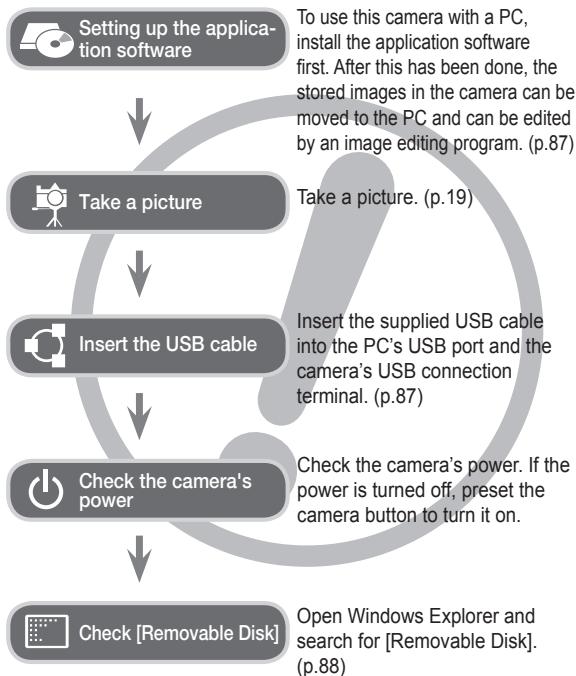
Use this camera in the following order.
flowchart
graph TD
    A["Setting up the application software"] --> B["Take a picture"]
    B --> C["Insert the USB cable"]
    C --> D["Check the camera's power"]
    D --> E["Check [Removable Disk"]]
    A --> F["To use this camera with a PC, install the application software first. After this has been done, the stored images in the camera can be moved to the PC and can be edited by an image editing program. (p.87)"]
    B --> G["Take a picture. (p.19)"]
    C --> H["Insert the supplied USB cable into the PC's USB port and the camera's USB connection terminal. (p.87)"]
    D --> I["Check the camera's power. If the power is turned off, preset the camera button to turn it on."]
    E --> J["Open Windows Explorer and search for [Removable Disk"]. (p.88)]
Getting to know your camera
Thank you for buying a Samsung Digital Camera.
- Prior to using this camera, please read the user manual thoroughly.
- If you require After Sales service, please bring the camera and the cause of the camera malfunction (such as battery, memory card etc.) to an Authorised Service center.
- Please check that the camera is operating properly prior to when you intend to use it (e.g. for a trip or an important event) to avoid disappointment. Samsung takes no responsibility for any loss or damage that may result from camera malfunction.
- Keep this manual in a safe place.
- If you use a card reader to copy the images on the memory card to your PC, the images could be damaged. When transferring the images taken with the camera to your PC, be sure to use the supplied USB cable to connect the camera to your PC. Please note that the manufacturer holds no responsibility for loss or damage of images on the memory card due to the use of a card reader.
- The contents and illustrations of this manual are subject to change without prior notice for upgrading the camera functions.
※ Microsoft, Windows and Windows logo are registered trademarks of Microsoft Corporation incorporated in the United States and/or other countries.
※ Adobe and Reader are either trademarks or registered trademarks in the United States and/or other countries.
※ All brand and product names appearing in this manual are registered trademarks of their respective companies.
※ For Open Source License information, refer to the "OpenSourceInfo.pdf" in the provided CD-ROM.
Danger
DANGER indicates an imminently hazardous situation which, if not avoided, will result in death or serious injury.
- Do not attempt to modify this camera in any way. To do so may result in fire, injury, electric shock or severe damage to you or your camera. Internal inspection, maintenance and repairs should only be carried out by your dealer or Samsung Camera Service center.
- Please do not use this product in close proximity to flammable or explosive gases, as this could increase the risk of explosion.
- Should any form of liquid or a foreign object enter the camera, do not use it. Switch off the camera, and then disconnect the power source. You must contact your dealer or Samsung Camera Service center. Do not continue to use the camera as this may cause a fire or electric shock.
- Do not insert or drop metallic or inflammable foreign objects into the camera through access points e.g. the memory card slot and battery chamber. This may cause a fire or electric shock.
- Do not operate this camera with wet hands. This could pose a risk of electric shock.
Warning
WARNING indicates a potentially hazardous situation which, if not avoided, could result in death or serious injury.
- Do not use the flash in close proximity to people or animals. Positioning the flash too close to your subject's eyes may cause eyesight damage.
- For safety reasons keep this product and accessories out of reach of children or animals to prevent accidents e.g.:
- Swallowing battery or small camera accessories. If an accident should occur, please consult a doctor immediately.
- There is the possibility of injury from the camera's moving parts.
- Battery and camera may become hot during prolonged use and it may result in camera malfunction. Should this be the case, allow the camera to sit idle for a few minutes to allow it time to cool.
- Do not leave this camera in places subject to extremely high temperatures, such as a sealed vehicle, direct sunlight or other places of extremes in temperature. Exposure to extreme temperatures may adversely affect the camera's internal components and could cause a fire.
- When in use, do not cover the camera or charger. This may cause heat to build up and distort the camera body or cause a fire. Always use the camera and its accessories in a well ventilated area.
CAUTION indicates a potentially hazardous situation which, if not avoided, may result in a minor or moderate injury.
- Leaking, overheating or damaged battery could result in fire or injury.
- Use battery with the correct specification for the camera.
- Do not short circuit, heat or dispose of battery in fire.
- Do not insert the battery with the polarities reversed.
- Remove the battery when not planning to use the camera for a long period of time. Otherwise the battery may leak corrosive electrolyte and permanently damage the camera's components.
- Do not fire the flash while it is in contact with hands or objects. Do not touch the flash after using it continuously. It may cause burns.
- Do not move the camera while it is switched on if you are using the AC adapter. After use, always switch off the camera before unplugging the cable from the wall socket. Then make sure that any connector cords or cables to other devices are disconnected before moving the camera. Failure to do so may damage the cords or cables and cause a fire or electric shock.
- Take care not to touch the lens or lens cover to avoid taking an unclear image and possibly causing camera malfunction.
- Avoid obstructing the lens or the flash when you capture an image.
- When using this camera in low temperatures, you may experience the following. These are not camera malfunctions and usually recover at normal temperature.
- It takes longer to turn on the LCD monitor and the color may differ from the subject.
- When changing the composition, there may be an after image on the LCD monitor.
- Credit cards may be demagnetized if left near the case. Avoid leaving magnetic strip cards near the case.
- Using an AC adapter that doesn't match with the camera specification may cause camera malfunction. We recommend supplied battery or exclusive rechargeable battery.
※ Available AC adapter :
⊕—●—⊖ Voltage: 3.3V, Ampere: 2.0A, Diameter: Φ 2.35
- After turning on the camera, Check whether the battery type and the camera setting set on the [Settings] > [Battery Type] menu (p. 55) are same.
READY 007 System chart
007 Package Contents
007 Sold Separately
008 Identification of features
008 Front & Top
009 Back
010 Bottom
010 5 Function button
011 Self-timer lamp
011 Camera Status Lamp
011 Mode icon
012 Connecting to a power source
013 Inserting the memory card
014 Instructions on how to use the memory card
016 When using the camera for the first time
RECORDING 017 LCD monitor indicator
018 How to use the menu
019 Starting the recording mode
019 Selecting modes
019 How to use the Smart Auto mode
021 How to use the Program mode
021 How to use the DIS mode
022 Using the Photo Help Guide mode
023 How to use the Scene modes
024 How to use the Movie mode
025 Recording the movie clip without sound
025 Pausing while recording a movie clip (Successive Recording)
026 Things to watch out for when taking pictures
027 Using the camera buttons to set the camera
027 POWER button
027 SHUTTER button
027 ZOOM button
029 Info (DISP) / Up button
029 Macro / Down button
031 Focus lock
031 Flash / Left button
033 Self-timer / Right button
035 MENU button
035 OK button
035 Shooting
036 How to enable functions using the MENU button
036 Photo Size / Movie Size
037 Quality / Frame rate
037 Exposure compensation 038 ISO
038 White balance
039 Face Detection
041 Face Tone
041 Face Retouch
042 Auto Focus type
042 Metering
043 Photo Style Selector
044 Image Adjust
045 ACB
045 Drive mode
046 Voice Memo
046 Voice Recording
047 Recording the movie clip without voice
052 Time Zone
052 File name
053 Imprinting the recording date
053 Auto power off
054 Auto Focus lamp
054 Selecting Video out type
055 Setting the USB
055 Selecting a battery type
SETUP 048 Sound
048 Volume
048 Start up sound
048 Shutter sound
048 Beep sound
049 AF sound
049 Display
049 Language
049 Function Description
050 Start up image
050 Display Brightness
050 Quick View
050 Display Save
051 Settings
051 Formatting the memory
051 Initialization
052 Setting up the Date / Time / Date type
PLAY 056 Starting play mode
056 Playing back a still image
056 Playing back a movie clip
057 Movie clip capture function
057 Playing back a recorded voice
057 Playing back a voice memo
058 LCD monitor Indicator
059 Using the camera buttons to set the camera
059 Thumbnail / Enlargement button
059 Smart Album
061 Info (DISP) / Up button
061 Play & Pause / OK button
062 Left / Right / Down / MENU button
062 Delete button
063 Setting up the play back function using the LCD monitor
065 Edit
065 Resize
066 Rotating an image
066 Photo Style Selector
067 Image Adjust
069 Starting the Multi Slide Show
069 Start the Multi Slide Show
069 Selecting Images
070 Configure Multi Slide show effects
070 Setting play interval
070 Setting Background Music
071 File Options
071 Deleting images
071 Protecting images
072 Voice memo
073 DPOF
075 Copy to Card
076 PictBridge
077 PictBridge : Picture Selection
077 PictBridge : Print Setting
078 PictBridge : Reset
078 Important notes
080 Warning indicator
081 Before contacting a service center
083 Specifications
SOFTWARE
086 Transferring files to your computer (for Windows)
086 For Windows users
090 Transferring files to your computer (for Mac)
090 For Mac users
092 FAQ
System chart
Please check that you have the correct contents before using this product. The contents can vary depending on the sales region. To buy the equipment contact your nearest Samsung dealer or Samsung service center. Parts and accessories illustrated below may differ from exact appearance.
Package Contents
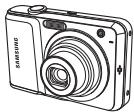 |  | 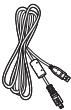 |  |  |  |
| Camera | AA Alkaline Batteries | USB cable | Camera strap | Software CD (User manual included) | Quick Start Manual |
Sold Separately
 | [DYSX] |  | 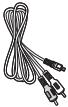 | 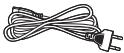 |  |
| SD/SDHC memory card(see p.15) | Rechargeable battery | Charger | AV cable | AC cord | Camera case |
Front & Top
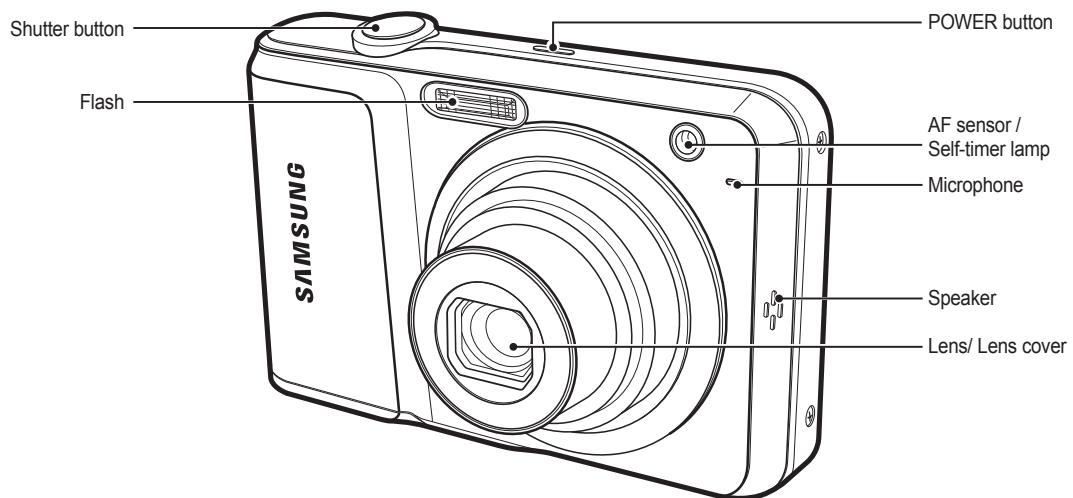
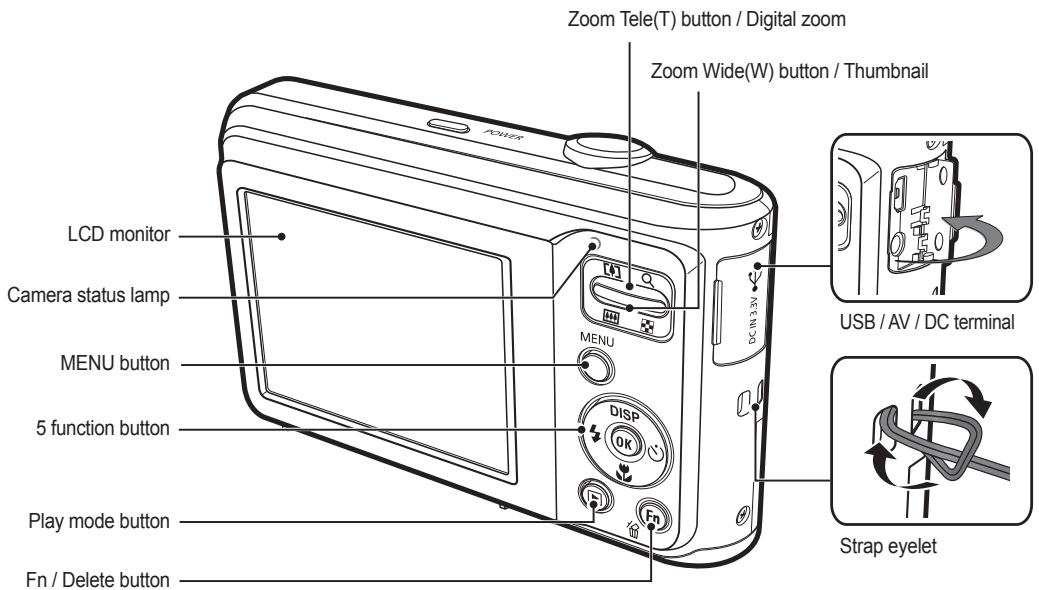
Back
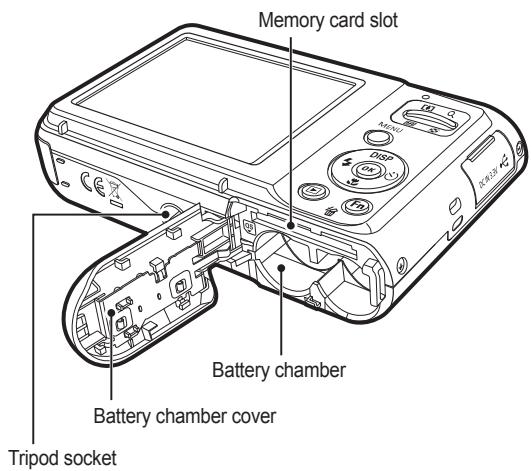
Bottom
5 Function button
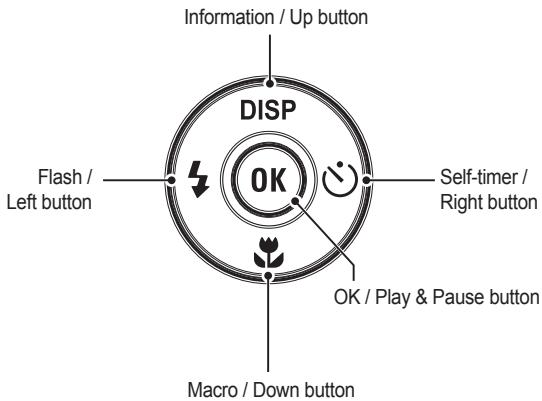
Self-timer lamp
| Icon | Status | Description |
| (cerved) | Blinking | - For the first 8 seconds, the lamp blinks at 1 second intervals.- For the final 2 seconds, the lamp blinks quickly at 0.25 seconds intervals. |
| (cover) | Blinking | For the 2 seconds, the lamp blinks quickly at 0.25 seconds intervals. |
| (dress) | Blinking | A picture will be taken after about 10 seconds and 2 seconds later a second picture will be taken. |
| (gass) | Blinking | After pressing the Shutter button, the image is taken in accordance with the subject's movement. |
Camera Status Lamp
| Status | Description |
| Power on | The lamp turns on and off when the camera is ready to take a picture |
| After taking a picture | The lamp blinks while saving the image data and turns off when the camera is ready to take a picture |
| When flash battery is charging | The lamp blinks |
| When the USB cable is inserted to a PC | The lamp lights up (LCD monitor turns off after initializing the device) |
| Transmitting Data with a PC | The lamp blinks (LCD monitor turns off) |
| When the USB cable is inserted into a printer | The lamp is off |
| When the printer is printing | The lamp blinks |
| When the AF activates | The lamp turns on (The camera focus on the subject) |
| The lamp blinks (The camera doesn’t focus on the subject) |
Mode icon
| MODE | Smart Auto | Program | DIS | Photo Help Guide |
| ICON |  |  | ||
| MODE | Scene | Movie | ||
| ICON |  |  | ||
| MODE | SCENE | |||
| Beauty Shot | Frame Guide | Night | Portrait | |
| ICON |  |  |  | |
| MODE | Children | Landscape | Close up | Text |
| ICON |  |  |  | |
| MODE | Sunset | Dawn | Backlight | Fireworks |
| ICON |  |  | ||
| MODE | Beach&Snow | |||
| ICON |  | |||
Connecting to a power source
We recommend batteries for a digital camera (Within a year from the date of manufacture). The batteries are listed below.
- Non rechargeable batteries : 2 X AA Alkaline (High Capacity)
- Rechargeable batteries (Optional) : SNB-2512 (Ni-MH)
■ SNB-2512 rechargeable battery Specification
| Model | SNB-2512 |
| Type | Ni-MH |
| Capacity | 2500mAh |
| Voltage | 1.2V x 2 |
| Charging time | Approximately 300 Minutes (Use for SBC-N2) |
※ Included battery may vary depending on sales region.

Important information about battery usage.
- When camera is not in use, turn off the power.
- Please remove the battery if the camera will not be used for long periods. Batteries can lose power over time and are prone to leaking if kept inside the camera.
- Low temperatures (below 0°C) can affect the performance of the battery and you may experience reduced battery life.
- Batteries will usually recover at normal temperatures.
- During extended use of the camera, the camera body may become warm. This is perfectly normal.
- It is easy to buy alkaline batteries. However, the duration for using batteries varies in accordance with the battery manufacturer or the photographic conditions
- Do not use manganese batteries as manganese batteries cannot deliver sufficient power.
- For this camera, it recommended that a high-capacity battery (alkaline, nickel-hydride) is used. If another battery is used, the camera's usage time may be lowered.
- Battery shall not be exposed to excessive heat such as sunshine, fire or the like.
Connecting to a power source
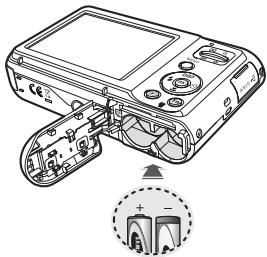
■ Insert the battery as shown
- If the camera does not turn on after you have inserted battery, please check whether the battery (+ / -) direction is right.
- When the battery chamber cover is open do not force the battery chamber cover, this may damage it.
natural_image
Technical line drawing of a handheld electronic device with internal components and a close-up inset showing two buttons (no text or symbols)■ There are 4 indicators for battery condition that are displayed on the LCD monitor.
| Battery indicator | ||||
| Battery status | The battery is fully charged | Low battery capacity (Prepare to recharge or use spare battery) | Low battery capacity (Prepare to recharge or use spare battery) | Battery empty (Recharge or use spare battery) |
※ When using the camera and the battery in a place that is excessively cold or hot, the battery status on the LCD may be different from the actual battery status.
Inserting the memory card
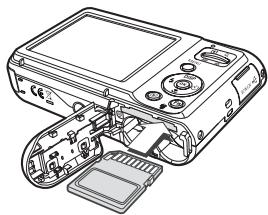
■ Insert the memory card as shown.
- Turn off the camera's power before inserting the memory card.
- Have the front label of the memory card facing toward the front of the camera (Lens) and the card pins toward the back of the camera (LCD monitor).
- Do not insert the memory card the wrong way around. Doing so may damage the memory card slot.
natural_image
Technical line drawing of a device with internal components and a paper clip (no text or symbols)Instructions on how to use the memory card
- Be sure to format the memory card (see p.51) if you are using a newly purchased memory card for the first time, if it contains data that the camera cannot recognize, or if it contains images captured with a different camera.
- Turn off the camera power whenever the memory card is being inserted or removed.
- Repeated use of the memory card will eventually reduce the memory card's performance. Should this be the case, you will need to purchase a new memory card. Wear and tear on the memory card is not covered by the Samsung warranty.
- The memory card is an electronic precision device. Do not bend, drop or subject the memory card to any heavy impact.
- Do not store the memory card in an environment with strong electronic or magnetic fields, e.g. near loud speakers or TV receivers.
- Please do not use or store in an environment where there are extremes in temperature.
- Do not allow the memory card to become dirty or to come into contact with any liquid. Should this happen, clean the memory card with a soft cloth.
- Please keep the memory card in its case when not in use.
- During and after periods of extended use, you may notice that the memory card is warm. This is perfectly normal.
- Do not use a memory card that is used in another digital camera. To use the memory card in this camera, format the memory card before using this camera.
- Do not use a memory card formatted by another digital camera or memory card reader.
- If the memory card is subjected to any of the following, the recorded data may become corrupted :
- When the memory card is used incorrectly.
- If the power is switched off or the memory card is removed while recording, deleting (formatting) or reading.
- Samsung cannot be held responsible for lost data.
- It is advisable to copy important data onto other media as backup e.g. hard disks, CD etc.
- If there is insufficient memory available :
A [Memory Full] message will appear and the camera will not operate. To optimize the amount of memory in the camera, replace the memory card or delete unnecessary images stored on the memory card.

- Don't remove the memory card when the camera status lamp is blinking as this may cause damage to data on the memory card.
Instructions on how to use the memory card
The camera can use SD/SDHC Memory Cards.
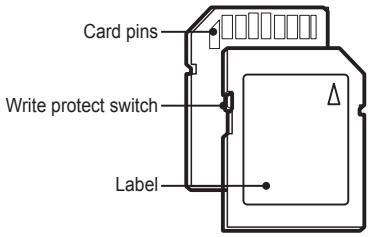
[SD (Secure Digital) memory card]
- The SD/SDHC memory card has a write protect switch that prevents image files from being deleted or formatted. By sliding the switch to the bottom of the SD/SDHC memory card, the data will be protected. By sliding the switch to the top of the SD/SDHC memory card, the data protection will be cancelled.
- Slide the switch to the top of the SD/SDHC memory card before taking a picture.
When using a 1GB SD memory, the specified shooting capacity will be as follows. These figures are approximate as image capacities can be affected by variables such as subject matter and memory card type.
| Recorded image size | Super Fine | Fine | Normal | 30 FPS | 15 FPS | |
| Still image | 12M | About 147 | About 284 | About 403 | - | - |
| 10M | About 167 | About 309 | About 441 | - | - | |
| 9M | About 202 | About 367 | About 528 | - | - | |
| 8M | About 211 | About 374 | About 537 | - | - | |
| 5M | About 339 | About 566 | About 792 | - | - | |
| 3M | About 532 | About 802 | About 1065 | - | - | |
| 2M | About 870 | About 1144 | About 1437 | - | - | |
| 1M | About 1471 | About 1670 | About 1872 | |||
| *Movie clip | 640 | - | - | - | About 9'54" | About 18'58" |
| 320 | - | - | - | About 26'24" | About 49'23" | |

- The zoom button doesn't function during the movie recording.
- The recording times can be changed by the zoom operation.
- You can record videos of up to 4GB or 2hours each.
When using the camera for the first time
■ When the camera is turned on for the first time, a menu will be displayed on the LCD monitor to set date, time, time zone, language and battery type. This menu will not be displayed again after setting up the date, time, time zone, language and battery type. Set up the date, time, time zone, language and battery type before using this camera.
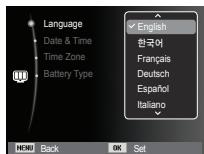
■ Setting up the language
- Select the [Language] menu by pressing the Up/Down button and press the Right button.
- Select the desired sub menu by pressing the Up/Down button and press the OK button.
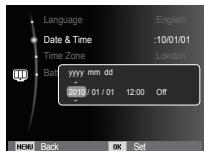
■ Setting up the date, time and date type
- Select the [Date&Time] menu by pressing the Up/Down button and press the Right button.
- Select the desired sub menu by pressing the Up/Down/Left/Right button and press the OK button.
Left/Right button : Selects world time/year/month/day/hour/minute/date type.
Up/Down button : Changes the value of each item.
■ Setting up the Time Zone
- Select the [Time Zone] menu by pressing the Up/Down button and press the Right button.
- Press the Left/Right button to select the desired mode.
![Time Zone London [GMT +00:00] 2010/01/01 12:00 PM MENU Back ▲ DST](/content/2025/01/98568/images/df751cdb491dfd42be6ba8a16a908e2ff1584c8bbd27e5d7de42269093548120.jpg)
※ For more information about the World Time, refer to the p.52.
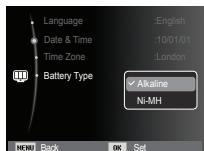
■ Setting up the battery type
- Select the [Battery Type] menu by pressing the Up/Down button and press the Right button.
- Select the desired sub menu by pressing the Up/Down button and press the OK button.
- If a battery type is selected, the camera will be optimized according to the selected battery type.
[Battery Type] sub Menu : [Alkaline] / [Ni-MH]
※ For more information about the battery type, refer to the page 55.
LCD monitor indicator
■ The LCD monitor displays information about the shooting functions and selections.
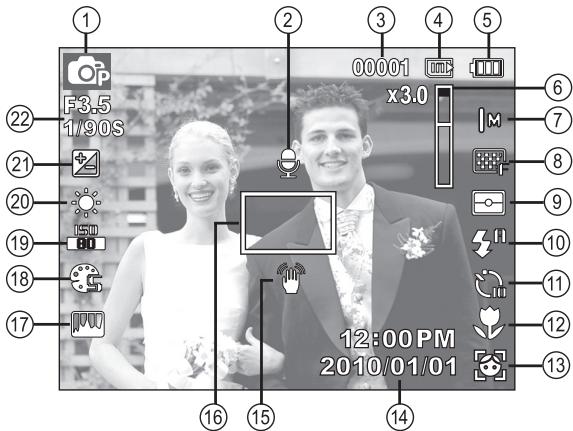
[Image & Full Status]
| No. | Description | Icons | Page |
| 1 | Recording mode |  | p.19 |
| 2 | Voice Memo | p.46 | |
| 3 | Number of available shots remaining | 00001 | p.15 |
| Remaining time | 00:00:00 | p.15 | |
| 4 | Memory card icon / Internal memory icon |  | - |
| No. | Description | Icons | Page | |||
| 5 | Battery | [0THY] | [BGX6] |  |  | p.13 |
| 6 | Optical / Digital Zoom bar / Digital Zoom rate | [0BYH] | p.27 | |||
| 7 | Photo Size / Movie Size | [4A4H6] |  | [DKK4X] |  |  |
| 3M | [Σ465] | [0H2A] | [0GZZ] | [BXCA] | ||
| 8 | Image Quality / Frame Rate | [4KXT7] |  | [ΣZAAX] | [XKK5] | [0KDZA] |
| 9 | Metering |  | [0SD4] |  | ||
| 10 | Flash | [0T7] | [0TWY] | [0WT7] | [0DWY] | [0WT7] |
| [00000] | ||||||
| 11 | Self-timer / Drive mode | [00Y7] | [0YWD] | [0N7A] | / | |
| [TS76] | [0YUT7] | [0Z26] | ||||
| 12 | Macro | [0PTG] | [0W48] | |||
| 13 | Face Detection · Self-Portrait · Smile Shot · Blink Detection | [0WAT] | [0Z20] | [0LPT] | [0K20] | |
| 14 | Date / Time | 2010/01/01 12:00 PM | p.52 | |||
| 15 | Camera shake warning | [0P40] | p.26 | |||
| 16 | Auto Focus Frame | [0Y63] | p.42 | |||
| 17 | Image adjust | [0TCG] | p.44 | |||
| 18 | Photo Style Selector | p.43 | ||||
| 19 | ISO / Face Retouch / Without voice | p.38/41 | ||||
| 47 | ||||||
| 20 | White Balance / Face Tone | p.38/41 | ||||
| 21 | Exposure compensation | [0S40] | p.37 | |||
| 22 | Aperture Value / Shutter Speed | [0WNAI] | [0D40] | - | ||
- Turn on the camera and press the MENU button. A menu for each camera mode appears.
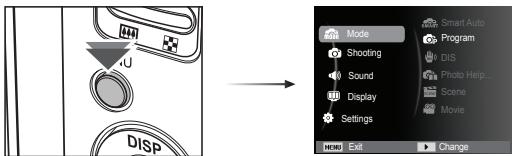
- Use the up or down button to navigate through the menus.

flowchart
graph LR
    A["Mode"] --> B["Shooting"]
    B --> C["Sound"]
    C --> D["Display"]
    D --> E["Settings"]
    F["Smart Auto"] --> G["Program"]
    G --> H["DIS"]
    H --> I["Photo Help..."]
    I --> J["Scene"]
    J --> K["Movie"]
    L["Press the Up or Down button."] --> M["Mode"]
    M --> N["Shooting"]
    N --> O["Sound"]
    O --> P["Display"]
    P --> Q["Settings"]
    R["Photo Size"] --> S["Quality"]
    S --> T["EV"]
    T --> U["ISO"]
    U --> V["White Balance"]
    V --> W["Face Detection"]
    W --> X["Focus Area"]
    Y["Press the Up or Down button."] --> Z["Mode"]
    Z --> AA["Shooting"]
    AA --> AB["Sound"]
    AB --> AC["Display"]
    AC --> AD["Settings"]
    AE["Volume"] --> AF["Start Sound"]
    AF --> AG["Shutter Sound"]
    AG --> AH["Beep Sound"]
    AH --> AI["AF Sound"]
    AJ["Change"] --> AK["Exit"]
- Use the left or right button to select a sub menu.

- Select a submenu and click the OK button to save settings and return to the previous window.
Selecting modes
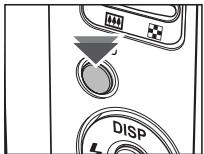
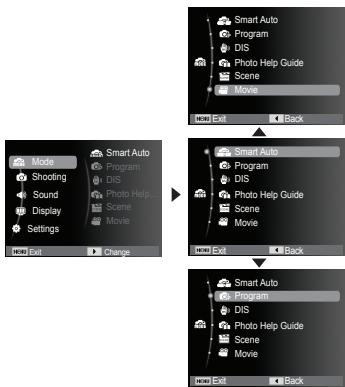
You can select the shooting modes by using the MENU button on the back of your camera.
■ How to use the MENU button
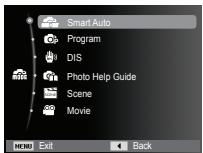
- Press the MENU button and a menu will be displayed.
- Press the Up / Down button to select the [Mode] menu and press the Right button.
- Select a desired mode by pressing the Up / Down button and then press the OK button.
flowchart
graph TD
    A["Smart Auto"] --> B["Program"]
    B --> C["DIS"]
    C --> D["Photo Help Guide"]
    D --> E["Scene"]
    E --> F["Movie"]
    F --> G["Exit"]
    G --> H["Back"]
    I["Mode"] --> J["Smart Auto"]
    J --> K["Program"]
    K --> L["DIS"]
    L --> M["Photo Help Guide"]
    M --> N["Scene"]
    N --> O["Movie"]
    O --> P["Exit"]
    P --> Q["Back"]
    R["Shooting"] --> S["Program"]
    S --> T["DIS"]
    T --> U["Photo Help Guide"]
    U --> V["Scene"]
    V --> W["Movie"]
    W --> X["Exit"]
How to use the Smart Auto mode(

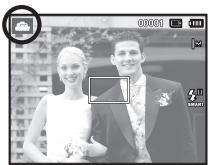
The camera automatically chooses the appropriate camera settings based on a detected type of scene. It will be helpful if you are not familiar with the camera settings for various scenes.
- Insert the battery (p.13). Insert the battery taking note of the polarity (+ / -).
-
Insert the memory card (p.13). As this camera has a 9.8MB internal memory, you do not need to insert the memory card. If the memory card is not inserted, an image will be stored on the internal memory. If the memory card is inserted, an image will be stored on the memory card.
-
Close the battery chamber cover.
- Press the POWER button to turn on the camera.
- Select the Smart Auto mode by pressing the MENU button.
- Point the camera towards the subject and compose the image by using the LCD monitor.
- Press the Shutter button to capture an image.
natural_image
Black-and-white wedding photo of a couple in formal attire, no visible text or symbolsStarting the recording mode

- If the camera does not recognize a proper scene mode, the default settings will be used.
- Even if there is a face detected, the camera may not select a portrait mode depending on the subject's position or lighting.
- The camera may not select the correct scene depending on shooting environments, such as camera shake, lighting and distance to the subject.
- The [Night] mode recognizes scenes only when the flash is set to off. The camera operates the [Tripod] mode after checking the shooting condition on the tripod for a certain time.
- Despite using a tripod, the camera may not select a tripod mode depending on the subject's movement.
■ Each scene is recognized in the following conditions;
[Landscape]

): When shooting outdoor scenes
[White]

): When shooting a white background
[Night]

): When shooting the nighttime scenes
[Night Portrait]

): When shooting people in a dark outdoor place
[Backlight]

): When shooting a backlit scenery without a portrait
[Backlight Portrait]

): When shooting a backlit portrait
[Portrait]

): When shooting a portrait
[Macro]

): When shooting close-ups
[Macro Text]

): When shooting texts in a close focus
[Tripod]

): When shooting a subject that doesn't move for a certain time after the camera is mounted on the tripod (available only when the camera recognizes it as nighttime)
[Action]

): When shooting a subject making frequent movements
[Macro Portrait]

): When shooting close-up portrait shot
[Blue Sky]

): When shooting blue sky
[Sunset Sky]

): When shooting sunset
[Macro Color]

): When shooting close-up shot for the subject with various colors
[Natural Green]

): When shooting nature such as forest and leaves
How to use the Program mode ( [IMAGE] )
Selecting the automatic mode will configure the camera with optimal settings. You can still manually configure all functions except the aperture value and shutter speed.
- Select the Program mode by using the MENU button. (p.19)
- Press the MENU button to configure advanced functions.
![SAMSUNG ES25 - How to use the Program mode ( [IMAGE] ) - 1](/content/2025/01/98568/images/4c8884304bb6d4c64e07c10bc91c259b816759b3cb10a026c2f3599fad742e87.jpg)
natural_image
Black-and-white wedding photo of a couple, no visible text or symbolsHow to use the DIS mode ( 🎨 )
Digital Image Stabilization (DIS) mode.
This mode will reduce the effect of camera shake and help you get a well exposed image in dim conditions.
- Select the DIS mode by using the MENU button. (p.19)
- Point the camera towards the subject and compose the image by using the LCD monitor.
- Press the Shutter button to capture an image.
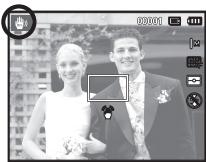
natural_image
Black-and-white wedding photo of a couple in formal attire, no visible text or symbols■ Things to watch out for using the DIS mode
- The digital zoom will not operate in the DIS mode.
- If the lighting condition is brighter than fluorescent lighting conditions, the DIS will not activate.
- If the lighting condition is darker than fluorescent lighting conditions, camera shake warning indicator ( ) will display. For best results only take pictures in situations where the camera shake warning indicator ( ) is not displayed.
- If the subject is moving, the captured image may be blurred.
- As the DIS uses the camera's digital signal processor, it may take a little longer for the camera to process and save the images.
Using the Photo Help Guide mode ( [icon] )
Helps the user learn the correct picture taking method and includes solutions for potential problems that may occur. This also enables the user to practice the best way to take the pictures.
![SAMSUNG ES25 - Using the Photo Help Guide mode ( [icon] ) - 1](/content/2025/01/98568/images/b6b50e3f9227031b9b77bbf38104155a39c795d7dec4e07a9aba7660cb9a96f3.jpg)
Available functions of the photo help guide
- Functions that can be used when focusing is difficult
- Functions that can be used when the image is blurred
- Functions that can be used when filming in the dark
- Functions that can be used when adjusting the picture brightness
- Functions that can be used when adjusting the picture color
![SAMSUNG ES25 - Using the Photo Help Guide mode ( [icon] ) - 2](/content/2025/01/98568/images/d1bc75340ce0de8f6022e6bdcbe3f8c5397c1106c65d6aa97fc87a77a01383cf.jpg)
flowchart
graph TD
    A["Photo Help Guide"] --> B["Pressing the Left/Right button"]
    B --> C["Pressing the OK button"]
    C --> D["Photo Help Guide"]
    D --> E["Pressing the Left/Right button"]
    E --> F["Pressing the OK button"]
    F --> G["Photo Help Guide"]
    G --> H["Pressing the Up/Down button"]
    H --> I["Pressing the OK button"]
    I --> J["Photo Help Guide"]
    J --> K["Pressing the Shutter button"]
    K --> L["Photo Help Guide"]
    L --> M["Pressing the OK button"]
    M --> N["Photo Help Guide"]
    N --> O["Pressing the Up/Down button"]
    O --> P["Photo Help Guide"]
[Function that can be used when focusing is difficult]
How to use the Scene modes ( SCENE )
Use the menu to easily configure optimal settings for a variety of shooting situations.
- Select the Scene mode by using the MENU button. (p.19)
- Press the Right button, then press the Up/Down button to select the desired mode.
- Point the camera towards the subject and compose the image by using the LCD monitor.
- Press the shutter button to capture an image.
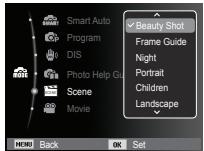
The scene modes are listed below.
[Beauty Shot] ( ) : Take a photo of portraits by setting options to clear facial imperfections.
[Frame Guide] ( ) : Use this mode when you want someone else to take a picture for you from the angle you choose.
[Night] ( ) : Use this for shooting still images at night or in other dark conditions.
[Portrait] ( ) : To take a picture of a person.
[Children] ( ) : To take a picture of fast moving objects, for example: children
[Landscape] ( ) : To take pictures of distant scenery.
[Close Up] ( ) : Close-up shooting for small objects such as plants and insects.
[Text] (T) : Use this mode to shoot a document.
[Sunset] ( ) : For taking pictures of sunsets.
[Dawn] ( ) : Daybreak scenes.
[Backlight] ( ) : Portrait without shadows caused by backlight.
[Fireworks] ( ) : Firework scenes.
[Beach&Snow] ( ) : For ocean, lake, beach and snowscape scenes.
■ How to use the [Frame Guide] mode
Set [Frame Guide] mode when you want someone else to take a picture for you from the angle you choose.
- Take a picture from the angle you choose.
- A guide appears around the sides of the picture.
- Then another person can take the picture by aligning the edge of the picture to be taken with the guide framing the sides of the window.
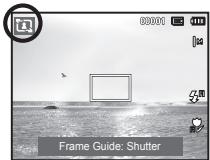
Guide
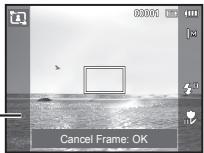
natural_image
Black-and-white photo of a coastal scene with a bird flying over water and a rectangular frame, no visible text or symbols.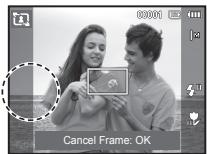
natural_image
Black-and-white photo of a couple outdoors, no visible text or symbolsHow to use the Movie mode ( )
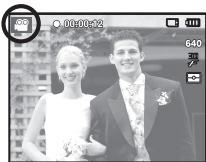
A movie clip can be recorded for as long as the available recording time of the memory capacity allows. (Max.2 hours)
- Select the Movie mode by using the MENU button. (p.19)
- Point the camera towards the subject and compose the image by using the LCD monitor.
- Press the shutter button once and movie clips are recorded for as long as
the available recording time (Max.2 hours) allows. Movie clips will still be recorded if the shutter button is released. If you wish to stop recording, press the shutter button again.
※ Movie clip size and type are listed below.
- Movie clip size : 640x480, 320x240 (selectable)
- Movie clip file type : AVI (MJPEG)
- Frame Rate : 30 FPS, 15 FPS (selectable)
natural_image
Black-and-white wedding photo of a couple in formal attire, no visible text or symbolsRecording the movie clip without sound
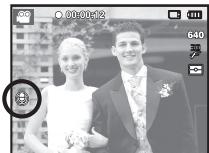
You can record the movie clip without sound.
Steps from 1-3 are the same as those for Movie mode.
- Press the MENU button.
- Press the Up / Down button to select the [Movie] menu and press the Right button.
- Select the [Voice] menu by pressing the Up / Down button and press the OK button.
- Select the [Off] menu by pressing the Left / Right button.
- Press the OK button. You can record a movie without sound.
※ See p.47 for further details.
natural_image
Black-and-white wedding photo of a couple in formal attire, no visible text or symbolsPausing while recording a movie clip (Successive Recording)
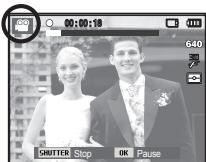
This camera allows you to temporarily stop during unwanted scenes while recording a movie clip. Using this function, you can record your favorite scenes into a movie clip without having to create multiple movie clips.
■ Using Successive Recording
Steps from 1-2 are the same as those for Movie mode.
- Press the shutter button and movie clips are recorded for as long as the available recording time. (Max.2 hours) Movie clips will still be recorded if the shutter button is released.
- Press the OK button to pause recording.
- Press the OK button again to resume the recording.
- If you wish to stop recording, press the shutter button again.
Things to watch out for when taking pictures
- Pressing the shutter button down half way. Lightly press the shutter button to confirm focus and flash battery charge. Press the shutter button all way down to take the picture.
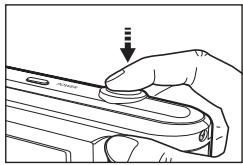
natural_image
Hand holding a button on a device (no text or symbols visible)[Lightly press the shutter button]
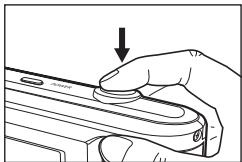
natural_image
Hand holding a button on a device component, no text or symbols visible[Press the shutter button]
- The available memory capacity may vary depending on shooting conditions and camera settings.
- When the Flash Off, Slow synchro mode or DIS mode is selected in a low lighting condition, the camera shake warning indicator ( ) may appear on the LCD monitor. In this case use a tripod to support the camera on a solid surface or change to flash shot mode.
- Shooting against the light : It is best to take pictures with the sun behind you. Taking pictures against the sun may make the picture come out dark. To take a picture against the light, please use the [Backlight] in scene shooting mode (p.23), fill-in flash (p.31), spot metering (p.42), exposure compensation (p.37) or ACB (p.45) function.
- Avoid obstructing the lens or the flash when you capture an image.
- Compose the image by using the LCD monitor.
- Under certain conditions the auto focus system may not perform as expected.
- When photographing a subject that has little contrast.
- If the subject is highly reflective or shiny.
- If the subject is moving at high speed.
- When there is strong reflected light, or when the background is very bright.
- When the subject matter has only horizontal lines or the subject is very narrow (such as a stick or flagpole).
- When the surroundings are dark.
Using the camera buttons to set the camera
The recording mode function can be set up by using the camera buttons.
POWER button
Used for turning the camera's power on / off. If there is no operation during the specified time, the camera's power will be turned off automatically to save battery life. Refer to p.53 for more information about the auto power off function.
SHUTTER button
Used for taking an image or recording a movie clip in the Recording mode.
- In Movie mode Pressing the shutter button down fully starts the process for recording a movie clip. Press the shutter button once and the movie clip is recorded for as long as the available recording time on the memory allows. If you
natural_image
Pure diagram of a mechanical component with no text, numbers, or symbolswish to stop recording, press the shutter button again.
- In Still image mode
Pressing the shutter button down halfway activates the autofocus and checks the condition of the flash. Pressing the shutter button down fully takes and stores the image. If you select voice memo recording, the recording will start after the camera has finished storing the image data.
ZOOM button
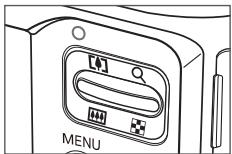
If the menu is not displayed, this button works as the OPTICAL ZOOM or DIGITAL ZOOM button.
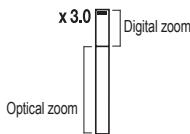
This camera has a 4X optical zoom and a 3X digital zoom function. Using both will offer a total zoom ratio of 12X.
natural_image
Line drawing of a device's menu with control panel and buttons (no text or symbols)■ TELE Zoom
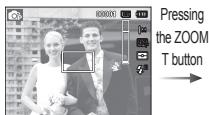
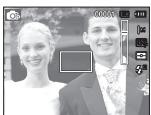
Optical zoom TELE : Pressing the ZOOM T button. This will zoom into the subject i.e. the subject will appear nearer.
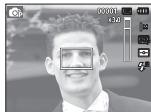
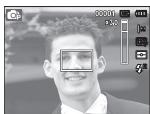
Digital zoom TELE : When the maximum (4X) optical zoom is selected, pressing the ZOOM T button activates the digital zoom software. Releasing ZOOM T button stops the digital zooming at the required setting. Once the maximum digital zoom (3X) is achieved, pressing the ZOOM T button will have no effect.
[WIDE zoom]
natural_image
Black-and-white photo of a smiling couple in wedding attire (no visible text or symbols)[TELE zoom]

natural_image
Portrait of a smiling man in formal attire with facial highlight (no visible text or symbols)[Digital zoom 3.0X]
■ WIDE Zoom Optical zoom WIDE
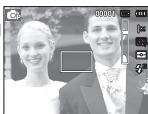
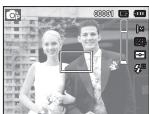
: Pressing the ZOOM W button. This will zoom out from the subject i.e. the subject will appear further away. Pressing the ZOOM W button continuously will set the camera to its minimum zoom setting i.e. the subject appears at its furthest from the camera.
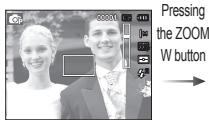
[TELE zoom]
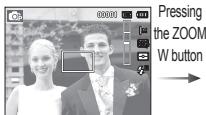
[Optical zoom 2X]
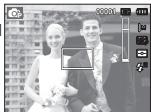
natural_image
Black-and-white wedding photo of a couple in formal attire, no visible text or symbols[WIDE zoom]
Digital zoom WIDE
: When the digital zoom is in operation, pressing the ZOOM W button will reduce the digital zooming in steps. Releasing ZOOM W button stops digital zooming. Pressing the ZOOM W button will reduce the digital zoom and then it will continue to reduce the optical zoom until the minimum setting is reached.
natural_image
Portrait of a smiling man in formal attire with facial highlight overlay (no text or symbols visible)[Digital zoom 3.0X]

natural_image
Black-and-white photo of a smiling couple in wedding attire (no visible text or symbols)[TELE zoom]

natural_image
Black-and-white wedding photo of a couple in formal attire, no visible text or symbols[WIDE zoom]

- Images taken using the digital zoom may take a little longer for the camera to process. Allow time for this to take place.
- If the ZOOM buttons are being pressed during the Movie shots, the voice will not be recorded.
- You may notice a decrease in image quality when using the digital zoom.
- To view a clearer digital zoom image, press the shutter button halfway at the maximum optical zoom position and press the ZOOM T button again.
- The digital zoom can't be activated in some Scene modes ([Beauty Shot], [Night], [Portrait], [Children], [Close up], [Text], [Fireworks]), DIS mode, Movie mode, [Self-Portrait], [Smile Shot], [Blink Detection] and [Face Detection].
- Take care not to touch the lens to avoid taking an unclear image and possibly causing camera malfunction. If the image is dim, turn the camera power off and on again to modify the lens position.
- Take care not to press the lens as this may cause the camera to malfunction.
- When the camera is turned on, take care not to touch the camera's moving lens parts as this may cause the resulting image to be dim and unclear.
- Take care not to touch the lens when operating the zoom button.
Info (DISP) / Up button
While the menu is showing, the Up button operates as a direction button. In the recording modes or playback mode, pressing this button will display the image information.
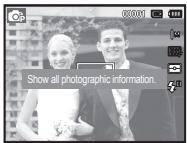
[Filming screen]
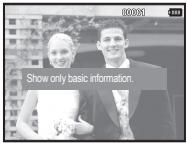
[Information screen]
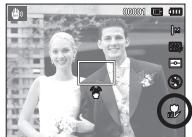
Macro ( ↘ ) / Down button
While the menu is showing, the Down button operates as a direction button.
When the menu is not showing, you can use the Macro (♥) / Down button to take macro pictures.
The focus ranges are shown on the next page.
Press the Macro button until the desired macro mode indicator appears on the LCD monitor.
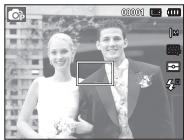
natural_image
Black-and-white wedding photo of a couple in formal attire (no visible text or symbols)[Auto Focus]
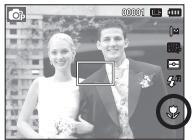
natural_image
Black-and-white wedding photo of a couple in formal attire (no visible text or symbols)[Macro ( ↓ )]
natural_image
Black-and-white wedding photo of a couple in formal attire, no visible text or symbols[Auto Macro

■ Types of focus mode and focus range (W : Wide, T : Tele)
(Unit: cm)
| Mode | Program ( [IMAGE] ) | |
| Focus Type | Macro ( [IMAGE] ) | Normal |
| Focus range | W : 5 ~ 80T : 70 ~ 100 | W : 80 ~ InfinityT : 80 ~ Infinity |
| Mode | DIS Mode ( [IMAGE] ) | |
| Focus Type | Auto macro ( [IMAGE] ) | Normal |
| Focus range | W : 5 ~ InfinityT : 70 ~ Infinity | W : 80 ~ InfinityT : 80 ~ Infinity |

- When the macro mode is selected, be particularly careful to avoid camera shake.
- When you take a picture within 40cm (Wide zoom) or 100cm (Tele zoom) in the Macro mode, select the Flash off mode.
■ Available focusing method, by recording mode
( o : Selectable, ∞ : Infinity focus range)
| Mode | Auto macro | Macro | Normal |
| 0 | 0 | ||
| 0 | 0 | ||
| 0 | 0 | ||
| 0 | 0 | ||
| Mode | SCENE | ||
| Auto macro | Macro | Normal | |
| 0 | |||
| 0 | |||
| 0 | |||
| 0 | |||
| 0 | |||
| 0 | |||
| 0 | |||
| 0 | |||
| 0 | |||
| 0 | |||
| 0 | |||
| ∞ | |||
| 0 | |||
Focus lock
To focus on a subject not positioned in the center of the picture, use the focus lock function.
■ Using the Focus Lock
- Ensure the subject is in the center of the autofocus frame.
- Press the shutter button halfway. When the green auto focus frame lights up, it means the camera is focused on the subject. Be careful not to press the shutter button all the way down to avoid taking an unwanted picture.
- With the shutter button still pressed down only halfway, move the camera to recompose your picture as desired, and then press the shutter button completely to take the picture. If you release your finger from the shutter button, the focus lock function will be cancelled.
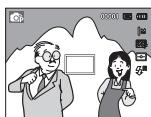
natural_image
Illustration of two people in business attire, one pointing and the other holding a phone (no text or symbols visible)- The image to be captured.
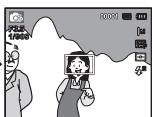
- Press the shutter button halfway and focus on the subject.
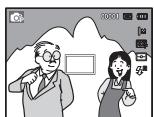
natural_image
Illustration of two people in a meeting, one pointing at a blank board, with no visible text or symbols.- Recompose the picture and fully depress the shutter button.
Flash (⚡) / Left button
When the menu is displayed on the LCD monitor, pressing the Left button makes the cursor shift to the left tab.
When the menu is not displayed on the LCD monitor, the Left button operates as the Flash (⚡) button.
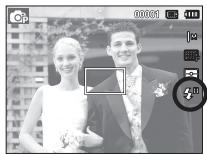
natural_image
Black-and-white wedding photo of a couple in formal attire (no visible text or symbols)[Selecting the Auto flash]
■ Selecting the flash mode
- Select a desired Recording mode, except the [Movie] mode and the [DIS] mode. (p.19)
- Press the Flash button until the desired flash mode indicator is displayed on the LCD monitor.
- A flash mode indicator will be displayed on the LCD monitor. Use the correct flash to suit the environment.
■ Flash range
(Unit: m)
| ISO | Normal | Macro | Auto macro | |||
| WIDE | TELE | WIDE | TELE | WIDE | TELE | |
| AUTO | 0.8~2.68 | 0.8~1.59 | 0.2~0.8 | 0.5~0.8 | 0.2~2.68 | 0.5~1.59 |

- If you press the shutter button after selecting the flash, the first flash fires to check the shooting condition (Flash range and Power ratio of flash). Do not move the camera until the second flash fires.
- Using the flash frequently will reduce the life of the battery.
- Under normal operating conditions the recharging time for the flash is usually within 4 seconds. If the battery is weak, the charging time will be longer.
- In the DIS mode, [Landscape], [Close up], [Text], [Sunset], [Dawn], [Fireworks] scene modes and the Movie mode, the flash function will not operate.
• Take photographs within the flash range. - The image quality is not guaranteed if the subject is too close or highly reflective.
- When taking an image in poorly lit conditions with the flash, there may be a white speck in the captured image. The speck is caused by the flash light reflecting off atmospheric dust.
■ Flash mode indicator
| Icon | Flash mode | Description |
 | Flash off | The flash does not fire.Select this mode when capturing images in a place or situation where flash photography is prohibited. When you capture an image in poorly lit conditions, the camera shake warning indicator ( [IMAGE] ) will appear on the LCD monitor. |
| [2W03] | Red-eye reduction | When a shot with "red eye" is detected, this mode will reduce the red-eye effect automatically. |
 | Slow synchro | The flash operates with a slow shutter speed to obtain a balanced correct exposure. In poor lighting conditions the camera shake warning indicator ( [IMAGE] ) will display on the LCD monitor. |
| ≈420 | Fill in flash | The flash fires regardless of the available light. The intensity of the flash will be automatically controlled to suit the prevailing conditions. |
 | Auto & Red eye reduction | If a subject or background is dark, the camera flash will work automatically and will reduce the red-eye effect by using the red-eye reduction function. |
| ≈420 | Auto flash | If the subject or background is dark, the camera flash will operate automatically. |
Flash (⚡) / Left button
■ Available flash mode, by recording mode (o : Selectable)
| Mode | ^A | ^S | ||||
| [327T] | 0 | 0 | 0 | 0 | 0 | 0 |
| [47CT] | 0 | |||||
| [628K] | 0 | 0 | 0 | 0 | 0 | 0 |
| [33BA] | 0 | |||||
| Mode | SCENE | |||||
| ^A | ^S | |||||
| 0 | 0 | 0 | ||||
| 0 | 0 | 0 | ||||
| 0 | 0 | 0 | ||||
| 0 | 0 | 0 | ||||
| 0 | 0 | |||||
| 0 | ||||||
| 0 | ||||||
| 0 | ||||||
| 0 | ||||||
| 0 | ||||||
| 0 | ||||||
| 0 | ||||||
| Mode | SCENE | |||||
| A | ∅ | ∅ | S | ∅ | ∅ | |
| 0 | 0 | 0 | ||||
| 0 | 0 | 0 | ||||
| 0 | 0 | 0 | ||||
| 0 | 0 | 0 | ||||
| 0 | 0 | |||||
| 0 | ||||||
| 0 | ||||||
| T | 0 | |||||
| 0 | ||||||
| 0 | ||||||
| 0 | ||||||
| 0 | ||||||
| 0 | ||||||
| 0 | ||||||

- Smart Auto Flash (SMART) icon will appear in [Smart Auto] mode.
Self-timer ( ⏻ ) / Right button
When the menu is displayed on the LCD monitor, pressing the Right button makes the cursor shift to the right tab.
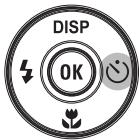
When the menu is not displayed on the LCD monitor, the Right button operates as the Self-timer ( ⚙ ) button. This function is used when the photographer would also like to be in the image.

- If you operate the self-timer button during the self-timer operation, the self-timer function is cancelled.
- Use a tripod to prevent the camera from shaking.
- In Movie mode, only the 10 Sec self-timer will work.
- Depending on the selected face detection option, the timer is not available or some timer options are not available.
■ Selecting the self-timer
- Select a Recording mode with the exception of Voice recording mode.(p.19)
- Press the Self-timer / Right ( Ⓤ ) button until the desired mode indicator displays on the LCD monitor. A 10 second, 2 second, Double self-timer or Motion timer icon appears on the LCD monitor.
- When you press the shutter button, the picture will be taken after the specified time has elapsed.
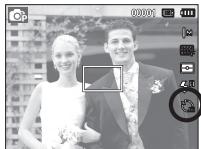
natural_image
Black-and-white wedding photo of a couple in formal attire (no visible text or symbols)[Selecting the 10 SEC self-timer]
■ Self-timer mode indicator
| Icon | Mode | Description |
| [2023H] | 10 Sec self-timer | Pressing the shutter button will allow an interval of 10 seconds before the image is taken. |
| [5G22S] | 2 Sec self-timer | Pressing the shutter button will allow an interval of 2 seconds before the image is taken. |
| [5GT3W] | Double self-timer | A picture will be taken after about 10 seconds and 2 seconds later a second picture will be taken. When using the flash, the 2-second self-timer may be delayed for longer than 2 seconds depending on the flash charging time. |
 | Motion Timer | The camera detects the subject's movement 6 seconds after pressing the Shutter button, and the picture is taken when the movement is stopped. |
■ Motion Timer
| Motion | Icon & Self-timer lamp |
| Pressing the Shuter button after setting the Motion Timer | Blink (1 second interval) |
| Detecting the subject's movement | Blink (0.25 second interval) |
| No movement is detected | Turn on and the image is taken after 2 seconds |
■ The Motion Timer flows are as followings. (Movie mode excluded)
Selecting the Motion Timer → Pressing the Shutter button → Confirming the composition (Within 6 sec.) ^1 → Starting the detection (Swing your hands fully) ^2 → Stopping the detection (Do not move) → Taking an image (after 2 sec.)
*1: The camera detects the subject's movement 6 seconds after pressing the Shtter button, so confirm the composition within 6 seconds.
*2: Move your body or hands fully.

In the following cases, the Motion Timer may not operate.
- The focus distance is over 3m.
- The exposure is too bright or too dark.
- In backlight conditions.
• The movement is insignificant. - The movement is detected beyond the center part (50%) of the sensor where the movement is recognized.
- If the camera doesn't sense any movement for 30 seconds, or the camera doesn't sense stillness after sensing movement.
The detection range of Motion Timer
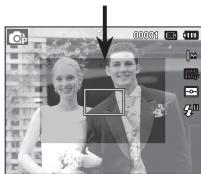
natural_image
Black-and-white wedding photo of a couple, no visible text or symbolsMENU button
- When you press the MENU button, a menu related to each camera mode will be displayed on the LCD monitor. Pressing it again will return the LCD to the initial display.
- A menu option can be displayed when the following are selected: Movie and Still image mode. There is no menu available when the voice recording function is selected.
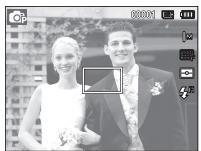
natural_image
Black-and-white wedding photo of a couple in formal attire (no visible text or symbols)[Menu off]
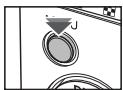
[Pressing the MENU button]
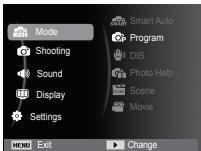
[Menu on]
OK button
- When the menu is displayed on the LCD monitor, this button is used for shifting the cursor to the sub menu or for confirming data.
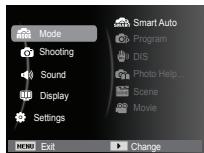
[Pressing the OK button]
Shooting ( )
Use the menu that enables the functions, or the Fn button to bring up the menus below:
| Mode | Menu | Available mode | Page |
| (Shooting) | Photo Size / Movie Size |  | p.36 |
| Quality / Frame Rate |  | p.37 | |
| EV |  | p.37 | |
| ISO |  | p.38 | |
| White Balance |  | p.38 | |
| Face Detection |  | p.39 | |
| Face Tone | ### | p.41 | |
| Face Retouch | p.41 | ||
| Focus Area |  | p.42 | |
| Metering | ### | p.42 | |
| Photo Style Selector | ### | p.43 | |
| Image Adjust | ### | p.44 | |
| ACB | ### | p.45 | |
| Drive | ### | p.45 | |
| Voice |  | p.46~47 |
How to enable functions using the MENU button
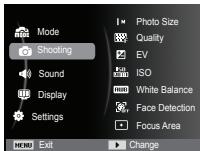
- Press the MENU button in an available mode.
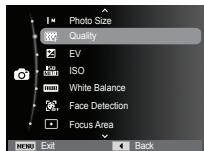
- Press the Up / Down button to select the [Shooting] menu and press the Right/OK button.
Right/OK button
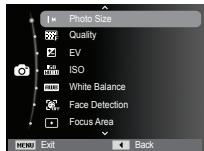
- Select a desired menu by pressing the Up / Down button and then press the OK button.
Up / Down button
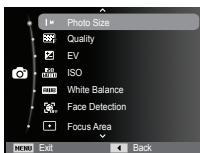
- Select a desired menu by pressing the Left / Right button and then press the OK button.
Left / Right button

Use the Fn button on the rear of the camera to bring up the menus that enable frequently used functions faster.
Photo Size / Movie Size
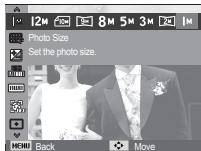
You can select the photo size / movie size appropriate for your application.
(Unit: pixel)
| Stillimage mode | Icon | 12M | 10M | 9M | 8M | 5M | 3M | 2M | 1M |
| Size | 4000X3000 | 3984X2656 | 3840X2160 | 3264X2448 | 2560X1920 | 2048X1536 | 1920X1080 | 1024X768 | |
| Movie mode | Icon | 640 | 320 | ||||||
| Size | 640 x 480 | 320 x 240 | |||||||
[ Still image mode ]
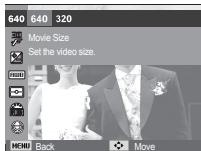
[ Movie mode ]

- The higher the resolution, the lower the number of shots available because high resolution images require more memory.
Quality / Frame rate
You can select the compression ratio appropriate for your application of the captured images. The higher the compression ratio, the lower the picture quality.
| Mode | STILL IMAGE mode | MOVIE mode | |||
| Icon |  |  |  | 5x7=41- | 5x1=1- |
| Sub menu | Super Fine | Fine | Normal | 30 FPS | 15 FPS |
| File Format | jpeg | jpeg | jpeg | avi | avi |
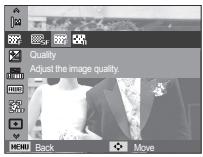
[ Still image mode ]
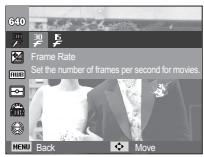
[ Movie mode ]

- This file format complies with the DCF (Design rule for Camera File system).
- JPEG (Joint Photographic Experts Group) :
JPEG is the image compression standard developed by the Joint Photographic Experts Group. This type of compression is most commonly used for compressing photos and graphics because it can compress the files efficiently.
Exposure compensation
This camera automatically adjusts the exposure according to the ambient lighting conditions.
You can also select the exposure value by using the [EV] menu.
■ Compensating Exposure
- Click the Up/Down button from the Shooting menu to select [EV] ( + - ).
- Use the Left and Right buttons to set the desired exposure compensation factor.
- Press the OK button. The value you set will be saved and the Exposure Compensation setup mode will be closed. If you change the exposure value, the exposure indicator ( ) will be displayed on the left of the LCD monitor.
※ A negative exposure compensation value reduces the exposure. Note that a positive exposure compensation value increases the exposure and the LCD monitor will appear white or you may not get good pictures.
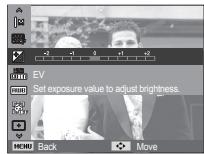
ISO
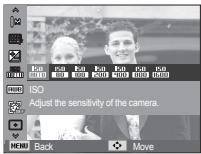
You can select the ISO sensitivity when taking pictures. The speed or specific light-sensitivity of a camera is rated by ISO numbers.
[Auto] : The camera's sensitivity is automatically changed by variables such as lighting value or subject brightness.
[ISO 80, 100, 200, 400, 800, 1600] : You can increase the shutter speed while the same amount of light is present, by increasing the ISO sensitivity. However, the image may be saturated in high luminance.
The higher the ISO value, the higher the camera's sensitivity to light and therefore the greater its capacity to take pictures in dark conditions. However, the noise level in the image will increase as the ISO value increases, making the image appear coarse.
※ When [Motion Capture] is set, ISO speed will be set to Auto.
※ [ISO] is enabled only in [Program] or [Photo Help Guide] mode.
White balance
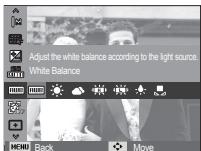
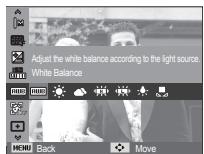
The white balance control allows you to adjust the colors to appear more natural.
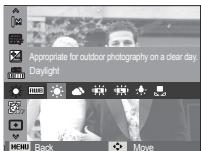
| Mode | Icon | Description |
| Auto WB | [X0WD] | The camera automatically selects the appropriate white balance settings, depending on the prevailing lighting conditions. |
| Daylight |  | For taking images outside. |
| Cloudy |  | For taking images under a cloudy and over-cast sky. |
| Fluorescent_H |  | For shooting under daylight fluorescent types of three-way fluorescent lighting. |
| Fluorescent_L |  | Shooting under white fluorescent lighting. |
| Tungsten |  | For shooting under tungsten (standard light bulb) lighting. |
| Custom Set |  | Allows the user to set the white balance according to the shooting condition. |
※ Different lighting conditions may cause a color cast on your images.
■ Using the Custom White Balance
White balance settings may vary slightly depending on the shooting environment. You can select the most appropriate white balance setting for a given shooting environment by setting up the custom white balance.
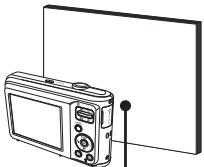
- Select the Custom (☐) menu of the White Balance and place a sheet of white paper in front of the camera so that the LCD monitor shows only white.
natural_image
Line drawing of a digital camera with a screen and antenna, no text or symbols presentWhite paper
- OK button : Selects previous custom white balance.
Shutter button : saves new custom white balance.
- The custom white balance value will be applied, starting with the next picture you take.
- The user configured white balance will be remain effective until it is overwritten.
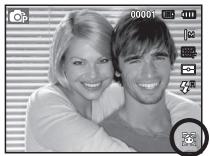
Face Detection
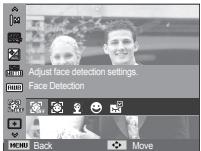
If you use face detection options, your camera can detect a human face. When focusing on a human face, the brightness of the face is also adjusted. You can also capture natural facial expressions by using self portrait.
Normal
This mode detects the face position of the subject automatically and then sets the focus and exposure. Select this mode for quick and easy face picture.
※ Selectable modes: Program, DIS, Photo Help Guide, Beauty Shot, Portrait, Children, Beach & Snow
- The size and position of the auto focus frame is set at the face of the subject automatically.
- Press the shutter button halfway. The focus frame turns to green when the focus is activated.
- Press the shutter button fully to take a picture.
natural_image
Black-and-white photo of a smiling couple (no text or symbols visible)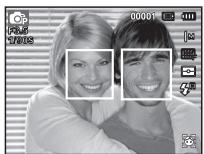
natural_image
Black-and-white photo of two smiling people with camera lens adjustment overlay (no text or symbols on the subjects)
- This function can detect up to 10 persons.
- When the camera recognizes many people at the same time, it will focus on the nearest person.
- The Digital zoom is not activated in this mode.
- When the camera detects a target face, the white color focus frame will be displayed over the target face and the grey color focus frame appears over the remaining faces.
Press the shutter button halfway down to focus on the face and the white focus frame turns green. - Return to previous AF mode if face detection was failure.
- In some conditions this function cannot work properly.
- When a person wears dark glasses or some part of the face is hidden.
- When the person being taken does not look at the camera.
- Camera doesn't detect a face as the brightness is too dark or too bright.
- The distance between the camera and object is far.
- The maximum available Face Detection range is 2.5m (Wide).
- The nearer the subject, the faster the camera can recognize the subject.
- In [Beauty Shot], [Portrait], and [Children] mode, the [Face Detection] function setting is set to its default value.
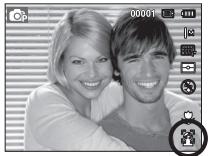
■ Self Portrait
When taking pictures of yourself, the area of your face is automatically detected so that you can take self pictures more easily and quickly.
※ Selectable modes: Program, DIS, Photo Help Guide, Beauty Shot, Portrait, Beach & Snow
-
For self-filming, set the camera lens towards the face of the object. It automatically detects the face of the object, and emits a guiding sound.
-
Start filming by pressing the shutter button.
natural_image
Black-and-white photo of a smiling couple (no text or symbols visible)
- When locating the face in the center of the screen, it repeatedly emits a faster sound unlike the sounds that are emitted when the face is not in the center.
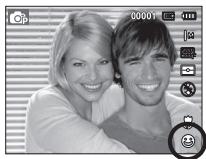
■ Smile Shot
※ Selectable modes: Program, DIS, Photo Help Guide, Beauty shot, Portrait, Children, Beach & Snow
The camera automatically takes a picture by detecting the face of the subject although you don't press the Shutter button.
If you press the Shutter button, the picture is taken in the normal way. When taking a picture of smile shot, showing teeth or keeping the smiley face of your subject helps detecting the smile face of the subject.
■ Blink Detection
※ Selectable modes: Program, Photo Help Guide, Portrait, Children, Beach & Snow If the eyes of the subject are closed when the shutter button is pressed, the camera takes 2 continuous shots and then the images are saved. The camera takes only one picture if the eyes of the subject are open when the Shutter button is pressed.
natural_image
Black-and-white photo of a smiling couple posing together, no visible text or symbols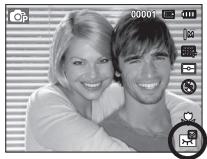
natural_image
Black-and-white photo of a smiling couple (no text or symbols visible)
- Detecting the smiling face or the blinking eyes may not be available if any of the following situations occurs:
- If the subject is wearing sunglasses.
- When the subject is not facing directly to the camera.
- If the environmental light is too bright or too dark to detect the face of the subject.
- When the camera is far from the subject. (Orange colored focusing mark)
- If there is reflection of the light or the backlight that are too bright.
Face Tone
This menu allows you to control the skin tone in images in beauty shot mode. The higher the level you select, the brighter the skin tone.
- Select [Face Tone] by pressing the Up/Down button.
- Select a desired face tone by pressing the Left / Right button and then press the OK button.
- Press the Shutter button to take an image.
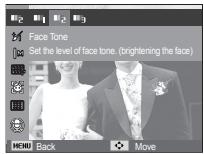
Face Retouch
This menu allows you to make skin appear clear and beautiful before recording in beauty shot mode. The higher the level selected, the more effective the control.
- Select [Face Retouch] by pressing the Up/Down button.
- Select a desired face retouch by pressing the Left / Right button and then press the OK button.
- Press the Shutter button to take an image.
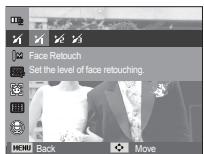
Auto Focus type
You can select your preferred Focus Area according to the shooting conditions.
[Center AF]

: The rectangular area in the center of the LCD monitor will be focused
[Multi AF]

: This camera selects all of available AF point from the 9 AF points.
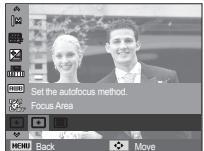
※ When the camera focuses on the subject, the auto focus frame turns to green. When the camera doesn't focus on the subject, the auto focus frame turns to red.
Metering
If you cannot obtain suitable exposure conditions, you can change the metering method to take brighter pictures.
[Multi]

: Exposure will be calculated based on an average of the available light in the image area. However, the calculation will be biased towards the center of the image area. This is suitable for general use.
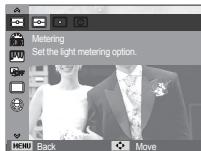
[Spot]

: Only the rectangular area in the center of the LCD monitor will be metered for light. This is suitable when the subject in the center is exposed correctly, regardless of the back lighting.
[Center-weighted]

: Exposure will be calculated based on an average of the available light in the image area. However, the calculation will be biased towards the center of the image area. This is suitable for taking a picture of small object like a flower or insects.
※ If the subject is not the center of the focus area, do not use the spot metering as this may result in an exposure error. In this circumstance, it is better to use exposure compensation.
Photo Style Selector
You can add various effects to the image without using image editing software.
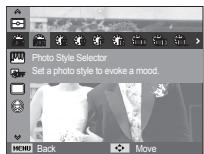
- Select the desired Photo style selector by pressing the Left/Right button and press the OK button.
- Press the Shutter button to take an image.
| Style mode | Icon | Description |
| Normal | [17247] | No style effect is applied. |
| Soft | [0CAC] | Soft style is applied. |
| Vivid | [WADC] | Vivid style is applied. |
| Forest | [BHD3] | Forest style is applied. |
| Retro | [2223] | Sepia style is applied. |
| Cool |  | Cool style is applied. |
| Calm | [57K2] | Calm style is applied. |
| Classic | [AHT6] | Black & white effect is applied. |
| Negative | [XDB4] | Negative effect is applied. |
| Custom RGB | [seccl] | Define an RGB tone to create your own photo style. |
■ Custom RGB : You can change the R (Red), G (Green) and B (Blue) values of the image.
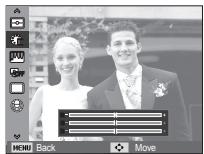
- Up/Down button : Selects R, G, B
- Left/Right button : Changes the values
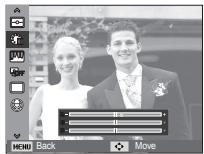

- When picture style is set, face detection is not available.
- When Photo Style Selector is set, Image Adjust function is not available.
Image Adjust
■ Contrast
You can change the contrast of the image.
- Select [Contrast] by pressing the Up/Down button.
- Change the contrast by pressing the Left/Right button.
- Press the Shutter button to take an image.
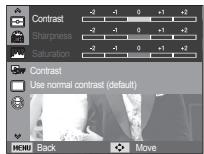
■ Sharpness
You can adjust the sharpness of the picture you are about to take. You cannot check the sharpness effect on the LCD monitor before you take a picture, because this function is applied only when the captured image is stored on the memory.
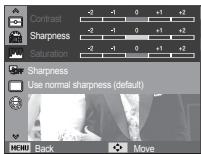
- Select [Sharpness] by pressing the Up/Down button.
- Change the Sharpness by pressing the Left/Right button.
- Press the Shutter button to take an image.
■ Saturation
You can change the saturation of the image.
- Select [Saturation] by pressing the Up/Down button.
- Change the saturation by pressing the Left/Right button.
- Press the Shutter button to take an image.
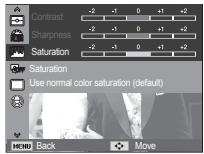

- When Image Adjust is set, Photo Style Selector function is not available.
- When Saturation is set, Face Detection is not available.
ACB
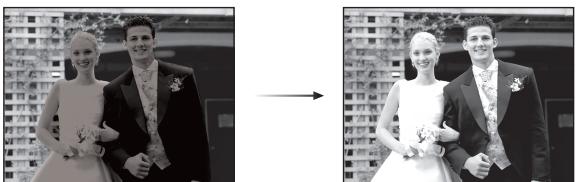
This function is to adjust the contrast automatically when taking photos in an environment with big exposure difference i.e. backlight or contrast. This function adjusts the brightness automatically and allows the subject to be photographed clearly.
- [ACB] Sub menus: [Off], [On]
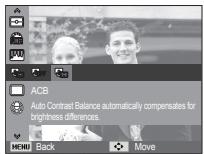
※ The ACB function is available in [Program], [Portrait] or [Photo Help Guide] recording mode. ACB function always operates in the [Portrait] recording mode.
natural_image
Black-and-white wedding photo showing a couple in formal attire, one holding a bouquet (no visible text or symbols)Drive mode
You can select continuous shot, and AEB (Auto Exposure Bracketing).
[Single]


: Take one picture only. : Images will be taken continuously until the shutter button is released.
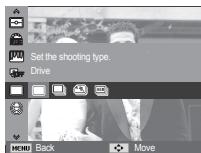
[Motion Capture]

: This takes about 6 shots per second, when the shutter is pressed and held down. After completing the continuous shooting, images are saved and the images play back on the Rear LCD. The maximum number of shots is 30 and the image size is fixed as VGA.
[AEB]

: Take three consecutive photos with varying exposure values. Use this mode if it is hard to decide exposure of the object.

- High resolution and picture quality increases file saving time, which increases stand-by time.
- If the [Continuous], [Motion Capture], [AEB] sub menu is selected, the flash will be off automatically.
- If less than 3 pictures are available on the memory, the AEB shooting is not available.
- If less than 30 pictures are available on the memory, the motion capture is not available.
- It is best to use a tripod for the AEB shooting as the time to save each image file is longer and blurring caused by camera shake may occur.
Voice Memo
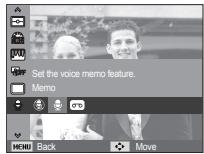
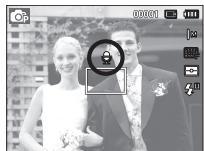
You can add your voice-over to a stored still image. (Max. 10 sec.)
- If the voice memo indicator is displayed on the LCD monitor, the setting is completed.
- Press the Shutter button and take a picture. The picture is stored on the memory card.
- Voice memo will be recorded for ten seconds from the moment the picture is stored. In the middle of the sound recording, pressing the shutter button will stop the voice memo.
natural_image
Black-and-white wedding photo of a couple in formal attire, no visible text or symbols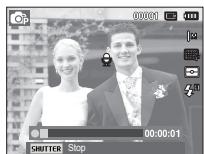
Voice Recording
A voice can be recorded for as long as the available recording time (Max. 10 hours) allows.
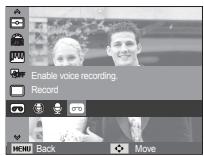
Press the shutter button to record a voice.
- Press the shutter button once and voice is recorded for as long as the available recording time (Max.10 hours) allows. The recording time will be displayed on the LCD monitor. Voice will still be recorded if the Shutter button is released.
- If you wish to stop recording, press the Shutter button again.
- File type : *.wav
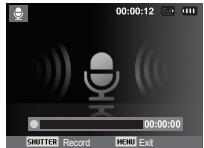
[Voice recording mode]
■ Pausing while recording a voice
Using this function, you can record your favorite voice clips into a voice recording file without having to create multiple voice recording files.
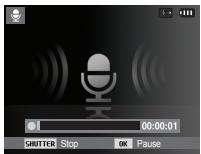
[Voice recording mode]
- Press the OK button to pause recording.
- Press the OK button again to resume the recording.
- If you wish to stop recording, press the Shutter button again.

- A distance of 40cm between you and the camera (microphone) is the best distance to record sound.
- If the camera power is turned off while the voice recording is paused, the voice recording is cancelled.
Recording the movie clip without voice
You can record the movie without voice.
Select [Off] of [Voice] menu in the Movie mode. (😊) icon will appear on the LCD monitor. Press the Shutter button and a movie will record for as long as the memory capacity allows without voice.
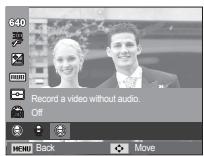
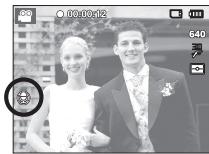
natural_image
Black-and-white wedding photo of a couple in formal attire, no visible text or symbols■ The items indicated by * are default settings.
※ Menus are subject to change without prior notice.
Volume
You can select a volume of start up sound, shutter sound, beep sound and AF sound.
- [Volume] sub menus : [Off], [Low], [Medium]*, [High]
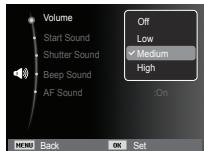
Start up sound
You can select the sound that is activated whenever the camera is turned on.
- Start up sound : [Off]*, [1], [2], [3]
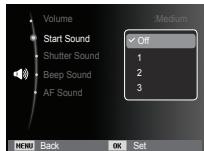
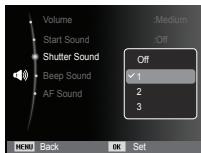
Shutter sound
You can select the shutter sound.
- Shutter sound : [Off], [1]*, [2], [3]
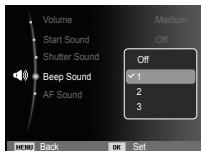
Beep sound
If you set sound to ON, a beep will sound when buttons are pressed, letting you know the camera operation status.
- [Beep Sound] sub menus : [Off], [1]*, [2], [3]
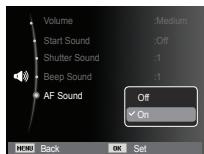
AF sound
If you set AF sound to on, AF sound will be activated when the Shutter button is pressed down half way so that you can be aware of the camera operation status.
- [AF sound] sub menus : [Off], [On]*
Display ( )
■ The items indicated by * are default settings.
※ Menus are subject to change without prior notice.
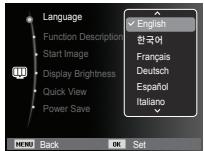
Language
There is a choice of language that can be displayed on the LCD monitor. Even if the battery is removed and inserted again, the language setting will be preserved.
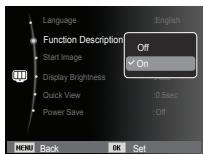
Function Description
You can select whether the function description can be displayed on the window in recording mode.
- Function Description sub menus
[Off] : The function description function can't be activated.
[On]* : The name and description of the option is displayed.
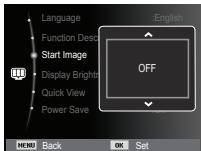
Start up image
You can select the image that is first displayed on the LCD monitor whenever the camera is turned on.
- Sub menus : [Off]*, [Logo], [User Image]
- Use a saved image for the start-up image with the [Start Image] in the [Resize] menu in the play mode.
- The start-up image will not be deleted by [Delete] or [Format] menu.
- The user images will be deleted by [Reset] menu.
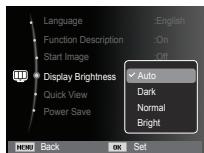
Display Brightness
You can adjust the LCD brightness.
- Sub menus : [Auto]*, [Dark], [Normal], [Bright]
Quick View
If you enable Quick View before capturing an image, you can view the image you just captured on the LCD monitor for the duration set in the [Quick View] setup. Quick view is possible only with still images.
- Sub menus
[Off] : The quick view function can't be activated.
[0.5 sec]*, [1 sec], [3 sec]
: The captured image is briefly displayed during the selected time.
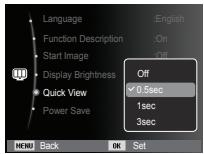
Display Save
If you set the [Power Save] to On and the camera isn't operated during the specified time, the LCD monitor will be turned off automatically.
- Sub menus
[Off]*: The LCD monitor will not be turned off.
[On] : If the camera isn't operated during the specified time (about 30 SEC.), the camera power will be idle (Camera status lamp:Blinking) automatically.
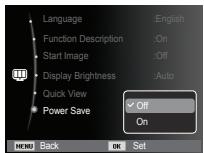
※ You can't set the [Power Save] menu of Playback Mode.
■ The items indicated by * are default settings.
※ Menus are subject to change without prior notice.
Formatting the memory
This is used for formatting the memory. If you run [Format] on the memory, all images, including the protected images will be deleted. Be sure to download important images to your PC before formatting the memory.
- Sub menus
[Yes] : A window for confirming the selection displays. Select the [Yes] menu. A [Formatting] message appears and the memory will be formatted. A [Format is completed] message appears and formatting is finished.
[No]* : The memory will not be formatted.
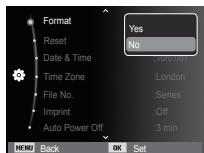
■ Be sure to run [Format] on the following types of memory card.
- A new memory card or an unformatted memory card.
- A memory card that has a file this camera can't recognize or one that has been taken from another camera.
- Always format the memory card using this camera. If you insert a memory card that has been formatted using other cameras, memory card readers or PCs you will get a [Card Error] message.
Initialization
All camera menu and function settings will be restored to their default values. However, values for Date & Time, Language and Video Out will not be changed.
- Sub menus
[Yes] : A window to confirm the selection will be displayed. Select the [Yes] menu and all settings will be restored to their defaults.
[No]* : Settings will not be restored to their defaults.
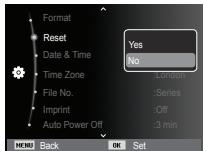
Setting up the Date / Time / Date type
You can change the date and time that will be displayed on the captured images and set up the date type. Setting [Time Zone] enables you to display the local date and time on the LCD monitor when travelling overseas.
- Date type : [yyyy/mm/dd], [mm/dd/yyyy], [dd/mm/yyyy], [Off]*
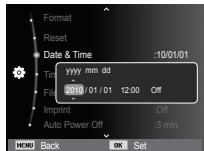
Time Zone
■ Available cities:
London, Cape Verde, Mid-Atlantic, Buenos Aires, Sao Paulo, Newfoundland, Caracas, La Paz, NewYork, Miami, Chicago, Dallas, Denver, Phoenix, LA, San Francisco, Alaska, Honolulu, Hawaii, Samoa, Midway, Wellington, Auckland, Okhotsk, Guam, Sydney, Darwin,
Adelaide, Seoul, Tokyo, Beijing, Hong Kong, Bankok, Jakarta, Yangon, Almaty, Kathmandu, Mumbai, New Delhi, Tashkent, Kabul, Abu Dhabi, Teheran, Moscow, Athens, Helsinki, Rome, Paris, Berlin
![Time Zone London [GMT +00:00] 2010/01/01 12:00 PM MENU Back DST](/content/2025/01/98568/images/ce555a0b30907032bf315e315e4cdc036b5cbfc0b5feb0296b9f144a5829f99d.jpg)
※ DST : Daylight Saving Time
File name
This function allows the user to select the file naming format.
[Reset] : After using the reset function, the next file name will be set from 0001 even after formatting, deleting all or inserting a new memory card.
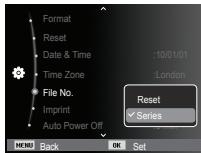
[Series]*: New files are named using numbers that follow the previous sequence memory card is used, or after for all pictures.
- The first stored folder name is 100PHOTO, and the first file name is SAM_0001.
- File names are assigned sequentially from SAM_0001 → SAM_0002 → \~ → SAM_9999.
- The folder number is assigned sequentially from 100 to 999 as follows: 100PHOTO → 101PHOTO → \~ → 999PHOTO.
- Maximum numbers of files in a folder are 9999.
- The files used with the memory card conform to the DCF (Design rule for Camera File systems) format. If you change the image file name, the image may not play back.
Imprinting the recording date
There is an option to include Date&Time on still images.
- Sub menus
[Off]* : The Date&Time will not be imprinted on the image file. [Date] : Only the Date will be imprinted on the image file.
[Date & Time] : The Date&Time will be imprinted on the image file.
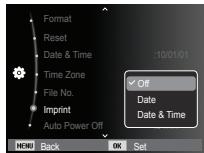
※ The Date & Time are imprinted at the bottom right side of the still image.
※ The imprint function is applied only to still images.
※ Depending on the manufacturer and print mode, the date printed on an image may not be printed correctly.
Auto power off
This function switches the camera off after a set amount of time in order to prevent unnecessary battery drainage.
- Sub menus
[Off] : The power off function will not operate. [1 min], [3 min]*, [5 min], [10 min] : The power will turn off automatically if not used for the period of time specified.
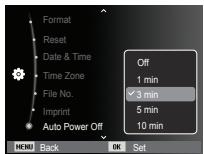
- After replacing the battery, the power off setting will be preserved.
- Note that the automatic power off function will not operate if the camera is in the PC / Printer mode, slide show, playing back a voice recording and playing back a movie clip.
Auto Focus lamp
You can turn on and off the Auto Focus lamp.
- Sub menus
[Off] : The AF lamp will not light up in low light conditions.
[On]*: The AF lamp will light up in low light conditions.
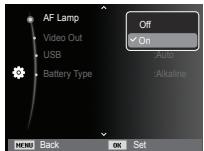
Selecting Video out type
The Video output signal from the camera can be NTSC or PAL. Your choice of output will be governed by the type of device (monitor or TV, etc.) to which the camera is connected. PAL mode can support only BDGHI.
■ Connecting to an external monitor When the camera is connected to an external monitor, the image and menus on the LCD monitor will be visible on the external monitor.
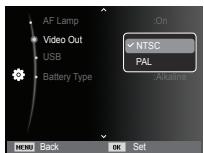
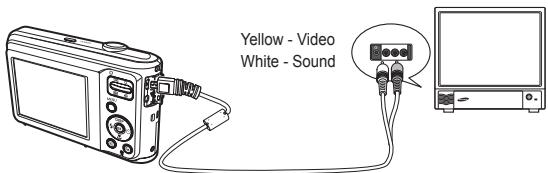
- NTSC : U.S.A, Canada, Japan, South Korea, Taiwan, Mexico etc.
- PAL : Australia, Austria, Belgium, China, Denmark, Finland, Germany, U.K., Holland, Italy, Kuwait, Malaysia, New Zealand, Singapore, Spain, Sweden, Switzerland, Thailand, Norway etc.
- When using a TV as an external monitor, you will need to select the external or AV channel of the TV.
- There will be digital noise on the external monitor, but it is not a malfunction.
- If the image is not in the center of the screen, use the TV controls to center it.
- When the camera is connected to an external monitor, some parts of the image may not be displayed.
- When the camera is connected to an external monitor, the menu will be visible on the external monitor and the menu functions are the same as those indicated on the LCD monitor.
Setting the USB
If the camera fails to automatically connect with a PC or a printer using a USB cable, you can manually set [Computer] or [Printer].
- [USB] sub menus:
[Auto]* : Automatically enables an external device connected with a USB cable.
[Computer]: Sets computer connection mode if the connected external device cannot be recognized automatically.
[Printer] : Sets printer connection mode if the connected external device cannot be recognized automatically.
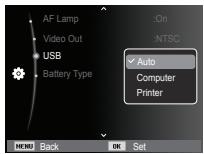
Selecting a battery type
If a battery type is selected, the camera will be optimized according to the selected battery type.
- [Battery Type] sub Menu : [Alkaline]* / [Ni-MH]
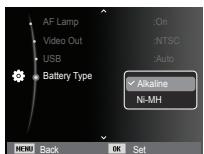
Turn the camera on and select Play mode by pressing the play mode button (☐). The camera can now play back the images stored on the memory. If the memory card is inserted in the camera, all the camera functions apply only to the memory card. If the memory card is not inserted in the camera, all the camera functions apply only to the internal memory.
■ Manner mode
To select the Manner mode, press the Play mode button for more than 5 seconds. In the Manner mode, Operating sound, Effect sound, Start-up sound and Shutter sound will not be generated. To cancel the Manner mode turn on the camera by pressing the POWER button.
Playing back a still image
- Select the Play mode by pressing the play mode button ( ▶ ).
- The last image stored on the memory is displayed on the LCD monitor.
- Select an image that you want to view by pressing the Left / Right button.
※ Press and hold the Left or Right button to play back the images quickly.
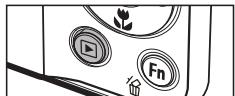
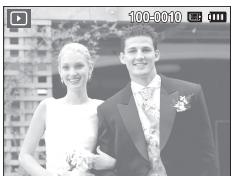
natural_image
Black-and-white photo of a couple posing together, no visible text or symbolsPlaying back a movie clip
- Select the recorded movie clip that you want to play back by using the Left / Right button.
-
Press the OK button to play back a movie clip file.
-
To pause a movie clip file while playing it back, press the OK button again.
- Pressing the OK button again will cause the movie clip file to restart.
- To rewind the movie clip while it is playing, press the Left button. To fast forward the movie clip, press the Right button.
- To stop playback of the movie clip, press the OK button, and then press the Left or Right button.
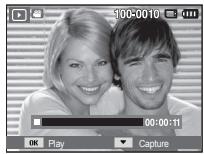
Movie clip capture function
You can capture still images from the movie clip.
■ How to capture the movie clip
- Press the OK button while playing the movie clip. Then press the Down button.
- The paused movie clip is saved as a new file name.
※ The captured movie clip file is the same size as the original movie clip (640x480, 320x240).
※ When you press the down button at the beginning of the movie clip, the first frame of the movie clip will be saved as a still image.
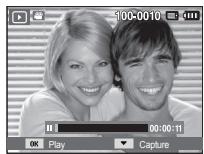
[Paused]
Playing back a recorded voice
- Select the recorded voice that you want to play back by using the Left / Right button.
-
Press the OK button to play back a recorded voice file.
-
To pause a recorded voice file, while playing it back, press the OK button again.
- To resume playback of the voice file, press the OK button.
- To rewind the voice file while it is playing, press the Left button. To fast forward the voice file, press the Right button.
- To stop playback of the voice memo, press the Down button.
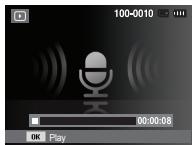
Playing back a voice memo
- Select a still image that has the voice memo.
-
Press the OK button to play back the voice memo.
-
To pause the voice memo, while playing it back, press the OK button again.
- To resume playback of the voice memo, press the OK button.
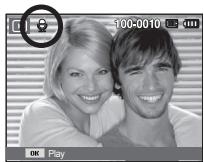
natural_image
Black-and-white photo of a smiling couple with no visible text or symbols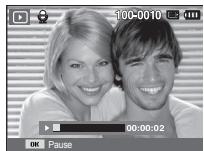
LCD monitor Indicator
The LCD monitor displays shooting information about the displayed image.
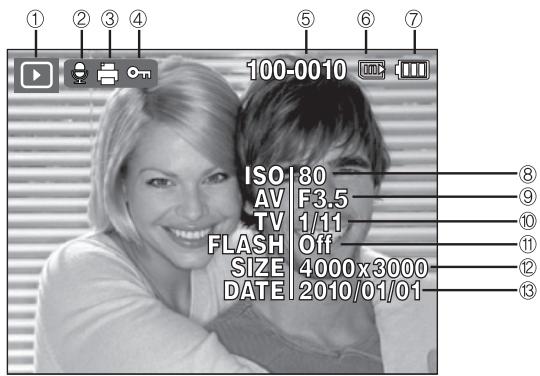
| No. | Description | Icon | Page |
| 1 | Playback mode | [IMAGE] | p.56 |
| 2 | Voice Memo | [IMAGE] | p.72 |
| 3 | DPOF | [IMAGE] | p.73 |
| 4 | Protect | [IMAGE] | p.71 |
| 5 | Folder name & File name | 100-0010 | p.52 |
| 6 | Memory indicator | [IMAGE] | - |
| 7 | Battery | [IMAGE] [IMAGE] [IMAGE] [IMAGE] | p.13 |
| 8 | ISO | 80~1600 | p.38 |
| 9 | Aperture value | F3.5 ~ F15 | - |
| 10 | Shutter speed | 8 ~ 1/2,000 | - |
| 11 | Flash | On/Off | p.31 |
| 12 | Photo Size / Movie Size | 4000x3000 ~ 320x240 | p.36 |
| 13 | Recording date | 2010/01/01 | p.52 |
Using the camera buttons to set the camera
In Play mode, you can use the buttons on the camera to conveniently set up the Play mode functions.
Thumbnail ( ☒ ) / Enlargement ( Ⓠ ) button
Smart Album
You can view multiple pictures, enlarge a selected picture, and crop and save a selected area of an image.
- Once a picture has been played back, press the Thumbnail button to run Smart Album mode.
- Press the Left / Right button to move to a desired image.
- Press the Digital Zoom button to return to the normal display mode.
natural_image
Black-and-white photo of a couple smiling and holding a small object outdoors (no visible text or symbols)[Highlighted image]
Pressing the enlargement button (Q)
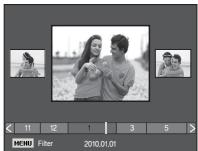
natural_image
Black-and-white photo of two people in a casual setting, no visible text or symbols[Smart Album 3-Thumbnail Window]
Thumbnail ( ☒ ) / Enlargement ( 🔒 ) button
■ Searching or Deleting Files
- Press the Thumbnail button in Smart Album.
- Each time you press the Thumbnail button, the files in a category are displayed in Smart Album screen.
- Select the file by pressing the Up / Down / Left / Right buttons.
- Press the Delete(💡) button to delete the selected file.
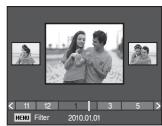
natural_image
Black-and-white photo of two people outdoors, one holding a microphone, with three smaller photos on the left (no visible text or symbols)[3-Thumbnail Window]

Q
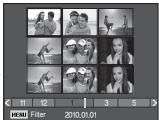
natural_image
Grid of nine black-and-white photos showing people in various outfits, arranged in two rows (no text or symbols visible)[9-Thumbnail Window]

Q
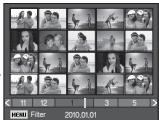
natural_image
Grid of black-and-white portrait photos showing people in various poses, including animals and birds, arranged in 3x3 grid (no text or symbols visible)[20-Thumbnail Window]

- When Smart Album feature runs or a category is selected, it may take few seconds depends on recorded data volume. However, it is not a malfunction please wait until Smart Album screen appears.
■ Smart Album Filter
- Press the MENU button in Smart Album mode.
- Selecting the desired category enables to categorize and search the files by using the Up / Down button.
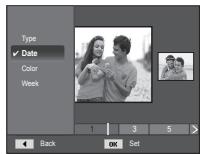
Thumbnail ( ☒ ) / Enlargement ( 🔒 ) button
■ Details of Each Category
| Category | Description | File Format |
| Type | Categorized depending on the file type (e.g., picture, video, or voice) | Pictures, Videos, Voice |
| Date | Categorized depending on the sequence of recorded dates. | |
| Color | Categorized depending on the main color. | |
| Week | Categorized depending on the sequence of recorded weeks. |
■ Image enlargement
- Select an image that you want to enlarge and press the enlargement button.
- Different parts of the image can be viewed by pressing the 5 function button.
- Pressing the thumbnail button will zoom back to the original full sized image.
- You can tell whether the image displayed is an enlarged view by checking the image enlargement indicator shown at the top left of the LCD monitor. (If the image is not an
enlarged view, the indicator will not be displayed.) You can also check the area of enlargement.
- Movie clips and WAV files can't be enlarged.
- If an image is enlarged, a loss of quality may occur.
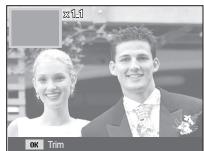
natural_image
Black-and-white wedding photo of a man and groom in formal attire (no visible text or symbols)■ The maximum enlargement rate in proportion to the image size
| Image size | 12M | 10M | 9M | 8M | 5M | 3M | 2M | 1M |
| Maximum enlargement rate | X12.5 | X10.4 | X10.0 | X10.2 | X8.0 | X6.4 | X5.0 | X3.2 |
■ Trimming : You can extract part of the image that you want and save it separately.
- Select an image that you want to enlarge and press the enlargement button. Press the OK button and a message will be displayed.
-
Select a desired sub menu by pressing the Up / Down button and press the OK button.
-
[Yes] : The trimmed image will be saved as a new file name, and appear on the LCD monitor.
- [No] : The trimming menu will disappear.
※ If there is not enough memory space to save the trimmed image, the image can't be trimmed.
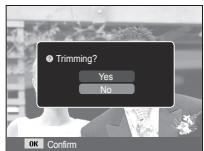
Info (DISP) / Up button
When the menu is displayed on the LCD monitor, the Up button operates as a direction button.
When the menu is not displayed on the LCD monitor, pressing the Info button will display image information on the LCD monitor.
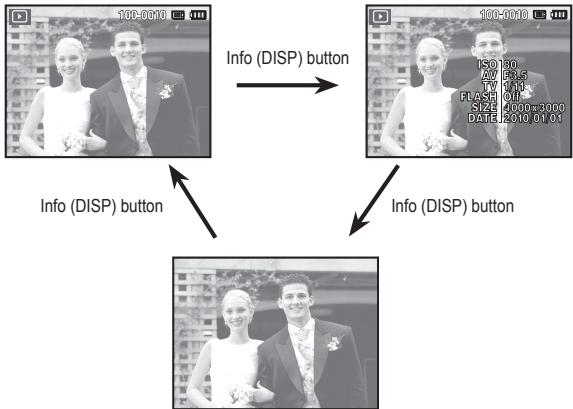
flowchart
graph TD
    A["Wedges with bride and groom"] -->|Info (DISP) button| B["Wedges with bride and groom"]
    B -->|Info (DISP) button| C["Wedges with bride and groom"]
    C --> D["Final couple with bride and groom"]
Play & Pause / OK button
In Play mode, the play & pause / OK button works as follows:
- When the menu is displayed on the LCD monitor, the OK button is used for confirming data that is changed by using the 5 function button.
- If a still image with a voice memo, a voice file or a movie clip is playing
·In Stop mode : Plays a still image with a voice memo, a voice file or a movie clip.
·During playback : Temporarily stops playback.
·In Pause mode : Resumes playback
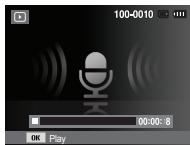
[ Voice recording is stopped ]
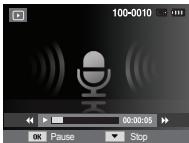
[ Voice recording is playing ]
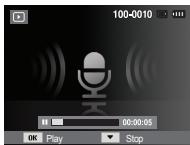
[ Voice recording is paused ]
Left / Right / Down / MENU button
Left / Right / Down / MENU buttons activate the following.
- Left button : While the menu is showing, the Left button operates as a direction button. While the menu is not showing, press the Left button to select the previous image.
- Right button : While the menu is showing, the Right button operates as a direction button. While the menu is not showing, press the Right button to select the next image.
- Down button : While the menu is showing, the Down button operates as a direction button.
- MENU button : When you press the MENU button, the play mode menu will be displayed on the LCD monitor. Pressing it again will return the LCD to the initial display.
Delete (💡) button
This deletes images stored on the memory.
- Select an image that you want to delete by pressing the Left / Right button and press the Delete ( 🔊 ) button.
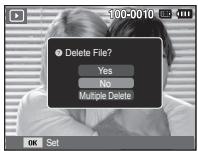
[Single Image]
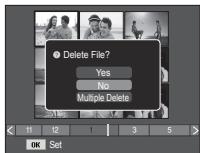
[Thumbnail Image]
-
To add images to delete, select the [Multiple Delete] menu.
-
Left / Right button : Selects images
- OK button : checks for deletion
- Fn button : deletes the selected images.
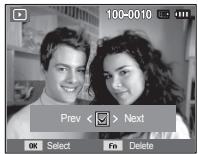
-
Select the submenu values by pressing the Up / Down button and then press the OK button.
-
If [Yes] is selected : deletes the selected images.
- If [No] is selected : cancels "Delete Image".
Setting up the play back function using the LCD monitor
Play mode functions can be changed by using the LCD monitor. In the Play mode, pressing the MENU button displays the menu on the LCD monitor. The menus you can set up in Play mode are as follows. To capture an image after setting up the play menu, press the Play mode button or shutter button.
| Menu Tab | Main Menu | Sub Menu | Page | |
| Edit ( [IMAGE] ) | Resize | 2560x1920 | 2048x1536 | p.65 |
| 1024X768 | 2592X1728 | |||
| 1776X1184 | 2560X1440 | |||
| 1920X1080 | Start Image | |||
| Rotate | Right 90° | Left 90° | p.66 | |
| 180° | Horizontal | |||
| Vertical | - | |||
| Photo Style Selector | Normal | Soft | p.66 | |
| Vivid | Forest | |||
| Retro | Cool | |||
| Calm | Classic | |||
| Negative | Custom RGB | |||
| Image Adjust | Off | ACB | p.67 | |
| Red-eye Fix | Face Retouch | |||
| Brightness | Contrast | |||
| Saturation | Add Noise | |||
| Multi Slide Show ( [IMAGE] ) | Start | Play / Repeat | - | p.69 |
| Images | All | Date | p.69 | |
| Select | - | |||
| Menu Tab | Main Menu | Sub Menu | Secondary Menu | Page | |
| Multi Slide Show ( [IMAGE] ) | Effect | Off | Calm | - | p.70 |
| Sweet | Rural | - | |||
| Vivid | Lively | - | |||
| Shine | Relax | - | |||
| Interval | 1, 3, 5, 10 sec | - | p.70 | ||
| Music | Off | Mist | - | p.70 | |
| Muse | Fall | - | |||
| Dawn | Party | - | |||
| Drops | Trip | - | |||
| File Options ( [IMAGE] ) | Delete | Select | - | p.71 | |
| All | Yes / No | ||||
| Protect | Select | - | p.71 | ||
| All | Unlock / Lock | ||||
| Voice memo | Off | - | p.72 | ||
| On | - | ||||
| DPOF | Standard | Select / All / Reset | p.73 ~ p.74 | ||
| Index | Yes / No | ||||
| Size | Select / All / Reset | ||||
| Copy to Card | Yes | - | p.75 | ||
| No | - | ||||
Setting up the play back function using the LCD monitor
This menu is available while the camera is connected to a PictBridge supporting printer (direct connection to the camera, sold separately) with a USB cable.
| Menu Tab | Main Menu | Sub Menu | Secondary Menu | Page |
| Images | One Photo | - | p.77 | |
| All Photos | - | |||
| Size | Auto | - | p.77 | |
| PostCard | - | |||
| Card | - | |||
| 4X6 | - | |||
| L | - | |||
| 2L | - | |||
| Letter | - | |||
| A4 | - | |||
| A3 | - | |||
| Layout | Auto | - | ||
| Full | - | |||
| 1 | - | |||
| 2 | - | |||
| 4 | - | |||
| 8 | - | |||
| 9 | - | |||
| 16 | - | |||
| Index | - |
| Menu Tab | Main Menu | Sub Menu | Secondary Menu | Page |
 | Type | Auto | - | p.77 |
| Plain | - | |||
| Photo | - | |||
| Fast Photo | - | |||
| Quality | Auto | - | ||
| Draft | - | |||
| Normal | - | |||
| Fine | - | |||
| Date | Auto | - | ||
| Off | - | |||
| On | - | |||
| File Name | Auto | - | ||
| Off | - | |||
| On | - | |||
| Reset | Yes | - | p.78 | |
| No | - |
※ Menus are subject to change without prior notice.
Resize
Change the resolution (size) of pictures taken. Select [Start image] to save an image to be the start-up image.
- Press the play mode button and press the MENU button.
- Click the Up / Down button from the Edit menu to select [Resize] (☐) menu tab and press the OK button.
- Select a desired sub menu by pressing the Left / Right button and press the OK button.
■ Image Resize Types
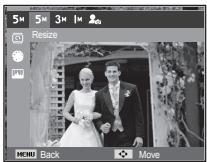
natural_image
Black-and-white wedding photo of a couple in formal attire, no visible text or symbols( o : Selectable)
| 5^M | 3^M | |M| | ||
| 12^M | O | O | O | O |
| 8^M | O | O | O | O |
| 5^M | O | O | O | |
| 3^M | O | O | ||
| |M| | O |
| 4M | 2M | ||
 | 0 | 0 | 0 |
 | 0 | ||
| 4M | 2M | ||
 | 0 | 0 | 0 |
- A large sized image can be resized to a smaller sized image, but not vice versa.
- Only JPEG images can be resized. Movie clip (AVI), Voice recording (WAV) files can't be resized.
- You can change the resolution of only those files compressed in the JPEG 4:2:2 format.
- The resized image will have a new file name.
The [Start Image] image is stored not on the memory card but on the internal memory. - If a new user image is saved, the original user image will be deleted.
- If the memory capacity is insufficient to store the resized image, a [Memory Full] message will appear on the LCD monitor and the resized image can't be stored.
After using [Edit] feature, the edited image will be saved as a smaller size than the original image. (Only with image size from 8M)
Rotating an image
You can rotate the stored images by various degrees.
- Press the play mode button and press the MENU button.
- Click the Up / Down button from the Edit menu to select [Rotate] (☐) menu tab and press the OK button.
- Select a desired sub menu by pressing the Left / Right button and press the OK button.
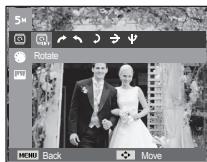
natural_image
Black-and-white wedding photo of a couple in formal attire, displayed within a photo editing interface (no text or symbols on the photo itself)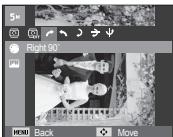
[ ↗ : Right 90°]
: Rotate picture in a clock-wise direction
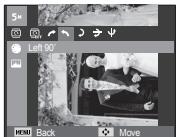
natural_image
Black-and-white photo of a person lying on a couch, with no visible text or symbols in the main image area.[←: Left 90°]
: Rotate picture in a counter-clock-wise direction
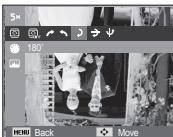
natural_image
Black-and-white photo of a dog in a bun, viewed from behind, with no visible text or symbols.[ ): 180°]
: Rotate picture 180 degrees
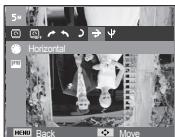
natural_image
Black-and-white photo of a person sitting on a bench with flowers, no visible text or symbols[→: Horizontal]
: Rotate picture horizontally
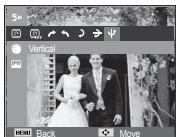
natural_image
Black-and-white wedding photo of a couple in formal attire, displayed within a photo editing interface (no text or symbols on the photo itself)[ψ : Vertical]
: Rotate picture vertically
※ If you display the rotated image on the LCD monitor, empty spaces may appear to the left and right of the image.
Photo Style Selector
It is possible to add various effects to your images by using this function.
- Press the play mode button and press the MENU button.
- Click the Up / Down button from the Edit menu to select [Photo Style Selector] (💡) menu tab and press the OK button.
- Select a desired sub menu by pressing the Left / Right button and press the OK button.
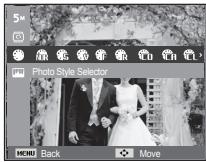
| Style mode | Icon | Description |
| Normal | No style effect is applied. | |
| Soft | Soft style is applied. | |
| Vivid | Vivid style is applied. | |
| Forest | Forest style is applied. | |
| Retro | Sepia style is applied. | |
| Cool | Cool style is applied. | |
| Calm | Calm style is applied. | |
| Classic | Black & white effect is applied. | |
| Negative | Negative effect is applied. | |
| Custom RGB | Define an RGB tone to create your own photo style. |
- The changed image is saved as a new file name.
■ Custom RGB
You can change the R (Red), G (Green) and B (Blue) values of the image.
- OK button : Select / setup the Custom Color
- Up / Down button : Selects R, G, B
- Left / Right button : Change the values
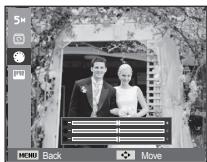
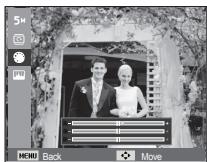
natural_image
Black-and-white wedding photo frame with bride and groom, displayed within a camera lens (no text or symbols on the photo itself)Image Adjust
- Press the play back button and press the MENU button.
- Click the Up / Down button from the Edit menu to select [Image Adjust] ( ) menu tab and press the OK button.
■ ACB
You can automatically adjust the brightness of the dark area, caused by under exposure to the light source.
- Select (☐) by pressing the Left / Right button and press the OK button.
- The [Making New Image] message is displayed and the image is saved as a new file name.
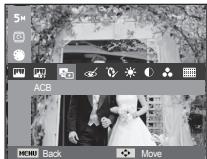
■ Red eye Removal
Red eye effect can be removed from the captured image.
- Select ( ⏻ ) by pressing the Left / Right button and press the OK button.
- The [Making New Image] message is displayed and the image is saved as a new file name.
■ Face Retouch
You can make the skin in an image appear clear and beautiful.
- Select ( ✉ ) by pressing the Left / Right button and press the OK button. Then a bar for selecting the face retouch will be displayed.
- Change the face retouch by pressing the Left / Right button.
- Press the OK button and the image will be saved as a new file name.
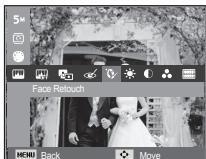
■ Brightness control
You can change the brightness of the image.
- Select (●) by pressing the Left / Right button and press the OK button. Then a bar for selecting the brightness will be displayed.
- Change the brightness by pressing the Left / Right button.
- Press the OK button and the image will be saved as a new file name.
■ Contrast control
You can change the contrast of the image.
- Select ( Ⓞ ) by pressing the Left / Right button and press the OK button. Then a bar for selecting the contrast will be displayed.
- Change the contrast by pressing the Left / Right button.
- Press the OK button and the image will be saved as a new file name.
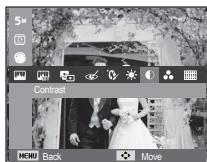
■ Saturation control
You can change the saturation of the image.
- Select (○) by pressing the Left / Right button and press the OK button. Then a bar for selecting the saturation will be displayed.
- Change the saturation by pressing the Left / Right button.
- Press the OK button and the image will be saved as a new file name.
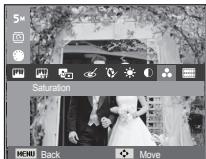
■ Noise effect
You can add noise to an image to add a more classic feel to your photo.
- Select (☐) by pressing the Left / Right button and press the OK button.
- The [Making New Image] message is displayed and the image is saved as a new file name.
Starting the Multi Slide Show ( ▶ )
Images can be displayed continuously at preset intervals.
You can view the Multi Slide Show by connecting the camera to an external monitor.
- Press the play mode button and press the MENU button.
- Press the Up / Down button and select the [Multi Slide Show] menu tab and press the OK button.
Start the Multi Slide Show
The Multi Slide Show can start only in the [Start] menu.
- Use the Up / Down button to select the [Start] menu and press the Right button.
- Select a desired sub menu by pressing the Up / Down button.
[Play] : The Multi Slide Show is closed after one cycle.
[Repeat] : The Slide show is repeated until cancelled.
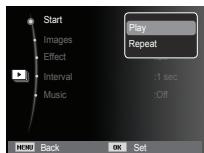
-
Press the OK button and the slide show will be started.
-
To pause the slide show while playing it back, press the OK button again.
- Pressing the OK button again will cause the Multi Slide Show restart.
- To stop playback of the Multi Slide Show, press the OK button, and then press the Left or Right button.
Selecting Images
You can select image to view
-
Use the Up / Down button to select the [Images] menu and press the Right button.
-
Select a desired sub menu by pressing the Up / Down button.
[All] : All images saved on the memory are played back.
Press the OK button and the settings are saved.
[Date] : Images taken in a specified date are played back. Press the OK button and the settings are saved.
[Select] : Play only the selected images. If you press the Up / Down button, you can select the desired images to play back. The selected image can be saved as [Select1], [Select2] and [Select3]. If you save the selected image with the [New Select] command, it will be saved as [Select1]. But when a new image is saved again using [New Select], the former image which had been saved as [Select1] will be saved as [Select2] automatically. You can change and cancel the images which were saved as [Select1], [Select2] and [Select3]. Press the Fn button and the settings are saved.
- Select [Play] or [Repeat] in the [Start] menu to start the multi slide show.
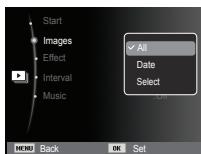
Configure Multi Slide show effects
Unique screen effects can be used for the Multi Slide Show.
- Select the [Effect] sub menu by pressing the Up / Down button and press the Right button.
- Use the Up / Down button to select the type of effect.
- Press the OK button to confirm the setting.
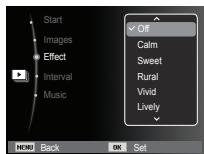
Setting play interval
Set the Multi Slide Show play interval.
- Select the [Interval] sub menu by pressing the Up / Down button and press the Right button.
- Use the Up / Down button to select the desired interval.
- Press the OK button to save the configuration.
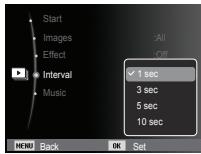

- The loading time depends on the image size and quality.
- While the Multi Slide Show is playing, the Movie clips and voice recording files will not display.
- The interval menu functions only when the Effect is set to [Off].
Setting Background Music
Set the Multi Slide Show music.
- Select the [Music] sub menu by pressing the Up / Down button and press the Right button.
- Use the Up / Down button to select the desired Music.
- Press the OK button to save the configuration.
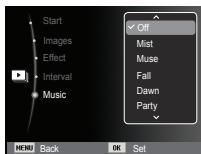
- Press the play mode button and press the MENU button.
- Press the Up / Down button and select the [File Options] menu tab and press the OK button.
Deleting images
This deletes images stored on the memory.
- Press the Up / Down button and select the [Delete] menu tab. And then press the Right button.
-
Select a desired sub menu by pressing the Up / Down button and press the OK button. [Select] : Selection window for an image to delete is displayed.
-
Up / Down / Left / Right : Select an image
- OK button : Select the image for deletion. ( √ mark)
- Fn button : Press the Fn button to display the confirmation message. Select the [Yes] menu and press the OK button to delete marked images.
[All] : Displays confirmation window. Select the [Yes] menu and press the OK button to delete all unprotected images. If there aren't any protected images, all the images are deleted and a [No Image File] message will a
- After deletion, the screen will be changed to the play mode screen.
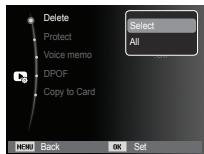
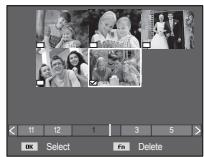
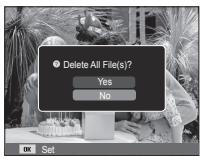

- Of all the files stored on the memory, the unprotected files in the DCIM subfolder will be deleted. Remember that this will permanently delete unprotected images. Important shots should be stored on a computer before deletion takes place. The startup image is stored on the camera's internal memory (i.e., not on the memory card) and it will not be deleted even if you delete all files on the memory.
Protecting images
This is used to protect specific shots from being accidentally erased (Lock). It also unprotects images that have been previously protected (Unlock).
- Press the Up / Down button and select the [Protect] menu tab. And then press the Right button.
- Select a desired sub menu by pressing the Up / Down button and press the OK button.
[Select ] : Selection window for an image to be protected / released is displayed.
- Up / Down / Left / Right : Select an image
- OK button : Protect / release the image
- Fn button : Your changes will be saved and the menu will disappear.
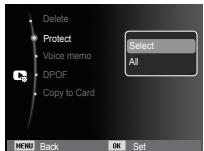
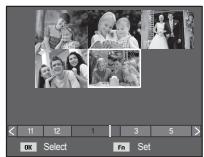
[All] : Protect / release all saved images
- If you protect an image, the protect icon will be displayed on the LCD monitor. (An unprotected image has no indicator)
- An image in LOCK mode will be protected from the delete function or [Delete] function, but will NOT be protected from the [Format] function.
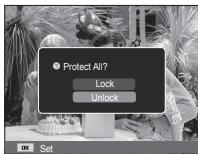
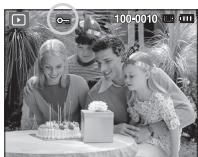
natural_image
Black-and-white photo of three people gathered around a birthday cake on a table, with no visible text or symbols.Voice memo
You can add your voice to a stored still image.
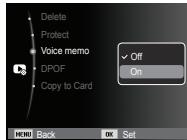
[Voice memo menu]
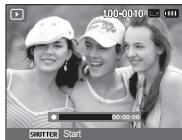
natural_image
Three women smiling together, wearing caps and casual outfits (no visible text or symbols)[Ready for recording]
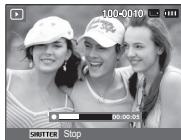
[Voice is recording]
- Press the shutter button, the voice will record for 10 seconds.
- To stop the recording, press the shutter button.
DPOF
■ DPOF(Digital Print Order Format) allows you to embed printing information on your memory card's MISC folder. Select the pictures to be printed and how many prints to make.
■ The DPOF indicator will display on the LCD monitor when an image that has DPOF information plays back. Images can then be printed on DPOF printers, or at an increasing number of photo labs.
■ This function is not available for Movie clips and Voice recording files.
■ When the wide angle image is printed as a wide angle print, 8% of the left and right side of the image may not be printed. Check that your printer can support the wide angle image when you print the image. When you print the image at a photo lab, request that the image is printed as a wide angle image. (Some photo labs may not support the wide angle size print.)

- Depending on the printer, the image saved in portrait orientation may not be printed in portrait orientation.
Standard
This function allows you to embed printing quantity information on a stored image.
-
Press the Up / Down button and select the [DPOF] menu tab. And then press the Right button.
-
Press the Right button again and [Standard] sub menu will display.
-
Select a desired sub menu by pressing the Up / Down button and press the OK button.
[Select] : Selection window for an image to print is displayed.
- Up / Down / Left / Right : Select an image to print.
- Zoom button : Select the number of prints.
[All] : Configure number of prints for all pictures except movie and voice files.
- Up / Down button : Select a number of prints
[Reset] : Cancel the print setup.
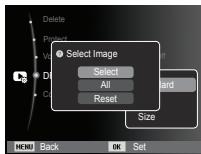
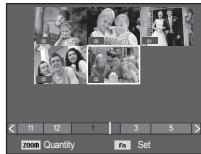
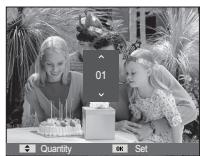
natural_image
Black-and-white photo of a birthday scene with two girls, one cake, and a cake on a table (no visible text or symbols)- Press the OK button to confirm the setting. If an image carries DPOF instruction, the DPOF indicator (☐) will show.
Index
Images (except for movie clips and voice files) are printed as index type.
- Press the Up / Down button and select the [DPOF] menu tab. And then press the Right button.
- Select the [Index] menu and press the Right button again. Sub menu will display.
- Select a desired sub menu by pressing the Up / Down button. If [Yes] is selected : The image will be printed in index format. If [No] is selected : Cancel the index print setting.
- Press the OK button to confirm the setting.
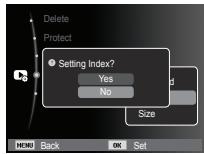
■ Print size
You can specify the print size when printing images stored on the memory card. The [Size] menu is available only for DPOF 1.1 compatible printers.
- Press the Up / Down button and select the [DPOF] menu tab. And then press the Right button.
- Select the [Size] menu and press the Right button again. Sub menu will display.
- Select a desired sub menu by pressing the Up / Down button and press the OK button.
[Select] : Selection window to change the printed size of the image is displayed.
- Up / Down / Left / Right : Select an image.
- Zoom W/T Button : Change the print size.
- Fn button : Your changes will be saved and the menu will disappear.
[All] : Change print size of all saved images.
- Up / Down button : Select a print size
- OK button : Confirm the changed setting.
[Reset] : Cancel all of the print size settings.
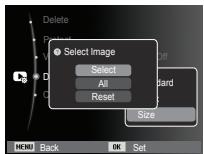
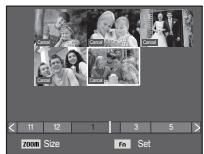
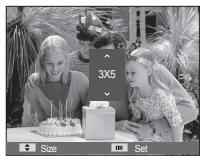
natural_image
Black-and-white photo of a woman and a child at a birthday cake, with no visible text or symbols in the main scene.※ DPOF [Size] secondary menu : Cancel, 3X5, 4X6, 5X7, 8X10

- Depending on the manufacturer and print model, cancelling the printing may take a little longer for the printer to process.
Copy to Card
This enables you to copy image files, movie clips and voice recording files to the memory card.
- Select the [Copy to Card] menu tab by pressing the Up / Down button. And then press the Right button.
- Select a desired sub menu by pressing the Up / Down button and press the OK button.
- [Yes] : All images, movie clips and voice recording files saved in the internal memory are copied to the memory card after the [Copying] message is displayed. After copying has been completed, the screen will return to play mode.
- [No] : Cancels "Copy to Card".
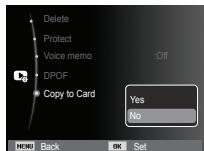

- If there is not enough space available on the memory card to copy saved images on the internal memory (About 9.8MB), the [Copy to Card] command will copy only some of the images and display [Memory Full] message. Then the system will return to the playback mode. Please be sure to delete any unnecessary files to free up space before inserting the memory card into the camera.
-
When you move the images that are stored on the internal memory by doing [Copy to Card] to the card, the next number of file names will be created on the card to avoid duplication of the file name.
-
When the [Reset] of the [File No.] setup menu is set : The copied file names start from after the last stored file name.
- When the [Series] of the [File No.] setup menu is set: The copied file names start from after the last captured file name. After completing [Copy to Card], the last stored image of the last copied folder is displayed on the LCD monitor.
You can use the USB cable to connect this camera to a printer that supports PictBridge (sold separately) and print the stored images directly. Movie clips and voice files cannot be printed.
■ Setting up the camera for connection to the printer
- Connect the camera and printer with USB cable.
- Once the camera is turned on, the camera automatically recognizes the printer and is connected to it.
※ If automatic connection fails, set the [USB] menu to [Printer]. (p.55)
※ For a printer that can enable removable disk, set the [USB] menu to [Printer].
■ Connecting the Camera to a Printer
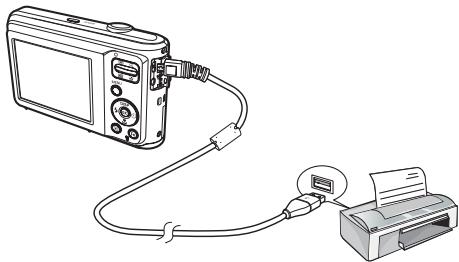
natural_image
Line drawing of a digital camera connected to a printer (no text or symbols present)■ Easy printing
When you connect the camera to printer in the Play back mode, you can print a picture easily.
- Pressing the Left / Right button : Selects a previous / next image.
- Pressing the OK button :
Currently displayed image will be printed with the printer's default settings.
PictBridge : Picture Selection
You can select images you want to print.
■ Setting the Number of Copies to Print
- Press the MENU button and the PictBridge menu will display.
- Use the Up / Down button to select the [Images] menu and press the Right button.
- Use the Up / Down button to select a desired sub menu and press the OK button.
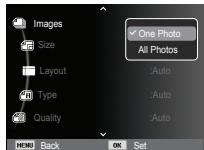
- Select [One Photo] or [All Photos]. A screen where you can set the number of copies to print will appear as shown below.
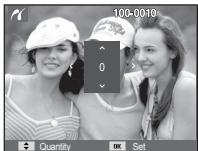
[When [One Photo] is selected]
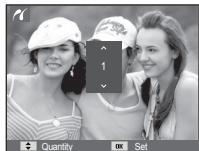
natural_image
Black-and-white photo of two women posing with a camera lens, no visible text or symbols[When [All Photos] is selected]
- Press the Up / Down button to select the number of prints.
- When [One Photo] is selected : Use the Left / Right button to select another picture. After selecting another picture, select the number of prints for another picture.
- After setting the number of prints, press the OK button to save.
- Press the Shutter button to return to the menu without setting the number of prints.
- Press the play mode button ( ▶ ) and images will be printed.
PictBridge : Print Setting
You can select the Paper Size, Print Format, Paper Type, Print Quality, Date Print and File Name Print menus for printed pictures.
- Press the MENU button and the PictBridge menu will display.
- Use the Up / Down button to select the desired menu, and then press the Right button.
- Use the Up / Down button to select the desired sub menu value, and then press the OK button.
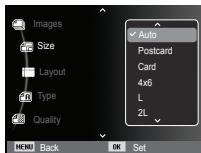
| Menu | Function | Sub menu |
| Size | Set the size of the printing paper | Auto, PostCard, Card, 4X6, L, 2L, Letter, A4, A3 |
| Layout | Set the number of pictures to be printed on a sheet of paper | Auto, Full, 1, 2, 4, 8, 9, 16, Index |
| Type | Set the quality of the printing paper | Auto, Plain, Photo, Fast Photo |
| Quality | Set the quality of the picture to be printed | Auto, Draft, Normal, Fine |
| Date | Set whether to print the date | Auto, Off, On |
| File Name | Set whether to print the file name | Auto, Off, On |
※ Some menu options are not supported on all printers.
If not supported, the menus are still displayed on the LCD, but are not selectable.
Initializes user-changed configurations.
- Use the Up / Down button to select the [Reset] menu tab. And then press the Right button.
- Use the Up / Down button to select the desired sub menu and then press the OK button.
If [Yes] is selected
: All print and image settings will be reset.
If [No] is selected
: Settings will not be reset.
※ Default print setting varies depending on the printer manufacturer. For your printer's default setting, refer to the user's guide that came with your printer.
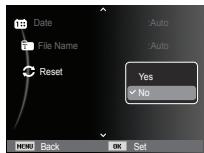
Be sure to observe the following precautions!
- This unit contains precision electronic components. Do not use or store this unit in the following locations.
- Areas exposed to severe changes in temperature and humidity.
- Areas exposed to dust and dirt.
- Areas exposed to direct sunlight or the inside of a vehicle in hot weather.
- Environments where there is high magnetism or excessive vibration.
-
Areas with high explosives or highly flammable materials.
-
Do not leave this camera in places subject to dust, chemicals (like naphthalene and mothballs), high temperature and high humidity. Keep this camera with silica gel in a hermetically sealed box when not planning to use the camera for a long period of time.
- Sand can be particularly troublesome to cameras.
- Do not let sand get inside the camera when using it on beaches, coastal dunes, or other areas where there is lots of sand.
- Doing so may result in failure or may permanently render the camera unusable.
- Handling the camera
- Never drop the camera or subject it to severe shocks or vibrations.
- Protect the large size LCD monitor from an impact. When this camera is not used, keep it in the camera case.
- Avoid obstructing the lens or the flash when you capture an image.
- This camera is not waterproof.
To avoid dangerous electrical shocks, never hold or operate the camera with wet hands.
- If you use this camera in wet places, such as beach or pool, do not let water or sand get inside the camera. Doing so may result in failure or may permanently damage the unit.
- Extremes in temperature may cause problems.
- If the camera is transferred from a cold to a warm and humid environment, condensation can form on the delicate electronic circuitry. If this occurs, turn the camera off and wait for at least 1 hour until all moisture is dispersed. Moisture built up can also occur on the memory card. If this happens, turn off the camera and remove the memory card. Wait until the moisture has dispersed.
- Caution on Using the Lens
- If the lens is subjected to direct sunlight, it could result in the discoloration and deterioration of the image sensor.
- Take care not to get fingerprints or foreign substances on the surface of the lens.
- If the digital camera is not used for a long period, an electric discharge can occur. It is a good idea to remove the battery and the memory card if you do not intend using the camera for an extended period of time.
- If the camera is exposed to electronic interference, it will turn itself off to protect the memory card.
- Camera Maintenance
- Use a soft brush (available from photo stores) to gently clean the lens and LCD assemblies. If this does not work, lens cleaning paper with lens cleaning fluid can be used.
Clean the camera body with a soft cloth. Do not allow this camera to come into contact with solvent materials such as benzol, insecticide, thinners etc. This may damage the body shell of the camera and also affect its performance. Rough handling can damage the LCD monitor. Take care to avoid damage and keep the camera in its protective carry case at all times when not in use.
- Do not attempt to disassemble or modify the camera.
- Under certain conditions, static electricity can cause the flash unit to fire. This is not harmful to the camera and is not a malfunction.
- When images are uploaded or downloaded, the data transfer may be affected by static electricity. In this case, disconnect and re-connect the USB cable before trying the transfer again.
- Before an important event or going on a trip, you should check the camera condition.
- Take a picture for testing the camera condition and prepare extra battery.
- If the digital camera is not used for a long period, the date and time may adopt the default settings by automatic battery discharged. In this case, reset the date and time correctly before the recording.
There are several warnings that may appear on the LCD display.
[Card Error]
- Memory card error
→ Turn off the camera power and turn it on again
→ Insert the memory card again
→ Insert and format the memory card (p.51)
[Card Locked]
• The memory card is locked
→ SD/SDHC memory card : Slide the write protect switch to the top of the memory card
[Memory Full]
- The memory card or internal memory is full
→ Insert new memory card
→ Delete unnecessary image files
[No Image File]
- There are no images stored on the memory
→ Take images
→ Insert a memory card that is storing some images
[File Error]
- File error
→ Delete the file - Memory card error
→ Contact a camera service center
[Low Battery]
- There is low battery capacity
→ Insert fresh battery
Please check the following.
The camera doesn't switch on
- There is low battery capacity
→ Insert fresh battery (p.13)
- Battery is inserted incorrectly with the polarities reversed
→ Insert the battery according to the polarity marks (+, -)
The camera power ceases while in use
• The battery is exhausted
→ Insert fresh battery
- The Camera is turned off automatically
→ Turn on the camera power again
- Operation has ceased in a low temperature outside of the camera usage temperature range
→ Make the camera and battery warm by placing them in your pocket, etc. and then immediately before shooting, place the battery in the camera and then shoot
Camera does not take images when pressing the Shutter button
- There is insufficient memory capacity
→ Delete unnecessary image files
- The memory card has not been formatted Format the memory card (p.51)
- The memory card is exhausted Insert a new memory card
- The memory card is locked → Refer to [Card Locked] error message (p.80)
- The camera's power is off → Turn the camera power on
- The battery is exhausted → Insert fresh battery (p.13)
- Battery is inserted incorrectly with the polarities reversed Insert the battery according to the polarity marks (+, -)
The camera suddenly stops working while in use
- The camera stopped due to a malfunction
→ Remove / reinsert battery and switch the camera on
The images are unclear
- A picture was taken of the subject without setting an appropriate macro mode
→ Select an appropriate macro mode to take a clear image
- Taking a picture beyond the flash range Take a picture within the flash range
• The lens is smudged or dirty
→ Clean the lens
Before contacting a service center
The flash does not fire
- Flash off mode has been selected
→ Disengage flash off mode - The camera mode can't use the flash
→ Refer to the FLASH instruction (p.31)
Incorrect date and time is displayed
- The date and time have been set incorrectly or the camera has adopted the default settings
→ Reset the date and time correctly
The camera buttons do not operate
- Camera malfunction
→ Remove / reinsert battery and switch the camera on
A card error has occurred while the memory card is in the camera
- Incorrect memory card format
→ Reformat the memory card
The images don't play back
- Incorrect file name (Violation of DCF format)
→ Do not change the image file name
Color of image is different to the original scene
- White balance or effect setting is incorrect
→ Select appropriate White balance and effect
Images are too bright
- Exposure is excessive
→ Reset exposure compensation
No image on external monitor
- The external monitor has not been connected properly with the camera
→ Check the connection cables - There are incorrect files on the memory card
→ Insert a memory card that has correct files
When using the PC's explorer, the [Removable Disk] file does not show
- Cable connection is incorrect
→ Check the connection - The camera is off
→ Turn the camera on - The operating system is not Windows XP, Vista, 7 / Mac OS 10.3. Alternatively the PC does not support USB
→ Install Windows XP, Vista, 7 / Mac OS 10.3 to PC that supports USB
A part of the LCD screen does not occasionally turn on or a spot appears
- Although the LCD screen is manufactured with high precision technology, the precision pixels are not occasionally lighted or the red, white and blue spots appear
→ This phenomenon does not affect the quality of the recorded image and it is not a malfunction
A vertical line appears on the LCD screen when taking a picture of a bright object
- If a subject is exposing bright lights, a gray, black, red or purple vertical line may appear
→ This is a phenomenon called smear and it does not affect the quality of the recorded image. This is not a malfunction
Specifications
| Image Sensor | - Type : 1/2.33" CCD- Effective Pixels : Approx. 12.2 Mega-pixels- Total Pixels : Approx. 12.3 Mega-pixels |
| Lens | - Focal Length : SAMSUNG Lens f = 4.9 ~ 19.6mm(35mm film equivalent : 27 ~ 108mm)- F No. : F3.5(W) ~ F5.0(T)- Digital Zoom : ·Still Image mode :1.0X ~ 3.0X·Play mode : 1.0X ~ 12.5X(depends on image size) |
| Image Stabilization | - DIS (Digital Image Stabilization) |
| LCD Monitor | - 2.5" color TFT LCD (230,000 dots) |
| Focusing | - Type : TTL auto focus (Multi AF, Center AF, Face Detection AF)- Range |
| Normal | Macro | Auto Macro | |
| Wide | 80cm ~ Infinity | 5cm ~ 80cm | 5cm ~ Infinity |
| Tele | 80cm ~ Infinity | 70cm ~ 100cm | 70cm ~ Infinity |
| Shutter | - Smart Auto : 8 ~ 1/2,000 sec., Program : 1 ~ 1/2,000 sec., Night : 8 ~ 1/2,000 sec., Fireworks : 2 sec. |
| Exposure | - Control : Program AE- Metering : Multi, Spot, Center-Weighted,Face Detection AE- Compensation : ± 2EV (1/3EV steps)- ISO : Auto, 80, 100, 200, 400, 800, 1600 |
| Flash | - Modes : Auto, Auto & Red-eye reduction, Fill-in flash, Slow sync, Flash off, Red-eye Fix- Range : Wide : 0.2m ~ 2.68mTele : 0.5m ~ 1.59m (ISO AUTO)- Recharging Time : Approx. 4 sec |
| Sharpness | - Soft+, Soft, Normal, Vivid, Vivid+ |
| White Balance | - Auto, Daylight, Cloudy, Fluorescent_H, Fluorescent_L, Tungsten, Custom |
| Voice Recording | - Voice Recording (max. 10 hours)- Voice Memo in Still Image (max. 10 sec.) |
| Date Imprinting | - Date, Date & Time, Off (user selectable) |
| Shooting | - Still ImageMode : Smart Auto, Program, DIS, Photo Help Guide, SceneScene : Beauty Shot, Frame Guide, Night, Portrait, Children, Landscape, Close-up, Text, Sunset, Dawn, Backlight, Fireworks, Beach & SnowShooting : Single, Continuous, Motion Capture, AEBSmart Auto : Macro, Macro Text, White, Landscape, Action, Tripod, Night, Night Portrait, Backlight, Backlight Portrait, Portrait, Macro Portrait, Blue Sky, Sunset Sky, Macro Color, Natural GreenSelf-timer : 10 sec., 2 sec., Double, Motion Timer |
Specifications
| - Movie clip·With Audio or without Audio(user selectable, recording time : max 2 hours)·Size : 640x480, 320x240·Frame rate : 30 fps, 15 fps·4X Optical Zoom and Mute in Zooming·Movie Editing (Embedded): Pause during recording, Still Image Capture | |
| Storage | - Media·Internal memory : About 9.8MB flash memory·External memory (Optional) :SD card (Up to 2GB guaranteed)SDHC card (Up to 8GB guaranteed)- File Format·Still Image : JPEG (DCF), EXIF 2.21, DPOF 1.1,PictBridge 1.0·Movie clip : AVI (MJPEG)·Audio : WAV- Image Size |
| 12M | 10M | 9M | 8M | 5M | 3M | 2M | 1M |
| 4000x | 3984x | 3840x | 3264x | 2560x | 2048x | 1920x | 1024x |
| 3000 | 2656 | 2160 | 2448 | 1920 | 1536 | 1080 | 768 |
- Capacity (1GB Size)
| 12M | 10M | 9M | 8M | 5M | 3M | 2M | 1M | |
| Super Fine | About 147 | About 167 | About 202 | About 211 | About 339 | About 532 | About 870 | About 1471 |
| Fine | About 284 | About 309 | About 367 | About 374 | About 566 | About 802 | About 1144 | About 1670 |
| Normal | About 403 | About 441 | About 528 | About 537 | About 792 | About 1065 | About 1437 | About 1872 |
※ These figures are measured under Samsung standard conditions and may vary depending on shooting conditions and camera settings.
| Effect | - Shooting : Photo Style Selector, Image Adjust (Sharpness, Contrast, Saturation) - Editing : Resize, Rotate, Photo Style Selector, Image Adjust (ACB, Face Retouch, Red-Eye Fix, Brightness, Contrast, Saturation, Add Noise) |
| Image Play | - Type : Single image, Thumbnails, Smart Album, Multi slide show, Movie clip※ Multi slide show : Slide show with Effect & Music |
| Interface | - Digital output connector : USB 2.0- Audio : Microphone: Mono, Internal Speaker: Mono- Video output : NTSC, PAL (user selectable)- DC power input connector : 3.3 V |
Specifications
| Power Source | - Primary Battery : 2xAA Alkaline- Rechargeable battery : SNB-2512B KIT(Optional)(2xAA Ni-MH Battery & Charger)※ Included battery may vary depending on sales region. |
| Dimensions (WxHxD) | - 96.3 X 61 X 23.5mm(excluding protrusions) |
| Weight | - Approx. 114g (without battery and card) |
| Operating Temperature | - 0 ~ 40°C |
| Operating Humidity | - 5 ~ 85% |
| Software | - Intelli-studio, Adobe Reader |
※ Specifications are subject to change without prior notice.
※ All trademarks are the property of their respective owners.
Transferring files to your computer (for Windows)
For Windows users
Transfer files by connecting your camera to your PC.
■ Installing programs
Hardware and software requirements
| Item | Requirements |
| CPU | Intel® Pentium®4 3.0 GHz or higherAMD AthlonTM FX 2.2 GHz or higher |
| RAM | 512 MB or more (1 GB or more recommended) |
| OS | Windows XP/Vista/7 |
| Others | - USB port- CD-ROM drive- nVIDIA Geforce 7600GT or higherAti X1600 series or higher- 1024 X 768 pixels, 16-bit color display compatible monitor (1280 X 1024 pixels, 32-bit color display recommended)- Microsoft DirectX 9.0c or later |
■ Programs contained on the CD
| Program | Purpose |
| Intelli-studio | Edit photos and videos. |
| Adobe Reader | View the user manual. |

- Using a self-assembled PC or a PC and OS that are not supported may void your warranty.
- The programs may not work properly on 64-bit Edition of Windows XP, Vista and 7.
- Intelli-studio may not perform correctly on some computers, even when the computer meets the requirements.
- If your computer does not meet the requirements, videos may not play correctly or it may take longer to edit videos.
- Install DirectX 9.0c or above before you use the program.
Transferring files to your computer (for Windows)
- Insert the installation CD in a compatible CD-ROM drive.
- When the setup screen is displayed, click Samsung Digital Camera Installer to start installation.
![Samsung Digital Camera • Thank you to purchasing Samsung Digital Camera. • It is therefore recommended that you exit all Windows programs before installing this program. • If the camera is connected to your computer through USB cable, please remove the cable and then click [Samsung Digital Camera Installer]. • You can use email address. • This CD-ROM includes User Manual which is PDF file. Samsung Digital Camera Import Samsung Digital Camera Manual OK](/content/2025/01/98568/images/8636524494287b46e9483050c8cf975e953121958ab9838d5ba332a855456737.jpg)
- Select programs to install and follow the onscreen instructions.
- Click Exit to complete the installation and restart your computer.
■ Transferring files to your PC
Once you connect the camera to your PC, the camera will be recognized as a removable drive.

- The battery will be charged while the camera is connected to a PC with the USB cable.
- Connect your camera to your PC with the USB cable.

- If the cable is reversed, it may damage your files. The manufacturer is not responsible for any loss of data.
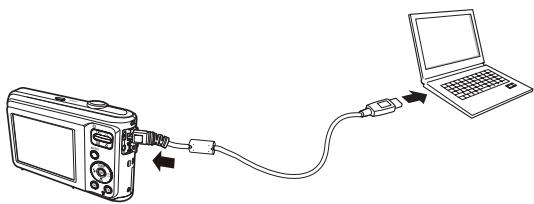
natural_image
Line drawing of a camera connected to a laptop via cable (no text or symbols)Transferring files to your computer (for Windows)
- Turn on the camera.
- The computer recognizes the camera automatically.

- If the camera fails to connect, a pop-up window will appear. Select Computer.
- On your PC, select [My Computer → Removable Disk → DCIM → 100PHOTO].
- Select the files you want and drag or save them to your PC.
■ Disconnecting the camera (for Windows XP)
The way to disconnect the USB cable for Windows Vista/7 is similar.
- If the status lamp on your camera is blinking, wait until it stops.
- Click 📣 on the tool bar at the bottom right of your PC screen.

- Click the pop-up message.
- Remove the USB cable.
Transferring files to your computer (for Windows)
■ Using Intelli-studio
Once you have installed the Intelli-studio on your PC, the Intelli-studio starts automatically when a camera is connected with your PC. If the Intelli-studio does not start after you have connected the camera to your PC, double-click the Intelli-studio icon on your Windows desktop. The Intelli-studio allows you to play back and edit files. You can also upload files to websites, such as Flickr or YouTube. For details, select [Help Help] in the program.

- You cannot edit files directly on the camera. Transfer files to a folder on your computer before editing.
- You cannot copy files in your computer to the camera.
- Intelli-studio supports the following formats:
- Videos: AVI(MJPEG), MP4 (Video: H.264, Audio: AAC), WMV (WMV 7/8/9)
- Photos: JPG, GIF, BMP, PNG, TIFF
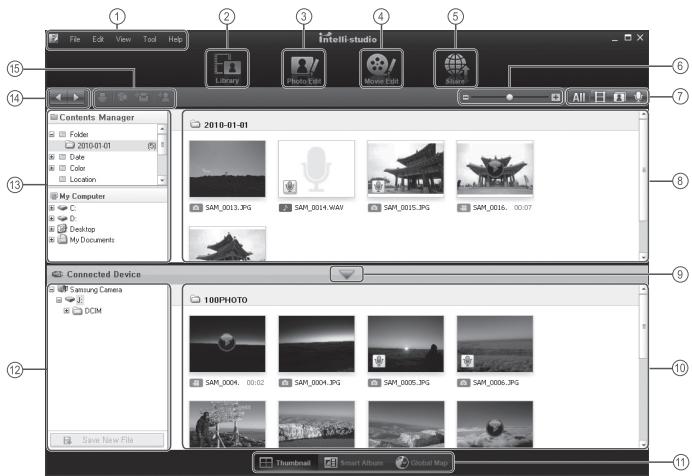
Transferring files to your computer (for Windows)
| Icon | Description |
| 1 | Open menus |
| 2 | Display files in the selected folder |
| 3 | Change to the Photo edit mode |
| 4 | Change to the Video edit mode |
| 5 | Change to the Sharing mode (You can send files by email or upload files to websites, such as Flickr or YouTube.) |
| 6 | Enlarge or reduce the thumbnails in the list |
| 7 | Select a file type |
| 8 | View files of the selected folder on your computer |
| 9 | Show or hide files of the connected camera |
| 10 | View files of the selected folder on the camera |
| 11 | View files as thumbnails, in Smart Album, or on a map |
| 12 | Browse folders in the connected device |
| 13 | Browse folders in your computer |
| 14 | Move to the previous or next folder |
| 15 | Print files, view files on a map, store files in My Folder, or register faces |
Transferring files to your computer (for Mac)
For Mac users
When you connect the camera to a Macintosh computer, the computer will recognize the device automatically. You can transfer files directly from the camera to the computer without installing any programs. MAC OS 10.3 or later is supported.
- Connect your camera to a Macintosh computer with the USB cable.

- You must plug the end of the cable with the indicator light (▲) into your camera. If the cable is reversed, it may damage your files. The manufacturer is not responsible for any loss of data.
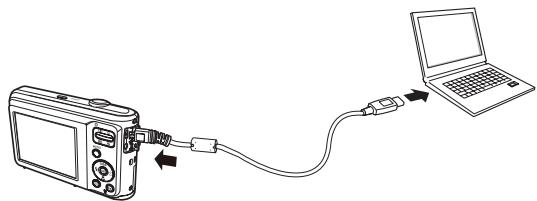
natural_image
Line drawing of a digital camera connected to a laptop via cable (no text or symbols)Transferring files to your computer (for Mac)
- Turn on the camera.
- The computer recognizes the camera automatically and a removable disk icon will be displayed.
-
Double click the removable disk icon.
-
Transfer photos or videos to the computer.
Please check the following if the USB connection malfunctions.
Case 1 USB cable is not connected or it is not the supplied USB cable.
→ Connect the supplied USB cable.
Case 2 The camera is not recognized by your PC.
Sometimes, the camera may appear under [Unknown Devices] in Device Manager.
→ Turn off the camera, remove the USB cable, plug in the USB cable again, and then turn on the camera.
Case 3 There is an unexpected error during file transfer.
→ Turn the camera power off and on again. Transfer the file again.
Case 4 When using the USB hub.
→ There may be a problem in connecting the camera to the PC through the USB hub if the PC and the hub are not compatible. Wherever possible, connect the camera to the PC directly.
Case 5 Are other USB cables connected to the PC?
→ The camera may malfunction when it is connected to the PC at the same time as another USB cable. In this case, disconnect the other USB cable, and connect only one USB cable to the camera.
Case 6
When I open the Device Manager (by clicking Start → (Settings) → Control Panel → (Performance and Maintenance) → System → (Hardware) → Device Manager), there are Unknown Devices or Other Devices entries with a yellow question mark(?) beside them or devices with an exclamation mark(!) beside them.
→ Right-click on the entry with the question(?) or exclamation (!) mark and select "Remove". Restart the PC and connect the camera again.
Case 7
In some security programs (Norton Anti Virus, V3, etc.), the computer may not recognize the camera as a removable disk.
→ Stop the security programs and connect the camera to the computer. Refer to the security program instructions about how to temporarily disable the program.
Case 8
The camera is connected to the USB port located on the front of the computer.
→ When the camera is connected to the USB port located on the front of the computer, the computer may not recognize the camera. Connect the camera to the USB port located on the back of the computer.
FAQ
■ When the DirectX 9.0c or later is not installed
→ Install the DirectX 9.0c or later
1) Insert the CD provided with the camera
2) Run the windows explorer and select the [CD-ROM drive:\
DirectX] folder and click the DXSETUP.exe file.
The DirectX will be installed.
Visit the Microsoft website for downloading the DirectX.
■ If a PC connected with the camera stops responding while Windows is starting.
→ In this case, disconnect the PC and the camera and Windows will start. If the problem happens continuously, set the Legacy USB Support to disable and re-start the PC. The Legacy USB Support is in the BIOS setup menu. (The BIOS setup menu differs from the PC manufacturers and some BIOS menus don't have Legacy USB Support) If you can't change the menu by yourself, contact to the PC manufacturer or BIOS manufacturer.
Correct disposal of batteries in this product

Correct disposal of batteries in this product (Applicable in the European Union and other European countries with separate battery return systems.)
This marking on the battery, manual or packaging indicates that the batteries in this product should not be disposed of with other household waste at the end of their working life. Where marked, the chemical symbols Hg, Cd or Pb indicate that the battery contains mercury, cadmium or lead above the reference levels in EC Directive 2006/66. If batteries are not properly disposed of, these substances can cause harm to human health or the environment.
To protect natural resources and to promote material reuse, please separate batteries from other types of waste and recycle them through your local, free battery return system.

Correct Disposal of This Product (Waste Electrical & Electronic Equipment) (Applicable in the European Union and other European countries with separate collection systems)
This marking on the product, accessories or literature indicates that the product and its electronic accessories (e.g. charger, headset, USB cable) should not be disposed of with other household waste at the end of their working life. To prevent possible harm to the environment or human health from uncontrolled waste disposal, please separate these items from other types of waste and recycle them responsibly to promote the sustainable reuse of material resources. Household users should contact either the retailer where they purchased this product, or their local government office, for details of where and how they can take these items for environmentally safe recycling. Business users should contact their supplier and check the terms and conditions of the purchase contract. This product and its electronic accessories should not be mixed with other commercial wastes for disposal.
This Class [B] digital apparatus complies with Canadian ICES-003.

Samsung Eco-mark
It is Samsung's own symbol mark is used to effectively communicate Samsung's environmental friendly product activities to the consumers. The mark represents Samsung's continuous effort on development of environmental conscious products.
SAMSUNG
Please refer to the warranty that came with the product you purchased, or go to our website http://www.samsungimaging.com/ for after-sales service or inquiries.