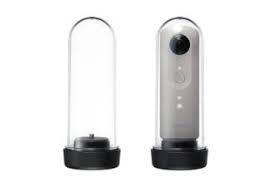
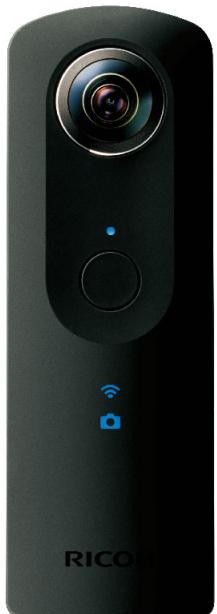
THETA S TH-2 - Caméra 360° RICOH - Notice d'utilisation et mode d'emploi gratuit
Retrouvez gratuitement la notice de l'appareil THETA S TH-2 RICOH au format PDF.


| Type de produit | Caméra 360° |
| Marque | RICOH |
| Modèle | THETA S TH-2 |
| Dimensions (L x H x P) | 130 x 60 x 22,5 mm |
| Poids | 125 g |
| Alimentation | Batterie lithium-ion intégrée, rechargeable via USB |
| Autonomie approximative (photos) | 260 photos |
| Capteur | 2 x CMOS 1/2,3" 12 Mpx (sortie équivalente 14 Mpx) |
| Objectif | Double objectif fish-eye, ouverture F2.0 |
| Résolution vidéo | Full HD (1920 x 1080) 30 ips |
| Durée max d'enregistrement vidéo | 25 minutes en continu |
| Mémoire interne | 8 Go |
| Connectivité | Wi-Fi, port HDMI Type-D, USB |
| Fonctions principales | Prise de vue 360°, enregistrement vidéo 360°, visée live, télécommande via smartphone, modes auto/priorité vitesse/priorité ISO/manuel, retardateur, bracketing, pose longue (60 s), intervalomètre, live streaming HD |
| Entretien et nettoyage | Essuyer avec un chiffon doux et sec. Éviter les produits chimiques. |
| Sécurité | Ne pas exposer à l'eau ou à des températures extrêmes. Utiliser uniquement des accessoires recommandés. |
| Pièces détachées et réparabilité | Batterie intégrée non remplaçable par l'utilisateur. Réparation par un centre agréé. |
| Informations générales | Mise à jour du firmware possible. Applications compagnes : THETA+ (photos) et THETA+ Video (vidéos). |
FOIRE AUX QUESTIONS - THETA S TH-2 RICOH
Questions des utilisateurs sur THETA S TH-2 RICOH
0 question sur cet appareil. Repondez a celles que vous connaissez ou posez la votre.
Poser une nouvelle question sur cet appareil
Téléchargez la notice de votre Caméra 360° au format PDF gratuitement ! Retrouvez votre notice THETA S TH-2 - RICOH et reprennez votre appareil électronique en main. Sur cette page sont publiés tous les documents nécessaires à l'utilisation de votre appareil THETA S TH-2 de la marque RICOH.
MODE D'EMPLOI THETA S TH-2 RICOH
Getting started with RICOH THETA
Easy to Follow Instruction

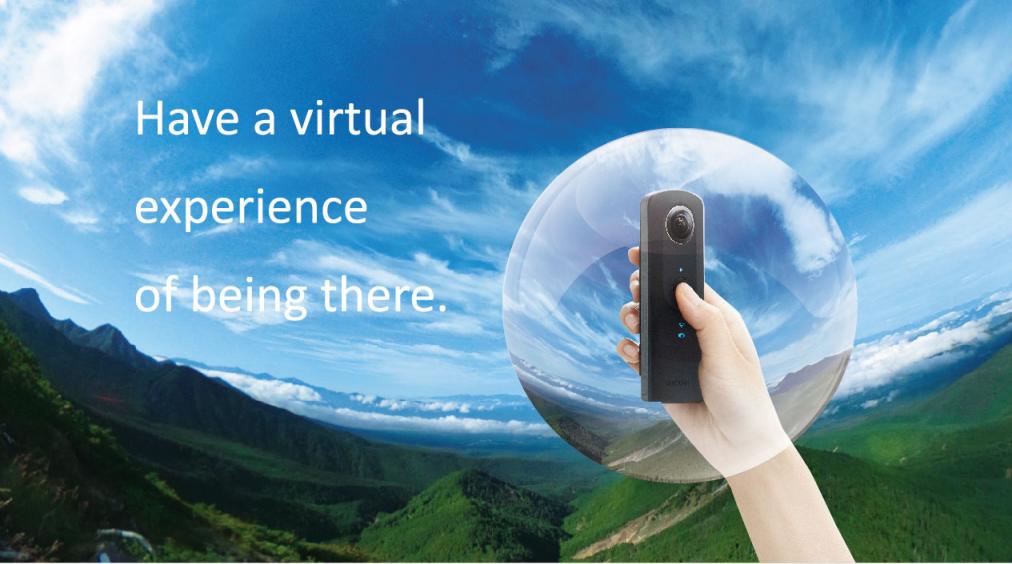
View captured images on a smartphone to enjoy the full 360^ experience in all directions.
*To enjoy images taken by RICOH THETA with smartphone, dedicated application is needed.

Download the dedicated app!
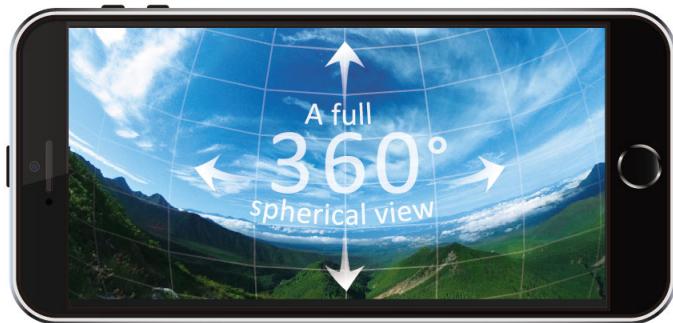
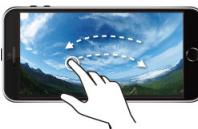
360^ horizontally
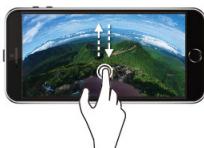
360^ vertically
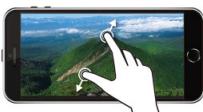
Expanding
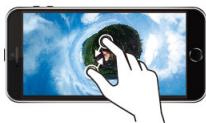
Reducing
What can you do with RICOH THETA?
Shoot Record an entire scene with a single shot.
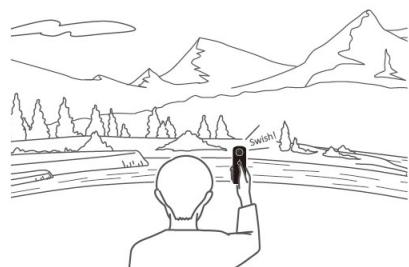
By using the application, RICOH THETA also enables shooting using remote control or manually.
RICOH THETA technology
Two super-wide-angle lenses (fish-eye lenses)
Real-time image processing technology
Generating 360^ images
View By using the application, view a 360^ picture or video.
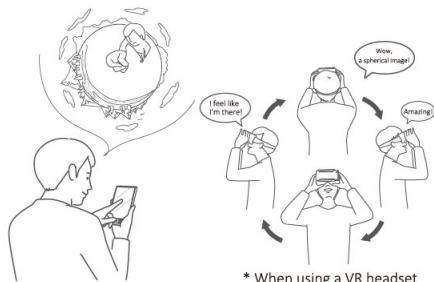
Watch your favorite parts from a
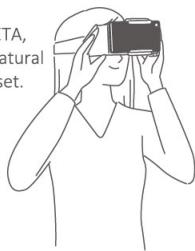
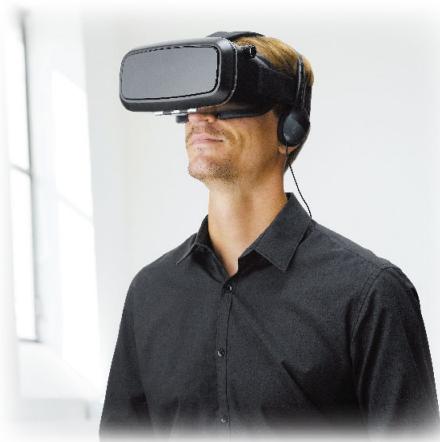
360^ picture or video simply by swiping and pinching. With VR headset, the image on the display moves in step with you.
Basic application

RICOH THETA S
For RICOH THETA S/SC
Enjoy Edit in various fun ways and share worldwide.
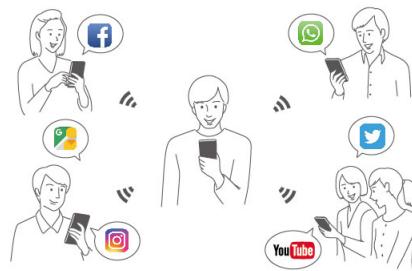
You can use various SNS and email services to easily share 360^ images with your friends, and using the editing app lets you enjoy the content in even more ways.
- Special editing app

THETA+
For 360^ pictures

THETA+ Video
For 360^ videos
Taking Still Images
- Turn the power on.
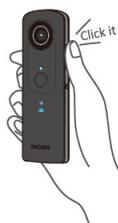
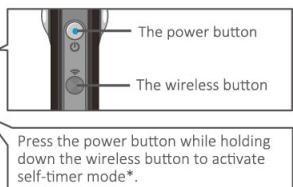
*The default setting for self-timer shooting is 5 seconds. The setting can be changed between 2 seconds, 5 seconds and 10 seconds using the app.
*THETA S unit requires an update for this feature.
- Hold it still and press the shutter button.
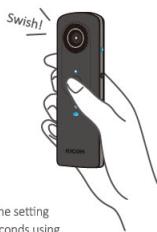
Just one shot is enough. No need to think about the camera position.
*Recorded images are stored in the camera's built-in memory.
Explore Creative Shooting Positions!
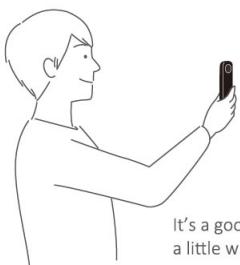
Shoot from above your head when you don't want to stand out in the picture.
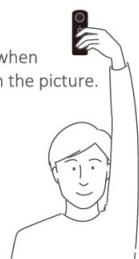
*All of the app screenshots featured in this booklet are from the iOS.
Shooting Remotely
- Tap the of the basic app and move to remote shooting display.
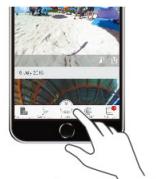
- Tap to release the shutter.
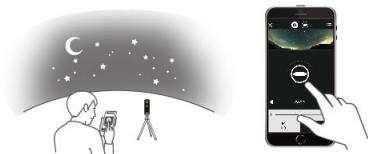
*Wi-Fi can be connected up to approx. 10 meters away.
*A connection setup is necessary when connecting RICOH THETA to a smartphone for the first time. For connection methods, refer to the "Quick Start Guide" included with the product.
*Turn the smartphone's Wi-Fi mode on.
The LIVE view function of the basic application for RICOH THETA S allows a photo to be taken by simulating on a smartphone. (In still image mode)
*Turn the smartphone's Wi-Fi mode on.
[You can change the shooting mode to make various adjustments including brightness and color hues]
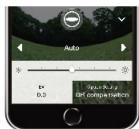
Auto shooting
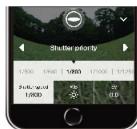
Shutter Priority
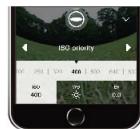
ISO Priority
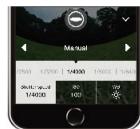
Manual
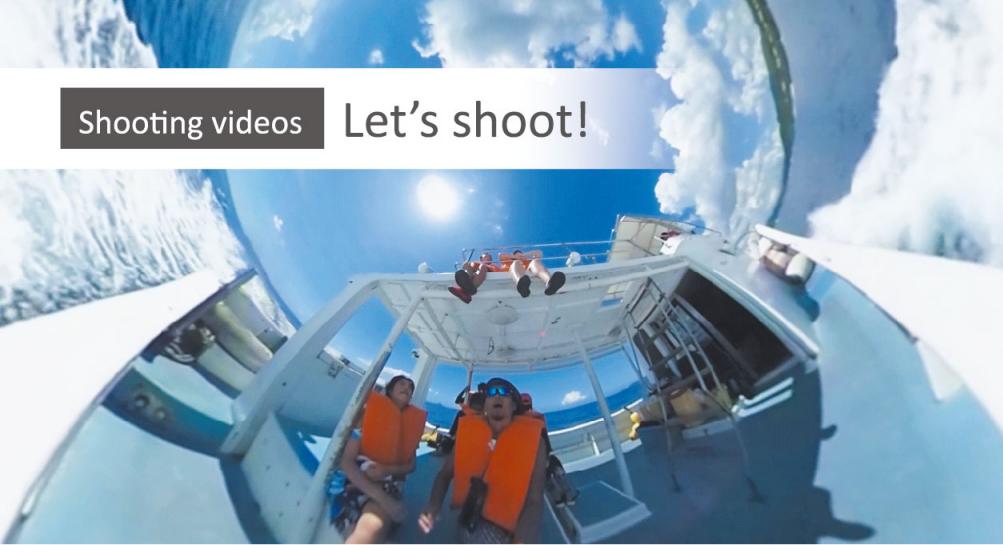
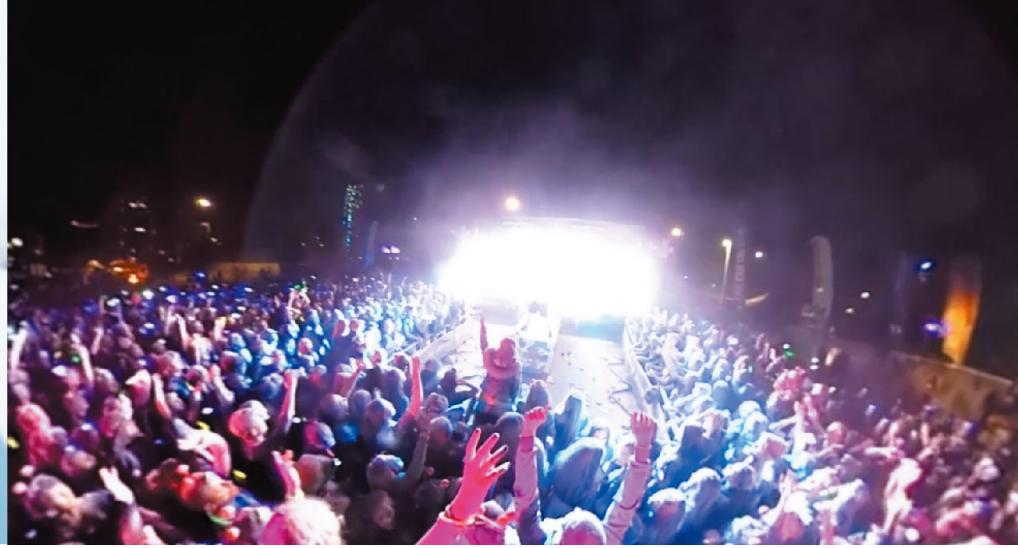
Shooting Videos
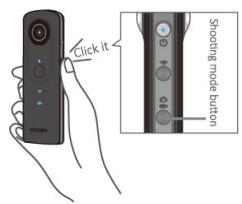
- Press the shooting mode button and select the video mode.
- Press the shutter button to start video shooting.
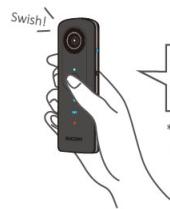
Video shooting ends when the shutter button is pressed again.
*To take a good video, keep the camera still while shooting.
Fix the THETA in place when shooting!
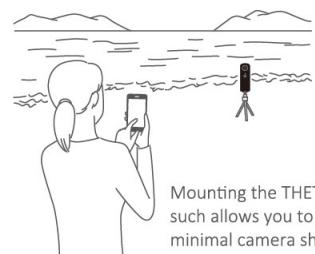
When taking a video with THETA, minimal shake will allow for natural viewing, even with a VR headset.
Taking a Video by Remote Control
- Tap the of the basic app and move to remote shooting display.
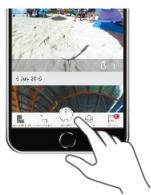
- Tap to start recording, and tap again to stop.
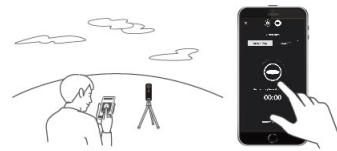
*Wi-Fi can be connected up to approx. 10 meters away.
*Turn the smartphone's Wi-Fi mode on.
Take natural photos!
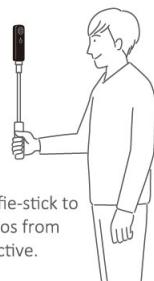
Using a tripod and remote shooting allows you to take more appealing photos.
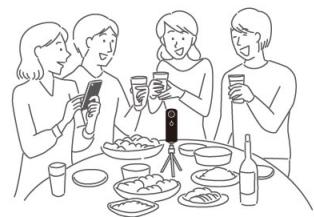
You can use a selfie-stick to take natural photos from your own perspective.
Transferring to a Smartphone
Launch the basic app, select [Cam images] and tap the images you want to transfer.
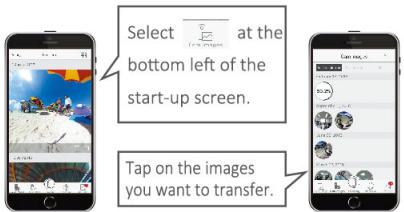
*Turn the smartphone's Wi-Fi mode on.
Viewing on a Smartphone
Select [Device images] and tap on the image you want to view.
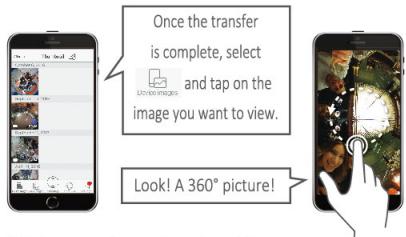
Pictures can also be viewed on a PC.
Once an image has been transferred it is saved.
Still Images Enjoy 360^ experiences!

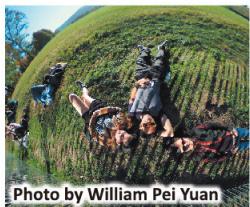
Check out a sample here
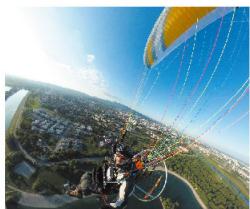

Check out a sample here
Viewing in VR
- Select the image you want to view in the basic app, and tap at the bottom right of the image. Choose single lens or twin lens.
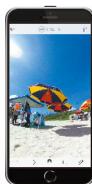
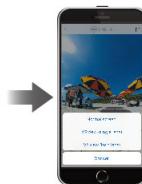

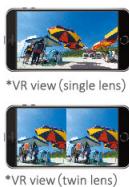
*VR viewing may be unavailable on some Android devices.
- Enjoy virtual experiences with a VR headset
Viewing in single lens mode
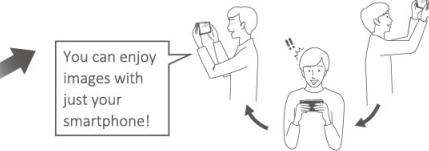
Viewing in twin lens mode
Place your smartphone in a VR headset to enjoy the image.
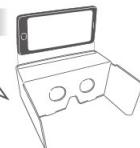
Commercially available VR headsets can be used.
Consult the instruction manual for each product for information on recommended ages.
Videos Enjoy 360^ experiences!
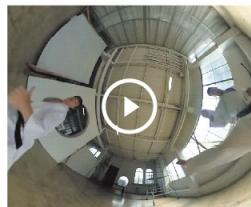

Check out a sample here
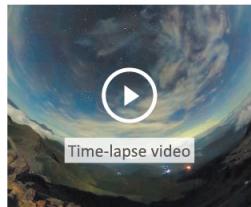

Check out a sample here
Editing Still Images / Editing Videos
The THETA+ and THETA+ Video smartphone apps are specially designed for editing still images and video, respectively.
As well as editing still images and video in various ways, you can also save them on your smartphone and share them with your friends.

THETA+ (for still images)
View (view selection)
-Text
- Filters (color tone change)
Cropping
(cutting out part of the image)
Time lapse editing
Sharing
Image correction
As of February 2017 *Operation may vary depending on the OS.

THETA+ Video (for videos)
View (view selection)
BGM
- Filters (color tone change)
Cropping
-Trimming
(cutting out part of the video framing)
(cutting video length, adjusting playback speed)
Sharing
As of February 2017 *Operation may vary depending on the OS.
Display 360-degree content in various ways
Select from four different views to create images unique to RICOH THETA. *1
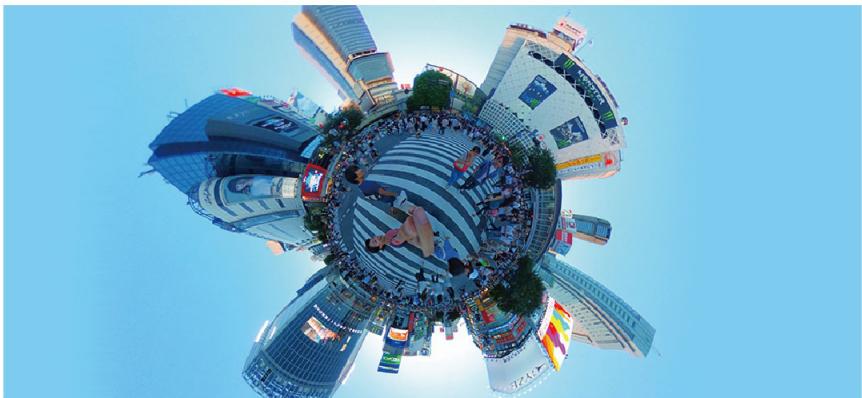
Little planet

Mirror ball
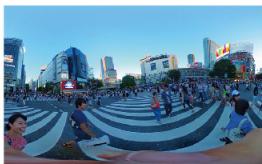
Flat

Straight
Freely change color hues and brightness
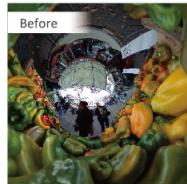
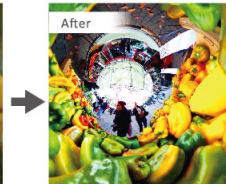
Ten filters are available to change the color tones. Seven types of image correction including exposure, contrast and saturation can also be applied. *2
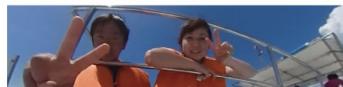
Make changes to videos*3
Cancel
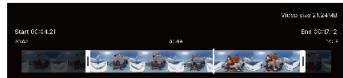
You can cut videos down to the desired length and modify the playback speed.
By adding your favorite background music, you can add drama to your movies.
Have fun decorating with stamps and text ^*2

Choose from around 100 stamps and enter your own text to decorate your 360-degree images.
Create time lapse videos*2
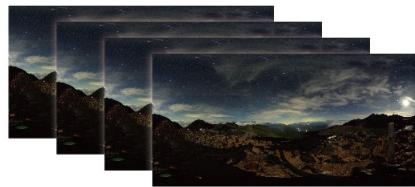
This mode lets you create 360-degree time lapse videos by combining multiple still images recorded with the interval shooting feature.
Save your images in two ways: 360-degree image or cropped image

360-degree images
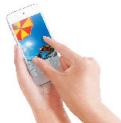
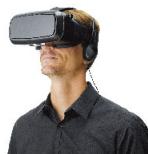
Even after editing, you can spin and rotate the image. If posted to Facebook or YouTube (videos only), the 360-degree content can be experienced in VR using a smartphone.

Cropped images
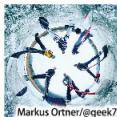
This mode produces unique images cropped onto a flat surface. These images can be posted as-is to many social media sites such as Instagram and LINE.
Choose from seven crop types including square and 16:9. *2


Enjoy pictures and videos by sharing
You can easily post to SNS sites such as Twitter and Facebook from the basic app or editing app.
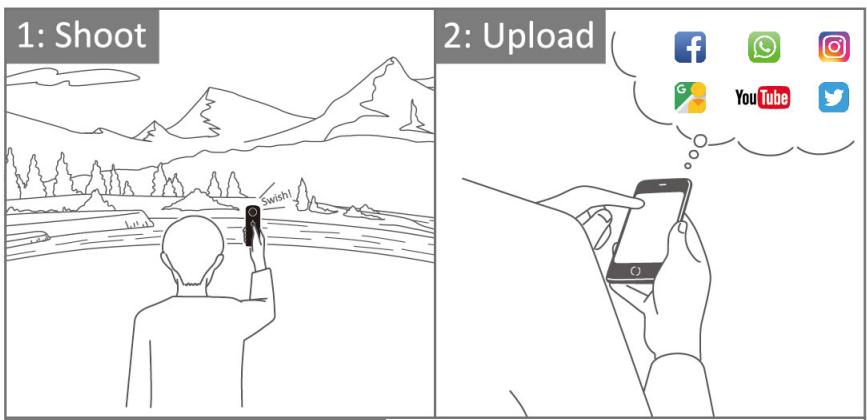
3: Share with Everyone
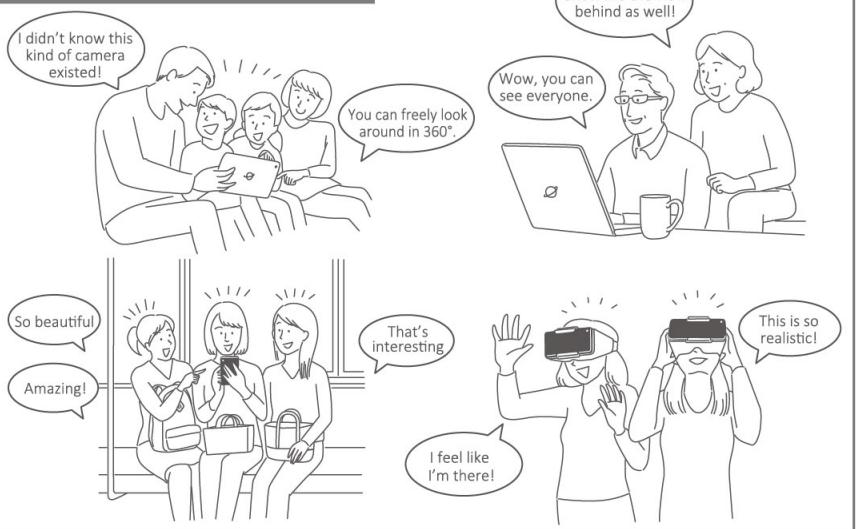
Using SNS
360^ images taken with RICOH THETA can be enjoyed on supported SNS sites.
- Compatible SNS (examples):

f Posting to Facebook
Spherical still images and videos can be posted as-is to Facebook, allowing your friends to view your content in 360^
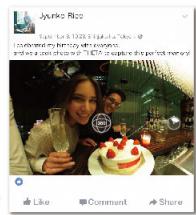
Posting to Twitter
You can upload content to the Ricoh cloud space
(theta360.com) and place a link in a Twitter post. The linked page can be viewed in 360^ .
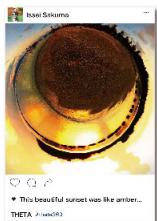
Posting to Instagram
Using the THETA+ and
THETA+ Video editing apps,
you can share your proud
creations with friends. Posting
creative THETA images to
Instagram is a popular style!
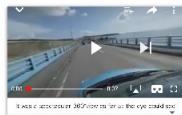
YouTube Posting to YouTube
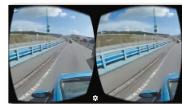
YouTube supports 360^ video. With the YouTube app you can easily share virtual reality experiences in VR view (twin lens).
Posting to Google Street View
Using the Street View app, you can do everything from shooting THETA images with remote control to uploading 360^ images.
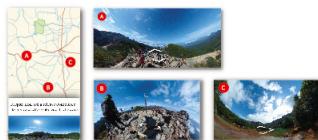
*These are images of submitted pictures.
Sharing without Posting to SNS
If you upload images to the Ricoh cloud s (theta360.com) without posting to an SN, you can share the image only with those you send the URL to.
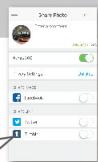


Check the uploaded image.
Send the URL
Explore Various Shooting Scenarios
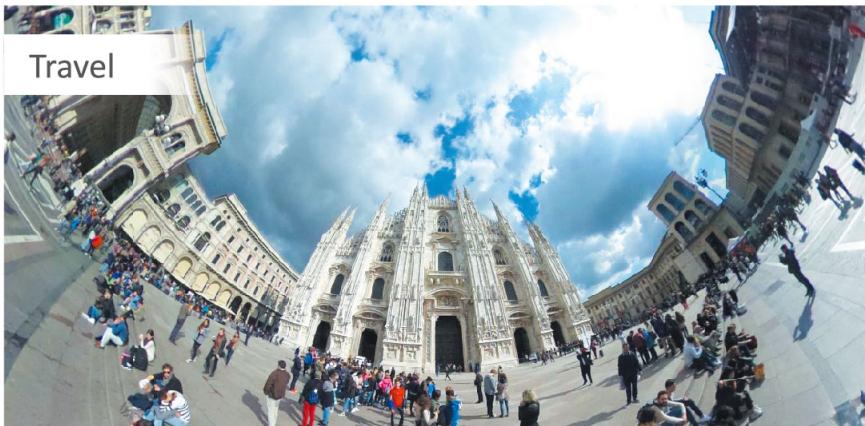
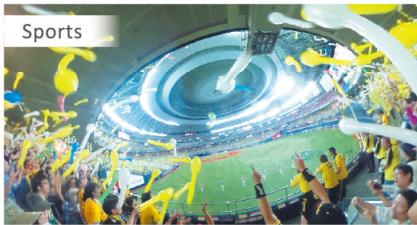
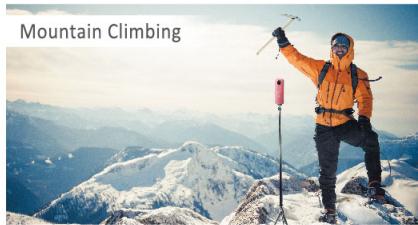
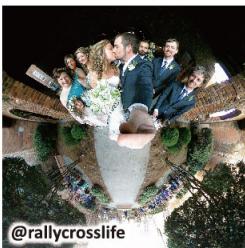
Wedding Ceremonies
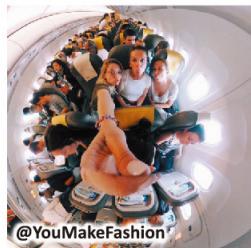
Time with Family and Friends
We recommend shooting still images or video even on regular days when nothing much is happening.
Even when it's not a particularly special day, photos taken with family serve as a record of precious moments. As time passes, you will look back on unassuming daily moments—of a daughter when she was still a baby, a beloved grandparents, or even your own younger self—and be able to recreate those instances in the vivid detail of a 360-degree virtual experience.
Learn More
Go to the Official RICOH THETA accounts
This official account is loaded with information about various 360^ works and ways of enjoying RICOH THETA. Follow the account to enjoy RICOH THETA even more.
The RICOH THETA Facebook page offers extensive information including usage tips and stories behind the development of the RICOH THETA.


RICOH THETA
News related to RICOH THETA is distributed


RICOH THETA official
Filled with RICOH THETA's creative works.


theta360official

Loaded with 360^ videos shot using RICOH THETA.

RICOH THETA
RICOH THETA Official Website - theta360.com
The official site helps you get even more out of your RICOH THETA with the latest information on RICOH THETA and related apps, a sample gallery that allows you to rotate images, and the cloud space, which allow you to post and share the 360^ spherical images you have taken.

RICOH THETA S
High-end Model
For capturing a 360^ world with amazing beauty
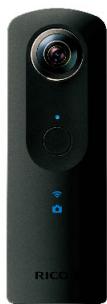
The RICOH THETA S achieves high quality combined with excellent performance. Record a 360^ spherical world with exceptional clarity and quality just the way you want, in still images or extended-length movies (up to 25 minutes).
High Resolution
· 1 / 2.3^ 12M CMOS sensor × 2 (Output pixel count equivalent to 14M)
-F2.0 lens
Full HD video Capture
- 30 fps -25 minutes continuous shooting
New Features
Multi bracket shooting*2*4
360 Live View Shooting
Long exposure (Maximum 60 seconds) ^23
Quick start-up in around 1.5 seconds
8 GB Memory
Self-timer
Interval composite shooting*24
Color temperature specification shots ^24
My Settings*2*4
HD Live Streaming
HDMI Port (Type-D)
RICOH THETA SC
Standard-class Model
Enjoy 360^ shooting with high performance and ease of use
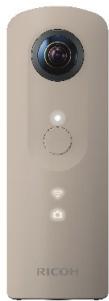
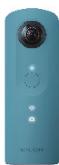
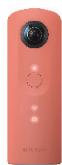
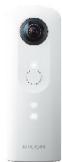
360^ for everyone.
RICOH THETA SC offers viewers a new experience of a 360^ spherical world as if they are actually there.
It keeps the high image quality, but better convenience.
High Resolution
-1/2.3* 12M CMOS sensor × 2 (Output pixel count equivalent to 14M)
-F2.0 lens
Full HD video Capture\*1
- 30 fps -5 minutes continuous shooting
360 Live View Shooting
Long exposure (Maximum 60 seconds) ^*2
Quick start-up in around 1.5 seconds
8 GB Memory
Self-timer
Lightweight at around 102g
Four Colors
1 Data is recorded in Full HD (1920 × 1080) resolution, but the resolution of spherical videos when viewed differs depending on the type of display or display magnification.
2 When RICOH THETA S basic app is used 3 Dual fish-eye output, when connected by USB 4 A firmware update is required.
PC application
PC app for converting, viewing and sharing spherical images shot
Basic app*: Viewing, SNS posting, converting videos, writing with slant top/bottom correction
- Adobe AIR* must be installed for use
Live streaming app: converting live streaming videos

Wi-Fi is a registered trademark of the Wi-Fi Alliance. Windows is either a registered trademark or a trademark of Microsoft Corporation in the United States and/or other countries. Mac, iPhone, App Store are trademarks of Apple Inc. IOS is a trademark of Cisco in the US and is used under license. Adobe ARI are either trademarks or registered trademarks of Adobe Systems Incorporated in the United States and/or other countries. Facebook and "F" logo are the registered trademarks of Facebook, Inc. Twitter and Twitter logo are the registered trademarks of Twitter, Inc. Tumblr and Tumblr logo are the registered trademarks of Tumblr, Inc. Instagram and Instagram logo are the registered trademarks of Instagram, Inc. YouTube and YouTube, Google, Google Map, Google+ and Google Street View are the registered trademarks of Google Inc.

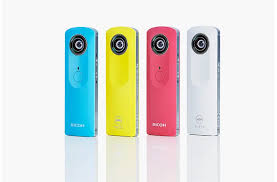
- Getting started with RICOH THETA
- Shoot Record an entire scene with a single shot.
- View By using the application, view a 360° picture or video.
- Enjoy Edit in various fun ways and share worldwide.
- Taking Still Images
- Explore Creative Shooting Positions!
- Shooting Remotely
- Shooting Videos
- Fix the THETA in place when shooting!
- Taking a Video by Remote Control
- Take natural photos!
- Transferring to a Smartphone
- Viewing on a Smartphone
- Still Images Enjoy 360° experiences!
- Viewing in VR
- Viewing in single lens mode
- Viewing in twin lens mode
- Videos Enjoy 360° experiences!
- Editing Still Images / Editing Videos
- THETA+ (for still images)
- THETA+ Video (for videos)
- Display 360-degree content in various ways
- Freely change color hues and brightness
- Make changes to videos*3
- Have fun decorating with stamps and text *2
- Create time lapse videos*2
- Save your images in two ways: 360-degree image or cropped image
- 360-degree images
- Cropped images
- Enjoy pictures and videos by sharing
- Using SNS
- f Posting to Facebook
- Posting to Twitter
- Posting to Instagram
- YouTube Posting to YouTube
- Posting to Google Street View
- Sharing without Posting to SNS
- Explore Various Shooting Scenarios
- We recommend shooting still images or video even on regular days when nothing much is happening.
- Learn More
- Go to the Official RICOH THETA accounts
- News related to RICOH THETA is distributed
- Filled with RICOH THETA's creative works.
- RICOH THETA Official Website - theta360.com
- RICOH THETA S
- High-end Model
- High Resolution
- Full HD video Capture
- New Features
- Live View Shooting
- RICOH THETA SC
- Standard-class Model
- Full HD video Capture\*1
- PC application
Marque : RICOH
Modèle : THETA S TH-2
Catégorie : Caméra 360°