
VN-3500PC - Enregistreur vocal OLYMPUS - Notice d'utilisation et mode d'emploi gratuit
Retrouvez gratuitement la notice de l'appareil VN-3500PC OLYMPUS au format PDF.


| Type de produit | Dictaphone numérique |
|---|---|
| Caractéristiques techniques principales | Enregistrement stéréo, qualité audio 64 kbps, 128 kbps, 192 kbps |
| Alimentation électrique | 2 piles AAA |
| Dimensions approximatives | 104 x 36 x 17 mm |
| Poids | 100 g (avec piles) |
| Compatibilités | Compatible avec Windows et Mac via USB |
| Type de batterie | Piles alcalines ou rechargeables AAA |
| Tension | 1,5 V par pile |
| Fonctions principales | Enregistrement, lecture, suppression, transfert de fichiers |
| Entretien et nettoyage | Nettoyer avec un chiffon doux, éviter l'humidité |
| Pièces détachées et réparabilité | Réparabilité limitée, pièces disponibles sur demande |
| Sécurité | Ne pas exposer à des températures extrêmes, éviter les chocs |
| Informations générales utiles | Idéal pour les étudiants, journalistes et professionnels pour des enregistrements de qualité |
FOIRE AUX QUESTIONS - VN-3500PC OLYMPUS
Questions des utilisateurs sur VN-3500PC OLYMPUS
0 question sur cet appareil. Repondez a celles que vous connaissez ou posez la votre.
Poser une nouvelle question sur cet appareil
Téléchargez la notice de votre Enregistreur vocal au format PDF gratuitement ! Retrouvez votre notice VN-3500PC - OLYMPUS et reprennez votre appareil électronique en main. Sur cette page sont publiés tous les documents nécessaires à l'utilisation de votre appareil VN-3500PC de la marque OLYMPUS.
MODE D'EMPLOI VN-3500PC OLYMPUS
DIGITAL VOICE RECORDER
VN-7800PC VN-6800PC VN-6500PC VN-5500PC VN-3500PC
EN INSTRUCTIONS
Thank you for purchasing an Olympus Digital Voice Recorder. Please read these instructions for information about using the product correctly and safely. Keep the instructions handy for future reference.
To ensure successful recordings, we recommend that you test the record function and volume before use.
OLYMPUS IMAGING CORP.
Shinjuku Monolith, 3-1 Nishi-Shinjuku 2-chome, Shinjyuku-ku, Tokyo 163-0914, Japan. Tel. +81 (0)3-3340-2111 http://www.olympus.com
OLYMPUS IMAGING EUROPA GMBH
(Premises/Goods delivery) Wendenstrasse 14-18, 20097 Hamburg, Germany. Tel. +49 (0)40-237730 (Letters) Postfach 10 49 08. 20034 Hamburg, Germany. http://www.olympus-europa.com
OLYMPUS UK LTD.
Vision House 19 Colonial Way Watford Hertfordshire WD24 4JL. Tel. +44 (0)1923 831000 http://www.olympus.co.uk
For customers in Europe:

"CE" mark indicates that this product complies with the European requirements for safety, health, environment and customer protection.

This symbol [crossed-out wheeled bin WEEE Annex IV] indicates separate collection of waste electrical and electronic equipment in the EU countries. Please do not throw the equipment into the domestic refuse. Please use the return and collection systems available in your country for the disposal of this product.

Applicable Product : VN-7800PC/VN-6800PC/VN-6500PC/VN-5500PC/VN-3500PC
This symbol [crossed-out wheeled bin Directive 2006/66/EC Annex II] indicates separate collection of waste batteries in the EU countries. Please do not throw the batteries into the domestic refuse. Please use the return and collection systems available in your country for the disposal of the waste batteries.
Introduction
- The contents of this document may be changed in the future without advanced notice. Contact our Customer Support Center for the latest information relating to product names and model numbers.
- The utmost care has been taken to ensure the integrity of the contents of this document. In the unlikely event that a questionable item, error, or omission is found, please contact our Customer Support Center.
- Any liability for passive damages or damage of any kind occurred due to data loss incurred by a defect of the product, repair performed by the third party other than Olympus or an Olympus authorized service station, or any other reason is excluded.
Trademarks and registered trademarks:
• Microsoft, Windows and Windows Media are registered trademarks of Microsoft Corporation.
• Macintosh is the trademark of Apple Inc.
Other product and brand names mentioned herein may be the trademarks or registered trademarks of their respective owners.
◆ Safe and Proper Usage
Before using your new recorder, read this manual carefully to ensure that you know how to operate it safely and correctly. Keep t
his manual in an easily accessible location for future reference.
- The warning symbols indicate important safety related information. To protect yourself and others from personal injury or damage to property, it is essential that you always read the warnings and information provided.

◆ Identification of Parts
① Built-in Microphone
② MIC (Microphone) jack
③ HOLD switch
④ USB terminal
⑤ STOP (■) button
⑥ PLAY/OK (▶) button
⑦ ◀◀◀ (Rewind)
button
⑧ Battery cover
⑨ FOLDER/INDEX button
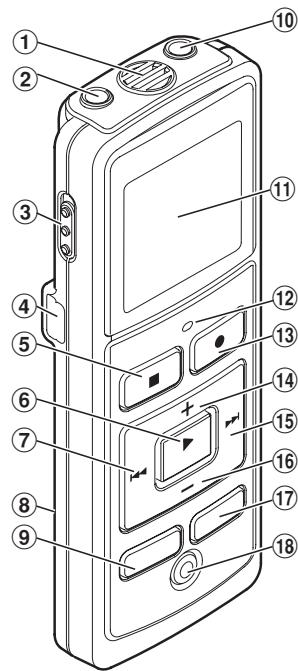
⑩ EAR (Earphone) jack
⑪ Display (LCD panel)
⑫ Record/play indicator light
⑬ REC (●) button
⑭ + button
⑮ ▶▶▶I (Fast Forward) button
⑯ - button
⑰ DISP/MENU button
⑱ ERASE (●) button
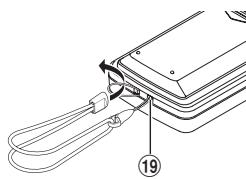
⑲ Strap hole
natural_image
Diagram of a device being inserted into a stack of books, showing cable and paper connections (no text or symbols)- Strap is not supplied. Use the optional accessory.
Display (LCD panel):
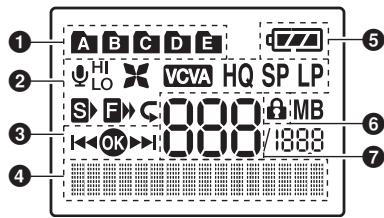
① Folder indicator
2 [ψHI LO] Microphone sensitivity indicator
[✗] LowCut filter indicator*
[VCVA] Variable Control Voice Actuator indicator
[HQ SP LP] Record mode indicator
[F] Fast playback indicator
[S▶] Slow playback indicator
[∅] Segment repeat playback indicator*
③ Guide indicator
④ Character information display
Recording level meter
⑤ Battery indicator
⑥ Erase lock indicator
⑦ Current file number
* For VN-7800PC/VN-6500PC only.
◆ Inserting Batteries
natural_image
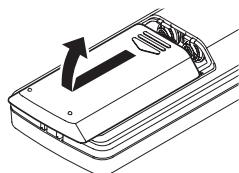
Line drawing of a device with an arrow indicating direction, no text or symbols present① Lightly press down on the arrow and slide the battery cover open.
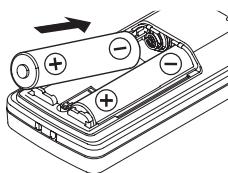
natural_image
Diagram of a battery pack with two batteries and an arrow indicating direction (no text or symbols)② Insert two size-AAA alkaline batteries, observing the correct polarity.
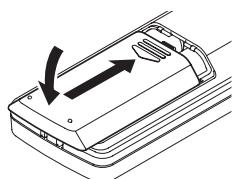
natural_image
Diagram of a device with arrows indicating direction, no text or symbols present③ Close the battery cover completely.
- When the HOLD switch is set to the direction of the arrow, the display is turned off after [HOLD] is displayed. Follow the next step without regard to it.
An optional Ni-MH Rechargeable Battery (BR401) from Olympus can be used for the recorder.
Replacing the Batteries:
When [☐] appears on the display, replace the batteries as soon as possible. Size-AAA alkaline batteries are recommended. When the batteries are depleted, [☐] appears on the display, and the recor-der shuts off.
- To replace the battery, make sure that you set the HOLD switch to the opposite direction of the arrow before replacing.
Power Supply
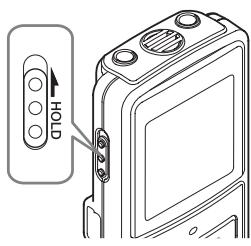
Power on: Slide the HOLD switch in the direction opposite that indicated by the arrow.
Power off: Slide the HOLD switch in the direction indicated by the arrow while the recorder is not in operation.
Standby Mode and Display Shut Off:
If the recorder is stopped for 5 minutes or longer during recording or playing, it goes into Standby (power-save) mode, and the display shuts off. To exit Standby mode and turn on the display, press any button.
Hold
Setting the HOLD switch to the direction of the arrow holds the current status, and all button operations are disabled. Remember to release the HOLD switch to use the recorder.
Setting Time and Date [Time & Date]
If you have set the time and date, information as to when a sound file was recorded is stored automatically with that file.
When you install batteries for the first time or each time you replace the batteries, the "Month" indication will flash. In such a case, be sure to set the time and date by following steps ④ through ⑥ described below.
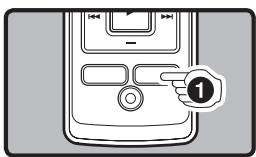
① Press and hold the DISP/MENU button for 1 second or longer to go to the main menu.
![OLYMPUS VN-3500PC - Setting Time and Date [Time & Date] - 2](/content/2025/01/84101/images/d7507d45b8c46cd09538429bd5bb678758d4fe9f48bbe5a537ce8405c66d9d67.jpg)
flowchart
graph TD
    A["Step ②"] --> B["Device Interface"]
    B --> C["Control Panel"]
    C --> D["Step ③"]
    D --> E["Device Interface"]
② Press the ▶▶| or ◀◀◀ button to select [Sub Menu].
③ Press the PLAY/OK (▶) button.
- [Time & Date] appears on the display, and [◀◀●▶▶] flashes.
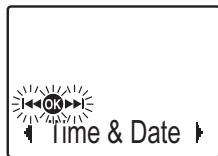
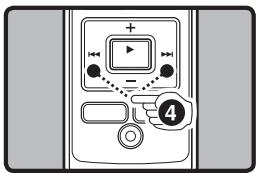
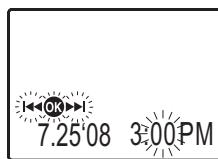
4 Press the ▶▶| or ◀◀◀ button to select the item to set.
- Select the item from "Month", "Day", "Year", "Hour" and "Minute" with a flashing point.
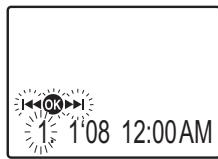
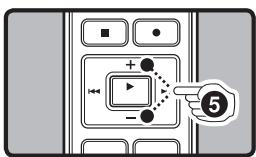
⑤ Press the + or - button to set.
- Follow the same steps by pressing the ▶▶▶ or ◀◀◀ button to elect the next item, and press the + or – button to set.
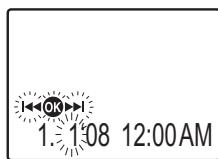
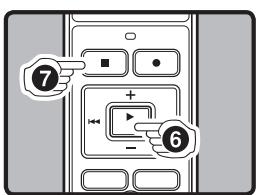
⑥ Press the PLAY/OK (▶) button to complete the setup screen.
- The clock will start from the set date and time. - Press the PLAY/OK (▶) button according to the time signal.
⑦ Press the STOP (■) button to close the menu mode.
• This completes the time and date setup procedure.
Notes:
- You can choose between 12 and 24 hour display by pressing the DISP/MENU button while setting the hour and minute.
- You can change the order of the date indication by pressing the DISP/MENU button while you are setting the year, month, or day.
◆ Notes on the Folders
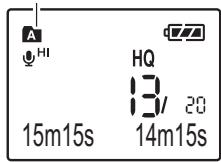
The recorder provides five folders, [A], [B], [C], [D] and [E]. To change the folder selection, press the FOLDER/INDEX button while the recorder is stopped.
Note:
- Up to a total of 200 files can be recorded in each folder.
Current folder
◆ Recording
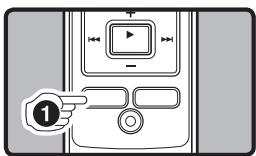
① Press the FOLDER/INDEX button to select the desired folder.
a Current folder
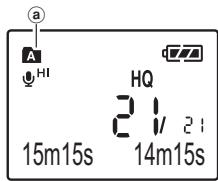
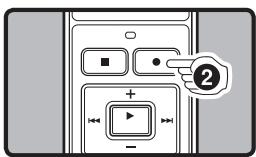
② Press the REC (●) button to start recording.
- The record/play indicator light turns red, and recording starts. - If you start recording after inserting the earphone into the earphone jack on the recorder, you can hear the sound being recorded. The sound volume on the recording monitor can be adjusted by pressing the + or - button.
b Current recording mode
© Current file number
(d) Recording time
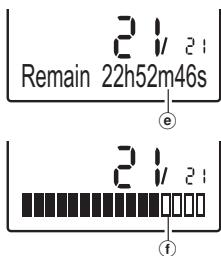
e Remaining recording time
f Recording level meter
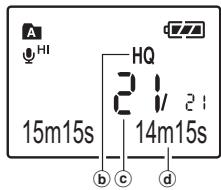
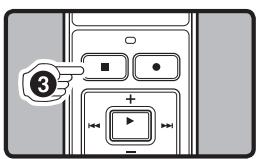
③ Press the STOP (■) button to stop recording.
- New recordings are saved as the last file in the folder.
◆ To Pause Recording
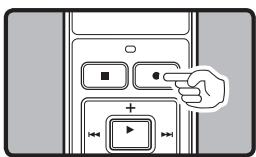
To Pause:
While the recorder is during recording mode, press the REC (●) button.
• [Rec Pause] appears on the display.
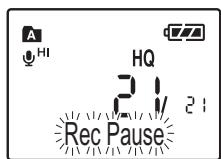
To Resume Recording:
Press the REC (●) button again.
- Recording will resume at the point of interruption.
◆ LCD Display Information
You can select an option for the display of the recorder. This will help review and confirm different recorder settings and file information.
| State of the recorder | Operation | Display |
| While in stop mode | Press and hold the STOP (■) button | While holding the button down, “Remaining recording time” and “Remaining memory” are displayed. |
| While in record mode | Press the DISP/MENU button | Each press switches the display in the order of “Recording elapsed time”, “Remaining recording time” and “Recording level meter”. |
| While in stop mode or playback mode | Press the DISP/MENU button | Each press switches the display in the order of “Playback elapsed time”, “Remaining playback time”, “Date of recording” and “Time at recording”. |
◆Playback
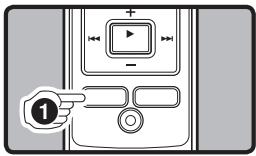
① Press the FOLDER/INDEX button to select the desired folder.
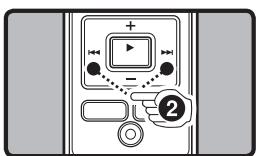
② Press the ▶▶▶l or l◀◀ button to select the file to playback.
flowchart
graph TD
    A["Step 3"] --> B["Play Button"]
    C["Step 4"] --> B
    B --> D["End"]
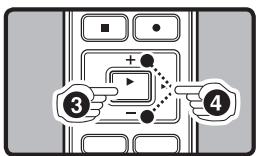
③ Press the PLAY/OK (▶) button to start playback.
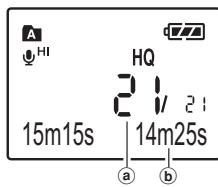
- The record/play indicator light turns green, and the elapsed playing time is indicated on the display.
(a) Current file number
b Playing time
4 Press the + or - button to select the proper sound volume.
- The display shows the volume level. You can choose between [00] to [30].
◆ Canceling Playback
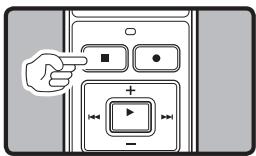
To Stop:
Press the STOP (■) button.
- The recorder stops in the middle of the file being played.
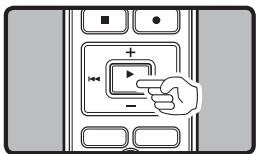
To Resume Playback:
Press the PLAY/OK (▶) button again.
- Playback will resume at the point of interruption.
◆ Forwarding and Rewinding
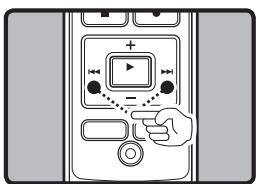
Fast Forward:
While the recorder is during playback mode, press and hold the ▶▶▶l button.
- When you release the ▶▶I button, the recorder will resume normal playback.
Rewind:
While the recorder is during playback mode, press and hold the ◀◀ button.
- When you release the ◀◀◀ button, the recorder will resume normal playback.
Notes:
- The recorder pauses when it reaches to the end of the file during fast forwarding or fast rewinding. Pressing and holding it continues fast-forwarding or fast-rewinding.
- If there is an index mark or temp mark in the middle of the file, the recorder will stop at that location.
◆ Locating the Beginning of the File
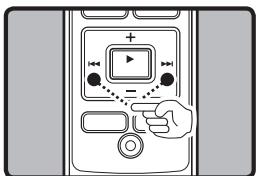
While the recorder is during playback mode (playback or playback in slow/fast mode), press the ▶▶l or l◀◀ button.
- Jumps to the beginning of the next file or the file being played back.
Note:
- If there is an index mark or temp mark in the middle of the file, the recorder will stop at that location.
◆ Changing the Playback Speed
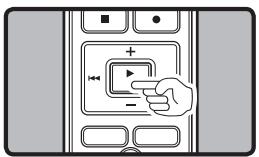
While the recorder is during playback mode, press the PLAY/OK (▶) button to change the playback speed.

flowchart
graph LR
    A["Normal speed"] --> B["Slow Playback (-25%)"]
    B --> C["Fast Playback (+50%)"]
Notes:
- When the slow playback mode is selected, the [▶] appears and, for the fast playback mode, [▶] appears on the display.
• Even if playback is stopped, the changed playback speed will be retained. - The next playback will be at that speed.
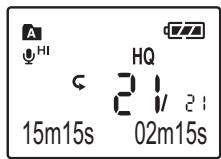
◆ How to begin segment repeat playback (For VN-7800PC/VN-6500PC only)
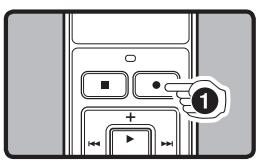
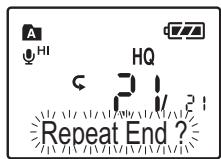
① While the recorder is during playback mode, press the REC (●) button at the point you want to start segment repeat playback.
- [Repeat End?] flashes on the display.
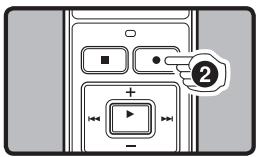
② Press the REC (●) button again at the position where you want to end segment repeat playback.
- The recorder repeatedly plays back the segment until the segment repeat playback is cancelled.
Cancel the Segment Repeat Playback Function:
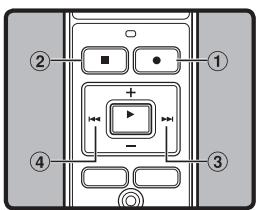
① Press the REC (●) button.
② Press the STOP (■) button.
③ Press the ▶▶l button.
④ Press the ◀◀ button.
Erase
You can easily erase unnecessary files. Sequential file numbers are reassigned automatically.
◆ Erasing One File at a Time
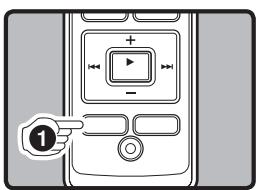
① Press the FOLDER/INDEX button to select folder.
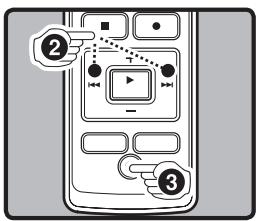
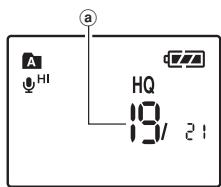
② Press the ▶▶▶ or ◀◀◀ button to select the file to be erased.
① File to be erased
③ Press the ERASE (●) button.
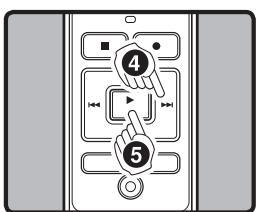
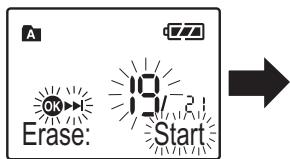
④ Press the ▶▶l button to select [Start].
⑤ Press the PLAY/OK (▶) button.
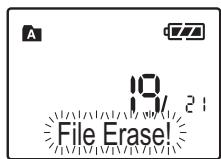
◆ Erase All Files from a Folder
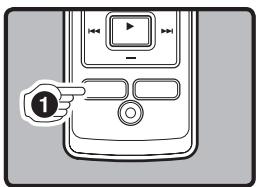
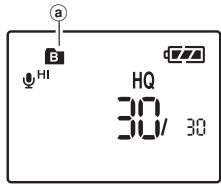
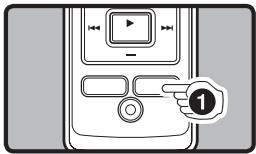
① Press the FOLDER/ INDEX button to select the folder to be erased. ② Folder to be erased
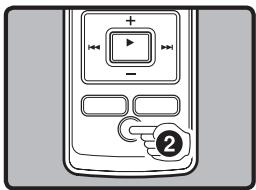
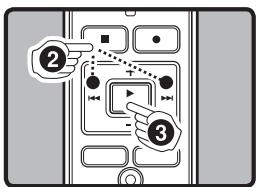
② Press the ERASE (●) button twice.
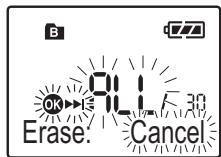
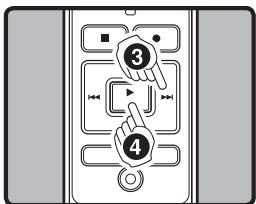
③ Press the ▶▶▶I button to select [Start]. ④ Press the PLAY/OK (▶) button.
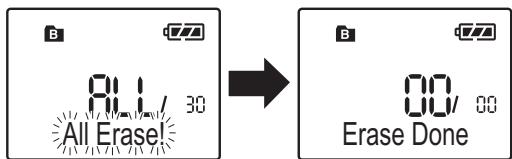
Notes:
- An erased file cannot be restored.
- The file set to erase lock will not be erased.
- If operation is not executed for 8 seconds during the setting, it will return to the stop status.
- Completion of erasing may take several seconds. Do not attempt to remove, replace battery or attempt any other functions on the voice recorder during this period because data may be corrupted.
Menu mode
◆ The levels of the menu screen and the operation buttons [Main Menu/Sub Menu]
The setting can be switched by putting the recorder in menu mode.
![OLYMPUS VN-3500PC - ◆ The levels of the menu screen and the operation buttons [Main Menu/Sub Menu] - 1](/content/2025/01/84101/images/0d138ce9061e020163daff306c5bc44093140ab507626269555d267ce0145f23.jpg)
flowchart
graph TD
    A["Step 1 Put the recorder in menu mode."] --> B
    C["Step 4 Complete the menu mode setting."] --> D
Step 2 Select the menu item in the main menu or sub menu screen.
![OLYMPUS VN-3500PC - ◆ The levels of the menu screen and the operation buttons [Main Menu/Sub Menu] - 2](/content/2025/01/84101/images/a79b7443eb04c6bc2d55887f2e2946e97d941d9c96feb7a6ed4d1ab62d1d2a25.jpg)
flowchart
graph TD
    subgraph Main menu screen
        A["Rec Mode"] <--> B["Lock"]
        C["REC Mic Sense"] <--> D["PLAY Voice *"]
        E["REC VCVA"] <--> F["Sub Menu"]
        G["REC LowCut *"] <--> H["* For VN-7800PC/VN-6500PC only"]
    end

    subgraph Sub menu screen
        I["Format"] <--> J["Language"]
        K["System"] <--> L["Contrast"]
        M["Main Menu"] <--> N["LED"]
        O["Time & Date"] <--> P["Beep"]
    end
The menu item with REC mark can be set even during recording. The menu item with PLAY mark can be set even during playback.
![OLYMPUS VN-3500PC - ◆ The levels of the menu screen and the operation buttons [Main Menu/Sub Menu] - 3](/content/2025/01/84101/images/69018e22190b1cf48c14cf43b5badd0058ec48d6d7b8bb8a9f433293038df32b.jpg)
Step 3 Select the setting item in the setting screen.
![OLYMPUS VN-3500PC - ◆ The levels of the menu screen and the operation buttons [Main Menu/Sub Menu] - 4](/content/2025/01/84101/images/8794372c77f657b92f547ceb72d11ed76cd38c202072c9faec23815bd92b4495.jpg)
Cancel the setting.
![OLYMPUS VN-3500PC - ◆ The levels of the menu screen and the operation buttons [Main Menu/Sub Menu] - 5](/content/2025/01/84101/images/1d60dfdc29a42e96d98a48e72a8d1120835f35c88716327df5dbfb16926b9753.jpg)
[Non-Text]
![OLYMPUS VN-3500PC - ◆ The levels of the menu screen and the operation buttons [Main Menu/Sub Menu] - 6](/content/2025/01/84101/images/518ccf80488df06f86435a98ed52b26496d3855d8ccfe00a8995a205975e3d47.jpg) DISP/MENU DISP/MENU | Press and hold the button for 1 second or longer to put the recorder in menu mode. | ![OLYMPUS VN-3500PC - ◆ The levels of the menu screen and the operation buttons [Main Menu/Sub Menu] - 7](/content/2025/01/84101/images/d7982e690bf4cf011f1ef423349b798fef96757bfe513e858949ae0bc6f2e2e7.jpg) ▶) ▶) | Go to the setting screen from the main menu or sub menu screen. Confirm the item selected in the setting screen, and go back to the main menu or sub menu screen. |
![OLYMPUS VN-3500PC - ◆ The levels of the menu screen and the operation buttons [Main Menu/Sub Menu] - 8](/content/2025/01/84101/images/d47c28922ba9803751d35f8d85ea6d902a0673c549590566ab7bb18feb213546.jpg) |◀◀ or ▶▶| |◀◀ or ▶▶| | Switch the items of the setting screen in the main menu or sub menu screen. | ![OLYMPUS VN-3500PC - ◆ The levels of the menu screen and the operation buttons [Main Menu/Sub Menu] - 9](/content/2025/01/84101/images/e0c4535f9fe2e2671a746a805ba8fa47223f5c222d6d1bb8a84acded1bcc071c.jpg) STOP (■) or REC (●) STOP (■) or REC (●) | Complete the menu mode setting. (If pressed while the setting screen is displayed, the item being selected will not be set.) |
◆ Basic Operation of the Menu Mode
① While the recorder is during stop mode, press and hold the DISP/MENU button for 1 second or longer.
| Menu |
flowchart
graph TD
    A["②"] --> B["Device Interface"]
    C["③"] --> B
    D["④"] --> B
② Press the ▶▶| or |◀◀ button to select the menu item.
Guide icon: Tells you the next button to use by flashing.
- Go to the setting screen of the selected menu item.
- To set the sub menu, select the [Sub Menu] from the main menu screen. And select and set the menu item from the sub menu screen in the same manner.
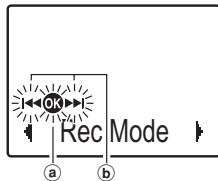
a [●]: Press the PLAY/OK (▶) button (Goes to the next screen).
⑥ [◀◀] or [▶◀]: Press the ▶▶◀| or |◀◀◀ button (Changes the item).
③ Press the PLAY/OK (▶) button.
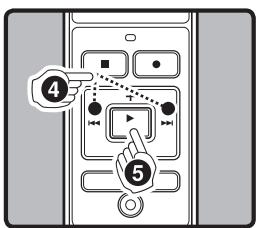
4 Press the ▶▶▶ or ▶◀◀ button to select the setting.
- To go to the main menu screen after the sub menu setting, select [Main Menu] from the sub menu screen.
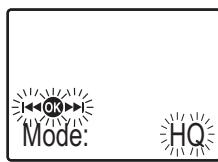
⑤ Press the PLAY/OK (▶) button to confirm the setting.
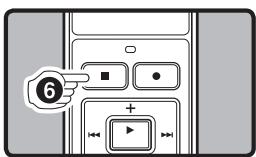
⑥ Press the STOP (■) button to close the menu.
Note:
- The recorder will stop if you leave it idle for 3 minutes during a menu setup operation, when a selected item is not applied.
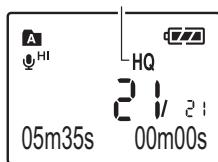
◆ Recording Modes [Rec Mode]
The recording mode can be chosen from [HQ] (high quality sound recording), [SP] (standard recording), and [LP] (long-term recording).
In Menu mode selection:
| Mode: HQ | Mode: SP | Mode: LP | |
| VN-7800PC | Approx. 70 h. 55 min. | Approx. 139 h. 35 min. | Approx. 444 h. |
| VN-6800PC | |||
| VN-6500PC | Approx. 35 h. 20 min. | Approx. 69 h. 35 min. | Approx. 221 h. 30 min. |
| VN-5500PC | |||
| VN-3500PC | Approx. 8 h. 40 min. | Approx. 17 h. 10 min. | Approx. 54 h. 40 min. |
Current recording mode
Notes:
- The recording time shown above is for one continuous file. The available recording time may be shorter than specified if several files are recorded (Use the remaining time and recorded time only as references).
- The above-noted recording times indicate times after deletion of the manual data stored in the recorder.
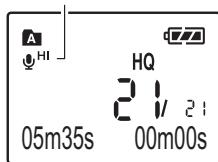
◆ Microphone Sensitivity [Mic Sense]
Microphone sensitivity is adjustable to meet your recording needs.
In Menu mode selection:
| Sense: Conf. (HI ☐) | Sense: Dict. (☐ LO) |
Note:
- To ensure successful recording, make a test recording to select appropriate microphone sensitivity before recording.
Microphone sensitivity indicator
◆ Using the Variable Control Voice Actuator [VCVA]
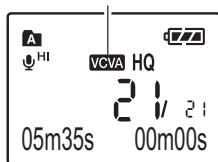
When the microphone senses that sound has reached a preset volume, the built-in Variable Control Voice Actuator (VCVA) starts recording automatically, and stops it when the volume drops.
In Menu mode selection:
| VCVA: Off | VCVA: On |
VCVA indicator
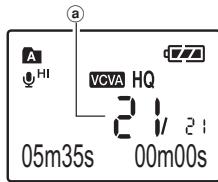
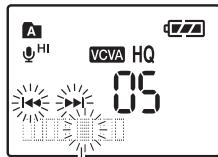
Adjust the Start/Stop Actuation Level:
① While the recorder is during recording mode, press the ▶▶▶ or ◀◀◀ buttons to adjust the pause sound level.
- The VCVA level can be set to any of 15 different values.
(a) VCVA Level
⑥ Start level (moves to the right/left according to the set level)
Note:
- The record/play indicator light is lit during recording. When the recorder is in Standby mode, the Record/Play indicator light flashes and [VCVA] flashes on the display.
b
◆ Set the LowCut Filter [LowCut] (For VN-7800PC/VN-6500PC only) LowCut Filter indi
LowCut Filter indicator
The recorder has a LowCut Filter function to minimize low-frequency sounds and record voices more clearly. This function can reduce noise from air conditioners, projectors and other similar noises.
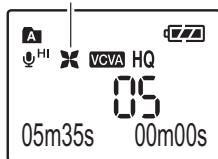
In Menu mode selection:
| LowCut: Off | LowCut: On |
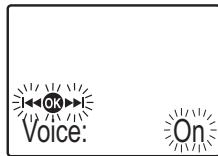
◆ Set the Voice Filter [Voice] (For VN-7800PC/VN-6500PC only)
The recorder has a Voice Filter Function to cut low and high frequency tones during normal, fast, or slow playback, and enable clear audio playback.
In Menu mode selection:
| Voice: Off | Voice: On |
◆ Locking Files [Lock]
Erase lock indicator
Locking a file keeps important data from being accidentally erased. Locked files are not erased when you choose to erase all files from a folder.
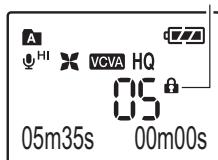
In Menu mode selection:
| Lock: Off | Lock: On |
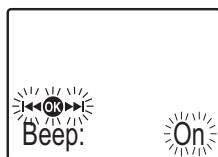
◆ System Sounds [Beep]
Informs a button operation or a wrong operation of the recorder by sound. System sounds may be turned off.
In Menu mode selection:
| Beep: Off | Beep: On |
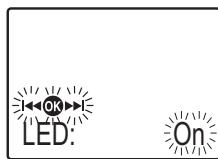
LED [LED]
You can set it so the Record/Play indicator light does not turn on.
In Menu mode selection:
| LED: Off | LED: On |
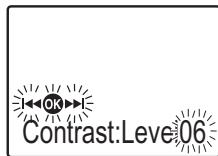
◆ LCD Contrast Adjustment [Contrast]
Display contrast can be adjusted in 12 levels.
In Menu mode selection:
| You can adjust the LCD display contrast level from [01] to [12]. |
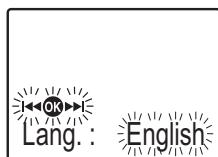
◆ Set the Display Language [Language]
You can select the display language for this recorder.
In Menu mode selection:
| Lang.: English | Lang.: Français | Idioma: español |
| Sprache: Deutsch | Lingua: Italiano |
◆ Formatting the Recorder [Format]
If you format the recorder, all files will be removed and all function settings will return to defaults except date and time settings. Transfer any important files to a computer before formatting the recorder.
![OLYMPUS VN-3500PC - ◆ Formatting the Recorder [Format] - 1](/content/2025/01/84101/images/5408d81a021d233d15cf043260a71487f18817a9b8409596b5c9f813271d02f8.jpg)
flowchart
graph TD
    A["②"] --> B["Device Interface"]
    C["③"] --> B
    D["④"] --> B
① The Sub Menu opens.
② Press the ▶▶| or |◀◀ to select [Format].
③ Press the PLAY/OK (▶) button.
- [●▶▶] and [Cancel] flashes alternately.
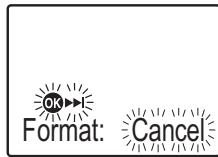
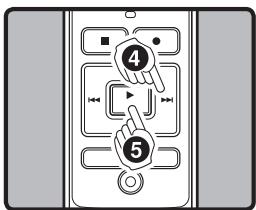
4 Press the ▶▶l button to select [Start].
⑤ Press the PLAY/OK (▶) button.
• After the [Data All Cleared] message is on for 2 seconds, [Sure? Cancel] will turn on.
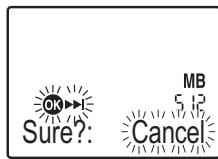
![OLYMPUS VN-3500PC - ◆ Formatting the Recorder [Format] - 5](/content/2025/01/84101/images/1f3083369b4186dce30754bc6af5b0864d4e2a01e02dffd9e95a458f67d75af4.jpg)
flowchart
graph TD
    A["Step 6: Click"] --> B["Step 7: Click"]
    B --> C["Control buttons: Left, Right, etc."]
    style A fill:#f9f,stroke:#333
    style B fill:#ccf,stroke:#333
    style C fill:#cfc,stroke:#333
6 Press the ▶▶l button again to select [Start].
⑦ Press the PLAY/OK (▶) button.
- Formatting begins and [Format Done] displays when formatting ends.
![OLYMPUS VN-3500PC - ◆ Formatting the Recorder [Format] - 6](/content/2025/01/84101/images/3d159c9d755576f627f382a46fcd69cbacde229a1759e4ceaf2fcfd6e575f102.jpg)
flowchart
graph LR
    A["Format!"] -->|MB 5.12| B["Format Done"]
Notes:
- It may take up to a minute to finish the initialization. Do not remove the battery or detach the battery compartment from the recorder during that time. Otherwise data may be damaged.
- Never format the recorder from a PC.
- When the recorder is formatted, all the stored data, including locked files, are erased.
◆ Viewing System Information [System]
You can check the recorder's information on the menu screen.
Recorder's Version
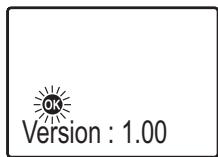
Other Functions
Index Marks
If index marks are placed, you can quickly find a location you want to listen to in fast forward and fast rewind and when cuing a file.
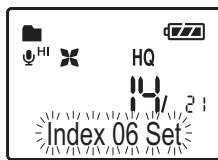
Setting an Index Mark:
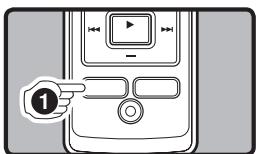
① While the recorder is during recording (pause recording) or playback mode, press the FOLDER/INDEX button to set an index mark.
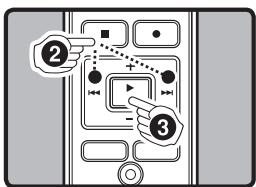
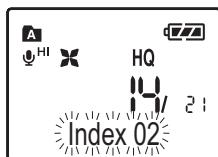
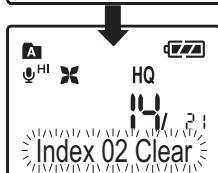
Clearing an Index Mark:
flowchart
graph TD
    A["②"] --> B["③"]
    B --> C["④"]
① Locate the index you want to clear.
② Press the ▶▶| or ◀◀◀ button to select the index mark to delete.
③ Press the ERASE (●) button.
Notes:
- Index marks cannot be placed on files created on machines other than Olympus IC recorders, but temp marks can be placed instead to temporarily remember desired locations.
- Temp marks are temporary markings, so if you move to another file, or connect the recorder to a computer, they will be automatically erased.
- Up to 16 index and temp marks can be set in a file.
- Index or temp marks cannot be set or erased in a locked file.
◆ Connecting to Your PC
Apart from using this unit as a recorder, you can use it as an external memory for your computer, as a storage device.
- The audio files recorded by this recorder can be played back on your computer using Windows Media Player. You can also transfer the WMA files downloaded with Windows Media Player to your recorder and enjoy them (excluding files with copyright protection).
1 Connect the recorder's USB terminal to a PC USB port or USB hub.
- Once [Remote] is displayed, you can save or read the data.
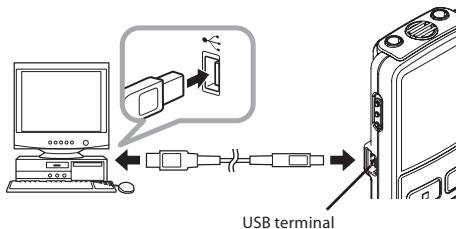
② Transfer the audio files to your computer.
- Connect the recorder to your computer and launch Explorer.
- The recorder will be recognized as a removable disk.
• Each of the five folders is named as DSS_FLDA, B, C, D and E. The audio files are saved in these folders. - All the audio files recorded by this recorder will be in WMA format.
i.e.: VN-7800PC: VN780001.WMA
VN-6800PC: VN680001.WMA
VN-6500PC: VN650001.WMA
VN-5500PC: VN550001.WMA
VN-3500PC: VN350001.WMA
• If you are using Windows 2000, Windows Media Player must be
installed on the PC.
③ Click [icon] on the task bar located at the lower-right corner of the screen. Click [Safely Remove Hardware].
![OLYMPUS VN-3500PC - ③ Click [icon] on the task bar located at the lower-right corner of the screen. Click [Safely Remove Hardware]. - 1](/content/2025/01/84101/images/a49f80be132fe9073f64e1cc89148a23fc16fcc277bffe55ec4e364948ccdf70.jpg)
flowchart
graph TD
    A["Remote"] --> B["↓"]
Sending the date
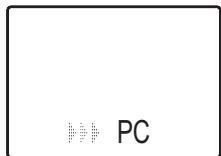
Receiving the data
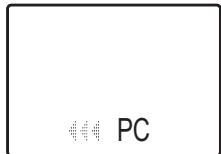
◆ Using the recorder on your PC
| Windows | Operating System:Microsoft Windows 2000/XP/Vista (Standard Installation) |
| Compatible PC's:Windows PC's equipped with more than one free USB port | |
| Macintosh | Operating System:Mac OS X 10.2.8 ~ 10.5 (Standard Installation) |
| Compatible PC's:Apple Macintosh series equipped with more than one free USB port |
The support service will not cover if your PC has been updated from Windows 95 or 98 to Windows 2000/XP/Vista. Any failure on a self-modified PC will not be covered under the operational warranty.
Notes:
- NEVER disconnect the USB while the record/play indicator light is flashing in red. If you do so, the data may be destroyed.
• Refer to the user's manual for your PC regarding the USB port or USB hub on your PC. - As the noise may cause adverse effects on electronics devices nearby the recorder, unplug the earphone when you connect the recorder to a PC.
- Do not use USB connecting cables other than the supplied cable.
General Precautions
Read this manual carefully to ensure that you know how to operate it safely and correctly. Keep this manual in an easily accessible location for future reference.
- The warning symbols indicate important safety related information. To protect yourself and others from personal injury or damage to property, it is essential that you always read the warnings and information provided.
Warning regarding data loss:
- Recorded content in memory may be destroyed or erased by operating mistakes, unit malfunction, or during repair work.
- For important recorded content, we recommend you to write it down somewhere or make a back-up by downloading to a PC.
- Any liability for passive damages or damage of any kind occurred due to data loss incurred by a defect of the product, repair performed by the third party other than Olympus or an Olympus authorized service station, or any other reasons is excluded from Olympus's liability.
For safe and correct Usage
- Use your earphones only after sufficiently reducing the volume of the earphones, otherwise hearing impairment and/or hearing disorders may occur.
- Do not use your earphone at a high volume for an extended period of time as hearing impairment and/or hearing disorders may occur.
- Be sure to stop the recorder before replacing the batteries. Unloading the batteries while the recorder is in use may corrupt the file.
-
Do not leave the recorder in hot, humid locations such as inside a closed automobile under direct sunlight or on the beach in the summer.
-
Do not store the recorder in places exposed to excessive moisture or dust.
- Do not use organic solvents such as alcohol and lacquer thinner to clean the unit.
- Do not place the recorder on top of or near electric appliances such as TVs or refrigerators.
- Avoid recording or playing back near cellular phones or other wireless equipment, as they may cause interference and noise. If you experience noise, move to another place, or move the recorder further away from such equipment.
- Avoid sand or dirt. These can cause irreparable damage.
- Avoid strong vibrations or shocks.
- Do not disassemble, repair or modify the unit yourself.
- Do not operate the unit while operating a vehicle (such as a bicycle, motorcycle, or gocart).
- Keep the unit out of the reach of children.
Battery
Warning
- Under no circumstances insert any other parts than the main unit into the battery compartment. This may result in battery leakage, overheating, fire or explosion.
- Battery should never be exposed to flame, heated, short-circuited or disassembled.
- Do not attempt to recharge alkaline, lithium or any other non-rechargeable battery.
- Never use any battery with a torn or cracked outer cover.
- Keep battery out of the reach of children.
• If you notice anything unusual when using this product such as abnormal noise, heat, smoke, or a burning odor:
① remove the battery immediately while being careful not to burn yourself, and;
② call your dealer or local Olympus representative for servicing.
Troubleshooting
Q1: Nothing happens when a button is pressed.
A1: The HOLD switch may be set to [HOLD] position.
The batteries may be depleted.
The batteries may be inserted incorrectly.
Q2: No sound or quiet sound is heard from the speaker while playing back.
A2: The earphone plug may be plugged into the recorder.
The volume may be set to the minimum level.
Q3: Recording is not possible.
A3: By pressing the STOP (■) button repeatedly while the recorder stops, check if the display shows:
- The remaining recording time in the selected folder may have reached [00:00].
• The number of files is 200.
Check if the display shows [Memory Full] by pressing the REC (●) button.
Q4: The playback speed is too fast (slow).
A4: The recorder may be set to fast (slow) Playback.
Specifications
Recording medium:
Built-in flash memory
Overall frequency:
HQ mode: 200 to 13,000 Hz
SP mode: 200 to 7,000 Hz
LP mode: 200 to 3,000 Hz
Recording time:
VN-7800PC, VN-6800PC: 1 GB
HQ mode: Approx. 70 h. 55 min.
SP mode: Approx. 139 h. 35 min.
LP mode: Approx. 444 h.
VN-6500PC, VN-5500PC: 512 MB
HQ mode: Approx. 35 h. 20 min.
SP mode: Approx. 69 h. 35 min.
LP mode: Approx. 221 h. 30 min.
VN-3500PC: 128 MB
HQ mode: Approx. 8 h. 40 min.
SP mode: Approx. 17 h. 10 min.
LP mode: Approx. 54 h. 40 min.
Microphone:
Electret Condenser Microphone (mon-aural)
Speaker:
Built-in 23 mm round dynamic speaker
Maximum power:
250 mW
Maximun headphone output:
≤ 150 mV (according to EN 50332-2)
Wide band characteristic headphone output:
75 mV ≦ (according to EN 50332-2)
Earphone jack (monaural):
ø 3.5 mm diameter, impedance 8 Ω
Microphone jack (monaural):
ø 3.5 mm diameter, impedance 2 kΩ
Power supply:
Two AAA (LR03) batteries or Two Ni-MH rechargeable batteries
Continuous battery:
Alkaline batteries: Approx. 37 h.
Ni-MH rechargeable batteries: Approx. 25 h.
Dimensions:
102 (L) mm x 37 (W) mm x 18.8 (T) mm
(without protrusions)
Weight:
64.8 g (including battery)
- The above-noted recording times indicate times after deletion of the manual data stored in the recorder.
- The manual data can be deleted by connecting to a computer and deleting or by formatting the recorder. For details, please see "Formatting the Recorder [Format]".
- Before deleting the data, please make a backup file of the PDF data of the manual.
- Battery life is measured by Olympus. It varies greatly according to the type of batteries used and the conditions of use.
- Your recorded contents are for your personal use or pleasure only. It is prohibited to record copyrighted material without permission of the copyright holders according to copyright law.
- Specifications and design are subject to change without notice for improvement of performance.
◆ Accessories (Optional):
Ni-MH Rechargeable Battery Charger:
BU-400 (Europe only)
Ni-MH Rechargeable Battery: BR401
Connecting cord (Earphone jack ↔
Microphone jack): KA333
Noise-Cancellation microphone:ME52
Electret condenser microphone: ME15
Dual monaural earphone: E20
Telephone pickup: TP7
Neck Strap: ST26
- DIGITAL VOICE RECORDER
- VN-7800PC VN-6800PC VN-6500PC VN-5500PC VN-3500PC
- EN INSTRUCTIONS
- OLYMPUS IMAGING CORP.
- OLYMPUS IMAGING EUROPA GMBH
- OLYMPUS UK LTD.
- For customers in Europe:
- Introduction
- Trademarks and registered trademarks:
- ◆ Safe and Proper Usage
- ◆ Identification of Parts
- Display (LCD panel):
- ◆ Inserting Batteries
- Replacing the Batteries:
- Power Supply
- Standby Mode and Display Shut Off:
- Hold
- Setting Time and Date [Time & Date]
- Notes:
- ◆ Notes on the Folders
- Note:
- ◆ Recording
- ① Press the FOLDER/INDEX button to select the desired folder.
- ② Press the REC (●) button to start recording.
- ③ Press the STOP (■) button to stop recording.
- ◆ To Pause Recording
- To Pause:
- To Resume Recording:
- ◆ LCD Display Information
- To Stop:
- To Resume Playback:
- Fast Forward:
- Rewind:
- ◆ Changing the Playback Speed
- ◆ How to begin segment repeat playback (For VN-7800PC/VN-6500PC only)
- Cancel the Segment Repeat Playback Function:
- Erase
- ◆ Erasing One File at a Time
- ◆ Erase All Files from a Folder
- Menu mode
- ◆ The levels of the menu screen and the operation buttons [Main Menu/Sub Menu]
- ◆ Basic Operation of the Menu Mode
- ③ Press the PLAY/OK (▶) button.
- ◆ Recording Modes [Rec Mode]
- ◆ Microphone Sensitivity [Mic Sense]
- ◆ Using the Variable Control Voice Actuator [VCVA]
- Adjust the Start/Stop Actuation Level:
- ① While the recorder is during recording mode, press the ▶▶▶ or ◀◀◀ buttons to adjust the pause sound level.
- ◆ Set the LowCut Filter [LowCut] (For VN-7800PC/VN-6500PC only) LowCut Filter indi
- ◆ Set the Voice Filter [Voice] (For VN-7800PC/VN-6500PC only)
- ◆ Locking Files [Lock]
- ◆ System Sounds [Beep]
- LED [LED]
- ◆ LCD Contrast Adjustment [Contrast]
- ◆ Set the Display Language [Language]
- ◆ Formatting the Recorder [Format]
- ◆ Viewing System Information [System]
- Other Functions
- Index Marks
- Setting an Index Mark:
- Clearing an Index Mark:
- ◆ Connecting to Your PC
- Connect the recorder's USB terminal to a PC USB port or USB hub.
- ② Transfer the audio files to your computer.
- ③ Click [icon] on the task bar located at the lower-right corner of the screen. Click [Safely Remove Hardware].
- ◆ Using the recorder on your PC
- General Precautions
- Warning regarding data loss:
- For safe and correct Usage
- Battery
- Warning
- Troubleshooting
- Specifications
- ◆ Accessories (Optional):
Marque : OLYMPUS
Modèle : VN-3500PC
Catégorie : Enregistreur vocal