
VN-180 - Enregistreur vocal OLYMPUS - Notice d'utilisation et mode d'emploi gratuit
Retrouvez gratuitement la notice de l'appareil VN-180 OLYMPUS au format PDF.


| Type de produit | Enregistreur vocal numérique |
| Marque | OLYMPUS |
| Modèle | VN-180 |
| Dimensions (L x l x H) | 115 x 48,2 x 15 mm (4,6 x 1,9 x 0,6 pouces) |
| Poids (avec piles) | 66 g (2,3 oz) |
| Alimentation | 2 piles AAA (LR03 ou R03) |
| Autonomie des piles (enregistrement continu) | Environ 40 heures (piles alcalines) |
| Mémoire intégrée | Mémoire flash |
| Durée d'enregistrement (mode SP) | Environ 67 minutes |
| Durée d'enregistrement (mode LP) | Environ 180 minutes |
| Haut-parleur | Dynamique interne de 28 mm de diamètre |
| Puissance maximale | 120 mW |
| Prise écouteurs | Jack 3,5 mm, impédance 8 Ω |
| Prise microphone | Jack 3,5 mm, impédance env. 2 kΩ |
| Fonctions principales | Enregistrement, lecture, avance rapide, retour rapide, effacement, gestion de dossiers (A, B, S), enregistrement programmé, alarme de message, alarme de planning, VCVA, verrouillage Hold, économie d'énergie |
| Entretien et nettoyage | Essuyer avec un chiffon propre et sec ; ne pas utiliser d'alcool ni de solvants ; éviter l'humidité, la poussière et les chocs |
| Sécurité | Respecter la polarité des piles ; ne pas court-circuiter, démonter ni jeter au feu ; retirer les piles si inutilisé plus d'un mois |
| Pièces détachées et réparabilité | Accessoires optionnels : microphones ME7, ME11, ME12, adaptateur téléphonique TP6, cordons de connexion KA232 et PA3 |
| Informations générales | Notice d'utilisation disponible en téléchargement ; site web Olympus : http://www.olympus.com ; support client USA : 1-800-622-6372 |
FOIRE AUX QUESTIONS - VN-180 OLYMPUS
Questions des utilisateurs sur VN-180 OLYMPUS
0 question sur cet appareil. Repondez a celles que vous connaissez ou posez la votre.
Poser une nouvelle question sur cet appareil
Téléchargez la notice de votre Enregistreur vocal au format PDF gratuitement ! Retrouvez votre notice VN-180 - OLYMPUS et reprennez votre appareil électronique en main. Sur cette page sont publiés tous les documents nécessaires à l'utilisation de votre appareil VN-180 de la marque OLYMPUS.
MODE D'EMPLOI VN-180 OLYMPUS
OLYMPUS®
DIGITAL VOICE RECORDER VN-180
VN-90
E Instruction
F Mode d'emploi
G Gebrauchsanweizung
Istruzioni
s Instrucciones
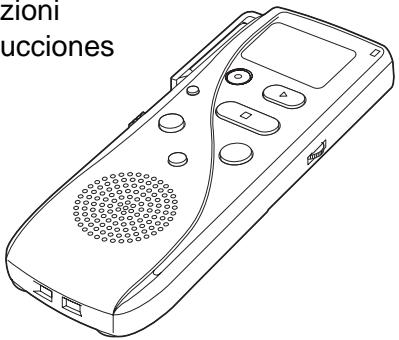
E Always do a test recording to avoid recording problems.
BEFORE YOUR FIRST RECORDING 3
Parts Identification 3
Liquid Crystal Display (LCD) 4
Installing the Batteries 5
Clock Adjustment 5
Changing the Batteries 6
BASIC OPERATIONS 7
Recording (REC) 7
Recording-Pause (REC PAUSE) 8
Playback (PLAY) 8
Playback-Pause (PAUSE) 9
Fast Playback 9
Fast Forward/Fast Reverse 10
Forward Skip (F-SKIP)/Reverse Skip (R-SKIP) 10
Erasing (ERASE) 11
MESSAGE FOLDER MANAGEMENT 13
Types of Folders 13
Selecting a Folder 13
Moving a Message Between Folders [A] and [B] (MOVE) ...... 13
ADDITIONAL FEATURES 14
Schedule Recording 14
Schedule Playback 14
Message Alarm Playback 15
Schedule Alarm Playback 16
Recording with VCVA (Variable Control Voice Actuator) (VCVA REC) .... 17
Hold (HOLD) 18
Checking Remaining Recording Time
(Remaining Memory Capacity) 18
Power Save 18
ENTERING OPTIONS MODE 19
Recording Mode (MODE) Setting 19
Microphone Sensitivity (MIC) Setting 19
VCVA Recording (VCVA REC) Setting 20
Alarm (ALARM) Setting/Cancellation 20
Schedule Alarm (S ALARM) Setting/Cancellation 20
Beep Tone (BEEP) Setting 21
Current Time (TIME) Setting 21
CARE IN HANDLING 22
BATTERY PRECAUTIONS 23
TROUBLESHOOTING 24
SPECIFICATIONS 25
ACCESSORIES (OPTIONAL) 25
Parts Identification
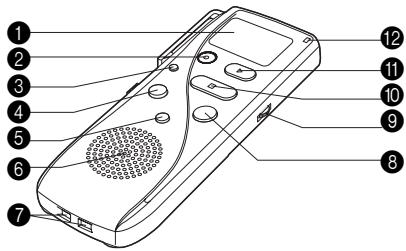
① Liquid crystal display panel (LCD)
② REC button
③ ERASE button
4 Fast Reverse (—◀◀) button
⑤ MENU/FOLDER button
6 Speaker
⑦ Strap holes
⑧ Fast Forward (+▶▶) button
9 VOLUME control
10 STOP button
11 PLAY button
12 Recording indicator (LED)
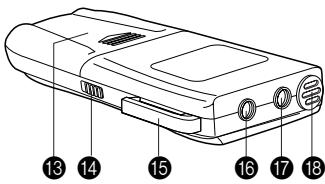
13 Battery cover
14 HOLD switch
15 Pocket Clip
16 Earphone jack (EAR)
⑰ Microphone jack (MIC)
18 Built-in microphone
Parts Identification
Liquid Crystal Display (LCD)
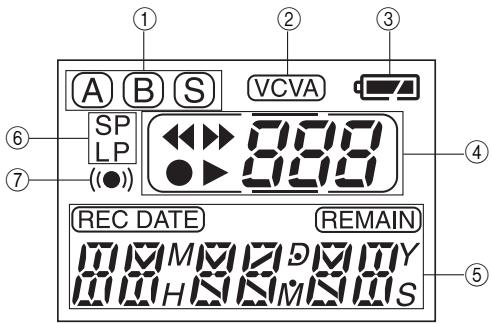
① Current folder (A, B or S)
② Voice-actuated recording indicator
③ Remaining battery power
④ Current message number, recording/playback/fast forward/fast reverse indicators
⑤ · Current date/time
· Remaining memory (REMAIN)
· Recording date/time (REC DATE)
- Menu mode indicator
· Remaining message time
⑥ Recording mode (SP: Standard Playback/LP: Long Playback)
⑦ Alarm
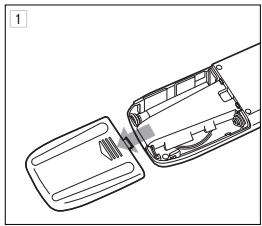
Installing the Batteries
natural_image
Line drawing of a device interior showing a tray and casing with a handle (no text or symbols)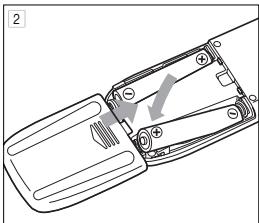
natural_image
Diagram of a mechanical device with a handle and lever mechanism (no text or symbols)1 Slide open the battery cover in the direction of arrow.
2 Insert two AAA (LR03 or R03) batteries according to the polarity (⊕, ⊖) indications and close the battery cover.
3 Time is displayed on the LCD and the voice recorder enters the clock adjustment mode.
Clock Adjustment
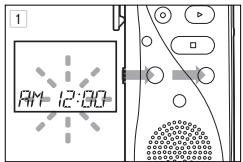
1 Each time you press the MENU/FOLDER button, the blinking figures change: "hour", "minute", "year", "month" and "date". Adjust each item by pressing the (+▶▶) or (−◀◀) button.
2 After setting the date, press the STOP button to complete the clock adjustment.
☐ If you press the STOP button during clock adjustment, the clock adjustment mode will be canceled.
☐ If no buttons are pressed for three minutes during clock adjustment, the clock adjustment mode will be canceled and any adjustments that have been made will not take effect.
Changing the Batteries
◎ Be sure to stop all operations before changing the batteries, and set the HOLD switch to ON, turning the recorder power off.
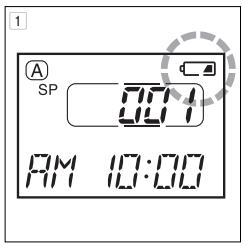
1 When the [☐] mark is shown on the LCD, you should replace the batteries with new AAA (LR03 or R03) batteries.
The [☐] mark in the LCD indicates that the batteries are depleted and the voice recorder cannot be operated.
2 After the batteries have been replaced, time is displayed on the LCD, indicating that the voice recorder is in the clock adjustment mode. Adjust the clock to the current time (see page 5).
◎ When in the Stop mode, you can check the battery indicator by holding down the STOP button.
This voice recorder has three folders: [A], [B] and [S].
☐ Messages can be arranged independently in each folder. For example, you can use folder [A] for work use, and folder [B] for personal use.
Folder [S] is designed for use in the schedule management (see page 14 for details).
◎ In folder [S] messages can be sorted by date.
Recording (REC)
☆ Normal recording
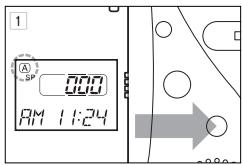
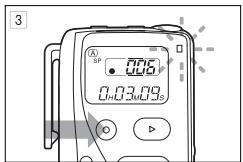
1 Press and release the MENU/FOLDER button, then select folder [A] or [B]. Each time you press the MENU/FOLDER button, the selected folder changes: [A] [B] [S] [A] . 2 Select the recording mode. To change the recording mode, see page 19.
The recorder's default setting is the SP mode (about 67 minutes of recording with the VN-180 or 33 minutes of recording with the VN-90).
3 Press the REC button. The red LED indicator lights and recording starts.
◎ The LCD shows the current folder name, current message No., recording mode and elapsed recording time.
4 Press the STOP button to stop recording.
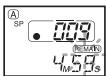
When the remaining recording time falls below 5 minutes, the elapsed recording time display switches to show the remaining recording time.
◎ When the remaining recording time falls below 1 minute, the red LED indicator will blink.
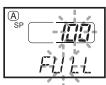
◎ Additional recording is not possible when [FULL] is shown on the LCD. To continue recording, you must erase unneeded messages (see page 11).
Recording-Pause (REC PAUSE)
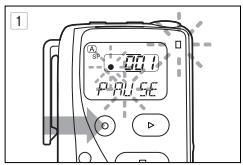
1 Press the REC button once during recording to enter the Recording-Pause mode.
During recording-pause, [PAUSE] is shown on the LCD and the red LED indicator blinks.
☐ All recording will stop if the recorder is left in the Recording-Pause mode for 10 minutes or if the STOP button is pressed during the Recording-Pause mode.
2 Press the REC button again to resume recording.
◎ Using the Recording-Pause mode allows you to continue recording in the same message.
Playback (PLAY)
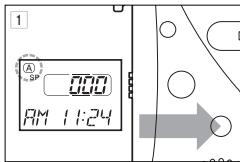
1 Press the MENU/FOLDER button to select a folder (see page 13).
2 Press the (+▶) or (−|◀) button so that the LCD shows the correct message number to be played and its recording date/time.
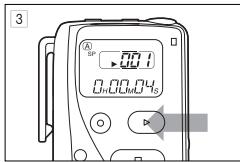
3 Press the PLAY button to start Playback.
◎ LCD display
For the first 2 seconds of playback:
The length of the message is displayed.
More than 2 seconds after the start of playback:
The elapsed playback time of the message being played is displayed.
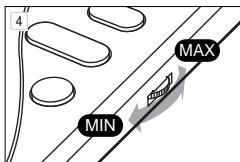
4 Adjust the volume to a suitable level.
5 Press the STOP button to stop playback and enter the Stop mode. The recorder automatically stops at the end of each message.
Playback-Pause (PAUSE)
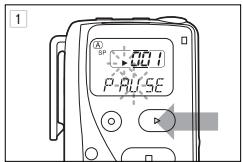
1 Press the PLAY button once during playback to enter the Playback-Pause mode. In the Playback-Pause mode, [PAUSE] blinks on the LCD.
◎ Playback will stop if the recorder is left in the Playback-Pause mode for 10 minutes or the STOP button is pressed during the Playback-Pause mode.
2 Press the PLAY button again to resume Playback.
Fast Playback
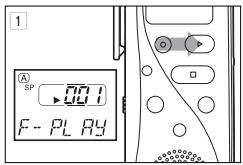
1 Press and hold the PLAY button for more than 1 second in the Stop, Playback or Playback-Pause mode to start fast playback at 30% faster than normal playback speed.
2 Press the PLAY button again to start playback at the normal speed.
3 When the STOP button is pressed or the end of a message is reached by Fast Playback, Fast Playback mode is stopped and all playback stops.
Fast Forward/Fast Reverse
1 Press and hold the Fast Forward (+▶▶) or Fast Reverse (−◀◀) button for more than 1 second in the Playback, Fast Playback or Playback-Pause mode. The message will be fast forwarded or reversed for as long as the button is pressed.
When the end of message (with Fast Forward) or beginning of message (with Fast Reverse) is reached, the recorder pauses (for about 1/2 second), then starts Fast Forward or Fast Reverse of the next or previous message (as long as the button pressed throughout).
2 When the Fast Forward ( ) or Fast Reverse ( -1 ) button is released, normal playback or fast playback starts at that point.
Forward Skip (F-SKIP)/Reverse Skip (R-SKIP)
1 Press and release the Fast-Forward or Fast Reverse button in the Stop, Playback, Fast Playback or Playback-Pause mode. Each time you press the button, the recorder skips to the beginning of the next (or previous) message.
☐ If the button is pressed in Playback, Fast Playback or Playback-Pause mode, Playback or Fast Playback automatically starts at the beginning of the skip destination message.
◎ Pressing and holding the (+▶▶) or (−◀◀) button for more than 1 second in the Stop mode enables you to skip through messages quickly. Release the button to stop skipping.
Erasing (ERASE)
☆ Erasing a single message (ERASE)
1 Press the (+▶) or (−◀) button in the Stop mode to select the message No. to be erased.
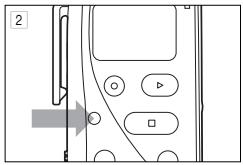
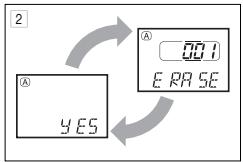
2 Press the ERASE button and release. The displayed message number blinks and the LCD shows [ERASE] and [YES] alternately.
3 Press the ERASE button again within 4 seconds. The LCD shows only [ERASE] and the selected message will be erased.
☐ Performing this operation during Playback, Fast Playback or Playback-Pause will erase the entire message being played.
◎ After a message has been erased, the message number of the other messages will be decreased by 1.
☆ Erasing all messages in a folder (ALL ERASE)
1 Press the MENU/FOLDER button to select the folder to be erased (see page 13).
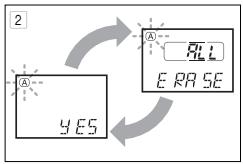
2 In the Stop mode, press and hold the ERASE button for more than 2 seconds. The word [ALL] blinks, and the LCD shows [ERASE] and [YES] alternately.
3 Press the ERASE button again within 4 seconds. The LCD blinks [ERASE] and all of the messages in the selected folder will be erased.
◎ When folder [S] is selected:
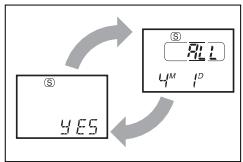
- Erasing all messages for a selected date - When the ERASE button is pressed and held for more than 2 seconds, the LCD shows [ALL] together with alternately blinking date and [YES]. Press the ERASE button within 4 seconds again to erase all of the messages for the selected date.
- Erasing all messages in folder [S] - When the ERASE button is pressed and held for more than 4 seconds, the LCD shows [ALL] together with alternately blinking [ERASE] and [YES]. Press the ERASE button within 4 seconds again to erase all messages in folder [S].
☆ Resetting the recorder (CLEAR)
flowchart
graph TD
    A["Device"] -->|YES| B["CLEAR"]
    B -->|YES| C["Arrow Down"]
    C --> D["Arrow Up"]
    D --> E["Arrow Left"]
    E --> F["Arrow Right"]
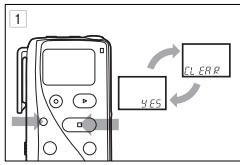
1 Hold the STOP button and press and hold the ERASE button for more than 2 seconds. The LCD shows [CLEAR] and [YES] alternately.
2 Press the ERASE button again within 4 seconds. All messages in all folders are erased and the recorder is reset to the default setting.
© This also resets the current time and other settings to their initial status.
☐ If any button other than the ERASE button is pressed while the LCD shows [CLEAR], selected date, [ERASE] and [YES] alternately or if the ERASE button is not pressed within four seconds of the start of the alternate display, the message erase or reset operation will be aborted and the LCD returns to the previous display condition.
Types of Folders
1 The voice recorder has three folders, [A], [B] and [S].
- Folders [A], [B]
These folders are convenient for recording ordinary messages. Each folder can store up to 100 messages.
- Folder [S]
This folder is convenient for schedule management. The folder can store up to 15 messages on a given date and 100 messages in the whole folder. You can use this folder to conveniently check your schedule at a selected time. By using the schedule alarm playback feature, this folder can automatically play back your messages (see page 16).
◎ When the number of messages in a folder reaches 100 or when the number of messages for a date in folder [S] reaches 15, recording is no longer possible. In this case, [FULL] and [Message No.] blink to indicate this.
Selecting a Folder
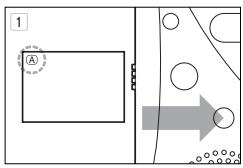
1 Every time the MENU/FOLDER button is pressed for less than 1 second in the Stop mode, the displayed folder is switched: [A] → [B] → [S] → [A] → ...
Moving a Message Between Folders [A] and [B] (MOVE)

1 While playing back (or pausing) a message in folder [A] or [B], press and hold the MENU/FOLDER button for more than 1 second. This will move the current message to the last position in the other folder ([A] to [B] or [B] to [A]).
◎ Messages in folder [S] cannot be moved to another folder.
Schedule Recording
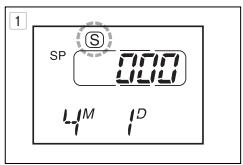
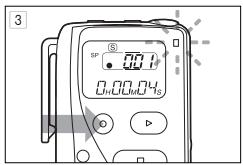
1 Press the MENU/FOLDER button for less than 1 second to select folder [S].
2 Select the date for which you want to record a schedule by pressing the (+▶▶) or (−|◀◀) button.
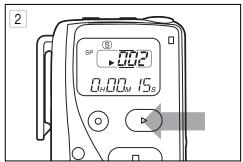
3 Press the REC button. The red LED indicator lights and recording starts.
4 Press the STOP button to stop Recording. The recorder enters the Stop mode.
Schedule Playback
In the Stop mode, press the (+▶) or (−◀) button for less than 1 second to select the date for the schedule you want to check.
When the (+▶) or (−◀) button is pressed and held for more than 1 second in the Stop mode, the recorder will stop at the date where the next message is recorded.
2 Press the PLAY button. All messages recorded for the selected date will be played in succession.
3 Press the STOP button to stop Playback. The voice recorder enters the Stop mode.
☐ Messages in folder [S] cannot be forward skipped or reverse skipped in the Stop mode. Forward Skip and Reverse Skip are available only during Playback, Fast Playback or Playback-Pause operation.
Message Alarm Playback
☆ Setting the message alarm
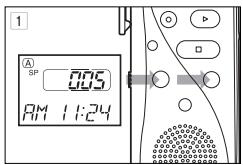
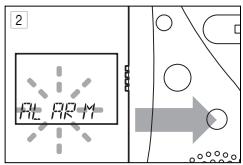
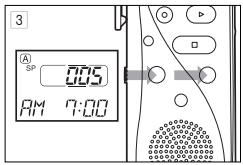
1 Select the message you want to play as an alarm by pressing the (+▶) or (−◀) button so that the message No. is displayed in the LCD.
2 Press and hold the MENU/FOLDER button for more than 1 second. Then after pressing the (▶▶) button three times to select the [ALARM] setting in the Options mode, press the MENU/FOLDER button again to enter the [ALARM] screen.
3 Each time you press the MENU/FOLDER button, the date/time items start to blink in order of "month", "date", "hour" and "minute". Set the desired date and time for alarm playback by pressing the (+▶) or (−◀) button.
When you have finished alarm setting, press the STOP button.
◎ After the alarm has gone off, the alarm setting for that message will be canceled.
◎ Up to 20 alarm messages can be set.
☐ Alarm messages cannot be set if 20 messages have already been set or the message No. being selected is No. 0.
To cancel a set alarm message, select the set alarm message No., perform operations in steps 2 and 3, then press the MENU/FOLDER button. When the LCD shows the message alarm ON/OFF display, select OFF by pressing the (+▶▶) or (−◀◀) button.
☆ Alarm playback
1 At the specified alarm time, the recorder will beep in short tones.
2 Press any button while the beep tones are being emitted to play back the message set for that time.
◎ Press the STOP button to stop message alarm playback.
The electronic beep tones stop automatically if no button is pressed for 5 minutes after the beeping starts. The message is not played back in this case.
Schedule Alarm Playback
When the Schedule Alarm Playback mode is engaged, the day's schedule messages can be listened to at a selected time every day.
flowchart
graph TD
    A["State ②"] --> B["State ③"]
    B --> C["State ④"]
    A --> D["OFF"]
    B --> E["ON"]
    D --> F["RL AR M"]
    E --> G["RL AR M"]
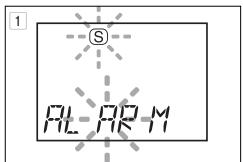
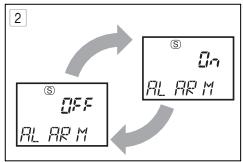
1 First press and hold the MENU/FOLDER button for more than 1 second. Then press the () button four times to select the [S] [ALARM] setting in the Options mode. Then, press the MENU/FOLDER button again to enter the [S] [ALARM] screen.
2 Pressing the (+▶) or (−|◀) button alternates ON and OFF. Select [ON] by pressing either button.
3 Each time you press the MENU/FOLDER button, the "hour" or "minute" figures blink. Set the "hour" and "minute" you want to activate the alarm by pressing the (+▶) or (−◀) button.
To complete the folder schedule alarm setting, press the STOP button.
4 At the set alarm time each day, the recorder beeps. Press any button to playback all of the messages recorded for the current date.
◎ Press the STOP button to stop playback.
◎ Message alarm playback occurs every day unless it is set to [OFF].
Recording with VCVA (Variable Control Voice Actuator) (VCVA REC)
flowchart
graph TD
    A["ON"] --> B["Off"]
    B --> C["Output"]
    style A fill:#f9f,stroke:#333
    style B fill:#ccf,stroke:#333
    style C fill:#cfc,stroke:#333
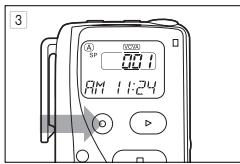
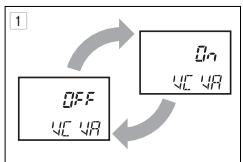
1 First press and hold the MENU/FOLDER button for more than 1 second. Then after pressing the (+▶) button twice to select the [VCVA] setting in the Options mode, press the MENU/FOLDER button again to enter the VCVA screen.
2 Pressing the (+▶) or (−|◀) button alternates the VCVA setting ON and OFF. Select [ON] by pressing either button, then press the STOP button to complete the setting.
3 Press the REC button.
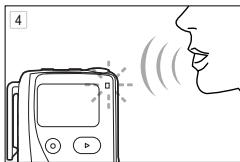
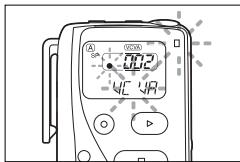
4 When the recorder detects a voice input, it automatically starts recording and the red LED indicator lights. When the voice input stops, the recorder automatically stops recording within 1 second and enters Standby mode.
◎ During the Standby mode, the LCD shows [VCVA] and the red LED indicator blinks.
Hold (HOLD)

When the HOLD switch is set to [HOLD], the recorder is locked and all buttons are disabled. This helps to prevent accidental pressing of buttons that can activate undesired operations. It is recommended when carrying the recorder in a bag or your pocket.
To conserve battery power, the LCD display disappears when the recorder is set to the Hold status in the Stop mode.
Checking Remaining Recording Time (Remaining Memory Capacity)
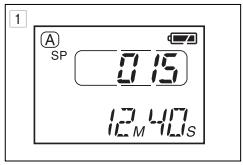
1 Press and hold the STOP button in the Stop mode. The LCD shows the remaining recording time and remaining battery power for as long as the button is pressed.
◎ The LCD also shows the total number of messages in the folder.
Power Save
◎ When 60 minutes have elapsed in Stop mode, all LCD display segments go out and the unit enters the Power Save mode.
◎ To exit from the Power Save mode, press any button.
◎ Press and hold the MENU/FOLDER button for more than 1 second in the Stop mode to enter the Options mode.
☐ In the Options mode, each time you press the (+▶) button, the displayed setting item changes in the following order: [MODE] → [MIC] → [VCVA] → [ALARM] → [S] [ALARM] → [BEEP] → [TIME].
◎ To exit from the options mode, press the STOP button.
☐ If no buttons are pressed for 3 minutes during the Options mode, the Options mode will be canceled.
◎ To set any option, you must press MENU/FOLDER to confirm selection.
Recording Mode (MODE) Setting
flowchart
graph TD
    A["LP<br>MO dc"] --> B["SP<br>MO dc"]
    B --> A
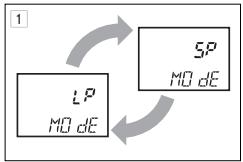
· SP: Standard Playback mode
· LP: Long Playback mode
3 Press the MENU/FOLDER button while the desired mode is displayed to complete its setting.
In the Options mode, display [MODE] and press the MENU/FOLDER button to start the recording mode setting.
2 Pressing the (+▶) or (−|◀) button switches the recording modes: SP → LP → SP →...
(recording time approx. 67 minutes with the VN-180 or 33 minutes with the VN-90)
(recording time approx. 180 minutes with the VN-180 or 90 minutes with the VN-90)
Microphone Sensitivity (MIC) Setting
flowchart
graph TD
    A["10 MIC"] --> B["Output"]
    C["10 MIC"] --> D["Output"]
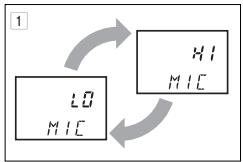
In the Options mode, display [MIC] and press the MENU/FOLDER button to start the microphone sensitivity setting.
2 Pressing the (+▶▶) or (−|◀◀) button switches the microphone sensitivity: HI → LO → HI →...
· HI: ...... High sensitivity mode. Recommended for normal use.
- LO: ...... Low sensitivity mode. Use this setting when there is a lot of background noise.
3 Press the MENU/FOLDER button while the desired mode is displayed to complete its setting.
◎ When the microphone sensitivity is set to “HI” (high-sensitivity mode), the noise may increase depending on the recording conditions.
VCVA Recording (VCVA REC) Setting
◎ See “Recording with VCVA” on page 17.
Alarm (ALARM) Setting/Cancellation
◎ See "Message Alarm Playback" on page 15.
Schedule Alarm (S ALARM) Setting/Cancellation
◎ See “Schedule Alarm Playback” on page 16.
Beep Tone (BEEP) Setting
flowchart
graph TD
    A["OFF"] --> B["On"]
    B --> C["bE EP"]
    C --> A
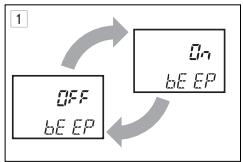
In the Options mode, display [BEEP] and press the MENU/FOLDER button to start the beep tone setting.
2 Pressing the (+▶) or (−|◀) button switched the beep tone between ON and OFF.
◎ When [BEEP] is set to [OFF], no beep tone will be produced when a button is pressed (the alarm tone will still be generated).
3 Press the MENU/FOLDER button while the desired mode is displayed to complete its setting.
Current Time (TIME) Setting
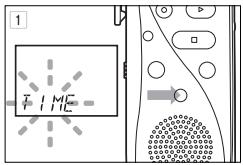
1 When the menu button is pressed in option mode with [TIME] flashing, time setting will be reached.
◎ See “Clock Adjustment” on page 5.
natural_image
Diagram showing a car under sunlight illuminating a road with a sun and a vehicle (no text or symbols)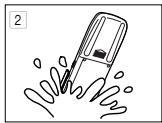
natural_image
Simple line drawing of a hand holding a pen with water splashing out (no text or symbols)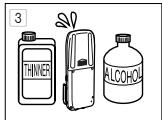
natural_image
Simple line drawing of a device with lightning bolts and a numbered label (no text or symbols on the device itself)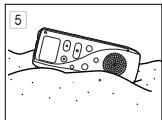
natural_image
Simple line drawing of a handheld device partially submerged in water (no text or symbols)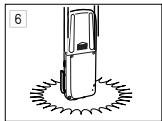
natural_image
Simple line drawing of a door with a circular base and diagonal lines, no text or symbols present.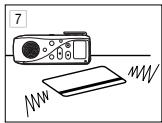
natural_image
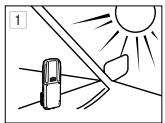
Simple line drawing of a device with a waveform and a card, no text or symbols present1 Avoid subjecting the unit to direct sunlight, high humidity, strong magnetic fields.
2 If the unit is exposed to water (especially rain or condensation), wipe it off with a clean, dry cloth. Always avoid contact with salt components
3 Do not use alcohol, lacquer thinner or other organic compounds for cleaning.
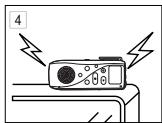
4 Do not place the unit on top of a television, refrigerator or other electrical equipment.
5 Be careful not to get dust or sand on the unit. This may damage the unit and prevent operation
6 Do not subject the unit to strong vibration or shock.
◎ This may make it impossible for the unit to play back what you have recorded.
7 If a magnetic card (i.e. ATM card or credit card) is placed too close to the speaker damage to the data stored in the memory may occur.
1 Always use the batteries correctly. Fluid leakage, heat generation or explosion may occur if the batteries are used incorrectly. When the batteries are replaced, be sure the + and - polarity positions are correct.
2 Some batteries are of the same sizes but have different voltages.
3 Note the difference between dry type and rechargeable batteries. Use LR03 or R03 dry type batteries.
4 When there is fluid leakage, carefully wipe off the fluid from the battery compartment and then insert the batteries.
5 Remove the batteries when the unit is not used for more than one month.
6 If a battery is short-circuited, disassembled, charged or thrown into a fire, damage or ignition may occur.
7 Poor contact may occur if + or - polarity symbols are obscured with oil or sweat. Wipe off the batteries with a clean cloth before use.
8 Be sure to bring extra batteries if the unit will be used for long periods of time, i.e. lengthy speeches or lectures.
Q 1 Nothing happens when an operation button is pressed.
A 1 · The unit may be set to the [HOLD] status.
- The batteries may be depleted.
- The batteries may be inserted incorrectly.
- The battery cover may not be closed tightly.
Q2 No sound is output.
A 2 · The volume may be set to the minimum level.
- The earphone plug may be plugged into the unit.
Q 3 Recording is not possible.
A 3 · The remaining recording time in the selected folder may have reached [0m00s].
- The number of recorded messages in the selected folder may have reached 100.
- The number of messages of the same date in folder [S] may have reached 15.
Q 4 The recording level is too low.
A 4 The microphone sensitivity may be set to [LO].
Q 5 The playback speed is too high.
A 5 The unit may be set to Fast Playback.
Q6 Operation is not normal.
A 6 To recover, remove the batteries and press and hold the ERASE button for more than 10 seconds.
Q7 The recordable time is too short in regard to the recorded time.
A 7 Have messages with a date remained in another folder than the [S] folder?
| Recording medium: | Built-in flash memory |
| Recording time: | SP mode: .... Approx. 67 min. (VN-180)/33 min. (VN-90) |
| LP mode: .... Approx. 180 min. (VN-180)/90 min. (VN-90) | |
| Speaker: | ø 28 mm diameter dynamic internal speaker |
| Maximum power: | 120 mW |
| Earphone jack: | ø 3.5 mm diameter, impedance 8Ω |
| Microphone jack: | ø 3.5 mm diameter, impedance approx. 2 kΩ |
| Power supply: | Two AAA (LR03 or R03) batteries |
Continuous battery use time:
About 40 hours (use of alkaline batteries, measured value for continuous recording according to the specifications of our company)
* The continuous battery use time may be reduced according to the battery type and the use conditions.
Dimensions: 4.6(L) × 1.9(W) × 0.6(T) inches (115L × 48.2W × 15T mm)
Weight: 2.3 oz (66 g) including batteries
* Your recorded contents are for your personal use or pleasure only. It is prohibited to record copyrighted material without permission of the copyright holders according to copyright law.
* Specifications and design are subject to change without notice for improvement of performance.
< Accessories (Optional) >
■ Electret condenser microphone: ME7, ME11*
■ Unidirectional microphone: ME12
■ Telephone pickup: TP6
■ Connecting cord (Earphone jack Microphone jack): KA232*
■ Connecting cord (Miniplug ← Mini-miniplug) : PA3
Accessories marked * should be used in combination with the PA3 plug adapter.
Please contact an Olympus service for further information.
Olympus home page: http://www.olympus.com
Customer support:
USA: 1-800-622-6372
Europe: +800 67108300
USA RFI
This equipment has been tested and found to comply with the limits for a Class B digital device, pursuant to part 15 of the FCC Rules. These limits are designed to provide reasonable protection against harmful interference in a residential installation. This equipment generates, uses and can radiate radio frequency energy and, if not installed and used in accordance with the instructions, may cause harmful interference to radio communications. However, there is no guarantee that interference will not occur in a particular installation. If this equipment does cause harmful interference to radio or television reception, which can be determined by turning the equipment off and on, the user is encouraged to try to correct the interference by one or more of the following measures:
- Reorient or relocate the receiving antenna.
- Increase the separation between the equipment and receiver.
- Connect the equipment into an outlet on a circuit different from that to which the receiver is connected.
- Consult the dealer or an experienced radio/TV technician for help.
Canadian RFI
This digital apparatus does not exceed the Class B limits for radio noise emissions from digital apparatus as set out in the Radio Interference Regulations of the Canadian Department of Communications.
- OLYMPUS®
- DIGITAL VOICE RECORDER VN-180
- VN-90
- BEFORE YOUR FIRST RECORDING 3
- BASIC OPERATIONS 7
- MESSAGE FOLDER MANAGEMENT 13
- ADDITIONAL FEATURES 14
- ENTERING OPTIONS MODE 19
- CARE IN HANDLING 22
- BATTERY PRECAUTIONS 23
- TROUBLESHOOTING 24
- SPECIFICATIONS 25
- ACCESSORIES (OPTIONAL) 25
- Parts Identification
- Liquid Crystal Display (LCD)
- Installing the Batteries
- Clock Adjustment
- Changing the Batteries
- This voice recorder has three folders: [A], [B] and [S].
- Folder [S] is designed for use in the schedule management (see page 14 for details).
- Recording (REC)
- ☆ Normal recording
- Recording-Pause (REC PAUSE)
- Playback (PLAY)
- Playback-Pause (PAUSE)
- Fast Playback
- Fast Forward/Fast Reverse
- Forward Skip (F-SKIP)/Reverse Skip (R-SKIP)
- Erasing (ERASE)
- ☆ Erasing a single message (ERASE)
- ☆ Erasing all messages in a folder (ALL ERASE)
- ☆ Resetting the recorder (CLEAR)
- Types of Folders
- Selecting a Folder
- Moving a Message Between Folders [A] and [B] (MOVE)
- Schedule Recording
- Schedule Playback
- Message Alarm Playback
- ☆ Setting the message alarm
- ☆ Alarm playback
- Schedule Alarm Playback
- Recording with VCVA (Variable Control Voice Actuator) (VCVA REC)
- Hold (HOLD)
- Checking Remaining Recording Time (Remaining Memory Capacity)
- Power Save
- Recording Mode (MODE) Setting
- Microphone Sensitivity (MIC) Setting
- VCVA Recording (VCVA REC) Setting
- Alarm (ALARM) Setting/Cancellation
- Schedule Alarm (S ALARM) Setting/Cancellation
- Beep Tone (BEEP) Setting
- Current Time (TIME) Setting
- < Accessories (Optional) >
- USA RFI
- Canadian RFI
Marque : OLYMPUS
Modèle : VN-180
Catégorie : Enregistreur vocal