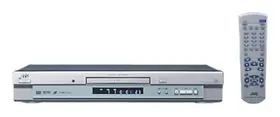
XV-N512S - Lecteur dvd JVC - Notice d'utilisation et mode d'emploi gratuit
Retrouvez gratuitement la notice de l'appareil XV-N512S JVC au format PDF.


| Intitulé | Description |
|---|---|
| Type de produit | Lecteur DVD |
| Formats de lecture | DVD, CD, VCD, MP3, JPEG |
| Résolution vidéo | 480p (SD) |
| Connectivité | Composite, S-Video, Sortie audio numérique optique |
| Alimentation électrique | 100-240 V, 50/60 Hz |
| Dimensions approximatives | 430 x 40 x 250 mm |
| Poids | 2,5 kg |
| Fonctions principales | Lecture de disques, lecture de fichiers multimédias, fonction de répétition |
| Entretien et nettoyage | Nettoyer avec un chiffon doux, éviter les produits chimiques agressifs |
| Pièces détachées et réparabilité | Disponibilité limitée des pièces, consulter un professionnel pour les réparations |
| Informations de sécurité | Ne pas exposer à l'humidité, utiliser sur une surface stable, débrancher en cas d'orage |
| Compatibilités | Compatible avec la plupart des téléviseurs et systèmes audio |
FOIRE AUX QUESTIONS - XV-N512S JVC
Questions des utilisateurs sur XV-N512S JVC
0 question sur cet appareil. Repondez a celles que vous connaissez ou posez la votre.
Poser une nouvelle question sur cet appareil
Téléchargez la notice de votre Lecteur dvd au format PDF gratuitement ! Retrouvez votre notice XV-N512S - JVC et reprennez votre appareil électronique en main. Sur cette page sont publiés tous les documents nécessaires à l'utilisation de votre appareil XV-N512S de la marque JVC.
MODE D'EMPLOI XV-N512S JVC
DVD AUDIO/VIDEO PLAYER
XV-N512S


AUDIO/VIDEO

DIGITAL

3D-PHONIC

SURROUND

SUPERVIDEO

Dc Multichannel
Digital Direct Progressive Scan
Region code of DVDVIDEO
This player can play back DVD VIDEO discs whose region code numbers include "2."
Examples of playable DVD VIDEO discs:




The player's region code is printed on the rear of the player.
INSTRUCTIONS
Before operation 2
Preparations 4
Basic playback 11
Various kinds of playback 15
VR format disc playback 27
MP3/WMA and JPEG discs 30 playback
Changing the initial settings 33
Additional information 41
IMPORTANT for the U.K.
DO NOT cut off the mains plug from this equipment. If the plug fitted is not suitable for the power points in your home or the cable is too short to reach a power point, then obtain an appropriate safety approved extension lead or consult your dealer.
BE SURE to replace the fuse only with an identical approved type, as originally fitted.
If nonetheless the mains plug is cut off ensure to remove the fuse and dispose of the plug immediately, to avoid a possible shock hazard by inadvertent connection to the mains supply. If this product is not supplied fitted with a mains plug then follow the instructions given below:
IMPORTANT.
DO NOT make any connection to the terminal which is marked with the letter E or by the safety earth symbol or coloured green or green-and-yellow.
The wires in the mains lead on this product are coloured in accordance with the following code:
Blue: Neutral
Brown:Live
As these colours may not correspond with the coloured markings identifying the terminals in your plug proceed as follows:
The wire which is coloured blue must be connected to the terminal which is marked with the letter N or coloured black. The wire which is coloured brown must be connected to the terminal which is marked with the letter L or coloured red.
IF IN DOUBT - CONSULT A COMPETENT ELECTRICIAN.
CAUTION
To reduce the risk of electrical shocks, fire, etc.:
-
Do not remove screws, covers or cabinet.
-
Do not expose this appliance to rain or moisture.
Caution — Ⓞ/STANDBY/ON button!
Disconnect the mains plug to shut the power off completely (the STANDBY/ON lamp goes off).
The / I STANDBY/ON button in any position does not disconnect the mains line.
- When the player is on standby, the STANDBY/ON lamp lights red.
- When the player is turned on, the STANDBY/ON lamp lights green.
The power can be remote controlled.
CAUTION
- Do not block the ventilation openings or holes. (If the ventilation openings or holes are blocked by a newspaper or cloth, etc., the heat may not be able to get out).
- Do not place any naked flame sources, such as lighted candles, on the apparatus.
- When discarding batteries, environmental problems must be considered and local rules or laws governing the disposal of these batteries must be followed strictly.
- Do not expose this apparatus to rain, moisture, dripping or splashing and that no objects filled with liquids, such as vases, shall be placed on the apparatus.
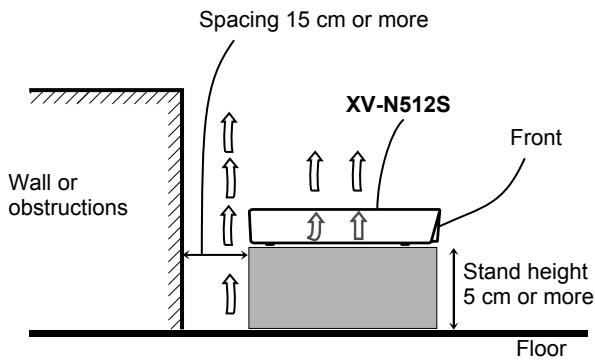
Caution: Proper Ventilation
To avoid risk of electric shock and fire and to protect from damage, locate the apparatus as follows:
Front: No obstructions and open spacing.
Sides: No obstructions in 3cm from the sides.
Top: No obstructions in 5 cm from the top.
Back: No obstructions in 15cm from the back.
Bottom: No obstructions, place on the level surface.
IMPORTANT FOR LASER PRODUCTS
- CLASS 1 LASER PRODUCT
- CAUTION: Do not open the top cover. There are no user serviceable parts inside the unit; leave all servicing to qualified service personnel.
- CAUTION: Visible and invisible laser radiation when open and interlock failed or defeated. Avoid direct exposure to beam.
- REPRODUCTION OF LABEL: CAUTION LABEL, PLACED INSIDE THE UNIT.
| CAUTION: Visible and invisible laser radiation when open and interlock failed or defeated. AVOID DIRECT EXPOSURE TO BEAM. | ADVARSL: Synilg og usyligl laserstreling nar maskerniken deilen oller interlocken lejter. Undag direkte ekspensioni ter straling. (e) | VARNING: Synilg laserstrelining nar den oppressn och spärnen ar ukrupplak. Betrakte og strälen. | OVAR: Avetala: a sju kajukulaks oléttina tali vialisaene olé altinna rukvályla. Vi ränskämmläste laseleityiye. Välla sälén konhodismula suorana ftesii. (s) |
Supplied accessories
Check that you have all the following accessories supplied to you. If anything is missing, consult your dealer immediately.
Audio/video cable (Yellow/White/Red) (× 1)
Audio cable (White/Red) (× 2)
- Remote control unit (× 1)
R6P(SUM-3)/AA(15F) battery (× 2)
About this manual
- The display window information and OSD (On Screen Display) menu items are put in brackets [ ] in the operation procedures.
- Usable disc(s) for each operation/function is (are) referred to by the icons;
DVD AUDIO
DVD
Super VCD
Video CD
Audio CD
Precautions
Notes on the power cord
- When you are away on travel or otherwise for an extended period of time, remove the plug from the wall outlet. A small amount of power (2.0 W) is always consumed while the power cord is connected to the wall outlet.
- When unplugging the player from the wall outlet, always pull the plug, not the power cord.
- Do not handle the power cord with wet hands!
Avoid moisture, water and dust
- Do not place the player in moist or dusty places.
- If water gets inside the player, turn off the power and remove the plug from the wall outlet, then consult your dealer. Using the player in this state may cause a fire or electrical shock.
Avoid high temperatures
- Do not expose the player to direct sunlight or place it near a heating device.
Notes on installation
- Select a place which is level, dry and neither too hot nor too cold between 5^ and 35^ .
- Leave sufficient distance between the player and the TV.
- Do not install the player in a place subject to vibrations.
- Do not put heavy objects on the player.
To prevent malfunction of the player
- There are no user-serviceable parts inside. If anything goes wrong, unplug the power cord and consult your dealer.
- Do not insert any metallic objects, such as wires, hairpins, coins, etc. into the player.
- Do not block the vents. Blocking the vents may damage the player.
To clean the cabinet
- Use a soft cloth. Follow the relevant instructions on the use of chemically-coated cloths.
- Do not use benzene, thinner or other organic solvents and disinfectants. These may cause deformation or discoloring.
Table of contents
Supplied accessories. 1
About this manual 1
Precautions 1
Before operation 2
About discs 2
Names of parts and controls. 3
Preparations 4
Connections 4
Using the remote control unit. 9
Basic playback 11
Turning the player on and off. 11
Initial setup 11
Starting playback 12
Restarting playback after stopping (resuming playback).....14
Various kinds of playback 15
Playback at various speeds. 15
Locating the beginning of a scene or song 16
Playing from a specific position 16
Selecting a still picture on a DVD AUDIO disc (PAGE) 17
Playing back a bonus group of a DVD AUDIO disc. 18
Changing the playback order. 18
Repeat playback 20
Changing the language, sound and scene angle 21
Special picture and sound effects. 22
Checking the sampling frequency and quantization bit length....23
Menu bar functions 24
VR format disc playback 27
About VR format discs 27
Basic operations 27
Repeat playback 29
Changing the sound 29
Turning on/off the subtitle 29
Special picture and sound effects. 29
MP3/WMA and JPEG discs playback 30
Outline 30
Basic operations 31
Viewing pictures continuously (slide show mode) 31
Repeat playback 32
Changing the initial settings 33
Selecting preferences 33
Making fine tuning for your speakers 37
Limiting playback by children 39
Additional information 41
Troubleshooting 41
Specifications 42
Appendix A: Digital output signal chart. 42
Appendix B: Country/Area code list for Parental Lock. 43
Appendix C: Table of languages and their abbreviations.....43
Appendix D: Glossary 44
Before operation
About discs
Playable disc types
Discs with the following marks can be played back on the player.
| DVD AUDIO DVD AUDIO | DVD VIDEO VIDEO | SVCD COMPACT DISC SLFR:VID |
| Video CD Video CD Digital Video | Audio CD COMPACT DISC DIGITAL AUDIO | |
The DVD Logo is a trademark.
The player can also play back the following discs:
- 9.4GB/4.7GB DVD-RAM with no cartridge, recorded with the video recording standard version 1.1
- 9.4GB/4.7GB DVD-RAM with cartridge but can be removed from the cartridge, recorded with the video recording standard version 1.1
DVD-R and DVD-RW discs written in the DVD VIDEO format and finalized
DVD-RW (version 1.1) discs written in the VR (Video Recording) format and finalized - CD-R and CD-RW discs written in the SVCD, Video CD or Audio CD format and finalized
- CD-R and CD-RW discs written in MP3 or WMA in accordance with the "ISO 9660" format (See page 30 for details.)
- CD-R and CD-RW discs written in JPEG in accordance with the "ISO 9660" format (See page 30 for details.)
NOTES
- If a disc gets dirty, scratched or warped, or due to the disc characteristics or recording conditions, it may take considerable time for the player to read the content, or the player may not be able to play back such discs.
- With some DVD-RAM and DVD-RW (recorded in VR format) discs, portions such as a part between two programs may not be played back smoothly.
DVD-RAM discs created using a personal computer and which do not comply with the video recording standard cannot be played back.
DVD-RAM and DVD-RW discs that comply with the CPRM and on which material allowed to be copied only once is recorded cannot be played back. (CPRM: a picture source encryption technology developed to protect copyright) - When playing back a DVD-RAM disc of type 2 or type 4, first remove the disc from the cartridge and place it in the disc tray (see page 12). Take care not to scratch the disc or make the disc dirty. After playing back the disc, be sure to retain it in the cartridge. (See also the instructions supplied with the disc.)
The player can play back audio signals recorded in MIX-MODE CD, CD-G, CD-EXTRA and CD TEXT.
Color system format
This player accommodates the PAL system, and also can play back discs recorded with NTSC system whose Region Code numbers include "2."
Note that the NTSC video signal on a disc is converted to an PAL signal and output.
Unplayable discs
The player does not play back discs listed below. If you try to play back these discs, noise may be generated, causing damage to speakers.
- 2.6GB/5.2GB DVD-RAM, cartridge type 1 DVD-RAM, version 1.0 DVD-RW (recorded only in the VR format), DVD-ROM, CD-ROM, PHOTO CD, SACD
In addition, the player does not play:
- Unfinalized discs.
- Discs of irregular shape or discs with tape, seals or paste on either the label side or playback side. Playing back these discs may damage the player.
Digital audio formats
The player supports the following digital audio formats (see page 44 "Appendix D: Glossary" for descriptions of each audio format):
Linear PCM, Dolby Digital, DTS (Digital Theater Systems), MLP (Meridian Lossless Packing), MPEG Multichannel
NOTE
Depending on the player's [DIGITAL AUDIO OUTPUT] setting, digital audio signals may not be output as they are recorded on the disc. See "DIGITAL AUDIO OUTPUT" on page 35 for details.
Notes on discs
- With some DVD VIDEO discs, the player starts playback automatically after inserting the disc.
- The image may be sometimes poor or noisy due to defects in the disc itself.
- With some discs, operations described in this manual may not be possible.
Care and handling of discs
If a disc gets dirty, dusty, scratched or warped, playback sound and picture may be deteriorated. Take proper precautions when handling discs.
Handling
- Do not touch the surface of the disc.
- Do not damage, stick paper to, or use any adhesive on either the label side or playback side.
Storing discs
- Keep discs in their cases. If discs are piled on top of one another without their protective cases, they can be damaged.
- Do not put discs in a location where they may be exposed to direct sunlight, or where the humidity or temperature is high. Avoid leaving discs in a car!
Cleaning discs
- Wipe with a soft dry cloth, moving from the center outwards. If a disc is difficult to clean, wipe with a cloth moistened with water.
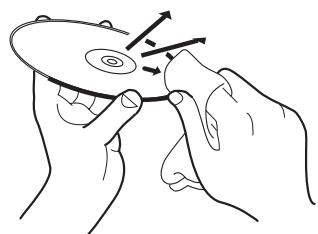
- Never use record cleaners, petrol, alcohol or any anti-static agents.
Notes on copyright
Check the copyright laws in your country before recording from DVD AUDIO, DVD VIDEO, DVD-RAM, SVCD, Video CD, Audio CD, MP3, WMA and JPEG discs.
Recording of copyrighted material may infringe copyright laws.
Names of parts and controls
Front panel
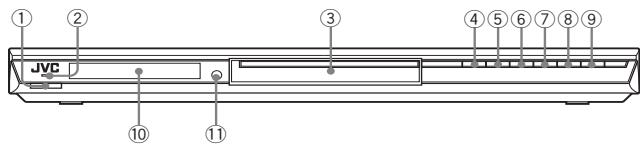
① STANDBY/ON button (11)
② STANDBY/ON indicator (11)
③ Disc tray (12)
④ ▲button(12)
⑤ button (15, 16, 31)
⑥ 1 button (15, 16, 31)
⑦ button (13,14)
⑧ button(12,14,15)
⑨ button (13, 15)
10 Display window (See the illustration below.)
① Remote sensor (9)
Display window
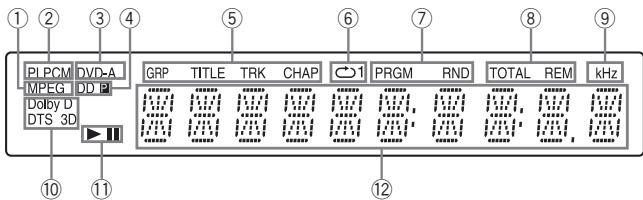
① MPEG indicator
Turns on when MPEG signals are output from the player, for example when playing back a Video CD disc.
② Audio format indicator
[LPCM] turns on when linear PCM audio signals are output from the player, for example when playing back an Audio CD disc.
③ DVD AUDIOindicator
Turns on when a DVD AUDIO disc is played back.
④ Progressive mode indicators
[P] turns on in the progressive scanning mode.
[DDP] turns on depending on the [PICTURE SOURCE] preference setting and the source type of the current DVD VIDEO disc (see page 6 for details).
⑤ Group/title/track/chapter indicators
Show what is indicated by the multi-information display during playback.
⑥ Repeat mode indicators
Turn on in the repeat playback mode and show the currently selected repeat mode.
⑦ Program/random indicators
Turn on in the program playback mode/random playback mode respectively.
Total time/remaining time indicators
[TOTAL] turns on when total elapsed time is indicated by the multi-information display.
[REM] turns on when remaining playback time is indicated by the multi-information display.
⑨ kHz (unit of sampling frequency) indicator
Turns on when the sampling frequency of the digital audio being played back is indicated by the rightmost 3 digits of the multi-information display.
10 Dolby Digital/DTS/3D indicators
[Dolby D] turns on when playing back a Dolby Digital sound source.
[DTS] turns on when playing back a DTS-encoded digital sound source.
[3D] turns on when the 3D PHONIC function is activated.
(1) (play)/II(pause) indicators
Turn on in the playback mode/pause mode respectively.
⑫ Multi-information display
Indicates various kinds of information by numbers and alphabets, such as the player's current status ("READING," "OPEN," etc.) or currently played DVD's title and chapter number.
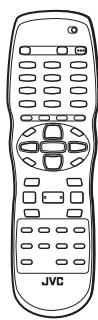
Remote control unit
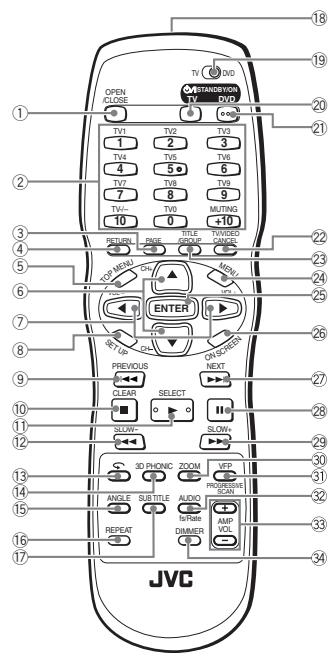
① OPEN/CLOSE button (12)
② Numeric buttons
③ PAGE button (17)
④ RETURN button (16)
⑤ TOP MENU button (16)
⑥ Cursor selection (▲ Up,▼ Down) - CH (+/-) buttons
⑦ Cursor selection (左, Right) - VOL (+/-) buttons
⑧ SET UP button (12, 33)
PREVIOUS button (15, 16, 31)
10 CLEAR button (13, 19, 20, 27, 31, 32)
① SELECT button (12, 14, 15, 19, 27, 31)
12 SLOW- button (15)
13 button (15)
14 3D PHONIC button (23)
15 ANGLE button (21)
16 REPEAT button (20, 29, 32)
SUBTITLE button (21)
18 Infrared signal window (9)
19 TV - DVD switch (10, 11, 15, 27, 30, 33)
20 TV 1STANDBY/ON button (10)
② DVD 念 / STANDBY/ON button (11)
② TV/VIDEO-CANCELbutton(10,18)
23 TITLE/GROUP button (17, 31)
24 MENU button (16, 28, 31)
25 ENTER button
⑥ ON SCREEN button (13, 18, 19, 20, 24)
⑦▶/NEXT button (15, 16, 31)
28 II button (13, 15, 27, 29)
29▶/SLOW+ button (15)
③ ZOOM button (22, 31)
③ VFP - PROGRESSIVE SCAN button (6, 22)
③ AUDIO-fs/Rate button (21)
33 AMP VOL + / - buttons (10)
34 DIMMER button
Press to change the brightness of the display window. You can select the display window brightness from three levels or off. If the brightness is set to off, nothing will be shown on the display.
By pressing this button, the brightness of the blue illumination around the disc tray also changes.
Before making connections
- Do not connect the AC power cord until all other connections have been made.
-
Connect VIDEO OUT of the player directly to the video input of your TV. Connecting VIDEO OUT of the player to a TV via a VCR may cause a monitor problem when playing back a copy-protected disc. You may also have a monitor problem when connecting the player to an integrated TV/Video system.
-
In the following description, "TV" may be substituted with "monitor" or "projector."
- Terminal names used for other components may be different from those used in the following description.
Connections
Before using the player, connect the player to a TV and/or amplifier.
Connecting to a TV
The following sections A to D describe TV connections where only a TV is connected to the player so that you will hear audio from the TV.
Connecting to a TV with the SCART connector
You can enjoy using the player by simply connecting it to your television set with a 21-pin SCART cable.
NOTE
When you connect a SCART cable, do not connect any other cables to other video signal output jacks (VIDEO/S-VIDEO/COMPONENT VIDEO OUT). If you do so, you will not be able to obtain correct signals from the SCART connector of the player.
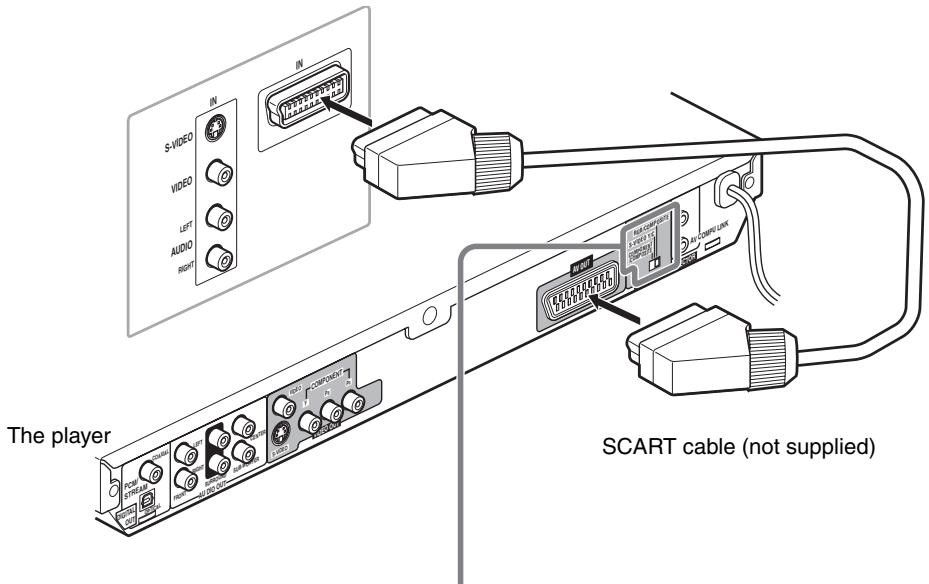
Setting theVIDEO SIGNAL SELECTOR
When you connect the player to a TV with the SCART connector, set the VIDEO SIGNAL SELECTOR correctly according to your TV.
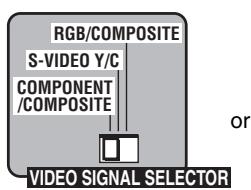
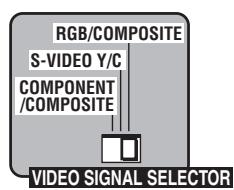
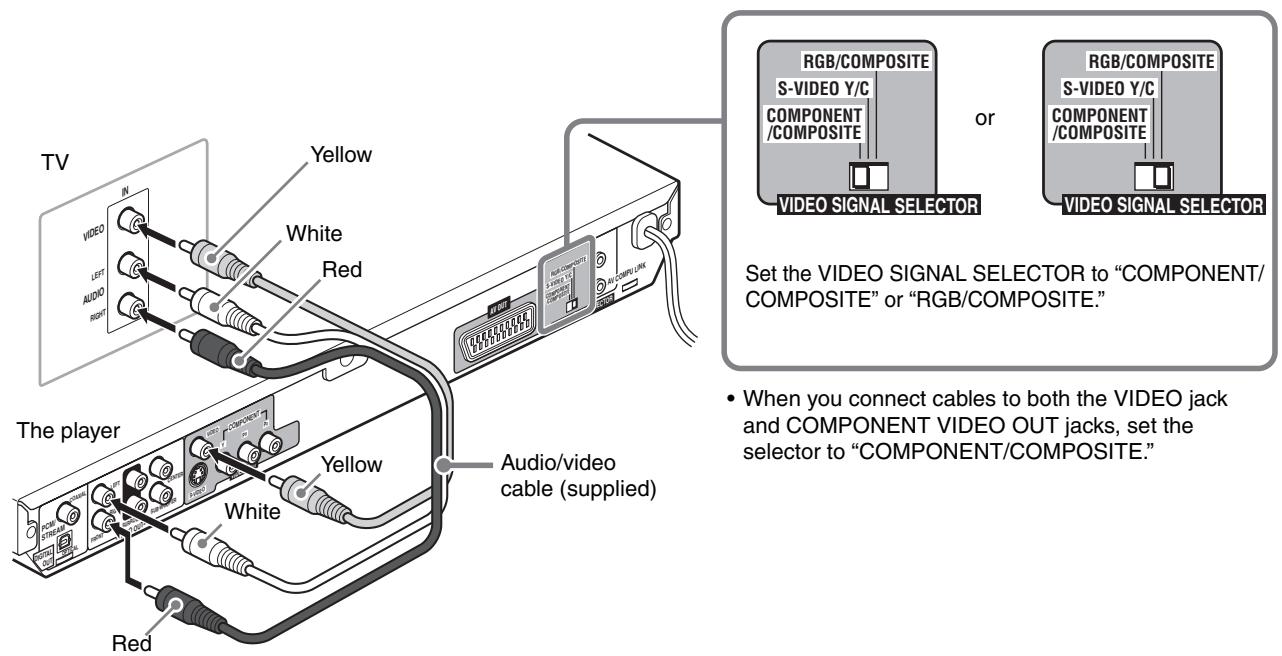
- If your TV only accommodates the composite video signal: Set the selector to "COMPONENT/COMPOSITE" or "RGB/COMPOSITE."
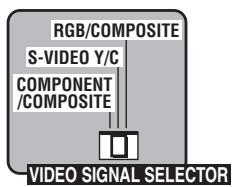
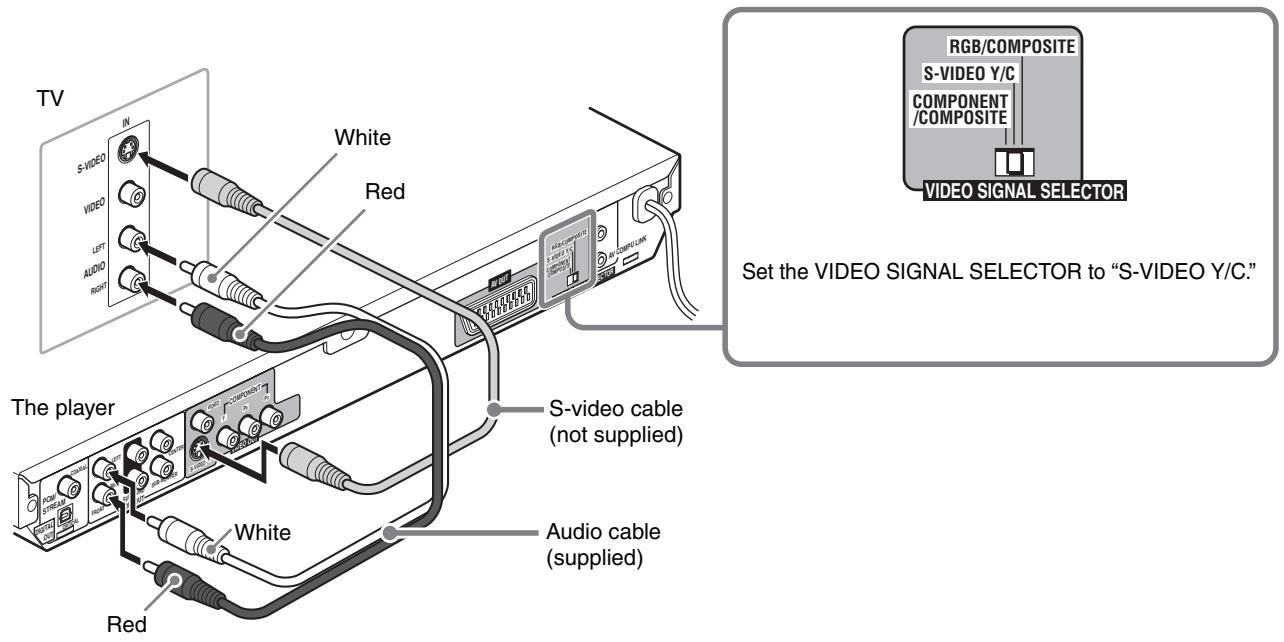
- If your TV accommodates Y/C signals: Set the selector to "S-VIDEO Y/C."
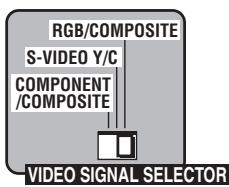
If your TV accommodates RGB signals: Set the selector to "RGB/ COMPOSITE."
- If your TV accommodates both RGB and Y/C, set the selector to "RGB/COMPOSITE." Otherwise the picture cannot be displayed correctly.
Connecting to a TV having composite video input jack
NOTES
- Be sure to connect the red and white plugs of the audio cable to the FRONT RIGHT/LEFT jacks on the rear of the player, as shown in the illustration.
-
Do not connect cables to SCART connector. If you do so, you will not be able to obtain correct signals from the VIDEO (and COMPONENT VIDEO OUT) jacks.
-
If your TV has a monaural audio input instead of stereo, you need to use an optional audio cable which converts stereo audio output to monaural.
- Set [ANALOG OUT] in the [AUDIO] preference display to [2-CH STEREO] (see page 35).
Connecting to a TV with an S-video jack
If your TV has an S-VIDEO input, you can get better picture quality by connecting it with the S-VIDEO output of the player using an S-video cable instead of connecting the video input of the TV to the VIDEO jack of the player.
NOTES
- Be sure to connect the red and white plugs of the audio cable to the FRONT RIGHT/LEFT jacks on the rear of the player, as shown in the illustration.
- To obtain correct signals from the S-VIDEO output, do not connect cables to the COMPONENT VIDEO OUT jacks, and SCART connector of the player.
- Set [ANALOG OUT] in the [AUDIO] preference display to [2-CH STEREO] (see page 35).
Connecting to a TV with component jacks
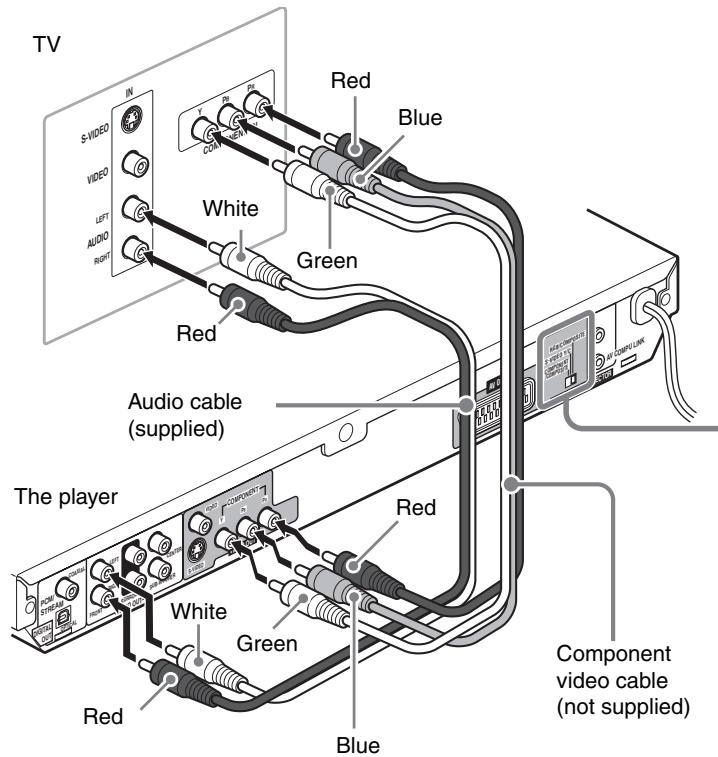
You can enjoy picture of high-fidelity color reproduction by connecting the COMPONENT VIDEO OUT jacks on the player to your TV.
NOTES
- Be sure to connect the red and white plugs of the audio cable to the FRONT RIGHT/LEFT jacks on the rear of the player, as shown in the illustration.
- Connect "Y" to "Y," "P_B" to "P_B" (C_B), "P_R" to "P_R" (C_R) correctly.
- Do not connect cables to S-VIDEO jack and SCART connector. If you do so, you will not be able to obtain correct signals from the COMPONENT VIDEO OUT jacks.
- Set [ANALOG OUT] in the [AUDIO] preference display to [2-CH STEREO] (see page 35).
- If your TV has component video input jacks of BNC type, use an adapter which converts a pin jack to a BNC jack (not supplied).
Progressive scan video playback available
In the Progressive scanning mode, you can enjoy high quality picture with less flickers when the COMPONENT VIDEO OUT jacks are connected to a TV or monitor that supports the progressive video input.
Hint
Depending on the source material format, DVD VIDEO discs can be classified into two types; film source and video source (note that some DVD VIDEO discs contain both film source and video source).
When the player plays back a film source material, Progressive (uninterlaced) signals are created using the original information. When a video source material is played back, the player interleaves lines between the interlaced lines on each to create the interpolated picture and outputs as the progressive signal.
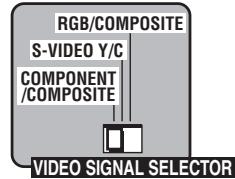
Set the VIDEO SIGNAL SELECTOR to "COMPONENT/COMPOISTE."
Activating the Progressive scanning mode using the remote control unit
When the player is turned on, press and hold down VFP - PROGRESSIVE SCAN for a few seconds.
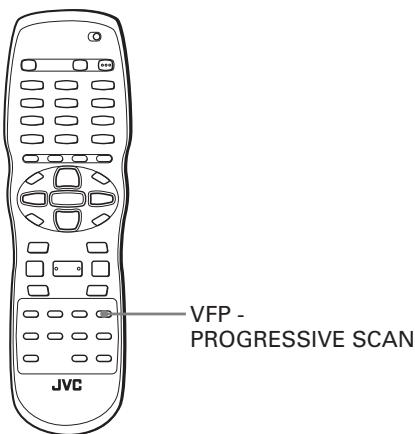
The scanning mode switches between the Progressive scanning and Interlaced scanning modes.
When the scanning mode is set to the Progressive mode, the [P] indicator lights up in the display window.
[DD] also turns on when Progressive scanned signals on a DVD VIDEO disc are directly output as they are from the player. Depending on the [PICTURE SOURCE] preference display and whether the current DVD VIDEO disc is film-source or video-source, the indicator that lights up in the display window differs, as shown in the table below.
| Setting of [PICTURE SOURCE] | Source type of DVD VIDEO | |
| Film source | Video source | |
| VIDEO (NORMAL)/ (ACTIVE) | [P] | [P] |
| FILM | [DDP] | [DDP] |
| AUTO | [DDP] | [P] |
NOTES
- The Progressive scanning mode works only when you connect the player's COMPONENT VIDEO OUT jacks to your TV.
- There are some progressive TV and High-Definition TV sets that are not fully compatible with the player, resulting in the unnatural picture when playing back a DVD VIDEO disc in the Progressive scanning mode. In such a case, use the Interlaced scanning mode. To check the compatibility of your TV set, contact your local JVC customer service center.
- All JVC progressive TV and High-Definition TV sets are fully compatible with the player (Example: AV-61S902).
Connecting to optional audio equipment
Connecting to a stereo audio amplifier/receiver
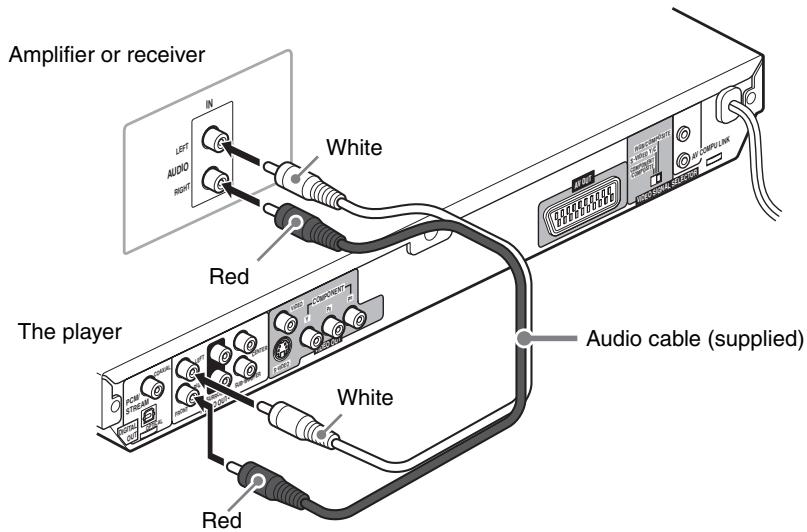
Connect the player's AUDIO OUT (LEFT/RIGHT) jacks to any line-level inputs (such as AUX, DVD, CD, etc.) of an audio amplifier or receiver.
NOTES
- Be sure to connect the red and white plugs of the audio cable to the FRONT RIGHT/LEFT jacks on the rear of the player, as shown in the illustration.
- Set [ANALOG OUT] in the [AUDIO] preference display to [2-CH STEREO] (see page 35).
Connecting to an amplifier/receiver equipped with 5.1-channel inputs
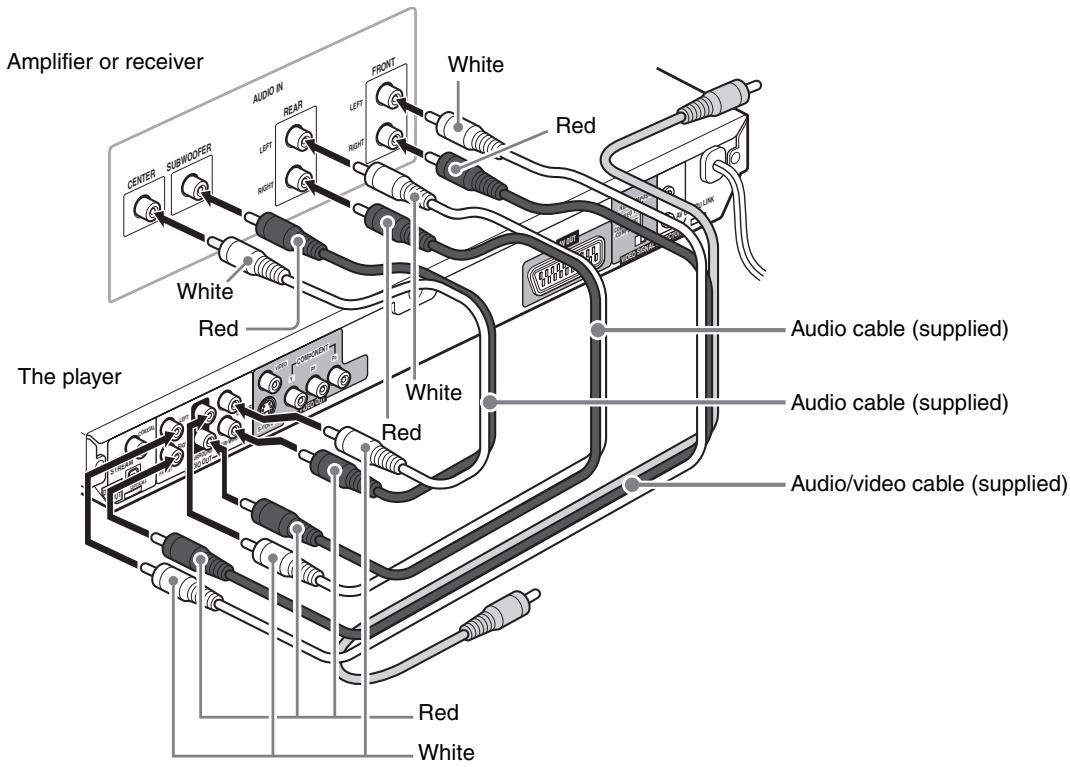
The player supports the linear PCM multichannel format of DVD AUDIO and can feed multichannel audio output signals from the six analog AUDIO OUT jacks.
It is also equipped with the DTS and Dolby Digital decoders. So you can enjoy any type of the high quality surround sounds by connecting the player to an amplifier/receiver equipped with the 5.1-channel inputs.
NOTES
- When using the 5.1-channel outputs of the player, set the [ANALOG OUT] in the [AUDIO] preference display to [MULTI CHANNEL] (see page 35).
- If you select [EXPERT] in the [SPK.SAVING] preference display, you can control the audio output balance of the speakers (see page 36).
- You can use the yellow plugs of the audio/video cable for video connection.
Connecting to a digital audio device
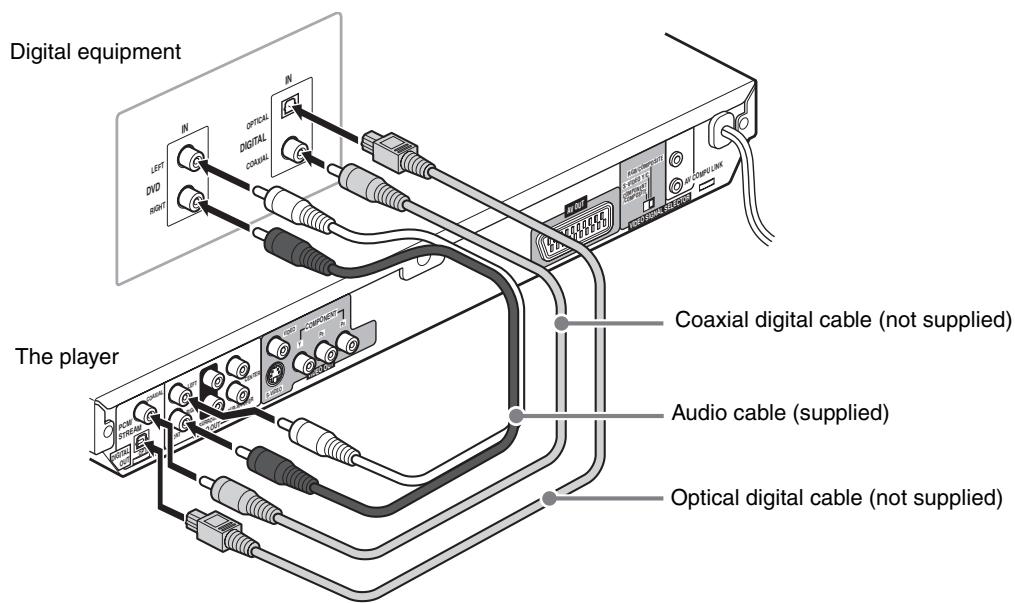
You can enjoy sound of enhanced quality by connecting the player's DIGITAL OUT (either OPTICAL or COAXIAL) jack to a digital input of an amplifier, etc., using an optical or coaxial digital cable. The digital audio signal on a disc will be transferred directly from the player. If the connected digital audio equipment is a Dolby Digital or DTS decoder or an amplifier with a built-in decoder, you can enjoy high-quality surround sound.
NOTES
- Connect the player and the digital audio device by using either an optical digital cable or a coaxial digital cable.
- It is not recommended to use the digital jacks for dubbing. When recording the sounds (DVD AUDIO, DVDVIDEO, SVCD, Video CD or Audio CD) played back on the player, record them through the analog jacks (in this case, set [ANALOG OUT] in the [AUDIO] preference display to [2-CH STEREO])(see page 35).
Depending on the disc, no signal may be output from the DIGITAL OUT. Make an analog connection in this case. - Set [DIGITAL AUDIO OUTPUT] in the [AUDIO] preference display correctly according to the connected digital audio equipment. If setting made for [DIGITAL AUDIO OUTPUT] is incorrect, loud noise may be generated causing damage to the speakers (see page 35).
Connecting the power cord
When all the audio/video connections have been made, connect the AC power plug to the wall outlet. Make sure that the plugs are inserted firmly.
The STANDBY/ON indicator lights in red.

Warning
-
Disconnect the power cord:
-
if you are not going to use the player for a long time.
-
before cleaning the player.
-
before moving the player.
-
Do not:
- connect or disconnect the power cord with wet hands.
- pull the power cord when disconnecting it, as this may damage the cord and cause fire, electric shock, or other accidents.

Caution
- Do not alter, twist or pull the power cord, or put anything heavy on it, which may cause fire, electric shock, or other accidents.
- If the cord is damaged, consult a dealer and have the power cord replaced with a new one.
Using the remote control unit
To install batteries
Open the compartment cover, and place the two supplied R6P (SUM-3)/AA(15F) batteries in the remote control unit according to the polarity markings (“+” and “−”) inside the compartment. Then replace the cover.
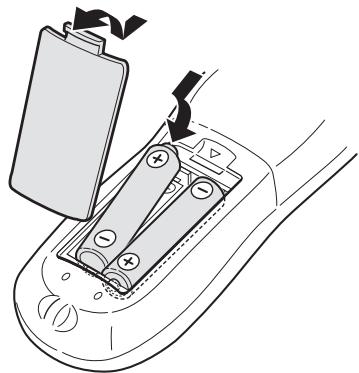
The batteries will last about six months with normal use. If the functions of the remote control unit become erratic, replace the batteries.
Precautions of the safe use of batteries
Observe the following precautions for the safe use of batteries. If they are used improperly their lives will be shortened, they may burst or their contents may leak.
- Remove the batteries from the remote control unit if it is not going to be used for a long period of time.
- Remove dead batteries and dispose of them properly.
- Never leave dead batteries lying around, take them apart, mix them with other refuse, or throw them into an incinerator.
- Never touch liquid that has leaked out of a battery.
- Do not mix new and old batteries, or batteries of different types, when replacing them.
Remote sensor
Point the top of the remote control unit toward the remote sensor as directly as possible. If you operate it from a diagonal position, the operating range (approx. 5 m) may be shorter.
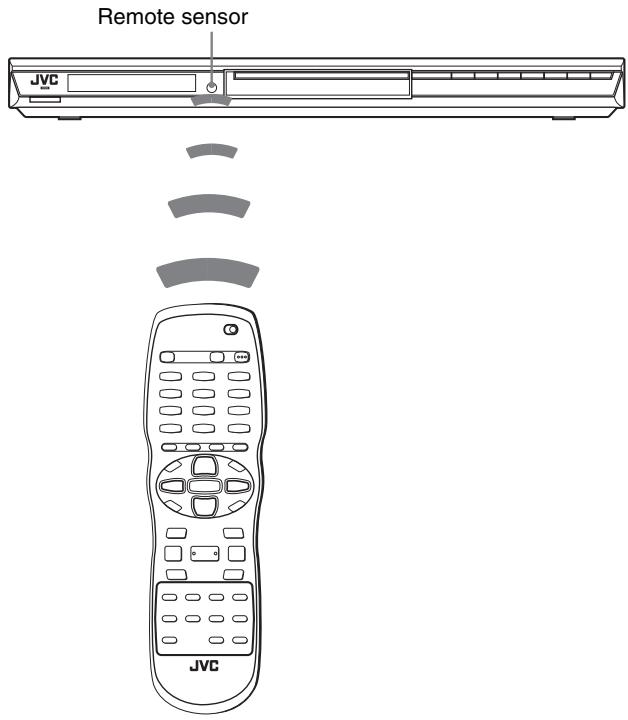
To use the remote control unit for TV operation
Setting the remote control signal for operating your TV
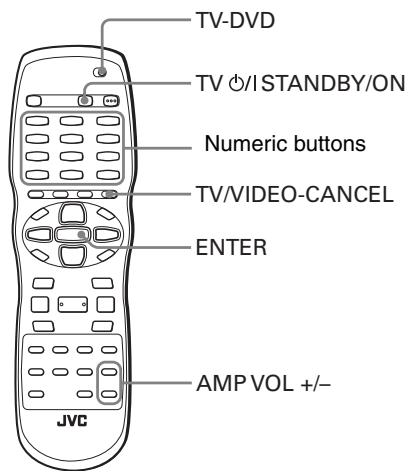
1 Set the TV - DVD switch to "TV."
2 While holding down TV/VIDEO - CANCEL, enter the manufacturer code of your TV listed below by using the numeric buttons (0 to 9), and then press ENTER.
Example:
To enter the manufacturer code "01": Press "0," "1," then ENTER.
Manufacturer code list
| Manufacturer | No. | Manufacturer | No. |
| AIWA | 36 | MIVAR | 29 |
| BEIJING | 22 | NEC | 20 |
| CCE | 02 | NOBLEX | 22 |
| CHANGHONG | 34 | NOKIA | 31 |
| DAEWOO | 17, 37 | PANASONIC | 04, 11 |
| FERGUSON | 27 | PEONY | 34, 38, 39 |
| FINLUX | 30 | PHILCO | 10, 17, 21 |
| FUNAI | 32 | PHILIPS | 02 |
| GRADIENTE | 15, 20 | RCA | 05 |
| GRUNDIG | 19 | SAMSUNG | 12, 33, 34, 35 |
| HITACHI | 10 | ||
| ITT | 28 | SANYO | 13, 16 |
| JINXING | 38 | SEARS | 13 |
| JVC | 01, 23, 24, 25 | SHARP | 06 |
| SONY | 07 | ||
| KONKA | 40 | TCL | 41 |
| LG (GOLDSTAR) | 18 | THOMSON | 26 |
| MAGNAVOX | 02 | TOSHIBA | 08, 14 |
| MITSUBISHI | 03 | ZENITH | 09 |
NOTE
You may not be able to operate your TV even if you set the manufacturer code correctly, if the TV is an old model.
3 Release TV/VIDEO - CANCEL.
4 Try to operate the TV by pressing TV STANDBY/ON.
If your TV turns on or off, you have successfully set the control signal.
NOTES
- The initial manufacturer code of the player upon purchase is "JVC" (01).
- If there is more than one code listed for the manufacturer of your TV, try them one by one until you succeed.
Operating the TV
Set the TV - DVD switch on the remote control unit to "TV."

DVD
The following buttons can be used for operating the TV.
| TV | Turns the TV on or off. |
| TVVIDEO CANCE | Switches the TV input mode between TV and VIDEO. |
| TV1 1 ~ TV-10 TV0 0 | Selects the TV channels directly. *For some TVs, pressing "+" functions as the "100+," while "10" functions as the ENTER button if your TV requires pressing the ENTER button after selecting a channel number. |
| MUTING +10 | Mutes the TV sound. |
| CH▲CH▼ | Changes the TV channels. |
| VOL- CH▼ | Adjusts the TV sound volume. |
To control the volume of a JVC's amplifier or receiver
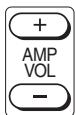
Pressing the AMP VOL + button raises the audio volume of a JVC's amplifier or receiver, while pressing the - button lowers the volume.
Basic playback

STANDBY/ON indicator
/ISTANDBY/ON
NOTE

Make sure that the TV - DVD switch on the remote control unit is set to "DVD" when using the / / and numeric buttons for controlling the player.
About invalid operation icon
When you press a button, and if the player does not accept its operation, appears on your TV screen. Operations are occasionally unacceptable even if is not displayed.
Note that some operations may not be accepted. For example, some discs may not allow rapid advance/reverse or slow-motion playback.
Turning the player on and off
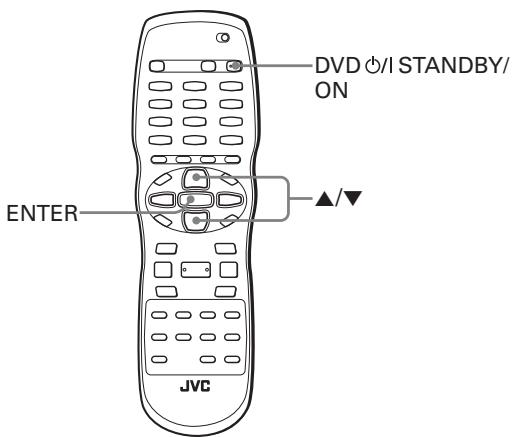
Press DVD /1 STANDBY/ON on the remote control unit or press /1 STANDBY/ON on the front panel.
The STANDBY/ON indicator on the front panel, which lights in red during standby, lights in green.
The blue illumination around the disc tray turns on.
The opening display appears on the TV screen, and the following messages may appear at the bottom of the opening display.
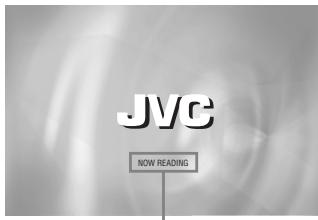
Message area
- NOW READING (The player is reading the disc information.)
- REGION CODE ERROR! (The region code of the DVD VIDEO disc does not match the player. The disc cannot be played back.)
- OPEN (The disc tray is opening.)
- CLOSE (The disc tray is closing.)
- NO DISC (No disc is loaded.)
NOTE
Even if you turn off the player, the player is not disconnected from the AC power source as long as it is connected to the wall outlet. This state is called standby mode. In this state, the player consumes a very small amount of power.
Initial setup
When you turn on the player for the first time after purchase, the following message appears on the TV screen.
EXECUTE DVD PLAYER SETUP? - BASIC PICTURE/AUDIO SETTING
YES-PRESSENTER NO-PRESSCANCEL
You can set the display language, TV monitor type and digital output before using the player, by following the procedure below.
1 Press ENTER.
The first page of the DVD PLAYER SET UP display appears. The pull-down menu of the [ON SCREEN LANGUAGE] is already open.
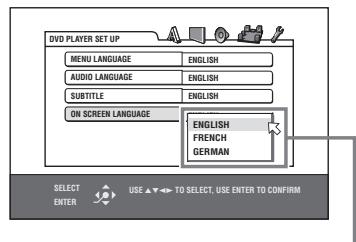
ON SCREEN LANGUAGE options
2 Press / to select the desired language.
You can select the on-screen language for the preference displays, etc. from among ENGLISH, FRENCH and GERMAN.
3 Press ENTER.
The second page is shown, in which the pull-down menu of the [MONITOR TYPE] is already open.
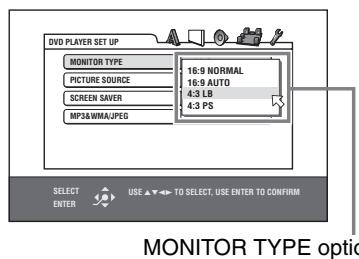
4 Press / to select the desired monitor type.
For a normal (conventional) TV, select [4:3 LB] or [4:3 PS]. For a wide-screen TV, select [16:9 NORMAL] or [16:9 AUTO]. (See page 34.)
5 Press ENTER.
The third page is shown, in which the pull-down menu of the [ANALOG OUT] is already open.
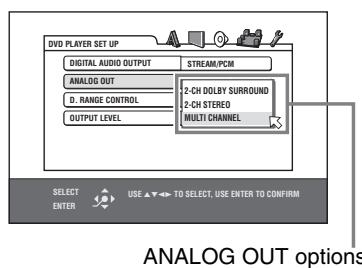
6 Press / to select a desired analog output signal type.
Set this item correctly when you play back a DVD VIDEO disc recorded with surround multichannel audio.
- When connecting to a surround decoder, select [2-CH DOLBY SURROUND].
- When connecting to a stereo amplifier/receiver or TV, select [2-CH STEREO].
- When connecting the player's 5.1-channel output, select [MULTI CHANNEL]. Note that you can perform fine tuning for your speakers when [MULTI CHANNEL] is selected (see page 36 and 37).
7 Press ENTER.
The final page is shown, in which the pull-down menu of the [DIGITAL AUDIO OUTPUT] is already open.
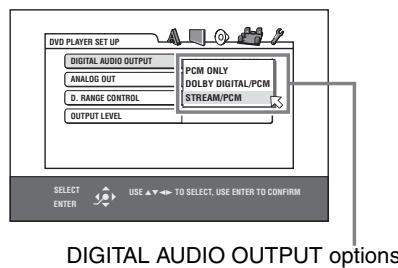
8 Press / to select a desired digital output signal type.
Set this item correctly when you connect the player to an external surround decoder or D/A converter. (If you do not connect the player to such a device, you do not have to set this item.)
- When connecting to other digital device, select [PCM ONLY].
- When connecting to a Dolby Digital decoder, select [DOLBY DIGITAL/PCM].
- When connecting to a Dolby Digital decoder or a DTS decoder, select [STREAM/PCM].
9 Press ENTER.
The TV screen returns to the opening display.
To bring up the DVD PLAYER SET UP display later
Press SET UP for a few seconds until the DVD PLAYER SET UP display appears.
Starting playback

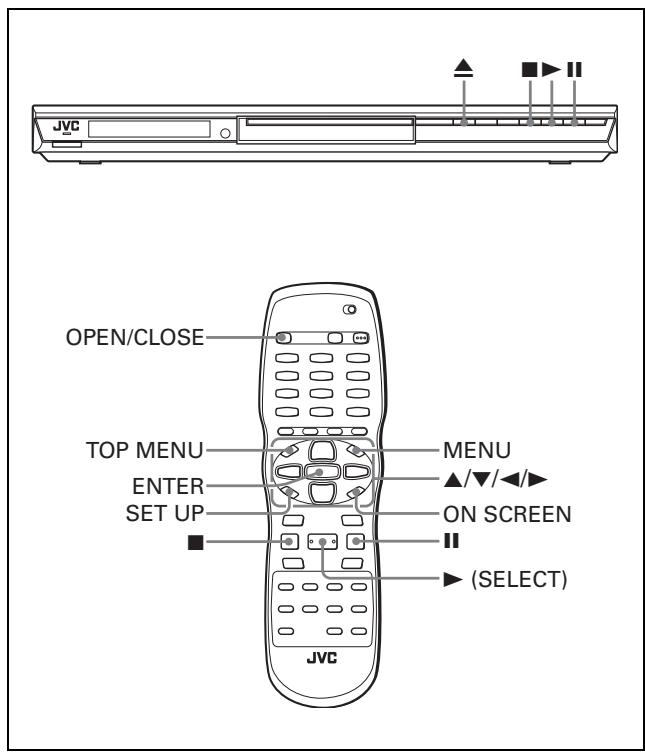
1 Press (or OPEN/CLOSE on the remote control unit) to open the disc tray.
2 Place a disc in the disc tray.
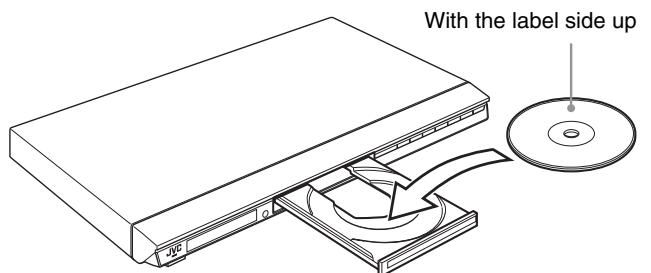
- To insert an 8-cm disc, place it in the inner recess.
3 Press (or OPEN/CLOSE on the remote control unit) to close the disc tray.
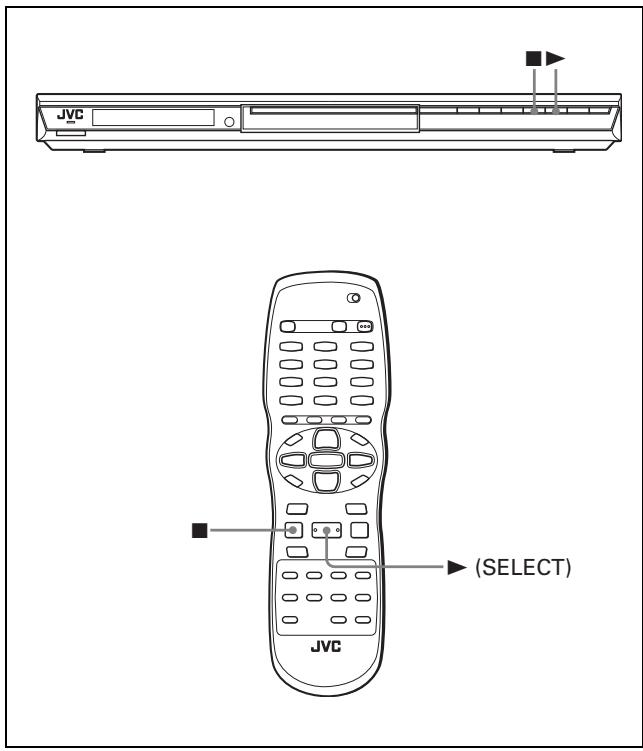
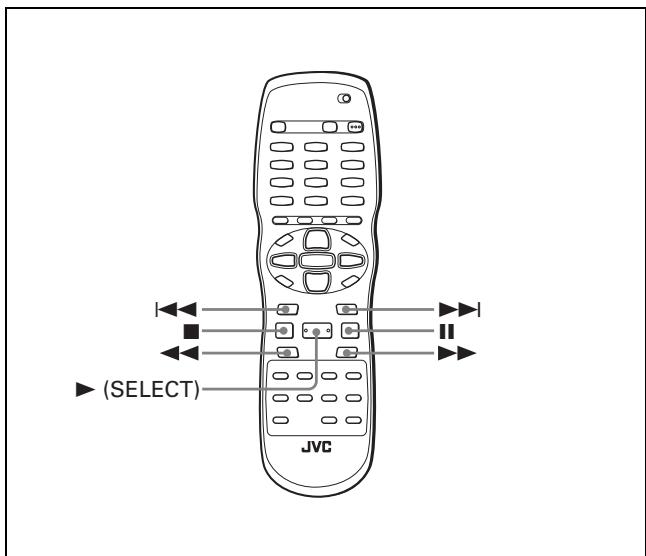
4 Press on the player or (SELECT) on the remote control unit.
The player starts playback from the beginning.
Depending on the disc, playback starts when you close the disc tray.
If a menu is shown on the TV screen
When inserting a DVD AUDIO, DVD VIDEO, SVCD or Video CD disc, a menu may be shown on the TV screen. From the menu, you can select a desired item to be played back.
For DVD AUDIO/DVDVIDEO
1 Press / / to select a desired item.
2 Press ENTER or (SELECT).
The player starts playback of the selected item.
For SVCD/Video CD
Press the numeric buttons to select a desired item.
The player starts playback of the selected item.
NOTES
- Do not insert an unplayable disc. (See page 2.)
- When inserting a disc on the disc tray, be sure to position the disc inside the recess. Otherwise, the disc may be damaged when the disc tray is closed, or you may not be able to remove the disc from the player.
About PBC (Playback Control)
Some SVCD/Video CD discs support the PBC function. The PBC function allows you to enjoy menu-driven operation and high-resolution still images which have a resolution four times greater than moving pictures.
- To play a PBC-compatible SVCD/Video CD disc without activating the PBC function, press the numeric buttons instead of (SELECT) to start playback.
To activate the PBC function again,
1) press TOP MENU or MENU,
2) press to stop playback, then press (SELECT).
To check the playback status
You can see the current selection number (the group/track number for DVD AUDIO, the title/chapter number for DVDVIDEO or track number for SVCD/Video CD/Audio CD), time information (the track or chapter time while stopped, or elapsed track or chapter time during playback) and the transport status (stop, playback, pause, etc.) on the TV screen.
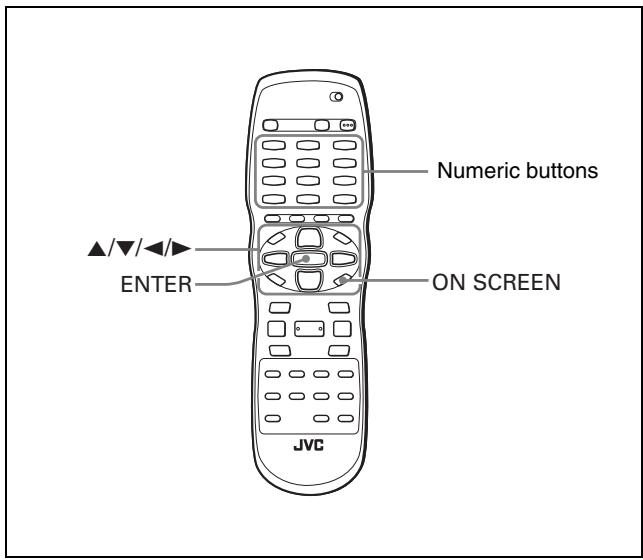
Press ON SCREEN.
Example: for DVD VIDEO
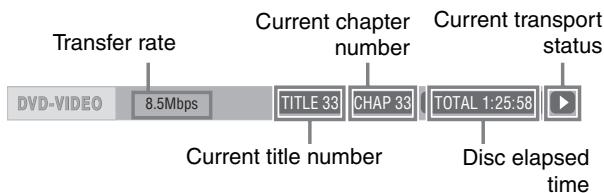
Note that pressing ON SCREEN again brings up the menu bar under the status bar, from which you can access various functions. See page 24 for details about the menu bar.
To turn off the status bar
Press ON SCREEN repeatedly until the status bar goes off.
To stop playback completely
Press ■.
Hint
If you press during playback, the player stops playback and opens the disc tray.
To stop playback temporarily
Press II.
To resume playback, press (SELECT).
About On-screen guide icons
You may see the following icons displayed over the picture. They have the following meanings.

: Appears at the beginning of playback mode.

: Appears at the beginning of pause mode.

: Appears at the beginning of fast forward/backward playback with the current speed (see page 15).

: Appears at the beginning of slow-motion playback with the current speed (see page 15).

: Appears at the beginning of a scene recorded from multiple angles (see page 21).

: Appears at the beginning of a scene recorded with multiple audio languages (see page 21).

: Appears at the beginning of a scene recorded with multiple subtitle languages (see page 21).
You can change the setting so that the on-screen guide icons do not appear on the TV screen (see page 36).
About screen saver function
A television monitor may have an image burned into it if a static image is displayed for a long time. To prevent this, the player automatically activates the screen saver function if a static picture, such as an on-screen display or menu, is displayed while no button is pressed for over 5 minutes. When the screen saver function is activated, the TV screen gets darker.
Pressing any buttons will release the screen saver function. You can set the screen saver function to ON or OFF (see page 35).
Restarting playback after stopping (Resuming playback)


The player can memorize the position on a disc where you interrupt playback, and resume playback from that position later. There are three resume modes; ON, OFF and DISC RESUME. The mode is initially set to ON when you purchased the player.
- You can select the mode using the preference display (see page 36).
When the resume mode is "ON"
When you press , the player stops playback and memorizes the interrupted position. The TV screen shows [RESUME STOP] and the display window shows [- - - - RESUME] (for DVD AUDIO/DVD VIDEO discs) or [- - RESUME] (for SVCD/Video CD discs). The memory of the interrupted position is not cleared if you turn off the player.
When you turn off the player after setting the resume function, simply press . The player is turned on, and playback starts from the interrupted position. If you turn on the player by pressing / then press , playback starts from the beginning of the disc. Note that the memory is cleared if you open the disc tray.
When the resume mode is "DISC RESUME"
When you press (\blacksquare), the player stops playback and memorizes the interrupted position. The TV screen shows [RESUME STOP] and the display window shows ([- - - - - - - - - - - - - - - - - - - - - - - - - - - - - - - - - - - - - - - - - - - - - - - - - - - - - - - - - - - - - - - - - - - - - - - - - - - - - - - - - - - - - - - - - - - - - - - - - - - - -
The memory of the interrupted position is not cleared if you open the disc tray or turn off the player.
Hint
The player memorizes interrupted positions for the last 30 discs played. Storing a new interrupted position will erase the interrupted position stored for the first disc.
To clear the memory
Press while the disc is stopped.
To resume playback
When the resume mode is "ON"
While the disc you interrupted playback is still on the disc tray, press
The player resumes playback from the position where playback was interrupted. The TV screen and the display window show [RESUME PLAY].
To play back from the beginning
Press before pressing to start playback.
When the resume mode is "DISC RESUME"
1 Press to insert a disc for which the player has stored an interrupted position.
The TV screen shows [RESUME STOP].
2 Press
The TV screen and the display window show [RESUME PLAY] and the player resumes playback from the position where playback was interrupted.
To play back from the beginning
After inserting the disc, press before pressing to start playback.
NOTES
- If you change the [RESUME] setting from [DISC RESUME] to [OFF] or [ON], you cannot resume playback of a disc whose "resuming" position is stored. However, when you again set [RESUME] to [DISC RESUME], you will then be able to resume playback of the disc.
- If you interrupt the playback of a disc for which an interrupted position has already been stored, the memory will be updated with the new interrupted position.
- For a double-sided DVD AUDIO/DVD VIDEO disc, the player regards each side as a different disc. Therefore, to resume playback of such a disc, the disc must be inserted with the same side down.
- When the player memorizes an interrupted point for a disc, it also memorizes Audio, Subtitle and Angle settings.
- The player may not resume playback exactly from the interrupted point. In the case of an SVCD/Video CD disc with PBC function, the player may resume playback from a point slightly earlier or later than the point where playback was interrupted.
Various kinds of playback
NOTE
Make sure that the TV - DVD switch on the remote control unit is set to "DVD" when using the / / and numeric buttons for controlling the player.
Playback at various speeds
To advance or reverse playback rapidly while monitoring


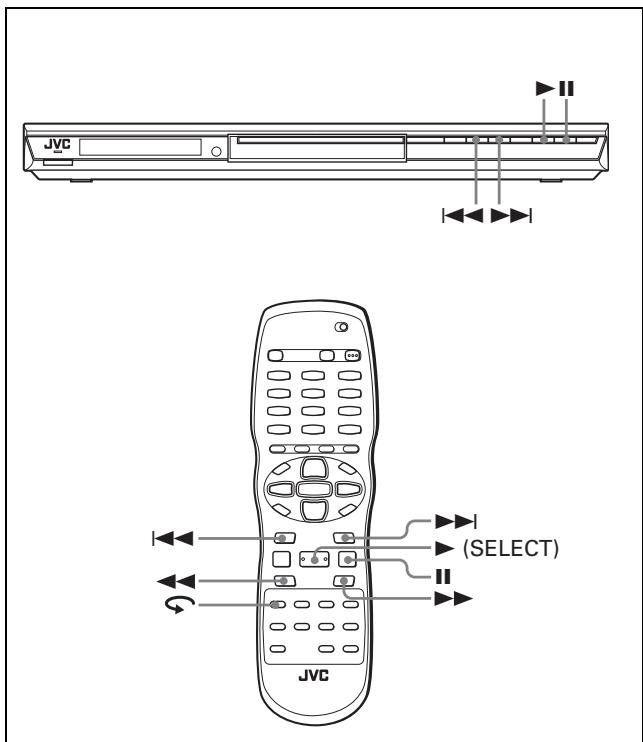
During playback, press or on the remote control unit.
You can select from 1.5 times, 5 times, 20 times and 60 times normal speed. Pressing (SELECT) returns the player to normal playback.
During playback, hold down or | .
Playback is advanced or reversed at 5 times normal speed.
NOTE
During rapid playback, the sound will be muted except when playing an Audio CD, and when playing a DVD VIDEO or Video CD at 1.5 times normal speed. For Audio CD discs, the sound will be heard intermittently.
x1.5 Quick Playback with sound


When you select 1.5 times normal speed playback, the disc is played back with sound.
- For DVD VIDEO discs, the subtitle remains displayed.
- If the sound of a DVD VIDEO disc is recorded in Dolby Digital or DTS format, stereo linear PCM signals are output. With some DVDVIDEO discs, the sound quality and volume may alter, or the sound may be out of tune.
- To switch from rapid reverse playback to x1.5 Quick Playback, first press (SELECT), then press once.
To advance a still picture frame by frame


While paused, press II.
Each time you press II, the still picture advances to the next frame.
Pressing (SELECT) returns to normal playback.
To play back in slow motion


You can select from 1/32 times, 1/16 times, 1/4 times and 1/2 times normal speed.
During playback, press II, then press (to play forward slow motion), or (to play reverse slow motion, for DVD VIDEO disc only).
Pressing (SELECT) returns to normal playback.
NOTES
- During slow motion playback, the sound will be muted.
- Reverse slow motion playback is not possible for an SVCD and Video CD.
To replay the previous scenes (One touch replay function)

During DVD VIDEO playback, press
The playback position moves back 10 seconds before the current position.
NOTES
- This function works only within the same title, though it works between chapters.
- This function may not work with some DVD VIDEO discs.
Locating the beginning of a scene or song


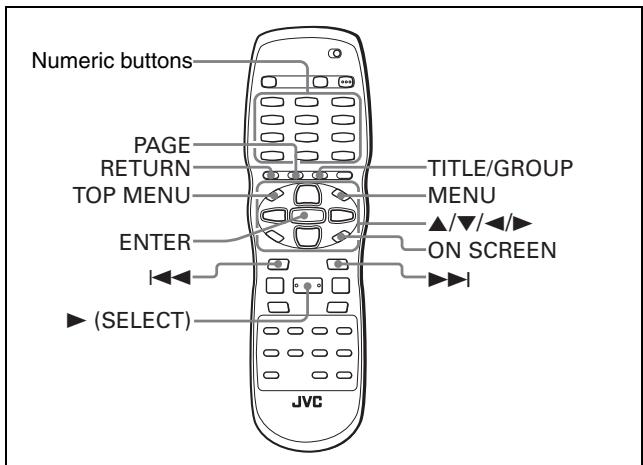
For DVD AUDIO: During playback or while in stop mode, you can skip a group or track.
For DVD VIDEO: During playback, you can skip a chapter or title, depending on the disc configuration.
For SVCD/Video CD: During playback without PBC function, you can skip a track.
For Audio CD: During playback or while in stop mode, you can skip a track.
To skip forward, press
To skip backward, press twice.
Using the numeric buttons
For DVD AUDIO/DVD VIDEO/Audio CD: During playback or while in stop mode
For SVCD/Video CD: During playback without PBC function or while in stop mode
Press the numeric buttons to specify the number.
To select 5: press 5.
To select 23: press +10 , +10 , then 3.
To select 40: press +10 , +10 , +10 , then 10.
The player starts playback from the beginning of the selection.
NOTES
Depending on the disc type and the player status, what is specified differs:
| Player status | Disc type | What is specified |
| While stopped | DVD AUDIO | group or track |
| DVD Video | title | |
| SVCD/Video CD/Audio CD | track | |
| During playback | DVD AUDIO | track |
| DVD Video | chapter | |
| SVCD/Video CD/Audio CD | track |
- Pressing the numeric buttons simply selects a track. To select a group (when a disc contains more than one group), press TITLE/GROUP before pressing the numeric buttons.
- During DVD VIDEO playback, if a menu is shown on the TV screen, the numeric buttons may be used for selecting an item in the menu.
Playing from a specific position
To locate a desired scene from the DVD menu

DVD AUDIO/DVD VIDEO discs generally have their own menus which show the disc contents. These menus contain various items such as titles of movies, names of songs, or artist information, and display them on the TV screen. You can locate a desired scene using the DVD menu.
1 While a DVD AUDIO/DVD VIDEO disc is inserted, press TOP MENU or MENU.
The menu appears on the TV screen.
2 Press / / to select a desired item, then press ENTER or (SELECT).
The player starts playback of the selected item.
Hints
- Some DVD AUDIO/DVD VIDEO discs may also have a different menu which appears when MENU is pressed.
- See the instructions of each DVD AUDIO/DVD VIDEO disc for its particular menu.
- With some discs, you can select items by entering the corresponding number using the numeric buttons, which may cause the player to automatically start playback.

The MENU button does not work while stopped.
To locate a desired scene from the menu of a SVCD/Video CD with PBC

Some SVCD/Video CD discs support the PBC function. PBC is an abbreviation of "Playback Control." Some SVCD/Video CD discs recorded with PBC have their own menus, such as a list of the songs of the disc. You can locate a specific scene by using the PBC menu.
1 In stop mode, press (SELECT) or TOP MENU.
A disc menu appears on the TV screen.
2 Press the numeric buttons to select the desired item.
To select 5: press 5.
To select 23: press +10 , +10 , then 3.
To select 40: press +10 , +10 , +10 , then 10.
The player starts playback of the selected item.
To return to the menu, press RETURN.
Hint
If something like [NEXT] or [PREVIOUS] appears on the TV screen, pressing advances to the next page, and pressing returns to the previous page.
To specify a desired title/group

1 During playback, press TITLE/GROUP.
[-] is shown in the title display area of the display window.
2 Press the numeric buttons to specify a title or group to be played.
To select 5: press 5.
To select 23: press +10 , +10 , then 3.
To select 40: press +10 , +10 , +10 , then 10.
The player starts playback from the specified title or group.
NOTE
This function may not work with some DVD AUDIO/DVD VIDEO discs.
To locate a desired position in the current title, group or track (Time search)


You can play a disc from the desired position by specifying the time from the beginning of the current group (for DVD AUDIO), the current title (for DVD VIDEO) or the disc (for SVCD/Video CD/Audio CD).
For DVD AUDIO/DVD VIDEO/Audio CD: During playback or while in stop mode
For SVCD/Video CD: In any condition except SVCD/Video CD playback with PBC
1 Press ON SCREEN twice.
The menu bar appears on the TV screen.
2 Press to move to , then press ENTER.
The pull-down menu for entering time appears.
Screen example for DVDVIDEO

3 Press the numeric buttons (0 to 9) to enter the desired time.
The specified time is displayed in the pull-down menu.
Example (for DVD AUDIO/DVD VIDEO)
To play back from 2(H):34(M):00(S)
Press 2, 3, then 4.
TIME 2:34:
Example (for SVCD/Video CD/Audio CD)
To play back from 23(M):40(S)
Press 2, 3, then 4.
TIME 23:
You do not have to press "0" to enter the trailing zeros (for the last two digits in the example above).
To correct a mistake
Press repeatedly to move back to the digit where you entered a wrong number, and reenter the correct one.
4 Press ENTER.
The player starts playback from the specified time.
To dismiss the menu bar
Press ON SCREEN.
Hint
"10" and "+" buttons are not used with this function.
NOTES
- Some DVD VIDEO discs do not contain time information, and the time search function cannot be used.
- When a DVD AUDIO disc is stopped, you can specify the elapsed time from the beginning of group 1.
- The time search function cannot be used during program and random playback modes.
Selecting a still picture on a DVD AUDIO disc (PAGE)

Most DVD AUDIO discs include still pictures, which appear in turn during playback. There are other page(s) of the current still picture and you can change the picture (turn the page) manually.
1 During playback except when the status bar is shown, press PAGE.
The page selection window appears on the TV screen.
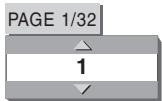
2 Press PAGE or / to select the desired page.
3 Press ENTER.
The selected page (picture) is shown.
The page selection window is dismissed.
Playing back a bonus group of a DVD AUDIO disc
DVD AUDIO
Some DVD AUDIO discs contain a special group called "Bonus group" whose contents are not opened to the public. The bonus group is assigned to the last group of a disc.
To play back a bonus group, you have to enter a specific "key number" for the bonus group. A way of getting the key number depends on discs.
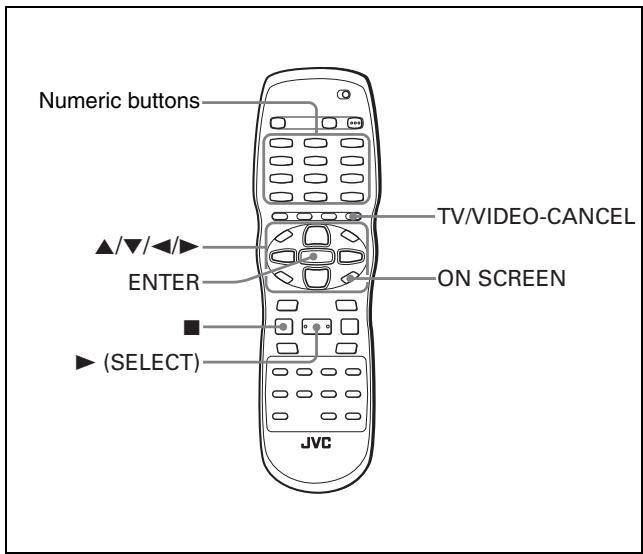
1 In stop mode, press the numeric buttons to select the bonus group number (the last group).
The display window and on-screen display prompt you to enter the key number.
On the TV screen
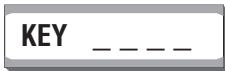
2 Press the numeric buttons to enter the key number, then press ENTER.
If you entered the correct key number, the player starts playback of the bonus group.
If you entered a wrong key number, you are prompted to enter the correct key number.
To dismiss the key number entry display
Press , open the disc tray, or turn the power off.
NOTES
- Once you enter the correct key number, the player memorizes it until you turn off the power or open the disc tray.
- If you specify a track in the bonus group for the program playback, you will also be prompted to enter the key number during program play.
- In the random playback, tracks in the bonus group are not played back.
Changing the playback order
To play back in a specific order (Program play)


By programming tracks, you can play up to 99 tracks in any order. You may program the same track more than once.
1 In stop mode, press ON SCREEN twice.
The menu bar appears on the TV screen.
2 Press to move to PROG. Screen example for DVD AUDIO

3 Press ENTER.
The program table appears.
The [PRGM] indicator lights up in the display window.
4-a (for DVD AUDIO)
Press the numeric buttons to specify selections in the desired order by group and track numbers.
For each program step, specify a group first, then specify a track.
To specify track 14 in group 2: press 2, +10, then 4.
4-b (for SVCD/Video CD/Audio CD)
Press the numeric buttons to specify tracks in the desired order.
To select 5: press 5.
To select 23: press +10 , +10 , then 3.
To select 40: press +10 , +10 , +10 , then 10.
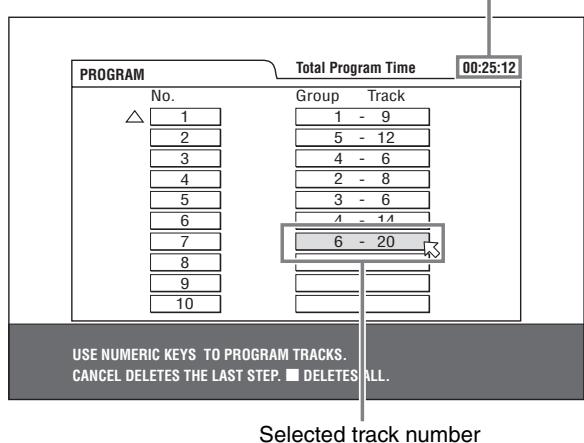
The total program time
To correct the program
Press / to move to the track to be corrected, then press TV/VIDEO - CANCEL. The track is erased and the subsequent programmed tracks move up.
Pressing clears all the programmed tracks.
5 Press (SELECT) to start program playback.
With an Audio CD disc, the program table remains on the TV screen during program playback. (Pressing ON SCREEN brings up the status bar.)
When all of the programmed tracks have finished playback, the player stops and the program table appears again.
Note that the program remains.
- During program playback, you cannot edit the program contents.
To check the program contents
During playback, press. Playback stops and the program table is shown.
During playback or stop, you can check the program contents via the menu bar.
To stop program playback
Press
To clear the program
While stopped and the program table is shown, press.
To exit the program mode
After clearing the program, press ON SCREEN.
NOTES
- When the disc tray is opened or the player is turned off, the program is cleared.
- If you are going to program a track in the bonus group of a DVD AUDIO, the player will prompt you to enter the key number for the bonus group.
To play back in random order (Random play)


1 In stop mode, press ON SCREEN twice.
The menu bar appears on the TV screen.
2 Press to move to RND. Screen example for Audio CD

3 Press ENTER.
The player starts random playback.
With a DVD AUDIO/SVCD/Video CD disc, the menu bar is automatically dismissed.
During random playback, the [RND] indicator lights up in the display window.
After playing all tracks of the disc, the player stops the disc and exits the random playback mode.
To stop and quit random playback
Press. The player stops playback and exits the random playback mode.
NOTE
In the random playback mode with a DVD AUDIO disc, tracks in the bonus group are not played back.
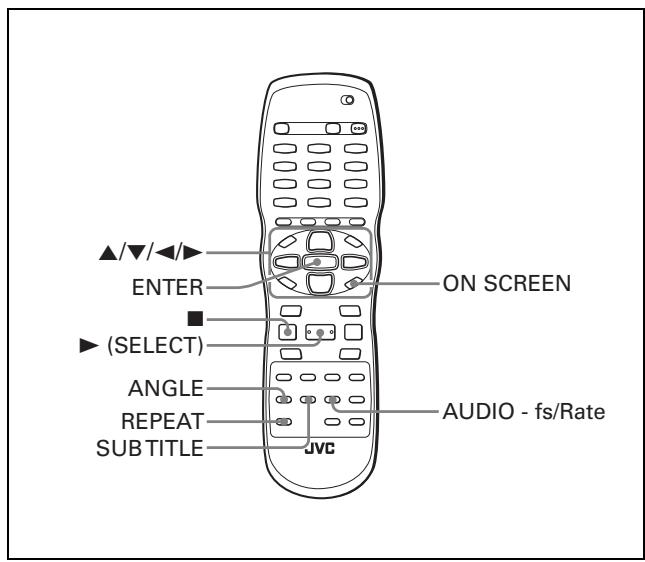
Repeat playback
To repeat the current selection or all tracks


For DVD AUDIO/DVD VIDEO: During playback
For SVCD/Video CD/Audio CD: In any condition except SVCD/
Video CD playback with PBC
Press REPEAT.
If you press REPEAT in stop mode, press (SELECT) to start playback.
Each time you press REPEAT, the repeat mode cycles among All repeat, Repeat 1 and off.
The indication on the display window shows the selected repeat mode.
: Repeats the current group for DVD AUDIO, the current title for DVD VIDEO or all tracks for SVCD/Video CD/ Audio CD.
1: Repeats the current chapter for DVD VIDEO or the current track for DVD AUDIO/SVCD/Video CD/Audio CD.
No indication: The repeat mode is off.
A window which indicates the current repeat mode will be displayed on the TV screen. The mode indication on the window is same as the one on the menu bar.
(Repeat mode example on the TV screen)

CHAP
To stop repeat playback
Press
When a DVD AUDIO/DVD VIDEO disc is set, the player stops playback and quits the repeat mode.
When an SVCD, Video CD or Audio CD disc is set, the player stops playback but does not quit the repeat mode.
To quit repeat playback
Press REPEAT until the repeat mode indicator goes off in the display window.
Hint
When the program playback mode is active with a DVD AUDIO, SVCD, Video CD or Audio CD, the repeat mode changes in the same manner.
Note, however, that in the " " mode the player repeats all the programmed tracks instead of all tracks on the disc.
NOTE
The repeat playback may not work with some discs, even if you select one of the repeat modes.
To repeat a desired part (A-B repeat playback)


First make sure:
- The player is in playback mode except SVCD/Video CD playback with PBC.
1 Press ON SCREEN twice.
The menu bar appears on the TV screen.
2 Press to move ENTER.
to , then press
The pull-down menu for repeat mode selection appears.
3 Press / to select [A-B].
4 Press ENTER at the beginning of the part you want to repeat (point A).
The pull down menu disappears.
The repeat icon shows A-
5 Press ENTER at the end of the part you want to repeat (point B).
The repeat icon shows A-B
The player locates "A" and starts repeat playback between "A" and "B."
The [ ] indicator lights in the display window.
To quit A-B repeat playback
Press to move A-B, and press ENTER twice.
The A-B repeat mode turns off, then normal playback continues.
NOTE
The A and B points must be set in the same title/track.
Changing the language, sound and scene angle
To select the subtitle language (SUBTITLE)


Some DVD VIDEO and SVCD discs contain more than one subtitle language. You can choose a desired one from them.
Hint
At the beginning of a DVD VIDEO disc where subtitles are recorded, appears on the TV screen (except when the [ON SCREEN GUIDE] preference is set to [OFF]).
1 During playback, press SUBTITLE.
The subtitle selection window appears on the TV screen.
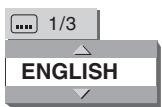
2 Press / or SUBTITLE to select the subtitle.
Each time you press / or SUBTITLE, the subtitle language changes.
3 Press ENTER.
Subtitles are displayed in the selected language.
The subtitle selection window is dismissed.
NOTES
- An SVCD disc can have up to four subtitles. Pressing / cycles through those channels regardless of whether the subtitles are recorded or not.
- The subtitle selection window will automatically disappear if you do not change the subtitle for several seconds.
- For DVD VIDEO, the selected language may be abbreviated on the TV screen. See "Appendix C: Table of languages and their abbreviations" on page 43.
To change the audio language or sound (AUDIO)


The audio selection setting allows you to change the audio language of a movie, or to listen to karaoke with or without the vocal.
Hint
At the beginning of the part where multiple audio tracks are recorded, appears on the TV screen (except when the [ON SCREEN GUIDE] preference is set to [OFF]).
1 During playback, press AUDIO - fs/Rate.
The audio selection window appears on the TV screen.
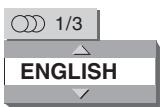
2 Press / or AUDIO - fs/Rate to select the desired audio.
Each time you press / or AUDIO - fs/Rate, the audio changes.
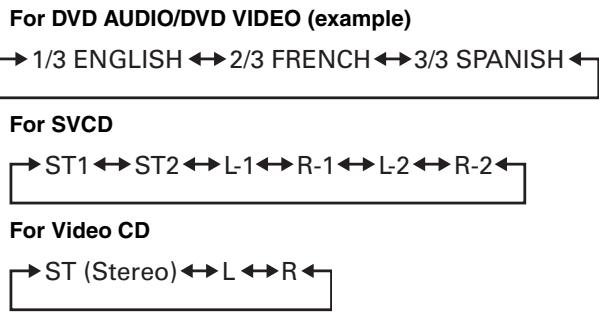
3 Press ENTER.
You can hear the selected audio. The audio selection window is dismiss
NOTES
- The audio selection window will automatically disappear if you do not change the audio for several seconds.
- For DVD VIDEO, the selected language may be abbreviated on the TV screen. See "Appendix C: Table of languages and their abbreviations" on page 43.
- Simply press the AUDIO - fs/Rate button, and do not hold it down for a few seconds; otherwise the sampling frequency and quantization bit length will be displayed.
To select a scene angle of DVD VIDEO (ANGLE)

You can enjoy a variety of scene angles if the DVD VIDEO disc contains "multi-angle" parts, where multiple cameras were used to shoot the same scene from different angles.
Hint
At the beginning of a "multi-angle" part, appears on the TV screen (except when the [ON SCREEN GUIDE] preference is set to [OFF]).
1 During playback, press ANGLE.
The angle selection window appears on the TV screen.
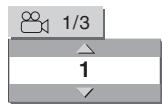
2 Press / or ANGLE to select the desired angle.
Each time you press / or ANGLE, the angle changes.
3 Press ENTER.
You can see the picture from the selected angle. The angle selection window is dismissed.
NOTE
The angle selection window will automatically disappear if you do not change the angle for several seconds.
Special picture and sound effects
To zoom in pictures


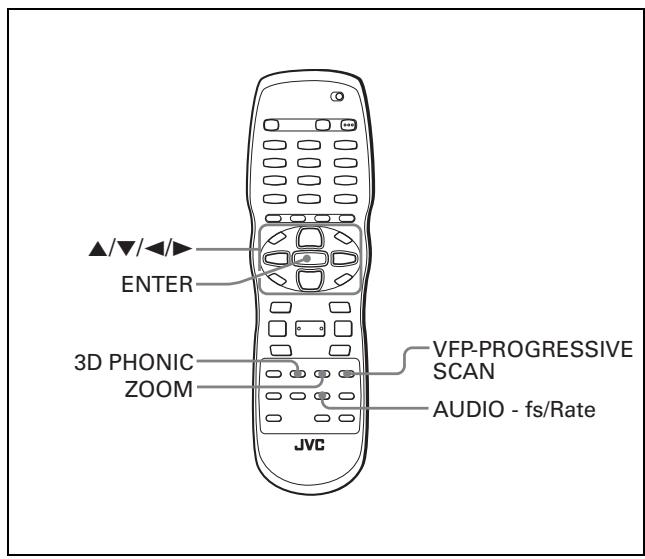
1 During playback or while paused, press ZOOM.
Pressing ZOOM causes the player to zoom in on the image. At the top left of the screen, the information for the current magnification appears for about 5 seconds. Each time you press ZOOM, the magnification increases (1.8, 4, 8, 16, 32 and 64 times).

When a picture of a DVD VIDEO disc is viewed on a normal TV screen (4:3, Letter Box), black bars may appear at the top and bottom of the screen. In this case, if you select the "ZOOM x1.8" mode, the black bars become almost invisible. When a 1:2.35 or 1:1.85 DVD VIDEO source is played back, however, the black bars are visible on the screen.
2 Press / / to move the zoomed position.
To return to the normal playback
Press ENTER.
NOTE
While zoomed, the picture may look coarse.
To adjust the picture character (VFP)


The VFP (Video Fine Processor) function allows you to adjust the picture character according to the type of programming, picture tone or personal preferences.
1 During playback, press VFP - PROGRESSIVE SCAN.
The VFP mode selection window appears on the TV screen.
2 Press to select the desired preset.
Each time you press the button, the VFP mode changes as follows.
Set the video type most suitable to the current program or the room conditions.

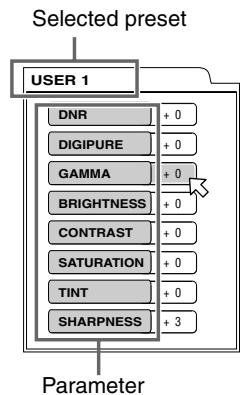
[NORMAL]: for watching TV in a general room.
[CINEMA]: for watching a movie in a room with suppressed light.
[USER 1] [USER 2]: you can adjust parameters that affect the picture character and store the settings as a user preset. See the next step.
3 To define a user setting, press / to select a parameter to be edited from the following.
- DNR (Digital Noise Reduction)
Adjust this if you notice "mosquito noise" (noise that randomly appears along the edges of digitally compressed pictures).
Available range: 0 to +3.
- DIGIPURE
Adjust this if you want to enhance clarity of pictures. Available range: 0 to +3.
GAMMA
Adjust this if the neutral color is bright or dark. The brightness of dark and bright portion is maintained. Available range: -4 (darkest) to +4 (brightest).
BRIGHTNESS
Adjust this if the picture is bright or dark on the whole. Available range: -16 (darkest) to +16 (brightest).
- CONTRAST
Adjust this if the far and near position is unnatural. Available range: -16 to +16.
SATURATION
Adjust this if the picture is whitish or blackish. Available range: -16 (blackest) to +16 (whitest).
TINT
Adjust this if the appearance of flesh tone is unnatural. Available range: -16 to +16.
SHARPNESS
Adjust this if the picture is indistinct. Available range: 0 to +3.
4 Press ENTER.
A window for setting parameters appears.
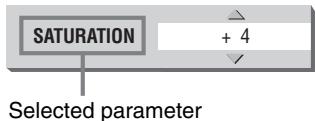
5 Press / to adjust the level of the parameter.
The higher value enhances the effect.
6 Press ENTER.
Repeat steps 3 to 6 if you want to set other parameters.
To dismiss the VFP mode selection window
Press VFP - PROGRESSIVE SCAN.
NOTES
- The window for VFP mode selection and parameter setting disappear if no operation is made for about 10 seconds.
- Simply press the VFP - PROGRESSIVE SCAN button, and do not hold it down for a few seconds; otherwise the Progressive scanning mode will be changed, if the VIDEO SIGNAL SELECTOR on the rear of the player is set to "COMPONENT/COMPOSITE."
To simulate surround sound (3D PHONIC)
DVDVIDEO
Using the 3D PHONIC function, you can get a simulated surround effect from your stereo system.
1 During playback, press 3D PHONIC.
The 3D PHONIC window appears on the TV screen.
2 Press to select the desired mode.
Each time you press the button, the 3D PHONIC mode changes as follows:

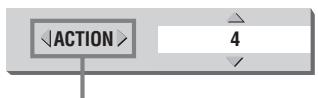
Selected effect mode
- ACTION
Suitable for action movies and sports programs in which the sound source moves.
- DRAMA
Natural and warm sound. You can enjoy movies in a relaxed mood.
THEATER
You can enjoy sound effects like in a theater.
3 Press / to adjust the effect level.
You can set the effect level from [1] to [5].
The higher value enhances the effect.
To dismiss the 3D PHONIC window
Press 3D PHONIC.
NOTES
- The 3D PHONIC window disappears if no operation is made for about 10 seconds.
- The 3D PHONIC function works correctly only when playing back a DVD VIDEO disc recorded with Dolby Digital.
- When playing back a DVD VIDEO disc recorded with Dolby Digital that does not contain the rear signal, you can change the 3D PHONIC setting, but you will not be able to achieve a correct 3D effect.
- The 3D PHONIC function does not affect the Dolby Digital bitstream signal from the DIGITAL OUT jack.
- When the 3D PHONIC function is active, the [ANALOG OUT] setting in the [AUDIO] setting display is not available.
- When one of the 3D PHONIC modes is activated, the [3D] indicator lights up in the display window.
Checking the sampling frequency and quantization bit length


You can check the sampling frequency and quantization bit length of digital audio during playback.
During playback, press and hold down AUDIO - fs/Rate for a few seconds.
The sampling frequency and quantization bit length of the current digital audio are shown in the display window temporarily. When the audio is recorded using a surround audio format, the sampling frequency and quantization bit length are shown for the front speakers.
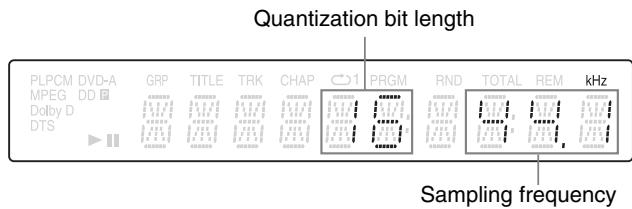
(Example)
The sampling frequencies indicated are as follows: 44.1, 48, 88.2, 96, 176.4, and 192 (kHz). Note that any figure below the first decimal place is omitted in the display window.
NOTES
- With some discs, [NO INFO.] may appear instead of the sampling frequency and quantization bit length.
- The sampling frequency and quantization bit length cannot be displayed with VR format discs.
Menu bar functions
To bring up the menu bar
1 When a disc is inserted, press ON SCREEN.
A status bar for the type of disc inserted will appear on the TV screen.
See page 13 for details about the status bar.
2 Press ON SCREEN again.
A menu bar for the type of disc inserted will appear under the status bar.
(for DVD AUDIO)

(for DVDVIDEO)
(for DVD-R/RW written in the DVD VIDEO format)

(for SVCD)

(for Video CD)

(for Audio CD)

(for DVD-RAM/DVD-RW written in the VR format)

To dismiss the menu bar and status bar
Press ON SCREEN.
Basic operation procedure
1 Press to select the icon you want to work with.
The selected icon is pointed by 忍
2 Press ENTER.
With many icons, an appropriate pull-down window appears, however, there are some exceptions.
NOTES
- A mark or text on the menu icon for the function or mode currently selected is shown in green.
- Some functions are not available during playback. (You cannot move to the associated icon when it is not available.)
Menu bar functions for DVD AUDIO
TIME Time mode selection
During playback, selects the time mode shown in the display window and in the status bar.
Press ENTER to select the time mode from the following.
- TIME: Current track elapsed time
- REM: Current track remaining time
- TOTAL: Current group elapsed time
T. REM: Current group remaining time
Repeat mode (See also page 20)
Selects the repeat mode during playback.
- Open the pull-down window.
-
Press / to select the repeat mode from the following.
-
TRACK: Current track repeat
GROUP:Current group repeat
A-B: A-B repeat -
OFF: Repeat mode deactivated
-
Press ENTER to make the selected repeat function active.

Time search (See also page 17)
Specifies a time from the beginning of the current group as the point from which to begin playback.

Track search
During playback, specifies a desired track to be played back from.
- Open the pull-down window.
- Press numeric buttons (0 to 9) to enter a desired track number. (For example, to specify "10," press 1, then 0.)
- Press ENTER to begin playback from the specified track.

Program playback (See also pages 18 and 19)
While stopped, specifies the playback order of tracks.

Random playback (See also page 19)
While stopped, activates random playback.

Audio selection (See also page 21)
During playback, selects the audio language or sound track.
- Open the pull-down window.
- Press / to select a desired audio language or sound track.
- Press ENTER to begin playback with the selected audio.

Page selection (See also page 17)
During playback, selects the page.
- Open the pull-down window.
- Press / to select a desired page number.
- Press ENTER to play back with the selected page.
Menu bar functions for DVD VIDEO
TIME Time mode selection
During playback, selects the time mode shown in the display window and in the status bar.
Press ENTER to select the time mode from the following.
- TOTAL: Current title elapsed time
T. REM: Current title remaining time - TIME: Current chapter elapsed time
- REM: Current chapter remaining time
Repeat mode (See also page 20)
Selects the repeat mode during playback.
- Open the pull-down window.
- Press / to select the repeat mode from the following.
CHAPTER: Current chapter repeat
- TITLE: Current title repeat
A-B: A-B repeat
- OFF: Repeat mode deactivated
- Press ENTER to make the selected repeat function active.
Time search (See also page 17)
Specifies a time from the beginning of the current title as the point from which to begin playback.
CHAP. Chapter search
During playback, specifies a desired chapter to be played back from.
- Open the pull-down window.
- Press numeric buttons (0 to 9) to enter a desired chapter number. (For example, to specify "10," press 1, then 0.)
- Press ENTER to begin playback from the specified chapter.
Audio selection (See also page 21)
During playback, selects the audio language or sound track.
- Open the pull-down window.
- Press / to select a desired audio language or sound track.
- Press ENTER to begin playback with the selected audio.
Subtitle selection (See also page 21)
During playback, selects the subtitle language.
- Open the pull-down window.
- Press / to select a desired subtitle language.
- Press ENTER to begin playback with the selected subtitle.
Angle selection (See also page 21)
During playback, selects a desired scene angle in a multi-angle part.
- Open the pull-down window.
- Press / to select a scene angle.
- Press ENTER to begin playback with the selected scene angle.
Menu bar functions for SVCD/Video CD/ Audio CD
TIME Time mode selection
Selects the time mode shown in the display window and in the status bar.
Press ENTER to select the time mode from the following.
- TIME: Current track elapsed time
- REM: Current track remaining time (while in stop mode, current track total time)
- TOTAL: Disc elapsed time
- T.REM: Disc remaining time (while in stop mode, disc total time)
Repeat mode (See also page 20)
Selects the repeat mode.
- Open the pull-down window.
-
Press / to select the repeat mode from the following.
-
TRACK: Current track repeat
- ALL: All track repeat
A-B: A-B repeat -
OFF: Repeat mode deactivated
-
Press ENTER to make the selected repeat function active.
Time search (See also page 17)
Specifies a time from the beginning of the disc as the point from which to begin playback.
PROG. Program playback (See also pages 18 and 19)
While stopped, specifies the playback order of tracks.
RND. Random playback (See also page 19)
While stopped, activates random playback.
Audio selection (See also page 21)
During SVCD/Video CD playback, selects the audio channel(s).
- Open the pull-down window.
- Press / to select a desired audio channel(s).
- Press ENTER to play back with the selected audio channel(s).
Subtitle selection (See also page 21)
During SVCD playback, selects the subtitle.
- Open the pull-down window.
- Press / to select a desired subtitle.
- Press ENTER to begin playback with the selected subtitle.
Menu bar functions for DVD-RAM/DVD-RW written in the VR format
TIME Time mode selection
Selects the time mode shown in the display window and in the status bar.
Press ENTER to select the time mode from the following.
- TIME: Current title elapsed time
- REM: Current title remaining time
Repeat mode (See also page 29)
Selects the repeat mode.
- Open the pull-down window.
- Press / to select the repeat mode from the following.
For original playback
PG: Current title repeat
- ALL: All titles repeat
- OFF: Repeat mode deactivated
For playback by play list
- PL: Current play list repeat
- OFF: Repeat mode deactivated
PG Original program title search
PL Play list search
During playback, specifies a desired title (for original playback) or play list (for playback by play list) to be played back from.
- Open the pull-down window.
- Press numeric buttons (0 to 9) to enter a desired title number. (For example, to specify "10," press 1, then 0.)
- Press ENTER to begin playback from the specified title.
Audio selection (See also page 29)
During playback, selects the audio channel.
- Open the pull-down window.
- Press / to select a desired audio track.
- Press ENTER to begin playback with the selected audio.
Subtitle on/off (See also page 29)
During playback, turns on or off the subtitle display.
- Open the pull-down window.
- Press / to select "ON" or "OFF."
- Press ENTER.
VR format disc playback
NOTE
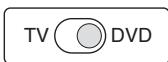
Make sure that the TV - DVD switch on the remote control unit is set to "DVD" when using the / / and numeric buttons for controlling the player.
About VR format discs
The player can play back DVD-RAM and DVD-RW discs written in the VR format. We refer to such discs as a “VR format disc” in this manual.
What you cannot do with VR format discs
Note that the following operations cannot be made with VR format discs:
- Resuming playback with the resume mode set to "DISC RESUME"
- Advancing a still picture frame by frame
- Reversing slow motion playback
- Replaying the previous scenes (one touch replay function)
- Locating a desired position by specifying the time (time search)
NOTES
- There are two types of commercially available DVD-RAM discs; one with a cartridge and the other without a cartridge.
- The player can play back DVD-RAM discs without a cartridge, and discs with a cartridge that can be removed from their cartridge (Type 2 and Type 4).
- Some discs may not play due to disc characteristics or recording conditions.
Basic operations
Original playback
In original playback, contents on a VR format disc are played back in the order the contents are recorded.
When inserting a VR format disc, after the disc contents are read, the original playback starts.
When the last program has been played back, the player stops playback automatically.
To stop in the middle of playback
Press ■.
Playback is interrupted.
If the resume mode is set to "ON," the player memorizes the interrupted position.
The TV screen shows [RESUME STOP] and the display window shows [-RESUME].
NOTES
- The "DISC RESUME" mode is not available for VR format discs. Even if you set [RESUME] to [DISC RESUME], the resume mode will be the same as when [RESUME] is set to [ON].
- With [RESUME] set to [ON], the player memorizes the position where you interrupted playback, but the memory will be cleared if you turn off the player.
To resume playback
Press (SELECT).
If [RESUME] is set to [ON] and an interrupted position is memorized, playback re-starts from the interrupted position. If no interrupted position is memorized, or [RESUME] is set to [OFF], playback re-starts from the beginning of the title 1.
To select the next or previous title in stop mode
Press▶or
The next or previous title will be selected. In this case, press▶ (SELECT) to start playback of the selected title.
To select the next or previous chapter/title during playback
Press to skip to the next chapter (if a title is divided into chapters) or to the next title.
Press to return to the beginning of the current chapter/title.
Press repeatedly to skip to the previous chapter/title.
Various speed playback
To advance or reverse playback rapidly
During playback, press or
You can select from 1.5 times, 5 times, 20 times and 60 times normal speed.
- When you select 1.5 times normal speed playback, the disc is played back with sound.
To advance or reverse playback at 5 times normal speed Hold down or 1
To play back in forward slow motion
First press to enter the pause mode, and then press. The forward slow motion playback will be activated. You can select from 1/32 times, 1/16 times, 1/4 times and 1/2 times normal speed.
NOTE
The actual playback speed may be different from the speed shown on the TV screen, depending on the recording condition.
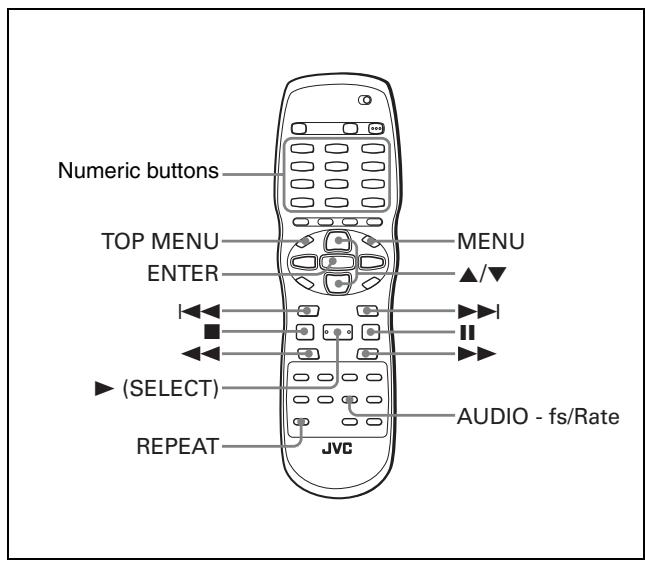
To start playback of the desired title
Press one of the numeric buttons to specify number of the desired title.
To call up the ORIGINAL PROGRAM display
During playback, press TOP MENU.
The ORIGINAL PROGRAM display appears on the TV screen.
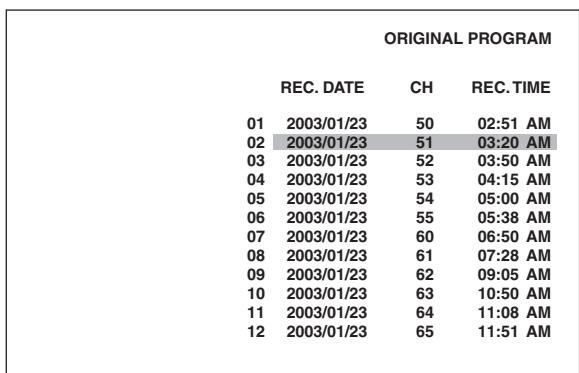
While the ORIGINAL PROGRAM display is shown, you can perform the following operations.
- Start playback of a desired program by designating it using / on the ORIGINAL PROGRAM display.
- Go to the next title or return to the previous title by pressing
- Turn off the ORIGINAL PROGRAM display by pressing TOP MENU (playback continues).
- Stop playback by pressing.
NOTE
If you press MENU during original playback, the PLAY LIST display appears on the TV screen, and the player enters playback by play list (see the following description).
Playback by play list
In playback by play list, contents on a VR format disc are played back according to the way they were edited while recording.
When inserting a VR format disc, after the disc contents are read, the original playback starts.
Press MENU.
The PLAY LIST display appears on the TV screen, and playback by play list starts.
| PLAY LIST | |||
| CREATED | CHAP. | LENGTH | |
| 01 | 2003/01/23 | 001 | 0:10:51 |
| 02 | 2003/01/23 | 003 | 0:23:00 |
| 03 | 2003/01/23 | 004 | 0:18:30 |
| 04 | 2003/01/23 | 006 | 0:08:05 |
| 05 | 2003/01/23 | 008 | 0:00:10 |
| 06 | 2003/01/23 | 010 | 0:18:27 |
| 07 | 2003/01/23 | 012 | 0:34:08 |
| 08 | 2003/01/23 | 008 | 0:09:58 |
| 09 | 2003/01/23 | 008 | 0:16:15 |
| 10 | 2003/01/23 | 008 | 0:24:01 |
| 11 | 2003/01/23 | 008 | 0:05:43 |
| 12 | 2003/01/23 | 008 | 0:27:31 |
As the PLAY LIST display appears, playback of play list 1 starts. When the last play list has been played back, the player stops playback automatically.
While the PLAY LIST display is shown, you can perform the following operations.
- Start playback of a desired play list by designating it using / on the PLAY LIST display.
- Go to the next play list or return to the previous play list by pressing
- Turn off the PLAY LIST display by pressing MENU (playback continues).
- Stop playback by pressing.
NOTE
If you press TOP MENU during playback by play list, the ORIGINAL PROGRAM display appears on the TV screen, and the player enters original playback status (playback starts from title 1).
To stop in the middle of playback
Press ■.
Playback is interrupted.
If the resume mode is set to "ON," the player memorizes the interrupted position.
NOTES
- The "DISC RESUME" mode is not available for VR format discs. Even if you set [RESUME] to [DISC RESUME], the resume mode will be the same as when [RESUME] is set to [ON].
- With [RESUME] set to [ON], the player memorizes the position where you interrupted playback, but the memory will be cleared if you turn off the player.
To resume playback
Press (SELECT).
If [RESUME] is set to [ON] and an interrupted position is memorized, playback re-starts from the interrupted position. If no interrupted position is memorized, or [RESUME] is set to [OFF], the player returns to the original playback status, and playback re-starts from the title 1.
To select the next or previous chapter/play list during playback
Press to skip to the next chapter (if a play list is divided into chapters) or to the next play list.
Press to return to the beginning of the current chapter/play list.
Press repeatedly to skip back to the previous chapter/play list.
Various speed playback
To advance or reverse playback rapidly
During playback, press or
You can select from 1.5 times, 5 times, 20 times and 60 times normal speed.
- When you select 1.5 times normal speed playback, the disc is played back with sound.
To advance or reverse playback at 5 times normal speed Hold down or
To play back in forward slow motion
First press to enter the pause mode, and then press. The forward slow motion playback will be activated. You can select from 1/32 times, 1/16 times, 1/4 times and 1/2 times normal speed.
NOTE
The actual playback speed may be different from the speed shown on the TV screen, depending on the recording condition.
To start playback of the desired play list
Press one of the numeric buttons to specify number of the desired play list.
Repeat playback
To repeat title or play list
During playback, press REPEAT.
Each time you press REPEAT, one of the following repeat mode is selected.
For original playback
PG: Repeats the current title.
ALL: Repeats all titles on the disc.
OFF: Deactivates the repeat mode.
For playback by play list
PL: Repeats the current play list.
OFF: Deactivates the repeat mode.
A window which indicates the current repeat mode will be displayed on the TV screen. The mode indication on the window is same as the one on the menu bar. (Repeat mode example on the TV screen)

PG
On the display window, the following indication appears:

1: When "PG" or "PL" repeat mode is selected.

When "ALL" repeat mode is selected.
To stop repeat playback
Press REPEAT to select "OFF."
Alternatively, press to stop playback.
The repeat mode will be deactivated.
NOTE
You can change the repeat mode using the menu bar.
First bring up the menu bar (see page 24), then follow the steps described on page 26.
Changing the sound
The audio selection setting allows you to change the audio track(s) to be played back from among stereo, L (left channel) and R (right channel).
1 During playback, press AUDIO - fs/Rate.
The audio selection window appears on the TV screen.
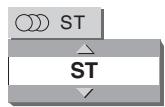
2 Press / or AUDIO - fs/Rate to select the desired audio.
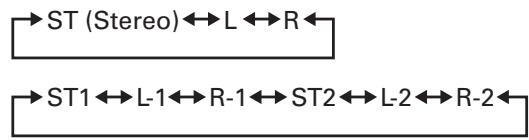
3 Press ENTER.
You can hear the selected audio.
The audio selection window is dismissed.
NOTE
In order that the player outputs only the L (left) channel or the R (right) channel audio signal of a bi-lingual disc from the DIGITAL OUT (either OPTICAL or COAXIAL) jack, set [DIGITAL AUDIO OUTPUT] in the [AUDIO] preference display to [PCM ONLY].
Turning on/off the subtitle
You can turn on or off the subtitle recorded on a VR format disc.
1 During playback, press SUBTITLE.
The subtitle selection window appears on the TV screen.
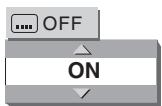
2 Press / or SUBTITLE to select [ON] or [OFF].
3 Press ENTER.
The subtitle is turned on or off, according to the selection you made at step 2.
The subtitle selection window is dismissed.
Special picture and sound effects
During playback of a VR format disc, you can zoom in pictures, adjust the picture character using the VFP (Video Fine Processor) function, and simulate surround sound using the 3D
PHONIC function, just in the same manner as for DVDVIDEO discs.
For details, refer to the following pages:
Zoom function: page 22
VFP function: page 22
3D PHONIC function: page 23
MP3/WMA and
JPEG discs
playback
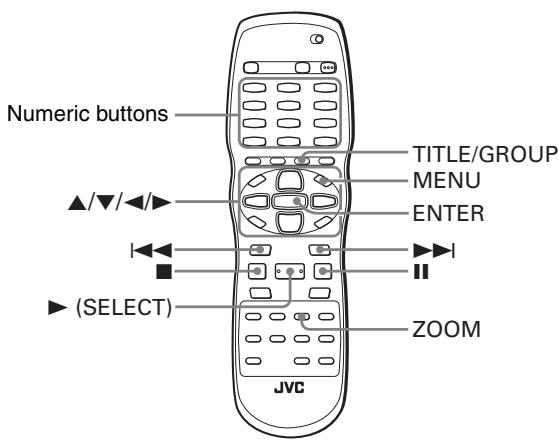
NOTE

Make sure that the TV - DVD switch on the remote control unit is set to "DVD" when using the / / and numeric buttons for controlling the player.
Outline
The player can play back MP3/WMA/JPEG files on either a personally recorded CD-R/RW disc, or a commercially available CD.
You can select and play back files using the Control display on the TV screen.
- Some discs may not be playable depending on recording conditions.
Note that if a disc contains both of MP3/WMA files and JPEG files, you can only play back files of the type selected by the [MP3&WMA/JPEG] setting in the [PICTURE] preference display (see page 35).
Precautions
About files and folders (groups) on the disc
- Files are sometimes grouped into folders by artists, album, etc. In this manual, "group" is also referred to as "folder."
- A folder which has one or more files is regarded as a group.
- The player can detect and play back the groups which are located up to the fifth layer.
- The files in the Control display are arranged by the alphabetical order of extensions as follows: ".jpeg", ".mp3" and ".wma."
- Time required for reading the disc contents may vary for different discs, depending on the numbers of folders (groups) and files recorded, etc.
-
Files which do not belong to any folder are grouped into "group 1."
-
The player recognizes up to 150 files per group, and up to 99 groups per disc. Files other than MP3/WMA/JPEG files also count in the 150 total.
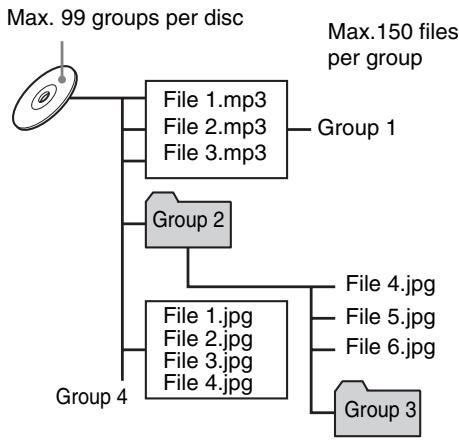
Notes for making your own disc using a CD-R/RW disc
- Use "ISO 9960" as the disc format.
- The player does not support "packet writing (UDF file)" discs.
- The player supports discs recorded with up to five multiple sessions.
- Some discs may not play due to disc characteristics or recording conditions.
Notes for making files/groups
- If a file name includes even one 2-byte character, the player may not show the file name correctly.
- The player supports up to 12 characters as the group/file names.
- You cannot advance or reverse playback by pressing▶▶ or , or by holding down▶▶ or || during MP3/WMA disc playback.
-
The player can only recognize files with one of the following extensions, which can be in any combination of upper and lower case:
-
For MP3 files, ".MP3", ".mp3".
- For WMA files, ".WMA", ".wma."
-
For JPEG files, "JPG", "JPEG", "jpg", "jpeg."
-
Programmed and random playback functions do not work.
- For MP3 files:
- It is recommended that you record your material at a 44.1kHz sampling rate, using the 128 kbps data transfer rate.
- ID3 Tag is not available.
- For WMA files:
- It is recommended that you record your material at a bit rate of 64 kbps or higher.
- The player supports WMA files recorded with a bit rate of 48 kbps or higher. The player cannot play back WMA files recorded with a bit rate under 48 kbps.
- Make sure that the copyright feature is set to off.
- WMA Tag is not available.
- For JPEG files:
- It is recommended that you record your material at a 640 x 480 pixel resolution.
- The player does not support pictures of more than 2400 pixels in horizontal resolution. Make sure that the horizontal resolution of the picture is 2400 pixels or less.
- This player supports the baseline JPEG.
Basic operations
When you insert a disc with groups and files, the Control display that shows the contents of the disc automatically appears on the TV screen.
You can specify and play back the desired group/file from the Control display using the following procedure.
1 Make sure that the cursor bar is in the left (group) column on the Control display.
(Control display for MP3/WMA discs)
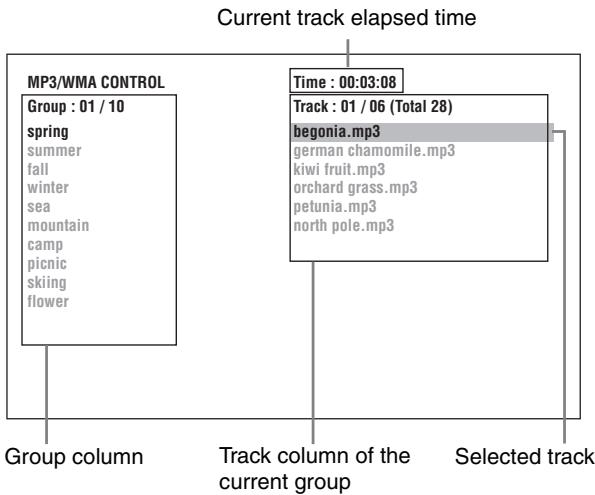
- If it is in the right column, press to move it to the left column.
2 Press / to move the bar to a desired group, then press .
- On the right column, files in the selected group are shown.
3 Press / or || to select the desired file, then press ENTER.
The selected file is played back.
- When you press (SELECT), the continuous playback starts from the selected file.
- You can change the files on the list by pressing I▶/▶I.
NOTES
- Files can also be selected by pressing the numeric buttons.
- If no operation is made for more than 5 minutes while the Control display is shown, the screen saver function will be activated and the Control display disappears.
To pause playback
Press II.
Pressing (SELECT) resumes normal playback.
To zoom in a JPEG picture
Press ZOOM.
Each time you press ZOOM, the magnification increases to 1.8, 4, 8, 16, 32 and 64 times.
- Press / / to move the zoomed position during playback. Press ZOOM repeatedly to cancel the zoom function and select the normal size.
To stop playback
Press
The Control display appears on the TV.
NOTES
- It may take time to show the Control display due to the layer configuration of the files and groups.
- The elapsed time may be incorrectly indicated on the display window due to the recording condition of the MP3/WMA file.
- In the normal playback mode, playback stops when all the files in a group are played.
Viewing pictures continuously (Slide show mode)
You can see JPEG files (still pictures) one after another automatically.
To start the slide show
Press (SELECT).
The slide show starts from the beginning of the disc. Each file (still picture) is displayed for approximately 7 seconds.
To stop slide show playback in the middle
Press or MENU.
The TV screen returns to the Control display.
Pressing (SELECT) resumes slide show playback from the last picture displayed.
To keep showing the current picture
Press II or ENTER.
Pressing (SELECT) resumes the slide show playback.
To select the start point of the slide show
From the Control display
1 Make sure that the black (cursor) bar is in the left (group) column.
2 Press / to move the bar to a desired group.
3 Press / to select a desired file.
4 Press (SELECT).
The slide show starts from the specified file.
Direct selection
1 During playback or while stopped, press TITLE/GROUP.
2 Press the numeric buttons to specify a desired group number.
To select 5: press 5.
To select 23: press +10 , +10 , then 3.
To select 40: press +10 , +10 , +10 , then 10.
3 Press the numeric buttons to specify a desired file number.
The player starts slide show playback from the specified file. If you do not specify a file, the player starts slide show playback from the first file in the group.
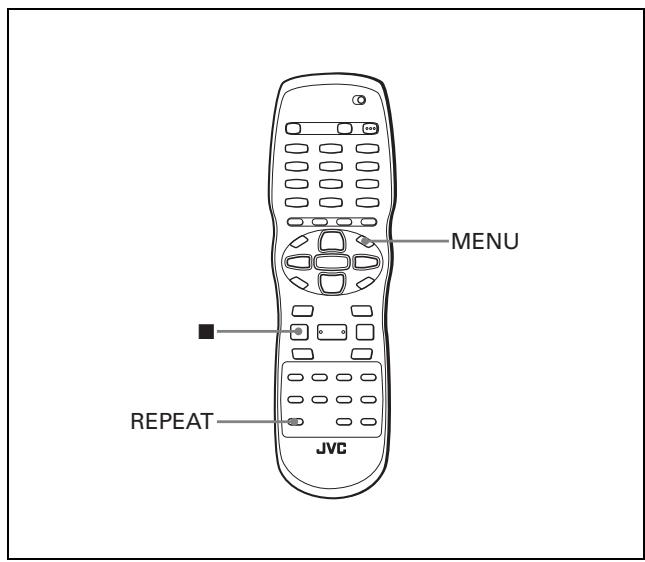
Repeat playback
For MP3/WMA files: during playback or while stopped
For JPEG files: while the Control display is shown
Press REPEAT.
Each time you press REPEAT, the repeat mode changes in the following order:
REPEAT TRACK: Repeats the current track (for MP3/WMA files only).
REPEAT GROUP: Repeats all files in the current group.
REPEAT ALL: Repeats all files on the disc.
To stop repeat playback
Press
The repeat mode remains active.
To quit repeat playback
Press or MENU while the Control display is shown, and press
REPEAT until the [ ] indicator goes off on the display window.
Changing the initial settings
AUDIO
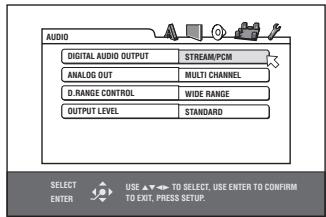
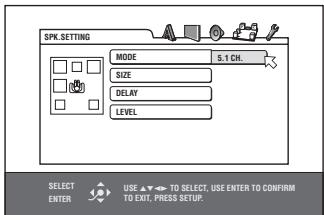
SPKSETTING
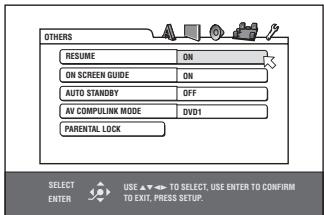
OTHERS
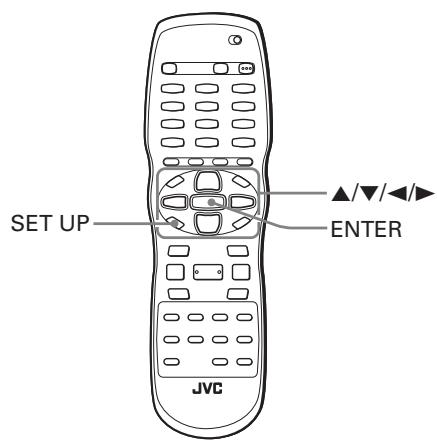
NOTE

Make sure that the TV - DVD switch on the remote control unit is set to "DVD" when using the / / and numeric buttons for controlling the player.
Selecting preferences
This section refers to the settings which are already made when you purchase the player. Read this section when you want to connect this player to a wide-vision TV set, or when you want to otherwise change the settings according to your preferences and viewing environment.
About the Preference display
The Preference display consists of the LANGUAGE, PICTURE, AUDIO, SPK. SETTING and OTHERS setting displays, each having setting items.
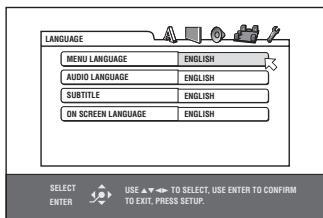
LANGUAGE
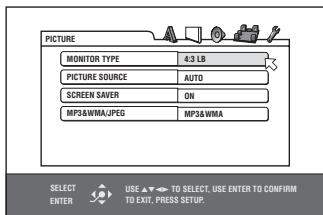
PICTURE
How to set preferences
1 Press SET UP.
One of the preference on-screen displays appears on the TV screen.
You can see five icons at the top right of the on-screen display for the settings.
A: LANGUAGE menu
:PICTUREmenu
: AUDIO menu
: Setting menu for speakers
OTHERS menu
2 Press to select the appropriate icon.
The appropriate display appears on the TV screen.
3 Press / to move to select the item you want to edit.
The color of the selected item changes.
4 Press ENTER.
A pull-down menu appears over the selected item.
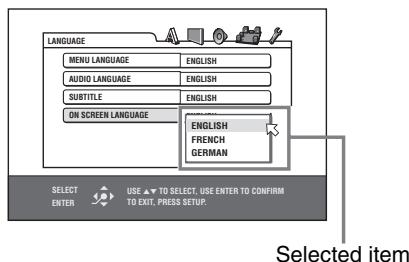
Press / to select from the options then press ENTER.
The selected option is set.
For details about each setting, see the following.
To dismiss a preference display
Press SET UP.
NOTES
- While an MP3/WMA or JPEG disc is inserted, you cannot bring up any preference display.
- When a preference display is shown on a wide TV screen, the upper and lower parts of the preference display sometimes may be cut off. If this happens, adjust the picture size control of the TV.
- The [SPKSETTING] display can be displayed only when [ANALOG OUT] in the [AUDIO] preference display is set to [MULTI CHANNEL].
LANGUAGE menu
MENULANGUAGE
You can select the default menu language to be displayed if it is contained on a DVD AUDIO/DVD VIDEO disc.
Setting options
ENGLISH,SPANISH,FRENCH,CHINESE,GERMAN,ITALIAN, JAPANESE,language code from AA to ZU
- If the disc does not have a menu in the selected language, the disc's default language will be used.
- For details about language codes, see "Appendix C: Table of languages and their abbreviations" on page 43.
- You can change the setting except while in playback mode.
AUDIO LANGUAGE
You can select the default audio language to be played if it is contained on a DVD VIDEO disc.
Setting options
ENGLISH,SPANISH,FRENCH,CHINESE,GERMAN,ITALIAN, JAPANESE,language code from AA to ZU
- If the disc does not have the selected language, the disc's default language will be used.
- For details about language codes, see "Appendix C: Table of languages and their abbreviations" on page 43.
- You can change the setting except while in playback mode.
SUBTITLE
You can select the default subtitle language to be displayed if it is contained on a DVD AUDIO/DVD VIDEO disc.
Setting options
OFF, ENGLISH, SPANISH, FRENCH, CHINESE, GERMAN, ITALIAN, JAPANESE, language code from AA to ZU
- If the disc does not have a subtitle in the selected language, the disc's default language will be used.
- For details about language codes, see "Appendix C: Table of languages and their abbreviations" on page 43.
- You can change the setting except while in playback mode.
ON SCREEN LANGUAGE
You can select the on-screen display language of the player.
Setting options
ENGLISH, FRENCH, GERMAN
- Some on-screen messages are shown in English regardless of the setting.
- The on-screen language shown on the Control display is always English.
PICTURE menu
MONITOR TYPE
You can select the monitor type to match your TV when you play back DVD VIDEO discs recorded for wide-screen televisions.
Setting options
16:9 NORMAL, 16:9 AUTO, 4:3 LB, 4:3 PS
[16:9 NORMAL] (Wide television screen): select when you connect the player to a wide-screen (16:9) TV whose aspect ratio is fixed to 16:9 (the player automatically adjusts the screen width of the output signal correctly when playing back a 4:3 source). If you play a 4:3 DVD VIDEO source using the [16:9 NORMAL] mode, the picture character changes slightly due to the process for converting the picture width.
[16:9 AUTO] (Wide television screen): select when you connect the player to a wide-screen (16:9) TV.
[4:3 LB] (Letter Box conversion): select when you connect the player to a normal (4:3) TV.
When playing back a DVD VIDEO disc recorded in wide picture format, the picture is shown with black bars at the top and bottom.
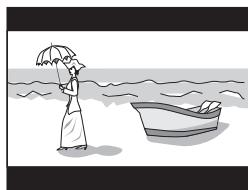
[4:3 PS] (Pan Scan conversion): select when you connect the player to a normal (4:3) TV.
When playing back a DVD VIDEO disc recorded in wide picture format, the picture is zoomed to fill the screen vertically, and the left and right sides of the image are chopped off.
Note, however, that the picture will be shown in the 4:3 LB mode even if you select the 4:3 PS mode depending on the disc.
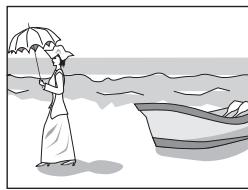
PICTURE SOURCE
This mode selects whether the content on the disc is processed by field (video source) or by frame (film source). You can obtain optimal picture quality according to the source type to be played back by selecting an appropriate option. This setting is available for both the interlaced mode and progressive scanning mode.
Setting options
VIDEO(NORMAL),VIDEO(ACTIVE),FILM,AUTO
[VIDEO(NORMAL)]: select when playing back a video source disc with relatively a few movements.
[VIDEO(ACTIVE)]: select when playing back a video source disc with relatively a lot of movements.
[FILM]: select when playing back a film source disc.
[AUTO]: select when playing back a disc containing both video and film source materials.
The player recognizes the picture type (film or video source) of the current disc according to the disc information. Normally, select this option.
SCREENSAVER
You can set the screen saver function to ON or OFF. (See page 13.)
Setting options
ON, OFF
MP3&WMA/JPEG
The player can play MP3/WMA and JPEG files recorded on a CD-R/CD-RW disc. However, if a disc contains both MP3/WMA and JPEG files, you can only play files of the type selected in this menu item.
Setting options
MP3&WMA, JPEG
[MP3&WMA]: when selected, only MP3/WMA files can be played back.
[JPEG]: when selected, only JPEG files can be played back.
AUDIO menu
DIGITAL AUDIO OUTPUT
To connect the player's digital output to an external device equipped with a digital input, this item must be set correctly. See "Appendix A: Digital output signal chart" on page 42 for details about the relation between the setting and output signals.
Setting options
PCM ONLY, DOLBY DIGITAL/PCM, STREAM/PCM
[PCM ONLY]: select when you connect the DIGITAL OUT jack of the player to the linear PCM digital input of other audio equipment.
[DOLBY DIGITAL/PCM]: select when you connect the digital input of a Dolby Digital decoder or an amplifier with a built-in Dolby Digital decoder.
When this option is selected, playing back a DTS-encoded disc, or disc recorded by the MPEG Multichannel format outputs a linear PCM digital signal.
[STREAM/PCM]: select when you connect the digital input of an amplifier with a built-in DTS, MPEG Multichannel, or Dolby Digital decoder, or the stand-alone unit of such a decoder.
NOTE
When [STREAM/PCM] is selected, note the following points:
- With some DVD VIDEO discs that are not fully copy-protected, a 20 or 24 bit digital signal may be output.
- A signal recorded with the 96 kHz or higher sampling frequency is output from the DIGITAL OUT jack with the 48 kHz sampling frequency.
- When playing a DVD VIDEO or Audio CD disc with DTS, use a DTS decoder to get correct signals from your speakers.
ANALOG OUT
To play back a DVD VIDEO disc recorded with surround multichannel audio correctly, you must set this item properly according to your audio system.
(This function does not work when the 3D PHONIC function is activated.)
Setting options
2-CH DOLBY SURROUND, 2-CH STEREO, MULTI CHANNEL
[2-CH DOLBY SURROUND]: select when you enjoy multichannel surround audio by connecting the player's AUDIO OUT jacks to a surround decoder.
[2-CH STEREO]: select when you enjoy conventional 2-channel stereo audio by connecting the player's AUDIO OUT jacks to a stereo amplifier/receiver or TV, or when you duplicate audio of a DVD VIDEO disc recorded with surround audio to your MD, cassette, etc.
[MULTI CHANNEL]: select when you enjoy multichannel surround audio by connecting the player's 5.1-channel audio outputs to an amplifier equipped with 5.1-channel inputs.
NOTE
With some DVD AUDIO discs, the track is prohibited from downmixing to 2-channel stereo audio. With such discs, even if you select [2-CH DOLBY SURROUND] or [2-CH STEREO], downmixing function does not work. In this case, [MULTI CH] appears on the display window for about 2 to 3 seconds.
D. RANGE CONTROL
This setting provides optimal audio quality from the analog AUDIO OUT terminals for listening to DVD VIDEO discs recorded in Dolby Digital format, at low or middle volume.
Setting options
WIDE RANGE, NORMAL, TV MODE
[Wide Range]: when selected, audio is played back with the widest dynamic range so that you can enjoy powerful playback sound.
[NORMAL]: normally, select this option.
[TV MODE]: select if DVD VIDEO disc sound level is lower than TV program sound level. Thus you can hear sound at a lower volume clearly.
OUTPUT LEVEL
This setting allows you to attenuate the level of the signal output from the player's analog AUDIO OUT jacks.
Setting options
STANDARD, LOW
- If the sound output from the speaker is distorted, select [LOW].
SPKSETTING menu
This menu can be selected only when [ANALOG OUT] in the [AUDIO] preference display is set to [MULTI CHANNEL].
MODE
You can select the speaker configuration type according to your speaker systems.
Setting options
5.1 CH., EXPERT
[5.1 CH.]: select when you connect the player to a 5.1-channel amplifier and use the front, surround (rear), center and subwoofer speakers.
[EXPERT]: select when you want to make fine tuning to match your speakers. The SIZE, DELAY, and LEVEL setting items are available.
SIZE
You can set the speaker sizes according to your speakers. See page 37 for how to set the speaker sizes.
DELAY
You can set the speaker delay time according to your speakers. See page 37 for how to set the speaker delay time.
LEVEL
You can set the speaker output level according to your speakers. See page 38 for how to set the speaker output level.
NOTE
If you connect the player's digital output to an external Dolby Digital or DTS decoder, and set [DIGITAL AUDIO OUTPUT] in the [AUDIO] preference display to [STREAM/PCM], the above settings are not effective.
Make the speaker settings of the external decoder properly.
OTHERS menu
RESUME
You can select the resume playback mode. See page 14 for details about the resume playback function.
Setting options
ON, OFF, DISC RESUME
[ON]: when selected, the player can resume playback of the disc from the position where playback was last interrupted, if the disc is still in the disc tray.
[OFF]: when selected, the resume function is deactivated.
[DISC RESUME]: when selected, the player can resume playback of the last 30 discs played. The player retains a memory of the interrupted positions of the last 30 discs played, even though they have been removed from the disc tray.
ON SCREEN GUIDE
The player can display "on-screen guide" icons or characters on the picture, which show what is happening to the disc or the player.
Example of "on-screen guide" icons: _1 , _2 , _3
Setting options
ON, OFF
[ON]: when selected, the on-screen guide is activated.
AUTO STANDBY
When the player is stopped for more than 30 minutes or 60 minutes, the player enters standby mode automatically.
Setting options
60, 30, OFF
AV COMPULINK MODE
This item is provided for use in the future. Leave it as the default setting ("DVD 1").
PARENTAL LOCK
When this option is selected, pressing ENTER on the remote control unit brings up the [PARENTAL LOCK] display shown below. This allows you to restrict children from playing DVD VIDEO discs.
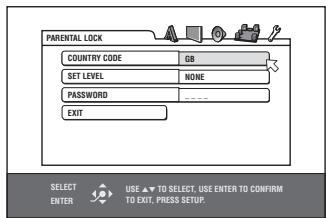
- See page 39 for details about the parental lock setting.
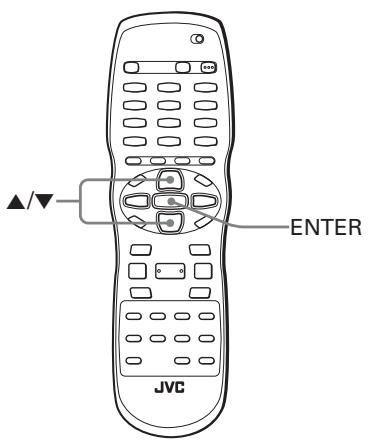
Making fine tuning for your speakers
You can make fine tuning to match your speaker system.
Preparation
Set [ANALOG OUT] in the [AUDIO] preference display to [MULTI CHANNEL] and [MODE] in the [SPK.SETTING] preference display to [EXPERT].
To set the speaker sizes and the BASS REDIRECT function
1 Bring up the SPK.SETTING menu.
2 Press / to move to [SIZE] and press ENTER.
The [SIZE] display page appears on the TV screen.
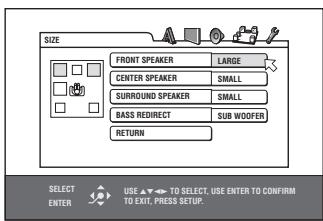
3 Press / to select the speaker to be set and press ENTER.
FRONT SPEAKER: front speakers
CENTER SPEAKER: center speakers
SURROUND SPEAKER: surround (rear) speakers
4 Press / to select the size and press ENTER.
LARGE: large speaker(s) which can fully reproduce the low-frequency range.
SMALL: small speaker(s) which cannot fully reproduce the low-frequency range.
NONE: no speaker(s) connected.
5 Repeat steps 3 and 4 if you want to set other speakers.
When you use the small speakers which do not fully reproduce the low-frequency range, you can boost up the low-frequency signal of the subwoofer or front speakers by setting the BASS REDIRECT function.
To set the BASS REDIRECT function, go to step 6.
6 Press / to select [BASS REDIRECT] and press ENTER.
7 Press / to select [SUB WOOFER] or [FRONT L/R] and press ENTER.
SUB WOOFER: The low-frequency signal fed from the subwoofer output is boosted up.
FRONT L/R: The low-frequency signals fed from the front speaker outputs are boosted up. No audio is output from the subwoofer.
To return to the [SPKSETTING] page
Press / to move 日 to [RETURN] and press ENTER.
NOTES
- The [BASS REDIRECT] setting is effective only when at least any one of the speaker sizes is set to [SMALL].
- No audio is output from the SUBWOOFER jack when [FRONT L/R] is selected.
- If the front speaker size is set to [SMALL], the [BASS REDIRECT] setting is fixed to [SUB WOOFER].
- During playback of a DVD AUDIO, audio signal may not be output correctly depending on the conditions of the player or the disc itself.
To set the delay time
When playing in multi-channel mode and the speakers cannot all be located an equal distance from the listener, this setting can compensate for the difference between the distance from the front speakers (left, right) to the listener, and the distance from the center speaker and the surround speakers to the listener.
Check the difference in the distance between the listener and the front speakers (left, right), and the distance between the listener and the other speakers, and then set that value as described in the procedure below.
1 Bring up the SPK.SETTING menu.
2 Press / to move to [DELAY] and press ENTER.
The [DELAY] display page appears on the TV screen.
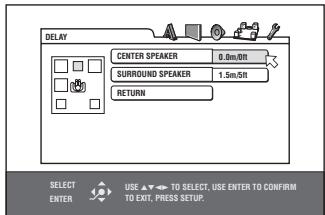
3 Press / to select the speaker to be set and press ENTER.
CENTER SPEAKER: center speaker
SURROUND SPEAKER: surround (rear) speakers
4 Press / to select the appropriate distance and press ENTER.
When you select [CENTER SPEAKER], you can select the appropriate distance from [0.0m] to [1.5m] in 30 cm (1 ft) units.
When you select [SURROUND SPEAKER], you can select the appropriate distance from [0.0m] to [4.5m] in 30 cm (1 ft) units.
5 Repeat steps 3 and 4 if you want to set other speakers.
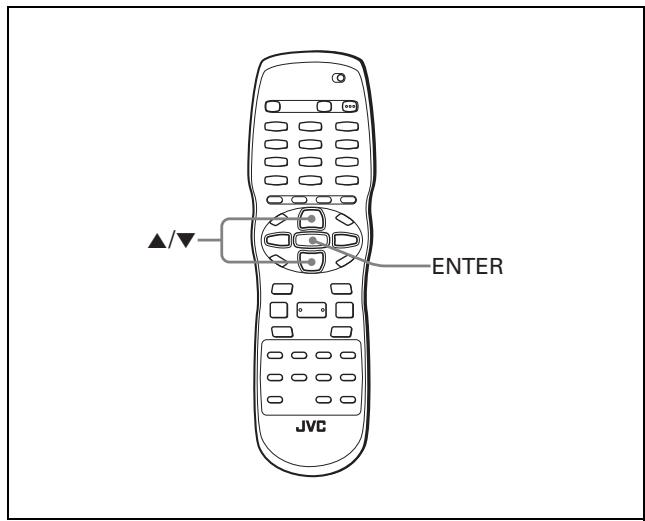
To return to the [SPKSETTING] page
Press / to move to [RETURN] and press ENTER.
Hint
If there is no difference between the distance from the front speakers to the listener, and the distance from the center speaker and/or the surround speakers to the listener, select [0.0m]. If there is a difference between them, refer to the following diagram to set the delay time correctly.
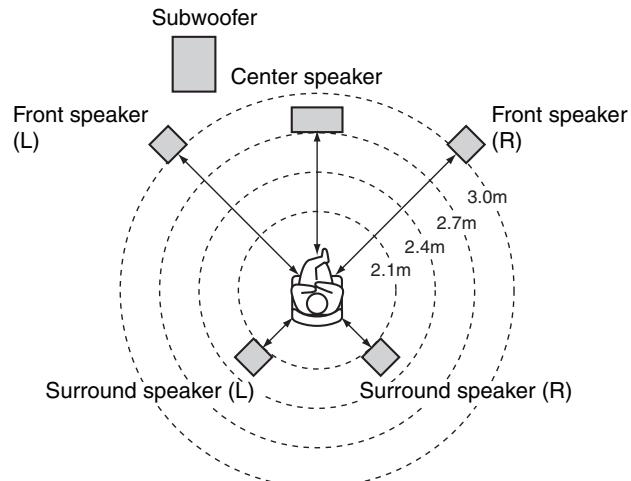
In the above example, set [CENTER SPEAKER] to [0.3m] , and [SURROUND SPEAKER] to [0.9m] .
As the distance from the center speaker and/or the surround speakers to the listener is shorter than the distance from the front speakers to the listener, select the longer distance value.
NOTE
This setting can only compensate for differences in speaker distance when the front speakers (left, right) are farther from the listener than the other speakers.
To set the speaker level
You can adjust the output level of each speaker.
1 Bring up the SPK.SETTING menu.
2 Press / to move to [LEVEL] and press ENTER.
The [LEVEL] display page appears on the TV screen.
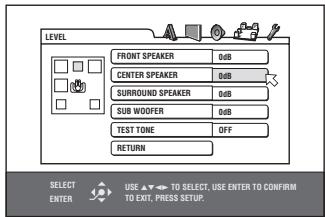
3 Press / to select the speaker to be set and press ENTER.
FRONT SPEAKER: front speakers (This item cannot be selected. The level is fixed to 0 dB.)
CENTER SPEAKER: center speaker
SURROUND SPEAKER: surround (rear) speakers
SUB WOOFER: subwoofer
4 Press / to set the level and press ENTER.
The selectable level ranges from -6 to 6dB in 1 dB unit.
5 Repeat steps 3 and 4 if you want to set other speakers.
To return to the [SPKSETTING] page
Press / to move to [RETURN] and press ENTER.
NOTE
For the speaker(s) whose size is set to [NONE], the speaker level cannot be set.
To generate test tone signals
You can check the level setting by monitoring the test tone.
1 Press / to select [TEST TONE] and press ENTER.
2 Press / to select [ON] and press ENTER.
The test tone will be generated when you select the speaker(s) in the [LEVEL] page.
NOTE
The test tone sound is not output from the subwoofer.
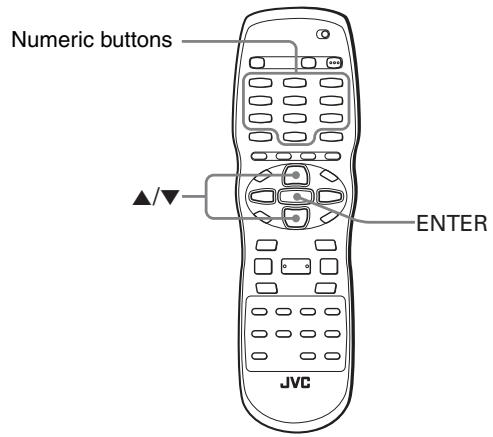
Limiting playback by children
This function restricts playback of DVD VIDEO discs which contain violent (and other) scenes according to the level set by the user. For example, if a movie which includes violent scenes supports the parental lock feature, such scenes which you do not want to let children view can be cut or replaced with other scenes.
To set Parental Lock for the first time
DVDVIDEO
1 In stop mode, bring up the OTHERS menu.
2 Press / to move to select [PARENTAL LOCK] then press ENTER.
The Parental Lock on-screen display appears on the TV screen.
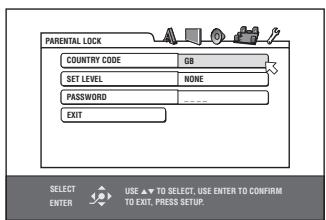
3 While is pointing to [COUNTRY CODE], press ENTER to bring up the pull-down menu.
4 Press / to select the country code.
Select the code of the country whose standards were used to rate the DVD VIDEO disc content.
See “Appendix B: Country/Area code list for Parental Lock” on page 43.
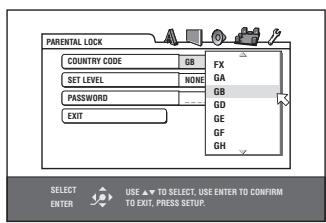
5 Press ENTER.
moves to [SET LEVEL].
6 Press ENTER to bring up the pull-down menu.
In the pull-down menu, [NONE] and levels [8] to [1] are available.
[NONE] does not restrict playback. Level [1] is the strictest level. Discs rated higher than the selected level are restricted.
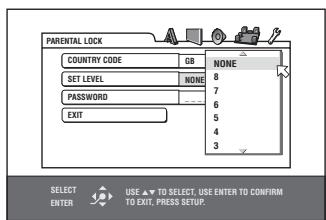
7 Press / to select a desired parental lock level, then press ENTER.
品 moves to [PASSWORD].
Press the numeric buttons (0 to 9) to enter a 4-digit password.
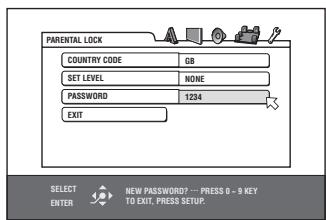
9 Press ENTER.
The parental lock feature is set.
moves to [EXIT]. Pressing ENTER again returns to the [OTHERS] menu of the preference display.
Hint
If you want to change the password at step 8, do it before pressing ENTER.
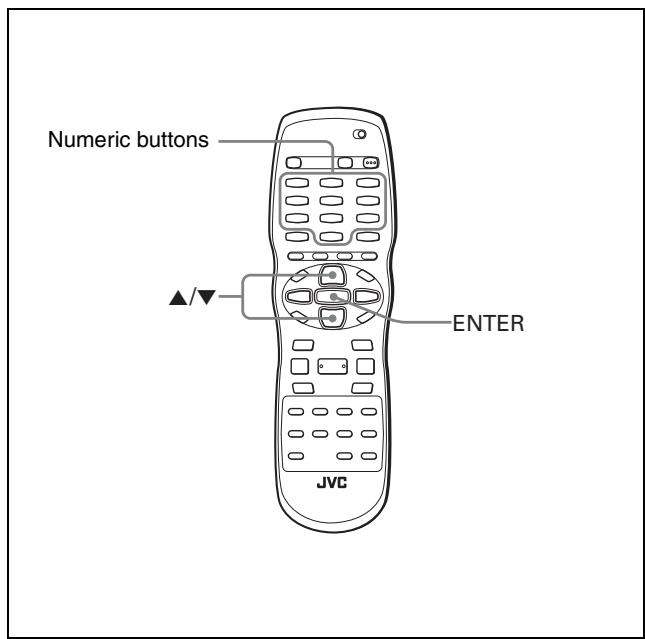
To change the settings

You can change the parental lock settings later.
1 In stop mode, bring up the OTHERS menu.
2 Press / to move to select [PARENTAL LOCK] and press ENTER.
The parental lock on-screen display appears on the TV screen.
3 While is pointing to [PASSWORD], press the numeric buttons to enter your current 4-digit password then press ENTER.
品 moves to [COUNTRY CODE] if you enter the correct password.
If you enter a wrong password, [WRONG! RETRY...] appears on the TV screen, and you cannot go to the next step. If you forget your password, enter "8888." The current password is deleted and you can set a new password.
4 To change the [COUNTRY CODE] or [SET LEVEL], press ENTER to bring up the associated pull-down menu when is pointing to the desired item.
Press / to select the desired option then press ENTER.
If you change the country code, you must reselect the parental lock level.
6 While is pointing to [PASSWORD], press the numeric buttons to enter a 4-digit password.
The password entered in this step becomes the new password. If you want to keep the same password as before, enter the same password.
7 Press ENTER.
moves to [EXIT]. Pressing ENTER again returns to the [OTHERS] menu of the preference display.
NOTE
If you enter the wrong password more than 3 times in step 3 above, moves to [EXIT] automatically and / do not work.
To temporarily release the Parental Lock

If the parental level is set to a strict value, some discs may not play at all.
When you insert such a disc and try to play it, the following parental lock on-screen display appears on the TV screen, asking you whether you want the parental lock to be temporarily released or not.
1 Press / to move to [TEMPORARY RELEASE], then press ENTER.
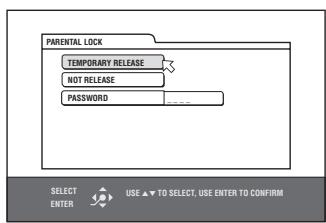
2 Press the numeric buttons (0 to 9) to enter your 4-digit password.
The Parental Lock is released, and the player starts playback.
If you enter a wrong password, [WRONG! RETRY...] appears on the TV screen. Enter the correct password.
NOTE
When you enter the wrong password 3 times at step 2 above, ☑ moves to [NOT RELEASE] automatically and / do not work.
Additional information
Troubleshooting
Power
Power does not come on.
Power plug is not inserted securely. Plug in securely.
Operation
"REGION CODE ERROR!" is shown on the TV screen.
Region code of the inserted disc does not match the player. Check the region code of the disc printed on the disc jacket.
Operation is not possible.
Microcomputer malfunction due to lightning or static electricity. Turn off the power and unplug the power cord, then connect the power cord again.
Moisture condensation caused by a sudden change of temperature or humidity. Turn off the power, then turn it on a few hours later.
The disc does not allow the operation, or an unplayable disc is inserted. Check and replace the disc (see page 2).
[LOCK] is displayed on the display window and the disc tray does not open.
When you press while pressing down on the player in standby mode, the tray lock function is activated. The disc tray cannot be opened or closed in this status. To release this status, press while pressing down on the player in standby mode.
TV cannot be operated with the remote control unit.
Set the manufacturer code correctly according to your TV (see page 10).
Set the TV - DVD switch on the remote control to "TV."
Setting cannot be changed in the [LANGUAGE] preference display.
Stop playback and change the setting in the [LANGUAGE] preference display.
The audio language and subtitle cannot be changed.
Only one language is recorded on the disc currently being played back.
The disc being played back does not accept the AUDIO - fs/ Rate button and SUBTITLE button operation. Change the subtitle using [SUBTITLE] in the [LANGUAGE] preference display (see page 34).
No subtitle is displayed.
No subtitle is recorded on the disc currently being played back.
[OFF] is selected in [SUBTITLE] in the [LANGUAGE] preference display. Select the desired language in [SUBTITLE] (see page 34).
Subtitle may not be displayed correctly during A-B repeat playback.
Picture
Picture is noisy.
The player is connected to a VCR directly and the copyguard function is activated. Connect the player so that the picture signal flows directly to the TV.
With some discs, the picture may be blurred when [PICTURE SOURCE] is set to [FILM] or [AUTO]. Set [PICTURE SOURCE] to [VIDEO (NORMAL)] or [VIDEO (ACTIVE)].
Correct picture cannot be obtained.
Connect only one type of cable to the jack(s) you want to use on this player, either the VIDEO jack, S-VIDEO jack, COMPONENT VIDEO OUT jacks or SCART connector. (Note that you can connect cables to the VIDEO jack and COMPONENT Video OUT jacks at the same time.) If an S-VIDEO cable is connected to the S-VIDEO jack, the player is set to the S-VIDEO output mode automatically.
If your TV accommodates both RGB and Y/C for connecting with SCART cable, set the video signal selector to "RGB/COMOSITE." Otherwise the picture cannot be displayed correctly.
No picture is displayed on the TV screen or the screen is blurred or divided into two parts.
The player is in the progressive scanning mode though it is connected to a TV via the VIDEO or S-VIDEO jack, or the SCART connector. Make the Progressive scanning mode inactive by using the VFP - PROGRESSIVE SCAN button (see page 6).
Audio
DVD VIDEO disc playback sound level is lower than TV broadcast sound level.
Set the [D. RANGE CONTROL] preference to [TV MODE] (see page 35).
Analog audio output is distorted.
Set the [OUTPUT LEVEL] preference to [LOW] (see page 35).
[MULTI CH] is shown in the display window when playing back a DVD AUDIO disc.
The track is prohibited from down-mixing to 2-channel stereo audio. Listen in multichannel surround audio (see page 35).
MP3/WMA
No sound comes out.
MP3/WMA disc is recorded with the "packet writing (UDF file)." It cannot be played.
Files (tracks) are not played in the recorded order.
This player plays the files in the alphabetic order. So, the playback order can vary.
WMA files cannot be played back.
The file is copy protected.
The file is recorded with a bit rate under 48 kbps. The player does not support such WMA files.
JPEG
No picture is played back, or the screen turns black.
Format of the files is not the baseline JPEG. The player supports only the baseline JPEG format.
The preference display cannot be turned on.
You cannot turn on the preference display when a JPEG disc is inserted.
Specifications
Specifications and appearance are subject to change without prior notice.
General
Readable discs
DVD AUDIO, DVD VIDEO, DVD-R (Video format), DVD-RW (Video format/VR format), DVD-RAM (VR format), SVCD, Video CD, Audio CD (CD-DA), CD-R/RW (CD-DA, SVCD, Video CD, MP3/WMA format, JPEG)
Video format
PAL, Interlaced scan/Progressive scan selectable
Other
Power requirements
AC 230V ,50Hz
Power consumption
13 W (POWER ON), 2.0 W (STANDBY mode)
Mass
1.9 kg
Dimensions (W× H× D)
435mm× 44mm× 258.6mm
Video outputs
COMPONENT (pin jacks)
Y Output: 1.0 Vp-p (75 Ω)
P_B / P_R Output: 0.7 Vp-p (75
VIDEO OUT (pin jack)
1.0 Vp-p (75 Ω)
S-VIDEO OUT (S Jack)
Y Output: 1.0 Vp-p (75 Ω)
C Output: 286 mVp-p (75 Ω)
RGB output
700 mVp-p (75 Ω)
Horizontal resolution
500 lines or more
Audio outputs
ANALOG OUT (pin jack)
2.0 Vrms (10 kΩ)
DIGITAL OUT (COAXIAL)
0.5 Vp-p (75 Ω termination)
DIGITAL OUT (OPTICAL)
-21 dBm to -15 dBm (peak)
Audio characteristics
Frequency response
CD (sampling frequency 44.1 kHz): 2 Hz to 20 kHz
DVD (sampling frequency 48 kHz): 2 Hz to 22 kHz
(4 Hz to 20 kHz for DTS and Dolby
Digital bitstream signals)
DVD (sampling frequency 96 kHz): 2 Hz to 44 kHz
DVD (sampling frequency 192 kHz/176.4 kHz):
2 Hz to 88 kHz
Dynamic range
16 bit: More than 98 dB
20 bit/24 bit: More than 106 dB
Wow and flutter
Unmeasurable (less than ± 0.002%
Total harmonic distortion
16 bit: less than 0.006%
20 bit/24 bit: less than 0.005%
- Manufactured under license from Dolby Laboratories. "Dolby," "MLP Lossless," and the double-D symbol are trademarks of Dolby Laboratories.
- "DTS" and "DTS Digital Surround" are registered trademarks of Digital Theater Systems, Inc.
- This product incorporates copyright protection technology that is protected by U.S. patents and other intellectual property rights. Use of this copyright protection technology must be authorized by Macrovision, and is intended for home and other limited viewing uses only unless otherwise authorized by Macrovision. Reverse engineering or disassembly is prohibited
- "CONSUMERS SHOULD NOTE THAT NOT ALL HIGH DEFINITION TELEVISION SETS ARE FULLY COMPATIBLE WITH THIS PRODUCT AND MAY CAUSE ARTIFACTS TO BE DISPLAYED IN THE PICTURE. IN CASE OF 525 OR 625 PROGRESSIVE SCAN PICTURE PROBLEMS, IT IS RECOMMENDED THAT THE USER SWITCH THE CONNECTION TO THE 'STANDARD DEFINITION' OUTPUT. IF THERE ARE QUESTIONS REGARDING OUR TV SET COMPATIBILITY WITH THIS MODEL 525p AND 625p DVD PLAYER, PLEASE CONTACT OUR CUSTOMER SERVICE CENTER."
Appendix A: Digital output signal chart
(for page 35)
| Disc type | Output | ||
| PCM ONLY | DOLBY DIGITAL/PCM | STREAM/PCM | |
| DVD with 48/44.1 kHz, 16/20/24 bit linear PCMDVD AUDIO with MLP | 48/44.1 kHz, 16/20/24 bit, stereo linear PCM | ||
| DVD with 192/176.4/96/88.2 kHz,16/22/24 bit linear PCMDVD AUDIO with MLP | 48/44.1 kHz, 16/20/24 bit, stereo linear PCM (Down sampling) | ||
| DVD with DTS | 48 kHz, 16 bit, stereo linear PCM | DTS bitstream | |
| DVD with Dolby Digital | 48 kHz, 16 bit, stereo linear PCM | Dolby Digital bitstream | |
| DVD with MPEG Multichannel | 48 kHz, 16 bit, stereo linear PCM | MPEG bitstream | |
| SVCD/Video CD/Audio CD | 44.1 kHz, 16 bit, stereo linear PCM | ||
| Audio CD with DTS | 44.1 kHz, 16 bit, stereo linear PCM | DTS bitstream | |
| CD-R/RW with MP3/WMA | Linear PCM | ||
Appendix B: Country/Area code list for Parental Lock
AD Andorra
AE United Arab Emirates
AF Afghanistan
AG Antigua and Barbuda
AI Anguilla
AL Albania
AM Armenia
AN Netherlands Antilles
AO Angola
AQ Anta
AR Argentina
AS American Samoa
AT Austria
AU Australia
AW Aruba
AZ Azerbaijan
BA Bosnia and Herzegovina
BB Barbados
BD Bangladesh
BE Belgium
BF Burkina Faso
BG Bulgaria
BH Bahrain
Bl Burundi
BJ Benin
BM Bermuda
BN Brunei Darussalam
BO Bolivia
BR Brazil
BS Bahamas
BT Bhutan
BV Bouvet Island
BW Botswana
BYBelarus
BZ Belize
CA Canada
CC Cocos (Keeling) Islands
CF Central African Republic
CG Congo
CH Switzerland
CI Cote d'Ivoire
CK Cook Islands
CL Chile
CM Cameroon
CN China
CO Colombia
CR Costa Rica
CU Cuba
CV Cape Verde
CX Christmas Island
CY Cyprus
CZ Czech Republic
DE Germany
DJ Dijbouti
DK Denmark
DM Dominica
DO Dominican Republic
DZ Algeria
EC Ecuador
EE Estonia
EG Egypt
EH Western Sahara
ER Eritrea
ES Spain
ET Ethiopia
FI Finland
FJ
FK Falkland Islands
FM Micronesia (Federated States)
of)
FO Faroe Islands
FR France
FX France, Metropolitan
GA Gabor
GB United Kingdom
GD Grenada
GE Georg
GF French Guiana
GH Ghana
GI Gibraltar
GL Greenland
GM Gambia
GN Guinea
GP Guadeloupe
GQ Equatorial Guinea
GR Greece
GS South Georgia and the South
Sandwich
GT Guatemala
GU Guam
GW Guinea-Bissau
GY Guvana
HK Hong Kong
HM Heard Island and McDonald
Islands
HN Honduras
HR Croatia
HTHaiti
HU Hungary
ID Indonesia
IE Ireland
IL Israel
IN India
IO British Indian Ocean Territory
IQ Iraq
IR Iran (Islamic Republic of)
IS Iceland
IT Italy
JM Jamaica
JO Jordan
JP Japan
KE Kenya
KG Kyrgyzstan
KH Cambodia
KI Kiribati
KM Comoros
KN Saint Kitts and Nevis
KP Korea, Democratic People's
Republic of
KR Korea, Republic of
KW Kuwait
KY Cayman Islands
KZ Kazakhstan
LA Lao People's Democratic
Republic
LB Lebanon
LC Saint Lucia
LI Liechtenstein
LK Sri Lanka
LB Liberia
L.S. Lesotho
LT Lithuania
LU Luxembourg
LV Latvia
LY Libyan Arab Jamahiriya
MA Morocco
MC Monaco
MD Moldova, Republic of
MG Madagascar
MH Marshall Islands
ML Mali
MM Myanmar
MN Mongolia
MO Macau
MP Northern Mariana Islands
MQ Martinique
MR Mauritania
MS Montserrat
MT Malta
MU Mauritius
MV Maldives
MW Malawi
MX Mexico
MY Malaysia
MZ Mozambique
NA Namibia
NC New Caledonia
NE Niger
NE Norfolk Island
NG Nigeria
NI Nicaragua
NL Netherlands
NO Norway
NP Nepal
NR Nauru
NU Niue
NZ New Zealand
OM Oman
PA Panama
PE Peru
PF French Polynesia
PG Papua New Guinea
PH Philippines
PK Pakistan
PL Poland
PM Saint Pierre and Miquelon
PN Pitcairr
PR Puerto Rico
PT Portugal
PW Palau
PY Paraguay
QA Qatar
RE Réunion
RO Romania
RU Russian Federation
RW Rwanda
SA Saudi Arabia
SB Solomon Islands
SC Seychelles
SD Sudan
SE Sweden
SG Singapore
SH Saint Helena
SI Slovenia
SJ Svalbard and Jan Mayen
SK Slovakia
SL Sierra Leone
SM San Marino
SN Senegal
SO Somalia
SR Suriname
ST Sao Tome and Principe
SV El Salvador
SY Syrian Arab Republic
SZ Swaziland
TC Turks and Caicos Islands
TD Chad
TF French Southern Territories
TG Togo
TH Thailand
TJ Tajikistan
TK Tokelau
TM Turkmenistan
TN Tunisia
TO Tonga
TP East Timor
TR Turkey
TT Trinidad and Tobago
TV Tuvalu
TW Taiwan
TZ Tanzania. United Republic of
UA Ukraine
UG Ugand.
UM United States Minor Outlying
Islands
US United States
UY Uruguay
UZ Uzbekistan
VA Vatican City State (Holy See)
VC Saint Vincent and the
Grenadines
VE Venezuela
VG Virgin Islands (British)
VI Virgin Islands (U.S.)
VN Vietnam
VU Vanuatu
WF Wallis and Futuna Islands
WS Samoa
YE Yemen
YT Mayotte
YU Yugoslavia
ZA South Africa
ZM Zambia
ZR Zaire
ZW Zimbabwe
Appendix C: Table of languages and their abbreviations
(for pages 21, and 34)
AA Afar
AB Abkhazjan
AF Afrikaans
AM Ameharic
AR Arabic
AS Assamese
AY Aymara
AZ Azerbaijani
BA Bashkir
BE Byelorussian
BG Bulgarian
BH Bihari
BI Bislama
BN Bengali, Bangla
BO Tibetan
BR Breton
CA Catalan
CO Corsican
CS Czech
CY Welsh
DA Danish
DZ Bhutan
EL Greek
EO Esperanto
ET Estonian
EU Basque
Persian
Finnish
Fiji
Faroese
Frisi
Irish
Scotts Gaelic
Galician
Guarani
Gujarati
Hausa
Hindi
Croatian
Hungarian
Armenian
Interlingua
Interlingue
Inupiak
Indonesian
Icelandic
Hebrew
Yiddish
Javanese
Georgian
Kazakh
Greenla
KM Cambodian
KN Kannada
KO Korean (KOR)
KS Kashmiri
KU Kurdish
KY Kirghiz
LA Latin
LN Lingala
LO Laothian
LT Lithuanian
LV Latvian, Lettish
MG Malagasy
MI Maori
MK Macedonian
ML Malayalam
MN Mongolian
MO Moldavian
MR Marathi
MS Malay (MAY)
MT Maltese
MYBurmese
NA Nauru
NE Nepali
NL Dutch
NO Norwegian
OC Occitan
OM (Afan) Oromo
OB Oriva
PA Panjabi
PL Polish
PS Pashto, Pushto
PT Portuguese
QU Quechua
RM Rhaeto-Rom
RN Kirundi
RO Rumanian
RU Russian
RW Kinyarwanda
SA Sanskrit
SD Sindhi
SG Sangho
SH Serbo-Croatian
SI Singhalese
SK Slovak
SL Slovenian
SM Samoan
SN Shona
SO Somal
SQ Albanian
SR Serbian
SS Siswati
ST Sesotho
SU Sundanese
SV Swedish
SW Swahiji
TA Tamil
TE Telugu
TG Tajik
TH Thai
TI Tigrinya
TK Turkmen
TL Tagalog
TN Setswana
TO Tongan
TR Turkish
TS Tsonga
Tatar
TW Twi
UK Ukrainian
UR Urdu
UZ Uzbek
VI Vietnamese
VO Volapuk
WO Wolof
XH Xhosa
YO Yoruba
ZU Zulu
Appendix D: Glossary
Aspect ratio
A ratio which defines the shape of the rectangular picture in a TV. It is the width of the picture relative to the height. A conventional TV picture is 4:3 in aspect ratio.
Bit rate
Shows the number of digital information needed to play back sound for 1 second. The bit rate is expressed in bits per second.
Bitstream
The digital form of multichannel audio data (e.g., 5.1-channel) before it is decoded into its various channels.
Chapter/title
Chapter is the smallest division and title is the largest division on DVD VIDEO. A chapter is a division of a title and similar to a track for Video CD or Audio CD.
Component video
Video signals with three channels of separate information that makes up the picture. There are some types of component video, such as R/G/B and Y/CB(PB)/CR(PR).
Composite video
A single video signal commonly used in most consumer video products that contains all luminance, color, and synchronization information.
Dolby Digital (AC3)
A six-channel system consisting of left, center, right, left rear, right rear and LFE (Low-Frequency Effect channel, for use with a sub-woofer) channels. All processing is done in the digital domain. Not all Dolby Digital discs contain six (5.1) channels of information.
Dolby Surround/Dolby Pro Logic
Dolby Surround records four channels of front and rear audio in two channels in a way that allows a decoder to recover the original four channels for playback. Because the audio is recorded in two channels, it can be played back naturally by a two-channel stereo system.
Dolby Pro Logic introduces directional circuits in decoder-side processing (increasing the level of specific channels and lowering the level of silent channels) for greater spatial perspective, and adds a center speaker used primarily for dialog. The result is enhanced channel separation.
Down-mix
Internal stereo mix of multichannel surround audio by a DVD unit. The down-mix signals are output from stereo output connectors.
DTS
A Digital Surround audio encoding format configured with six (5.1) channels, similar to Dolby Digital. It requires a decoder, either in the unit or in an external receiver. DTS stands for Digital Theater Systems.
Not all DTS discs contain six (5.1) channels of information.
Dynamic range
The difference between the loudest and softest sounds.
Group
The largest division on DVD AUDIO.
Interlaced scanning
In a conventional video system, a picture is shown on the display monitor in between lines of two halves. The Interlaced scanning system places lines of the second half of the picture in-between lines of the first half of the picture.
JPEG
A popular file format for still image compression and storage. JPEG stands for Joint Photographic Experts Group. There are three sub-types of the JPEG format as follows.
- baseline JPEG: used for digital cameras, the web, etc.
- progressive JPEG: used for the web
- lossless JPEG: an old type, rarely used now
Linear PCM audio
PCM stands for "pulse code modulation." Linear PCM is the usual method for digitally encoding audio without compression, and is used for the audio tracks on DVD VIDEO discs, Audio CDs, etc.
MLP
MLP stands for "Meridian Lossless Packing." A lossless audio compression system that can completely recreate the PCM signal.
MP3
MP3 is an audio data compression format, which stands for MPEG-1 Audio Layer 3. Using MP3, you can achieve a data reduction of about 1:10.
MPEG Multichannel
This feature expands the 5.1 channel audio format recorded on the disc to a 7.1 channel format. The further expansion of the 5.1 channel audio makes it easy for you to reproduce the movie theater experience in your own home.
NTSC (National Television System Committee)
A black and white and color television system format used in the U.S.A., Canada, Mexico and Japan.
PAL (Phase Alternation by Line)
A color television system format used extensively in Western Europe.
PBC
PBC stands for "Playback Control" and is a method of controlling disc play for Video CDs (VCD). You are able to interact with the disc through menus.
Progressive scanning
Progressive scanning displays all the horizontal lines of a picture at one time, as a single frame. A progressive scanning DVD unit converts the interlaced (480i) video from DVD into progressive (480p) format for connection to a progressive display. It dramatically increases the vertical resolution.
RGB
An abbreviation for Red, Green and Blue. Color monitors and color television sets display different hues by mixing these three colors.
Sampling frequency
The rate at which measurements of an audio signal are taken during A/D and D/A conversion. The sampling frequency is expressed in samples per second.
S-video
A video signal which improves picture quality over standard composite connections. Used on Super VHS, DVD, high end TV monitors, etc.
Track
The smallest division on SVCD, Video CD and Audio CD discs.
VR mode
A recording mode which is applied when video signals are recorded onto a DVD-RW or DVD-RAM disc. This mode allows to edit recording; for example, the VR mode enables a programmed recording and a manual recording in which recording time can be adjusted.
WMA
WMA is an abbreviation of "Windows Media Audio," and is an audio data compression format developed by Microsoft Corporation. Sound quality of data compressed using WMA is the same as that of MP3, though the WMA file size is smaller than that of MP3.
SAFETY INSTRUCTIONS "SOME DOS AND DON'TS ON THE SAFE USE OF EQUIPMENT"
This equipment has been designed and manufactured to meet international safety standards but, like any electrical equipment, care must be taken if you are to obtain the best results and safety is to be assured.
Do read the operating instructions before you attempt to use the equipment.
Do ensure that all electrical connections (including the mains plug, extension leads and interconnections between pieces of equipment) are properly made and in accordance with the manufacturer's instructions. Switch off and withdraw the mains plug when making or changing connections.
Do consult your dealer if you are ever in doubt about the installation, operation or safety of your equipment.
Do be careful with glass panels or doors on equipment.
DON'T continue to operate the equipment if you are in any doubt about it working normally, or if it is damaged in any way-switch off, withdraw the mains plug and consult your dealer.
DON'T remove any fixed cover as this may expose dangerous voltages.
DON'T leave equipment switched on when it is unattended unless it is specifically stated that it is designed for unattended operation or has a standby mode.
Switch off using the switch on the equipment and make sure that your family know how to do this.
Special arrangements may need to be made for infirm or handicapped people.
DON'T use equipment such as personal stereos or radios so that you are distracted from the requirements of traffic safety. It is illegal to watch television whilst driving.
DON'T listen to headphones at high volume as such use can permanently damage your hearing.
DON'T obstruct the ventilation of the equipment, for example with curtains or soft furnishings.
Overheating will cause damage and shorten the life of the equipment.
DON'T use makeshift stands and NEVER fix legs with wood screws — to ensure complete safety always fit the manufacturer's approved stand or legs with the fixings provided according to the instructions.
DON'T allow electrical equipment to be exposed to rain or moisture.
ABOVE ALL
-NEVER let anyone, especially children, push anything into holes, slots or any other opening in the case -this could result in a fatal electrical shock.;
-NEVER guess or take chances with electrical equipment of any kind -it is better to be safe than sorry!

VICTOR COMPANY OF JAPAN, LIMITED