
LT-32A61BU - Télévision JVC - Notice d'utilisation et mode d'emploi gratuit
Retrouvez gratuitement la notice de l'appareil LT-32A61BU JVC au format PDF.


| Type de produit | TV LED 32 pouces |
| Résolution | 1366 x 768 pixels (HD Ready) |
| Technologie d'affichage | LED |
| Fréquence de rafraîchissement | 50 Hz |
| Connectivité | 2 x HDMI, 1 x USB, 1 x AV, 1 x VGA, 1 x sortie audio |
| Alimentation électrique | AC 100-240V, 50/60Hz |
| Dimensions (L x H x P) | 73.5 x 43.5 x 8.5 cm (sans pied) |
| Poids | 8.5 kg |
| Consommation énergétique | Classe A |
| Fonctions principales | Tuner numérique, mode économie d'énergie, réglage automatique de la luminosité |
| Entretien et nettoyage | Utiliser un chiffon doux et sec, éviter les produits chimiques agressifs |
| Pièces détachées et réparabilité | Disponibilité variable, consulter le service après-vente JVC |
| Garantie | 2 ans |
| Accessoires inclus | Télécommande, manuel d'utilisation |
FOIRE AUX QUESTIONS - LT-32A61BU JVC
Questions des utilisateurs sur LT-32A61BU JVC
0 question sur cet appareil. Repondez a celles que vous connaissez ou posez la votre.
Poser une nouvelle question sur cet appareil
Téléchargez la notice de votre Télévision au format PDF gratuitement ! Retrouvez votre notice LT-32A61BU - JVC et reprennez votre appareil électronique en main. Sur cette page sont publiés tous les documents nécessaires à l'utilisation de votre appareil LT-32A61BU de la marque JVC.
MODE D'EMPLOI LT-32A61BU JVC
InteríArt
LT-32A61BU
LT-32A61SU
LT-26A61BU
LT-26A61SU

ready
T-V LINK
WIDE LCD PANEL TV
INSTRUCTIONS
16:9 LCD TV
TELEVISEUR A ECRAN LCD PANORAMIQUE
BREEDBEELD LCD TV
TELEVISOR CON PANEL LCD PANORÁMICO
TV LCD WIDESCREEN
TELEVISOR COM ECRÃ PANORÂMICO DE CRISTAL LÍQUIDO
BEDIENUNGSANLEITUNG
MANUEL D'INSTRUCTIONS
GEBRUIKSAANWIJZING
MANUAL DE INSTRUCCIONES
ISTRUZIONI
INSTRUÇÕES
Thank you for buying this JVC LCD flat television.
To make sure you understand how to use your new TV, please read this manual thoroughly before you begin. (“LCD” stands for Liquid Crystal Display.)
WARNING: TO PREVENT FIRE OR SHOCK HAZARD, DO NOT EXPOSE THIS APPLIANCE TO RAIN OR MOISTURE.
WARNING
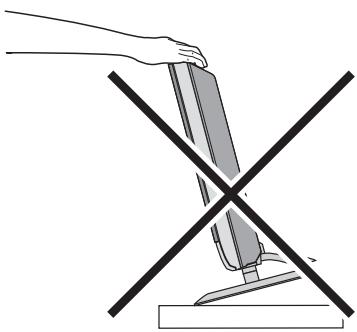
- The TV may fall causing injuries. Hold the bottom of the stand with your hand and tilt the TV up and down.
- Do not allow children to hang from the TV, place their elbows on the TV or lean against the TV. Doing so may cause the TV to fall over and lead to injuries.
natural_image
Diagram showing a hand holding a device with a cross symbol crossed, no text or labels presentCAUTION
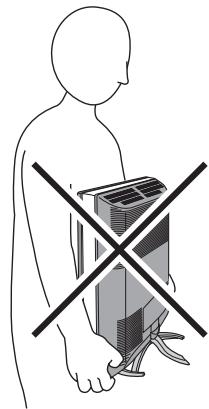
- The TV screen may be damaged if the TV is carried as shown in the diagram below.
The TV should always be carried by two people.
natural_image
Human silhouette with a crossed-out black-and-white box, symbolizing no crossing or prohibition (no text or symbols present)Pixel defects
LCDs use collections of fine points (“pixels”) to display images. While there is no problem with more than 99.99% of these pixels, please understand that a very small number of pixels may not light, or may light all the time.
Distance recommendations
Avoid improper installation and never position the unit where good ventilation is impossible.
When installing this TV, distance recommendations must be maintained between the set and the wall, as well as inside a tightly enclosed area or piece of furniture.
Keep to the minimum distance guidelines shown for safe operation.

text_image
150 mm 200 mm 150 mm 200 mm 50 mmFailure to take the following precautions may cause damage to the television or remote control.
DO NOT block the TV's ventilation openings or holes.
(If the ventilation openings or holes are blocked by a newspaper or cloth, etc., the heat may not be able to get out.)
DO NOT place anything on top of the TV.
(such as cosmetics or medicines, flower vases, potted plants, cups, etc.)
DO NOT allow objects or liquid into the cabinet openings.
(If water or liquid is allowed to enter this equipment, fire or electric shock may be caused.)
DO NOT place any naked flame sources, such as lighted candles, on the TV.
DO NOT subject the TV to direct sunlight.
The surface of the TV screen is easily damaged. Be very careful with it when handling the TV. Should the TV screen become soiled, wipe it with a soft dry cloth. Never rub it forcefully. Never use any cleaner or detergent on it.
If there is a fault, unplug the unit and call a service technician. Do not attempt to repair it yourself or remove the rear cover.
■ Cleaning the screen
The screen is coated with a special thin film to reduce reflection. If this film is damaged, uneven colors, discoloration, scratches, and other problems that cannot be repaired may occur. Pay attention to the following when handling the screen.
- Do not use glue or adhesive tape on the screen.
- Do not write on the screen.
- Do not allow the screen to come in contact with any hard objects.
- Do not allow condensation to form on the screen.
- Do not use alcohol, thinner, benzene or other solvents on the screen.
- Do not rub the screen hard.
CAUTION:
- Operate only from the power source specified (AC 110 – 240 V, 50/60 Hz) on the unit.
- Avoid damaging the AC plug and power cord.
- When you are not using this unit for a long period of time, it is recommended that you disconnect the power cord from the main outlet.
Setting up your TV 4
Installation....4
Using the stand 4
Removing the terminal cover 5
Connecting the aerial and video cassette recorder (VCR)....6
Connecting the power cord to the AC outlet....7
Putting the batteries into the remote control....7
Initial settings 7
T-V LINK functions.... 10
TV buttons and functions......12
Turn the TV on from standby mode ..... 12
Choose a TV channel 12
Watch images from external devices ..... 12
Adjust the volume 13
Using the Menu.... 13
Remote control buttons and functions....14
Turn the TV on or off from standby mode ... 14
Choose a TV channel and watch images from external devices 15
Adjust the volume 16
Information function 16
ZOOM function.... 17
3D SOUND function.... 18
Return to TV channel instantly.... 18
Favourite channel function.... 19
Operating a JVC brand VCR or DVD player.... 20
Teletext function ......21
Basic operation 21
Using the List Mode 21
Hold....22
Sub-page 22
Reveal....22
Size 22
Index 23
Cancel....23
Using the TV's menu....24
Basic operation 24
PICTURE menu 25
PICTURE MODE....25
BRIGHT-1 25
CONTRAST 25
BRIGHT-2 25
SHARP 25
COLOUR....25
HUE....25
COLOUR TEMP....25
FEATURES 26
SOUND menu 28
STEREO / I • II 28
BASS....28
TREBLE 28
BALANCE 28
3D SOUND....28
FEATURES menu....29
SLEEP TIMER 29
CHILD LOCK....29
APPEARANCE....30
BLUE BACK 30
FAVOURITE SETTING 31
SET UP menu 32
AUTO PROGRAM....32
EDIT/MANUAL 32
LANGUAGE 36
DECODER (EXT-2)....36
EXT SETTING....37
Additional preparation 40
Connecting external equipment 40
CH/CC numbers 44
Troubleshooting 46
Cable management....49
Specifications 50
Setting up your TV
- When you install the TV on the wall, only use a JVC wall mounting unit (optional) which is designed for this TV.
- Make sure that the TV is installed on the wall by a skilled installer.
Installation
Cautions for installation
• Install the TV in a corner on a wall or on the floor so as to keep cords out of the way.
- The TV will generate a slight amount of heat during operation. Ensure that sufficient space is available around the TV to allow satisfactory cooling. See “Distance recommendations” on page 1.
Using the stand
This TV comes with a table top stand already attached.
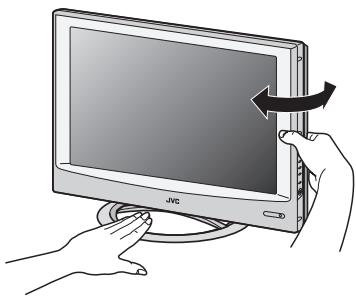
This stand can be used to adjust the direction of the TV screen to the left or right.
■ Rotate the TV to the left and right:
While holding the bottom of the stand with one hand, use your other hand to hold the edge of the panel and slowly adjust the direction of the TV screen.
natural_image
Illustration of hands interacting with a JVC monitor (no text or symbols visible)Removing the terminal cover
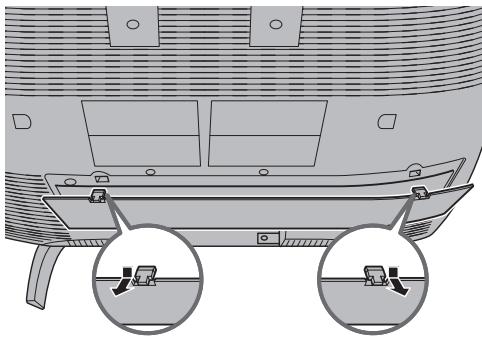
There are connection terminals behind the cover on the rear of the TV. Remove the cover before connecting an antenna or VCR.
Remove the cover by removing the hooks.
When replacing the cover, place the side of the cover against the TV and insert the hooks.
natural_image
Technical line drawing of a boat hull with two circular inset views showing side details (no text or symbols)- Leave the cover off if they do not fit properly. Do not force to replace the cover. Doing so may cause damage to the connection cables and the cover.
Connecting the aerial and video cassette recorder (VCR)
- The connecting cables are not provided.
- For further details, refer to the manuals provided with the devices to be connected.
Caution
- Turn off all the equipment including the TV before connecting anything.
■ If you are connecting a VCR, follow Ⓐ → Ⓑ → Ⓒ in the diagram opposite.
■ If you are not connecting a VCR, follow ①.
To use the T-V LINK functions, you must have a T-V LINK compatible VCR connected by a SCART cable © to the EXT-2 terminal on the TV. For details about T-V LINK functions, see “T-V LINK functions” on page 10.
- You can watch a video using the VCR without doing ©. For details, see your VCR instruction manual.
- To connect more equipment, please see “Connecting external equipment” on page 40.
- If you connect a decoder to a T-V LINK compatible VCR, set the DECODER (EXT-2) function to ON. For details, see “DECODER (EXT-2)” on page 36.
Otherwise, you will not be able to watch scrambled channels.

text_image
without terminal covers Aerial 75-ohm Coaxial Cable EXT-2 (15 C) EXT-1 21-pin SCART Cable VCR To Aerial Input AV IN/OUT Terminal To Aerial OutputConnecting the power cord to the AC outlet
Insert the AC plug on the power cord from the TV into an AC outlet.
Caution
- Operate only from the power source specified (AC 110 – 240 V, 50/60 Hz) on the unit.
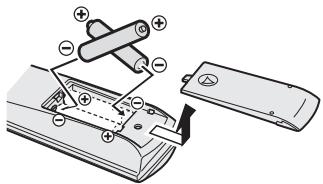
- Remove the AC plug from the outlet to completely disconnect the TV from the power supply.
Putting the batteries into the remote control
Use two AA/R6 dry cell batteries.
Insert the batteries from the end, making sure the and polarities are correct.
text_image
Diagram of a battery pack assembly with labeled components and polarity indicators- Follow the warnings printed on the batteries.
- Battery life is about six months to one year, depending on how much you use the remote control.
- The batteries we supply are only for setting up and testing your TV, please replace them as soon as you need to.
- If the remote control does not work properly, replace the batteries.
Initial settings
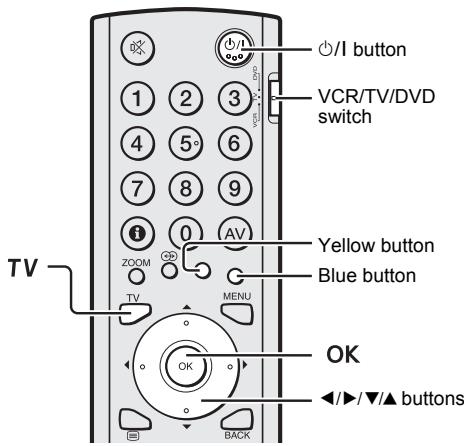
When the TV is first turned on, it goes into the initial settings mode, and you will see the JVC logo. Follow the instructions on the screen display to make the initial settings.
text_image
TV 1 2 3 4 5° 6 7 8 9 i 0 AV ZOOM TV MENU OK BACK I/I button VCR/TV/DVD switch Yellow button Blue button OK ◄/►/▼/▲ buttons1 Make sure to set the VCR/TV/DVD switch on the remote control to the TV position
- You cannot turn the TV on when the VCR/TV/DVD switch is set to the VCR or DVD position.
2 Press the ⏻/l button on the remote control
The TV turns on from standby mode and the JVC logo is displayed.
- Check that the AC plug on the power cord from the TV is connected to AC outlet.
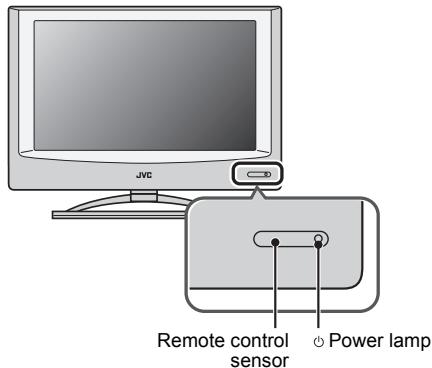
text_image
JVC Remote control sensor Power lamp- If the JVC logo does not appear this is because your TV has already been turned on for the first time: use the “LANGUAGE” and “AUTO PROGRAM” functions to make the initial settings. For details, see “SET UP menu” on page 32.
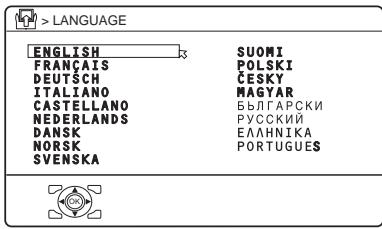
3 Press the OK button
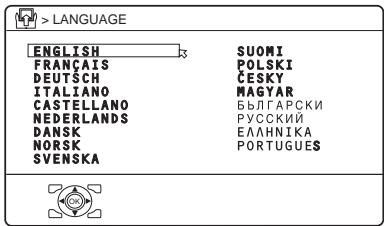
The LANGUAGE menu appears.
text_image
> LANGUAGE ENGLISH FRANÇAIS DEUTSCH ITALIANO CASTELLANO NEDERLANDS DANSK NORSK SVENSKA SUOMI POLSKI ČESKY MAGYAR БЫЛГАРСКИ РУССКИЙ ЕЛАННИКА PORTUGUESD0002(E)-EN
4 Press the ▼/▲ buttons to choose ENGLISH. Then press the OK button
The on-screen display will then be in English.
The COUNTRY menu appears as a sub-menu of the AUTO PROGRAM function.
There are two COUNTRY menus.
Pressing the yellow button changes the COUNTRY menu as follows:
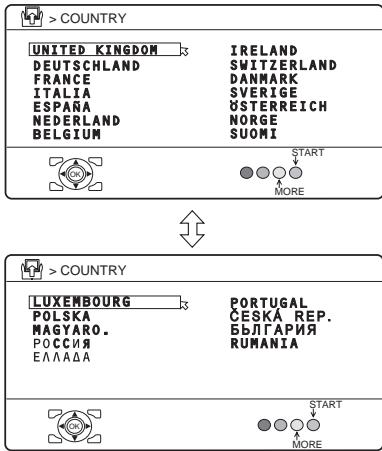
text_image
> COUNTRY UNITED KINGDOM DEUTSCHLAND FRANCE ITALIA ESPAÑA NEDERLAND BELGIUM IRELAND SWITZERLAND DANMARK SVERIGE ÜSTERREICH NORGE SUOMI START MORE > COUNTRY LUXEMBOURG POLSKA MAGYARO. РОССИЯ ЕЛАДАА PORTUGAL CESKÁ REP. БЪЛГАРИЯ RUMANIA START MORED0003-EN
5 Press the ◀/▶ and ▼/▲ buttons to choose the country where you are
6 Press the blue button to start the AUTO PROGRAM function
The AUTO PROGRAM menu appears and received TV channels are automatically stored in the programme numbers (PR).
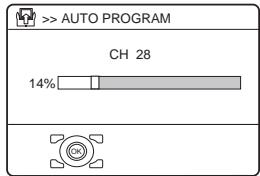
text_image
> AUTO PROGRAM CH 28 14%D0004-EN
- To cancel the AUTO PROGRAM function: Press the OK button.

After the TV channels have been registered in the programme numbers (PR), the EDIT menu appears
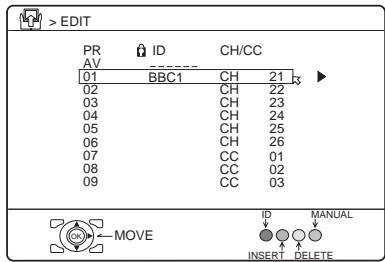
text_image
> EDIT PR ID CH/CC AV ---- 01 BBC1 CH 21 02 CH 22 03 CH 23 04 CH 24 05 CH 25 06 CH 26 07 CC 01 08 CC 02 09 CC 03 MOVE ID MANUAL INSERT DELETED0038-EN
- If you want to, you can now edit the programme numbers (PR) using the EDIT/MANUAL function. For details, see “EDIT/MANUAL” on page 32.
- If you do not want to edit programme numbers (PR), go to the next step.
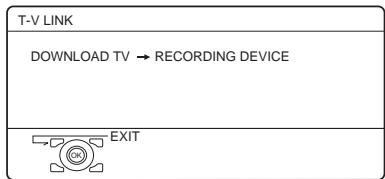
7 Press the OK button to display the T-V LINK menu
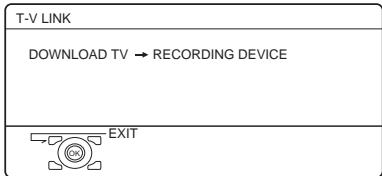
flowchart
graph TD
    A["T-V LINK"] --> B["DOWNLOAD TV → RECORDING DEVICE"]
    B --> C["EXIT"]
D0005-EN
If you do not have a T-V LINK compatible VCR connected:
Press the TV button to exit the T-V LINK menu.
The T-V LINK menu disappears.
If you have a T-V LINK compatible VCR connected to the EXT-2 terminal:
Follow the operating procedure “Downloading the data to VCR” on page 10 to transmit the Programme number (PR) data.
Now, the initial settings are complete, and you can watch the TV
- If your TV can detect the TV channel name from the TV channel broadcast signal, the TV channel name is assigned to the programme number (PR) to which the TV channel has been set. However, which TV channels are set to which programme numbers (PR) will depend on the area in which you live.
- If a TV channel you want to view is not set to a programme number (PR), you can set it using the MANUAL function. For details, see “EDIT/MANUAL” on page 32.
- The AUTO PROGRAM function does not set the programme number PR 0 (AV) for your video cassette recorder. You will need to set this using the MANUAL function.
■ Downloading the data to VCR
You can transmit to the latest Programme numbers (PR) data to a VCR with the T-V LINK function.
Caution
- This only works when a T-V LINK compatible VCR is connected to the EXT-2 terminal.
- This only works when the T-V LINK menu is being displayed.
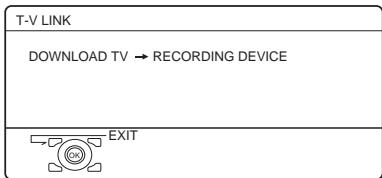
text_image
T-V LINK DOWNLOAD TV → RECORDING DEVICE EXITD0005-EN
1 Turn on the VCR
2 Press the OK button
The data transmission begins.
TV → RECORDING DEVICE
TRANSFER.....
D0037-EN
The T-V LINK menu disappears once the data transmission ends.
When the T-V LINK menu is changed over to another menu:
The TV has finished its menu. This new menu is operated from the VCR. See the VCR instruction manual for what to do next.
If "FEATURE NOT AVAILABLE" appears at the T-V LINK menu:
Check the following three items. Then press the ◀ button to retry data transmission.
- Has a T-V LINK compatible VCR been connected to the EXT-2 terminal?
- Has the VCR power been turned on?
- Does the SCART cable that is connected to the EXT-2 terminal to TV LINK compatible VCR have all its proper connections?
T-V LINK functions
When you have a T-V LINK compatible VCR connected to the EXT-2 Terminal on the TV, it is easier to set up the VCR and to view videos. T-V LINK uses the following features:
To use T-V LINK functions:
A “T-V LINK compatible VCR” means a JVC video cassette recorder with the T-V LINK logo, or with one of the following logos. However, these VCRs may support some or all of the features described earlier. For details, see your VCR instruction manual.
"Q-LINK" (a trademark of Panasonic Corporation)
"Data Logic" (a trademark of Metz Corporation)
"Easy Link" (a trademark of Phillips Corporation)
"Megalogic" (a trademark of Grundig Corporation)
"SMARTLINK" (a trademark of Sony Corporation).
■ Pre-set download
The VCR will automatically download the registered data on the TV channels from the TV. This means you do not need to set up the program channels on your VCR manually. The preset download function automatically begins when the initial setting is complete or whenever you carry out the AUTO PROGRAM or EDIT/MANUAL functions. You can also carry out this function using your VCR controls.
When "FEATURE NOT AVAILABLE" is displayed:
If “FEATURE NOT AVAILABLE” is displayed, the download was not performed correctly. Before trying to download again, check that:
• the VCR power is turned on
• the VCR is T-V LINK compatible
- the VCR is connected to the EXT-2 terminal
• the SCART cable is fully wired.
■ Direct Rec
“What You See Is What You Record” You can easily record to VCR the images that you are watching on the TV. For details, read the manual for your VCR. Use your VCR controls. “DEVICE IS RECORDING” is displayed.
In the following situations, the VCR will stop recording if the TV is turned off, if the TV channel or input is changed, or if the menu is displayed on the TV:
- when recording images from an external device connected to the TV (for example a camcorder)
- when recording a TV channel after it has been unscrambled on a decoder
- when recording a TV channel by using the TV's output because the VCR's own tuner cannot properly receive that channel.
You cannot carry out Direct Rec using your TV's control.
Generally, the VCR cannot record a TV channel that it cannot receive properly on its own tuner, even if you can view that TV channel on the TV. However, some VCRs can record a TV channel by using the TV's output if that channel can be viewed on the TV. For details, see your VCR instruction manual.
When the VCR is not ready, the following messages are displayed.
| ERRORMESSAGE | Cause and countermeasure |
| NO RECORDING | The VCR is not able to record.Check the VCR. |
| NO RECORDING POSSIBLE | The TV input is set to EXT-4 or PC. Since the EXT-4 picture or PC picture cannot be output to EXT-2, DIRECT REC is not possible. |
| NO RECORDING, MEDIA PROBLEM | The recording device is not ready to record. Check the VCR tape. |
| NO RECORDING, DEVICE BUSY | The recording device cannot record as it is recording or playing. Check the VCR. |
Refer to the VCR instruction manual.
text_image
JVC ① ②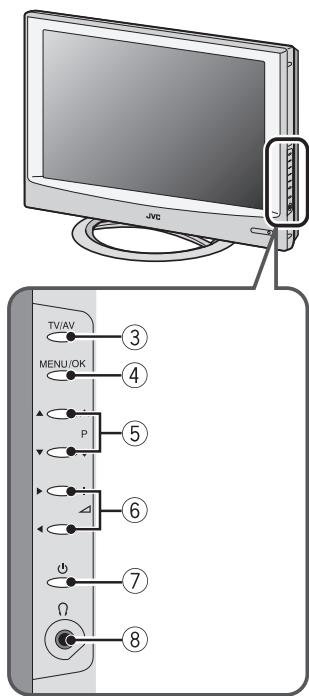
text_image
JVC TV/AV MENU/OK P 6 7 Ω 8Refer to the pages in parentheses for details.
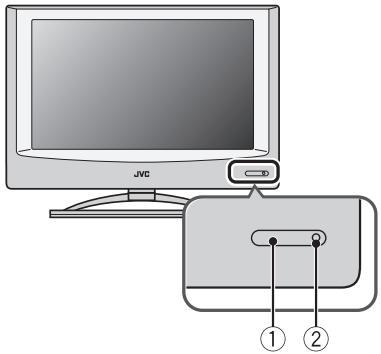
① Remote control sensor
② Power lamp (page 7)
③ TV/AV button (page 12)
④ MENU/OK button (pages 13, 24)
⑤ P ∨/∧ buttons (page 12)
⑥ ∠ (Volume) -/+ buttons (page 13)
⑦ ⏻ (Stand by) button (page 12)
⑧ Headphone jack (mini jack) (page 40)
Turn the TV on from standby mode
Press the ⏻ button or the P V/A buttons to turn the TV on from standby mode.
When the TV is turned on, the power lamp lights blue.
To turn the TV off:
Press the ⏻ button again.
The power lamp goes off.
Caution
- The ⏻ button on the TV does not fully isolate the TV from the AC supply. If you are not going to use the TV for a long period, be sure to disconnect the AC plug from the AC socket.
Choose a TV channel
Press the P ∨/∧ buttons to choose a programme number (PR) or an EXT terminal
Watch images from external devices
Press the TV/AV button to choose an EXT terminal
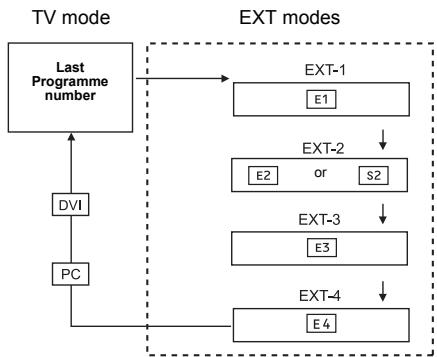
flowchart
graph TD
    A["TV mode"] --> B["Last Programme number"]
    B --> C["DVI"]
    B --> D["PC"]
    C --> E["EXT-1"]
    E --> F["E1"]
    F --> G["EXT-2"]
    G --> H["E2 or S2"]
    H --> I["EXT-3"]
    I --> J["E3"]
    J --> K["EXT-4"]
    K --> L["E4"]
    L --> M["..."]
    style A fill:#f9f,stroke:#333
    style M fill:#ccf,stroke:#333
Adjust the volume
Press the △ (Volume) -/+ buttons
The volume level indicator appears.
Using the Menu
Use the MENU/OK button
Refer to “Using the TV’s menu” (see
page 24) for details of using the menu.
Remote control buttons and functions
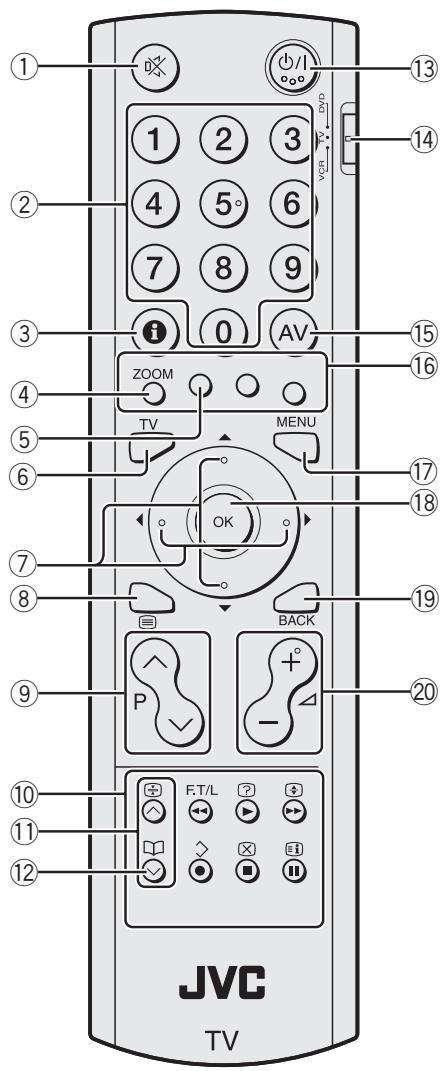
text_image
1 2 3 4 5° 6 7 8 9 10 11 12 JVC TV 1 2 3 4 5° 6 7 8 9 10 11 12 ZOOM TV MENU OK BACK F.T/L + - + - + - + - + - + - + - + - + - + - + - + - + - + - + - + - + - + - + - + - + - + - + - + - + - + - + - + - + - + - + - + - + - + - + - + - + - + - + - + - + - + - + - + - + - + - + - + - + - + - + -① Muting button
② Number buttons
③ Information button
④ ZOOM button
⑤ ➕ button
⑥ TV button
⑦ ◀/▶/▼/▲ buttons
⑧ ☐ (Text) button
⑨ P ∨ ∧ buttons
⑩ VCR/DVD/Teletext control buttons
⑪ V/A buttons
⑫ (Favourite) button
⑬ ⏻/I (Standby) button
⑭ VCR/TV/DVD switch
⑮ AV button
⑯ Colour buttons
⑰ MENU button
⑱ OK button
⑲ BACK button
⑳ (Volume) -/+ buttons
Turn the TV on or off from standby mode
Press the ⏻/l (standby) button to turn the TV on or off
When the TV is turned on, the power lamp lights blue.
- The power can be turned on by pressing the TV button, P ∨/∧ buttons or Number buttons.
To turn the TV on or off, set the VCR/TV/DVD switch on the remote control to the TV position and press the ⏻/I button.
If the VCR/TV/DVD switch on the remote control is set to a position other than TV, the TV will not be turned on or off even if the ⏻/I button is pressed.
Choose a TV channel and watch images from external devices
■ Use the number buttons: Enter the programme number (PR) of the channel using the number buttons.
Example:
- PR 6 → press 6
- PR 12 → press 1 and 2
■ Use the P ∨/∧ buttons: Press the P ∨/∧ buttons to choose the programme number (PR) you want or an EXT terminal.
■ Use the AV button: Press the AV button to choose an EXT terminal.
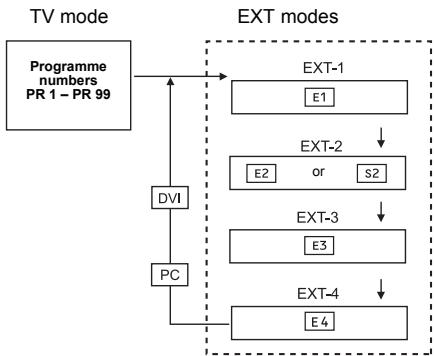
flowchart
graph TD
    A["Programme numbers PR 1 - PR 99"] --> B["DVI"]
    B --> C["PC"]
    C --> D["EXT-1"]
    D --> E["E1"]
    E --> F["EXT-2"]
    F --> G["E2 or S2"]
    G --> H["EXT-3"]
    H --> I["E3"]
    I --> J["EXT-4"]
    J --> K["E4"]
- You can choose a video input signal from the S-VIDEO signal (Y/C signal) and regular video signal (composite signal). For details, see “S-IN (S-VIDEO input)” on page 37.
- If you do not have a clear picture or no colour appears, change the colour system manually. See “COLOUR SYSTEM” on page 26.
-
If you choose an EXT terminal with no input signal, the EXT terminal number becomes fixed on the screen.
-
Since this TV is designed to make full use of the resolution of the original video source, the motion may appear unnatural when the video source is input with progressive-scanning component signals. If this happens, change the output setting of the connected device to interlace-scanning component signal output. See the instructions that came with the device for more information.
- The PC sound is the same as the EXT-3 sound.
To return to a TV channel:
Press the TV button, the ▼/▲ buttons or the number buttons.
To use the programme number PR 0 (AV):
When the TV and VCR are connected only by the aerial cable, choosing the programme number PR 0 (AV) allows you to view images from the VCR. Set the VCR RF channel to the programme number PR 0 (AV) manually. For details, see “EDIT/MANUAL” on page 32.
Pressing the AV button changes the choice as follows:
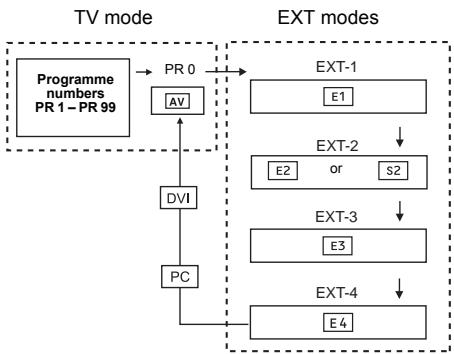
flowchart
graph TD
    A["Programme numbers PR 1–PR 99"] --> B["AV"]
    B --> C["DVI"]
    C --> D["PC"]
    D --> E["EXT-1"]
    E --> F["E1"]
    F --> G["EXT-2 or S2"]
    G --> H["EXT-3"]
    H --> I["E3"]
    I --> J["EXT-4"]
    J --> K["E4"]
    style A fill:#f9f,stroke:#333
    style K fill:#f9f,stroke:#333
- The VCR sends its playback image along the aerial cable as an RF (radio frequency) signal.
- Also see your VCR instruction manual.
Adjust the volume
Press the △ -/+ buttons to adjust the volume.
The volume level indicator appears and the volume changes as you press the ∠-/+ buttons.
■ Muting the sound Press the Ⓧ (muting) button to turn off the sound.
Pressing the ⚙ (muting) button again restores the previous volume level.
Information function
You can see the channel number of the programme you are watching, the current time or the PR LIST.
From the PR LIST, you can choose a channel or EXT terminal.
Press the ⓘ (Information) button to display the information you want to see.
Pressing the ⓘ (Information) button changes the display as follows:
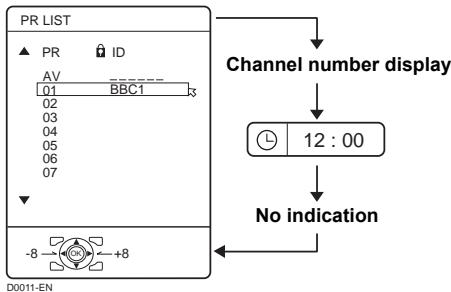
flowchart
graph TD
    A["PR LIST"] --> B{AV}
    B --> C["01 BBC1"]
    B --> D["02"]
    B --> E["03"]
    B --> F["04"]
    B --> G["05"]
    B --> H["06"]
    B --> I["07"]
    A --> J{-8 +8}
    J --> K["Channel number display"]
    K --> L["12:00"]
    L --> M["No indication"]
Channel number display:
The channel number and channel name (when the channel name is registered) of the programme you are watching or the EXT terminal number is displayed.
Time display:
The current time of the teletext data is displayed.
If the TV has not received a TV channel that has teletext programmes since it was turned on, the time display is blank. To view the current time, choose a TV channel that has teletext programmes.
- An incorrect current time is sometimes displayed when watching videos.
PR LIST:
The programme number (PR) and EXT terminal list is displayed.
Pressing the OK button after choosing the programme number (PR) or EXT terminal with the ◀/▶/▼/▲ buttons will display the chosen programme or EXT terminal.
- For programme numbers (PR) for which the CHILD LOCK function is set, the ⏻ (CHILD LOCK) mark is displayed. For details see “CHILD LOCK” on page 29.
- For programme numbers (PR) which is registered as a favourite channel, the (favourite) mark is displayed. For details see “Favourite channel function” on page 19.
ZOOM function
You can change the screen size according to the picture aspect ratio. Choose the optimum one from the following ZOOM modes.
- The ZOOM mode is fixed at FULL when you are using the TV as a PC screen.
AUTO:
When a WSS (Wide Screen Signalling) signal, which shows the aspect ratio of the picture, is included in the broadcast signal or the signal from an external device, the TV automatically changes the ZOOM mode to 16:9 ZOOM mode or FULL mode according to the WSS signal.
If a WSS signal is not included, the picture is displayed according to the ZOOM mode set with the 4:3 AUTO ASPECT function.
- For details of the 4:3 AUTO ASPECT function, see “4:3 AUTO ASPECT” on page 27.
- When the AUTO (WSS) mode does not function correctly due to poor WSS signal quality or when you want to change the ZOOM mode, press the ZOOM button and change to another ZOOM mode.
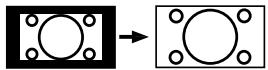
REGULAR:
Use to view a normal picture (4:3 aspect ratio) as this is its original shape.

PANORAMIC:
This stretches the left and right sides of a normal picture (4:3 aspect ratio) to fill the screen, without making the picture appear unnatural.

- The top and bottom of the picture are slightly cut off.
14:9 ZOOM:
This zooms up the wide picture (14:9 aspect ratio) to the upper and lower limits of the screen.

16:9 ZOOM:
This zooms up the wide picture (16:9 aspect ratio) to the full screen.
16:9 ZOOM SUBTITLE:
This zooms up the wide picture (16:9 aspect ratio) with subtitles to the full screen.

FULL:
This uniformly stretches the left and right sides of a normal picture (4:3 aspect ratio) to fill the wide TV screen.

- For 16:9 aspect ratio pictures that have been squeezed into a normal picture (4:3 aspect ratio), use the FULL mode to restore the picture to its original shape.
■ Choose the ZOOM mode
1 Press the ZOOM button to display the ZOOM menu
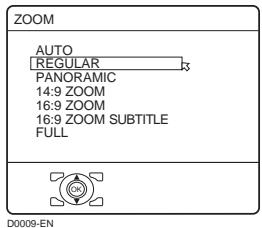
text_image
ZOOM AUTO REGULAR PANORAMIC 14:9 ZOOM 16:9 ZOOM 16:9 ZOOM SUBTITLE FULL D0009-EN2 Press the ▼/▲ buttons to choose a ZOOM mode. Then press the OK button
The picture expands and the chosen ZOOM mode is displayed in about 5 seconds.
- The ZOOM mode may be automatically changed by the control signal from an external device. When you want to return to the previous ZOOM mode, choose the ZOOM mode again.
■ Adjusting the visible area of the picture
If subtitles or the top (or bottom) of the picture are cut off, you can adjust the visible area of the picture manually.
1 Press the ZOOM button
The ZOOM menu appears.
2 Press the OK button to display the ZOOM mode indicator
The indicator appears.
| 16:9 ZOOM |
D0010-EN
3 While it is displayed, press the ▼/▲ buttons to change the position of the picture
- You cannot adjust the visible area in REGULAR or FULL mode.
The visible area adjustment is saved even after the TV channel is changed.
However, it is cancelled if the following operations are performed.
• The power is turned off/on
• The ZOOM mode is changed
- ☐ (Text) button is pressed
- The TV is switched between TV mode and EXT mode
3D SOUND function
You can enjoy sounds with a wider ambience.
- This function does not work for the sound from headphones.
Press the ⬆ button to select one of 3D SOUND modes
ON:
When you listen to stereo sound, please select ON mode.
You can enjoy sound similar to the experience at the theatre.
MONO:
Select the MONO mode, when you listen to the mono sound.
You can enjoy the sound for a wider audience similar to stereo sound.
OFF:
The 3D SOUND function switches off.
- You can choose the 3D SOUND mode with the “SOUND menu” (see page 28).
Return to TV channel instantly
You can return to a TV channel instantly.
Press the TV button
The TV returns to the TV mode and a TV channel appears.
Favourite channel function
You can register your favourite TV channels (PR 1 – PR 99) in the number buttons 1 to 4. After registering, the channel can be called by pressing the 📄 (favourite) button and a number button 1 to 4.
■ Favourite channel registration
1 In the normal screen, choose a TV channel (PR 1 – PR 99) that you want to register
For details, refer to “Choose a TV channel and watch images from external devices” on page 15.
2 Press and hold the 📄 (favourite) button for three seconds or more
Then “SET 1-4?” appears on the screen.
3 Press one of the number buttons 1 to 4
The current channel is registered in the pressed number button.
After “PROGRAMMED!” appears on the screen, the favourite channel icon appears at the top-right of the screen.
- If the channel you are trying to register is already registered in one of the other number buttons 1 to 4, “NOT AVAILABLE” appears on the screen.
- Channels locked with the CHILD LOCK function cannot be registered.
- If AUTO PROGRAM is performed, the registered favourite channels are reset.
- When you want to delete a favourite channel, delete the set channel and set contents with FAVOURITE SETTING (see page 31) in the FEATURES menu.
■ Calling the favourite channel
1 In the normal screen, press the (favourite) button
Then “FAVORITE1-4?” appears.
2 Press one of the number buttons 1 to 4
The called favourite channel appears on the screen.
- If a number button in which no channel is registered is pressed, “NO MEMORY” appears on the screen.
■ Setting the picture effect
When a favourite channel has been chosen with the ☐ (favourite) button and number buttons 1 to 4, picture effect settings can be memorised for each favourite channel by setting the picture effects in the PICTURE menu (see page 25).
The following items in the PICTURE menu (see page 25) are memorised.
PICTURE MODE
BRIGHT-1
CONTRAST
BRIGHT-2
SHARP
COLOUR
HUE
COLOUR TEMP.
DIGITAL VNR
COLOUR SYSTEM
The last setting made for each item is memorised.
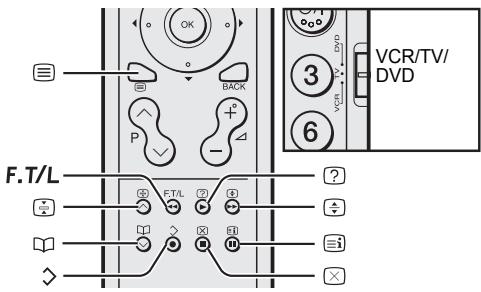
Operating a JVC brand VCR or DVD player
These buttons will operate a JVC brand VCR or DVD player. Pressing a button that looks the same as the device's original remote control button has the same effect as the original remote control.
1 Set the VCR/TV/DVD Switch to the VCR or DVD position
VCR:
When you are operating the VCR, set the switch to the VCR position.
- You can turn the VCR on or off with the ⏻/l (standby) button.
DVD:
When you are operating the DVD player, set the switch to the DVD position.
- You can turn the DVD player on or off with the ⏻/l (standby) button.
- You can also press the MENU or TOP MENU button and display the DVD disc menu screen, and then operate by pressing the ◀/▶/▼/▲ buttons.
2 Press the VCR/DVD Control Button to control your VCR or DVD player
- If your device is not made by JVC, these buttons will not work.
- Even if your device is made by JVC, some of these buttons may not work, depending on the device you are using.
- You can use the / buttons to choose a TV channel the VCR will receive, or choose the chapter the DVD player plays back.
- Some models of DVD player use the V/∧ buttons for both operating the fast forward/backward functions and for choosing the chapter. In this case, the ◀◀/▶▶ buttons do not work.
You cannot turn the TV on or off when the VCR/TV/DVD switch is set to the VCR or DVD position.
When you turn the TV on or off, set the VCR/TV/DVD switch to the TV position.
text_image
VCR/TV/ DVD 3 6 F.T/L F.T/L ? + - × × × × OK BACK P - ?Basic operation
1 Choose a TV channel with a teletext broadcast
2 Set the VCR/TV/DVD switch to the TV position
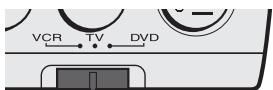
text_image
VCR TV DVD3 Press ☐ (Text) button to display the teletext
Pressing ☐ (Text) button changes the mode as follows:
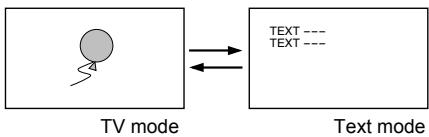
flowchart
graph LR
    A["TV mode"] --> B["Text mode"]
    style A fill:#f9f,stroke:#333
    style B fill:#ccf,stroke:#333
4 Choose a teletext page by pressing the P ∨/∧ buttons, number buttons or colour buttons
To return to the TV mode:
Press the TV button or ☐ (Text) button.
- If you have trouble receiving teletext broadcasts, consult your local dealer or the teletext station.
- The ZOOM function will not work in the TV and text mode or Text mode.
- You cannot operate menus when viewing a teletext programme.
- Language display depends on the country which was set on the COUNTRY menu. If characters on a Teletext programme do not appear properly, change the COUNTRY setting to other country's. To change the COUNTRY setting, perform steps 1 and 2 of the “AUTO PROGRAM” procedure on page 32 and then press the OK button.
Using the List Mode
You can store the numbers of your favourite teletext pages in memory and call them up quickly using the colour buttons.
■ To store the page numbers:
1 Press F.T/L button to go into the List mode
The page numbers you have stored are displayed at the bottom of the screen.
2 Press a colour button to choose a position. Then press the number buttons to enter the page number
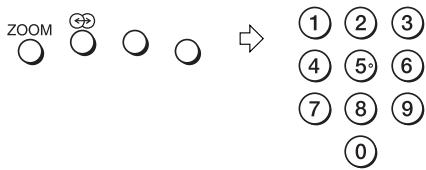
text_image
ZOOM ① ② ③ ④ ⑤ ⑥ ⑦ ⑧ ⑨ ⑩3 Press and hold down the ◇ (Store) button
The four page numbers blink white to show that they are stored in memory.
■ To call up a stored page:
1 Press the F.T/L button to enter the List mode
2 Press a colour button having a stored page

To exit the List mode:
Press the F.T/L button again.
Hold
You can hold a teletext page on the screen for as long as you want, even while several other teletext pages are being received.
Press the ☑ (Hold) button
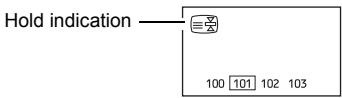
text_image
Hold indication 100 101 102 103To cancel the Hold function:
Press ☑ (Hold) button again.
Sub-page
Some teletext pages include sub-pages that are automatically displayed.
You can hold any sub-page, or view it at any time.
1 Press the 📄 (Favourite) button to operate the Sub-page function
2 Press the Number buttons to enter a sub-page number
Example:
- 3rd sub-page → press 0, 0, 0 and 3.
To cancel the Sub-page function:
Press the ☐ (Favourite) button again.
Reveal
Some teletext pages include hidden text (such as answers to a quiz).
You can display the hidden text.
Each time you press the ☐ (Reveal) button, text is hidden or revealed
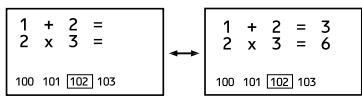
text_image
1 + 2 = 2 x 3 = 100 101 [102] 103 ↔ 1 + 2 = 3 2 x 3 = 6 100 101 [102] 103Size
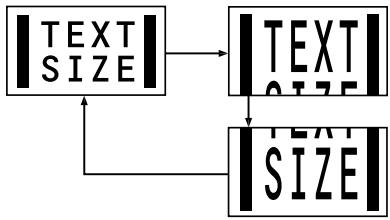
You can double the height of the teletext display.
Press the ⏻ (Size) button
flowchart
graph TD
    A["| TEXT SIZE|"] --> B["| TEXT SIZE|"]
    B --> C["| TEXT SIZE|"]
    C --> A
Index
You can return to the index page instantly.
Press the ☐ (Index) button
Returns to page 100 or a previously specified page.
Cancel
You can search for a teletext page while watching TV.
1 Press the number button to enter a page number, or press a colour button
The TV searches for a teletext page.
2 Press ☒ (Cancel) button
The TV programme appears. When the TV finds the teletext page, its page number appears in the upper left of the screen.
3 Press ☒ (Cancel) button to return to a teletext page when the page number is on the screen
- The TV mode cannot be resumed by pressing the ☒ (Cancel) button. To return to the TV mode press TV.
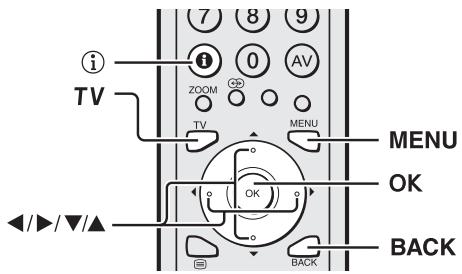
This TV has a number of functions you can operate using menus. To use all your TV's functions, you need to understand the basic menu operating techniques fully.
Buttons used to operate the menus
text_image
i TV 7 8 9 i 0 AV ZOOM TV MENU OK OK BACKBasic operation
1 Press the MENU button to display the menu bar

D0105-EN
2 Press the ◀/▶ buttons to choose the menu you want to use and then press the OK button

flowchart
graph LR
    A["Initial Setup"] --> B["Device Icon"]
    B --> C["Camera Icon"]
    C --> D["Camera Icon"]
    D --> E["PICTURE"]
D1105-EN
Chosen menu


Chosen menu name
3 Press the ▼/▲ buttons to choose the item to be set, press the ◀/▶ buttons to set the item, and then press the OK button
If there are sub-menus, use the ◀/▶/▼/▲ buttons to operate them.
- Press the BACK button to return to the previous menu.
- Press the TV or MENU button to exit from the menu.
- Some menu items may not be operated or set depending on the TV status or other menu item settings.
Menu items that cannot be operated or set are displayed in grey in the menu and cannot be chosen.
Types of menu

D0106
PICTURE menu
Choose to set the screen settings.

D0107
SOUND menu
Choose to set the sound settings.

D0108
FEATURES menu
Choose to set the sleep timer and child lock settings.

D0109
SET UP menu
Choose to edit the channels or set the display language settings.
- The menu will disappear after about one minute if no operation is performed.
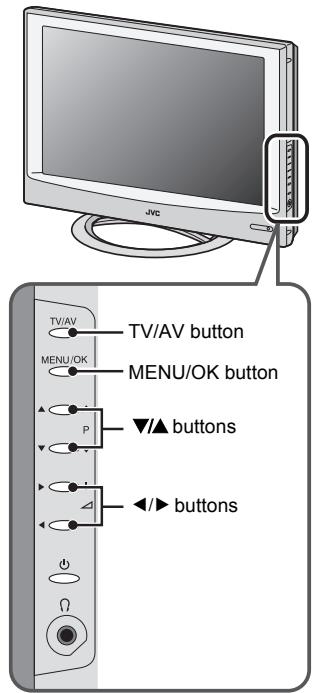
Operation with the buttons on the TV You can also operate the menus using the buttons on the front panel of the TV.
text_image
JVC TV/AV MENU/OK P ▼/▲ buttons ◄/► buttons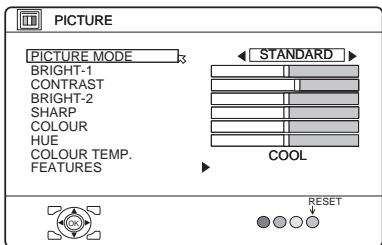
text_image
PICTURE PICTURE MODE BRIGHT-1 CONTRAST BRIGHT-2 SHARP COLOUR HUE COLOUR TEMP. FEATURES STANDARD COOL RESETD0014-EN
- While the PICTURE menu is displayed, pressing the blue button will set the BRIGHT-1, CONTRAST, BRIGHT-2, SHARP, COLOUR, HUE settings to their default settings.
- When watching the picture from EXT-1 to EXT-4 or the PC, picture effect settings can be memorised for each external input by setting the picture effects in the PICTURE menu.
The following items in the PICTURE menu are memorised.
PICTURE MODE
BRIGHT-1
CONTRAST
BRIGHT-2
SHARP
COLOUR
HUE
COLOUR TEMP.
DIGITAL VNR
COLOUR SYSTEM
The last setting made for each item is memorised.
PICTURE MODE
You can choose one of three PICTURE MODEs to adjust the picture settings automatically.
BRIGHT:
Heightens contrast and sharpness.
STANDARD:
Standardizes picture adjustment.
SOFT:
Softens contrast and sharpness.
BRIGHT-1
You can adjust the back light.
◀ : darker
▶: brighter
CONTRAST
You can adjust the picture contrast.
◀: lower
▶: higher
BRIGHT-2
You can adjust the picture brightness.
◀ : darker
▶: brighter
SHARP
You can adjust the picture sharpness.
◀: softer
▶ : sharper
COLOUR
You can adjust the picture colour.
◀ : lighter
▶ : deeper
HUE
You can adjust the picture tint.
◀ : reddish
▶: greenish
- You can change the HUE setting (picture hue) when the colour system is NTSC 3.58, or NTSC 4.43.
COLOUR TEMP.
You can select one of three COLOUR TEMP. modes (three tones of white) to adjust the white balance of the picture. Since white is the colour which is used as a reference for all the other colours, changing the COLOUR TEMP. mode affects the appearance of all the other colours on the screen.
COOL:
A bluish white. Using this mode when watching bright pictures allows you to enjoy a more vivid and bright picture.
NORMAL:
The normal white colour.
WARM:
A reddish white. Using this mode when watching films allows you to enjoy colours that are characteristic of films.
FEATURES
Choose FEATURES and press the OK or ▶ button to display the sub-menu.
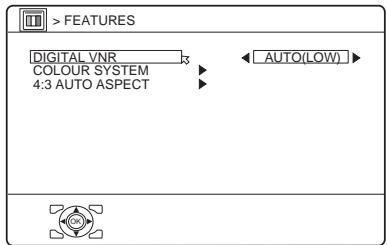
text_image
> FEATURES DIGITAL VNR COLOUR SYSTEM 4:3 AUTO ASPECT AUTO(LOW)D1015-EN
■ DIGITAL VNR
The DIGITAL VNR function cuts down the amount of ‘noise’ (‘snow’ or interference) in the original picture.
ON:
This function is turned on.
OFF:
This function is turned off.
■ COLOUR SYSTEM
The colour system is chosen automatically. However, if the picture is not clear or no colour appears, choose the colour system manually.
1 Choose COLOUR SYSTEM. Then press the OK or ▶ button
The sub-menu of the COLOUR SYSTEM function appears.
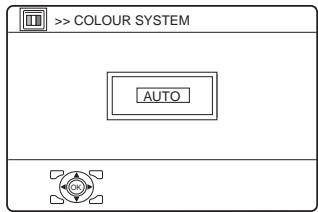
text_image
> COLOUR SYSTEM AUTOD0016-EN
2 Press the ▼/▲ buttons to choose the appropriate colour system. Then press the OK button
PAL:
PAL system
SECAM:
SECAM system
NTSC 3.58:
NTSC 3.58 MHz system
NTSC 4.43:
NTSC 4.43 MHz system
AUTO:
This function detects a colour system from the input signal. You can only use this when you are viewing a picture from programme number PR 0 (AV), or an EXT terminal.
- The AUTO function may not function properly if you have poor signal quality. If the picture is abnormal in the AUTO function, choose another colour system manually.
- When in the Programme numbers PR 0 (AV) to PR 99, you cannot choose NTSC 3.58 or NTSC 4.43.
• COLOUR SYSTEM cannot be chosen when you are watching the PC picture.
■ 4:3 AUTO ASPECT
You can choose one of three ZOOM modes, REGULAR, PANORAMIC or 14:9 ZOOM, as the ZOOM mode for the normal picture (4:3 aspect ratio).
1 Choose 4:3 AUTO ASPECT then press the OK button
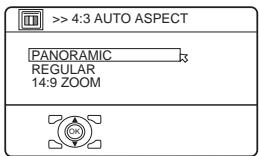
text_image
> 4:3 AUTO ASPECT PANORAMIC REGULAR 14:9 ZOOMD0017-EN
2 Press the ▼/▲ buttons to choose a ZOOM mode
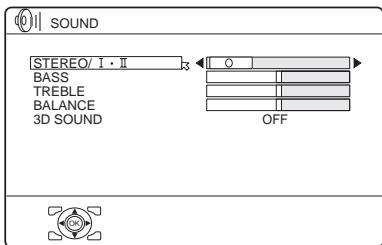
text_image
SOUND STEREO/ I · II BASS TREBLE BALANCE 3D SOUND OFFD0019-EN
- When the headphones are connected, only “STEREO / I • II” can be used.
STEREO / I • II
When you are viewing a bilingual broadcast programme, you can choose the sound from Bilingual I (Sub I) or Bilingual II (Sub II). If you have poor reception on a stereo broadcast, you can change from stereo to mono sound so that you can hear the broadcast more clearly and easily.
∞: Stereo sound
O : mono sound
I : Bilingual I (sub I)
Ⅱ : Bilingual II (sub II)
- The sound mode you can choose differs depending on the TV programme.
- This function does not work in the EXT modes.
BASS
You can adjust the low tone of the sound.
◀: weaker
▶ : strong
TREBLE
You can adjust the high tone of the sound.
◀: weaker
▶ : strong
BALANCE
You can adjust the volume balance between the left and right speaker.
◀: turn the left speaker's volume level up.
▶: turn the right speaker's volume level up.
3D SOUND
You can enjoy Surround sound with a “live” effect by using the 3D SOUND function.
- You can choose a 3D SOUND mode from ON, MONO and OFF modes. For details, see “3D SOUND function” on page 18.
- You can also operate the 3D SOUND function with the ⏻ button. For details, see “3D SOUND function” on page 18.
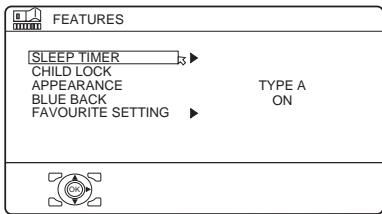
text_image
FEATURES SLEEP TIMER CHILD LOCK APPEARANCE BLUE BACK FAVOURITE SETTING TYPE A OND0023-EN
SLEEP TIMER
You can set the TV to automatically turn off after a set period of time.
1 Choose SLEEP TIMER. Then press the OK or ▶ button
A Sub-menu of the SLEEP TIMER function appears.
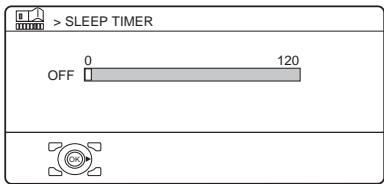
text_image
>SLEEP TIMER OFF 0 120D0024-EN
2 Press the ◀/▶ buttons to set the period of time.
Then press the OK button
You can set the period of time for up to 120 minutes (2 hours) in 10 minute steps.
- One minute before the SLEEP TIMER function turns off the TV, "GOODNIGHT!" appears.
- The SLEEP TIMER function cannot be used to turn off the TV's main power.
- When the SLEEP TIMER function is on, you can display the sub-menu of the SLEEP TIMER function again to confirm or change the remaining period of time of the SLEEP TIMER function. Press the OK button to leave the menu after confirming or changing the remaining time.
To cancel the SLEEP TIMER function:
Press the ◀ button to set the period of time to “OFF”.
CHILD LOCK
When there is a TV channel you do not want your children to watch, you can use the CHILD LOCK function to lock out the TV channel. Even when a child chooses a programme number (PR) for a locked TV channel the screen will change to blue and display Ⓞ (CHILD LOCK) so the TV channel cannot be viewed. Unless you enter a pre-set ID number by a special operation, the lock cannot be released and the child cannot view the TV channel.
■ To set the CHILD LOCK function
1 Choose CHILD LOCK, then press the 0 button
“SET ID NO.” (ID number setting screen) appears.
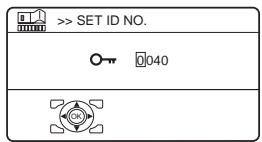
text_image
> SET ID NO. 040D0025-EN
2 Set the ID number to your liking
1 Press the ▼/▲ buttons to choose a number.
2 Press the ◀/▶ buttons to move the cursor.
3 Press the OK button
The Sub-menu of CHILD LOCK appears.
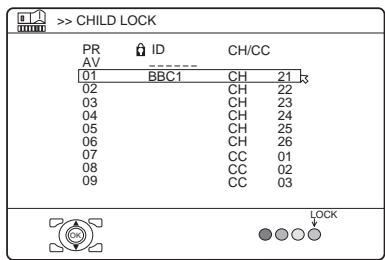
text_image
> CHILD LOCK PR ID CH/CC AV 01 BBC1 CH 21 02 CH 22 03 CH 23 04 CH 24 05 CH 25 06 CH 26 07 CC 01 08 CC 02 09 CC 03 LOCKD0026-EN
4 Press the ▼/▲ buttons to choose a TV channel
Every time you press the ▼/▲ buttons, the Programme number (PR) changes, and the picture of the TV channel registered in the Programme number (PR) is displayed on the screen.
5 Press the blue button and set the CHILD LOCK function.
Then press the OK button
☐ (CHILD LOCK) appears and the TV channel is locked.
To reset the CHILD LOCK function:
Press the blue button again.
(CHILD LOCK) disappears.
To disable easy resetting of the CHILD LOCK function, the menu disappears if you choose the CHILD LOCK function and press the OK button.
■ To view a locked TV channel
1 Choose a programme number (PR) of a locked TV channel with the number buttons or PR LIST
The screen changes to blue and the ⏻ (CHILD LOCK) appears. You cannot view the TV channel.
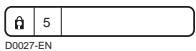
2 Press the ⓘ (Information) button to display "ID NO." (ID No. input screen)
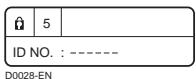
3 Press the number buttons to enter the ID number
The lock is temporarily released so you can view the TV channel.
If you have forgotten the ID number:
Perform step 1 of “To set the CHILD LOCK function”. After confirming the ID number, press the TV button to exit the menu.
- Even if you reset the lock temporarily, it does not mean that the CHILD LOCK function set for the TV channel is cancelled. The next time anyone tries to view the TV channel, it will be locked again.
- When you want to cancel the CHILD LOCK function, you must perform the operation “To set the CHILD LOCK function” again.
- To stop it being easy to choose the programme number (PR) of a locked TV channel, the programme number (PR) has been set so that it cannot be chosen with the ▼/▲ buttons or the buttons of the TV.
- To stop it being easy to reset the lock, "ID NO." (ID No. input screen) is set so that it cannot appear unless you press the ① (Information) button.
APPEARANCE
Press the ◀/▶ button and choose the format in which the channel number is displayed from two types: TYPE A and TYPE B.
BLUE BACK
You can set the TV to automatically change to a blue screen and mute the sound if the signal is weak or absent, or when there is no input from an external device.
ON:
This function is turned on.
OFF:
This function is turned off.
FAVOURITE SETTING
Chose when deleting the favourite channels registered in the buttons 1 to 4.
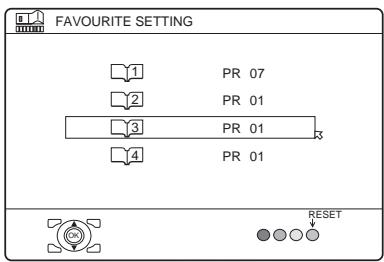
1 Choose FAVOURITE SETTING, then press the OK or ▶ button
The FAVOURITE SETTING menu appears.
text_image
FAVOURITE SETTING 1 PR 07 2 PR 01 3 PR 01 4 PR 01 RESETD0112-EN
2 Press the ▼/▲ buttons and chose the favourite channel that you want to delete
3 Press the blue button
The chosen favourite channel and set contents are deleted.
- For details of the favourite channels, see “Favourite channel function” on page 19.
text_image
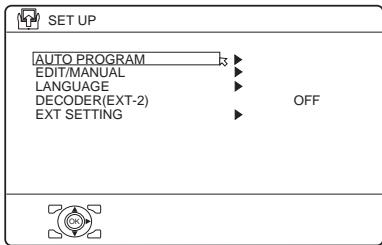
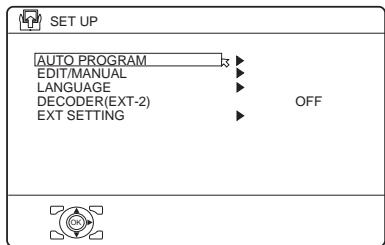
SET UP AUTO PROGRAM ► EDIT/MANUAL ► LANGUAGE ► DECODER(EXT-2) OFF EXT SETTING ►D0029-EN
AUTO PROGRAM
You can again perform the AUTO PROGRAM function TV channel automatic registration which was performed in the “Initial settings” (page 7).
1 Choose AUTO PROGRAM, then press the OK or ▶ button
The COUNTRY menu appears as a sub-menu of the AUTO PROGRAM function. There are two COUNTRY menus. Pressing the yellow button changes the COUNTRY menu as follows:
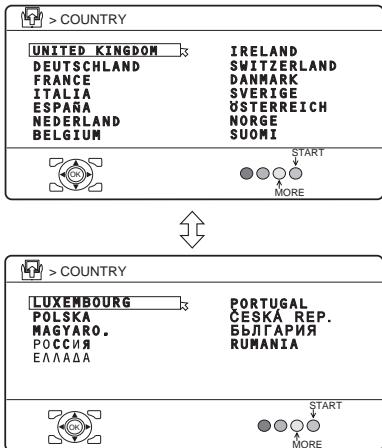
text_image
> COUNTRY UNITED KINGDOM DEUTSCHLAND FRANCE ITALIA ESPAÑA NEDERLAND BELGIUM IRELAND SWITZERLAND DANMARK SVERIGE ÜSTERREICH NORGE SUOMI START MORE > COUNTRY LUXEMBOURG POLSKA MAGYARO. РОССИЯ ЕЛЛАДА PORTUGAL ČESKÁ REP. БЪЛГАРИЯ RUMANIA START MORED0003-EN
2 Press the ◀/▶ and ▼/▲ buttons to choose the country where you are
3 Perform steps 5 and 6 of the "Initial settings" (page 8)
EDIT/MANUAL
The EDIT/MANUAL functions are divided into two types:
• editing the current programme numbers (PR) (EDIT functions); and
- manually storing a TV channel you want to view on a particular programme number (PR) (MANUAL function).
Here are the details about these functions:
MOVE:
This function changes the programme number (PR) of a TV channel.
ID:
This function registers a channel name (ID) to a TV channel.
INSERT:
This function adds a new TV channel in the current programme numbers (PR) list by using the CH/CC number.
- You cannot use the INSERT function if you do not know the channel number of a TV channel. Use the MANUAL function to register a TV channel in the programme number (PR).
DELETE:
This function deletes a TV channel you do not want to list.
MANUAL:
This function manually stores a new TV channel in a programme number (PR).
Caution
- Using the MOVE, DELETE or INSERT functions rewrites the current programme numbers (PR) list. Therefore, the programme numbers (PR) of some of the TV channels will change.
-
Using the MANUAL function for a TV channel for which the CHILD LOCK function has been set cancels the CHILD LOCK function for that channel.
-
Using the MANUAL function for a TV channel for which the DECODER (EXT-2) function has been set to ON returns the setting of the DECODER (EXT-2) function for that channel to OFF.
- When a TV channel has already been registered in PR 99, using the INSERT function deletes that TV channel.
■ Basic operation
1 Choose EDIT/MANUAL, then press the OK or ▶ button
The EDIT menu appears.
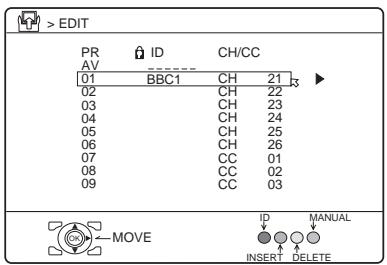
text_image
> EDIT PR ID CH/CC AV ---- 01 BBC1 CH 21 02 CH 22 03 CH 23 04 CH 24 05 CH 25 06 CH 26 07 CC 01 08 CC 02 09 CC 03 MOVE ID MANUAL INSERT DELETED0038-EN
2 Follow the description for the function you want to use
3 Press the OK button to complete the settings
The T-V LINK menu appears.
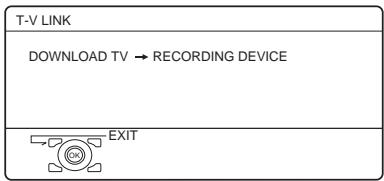
flowchart
graph TD
    A["T-V LINK"] --> B["DOWNLOAD TV → RECORDING DEVICE"]
    B --> C["EXIT"]
D0005-EN
If you do not have a T-V LINK compatible VCR connected:
Press the TV button to exit the T-V LINK menu.
The T-V LINK menu disappears.
If you have a T-V LINK compatible VCR connected to the EXT-2 terminal:
Follow “Downloading the data to VCR” on page 10 to transmit the programme number (PR) data.
- For programme number PR 0, “AV” appears in the programme numbers (PR) list.
- An EXT terminal number does not appear in the programme numbers (PR) list.
■ MOVE
1 Press the ▼/▲ buttons to choose a TV channel
2 Press the ▶ button to start the MOVE function
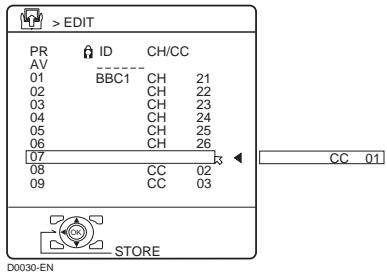
text_image
> EDIT PR ID CH/CC AV 01 BBC1 CH 21 02 CH 22 03 CH 23 04 CH 24 05 CH 25 06 CH 26 07 CC 02 08 CC 03 9 STORE D0030-EN3 Press the ▼/▲ buttons to choose a new programme number (PR)
To cancel the MOVE function: Press the BACK button.
4 Press the ◀ button to change the programme number (PR) of a TV channel to a new programme number (PR)
■ DELETE
1 Press the ▼/▲ buttons to choose a TV channel
2 Press the yellow button to delete the TV channel
The TV channel is deleted from the programme numbers (PR) list.
ID
1 Press the ▼/▲ buttons to choose a TV channel
2 Press the red button to start the ID function
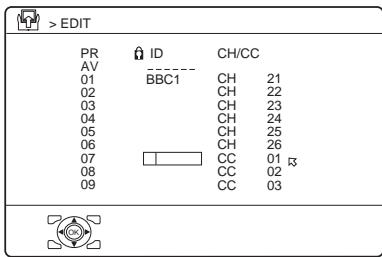
text_image
> EDIT PR ID CH/CC AV ---- 01 BBC1 CH 21 02 CH 22 03 CH 23 04 CH 24 05 CH 25 06 CH 26 07 CC 01 13 08 CC 02 09 CC 03D0031-EN
3 Press the ▼/▲ buttons to choose a character
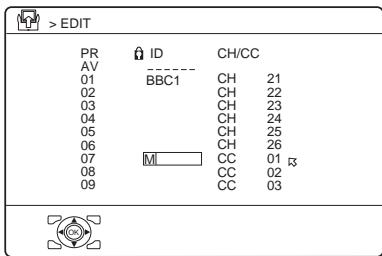
text_image
> EDIT PR ID CH/CC AV ---- 01 BBC1 CH 21 02 CH 22 03 CH 23 04 CH 24 05 CH 25 06 CH 26 07 M CC 01 r3 08 CC 02 09 CC 03D0032-EN
4 Press the ◀/▶ buttons to move the cursor
5 Repeat steps 3 and 4 to complete the channel name
6 Press the OK button to give a channel name (ID) to a TV channel
Before performing INSERT or MANUAL operation
- If you register the TV channel (SECAM-L system) from a French station, be sure to set the COUNTRY setting to FRANCE. If the COUNTRY setting is not set to FRANCE, perform steps 1 and 2 of the “AUTO PROGRAM” (page 32) procedure and set the COUNTRY setting to FRANCE before pressing the OK button.
- A CH/CC number unique to this TV and corresponding to the Channel number of a TV channel is required. Find the corresponding CH/CC number from a table “CH/CC numbers” on page 44 based on the Channel number of the TV channel.
- When the COUNTRY setting is not FRANCE, use a two-digit CH/CC number. When the COUNTRY setting is FRANCE, use a three-digit CH/CC number.
INSERT
1 Press the ▼/▲ buttons to choose a programme number (PR) for which you will register a new TV channel
2 Press the green button and start the INSERT function
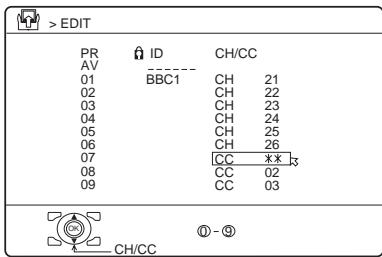
text_image
> EDIT PR ID CH/CC AV ---- 01 BBC1 CH 21 02 CH 22 03 CH 23 04 CH 24 05 CH 25 06 CH 26 07 CC **_ 08 CC 02 09 CC 03 CH/CC ① - ⑤D0034-EN
To cancel the INSERT function: Press the BACK button.
3 Press the ▼/▲ buttons to choose "CH" or "CC", then enter the remaining CH or CC number
When the COUNTRY setting is FRANCE:
Choose “CH1”, “CH2”, “CC1” or “CC2”.
The TV shifts to registration mode. When the registration is completed, the picture of the TV channel appears on the screen.
- The CH/CC number is a number given to each broadcast frequency that carries a TV channel. If the TV cannot detect the TV channel corresponding to the broadcast frequency indicated by the CH/CC number, a “no-signal” picture appears.
■ MANUAL
1 Press the ▼/▲ buttons to choose a programme number (PR) for a new TV channel
2 Press the blue button to activate the MANUAL function
At the right side following the CH/CC number, the SYSTEM (broadcasting system) of the TV channel appears.
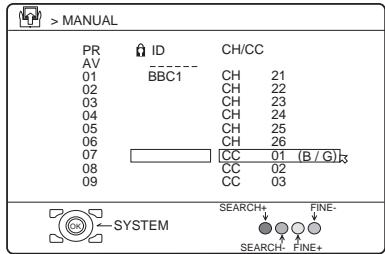
text_image
> MANUAL PR ID CH/CC AV ---- 01 BBC1 CH 21 02 CH 22 03 CH 23 04 CH 24 05 CH 25 06 CH 26 07 CC 01 (B / G) 08 CC 02 09 CC 03 SYSTEM SEARCH+ FINE- SEARCH-FINE+D0035-EN
To cancel the MANUAL function: Press the BACK button.
3 Press the ▶ button to choose the SYSTEM (broadcasting system) for a TV channel you want to register
TV channel (SECAM-L system) from a French station:
Set the SYSTEM to “L”. If it is set to one other than “L”, you cannot receive the TV channel of the SECAM-L system.
Other TV channels:
If you do not know the correct broadcasting system, set the SYSTEM to “B/G”. If “B/G” is not correct, you will not hear the sound normally when the TV detects a TV channel. In this case, retry to set the SYSTEM correctly so that no problem arises.
4 Press the green or red button to search for a TV channel
Scanning stops when the TV finds a TV channel. Then the TV channel is displayed.
5 Press the green or red button repeatedly until the TV channel you want appears
If the TV channel reception is poor:
Press the blue or yellow button to fine-tune the TV channel.
6 Press the OK button and register the TV channel to a Programme number (PR)
The normal EDIT menu is resumed.
LANGUAGE
The LANGUAGE setting which was performed in the “Initial settings” (page 7) can be changed.
1 Choose LANGUAGE, then press the OK or ▶ button
A sub-menu of the LANGUAGE function appears.
text_image
> LANGUAGE ENGLISH SUOMI FRANÇAIS POLSKI DEUTSCH ČESKY ITALIANO MAGYAR CASTELLANO БЫЛГАРСКИ NEDERLANDS РУССКИЙ DANSK ЕЛАННИКА NORSK PORTUGUES SVENSKAD0002-EN
2 Press the ◀/▶ and ▼/▲ buttons to choose a language. Then press the OK button
DECODER (EXT-2)
If you have a decoder connected to a T-V LINK compatible VCR, which in turn is connected to the EXT-2 terminal, use the DECODER (EXT-2) function to unscramble the scrambled TV channels.
1 Turn on the decoder power
2 Display the scrambled TV channel on the TV
Even if the decoder is working, a scrambled picture appears.
3 Display the SET UP menu and choose DECODER (EXT-2)
text_image
SET UP AUTO PROGRAM EDIT/MANUAL LANGUAGE DECODER(EXT-2) EXT SETTING OFFD0029-EN
4 Press the ◀/▶ buttons to choose ON
An unscrambled picture appears.
To cancel the DECODER (EXT-2) function:
Press the ◀/▶ buttons to choose OFF.
5 Press the OK button to complete the setting
The T-V LINK menu appears.
flowchart
graph TD
    A["T-V LINK"] --> B["DOWNLOAD TV → RECORDING DEVICE"]
    B --> C["EXIT"]
D0005-EN
You can send the programme numbers data to a VCR with the T-V LINK function.
6 Turn on the VCR, and then press the OK button to transmit the data to VCR
The T-V LINK menu disappears once the data transmission ends.
If the DECODER (EXT-2) function has been set to “ON” but the TV channel cannot be unscrambled, check the following:
- Has the decoder been connected to the VCR properly according to the VCR and decoder instruction manuals?
- Has the decoder power been turned on?
- Can the TV channel be unscrambled with a decoder?
- Do you need to change the VCR settings in order to connect the decoder? Confirm that the VCR is set properly by rechecking the VCR instruction manual.
EXT SETTING
1 Choose EXT SETTING, then press the OK or ▶ button
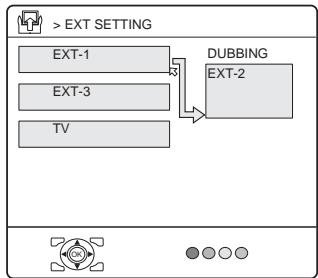
The EXT SETTING menu appears.
flowchart
graph TD
    A["EXT-1"] --> B["DUBBING"]
    C["EXT-3"] --> B
    D["TV"] --> B
    B --> E["EXT-2"]
D0020-EN
2 Follow the instructions for the function you want to use and operate the function
S-IN:
You can enjoy the high-quality picture of the S-VIDEO signal (Y/C signal).
DUBBING:
You can choose a signal source to be output from an EXT-2 terminal.
■ S-IN (S-VIDEO input)
You can connect a device (such as an S-VHS VCR) to enjoy the high-quality picture of the S-VIDEO signal (Y/C signal).
Preparation:
- First read the device's instruction manual and “Additional preparation” on page 40 to connect the device to the TV properly. Second, follow the device's instruction manual to set the device so that it sends an S-VIDEO signal (Y/C signal) to the TV.
- Do not set S-IN (S-VIDEO input) to an EXT terminal connected to a device which cannot output an S-VIDEO (Y/C signal).
1 Press the ◀/▶ or ▼/▲ buttons to choose an EXT terminal
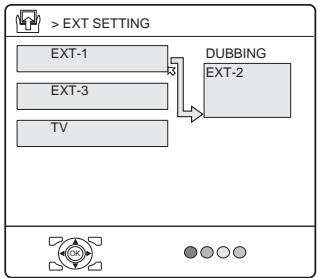
flowchart
graph TD
    A["EXT-1"] --> B["DUBBING"]
    C["EXT-3"] --> B
    D["TV"] --> B
    B --> E["EXT-2"]
D0020-EN
- Setting S-IN (S-VIDEO input) changes the head character from “E” to “S”. When an EXT terminal receives a normal video signal, “E2” appears on the display. This changes to “S2” when it receives an S-VIDEO signal.
- Even a device which can output an S-VIDEO signal (Y/C signal) may output a regular video signal (composite signal) depending on the device setting. If a picture cannot appear because the S-IN (S-VIDEO input) setting has been made, read the device instruction manual carefully again to check for the device settings.
■ DUBBING
You can choose a signal source to be output from the EXT-2 terminal.
You can do this with the output signals of the devices connected to other EXT terminals, or with the picture and sound from a TV channel you are currently viewing.
1 Press the ◀/▶ buttons to choose the arrow from the menu
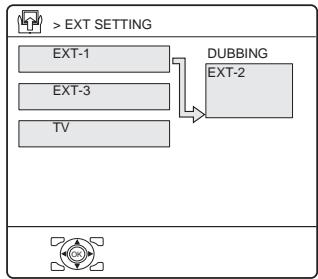
flowchart
graph TD
    A[">EXT SETTING"] --> B["EXT-1"]
    A --> C["EXT-3"]
    A --> D["TV"]
    B --> E["DUBBING\nEXT-2"]
    D --> E
D0022-EN
2 Press the ▼/▲ buttons to choose an EXT terminal or TV. Then press the OK button
The arrow in the menu represents a signal flow. The left side of the arrow shows a signal source output from the EXT-2 terminal.
EXT-1/EXT-3:
The output signal of the device connected to an EXT terminal passes through the TV and is output from the EXT-2 terminal.
TV:
The picture and sound of the TV channel you are currently viewing are output from the EXT-2 terminal.
- During dubbing, you cannot turn off the TV. Turning off the TV also turns off the output from the EXT-2 terminal.
- When you choose an EXT terminal as an output, you can view a TV programme or a picture from the other EXT terminal while dubbing the picture from a device connected to the EXT terminal onto a VCR connected to the EXT-2 terminal.
- The RGB signals from TV games cannot be output. Teletext programmes cannot be output.
Connecting external equipment
Connect the equipment to the TV, making the correct rear panel and front panel connections.
Before connecting anything:
- Read the manuals that came with the equipment.
Depending on the equipment, the connection method may be different from the diagram. Also, the equipment settings may need to change depending on the connection method. - Turn off all the equipment including the TV.
- The “Specifications” on page 50 give the details of the EXT terminals. If you are connecting equipment not listed in the following connection diagram, see the table to choose the best EXT terminal.
- Connecting cables are not supplied.
① VCR (composite signal)
② VCR (composite signal/S-VIDEO signal)
③ T-V LINK compatible VCR (composite signal/S-VIDEO signal)
④ Decoder
⑤ DVD player
(composite signal/S-VIDEO signal)
⑥ DVD player
(composite signal/RGB signal)
⑦ DVD player
(component video signals; Y/Pb/Pr)
⑧ DVD player (digital video signals)
⑨ TV game (composite signal/RGB signal)
⑩ TV game (composite signal)
⑪ Headphones
⑫ Camcorder (composite signal)
⑬ Computer (analogue RGB signal)
⑭ SCART cable
⑮ Audio cable
⑯ Video cable
⑰ Component cable
⑱ DVI-HDMI converter cable
⑲ DVI cable
⑳ “DVI-I”-“D-SUB” converter cable
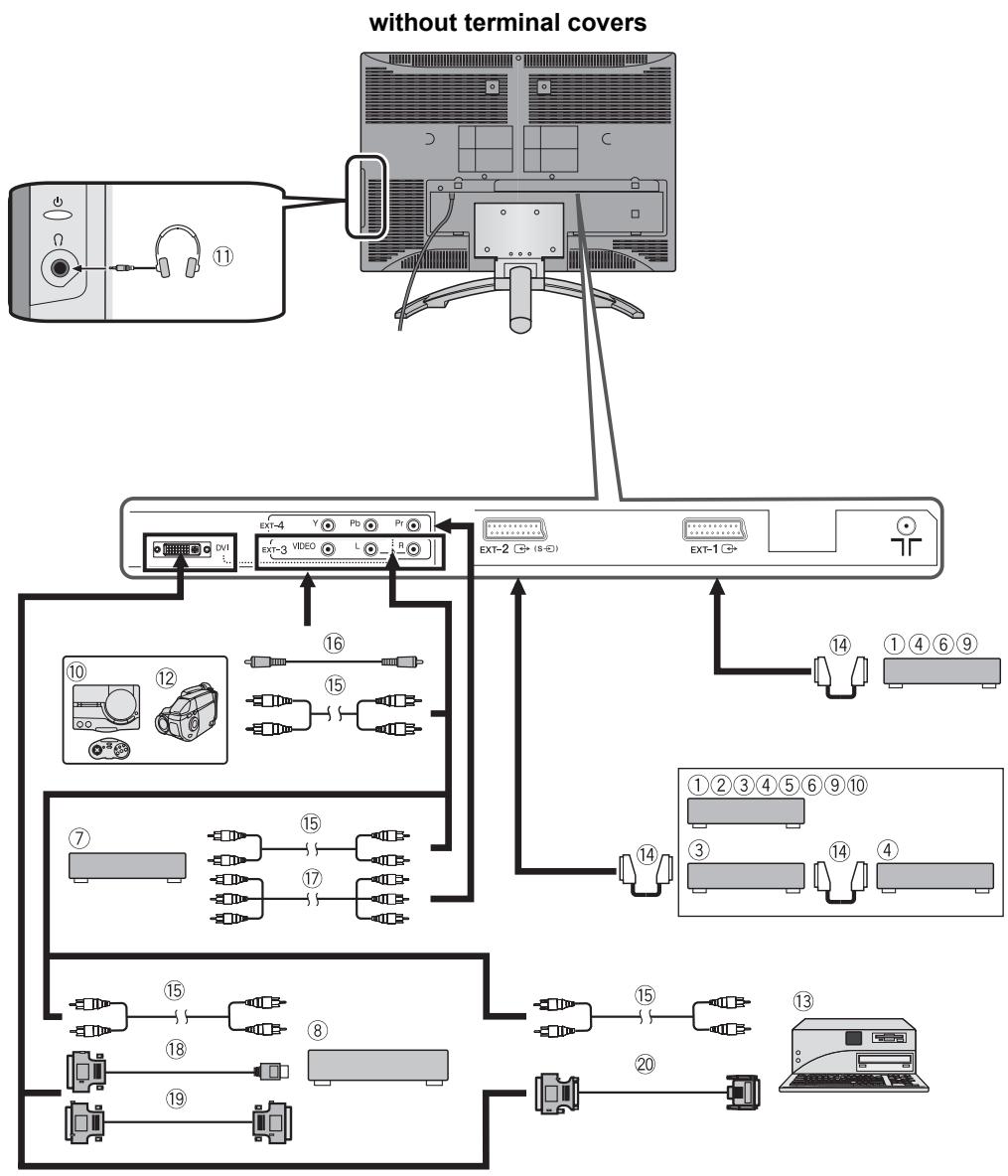
flowchart
graph TD
    A["Computer"] -->|⑪| B["Without Terminal Covers"]
    B --> C["Video System"]
    C --> D["External Display 1"]
    C --> E["External Display 2"]
    C --> F["External Display 3"]
    C --> G["External Display 4"]
    C --> H["External Display 5"]
    C --> I["External Display 6"]
    C --> J["External Display 7"]
    C --> K["External Display 8"]
    C --> L["External Display 9"]
    C --> M["External Display 10"]
    C --> N["External Display 11"]
    C --> O["External Display 12"]
    C --> P["External Display 13"]
    C --> Q["External Display 14"]
    C --> R["External Display 15"]
    C --> S["External Display 16"]
    C --> T["External Display 17"]
    C --> U["External Display 18"]
    C --> V["External Display 19"]
    C --> W["External Display 20"]
■ Equipment which can output the S-VIDEO signal (Y/C signal) such as an S-VHS VCR
Connect the equipment to an EXT-2 terminal. You can choose between an S-VIDEO signal (Y/C signal) and a regular video signal (composite signal). For details of how to operate the equipment, see “S-IN (S-VIDEO input)” on page 37.
■ T-V LINK compatible VCR
Be sure to connect the T-V LINK compatible VCR to the EXT-2 terminal. If not, the T-V LINK function will not work properly.
- When connecting a T-V LINK compatible VCR to the EXT-2 terminal, be sure to connect the decoder to the VCR. If not, the T-V LINK function may not work properly.
- When you connect the decoder to the VCR, after you have stored TV channels in the programme numbers (PR) list, set the DECODER (EXT-2) function for the programme number (PR) to ON to unscramble a scrambled TV channel. For details, see “DECODER (EXT-2)” on page 36.
■ Connecting headphones
Connect the headphones with a stereo mini-jack (3.5 mm diameter) to the headphone socket at the TV rear panel.
- No sound comes from the TV speakers when the headphones are connected.
■ Video or sound signal output from the EXT-2 terminal
You can change over the output of the video/sound signal from the EXT-2 terminal. This is useful when you want to dub the video/sound from another device onto the VCR connected to the EXT-2 terminal. For details on how to do this, see “DUBBING” on page 38.
- The signals from EXT-4 and PC IN terminal cannot be output from EXT-2.
■ TV output from the EXT-1 terminal
The video/sound signal of a TV channel you are viewing is always output from the EXT-1 terminal.
- Changing over a programme number (PR) also changes over the TV output from the EXT-1 terminal.
- The video/sound signal from an EXT terminal cannot be output.
- Teletext programmes cannot be output.
■ Connecting to the computer
Connect the D-SUB cable with “DVI-I”-“D-SUB” convert adapter from the computer’s analogue RGB output terminal to the DVI terminal on the back of the TV. If you want to listen to the sound from the computer, use an audio cable to connect the VIDEO-3 AUDIO L/R sound input terminal to the computer’s sound output terminal. When the sound from the computer is mono, connect to the VIDEO-3 AUDIO L terminal. To watch images from a computer, start the computer and press the AV or P // buttons to choose “PC”.
- Refer to the computer's manual for a detailed explanation of the connections at the computer side.
- Ensure that the connectors are facing the correct way when connecting.
- After connecting the D-SUB cable with “DVI-I”-“D-SUB” convert adapter, tighten the two screws to fix the connector in place.
- Digital output with a DVI cable is not supported.
This TV is compatible with the following PC signals.
| Resolution | Vertical frequency (Hz) | Horizontal frequency (kHz) |
| 640 × 480 (VGA) | 60.0 | 31.5 |
| 1024 × 768 (XGA) | 60.0 | 42.0 |
- Only the above formats are supported.
- Even with the above formats and at 60 Hz, some problems may be experienced depending on the quality of the synchronous signal. (Depending on the quality, some pictures may not be displayed properly.)
- Apple Macintosh* computers are not supported.
When a picture is not displayed
Check the computer's refresh rate and set it to 60Hz . Refer to the computer's instruction manual. Computers which cannot have their refresh rate set 60Hz cannot be used with this unit.
* Apple Macintosh is a registered trademark of Apple Computer, Inc.
■ Connecting to the HDMI or DVI compatible device
Connect the HDMI-DVI converter cable from the HDMI terminal on the back of your HDMI compatible device to the DVI terminal on the back of the TV and audio cable from the audio output from HDMI compatible device to the VIDEO-3 AUDIO L/R terminal on the back of the TV. To watch the images from a HDMI/DVI compatible device, press the AV or P V/∧ buttons to choose “DVI”.
- To connect the DVI compatible device to the DVI terminal, connect the DVI terminal of the DVI compatible device to the DVI terminal of the TV with the DVI cable.
- Ensure that the connectors are facing the correct way when connecting.
• After connecting the DVI-HDMI converter cable or DVI cable, tighten the two screws to fix the connector in place. - Digital audio output from HDMI terminal is not supported.
The DVI of the TV is compatible with the following video signals.
| VGA/60Hz | 4:3 |
| 480i/60Hz (525i/60Hz) | 4:3 |
| 480i/60Hz (525i/60Hz) | 16:9 |
| 480p/60Hz (525p/60Hz) | 16:9 |
| 576i/50Hz (625i/50Hz) | 4:3 |
| 576i/50Hz (625i/50Hz) | 16:9 |
| 576p/50Hz (625p/50Hz) | 4:3 |
| 576p/50Hz (625p/50Hz) | 16:9 |
| 720p/50Hz (750p/50Hz) | 16:9 |
| 720p/60Hz (750p/60Hz) | 16:9 |
| 1080i/50Hz (1125i/50Hz) | 16:9 |
| 1080i/60Hz (1125i/60Hz) | 16:9 |
When you want to use the INSERT function on page 35, find the CH/CC number corresponding to the Channel number of the TV channel from this table.
| CH | Channel | CH | Channel | CC | Channel | CC | Channel |
| CH 02 / CH 202 | E2, R1 | CH 40 / CH 240 | E40, R40 | CC 01 / CC 201 | S1 | CC 31 / CC 231 | S31 |
| CH 03 / CH 203 | E3, ITALY A | CH 41 / CH 241 | E41, R41 | CC 02 / CC 202 | S2 | CC 32 / CC 232 | S32 |
| CH 04 / CH 204 | E4, ITALY B, R2 | CH 42 / CH 242 | E42, R42 | CC 03 / CC 203 | S3 | CC 33 / CC 233 | S33 |
| CH 05 / CH 205 | E5, ITALY D, R6 | CH 43 / CH 243 | E43, R43 | CC 04 / CC 204 | S4 | CC 34 / CC 234 | S34 |
| CH 06 / CH 206 | E6, ITALY E, R7 | CH 44 / CH 244 | E44, R44 | CC 05 / CC 205 | S5 | CC 35 / CC 235 | S35 |
| CH 07 / CH 207 | E7, ITALY F, R8 | CH 45 / CH 245 | E45, R45 | CC 06 / CC 206 | S6 | CC 36 / CC 236 | S36 |
| CH 08 / CH 208 | E8, R9 | CH 46 / CH 246 | E46, R46 | CC 07 / CC 207 | S7 | CC 37 / CC 237 | S37 |
| CH 09 / CH 209 | E9, ITALY G | CH 47 / CH 247 | E47, R47 | CC 08 / CC 208 | S8 | CC 38 / CC 238 | S38 |
| CH 10 / CH 210 | E10, ITALY H, R10 | CH 48 / CH 248 | E48, R48 | CC 09 / CC 209 | S9 | CC 39 / CC 239 | S39 |
| CH 11 / CH 211 | E11, ITALY H+1, R11 | CH 49 / CH 249 | E49, R49 | CC 10 / CC 210 | S10 | CC 40 / CC 240 | S40 |
| CH 12 / CH 212 | E12, ITALY H+2, R12 | CH 50 / CH 250 | E50, R50 | CC 11 / CC 211 | S11 | CC 41 / CC 241 | S41 |
| CH 21 / CH 221 | E21, R21 | CH 51 / CH 251 | E51, R51 | CC 12 / CC 212 | S12 | CC 75 / CC 275 | X |
| CH 22 / CH 222 | E22, R22 | CH 52 / CH 252 | E52, R52 | CC 13 / CC 213 | S13 | CC 76 / CC 276 | Y, R3 |
| CH 23 / CH 223 | E23, R23 | CH 53 / CH 253 | E53, R53 | CC 14 / CC 214 | S14 | CC 77 / CC 277 | Z, ITALY C, R4 |
| CH 24 / CH 224 | E24, R24 | CH 54 / CH 254 | E54, R54 | CC 15 / CC 215 | S15 | CC 78 / CC 278 | Z+1, R5 |
| CH 25 / CH 225 | E25, R25 | CH 55 / CH 255 | E55, R55 | CC 16 / CC 216 | S16 | CC 79 / CC 279 | Z+2 |
| CH 26 / CH 226 | E26, R26 | CH 56 / CH 256 | E56, R56 | CC 17 / CC 217 | S17 | ||
| CH 27 / CH 227 | E27, R27 | CH 57 / CH 257 | E57, R57 | CC 18 / CC 218 | S18 | ||
| CH 28 / CH 228 | E28, R28 | CH 58 / CH 258 | E58, R58 | CC 19 / CC 219 | S19 | ||
| CH 29 / CH 229 | E29, R29 | CH 59 / CH 259 | E59, R59 | CC 20 / CC 220 | S20 | ||
| CH 30 / CH 230 | E30, R30 | CH 60 / CH 260 | E60, R60 | CC 21 / CC 221 | S21 | ||
| CH 31 / CH 231 | E31, R31 | CH 61 / CH 261 | E61, R61 | CC 22 / CC 222 | S22 | ||
| CH 32 / CH 232 | E32, R32 | CH 62 / CH 262 | E62, R62 | CC 23 / CC 223 | S23 | ||
| CH 33 / CH 233 | E33, R33 | CH 63 / CH 263 | E63, R63 | CC 24 / CC 224 | S24 | ||
| CH 34 / CH 234 | E34, R34 | CH 64 / CH 264 | E64, R64 | CC 25 / CC 225 | S25 | ||
| CH 35 / CH 235 | E35, R35 | CH 65 / CH 265 | E65, R65 | CC 26 / CC 226 | S26 | ||
| CH 36 / CH 236 | E36, R36 | CH 66 / CH 266 | E66, R66 | CC 27 / CC 227 | S27 | ||
| CH 37 / CH 237 | E37, R37 | CH 67 / CH 267 | E67, R67 | CC 28 / CC 228 | S28 | ||
| CH 38 / CH 238 | E38, R38 | CH 68 / CH 268 | E68, R68 | CC 29 / CC 229 | S29 | ||
| CH 39 / CH 239 | E39, R39 | CH 69 / CH 269 | E69, R69 | CC 30 / CC 230 | S30 |
| CH | Channel | CH | Channel | CC | Frequency (MHz) | CC | Frequency (MHz) |
| CH 102 | F2 | CH 141 | F41 | CC 110 | 116 - 124 | CC 152 | 391 - 399 |
| CH 103 | F3 | CH 142 | F42 | CC 111 | 124 - 132 | CC 153 | 399 - 407 |
| CH 104 | F4 | CH 143 | F43 | CC 112 | 132 - 140 | CC 154 | 407 - 415 |
| CH 105 | F5 | CH 144 | F44 | CC 113 | 140 - 148 | CC 155 | 415 - 423 |
| CH 106 | F6 | CH 145 | F45 | CC 114 | 148 - 156 | CC 156 | 423 - 431 |
| CH 107 | F7 | CH 146 | F46 | CC 115 | 156 - 164 | CC 157 | 431 - 439 |
| CH 108 | F8 | CH 147 | F47 | CC 116 | 164 - 172 | CC 158 | 439 - 447 |
| CH 109 | F9 | CH 148 | F48 | CC 123 | 220 - 228 | CC 159 | 447 - 455 |
| CH 110 | F10 | CH 149 | F49 | CC 124 | 228 - 236 | CC 160 | 455 - 463 |
| CH 121 | F21 | CH 150 | F50 | CC 125 | 236 - 244 | CC 161 | 463 - 469 |
| CH 122 | F22 | CH 151 | F51 | CC 126 | 244 - 252 | ||
| CH 123 | F23 | CH 152 | F52 | CC 127 | 252 - 260 | ||
| CH 124 | F24 | CH 153 | F53 | CC 128 | 260 - 268 | ||
| CH 125 | F25 | CH 154 | F54 | CC 129 | 268 - 276 | ||
| CH 126 | F26 | CH 155 | F55 | CC 130 | 276 - 284 | ||
| CH 127 | F27 | CH 156 | F56 | CC 131 | 284 - 292 | ||
| CH 128 | F28 | CH 157 | F57 | CC 132 | 292 - 300 | ||
| CH 129 | F29 | CH 158 | F58 | CC 133 | 300 - 306 | ||
| CH 130 | F30 | CH 159 | F59 | CC 141 | 306 - 311 | ||
| CH 131 | F31 | CH 160 | F60 | CC 142 | 311 - 319 | ||
| CH 132 | F32 | CH 161 | F61 | CC 143 | 319 - 327 | ||
| CH 133 | F33 | CH 162 | F62 | CC 144 | 327 - 335 | ||
| CH 134 | F34 | CH 163 | F63 | CC 145 | 335 - 343 | ||
| CH 135 | F35 | CH 164 | F64 | CC 146 | 343 - 351 | ||
| CH 136 | F36 | CH 165 | F65 | CC 147 | 351 - 359 | ||
| CH 137 | F37 | CH 166 | F66 | CC 148 | 359 - 367 | ||
| CH 138 | F38 | CH 167 | F67 | CC 149 | 367 - 375 | ||
| CH 139 | F39 | CH 168 | F68 | CC 150 | 375 - 383 | ||
| CH 140 | F40 | CH 169 | F69 | CC 151 | 383 - 391 |
- When two CH/CC numbers correspond to one Channel number, choose either one according to the current COUNTRY setting. When the COUNTRY setting is other than FRANCE, choose a two-digit CH/CC number. When the COUNTRY setting is FRANCE, choose a three-digit CH/CC number.
- Find the CH/CC number (CC110 to CC161) corresponding to the TV channel (SECAM-L system) from a French cable TV station, based on the broadcast frequency of the TV channel. When you do not know the broadcast frequency, please contact the cable TV station.
- The CH/CC numbers of CH102-CH169 and CC110-CC161 correspond to the TV channels being broadcast by a SECAM-L system. The other CH/CC numbers correspond to the TV channels being broadcast by a method other than a SECAM-L system.
Troubleshooting
If a problem arises while you are using the TV, please read this troubleshooting guide carefully before you ask to have the TV repaired. You may be able to fix it easily by yourself. For example, if the mains plug is disconnected from the mains outlet, or the TV aerial has problems, you may think there is a problem with the TV itself.
Important:
- This troubleshooting guide only covers problems whose causes are not easy to decide. If you have a question when you are operating a function, read the page(s) for that function carefully, not this troubleshooting guide.
- If you follow the advice in this troubleshooting guide without any success, unplug the mains plug and ask for your TV to be repaired. Do not attempt to repair the TV by yourself or to remove the rear cover of the TV.
■ If you cannot turn on the TV
- Is the mains plug connected to the mains outlet?
- Is the power lamp lit? If not, press the ⏻ button on the TV.
- Make sure you set the VCR/TV/DVD switch to the TV position. You cannot turn the TV on when the VCR/TV/DVD switch is set to the VCR or DVD position.
■ If you cannot turn off the TV
- Make sure you set the VCR/TV/DVD switch to the TV position. You cannot turn the TV off when the VCR/TV/DVD switch is set to the VCR or DVD position.
■ No picture or no sound
- Have you chosen a TV channel with very poor reception? If so, the BLUE BACK function will be activated: the entire screen becomes blue, and the sound is muted. If you still want to view the TV channel, follow the description “BLUE BACK” on page 30 to change the BLUE BACK function setting to OFF.
- If the SYSTEM setting for a TV channel is incorrect, it may prevent the sound from being issued. Follow the description “EDIT/MANUAL” on page 32 to use the MANUAL function to try to change the SYSTEM setting.
- When you are using EXT-3, EXT-4 or DVI terminal, make sure the audio cable is connected to EXT-3 L/R terminal.
■ Poor picture
- If noise (snow) totally blocks out the picture, there may be a problem with the aerial or aerial cable. Check the following to try to solve the problem:
- Have the TV and aerial been connected properly?
- Has the aerial cable been damaged?
- Is the aerial pointing in the right direction?
-
Is the aerial itself faulty?
-
If the TV or aerial suffers interference from other equipment, stripes or noise may appear in the picture. Move any equipment such as an amplifier, personal computer, or a hair drier, that can cause interference away from your TV. Or try moving the TV. If the aerial suffers interference from a radio tower or high-voltage wire, please contact your local dealer.
- If the TV suffers interference from signals reflecting from mountains or buildings, double-pictures (ghosting) will occur. Try to change the aerial's direction or replace it with one with better directionality.
- Are your COLOUR SYSTEM settings correct? Follow the description “COLOUR SYSTEM” on page 26 to try to solve the trouble.
-
Have the COLOUR and BRIGHT settings been adjusted properly? Follow the description “BRIGHT-2” and “COLOUR” on page 25 to try to adjust them properly.
-
Videotaping teletext is not recommended because it may not record correctly.
- When viewing images from commercially available video software products, or videos from videotapes which have been recorded improperly, the top of the image may be distorted. This is due to the condition of the video signal. There is nothing wrong with the TV.
- Since this TV is designed to make full use of the resolution of the original video source, the motion may appear unnatural when the video source is input with progressive-scanning component signals. If this occurs, change the output setting of the connected device to interlace-scanning component signal output. See the instructions that came with the device for more information.
■ Poor sound
- Have you adjusted BASS or TREBLE properly? If not, follow the description “BASS” or “TREBLE” on page 28.
- When TV channel reception is poor, it can be hard to hear stereo or bilingual sound. In this case, follow the description “STEREO / I • II” on page 28 to hear the sound more easily by changing it to a mono sound.
■ If the TV does not respond to the remote control
- Have the batteries of the remote control worn out? Follow the description “Putting the batteries into the remote control” on page 7 and replace them with new batteries.
- Have you attempted to use the remote control from the sides or rear of the TV or from more than seven metres away from the TV? Use the remote control in front of your TV or from less than seven metres away.
- When you are viewing a teletext programme, you cannot operate the menus. Press the TV button to return to the ordinary TV programme, and then try operating the menus.
- If the TV suddenly stops responding, disconnect the power cord of the TV from the AC outlet. Connect them to the AC outlet again to turn on the TV. If the TV returns to a normal state, it is not a failure.
■ Other issues
- When the SLEEP TIMER function operates, the TV is automatically turned off. If the TV suddenly turns off, try to press the ⏻/l (standby) button to turn on the TV once again. If the TV goes back to normal, there is no problem.
- When the TV is receiving a wide-screen signal (WSS) or a signal from an external device affecting the screen size, the ZOOM mode automatically changes. When you want to resume the previous ZOOM mode, press the ZOOM button again.
- It takes a short period of time from the time an operation such as changing channels is performed until an image is displayed. This is not a fault. This is the time needed for the image to stabilize before it can be displayed.
-
The TV may make a crackling sound due to a sudden change in temperature. The picture or sound may be normal. If you hear crackling sounds frequently while you are viewing the TV, there may be other causes. As a precaution, ask your service technician to inspect it.
-
The top of the TV and the screen may become hot during use but this has no affect on the performance of the TV. Make sure that the ventilation holes are not blocked.
- When the picture is unstable, the screen may become white for a moment. This happens when the signal which drives the liquid crystal is missing. This is not a fault.
- When a still image has been displayed for a long period, a faint residual image may remain on the screen for a short time after the power has been turned off or when another image is displayed. This is not a fault and the image will eventually disappear.
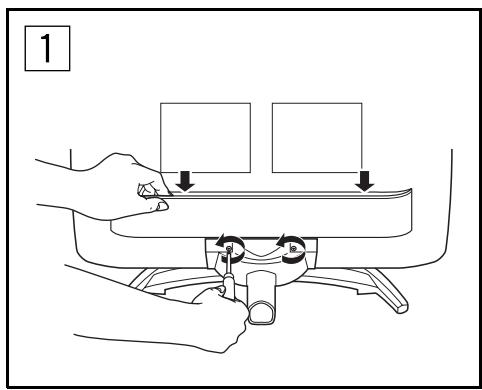
text_image
1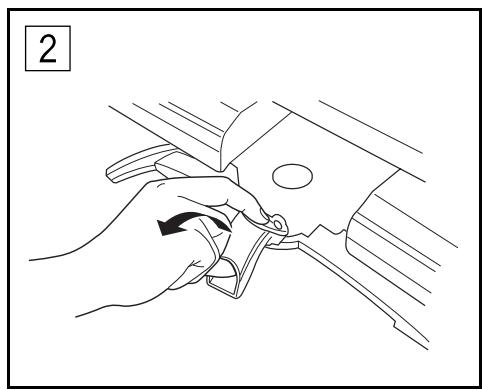
natural_image
Line drawing of a hand adjusting a car seatbelt with a circular hole, no text or symbols present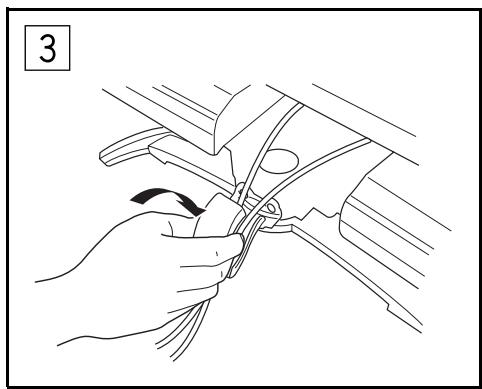
natural_image
Line drawing of a hand holding a tool interacting with a car window (no text or symbols)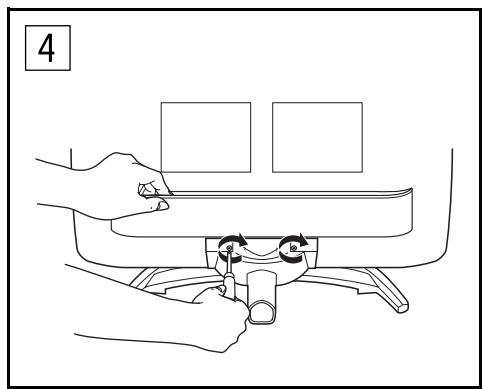
natural_image
Line drawing of hands operating a mechanical device with rotating components (no text or symbols)
natural_image
Warning symbol with exclamation mark inside a triangle (no text or numbers)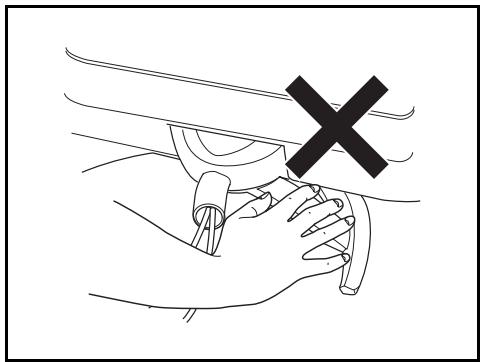
natural_image
Line drawing of a hand holding a tool with a black X mark above, no text or symbols presentSpecifications
| Model | LT-32A61BU/LT-32A61SU | LT-26A61BU/LT-26A61SU |
| Broadcasting systems | CCIR B/G, I, D/K, L | |
| Colour systems | PAL, SECAMThe EXT terminals also support the NTSC 3.58/4.43 MHz system. | |
| Channels and frequencies | F2-F10, F21-F69, 116-172, E2-E12, E21-E69, S1-S41, X, Y, Z, Z+1, Z+2, A-H, H+1, H+2, R1-R12, R21-R69French cable TV channel of broadcast frequencies 116 - 172 MHz and 220 - 469 MHz. | |
| Sound-multiplex systems | NICAM (B/G, I, D/K, L) system, A2 (B/G, D/K) system | |
| Teletext systems | FLOF (Fastext), TOP, WST (World Standard System) | |
| Power requirements | 110 - 240 V AC, 50/60 Hz | |
| Screen size | Viewable area 80 cm(measured diagonally) | Viewable area 66 cm(measured diagonally) |
| Audio output | Rated Power output: 5 W + 5 W | |
| Speakers | 6.6 cm round × 2 | |
| EXT-1 terminal | Euroconnector (21-pin, SCART)Video input, Audio L/R inputs and RGB inputs are available.TV broadcast outputs (Video and Audio L/R) are available. | |
| EXT-2 terminal | Euroconnector (21-pin, SCART)Video input, S-VIDEO (Y/C) input, Audio L/R inputs and RGB inputs are available.Video and Audio L/R outputs are available.T-V LINK functions are available. | |
| EXT-3 terminal | RCA connectors × 3Video input and Audio L/R inputs are available. | |
| EXT-4 terminal | RCA connectors × 3 + EXT-3 L/RComponent video (Y, Pb, Pr) input and Audio L/R inputs are available.625p, 525p, 750p and 1080i signals are available. 750p signal is only available for 60Hz.Some DVD players can output 625p, 525p, 750p and 1080i signals.750p are new high-definition signals. | |
| DVI terminal | DVI terminal × 1Digital video input and PC signal is available. (Refer to page 41 for details). | |
| Headphone jack | Stereo mini-jack (3.5 mm in diameter) | |
| Dimensions (W × H × D) | 820 mm × 602 mm × 269 mm820 mm × 551 mm × 126.8 mm(without stand) | 686 mm × 525 mm × 269 mm686 mm × 474 mm × 121.5 mm(without stand) |
| Weight | 18.1 kg15.5 kg (without stand) | 14.9 kg12.3 kg (without stand) |
| Accessories | Remote control unit × 1 (RM-C1816S)AA/R6 dry cell battery × 2 | |
We may change the design and specifications without notice.
Pictures displayed on the screen using this TV's ZOOM functions should not be shown for any commercial or demonstration purpose in public places (cafes, hotels, etc.) without the consent of the owners of copyright of the original picture sources, as this would be an infringement of copyright.
JVC
LT-32A61BU/LT-32A61SU/LT-26A61BU/LT-26A61SU