
SU-8W WIRELESS KEYBOARD - Clavier sans fil NOKIA - Notice d'utilisation et mode d'emploi gratuit
Retrouvez gratuitement la notice de l'appareil SU-8W WIRELESS KEYBOARD NOKIA au format PDF.


| Type de produit | Clavier sans fil |
| Caractéristiques techniques principales | Clavier QWERTY, technologie Bluetooth, portée jusqu'à 10 mètres |
| Alimentation électrique | Fonctionne avec 2 piles AAA |
| Dimensions approximatives | 300 x 130 x 10 mm |
| Poids | 300 g |
| Compatibilités | Compatible avec les appareils Bluetooth, y compris les smartphones et tablettes |
| Type de batterie | Piles alcalines AAA |
| Tension | 1,5 V par pile |
| Fonctions principales | Clavier sans fil, touches multimédia, fonction de mise en veille automatique |
| Entretien et nettoyage | Nettoyer avec un chiffon doux et sec, éviter les produits chimiques agressifs |
| Pièces détachées et réparabilité | Pas de pièces détachées disponibles, réparabilité limitée |
| Informations générales | Idéal pour une utilisation mobile, léger et portable, design ergonomique |
FOIRE AUX QUESTIONS - SU-8W WIRELESS KEYBOARD NOKIA
Questions des utilisateurs sur SU-8W WIRELESS KEYBOARD NOKIA
0 question sur cet appareil. Repondez a celles que vous connaissez ou posez la votre.
Poser une nouvelle question sur cet appareil
Téléchargez la notice de votre Clavier sans fil au format PDF gratuitement ! Retrouvez votre notice SU-8W WIRELESS KEYBOARD - NOKIA et reprennez votre appareil électronique en main. Sur cette page sont publiés tous les documents nécessaires à l'utilisation de votre appareil SU-8W WIRELESS KEYBOARD de la marque NOKIA.
MODE D'EMPLOI SU-8W WIRELESS KEYBOARD NOKIA
Nokia Wireless Keyboard (SU-8W) User Guide
DECLARATION OF CONFORMITY
We, NOKIA CORPORATION declare under our sole responsibility that the product SU-8W is in conformity with the provisions of the following Council Directive: 1999/5/EC. A copy of the Declaration of Conformity can be found at http:// www.nokia.com/phones/declaration_of_conformity/.
c∈0197
© 2004-2006 Nokia. All rights reserved.
Reproduction, transfer, distribution or storage of part or all of the contents in this document in any form without the prior written permission of Nokia is prohibited.
Nokia and Nokia Connecting People are registered trademarks of Nokia Corporation. Other product and company names mentioned herein may be trademarks or tradenames of their respective owners.
Bluetooth is a registered trademark of Bluetooth SIG, Inc.
Nokia operates a policy of ongoing development. Nokia reserves the right to make changes and improvements to any of the products described in this document without prior notice.
UNDER NO CIRCUMSTANCES SHALL NOKIA BE RESPONSIBLE FOR ANY LOSS OF DATA OR INCOME OR ANY SPECIAL, INCIDENTAL, CONSEQUENTIAL OR INDIRECT DAMAGES HOWSOEVER CAUSED.
THE CONTENTS OF THIS DOCUMENT ARE PROVIDED "AS IS". EXCEPT AS REQUIRED BY APPLICABLE LAW, NO WARRANTYES OF ANY KIND, EITHER EXPRESS OR IMPLIED, INCLUDING, BUT NOT LIMITED TO, THE IMPLIED WARRANTYES OF MERCHANTABILITY AND FITNESS FOR A PARTICULAR PURPOSE, ARE MADE IN RELATION TO THE ACCURACY, RELIABILITY OR CONTENTS OF THIS DOCUMENT. NOKIA RESERVES THE RIGHT TO REVISE THIS DOCUMENT OR WITHDRAW IT AT ANY TIME WITHOUT PRIOR NOTICE.
The availability of particular products may vary by region. Please check with the Nokia dealer nearest to you.
In some countries there may be restrictions in using Bluetooth devices. Check with your local authorities.
Unauthorized changes or modifications to this device may void the user's authority to operate the equipment.
This device may contain commodities, technology or software subject to export laws and regulations from the US and other countries. Diversion contrary to law is prohibited.
9233612 / Issue 2
- Introduction 5
Bluetooth wireless technology 5 - Getting started 6
Overview 6
8
Opening the keyboard 8
Switching the keyboard on or off 8
Installing the application 9
Pairing the keyboard with a compatible phone. 9
Troubleshooting 11 - Using the keyboard 12
Placing your phone on the cradle 12
Typing text. 13
Using the keyboard with several paired compatible phones 14
Resetting the keyboard 14 - Battery information 16
Using the batteries. 16
Care and maintenance. 17
1. Introduction
The foldable Nokia Wireless Keyboard enables you to enter text in comfort. Use the full QWERTY keyboard with a Bluetooth connection to get the best out of the messaging applications in your compatible mobile phone. Write text messages and emails, or edit your calendar entries; combine productivity with style.
The keyboard comes with two AAA batteries. To use the keyboard with your compatible phone, you need the Wireless Keyboard application. If the application is not already installed in your phone, you can download it from www.nokia.com/support or your local Nokia web site.
Read this user guide carefully before using the keyboard. Also read the user guide for your phone, which provides important safety and maintenance information. Your device may contain small parts. Keep them out of reach of small children.
Bluetooth wireless technology
The wireless keyboard is specially designed for compatible Nokia phones with the Series 60 user interface that support Bluetooth wireless technology. The keyboard supports the Human Interface Device profile 1.0. (A profile is a set of Bluetooth commands that the phone uses to control the keyboard.)
A Bluetooth connection does not require that the compatible phone and the keyboard be in line of sight, but both devices should be within 10 metres of each other. Connections can be subject to interference from obstructions, such as walls or other electronic devices.
The wireless keyboard is compliant with and adopts the Bluetooth Specification 1.1. However, interoperability between the keyboard and other Bluetooth-enabled products is not guaranteed because it depends on compatibility. For compatibility between the keyboard and other Bluetooth-enabled products, contact your dealer.
2. Getting started
There may be restrictions on using Bluetooth technology in some locations. Check with your local authorities or service provider.
Overview
The keyboard contains the following parts, as shown in Figure 1:
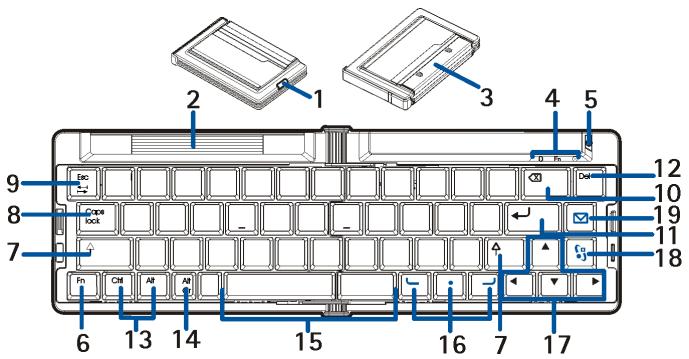
Release button (1) opens the keyboard.
Retractable cradle (2)
Cover of the battery compartment (3)
Indicator lights (4). The green F n indicator is on when you can type characters that are printed on the keys in green. The blue 3 indicator shows the status of the Bluetooth connection. The 1 indicator is blinking red when the power level of the battery is low and green when the keyboard is switched on.
Power key (5) switches the keyboard on or off.
Fn key (6). See Typing text on page 13.
Shift keys (7). See Typing text on page 13.
Caps lock key (8) toggles between the lower and upper character case.
Tab/Esc key (9). See the instructions for your text editing application.
Backspace key (10) deletes a character on the left of the cursor.
Enter key (11) adds a new line (when writing text) or selects a function in some menus.
Del key (12) deletes a character on the right of the cursor.
Ctrl and Alt key (13). See the instructions for your text editing application. To open the profile menu of your compatible phone, press the Del key while you press and hold the Ctrl and Alt key.
Alt Gr key (14) opens a list of special characters.
Space bar (15) inserts a space.
Selection keys (16) have the same functions as the selection keys on your compatible phone.
Arrow keys (17) have the same functions as the scroll keys on your compatible phone.
Menu key [53] (18) opens the main menu of your compatible phone.
Messaging key (19) opens the messaging application on your compatible phone.
Before you can start using the keyboard, you need to:
Install the batteries. See page 8.
- Download and install the Wireless Keyboard application from www.nokia.com/support or your local Nokia web site if the application is not already installed in your phone. See page 9. The application may also be supplied with the phone but not installed in it.
- Pair the keyboard with your compatible phone. See page 9.
- Place your phone in the cradle, if you wish. See page 12.
■ Installing and using the batteries
The wireless keyboard is intended for use with standard AAA batteries.
Open the battery compartment of the keyboard by sliding the compartment cover from the keyboard. Place the two batteries in the compartment. The correct position of the batteries is indicated in the compartment. Close the compartment by sliding the cover towards the keyboard.
Battery operation times
The operation time of the supplied batteries is up to 50 hours. The operation time of other batteries varies depending on the battery type. The keyboard is automatically switched off when it is folded (or when it is left unused for 10 minutes while open).
Battery indicator
When the power in the batteries is low, the red ① indicator blinks every 3 seconds. When the batteries are discharged, the red ① indicator blinks every second. In this case, change the batteries.
Opening the keyboard
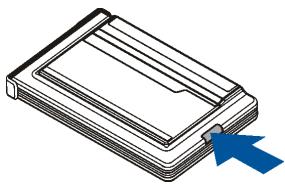
To open the keyboard, press the release button towards the text Nokia (Figure 2), and fold out the keyboard.
Switching the keyboard on or off
To switch on the keyboard, press and hold the power key for about 2 seconds. The green indicator is shown for 1 second. This indicator and the blue indicator blink fast until the keyboard is paired with your
compatible phone (within 5 minutes). Once the devices have been paired, the green ① indicator continues to blink slower. If you do not use the keyboard within 10 minutes, it is automatically swithed off.
To switch off the keyboard, close it, or press and hold the power key for about 2 seconds. The red ① indicator blinks for 1 second, and the keyboard is turned off.
■ Installing the application
To use the keyboard with your compatible phone, you need the Wireless Keyboard application. If the application is not already installed in your phone, you can download it from www.nokia.com/support or your local Nokia web site and then install it in your phone. The application may also be supplied with the phone but not installed in it.
To install the application, open the Install Kb application from the main menu on the phone.
When the installation application asks where to install the Wireless Keyboard application, select the phone memory or memory card.
If you use several memory cards with your phone, select the phone memory. For details, see the user guide of your compatible phone.
Pairing the keyboard with a compatible phone
- Switch on the phone if it is off.
- Enter the Bluetooth menu of your phone, and make sure that the Bluetooth feature is activated.
- Switch on the keyboard.
- Start the Wireless Keyboard application, press Options, and select Find keyboards to set the phone to search for Bluetooth devices.
- Select the keyboard from the list.
- To pair the keyboard with your phone, enter a Bluetooth passcode of your choice (1 to 9 digits) on the phone, enter the same passcode on your keyboard within 30 seconds, and press the Enter key on the
keyboard. You do not need to write down the passcode because you can use a different passcode if you need to pair the keyboard with your phone again.
Note that to enter the digits of the Bluetooth passcode, you do not need to press the Fn key first.
- If you are asked for a keyboard layout, select it from a list on your phone.
- Wait until the name of the keyboard (SU-8W) is shown, its status changes to Connected, and the green ① indicator of your keyboard blinks slowly.
If this is the case, the keyboard is connected to your phone and is ready for use. For details, see Using the keyboard on page 12.
Note that you must leave the Wireless Keyboard application running if you want to use the keyboard with your compatible phone. To start another application without closing the Wireless Keyboard application, press the menu key of your phone, and select the desired application.
For using the Wireless Keyboard application, see its Help function. In this application, you can, for example, set the Wireless Keyboard application to be started automatically when you switch on your phone.
Disconnecting the keyboard
You can disconnect the keyboard from your compatible phone, for example, to use another Bluetooth device with your phone.
The keyboard can be disconnected in the following ways:
- Switch off the keyboard, leave it unused for 10 minutes, or fold it.
- Disconnect the keyboard in the Wireless Keyboard application: press Options, and select Disconnect Bluetooth.
- Close the Wireless Keyboard application: press Options, and select Exit.
- Move the keyboard more than 10 meters away from the compatible phone.
The keyboard is also disconnected if its batteries become discharged.
Note that you do not need to delete the pairing with the keyboard to disconnect it. When you reconnect a paired keyboard, you are not asked for its passcode.
Connecting the paired keyboard
To connect the keyboard to your compatible phone while the Bluetooth feature is activated and the Wireless Keyboard application is running, switch on the keyboard, and start typing; or make the connection in the Wireless Keyboard application.
Note that switching on the keyboard creates the connection automatically only if you have set the paired phone to accept Bluetooth connection requests without your permission. You can do this in the Wireless Keyboard application.
Troubleshooting
If you cannot connect the keyboard to your compatible phone, do the following:
- Make sure that the keyboard is switched on and paired with your phone.
- Make sure that the Bluetooth feature is activated on your phone.
- Make sure that the Wireless Keyboard application is running on the phone.
- Make sure that no other device is in a Bluetooth connection with your phone.
3. Using the keyboard
Placing your phone on the cradle
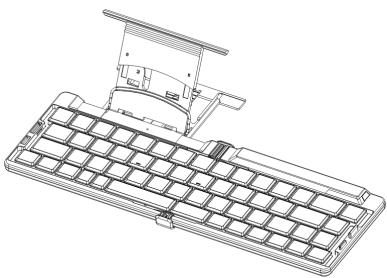
The keyboard is provided with a retractable cradle on which you can keep your compatible phone while using the keyboard.
To slide the cradle out from the keyboard, see Figure 3.
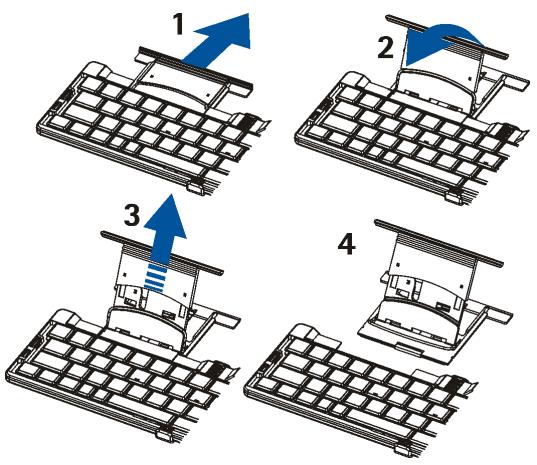
You can use the cradle attached to the keyboard, or place it next to the keyboard. Place the phone in the cradle, and tilt the phone to a convenient viewing position.
When you stop using the keyboard, lift the phone from the cradle, and push the cradle inside the keyboard in the same position as when you slid it out.
Typing text
To use the keyboard, place it on a flat surface. To type text using the keyboard, press the key of the keyboard or the menu key of your compatible phone to leave the Wireless Keyboard application running, and start the application (for example, the e-mail application) that you want to use. To start the messaging application on your phone, you can press the key of the keyboard.
Note that you must leave the Wireless Keyboard application running to use the keyboard with your compatible phone.
Typing characters printed in black on the keys
To type a lower case letter or a special character printed in the lower part of a key, press a letter or character key.
To type an upper case letter or a special character printed in the upper part of a key, press and hold the shift key, and press a letter or character key. To type several upper case letters, press the Caps lock key, then the desired letter keys.
If there are two characters printed side by side on a key, you can type the right character as follows: press and hold the AltGr key, and press a letter or character key.
Typing characters printed in green on the keys
To type a number or other character on the left part of a key, press the Fn key (the Fn indicator is lit), and press the number or character key.
To type a character on the right part of a key, press the Fn key, press and hold the shift key, and press the number or character key.
To type letters or other characters printed in black on keys where there are also characters printed in green, check that the Fn indicator is off, and press the desired keys.
Typing accented letters
To type an accented letter, press the accent key (the accent is not shown), then the desired letter key.
Opening a list of special characters
To open a list of special characters, press the AltGr key. The list is shown after you release the key. Select a character from the list.
Using the keyboard with several paired compatible phones
The keyboard can be paired with up to five compatible phones but connected to only one phone at a time.
The phone that was last paired with the keyboard is called the "last paired phone".
If the keyboard is switched on within 10 metres of several paired phones, it tries to connect within 1 second to the last paired phone, then to one of the other four phones that have been most recently paired with the keyboard. If the connection is not made during this time, you can press any key of the keyboard (except the power key) within the next 5 minutes to connect your paired phone.
To use the keyboard with a compatible phone that is not one of the five most recently paired phones, make the connection in the Wireless Keyboard application.
Resetting the keyboard
You can reset the keyboard to its original settings (for example, to delete all the pairing information).
To reset the keyboard, press and hold the _5 and key for 10 seconds. After the keyboard has been reset, the and green 1 indicators alternate for 3 seconds.
4. Battery information
Your device is powered by two replaceable AAA batteries.
Using the batteries
This device is intended for use when supplied with power from LR03 batteries. The use of any other types may invalidate any approval or warranty, and may be dangerous. Always switch the device off before removing batteries. Always change both batteries at the same time. Do not mix batteries of different types, brands, or ages. Ensure that the correct polarity is observed when inserting batteries.
If left unused, a fully charged battery will lose its charge over time.
Use the batteries only for their intended purpose. Never use any battery that is damaged. Damaged batteries may leak or explode causing injury. Always keep batteries away from small children. Never swallow a battery. If swallowed, immediately consult a physician.
Do not try to recharge the batteries unless the manufacturer of the batteries has intended the batteries to be rechargeable.
Do not short-circuit the battery. Accidental short-circuiting can occur when a metallic object such as a coin, clip, or pen causes direct connection of the positive (+) and negative (-) terminals of the battery. (These look like metal strips on the battery.) This might happen, for example, when you carry a spare battery in your pocket or purse. Short-circuiting the terminals may damage the battery or the connecting object.
Leaving the battery in hot or cold places, such as in a closed car in summer or winter conditions, will reduce the capacity and lifetime of the battery. Battery performance is particularly limited in temperatures well below freezing.
Do not dispose of batteries in a fire! Dispose of batteries according to local regulations. Please recycle when possible. Do not dispose as household waste.
Your device is a product of superior design and craftsmanship and should be treated with care. The following suggestions will help you protect your warranty coverage.
- Keep the device dry. Precipitation, humidity, and all types of liquids or moisture can contain minerals that will corrode electronic circuits. If your device does get wet, remove the battery, and allow the device to dry completely before replacing it.
- Do not use or store the device in dusty, dirty areas. Its moving parts and electronic components can be damaged.
- Do not store the device in hot areas. High temperatures can shorten the life of electronic devices, damage batteries, and warp or melt certain plastics.
- Do not store the device in cold areas. When the device returns to its normal temperature, moisture can form inside the device and damage electronic circuit boards.
- Do not attempt to open the device other than as instructed in this guide.
- Do not drop, knock, or shake the device. Rough handling can break internal circuit boards and fine mechanics.
- Do not use harsh chemicals, cleaning solvents, or strong detergents to clean the device.
- Do not paint the device. Paint can clog the moving parts and prevent proper operation.
All of the above suggestions apply equally to your device or any enhancement. If the device is not working properly, take it to the nearest authorized service facility for service.