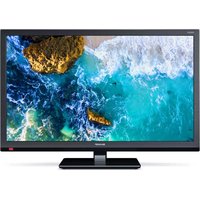
27F541 - Télévision SHARP - Notice d'utilisation et mode d'emploi gratuit
Retrouvez gratuitement la notice de l'appareil 27F541 SHARP au format PDF.


| Type de produit | Téléviseur LCD |
| Taille de l'écran | 27 pouces |
| Résolution | 1366 x 768 pixels |
| Technologie d'affichage | LCD |
| Alimentation électrique | AC 100-240V, 50/60Hz |
| Dimensions approximatives | 61.4 x 46.1 x 18.5 cm (avec support) |
| Poids | 6.5 kg |
| Compatibilités | HDMI, VGA, USB |
| Fonctions principales | Affichage HD, connectivité multi-ports |
| Entretien et nettoyage | Utiliser un chiffon doux, éviter les produits chimiques abrasifs |
| Pièces détachées et réparabilité | Disponibilité variable, consulter un professionnel pour les réparations |
| Sécurité | Éviter l'exposition à l'humidité, ne pas bloquer les ventilations |
| Informations générales | Idéal pour les petits espaces, compatible avec les supports muraux VESA |
FOIRE AUX QUESTIONS - 27F541 SHARP
Questions des utilisateurs sur 27F541 SHARP
0 question sur cet appareil. Repondez a celles que vous connaissez ou posez la votre.
Poser une nouvelle question sur cet appareil
Téléchargez la notice de votre Télévision au format PDF gratuitement ! Retrouvez votre notice 27F541 - SHARP et reprennez votre appareil électronique en main. Sur cette page sont publiés tous les documents nécessaires à l'utilisation de votre appareil 27F541 de la marque SHARP.
MODE D'EMPLOI 27F541 SHARP
SHARP
COLOR TELEVISION
MODEL
27F541
OPERATION MANUAL

text_image
X FLAT SHARP
ENERGY STAR
Products that have earned the ENERGY STAR ^® are designed to protect the environment through superior energy efficiency.
CONTENTS
PAGE
• IMPORTANT INFORMATION/IMPORTANT SAFEGUARDS 2-4
• Supplied Accessories 5
• Before Operating Your Television 5
- Antenna Connections 5,6
- Quick Reference Control Operation 7-8
- EZ SETUP during First Use 9
• Demo Mode 10
- Accessing the MAIN MENU screen without
Remote Control 10
- Language 11
- Sleep Timer 11
- Video Adjust 12
- Audio Select 13
MTS (Multichannel TV Sound) 13
SPEAKER (Internal Speaker Switch) 13
FAO (Fixed Audio Output) 13
AUDIO ADJUST 14
- Closed Caption ....15
This operation manual includes basic operating instructions
in Spanish and French.
SPANISH is on page 47-52.
FRENCH is on page 53-58.
- Parent Control 16-26
V-CHIP Operation 16-23
VIEW TIMER 24-26 - Energy Save 27
- Set Up 28-34
EZ Setup 28
Channel Setting 29-31
Blue Screen 31, 32
Personal Preference 33
Universal Plus Function 34 - Auto Input 35
- CH/Input ID 36, 37
• Using the Video and Audio Input Terminals .....38-39
• Using the Audio Output Terminals 40
• Operation of Universal Remote Control 41-44
• Before Calling for Service 45 - Calling for Service 45
- Specifications 46
- Limited Warranty 59
B225WJ
Welcome to the SHARP Family. We are pleased that you are now the owner of a SHARP Color Television – built for outstanding quality, reliability and performance.
Every SHARP Color Television set is tuned and adjusted for proper color and sound, and has passed through the most stringent quality control tests at the factory. We have prepared this OPERATION MANUAL so that you may adjust the picture and color to your personal viewing preference.
We sincerely hope that you receive the greatest satisfaction and enjoyment from your new SHARP Color Television set for years to come.
Please read these instructions carefully, and keep them handy for your future reference.
IMPORTANT
To aid reporting in case of loss or theft, please record the TV's model and serial numbers in the space provided. The numbers are located at the rear of the TV.
Model No.:
Serial No.:
IMPORTANT INFORMATION
There are two important reasons for prompt warranty registration of your new SHARP television set. Use the REGISTRATION CARD packed in with the set.
FIRST – WARRANTY
This is to assure that you will immediately receive the full consumer benefit of the parts, service and labor warranty applicable to your purchase.
SECOND – CONSUMER PRODUCT SAFETY ACT
To assure that you will promptly receive any safety notification on inspection, modification or recall that SHARP may be required to give under the 1972 Consumer Product Safety Act. PLEASE READ CAREFULLY THE IMPORTANT "LIMITED WARRANTY" CLAUSE ON THE LAST PAGE.
WARNING: TO REDUCE THE RISK OF FIRE OR ELECTRIC SHOCK, DO NOT EXPOSE THIS APPLIANCE TO WET LOCATIONS.

CAUTION
RISK OF ELECTRIC SHOCK DO NOT OPEN

CAUTION: TO REDUCE THE RISK OF ELECTRIC SHOCK, DO NOT REMOVE COVER (OR BACK). NO USER-SERVICEABLE PARTS INSIDE. REFER SERVICING TO QUALIFIED SERVICE PERSONNEL.

The lightning flash with arrowhead within a triangle is intended to tell the user that parts inside the product are a risk of electric shock to persons.

The exclamation point within a triangle is intended to tell the user that important operating and servicing instructions are in the papers with the appliance.
“Note to CATV system installer: This reminder is provided to call the CATV system installer's attention to Article 820-40 of the National Electrical Code that provides guidelines for proper grounding and, in particular, specifies that the cable ground shall be connected to the grounding system of the building, as close to the point of cable entry as practical.”
WARNING – FCC Regulations state that any unauthorized changes or modifications to this equipment not expressly approved by the manufacturer could void the user's authority to operate this equipment.
PRODUCT DISPOSAL
This product utilizes a Cathode Ray Tube (CRT) containing lead and tin-lead solder.
Disposal of these materials may be regulated due to environment considerations. For disposal or recycling information, please contact your local authorities or the Electronics Industries Alliance: www.eiae.org
IMPORTANT INFORMATION (Continued)
CAUTION:
- Do not place the AC power cord under the TV set or other heavy items.
- To prevent fire, never place any type of candle or naked flames on the top or near the TV set.
- To prevent fire or shock hazard, do not expose this products to dripping or splashing. No objects filled with liquids, such as vases, should be placed on the product.
IMPORTANT SAFEGUARDS
CAUTION: Please read all of these instructions before you operate your television and save these instructions for later use.
Electrical energy can perform many useful functions. This unit has been engineered and manufactured to assure your personal safety. BUT IMPROPER USE CAN RESULT IN POTENTIAL ELECTRICAL SHOCK OR FIRE HAZARDS. In order not to defeat the safeguards incorporated in this equipment, observe the following basic rules for its installation, use and servicing.
- Unplug this television equipment from the wall outlet before cleaning.
- Do not use liquid cleaners or aerosol cleaners. Use a damp cloth for cleaning.
- Do not use attachments not recommended by the television equipment manufacturer as they may cause hazards.
- Do not use this television equipment near water — for example, near a bath tub, washbowl, kitchen sink or laundry tub, in a wet basement, or near a swimming pool, etc.
-
Do not place this equipment on an unstable cart, stand, or table. The television equipment may fall, causing serious injury to a child or an adult, and serious damage to the equipment. Use only with a cart or stand recommended by the manufacturer or sold with the television equipment.
-
Television equipment and cart combination should be moved with care. Quick stops, excessive force, and uneven surfaces may cause the equipment and cart combination to overturn.
-
Wall or shelf mounting should follow the manufacturer's instructions, and should use a mounting kit approved by the manufacturer.
-
Slots and openings in the cabinet and the back or bottom are provided for ventilation. To insure reliable operation of the television equipment and to protect it from overheating, these openings must not be blocked or covered. This television equipment should not be placed in a built-in insulation such as a bookcase unless proper ventilation is provided.
-
The openings should never be covered with a cloth or other material, and the bottom openings should not be blocked by placing the television equipment on a bed, sofa, rug, or other similar surface. This television equipment should never be placed near or over a radiator or heat register.
-
This television equipment should be operated only from the type of power source indicated on the marking label. If you are not sure of the type of power supplied to your home, consult your television dealer or local power company.
For television equipment designed to operate from battery power, refer to the operating instructions.
-
As a safety feature, television equipment is equipped with a 2-wire polarized plug (one plug blade bigger than the other). The 2-wire polarized plug will fit only one way into the power outlet. If the plug does not fit, ask your electrician to replace your obsolete outlet. Do not modify the plug and defeat this safety feature.
-
Do not allow anything to rest on the power cord. Do not locate this television equipment where the cord will be abused by persons walking on it.

IMPORTANT SAFEGUARDS (Continued)
- Follow all warnings and instructions marked on the television equipment.
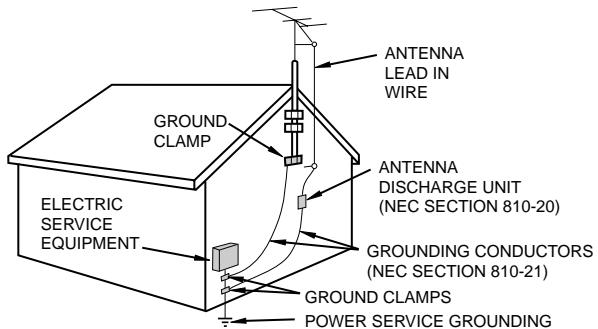
- If an outside antenna is connected to the television equipment, be sure the antenna system is grounded so as to provide some protection against voltage surges and built-up static charges. Section 810 of the National Electrical Code provides information with respect to proper grounding of the mast and supporting structure, grounding of the lead-in wire to an antenna discharge unit, size of grounding conductors, location of antenna-discharge unit, connection to grounding electrodes, and requirements for the grounding electrode.
EXAMPLE OF ANTENNA GROUNDING AS PER NATIONAL ELECTRICAL CODE
text_image
ANTENNA LEAD IN WIRE GROUND CLAMP ELECTRIC SERVICE EQUIPMENT ANTENNA DISCHARGE UNIT (NEC SECTION 810-20) GROUNDING CONDUCTORS (NEC SECTION 810-21) GROUND CLAMPS POWER SERVICE GROUNDINGNEC—NATIONAL ELECTRICAL CODE
GROUND CLAMPS
POWER SERVICE GROUNDING
ELECTRODE SYSTEM
(NEC ART 250, PART H)
- For added protection for this television equipment during a lightning storm, or when it is left unattended and unused for long periods of time, unplug it from the wall outlet and disconnect the antenna. This will prevent damage to the equipment due to lightning and power-line surges.
- An outside antenna system should not be located in the vicinity of overhead power lines or other electric light or power circuits, or where it can fall into such power lines or circuits. When installing an outside antenna system, extreme care should be taken to keep from touching such power lines or circuits as contact with them might be fatal.
- Do not overload wall outlets and extension cords as this can result in fire or electric shock.
- Never push objects of any kind into this television equipment through cabinet slots as they may touch dangerous voltage points or short out parts that could result in a fire or electric shock. Never spill liquid of any kind on the television equipment.
- Do not attempt to service this television equipment yourself as opening or removing covers may expose you to dangerous voltage or other hazards. Refer all servicing to qualified service personnel.
- Unplug this television equipment from the wall outlet and refer servicing to qualified service personnel under the following conditions:
A. When the power cord or plug is damaged or frayed.
B. If liquid has been spilled into the television equipment.
C. If the television equipment has been exposed to rain or water.
D. If the television equipment does not operate normally by following the operating instructions. Adjust only those controls that are covered by the operating instructions as improper adjustment of other controls may result in damage and will often require extensive work by a qualified technician to restore the television equipment to normal operation.
E. If the television equipment has been dropped or the cabinet has been damaged.
F. When the television equipment exhibits a distinct change in performance — this indicates a need for service.
- Upon completion of any service or repairs to this television equipment, ask the service technician to perform routine safety checks to determine that the television is in safe operating condition.
- When replacement parts are required, be sure the service technician has used replacement parts specified by the manufacturer that have the same characteristics as the original part. Unauthorized substitutions may result in fire, electric shock, or other hazards.
Supplied Accessories
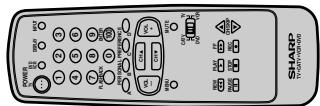
Infrared Remote Control
Size AA
Dry Batteries
Before Operating Your Television
Location
- For normal operation, your TV should be located in an area of the room where cool adequate ventilation is provided. Do not place the back of the television set in a place where free airflow will be restricted.
- Any magnetic force may disturb the color picture. Make sure that magnets, electric clocks, toys using magnets or any other magnetic substance, such as iron are kept well away from the TV set.
Power
Your TV operates on 120 Volts, 60 Hz (normal household current) and has a polarized plug. If you are unable to insert the plug fully into the outlet, try reversing the plug. Should it fail to fit, contact an electrician. Do not defeat the safety feature of the polarized plug.
Note:
- If the set is not going to be used for a long period, such as during a vacation, unplug the set from the wall outlet to economize power. (If the TV set is plugged in, a slight current still flows, even with the POWER BUTTON in the OFF position.)
- Lines and other noise may appear in TV broadcast images when an FM tuner or radio is located near the TV and both radio and TV broadcasts are being received. Should such noise appear, turn off the radio.
- If you are listening to an AM broadcast, turn the TV off. AM broadcast signals may not be received due to interference from the TV.
● Before using the television, prepare the Remote Control
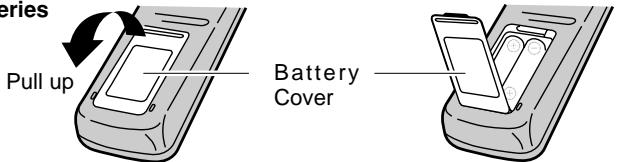
To use the remote control, insert batteries first.
Inserting the batteries
text_image
Pul up Battery Cover- With your thumbnail, pull up the slit as indicated by the arrow to remove the battery cover. Insert two batteries (size "AA"). Be sure to match the battery / terminals with the / marks inside the compartment.
Antenna Connections
Antennas
- The antenna requirements for good color television reception are more important than those for black & white television reception. For this reason, a good quality outdoor antenna is strongly recommended. The following is a brief explanation of the type of connections that are provided with the various antenna systems:
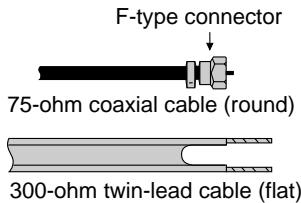
- A 75-ohm system is generally a round cable with F-type connector that can easily be attached to a terminal without tools (not supplied).
- A 300-ohm system is a flat "twin-lead" cable that can be attached to a 75-ohm terminal through a 300/75-ohm ADAPTOR (not supplied).
text_image
F-type connector 75-ohm coaxial cable (round) 300-ohm twin-lead cable (flat)Antenna Connections (Continued)
OUTDOOR ANTENNA CONNECTION
- Refer to one of the following two diagrams when connecting to an outdoor antenna.
A: Using a VHF/UHF combination outdoor antenna.
B: Using separate VHF and/or UHF outdoor antenna. - Connect an outdoor antenna cable lead-in to the ANT/CABLE terminal on the rear of the TV set.
A. Combination VHF/UHF Antennas

text_image
VHF/UHF ANTENNA 300/75-ohm ADAPTOR (Not supplied) 300-ohm twin-lead or 75-ohm coaxial cable ANT/ CABLE 75- VHF/UHF ANTENNA REAR PANELB. Separate VHF/UHF Antenna
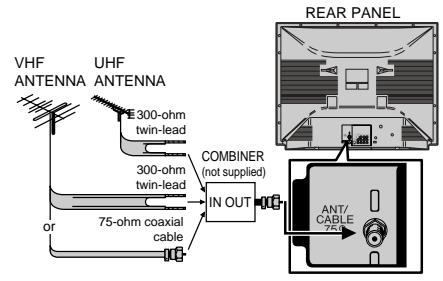
text_image
VHF ANTENNA UHF ANTENNA E300-ohm twin-lead 300-ohm twin-lead 75-ohm coaxial cable COMBINER (not supplied) IN OUT ANT/CABLE 750 REAR PANELNOTICE
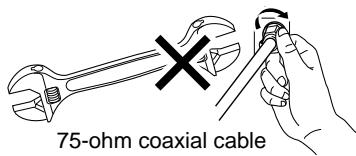
F-type connector
text_image
75-ohm coaxial cableF-type connector should be finger-tightened only.
When connecting the RF cable to the TV set, do not tighten F-type connector with tools.
If tools are used, it may cause damage to your TV set.
(The breaking of internal circuit, etc.)
CABLE TV (CATV) CONNECTION
- A 75 ohm coaxial cable connector is built into the set for easy hookup. When connecting the 75 ohm coaxial cable to the set, screw the 75 ohm cable to the COAXIAL CABLE CONNECTOR.
- Some cable TV companies offer “premium pay channels”. Since the signals of these premium pay channels are scrambled, a cable TV converter/descrambler is generally provided to the subscriber by the cable TV company. This converter/descrambler is necessary for normal viewing of the scrambled channels. (Set your TV on channel 3 or 4. Typically one of these channels is used. If this is unknown, consult your cable TV company.) For more specific instructions on installing cable TV, consult your cable TV company. One possible method of utilizing the converter/descrambler provided by your cable TV company is explained below.
Please note: RF switch equipped with position A/B (not provided) is required.
“A” position on the RF switch (not supplied) : You can view all unscrambled channels using the TV's channel keys.
“B” position on the RF switch (not supplied) : You can view the scrambled channels via the converter/descrambler using the converter's channel keys.
RF switch (not supplied)
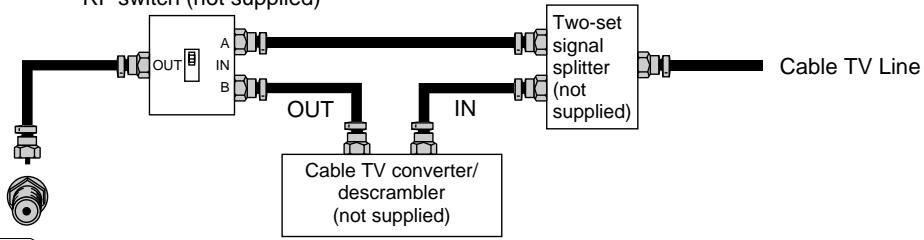
flowchart
graph LR
    A["Cable TV converter/descrambler (not supplied)"] --> B["OUT"]
    A --> C["IN"]
    B --> D["A IN B"]
    C --> E["OUT"]
    C --> F["IN"]
    D --> G["Two-set signal splitter (not supplied)"]
    E --> G
    F --> G
    G --> H["Cable TV Line"]
Note:
- Consult your SHARP Dealer or Service Center for the type of splitter, RF switch or combiner that might be required.
Quick Reference Control Operation
- Part Names
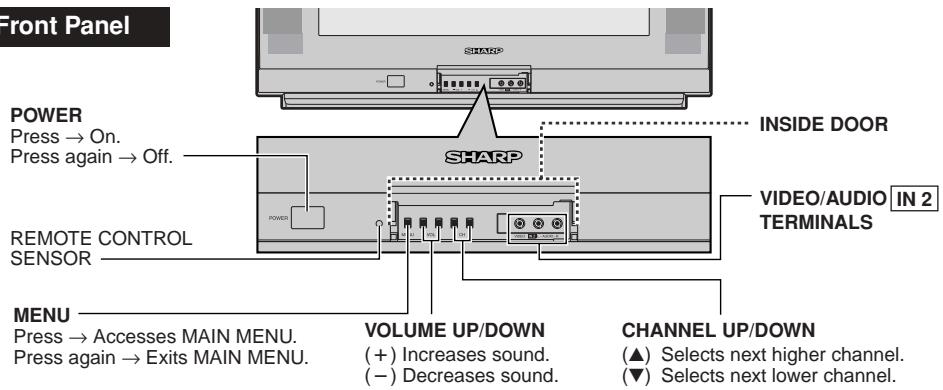
text_image
Front Panel POWER Press → On. Press again → Off. REMOTE CONTROL SENSOR MENU Press → Accesses MAIN MENU. Press again → Exits MAIN MENU. INSIDE DOOR SHARP VIDEO/AUDIO IN 2 TERMINALS VOLUME UP/DOWN (+) Increases sound. (-) Decreases sound. CHANNEL UP/DOWN (▲) Selects next higher channel. (▼) Selects next lower channel.To open the door
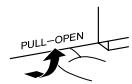
Using the projection located under the "PULL-OPEN" indication, pull and lift the door open.
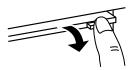
To close the door
Using the projection, lower the door until closed.
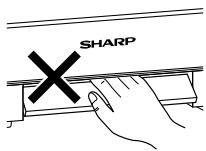
Caution:
- When opening or closing the door, do not insert your fingers into the gap between the door and front panel. This may result in an injury.
text_image
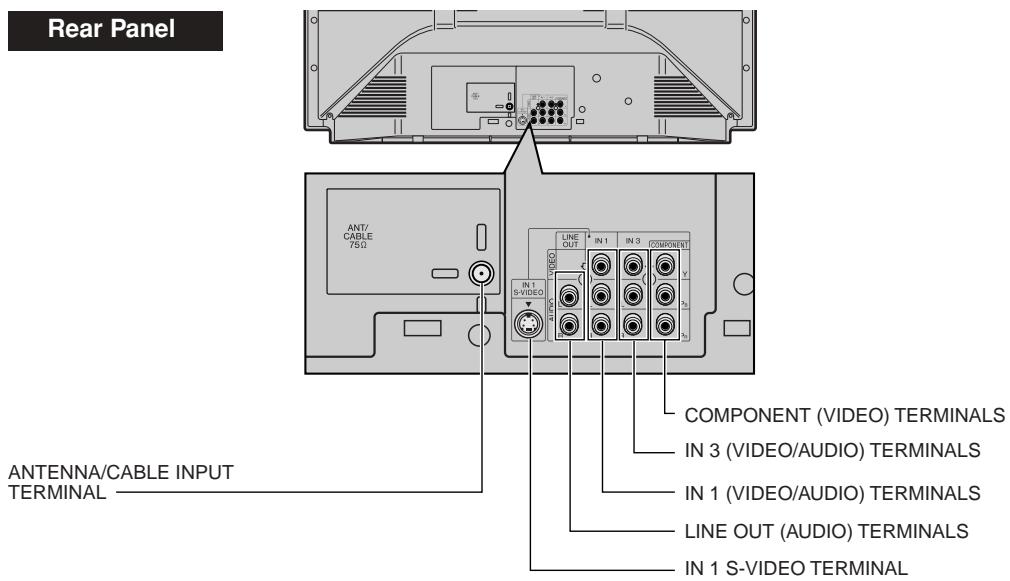
Rear Panel ANTENNA/CABLE INPUT TERMINAL COMPONENT (VIDEO) TERMINALS IN 3 (VIDEO/AUDIO) TERMINALS IN 1 (VIDEO/AUDIO) TERMINALS LINE OUT (AUDIO) TERMINALS IN 1 S-VIDEO TERMINALNote:
- The TV set and remote control illustrations and the on-screen displays in this manual may differ from their actual appearance.
Quick Reference Control Operation (Continued)
- Part Names
Basic Remote Control Functions
text_image
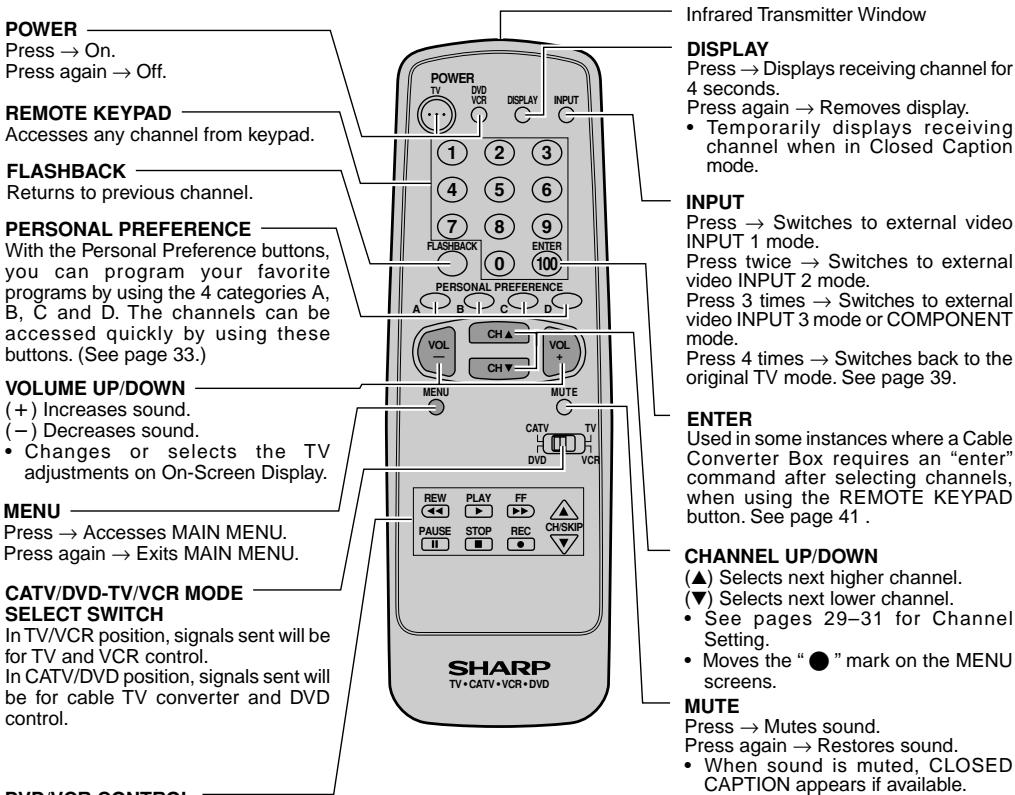
POWER Press → On. Press again → Off. REMOTE KEYPAD Accesses any channel from keypad. FLASHBACK Returns to previous channel. PERSONAL PREFERENCE With the Personal Preference buttons, you can program your favorite programs by using the 4 categories A, B, C and D. The channels can be accessed quickly by using these buttons. (See page 33.) VOLUME UP/DOWN (+) Increases sound. (-) Decreases sound. • Changes or selects the TV adjustments on On-Screen Display. MENU Press → Accesses MAIN MENU. Press again → Exits MAIN MENU. CATV/DVD-TV/VCR MODE SELECT SWITCH In TV/VCR position, signals sent will be for TV and VCR control. In CATV/DVD position, signals sent will be for cable TV converter and DVD control. DVR/VR CONTROL INfrared Transmitter Window DISPLAY Press → Displays receiving channel for 4 seconds. Press again → Removes display. • Temporarily displays receiving channel when in Closed Caption mode. INPUT Press → Switches to external video INPUT 1 mode. Press twice → Switches to external video INPUT 2 mode. Press 3 times → Switches to external video INPUT 3 mode or COMPONENT mode. Press 4 times → Switches back to the original TV mode. See page 39. ENTER Used in some instances where a Cable Converter Box requires an “enter” command after selecting channels, when using the REMOTE KEYPAD button. See page 41 . CHANNEL UP/DOWN (▲) Selects next higher channel. (▼) Selects next lower channel. • See pages 29–31 for Channel Setting. • Moves the “●” mark on the MENU screens. MUTE Press → Mutes sound. Press again → Restores sound. • When sound is muted, CLOSED CAPTION appears if available.DVD/VCR CONTROL
See page 41.
MUTE
Press → Mutes sound.
Press again → Restores sound.
- When sound is muted, CLOSED CAPTION appears if available.
Note:
- The above shaded buttons on the Remote Control glow in the dark. To use the glow-in-the-dark display on the remote control, place it under a fluorescent light or other lighting.
- The phosphorescent material contains no radioactive or toxic material, so it is safe to use.
- The degree of illumination will vary depending on the strength of lighting used.
- The degree of illumination will decrease with time and depending on the temperature.
- The time needed to charge the phosphorescent display will vary depending on the surrounding lighting.
- Sunlight and fluorescent lighting are the most effective when charging the display.
- The TV set and remote control illustrations and the on-screen displays in this manual may differ from their actual appearance.
EZ SETUP during First Use
- When you turn on the TV for the first time, it will automatically memorize the broadcasting channels. Please perform the following instructions before pressing the POWER button.
(1) Insert the batteries into the remote control. (See page 5)
(2) Connect the antenna cable to the TV set. (See pages 5, 6)
(3) Plug in the AC POWER cord to the wall outlet.
text_image
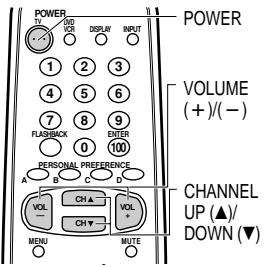
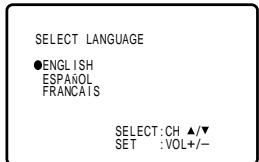
POWER 1 2 3 4 5 6 7 8 9 PLASERICK 100 PERSONAL PREFERENCE A B C D VOL CH ▲ VOL CH ▼ CH + MENU MUTE POWER VOLUME (+)/(−) CHANNEL UP (▲)/ DOWN (▼)1 Press the POWER button on the TV set or on the Remote Control to turn on the TV. The SELECT LANGUAGE screen will be displayed. (On the Set) (On the Remote Control)

text_image
SELECT LANGUAGE ●ENGLISH ESPAÑOL FRANCAIS SELECT:CH ▲/▼ SET :VOL+/−(SELECT LANGUAGE screen)
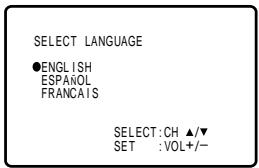
2 Press CH ▲/▼ to select "ENGLISH", "ESPAÑOL (SPANISH)" or "FRANCAIS (FRENCH)".

text_image
SELECT LANGUAGE ●ENGLISH ESPAÑOL FRANCAIS SELECT:CH ▲/▼ SET :VOL+/-3 Press VOL +/- to access the EZ SETUP screen.
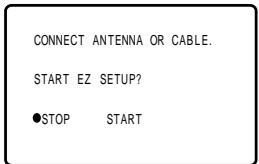
text_image
CONNECT ANTENNA OR CABLE. START EZ SETUP? ●STOP START(EZ SETUP screen)
4 Press VOL +. The tuner will automatically search for the broadcasting and cable TV channels. (The CH No. will automatically increase when it appears.)
If you want to stop the EZ SETUP process once it has started, press VOL – and it will be canceled. If you want to SET UP again, please refer to page 28 on SET UP.
(STOP)

(START)

PLEASE WAIT AUTO PROGRAMMING 125 STOP ●START
To cancel EZ SETUP
Press VOL -.
5 Once EZ SETUP is complete, the lowest channel number memorized will be displayed.
2
Note:
- If EZ SETUP does not memorize all the channels in your region, please refer to pages 29–31 for more information on manually memorizing the channels using CHANNEL SETTING.
- It may be difficult to PRESET when the broadcast signals are weak, the channel cycle frequency is incorrect or frequency jamming is occurring around the area. Please refer to pages 29–31 for more information on manually memorizing the channels using CHANNEL SETTING.
Demo Mode
- To learn more about the TV set, you can enter DEMO mode. Simply press and hold MENU on the TV set for more than 3 seconds.
- To cancel DEMO mode, again press MENU on the TV set for more than 3 seconds.
(On the Set)
MENU

MENU
button
Example:
DEMO mode display
SHARP
Accessing the MAIN MENU screen without Remote Control
- If you misplaced your Remote Control you can still access most settings via the MAIN MENU screen by pressing MENU on the TV set.
- Some features of your TV set are not accessible without the Remote Control. If you lost your Remote Control, contact a Sharp Service Center for a replacement.
(On the Set)

MENU
button
Language
● The language for the ON SCREEN DISPLAY can be set to ENGLISH, SPANISH or FRENCH.
1 Press MENU to access the MAIN MENU screen.

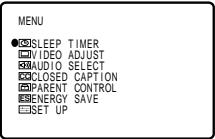
(MAIN MENU screen)
2 Press CH ▲/▼ to move the “●” mark to “SET UP”.

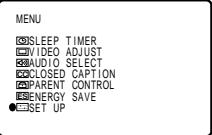
3 Press VOL +/- to access the SET UP screen, then press CH ▲/▼ to move the “●” mark to “LANGUAGE”.
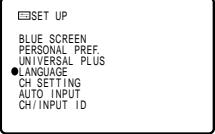
(SET UP screen)
4 Press VOL +/- to access the LANGUAGE select screen.
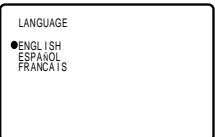
(LANGUAGE select screen)
5 Press CH ▲/▼ to select "ENGLISH", "ESPAÑOL (SPANISH)" or "FRANCAIS (FRENCH)".

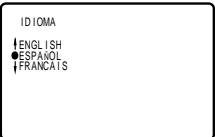
6 Press MENU to exit.

Sleep Timer
- You can preset your television to turn off automatically in increments of 30, 60, 90 or 120 minutes.
1 Press MENU to access the MAIN MENU screen.
2 Press VOL +/- to access the SLEEP TIMER screen.
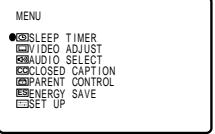
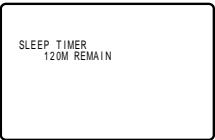
3 Press VOL +/- to set a sleep time of 30, 60, 90 or 120 minutes.
4 Press MENU to exit.
Note:
(SLEEP TIMER screen)
- To turn off the SLEEP TIMER, repeat the above SLEEP TIMER steps and select “— — — M REMAIN” during step 3.
- While SLEEP TIMER is active, the time remaining will be briefly displayed on-screen at regular intervals or when the Remote's DISPLAY key is pressed twice. 5 minutes before the SLEEP TIMER turns off the TV, the screen prompts the time remaining for 4 seconds. The SLEEP TIMER shows a similar display for each remaining minute and a 10-second display right before shutting off the TV.
- If you turn the POWER OFF, the SLEEP TIMER will automatically reset.
Video Adjust
● Description of Adjustment Items
| Selected item | VOL + button | VOL – button |
| PICTURE | To increase contrast | To decrease contrast |
| TINT | To make skin tones greenish | To make skin tones purplish |
| COLOR | To increase color intensity | To decrease color intensity |
| BRIGHT | To increase brightness | To decrease brightness |
| SHARP | To increase sharpness | To decrease sharpness |
| COLOR TEMP. | To choose a LOW, ML, MH or HIGH color tone. | |
| RESET | To return all adjustments to factory preset levels. | |
text_image
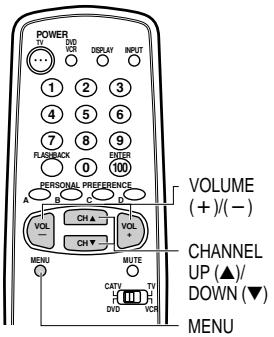
POWER 1 DVD VOR DISPLAY INPUT 1 2 3 4 5 6 7 8 9 FLASHBACK OUTER 10 100 PERSONAL PREFERENCE A VOLUME (+)/(−) VOL CH ▲ CH▼ VOL VCH MUTE MENU CNTY TV DVD VCH CHANNEL UP (▲)/ DOWN (▼) MENU1 Press MENU to access the MAIN MENU screen.
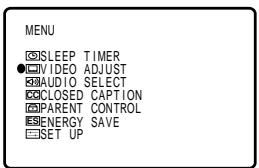
2 Press CH ▲/▼ to move the “●” mark to “VIDEO ADJUST”.
text_image
MENU ☑SLEEP TIMER ●☑VIDEO ADJUST ☑AUDIO SELECT ☑CLOSED CAPTION ☑PARENT CONTROL ☑ENERGY SAVE ☑SET UP(MAIN MENU screen)
3 Press VOL +/- to access the PICTURE adjust screen.
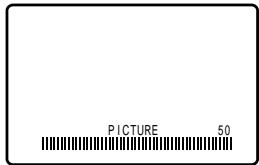
text_image
PICTURE 50(PICTURE adjust screen)
4 Press CH ▲/▼ to select the desired adjustment item. (Refer to the diagram below.)
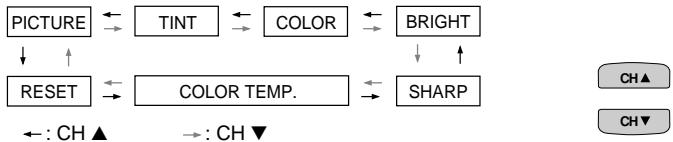
flowchart
graph TD
    A["PICTURE"] --> B["TINT"]
    B --> C["COLOR"]
    C --> D["BRIGHT"]
    D --> E["SHARP"]
    E --> F["COLOR TEMP."]
    F --> G["RESET"]
    G --> H["CH▲"]
    G --> I["CH▼"]
    H --> J[": CH ▲"]
    I --> K[": CH ▼"]
5 Press VOL +/- to adjust the setting.
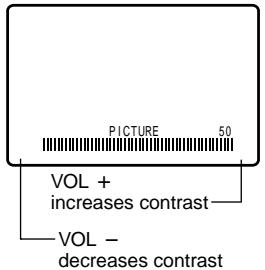
text_image
PICTURE 50 VOL + increases contrast VOL - decreases contrast6 Repeat steps 4 to 5 to adjust other settings.
7 Press MENU to exit.

Note:
- VIDEO ADJUST setting, once set, is shared among AIR/CABLE, INPUT 1, INPUT 2, and INPUT 3 modes.
12• VIDEO ADJUST setting for INPUT 3 when used as COMPONENT can be set independently.
Audio Select
MTS (Multichannel TV Sound)
This function allows reception of stereo or bilingual TV sound.
● You can enjoy Hi-Fi stereo sound or SAP broadcasts where available.
Stereo broadcasts
Live television broadcasts of sports, shows, concerts, etc. can be received in dynamic stereo sound.
SAP broadcasts
Television broadcast can be received with either MAIN or SAP sound.
MAIN sound: The normal program soundtrack. (Monaural or stereo where available.)
SAP sound: Second language, supplementary commentaries, etc. (SAP sound is monaural.)
- If stereo sound is difficult to hear;
You can obtain clearer sound by manually switching to fixed monaural mode.
■ SPEAKER (Internal Speaker Switch)
This function turns the TV's internal speakers "ON" or "OFF" when listening to sound from external speakers by using the AUDIO OUTPUT Terminals. (See page 40).
FAO (Fixed Audio Output)
This function turns the TV's internal speakers "OFF" and allows fixed audio output from the AUDIO OUTPUT Terminals. (See page 40). With FAO, the TV's volume control is disabled.
1 Press MENU to access the MAIN MENU screen.
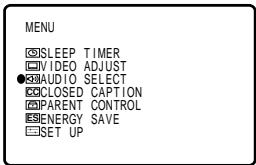
2 Press CH ▲/▼ to move the “●” mark to “AUDIO SELECT”.
text_image
MENU ○SLEEP TIMER □VIDEO ADJUST ●AUDIO SELECT ○CLOSED CAPTION □PARENT CONTROL □ENERGY SAVE □SET UP(MAIN MENU screen)
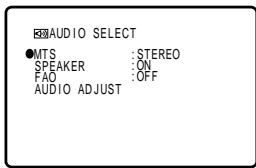
3 Press VOL +/- to access the AUDIO SELECT screen.
4 Press CH ▲/▼ to move the “●” mark to “MTS”, “SPEAKER”, “FAO” or “AUDIO ADJUST”.
text_image
AUDIO SELECT ●MTS :STEREO SPEAKER :ON FAO :OFF AUDIO ADJUST(AUDIO SELECT screen)
5 Press VOL +/- to select "STEREO", "SAP" or "MONO" when the "●" mark is at "MTS" position.
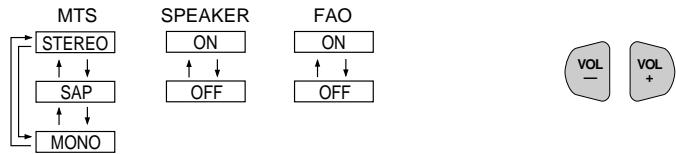
flowchart
graph TD
    A["MTS"] --> B["STEREO"]
    B --> C["SAP"]
    C --> D["MONO"]
    E["SPEAKER"] --> F["ON"]
    F --> G["OFF"]
    H["FAO"] --> I["ON"]
    I --> J["OFF"]
    K["VOL"] --> L["+"]
    M["VOL"] --> L
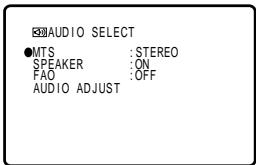
text_image
AUDIO SELECT ●MTS : STEREO SPEAKER : ON FAO : OFF AUDIO ADJUST(AUDIO SELECT screen)
Audio Select (Continued)
AUDIO ADJUST
When the “●” mark is at “AUDIO ADJUST”, press VOL +/- to access the AUDIO ADJUST screen. To access the desired item, press CH ▲/▼. To adjust the audio setting, press VOL +/- .
| TREBLE | BASS | BALANCE | RESET |
| Selected item | VOL + button | VOL – button |
| TREBLE | To increase treble response. | To decrease treble response. |
| BASS | To increase bass response. | To decrease bass response. |
| BALANCE | To emphasize the right speaker's volume. | To emphasize the left speaker's volume. |
| RESET | To return all adjustments to factory preset levels. | |
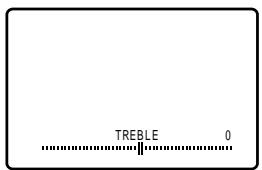
text_image
TREBLE 06 Press MENU to exit.
MENU

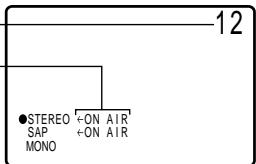
An example screen displaying ON AIR when receiving stereo broadcasts
Current channel number
“← ON AIR” will appear next to STEREO or SAP when receiving STEREO or SAP broadcasts.
text_image
12 ● STEREO +ON AIR SAP +ON AIR MONO(CHANNEL call on screen)
Note:
- Once MONO mode is selected, the TV sound remains monaural even if the TV set receives a stereo broadcast. You must switch the mode back to STEREO if you want to hear stereo sound again.
- Selecting MTS while receiving video signals from INPUT terminals does not change the type of sound; in this case, sound is determined by the video source.
- If “FAO” mode is on, “SPEAKER” mode will automatically turn off. Changing “SPEAKER” setting will not affect “FAO” mode.
Closed Caption
● How to set CLOSED CAPTION
- Your TV is equipped with an internal Closed Caption decoder. "Closed Caption" is a system which allows conversations, narration, and sound effects in TV programs and home videos to appear as captions on the TV screen (see the illustration).
- Not all the programs and videos will offer closed captioning. Please look for the “cc” symbol to ensure that captions will be shown.
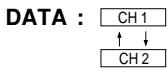
- Closed Caption broadcast can be viewed in two modes: CAPTION and TEXT. For each mode, two channels are available, CH1 and CH2.
The CAPTION mode shows subscripts of dialogs and commentaries of TV dramas and news programs while allowing clear view of the picture.
The TEXT mode displays over the picture other various information (such as TV program schedule, weather forecast, etc.) that is independent of the TV programs.
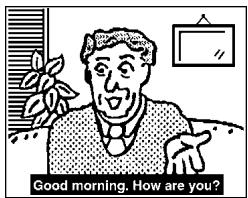
text_image
Good morning. How are you?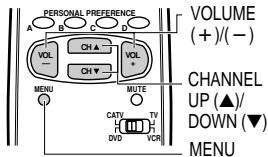
text_image
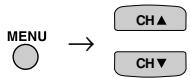
PERSONAL PREFERENCE VOLUME (+)/(−) CHANNEL UP (▲)/ DOWN (▼) MENU MUTE CATV TV DVD VCR A B C D E F G H I J K L M N U V W X Y Z1 Press MENU to access the MAIN MENU screen.
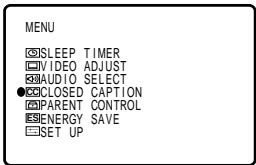
2 Press CH ▲/▼ to move the “●” mark to “CLOSED CAPTION”.
text_image
MENU ○SLEEP TIMER □VIDEO ADJUST ●AUDIO SELECT ●CLOSED CAPTION ○PARENT CONTROL ●ENERGY SAVE □SET UP(MAIN MENU screen)
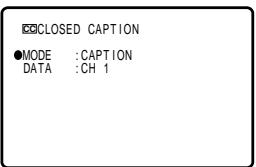
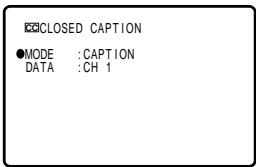
3 Press VOL +/- to access the CLOSED CAPTION setting screen.
text_image
CLOSED CAPTION ●MODE :CAPTION DATA :CH 1(CLOSED CAPTION setting screen)
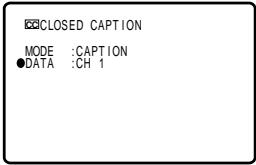
4 Press CH ▲/▼ to move the “●” mark to either “MODE” or “DATA”.

text_image
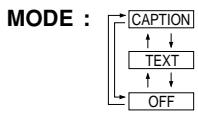
CLOSED CAPTION MODE :CAPTION ●DATA :CH 15 Press VOL +/- to change the CLOSED CAPTION setting.
text_image
CLOSED CAPTION ●MODE :CAPTION DATA :CH 16 Press MENU to exit.

Note:
- If a broadcast contains CLOSED CAPTION and the MUTE button is pressed, the set enters CAPTION mode automatically. Pressing MUTE again will return the set to its previous condition.
- Closed Caption may malfunction (white blocks, strange characters, etc.) if signal conditions are poor or if there are problems at the broadcast source. This does not necessarily indicate a problem with your TV.
- If any button is pressed to call up the ON SCREEN DISPLAY while viewing a CLOSED CAPTION broadcast, the closed captions will disappear momentarily.
- If no TEXT broadcast is being received while viewing in the TEXT mode, the screen may become dark and blank for some programs. Should this occur, switch the Closed Caption mode to "OFF".
Parent Control (V-CHIP Operation)
V-CHIP
- This function allows you to restrict TV programs and also allows you to control TV usage based on FCC data. This function is to prevent your children from watching violence or sexual scenes that may be harmful.
- Restriction of TV programs includes two characters that contain information about the program's MPAA rating and the TV Parental Guidelines. MPAA is restricted by age. TV Parental Guidelines are restricted by age and contents.
- Since a TV program may use either the MPAA rating or the TV Guidelines you should adjust both for complete control.
[1] MPAA RATING
| RATING | ||
| age based | G | GENERAL AUDIENCES. All ages admitted. |
| PG | PARENTAL GUIDANCE SUGGESTED. Some material may not be suitable for children. | |
| PG-13 | PARENTS STRONGLY CAUTIONED. Some material may be inappropriate for children under 13. | |
| R | RESTRICTED. Under 17 requires accompanying parent or adult guardian. | |
| NC-17 | NO ONE 17 AND UNDER ADMITTED. | |
| X | X Rating is an older rating that is unified with NC-17 but may be encoded on older movie's data. | |
- MPAA RATING
Example 1:
"PG-13" in the age-based rating is blocked, this will automatically block the higher ratings "R", "NC-17", "X" also.
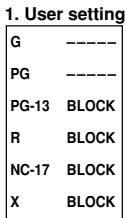
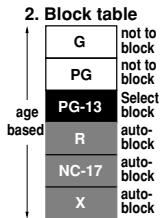
Example 2:
“R” in the age-based rating is blocked, this will automatically block the higher rating “NC-17”, “X” also.
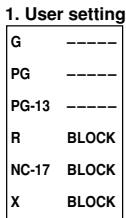
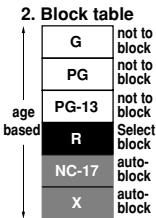
Note:
• MPAA RATING is only age-based.
[2] TV PARENTAL GUIDELINES
| RATING | ←→ content based → | ||||||
| AGE | D (Sexually Suggestive Dialog) | L (Adult Language) | S (Sexual Situation) | V (Violence) | FV (Fantasy Violence) | ||
| age based | TV-Y (All children) | ☑ | - | - | - | - | - |
| TV-Y7 (Direct to Older Children) | ☑ | - | - | - | - | ☑ | |
| TV-G (General Audience) | ☑ | - | - | - | - | - | |
| TV-PG (Parental Guidance Suggested) | ☑ | ☑ | ☑ | ☑ | ☑ | - | |
| TV-14 (Parents Strongly Cautioned) | ☑ | ☑ | ☑ | ☑ | ☑ | - | |
| TV-MA (Mature Audience Only) | ☑ | - | ☑ | ☑ | ☑ | - | |
☐ : Content Rating can be set.
- : Content Rating cannot be set (not normally broadcast by TV station).
Parent Control (V-CHIP Operation) (Continued)
• TV PARENTAL GUIDELINES (Example)
Example 1.1 : Age Based setting
Clear V's (block) from each "AGE" box for all ratings. This will automatically unblock everything.
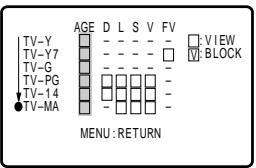
text_image
TV-Y TV-Y7 TV-G TV-PG TV-14 TV-MA AGE D L S V FV VIEW BLOCK MENU: RETURNExample 1.2 : Age Based setting
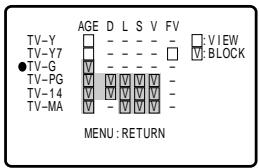
For “TV-G” put a ☑ in the "AGE" box. This will automatically block the higher age ratings “TV-PG”, “TV-14” and “TV-MA” as well as “TV-G”. Please note the content ratings “D”, “L”, “S”, “V” are automatically blocked as well.
text_image
TV-Y TV-Y7 ●TV-G TV-PG TV-14 TV-MA AGE D L S V FV □: VIEW □: BLOCK MENU: RETURNExample 2.1 : Content Based setting
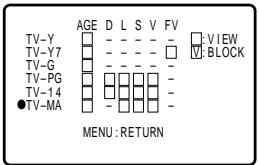
If you choose to unblock every content-based items (“D”, “L”, “S”, “V”), clear the ☑ (block) from each “AGE” box of “TV-PG”, “TV-14” and “TV-MA”.
text_image
TV-Y TV-Y7 TV-G TV-PG TV-14 ●TV-MA AGE D L S V FV □: VIEW □: BLOCK □ □ □ □ □ □ □ □ □ □ □ □ □ □ □ □ □ □ □ □ □ □ □ □ □ □ □ □ □ □ □ □ □ □ □ □ □ □ □ □ □ □ □ □ □ □ □ □ □ □ □ □ □ □ ▢ □ □ □ □ ▢ □ □ □ □ ▢ □ □ □ □ ▢ □ □ □ □ ▢ □ □ □ □ ▢ □ □ □ □ ▢ □ □ □ □ ▢ □ □ □ □ ▢ □ □ □ □ ▢ □ □ □ □ ▣ □ □ □ □ ▣ □ □ □ □ ▣ □ □ □ □ ▣ □ □ □ □ ▣ □ □ □ □ ▣ □ □ □ □ ▣ □ □ □ □ ▣ □ □ □ □ ▣ □ □ □ □ ▣ □ □ □ □ ▢ □ □ □ □ ▣ □ □ □ □ ▣ □ □ □ □ ▣ □ □ □ □ ▣ □ □ □ □ ▣ □ □ □ □ ▣ □ □ □ □ ▣ □ □ □ □ ▣ □ □ □ □ ▢ □ □ □ □ ▢ □ □ □ □ ▣ □ □ □ □ ▣ □ □ □ □ ▣ □ □ □ □ ▣ □ □ □ □ ▣ □ □ □ □ ▣ □ □ □ □ ▣ □ □ □ □ ▢ □ □ □ □ ▣ □ □ □ □ ▢ □ □ □ □ ▣ □ □ □ □ ▣ □ □ □ □ ▣ □ □ □ □ ▣ □ □ □ □ ● MENU : RETURNExample 2.2 : Content Based setting
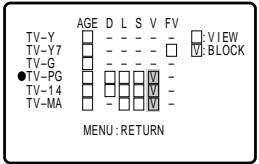
Put a ☑ in the box corresponding to “TV-PG” (row) and “V (Violence)” (column). This will automatically block the “V” boxes for “TV-14” and “TV-MA”. Setting only “TV-PG-V”, “TV-14-V” or “TV-MA-V” will not block all programs rated “TV-PG”, “TV-14” or “TV-MA”.
text_image
TV-Y TV-Y7 TV-G ●TV-PG TV-14 TV-MA AGE D L S V FV □ VIEW □ BLOCK MENU: RETURNExample 3 : Resetting an Age Based setting
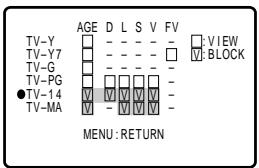
For “TV-14”, put a ☑ (block) in the “AGE” box. This will again automatically block the content ratings “D”, “L”, “S”, “V” for “TV-MA” as well as “TV-14” (“D” is not available for “TV-MA”). Please note that the lower age rating “TV-PG” does not change from its previous settings after this.
text_image
TV-Y TV-Y7 TV-G TV-PG ●TV-14 TV-MA AGE D L S V FV □: VIEW □: BLOCK MENU: RETURNNote:
- Content ratings can be modified but only in the combinations indicated by in the table on page 16.
- Changing a lower age rating's content setting to "BLOCK" automatically changes the same higher age rating's content setting to "BLOCK" regardless of their previous settings.
- Changing a lower rating's "AGE" setting to "BLOCK" automatically changes all higher ratings to "BLOCK" regardless of their previous settings.
- For “TV-Y7”, “TV-PG”, “TV-14” and “TV-MA”, if you clear the ☑ in the “AGE” box (unblock) you can still change settings based on content.
- Clearing a higher rating's age or content setting will not clear lower settings. Make sure that all undesired boxes are blocked.
[3] ADDITIONAL MODE
Besides “MPAA RATINGS” and “TV PARENTAL GUIDELINES”, new ratings system’s data can be downloaded when they become available. (See page 20.)
Parent Control (V-CHIP Operation) (Continued)
- How to set V-CHIP
[1] MPAA RATING
text_image
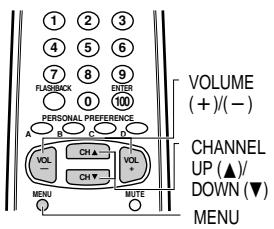
① ② ③ ④ ⑤ ⑥ ⑦ ⑧ ⑨ FLASHBACK 0 100 DITER PERSONAL PREFERENCE A B C D VOL CH ▲ CH ▼ VOL CH ▼ MENU MUTE CHANNEL UP (▲)/ DOWN (▼) MENU1 Press MENU to access the MAIN MENU screen.

MENU
●SLEEP TIMER VIDEO ADJUST AUDIO SELECT CLOSED CAPTION PARENT CONTROL ENERGY SAVE SET UP
(MAIN MENU screen)
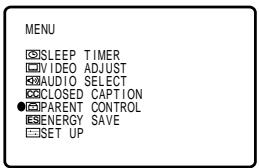
2 Press CH ▲/▼ to move the “●” mark to “PARENT CONTROL”.

text_image
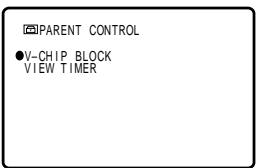
MENU ☑SLEEP TIMER ☑VIDEO ADJUST ☑AUDIO SELECT ☑CLOSED CAPTION ●☑PARENT CONTROL ☑ENERGY SAVE ☑SET UP3 Press VOL +/- to access the PARENT CONTROL screen.
text_image
■PARENT CONTROL ●V-CHIP BLOCK VIEW TIMER4 Press VOL +/- to access the V-CHIP select screen.
Note:
- If SECRET No. is already set, enter the SECRET No. (See ● To change the V-CHIP BLOCK after registering a secret No. on page 22.).
text_image
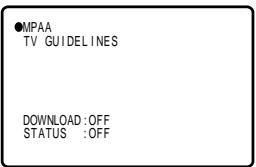
●MPAA TV GUIDELINES DOWNLOAD:OFF STATUS :OFF5 Press VOL +/- to select "MPAA". Press CH ▲/▼ to move the "●" mark to "PG", then press VOL +/- to select BLOCK. If you set "PG" to BLOCK, "PG-13", "R", "NC-17" and "X" are automatically blocked.


text_image
G :---- ●PG :BLOCK PG-13 :BLOCK R :BLOCK NC-17 :BLOCK X :BLOCK MENU:RETURN6 Press MENU to return to the V-CHIP select screen.

Parent Control (V-CHIP Operation) (Continued)
7 Press MENU, then "INPUT SECRET No." will be displayed.
Note:
- If SECRET No. is already set, skip to step 9.

INPUT SECRET No.
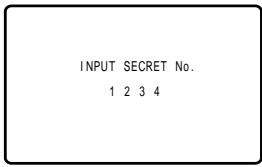
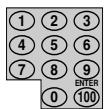
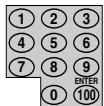
8 Enter a 4-digit SECRET No. using the REMOTE KEYPAD.
INPUT SECRET No. 1 2 3 4
9 When done, press MENU to exit.

Note:
- If you set "G" to BLOCK, all ratings are automatically blocked.
- If you set "X" to BLOCK, "G", "PG", "PG-13", "R" and "NC-17" are not blocked.
[2] TV GUIDELINES
1 Repeat steps 1 to 4 of [1] MPAA RATING.
2 Press CH ▲/▼ to move the “●” mark to “TV GUIDELINES”.
![SHARP 27F541 - [2] TV GUIDELINES - 1](/content/2020/05/78349/images/afd3fb498f97080abc2b78aeb0668f24fedede2c1cffebed51a654b2cb80ab83.jpg)
![SHARP 27F541 - [2] TV GUIDELINES - 2](/content/2020/05/78349/images/a747e5110e2ca6b1c55cc6756f737e4d997d69aedb98f3d54fcaac7523f52096.jpg)
text_image
MPAA ●TV GUIDELINES DOWNLOAD:OFF STATUS :OFF(V-CHIP select screen)
3 Press VOL +/- to access the TV GUIDELINES screen.
![SHARP 27F541 - [2] TV GUIDELINES - 3](/content/2020/05/78349/images/c826a34e4a7c538e29917bb4046732033e8303ed40975850fbd24c86dc657a16.jpg)
![SHARP 27F541 - [2] TV GUIDELINES - 4](/content/2020/05/78349/images/b65864f20873ee405c1e6945758fc65c782e4ef0b01e41af6587f1e4bd34ccdc.jpg)
text_image
TV-Y ●TV-Y7 TV-G TV-PG TV-14 TV-MA AGE D L S V FV □: VIEW □: BLOCK MENU: RETURN(TV GUIDELINES screen)
4 To change AGE and CONTENT SETTING, press CH ▲/▼ to move the “●” mark to the desired rating and then press VOL +/− to select.
![SHARP 27F541 - [2] TV GUIDELINES - 5](/content/2020/05/78349/images/c638418f27aa2973dee8a7b46e39adc7c805c5c9de12604c301c71062a90a584.jpg)
5 Press CH ▲/▼ to move the “●” mark to the desired content item and then press VOL +/− to select either “BLOCK” or “− − − − − ” (unblock).
![SHARP 27F541 - [2] TV GUIDELINES - 6](/content/2020/05/78349/images/249b0ab49d0cfb53adfcc83b3973abf5f5f5484cc8095210c5e6ad8d7c2d4e90.jpg)
![SHARP 27F541 - [2] TV GUIDELINES - 7](/content/2020/05/78349/images/14d946ac1b8508bc3b7471bc1304ec1c2ab57a578e563be385fd519220300ee0.jpg)
text_image
TV-Y7 ●AGE : BLOCK D : ---- L : ---- S : ---- V : ---- FV : BLOCK MENU: RETURN(CONTENT RATING screen)
6 Press MENU to return to the TV GUIDELINES screen.
7 Repeat steps 4 to 6 until all ratings and their contents are set.
8 When done, press MENU to return to V-CHIP select screen.
9 Press MENU to exit.
![SHARP 27F541 - [2] TV GUIDELINES - 8](/content/2020/05/78349/images/b13cc57a979ebe12366a4708618669fcdb0d3e56f54924c6501c4bc51642dfc0.jpg)
![SHARP 27F541 - [2] TV GUIDELINES - 9](/content/2020/05/78349/images/c425c862026e0cf9a8df7f7a98f086830c64a82f6787238b92a1024e4be72345.jpg)
text_image
TV-Y TV-Y7 ● TV-G TV-PG TV-14 TV-MA AGE D L S V FV VIEW BLOCK MENU: RETURNNote:
- If SECRET No. is not set, enter a SECRET No. as show in steps 7 and 8 of [1] MPAA RATING.
Parent Control (V-CHIP Operation) (Continued)
[3] Downloading additional rating mode There will be an additional new rating system. In that case, please set up as follows. Subsequently the new rating system will set up automatically.
text_image
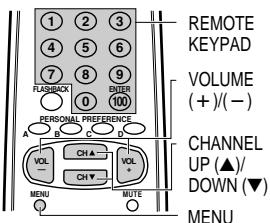
REMOTE KEYPAD VOLUME (+)/(-) CHANNEL UP (▲)/ DOWN (▼) MENU FLEXBACK 1 2 3 4 5 6 7 8 9 0 100 PERSONAL PREFERENCE A B C D VOL CH ▲ VOL CH ▼ CH MENU MUTE MENU1 Repeat steps 1 to 4 of [1] MPAA RATING.
2 Press CH ▲/▼ to move the “●” mark to “DOWNLOAD”.


MPAA TV GUIDELINES
●DOWNLOAD:OFF STATUS :OFF
3 Press VOL +/- to select "DOWNLOAD : ON".
MPAA TV GUIDELINES
●DOWNLOAD : ON STATUS : OFF
4 Press MENU, then "INPUT SECRET No." will be displayed.
Note:
- If SECRET No. is already set, skip to step 6.

INPUT SECRET No.
5 Enter a 4-digit secret No. using the REMOTE KEYPAD.
INPUT SECRET No.
1 2 3 4
6 Press MENU to exit.

- Downloading V-CHIP data
1 If you watch a program containing "new rating system data", the DOWNLOAD screen will be displayed.
PLEASE WAIT
NOW DOWNLOADING
V-CHIP DATA
(DOWNLOAD screen)
2 The DOWNLOAD screen will disappear, once downloading is finished.
Note:
- DOWNLOAD will not start, if you are not watching a program containing “new rating system data”.
Parent Control (V-CHIP Operation) (Continued)
● How to set additional rating mode (Example)
Once downloading is complete, you can set the blocking pattern as follows.
1 Repeat steps 1 to 4 of [1] MPAA RATING.
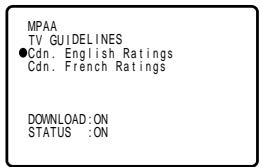
2 Press CH ▲/▼ to move the “●” mark to “Cdn. English Ratings”, then press VOL +/−.
text_image
MPAA TV GUIDELINES ●Cdn. English Ratings Cdn. French Ratings DOWNLOAD:ON STATUS :ON(After downloading the rating data)
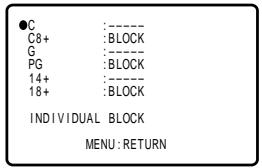
3 You can select "BLOCK" or "----" (unblock) for each rating item by pressing CH ▲/▼ and VOL +/-.
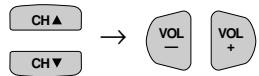
text_image
●C :---- C8+ :BLOCK G :---- PG :BLOCK 14+ :---- 18+ :BLOCK INDIVIDUAL BLOCK MENU: RETURN(ENGLISH INDIVIDUAL BLOCK screen)
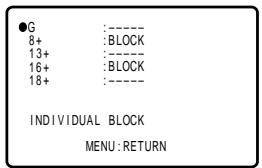
4 You can select "BLOCK" or "----" (unblock) for each rating item by pressing CH ▲/▼ and VOL +/− if you select "Cdn. French Ratings" in step 2.
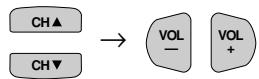
text_image
●G :---- 8+ :BLOCK 13+ :---- 16+ :BLOCK 18+ :---- INDIVIDUAL BLOCK MENU: RETURN(FRENCH INDIVIDUAL BLOCK screen)
Note:
- You are able to download up to 4 different rating systems.
Parent Control (V-CHIP Operation) (Continued)
- Activating the V-CHIP BLOCK
1 Repeat steps 1 to 4 of [1] MPAA RATING.
2 Press CH ▲/▼ to move the “●” mark to “STATUS”. Press VOL +/− to activate the V-CHIP BLOCK. (If STATUS is OFF, V-CHIP BLOCK will not operate.)
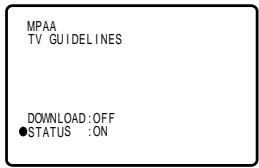
text_image
MPAA TV GUIDELINES DOWNLOAD:OFF ●STATUS :ON(V-CHIP select screen)
3 Press MENU, then "INPUT SECRET No." will be displayed.
Note:
- If SECRET No. is already set, skip to step 5.

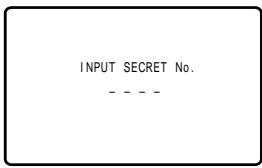
text_image
INPUT SECRET No. - - - -4 Enter a 4-digit secret No. using the REMOTE KEYPAD.
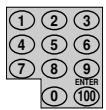
text_image
INPUT SECRET No. 1 2 3 45 Press MENU and the secret No. will be registered.

- To temporarily cancel the V-CHIP BLOCK
1 "V-CHIP HAS BEEN ACTIVATED" appears if you view a program with the same program rating data you configured.
22
V-CHIP HAS BEEN ACTIVATED
TV-Y7 FV
Note:
- "V-CHIP HAS BEEN ACTIVATED" will not be displayed if STATUS is not configured to "ON".
2 Press MENU, then "INPUT SECRET No." will be displayed.

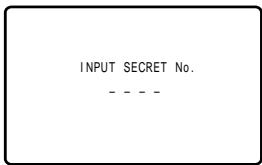
text_image
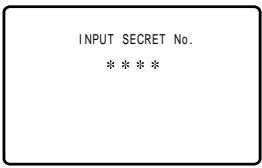
INPUT SECRET No. - - - -3 Enter the 4-digit secret No. using the REMOTE KEYPAD, then V-CHIP BLOCK will be canceled temporarily. If the wrong secret No. is chosen, "SECRET No. IS INCORRECT" will be displayed. Input the secret No. again in this case.
text_image
INPUT SECRET No. * * * *Note:
- If you turn the power ON from OFF, the V-CHIP BLOCK will be activated again.
Parent Control (V-CHIP Operation) (Continued)
- To change the V-CHIP BLOCK after registering a secret No.
1 Repeat steps 1 to 4 of [1] MPAA RATING, then "INPUT SECRET No." will be displayed.

text_image
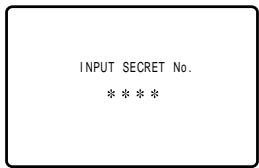
INPUT SECRET No. - - - -2 Enter the 4-digit secret No. using the REMOTE KEYPAD and the V-CHIP select screen will be displayed. Set V-CHIP BLOCK again.
text_image
INPUT SECRET No. * * * *- If you forget or need to change your secret No., clear the original secret No. and set up a new one.
1 Repeat steps 1 to 4 of [1] MPAA RATING, or 1 to 2 of To temporarily cancel the V-CHIP BLOCK, then "INPUT SECRET No." will be displayed.
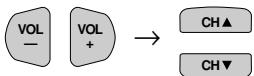
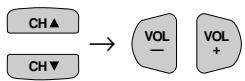
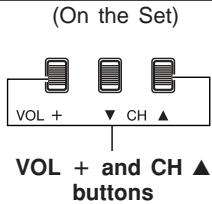
2 Press and hold both VOL + and CH ▲ on the TV set simultaneously until the message “INPUT SECRET No.” disappears.
text_image
(On the Set) VOL + ▼ CH ▲ VOL + and CH ▲ buttons3 Press the MENU button twice to exit.

Parent Control (VIEW TIMER)
VIEW TIMER
This function allows you to restrict TV viewing time and also allows you to control TV usage. This function is to prevent your children from watching too much TV.
VIEWING TIME (an accumulative timer: counts only the time duration while the TV power is on.)
- VIEWING TIME can be set from 30M (30 minutes) to 10H00M (10 hours) in 30 minutes intervals.
OFF TIME (Restricts TV viewing after the VIEWING TIME reaches zero.) ____
- OFF TIME can be set from 30M (30 minutes) to 10H00M (10 hours) in 30 minutes intervals.
STATUS (Select ON to activate VIEW TIMER)
VIEW TIMER
●VIEWING TIME
--H --M OFF-TIME
- OFF TIME
--H --M - STATUS :OFF
● How to set VIEW TIMER
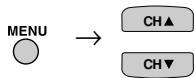
1 Press MENU to access the MAIN MENU screen.
2 Press CH ▲/▼ to move the “●” mark to “PARENT CONTROL”.
MENU
SLEEP TIMER
VIDEO ADJUST
AUDIO SELECT
CLOSED CAPTION
NORARENT CONTROL
PARENT CONTROL ENERGY SAVE
ENERGY SAVE
SET UP
(MAIN MENU screen)
3 Press VOL +/- to access the PARENT CONTROL screen.
4 Press CH ▲/▼ to move the “●” mark to “VIEW TIMER”.
PARENT CONTROL
V-CHIP BLOCK
●VIEW TIMER
(PARENT CONTROL screen)
5 Press VOL +/− to access "VIEW TIMER".
VIEW TIMER
●VIEWING TIME
--H --
OFF TIME
--H --M
STATUS :OFF
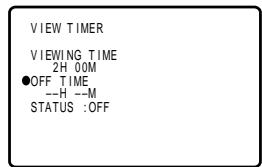
text_image
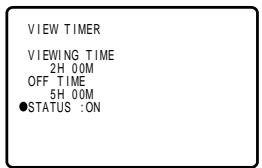
VIEW TIMER VIEWING TIME 2H 00M ●OFF TIME --H --M STATUS :OFF6 Press CH ▲/▼ to select "VIEWING TIME" and "OFF TIME". For each selection, press the VOL +/- to set the time duration.
text_image
VIEW TIMER VIEWING TIME 2H 00M OFF TIME 5H 00M ●STATUS :ON7 Press CH ▲/▼ to select "STATUS". Press the VOL +/- to turn ON the "VIEW TIMER". (If STATUS is OFF, VIEW TIMER will not operate.)
text_image
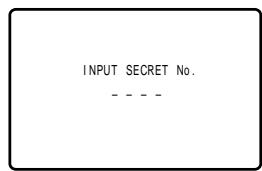
INPUT SECRET No. - - - -8 Press MENU. "INPUT SECRET No." will be displayed.
Note:
- If SECRET No. is already set, skip to step 10.

Parent Control (VIEW TIMER) (Continued)
9 Enter a 4-digit SECRET No. using the REMOTE KEYPAD.
10 Press MENU to exit.

INPUT SECRET No. 1 2 3 4
Example:
- To restrict anybody from watching TV for more than 5 hours, after watching the TV for 2 hours, your settings would look like the one on the right.
- You can choose to watch the 2 hours of TV as you wish. For example, you could watch 1 hour of TV, turn the TV off for 30 minutes, then turn the TV on and watch the remaining 1 hour of the VIEWING TIME.
VIEW TIMER VIEWING TIM 2H 00M OFF TIME 5H 00M STATUS :ON
● To change the VIEW TIMER setting after registering a secret No.
1 Repeat steps 1 to 4 of How to set VIEW TIMER. Press VOL +/-, and "INPUT SECRET No." will be displayed.
INPUT SECRET No.
2 Enter the 4-digit SECRET No. using the REMOTE KEYPAD, and the VIEW TIMER access screen will be displayed. Repeat steps 5, 6.
INPUT SECRET No. * * * *
Note:
- When you choose the correct secret No., the VIEW TIMER access screen is displayed. If the wrong secret No. is chosen, "SECRET No. IS INCORRECT" is displayed. Input the secret No. again in this case.
SECRET No. IS INCORRECT
- To cancel the VIEW TIMER (While the TV set is OFF but the VIEW TIMER is set.)
1 Turn on the TV; a blue screen message "TIME OVER" will appear. If you do nothing, the TV will turn off in approximately 30 seconds.
TIME OVER
INPUT SECRET No.
2 Enter the 4-digit secret No. using the REMOTE KEYPAD. When you choose the correct secret No., the VIEW TIMER is canceled. If the wrong secret No. is chosen, "SECRET No. IS INCORRECT" is displayed. Input the secret No. again in this case.
TIME OVER
INPUT SECRET No.
* * * *
Parent Control (VIEW TIMER) (Continued)
- To cancel the VIEW TIMER setting or change the secret No. (If you forget the SECRET No.)
1 Repeat steps 1 to 4 of How to set VIEW TIMER. Press VOL +/−, and "INPUT SECRET No." will be displayed.
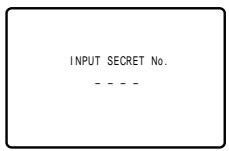
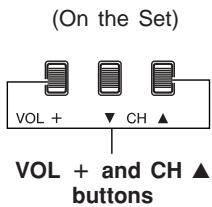
2 Press and hold both VOL + and CH ▲ on the TV set simultaneously until the VIEW TIMER access screen is displayed. Now you can cancel the VIEW TIMER settings or change the SECRET No. while "INPUT SECRET No." is displayed.
text_image
(On the Set) VOL + ▼ CH ▲ VOL + and CH ▲ buttons● Notice of Remaining VIEWING TIME
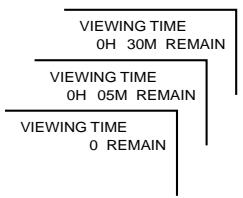
- For every 30 minute interval, the remaining time will be displayed for 4 seconds. For the last 5 minutes, the remaining time will be displayed every minute.
- "0 REMAIN" will be displayed for 10 seconds just before the VIEWING TIME expires.
flowchart
graph TD
    A["VIEWING TIME\n0H 30M REMAIN"] --> B["VIEWING TIME\n0H 05M REMAIN"]
    B --> C["VIEWING TIME\n0 REMAIN"]
Energy Save
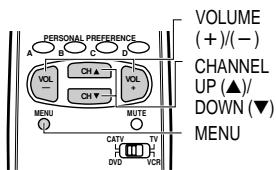
- This feature lets you lower the power consumption of your TV set which in turn saves you money and minimizes the impact on the environment. When this feature is turned on, it reduces the brightness of the TV to a level that consumes approximately 20 percent less energy than when the feature is turned off. The reduction in brightness will be less noticeable under low room lighting conditions.
text_image
PERSONAL PREFERENCE VOLUME (+)/(−) CHANNEL UP (▲)/ DOWN (▼) MENU MUTE CATV TV DVD VCR1 Press MENU to access the MAIN MENU screen.
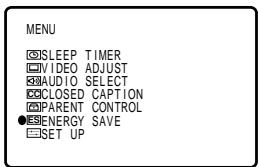
2 Press CH ▲/▼ to move the “●” mark to “ENERGY SAVE”.
text_image
MENU ☑SLEEP TIMER ☑VIDEO ADJUST ☑AUDIO SELECT ☑CLOSED CAPTION ☑PARENT CONTROL ●EENERGY SAVE ☑SET UP(MAIN MENU screen)
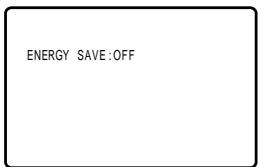
3 Press VOL +/- to access the ENERGY SAVE select screen.
text_image
ENERGY SAVE:OFF(ENERGY SAVE select screen)
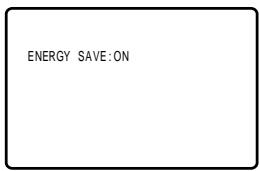
4 Press VOL +/- to select "ON".
text_image
ENERGY SAVE:ON5 Press MENU to exit.

Set Up
EZ Setup
By operating the channel preset functions, you can preset your TV to the desired channels for viewing.
text_image
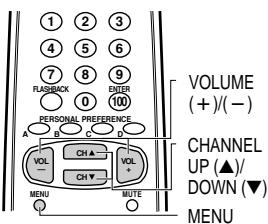
1 2 3 4 5 6 7 8 9 RASSBACK OUTER 0 100 PERSONAL PREFERENCE A B C D VOL CH A VOL CH Y CH + MENU MUTE MENU VOLUME (+)/(−) CHANNEL UP (▲)/ DOWN (▼)1 Press MENU to access the MAIN MENU screen.
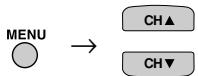
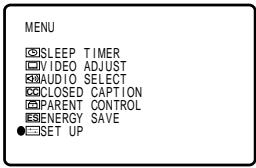
2 Press CH ▲/▼ to move the “●” mark to “SET UP”.
text_image
MENU SLEEP TIMER VIDEO ADJUST AUDIO SELECT CLOSED CAPTION PARENT CONTROL SENERGY SAVE SET UP(MAIN MENU screen)
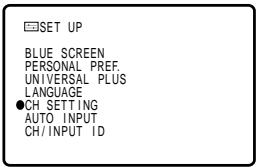
3 Press VOL +/- to access the SET UP screen, then press CH ▲/▼ to move the “●” mark to “CH SETTING”.
text_image
SET UP BLUE SCREEN PERSONAL PREF. UNIVERSAL PLUS LANGUAGE ●CH SETTING AUTO INPUT CH/INPUT ID(SET UP screen)
4 Press VOL +/- to access the CH SETTING screen.

text_image
CH SETTING ●EZ SETUP AIR/CABLE CH SEARCH CH MEMORY(CH SETTING screen)
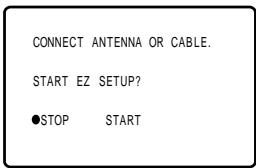
5 Press VOL +/- to access the EZ SETUP screen.
text_image
CONNECT ANTENNA OR CABLE. START EZ SETUP? ●STOP START(EZ SETUP screen)
6 Press VOL +.
The tuner will automatically search for the broadcasting and cable TV channels. (The CH No. will automatically increase when it appears.)
If you want to stop the EZ SETUP process once it has started, press VOL –. Search will be canceled.
To cancel EZ SETUP
Press VOL -.
(START)

(STOP)

PLEASE WAIT
AUTO PROGRAMMING
125
STOP ●START
7 Once EZ SETUP is complete, the lowest channel number memorized will be displayed.
Set Up (Continued)
Channel Setting
If EZ SETUP does not memorize all the channels in your region, follow the instructions below to manually memorize the channel.
1 Press MENU to access the MAIN MENU screen.
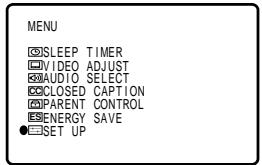
2 Press CH ▲/▼ to move the “●” mark to “SET UP”.
text_image
MENU ☑SLEEP TIMER ☑VIDEO ADJUST ☑AUDIO SELECT ☑CLOSED CAPTION ☑PARENT CONTROL ☑ENERGY SAVE ●SET UP(MAIN MENU screen)
3 Press VOL +/- to access the SET UP screen.
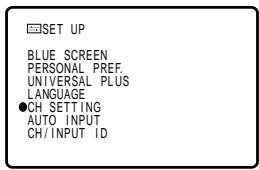
4 Press CH ▲/▼ to move the “●” mark to “CH SETTING”.
text_image
SET UP BLUE SCREEN PERSONAL PREF. UNIVERSAL PLUS LANGUAGE ●CH SETTING AUTO INPUT CH/INPUT ID(SET UP screen)
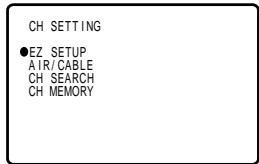
5 Press VOL +/- to access the CH SETTING screen.
text_image
CH SETTING ●EZ SETUP AIR/CABLE CH SEARCH CH MEMORY(CH SETTING screen)
6 Press CH ▲/▼ to move the “●” mark to “AIR/CABLE”, then press VOL +/- to access the AIR/CABLE screen.
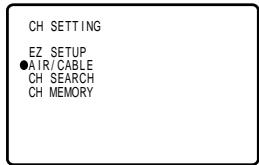
text_image
CH SETTING EZ SETUP ●AIR/CABLE CH SEARCH CH MEMORY7 Press CH ▲/▼ to move the “●” mark to the desired mode.

flowchart
graph LR
    A["AIR"] <--> B["CABLE STD"]
    B <--> C["CABLE HRC"]
    C <--> D["CABLE IRC"]
    D <--> E["CH▲"]
    D <--> F["CH▼"]
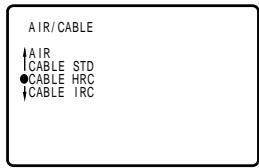
text_image
AIR/CABLE ↑AIR ↑CABLE STD ●CABLE HRC ↓CABLE IRC(AIR/CABLE screen)
8 Press MENU to exit.

Note:
- Receivable channels of your TV set are: AIR channels:
VHF: 2 through 13.
UHF: 14 through 69.
CABLE channels:
1 (HRC and IRC mode only)
2 through 125 (STD, HRC and IRC)
Set Up (Continued)
● Saving broadcast TV channels into memory
1 Press MENU to access the MAIN MENU screen, then press CH ▲/▼ to move the “●” mark to “SET UP”.
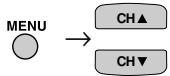
2 Press VOL +/- to access the SET UP screen, then press CH ▲/▼ to move the “●” mark to “CH SETTING”.
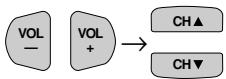
3 Press VOL +/- to access the CH SETTING screen.
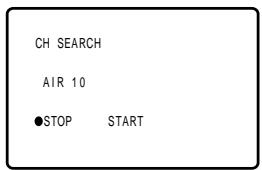
4 Press CH ▲/▼ to move the “●” mark to “CH SEARCH”, then press VOL +/- to access the CH SEARCH screen.
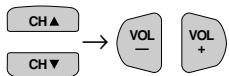
To start:
Press VOL +. The tuner will search through all available channels in your area and add them into the TV memory.
(START)

To stop:
Press VOL – . CH SEARCH will stop at the current channel and will not add any higher channels.
(STOP)

5 Press MENU to exit.
MENU

Note:
- If you press VOL + again while in the CH SEARCH mode, autoprogram will start again, and the previously memorized channels will be lost.
- Adding weak or additional channels or erasing unwanted channels from TV memory
1 Press MENU to access the MAIN MENU screen, then press CH ▲/▼ to move the “●” mark to “SET UP”.
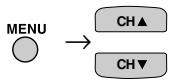
2 Press VOL +/- to access the SET UP screen, then press CH ▲/▼ to move the “●” mark to “CH SETTING”.
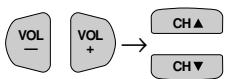
3 Press VOL +/- to access the CH SETTING screen.
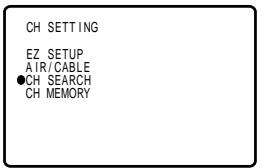
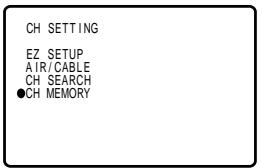
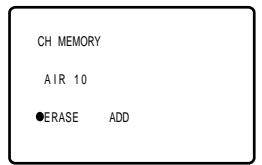
4 Press CH ▲/▼ to move the “●” mark to “CH MEMORY”, then press VOL +/− to access the CH MEMORY screen.
5 Use CH ▲/▼ or REMOTE KEYPAD to select each desired channel to add or erase.
text_image
CH SETTING EZ SETUP AIR/CABLE ●CH SEARCH CH MEMORY(CH SETTING screen)
text_image
CH SEARCH AIR 10 ●STOP START(CH SEARCH screen)
text_image
CH SETTING EZ SETUP AIR/CABLE CH SEARCH ●CH MEMORY(CH SETTING screen)
text_image
CH MEMORY AIR 10 ●ERASE ADD(CH MEMORY screen)
Set Up (Continued)
6 Press VOL + to add a channel to the TV memory or press VOL - to erase a channel from the TV memory.
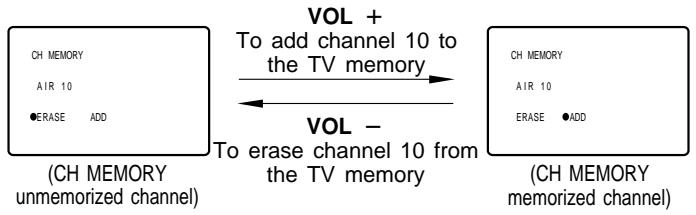
flowchart
graph LR
    A["CH MEMORY\nAIR 10\n•ERASE ADD"] --> B["VOL + To add channel 10 to the TV memory"]
    B --> C["VOL - To erase channel 10 from the TV memory"]
    D["CH MEMORY\nAIR 10\n•ERASE ADD"] --> E["VOL + To add channel 10 to the TV memory"]
    E --> F["VOL - To erase channel 10 from the TV memory"]
text_image
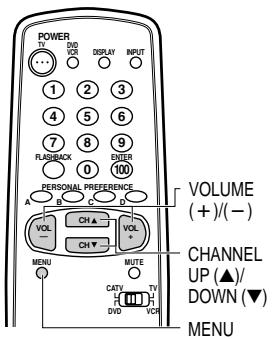
POWER 1 2 3 4 5 6 7 8 9 FLUSHBACK 0 100 PERSONAL PREFERENCE VOLUME (+)/(-) A B C D VOL CH A VOL CH ▼ MENU MUTE CATY TV DVD VCH CHANNEL UP (▲)/ DOWN (▼) MENU7 Press MENU to exit.

BLUE SCREEN
Automatically turns the screen blue if a broadcast signal is not received. After 15 minutes of non-reception, the TV will turn off automatically.
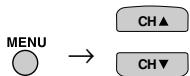
1 Press MENU to access the MAIN MENU screen.
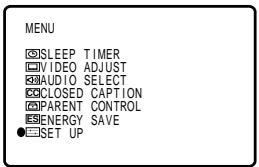
2 Press CH ▲/▼ to move the “●” mark to “SET UP”.
text_image
MENU ☑SLEEP TIMER ☑VIDEO ADJUST ☑AUDIO SELECT ☑CLOSED CAPTION ☑PARENT CONTROL ☑ENERGY SAVE ●SET UP(MAIN MENU screen)
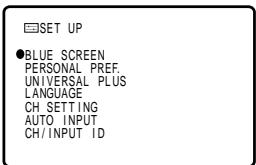
3 Press VOL +/− to access the SET UP screen.
text_image
SET UP BLUE SCREEN PERSONAL PREF. UNIVERSAL PLUS LANGUAGE CH SETTING AUTO INPUT CH/INPUT ID(SET UP screen)
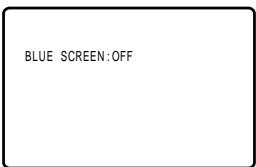
4 Press VOL +/- to access the BLUE SCREEN select screen.
text_image
BLUE SCREEN:OFF(BLUE SCREEN select screen)
5 Press VOL +/- to select "ON".
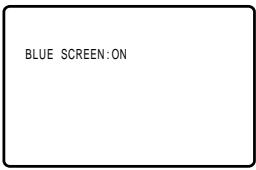
text_image
BLUE SCREEN:ONSet Up (Continued)
6 Press MENU to exit.

When the BLUE SCREEN is set to "ON"
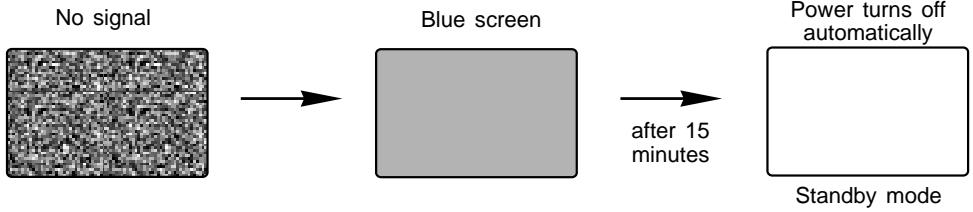
flowchart
graph LR
    A["No signal"] --> B["Blue screen"]
    B --> C["after 15 minutes"]
    C --> D["Power turns off automatically"]
    D --> E["Standby mode"]
Note:
- Poor reception due to weak signals, or too much noise might activate the BLUE SCREEN function despite the presence of a broadcast signal. To continue watching TV under these conditions, switch the BLUE SCREEN "OFF".
- While INPUT 1, 2, or 3 (COMPONENT) is selected, the BLUE SCREEN will not be shown even if BLUE SCREEN is turned on.
Set Up (Continued)
Personal Preference
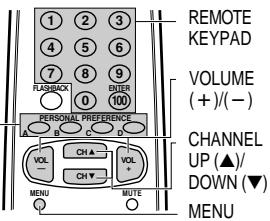
By setting PERSONAL PREFERENCE channels in advance, you can select your favorite channels easily.
PERSONAL - PREFERENCE
text_image
REMOTE KEYPAD VOLUME (+)/(-) CHANNEL UP (▲)/ DOWN (▼) MENU1 Press MENU to access the MAIN MENU screen.
2 Press CH ▲/▼ to move the “●” mark to “SET UP”.
MENU
SLEEP TIMER VIDEO ADJUST AUDIO SELECT CLOSED CAPTION PARENT CONTROL ENERGY SAVE SET UP
(MAIN MENU screen)
3 Press VOL +/- to access the SET UP screen, then press CH ▲/▼ to move the “●” mark to “PERSONAL PREF”.
SET UP
BLUE SCREEN ●PERSONAL PREF. UNIVERSAL PLUS LANGUAGE CH SETTING AUTO INPUT CH/INPUT ID
(SETUP screen)
4 Press VOL +/- to select the PERSONAL PREFERENCE select screen in which you can program 4 favorite channels, in 4 different categories. (total of 16 channels)
PERSONAL PREF.
(PERSONAL PREFERENCE select screen)
5 Press VOL +/− and CH ▲/▼ to move the “●” mark to the desired position.
PERSONAL PREF.
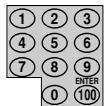
6 Press REMOTE KEYPAD on the Remote to input the CHANNEL Number into memory. Press INPUT on the Remote to register the INPUT mode into memory.
Example: 125 — Press “100” followed by “2” and then “5”.
25 — Press "2" and then "5".
4 — Press "0" and then "4".
To reset a registered CHANNEL Number, input "0" twice.
PERSONAL PREF.
7 Repeat steps 5 and 6 to register the next CHANNEL Number or INPUT mode.
8 Press MENU to exit.
MENU
To select the PERSONAL PREFERENCE channel.
If the channels are memorized as shown on the right, press the Remote's "A" button to select the channels below.

PERSONAL PREF.
B C D ●125 85 38 --- 25 123 30 --- 40 55 --- --- 4 --- --- ---
Set Up (Continued)
Universal Plus Function
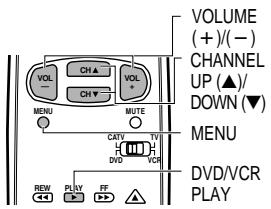
VCR or DVD input mode will be selected automatically by pressing the VCR/DVD PLAY button on the Remote Control.
text_image
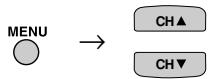
VOLUME (+)/(−) CHANNEL UP (▲)/ DOWN (▼) MENU MUTE CATU TV DVD VCR DVO VCR MENU DVD/VCR PLAY REW PLAY FF1 Press MENU to access the MAIN MENU screen.
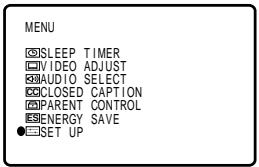
2 Press CH ▲/▼ to move the “●” mark to “SET UP”.
text_image
MENU ☑SLEEP TIMER ☑VIDEO ADJUST ☑AUDIO SELECT ☑CLOSED CAPTION ☑PARENT CONTROL ☑ENERGY SAVE ●SET UP(MAIN MENU screen)
3 Press VOL +/− to access the SET UP screen.
text_image
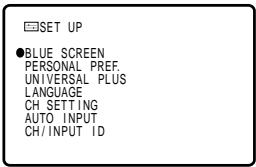
SET UP BLUE SCREEN PERSONAL PREF. UNIVERSAL PLUS LANGUAGE CH. SETTING AUTO INPUT CH/INPUT ID(SET UP screen)
4 Press CH ▲/▼ to move the “●” mark to “UNIVERSAL PLUS”.


text_image
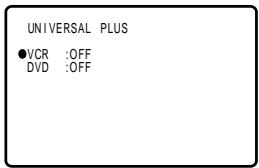
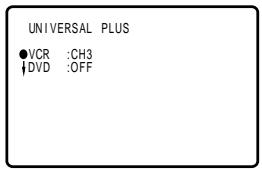
SET UP BLUE SCREEN PERSONAL PREF. ●UNIVERSAL PLUS LANGUAGE CH SETTING AUTO INPUT CH/INPUT ID5 Press VOL +/- to access the UNIVERSAL PLUS select screen to select VCR or DVD mode.
text_image
UNIVERSAL PLUS ●VCR :OFF DVD :OFF(UNIVERSAL PLUS select screen)
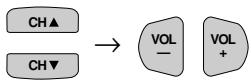
6 Press CH ▲/▼ to select the VCR or DVD, and press VOL +/− to select “CH3”, “CH4”, “INPUT 1”, “INPUT 2”, “INPUT 3 (COMPONENT)” or “OFF”.

flowchart
graph LR
    A["CH3"] <--> B["CH4"]
    B <--> C["INPUT 1"]
    C <--> D["INPUT 2"]
    D <--> E["OUTPUT 3 (COMPONENT)"]
    E <--> F["OFF"]
Switch to the input mode your VCR or DVD is connected to. If connected through RF (antenna terminal), select either CH3 or CH4 to match the setting of the VCR or DVD.
text_image
UNIVERSAL PLUS ●VCR :CH3 ↓DVD :OFF7 Press MENU to exit.

Auto Input
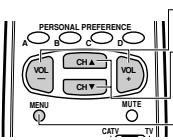
- The unit is preset to switch to the INPUT 2 screen automatically when VIDEO equipment is connected to the INPUT 2 terminal. Do the following to switch this feature off:
VOLUME
(+)/(−)
CHANNEL
UP (▲)/
DOWN (▼)
MENU
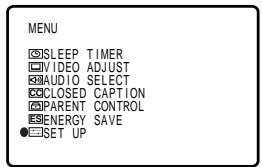
1 Press MENU to access the MAIN MENU screen.
2 Press CH ▲/▼ to move the “●” mark to “SET UP”.
text_image
MENU ☑SLEEP TIMER ☑VIDEO ADJUST ☑AUDIO SELECT ☑CLOSED CAPTION ☑PARENT CONTROL ☑ENERGY SAVE ●SET UP(MAIN MENU screen)
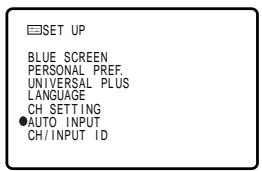
3 Press VOL +/- to access the SET UP screen, then press CH ▲/▼ to move the “●” mark to “AUTO INPUT”.

text_image
RESET UP BLUE SCREEN PERSONAL PREF. UNIVERSAL PLUS LANGUAGE CH SETTING ●AUTO INPUT CH/INPUT ID(SET UP screen)
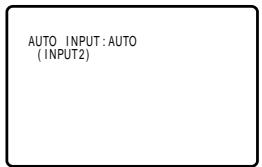
4 Press VOL +/- to access the AUTO INPUT select screen. Press VOL +/- to select "AUTO".
text_image
AUTO INPUT: AUTO (INPUT2)(AUTO INPUT select screen)
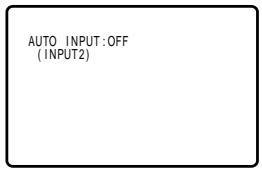
5 You may turn off "AUTO INPUT" when it is not in use. Press VOL +/- to select "OFF".
text_image
AUTO INPUT:OFF (INPUT2)6 Press MENU to exit.

CH/Input ID
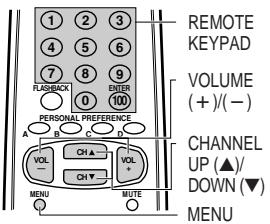
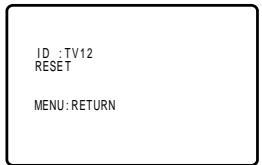
- You can assign an ID label to each channel or input mode. These ID labels can be 4 characters long maximum and will be displayed along with the channel number/input mode when the labeled channel is selected. (Example: labeling air channel 10 "TV12".)
text_image
1 2 3 4 5 6 7 8 9 ENTER 0 100 FLASHBACK PERSONAL PREFERENCE A B C D VOL CH ▲ VOL CH ▼ CH + MENU MUTE MENU REMOTE KEYPAD VOLUME (+)/(−) CHANNEL UP (▲)/ DOWN (▼) MENU1 Press MENU to access the MAIN MENU screen.

MENU
●SLEEP TIMER □VIDEO ADJUST □AUDIO SELECT □CLOSED CAPTION □PARENT CONTROL □ENERGY SAVE □SET UP
(MAIN MENU screen)
2 Press CH ▲/▼ to move the “●” mark to “SET UP”.

MENU
SLEEP TIMER VIDEO ADJUST AUDIO SELECT CLOSED CAPTION PARENT CONTROL ENERGY SAVE SET UP
3 Press VOL +/- to access the SET UP screen then press CH ▲/▼ to move the “●” mark to “CH/INPUT ID”.
SET UP
BLUE SCREEN PERSONAL PREF. UNIVERSAL PLUS LANGUAGE CH SETTING AUTO INPUT ●CH/INPUT ID
(SET UP screen)
4 Press VOL +/- to access the CH/INPUT ID screen.
CH/INPUT ID
AIR 10
ID :____
(CH/INPUT ID screen)
CH/Input ID (Continued)
5 Use CH ▲/▼ or REMOTE KEYPAD to select each desired channel to label.
Press INPUT on the Remote to label the INPUT mode.
ID: Labeling the channel name
Press VOL +/- to select "ID" then press VOL + to select the first character. Press CH ▲/▼ to enter a desired letter. Press VOL +/- to enter the next desired letter. Press MENU to return to the CH/INPUT ID screen.
Selectable characters:
Space:
Alphabets: A-Z
Numbers: 0-9
Symbols: — . & ( ) / +

text_image
ID :---- RESET MENU:RETURN(ID Input screen)
text_image
ID :TV12 RESET MENU:RETURNExample TV 12
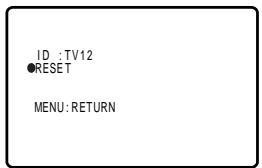
RESET: Resetting the ID to “\_\_\_\_”
Press CH ▲/▼ to move the “●” mark to “RESET”, then press VOL +/- . The previously set ID will return to “____”.

text_image
ID :TV12 ●RESET MENU: RETURN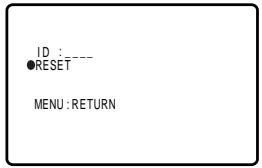
text_image
ID :---- ●RESET MENU:RETURN6 Press MENU to exit.

Note:
- The maximum number of ID labels available to register channel names is 20 for AIR channels and 40 for CABLE channels.
- If you wish to register a new ID when all the available ID labels are assigned, delete a registered ID to make room.
Using the Video and Audio Input Terminals
- Connecting video equipment for playback of video material.
- To view video material from external video equipment, make sure to connect the equipment properly to the input terminals on the TV set.
Connecting video device equipped with video output terminals
CONNECTIONS
VIDEO EQUIPMENT

natural_image
Illustration of a modern video camera with lens and control panel (no text or symbols visible)CAMCORDER

natural_image
Illustration of a vintage electronic device with a handheld controller and cable (no text or symbols visible)TV GAME
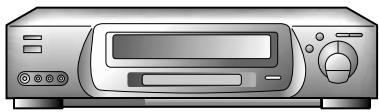
natural_image
Illustration of a silver desktop computer with front panel, control knob, and drive unit (no text or symbols)VCR
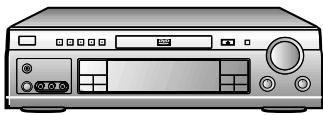
DVD
Yellow : To video input terminal
White : To audio input (L) terminal
Red : To audio input (R) terminal
(Front connection terminals of TV)
Pull open the front door
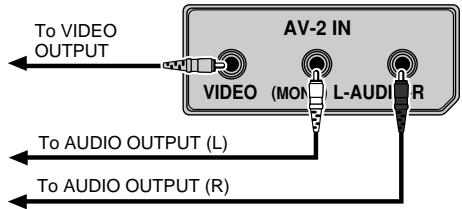
text_image
To VIDEO OUTPUT AV-2 IN VIDEO (MON) L-AUDI R To AUDIO OUTPUT (L) To AUDIO OUTPUT (R)(Rear connection terminals of TV)
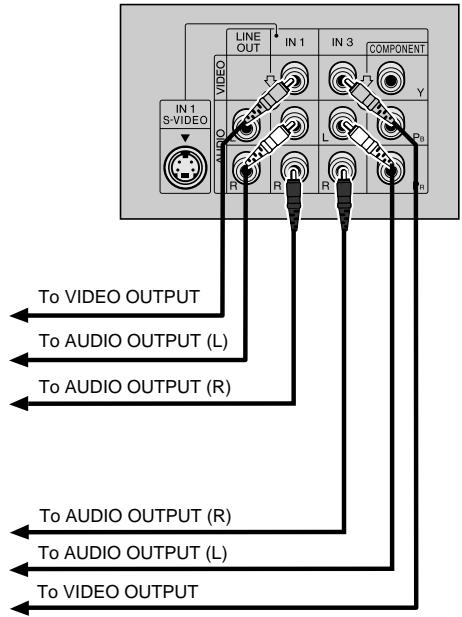
text_image
IN 1 S-VIDEO LINE OUT IN 1 IN 3 COMPONENT Y AUDIO R R L Pin IN To VIDEO OUTPUT To AUDIO OUTPUT (L) To AUDIO OUTPUT (R) To AUDIO OUTPUT (R) To AUDIO OUTPUT (L) To VIDEO OUTPUTUsing the Video and Audio Input Terminals (Continued)
Notes:
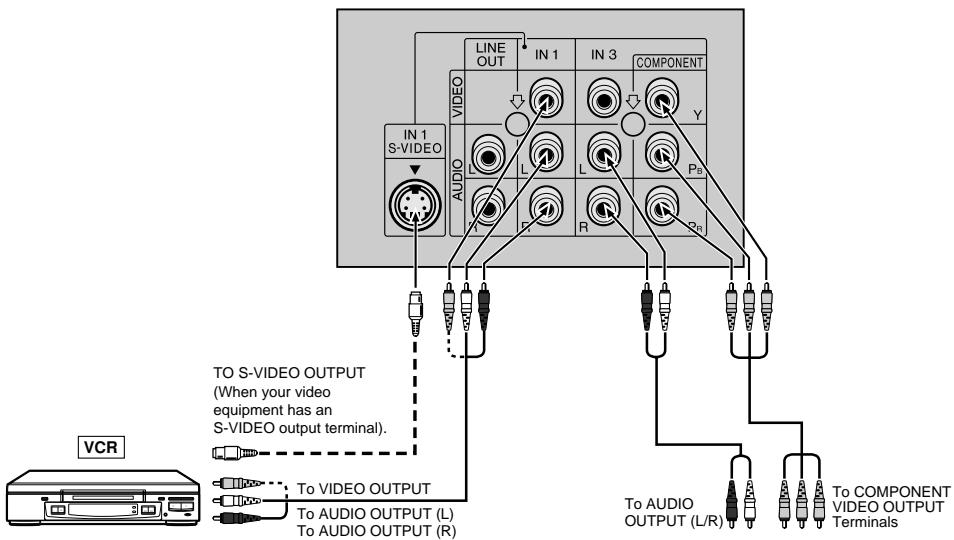
- COMPONENT terminals are DVD compatible, allows you to enjoy the highest quality playback image than the image from IN 1 S-VIDEO terminal.
- The IN 1 S-VIDEO terminal is used to obtain a higher quality image by importing image signals.
- The S-VIDEO terminal is for the video image only. To receive an audio signal, connect the audio cable to the IN 1 AUDIO terminals (left and right).
(Rear connection terminals of TV)
text_image
IN 1 S-VIDEO LINE OUT IN 1 IN 3 COMPONENT AUDIO L L Pa Y R Po VCR TO S-VIDEO OUTPUT (When your video equipment has an S-VIDEO output terminal). To VIDEO OUTPUT To AUDIO OUTPUT (L) To AUDIO OUTPUT (R) To AUDIO OUTPUT (L/R) To COMPONENT VIDEO OUTPUT TerminalsVideo Equipment with Component
video (Component Color)
Output Terminals (Y, PB and PR)
● To watch video material playback
- Press the Remote's INPUT button to select the VIDEO INPUT mode for the video equipment you wish to play.
- The external VIDEO INPUT mode will change as follows each time the INPUT button is pressed.

flowchart
graph LR
    A["AIR"] --> B["INPUT 1 (IN 1)"]
    B --> C["INPUT 2 (IN 2)"]
    C --> D["INPUT 3 (COMPONENT) (IN 3)"]
    A --> E["CABLE"]
    B --> F["Rear"]
    C --> G["Front"]
    D --> H["Rear"]
- When the AV cables are connected to the VIDEO INPUT 3 and COMPONENT Y, PB and PR terminals simultaneously, the COMPONENT terminal has priority over the VIDEO terminal.
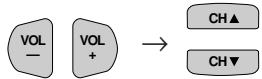
- INPUT mode can be selected by pressing either the CH ▲ on the TV remote control when the TV is set to the highest channel stored in memory, or by pressing the CH ▼ when it is set to the lowest channel.
Note:
- When connecting video or audio equipment to the television, be sure that the power is turned off in order to prevent damage to either the television or the equipment being connected.
- The S-Video terminal has priority over the VIDEO terminal (IN 1). When you wish to use video equipment connected to the VIDEO terminal (IN 1), unplug equipment connected to the S-VIDEO terminal.
- For detailed information on the connection and use of auxiliary equipment, refer to the instruction manuals of the equipment being used.
- The connection cables/cords can be obtained from your local video store.
Using the Audio Output Terminals
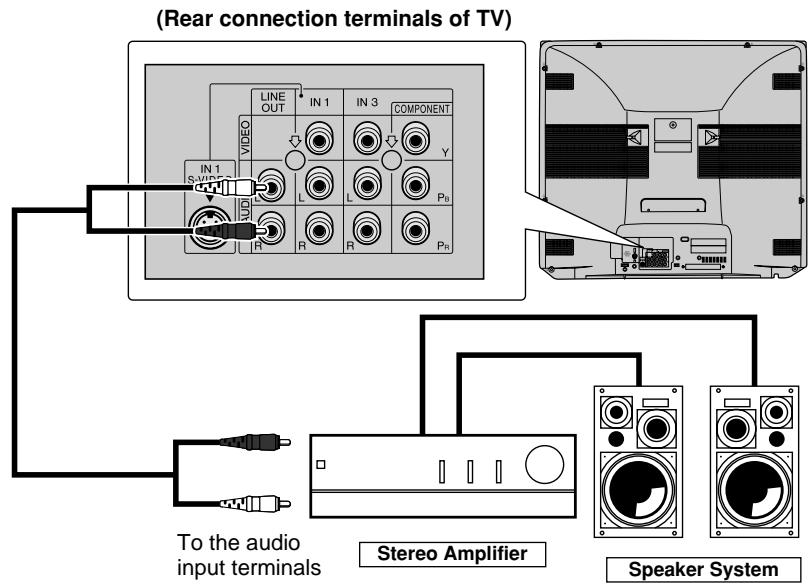
- These terminals are used for connecting an external audio amplifier. The STEREO/MONO/SAP, VOLUME, MUTE and FAO functions can all be controlled via the television's remote control or directly on the TV itself. These terminals relay the audio signal of all programs being displayed on the TV screen.
(AUDIO OUTPUT terminals are located on the rear of the cabinet.)
CONNECTIONS
text_image
(Rear connection terminals of TV) IN 1 S VIDEO LINE OUT IN 1 IN 3 COMPONENT Y L L P0 R R R P0 To the audio input terminals Stereo Amplifier Speaker System(1) Before connecting the cables, turn on the TV and adjust the TV volume for a moderate listening level.
(2) Turn off the TV and connect the audio cables to the AUDIO LINE OUTPUT terminals on the TV.
(3) Turn the TV set and stereo amplifier on.
(4) If you desire, you can turn off the sound of the TV's internal speakers by accessing the TV's AUDIO SELECT screen. See pages 13, 14.
(5) Adjust the volume control on the stereo amplifier to a moderate listening level.
(6) Control of the audio can be adjusted using the audio controls (STEREO/MONO/SAP, VOLUME, MUTE and FAO), from either the remote control, or directly from the TV set.
Note:
- For detailed information on the connection and use of auxiliary equipment, refer to the operation manuals of the equipment being used.
- When connecting monaural equipment to the AUDIO INPUT or OUTPUT of this set, use an audio connection cord and plug adaptor as shown below.
- When FAO is set to “OFF”, we recommend you to keep the TV’s audio output level high for optimal sound quality. (see page 13.)

flowchart
graph LR
    A["To the TV"] --> B["Pin plug x 2"]
    B --> C["Pin Plug"]
    C --> D["Plug adapter"]
    D --> E["Pin jack/Mini plug"]
    E --> F["To the equipment being connected"]
Operation of Universal Remote Control
• Universal Remote Control
With the purchase of your television set you also have received the latest innovation in remote control technology. With its easy-to-use push button keyboard, your Remote can control your television set and most infrared remote controlled VCRs, cable TV converters and DVDs as well.
Note:
- Depending on the model year produced, brand and type of VCR, cable TV converter and DVD, some models may not be compatible with the remote control.
- Some brands may not enable channel selection until the ENTER is pressed. In such case, try the following.
Example:
When you select channel 24,
(1) Press REMOTE KEYPAD "2".
(2) Press REMOTE KEYPAD "4".
(3) Press ENTER.
For detailed information on the use of the Cable TV converter Box refer to their operating manuals.
- Using your Remote with your TV
After installing the batteries, set the CATV/DVD-TV/VCR on the Remote to the TV position. (If you can change the channel of the TV by pressing CH ▲/▼ on the Remote Control, it is in the TV position.)
- “Identifying” VCRs, cable TV converters and DVDs
Your Remote Control has been set at the factory to operate your TV and many remote controlled VCRs, cable TV converters and DVDs. However, in some cases an easy one-time set-up step may be necessary before the Remote will operate accessory VCRs, cable TV converters and DVDs.
- In this set-up step, the Remote locates and memorizes the remote control transmitter code for the VCR, cable TV converters and DVDs.
- Once “identified”, the Remote sends proper signals to operate your accessory.
- This identifying step will not have to be repeated until power to the Remote is interrupted due to a battery failure.
- Using your remote control with a VCR
Once you make certain the Remote Control has "identified" your remote controlled VCR or DVD, the Remote is ready to operate your unit. The various VCR or DVD function buttons on the Remote will not operate your VCR or DVD if those features are not already found on your unit.
- All VCR buttons will operate whether the Remote is in TV or VCR modes.
- For detailed information on the use of the VCR or DVD, refer to the operation manual of the VCR or DVD.
text_image
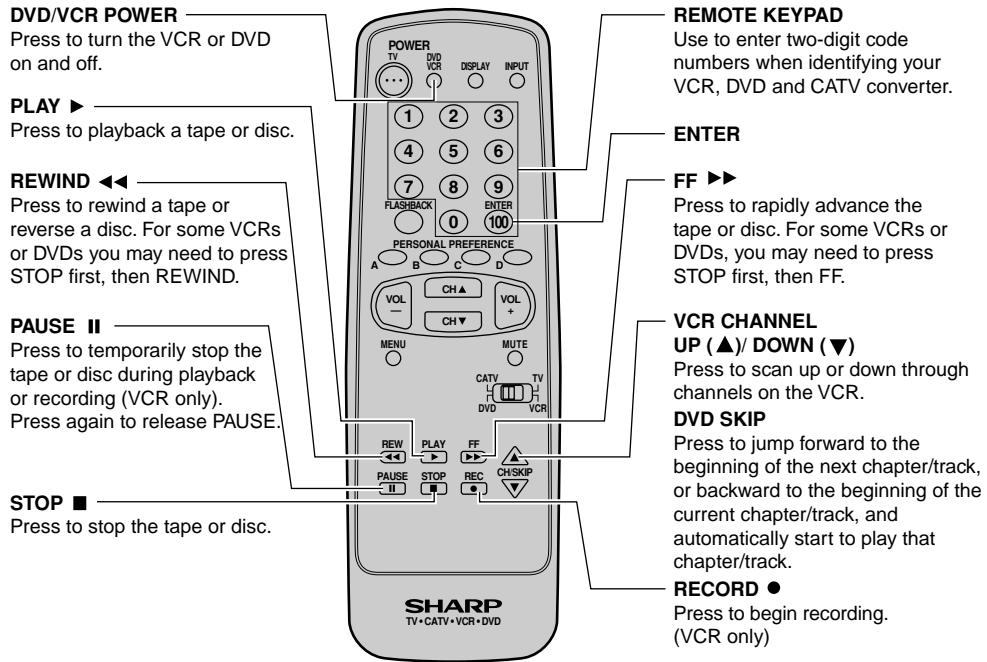
DVD/VCR POWER Press to turn the VCR or DVD on and off. PLAY ▶ Press to playback a tape or disc. REWIND ◀◀ Press to rewind a tape or reverse a disc. For some VCRs or DVDs you may need to press STOP first, then REWIND. PAUSE II Press to temporarily stop the tape or disc during playback or recording (VCR only). Press again to release PAUSE. STOP ■ Press to stop the tape or disc. REMOTE KEYPAD Use to enter two-digit code numbers when identifying your VCR, DVD and CATV converter. ENTER FF ▶▶ Press to rapidly advance the tape or disc. For some VCRs or DVDs, you may need to press STOP first, then FF. VCR CHANNEL UP (▲)/ DOWN (▼) Press to scan up or down through channels on the VCR. DVD SKIP Press to jump forward to the beginning of the next chapter/track, or backward to the beginning of the current chapter/track, and automatically start to play that chapter/track. RECORD ● Press to begin recording. (VCR only)Operation of Universal Remote Control (Continued)
text_image
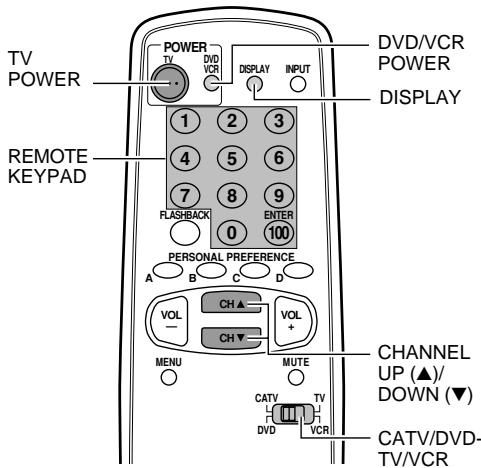
TV POWER POWER TV DVD VCR DISPLAY INPUT DVD/VCR POWER DISPLAY REMOTE KEYPAD 1 2 3 4 5 6 7 8 9 FLASHBACK 0 100 ENTER PERSONAL PREFERENCE A B C D VOL CH ▲ CH ▼ VOL + MENU MUTE CHANNEL UP (▲)/ DOWN (▼) CATV TV DVD VCR CATV/DVD-TV/VCR● How to identify a VCR
The remote control may already be set to operate your VCR. Try this initial check before going on to the following “identifying” section.
(1) Slide CATV/DVD-TV/VCR switch to VCR.
(2) Point the Remote towards VCR and press POWER (DVD/VCR).
(3) Does the Remote turn the VCR ON and OFF?
- If yes, the Remote is ready to operate the VCR and no further steps are needed.
- If no, continue to the "identifying" section.
Setting Method
Refer to the following steps and list to quickly find the remote control code for your accessory VCR.
- First look up your VCR's remote control code number before going through the Setting Method.
(1) Slide CATV/DVD-TV/VCR switch to VCR.
(2) Press and hold down DISPLAY and CH ▼ on your remote control.
Then release both buttons.
(3) Within 10 seconds after releasing DISPLAY and CH ▼, enter your VCR's two-digit remote control code number using the REMOTE KEYPAD (refer to the list).
- The remote control is now ready to send commands to your VCR.
Some brands have more than one remote code listed, due to changes in the remote codes from early to later model years, or due to format differences (VHS/BETA). In such cases, you may have to try more than one code to find the code your VCR accepts.
| VCR BRAND | REMOTE CONTROL CODE NUMBER |
| Akai | 25, 26, 37 |
| Audio Dynamics | 15, 22, 30 |
| Broksonic | 32 |
| Canon | 04 |
| Capehart | 34 |
| Craig | 10, 31 |
| Curtis Mathis | 04 |
| Daewoo | 34 |
| DBX | 15, 22, 30 |
| Dynatech | 29 |
| Emerson | 21, 32, 35 |
| Fisher | 09, 10, 11 |
| Funai | 28, 29 |
| GE | 04 |
| Goldstar | 24 |
| Hitachi | 06 |
| Instant Replay | 04 |
| JC Penney | 04, 06, 24, 30 |
| JVC | 15, 41, 42 |
| Kenwood | 14, 15 |
| Lloyds | 29 |
| Magnavox | 04, 05, 08 |
| Magnin | 31 |
| Marantz | 30 |
| Memorex | 04, 10, 24, 29 |
| Minolta | 06 |
| Mitsubishi | 17, 18, 39, 40 |
| Montgomery Ward | 02, 43 |
| Multitech | 29 |
| NEC | 15, 22, 30 |
| Panasonic | 04, 44, 45 |
| Pentax | 05, 06 |
| Philco | 04, 05 |
| Philips | 04, 05, 08 |
| Quasar | 04 |
| RCA | 06, 07, 33 |
| Realistic | 01, 02, 10, 24 |
| Samsung | 23, 31 |
| Sanyo | 14, 10 |
| Scott | 20 |
| Sears | 06, 11, 24 |
| Sharp | 01, 02, 03 |
| Shintom | 36 |
| Sony | 12, 13, 38 |
| Sound Design | 29 |
| Sylvania | 04, 05, 08 |
| Symphonic | 29 |
| Tatung | 15 |
| Teac | 15, 29 |
| Teknika | 27, 29 |
| Thomas | 29 |
| TMK | 21 |
| Toshiba | 19, 20 |
| Video Concepts | 30 |
| Yamaha | 15, 29, 30 |
| Zenith | 16 |
Note:
Depending on the model, year produced, brand, and type of VCR, some models may not be compatible with the remote control.
Operation of Universal Remote Control (Continued)
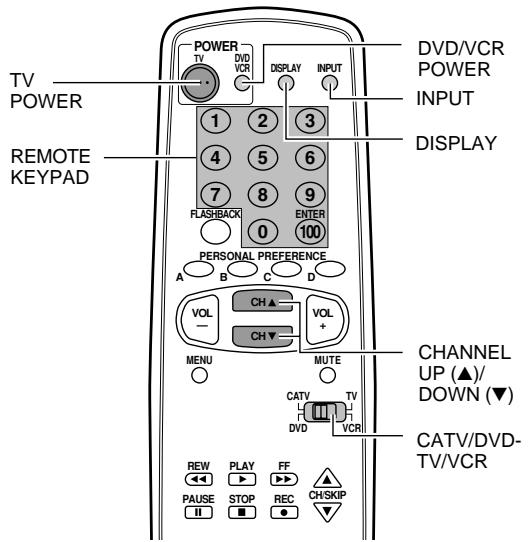
text_image
TV POWER REMOTE KEYPAD POWER TV DVD VCR DISPLAY INPUT 1 2 3 4 5 6 7 8 9 FLASHBACK 0 100 ENTER PERSONAL PREFERENCE A B C D VOL CH ▲ CH ▼ VOL + MENU MUTE CATV TV DVD VCR CHANNEL UP (▲)/ DOWN (▼) CATV/DVD- TV/VCR REW PLAY FF PAUSE STOP REC CH/SKIP II ■ ●● How to identify a DVD
The remote control may already be set to operate your DVD. Try this initial check before going on to the following “identifying” section.
(1) Slide CATV/DVD-TV/VCR switch to DVD.
(2) Point Remote towards DVD and press DVD/VCR POWER.
(3) Does the Remote turn the DVD ON and OFF?
- If yes, the Remote is ready to operate the DVD and no further steps are needed.
- If no, continue to the "identifying" section.
Setting Method.
Refer to the following steps and list to quickly find the remote control code for your accessory DVD.
- First look up your DVD's remote control code number before going through the Setting Method.
(1) Slide CATV/DVD-TV/VCR switch to DVD.
(2) Press and hold down INPUT and CH ▼ on your remote control.
Then release both buttons.
(3) Within 10 seconds after releasing INPUT and CH ▼, enter your DVDs two-digit remote control code number using REMOTE KEYPAD (refer to the list).
- The remote control is now ready to send commands to your DVD.
| DVD BRAND | REMOTE CONTROL CODE NUMBER |
| Denon | 02 |
| JVC | 09 |
| Magnavox | 04 |
| Marantz | 04 |
| Mitsubishi | 06 |
| Panasonic | 02 |
| Philips | 04 |
| Pioneer | 08 |
| Proscan | 03 |
| RCA | 03 |
| Samsung | 07 |
| Sharp | 01, 10 |
| Sony | 05 |
| Toshiba | 04 |
| Yamaha | 02 |
| Zenith | 04 |
Note:
Depending on the model, year produced, brand, and type of DVD, some models may not be compatible with the remote control.
Operation of Universal Remote Control (Continued)
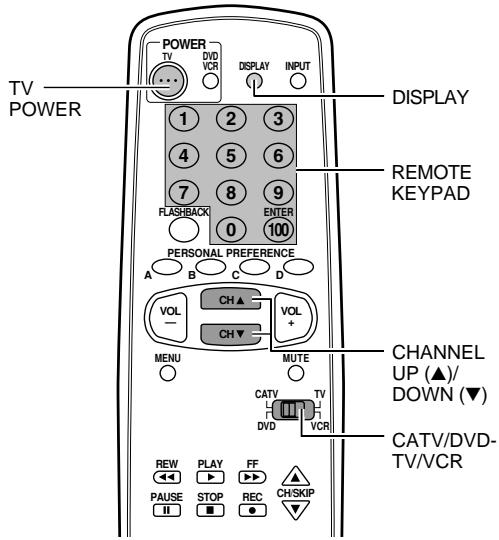
text_image
TV POWER POWER TV DVD VCR DISPLAY INPUT 1 2 3 4 5 6 7 8 9 FLASHBACK 0 100 PERSONAL PREFERENCE A B C D VOL CH ▲ CH ▼ VOL + MENU MUTE CATV TV DVD VCR CHANNEL UP (▲)/ DOWN (▼) CATV/DVD-TV/VCR REW PLAY FF PAUSE STOP REC CH/SKIP● How to identify a cable converter
Setting Method.
Refer to the following steps and list to quickly find the remote control code for your cable TV converter.
- First look up your converter's remote code number before going through the Setting Method below.
(1) Slide CATV /DVD-TV/VCR switch to CATV.
(2) Press and hold down DISPLAY and CH ▼ on your remote control.
Then release both buttons.
(3) Within 10 seconds after releasing DISPLAY and CH ▼, enter your converter's two-digit code number using REMOTE KEYPAD (refer to the list).
- The remote control is now ready to send commands to your converter.
- Some brands have more than one remote code listed due to changes in the remote codes from early to later model years. In such cases, you may have to try more than one code to find the code your converter accepts.
Note:
Depending on the model, year produced, brand, and type of CATV converter, some models may not be compatible with the remote control.
| CATV CONVERTER BRAND | REMOTE CONTROL CODE NUMBER |
| Anvision | 07, 08 |
| Cable Star | 07, 08 |
| Eagle | 08 |
| General Instrument | 04, 05, 15, 23, 24, 25, 30, 36 |
| Jerrold | 04, 05, 15, 23, 24, 25, 30, 36 |
| Magnavox | 07, 08, 19, 25, 28, 29, 32, 33, 40, 41 |
| Oak Sigma | 18 |
| Panasonic | 27, 39 |
| Philips | 07, 08, 19, 26, 28, 29, 32, 33, 40, 41 |
| Pioneer | 18, 20 |
| Randtek | 07, 08 |
| RCA | 27, 43 |
| Scientific Atlanta | 03, 22, 42 |
| Sony | 44 |
| Viewstar | 07, 08, 19, 26, 28, 29, 32, 33, 40, 41 |
| Zenith | 14 |
Before Calling for Service
Check these items and see if you can correct the trouble with a slight adjustment of the controls.
| QUICK SERVICE CHECK LIST | PROBLEM | No Playback of VCR and Disc Player | No Picture or Sound from External Video/Audio Products | Remote Control Doesn't Work | Bars on Screen | Picture Distorted | Picture Rolls Vertically | No Color | Poor Reception on Some Channels | Weak Picture | Lines or Streaks in Picture | Ghosts in Picture | Picture Blurred | Sound OK, Picture Poor | Picture OK, Sound Poor | No Picture or Sound | Dark and Blank Picture | External Electrical Noise Interfering with TV's Operation | Color on Part of the Screen Appears Distorted |
| POSSIBLE REMEDY | |||||||||||||||||||
| Try a new channel, if OK, then there is a possible station trouble. | X | X | X | X | X | X | X | X | X | X | X | ||||||||
| Is TV plugged in? Power at outlet? | X | X | X | ||||||||||||||||
| Is TV's POWER button on? | X | X | |||||||||||||||||
| Is antenna connected to terminal on the back of the set? | X | X | X | X | X | X | |||||||||||||
| If outside antenna is being used, check for broken wire. | X | X | X | X | X | X | X | X | X | X | X | ||||||||
| Check for local interference or external electrical noise. | X | X | X | X | X | X | X | X | |||||||||||
| Turn off the POWER and then turn it on after about a minute. | X | X | |||||||||||||||||
| Adjust COLOR control. | X | ||||||||||||||||||
| Adjust PICTURE control. | X | X | |||||||||||||||||
| Check external Video/Audio products: look for loose/broken connection leads. (Refer to pages 38-40) | X | X | X | X | X | ||||||||||||||
| Check batteries of Remote Control. | X | ||||||||||||||||||
| Slide CATV/DVD-TV/VCR Select Switch to TV position. | X | ||||||||||||||||||
| Are audio cables connected firmly? Check the volume level. | X | ||||||||||||||||||
| Is SPEAKER ON? See pages 13, 14. | X | ||||||||||||||||||
| Change Closed Caption mode to "OFF"/Energy Save mode to "OFF". | X | ||||||||||||||||||
| Unplug the TV and plug it in again after 2 minutes or longer. | X | X | X | X | X | X | X | X | X | X | X | ||||||||
Note:
- If no TEXT broadcast is being received while viewing in the TEXT mode, the screen may become dark and blank for some programs. Should this occur, switch the Closed Caption mode to "OFF".
natural_image
Black-and-white illustration of a man sitting at a desk with a plant, no text or symbols present(Dark and Blank Picture)
Calling for Service
For location of the nearest Sharp Authorized Servicer, or to obtain product literature accessories, supplies, or customer assistance, please call 1-800-BE-SHARP.
Specifications
| MODEL | 27F541 | ||
| Receiving System | NTSC | ||
| Stereo Broadcast | MTS/SAP | ||
| Reception Channels | |||
| AIR | VHF | 2-13 ch | |
| UHF | 14-69 ch | ||
| CATV | 1-125 ch | ||
| Channel Tuning | 181-channel Reception PLL tuning system | ||
| Antenna Input Impedance | VHF/UHF 75 ohm Unbalanced | ||
| Screen Size | 27" Diagonally Measured | ||
| Terminals | Audio/Video input x 3 (Front x 1, Rear x 2)S-Video input x 1 (Rear)COMPONENT-IN x 1 (Rear)Audio output x 1 (Rear)Antenna x 1 (Rear) | ||
| Sound Output | 5 W (RMS) x 2 | ||
| Power Source | AC 120 V, 60 Hz | ||
| Power Consumption | 130 W | ||
| Dimensions[(W) x (H) x (D)] mm | 29^31/32 (W) x 23^9/16 (H) x 20^17/64 (D)[761 mm (W) x 598.5 mm (H) x 515 mm (D)] | ||
| Weight (approx.) | 91.9 lbs. (41.7 kg) | ||
- Design and specifications are subject to change without notice.