
ONE TOUCH X070 - Tablette ALCATEL - Notice d'utilisation et mode d'emploi gratuit
Retrouvez gratuitement la notice de l'appareil ONE TOUCH X070 ALCATEL au format PDF.


| Type de produit | Tablette 3G / Modem USB |
| Marque | ALCATEL |
| Modèle | ONE TOUCH X070 / X070S |
| Réseau mobile | GSM 850/900/1800/1900 MHz, WCDMA 2100 MHz |
| Débit descendant max | 3,6 Mbps (HSPA) |
| Stockage externe | Micro SD jusqu'à 16 Go |
| Connectivité | USB 2.0 |
| Alimentation | Via port USB (5 V) |
| Systèmes d'exploitation supportés | Windows 2000/XP/Vista/7, Mac OS X 10.4.9 ou ultérieur |
| Fonctions principales | Connexion Internet, SMS, gestion des contacts, diagnostic réseau |
| Antenne | Intégrée |
| Indicateurs LED | Recherche réseau, type de réseau connecté (GPRS/EDGE/UMTS/HSPA) |
| Température de fonctionnement | -10 °C à +50 °C |
| Sécurité | Respect des normes ICNIRP et UE. SAR max : 0,866 W/kg (tête), 0,475 W/kg (corps à 5 mm). Utiliser à 1,5 cm du corps |
| Entretien et nettoyage | Nettoyer avec un chiffon doux et sec. Ne pas utiliser de produits abrasifs |
| Informations générales | Site web : www.alcatel-mobilephones.com. Conforme à la directive 1999/5/CE |
| Garantie | 12 mois contre les défauts de conformité |
FOIRE AUX QUESTIONS - ONE TOUCH X070 ALCATEL
Questions des utilisateurs sur ONE TOUCH X070 ALCATEL
0 question sur cet appareil. Repondez a celles que vous connaissez ou posez la votre.
Poser une nouvelle question sur cet appareil
Téléchargez la notice de votre Tablette au format PDF gratuitement ! Retrouvez votre notice ONE TOUCH X070 - ALCATEL et reprennez votre appareil électronique en main. Sur cette page sont publiés tous les documents nécessaires à l'utilisation de votre appareil ONE TOUCH X070 de la marque ALCATEL.
MODE D'EMPLOI ONE TOUCH X070 ALCATEL
User Manual
Table of Contents
Safety and Use 2
Installation Guide 4
Main Interface Overview 4
Entrance to Main Interface 5
Connect to Internet 6
SMS Services (Text Message) 7
Contacts. 8
Settings 9
Warranty 12
FAQs. 13
Installation Guide for Mac 14
Safety and Use
We recommend that you read this chapter carefully before using the modem. The manufacturer disclaims any liability for damage, which may result as a consequence of improper use of the modem or of use contrary to the instructions contained herein.
Traffic Safety
When driving, do not use the modem
When switched on, the modem emits electromagnetic waves that can interfere with the vehicle's electronic systems such as ABS anti-lock brakes or airbags. To ensure that there is no problem; please do not place the modem on top of the dashboard or within an airbag deployment area.
Check with your car dealer or the car manufacturer to make sure that the dashboard is adequately shielded from modem RF energy.
Conditions of Use
- Switch the modem off before boarding an aircraft.
- Switch the modem off when you are in health care facilities, except in designated areas. As with many other types of equipment now in regular use, mobile telemodems can interfere with other electrical or electronic devices, or equipment-using radio frequencies.
- Switch the modem off when you are near gas or flammable liquids. Strictly obey all signs and instructions posted in a fuel depot, petrol station, chemical plant, or in any potentially explosive atmosphere.
- When the modem is switched on, it should be kept at least 15 cm from any medical device such as a pacemaker, a hearing aid or insulin pump, etc.
- Do not let children use the modem without supervision. The modem may contain small parts that could become detached and create a choking hazard.
- When replacing the cover, please note that the modem may contain substances that could create an allergic reaction.
- Always handle the modem with care and keep it in a clean and dust-free place.
Do not open, dismantle or attempt to repair the modem yourself.
Do not drop, throw or bend the modem.
Do not paint the modem.
Collection Point:

This symbol on the modem means that it must be taken to collection points at the end of their life:
Municipal waste disposal centers with specific bins for these items of equipment
Collection bins at points of sale.
They will then be recycled, preventing substances being disposed of in the environment, so that their components can be reused.
In European Union countries:
These collection points are accessible free of charge.
All products with this symbol must be brought to these collection points.
In non European Union jurisdictions:
Items of equipment with this symbol are not to be thrown into ordinary bins if your jurisdiction or your region has suitable recycling and collection facilities; instead they are to be taken to collection points for them to be recycled.
In the United States, please visit www.recyclewirelessphones.org for more information on recycling wireless products.
Protection against theft
The modem is identified by an IMEI (modem serial number) shown on the packaging label and in the modem's dashboard. We recommend that you note the number the first time you use the modem by opening the dashboard "Settings" > "Diagnostics" to get it.
Disclaimer
There may be certain differences between the user manual description and the modem's operation, depending on the software release of the modem or specific operator services.
Installation Guide
Installation procedures may vary based on the operating system installed on your PC. The following instructions are based on the Windows XP OS:
Turn on your PC and plug the modem into the USB interface slot to begin software installation. Windows should automatically detect the new device and will prompt you to begin installation.
After following the prompts of installation setup, upon completion, a shortcut will be placed on your desktop for quick future access.
Note:
- If installation "auto-run" does not begin, you will need to locate the "autoRun.exe)" file in the driver path, and Double-Click on AutoRun.exe to run the installation manually.
- A Micro-SD card is an optional accessory
- Please do not remove the USIM/SIM card and or the Micro-SD card when the modem is in use.
Upon successful installation of the HSPA management program, the program will launch automatically. You may also double-click the short cut icon on the desktop to launch the program.
Main Interface Overview
Following table are listed Short Cut Icons in PC Suite Interface.
| Interface Icons | Provided Services |
| Home | Home Page (Click on <Connect> icon from the main window to connect/disconnect from the Internet) |
| Contacts | Display The Phones Book Interface |
| SMS | Display The Text Message Interface |
| Browser | Launch the OS default internet browser |
| Settings | Display the Settings manual |
Following table are listed the Icons of status bar information
| Connection Statistics Icon | Description |
| Network Signal | Indicates the signal strength of the network |
| Network Status | Indicates the network status. This will display the operator name which the modem can find the network. Or show the modem haven't ready.<No (U)SIM> or <NO Device> |
| Network Type | Display in the status bar, to show you which network you are using (GPRS / EDGE/ UMTS or HSPA) |
| Roaming | Roaming Icon “”, when the network is under roaming. |
| New Message | Display the SMS status including new SMS/SIM card memory is full/Data Card memory is full. |
| Network Connecting | Connecting Icon “” display in the status bar, when the network is connected into internet network. . |
Following table are listed the LED Indicates for each status.
| LED Indicator | Desctiption |
| Flashing Green & Red multicolour circularly | Network Searching |
| Quickly Flashing Green & Red multicolour circularly | Out of order |
| Green Light Slow Flashing | Registering into HSPA or UMTS network |
| Constant Green Light | Registered to HSPA or UMTS network |
| Red Light Slow Flashing | Registering into GPRS or EDGE network |
| Constant Red Light | Registered to GPRS or EDGE network |
Entrance to Main Interface
The application runs automatically and the main window will pop up when the modem will be connected. You can also access and run the application from the
If the PIN code is enabled, please enter the correct PIN code in the entry field, and click on <OK> . You may try only 3 times to enter the
correct PIN code; after three incorrect attempts, the USIM or SIM card will be blocked.
A PUK dialog box will then be displayed asking you to enter the right PUK code, PIN Code and Confirmed PIN. Click on
If the PUK and PIN code is correct, the application will be launched and all features are enabled
Connect to Internet
1. Connecting with the default logon profile
If you want to connect to the Internet without setting any user-defined or predefined profiles, press icon of "connect". The default connection profile will be used in accordance with your USIM/SIM card.
Connecting
- Click on
from the home page; - Wait several seconds until the connection is established:
- Once you are connected, Icon of
will change into .
Disconnecting
Click on Icon of
2. Connecting with a user-defined logon profile
Click on settle icon and select the
Adding a new connection profile
Click on
- If
is selected, the new connection profile windows will pop up.
Please enter the info of requested: - Account (Connection Naming), Number, APN, User Name, password and final choice which Auth Type you are using by manually;
- Click
- Please select you preferred network and click on
to default your connection setting.
Note : Users may obtain Number, APN Code, User Name, Password and
Auth type information from networks provider.
SMS Services (Text Message)
Click SMS icon from the main interface of the PC suite to access the SMS service.
1. Displaying the received SMS
When a new message is received, a message box appears in the status bar.
- Click the content of the chosen message. You may also display the content on the message window.
Note: Received SMS will be saved your modem. If the modem Memory is full, the message will save on USIM/SIM
2. New SMS
- Click on
in the shortcut menu bar. An SMS creation window will pop up; - Enter the text.
3. Send
(1) You may enter a recipient's number in 3 ways:
- Enter the number directly. If there are two or more recipients, use ";;" to separate each;
- Enter the name of a recipient saved in the phonebook;
- Click Icon of SMS in the pop up the window to access the recipient's selection window. Select one party, or more (using the ctrl/shift key), and the click on
to add the chosen party (ies) to the recipient list.
(2) Click on
4. Reply
- Select a message in the inbox and then click on
in the shortcut menu bar: - The recipient's / number will appear. It can now be modified;
- Enter the reply in input field, and then click on
.
5. Forward
- Select a message and then click on
in the shortcut menu bar; - The content of the selected message will appear in the input field. It can now be modified:
- Enter the recipient's number and then click on
.
6. Edit
- Access the draft list to select a message, and open it by double-clicking on it;
- Click on
or when you have finished editing.
7. Delete
- Select a message, or several messages (using the ctrl/shift key);
- Click on
in the tool bar. A dialog box will ask "Are you sure to delete the message(s)?" - Click on
and the SMS will be deleted. Once deleted, SMS messages cannot be restored.
8. Resend
- Access the Outbox to select a message or several messages (using the ctrl/shift key);
- Click on
in the tool bar; - The application will resend the unsent/sent message(s).
9. Export
- Select a message or several messages (using the ctrl/shift key) in the current list;
- Then right click mouse, to export SMS to the chosen location and saved as a *.txt file.
Contacts
Click contacts from the main interface of PC suite to access the contacts management.
The contacts list column contains: (U) SIM /Modem /Computer. Your can use contacts stored either on the (U) SIM, modem or on computer in the corresponding window.
1. New
- Select
from the tool bar to access the contacts editor; - Enter the relevant information, and press <OK> ; the new contact will appear in the current contact list.
2. Edit
- Select a contact and access the contact editor by selecting
from the tool bar or by double-clicking on the contact; - Modify the relevant contact information, and select
to save the changes.
3. Delete
- Select one contact, or more (using the ctrl/shift key);
- Click on
from the tool bar. A dialog box will ask "Are you sure to delete the contacts?" - Click on OK > and the contact(s) will be deleted; deleted contacts
will not be restored.
4. Send SMS
- Select one contact or more (using ctrl/shift key);
- Click on
in the tool bar; - When the message is completed, you may send it by clicking on
.
5. Copy to (U) SIM card/Modem/Computer
- Select one contact, or more (using ctrl/shift key) stored in the same memory:
- Right-Click your mouse pointer, if selected
in the manual and select a target memory different from the memory being used; - Contact(s) will be copied to the target memory.
Settings
Click on settings icon from the main interface of PC Suite. A menu with various settings will appear.
1. Network select
- Select
in the Settings menu. The default setting is : - Click on
to activate the network list window:
A list of networks appears when the search is complete; - Click
an available network from the list of available operators and click on
2. Network mode
- Select
in Settings menu. The default setting is : - Click on the mode which you prefer, it will search and register the network mode which was chosen at next time of device connection.
3. Network Band (This function is depend on product)
- Select
in Settings menu. The default setting is ; - Click on the band which you prefer, it will search and register the network band which was chosen at next time of device connection.
4. SMS settings
Choose
a. Service Center: The default number is found in the (U)SIM card. You may change it.
b. Validity period: - You can choose between: 6 hours/1 day/1 week.
c. Message Alert - Click to validate the message alert sound.
5. Connection profile settings
Select
Adding a new connection profile
Click on
- If
is selected, the new connection profile windows will pop up.
Please enter the info of requested: - Account (Connection Naming), Number, APN, User Name, password and final choice which Auth Type you are using by manually:
- Click
- Please select you preferred network and click on
to default your connection setting.
- Select an item in the connection profile list;
- Click on
on the keyboard. You will be asked if you "Are sure you delete"; - Choose OK to delete the profile from the list.
- Select an item in the connection profile list;
- Click on
to access the profile edit window; - Modify the parameters and click on <OK> to save the modification.
- Select an item in the connection profile list;
-
Click on
to release default setting -
System settings
Click to validate the sound prompt when the Internet will be connected/ disconnected.
-
Request PIN
-
Click on the
menu and select . Activate the PIN input dialog box; - Select
and Enter the correct PIN code; -
Click on < OK> .
-
Change PIN
-
Click on
, and activate the PIN modify dialog box; - Input the old PIN and the new PIN, then confirm;
- Click on < OK > to confirm the new PIN code
Note: You can only access the modify menu if the PIN is enabled.
- Unlock (U) SIM Card
Click on U)SIM Unlock>, and activate the code which is requested in dialog box to unlock this function, Then click on OK to confirm;
Note: All about code is supplied by your network provider (except PIN Code).
- Diagnostics Statistic
This menu is used to display the diagnostic information, including:
Model Information: Modem Name/ Firmware version/IMEI/IMSI
- Operator Information: PIN code status/Network code/Network selection mode/ Network mode/Signal strength.
Network Status: CS network registration/PS network registration/PS network attachment
- About
You can get information on the version in the
- Help
When the application is open, you can read the instructions about the Modem
Warranty
- The modem is warranted against any deviation from technical specifications for a period of twelve (12) months from the date specified on your original invoice1.
- Under the terms of this warranty, you must immediately inform your vendor in case of a conformity defect on the modem, and present a proof purchase;
- The vendor or repair centre will decide whether to replace or repair, as appropriate the modem;
- Repaired or replaced modems are warranted ONE (1) month unless there are statutory provisions to the contrary.
-
This warranty shall not apply to damage or defects to the modem due to:
1) not following of the instructions for use or installation,
2) not being compliant with technical and safety standards applicable in the geographical area where the your modem is used,
3) improper maintenance of sources of energy, and of the overall electric installation,
4) accidents or consequences of theft of the vehicle in which the modem is transported, acts of vandalism, lightning, fire, humidity, infiltration of liquids, inclement weather,
5) connecting to or integrating into the modem any equipment not supplied or not recommended by the manufacturer,:
6) any servicing, modification or repair performed by individuals not authorised the manufacture, the vendor or the approved maintenance centre,
7) use of the modem for a purpose other than that for which it was designed,
8) normal wear,
9) malfunctions caused by external causes (e.g., radio interference from other equipment, power voltage fluctuations),
10) faulty connections resulting from unsatisfactory radio transmission or caused by the absence of radio relay coverage. -
Warranty is also excluded for the modem on which markings or serial numbers have been removed or altered.
- The modem is also warranted against hidden defects (defects inherent in the design, manufacture, etc.).
- There are other express warranties than this printed limited warranty, express or implied, of any nature whatsoever.
- In no event shall the manufacturer be liable for incidental or consequential damages of any nature whatsoever, including but not limited to trading loss, commercial loss, to the full extent those damages can be disclaimed by law. Some countries/states do not allow the exclusion or limitation of incidental or consequential damages, or limitation of the duration of implied warranties, so the preceding limitations or exclusions may not apply to you.
FAQs
- Q: Which operation systems does the software support?
A: It supports Windows 2000, Windows XP, Windows Vista, Windows 7 and Mac OS.
- Q: I cannot install the driver
A: On some PCs, installation of the modem may take a long time because of the PC configuration. So please wait and do not cancel the process or you will have to uninstall and re-install again.
- Q: What should I do if the main interface continues to display "Searching device" < "Initializing" >?
A: Please remove the modem and reinsert it.
- Q: What should I do if the SIM/USUM card is unplugged during the application?
A: Please disconnect the modem first, and then restart the application.
- Q: The SIM/USIM card does not register any networks
A: The reasons are shown below:
- Unstable local signal;
- The software is an old version;
- Hardware problem.
You may:
- Try to logon from another location;
-
Update the software;
-
Check the hardware or use another data card and retry.
-
Q: Why does the prompt "No available connection profile. Please set an available default one in connection profile." appear?
A: Please add a connection profile manually.
- Q: It failed to connect to the internet
A: Please make sure the connection profile and settings are correct.
- Q: The connection speed and data transfer rates are too slow
A: Please check the local network signal strength.
- Q: Sending an SMS failed
A: Please make sure the SMS center number is correct.
- Q: I cannot receive an SMS
A: Please check whether your SIM/USIM card's memory is full.
- Q: Why can I only save part of the name when adding a new contact?
A: The SIM/USIM card can only hold 12 SBC characters, and 6 DBC characters.
- Q: Does it support roaming?
A: This depends on the local operator. Please check with your local operator or service provider.
Installation Guide for Mac
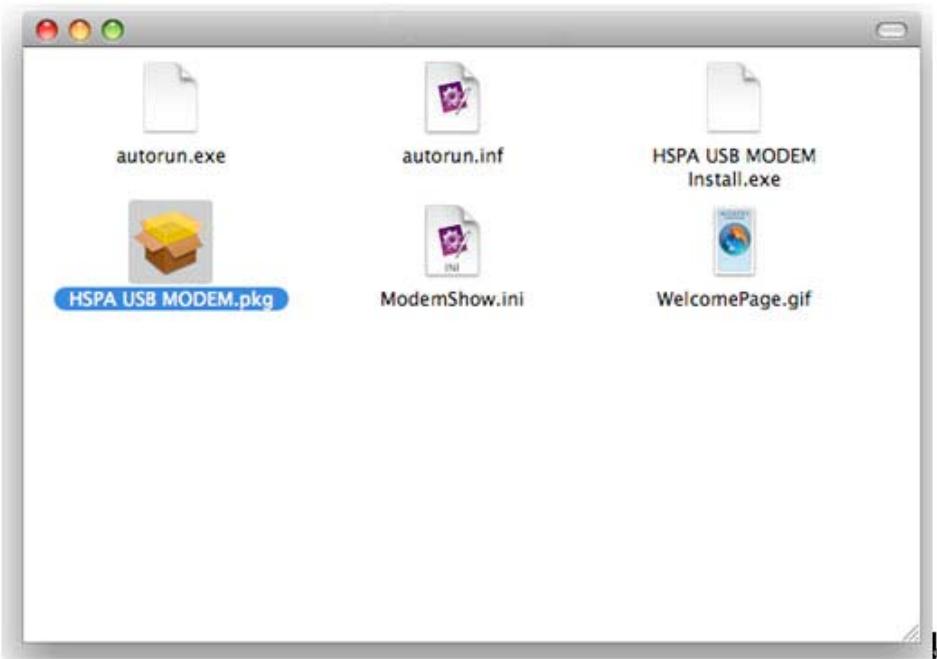
This manual describes the operations of the connect application. This application requires MAC OS X10.4.9 or later.
- To install the MODEM connect application on MAC OS X. Please double-click the file HSPA USB MODEM pkg
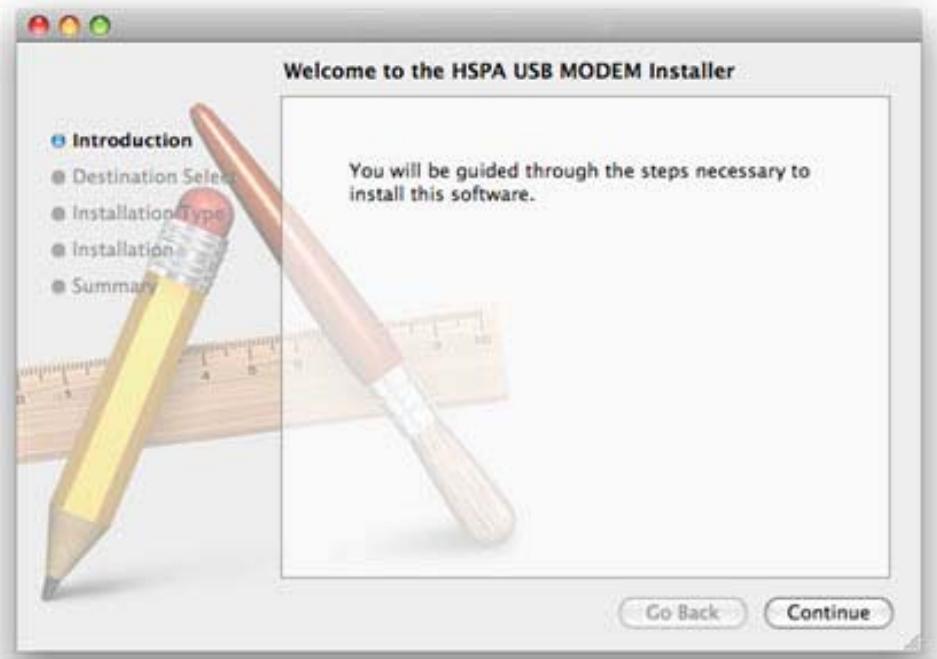
2. Click Continue
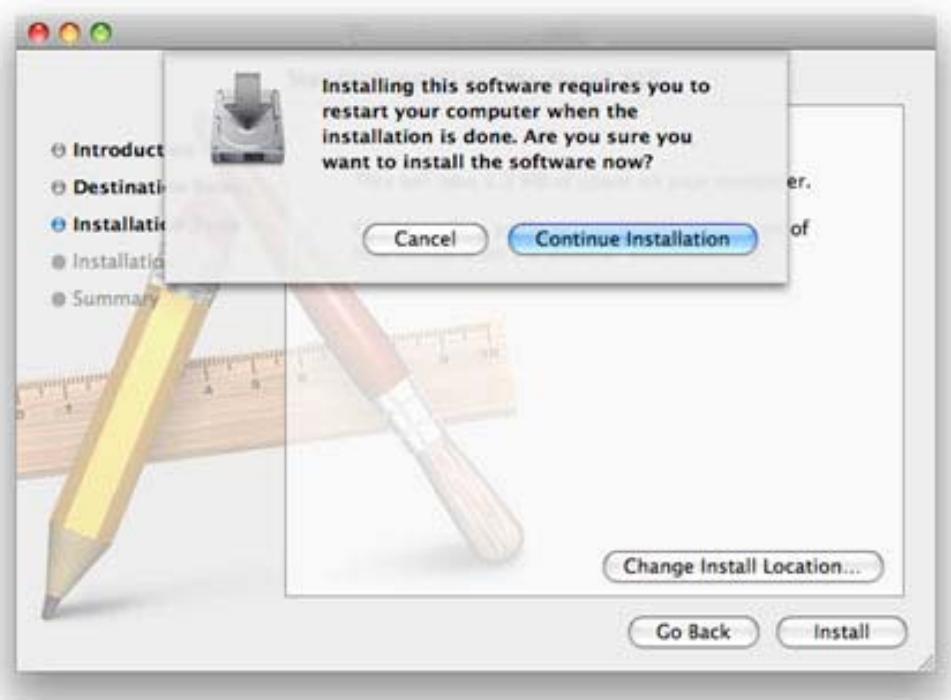
- Select the MAC OS volume to install the application and click "Continue Installation"
- When the installation is finished, you will see the following window, you need to restart your computer to use the modem.
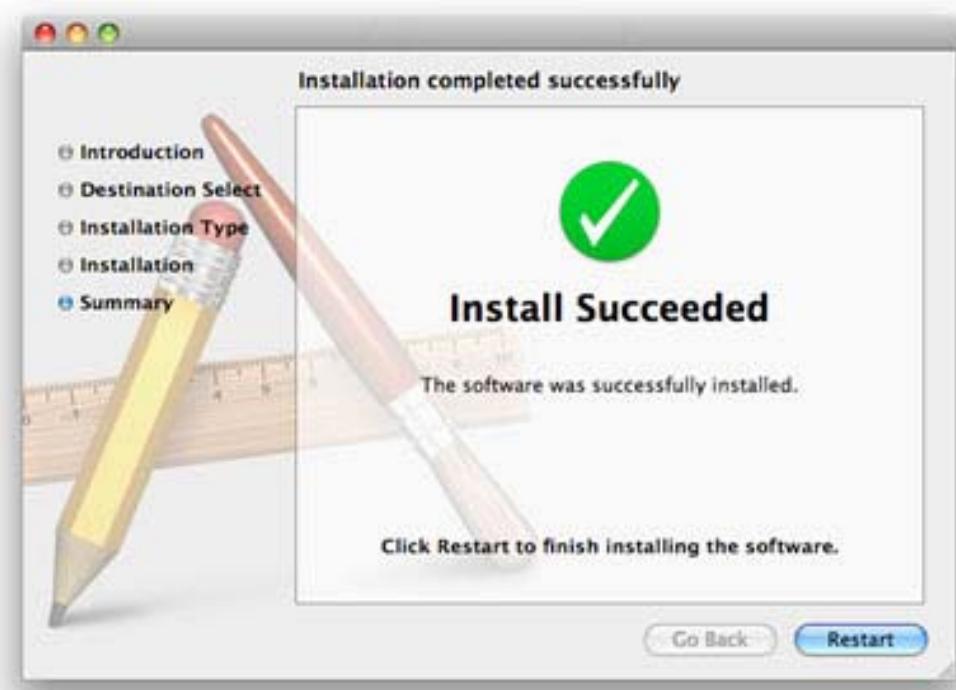
- Clicking Application>HSPA USB MODEM to start the connect application. You may install this application in the Dock to access it faster.
One Touch X070S
Production Characteristic
Zero CD ROM, Auto Installation
- UMTS 2100 MHz
- Downlink up to 3.6Mbps,
- Micro SD up to 16GB
SMS
Support Window 2000/XP/Vista; Mac OS X10.4.9
Your modem is a transceiver that operates on GSM networks with 850, 900, 1800 and 1900 MHz and on WCDMA 2100 MHz bands.
Radio Waves:
Proof of compliance with international standards (ICNIRP) or with European Directive 1999/5/EC (R&TTE) is required of all Modem models before they can be put on the market. The protection of the health and safety for the user and any other person is an essential requirement of these standards or this directive.
THIS MODEM COMPLIES WITH INTERNATIONAL AND EUROPEAN REQUIREMENTS REGARDING EXPOSURE TO RADIO WAVES.
The Modem is a radio transmitter/receiver. It was designed and manufactured to comply with the radiofrequency (RF) exposure thresholds recommended by international requirements (ICNIRP) (1) and by the Council of the European Union (Recommendation 1999/519/EC) (2).
These limits are part of a set of requirements and establish authorized radiofrequency levels for the public. These limits were established by independent groups of experts on the basis of regular and detailed scientific assessments. They include a significant safety margin intended to ensure the safety of all, regardless of age or state of health. The exposure standard for modems is determined by a measurement unit known as the Specific Absorption Rate or "SAR". The SAR limit is set by international requirements or by the Council of the European Union at 2 watts/kilogram (W/kg) averaged over 10 grams of body tissue.
The tests used to determine SAR levels were carried out on the basis of standard usage modes with the phones transmitting at their maximum power level over the entire range of frequency bands.
Although the SAR was established at the highest certified level, the actual SAR level for the modem during use is generally much lower than the maximum values. In fact, since modems are designed to operate at many different power levels, they only use the minimum level of power required to provide a connection to the network. In theory, the closer you are to a base station antenna, the lower the power level required by the modem.
(1) The ICNIRP requirements are applicable in the following regions: Central America (except Mexico), South America, North and South Africa, Pacific Asia (except Korea), Australia.
(2) The European recommendation (1999/519/EC) is applicable in the following regions: Europe, Israel.
The highest tested SAR value for this modem compliance against the standard is 0.866W / kg for use at the ear and 0.475W / kg for use closed to the body distance of 5mm . While there may be difference between the SAR levels on various modems and at various positions, they all meet the relevant International guidelines and EU requirement for RF (radio-waves) exposure.
For body-worn operation, the modem meets EU exposure guidelines provided that it is used with a non-metallic accessory with the handset at least 1.5cm from the body.
The World Health Organization (WHO) considers that present scientific information does not indicate the need for any special precautions for use of modems. If individuals are concerned, they might choose to limit their own or their children's RF exposure by limiting the length of calls, or using "hands-free" devices to keep Modems away from the head and body (fact sheet n° 193). Additional information about electromagnetic fields and public health are available on the following site: http://www.who.int/peh-emf.
Although no danger relating to the use of modem was ever proved, the World Health Organization advises as a precautionary measure to use the modem with a good level of network reception as indicated on the software display (4 to 5 bars). It is also advised to keep the modem, during communications, away from the belly of pregnant women and from the lower abdomen for teenagers.
The modem is equipped with a built-in antenna. For optimal operation, you should avoid touching it or degrading it.
General Information
-
Internet address: www. alcatel-mobilephones.com
-
Customer Support / Hot Line Number: see “TCT Mobile Services” leaflet or go to our Internet site.
Do not allow the modem to be exposed to adverse weather or environmental conditions (moisture, humidity, rain, infiltration of liquids, dust, sea air, etc). The manufacturer's recommended operating temperature range is -10°C to +50°C
As mobile devices offer a range of functions, they can be used in positions other than against your ear. In such circumstances the device will be compliant with the guidelines when used with HSPA Modem. If you are not using HSPA Modem ensure that whatever product is used is free of any metal and that it positions the phone at least 2cm away from the body.
C€0700
The modem is in compliance with the essential requirements and other relevant provisions of Directive 1999/5/EC. The entire copy of the Declaration of Conformity for the modem can be obtained through our Website: www.alcatel-mobilephones.com.
Alcatel is a trademarks of Alcatel-Lucent used under license by TCT mobile Limited.
All rights reserved © 2009-2010 TCT Mobile Limited.
TCT Mobile Limited reserves the right in the customer's interest to alter material or technical specification without prior notice.
- User Manual
- Table of Contents
- Safety and Use
- Traffic Safety
- Conditions of Use
- Collection Point:
- Protection against theft
- Disclaimer
- Installation Guide
- Note:
- Main Interface Overview
- Entrance to Main Interface
- Connect to Internet
- Connecting with the default logon profile
- Connecting
- Disconnecting
- Connecting with a user-defined logon profile
- Adding a new connection profile
- SMS Services (Text Message)
- Displaying the received SMS
- New SMS
- Send
- Reply
- Forward
- Edit
- Delete
- Resend
- Export
- Contacts
- New
- Edit
- Delete
- Send SMS
- Copy to (U) SIM card/Modem/Computer
- Settings
- Network select
- Network mode
- Network Band (This function is depend on product)
- SMS settings
- Connection profile settings
- Warranty
- FAQs
- Installation Guide for Mac
- Click Continue
- One Touch X070S
- Radio Waves:
- General Information
- C€0700
Marque : ALCATEL
Modèle : ONE TOUCH X070
Catégorie : Tablette