MODE D'EMPLOI BDT590 LG
MANUEL DU PROPRIÉTAIRE
Lecteur Blu-ray Disc™ 3D avec tuner HD
Veuillez lire attentivement ce manuel avant d'utiliser votre appareil et conservez-le pour référence future.
MODÈLE
BDT590
N° DE RÉFÉRENCE : MFL65225403

ATTENTION
RISQUE DE CHOC ÉLECTRIQUE NE PAS OUVRIR

ATTENTION : POUR RÉDUIRE LE RISQUE DE CHOC ÉLECTRIQUE, NE RETIREZ PAS LE COUVERCLE (OU LE PANNEAU ARRIÈRE). AUCUNE PIÈCE RÉPARABLE PAR L'UTILISATEUR À L'INTÉRIEUR. CONFIEZ TOUTE RÉPARATION À UN PERSONNEL QUALIFIÉ.

Ce symbole d'éclair avec une flèche à l'intérieur d'un triangle équilatéral est destiné à alerter l'utilisateur de la présence d'une tension dangereuse non isolée à l'intérieur du produit,
qui peut être d'une intensité suffisante pour constituer un risque de choc électrique pour les personnes.

Le point d'exclamation à l'intérieur d'un triangle équilatéral est destiné à alerter l'utilisateur de la présence d'instructions importantes d'utilisation et de maintenance (réparation)
dans la documentation accompagnant le produit.
Précautions et avertissements
AVERTISSEMENT : POUR PRÉVENIR TOUT RISQUE D'INCENDIE OU DE CHOC ÉLECTRIQUE, N'EXPOSEZ PAS CET APPAREIL À LA PLUIE OU À L'HUMIDITÉ.
AVERTISSEMENT : N'installez pas cet équipement dans un espace confiné tel qu'une bibliothèque ou un meuble similaire.
ATTENTION : Ne bloquez aucune ouverture de ventilation. Installez conformément aux instructions du fabricant.
Les fentes et ouvertures du boîtier sont prévues pour la ventilation et pour assurer un fonctionnement fiable du produit et le protéger contre la surchauffe. Les ouvertures ne doivent jamais être bloquées en plaçant le produit sur un lit, un canapé, un tapis ou une autre surface similaire. Ce produit ne doit pas être placé dans une installation encastrée telle qu'une bibliothèque ou un rack, sauf si une ventilation adéquate est assurée ou si les instructions du fabricant ont été respectées.
PRODUIT LASER DE CLASSE 1 PRODUIT LASER DE CLASSE 1 PRODUIT LASER DE CLASSE 2 PRODUIT LASER DE CLASSE 3 PRODUIT LASER DE CLASSE 4
ATTENTION : Ce produit utilise un système laser. Pour garantir une utilisation correcte de ce produit, veuillez lire attentivement ce manuel du propriétaire et le conserver pour référence future. Si l'appareil nécessite un entretien, contactez un centre de service agréé.
L'utilisation de commandes, de réglages ou l'exécution de procédures autres que celles spécifiées ici peut entraîner une exposition dangereuse aux radiations. Pour éviter toute exposition directe au faisceau laser, n'essayez pas d'ouvrir le boîtier. Rayonnement laser visible lorsqu'il est ouvert. NE PAS REGARDER LE FAISCEAU.
ATTENTION concernant le cordon d'alimentation
La plupart des appareils recommandent d'être placés sur un circuit dédié ;
C'est-à-dire un circuit de prise unique qui alimente uniquement cet appareil et ne comporte ni prises supplémentaires ni circuits dérivés. Consultez la page des spécifications de ce manuel du propriétaire pour en être certain. Ne surchargez pas les prises murales. Les prises murales surchargées, desserrées ou endommagées, les rallonges, les cordons d'alimentation effilochés, ou l'isolation des fils endommagée ou fissurée sont dangereux. Chacune de ces conditions peut entraîner un choc électrique ou un incendie. Examinez périodiquement le cordon de votre appareil, et si son apparence indique des dommages ou une détérioration, débranchez-le, cessez d'utiliser l'appareil et faites remplacer le cordon par une pièce de rechange exacte par un centre de service agréé. Protégez le cordon d'alimentation contre les abus physiques ou mécaniques, tels que torsion, pliage, pincement, fermeture dans une porte ou piétinement. Portez une attention particulière aux fiches, aux prises murales et au point où le cordon sort de l'appareil. Pour déconnecter l'alimentation du secteur, retirez la fiche du cordon d'alimentation. Lors de l'installation du produit, assurez-vous que la fiche est facilement accessible.
Cet appareil est équipé d'une batterie ou d'un accumulateur portable.
Moyen sûr de retirer la batterie ou le bloc-batterie de l'équipement : retirez l'ancienne batterie ou le bloc-batterie en suivant les étapes dans l'ordre inverse de l'assemblage. Pour éviter la contamination de l'environnement et les risques potentiels pour la santé humaine et animale, placez l'ancienne batterie ou le bloc-batterie dans le conteneur approprié aux points de collecte désignés. Ne jetez pas les batteries ou les blocs-batteries avec d'autres déchets. Il est recommandé d'utiliser les systèmes locaux de remboursement gratuits pour les batteries et accumulateurs. La batterie ne doit pas être exposée à une chaleur excessive telle que le soleil, le feu ou la lumière directe du soleil.
ATTENTION : L'appareil ne doit pas être exposé à l'eau (gouttes ou éclaboussures) et aucun objet rempli de liquide, tel qu'un vase, ne doit être placé sur l'appareil.
Pour les produits sans fil - Avis pour l'Union européenne
LG Electronics déclare par la présente que ce(s) produit(s) est/sont conformes aux exigences essentielles et aux autres dispositions pertinentes des directives 1999/5/CE, 2004/108/CE, 2006/95/CE et 2009/125/CE.
Veuillez contacter l'adresse suivante pour obtenir une copie de la déclaration de conformité (DoC).
Veuillez contacter l'adresse suivante pour obtenir une copie de la DoC (Déclaration de conformité).
Usage intérieur uniquement.
Avis pour l'Italie
Une autorisation générale est requise pour une utilisation en extérieur en Italie. L'utilisation de ces équipements est réglementée par :
D.L.gs 1.8.2003, n. 259, article 104 (activité soumise à autorisation générale) pour une utilisation en extérieur et article 105 (utilisation libre) pour une utilisation en intérieur, dans les deux cas pour un usage privé.
- D.M. 28.5.03, pour la fourniture au public d'accès RLAN aux réseaux et services de télécommunications.
- Élimination de votre ancien appareil
Lorsque ce symbole de poubelle barrée est apposé sur un produit, cela signifie que le produit est couvert par la directive européenne 2002/96/CE.

- Lorsque ce symbole de poubelle barrée est apposé sur un produit, cela signifie que le produit est couvert par la directive européenne 2002/96/CE.
- Tous les produits électriques et électroniques doivent être éliminés séparément des déchets municipaux via des installations de collecte désignées par le gouvernement ou les autorités locales.
- L'élimination correcte de votre ancien appareil contribuera à prévenir les conséquences négatives potentielles pour l'environnement et la santé humaine.
- Pour plus d'informations détaillées sur l'élimination de votre ancien appareil, veuillez contacter votre mairie, le service de traitement des déchets ou le magasin où vous avez acheté le produit.
Remarques sur les droits d'auteur
- L'équipement d'enregistrement ne doit être utilisé que pour des copies légales et il est conseillé de vérifier soigneusement ce qui constitue une copie légale dans la région où vous effectuez une copie. La copie de matériel protégé par le droit d'auteur, tel que des films ou de la musique, est illégale, sauf si elle est autorisée par une exception légale ou consentie par le titulaire des droits.
- Ce produit intègre une technologie de protection des droits d'auteur protégée par des brevets américains et d'autres droits de propriété intellectuelle. L'utilisation de cette technologie de protection des droits d'auteur doit être autorisée par Rovi Corporation et est destinée à un usage domestique et à d'autres utilisations de visualisation limitées, sauf autorisation contraire de Rovi Corporation. Le rétro-ingénierie ou le démontage est interdit.
- LES CONSOMMATEURS DOIVENT NOTER QUE TOUS LES TÉLÉVISEURS HAUTE DÉFINITION NE SONT PAS ENTIÈREMENT COMPATIBLES AVEC CE PRODUIT ET PEUVENT PROVOQUER L'AFFICHAGE D'ARTEFACTS DANS L'IMAGE. EN CAS DE PROBLÈMES D'IMAGE EN BALAYAGE PROGRESSIF 625, IL EST RECOMMANDÉ À L'UTILISATEUR DE COMMUTER LA CONNEXION SUR LA SORTIE 'DÉFINITION STANDARD'. SI VOUS AVEZ DES QUESTIONS CONCERNANT LA COMPATIBILITÉ DE VOTRE TÉLÉVISEUR AVEC CE MODÈLE 625p, VEUILLEZ CONTACTER NOTRE CENTRE DE SERVICE CLIENTÈLE.
- Parce que l'AACS (Advanced Access Content System) est approuvé comme système de protection du contenu pour le format BD, de la même manière que l'utilisation du CSS (Content Scramble System) pour le format DVD, certaines restrictions sont imposées sur la lecture, la sortie du signal analogique, etc., des contenus protégés par l'AACS. Le fonctionnement de ce produit et les restrictions sur ce produit peuvent varier en fonction de votre date d'achat, car ces restrictions peuvent être adoptées et/ou modifiées par l'AACS après la production de ce produit.
- De plus, BD-ROM Mark et BD+ sont également utilisés comme systèmes de protection du contenu pour le format BD, ce qui impose certaines restrictions, notamment des restrictions de lecture pour les contenus protégés par BD-ROM Mark et/ou BD+. Pour obtenir des informations supplémentaires sur les AAC, BD-ROM Mark, BD+ ou ce produit, veuillez contacter un centre de service client agréé.
- De nombreux disques BD-ROM/DVD sont encodés avec une protection contre la copie. Pour cette raison, vous ne devez connecter votre lecteur qu'à votre téléviseur, et non à un magnétoscope. La connexion à un magnétoscope entraîne une image déformée sur les disques protégés contre la copie.
- Ce produit intègre une technologie de protection des droits d'auteur protégée par des brevets américains et d'autres droits de propriété intellectuelle. L'utilisation de cette technologie de protection des droits d'auteur doit être autorisée par Rovi Corporation, et est destinée à un usage domestique et à d'autres utilisations de visionnage limitées, sauf autorisation contraire de Rovi Corporation. La rétro-ingénierie ou le désassemblage est interdit.
- En vertu des lois sur le droit d'auteur des États-Unis et d'autres pays, l'enregistrement, l'utilisation, l'affichage, la distribution ou la révision non autorisés de programmes télévisés, de cassettes vidéo, de disques BD-ROM, de DVD, de CD et d'autres matériels peuvent vous exposer à des responsabilités civiles et/ou pénales.
Sommaire
1
3 Précautions et avertissements
2
Préparation
8 Introduction 8 À propos de l'affichage des symboles 8 Symboles utilisés dans ce manuel Accessoires fournis 9 Disques lisibles 10 Compatibilité des fichiers 11 Code régional 11 AVCHD (Advanced Video Codec High Definition) 11 Configuration système requise 12 Remarques sur la compatibilité 13 Télécommande 13 Unité principale
3
Installation
14 Connexions à votre téléviseur 14 Connexion de l'antenne à votre téléviseur et à cet appareil 15 Connexion HDMI
Connexion vidéo composante Connexion composite Connexion péritel Réglage de la résolution
Connexion à un amplificateur
18 Connexion à un amplificateur via la sortie HDMI 19 Connexion à un amplificateur via la sortie audio numérique 19 Connexion à un amplificateur via la sortie audio 2 canaux
Connexion à votre réseau domestique
20 Connexion réseau filaire
21 Configuration du réseau filaire 22 Réseau sans fil
Connexion
Configuration du réseau sans fil
Connexion d'un périphérique USB
Configuration automatique
Paramètres
29 30 30
31 31 31 32 32 3.3 34 35 37 38 39
Réglage des paramètres Paramètres pour la télévision numérique Recherche automatique des programmes (Réglage automatique) Modification de la liste des programmes (Édition des chaînes) Réglage du verrouillage DTV Réglage de la classification DTV Réglage de l'alimentation de l'antenne Menu [DTV] Menu [AFFICHAGE] Menu [LANGUE] Menu [AUDIO] Menu [VERROU] Menu [RÉSEAU] Menu [AUTRES]
4
Opération
41 Utilisation des fonctions TV numériques 45 Enregistrement de programmes TV 47 Lecture générale 52 Lecture avancée 55 Affichage à l'écran 58 Profiter de BD-LIVE 59 Lecture de fichiers vidéo et de disques VR 61 Visualisation de photos 63 Écoute de musique 66 Lecture de contenu via votre réseau domestique (Home Link) 71 Utilisation de l'accès NetCast™ Entertainment Access 71 Lecture de vidéos YouTube™ Visualisation d'albums Web Picasa™ 77 Utilisation d'AccuWeather
5
Entretien
79 Remarques sur les disques 79 Manipulation de l'appareil
6
Dépannage
80 Généralités 81 Image 81 Son 82 Réseau 83 Enregistrement
7
Annexe
84 Contrôle d'un téléviseur avec la télécommande fournie 84 Réglage de la télécommande pour contrôler votre téléviseur 85 Liste des codes de zone 86 Liste des codes de langue 87 Marques commerciales et licences 89 Mise à jour du logiciel réseau 91 Spécifications de sortie audio 93 Résolution de sortie vidéo 94 Spécifications 94 Généralités 94 Enregistrement TV 94 Connecteurs 94 Système 95 Informations importantes relatives aux services réseau 96 Avis de logiciel open source
1 2 3 4 5 6 7
2 Préparation
Introduction
À propos de l'affichage du symbole "∅"
« O » peut apparaître sur l'écran de votre téléviseur pendant le fonctionnement et indique que la fonction expliquée dans ce manuel du propriétaire n'est pas disponible sur ce support spécifique.
Symboles utilisés dans ce manuel

REMARQUE
Indique des remarques particulières et des caractéristiques de fonctionnement.

ATTENTION
Indique une mise en garde pour éviter d'éventuels dommages dus à une mauvaise utilisation.
Une section dont le titre comporte l'un des symboles suivants ne s'applique qu'au disque représenté par le symbole.
| BD | BD-ROM disc |
| DVD | DVD-Video, DVD±R/RW in Video mode or VR mode and finalized |
| AVCHD | DVD±R/RW in AVCHD format |
| ACD | Audio CDs |
| MOVIE | Movie files contained in the Disc/USB |
| MOVIE-N | Movie files in the DLNA server or PC |
| MUSIC | Music files contained on a Disc/USB |
| MUSIC-N | Music files on a DLNA server or PC |
| PHOTO | Photo files contained on a DLNA server, PC or Disc |
| REC | Titles recorded via this unit (external HDD) |
Accessoires fournis
Télécommande (1)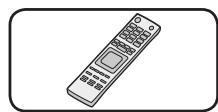
Piles (2)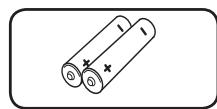
CD-ROM du logiciel Nero MediaHome4 Essentials (1)
Câble RF (1)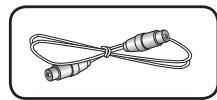
Disques lisibles
| Blu-ray Disc
- Disks such as movies that can be purchased or rented.
- BD-R/RE discs that contain Movie, Music or Photo files. |
| DVD-VIDEO (8 cm / 12 cm disc)
Disks such as movies that can be purchased or rented. |
| DVD±R (8 cm / 12 cm disc)
- Video mode and finalized only
- Supports the dual layer disc also
- Finalized AVCHD format
- DVD±R discs that contain Movie, Music or Photo files. |
| DVD-RW (8 cm / 12 cm disc)
- VR mode, Video mode and finalized only
- Finalized AVCHD format
- DVD-RW discs that contain Movie, Music or Photo files. |
| DVD+RW (8 cm / 12 cm disc)
- Video mode and finalized only
- Finalized AVCHD format
- DVD+RW discs that contain Movie, Music or Photo files. |
| AUDIO CD (8 cm / 12 cm disc) |
| CD-R/RW (8 cm / 12 cm disc)
- CD-R/RW discs that contain audio titles, Movie, Music or Photo files. |

REMARQUE
- Selon les conditions de l'équipement d'enregistrement ou du disque CD-R/RW (ou DVD-R/RW) lui-même, certains disques CD-R/RW (ou DVD±R/RW) ne peuvent pas être lus sur l'appareil. Selon le logiciel d'enregistrement et la finalisation, certains disques enregistrés (CD-R/RW ou DVD±R/RW) peuvent ne pas être lisibles.
- Les disques BD-R/RE, DVD±R/RW et CD-R/RW enregistrés à l'aide d'un ordinateur personnel ou d'un graveur DVD ou CD peuvent ne pas être lus si le disque est endommagé ou sale, ou s'il y a de la saleté ou de la condensation sur la lentille du lecteur.
- Si vous enregistrez un disque à l'aide d'un ordinateur personnel, même s'il est enregistré dans un format compatible, il peut ne pas être lu en raison des paramètres du logiciel d'application utilisé pour créer le disque. (Consultez l'éditeur du logiciel pour plus d'informations détaillées.)
- Cet appareil exige que les disques et les enregistrements respectent certaines normes techniques afin d'obtenir une qualité de lecture optimale.
- Les DVD préenregistrés sont automatiquement conformes à ces normes. Il existe de nombreux types de formats de disques inscriptibles (y compris les CD-R contenant des fichiers MP3 ou WMA) qui nécessitent certaines conditions préexistantes pour garantir une lecture compatible.
- Les disques hybrides comportent à la fois une couche BD-ROM et une couche DVD (ou CD) sur le même côté. Sur ces disques, seule la couche BD-ROM sera lue sur ce lecteur.
- Les clients doivent noter qu'une autorisation est requise pour télécharger des fichiers MP3/WMA et de la musique depuis Internet. Notre société n'a pas le droit d'accorder une telle autorisation. L'autorisation doit toujours être obtenue ou garantie par le propriétaire du droit d'auteur.
- Vous devez définir l'option de format de disque sur [Maîtrisé] afin de rendre les disques compatibles avec les lecteurs LG lors du formatage de disques réinscriptibles. Si vous définissez l'option sur "Système de fichiers en direct", le disque ne pourra pas être lu sur un lecteur LG. (Maîtrisé / Système de fichiers en direct : système de format de disque pour Windows Vista)
Compatibilité des fichiers
Général
Extensions de fichiers disponibles : "jpg", "jpeg", "png", "avi", "divx", "mpg", "mpeg", "mkv", "mp4", "mp3", "wma", "ts"
- Il peut y avoir une variation dans les extensions de fichiers disponibles selon le serveur DLNA. Le nom de fichier est limité à 180 caractères. Selon la taille et le nombre de fichiers, la lecture du contenu du support peut prendre plusieurs minutes.
Nombre maximal de fichiers/dossiers : moins de 2000 (nombre total de fichiers et dossiers)
Format CD-R/RW, DVD±R/RW, BD-R/RE :
Format ISO 9660+JOLIET, UDF et UDF Bridge
FILM
Résolution disponible : 1920 × 1080 (L x H) pixels
Sous-titres lisibles : SubRip (.srt / .txt), SAMI (.smi), SubStation Alpha (.ssa/.txt), MicroDVD (.sub/.txt), VobSub (.sub), SubViewer 1.0 (.sub), SubViewer 2.0 (.sub/.txt), DVD Subtitle System (.txt)
Formats de codec lisibles : "DIVX3.xx", "DIVX4.xx", "DIVX5.xx", "XVID", "DIVX6.xx" (lecture standard uniquement), H.264/MPEG-4 AVC, DIVX-HD, MPEG1 SS, MPEG2 PS, MPEG2 TS
Formats audio lisibles : "Dolby Digital", "DTS", "MP3", "WMA", "AAC", "AC3"
- Tous les formats audio WMA et AAC ne sont pas compatibles avec cet appareil.
Fréquence d'échantillonnage : entre 32 et 48 kHz (WMA), entre 16 et 48 kHz (MP3)
Débit binaire : entre 20 et 320 kbps (WMA), entre 32 et 320 kbps (MP3)

REMARQUE
- Les fichiers vidéo HD contenus sur un CD ou une clé USB 1.0/1.1 peuvent ne pas être lus correctement. Il est recommandé d'utiliser un BD, un DVD ou une clé USB 2.0 pour lire des fichiers vidéo HD.
- Ce lecteur prend en charge les profils Main et High du niveau 4.1 de H.264/MPEG-4 AVC. Pour un fichier de niveau supérieur, un message d'avertissement s'affichera à l'écran.
- Ce lecteur ne prend pas en charge les fichiers enregistrés avec GMC¹ ou Qpel². Ce sont des techniques de codage vidéo du standard MPEG4, comme DivX ou XVID.
*1 GMC - Compensation de mouvement globale
*2 Qpel – Quart de pixel
- Les fichiers vidéo HD nécessitant des performances élevées peuvent réagir lentement.
- Le temps de lecture total affiché à l'écran peut ne pas être correct pour les fichiers .ts.
MUSIQUE
Fréquence d'échantillonnage : entre 8 et 48 kHz (WMA), entre 11 et 48 kHz (MP3), 44,1 et 48 kHz (LPCM)
Débit binaire : entre 8 et 320 kbps (WMA, MP3), 768 kbps et 1,536 Mbps (LPCM)

REMARQUE
- Cet appareil ne prend pas en charge les fichiers MP3 avec balises ID3.
- Le temps de lecture total affiché à l'écran peut ne pas être correct pour les fichiers VBR.
PHOTO
Taille recommandée :
Moins de 4 000 × 3 000 × 24 bits/pixel
Moins de 3 000 × 3 000 × 32 bits/pixel
- Les fichiers image progressifs et les fichiers de compression sans perte ne sont pas pris en charge. Selon la taille et le nombre de fichiers photo, la lecture du contenu du support peut prendre plusieurs minutes.
Code régional
Cet appareil porte un code régional imprimé à l'arrière. Cet appareil ne peut lire que les disques BD-ROM ou DVD portant le même code que celui de l'arrière de l'appareil ou la mention "ALL".
AVCHD (Advanced Video Codec High Definition)
- Ce lecteur peut lire les disques au format AVCHD. Ces disques sont normalement enregistrés et utilisés dans les caméscopes.
- Le format AVCHD est un format de caméscope vidéo numérique haute définition.
- Le format MPEG-4 AVC/H.264 est capable de compresser les images avec une efficacité supérieure à celle du format de compression d'images conventionnel. Certains disques AVCHD utilisent le format "x.v.Color".
- Ce lecteur peut lire les disques AVCHD utilisant le format "x.v.Color".
- Certains disques au format AVCHD peuvent ne pas être lus, selon les conditions d'enregistrement. Les disques au format AVCHD doivent être finalisés.
- "x.v.Color" offre une gamme de couleurs plus large que les disques de caméscope DVD normaux.
Configuration système requise
Pour la lecture vidéo haute définition :
- Écran haute définition avec prises COMPOSANT ou HDMI. Disque BD-ROM avec contenu haute définition.
- Une entrée HDMI ou DVI compatible HDCP sur votre dispositif d'affichage est requise pour certains contenus (comme spécifié par les auteurs du disque).
- Pour la conversion ascendante de DVD en définition standard, une entrée HDMI ou DVI compatible HDCP sur votre dispositif d'affichage est requise pour les contenus protégés contre la copie.
Pour la lecture audio multicanal Dolby® Digital Plus, Dolby TrueHD et DTS-HD :
- Un amplificateur/récepteur avec décodeur intégré (Dolby Digital, Dolby Digital Plus, Dolby TrueHD, DTS ou DTS-HD).
- Enceintes principale, centrale, surround et caisson de basses selon le format choisi.
Notes de compatibilité
- Parce que le BD-ROM est un nouveau format, il peut y avoir des problèmes concernant certains disques, connexions numériques et autres problèmes de compatibilité. Si vous rencontrez des problèmes de compatibilité, veuillez contacter un centre de service client agréé. La visualisation de contenu haute définition et la conversion ascendante de contenu DVD standard peuvent nécessiter une entrée compatible HDMI ou une entrée DVI compatible HDCP sur votre dispositif d'affichage.
- Certains disques BD-ROM et DVD peuvent restreindre l'utilisation de certaines commandes ou fonctions.
- Dolby TrueHD, Dolby Digital Plus et DTS-HD sont pris en charge avec un maximum de 7.1 canaux si vous utilisez une connexion HDMI comme sortie audio.
- Vous pouvez utiliser un périphérique USB pour stocker certaines informations liées au disque, y compris le contenu en ligne téléchargé. Le disque que vous utilisez contrôlera la durée de conservation de ces informations. Lorsque vous regardez du contenu 3D, l'affichage à l'écran peut ne pas s'afficher correctement. Pour un affichage correct, désactivez le mode 3D sur le téléviseur.
Pour le module CI+ CAM, l'authentification initiale peut prendre plus de 3 minutes. Si vous utilisez plus de 2 modules CI+ CAM, une erreur d'authentification peut survenir lors du changement de module CI+ CAM (c'est un fonctionnement normal). Veuillez réinsérer le CAM lorsque l'erreur se produit.
Télécommande
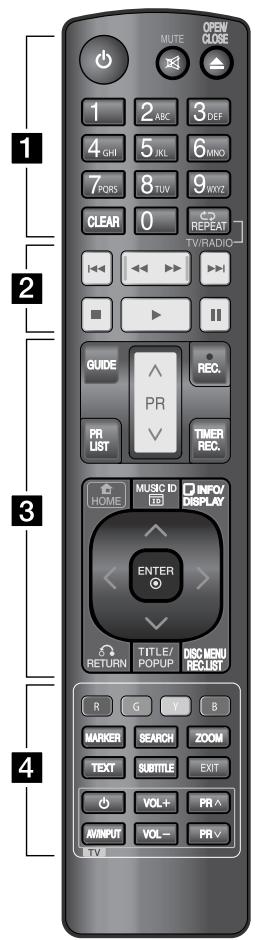
Installation des piles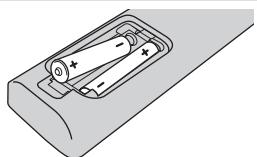
Retirez le couvercle du compartiment à piles à l'arrière de la télécommande et insérez deux piles R03 (taille AAA) en respectant les polarités + et -.
1
O (Alimentation) : allume ou éteint l'appareil.
MUTE (Sourdine) : coupe le son. OPEN/CLOSE (Ouverture/Fermeture) : ouvre et ferme le plateau du disque.
Touches numériques 0-9 : sélectionnent les options numérotées dans un menu.
CLEAR : supprime une marque dans le menu de recherche ou un chiffre lors de la saisie du mot de passe.
REPEAT : répète une section ou une séquence souhaitée.
TV/RADIO : bascule entre les modes TV et radio.
2
▶▶▶ : Passe au chapitre/piste/fichier suivant ou précédent.
←/▶ : Recherche en arrière ou en avant.
: Arrête la lecture.
▶ : Démarre la lecture.
Met en pause la lecture ou l'enregistrement.
3
GUIDE : Affiche le menu EPG. PR ( /) : Parcourt vers le haut ou le bas les programmes mémorisés.
REC. () : Démarre l'enregistrement.
PR LIST : Affiche la liste des chaînes.
TIMER REC. : Affiche le menu [Enregistrement programmé].
HOME () : Accède ou quitte le menu HOME.
MUSIC ID(10) : Lorsque le lecteur est connecté au réseau, il peut fournir des informations sur la chanson jouée pendant la lecture d'un film.
INFO/DISPLAY : Affiche ou quitte l'affichage à l'écran.
/ < / > (gauche/droite/haut/bas) : Navigue dans les affichages à l'écran.
ENTER (⊙) : Confirme la sélection du menu ou affiche les informations TV.
RETURN (品) : Quitte le menu ou revient à l'étape précédente.
TITLE/POPUP : Affiche le menu du titre du DVD ou le menu contextuel du BD-ROM, si disponible.
DISC MENU/REC.LIST : Accède au menu d'un disque ou bascule entre les menus de la liste d'enregistrement.
4
Boutons colorés (R, G, Y, B) :
Utilisés pour naviguer dans les menus BD-ROM. Ils sont également utilisés pour les menus [MOVIE], [PHOTO], [MUSIC], [Home Link] et [NetCast].
MARKER : Marque un point pendant la lecture.
SEARCH : Affiche ou quitte le menu de recherche.
ZOOM : Affiche ou quitte le menu [Zoom].
TEXT : Bascule entre le mode télétexte et le mode TV normal.
SUBTITLE : Sélectionne la langue des sous-titres.
EXIT : Quitte un menu ou masque les informations à l'écran.
Boutons de contrôle TV : Voir page 84.
Unité principale
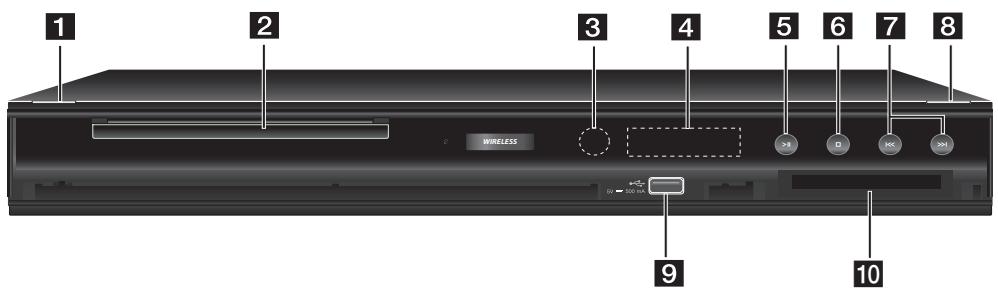
1 (Power) 2 Plateau du disque 3 Capteur de télécommande 4 Fenêtre d'affichage 5 > II (Lecture/Pause) 6 (Stop)
7 1 < < / > > 1 (Saut) 8 △ (Ouvrir/Fermer) 9 Port USB
10 FENTE POUR INTERFACE COMMUNE (CI ou CI+)
Fente pour module d'accès conditionnel (CA) externe et carte à puce utilisés pour décoder les chaînes brouillées. Cet appareil fonctionne avec un CAM CI ou CI+.
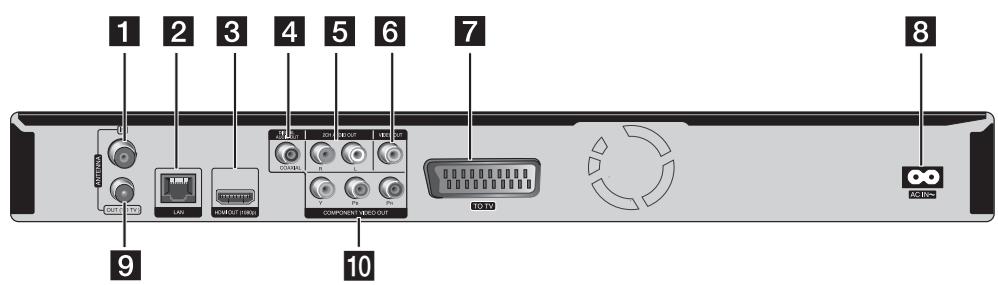
1 ENTREE ANTENNE 2 Port LAN 3 SORTIE HDMI (1080p) 4 SORTIE AUDIO NUMERIQUE (COAXIALE) 5 SORTIE AUDIO 2 CANAUX (Gauche/Droite)
6 SORTIE VIDEO 7 VERS TV (Péritel) 8 Connecteur AC IN Branchez le cordon d'alimentation fourni. 9 SORTIE ANTENNE (VERS TV) 10 SORTIE VIDEO COMPOSANTE (Y PB PR)
3 Installation
Connexions à votre téléviseur
Effectuez l'une des connexions suivantes, selon les capacités de votre équipement existant.
- Connexion antenne (page 14) Connexion HDMI (page 15)
- Connexion vidéo composante (page 16) Connexion composite (page 16)
- Connexion péritel (page 17)

REMARQUE
Selon votre téléviseur et les autres équipements que vous souhaitez connecter, il existe différentes façons de connecter l'appareil. Utilisez uniquement l'une des connexions décrites dans ce manuel. - Veuillez vous référer aux manuels de votre téléviseur, de votre chaîne stéréo ou d'autres appareils si nécessaire pour effectuer les meilleures connexions. - Assurez-vous que le lecteur est connecté directement au téléviseur. Réglez le téléviseur sur la bonne entrée vidéo. - Ne connectez pas la sortie AUDIO OUT du lecteur à la prise phono (tourne-disque) de votre système audio. - Ne connectez pas votre lecteur via votre magnétoscope. L'image pourrait être déformée par le système de protection contre la copie.
Connexion de l'antenne à votre téléviseur et à cet appareil
Connectez une extrémité du câble RF à la prise ANTENNA OUT (TOTV) de l'appareil et l'autre extrémité à la prise ANTENNA IN de votre téléviseur. Cela transmet le signal de la prise ANTENNA IN à votre téléviseur/moniteur.
Connectez l'antenne TV terrestre à la prise ANTENNA IN de l'appareil. Si vous souhaitez utiliser une antenne intérieure, utilisez-en une avec un amplificateur de signal nominal de 5 V, 100 mA et réglez [Antenne 5V] sur [ON] dans le menu de configuration (voir page 32).
Connexion de l'antenne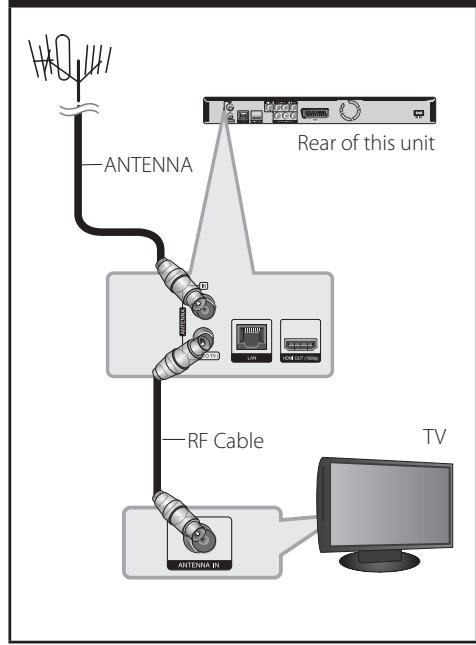
Connexion HDMI
Si vous avez un téléviseur ou un moniteur HDMI, vous pouvez le connecter à cet appareil à l'aide d'un câble HDMI (type A, version 1.3). Connectez la prise HDMI de l'appareil à la prise HDMI d'un téléviseur ou d'un moniteur compatible HDMI.
Connexion HDMI : réglez la source du téléviseur sur HDMI (reportez-vous au manuel du propriétaire du téléviseur).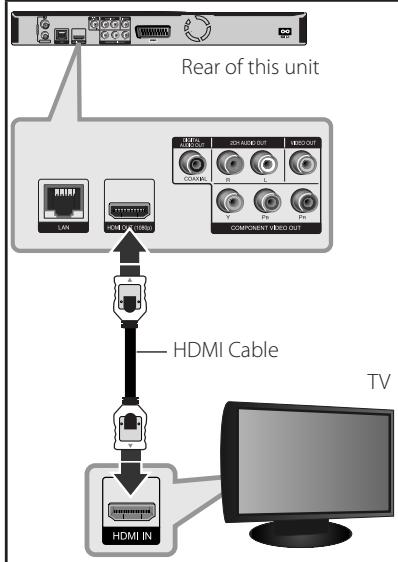

REMARQUE
- Si un périphérique HDMI connecté n'accepte pas la sortie audio de l'appareil, le son du périphérique HDMI peut être déformé ou ne pas être émis.
- Lorsque vous utilisez une connexion HDMI, vous pouvez modifier la résolution de la sortie HDMI. (Reportez-vous à « Réglage de la résolution » à la page 17.)
- Sélectionnez le type de sortie vidéo de la prise HDMI OUT à l'aide de l'option [Réglage couleur HDMI] du menu [Configuration] (voir page 34).
- Changer la résolution alors que la connexion est déjà établie peut entraîner des dysfonctionnements. Pour résoudre le problème, éteignez le lecteur puis rallumez-le.
- Lorsque la connexion HDMI avec HDCP n'est pas vérifiée, l'écran du téléviseur devient noir. Dans ce cas, vérifiez la connexion HDMI ou débranchez le câble HDMI.
- S'il y a du bruit ou des lignes à l'écran, vérifiez le câble HDMI (la longueur est généralement limitée à 4,5 m).
- Lorsque vous connectez un périphérique compatible HDMI ou DVI, assurez-vous des points suivants :
- Essayez d'éteindre l'appareil HDMI/DVI et ce lecteur. Ensuite, allumez l'appareil HDMI/DVI et laissez-le pendant environ 30 secondes, puis allumez ce lecteur.
- L'entrée vidéo de l'appareil connecté est réglée correctement pour cet appareil.
- L'appareil connecté est compatible avec une entrée vidéo 720x576p, 1280x720p, 1920x1080i ou 1920x1080p.
- Tous les appareils HDMI ou DVI compatibles HDCP ne fonctionneront pas avec ce lecteur.
- L'image ne s'affichera pas correctement avec un appareil non HDCP.
- Ce lecteur ne lit pas et l'écran du téléviseur devient noir.
Connexion vidéo composante
Connectez les prises COMPONENT VIDEO OUT de l'appareil aux prises d'entrée correspondantes du téléviseur à l'aide de câbles Y PB PR. Connectez les prises AUDIO OUT gauche et droite de l'appareil aux prises d'entrée audio gauche et droite du téléviseur à l'aide des câbles audio.
Connexion composante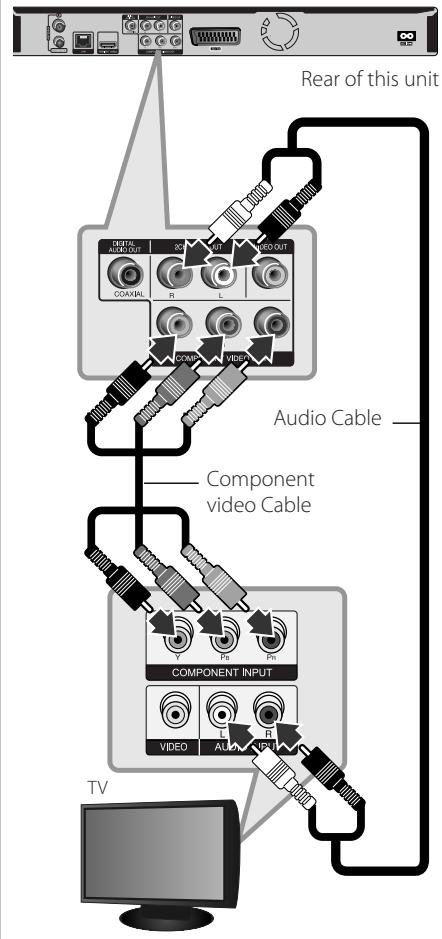

REMARQUE
Lorsque vous utilisez la connexion COMPONENT VIDEO OUT, vous pouvez modifier la résolution de sortie. (Reportez-vous à « Réglage de la résolution » à la page 17.)
Connexion composite
Branchez la prise VIDEO OUT de l'enregistreur à la prise d'entrée vidéo du téléviseur à l'aide du câble vidéo fourni. Branchez les prises AUDIO OUT gauche et droite de l'enregistreur aux prises d'entrée audio gauche/droite du téléviseur à l'aide des câbles audio fournis.
Connexion vidéo/audio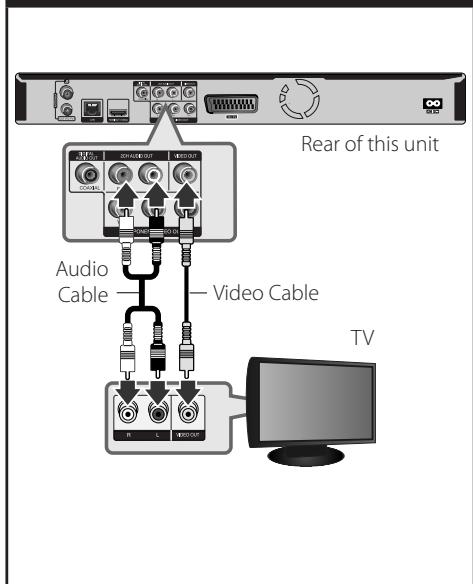
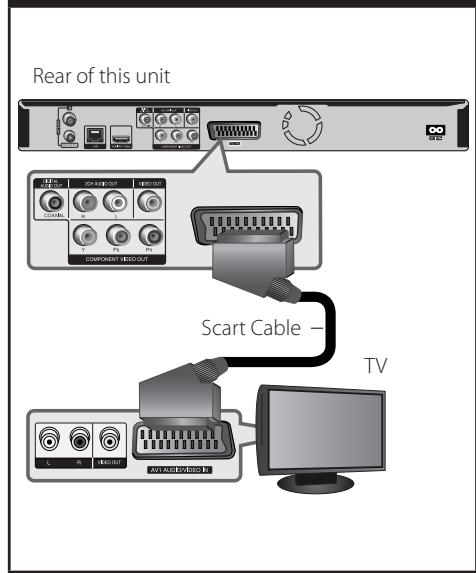
Connexion Péritel
Branchez une extrémité du câble Péritel dans la prise TO TV SCART de l'appareil et l'autre extrémité dans la prise d'entrée correspondante de votre téléviseur. Vous obtenez ainsi les signaux audio et vidéo via cette connexion.
Connexion Péritel
Réglage de la résolution
Le lecteur propose plusieurs résolutions de sortie pour les prises HDMI OUT et COMPONENT VIDEO OUT. Vous pouvez modifier la résolution à l'aide du menu [Réglage].
- Appuyez sur HOME (↑).
- Utilisez ⟨ / ⟩ pour sélectionner [Réglage] et appuyez sur ENTER (⑥). Le menu [Réglage] apparaît.
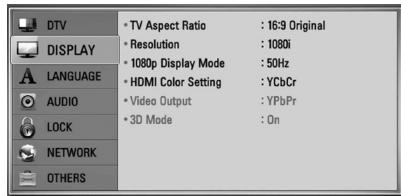
- Utilisez Λ / V pour sélectionner l'option [AFFICHAGE], puis appuyez sur > pour passer au deuxième niveau.
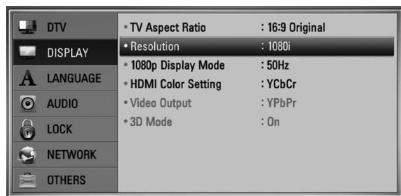
- Utilisez ⟨ / ⟩ pour sélectionner l'option [Résolution], puis appuyez sur ENTER (O) pour passer au troisième niveau.
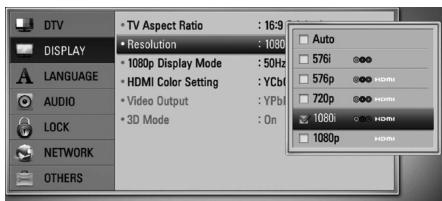
- Utilisez Λ / V pour sélectionner la résolution souhaitée, puis appuyez sur ENTER (O) pour confirmer votre sélection.
Connexion à un amplificateur
Effectuez l'un des branchements suivants, selon les capacités de votre équipement existant.
Connexion audio HDMI (page 18) Connexion audio numérique (page 18) Connexion audio analogique 2 canaux (page 19)
Comme de nombreux facteurs affectent le type de sortie audio, consultez « Spécifications de sortie audio » pour plus de détails (pages 91-92).
À propos du son multicanal numérique
Une connexion multicanal numérique offre la meilleure qualité sonore. Pour cela, vous avez besoin d'un récepteur audio/vidéo multicanal qui prend en charge un ou plusieurs des formats audio pris en charge par votre appareil. Consultez le manuel du récepteur et les logos sur le devant du récepteur. (PCM stéréo, PCM multicanal, Dolby Digital, Dolby Digital Plus, Dolby TrueHD, DTS et/ou DTS-HD)
Connexion à un amplificateur via la sortie HDMI
Connectez la prise HDMI OUT du lecteur à la prise d'entrée correspondante de votre amplificateur à l'aide d'un câble HDMI. Vous devrez activer la sortie numérique du lecteur. (Voir « Menu [AUDIO] » aux pages 35-37.)
Connexion audio HDMI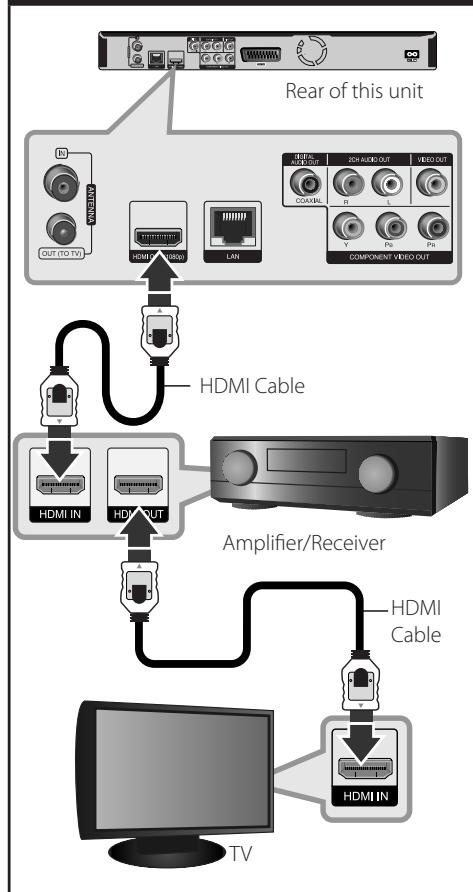
Connectez la sortie HDMI de l'amplificateur à l'entrée HDMI de votre téléviseur à l'aide d'un câble HDMI si votre amplificateur possède une sortie HDMI.
Connexion à un amplificateur via la sortie audio numérique
Connectez la prise DIGITAL AUDIO OUT (COAXIAL) du lecteur à la prise d'entrée correspondante (COAXIAL) de votre amplificateur.
Utilisez un câble audio numérique (coaxial) en option.
Vous devrez activer la sortie numérique de l'appareil. (Voir « Menu [AUDIO] » aux pages 35-37.)
Connexion audio numérique Amplificateur/Récepteur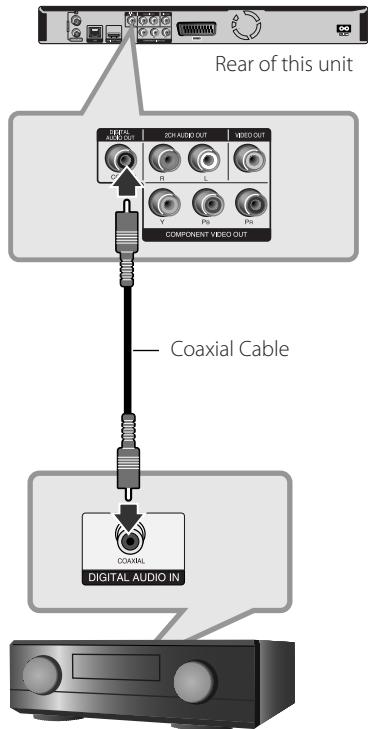
Connexion à un amplificateur via la sortie audio 2 canaux
Connectez les prises 2CH AUDIO OUT gauche et droite de l'appareil aux entrées audio gauche et droite de votre amplificateur, récepteur ou chaîne stéréo à l'aide de câbles audio.
Connexion audio analogique 2CH Amplificateur/Récepteur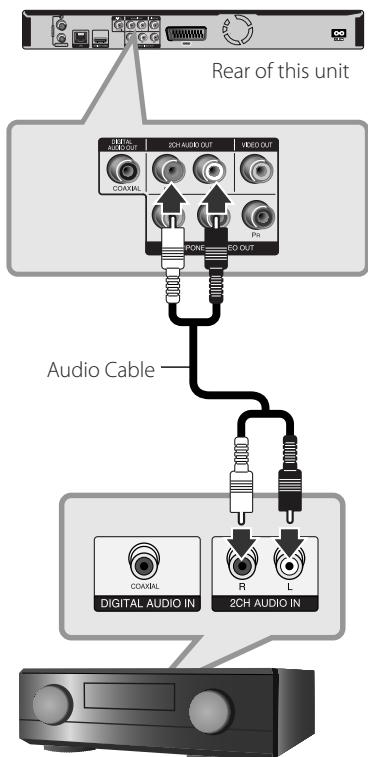
Connexion à votre réseau domestique
Cet appareil peut être connecté à un réseau local (LAN) via le port LAN situé sur le panneau arrière ou via le module sans fil interne. En connectant l'appareil à un réseau domestique à large bande, vous avez accès à des services tels que les mises à jour logicielles, Home Link, l'interactivité BD-Live et les services de streaming.
Connexion réseau filaire
L'utilisation d'un réseau filaire offre les meilleures performances, car les appareils connectés sont directement reliés au réseau et ne sont pas sujets aux interférences radioélectriques. Veuillez vous référer à la documentation de votre périphérique réseau pour des instructions supplémentaires. Connectez le port LAN du lecteur au port correspondant de votre modem ou routeur à l'aide d'un câble LAN ou Ethernet disponible dans le commerce (CAT5 ou supérieur avec connecteur RJ45). Dans l'exemple de configuration de connexion filaire ci-dessous, ce lecteur pourra accéder au contenu de l'un ou l'autre des PC.

REMARQUE
- Lors du branchement ou du débranchement du câble LAN, tenez la fiche du câble. Lors du débranchement, ne tirez pas sur le câble LAN mais débranchez-le en appuyant sur le loquet.
- Ne connectez pas un câble téléphonique modulaire au port LAN.
- Comme il existe diverses configurations de connexion, veuillez suivre les spécifications de votre opérateur de télécommunications ou de votre fournisseur d'accès Internet.
- Si vous souhaitez accéder au contenu de PC ou de serveurs DLNA, cet appareil doit être connecté au même réseau local qu'eux via un routeur.
Connexion réseau filaire Arrière de cet appareil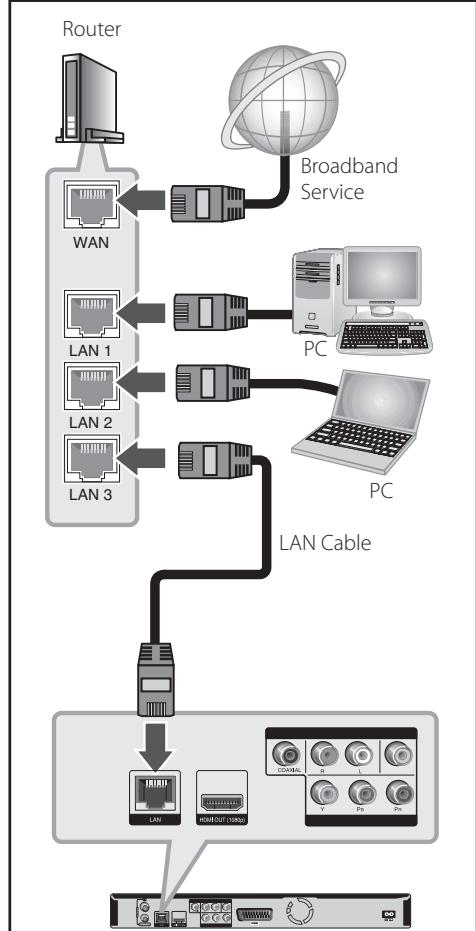
Configuration du réseau filaire
S'il y a un serveur DHCP sur le réseau local (LAN) via une connexion filaire, ce lecteur se verra automatiquement attribuer une adresse IP.
Après avoir effectué la connexion physique, un petit nombre de réseaux domestiques peuvent nécessiter un ajustement du paramètre réseau du lecteur. Ajustez le paramètre [RÉSEAU] comme suit.
Préparation
Avant de configurer le réseau filaire, vous devez connecter l'Internet à large bande à votre réseau domestique.
- Sélectionnez l'option [Réglage de connexion] dans le menu [Configuration], puis appuyez sur ENTER (⊙).
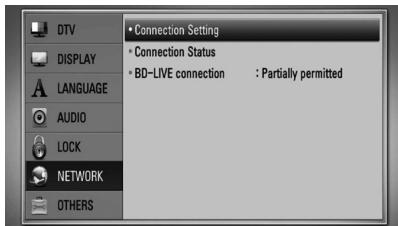
- Le menu [Réglage de connexion] apparaîtra à l'écran. Utilisez / V pour sélectionner [Filaire] et appuyez sur ENTER (O).
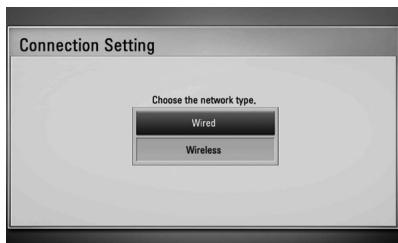
- Sélectionnez [Oui] et appuyez sur ENTER (O) pour continuer. Les nouveaux réglages de connexion réinitialisent les réglages réseau actuels.
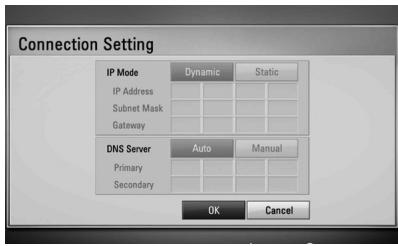
- Utilisez / < / > pour sélectionner le mode IP entre [Dynamique] et [Statique]. Normalement, sélectionnez [Dynamique] pour attribuer une adresse IP automatiquement.

REMARQUE
S'il n'y a pas de serveur DHCP sur le réseau et que vous souhaitez définir l'adresse IP manuellement, sélectionnez [Statique] puis définissez [Adresse IP], [Masque de sous-réseau], [Passerelle] et [Serveur DNS] à l'aide de / / < / > et des touches numériques. Si vous faites une erreur en saisissant un nombre, appuyez sur EFFACER pour effacer la partie en surbrillance.
- Sélectionnez [OK] et appuyez sur ENTER (O) pour appliquer les réglages réseau.
- Le lecteur vous demandera de tester la connexion réseau. Sélectionnez [OK] et appuyez sur ENTER (C) pour terminer la connexion réseau.
- Si vous sélectionnez [Test] et appuyez sur ENTER (⊙) à l'étape 5 ci-dessus, l'état de la connexion réseau s'affiche à l'écran.
Vous pouvez également le tester dans [État de la connexion] du menu [Configuration].

Connexion réseau sans fil
Une autre option de connexion consiste à utiliser un point d'accès ou un routeur sans fil. Dans l'exemple de configuration pour une connexion sans fil ci-dessous, cet appareil pourrait accéder au contenu de l'un ou l'autre des PC.
La configuration du réseau et la méthode de connexion peuvent varier en fonction de l'équipement utilisé et de l'environnement réseau.
Ce lecteur est équipé d'un module sans fil IEEE 802.11n (bande 2,4 GHz uniquement), qui prend également en charge les normes 802.11b/g. Pour des performances sans fil optimales, nous recommandons d'utiliser un réseau Wi-Fi certifié IEEE 802.11n (point d'accès ou routeur sans fil).
Normes Wi-Fi disponibles : 802.11b / 802.11g / 802.11n (bande unique 2,4 GHz)
Connexion au réseau sans fil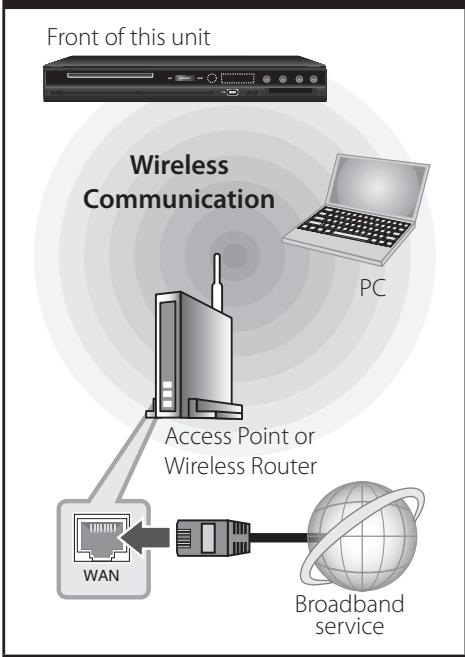
Reportez-vous aux instructions d'installation fournies avec votre point d'accès ou routeur sans fil pour connaître les étapes de connexion détaillées et les paramètres réseau.

REMARQUE
Une connexion Internet filaire est fortement recommandée. L'utilisation des fonctions [Mes médias], de la mise à jour du réseau et des services de streaming vidéo (tels que les vidéos YouTube) avec un réseau sans fil peut être affectée par les appareils domestiques utilisant des radiofréquences.
Configuration du réseau sans fil
Pour la connexion au réseau sans fil, le lecteur doit être configuré pour la communication réseau. Ce réglage peut être effectué à partir du menu [Configuration]. Réglez le paramètre [RÉSEAU] comme suit. La configuration du point d'accès ou du routeur sans fil est requise avant de connecter le lecteur au réseau.
Préparation
Avant de configurer le réseau sans fil, vous devez :
- connecter l'Internet haut débit au réseau domestique sans fil.
- configurer le point d'accès ou le routeur sans fil.
- noter le SSID et le code de sécurité du réseau.
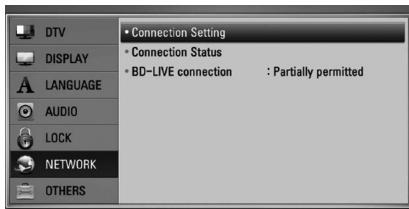
- Sélectionnez l'option [Réglage de la connexion] dans le menu [Configuration], puis appuyez sur ENTER (⑥).
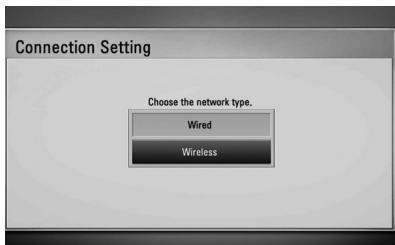
- Le menu [Réglage de la connexion] apparaît à l'écran. Utilisez / V pour sélectionner [Sans fil], puis appuyez sur ENTER (⑨).
- Sélectionnez [Oui] et appuyez sur ENTER (O) pour continuer. Les nouveaux réglages de connexion réinitialisent les réglages réseau actuels.
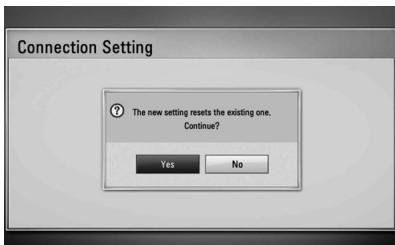
- Le lecteur recherche tous les points d'accès ou routeurs sans fil disponibles à portée et les affiche sous forme de liste. Utilisez / V pour sélectionner un point d'accès ou un routeur sans fil dans la liste, puis appuyez sur ENTER (O).
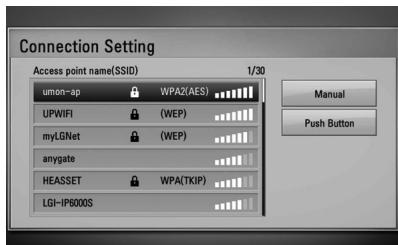
Si votre point d'accès ou routeur sans fil est sécurisé, vérifiez que la clé WEP ou WPA saisie dans le lecteur correspond exactement aux informations du routeur. Vous devez saisir le code de sécurité si nécessaire.

REMARQUE
- Le mode de sécurité WEP dispose généralement de 4 clés disponibles dans les réglages d'un point d'accès ou d'un routeur sans fil. Si votre point d'accès ou routeur sans fil utilise la sécurité WEP, saisissez le code de sécurité de la clé "N°1" pour vous connecter à votre réseau domestique.
- Un point d'accès est un périphérique qui vous permet de vous connecter sans fil à votre réseau domestique.
[Manuel] - Votre point d'accès peut ne pas diffuser son nom (SSID). Vérifiez les réglages de votre routeur via votre ordinateur et soit configurez votre routeur pour diffuser le SSID, soit saisissez manuellement le nom du point d'accès (SSID) dans [Manuel].
[Bouton poussoir] - Si votre point d'accès ou routeur sans fil prend en charge la méthode de configuration par bouton poussoir, sélectionnez cette option et appuyez sur le bouton poussoir de votre point d'accès ou routeur sans fil dans les 120 secondes. Vous n'avez pas besoin de connaître le nom du point d'accès (SSID) ni le code de sécurité de votre point d'accès ou routeur sans fil.
- Utilisez / < / > pour sélectionner le mode IP entre [Dynamique] et [Statique].
Normalement, sélectionnez [Dynamique] pour attribuer une adresse IP automatiquement.

REMARQUE
S'il n'y a pas de serveur DHCP sur le réseau et que vous souhaitez définir l'adresse IP manuellement, sélectionnez [Statique] puis définissez [Adresse IP], [Masque de sous-réseau], [Passerelle] et [Serveur DNS] à l'aide de / / < > et des touches numériques. Si vous faites une erreur en saisissant un numéro, appuyez sur CLEAR pour effacer la partie en surbrillance.
- Sélectionnez [OK] et appuyez sur ENTER (O) pour appliquer les réglages réseau.
- Le lecteur vous demandera de tester la connexion réseau. Sélectionnez [OK] et appuyez sur ENTER (⊙) pour terminer la connexion réseau.
- Si vous sélectionnez [Test] et appuyez sur ENTER (à l'étape 7 ci-dessus), l'état de la connexion réseau s'affiche à l'écran. Vous pouvez également le tester via [État de la connexion] dans le menu [Configuration].
Remarques sur la connexion réseau :
- De nombreux problèmes de connexion réseau lors de la configuration peuvent souvent être résolus en réinitialisant le routeur ou le modem. Après avoir connecté le lecteur au réseau domestique, éteignez rapidement et/ou débranchez le câble d'alimentation du routeur ou du modem câble. Puis rallumez et/ou rebranchez le câble d'alimentation. Selon le fournisseur d'accès à Internet (FAI), le nombre d'appareils pouvant recevoir un service Internet peut être limité par les conditions de service applicables. Pour plus de détails, contactez votre FAI.
- Notre société n'est pas responsable des dysfonctionnements du lecteur et/ou de la fonction de connexion Internet dus à des erreurs de communication ou à des pannes associées à votre connexion Internet haut débit ou à d'autres équipements connectés.
- Les fonctionnalités des disques BD-ROM rendues disponibles via la fonction de connexion Internet ne sont ni créées ni fournies par notre société, et notre société n'est pas responsable de leur fonctionnement ou de leur disponibilité continue. Certains contenus liés aux disques disponibles via la connexion Internet peuvent ne pas être compatibles avec ce lecteur. Si vous avez des questions sur ce contenu, veuillez contacter le producteur du disque.
- Certains contenus Internet peuvent nécessiter une connexion à plus haut débit.
- Même si le lecteur est correctement connecté et configuré, certains contenus Internet peuvent ne pas fonctionner correctement en raison de la congestion d'Internet, de la qualité ou de la bande passante de votre service Internet, ou de problèmes chez le fournisseur du contenu.
- Certaines opérations de connexion Internet peuvent ne pas être possibles en raison de certaines restrictions définies par le fournisseur d'accès à Internet (FAI) fournissant votre connexion Internet haut débit.
- Tous les frais facturés par un FAI, y compris, sans limitation, les frais de connexion, sont à votre charge.
- Un port LAN 10 Base-T ou 100 Base-TX est requis pour la connexion filaire à ce lecteur. Si votre service Internet ne permet pas une telle connexion, vous ne pourrez pas connecter le lecteur.
- Vous devez utiliser un routeur pour utiliser le service xDSL.
- Un modem DSL est requis pour utiliser le service DSL et un modem câble est requis pour utiliser le service de modem câble. Selon la méthode d'accès et l'abonnement à votre FAI, il se peut que vous ne puissiez pas utiliser la fonction de connexion Internet de ce lecteur, ou que vous soyez limité au nombre d'appareils que vous pouvez connecter en même temps. (Si votre FAI limite l'abonnement à un seul appareil, ce lecteur peut ne pas être autorisé à se connecter lorsqu'un PC est déjà connecté.)
- L'utilisation d'un "routeur" peut ne pas être autorisée ou son utilisation peut être limitée en fonction des politiques et restrictions de votre FAI. Pour plus de détails, contactez directement votre FAI.
- Le réseau sans fil fonctionne sur des fréquences radio de 2,4 GHz qui sont également utilisées par d'autres appareils domestiques tels que les téléphones sans fil, les appareils Bluetooth®, les fours à micro-ondes, et peut être affecté par leurs interférences.
- Éteignez tout équipement réseau inutilisé sur votre réseau domestique local. Certains appareils peuvent générer du trafic réseau.
- Pour une meilleure réception, placez le lecteur aussi près que possible du point d'accès.
- Dans certains cas, placer le point d'accès ou le routeur sans fil à au moins 0,45 m au-dessus du sol peut améliorer la réception.
- Rapprochez-vous du point d'accès si possible ou réorientez le lecteur de sorte que rien ne se trouve entre lui et le point d'accès.
- La qualité de réception sans fil dépend de nombreux facteurs tels que le type de point d'accès, la distance entre le lecteur et le point d'accès, et l'emplacement du lecteur.
- Réglez votre point d'accès ou routeur sans fil en mode Infrastructure. Le mode Ad-hoc n'est pas pris en charge.
Connexion d'un périphérique USB
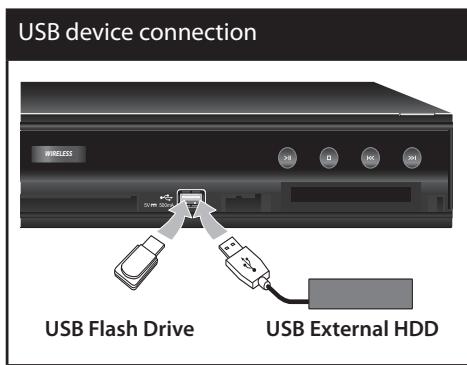
Cet appareil peut lire des fichiers vidéo, musicaux et photo contenus sur un périphérique USB.
Lecture du contenu du périphérique USB
- Insérez un périphérique USB dans le port USB jusqu'à ce qu'il soit bien en place.
- Appuyez sur HOME (A).
- Sélectionnez [Film], [Photo] ou [Musique] à l'aide de < / > , puis appuyez sur ENTER (C).
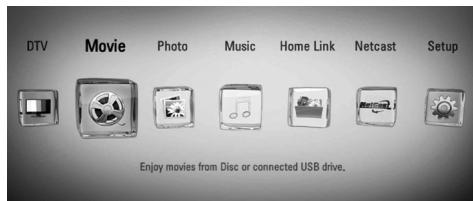
- Sélectionnez l'option [USB] à l'aide de < / > , puis appuyez sur ENTER (⑥).

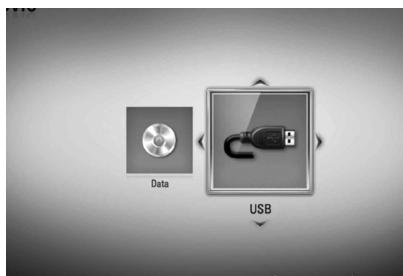
5. Sélectionnez un fichier à l'aide de / V < / > , puis appuyez sur PLAY (▶) ou ENTER (⊙) pour lire le fichier. 6. Retirez soigneusement le périphérique USB après avoir quitté le mode USB.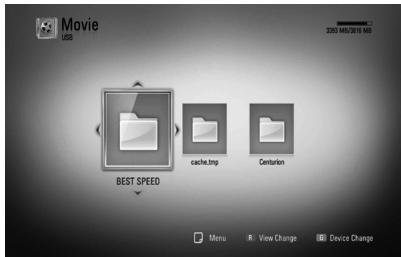

REMARQUE
- Cet appareil prend en charge les clés USB/disques durs externes formatés en FAT16, FAT32 et NTFS lors de l'accès aux fichiers (musique, photo, film). Cependant, pour BD-Live, seuls les formats FAT16 et FAT32 sont pris en charge. Le périphérique USB peut être utilisé comme stockage local pour profiter des disques BD-Live depuis Internet.
- Veuillez utiliser une clé USB/disque dur externe formaté en FAT16 ou FAT32 lors de l'utilisation de BD-Live. Cet appareil peut prendre en charge jusqu'à 4 partitions du périphérique USB.
- Ne retirez pas le périphérique USB pendant le fonctionnement (lecture, enregistrement, etc.).
- Un périphérique USB qui nécessite l'installation d'un programme supplémentaire lorsqu'il est connecté à un ordinateur n'est pas pris en charge.
- Périphérique USB : périphérique USB prenant en charge USB1.1 et USB2.0.
- Les fichiers film, musique et photo peuvent être lus. Pour plus de détails sur les opérations de chaque fichier, reportez-vous aux pages correspondantes.
- Une sauvegarde régulière est recommandée pour éviter toute perte de données.
- Si vous utilisez un câble d'extension USB ou un concentrateur USB, le périphérique USB peut ne pas être reconnu.
- Certains périphériques USB peuvent ne pas fonctionner avec cet appareil.
- Les appareils photo numériques et les téléphones mobiles ne sont pas pris en charge.
- Le port USB de cet appareil ne peut pas être connecté à un PC. L'appareil ne peut pas être utilisé comme périphérique de stockage.
- Les supports non formatés ne peuvent pas être utilisés. Veuillez les formater avant utilisation.
- Si le disque dur USB n'est pas reconnu, essayez un autre câble USB.
- Certains câbles USB peuvent ne pas fournir suffisamment de courant pour un fonctionnement USB normal.
- Il est recommandé d'utiliser le périphérique USB avec une seule partition.
- Les fichiers vidéo, les fichiers musicaux et les fichiers photo peuvent être lus. Pour plus de détails sur les opérations relatives à chaque fichier, reportez-vous aux pages correspondantes.
À propos du disque dur externe
Le disque dur (HDD) est un équipement fragile. Veuillez utiliser le lecteur en suivant les directives ci-dessous pour vous protéger contre une éventuelle panne du disque dur.
- Ne déplacez pas le lecteur lorsqu'il est allumé.
- N'utilisez pas un disque dur endommagé. Le produit peut être endommagé. Installez et utilisez l'enregistreur sur une surface stable et plane.
- N'utilisez pas l'enregistreur dans des endroits excessivement chauds ou humides, ou dans des endroits susceptibles de subir des changements brusques de température. Les changements brusques de température peuvent provoquer de la condensation à l'intérieur de l'enregistreur. Cela peut être une cause de panne du disque dur. Lorsque l'enregistreur est allumé, ne le débranchez pas de la prise murale et ne coupez pas l'électricité à l'aide du disjoncteur.
- Ne déplacez pas l'enregistreur immédiatement après l'avoir éteint. Si vous devez déplacer l'enregistreur, suivez les étapes ci-dessous :
- Après l'affichage du message « OFF » à l'écran, attendez au moins deux minutes.
- Débranchez de la prise murale.
- Déplacez le lecteur.
En cas de coupure de courant pendant que l'enregistreur est allumé, il est possible que certaines données du disque dur soient perdues. - Le disque dur est très délicat. S'il est utilisé de manière inappropriée ou dans un environnement inadapté, il est possible que le disque dur tombe en panne après quelques années d'utilisation. Les signes de problèmes incluent des gelures inattendues de la lecture et un bruit de blocage (mosaïque) visible dans l'image.
Cependant, il n'y a parfois aucun signe avant-coureur de défaillance du disque dur.
Si le disque dur tombe en panne, la lecture des enregistrements ne sera pas possible. Dans ce cas, il sera nécessaire de remplacer le disque dur. - Le fabricant décline toute responsabilité en cas de perte de données contenues dans le disque dur. Il est fortement recommandé d'utiliser un disque dur standard SATA des fabricants suivants : (Seagate, Western Digital, Hitachi, Samsung).
Pendant le fonctionnement de cet enregistreur, ne retirez pas le disque dur. Cela pourrait causer un défaut grave à cet enregistreur. La capacité maximale du disque dur est limitée à 1 To. - La capacité du disque dur affichée sur votre écran de télévision peut ne pas être exactement la même que celle imprimée sur votre disque dur. Il est recommandé d'utiliser un disque dur externe avec une seule partition.

ATTENTION
- La partition du disque dur ne prend pas en charge plus de quatre partitions. Si la partition est divisée en quatre ou plus, elle ne fonctionne pas.
- Une partition de disque dur divisée uniquement avec une partition étendue peut être anormale.
- Pendant l'enregistrement, si vous débranchez de force le disque dur externe USB, cela peut causer un problème grave sur le disque dur.
- Si vous séparez le disque dur externe pendant l'enregistrement, l'appareil ne s'éteint pas normalement, cela peut être nocif pour le disque dur. De plus, vous ne pourrez pas profiter des enregistrements dans la liste d'enregistrement.

REMARQUE
- Les autres fonctions du format NTFS prennent en charge l'enregistrement de blocs de 4 Ko composés uniquement de la première partition. Un espace libre de 100 Go ou plus est recommandé.
- La connexion entre l'appareil et un disque dur externe doit être effectuée manuellement. Si vous connectez un disque dur externe et l'appareil avec un hub USB séparé, dans ce cas, ce n'est pas pris en charge.
- Si vous modifiez ou supprimez le contenu enregistré sur un disque dur externe depuis un autre PC,
- il peut être supprimé ou ne pas être lu dans la liste des enregistrements. Disque dur externe prenant en charge USB 2.0
- Un disque dur utilisant une alimentation externe séparée doit être connecté à l'alimentation.
Configuration automatique
Vous pouvez réinitialiser l'enregistreur à tous ses paramètres d'usine. Certaines options ne peuvent pas être réinitialisées (évaluation et mot de passe). Le menu [Configuration automatique] apparaît à l'écran après les paramètres d'usine.
Étape 1. Réglage de la langue
- Utilisez /V < / > pour sélectionner une langue pour l'affichage à l'écran, puis appuyez sur ENTER (O).
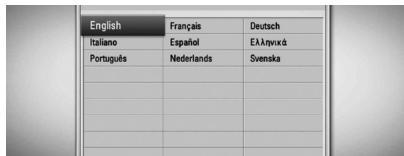
Étape 2. Réglage des chaînes
- Utilisez / < / > pour sélectionner un pays, puis appuyez sur ENTER (O).
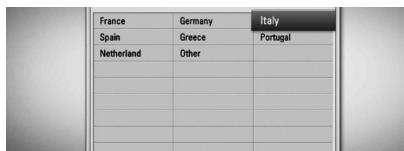
- Saisissez le nouveau mot de passe à l'aide des boutons numériques. Saisissez-le à nouveau pour vérification.
- Tout en sélectionnant l'option Démarrer, appuyez sur ENTER (O) pour lancer la recherche des chaînes.
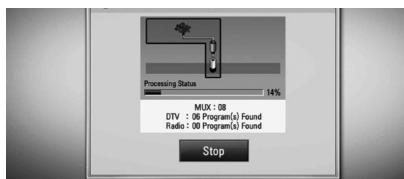
L'enregistreur recherche et enregistre automatiquement les programmes.
Si vous sélectionnez [Arrêter], la fonction [Réglage des chaînes] sera ignorée.
- Appuyez sur ENTER (O).
Étape 3. Réglage de l'heure
- Utilisez < / > pour sélectionner une option parmi [Manuel] ou [Auto], puis appuyez sur ENTER (⊙).
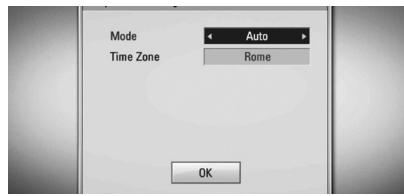
Auto : définissez le programme qui diffuse un signal d'horloge et l'horloge sera réglée automatiquement.
Si l'heure réglée automatiquement ne correspond pas à votre heure locale, vous pouvez définir une option d'heure supplémentaire.
Manuel : s'il n'y a pas de chaîne diffusant un signal d'horloge dans votre région, vous pouvez régler l'heure et la date manuellement. Utilisez / V pour sélectionner chaque champ, et saisissez l'heure et la date correctes à l'aide de < / > . Vous pouvez utiliser les boutons numériques.
- Appuyez sur ENTER (O) pour terminer le réglage de l'heure.
Étape 4. Réglage du réseau
- Reportez-vous à « Connexion réseau filaire » aux pages 20-21 pour terminer l'option de configuration [Filaire], puis appuyez sur ENTER (⑨).
Sélectionnez [Non] et appuyez sur ENTER pour annuler.
- Reportez-vous à « Connexion réseau sans fil » aux pages 22-25 pour terminer l'option [Sans fil], puis appuyez sur ENTER (⑨).
Sélectionnez [Annuler] et appuyez sur ENTER pour annuler. Cet enregistreur ne peut appliquer qu'une seule configuration réseau entre [Filaire] et [Sans fil]. Si vous avez déjà défini [Filaire] à l'étape 6, vous n'avez pas besoin de définir le réglage [Sans fil].
Pour accéder aux nombreuses fonctions de l'appareil, appuyez sur HOME sur la télécommande.
HOME : accède ou supprime le menu d'accueil. / / < / > : utilisé pour naviguer dans les affichages à l'écran. ENTER (⊙) : confirme la sélection du menu. RETURN : quitte le menu.
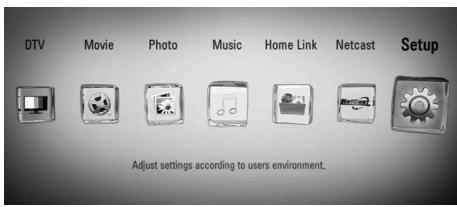
DTV
Vous pouvez regarder les émissions numériques. (pages 41-47)
Film
Lance la lecture des médias vidéo ou affiche le menu [FILM].
Photo
Affiche le menu [PHOTO]. (pages 61-63)
Musique
Affiche le menu [MUSIQUE]. (pages 63-66)
Lien domestique
Affiche et lit le contenu partagé depuis le serveur ou le PC sélectionné. (pages 66-70)
Netcast
Affiche les vidéos YouTube, les albums Picasa Web et les prévisions météo AccuWeather diffusés depuis le serveur YouTube via Internet sur votre téléviseur. (pages 71-78)
Configuration
Affiche le menu [Configuration]. (pages 32-40)
Paramètres
Ajuste les paramètres de configuration
Vous pouvez modifier les paramètres du lecteur dans le menu [Configuration].
- Appuyez sur HOME (↑).
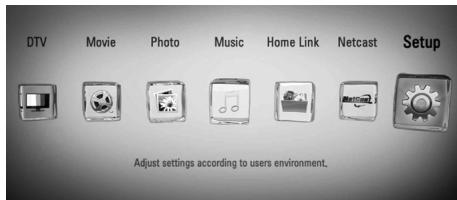
- Utilisez < / > pour sélectionner [Configuration] et appuyez sur ENTER (O). Le menu [Configuration] apparaît.
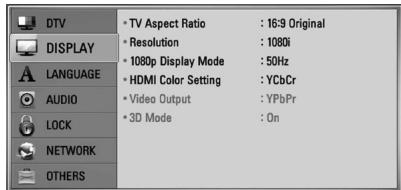
- Utilisez / pour sélectionner la première option de configuration, puis appuyez sur > pour passer au deuxième niveau.
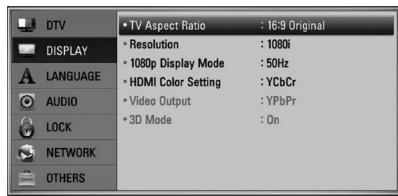
- Utilisez / V pour sélectionner une deuxième option de configuration, puis appuyez sur ENTER (⊙) ou > pour passer au troisième niveau.
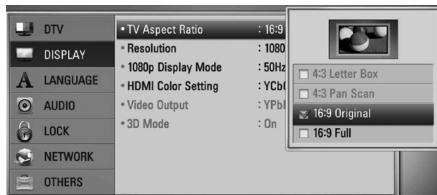

- Utilisez / V pour sélectionner le réglage souhaité, puis appuyez sur ENTER (⊙) ou > pour confirmer votre sélection.
Paramètres pour la télévision numérique
Pour utiliser les fonctions DTV, cet enregistreur nécessite certains réglages préalables.
Recherche automatique des programmes (Auto Tuning)
Tous les programmes de télévision ou de radio numériques disponibles sont recherchés et mémorisés automatiquement en fonction du pays sélectionné.
- Appuyez sur HOME (↑).
- Utilisez < / > pour sélectionner [Configuration], puis appuyez sur ENTER (C).
- Utilisez / V pour sélectionner [DTV], puis appuyez sur ENTER (C).
- Utilisez / pour sélectionner [Auto Tuning] et appuyez sur ENTER (⑥).
- Utilisez pour sélectionner une option de pays, puis utilisez < / > pour sélectionner votre pays. Appuyez ensuite sur ENTER (O).
- Utilisez V pour sélectionner [Démarrer], puis appuyez sur ENTER (C) pour lancer la recherche des chaînes.
Sélectionnez [Arrêter] et appuyez sur ENTER (⊙) pour arrêter la recherche des programmes.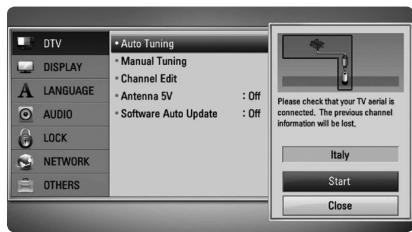

REMARQUE
Si l'option [Verrouillage DTV] est réglée sur [Verrouillé], cette fonction n'est disponible qu'après avoir saisi le mot de passe correct. (voir page 31.)
Recherche manuelle des programmes (Réglage manuel)
Recherche les programmes de télévision ou de radio numériques et ajoute les programmes détectés à la liste des programmes.
- Affichez le menu [Configuration].
- Utilisez / pour sélectionner [DTV], puis appuyez sur ENTER (C).
- Utilisez / pour sélectionner [Réglage manuel] et appuyez sur ENTER (O) pour afficher le menu [Réglage manuel].
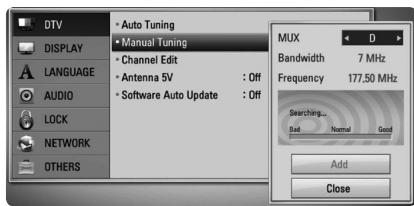
- Utilisez < / > pour sélectionner le multiplexeur (MUX) souhaité, et l'appareil commence la recherche automatiquement.
- Utilisez V pour sélectionner [Ajouter] et appuyez sur ENTER (C) pour ajouter le programme que l'appareil a détecté automatiquement.

REMARQUE
Si l'option [Verrouillage DTV] est réglée sur [Verrouillé], cette fonction n'est disponible qu'après avoir saisi le mot de passe correct. (voir page 31.)
Modification de la liste des programmes (Édition des chaînes)
Vous pouvez supprimer tout programme de télévision ou de radio numérique stocké sur cet enregistreur à l'aide du menu [Édition des chaînes].
- Affichez le menu [Réglage].
- Utilisez / pour sélectionner [DTV], puis appuyez sur ENTER (C).
- Utilisez / V < / > pour sélectionner [Édition des chaînes] et appuyez sur ENTER (⑥).
- Appuyez sur pour sélectionner [DTV] et utilisez < / > pour sélectionner la liste des programmes [DTV] ou [Radio].
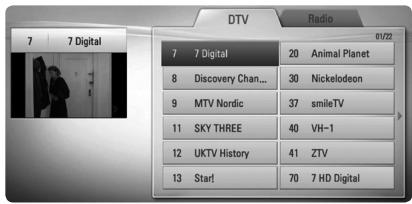
- Utilisez / < / > pour sélectionner un programme que vous souhaitez ignorer dans la liste, puis appuyez sur le bouton rouge (R).
Si vous ne souhaitez pas ignorer le programme, sélectionnez-le et appuyez à nouveau sur le bouton rouge (R).
Utilisez / V / < / > pour sélectionner un programme que vous souhaitez verrouiller dans la liste, puis appuyez sur le bouton bleu (B).
Si vous ne souhaitez pas verrouiller le programme, sélectionnez-le et appuyez à nouveau sur le bouton bleu (B).
- Appuyez sur RETURN (o) pour revenir à l'étape précédente.
Ignorer : si le programme est défini pour être ignoré, vous ne pouvez pas le sélectionner avec le bouton PR de la télécommande.
Verrouiller/déverrouiller : si le programme est défini pour être verrouillé et que [Verrouillage DTV] dans le menu [Réglage] est réglé sur [Verrouillé], vous devez saisir le mot de passe pour regarder le programme.
Réglage du verrouillage DTV
Permet d'activer ou de désactiver tous les verrouillages précédemment définis. Lorsque [Verrouillage DTV] est réglé sur [Déverrouillé].
- Affichez le menu [Réglage].
- Utilisez / < / > pour sélectionner [VERROU] et appuyez sur ENTER (⑨).
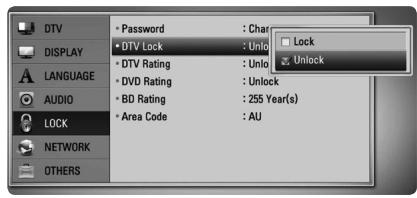
- Utilisez / pour sélectionner [Verrouillage DTV] et appuyez sur ENTER (⑥).
- Saisissez le mot de passe à l'aide des touches numériques. Si vous n'avez pas encore défini votre mot de passe, saisissez "1234" et appuyez sur ENTER (O).
- Utilisez / pour sélectionner [Verrouiller] et appuyez sur ENTER (C) pour activer le verrouillage DTV.
Réglage de la classification DTV
La visualisation de certains programmes de télévision numérique peut être limitée en fonction de la limite d'âge que vous avez définie.
- Affichez le menu [Configuration].
- Utilisez / pour sélectionner [VERROUILLAGE] et appuyez sur ENTER (⑨).
- Utilisez / pour sélectionner [Classification DTV] et appuyez sur ENTER (⑨).
- Saisissez le mot de passe à l'aide des touches numériques. Si vous n'avez pas encore défini votre mot de passe, saisissez-le et appuyez sur ENTER (O).
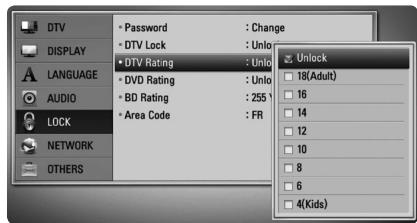
- Utilisez / pour définir le niveau de restriction et appuyez sur ENTER (⑥).
Déverrouillage
Vous pouvez voir tous les programmes.
4 (Enfants) - 18 (Adultes)
La classification [4 (Enfants)] est la plus restrictive et [18 (Adultes)] est la moins restrictive.
Réglage de l'alimentation de l'antenne
Si vous utilisez une antenne intérieure avec un amplificateur de signal nominal DC 5V, 100 mA, l'enregistreur peut fournir l'alimentation via la prise ANTENNA IN.
- Affichez le menu [Réglages].
- Utilisez Λ / V < / > pour sélectionner [Antenne 5V] et appuyez sur ENTER (O).
- Utilisez Λ / V pour sélectionner [On], puis appuyez sur ENTER (O) pour alimenter l'antenne.
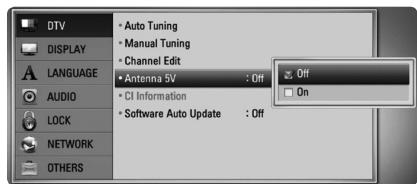

REMARQUE
L'option [Antenne 5V] doit être réglée sur [Off] lorsque votre antenne intérieure est alimentée par le secteur. Si vous réglez l'option [Antenne 5V] sur [On] pour une antenne intérieure alimentée par le secteur, cela peut causer un défaut grave à cet appareil.

Réglage automatique
Cette option recherche les chaînes et mémorise les chaînes disponibles. Reportez-vous à la page 29 pour plus d'informations.
Réglage manuel
Recherche les chaînes de télévision ou de radio numériques et ajoute les chaînes trouvées à la liste des chaînes. Reportez-vous à la page 30 pour plus d'informations.
Édition des chaînes
Cette option vous permet de modifier les chaînes de télévision ou de radio. Reportez-vous à la page 30 pour plus d'informations.
Antenne 5V
Si vous utilisez une antenne intérieure, utilisez-en une avec un amplificateur de signal nominal DC 5V, 100 mA et réglez cette option sur [On]. Reportez-vous à la page 32 pour plus d'informations.
Informations CI
Vous pouvez profiter non seulement des services à accès conditionnel utilisant le module d'accès conditionnel (CAM), mais aussi des services en clair (Free-To-Air). Différents CAM prennent en charge différents systèmes de cryptage. Contactez votre fournisseur de services ou votre distributeur pour obtenir le CAM approprié. Seuls les services en clair sont disponibles sans CAM. Cette option affiche un menu des fonctions de la carte CI. Consultez votre fournisseur de services pour plus d'informations sur les fonctions disponibles. Vous devez obtenir un « CAM CI ou CI+ » auprès de votre fournisseur de services.
Mise à jour automatique du logiciel
Si vous réglez cette option sur [On], l'appareil met à jour automatiquement un logiciel plus récent via le tuner numérique intégré si la mise à jour du logiciel est disponible auprès du diffuseur.

Format d'image TV
Sélectionnez une option de format d'image TV en fonction de votre type de téléviseur.
[4:3 Letter Box]
Sélectionnez cette option lorsqu'un téléviseur standard 4:3 est connecté. Affiche les images cinématographiques avec des barres de masquage en haut et en bas de l'image.
[4:3 Pan Scan]
Sélectionnez cette option lorsqu'un téléviseur standard 4:3 est connecté. Affiche les images recadrées pour remplir l'écran de votre téléviseur. Les deux côtés de l'image sont coupés.
[16:9 Original]
Sélectionnez cette option lorsqu'un téléviseur large 16:9 est connecté. L'image 4:3 est affichée avec un rapport hauteur/largeur original de 4:3, avec des barres noires apparaissant à gauche et à droite.
[16:9 Full]
Sélectionnez cette option lorsqu'un téléviseur large 16:9 est connecté. L'image 4:3 est ajustée horizontalement (dans une proportion linéaire) pour remplir tout l'écran.
![LG BDT590 - [16:9 Full] - 1](/content/2025/01/69747/images/0497cd9ad58168cd511c912ae50bc1f2a456d1042ef227ae806ce91aafba9782.jpg)
NOTE
Vous ne pouvez pas sélectionner les options [4:3 Letter Box] et [4:3 Pan Scan] lorsque la résolution est réglée sur une valeur supérieure à 720p.
Résolution
Définit la résolution de sortie du signal vidéo Component et HDMI. Reportez-vous aux pages 17 et 93 pour plus de détails sur le réglage de la résolution.
[Auto]
Si la prise HDMI OUT est connectée à un téléviseur fournissant des informations d'affichage (EDID), cette option sélectionne automatiquement la résolution la mieux adaptée au téléviseur connecté. Si seule la sortie COMPONENT VIDEO OUT est connectée, la résolution passe par défaut à 1080i.
[1080p]
Affiche 1080 lignes de vidéo progressive.
[1080i]
Affiche 1080 lignes de vidéo entrelacée.
[720p]
Affiche 720 lignes de vidéo progressive.
[576p]
Affiche 576 lignes de vidéo progressive.
[576i]
Sort 576 lignes de vidéo entrelacée.
1080p Mode d'affichage
Lorsque la résolution est réglée sur 1080p, sélectionnez [24 Hz] pour une présentation fluide des contenus filmiques (1080p/24 Hz) avec un écran compatible HDMI acceptant une entrée 1080p/24 Hz.

REMARQUE
- Lorsque vous sélectionnez [24 Hz], vous pouvez observer des perturbations de l'image lors des transitions entre vidéo et contenu filmique. Dans ce cas, sélectionnez [50 Hz].
- Même lorsque [Mode d'affichage 1080p] est réglé sur [24 Hz], si votre téléviseur n'est pas compatible avec le 1080p/24 Hz, la fréquence d'images réelle de la sortie vidéo sera de 50 Hz ou 60 Hz pour correspondre au format de la source vidéo.
Réglage des couleurs HDMI
Sélectionnez le type de sortie de la prise HDMI OUT. Pour ce réglage, veuillez vous référer aux manuels de votre appareil d'affichage.
[YCbCr]
Sélectionnez cette option lors de la connexion à un appareil d'affichage HDMI.
[RGB]
Sélectionnez cette option lors de la connexion à un appareil d'affichage DVI.
Mode 3D
Sélectionnez le type de mode de sortie pour la lecture de disques Blu-ray 3D. Reportez-vous aux pages 51-52 pour plus d'informations sur les disques Blu-ray 3D.
[Désactivé]
La lecture de disques Blu-ray 3D se fera en mode 2D, comme pour un disque BD-ROM normal.
[On]
La lecture de disques Blu-ray 3D se fera en mode 3D.
Sélectionnez une option selon le type de connexion au téléviseur.
[YPbPr]
Lorsque votre téléviseur est connecté aux prises COMPONENT OUT de l'appareil.
[RGB]
Lorsque votre téléviseur est connecté à la prise SCART (signal RVB) de l'appareil.
![LG BDT590 - [RGB] - 1](/content/2025/01/69747/images/6cf7376168f96b50a243f36fc138a5562c5221641f655b93120d7b6dad26ca32.jpg)
REMARQUE
Cette fonction n'est disponible que si la [Résolution] est réglée sur [576i].

Sélectionnez une langue pour le menu [Configuration] et l'affichage à l'écran.
Sélectionnez la langue que vous préférez pour la piste audio (audio du disque), les sous-titres et le menu du disque.
[Original]
Fait référence à la langue originale dans laquelle le disque a été enregistré.
[Autre]
Appuyez sur ENTER (⊙) pour sélectionner une autre langue. Utilisez les touches numériques puis appuyez sur ENTER (⊙) pour saisir le code à 4 chiffres correspondant selon la liste des codes de langue à la page 86.
[Désactivé] (Sous-titres du disque uniquement)
Désactive les sous-titres.
![LG BDT590 - [Désactivé] (Sous-titres du disque uniquement) - 1](/content/2025/01/69747/images/1516feb98780d132371ce76d21cc0bb605283b2cf4ce0c32f79886c52bed1a08.jpg)
REMARQUE
Selon le disque, votre paramètre de langue peut ne pas fonctionner.
Audio DTV
Les chaînes numériques fournissent parfois plusieurs pistes audio, souvent dans une langue ou un format différent (Dolby Digital, Dolby Digital+, AVC, Mpeg, etc.). Vous pouvez définir une langue audio par défaut avec ce paramètre. Si le diffuseur le propose, vous pouvez également sélectionner une autre langue audio pendant le visionnage de la télévision en appuyant plusieurs fois sur AUDIO. (Voir « Sélection de la langue audio DTV » à la page 42.)
Sous-titres DTV
Les chaînes numériques fournissent parfois des sous-titres, souvent dans une langue différente. Vous pouvez définir une langue de sous-titres préférée avec ce paramètre, si les sous-titres DTV sont fournis par le diffuseur. Appuyez plusieurs fois sur SUBTITLE pour sélectionner une langue de sous-titres pendant le visionnage de la télévision numérique. (Voir « Sélection de la langue des sous-titres DTV » à la page 43.)

Chaque disque propose une variété d'options de sortie audio. Réglez les options audio du lecteur en fonction du type de système audio que vous utilisez.
![LG BDT590 - Menu [AUDIO] - 1](/content/2025/01/69747/images/1d00a2805bc97d83d4de83dca69a42286dddf8bf54e892fe0c3c27357be8e95f.jpg)
NOTE
Étant donné que de nombreux facteurs affectent le type de sortie audio, consultez « Spécifications de sortie audio » aux pages 91-92 pour plus de détails.
Sortie HDMI / numérique
Sélectionnez le format sonore de sortie lorsqu'un appareil équipé d'une prise d'entrée HDMI ou audio numérique est connecté aux prises HDMI OUT ou DIGITAL AUDIO OUT de ce lecteur.
[PCM stéréo]
Sélectionnez cette option si vous connectez les prises HDMI OUT ou DIGITAL AUDIO OUT de cet appareil à un appareil doté d'un décodeur stéréo numérique à deux canaux.
[PCM multicanal] (HDMI uniquement)
Sélectionnez cette option si vous connectez la prise HDMI OUT de cet appareil à un appareil doté d'un décodeur multicanal numérique.
[Ré-encodage DTS]
Sélectionnez cette option si vous connectez les prises HDMI OUT ou DIGITAL AUDIO OUT de cet appareil à un appareil doté d'un décodeur DTS.
[Transmission directe principale]
Sélectionnez cette option si vous connectez les prises DIGITAL AUDIO OUT et HDMI OUT de cet appareil à un appareil doté d'un décodeur LPCM, Dolby Digital, Dolby Digital Plus, Dolby TrueHD, DTS et DTS-HD.
!REMARQUE
- Lorsque l'option [HDMI] est définie sur [PCM multicanal], l'audio peut être émis en PCM stéréo si les informations PCM multicanal ne sont pas détectées par le périphérique HDMI avec EDID.
- Si l'option [HDMI] ou [Sortie numérique] est définie sur [Ré-encodage DTS], l'audio ré-encodé DTS est émis pour les disques BD-ROM avec audio secondaire et l'audio d'origine est émis pour les autres disques (comme [Transmission directe principale]).
Fréquence d'échantillonnage (sortie audio numérique)
[192 kHz]
Sélectionnez cette option si votre récepteur A/V ou amplificateur est capable de gérer des signaux 192 kHz.
[96 kHz]
Sélectionnez cette option si votre récepteur A/V ou amplificateur n'est pas capable de gérer des signaux 192 kHz. Lorsque cette option est sélectionnée, cet appareil convertit automatiquement tout signal 192 kHz en 96 kHz afin que votre système puisse le décoder.
[48 kHz]
Sélectionnez cette option si votre récepteur A/V ou amplificateur n'est pas capable de gérer des signaux 192 kHz et 96 kHz. Lorsque cette option est sélectionnée, cet appareil convertit automatiquement tout signal 192 kHz et 96 kHz en 48 kHz afin que votre système puisse le décoder.
Consultez la documentation de votre récepteur A/V ou amplificateur pour vérifier ses capacités.
DRC (Dynamic Range Control)
Cette fonction vous permet d'écouter un film à un volume plus faible sans perdre la clarté du son.
[Désactivé]
Désactive cette fonction.
[Activé]
Compresse la plage dynamique de la sortie audio Dolby Digital, Dolby Digital Plus ou Dolby TrueHD.
[Auto]
La plage dynamique de la sortie audio Dolby TrueHD est spécifiée par elle-même. Et la plage dynamique de Dolby Digital et Dolby Digital Plus est gérée de la même manière que le mode [On].
![LG BDT590 - [Auto] - 1](/content/2025/01/69747/images/8b4e024022dcb634bebbd991ebaf5f2dcafecfccc427f12602958bec5aecca0d.jpg)
REMARQUE
Le réglage DRC ne peut être modifié que lorsqu'aucun disque n'est inséré ou que l'appareil est en mode d'arrêt complet.
DTS Neo:6
Si le lecteur est connecté à un récepteur audio multicanal via une connexion HDMI, réglez cette option pour profiter du son surround multicanal avec une source audio à 2 canaux.
[Off]
Émet le son stéréo via les enceintes avant.
[Music]
Émet les sons multicanal optimisés pour l'écoute de musique.
[Cinema]
Émet les sons multicanal optimisés pour le visionnage de films.
![LG BDT590 - [Cinema] - 1](/content/2025/01/69747/images/f1e6c75ab6204bae63c30a7d379967d8be2f18f820f1b83fbffc2e7bb053a796.jpg)
REMARQUE
- Cette fonction n'est pas disponible sur un service en ligne.
- Seule la source audio avec une fréquence d'échantillonnage inférieure à 48 kHz est disponible pour cette fonction.
- Cette fonction n'est disponible que lorsque l'option [HDMI] est réglée sur [PCM Multi-Ch].

Pour accéder à toutes les fonctions des réglages [VERROU], vous devez saisir le code de sécurité à 4 chiffres que vous avez créé.
Si vous n'avez pas encore saisi de mot de passe, vous êtes invité à le faire. Saisissez un mot de passe à 4 chiffres deux fois, puis appuyez sur ENTRÉE (⊙) pour créer un nouveau mot de passe.
Mot de passe
Vous pouvez créer ou modifier le mot de passe.
[Aucun]
Saisissez un mot de passe à 4 chiffres deux fois, puis appuyez sur ENTRÉE (⊙) pour créer un nouveau mot de passe.
[Modifier]
Saisissez le mot de passe actuel et appuyez sur ENTRÉE (⊙). Saisissez un mot de passe à 4 chiffres deux fois, puis appuyez sur ENTRÉE (⊙) pour créer un nouveau mot de passe.
Si vous oubliez votre mot de passe
Si vous oubliez votre mot de passe, vous pouvez l'effacer en suivant les étapes suivantes :
- Retirez tout disque qui pourrait se trouver dans le lecteur.
- Sélectionnez l'option [Mot de passe] dans le menu [Configuration].
- Utilisez les touches numériques pour saisir "210499". Le mot de passe est effacé.

REMARQUE
Si vous faites une erreur avant d'appuyer sur ENTER (O), appuyez sur CLEAR. Puis saisissez le mot de passe correct.
Verrouillage DTV
Permet de configurer des programmes spécifiques et des schémas de blocage. Permet également d'activer ou de désactiver tous les schémas de verrouillage précédemment configurés. Un mot de passe est requis pour accéder aux options du menu de verrouillage. Lorsque le verrouillage DTV est réglé sur [déverrouillé]. (Voir "Réglage du verrouillage DTV" à la page 31.)
Classement DTV
Vous pouvez définir le classement pour bloquer tous les programmes dont le classement est supérieur à un niveau spécifié. (Voir "Ajustement du classement DTV" aux pages 31-32.)
Classement DVD
Bloque la lecture des DVD classés en fonction de leur contenu. (Tous les disques ne sont pas classés.)
[Classement 1-8]
Le classement un (1) a le plus de restrictions et le classement huit (8) est le moins restrictif.
[Déverrouillé]
Si vous sélectionnez [Déverrouillé], le contrôle parental n'est pas actif et le disque est lu en entier.
Classement BD
Définit une limite d'âge pour la lecture des BD-ROM. Utilisez les touches numériques pour saisir une limite d'âge pour la visualisation des BD-ROM.
[255]
Tous les BD-ROM peuvent être lus.
[0-254]
Interdit la lecture des BD-ROM sur lesquels sont enregistrés les classifications correspondantes.

REMARQUE
La [classification BD] ne s'appliquera qu'au disque BD contenant le contrôle de classification avancé.
Code de zone
Saisissez le code de la zone dont les normes ont servi à classer le disque vidéo DVD, selon la liste de la page 85.

Les paramètres [RÉSEAU] sont nécessaires pour utiliser la fonction de mise à jour du logiciel, BD Live, Home Link et les fonctions NetCast.
Paramètres de connexion
Si votre environnement réseau domestique est prêt à être connecté au lecteur, le lecteur doit être configuré pour une connexion réseau filaire ou sans fil afin de communiquer sur le réseau. (Voir « Connexion à votre réseau domestique » aux pages 20 à 25.)
État de la connexion
Si vous souhaitez vérifier l'état du réseau sur ce lecteur, sélectionnez l'option [État de la connexion] et appuyez sur ENTER (⊙) pour vérifier si une connexion au réseau et à Internet a été établie.
Connexion BD-LIVE
Vous pouvez restreindre l'accès à Internet lorsque les fonctions BD-LIVE sont utilisées.
[Autorisé]
L'accès à Internet est autorisé pour tous les contenus BD-LIVE.
[Partiellement autorisé]
L'accès à Internet est autorisé uniquement pour les contenus BD-LIVE qui possèdent des certificats de propriétaire de contenu. L'accès à Internet et les fonctions AACS Online sont interdits pour tous les contenus BD-LIVE sans certificat.
[Interdit]
L'accès à Internet est interdit pour tous les contenus BD-LIVE.
![LG BDT590 - [Interdit] - 1](/content/2025/01/69747/images/a85d272af9914c4f95ee27079987884e052926cb33583cfef0e42ba765195fc5.jpg)
Réglage de l'heure
L'horloge doit être réglée pour utiliser l'enregistrement programmé.
[Auto]
Sélectionnez un programme qui diffuse un signal horaire et l'horloge se réglera automatiquement. Si l'heure réglée automatiquement n'est pas correcte par rapport à votre heure locale, vous pouvez régler une option de temps supplémentaire.
[Manuel]
S'il n'y a pas de chaîne qui diffuse un signal horaire dans votre région, vous pouvez régler l'heure et la date manuellement. Utilisez < / > pour sélectionner chaque champ, et saisissez l'heure et la date correctes à l'aide de /, puis appuyez sur ENTER (⑨).
DivX VOD
À PROPOS DE LA VIDÉO DIVX : DivX® est un format vidéo numérique créé par DivX, Inc. Cet appareil est certifié DivX et lit les vidéos DivX. Visitez www.divx.com pour plus d'informations et des outils logiciels pour convertir vos fichiers en vidéo DivX.
À PROPOS DE LA VIDÉO À LA DEMANDE DIVX : Cet appareil certifié DivX® doit être enregistré pour lire le contenu DivX Video-on-Demand (VOD). Pour générer le code d'enregistrement, localisez la section DivX VOD dans le menu de configuration de l'appareil. Rendez-vous sur vod.divx.com avec ce code pour terminer le processus d'enregistrement et en savoir plus sur DivX VOD.
[Enregistrer] - Affiche le code d'enregistrement de votre lecteur.
[Désenregistrer] - Désactive votre lecteur et affiche le code de désactivation.

REMARQUE
Toutes les vidéos téléchargées depuis DivX VOD avec le code d'enregistrement de l'appareil ne peuvent être lues que sur le périphérique USB de l'appareil.
Initialisation
[Réglage d'usine]
Vous pouvez réinitialiser l'enregistreur à tous ses réglages d'usine. Certaines options ne peuvent pas être réinitialisées (Classement et Mot de passe). Le menu [Assistant de configuration] apparaît à l'écran après les réglages d'usine.
[Effacer le stockage BD]
Initialise le contenu BD du stockage USB connecté.
![LG BDT590 - [Effacer le stockage BD] - 1](/content/2025/01/69747/images/b3027a3cad383676122eccd12b9bd36bb6dabba227aa68ac6b66fe7ba0b03309.jpg)
REMARQUE
- Si vous réinitialisez l'appareil à ses réglages d'usine d'origine à l'aide de l'option [Réglage d'usine], vous devez activer à nouveau les paramètres réseau.
- L'option [Initialisation] n'est pas disponible pendant l'enregistrement ou si [Verrouillage] dans le menu [Configuration] est réglé sur [Activé].
- Si vous sélectionnez [Réglage d'usine] dans le menu Configuration, toutes les chaînes seront supprimées.
Logiciel
Affiche la version actuelle du logiciel.
[Mise à jour]
Vous pouvez mettre à jour le logiciel en connectant l'appareil directement au serveur de mise à jour du logiciel (voir pages 89-90).
Avis de non-responsabilité
Appuyez sur ENTER (⊙) pour consulter l'avis de non-responsabilité concernant le service réseau à la page 95.
Extinction automatique
L'économiseur d'écran apparaît lorsque vous laissez le lecteur en mode Stop pendant environ cinq minutes. Si vous réglez cette option sur [On], l'appareil s'éteint automatiquement après que l'économiseur d'écran a été affiché pendant 25 minutes. Réglez cette option sur [Off] pour laisser l'économiseur d'écran jusqu'à ce que l'utilisateur utilise l'appareil.
Mode d'économie d'énergie
Sélectionne si cet enregistreur est en mode d'économie d'énergie lorsque l'alimentation est coupée. Cette option n'est pas disponible lorsqu'un enregistrement programmé est défini.
[On]
L'affichage du panneau avant est éteint et seuls les signaux arrivant à l'entrée d'antenne sont transmis lorsque l'enregistreur est éteint.
[Off]
Désactive la fonction [Mode d'économie d'énergie].
4
Fonctionnement
Utilisation des fonctions TV numérique
Vous pouvez regarder et enregistrer les programmes de télévision numérique ou lire les programmes enregistrés que vous souhaitez regarder à l'aide de cet appareil.
Regarder la télévision numérique
Regarder les émissions de télévision numérique sur l'écran du téléviseur.

REMARQUE
- La connexion d'une antenne DTV est requise. (page 14)
- Les réglages DTV tels que [Réglage automatique] dans le menu [Configuration] peuvent être nécessaires. (page 30)
- Appuyez sur (POWER) pour allumer l'enregistreur.
- Utilisez / V < / > pour sélectionner [DTV] dans le menu HOME, puis appuyez sur ENTER (O).
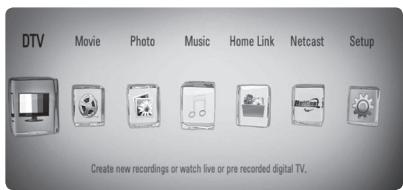
Changer de programme de télévision numérique
En général, appuyez sur PR (A/V) pour sélectionner la position du programme, ou saisissez un numéro de programme à l'aide des touches numériques. Si vous souhaitez changer de programme à partir de la liste des programmes, suivez les instructions ci-dessous.
- Pendant la visualisation de la DTV, appuyez sur PR LIST.
- Utilisez / pour sélectionner un programme souhaité, puis appuyez sur ENTER (O). Appuyez sur le bouton rouge (R) pour trier les programmes par ordre alphabétique. Appuyez sur le bouton vert (G) pour trier les programmes en FTA - CAS. Appuyez sur le bouton jaune (Y) pour trier les programmes par ordre numérique.
- Appuyez sur RETOUR (o) pour quitter la liste des programmes.
Réglage des programmes favoris
Vous pouvez définir l'emplacement de stockage où vous souhaitez enregistrer les enregistrements DTV.
- Pendant le visionnage de la DTV, appuyez sur PR LIST.
- Utilisez / pour sélectionner un programme que vous souhaitez ajouter à la liste des favoris.
- Appuyez sur le bouton bleu (B) pour afficher le menu [Sélectionner un groupe de favoris].
- Utilisez / V pour sélectionner un groupe et appuyez sur ENTER (O) pour ajouter le programme au groupe sélectionné.
- Dans le menu Liste des programmes, utilisez < / > pour accéder au menu Liste des favoris.
La marque apparaît pour les programmes favoris dans la liste des favoris.
Pour annuler les programmes favoris de la liste des favoris, sélectionnez un programme avec la marque et appuyez sur le bouton bleu (B).
Vous pouvez afficher une description du programme en cours de diffusion.
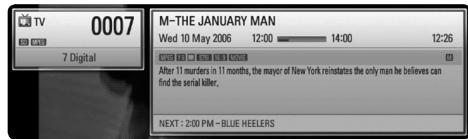
- Pendant le visionnage de la DTV, appuyez sur ENTER (⊙) pour afficher les informations sur le programme.
- Appuyez à nouveau sur ENTER (O) ou (RETURN ou EXIT) pour fermer les informations sur le programme.
Sélection de la langue audio DTV
Certains programmes numériques peuvent diffuser plusieurs langues audio ou méthodes de codage. Vous pouvez sélectionner une langue audio ou une méthode de codage lorsqu'elle est disponible.
- Pendant le visionnage de la TNT, appuyez sur INFO/DISPLAY.

- Utilisez < / > pour sélectionner une langue audio ou une méthode de codage, puis appuyez sur INFO/DISPLAY.
Sélection de la langue des sous-titres pour la TNT
Certains programmes numériques peuvent diffuser plusieurs langues de sous-titres. Vous pouvez sélectionner une langue de sous-titres lorsqu'elle est disponible.
- Pendant le visionnage de la TNT, appuyez sur SUBTITLE.
- Utilisez < / > pour sélectionner une langue de sous-titres, puis appuyez sur ENTER (C).

REMARQUE
Vous pouvez trouver un programme qui prend en charge la langue des sous-titres dans les informations sur le programme. Pour les programmes avec sous-titres, l'icône SUB apparaît dans les informations sur le programme.
Guide des programmes (programmes numériques uniquement)
Le Guide des programmes contient les horaires et les informations sur les programmes numériques. Il fournit également des informations sur les programmes locaux diffusés par voie hertzienne, y compris les programmes numériques conventionnels. Utilisez le Guide des programmes pour trouver facilement et commodément les programmes et pour consulter les horaires et les informations descriptives sur les programmes.
Pour afficher le Guide des programmes
Appuyez sur le bouton GUIDE de votre télécommande.
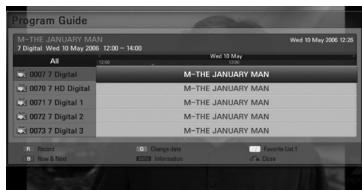
Pour quitter le Guide des programmes
Appuyez sur le bouton RETURN (O) pour revenir au dernier programme que vous avez regardé.
L'écran du guide propose deux menus de recherche. Appuyez sur le bouton bleu (B) lorsque le guide des programmes est affiché.
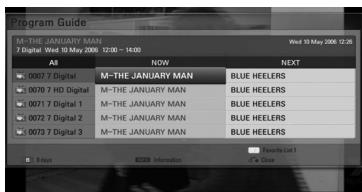
Maintenant/Suivant : L'écran affiche les programmes en cours et à venir.
8 jours : L'écran affiche les programmes sur 8 jours.
Pour naviguer dans les programmes des guides
Utilisez les touches / V < / > de votre télécommande pour naviguer dans l'écran du guide.
Vous pouvez vous déplacer plus rapidement dans les programmes en faisant défiler page par page avec les touches PR / V de la télécommande. Chaque pression fait défiler une page vers le haut ou vers le bas.
Pour accéder à une autre chaîne actuelle
Utilisez / V < / > pour sélectionner une chaîne actuelle, puis appuyez sur ENTER (O). Vous pouvez regarder la chaîne.
Vous pouvez consulter les informations détaillées du programme surligné. Appuyez sur INFO/DISPLAY pour afficher la fenêtre d'informations détaillées. Pour quitter cette fenêtre, appuyez à nouveau sur ENTER (O).
Pour changer la date
Lorsque le guide des programmes sur 8 jours est affiché, vous pouvez également changer la date du guide en appuyant sur le bouton vert, puis en utilisant < / > pour sélectionner une date, puis en appuyant sur ENTER (O).
Après avoir défini des chaînes favorites à partir de la liste PR, vous pouvez utiliser le bouton jaune pour basculer entre les listes [Toutes] et [Favorites].
Enregistrement programmé avec le guide des programmes
Vous pouvez programmer un enregistrement minuterie à l'aide du guide des programmes sur 8 jours.
- Affichez le guide des programmes sur 8 jours.
- Sélectionnez un programme puis appuyez sur le bouton rouge (R). L'icône de minuterie rouge s'affichera et le programme sera mémorisé par l'enregistreur. Vous pouvez vérifier la programmation dans le menu Liste des enregistrements minutés (voir pages 45-47).
- Pour annuler l'enregistrement minuterie, sélectionnez le programme puis appuyez sur le bouton rouge (R). L'icône de minuterie rouge disparaît.
Utilisation du télétexte (Affichage du télétexte)
De nombreux programmes de télévision numérique diffusent des informations via leur service de texte, et cet enregistreur a accès à des programmes de texte dédiés transmis par les diffuseurs.
- Appuyez sur TEXT pendant que vous regardez la télévision.
- Utilisez les boutons colorés (R/G/J/B) pour sélectionner une page.
Vous pouvez également sélectionner une page en saisissant un numéro à trois chiffres avec les boutons numériques. 3. Appuyez sur TEXT ou EXIT pour quitter l'écran de télétexte.

REMARQUE
De plus, vous disposez maintenant de quatre boutons colorés pour naviguer dans le contenu de la page. L'utilisation de ces boutons colorés sera affichée à l'écran.
Enregistrement de programmes TV
Lorsqu'un disque dur externe est connecté, cette fonction sera disponible.
Vous pouvez enregistrer des programmes de télévision numérique et les stocker sur le disque dur. L'enregistrement des chaînes brouillées et des chaînes FTA se fera séparément. En cas de chaîne brouillée, cette chaîne sera enregistrée avec cryptage. De plus, la chaîne brouillée enregistrée n'est pas disponible pour la copie ou la lecture sur d'autres appareils.
Enregistrement normal
- Utilisez PR ( / V) pour sélectionner un programme que vous souhaitez enregistrer.
- Appuyez sur REC pour démarrer l'enregistrement.
Appuyez pour mettre en pause l'enregistrement, appuyez à nouveau pour reprendre l'enregistrement.
- Appuyez pour arrêter l'enregistrement. Pour arrêter l'enregistrement, vous devez vous déplacer sur le programme en cours d'enregistrement avant d'appuyer.

REMARQUE
- L'écran du téléviseur devient noir avec un symbole d'arrêt en raison d'un signal absent, d'un brouillage ou d'un verrouillage parental ; l'enregistrement n'est pas disponible.
- Pendant l'enregistrement, il est impossible de changer de chaîne.
- Les chaînes payantes ne peuvent pas être enregistrées correctement si vous n'insérez pas de CAM CI ou CI+. Vous devez déverrouiller le contrôle parental du CAM CI si vous souhaitez utiliser la minuterie d'enregistrement correctement. Lorsque vous enregistrez une chaîne payante, le titre enregistré peut être divisé en plusieurs titres selon l'authentification du CAM.
- Un titre enregistré ne peut pas être lu correctement si le CAM n'est pas authentifié par cet enregistreur.
Enregistrement programmé (manuel)
Vous pouvez programmer jusqu'à 32 programmes au total, jusqu'à 22 à 28 jours à l'avance.
- Pendant que vous regardez la télévision, appuyez sur TIMER REC.
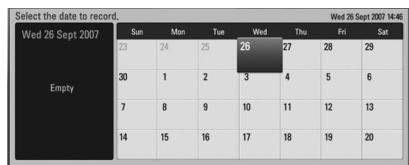
- Utilisez /V < / > pour sélectionner la date d'enregistrement, puis appuyez sur ENTER (O).
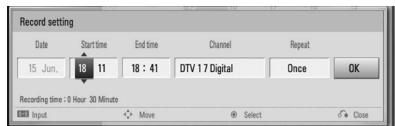
- Sélectionnez un élément avec < / > et ajustez-le avec /V. Vous pouvez utiliser les touches numériques pour modifier le réglage.
Les éléments réglables sont énumérés ci-dessous.
| Start time | Sets the start time. |
| End time | Sets the end time. |
| Channel | Sets the programme position.
(If you want to display more channels, press PR LIST) |
| Repeat | Choose a desired repeat mode.
(Once, Daily, Weekly or Mon-Fri) |

NOTE
- L'enregistrement programmé peut être réglé à partir de 3 minutes après l'heure actuelle.
- L'enregistrement programmé n'est pas disponible sur un périphérique USB.
- Vous devez déverrouiller la classification parentale du CI ou du CAM si vous souhaitez utiliser correctement l'enregistrement programmé.
- Appuyez sur ENTER (O).
- Sélectionnez [OK] puis appuyez sur ENTER (O).
Si vous saisissez des informations incorrectes, un message d'erreur apparaîtra et l'enregistrement programmé ne pourra pas être effectué.
Enregistrement programmé (EPG)
Vous pouvez également régler l'enregistrement en fonction des informations fournies par l'EPG.
- Pendant que vous regardez la télévision, appuyez sur GUIDE.
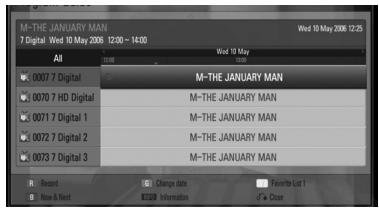
- Utilisez < / > pour sélectionner le champ de date, puis sélectionnez la date de l'enregistrement programmé à l'aide de / .
- Utilisez / pour sélectionner le champ programme, puis réglez le programme à l'aide de / .
- Utilisez < / > pour sélectionner la liste des programmes, puis sélectionnez le programme que vous souhaitez enregistrer avec Λ / V.
- Appuyez sur le bouton coloré (R).
Pour le programme programmé avec succès, une marque de puce rouge apparaît.
Une marque de puce rouge peut ne pas apparaître pour un programme indisponible à l'enregistrement.
- Appuyez sur RETURN (o) pour revenir à la visualisation TV.
- Appuyez sur TIMER REC et vérifiez si la programmation est correctement enregistrée ou non.
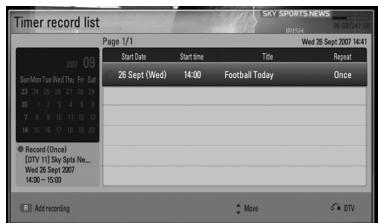
Annulation d'un enregistrement programmé
Vous pouvez annuler un enregistrement programmé avant qu'il ne commence réellement.
- Pendant que vous regardez la TV, appuyez sur TIMER REC.
- Appuyez sur le bouton rouge (R).
- Utilisez < / > / Λ / V pour sélectionner la programmation que vous souhaitez annuler.
- Utilisez Λ / V pour sélectionner [Liste des enregistrements programmés], puis appuyez sur le bouton vert (G).
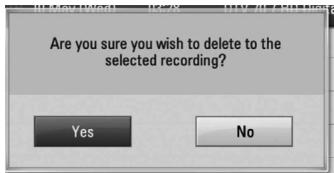
Sélectionnez [Non] et appuyez sur ENTER (O) pour annuler. Sélectionnez [Oui] et appuyez sur ENTER (O) pour supprimer les programmations sélectionnées (enregistrement sélectionné).
Modification d'un enregistrement programmé
Vous pouvez modifier un enregistrement programmé à l'avance avant qu'il ne commence réellement.
- Pendant le visionnage de la télévision, appuyez sur TIMER REC.
- Appuyez sur le bouton rouge (R).
- Appuyez sur ENTER (O) pour afficher le menu [Réglage de l'enregistrement].
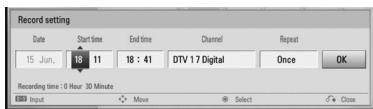
- Suivez les étapes 3 à 5 de "Enregistrement programmé (manuel)" à la page 45 pour terminer la modification.
Enregistrement instantané
Vous pouvez régler la durée d'enregistrement instantanément pour arrêter l'enregistrement automatiquement.
- Utilisez PR ( / V) pour sélectionner le programme que vous souhaitez enregistrer.
- Appuyez sur REC. pour démarrer l'enregistrement.
- Pendant l'enregistrement, appuyez sur < / > à plusieurs reprises pour régler la durée d'enregistrement.
- Appuyez sur ENTER (O).
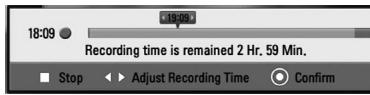
- Appuyez pour arrêter l'enregistrement.

REMARQUE
- La durée d'enregistrement standard est de 3 heures (MAX=6 heures). Selon la capacité restante du disque dur, la durée d'enregistrement est quelque peu flexible.
- Si l'appareil ne peut pas capter le signal, l'enregistrement sera en pause, la durée réelle d'enregistrement peut être inférieure à la durée programmée.
- Vous ne pouvez pas enregistrer les chaînes radio ou les chaînes bloquées.
- La qualité de l'enregistrement peut varier en fonction de l'état du signal de diffusion.
- Pendant l'enregistrement, une coupure forcée peut causer de graves problèmes sur le disque dur.
Lecture générale
Lecture de disques
- Appuyez sur (OUVRIR/FERMER) et placez un disque sur le plateau.
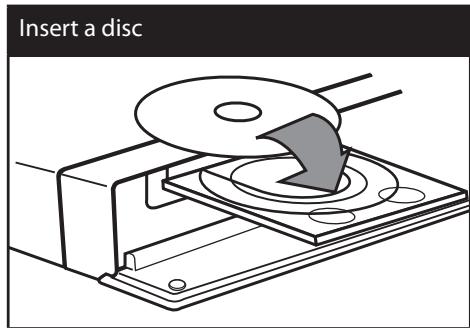
- Appuyez sur (OUVRIR/FERMER) pour fermer le plateau. Pour la plupart des CD audio, BD-ROM et DVD-ROM, la lecture démarre automatiquement.
- Appuyez sur HOME (↑).
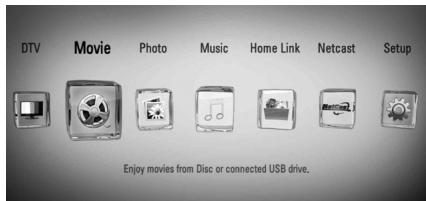
- Sélectionnez [Film], [Photo] ou [Musique] à l'aide de < / > , puis appuyez sur ENTER (⑥).
- Sélectionnez [Disque] à l'aide de < / > , puis appuyez sur ENTER (O).
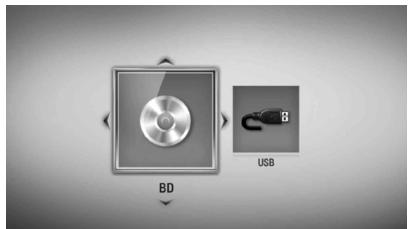
Pendant la navigation dans les menus [Film], [Photo] ou [Musique], appuyez sur le bouton vert (G) pour changer de périphérique (DISQUE ou USB).
- Sélectionnez un fichier à l'aide de / V / < / > , puis appuyez sur ▶ (LECTURE) ou ENTER (⊙) pour le lire.

REMARQUE
- Les fonctions de lecture décrites dans ce manuel ne sont pas toujours disponibles pour tous les fichiers et tous les supports. Certaines fonctions peuvent être limitées en fonction de nombreux facteurs. Selon les titres BD-ROM, une connexion à un périphérique USB peut être nécessaire pour une lecture correcte.
Pour arrêter la lecture
Appuyez sur (STOP) pendant la lecture.
Pour mettre la lecture en pause
Appuyez sur (PAUSE) pendant la lecture. Appuyez sur ▶ (PLAY) pour reprendre la lecture.
Pour lire image par image
Appuyez sur (PAUSE) pendant la lecture d'un film. Appuyez à plusieurs reprises sur (PAUSE) pour une lecture image par image.
Pour avancer ou reculer rapidement
Appuyez sur ou pour une avance rapide ou un retour rapide pendant la lecture. Vous pouvez modifier les différentes vitesses de lecture en appuyant à plusieurs reprises sur ou.
Pour ralentir la vitesse de lecture
Pendant que la lecture est en pause, appuyez à plusieurs reprises sur pour lire à différentes vitesses de ralenti.
Pour passer au chapitre/piste/fichier suivant ou précédent
Pendant la lecture, appuyez sur ou pour passer au chapitre/piste/fichier suivant ou revenir au début du chapitre/piste/fichier en cours. Appuyez deux fois brièvement pour revenir au chapitre/piste/fichier précédent.
Dans le menu [Home Link], il peut y avoir de nombreux types de fichiers multimédia dans le dossier actuel. Dans ce cas, appuyez sur 1 ou 2 pour passer aux fichiers multimédia précédents ou suivants du même type.
BD
DVD
AVCHD
L'écran du menu peut s'afficher en premier après le chargement d'un disque contenant un menu. Si vous souhaitez afficher le menu du disque pendant la lecture, appuyez sur DISC MENU.
Utilisez les boutons / V / < / > pour naviguer dans les éléments du menu.
Certains disques BD-ROM contiennent un menu contextuel qui apparaît pendant la lecture.
Appuyez sur TITLE/POPUP pendant la lecture, puis utilisez les boutons / / < / > pour naviguer dans les éléments du menu.
Reprendre la lecture
| BD | DVD | AVCHD | MOVIE | MOVIE-N |
| ACD | MUSIC | MUSIC-N | REC | |
Cet appareil mémorise le point où vous avez appuyé sur (STOP) selon le disque. Si « Reprise de l'arrêt » apparaît brièvement à l'écran, appuyez sur (PLAY) pour reprendre la lecture à partir de ce point. Si vous appuyez deux fois sur (STOP) ou si vous éjectez le disque, « Arrêt complet » apparaît à l'écran. L'appareil effacera le point d'arrêt.

REMARQUE
- Le point de reprise peut être effacé lorsqu'un bouton est enfoncé (par exemple, (POWER), (OPEN/CLOSE), etc.).
- Sur les disques BD-Video avec BD-J, la fonction de reprise de lecture ne fonctionne pas.
- Si vous appuyez une fois sur (STOP) pendant la lecture d'un titre interactif BD-ROM, l'appareil passera en mode Arrêt complet.
Lecture des titres enregistrés
- Pendant que vous regardez la télévision, appuyez sur REC LIST pour afficher le menu des options ou appuyez sur REC LIST dans le menu d'accueil.
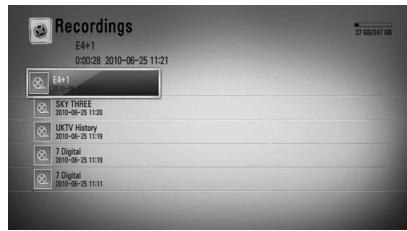
- Utilisez / < / > pour sélectionner le titre enregistré.
- Appuyez sur ou ENTER (O) pour lire le titre enregistré.
- Le titre enregistré de la chaîne Cl+ a une limite de conservation. Ce titre ne peut pas être lu après la limite de conservation.
- Certaines chaînes payantes ne peuvent pas être lues.
Recherche des titres enregistrés
REC
Vous pouvez rechercher des vidéos en saisissant des mots-clés de 60 caractères maximum.
- Pendant le visionnage de la télévision, appuyez sur REC LIST pour afficher le menu des options.
- Appuyez sur SEARCH.
- Utilisez / < / > pour sélectionner un caractère, puis appuyez sur ENTER (⊙) pour confirmer votre sélection sur le clavier virtuel.
Pour saisir une lettre avec un accent, sélectionnez la lettre dans le jeu de caractères étendu.
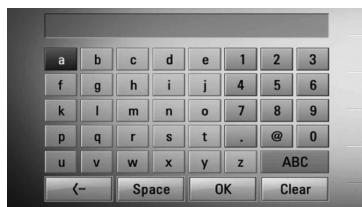
[Effacer] - Efface tous les caractères saisis.
[Espace] - Insère un espace à la position du curseur.
[- - ] - supprime le caractère précédent à la position du curseur.
[ABC / abc / #+-=&&] - Modifie les paramètres du menu du clavier pour les lettres majuscules, les lettres minuscules ou les symboles.

REMARQUE
Pour saisir une lettre avec un accent :
- Sélectionnez une lettre à l'aide de / V / < / > dans le menu du clavier.
- Appuyez sur INFO/DISPLAY (□) pour afficher le jeu de caractères étendu.
- Utilisez pour sélectionner un caractère, puis appuyez sur ENTER (O).
- Lorsque vous avez fini de saisir les mots de recherche, sélectionnez [OK] et appuyez sur ENTER (O) pour afficher la liste des vidéos associées.
Tri des titres enregistrés
REC
- Pendant que vous regardez la télévision, appuyez sur REC LIST pour afficher le menu des options.
- Appuyez à plusieurs reprises sur le bouton bleu (B) pour trier par heure d'enregistrement en ordre récent ou par nom de titre en ordre alphabétique.
[Ordre alphabétique] - par nom de titre en ordre alphabétique.
[Ordre récent] - trié par date d'enregistrement.
Lecture du contenu contenu sur le disque dur externe
- Appuyez sur HOME (↑).
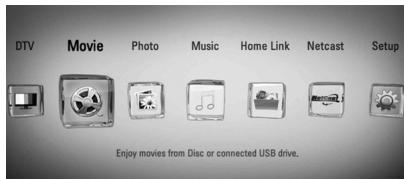
- Sélectionnez [Movie], [Photo] ou [Music] à l'aide de < / > , puis appuyez sur ENTER (⑥).
- Sélectionnez l'option [USB] à l'aide de < / > et appuyez sur ENTER (O).
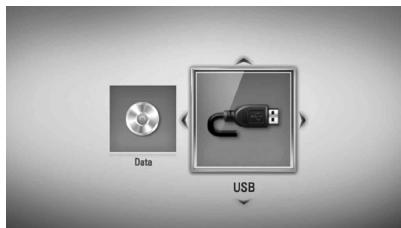
Cette étape n'est nécessaire que lorsqu'un disque ou un périphérique USB est connecté à cet appareil.
Pendant la navigation dans le menu [Movie], [Photo] ou [Music], appuyez sur le bouton vert (G) pour changer de périphérique (DISC ou USB).
- Sélectionnez un fichier à l'aide de < / > / /V , puis appuyez sur PLAY () ou ENTER () pour lire le fichier.

REMARQUE
- Les exigences relatives aux fichiers sont décrites à la page 10.
- Vous pouvez utiliser diverses fonctions de lecture. Reportez-vous aux pages 52 à 58.
- Les fichiers enregistrés ne peuvent être recherchés que dans la [Liste des enregistrements].
Lecture d'un disque Blu-ray 3D
Ce lecteur peut lire les disques Blu-ray 3D qui contiennent des vues séparées pour les yeux gauche et droit.
Préparation
Pour lire un titre Blu-ray 3D en mode 3D stéréoscopique, vous devez :
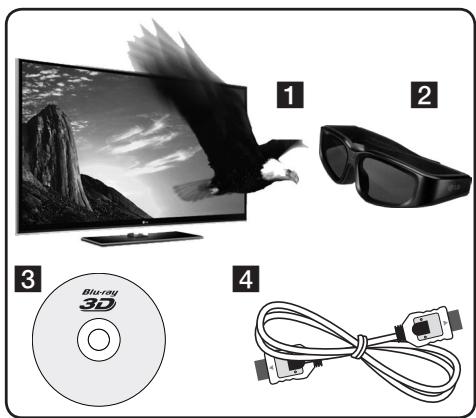
1. Vérifiez si votre téléviseur est compatible 3D et dispose d'entrées HDMI 1.4. 2. Portez des lunettes 3D pour profiter de l'expérience 3D si nécessaire. Si vous souhaitez acheter des lunettes 3D supplémentaires, contactez le revendeur auprès duquel vous avez acheté le téléviseur compatible 3D. 3. Vérifiez si le titre BD-ROM est un disque Blu-ray 3D ou non (page 52). 4. Connectez un câble HDMI (version 1.3 ou supérieure) entre la sortie HDMI du lecteur et l'entrée HDMI du téléviseur. 1. Appuyez sur HOME (▶), puis réglez l'option [Mode 3D] dans le menu [Configuration] sur [On] (page 34). 2. Appuyez sur (OUVRIR/FERMER) et placez un disque dans le plateau.
- Appuyez sur (OUVRIR/FERMER) pour fermer le plateau. La lecture démarre automatiquement.

L'icône 3D apparaît à l'écran lors de la lecture de contenu 3D.
- Reportez-vous au manuel du propriétaire de votre téléviseur compatible 3D pour plus d'instructions. Vous devrez peut-être ajuster les paramètres d'affichage et la mise au point sur les réglages de votre téléviseur pour améliorer l'effet 3D.

ATTENTION
- Regarder un contenu 3D pendant une longue période peut provoquer des vertiges ou de la fatigue.
- Il n'est pas recommandé de regarder un film en mode 3D pour les personnes infirmes, les enfants et les femmes enceintes.
- Si vous ressentez des maux de tête, de la fatigue ou des vertiges en regardant du contenu 3D, il est fortement recommandé d'arrêter la lecture et de vous reposer jusqu'à ce que vous vous sentiez normal.
Disques Blu-ray 3D disponibles
Blu-ray 3D : les disques BD-ROM portant le logo "Blu-ray 3D" peuvent être lus sur ce lecteur avec sortie en mode 3D. Si votre téléviseur n'est pas compatible Blu-ray 3D*, la sortie en mode 2D est disponible.
Blu-ray : les disques BD-ROM portant le logo "Blu-ray 3D ONLY" peuvent être lus sur ce lecteur avec sortie en mode 3D. La lecture des disques Blu-ray 3D ONLY n'est pas disponible si votre téléviseur ou votre lecteur ne sont pas des appareils compatibles Blu-ray 3D.
- Un téléviseur compatible 3D désigne un téléviseur conforme à la norme "HDMI 1.4 3D mandatory format".
REMARQUE : les logos "Blu-ray 3D" et "Blu-ray 3D ONLY" peuvent ne pas être imprimés sur votre disque BD-ROM, même si le disque contient du contenu 3D.
Lecture avancée
Lecture répétée
BD DVD AVCHD ACD MUSIC
MUSIC-N
Pendant la lecture, appuyez plusieurs fois sur REPEAT pour sélectionner le mode de répétition souhaité.
BD/DVD
A- La portion sélectionnée sera répétée en continu. Chapitre - Le chapitre en cours sera lu en boucle. Titre - Le titre en cours sera lu en boucle.
Pour revenir à la lecture normale, appuyez plusieurs fois sur REPEAT pour sélectionner [Arrêt].
CD audio/Fichiers musicaux
Piste - La piste ou le fichier en cours sera lu en boucle. Tous - Toutes les pistes ou tous les fichiers seront lus en boucle. - Les pistes ou fichiers seront lus dans un ordre aléatoire. A Tous - Toutes les pistes ou tous les fichiers seront lus en boucle dans un ordre aléatoire. A-B - La portion sélectionnée sera répétée en continu. (CD audio uniquement)
Pour revenir à la lecture normale, appuyez sur CLEAR.

REMARQUE
- Si vous appuyez une fois sur pendant la lecture en répétition de chapitre/piste, la répétition est annulée.
- Cette fonction peut ne pas fonctionner sur certains disques ou titres.
Répétition d'une portion spécifique
BD
DVD
AVCHD
ACD
Ce lecteur peut répéter une portion que vous avez sélectionnée.
- Pendant la lecture, appuyez sur REPEAT pour sélectionner [A-] au début de la portion que vous souhaitez répéter.
- Appuyez sur ENTER (O) à la fin de la portion. La portion sélectionnée sera répétée en continu.
- Pour revenir à la lecture normale, appuyez plusieurs fois sur REPEAT pour sélectionner [Off].

REMARQUE
- Vous ne pouvez pas sélectionner une portion de moins de 3 secondes.
- Cette fonction peut ne pas fonctionner sur certains disques ou titres.
Agrandir l'image de lecture
| BD | DVD | AVCHD | MOVIE | MOVIE-N |
| PHOTO | REC | | | |
- Pendant la lecture ou en mode pause, appuyez sur ZOOM pour afficher le menu [Zoom].
- Utilisez les boutons colorés rouge (R) ou vert (G) pour dézoomer ou zoomer sur l'image fixe. Vous pouvez vous déplacer dans l'image agrandie à l'aide des boutons / < λ >.
- Pour revenir à la taille d'image normale, appuyez sur le bouton coloré jaune (Y).
- Appuyez sur RETURN (o) pour quitter le menu [Zoom].
Recherche par marqueur
BD
DVD
AVCHD
MOVIE
MOVIE-N
Vous pouvez démarrer la lecture à partir de jusqu'à neuf points mémorisés.
Pour entrer un marqueur
- Pendant la lecture, appuyez sur MARKER au point souhaité. L'icône Marqueur apparaît brièvement sur l'écran du téléviseur.
- Répétez l'étape 1 pour ajouter jusqu'à neuf marqueurs.
Pour rappeler une scène marquée
- Appuyez sur SEARCH et le menu de recherche apparaît à l'écran.
- Appuyez sur un bouton numérique pour sélectionner le numéro de marqueur que vous souhaitez rappeler. La lecture démarre à partir de la scène marquée.
Pour supprimer un marqueur
- Appuyez sur SEARCH et le menu de recherche apparaît à l'écran.
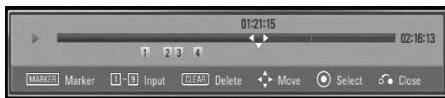
- Appuyez sur V pour mettre en surbrillance un numéro de marqueur. Utilisez / pour sélectionner la scène marquée que vous souhaitez supprimer.
- Appuyez sur CLEAR et la scène marquée est effacée du menu de recherche.

REMARQUE
- Cette fonction peut ne pas fonctionner selon les disques, les titres ou les capacités du serveur.
- Tous les points marqués sont effacés si le titre est en mode arrêt complet (■), si le titre est changé ou si le disque est retiré.
- Si la durée totale du titre est inférieure à 10 secondes, cette fonction n'est pas disponible.
BD
DVD
AVCHD
MOVIE
MOVIE-N
Grâce au menu de recherche, vous pouvez facilement trouver le point où vous souhaitez démarrer la lecture.
Pour rechercher un point
- Pendant la lecture, appuyez sur SEARCH pour afficher le menu de recherche.

- Appuyez sur ⟨ / ⟩ pour avancer ou reculer de 15 secondes. Vous pouvez sélectionner un point en maintenant enfoncé le bouton ⟨ / ⟩.

REMARQUE
Cette fonction peut ne pas fonctionner lors de la lecture de fichiers et dans la liste des enregistrements.
Pour démarrer la lecture à partir d'une scène marquée
- Appuyez sur SEARCH et le menu de recherche apparaît à l'écran.
- Appuyez sur V pour mettre en surbrillance un numéro de marqueur. Utilisez ⟨ / ⟩ pour sélectionner la scène marquée à lire.
- Appuyez sur ENTER (O) pour démarrer la lecture à partir de la scène marquée.

REMARQUE
- Cette fonction peut ne pas fonctionner selon les disques, les titres ou les capacités du serveur.
- Cette fonction peut ne pas fonctionner sur certains contenus [Home Link] selon le type de fichier et les capacités du serveur DLNA.
- Cette fonction peut ne pas fonctionner lors de la lecture de fichiers et dans la liste des enregistrements.
Changer la vue de la liste de contenu
MOVIE MOVIE-N MUSIC MUSIC-N PHOTO
REC
Dans les menus [Movie], [Music], [Photo] ou [Home Link], vous pouvez changer la vue de la liste de contenu.
Méthode 1
Appuyez plusieurs fois sur la touche rouge (R).
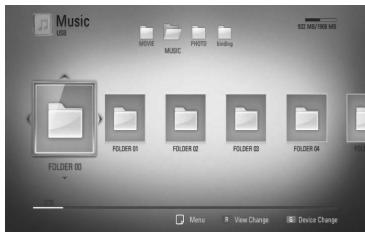
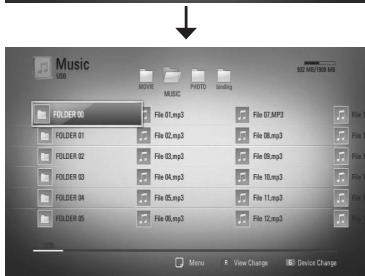
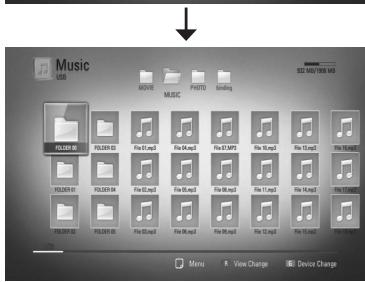
Méthode 2
- Dans la liste de contenu, appuyez sur INFO/DISPLAY (□) pour afficher le menu des options.
- Utilisez / pour sélectionner l'option [Changer la vue].
- Appuyez sur ENTER (O) pour changer la vue de la liste de contenu.
Affichage des informations sur le contenu
MOVIE MOVIE-N REC
Le lecteur peut afficher les informations sur le contenu.
- Sélectionnez un fichier à l'aide de / < / >.
- Appuyez sur INFO/DISPLAY (□) pour afficher le menu des options.
- Sélectionnez l'option [Informations] à l'aide de / V , puis appuyez sur ENTER (⊙).
Les informations sur le fichier apparaissent à l'écran.
Pendant la lecture d'un film, vous pouvez afficher les informations sur le fichier en appuyant sur TITLE/POPUP.

REMARQUE
Les informations affichées à l'écran peuvent ne pas être correctes par rapport aux informations réelles sur le contenu.
Mémoire de la dernière scène
BD
DVD
Cet appareil mémorise la dernière scène du dernier disque visionné. La dernière scène reste en mémoire même si vous retirez le disque de l'appareil ou si vous éteignez l'appareil. Si vous chargez un disque dont la scène a été mémorisée, la scène est automatiquement rappelée.

REMARQUE
- La fonction de mémorisation de la dernière scène pour un disque précédent est effacée dès qu'un autre disque est lu.
- Cette fonction peut ne pas fonctionner selon le disque.
- Sur les disques BD-Vidéo avec BD-J, la fonction de mémorisation de la dernière scène ne fonctionne pas.
- Cet appareil ne mémorise pas les réglages d'un disque si vous éteignez l'appareil avant de commencer à le lire.
Affichage à l'écran
Vous pouvez afficher et ajuster diverses informations et réglages concernant le contenu.
Affichage des informations sur le contenu à l'écran
BD DVD AVCHD FILM FILM-N
REC
- Pendant la lecture, appuyez sur INFO/AFFICHAGE (□) pour afficher diverses informations de lecture.
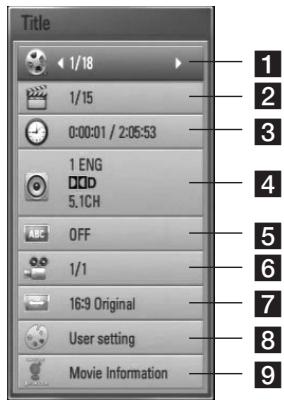
1 Titre - numéro du titre actuel / nombre total de titres 2 Chapitre - numéro du chapitre actuel / nombre total de chapitres Temps - temps de lecture écoulé / durée totale de lecture 4 Audio - langue audio ou canal sélectionné 5 Sous-titres - sous-titres sélectionnés Angle - angle sélectionné / nombre total d'angles Format d'écran TV - format d'écran TV sélectionné 8 Mode Image - mode image sélectionné
9 Informations sur le film – Sélectionnez cette option et appuyez sur ENTER (⊙) pour afficher les informations sur le film provenant de la base de données multimédia Gracenote (BD/DVD uniquement).
- Sélectionnez une option à l'aide de Λ/V.
- Utilisez ⟨ / ⟩ pour ajuster la valeur de l'option sélectionnée.
- Appuyez sur RETURN (o) pour quitter l'affichage à l'écran.

- Si aucune touche n'est enfoncée pendant quelques secondes, l'affichage à l'écran disparaît.
- Un numéro de titre ne peut pas être sélectionné sur certains disques. Les éléments disponibles peuvent différer selon les disques ou les titres.
- Si un titre interactif BD est en cours de lecture, certaines informations de réglage sont affichées à l'écran mais il est interdit de les modifier.
- Pour utiliser l'option [Informations sur le film], le lecteur doit être connecté à Internet haut débit pour accéder à la base de données média Gracenote.
- Si les informations de la base de données média Gracenote sont incorrectes ou inexistantes, veuillez contacter www.gracenote.com pour obtenir de l'aide.
- LG est un licencié de la technologie Gracenote et n'est pas responsable ni fiable pour les informations provenant de la base de données média Gracenote.
- L'appareil peut ne pas être en mesure d'afficher les informations musicales en fonction des conditions du réseau.
Lecture à partir d'une heure sélectionnée
BD DVD AVCHD MOVIE MOVIE-N
REC
- Appuyez sur INFO/DISPLAY (D) pendant la lecture. La zone de recherche de temps affiche le temps de lecture écoulé.
- Sélectionnez l'option [Heure], puis saisissez l'heure de début souhaitée en heures, minutes et secondes de gauche à droite.
Par exemple, pour trouver une scène à 2 heures, 10 minutes et 20 secondes, saisissez "21020".
Appuyez sur < / > pour avancer ou reculer de 60 secondes dans la lecture.
- Appuyez sur ENTER (⊙) pour démarrer la lecture à partir de l'heure sélectionnée.

REMARQUE
- Cette fonction peut ne pas fonctionner sur certains disques ou titres.
- Cette fonction peut ne pas fonctionner sur certains contenus [Home Link] selon le type de fichier et les capacités du serveur DLNA.
Écouter un autre audio
BD
DVD
AVCHD
MOVIE
MOVIE-N
REC
- Pendant la lecture, appuyez sur INFO/DISPLAY (□) pour afficher l'affichage à l'écran.
- Utilisez / pour sélectionner l'option [Audio].
- Utilisez < / > pour sélectionner la langue audio, la piste audio ou le canal audio souhaité.

REMARQUE
- Certains disques ne permettent de modifier les sélections audio que via le menu du disque. Dans ce cas, appuyez sur le bouton TITLE/POPUP ou DISC MENU et choisissez l'audio approprié dans les sélections du menu du disque.
- Immédiatement après avoir changé le son, il peut y avoir un écart temporaire entre l'affichage et le son réel.
- Sur les disques BD-ROM, le format audio multiple (5.1CH ou 7.1CH) est affiché avec [MultiCH] à l'écran.
Sélection de la langue des sous-titres
BD
DVD
AVCHD
FILM
FILM-N
ENR
- Pendant la lecture, appuyez sur INFO/DISPLAY (□) pour afficher l'affichage à l'écran.
- Utilisez Λ / V pour sélectionner l'option [Sous-titres].
- Utilisez < / > pour sélectionner la langue des sous-titres souhaitée.
- Appuyez sur RETURN pour quitter l'affichage à l'écran.

REMARQUE
Certains disques permettent de modifier les sous-titres uniquement via le menu du disque. Dans ce cas, appuyez sur le bouton TITLE/POPUP ou DISC MENU et choisissez les sous-titres appropriés dans les sélections du menu du disque.
Visionner sous un angle différent
BD
DVD
Si le disque contient des scènes enregistrées sous différents angles de caméra, vous pouvez changer d'angle de caméra pendant la lecture.
- Pendant la lecture, appuyez sur INFO/DISPLAY (□) pour afficher l'affichage à l'écran.
- Utilisez Λ / V pour sélectionner l'option [Angle].
- Utilisez < / > pour sélectionner l'angle souhaité.
- Appuyez sur RETURN pour quitter l'affichage à l'écran.
Changer le format d'image (ratio TV)
BD
DVD
AVCHD
MOVIE
MOVIE-N
REC
Vous pouvez modifier le réglage du format d'image du téléviseur pendant la lecture.
- Pendant la lecture, appuyez sur INFO/DISPLAY (□) pour afficher l'affichage à l'écran.
- Utilisez / pour sélectionner l'option [Format d'image TV].
- Utilisez pour sélectionner l'option souhaitée.
- Appuyez sur RETURN (o) pour quitter l'affichage à l'écran.

REMARQUE
Même si vous modifiez la valeur de l'option [Format d'image TV] dans l'affichage à l'écran, l'option [Format d'image TV] du menu [Réglage] n'est pas modifiée.
Modification du mode image
BD DVD AVCHD MOVIE MOVIE-N
REC
Vous pouvez modifier l'option [Mode image] pendant la lecture.
- Pendant la lecture, appuyez sur INFO/DISPLAY (□) pour afficher l'affichage à l'écran.
- Utilisez / pour sélectionner l'option [Mode image].
- Utilisez / pour sélectionner l'option souhaitée.
- Appuyez sur RETURN (o) pour quitter l'affichage à l'écran.
Réglage de l'option [Réglage utilisateur]
- Pendant la lecture, appuyez sur INFO/DISPLAY (□) pour afficher l'affichage à l'écran.
- Utilisez / pour sélectionner l'option [Mode image].
- Utilisez < / > pour sélectionner l'option [Réglage utilisateur], puis appuyez sur ENTER (C).
![LG BDT590 - Réglage de l'option [Réglage utilisateur] - 1](/content/2025/01/69747/images/3c2521b1ec3a411759ab3565494779dd2125ccf0f69cd1cfde62b55eb4568a91.jpg)
- Utilisez / < pour régler les options du [Mode image].
Sélectionnez l'option [Défaut] puis appuyez sur ENTER (⊙) pour réinitialiser tous les réglages vidéo.
- Utilisez /V < / > pour sélectionner l'option [Fermer], puis appuyez sur ENTER (O) pour terminer le réglage.
Profiter de BD-LIVE
Cet appareil vous permet de profiter de fonctions telles que l'incrustation d'image, l'audio secondaire et les packages virtuels, etc., avec les BD-Vidéo prenant en charge BONUSVIEW (BD-ROM version 2 Profile 1 version 1.1/ Final Standard Profile). La vidéo et l'audio secondaires peuvent être lus à partir d'un disque compatible avec la fonction d'incrustation d'image. Pour la méthode de lecture, reportez-vous aux instructions du disque.
En plus de la fonction BONUSVIEW, les BD-Vidéo prenant en charge BD-LIVE (BD-ROM version 2 Profile 2) qui dispose d'une fonction d'extension réseau vous permettent de profiter de fonctions supplémentaires telles que le téléchargement de nouvelles bandes-annonces en connectant cet appareil à Internet.
- Vérifiez la connexion réseau et les réglages (pages 20-25).
- Insérez un périphérique de stockage USB dans le port USB situé sur le panneau avant.
Un périphérique de stockage USB est nécessaire pour télécharger du contenu bonus.
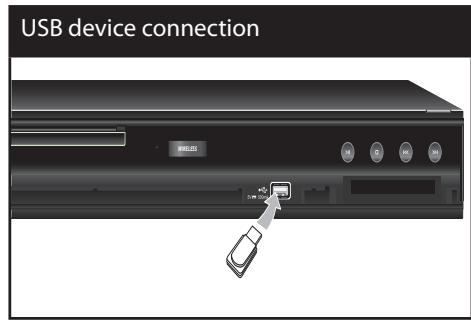
- Appuyez sur HOME (1), puis réglez l'option [Connexion BD-LIVE] dans le menu [Réglages] (page 38).
Selon le disque, la fonction BD-LIVE peut ne pas fonctionner si l'option [Connexion BD-LIVE] est réglée sur [Partiellement autorisé].
- Insérez un BD-ROM avec BD-LIVE.
Les opérations peuvent différer selon le disque. Reportez-vous au manuel fourni avec le disque.

ATTENTION
Ne retirez pas le périphérique USB connecté pendant le téléchargement de contenu ou lorsqu'un disque Blu-ray est encore dans le plateau. Cela pourrait endommager le périphérique USB connecté et les fonctions BD-LIVE pourraient ne plus fonctionner correctement avec ce périphérique endommagé. Si le périphérique USB connecté semble endommagé suite à une telle action, vous pouvez le formater depuis un PC et le réutiliser avec cet appareil.

REMARQUE
- Certains contenus BD-LIVE peuvent être soumis à des restrictions d'accès dans certains territoires, à la discrétion du fournisseur de contenu. Le chargement et le démarrage des contenus BD-LIVE peuvent prendre plusieurs minutes.
Lecture de fichiers vidéo et de disques VR
Vous pouvez lire des disques DVD-RW enregistrés au format Video Recording (VR) et des fichiers vidéo contenus sur un disque ou un périphérique USB.
- Appuyez sur HOME (A).
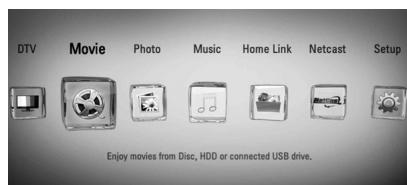
- Sélectionnez [Film] à l'aide de < / > , puis appuyez sur ENTER (C).
- Sélectionnez l'option [Disque] ou [USB] à l'aide de < / > et appuyez sur ENTER (O).
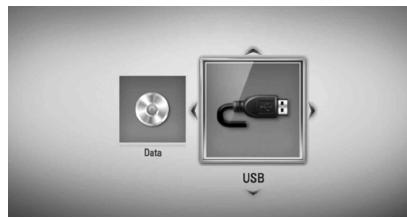
Cette étape n'est nécessaire que si un disque ou un périphérique USB est connecté à cet appareil.
Lors de la navigation dans les menus [Film], [Photo] ou [Musique], appuyez sur le bouton vert (G) pour changer de périphérique (DISC ou USB).
- Sélectionnez un fichier à l'aide de Λ/V < / >, puis appuyez sur LECTURE (►) ou ENTER (O) pour le lire.
!REMARQUE
Les exigences relatives aux fichiers sont décrites en page 10. - Vous pouvez utiliser diverses fonctions de lecture. Reportez-vous aux pages 52 à 58. - Les disques au format DVD VR non finalisés peuvent ne pas être lus sur ce lecteur. - Certains disques DVD-VR sont fabriqués avec des données CPRM par DVD REORDER. Cet appareil ne peut pas prendre en charge ce type de disques.
Qu'est-ce que le CPRM ?
Le CPRM est un système de protection contre la copie (avec système de brouillage) qui n'autorise que l'enregistrement des émissions diffusées en 'copie unique'. CPRM signifie Content Protection for Recordable Media (protection du contenu pour les supports enregistrables).
Sélection d'un fichier de sous-titres FILM
Si le nom d'un fichier vidéo et celui du fichier de sous-titres sont identiques, le fichier de sous-titres est lu automatiquement lors de la lecture du fichier vidéo.
Si le nom du fichier de sous-titres est différent de celui du fichier vidéo, vous devez sélectionner le fichier de sous-titres dans le menu [Film] avant de lire la vidéo.
- Utilisez Λ/V < / > pour sélectionner le fichier de sous-titres que vous souhaitez lire dans le menu [Film].
- Appuyez sur ENTER (O).
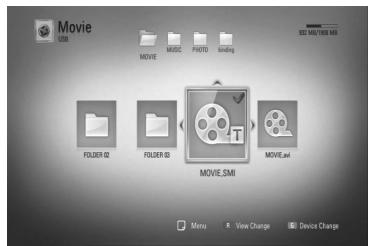
- Appuyez à nouveau sur ENTER (O) pour désélectionner le fichier de sous-titres. Le fichier de sous-titres sélectionné s'affichera lors de la lecture du fichier vidéo.

Si vous appuyez sur (STOP) pendant la lecture, la sélection des sous-titres est annulée.
Changement de page de code des sous-titres FILM FILM-N
Si les sous-titres ne s'affichent pas correctement, vous pouvez changer la page de code des sous-titres pour les afficher correctement.
- Pendant la lecture, appuyez sur INFO/DISPLAY (□) pour afficher l'affichage à l'écran.
- Utilisez / pour sélectionner l'option [Code Page].
- Utilisez / pour sélectionner l'option de code souhaitée.
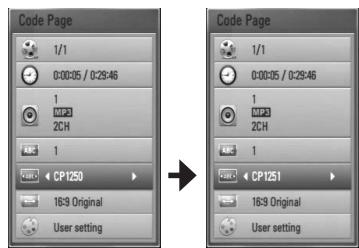
- Appuyez sur RETURN (pour quitter l'affichage à l'écran.
Visionnage d'une photo
Vous pouvez visionner des fichiers photo à l'aide de ce lecteur.
- Appuyez sur HOME (↑).
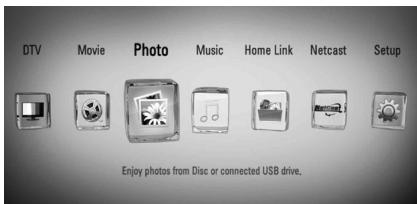
- Sélectionnez [Photo] à l'aide de < / > , puis appuyez sur ENTER (C).
- Sélectionnez l'option [Disque] ou [USB] à l'aide de < / > , puis appuyez sur ENTER (O).
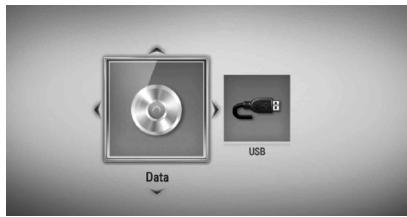
Cette étape n'est nécessaire que lorsqu'un disque ou un périphérique USB est connecté à cet appareil. Lors de la navigation dans les menus [Film], [Photo] ou [Musique], appuyez sur le bouton vert (G) pour changer de périphérique (DISQUE ou USB).
- Sélectionnez un fichier à l'aide de / V < / > , puis appuyez sur ENTER (O) pour afficher la photo en plein écran.
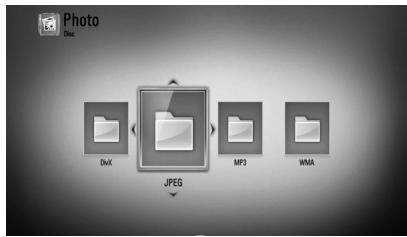
Pour lancer un diaporama
Appuyez sur (LECTURE) pour démarrer le diaporama.
Pour arrêter un diaporama
Appuyez sur (STOP) pendant le diaporama.
Pour mettre en pause un diaporama
Appuyez sur (PAUSE) pendant le diaporama.
Appuyez sur (LECTURE) pour reprendre le diaporama.
Pour passer à la photo suivante/précédente
Lorsque vous visualisez une photo en plein écran, appuyez sur < ou > pour passer à la photo précédente ou suivante.

REMARQUE
Les exigences relatives aux fichiers sont décrites à la page 10. - Vous pouvez utiliser diverses fonctions de lecture. Reportez-vous aux pages 52-58.
Options lors de la visualisation d'une photo
Vous pouvez utiliser diverses options lors de la visualisation d'une photo en plein écran.
- Lorsque vous visualisez une photo en plein écran, appuyez sur INFO/AFFICHAGE (□) pour afficher le menu des options.
- Sélectionnez une option à l'aide de /V
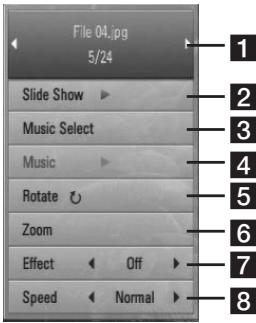
1 Photo actuelle/Nombre total de photos - Utilisez < / > pour voir la photo précédente/suivante. 2 Diaporama - Appuyez sur ENTER (O) pour démarrer ou mettre en pause le diaporama. 3 Sélection musicale - Sélectionnez la musique de fond pour le diaporama (pages 62-63). 4 Musique - Appuyez sur ENTER (⊙) pour démarrer ou mettre en pause la musique de fond. 5 Rotation - Appuyez sur ENTER (O) pour faire pivoter la photo dans le sens horaire. 6 Zoom - Appuyez sur ENTER (O) pour afficher le menu [Zoom]. 7 Effet - Utilisez < / > pour sélectionner un effet de transition entre les photos d'un diaporama. 8 Vitesse - Utilisez < / > pour sélectionner la vitesse de défilement entre les photos d'un diaporama.
- Appuyez sur RETURN (o) pour quitter le menu des options.
Écouter de la musique pendant un diaporama
Vous pouvez afficher des fichiers photo tout en écoutant des fichiers musicaux.
- Appuyez sur HOME (↑).

- Sélectionnez [Photo] ou [Home Link] à l'aide de < / > et appuyez sur ENTER (O).
- Sélectionnez l'option [Disque] ou [USB] à l'aide de < / > , puis appuyez sur ENTER (O).
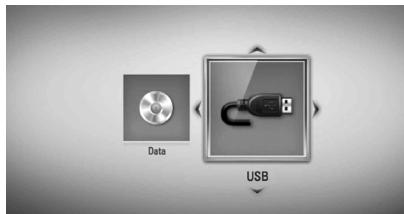
La sélection d'un serveur ou d'un dossier partagé est nécessaire pour le menu [Home Link].
- Sélectionnez un fichier à l'aide de / < / > , puis appuyez sur ENTER (O) pour afficher la photo.
- Appuyez sur INFO/DISPLAY (□) pour afficher le menu des options.
- Utilisez / V pour sélectionner l'option [Music Select], puis appuyez sur ENTER (⊙) pour afficher le menu [Music Select].
- Utilisez / pour sélectionner un périphérique, puis appuyez sur ENTER (C).
Les périphériques que vous pouvez sélectionner peuvent différer selon l'emplacement du fichier photo que vous affichez en plein écran.
| Photo location | Available Device |
| Disc | Disc, USB |
| USB | Disc, USB |
| Share Folder on your PC (CIFS) | CIFS |
| DLNA server | DLNA server |
- Utilisez / V pour sélectionner un fichier ou un dossier que vous souhaitez lire.
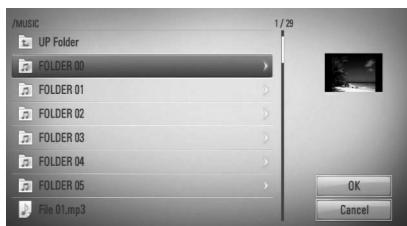
Sélectionnez un dossier et appuyez sur ENTER (O) pour afficher le répertoire inférieur.
Sélectionnez et appuyez sur ENTER (O) pour afficher le répertoire supérieur.

REMARQUE
Lors de la sélection de musique à partir de [Home Link], la sélection de dossier n'est pas disponible. Seule la sélection de fichier est disponible sur [Home Link].
- Utilisez > pour sélectionner [OK], puis appuyez sur ENTER (⊙) pour terminer la sélection de musique.
Écoute de musique
Ce lecteur peut lire des CD audio et des fichiers musicaux.
- Appuyez sur HOME (A).
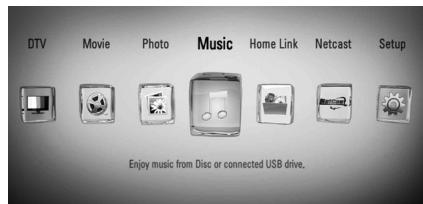
- Sélectionnez [Musique] à l'aide de < / > , puis appuyez sur ENTER (C).
- Sélectionnez l'option [Disque] ou [USB] à l'aide de < / > et appuyez sur ENTER (O).
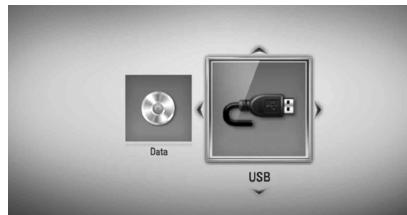
Cette étape n'est nécessaire que lorsqu'un disque ou un périphérique USB est connecté à cet appareil.
Lors de la navigation dans les menus [Film], [Photo] ou [Musique], appuyez sur le bouton vert (G) pour changer de périphérique (DISC ou USB).
- Sélectionnez un fichier musical ou une piste audio à l'aide de /V < / > , puis appuyez sur ENTER (O) pour lire la musique.
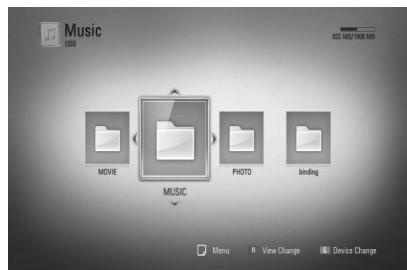

Les exigences relatives aux fichiers sont décrites à la page 10. - Vous pouvez utiliser diverses fonctions de lecture. Reportez-vous aux pages 52-58.
Enregistrement de CD audio
Vous pouvez enregistrer une piste souhaitée ou toutes les pistes d'un CD audio sur le périphérique de stockage USB.
- Appuyez sur OPEN/CLOSE(▲), placez un CD audio sur le plateau du disque. Appuyez sur OPEN/CLOSE(▲) pour fermer le plateau. La lecture démarre automatiquement.
- Appuyez sur INFO/DISPLAY pour afficher le menu des options.
- Utilisez / pour sélectionner l'option [Enregistrement CD], puis appuyez sur ENTER (O) pour afficher le menu [Enregistrement CD].
- Utilisez / pour sélectionner une piste à copier dans le menu, puis appuyez sur ENTER (O).
Répétez cette étape pour sélectionner autant de pistes que possible.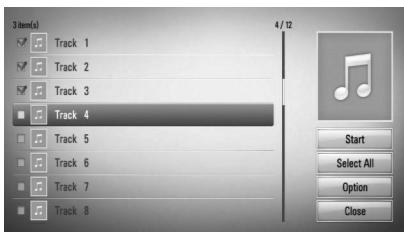
| Select All | Select all the tracks on an Audio CD. |
| Option | Selects an encoding option from the pop-up menu (128 kbps, 192 kbps, 320 kbps or Lossless). |
| Close | Cancels the recording and returns to the previous screen. |
- Utilisez / V < / > pour sélectionner [Démarrer], puis appuyez sur ENTER (⑥).
- Sélectionnez l'option [USB] à l'aide de < / > et appuyez sur ENTER (⑥). Cette étape n'est nécessaire que lorsqu'un périphérique de stockage USB est connecté.
- Utilisez / V / < / > pour sélectionner le dossier de destination de la copie, puis appuyez sur ENTER (O). Si vous souhaitez créer un nouveau dossier, utilisez / V / < / > pour sélectionner [Nouveau dossier] et appuyez sur ENTER (O). Saisissez le nom du dossier à l'aide du clavier virtuel, puis appuyez sur ENTER (O) lorsque [OK] est sélectionné.
- Utilisez /V < / > pour sélectionner [OK], puis appuyez sur ENTER (O) pour démarrer l'enregistrement CD. Si vous souhaitez arrêter l'enregistrement CD en cours, appuyez sur ENTER (O) lorsque [Annuler] est mis en surbrillance.
- Un message apparaît lorsque l'enregistrement CD est terminé. Appuyez sur ENTER (O) pour vérifier le fichier audio créé dans le dossier de destination.

REMARQUE
- Le tableau ci-dessous montre le temps d'enregistrement moyen d'une piste audio de 4 minutes de lecture vers un fichier audio à 192 kbps, à titre d'exemple.
| Status Device | stop mode | while playback |
| USB | 1.4 min. | 2 min. |
- Tous les temps du tableau ci-dessus sont approximatifs.
- Le temps d'enregistrement réel pour un périphérique de stockage USB varie en fonction des capacités de ce périphérique.
- Assurez-vous qu'il y a au moins 50 Mo d'espace libre lors de l'enregistrement sur le périphérique de stockage USB.
- La durée de la musique doit être supérieure à 20 secondes pour un enregistrement correct.
- Ne coupez pas l'alimentation de ce lecteur et ne retirez pas le périphérique de stockage USB connecté pendant l'enregistrement d'un CD audio.
La réalisation de copies non autorisées de matériel protégé contre la copie, y compris les programmes informatiques, les fichiers, les émissions et les enregistrements sonores, peut constituer une violation des droits d'auteur et une infraction pénale.
Cet équipement ne doit pas être utilisé à de telles fins.
Soyez responsable
Respectez les droits d'auteur
Le lecteur peut accéder à la base de données Gracenote Media et charger les informations musicales afin que le nom du titre, le nom de l'artiste, le genre et d'autres informations textuelles puissent être affichés dans la liste.
CD audio
Lorsque vous insérez un CD audio, le lecteur démarre la lecture automatiquement et charge le titre de la musique depuis la base de données Gracenote Media.
Si aucune information musicale n'est présente dans la base de données, les titres de musique ne seront pas affichés à l'écran.
Fichier musical
- Sélectionnez un fichier musical à l'aide de / < / >
- Appuyez sur INFO/DISPLAY pour afficher le menu des options.
- Sélectionnez l'option [Information] à l'aide de / V , puis appuyez sur ENTER (⊙).
Le lecteur accède à la base de données Gracenote Media pour obtenir les informations musicales.
Fichier BD/DVD/Film
Pendant la lecture d'un film, appuyez sur MUSIC ID pour lancer le chargement des informations musicales depuis la base de données Gracenote Media.
!REMARQUE
- Le lecteur doit être connecté à Internet à haut débit pour accéder à la base de données Gracenote Media.
- Si les informations musicales ne se trouvent pas dans la base de données Gracenote Media, un message apparaît à l'écran.
- Si les informations de la base de données Gracenote Media sont incorrectes ou inexistantes, veuillez contacter www.gracenote.com pour obtenir de l'aide. Selon les cas, le chargement des informations musicales depuis la base de données Gracenote Media peut prendre quelques minutes. Les informations peuvent s'afficher avec des caractères déformés si la langue sélectionnée n'est pas disponible dans la base de données Gracenote Media.
- Cette fonction n'est pas disponible pour le contenu en ligne NetCast et le contenu des serveurs DLNA.
- LG est un licencié de la technologie Gracenote et n'est pas responsable ni fiable pour les informations provenant de la base de données Gracenote Media.
- Les CD audio créés par les utilisateurs à des fins strictement personnelles ne peuvent pas être pris en charge par cette fonctionnalité car ils ne figurent pas dans la base de données Gracenote Media.
Lecture de contenu via votre réseau domestique (Home Link)
Le lecteur peut parcourir et lire le contenu de votre PC et des serveurs de médias certifiés DLNA connectés à votre réseau domestique.
À propos de DLNA
Ce lecteur est un lecteur multimédia numérique certifié DLNA qui peut afficher et lire des films, des photos et de la musique provenant de votre serveur multimédia numérique compatible DLNA (PC et appareils électroniques grand public).
La Digital Living Network Alliance (DLNA) est une organisation intersectorielle regroupant des entreprises d'électronique grand public, d'informatique et de téléphonie mobile. Digital Living offre aux consommateurs un partage facile de médias numériques via un réseau filaire ou sans fil à la maison.
Le logo de certification DLNA permet de trouver facilement des produits conformes aux directives d'interopérabilité DLNA. Cet appareil est conforme aux directives d'interopérabilité DLNA v1.5.
Lorsqu'un PC exécutant un logiciel serveur DLNA ou un autre appareil compatible DLNA est connecté à ce lecteur, certaines modifications de configuration du logiciel ou d'autres appareils peuvent être nécessaires. Veuillez vous référer aux instructions d'utilisation du logiciel ou de l'appareil pour plus d'informations.
- Vérifiez la connexion et les paramètres réseau (pages 20-25).
- Appuyez sur HOME (↑).
- Sélectionnez [Home Link] à l'aide de < / > , puis appuyez sur ENTER (O).
- Sélectionnez un serveur multimédia DLNA dans la liste à l'aide de / , puis appuyez sur ENTER (⊙).
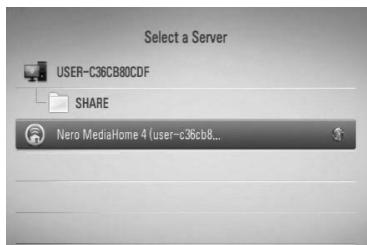
Si vous souhaitez rechercher à nouveau les serveurs multimédia disponibles, appuyez sur le bouton vert (G).

REMARQUE
Selon le serveur multimédia, ce lecteur peut avoir besoin d'obtenir l'autorisation du serveur.
- Sélectionnez un fichier à l'aide de / / < / > , puis appuyez sur ENTER (O) pour lire le fichier.
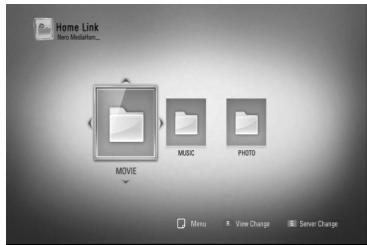

REMARQUE
- Les exigences relatives aux fichiers sont décrites à la page 10.
- Vous pouvez utiliser diverses fonctions de lecture. Reportez-vous aux pages 52-58.
- Étant donné que la compatibilité et les fonctions de lecture disponibles dans le menu [Home Link] sont testées dans l'environnement du serveur DLNA fourni (Nero MediaHome 4 Essentials), les exigences relatives aux fichiers et les fonctions de lecture du menu [Home Link] peuvent varier selon les serveurs multimédia.
- Les exigences relatives aux fichiers de la page 10 ne sont pas toujours compatibles. Certaines restrictions peuvent s'appliquer en fonction des caractéristiques du fichier et des capacités du serveur multimédia.
- Les vignettes des fichiers non lisibles peuvent être affichées dans le menu [Home Link], mais ces fichiers ne peuvent pas être lus sur ce lecteur.
- S'il y a un fichier musical illisible dans le menu [Home Link], le lecteur ignorera le fichier et lira le fichier suivant.
- La lecture de fichiers de sous-titres de films n'est possible que sur un serveur multimédia DLNA créé par le logiciel Nero MediaHome 4 Essentials fourni avec ce lecteur.
- Le nom du fichier de sous-titres et le nom du fichier vidéo doivent être identiques et se trouver dans le même dossier.
- La qualité de lecture et de fonctionnement de la fonction [Home Link] peut être affectée par les conditions de votre réseau domestique.
- Les fichiers provenant de supports amovibles tels que les clés USB, les lecteurs DVD, etc. sur votre serveur multimédia peuvent ne pas être partagés correctement.
Nero MediaHome 4 Essentials est un logiciel permettant de partager des fichiers vidéo, musicaux et photo stockés sur votre ordinateur avec ce lecteur en tant que serveur multimédia numérique compatible DLNA.

REMARQUE
- Le CD-ROM Nero MediaHome 4 Essentials est conçu pour les PC et ne doit pas être inséré dans ce lecteur ni dans tout autre produit qu'un PC.
- Le CD-ROM Nero MediaHome 4 Essentials fourni est une édition logicielle personnalisée uniquement pour partager des fichiers et des dossiers avec ce lecteur.
- Le logiciel Nero MediaHome 4 Essentials fourni ne prend pas en charge les fonctions suivantes : transcodage, interface utilisateur à distance, contrôle TV, services Internet et Apple iTunes.
- Ce manuel explique les opérations en utilisant la version anglaise de Nero MediaHome 4 Essentials comme exemple. Suivez les explications en vous référant aux opérations réelles de votre version linguistique.
Avant d'installer Nero MediaHome 4 Essentials, vérifiez la configuration système requise ci-dessous.
- Windows® XP (Service Pack 2 ou supérieur), Windows Vista® (aucun Service Pack requis), Windows® XP Media Center Edition 2005 (Service Pack 2 ou supérieur), Windows Server® 2003
- Windows Vista® 64 bits (l'application fonctionne en mode 32 bits)
- Espace disque : 200 Mo d'espace disque pour une installation typique de Nero MediaHome autonome. Processeur : 1,2 GHz Intel® Pentium® III ou AMD Sempron™ 2200+. Mémoire : 256 Mo de RAM
- Carte graphique avec au moins 32 Mo de mémoire vidéo, résolution minimale de 800 × 600 pixels et paramètres de couleur 16 bits
- Windows® Internet Explorer® 6.0 ou version ultérieure
- DirectX® 9.0c révision 30 (août 2006) ou version ultérieure. Environnement réseau : Ethernet 100 Mb, WLAN (IEEE 802.11b/g/n)
Démarrez votre ordinateur et insérez le CD-ROM Nero MediaHome 4 Essentials dans le lecteur de CD-ROM de votre ordinateur. Un assistant d'installation vous guidera tout au long du processus d'installation rapide et simple. Pour installer Nero MediaHome 4 Essentials, procédez comme suit :
- Fermez tous les programmes Microsoft Windows et quittez tout logiciel antivirus qui pourrait être en cours d'exécution.
- Insérez le CD-ROM Nero MediaHome 4 Essentials dans le lecteur de CD-ROM de votre ordinateur.
- Cliquez sur [Nero MediaHome 4 Essentials]. L'installation est préparée et l'assistant d'installation apparaît.
- Cliquez sur le bouton [Suivant] pour afficher l'écran de saisie du numéro de série. Cliquez sur [Suivant] pour passer à l'étape suivante.
- Si vous acceptez toutes les conditions, cochez la case [J'accepte les conditions de licence] et cliquez sur [Suivant]. L'installation n'est pas possible sans cet accord.
- Cliquez sur [Typique] puis sur [Suivant]. Le processus d'installation démarre.
- Si vous souhaitez participer à la collecte anonyme de données, cochez la case et cliquez sur le bouton [Suivant].
- Cliquez sur le bouton [Quitter] pour terminer l'installation.
Partage de fichiers et de dossiers
Sur votre ordinateur, vous devez partager le dossier contenant les films, la musique et/ou les photos pour les lire à l'aide des fonctions [Home Link].
Cette partie explique la procédure pour sélectionner les dossiers partagés sur votre ordinateur.
- Double-cliquez sur l'icône "Nero MediaHome 4 Essentials" sur le bureau.
- Cliquez sur l'icône [Réseau] à gauche et définissez votre nom de réseau dans le champ [Nom du réseau]. Le nom de réseau que vous saisissez sera reconnu par votre lecteur.
- Cliquez sur l'icône [Partages] à gauche.
- Cliquez sur l'onglet [Dossiers locaux] dans l'écran [Partages].
- Cliquez sur l'icône [Ajouter] pour ouvrir la fenêtre [Parcourir les dossiers].
- Sélectionnez le dossier contenant les fichiers que vous souhaitez partager. Le dossier sélectionné est ajouté à la liste des dossiers partagés.
- Cliquez sur l'icône [Démarrer le serveur] pour démarrer le serveur.

REMARQUE
- Si les dossiers ou fichiers partagés ne sont pas affichés sur le lecteur, cliquez sur le dossier dans l'onglet [Dossiers locaux] puis cliquez sur [Analyser à nouveau le dossier] dans le bouton [Plus].
- Visitez www.nero.com pour plus d'informations et des outils logiciels
Accès à un dossier partagé depuis votre PC
- Démarrez votre PC connecté à votre réseau local.
- Sur votre PC, partagez des dossiers contenant des fichiers vidéo, photo ou musique.
- Sur le lecteur, vérifiez la connexion réseau et les paramètres (pages 20-25).
- Appuyez sur HOME (↑).
- Sélectionnez [Home Link] à l'aide de < / > , puis appuyez sur ENTER (O).
- Sélectionnez un dossier partagé dans la liste à l'aide de / V , puis appuyez sur ENTER (⑨).
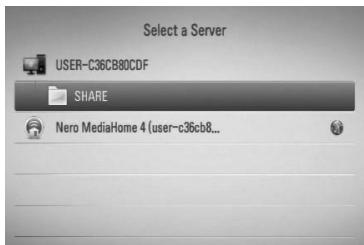
Si vous souhaitez rechercher à nouveau les dossiers partagés disponibles, appuyez sur le bouton vert (G).

REMARQUE
Selon le dossier partagé, ce lecteur peut nécessiter la saisie d'un identifiant et d'un mot de passe réseau pour accéder au dossier.
- Sélectionnez un fichier à l'aide de / V / < / > , puis appuyez sur ENTER (O) pour lire le fichier.
!REMARQUE
Les exigences relatives aux fichiers sont décrites à la page 10. - Vous pouvez utiliser diverses fonctions de lecture. Reportez-vous aux pages 52-58. - La vignette des fichiers non lisibles peut être affichée dans le menu [Home Link], mais ils ne peuvent pas être lus sur ce lecteur. - S'il y a un fichier musical non lisible dans le menu [Home Link], le lecteur ignorera le fichier et lira le fichier suivant. - Le nom du fichier de sous-titres et le nom du fichier vidéo doivent être identiques et se trouver dans le même dossier. - La qualité de lecture et de fonctionnement de la fonction [Home Link] peut être affectée par les conditions de votre réseau domestique. - Les fichiers sur un support amovible tel qu'une clé USB, un lecteur DVD, etc. sur votre PC peuvent ne pas être partagés correctement. - Vous pouvez rencontrer des problèmes de connexion selon l'environnement de votre PC.
Configuration requise pour le PC
- Windows® XP (Service Pack 2 ou supérieur), Windows Vista® (aucun Service Pack requis), Windows 7® (aucun Service Pack requis) Processeurs Intel® Pentium® III 1,2 GHz ou AMD Sempron™ 2200+ Environnement réseau : Ethernet 100 Mb, WLAN (IEEE 802.11b/g/n)
!REMARQUE
Si vous utilisez Windows XP ou Windows Vista, consultez le lien ci-dessous pour plus d'informations sur les paramètres de partage de fichiers.
Windows® XP : http://support.microsoft.com/kb/304040 Windows Vista® : http://support.microsoft.com/kb/961498
Saisie d'un identifiant réseau et du mot de passe
Selon l'environnement de votre PC, vous devrez peut-être saisir un identifiant réseau et le mot de passe pour accéder à un dossier partagé.
- Le clavier virtuel apparaît automatiquement si l'identifiant réseau et le mot de passe sont requis.
- Utilisez / V / < / > pour sélectionner un caractère, puis appuyez sur ENTRÉE (⊙) pour confirmer votre sélection sur le clavier virtuel.
Pour saisir une lettre avec un accent, sélectionnez la lettre dans le jeu de caractères étendu. Exemple : sélectionnez "D" puis appuyez sur INFO/AFFICHAGE pour afficher le jeu de caractères étendu. Utilisez < / > pour sélectionner "D" ou "D" puis appuyez sur ENTRÉE (O).
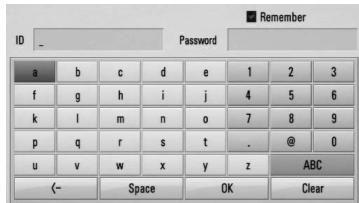
[Effacer] - Efface tous les caractères saisis.
[Espace] - Insère un espace à la position du curseur.
[- - ] - supprime le caractère précédent à la position du curseur.
[ABC / abc / #+-=&] - Modifie les paramètres du menu du clavier pour les lettres majuscules, les lettres minuscules ou les symboles.
- Lorsque vous avez fini de saisir l'identifiant réseau et le mot de passe, sélectionnez [OK] à l'aide de / V/ < / > et appuyez sur ENTRÉE (O) pour accéder au dossier. L'identifiant réseau et le mot de passe seront mémorisés après l'accès au dossier pour votre commodité. Si vous ne souhaitez pas que l'identifiant réseau et le mot de passe soient mémorisés, appuyez sur le bouton rouge (R) pour décocher la case [Mémoriser] avant d'accéder au dossier.
Utilisation de NetCast™ Entertainment Access
Vous pouvez utiliser divers services de contenu via Internet avec la fonction NetCast Entertainment Access.
- Vérifiez la connexion réseau et les paramètres (pages 20-25).
- Appuyez sur HOME (↑).
- Sélectionnez [NetCast] à l'aide de < / >, puis appuyez sur ENTER (O).
- Sélectionnez une option à l'aide de < / >, puis appuyez sur ENTER (O).
YouTube™ - Voir pages 71-74
Picasa™ Web Albums - Voir pages 74-76
AccuWeather - Voir pages 77-78
- Pendant que vous profitez du contenu en ligne de NetCast, appuyez sur le bouton bleu (B) pour revenir à l'écran d'accueil NetCast.

REMARQUE
- L'utilisation des fonctions NetCast avec une connexion réseau sans fil peut entraîner une vitesse de streaming insuffisante en raison des interférences provenant d'appareils domestiques utilisant des radiofréquences.
- L'image d'arrière-plan sur l'écran d'accueil NetCast indique la météo de votre ville préférée dans la fonction AccuWeather.
Lecture de vidéos YouTube™
Vous pouvez parcourir, rechercher et regarder des vidéos YouTube™ sur Internet sur votre téléviseur via votre appareil LG.
Regarder des vidéos YouTube™ sur votre téléviseur
- Sur le lecteur, sélectionnez l'option [YouTube™] dans le menu [NetCast] à l'aide de < / >, puis appuyez sur ENTER (⑨).
- Appuyez sur ▲ pour sélectionner la barre de menu d'options.
- Utilisez pour sélectionner une option et appuyez sur ENTRÉE (O) pour rechercher des vidéos.
- Utilisez < / > pour sélectionner une vidéo et appuyez sur ENTRÉE (O) ou (lecture) pour la lire.
| Button | Operation |
| ▶ or ENTER | Starts playback of the video with content detail. |
| INFO/DISPLAY | Toggle between playback in full screen and playback screen with content detail. |
| ■ | To pause a video while it is playing. To resume playing a paused video, press▶ again. |
| ■ | Stops the video and displays related videos list. |
| ■/▶ | Skip the playback forward or backward. |
Le menu YouTube™ propose différentes options. Utilisez / / < / > pour sélectionner une option et appuyez sur ENTRÉE (O) pour valider, comme décrit ci-dessous.
À la une : la liste des vidéos en vedette s'affiche.
Vidéos récentes : la liste des vidéos les plus récentes s'affiche.
Les plus vues : la liste des vidéos les plus vues s'affiche. L'option de période apparaît en bas de l'écran.
Les mieux notées : la liste des vidéos les mieux notées du serveur YouTube™ s'affiche. L'option de période apparaît en bas de l'écran.
Recherche : le clavier virtuel s'affiche. Voir « Recherche de vidéos » à la page 73 pour plus de détails.
Historique : la liste des vidéos que vous avez lues précédemment sur cet appareil s'affiche. Un maximum de 25 vidéos peut être stocké.
- Favoris : cette option n'apparaît que lorsque l'appareil est connecté. Affiche la liste des vidéos organisée sur le serveur YouTube™ avec votre compte. Certaines vidéos peuvent ne pas apparaître dans la liste [Favoris], même si elles sont organisées sur le serveur.
Connexion (Déconnexion) : affiche le clavier virtuel pour se connecter ou revient à l'état déconnecté. Voir « Connexion avec votre compte YouTube™ » aux pages 73-74 pour plus de détails.
Site local : choisissez le pays dont vous souhaitez voir les vidéos. Les pays listés dans le menu [Site local] peuvent différer de ceux du site Web YouTube™.

REMARQUE
- Le menu YouTube™ peut afficher 5 vidéos dans la liste. Appuyez sur les boutons vert (G) ou jaune (Y) pour afficher les 5 vidéos précédentes/suivantes.
- Si vous sélectionnez l'option [Les plus vus] ou [Les mieux notés] dans le menu YouTube™, les options de période apparaissent en bas de l'écran. Utilisez / / < / > pour sélectionner une option de période et appuyez sur ENTER (⊙) pour afficher la liste des vidéos dans la période sélectionnée.
- La liste des vidéos trouvée à l'aide du lecteur peut être différente de celle obtenue lors d'une recherche sur un PC.
- La lecture des vidéos YouTube™ peut être interrompue, arrêtée ou subir des mises en mémoire tampon fréquentes en fonction de la vitesse de votre connexion haut débit. Nous recommandons une vitesse de connexion minimale de 1,5 Mbit/s. Pour des conditions de lecture optimales, une vitesse de connexion de 4,0 Mbit/s est requise. Parfois, la vitesse de votre connexion varie en fonction des conditions du réseau de votre fournisseur d'accès Internet (FAI). Contactez votre FAI si vous avez des difficultés à maintenir une connexion rapide et fiable, ou si vous souhaitez augmenter votre vitesse de connexion. De nombreux FAI proposent différentes options de vitesse haut débit.
Utilisation du clavier virtuel
Sur le clavier virtuel, il existe deux modes de saisie pour entrer un caractère. Appuyez sur le bouton jaune (Y) pour basculer l'affichage entre le mode clavier et le mode pavé numérique.
Mode clavier
Utilisez / V < / > pour sélectionner une lettre à l'écran, puis appuyez sur ENTER (O) pour confirmer votre sélection.
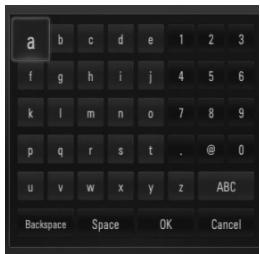
[Annuler] - Revient à l'écran précédent.
[Espace] - Insère un espace à la position du curseur.
[Retour arrière] - Supprime le caractère précédent à la position du curseur.
[ABC / abc / #+-=&] - Modifie les paramètres du clavier virtuel pour les lettres majuscules, minuscules ou les symboles.
Appuyez sur CLEAR pour effacer tous les caractères saisis.
Pour saisir une lettre avec un accent :
- Sélectionnez une lettre à l'aide de / < / > sur le clavier virtuel.
- Appuyez sur INFO/DISPLAY pour afficher le jeu de caractères étendu.
- Utilisez < / > pour sélectionner un caractère, puis appuyez sur ENTER (O).
Les langues disponibles pour la saisie en mode clavier sont les suivantes : anglais, espagnol, italien, français, allemand, néerlandais, portugais, suédois, polonais et tchèque.
Mode pavé numérique
Ce mode permet de saisir des lettres en appuyant sur les boutons de la télécommande. Appuyez sur le bouton correspondant à la lettre souhaitée une, deux, trois ou quatre fois jusqu'à ce que la lettre s'affiche.
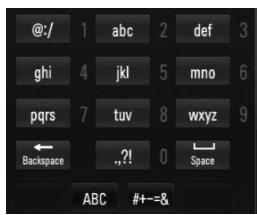
| Button | Operation |
| CLEAR | Deletes the previous character at the cursor position. |
| REPEAT | Inserts a space at the cursor position. |

Modifie le jeu de caractères de la télécommande (#+=-&, 123, ABC ou abc).

REMARQUE
Le mode pavé numérique n'est disponible que dans les fonctions [YouTube™] et [Albums Web Picasa™].
Recherche de vidéos
Vous pouvez rechercher des vidéos en saisissant des mots-clés de recherche d'une longueur maximale de 128 caractères.
- Utilisez < / > pour sélectionner l'option [Recherche] dans le menu, puis appuyez sur ENTER (O) pour afficher le clavier virtuel.
Reportez-vous à la section « Utilisation du clavier virtuel » aux pages 72-73 pour utiliser le clavier virtuel.
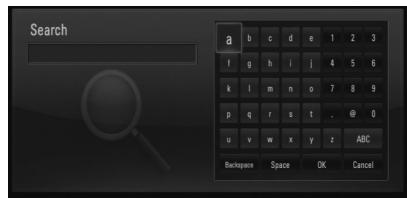
Lorsque vous saisissez un caractère, un maximum de 5 mots de suggestion s'affiche.
- Lorsque vous avez fini de saisir les mots-clés de recherche, sélectionnez [OK] et appuyez sur ENTER (O) pour afficher la liste des vidéos correspondantes.
Connectez-vous avec votre compte YouTube™
Pour regarder des vidéos de votre liste [Favoris] sur le serveur YouTube™ avec votre compte, vous devez vous connecter avec votre compte YouTube™.
- Utilisez < / > pour sélectionner l'option [Sign In] dans le menu, puis appuyez sur ENTER (O) pour afficher le clavier virtuel.
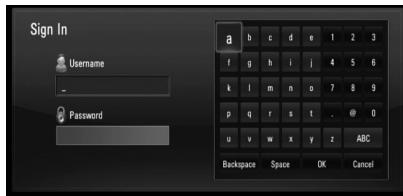
- Utilisez / < / > pour sélectionner un caractère, puis appuyez sur ENTER (⊙) pour confirmer votre sélection sur le clavier virtuel. Reportez-vous à la section « Utilisation du clavier virtuel » aux pages 72-73 pour plus d'informations.
- Lorsque vous avez terminé de saisir le nom d'utilisateur et le mot de passe, sélectionnez [OK] et appuyez sur ENTER (O) pour vous connecter.
- Si vous souhaitez vous déconnecter, sélectionnez [Sign Out] dans le menu YouTube™ et appuyez sur ENTER (⊙).
Cet appareil peut mémoriser automatiquement jusqu'à 5 noms d'utilisateur précédemment connectés. La liste des noms d'utilisateur apparaît lorsque vous sélectionnez l'option [Sign In].
Sélectionnez un nom d'utilisateur mémorisé dans la liste et appuyez sur ENTER (O) pour afficher le menu du clavier avec le nom d'utilisateur sélectionné. Vous n'aurez alors plus qu'à saisir le mot de passe pour vous connecter.
Sélectionnez le symbole [X] et appuyez sur ENTER (C) pour supprimer le nom d'utilisateur mémorisé.
Affichage des albums Web Picasa™

Picasa™
Web Albums
Profitez des albums photos de vos amis et de votre famille sur le service en ligne Picasa™.
Afficher les albums Web Picasa™ sur votre téléviseur
- Sur le lecteur, sélectionnez l'option [Picasa™ Web Albums] dans le menu [NetCast] à l'aide de < / >, puis appuyez sur ENTER (⊙). Les photos sélectionnées s'affichent à l'écran.
- Utilisez /V < / > pour sélectionner une photo et appuyez sur ENTER (O) pour l'afficher en plein écran.
| Button | Operation |
| ► | Starts a slide show. |
| INFO/DISPLAY | Displays the photo option menu. |
| ■ | Pauses a slide show. To resume slide show, press► again. |
| ■ | Stops the slide show and return to the Picasa™ menu. |
| <>/> | Moves to the next or previous photo. |
Options lors de l'affichage d'une photo
Vous pouvez utiliser diverses options lors de la visualisation d'une photo en plein écran.
- Lors de la visualisation d'une photo en plein écran, appuyez sur INFO/DISPLAY (□) pour afficher le menu des options.
- Sélectionnez une option à l'aide de Λ/V.
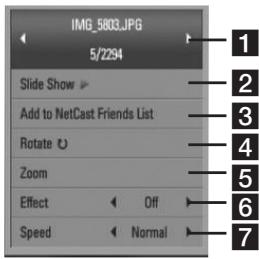
1 Photo actuelle/Nombre total de photos - Utilisez < / > pour voir la photo précédente/suivante. 2 Diaporama - Appuyez sur ENTER (O) pour démarrer ou mettre en pause le diaporama. 3 Ajouter à la liste d'amis NetCast - Ajoutez le propriétaire de la photo actuelle à ma liste d'amis. 4 Rotation - Appuyez sur ENTER (O) pour faire pivoter la photo dans le sens horaire. 5 Zoom - Appuyez sur ENTER (C) pour afficher le menu [Zoom]. 6 Effet - Utilisez < / > pour sélectionner un effet de transition entre les photos d'un diaporama. 7 Vitesse - Utilisez < / > pour sélectionner un délai entre les photos d'un diaporama.
- Appuyez sur RETURN (o) pour quitter le menu des options.
Il existe diverses options dans le menu Picasa™. Utilisez Λ/V / < / > pour sélectionner une option du menu, puis appuyez sur ENTER (O) pour choisir les options décrites ci-dessous.
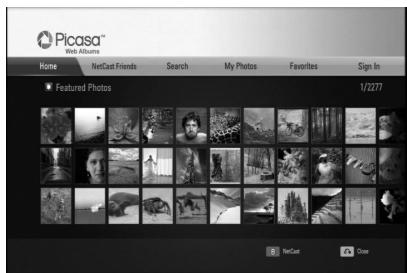
Accueil - La liste des photos en vedette s'affiche.
Amis NetCast - La liste de vos amis s'affiche.
Recherche - Saisissez un mot-clé pour trouver des photos associées. Le clavier virtuel s'affiche (page 76).
Mes photos - Affiche les photos organisées dans mes albums web Picasa™. Cette option n'est disponible que lorsque l'appareil est connecté.
- Favoris - Affiche jusqu'à 50 albums web favoris organisés sur le serveur web Picasa™ avec votre compte. Cette option n'est disponible que lorsque l'appareil est connecté.
Connexion (Déconnexion) - Affiche le clavier virtuel pour se connecter ou revient à l'état déconnecté (page 76).

REMARQUE
Les photos affichées dans [Mes photos] et [Favoris] peuvent différer de celles affichées dans un navigateur web sur PC.
Ajout d'amis
Si vous ajoutez vos amis dans le menu [NetCast Friends], vous pouvez voir directement les photos publiques de vos amis.
- Sélectionnez [NetCast Friends] dans le menu PicasaTM à l'aide de / / < / >, puis appuyez sur ENTER (O).
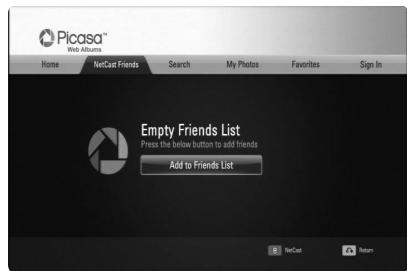
- Appuyez sur ENTER (O) pour afficher le clavier virtuel.
- Saisissez un nom à l'aide du clavier virtuel. Reportez-vous à la section « Utilisation du clavier virtuel » aux pages 72-73 pour savoir comment utiliser le clavier virtuel.
- Sélectionnez [OK] à l'aide de / V / < / >, puis appuyez sur ENTER (⊙) pour afficher l'album web de votre ami.

REMARQUE
- Si vous souhaitez supprimer un ami de la liste, appuyez sur le bouton vert (G) lorsque l'album web est sélectionné.
- Si vous souhaitez ajouter d'autres amis, appuyez sur le bouton rouge (R) dans la liste.
- Vous pouvez ajouter jusqu'à 50 albums web de vos amis.
Recherche de photos
Vous pouvez saisir un mot-clé pour trouver des photos associées.
- Sélectionnez [Recherche] dans le menu PicasaTM à l'aide de / < / >, puis appuyez sur ENTER (⑨).
- Saisissez un mot de recherche à l'aide du clavier virtuel.
Reportez-vous à la section « Utilisation du clavier virtuel » aux pages 72-73 pour utiliser le clavier virtuel.
- Sélectionnez [OK] à l'aide de /V < / >, puis appuyez sur ENTER (O) pour afficher le résultat de la recherche.

REMARQUE
Le résultat de la recherche sur le lecteur peut différer de celui obtenu lors d'une recherche via un navigateur Web sur un PC.
Connexion avec votre compte
Pour afficher les photos de votre album Web à l'écran, vous devez vous connecter avec votre compte Picasa™.
- Sélectionnez [Connexion] dans le menu Picasa™ à l'aide de / < / >, puis appuyez sur ENTER (⊙).
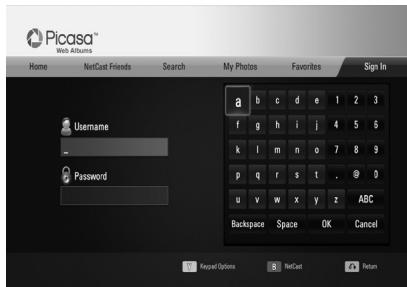
- Saisissez votre nom d'utilisateur à l'aide du clavier virtuel, puis appuyez sur ENTER (O) lorsque [OK] est sélectionné.
Reportez-vous à la section « Utilisation du clavier virtuel » aux pages 72-73 pour utiliser le clavier virtuel.
- Saisissez le mot de passe à l'aide du clavier virtuel, puis appuyez sur ENTER (O) lorsque [OK] est sélectionné.
Votre album Web s'affiche à l'écran.
- Si vous souhaitez vous déconnecter, sélectionnez [Déconnexion] dans le menu Picasa™ et appuyez sur ENTER (⊙).
Cet appareil peut stocker automatiquement jusqu'à 5 noms d'utilisateur précédemment connectés. La liste des noms d'utilisateur apparaît lorsque vous sélectionnez l'option [Connexion].
Sélectionnez un nom d'utilisateur mémorisé dans la liste et appuyez sur ENTER (O) pour afficher le clavier virtuel avec le nom d'utilisateur sélectionné déjà saisi. Vous n'aurez alors plus qu'à saisir le mot de passe pour vous connecter.
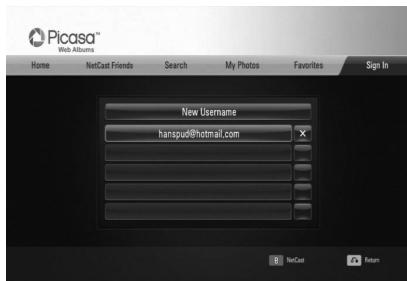
Sélectionnez le symbole [X] et appuyez sur ENTER (C) pour supprimer le nom d'utilisateur enregistré.
Utilisation d'AccuWeather

Consultez les prévisions météorologiques locales et mondiales en ligne depuis AccuWeather.com.
- Sur le lecteur, sélectionnez l'option [AccuWeather] dans le menu [NetCast] à l'aide de < / > et appuyez sur ENTER (O).
Le menu de sélection de ville apparaît à l'écran.
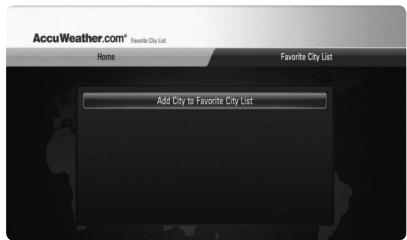
- Appuyez sur ENTER (O) lorsque [Ajouter une ville à la liste des villes favorites] est sélectionné.
- Sélectionnez une région à l'aide de / , puis appuyez sur ENTER (C).
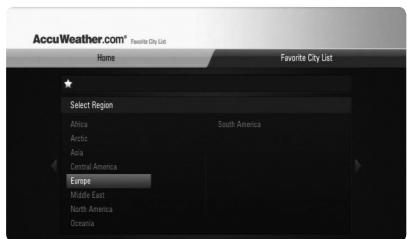
- Sélectionnez un pays à l'aide de / < / > , puis appuyez sur ENTER (⑨).
- Sélectionnez une ville à l'aide de / V / < / > , puis appuyez sur ENTER (⑥).
- Utilisez / V < / > pour sélectionner [Accueil] et appuyez sur ENTER (⊙) pour afficher les informations météorologiques de la ville sélectionnée.
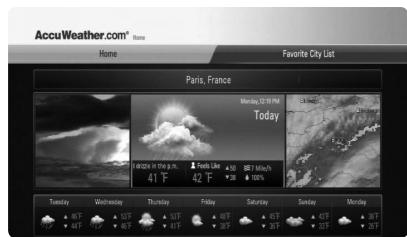
Appuyez sur le bouton rouge (R) pour basculer l'affichage entre Fahrenheit et Celsius.
- Utilisez < / > pour sélectionner la ville précédente ou suivante, puis appuyez sur ENTER (O) pour afficher les informations météorologiques.
Cette opération ne fonctionne que lorsque vous ajoutez plus d'une ville à la [Liste des villes favorites].

REMARQUE
- Les informations météorologiques ne sont pas toujours exactes.
- Les informations météorologiques peuvent être affichées en anglais si votre langue n'est pas disponible sur le service AccuWeather.
Ajout de villes supplémentaires
- Utilisez < / > pour sélectionner [Liste des villes favorites] dans le menu AccuWeather, puis appuyez sur ENTER (O).
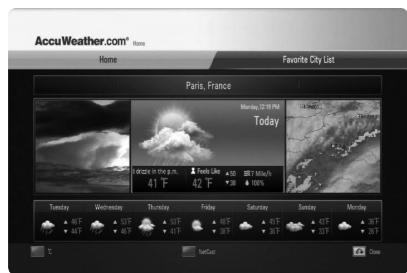
- Appuyez sur ENTER (O) lorsque [Ajouter une ville à la liste des villes favorites] est sélectionné.
- Sélectionnez une région, un pays et une ville à l'aide de / < / > et ENTER (O).
- Répétez les étapes 2 à 3 pour ajouter jusqu'à 5 villes. Sélectionnez le symbole [X] et appuyez sur ENTER (O) pour supprimer la ville favorite enregistrée.
- Utilisez / pour sélectionner une ville dans la [Liste des villes favorites], puis appuyez sur ENTER (O) pour afficher les informations météorologiques.
5 Maintenance
Remarques sur les disques
Manipulation des disques
Ne touchez pas la face de lecture du disque. Tenez le disque par les bords afin d'éviter les traces de doigts sur la surface. Ne collez jamais de papier ou de ruban adhésif sur le disque.
Stockage des disques
Après la lecture, rangez le disque dans son boîtier. N'exposez pas le disque à la lumière directe du soleil ni à des sources de chaleur, et ne le laissez jamais dans une voiture garée exposée au soleil.
Nettoyage des disques
Les traces de doigts et la poussière sur le disque peuvent entraîner une mauvaise qualité d'image et une distorsion du son. Avant la lecture, nettoyez le disque avec un chiffon propre. Essuyez le disque du centre vers l'extérieur.
N'utilisez pas de solvants puissants tels que l'alcool, la benzine, le diluant, les nettoyants commerciaux ou les sprays antistatiques destinés aux anciens disques vinyles.
Manipulation de l'appareil
Expédition de l'appareil
Veuillez conserver le carton d'expédition d'origine et les matériaux d'emballage. Si vous devez expédier l'appareil, pour une protection maximale, réemballez-le comme il était emballé à l'origine à l'usine.
Nettoyage des surfaces extérieures
- N'utilisez pas de liquides volatils tels que les sprays insecticides à proximité de l'appareil.
- Un essuyage avec une forte pression peut endommager la surface.
- Ne laissez pas de produits en caoutchouc ou en plastique en contact avec l'appareil pendant une longue période.
Nettoyage de l'appareil
Pour nettoyer le lecteur, utilisez un chiffon doux et sec. Si les surfaces sont extrêmement sales, utilisez un chiffon doux légèrement humidifié avec une solution détergente douce. N'utilisez pas de solvants puissants tels que l'alcool, la benzine ou le diluant, car ils pourraient endommager la surface de l'appareil.
Entretien de l'appareil
L'appareil est un dispositif de haute précision. Si la lentille du capteur optique et les pièces du lecteur de disque sont sales ou usées, la qualité de l'image peut être réduite. Pour plus de détails, veuillez contacter le centre de service agréé le plus proche.
6
Dépannage
Généralités
| Symptoms | Cause & Solution |
| The Power does not turned on. | Plug the power cord into the wall outlet securely. |
| The unit does not start playback. | Insert a playable disc.(Check the disc type, color system, and regional code)
Place the disc with the playback side down.
Place the disc on the disc tray correctly inside the guide.
Clean the disc.
Cancel the Rating function or change the rating level. |
| The angle cannot be changed. | Multi-angles are not recorded on the DVD Video being played. |
| Cannot play movie, photo or audio files. | The files are not recorded in a format that the unit can play.
The unit does not support the codec of the movie file. |
| The remote control does not work properly. | The remote control is not pointed at the remote sensor of the unit.
The remote control is too far from the unit.
There is an obstacle in the path between the remote control and the unit.
The batteries in the remote control are exhausted. |
Image
| Symptoms | Cause & Solution |
| There is no picture. | • Select the appropriate video input mode on the TV so the picture from the unit appears on the TV screen.
• Connect the video connection securely.
• Check the [HDMI Color Setting] in the [Setup] menu is set to the appropriate item that conforms to your video connection.
• Your TV may not support the resolution you have set on the unit. Change the resolution to one that your TV accepts.
• The player's HDMI OUT jack is connected to a DVI device that does not support copyright protection. |
| Picture noise appears. | • You are playing a disc recorded in a colour system that is different from your TV.
• Set the resolution to one that your TV accepts. |
Son
| Symptoms | Cause & Solution |
| There is no sound or the sound is distorted. | • Connect the audio connection securely.
• The input source setting on the amplifier or the connection to the amplifier is incorrect.
• The unit is in scan, slow motion, or pause mode.
• The sound volume is low.
• Check that the connected amplifier is compatible with the audio format output from the player.
• The player's HDMI OUT jack is connected to a DVI device. The DVI jack does not accept audio signal.
• Check the device connected to the player's HDMI OUT jack is compatible with the audio format output from the unit. |
Réseau
| Symptoms | Cause & Solution |
| BD-LIVE feature does not work. | ·The connected USB storage may not have enough space.
Connect the USB storage with at least 1GB free space.
·Ensure that the unit is correctly connected to the local area network and can access the internet (see pages 20-25).
·Your broadband speed may not be fast enough to use the BD-Live features. Contact your Internet Service Provider (ISP) and increase the broadband speed to suit the unit's requirements.
·The [BD-LIVE connection] option in the [Setup] menu is set to [Prohibited]. Set the option to [Permitted]. |
| Streaming video services (such as YouTube™, etc.) are often stop or “buffer” during playback. | ·Your broadband service speed may not be fast enough to stream video services. Contact your Internet Service Provider (ISP) and increase the broadband speed is recommended. |
| Shared folder or files from your PC or a media server are not displayed on the [My Media] menu. | ·The firewall or anti-virus software on your media server is running. Turn off the firewall or anti-virus software running on your PC or media server.
·The unit is not connected to the local area network that your PC or the media server are connected. |
| Cannot connect the player to the access point or wireless LAN router. | ·The wireless communication may be interrupted from household devices that are using radio frequencies. Move the player away from them. |
| Access point is not displayed on the “Access point name” list. | ·The access point or wireless LAN router may not broadcast itsSSID. Set your access point to broadcast itsSSID through your computer. |
Assistance clientèle
Vous pouvez mettre à jour l'appareil avec le dernier logiciel pour améliorer son fonctionnement et/ou ajouter de nouvelles fonctionnalités. Pour obtenir le dernier logiciel pour cet appareil (si des mises à jour ont été publiées), veuillez visiter http://lgservice.com ou contacter le centre de service clientèle de LG Electronics.
Enregistrement
| Symptoms | Solution |
| Cannot record or does not record successfully. | Check the remaining space on the external HDD.
If your source is copy-protected, you cannot record it using this recorder.
If you set a DTV rating for the recorder and higher rated digital programs are received, the programme cannot be recorded. Change the DTV rating level in order to record it. |
| Timer record does not record successfully. | Clock is not set to correct time.
The start time of the timer recording is past.
Two timer recordings may have overlapped, in which case only the earlier one will record completely.
When setting the recording programme, make sure you set the recorder's built-in tuner, not the TV's built-in tuner.
If the HDD is damaged, the recording may not complete successfully. |
| Stereo Audio Record and/Playback is not present. | TV is not Stereo-compatible.
Broadcast programme is not in stereo format. |
| You cannot enter a timer programme when. | A recording is already underway.
The time you're trying to set has already passed.
There are already 32 timer programs set. |
| If you can not record. | Make sure you have connected an external HDD.
Make sure that the first partition is NTFS.
Make sure that an external USB HDD supports USB 2.0.
Disconnect and then reconnect the unit, please record again. |
| If two or more timer programs overlap. | The earlier programme takes priority.
The recorder can record 1 channels simultaneously but do not make overlapping timer recordings, if you do, the earlier programme takes priority. |
7 Annexe
Contrôle d'un téléviseur avec la télécommande fournie
Vous pouvez contrôler votre téléviseur à l'aide des boutons ci-dessous.
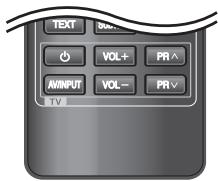
| By pressing | You can |
| (TV POWER) | Turn the TV on or off. |
| AV/INPUT | Switch the TV's input source between the TV and other input sources. |
| PR AN/V | Scan up or down through memorized channels. |
| VOL +/- | Adjust the volume of the TV |

Selon l'appareil connecté, il se peut que vous ne puissiez pas contrôler votre téléviseur avec certains boutons.
Configuration de la télécommande pour contrôler votre téléviseur
Vous pouvez utiliser la télécommande fournie pour faire fonctionner votre téléviseur. Si votre téléviseur figure dans le tableau ci-dessous, réglez le code fabricant approprié.
- Tout en maintenant enfoncée la touche (TV POWER), saisissez le code fabricant de votre téléviseur à l'aide des touches numériques (voir le tableau ci-dessous).
| Manufacturer | Code Number |
| LG | 1(Default), 2 |
| Zenith | 1, 3, 4 |
| GoldStar | 1, 2 |
| Samsung | 6, 7 |
| Sony | 8, 9 |
| Hitachi | 4 |
- Relâchez la touche (TV POWER) pour terminer le réglage.
Selon votre téléviseur, certaines ou toutes les touches peuvent ne pas fonctionner sur le téléviseur, même après avoir saisi le code fabricant correct. Lorsque vous remplacez les piles de la télécommande, le code que vous avez réglé peut être réinitialisé à la valeur par défaut. Réglez à nouveau le code approprié.
Liste des codes de zone
Choisissez un code de zone dans cette liste.
| Area | Code | Area | Code | Area | Code | Area | Code |
| Afghanistan | AF | Fiji | FJ | Monaco | MC | Singapore | SG |
| Argentina | AR | Finland | FI | Mongolia | MN | Slovak Republic | SK |
| Australia | AU | France | FR | Morocco | MA | Slovenia | SI |
| Austria | AT | Germany | DE | Nepal | NP | South Africa | ZA |
| Belgium | BE | Great Britain | GB | Netherlands | NL | South Korea | KR |
| Bhutan | BT | Greece | GR | Netherlands | | Spain | ES |
| Bolivia | BO | Greenland | GL | Antilles | AN | Sri Lanka | LK |
| Brazil | BR | Hong Kong | HK | New Zealand | NZ | Sweden | SE |
| Cambodia | KH | Hungary | HU | Nigeria | NG | Switzerland | CH |
| Canada | CA | India | IN | Norway | NO | Taiwan | TW |
| Chile | CL | Indonesia | ID | Oman | OM | Thailand | TH |
| China | CN | Israel | IL | Pakistan | PK | Turkey | TR |
| Colombia | CO | Italy | IT | Panama | PA | Uganda | UG |
| Congo | CG | Jamaica | JM | Paraguay | PY | Ukraine | UA |
| Costa Rica | CR | Japan | JP | Philippines | PH | United States | US |
| Croatia | HR | Kenya | KE | Poland | PL | Uruguay | UY |
| Czech Republic | CZ | Kuwait | KW | Portugal | PT | Uzbekistan | UZ |
| Denmark | DK | Libya | LY | Romania | RO | Vietnam | VN |
| Ecuador | EC | Luxembourg | LU | Russian Federation | RU | Zimbabwe | ZW |
| Egypt | EG | Malaysia | MY | Saudi Arabia | SA | | |
| El Salvador | SV | Maldives | MV | Senegal | SN | | |
| Ethiopia | ET | Mexico | MX | | | | |
Liste des codes de langue
Utilisez cette liste pour saisir la langue souhaitée pour les réglages initiaux suivants : [Audio du disque], [Sous-titres du disque] et [Menu du disque].
| Language | Code | Language | Code | Language | Code | Language | Code |
| Afar | 6565 | French | 7082 | Lithuanian | 7684 | Sindhi | 8368 |
| Afrikaans | 6570 | Frisian | 7089 | Macedonian | 7775 | Singhalese | 8373 |
| Albanian | 8381 | Galician | 7176 | Malagasy | 7771 | Slovak | 8375 |
| Ameharic | 6577 | Georgian | 7565 | Malay | 7783 | Slovenian | 8376 |
| Arabic | 6582 | German | 6869 | Malayalam | 7776 | Spanish | 6983 |
| Armenian | 7289 | Greek | 6976 | Maori | 7773 | Sudanese | 8385 |
| Assamese | 6583 | Greenlandic | 7576 | Marathi | 7782 | Swahili | 8387 |
| Aymara | 6588 | Guarani | 7178 | Moldavian | 7779 | Swedish | 8386 |
| Azerbaijani | 6590 | Gujarati | 7185 | Mongolian | 7778 | Tagalog | 8476 |
| Bashkir | 6665 | Hausa | 7265 | Nauru | 7865 | Tajik | 8471 |
| Basque | 6985 | Hebrew | 7387 | Nepali | 7869 | Tamil | 8465 |
| Bengali; Bangla | 6678 | Hindi | 7273 | Norwegian | 7879 | Telugu | 8469 |
| Bhutani | 6890 | Hungarian | 7285 | Oriya | 7982 | Thai | 8472 |
| Bihari | 6672 | Icelandic | 7383 | Panjabi | 8065 | Tonga | 8479 |
| Breton | 6682 | Indonesian | 7378 | Pashto, Pushto | 8083 | Turkish | 8482 |
| Bulgarian | 6671 | Interlingua | 7365 | Persian | 7065 | Turkmen | 8475 |
| Burmese | 7789 | Irish | 7165 | Polish | 8076 | Twi | 8487 |
| Byelorussian | 6669 | Italian | 7384 | Portuguese | 8084 | Ukrainian | 8575 |
| Chinese | 9072 | Japanese | 7465 | Quechua | 8185 | Urdu | 8582 |
| Croatian | 7282 | Kannada | 7578 | Rhaeto-Romance | | Uzbek | 8590 |
| Czech | 6783 | Kashmiri | 7583 | | 8277 | Vietnamese | 8673 |
| Danish | 6865 | Kazakh | 7575 | Rumanian | 8279 | Volapük | 8679 |
| Dutch | 7876 | Kirghiz | 7589 | Russian | 8285 | Welsh | 6789 |
| English | 6978 | Korean | 7579 | Samloan | 8377 | Wolof | 8779 |
| Esperanto | 6979 | Kurdish | 7585 | Sanskrit | 8365 | Xhosa | 8872 |
| Estonian | 6984 | Laothian | 7679 | Scotts Gaelic | 7168 | Yiddish | 7473 |
| Faroese | 7079 | Latin | 7665 | Serbian | 8382 | Yoruba | 8979 |
| Fiji | 7074 | Latvian, Lettish | 7686 | Serbo-Croatian | 8372 | Zulu | 9085 |
| Finnish | 7073 | Lingala | 7678 | Shona | 8378 | | |
Marques commerciales et licences

Disque Blu-ray
« Blu-ray Disc », « Blu-ray » et le logo « Blu-ray disc » sont des marques commerciales de la Blu-ray Disc Association.

« Blu-ray 3D » et le logo « Blu-ray 3D » sont des marques commerciales de la Blu-ray Disc Association.
Le logo « BD-LIVE » est une marque commerciale de la Blu-ray Disc Association.
« BONUSVIEW » est une marque commerciale de la Blu-ray Disc Association.

Java et toutes les marques et logos basés sur Java sont des marques ou des marques déposées de Sun Microsystems, Inc. aux États-Unis et dans d'autres pays.

TRUEHD
DIGITAL PLUS
Fabriqué sous licence de Dolby Laboratories. Dolby et le symbole double-D sont des marques de Dolby Laboratories.

HIGH DEFINITION MULTIMEDIA INTERFACE
HDMI, le logo HDMI et High-Definition Multimedia Interface sont des marques ou des marques déposées de HDMI licensing LLC.

VIDEO
Le « logo DVD » est une marque de DVD Format/Logo Licensing Corporation.


CERTIFIED
DLNA®, le logo DLNA et DLNA CERTIFIED® sont des marques, des marques de service ou des marques de certification de la Digital Living Network Alliance.

TM
« AVCHD » et le logo « AVCHD » sont des marques de Panasonic Corporation et de Sony Corporation.

YouTube™ est une marque de Google Inc.


Web Albums
Picasa™ Web Albums est une marque de Google Inc.


Master Audio
Fabriqué sous licence en vertu des brevets américains n° 5 451 942 ; 5 956 674 ; 5 974 380 ; 5 978 762 ; 6 226 616 ; 6 487 535 ; 7 212 872 ; 7 333 929 ; 7 392 195 ; 7 272 567 et d'autres brevets américains et internationaux délivrés ou en instance. DTS est une marque déposée et les logos DTS, le symbole, DTS-HD et DTS-HD Master Audio sont des marques de DTS, Inc. © 1996-2008 DTS, Inc. Tous droits réservés.
DivX est une marque déposée de DivX, Inc. et est utilisée sous licence.
Le logo Wi-Fi CERTIFIED est une marque de certification de la Wi-Fi Alliance.
"x.v.Color" est une marque de Sony Corporation.
Le système de consommation en mode veille est intégré. Par conséquent, de petites quantités d'électricité sont consommées même lorsque la fiche d'alimentation est insérée.

gracenote.
Gracenote®, le logo Gracenote et le logotype, ainsi que le logo « Powered by Gracenote » sont des marques déposées ou des marques de Gracenote, Inc. aux États-Unis et/ou dans d'autres pays.
La technologie de reconnaissance musicale et les données associées sont fournies par Gracenote.
Une partie du contenu est protégée par le droit d'auteur © Gracenote ou ses fournisseurs.
Contrat de licence d'utilisateur final Gracenote®
Cette application ou cet appareil contient un logiciel de Gracenote, Inc. d'Emeryville, en Californie (« Gracenote »). Le logiciel de Gracenote (le « logiciel Gracenote ») permet à cette application d'identifier des disques et/ou des fichiers et d'obtenir des informations liées à la musique, notamment le nom, l'artiste, la piste et le titre (les « données Gracenote ») à partir de serveurs en ligne ou de bases de données intégrées (collectivement, les « serveurs Gracenote ») et d'exécuter d'autres fonctions. Vous ne pouvez utiliser les données Gracenote que par le biais des fonctions d'utilisateur final prévues de cette application ou de cet appareil.
Vous acceptez de n'utiliser les données Gracenote, le logiciel Gracenote et les serveurs Gracenote que pour votre usage personnel et non commercial uniquement. Vous acceptez de ne pas céder, copier, transférer ou transmettre le logiciel Gracenote ou toute donnée Gracenote à un tiers. VOUS ACCEPTEZ DE NE PAS UTILISER OU EXPLOITER LES DONNÉES GRACENOTE, LE LOGICIEL GRACENOTE OU LES SERVEURS GRACENOTE, SAUF COMME EXPRESSÉMENT AUTORISÉ DANS LES PRÉSENTES.
Vous acceptez que votre licence non exclusive d'utilisation des données Gracenote, du logiciel Gracenote et des serveurs Gracenote prendra fin si vous enfreignez ces restrictions. Si votre licence prend fin, vous acceptez de cesser toute utilisation des données Gracenote, du logiciel Gracenote et des serveurs Gracenote. Gracenote se réserve tous les droits sur les données Gracenote, le logiciel Gracenote et les serveurs Gracenote, y compris tous les droits de propriété. En aucun cas, Gracenote ne sera responsable de tout paiement à votre égard pour toute information que vous fournissez. Vous acceptez que Gracenote, Inc. puisse faire valoir ses droits en vertu du présent contrat directement en son propre nom contre vous.
Le service Gracenote utilise un identifiant unique pour suivre les requêtes à des fins statistiques. L'objectif d'un identifiant numérique attribué aléatoirement est de permettre au service Gracenote de compter les requêtes sans rien savoir sur vous. Pour plus d'informations, consultez la page web de la politique de confidentialité Gracenote pour le service Gracenote.
Le logiciel Gracenote et chaque élément de données Gracenote vous sont concédés sous licence « EN L'ÉTAT ». Gracenote ne fait aucune déclaration ni ne donne aucune garantie, expresse ou implicite, quant à l'exactitude des données Gracenote provenant des serveurs Gracenote. Gracenote se réserve le droit de supprimer des données des serveurs Gracenote ou de modifier les catégories de données pour toute raison qu'il juge suffisante. Aucune garantie n'est donnée que le logiciel Gracenote ou les serveurs Gracenote soient exempts d'erreurs ou que leur fonctionnement soit ininterrompu. Gracenote n'est pas tenu de vous fournir de nouveaux types ou catégories de données améliorés ou supplémentaires qu'il pourrait proposer à l'avenir, et il est libre d'interrompre ses services à tout moment.
GRACENOTE DÉCLINE TOUTE GARANTIE, EXPRESSE OU IMPLICITE, Y COMPRIS, MAIS SANS S'Y LIMITER, LES GARANTIES IMPLICITES DE QUALITÉ MARCHANDE, D'ADAPTATION À UN USAGE PARTICULIER, DE TITRE ET D'ABSENCE DE CONTREFAÇON. GRACENOTE NE GARANTIT PAS LES RÉSULTATS QUI SERONT OBTENUS PAR VOTRE UTILISATION DU LOGICIEL GRACENOTE OU DE TOUT SERVEUR GRACENOTE. EN AUCUN CAS GRACENOTE NE SERA RESPONSABLE DES DOMMAGES INDIRECTS OU ACCESSOIRES, NI DES PERTES DE PROFITS OU DE REVENUS.
© Gracenote, Inc. 2009
Mise à jour du logiciel réseau
Notification de mise à jour réseau
De temps à autre, des améliorations de performances et/ou des fonctionnalités ou services supplémentaires peuvent être proposés aux appareils connectés à un réseau domestique à large bande. Si un nouveau logiciel est disponible et que l'appareil est connecté à un réseau domestique à large bande, le lecteur vous informera de la mise à jour comme suit.
Option 1 :
- Le menu de mise à jour apparaîtra à l'écran lorsque vous allumerez le lecteur.
- Utilisez pour sélectionner l'option souhaitée, puis appuyez sur ENTER (O).
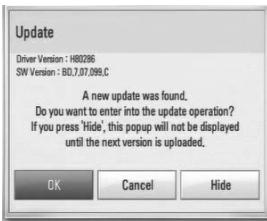
[OK]
Démarre la mise à jour du logiciel.
[Annuler]
Quitte le menu de mise à jour et l'affiche au prochain démarrage.
[Masquer]
Quitte le menu de mise à jour et il ne réapparaît pas jusqu'à ce qu'un nouveau logiciel soit téléchargé sur le serveur de mise à jour.
Option 2 :
Si une mise à jour logicielle est disponible sur le serveur de mise à jour, l'icône "Mise à jour" apparaît en bas du menu d'accueil. Appuyez sur le bouton bleu (B) pour démarrer la procédure de mise à jour.
Mise à jour du logiciel
Vous pouvez mettre à jour le lecteur avec le dernier logiciel pour améliorer le fonctionnement du produit et/ou ajouter de nouvelles fonctionnalités. Vous pouvez mettre à jour le logiciel en connectant l'appareil directement au serveur de mise à jour du logiciel.

ATTENTION
- Avant de mettre à jour le logiciel de votre lecteur, retirez tout disque et tout périphérique USB du lecteur.
- Avant de mettre à jour le logiciel de votre lecteur, éteignez le lecteur puis rallumez-le.
- Pendant la procédure de mise à jour du logiciel, ne coupez pas l'alimentation du lecteur, ne débranchez pas le câble d'alimentation secteur et n'appuyez sur aucun bouton.
- Si vous annulez la mise à jour, éteignez l'appareil puis rallumez-le pour garantir un fonctionnement stable.
- Cet appareil ne peut pas être mis à jour vers une version précédente du logiciel.
- Vérifiez la connexion réseau et les paramètres (pages 20-25).
- Sélectionnez l'option [Logiciel] dans le menu [Configuration], puis appuyez sur ENTER (O).
- Sélectionnez l'option [Mise à jour], puis appuyez sur ENTRÉE.
(0).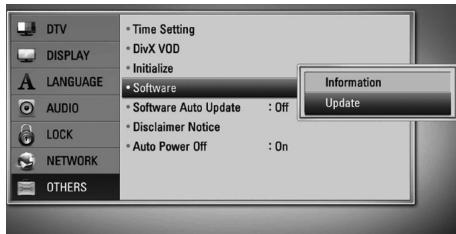
Le lecteur recherchera la mise à jour la plus récente.

REMARQUE
- Appuyer sur ENTRÉE pendant la recherche de la mise à jour mettra fin au processus.
- S'il n'y a pas de mise à jour disponible, le message « Aucune mise à jour trouvée » s'affiche. Appuyez sur ENTRÉE pour revenir au [Menu principal].
- Si une version plus récente existe, le message « Une nouvelle mise à jour a été trouvée. Voulez-vous la télécharger ? » s'affiche.
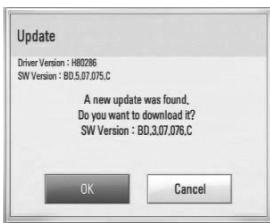
- Sélectionnez [OK] pour télécharger la mise à jour. (Sélectionner [Annuler] mettra fin à la mise à jour.)
- Le lecteur commence à télécharger la mise à jour la plus récente depuis le serveur. (Le téléchargement peut prendre plusieurs minutes selon les conditions de votre réseau domestique.)
- Lorsque le téléchargement est terminé, le message « Téléchargement terminé. Voulez-vous mettre à jour ? » s'affiche.
- Sélectionnez [OK] pour démarrer la mise à jour. (Si vous sélectionnez [Annuler], la mise à jour se terminera et le fichier téléchargé ne sera plus réutilisable. Pour mettre à jour le logiciel la prochaine fois, la procédure de mise à jour devra être recommencée depuis le début.)

ATTENTION
Ne coupez pas l'alimentation pendant la mise à jour du logiciel.

REMARQUE
Si le logiciel inclut la mise à jour du pilote, le plateau du disque peut s'ouvrir pendant le processus.
- Lorsque la mise à jour est terminée, le message « Mise à jour terminée » apparaît, puis l'alimentation se coupe automatiquement après 5 secondes.
- Rallumez l'appareil. Le système fonctionne maintenant avec la nouvelle version.

REMARQUE
La fonction de mise à jour du logiciel peut ne pas fonctionner correctement selon votre environnement Internet. Dans ce cas, vous pouvez obtenir le dernier logiciel auprès du centre de service agréé LG Electronics, puis mettre à jour votre lecteur. Reportez-vous à « Assistance clientèle » à la page 82.
Spécifications de sortie audio
| Source\Jack/Setting | Analog
2CH Output | Digital Output (DIGITAL AUDIO OUT)*4 |
| PCM Stereo | DTS Re-encode*3 *5 | Primary Pass-Thru |
| Dolby Digital | PCM 2ch | PCM 2ch | DTS | Dolby Digital |
| Dolby Digital Plus | PCM 2ch | PCM 2ch | DTS | Dolby Digital |
| Dolby TrueHD | PCM 2ch | PCM 2ch | DTS | Dolby Digital |
| DTS | PCM 2ch | PCM 2ch | DTS | DTS |
| DTS-HD | PCM 2ch | PCM 2ch | DTS | DTS |
| Linear PCM 2ch | PCM 2ch | PCM 2ch | DTS | PCM 2ch |
| Linear PCM 5.1ch | PCM 2ch | PCM 2ch | DTS | PCM 2ch |
| Linear PCM 7.1ch | PCM 2ch | PCM 2ch | DTS | PCM 2ch |
| Source\Jack/Setting | HDMI OUT |
| PCM Stereo | PCM Multi-Ch *3 | DTS Re-encode*3 *5 | Primary Pass-Thru *1 *2 *3 |
| Dolby Digital | PCM 2ch | PCM 5.1ch | DTS | Dolby Digital |
| Dolby Digital Plus | PCM 2ch | PCM 7.1ch | DTS | Dolby Digital Plus |
| Dolby TrueHD | PCM 2ch | PCM 7.1ch | DTS | Dolby TrueHD |
| DTS | PCM 2ch | PCM 5.1ch | DTS | DTS |
| DTS-HD | PCM 2ch | PCM 7.1ch | DTS | DTS-HD |
| Linear PCM 2ch | PCM 2ch | PCM 2ch | DTS | Linear PCM 2ch |
| Linear PCM 5.1ch | PCM 2ch | PCM 5.1ch | DTS | Linear PCM 5.1ch |
| Linear PCM 7.1ch | PCM 2ch | PCM 7.1ch | DTS | Linear PCM 7.1ch |
*1 L'audio secondaire et interactif peut ne pas être inclus dans le flux binaire de sortie si l'option [Sortie numérique] ou [HDMI] est réglée sur [Transmission directe principale]. (Sauf pour le codec LPCM : la sortie inclut toujours l'audio interactif et secondaire.)
*2 Ce lecteur sélectionne automatiquement l'audio HDMI en fonction de la capacité de décodage du périphérique HDMI connecté, même si l'option [HDMI] est réglée sur [Transmission directe principale].
*3 Le réglage [PCM Multi-Canal]/[Transmission directe principale] de l'option [HDMI] et le réglage [Réencodage DTS] de l'option [Sortie numérique] ne peuvent pas être définis ensemble. Si vous les définissez ensemble, l'option [HDMI] ou [Sortie numérique] est automatiquement réglée sur [PCM Stéréo].
*4 Sur la sortie audio PCM, la fréquence d'échantillonnage de la SORTIE AUDIO NUMÉRIQUE est limitée à 96 kHz.
*5 Si l'option [HDMI] ou [Sortie numérique] est réglée sur [Ré-encodage DTS], la sortie audio est limitée à 48 kHz et 5.1 canaux. Si l'option [HDMI] ou [Sortie numérique] est réglée sur [Ré-encodage DTS], l'audio ré-encodé DTS est émis pour les disques BD-ROM, et l'audio d'origine est émis pour les autres disques (comme [Pass-through principal]). - Si l'option [HDMI] est réglée sur [PCM multi-canaux] et l'option [Sortie numérique] sur [Pass-through principal] pendant la lecture de Dolby Digital Plus ou TrueHD, la sortie AUDIO NUMÉRIQUE est limitée à "PCM 2 canaux". - Si la connexion HDMI est version 1.3 et que Dolby Digital Plus/Dolby TrueHD est émis par la prise HDMI OUT, la prise AUDIO NUMÉRIQUE OUT est limitée à "PCM 2 canaux" (lorsque les prises HDMI et AUDIO NUMÉRIQUE OUT sont connectées simultanément). L'audio est émis en PCM 48 kHz/16 bits pour les fichiers MP3/WMA et en PCM 44,1 kHz/16 bits pour les CD audio pendant la lecture. - L'audio Dolby TrueHD enregistré sur certains disques Blu-ray se compose d'audio Dolby Digital et TrueHD. L'audio Dolby Digital est émis par les prises AUDIO NUMÉRIQUE OUT et "DD" s'affiche à l'écran si l'audio TrueHD n'est pas émis (par exemple, lorsque [HDMI] est réglé sur [PCM stéréo] et [Sortie numérique] sur [Pass-through principal]). - Vous devez sélectionner une sortie audio numérique et une fréquence d'échantillonnage maximale que votre amplificateur (ou récepteur AV) accepte en utilisant les options [Sortie numérique], [HDMI] et [Fréq. d'échantillonnage] du menu [Configuration] (voir pages 35-37). - Avec une connexion audio numérique (AUDIO NUMÉRIQUE OUT ou HDMI), les sons du menu des disques BD-ROM peuvent ne pas être entendus si l'option [Sortie numérique] ou [HDMI] est réglée sur [Pass-through principal]. Si le format audio de la sortie numérique ne correspond pas aux capacités de votre récepteur, le récepteur produira un son fort et déformé ou aucun son.
- Le son surround numérique multicanal via une connexion numérique ne peut être obtenu que si votre récepteur est équipé d'un décodeur multicanal numérique.
Résolution de sortie vidéo
Lors de la lecture d'un média non protégé contre la copie
| Video Out Resolution | HDMI OUT | COMPONENT VIDEO OUT |
| HDMI connected | HDMI disconnected |
| 576i | 576P | 576i |
| 576p | 576p | 576p |
| 720p | 720p | 720p |
| 1080i | 1080i | 1080i |
| 1080p/24Hz | 1080p / 24Hz | 576i | 1080i |
| 1080p / 50Hz | 1080p / 50Hz | 576i | 1080i |
Lors de la lecture d'un média protégé contre la copie
| Video Out Resolution | HDMI OUT | COMPONENT VIDEO OUT |
| HDMI connected | HDMI disconnected |
| 576i | 576p | 576i |
| 576p | 576p | 576p |
| 720p | 720p | 576i | 576p |
| 1080i | 1080i | 576i | 576p |
| 1080p/24Hz | 1080p / 24Hz | 576i | 576p |
| 1080p / 50Hz | 1080p / 50Hz | 576i | 576p |
Cet appareil prend en charge la sortie simultanée de toutes les prises de sortie vidéo.
Connexion HDMI OUT
Pour le réglage de résolution 576i, la résolution de sortie réelle de HDMI OUT passera à 576p. - Si vous sélectionnez manuellement une résolution puis connectez la prise HDMI à un téléviseur et que celui-ci ne l'accepte pas, le réglage de résolution est mis sur [Auto]. - Si vous sélectionnez une résolution que votre téléviseur n'accepte pas, un message d'avertissement apparaîtra. Après un changement de résolution, si vous ne voyez pas l'écran, veuillez attendre 20 secondes et la résolution reviendra automatiquement à la résolution précédente.
- La fréquence d'images de sortie vidéo 1080p peut être automatiquement réglée sur 24 Hz ou 50 Hz en fonction des capacités et des préférences du téléviseur connecté et de la fréquence d'images native du contenu du disque BD-ROM.
SORTIE VIDÉO COMPOSANTE
Connexion
BD, DVD peuvent empêcher la mise à l'échelle sur la sortie analogique.
Connexion SORTIE VIDÉO
La résolution de la prise SORTIE VIDÉO est toujours émise en résolution 576i.
Spécifications
Généralités
Alimentation : CA 200-240 V, 50/60 Hz
Consommation électrique : 45 W
Dimensions (L x H x P) : environ 430 × 49 × 295 mm (sans le pied)
Poids net (environ) : 2,8 kg
Température de fonctionnement : 5 °C à 35 °C
Humidité de fonctionnement : 5 % à 90 %
Système de télévision : conforme à la norme DVB-T
Enregistrement TV
Format d'enregistrement : TS (format de flux de transport)
Support enregistrable : disque dur USB 2.0
Format d'enregistrement audio : Dolby Digital (2 canaux)
Connecteurs
SORTIE VIDÉO : 1,0 V (c.-à-c.), 75 Ω, synchronisation négative, prise RCA x 1
SORTIE VIDÉO COMPOSANTE : (Y) 1,0 V (c-à-c), 75 Ω, synchronisation négative, prise RCA x 1, (Pb)/(Pr) 0,7 V (c-à-c), 75 Ω, prises RCA x 2
SORTIE HDMI (vidéo, audio) : 19 broches (norme HDMI, type A)
SORTIE AUDIO ANALOGIQUE : 2,0 Vrms (1 kHz, 0 dB), 600 Ω, prises RCA (L, R) x 1
SORTIE NUMÉRIQUE (COAXIALE) : 0,5 V (c-à-c), 75 Ω, prise RCA x 1
ENTRÉE ANTENNE : entrée d'antenne, 75 ohms
Port USB : 4 broches (norme USB 2.0)
Système
Laser : laser à semi-conducteur,
longueur d'onde : 405 nm / 650 nm
Système de signal : système de télévision couleur PAL standard
Réponse en fréquence : 20 Hz à 20 kHz (échantillonnage 48 kHz, 96 kHz, 192 kHz)
Rapport signal/bruit : plus de 100 dB (connecteurs de sortie analogique uniquement)
Distorsion harmonique : moins de 0,008 %
Gamme dynamique : plus de 95 dB
Port LAN : prise Ethernet x 1, 10BASE-T/100BASE-TX
Réseau local sans fil (antenne interne) : accès réseau sans fil intégré IEEE 802.11n (projet 2.0), compatible avec les réseaux Wi-Fi 802.11b/g.
Alimentation par bus (USB) : 5 V CC - 500 mA
- La conception et les spécifications peuvent être modifiées sans préavis.
VEUILLEZ LIRE ATTENTIVEMENT. L'UTILISATION DES SERVICES RÉSEAU EST SOUMISE AUX CONDITIONS SUIVANTES.
L'utilisation des services réseau nécessite une connexion Internet vendue séparément et dont vous êtes seul responsable. Les services réseau peuvent être limités ou restreints en fonction de la qualité, des capacités et des limitations techniques de votre service Internet.
Les services réseau appartiennent à des tiers et peuvent être protégés par des droits d'auteur, des brevets, des marques commerciales et/ou d'autres lois sur la propriété intellectuelle. Les services réseau sont fournis uniquement pour votre usage personnel et non commercial. Sauf autorisation expresse du propriétaire du contenu ou du fournisseur de services concerné, vous ne devez pas modifier, copier, republier, télécharger, poster, transmettre, traduire, vendre, créer des œuvres dérivées, exploiter ou distribuer de quelque manière ou sur quelque support que ce soit tout contenu ou service accessible via ce produit.
LG N'EST PAS RESPONSABLE DE VOTRE UTILISATION DES SERVICES RÉSEAU. LES SERVICES RÉSEAU SONT FOURNIS « EN L'ÉTAT ». DANS LA MESURE MAXIMALE PERMISE PAR LA LOI, LG NE FAIT AUCUNE DÉCLARATION NI NE DONNE AUCUNE GARANTIE D'AUCUNE SORTE (i) QUANT À L'EXACTITUDE, LA VALIDITÉ, L'ACTUALITÉ, LA LÉGALITÉ OU L'EXHAUSTIVITÉ DE TOUT SERVICE RÉSEAU DISPONIBLE VIA CE PRODUIT ; OU (ii) QUE LES SERVICES RÉSEAU SONT EXEMPTS DE VIRUS OU D'AUTRES COMPOSANTS SUSCEPTIBLES D'INFECTER, D'ENDOMMAGER OU DE CAUSER DES DOMMAGES À CE PRODUIT, À VOTRE ORDINATEUR, À VOTRE TÉLÉVISEUR, À D'AUTRES ÉQUIPEMENTS OU À TOUTE AUTRE PROPRIÉTÉ. LG DÉCLINE EXPRESSÉMENT TOUTE GARANTIE IMPLICITE, Y COMPRIS, SANS S'Y LIMITER, LES GARANTIES DE QUALITÉ MARCHANDE OU D'ADAPTATION À UN USAGE PARTICULIER.
EN AUCUNE CIRCONSTANCE ET EN VERTU D'AUCUNE THÉORIE JURIDIQUE, QUE CE SOIT EN MATIÈRE CONTRACTUELLE, DÉLICTUELLE, DE RESPONSABILITÉ STRICTE OU AUTRE, LG NE SAURAIT ÊTRE TENUE RESPONSABLE ENVERS VOUS OU UN TIERS DE TOUT DOMMAGE DIRECT, INDIRECT, ACCESSOIRE, SPÉCIAL, STATUTAIRE, CONSÉCUTIF OU AUTRE, OU DE TOUT HONORAIRE OU FRAIS D'AVOCAT LIÉS AUX SERVICES RÉSEAU OU DÉCOULANT DE CEUX-CI, MÊME SI LG A ÉTÉ INFORMÉE DE LA POSSIBILITÉ DE TELS DOMMAGES OU SI DE TELS DOMMAGES AURAIENT PU ÊTRE RAISONNABLEMENT PRÉVUS.
Les services réseau peuvent être interrompus ou suspendus à tout moment, et LG ne donne aucune garantie ni ne fait aucune déclaration quant à la disponibilité d'un service réseau pendant une période donnée. L'utilisation des services réseau peut être soumise à des conditions supplémentaires du fournisseur de services tiers concerné. Les services réseau sont transmis par des tiers au moyen de réseaux et d'infrastructures de transmission sur lesquels LG n'a aucun contrôle. LG DÉCLINE EXPRESSÉMENT TOUTE RESPONSABILITÉ EN CAS D'INTERRUPTION OU DE SUSPENSION DE TOUT SERVICE RÉSEAU.
LG ne sera ni responsable ni tenu pour responsable du service client lié aux services réseau. Toute question ou demande doit être adressée directement aux fournisseurs de services réseau respectifs.
« Services réseau » désigne les services tiers accessibles via ce produit, y compris, sans s'y limiter, toutes les données, logiciels, liens, messages, vidéos et autres contenus qui s'y trouvent ou qui sont utilisés en relation avec ceux-ci.
« LG » désigne LG Electronics, Inc., sa société mère et toutes leurs filiales, sociétés affiliées et sociétés liées respectives dans le monde entier.
Avis de logiciel open source
Les exécutables GPL et les bibliothèques LGPL suivants utilisés dans ce produit sont soumis aux accords de licence GPL2.0/LGPL2.1 :
EXÉCUTABLES GPL : Linux kernel 2.6, bash, busybox, dhcpcd, mkdosfs, mtd-utils, net-tools, ntfsprogs, gdbserver, procps, samba-3.0.25b, sysutils, tinylogin, udftools, wireless-tools
BIBLIOTHÈQUES LGPL : uClibc, DirectFB, ebase, iconv, cairo, gnutls, libcrypt, libgpg-err, libusb, mplusb, neon, qDecoder
BIBLIOTHÈQUE SOUS LICENCE PUBLIQUE GSOAP 1.3 : gsoap
LG Electronics propose de fournir le code source sur CD-ROM moyennant des frais couvrant le coût de cette distribution, tels que le coût du support, de l'expédition et de la manutention, sur demande par e-mail à LG Electronics à l'adresse : opensource@lgc.com. Cette offre est valable pendant une période de trois (3) ans à compter de la date de distribution de ce produit par LG Electronics.
Vous pouvez obtenir une copie des licences GPL et LGPL à l'adresse http://www.gnu.org/licenses/old-licenses/gpl2.0.html et http://www.gnu.org/licenses/old-licenses/lgpl-2.1.html.
Vous pouvez également obtenir une copie de la licence publique gSOAP à l'adresse http://www.cs.fsu.edu/~engelen/licenses.html.
Ce produit inclut
- bibliothèque expat : copyright © 2006 expat maintainers.
- bibliothèque freetype : copyright © 2003 The FreeType Project (www.freetype.org).
- giflib : Copyright © 1997 Eric S. Raymond
- JPEG : Ce logiciel est basé en partie sur le travail de l'Independent JPEG Group, copyright © 1991-1998, Thomas G. Lane.
- Bibliothèque libcurl : Copyright (c) 1996-2008, Daniel Stenberg, daniel@haxx.se
- libnet : (c) 1998-2004 Mike D. Schiffman mike@infonexus.com
- libpcap
- Bibliothèque libpng : copyright © 2004 Glenn Randers-Pehrson. Client miniUPnP : Copyright © 2005-2006, Thomas BERNARD
- ntp : copyright © David L. Mills 1992-2006
- Bibliothèque OpenSSL :
- logiciel cryptographique écrit par Eric Young (eay@cryptsoft.com).
- logiciel écrit par Tim Hudson (tjh@cryptsoft.com).
- logiciel développé par le projet OpenSSL pour une utilisation dans la boîte à outils OpenSSL. (http://www.openssl.org) portmap : copyright © 1990 The Regents of the University of California
- regex : Copyright © 1992, 1993, 1994, 1997 Henry Spencer. strace : copyright © 1991, 1992 Paul Kranenburg, copyright © 1993 Branko Lankester, copyright © 1993 Ulrich Pegelow, copyright © 1995, 1996 Michael Elizabeth Chastain, copyright © 1993, 1994, 1995, 1996 Rick Sladkey, copyright © 1999, 2000 Wichert Akkerman. Tinyxml : copyright © 2000-2006 Lee Thomason
- SDK UPnP : Copyright (c) 2000-2003 Intel Corporation
- WPA Suppliant : Copyright © 2003-2007, Jouni Malinen j@w1.fi et contributeurs
- xml2 : copyright © 1998-2003 Daniel Veillard. Bibliothèque de compression Zlib : copyright © 1995-2002 Jean-loup Gailly et Mark Adler.
Tous droits réservés.
La permission est accordée par la présente, gratuitement, à toute personne obtenant une copie de ce logiciel et des fichiers de documentation associés (le « Logiciel »), de traiter le Logiciel sans restriction, y compris, sans limitation, les droits d'utiliser, de copier, de modifier, de fusionner, de publier, de distribuer, de sous-licencier et/ou de vendre des copies du Logiciel, et de permettre aux personnes à qui le Logiciel est fourni de le faire, sous réserve des conditions suivantes :
LE LOGICIEL EST FOURNI « TEL QUEL », SANS GARANTIE D'AUCUNE SORTE, EXPRESSE OU IMPLICITE, Y COMPRIS, MAIS SANS S'Y LIMITER, LES GARANTIES DE QUALITÉ MARCHANDE, D'ADAPTATION À UN USAGE PARTICULIER ET D'ABSENCE DE CONTREFAÇON. EN AUCUN CAS LES AUTEURS OU TITULAIRES DU DROIT D'AUTEUR NE SERONT RESPONSABLES DE TOUTE RÉCLAMATION, DOMMAGE OU AUTRE RESPONSABILITÉ, QUE CE SOIT DANS LE CADRE D'UNE ACTION CONTRACTUELLE, DÉLICTUELLE OU AUTRE, DÉCOULANT DE, OU EN RELATION AVEC LE LOGICIEL OU L'UTILISATION OU D'AUTRES OPÉRATIONS EFFECTUÉES AVEC LE LOGICIEL.

LG
Life's Good