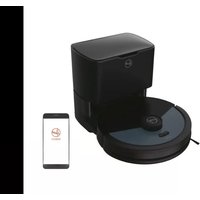
HG450HP 011 - Aspirateur robot HOOVER - Notice d'utilisation et mode d'emploi gratuit
Retrouvez gratuitement la notice de l'appareil HG450HP 011 HOOVER au format PDF.


| Type de produit | Aspirateur robot |
| Marque | Hoover |
| Modèle | HG450HP 011 |
| Dimensions (diamètre × hauteur) | 33 cm × 8 cm |
| Poids | 3,2 kg |
| Type de batterie | Li-ion 14,8 V / 2600 mAh |
| Autonomie | Jusqu'à 120 min |
| Temps de charge | Environ 3 h |
| Capacité du réservoir à poussière | 600 ml |
| Puissance d'aspiration | 1800 Pa |
| Système de navigation | Caméra et radar |
| Capteurs | Anti-chute, pare-choc, capteur de saleté |
| Programmation | Application mobile Hoover Wizard |
| Connectivité | Wi-Fi 2,4 GHz |
| Assistants vocaux | Compatibles Alexa et Google Assistant |
| Modes de nettoyage | Automatique, localisé, bords, spirale |
| Retour automatique à la base | Oui |
| Suivi de cartographie | Multi-étages, jusqu'à 5 cartes |
| Zone interdite virtuelle | Oui |
| Filtre | HEPA lavable |
| Brosse principale | Brosse en caoutchouc résistante aux enchevêtrements |
| Niveau sonore | Environ 65 dB |
| Alimentation | Adaptateur secteur (entrée : 100-240 V, 50/60 Hz) |
| Contenu de la boîte | Robot, base de charge, adaptateur, brosses latérales, filtre de rechange, manuel d'utilisation |
FOIRE AUX QUESTIONS - HG450HP 011 HOOVER
Questions des utilisateurs sur HG450HP 011 HOOVER
0 question sur cet appareil. Repondez a celles que vous connaissez ou posez la votre.
Poser une nouvelle question sur cet appareil
Téléchargez la notice de votre Aspirateur robot au format PDF gratuitement ! Retrouvez votre notice HG450HP 011 - HOOVER et reprennez votre appareil électronique en main. Sur cette page sont publiés tous les documents nécessaires à l'utilisation de votre appareil HG450HP 011 de la marque HOOVER.
MODE D'EMPLOI HG450HP 011 HOOVER
flowchart
graph TD
    A["Camera"] --> B["Robot Arm"]
    B --> C["Battery"]
    C --> D["Sensor Module"]
    D --> E["Monitor"]
    E --> F["Display Module"]
    F --> G["Control Panel"]
    style A fill:#f9f,stroke:#333
    style B fill:#ccf,stroke:#333
    style C fill:#cfc,stroke:#333
    style D fill:#fcc,stroke:#333
    style E fill:#cff,stroke:#333
    style F fill:#ffc,stroke:#333
    style G fill:#fcc,stroke:#333
flowchart
graph TD
    A["Warning"] --> B["Warning Device"]
    B --> C{Warning Condition}
    C -->|Yes| D["Warning Device 1"]
    C -->|No| E["Warning Device 2"]
    C -->|Yes| F["Warning Device 3"]
    C -->|No| G["Warning Device 4"]
    D --> H["Warning Device 5"]
    E --> I["Warning Device 6"]
    F --> J["Warning Device 7"]
    G --> K["Warning Device 8"]
    H --> L["Warning Device 9"]
    I --> M["Warning Device 10"]
    J --> N["Warning Device 11"]
    K --> O["Warning Device 12"]
    L --> P["Warning Device 13"]
    M --> Q["Warning Device 14"]
    N --> R["Warning Device 15"]
    O --> S["Warning Device 16"]
    P --> T["Warning Device 17"]
    Q --> U["Warning Device 18"]
    R --> V["Warning Device 19"]
    S --> W["Warning Device 20"]
    T --> X["Warning Device 21"]
    U --> Y["Warning Device 22"]
    V --> Z["Warning Device 23"]
    W --> AA["Warning Device 24"]
    X --> AB["Warning Device 25"]
    Y --> AC["Warning Device 26"]
    Z --> AD["Warning Device 27"]
    AA --> AE["Warning Device 28"]
    AB --> AF["Warning Device 29"]
    AC --> AG["Warning Device 30"]
    AD --> AH["Warning Device 31"]
    AE --> AI["Warning Device 32"]
    AF --> AJ["Warning Device 33"]
    AG --> AK["Warning Device 34"]
    AH --> AL["Warning Device 35"]
    AI --> AM["Warning Device 36"]
    AJ --> AN["Warning Device 37"]
    AK --> AO["Warning Device 38"]
    AL --> AP["Warning Device 39"]
    AM --> AQ["Warning Device 40"]
    AN --> AR["Warning Device 41"]
    AO --> AS["Warning Device 42"]
    AP --> AT["Warning Device 43"]
    AQ --> AU["Warning Device 44"]
    AR --> AV["Warning Device 45"]
    AS --> AW["Warning Device 46"]
    AT --> AX["Warning Device 47"]
    AU --> AY["Warning Device 48"]
    AV --> AZ["Warning Device 49"]
    AW --> BA["Warning Device 50"]
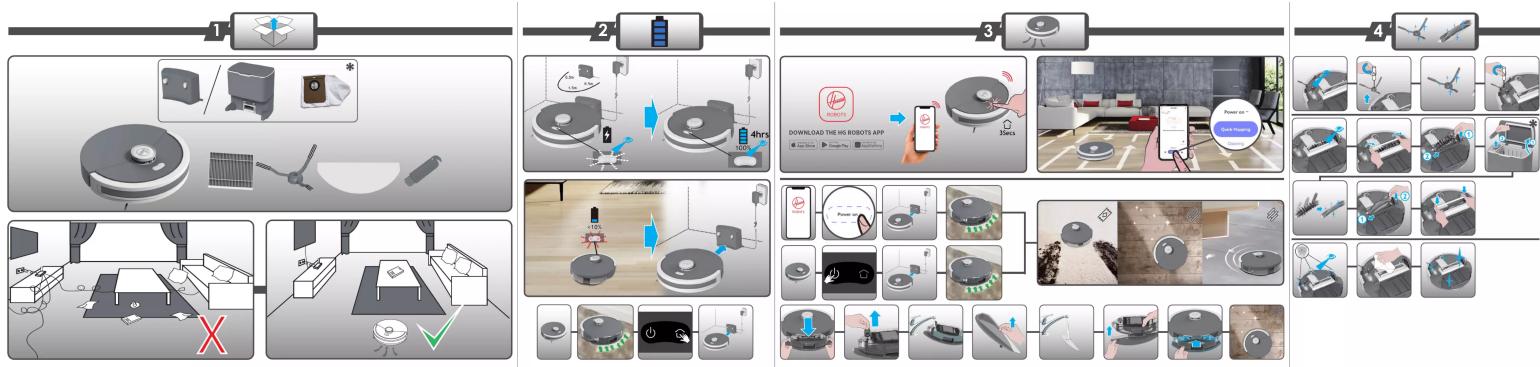
flowchart
graph TD
    A["1: Device Setup"] --> B["2: Robot Tracking"]
    B --> C["3: App Download & Control"]
    C --> D["4: Smart Home Control & Inspection"]

    subgraph User-Actuator
        E["Device 1: Radar & Camera Interface"]
        F["Device 2: Sensor & Display Interface"]
        G["Device 3: Smartphone & Phone Interface"]
    end

    subgraph Automated System
        H["User Interface: Radar & Camera Interface"]
        I["User Interface: Sensor & Display Interface"]
        J["User Interface: Smartphone & Phone Interface"]
    end

    subgraph Control System
        K["User Interface: Radar & Camera Interface"]
        L["User Interface: Sensor & Display Interface"]
        M["User Interface: Smartphone & Phone Interface"]
    end

    subgraph Testing System
        N["User Interface: Radar & Camera Interface"]
        O["User Interface: Sensor & Display Interface"]
        P["User Interface: Smartphone & Phone Interface"]
    end

    subgraph Output System
        Q["User Interface: Radar & Camera Interface"]
        R["User Interface: Sensor & Display Interface"]
        S["User Interface: Smartphone & Phone Interface"]
    end

    subgraph Monitoring System
        T["User Interface: Radar & Camera Interface"]
        U["User Interface: Sensor & Display Interface"]
        V["User Interface: Smartphone & Phone Interface"]
    end

    subgraph Feedback System
        W["User Interface: Radar & Camera Interface"]
        X["User Interface: Sensor & Display Interface"]
        Y["User Interface: Smartphone & Phone Interface"]
    end

    subgraph Output System
        Z["User Interface: Radar & Camera Interface"]
        AA["User Interface: Sensor & Display Interface"]
        AB["User Interface: Smartphone & Phone Interface"]
    end

    subgraph Monitoring System
        AC["User Interface: Radar & Camera Interface"]
        AD["User Interface: Sensor & Display Interface"]
        AE["User Interface: Smartphone & Phone Interface"]
    end

    subgraph Testing System
        AF["User Interface: Radar & Camera Interface"]
        AG["User Interface: Sensor & Display Interface"]
        AH["User Interface: Smartphone & Phone Interface"]
    end

    subgraph Feedback System
        AI["User Interface: Radar & Camera Interface"]
        AJ["User Interface: Sensor & Display Interface"]
        AK["User Interface: Smartphone & Phone Interface"]
    end

    subgraph Monitoring System
        AL["User Interface: Radar & Camera Interface"]
        AM["User Interface: Sensor & Display Interface"]
        AN["User Interface: Smartphone & Phone Interface"]
    end

    subgraph Output System
        AO["User Interface: Radar & Camera Interface"]
        AP["User Interface: Sensor & Display Interface"]
        AQ["User Interface: Smartphone & Phone Interface"]
    end

    subgraph Monitoring System
        AR["User Interface: Radar & Camera Interface"]
        AS["User Interface: Sensor & Display Interface"]
        AT["User Interface: Smartphone & Phone Interface"]
    end

    subgraph Testing System
        AU["User Interface: Radar & Camera Interface"]
        AV["User Interface: Sensor & Display Interface"]
        AW["User Interface: Smartphone & Phone Interface"]
    end

    subgraph Feedback System
        AX["User Interface: Radar & Camera Interface"]
        AY["User Interface: Sensor & Display Interface"]
        AZ["User Interface: Smartphone & Phone Interface"]
    end

    subgraph Monitoring System
        BA["User Interface: Radar & Camera Interface"]
        BB["User Interface: Sensor & Display Interface"]
        BC["User Interface: Smartphone & Phone Interface"]
    end

    subgraph Output System
        BD["User Interface: Radar & Camera Interface"]
        BE["User Interface: Sensor & Display Interface"]
        BF["User Interface: Smartphone & Phone Interface"]
    end

    subgraph Monitoring System
        BG["User Interface: Radar & Camera Interface"]
        BH["User Interface: Sensor & Display Interface"]
        BI["User Interface: Smartphone & Phone Interface"]
    end

    subgraph Testing System
        BJ["User Interface: Radar & Camera Interface"]
        BK["User Interface: Sensor & Display Interface"]
        BL["User Interface: Smartphone & Phone Interface"]
    end

    subgraph Feedback System
        BM["User Interface: Radar & Camera Interface"]
        BN["User Interface: Sensor & Display Interface"]
        BO["User Interface: Smartphone & Phone Interface"]
    end

    subgraph Monitoring System
        BP["User Interface: Radar & Camera Interface"]
        BQ["User Interface: Sensor & Display Interface"]
        BR["User Interface: Smartphone & Phone Interface"]
    end

    subgraph Output System
        BS["User Interface: Radar & Camera Interface"]
        BT["User Interface: Sensor & Display Interface"]
        BU["User Interface: Smartphone & Phone Interface"]
    end

    subgraph Monitoring System
        BV["User Interface: Radar & Camera Interface"]
        BW["User Interface: Sensor & Display Interface"]
        BX["User Interface: Smartphone & Phone Interface"]
    end

    subgraph Testing System
        BY["User Interface: Radar & Camera Interface"]
        BZ["User Interface: Sensor & Display Interface"]
        BWB["User Interface: Smartphone & Phone Interface"]
    end

    subgraph Feedback System
        BZL["User Interface: Radar & Camera Interface"]
        BWL["User Interface: Sensor & Display Interface"]
        BXL["User Interface: Smartphone & Phone Interface"]
    end

    subgraph Monitoring System
        BYL["User Interface: Radar & Camera Interface"]
        BWLX["User Interface: Sensor & Display Interface"]
        BXLX["User Interface: Smartphone & Phone Interface"]
    end

    subgraph Output System
        BYLX["User Interface: Radar & Camera Interface"]
        BWLYX["User Interface: Sensor & Display Interface"]
        BXLYX["User Interface: Smartphone & Phone Interface"]
    end

    subgraph Monitoring System
        BYLXL[Xiaomi 100% Inverter / Smart Home Controller / Smart Home Control / Smart Home Control / Smart Home Control / Smart Home Control / Smart Home Control / Smart Home Control / Smart Home Control / Smart Home Control / Smart Home Control / Smart Home Control / Smart Home Control / Smart Home Control / Smart Home Control / Smart Home Control / Smart Home Control / Smart Home Control / Smart Home Control / Smart Home Control / Smart Home Control / Smart Home Control / Smart Home Control / Smart Home Control / Smart Home Control / Smart Home Control / Smart Home Control / Smart Home Condition / Smart Home Condition / Smart Home Condition / Smart Home Condition / Smart Home Condition / Smart Home Condition / Smart Home Condition / Smart Home Condition / Smart Home Condition / Smart Home Condition / Smart Home Condition / Smart Home Condition / Smart Home Condition / Smart Home Condition / Smart Home Condition / Smart Home Condition / Smart Home Condition / Smart Home Condition / Smart Home Condition / Smart Home Condition / Smart Home Condition / Smart Home Condition / Smart Home Condition / Smart Home Condition / Smart Home Condition / Smart Home Conditions / Smart Home Conditions / Smart Home Conditions / Smart Home Conditions / Smart Home Conditions / Smart Home Conditions / Smart Home Conditions / Smart Home Conditions / Smart Home Conditions / Smart Home Conditions / Smart Home Conditions / Smart Home Conditions / Smart Home Conditions / Smart Home Conditions / Smart Home Conditions / Smart Home Conditions / Smart Home Conditions / Smart Home Conditions / Smart Home Conditions / Smart Home Conditions / Smart Home Conditions / Smart Home Conditions / Smart Home Conditions / Smart Home Conditions / Smart Home Conditions / Smart Home Condition / Smart Home Condition / Smart Home Condition / Smart Home Condition / Smart Home Condition / Smart Home Condition / Smart Home Condition / Smart Home Condition / Smart Home Condition / Smart Home Condition / Smart Home Condition / Smart Home Condition / Smart Home Condition / Smart Home Condition / Smart Home Condition / Smart Home Condition / Smart Home Condition / Smart Home Condition / Smart Home Condition / Smart Home Condition / Smart Home Condition / Smart Home Condition / Smart Home Condition / Smart Home Condition / Smart Home Environment/SmartHomeEnvironment/SmartHomeEnvironment/SmartHomeEnvironment/SmartHomeEnvironment/SmartHomeEnvironment/SmartHomeEnvironment/SmartHomeEnvironment/SmartHomeEnvironment/SmartHomeEnvironment/SmartHomeEnvironment/SmartHomeEnvironment/SmartHomeEnvironment/SmartHomeEnvironment/SmartHomeEnvironment/SmartHomeEnvironment/SmartHomeEnvironment/SmartHomeEnvironment/SmartHomeEnvironment/SmartHomeEnvironment/SmartHomeEnvironment/SmartHomeEnvironment/SmartHomeEnvironment/SmartHomeEnvironment/SmartHomeEnvironment/SmartHomeEnvironment/SmartHomeGovernment/SmartHomeGovernment/SmartHomeGovernment/SmartHomeGovernment/SmartHomeGovernment/SmartHomeGovernment/SmartHomeGovernment/SmartHomeGovernment/SmartHomeGovernment/SmartHomeGovernment/SmartHomeGovernment/SmartHomeGovernment/SmartHomeGovernment/SmartHomeGovernment/SmartHomeGovernment/SmartHomeGovernment/SmartHomeGovernment/SmartHomeGovernment/SmartHomeGovernment/SmartHomeGovernment/SmartHomeGovernment/SmartHomeGovernment/SmartHomeGovernment/SmartHomeGovernment/SmartHomeGovernment/SmartHome Government/SmartHome Government/SmartHome Government/SmartHome Government/SmartHome Government/SmartHome Government/SmartHome Government/SmartHome Government/SmartHome Government/SmartHome Government/SmartHome Government/SmartHome Government/SmartHome Government/SmartHome Government/SmartHome Government/SmartHome Government/SmartHome Government/SmartHome Government/SmartHome Government/SmartHome Government/SmartHome Government/SmartHome Government/SmartHome Government/SmartHome Government/SmartHome Government/SmartHomeGovernment/SmartHome Government/SmartHome Government/SmartHome Government/SmartHome Government/SmartHome Government/SmartHome Government/SmartHome Government/SmartHome Government/SmartHome Government/SmartHome Government/SmartHome Government/SmartHome Government/SmartHome Government/SmartHome Government/SmartHome Government/SmartHome Government/SmartHome Government/SmartHome Government/SmartHome Government/SmartHome Government/SmartHome Government/SmartHome Government/SmartHome Government/SmartHomeGovernment/SmartHomeGovernment/SmartHomeGovernment/SmartHomeGovernment/SmartHomeGovernment/SmartHomeGovernment/SmartHomeGovernment/SmartHomeGovernment/SmartHomeGovernment/SmartHomeGovernment/SmartHomeGovernment/SmartHomeGovernment/SmartHomeGovernment/SmartHomeGovernment/SmartHomeGovernment/SmartHomeGovernment/SmartHomeGovernment/SmartHomeGovernment/SmartHomeGovernment/SmartHomeGovernment/SmartHomeGovernment/SmartHomeGovernment/SmartHomeGovernment/SmartHomeGovernment/SmartHomeCurrentControl/
    end

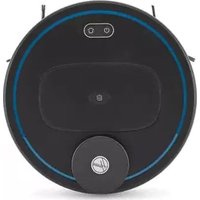
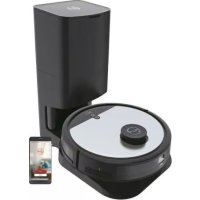
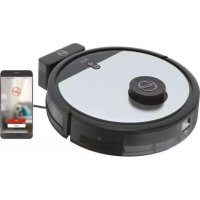
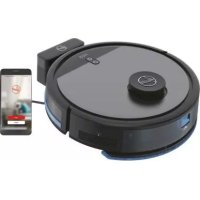
Marque : HOOVER
Modèle : HG450HP 011
Catégorie : Aspirateur robot