MODE D'EMPLOI 400 COMPUTER HUSQVARNA
User's Guide Scandinavia 400
IMPORTANT SAFETY INSTRUCTIONS
When using an electrical appliance, basic safety precautions should always be followed, including the following:
Read all instructions before using this household sewing machine.
DANGER -To reduce the risk of electric shock:
- A sewing machine should never be left unattended when plugged in. Always unplug this sewing machine from the electric outlet immediately after using and before cleaning.
- Always unplug before relamping. Replace bulb with same type rated 5 Watt.
WARNING -To reduce the risk of burns, fire, electric shock, or injury to persons:
- Do not allow to be used as a toy. Close attention is necessary when this sewing machine is used by or near children or infirm persons.
- Use this sewing machine only for its intended use as described in this manual. Use only attachments recommended by the manufacturer as contained in this manual.
- Never operate this sewing machine if it has a damaged cord or plug, if it is not working properly, if it has been dropped or damaged, or dropped into water. Return the sewing machine to the nearest authorised dealer or service center for examination, repair, electrical or mechanical adjustment.
- Never operate the sewing machine with any air openings blocked. Keep ventilation openings of the sewing machine and foot controller free from the accumulation of lint, dust, and loose cloth.
- Keep fingers away from all moving parts. Special care is required around the Sewing machine needle.
Always use the proper needle plate. The wrong plate can cause the needle to break.
- Do not use bent needles.
- Do not pull or push fabric while stitching. It may deflect the needle causing it to break.
- Switch the sewing machine off ("0") when making any adjustment in the needle area, such as threading needle, changing needle, threading bobbin, or changing presser foot, etc.
- Always unplug the sewing machine from the electrical outlet when removing covers, lubricating, or when making any other user servicing adjustments mentioned in the instruction manual.
- Never drop or insert any object into any opening.
- Do not use outdoors.
- Do not operate where aerosol (spray) products are being used or where oxygen is being administrated.
- To disconnect, turn all controls to the off ("0") position, then remove plug from outlet.
- Do not unplug by pulling on cord. To unplug, grasp the plug, not the cord.
- Hold plug when rewinding into cord reel. Do not allow plug to whip when rewinding.
SAVE THESE INSTRUCTIONS
Table of Contents
Learn your Scandinavia 400 4-14
Overview 4
Unpacking 5
Packing away after sewing 5
Connecting the foot control 6
Connecting to the power supply 6
7
Spool pin 8
Threading the upper thread 9
Threading for twin needle 10
Bobbin winding 11
Threading lower thread 12
Thread tension 12
Lowering the feed teeth 13
Changing the presser foot 14
Presser foot pressure 14
Presser foot lever 14
Changing the needle 14
Functions and Infodisplay 15-24
Infodisplay 16
Stitch selection 19
Functions / Embroidery 20
Memory 20
Programming 21
Mirror images 23
Darning and taper satin stitches 24
Embroidery 25-36
Embroidery Accessories 26
Removing the Embroidery unit 26
Connecting the Embroidery unit 26
Embroidery Foot U 27-28
Get started 29
Embroidery hoop 30
Using the Embroidery template 31
Sewingembroideries 32
Function buttons - embroidery 34
Color information/ Language setting 36
Sewing 37-56
Stitch table 38-39
Straight stitch 40
Gathering with straight stitch 40
25 Needle Positions 41
Sewing zippers 42
Reinforced straight stitch 43
Stretch stitch 43
Zigzag 43
Lace edging 44
Three-step zigzag 45
Overcasting 45
Sewing terry cloth 45
Buttonholes 46
Buttonhole sensor foot 47
Buttonhole knife/Seam ripper 48
Sewing buttons 48
Flatlock 49
Blind hem 50
Bridging stitch 51
Seam and overcast 51
Darning stitch 52
Automatic taper stitch 52
Decorative stitches 53
Quilting 54
Applique 54
Pictogram 55
Sewing hints 56
Free arm 56
Jeans hem 56
Sewing on belt loops 56
Care of your Scandinavia 400 57-61
Changing the light bulb 58
Care of the Machine 59
Trouble shooting 60-61
Index 62
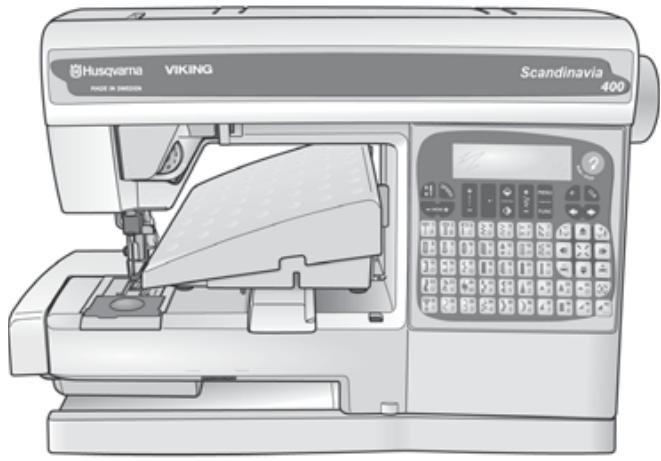
Overview
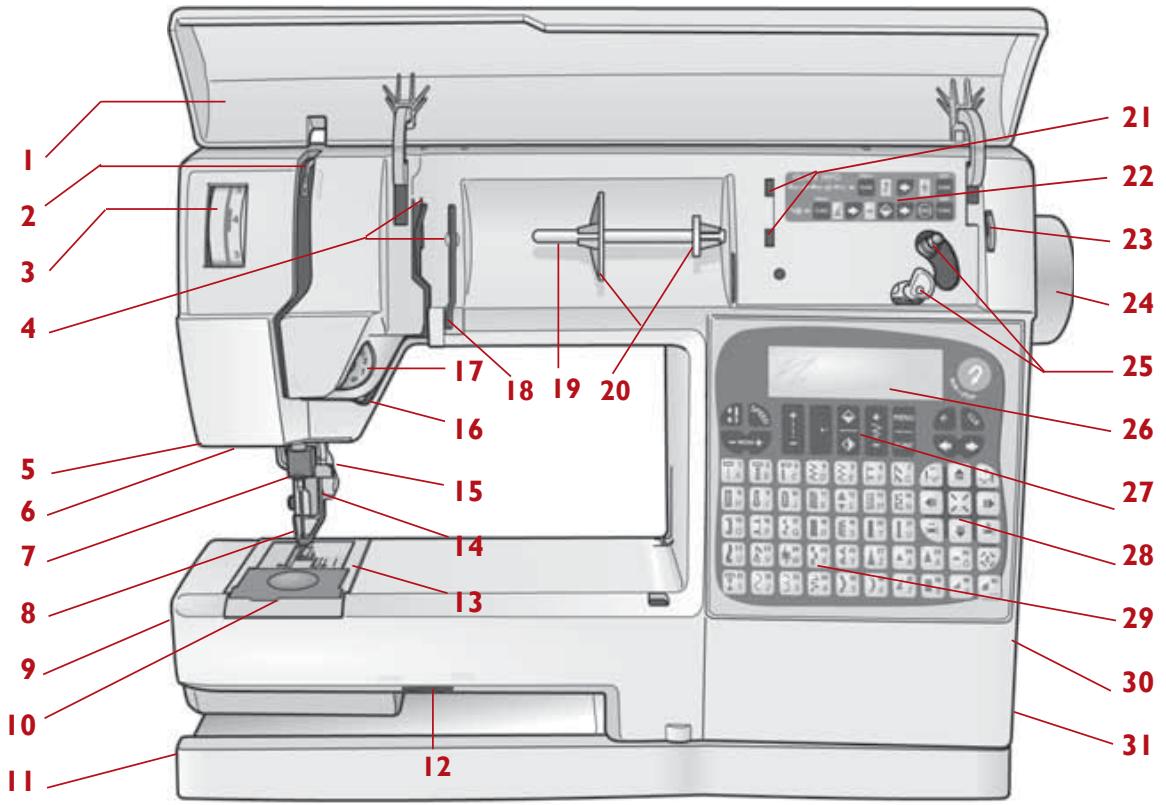
- Lid
- Thread take-up lever
- Presser foot pressure dial
- Thread guide
- Buttonhole sensor socket
- Light
- Needle bar
- Presser foot
- Free arm
- Bobbin cover
- Base plate
- Drop feed dial
- Needle plate
- Presser bar and presser foot ankle
- Needle clamp screw
- Thread tension discs
- Thread tension indicator
- Thread guide for bobbin winding
- Spool pin
- Spool holders
- Recess for additional spool pin
-
Quick Info
-
Thread cutter for bobbin winding
- Handwheel
- Bobbin spindle, Bobbin stop
- Infodisplay
- Function buttons
- Function buttons Embroidery
- Stitch selection buttons
- Embroidery card slot
- Main power switch, Connection to power supply
- Presser foot lever
- Thread cutter
- Embroidery unit socket
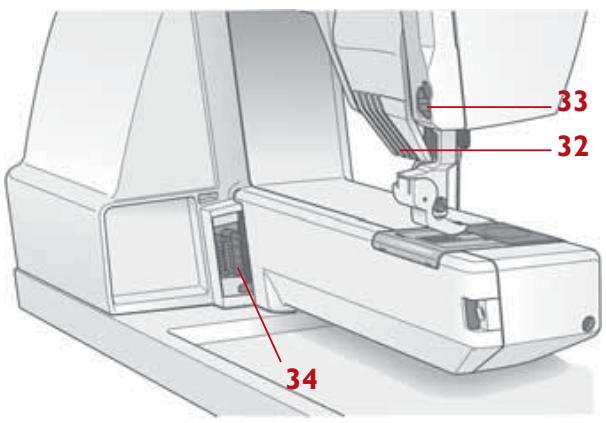
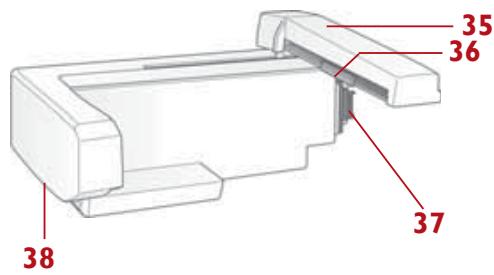
Embroidery Unit
- Embroidery arm
- Embroidery Hoop attachment
- Embroidery unit socket
- Release button
Unpacking
- Place the machine on the table or cabinet, remove the packaging.
- Remove the side parts of the packing material and the foot control.
- The machine is delivered with a soft plastic cover, an accessory bag, a main cord and a foot control cord. There is also a test kit for embroidery and a bag containing embroidery accessories (see page 26).
- Wipe the machine, particularly around the needle and needle plate to remove any soil before sewing.
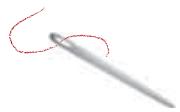
Some fabrics have a lot of excess dye which can cause discoloration on other fabric but also on your sewing machine. This discoloring may be very difficult or impossible to remove.
Fleece and denim fabric in especially red and blue often contain a lot of excess dye.
If you suspect that your fabric/ready-to-wear garment contains a lot of excess dye, always pre-wash it before sewing/embroidering to avoid the discoloring.
Packing away after sewing
- Unplug the cords from the wall socket and the machine. Wind the cords around your hand and place the foot control cord in the foot control storage space. Place the foot control as illustrated. Lower the presser foot. Remove the embroidery card.
- Slide the cover over the machine. Place the main cord in the pocket of the cover. There is also space provided for the operating manual, the embroidery accessories and the other accessories.
Among the accessories you will find the foot control cord and the main cord.
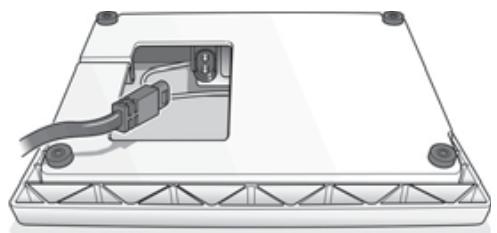
- Place the foot control on its narrow side. Fit the plug into the socket inside the foot control compartment.
- Push it firmly to make sure it is properly connected. This operation is only necessary the very first time you are going to use the machine.
- To correctly turn away the cord, place it into the slot, see picture.
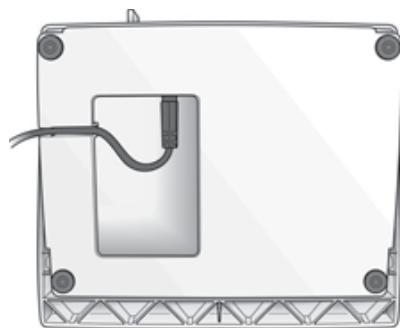
Note: Before plugging in, check to ensure that the foot control is of "type FR4".
Connecting to the power supply
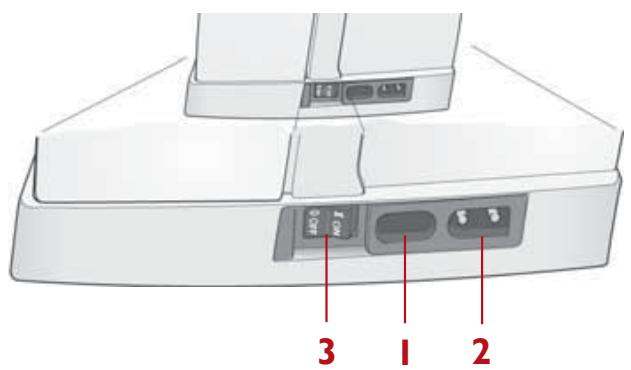
On the underside of the machine you will find information about the power supply (V) and the frequency (Hz). Check the power supply setting in the machine to ensure that this agrees with the main supply before you connect the machine.
- Connect the foot control cord to the first socket on the bottom right side of the machine.
- Connect the main cord to the back socket on the bottom right side of the machine.
- When you press the power switch, both the machine and the light are switched on.
For the USA and Canada
This Sewing Machine has a polarized plug (one blade wider than the other). To reduce the risk of electric shock, this plug is intended to fit in a polarized outlet only one way. If the plug does not fit fully in the outlet, reverse the plug. If it still does not fit, contact a qualified electrician to install the proper outlet. Do not modify the plug in any way.
Accessories
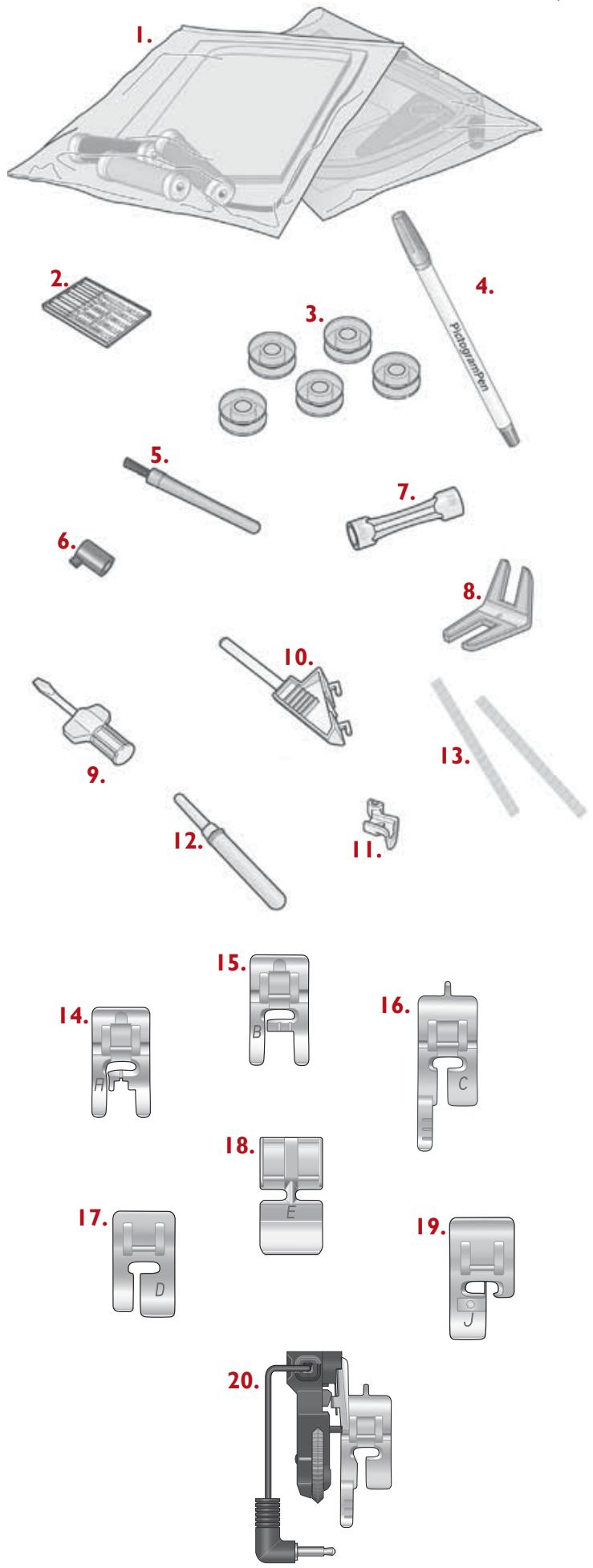
You will find a number of accessories included with your sewing machine. Learn to use them on the following pages of this User's Guide.
- Embroidery accessories (see page 26)
- Needles
- Bobbins
- Pictogram Pen
- Brush
- Stitch plate opener (to be attached to the brush)
- Light bulb remover
- Clearance plate
- Screwdriver
- Vertical spool pin
- Presser foot ankle
- Seam ripper
- Thread net
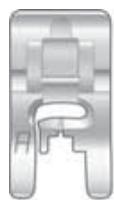
- Presser foot A
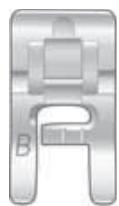
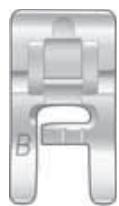
- Presser foot B
- Presser foot C
- Presser foot D
- Presser foot E
- Presser foot J
- Sensor Buttonhole Foot
Spool pin
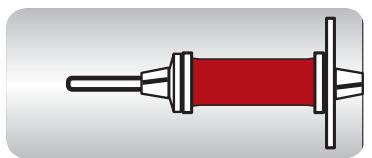
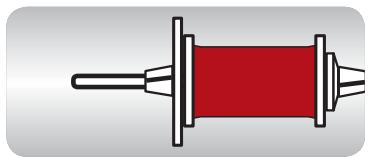
The machine has spool pins suitable for all types of thread. The main spool pin (a) is horizontal - the thread reels off the stationary spool. Place the spool so that the thread reels counterclockwise.
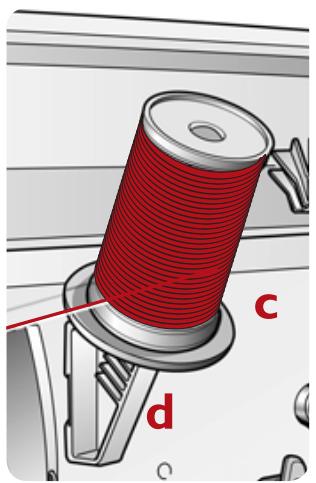
There are two spool holders on the spool pin. With narrow thread spools, the small holder (b) is placed in front of the thread. If you use large thread spools, the large holder (c) is placed in front of the thread. Slide the correct size spool holder in place so the flat side is pressed firmly against the spool, with no space between spool holder and spool.
There is also a separate vertical spool pin (d) to be attached onto the machine. The fingers on the extra spool pin fit into the two holes to the right of the fixed spool pin. Push downward to snap in place. The large spool holder (c) is placed under the thread. This spool pin is used when winding a bobbin from a second spool of thread or for a second spool when sewing with a twin needle.

Threading the upper thread
! Turn off the main switch.
Make sure the presser foot is raised and the needle is in the up position.
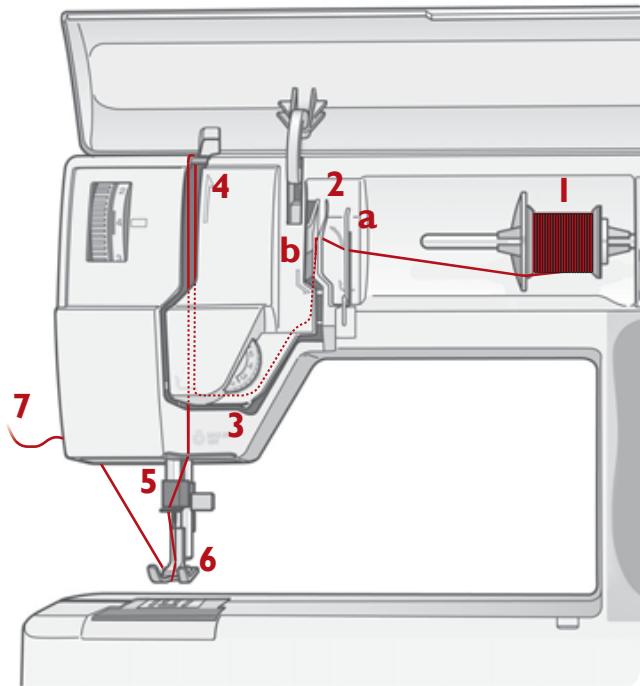
- Pull the spool pin out. Place the thread on the spool pin and the spool holder on the spool pin as described. Push the spool pin back in.
- Bring the thread in the direction of the arrow under the thread guide (a) and over the thread guide (b).
- Bring the thread down between the thread tension discs.
- Continue threading by drawing the thread from the right into the slot on the take-up lever.
- Thread last guide just above needle.
- The needle is threaded from front to back. The white on the presser foot ankle makes it easy to see the eye of the needle.
- Place thread under the presser foot and into the thread cutter where it is cut.
Upper thread warning
If the upper thread breaks or if thread spool runs out, the machine stops and gives a signal. The symbol is flashing on the display. If thread breaks: Re-thread the machine. The symbol goes out. If thread spool runs out: Remove your work and the bobbin. Re-thread the machine. Replace the bobbin and restart.
Threading for twin needle
! Turn off the main switch.
Make sure the presser foot is raised and the needle is in the up position
- Insert a twin needle (optional accessory).
- Wind a bobbin with the thread you are going to use as the second upper thread.
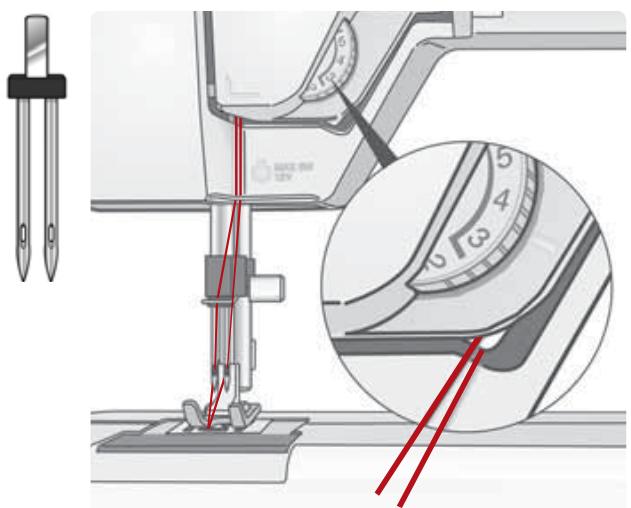
- Thread the machine as described and check to ensure that the thread lies between the inner thread tension discs, outside the lowest thread guide. Thread left needle.
- Attach the extra spool pin onto the machine. Place a spool holder under the thread.
- Place the bobbin with the second thread on the spool pin.
- Thread the machine as before but this thread should lie between the outer thread tension discs, outside the lowest thread guide. Thread right needle.
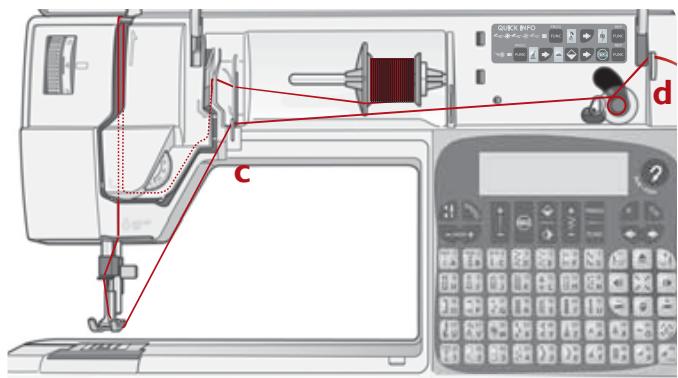
Bobbin winding from the needle
Make sure that the presser foot is up and the needle is in the highest position.
- Place your empty bobbin with the small mark outwards on the bobbin spindle on the front of the machine.
- Pull the thread from the needle under the presser foot and to the right over the thread guide (c).
- Start from above and wind a few turns of thread around the bobbin. Cut off the thread on the thread cutter (d).
- Bring the bobbin spindle down. Press the foot control. When the bobbin winding is finished, the bobbin will stop automatically. Remove the bobbin, cut off the thread and bring the bobbin spindle up.
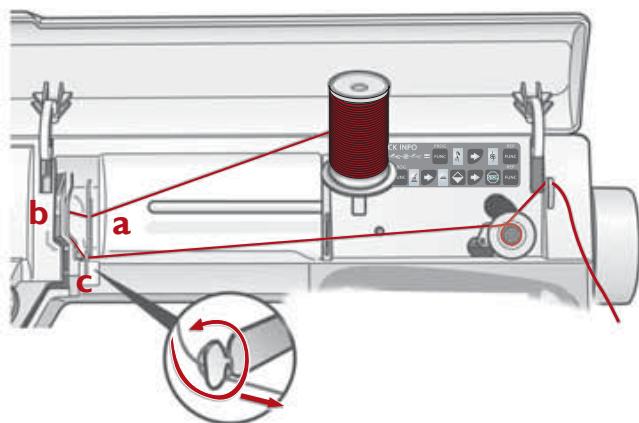
Bobbin winding - vertical spool pin
- Place an empty bobbin with the mark outwards on the bobbin spindle on the front of the machine.
- Place the large spool holder under the thread on the spool pin.
- Bring the thread under the thread guide (a) and over thread guide (b), then around thread guide (c) as illustrated.
- From above wind a few turns of thread around the bobbin and into the cutter.
Note! We do not recommend winding specialty threads such as clear nylon or other stretchy threads through the needle. Instead see "Bobbin winding - vertical spool pin" below.
- Bring the bobbin spindle down. Press the foot control. When the bobbin winding is finished, the bobbin will stop automatically. Remove the bobbin, cut off the thread and bring the bobbin spindle up.
Threading lower thread
! Turn off the main switch.
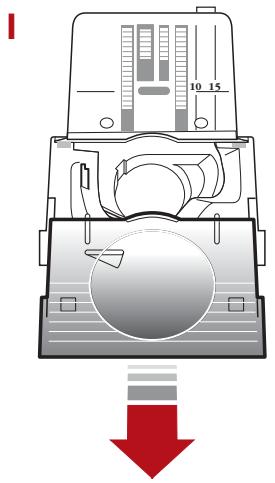
- Open the cover by slightly pulling it towards you and take it away.
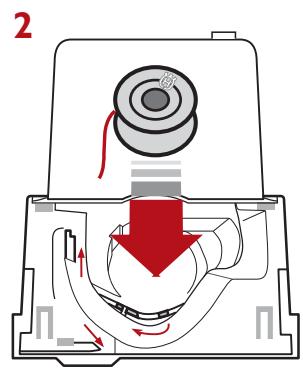
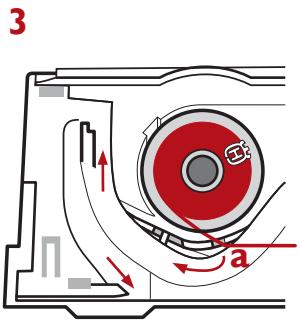
- Place the bobbin in the bobbin case with the mark facing upward and the thread to the left of the bobbin. The bobbin will then rotate counter clockwise when pulling the thread.
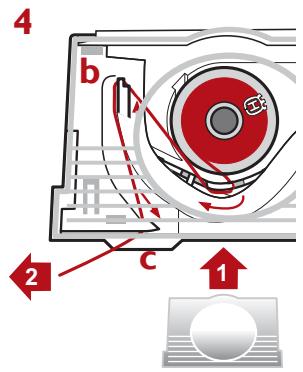
- Hold the bobbin and pull the thread to the right passing (a).
- Hold the thread tight and pull it to the left so that the thread falls correctly into the tension spring. Continue threading around (b) and to the right of the thread cutter (c). Replace the cover and slide it into position. Then pull the thread to the left to cut it.
Top thread tension
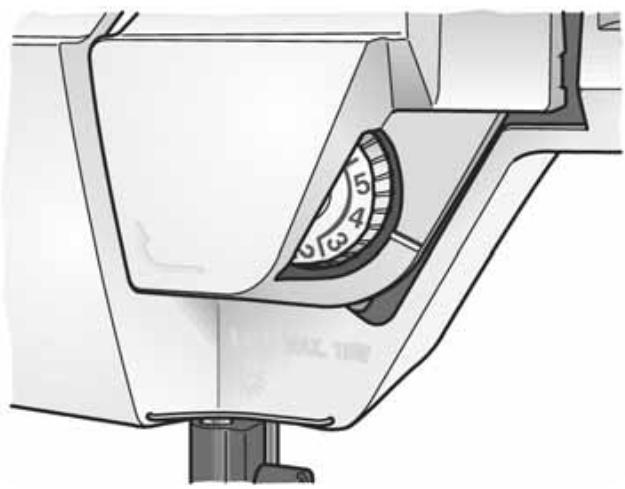
The thread tension is adjusted automatically when you select a stitch or an embroidery. This is shown by the thread tension indicator being reset.
Do not turn this dial manually!
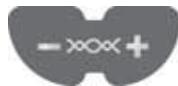
You can adjust the thread tension by pressing the
buttons, see page 18. Using the button (-) you decrease the tension and using the button (+) you increase the tension. The adjustment affects all stitches and will remain until the machine is turned off or until changed manually.
Normal thread tension is 4.
When selecting buttonholes and decorative stitches and for embroidery the thread tension is reduced automatically.
When topstitching with a heavy thread in thick fabric, increase the tension to 7-9.
When the machine is turned on, the tension is set to normal automatically.
Correct and incorrect thread tension
To understand the correct thread tension, sew a few sample stitches at different settings.
Adjust tension only with the function buttons (see page 18). Do not turn dial.
- Begin with a tension that is too loose, i.e. set at "1". The lower thread will lie straight and the upper thread will be drawn down on the underside.
- If you set the tension at the highest number, the opposite will occur, and the seam may pucker.
- When thread tension is correctly set the threads interlock in the middle of both layers of material or, in the case of decorative stitches, on the underside.
Lowering the feed teeth
The feed teeth are lowered automatically when the embroidery unit is in place.
When removing the embroidery unit, the feed teeth will raise as you start to sew.
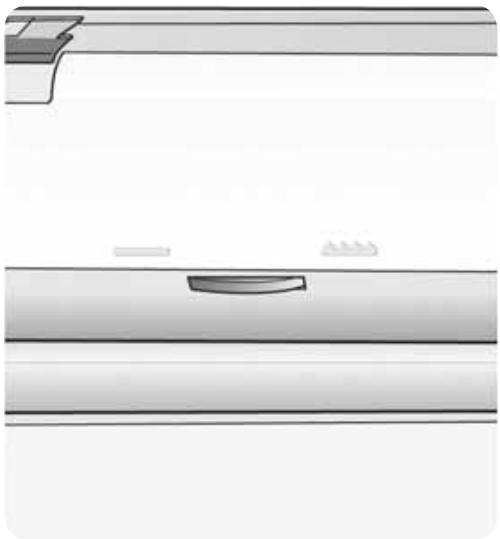
The feed teeth are lowered when you turn the dial to the left to _. Turn the dial to the right to __ if you wish to raise the feed teeth. The feed teeth will not come up until you begin to sew.
Lower the feed teeth for sewing buttons and for free motion quilting and embroidery.
By lowering the feed teeth it is easier to get thick garments under the presser foot. Do not forget to raise the feed teeth before starting to sew.
Note! Make a few tests on a scrap piece of the material you are going to sew and check the tension.
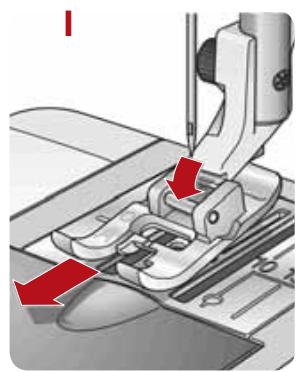
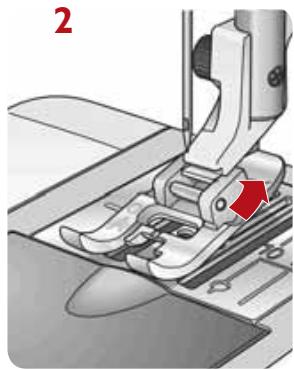
! Turn off the main switch.
- Make sure that the needle is in the highest position. Pull the presser foot down and towards you.
- Line up the cross pin on the foot between the spring and the presser foot ankle. Press back until the foot snaps into place.
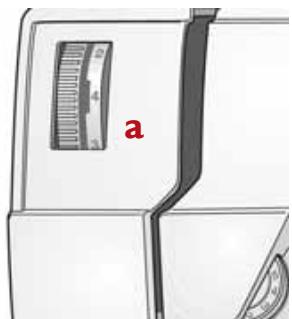
The presser foot pressure is adjusted with the dial on the front of the machine. Normal setting is 4. The higher the number the more pressure on the fabric. Knit and lightweight fabrics should be sewn with less pressure, 3-2.
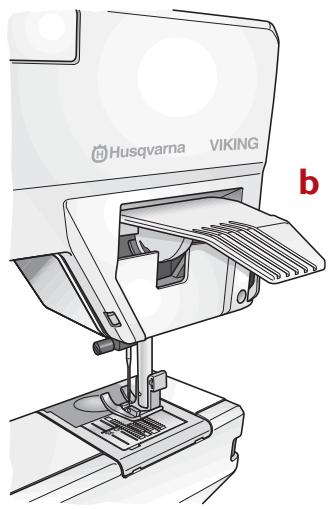
The presser foot is raised and lowered with the presser foot lever. The presser foot must be lowered when sewing. The machine will not start if the presser foot is in the raised position.
By raising the presser foot lever as far as it goes and holding it there, the lift height of the presser foot can be increased to place thick fabric and to slide on or remove hoop.
Changing the needle
! Turn off the main switch.
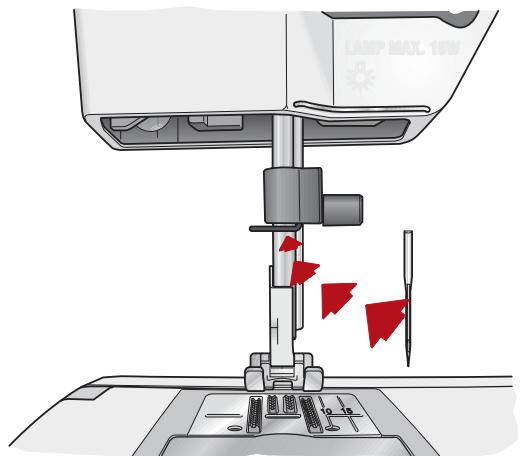
- Loosen the screw in the needle clamp.
- Remove the needle.
- Push up the new needle with the flat side away from you until it will go no further.
- Tighten the screw properly.
Always use needles of system 130 / 705 H .
FUNCTIONS AND INFODISPLAY
Scandinavia
400
Functions and Infodisplay
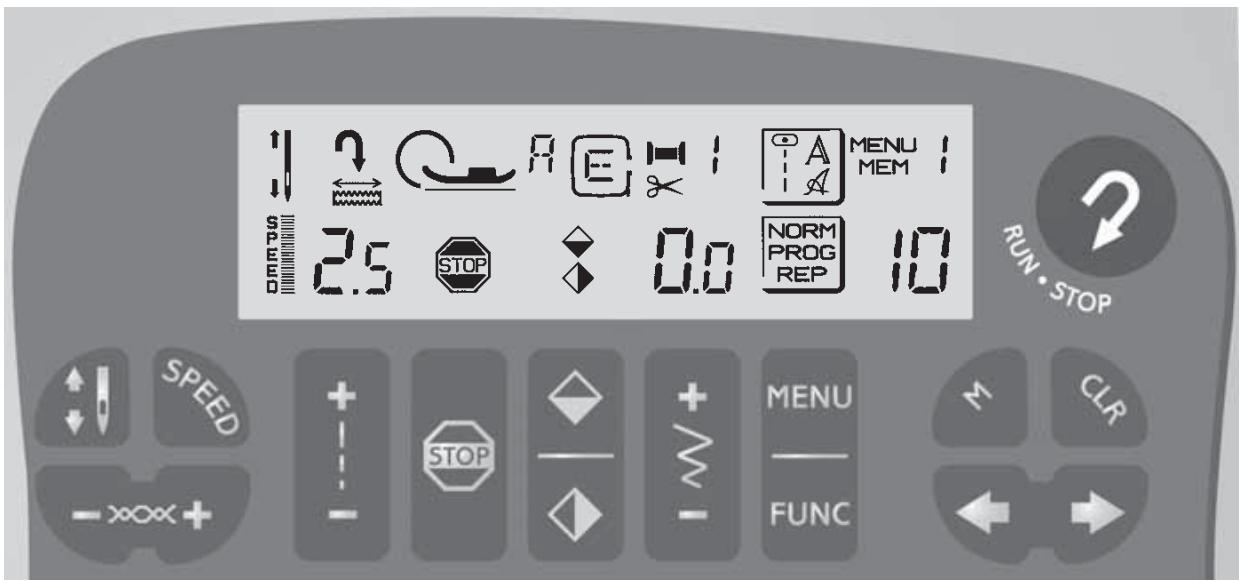
Needle stop
This button sets whether the needle stops up or down in the material when you lift your foot from the foot control and stop sewing. Point the arrow upwards - the needle will stop in the up position. When you touch the button so that the arrow points downward, the machine will stop with the needle in the material.
You can also regulate the needle stop position with the foot control. To raise or lower the needle after stopping, lightly tap the foot control.

When sewing embroideries only the up position can be used.
Sewing speed

Use the SPEEDD button to set the three different maximum
speeds. The machine will sew at different maximum speeds when the foot control is fully depressed. For slower speeds within the range simply press the foot control less.

When Embroidery position is set, only the slowest speed can be detected.
All stitches in the machine have a preset maximum speed at which they can be sewn. When you select a stitch the machine automatically sets the correct maximum speed.
Reverse

Your machine sews backwards when this button is pressed.
The machine sews forward
when the button is released. The longest stitch length when reverse feeding is 3mm
For permanent reverse, press the button twice in quick succession before starting to sew. An arrow to the top left on the display indicates reverse sewing. To sew forward again, press the button once more.

The reverse button is also used when starting and stopping the embroidery unit, (the foot control can be used).
Stitch length

When you select a stitch, the machine will automatically set the best stitch length which will be indicated by numbers on the
Infodisplay. You can change the stitch length by pressing either the (+) or (-) button. Certain stitches have a limited stitch length. Not active in REP position.

When sewing embroideries the length can be set between 2 and 6
to change size of embroidery.
STOP

The STOP button is used to finish a stitch. i.e. the machine fastens the thread and stops automatically when the stitch
has been completed. The symbol STOP on the display indicates that STOP is selected. STOP is cancelled when you press the button again or by selecting a new stitch.
The button has the same function both in NORM and REP position.
(See "Satin taper...", page 24, STOP, page 23.

Embroidery sewing without thread color change, see page 34.
Mirror image

You can mirror a stitch by using the buttons , mirror image side to side and , mirror image end to end. The symbols will be
displayed.

When sewing embroideries only mirror image side to side can be bed.
Stitch width

When you select a stitch, the machine automatically sets the best stitch width which is displayed with numbers on the
Infodisplay. You can change the stitch width by pressing the (+) or (-) button. The width can be adjusted between 0 and 6mm . Not active in REP position.

When sewing embroideries the width can be set between 2 and 6, change size of embroidery.

Your machine has three menus - one for stitches, two for letters.
Your choice is displayed when you have pressed the MENU button to select stitches 12 outline block letters A or script letters A. The stitch number or the selected letter will also be displayed.

When sewing embroideries the menu number will be displayed to upper right.
FUNC - Selected function

When you turn on the machine, the selected function displays
NORM. Touch the FUNC button to PROG for programming. If you touch the button again, REP = repeat will be displayed to sew your programmed stitches. After a third touch, NORM is displayed again.

Not used when sewing.
embroideries.
Functions and Infodisplay
Memory - position

These buttons are used to advance or return within
a memory, when entering or checking stitches. See page 20.
Thread tension - adjustment
Use these buttons to adjust the thread tension
manually. The adjustment affects all stitches and will remain until the machine is turned off.
CLR - Deleting stitches

This button is used while in PROG if you wish to delete
what you have programmed. See page 24.

After finishing your embroidery sewing, touch the CLR button.
The embroidery arm returns to ready position.
Memory - number

The machine has 4 different program memories. Each
memory will hold up to 55 stitches or letters. The button is used to advance to the memory required in PROG or REP. The number is shown on the display to the upper right. See page 20.

Not used when sewing.
embroideries.
When you plug the buttonhole sensor foot into the machine and place the white field of the measurement wheel against the white mark, the symbol will show brightly on the display. See page 47.
The letter shows which presser foot is correct for the stitch you have selected. The corresponding letter is on the presser foot.
Stitch selection
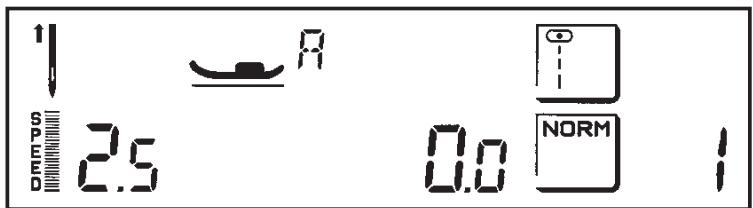
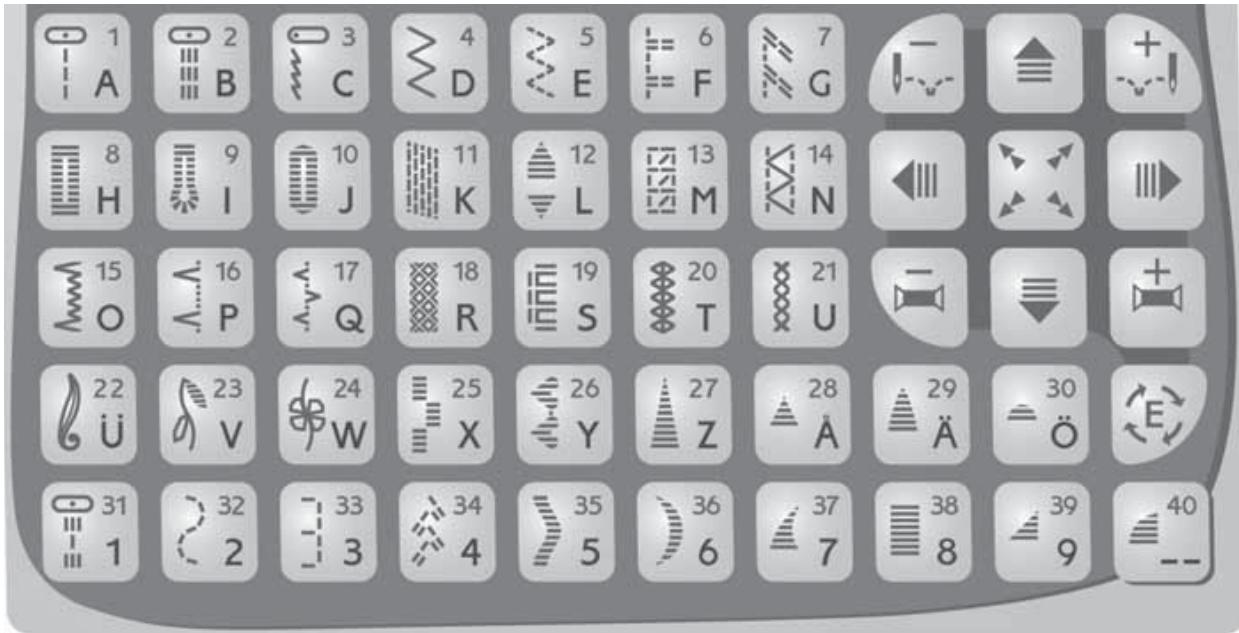
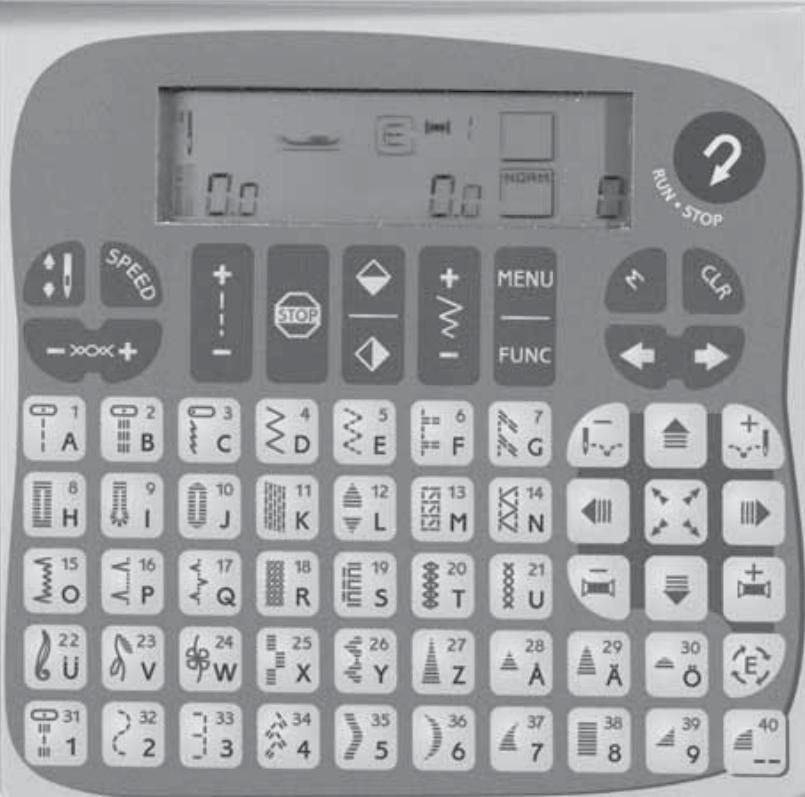
When you turn on the machine without having the embroidery unit connected, it always selects straight stitch and the number 1 as well as is displayed. The machine has one menu of stitches shown on the selection buttons with white symbols and two menus of letters shown in black symbols.

With the MENU button you select which menu you wish to
The selected menu will be displayed, for stitches, A or A for letters.
To the very right on the Infodisplay the number of the selected stitch or the selected letter is displayed.
When the embroidery unit is connected only the numbers of the selection buttons are used. In the Embroidery booklet each embroidery has a number.
sew.
ABCDEFGHIJKLMNO
PQRSTUUVWXYZA
123456789
ABCD F G H J
K L M N O P Q R S T
U U V W X Y Z A A O
0 1 2 3 4 5 6 7 8 9
Functions / Embroidery
Positioning
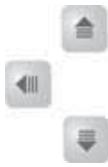

These buttons allow you to move the embroidery in four directions.
Rotation

Touch this button once and your embroidery will rotate a quarter
of a turn.
Stitch advance


These buttons allow you to step stitch by stitch forward
(+) or backward (-) within your embroidery.
Color advance


Many of the embroideries have color changes. These
buttons allow you to step forward (+) or backward (-) to the beginning of each thread color change.
Check size

This button allows you to step from one corner to another
within your embroidery to check the finished size of your design.

When your embroidery is finished, touch this button. The
embroidery arm returns to parking position. The embroidery unit can now be removed. Read more about embroidery sewing on page 32-36.
MEMORY
The machine has 4 different program memories.
Each memory holds up to 55 stitches or letters. You can combine any stitches/letters you wish with the exception of stitches 8-12.
When selecting PROG or REP, the memory you last used will be displayed. Your machine will remember what you have programmed even when it is switched off.
Use the buttons marked with arrows to advance or return within the memory, to the right and to the left. These buttons are used in PROG position when programming and in REP if you wish to check what is programmed or if you wish to start sewing a few stitches into the program.
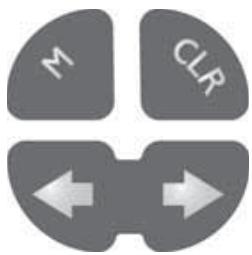
Programming
Touch FUNC so that PROG is shown on the display. If you already have a program in the memory this will now be shown.
- Touch CLR to empty the memory. See page 24.
- Touch MENU to select the desired menu for your new program (stitch, or your choice of lettering style).
In this way you can combine different stitches according to your own taste and imagination. With the button you can go backwards to see what you have programmed.
To sew your program, touch FUNC to the REP position. The machine will be positioned at the first programmed stitch.
Example
Select a stitch e.g.

Touch the button

The stitch is now entered in the memory.
Select another stitch e.g.

Touch the button FUNC.
Also see "Quick info" on the machine.
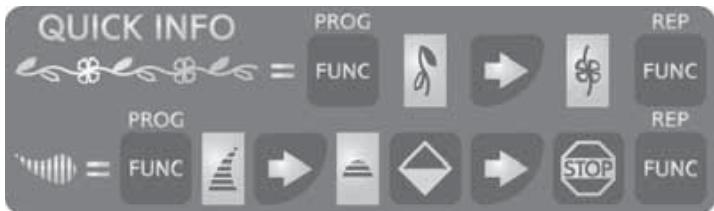
Example:
Select PROG function. Select the stitch menu.
Select a stitch, touch
Touch MENU to change menu to block letters.
Select a letter , touch
Select another letter , touch
Touch MENU to change to stitch menu.
Select a stitch, touch
Touch STOP.
Touch REP to sew.
Programming with stitch changes
In PROG position you can change stitch length and width or mirror stitches. Certain stitches, however, have a limited stitch length.
- Select desired stitch.
- Use the stitch length and the stitch width buttons (+) or (-) or the mirroring buttons to change the setting before entering with the button.
Corrections
If you wish to change a stitch or a letter to another one in your program:
- Touch FUNC to PROG.
- Use the buttons marked with arrows or until the stitch number or the letter is displayed.
- Select the new stitch or letter.

Mirror images
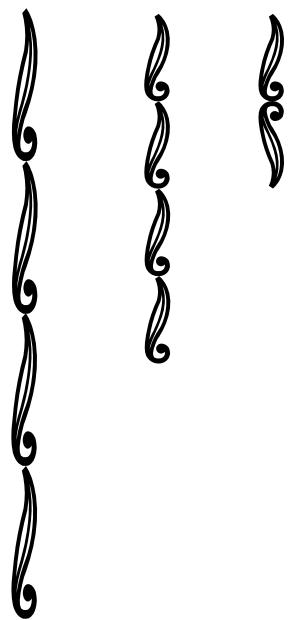
Mirror image side to side
In NORM and PROG only the stitch selected is mirrored. The entire program is mirrored in REP. You can also mirror the width when you wish to change the straight stitch needle position, e.g. from left to right.
When mirror image side to side is selected the symbol will be shown on the Infodisplay.
Mirror image end to end
In NORM and PROG only the stitch selected is mirrored. The entire program is mirrored in REP.
When mirror image end to end is selected the symbol will be shown on the Infodisplay.

Programming STOP
The STOP button is used to conclude a stitch program, i.e. the machine fastens the thread and stops automatically when the sewing of your stitch or letter combination is completed. The symbol is displayed to the very right.
You can continue your programming even after having pressed STOP. In REP position the STOP is displayed. Then, when sewing, the machine stops automatically and fastens the thread in every position where you have programmed STOP and at the end of the stitch combination. Just press the foot control again and the machine will sew the rest of what you have programmed.
If you wish to repeat your stitch combination without having the machine stop, press the STOP button to cancel the STOP in REP position.
The symbol STOP will disappear from the Infodisplay.
(If you should forget to enter STOP while in PROG it is also possible to use the STOP button in REP position. The STOP will remain until you select another function or stitch.)
If you have programmed STOP at the end of your program and then mirror the entire program in length, the STOP will be placed at the beginning. Use the button and advance to the next stitch to avoid STOP.
If you cancel the STOP button when sewing embroideries, the machine will sew the entire embroidery without stopping to change thread color.
Look through the program
If you have programmed several of the memories you can press FUNC for PROG or REP. Use the M button to select the following memory and then advance with the buttons
The memory last used will appear on the display when you select PROG or REP.
CLR - Deleting stitches
If you wish to delete a certain stitch within the program:
- In the PROG position, use one of the buttons until the actual stitch number is displayed.
- Touch CLR. Now the stitch and everything to the right of it will be deleted.
-
If you wish to delete the whole program, touch the FUNC button to return to PROG. The machine will be positioned at the first programmed stitch.
-
Touch CLR. CLR deletes the program of stitches in the selected menu.
If you by mistake touch CLR, simply touch CLR again to bring back the balance of your program as long as you have not used another button.
When the program memory is empty the stitch length and width is shown as 0.0 / 0.0 on the display.
Letters are deleted in the same way.
Darning and taper satin stitches
The stitches 11-12 can only be selected in NORM position. They can not be programmed or combined but are set individually and automatically. For stitches 11 and 12 there are stitch memories where the number of stitches, length or width changes are stored.
- Sew until the stitch has reached the desired length.
- Touch the button. The machine now completes the stitch.
- When you have the result you wish, touch STOP.
- The stitch will now repeat in succession and the machine will stop automatically when the stitch is completed.
If you wish to sew another stitch and then return to your stitch, you only select this stitch and touch STOP.
The repeated stitch is retained even if you switch off the machine.
If you attempt to program these stitches in the PROG position, PROG is flashing to indicate that this is not possible.
EMBROIDERY
Embroidery Accessories
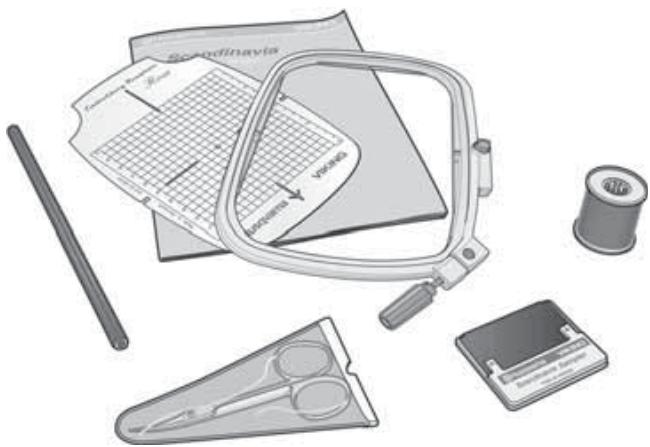
The Embroidery accessory bag contains embroidery hoop, embroidery booklet, embroidery template, template pencil, embroidery card, a pair of scissors, thread and a test kit.
Removing the Embroidery unit
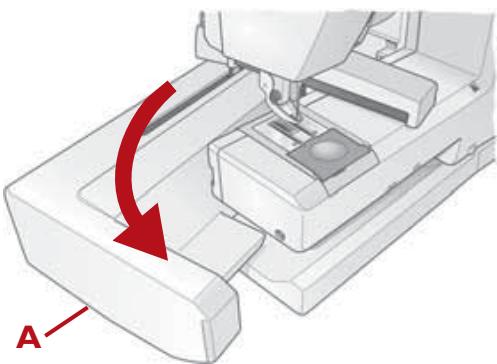
Touch CLR to move embroidery arm to park position.

Turn off the main switch.
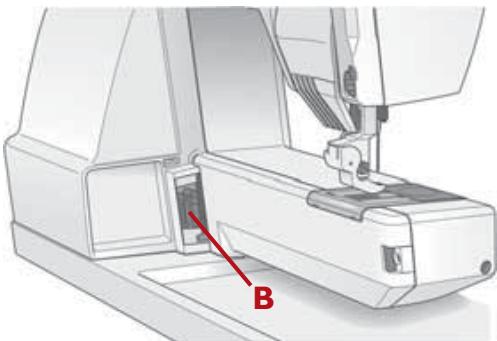
Make sure the machine is turned off while removing the embroidery unit. Press the release button (A) at the center of the left side on the underside of the unit and slide it off.
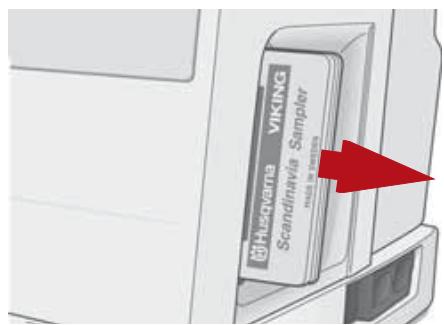
Remove the embroidery card.
Connecting the Embroidery unit

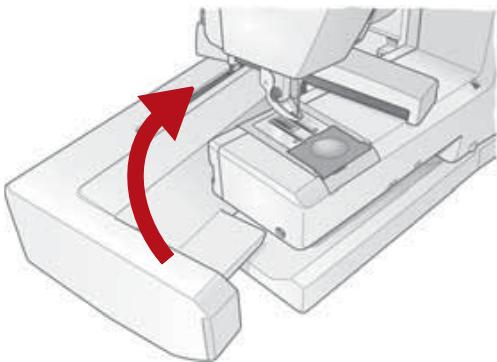
Turn off the main switch.
Slide the arm of the embroidery unit to the right of the needle and the presser bar and push the unit to the right until it plugs into the socket (B).
Turn on the machine to calibrate.
The embroidery unit is now ready. The feed teeth are lowered automatically.
! Turn off the main switch.
- Raise the presser foot lever.
- Unscrew the presser foot.
- Remove the presser foot U from behind out of the presser bar by pushing the presser foot downward.
- Insert the presser foot ankle, screw and tighten. Snap on the desired presser foot (see page 14).
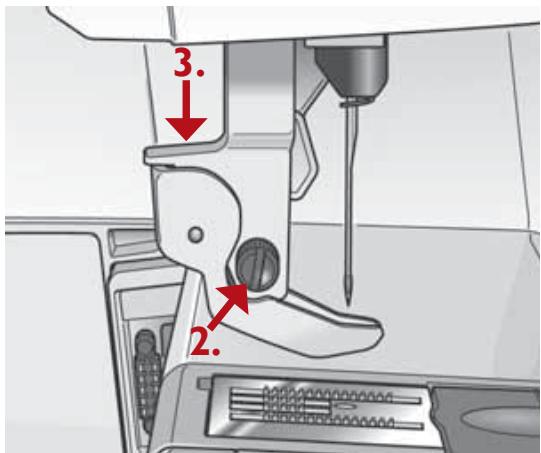
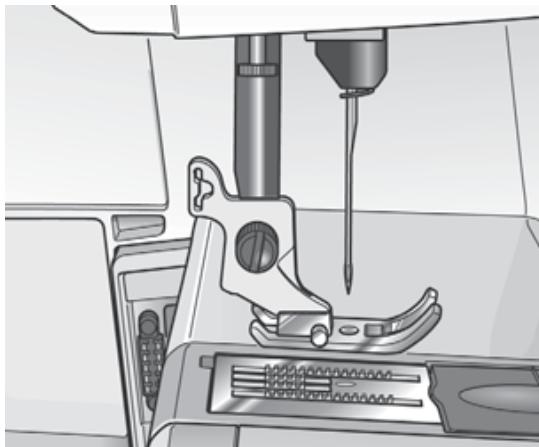
! Turn off the main switch.
Raise the presser foot lever and remove the presser foot.
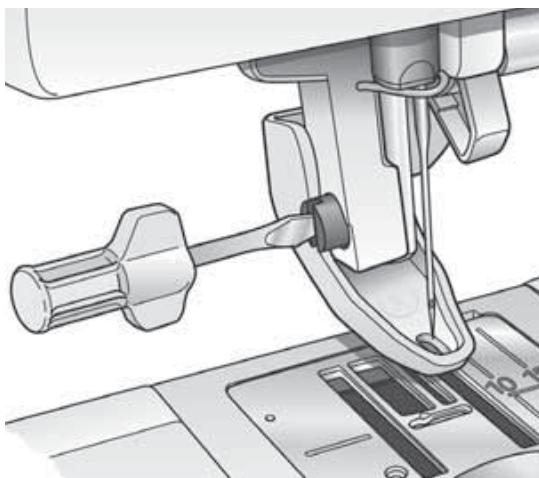
Use the screw driver to loosen the screw on the presser foot ankle. Remove the ankle.
Place the Embroidery Foot U, from behind onto the presser foot bar. The arm of the presser foot should rest on top of the needle clamp screw. Use the hand wheel to lower the needle slightly until the foot slides in place.
Position the foot so that the hole on the foot matches the hole on the presser foot bar.
Insert the screw and tighten the screw with the screw driver.
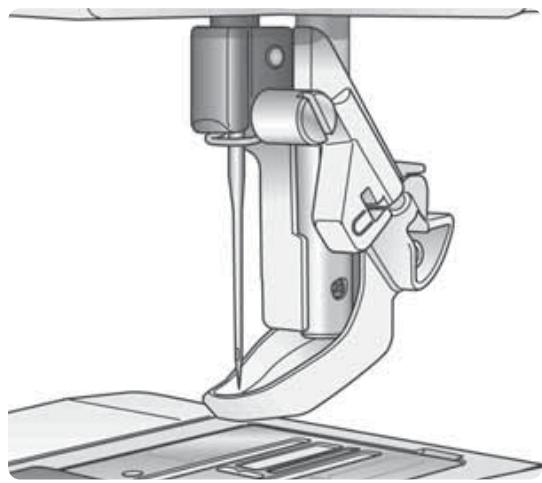
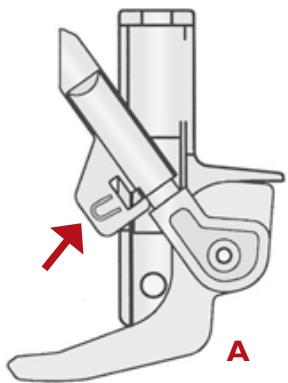
Embroidery: The lever on the arm of the presser foot should be downward (A). The mark U on the lever corresponds to the symbol on the display.
Quilting or embroidering thick
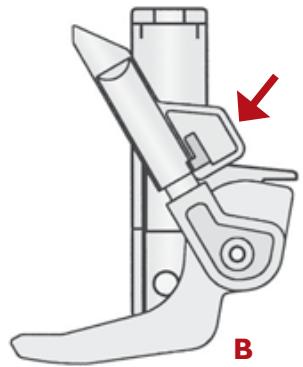
fabrics: Turn the lever upward (B) to allow more clearance between the foot and the fabric.
Thread
Thread the needle with 40 wt rayon embroidery thread. When reducing the size of the embroidery we recommend a finer thread, 60 wt. When enlarging, we recommend a thicker thread, 30 wt.
Place the net over the thread spool, especially when using Rayon thread. Use a very fine thread as bobbin thread. There is a special embroidery bobbin thread available.
Note: When bobbin winding you can
use the button to start and stop. See page 11 "Bobbin winding - vertical spool pin".
Get started
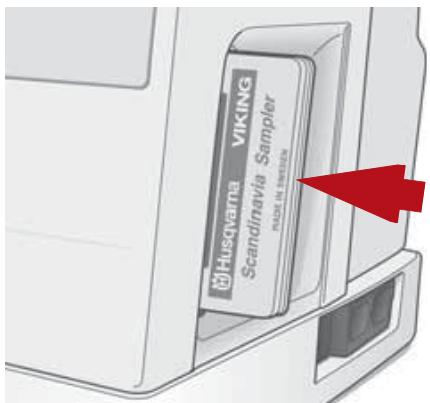
- Insert the embroidery card (Scandinavia Sampler) into the slot on the right side of the machine. To remove the card, pull it straight out.
- Turn the machine on. If the presser foot is in lower position the symbol is flashing on the Infodisplay. When raising the presser foot, the machine calibrates. If the needle is in its down position it will automatically go to up position. The embroidery unit will take the ready position.
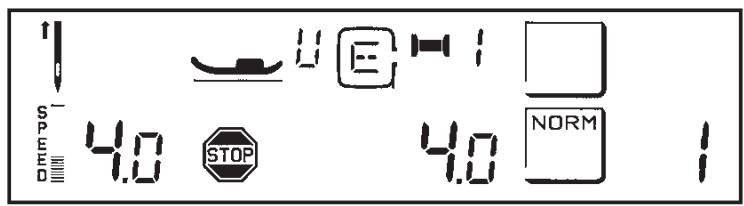
- When you have finished your embroidery, touch CLR. The arm returns to park position. Turn off the machine.
Scandinavia Sampler - Embroidery Booklet
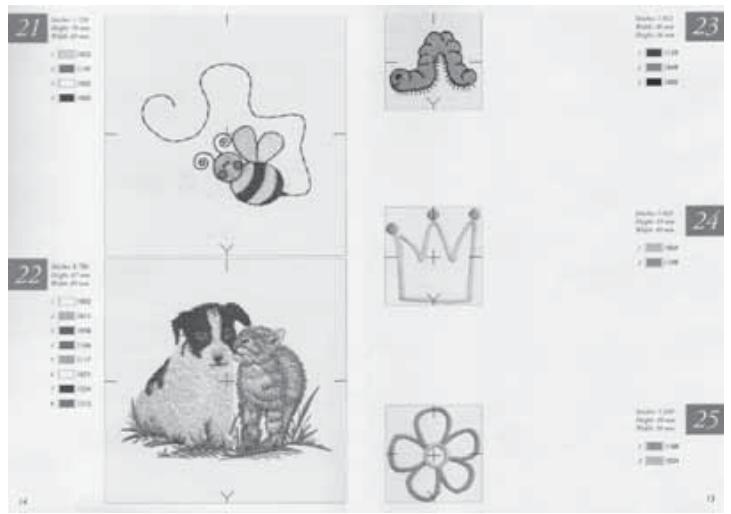
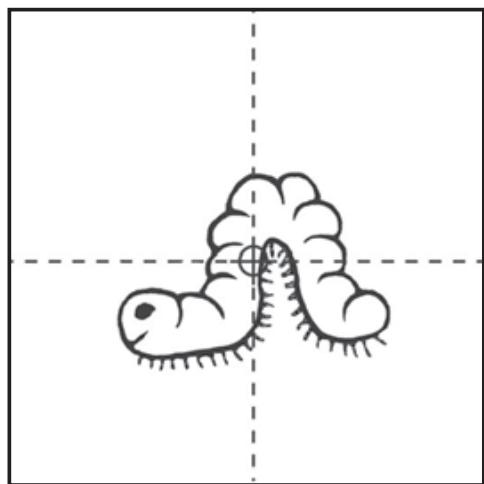
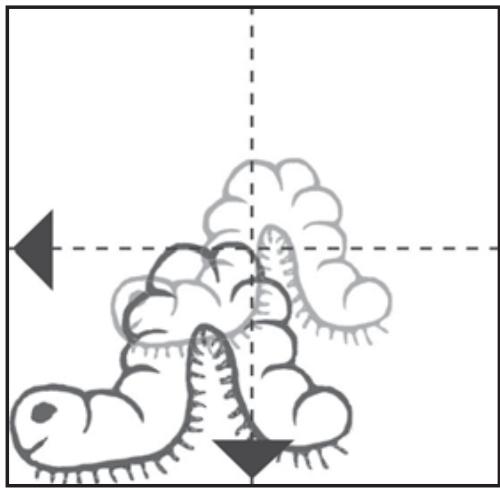
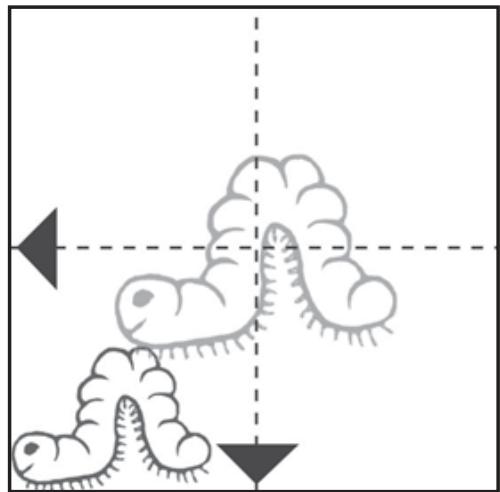
The embroideries are pictured in actual size in the Embroidery Booklet. Each embroidery is placed in a square where the center of each side is marked and a cross marks the center point of the design.
You will also see how each embroidery is placed related to the center point of your sewing space.
The row of thread spools next to the.
embroideries shows the number of
thread color changes, suggested colors,
and the order of changes.
Embroidery hoop
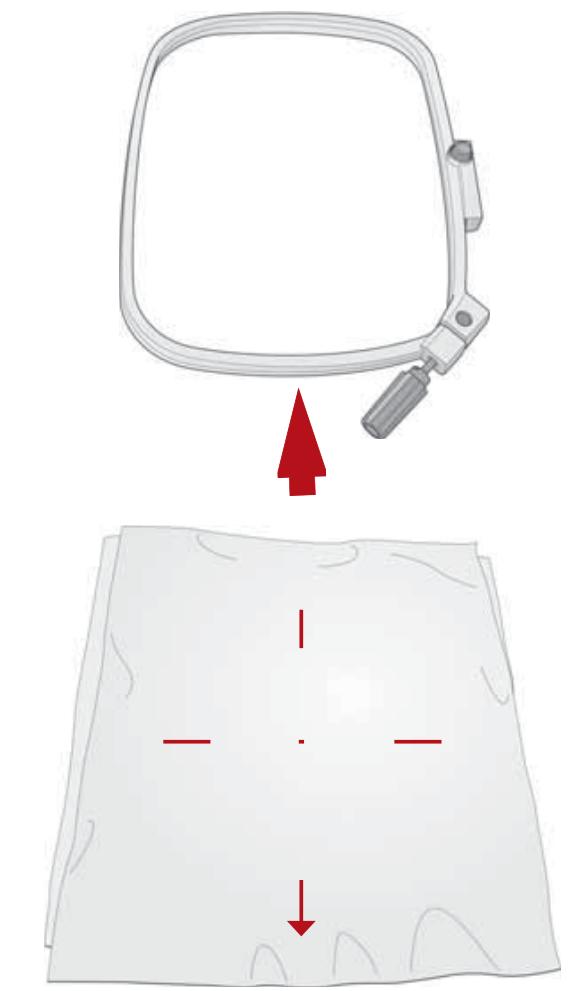
- Loosen the screw on the outer hoop, place the outer hoop so that the screw is down to the right.
- At the front edge of the hoop there is an arrow.
- A corresponding arrow is located on the inner hoop as well as center marks in the two directions. You should take notice of the back marks. Trace design on template with pencil.
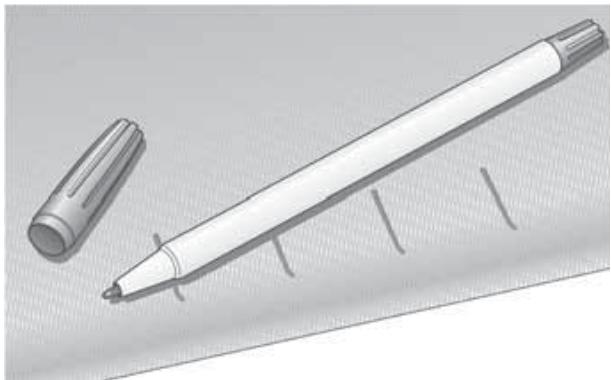
- Place the embroidery template on your fabric. Use the PictogramTM pen to mark within the grooves and in the center.
- Place the inner hoop, the marks matching the ones on the fabric. Side marks should line up with the top marks on the sides of the hoop. We recommend using a tear-away stabilizer in the hoop under the fabric. Press hoop, fabric and stabilizer down, into the outer hoop and tighten the screw. The arrows of the outer and the inner hoops should both be at the bottom.
- Slide the hoop under the presser foot - raise up the presser foot lever to take advantage of the extra lift of the presser foot. Slide hoop from the front onto the embroidery arm.
Note: Always sew a sample Embroidery on a scrap of the same fabric you will embroider.
- When embroidery is completed, raise the presser foot before removing the embroidery hoop from the machine. Press the purple button located to the right on the hoop and pull the hoop towards you.
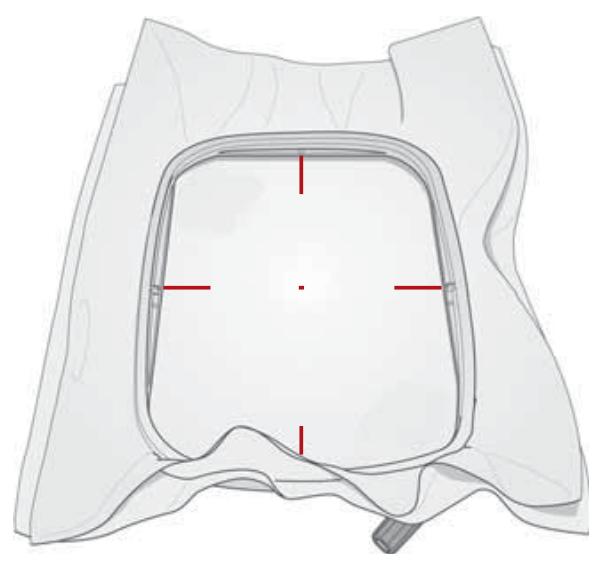
Note: Always touch CLR before you turn off the machine. Otherwise the embroidery arm will not come to the park position to remove the unit from the machine.
Using the Embroidery template
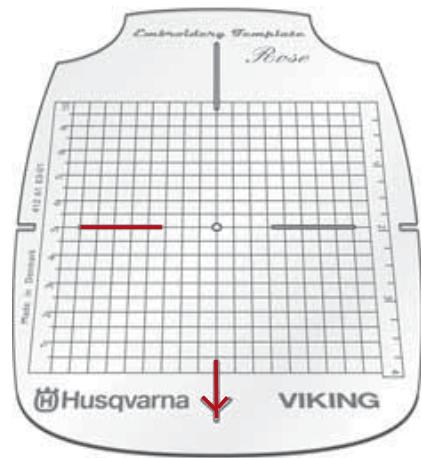
When you wish to sew the embroidery at a specific place on your fabric or garment, you can take advantage of the embroidery template to mark where the embroidery is to be sewn. In the Embroidery Booklet you will find all the embroideries pictured in actual size.
- Place the template with the arrow pointing downward and matching the other marks. Draw the outer lines of your selected embroidery on the template using the template pencil. The markings can later be removed with an eraser.
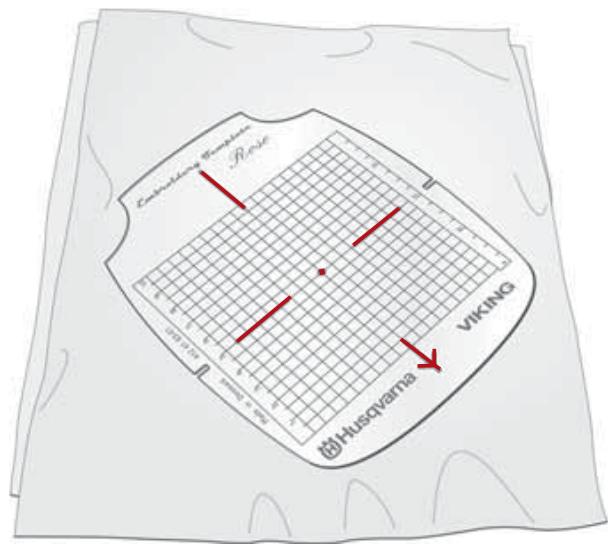
- Place the template on your fabric where you wish to sew the embroidery.
- Draw marks on the fabric in the four grooves and in the center with your Pictogram™ pen.
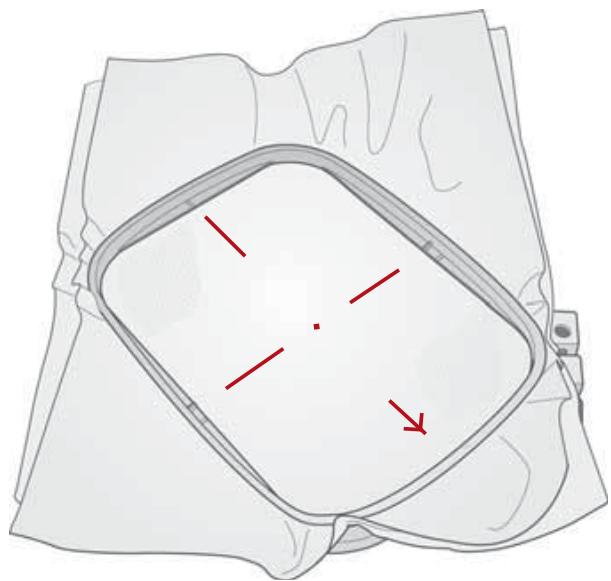
- Place the embroidery hoop matching the arrow pointing downward to the arrow mark on the fabric. Insert the fabric into the hoop, see "Embroidery hoop", page 30.
Make final adjustments using the positioning buttons until the needle will start at the center.
Sewing embroideries
- Snap on embroidery presser foot U, see page 27.
- Place the enclosed net over the thread spool. Thread the machine with embroidery thread as upper thread. In this case you need not place thread under the presser foot. Use a fine thread as bobbin thread.
- Thread the bobbin thread according to "Threading" on page 12 and check to be sure the thread lies under the tension springs. Cut the thread in the thread cutter.
Hint: Slide bobbin cover on, then cut thread. Always check there is enough bobbin thread before starting a new embroidery.
- Insert the embroidery card. The symbol · 40 flashing on the Infodisplay indicates if the embroidery card is not inserted or not inserted fully.
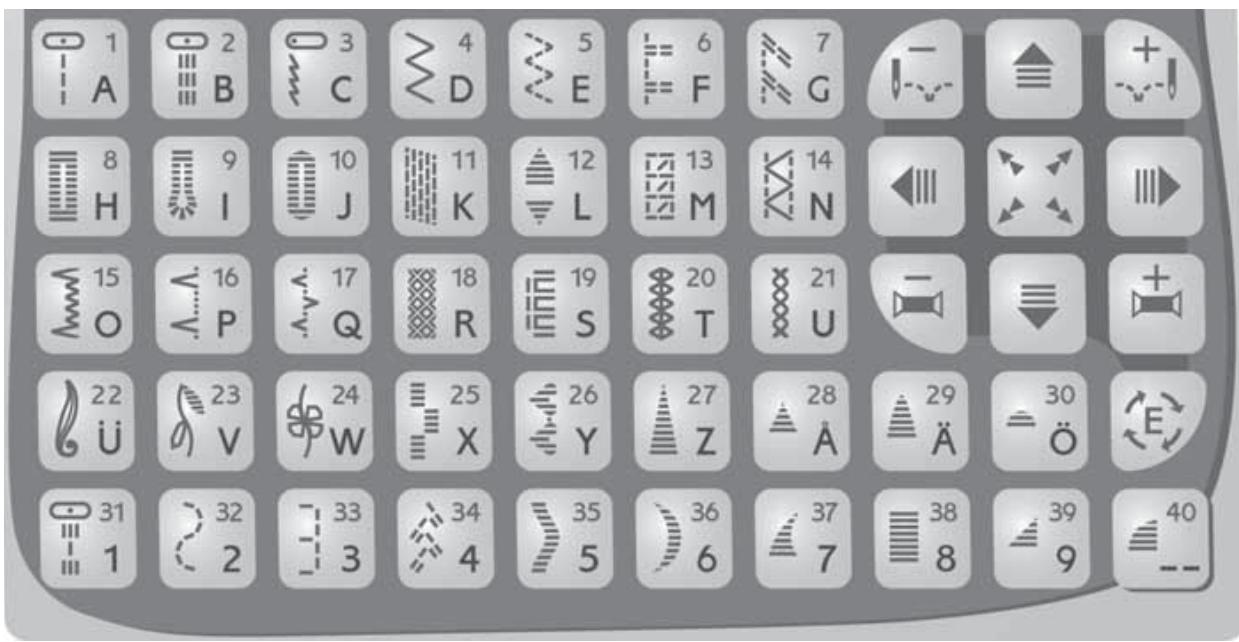
- Select desired embroidery motif from the Embroidery booklet. Each embroidery has a number. The buttons 1-35 are used to select embroideries.
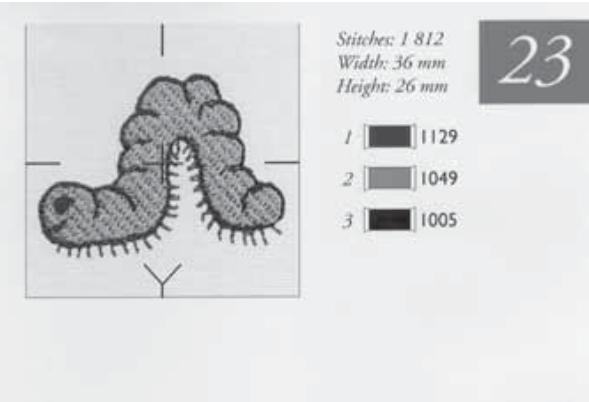
Select the number of the desired embroidery on the stitch panel.
- Start sewing by touching the button or by pressing the foot control. Hold the thread tails when starting.
The machine always starts from the center of the embroidery area, sews a starting stitch up to the beginning of the embroidery, sews a few stitches more, gives a "beep" and stops. A pair of scissors flashing on the display indicates that you can cut the starting thread tail.
- Touch the button and the machine sews the rest of the embroidery or up to next thread color change.
Note: Be careful when working within the needle and presser foot area to avoid touching the start/stop button or the foot control by mistake.
- The machine stops automatically when it is time to change thread color. The Infodisplay indicates which thread color change you have reached by a flashing number next to the thread spool. A flashing number indicates the first stitch of the "new" thread color. The number stops flashing when you begin to sew.
- Once thread is changed, start sewing again. The machine stops for cutting the thread tail and at the next thread color change etc., until the embroidery is completed.
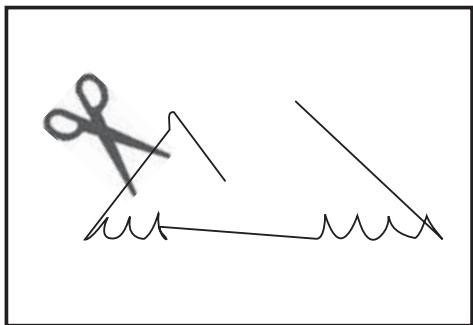
During the stitching, as the embroidery hoop moves to different places within the embroidery, jump stitches are sewn. Trim these stitches as you sew, i.e. when the machine stops for thread color change.
In most cases the embroidery is sewn over the jump stitches, but in some cases a part of the thread can be visible and difficult to trim later.
If the upper thread breaks while sewing, the machine stops and gives a signal. The symbol is flashing on the display. Rethread the machine.
Go back a few stitches using the button and restart. The symbol goes out.
The machine also stops when the thread spool runs out. When this occurs, simply rethread the top thread.
Go back a few stitches past the point where the spool thread ran out, using the button. Restart and the embroidery will be completed.
If the bobbin thread runs out, touch CLR to move the hoop and give enough space around the bobbin area to change the bobbin. Wind and replace the bobbin. Touch CLR again and the hoop moves back to where you stopped embroidering. Go back a few stitches using the button. Restart and the embroidery will be completed.
At any time during the embroidery. stitching, check how much bobbin thread is left, touch CLR. The embroidery arm goes to park position. Touch CLRto move the embroidery arm back to stitch position and pull any excess upper thread back.
Hint: When bobbin winding with the embroidery unit connected, thread the machine as described on page 11 - "Bobbin winding direct". Then touch (RUN/STOP). The bobbin will stop automatically when bobbin winding is finished.
After finishing the embroidery sewing:
- Remove the embroidery hoop by pressing the button to the right on the hoop. Pull the hoop toward you.
- Touch CLR and the embroidery arm returns to ready position. In this position you may remove the embroidery unit from the machine (by pushing the button on the center left underside), after turning the machine off.

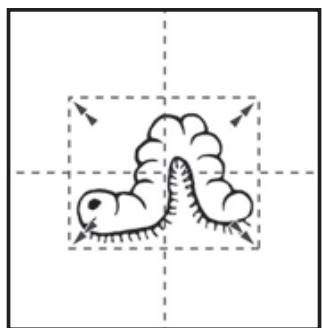
The check size button allows you to step from
one corner to another within your embroidery, so that you will know the size of the embroidery and where on your fabric it will be placed.
All embroideries begin from the center. The sewing space within the embroidery hoop is 100mm× 100mm (approx. 4'' x 4''
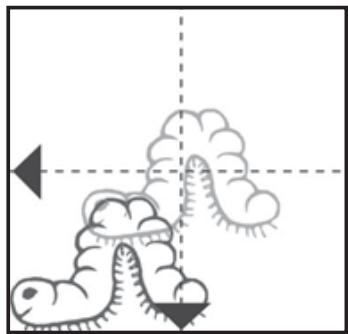
These positioning buttons allow you to move the embroidery in four
directions. The limit in each direction is indicated by a "beep" and the symbol E flashing on the display.

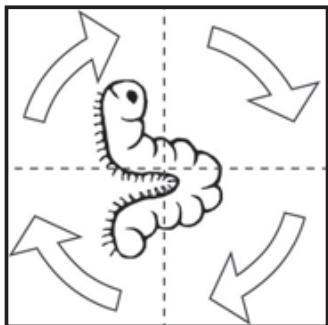
Touch this button once and your embroidery will rotate a
quarter of a turn.

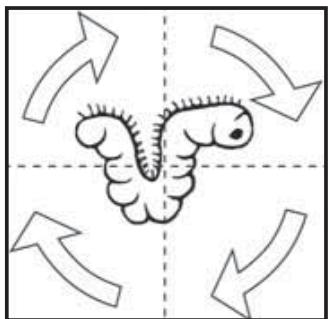
Touch the button twice and your embroidery will be sewn upside. Watch the display to see how symbol has been rotated after touch on the button.


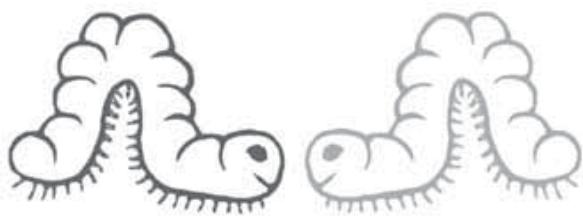
These buttons allow you to step stitch by stitch through
your embroidery, e.g. if thread has run out or broken, you can step back a few stitches.


Most of the embroideries include several colors.
These buttons allow you to step forward (+) or backward (-) to the beginning of each thread color change. On the display the number next to the thread spool will flash to indicate the starting stitch at each thread color change.
One color embroidery
If you have selected an embroidery including several colors and you wish to sew this only in one color: Touch STOP and all stops for thread color change will be cancelled. The machine sews the entire embroidery without stop.
If you have an embroidery card including 2 or 3 menus you can change menu by touching the MENU button or button 35.
Mirror image embroideries
You can mirror image the embroidery side to side. The symbol is shown on the display.
Read more about Mirror image on page 23.
Enlarging and reducing.
embroideries
You can make the embroidery motifs larger and smaller with the stitch length and stitch width buttons between 2 and 6 maximum. The size changes are individually limited for each embroidery motif.
When enlarging or reducing the embroidery we recommend changing the thread thickness for the best result, see "Thread", page 28.
A "beep" indicates when a limit is reached. You can change stitch width and stitch length independently.
Change the size before moving from the center position. If the embroidery is moved first the size change may be limited by the motif reaching the edge of the 100x100mm area.
The suggested thread color for each part of the embroidery can be checked by pressing one of the buttons. Two letters (or numbers) representing the color will replace the stitch number on the display for a few seconds. A - or a + above the letters indicates light or dark shade of the color.
When delivered, the machine is normally set at language code 0.
| Language code | Language |
| 0 | (numerical) |
| 1 | Swedish |
| 6 | Danish |
| 11 | Finnish |
| 21 | Norwegian |
| 26 | English |
| 31 | French |
| 36 | Dutch |
| 41 | Italian |
| 46 | Spanish |
| 51 | German |
| 60 | Portuguese |
| 81 | Croatian |
| 82 | Polish |
| 90 | Czech |
| Color | Numerical indication |
| 26 (Eng.) | 0 (num.) |
| Black | BK | 00 |
| Blue | BL | 01 |
| Green | GN | 02 |
| Red | RD | 03 |
| Violet | VT | 04 |
| Yellow | YE | 05 |
| Grey | GY | 06 |
| Orange | OR | 07 |
| Pink | PI | 08 |
| Brown | BR | 09 |
| White | WH | 10 |
Language setting
To have the thread color information for embroideries adapted to your own language press and hold the CLR button while switching on the machine. A language code is now flashing on the display in place of the stitch number.
Use the buttons to select the desired language, 26 for English or 0 for numerical color representation, see table. When set, switch off and on the machine again.
SEWING
I Straight stitch
For all kind of sewing in woven fabrics, 25 different needle positions
2 Reinforced straight stitch
For seams which are subject to considerable strain, i.e. to reinforce and topstitch sportswear and working clothes. 25 needle positions
3 Stretch stitch
For seams in tricot and stretch farbrics
4 Zigzag
For lace edging and sewing on bands
5 Three-step zigzag
For overcasting, mending, sewing on patches and plastics
6 Overcast stitch
Seam and overcast in one step along the edge or trim later. For light stretch and non-stretch fabrics.
7 Overlock
Seam and overcast in one step along the edge or trim later For medium and heavy stretch fabrics.
Suitable in medium and heavy fabrics.
For tailored garments suitable in compact woollen cloth
Suitable in light fabrics.
11 Darning stitch
Darn and mend work clothes, jeans, tablecloths and linen towels.
12 Tapered satin stitch
Automatic tapering for sewing monograms and other decorations
13 Overlock stitch
Seam and overcast in one step along the edge or trim later. For medium stretch fabrics.
I4 Flatlock
Decorative hems and overlapped seams, belts and bands.
15 Elastic blind hem
Invisible hems in stretch medium and heavy fabrics.
I6 Woven blind hem
Invisible hems in woven fabrics
17 Bridging stitch
For joining two pieces of fabric with finished edges and for elastic shirring
18-20 Hemstitches
For hemstitching, use a wing needle (optional)
Point de Paris 19
Entreaux 20
21 Cross stitch
For decorating clothes, tablecloths and curtains
22-26 Decorative stitches
For decorating clothes, tablecloths and curtains
27-30, 37-40 Pictograms
Programmable satin elements which can be mirrored and combined with each other, creating beautiful satin embroideries
31-32 Quilting stitches
Outline quilting through batting and backing
33 Heirloom Appliqué
Hand look appliqué stitching stitch
34 Feather stitch
Decorative stitching and for quilting
35-36 Decorative edging
For decorative edges. Sew 15mm from the edge and trim close to the stitching
38 Satin stitch
For appliqués, rounded edge, sewing on laces and bands
Straight stitch
Straight stitching is used to join fabric which does not stretch and for seams which will not be subjected to great strain.
When you select straight stitch the machine will automatically set the average stitch length.
You can adjust stitch lenght for your project.
Example: Increase the stitch length when basting and when topstitching.
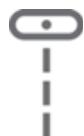
Straight stitch can also be used for topstitching. For a more visible topstitch, lengthen the stitch and use heavier thread with larger size needle.
Gathering with straight stitch
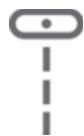
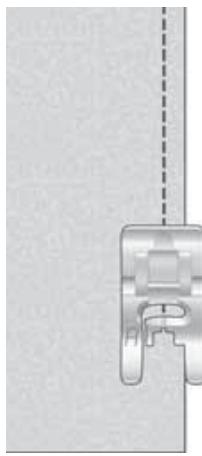
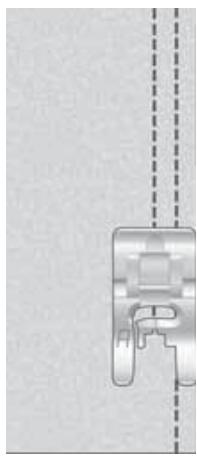
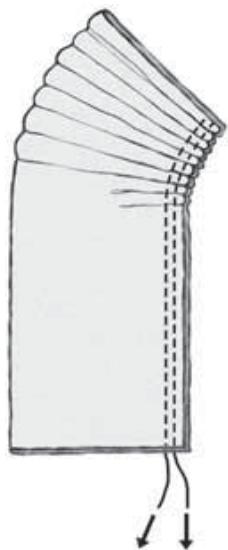
Use a slightly longer stitch than normal straight stitch, 3.5-5.0. Always sew two gathering threads next to each other.
- Place a single thickness of fabric under the presser foot and stitch.
- Stitch a second row next to the first.
Pull both bobbin threads to gather fabric. Be careful not to pull them out.
25 Needle Positions
When topstitching using straight stitch and reinforced straight stitch, the needle position can be adjusted in steps. Use the stitch width button (+), 0 is the center position, width 6 is left needle position, width 6 mirror imaged is right needle position. To return to center position, use the stitch width button (-) and step back to 0. Adjust the width between 0-6 for additional positions.
To edge stitch, set the needle to the left or the right position.
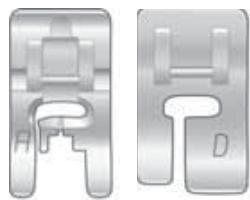
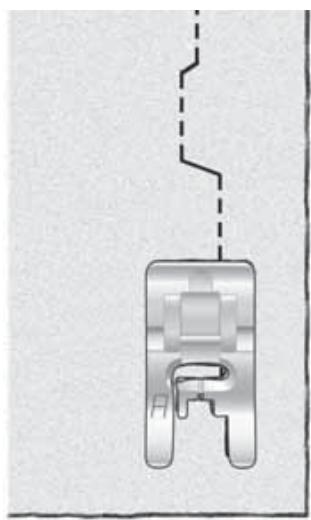
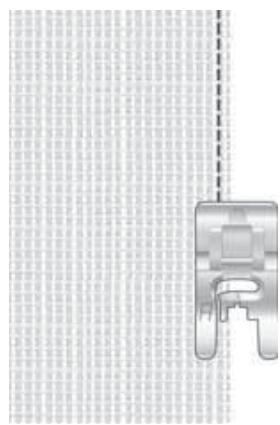
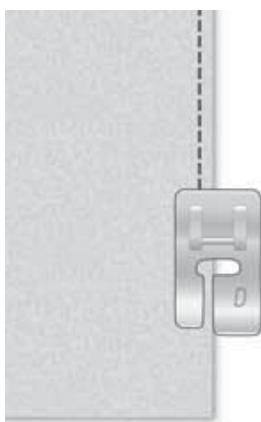
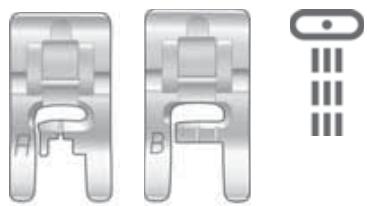
To sew about 2mm from the edge, snap on presser foot A when sewing light fabrics and presser foot D for other fabrics.
Select left needle position, place the fabric and sew so that the edge follows the inside right edge of the presser foot D or the first mark of the left edge of the presser foot A.
If you wish to sew about 5mm from the edge or sew a narrow hem, use presser foot A and set the needle to the right position.
Place the edge of the fabric so that it follows the outside right edge of the presser foot and sew.
Sewing zippers
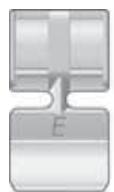
The zipper foot E can be snapped on either to the right or to the left of the needle, making it easy to sew both sides of the zipper.
Lapped zipper
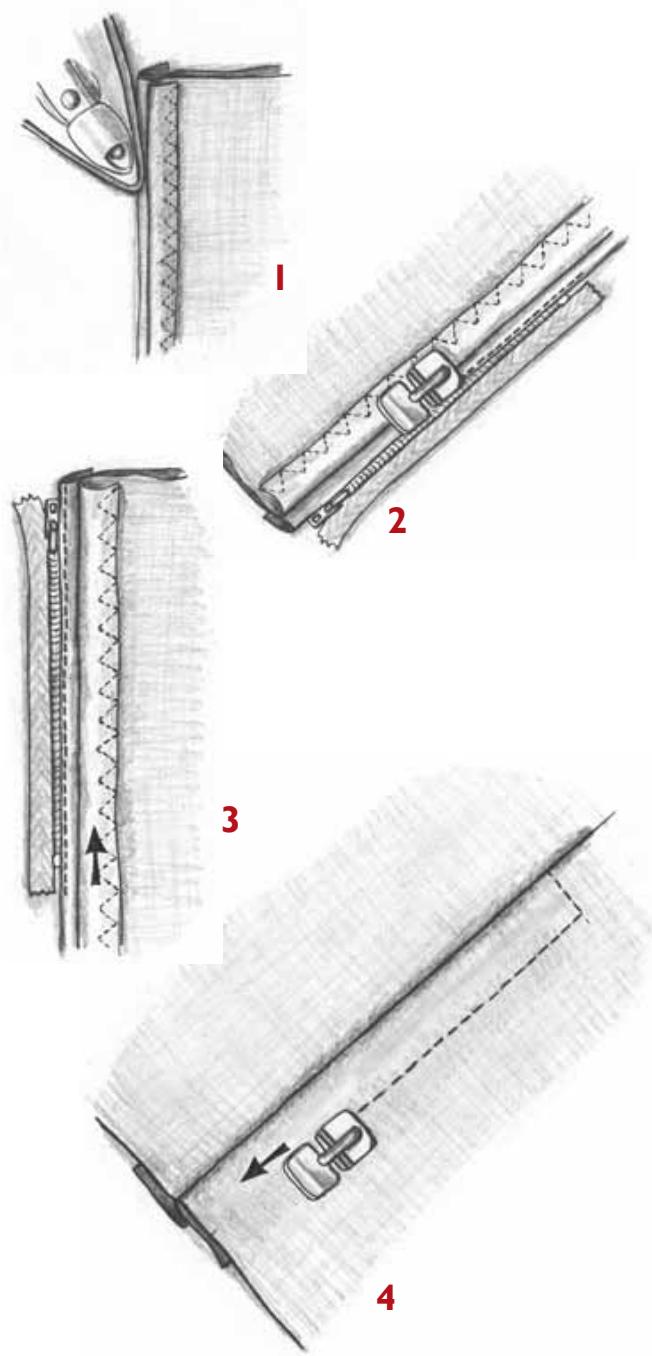
- Sew the seam to the bottom of the zipper placket. Baste the rest of the seam. Leave about 2cm open at the top. Press seam open. Set the needle to the right position.
- Place presser foot E to the left of the needle. From the wrong side fold the fabric to one side so both seam allowances are free. Fold and press the left allowance under approximately 0.5cm from the biased seam.
- Place the zipper under the folded seam allowance with the teeth as near to the fold as possible and stitch zipper to fabric close to fold. Begin sewing at the bottom of the zipper. Before reaching the zipper pull, lift the presser foot and slide the zipper pull down past the zipper foot. Lower the foot and sew to the top of the zipper.
- Snap on the zipper foot so it is to the right of the needle. Set the needle to the left position. Turn the garment to the right side. It is important that the seam on the right side is sewn straight. Before you begin to sew, mark the seam line. Sew the other side of the zipper.
Begin stitching across the bottom and continue upwards. Remove the basting.
If you want to sew a "gentleman's zipper", follow the instructions but insert in the other direction.
Reinforced straight stitch
The reinforced straight stitch is stronger than ordinary straight stitch, due to the fact that it is a triple and elastic stitch.
The reinforced straight stitch can be used for heavy stretch fabrics, for crotch seams which are subject to considerable strain and for topstitching in heavy fabrics.
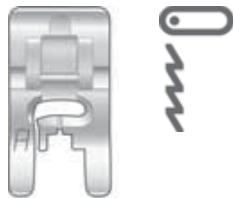
Stretch stitch
The stretch stitch makes a pliable, stretchy seam that is suitable for sewing together pieces of light stretch fabric.
The stretch stitch is ideal for topstitching in light stretch fabrics.
Zigzag
The zigzag is utilized for sewing on lace, bound edging and appliqués.
When you select the zigzag the machine will automatically set stitch length 2 and width 3.
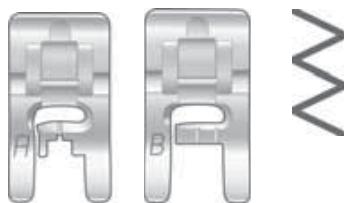
You can change this setting by pressing either the (+) or (-) button on the width and/or length.
Experiment until you reach the best setting for your project.
Lace edging
- Place wrong side of lace to right side of fabric matching edges. Sew along inner edge of lace with zigzag, stitch length 1.5, stitch width 1.5.
- Press seam allowance towards fabric. Sew with satin stitch, stitch width 2.0, on the right side over the zigzag seam.
- Cut off the seam allowance up to the stitching on the wrong side.

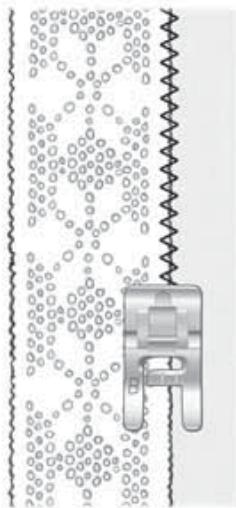
1
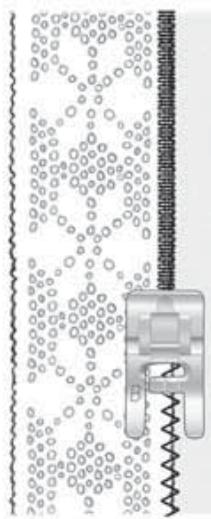
2
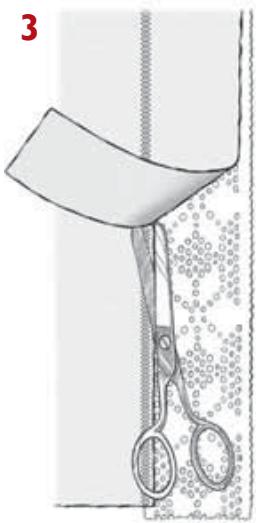
Three-step zigzag
Overcasting
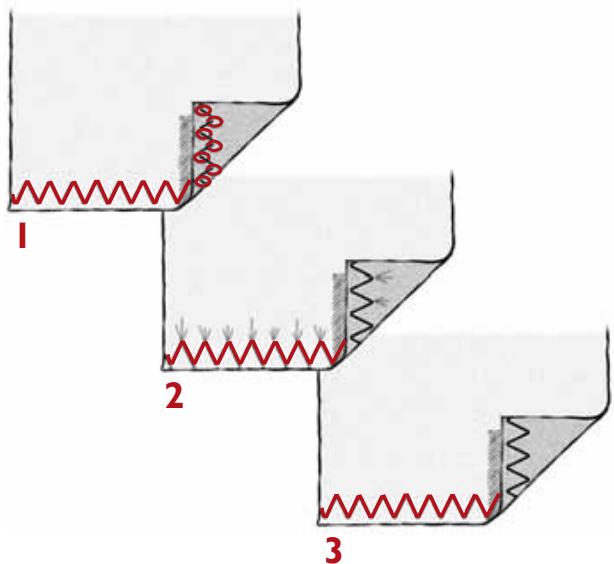
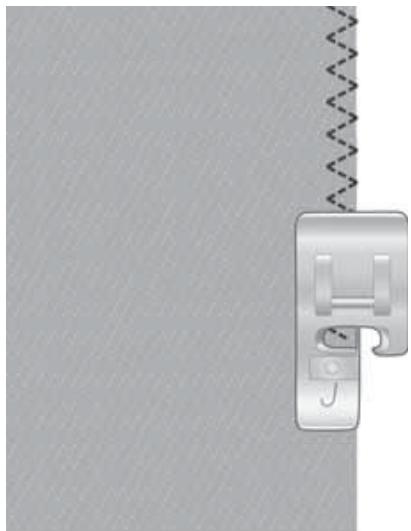
Three-step zigzag is suitable for overcasting most fabrics. Trim the edges of the fabric before overcasting.
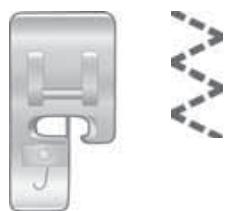
Make sure that the needle sews over the edge of the fabric. (see picture).
Snap on presser foot J so the stitch sews over the pin on the foot. This keeps the fabric edge flat.
Sewing terry cloth
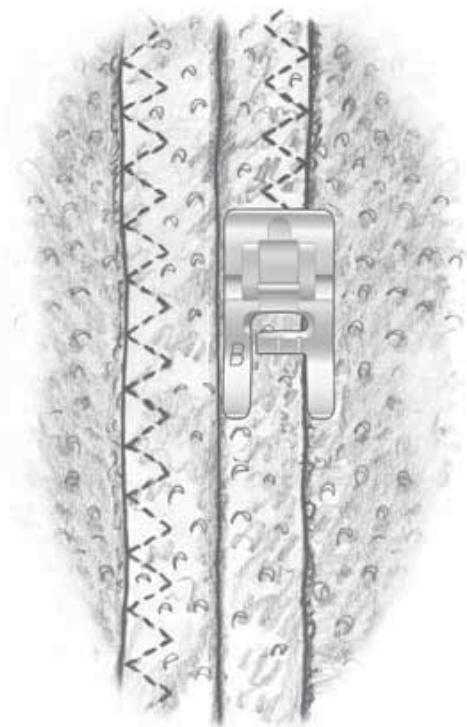
Terry cloth is a rather loosely woven fabric.
Sew the garment together with straight stitch. Trim the seams and press the seam allowance flat and sew the edges down against the garment on the wrong side with three-step zig-zag.
Even though the stitching goes right through to the "right" side of the garment, it is nearly invisible and even the wrong side looks neat. The stitching will also be considerably stronger.
Necklines and armholes are finished in a similar way.
You can select different buttonhole styles.
Buttonhole thebartackbuttonhole, used for medium and heavy fabrics.
Buttonhole keyhole buttonhole for tailored garments
Buttonhole round end button-hole, for light fabrics.
When sewing stretch fabrics, use a fusible stabilizer or a cord.
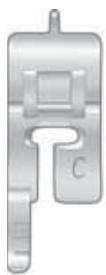
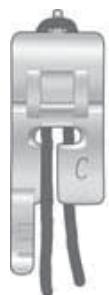
The buttonhole feet has guide lines to determine buttonhole length. The middle mark on foot C gives a 1.5 cm buttoning edge. Place the button on the presser foot against the needle and you will be able to see which mark on the foot corresponds to the button. You will sew until the first buttonhole column reaches this mark.
There is a small finger at the back of the presser foot. For a corded buttonhole, loop your cord around the finger as illustrated.
NOTE: Always stitch a sample buttonhole on scraps of the garment fabric to check size before sewing buttonholes on the garment.
- Select a buttonhole.
- Use the presser foot C or the buttonhole sensor foot.
- Mark the buttonhole location on your fabric.
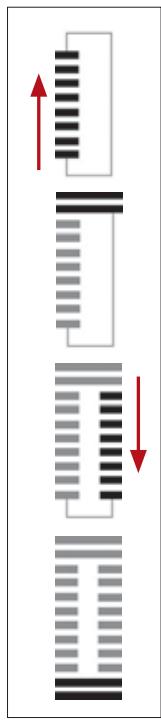
- Place the material in the machine and begin at the bottom of the buttonhole.
- Sew the first column of the
buttonhole to the required length, use the markings.
- Touch the reverse button
- Continue to sew the buttonhole until the other column is the same length as the first, touch the button.
- The machine will bartack the other end, a few tie off stitches in the first column of the buttonhole and will then stop.
Sew the next buttonhole in the same manner.
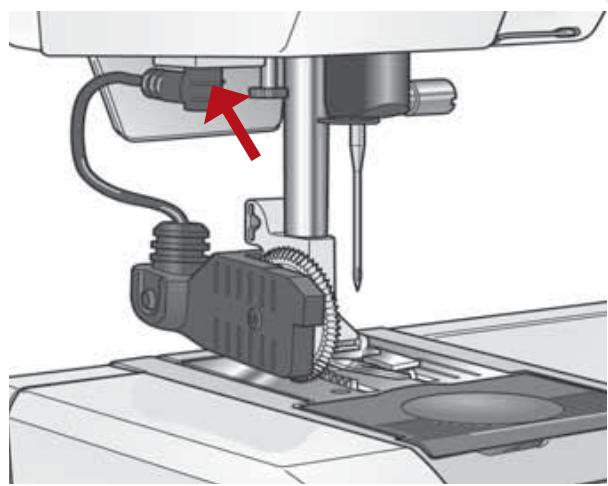
- Snap on the buttonhole sensor foot. Make sure that the cable is firmly plugged into the yellow socket (see picture). The symbol will flash until a buttonhole is selected.
- Select a buttonhole on the stitch panel. The buttonhole will be preset for a 16mm button when the machine is turned on. The number 16 is therefore shown on the display in place of the stitch length together with the symbol
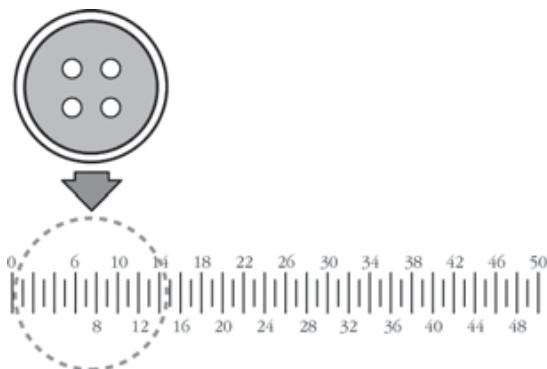
- If you are using a different size button, measure the button on the buttonhole rule below and set the correct size with the stitch length buttons (+) or (-). The size will change by 2mm at a time.
- Turn the measurement wheel so that the white area is lined up with the white mark. When the measurement wheel is correctly set, the circle in the symbol will stop flashing.
If the circle or the whole symbol is flashing the machine can not be started.
- The machine will sew the correct size buttonhole for the button size you have selected.
The buttonhole will be sewn in one step, and when the buttonhole is completed the machine will stop automatically.
Place the button as shown on the circle on the picture and you can easily see the size needed for your buttonhole.
Changing the density/stitch length
To change the stitch density of the buttonhole columns, adjust the length setting of the stitch. Unplug the buttonhole sensor. The stitch length will then be shown on the Infodisplay again and you will be able to adjust the density of the buttonhole. When you plug in the buttonhole sensor foot, the display goes back to showing the size of the buttonhole, but remembers the new stitch length setting.
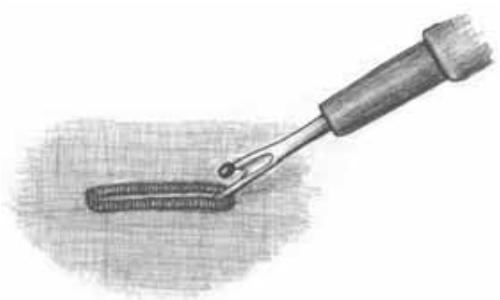
Seam ripper
The knife is used to cut buttonholes. It is also useful for removing stitches sewn in error.
- Mark the button placement on the fabric.
- Touch FUNC to NORM and select zigzag.
- Lower the feed teeth with the dial. See page 13.
- Snap off the presser foot.
- Place the fabric under the presser foot ankle.
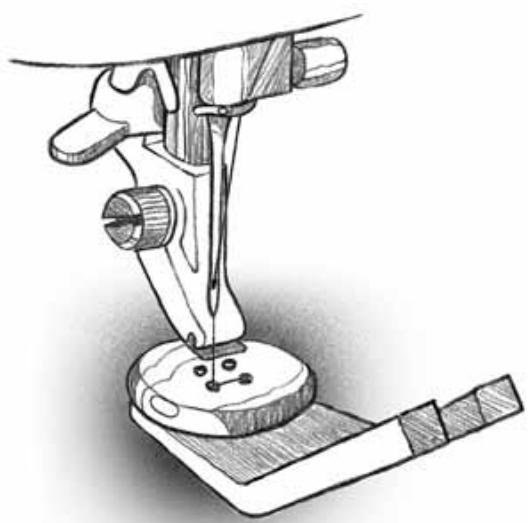
- Place the button on marking and lower the presser bar so that the presser foot ankle is between the holes of the button (see picture).
- Hold the thread ends to one side. Turn the handwheel and check to be sure that the needle goes into the left hole of the button.
Use the clearance plate for this purpose. Use the thin end when sewing buttons on light fabrics, the thick end for heavier fabrics.
Place the plate between the button and the fabric. Lower the presser bar and sew on the button.
Pull the threads between the button and the fabric.
Wind the threads a few times around the thread shank and tie the ends.
- Touch the mirror image button to check that the needle also goes into the right hole.
- Sew as many stitches as you consider necessary.
- Touch STOP. The machine will then tie off in one of the holes and stop.
- Touch STOP to cancel it. Move to the next pair of holes or the next button.
If you have a button with a different hole spacing, you can adjust this by pressing one of the stitch width buttons (+) or (-) .
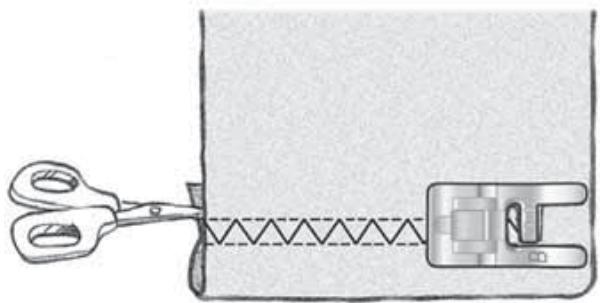
Flatlock
The flatlock, is suitable for sewing overlapped seams and decorative hems. Reduce the pressure foot pressure to 2 when sewing stretch fabric.
You can produce a decorative hem by folding a single hem to the wrong side and sewing the flatlock from the right side.
Trim excess hem to stitching from the wrong side.
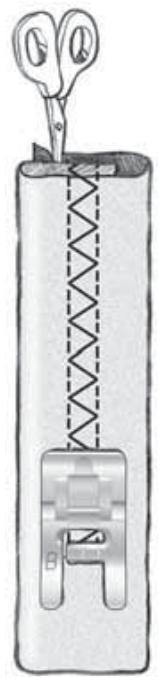
To sew an overlapped seam, lap one piece of fabric over the other piece and sew flatlock stitch over the fabric edge on the right side.
Trim from the wrong side or sew another seam from the right side.
Narrow belts and bands
Fold the fabric in thirds and sew in the center. Trim excess material from underneath.
Blind hem
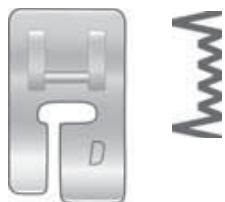
Snap on presser foot D for blind hem Fold the hem as shown. Make sure that the fold line of the fabric rides in the groove on the underside of the presser foot.
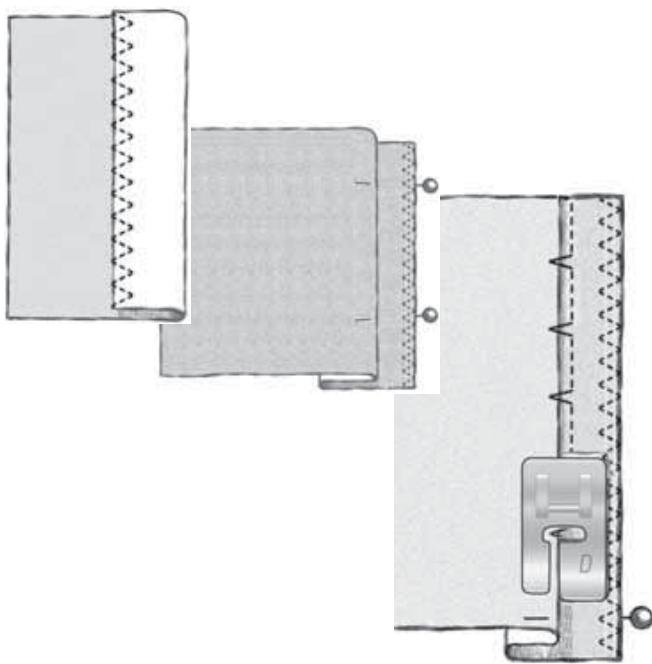
If the stitch does not catch the folded edge, increase the stitch width (+) .
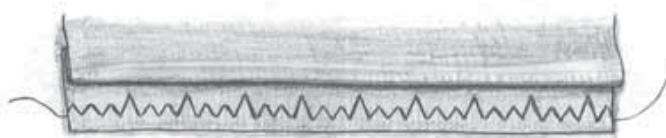
If the stitch catches too much of the fold, decrease the stitch width (-).
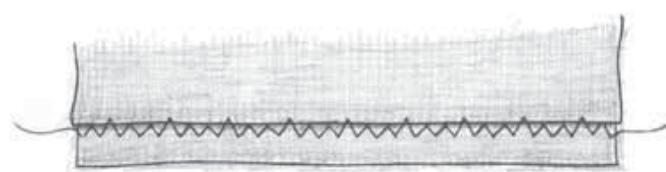
For an invisible hem the needle catches a single thread of the folded edge.

Bridging stitch
The bridging stitch is suitable for joining two pieces of fabric with finished edges.
Leather and vinyl are joined by butting the edges close to each other using the bridging stitch. Also use to join lace and ribbon.
Elastic shirring
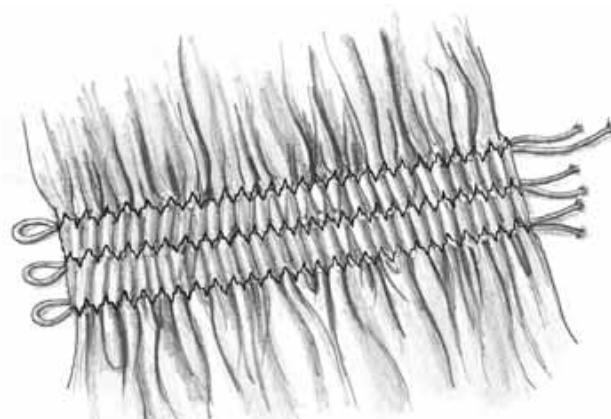
The bridging stitch is also used for gathered elastic shirring. Snap on the buttonhole foot C.
On the wrong side of your fabric draw lines to sew the stitched rows straight.
Place the shirring elastic (elastic thread) around the finger of the presser foot C.
Sew from the wrong side over both lengths of the elastic following marked lines. Gather the shirring by pulling the elastic threads.
Seam and overcast
Some stitches can be used for seaming and overcasting on the edge where a 5 mm (1/4") seam is allowed. Place the fabric so that the inside right "toe" of the presser foot follows the edge of the fabric.
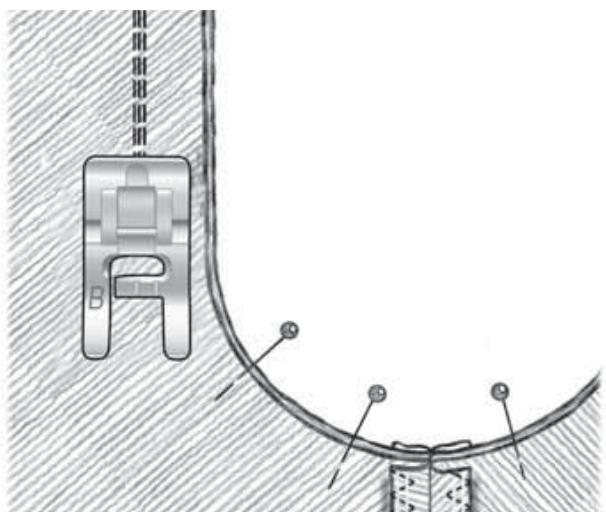
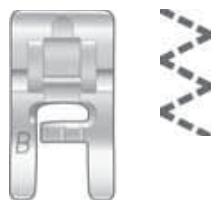
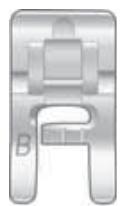
Overlock is chiefly used for sewing medium and heavy stretch fabric. Snap on presser foot B.
Seam and overcast stitch, may be used to sew light and medium non-stretch fabric and light stretch fabric. Snap on presser foot J.
Overlock stitch is used for medium stretch fabric. Snap on presser foot B.
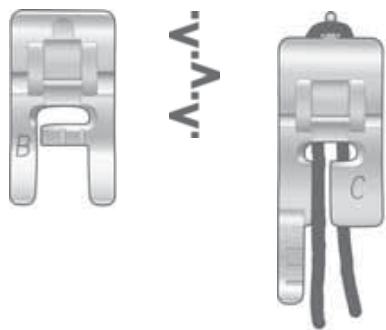
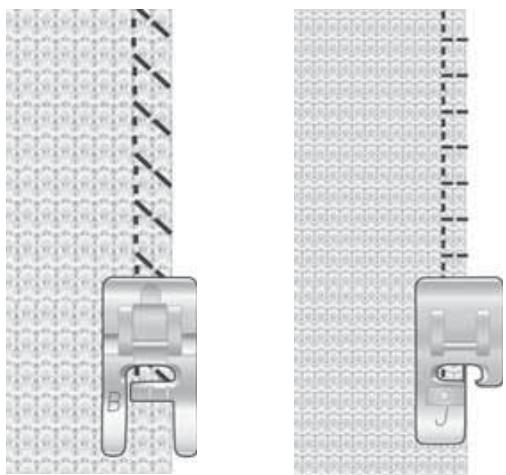
Presser foot J is also used to overlock and overcast many different fabrics with the exception of heavy, firm fabrics. The pin on the presser foot should follow the edge of the fabric and will prevent the fabric from puckering. Stitch width 5-6 mm. When using stitch width 4.5 or lower, use presser foot A.
Darning stitch
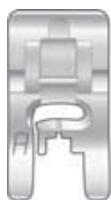
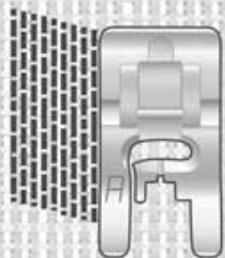
is a perfect stitch for mending and darning. Use presser foot A.
- Select NORM, sew the first row of stitches as long as you need to cover your tear or worn spot.
- Touch the reverse button and the machine continues sewing the remaining stitches at the same length and fastens the thread.
- Touch STOP. Move the fabric so that the needle is right over the last stitch. Repeat as many times as you need to cover the hole. See "Darning and taper satin stitches", page 24.

Automatic taper stitch
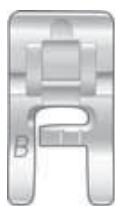
The tapered satin stitch, is a tapered zigzag which makes it suitable for sewing monograms and other embellishments. Use presser foot B.
- Trace the monogram on the fabric and sew over the lines.
- Touch FUNC to NORM position and select
- Sew until the desired length is reached.
- Touch the reverse button to taper the end. See "Darning and taper satin stitches", page 24.

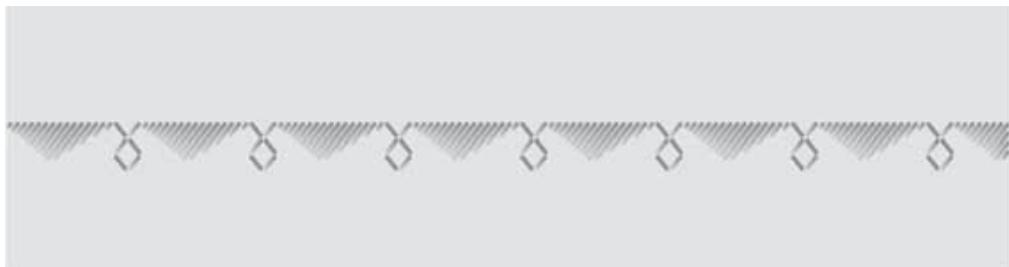
Decorative stitches
These stitches are mainly used as decorative stitches.
Examples
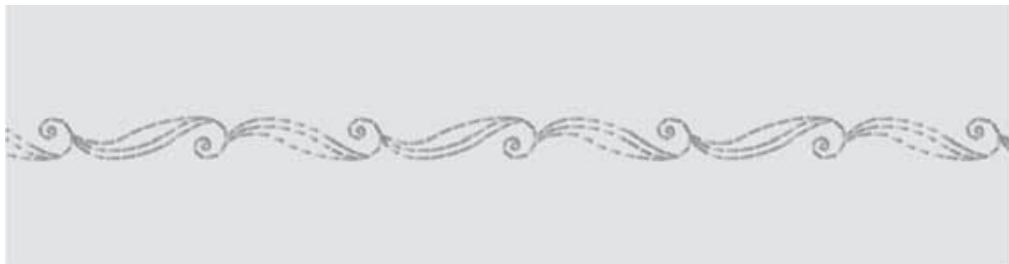
You can combine and program different patterns one after another.
Stitch 39, 39 , stitch 18 .
You can program stitches and sew the original way and mirrored every other time.
Stitch 22, 22
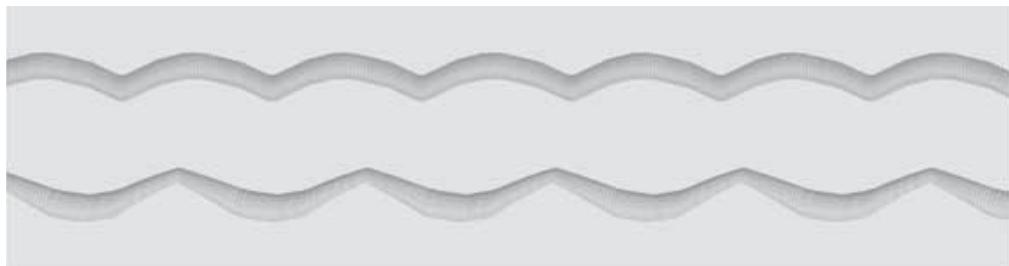
An effective edging can be produced with these stitches. Sew a bit from the edge and trim close to the stitching.
Upper, stitch 35, lower, stitch 36.
Quilting
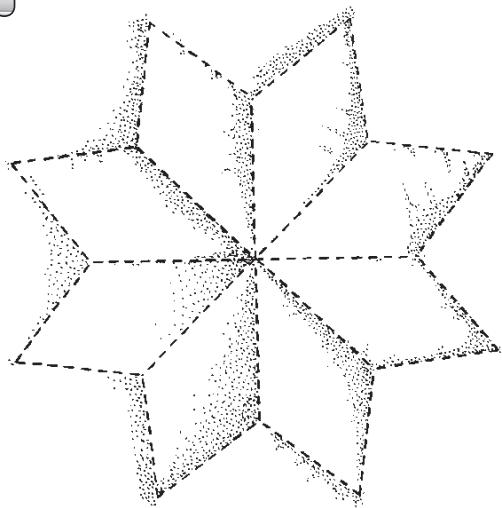
The "hand" look quilting stitch No
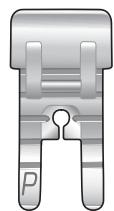
31 , is a perfect stitch for relief stitching. Use optional presser foot P.
- Mark the design on the top of the fabric you are going to quilt.
- Place the fabric you are going to use as quilt backing, wrong side up.
- Place a layer of batting on wrong side. Finally place the top right side up with the marking.
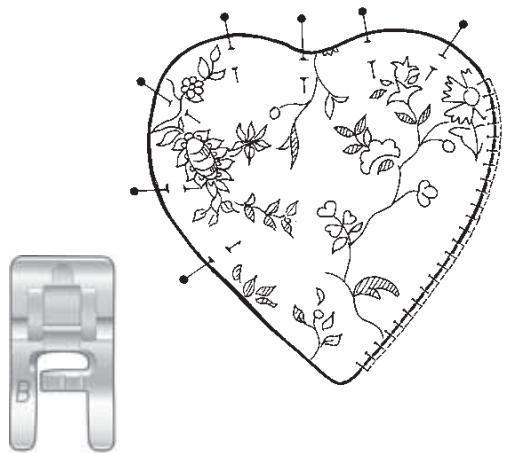
- Pin all the pieces together.
- Use transparent nylon thread as upper thread and a synthetic thread or embroidery thread as bobbin thread.
- Test sew. On the top side of your work the triple stitch should be filled with the bobbin thread and the single stitch will not be visible thanks to the transparent upper thread.
- Sew along the marked quilt design.
Applique
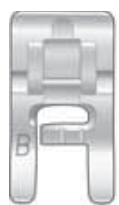
Use presser foot B.
- Sew the heirloom applique stitch number 33 , around a binding at the edge, or for hand look applique.
- The satin stitch number 38, set to stitch width 2mm sews beautiful appliques. Fuse or pin applique in place and satin stitch around the outside edges.
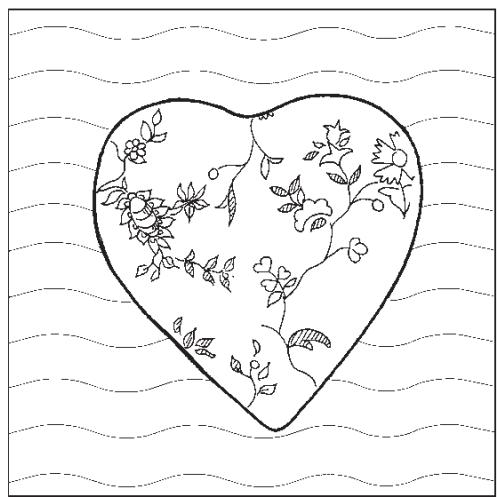
- Use stitch number 32 to quilt. Sew the stitches with a few cm in between.
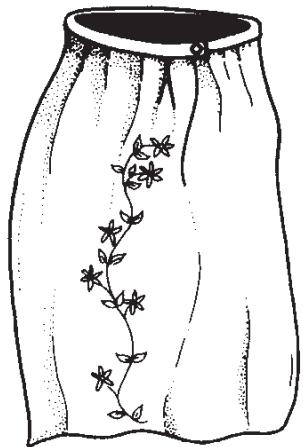
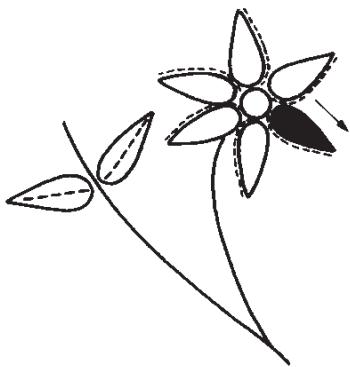
Pictogram
Read about Programming on page 21. Use presser foot B.
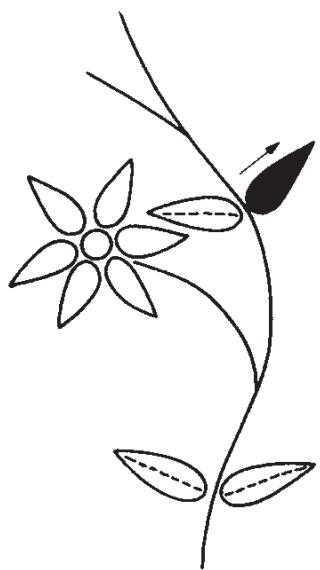
- Program the leaf in an empty memory.

- Select NORM and reinforced straight stitch
- Sew the stem down to the first pair of leaves.
- Select REP and sew a leaf from the stem to the top.
- Select straight stitch, stitch length 1,5. Sew from the top of the leaf and back to the stem.
- Sew the other leaf in the same way.
- Select reinforced straight stitch and continue sew the stem down to the flower stem.
- Then sew the stem as far as to the flower.
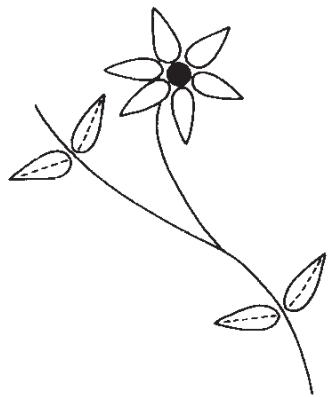
- Program the ball in an empty memory.

- Select REP and sew the ball.
- Return to the memory containing the programmed leaf.
- Select REP and sew the flower petal from ball to top. Stop with the needle in the material.
- Change to straight stitch, stitch length 1,5.
- Sew back close to the petal.
- Sew the rest of the petals in the same way.
Also: Consult Quick info for Pictogram steps.
Sewing hints
Free arm
To facilitate sewing trouser legs and sleeve hems use the free arm.
The free arm also allows you to darn socks (the darning foot is an optional accessory).

Jeans hem
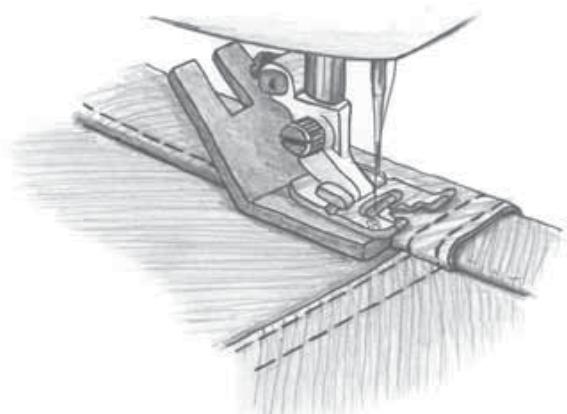
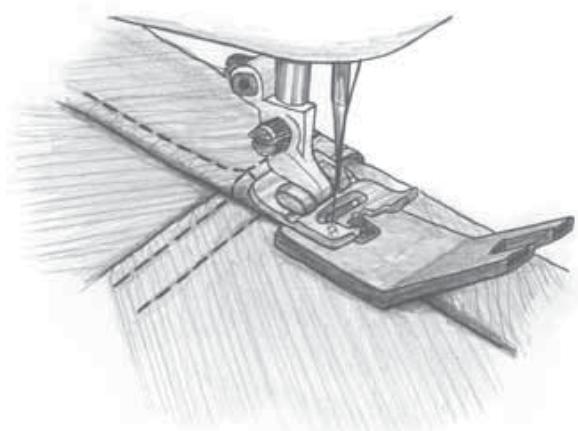
When sewing over seams in extra heavy fabric or a blue jeans hem, the foot can tip as the machine climbs over the seam. The needle can hit the tipped foot and break. In this case, use the clearance plate to balance the height of the hem as you sew.
Place the clearance plate behind the foot as you approach the hem and in front of the foot as you sew over the hem thickness. Remove the clearance plate before sewing in to it.
Sewing on belt loops
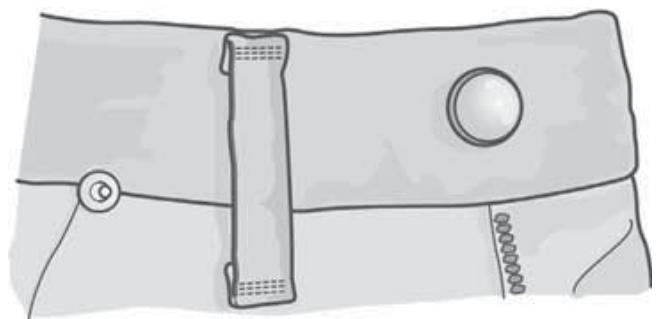
Use presser foot B and lower the feed teeth. Fold in about 1 cm on the short ends. Place the belt loop on the garment and under the presser foot. Set a wide zigzag stitch.
Sew a bartack from the outer edge to the center of the loop, move the material and sew a new bartack.
Continue to sew along the loop's short side.
CARE OF YOUR SCANDINAVIA 400
Changing the light bulb
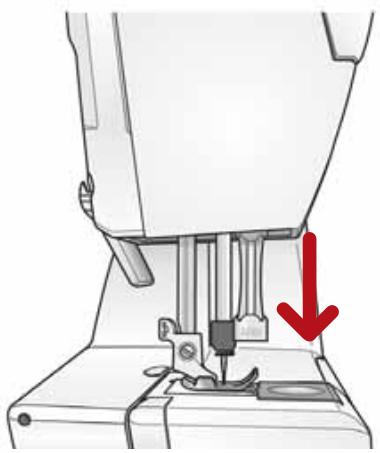
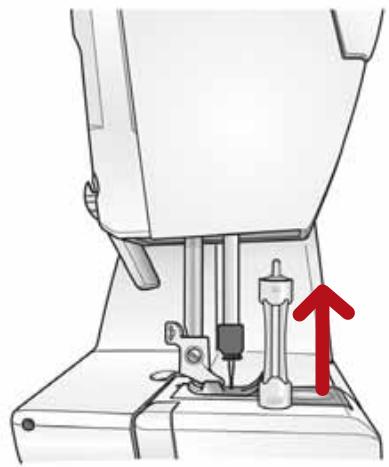
Only use light bulbs of a type as indicated on the front of the machine (12V, 5W). They are available at your authorized Husqvarna Viking dealer.

Turn off the main switch.
- Place the light bulb remover with the deep hole, marked OUT, around the bulb.
Do not turn the bulb, just pull it out to remove it.
- When inserting a new light bulb place the remover with the shallow hole, marked IN, around the new bulb. Insert the new bulb by pushing it up.
Care of the Machine
To keep your sewing machine operating well, clean it often. No lubrication (oiling) is needed.

Turn off the main switch.
Cleaning
Wipe the exterior surfaces of your Scandinavia 400 with a soft cloth to remove any dust or lint built up.
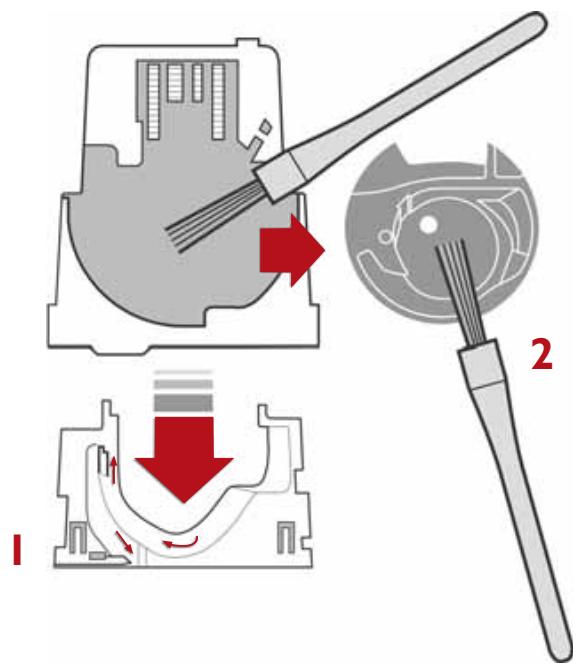
Clean the Bobbin Area
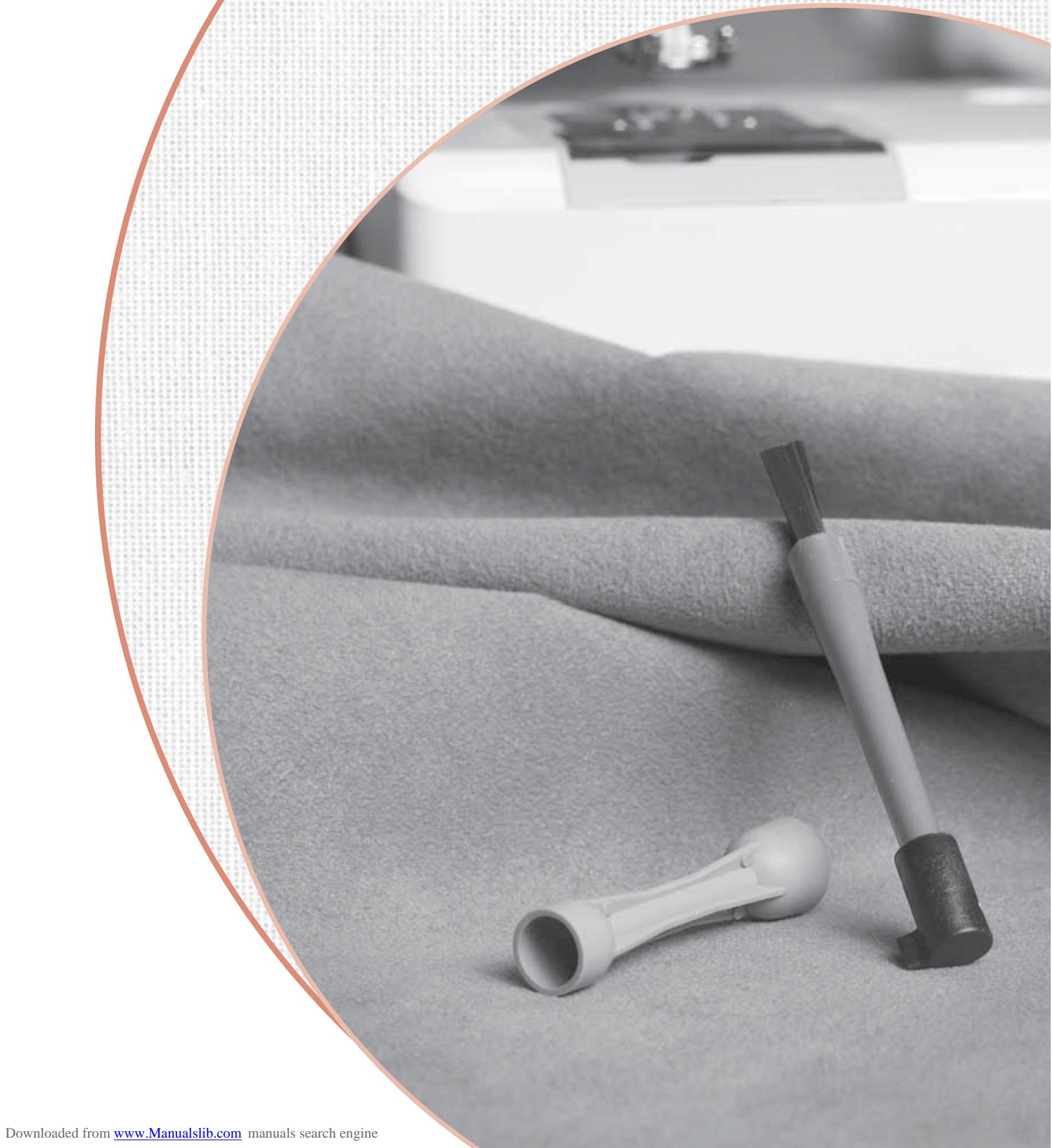
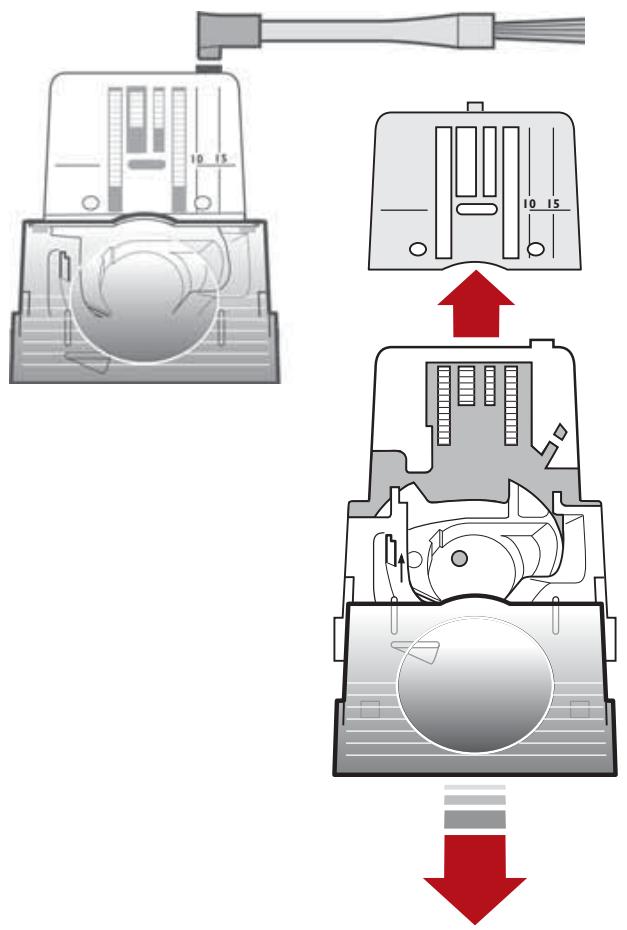
Remove the presser foot and slide off the bobbin cover. Lower the feed teeth. Place the stitch plate opener on the brush, and then in the recess at the rear of the stitch plate. Turn toward you to pop off the stitch plate. Clean the feed teeth with the brush.
Cleaning Under the Bobbin Area
When lint builds up, the area under the bobbin case must be cleaned.
Remove the bobbin case holder (1) covering the front part of the bobbin case (2). Remove the bobbin case by lifting it up. Clean with the brush.
Replace the bobbin case and the bobbin case holder.
Replacing the Stitch Plate
With feed teeth down, place the stitch plate about 5mm in front of the rear edge and push it back. Slide on the bobbin cover. Raise the feed teeth.
Trouble shooting
Always start by checking the needle
Always start with a new needle as soon as you discover that a stitch is not what you expected. Test sew on a scrap of the fabric you are sewing. Check that you have chosen the correct needle and see that it is correctly inserted. See page 14.
Unattractive stitches
The thread tension is not correct. See page 12. Make sure that the thread is not catching. Certain thread spools are unsuitable for spooling from the horizontal spool pin. Try instead with the vertical spool pin.
The machine may be incorrectly threaded. Be sure to place spool holders correctly.
The correct threading is shown on page 9.
Wrong bobbin thread. It should be of the same thickness as the upper thread except for embroidery.
The needle breaks
The needle can strike against stitch plate and break. Change the needle. See page 14.
Check the thread spool to see that it has not caught in any way.
The needle eye may have sharp edges which cut the thread. If so, change the needle. See page 14.
The upper thread is incorrectly threaded. See page 9.
The upper thread may have too much tension. Refer to page 12.
The hole in the stitch plate may be chipped and have sharp edges. We recommend that you replace it.
The bobbin thread may be incorrectly threaded. See page 12.
The stitch plate hole is damaged. See "Upper thread breaks".
Irregular thread tension
This may be due to poor quality thread. When sewing with cotton thread, increase the thread tension. See page 12.
Irregular bobbin winding
The machine is not correctly threaded for bobbin winding. See page 11.
The fabric puckers
The upper thread tension is too tight. See page 12 for correct thread tension.
Use the correct presser foot as recommended by the Infodisplay.
The machine does not feed the fabric
The stitch length is too short. Increase stitch length.
The feed teeth may be lowered. Raise them by turning the dial to . See page 14.
The feed teeth are full of dust and dirt. Clean with the brush. See page 59.
The stitch is too loose - fabric layers not held together
The thread tension is far too loose.
Page 12 shows how to adjust the thread tension.
Incorrect stitch
If the machine does not sew the stitch indicated by the Infodisplay, it is possible that the electronics have been disturbed in some way, perhaps by a short power cut or electrical disturbance. Shut off the main switch, wait a few seconds and try again. If the fault remains, contact your dealer.
Machine runs sluggishly
Dirt or lint has built up under the stitch plate. Loosen the plate and brush clean between the feed teeth and in the bottom area. See page 59.
Main motor does not work
The electronic overload protector may have switched off. Shut off the main switch, wait about a minute. Then turn the machine back on.
Balance can only be set if a buttonhole is selected. Press the buttons until the letters BAL are indicated to the left on the Infodisplay. Instead of the stitch length indication, a balance indication is now shown. When you wish to increase the density of the right column, press stitch length button (-). When you wish to decrease the density, press stitch length button (+).
The balance can be set between -5 to +5. The balance indication on the Infodisplay will change in steps with each touch. When you select another stitch, the display goes back to show the stitch length indication. The machine always retains the last balance setting that has been made.
The sewing and embroidery machine screen does not respond to touch
The socket on the back of the machine where the embroidery unit is connected can be sensitive to static electricity when the embroidery unit is not connected. If the sewing machine screen does not respond to touch, turn the machine off and back on again. If this persists, contact your authorized Husqvarna Viking retailer.
Expert assistance
Have your machine "tuned up" regularly by your dealer. If you have followed the preceding points and still do not get satisfactory results, you should contact the dealership where you bought the machine. When the machine is being checked, it is a great help if it can be test sewn under as similar conditions as possible as when you used it.
Remember to take a sewing sample along with you, preferably of the fabric and with the thread you intend to use. A sewing sample will often give much better information than words.
Non-original parts and accessories
The warranty does not cover any defect or damage caused by use of non-original accessories or parts.
Accessories 7
Applique 54
Backtacking 16
Baste 40
Belt loops 56
Blind hem 50
Block letters 17, 19
Bobbin, placing in machine 12
Bobbin winding 11
Bridging stitch 51
Button sewing 48
Buttonholes 46-47
Buttonhole sensor foot 18,47
Care of machine 59
Cleaning 59
Clear thread 11, 54
CLR/clear 18,20,24
Color advance 20,34
Color information 36
Correction, program 22
Darning 24,52
Decorative stitches 53
Deleting stitches 18
Elastic shirring 51
Embroidery 25-36
Embroidery booklet 29
Embroidery hoop 30
Embroidery presser foot 27
Embroidery size 35
Embroidery template 31
Embroidery thread 28
Embroidery unit 26
Entredeux 39
Extra spool pin 8
Feed teeth, lowering 13
Flatlock 49
Free arm 56
FUNC/function 17
Gathering 40
Get started 29
Heirloom applique 54
Hems 49-50
Hoop 30
Infodisplay 16-18
Lace edging 44
Lapped zipper 42
Length 17
Letters 19
Light bulb, changing 58
Lowering feed teeth 13
Maintenance 58-59
Memory 18,20
Mending 24,52
Menu 17, 19, 21-22
Mirror image 17, 23
Needle, changing 14
Needle positions 41
Needle stop 16
NORM/normal 17
Nylon thread 11, 54
Overcast stitch 45
Overcasting 45, 51
Overlock 51
Packing the machine 5
Pictogram 55
Positioning, embroidery 20, 34
Presser foot, changing 14
Presser foot, recommended 18
Presser foot lever 14
Presser foot pressure 14
Pressure 14
PROG/program 17-18,21-24
Programming 21-24,53
Quilting 54
REP/repeat 18,20
Reinforced straight stitch 43
Reverse 16
Rotation 20,34
Satin stitch 44, 54
Satin taper 24, 52
Seam and overcast 51
Sensor Buttonhole 18,47
Setting up the machine 5-6
Sewing hints 56
Sewing speed 16
Shirring 51
Snap off & on presser foot 14
Specialty threads 28
Speed 16
Spool Holders 8
Spool pin 8
Stitch Advance 20,34
Stitch Length 17
Stitch plate 59
Stitch selection 19
Stitch table 38-39
Stitch Width 17
Stop 17,23
StraightStitch 40
Stretch stitch 43
Tapered satin stitch 24, 52
Tension 12-13, 18
Terry cloth 45
Template 31
Topstitching 40
Thread, tension 12-13, 18
Thread, upper warning 9
Threading, bobbin 12
Threading twin needle 10
Threading, upper 9
Three-step zigzag 45
Transparent thread 11, 54
Twin needle, threading 10
Unpacking the machine 5
Vertical spool pin 8
Warning, thread 9
Width 17
Zigzag 43-44
Zippers 42
We reserve the right to change the machine equipment and the assortment of accessories without prior notice, or make modifications to the performance or design.
Such modifications, however, will always be to the benefit of the user and the product.
Please note that on disposal, this product must be safely recycled in accordance with relevant National legislation relating to electrical/electronic products. If in doubt please contact your retailer for guidance.

VSM Group AB · SE-561 84 Huskvarna, Sweden
www.husqvarnaviking.com