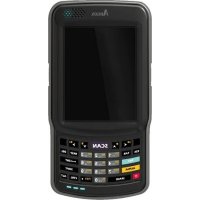
PT90 - Lecteur de code barre Argox - Notice d'utilisation et mode d'emploi gratuit
Retrouvez gratuitement la notice de l'appareil PT90 Argox au format PDF.


| Type de produit | Ordinateur mobile avec lecteur de codes-barres |
| Marque | Argox |
| Modèle | PT90 |
| Système d'exploitation | Windows Embedded CE 6.0 |
| Processeur | MARVELL PXA310 806 MHz |
| Mémoire RAM | 256 Mo |
| Mémoire ROM (Flash) | 256 Mo |
| Écran | LCD couleur TFT 3,5 pouces avec écran tactile |
| Résolution d'écran | 240 x 320 pixels |
| Type de scanner | Laser |
| Codes-barres lisibles | Code 11, Code 39, Code 93, Code 128, Codabar, EAN-8/13, UPC-A/E, RSS, etc. |
| Clavier | 29 touches ou 44 touches (selon version) avec rétroéclairage |
| Interfaces filaires | USB 2.0, RS-232 |
| Interfaces sans fil | Bluetooth Class 2 v2.0, WLAN 802.11b/g |
| Alimentation | Batterie Li-ion rechargeable 3,7 V (3900 mAh pour terminal, 4400 mAh pour pistolet) |
| Autonomie batterie | Variable selon usage ; gestion d'énergie réglable |
| Dimensions (L x l x H) | 159 mm x 80,8 mm x 36 mm |
| Poids (avec batterie) | Environ 380 g |
| Température de fonctionnement | -10 °C à 50 °C |
| Indice de protection | IP65 (résistant à la poussière et aux projections d'eau) |
| Résistance aux chutes | 1,8 m sur béton (terminal) |
| Nettoyage et entretien | Utiliser un chiffon doux et sec ; ne pas utiliser de solvants ; nettoyer la fenêtre de scan périodiquement |
| Garantie et réparabilité | Garantie légale ; aucune pièce réparable par l'utilisateur ; contacter le support technique Argox |
FOIRE AUX QUESTIONS - PT90 Argox
Questions des utilisateurs sur PT90 Argox
0 question sur cet appareil. Repondez a celles que vous connaissez ou posez la votre.
Poser une nouvelle question sur cet appareil
Téléchargez la notice de votre Lecteur de code barre au format PDF gratuitement ! Retrouvez votre notice PT90 - Argox et reprennez votre appareil électronique en main. Sur cette page sont publiés tous les documents nécessaires à l'utilisation de votre appareil PT90 de la marque Argox.
MODE D'EMPLOI PT90 Argox
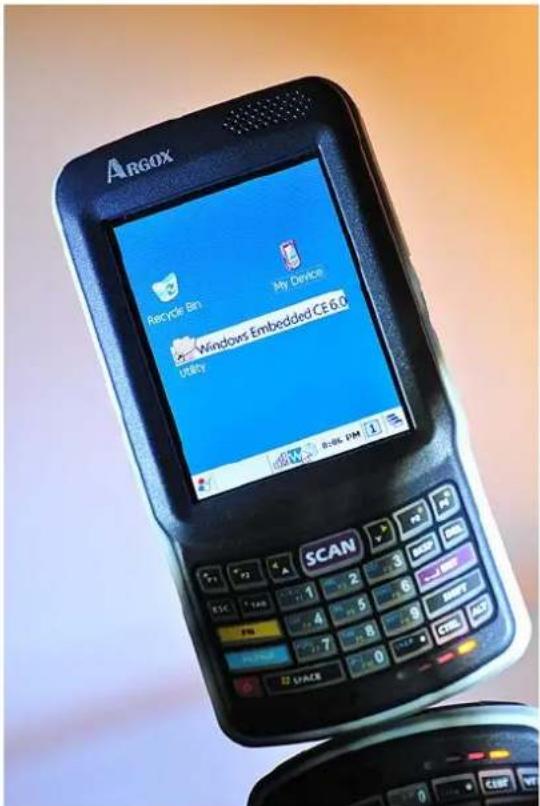
User's Manual
PT-90 Mobile Computer
(WinCE 6.0 version)
DOC NO. UM-P9005-01
Mar. 2010
Version 1.0
NOTICE: This user's manual may be revised or withdrawn at any time without prior notice.
Copyright 2009, Argox Information Co., Ltd.
All rights reserved.
This manual may not, in whole or in part, be copied, photocopied, reproduced, translated or converted to any electronic or machine readable form without the prior written consent of Argox.
Limited warranty and disclaimers
By opening the package of this product you agree to become bound by the liability and warranty conditions as described below.
Under all circumstances this manual should be read attentively before installing and or using the product. In no event, will Argox be liable for any direct, indirect, consequential or incidental damages arising out of use or inability to use both the hardware and software, even if Argox has been informed about the possibility of such damages.
A serial number appears on all Argox products. This official registration number is strictly related to the device purchased. Make sure that the serial number appearing on your Argox device has not been removed. Servicing by our service department can only be carried out under warranty.
All Argox products are warranted for the legal warranty period after purchase, covering defects in material and workmanship. Argox will repair or, at its opinion, replace products that prove to be defective in material or workmanship under proper use during the warranty period.
Argox will not be liable in case modifications are made by the customer. In such case the standard repair charge will be applicable. The standard charge for repair will also be applicable in case no defect is found at all. These rules also apply for products that are still under warranty. Therefore, you are advised to have the product specifications always at hand.
Trademarks used are property of their respective owners.
Table of Contents
1. INTRODUCTION.... 1
1.1 ABOUT THIS MANUAL .... 1
1.2 USER AND PRODUCT SAFETY 2
1.3 SPECIFICATIONS....4
2. GETTING STARTED 6
2.1 CHECK THE PACKAGE....6
2.1.1 Compact Package....6
2.1.2 Cadle & Pistol grip Package (Optional).... 7
2.2 DETAILED VIEW 8
2.2.1 PT-90 Mobile Computer....8
2.2.2 Cradle 9
2.3 INSTALLING, REPLACING AND CHARGING BATTERIES ....10
2.3.1 Installing / Replacing the Battery Pack....12
2.3.2 Charging the Battery Pack with a Power Adapter....12
2.3.3 Charging the Battery Pack with Cradle 13
2.4 INSTALLING IN A SYSTEM ....14
2.4.1 Via USB /RS-232 Cable 14
2.4.2 Via CRD-90 Cradle....14
3. OPERATION OF THE MOBILE COMPUTER....15
3.1 KEYPAD DESCRIPTION....15
3.2 FUNCTION KEY DESCRIPTION....16
3.3 INSTALL MICRO SD CARD INTO PT-90 17
3.4 CONFIGURING PT-90 SETTINGS....18
3.4.1 Calibrating Touch Screen Alignment....18
3.4.2 Adjusting Brightness....19
3.4.3 Muting Sound 19
3.4.4 Using the Stylus....19
3.5 ENTERING INFORMATION....20
3.5.1 Entering Information Using a Keypad 20
3.5.2 Entering Information Using the Keyboard Input Panel....20
3.5.3 Entering Data via the Bar Code Scanner....20
3.6 POWER MANAGEMENT 21
3.6.1 Power Status Indication....21
3.6.2 Saving Battery Power....23
3.6.3 Suspend Mode 24
3.6.4 Resume 25
3.7 RESETTING THE PT-90....25
3.7.1 Performing a Warm Boot 26
3.7.2 Performing a Cold Boot....26
3.7.3 Performing a Clean Boot 26
3.8 FLASH STORAGE....27
3.8.1 Flash Disk Location 27
3.8.2 Flash Disk Size....27
3.9 BLUETOOTH SETTING 28
3.10 WLAN SETTING....34
4. SCANNING 35
4.1 SCAN CONFIGURATION....35
4.2 SCAN DRIVER....36
4.3 SCAN TEST ....37
4.4 READING BARCODE....37
4.5 BARCODE READING PROBLEMS....38
5. UTILITIES....39
5.1 FUNCTION KEY SETTING ......39
5.2 TIMEOUT & BRIGHTNESS ....40
6. SOFTWARE APPLICATIONS......41
6.1 INTERNET EXPLORER....41
6.2 MEDIA PLAYER 41
6.3 MICROSOFT WORDPAD 42
6.4 REMOTE DESKTOP CONNECTION 42
6.5 TRANSCRIBER....42
6.6 WINDOWS EXPLORER....43
7. COMMUNICATION....44
7.1 MICROSOFT ACTIVESYNC 44
7.2 MICROSOFTMOBILEDEVICECENTER 44
8. OVERVIEW OF MICROSOFT WINDOWS CE 6.0....45
8.1 MAIN WINDOWS....45
8.2 TASKBAR....47
8.3 SETTING UP THE PT-90....49
8.3.1 Certificates....50
8.3.2 Date/Time....51
8.3.3 Dialing 52
8.3.4 Display....53
8.3.5 Hot Function Key....54
8.3.6 Input Panel....54
8.3.7 Internet Options 55
8.3.8 Keyboard....56
8.3.9 Mouse....57
8.3.10 Network and Dial-up Connection ....57
8.3.11 Owner....58
8.3.12 Password....59
8.3.13 PC Connection....60
8.3.14 Power....61
8.3.15 Regional Settings....61
8.3.16 Remove Programs....62
8.3.17 Scan Configuration 63
8.3.18 Storage Manager....63
8.3.19 Stylus....64
8.3.20 System....65
8.3.21 System Information....66
8.3.22 Timeout and Brightness....66
8.3.23 Volume and Sounds....66
9. TROUBLE SHOOTING 68
9.1 GENERAL CHECKS....68
9.2 READ OPERATION PROBLEMS....68
9.3 MOBILE COMPUTER PROBLEMS....68
10. APPENDIX: UPDATING THE OS VIA MICRO SD CARD....70
1. Introduction
Congratulations on purchasing the PT-90, a Microsoft Windows® CE Mobile Computer. Its special combination of features makes it perfect for use in a wide range of applications. These features as:
■ Microsoft Windows CE. Net operating system
■ Robust expansion capability
■ Wireless mobility via 802.11b
■ Long battery life
■ Low Power Transflective type color LCD display
■ Backlight keypad
1.1 About this Manual
The chapters contained in this manual are:
Chapter 1: Introduction – Presents general information about the PT-90
Chapter 2: Getting started – Describes basic use of the PT-90
Chapter 3: Operating the Mobile computer – Describes customizing the PT-90
Chapter 4: Scanning
Chapter 5: Useful Utilities
Chapter 6: Software Applications
Chapter 7: Communication – Describes using the PT-90 for different types of communication
Chapter 8: Overview of Microsoft Windows CE 6.0
Chapter 9: Troubleshooting
Chapter 10: Appendix
1.2 User and Product Safety
Never use strong pressure on the screen or subject it to severe impact, as the LCD panel can crack and possibly cause personal injury. If the LCD panel is broken, never touch the liquid inside, for such contact can irritate the skin.
Although the PT-90 mobile computer meets IP65 standards for water and dust resistance, avoid prolonged exposure to rain or other concentrated moisture. Conditions exceeding IP65 standards could result in water or other contaminants entering the PT-90.
Use only the approved AC Adapter with the PT-90. Use of an unapproved AC Adapter could result in electrical problems, or even cause a fire or an electrical shock to the user.
■ Be sure that only authorized suppliers are allowed to disassemble and reassemble the device. If the device or parts are damaged due to wrong handling, the product and parts warranty is void.
■ Always make back-up copies of all important data. This is easily done using a cable or single cradle (optional) to transfer data to the computer. The manufacturer is not liable for any data damage or data loss caused by deletion or corruption while using this device, or due to a drained battery.
Lithium-ion battery packs may get hot, explode, ignite and/or cause serious injury if abused. Please follow the safety warnings listed below.
Warnings:
- Do not place the battery pack in fire or heat the battery.
- Do not install the battery pack backwards so the polarity is reversed.
- Do not carry or store battery pack together with metal objects.
Do not pierce the battery pack with nails, strike the battery pack with a hammer, step on the battery pack or otherwise subject it to strong impacts or shocks.
♦ Do not solder directly onto the battery pack.
Do not expose battery pack to liquid, or allow the battery contacts to get wet.
Do not disassemble or modify the battery pack. The battery pack contains safety and protection devices, which, if damaged, may cause the battery pack to generate heat, explode or ignite.
Do not discharge the battery pack using any device except for the specified device. When it is used in devices other than the specified devices, the battery pack can be damaged or its life expectancy reduced. If the device causes any abnormal current to flow, it may cause the battery pack to become hot, explode or ignite and cause serious injury.
In the event the battery pack leaks and fluid gets into the eyes, do not rub the eyes. Rinse well with water and immediately seek medical care. If left untreated, the battery fluid could cause eye damage.
To avoid malfunctions and to ensure years of trouble-free operation, pay attention to the following:
General Use

Do not expose the mobile computer to areas subject to extreme heat such as direct sunlight, near a heater, or in a car – or in areas that are very cold, humid, moist, or dusty.

Do not expose the product to rain or water

Do not subject the product to strong impact, or throw or drop the mobile computer from large heights. Do not allow other mechanical shocks to the product.
Cleaning Instructions

Clean the exterior by wiping it with a soft, dry cloth. Do not use much water.

Do not use thinner, white spirit or other solvents. These can discolor the case and the keys and it has a negative effect on the lifetime of the keys.
Cleaning the Mobile Computer
Clean the scan window periodically for better reading performance, but pay attention to not scratching the window
Cleaning the Cradle
Avoid touching the contacts in the cradle. The contacts must stay as clean as possible to maintain optimal charging capacity. Do not use water when cleaning the cradle. This can cause malfunction of the chargers.
Using the Mobile Computer

Avoid temperature changes. Sudden temperature changes can cause condensation to form on the mobile computer. Using the mobile computer while condensation is present can cause malfunction. Always wait until the condensation clears naturally before attempting operation.

Do not leave the mobile computer in an area where static charge is accumulated or near devices where electromagnetic emission is generated.
Do not place any object on top of the mobile computer. Do not lay the mobile computer face down. Doing so can cause accidental operation of the power key or [ENT] key, which can discharge your batteries or change settings you do not want changed.
Using the Cradle
Do not place any product other than the PT-90 mobile computer in the cradle.
Maintenance

There are no user-serviceable parts inside the mobile computer or the cradle. So do not try to take it apart. The manufacturer will not be liable for any damage caused by customers. In case of a malfunction that can not be solved by the troubleshooting instructions in this manual, please consult our service department.
1.3 Specifications
| Performance | |
| OS | Windows Embedded CE 6.0 |
| CPU | MARVELL PXA310 (806 MHz) |
| RAM | 256MB RAM |
| ROM | 256MB |
| Display | |
| LCD | 3.5" Color TFT LCD with touch panel |
| Resolution | 240 x 320 |
| Scanner | |
| Scanner system | Laser scan engine |
| Readable barcode | Code 11, Code 39, Code 93, Code 128, Codabar, EAN-8, EAN-13, Industrial 2/5, Interleaved 2/5, MSI plessey, UK plessey, Telepen, UPC-A, UPC-E, Matrix 2/5, UPC/EAN General, IATA 2/5, TRI-OPTIC and RSS |
| Keypad | |
| 29 keys /29 keys plus / 44 keys with backlight | |
| Communication Interface | |
| Standard Interface | USB 2.0 and RS-232 |
| Wireless radio Options | WPAN :Bluetooth Class 2, version 2.0WLAN: 802.11b/g Wi-FiWWAN: EDGE /GPRS (TBD)RFID HF: ISO 15693R/W, ISO 1443A/B R/W(TBD)GPS: SiRF star III(TBD) |
| Power supply | |
| Main power | Terminal : Rechargeable Li-ion Battery 3900mAh, 3.7VdcGun type : Rechargeable Li-ion Battery 4400mAh, 3.7Vdc |
| Power input | Via cradle or direct charging |
| * Batteries must be charged at a temperature ranging from 0~+40°C (+32°F to +104°F). At temperatures below 0°C and above +40°C display or battery performance degradation may occur. | |
| Expansion slot | |
| Micro SD card | |
| Physical and Environmental | |
| Operation Temperature | -10~50°C |
| Storage Temperature | -20~70°C |
| Battery Charging Temperature | 0~40°C |
| Humidity | Max 80% RH <= 30°C |
| Weight | Approx. 380 g(battery included) |
| Drop test | 1.8 meters to concrete (Handset)0.9 meters to concrete (Cradle) |
| ESD | +/-15kVDC air discharge+/- 8kVDC direct discharge (contact)+/- 8kVDC indirect discharge (H & V) |
| Sealed standard | IP65 |
| Agency Listing | |
| CE, FCC, BSMI, NCC, CCC, SRRC | |
| Win-CE AP | |
| MS Web Browser(Internet Explorer), Media Player, Microsoft WordPad, Remote Desktop Connection, Transcriber, Windows Explorer | |
| Developing Tools | |
| Argox SDK | Microsoft Visual Studio for smart device programming |
2. Getting Started
This chapter describes the PT-90 physical characteristics, how to install and charge the batteries, how to remove and replace the strap assembly and how to start the PT-90 for the first time.
2.1 Check the package
Carefully remove all protective material from around the PT-90 and save the shipping container for later storage and shipping.
Depending on the configuration ordered, the PT-90 shipping container may include:
2.1.1 Compact Package
v PT-90 v Quick Reference Guide
v Battery pack v CD-ROM
v USB Sync cable v Thread
v Power supply v Stylus
v Hand strap
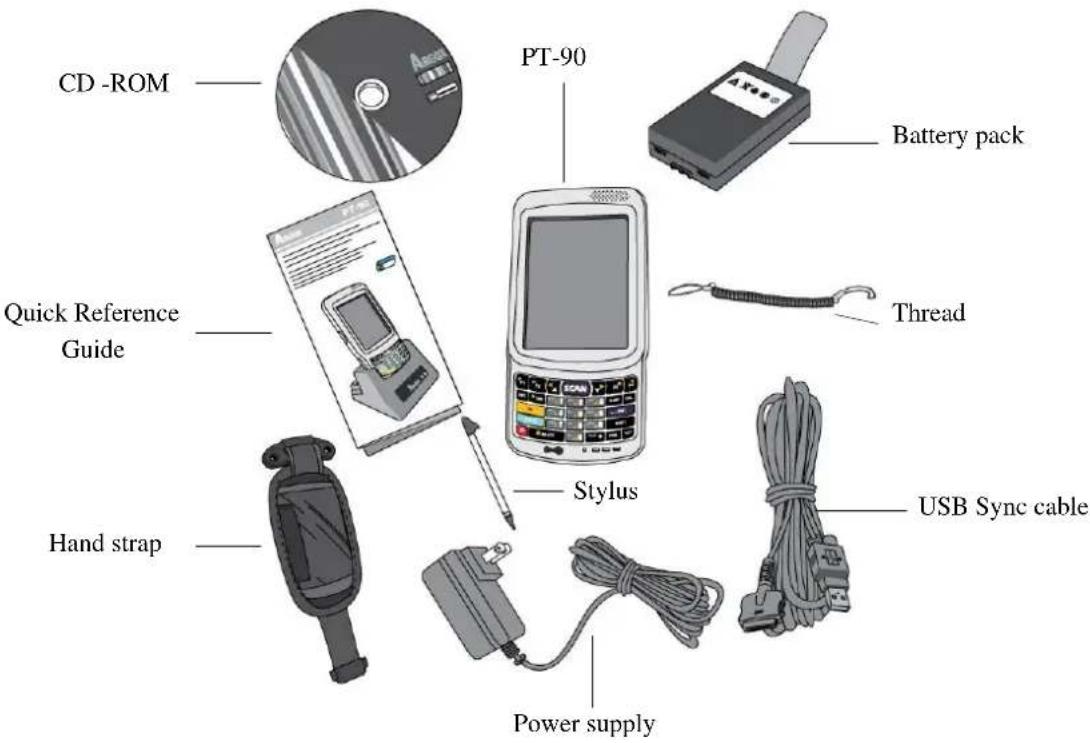
Figure 2-1 Compact Package
2.1.2 Cadle & Pistol grip Package (Optional)
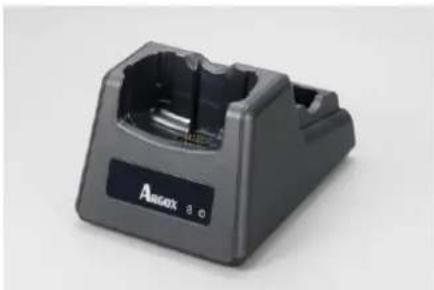
Cradle Package
v Power supply
v Cradle
natural_image
Exterior view of a black Amasox 8.0 charging station (no text or symbols on the device body)Cradle
natural_image
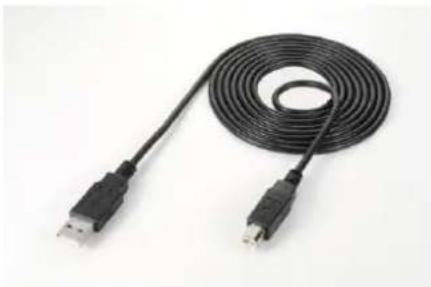
Coiled black USB cable with two connectors, isolated on white background (no text or symbols)USB cable
Figure 2-2 Cradle Package
Pistol Package
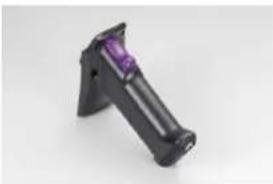
v pistol-grip
natural_image
Black handheld device with purple lens, isolated on white background (no text or symbols visible)v Li-ion battery 4400mAh
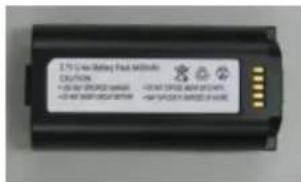
Figure 2-3 Pistol -grip Package
Inspect the package contents for damage. If any item is missing or damaged, please contact the Argox Technical Support Center immediately.
2.2 Detailed View
The pictures below provide information on the PT-90's various buttons, ports and other functions.
2.2.1 PT-90 Mobile Computer
Dimensions of the PT-90
159 mm (L) * 80.8mm (W) * 36mm (H)
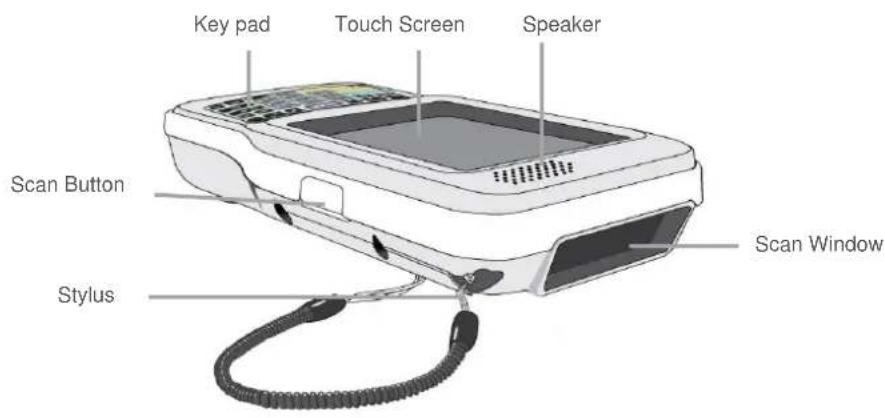
Figure 2-4 The Front of the PT-90
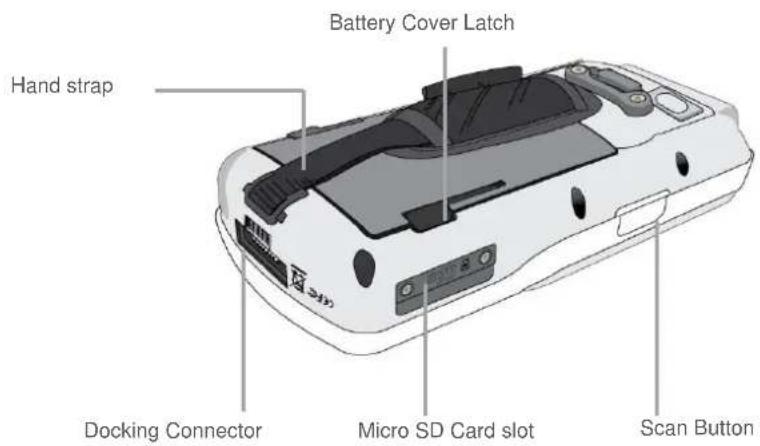
Figure 2-5 The Back of PT-90
2.2.2 Cradle
Dimensions of the CRD-90 Cradle
147mm (L) × 112mm (W) × 83mm (H)
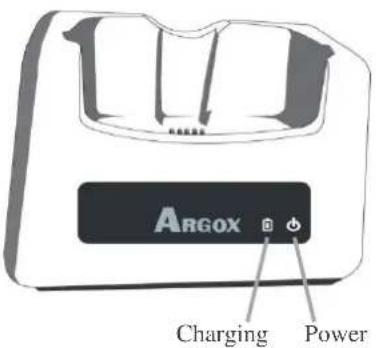
Figure 2-6 The Front of the CRD-90
1. Mobile Computer Slot
Put the mobile computer in the cradle slot for data transmission or charging
2. Power LED Indicator
| LED status | Description |
| Green | Power on (mobile computer not in cradle) |
3. Charging LED Indicator
| LED status | Description |
| Red | Charging |
| Green | Charging complete |
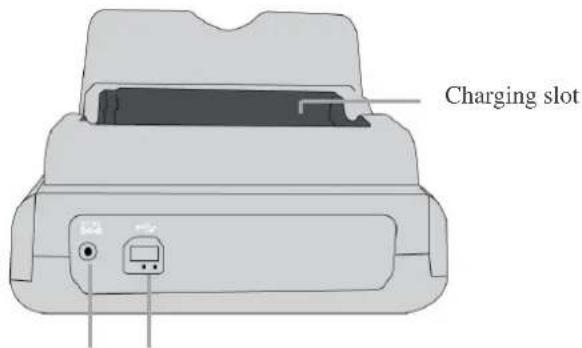
Power Jack Communication
Figure 2-7 The Back of the CRD-90
4. Charging Slot
For charging a spare rechargeable battery pack
5. USB and Charging Connector
Connects the multiple function socket on the mobile computer for data transmission and charging
6. Power Jack
Input for AC adapter
2.3 Installing, Replacing and Charging Batteries
Wrong use of batteries may cause serious damage to the mobile computer or to the cradle. To avoid damage, it is important to follow the instructions.
Caution:
▶ Insert a fully-charged battery pack before use of the mobile computer.
▶ Never remove the main batteries while the mobile computer is turned on.
Doing so may lose data that is not saved in the mobile computer.
▶ Use only recommended batteries.
When other batteries are used, defects or other problems can occur. Before installing (new) batteries, please make sure you are using the recommended batteries.
▶ Use the right charger for batteries.
The rechargeable Li-polymer battery pack from Argox can be charged in the cradle when either it is in the mobile computer or alone in the charging slot in the back of the cradle.
The life of a battery pack is limited, and charging a battery pack causes it to gradually lose its ability to maintain a charge. If your battery pack requires frequent charging, it probably means it is time to purchase a new one.
▶ A fully charged backup battery can maintain memory (RAM) contents for about 15 minutes, even when the battery pack is removed.
▶ Strictly follow the instructions for installing, charging, and removing the batteries.
The products are not warranted for damage, defects, malfunction, or loss of data, resulting from incorrect use of batteries.
Required batteries:
The mobile computer needs both main battery and backup battery for operation.
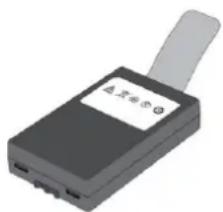
Main Battery
The rechargeable battery pack is for normal operations and data storage. When the battery pack power goes low, immediately charge it or replace it with a charged battery pack.
natural_image
3D rendering of a black rectangular electronic device with a gray handle and labeled ports (no readable text or symbols)Backup Battery
The built-in battery is for memory backup.
How to charge the Argox rechargeable battery pack in the cradle
- Make sure that the Argox rechargeable battery pack is inserted in the mobile computer. When the mobile computer is placed in the cradle, the rechargeable battery pack charges automatically.
- If you have a spare Argox battery pack, you can replace the empty battery pack with a full battery pack for continuous mobile computer operation. Put the empty battery pack in the charging slot of the cradle. The LED (CHG) on the cradle flashes Red and turns Green when the battery is fully charged.
When to replace or recharge the main battery
There are two conditions that you need to replace the main battery.
- As soon as possible after the battery indicator 📋 appears on the display.
- Before using the mobile computer when it has not been used for an extended period.
Notes:
♦ Charging the Main and Backup Batteries for the First Time
It may take up to 8 hours to fully charge the empty backup battery. The first time charge should be for at least 8 hours to insure a proper charge.
When charging the battery pack, the Power LED on the Mobile computer turns Red. After the battery pack is fully charged, the Power LED turns green.
2.3.1 Installing / Replacing the Battery Pack
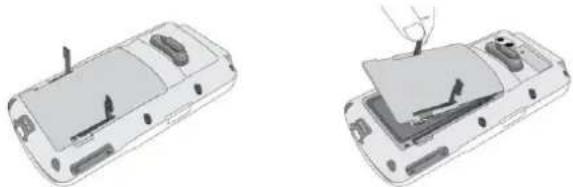
To remove and install the battery
- Press and release the POWER button to suspend the mobile computer
- If the Mobile Computer has a hand-strap, detach and loosen the hand-strap
- Rotate the latches to the open position and remove the battery cover
natural_image
Two technical line drawings of a smartphone showing front and side views (no text or symbols)Figure 2-8 Installing / Replacing the Main Battery
- Align the battery contacts and insert the battery
- Reassemble the battery cover and Rotate the latches to the closed position
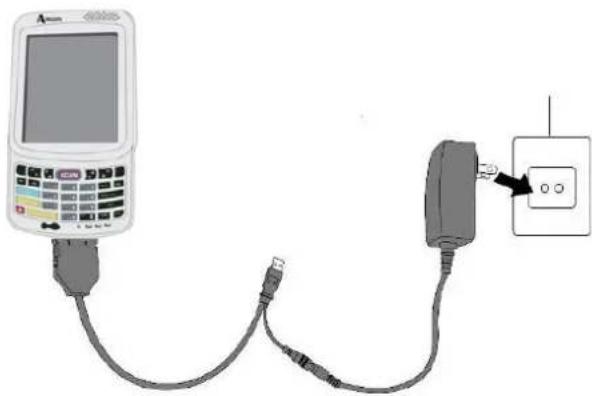
2.3.2 Charging the Battery Pack with a Power Adapter
Using a RS232/Charging Cable or USB/Charging Cable
- Plug in the RS232/Charging cable or the USB/Charging cable to the PT-90
- Connect the AC adapter to the cable's power jack and an electrical outlet.
natural_image
Illustration of a handheld electronic device connected to a terminal block with an arrow pointing to it (no text or symbols present)Figure 2-9 Supplying Power
Notes:
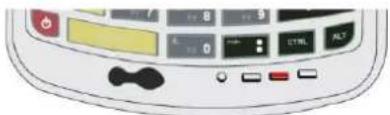
When charging the battery pack, the Power LED on the Mobile computer is Red.
natural_image
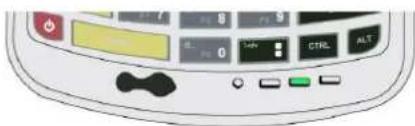
Close-up of a computer control panel with buttons and a black handle (no readable text or symbols)When the battery pack is fully charged, the Power LED turns to green.
2.3.3 Charging the Battery Pack with Cradle
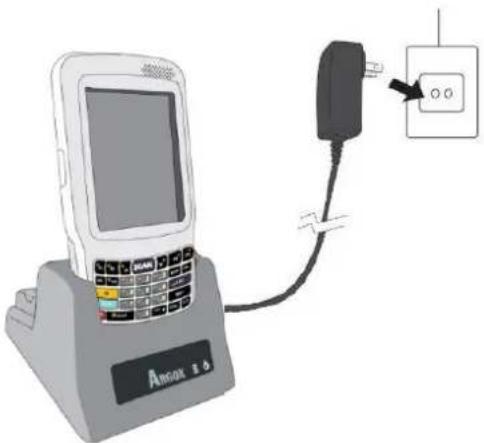
a) Leaving the battery pack inside the Mobile computer
- Connect the power adaptor to a power source
- Plug in the connector of the power adapter to the Cradle
- Insert the Mobile computer into the Cradle
natural_image
Illustration of a POS terminal connected to a plug with an outlet (no text or symbols visible)Figure 2-10 Charging with Cradle
Note:
When charging the battery pack, the Power LED on the Mobile computer turns Red. After the battery pack is fully charged, the Mobile Computer Power LED turns green.
b) Placing the spare battery pack into the Cradle's spare battery charging slot
- Connect the power adapter to a power source
- Plug in the connector of the power adapter with Cradle
- Insert the battery pack into the Cradle's spare battery slot
Note:
When charging the battery pack in the Cradle's spare battery slot, the Cradle charging LED is Red. After the battery pack is fully charged, the LED turns green.
Caution:
Do not remove the Battery pack for too long from PT-90 once you have already fully-charged the Battery pack and the backup battery pack and have started to use the PT-90. Otherwise data that is not saved will be lost. Please keep in mind to turn off the power on Mobile computer when changing the main Battery pack.
2.4 Installing in a System
Notes:
Exercise caution at all times when working with AC-powered equipment.
◆ Turn off your devices before installation.
- Because of the special pin-out of the connectors, use the cables supplied by the manufacturer.
Do not modify the cable provided by the manufacturer. If you need a special cable for some cases, contact your supplier to purchase the right cables or technical support.
System Connection (Data Communication)
The mobile computers let you link to a host computer through USB and RS-232 cable or the CRD-90 cradle for data communication.
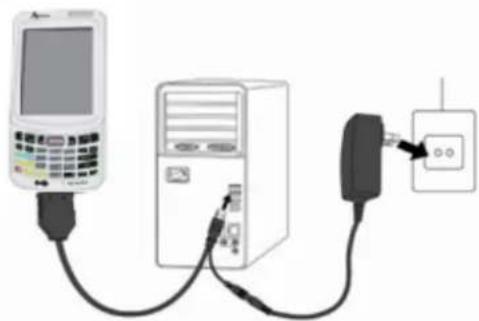
2.4.1 Via USB /RS-232 Cable
The mobile computer connects directly to a host computer via the USB /RS-232 cable.
natural_image
Three connected devices: a mobile phone, a desktop computer, and a power outlet (no visible text or symbols)Figure 2-11 Communication through Cable
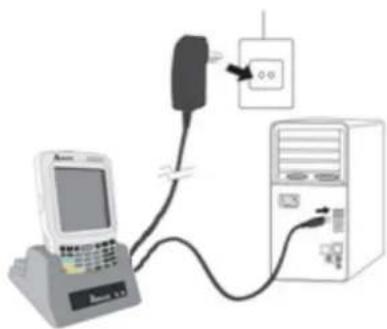
2.4.2 Via CRD-90 Cradle
Connected with CRD-90 cradle via USB cable for data transmission
natural_image
Diagram showing connection between a computer and a server with a power outlet (no text or symbols present)Figure 2-12 Communication through Cradle
3. Operation of the Mobile Computer
3.1 Keypad Description
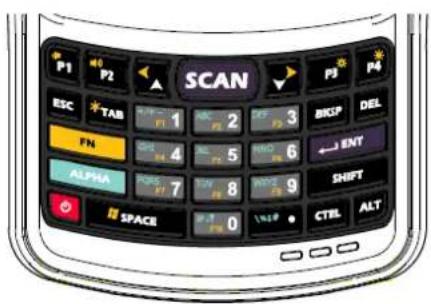
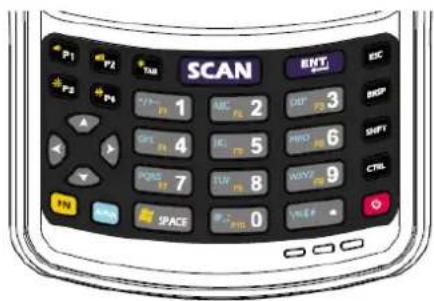
PT-90 keypad consists of 29 rubber keys including one SCAN key. Please refer to the picture below.
29-key
29-key plus
Figure 3-1 Keypad Layout
| Key Define | Function |
| ALPHA | Switches between the number input mode or the character input mode.1 Number input mode (default input mode)a English lowercase letter (a~z)A English capitalization (A~Z) |
| On/ Off | When the unit is off, pressing the Power key turns the unit on.Alternatively, when the unit is on, this key must be pressed and held down for about two seconds in order to turn the unit off. |
| ESC | Exit and back to the last layer. |
| TAB | The Tab key is used to toggle between data fields or to place the cursor at pre-determined places in a programming or word processing application. |
| BKSP | The Backspace key is used to erase previously input characters. |
| DEL | Delete Key(DEL key is not available in 29key plus.) |
| ENT | Enter Key |
| SHIFT | Shift Key |
| ALT | Alt Key(ALT key is not available in 29key plus.) |
| SCAN | Trigger scanner, if the scanner enables. |
| CTRL | Control Key |
| SPACE | Space Key |
| P1-P4 | User define key or application |
3.2 Function Key Description
The function key FN is specially designed for quick access (Hot-key) to some functions. The function key combines with other keys.
■ Press function key once (function single mode). After press function key combination, function single mode switches to normal mode.
■ Press function key twice (function continue mode). After press function key again, function continue mode switches to normal.
■ Available function key combinations
| Key Define | Function |
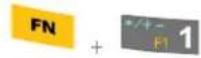 | Reserve (user define) |
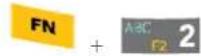 | Reserve (user define) |
 | Reserve (user define) |
 | Reserve (user define) |
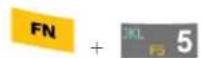 | Reserve (user define) |
 | Reserve (user define) |
 | Reserve (user define) |
 | Reserve (user define) |
 | Reserve (user define) |
 | Reserve (user define) |
 | Touch screen calibration |
 | Volume Down |
 | Volume Up |
 | LCD Backlight down |
 | LCD Backlight up |
 | Move Left |
 | Move Right |
 | Keypad Backlight ON/OFF |
 | Windows Start Menu |
3.3 Install micro SD card into PT-90
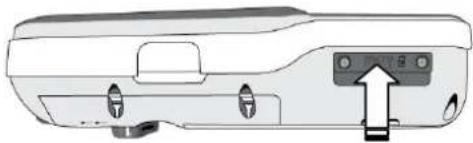
- Open the Micro SD slot cover with a screw driver.
- Insert a correctly oriented Micro SD card.
- Close the slot cover and fix two screws.
natural_image
Diagram of a vehicle rear bumper with a small lock and directional arrow indicating motion (no text or symbols)Insert Micro SD card face side down
Figure 3-2 Inserting a micro SD Card
| Note: | a. If the micro SD card is inserted incorrectly, the micro SD card unit and its internal data maybe damaged.b. When removing the micro SD card, please press “push” first. |
3.4 Configuring PT-90 Settings
3.4.1 Calibrating Touch Screen Alignment
Pressing the Power key
The PT-90 welcome screen appears. The Windows CE® screen appears shortly after.

Figure 3-3 Logo
Calibrating the PT-90
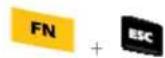
This screen can be accessed at any time by pressing the hot key FN and ESC key. Or by accessing the menus and tab in order of Start → Settings → Control Panel → Stylus → Calibration.
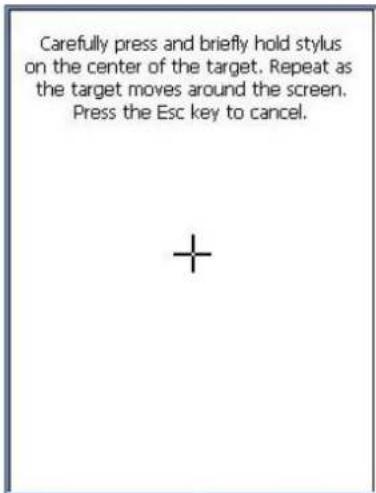
Figure 3-4 Calibration-1
Whenever the response of the touch screen is poor, or the operations executed do not match your tapping on the touch screen, please recalibrate the alignment of the touch screen using the following method.
-
Press the stylus against the center of the target mark “+” as indicated on the screen. The screen shown to the right appears after you press the stylus against the target at five different locations.
-
Press the Execute key or tap anywhere on the touch screen
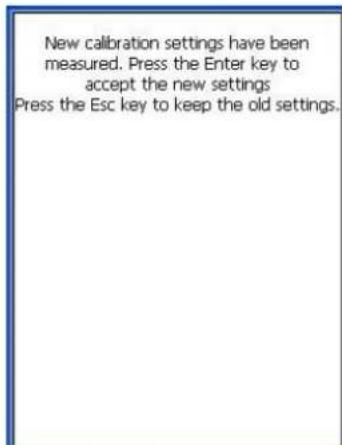
Figure 3-5 Calibration-2
3.4.2 Adjusting Brightness
You can use the following procedures to adjust display brightness to make it easier to read under different lighting conditions.
■ Press the FN key and then press the P4 key to adjust brightness for a lighter display. Press the FN key and then press the P3 key to adjust brightness for a darker display.
To continue making adjustments, press the FN key twice to enter function continue mode. Press the P3 key to adjust brightness. After finish setting,
press the FN key to exit function continue mode.
■ Brightness settings are also made by accessing the menu and tab in order of Start → Settings → Control Panel → Timeout&Brightness.
3.4.3 Muting Sound
You can use the following procedures to adjust sound to make it easier to hear under different working conditions.
■ Press the FN key and then press the P2 key to adjust for a louder sound. Press the FN key and then press the P1 key to adjust for a softer sound.
To continue making adjustments, press the FN key twice to enter function continue mode. Press the P1 P2 key to adjust sound. After finish setting, press the FN key to exit function continue mode.
■ Sound settings are also be made by accessing the menu and tab in order of Start →Settings → Control Panel→Volume & Sounds
3.4.4 Using the Stylus
The stylus is located next to hand-strap on the rear of the PT-90 as illustrated in Figure 2-4 The Front of the PT-90 (page 8). The stylus functions the same as a mouse on a PC. Use the stylus to:
- Navigate the display, select menu items and open optional applications.
■ Tap the characters on the soft keyboard panel
- Hold the stylus on the screen and drag across the screen to select a list of multiple items.
Caution: Never use a pen, pencil, or other sharp object on the display to avoid damaging the touch screen.
3.5 Entering Information
To enter information:
■ Use the keypad
■ Use the keyboard input panel (soft keyboard) to enter text.
■ Scan bar code data into data fields.
■ Use left /right side key
■ Use Microsoft ActiveSync to synchronize or copy information from the host computer to the PT-90. For more information on ActiveSync, refer to Chapter 7.
3.5.1 Entering Information Using a Keypad
The alphanumeric keypads produce the 26-character alphabet (A-Z), number s (0-9), function keys and assorted characters. The keypads default characters/functions are printed white.
3.5.2 Entering Information Using the Keyboard Input Panel
Use the keyboard input panel (soft keyboard) to enter information in any program. To launch the keyboard input panel, press the button on the taskbar. Tap a key to enter a value. Tap a key board input panel button to display or hide the keyboard input panel.
![Input Panel Esc 1 2 3 4 5 6 7 8 9 0 - = ◆ Tab q w e r t y u i o p [ ] CAP a s d f g h j k l ; * Shift z x c v b n m , . / ← Ctrl äü ` \ ↓ ↑ ← →](/content/2026/03/536719/images/db1688c6961b871060e27c53a9e11114c72f908d952d62de0adbfb2d7475c5d8.jpg)
Figure 3-6 Soft Keyboard
3.5.3 Entering Data via the Bar Code Scanner
The sample bar code scanner application scans data into data fields in the same way data is entered via the keypad.
3.6 Power Management
3.6.1 Power Status Indication
Checking main and Backup Battery Status
Enter "Power Properties"
If the above mentioned Plug or Battery icon is displayed, double tap this icon to bring up the Power Properties screen.
Or, select Settings -> Control Panel from the Start menu and then double tap the Power icon to display Power Properties.
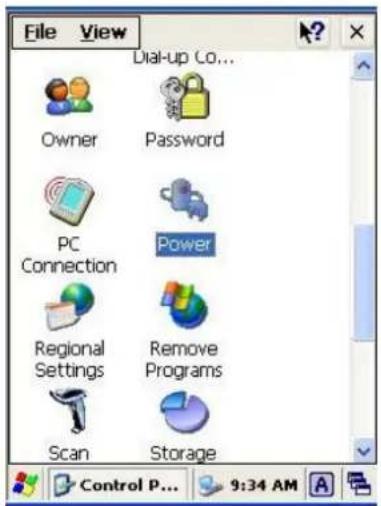
Figure 3-7 Control Panel
To Check Battery Status:
The battery menu item shows the status of the main and backup batteries.
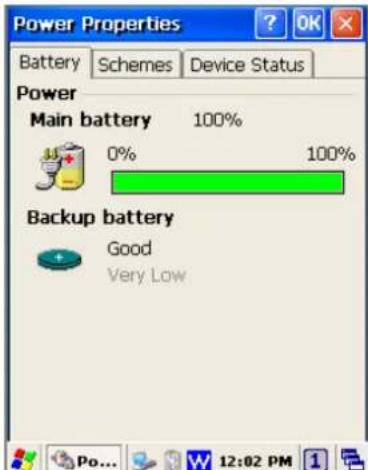
Figure 3-8 Power Properties
Five different icons are displayed on the status bar to indicate the on-board power status.
| Icon | Description | |
| No icon: | Indicates there is no external power supply to the PT-90 but the battery power status is good. | |
“Plug”  | Shows external power is in use. The PT-90 is either plugged-in via the DC 5V/3A power adapter or in the cradle. | |
 |  | Indicates that the battery is charging. |
 | [x5WX] | Shows there is no external power supply, the battery charge is low. |
 |  | Indicates the battery is very low. Stop operation and charge the PT-90 immediately. |
You must charge the battery when the Battery Very Low icon is displayed.
If the Battery Very Low icons still show after charging, please contact Argox Technical Support.
3.6.2 Saving Battery Power
Automatic shut-down of the PT-90
The PT-90 enters idle mode when there is no task or if all tasks are waiting for input. In default setting, the PT-90 automatically turns itself off if idle for 9 (1+3+5) minutes and when there is no external charging power. Press the Power button to return the PT-90 to the same point at the time of automatic shutdown.
In Power Properties, select Schemes. Customize automatic shut off time by tapping the arrow to select from a list of time periods. The available time periods for battery power are 1, 2, 3, 4, 5, 10, 30 minutes and never.
Activate this function when the PT-90 is plugged into the power adapter or placed in its cradle by tapping the check box and then tapping the arrow to select from a list of time periods. The available time periods for AC power are 1, 2, 5, 10, 15, 30 minutes and never.
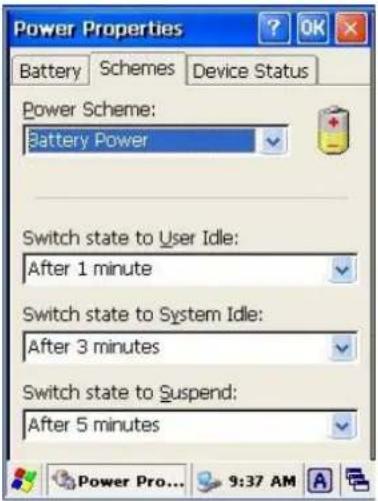
Figure 3-9 Power Properties-2
Backlight Setting
Because the power consumption of the LCD backlight is high, turn off the backlight function when it is not necessary. If a backlight is required, set “automatically turn off the back-light.”
To change the backlight setting, select Start → Settings → Control Panel, and then double tap the Timeout & Brightness icon.
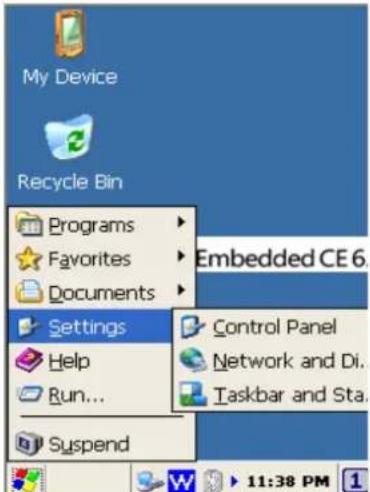
Figure 3-10 Bcklight Setting
Timeout setting:
Tap the check box off to always turn on backlight. Tap the check box on to toggle automatically turning off backlight.
Available timeout for battery power are 15 seconds, 30 seconds, 1 minute, 2 minutes and 5 minutes. Available timeout for AC power are 15 seconds, 30 seconds, 1 minute, 2 minutes, 5 minutes, 10 minutes, 15 minutes and 30 minutes.
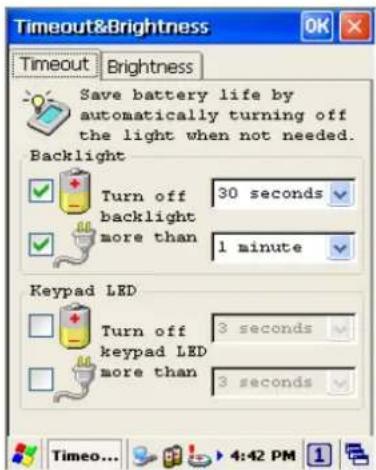
Figure 3-11 Timeout Setting
Brightness setting:
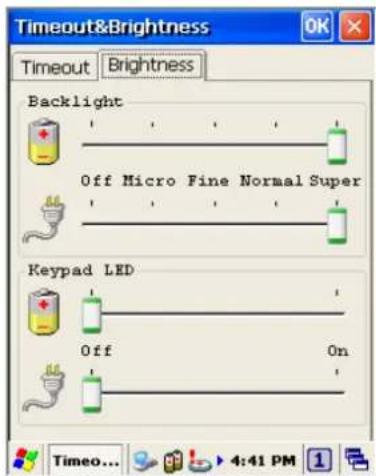
Adjust the brightness setting for backlight. Available brightness for battery and AC power are Off, Micro, Fine, Normal and Super.
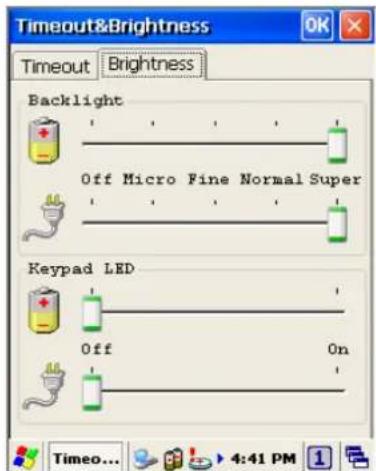
Figure 3-12 Brightness Setting
3.6.3 Suspend Mode
The PT-90 will go into suspend mode when it is idle for a period of time. Customize the idle duration using the Power control panel (refer to Figure Schemes Tab). Suspend mode appears just like you have turned the unit off. Press the Ⓞ key to suspend the PT-90. Press the Ⓥ key again for the PT-90 to resume its previous state.
Use the Battery Power control panel to set the duration to switch to Suspend mode when the system uses battery power. This saves battery power when the PT-90 is not in use.
Entering Suspend Mode:
The following puts the PT-90 in suspend mode:
■ Press key while the unit is on.
The duration timer for Switch state to Suspend expires, which indicates that there has been no use for a specified of time.
■ The battery pack discharges completely.
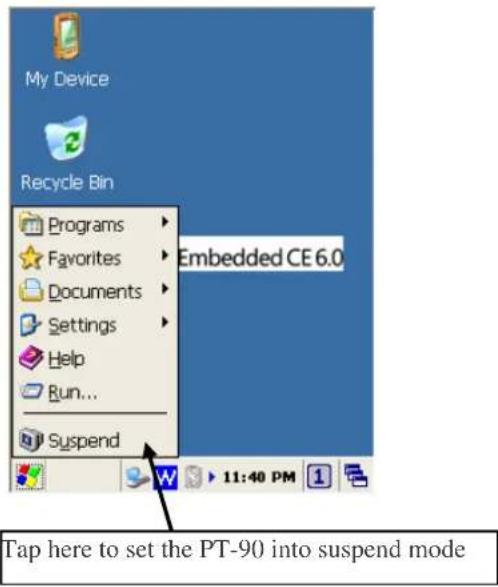
Tap Start → Suspend
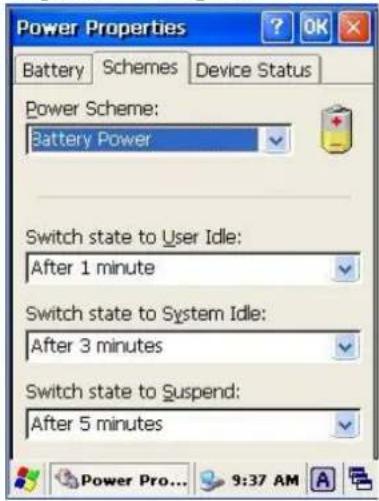
Figure 3-13 Suspend Mode
3.6.4 Resume
Press key to suspend or resume (wake up)
Waking the PT-90
The default wakeup conditions define what actions wakeup the PT-90. These setting are configurable and the factory default settings are subject to change / update.
| Status | Description | Condition for Wakeup |
| Power Off | When the PT-90 is set to suspend mode by pressing this action wakes the PT-90. | Press button |
| Auto Off | When the PT-90 enters suspend mode by automatic power-off, this action wakes the PT-90. | Press button |
3.7 Resetting the PT-90
If the PT-90 stops responding to the system, you may need to rest it. There are three ways to reset - warm boot, cold boot and clean boot.
A warm boot and cold boot restart the PT-90, but all data that have not saved will get lost. All data in flash will be preserved.
A clean boot will erase all flash data including all the applications and the data files. In addition it returns formats, preferences and other settings to the factory default setting.
3.7.1 Performing a Warm Boot
To perform a warm boot to correct the computer when an application stop responding to the system.
Caution: The RAM will be reinitialized.
To perform a warm boot:
- Press Reset button. Do not hold down any other keys or buttons.
- PT-90 initializes the logo screen appears for about a minute.
3.7.2 Performing a Cold Boot
A cold boot restarts the PT-90 and all un-saved data will get lost. Only perform a cold boot if a warm boot does not solve the problem.
Caution: The RAM will be reinitialized.
To perform a cold boot:
- Press the Reset and 🔊 keys together. Do not hold down any other keys or buttons.
- PT-90 initializes the logo screen appears for about a minute
3.7.3 Performing a Clean Boot
Perform a warm boot first. If the PT-90 still does not respond, perform a cold boot.
Perform a clean boot only if you want to reset PT-90 to factory default setting.
| Warm boot | Cold boot | Clean boot | |
| Registry | Preserved | Preserved | Factory default |
| Flash Disk | Preserved | Preserved | Clean disk |
| RAM data | Reinitialized | Reinitialized | Reinitialized |
| RTC | Preserved | Clean | Clean |
Caution: All data will be lost. The Utility programs are also lost. We recommend that copy 90Utility.cab to micro SD and insert into PT90, before perform a clean boot. After clean boot, OS will install 90Utility.cab automatically from micro SD.
To perform a clean boot in OS:
-
To perform a clean boot, select Start → Settings → Control Panel, and then double tap the System Information icon.
-
Tap the Format partition check box in Clean boot page and press Setting to start clean boot.
-
The PT-90 logo window appears.
-
Reset to factory default setting.
To perform a clean boot using hotkey:
-
Cold boot and press hot key (UP+ DOWN+SHIFT).
-
PT-90 initializes the logo screen appears for about a minute.
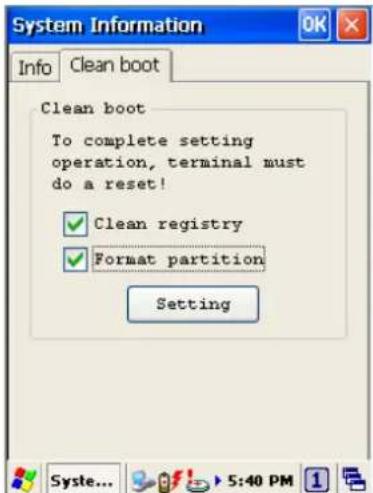
Figure 3-14 Clean Boot
3.8 Flash Storage
Flash memory is a re-writable location in which to store up to 256MB of programs and data files. The benefit of this feature is that files and programs saved in Flash Memory are unaffected by the PT-90's power status.
Note:
The Flash storage memory persists for warm/cold reset conditions. We strongly recommend that perform a clean reset only if you want to reset factory default setting.
3.8.1 Flash Disk Location
All storage disk is stored in Flash Disk in PT-90
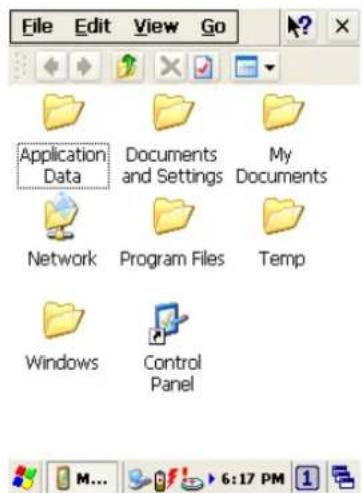
Figure 3-15 My Device
3.8.2 Flash Disk Size
The size of the Flash Disk varies depending on the size of the system firmware.
■ Select Start → Settings → Control Panel, and then double tap the Storage Manager icon.
■ The capacity is the total Flash Disk size.
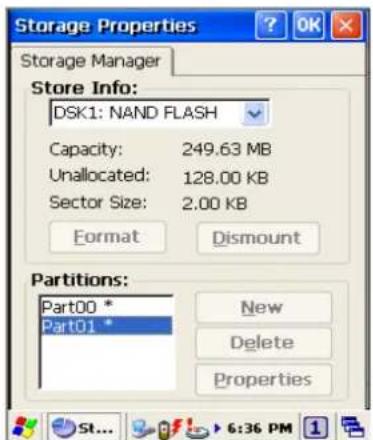
Figure 3-16 Flash Size
3.9 Bluetooth Setting
- Please enable Bluetooth first like Figure 3-17.
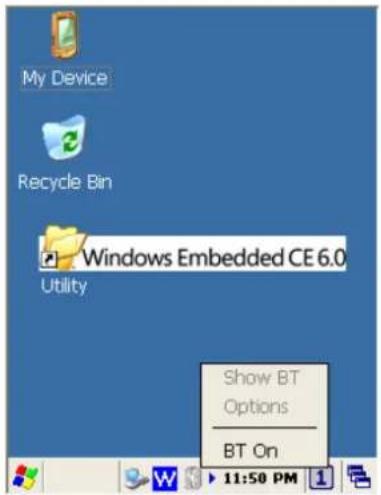
Figure 3-17 Enable Bluetooth
- After enable Bluetooth, please select Show BT like figure 3-18
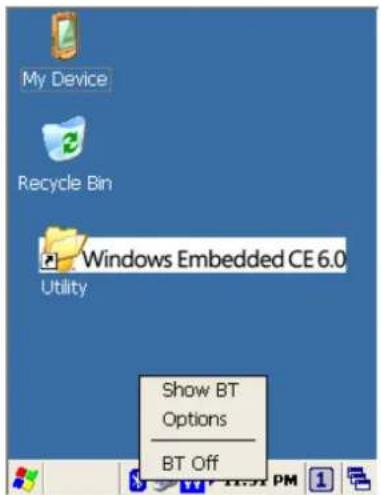
Figure 3-18 Show BT
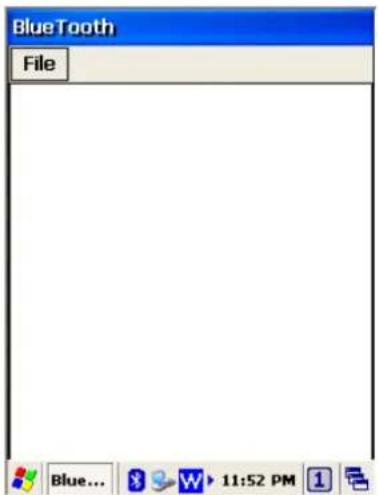
- On Bluetooth manager screen, select File → New Connection like Figure 3-19.

Figure 3-19 Bluetooth Connection
- Bluetooth has four functions to choose like Figure 3-20.
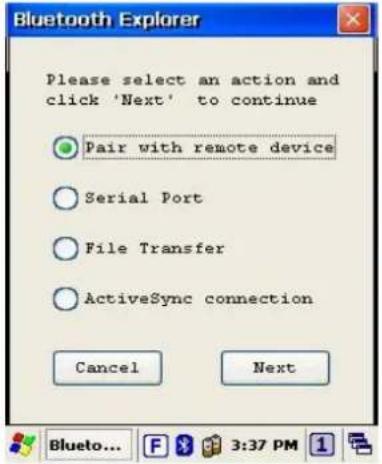
Figure 3-20 Bluetooth Explorer
- First function is Pair with remote device, after press next button.
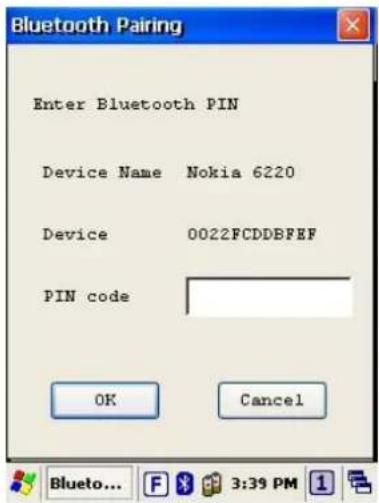
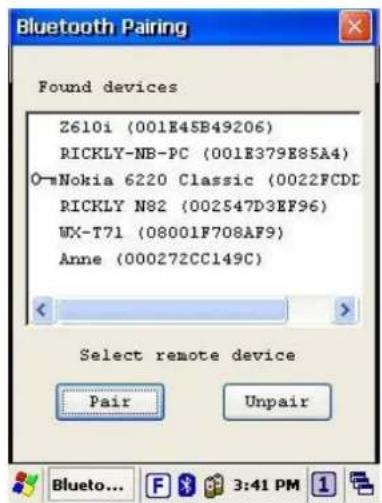
It will start to search devices. Select a device and press Pair button; it needs to enter Bluetooth PIN code like Figure 3-21.
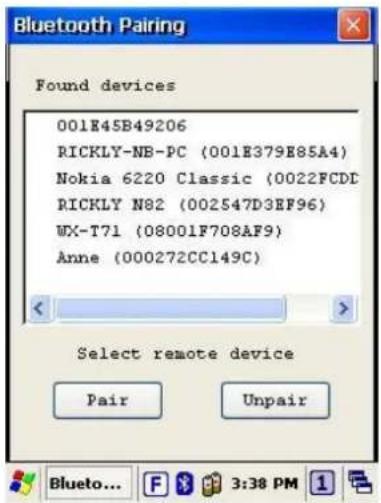
Figure 3-21 Bluetooth Pairing
广力云智慧零售收银系统
- After PT-90 check pin code with device. PT-90 will appear a pop window and show Success message like Figure 3-22.
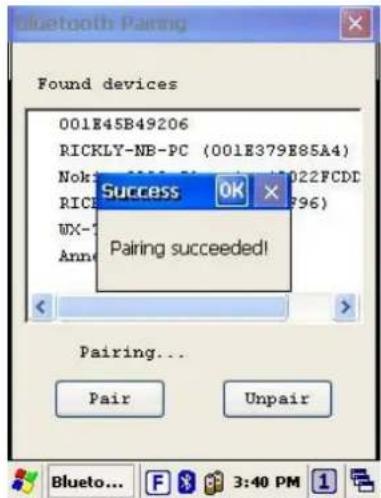
Figure 3-22 Bluetooth Pairing-1
- Second function is Serial Port which communication with device via com port like Figure 3-23.
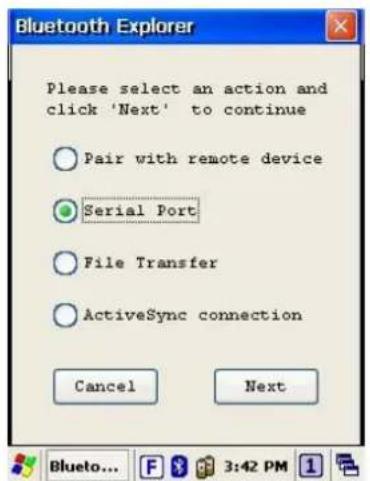
Figure 3-23 Bluetooth Explorer
- After press Next button, it will start to search device like Figure3-24.
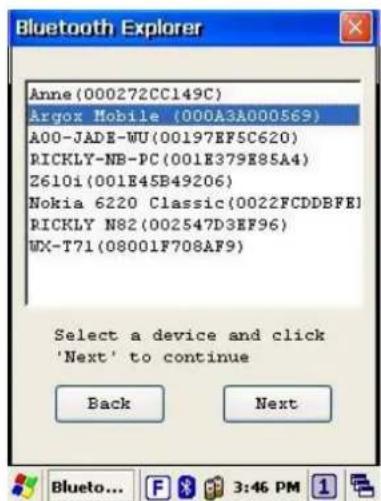
Figure 3-24 Bluetooth Serial Port
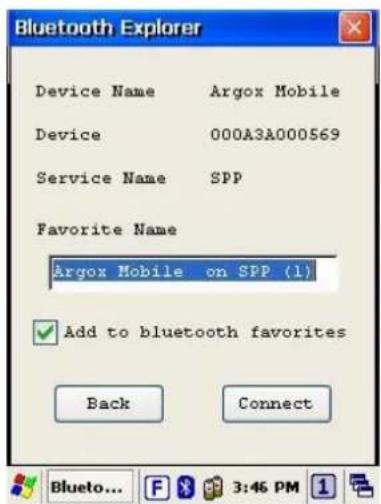
- After press Connect button, it will appear a connection with SPP mode like Figure 3-25.
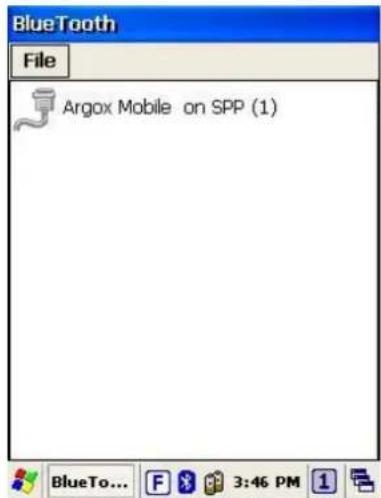
Figure 3-25 Bluetooth Serial Port
- Third function is File Transfer like Figure 3-26

Figure 3-26 Bluetooth Explorer
- After press Next button, it will start to search device and it needs to enter PIN code like Figure 3-27
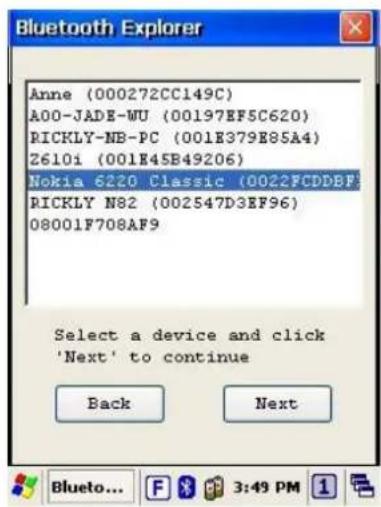
Figure 3-27 Bluetooth File Transfer-1
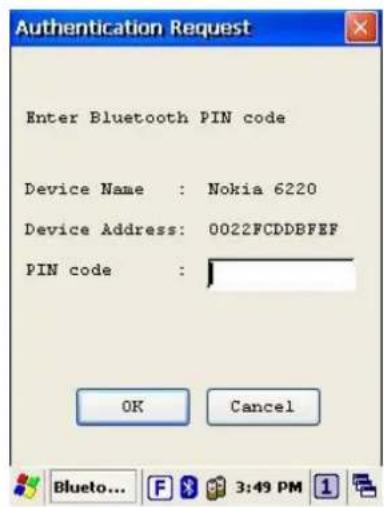
- After checking pin code with the connect device. PT90 will enter FTP mode like Figure 3-28.
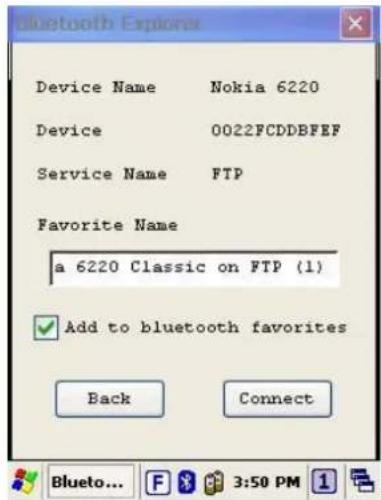
Figure 3-28 Bluetooth File Transfer-2
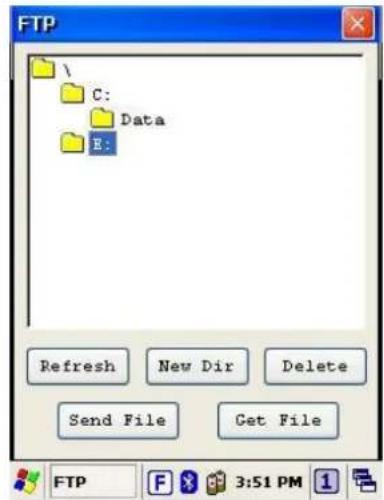
- On Bluetooth manager screen, it will add a FTP connection like Figure 3-29.
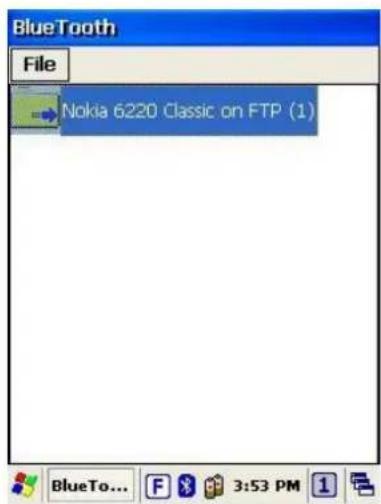
Figure 3-29 Bluetooth File Transfer-3
- The latest function is ActiveSync connection. The function can connect with computer via ActiveSync like Figure 3-30.
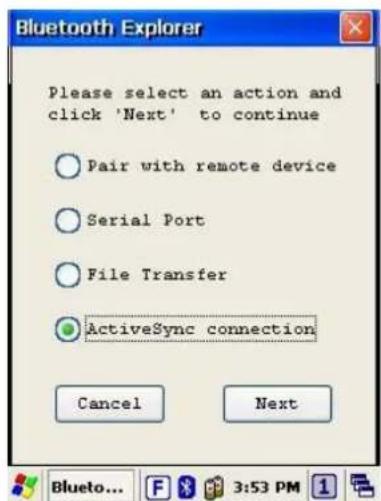
Figure 3-30 Bluetooth Explorer
- After press Next button, it will start to search device like Figure 3-31.
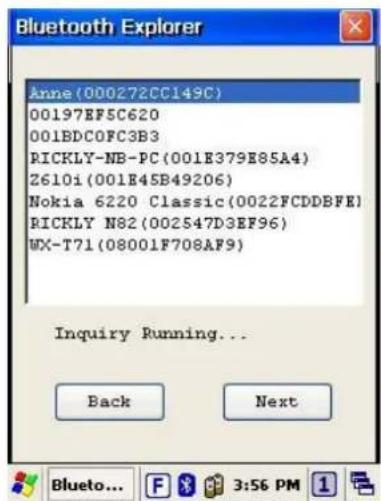
Figure 3-31 Bluetooth ActiveSync
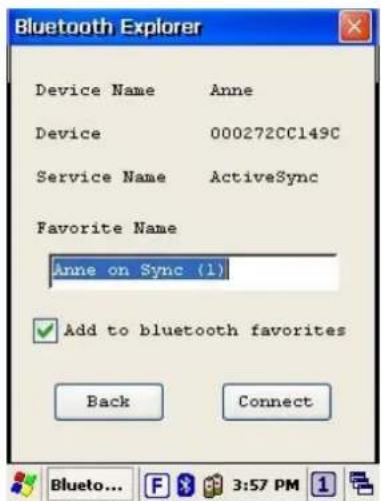
- PT-90 will add a ActiveSync connection on Bluetooth manager screen. It will synchronize with computer like Figure 3-32.
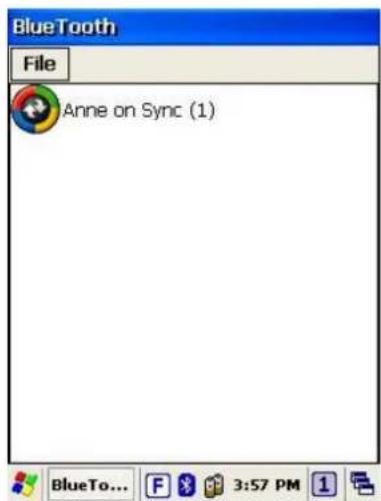
Figure 3-32 Bluetooth ActiveSync
3.10 WLAN Setting
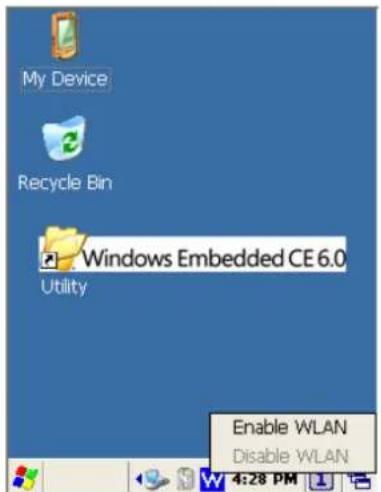
- After enable WLAN setting, a POP window appears as below. Figure 3-33
![SDIO86861 Wireless Information Select a network and press connect or right-click for more options. To add a new network, double-click 'Add New'. Add New... argoxnet [-69 dBm] BU01-WPA [-59 dBm] Status: Not Connected Signal Strength: No Signal RSSI: No Signal ✓ Notify when new networks available Connect Advanced... Log... SDIO... 4:18 PM 1](/content/2026/03/536719/images/209587cb5cc4c0e0a632929a72427de4f0fde18f80907a09d3f646670699375a.jpg)
Figure 3-33 WLAN setting
-
If the above window doesn't show, try to double click the Wireless icon on the screen bottom.
-
Select new connection and press Connect button or double click the new connection, BU01-WPA for instance; it will appear the configuration window (Figure 3-34). Then user can set wireless Encryption on this window.
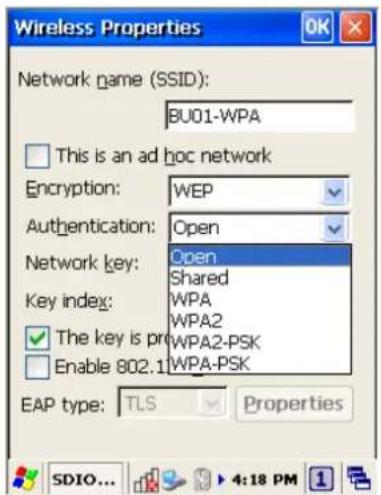
Figure 3-34 Wireless Properties
-
After setting, press OK to connect to AP server (wireless AP server must setup completely before connection). WiFi connection can work now.
-
Wireless icon
| Icon | Description |
| Not Connected | |
| Signal Strength |
4. Scanning
The PT-90 has an integrated laser scanner that reads all major bar code labels with excellent performance. The trigger key is located in the middle of the unit. There are also two side-keys to trigger scanner. Press trigger key to activate the laser scanner.
4.1 Scan Configuration
When it is necessary to change the default barcode symbology for a different application, use Scan Configuration to change default symbology, place delimiter characters behind scanned data, and save the settings.
Run this program from Desktop→Utility→Scan Configuration.exe which is also accessible via Start→Settings→Control Panel→Scan Configuration.
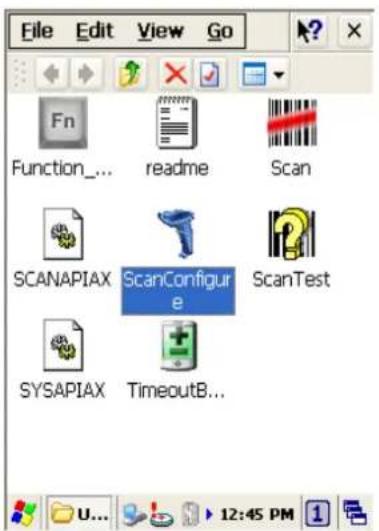
Figure 4-1 Scan Configuration -1
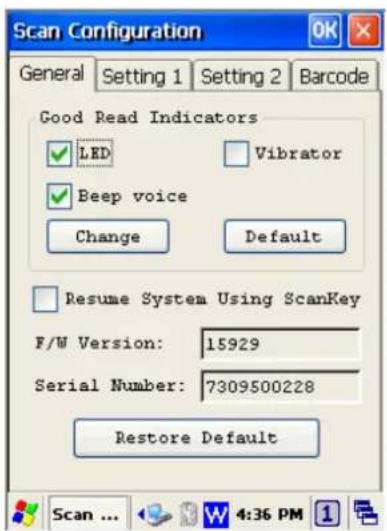
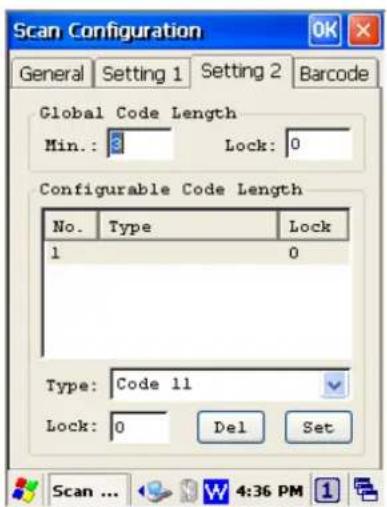
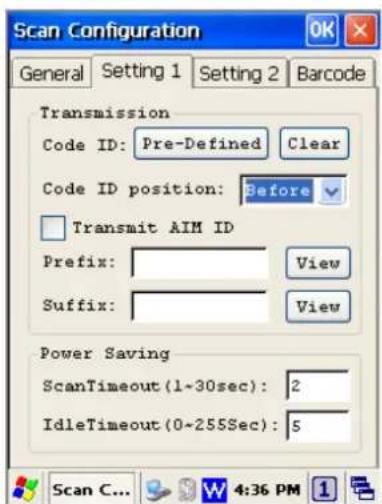
Figure 4-2 Scan Configuration -2
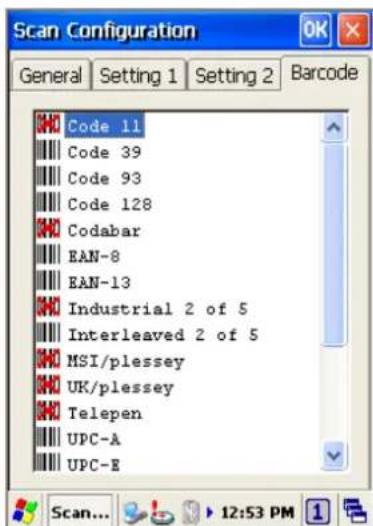
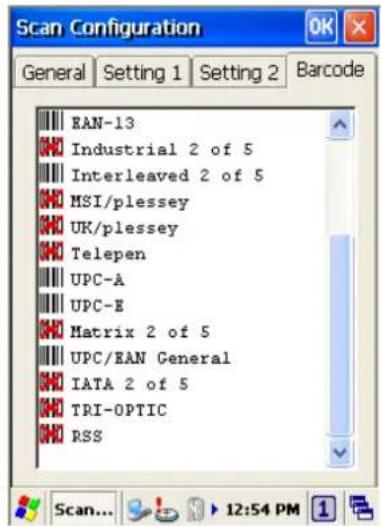
Figure 4-3 Scan Configuration-3
After you change settings, press the OK button to configure, or press Restore Default to return to the scan default settings.
4.2 Scan driver
Scan driver lets you put data into Microsoft Wordpad. Open scan driver and the scan module powers on the scanner. You can then scan barcode. To turn off the power, press Exit on the task bar.
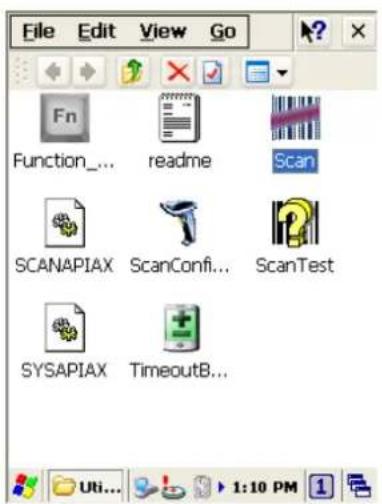
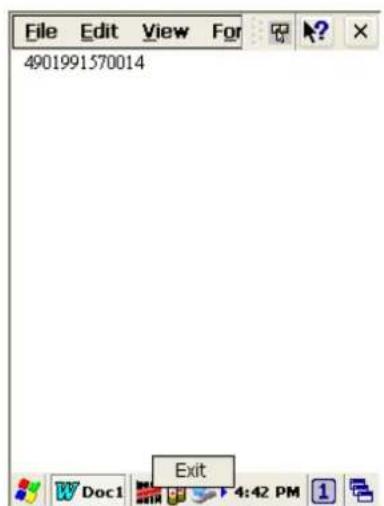
Figure 4-4 Scan Driver
4.3 Scan test
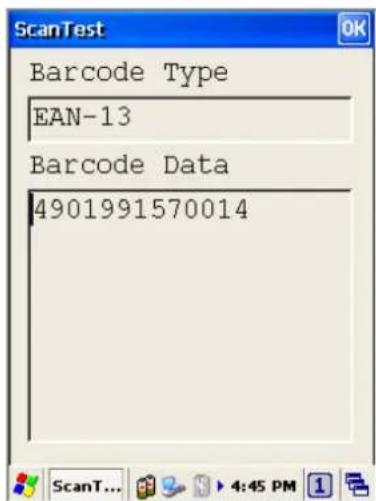
The PT-90 has a Scan Test.exe program that allows you to test the barcode scan function. Scan Test.exe is located in directory Desktop→Utility→Scan Test.exe.
This program shows barcode type and barcode data when pressing the Scan key.
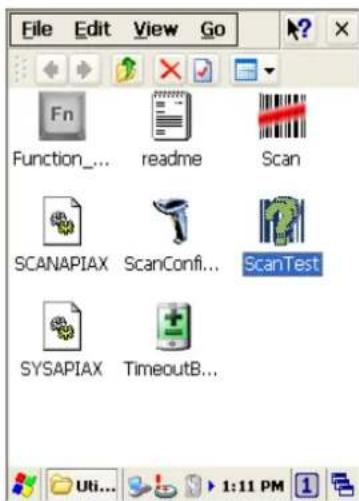
Figure 4-5 Scan Test
4.4 Reading barcode
Note:
◆ Observe handling precautions.
Make sure the mobile computer is installed according to instructions.
- Never remove the main batteries or battery pack while the mobile computer is turned on. Doing so can cause loss of data in the mobile computer.
- Avoid looking directly into the LED light beam emitter, or pointing the LED light beam directly into someone's eyes.
Position the LED light beam over the bar code from margin to margin and pass the scanner downward over the bar code, as shown in the scan position illustration
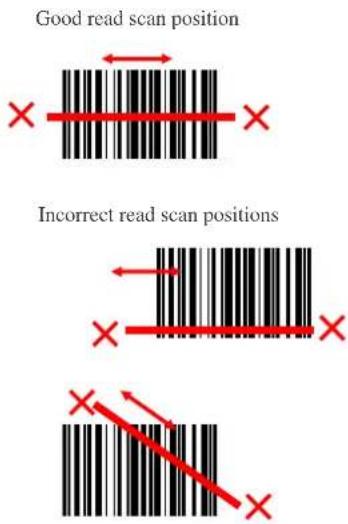
The scanning sequence is defined by the user's application. A typical sequence is:
■ Point the mobile computer at the barcode and press the Trigger key SCAN.
■ Point the LED lightbeam at barcode as shown in the scan position illustration above.
■ The scanner reads the barcode and the results are indicated.
A “Good Read” means that the scanner has effectively recognized and decoded the bar code. In most cases, the application program provides an indicator signal to indicate a good read.
If the read is incorrect, try again paying close attention to the instructions.
When reading a small bar code, decrease the distance between the mobile computer and the bar code. For larger bar codes, position the mobile computer so that the bar code fits into the LED light beam. When reading a very high density bar code, decrease the distance between the mobile computer and the bar code. For a low density bar code, increase the distance between the mobile computer and the bar code.
4.5 Barcode reading problems
When the barcode can NOT be read, try the following:
■ Change the angle between the bar code and the mobile computer.
■ Change the distance between the bar code and the mobile computer.
If the bar code is larger than the LED light beam, try moving the mobile computer a bit further away from the bar code.
5. Utilities
5.1 Function Key Setting
To assign your favorite application program or virtual key from F1 \~ F10 and P1\~P4 hot keys. Function Key.exe is located in directory Desktop→Utility→Function_Key.exe.
- Choose F1\~F10 or P1\~P4 from list.
- Tap Define to define application or virtual key.
- Tap Apply or OK to set function key setting.
- Tap the Default to return to default setting.
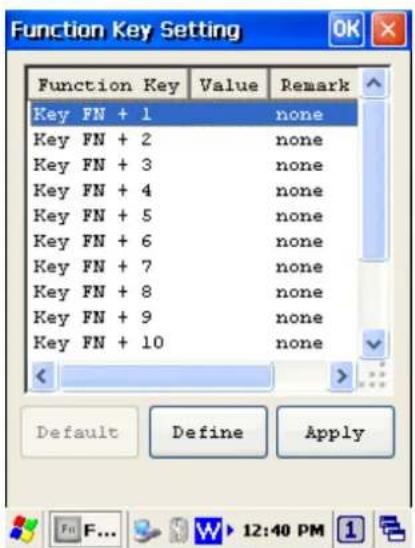
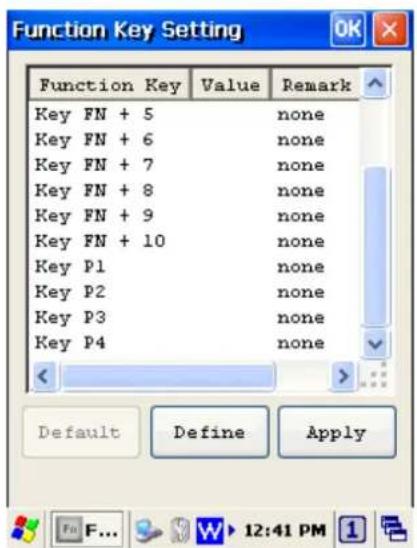
Figure 5-1 Function Key Setting
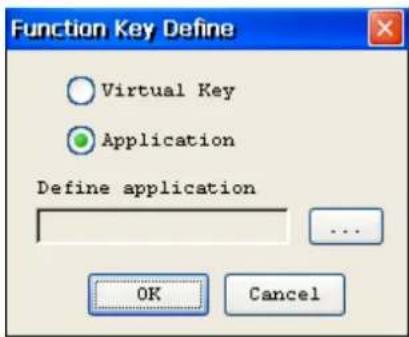
Figure 5-2 Function Key Define
5.2 Timeout & Brightness
Timeout&Brightness setting is a tool for changing the LCD backlight and keypad LED. If you wish to save power use this program to change LCD backlight and keypad LED settings. This application supports battery power and external power settings.
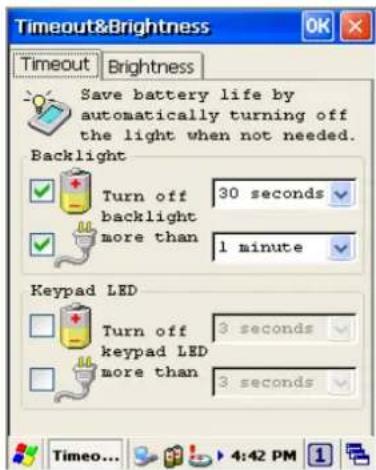
Figure 5-3 Timeout & Brightness
6. Software Applications
The PT-90 includes software applications such as Internet Explorer, Media player, Microsoft WordPad, Remote Desktop Connection, Transcriber, and Windows Explorer.
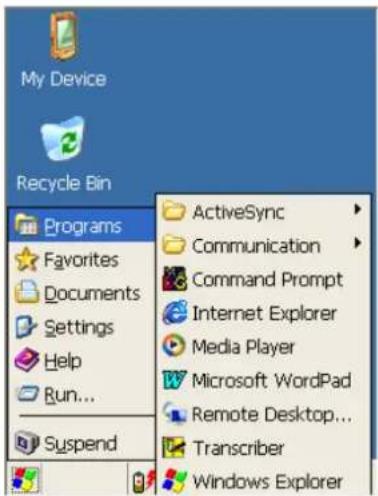
Figure 6-1 Software Applications
6.1 Internet Explorer
With Internet Explorer, you can view Web or intranet Web pages on your device. You will need to use WLAN to connect to an Internet server provider (ISP) or network.
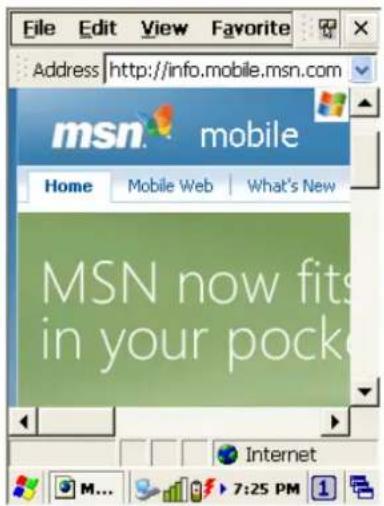
Figure 6-2 Internet Explorer
6.2 Media Player
The PT-90 comes with Media Player for Windows CE installed.
■ Open Media Player by selecting Start → Programs → Media Player from the desktop.
■ Select File → Open to open a new media file.
■ Please refer to www.microsoft.com for additional information and help with your Microsoft Windows Media Player.
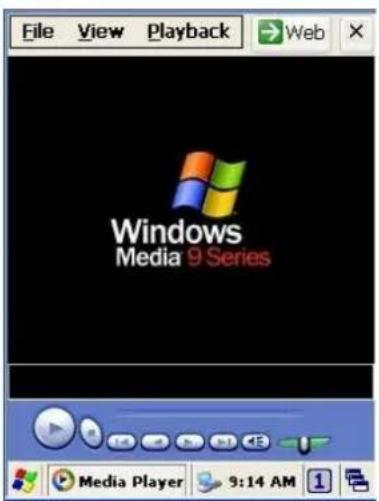
Figure 6-3 Media Player
6.3 Microsoft WordPad
You can create and edit documents and templates in WordPad, using buttons and menu commands that are similar to those used in the desktop version of Microsoft Word. You can work with files Normal or Outline view.
WordPad documents are usually saved as .pwd files, but you can also save documents in other file formats, such as .rtf or .doc.
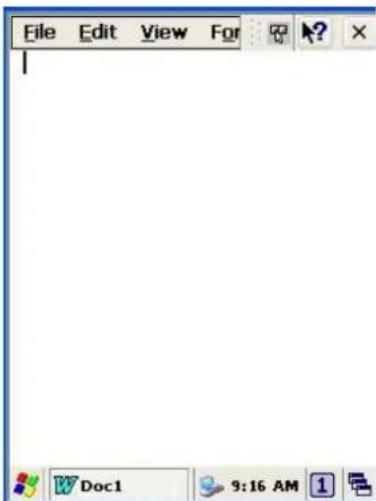
Figure 6-4 Microsoft Wordpad
6.4 Remote Desktop Connection
Using Remote Desktop Connection, you can log on to Windows Mobile computer Server and use all programs installed on this server. For example, instead of running Microsoft Pocket Word, you can run the desktop version of Microsoft Word.
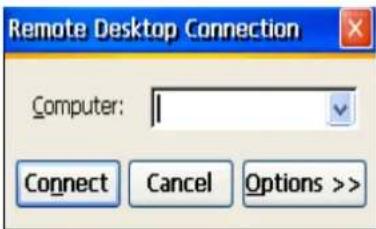
Figure 6-5 Remote Desktop Connection
6.5 Transcriber
Features:
■ Microsoft Transcriber is the natural handwriting recognition solution for your Windows CE device. It recognizes words from its integrated dictionary, and allows you to write in cursive, print or mixed handwriting.
The letter Shapes Selector (note 1) is for optimizing recognition to your own handwriting style
Transcriber works transparently in the background of all Windows CE applications providing handwriting input, while taking away no precious screen space.
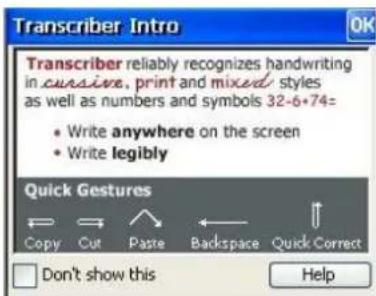
Figure 6-6 Transcriber
6.6 Windows Explorer
Windows Explorer works almost the same on your PDA as it does on your PC. See the topics below for information about the difference in Windows Explorer on your device.
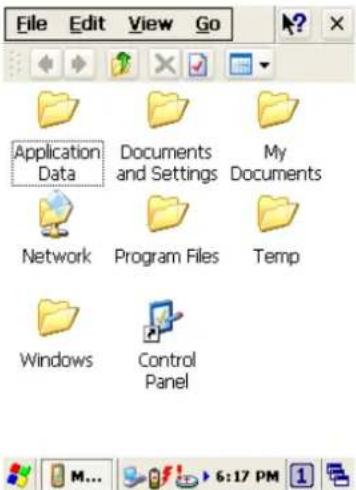
Figure 6-7 Windows Explorer
7. Communication
Argox PT-90 lets you link to a host computer via RS-232 or USB port for data communication. This chapter gives an overview of PT-90's communication capabilities.(remove)
The Argox PT-90 lets you link to a host computer via RS-232 or USB port for data communication with cable or cradle. This chapter gives an overview of the PT-90's communication capabilities.
7.1 Microsoft ActiveSync
Download and install Microsoft ActiveSync if you run Windows XP or Windows 2000 on your computer and you want to sync content between PT90 and your computer. You can use ActiveSync with the following versions of the Windows operating system:
Windows 2000 Service Pack 4(SP4)
Windows XP SP1
Windows XP SP2
Windows XP SP3
ActiveSync provides a user-friendly interface and it can be downloaded free of charge from Microsoft's Website.
With Microsoft ActiveSync you can:
■ Transfer data between PT90 and your computer.
■ Limited backup/restore functionality.
■ Install /uninstall programs on PT-90.
Note: ActiveSync is only compatible with Windows XP or earlier. The detail description of ActiveSync can be found in Microsoft's Website.
7.2 Microsoft Mobile Device Center
Download and install Microsoft Mobile Device Center if you run Windows Vista or Windows 7 on your computer and you want to sync content between PT90 and your computer. You can use Mobile Device Center with the following versions of the Windows operating system:
Windows Vista
Windows 7
Microsoft Mobile Device Center can be downloaded free of charge from Microsoft's Website.
With Microsoft Mobile Device Center you can:
■ Transfer data between PT90 and your computer.
■ Install /uninstall programs on PT-90.
Note: ◆ Windows Mobile Device Center s only compatible with Windows Vista and Windows 7. The detail description of Mobile Device Center can be found in Microsoft's Website.
8. Overview of Microsoft Windows CE 6.0
This chapter describes Microsoft Windows CE 6.0, the operating system for the PT-90
This introduction to Microsoft Windows CE 6.0 includes:
■ How to use the main Windows
■ How to use a taskbar
■ How to use settings
8.1 Main Windows
When you turn on PT-90, you will see the main Windows of Window CE 6.0, which is similar in appearance to Windows XP. The main window consists of a background screen and taskbar.
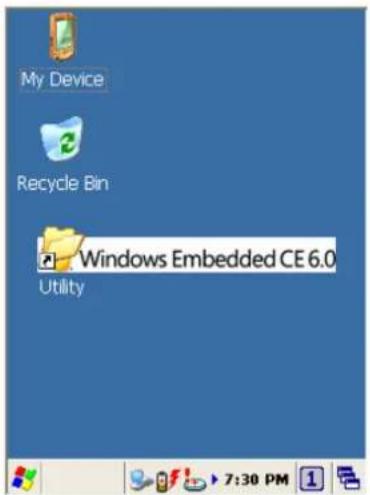
Figure 8-1 Main Window
The screen shows short cut icons for the main programs of Microsoft Windows CE 6.0. A description of the icons follows:
My Device:
Shows the internal configuration of PT-90 and the folders and files it contains.
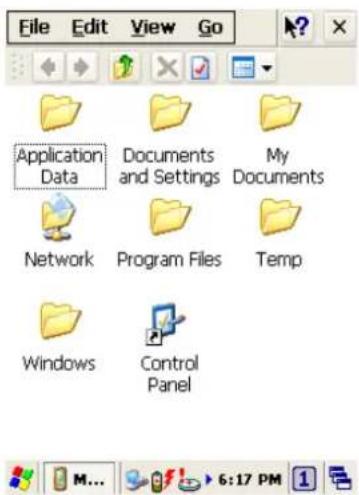
Figure 8-2 My Device
Recycle bin:
Completely delete or restore files and data. This folder saves deleted files from Windows Explorer or the background screen. You can completely empty or restore files in the recycle bin.
Caution: Once you have emptied the recycle bin, you cannot restore the files and data previously in the recycle bin.
Taskbar
Windows CE 6.0's taskbar is designed to be simple and user-friendly. The picture below shows the configuration of the taskbar.

Figure 8-3 Taskbar
Start Icon
Start icon is the starting point for the PT-90 program. If you point at the start menu with the stylus pen, you can see various menus including program, bookmark, document, setting, help, and operation. If you choose each menu, detailed executable programs appear as in the picture below. If you choose and press, you can run the program of your choice. Windows CE 6.0's start menu is similar to that of Windows on a desktop PC.
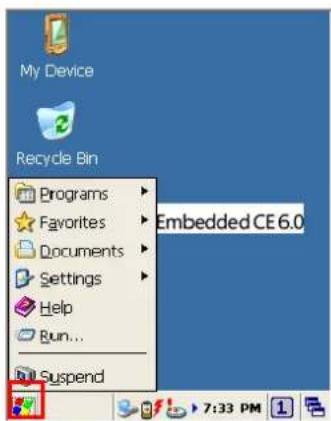
Figure 8-4 Start Icon
8.2 Taskbar
Taskbar shows a variety of information including keying in characters, battery, network connection, status of running programs, etc.
Open Taskbar and Start Menu setting by selecting Start -> Settings -> Taskbar and Start Menu from the desktop. There are Always on top, Auto hide and Show Clock setting in General tab. You can choose the check box of desired setting.
The following explains the function of icons appearing on the taskbar.
Input Method:
To activate Keyboard or Transcriber, press icon and select input method. You can also activate Transcriber in following order: Start → Programs → Transcriber. To deactivate input method, press icon and select Hide input Panel.
To change the features of the input method, select input method in Start → Settings → Control Panel → Input Panel and click the option you wish to setup.
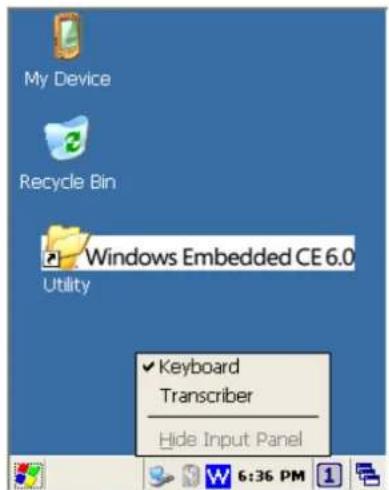
Figure 8-5 Input method

Transcriber:
When you want to key in characters when making a document or setting, start Transcriber. Using the stylus to draw characters you want on the input panel, this program recognizes the characters and transform them into typeface characters. To start the Transcriber, run the program as the following order: Start → Programs → Transcriber.
The picture below shows how the Transcriber works in keying in characters on Microsoft Word Pad. When Microsoft Transcriber is running, you will see the icon located in the taskbar. When Microsoft Transcriber is active the icon shows a dark background.
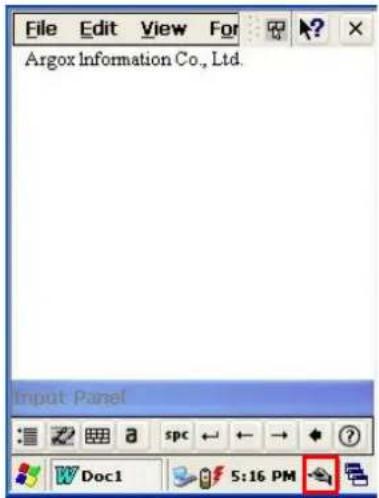
Figure 8-6 Transcriber

Keyboard:
When Keyboard input panel is running, you will see the icon located in the taskbar.
![Input Panel Esc 1 2 3 4 5 6 7 8 9 0 - = ◆ Tab q w e r t y u i o p [ ] CAP a s d f g h j k l ; ' Shift z x c v b n m , . / ← CtI äü ` \ ↓ ↑ ← →](/content/2026/03/536719/images/b1c579aa73cdf6781b5d1a650fa87fc459a8fda2ffc6ec40792632c81ed04bef.jpg)
Figure 8-7 Keyboard Input Panel

Upper / lower case Selection:
Press this icon to select upper and lower case letters. If you select upper case, capital letters and characters appear on the number key pad. It serves the same function with the Shift key.
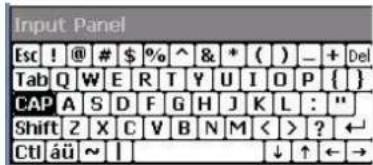
Figure 8-8 Keyboard Input Panel -1
Status Indicator Icon:
The following is a list of icons that appear in the taskbar's status area.
| Icon | Description |
| Battery capacity is low | |
| Battery is charging | |
| Linked to desktop PC through USB | |
| WLAN not connected | |
| Signal strength for WLAN connection | |
| Function key status | |
| Alt , Ctrl and Shift status |
8.3 Setting up the PT-90
You can set up various configurations of the PT-90 such as Date/Time, Network, Display, Volume and Sounds, Power, System, etc. at the control panel.
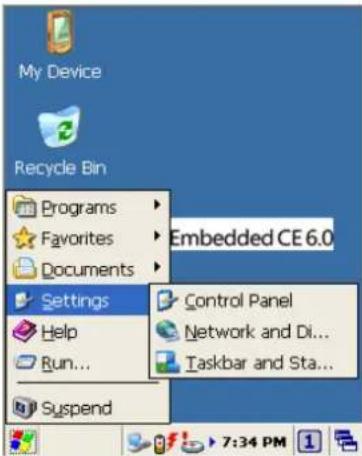
Figure 8-9 Setting up
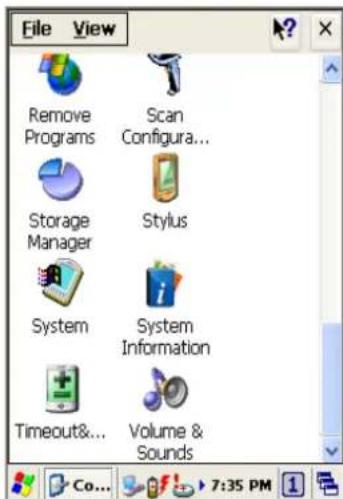
To Tap Start → Settings → Control Panel, the control panel window appears. In the View option in the menu, you can change the view mode into large icons, small icons, details or to arrange icons. The control panel appears as below:
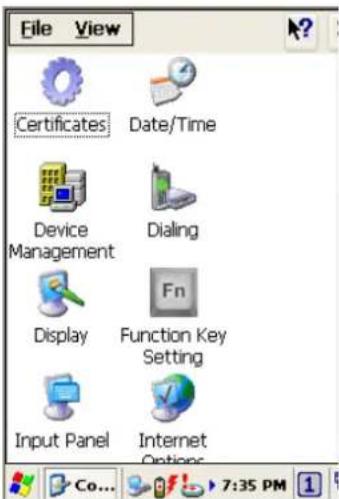
Figure 8-10 Control Panel
8.3.1 Certificates
Application programs use certificates to ensure reliability and safe communication.
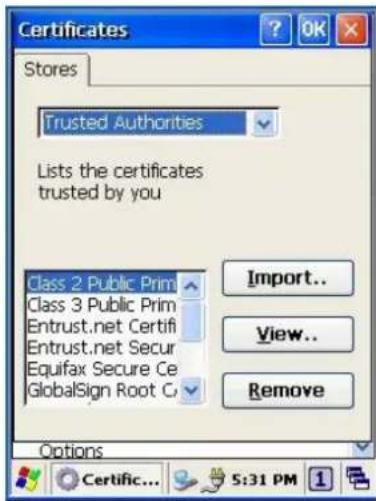
Figure 8-11 Certificates
Authorized certificate providers issue certificates that are valid for a specified period. Windows CE manages several certificate storages.
- Select Go to Start → Settings → Control Panel.
-
Double click a Certificates to run.
Select certificate storage for browsing or correcting through the storage tap list.
Trusted Authorities: Includes the top quality certificates.
My certificate: This saves the user's personal certificate to identify the user.
Other Authorities: Middle certificate providers establish chains of reliability. -
To add certificates or secret keys in the selected storage, press the Import button then select the way to bring certificates or keys. You can select them from files or a micro SD card.
- To see details of selected certificates such as extension, expiration date, etc. press the View button.
- To delete the selected certificate from storage, press Remove button.
8.3.2 Date/Time
This screen sets date, time, standard time zone.
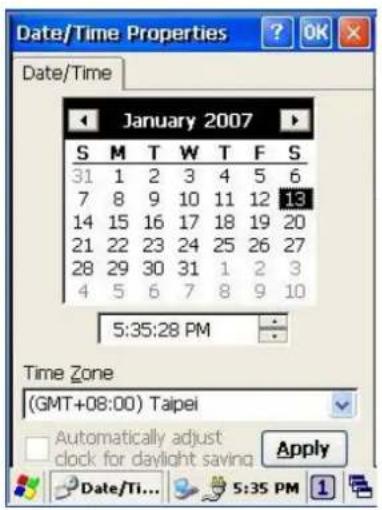
Figure 8-12 Date/Time
Date/Time
You can set standard time zone, year, day and time. Set as follows:
- Press the down arrow in the standard time zone until it reaches your location. If the previously set value is appropriate, move on to the following.
- Select Year and Month in the calendar. If the current year is not correct, press Year and adjust. You can select the month using left and right arrows or the monthly tab that pops up when pressed.
- Press the correct date on the calendar.
- Set time by keying in correct time in the current time box. The box shows AM/PM: Hour: Minutes: Seconds. Press each and adjust time with arrows on the right.
- Press Apply to save the changes. Confirm if the time is correct.
8.3.3 Dialing
Dialing Properties
-
In the When dialing from list, select the Location where you want to change settings.
-
To create a new location, select New. Enter the name of the location, and then select OK
-
Enter or Edit the area code and local country code as needed.
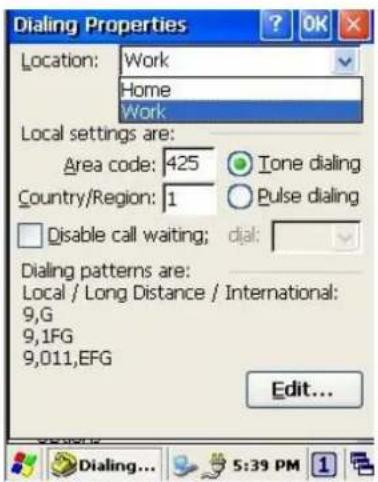
Figure 8-13 Dialing Properties -1
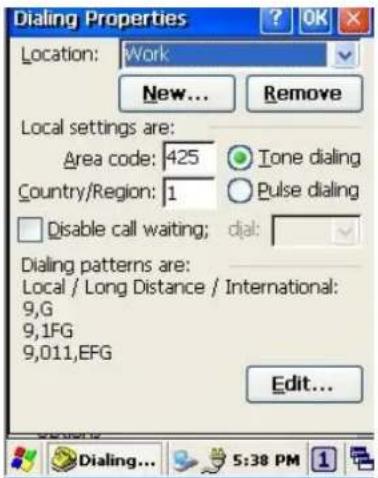
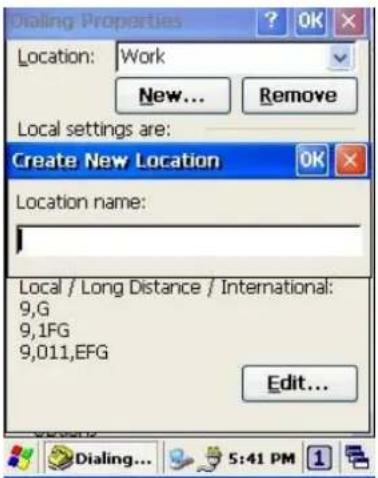
Figure 8-14 Dialing Properties -2
-
In Dial using, select Tone dialing or Pulse dialing. Most phone lines are tone.
-
To automatically disable call waiting, select Disable call waiting by dialing, select the appropriate number sequence in the list, or enter a new sequence.
Editing dialing patterns
- Using the codes listed, revise the dialing patterns as needed.
Notes:
◆ If you need to use characters other than the ones listed here, use manual dialing.
◆ Hyphens and spaces in dialing strings are ignored.
Some modems may not respond to the some characters, even though your device lets you add them to the dial string.
8.3.4 Display
This screen lets you set the wallpaper image of the PT-90, or change the color of the background screen. Call up the right button menu from desktop and select Properties and you can check the Display Properties window.
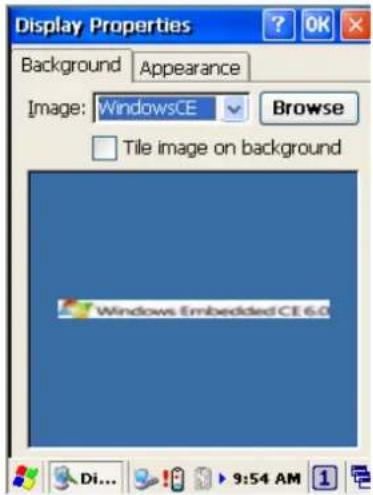
Figure 8-15 Display Properties
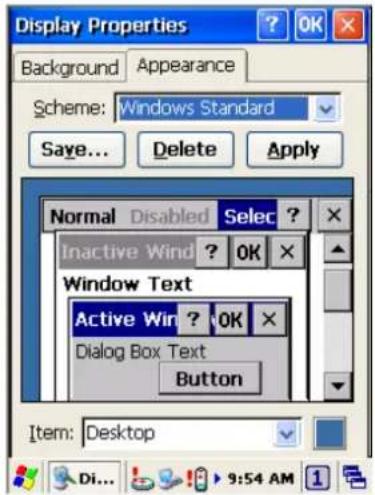
Display
Change the desktop image of the background screen as follows:
- Select the Background tab.
- Click Browse to select an image file.
- Press OK to apply the setting.
8.3.5 Hot Function Key
Please refer to Function Key Setting above.
8.3.6 Input Panel
You can set up the Input method and Options.
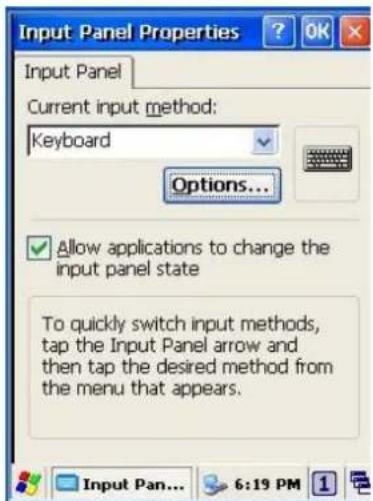
Figure 8-16 Input Panel Properties
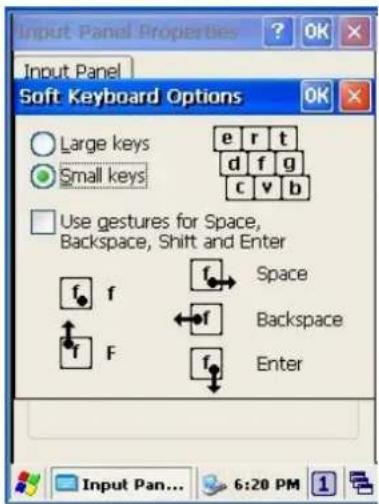
- Select keyboard and press Options. The Soft Keyboard Options window appears.
- Select the Size of the keys.
- To Use gestures for Space, Backspace, Shift and Enter, click the gestures check box.
- Click OK to save the changes of Soft Keyboard Options.
- Click OK to save the setting of Input Panel Properties.
8.3.7 Internet Options
To use the Internet Options, make the following settings.
General
Click the General tab.
- Define your own start page and search page on the tab.
- It also can set the cache size.
- Click Delete Browsing History button, it can clear temporary internet files, cookies or history.
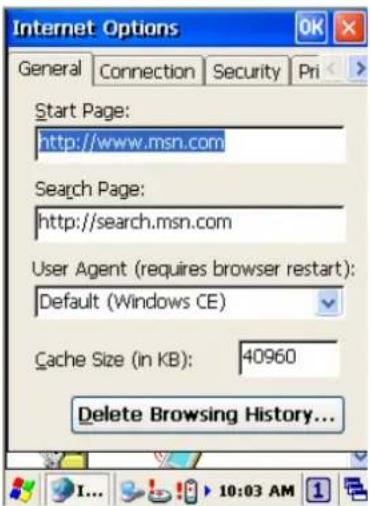
Figure 8-17 Internet Options -1
Connection
Click the Connection tab and set Internet connection methods.
-
To use a proxy server, click Internet Connection by Proxy Server check box and enter the proxy address and port.
-
To ignore the proxy server when making access to local address, click No proxy server for local address check box. This option is available only for the proxy server use. If you use a wireless LAN card, click the LAN User manual dial check box.
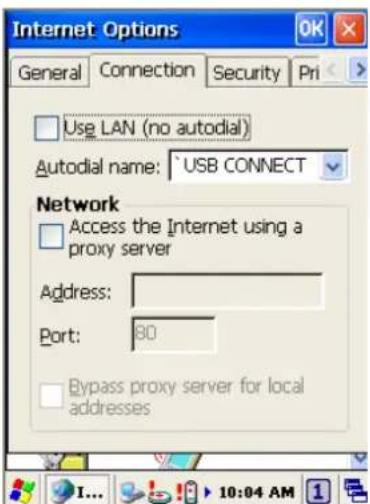
Figure 8-18 Internet Options -2
Security
Under Security page, specify the security option for your browser.
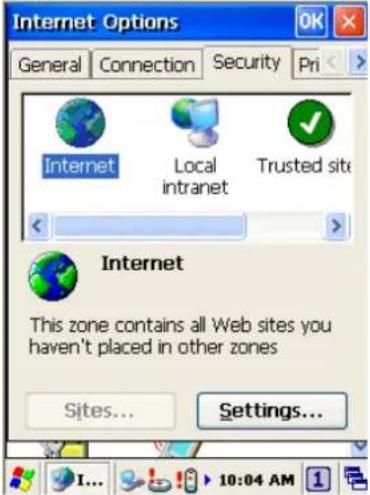
Figure 8-19 Internet Options-3
Privacy
Under Privacy page, specify the cookies setting include of privacy level.
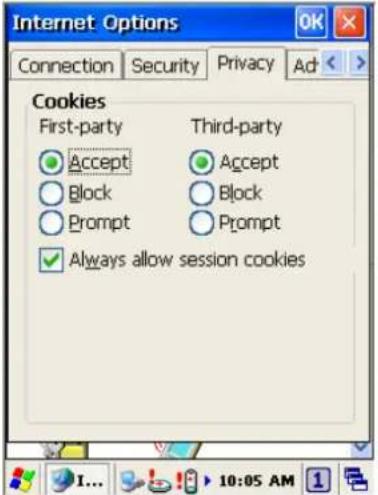
Figure 8-20 Internet Options-4
8.3.8 Keyboard

Repeat Tab
- To change the amount of time between taps before repetition starts, adjust the Repeat delay slider
- To change the repeat rate, adjust the Repeat rate slider.
- Test your new setting.
- Tap OK to exit the Keyboard properties.
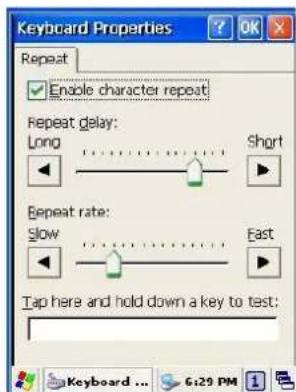
Figure 8-21 Keyboard Properties
8.3.9 Mouse

-
Double-click the checkerboard grid at a comfortable speed.
-
Double-click the Test icon to test your setting.
-
Tap OK to exit the Mouse properties.
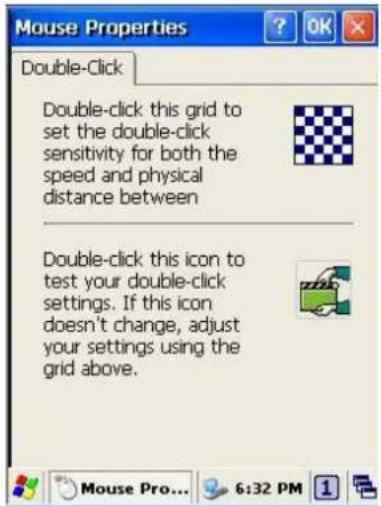
Figure 8-22 Mouse Properties
8.3.10 Network and Dial-up Connection
You can directly link to the network via network (Ethernet, LAN) or phone (modern) connection. You can send or receive emails or access available files on the network server or search the Internet or Intranet.
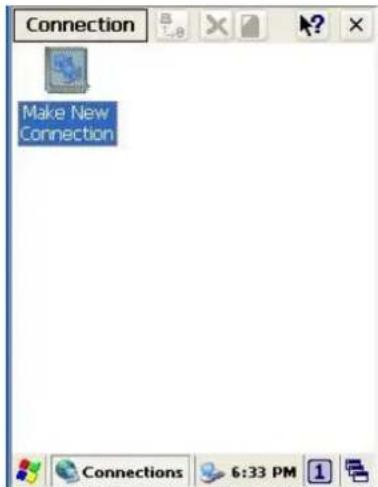
Figure 8-23 Network and Dial-UP Connection
8.3.11 Owner
This function lets you set the PT-90 to display user information at start up, add information on the user, and set up a Network ID.
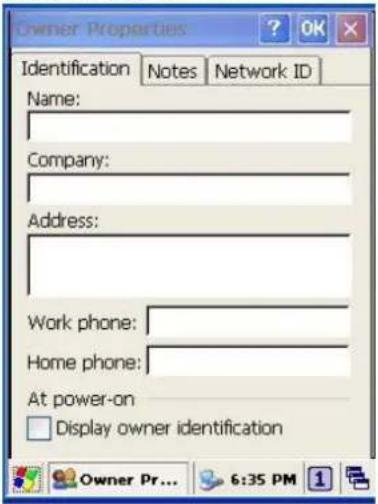
Figure 8-24 Owner Properties
Identification
Enter information such as Name, Company, Address, company phone number, home phone number in the user information tab. To display the owner information on the start screen for system start, click the Display Owner Identification check box.
Notes
Enter additional user information or other information in the Notes box. To show notes on the initial screen when the system starts, click Display Owner Notes check box.
Network ID
Windows CE 6.0 gains access to Network resources using the owner information. Enter the information provided by Network manager such as User Name, Password, and Domain.
8.3.12 Password
You can set a password to keep unauthorized users from using the PT-90.
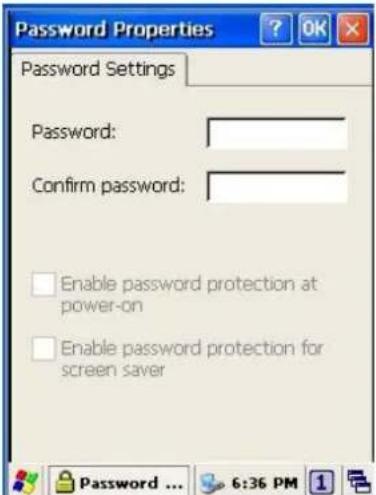
Figure 8-25 Password Properties
To set up a password:
- Select the Password Setting tab.
- Enter the password in the password box.
- Re-enter the password in the password confirmation box.
- To enable the password protection when the power on, click on the Enable password protection at power-on.
You may encounter a request to enter the password if resume or warm/cold boot PT-90. If you forget the password and enter the system you may have to do a clean boot. A clean boot erases all files, data, as well as programs. Please consider using a password that is easy to remember and leave a record easy to access. To deactivate a Password, delete the Password in the password feature window.
8.3.13 PC Connection
You can set up a PC Connection to synchronize the device with a desktop PC. You can set desktop USB and serial port connections. The following is the procedure required for changes in PC Connection.
Begin with Windows CE 6.0. The PT-90 basically supports the Internet functions via USB. If you set up a partnership with PC during ActiveSync, it provides `USB CONNECT link items that enable an Internet connection through the USB connection:
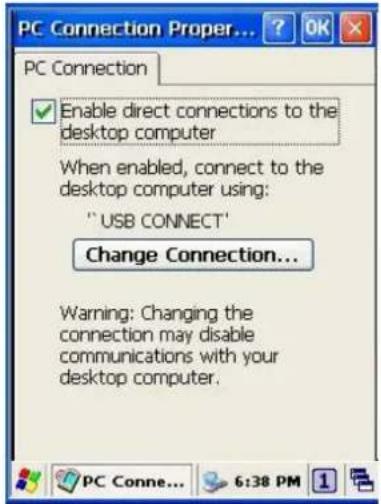
Figure 8-26 PC Connection
- Create a new connection in Go to Start → Settings → Network and Dial-up Connections. Choose the direct connection as connection type. For detailed information, refer to the < Network and Dial-up Connections > section. (Page 57)
- Select Go to Start → Settings → Control Panel → PC connection.
- Select Change Connection icon.
- Select the connection mode.
- Click OK to save the setting.
To connect the PT-90 to a desktop PC, you must have Microsoft ActiveSync 4.5 for Windows 2000/XP or Microsoft Mobile Device Center 6.1 for Windows Vista/7 on your desktop PC.
8.3.14 Power
Please refer to the previous section on Power Management. (Page 21)
8.3.15 Regional Settings
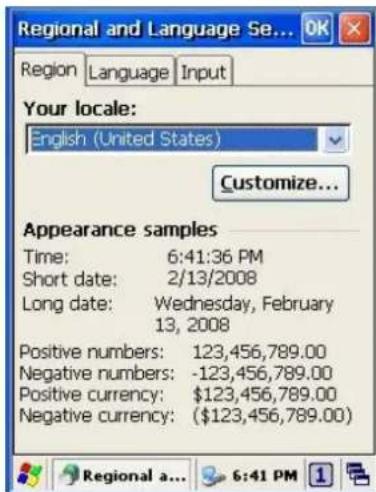
Figure 8-27 Regional Setting Properties
You can set up region, numbers, currency, time, and date.
- Select Go to Start -> Settings -> Control Panel.
- Open Regional Settings icon.
- Select the tab for information to change.
- Select the < Preferred> option. Available features are dependent on which region you have chosen in the region tab.(REMOVE)
8.3.16 Remove Programs
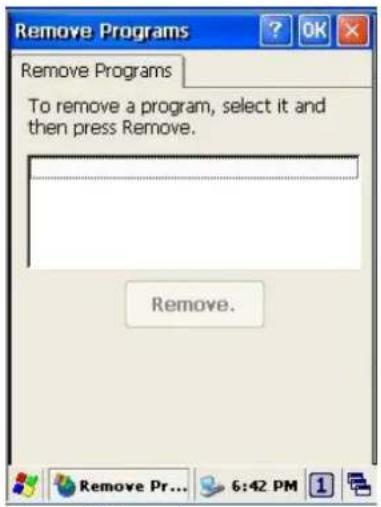
Figure 8-28 Remove Programs
To remove installed programs:
- Select Go to Start → Settings → Control Panel.
- Open the Remove Programs icon.
- Select the program and click Remove to uninstall program.
- Click Remove.
8.3.17 Scan Configuration
Please refer to the previous section on Scan Configuration.
8.3.18 Storage Manager
The storage manager lets you manage storage device. DSK1: NAND FLASH only allows the users to check the store information. DSK2 shall be SD memory card. The storage manager allow SD memory card to format, dismount or make new partition.
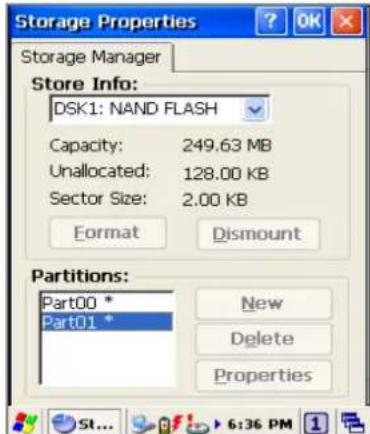
Figure 8-29 Storage Properties
- Select the SD memory card form the storage information dropdown list.
- To format the partitions of the selected disk, click Dismount button and then click Format button.
- After clicking the Create New button, key in the new partition names. The system automatically creates new partitions to set up.
- To delete a partition, select a partition and press the Delete button.
- To see the features of the selected partitions, click the Properties icon.
Caution: Formatting a disk erases all data, files, and programs.
If you insert extension Micro SD memory cards, Micro SD memory shows as "SD Memory Card".
8.3.19 Stylus
This screen sets Double-Tap sensitivity and calibration.
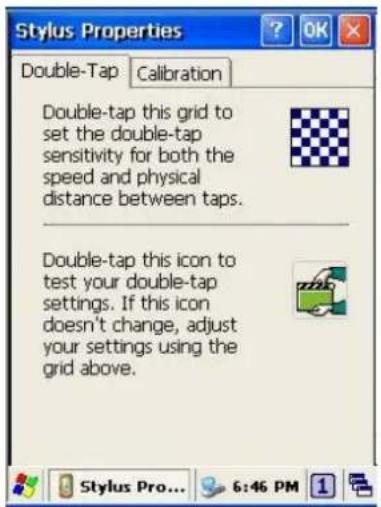
Figure 8-30 Stylus Properties
Double Tap
To set and test Double-Tap sensitivity:
- Select Go to Start → Settings → Control Panel.
- Activate the Stylus and select Double-Tap. Tap the grid and the color of the grid changes.
- It automatically records the speed of the Double-Tap.
- Double tap the bottom icon to test the double-tap sensitivity.
- If the bottom icon does not change, adjust the setting using the grid icon above.
Calibration
If the PT-90 screen does not respond properly, adjust the screen with the calibration function.
To start Calibration:
- Select Go to Start → Settings → Control Panel.
- Activate the Stylus and select Calibration tap.
- Press Recalibrate button and the adjustment process begins.
Caution: Sometimes touching the screen with the stylus triggers the right mouse function. You can solve this problem by adjusting the double touch sensitivity.
8.3.20 System
The System Properties window displays device information such as General, Memory, Device Name and Copyrights.
General information contained in the window includes operating system data such as software version, processor and memory etc.
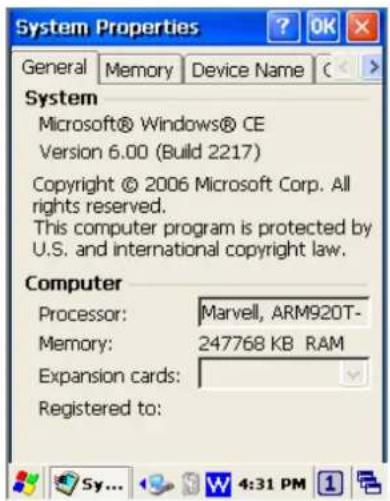
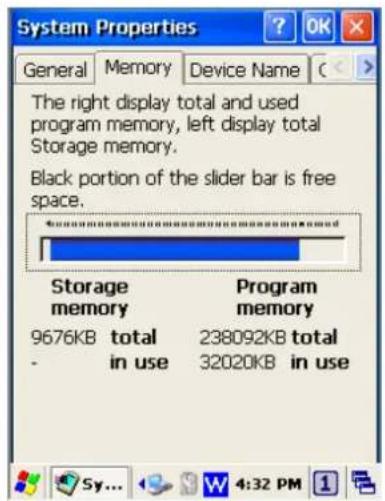
Figure 8-31 System Properties
The memory of the PT-90 is used for storage and programs. Basic memory capacity is 256MB. You can see the size of the memory cache used for running programs or storing data.
To check the Memory:
- Select Go to Start → Settings → Control Panel.
- Run the System and select the Memory tab.
- The blue bar of the slider indicates the available memory capacity.
- Left side is storage memory and the right is program memory.
The device name indicates the PT-90's partnership relation when linked to the desktop through ActiveSync.
To set up Device Name:
- Select Go to Start → Settings → Control Panel.
- Run the System and select the name of the device.
- Enter the name of the device and its details.
8.3.21 System Information
The System Information properties window displays system information such as Info and Clean boot.
Info page contained in the window includes operating system data such as CPU, ROM, RAM, serial number (SN), hardware number (HW) and version details.
Clean boot page allow users to clean registry and format user partition.
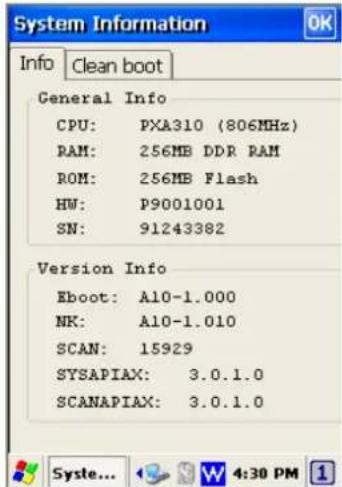
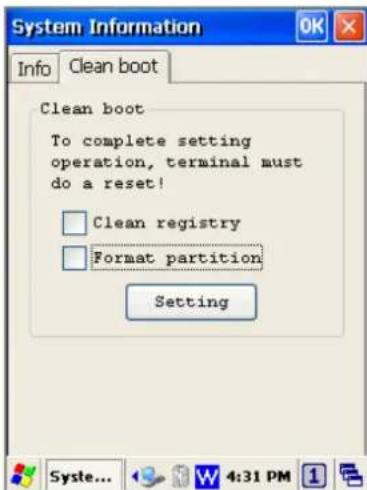
Figure 8-32 System Information
8.3.22 Timeout and Brightness
Please refer to the previous section on Timeout and Brightness.
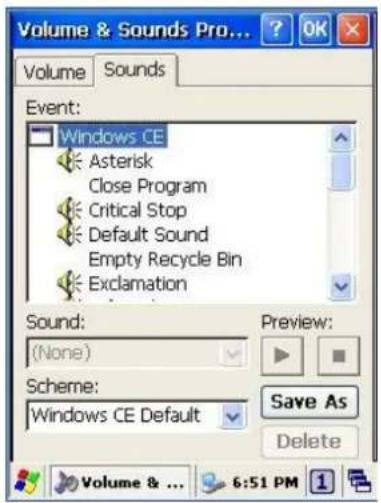
8.3.23 Volume and Sounds
Adjust volume and select sound.
Volume
To adjust the Volume of the system:
- Select Go to Start → Settings → Control Panel.
- Open Volume & Sounds icon and select the Volume tab.
- Press the left / right arrow icon or move the slide bar to adjust a volume.
- Click all items to activate the sound such as Events (warning, system events), Applications, Notifications (alarms, reminders), Key clicks and Screen taps.
Sounds
To set the Sounds:
-
Select go to Start → Settings → Control Panel.
-
Open Volume & Sounds icon and select Sounds tab.
-
Select an Event from the event list.
-
Select a sound from the event sound list.
-
To remove the sound from the selected event, choose (None).
-
To save the changes in another scheme, select Save As in another name and name the sound scheme.
-
To remove the sound scheme, select the scheme and then Delete.
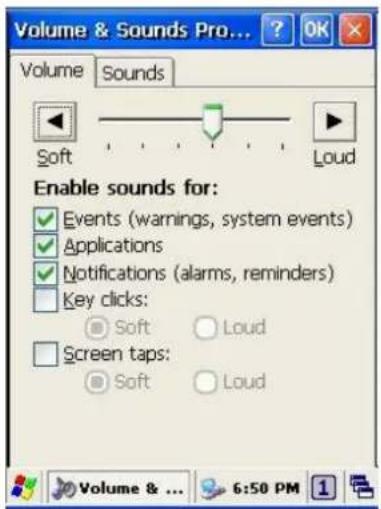
Figure 8-33 Volume & Sounds
9. Trouble Shooting
This chapter contains information on solving problems you may encounter when using the mobile computer and/or cradle. If problems occur, first carry out general checks before comparing the problem with the descriptions in this chapter.
9.1 General Checks
■ Make sure everything is installed properly
- Check the power supply (including the main battery or battery pack in the mobile computer) of all devices
■ Is the reading window of the mobile computer clean?
■ Is the interface connector properly connected with the cable?
Are the bar code labels readable, e.g. not damaged or poorly printed?
If the problem persists after these checks are performed, please check the problem descriptions below. If the suggested solutions below do not resolve the problem, please contact your local supplier or Argox for technical support: http://www.argox.com
If the PT-90 mobile computer needs repair, please ensure that the label with the serial number is present. If sending the mobile computer or cradle back to your local supplier or Argox, please use the original package to minimize the chances of damage during shipping.
9.2 Read Operation Problems
If the mobile computer has a problem reading barcode labels
Barcode reading problems
◆ Make sure the scanning application is loaded and operational.
◆ Run Scan Configuration program to modify barcode read setting.
♦ Barcode may be distorted and should be replaced.
♦ Battery needs recharging or replacing
9.3 Mobile Computer Problems
Mobile computer does not power on.
◆ Battery needs recharging or replacement.
◆ Insure that battery is installed correctly.
Mobile computer shuts itself down
♦ Adjust Power Properties
♦ Battery needs recharging.
Mobile computer will not shut off
- If the mobile computer is processing data, attach a charging cable to insure the battery isn't depleted.
◆ If the mobile computer is connected to AC power, disconnect.
◆ Perform a warm boot – WARNING – Unsaved data will be lost.
◆ Perform a cold boot – WARNING – Unsaved data will be lost.
◆ Perform a clean boot – WARNING – The mobile computer is reset to default settings and data will be lost.
Screen is blank
◆ Make sure mobile computer is powered on.
♦ Adjust screen brightness.
Mobile computer either doesn't respond, or responds inaccurately to touch screen input
♦ Calibrate touch screen.
◆ Perform a warm boot – WARNING – Unsaved data will be lost.
◆ Perform a cold boot – WARNING –Unsaved data will be lost.
◆ Perform a clean boot – WARNING – The mobile computer is reset to default settings and data will be lost.
Battery life is short
♦ Adjust Power Properties especially if peripherals are used.
♦ Adjust backlight of LCD or keypad.
◆ Replace battery pack if old (battery can be recharged approximately 500 cycles.)
"Low Backup Battery" message
◆ Charge mobile computer for 8 hours
10. Appendix: Updating the OS via Micro SD Card
To upgrade or reinstall the PT-90 OS via Micro SD card, you need the CE600.bin and 90Utility.cab file (available from Argox Technical Support):
Note: The file name must be "CE600.bin" and "90Utility.cab"- do not rename it.
Caution: Users files will be erased!
- Copy file "CE600.bin" and "90Utility.cab" from the PC to the root directory of the Micro SD card
- Insert the Micro SD Card into the PT-90
- Plug the power adapter into the PT-90
- Cold boot and press hot key function to update (FN+Dot.)
- Press ENT to start upgrading.
- Upgrading will cost 5\~10 minutes.
After the image successfully update, the PT-90 automatically cold-starts with the new OS.