RE6700 - Routeur LINKSYS - Notice d'utilisation et mode d'emploi gratuit
Retrouvez gratuitement la notice de l'appareil RE6700 LINKSYS au format PDF.


| Caractéristiques techniques | Routeur Wi-Fi AC1750, double bande (2.4 GHz et 5 GHz), vitesse jusqu'à 1750 Mbps |
|---|---|
| Ports | 1 port WAN, 4 ports Ethernet Gigabit |
| Dimensions | 210 x 140 x 30 mm |
| Poids | 0.5 kg |
| Utilisation | Idéal pour étendre la portée du réseau Wi-Fi existant, compatible avec tous les routeurs standards |
| Configuration | Configuration facile via l'application Linksys ou l'interface web |
| Maintenance | Firmware à mettre à jour régulièrement via l'interface web |
| Sécurité | WPA2, WPA, WEP, filtrage d'adresses MAC |
| Informations générales | Garantie limitée de 1 an, support technique disponible |
FOIRE AUX QUESTIONS - RE6700 LINKSYS
Questions des utilisateurs sur RE6700 LINKSYS
0 question sur cet appareil. Repondez a celles que vous connaissez ou posez la votre.
Poser une nouvelle question sur cet appareil
Téléchargez la notice de votre Routeur au format PDF gratuitement ! Retrouvez votre notice RE6700 - LINKSYS et reprennez votre appareil électronique en main. Sur cette page sont publiés tous les documents nécessaires à l'utilisation de votre appareil RE6700 de la marque LINKSYS.
MODE D'EMPLOI RE6700 LINKSYS
LINKSYS
User Guide
RE6700
Table of Contents
Product Overview 3
How to Install the Range Extender 6
Special Feature—Music Streaming 7
iOS. 7
Android 7
Windows 8
Mac OS X 8
How to Access the Settings Interface 9
Using Range Extender Settings 10
Using Wi-Fi Protected SetupTM 11
Wi-Fi Protected Setup light activity. 11
Connecting the range extender to an existing access point or router. 11
Connecting devices to your network through the range extender. 13
How to Use Site Survey. 15
Cross-Band 16
Pass-Through Power Outlet. 17
Troubleshooting 18
You cannot get your range extender connected. 18
Your Wi-Fi coverage isn't meeting expectations 18
You cannot access your range extender. 18
You have intermittent connection problems. 20
Specifications 21
RE6700 21
Environmental 21
Product Overview
RE6700
Front view
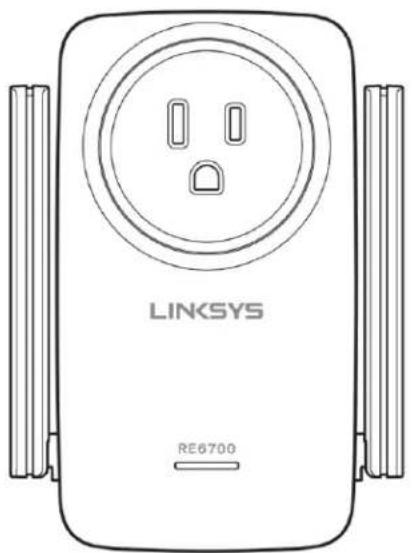
The light on the front of the range extender gives you information about power, updating and signal strength.
| Power Light | Status/ description |
| Blinking Green | • Booting up. • Resetting to factory defaults. • Upgrading firmware. |
| Solid Green | • Ready to use. |
| Solid Amber | • Weak connection with the router. Fix: Unplug the extender, and move it closer to the router. |
| Blinking Amber | • Not connected to the router or other error. Fix: Unplug the extender, plug it back in, wait two minutes, reconnect to your network. |
Side view
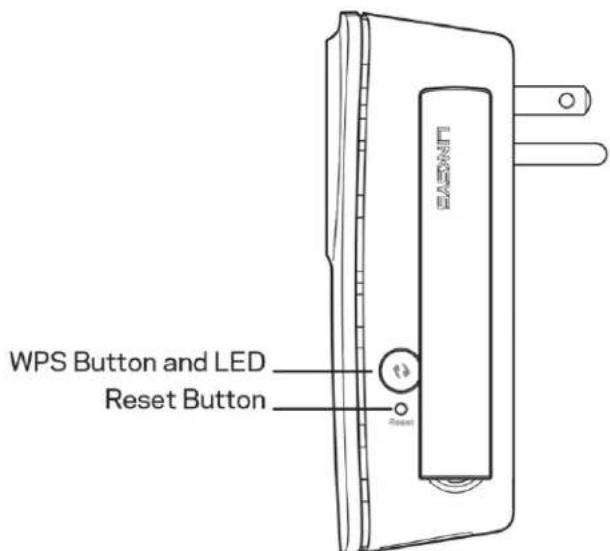
Power switch - European versions only.
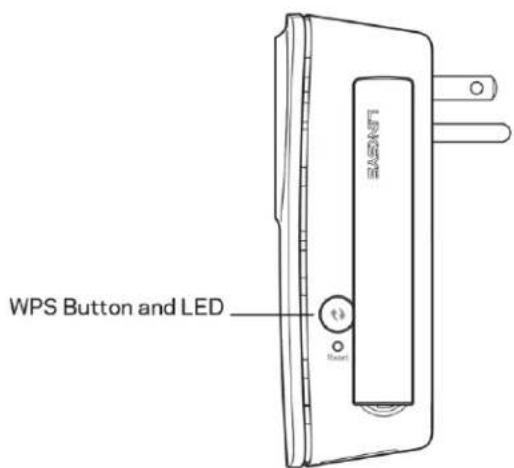
Wi-Fi Protected Setup™ Button and LED — Use Wi-Fi Protected Setup to automatically and securely add compatible wireless devices to your network. Refer to Using Wi-Fi Protected Setup on page 11.
Reset Button - Press and hold until the power light on the front of the range extender blinks to reset to factory defaults. You can also restore the defaults from the Administration > Factory Defaults screen in the extender's settings interface (page 9).
Bottom view
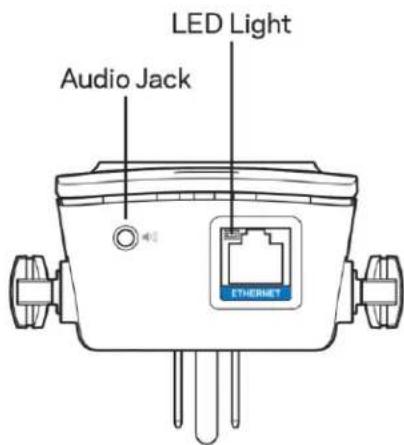
Ethernet(blue)—Connect wired devices to your wireless network with Ethernet (network) cables. The green light turns on when an Ethernet device is connected and active on this port. The light blinks when the extender is sending or receiving data over the Ethernet port.
How to Install the Range Extender
Before setup, unplug or disconnect any range extenders on the network.
- Plug in the range extender midway between your router and the area without Wi-Fi. Be sure you have at least 50% of your router's Wi-Fi signal at that point on the device you will use for setup. The setup software will help you find the right place if you have trouble.
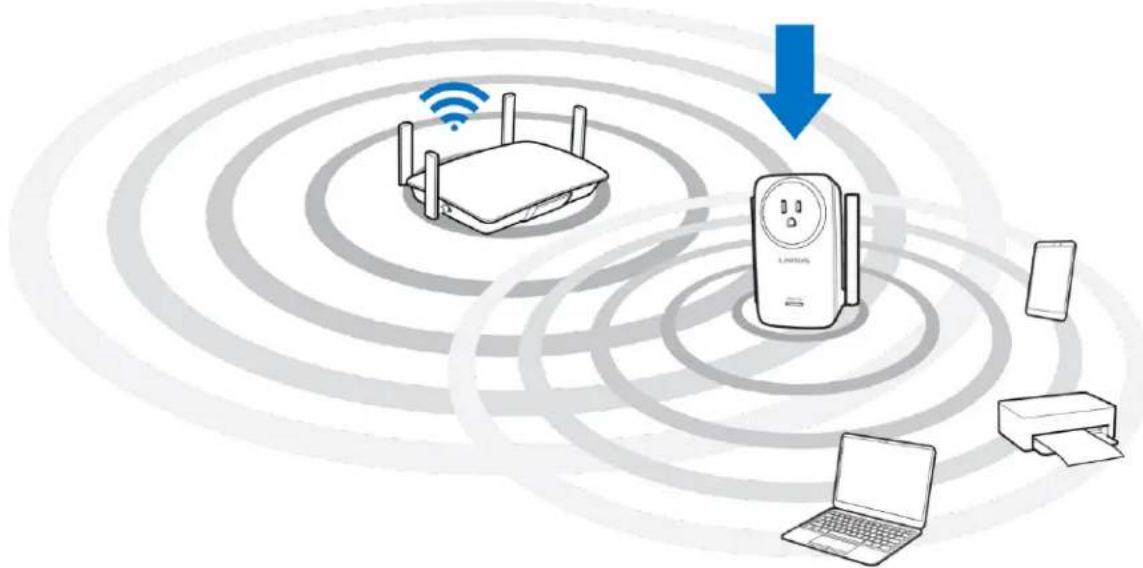
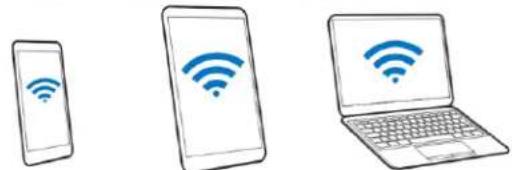
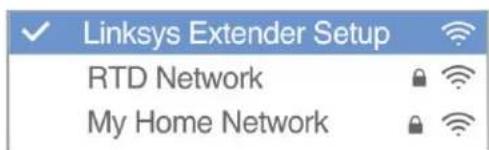
- Wait for a solid light on the cover of the range extender. It could take up to a minute. On a computer, phone or tablet, connect to the Wi-Fi network Linksys Extender Setup.
- If setup doesn't start automatically, open a browser to http://extender.linksys.com.
TIPS
- You can also connect the range extender by using Wi-Fi Protected Setup™. For more information, see "Using Wi-Fi Protected Setup" on page 11.
- During setup you can set the range extender to update itself automatically. If you set Auto Update, it will download and install updates for you overnight. You also can decide to manually update your range extender at your convenience.
After setup use the extender's settings interface to change any settings. If connected to your range extender go to extenderlinksys.com.
Special Feature—Music Streaming
Stream music through your AC1200 range extender to connected speakers
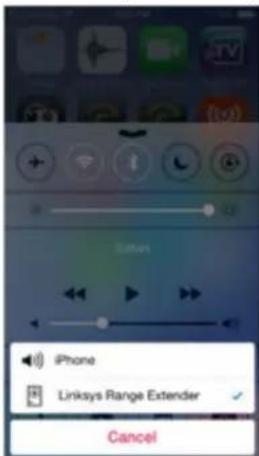
iOS
- Connect iOS device to the same Wi-Fi network as your range extender.
- Swipe up from the bottom of your screen.
- Tap on Linksys Range Extender.
Android
- Connect Galaxy device to the same Wi-Fi network as your range extender.
- Select Music app
- Choose music file and tap Screen Mirroring icon
- Choose Linksys Range Extender.
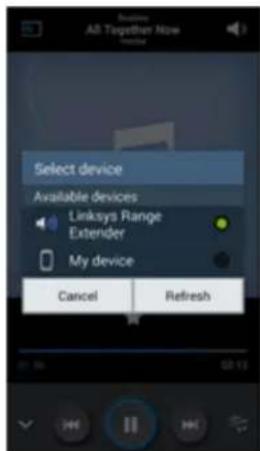
For other Android devices, stream music with MediaHouse, UPnP, ArkMC, BubbleUPnP, Pixel Media, and 2Player 2.0.
Your screen might look different depending on your device model and version of Android.
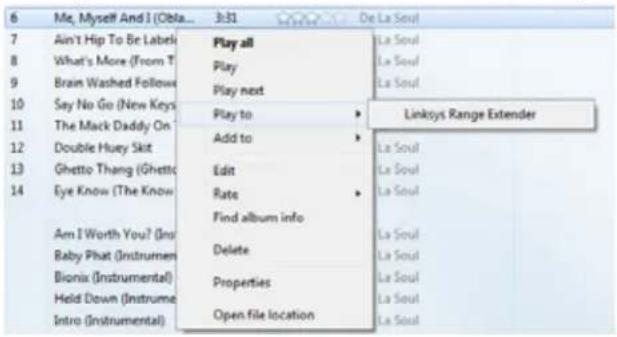
Windows
- Open Windows Media Player
- Right-click on a music file and choose Linksys Range Extender
Mac OS X
- Open iTunes
- Choose speakers
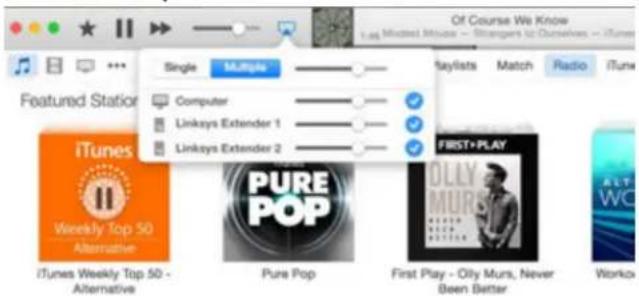
Select Multiple to stream audio simultaneously to more than one range extender.
This list of supported media players is subject to change with the release of new software or mobile apps.
- Windows users can stream music with Windows Media Player12.
Mac users can stream music with proprietary software or the SofaPlay app. - Android users can stream music with MediaHouse, UPnP, ArkMC, BubbleUPnP, Pixel Media, and 2Player 2.0.
- IOS devices including iPhone, iPad or iPod can stream music with proprietary software on other apps such as ArkMC, Smartstor Fusion, Mconnect, and DK UPnP/DLNA.
- The extender supports MP3, FLAC, WAV, WMA and AAC file formats, as long as those formats are supported by the device and app doing the streaming.
The 3.5mm stereo port supports earphones and powered speakers.
How to Access the Settings Interface
After setup use the extender's settings interface to change any settings.
If you named your range extender during setup, you can access the settings interface by entering the name in a browser.
Example: If you named your extender MyExtender, enter http://MyExtender (Windows) or http://MyExtender.local (Mac).
Your range extender's default name is http://RE6700-XXX (Windows) or http://RE6700-XXX.local (Mac OS X or iOS).
NOTE XXX are the last 3 digits of your range extender's MAC address. You can find the MAC address on the back of your RE6700. (You might have to unplug your range extender to see the MAC address label. Plug it back in and make sure the LED light is solid green before accessing the URL.)
You can also enter your range extender's IP address in a browser. Find the IP address on your router's administrative interface.
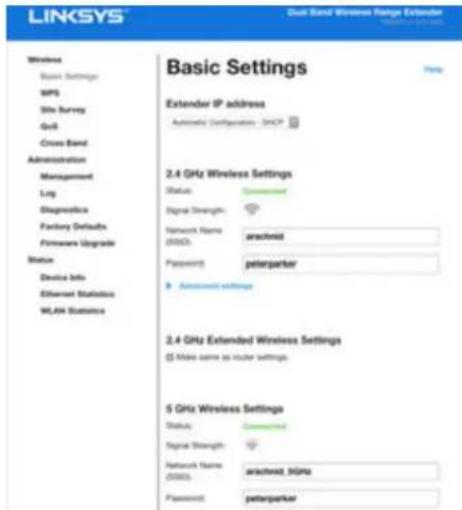
Using Range Extender Settings
Click Help on the right side of the screen for additional information on the screen's options. Changes to settings will not be effective until you click Save at the bottom of the screen. You also can click Cancel to clear any changes.
Using Wi-Fi Protected Setup
Wi-Fi Protected Setup makes it easy to connect your extender to your network, and connect other devices to your network through the extender.
Wi-Fi Protected Setup light activity
| WPS Light | Description |
| Blinking slowly(up to two minutes) | WPS connection in progress. |
| Solid(10 seconds) | WPS connection was successful. |
| Blinking quickly(up to two minutes) | WPS cannot establish connection or encounters a problem.Fix: Wait a few seconds after LED stops blinking and try again. |
Connecting the range extender to an existing access point or router
If your access point or router supports it, you can use Wi-Fi Protected Setup to connect the range extender to the access point or router. Log in to the settings interface and click on WPS in the left navigation bar. Choose from the setup methods below to connect the extender.
NOTE If you have an access point or router that does not support Wi-Fi Protected Setup, note the wireless settings and manually configure the range extender.
1. Connecting with the Wi-Fi Protected Setup Button
Use this method if your access point or router has a Wi-Fi Protected Setup button
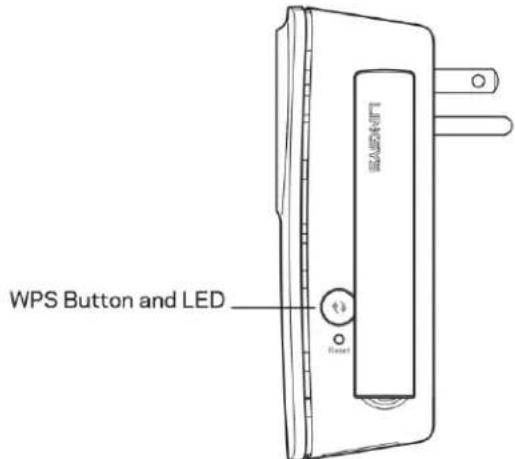
a) Press the Wi-Fi Protected Setup button on the extender for one second. If you have a dual-band router you will do this again to extend the second network. The 2.4 GHz band will be extended first.
b) Click the Wi-Fi Protected Setup button on the router's Wi-Fi Protected Setup screen (if available), OR press and hold the Wi-Fi Protected Setup button on the router for one second. When the connection is complete, the Wi-Fi Protected Setup light on the extender will be solid for 10 seconds.
TIP You can also complete WPS from the settings interface by clicking WPS in the left navigation bar. Click the Wi-Fi Protected Setup icon on the extender's Wi-Fi Protected Setup screen. Click OK in that screen within two minutes.
2. Connecting with the Wi-Fi Protected Setup Button
The Wi-Fi Protected Setup PIN (Personal Identification Number) can be found on the product label on the back of the extender. You can use this method only if your router's administration utility has a Wi-Fi Protected Setup menu.
- If your router asks for the client's PIN number, enter this number 14727030 in your router device.
a) Enter the extender's PIN into the appropriate field on the router's Wi-Fi Protected Setup screen. Click Register. When the connection is complete, the Wi-Fi Protected Setup light on the extender will be solid for 10 seconds.
b) Click OK.
Connecting devices to your network through the range extender
Repeat the instructions for each client device that supports Wi-Fi Protected Setup.
1. Connecting with the Wi-Fi Protected Setup Button
a) Press the Wi-Fi Protected Setup button on the client device.
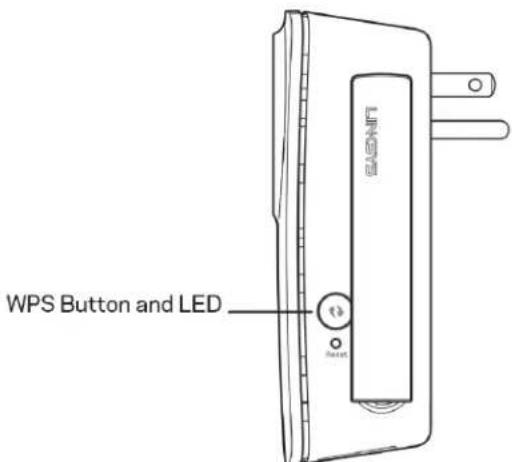
b) Click the Wi-Fi Protected Setup button on the extender's Wi-Fi Protected Setup screen, OR press and hold the Wi-Fi Protected Setup button on the side of the extender for one second. When the connection is complete, the Wi-Fi Protected Setup light on the extender will be solid for 10 seconds.
c) If using the extender's Wi-Fi Protected Setup screen, be sure to click OK within two minutes or you will have to start over.
2. Connecting with the client device's PIN

a) Enter the PIN from the client device in the field on the extender's Wi-Fi Protected Setup screen.
b) Click Register on the extender's Wi-Fi Protected Setup screen. When the connection is complete, the Wi-Fi Protected Setup light on the extender will be solid for 10 seconds.
c) Click OK on the extender's Wi-Fi Protected Setup screen within two minutes or you will have to start over.
3. Connecting with the extender's PIN
- If your router asks for the client's PIN number, enter this number 14727030 in your router device.
a) On the client device, enter the PIN listed on the extender's Wi-Fi Protected Setup screen. (It is also listed on the product label on the back of the extender.) When the connection is complete, the Wi-Fi Protected Setup light on the extender will be solid for 10 seconds.
b) Click OK on the extender's Wi-Fi Protected Setup screen within two minutes.
How to Use Site Survey
Site Survey gives a snapshot of all access points and wireless routers within range of the extender.
| Wireless |
| Basic Settings |
| WPS |
| Site Survey |
| QoS |
| Administration |
| Management |
| Log |
| Diagnostics |
| Factory Defaults |
| Firmware Upgrade |
| Status |
| Device Info |
| Ethernet Statistics |
| WLAN Statistics |
| Select | SSID | GHz | Signal | Security |
| ○ | Linksys00095 | 2.4 | # | WPA2 Personal |
| ○ | panfor2.4 | 2.4 | # | Disabled |
| ○ | arachnid | 2.4 | # | WPA2/WPA Mixed Mode |
| ○ | panfor5 | 5 | # | Disabled |
| ○ | Linksys00095_5GHz | 5 | # | WPA2 Personal |
| ○ | arachnid | 5 | # | WPA2/WPA Mixed Mode |
| ○ | Damaged_Beez-2.4 | 2.4 | # | WPA2/WPA Mixed Mode |
| ○ | 80LCVBMS | 2.4 | # | WPA2 Personal |
Log in to the settings interface (see "How to Access the Settings Interface" on page 10). Click the Wireless tab. Click the Site Survey page.
- Select—Click the button next to the wireless network name (SSID) in the Select column, and click Connect. For dual-band networks, be sure to connect to both bands, 2.4 GHz and 5 GHz.
SSID—The names of neighboring wireless networks. - GHz—The radio band (in GHz) of the neighboring wireless networks
- Signal Strength—The power of the wireless signal received: dot only = 25%, dot + one wave = 50%, dot + two waves = 75%, dot + three waves = 100%. If no waves are displayed, your extender is too far from the upstream access point or the signal is blocked. Try to keep the signal strength between 50% and 100% for optimum performance.
- Security—The mode of security in use by the neighboring wireless networks If a network supports Wi-Fi Protected Setup, the Wi-Fi Protected Setup icon is also displayed.
Cross-Band
Cross-Band is the simultaneous use of both bands for high-speed data transfer and uninterrupted streaming and gaming. When in Auto Cross-Band (default), the range extender selects the appropriate band (2.4 GHz or 5 GHz) when sending data from wireless clients to the Wi-Fi router.
Pass-Through Power Outlet
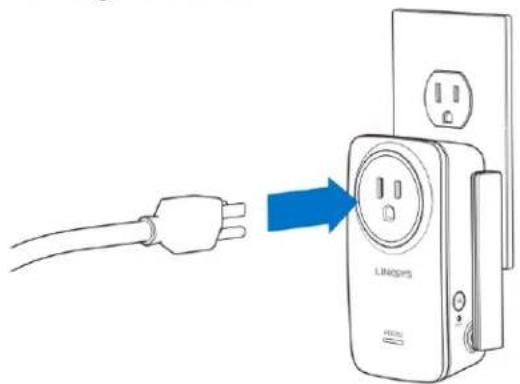
You don't have to find an empty outlet for your range extender. The pass-through outlet on your range extender works exactly like a normal electrical outlet, and is not controlled in any way by the range extender.
Troubleshooting
Your RE6700 works on 2.4GHz and 5 GHz networks.
You cannot get your range extender connected
Check the position of your router and extender.
- For first-time setup, you may need to place the extender closer to the router. After you've set up your extender, you can unplug it and move it to the final location.
To reduce signal obstructions, try alternate locations for the router and extender.
Try repositioning the antennas on the range extender. - Avoid placing the router and extender near metal objects, masonry walls, and reflective surfaces such as glass or mirrors.
- Avoid placing the router and extender near other electronics that may cause signal interference.
If you're using Wi-Fi Protected Setup to connect, wait until the Wi-Fi Protected Setup indicator stops blinking before trying to make the connection again.
Your Wi-Fi coverage isn't meeting expectations
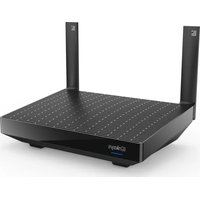
Reposition the antennas on your range extender. The left antenna extends your network on a horizontal plane, so the ideal position is pointing straight down (parallel to the range extender). The right antenna extends your network on a vertical plane, so the ideal position is straight out (perpendicular to the range extender).
You cannot access your range extender
To access your range extender, you must be connected to your own network. If you currently have wireless Internet access, the problem may be that you have accidentally connected to a different wireless network.
To fix the problem on Windows computers, do the following*:
- On your Windows desktop right-click the wireless icon in the system tray.
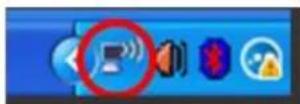
- Click View Available Wireless Networks. A list of available networks will appear.
| Disable Status Repair |
| View Available Wireless Networks |
| Change Windows Firewall settings |
| Open Network Connections |
- Click your own network name. Click Connect. In the example below, the computer was connected to another wireless network named JimsRouter. Your wireless network name, BronzeEagle in this example, is shown selected.
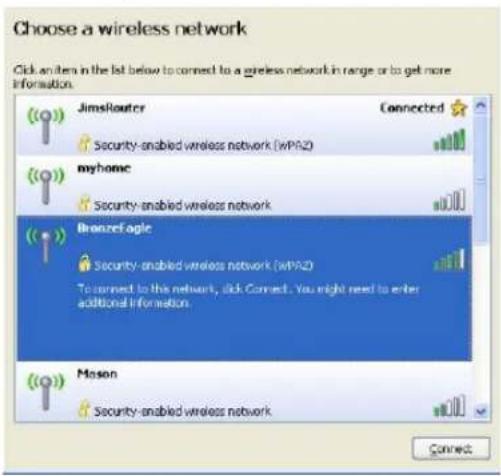
- If you are prompted to enter a network key, type your password (Security Key) into the Network key and Confirm network key fields. Click Connect.
You should now be able to access the range extender's settings interface.
*Depending on your version of Windows, there could be some differences in wording or icons in these steps.
To fix the problem on Mac computers, do the following:
-
In the menu bar across the top of the screen, click the Wi-Fi icon. A list of wireless networks will appear. Linksys Smart Wi-Fi has automatically assigned your network a name.
-
In the example below, the computer was connected to another wireless network named JimsRouter. The wireless network name of the router, BronzeEagle in this example, is shown selected.
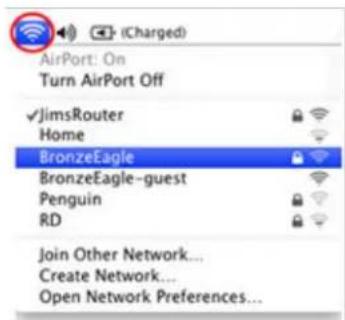
- Select the wireless network name of the router you want to connect to.
- Type your wireless network password (Security Key) into the Password field. Click OK.
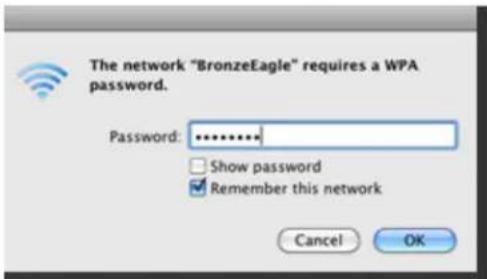
You should now be able to access the range extender's settings interface.
You have intermittent connection problems
Plug in the range extender midway between your router and the area without Wi-Fi. Be sure you have at least 50% of your router's Wi-Fi signal at that point on the device you used for setup.
Specifications
RE6700
Model Name
Description
Model Number
Standards
Ports
Buttons
LEDs
Antennas
Wireless Security
Linksys RE6700
Dual-band Wireless-AC Range Extender
RE6700
IEEE 802.11ac, 802.11a, 802.11n,
802.11g, 802.11b, 802.3z
Gigabit Ethernet, Audio
Reset, Wi-Fi Protected SetupTM, Power
(European model only)
Power, Wi-Fi Protected Setup, Ethernet (link, activity)
2 external (non-detachable)
Wi-Fi Protected Access™ 2 (WPA2), Wi-Fi
Protected Access™ (WPA), WEP
Environmental
Dimensions
Weight
Power
Certification
Operating Temp.
Storage Temp.
Operating Humidity
Storage Humidity
121 × 87 × 63 mm
230g
AC Input: 100-120V~15A, 50/60 Hz
AC Output: 100-120V~14.5A, 50/60 Hz
FCC, ICES-003, RSS210, CE, Wi-Fi (IEEE)
802.11a/b/g/n), WPA2™, WMM®, Wi-Fi
Protected Setup
32 to 104^ (0 to 40^ )
-4 to 140^ (-20 to 60^ )
10 to 80% non-condensing
5 to 90% non-condensing
Specifications are subject to change without notice.
Visit linksys.com/support/RE6700 for award-winning 24/7 technical support
BELKIN, LINKSYS and many product names and logos are trademarks of the Belkin group of companies. Third-party trademarks mentioned are the property of their respective owners. Licenses and notices for third party software used in this product may be viewed here: http://supportlinksys.com/en-us/license.Rlpeasoponttiosys.com/en-us/gplcodecenter for questions or GPL source code requests.
© 2015 Belkin International, Inc. and/or its affiliates. All rights reserved.
LNKPG-00225 A00