Astra 6 Phase 2 (2012-2015) - Automobile Vauxhall - Notice d'utilisation et mode d'emploi gratuit
Retrouvez gratuitement la notice de l'appareil Astra 6 Phase 2 (2012-2015) Vauxhall au format PDF.

| Type de produit | Automobile |
| Marque | Vauxhall |
| Modèle | Astra 6 Phase 2 (2012-2015) |
| Catégorie | Automobile |
| Dimensions (L x l x H) | Environ 4,4 m x 1,8 m x 1,5 m |
| Poids à vide | Environ 1300 kg |
| Motorisation | Essence ou Diesel (selon version) |
| Transmission | Manuelle ou automatique (selon version) |
| Système d'infodivertissement | Navi 950/650 / CD 600 / CD 400plus / FlexDock |
| Radio | FM, AM, DAB avec RDS |
| Lecteur CD | CD audio, MP3, WMA |
| Connectivité | USB, AUX, Bluetooth |
| Navigation | GPS avec cartes numériques, guidage vocal, info trafic TMC |
| Téléphone | Mains libres Bluetooth, répertoire, listes d'appels |
| Commandes vocales | Reconnaissance vocale intégrée pour radio, navigation, téléphone |
| Affichage | Écran couleur, réglable (jour/nuit automatique) |
| Sécurité | Antivol électronique du système, airbags, ABS, ESC (selon version) |
| Entretien et nettoyage | Consultez la notice pour les recommandations d'entretien |
| Pièces détachées et réparabilité | Pièces disponibles chez les concessionnaires Vauxhall agréés |
| Informations générales | Notice d'utilisation au format PDF disponible sur notice-facile.com |
FOIRE AUX QUESTIONS - Astra 6 Phase 2 (2012-2015) Vauxhall
Questions des utilisateurs sur Astra 6 Phase 2 (2012-2015) Vauxhall
0 question sur cet appareil. Repondez a celles que vous connaissez ou posez la votre.
Poser une nouvelle question sur cet appareil
Téléchargez la notice de votre Automobile au format PDF gratuitement ! Retrouvez votre notice Astra 6 Phase 2 (2012-2015) - Vauxhall et reprennez votre appareil électronique en main. Sur cette page sont publiés tous les documents nécessaires à l'utilisation de votre appareil Astra 6 Phase 2 (2012-2015) de la marque Vauxhall.
MODE D'EMPLOI Astra 6 Phase 2 (2012-2015) Vauxhall
Vauxhall Astra
Infotainment System

natural_image
Exterior view of a red Astra sedan car parked in front of a modern glass building (no signage)Contents
Navi 950/650 / CD 600 .... 5
CD 400plus (1)/400/300 81
CD 400plus (2) 133
FlexDock 173
[Non-Text]
[Non-Text]
[Non-Text]
[Non-Text]
[Non-Text]
[Non-Text]
[Non-Text]
[Non-Text]
[Non-Text]
[Non-Text]
[Non-Text]
[Non-Text]
[Non-Text]
[Non-Text]
[Non-Text]
[Non-Text]
[Non-Text]
[Non-Text]
[Non-Text]
[Non-Text]
[Non-Text]
[Non-Text]
[Non-Text]
[Non-Text]
[Non-Text]
[Non-Text]
[Non-Text]
[Non-Text]
[Non-Text]
[Non-Text]
[Non-Text]
[Non-Text]
[Non-Text]
[Non-Text]
[Non-Text]
[Non-Text]
[Non-Text]
[Non-Text]
[Non-Text]
[Non-Text]
[Non-Text]
[Non-Text]
[Non-Text]
[Non-Text]
[Non-Text]
[Non-Text]
[Non-Text]
[Non-Text]
[Non-Text]
[Non-Text]
[Non-Text]
[Non-Text]
[Non-Text]
[Non-Text]
[Non-Text]
[Non-Text]
[Non-Text]
[Non-Text]
[Non-Text]
[Non-Text]
[Non-Text]
[Non-Text]
[Non-Text]
[Non-Text]
[Non-Text]
[Non-Text]
[Non-Text]
[Non-Text]
[Non-Text]
[Non-Text]
[Non-Text]
[Non-Text]
Navi 950/650 / CD 600
Introduction 6
Basic operation 16
Radio 24
CD Player 30
External devices 32
Navigation 37
Speech recognition .... 55
Phone 64
Frequently asked questions ..... 73
Index 76
Introduction
General information 6
Theft-deterrent feature 7
Control elements overview ...... 8
Usage 14
General information
The Infotainment system provides you with state-of-the-art in-car infotainment.
The radio can easily be used by registering a large number of FM, AM and DAB (Digital Audio Broadcasting) radio stations with the 1...6 preset buttons.
You can connect external data storage devices, e.g. iPod, USB devices, or other auxiliary devices to the Infotainment system as further audio sources; either via cable or via Bluetooth.
The navigation system reliably guides you to your destination and, if desired, automatically avoids traffic jams or other traffic problems.
In addition, the Infotainment system is equipped with a phone application that allows for comfortable and safe use of your mobile phone in the vehicle.
Optionally, the Infotainment system can be operated using the instrument panel controls, the controls on the steering wheel or the speech recognition function.
The well-thought-out design of the control elements and the clear displays enable you to control the system easily and intuitively.
Information on operation details and news on software updates can be obtained on our website.
Notice
This manual describes all options and features available for the various Infotainment systems. Certain descriptions, including those for display and menu functions, may not apply to your vehicle due to model variant, country specifications, special equipment or accessories.
Important information on operation and traffic safety
⚠ Warning
The Infotainment system must be used so that the vehicle can be driven safely at all times. If in doubt, stop the vehicle and operate the Infotainment system while the vehicle is stationary.
⚠ Warning
The usage of the navigation system does not release the driver from the responsibility for a correct, vigilant attitude in road traffic. The related traffic regulations must always be followed.
Only make entries (e.g. addresses) with the vehicle stationary.
If a navigation instruction contradicts traffic regulations, the traffic regulations always apply.
⚠ Warning
Areas such as one-way streets and pedestrian zones are not marked on the navigation system map. In such areas, the system may issue a warning that must be accepted. Therefore, pay particular attention to one-way streets and other roads and entrances that must not be driven into.
Radio reception
Radio reception may be disrupted by static, noise, distortion or loss of reception due to:
■ changes in distance from the transmitter
■ multi-path reception due to reflection
■ shadowing
Theft-deterrent feature
The Infotainment system is equipped with an electronic security system for the purpose of theft deterrence.
The Infotainment system therefore functions only in your vehicle and is worthless to a thief.
Control elements overview
Navi 950 / 650

text_image
1 2 3 4 5 6 7 8 SRCE Navi 950 DEST RPT PHONE BACK CONFIG ▶/II INFO FAV 1/2/3 AS 1/2 TP △ 21 20 19 18 17 16 15 14 13 12 11 10 91
Access Home Page ...... 16
2 SRCE (Source)
Press to toggle through the different audio sources
CD/MP3 player 30
USB 32
AUX 32
Bluetooth 32
AM 24
FM 24
DAB 24
3 ◁ ◁ ◁
Radio: search backwards ..... 24
CD/MP3/WMA: skip track backwards 31
External devices: skip track backwards .... 34
4 Station buttons 1...6
Short press: select station .... 26
Long press: save station ..... 26
5
Press: switch on/off Infotainment system .... 14
Turn: adjust volume ...... 14
6 ▷ ▷
Radio: search forwards ..... 24
CD/MP3/WMA: skip track forwards 31
External devices: skip track forwards .... 34
7 AS 1/2
Short press: open autostore list .... 25
Long press: save autostore stations automatically .... 25
8 FAV 1/2/3
Open favourites list ...... 26
9 TP
Activate or deactivate radio traffic service .... 27
10 ≅
Eject CD 31
11 CONFIG
Open settings menu ...... 21
12 ▶/||
CD/MP3/WMA: start/pause playback 31
External devices: start/pause playback 34
13 INFO
Radio: information on current station
CD/MP3/WMA, external devices: information on current track
Navigation: information, e.g. on current location
14 Multifunction knob
Turn: mark menu options or set alphanumeric values .. 16
Press (the outer ring): select/activate the marked option; confirm set value; switch function on/off; open audio or navigation menu 16
15 Eight-way switch
Navigation: move display window in map view ...... 38
16 CD slot 31
17 BACK
Menu: one level back ..... 16
Input: delete last character or entire entry 16
18 RPT
Repeat last navigation message 50
19 DEST
Open navigation destination menu .... 42
20 PHONE
Take phone call or activate/deactivate mute ...... 67
21 NAVI
Display map 38
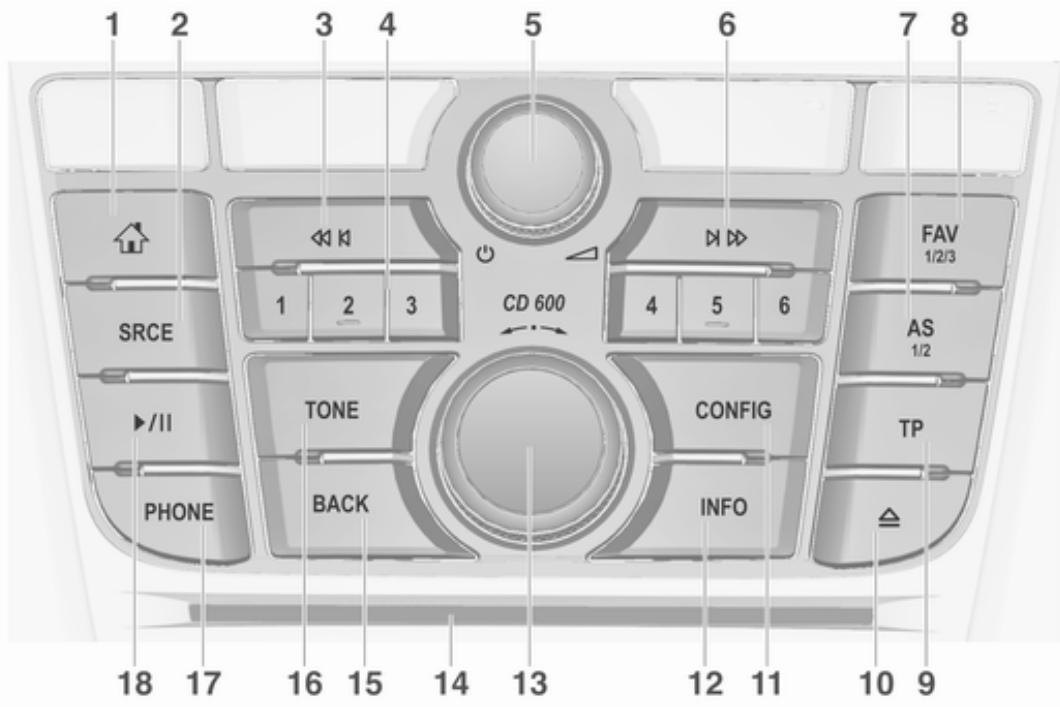
CD 600
text_image
1 2 3 4 5 6 7 8 SRCE ▶/II PHONE TONE BACK CD 600 CONFIG INFO FAV 1/2/3 AS 1/2 TP △ 18 17 16 15 14 13 12 11 10 91

Access Home Page ...... 16
2
SRCE (Source)
Press to toggle through the different audio sources
CD/MP3 player 30
USB 32
AUX 32
Bluetooth 32
AM 24
FM 24
DAB 24
3
◀◀◀
Radio: search backwards ..... 24
CD/MP3/WMA: skip track backwards 31
External devices: skip track backwards .... 34
4
Station buttons 1...6
Long press: save station ..... 26
Short press: select station .... 26
5
[Non-Text]
Press: switch on/off
Infotainment system ...... 14
Turn: adjust volume ...... 14
6
▶ ▷
Radio: search forwards ..... 24
CD/MP3/WMA: skip track
forwards 31
External devices: skip
track forwards 34
7
AS 1/2
Short press: open
autostore list 25
Long press: save
autostore stations
automatically 25
8
FAV 1/2/3
Open favourites list ...... 26
9
TP
Activate or deactivate
radio traffic service 27
10
△
Eject CD 31
11
CONFIG
Open settings menu ...... 21
12
INFO
Radio: information on current station
CD/MP3/WMA, external
devices: information on current track
13
Multifunction knob
Turn: mark menu options
or set alphanumeric values .. 16
Press: select/activate the
marked option; confirm set
value; switch function on/
off; open audio menu ...... 16
14
CD slot 31
15 BACK
Menu: one level back ..... 16
Input: delete last character or entire entry 16
16 Tone
Open tone settings ...... 19
17 PHONE
Take phone call or activate/deactivate mute ...... 67
18 ▶/II
CD/MP3/WMA: start/pause playback 31
External devices: start/pause playback 34
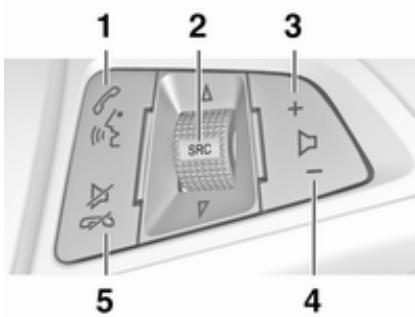
Steering wheel audio controls
text_image
1 2 3 SRC + - 4 51
Short press: take phone call. 67
or dial number in call list ..... 67
or activate speech recognition .... 55
Long press: show call list ..... 67
or activate voice pass-thru (if supported by phone) ..... 55
2 SRC (Source)
Press: select audio source .... 24
With radio active: turn up/ down to select next/ previous preset radio station 24
With CD player active: turn up/down to select next/ previous CD/MP3/WMA track 31
With external device active: turn up/down to select next/previous track ..... 34
With phone active: turn up/ down to select next/ previous entry in call list ...... 67
With phone active and calls waiting: turn up/down to switch between calls ...... 67
3 +
Increase volume 14
4 -
Reduce volume 14
5
Short press: end/decline call 67
or close call list 67
or activate/deactivate mute ... 14
or deactivate speech recognition .... 55
Usage
Control elements
The Infotainment system is operated via function buttons, a multifunction knob and menus that are shown on the display.
Inputs are made optionally via:
■ the central control unit on the instrument panel ➔ 8
■ controls on the steering wheel ➔ 8
■ the speech recognition system
⇨ 55
Notice
Only the most direct ways for menu operation are described in the subsequent chapters. In some cases, there may be other options.
Switching the Infotainment system on or off
Press ⏻ briefly. After switching on, the last selected Infotainment source becomes active.
Automatic switch-off
If the Infotainment system is switched on pressing ⏻ while the ignition is switched off, it switches off again automatically after 10 minutes.
Setting the volume
Turn ⏻. The current setting is shown in a pop-up at the bottom of the screen.
When the Infotainment system is switched on, the last selected volume is set, provided that the volume is lower than the maximum start-up volume.
The following volume settings can be set separately:
■ the maximum start-up volume
⇨ 20
■ the volume of the traffic announcements ➔ 20
■ the volume of the navigation messages ➔ 38
Auto volume
When auto volume is activated 20, the volume is adapted automatically to compensate for the road and wind noise as you drive.
Mute
Press PHONE (if Phone portal is available: press for a few seconds) to mute the audio sources.
To cancel mute again: turn ⏻ or press PHONE again (if Phone portal is available: press for a few seconds).
Volume limitation at high temperatures
At very high temperatures inside the vehicle, the Infotainment system limits the maximum adjustable volume. If necessary, the volume is decreased automatically.
Modes of operation
Audio players
Repeatedly press SRCE to toggle between the AM, FM, CD, USB, AUX, Bluetooth or DAB main menus.
For detailed descriptions of:
■ CD/MP3 player ➔ 30
■ USB port ➔ 32
■ AUX input ➔ 32
■ Bluetooth audio ➔ 32
■ AM radio ➔ 24
■ FM radio ➔ 24
■ DAB radio ➔ 28
Navigation
Press NAVI to display the map of the navigation application.
Press the multifunction knob to open a submenu with options for the input of destinations and the structuring of a route.
For a detailed description of the navigation functions ➔ 37.
Phone
Press PHONE to display the phone main menu with options for the input or selection of numbers.
For a detailed description of the mobile phone functions ➔ 64.
Notice
Brief information on the audio sources and the current navigation session may be displayed via the Quick Info application.
Basic operation
Basic operation ...... 16
Tone settings 19
Volume settings 20
System settings 21
Basic operation
Multifunction knob
The multifunction knob is the central control element for the menus.
Turn the multifunction knob:
■ to mark a menu option
■ to set an alphanumeric value
Press the multifunction knob (Navi 950 / Navi 650: press the outer ring):
■ to select or activate the marked option
■ to confirm a set value
■ to switch a system function on/off
■ to open the audio or navigation menu within the respective application
button
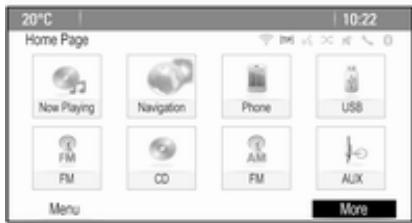
Press ↗ to access the Home Page.
text_image
20°C Home Page Now Playing Navigation Phone USB FM CD AM FM AUX Menu MoreUsing the multifunction knob, you may then access the different applications.
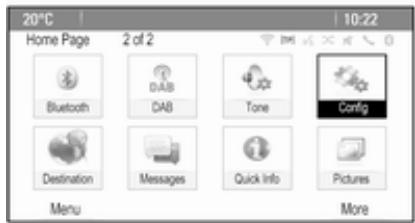
Turn the multifunction knob to select More at the bottom of the screen.
text_image
20°C Home Page 2 of 2 Bluetooth DAB Tone Config Destination Messages Quick Info Pictures Menu MorePress the multifunction knob (Navi 950 / Navi 650: press the outer ring) to display the second Home Page with further applications.
Using the multifunction knob, you may then access the different applications.
Notice
Most of the applications or application menus may also be directly accessed via the buttons on the instrument panel.
BACK button
Press BACK:
■ to exit a menu or screen
■ to return from a submenu to the next higher menu level
■ to delete the last character in a character sequence
Press and hold BACK for a few seconds to delete the entire entry.
Examples of menu operation
Selecting a screen element
Turn the multifunction knob to move the cursor (= coloured background) to the desired option.
Press the multifunction knob to select the marked icon, screen button or menu item.
Notice
In subsequent chapters the operating steps for selecting and activating a screen button or menu item will be described as "...select
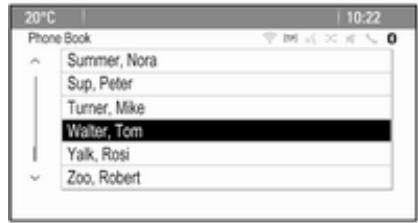
Scrolling lists
text_image
20°C Phone Book Summer, Nora Sup, Peter Turner, Mike Walter, Tom Yalk, Rosi Zoo, RobertIf there are more menu items available in a list than presentable on the screen, a scroll bar is displayed.
Turn the multifunction knob clockwise to scroll downwards and anticlockwise to scroll upwards.
Notice
In subsequent chapters the operating steps for scrolling to a list item will be described as "...scroll to
Adjusting a setting

text_image
20°C 10:22 Navigation Volume Announcement Background Volume Test Announcement BackgroundTurn the multifunction knob to change the current value of the setting.
Press the multifunction knob to confirm the set value.
Notice
In subsequent chapters the operating steps for adjusting a setting will be described as "...adjust
Activating a menu item
Turn the multifunction knob to move the cursor (= coloured background) to the desired option.
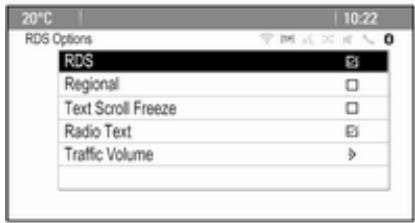
Press the multifunction knob to activate the menu item. A checkmark or a point appear within the box or ring beside the respective menu item.
text_image
20°C RDS Options RDS Regional Text Scroll Freeze Radio Text Traffic VolumeNotice
In subsequent chapters the operating steps for activating a menu item will be described as "...activate
Entering a character sequence
Turn the multifunction knob to select the desired character.
Press the multifunction knob to enter the respective character in the entry field at the top of the screen.
The last character in the character sequence can be deleted pressing Del on the screen or BACK on the instrument panel. Pressing and holding BACK deletes the entire entry.
Press the multifunction knob to confirm the selected character.
Notice
In subsequent chapters the operating steps for entering characters will be described "...enter the desired characters...".
Messages
Before a system function is executed, you are sometimes prompted with a message. If requested, select one of the options.

text_image
20°C 10:22 Software Versions Menu Clear All Data and Reset the Radio? Yes NoThe selection and activation of a screen button in a message function are the same as described for selecting an option in a menu.
Tone settings
Press 🔊 and then select More at the bottom of the screen. On the second Home Page, select Tone. The tone settings menu is displayed.

text_image
20°C 10:22 Tone Settings Bass Mid Treble EQ: Manual Fade Balance + - + - + - Bass Mid TrebleBass
Use this setting to enhance or attenuate the deep frequencies of the audio sources.
Adjust the setting as desired.
Mid
Use this setting to enhance or attenuate the midrange frequencies of the audio source.
Adjust the setting as desired.
Treble
Use this setting to enhance or attenuate the high frequencies of the audio sources.
Adjust the setting as desired.
EQ mode
(EQ: Equaliser)
Use this setting to optimise the tone for a specific style of music, e.g.
Rock or Classical.
Select EQ. A submenu with predefined sound styles is displayed. Select the desired sound style.
If one of the predefined sound styles is selected, Bass, Mid and Treble are preadjusted by the system.
If you manually adjust one of the settings described above, EQ is set to Manual.
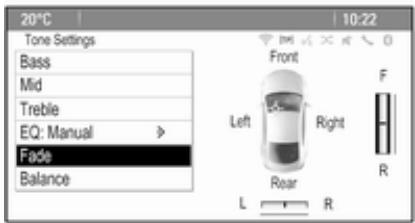
Fade and Balance
When Fade or Balance are selected, an illustration is displayed on the right side of the screen.
text_image
20°C 10:22 Tone Settings Bass Mid Treble EQ: Manual > Fade Balance Front Left Right Rear L RTo adjust the volume distribution between the front and rear speakers in the vehicle, select Fade. Adjust the setting as desired.
To adjust the volume distribution between the left and right speakers in the vehicle, select Balance. Adjust the setting as desired.
Volume settings
Adjusting the Auto Volume
Press CONFIG and then select Radio Settings.
Select Auto Volume to display the respective menu.
To adjust the degree of volume adaptation, set Auto Volume to Off, Low, Medium or High.
Off: no enhancement of volume with increasing vehicle speed.
High: maximum enhancement of volume with increasing vehicle speed.
Adjusting the Startup Volume
Press CONFIG and then select Radio Settings.
Select Startup Volume to display the respective menu.
Adjust the setting as desired.
Adjusting the volume of traffic announcements
The volume of traffic announcements can be preset to a level independent of the "normal" volume level.
Press CONFIG and then select Radio Settings.
Select RDS Options and then Traffic Volume to display the respective menu.
Adjust the setting as desired.
Notice
While an announcement is given out, the volume may simply be adjusted pressing ⏻.
Adjusting the Chime Volume
When operating the controls in the vehicle, beeping sounds confirm your actions. The volume of the beeping sounds may be adjusted.
Press CONFIG and then select Vehicle Settings.
Select Comfort and Convenience and then Chime Volume to display the respective submenu. Select Low or High.
Adjusting the Navigation Volume
Press CONFIG and then select Navigation Settings.
Select Voice Prompt and then Navigation Volume. The respective submenu is displayed.
To adjust the volume of the announcements, select
Announcement and then adjust the setting as desired.
To adjust the volume of the audio source possibly playing in the background, select Background and then adjust the setting as desired.
Select Volume Test to get an audio example of the settings.
Notice
While an announcement is given out, the volume may simply be adjusted pressing ⏻.
System settings
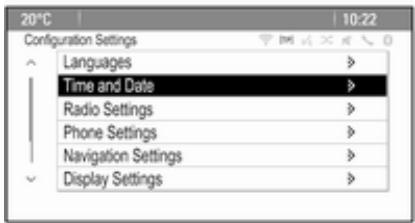
Various Infotainment system settings may be adjusted via the Config application.
text_image
20°C Configuration Settings Languages Time and Date Radio Settings Phone Settings Navigation Settings Display Settings 10:22Language settings
Press CONFIG and then select Languages. A list of all languages available is displayed.
Select the desired language.
Time and date settings
Press CONFIG and then select Time and Date to display the respective submenu.
Automatic time adjustment
The system constantly receives information on the current time and date.
If you wish the time and date settings to be updated automatically, activate RDS Auto Time Adjust.
If you wish to set time and date manually, deactivate RDS Auto Time Adjust.
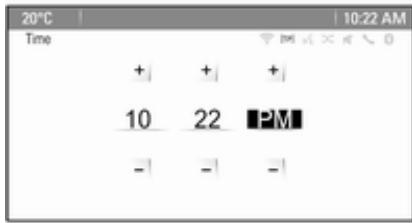
Set time
To adjust the time settings, select Set Time.
text_image
20°C Time + + + 10 22 PM - - -Adjust the settings as desired.
Set date
To adjust the date settings, select Set Date. Adjust the settings as desired.
Time format
To choose the desired time format, select 12 hr / 24 hr Format. A submenu is displayed. Activate 12 Hour or 24 Hour.
Software information
Press CONFIG and then select Radio Settings.
Scroll through the list and select Software Versions Menu to display the respective submenu.
Software version information
To display a list of all software versions installed, select Software Version Information.
By default, all versions are activated.
Software update
To update your system software, contact your Vauxhall Authorised Repairer.
Log file
To generate a log file of your current software version, select Create Log File.
Licensing information
To display information on the manufacturer of the Infotainment system, select Licensing Information.
Factory defaults
To reset all Infotainment settings to their factory defaults, select Clear and Reset Radio.
Display settings
Press CONFIG and then select Display Settings to display the respective submenu.
Home Page
Select Home Page Menu to display the home page settings menu.
To access the menu from the Home Page, select Menu at the bottom of the screen.
The Home Page may be adjusted according to your personal preferences.
Customise
The application icons displayed on the first home page may be chosen as desired.
Select Customise to display a list of all applications installed in the system. Activate the menu items of those applications you wish to be displayed on the first home page.
The other applications are then arranged on the following pages.
Sort
Up to eight application icons may be arranged on each home page.
The positions of the icons can be changed as desired.
Select Sort to display the home pages in edit mode.
Select the icon you wish to move.
Scroll to the position on the home page where you wish the icon to be located. Press the multifunction knob to confirm.
The icon is moved to the new location. The icon that was located in that position before is now displayed in the position of the moved icon.
Home page defaults
To reset the Home Page to its factory defaults, select Restore Home Page Defaults.
Display Off
To turn the display off, select Display Off.
To turn the display back on, press any button on the instrument panel (except the ⏻ knob).
Radio
Usage 24
Station search 24
Autostore lists 25
Favourite lists 26
Radio data system (RDS) ...... 27
Digital audio broadcasting ..... 28
Usage
Activating radio
Press ↑ and then select AM, FM or DAB.
The station last selected is played.
Notice
When an audio source is already active, you may toggle between the different audio sources by repeatedly pressing SRCE.
Station search
Automatic station search
Briefly press ◀◀ or ▶▶ to play the next station in the station memory.
Manual station search
Press and hold ◀◀ or ▶▶. Release the button when the required frequency has almost been reached on the frequency display.
Manual station tuning
In the FM and DAB waveband, press the multifunction knob to open the respective menu and then select
Manual tuning. The frequency currently active is displayed at the bottom of the screen.
Turn the multifunction knob to reach the desired frequency.
In the AM waveband, turn the multifunction knob to adjust the frequency.
Station lists
In the FM and DAB waveband, turn the multifunction knob to display the station list.
In the AM waveband, press the multifunction knob to display the respective waveband menu.
Select AM Station List.
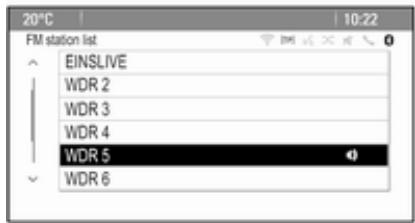
A list of all receivable stations of the relevant waveband and in the current reception area is displayed.
Notice
If no station list has been created beforehand, the Infotainment system performs an automatic station search.
text_image
20°C 10:22 FM station list EINSLIVE WDR 2 WDR 3 WDR 4 WDR 5 WDR 6Select the desired station.
Notice
The currently received station is marked by 🔒.
Category list
Numerous RDS 27 and DAB 28 stations broadcast a PTY code, which specifies the type of programme transmitted (e.g. news). Some stations also change the PTY code depending on the content which is currently transmitted.
The Infotainment system stores these stations in the corresponding category list sorted by programme type.
Notice
The category list submenu item is only available for the FM and the DAB wavebands.
To search for a programme type determined by the stations, select the waveband specific category list option.
A list of programme types currently available is displayed.
Select the desired programme type. A list of stations is displayed transmitting a programme of the selected type.
Select the desired station.
Notice
The currently received station is marked by 🔒.
Updating the station lists
If the stations stored in the waveband-specific station list can no longer be received, the AM and the DAB station lists must be updated.
Notice
The FM station list is updated automatically.
Select the corresponding list item in the waveband-specific menu to update a station list.
A station search is started. Once the search is finished, the station previously selected is played.
To cancel the station search, press the multifunction knob.
Notice
If a waveband-specific station list is updated, the corresponding category list is also updated.
Autostore lists
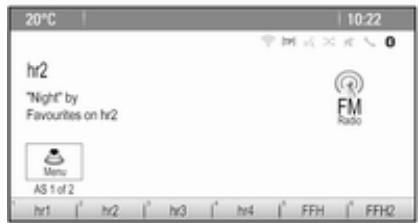
The stations best received in a waveband can be stored in and selected from the autostore lists.
text_image
20°C 10:22 hr2 "Night" by Favourites on hr2 FM Radio Menu AS 1 of 2 hr1 | hr2 | hr3 | hr4 | FFH | FFH2Each waveband has 2 autostore lists (AS 1, AS 2), in each of which 6 stations can be stored.
Notice
The currently received station is highlighted.
Automatic station storing
Keep AS pressed until an autostore message is displayed. The 12 strongest stations in the current waveband are stored in the 2 autostore lists.
To cancel the autostore procedure, select Cancel.
Storing stations manually
Stations can also be stored manually in the autostore lists.
Set the station to be stored.
Press AS to open the autostore list or to switch to another autostore list.
To store the station in a list position: press the corresponding station button 1...6 until a confirmation message is displayed.
Notice
Manually stored stations are overwritten in an automatic station storing process.
Retrieving a station
If required, press AS to open an autostore list or to switch to another autostore list.
Press one of the station buttons 1...6 to activate the station at the corresponding list position.
Favourite lists
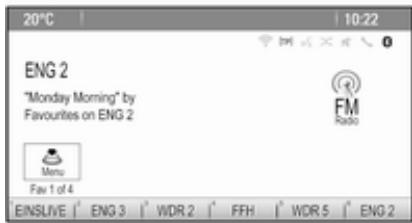
Stations of all wavebands can be stored manually in the favourite lists.
text_image
20°C 10:22 ENG 2 "Monday Morning" by Favourites on ENG 2 FM Radio Menu Fav 1 of 4 EINSIVE | ENG 3 | WDR 2 | FFH | WDR 5 | ENG 26 stations can be stored in each favourite list. The number of available favourite lists can be set (see below).
Notice
The currently received station is highlighted.
Storing a station
Set the station to be stored.
Briefly press FAV to open a favourite list or to switch to another favourite list.
To store the station in a list position: press the corresponding station button 1...6 until a confirmation message is displayed.
Retrieving a station
If required, briefly press FAV to open a favourite list or to switch to another favourite list. Press one of the station buttons 1...6 to activate the station stored in the respective location.
Defining the number of favourite lists
Press CONFIG and then select the Radio Settings. Select Number of Favourite Pages to display the respective submenu.
Select the number of favourite pages you wish to be displayed.
Radio data system (RDS)
RDS is a service of FM stations that considerably facilitates the finding of the desired station and its fault-free reception.
Advantages of RDS
■ On the display the programme name of the set station appears instead of its frequency.
■ During station search the Infotainment system tunes in to RDS stations only.
■ The Infotainment system always tunes in to the best receivable broadcasting frequency of the set station by means of AF (Alternative Frequency).
■ Depending on the station that is received the Infotainment system displays radio text that can contain, for example, information on the current programme.
RDS Options menu
To open the menu for the RDS configuration, press CONFIG and then select Radio Settings.
Select RDS Options to display the respective submenu.

text_image
20°C 10:22 RDS Options RDS Regional Text Scroll Freeze Radio Text Traffic VolumeActivating the RDS function
Activate RDS.
Notice
If RDS is deactivated, not all menu items of the RDS Options menu are displayed.
Regional
RDS stations sometimes broadcast regionally different programmes on different frequencies.
If Regional is activated, only alternative frequencies (AF) with the same regional programmes are selected.
If Regional is deactivated, alternative frequencies of the stations are selected without regard to regional programmes.
Text Scroll Freeze
Some RDS stations do not only show the programme service name on the display, but also additional information on the current programme. If additional information is displayed, the programme name is hidden.
To prevent additional information from being displayed, activate Text Scroll Freeze.
Radio Text
If RDS and the reception of an RDS station are activated, information on the radio programme currently active or the music track currently playing are displayed below the programme name.
To show or hide the information, activate or deactivate Radio Text.
Radio traffic service
(TP = Traffic Programme)
Radio traffic service stations are RDS stations that broadcast traffic news. If the radio traffic service is switched on, radio or media playback is interrupted for the duration of the traffic announcement.
Switching the radio traffic service on and off
To switch the traffic announcement standby facility of the Infotainment system on and off, press TP.
■ If the radio traffic service is switched on, [ ] is indicated on the display.
■ If the current station is not a radio traffic service station, a search is started automatically for the next radio traffic service station.
■ If a radio traffic service station has been found, [TP] is indicated on the display.
Traffic Volume
To adjust the volume of traffic announcements, select Traffic Volume. The respective submenu is displayed. Adjust the setting as desired.
Listening to traffic announcements only
Switch on the radio traffic service and completely turn down the volume of the Infotainment system.
Blocking out traffic announcements
To block out a traffic announcement, e.g. during CD/MP3 playback:
Press TP or select Cancel in the TP message on the screen.
The traffic announcement is cancelled, but the radio traffic service remains switched on.
Digital audio broadcasting
Digital audio broadcasting (DAB) is an innovative and universal broadcast system.
General information
■ DAB stations are indicated by the programme name instead of the broadcasting frequency.
■ With DAB, several radio programmes (services) can be broadcasted on a single frequency (ensemble).
■ Besides high-quality digital audio services, DAB is also able to transmit programme-associated data and a multitude of other data services including travel and traffic information.
■ As long as a given DAB receiver can pick up the signal sent out by a broadcasting station (even if the signal is very weak), sound reproduction is ensured.
■ There is no fading (weakening of the sound) that is typical of AM or FM reception. The DAB signal is reproduced at a constant volume.
■ Interference caused by stations that are on nearby frequencies (a phenomenon that is typical of AM and FM reception) does not occur with DAB.
If the DAB signal is too weak to be picked up by the receiver, the system switches over to the same programme on another DAB or FM station.
■ If the DAB signal is reflected by natural obstacles or buildings, the reception quality of DAB is improved, whereas AM or FM reception is considerably impaired in such cases.
■ When DAB reception is enabled, the FM tuner of the Infotainment system remains active in the background and continually searches for the best receivable FM stations. If TP ➔ 27 is activated, traffic announcements of the FM station which is currently best received are issued. Deactivate TP, if DAB reception should not be interrupted by FM traffic announcements.
DAB announcements
Besides their music programmes, lots of DAB stations also broadcast announcements of various categories.
When in the DAB main menu, press the multifunction knob to open the DAB menu and then select Announcements.
If you activate some or all categories, the currently received DAB service is interrupted when an announcement of these categories is made.
Activate the desired categories.
CD Player
General information 30
Usage 31
General information
Important information about audio CDs and MP3/WMA CDs
The Infotainment system's CD player can play audio CDs and MP3/WMA CDs.
Caution
Under no circumstances place DVDs, single-CDs with a diameter of 8 cm or shaped CDs in the audio player.
You must not put any stickers on CDs. These discs can get jammed in the CD drive and ruin the player. Replacement of the device will then be necessary.
File formats
Audio CDs
The following CD formats can be used: CD-ROM Mode 1 and Mode 2; CD-ROM XA Mode 2, Form 1 and Form 2.
MP3 CDs
The following file formats can be used: ISO9660 Level 1, Level 2, (Romeo, Joliet).
MP3 and WMA files written in any format other than listed above may not play correctly, and their file names and folder names may not be displayed correctly.
The following restrictions apply for the data stored on an MP3/WMA CD:
Number of tracks: max. 999.
Number of folders: max. 255.
Folder structure depth: max. 64 levels (recommended: max. 8 levels).
Number of playlists: max. 15.
Number of songs per playlist: max. 255.
Applicable playlist extensions: .m3u, .pls, .asx, .wpl.
Usage
Starting CD playback
Push the CD with the labelled side facing upwards into the CD slot until it is pulled in.
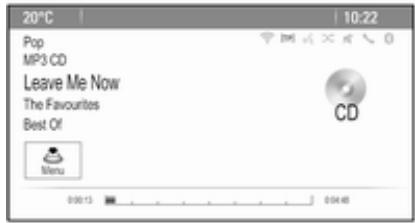
CD playback starts automatically and the CD or MP3 CD main menu is displayed.
If there is already a CD inserted, but the CD or MP3 CD main menu is not active, press 🔊 and then select CD.
The CD or MP3 CD main menu is displayed and CD playback is started.
text_image
20°C 10:22 Pop MP3 CD Leave Me Now The Favourites Best Of CD Menu 0:00:13 0:04:48Depending on the data stored on the audio CD or MP3 CD, more or less detailed information on the CD and the current music track are shown on the display.
Notice
When an audio source is already active, you may toggle between the different audio sources by repeatedly pressing SRCE.
Removing a CD
Press ≅.
The CD is pushed out of the CD slot. If the CD is not removed after ejection, it will be drawn back in again automatically after a few seconds.
Track List
Turn the multifunction knob to display a list of all tracks on the CD.
Notice
The currently playing track is marked by 🔒.
Select the desired track.
Function buttons
Skipping to previous or next track
Press ◀◀ or ▶▶ once or several times to skip to the previous or next track.
Fast forwarding or rewinding
Press and hold ◀◀ or ▶▶ to fast forward or fast rewind the current track.
Pausing playback
Press ▶/11 to pause playback.
Audio menu
Press the multifunction knob to display the CD or MP3 menu.
Notice
For a description of the functions in the MP3 menu ➔ 34.
Shuffle function
To play the tracks on the CD in random order, activate Shuffle.
To return to the normal playing order, deactivate Shuffle.
External devices
General information 32
Playing audio 34
Displaying pictures 35
General information
Sockets for the connection of external devices are located in the centre console.
Notice
The sockets must always be kept clean and dry.
AUX input
It is possible to connect e.g. an iPod, Smartphone or another auxiliary device with a 3.5 mm jack plug to the AUX input. The Infotainment system can play music files contained in auxiliary devices.
When connected to the AUX input, the audio signal of the auxiliary device is transmitted via the speakers of the Infotainment system.
The volume can be adjusted via the Infotainment system. All other control functions must be operated via the auxiliary device.
Connecting a device
To connect the auxiliary device to the AUX input socket of the Infotainment system, use the following cable:
3-pole for audio source.
To disconnect the AUX device, select another function and then remove the AUX device.
USB port
An MP3 player, USB device, iPod or Smartphone can be connected to the USB port. The Infotainment system can play music files or display pictures contained in auxiliary devices.
When connected to the USB port, the devices mentioned above can be operated via the controls and menus of the Infotainment system.
Notice
Not all MP3 players, USB drives, iPod models or Smartphones are supported by the Infotainment system.
Connecting/disconnecting a device
Connect the device to the USB port. For the iPod, use the appropriate connection cable.
Notice
If a non-readable USB device or iPod is connected, a corresponding error message will appear and the Infotainment system will automatically switch to the previous function.
To disconnect the USB device or iPod, select another function and then remove the USB storage device.
Caution
Avoid disconnecting the device during playback. This may damage the device or the Infotainment system.
Bluetooth
Bluetooth enabled audio sources (e.g. music mobile phones, MP3 players featuring Bluetooth, etc.), which support the Bluetooth music profiles A2DP and AVRCP can be connected wirelessly to the Infotainment system.
The Infotainment system can play music files contained in Bluetooth devices, e.g. iPod or Smartphone.
Connecting a device
For a detailed description on the Bluetooth connection ➔ 65.
File formats
Audio files
Only devices formatted in the FAT32, NTFS and HFS+ file systems are supported.
Notice
Some files may not be played properly. This might be due to a different recording format or the condition of the file.
Files from online shops to which Digital Rights Management (DRM) has been applied cannot be played.
The playable audio file formats are .mp3, .wma, .aac and .m4a.
When playing a file with ID3 tag information, the Infotainment system can display information, e.g. on the track title and artist.
Picture files
The displayable picture file formats are .jpg, .jpeg, .bmp, .png and .gif.
The files must have a maximum size of 2048 pixels in width and 2048 pixels in height (4MP).
Gracenote
The Gracenote database contains information on media data currently available on the market.
When connecting external devices, the tracks or files are recognised by the Gracenote function.
If the Gracenote normalisation function is activated, spelling mistakes in MP3 tag data are automatically corrected. Due to this, media search results may be improved.
Press CONFIG and then select Radio Settings.
Select Gracenote Options to display the respective submenu.
Activate the Gracenote normalisation function.
Playing audio
Starting playback
If not connected, connect the device 32.
Press ⏻ and then select USB, AUX or Bluetooth.
Example: USB main menu
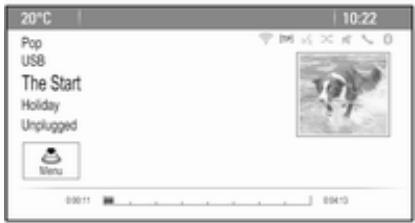
text_image
20°C 10:22 Pop USB The Start Holiday Unplugged Menu 0:00:11 0:04:13Function buttons
The media files on the USB and Bluetooth devices may be operated using the buttons on the instrument panel.
Skipping to previous or next track
Press ◀◀ or ▶▶ once or several times to skip to the previous or next track.
Fast forwarding or rewinding
Press and hold ◀◀ or ▶▶ to fast forward or rewind the current track.
Pausing playback
Press ▶/11 to pause playback.
Audio menus
To display the respective audio menu, press the multifunction knob.
Notice
Not all menu items are available in all audio menus.

text_image
20°C 10:22 USB Menu Shuffle Play More Like This... Delete automatic playlist Folders >> Play Lists >> Artists >>Shuffle function
Press the multifunction knob to display the USB or Bluetooth menu.
To play the tracks on the respective device in random order, activate Shuffle.
To return to the normal playing order, deactivate Shuffle.
Browsing
(only available in USB menus)
To search for a track within the structure, select one of the menu items, e.g. Folders, Play Lists or Albums.
Browse through the structure until you find the desired track.
Select the track to start playback.
Individual playlists
The system allows new playlists to be created via the Gracenote function. Similar tracks are put together on a list automatically generated by the system.
Select the track around which you wish to create a new playlist.
Select Play More Like This... in the respective audio menu. A new playlist is created and stored in the Play Lists menu.
To delete a playlist generated by the system, select Delete automatic playlist. A list of all generated playlists is displayed. Select the playlist you wish to delete. The playlist is deleted.
Displaying pictures
Viewing pictures
Connect a USB device ↩ 32.
Press 🏠 and then select Pictures to open the Picture Viewer USB menu.
A list of all pictures and picture folders found on the USB device is displayed.
Browse through the pictures and folders until you find the desired picture and select it. The picture is displayed.
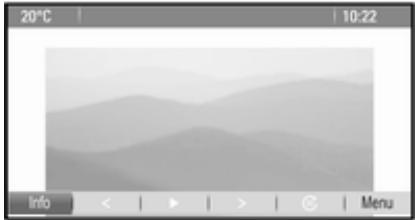
natural_image
Grayscale abstract mountain-like shape with soft gradients, displayed within a software interface window (no text or symbols on the mountain itself)Function buttons
Info button
Select Info at the bottom of the screen to display information on the picture stored on the USB device, e.g. a
name or number. The respective information is displayed above the picture.
Skipping to the previous or next picture
Select < or > at the bottom of the screen to display the previous or next picture.
Slide show
To start a slideshow of all pictures stored in the respective picture folder, select ▶ at the bottom of the screen. The slideshow is started.
When the slideshow is started, ▶ changes to Ⅱ.
Select II to pause the slideshow.
Rotating the picture
Select Ⓞ at the bottom of the screen to rotate the picture.
Picture menu
To display the picture menu, select Menu at the bottom of the screen.
Picture Viewer Main
Select Picture Viewer Main to display a list of all picture folders, see above.
Slideshow Timer
To adjust the time sequence in which one picture is shown during a slide show, select Slideshow Timer. The respective submenu is displayed. Select the desired option.
Shuffle Images
To display the pictures of a slide show in random order, activate Shuffle Images.
Navigation
General information 37
Usage 38
Destination input 42
Guidance 50
General information
The navigation application will reliably guide you to your destination without the need to read maps.
The current traffic situation is taken into account in the route calculation.
For this reason, the Infotainme system receives traffic announcements in the current reception area via RDS-TMC.
The navigation application cannot, however, take into account traffic incidents, traffic regulations changed at short notice and hazards or problems that arise suddenly (e.g. road works).
Caution
The usage of the navigation system does not release the driver from the responsibility for a correct, vigilant attitude in road traffic. The relevant traffic regulations must always be
followed. If a navigation instruction contradicts traffic regulations, the traffic regulations always apply.
Functioning of the navigation application
The position and movement of the vehicle are detected by the navigation application using sensors. The travelled distance is determined by the vehicle's speedometer signal and turning movements on bends by a gyro sensor. The position is determined by the GPS satellites (Global Positioning System).
By comparing the sensor signals with the digital maps, it is possible to determine the position with an accuracy of approx. 10 metres.
The system will also work with poor GPS reception, however, the accuracy of the determination of the position will be reduced.
After the entry of the destination address or point of interest (nearest petrol station, hotel, etc.) the route is calculated from the current location to the destination selected.
Route guidance is provided by voice commands and a direction arrow, as well as with the aid of a multi-colour map display.
Usage
Information on the map display
To display the map around the current location, you may optionally:
■ Press NAVI.
■ Press 🔊 and then select Navigation.
Route guidance not active

text_image
2014 V10H2 10:22 GPS 43 518 20m MenuIf route guidance is not active, the following information is displayed:
■ In the top line: information on the audio source currently active and the time.
■ Below the top line: GPS symbol.
■ In the upper left corner: a compass that indicates the north direction.
■ Map display of the area around the current position.
■ Current position: indicated by a red triangle within a grey circle.
■ Points of interest (POI), e.g. petrol stations, parking areas or restaurants: indicated by corresponding symbols (if activated).
■ In the bottom line: street name of the current position.
Route guidance active
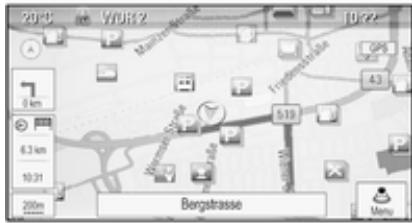
text_image
2014 V1012 0.22 GPS 43 6.1 km 10.31 200m Bergstrasse MenuIf route guidance is active, the following information is displayed:
■ In the top line: information on the audio source currently active and the time.
■ Below the top line: GPS symbol.
■ Below the top line: name of the street to follow after the next intersection.
■ In the upper left corner: a compass symbol that indicates the north direction.
■ Map display of the area around the current position.
■ Current position: indicated by a red triangle within a grey circle.
■ Route: indicated by a blue line.
■ Final destination: indicated by a black chequered flag.
■ Waypoint (intermediate destination): indicated by a red diamond.
■ Points of interest (POI), e.g. petrol stations, parking areas, or restaurants: indicated by corresponding symbols (if activated).
■ Traffic incidents, e.g. traffic jam: indicated by corresponding symbols (if activated).
■ On the left side: direction arrow and distance to the next manoeuvre.
■ On the left side: remaining distance to the final destination or to the next waypoint.
■ On the left side: estimated arrival time or remaining travel time.
■ In the bottom line: street name of the current position.
Map manipulation
Moving the visible map section
The visible map section on the map display can be moved freely in all directions using the eight-way switch.
The eight-way switch in the middle of the multifunction knob may be tilted in all directions.
Tilt the switch to one side. The visible map section moves in the respective direction.
To redisplay the map around the current location, press BACK.
Changing the map scale
When the map is displayed, turn the multifunction knob to display a scale bar at the bottom of the screen.
Turn the multifunction knob again to adjust the scale as desired.
Changing the map mode
The map may be displayed in three (route guidance not active), or five (route guidance active) different modes, see "Map setup" below.
Repeatedly press NAVI to toggle between the different map modes.
Map setup
Heading indicator
Press the multifunction knob to display the Navigation Menu. Select Heading Indicator to display the respective submenu.
The following options are available:
■ 2D North Up: 2D view, north facing upwards.
■ 2D Heading Up: 2D view, driving direction facing upwards.
■ 3D Heading Up: 3D view, driving direction facing upwards.
Select the desired option.
Map modes
Press the multifunction knob to display the Navigation Menu. Select Map Modes to display the respective submenu.
The following options are available:
■ Full Map ("Normal" view described above): Full screen map view, all functions and indication screen buttons displayed.
■ Full Glory: Full screen map view, most functions and indication screen buttons hidden.
■ Split with Turn List: Divided screen with map on the left and turn list on the right side.
■ Split with Turn Arrow: Divided screen with map on the left side and turn arrow for the next turning manoeuvre on the right side.
■ Split with Media: Divided screen with map on the left side and audio source currently active on the right side.
Select the desired option.
Map display
Press the multifunction knob to display the Navigation Menu. Select Map Settings and then Map Display to display the respective submenu.
Depending on the external lighting conditions, activate Day or Night. For an automatic adaption by the system, activate Automatic.
Displaying POIs
Press the multifunction knob to display the Navigation Menu.
Select Show POIs to display the respective submenu.
If you wish all POIs available in the system to be displayed on the map, activate Show all POIs.
If you do not wish POIs to be displayed on the map, activate Hide all POIs.
To only display specific POIs, activate User Defined and then activate the POI categories you wish to be displayed.
Changing screen information
The route information displayed on the screen during active route guidance may be customised.
Press the multifunction knob to display the Navigation Menu. Scroll through the list and select Switch Route Time/Destination.
Time information
If you wish to change the time information displayed, select Switch Arrival/Travel Time to display the respective submenu.
Activate the information setting you wish to be displayed.
Destination information
If you are in a waypoint trip, you may want to display the route information for a waypoint instead of those for the final destination.
To change the setting, select Switch Waypoint/Destination. A list of all destinations in the waypoint trip currently active is displayed.
Activate the information setting you wish to be displayed.
Position information
Current position
Press the multifunction knob to display the Navigation Menu. Select Current Position Info.
On the right side of the screen, the current position is displayed on the map. On the left side, the GPS coordinates of the current position are shown.
Destination position
If route guidance is active, you may display information on the destination entered.
Press the multifunction knob to display the Navigation Menu. Select Destination Position Info.
On the right side of the screen, the destination is displayed on the map. On the left side, the address and the GPS coordinates of the destination are shown.
Saving a position
The current position or a destination position may be saved in the address book.
Select Save. For a detailed description on saving addresses in the address book ➔ 42.
Route simulation
The Infotainment system features a route simulation mode for test purposes.
To start the simulation mode, press CONFIG and then select Navigation Settings.
Scroll through the list and select Route Simulation to display the respective submenu.
Starting position
Since the simulation mode does not draw on the GPS signal providing the current position of the vehicle, a start position must be set manually.
Use Last Known Position
To set the last position provided by a GPS signal as starting point, select Use Last Known Position.
Use Previous Destination
To use one of the last destinations entered as starting point, select Use Previous Destination. The previous destinations list is displayed.
Select the desired address.
Use Specified Location
To use a specific location as starting point, select Use Specified Location.
Enter an address. For a detailed description ➔ 42.
Simulation mode is started.
Cancelling simulation mode
To leave the simulation mode, press CONFIG and then select Navigation Settings.
Scroll through the list and select Route Simulation to display the respective submenu.
Select Cancel Route Simulation.
Additional route simulation menu
When route guidance is active in the simulation mode, an additional menu is displayed in the Navigation Menu.
Press the multifunction knob to display the Navigation Menu. Scroll through the list and select Route Simulation to display the respective submenu.
To stop the simulated route guidance, select Stop Simulation. The guidance process is stopped, the route guidance mode remains active.
To display the next simulated turning manoeuvre on the map, select Next Manoeuvre.
Destination input
The Destination application provides different options to set a destination for route guidance.
Press DEST (when route guidance is not active) to display the Destination Entry menu.
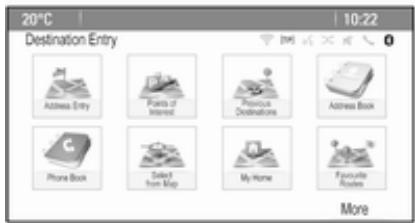
text_image
20°C 10:22 Destination Entry Address Entry Points of Interest Previous Destinations Address Book Phone Book Selected from Map My Home Favorite Routes MoreManual address entry
Address Entry menu
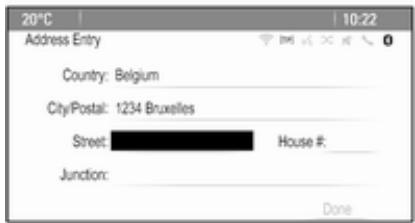
Press DEST to display the Destination Entry menu and then select Address Entry to display a mask for address entry.
text_image
20°C 10:22 Address Entry Country: Belgium City/Postal: 1234 Bruxelles Street: House #: _ Junction: DoneSelect the Country entry field. A list is displayed. Select the desired country.
Select the City/Postal entry field to display a keyboard. Enter the desired city name or postal code (see below).
Select the Street entry field to redisplay the keyboard. Enter the desired street name (see below).
You may then enter a house number or junction.
Select the House number or Junction entry field. The keyboard is redisplayed. Enter the desired number or street name (see below).
Notice
If a house number is not stored in the system database, the house number closest to the destination entered is used for route calculation.
If required, confirm your input.
A confirmation menu is displayed. Select Start Guidance to start route guidance.
Keyboard
Depending on the function selected, the keyboards may be displayed differently.

text_image
20°C Street WER 999 1 2 3 4 5 6 7 8 9 0 Delete Q W E R T Y U I O P A S D F G H J K L ABC Z X C V B N M 9 Last 5 Space Street ListTo change the letter arrangement on the letter keyboard, select ABC on the left side of the keyboard. The letters are now arranged in alphabetical order.
To enter a character sequence, successively select the desired characters.
Notice
When entering an address, the keyboard uses an intelligent spelling function which automatically blocks out characters that cannot occur next in the respective character sequence.
To enter special characters not available on the letter keyboard, select ÄÖ at the right side of the letter keyboard. The special characters keyboard is displayed. Select the desired character.
To enter numbers or symbols, select Sym at the right side of the special characters keyboard. The symbols keyboard is displayed. Select the desired character.
To redisplay the letter keyboard, select ABC at the right side of the symbol keyboard. This way you may toggle between the three keyboards.
To delete characters already entered, select Delete at the right side of the respective keyboard or press BACK.
When entering an address, a list of matching entries is automatically displayed as soon as the number of matching entries found in the address memory is equal to or less than six.
To manually display a list of matching entries for the current input, select the respective List screen button at the bottom of the keyboard.
To display the last five entries made, select Last 5 at the bottom of the keyboard.
Select the desired entry from the list. If required, select the confirmation button displayed at the bottom of the keyboard.
Points of Interest
A point of interest is a specific location that might be of general interest, e.g. a petrol station, parking area or restaurant.
The data stored within the Infotainment system contain a great number of predefined POIs which are indicated by symbols on the map.
These POIs may be selected as destinations for route guidance.
Search menu
A POI may be selected using different search masks.
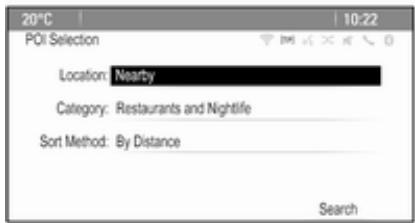
Press DEST to display the Destination Entry menu and then select Points of Interest to display the POI List menu.
Select Category:, Name: or Telephone number. The respective search mask is displayed.
text_image
20°C 10:22 POI Selection Location: Nearby Category: Restaurants and Nightlife Sort Method: By Distance SearchFill out the entry fields in the respective search mask.
Category search mask
Select the Location entry field to display a list. Select the desired option.
Select the Category entry field to display a POI category list. Select the desired category and then a subcategory from the list.
Select the Sort Method entry field to display the respective submenu. Select By Distance or By Name.
Select Search at the bottom of the screen. A list of POIs or POI categories is displayed corresponding to the criteria entered. Select the desired menu item.
Name search mask
Select the Country entry field to display a list of all available countries. Select the desired country.
To specify the location, select the entry field for the city or postal code. A keyboard is displayed. Enter the desired name or number.
Select the Sort Method entry field to display the respective submenu. Select By Distance or By Name.
Select Search at the bottom of the screen. The keyboard is redisplayed. Enter the name of the desired POI.
Telephone number search mask
Select the Country entry field to display a list of all available countries. Select the desired country.
Select the Sort Method entry field to display the respective submenu. Select By Distance or By Name.
Select the Number entry field to display a keypad. Enter the desired number.
When the respective search mask is filled out, a confirmation menu is displayed.
Select Start Guidance to start route guidance.
Category lists
Press NAV and then the multifunction knob to display the Navigation Menu. Select Nearby POIs or POIs Along Route. A POI category list is displayed.
Select the desired category, subcategories and then POI.
A confirmation menu is displayed. Select Start Guidance to start route guidance.
Previous Destinations
The last destinations selected or entered for route guidance are stored within the system.
Press DEST to display the Destination Entry menu and then select Previous Destinations.
A list of the last destinations is displayed sorted in reverse chronological order.
Select the desired address from the list.
A confirmation menu is displayed. Select Start Guidance to start route guidance.
Address Book
The Address Book provides local storage space for addresses entered in the navigation application.
Storing addresses in the address book
To store an address in the address book, press DEST to display the Destination Entry menu.
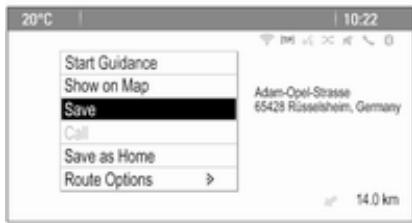
Enter or select the desired address. The confirmation menu is displayed.
text_image
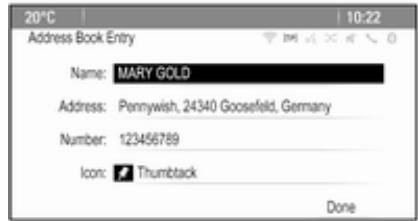
20°C Start Guidance Show on Map Save Call Save as Home Route Options Adam-Opel-Straße 65428 Rüsselsheim, Germany 14.0 kmSelect Save. The Address Book Entry mask is displayed.
text_image
20°C 10:22 Address Book Entry Name: MARY GOLD Address: Pennywish, 24340 Goosefeld, Germany Number: 123456789 Icon: Thumbtack DoneDepending on the information available, the different entry fields are already filled.
To enter or modify the name of the respective location, select the Name entry field. A keyboard is displayed. Enter the desired name and confirm your input.
To modify the address, select the Address entry field. The address entry mask is displayed. Make your changes and confirm your input.
To enter or modify the phone number, select the Number entry field. A keypad is displayed. Enter the desired number.
If activated ➔ 38, the address book entries are indicated on the map by POI icons. To change the icon indicating an address entry, select the Icon entry field. A list of all POI icons available within the system is displayed.
Scroll through the list and select the desired icon.
Select Done at the bottom of the entry mask. The address is stored.
Selecting addresses from the address book
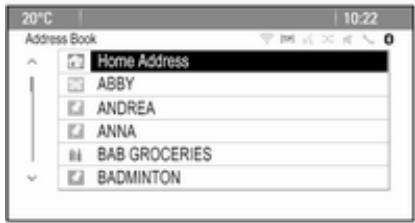
Press DEST to display the Destination Entry menu and then select Address Book. A list of all address book entries is displayed.
text_image
20°C 10:22 Address Book Home Address ABBY ANDREA ANNA BAB GROCERIES BADMINTONSelect the desired entry.
A confirmation menu is displayed. Select Start Guidance to start route guidance.
Editing addresses in the address book
Press DEST to display the Destination Entry menu and then select Address Book. A list of all address book entries is displayed. Select the desired entry.
A confirmation menu is displayed. Select Edit to display the Address Book Entry mask.
Make your changes and confirm your input. The changes are stored in the address book.
Phone Book
Addresses stored in the phone book of the mobile phone connected may be selected as destinations.
Press DEST to display the Destination Entry menu and then select Phone Book. The Phone Book Search menu is displayed.
Select the desired first letter range to display a preselection of the telephone book entries you wish to be displayed. The phone book jumps to the position of the letter range selected.

text_image
20°C Phone Book Dag, Peter Dart, Henry Dedur, Robert Denter, Lisa Dog, Tony Dube, RudolfSelect the desired entry in the telephone book to display the address saved under this entry. Select the address.
Notice
When the Infotainment system cannot find a valid address, you are prompted with a message.
A confirmation menu is displayed. Select Start Guidance to start route guidance.
Destination selection from the map
Destinations (addresses or POIs) may also be set via the map.
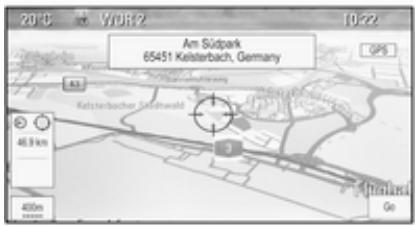
Press NAVI to display the map.
Use the eight-way switch to centre the map around the desired destination. A red is indicated on the map and the corresponding address is displayed on a label.
text_image
20°C VDR2 10:22 Am Südpark 65451 Kelsterbach, Germany GPS A3 Kolsterbacher Sachwald 46.9 km 400m GoPress the multifunction knob to activate Go.
A confirmation menu is displayed. Select Start Guidance to start route guidance.
Notice
If there is more than one POI located at the map position selected, this is indicated on the label. Activating Go then opens a list for selection.
My Home
You can permanently store your home address in the system.
Storing the home address
Press DEST to display the Destination Entry menu.
Enter your home address.
A confirmation menu is displayed. Select Save as Home.
You are prompted with a message. Confirm the message to save your home address.
Notice
The home address is also stored in the address book.
Selecting the home address
Press DEST to display the Destination Entry menu and then select My Home.
Route guidance to the home address is started immediately.
Waypoint routes
When a destination has been entered and route guidance is active, intermediate destinations (waypoints) may be added to the route.
To set up a waypoint route during active route guidance, press DEST to open the Route Menu and then select Destination List. A submenu is displayed.

text_image
20°C 10:22 Destination List View Waypoint > Add Waypoint > Delete Waypoint > Sort Waypoints > Delete All Destinations > Save as favourite route >Adding waypoints
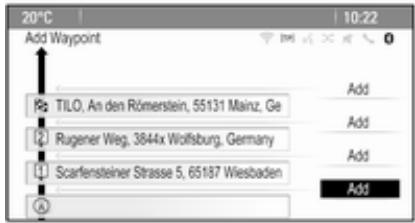
To add an intermediate destination, select Add Waypoint. The waypoint list is displayed.
text_image
20°C 10:22 Add Waypoint TILO, An den Römerstein, 55131 Mainz, Ge Rugener Weg, 3844x Wolfsburg, Germany Scarfensteiner Strasse 5, 65187 Wiesbaden Add Add Add AddSelect Add at the position where you wish to add a waypoint. The Destination Entry menu is displayed.
Enter or select the desired destination. The confirmation menu is displayed.
Select Add. The route is recalculated and the waypoint list is redisplayed with the intermediate destination at the position selected.
Notice
Up to four destinations may be stored in a waypoint list.
Deleting waypoints
To delete a waypoint, select Delete Waypoint. The waypoint list is displayed.
Select Delete next to the waypoint you wish to delete.
The waypoint is deleted and the waypoint list is redisplayed.
To delete the whole list and end route guidance, select Delete All Destinations.
Moving waypoints
To change the order of the waypoints in the route, select Sort Waypoints.
Select Move next to the waypoint you wish to move. The Add Waypoint menu is displayed.
Select Add at the position where you wish to drop the respective waypoint.
The route is recalculated and the order of the waypoints in the waypoint list is changed.
Favourite Routes
Storing waypoint routes
A waypoint route created (see above) may be saved as favourite route.
During an active waypoint route, press DEST to open the Route Menu and then select Destination List. A submenu is displayed.
Select Save as favourite route. A keyboard is displayed.
Enter a name for the favourite route and confirm your input.
The waypoint route is saved.
Creating new favourite routes
Press DEST to display the Destination Entry menu and then select Favourite Routes to display the Favourite Route menu.
Select New Favourite Route. A keyboard is displayed.

text_image
20°C Save as favourite route PETE 1 2 3 4 5 6 7 8 9 0 Delete Q W E R T Y U I O P A S D F G H J K L ABC Z X C V B N M ÄÖ Space OKEnter a name for the favourite route and confirm your input. The Favourite Route menu is redisplayed.
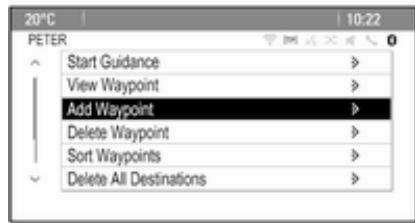
Select the desired favourite route. A menu is displayed.
text_image
20°C 10:22 PETER Start Guidance > View Waypoint > Add Waypoint > Delete Waypoint > Sort Waypoints > Delete All Destinations >Create a waypoint route (see above). To change the name of the respective favourite route, select Edit Name. The keyboard for name entry is displayed. Enter the desired name and confirm your input.
To delete the respective favourite route, select Delete Favourite. The favourite route is deleted and the Favourite Route menu is redisplayed.
Selecting a favourite route
Press DEST to display the Destination Entry menu and then select Favourite Routes to display a list of the favourite routes saved.
Select the desired route from the list. The route confirmation menu is displayed.
To start route guidance, select Start Guidance.
Latitude / Longitude
The GPS coordinates of a desired location may be used to set a destination.
Press DEST to display the Destination Entry menu and then select Latitude.
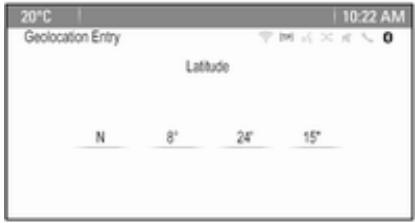
Select the Latitude entry field to display the Geolocation Entry menu.
text_image
20°C 10:22 AM Geolocation Entry Latitude N 8° 24° 15°Repeatedly press the multifunction knob to adjust the first setting as desired.
Turn the multifunction knob to move to the next value to be set.
Proceed like this to set all values.
Select BACK to return to the next higher menu level.
Adjust the longitude values as described above.
When all GPS coordinates are entered, select Search at the bottom of the screen.
A confirmation menu is displayed.
To start route guidance, select Start Guidance.
Deleting saved destinations
To delete destinations stored in the system, press CONFIG, select Navigation Settings and then Delete Saved Destinations. A submenu is displayed.
Activate the menu items of the storage location you wish to be cleared.
Select Delete. The selected storage locations are cleared.
Guidance
Starting and cancelling route guidance
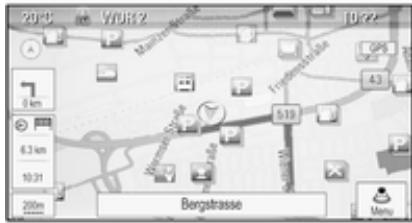
Starting route guidance
Enter or select the desired address. A confirmation menu is displayed. Select Start Guidance to start route guidance.
text_image
2014 V708.2 0 km 6.3 km 10.31 200m Bergstrasse MenuCancelling route guidance
When route guidance is active, press DEST to display the Route Menu.
Select Cancel Route to cancel the current navigation session.
Guidance instructions
Route guidance is provided by voice prompts and visual instructions on the map (if activated).
Voice prompts
Navigation voice prompts announce which direction to follow, when approaching an intersection at which you need to turn.
Press CONFIG and then select Navigation Settings.
Select Voice Prompt to display the respective submenu.
If you wish the system to audibly indicate the next turning manoeuvre, activate Navigation Voice Prompts.
If you wish traffic alerts to be read out, activate Traffic Alert Prompts.
To adjust the volume during voice prompts, select Navigation Volume. The respective submenu is displayed.
To adjust the volume of voice prompts, select Announcement and then adjust the setting as desired.
To adjust the volume of the audio source possibly playing in the background, select Background and then adjust the setting as desired.
Select Volume Test to get an audio example of the settings.
Guidance alerts
Guidance alerts show in a close-up view of the respective map section which direction to follow when approaching an intersection at which you need to turn.
Press CONFIG and then select Navigation Settings.
Select Guidance Alert to display the respective submenu.
If you wish the display to automatically show the map when approaching the next turning manoeuvre, activate Guidance Alert in Primary.
If you wish turning manoeuvres to be displayed in a close-up view, activate Guidance Alert in Map.
Traffic incidents
The TMC traffic information system receives all current traffic information from TMC radio stations. This information is included in the calculation of a route.
Traffic settings
Press CONFIG and then select Navigation Settings.
Select Traffic Settings to display the respective submenu.
To use the TMC traffic information system, activate Traffic Events.
Recalculation of an active route If a traffic problem occurs during active route guidance, the route may be changed.
Select Alert if better route is available to display the respective submenu.
If you wish the route to be constantly adapted to the current traffic situation, activate Route Based on Traffic Conditions.
Choose between Automatic Recalculation and Recalculation after Confirmation of a corresponding message.
Traffic incidents on the map
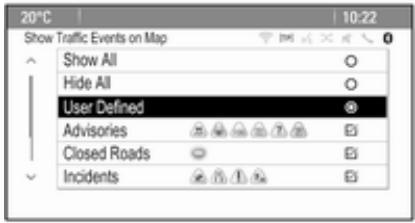
Traffic incidents may be indicated on the map by corresponding symbols.
Select Show Traffic Events on Map to display the respective submenu.
text_image
20°C 10:22 Show Traffic Events on Map Show All Hide All User Defined Advisories Closed Roads IncidentsSelect the desired option.
If User Defined is activated, scroll through the list and activate the traffic incidents categories you wish to be displayed.
TMC stations
The TMC stations broadcasting traffic information, may be set automatically or manually.
Select Traffic Stations to display a selection mask.
Select the Mode entry field to display the respective submenu. Select the desired option.
If Manual Station Selection is chosen, a TMC station needs to be set.
Select the Station entry field to display the Traffic Station List.
Select the desired station.
Traffic incidents lists
When route guidance is active, press NAVI and then press the multifunction knob to display the Navigation Menu. Scroll through the list and select Traffic.
To display a list of all traffic events known for the area around the current vehicle location, select All Traffic Events.
To display a list of the traffic events concerning the current route, select Traffic Events on Route.
The traffic incidents lists may be sorted in different ways.
Select Traffic Settings in the Traffic menu and then Sort Method:. The respective submenu is displayed.
Activate the desired option.
Route tracking
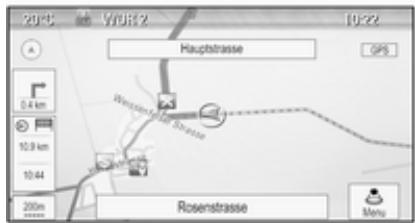
The bread crumbs function allows tracking of the roads already taken in a route.
Press CONFIG and then select Navigation Settings. Select Bread Crumbs to display the respective menu.
To start a tracking session, activate Record. The route taken is recorded and displayed as dotted line on the map.
text_image
2015 V7012 10:22 Hauptstrasse GPS 0,4 km 10,9 km 10,44 Rosenstrasse 200m MenuTo delete the bread crumbs already dropped in an active tracking session, select Delete. You are prompted with a message. Confirm the message to delete all bread crumbs.
To end the tracking session, deactivate Record. A keyboard is displayed.
Enter a name for the respective tracking session and select Done. The session is stored in the Saved list.
To display a list of all tracking sessions, select Saved. Select the desired tracking session to display the Bread Crumb Details menu.
To change the name of the respective tracking session, select Edit Name. A keyboard is displayed. Enter the desired name and select Done.
Select Load to display the bread crumb main menu. If you wish the respective tracking session to be constantly displayed on the map, activate Display.
To directly display the whole tracking session in the respective map section, select Show on Map.
To delete the respective tracking session, select Delete.
Routing
When a route has been calculated, you may manually change certain parts or recalculate the whole route.
Turn List
The Turn List displays all streets and turning manoeuvres on the calculated route starting from the current location.
Press DEST and then select Turn List. The turn list is displayed.
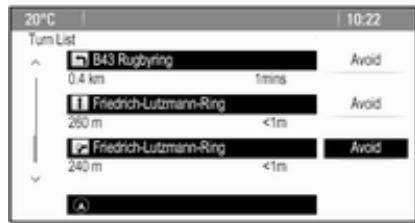
text_image
20°C 10:22 Turn List B43 Rugbyring 0.4 km 1mins Friedrich-Lutzmann-Ring 260 m <1m Friedrich-Lutzmann-Ring 240 m <1m Avoid Avoid AvoidTo exclude certain streets from the route, select Avoid next to the respective street.
The route is recalculated and the respective street is excluded.
Avoid List
When streets have been excluded from the original route, they are displayed in the Avoid List.
Press DEST and then select Avoid List to display the respective submenu.
To display all streets avoided, select View List.
To delete all avoidances and return to the original route, select Delete All Items.
Detour
Press DEST and then select Detour.
To change the route for a certain distance, select Detour By Distance. A menu listing different distances is displayed.
Select the desired distance. The route is recalculated accordingly.
To block the whole route, select Detour Complete Route. The original route is blocked and a new route to the desired destination is calculated.
Exit list
To display a list of the next exits and motorway stations while driving on a motorway, press NAV and then press the multifunction knob to display the Navigation Menu.
Scroll through the list and select Exit List.
Route options
When route guidance is active, press DEST and then select Route Options.
A list of route calculation options and road types is displayed.
To define by what criteria a route may be calculated, activate one of the options: Fastest for the fastest route (in time), Shortest for the shortest route (in distance) or Eco for the route with the lowest fuel consumption.
To define which road types may be included in the calculation of the route, activate the desired options: highways, tollroads, ferries, etc.
Speech recognition
General information 55
Usage 56
Speech commands overview ..... 59
General information
Embedded speech recognition
The speech recognition of the Infotainment system enables you to operate various functions of the Infotainment system via voice input. It recognises commands and numeric sequences independently of the relevant speaker. The commands and numeric sequences can be spoken without a pause between the individual words.
In the event of incorrect operation or commands, the speech recognition gives visual and/or acoustic feedback and requests you to re-enter the desired command. Apart from this, the speech recognition acknowledges important commands and will enquire if necessary.
In general, there are different ways to speak commands for completing the tasks. Most of them, except destination entry and voice keypad, can be completed in a single command.
If the action takes more than one command to be performed, proceed as follows:
In the first command, you indicate the type of action to be performed, e.g. "Navigation destination entry". The system replies with prompts that lead you through a dialogue for entering the necessary information. For example, if a destination for route guidance is needed, say "Navigation" or "Destination entry".
Notice
To ensure that conversations inside the vehicle do not lead to unintentional triggering of the system functions, the speech recognition does not start until it has been activated.
Language support
■ Not all languages available for the display of the Infotainment system are also available for the speech recognition.
■ If the currently selected display language is not supported by the speech recognition, speech recognition is not available.
In such a case you must select another language for the display if you want to control the Infotainment system via voice input. Changing the display language, see "Language" in chapter "System settings" 21.
Address input for destinations in foreign countries
In case you want to enter the address of a destination located in a foreign country via voice input, you must change the language of the Infotainment display to the language of the foreign country.
E.g. if the display is currently set to English and you want to enter the name of a city located in France, you must change the display language to French.
Exceptions: If you want to enter addresses in Belgium, you may optionally change the display language to French or Dutch. For addresses in Switzerland you may optionally change the display language to French, German, or Italian.
For changing the display language, see "Language" in chapter "System settings" ➔ 21.
Input order for destination addresses
The order in which the parts of an address must be entered using the speech recognition system is dependent on the country where the destination is located.
An example for the respective input order is given out by the system.
Voice pass-thru application
The voice pass-thru application of the Infotainment system allows access to the speech recognition commands on your smartphone. See operating instructions for your smartphone to find out whether your smartphone supports this feature.
Usage
Embedded speech recognition
Activating speech recognition
Notice
Speech recognition is not available during an active phone call.
Press ⬆ on the right side of the steering wheel.
The audio system mutes, “on the display is highlighted, and a voice output message prompts you to say a command.
As soon as the speech recognition is ready for voice input, a beep is heard.
You can now say a voice command to directly initiate a system function (e.g. playing a radio station), or to start a dialogue sequence with several dialogue steps (e.g. entering a destination address), see "Operation via speech commands" further below.
After a dialogue sequence is finished, the speech recognition is deactivated automatically. To initiate another dialogue sequence, you must activate the speech recognition again.
Adjusting the volume of voice prompts
Press + or - on the right side of the steering wheel.
Interrupting a voice prompt
As an experienced user, you can interrupt a voice prompt by briefly pressing ⬆ on the steering wheel.
A beep is heard immediately, and a command can be stated without having to wait.
Cancelling a dialogue sequence
There are several possibilities to cancel a dialogue sequence and to deactivate the speech recognition:
■ Say "Cancel" or "Exit".
■ Press 📋 on the right side of the steering wheel.
In the following situations a dialogue sequence is automatically cancelled:
■ If you do not say any commands for some time (by default you are prompted three times to say a command).
■ If you say commands that are not recognised by the system (by default you are prompted three times to say a correct command).
Operation via speech commands
The speech recognition can understand commands that are either naturally stated in sentence form, or direct commands stating the application and the task.
For best results:
■ Listen for the voice prompt and wait for the beep before saying a command or replying.
■ Say "Help" if you want to listen again to the help prompt for the current dialogue step.
■ The voice prompt can be interrupted by pressing » again. If you wish to directly speak your command, press » twice.
■ Wait for the beep and then speak the command naturally. In most cases, recognition rates will be higher if pauses are kept to a minimum. Use short and direct commands.
Usually phone and audio commands can be spoken in a single command. For example, "Call David Smith at work", "Play" followed by the artist or song name, or "Tune to" followed by the radio frequency and the waveband.
Navigation destinations, however, are too complex for a single command. First, state "Navigation" and then, e.g. "Address" or "Point of Interest". The system responds with requesting more details.
After saying "Point of Interest", only major chains may be selected by name. Chains are businesses with at least 20 locations. For other POIs,
say the name of a category, e.g. "Restaurants", "Shopping centres", or "Hospitals".
Direct commands are easier understood by the system, e.g. "Call 01234567".
If you say "Phone", the system understands that a phone call is requested and responds with respective questions until enough details are gathered. If the phone number has been saved with a name and a place, the direct command should include both, for example "Call David Smith at work".
Selecting list items
When a list is displayed, a voice prompt asks to confirm or select an item from that list. A list item may be manually selected, or by speaking the line number of the item.
The list on a speech recognition screen functions the same as a list on other screens. Manually scrolling the list on a screen during a speech recognition session suspends the current speech recognition event and plays a prompt like "Make your
selection from the list using the manual controls, or press BACK on the faceplate to try again".
If no manual selection is made within 15 seconds, the speech recognition session terminates, you are prompted with a message, and the former screen is redisplayed.
The "Back" command
To return to the previous dialogue step, alternatively: say "Back", or press BACK on the instrument panel.
The "Help" command
After saying "Help", the help prompt for the current dialogue step is read aloud.
To interrupt the help prompt, press again. A beep is heard. You may say a command.
Voice pass-thru application
Activating the voice pass-thru speech recognition
Press and hold ⬆ on the right side of the steering wheel until a speech recognition session is started.
Find further information in the operating instructions for your smartphone.
Adjusting the volume of voice prompts
Press + or - on the right side of the steering wheel.
Deactivating the voice pass-thru speech recognition
Press 📋 on the right side of the steering wheel. The speech recognition session is ended.
Speech commands overview
The table below contains an overview of the most important speech commands.
... : dynamic spacer stands for the specific names to be inserted in that position
| Menu | Action | Speech commands |
| All menus | Confirming a system question | (Yes | Right | OK | Yeah | Yep | Correct) |
| Negating a system question | (No | Incorrect | Wrong | Nope) | |
| Cancelling a session | Cancel | |
| Returning to previous step | ([Go] Back | Return | Previous) | |
| Asking for assistance | (Help | Assistance) | (Help | Assist) Me More Commands | |
| Activating or deactivating "Verbose" | [Set] Verbose On [Set] Verbose Off | |
| Requesting the current music source | ("What's" | What is) playing [now] | |
| Radio menu | Selecting a waveband | [Tune [to] | Select] F M [Radio][Tune [to] | Select] A M [Radio][Tune [to] | Select] D A B [Radio] |
| Selecting a station | Tune F M ...Tune A M ...Tune D A B ... | |
| Media menu | Selecting a media source | [Play | Select] C D[Play | Select] U S B[Play | Select] [Front] AUX[Play | Select] Bluetooth Audio |
| Selecting a search category | Play Artist ...Play Album ...Play Genre ...Play Folder ...Play Playlist ...Play Composer ...Play Audiobook ... | |
| Selecting a song | Play Song ... | |
| Navigation menu | Entering a destination | Directed [Destination] Address [entry] | (enter | go to | navigate to) [Destination] Address Directed(Navigation | Destination), [Destination] Address [entry] | (Enter | Go to | Navigate to) [Destination] Address(Navigation | Destination), [Destination] (Intersection | Junction) |
| Entering a POI | (Navigation | Destination), (P O I | (Place | Point) of Interest)(Navigation | Destination), (P O I | (Place | Point) of Interest) (nearby | near me)(Navigation | Destination), (P O I | (Place | Point) of Interest) (around | near) destination(Navigation | Destination), (P O I | (Place | Point) of Interest) along [the] (route | way) | |
| Entering the home address | (Navigation | Destination), [Go] [to] Home | |
| Asking for the current location | (Navigation | Destination), Where am I| [My] Current Location | What is My Current Location | |
| Navigation menu | Adding a waypoint | (Navigation | Destination), Add Waypoint Directed Address(Navigation | Destination), Add Waypoint ([Destination] Address [entry] | (Enter | Go to | Navigate to) [Destination] Address)(Navigation | Destination), Add Waypoint (P O I | (Place | Point) of Interest)(Navigation | Destination), Add Waypoint (Intersection | Junction)(Navigation | Destination), Add Waypoint [(Go | Navigate) to] Contact(Navigation | Destination), Add Waypoint [(Go | Navigate) [to]] Home |
| Deleting a waypoint | (Navigation | Destination), Delete Waypoint | |
| Cancelling route guidance | (Navigation | Destination), (Stop | Cancel | Turn Off | End) (Navigation | [My] [Current] Route | Directions | Route Guidance) | |
| Activating/deactivating voice guidance | [Set | Turn] Voice Guidance On[Set | Turn] Voice Guidance Off | |
| Phone menu | Pairing device | (Pair | Connect) [Device] |
| Dialling a number | Digit Dial(Call | Dial | Ring) ... | |
| Redialling the last number | Redial [Last Number] | |
| Erasing digits | (Clear | Erase)(Clear | Erase) All | |
| Reading a text message | [Read] (Messages | Texts | S M S) |
| : vertical bar separates alternatives
( ) : round brackets embrace alternatives
[] : square brackets designate optional parts in a command
, : comma separates necessary steps in a sequence
Phone
General information 64
Bluetooth connection 65
Emergency call 66
Operation 67
Text messages 70
Mobile phones and CB radio equipment 72
General information
The Phone portal provides you with the possibility of having mobile phone conversations via a vehicle microphone and the vehicle loudspeakers as well as operating the most important mobile phone functions via the Infotainment system in the vehicle. To be able to use the Phone portal, the mobile phone must be connected with it via Bluetooth.
The Phone portal can be operated optionally via the speech recognition system.
Not all Phone portal functions are supported by every mobile phone. The possible phone functions depend on the relevant mobile phone and network provider. You will find further information on this in the operating instructions for your mobile phone or you can enquire about them with your network provider.
Important information for operation and traffic safety
⚠ Warning
Mobile phones have effects on your environment. For this reason safety regulations and directions have been prepared. You should be familiar with the related directions before you use the telephone function.
⚠ Warning
Use of the hands-free facility while driving can be dangerous because your concentration is reduced when telephoning. Park your vehicle before you use the hands-free facility. Follow the stipulations of the country in which you find yourself at present.
Do not forget to follow the special regulations that apply in specific areas and always switch off the mobile phone if the use of mobile
phones is prohibited, if interference is caused by the mobile phone or if dangerous situations can occur.
Bluetooth
The Phone portal is certified by the Bluetooth Special Interest Group (SIG).
You will find further information about the specification on the Internet at http://www.bluetooth.com
Bluetooth connection
Bluetooth is a radio standard for the wireless connection of e.g. mobile phones, iPod/iPhone models, or other devices.
To be able to set up a Bluetooth connection to the Infotainment system, the Bluetooth function of the Bluetooth device must be activated. For further information, please consult the operating instructions for the Bluetooth device.
Via the Bluetooth menu, pairing (PIN code exchange between Bluetooth device and Infotainment system) and connecting of the Bluetooth devices to the Infotainment system are carried out.
Important information
■ Up to five devices can be paired to the system.
■ Only one paired device can be connected to the Infotainment system at a time.
■ Pairing normally only needs to be carried out once, unless the device is deleted from the list of paired devices. If the device has been connected previously, the Infotainment system establishes the connection automatically.
■ Bluetooth operation considerably drains the device's battery. Therefore, connect the device to the power outlet for charging.
Bluetooth menu
To open the Bluetooth menu, press CONFIG. Select Phone Settings and then Bluetooth.
The menu items Device list and Pair device are displayed.
Pair device
To initiate the pairing process on the Infotainment system, select Pair device. A message with a four-digit Infotainment system code is displayed.
Initiate the pairing process on the Bluetooth device. If required, enter the Infotainment system code on the Bluetooth device.
A six-digit PIN code for the pairing process is displayed on the Infotainment system.
To confirm the pairing process:
■ If SSP (secure simple pairing) is supported:
Compare the PIN codes displayed on the Infotainment system and on the Bluetooth device (if demanded)
and confirm the message on the Bluetooth device.
■ If SSP (secure simple pairing) is not supported:
Enter the PIN code on the Bluetooth device and confirm your input.
The devices are paired and the phone main menu is displayed.
The phone book and call lists (if available) are downloaded from the Bluetooth device.
If required, confirm the corresponding message on the Bluetooth device.
Device list
The device list contains all Bluetooth devices paired to the Infotainment system.
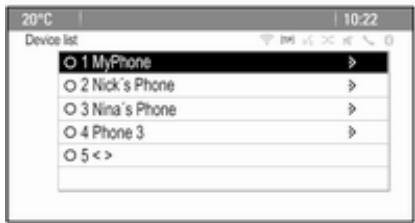
text_image
20°C Device list ○ 1 MyPhone > ○ 2 Nick's Phone > ○ 3 Nina's Phone > ○ 4 Phone 3 > ○ 5 < >If a new device is paired, it is displayed in the device list.
Connecting a device
Select the device you wish to connect. A submenu is displayed.
Select Select.
The device previously connected is disconnected and this device is connected.
Deleting a device
Select the device you wish to delete. A submenu is displayed.
Select Delete.
The device is deleted.
Emergency call
⚠ Warning
Connection setup cannot be guaranteed in all situations. For this reason you should not rely exclusively on a mobile phone when a vitally important communication (e.g. a medical emergency) is concerned.
In some networks it may be necessary for a valid SIM card to be properly inserted in the mobile phone.
⚠ Warning
Bear in mind that you can make and receive calls with the mobile phone, if it is in a service area with a sufficiently strong signal. Under certain circumstances emergency calls cannot be made on all mobile phone networks; it is possible that they cannot be made when certain network services and/or telephone
functions are active. You can enquire about this with the local network operators.
The emergency call number can differ depending on the region and country. Please enquire beforehand about the correct emergency call number for the relevant region.
Making an emergency call
Dial the emergency call number (e.g. 112).
The telephone connection to the emergency call centre is set up.
Answer when the service personnel questions you about the emergency.
⚠ Warning
Do not end the call until you are requested to do so by the emergency call centre.
Operation
As soon as a connection via Bluetooth has been set up between your mobile phone and the Infotainment system, you can also operate many functions of your mobile phone via the Infotainment system.
After setting up a connection between the mobile phone and the Infotainment system, the mobile phone data is transmitted to the Infotainment system. This can take some time depending on the phone model. During this period, operation of the mobile phone is possible via the Infotainment system only to a limited extent.
Not every telephone supports all functions of the phone application. Therefore, deviations from the range of functions described are possible.
Phone main menu
To display the phone main menu, press PHONE. The following screen is displayed (if a mobile phone is connected).

text_image
20°C 10:22 1. MyPhone Enter number Phone Book Call Lists Phone Settings PhoneInitiating a phone call
Entering a number
Press PHONE and then select Enter number. A keypad is displayed.
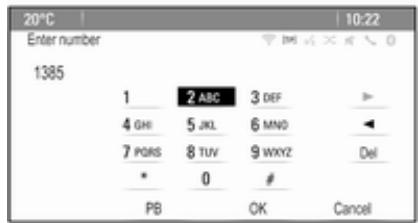
text_image
Enter number 1385 1 2 ABC 3 DEF > 4 GHI 5 JKL 6 MNO ◀ 7 PORS 8 TUV 9 WXYZ Del * 0 # PB OK CancelEnter the desired number.
Select Del on the screen or press BACK on the instrument panel to delete the last digit entered.
Select ▶ or ◀ to move the cursor within the number already entered.
To start dialling, select OK.
Notice
You may access the phone book from the keypad by pressing PB.
Phone book
Press PHONE and then select Phone Book. The Phone Book Search menu is displayed.
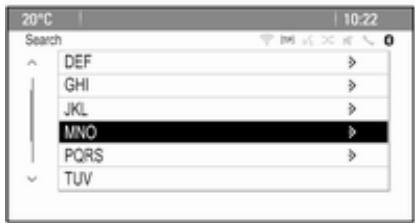
text_image
20°C 10:22 Search DEF GHI JKL MNO PQRS TUVSelect the desired first letter range to display a preselection of the telephone book entries you wish to be displayed. The phone book jumps to the position of the letter range selected.
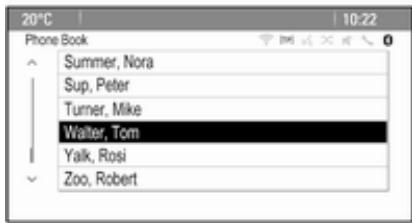
text_image
20°C Phone Book Summer, Nora Sup, Peter Turner, Mike Walter, Tom Yalk, Rosi Zoo, RobertSelect the desired entry in the telephone book to display the numbers saved under this entry.
Select the desired number to start dialling.
Phone book sorting
The phone book may be sorted by last name or by first name.
To change the sorting order, select PHONE and then Phone Settings.
Select Sort Order to display the respective submenu.
Activate the desired option.
Call lists
Press PHONE and then select Call Lists. The Call Lists menu is displayed.
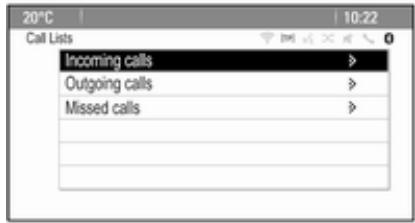
text_image
20°C 10:22 Call Lists Incoming calls > Outgoing calls > Missed calls >Select the desired call list. Depending on the list selected, the last incoming, outgoing or missed calls are displayed.
Select the desired entry in the call list to start dialling.
Incoming calls
When a call comes in, a message is displayed on the screen.
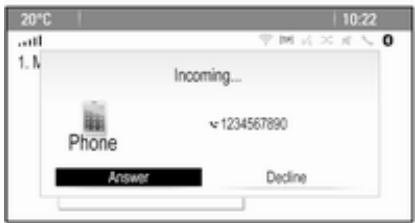
text_image
Incoming... Phone 1234567890 Answer DeclineTo take the call, select Answer. To reject the call, select Decline.
Functions during a phone call
When a call is active, the in-call view is displayed.
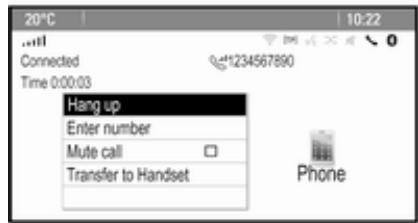
text_image
20°C 10:22 Connected Time 0:00:03 Hang up Enter number Mute call Transfer to Handset PhoneEnding a phone call
To end the call, select Hang up.
Muting a call
To temporarily mute the microphone, activate Mute call.
Deactivate Mute call to unmute the microphone.
Transferring to handset
Select Transfer to Handset to transfer the call to the mobile phone. The Private Call menu is displayed.
To transfer the call back to the Infotainment system, select Transfer call in the Private Call menu.
Second phone call
Initiating a second phone call
While a call is active, select Enter number in the in-call view. The keypad is displayed. You may enter a number or select a number from the phone book, see above.
Second incoming phone call
When a second call comes in, a message is displayed at the bottom of the screen.
Select the desired option.
If the call is taken, the first call is put on hold and the second call becomes active.
Both calls are displayed in the in-call view.
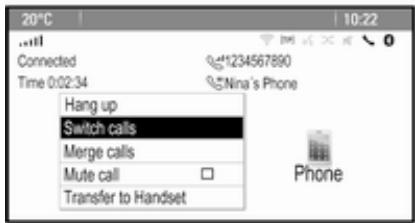
text_image
20°C 10:22 Connected Time 0:02:34 Hang up Switch calls Merge calls Mute call Transfer to Handset 1234567890 Nina's Phone PhoneTo switch between the calls, select Switch calls.
Conference call
Select Merge calls to activate both calls at the same time.
Merge calls changes to Detach call.
To end a conference call, select Detach call.
Ending phone calls
In a conference call, select Hang up to end both phone calls.
Text messages
As soon as a connection via Bluetooth has been set up between your mobile phone and the Infotainment system, you can operate the messages inbox of your mobile phone via the Infotainment system.
Not every phone supports the text messages function of the Infotainment system.
Activating the messages application on the mobile phone
The transmission of text message data to the Infotainment system must be activated on the mobile phone.
After connecting to the Infotainment system you may be prompted with a message on your mobile phone requesting permission to access the mobile phone text messages via the Infotainment system. Confirm the message.
If no message is displayed, access the Bluetooth menu on your mobile phone, select the name of the Infotainment system and activate the corresponding access function.
Notice
Find detailed information for granting access on different mobile phones on our website.
The Messages icon in the Home menu of the Infotainment system is then selectable.
Incoming text message
When a new text message is received, you are prompted with a message indicating the name or number of the sender.
Select one of the options in the message.
Listen
If you wish the system to read out the message, select Listen.
View
To display the message on the screen, select the respective screen button.
Notice
Messages are only displayed on the screen when the vehicle is parked.
Dismiss
To dismiss the message, select the respective screen button.
Reply
To directly answer the message, select Reply. A list of predefined messages is displayed.
Select the desired message and confirm your input.
The message is sent.
Notice
New predefined messages may be created in the settings menu.
Call
To call the sender of the text message, select Call.
Inbox
Press 🔊 and then select Messages to display the respective menu.
Select Inbox to display a list of all inbox messages.
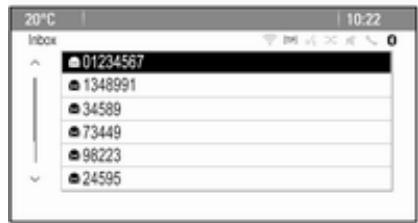
text_image
20°C 10:22 Inbox 01234567 1348991 34589 73449 98223 24595Select the desired message. The message is displayed on the screen.
Notice
Messages are only displayed on the screen when the vehicle is parked.
If desired, select one of the options at the bottom of the screen (see above).
Settings
Press 🔊 and then select Messages to display the respective menu.
Select Settings to display the respective submenu.
Adjust the settings as desired.
Mobile phones and CB radio equipment
Installation instructions and operating guidelines
The vehicle specific installation instructions and the operating guidelines of the mobile phone and handsfree manufacturer must be observed when installing and operating a mobile telephone. Failure to do so could invalidate the vehicle type approval (EU directive 95/54/EC).
Recommendations for fault-free operation:
■ The exterior antenna needs to be professionally installed to obtain the maximum range possible.
■ Maximum transmission power: 10 watts.
■ The mobile phone needs to be installed in a suitable spot. Consider relevant note in the Owner's manual, section Airbag system.
Seek advice on predetermined installation points for the external antenna or equipment holder and ways of using devices with a transmission power exceeding 10 watts.
Use of a handsfree attachment without external antenna with mobile telephone standards GSM 900/1800/1900 and UMTS is only permitted if the maximum transmission power of the mobile telephone is 2 watts for GSM 900 or 1 watt for the other types.
For reasons of safety, do not use the phone while driving. Even use of a handsfree set can be a distraction while driving.
⚠ Warning
Operation of radio equipment and mobile telephones which fail to meet above mentioned mobile telephone standards is only permitted using an antenna located outside of the vehicle.
Caution
Mobile telephones and radio equipment may lead to malfunctions in the vehicle electronics when operated inside the vehicle with no exterior antenna, unless the above mentioned regulations are observed.
Frequently asked questions
Frequently asked questions ...... 73
Frequently asked questions
Speech recognition
⑦ The speech recognition function does not work very well. How can I improve its performance?
Wait for the beep and then try to speak the command naturally. Avoid long pauses, use little accentuation and speak at a moderate volume.
Detailed description ➔ 56.
② The voice prompts given out by the speech recognition system are too long. How can I interrupt them to directly speak a command?
To interrupt the voice prompt of the speech recognition system, press “on the steering wheel. Wait for the beep and then speak your command.
Detailed description ➔ 56.
⑦ I cannot select a phone contact via speech recognition. What am I doing wrong?
The Infotainment system accesses the phone book entries as they are stored. If the sorting order is set to "last name, first name", the correct command for calling John Smith is "Smith, John".
Detailed description ➔ 55.
② I cannot enter an address located in another country via speech recognition. What am I doing wrong?
① Via speech recognition, you can only enter addresses for destinations located in the country whose language is selected as system language, e.g. if the system is set to German, you cannot enter a destination located in France.
Detailed description ➔ 55.
Phone
② How can I pair my phone with the Infotainment system?
In order to pair a phone, press ⬆/✉, select Phone Settings and then Bluetooth. Select Pair device and follow the instruction on the Infotainment system and your mobile phone. Make sure Bluetooth is enabled. Detailed description ✦ 65.
⑦ How can I access my phone book or recent calls list via the Infotainment system?
Depending on the phone, you must allow access to the respective data in the settings of your mobile phone. In general, the download of the phone book and recent calls list is not supported by all mobile phones.
Detailed description ➔ 65.
Although access to my phone book has been granted, not all contacts are available in the Infotainment system. Why is that?
① Depending on the phone, contacts stored on the SIM card cannot be read by the Infotainment system. Detailed description ➔ 65.
Navigation
② How can I toggle between total driving time or remaining driving time and total distance or partial distance?
When the navigation application is active, press the multifunction knob to display the Navigation Menu. Select Switch Route Time/Destination and adjust the settings as desired.
Detailed description ➔ 38.
When pressing DEST/NAV, different menus are displayed sometimes. Why is that?
① If route guidance is active, the destination application is displayed for you to select a destination.
Detailed description ➔ 42.
If route guidance is not active, the Route Menu is displayed.
Detailed description ➔ 50.
Audio
When playing media files from a device connected via Bluetooth, the track title and artist are not displayed in the Infotainment system and the media browse function is not available. Why is that?
When connecting a device via Bluetooth, due to the Bluetooth protocol supported only restricted functions are available. Detailed description ➔ 34.
② The Infotainment system does not have a tone button on the faceplate. How can I change the tone settings?
The tone settings menu is accessible via the Home Page. Press 🔊 and then select More to display the second Home Page. To access the tone settings menu, select Tone.
Detailed description ➔ 19.
Index
A
Activating AUX.... 34
Activating Bluetooth music...... 34
Activating CD player.... 31
Activating radio.... 24
Activating the Infotainment system 14
Activating the navigation system..38
Activating the phone portal...... 67
Activating USB audio.... 34
Activating USB picture.... 35
Address book.... 42
Audio CUE volume...... 20
Audio files.... 32
Autostore lists.... 25
Retrieving stations.... 25
Storing stations.... 25
Auto volume.... 20
AUX.... 32
B
BACK button.... 16
Balance.... 19
Basic operation.... 16
Bass.... 19
Bluetooth connection.... 65
Bluetooth music.... 32
Bread crumbs...... 50
C
Category list...... 24
CD player.... 30
Chime volume.... 20
Control elements
Infotainment system...... 8
Steering wheel....8
Control elements overview...... 8
D
DAB....28
Date....21
Destination input 42
Digital audio broadcasting...... 28
Display....21
Displaying pictures.... 35
E
Emergency call.... 66
EQ....19
Equaliser.... 19
F
Factory defaults.... 21
Fader....19
Favourite lists.... 26
Retrieving stations.... 26
Storing stations.... 26
File formats.... 30
Audio files.... 32
Picture files.... 32
Frequently asked questions...... 73
G
General information 30, 32, 37, 55, 64
AUX....32
Bluetooth music.... 32
CD....30
Infotainment system...... 6
Navigation.... 37
Phone portal...... 64
Radio....24
USB....32
Gracenote.... 32
Guidance 50
H
Home address.... 42
Home Page.... 16, 21
|
Infotainment control panel...... 8
K
Keyboard...... 42
L
Language....21
M
Maps.... 38
Maximum startup volume...... 20
Menu operation.... 16
Messages.... 16
Midrange.... 19
Mobile phones and CB radio equipment 72
Multifunction knob...... 16
Mute.... 14
N
Navigation
Address book...... 42
Bread crumbs.... 50
Coordinates.... 42
Current location.... 38
Destination input...... 42
Favourite routes.... 42
General settings.... 38
Guidance alerts.... 50
Home address...... 42
Keyboard...... 42
Map display.... 38
Map manipulation.... 38
POIs....42
Recent destinations...... 42
Route guidance.... 50
Route options.... 50
Route simulation.... 38
Route tracking....50
TMC stations....50
Traffic incidents.... 50
Turn list....50
Voice prompts....50
Waypoint trip.... 42
Navigation system.... 37
Navigation volume...... 20
O
Operation...... 67
AUX....34
Bluetooth music.... 34
CD....31
Infotainment system...... 14
Menu.... 16
Navigation system.... 38
Phone......67
Radio....24
USB.... 34, 35
P
Pairing....65
Phone
Bluetooth....64
Bluetooth connection...... 65
Conference call.... 67
Emergency calls.... 66
Functions during a call...... 67
Phone book.... 67
Recent calls.... 67
Text messages....70
Phone book...... 42, 67
Phone call Initiating....67
Taking....67
Picture files.... 32
Pictures.... 35
Playing audio.... 34
POIs....42
R
Radio Autostore lists.... 25
Category list.... 24
DAB....28
DAB announcements...... 28
Digital Audio Broadcasting...... 28
Favourite lists.... 26
Radio Data System...... 27
RDS....27
RDS Options menu...... 27
Regional......27
Retrieving stations.... 25, 26
Station list.... 24
Station search...... 24
Storing stations.... 25, 26
TP....27
Traffic Programme...... 27
Waveband selection.... 24
Radio data system (RDS) ...... 27
Regionalisation...... 27
Route guidance.... 50
Route simulation.... 38
S
Software update.... 21
Speech commands overview...... 59
Speech recognition.... 55
Station list.... 24
Station search.... 24
Switching the Infotainment system on.... 14
System settings.... 21
Display.... 21
Home Page.... 21
Language....21
Software....21
Time and Date.... 21
T
TA....27
TA volume....20
Text messages....70
Theft-deterrent feature 7
Time....21
Time format.... 21
TMC....50
Tone settings.... 19
TP....27
Traffic incidents.... 50
Traffic programme.... 27
Treble....19
Turn list....50
U
Usage...... 14, 24, 31, 38, 56
AUX....34
Bluetooth music.... 34
CD....31
Infotainment system...... 14
Navigation system.... 38
Phone....67
USB.... 34, 35
USB....32
V
Voice recognition.... 55
Volume
Audio Cue volume...... 20
Auto volume.... 20
Chime volume...... 20
Maximum startup volume...... 20
Mute function.... 14
Navigation volume...... 20
Volume of traffic
announcements.... 20
Volume settings.... 20
W
Waveband selection.... 24
Waypoint trip.... 42
CD 400plus (1)/400/300
Introduction 82
Radio 98
CD Player 107
AUX input 111
USB port 112
Speech recognition .... 114
Phone 119
Index 130
Introduction
General information 82
Theft-deterrent feature 83
Control elements overview ..... 84
Usage 90
Basic operation 91
Tone settings 95
Volume settings 97
General information
The Infotainment system provides you with state-of-the-art in-car infotainment.
For the AM, FM and DAB wavebands the radio is equipped with twelve automatically assignable channel presets. Furthermore, various channels can be allocated manually (waveband-independent).
The integrated audio player will entertain you with audio CDs and MP3/WMA CDs.
Furthermore, you can connect external data storage devices, e.g. iPod, MP3 player or USB stick, or a portable CD player to the Infotainment system as further audio sources.
The digital sound processor provides you with several preset equalizer modes for sound optimisation.
Optionally, the Infotainment system can be operated using controls on the steering wheel or via the speech recognition system.
In addition the Infotainment system can be equipped with a mobile phone portal.
The well-thought-out design of the control elements, the clear displays and a large multifunction knob enable you to control the system easily and intuitively.
Notice
This manual describes all options and features available for the various Infotainment systems. Certain descriptions, including those for display and menu functions, may not apply to your vehicle due to model variant, country specifications, special equipment or accessories.
Display
The CD 400plus is available in two variants; noticeable difference is the display. The first variant has the following display.
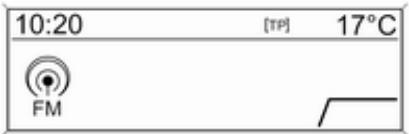
text_image
10:20 [TP] 17°C FMImportant information on operation and traffic safety
⚠ Warning
The Infotainment system must be used so that the vehicle can be driven safely at all times. If in doubt, stop the vehicle and operate the Infotainment system while the vehicle is stationary.
Radio reception
Radio reception may be disrupted by static, noise, distortion or loss of reception due to:
■ changes in distance from the transmitter
■ multi-path reception due to reflection
■ shadowing
Theft-deterrent feature
The Infotainment system is equipped with an electronic security system for the purpose of theft-deterrence.
The Infotainment system therefore functions only in your vehicle and is worthless to a thief.
Control elements overview
CD 400 / CD 400plus
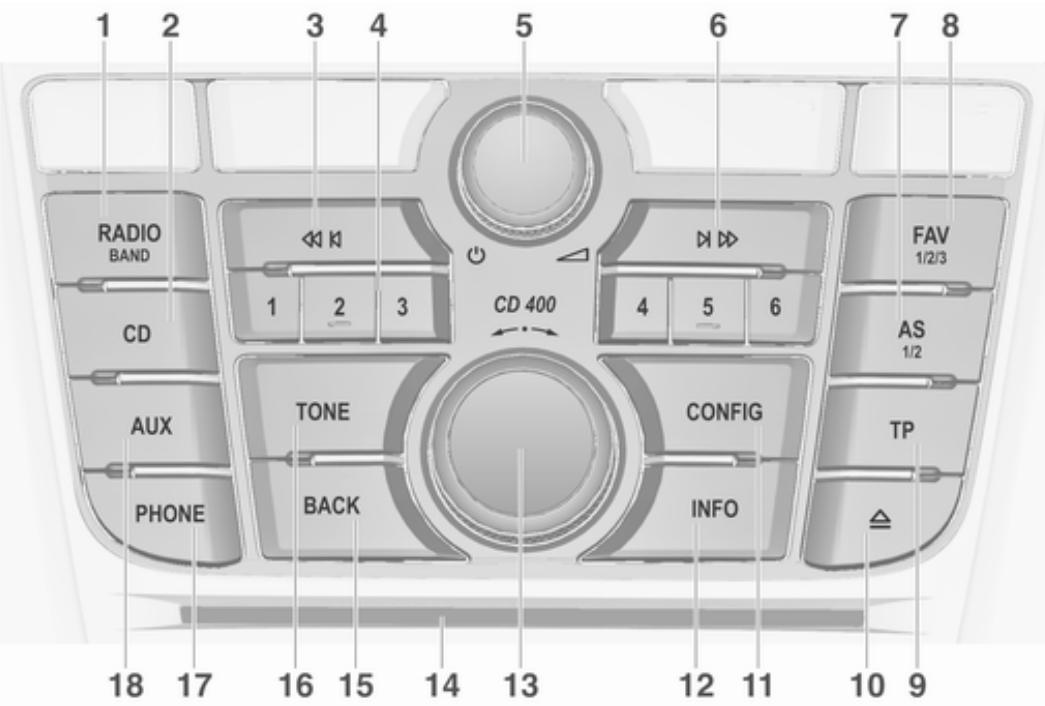
text_image
1 2 3 4 5 6 7 8 RADIO BAND CD 1 2 3 CD 400 4 5 6 TONE CONFIG AUX PHONE BACK INFO 18 17 16 15 14 13 12 11 10 9 FAV 1/2/3 AS 1/2 TP1 RADIO 98
Activate radio or change waveband 98
2 CD 111
Start CD/MP3/WMA playback 111
3 Search backwards ..... 98
Radio: search backwards ..... 98
CD/MP3/WMA: skip track backwards 108
4 Radio station buttons 1...6 .... 99
Long press: save station ..... 99
Short press: select station .... 99
5 ⏻ 90
Press: switch on/off 90
Infotainment system 90
Turn: adjust volume ..... 90
6 Search forwards ...... 98
Radio: search forwards ..... 98
CD/MP3/WMA: skip track forwards 108
7 AS 1/2 99
Automatic memory levels (preset radio stations) ..... 99
Short press: select autostore list 99
Long press: save stations automatically 99
8 FAV 1/2/3 99
Lists of favourites (preset radio stations) 99
9 TP 103
Activate or deactivate radio traffic service .... 103
If Infotainment system is switched off: display time and date 103
10 CD ejection 108
11 CONFIG 97
Open settings menu ...... 97
12 INFO 84
Radio: information on the currently played station ..... 98
CD/MP3/WMA: information on the currently inserted CD .... 108
13 Multifunction knob 91
Turn: mark menu options or set numeric values ...... 91
Press: select/activate the marked option; confirm set value; switch function on/off .. 91
14 CD slot 108
15 BACK 91
Menu: one level back ..... 91
Input: delete last character or entire entry 91
16 TONE 95
Tone settings 95
17 PHONE 119
Open telephone main menu 125
Activate mute 90
18 AUX 111
Change audio source ..... 111
CD 300
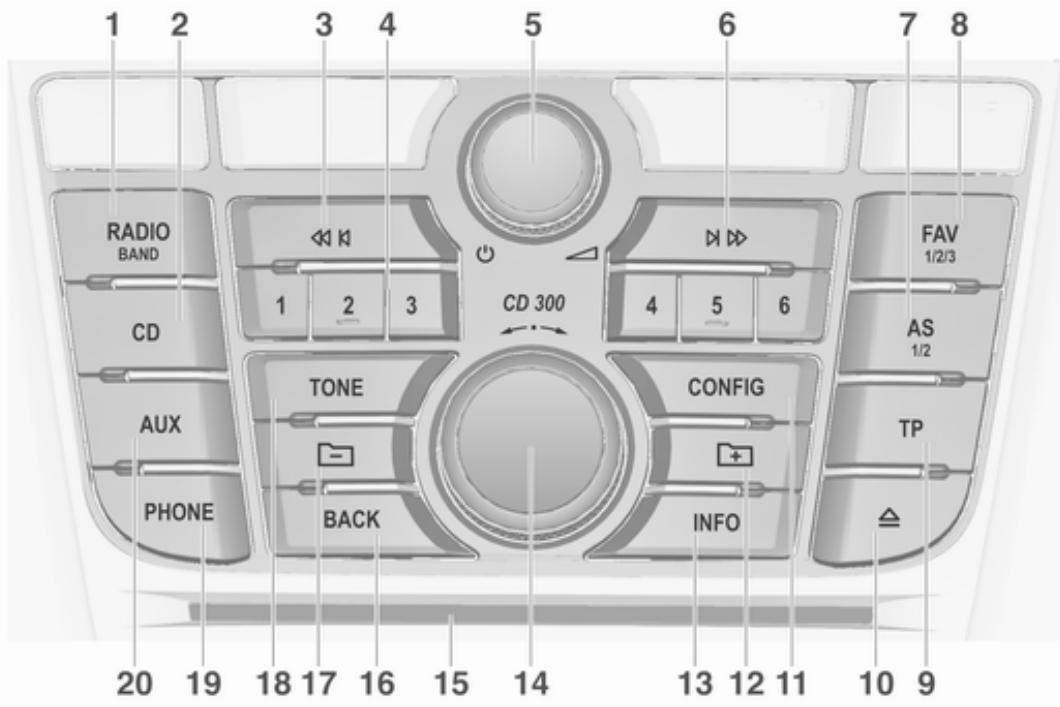
text_image
1 2 3 4 5 6 7 8 RADIO BAND CD AUX PHONE TONE BACK CD 300 CONFIG INFO FAV 1/2/3 AS 1/2 TP △ 20 19 18 17 16 15 14 13 12 11 10 91 RADIO 98
Activate radio or change waveband 98
2 CD 111
Start CD/MP3/WMA playback 111
3 Search backwards ..... 98
Radio: search backwards ..... 98
CD/MP3/WMA: skip track backwards 108
4 Radio station buttons 1...6 .... 99
Long press: save station ..... 99
Short press: select station .... 99
5 Ⓧ 90
Press: switch on/off the Infotainment system 90
Turn: adjust volume ..... 90
6 Search forwards ...... 98
Radio: search forwards ..... 98
CD/MP3/WMA: skip track forwards 108
7 AS 1/2 99
Automatic memory levels (preset radio stations) ..... 99
Short press: select autostore list 99
Long press: save stations automatically 99
8 FAV 1/2/3 99
Lists of favourites (preset radio stations) 99
9 TP 103
Activate or deactivate radio traffic service .... 103
If Infotainment system is switched off: display time and date 103
10 CD ejection 108
11 CONFIG 97
Open settings menu ...... 97
12 MP3: folder level lower ..... 108
13 INFO 84
Radio: information on the currently played station ..... 98
CD/MP3/WMA: information on the currently inserted CD .... 108
14 Multifunction knob 91
Turn: mark menu options or set numeric values ...... 91
Press: select/activate the marked option; confirm set value; switch function on/off .. 91
15 CD slot 108
16 BACK 91
Menu: one level back ..... 91
Input: delete last character or entire entry 91
17 MP3: folder level higher ..... 108
18 TONE 95
Tone settings 95
19 PHONE 119
Open telephone main menu 125
Activate mute 90
20 AUX 111
Change audio source ...... 111
Steering wheel audio controls
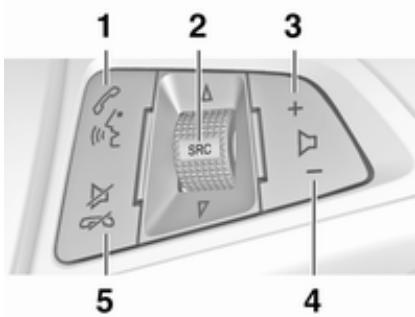
text_image
1 2 3 SRC + - 4 51
Short press: accept phone call 119
or dial number in call list ..... 125
or activate speech recognition .... 114
Long press: show call list .... 125
or deactivate speech recognition .... 114
2 SRC (Source) 90
Press: select audio source .... 90
With radio active: turn upwards/downwards to select next/previous preset radio station .... 98
With CD player active: turn upwards/downwards to select next/previous CD/MP3/WMA track 108
With Phone portal active and call list open (see pos. 1): turn upwards/downwards to select next/previous entry in call list ..... 125
With Phone portal active and calls waiting: turn upwards/downwards to switch between calls .... 125
3 +
Increase volume 90
4 -
Reduce volume 90
5
Short press: end/decline call 125
or close call list 125
or activate/deactivate mute ... 90
or deactivate speech recognition .... 114
Usage
Control elements
The Infotainment system is operated via function buttons, multifunctional knobs and menus that are shown on the display.
Inputs are made optionally via:
■ the central control unit in the instrument panel ➔ 84
■ controls on the steering wheel
⇨ 84
■ the speech recognition system
⇨ 114
Switching the Infotainment system on or off
Press ⏻ briefly. After switching on, the last selected Infotainment source is active.
Automatic switch-off
If the Infotainment system has been switched on pressing ⏻ when the ignition was switched off, it will switch off again automatically after 30 minutes.
Setting the volume
Turn ⏻. The current setting is shown on the display.
When the Infotainment system is switched on, the last selected volume is set, provided that volume is lower than the maximum start-up volume.
The following can be set separately:
■ the maximum start-up volume ⇨ 97
■ the volume of the traffic announcements ➔ 97
Speed compensated volume
When speed compensated volume is activated 97 the volume is adapted automatically to make up for the road and wind noise as you drive.
Mute
Press PHONE (if Phone portal is available: press for a few seconds) to mute the audio sources.
To cancel mute again: turn ⏻ or press PHONE again (if Phone portal is available: press for a few seconds).
Volume limitation at high temperatures
At very high temperatures inside the vehicle the Infotainment system limits the maximum adjustable volume. If necessary the volume is decreased automatically.
Modes of operation
Radio
Press RADIO to open the radio main menu or to change between the different wavebands.
Press the multifunction knob to open a submenu with options for station selection.
Detailed description of the radio functions 98.
Audio players
Press CD or AUX to open the CD, USB, iPod or AUX menus or to switch between these menus.
Press the multifunction knob to open a submenu with options for track selection.
Detailed description of:
■ CD player functions ➔ 108
■ AUX input functions ➔ 111
■ USB port functions ➔ 112
Phone
Press PHONE to open the telephone menu.
Press the multifunction knob to open a submenu with options for the input or selection of numbers.
Detailed description of the mobile phone portal functions ➔ 119.
Basic operation
Multifunction knob
The multifunction knob is the central control element for the menus.
Turn the multifunction knob:
■ CD 400 / CD 400plus: to mark a menu option
■ CD 300: to display a menu option
■ to set a numeric value
Press the multifunction knob:
■ CD 400 / CD 400plus: to select or activate the marked option
■ CD 300: to select or activate the option displayed
■ to confirm a set value
■ to switch a system function on/off
BACK button
Press BACK briefly:
■ to exit a menu
■ to return from a submenu to the next higher menu level
■ to delete the last character in a character sequence
Press and hold BACK for a few seconds to delete the entire entry.
Examples of menu operation
CD 400 / CD 400plus Selecting an option

text_image
Settings Time Date Radio settings Phone settingsTurn the multifunction knob to move the cursor (= coloured background) to the desired option.
Press the multifunction knob to select the marked option.
Submenus
An arrow on the right-hand edge of the menu indicates that after selection of the option a submenu with further options will be opened.
Activating a setting
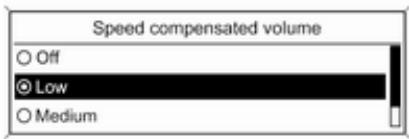
text_image
Speed compensated volume ○ Off ● Low ○ MediumTurn the multifunction knob to mark the desired setting.
Press the multifunction knob to activate the setting.
Setting a value
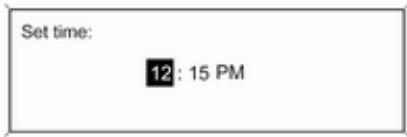
text_image
Set time: 12: 15 PMTurn the multifunction knob to change the current value of the setting.
Press the multifunction knob to confirm the set value.
Switching a function on or off
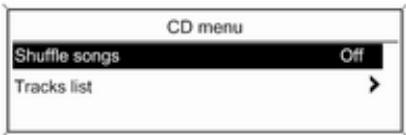
text_image
CD menu Shuffle songs Off Tracks list >Turn the multifunction knob to mark the function to be switched on or off. Press the multifunction knob to switch between the settings On and Off.
Entering a character sequence
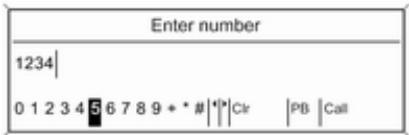
text_image
Enter number 1234 0 1 2 3 4 5 6 7 8 9 + * # | |* | Clr | PB | CallFor the input of character sequences, e.g. telephone numbers:
Turn the multifunction knob to select the desired character.
Press the multifunction knob to confirm the selected character.
To delete the last character in the character sequence, press BACK.
CD 300
Menu elements and symbols
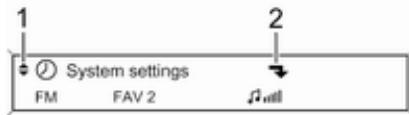
text_image
1 System settings FM FAV 2 2
text_image
3 4 Set time: FM FAV 2The up and down arrows 1 indicate: the top menu level is active. Further options are available in the active menu.
Turn the multifunction knob to display the other options in the active menu.
The angled arrow 2 indicates: a submenu with further options is available.
Press the multifunction knob to select the option displayed and to open the corresponding submenu.
The arrow pointing to the right 3 indicates: the first submenu level is active (two arrows = second submenu level active).
The down arrow 4 indicates: further options are available in the active submenu.
Activating a setting
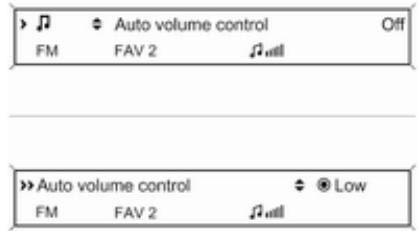
text_image
Auto volume control Off FM FAV 2Press the multifunction knob to open the corresponding settings menu.
Turn the multifunction knob to display the desired setting.
Press the multifunction knob to activate the setting.
Setting a value
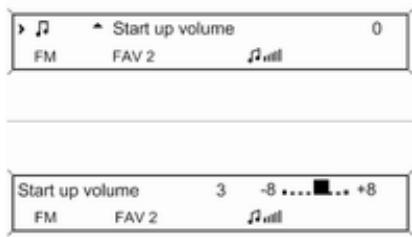
text_image
Start up volume 0 FM FAV 2Press the multifunction knob to open the corresponding settings menu.
Turn the multifunction knob to change the current value of the setting.
Press the multifunction knob to confirm the set value.
Switching a function on or off
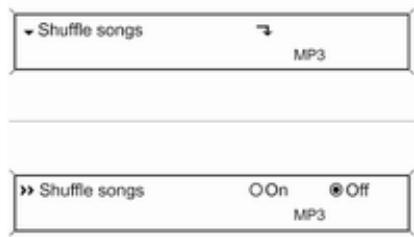
text_image
Shuffle songs MP3 >> Shuffle songs O On Off MP3Press the multifunction knob to open the corresponding settings menu.
Turn the multifunction knob to mark the setting On or Off.
Press the multifunction knob to confirm the marked setting.
Entering a character sequence
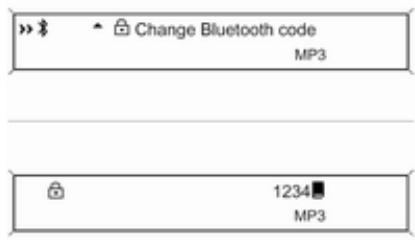
text_image
Change Bluetooth code MP3 1234 MP3Press the multifunction knob to open the relevant settings menu.
Turn the multifunction knob to change the character at the current cursor position.
Press the multifunction knob to confirm the character displayed.
To delete the last character in the character sequence, press BACK.
Tone settings
In the tone settings menu the tone characteristics can be set for each radio waveband and each audio player source.
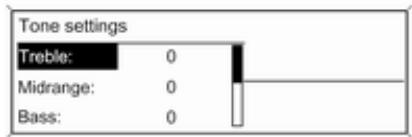
text_image
Tone settings Treble: 0 Midrange: 0 Bass: 0Press TONE to open the tone menu.
Setting bass, middle and treble
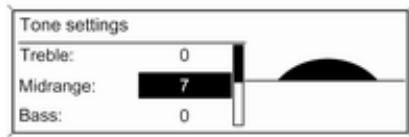
text_image
Tone settings Treble: 0 Midrange: 7 Bass: 0Select Bass:, Midrange: or Treble:. Set the desired value for the selected option.
Setting the volume distribution between front - rear

text_image
Tone settings Bass: 0 EQ: Manual Fader: F 5Select Fader:.
Set the desired value.
Setting the volume distribution between right - left
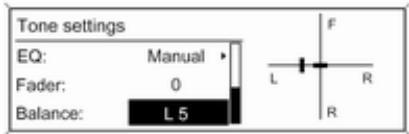
text_image
Tone settings EQ: Manual Fader: 0 Balance: L 5Select Balance:.
Set the desired value.
Setting an individual setting to "0"
Select the desired option and press and hold the multifunction knob for a few seconds.
Setting all settings to "0" or "Off"
Press and hold TONE for a few seconds.
Optimizing the tone for the style of music

text_image
EQ presets Manual Pop ✓ RockSelect EQ: (Equalizer).
The displayed options offer optimized bass, middle and treble presettings for the relevant style of music.
Select the desired option.
Volume settings
Maximum startup volume
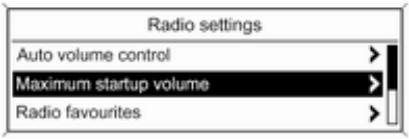
text_image
Radio settings Auto volume control > Maximum startup volume > Radio favourites >Press CONFIG to open the system settings menu.
CD 400 / CD 400plus: select Radio settings and then Maximum startup volume.
CD 300: select Audio settings and then Start up volume.
Set the desired value.
Speed compensated volume

text_image
Speed compensated volume ○ Off ○ Low ● MediumPress CONFIG to open the system settings menu.
CD 400 / CD 400plus: select Radio settings and then Auto volume control.
CD 300: select Audio settings and then Auto volume control.
Speed compensated volume can be deactivated or the degree of volume adaptation can be selected in the menu displayed.
Select the desired option.
Volume of the traffic announcements (TA)
The volume of the traffic announcements can be increased or reduced proportionate to the normal audio volume.
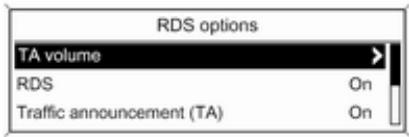
text_image
RDS options TA volume RDS On Traffic announcement (TA) OnPress CONFIG to open the system settings menu.
CD 400 / CD 400plus: select Radio settings, RDS options and TA volume.
CD 300: select Audio settings, RDS options and TA volume.
Set the desired value for the volume increase or reduction.
Radio
Usage 98
Station search 98
Autostore lists 99
Favourite lists 99
Waveband menus 100
Radio data system (RDS) ...... 103
Digital audio broadcasting ..... 105
Usage
Activating the radio
Press RADIO to open the radio main menu.
The station last played will be received.
Selecting the waveband
Press RADIO once or several times to select the desired waveband.
The station last played in that waveband will be received.
Station search
Automatic station search
Briefly press ◀◀ ↖ or ▷ ▷▶ to play the next station in the station memory.
Manual station search
Press ◀ K or ▷ ▷ for a few seconds to start a search for the next receivable station in the current waveband.
When the required frequency has been reached the station is played automatically.
Notice
Manual station search: If the radio does not find a station, it switches automatically to a more sensitive search level. If it still does not find a station, the frequency that was last active is set again.
Notice
FM waveband: when the RDS function is activated, only RDS stations 103 are searched for, and when the radio traffic service (TP) is activated, only traffic service stations 103 are searched for.
Manual station tuning
AM waveband
Turn the multifunction knob and set the optimal reception frequency on the pop-up frequency display.
DAB waveband
Press the multifunction knob to open the DAB menu and select DAB manual tuning.
Turn the multifunction knob and set the required reception frequency on the pop-up frequency display.
Autostore lists
The stations that can be received best in a waveband can be searched for and stored automatically via the autostore function.
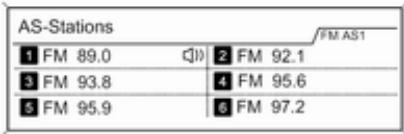
text_image
AS-Stations FM AS1 1 FM 89.0 2 FM 92.1 3 FM 93.8 4 FM 95.6 5 FM 95.9 6 FM 97.2Notice
The currently received station is marked by 🔒.
Each waveband has 2 autostore lists (AS 1, AS 2), in each of which 6 stations can be stored.
Automatic station storing
Press and hold AS until an autostore message is displayed. The 12 strongest stations in the current waveband will be stored in the 2 autostore lists.
To abort the autostore procedure, press the multifunction knob.
Storing stations manually
Stations can also be stored manually in the autostore lists.
Set the station to be stored.
Briefly press AS to open an autostore list or to switch to another autostore list.
To store the station in a list position: press the corresponding station button 1...6 until a confirmation message is displayed.
Notice
Manually stored stations are overwritten in an automatic station storing process.
Retrieving a station
Briefly press AS to open an autostore list or to switch to another autostore list.
Briefly press one of the station buttons 1...6 to open the station at the corresponding list position.
Favourite lists
Stations of all wavebands can be stored manually in the favourite lists.

text_image
FAV page 1 of 6 1 FM 102.3 2 FM 96.8 3 FM 89.0 4 FM 93.1 5 FM 105.8 6 FM 103.9 FAV 16 stations can be stored in each favourite list.
The number of available favourite lists is configurable (see below).
Notice
The currently received station is marked by 🔒.
Storing a station
Set the station to be stored.
Briefly press FAV to open a favourite list or to switch to another favourite list.
To store the station in a list position: press the corresponding station button 1...6 until a confirmation message is displayed.
Retrieving a station
Briefly press FAV to open a favourite list or to switch to another favourite list.
Briefly press one of the station buttons 1...6 to open the station at the related list position.
Defining the number of available favourite lists

text_image
Max. number of favourites pages ○ 1 page ○ 2 pages ○ 3 pagesPress CONFIG.
Select Radio settings and then Radio favourites.
Select the desired number of available favourite lists.
Waveband menus
Alternative facilities for station selection are available via waveband-specific menus.
With the radio main menu active, press the multifunction knob to open the relevant waveband menu.
Notice
The following FM-specific displays are shown as examples.
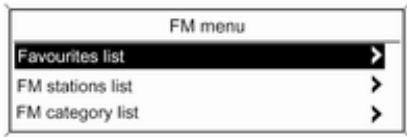
text_image
FM menu Favourites list > FM stations list > FM category list >Favourites list
Select Favourites list. All stations saved in the favourites lists are displayed.

text_image
Favourites list FM 102.3 (FAV 1 - P1) FM 96.8 (FAV 1 - P2) FM 89.0 (FAV 1 - P3) Q)Select the required station.
Notice
The currently received station is marked by 🔒.
Stations lists
AM/FM waveband
Select AM stations list or FM stations list.
All receivable AM/FM stations in the current reception area are displayed.
DAB waveband
Turn the multifunction knob.
All receivable DAB stations ➔ 105 in the current reception area are displayed.
Notice
If no station list has been created beforehand, the Infotainment system performs an automatic station search.

text_image
FM stations list 88.2 MHz 89.0 MHz 92.4 MHzSelect the required station.
Notice
The currently received station is marked by 🔒.
Updating stations lists
If the stations stored in a waveband-specific station list can no longer be received:
Select the corresponding command to update a station list.
CD 400plus: The dual tuner of the Infotainment system continuously updates the FM stations list in the background. No manual update is required.
A station search is started. Once the search is completed the station last received will be played.
To abort the station search, press the multifunction knob.
Notice
If a waveband-specific station list is updated, the corresponding category list is also updated.
Category lists
Numerous RDS stations ➔ 103 broadcast a PTY code, which specifies the type of programme transmitted (e.g. news). Some
stations also change the PTY code depending on the content currently being transmitted.
The Infotainment system stores these stations, sorted by programme type, in the corresponding category list.
To search for a programme type determined by station: select the waveband specific category list option.

text_image
FM category list Classical (4) Music (17) Information (1)A list of programme types currently available is displayed.
Select the desired programme type.
CD 400 / CD 400plus: A list of stations is displayed that transmit a programme of the selected type.
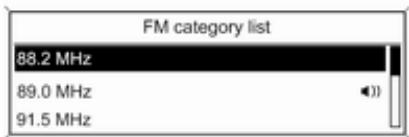
text_image
FM category list 88.2 MHz 89.0 MHz 91.5 MHzSelect the desired station.
CD 300: The next receivable station of the selected type is searched for and is played.
The category list is also updated when the corresponding waveband specific station list is updated.
Notice
The currently received station is marked by 🔒.
DAB announcements
Besides their music programmes numerous DAB stations ➔ 105 broadcast various announcement categories.
The currently received DAB service (programme) is interrupted when any announcements of previously activated categories are pending.
Activating announcement categories Select DAB announcements in the DAB menu.

text_image
DAB announcements ☑ Messages ☐ Weather alert ☑ SportsActivate the desired announcement categories.
Several announcement categories can be selected at the same time.
Notice
DAB announcements can only be received if the DAB waveband is activated.
Radio data system (RDS)
RDS is a service of FM stations that considerably facilitates the finding of the desired station and its fault-free reception.

text_image
10:20 17 °C Pop ■BBC Radio 2 The Favourites: "Leave me" - /FAV 1Advantages of RDS
■ On the display the programme name of the set station appears instead of its frequency.
■ During a station search the Infotainment system tunes in to RDS stations only.
■ The Infotainment system always tunes into the best receivable broadcasting frequency of the set station by means of AF (Alternative Frequency).
■ Depending on the station that is received, the Infotainment system displays radio text that can contain, e.g., information about the current programme.
Configuring RDS
To open the menu for the RDS configuration:
Press CONFIG.
CD 400 / CD 400plus: Select Radio settings and then RDS options.
CD 300: Select Audio settings and then RDS options.
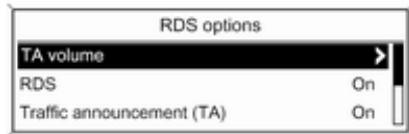
text_image
RDS options TA volume RDS On Traffic announcement (TA) OnTA volume
The volume of the traffic announcements (TA) can be preset 97.
Switching RDS on and off
Set RDS to On or Off.
Notice
If RDS is switched off, it will be automatically switched on again when a radio station is changed (by search function or preset button).
Traffic announcement (TA)
To switch the TA function on or off permanently:
Set Traffic announcement (TA) to On or Off.
Switching regionalization on and off (RDS must be activated for regionalization)
At certain times some RDS stations broadcast regionally different programmes on different frequencies.
Set Regional (REG) to On or Off.
If regionalization is switched on, only alternative frequencies (AF) with the same regional programmes are selected.
If regionalization is switched off, alternative frequencies of the stations are selected without regard to regional programmes.
RDS scrolling text
Some RDS stations hide the programme name in the display line in order to display additional information.
To prevent additional information being displayed:
Set Text scroll freeze to On.
Radio text:
If RDS and reception of an RDS station are activated, information about the programme that is currently receivable and about the music track currently playing are displayed below the programme name.
To show or hide the information:
Set Radio text: to On or Off.
Radio traffic service
(TP = Traffic Programme)
Radio traffic service stations are RDS stations that broadcast traffic news.
Switching the radio traffic service on and off
To switch the traffic announcement standby facility of the Infotainment system on and off:
Press TP.
■ If the radio traffic service is switched on, [ ] is displayed in the radio main menu.
■ Only radio traffic service stations are received.
■ If the current station is not a radio traffic service station, a search is started automatically for the next radio traffic service station.
■ If a radio traffic service station has been found, [TP] is displayed in the radio main menu.
■ Traffic announcements are played at the preset TA volume ➔ 97.
■ If the radio traffic service is switched on, CD/MP3 playback is interrupted for the duration of the traffic announcement.
Listening to traffic announcements only
Switch on the radio traffic service and completely turn down the volume of the Infotainment system.
Blocking out traffic announcements
To block out a traffic announcement, e.g. during CD/MP3 playback:
Press TP or the multifunction knob to confirm the cancel message on the display.
The traffic announcement is aborted, but the radio traffic service remains switched on.
EON (Enhanced Other Networks)
With EON you can listen to radio traffic announcements even if the station you have set does not broadcast its own radio traffic service. If such a station is set, it is displayed in black as for radio traffic service stations TP.
Digital audio broadcasting
Digital audio broadcasting (DAB) is an innovative and universal broadcast system.
DAB stations are indicated by the programme name instead of the broadcasting frequency.

text_image
10:20 17 °C DAB ■BBC Radio 1 BBC Regional DAB -√FAV 1General information
■ With DAB, several radio programmes (services) can be broadcast on a single frequency (ensemble).
■ Besides high-quality digital audio services, DAB is also able to transmit programme-associated data and a multitude of other data services including travel and traffic information.
■ As long as a given DAB receiver can pick up the signal sent out by a broadcasting station (even if the signal is very weak), sound reproduction is ensured.
■ There is no fading (weakening of the sound) that is typical of AM or FM reception. The DAB signal is reproduced at a constant volume.
■ If the DAB signal is too weak to be picked up by the receiver, reception is interrupted completely. This incident can be avoided by activating Auto ensemble linking and/or Auto linking DAB-FM in the DAB settings menu.
■ Interference caused by stations that are on nearby frequencies (a phenomenon that is typical of AM and FM reception) does not occur with DAB.
■ If the DAB signal is reflected by natural obstacles or buildings, the reception quality of DAB is improved, whereas AM or FM reception is considerably impaired in such cases.
■ When DAB reception is enabled, the FM tuner of the Infotainment system remains active in the background and continually searches for the best receivable FM stations. If TP 103 is activated,
traffic announcements of the FM station which is currently best receivable are issued. Deactivate TP, if you do not wish DAB reception to be interrupted by FM traffic announcements.
Configuring DAB

text_image
DAB settings Auto ensemble linking On Auto linking DAB-FM Off Dynamic audio adaption OffPress CONFIG.
Select Radio settings and then DAB settings.
The following options are available in the configuration menu:
■ Auto ensemble linking: with this function activated, the device switches over to the same service (programme) on another DAB ensemble (frequency, if available) when the DAB signal is too weak to be picked up by the receiver.
■ Auto linking DAB-FM: with this function activated, the device switches over to a corresponding FM station of the active DAB service (if available) when the DAB signal is too weak to be picked up by the receiver.
■ Dynamic audio adaption: with this function activated, the dynamic range of the DAB signal is reduced. That means the level of the loud sounds is reduced, but not the level of the quiet sounds. Therefore the volume of the Infotainment system
can be raised to a point where the quiet sounds are audible, without the loud sounds being too loud.
■ Frequency band: after selection of this option it can be defined which DAB wavebands are to be received by the Infotainment system.
CD Player
General information ...... 107
Usage 108
General information
The Infotainment system's CD player can play audio CDs and MP3/WMA CDs.
Important information about audio CDs and MP3/WMA CDs
Caution
Under no circumstances place DVDs, single-CDs with a diameter of 8 cm or shaped CDs in the audio player.
You must not put any stickers on CDs. These discs can get jammed in the CD drive and ruin the player. Replacement of the device will then be necessary.
■ The following CD formats can be used:
CD-ROM Mode 1 and Mode 2
CD-ROM XA Mode 2, Form 1 and Form 2
■ The following file formats can be used:
ISO9660 Level 1, Level 2, (Romeo, Joliet)
MP3 and WMA files written in any format other than listed above may not play correctly, and their file names and folder names may not be displayed correctly.
Notice
ISO 13346 is not supported. It may be required to manually select ISO 9660 when burning an audio CD, e.g. with Windows 7.
■ Audio CDs with copy protection, which are not in compliance with the audio CD standard, may not play correctly or not at all.
■ Self-recorded CD-Rs and CD-RWs are more vulnerable to mishandling than prerecorded CDs. Correct handling, especially in the case of self-recorded CD-Rs and CD-RWs, must be ensured. See below.
■ Self-recorded CD-Rs and CD-RWs may not play correctly or not at all. In such cases it is not the equipment that is at fault.
■ On mixed mode CDs (audio tracks and compressed files, e.g. MP3, are stored), the audio tracks part and the compressed files part can be played separately.
■ Avoid leaving fingerprints when you change CDs.
■ Put CDs back in their sleeves immediately after removing them from the CD player in order to protect them from damage and dirt.
■ Dirt and liquids on CDs can smear the lens of the CD player inside the device and cause faults.
■ Protect CDs from heat and direct sunlight.
■ The following restrictions apply for the data stored on an MP3/WMA CD:
Number of tracks: max. 999.
Number of folders: max. 255.
Folder structure depth: max.
64 levels (recommended: max.
8 levels).
Number of playlists: max. 15.
Number of songs per playlist: max. 255.
Applicable playlist extensions: .m3u, .pls, .asx, .wpl.
■ This chapter deals only with playing MP3 files since the operation for MP3 and WMA files is identical. When a CD with WMA files is loaded MP3 related menus are displayed.
Usage
Starting CD playback
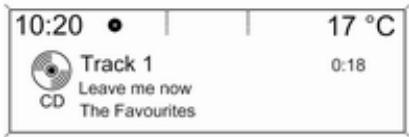
text_image
10:20 17 °C Track 1 0:18 CD Leave me now The FavouritesPress CD to open the CD or MP3 menu.
If there is a CD in the CD player, CD playback is started.
Depending on the data stored on the audio CD or MP3 CD differing information about the CD and the current music track will be shown on the display.
Inserting a CD
Insert a CD with the printed side facing up into the CD slot until it is drawn in.
Notice
If a CD is inserted, a CD symbol is shown in the top line of the display.
Changing the standard page view
(only with CD 300)
During audio CD or MP3 playback: press the multifunction knob and then select Default CD page view or Default MP3 page view.
Select the desired option.
Changing the folder level
Press ☐ or ☐ to change to a higher or lower folder level.
Skipping to the next track or previous track
Briefly press ◀◀ ▶ or ▷ ▷.
Fast forward or rewind
Press and hold ◀◀ K or ▶▶▶ to fast forward or fast rewind the current track.
Selecting tracks using the audio CD or MP3 menu
During audio CD playback
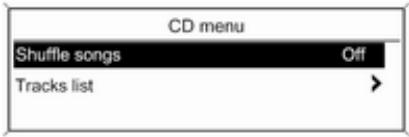
text_image
CD menu Shuffle songs Off Tracks list >Press the multifunction knob to open the audio CD related menu.
To play all tracks in random order: set Shuffle songs to On.
To select a track on the audio CD: select Tracks list and then select the desired track.
During MP3 playback
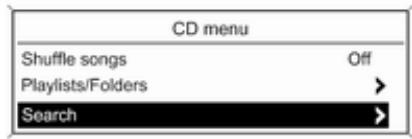
text_image
CD menu Shuffle songs Off Playlists/Folders SearchPress the multifunction knob to open the MP3 related menu.
To play all tracks in random order: set Shuffle songs to On.
To select a track from a folder or playlist: select Playlists/Folders.
Select a folder or playlist and then select the desired track.
Notice
If a CD contains both audio and MP3 data, the audio data can be selected from Playlists/Folders.
To open a menu with additional options for track search and selection: select Search. The options available depend on the data saved on the MP3 CD.
The search process on the MP3 CD may take several minutes. During this time the station last played will be received.
Removing a CD
Press ≅.
The CD is pushed out of the CD slot. If the CD is not removed after ejection, it will be drawn back in again automatically after a few seconds.
AUX input
General information 111
Usage 111
General information
In the centre console there is an AUX socket for the connection of external audio sources.
It is possible, for example, to connect a portable CD player with a 3.5 mm jack plug to the AUX input.
Notice
The socket must always be kept clean and dry.
Usage
Press AUX once or several times to activate the AUX mode.
text_image
10:20 17 °C AUXAn audio source that is connected to the AUX input can be operated only via the control elements of the audio source.
USB port
General information ...... 112
Playing saved audio files ..... 112
General information
In the centre console there is a USB socket for the connection of external audio data sources.
Devices connected to the USB port are operated via the controls and menus of the Infotainment system.
Notice
The socket must always be kept clean and dry.
Important information
The following devices can be connected to the USB port:
■ iPod
■ Zune
■ PlaysForSure device (PFD)
■ USB drive
Notice
Not all iPod, Zune, PFD or USB drive models are supported by the Infotainment system.
Playing saved audio files

text_image
10:20 17 ℃ The Favourites Leave me now ▶ 01:22 Best of USBPress AUX once or several times to activate the USB mode.
Playback of the audio data stored on the USB device is started.
The operation of data sources connected via USB is generally the same as for an audio MP3 CD ➔ 108.
On the following pages only the aspects of operation that are different/additional are described.
Operation and the screen displays are described for USB drives only. Operation of other devices, e.g. iPod or Zune is generally the same.
Selecting tracks using the USB menu
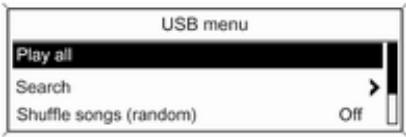
text_image
USB menu Play all Search Shuffle songs (random) OffPress the multifunction knob to open the USB related menu.
To play all tracks in succession: select Play all.
To display a menu with various additional options for track search and selection: select Search.
The search process on the USB device may take several minutes. During this time the station last played will be received.
To play all tracks in random order: set Shuffle songs (random) to On.
To repeat the currently played track: set Repeat to On.
Speech recognition
General information 114
Phone control 115
General information
The speech recognition of the Infotainment system enables you to operate the phone portal via voice input. It recognises commands and numeric sequences independently of the current speaker. The commands and numeric sequences can be spoken without a voice pause between the individual words.
You can save telephone numbers assigning a name of your choice (voice tag). Using these names, you can later set up a telephone connection.
In the event of incorrect operation or commands, the speech recognition gives you visual and/or acoustic feedback and requests you to re-enter the desired command. Apart from this, the speech recognition acknowledges important commands and will enquire if necessary.
To ensure that conversations inside the vehicle do not lead to unintentional triggering of system
functions, the speech recognition does not start until it has been activated.
Important notes on language support
■ Not all languages available for the display of the Infotainment system are also available for the speech recognition.
■ If the currently selected language for the display is not supported by the speech recognition, you must enter the voice commands in English.
To be able to enter voice commands in English, you must first activate the phone main menu by pressing PHONE on the Infotainment system, and then activate the speech recognition of the phone portal by pressing ⬆ on the steering wheel.
Phone control
Activating speech recognition
To activate the speech recognition of the Phone portal, press ⬆ on the steering wheel. For the duration of the dialogue any active audio source is muted and any traffic news fade-in is cancelled.
Adjusting the volume for voice output
Turn the volume knob on the Infotainment system, or press + or – on the steering wheel.
Cancelling a dialogue
There are various ways of deactivating the speech recognition and cancelling the dialogue:
■ Press ✅ on the steering wheel.
■ Say "Cancel".
■ Do not enter (say) any commands for some time.
■ After the third unrecognised command.
Operation
With the aid of the speech recognition the mobile phone can be operated very conveniently via voice input. It is sufficient to activate the speech recognition and to enter (say) the desired command. After input of the command the Infotainment system guides you through the dialogue with appropriate questions and feedback to achieve the desired action.
Main commands
After activation of the speech recognition a short tone signals that the speech recognition is expecting input.
Main commands available:
■ "Dial"
■ "Call"
■ "Redialing"
■ "Save"
■ "Delete"
■ "Directory"
■ "Pair"
■ "Select device"
■ "Voice feedback"
Commands that are frequently available
■ "Help": the dialogue is terminated and all commands available within the actual function are enumerated.
■ "Cancel": the speech recognition is deactivated.
■ "Yes": a suitable action is triggered depending on the context.
■ "No": a suitable action is triggered depending on the context.
Entering a telephone number
After the command "Dial" the speech recognition requests input of a number.
The telephone number must be spoken in your normal voice without any artificial pauses between the individual numbers.
Recognition works best if a pause of at least half a second is made after every three to five digits. The Infotainment system then repeats the numbers recognised.
You can then enter further numbers or the following commands:
■ "Dial": the inputs are accepted.
■ "Delete": the number last entered or the block of numbers last entered is deleted.
■ "Plus": a preceding "+" is entered for a call abroad.
■ "Verify": the inputs are repeated by the voice output.
■ "Asterisk": An asterisk "*" is entered.
■ "Hash": A hash "#" is entered.
■ "Help"
■ "Cancel"
The maximum length of the telephone number entered is 25 digits.
To be able to make a call abroad you can say the word "Plus" (+) at the beginning of your number. The plus allows you to call from any country without knowing the prefix for calls made abroad in that country. Then say the required country code.
Example of a dialogue
User: "Dial"
Voice output: "Please, say the number to dial"
User: "Plus Four Nine"
Voice output: "Plus Four Nine"
User: "Seven Three One"
Voice output: "Seven Three One"
User: "One One Nine Nine"
Voice output: "One One Nine Nine"
User: "Dial"
Voice output: "The number is being dialled"
Entering a name
Using the "Call" command a telephone number is entered that has been stored in the telephone book under a name (voice tag).
Commands available:
■ "Yes"
■ "No"
■ "Help"
■ "Cancel"
Example of a dialogue
User: "Call"
Voice output: "Please, say the nametag to call"
User:
Voice output: "Do you want to call
User: "Yes"
Voice output: "The number is being dialled"
Starting a second call
A second call can be started during an active telephone call. To do so, press _ .
Commands available:
■ "Send": activate manual DTMF (touch-tone dialling), e.g. for voice mail or telephone banking.
■ "Send nametag": activate DTMF (touch-tone dialling) by entering a name (voice tag).
■ "Dial"
■ "Call"
■ "Redialing"
■ "Help"
■ "Cancel"
Example of a dialogue
User:
User: "Send"
Voice output: "Please, say the number to send."
(for number input see the dialogue example for Entering a telephone number)
User: "Send"
Redialing
The number last dialled is redialled with the command "Redialing".
Saving
With the command "Save" a telephone number is stored in the telephone book under a name (voice tag).
The name entered must be repeated once. The pitch and pronunciation must be as identical as possible for both name inputs, otherwise the speech recognition will reject the inputs.
A maximum of 50 voice tags can be stored in the telephone book.
Voice tags are speaker-dependent, i.e. only the person who recorded a voice tag can open it.
To avoid the start of the recording of a saved name from being cut-off, a short pause should be left after an input request.
To be able to use the voice tag independently of the location, i.e. including other countries, all telephone numbers should be entered with a "plus" character and a country code.
Commands available:
■ "Save": the inputs are accepted.
■ "Verify": the last input is repeated.
■ "Help"
■ "Cancel"
Example of a dialogue
User: "Save"
Voice output: "Please, say the number to save"
(for number input see the dialogue example for Entering a telephone number)
User: "Save"
Voice output: "Please, say the nametag to save"
User:
Voice output: "Please, repeat the nametag to confirm"
User:
Voice output: "Saving the nametag"
Deleting
A previously saved voice tag is deleted with the command "Delete".
Commands available:
■ "Yes"
■ "No"
■ "Help"
■ "Cancel"
Listening to stored names
The voice output of all stored names (voice tags) is started with the command "Directory".
Commands available during voice output of the voice tags:
■ "Call": the telephone number of the voice tag last read aloud is selected.
■ "Delete": the entry of the voice tag last read aloud is deleted.
Saving a mobile phone to or deleting it from the device list
With the command "Pair" a mobile phone can be saved to or deleted from the device list of the Phone portal ➞ 120.
Commands available:
■ "Add"
■ "Delete"
■ "Help"
■ "Cancel"
Example of a dialogue
User: "Pair"
Voice output: "Do you want to add or delete a device?"
User: "Add"
Voice output: "Using the pair function in the external device, enter <1234> to pair."
Voice output: "Do you want to pair the device?"
User: "Yes"
Voice output: "The device is connected as the number
Selecting a mobile phone from the device list
Using the "Select device" command, a mobile phone can be selected in the device list for setting up a Bluetooth connection.
Example of a dialogue
User: "Select device"
Voice output: "Please, say a device number to select"
User:
Voice output: "Do you want to select the device number
User: "Yes"
Voice output: "Do you want to pair the device?"
User: "Yes"
Voice output: "One moment. The system searches for the selected device"
Voice output: "Device number
Voice feedback
Each voice input is answered or commented on by the Infotainment system by way of a voice output that is adapted to the situation.
To switch the voice output on or off, enter "Voice feedback" or press ⌘.
Phone
General information ...... 119
Bluetooth connection 120
Emergency call 124
Operation 125
Mobile phones and CB radio equipment 128
General information
The Phone portal provides you with the possibility of having mobile phone conversations via a vehicle microphone and the vehicle loudspeakers as well as operating the most important mobile phone functions via the Infotainment system in the vehicle. To be able to use the Phone portal, the mobile phone has to be connected with it via Bluetooth. The Phone portal can be operated optionally via the speech recognition system.
Not all Phone portal functions are supported by every mobile phone. The possible phone functions depend on the relevant mobile phone and network provider. You will find further information on this in the operating instructions for your mobile phone or you can enquire about them with your network provider.
Important information for operation and traffic safety
⚠ Warning
Mobile phones have effects on your environment. For this reason safety regulations and directions have been prepared. You should be familiar with the related directions before you use the telephone function.
⚠ Warning
Use of the hands-free facility while driving can be dangerous because your concentration is reduced when telephoning. Park your vehicle before you use the hands-free facility. Follow the stipulations of the country in which you find yourself at present.
Do not forget to follow the special regulations that apply in specific areas and always switch off the mobile phone if the use of mobile
phones is prohibited, if interference is caused by the mobile phone or if dangerous situations can occur.
Bluetooth
The Phone portal is certified by the Bluetooth Special Interest Group (SIG).
You will find further information about the specification on the Internet at http://www.bluetooth.com
Operating the speech recognition
Do not use the speech recognition in emergencies, because in stress situations your voice can change so much that it can no longer be recognised sufficiently to set up the desired connection quickly enough.
Bluetooth connection
Bluetooth is a radio standard for the wireless connection of, e.g., a telephone with other devices. Information such as a telephone
book, call lists, the network operator's name and field strength can be transferred. The functionality can be restricted depending on the telephone type.
To be able to set up a Bluetooth connection with the Phone portal, the Bluetooth function of the mobile phone must be activated and the mobile phone must be set to "visible". For further information, please refer to the operating instructions for the mobile phone.
Bluetooth menu
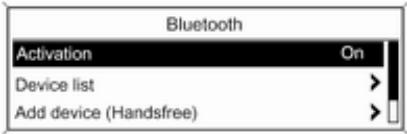
text_image
Bluetooth Activation On Device list > Add device (Handsfree)Press CONFIG.
Select Phone settings and then Bluetooth.
Activating Bluetooth
If the Bluetooth function of the Phone portal is deactivated: set Activation to On and confirm the subsequent message.
Device list
When a mobile phone is connected to the Phone portal via Bluetooth for the first time, the mobile phone is stored in the device list.
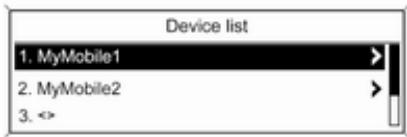
text_image
Device list 1. MyMobile1 2. MyMobile2 3. <>A maximum of 5 mobile phones can be stored in the device list.
Connecting a mobile phone for the first time
There are two options for connecting a mobile phone to the Phone portal: by adding it as a handsfree device or by using the SIM Access Profile (SAP).
Handsfree mode
When the mobile phone is added as a handsfree device, the user can make or receive calls and use other functions via the Phone portal. The range of functions available depends on the mobile phone. While it is connected with the Phone portal, the mobile phone can be operated as usual. Note that the mobile phone battery may discharge at a higher speed than usual due to the Bluetooth connection being active along with normal operation of the mobile phone.
SAP mode
When using the SAP option, a wider range of functions is available via the Phone portal, e.g. various security and messaging options. The actual
range of functions depends on the network provider. Additionally, in SAP mode the mobile phone is in the standby mode. Only the Bluetooth connection and the SIM card are active, which leads to lower energy consumption of the connected mobile phone.
Connecting a mobile phone as a handsfree device
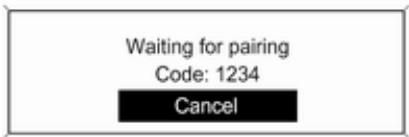
text_image
Waiting for pairing Code: 1234 CancelSelect Add device (Handsfree). The Bluetooth code to be entered into the mobile phone is displayed.
The Phone portal can now be detected by other Bluetooth devices.
As soon as the mobile phone has detected the Phone portal the Bluetooth code can be entered into the mobile phone.
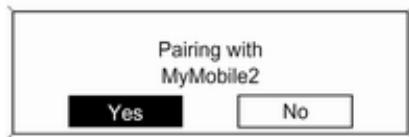
text_image
Pairing with MyMobile2 Yes NoAs soon as the Phone portal has detected the mobile phone, the connection set-up can be confirmed. The mobile phone is adopted in the device list and can be operated via the Phone portal.
Changing the Bluetooth code
(only relevant for handsfree mode)
The first time a Bluetooth connection to the Phone portal is set up, a default code is displayed. This default code
can be changed at any time. For security reasons a four-digit, randomly selected code must be used for pairing devices.

text_image
Change Bluetooth code 1234 0 1 2 3 4 5 6 7 8 9 + * # | * | Ctr | OKSelect Change Bluetooth code. On the menu displayed, edit the actual Bluetooth code and accept the modified code using OK.
Connecting a mobile phone via SIM Access Profile (SAP)
Select Add SIM access device.
The Phone portal scans for available devices and displays a list of devices found.
Notice
The mobile phone must have Bluetooth activated and be set to visible.

text_image
Devices found SGH-J700 E50 MyMobile03Select the desired mobile phone from the list. The SAP passcode prompt is shown on the Infotainment display containing a 16-digit code.
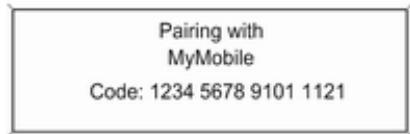
text_image
Pairing with MyMobile Code: 1234 5678 9101 1121Enter the displayed SAP passcode in the mobile phone (without spaces). The mobile phone PIN code is shown on the Infotainment display.
If the PIN request function is active, the user will have to enter the PIN code of the SIM card in the mobile phone.

text_image
Enter PIN code •••| 0 1 2 3 4 5 6 7 8 9 + * # | * | Ctr | OKEnter the PIN code of the mobile phone SIM. The mobile phone is paired with the Phone portal. Services of the mobile network provider can be used via the Phone portal.
Connecting a mobile phone saved in the device list
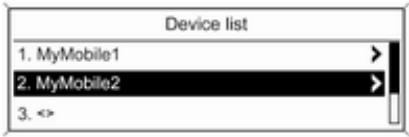
text_image
Device list 1. MyMobile1 2. MyMobile2 3. <>Select the desired mobile phone and then select Select in the menu displayed.
As soon as the Phone portal has detected the mobile phone, the connection set-up can be confirmed.
The mobile phone can be operated via the Phone portal.
Removing mobile phone from device list
Select the desired mobile phone from the device list. In the menu displayed select Delete and confirm the subsequent message.
Setting up a connected phone
Various mobile phone settings can be configured in the Phone settings menu, if the phone is connected via SAP.
Adjusting the ring tone
To change the ring tone characteristic:
Press CONFIG.
Select Phone settings and then Ring tone.
Select the desired option.
To change the ring tone volume:
While the phone rings, turn ⏻ of the Infotainment system or press + or – on the steering wheel.
Changing security settings Press CONFIG.
Select Phone settings and then Security.
The security dialogue is displayed.
Activating/Deactivating PIN request Select PIN request On or Off.
Enter the PIN code of the mobile phone SIM card and confirm.
Notice
This option depends on the individual network provider.
Changing the PIN code
Select Change PIN.
Enter the current PIN code. Enter the new PIN code. Repeat the new PIN code and confirm. The PIN has been changed.
Configuring network services
Select Phone settings and then Network services. The Network services dialogue is displayed.
Depending on the network provider and mobile phone there are several options available.
■ Network selection: choose between automatic or manual network selection.
■ Call waiting: activate or deactivate call waiting.
■ Call diverting: select diverting options depending on the situation.
■ Call barring: configure call barring options depending on the situation.
For details on network services configuration, refer to the operating instructions for the mobile phone or enquire with the mobile network provider.
Configuring SMS centre number
The SMS centre number is a phone number that acts as a gateway for transferring SMS messages between mobile phones. This number is usually preset by the network provider.
To configure the SMS centre number select Phone settings and then SMS centre number. If required, modify the SMS centre number.
Resetting the mobile phone to factory settings
Select Phone settings and then Restore factory settings.
Emergency call
⚠ Warning
Connection setup cannot be guaranteed in all situations. For this reason you should not rely exclusively on a mobile phone when a vitally important communication (e.g. a medical emergency) is concerned. In some networks it may be necessary for a valid SIM card to be properly inserted in the mobile phone.
⚠ Warning
Bear in mind that you can make and receive calls with the mobile phone, if it is in a service area with a sufficiently strong signal. Under
certain circumstances emergency calls cannot be made on all mobile phone networks; it is possible that they cannot be made when certain network services and/or telephone functions are active. You can enquire about this with the local network operators.
The emergency call number can differ depending on the region and country. Please enquire beforehand about the correct emergency call number for the relevant region.
Making an emergency call
Dial the emergency call number (e.g. 112).
The telephone connection to the emergency call centre is set up.
Answer when the service personnel questions you about the emergency.
⚠ Warning
Do not end the call until you are requested to do so by the emergency call centre.
Operation
Introduction
As soon as a connection via Bluetooth has been set up between your mobile phone and the Infotainment system, you can also operate many functions of your mobile phone via the Infotainment system.
Via the Infotainment system, you can, e.g., set up a connection to the telephone numbers stored in your mobile phone or change the telephone numbers.
Notice
In the handsfree mode, mobile phone operation is still possible, e.g. taking a call or adjusting the volume.
After setup of a connection between the mobile phone and the Infotainment system the mobile phone data is transmitted to the Infotainment system. This can take some time depending on the phone model. During this period operation of the mobile phone is possible via the Infotainment system only to a limited extent.
Not every telephone supports all functions of the Phone portal. Therefore deviations from the range of functions described with these specific telephones are possible.
Setting the volume for hands-free facility
Turn ⏻ on the Infotainment system or press + or – on the steering wheel.
Dialling a telephone number
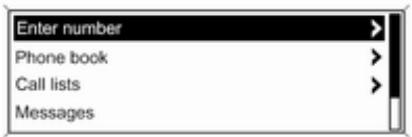
text_image
Enter number Phone book Call lists MessagesWith the telephone main menu active, press the multifunction knob to open the phone operation menu.
Several options for dialling telephone numbers, for using the phone book and call lists, for viewing and editing messages are available.
Using the Phone off command the connected phone can be detached from the Phone portal.
Entering a number manually
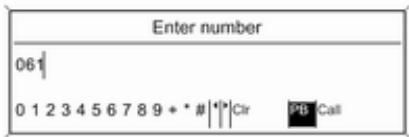
text_image
Enter number 061| 0 1 2 3 4 5 6 7 8 9 + * # | |* | Ctr PB CallSelect Enter number and then enter the desired number sequence.
Select Call to start the dialling process.
You can switch to the telephone book menu by selecting PB.
Telephone book
After setting up the connection the telephone book is compared with the telephone book in the temporary memory, provided that the same SIM card or same telephone is connected. During this period any newly added entries are not displayed.
If the SIM card or telephone are different, the telephone book is reloaded. This process can take a few minutes depending on the phone model.
Selecting a telephone number from the telephone book
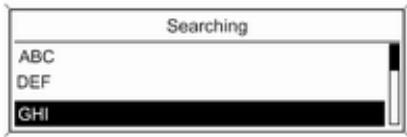
text_image
Searching ABC DEF GHISelect Phone book. In the displayed menu select the desired first letter range to start a preselection of the telephone book entries that you want to have displayed.
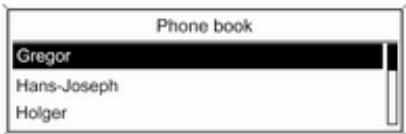
text_image
Phone book Gregor Hans-Joseph HolgerNotice
Telephone book entries are carried over as they are transferred from the mobile phone. The presentation and order of the telephone book entries may be different on the Infotainment system's display and the mobile phone's display.
After having performed the preselection: select the desired entry in the telephone book to display the numbers saved under this entry.
Select the desired number to start the dialling process.
Call lists
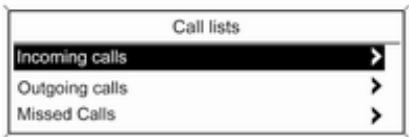
text_image
Call lists Incoming calls > Outgoing calls > Missed Calls >Via the menu Call lists the user can view incoming, outgoing and missed calls and dial the relevant numbers. To start a dialling process: select the desired call list, an entry in the call list and finally the desired telephone number.
Messaging functions
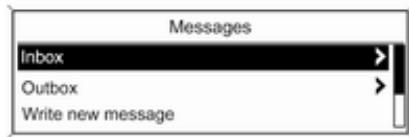
text_image
Messages Inbox Outbox Write new messageWhen the mobile phone is paired using the SAP mode, the user can view, compose and send messages via the Phone portal. The messages can also be deleted in this menu.
To view received messages: select Inbox.
To view sent messages: select Outbox.
To compose a message: select Write new message.
Notice
Messages are limited to 70 characters.
Incoming call
When there is an incoming call a menu is displayed to accept or decline the telephone call.
Select required option.
Functions during a telephone call
If you currently have a telephone call, press the multifunction knob to open a submenu.
Various options are available depending on the situation and range of functions of the mobile phone:
■ Hang up: disconnect the telephone connection.
■ Call number: enter a telephone number to make a second telephone call or perform DTMF (touch-tone dialling), e.g. for voice mail or telephone banking.
■ Detach call: detach the connection to a conference participant in a telephone conference.
■ Merge calls: merge two calls when there are several active calls.
■ Switch calls: switch between calls, if there are several calls.
■ Mute call: mute a call.
Mobile phones and CB radio equipment
Installation instructions and operating guidelines
The vehicle specific installation instructions and the operating guidelines of the mobile phone and handsfree manufacturer must be observed when installing and operating a mobile telephone. Failure to do so could invalidate the vehicle type approval (EU directive 95/54/EC).
Recommendations for fault-free operation:
■ The exterior antenna needs to be professionally installed to obtain the maximum range possible.
■ Maximum transmission power: 10 watts.
■ The mobile phone needs to be installed in a suitable spot. Consider relevant note in the Owner's manual, section Airbag system.
Seek advice on predetermined installation points for the external antenna or equipment holder and ways of using devices with a transmission power exceeding 10 watts.
Use of a handsfree attachment without external antenna with mobile telephone standards GSM 900/1800/1900 and UMTS is only permitted if the maximum transmission power of the mobile telephone is 2 watts for GSM 900 or 1 watt for the other types.
For reasons of safety, do not use the phone while driving. Even use of a handsfree set can be a distraction while driving.
⚠ Warning
Operation of radio equipment and mobile telephones which fail to meet above mentioned mobile telephone standards is only permitted using an antenna located outside of the vehicle.
Caution
Mobile telephones and radio equipment may lead to malfunctions in the vehicle electronics when operated inside the vehicle with no exterior antenna, unless the above mentioned regulations are observed.
Index
A
Activating CD player.... 108
Activating speech recognition..... 115
Activating the radio.... 98
Autostore lists.... 99
B
BACK button....91
Basic operation.... 91
Bluetooth.... 119
Bluetooth connection.... 120
C
CD player activating.... 108
important information...... 107
usage.... 108
Configuring DAB...... 105
Configuring RDS.... 103
Control elements overview...... 84
D
DAB....105
Digital audio broadcasting...... 105
E
Emergency call.... 124
Enhanced Other Networks..... 103
EON....103
F
Favourite lists.... 99
G
General information..... 82, 107, 111, 112, 114, 119
H
Handsfree mode.... 120
|
Infotainment system maximum startup volume...... 97
speed dependent volume...... 97
tone settings.... 95
volume of the traffic announcements....97
volume settings.... 97
M
Menu operation.... 91
Mobile phones and CB radio equipment 128
Multifunction knob....91
Mute....90
O
Operation.... 125
P
Phone
adjusting ring tones.... 120
Bluetooth.... 119
Bluetooth connection...... 120
call lists.... 125
control elements...... 119
dialling a number.... 125
emergency calls.... 124
functions during a call...... 125
handsfree mode.... 120
important information...... 119
messaging functions...... 125
recharging the battery...... 119
setting the volume.... 125
SIM Access Profile (SAP)...... 120
telephone book...... 125
Phone control.... 115
Playing saved audio files...... 112
R
Radio
Radio data system (RDS)...... 103
activating....98
autostore lists.... 99
Digital audio broadcasting
(DAB).... 105
favourite lists.... 99
selecting the waveband.... 98
station lists.... 100
station search...... 98
usage....98
waveband menus.... 100
Radio data system (RDS) ...... 103
RDS....103
Recharging the phone battery.... 119
Regionalization.... 103
Retrieving stations.... 99
S
SAP mode.... 120
Selecting the waveband.... 98
Setting the volume....90
SIM Access Profile (SAP)...... 120
Speech recognition...... 114, 115
activating.... 115
phone control.... 115
usage.... 115
volume for voice output...... 115
Speed compensated volume...... 90
Starting CD playback...... 108
Station search...... 98
Storing stations....99
Switching the Infotainment
system on or off....90
Switching the radio on.... 98
T
Theft-deterrent feature 83
Tone settings.... 95
Traffic announcements...... 97
U
Updating station lists...... 100
Usage....90, 98, 108, 111
Using the AUX input...... 111
Using the CD player.... 108
Using the Infotainment system..... 90
Using the radio....98
Using the USB port...... 112
V
Voice recognition.... 114
Volume for voice output...... 115
Volume settings.... 97
W
Waveband menus...... 100
CD 400plus (2)
Introduction 134
Radio 144
CD Player 153
AUX input 156
USB port 157
Bluetooth music 160
Phone 162
Index 170
Introduction
General information 134
Theft-deterrent feature .... 135
Control elements overview ..... 136
Usage 139
Basic operation 140
Tone settings 142
Volume settings 143
General information
The Infotainment system provides you with state-of-the-art in-car infotainment.
Using the FM, AM or DAB radio functions, you may register up to 36 stations on six favourites pages.
The integrated audio player will entertain you with audio CDs and MP3/WMA CDs.
You can connect external data storage devices, e.g. iPod, MP3 player, USB stick, or a portable CD player to the Infotainment system as further audio sources; either via cable or via Bluetooth.
In addition, the Infotainment system is equipped with a Phone portal that allows for comfortable and safe use of your mobile phone in the vehicle.
Optionally, the Infotainment system can be operated using controls on the steering wheel.
The well-thought-out design of the control elements and the clear displays enable you to control the system easily and intuitively.
Notice
This manual describes all options and features available for the various Infotainment systems. Certain descriptions, including those for display and menu functions, may not apply to your vehicle due to model variant, country specifications, special equipment or accessories.
Display
The CD 400plus is available in two variants; noticeable difference is the display. The second variant has the following display.
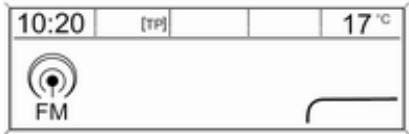
text_image
10:20 [TP] 17 °C FMImportant information on operation and traffic safety
⚠ Warning
The Infotainment system must be used so that the vehicle can be driven safely at all times. If in doubt, stop the vehicle and operate the Infotainment system while the vehicle is stationary.
Radio reception
Radio reception may be disrupted by static, noise, distortion or loss of reception due to:
■ changes in distance from the transmitter
■ multipath reception due to reflection
■ shadowing
Theft-deterrent feature
The Infotainment system is equipped with an electronic security system for the purpose of theft deterrence.
The Infotainment system therefore functions only in your vehicle and is worthless to a thief.
Control elements overview
CD 400plus

text_image
1 2 3 4 5 6 7 8 RADIO BAND CD 1 2 3 CD 400 4 5 6 TONE CONFIG AUX TP PHONE BACK INFO 18 17 16 15 14 13 12 11 10 9 FAV 1/2/3 AS 1/21 RADIO 144
Activate radio or change waveband 144
2 CD 156
Start CD/MP3/WMA playback .... 156
3 Search backwards .... 144
Radio: search backwards ... 144
CD/MP3/WMA: skip track backwards 154
4 Radio station buttons 1...6 .. 145
Long press: save station ..... 145
Short press: select station .. 145
5 ⏻ 139
Press: switch on/off 139
Infotainment system 139
Turn: adjust volume ...... 139
6 Search forwards ...... 144
Radio: search forwards ..... 144
CD/MP3/WMA: skip track forwards 154
7 AS 1/2 145
Automatic memory levels (preset radio stations) ..... 145
Short press: select autostore list .... 145
Long press: save stations automatically 145
8 FAV 1/2/3 145
Lists of favourites (preset radio stations) 145
9 TP 149
Activate or deactivate radio traffic service .... 149
If Infotainment system is switched off: display time and date 149
10 CD ejection 154
11 CONFIG 143
Open settings menu ...... 143
12 INFO 136
Radio: information on the currently played station ..... 144
CD/MP3/WMA: information on the currently inserted CD .... 154
13 Multifunction knob .... 140
Turn: mark menu options or set numeric values ...... 140
Press: select/activate the marked option; confirm set value; switch function on/off 140
14 CD slot 154
15 BACK 140
Menu: one level back ..... 140
Input: delete last character or entire entry 140
16 TONE 142
Tone settings 142
17 PHONE 162
Open telephone main menu 165
Activate mute 139
18 AUX 156
Change audio source ..... 156
Steering wheel audio controls
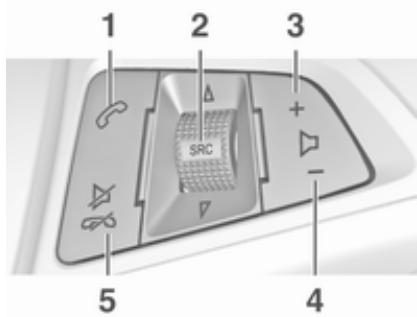
text_image
1 2 3 SRC + - 4 51
Short press: take phone call 162
or dial number in call list ..... 165
Long press: show call list .... 165
2 SRC (Source) 139
Press: select audio source .. 139
With radio active: turn
upwards/downwards to
select next/previous
preset radio station ..... 144
With CD player active: turn upwards/downwards to select next/previous CD/MP3/WMA track 154
With Phone portal active: turn upwards/downwards to select next/previous entry in call list 165
With Phone portal active and calls waiting: turn upwards/downwards to switch between calls .... 165
3 +
Increase volume 139
4 -
Reduce volume ...... 139
5
Short press: end/decline call 165
or close call list 165
or activate/deactivate mute. 139
Usage
Control elements
The Infotainment system is operated via function buttons, a multifunction knob and menus that are shown on the display.
Inputs are made optionally via:
■ the control panel on the Infotainment system ➔ 136
■ audio controls on the steering wheel ➔ 136
Switching the Infotainment system on or off
Press ⏻ briefly. After switching on, the last selected Infotainment source becomes active.
Press ⏻ again to turn the system off.
Automatic switch-off
If the Infotainment system is switched on pressing ⏻ while the ignition is turned off, it will switch off again automatically 10 minutes after the last user input.
Setting the volume
Turn ⏻. The current setting is shown on the display.
When the Infotainment system is switched on, the last selected volume is set, provided this setting is lower than the maximum start-up volume (see below).
The following inputs can be made separately:
■ the maximum start-up volume
⇨ 143
■ the volume of traffic announcements ➔ 143
Speed compensated volume
When speed compensated volume is activated 143, the volume is adapted automatically to make up for the road and wind noises as you drive.
Mute function
Press PHONE (if Phone portal available: press for a few seconds) to mute the audio sources.
To cancel the mute function: turn ⏻ or press PHONE (if Phone portal available: press for a few seconds).
Volume limitation at high temperatures
At very high temperatures inside the vehicle the Infotainment system limits the maximum adjustable volume. If necessary, the volume is decreased automatically.
Modes of operation
Radio
Press RADIO to open the radio main menu or to change between the different wavebands.
Press the multifunction knob to open the waveband menus with options for the station selection.
For a detailed description of the radio functions 144.
Audio players
Press CD or AUX once or several times to open the USB, iPod or AUX main menu (if available) or to switch between these menus.
Press the multifunction knob to open the relevant menus with options for the track selection.
For a detailed description of CD player functions 153, AUX functions 156, USB port functions 157 and Bluetooth music functions 160.
Phone
Press PHONE briefly to open the telephone menu.
Press the multifunction knob to open the phone menu with options for the input and selection of numbers.
For a detailed description of the Phone portal ➔ 162.
System settings
Adjusting the language
The menu texts on the Infotainment system's display can be displayed in various languages.
Press CONFIG to open the Settings menu.
Select Languages in the Settings menu to display the respective menu.
Choose the desired language for the menu texts.
Notice
For a detailed description of menu operation 140.
Time and date settings
For a detailed description, refer to your Owner's manual.
Basic operation
Multifunction knob
The multifunction knob is the central control element for the menus.
Turn the multifunction knob:
■ to mark a menu option
■ to set a numeric value
Press the multifunction knob:
■ to select or activate the marked option
■ to confirm a set value
■ to switch a system function on/off
BACK button
Press BACK briefly:
■ to exit a menu
■ to return from a submenu to the next higher menu level
■ to delete the last character in a character sequence
Press and hold BACK for a few seconds to delete the entire entry.
Examples of menu operation
Selecting an option
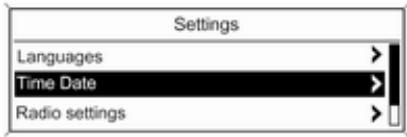
text_image
Settings Languages Time Date Radio settingsTurn the multifunction knob to move the cursor (= coloured background) to the desired option.
Press the multifunction knob to select the marked option.
Submenus
An arrow on the right-hand edge of the menu indicates that after selection of the option a submenu with further options will be opened.
Activating a setting
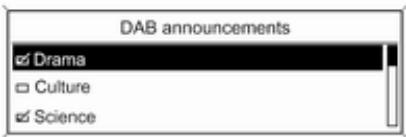
text_image
DAB announcements ✓ Drama □ Culture ✓ ScienceTurn the multifunction knob to mark the desired setting.
Press the multifunction knob to activate the setting.
Setting a value
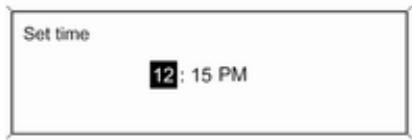
text_image
Set time 12: 15 PMTurn the multifunction knob to change the current value of the setting.
Press the multifunction knob to confirm the set value.
The cursor then switches to the next value. If all values are set, you are automatically returned to the next higher menu level.
Adjusting a setting
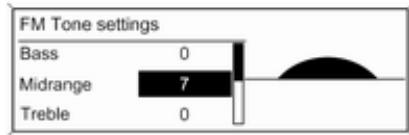
text_image
FM Tone settings Bass 0 Midrange 7 Treble 0Turn the multifunction knob to adjust the setting.
Press the multifunction knob to confirm the setting.
Switching a function on or off
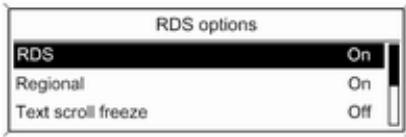
text_image
RDS options RDS On Regional On Text scroll freeze OffTurn the multifunction knob to mark the function to be switched on or off. Press the multifunction knob to switch between the settings On and Off.
Entering a character sequence
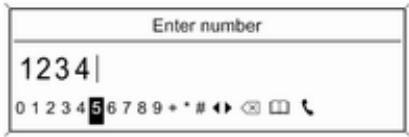
text_image
Enter number 1234| 0 1 2 3 4 5 6 7 8 9 + * # ↔ × 📞To enter character sequences, e.g. PIN codes or telephone numbers:
Turn the multifunction knob to mark the desired character.
Press the multifunction knob to confirm the marked character.
The last character in the character sequence can be deleted by selecting ✗ on the display or pressing BACK on the instrument panel. Pressing and holding BACK deletes the entire entry.
To change the position of the cursor in the character sequence already entered, select ◀ or ▶ on the display.
Tone settings
In the tone settings menu the tone characteristics can be set differently for each radio waveband and each audio player source.
Press TONE to open the tone settings menu.
Setting bass, midrange, and treble
Scroll through the list and select Bass, Midrange or Treble.
Set the desired value for the selected option.
Setting the volume distribution between front and rear
Scroll through the list and select Fader.
Set the desired value.
Setting the volume distribution between right and left
Scroll through the list and select Balance.
Set the desired value.
Selecting a tone style
Scroll through the list and select EQ (Equaliser). The EQ presets menu is displayed.
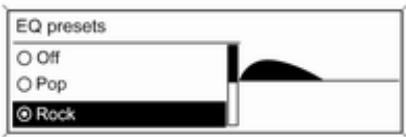
text_image
EQ presets ○ Off ○ Pop ● RockThe displayed options offer optimised bass, middle, and treble presettings for the relevant style of music.
Select the desired option.
Setting an individual setting to "0"
Select the desired option and press the multifunction knob for a few seconds.
The value is reset to "0".
Setting all settings to "0" or "OFF"
Press TONE for a few seconds.
All values are reset to "0", the EQ preset is set to "OFF".
Volume settings
Adjusting the speed compensated volume
Press CONFIG to open the Settings menu.
Select Radio settings and then Auto volume control.
The Auto volume control function can be deactivated or the degree of the volume adaptation can be selected in the menu displayed.
Select the desired option.
Adjusting the maximum startup volume
Press CONFIG to open the Settings menu.
Select Radio settings and then Maximum startup volume.
Set the desired value.
Adjusting the volume of traffic announcements
The volume of traffic announcements can be preset to increase or decrease in proportion to the normal audio volume.
Press CONFIG to open the Settings menu.
Select Radio settings, RDS options and then TA volume.
Set the desired value.
Adjusting the volume of the ring tone
Press CONFIG to open the Settings menu.
Select Phone settings, Sound & Signals and then Ring Volume.
Set the desired value.
Radio
Usage 144
Station search 144
Autostore lists 145
Favourite lists 145
Waveband menus 146
Radio data system (RDS) ...... 149
Digital audio broadcasting ..... 150
Usage
Activating the radio
Press RADIO to open the radio main menu.
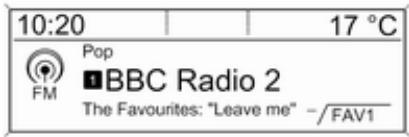
text_image
10:20 17 °C Pop ■ BBC Radio 2 The Favourites: "Leave me" - /FAV1The station last played will be received.
Selecting the waveband
Press RADIO once or several times to select the desired waveband.
The station last played in that waveband will be received.
Station search
Automatic station search
Briefly press ◀◀ K or ▷▶ to play the previous or next station in the station memory.
Manual station search
Press and hold ◀◀ ▶ or ▷ ▷. Release the respective button when the required frequency has almost been reached on the frequency display.
A search is made for the next station that can be received and it is played automatically.
Notice
Manual station search: If the radio does not find a station, it switches automatically to a more sensitive search level. If it still does not find a station, the frequency that was last active is set again.
Notice
FM waveband: when the RDS function is activated, only RDS stations 149 are searched for, and
when the radio traffic service (TP) is activated, only traffic service stations 149 are searched for.
Manual station tuning
In the radio main menu, press the multifunction knob to open the respective waveband menu and select manual tuning, e.g. FM manual tuning.
On the pop-up frequency display, turn the multifunction knob and set the optimal reception frequency.
Autostore lists
The stations received best in a waveband can be searched for and stored automatically via the autostore function.
Each waveband has 2 autostore lists (AS-Stations 1, AS-Stations 2), in each of which 6 stations can be stored.
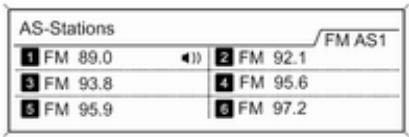
text_image
AS-Stations FM AS1 1 FM 89.0 2 FM 92.1 3 FM 93.8 4 FM 95.6 5 FM 95.9 6 FM 97.2Notice
The currently received station is marked by 🔒.
Automatic station storing
Keep AS 1-2 pressed until an autostore message is displayed. The 12 strongest stations in the current waveband will be stored in the 2 autostore lists.
To cancel the autostore procedure, press the multifunction knob.
Storing stations manually
Stations can also be stored manually in the autostore lists.
Set the station to be stored.
Briefly press AS 1-2 once or several times to switch to the desired list.
To store the station in a list position: press the corresponding station button 1...6 until a confirmation message is displayed.
Notice
Manually stored stations are overwritten in an automatic station storing process.
Retrieving a station
Briefly press AS 1-2 once or several times to switch to the desired list.
Briefly press one of the station buttons 1...6 to open the station at the corresponding list position.
Favourite lists
Stations of all wavebands can be stored manually in the favourite lists.
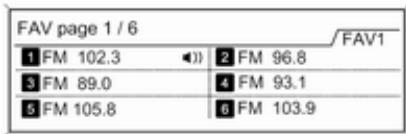
text_image
FAV page 1 / 6 1 FM 102.3 2 FM 96.8 3 FM 89.0 4 FM 93.1 5 FM 105.8 6 FM 103.9 FAV16 stations can be stored in each favourite list. The number of available favourite lists can be set (see below).
Notice
The currently received station is marked by 🔒.
Storing a station
Set the station to be stored.
Briefly press FAV 1-2-3 once or several times to switch to the desired list.
To store the station in a list position: press the corresponding station button 1...6 until a confirmation message is displayed.
Retrieving a station
Briefly press FAV 1-2-3 once or several times to switch to the desired list.
Briefly press one of the station buttons 1...6 to open the station at the corresponding list position.
Defining the number of available favourite lists
Press CONFIG to open the Settings menu.
Select Radio settings and then Radio favourites to open the menu Max. number of favourites pages.
Select the desired number of available favourite lists.
Waveband menus
Alternative facilities for station selection are available via waveband specific menus.
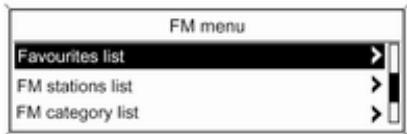
text_image
FM menu Favourites list FM stations list FM category listNotice
The following displays are shown as examples.
Stations lists
When in a radio main menu, turn the multifunction knob to open the stations list of the respective waveband.
All receivable FM, AM or DAB stations in the current reception area are displayed.
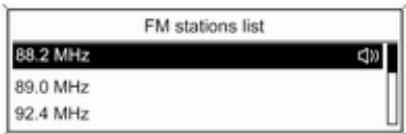
text_image
FM stations list 88.2 MHz 89.0 MHz 92.4 MHzNotice
If no station list has been created beforehand, the Infotainment system performs an automatic station search.
Select the desired station.
Notice
The currently received station is marked by 🔒.
Updating the stations lists
When in a radio main menu, press the multifunction knob to open the relevant waveband menu.
If the stations stored in the waveband-specific station list can no longer be received:
Select the menu item update stations list in the respective waveband menu, e.g. Update FM stations list.
A station search is started. Once the search is completed, the station last received will be played.
To cancel the station search: press the multifunction knob.
Notice
If the Infotainment system features a dual tuner, the stations lists are continuously updated in the background. No manual update is required.
Notice
If a waveband-specific station list is updated, the corresponding category list is also updated.
Favourites list
Being in a radio main menu, press the multifunction knob to open the relevant waveband menu.
Select Favourites list. All stations saved in the favourite lists are displayed.
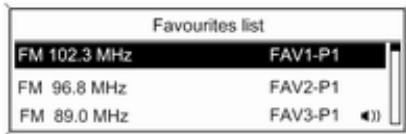
text_image
Favourites list FM 102.3 MHz FAV1-P1 FM 96.8 MHz FAV2-P1 FM 89.0 MHz FAV3-P1Select the desired station.
Notice
The currently received station is marked by 🔒.
Category lists
Numerous RDS 149 and DAB 150 stations broadcast a PTY code, which specifies the type of programme transmitted (e.g. news). Some stations also change the PTY code depending on the content currently being transmitted.
The Infotainment system stores these stations, sorted by programme type, in the corresponding category list.
To search for a programme type determined by station: select the waveband specific category list option.
A list of programme types currently available is displayed.

text_image
FM category list Science (2) Entertainment (7) Pop (12)Select the desired programme type. A list of stations is displayed that transmit a programme of the selected type.
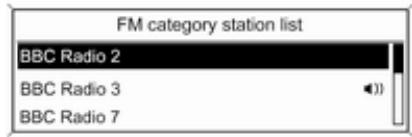
text_image
FM category station list BBC Radio 2 BBC Radio 3 BBC Radio 7Select the desired station.
The category list is updated, too, when the corresponding waveband specific station list is updated.
Notice
The currently received station is marked by 🔒.
DAB announcements
Besides their music programmes, numerous DAB stations ➔ 150 broadcast various announcement categories.
The currently received DAB service (programme) is interrupted when any announcement of previously activated categories is pending.
Activating announcement categories Being in the DAB menu, select DAB announcements to display the respective menu.

text_image
DAB announcements ✓ Drama □ Culture ✓ ScienceActivate the desired announcement categories.
Several announcement categories can be selected at the same time.
Notice
The following options are only available, if RDS is set to On.
Radio data system (RDS)
RDS is a service of FM stations that considerably facilitates the finding of the desired station and its fault-free reception.
Advantages of RDS
■ On the display, the programme name of the set station appears instead of its frequency.
■ During a station search, the Infotainment system tunes in to RDS stations only.
■ The Infotainment system always tunes into the best receivable broadcasting frequency of the set station by means of AF (Alternative Frequency).
■ Depending on the station that is received, the Infotainment system displays radio text that can contain, e.g. information about the current programme.
Configuring RDS
Press CONFIG to open the Settings menu.
Select Radio settings and then RDS options.
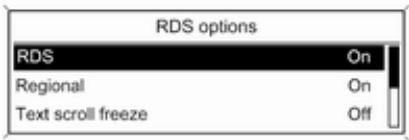
text_image
RDS options RDS On Regional On Text scroll freeze OffSet RDS to On or Off.
Notice
If RDS is switched off, it will be automatically switched on again when a radio station is changed (by search function or preset button).
Notice
The following options are only available, if RDS is set to On.
RDS options
Switching regionalisation on and off At certain times some RDS stations broadcast regionally different programmes on different frequencies.
Set Regional to On or Off.
If regionalisation is switched on, only alternative frequencies (AF) with the same regional programmes are selected.
If regionalisation is switched off, alternative frequencies of the stations are selected without regard to regional programmes.
RDS scrolling text
Some RDS stations hide the programme name in the display line in order to display additional information.
To prevent additional information being displayed:
Set Text scroll freeze to On.
Radio text
If the RDS function is activated and a RDS station is currently received, information about the current programme and the music track currently playing are displayed below the programme name.
To show or hide the information, set Radio text to On or Off.
TA volume
The volume of traffic announcements (TA) can be preset. For a detailed description 143.
Radio traffic service
(TP = Traffic Programme)
Radio traffic service stations are RDS stations that broadcast traffic news.
Switching the radio traffic service on and off
To switch the traffic announcement standby facility of the Infotainment system on and off:
Press TP.
■ If the radio traffic service is switched on, [ ] is displayed in the radio main menu.
■ Only radio traffic service stations are received.
■ If the current station is not a radio traffic service station, a search is started automatically for the next radio traffic service station.
■ If a radio traffic service station has been found, [TP] is displayed in the radio main menu.
■ Traffic announcements are played at the preset TA volume ➔ 143.
■ If the radio traffic service is switched on, CD/MP3 playback is interrupted for the duration of the traffic announcement.
Listening to traffic announcements only
Switch on the radio traffic service and completely turn down the volume of the Infotainment system.
Blocking out traffic announcements
To block out a traffic announcement, e.g. during CD/MP3 playback:
Press TP or the multifunction knob to confirm the cancelling message on the display.
The traffic announcement is cancelled, but the radio traffic service remains switched on.
Digital audio broadcasting
Digital audio broadcasting (DAB) is an innovative and universal broadcast system.
DAB stations are indicated by the programme name instead of the broadcasting frequency.
text_image
10:20 17 °C DAB ■BBC Radio 1 BBC Regional DAB -√FAV1General information
■ With DAB, several radio programmes (services) can be broadcasted on a single frequency (ensemble).
■ Besides high-quality digital audio services, DAB is also able to transmit programme-associated data and a multitude of other data services including travel and traffic information.
■ As long as a given DAB receiver can pick up the signal sent out by a broadcasting station (even if the signal is very weak), sound reproduction is ensured.
■ There is no fading (weakening of the sound that is typical of AM or FM reception). The DAB signal is reproduced at a constant volume.
■ If the DAB signal is too weak to be picked up by the receiver, reception is interrupted completely. This incident can be avoided by activating Auto ensemble linking and/or Auto linking DAB-FM in the DAB settings menu.
■ Interference caused by stations that are on nearby frequencies (a phenomenon that is typical of AM and FM reception) does not occur with DAB.
■ If the DAB signal is reflected by natural obstacles or buildings, the reception quality of DAB is improved, whereas AM or FM reception is considerably impaired in such cases.
■ When DAB reception is enabled, the FM tuner of the Infotainment system remains active in the background and continually searches for the best receivable FM stations. If TP 149 is activated, traffic announcements of the FM station which is currently best receivable are issued. Deactivate TP, if DAB reception should not be interrupted by FM traffic announcements.
Configuring DAB
Press CONFIG.
Select Radio settings and then DAB settings.
The following options are available in the configuration menu:
Auto ensemble linking
With this function activated, the device switches over to the same service (programme) on another DAB ensemble (frequency) when the DAB signal is too weak to be picked up by the receiver.
Set the function to On or Off.
Auto linking DAB-FM
With this function activated, the device switches over to a corresponding FM station of the active DAB service when the DAB signal is too weak to be picked up by the receiver.
Set the function to On or Off.
Dynamic audio adaption
With this function activated, the dynamic range of the DAB signal is reduced. That means the level of the loud sounds is reduced and the level of the quiet sounds is increased. Therefore, the volume of the Infotainment system can be raised to
a point where the quiet sounds are audible, without the loud sounds being too loud.
Set the function to On or Off.
Band selection
Select Band selection to display the respective menu.
To define which DAB wavebands are to be received by the Infotainment system, activate one of the options:
L-Band: 1452 - 1492 MHz, earth and satellite radio
Band III: 174 - 240 MHz, earth radio Both
CD Player
General information 153
Usage 154
General information
The Infotainment system's CD player can play audio CDs and MP3/WMA CDs.
Important information
Caution
Under no circumstances place single-CDs with a diameter of 8 cm or shaped CDs in the audio player.
You must not put any stickers on CDs. These discs can get jammed in the CD drive and ruin the player. Replacement of the device will then be necessary.
■ The following CD formats can be used:
CD-ROM Mode 1 and Mode 2
CD-ROM XA Mode 2, Form 1 and Form 2
■ The following file formats can be used:
ISO 9660 Level 1, Level 2 (Romeo, Joliet)
MP3 and WMA files written in any format other than listed above may not play correctly and their file names and folder names may not be displayed correctly.
■ Audio CDs with copy protection, which are not in compliance with the audio CD standard, may not play correctly or not at all.
■ Self-recorded CD-Rs and CD-RWs are more vulnerable to mishandling than prerecorded CDs. Correct handling, especially in the case of self-recorded CD-Rs and CD-RWs, must be ensured (see below).
■ Self-recorded CD-Rs and CD-RWs may not play correctly or not at all. In such cases it is not the equipment that is at fault.
■ On mixed mode CDs (audio tracks and compressed files, e.g. MP3, are stored), the audio tracks part and the compressed files part can be played separately.
■ Avoid leaving fingerprints when you change CDs.
■ Put CDs back in their sleeves immediately after removing them from the CD player in order to protect them from damage and dirt.
■ Dirt and liquids on CDs can smear the lens of the CD player inside the device and cause faults.
■ Protect CDs from heat and direct sunlight.
■ The following restrictions apply to MP3/WMA CDs:
Bit rate: 8 kbit/s - 320 kbit/s.
Sampling frequency: 48 kHz, 44.1 kHz, 32 kHz (for MPEG-1) and 24 kHz, 22.05 kHz, 16 kHz (for MPEG-2).
■ The following restrictions apply to the data stored on an MP3/WMA CD:
Number of tracks: max. 999.
Number of tracks per folder level: max. 512.
Folder structure depth: max. 10 levels.
Notice
This chapter deals only with playing MP3 files since the operation for MP3 and WMA files is identical. When a CD with WMA files is loaded MP3 related menus are displayed.
Usage
Starting CD playback
Press CD once or several times to open the CD or MP3 main menu.

text_image
10:20 • | 17 °C Track 1 0:18 CD Leave me now The FavouritesIf there is a CD in the CD player, CD playback is started.
Depending on the data stored on the audio CD or MP3 CD, differing information about the CD and the current music track will be shown on the display.
Inserting a CD
Insert a CD with the printed side facing up into the CD slot until it is drawn in.
Notice
If a CD is inserted, ● is shown on the display.
Skipping to the next or previous track
Briefly press ◀◀ ▶ or ▷ ▷.
Fast forward or rewind
Press and hold ◀◀ K or ▶▶▶ to fast forward or fast rewind the current track.
Selecting tracks using the audio CD menu
Press the multifunction knob to open the CD menu.
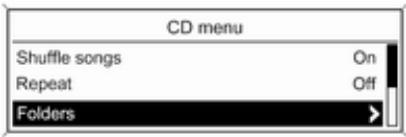
text_image
CD menu Shuffle songs On Repeat Off FoldersShuffle songs
To play all tracks in a random order: set this function to On.
Notice
If this function is activated, is shown in the respective main menu.
Repeat
To repeatedly listen to a track: set this function to On.
Notice
If this function is activated, ↩ is shown in the respective main menu.
Track list
To select a track on the CD: select Track list and then select the desired track.
Folders
To select a track from a folder: select Folders. A list of the folders stored on the CD is displayed.
Select one of the folders and then select the desired track.
Notice
This menu item is only available if an MP3 CD is inserted.
Search...
To open a menu for track search and selection: select Search....
Select one of the categories and then select the desired track.
Notice
This menu item is only available if an MP3 CD is inserted.
Removing a CD
Press ≅.
The CD is pushed out of the CD slot.
If the CD is not removed after ejection, it will be drawn back in again automatically after a few seconds.
AUX input
General information 156
Usage 156
General information
On the control panel of the Infotainment system ➔ 136, there is an AUX input for the connection of external audio sources.
It is possible, for example, to connect a portable CD player with a 3.5 mm jack plug to the AUX input.
Notice
The socket must always be kept clean and dry.
Usage
Press AUX once or several times to activate the AUX mode.
text_image
10:20 17 °C AUX AUXTurn ⏻ of the Infotainment system to adjust the volume.
All other functions can be operated only via the control elements of the audio source.
USB port
General information 157
Playing saved audio files ..... 158
General information
In the centre console below the climate controls there is a USB socket for the connection of external audio data sources.
Notice
The socket must always be kept clean and dry.
An MP3 player, USB drive, SD card (via USB connector/adapter), or iPod can be connected to the USB port.
When connected to the USB port, various functions of the above devices can be operated via the controls and menus of the Infotainment system.
Notice
Not all MP3 player, USB drive, SD card or iPod models are supported by the Infotainment system.
Important information
■ The external devices connected to the USB port must comply with the USB Mass Storage Class specification (USB MSC).
■ Devices connected via USB are supported according to USB Specification V 2.0. Maximum supported speed: 12 Mbit/s.
■ Only devices with a FAT16/FAT32 file system are supported.
■ Hard disk drives (HDD) are not supported.
■ USB hubs are not supported.
■ The following file formats can be used:
ISO9660 Level 1, Level 2 (Romeo, Joliet).
MP3 and WMA files written in another format than listed above may not play correctly, and their file names and folder names may not be displayed correctly.
■ The following restrictions apply to the files stored on the external device:
Bit rate: 8 kbit/s - 320 kbit/s.
Sampling frequency: 48 kHz,
44.1 kHz, 32 kHz (for MPEG-1) and
24 kHz, 22.05 kHz, 16kHz (for MPEG-2).
■ The following restrictions apply to the data stored on external devices connected to the USB port:
Number of tracks: max. 999.
Number of tracks per folder level: max. 512.
Folder structure depth: max. 10 levels.
WMA files with Digital Rights Management (DRM) from online music shops cannot be played.
WMA files can only be played safely, if they were created with Windows Media Player version 9 or later.
Applicable playlist extensions: .m3u, .pls, .wpl.
Playlist entries must be in the form of relative paths.
The system attribute for folders/files that contain audio data must not be set.
Playing saved audio files
Press AUX once or several times to activate the MP3 or iPod mode.
Playback of the audio data stored on the device is started automatically.
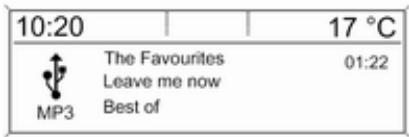
text_image
10:20 MP3 The Favourites Leave me now Best of 17 °C 01:22Using the device-specific menu
Press the multifunction knob to open the menu of the device currently connected.
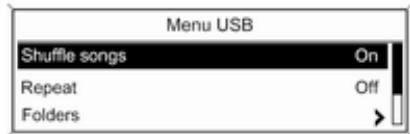
text_image
Menu USB Shuffle songs On Repeat Off Folders >Shuffle songs
To play all tracks in a random order: set this function to On.
Notice
If this function is activated, is shown in the respective main menu.
Repeat
To repeatedly listen to a track: set this function to On.
Notice
If this function is activated, ↩ is shown in the respective main menu.
Folders
To select a track from a folder: select Folders. A list of the folders stored on the device is displayed.
Select one of the folders and then select the desired track.
Notice
This menu item is not available, if an iPod is connected.
Search...
To open a menu for track search and selection: select Search....
Select one of the categories and then select the desired track.
Removing the device
To safely remove the device, select Remove USB or Eject iPod and then disconnect the device.
Bluetooth music
General information 160
Operation 160
General information
Bluetooth enabled audio sources (e.g. music mobile phones, MP3 players featuring Bluetooth, etc.) which support the Bluetooth music protocol A2DP can be connected wirelessly to the Infotainment system.
Important information
■ The Infotainment system only connects to Bluetooth devices that support A2DP (Advanced Audio Distribution Profile) version 1.2 or higher.
■ The Bluetooth device must support AVRCP (Audio Video Remote Control Profile) version 1.0 or higher. If the device does not support AVRCP, only the volume can be controlled via the Infotainment system.
■ Before connecting the Bluetooth device to the Infotainment system, become acquainted with its user guide for Bluetooth functions.
Operation
Prerequisites
The following prerequisites must be met in order to use the Bluetooth music mode of the Infotainment system:
■ The Bluetooth function of the Infotainment system must be activated ➔ 163.
■ The Bluetooth function of the external Bluetooth audio source must be activated (see user guide of the device).
■ Depending on the external Bluetooth audio source, it may be required to set the device to "visible" (see user guide of the device).
■ The external Bluetooth audio source must be paired and connected to the Infotainment system ➔ 163.
Activating the Bluetooth music mode
Press AUX once or several times to activate the Bluetooth music mode.
Bluetooth music playback has to be started and paused/stopped via the Bluetooth device.
Operation via Infotainment system
Adjusting the volume
The volume can be adjusted via the Infotainment system ➔ 139.
Skipping to previous or next track
Briefly press ◀◀ ▶ or ▷ ▷ on the control panel of the Infotainment system.
Phone
General information 162
Bluetooth connection 163
Emergency call 165
Operation 165
Mobile phones and CB radio equipment 169
General information
The Phone portal provides you with the possibility of having mobile phone conversations via a vehicle microphone and the vehicle loudspeakers as well as operating the most important mobile phone functions via the Infotainment system in the vehicle. To be able to use the Phone portal, the mobile phone must be connected to the Infotainment system via Bluetooth.
Not all Phone portal functions are supported by every mobile phone. The possible phone functions depend on the relevant mobile phone and network provider. You will find further information on this in the operating instructions for your mobile phone or you can enquire about them with your network provider.
Important information for operation and traffic safety
⚠ Warning
Mobile phones have effects on your environment. For this reason, safety regulations and directions have been prepared. You should be familiar with the related directions before you use the telephone function.
⚠ Warning
Use of the hands-free facility while driving can be dangerous because your concentration is reduced when telephoning. Park your vehicle before you use the hands-free facility. Follow the stipulations of the country in which you find yourself at present.
Do not forget to follow the special regulations that apply in specific areas and always switch off the mobile phone if the use of mobile
phones is prohibited, if interference is caused by the mobile phone or if dangerous situations can occur.
Bluetooth
The Phone portal is certified by the Bluetooth Special Interest Group (SIG).
You will find further information about the specification on the Internet at http://www.bluetooth.com
Bluetooth connection
Bluetooth is a radio standard for the wireless connection of e.g. a telephone with other devices. Data such as a telephone book, call lists, the network operator's name, and field strength can be transferred. The functionality can be restricted depending on the telephone type.
To be able to set up a Bluetooth connection with the Phone portal, the Bluetooth function of the mobile phone must be activated and the mobile phone must be set to "visible". Find a detailed description in the operating instructions for the mobile phone.
Activating Bluetooth
Press CONFIG to open the Settings menu.
Select Phone settings.
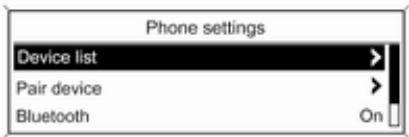
text_image
Phone settings Device list Pair device Bluetooth OnSet Bluetooth to On.
Pairing a Bluetooth device
Press CONFIG to open the Settings menu. Select Phone settings and then Pair device.
The following display is shown.
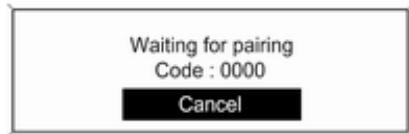
text_image
Waiting for pairing Code : 0000 CancelAs soon as the Phone portal of the Infotainment system is detected, it appears in the device list of your Bluetooth device. Select the Phone portal.
Upon request, enter the PIN code on your Bluetooth device. The devices are paired and connected.
Notice
Your mobile phone book will be downloaded automatically. The presentation and order of the telephone book entries may be different on the Infotainment system's display and the mobile phone's display.
If the Bluetooth connection has been successfully performed: in case another Bluetooth device had been connected to the Infotainment system, this device is now disconnected from the system.
If the Bluetooth connection failed: start the procedure described above again or consult the user guide of the Bluetooth device.
Notice
A maximum of 5 devices can be paired with the Infotainment system.
Changing the Bluetooth code Press CONFIG to open the Settings menu.
Select Phone settings and then Change Bluetooth code.
Enter the desired four-digit PIN code and confirm your input with OK.
Connecting another paired device
Press CONFIG to open the Settings menu.
Select Phone settings and then Device list. A list of all Bluetooth devices currently paired to the Infotainment system is displayed.
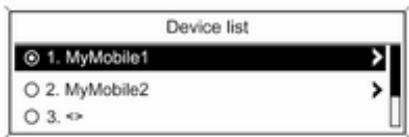
text_image
Device list ① MyMobile1 ○ 2. MyMobile2 ○ 3. <>Select the desired device. A submenu is displayed.
Select Select to establish the connection.
Disconnecting a device
Press CONFIG to open the Settings menu.
Select Phone settings and then Device list. A list of all Bluetooth devices currently paired to the Infotainment system is displayed.
Select the paired device. A submenu is displayed.
Select Disconnect to disconnect the device.
Removing a paired device
Press CONFIG to open the Settings menu.
Select Phone settings and then Device list. A list of all Bluetooth devices currently paired to the Infotainment system is displayed.
Select the desired device. A submenu is displayed.
If the device is connected, it has to be disconnected first (see above).
Select Delete to remove the device.
Restoring the factory defaults
The phone settings, e.g. the device list, the Bluetooth code, and the ring tone, can be reset to the factory defaults.
Press CONFIG to open the Settings menu. Select Phone settings and then Restore factory settings.
The submenu prompts you with a question. To reset all values to the factory defaults, select Yes.
Emergency call
⚠ Warning
Connection setup cannot be guaranteed in all situations. For this reason you should not rely exclusively on a mobile phone when a vitally important communication (e.g. a medical emergency) is concerned. In some networks it may be necessary for a valid SIM card to be properly inserted in the mobile phone.
⚠ Warning
Bear in mind that you can make and receive calls with the mobile phone, if it is in a service area with a sufficiently strong signal. Under certain circumstances emergency calls cannot be made on all mobile phone networks; it is possible that they cannot be made when certain network services and/or telephone functions are active. You can enquire about this with the local network operators.
The emergency call number can differ depending on the region and country. Please enquire beforehand about the correct emergency call number for the relevant region.
Making an emergency call
Dial the emergency call number (e.g. 112).
The telephone connection to the emergency call centre is set up.
Answer when the service personnel questions you about the emergency.
⚠ Warning
Do not end the call until you are requested to do so by the emergency call centre.
Operation
As soon as a Bluetooth connection has been set up between your mobile phone and the Infotainment system, you can also operate many functions of your mobile phone via the Infotainment system.
Via the Infotainment system, you can, e.g., set up a connection to the telephone numbers stored in your mobile phone or change the telephone numbers.
Notice
In the handsfree mode, mobile phone operation is still possible, e.g. taking a call or adjusting the volume.
After the setup of a connection between the mobile phone and the Infotainment system, mobile phone data is transmitted to the Infotainment system. This can take several minutes depending on the phone model. During this period, operation of the mobile phone is possible via the Infotainment system only to a limited extent.
Notice
Not every mobile phone supports all functions of the Phone portal. Therefore deviations from the range of functions described with these specific mobile phones are possible.
Prerequisites
The following prerequisites must be met in order to use the handsfree mode of the Infotainment system:
■ The Bluetooth function of the Infotainment system must be activated ➔ 163.
■ The Bluetooth function of the mobile phone must be activated (see user guide of the device).
■ The mobile phone must be set to "visible" (see user guide of the device).
■ The mobile phone must be paired to the Infotainment system ➔ 163.
Activating the handsfree mode
Press PHONE on the control panel of the Infotainment system. The phone main menu is displayed.
Notice
If there is no mobile phone connected to the Infotainment system, No phone available is displayed. For a detailed description of how to establish a Bluetooth connection 163.
Many functions of the mobile phone can now be controlled via the phone main menu (and associated submenus) and via the phone-specific controls on the steering wheel.
Initiating a phone call
Entering a number manually
Being in the phone main menu, press the multifunction knob to open the Phone Menu.
Select Enter number. The following screen is displayed.

text_image
Enter number 1234| 0 1 2 3 4 5 6 7 8 9 + * # ↔ × 📞Enter the desired number and select ↻ on the display to start dialling.
Notice
To open the Search screen of the phone book, select 📄.
Using the phone book
Notice
The phone book may only be downloaded if this function is supported by your mobile phone. For further information, please consult the user guide of your mobile phone.
The phone book contains contact names and numbers.
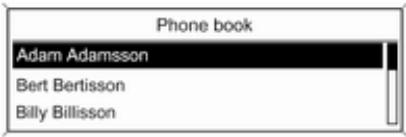
text_image
Phone book Adam Adamsson Bert Bertisson Billy BillissonWith the phone main menu active, press the multifunction knob to open the Phone Menu.
Select Phone book. Select Search and then First Name or Last Name. The following screen is displayed.
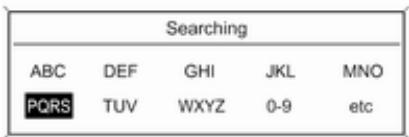
text_image
Searching ABC DEF GHI JKL MNO PQRS TUV WXYZ 0-9 etcAs on a telephone or mobile phone, the letters are organised in alphabetical groups on the display: abc, def, ghi, jkl, mno, pqrs, tuv, and wxyz.
Select the desired group of letters. The phone book is displayed showing the entries starting with one of the letters in the letter group.
Scroll through the list and select the desired entry name.
Scroll through the list of phone numbers and select the desired number. The corresponding phone number is dialled.
Deleting the phone book
To delete all entries in the phone book on the Infotainment system, press PHONE. Select Phone book and then Delete all.
Using the call lists
All incoming, outgoing, or missed calls are registered in corresponding call lists.
With the phone main menu active, press the multifunction knob to open the Phone Menu. Select Call lists.
The following screen is displayed.

text_image
Call lists Incoming calls > Outgoing calls > Missed calls >Select the desired call list, e.g.
Missed calls. A menu with the corresponding call list is displayed.
To initiate a phone call: select the desired list entry. The corresponding phone number is dialled.
Redialling a phone number
The last dialled phone number can be redialled.
Press ↗ on the steering wheel to open the Redial menu.
Press ↗ again to start dialling.
Press ➕ on the steering wheel to exit the Redial menu. You may optionally use the multifunction knob to select No on the display.
Incoming phone call
If an audio mode, e.g. the radio or CD mode, is active at the time of an incoming call, the relating audio source will be muted and stay muted until the call ends.
To answer the call: select Answer on the display.
To reject the call: select Decline on the display.
Second incoming phone call
If a second phone call comes in during an ongoing call, a message is displayed.
To answer the second call and end the ongoing call: select Answer on the display.
To reject the second call and continue the ongoing call: select Decline on the display.
Changing the ring tone
Press CONFIG to open the Settings menu.
Select Phone settings, Sound & Signals and then Ring tone. A list of all ring tones available is displayed.
Select the desired ring tone.
For a detailed description of the ring tone volume 143.
Functions during a phone call
During an ongoing phone call, the phone main menu is displayed.
Select Menu on the display to open the menu Connected.
Select Hang up on the display to end the call.
Activating the private mode
In the Connected menu, select Private call to switch the call to the mobile phone.
To switch the call back to the Infotainment system, select Menu on the display and then Transfer call.
Deactivating/activating the microphone
In the Connected menu, set Mute Mic to On. The caller cannot hear you any more.
To reactivate the microphone: set Mute Mic to Off again.
Mobile phones and CB radio equipment
Installation instructions and operating guidelines
The vehicle specific installation instructions and the operating guidelines of the mobile phone and handsfree manufacturer must be observed when installing and operating a mobile telephone. Failure to do so could invalidate the vehicle type approval (EU directive 95/54/EC).
Recommendations for fault-free operation:
■ The exterior antenna needs to be professionally installed to obtain the maximum range possible.
■ Maximum transmission power: 10 watts.
■ The mobile phone needs to be installed in a suitable spot. Consider relevant note in the Owner's manual, section Airbag system.
Seek advice on predetermined installation points for the external antenna or equipment holder and ways of using devices with a transmission power exceeding 10 watts.
Use of a handsfree attachment without external antenna with mobile telephone standards GSM 900/1800/1900 and UMTS is only permitted if the maximum transmission power of the mobile telephone is 2 watts for GSM 900 or 1 watt for the other types.
For reasons of safety, do not use the phone while driving. Even use of a handsfree set can be a distraction while driving.
⚠ Warning
Operation of radio equipment and mobile telephones which fail to meet above mentioned mobile telephone standards is only permitted using an antenna located outside of the vehicle.
Caution
Mobile telephones and radio equipment may lead to malfunctions in the vehicle electronics when operated inside the vehicle with no exterior antenna, unless the above mentioned regulations are observed.
Index
A
Activating Bluetooth music...... 160
Activating CD player.... 154
Activating the AUX function...... 156
Activating the handsfree Phone mode.... 165
Activating the radio.... 144
Activating the USB function...... 158
Autostore lists.... 145
Retrieving stations.... 145
Storing stations.... 145
Auto volume control.... 143
AUX input Activating.... 156
Adjusting the volume...... 156
General information...... 156
Operation.... 156
B
Basic operation.... 140
Blocking out traffic announcements.... 149
Bluetooth Bluetooth connection.... 163
Bluetooth music.... 160
Phone.... 165
Bluetooth connection.... 163
Bluetooth music
Activating.... 160
General information...... 160
Operation.... 160
Prerequisites.... 160
C
Call
Functions during a call...... 165
Incoming call.... 165
Initiating a phone call.... 165
Ring tone.... 165
Call lists.... 165
Category list.... 146
CD menu.... 154
CD player
Activating.... 154
CD menu.... 154
General information...... 153
Inserting a CD.... 154
Removing a CD.... 154
Starting CD playback...... 154
Usage.... 154
Control elements
Infotainment system...... 136
Phone.... 162
Steering wheel.... 136
Control elements overview...... 136
D
DAB....150
Date settings.... 139
Digital audio broadcasting...... 150
Dynamic audio adaption...... 150
E
Emergency call.... 165
F
Favourite lists.... 145, 146
Retrieving stations.... 145
Storing stations.... 145
G
General information... 153, 156, 157, 160, 162
AUX input.... 156
Bluetooth music.... 160
CD player.... 153
Infotainment system...... 134
Phone....162
USB port.... 157
|
Infotainment control panel...... 136
L
Language settings.... 139
M
Maximum start-up volume...... 143
Menu operation.... 140
Mobile phones and CB radio equipment 169
Multifunction knob...... 140
Mute.... 139
O
Operation.... 160, 165
AUX input.... 156
Bluetooth music.... 160
CD player.... 154
Menu.... 140
Phone.... 165
Radio.... 144
USB port...... 158
P
Phone
Activating.... 165
Bluetooth.... 162
Bluetooth connection...... 163
Call lists.... 165
Control elements.... 162
Dialling a number.... 165
Emergency calls.... 165
Functions during a call...... 165
General information...... 162
Important information...... 162
Incoming call.... 165
Phone book.... 165
Prerequisites.... 165
Redialling a phone number..... 165
Selecting the ring tone...... 165
Phone book.... 165
Playing saved audio files...... 158
R
Radio
Activating.... 144
Autostore lists.... 145
Band selection.... 150
Category list...... 146
Configuring DAB...... 150
Configuring RDS.... 149
DAB announcements...... 146
Digital audio broadcasting
(DAB).... 150
Dynamic audio adaption...... 150
Favourite lists...... 145, 146
Radio data system (RDS)...... 149
Radio traffic service.... 149
Regionalisation...... 149
Retrieving stations.... 145
Selecting the waveband..... 144
Station lists.... 146
Station search...... 144
Station tuning.... 144
Storing stations.... 145
Traffic announcements...... 149
Updating station lists...... 146
Usage...... 144
Waveband menus.... 146
Radio data system (RDS) ...... 149
Radio traffic service.... 149
RDS....149
Redial function.... 165
Regionalisation.... 149
Retrieving stations.... 145
Ring tone Ring tone volume.... 143
Selecting the ring tone...... 165
S
Selecting the waveband..... 144
Starting CD playback...... 154
Station lists.... 146
Station search...... 144
Steering wheel audio controls.... 136
Storing stations.... 145
Switching the Infotainment system on.... 139
Switching the radio on.... 144
System settings Language.... 139
Restore factory settings...... 139
Time and date.... 139
Vehicle settings.... 139
T
TA volume.... 143
Theft-deterrent feature .... 135
Time settings.... 139
Tone settings.... 142
Traffic announcements...... 149
U
Updating station lists...... 146
Usage...... 139, 144, 154, 156
AUX input.... 156
Bluetooth music.... 160
CD player.... 154
Menu.... 140
Phone.... 165
Radio.... 144
USB port...... 158
USB menu.... 158
USB port
Activation.... 158
Connecting the USB device.... 157
General information...... 157
Important information...... 157
Operation.... 158
Removing the USB device..... 158
USB menu.... 158
V
Volume
Auto volume control.... 143
Maximum start-up volume..... 143
Mute function.... 139
Ring tone volume...... 143
Setting the volume...... 139
Speed compensated volume. . 143
TA volume.... 143
Volume limitation at high temperatures.... 139
Volume settings.... 143
W
Waveband menus.... 146
FlexDock
FlexDock 174
Index 176
FlexDock
General information 174
Usage 175
General information
FlexDock consists of a built-in base plate and different types of cradles which can be attached to the base plate. By inserting an iPhone or a different smartphone to the cradle, the smartphone can be controlled via the Infotainment system, steering wheel control or touch screen.
Detailed cradle usage information can be found in the cradle manual supplied with each cradle.
⚠ Warning
Devices attached to the FlexDock must be used in a way that driver distraction is avoided and the vehicle can be driven safely at all times.
You must always comply with the respective laws and regulations of the country in which you find yourself at present. These laws may differ from the information in
this manual. If in doubt, stop your vehicle and operate devices while the vehicle is stationary.
Notice
Do not operate a further audio source via the USB socket at the same time due to superimpositions of both audio sources.
Caution
To avoid theft, do not leave the mobile phone in the FlexDock when leaving the vehicle.
Usage
Attaching the cradle to the base plate
natural_image
3D rendered image of a metallic square button with an arrow pointing upward (no text or symbols)- Remove the cover from the base plate.
- Push the cradle in the base plate and fold down.
Connecting the smartphone to the Infotainment system
Universal smartphone
Connect the smartphone to the cradle by using the connecting cable.
iPhone
The iPhone is connected automatically when it is inserted into the cradle.
Depending on the status of the software and hardware equipment, the functionality of the iPhone can be restricted.
Operating the smartphone
When the smartphone is connected via FlexDock, it has the same functionality as if it is connected via the USB socket. See the corresponding instructions in this manual for detailed information.
To use the phone function or the Bluetooth Music function, a Bluetooth connection must be established. See the corresponding instructions in this manual and the operating instructions for the smartphone for detailed information.
Removing the cradle from the base plate
- Push the release button and remove the cradle.
natural_image
3D rendering of a gray and white electronic device with a clip (no text or symbols visible)- Attach the cover to the base plate.
Index
B
Base plate.... 175
C
Cradle.... 175
F
FlexDock.... 175
G
General information...... 174
U
Usage...... 175
Copyright by General Motors UK Ltd.
The information contained in this publication is effective as of the date indicated below. General Motors UK Ltd. reserves the right to make changes to the technical specifications, features and design of the vehicles relative to the information contained in this publication, as well as changes to the publication itself.
Edition: February 2015, General Motors UK Ltd.
Printed on chlorine-free bleached paper.
KTA-2686/11-VX-en
02/2015