PRINHOME EU - Imprimante HITI - Notice d'utilisation et mode d'emploi gratuit
Retrouvez gratuitement la notice de l'appareil PRINHOME EU HITI au format PDF.


| Type de produit | Imprimante photo numérique HITI PRINHOME EU |
|---|---|
| Caractéristiques techniques principales | Impression thermique, résolution d'impression de 300 x 300 dpi |
| Alimentation électrique | Adaptateur secteur 100-240V, 50/60Hz |
| Dimensions approximatives | 300 mm x 200 mm x 150 mm |
| Poids | 2,5 kg |
| Compatibilités | Compatible avec Windows et Mac, applications mobiles iOS et Android |
| Type de batterie | Non applicable (fonctionne uniquement sur secteur) |
| Tension | Sortie 12V |
| Puissance | 50W maximum |
| Fonctions principales | Impression de photos de haute qualité, impression sans bordure, connectivité Wi-Fi |
| Entretien et nettoyage | Nettoyage régulier des têtes d'impression, utilisation de papier compatible uniquement |
| Pièces détachées et réparabilité | Pièces disponibles auprès du fabricant, réparabilité limitée selon les composants |
| Informations générales | Garantie de 1 an, assistance technique disponible en ligne |
FOIRE AUX QUESTIONS - PRINHOME EU HITI
Questions des utilisateurs sur PRINHOME EU HITI
0 question sur cet appareil. Repondez a celles que vous connaissez ou posez la votre.
Poser une nouvelle question sur cet appareil
Téléchargez la notice de votre Imprimante au format PDF gratuitement ! Retrouvez votre notice PRINHOME EU - HITI et reprennez votre appareil électronique en main. Sur cette page sont publiés tous les documents nécessaires à l'utilisation de votre appareil PRINHOME EU de la marque HITI.
MODE D'EMPLOI PRINHOME EU HITI
TABLE OF CONTENTS
Chapter 1. Important Safety Instruction
Environments 1-1
Handling Instruction 1-2
Handling Instruction for Consumable and Printed Output 1-3
Chapter 2. Installing and Set Up
Table of Contents 2-1
Parts Name and Function 2-2
Connecting Power Cord 2-3
Loading Ink Ribbon 2-4
Loading Paper 2-5
Chapter 3. Connect to the Printer
Free APP (Prinhome) 3-1
Connect the printer via NFC 3-2
Chapter 4. How to use cleaning kit
PC link Mode / App link Mode 4-1
Chapter 5. LED Massage
LED Massage table 5-1
Chapter 6. After-sales Service
Specification 6-1
Chapter 1. Important Safety Instruction
This manual provides detail instructions for the safety use of the printer.
Please read this manual carefully before operating the printer to ensure having proper use.
In this manual, there are notes that require special attention. For your safety operation, Safety Notices are separated as follows;

Inappropriate handling can cause serious wounds and/or physical damage to the users.

Explanation about the cause of the trouble and the environmental condition.
It is difficult to forecast all the danger in setting and use of the printer. Therefore, warnings in this Operation Manual, in the other documents on the printer cannot cover all the cases. In case of performing the operation or maintenance which is not described in this manual, all the concern for the safety have to be taken care of at the customer side.
Operation and the notification for the maintenance described in this manual and other documents are for the proper use of the printer. In case of using the printer for the other purpose, all the concern for the safety has to be taken care of at the customer side.
Do not perform the operation which is prohibited in this manual and other document.
The contents that cannot be printed due to a failure while using the use of this printer are not guaranteed.
■ Environments
To use the printer safety, please pay attention to the followings:

Do not let children to touch the printer or cables. It may cause accidents or electric shock.

Do not place the printer under a humid or dusty place. It can cause a fire, electric shock or printer problem. Do not place the printer with dust, sand and high humidity such as bathing place, bathroom, hot spring, or on the street.

Do not place the printer on rickety place and/or inclined place. Printer may fall down or tumble and it can cause serious injury.

Do not place the printer under the low temperature such as ski yard, skating rink or open-air with direct sunlight.

Do not put vase, flowerpot, and cup or anything contents water or metric items on the printer. Water spilt or metallic items fall into the printer may cause the fire and electric shock. In case the water spilt or metallic items fall into the printer, please turn off the printer power immediately.

Do not block the openings of the printer. In case, the opening blocked, the heat will remain inside and it can cause the fire.
Chapter 1. Important Safety Instruction
Handling Instruction
When handling the printer, please pay attention to the followings;

Lift the printer from its box and put it onto a flat and firm table or desk.

When moving the printer, hold the bottom edge of the printer.

In the case of dropping the printer during transportation, contact HiTi dealers or service center for inspection of the printer. Using the printer with possible damage without proper inspection may cause fire or electric shock.

Do not dismantle or remodel the printer. Some sections of the printer contain a high voltage or become very hot. Ignoring this warning may cause electric shock, fire, or burns.

Please make sure the power is off and the power cord is removed from the printer before transportation.

Please take caution when transporting the printer on the slippery floor.

Secure the power cable firmly while using.

The thermal head reaches high temperature during operation but it is normal. Do not touch the thermal head by any case. Touch the thermal head may cause personal injury or damage of the printer.

Touching the surface of the thermal head directly may cause damage to the thermal head. Hard object getting into the printer may also cause the damage to the printer mechanism. In such case, please do not use the printer while any obstacle inside the printer.

Do not attempt to service the printer beyond the instruction specified in this document. In case of irrecoverable problem, please contact HiTi dealers or service center.
Chapter 1. Important Safety Instruction
■ Handling Instruction for Consumable and Printed Outputs
In handling the ink ribbon, paper and printed outputs, please pay attention to the followings;

Paper Handling
- Use only the paper specified by HiTi.
- Store the paper flat.
- Store the paper in a dry and dark place to avoid direct sunlight.
(Temperature less than 30^ , Humidity: less than 60% ).
- Do not touch the paper surface before printing to avoid fingerprints.

Ink Ribbon Handling
- Use the ink ribbon specified by HiTi.
- Store the ink ribbon in cool place to avoid sunlight.
(Temperature less than 30^ , Humidity: less than 60% ).

Printout Handling
- Store the ink ribbon in cool place to avoid sunlight.
- Store the printout way from the organic solvent or fluid which may change or deteriorate the colors.

When abandon the ink ribbon, please handle it as harmful industrial waste.

Please take caution while handling the paper to prevent injure to the hands or paper-cut.
FCC Statement:
This device complies with part 15 of the FCC Rules. Operation is subject to the following two conditions:
(1) This device may not cause harmful interference, and
(2) this device must accept any interference received, including interference that may cause undesired operation.
NOTE: This equipment has been tested and found to comply with the limits for a Class B digital device, pursuant to part 15 of the FCC Rules. These limits are designed to provide reasonable protection against harmful interference in a residential installation.
This equipment generates, uses and can radiate radio frequency energy and, if not installed and used in accordance with the instructions, may cause harmful interference to radio communications. However, there is no guarantee that interference will not occur in a particular installation.
If this equipment does cause harmful interference to radio or television reception, which can be determined by turning the equipment off and on, the user is encouraged to try to correct the interference by one or more of the following measures:
- Reorient or relocate the receiving antenna.
- Increase the separation between the equipment and receiver.
- Connect the equipment into an outlet on a circuit different from that to which the receiver is connected.
- Consult the dealer or an experienced radio/TV technician for help.
Changes or modifications not expressly approved by the party responsible for compliance could void the user's authority to operate the equipment.
Chapter 2. Installing and Set Up
Table of Contents
Take out the printer and accessories from the accessory bag and check the contents.
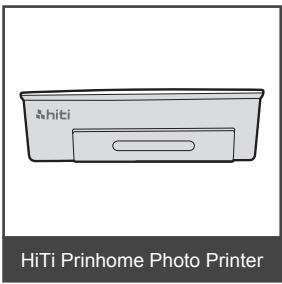
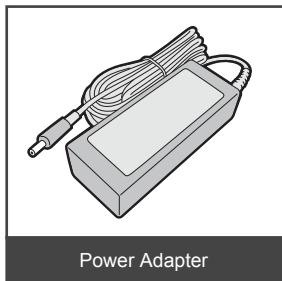
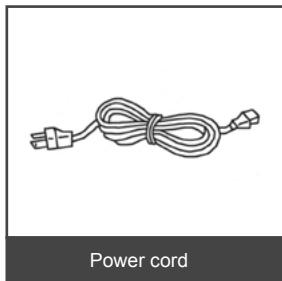
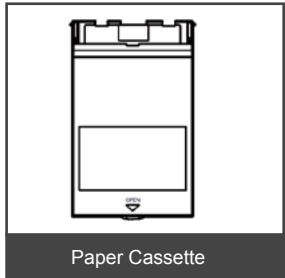
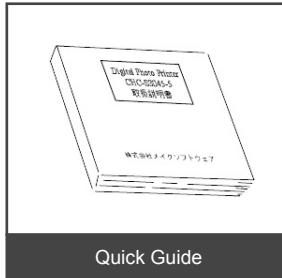
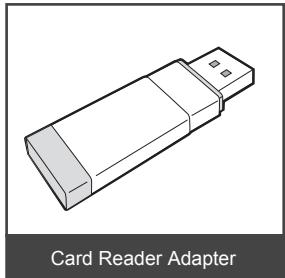
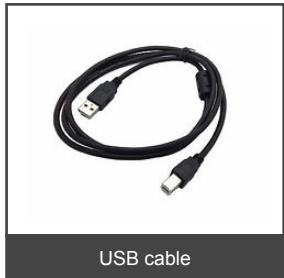
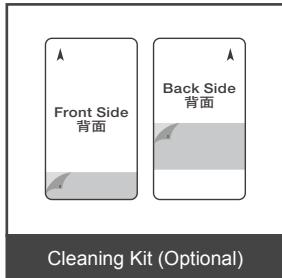
Chapter 2. Installing and Set Up
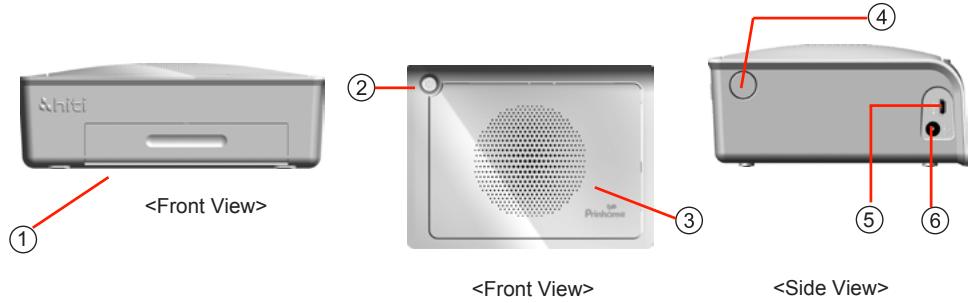
Parts Name and Function
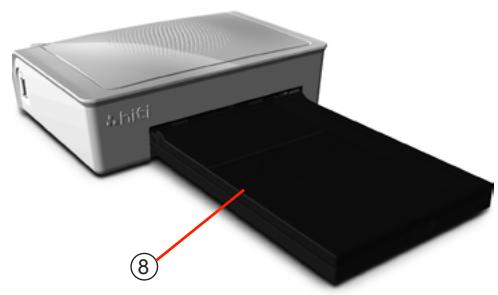
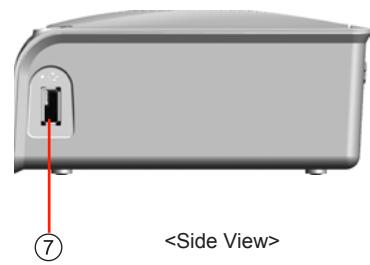
| NO. | Name | Function |
| ① | Paper Cassette Door | Push down the door then open it. Place paper cassette here. |
| ② | Power Switch | This switch turns on/off the power of the printer. |
| ③ | Heat Ventilation | Don't block this to avoid over heating the printer. |
| ④ | Ribbon Door Switch | Open the cover when replacing the ribbon, or when performing maintenance. |
| ⑤ | USB Port | For link PC. |
| ⑥ | Power Connector | To be used to connect the power cord. |
| ⑦ | USB Slot | To be used to connect card reader adapter. |
| ⑧ | Paper Cassette | Input/output the paper. |
Chapter 2. Installing and Set Up
- Connecting the Power Cord
Connect the power cord according to the safety instructions below.
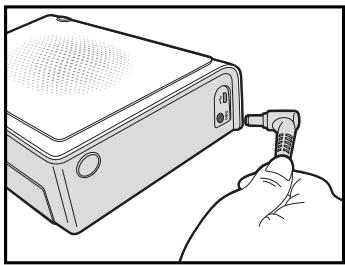
Connect the printer power cord to the power connector and then plug it into the power outlet.

Before connecting the power cord, please make sure the printer is powered off.

Incorrect insertion of power cord may cause the fire or damage of printer.

Do not insert or remove the power cord with wet hands. It may cause electric leakage.

Do not damage or make any modification to the power cord. Misusing, such as putting the heavy items on the power cord, giving a strong pull to the power cord and twist the power cord may cause the fire and electric shock.

When moving the printer, make sure to turn off the power of the printer, remove the power cord in order to have no connection with other devices. Otherwise, the power cord might be damaged and it can cause the fire and electric shock. Also there is a possibility to fall down caught by the cord.

For the safety consideration, please remove the power cord from the printer if the printer is not to be used for long time.
Chapter 2. Installing and Set Up
Loading Ribbon
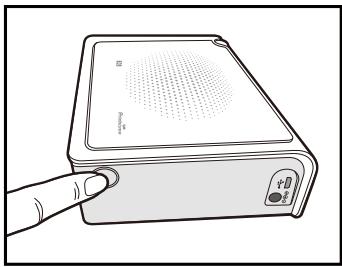
- Open the ribbon door by pushing the ribbon door switch
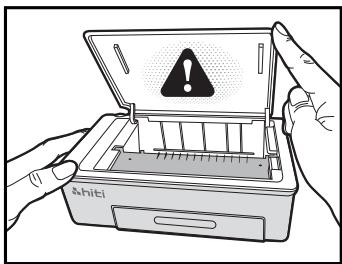
- Lift the ribbon door. The printing head needs to be heat up to perform the intended functions of the product properly.

DO NOT TOUCH THE PRINTING HEAD DURING OR RIGHT BEFORE OR AFTER PRINTING PROCESS!
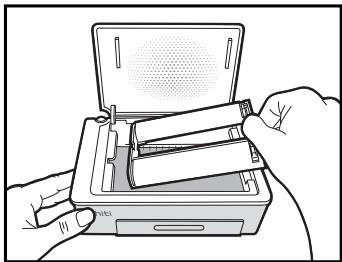
- Insert the Ribbon cartridge
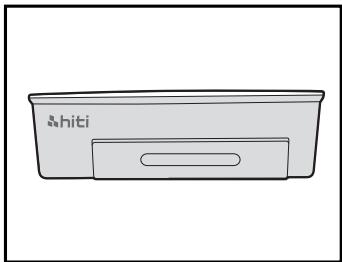
- Close the ribbon door
Chapter 2. Installing and Set Up
Loading Paper
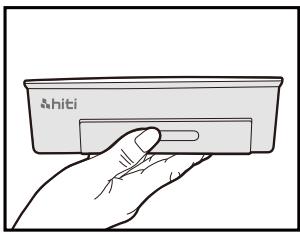
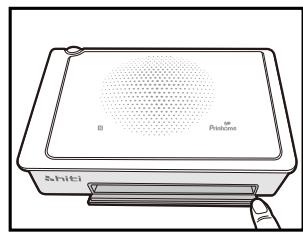
- Open the paper cassette door. Please push down the door first and then open it.
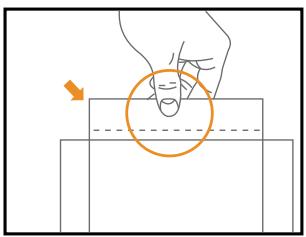
- Take out the paper carefully

PLEASE HOLD THE PERFORATED SIDE OF PHOTO PAPER AND AVOID TOUCHING THE SURFACE WHEN TAKING THEM OUT FROM THE PACKING
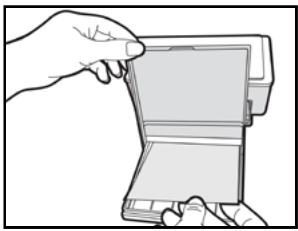
- Open the paper cassette and insert the paper to the paper cassette. We suggest to place less than 15pcs paper at once to avoid error.

MAKE SURE THE PAPER PUT IN WITH CORRECT SURFACE (THE SHINNY SURFACE FACE UP AND HITI LOGO FACE DOWN).
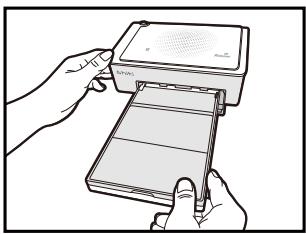
- Place the paper cassette to it.
Chapter 3. Connect to the printer
Wireless:
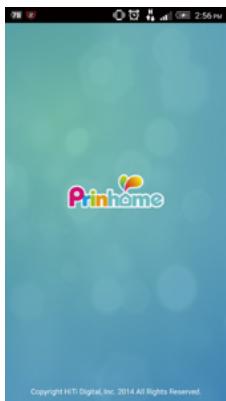
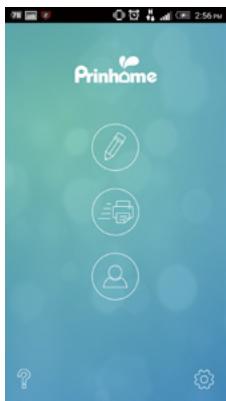
Step 1: Download & Install free APP, "Prinhome" to the hand-held device. It can be downloaded from Apple Store or Google Play.
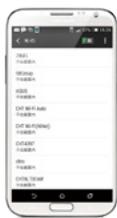
Step 2: Connect the hand-held device to Prinhome (SSID: HiTi Prinhome)
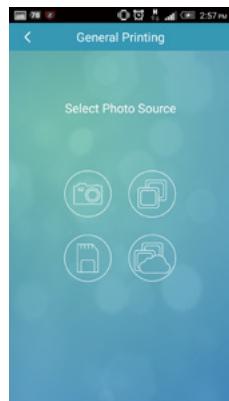
Step 3: Once connected, you might begin to use Prinhome APP to edit and print the photos




Access Point


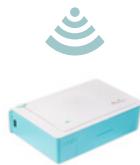


Chapter 3-1. Operation Panel
Connect to PC
Step 1: Connect the PC to Prinhome by your own USB cable.
Step 2: Install the printer driver by following the steps below.
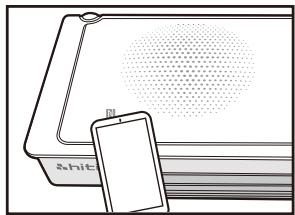
Chapter 3-2. Connect Prinhome via NFC:
(Android system supported only.)
- Please switch on NFC on your mobile or tablet device.
- Touch the printer on logo with your deice.
Notice: Make sure your device is switched on and screen unlocked.
- NFC will wake up Prinhome APP automatically and create connection with the Printer.
Chapter 4. How to use cleaning kit
PC link Mode
Step 1: Connect the printer to the PC
Step 2: Remove the ribbon cassette from the printer and photo paper from the paper cassette. Put the separator into the paper cassette first and then the cleaning paper afterwards.
Step 3: Before putting the cleaning paper, please remove the yellow protective covers on both sides and make sure the "Front side" of the cleaning paper faces up.
Step 4: PC: Go "Start-Settings-Printers and Faxes", and select the Hiti Photo Printer model. Click the right key on mouse and choose "Printing Preferences" Choose "Tool" on the top and click the icon of cleaning tool to begin the cleaning process.
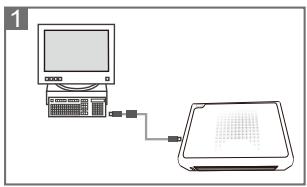
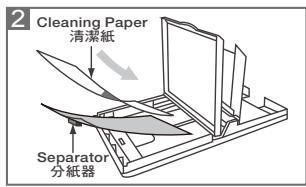
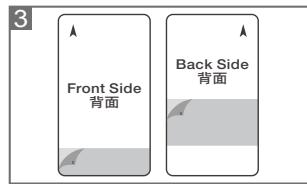
App link Mode
Step 1: Go "Setting" and choose "Cleaning Mode".
Step 2: Follow the instructions to clean the printer.
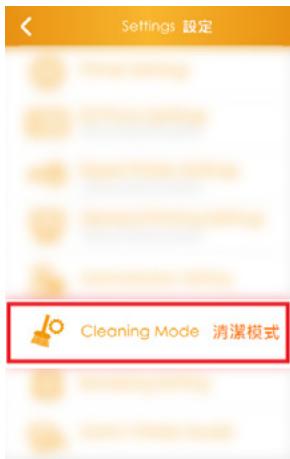
Chapter 5. LED Message
| Red: | Error Blink (When the error happens, error message will be displayed on the mobile devices) | Blink 1 time: didn’t close the ribbon door or no ribbon Blink 3 times: Ribbon empty Blink 4 times: Out of Paper Blink 5 times: Paper jam or Ribbon jam Blink 13 times: can’t update F/W |
| Green: | Standby, Ready | Press the power switch to turn on the power |
| Power can be turned off by pressing the power switch for 3 seconds. | ||
| Blink fast 0.1s | Transiting Printing info/ Updating FW | |
| Blink slower 0.5s | Printing | |
| Blue: | Wireless reset mode - Press the power switch for 6 seconds until blue blink. - Press the switch one more time, once the light turns to green means its been reset. | |
Chapter 6. After-sales Service
Contact your HiTi dealers or service center for the details about after-sales service.
| Resolution | 300*300 dpi |
| Print Speed | 47 sec |
| Print Size | 4*6' |
| Ribbon Cassette Capacity | 60 prints/cassette |
| Paper Cassette Capacity | Up to 30 sheets. We suggest to place less than 15 sheets at once to avoid error. |
| APP Support File Formats | JPEG |
| Power | 19V 65W DC Adapter |
| I/O port | Micro-USB-B type |
| Data Transfer | NFC, Wi-Fi, Memory card, PC |
| PC Support OS | Win XP, VISTA, Win 7, Win 8, Win 10, MAC OS*10.6 above |
| App Support OS | iOS6.0.0, Android 4.1.2 |
| Dimensions | 186 x 138 x 64.5 mm, 998g |
*Specifications subject to change without notice