ORNATA CHROMA - Clavier RAZER - Notice d'utilisation et mode d'emploi gratuit
Retrouvez gratuitement la notice de l'appareil ORNATA CHROMA RAZER au format PDF.

| Intitulé | Description |
|---|---|
| Type de produit | Clavier gaming à membrane avec rétroéclairage RGB |
| Caractéristiques techniques principales | Switches Razer Mecha-Membrane, rétroéclairage Chroma, 10 touches programmables |
| Alimentation électrique | Connexion USB, alimentation par le port USB |
| Dimensions approximatives | Dimensions : 460 x 200 x 30 mm |
| Poids | Poids : environ 1,2 kg |
| Compatibilités | Compatible avec Windows 10, Windows 8, Windows 7, Mac OS |
| Fonctions principales | Rétroéclairage personnalisable, macros programmables, touches multimédia |
| Entretien et nettoyage | Utiliser un chiffon doux et sec, éviter les produits chimiques agressifs |
| Pièces détachées et réparabilité | Pas de pièces détachées disponibles, garantie limitée |
| Sécurité | Ne pas exposer à l'humidité, utiliser sur des surfaces planes et stables |
| Informations générales utiles | Garantie de 2 ans, support technique disponible en ligne |
FOIRE AUX QUESTIONS - ORNATA CHROMA RAZER
Questions des utilisateurs sur ORNATA CHROMA RAZER
0 question sur cet appareil. Repondez a celles que vous connaissez ou posez la votre.
Poser une nouvelle question sur cet appareil
Téléchargez la notice de votre Clavier au format PDF gratuitement ! Retrouvez votre notice ORNATA CHROMA - RAZER et reprennez votre appareil électronique en main. Sur cette page sont publiés tous les documents nécessaires à l'utilisation de votre appareil ORNATA CHROMA de la marque RAZER.
MODE D'EMPLOI ORNATA CHROMA RAZER

RAZER ORNATA CHROMA
MASTER GUIDE
The Razer Ornata Chroma features the all-new Razer™ Mecha-Membrane that combines the best of both membrane rubber domes and mechanical switches to deliver a typing experience unlike anything before. While traditional rubber dome keyboards are known for their soft cushioned touch, they fail to deliver accurate tactility due to their mushy feel and lack of actuation control. On the other hand, mechanical switches deliver fast actuations and distinct tactile feedback but cause fatigue during extended gaming sessions.
The result is the revolutionary patent pending Razer Mecha-Membrane that combines the best of both worlds by providing a soft cushioned touch along with a crisp tactile click in a mid-height keycap architecture allowing your fingers to fly across the keyboard ensuring every command is executed instantly.
CONTENTS
- PACKAGE CONTENTS / SYSTEM REQUIREMENTS 3
- REGISTRATION / TECHNICAL SUPPORT 4
- TECHNICAL SPECIFICATIONS. 5
- DEVICE LAYOUT 6
- INSTALLING YOUR RAZER ORNATA CHROMA 7
- SETTING UP YOUR RAZER ORNATA CHROMA 8
- USING YOUR RAZER ORNATA CHROMA 9
- CONFIGURING YOUR RAZER ORNATA CHROMA 12
- SAFETY AND MAINTENANCE 37
- LEGALESE 39
1. PACKAGE CONTENTS / SYSTEM REQUIREMENTS
PACKAGE CONTENTS
Razer Ornata Chroma Mecha-Membrane gaming keyboard
- Ergonomic wrist rest
Important Product Information Guide
SYSTEM REQUIREMENTS
PC or Mac with a free USB port
Windows® 7 / Mac OS X 10.9 (or higher)
Internet connection
200 MB of free hard disk space
2. REGISTRATION / TECHNICAL SUPPORT
REGISTRATION
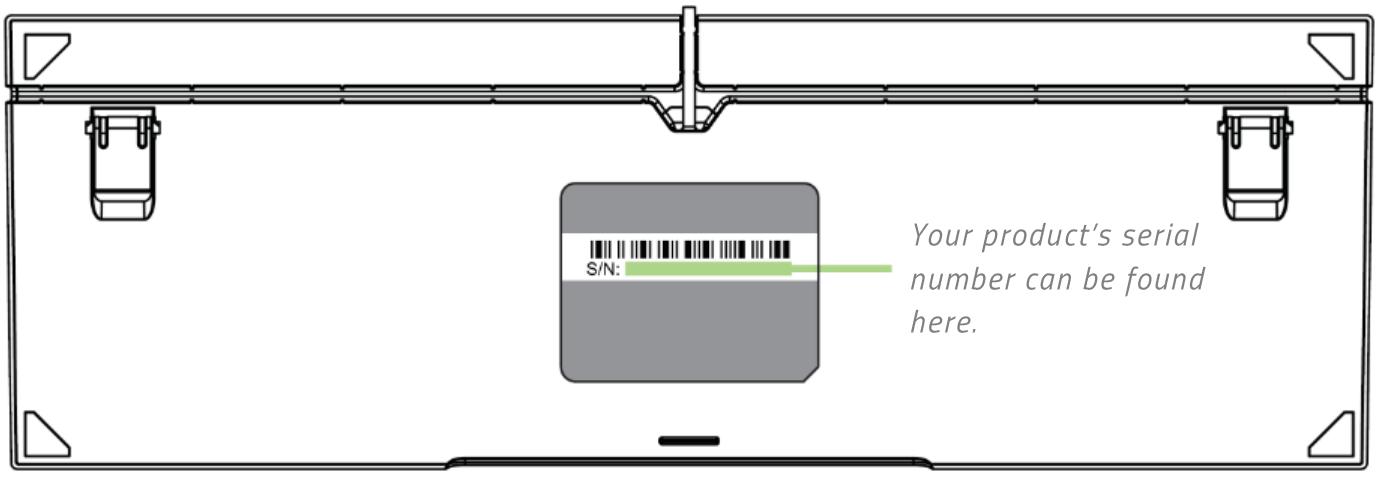
Visit razerzone.com/razer-id to sign up for a Razer ID now to get a wide range of Razer benefits. For example, get real-time information on your product's warranty status via Razer Synapse. To learn more about Razer Synapse and all its features, visit razerzone.com/synapse.
If you already have a Razer ID, register your product by clicking on your email address within the Razer Synapse application and select Warranty Status from the dropdown list.
To register your product online, visit razerzone.com/registration. Please note that you will not be able to view your warranty status if you register via the website.
TECHNICAL SUPPORT
What you'll get:
1 year limited manufacturer's warranty.
- 6 months limited wrist rest manufacturer's warranty.
Free online technical support at razersupport.com.
3. TECHNICAL SPECIFICATIONS
TECHNICAL SPECIFICATIONS
Razer™ Mecha-Membrane Technology
Mid-height keycaps
Razer Chroma backlighting
- Ergonomic wrist rest
Razer Synopsis enabled
- Fully programmable keys with on-the-fly macro recording
10-key roll over
Dedicated Gaming Mode
- Anti-ghosting capability for up to 10 simultaneous key presses
APPROXIMATE SIZE & WEIGHT
Without Wrist Rest
Length: 463 ~mm / 18.22 in
Width: 154mm / 6.06 in
Height: 31 ~mm / 1.22 in
Weight: 950 ~g / 2.1 ~lbs
With Wrist Rest
Length: 463mm / 18.22 in
Width: 224mm / 8.82 in
- Height: 31 ~mm / 1.22 in
Weight: 1260 g / 2.78 lbs
4. DEVICE LAYOUT
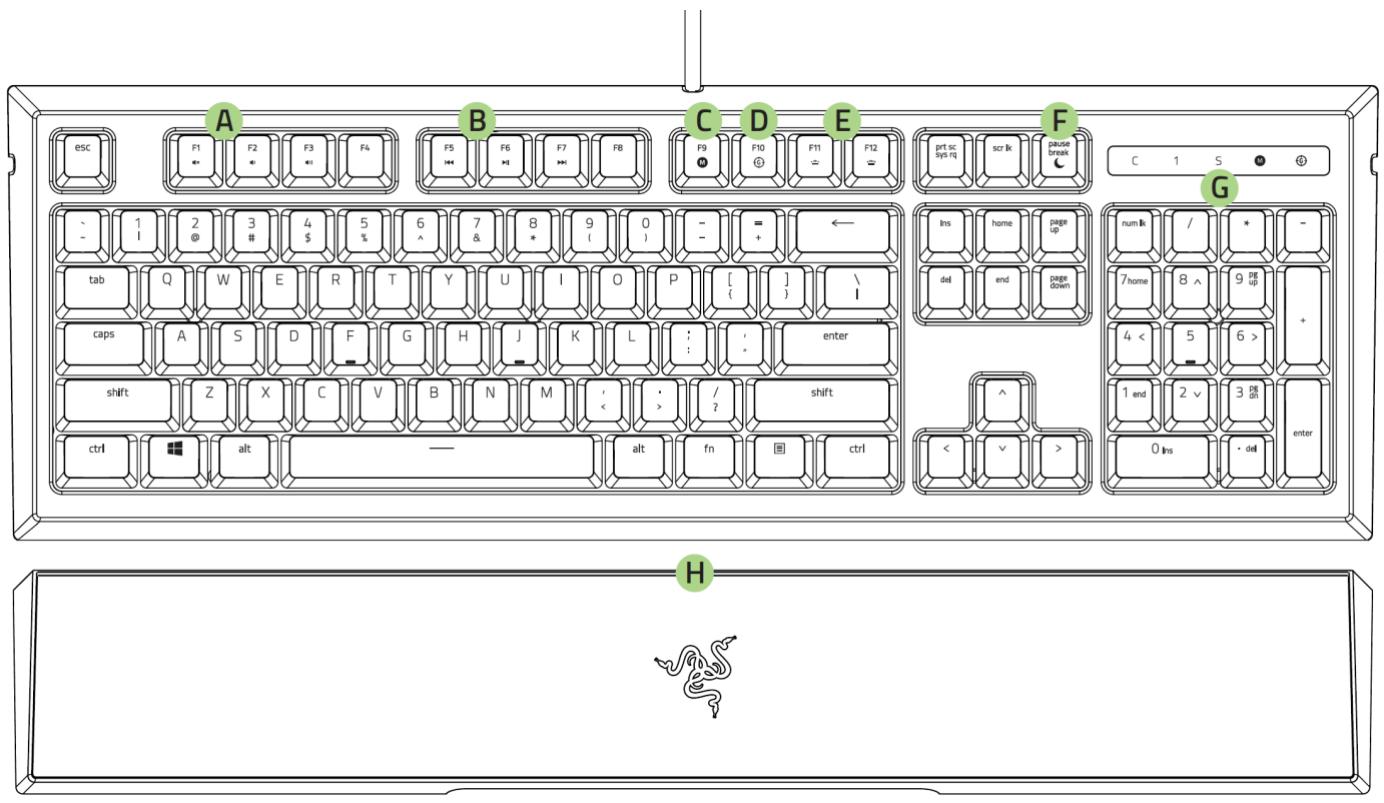
A. Volume control keys
B. Media keys
C. On-The-Fly macro record key
D. Gaming mode key
E. Backlight control keys
F. Sleep mode key
G. LED indicators
H. Ergonomic wrist rest
5. INSTALLING YOUR RAZER ORNATA CHROMA
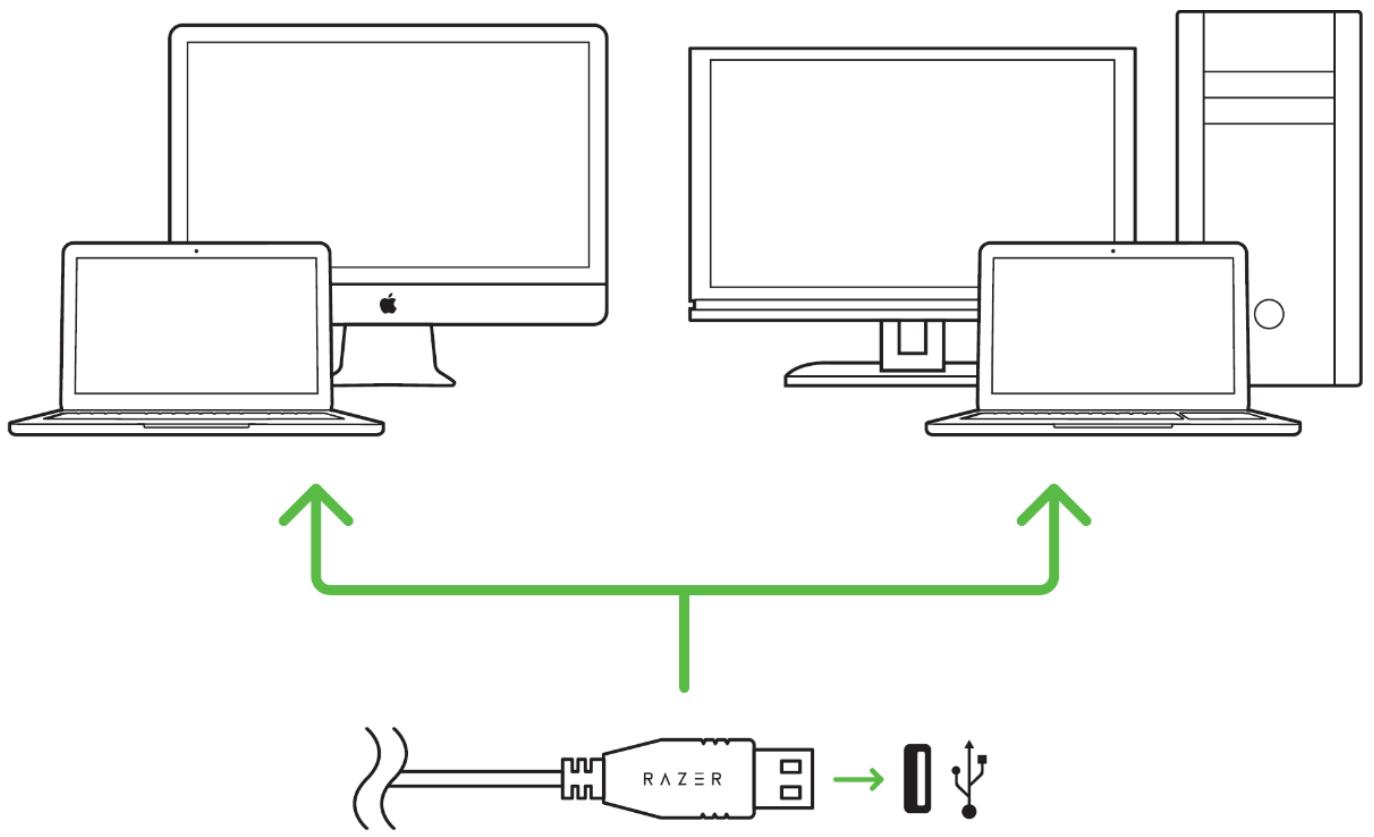
Step 1: Connect your Razer device to the USB port of your computer.
Step 2: Install Razer Synapse when prompted* or download the installer from razerzone.com/synapse.
Step 3: Register for a Razer ID or log in to Razer Synapse with an existing account.
*Applicable for Windows 8 or later.
Note: By default, the Razer Ornata Chroma is set to spectrum cycling. To customize the lighting, please install Razer Synapse.
6. SETTING UP YOUR RAZER ORNATA CHROMA
USING THE ERGONOMIC WRIST REST
Your Razer Ornata Chroma comes with an ergonomic wrist rest equipped with a leather cushion designed to give all-out comfort during long hours of gameplay, and concealed magnetic connectors for easy installation and removal.

To install the wrist rest, simply position the wrist rest below your Razer Ornata Chroma, align its corresponding Razer logos and slide it in. The wrist rest will attach to your keyboard upon contact.
To remove the wrist rest, gently lift the wrist rest away from your keyboard.
7. USING YOUR RAZER ORNATA CHROMA
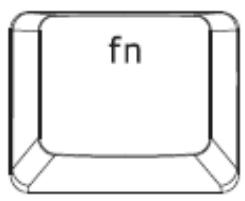
Pressing the "FN" key in combination with the function keys will activate their secondary features on your PC. For Mac OS X, you do not need to press the "FN" key to activate the secondary features however, you will need to install Razer Synapse first before you can use these secondary features.
| Function Keys | Features Description |
| F1 ▲ F2 ▲ F3 ▲ | The audio volume controls allow you to mute (▲) decrease (▲) and increase (▲) the audio output. |
| F5 ▲ F6 ▲ F7 ▲ | The media keys allow you to play/pause (▲) a track or skip tracks backward (▲) and forward (▲). |
| F11 ▲ F12 ▲ | The backlight control keys allow you to decrease (▲) or increase (▲) the brightness of your keyboard's LEDs. |
| pause break | The sleep key allows you to suspend all operating system activities. This way you can save electricity while the computer is idle. |
ON-THE-FLY MACRO RECORDING (PC)
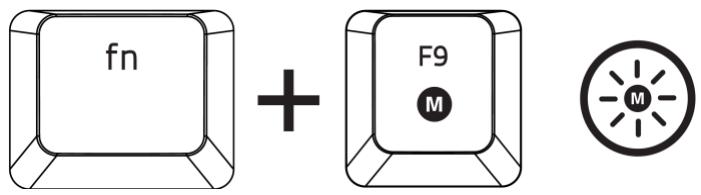
Follow these steps to create an OTF Macro Recording:
- Press the key combination to start recording.
- The Macro Recording Indicator will light up to show that the device is ready to record.
- Type in the keys you want to record.
- Press the key combination to stop the recording or the ESC key to cancel recording. The Macro Recording Indicator will start blinking to show that the device has stopped recording and is ready to save the macro.
- Press the desired key where you want to save your macro.
GAMING MODE (PC)
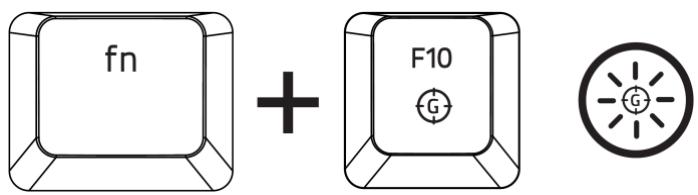
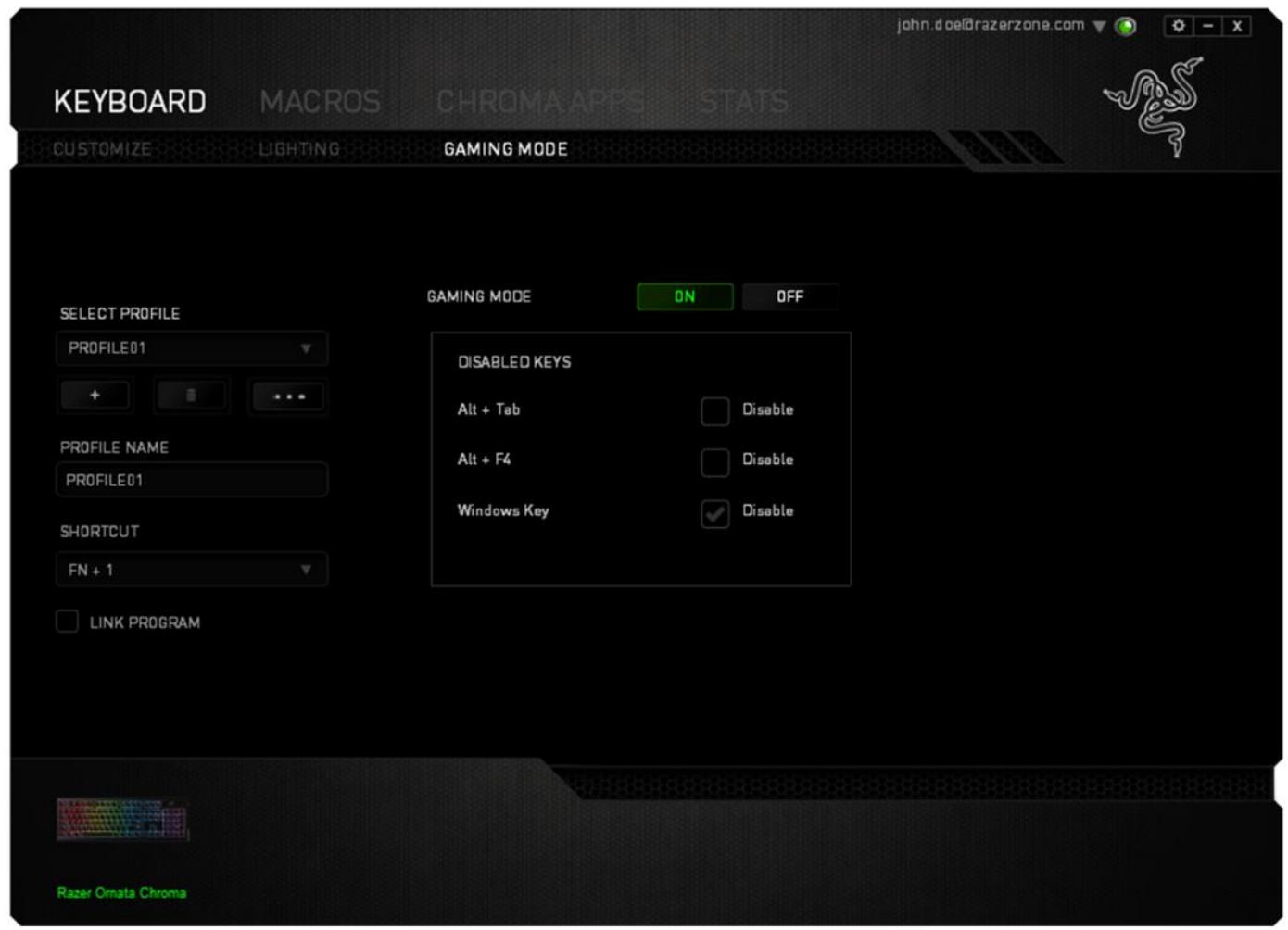
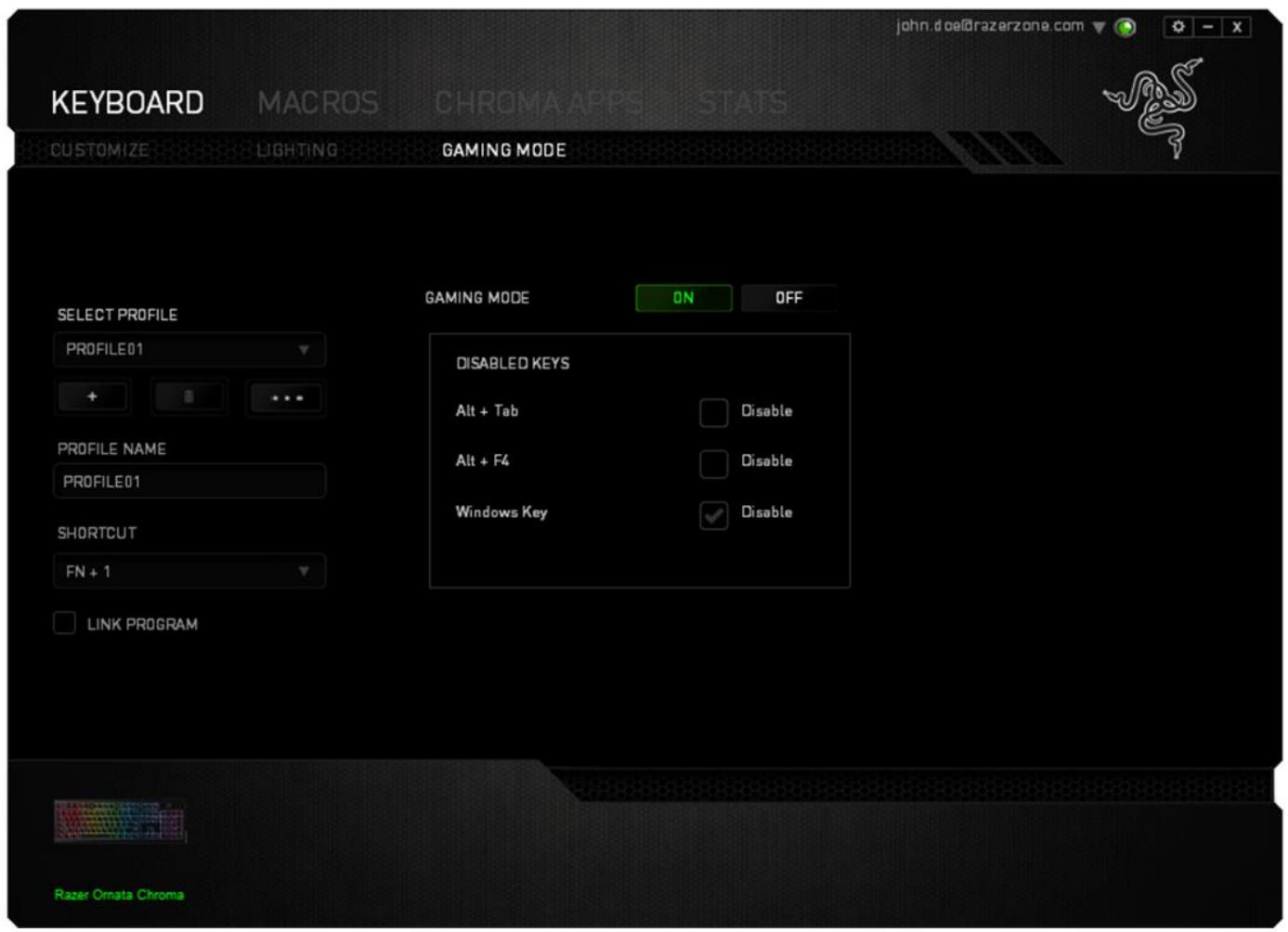
The Gaming Mode disables the Windows Key function to avoid accidental usage. Furthermore, you can maximize the effect of Anti-Ghosting by activating the Gaming mode function. You can also choose to disable the Alt + Tab and Alt + F4 functions by using the Gaming Mode Tab in Razer Synapse. An indicator will light up when Gaming Mode is active.
ON-THE-FLY (OTF) MACRO RECORDING (MAC)
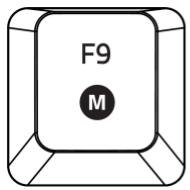

Follow these steps to create an OTF Macro Recording:
- Press the key to start recording.
- The Macro Recording Indicator will light up to show that the device is ready to record.
- Type in the keys you want to record.
- Press the Macro key to stop the recording or the ESC key to cancel the recording. The Macro Recording Indicator will start to blink to show that the device has stopped recording and is ready to save the macro.
- Press the desired key where you want to save your macro.
GAMING MODE (MAC)
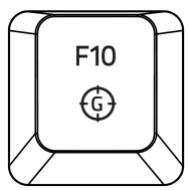

Activating the Gaming Mode allows you to toggle between the multimedia keys and the function keys as your primary function. An indicator will light up when Gaming Mode is turned ON. To turn the Gaming Mode Off, press the Gaming Mode Key.
8. CONFIGURING YOUR RAZER ORNATA CHROMA

Disclaimer: The features listed here require you to log in to Razer Synapse. These features are also subject to change based on the current software version and your Operating System.
KEYBOARD TAB
The Keyboard Tab is your default tab when you first install Razer Synapse. This tab allows you to customize your device's profiles and key assignments.
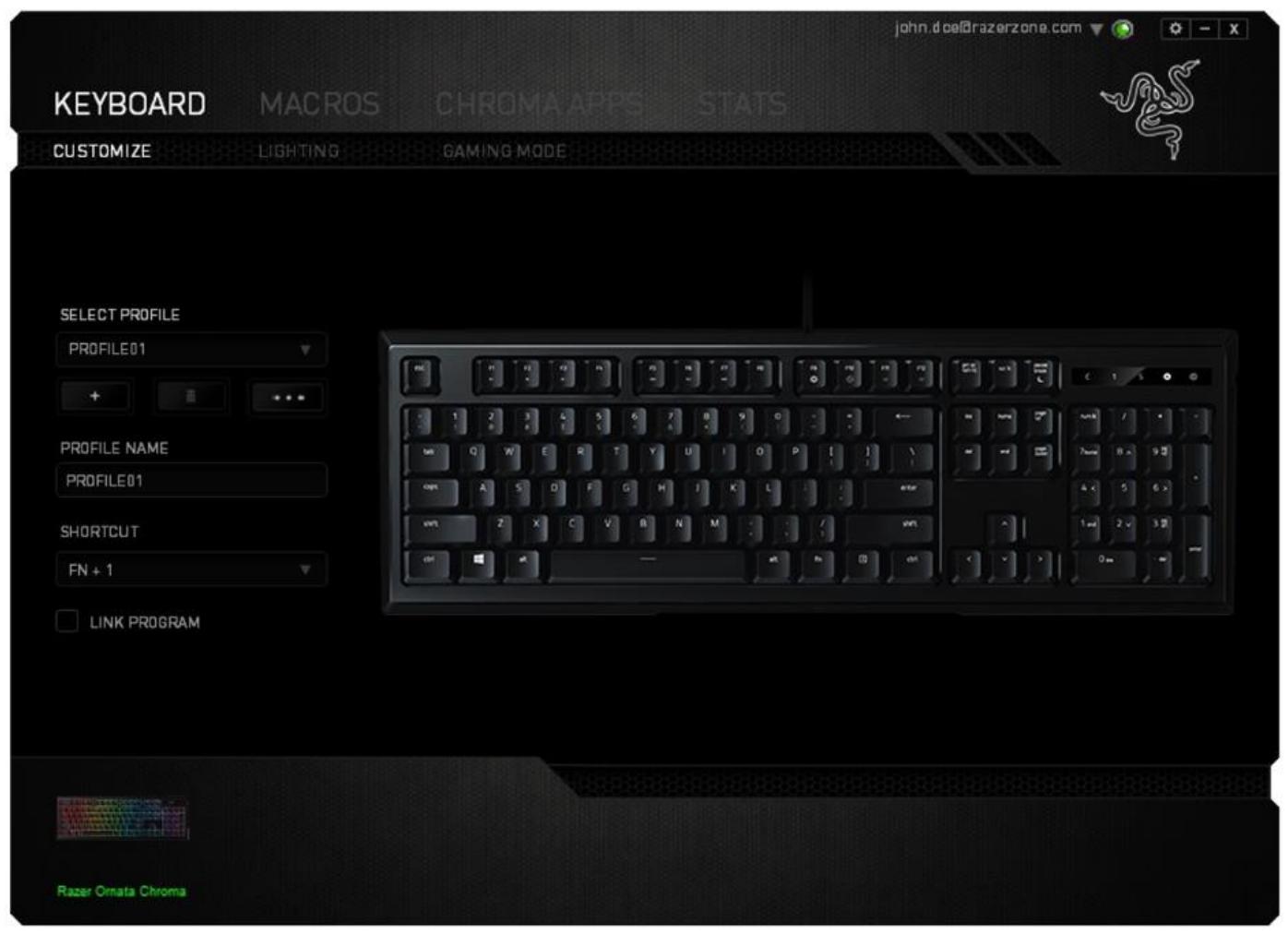
Profile
A profile is a convenient way of organizing all your custom settings and you can have an infinite number of profiles at your disposal. Any changes made within each tab are automatically saved to the current profile and stored into the cloud servers.
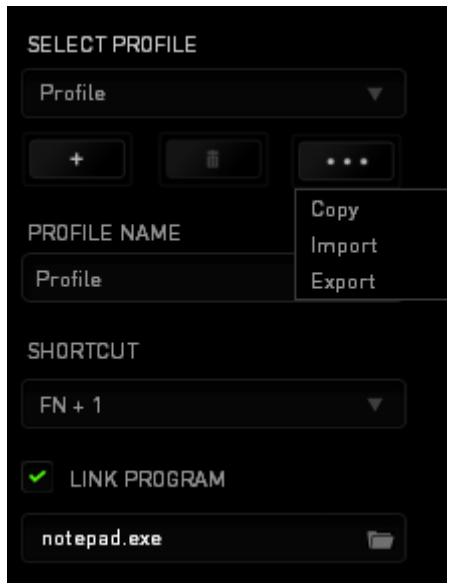
You can create a new profile by clicking the + button or delete the current profile by clicking
the button. The button allows you to Copy, Import, and Export profiles. Your current profile by default is named "Profile" however; you can rename it by typing on the text field below PROFILE NAME.
Each profile can be set to FN + 0 - 9 using the SHORTCUT dropdown menu for fast profile switching. Each profile can also be set to automatically activate when you run a program or application through the use of the LINK PROGRAM option.
Customize Tab
The Customize Tab is where you can modify the basic functionalities of your device such as key assignments to suit your gaming needs. The changes made in this tab are automatically saved to your current profile.
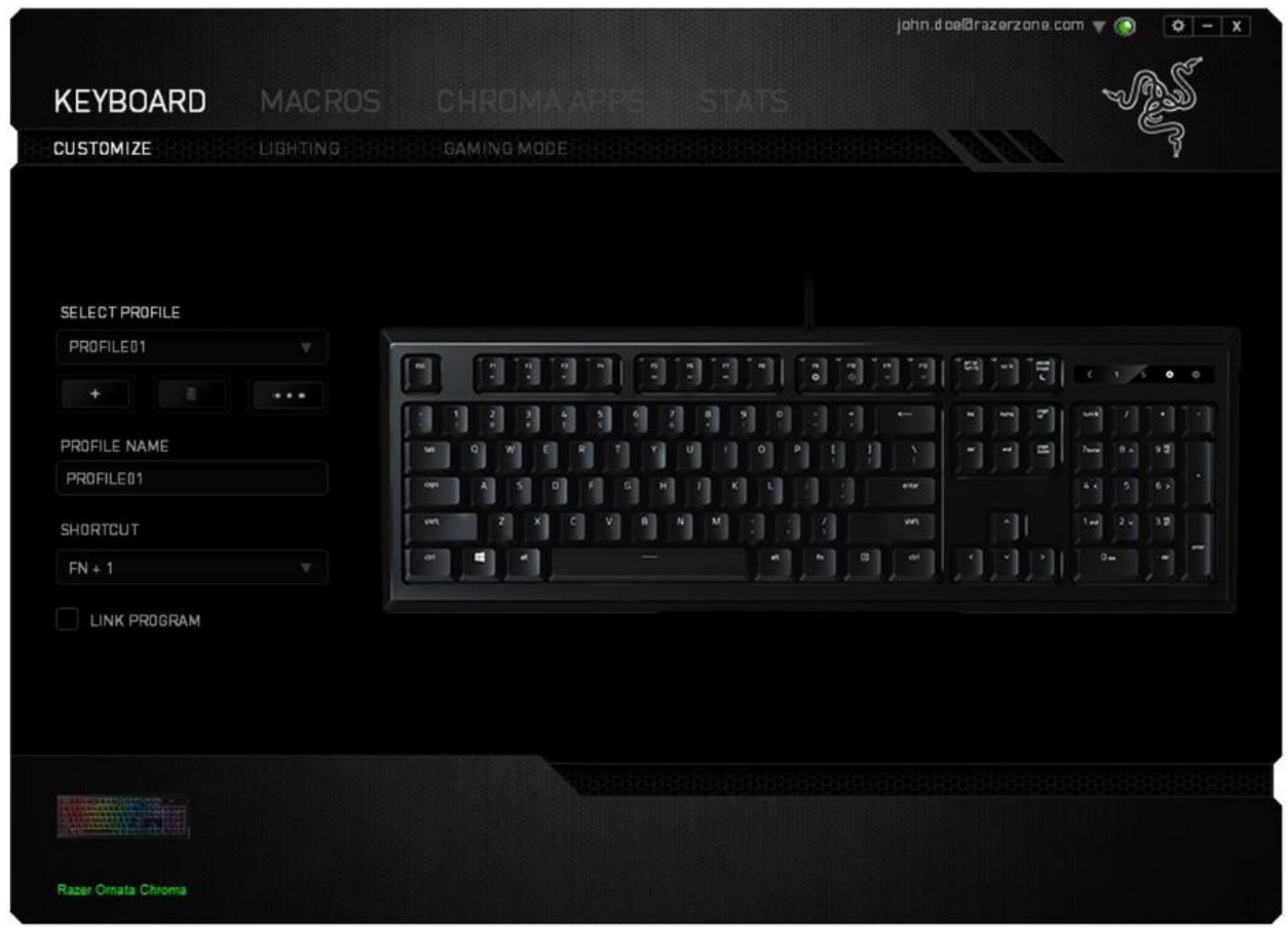
Key Assignment Menu
Initially, each key is set to DEFAULT. However, you may change the function of this key by clicking the desired key to access the Key Assignment Menu.
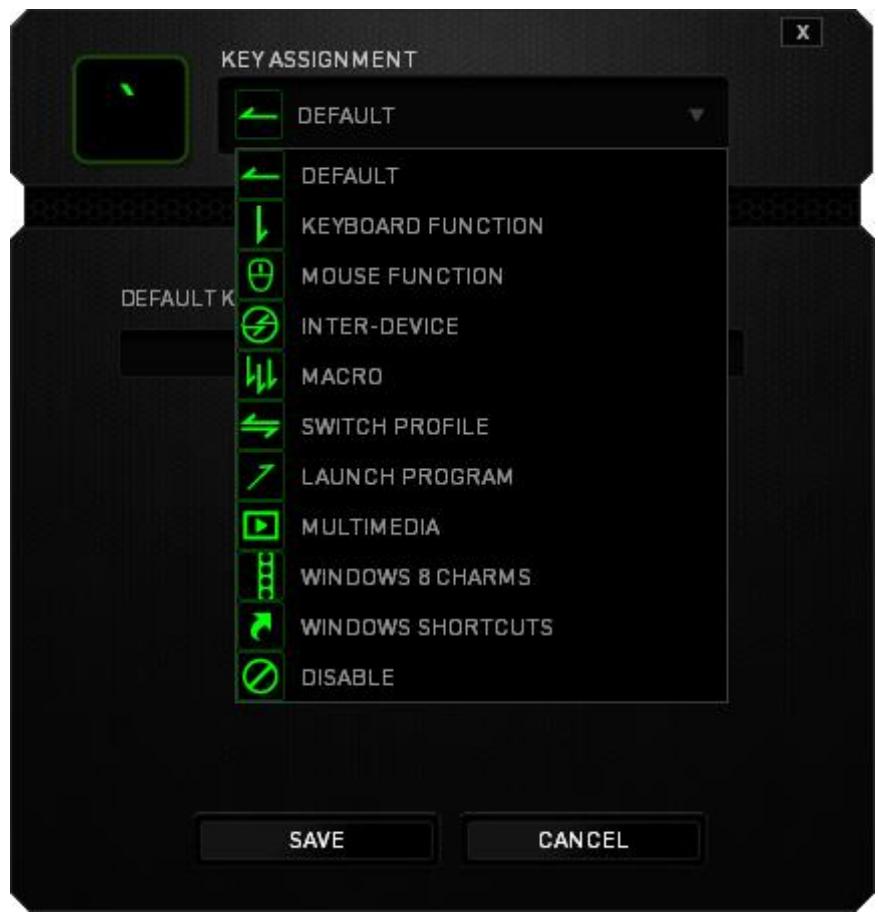
Listed below are the customization options and their description.

Default
This option enables you to return the key to its original function. To choose the DEFAULT, simple select it from the Key Assignment Menu.

Keyboard Function
This option enables you to change any key into another keyboard function. To choose a keyboard function, select KEYBOARD FUNCTION from the Key Assignment Menu and enter the key you wish to use on the given field below. You may also include modifier keys such as Ctrl, Shift, Alt or any of those combinations.
This option allows you to change any key into a mouse button function. To choose a mouse function, select MOUSE FUNCTION from the Key Assignment Menu and an ASSIGN BUTTON submenu will appear.
Listed below are the functions which you can choose from the Assign Button submenu:
- Left Click - Performs a left mouse click using the assigned button.
- Right Click - Performs a right mouse click using the assigned button.
- Scroll Click - Activates the universal scrolling function.
- Double Click - Performs a double left click using the assigned button.
- Mouse Button 4 - Performs a "Backward" command for most internet browsers.
- Mouse Button 5 - Performs a "Forward" command for most internet browsers.
- Scroll Up - Performs a "Scroll Up" command using the assigned button.
- Scroll Down - Performs a "Scroll Down" command using the assigned button.
- Scroll Left - Performs a "Scroll Left" command using the assigned button.
- Scroll Right - Performs a "Scroll Right" command using the assigned button.

Inter-device
Inter-device allows you to change the functionality of other Razer Synapse enabled devices. Some of these functionalities are device-specific such as using your Razer gaming keyboard to change the Sensitivity Stage of your Razer gaming mouse. When you select Inter-device from the Key Assignment Menu, a sub-menu will appear.
DEVICE TO LINK allows you to choose which currently connected Razer device can be linked while FUNCTION allows you to choose which functionality you want to use for the linked device.

Macro
A Macro is a prerecorded sequence of keystrokes and button presses that is executed with precise timing. By setting a key to Macro, you can conveniently execute a chain of commands. When you select this option from the Key Assignment Menu, a submenu will appear which allows you to
choose a prerecorded macro command. See the MACROS TAB to learn more about creating Macro commands.

Switch Profile
The Switch Profile enables you to change profiles on the fly and immediately load all your pre-configured settings. When you select Switch Profile from the Key Assignment Menu, a sub-menu will appear that will allow you to choose which profile to use. An on-screen display will automatically appear whenever you switch profiles.

Launch Program
Launch Program allows you to launch a program or a website using the assigned key. When you select Launch Program from the Key Assignment Menu, two options will appear which allow you to search for the specific program you want to open or write the address of the website you want to visit.

Multimedia Function
This option allows you to bind multimedia playback controls to your device. After selecting Multimedia Function, a submenu will appear. Listed below are the multimedia playback controls you can choose from the submenu:
Volume Down- Decreases the audio output.
Volume Up - Increases the audio output.
Mute Volume - Mutes the audio.
- Mic Volume Up - Increases the microphone volume.
- Mic Volume Down - Decreases the microphone volume.
- Mute Mic - Mutes the microphone.
- Mute All - Mute both microphone and audio output.
- Play / Pause - Play, pause, or resume playback of the current media.
Previous Track - Play the previous track.
Next Track - Play the next track.
This option enables you to assign the key into an Operating System shortcut command. For more information please visit: http://windows.microsoft.com/en-usWindows-8/getting-around-tutorial

Windows Shortcuts
This option enables you to assign the key into an Operating System shortcut command. For more information please visit: http://support.microsoft.com/kb/126449

Shortcuts
This option enables you to assign the key into an Operating System shortcut command. For more information please visit: http://support.apple.com/kb/ht1343

Disable
This option renders the assigned key unusable. Use Disable if you do not want to use the key or if it interferes with your gaming.
Lighting Tab
The Lighting Tab on Razer Synapse allows you to customize your Razer device by allowing you to choose from different basic lighting effects or create your own using the Chroma Configurator. If you have other Razer Chroma-enabled devices, you can synchronize their basic lighting effects by
clicking the
Note: Only devices that support the selected lighting effect will synchronize. LED indicators are not customizable.
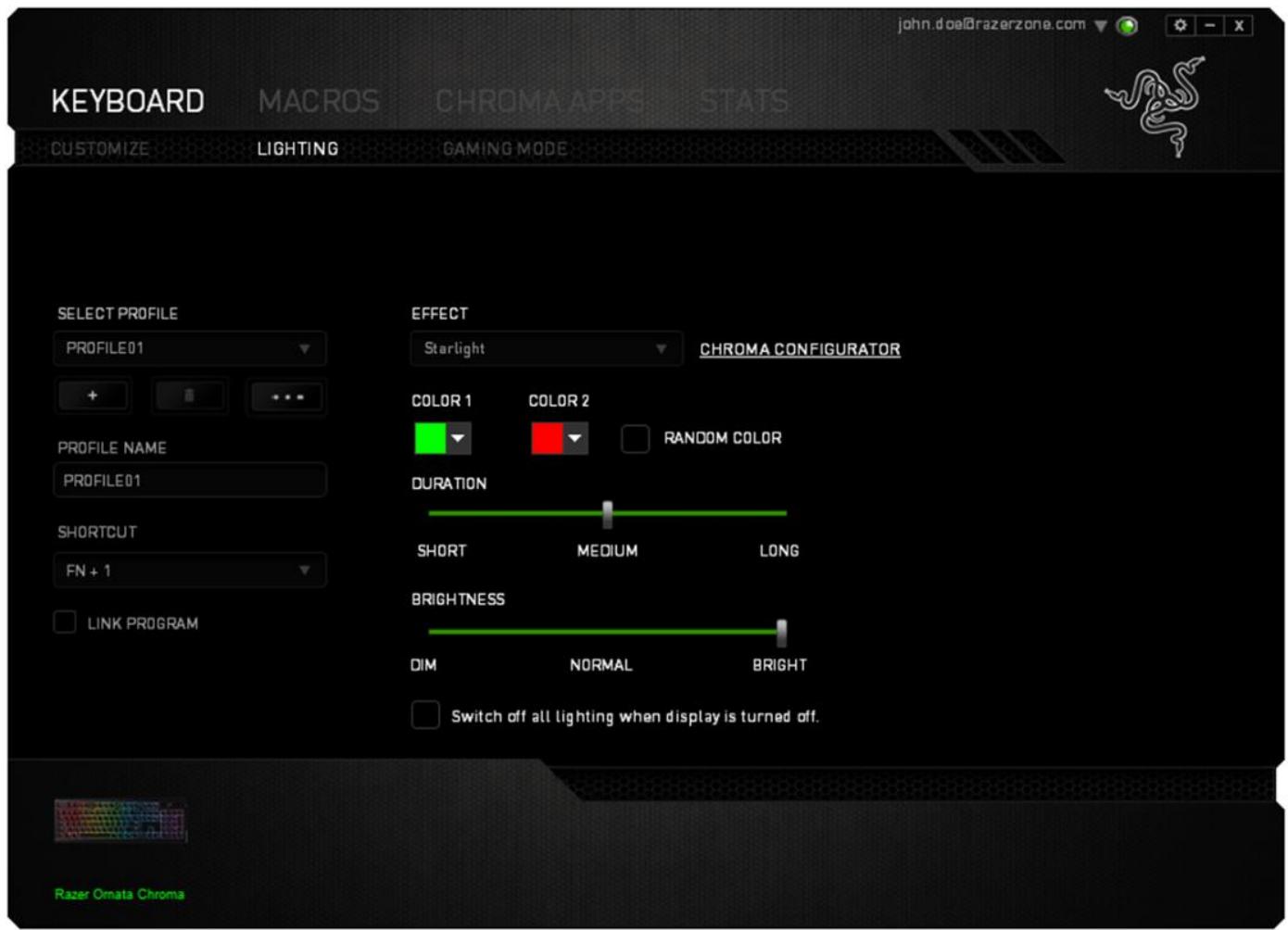
Pre-loaded lighting effects
A number of pre-loaded lighting effects can be selected and applied to your keyboard lighting as a whole, such as spectrum lighting, breathing etc. Select your desired effect and their corresponding properties (such as color) from the bottom area of this tab.
| Name | Description | How to set up | |
| Spectrum cycling | The lighting on the keyboard will cycle between 16.8 million colors indefinitely | No further customization required | |
| Wave | The lighting will scroll in the direction selected | Select either left-to-right or right-to-left wave direction | |
| Static | The LEDs will remain lit in the selected color | Select a color | |
| Breathing | The lighting fades in and out of the selected color(s) | Select up to 2 colors or randomize colors | |
| Reactive | The LEDs will light up when a key is pressed. The light will fade off after a specified period of time | Select a color and a duration | |
| Ripple | On key press, light will ripple away from the pressed key | Select a color | |
| Starlight | Each key will have a chance of fading in and out at a random time and duration | Select up to 2 colors or randomize colors and select a duration | |
| Fire | Each key lights up in warm colors to mimic the motion of flames | No further customization required |
Chroma Configurator
Accessible from the Lighting tab is the Chroma Configurator which you can use to create advanced lighting effects for your Razer Chroma-enabled device. Click the CHROMA CONFIGURATOR link to open the window and begin exploring the customization options for your device.
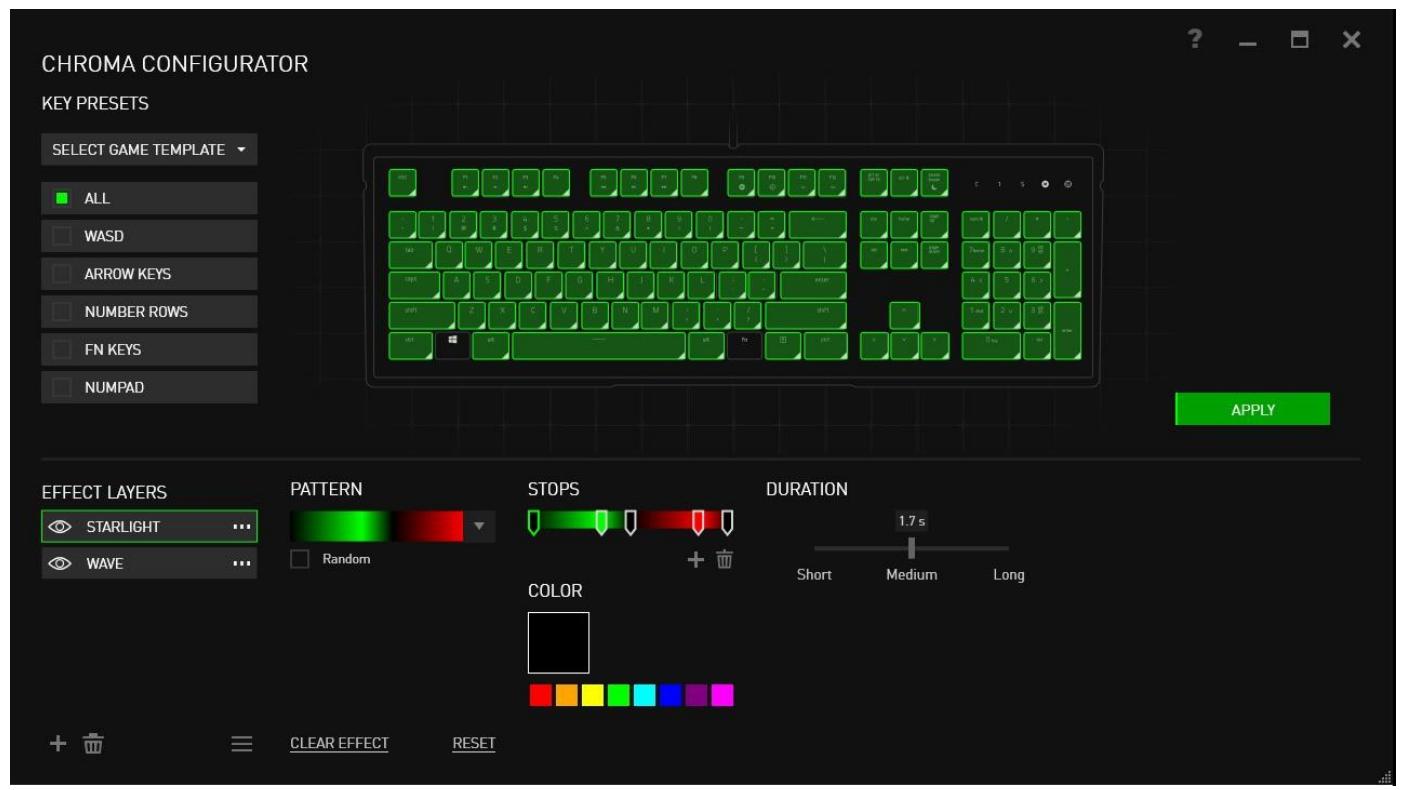
Advanced lighting effects
- Select the zones on the keyboard to customize. You can select multiple regions with the CTRL key.
- Add an Effect layer for the selected region.
- Customize the effects using the various options.
- Click the APPLY button to save and apply all configurations to your keyboard.
Customized lighting effects
You can also select the lighting color for each key individually. Select the Effect "Custom" and select the key to change. Then pick a color using the color selector.
The "Custom" option also includes templates for various game genres such as FPS, MOBA, MMO and RTS etc.
Gaming Mode Tab
The Gaming Mode Tab allows you to customize which keys to disable when Gaming Mode is activated. Depending on your settings, you may choose to disable the Windows key, Alt + Tab and Alt + F4. An indicator will light up when the function is currently turned ON.
MACROS TAB
The Macros Tab allows you to create a series of precise keystrokes and button presses. This tab also allows you to have numerous macros and extremely long macro commands at your disposal.
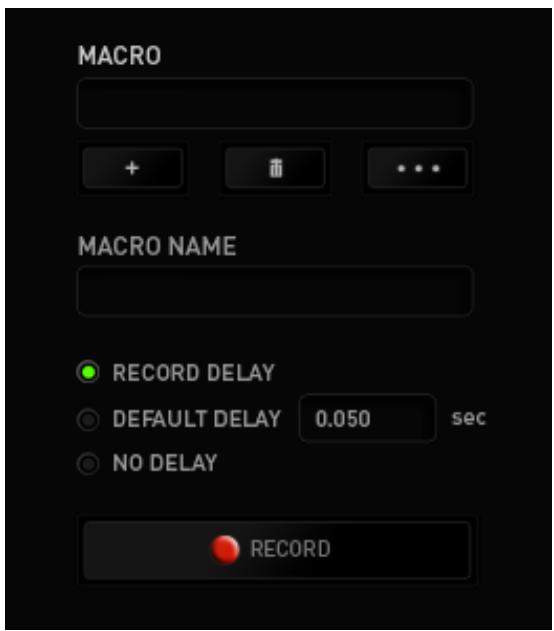
The Macro section works similarly to Profile wherein you can rename a macro by typing on the field below MACRO NAME. There are also other options available in the macro section such as creating a
new macro by clicking the + button and deleting the current macro by clicking the
To create a macro command, simply click the RECORD button and all your keystrokes and button presses will automatically register on the macro screen. When you are done recording your
macro commands, click on the STOP button to end the session.
The Macro section allows you to input the delay in-between commands. In RECORD DELAY the delay in-between commands are registered as how it is entered. The DEFAULT DELAY uses a predefined time (expressed in seconds) as the delay. And NO DELAY omits all the pauses in between keystrokes and button presses.
Note: You may use up to three decimal places when inserting values on the seconds (sec) field.
Once you have recorded a macro, you may edit the commands you have entered by selecting each command on the macro screen. Each keystroke or button press is arranged sequentially with the first command shown at the top of the screen.
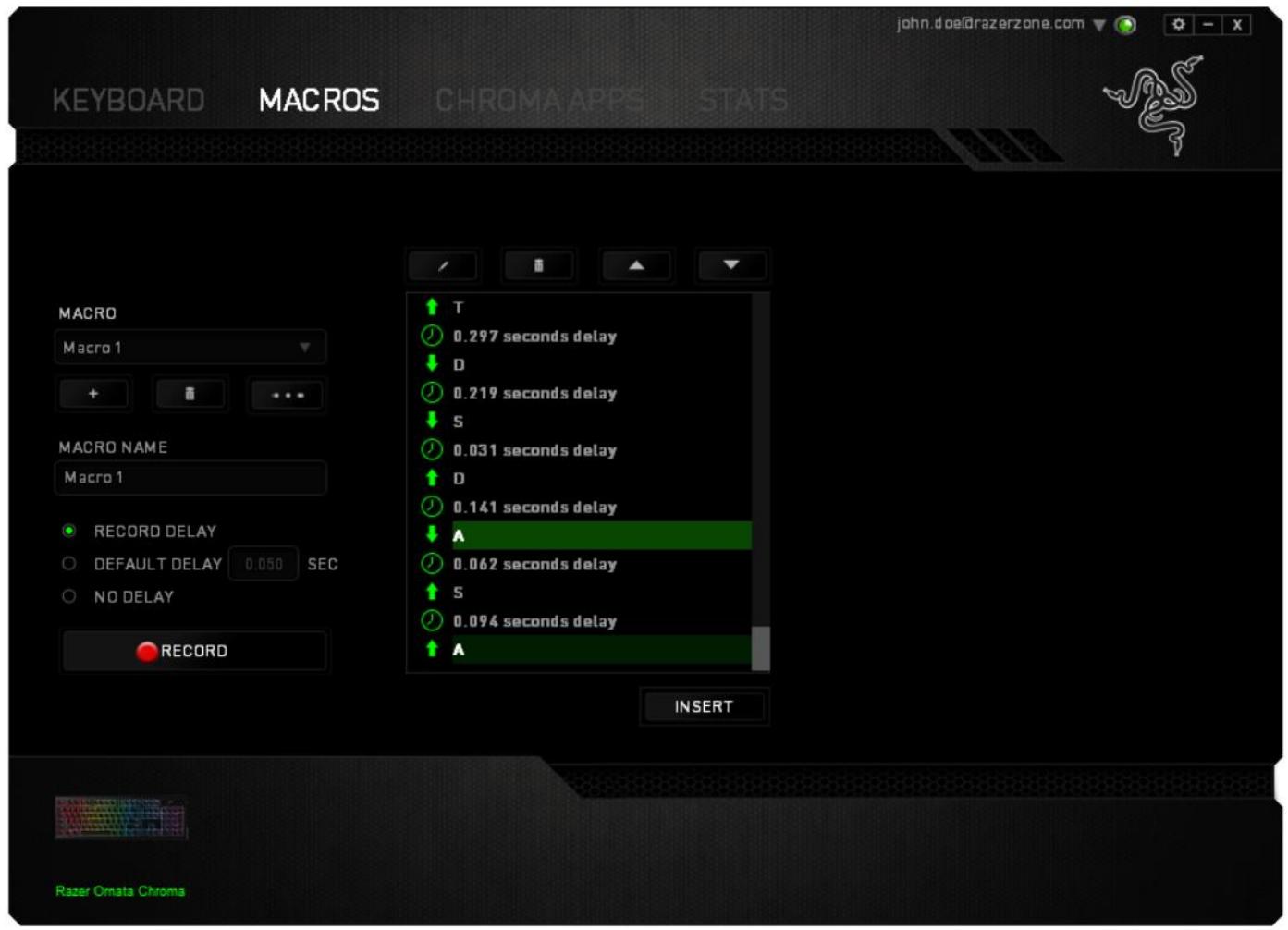
The button allows you to edit a particular command and the button enables you to delete a command. The and buttons give you the option to move the command up or down.
The INSERT button allows you to put in additional keystrokes, button presses or time delays either before or after the selected command.
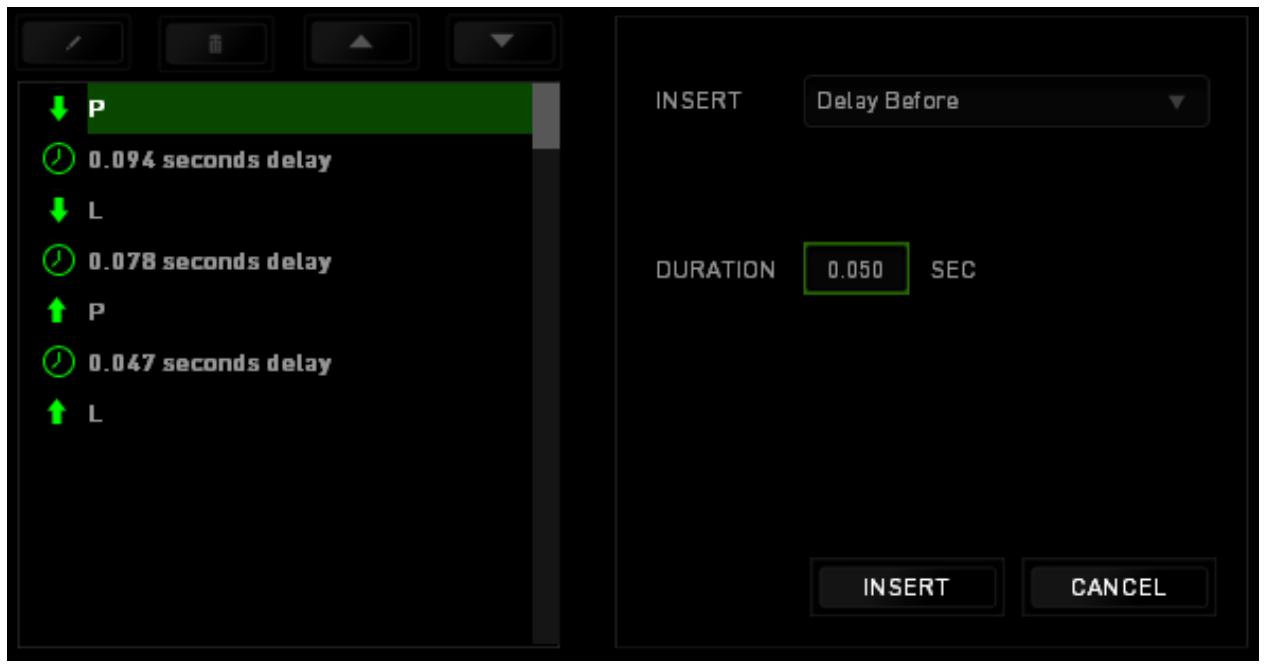
Once you have pressed the INSERT button, a new display window will appear beside the list of macro commands. The dropdown menu on this window allows you to choose a keystroke or a delay to be added in before or after the highlighted macro command.
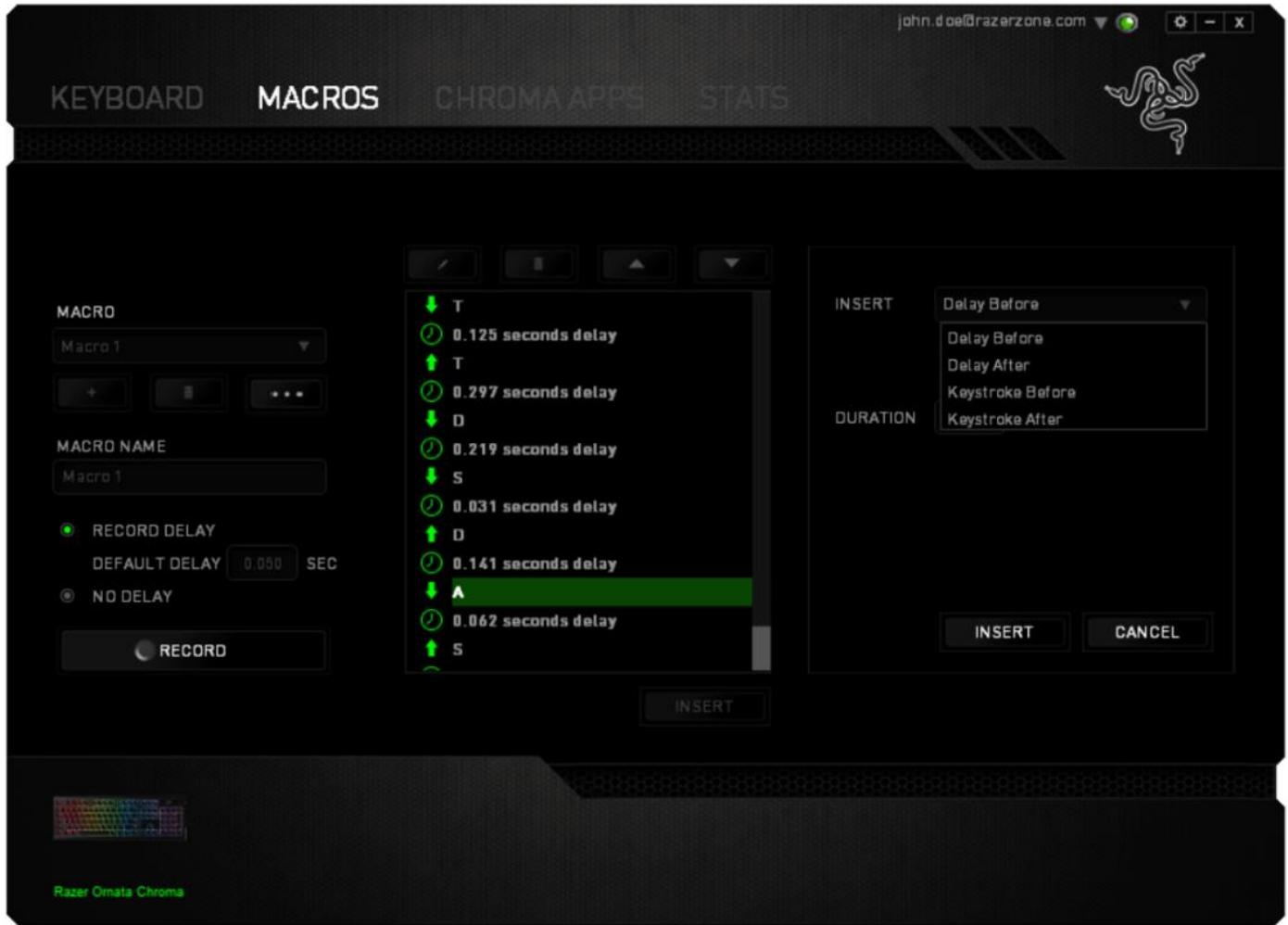
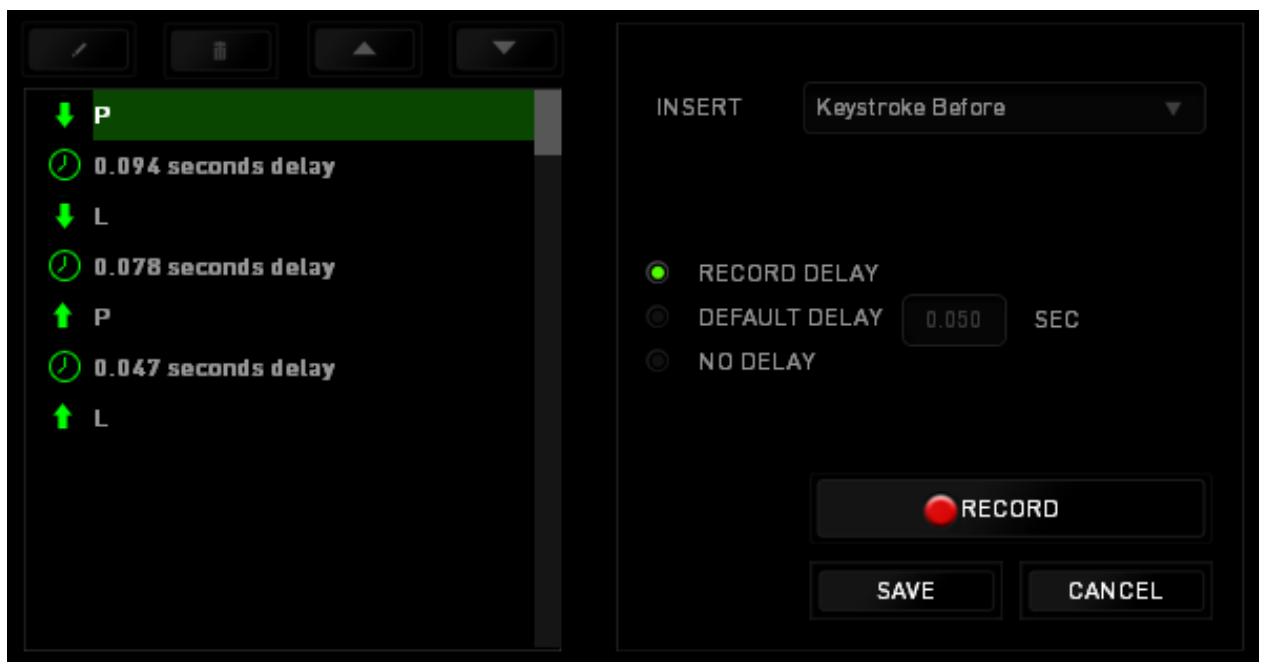
You may add in a new set of macro commands by clicking the button on the keystroke menu; or input time delays on the duration field using the delay menu.
CHROMAPPSTAB
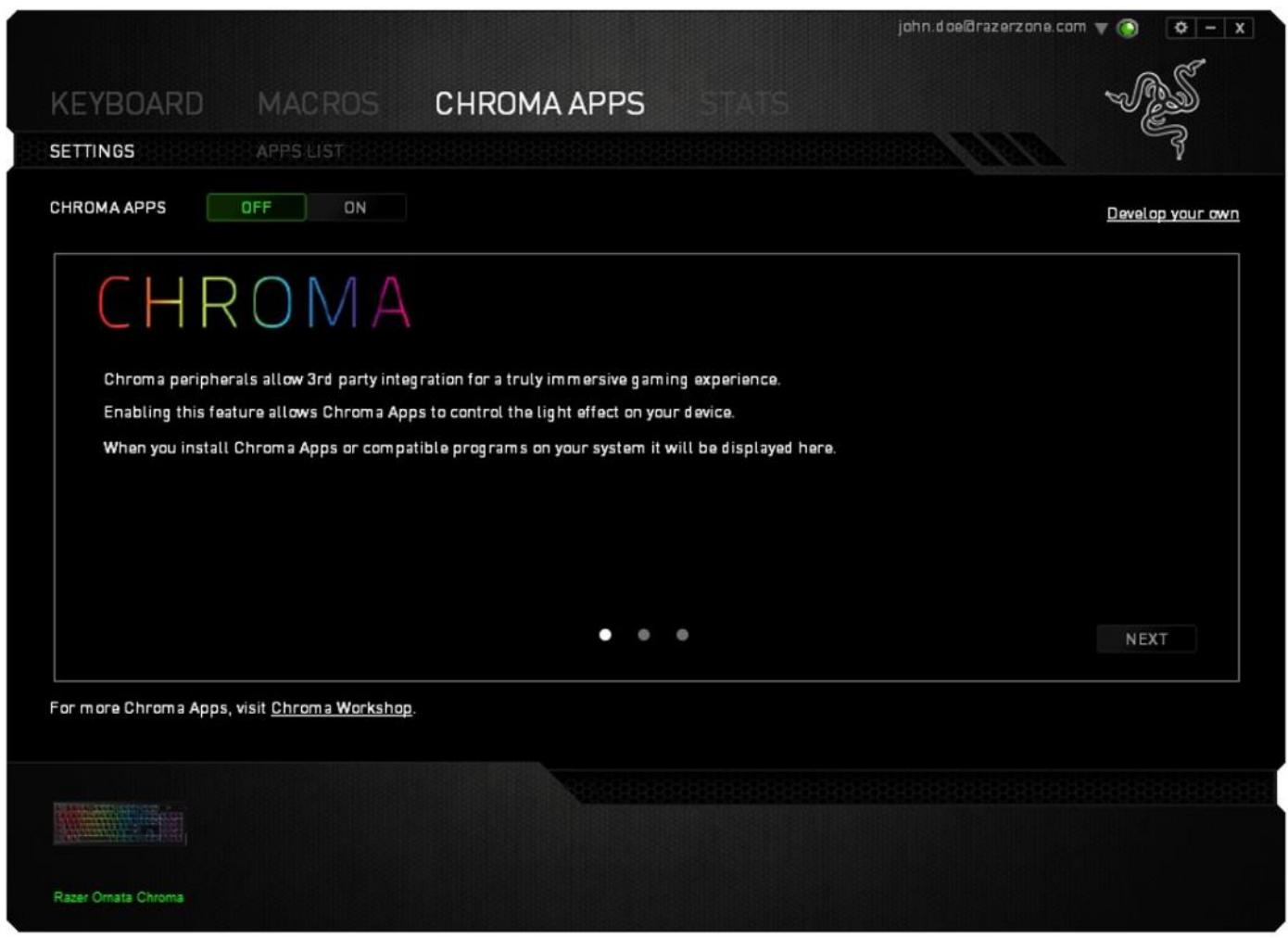
The Chroma Apps Tab allows 3^rd party apps to access your Razer Chroma-enabled devices and unlock additional features when using particular games or applications.
SETTINGSTAB
To enable the Chroma Apps function, click ON and visit razerzone.com/chroma-workshop to download an app.
APPS LIST TAB
The Apps list is where all your Chroma apps are listed. From this tab you can view additional information regarding a particular Chroma app by double-clicking it on the list or selecting the
Chroma app and clicking. You can also rearrange the list using drag-and-drop or by clicking
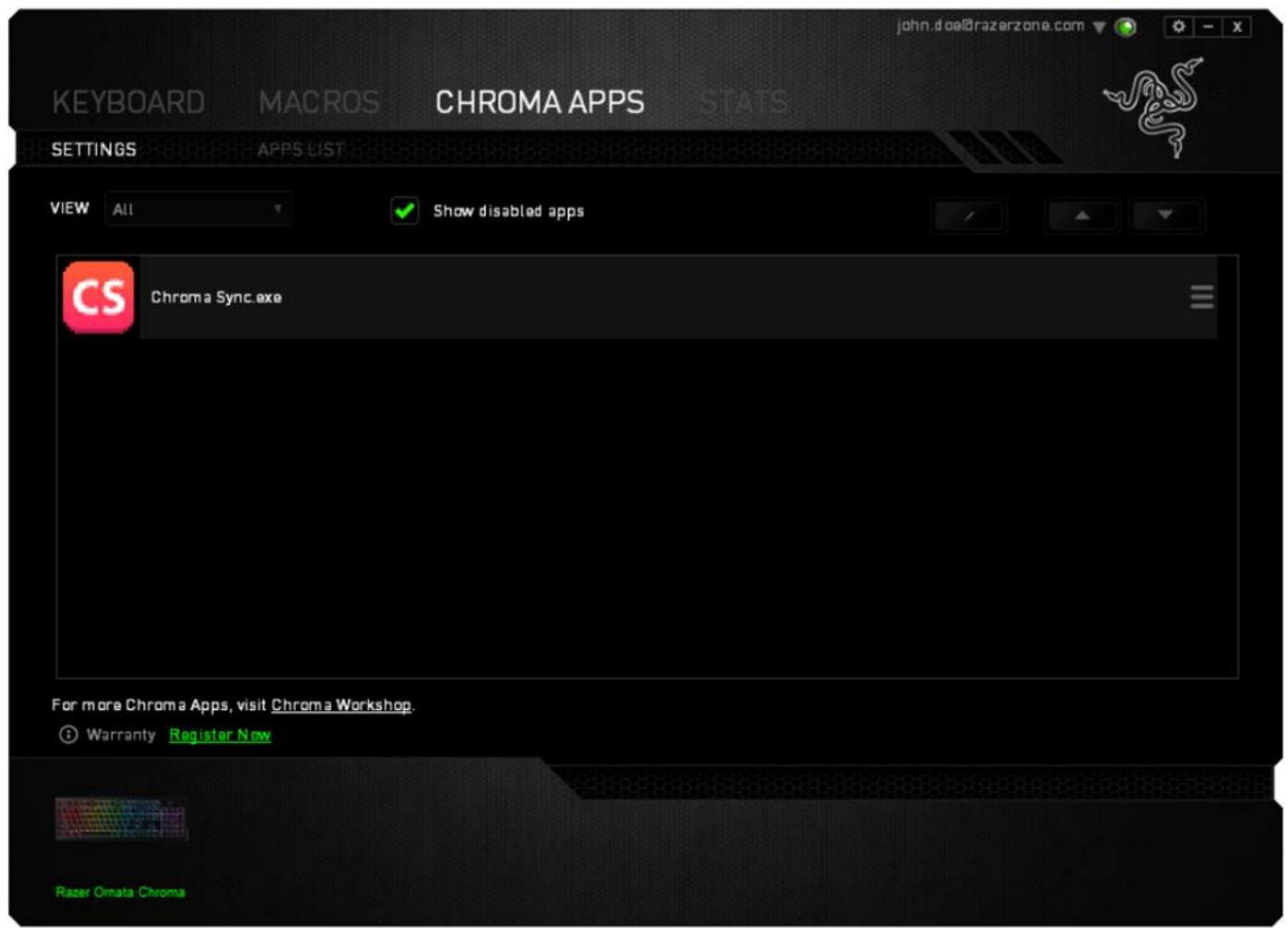
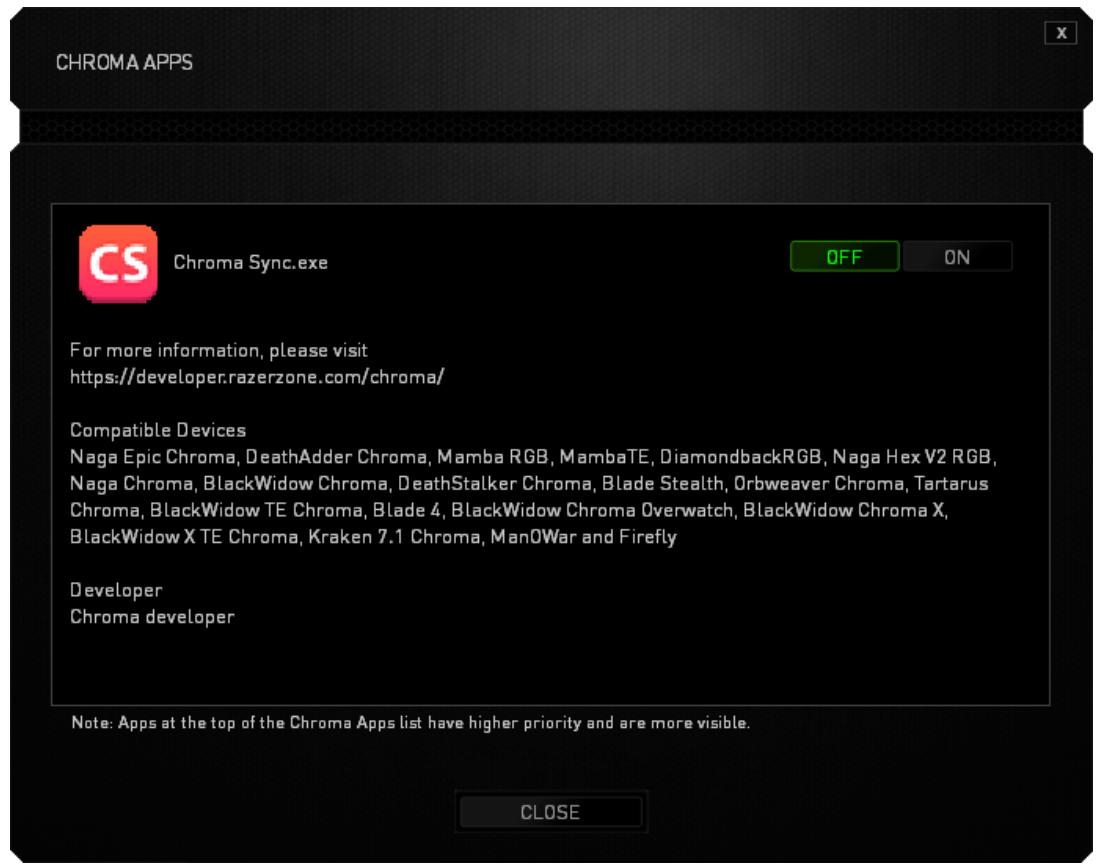
You may also disable the Chroma app by right-clicking on the app from the list and click Disable'...
STATS & HEATMAPS
Note: The images shown here are for reference only and may differ from the actual device.
Stats & Heatmaps help you analyze your gameplay by tracking your in-game mouse clicks, mouse movement and keyboard usage and visualizing it in form of heatmap overlays. This function is disabled by default. To enable this function, click the notification icon next to your user name in the Razer Synapse window and select "Enable Stats & Heatmaps".
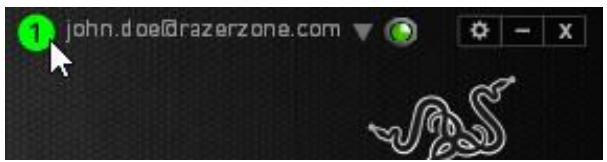
Confirm to enable the function in the dialog box that appears. Return to Razer Synapse and a new "Stats" tab will be available. Simply click the tab to open the function window.
Games List
Stats & Heatmaps work by tracking the usage of all supported devices for each game. When the feature is enabled, it automatically scans your system for installed games and adds them to the
Games List located on the left side of the screen. Click to show or hide the Games List.
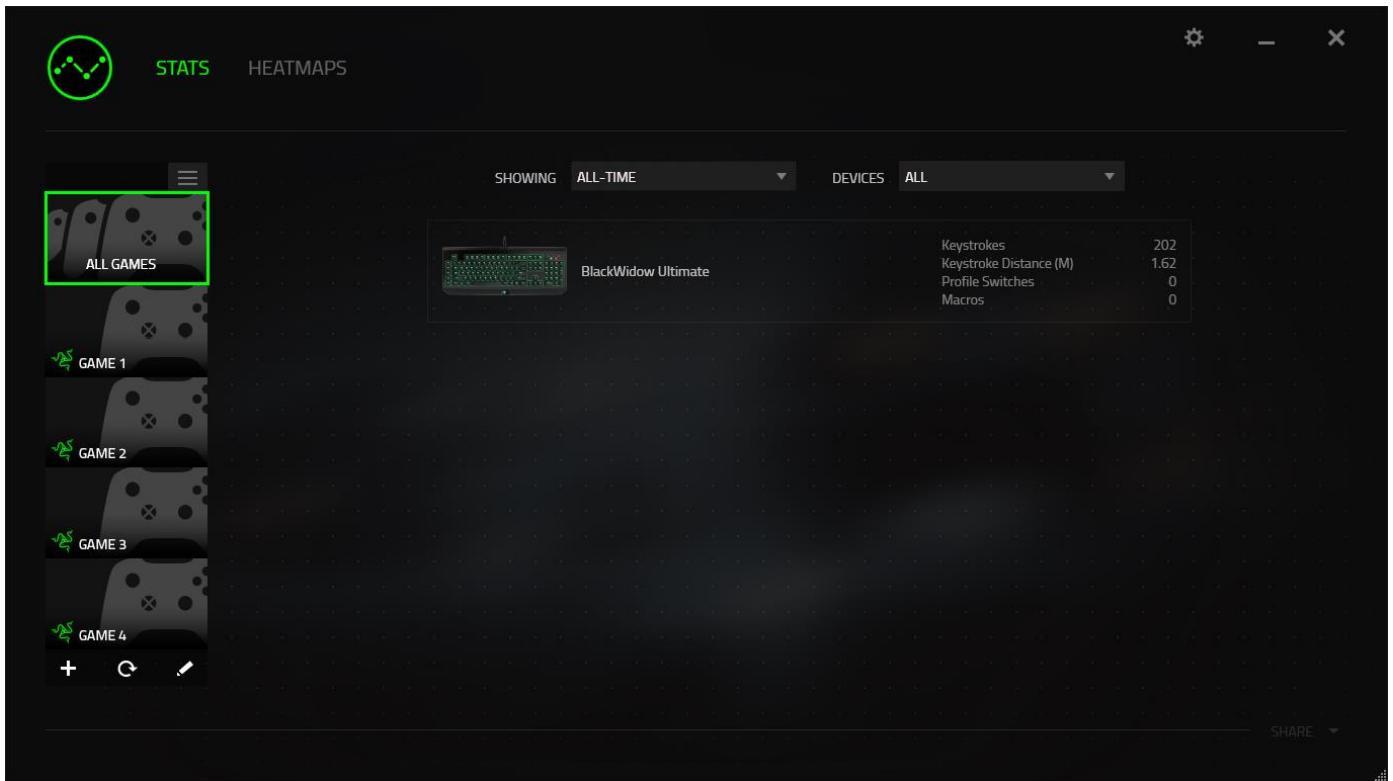
From this list, you can add more games that have not been automatically detected, using the + button, edit games with the button or re-scan your system with the G button to search for newly installed games.
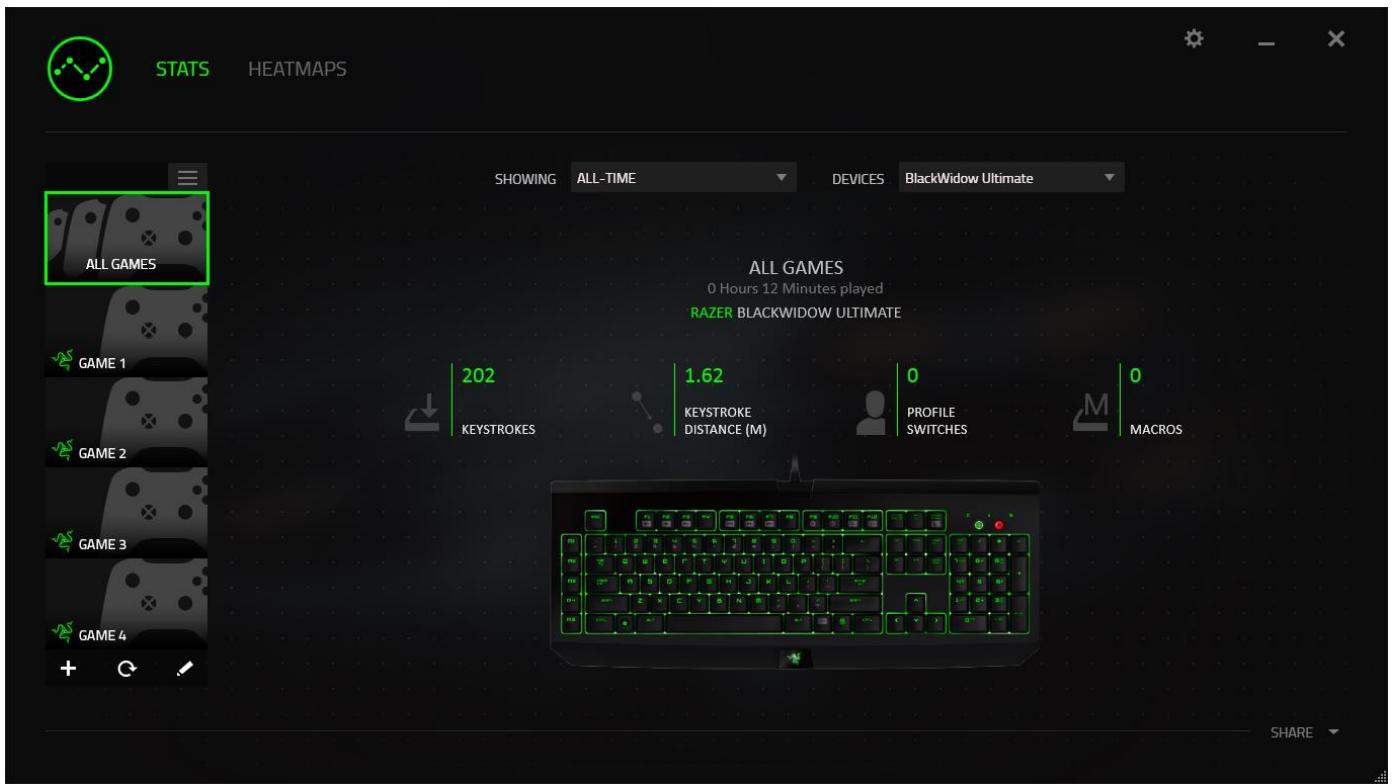
Stats Tab
By default, the Stats Tab shows you the overall statistics of all your Razer devices for all games and all time. You can select a specific game via the game list on the left side, change the time period using the SHOWING dropdown menu, or the Razer device using the DEVICES dropdown menu.
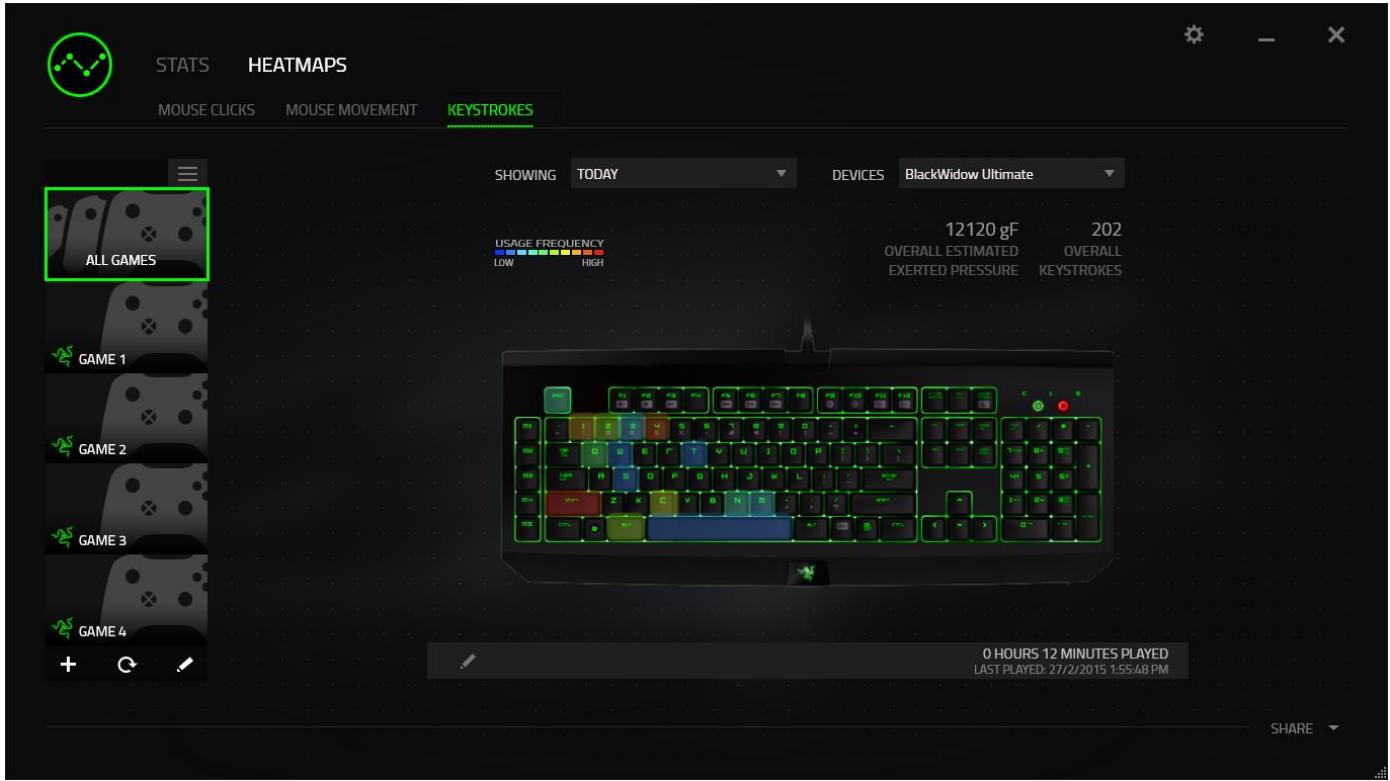
Heatmaps Tab - Keyboard
Heatmaps Tab shows the most frequently used keys on your Razer device for each game on your Games List.
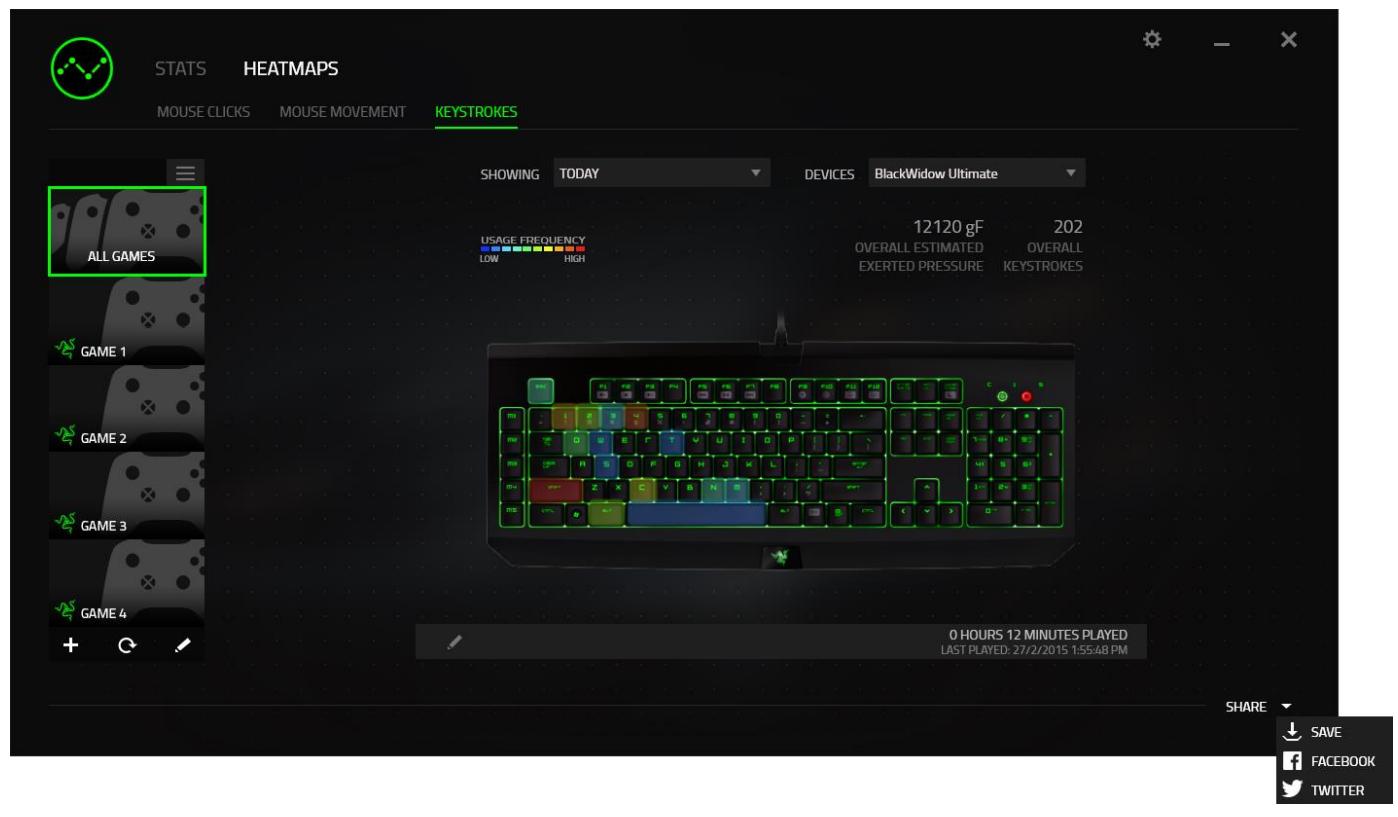
Social Media
You can share your heatmap image on social media networks such as Facebook or Twitter directly from Razer Synapse.
From the Heatmaps tab, click the Share button on the bottom right of the screen. You will be prompted to login to the selected social media using an existing account if you have not already done so.
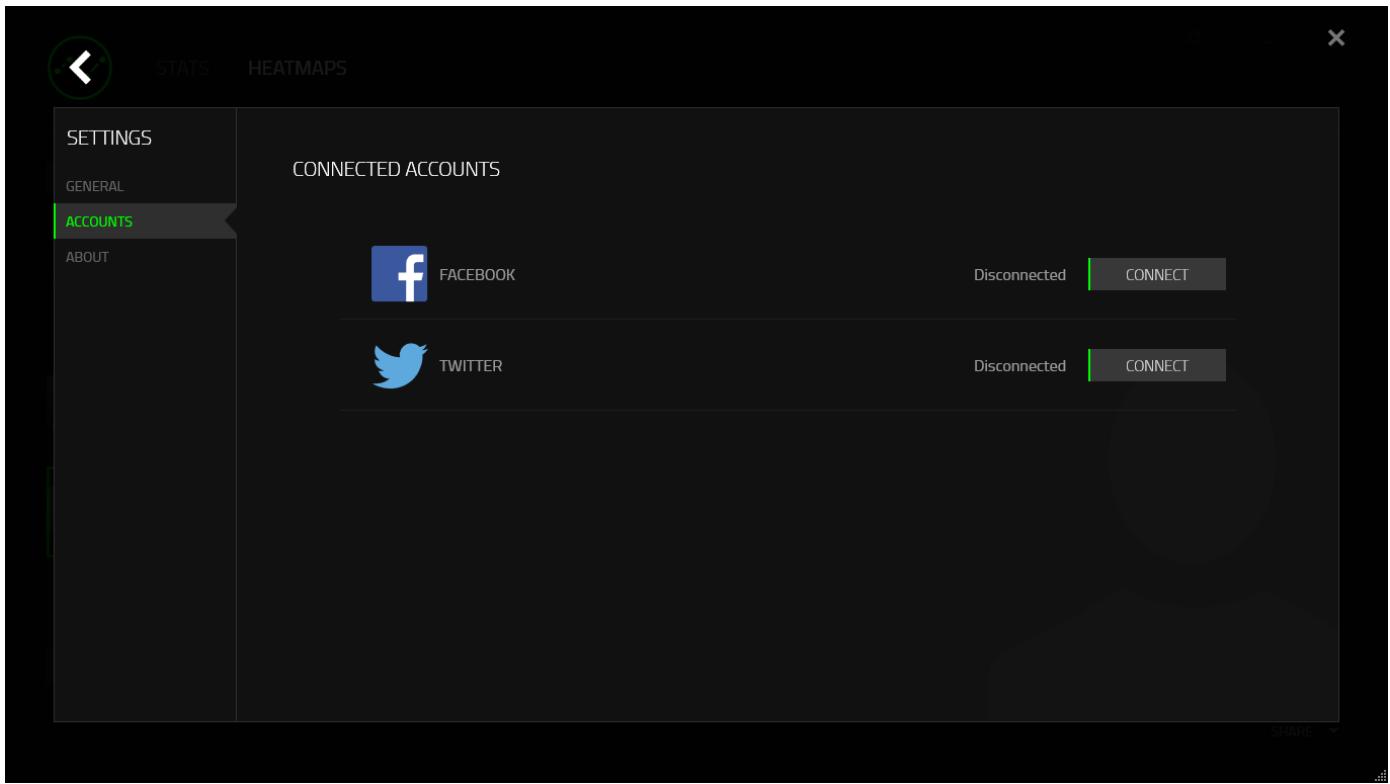
You can also login to your social media accounts first from the "SETTING" screen. From the Stats
& Heatmaps window, click. Select the "ACCOUNTS" tab. Click CONNECT next to the social media network you wish to sync with. Enter your login details and wait for the connection to complete.
9. SAFETY AND MAINTENANCE
SAFETY GUIDELINES
In order to achieve maximum safety while using your Razer Ornata Chroma, we suggest that you adopt the following guidelines:
Should you have trouble operating the device properly and troubleshooting does not work, unplug the device and contact the Razer hotline or go to Razersupport.com for support. Do not attempt to service or fix the device yourself at any time.
Do not take apart the device (doing so will void your warranty) and do not attempt to operate it under abnormal current loads.
Keep the device away from liquid, humidity or moisture. Operate the device only within the specific temperature range of 0^ ( 32^ ) to 40^ ( 104^ ). Should the temperature exceed this range, unplug and/or switch off the device in order to let the temperature stabilize to an optimal level.
COMFORT
Research has shown that long periods of repetitive motion, improper positioning of your computer peripherals, incorrect body position, and poor habits may be associated with physical discomfort and injury to nerves, tendons, and muscles. Below are some guidelines to avoid injury and ensure optimum comfort while using your Razer Ornata Chroma.
- Position your keyboard and monitor directly in front of you with your mouse next to it. Place your elbows next to your side, not too far away and your keyboard within easy reach.
- Adjust the height of your chair and table so that the keyboard and mouse are at or below elbow height.
- Keep your feet well supported, posture straight and your shoulders relaxed.
- During gameplay, relax your wrist and keep it straight. If you do the same tasks with your hands repeatedly, try not to bend, extend or twist your hands for long periods.
- Do not rest your wrists on hard surfaces for long periods. Use a wrist rest to support your wrist while gaming.
- Customize the keys on your keyboard to suit your style of gaming in order to minimize repetitive or awkward motions while gaming.
- Do not sit in the same position all day. Get up, step away from your desk and do exercises to stretch your arms, shoulders, neck and legs.
If you should experience any physical discomfort while using your keyboard, such as pain, numbness, or tingling in your hands, wrists, elbows, shoulders, neck or back, please consult a qualified medical doctor immediately.
MAINTENANCE AND USE
The Razer Ornata Chroma requires minimum maintenance to keep it in optimum condition. Once a month we recommend you unplug the device from the computer and clean it using a soft cloth or cotton swab with a bit of warm water to prevent dirt buildup. Do not use soap or harsh cleaning agents.
10. LEGALESE
COPYRIGHT AND INTELLECTUAL PROPERTY INFORMATION
©2016 Razer Inc. All rights reserved. Razer, the triple-headed snake logo, Razer logo, "For Gamers. By Gamers.", and Powered by Razer Chroma logo are trademarks or registered trademarks of Razer Inc. and/or affiliated companies in the United States or other countries. All other trademarks and trade names are the property of their respective owners and other company and product names mentioned herein may be trademarks of their respective companies.
Windows and the Windows logo are trademarks of the Microsoft group of companies.
Mac OS, Mac and the Mac logo are trademarks or registered trademarks of Apple.
Razer Inc. ("Razer") may have copyright, trademarks, trade secrets, patents, patent applications, or other intellectual property rights (whether registered or unregistered) concerning the product in this guide. Furnishing of this guide does not give you a license to any such copyright, trademark, patent or other intellectual property right. The Razer Ornata Chroma (the "Product") may differ from pictures whether on packaging or otherwise. Razer assumes no responsibility for such differences or for any errors that may appear. Information contained herein is subject to change without notice.
LIMITED PRODUCT WARRANTY
For the latest and current terms of the Limited Product Warranty, please visit razerzone.com/warranty.
LIMITATION OF LIABILITY
Razer shall in no event be liable for any lost profits, loss of information or data, special, incidental, indirect, punitive or consequential or incidental damages, arising in any way out of distribution of, sale of, resale of, use of, or inability to use the Product. In no event shall Razer's liability exceed the retail purchase price of the Product.
COSTS OF PROCEDURE
For the avoidance of doubt, in no event will Razer be liable for any costs of procurement unless it has been advised of the possibility of such damages, and in no case shall Razer be liable for any costs of procurement liability exceeding the retail purchase price of the Product.
GENERAL
These terms shall be governed by and construed under the laws of the jurisdiction in which the Product was purchased. If any term herein is held to be invalid or unenforceable, then such term (in so far as it is invalid or unenforceable) shall be given no effect and deemed to be excluded without invalidating any of the remaining terms. Razer reserves the right to amend any term at any time without notice.