
VMS3430 - Caméra de surveillance NETGEAR - Notice d'utilisation et mode d'emploi gratuit
Retrouvez gratuitement la notice de l'appareil VMS3430 NETGEAR au format PDF.


| Intitulé | Description |
|---|---|
| Type de produit | Système de caméra de surveillance sans fil |
| Caractéristiques techniques principales | Résolution vidéo HD 1080p, vision nocturne, détection de mouvement |
| Alimentation électrique | Adaptateur secteur inclus, fonctionne sur courant alternatif |
| Dimensions approximatives | Dimensions de la caméra : 10 x 10 x 10 cm |
| Poids | Environ 500 g |
| Compatibilités | Compatible avec les systèmes iOS et Android via application mobile |
| Type de batterie | Non applicable (fonctionne sur secteur) |
| Tension | 100-240V AC |
| Puissance | Consommation d'énergie : 5W |
| Fonctions principales | Surveillance en temps réel, enregistrement vidéo, alertes par notification |
| Entretien et nettoyage | Nettoyer avec un chiffon doux, éviter les produits chimiques agressifs |
| Pièces détachées et réparabilité | Pièces de rechange disponibles, service client pour assistance technique |
| Sécurité | Cryptage des données, accès sécurisé via application |
| Informations générales utiles | Installation facile, support technique disponible, garantie de 2 ans |
FOIRE AUX QUESTIONS - VMS3430 NETGEAR
Questions des utilisateurs sur VMS3430 NETGEAR
0 question sur cet appareil. Repondez a celles que vous connaissez ou posez la votre.
Poser une nouvelle question sur cet appareil
Téléchargez la notice de votre Caméra de surveillance au format PDF gratuitement ! Retrouvez votre notice VMS3430 - NETGEAR et reprennez votre appareil électronique en main. Sur cette page sont publiés tous les documents nécessaires à l'utilisation de votre appareil VMS3430 de la marque NETGEAR.
MODE D'EMPLOI VMS3430 NETGEAR
arlo™
User Manual
October 2015
202-11380-05
NETGEAR, Inc.
350 East Plumeria Drive
San Jose, CA 95134, USA
Support
For product updates and web support, visit https://www.arlo.com/support/.
Trademarks
© NETGEAR, Inc., NETGEAR and the NETGEAR Logo are trademarks of NETGEAR, Inc. Any non-NETGEAR trademarks are used for reference purposes only.
Compliance
For the current EU Declaration of Conformity, visit
http://support.netgear.com/app/answers/detail/a_id/11621/.
For regulatory compliance information, visit
http://www.netgear.com/about/regulatory/.
See the regulatory compliance document before connecting the power supply.
Contents
1. Set Up Your System 5
Set Up Your Base Station....5
Register for an Arlo Account....6
Set Up and Sync Your Cameras....7
Position Your Cameras....10
Position Mode 12
Adjust Motion Sensitivity....14
2. Personalize Your System 16
Name Your Cameras....16
Set Up Rules....17
Set Up Modes....20
Personalize Modes....20
Create a New Mode 22
Manage Modes....23
Create a Schedule 24
Add Friends....25
Change Your Preferences....28
3. View Your Content 30
View Recordings and Snapshots....30
Use the Filter 32
4. Manage Your Subscription 33
Service Levels....33
Renew Your Service Plans....34
Downgrade Your Service Plan....34
Cancel Your Paid Service Plan....36
5. BATTERY WARNINGS AND SAFETY 37
Counterfeit and Inferior-Quality Battery Warning 37
Safe Battery Handling and Usage 37
1. Set Up Your System
Setting up your Arlo system involves these steps:
- set up your base station
• register for an Arlo account - set up and sync your cameras
• position your cameras
Set Up Your Base Station
The base station connects to your home network and allows you to view your camera streams from anywhere.
To install your base station:
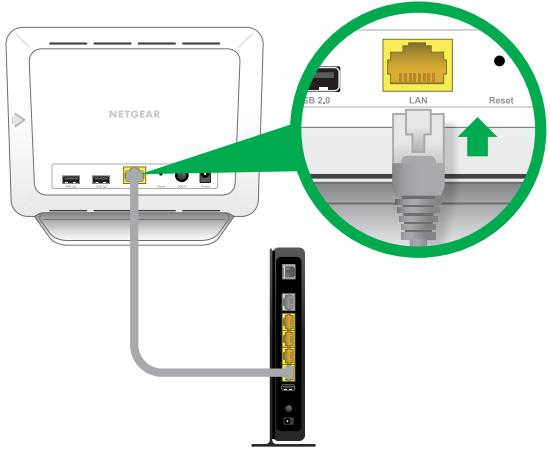
- Connect the base station to your router using an Ethernet cable.
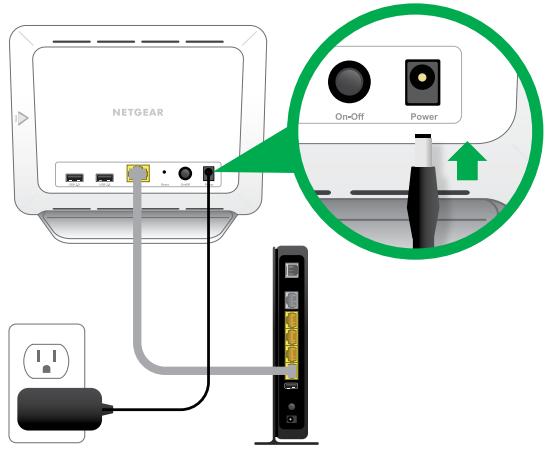
- Connect the AC adapter to the base station.
-
Plug the AC adapter into an electrical outlet.
-
Press the On-Off button on the back of the base station.
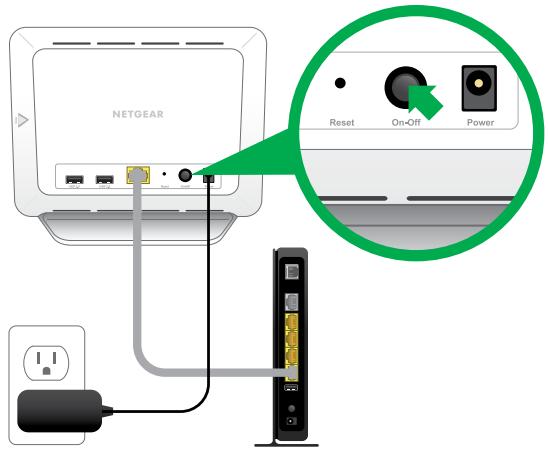
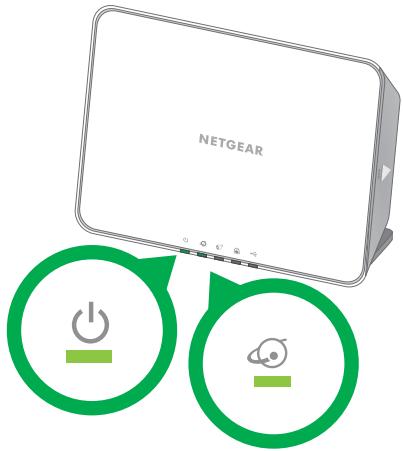
The Power LED and Internet LED light green in about two minutes.
natural_image
Illustration of a NETGEAR router with two green circular buttons containing icons (power and smart speaker), no text or symbols on the device itself.Your base station is set up.
Register for an Arlo Account
After you set up your base station, you must register for an Arlo account. Your Arlo account is linked to your Arlo system and allows you to view videos from any Internet-connected computer or mobile device.
On mobile devices, use the Arlo app for the best viewing experience. Visit the Apple App Store or the Google Play Store to download the Arlo app for iOS and Android devices.
To register for an Arlo account:
- In a browser, enter arlo.com/login the address bar.
- Click or tap New System Setup.
- Complete the required fields and click or tap Continue.
- Choose your base station's serial number from the drop-down menu and click or tap Continue.
- Choose your time zone from the drop-down menu and click or tap Continue.
- Choose a service plan.
Note: For more information, see Service Levels on page 33.
Your Arlo account is set up.
Set Up and Sync Your Cameras
The Basic service plan supports up to five synced cameras. You can upgrade to a paid service plan to support more cameras.
To set up your cameras:
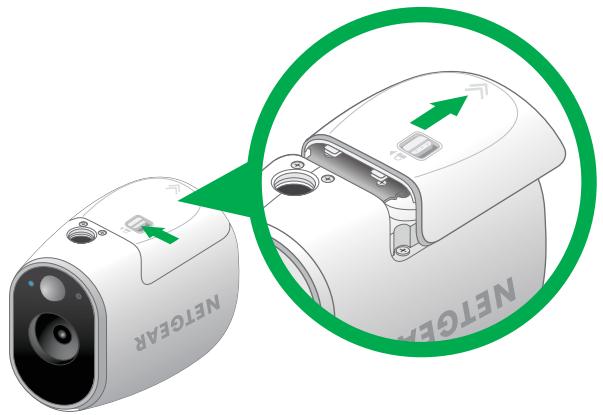
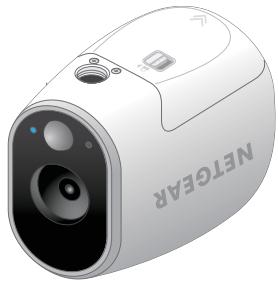
- Slide and hold the latch on the bottom of the camera.
-
Slide the battery door back and lift it to open the battery compartment.
-
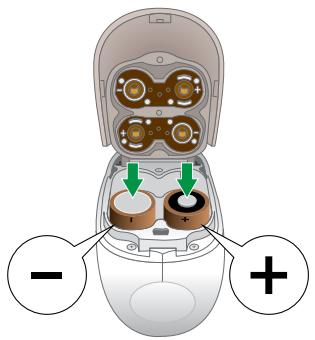
Insert two batteries near the back of the camera. Pay careful attention to the orientation of the batteries when you insert them.
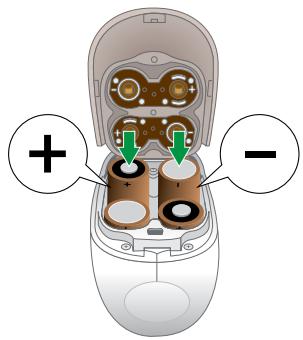
- Insert two batteries near the compartment hinge. Pay careful attention to the orientation of the batteries when you insert them.
- Close the battery door.
natural_image
Illustration of a white NETGEAR camera with lens and control buttons (no text or symbols on body)For more information, see Safe Battery Handling and Usage on page 38.
Your cameras are ready to sync.
To sync your cameras:
- Bring the camera within one to three feet (30cm–100cm) of the base station.
- Press and release the Sync button on the side of the base station.
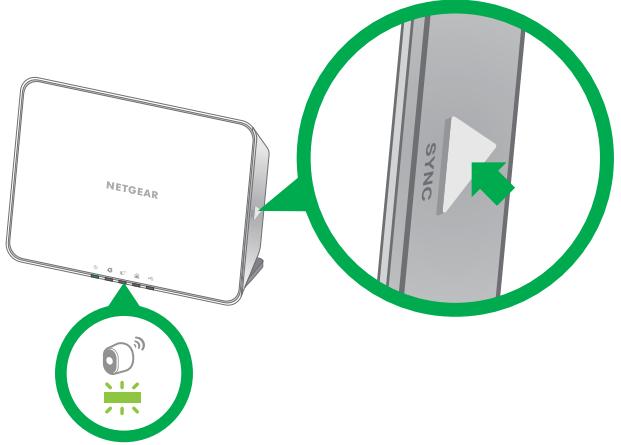
- Wait for the Sync Status LED on the base station to light green.
- Press and release the Sync button on top of the camera.
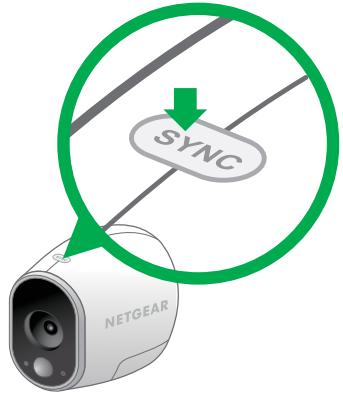
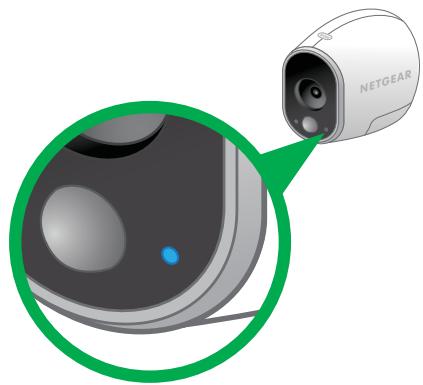
A blue LED on the camera blinks rapidly to confirm a successful sync.
natural_image
Illustration of a security camera with a green circular inset showing its blue lens (no text or symbols)- Repeat for each camera.
Position Your Cameras
Arlo's position mode allows you to see what your camera sees. Using Position mode, you can make sure that your Arlo camera is positioned to monitor the precise area that you want. For more information, see Position Mode on page 12.
It's important to keep distance in mind when placing your Arlo cameras:
- Maximum. You can place your Arlo camera a maximum of 300 feet (90 meters) from the base station. In indoor installations, the range might be less if metal objects or thick walls and ceilings are between a camera and the base station.
Note: Check the Camera LED on the base station; if it's blinking amber, the base station detects a low data rate, a sign that a camera is too far from the base station. - Minimum. Place your Arlo cameras at least 10 feet from the base station, and allow at least 6 12 feet (2 meters) between cameras. Follow these guidelines to prevent WiFi signals between the devices from interfering with each other.
When positioning your Arlo camera, keep these tips in mind:
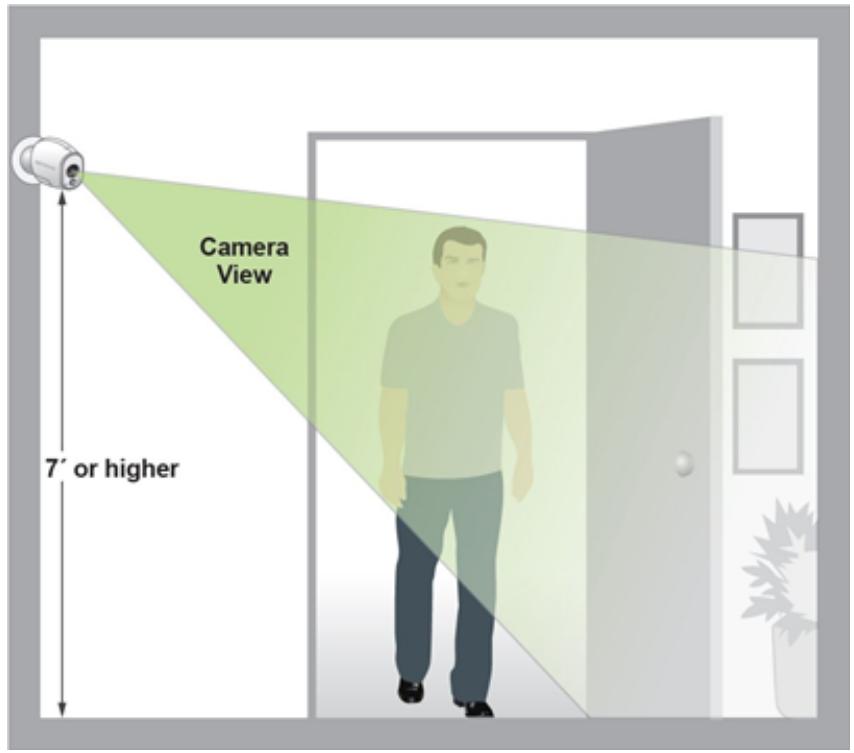
- Keep active locations in the camera's field of view. Your Arlo camera has a 130-degree viewing angle. Position your camera so that the space that you want to monitor is within the camera's field of view.
- Aim with the cloud. Use Arlo's Position mode to send video to the cloud as quickly as possible. This allows you to aim the camera while watching the video
feed on your Arlo smartphone app to make near real-time adjustments to the camera's position. Go to your camera's Settings option to turn on Position mode. After the camera is in place, you can turn off Position mode, or it automatically turns off after five minutes. For more information, see Position Mode on page 12.
- Elevate your camera. Mount your Arlo motion-detection camera at least 7 feet (2 meters) above the floor and aim it slightly downward for the best sensor performance.
- Ensure that side-to-side traffic crosses Arlo's field of view. Arlo's motion sensor is much more sensitive to side-to-side movement across its field of view than to movement directly toward or away from the camera. The best area for motion detection is 5 feet to 20 feet (1.5 to 6 meters) from the camera position.
For best results, position the camera so that the path of expected motion crosses Arlo's field of view and does not head directly into or away from the camera. For example, if you want to detect motion near a couch, place the camera to the side of the couch, rather than above it or opposite it.
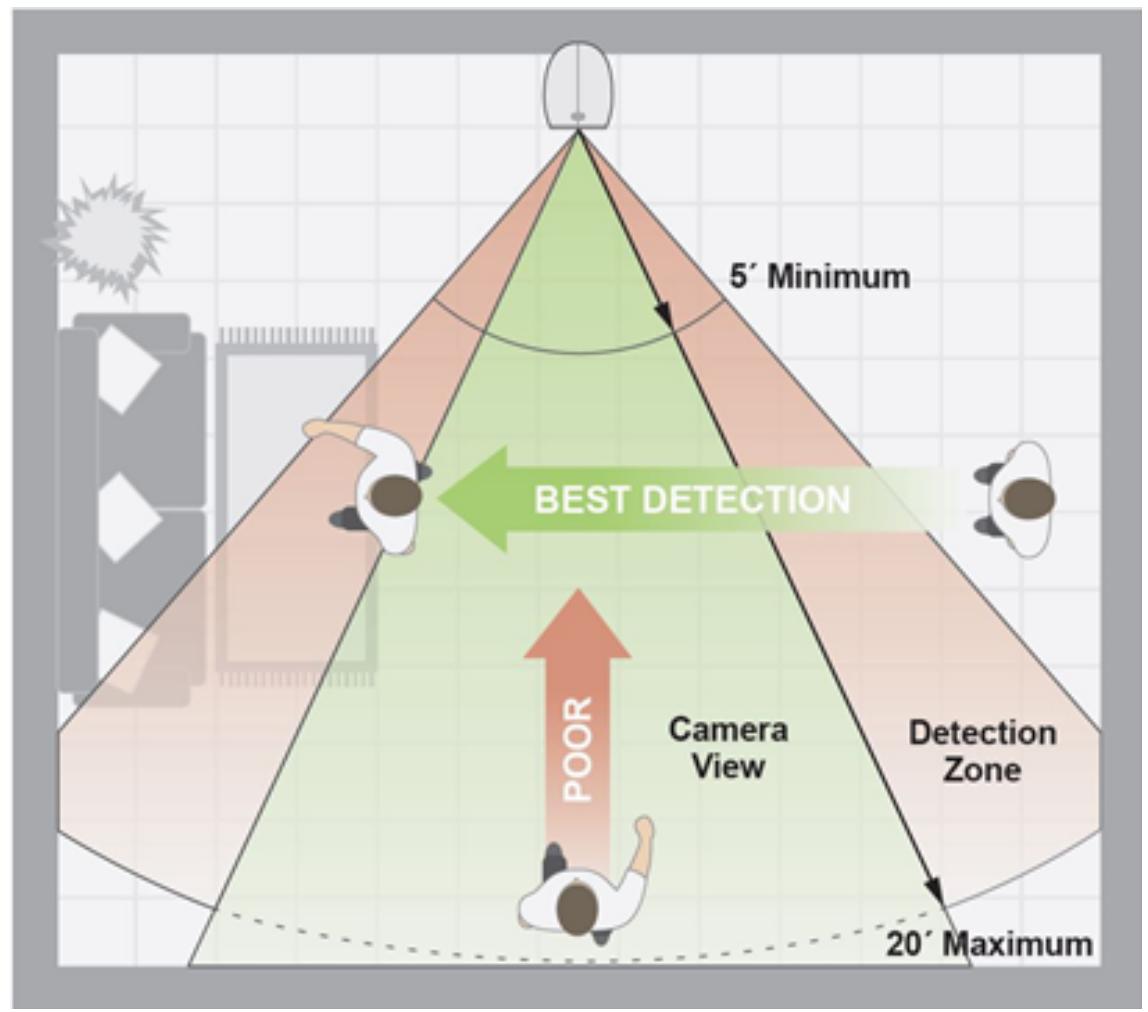
You can use the Motion Detection Test feature to verify if motion can be detected in a camera's current placement. The camera's LED flashes amber when motion is detected. Go to your camera's Settings option to turn on the Motion Detection Test feature.
Position Mode
Position mode is available only when the camera is not streaming, recording motion, or in Motion Detection mode.
To place your camera in Position mode:
- Log in to your Arlo account at arlo.com/login.
- Click or tap Settings.
- Under Camera Settings, select a camera to position.
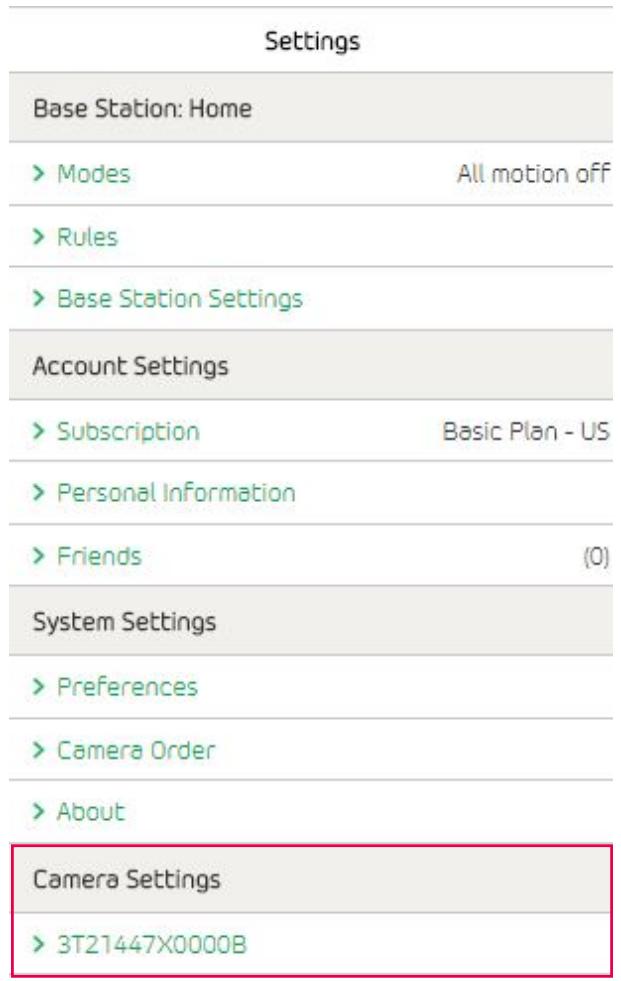
4. Click or tap Position Mode.
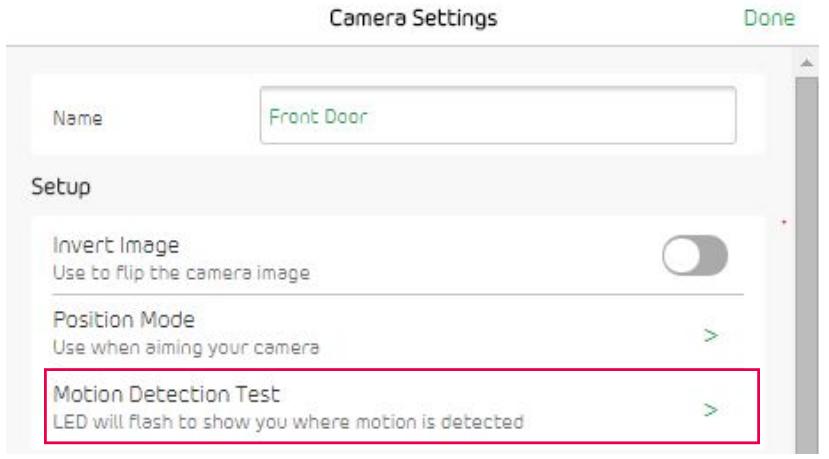
The camera starts streaming video.
Note: Position mode streams video as fast as possible, without buffering, so that you can aim the camera while watching on a smartphone and make near real-time adjustments to the camera position. This means that you might see lower-quality video while the camera is in Position mode.
Adjust Motion Sensitivity
You can adjust the motion sensitivity of an Arlo camera after a motion rule is applied to it.
To adjust the motion sensitivity of a camera:
- Log in to your Arlo account at arlo.com/login.
Password
Remember me
LOG IN
Forgot username or password?
- Click or tap Settings or Rules.
| Settings | |
| Base Station: Home | |
| > Modes | All motion off |
| > Rules | |
| > Base Station Settings | |
| Account Settings | |
| > Subscription | Basic Plan - US |
| > Personal Information | |
| > Friends | (0) |
| System Settings | |
| > Preferences | |
| > Camera Order | |
| > About | |
- Click or tap a motion rule assigned to the camera that you want to adjust.
- Under IF the following, use the slider to adjust the sensitivity of the motion sensor:
- Raise the sensitivity percentage to increase the number of videos that Arlo captures.
- Lower the sensitivity percentage to decrease the number of videos that Arlo captures.
- Click or tap Done.
2. Personalize Your System
Your Arlo system can be customized to meet your unique needs. After you create rules and modes for cameras, Arlo does the rest. You can name your cameras so that they are easier to identify and set up alerts so that you always know what's going on.
Name Your Cameras
You can easily customize your Arlo cameras by renaming them.
To rename your camera:
- Log in to your Arlo account at arlo.com/login.
- Click or tap Settings.
- Under Camera Settings, click or tap a camera.
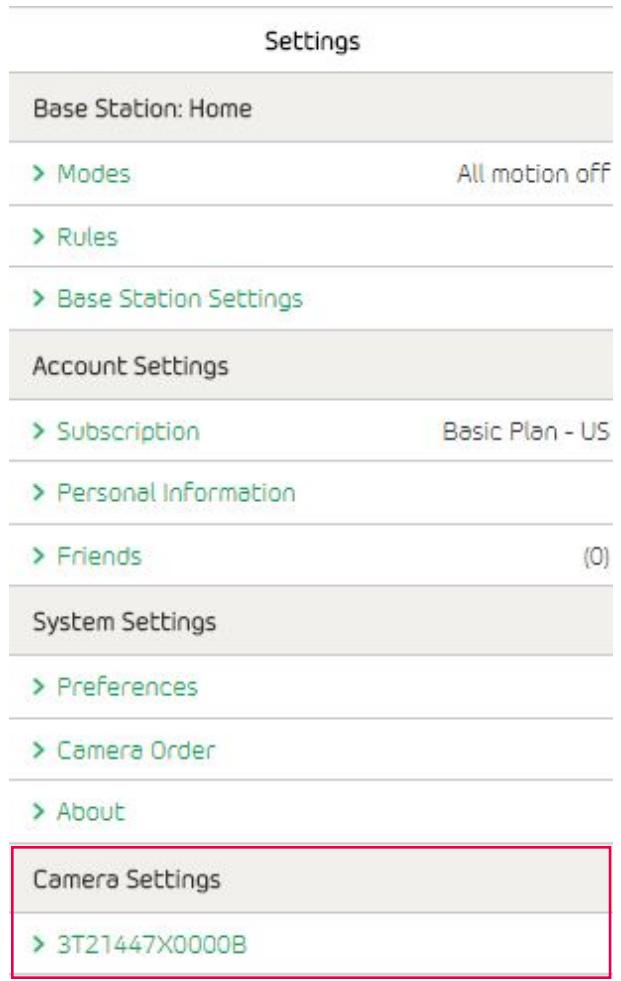
- In the Name field, delete the current name and enter a new name that reminds you of the camera's location, such as Garage or Front Door.
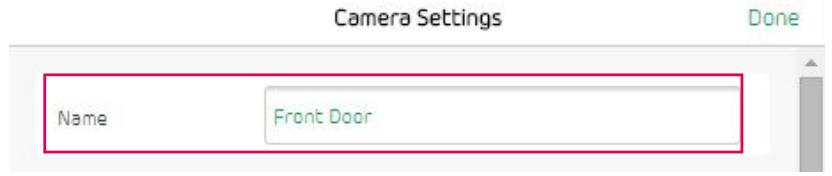
Camera names are limited to 32 characters.
- Click or tap Done.
Set Up Rules
With rules, you can tell your Arlo system what to do in certain situations. For example, you can set your Arlo system to record videos when the motion sensor is activated on a specific camera and alert you with an email message.
You can use the rules you create within modes and schedules to customize your Arlo system.
To create a rule:
- Log in to your Arlo account at arlo.com/login.

natural_image
Green stylized bird logo with wave-like design (no text or symbols)arlo™
Password
Remember me
LOG IN
Forgot username or password?
- Click or tap Settings > Rules > Add.
| Settings | |
| Base Station: Home | |
| > Modes | All motion off |
| > Rules | |
| > Base Station Settings | |
| Account Settings | |
| > Subscription | Basic Plan - US |
| > Personal Information | |
| > Friends | (0) |
| System Settings | |
| > Preferences | |
| > Camera Order | |
| > About | |
- Enter a name for the rule.
- Under IF the following, select the camera to which you want Arlo to apply the rule.
-
Use the slider to adjust the sensitivity of the motion sensor:
-
Raise the sensitivity percentage to increase the number of videos that Arlo captures.
-
Lower the sensitivity percentage to decrease the number of videos that Arlo captures.
-
Under THEN do the following, select the action that you want your Arlo system to take.
- Select the camera from which you want to record the video.
- Use the slider to adjust the length of video that is captured.
- To be alerted by email when your Arlo system activates this rule, click or tap To this list and enter at least one email address.
- Click or tap Done.
Set Up Modes
A mode is a way to set and control automated actions. With modes, Arlo can be on the lookout for you, even when you are not logged in. Modes start working when triggered by actions that you can define. You can personalize the default modes or add your own.
You might want to create a mode in which some motion sensors and cameras are active but others are not. For example, when you are sleeping, you might want your exterior cameras to be active, but your interior cameras to be inactive.
Modes are made up of rules. To create a new mode or change an existing one, you must first create a rule. To learn more about rules and how to create your own, see Set Up Rules on page 17.
Arlo is pre-configured with two default modes:
- All motion on. The motion sensor on each camera is active. When motion is detected, the camera records a video clip and sends an email message to the primary Arlo account holder. This mode works well when nobody is at home.
- All motion off. No motion sensors are active, no video is recorded and no motion alerts are sent. This mode works well when people are at home.
Personalize Modes
Modes start working when triggered by actions that you can define. For example, you can tell Arlo to record a video clip when it detects motion.
To personalize an existing mode:
- Log in to your Arlo account at arlo.com/login.
natural_image
Green logo featuring a stylized bird head with signal waves, labeled 'arlo' (no additional text or symbols)Password
Remember me
LOG IN
Forgot username or password?
- Click or tap Settings > Define a Mode.
A list of your modes displays.
- Click or tap a mode name.
A list of available rules displays.
- Tap or click rules to add them to the mode.
Note: Some devices cannot be used multiple times in the same mode; otherwise, they might be given contradictory instructions. Once a device is used, contradictory rules are deactivated.
The settings specific to that rule are shown using icons:
- Camera icon. The camera records.
• Paper plane icon. Email alerts are sent.
- Push notification. Notifications are pushed to your smartphone.
Note: You must install the Arlo app on your smartphone to receive push notifications.
- Running Icon. Motion sensors are on.
Note: You can use the Motion Detection Test feature to adjust your camera's motion detection sensitivity.
- To delete a mode, click or tap the trash can icon.
Note: You must have at least one mode. The Arlo system is always in a mode, even if that mode is set to do nothing.
Create a New Mode
To create a new mode:
- Log in to your Arlo account at arlo.com/login.
- Click or tap Settings > Modes.
A list of your modes displays.
-
Click or tap Add.
-
Name your new mode.
- Click or tap rules to add them to the mode.
Note: Some devices cannot be used multiple times in the same mode; otherwise, they might be given contradictory instructions. Once such a device is used, other rules that use that device are unavailable.
-
Click or tap Save.
-
To apply your new mode, click or tap Mode.
Manage Modes
You can turn modes on and off manually or set modes to activate according to a schedule.
To make immediate changes to a mode:
Use this method when you are not using a schedule to control a mode or to override an existing schedule.
- Log in to your Arlo account at arlo.com/login.
- Click or tap Mode.
-
Make sure that the Schedule switch is set to off.
-
Select a mode to activate it.
If the mode is turned off, it turns on immediately. The mode stays active until you change it or turn the schedule on.
If the mode is turned on, it turns off immediately. The mode stays inactive until you change it or turn the schedule on.
To change modes using a schedule:
Use this method to turn on an existing schedule or to edit an existing schedule.
-
Log in to your Arlo account at arlo.com/login.
-
Click or tap Modes.
-
Slide the Schedule switch to on.
-
To edit or create a schedule, drag the divider between modes to change the start and stop times.
Note: A schedule recurs weekly. For example, the schedule for Tuesday is repeated every Tuesday as long as the schedule is turned on. Arlo is pre-configured with the following schedule:
• Monday through Friday, 8:00 a.m. to 5:00 p.m. All motion sensors are on.
- All other times. All motion sensors are off.
Create a Schedule
You can set a schedule to activate and deactivate modes automatically. Schedules recur weekly. For example, the schedule for Tuesday is repeated every Tuesday as long as the schedule is turned on. Arlo is pre-configured with the following schedule:
• Monday through Friday, 8:00 a.m. to 5:00 p.m. All motion sensors are on.
• All other times. All motion sensors are off.
To set a schedule:
- Log in to your Arlo account at arlo.com/login.
natural_image
Green logo featuring a stylized bird head with signal waves, labeled 'arlo' (no additional text or symbols)Password
Remember me
LOG IN
Forgot username or password?
- Click or tap Mode.
- Make sure that the Schedule switch is set to on.
- Drag and drop modes to the weekly schedule to add them.
- Drag the dividers between modes to change the start and stop times.
Add Friends
You can add friends to your Arlo account. Friends can view live streams from your cameras, record video clips, view, share, mark as favorite, and delete clips from your library, and take snapshots. Friends have limited access to some of the settings and features on your Arlo account. You can select which cameras friends can see and what administrative rights are available to them.
To add a friend to your Arlo Account:
- Log in to your Arlo account at arlo.com/login.
natural_image
Green logo featuring a stylized bird head with signal waves, labeled 'arlo' (no additional text or symbols)Password
Remember me
LOG IN
Forgot username or password?
- Click or tap Settings.
- Under Account Settings, click or tap Friends.
- Click or tap Add.
- Enter the first name, last name, and email address of the person that you want to add as a friend.
- Click or tap the cameras that you want the friend to be able to access.
- Click or tap the administrative rights that you want to assign to the friend.
- Click or tap Send Invite.
To edit a friend's privileges:
- Log in to your Arlo account at arlo.com/login.
natural_image
Green logo featuring a stylized bird head with signal waves, labeled 'arlo' (no additional text or symbols)Password
Remember me
LOG IN
Forgot username or password?
- Click or tap Settings.
- Under Account Settings, click or tap Friends.
A list of your friends displays with the status of their accounts.
- Click or tap the status next to the name of the friend that you want to edit.
- Click or tap cameras and administrative rights to select or deselect them.
- Click or tap Done.
Change Your Preferences
Preferences allow you to control when Arlo notifies you of important events, like when your storage is full or a camera battery is low. You can also tell Arlo how to behave when your cloud storage is full. You can modify the following preferences:
- Manage Storage. When you turn on Manage Storage, Arlo automatically moves any unlocked files that are seven days or older to the recycle bin.
- If storage is full. Arlo lets you control how the system behaves when your cloud storage is full. Arlo can delete files to make room for new recordings, or Arlo can save your files and not make new recordings when your storage is full.
- Storage Full Notification. You can tell Arlo to notify you by email if your files exceed your cloud storage capacity.
- Low Battery Notification. You can tell Arlo to notify you by email if your camera's battery level is low.
To change your Arlo preferences:
- Log in to your Arlo account at arlo.com/login.
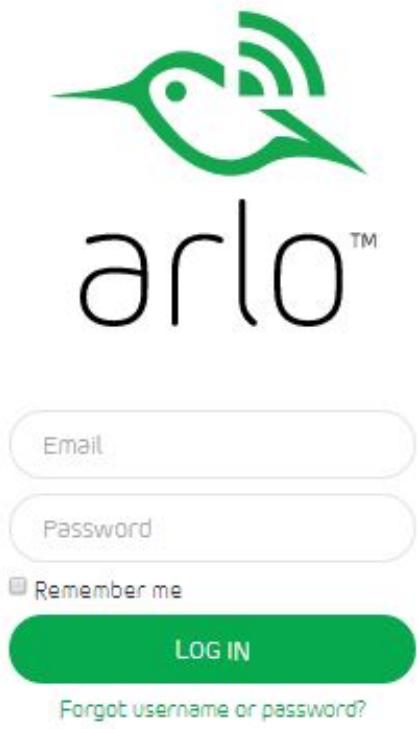
- Click or tap Settings.
- Under System Settings, click or tap Preferences.
| Settings | |
| Base Station: Home | |
| > Modes | All motion off |
| > Rules | |
| > Base Station Settings | |
| Account Settings | |
| > Subscription | Basic Plan - US |
| > Personal Information | |
| > Friends | (0) |
| System Settings | |
| > Preferences | |
| > Camera Order | |
| > About | |
- To change the manage storage feature, tap or drag the slider.
The slider turns green when the Manage Storage feature is turned on, and turns gray when it is turned off.
If you turn on the manage storage feature, choose an option for handling files when storage is full:
- To delete files to make room for new recordings if your storage is full, select the delete oldest files to make room radio button.
-
To save your files and not make new recordings if your storage is full, select the do not make new recordings radio button.
-
To change the storage full notification feature, tap or drag the slider.
The slider turns green when the Storage Full Notification feature is turned on, and turns gray when it is turned off.
- To change the low battery notification, tap or drag the slider.
The slider turns green when the Low Battery Notification feature is turned on, and turns gray when it is turned off.
- Click or tap the Done button.
3. View Your Content
Videos recorded by your Arlo system are stored in the library. You can view your recordings and snapshots, mark them as favorites, and search using the filter.
View Recordings and Snapshots
Your Arlo system stores recordings and snapshots in the library. In the library, you can view recordings and snapshots by the day or month that they were taken using the calendar.
To use the calendar:
- Log in to your Arlo account at arlo.com/login.

- Click or tap Library.
The calendar interface displays on the left side of the screen.
- Use the arrows on either side of the month to choose a month to view.
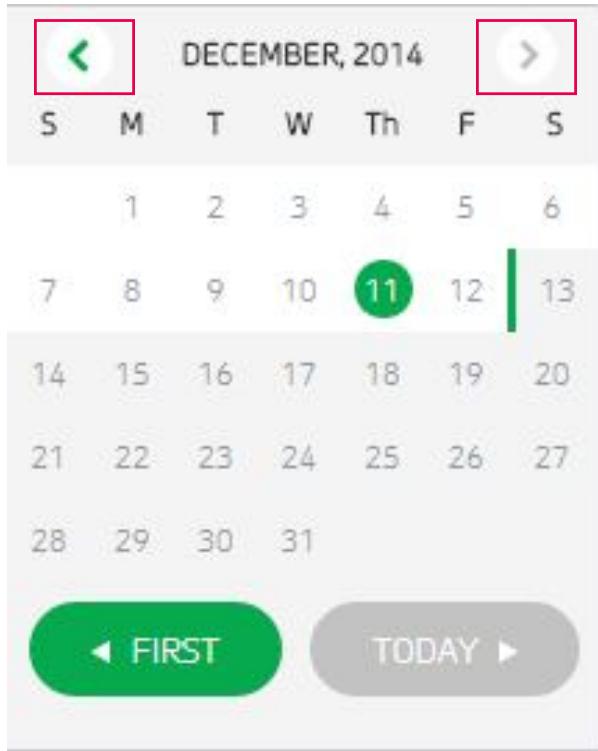
Days on which a video clip was recorded are highlighted with a green circle. Recordings from the month display to the right of the calendar.
- Click or tap a highlighted day.
Recordings from that date display to the right of the calendar.
Use the Filter
You can use the filter function to view a specific set of recordings in your library.
To filter your library:
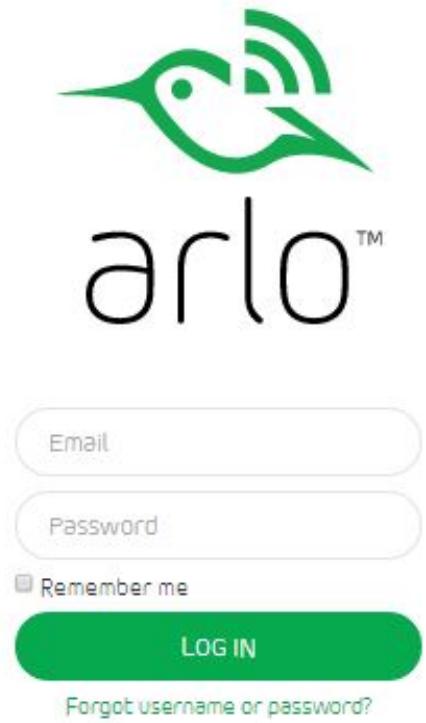
- Log in to your Arlo account at arlo.com/login.
Password
Remember me
LOG IN
Forgot username or password?
- Click or tap Library > Filter.
- Choose to view favorite recordings, non-favorite recordings, or all.
- Choose camera names to view video clips recorded by those cameras.
- Click or tap Done.
Recordings that match your filter parameters display. Dates with recordings that match the filter parameters are highlighted in dark green.
4. Manage Your Subscription
Every Arlo system includes free Basic service that offers basic features and functionality. When activating your Arlo system, you can choose between the Basic, Premier, and Elite service plans.
Service Levels
Upgrading to a paid service level gives you the ability to expand your Arlo system to suit your specific needs. Depending on your service level, you can add cameras, base stations, or cloud storage and share recordings with friends and family. For information about service plans, click http://bit.ly/1AQGR9k.
You can upgrade a Basic or Premier subscription at any time. When you upgrade from a paid subscription to a higher service level, the system calculates any unused portion of the current term and deducts that pro-rated amount from the total cost of the upgrade.
To change your subscription level:
- Log in to your Arlo account at arlo.com/login.
- Click or tap Settings > Subscription > Update Service.
- Select a service level.
The charge for the new service term displays.
- Click or tap Change Service.
- Enter Visa or MasterCard account information by entering the credit card number, expiration date, and CVV security code.
- Enter the billing name and address.
The billing name and address that you enter must match the credit card billing address information.
-
(Optional) Select the Automatically Renew my Service Plan check box.
-
Click or tap CONTINUE and wait while the payment is verified.
If the CONTINUE button is dimmed, make sure that you completed all of the required fields.
You are prompted to confirm the service change.
-
Click or tap PURCHASE.
-
Wait while the payment is processed.
Your service level information is updated on the subscription page.
Renew Your Service Plans
Monthly plans automatically renew each month until you upgrade to an annual plan or cancel, effective the next billing cycle.
Annual plans auto-renew by default but can be configured to expire at the end of the current annual term.
Downgrade Your Service Plan
You can downgrade your Premier or Elite (annual or monthly) service plan at any time.
To downgrade your service plan:
- Log in to your Arlo account at arlo.com/login.
natural_image
Green bird logo with signal waves and 'arlo' trademark symbol (no text beyond logo design)Password
Remember me
LOG IN
Forgot username or password?
- Click or tap Settings > Subscription > Update Service.
- Select a lower service plan and click or tap CHANGE SERVICE.
An email message is sent to you to confirm service level update, the effective date, and any pro-rated refund amount for any unused portion of the current term.
Cancel Your Paid Service Plan
You can cancel your Premier or Elite (annual or monthly) service plan at any time.
To cancel your paid service level:
- Log in to your Arlo account at arlo.com/login.
Password
Remember me
LOG IN
Forgot username or password?
- Click or tap Settings > Subscription > Cancel Service.
- Wait while the cancellation is processed.
You are prompted to confirm the cancellation. - Click or tap CANCEL SERVICE.
Your Arlo account defaults to the free Basic service plan.
5. BATTERY WARNINGS AND SAFETY
WARNING: Using substandard or rechargeable batteries can cause injury or property damage.
Counterfeit & Inferior-Quality Battery Warning
Do not use counterfeit and/or inferior-quality lithium batteries. Such batteries can develop internal shorts and may pose a fire or burn hazard.
Avoid purchasing batteries from online-auction and other marketplace websites, as these are known sources of counterfeit and/or inferior-quality batteries.
The use of counterfeit and/or inferior-quality batteries could greatly reduce runtime and output performance, damage your Arlo wire-free cameras, and constitute a safety hazard.
Counterfeit and/or inferior-quality batteries that cause damage to your Arlo wire-free camera may void the warranty.
Counterfeit and inferior-quality batteries lack built-in fault and heat protection, which superior quality batteries contain for added safety.
For these reasons, NETGEAR recommends that you use the batteries supplied by NETGEAR with your Arlo wire-free cameras, or batteries from other high quality, established, well-known manufacturers such as Panasonic ^® , Energizer ^® , or Duracell ^® .
Arlo performance claims are based on the use of batteries that initially ship with Arlo wire-free cameras.
Rechargeable Battery Warning
Arlo wire-free cameras have been designed for use with primary, non-rechargeable batteries. For the best possible Arlo experience, WE STRONGLY RECOMMEND using the non-rechargeable batteries supplied with your Arlo wire-free cameras, or non-rechargeable batteries from other high quality, established, well-known manufacturers such as Panasonic®, Energizer®, or Duracell®.
Because many rechargeable batteries on the market are counterfeits or of inferior quality, WE STRONGLY DISCOURAGE the use of any rechargeable batteries with your Arlo wire-free cameras, as they may pose a fire or burn hazard. They may also damage your camera.
TO THE EXTENT PERMISSIBLE BY APPLICABLE LAW, NETGEAR DISCLAIMS ALL LIABILITY WHATSOEVER RELATED TO THE USAGE OF RECHARGEABLE BATTERIES IN ARLO WIRE-FREE CAMERAS, INCLUDING WITHOUT LIMITATION, FIRE, DAMAGE TO PROPERTY, BODILY INJURY, AND/OR DEATH. A RECHARGEABLE BATTERY THAT CAUSES DAMAGE TO THE ARLO WIRE-FREE CAMERA MAY RENDER THE NETGEAR WARRANTY NULL AND VOID. YOU ASSUME ANY AND ALL RISKS ASSOCIATED WITH THE USAGE OF RECHARGEABLE BATTERIES IN ARLO WIRE-FREE CAMERAS, INCLUDING WITHOUT LIMITATION, FIRE, DAMAGE TO PROPERTY, BODILY INJURY, AND/OR DEATH.
Safe Battery Handling and Usage
Batteries can EXPLODE, CATCH FIRE, and/or CAUSE BURNS if disassembled, punctured, cut, crushed, short-circuited, incinerated, recharged (disposable cells), or exposed to water, fire, or high temperatures. To ensure optimal safety and performance:
• Only use batteries that contain built-in fault and heat protection.
- DO NOT use counterfeit or inferior-quality batteries in Arlo wire-free cameras. Use only the batteries supplied by NETGEAR, or those from high quality, established, well-known manufacturers, such as Panasonic®, Energizer®, or Duracell®.
• DO NOT use rechargeable batteries.
- DO NOT place loose batteries in a pocket, purse, or other receptacle containing metal objects.
- DO NOT store batteries with hazardous or combustible material; store in a cool, dry, ventilated area.
- While your Arlo wire-free camera is weatherproof and safe to use outside, DO NOT allow the batteries or battery compartment to get wet prior to or during installation.
• ALWAYS keep batteries away from children.
- REPLACE ALL batteries at the same time with batteries of the same type purchased at the same time from the same manufacturer and DO NOT load batteries backwards. MAKE SURE the battery compartment is empty and free of any loose debris before inserting batteries. Follow the directions in the quick start guide and/or written on the Arlo wire-free camera.
• Follow local guidelines to dispose of used batteries.
To the extent permissible by applicable law, failure to follow these warnings and/or directions could result in damage to your Arlo wire-free cameras that will not be covered by NETGEAR's warranty.