
LW-Z700FK - Étiqueteuse EPSON - Notice d'utilisation et mode d'emploi gratuit
Retrouvez gratuitement la notice de l'appareil LW-Z700FK EPSON au format PDF.


| Type de produit | Étiqueteuse |
| Marque | EPSON |
| Modèle | LW-Z700FK |
| Dimensions (L x P x H) | 136 x 298 x 90 mm |
| Poids | 1110 g (hors piles et cartouche) |
| Alimentation | Batterie Li-ion (C52CE97010) ou 6 piles AA alcalines, adaptateur secteur (AST1116Z2-1, 11V CC, 1,64 A) |
| Largeurs de ruban supportées | 4, 6, 9, 12, 18, 24 mm |
| Affichage | Écran LCD avec rétroéclairage |
| Connectivité | USB (pour transfert de données avec Label Editor) |
| Fonctions spéciales | Étiquettes pour panneaux de brassage, Block-66, Faceplate, Wrap, Flag, Punch block, codes-barres (EAN-8, EAN-13, CODE128, CODE39, QR CODE, ITF, CODABAR, UPC-A, UPC-E), numérotation séquentielle, impression en miroir, agrandissement, copies multiples |
| Modes de coupe | Coupe automatique, demi-coupe (pour faciliter le pelage) |
| Mémoire interne | Jusqu'à 100 étiquettes enregistrées |
| Langues de l'interface | Dansk, Deutsch, English, Español, Français, Italiano, Nederlands, Norsk, Português, Suomi, Svenska, Türkçe |
| Température de fonctionnement | 5 à 35 °C |
| Humidité de fonctionnement | Non spécifiée |
| Entretien courant | Nettoyer l'extérieur avec un chiffon doux, la tête d'impression avec un coton-tige |
| Sécurité | Ne pas toucher la tête d'impression chaude ; utiliser uniquement des rubans LK ; ne pas exposer à l'eau ou à une chaleur excessive |
| Accessoires fournis | Batterie Li-ion (C52CE97010), adaptateur secteur, câble USB, cartouche de ruban de démonstration |
| Réparabilité | Contacter le support Epson en cas de panne ; pas de pièces réparables par l'utilisateur |
FOIRE AUX QUESTIONS - LW-Z700FK EPSON
Questions des utilisateurs sur LW-Z700FK EPSON
0 question sur cet appareil. Repondez a celles que vous connaissez ou posez la votre.
Poser une nouvelle question sur cet appareil
Téléchargez la notice de votre Étiqueteuse au format PDF gratuitement ! Retrouvez votre notice LW-Z700FK - EPSON et reprennez votre appareil électronique en main. Sur cette page sont publiés tous les documents nécessaires à l'utilisation de votre appareil LW-Z700FK de la marque EPSON.
MODE D'EMPLOI LW-Z700FK EPSON
LABELWORKS LW-Z700
Guide de l'utilisateur ver.02
RUBAN
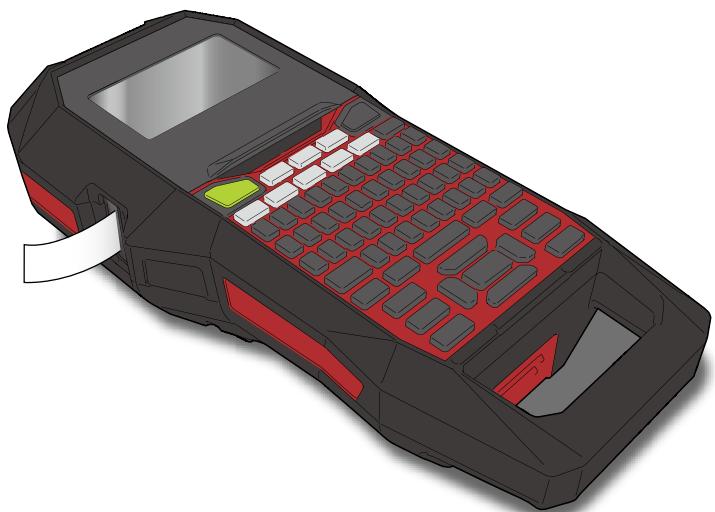
Lisez attentivement ce document pour utiliser ce produit en toute sécurité et correctement. Si votre produit est défectueux, veuillez lire la carte de garantie fournie et contacter le magasin où vous l'avez acheté. Si vous avez besoin d'une assistance supplémentaire, contactez votre centre de support client Epson local.
Veuillez également consulter la page de support de votre site Web Epson local. Vous pouvez télécharger la dernière version de ce guide de l'utilisateur à partir du site Web.
Sommaire
Consignes de sécurité
Spécifications
Dépannage
Noms et fonctions des pièces
Commencer ici
Nettoyage
Initialisation des paramètres
Index basé sur l'objectif
Index du menu des touches
Listes des figures et des tableaux
Notation utilisée dans ce manuel
| WARNING | Indicates information that, if ignored, could possibly result in serious personal injury or even death due to incorrect handling. |
| CAUTION | Indicates information that, if ignored, could possibly result in personal injury, physical damage, or damage to equipment due to incorrect handling. |
| Attention | Indicates important information about the printer. |
| MEMO | Indicates additional information and points which may be useful to know regarding a topic. |
| Indicates a place with more detailed information. | |
| EX | Shows an image of the label to be used as an example. |
| Indicates the buttons on the printer. | |
| "Name" | Indicates the menu items, messages shown on the display, or the name of a manual. Example: "On", "Start print?" |
Consignes de sécurité
Pour votre sécurité, lisez attentivement les documents joints afin d'utiliser correctement ce produit. Après avoir lu toutes les instructions, conservez ce manuel à portée de main pour référence future et pour clarifier vos questions.
Les éléments ci-dessous indiquent les précautions de sécurité pour protéger les utilisateurs, leur entourage et leurs biens contre d'éventuelles blessures ou dommages.
Les notations de précaution sont classées comme suit selon les blessures corporelles et les dommages à l'équipement si les instructions sont ignorées ou si l'équipement est mal utilisé.
DANGER Ce symbole
Ce symbole indique des informations qui, si elles sont ignorées, pourraient entraîner des blessures graves ou mortelles. Soyez particulièrement prudent lors des procédures portant la mention DANGER.
AVERTISSEMENT Ce symbole
Ce symbole indique des informations qui, si elles sont ignorées, pourraient entraîner des blessures graves ou même la mort en raison d'une mauvaise manipulation.
ATTENTION
Ce symbole indique des informations qui, si elles sont ignorées, pourraient entraîner des blessures corporelles, des dommages matériels ou des dommages à l'équipement en raison d'une mauvaise manipulation.
Ce qui suit décrit la signification de chaque symbole utilisé dans les précautions.
Ceci indique un rappel important.
Ceci indique un élément interdit.
Ceci indique une procédure obligatoire.
DANGER
Lors de la manipulation des batteries
Si du liquide de la batterie entre en contact avec vos yeux, rincez-les immédiatement à l'eau claire pendant plus de 10 minutes et consultez votre médecin sans tarder. Si vous ne le faites pas, le liquide peut entraîner une perte de la vue. Ne démontez jamais et ne modifiez jamais le bloc-batterie. Cela pourrait provoquer un incendie, une explosion, une fuite, une surchauffe ou des dommages.
N'exposez pas la batterie au feu et ne la chauffez pas. Cela pourrait provoquer un incendie, une explosion, une fuite, une surchauffe ou des dommages.
AVERTISSEMENT
Lors de l'utilisation de l'adaptateur secteur et du câble d'alimentation
Les cordons fournis avec ce produit contiennent des produits chimiques, notamment du plomb, reconnus par l'État de Californie comme pouvant causer des malformations congénitales ou d'autres troubles de la reproduction. Lavez-vous les mains après manipulation. (Cet avis est fourni conformément à la Proposition 65 du Code de la santé et de la sécurité de Californie, article 25249.5 et suivants.)
N'utilisez pas d'autre adaptateur secteur ou câble d'alimentation que ceux fournis. N'utilisez pas non plus l'adaptateur secteur avec une tension autre que celle spécifiée. Sinon, des dommages, une surchauffe, un incendie ou un choc électrique peuvent survenir.
Prenez les précautions suivantes lors de la manipulation de l'adaptateur secteur et du câble d'alimentation.
- Assurez-vous d'éviter d'utiliser des adaptateurs multiprises.
- Assurez-vous que la fiche n'est pas poussiéreuse avant de l'insérer dans une prise.
- Insérez fermement la fiche dans la prise.
- Ne tenez pas l'adaptateur secteur ou la fiche avec des mains mouillées.
- Ne tirez pas sur le câble d'alimentation pour débrancher la fiche. Tenez toujours la fiche pour la débrancher.
- Ne modifiez pas l'adaptateur secteur ou le câble d'alimentation.
- N'appliquez pas de chocs violents sur l'adaptateur secteur ou le câble d'alimentation et ne posez pas d'objets lourds dessus.
- Ne pliez pas et ne tordez pas l'adaptateur secteur ou le câble d'alimentation avec force.
- Ne placez pas l'adaptateur secteur ou le câble d'alimentation près d'un appareil de chauffage.
N'utilisez pas un adaptateur secteur ou un câble d'alimentation endommagé. Cela pourrait provoquer des dommages, une surchauffe ou de la fumée, pouvant entraîner un incendie ou une électrocution.
Ne touchez pas la prise pendant les orages.
Sommaire
Consignes de sécurité
Spécifications
Dépannage
Noms et fonctions des pièces
Pour commencer
Nettoyage
Initialisation des réglages
Index par objectif
Menu principal
Listes des figures et des tableaux
Consignes de sécurité
Manipulation des piles
| 0 | Keep the battery pack away from fire or flame if it produces a strange odor or leakage. Otherwise fire or explosion may occur. |
| 1 | Should any battery liquid get on skin or clothing, promptly wash it off with clean water. If you do not, the liquid may damage your skin. |
| 2 | Do not expose the battery to water. Do not allow water to contact the terminals. This may cause fire, overheating, or electric shock. |
| 3 | Keep batteries out of reach of children. They are extremely dangerous if swallowed. Contact a doctor immediately if swallowed. |
Utilisation de ce produit
| Do not apply any strong force or shocks to the product such as standing on, dropping or hitting it. Otherwise, the product may be broken, which may result in fire or electric shock. If it is damaged, turn off the power immediately, unplug the AC adapter and remove the batteries, and then contact the Epson customer support center. Continuous use may result in fire or electric shock. | |
| Take care not to spill any beverage such as tea, coffee or juice onto the product, or to spray aerosol insecticide. It may cause malfunction, fire, or electric shock. If any liquid has been spilled on the product, turn off the power, unplug the AC adapter and remove the batteries immediately, and then contact the Epson customer support center. Continuous use may result in fire or electric shock. | |
| Do not touch the printhead because it becomes very hot. Otherwise, there is a risk of burns. | |
| Do not open any covers other than the top cover or battery cover. Doing so may result in fire or electric shock. Always use the product as instructed in this manual. Otherwise, damage or injury may occur. | |
| Never modify or disassemble this product. Doing so may cause fire or electric shock. Do not carry out any operations not described in this manual, or the product may break or cause injury. | |
| If any of the following abnormalities is observed, turn off the power immediately, unplug the AC adapter and remove the batteries, and then contact the Epson customer support center. • If smoke, strange odors or unexpected noises come from the product • If liquid or foreign objects get inside the product • If the product has been dropped or damaged | |
| Do not touch the tape eject slot, during printing or when the auto cutter is in operation. Otherwise there is a risk of injury. |
Autres
| Do not use or store the product, batteries, AC adapter, power cable, or tape cartridges in the following places. ·In direct sunlight. ·Where it may become extremely hot such as in a vehicle with the windows closed. ·Where it may become extremely hot such as near a heater or the temperature becomes very unstable such as near the exhaust duct of an air conditioner. ·Where the product may get wet due to a shower or rain such as in a bathroom or outdoors. ·In a dusty place or where the product may be exposed to smoke or steam such as near the kitchen or a humidifier. ·On an unstable place such as on a shaky table or on an inclined place. ·Where it might be subjected to vibration or shock. ·Near high-voltage power lines or something that generates a magnetic field. |
| Keep the plastic bags used to contain the product or this manual out of reach of children. Children may suffocate if they swallow them or put their heads into the bags. |

ATTENTION
Manipulation des piles
| ! | If liquid leaks from a battery, wipe it off with a cloth and replace it with a new one. If the liquid comes in contact with your skin, wash it away with water immediately. |
| ⊗ | If the batteries are used incorrectly, they may cause leakage, overheating, explosion, erosion, or damage to the product, which may result in fire or injury. ·Do not use new ones and old batteries together, or mix different types of batteries. ·Use AA alkaline batteries. ·Use batteries in the correct directions. ·Take the batteries out immediately when they have no power remaining. ·Take the batteries out if you do not use the product for a long time. ·Do not heat batteries or throw them in fire or water. ·Do not pinch the batteries with metal tweezers or use any pointed sharp metal object such as the tip of a mechanical pen or ball-point pen when taking the batteries out. |
| 0 | When disposing of used batteries, make sure to follow the regulations. |
Sommaire
Consignes de sécurité
Spécifications
Dépannage
Noms et fonctions des pièces
Pour commencer
Nettoyage
Initialisation des paramètres
Index par fonction
Index du menu principal
Listes des cadres et des tableaux
Consignes de sécurité
Utilisation de l'adaptateur secteur
Ne débranchez pas l'adaptateur secteur pendant que le produit est en fonctionnement, sinon l'impression risque d'échouer. N'utilisez pas l'adaptateur secteur dans un espace restreint et ne le couvrez pas avec un chiffon. Sinon, l'adaptateur secteur peut surchauffer et se détériorer.
Utilisation de ce produit
Ne vous tenez pas debout sur le produit et ne posez pas d'objets lourds dessus, et ne le placez pas dans un endroit instable, comme une table branlante ou une surface inclinée. Sinon, le produit pourrait tomber et causer des blessures. Pour des raisons de sécurité, débranchez ce produit avant de le laisser inutilisé. Avant de le nettoyer, assurez-vous de débrancher l'adaptateur secteur de la prise et de retirer les piles. N'utilisez pas de chiffon humide ni de solvants tels que l'alcool, le diluant ou l'essence. Ne bloquez pas et n'insérez pas d'objets dans la prise de l'adaptateur secteur fourni ou dans la fente d'éjection du ruban.
Manipulation des cartouches de ruban
Assurez-vous d'utiliser un ruban LKTape dédié. - Certains types de ruban ne peuvent pas être coupés par le coupeur. Pour les dernières informations sur les types de ruban pour lesquels la coupe automatique et/ou la coupe partielle sont désactivées, consultez l'emballage des rubans ou visitez le site Web local d'Epson. - Ne le laissez pas tomber et ne le démontez pas. Cela pourrait l'endommager. - Ne tirez pas sur le ruban de force avec les mains. Assurez-vous de faire avancer le ruban avec +1. Sinon, la cartouche de ruban pourrait être cassée et inutilisable. - Évitez d'utiliser une cartouche de ruban sans ruban restant. Cela pourrait provoquer une surchauffe de la tête d'impression, ce qui pourrait entraîner des dommages ou un dysfonctionnement.
MÉMO
Les cartouches de ruban contiennent des rubans encreurs. Lors de la mise au rebut des cartouches de ruban, assurez-vous de respecter les réglementations locales en matière d'élimination.
Autres précautions
Remarques sur l'utilisation
- Ne touchez pas la tête thermique. L'électricité statique peut endommager la tête thermique.
- Ne branchez pas et ne débranchez pas l'adaptateur secteur pendant l'impression. L'alimentation peut être coupée.
- La batterie lithium-ion ne peut pas être chargée pendant l'impression.
- Utilisez le clavier avec précaution.
- Faites attention à ne pas vous couper les doigts lorsque vous coupez l'étiquette avec des ciseaux.
- N'apposez pas d'étiquette sur le corps humain, les êtres vivants, les installations publiques ou les biens d'autrui.
- Assurez-vous d'éteindre l'appareil après utilisation.
- Le message de mise hors tension s'affiche lors de l'extinction du produit. Ne retirez pas l'adaptateur secteur tant que le message n'a pas disparu.
- Assurez-vous de remplacer les piles avec l'appareil éteint. Si vous remplacez les piles alors que le produit est sous tension, les fichiers ou données stockés peuvent être supprimés.
Recyclage de la batterie
Contient une batterie lithium-ion. Doit être recyclée ou éliminée correctement.
MÉMO
Ne démontez pas la batterie.
Haut
Consignes de sécurité
Spécifications
Dépannage
Noms et fonctions des pièces
Commencez ici
Nettoyage
Initialisation des paramètres
Index par objectif
Index du menu principal
Listes des cadres et des tableaux
Spécifications
Corps
| Dimensions | Approx. 136 (W) x 298 (D) x 90 (H) (mm) |
| Weight | Approx. 1,110 g (excluding batteries, tape cartridge) |
Conditions d'utilisation
| Operating temperature | 5 to 35 degrees C |
| Storage temperature | -10 to 55 degrees C |
Largeur de ruban prise en charge
| 4 mm, 6 mm, 9 mm, 12 mm, 18 mm, 24 mm |
Alimentation électrique
Batterie
| Li-ion battery x 1 / AA alkaline battery x 6 |
Adaptateur secteur
| Type | AST1116Z2-1 |
| Manufacturer | Seiko Epson Corp. |
| Input | AC100-240V, 0.4A, 50-60Hz (dedicated adapter, power cable only) |
| Output | DC11V, 1.64A |
| Total output power | 18 W |
Spécifications de la batterie lithium-ion
Température ambiante
| During operation | 0 to 40 degrees C | |
| Charge | 0 to 40 degrees C | |
| During storage | Less than 1 month | -20 to 50 degrees C |
| Less than 3 month | -20 to 40 degrees C | |
| Less than 1 year | -20 to 20 degrees C | |
Informations de charge
| Nominal specifications | Charging current (Std.) | 1.0 A |
| Charging voltage (Std.) | 8.05 V | |
| Charging time | Approx. 3 hours | |
| Charge limits | Battery pack model | C52CE97010 |
| Maximum charge current, A | 1.0 A | |
| Maximum charge voltage, V | 8.4 V |
Durée nominale avec piles alcalines
| Rated operating time / Rated resting time | 0.5h / 1.0h |
Haut
Consignes de sécurité
Spécifications
Dépannage
Noms et fonctions des pièces
Commencez ici
Nettoyage
Initialisation des réglages
Index par objectif
Index des menus clés
Liste des cadres et des tableaux
Dépannage
■ Messages
Cette section explique les solutions à appliquer lorsque les messages suivants s'affichent à l'écran.
| Check battery Charge Li-ion! | The battery runs out of power. Connect the AC adapter to the printer and charge the battery. For details, "Charging the Li-ion battery" |
| Check battery Change alkaline | The batteries run out. Turn off the power and replace all batteries with new ones. |
| Cover open! | Top cover is open. Close the top cover. |
| Insert tape | Check if the tape cartridge is loaded or correctly set. For details, "Installing a tape cartridge" |
| Check tape cartridge | The loaded tape is not supported. Insert a correct cartridge. |
| No more sequence No!. | Only up to 2 sequence numbers can be inserted. |
| No more barcode! | Only up to 2 barcodes can be inserted. |
| QR CODE too big! | Perform either of the following: Use a wider tape. Reduce the text or cell size. Lower "ECC Level". |
| Overheated! | The printhead is overheated. Turn off the power and remove the tape cartridge, then leave the printer until it cools down. |
| Trash at slot Remove trash | Tape remains in the tape eject slot. Remove the tape. |
| Remove cut tape | Unable to start printing because cut tape remains in the tape eject slot. Remove the tape from the tape eject slot. |
Problème
Impossible de charger la batterie Li-ion
| Is the Li-ion battery correctly installed? Check that the Li-ion battery is correctly installed. |
| Is the AC adapter securely connected? Connect the AC adapter and the power cable firmly to the power socket of the printer, the AC adapter connector and the outlet. |
Impossible de détecter correctement la cassette
| Is the tape cartridge correctly installed?Check that the tape cartridge is correctly installed. |
| Is the label for detecting the tape cartridge clean?If not, wipe the dirt off with a soft cloth. |
| Is the detection sensor of the printer clean?If not, wipe the dirt off with a soft cloth. |
REMARQUE
Si aucun des éléments ci-dessus n'a résolu le problème ou si le symptôme est différent de ceux décrits, contactez le centre de support client Epson.
Haut
Consignes de sécurité
Spécifications
Dépannage
Noms et fonctions des pièces
Démarrer ici
Nettoyage
Initialisation des réglages
Index par objectif
Index des menus clés
Listes des cadres et des tableaux
Noms et fonctions des pièces
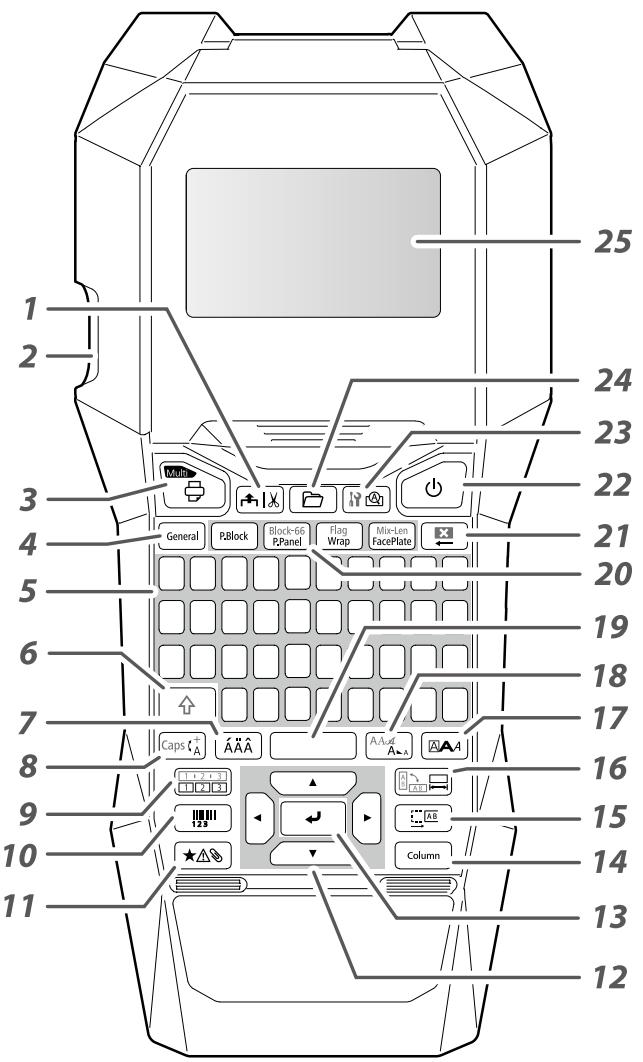
Description des symboles
| On/Stand-by | Hot surface |
| Direct current | Polarity of D.C. power connector |
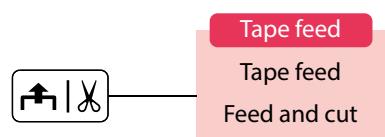
- Avance puis coupe la bande.
- Fente d'éjection de la bande
- Imprime une étiquette. Maintenez enfoncée la touche 和 et appuyez sur cette touche pour imprimer avec une fonction d'impression spéciale.
- Crée une étiquette générale, ou permet de sortir du mode d'étiquette spéciale.
- Touches de caractères
- Majuscule
- Saisit un caractère avec un accent.
- Change la méthode de saisie des touches de caractères. Maintenez enfoncée la touche 合 et appuyez sur cette touche pour le verrouillage des majuscules.
- Crée une étiquette avec un numéro de séquence. Maintenez enfoncée la touche 合 et appuyez sur cette touche pour créer avec des numéros de séquence de bloc.
- Crée une étiquette de code-barres.
- Saisit un symbole.
- Touches de curseur
- Confirme les réglages.
- Ajoute un bloc.
- Définit les marges.
- Définit la longueur de ruban. Maintenez enfoncée la touche 山 et appuyez sur cette touche pour changer l'orientation du texte.
- Définit le format et le style.
- Change la taille de police. Maintenez enfoncée la touche 合 et appuyez sur cette touche pour changer le type de police.
- Espace
- Crée une étiquette spéciale.
- Supprime. Maintenez enfoncée la touche 山 \ 山 et appuyez sur cette touche pour effacer tout le texte et/ou les réglages.
- Allume et éteint l'imprimante.
- Aperçu de l'étiquette créée. Maintenez enfoncée la touche 分 et appuyez sur cette touche pour afficher les préférences.
- Enregistre et rappelle l'étiquette.
- Affichage
Haut
Consignes de sécurité
Spécifications
Dépannage
Noms et fonctions des pièces
Commencez ici
Nettoyage
Initialisation des paramètres
Index par objectif
Index du menu des touches
Listes des cadres et des tableaux
Noms et fonctions des pièces
Affichage
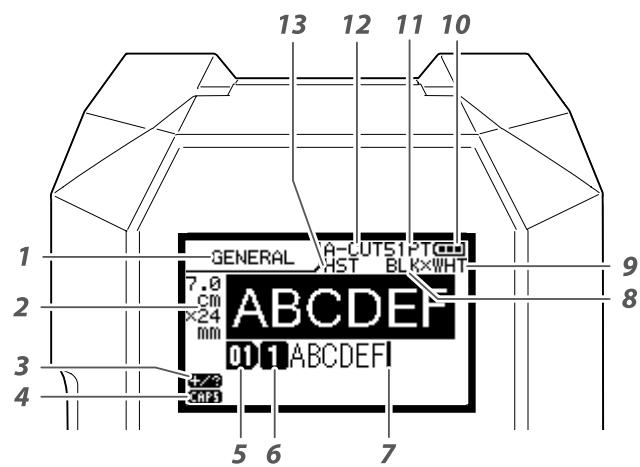
L'écran affiche les réglages actuels et les caractères que vous avez saisis.
Vous pouvez changer la langue affichée sur l'écran de réglage et le menu.
"Langue"
- Nom du formulaire
- Régler la largeur et la longueur de la bande. L'unité peut être commutée entre pouces et centimètres. "pouce:cm"
- Mode de saisie des symboles
- Verrouillage des majuscules activé
- Numéro de bloc
- Numéro de ligne
- Curseur
- Couleur du texte à imprimer
- Régler la couleur de la bande. "Couleurs de bande et de ruban affichées à l'écran"
- Niveau de batterie restant
- Taille de police
- Méthode de coupe de l'étiquette
- Régler le type de ruban
Couleurs de ruban et de cassette affichées à l'écran
| Display | Color | Display | Color |
| WHT | White | GRY | Gray |
| YEL | Yellow | BLK | Black |
| RED | Red | PNK | Pink |
| BLE | Blue | SLV | Silver |
| CLR | Clear/Transparent | GLD | Gold |
| GRN | Green | BRW | Brown |
| ORN | Orange | OTH | Colors other than mentioned here. |
| VIO | Violet/Purple |
MEMO
Selon le type de ruban utilisé, la couleur du ruban ou de la cassette peut ne pas être affichée.
Haut
Consignes de sécurité
Spécifications
Dépannage
Noms et fonctions des pièces
Commencer ici
Nettoyage
Initialisation des réglages
Index par objectif
Index du menu des touches
Listes des cadres et des tableaux
Commencez ici
1. Installation de la batterie lithium-ion
Avant la première utilisation de l'imprimante, chargez la batterie lithium-ion (C52CE97010). Lisez également les précautions de sécurité relatives à la batterie rechargeable décrites précédemment dans ce manuel. Pour plus de détails sur la manipulation de la batterie lithium-ion, consultez le « Manuel de l'utilisateur du bloc-batterie lithium-ion C52CE97010 ».

AVERTISSEMENT
Veillez à utiliser exclusivement la batterie lithium-ion dédiée (C52CE97010). L'utilisation d'une batterie autre que celle spécifiée peut provoquer un incendie, une explosion, une fuite, une surchauffe ou d'autres dommages.

ATTENTION
Lors de la mise au rebut des batteries usagées, veillez à respecter les réglementations en vigueur.
1. Ouvrez le couvercle du compartiment à batterie.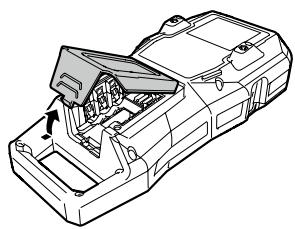
2. Installez la batterie lithium-ion dans le bon sens.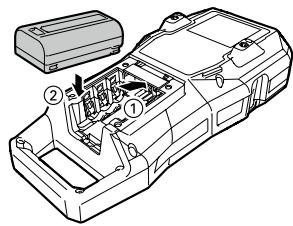
3. Fermez le couvercle du compartiment à batterie.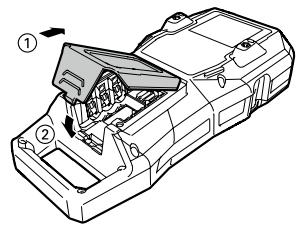
Chargement de la batterie lithium-ion
Vous pouvez charger la batterie lithium-ion dédiée (C52CE97010) avec l'imprimante.
Pour charger la batterie, connectez l'adaptateur secteur à l'imprimante avec la batterie lithium-ion installée.
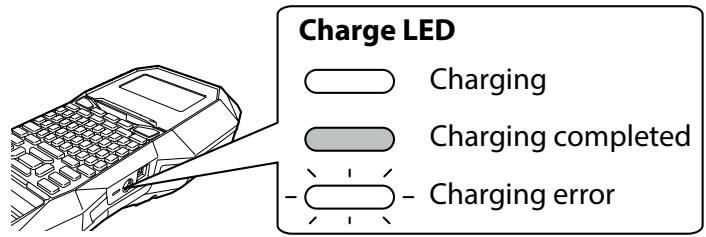
REMARQUE
- La batterie lithium-ion ne peut pas être chargée pendant l'impression.
- Lorsque la batterie Li-ion chargée semble se décharger rapidement, remplacez-la par une nouvelle.
- Il y a probablement une erreur de charge ou de batterie dans les cas suivants. Contactez le centre de support client Epson.
- Le voyant de charge clignote pendant la charge.
- Une nouvelle batterie Li-ion met beaucoup plus de temps à se charger que le temps de charge estimé (moins de 3 heures).
Haut
Consignes de sécurité
Spécifications
Dépannage
Noms et fonctions des pièces
Commencer ici
Nettoyage
Initialisation des paramètres
Index par objectif
Index des menus clés
Listes des cadres et des tableaux
Commencez ici
Utilisation de piles alcalines
Vous pouvez utiliser des piles alcalines à la place de la batterie Li-ion. Lorsque vous utilisez des piles alcalines, installez-les dans le bon sens.
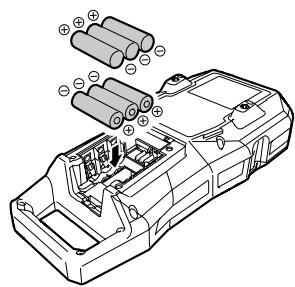
ATTENTION
Si vous avez imprimé en continu pendant 30 minutes avec des piles alcalines, laissez l'imprimante refroidir pendant au moins une heure.
Connexion de l'adaptateur secteur
Connectez l'adaptateur secteur comme indiqué ci-dessous.
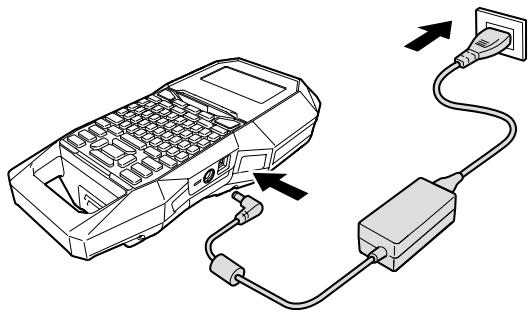
Utilisation de Label Editor
Label Editor est un logiciel d'application pour éditer des étiquettes. Lorsque ce logiciel est installé sur votre ordinateur, vous transférez les données d'étiquettes de câbles créées vers l'imprimante.
"Transfert des données d'étiquettes de câbles"
Pour savoir comment installer et utiliser le logiciel, voir
"Guide de l'utilisateur de Label Editor".
- Connectez le câble USB à l'imprimante.
- Connectez l'autre connecteur du câble USB à l'ordinateur.
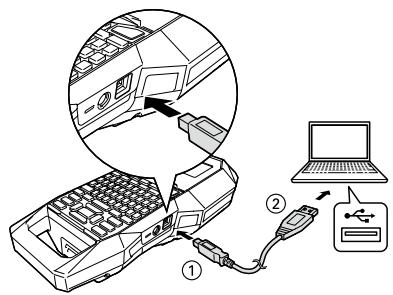
Sommaire
Consignes de sécurité
Spécifications
Dépannage
Noms et fonctions des pièces
Pour commencer
Nettoyage
Initialisation des réglages
Index par objectif
Index des menus clés
Listes des cadres et des tableaux
2. Installation d'une cartouche de ruban
ATTENTION
- Assurez-vous que l'appareil est éteint.
- N'utilisez pas de ruban autre que le ruban LK.
- Assurez-vous que le capot supérieur est bien fermé.
- Si vous avez ouvert le capot supérieur alors qu'une cartouche de ruban est installée, vérifiez que l'extrémité du ruban est insérée dans la fente d'éjection du ruban avant de commencer l'opération.
- Veillez à garder propres l'étiquette de détection de la cartouche de ruban et le capteur de l'imprimante. Sinon, le ruban pourrait ne plus être détecté correctement.
- Ne touchez pas directement le capteur avec vos doigts.
Étiquette de détection Capteur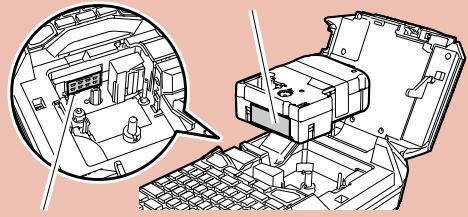
1. Enroulez le ruban encreur.
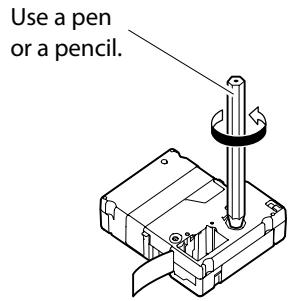
3. Installez une cartouche de ruban.

2. Ouvrez le capot supérieur.
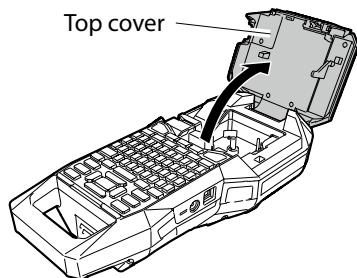
4. Fermez le capot supérieur.
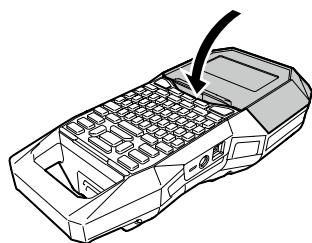
Haut
Consignes de sécurité
Spécifications
Dépannage
Noms et fonctions des pièces
Commencer ici
Nettoyage
Initialisation des paramètres
Index par fonction
Index des menus clés
Listes des cadres et des tableaux
3. Mise sous tension
- Appuyez sur 0 .
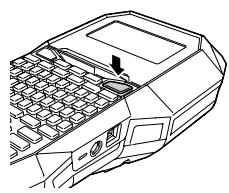
Extinction automatique
Si aucune touche n'est actionnée pendant cinq minutes, l'imprimante s'éteint automatiquement. (Les caractères saisis dans la session en cours sont conservés.) De plus, si aucune touche n'est actionnée pendant une heure alors qu'elle est connectée à un ordinateur, l'imprimante s'éteint automatiquement.
Introduction de la bande
ATTENTION
Veillez à introduire la bande à chaque fois après avoir installé une cartouche de bande.
- Appuyez sur (→ |x) .
- Sélectionnez une fonction avec puis appuyez sur + .
Avance du ruban
Fait avancer le ruban.
Avance et coupe
Fait avancer le ruban puis le coupe.
Haut
Consignes de sécurité
Spécifications
Dépannage
Noms et fonctions des pièces
Commencer ici
Nettoyage
Initialisation des réglages
Index par objectif
Index du menu des touches
Listes des cadres et des tableaux
Commencez ici
4. Saisie de texte

Câble#101
- Appuyez sur +
- Appuyez sur A
- Appuyez sur AAA
Une liste de caractères apparaît. Pour les accents qui peuvent être insérés "Accent"
- Sélectionnez un caractère avec · / · et appuyez sur · . "a" est saisi.
- Appuyez sur les touches : B, L, E "Câble" apparaît à l'écran.
- Appuyez sur 山 + # . "#" est saisi.
- Appuyez sur les touches : 1, 0, 1
m1C
a aaaaaaa a a
Ca
Câble#101
Enregistrez l'étiquette créée : "Enregistrement des étiquettes fréquemment utilisées" Modifiez la police : "Modification de la police" Modifiez la taille de la police : "Modification de la taille de la police"
■ Supprimer du texte
- Appuyez sur
Un caractère est supprimé vers l'arrière.
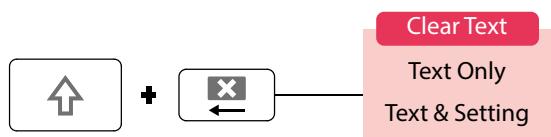
Suppression de tout le texte
- Appuyez sur 1 + 23 .
- Sélectionnez une fonction avec puis appuyez sur → .
Texte uniquement
Supprime tout le texte.
Texte et paramètres
Supprime tout le texte et rétablit la taille de la police et autres paramètres aux réglages initiaux.
Tout le format
Selon le type d'étiquette que vous créez, "Tout le format" peut ne pas être affiché.
Haut
Consignes de sécurité
Spécifications
Dépannage
Noms et fonctions des pièces
Commencer ici
Nettoyage
Initialisation des paramètres
Index par objectif
Index des menus clés
Listes des cadres et des tableaux
5. Impression d'étiquettes


Réglage de la coupe automatique des étiquettes sur Arrêt
"Coupe automatique"
Impression avec des fonctions d'impression spéciales
"Utilisation des fonctions d'impression"
Vérification de l'image d'impression

- Press
L'image d'impression défile sur tout l'écran.
Lorsque l'aperçu se termine, l'écran d'édition réapparaît.

ATTENTION
- N'insérez pas vos doigts dans la fente d'éjection de la bande.
- Ne tirez pas sur la bande tant que l'impression n'est pas terminée.
Attention
- "Insérez la bande" s'affiche si la cartouche de bande n'est pas chargée ou n'est pas correctement installée.
- La longueur de l'étiquette affichée à l'écran est une indication et peut ne pas correspondre exactement à la longueur de l'étiquette imprimée.
- Les étiquettes de plus de 16 m de longueur ne peuvent pas être imprimées.
MÉMO
Pour annuler l'impression, appuyez sur - Selon votre réglage de marge ou le type d'étiquette, la bande peut être avancée et coupée avant l'impression.
Haut
Consignes de sécurité
Spécifications
Dépannage
Noms et fonctions des pièces
Commencez ici
Nettoyage
Initialisation des paramètres
Index par objectif
Index du menu principal
Listes des cadres et des tableaux
6. Fixation de l'étiquette
- Retirez le papier de support.
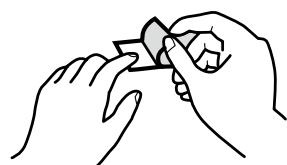
- Fixez l'étiquette et frottez-la fermement.
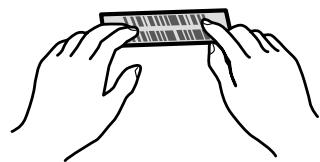
ATTENTION
Selon l'environnement d'utilisation des étiquettes et la nature de la surface adhésive, les étiquettes peuvent se décoller ou se décolorer, et l'adhésif peut rester sur la surface ou l'endommager. Assurez-vous de vérifier l'environnement et la nature de la surface adhésive avant utilisation. Epson décline toute responsabilité en cas de dommage ou de perte dus aux causes susmentionnées.
7. Mise hors tension
- Appuyez sur 0 .
Les caractères que vous avez saisis dans la session en cours sont conservés même après l'extinction de l'imprimante. Ils s'affichent lorsqu'elle est rallumée.
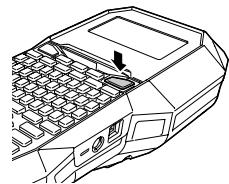
- Ouvrez le couvercle de la batterie, puis retirez la batterie Li-ion.
Si l'adaptateur secteur est connecté, débranchez-le de l'imprimante.
ATTENTION
- « Mise hors tension » s'affiche lors de l'extinction de cette imprimante. Ne retirez pas la batterie Li-ion et ne débranchez pas l'adaptateur secteur tant que ce message n'a pas disparu.
- Lorsque vous n'utilisez pas l'imprimante pendant une longue période, retirez les piles (batterie Li-ion ou piles alcalines), débranchez l'adaptateur secteur et retirez la cartouche de ruban de l'imprimante.
Sommaire
Consignes de sécurité
Spécifications
Dépannage
Noms et fonctions des pièces
Pour commencer
Nettoyage
Initialisation des paramètres
Index par objectif
Menu Index
List of Frames and Tables
Nettoyage

ATTENTION
Éteignez l'imprimante et retirez les piles avant le nettoyage. Si l'adaptateur secteur est connecté, débranchez le câble de l'adaptateur secteur de l'imprimante.
Extérieur
Essuyez la saleté avec un chiffon doux. S'il est très sale, utilisez un chiffon légèrement humide.

ATTENTION
N'utilisez jamais de produits chimiques ou de solvants tels que le benzène, le diluant ou l'alcool, ni de chiffon chimique.
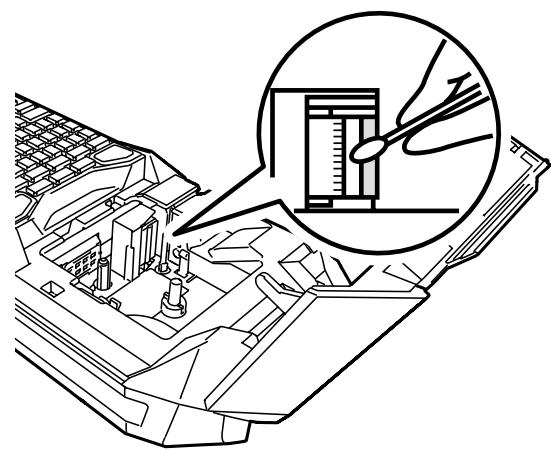
Tête d'impression
Nettoyez la tête d'impression avec un coton-tige.
Haut
Consignes de sécurité
Spécifications
Dépannage
Noms et fonctions des pièces
Commencez ici
Nettoyage
Initialisation des paramètres
Index par objectif
Index des menus clés
Listes des cadres et des tableaux
Initialisation des paramètres
Initialisez les paramètres si l'imprimante ne fonctionne pas normalement, par exemple si l'affichage est interrompu.
Attention
Cette fonction initialise les paramètres. Soyez extrêmement prudent avant de l'initialiser. Tout le texte créé sera perdu et les paramètres que vous avez définis seront réinitialisés.
- Si l'appareil est sous tension, appuyez sur pour l'éteindre.
- Maintenez enfoncés 63 + · , puis appuyez sur ° .
- Lorsqu'un message apparaît, appuyez sur → . Les paramètres seront initialisés.
MÉMO
Pour annuler l'initialisation, appuyez sur une touche autre que +.
Haut
Consignes de sécurité
Spécifications
Dépannage
Noms et fonctions des pièces
Commencez ici
Nettoyage
Initialisation des réglages
Index par objectif
Index du menu des touches
Listes des cadres et des tableaux
Index par objectif
Cliquez sur l'illustration de l'étiquette que vous souhaitez créer ou de la fonction que vous souhaitez utiliser, pour afficher des informations telles que la procédure de création ou de réglage.
Types d'étiquettes
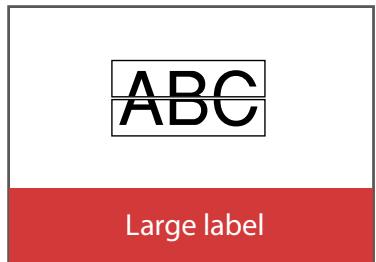
Sommaire
Consignes de sécurité
Spécifications
Dépannage
Noms et fonctions des pièces
Commencer ici
Nettoyage
Initialisation des réglages
Index par objectif
Index des menus clés
Listes des cadres et des tableaux
Index par objectif
Personnalisation des étiquettes
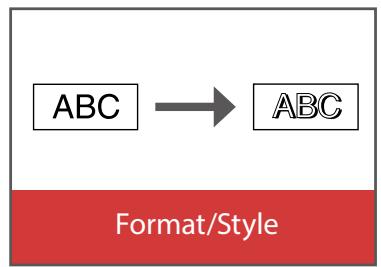
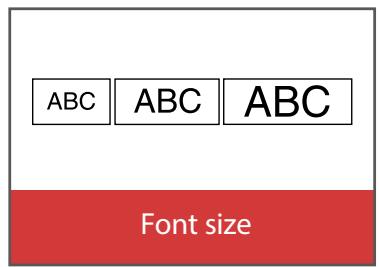
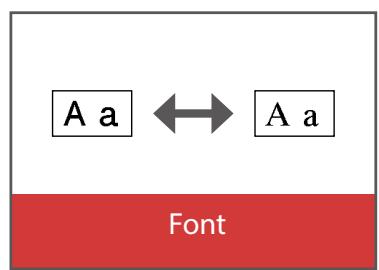

Fonctions utiles
Sommaire
Consignes de sécurité
Spécifications
Dépannage
Noms et fonctions des pièces
Commencez ici
Nettoyage
Initialisation des réglages
Index par objectif
Index du menu principal
Listes des cadres et des tableaux
Création d'étiquettes spéciales
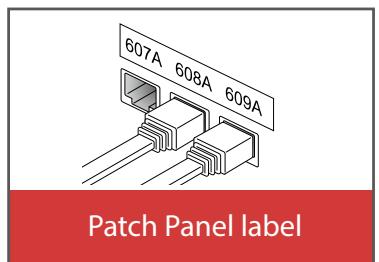
Création d'étiquettes pour panneau de brassage Block-66 P.Panel
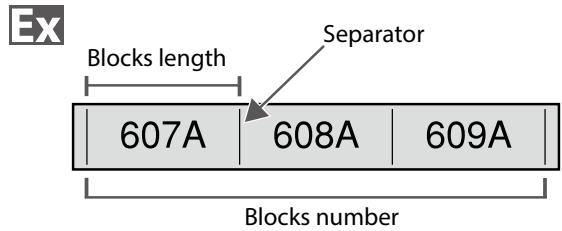
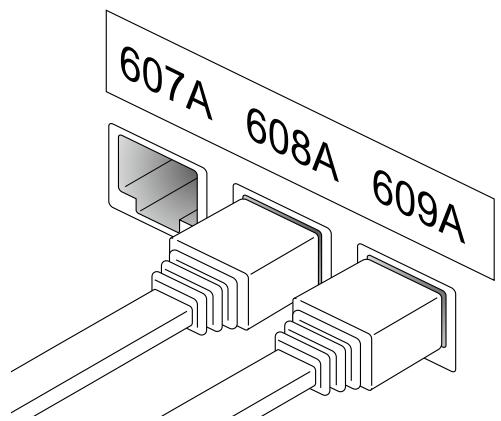
Vous pouvez créer les étiquettes optimales pour votre panneau de brassage en définissant la longueur de l'étiquette et le nombre de blocs.
- Appuyez sur [H-1-3-7] PPanel].
- Sélectionnez le type de longueur avec 一\ 一 puis appuyez. Dans cet exemple, nous sélectionnerons "Blocs". Blocs : définit la longueur par longueur de bloc. Étiquette : définit la longueur par longueur d'étiquette.
- Saisissez la longueur des blocs, puis appuyez sur + . Plage de réglage : 0,25 à 30 cm
- Saisissez le nombre de blocs, puis appuyez sur + . Dans cet exemple, nous saisirons « 3 ». Plage de réglage : 1 à 50
- Sélectionnez le type de séparateur avec puis appuyez sur → . Dans cet exemple, nous sélectionnerons « Ligne ».
- Sélectionnez l'orientation avec puis appuyez sur
Dans cet exemple, nous sélectionnerons « Hori ».
Hori.
| 607A | 608A | 609A |
| ∞ ∪ ¬< | ∞ ∪ ∞ < | ∞ ∪ ∞ < |
Vert.1
Vert.2
| 607A |
| 608A |
| 609A |
- Saisissez le texte.
Vous pouvez créer des étiquettes avec des numéros de séquence. Pour plus de détails, voir « Création d'étiquettes avec numéros de séquence de blocs attribués » 8. Appuyez sur
Haut
Consignes de sécurité
Spécifications
Dépannage
Noms et fonctions des pièces
Commencez ici
Nettoyage
Initialisation des paramètres
Index par objectif
Index du menu principal
Listes des cadres et des tableaux
Création d'étiquettes spéciales
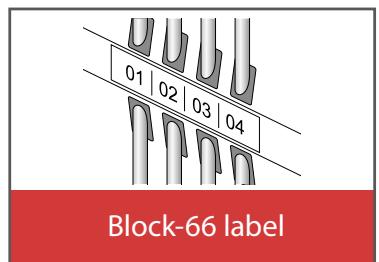
Création d'étiquettes pour le bloc-66 + panneau P.P. du bloc-66
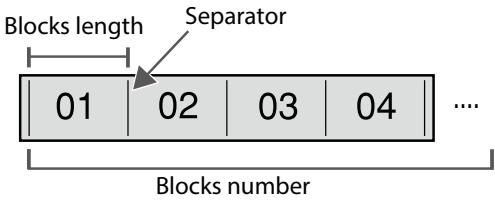
Vous pouvez créer des étiquettes pour le bloc-66 afin d'identifier facilement un grand nombre de connecteurs.

- Appuyez sur +Pneed
- Sélectionnez le type de longueur avec puis appuyez sur
Dans cet exemple, nous sélectionnerons "Blocs".
Blocs : définit la longueur par longueur de bloc.
Étiquette : définit la longueur par longueur d'étiquette.
- Entrez la longueur des blocs puis appuyez sur + .
Plage de réglage : 0,25 à 30 cm
- Saisissez le nombre de blocs, puis appuyez sur +.
Dans cet exemple, nous allons saisir « 4 ».
Plage de réglage : 1 à 50
- Sélectionnez le type de séparateur avec , puis appuyez sur +.
Dans cet exemple, nous allons sélectionner « Ligne ».
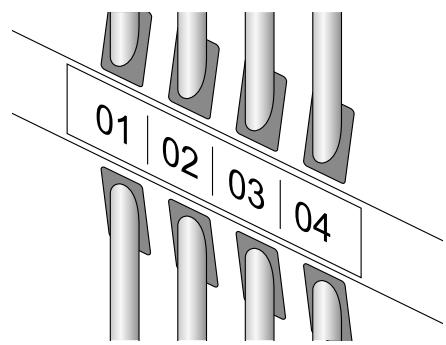
- Sélectionnez l'orientation avec , puis appuyez sur
Dans cet exemple, nous allons sélectionner « Hori ».
Hori.
| 607A | 608A | 609A |
Vert.1
| ∅ ∩ ∅ | ∅ ∩ ∅ | ∅ ∩ ∅ |
Vert.2
| 607A |
| 608A |
| 609A |
- Saisissez le texte.
Vous pouvez créer des étiquettes avec des numéros de séquence.
Pour plus de détails, voir « Création d'étiquettes avec numéros de séquence de blocs ».
- Appuyez sur
Sommaire
Consignes de sécurité
Spécifications
Dépannage
Noms et fonctions des pièces
Commencer ici
Nettoyage
Initialisation des paramètres
Index par objectif
Index du menu principal
Listes des cadres et des tableaux
Création d'étiquettes spéciales
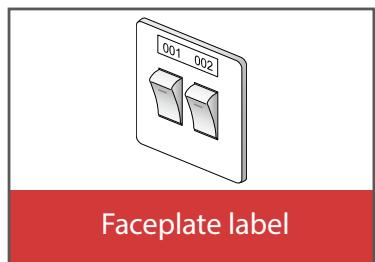
Création d'étiquettes pour plaques frontales
Plaque frontale Mix-Len
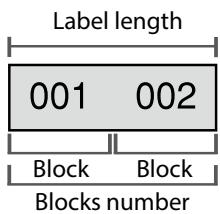
Le texte peut être automatiquement placé au centre d'un bloc. Cela vous permet de créer facilement une étiquette adaptée à la taille de la zone où elle sera apposée.

- Appuyez sur FacePlate.
- Saisissez la longueur de l'étiquette, puis appuyez sur la flèche vers le bas. Plage de réglage : 1 à 99,9 cm.
- Saisissez le nombre de blocs, puis appuyez sur la touche +. Dans cet exemple, nous saisirons « 2 ». Plage de réglage : 1 à 50.
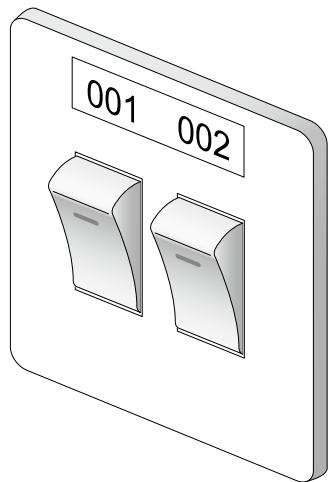
- Sélectionnez l'orientation avec les flèches gauche/droite, puis appuyez sur la flèche vers le bas.
Dans cet exemple, nous sélectionnerons « Hori. ».
| Hori. | 001 | 002 | 003 |
| Vert.1 | 00r | 00n | 00m |
Vert.2 50 50 50
- Saisissez le texte.
- Appuyez sur
Haut
Consignes de sécurité
Spécifications
Dépannage
Noms des pièces et fonctions
Commencer ici
Nettoyage
Initialisation des paramètres
Index basé sur l'objectif
Index du menu principal
Listes des cadres et des tableaux
Création d'étiquettes spéciales
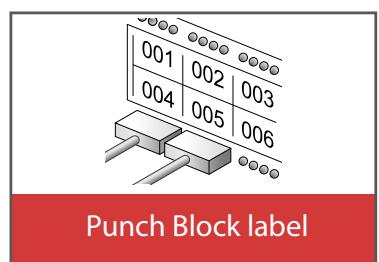
Création d'étiquettes pour le bloc de perforation (P.Block)
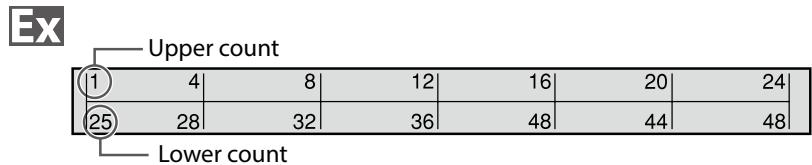
Vous pouvez créer des étiquettes pour identifier d'un coup d'œil les numéros des fils ou des broches connectés à un bloc de perforation.
- Appuyez sur PBlock
- Sélectionnez le type de bloc avec · puis appuyez sur
Dans cet exemple, nous sélectionnerons "4paires". Vide : crée un tableau de deux lignes et une colonne.
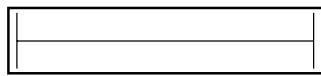
- Sélectionnez le type de texte avec 口\ 口 puis appuyez sur. Dans cet exemple, nous sélectionnerons "Broches".
Broches
| 1 | 4 | 8 |
| 25 | 28 | 32 |
Série.
| 1 | 2 |
| 7 | 8 |
Vide
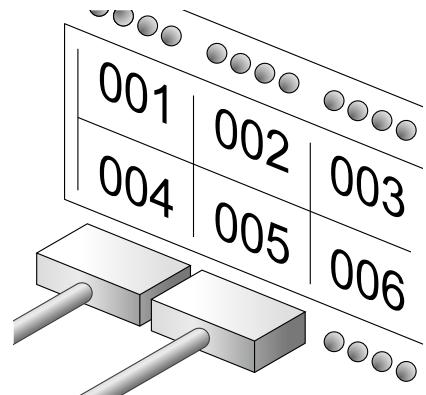
- Entrez le nombre supérieur puis appuyez sur → . Dans cet exemple, nous entrerons "1".
- Saisissez le nombre inférieur, puis appuyez sur →. Dans cet exemple, "25" est saisi automatiquement.
- Saisissez la longueur de l'étiquette, puis appuyez sur . Plage de réglage : 1 à 99,9 cm.
- Appuyez sur
Haut
Consignes de sécurité
Spécifications
Dépannage
Noms et fonctions des pièces
Commencez ici
Nettoyage
Initialisation des réglages
Index par objectif
Index du menu des touches
Listes des cadres et des tableaux
Création d'étiquettes spéciales
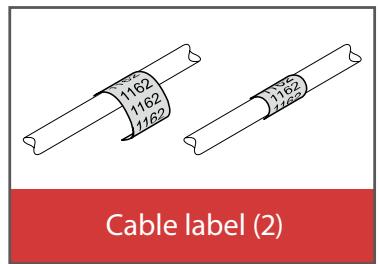
Création d'étiquettes à enrouler autour d'un câble
Enroulement drapeau
Vous pouvez imprimer du texte en boucle afin qu'il soit visible quel que soit l'angle sous lequel le câble est regardé.

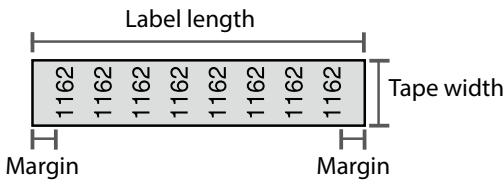
- Appuyez sur Enroulement
- Sélectionnez le type de longueur avec puis appuyez sur
Dans cet exemple, nous sélectionnerons "Longueur".
Diamètre : définit la longueur en fonction du diamètre du câble.
(Plage de réglage : 0,25 à 15 cm)
Longueur : définit la longueur en fonction de la longueur de l'étiquette.
- Saisissez la longueur de l'étiquette puis appuyez sur + .
Plage de réglage : 1 à 99.9cm
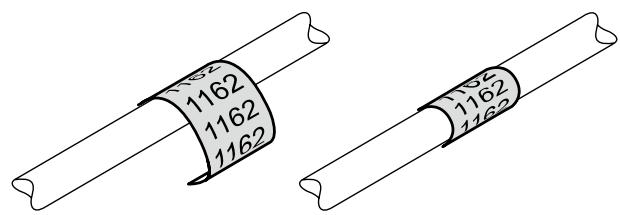
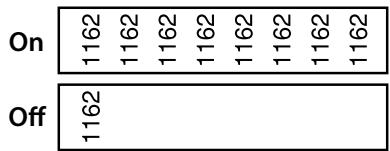
- Sélectionnez Activé ou Désactivé pour le texte répété avec Δ puis appuyez sur · .
Dans cet exemple, nous sélectionnerons "Activé".
- Sélectionnez le type de marges avec puis appuyez sur → .
Dans cet exemple, nous sélectionnerons "Long".
- Saisissez le texte.
- Appuyez sur
Haut
Consignes de sécurité
Spécifications
Dépannage
Noms et fonctions des pièces
Commencez ici
Nettoyage
Initialisation des paramètres
Index par objectif
Index du menu principal
Listes des cadres et des tableaux
Création d'étiquettes spéciales
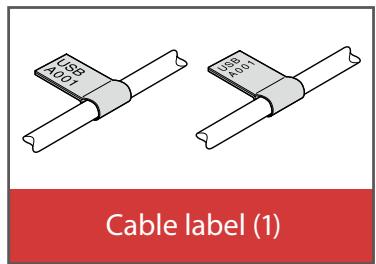
Création d'étiquettes à enrouler autour d'un câble comme un drapeau
Cette étiquette est utile pour différencier les câbles car la partie drapeau de l'étiquette enroulée autour du câble est facile à voir.

- Appuyer + enrouler
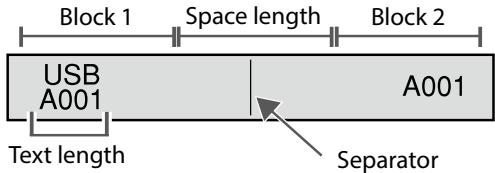
- Sélectionnez la méthode de réglage de la longueur de l'espace avec puis appuyez sur → .
Dans cet exemple, nous sélectionnerons "Longueur".
Dia : définit la longueur en fonction du diamètre du câble.
(Plage de réglage : 0,25 à 15 cm)
Longueur : définit la longueur en fonction de la longueur de l'espace.
- Saisissez la longueur de l'espace puis appuyez sur
Plage de réglage : 0,25 à 30 cm
- Saisissez la longueur du texte puis appuyez sur →
Plage de réglage : 0,25 à 30 cm
- Sélectionnez le type de séparateur avec puis appuyez sur .
Dans cet exemple, nous sélectionnerons "Ligne".
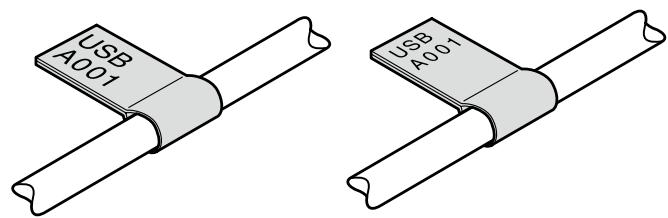
- Sélectionnez l'orientation avec puis appuyez sur .
Dans cet exemple, nous sélectionnerons "Hori.2".
Hori.1
| USB A001 | USB A001 |
Hori.2
| USB A001 | A001 |
Vert.1
| USB 0001 | USB 0001 |
Vert.2
| USB A001 | A001 |
- Saisissez le texte du bloc 1.
- Saisissez le texte du bloc 2.
- Appuyez
Haut
Consignes de sécurité
Spécifications
Dépannage
Noms et fonctions des pièces
Commencez ici
Nettoyage
Initialisation des réglages
Index par objectif
Index des menus clés
Listes des cadres et des tableaux
Création d'étiquettes spéciales
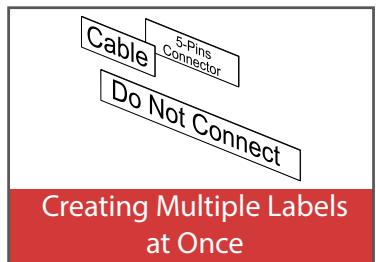
Création de plusieurs étiquettes à la fois
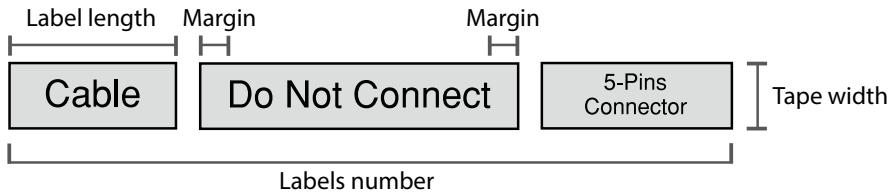
Vous pouvez créer plusieurs étiquettes à la fois.

- Appuyez sur + (FacePlate)
- Sélectionnez la longueur de l'étiquette avec + puis appuyez sur +.
Auto : Ajuste automatiquement la longueur de l'étiquette en fonction de la longueur du texte.
Réglage : Définit la longueur de l'étiquette. Plage de réglage : 1 à 99.9cm
- Saisissez le nombre d'étiquettes puis appuyez sur . Dans cet exemple, nous saisirons "3".
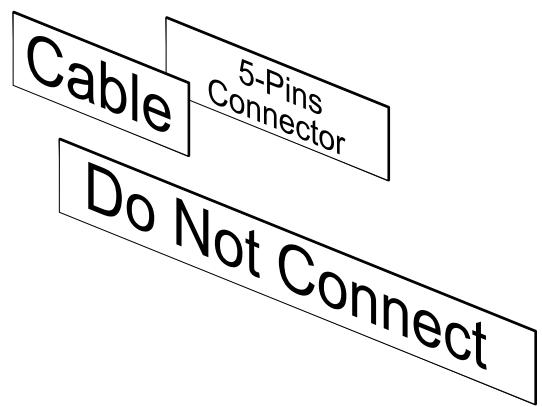
- Sélectionnez le type de marges avec Δ puis appuyez sur .
- Sélectionnez l'orientation avec puis appuyez sur
Dans cet exemple, nous sélectionnerons "Hori".
| Hori. | 012 |
| Vert.1 | 0→n |
| Vert.2 | 012 |
- Saisissez "Câble" puis appuyez sur Colonne. De même pour les autres étiquettes, saisissez le texte et appuyez sur Colonne.
- Press
Sommaire Consignes de sécurité Spécifications Dépannage Noms et fonctions des pièces Commencer ici Nettoyage Initialisation des réglages Index basé sur l'objectif Menu Index des touches Tableaux des cadres et des listes
Création d'étiquettes spéciales
Création d'étiquettes avec ruban dédié
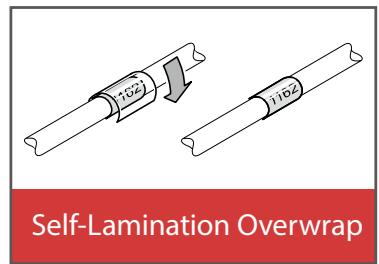
Surfilm d'auto-lamination
Utilisez le surfilm d'auto-lamination dédié. Ce ruban d'étiquettes est fourni avec un film transparent. Le film peut être enroulé autour de l'étiquette pour éviter qu'elle ne se salisse.
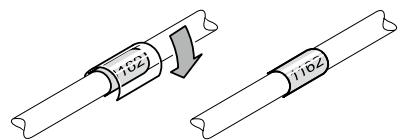

Longueur de l'étiquette

- Saisissez la longueur de l'étiquette, puis appuyez sur . Plage de réglage : 1 à 99.9cm
- Saisissez le texte.
- Appuyez sur
Haut
Consignes de sécurité
Spécifications
Dépannage
Noms et fonctions des pièces
Commencez ici
Nettoyage
Initialisation des paramètres
Index par objectif
Index du menu principal
Listes des cadres et des tableaux
Création d'étiquettes spéciales
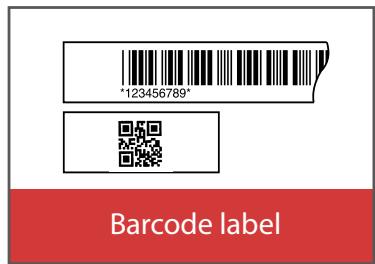
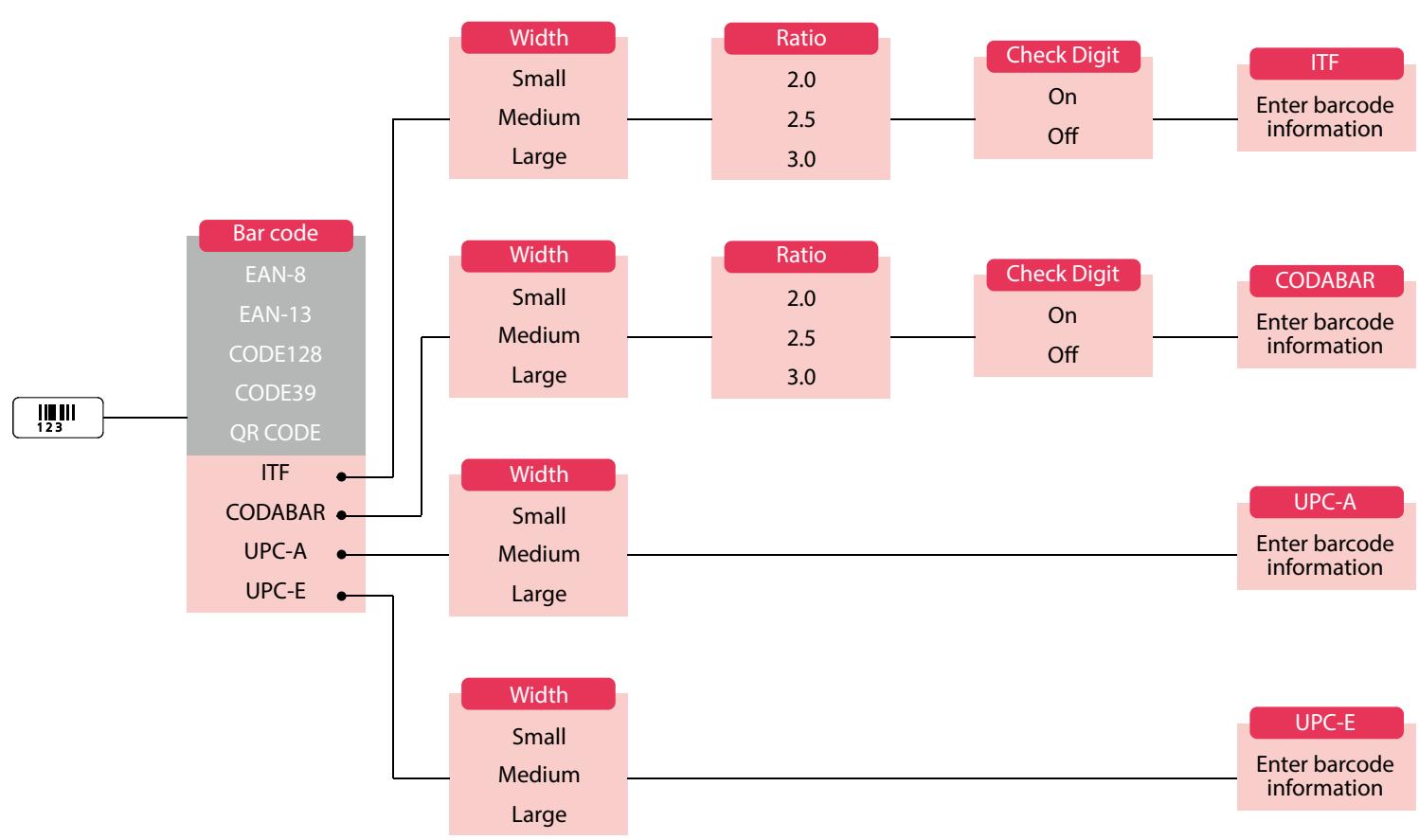
Création d'étiquettes de codes-barres

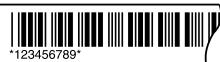

MEMO
- Selon le type d'étiquette que vous créez, il se peut que vous ne puissiez pas ajouter un code-barres.
- Seuls deux codes-barres au maximum peuvent être insérés dans une étiquette.
Types de codes-barres pris en charge :
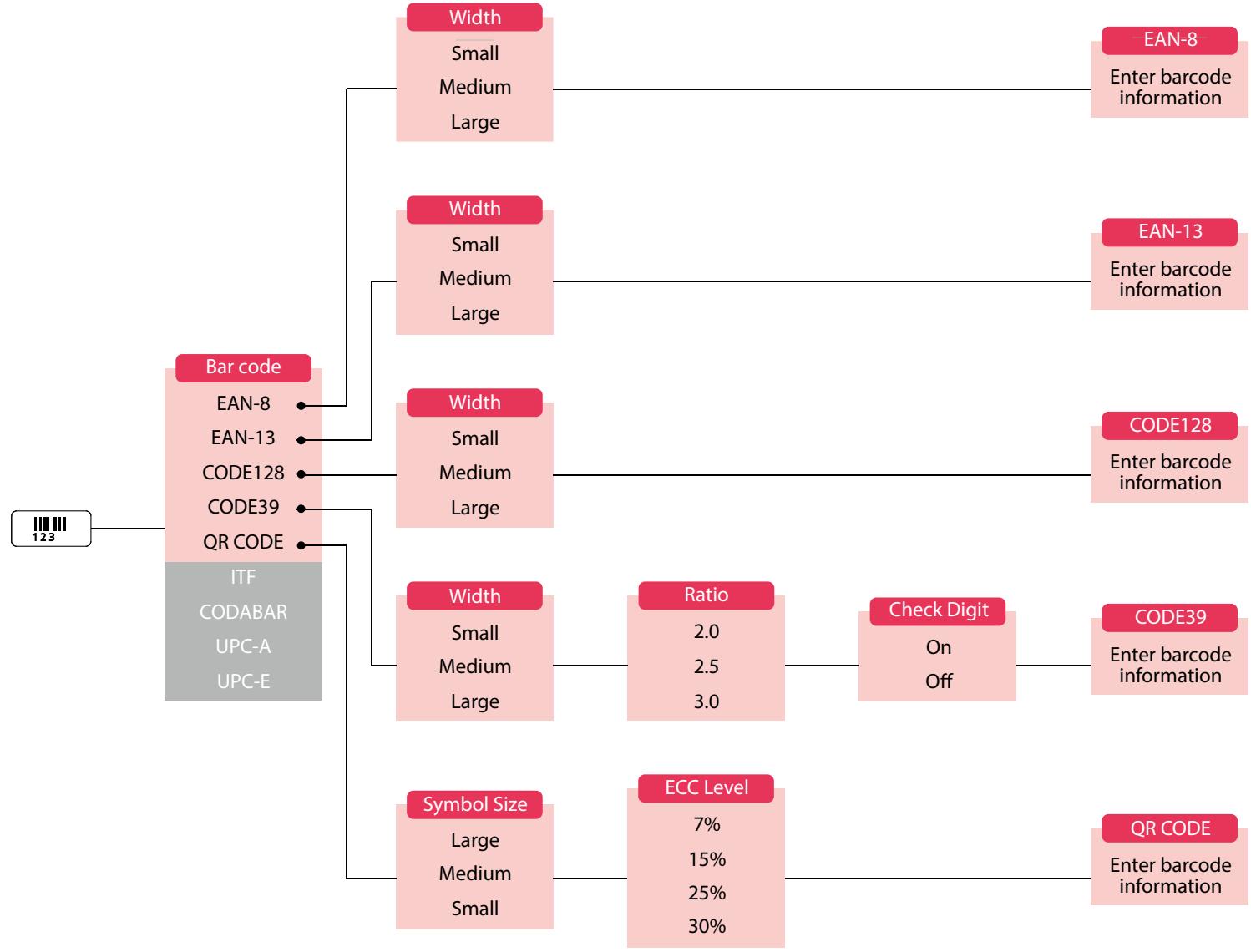
EAN-8, EAN-13, CODE128, CODE39, QR CODE, ITF, CODABAR, UPC-A, UPC-E
- Appuyez sur
- Sélectionnez un élément avec → et appuyez sur → . Passez aux options suivantes jusqu'à ce que le réglage soit terminé.
- Saisissez les caractères alphanumériques du code-barres, puis appuyez sur +.
- Appuyez sur
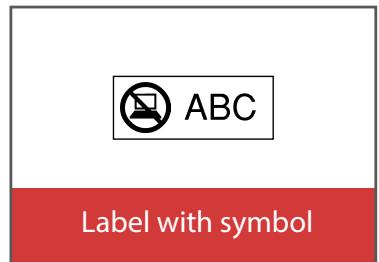
Création d'étiquettes avec symbole
- Appuyez sur
- Sélectionnez une catégorie avec / et appuyez sur .
- Sélectionnez un symbole avec Δ et appuyez sur +.
- Appuyez sur
MEMO
Pour les symboles disponibles, voir "Liste des symboles" sur la feuille séparée.
Sommaire
Consignes de sécurité
Spécifications
Dépannage
Noms et fonctions des pièces
Démarrage ici
Nettoyage
Initialisation des paramètres
Index basé sur l'objectif
Index des menus clés
Listes des cadres et des tableaux
Création d'étiquettes spéciales
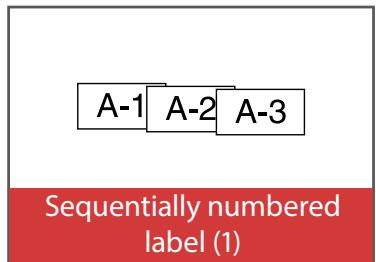
Création d'étiquettes numérotées séquentiellement
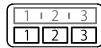
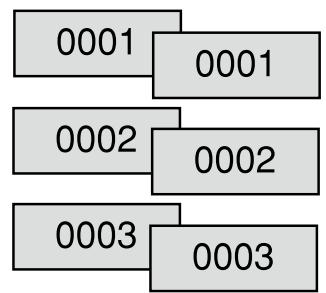
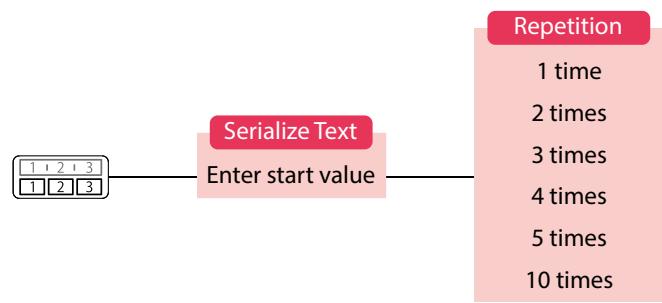
Le numéro est automatiquement incrémenté à chaque impression d'étiquette. Jusqu'à quatre chiffres, y compris les nombres (0 à 9) et les lettres de l'alphabet (a à z et A à Z), peuvent être saisis.

- Appuyez sur
- Saisissez la valeur de départ des numéros séquentiels, puis appuyez sur +.
Dans cet exemple, nous saisirons "0001".
- Sélectionnez le nombre de répétitions avec , puis appuyez sur ·.
Dans cet exemple, nous sélectionnerons "2 fois".
- Appuyez sur +
- Sélectionnez "Imprimer des copies" avec / ·, puis appuyez sur →.
- Saisissez le nombre d'exemplaires à imprimer, puis appuyez sur . Dans cet exemple, nous allons saisir « 6 ».
- Sélectionnez « Démarrer l'impression ? » avec puis appuyez sur + .
L'impression démarre.
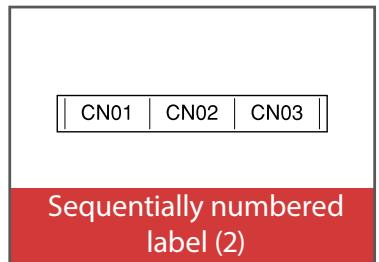
Création d'étiquettes avec des numéros de séquence de blocs
Attribué 123 123
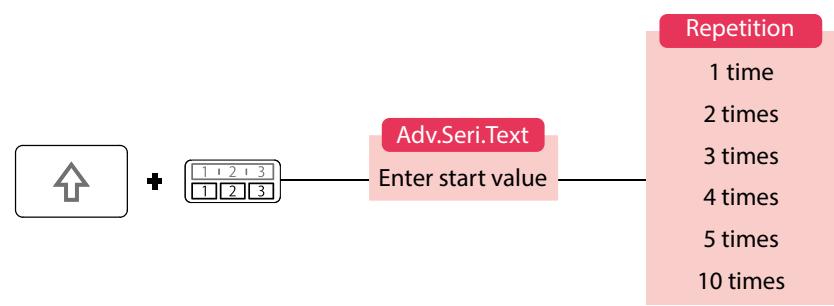
Vous pouvez attribuer des numéros séquentiels aux blocs.
Jusqu'à quatre caractères, y compris les chiffres (0 à 9) et les lettres de l'alphabet (a à z et A à Z), peuvent être saisis.

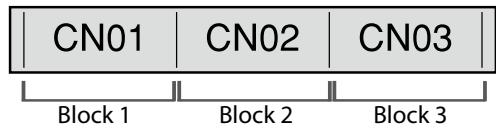
Créez les blocs à l'avance. « Ajout de bloc » Dans cet exemple, nous avons créé trois blocs.
- Appuyez sur 个 + 网口
- Saisissez la valeur de départ des numéros séquentiels, puis appuyez sur + .
Dans cet exemple, nous allons saisir « CN01 ». Des numéros séquentiels sont automatiquement attribués aux blocs 2 et 3. 3. Sélectionnez le nombre de répétitions avec puis appuyez sur → . Dans cet exemple, nous allons sélectionner « 1 fois ». 4. Appuyez sur
Noms et fonctions des pièces
Commencez ici
Nettoyage
Initialisation des paramètres
Index par objectif
Index des menus clés
Listes des cadres et des tableaux
Personnalisation des étiquettes
Réglage du format et du style (menu Édition)

Procédure de réglage
- Placez le curseur. Placez le curseur à gauche des caractères auxquels vous souhaitez appliquer une fonction. Si vous appliquez la fonction à une ligne ou à un bloc spécifique, confirmez que le curseur se trouve dans la ligne ou le bloc.
- Appuyez sur A4. Exemple : pour appliquer "Gras et italique"
- Sélectionnez "Gras et italique" avec + / + et appuyez sur +.
- Sélectionnez "G + I" avec + / + et appuyez sur +.
- Sélectionnez une zone à laquelle vous souhaitez appliquer la fonction avec / et appuyez sur .
Lorsque « Caractère » est sélectionné, la fonction s'applique à tous les caractères à droite du curseur.
MÉMO
Les éléments de réglage affichés lorsque vous appuyez sur [A] diffèrent selon le type d'étiquette que vous créez.
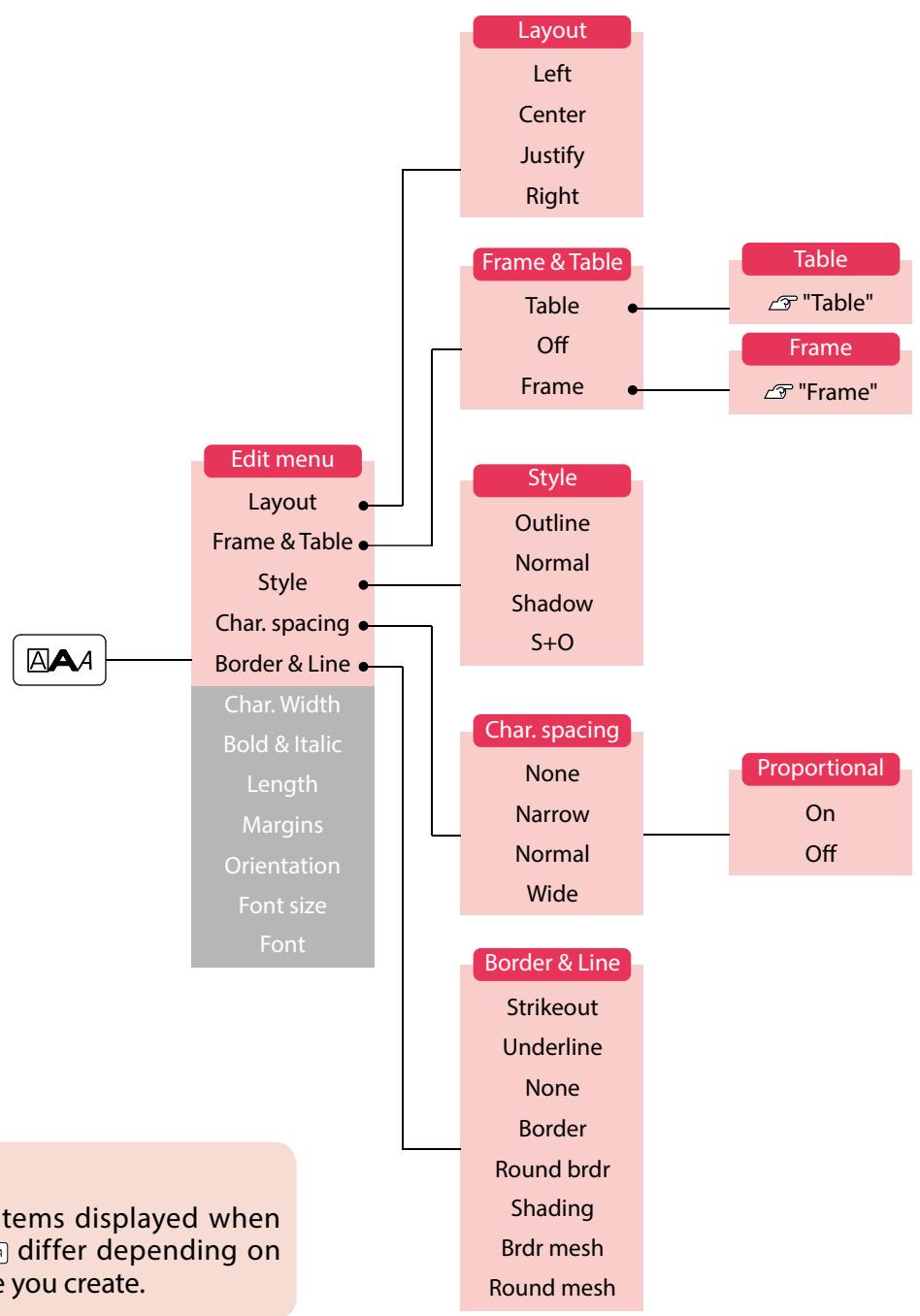
Vous pouvez décorer votre étiquette en réglant les éléments suivants.
Mise en page
Gauche, Centre, Justifié, Droite
Ajuste la mise en page lorsque plusieurs lignes sont utilisées.
Cadre et tableau
Décore le texte avec un cadre ou insère un tableau.
Style
Contour, Normal, Ombre, C+O
Applique un style de caractère au texte.
Espacement des caractères
Aucun, Étroit, Normal, Large
Définit l'espacement entre les caractères.
Bordure et ligne
Barré, souligné, aucun, bordure, bordure arrondie, ombrage, maillage de bordure, maillage arrondi
Applique une bordure, un soulignement, un ombrage, etc. au texte.
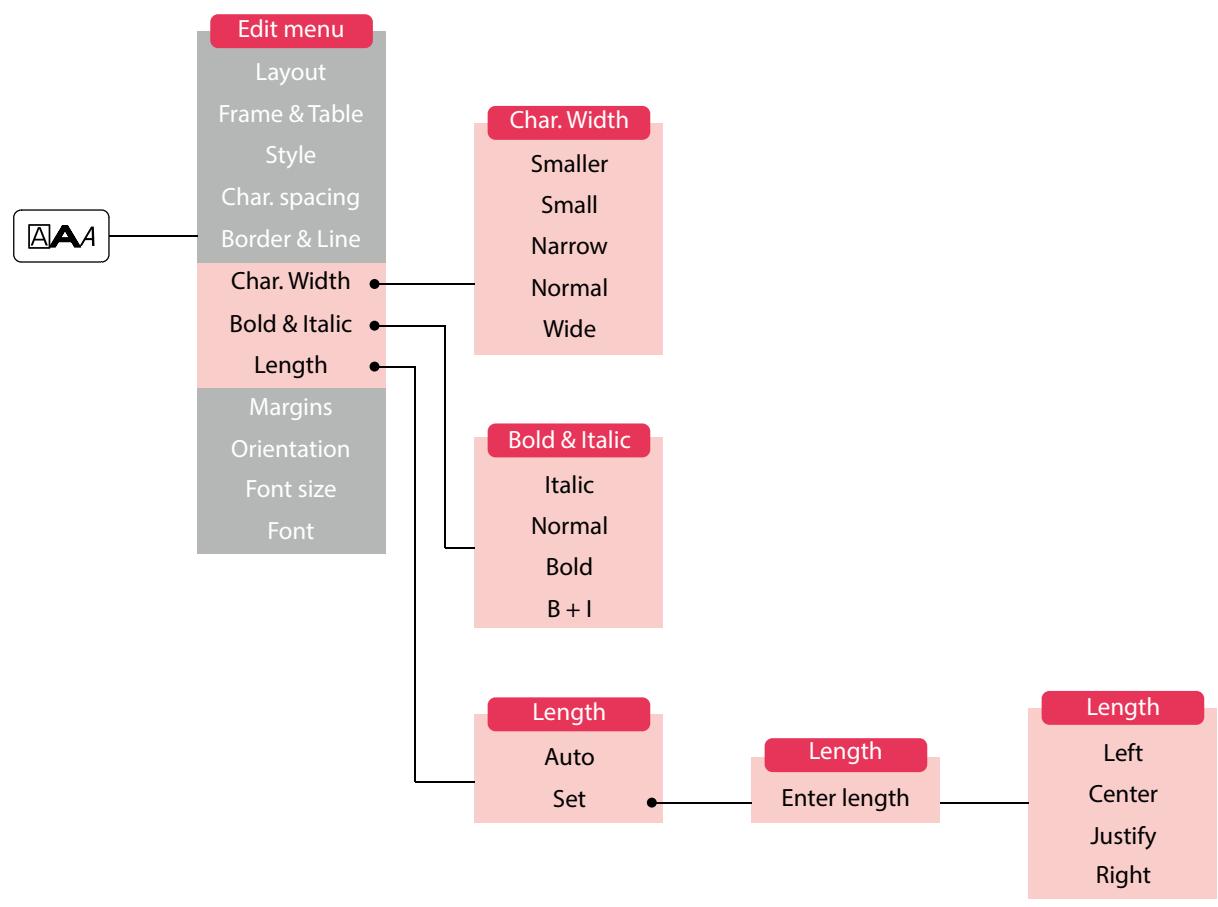
Largeur des caractères
Plus petit, petit, étroit, normal, large
Permet de modifier la largeur ou la hauteur des caractères.
Haut
Consignes de sécurité
Spécifications
Dépannage
Noms et fonctions des pièces
Commencez ici
Nettoyage
Initialisation des paramètres
Index par objectif
Menu Index
Liste des cadres et des tableaux
Personnalisation des étiquettes
Gras et italique
Italique, normal, gras, gras + italique
Modifie le texte en gras ou en italique.
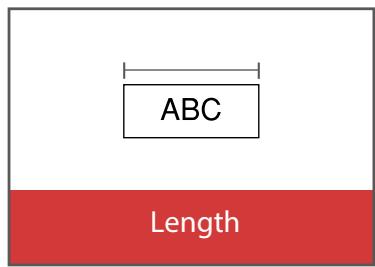
Longueur
Ce réglage est identique à celui obtenu en appuyant sur .
"Réglage de la longueur de l'étiquette"
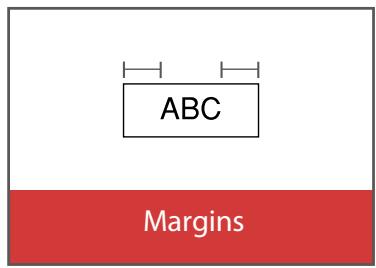
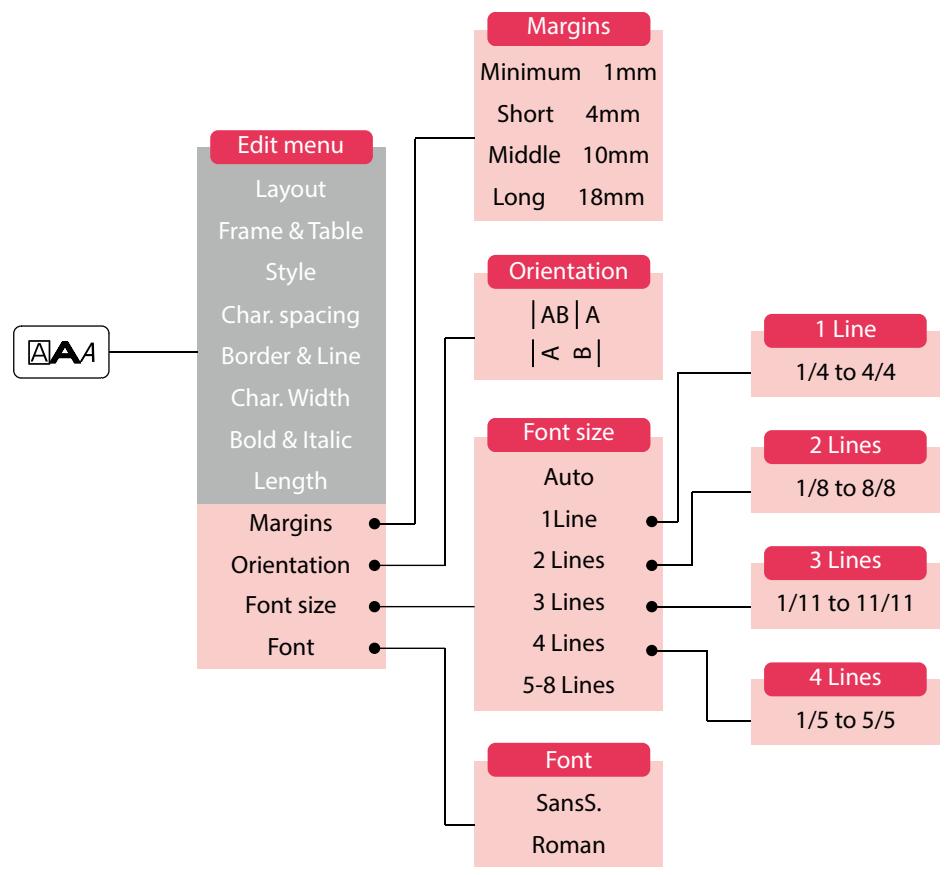
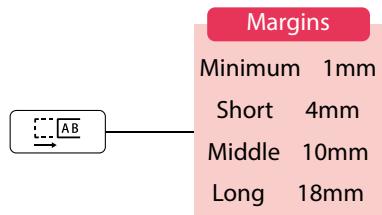
Marges
Ce réglage est identique à celui obtenu en appuyant sur .
"Réglage des marges"
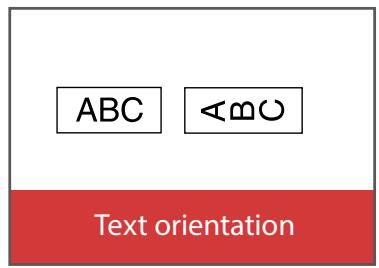
Orientation
|AB|A,| ∞ |
Définit l'orientation du texte.
| |AB|A | ABC |
| |<a| | <a> |
Taille de police
Ce réglage est identique à celui obtenu en appuyant sur A w \ w ..
"Modification de la taille de police"
Police
Ce réglage est identique à celui obtenu en appuyant sur + A,A1.
"Modification de la police"
Haut
Consignes de sécurité
Spécifications
Dépannage
Noms et fonctions des pièces
Commencer ici
Nettoyage
Initialisation des réglages
Index par objectif
Index des menus clés
Listes des cadres et des tableaux
Personnalisation des étiquettes
Modification de la taille de police

Vous pouvez modifier la taille de police d'un texte ou d'un bloc ligne par ligne. Parmi les éléments prédéfinis, sélectionnez celui qui a le même nombre de lignes que le texte ou le bloc que vous souhaitez modifier.
REMARQUE
Il se peut que vous ne puissiez pas modifier la taille de police selon le type d'étiquette que vous créez.
- Appuyez sur (n + AnAn) .
- Chaque pression sur [ΔxΔx*] modifie la taille de police.
Modification de la police +AAuA
Modifie le type de police du texte.
- Appuyez sur + +
- Chaque pression sur + modifie la police.

Modification de l'orientation du texte
Modifie l'orientation du texte en vertical ou horizontal.
MEMO
Vous ne pourrez peut-être pas modifier l'orientation du texte selon le type d'étiquette que vous créez.
- Appuyez sur +
Chaque fois que vous appuyez sur l + , le réglage alterne entre « Horizontal » et « Vertical ».
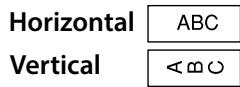
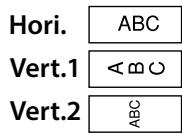
Lors de la création de « Patch Panel », « Block-66 », « Faceplate » ou « Mix-Len »
- Appuyez sur 个 +
- Sélectionnez l'orientation avec et appuyez sur .
Haut
Consignes de sécurité
Spécifications
Dépannage
Noms et fonctions des pièces
Commencer ici
Nettoyage
Initialisation des réglages
Index par objectif
Index des menus clés
Listes des cadres et des tableaux
Personnalisation des étiquettes
Réglage de la longueur de l'étiquette
Vous pouvez régler la longueur de l'étiquette ou du bloc.
NOTE
Lors de la création d'une étiquette spéciale, vous pouvez régler à nouveau la longueur. Les éléments de réglage pour l'étiquette spéciale s'affichent après avoir appuyé sur
- Appuyez sur
- Sélectionnez la méthode de réglage de la longueur avec / et appuyez sur →.
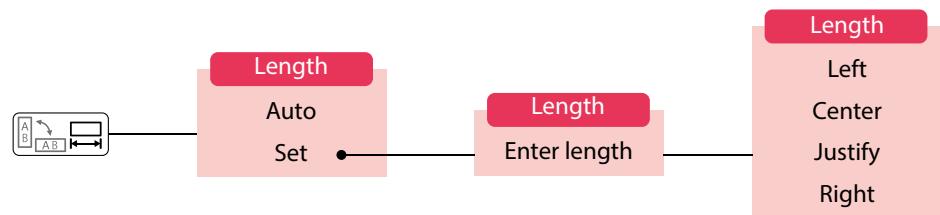
Auto : Ajuste automatiquement la longueur de l'étiquette en fonction de la longueur du texte.
Réglage : Définit la longueur de l'étiquette. Plage de réglage : 1 à 99,9 cm
- Sélectionnez l'alignement du texte avec / · et appuyez sur +.
Gauche, Centre, Justifié, Droite
Réglage des marges
Définit les marges gauche et droite.
MEMO
Il se peut que vous ne puissiez pas définir les marges selon le type d'étiquette que vous créez.
- Appuyez sur
- Sélectionnez le type de marges avec et appuyez sur
Ajout de bloc
Colonne
En divisant le texte en blocs, vous pouvez modifier le style et le nombre de lignes bloc par bloc.
Affichage
Câble 2#101
02 USB No.1 USB No.2
- Appuyez sur Colonnes
Un nouveau bloc commence à partir du caractère suivant le curseur.
Câble 2#101

Câble #101 021
Sommaire
Consignes de sécurité
Spécifications
Dépannage
Noms et fonctions des pièces
Commencer ici
Nettoyage
Initialisation des réglages
Index par usage
Index des menus clés
Listes des cadres et des tableaux
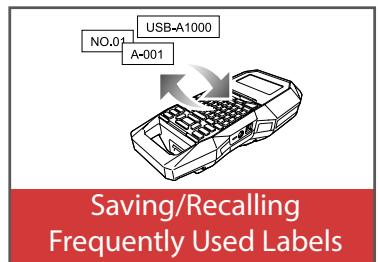
Enregistrement des étiquettes fréquemment utilisées

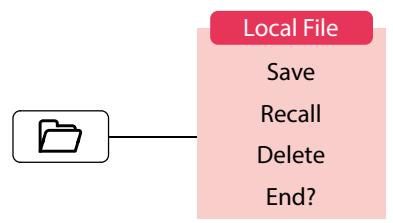
En enregistrant les étiquettes fréquemment utilisées, vous pourrez facilement les rappeler et les imprimer la prochaine fois. Jusqu'à 100 étiquettes peuvent être enregistrées.
Enregistrement d'une étiquette
- Appuyez sur l
- Sélectionnez « Enregistrer » avec · / et appuyez sur +.
- Sélectionnez un numéro d'enregistrement avec 口\ 口 ou les touches numériques, puis appuyez sur . L'écran de confirmation d'enregistrement apparaît.
- Confirmez le numéro d'enregistrement, puis appuyez sur +.
Rappeler l'étiquette enregistrée
- Appuyez sur l
- Sélectionnez « Rappel » avec et appuyez sur +.
- Sélectionnez un numéro d'enregistrement avec 口\ 口 ou les touches numériques, puis appuyez sur . L'écran de confirmation de rappel apparaît.
- Confirmez le numéro d'enregistrement, puis appuyez sur +.
- Suppression de l'étiquette enregistrée
- Appuyez sur
- Sélectionnez « Supprimer » avec Δ et appuyez sur +.
- Sélectionnez un numéro d'enregistrement avec 口\ 口 ou les touches numériques, puis appuyez sur . L'écran de confirmation de suppression apparaît.
- Confirmez le numéro d'enregistrement, puis appuyez sur +.
Haut
Consignes de sécurité
Spécifications
Dépannage
Noms et fonctions des pièces
Commencez ici
Nettoyage
Initialisation des paramètres
Index par objectif
Index du menu principal
Listes des cadres et des tableaux
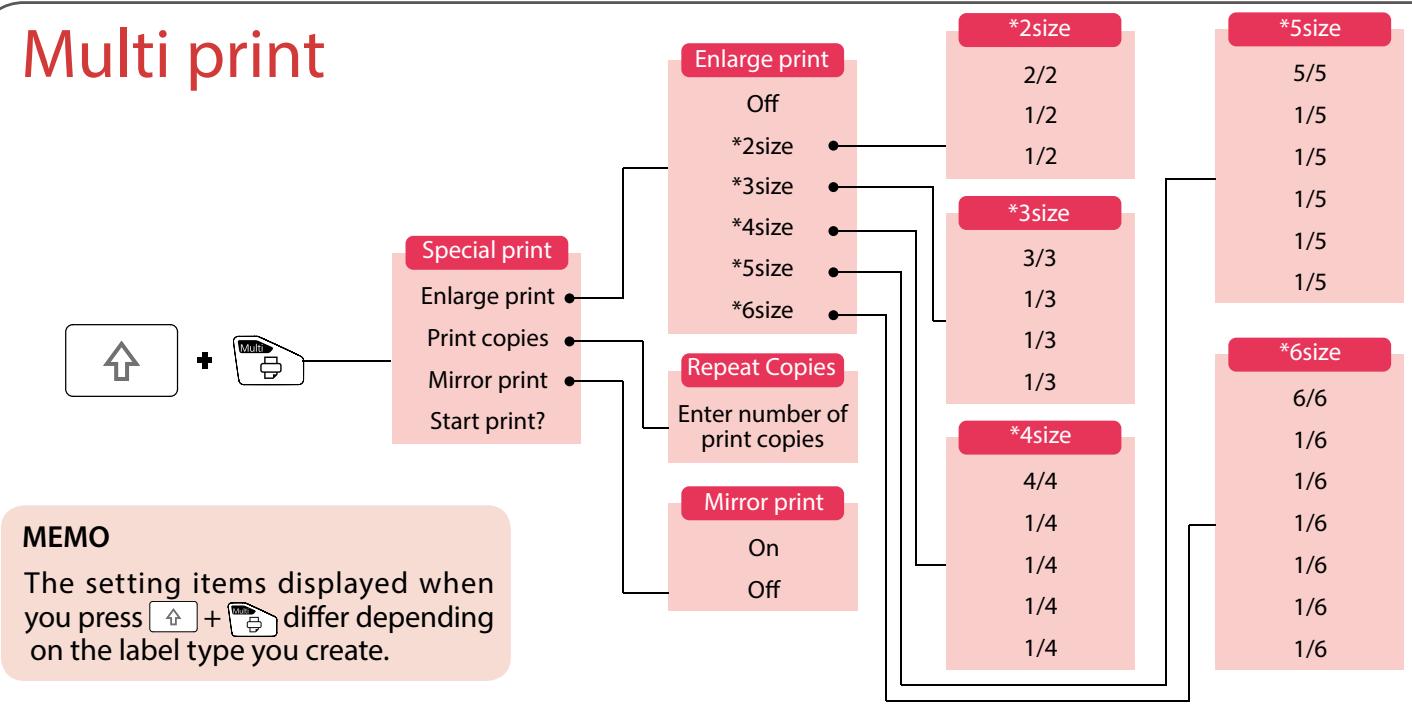
Utilisation des fonctions d'impression
■ Impression agrandie
Vous pouvez créer une étiquette plus grande que la largeur d'une seule étiquette.
Imprimez le contenu créé séparément sur plusieurs étiquettes, puis assemblez-les pour les utiliser comme une seule étiquette.

- Appuyez sur +
- Sélectionnez « Impression agrandie » avec / et appuyez sur .
- Sélectionnez "*2size" avec / et appuyez sur
- Sélectionnez "2/2" avec · / · et appuyez sur ·.
- Sélectionnez "Démarrer l'impression ?" avec / et appuyez sur . L'impression démarre.
REMARQUE
La fonction reste activée même après l'impression. Pour désactiver la fonction, sélectionnez "Off".
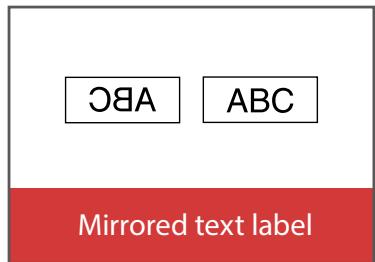
Impression miroir
On
38A
Off
ABC
- Appuyez sur +
- Sélectionnez "Impression miroir" avec · / et appuyez sur +.
- Sélectionnez "On" avec / · et appuyez sur →.
- Sélectionnez "Démarrer l'impression ?" avec / et appuyez sur . L'impression démarre.
REMARQUE
La fonction reste activée même après l'impression. Pour désactiver la fonction, sélectionnez "Désactivé".
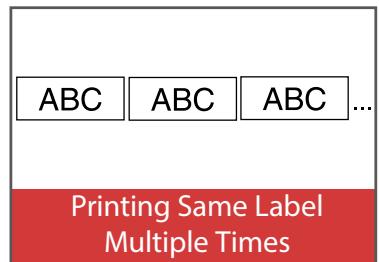
■ Copies d'impression
ABC
ABC
ABC
- Appuyez sur 山 +
- Sélectionnez "Copies d'impression" avec et appuyez sur + .
- Saisissez le nombre de copies d'impression, puis appuyez sur + .
- Sélectionnez "Démarrer l'impression ?" avec / et appuyez sur . L'impression démarre.
MÉMO
La fonction reste activée même après l'impression. Pour désactiver la fonction, réglez le nombre de copies d'impression sur "1".
Haut
Consignes de sécurité
Spécifications
Dépannage
Noms des pièces et fonctions
Commencez ici
Nettoyage
Initialisation des paramètres
Index par objectif
Index des menus clés
Listes des cadres et des tableaux
Modification des paramètres de l'imprimante


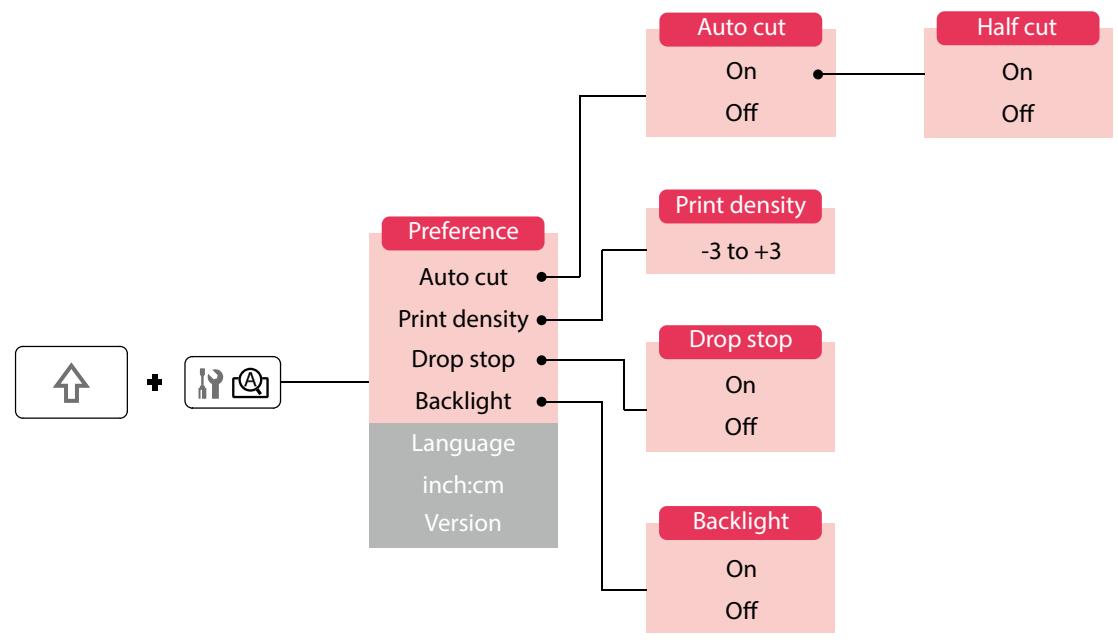
Coupe automatique
Coupe automatique :
Définit si la coupe doit être automatique ou non.
Coupe à demi :
Lorsque "Coupe automatique" est réglé sur "On", la fonction "Coupe à demi" qui prédécoupe uniquement la partie de l'étiquette pour faciliter le détachement du papier support peut être réglée.
REMARQUE
Une marge supplémentaire peut apparaître à l'avant de l'étiquette selon le type de ruban, la longueur et les paramètres de marge de l'étiquette. La longueur de la marge supplémentaire varie selon les conditions de réglage.
Densité d'impression
Règle la densité d'impression.
Arrêt de chute
Cette fonction est utile pour apposer des étiquettes imprimées consécutivement une à une.
Sélectionnez « On » pour éviter qu'une étiquette imprimée ne tombe. Une étiquette imprimée reste à la fente d'éjection du ruban.
Lors de l'impression de plusieurs copies, l'impression de la deuxième étiquette ou des suivantes démarre à chaque fois que vous retirez une étiquette imprimée. Cette fonction n'est disponible que lorsque la longueur de l'étiquette est de 28 mm ou plus, que « Coupe automatique » est réglé sur « On » et que « Coupe à moitié » est réglé sur « Off ».
Rétroéclairage
Règle le rétroéclairage de l'écran sur On ou Off.
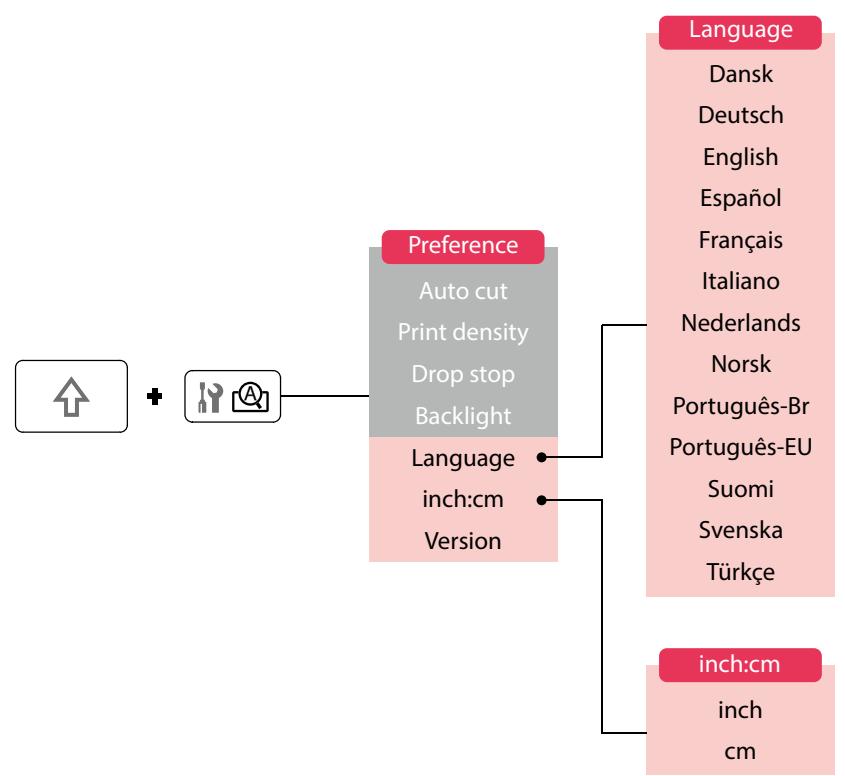
Langue
Vous pouvez sélectionner la langue affichée à l'écran parmi les suivantes :
Dansk, Deutsch, English, Español, Français, Italiano, Nederlands, Norsk, Português-Br, Português-EU, Suomi, Svenska, Türkçe
inch:cm
L'unité de longueur utilisée pour indiquer la taille de l'étiquette peut être commutée entre pouce et cm.
MEMO
Version : Pour vérifier le numéro de version installé dans l'imprimante.
Procédure de réglage
- Appuyez sur + +
- Sélectionnez la fonction souhaitée avec et appuyez sur +.
- Sélectionnez l'élément souhaité avec et appuyez sur +.
Sommaire
Consignes de sécurité
Spécifications
Dépannage
Noms et fonctions des pièces
Commencer ici
Nettoyage
Initialisation des réglages
Index par objectif
Index du menu des touches
Listes des cadres et des tableaux
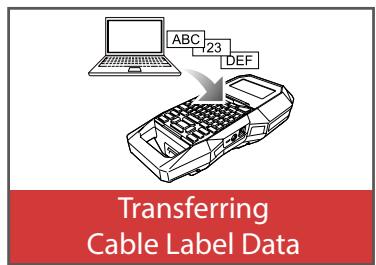
Transfert des données d'étiquettes de câble
Si vous transférez des données d'étiquettes que vous avez créées vers l'imprimante, vous pourrez imprimer des étiquettes pour câbles sans avoir à connecter un ordinateur. Vous pouvez également exporter les données d'étiquettes afin de les utiliser sur un appareil intelligent.
Flux de fonctionnement

MÉMO
- Vous pouvez télécharger "Label Editor" (application PC pour éditer des étiquettes), les pilotes d'imprimante et le "Guide de l'utilisateur de Label Editor" depuis le site Web local d'Epson.
- Pour savoir comment installer et utiliser Label Editor, consultez le "Guide de l'utilisateur de Label Editor".
- Connectez l'imprimante et l'ordinateur avec un câble USB à l'avance.
1. Créez l'étiquette à transférer
- Démarrez Label Editor.
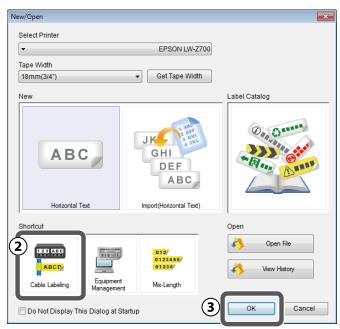
- Cliquez sur [Étiquetage de câble] dans la fenêtre "Nouveau/Ouvrir".
- Cliquez sur [OK].
- Dans l'onglet "Style", activez la case à cocher pour "Créer des données de transfert" et sélectionnez [Pour imprimante] ou [Pour appareil intelligent].
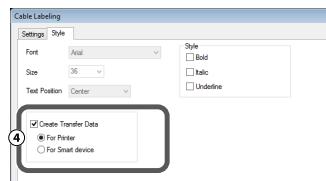
Pour imprimante : Exporte les données d'étiquettes à transférer vers l'imprimante.
Pour appareil intelligent : Exporte les données d'étiquettes à transférer vers un appareil intelligent.
Haut
Consignes de sécurité
Spécifications
Dépannage
Noms et fonctions des pièces
Commencer ici
Nettoyage
Initialisation des paramètres
Index par objectif
Index du menu clé
Listes des cadres et des tableaux
Transfert des données d'étiquettes de câble
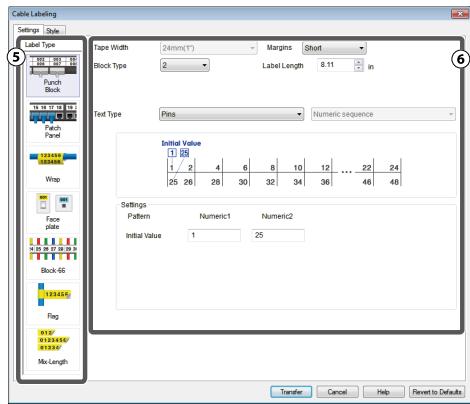
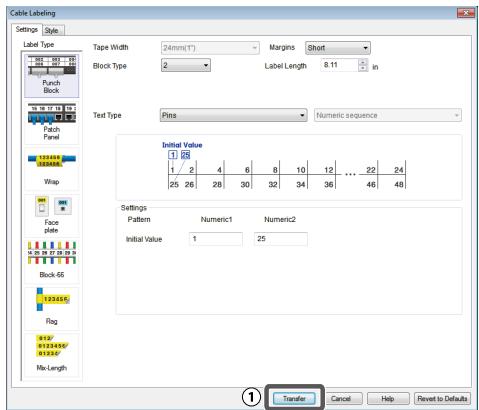
- Cliquez sur "Type d'étiquette" dans l'onglet "Paramètres". Sélectionnez le type d'étiquette.
- Créez l'étiquette.
2. Transférer les données d'étiquette
- Cliquez sur [Transférer].
L'outil de transfert de données démarre. Si vous avez sélectionné [Pour appareil intelligent], le bouton [Transférer] n'est pas affiché. Cliquez plutôt sur [OK]. Les données d'étiquette sont enregistrées sur l'ordinateur. Transférez vous-même les données enregistrées vers un appareil intelligent.
- Cliquez sur [Enregistrer].
Les données d'étiquette à transférer sont enregistrées sur l'ordinateur.
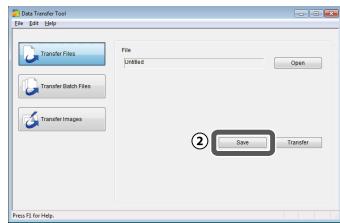
REMARQUE
En cliquant sur [Transférer], vous pouvez transférer les données immédiatement sans les enregistrer.
- Cliquez sur [Transférer les fichiers par lots].
- Cliquez sur [Ajouter].
Sélectionnez les données d'étiquette à transférer.
- Cliquez sur [Transférer].
Les données d'étiquette sont transférées vers l'imprimante.
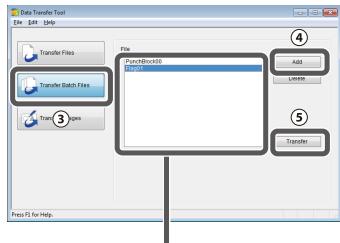
Le nom de fichier des données d'étiquette sélectionnées est affiché.
3. Imprimer à partir de l'imprimante
Les données d'étiquette transférées peuvent être imprimées à partir de 回 de l'imprimante.
- Appuyez sur
- Sélectionnez "Rappel" avec puis appuyez sur +.
- Sélectionnez les données d'étiquette transférées avec ou une touche numérique, puis appuyez sur →.
- Appuyez sur
L'impression démarre.
Sommaire
Consignes de sécurité
Spécifications
Dépannage
Noms et fonctions des pièces
Commencer ici
Nettoyage
Initialisation des paramètres
Index par objectif
Index des touches
Listes des cadres et des tableaux
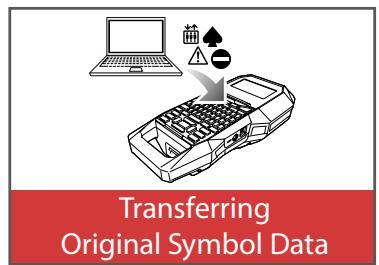
Transfert des données de symboles d'origine
Vous pouvez transférer vos données de symboles d'origine vers l'imprimante et les utiliser sans avoir à vous connecter à un ordinateur.
REMARQUE
Pour savoir comment installer et utiliser Label Editor, reportez-vous au « Guide de l'utilisateur de Label Editor ».
Procédure
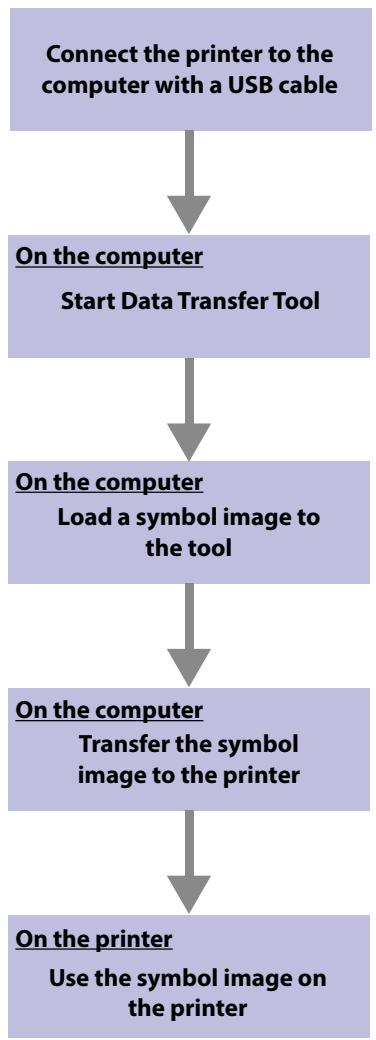
- Démarrez Label Editor.
- Dans le menu [Fichier], sélectionnez [Outil de transfert de données]. L'outil de transfert de données démarre.
- Cliquez sur [Transférer les images].
- Cliquez sur [Charger] et sélectionnez l'image de symbole à charger.
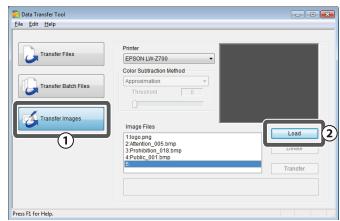
- Sélectionnez l'image chargée à transférer.
- Cliquez sur [Transférer]. Les données de symbole sont transférées vers l'imprimante.
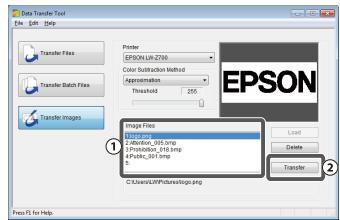
L'image de symbole transférée est stockée dans la catégorie « Téléchargé ». Vous pouvez l'utiliser comme les symboles intégrés. « Création d'étiquettes avec des symboles »
Sommaire
Consignes de sécurité
Spécifications
Dépannage
Noms et fonctions des pièces
Commencer ici
Nettoyage
Initialisation des réglages
Index par objectif
Index des menus clés
Listes des cadres et des tableaux
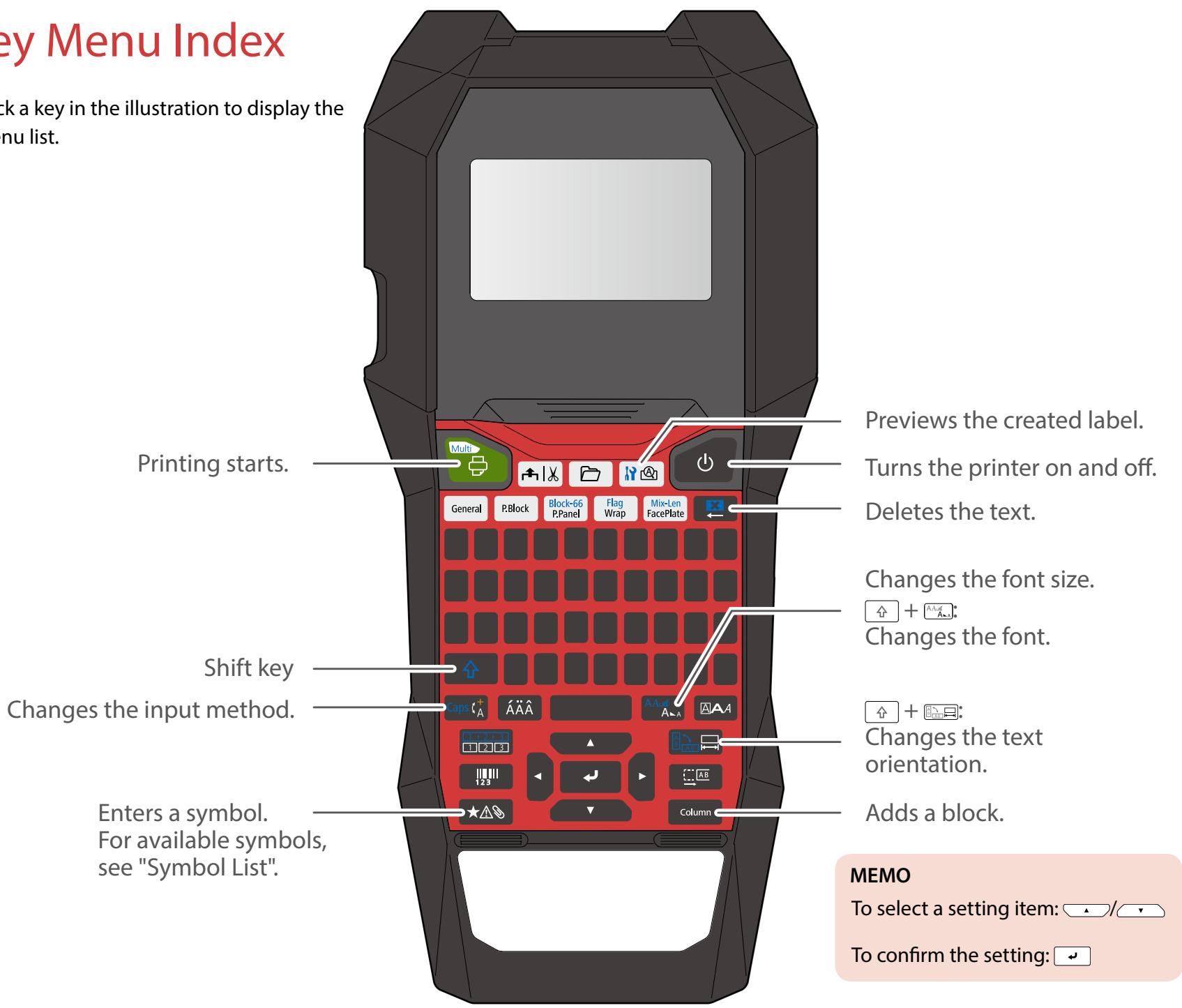
Index des menus clés
Cliquez sur une touche de l'illustration pour afficher la liste des menus.
Sommaire
Consignes de sécurité
Spécifications
Dépannage
Noms et fonctions des pièces
Commencer ici
Nettoyage
Initialisation des paramètres
Index par objectif
Index du menu principal
Listes des cadres et des tableaux
Panneau de brassage

Bloc-66

Haut
Consignes de sécurité
Spécifications
Dépannage
Noms des pièces et fonctions
Commencez ici
Nettoyage
Initialisation des paramètres
Index par objectif
Index du menu principal
Listes des cadres et des tableaux
Plaque frontale

Mix-Len

Haut
Consignes de sécurité
Spécifications
Dépannage
Noms des pièces et fonctions
Commencez ici
Nettoyage
Initialisation des réglages
Index par objectif
Index du menu principal
Listes des cadres et des tableaux
Enveloppe
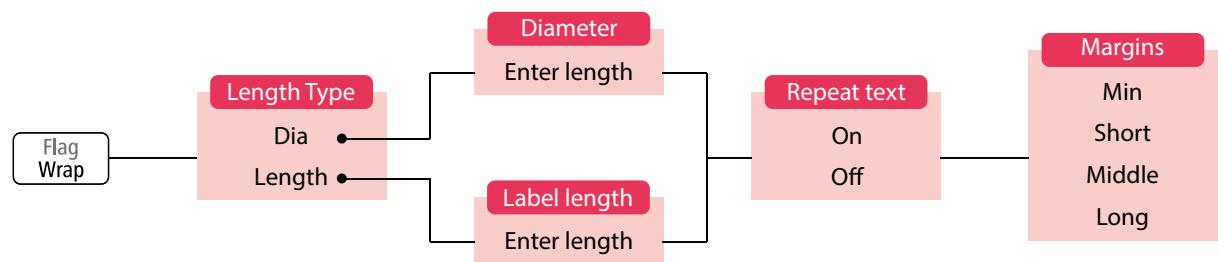
Drapeau

Haut
Consignes de sécurité
Spécifications
Dépannage
Noms et fonctions des pièces
Commencer ici
Nettoyage
Initialisation des réglages
Index par objectif
Index des menus clés
Listes des cadres et des tableaux
Bloc de perforation

Haut
Consignes de sécurité
Spécifications
Dépannage
Noms et fonctions des pièces
Commencer ici
Nettoyage
Initialisation des paramètres
Index par objectif
Index des menus clés
Listes des cadres et des tableaux
Modification 1
Haut
Consignes de sécurité
Spécifications
Dépannage
Noms et fonctions des pièces
Commencer ici
Nettoyage
Initialisation des réglages
Index par objectif
Index des menus clés
Listes des cadres et des tableaux

Modification 2
Longueur
Gauche
Centrer
Justifier
Droite

Haut
Consignes de sécurité
Spécifications
Dépannage
Noms et fonctions des pièces
Commencer ici
Nettoyage
Initialisation des réglages
Index par objectif
Index du menu principal
Listes des cadres et des tableaux
Modifier 3

Consignes de sécurité
Spécifications
Dépannage
Noms et fonctions des pièces
Commencez ici
Nettoyage
Initialisation des paramètres
Index par objectif
Index des menus clés
Listes des cadres et des tableaux
Marges
MÉMO
Les éléments de réglage affichés lorsque vous appuyez sur la touche diffèrent selon le type d'étiquette que vous créez.
Longueur
MEMO
Les éléments de réglage affichés lorsque vous appuyez sur la touche diffèrent selon le type d'étiquette que vous créez.
Sommaire
Consignes de sécurité
Spécifications
Dépannage
Noms et fonctions des pièces
Démarrage rapide
Nettoyage
Initialisation des réglages
Index par objectif
Index du menu des touches
Listes des cadres et des tableaux
Sérialiseur
SSRize avancé

Dépannage
Noms et fonctions des pièces
Commencer ici
Nettoyage
Initialisation des paramètres
Index par objectif
Index des menus clés
Listes des cadres et des tableaux
Code-barres 2

Haut
Consignes de sécurité
Spécifications
Dépannage
Noms et fonctions des pièces
Commencer ici
Nettoyage
Initialisation des paramètres
Index par objectif
Index du menu principal
Listes des cadres et des tableaux
Fichier
Effacer
MÉMO
Les éléments de réglage affichés lorsque vous appuyez sur 合 + 三 diffèrent selon le type d'étiquette que vous créez.
Haut
Consignes de sécurité
Spécifications
Dépannage
Noms et fonctions des pièces
Commencer ici
Nettoyage
Initialisation des réglages
Index par objectif
Index du menu principal
Listes des cadres et des tableaux
Impression multiple
Alimentation et coupe
Haut
Consignes de sécurité
Spécifications
Dépannage
Noms et fonctions des pièces
Commencer ici
Nettoyage
Initialisation des réglages
Index par objectif
Index des menus clés
Listes des cadres et tableaux
Réglage 1

Haut
Consignes de sécurité
Spécifications
Dépannage
Noms et fonctions des pièces
Commencer ici
Nettoyage
Initialisation des réglages
Index par objectif
Index des menus clés
Listes des cadres et tableaux
Réglage 2

Haut
Consignes de sécurité
Spécifications
Dépannage
Noms et fonctions des pièces
Commencez ici
Nettoyage
Initialisation des réglages
Index par objectif
Index des menus clés
Listes des cadres et des tableaux
Accent
| A | Á | À | Â | ã | Ä | Å | A | Ä | |
| C | Ç | Č | ć | ć | |||||
| D | Đ | Đ | |||||||
| E | É | È | ë | Ê | æ | Ø | Ê | ë | Ê |
| G | G | G | G | ||||||
| H | H | ||||||||
| I | Í | Í | Í | IJ | Í | Í | Í | ||
| K | К | ||||||||
| L | L | L | L | L | |||||
| N | Ñ | Ñ | Ñ | N | D | ||||
| O | Ó | Ó | æ | Ó | Ö | Ø | Ó | Ö | O |
| P | p | ||||||||
| R | R | R | |||||||
| S | S | S | S | ||||||
| T | T | T | T | ||||||
| U | ú | ü | ú | ü | ü | ü | ü | ü | |
| W | W | ||||||||
| Y | Y | Y | Y | ||||||
| Z | Ž | Ž | Ž | 3 |
| a | á | à | á | ã | ä | à | æ | æ | ā | a | ă |
| c | ç | ć | Č | ć | |||||||
| d | ð | d | d' | ||||||||
| e | é | è | ë | ê | œ | æ | ē | è | è | ě | |
| g | g | g | g | ||||||||
| h | h | ||||||||||
| i | í | í | í | í | ij | í | í | í | |||
| k | k | ||||||||||
| l | l | l | í | l' | l. | ||||||
| n | ñ | n | ŋ | n | ŋ | n | n | ||||
| o | ó | ô | ce | ō | ò | ö | ø | ó | ô | ō | o |
| p | p | ||||||||||
| r | ř | rá | |||||||||
| s | β | š | s | s | s | s | |||||
| t | t' | t | t | ||||||||
| u | ú | ü | ù | ú | ú | ú | ü | ü | u | u' | |
| w | w | ||||||||||
| y | y | ý | ŷ | ||||||||
| z | ž | ž | ž | ž | 3 | ||||||
| ? | ì | ||||||||||
| ! | ì |
Haut
Consignes de sécurité
Spécifications
Dépannage
Noms et fonctions des pièces
Commencer ici
Nettoyage
Initialisation des paramètres
Index par objectif
Index du menu principal
Listes des cadres et des tableaux
Listes des cadres et des tableaux
Cadre
| 1 | 2 | 3 | 4 | 5 | 6 | 7 | |||||||
| 8 | 9 | 10 | 11 | 12 | 13 | 14 | |||||||
| 15 | 16 | 17 | 18 | 19 | 20 | 21 | |||||||
| 22 | 23 | 24 | 25 | 26 | 27 | 28 | |||||||
| 29 | 30 | 31 | 32 | 33 | 34 | 35 | |||||||
| 36 | 37 | 38 | 39 | 40 | 41 | 42 | |||||||
| 43 | 44 | 45 | 46 | 47 | 48 | 49 | |||||||
| 50 | 51 | 52 | 53 | 54 | 55 | 56 | |||||||
| 57 | 58 | 59 | 60 | 61 | 62 | 63 | |||||||
| 64 | 65 | 66 | 67 | 68 | 69 | 70 | |||||||
| 71 | 72 | ||||||||||||
Haut
Consignes de sécurité
Spécifications
Dépannage
Noms des pièces et fonctions
Commencer ici
Nettoyage
Initialisation des paramètres
Index par objectif
Index des menus clés
Listes des cadres et des tableaux
Listes des cadres et des tableaux
Tableau

Haut
Consignes de sécurité
Spécifications
Dépannage
Noms des pièces et fonctions
Commencer ici
Nettoyage
Initialisation des paramètres
Index par objectif
Index du menu principal
Listes des cadres et des tableaux


- LABELWORKS LW-Z
- CONSIGNES DE SÉCURITÉ
- DANGER CE SYMBOLE
- AVERTISSEMENT CE SYMBOLE
- ATTENTION
- CECI INDIQUE UN RAPPEL IMPORTANT
- CECI INDIQUE UN ÉLÉMENT INTERDIT
- CECI INDIQUE UNE PROCÉDURE OBLIGATOIRE
- DANGER
- LORS DE LA MANIPULATION DES BATTERIES
- AVERTISSEMENT
- LORS DE L'UTILISATION DE L'ADAPTATEUR SECTEUR ET DU CÂBLE D'ALIMENTATION
- UTILISATION DE L'ADAPTATEUR SECTEUR
- UTILISATION DE CE PRODUIT
- MANIPULATION DES CARTOUCHES DE RUBAN
- MÉMO
- AUTRES PRÉCAUTIONS
- REMARQUES SUR L'UTILISATION
- RECYCLAGE DE LA BATTERIE
- SPÉCIFICATIONS
- ALIMENTATION ÉLECTRIQUE
- SPÉCIFICATIONS DE LA BATTERIE LITHIUM-ION
- DÉPANNAGE
- MESSAGES
- PROBLÈME
- REMARQUE
- NOMS ET FONCTIONS DES PIÈCES
- DESCRIPTION DES SYMBOLES
- AFFICHAGE
- MEMO
- COMMENCEZ ICI
- INSTALLATION DE LA BATTERIE LITHIUM-ION
- CHARGEMENT DE LA BATTERIE LITHIUM-ION
- UTILISATION DE PILES ALCALINES
- CONNEXION DE L'ADAPTATEUR SECTEUR
- UTILISATION DE LABEL EDITOR
- INSTALLATION D'UNE CARTOUCHE DE RUBAN
- ENROULEZ LE RUBAN ENCREUR
- INSTALLEZ UNE CARTOUCHE DE RUBAN
- OUVREZ LE CAPOT SUPÉRIEUR
- FERMEZ LE CAPOT SUPÉRIEUR
- MISE SOUS TENSION
- EXTINCTION AUTOMATIQUE
- INTRODUCTION DE LA BANDE
- SAISIE DE TEXTE
- SUPPRIMER DU TEXTE
- SUPPRESSION DE TOUT LE TEXTE
- IMPRESSION D'ÉTIQUETTES
- FIXATION DE L'ÉTIQUETTE
- MISE HORS TENSION
- NETTOYAGE
- EXTÉRIEUR
- TÊTE D'IMPRESSION
- INITIALISATION DES PARAMÈTRES
- INDEX PAR OBJECTIF
- TYPES D'ÉTIQUETTES
- PERSONNALISATION DES ÉTIQUETTES
- FONCTIONS UTILES
- CRÉATION D'ÉTIQUETTES SPÉCIALES
- CRÉATION D'ÉTIQUETTES POUR PANNEAU DE BRASSAGE BLOCK-66 P.PANEL
- CRÉATION D'ÉTIQUETTES POUR LE BLOC-66 + PANNEAU P.P. DU BLOC
- CRÉATION D'ÉTIQUETTES POUR PLAQUES FRONTALES
- CRÉATION D'ÉTIQUETTES POUR LE BLOC DE PERFORATION (P.BLOCK)
- CRÉATION D'ÉTIQUETTES À ENROULER AUTOUR D'UN CÂBLE
- CRÉATION D'ÉTIQUETTES À ENROULER AUTOUR D'UN CÂBLE COMME UN DRAPEAU
- CRÉATION DE PLUSIEURS ÉTIQUETTES À LA FOIS
- CRÉATION D'ÉTIQUETTES AVEC RUBAN DÉDIÉ
- SURFILM D'AUTO-LAMINATION
- CRÉATION D'ÉTIQUETTES DE CODES-BARRES
- CRÉATION D'ÉTIQUETTES AVEC SYMBOLE
- CRÉATION D'ÉTIQUETTES NUMÉROTÉES SÉQUENTIELLEMENT
- CRÉATION D'ÉTIQUETTES AVEC DES NUMÉROS DE SÉQUENCE DE BLOCS
- ATTRIBUÉ
- RÉGLAGE DU FORMAT ET DU STYLE (MENU ÉDITION)
- PROCÉDURE DE RÉGLAGE
- GRAS ET ITALIQUE
- LONGUEUR
- MARGES
- ORIENTATION
- TAILLE DE POLICE
- POLICE
- MODIFICATION DE LA TAILLE DE POLICE
- MODIFICATION DE LA POLICE +AAUA
- MODIFICATION DE L'ORIENTATION DU TEXTE
- RÉGLAGE DE LA LONGUEUR DE L'ÉTIQUETTE
- NOTE
- RÉGLAGE DES MARGES
- AJOUT DE BLOC
- ENREGISTREMENT DES ÉTIQUETTES FRÉQUEMMENT UTILISÉES
- ENREGISTREMENT D'UNE ÉTIQUETTE
- RAPPELER L'ÉTIQUETTE ENREGISTRÉE
- SUPPRESSION DE L'ÉTIQUETTE ENREGISTRÉE
- UTILISATION DES FONCTIONS D'IMPRESSION
- IMPRESSION AGRANDIE
- IMPRESSION MIROIR
- COPIES D'IMPRESSION
- MODIFICATION DES PARAMÈTRES DE L'IMPRIMANTE
- COUPE AUTOMATIQUE
- DENSITÉ D'IMPRESSION
- ARRÊT DE CHUTE
- RÉTROÉCLAIRAGE
- LANGUE
- INCH:CM
- TRANSFERT DES DONNÉES D'ÉTIQUETTES DE CÂBLE
- FLUX DE FONCTIONNEMENT
- CRÉEZ L'ÉTIQUETTE À TRANSFÉRER
- TRANSFÉRER LES DONNÉES D'ÉTIQUETTE
- IMPRIMER À PARTIR DE L'IMPRIMANTE
- TRANSFERT DES DONNÉES DE SYMBOLES D'ORIGINE
- PROCÉDURE
- INDEX DES MENUS CLÉS
- PANNEAU DE BRASSAGE
- BLOC
- PLAQUE FRONTALE
- MIX-LEN
- ENVELOPPE
- DRAPEAU
- BLOC DE PERFORATION
- MODIFICATION
- MODIFIER
- SÉRIALISEUR
- SSRIZE AVANCÉ
- CODE-BARRES
- FICHIER
- EFFACER
- IMPRESSION MULTIPLE
- ALIMENTATION ET COUPE
- RÉGLAGE
- ACCENT
- LISTES DES CADRES ET DES TABLEAUX
- TABLEAU
Marque : EPSON
Modèle : LW-Z700FK
Catégorie : Étiqueteuse