DP 8010 - Lecteur CD KENWOOD - Notice d'utilisation et mode d'emploi gratuit
Retrouvez gratuitement la notice de l'appareil DP 8010 KENWOOD au format PDF.

| Type de produit | Lecteur CD |
| Caractéristiques techniques principales | Compatible avec CD, CD-R, CD-RW, MP3 |
| Alimentation électrique | 220-240 V, 50/60 Hz |
| Dimensions approximatives | 430 x 270 x 90 mm |
| Poids | 2,5 kg |
| Compatibilités | Compatible avec les systèmes audio KENWOOD |
| Type de batterie | Non applicable |
| Tension | 220-240 V |
| Puissance | 15 W |
| Fonctions principales | Lecture de CD, affichage LCD, télécommande |
| Entretien et nettoyage | Nettoyer avec un chiffon doux, ne pas utiliser de produits abrasifs |
| Pièces détachées et réparabilité | Disponibilité des pièces détachées selon le revendeur |
| Sécurité | Ne pas exposer à l'humidité, respecter les consignes de sécurité électrique |
| Informations générales utiles | Vérifier la compatibilité avec d'autres appareils avant l'achat |
FOIRE AUX QUESTIONS - DP 8010 KENWOOD
Questions des utilisateurs sur DP 8010 KENWOOD
0 question sur cet appareil. Repondez a celles que vous connaissez ou posez la votre.
Poser une nouvelle question sur cet appareil
Téléchargez la notice de votre Lecteur CD au format PDF gratuitement ! Retrouvez votre notice DP 8010 - KENWOOD et reprennez votre appareil électronique en main. Sur cette page sont publiés tous les documents nécessaires à l'utilisation de votre appareil DP 8010 de la marque KENWOOD.
MODE D'EMPLOI DP 8010 KENWOOD
CD PLAYER
DP-8010
INSTRUCTION MANUAL
KENWOOD CORPORATION
Your choice of this product indicates that you are a devotee to excellence in sound reproduction.
We appreciate your patronage and take pride in the long tradition of quality components, that our company represents.
So that you can get the most out of your unit, we suggest that you take the time to read through this manual before you hook up and operate your system.
This will acquaint you with operating features, and systemconnection considerations, so that your listening pleasure will be enhanced right from the start. You will notice that in all aspects of planning, engineering, styling, operating convenience and adaptability, we have sought to anticipate your needs and desires.
Keep this manual handy for future reference.
For your records
Record the serial number, found on the back of the unit, in the spaces designated on the warranty card, and in the space provided below. Refer to the model and serial numbers whenever you call upon your dealer for information or service on this product.
Model DP-8010 Serial Number
Unpacking
Unpack the unit carefully and make sure that all accessories are put aside so they will not be lost.
Examine the unit for any possibility of shipping damage. If your unit is damaged or fails to operate, notify your dealer immediately. If your unit was shipped to you directly, notify the shipping company without delay. Only the consignee (the person or company receiving the unit) can file a claim against the carrier for shipping damage.
We recommend that you retain the original carton and packing materials for use should you transport or ship the unit in the future.
CAUTION: Use of controls or adjustments or performance of procedures other than those specified herein may result in hazardous radiation exposure.
In compliance with Federal Regulations, following are reproductions of labels on, or inside the product relating to laser product safety.
KENWOOD CORPORATION
SHIONOGI SHIBUYA BUILDING 17-5, 2-CHOME.
SHIBUYA, SHIBUYA-KU, TOKYO, JAPAN
KENWOOD CORP. CERTIFIES THIS EQUIPMENT CONFORMS TO DHHS REGULATIONS NO. 21 CFR 1040, 10, CHAPTER I, SUBCHAPTER J.
Location: Back Panel
DANGER
INVISIBLE LASER RADIATION WHEN OPEN
AND INTERLOCK FAILD OR DEFEATED.
AVOID DIRECT EXPOSURE TO BEAM.
Location: Inside, near the Laser mechanism.
Accessories
Audio cord. 1
Remote control unit.....1 (RC-P8010)
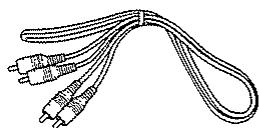
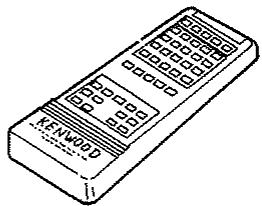
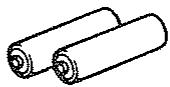
Battery. 2 ("AA" or "R6")
Contents
Caution: Read the following pages marked in carefully to keep your safety.
Before applying power 3
Important safeguards 4
Before operation 6
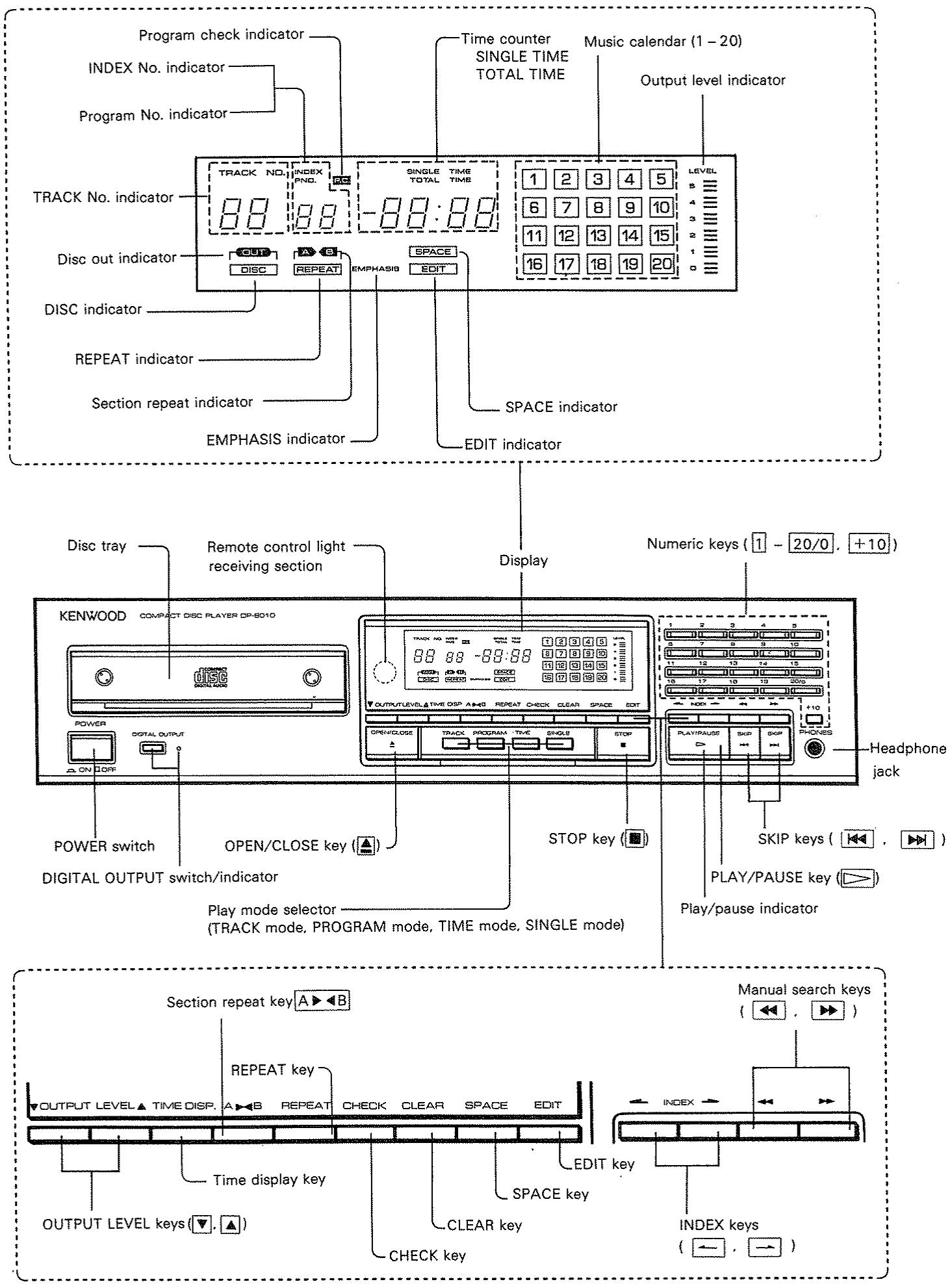
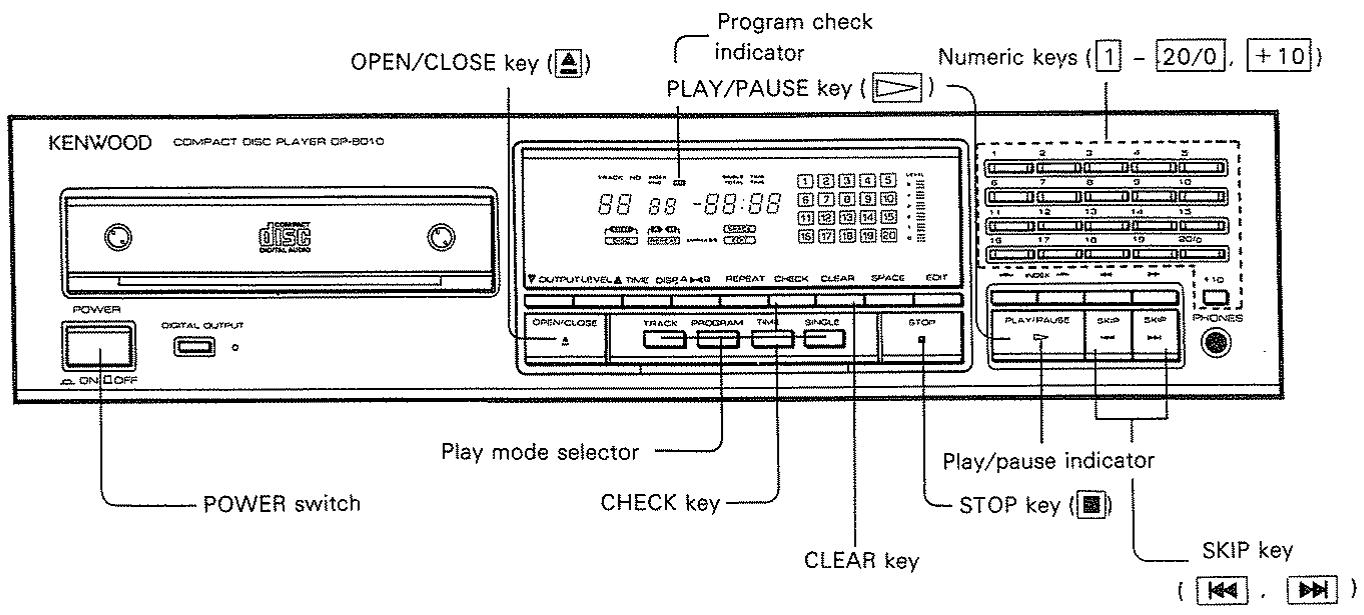
Controls and indicators 7
System connections 8
Remote control unit 10
Preparing to play 11
Manual play (Track mode) 12
Playing from start 12
Playing from a particular tune 13
Forward and reverse searching 13
Programmed play (Program mode) 14
Inputting a program 14
Checking a program 15
Changing a program 15
Playing a program 16
Playing from a particular tune of a program ... 16
Adding a program 16
Erasing a program 16
Editing 17
Convenient functions 18
Playing after a required time has elapsed on a track 18
Playing one particular track only 19
Repeated playing 20
EMPHASIS indicator 20
Repeating play between two points 21
Index playing 22
Making space between tracks 22
Time display switching and timer playing 23
In case of difficulty 24
Specifications 24
Important!
U.S.A., Canada, Australia, U.K. and Europe
Units shipped to he U.S.A. and Canada are designed for operation on 120 V AC only.
Units shipped to Australia and U.K. are designed for operation on 240 V AC only.
Units shipped to Europe are designed for operation on 220 V AC only.
These units are not equipped with an AC voltage selector switch and the discussion of such a switch that follows, should be disregarded.
All other countries
Units shipped to countries other than the above countries are equipped with an AC voltage selector switch on the rear panel. Refer to the following paragraph for the proper setting of this switch.
AC voltage selection
This unit operates on 110-120 volts or 220-240 volts AC. The AC voltage selector switch on the rear panel is set to the voltage that prevails in the area to which the units was shipped. Before connecting the power cord to your AC outlet, make sure that the setting position of this switch matches your line voltage. If not, it must be set to your voltage in accordance with the following direction.
Note:
Our warranty does not cover damage caused by excessive line voltage due to improper setting of the AC voltage selector switch.
AC 110-120V AC 220-240V AC 110-120V AC 220-240V
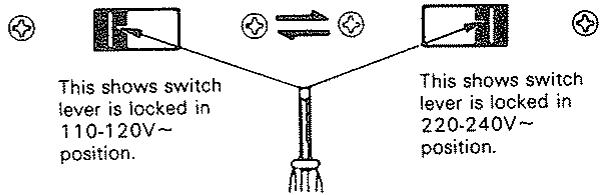
Move switch lever to match your line voltage with a small screw driver or other pointed tool.
AC voltage selector switch
For United Kingdom
The mains plug must be removed from the wall socket prior to any internal examination.
Important
The wires in this mains lead are coloured in accordance with the following code:
Blue Neutral
Brown .Live
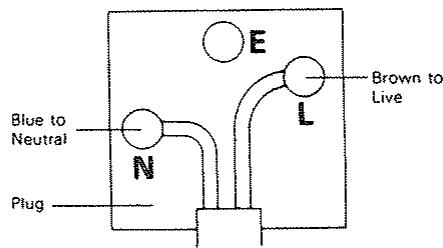
The wires in this main lead must be connected to the terminals in the plug as follows:
Plug terminal marking
Blue N or Black
Brown L or Red
Notes:
1) If a 13-amp plug is used, this must be fitted with a 5-amp fuse.
2) If a 3-pin plug with earthing contact is used, no wire must be connected to the E terminal.
Safety precautions
WARNING:
TO PREVENT FIRE OR ELECTRIC SHOCK, DO NOT EXPOSE THIS APPLIANCE TO RAIN OR MOISTURE.
| CAUTION RISK OF ELECTRIC SHOCK DO NOT OPEN | CAUTION: TO REDUCE THE RISK OF ELECTRIC SHOCK, DO NOT REMOVE COVER (OR BACK). NO USER-SERVICEABLE PARTS INSIDE. REFER SERVICING TO QUALIFIED SERVICE PERSONNEL. |
| THE LIGHTNING FLASH WITH ARROWHEAD SYMBOL, WITHIN AN EQUILATERAL TRIANGLE, IS INTENDED TO ALERT THE USER TO THE PRESENCE OF UNINSULATED "DANGEROUS VOLTAGE" WITHIN THE PRODUCT'S ENCLOSURE THAT MAY BE OF SUFFICIENT MAGNITUDE TO CONSTITUTE A RISK OF ELECTRIC SHOCK TO PERSONS. | |
| THE EXCLAMATION POINT WITHIN AN EQUILATERAL TRIANGLE IS INTENDED TO ALERT THE USER TO THE PRESENCE OF IMPORTANT OPERATING AND MAINTENANCE (SERVICING) INSTRUCTIONS IN THE LITERATURE ACCOMPANY-ING THE APPLIANCE. |
Please read all of the safety and operating instructions before operating this unit. For best results, follow all warnings placed on the unit and adhere to the operating and use instructions. These safety and operating instructions should be retained for future reference.
- Power sources - The unit should be connected to a power supply only of the type described in the operating instructions or as marked on the appliance.
- Power-cord protection - Power-supply cords should be routed so that they are not likely to be walked on or pinched by items placed upon or against them, pay particular attention to cords at plugs, convenience receptacles, and the point where they exit from the unit.
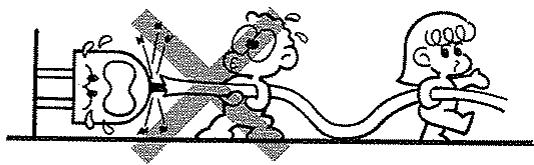
Never pull or stretch the cord.
- Grounding or polarization - Precautions that should be taken so that the grounding or polarization means of this unit is not defeated.
- Ventilation - The unit should be situated so that its location or position does not interfere with its proper ventilation.
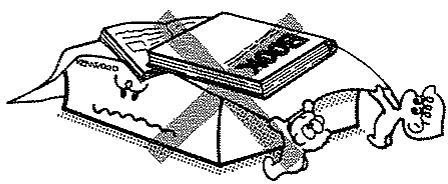
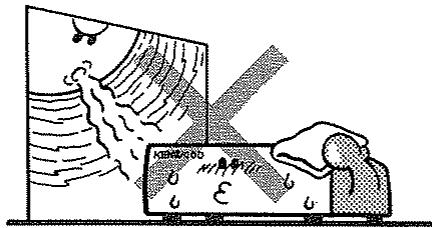
To maintain good ventilation, do not put records or a table-cloth on the unit. Place the unit at least 10 cm away from the walls.
Do not use the unit on a bed, sofa, rug or similar surface that may block the ventilation openings.
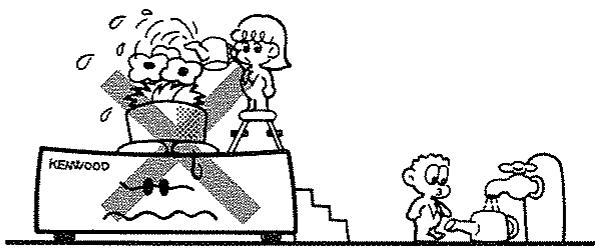
- Water and moisture - The unit should not be used near water - for example, near a bathtub, washbowl, kitchen sink, laundry tub, in a wet basement, or near a swimming pool, etc.
- Temperature - The unit may not function properly if used at extremely low, or freezing temperatures. The ideal ambient temperature is above +5^ (41°F).
- Heat - The unit should be situated away from heat sources such as radiators, heat registers, stoves, or other units (including amplifiers) that produce heat.
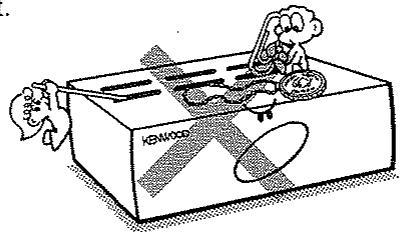
- Electric shock - Care should be taken so that object do not fall and liquid are not spilled into the enclosure through openings. If a metal object, such as a hair pin or a needle, comes into contact with the inside of this unit, a dangerous electric shock may result. For families with children, never permit children to put anything, especially metal, inside this unit.
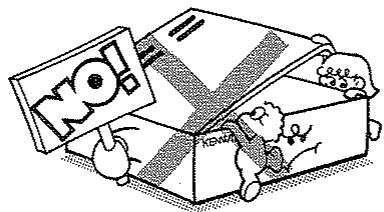
- Enclosure removal - Never remove the enclosure. If the internal parts are touched accidentally, a serious electric shock might occur.
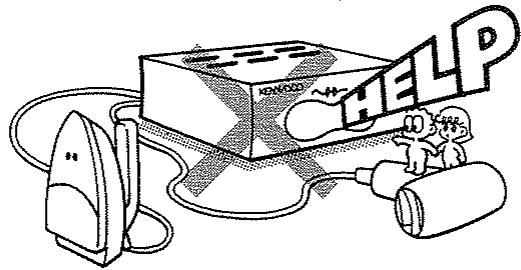
- AC outlets - Do not connect other audio equipment with a power consumption larger than that specified to the AC outlet on the rear panel. Never connect other electrical units, such as an iron or toaster, to it to prevent fire or electric shock.
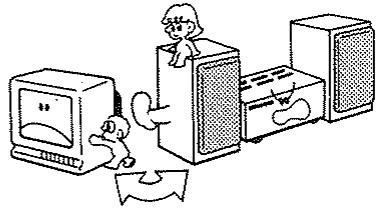
- Magnetic fields - Keep the units away from a source of magnetic fields such as TV sets, speaker systems, radios, motorized toys or magnetized objects.
- Cleaning — Do not use volatile solvents such as alcohol, paint thinner, gasoline, or benzine, etc. to clean the cabinet. Use a clean dry cloth.
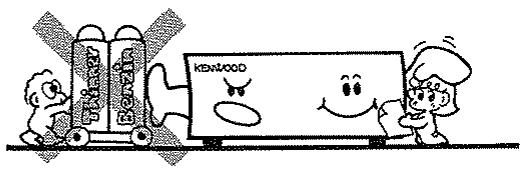
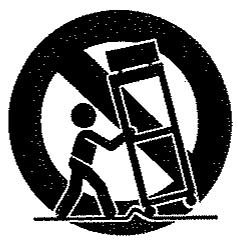
- Carts and stands — An appliance and cart combination should be moved with care. Quick stops, excessive force, and uneven surfaces may cause the appliance and cart combination to overturn.
- Nonuse periods - The power cord of the unit should be unplugged from the outlet when left unused for a long period of time.
- Abnormal smell — If an abnormal smell or smoke is detected, immediately turn the power OFF and pull out the power cord. Contact your dealer or nearest
service station.
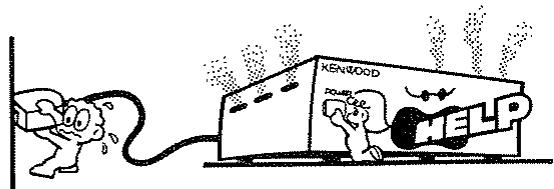
POWER OFF!
- Damage requiring service - The unit should be serviced by qualified service personnel when:
A. The power-supply cord or the plug has been damaged; or
B. Objects have fallen, or liquid has been spilled into the unit; or
C. The unit has been exposed to rain; or
D. The unit does not appear to operate normally or exhibits a marked change in performance; or
E. The unit has been dropped, or the enclosure damaged.
- Servicing - The user should not attempt to service the unit beyond that described in the operating instructions. All other servicing should be referred to qualified service personnel.
- Outdoor antenna grounding - If an outside antenna is connected to the receiver, be sure the antenna system is grounded so as to provide some protection against voltage surges and built up static charges. Section 810 of the National Electrical Code, ANSI/ NFPA No. 70-1984, provides information with respect to proper grounding of the mast and supporting structure, grounding of the lead-in wire to an antenna discharge unit, size of grounding conductors, location of antenna-discharge unit, connection to grounding electrodes, and requirements for the grounding electrode. See Figure.
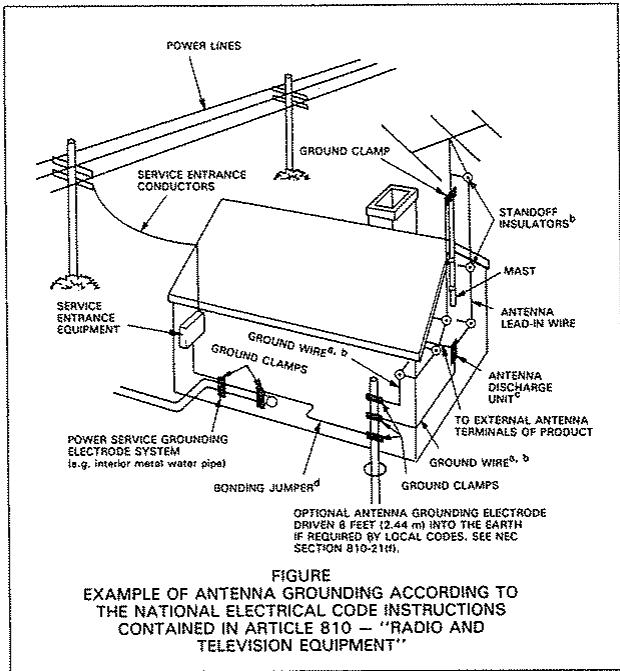
a Use No. 10 AWG (5.3 mm²) copper, No. 8 AWG (8.4 mm²) aluminum, No. 17 AWG (1.0 mm²) copper-clad steel or bronze wire, or larger, as a ground wire.
b Secure antenna lead-in and ground wires to house with stand-off insulators spaced from 4 - 6 feet (1.22 - 1.83 m) apart.
c Mount antenna discharge unit as close as possible to where lead-in enters house.
Use jumper wire not smaller than No. 6 AWG (13.3 mm²) copper, of the equivalent, when a separate antenna-grounding electrode is used. See NEC Section 810-21(ii).
- Power lines — An outdoor antenna should be located away from power lines.
Notes:
- Item 3 is not required except for grounded or polarized equipment.
- Item 10 is not required except for units provided with AC outlets.
- Item 18 and 19 are not required except for units provided with antenna terminals.
- Item 18 complies with UL-1270 in U.S.A.
Transportation screw
Before operation, remove the red-headed screw attached to the bottom of the unit used during transportation from the factory. Remove the screw using a coin or screwdriver, etc.
After removing, retain the screw at the rear of the unit.
- When the unit is to be transported again, be sure to replace the screw to its original position.
- Turn ON the power switch when no disc is loaded.
- Wait a few seconds until the disc OUT indicator comes "ON". Then turn "OFF" the power.
- Firmly tighten the transportation screw.
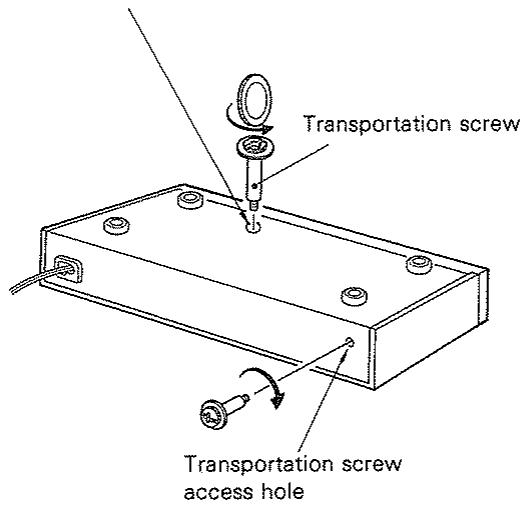
Unit securing hole for transportation
Notes on handling compact discs
Handling
Compact discs are made of plastic (polycarbonate). When the recorded side of the compact disc is dirty or scratched, playback may be noisy or sound may be missed. Even when the label side is scratched, the recording may be damaged. Handle compact discs carefully. Do not stick tape, etc. to compact discs.
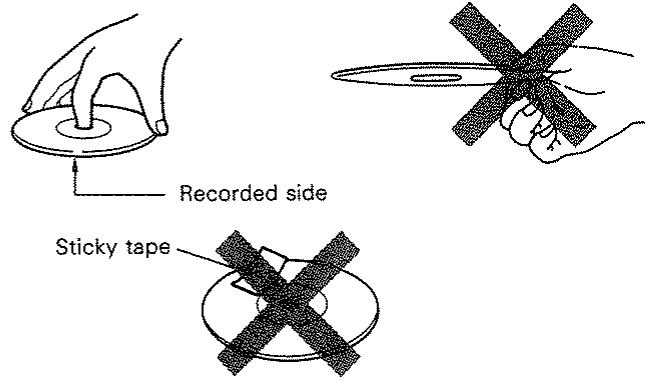
Cleaning
When a compact disc is contaminated with fingerprints, etc., wipe with a dry cloth in a radial direction. Never use chemical solvents, such as thinner, benzene, etc. and conventional record cleaners or aerosols.
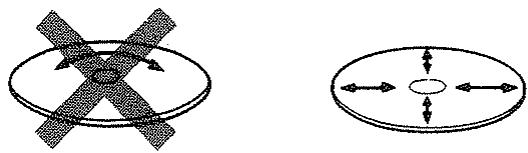
Storage
Always replace the compact disc in its case and store it. Compact discs are adversely affected by heat and moisture. Do not store compact discs in a place exposed to direct sunlight or where humidity is high.
Beware of condensation
Water vapor in the air may condense on cold parts, forming "dew" on its surface.
For example, when a bottle is taken out of the refrigerator and brought into a warm room, droplets of water will form on the bottle surface. This phenomenon is called "condensation". If this occurs inside the unit the player may operate incorrectly or may not function at all.
This is not a malfunction, however, the player should be left until it is dry. (Turn the power of this unit ON and leave the player for a while. After several hours, even in the worst
case, the player will stabilize and correct playback will be possible.) Be especially careful in the following cases:
- When the unit is suddenly brought from a cold place to a warm place (causing rapid temperature change).
- When the temperature of the room is raised suddenly using a heater, etc.
- When the unit is brought from a well-cooled (airconditioned) room to a damp and hot room.
- In conditions where the temperature difference between the surroundings and this unit might cause condensation.
Do not put the plug into the socket until the connecting is completed.
Connect having selected one of A, B or C below.
Also refer to the manual for the amplifier to which the connection is to be made.
AC voltage selector switch (except for some areas)
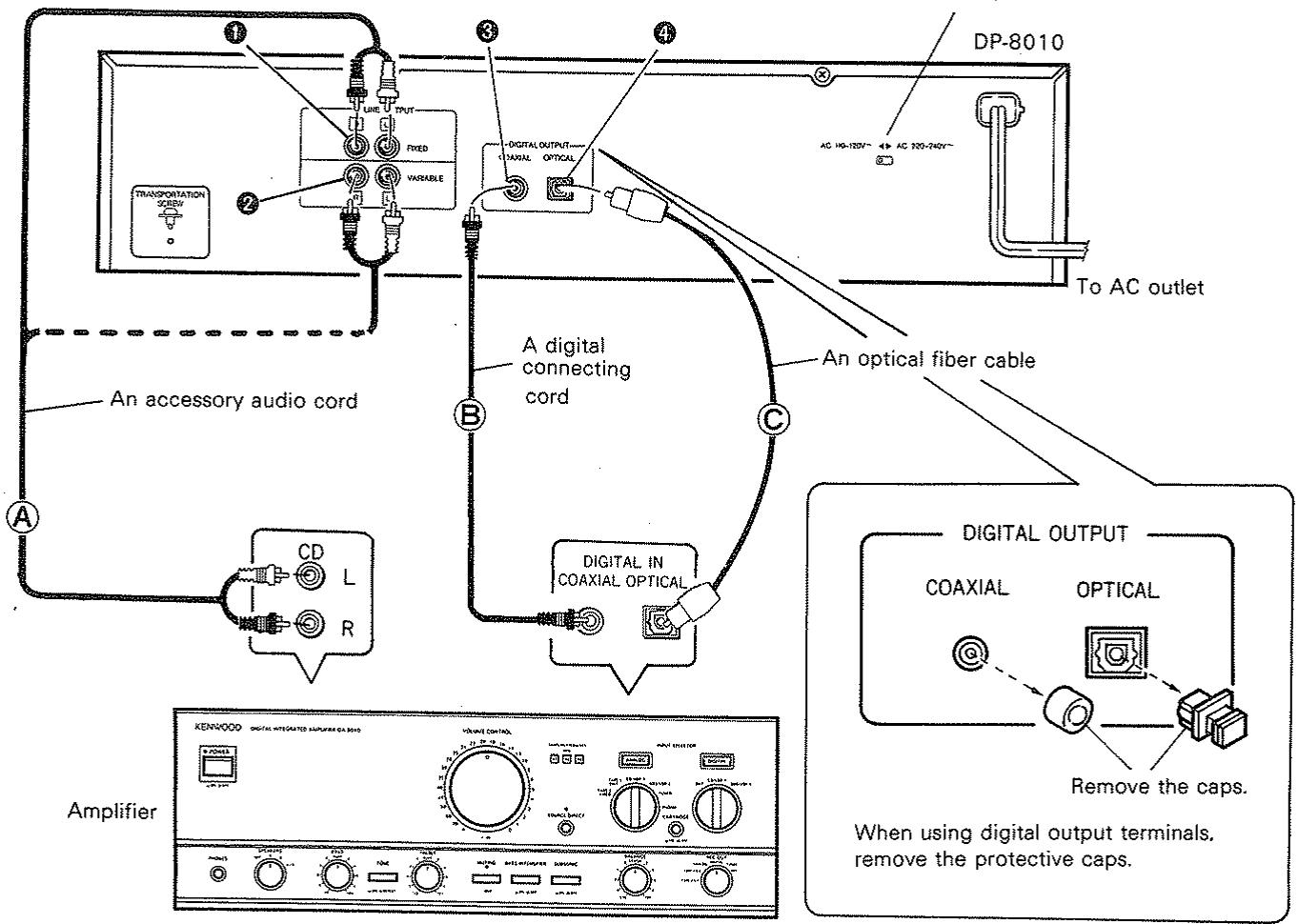
Conventional amplifier connection (A)
Connect output terminal (LINE OUTPUT) or to the CD input terminal of the amplifier with the accessory audio cord supplied.
Connection to an amplifier equipped with digital input (B or C)
Connect COAXIAL input terminal of the amplifier to the DIGITAL OUTPUT COAXIAL with a digital cord, or connect OPTICAL input terminal of the amplifier to the DIGITAL OUTPUT OPTICAL with an optical fiber cable.
Fixed output (FIXED):
Output voltage is fixed to 2 Vrms. Use these stereo output jacks for connection to a typical amplifier or receiver.
2 Variable output (VARIABLE)
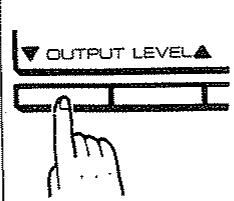
The output level of the head phones and the VARIABLE output level can be changed simultaneously by means of the OUTPUT LEVEL keys on the front (, ) or remote control. The output levels are indicated on the display. Use this when you want to match the output levels with other equipment.
DIGITAL OUTPUT COAXIAL
This terminal is for outputting the audio signals in the original digital code. Do not connect it to anything other than the digital input terminal of the amplifier because this could risk damaging the amplifier and speaker.
DIGITAL OUTPUT OPTICAL
This terminal is for converting and outputting the audio signals from digital to optical.
Connect it to the digital amplifier attached to the optical input terminal.
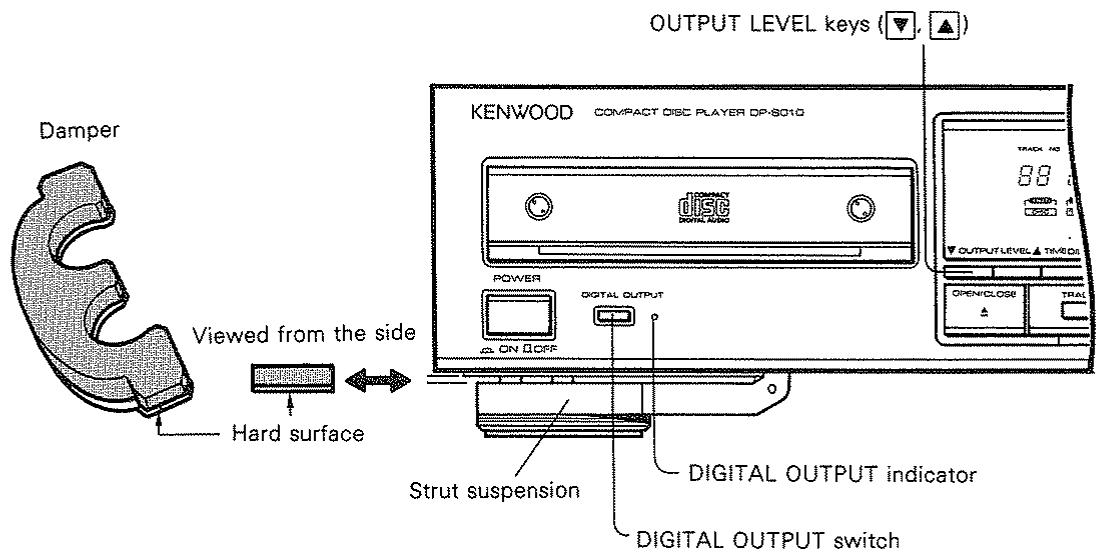
Strut suspension adjustment
Dampers are provided on the 4 legs of this unit for the strut suspension (see figure above). The suspension can be adjusted by attachment or removal of these dampers. Use them if you feel they are required for sound quality. Turn the unit over when attaching or removing the dampers. We recommend that you do not place other components on top of this unit as it will impair the suspension effect.
Connecting optical fiber cable
- When connecting the optical cable, insert it straight until you hear it click into place.
- Never bend or tie the optical fiber cable.
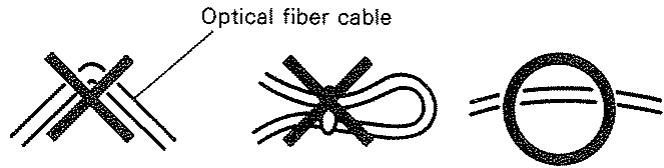
- Not all optical cables available on the market can be used. If you cannot connect up, consult the store where you bought it from or your nearest sales outlet.
DIGITAL OUTPUT switch
- When using the DIGITAL OUTPUT terminal on the rear side, press the switch shown in the above diagram to get the indicator to illuminate.
- When using the LINE OUTPUT terminal, set the DIGITAL OUTPUT switch to OFF (turn off the indicator).
Connecting power cord
It is useful to connect the power cord for this unit to the linking power socket (SWITCHED) of an amplifier.
(Except for some areas)
Using stereo headphones
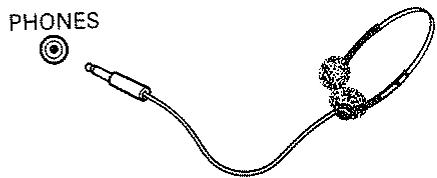
Plug the stereo headphone into the PHONES terminal and adjust with the OUTPUT LEVEL keys to get the desired volume.
Most keys have the same functions as the front panel controls.
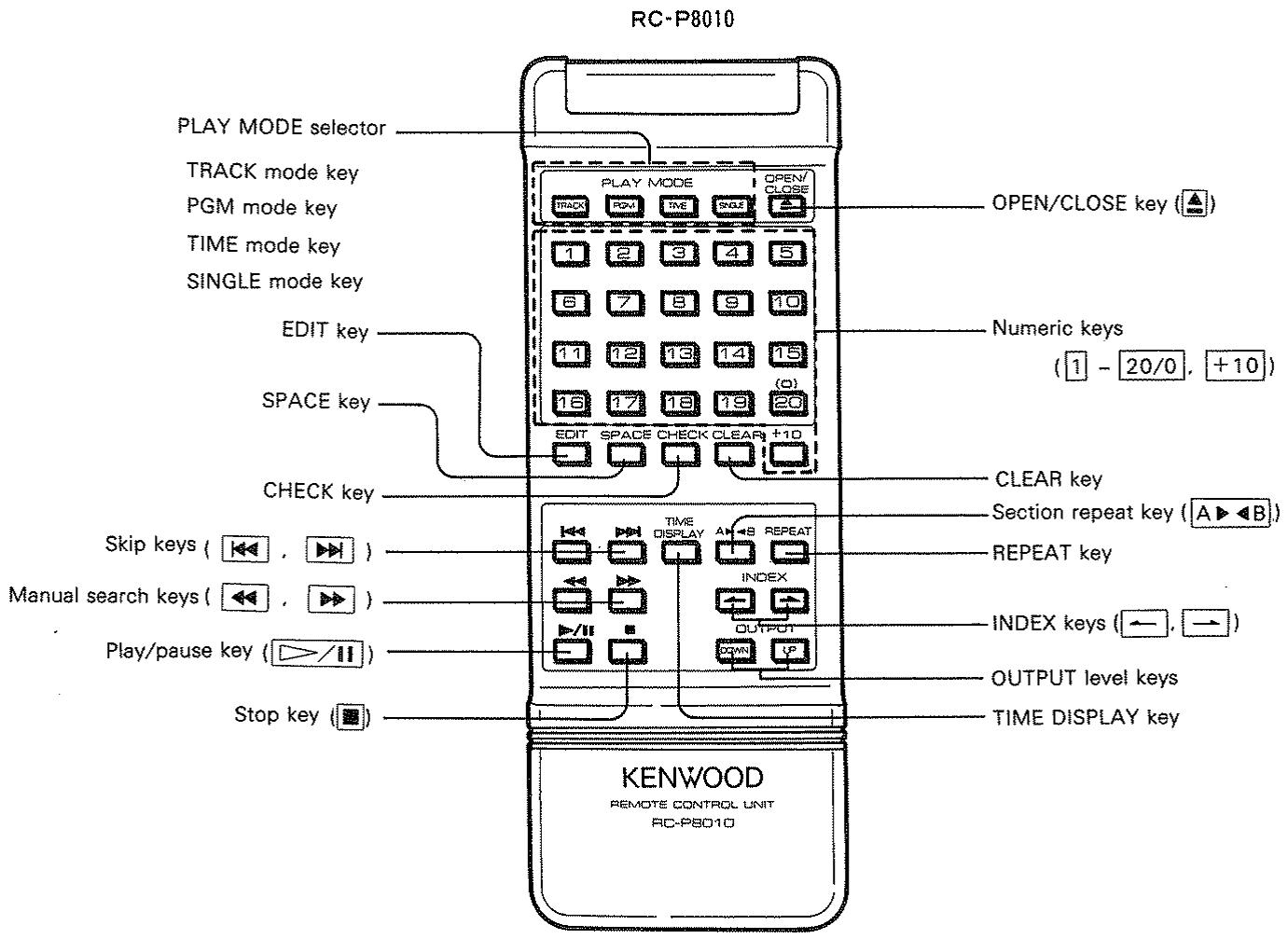
Operating range of remote control unit
This functions as shown in the diagram below, although there can be variations depending on the temperature, humidity and place of use.
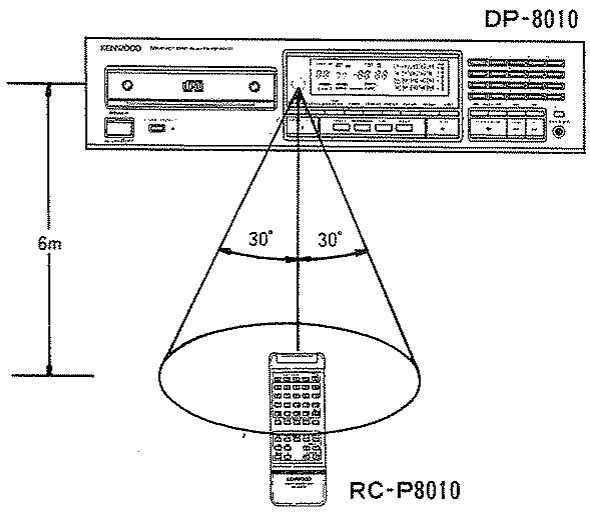
Note:
Press the remote control operating keys at intervals of at least one second. If you press the next key too quickly, incorrect operation may sometimes occur.
Supplying batteries for the remote control unit
Load two "R6", "AA" type batteries in the remote control unit as shown in the illustration.
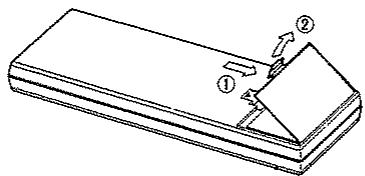
1. Remove the cover.
- Insert batteries with correct polarity, and close the cover.
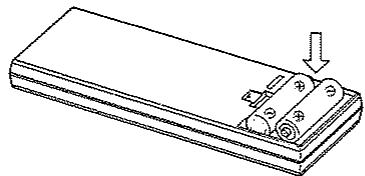
Note:
The provided batteries are to be used for operation of the remote control unit, and they may have shorter life than normal.
When the remote control unit becomes effective only for shorter distance or is not effective for operation, replace them with two new batteries.
Types of disc which can be played with this unit
| Disc type | Disc size |
| CD (general compact disc) | 12 cm |
| CD single | 8 cm |
| * CDV (CD with video) audio section | 12 cm |
- In the case of CDV, the time display and music calendar displays are all for the audio section only.
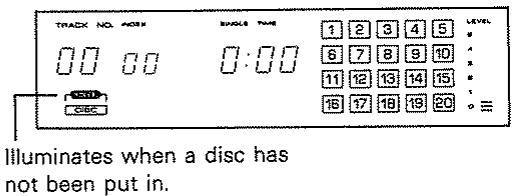
When the power has been turned on
When putting in disc
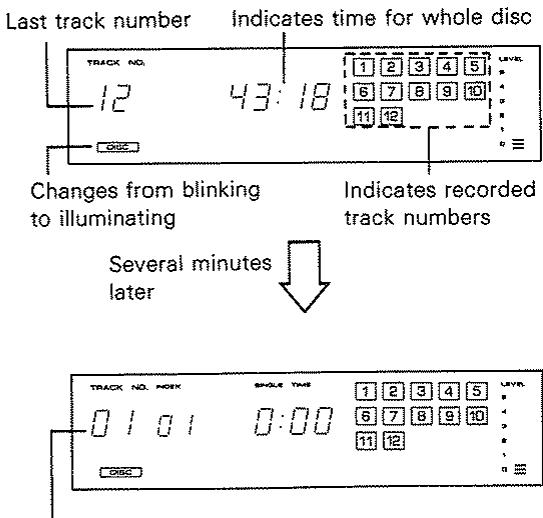
Indicates first track number and remains at standby.
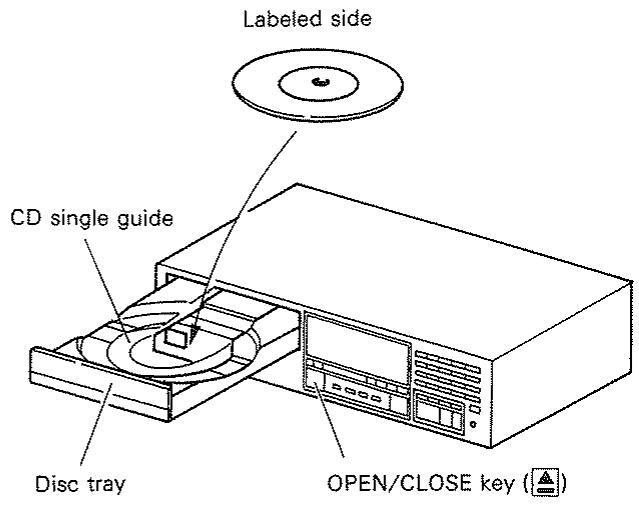
Loading a compact disc
- Press the POWER switch to turn on.
- Press the OPEN/CLOSE key to make the tray slide out.
- Place the disc in the tray with the labeled side up. Place CD singles (8 cm) right on the guide in the center of the tray.
- Press the OPEN/CLOSE key again to make the tray slide back in.
Removing a disc
- Press the OPEN/CLOSE key .
The tray will slide open. - Take the disc out of the tray.
- Press the OPEN/CLOSE key again to make the tray slide back in.
Notes:
- Make sure that the disc is the right way up. The disc cannot be played if it is placed upside down.
- Do not place objects other than discs on the disc tray.
- Be sure to place the disc correctly.
Confirm that it is illuminating
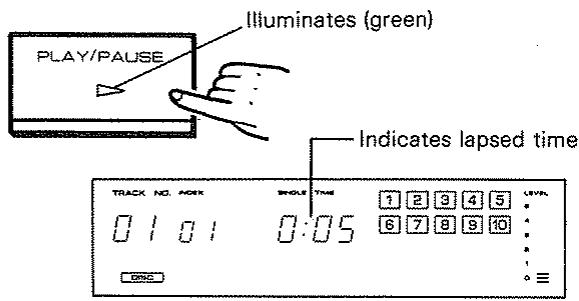
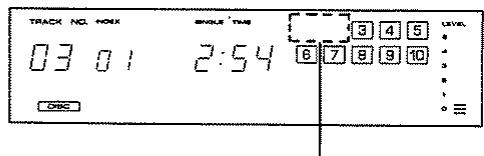
Example showing pause at third track
The numbers of the tracks already played are erased in order
Playing from start
Checking the play mode
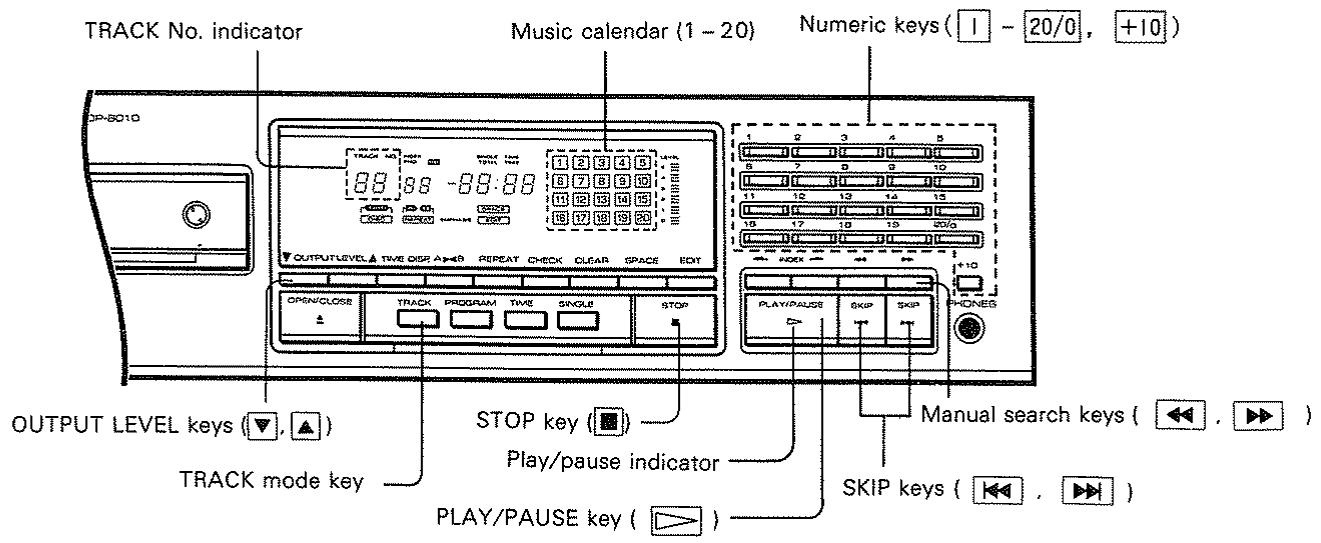
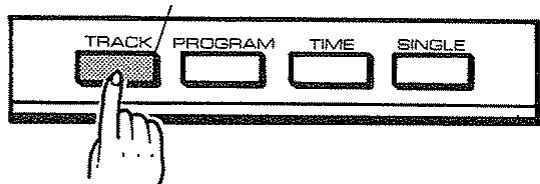
Confirm that the TRACK mode key is illuminated.
The track mode is selected automatically when the power is turned on.
- Press the TRACK MODE key if necessary to set to the TRACK mode.
Playing
Press the PLAY/PAUSE key.
After a few seconds play will start from the first track.
- If a disc has already been put in, play will start automatically from the first track when the power is turned on.
Pausing play
Press the PLAY/PAUSE key.
The play/pause indicator (red) will blink and play will stop at that point.
- When the PLAY/PAUSE key is pressed again, play will resume from that point.
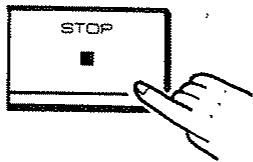
Stopping play
Press the STOP key.
- The play/pause indicator () goes out and the play stops.
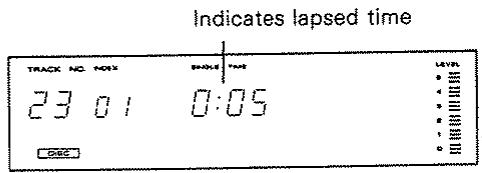
Example: When starting play from 23rd track
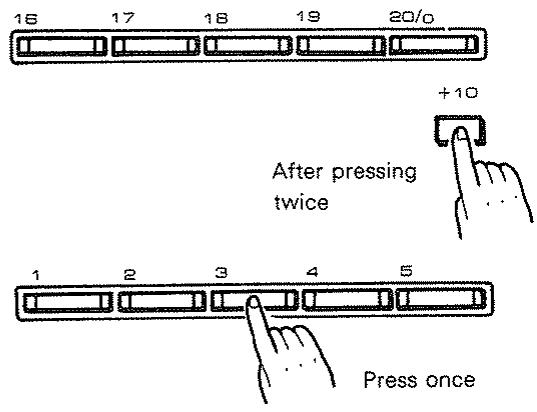
Example of starting play from 23rd track
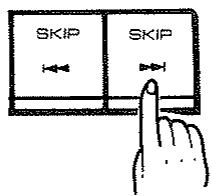
When this key is pressed while the player is stopped, play will start from the beginning of the second track.
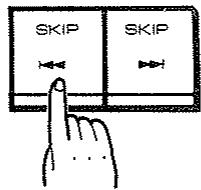
When this key is pressed while the player is stopped, play will start from the beginning of the last track.
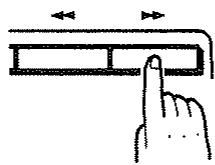
When one of these keys is pressed during play you will hear a cueing sound as the pickup moves forward or backward across the disc. If you release the key referring to this sound, normal play will be returned from that point.
Playing from a particular tune
- Confirm that the TRACK mode key for the play mode selector is illuminating.
If another one is illuminating, press the TRACK mode key.
- Input the track numbers you want with numeric keys 1 - 20/0 and the +10.
Input examples
To select the 23rd track, first press the +10 key twice, then press the number 3 key.
To select the 40th track, first press the +10 key four times, then press the 20/0 key.
The track numbers will appear on the TRACK No. indicator and play starts.
Notes:
- If you press a number which is larger than the number of tracks on the disc, the last track will automatically be played. (This will be the same on operation of numeric keys after this.)
- When more than 20 tracks are specified, the music calendar is not displayed.
- The numeric key 20 / 0 is used when selecting track number "20" or specifying the second digit of 30, 40, etc. as "0".
■ Skipping ahead in a program
Press the SKIP keys while looking at the TRACK number on the display.
Press once to advance to the next track. Press repeatedly or keep the key depressed to advance several tracks ahead.
- Play will start from the beginning of the selected track.
- Play can also be started during a pause by operating the SKIP keys and pressing the PLAY/PAUSE key after selecting the track.
■ Skipping backward in program
Press the left SKIP key to go back to the start of the current or previous track.
- When the key is pressed once during play, the track starts again from the beginning.
Forward and reverse searching
During play you can search forward (or backward) at high speed by pressing the manual search keys 比 (or 山 ).
- If you keep either of the keys pressed down, the search will stop when it reaches the end of the last track or the beginning of the first track. However, fast forward (or backward) search will continue if it is during repeated play.
You can program any tracks in any order. A single program can include up to 20 tracks.
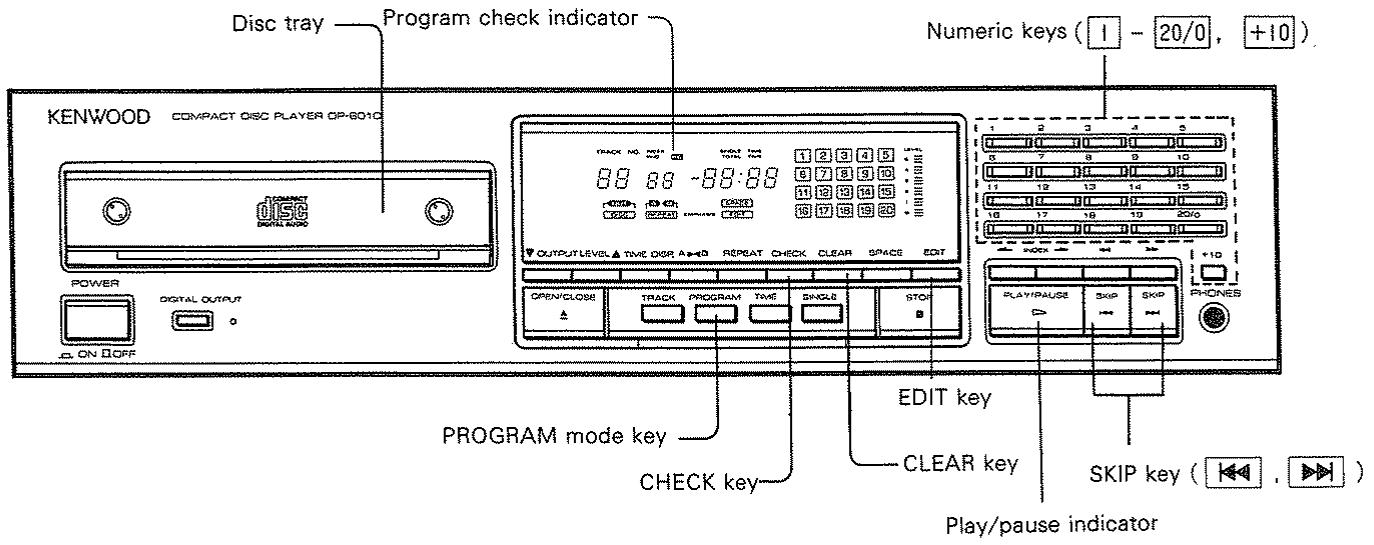
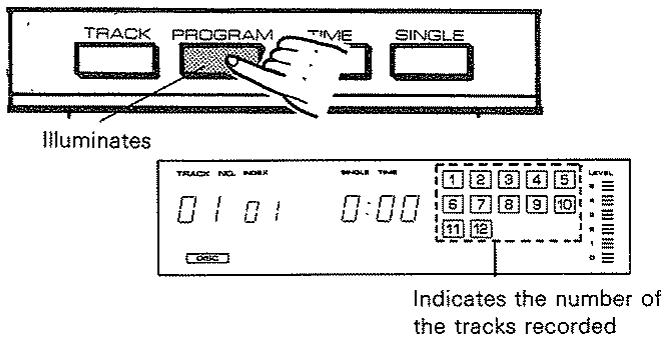
When play mode put to program mode
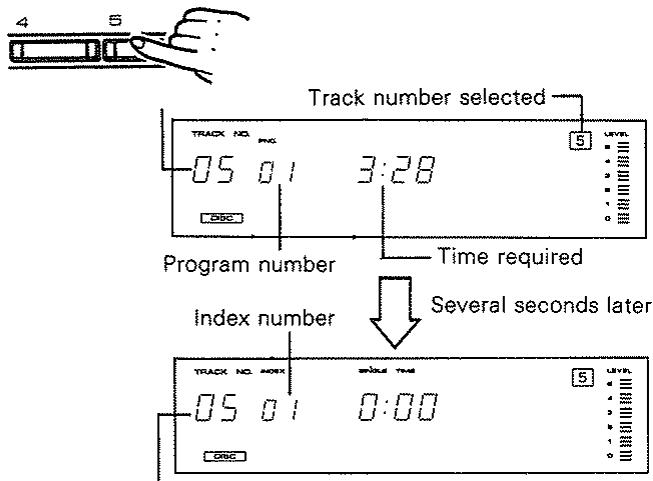
Example of 5th track being programmed
Indicates first program number
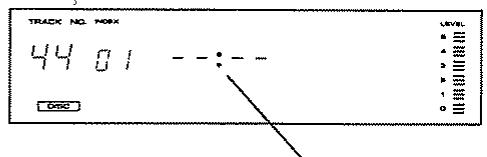
When track number beyond 43 selected
Program enabled, but time not displayed.
Inputting a program
1. Play mode selection
Press the PROGRAM mode key of the play mode selector once.
- You can also keep the tray slid out to program while looking at the disc label.
2. Select the desired track numbers with numeric keys 1 - 20/0 and +10 .
Example: While the display is as indicated in the diagram on the left when 5 is pressed, you can program the next track without waiting for the display to change.
While the tracks are being programmed, the play/pause indicator () blinks green.
3. You can specify up to 20 programs in the same operation.
- If you select a wrong track number, press the clear key, then select the numeric key of desired track again.
-
When track numbers are specified which are not recorded in the disc with the tray slid out, these numbers are initially programmed. But when the tray is slid back in again, they are automatically canceled.
-
When track numbers beyond 43 are selected, the total time of the program is not displayed.
If no particular tracks are programmed while in the program mode, all the tracks are programmed if the PROGRAM key is pressed once more. In such a case the intervals between the tracks may become smaller.
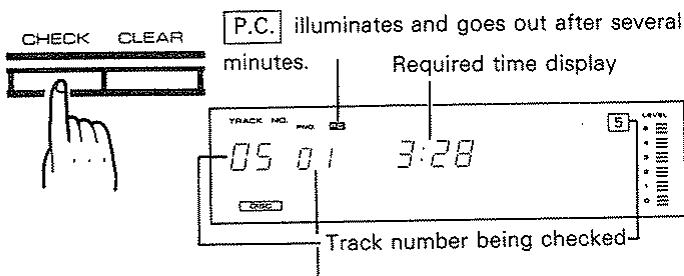
Example of when the CHECK key is pressed
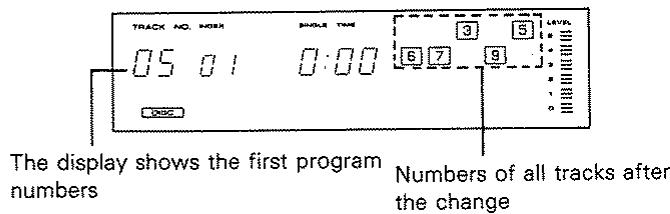
The display shows the program numbers (P No.) being checked and then returns to INDEX No. after several seconds.
Example of when a program is changed
Example of programming a CD with a maximum of 10 tracks
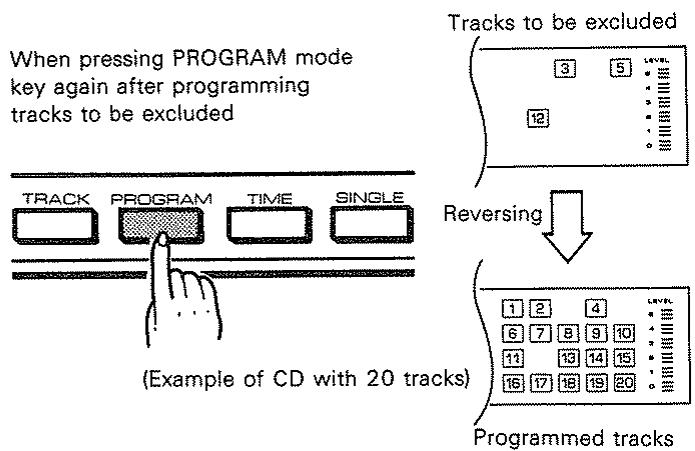
■ Programming by excluding particular tracks (Reverse programming)
- Here programming is done by specifying the tracks you wish to exclude in accordance with "Inputting a program" (see Page 14).
- Press the PROGRAM mode key again in the program mode (only when stopped or the disc tray is open).
The tracks programmed as described above and the remaining tracks are programmed in reverse.
- This function is only effective for up to track number 20.
Checking a program
Press the CHECK key to confirm program contents.
Each time you press the CHECK key, the display advances by one track (from the start of the program) and shows the required playing time to the beginning of that track.
Changing a program
- Press the CHECK key until the display shows the track number that you wish to change.
- Press the CLEAR key once.
-
While the P.C. is illuminating, input your desired track number by using the numeric keys.
-
Tracks being played cannot be changed.
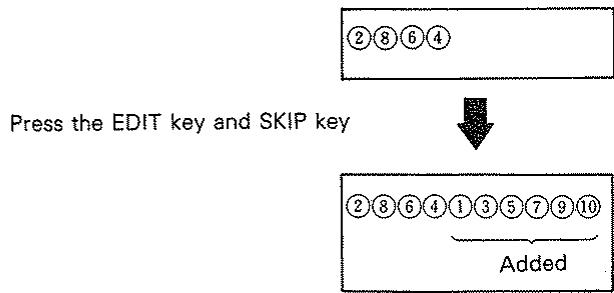
When programming particular tracks first and the remaining tracks in order
- Program the particular tracks only.
- Press the EDIT key when the player is not operating.
-
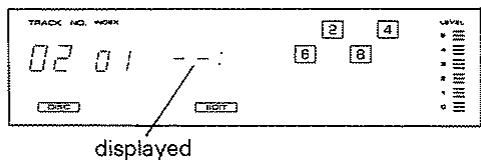
Press the SKIP key when --: appears on the display.
-
All the remaining tracks are automatically added to the program.
Playing a program
After completing the programming, press the PLAY/ PAUSE key
The play/pause indicator () stops blinking and illuminates continuously. Then your tracks are played as you programmed them.
- After each track is played, its track number disappears from the music calendar.
- If you press the PLAY/PAUSE key when not in the programming mode, only the first track on the disc will be programmed, and it will stop after that track is played.
Playing from a particular tune of a program
- Press the SKIP key to advance to the next program.
- Press the SKIP key to go back to the program or previous program.
The play starts from the beginning of the selected track.
If you press the once during play, it starts from the beginning of that track.
- If the SKIP key has been operated during a temporary pause, play is started by pressing the PLAY/PAUSE key.
■ Stopping programmed play
Press the STOP key.
- If you then press the PLAY/PAUSE key , the play starts once more from the beginning of the program.
Adding a program
Program contents can be added halfway as follows.
- Press the CHECK key and have the program number for the place where you want to insert tracks displayed.
- While the P.C. is illuminating, press the track numbers you want with numeric keys 1 - 20/0, +10.
- The contents are added to the program number indicated by 1, and the rest of the original program follows on behind.
When adding to the end
Program contents can be added to the end simply by pressing the desired track numbers with the numeric keys in the program mode.
Erasing part of a program
- Press the CHECK key and have the track numbers you want erased displayed.
- While the P.C. is illuminating, press the CLEAR key.
It is also possible to erase the program contents from the last one in order by pressing the CLEAR key without pressing the CHECK key.
Erasing a program
All program contents will be erased if you perform any of the following operations.
① Pressing the play mode selector and selecting other than program mode.
② Pressing the OPEN/CLOSE key when the tray is closed.
③ If the player is stopped and you press the CLEAR key as many times as there are tracks on the program.
④Turning off the power.
This is a function whereby tracks are selected and programmed automatically at set times. It is useful for when recording on cassette tapes.
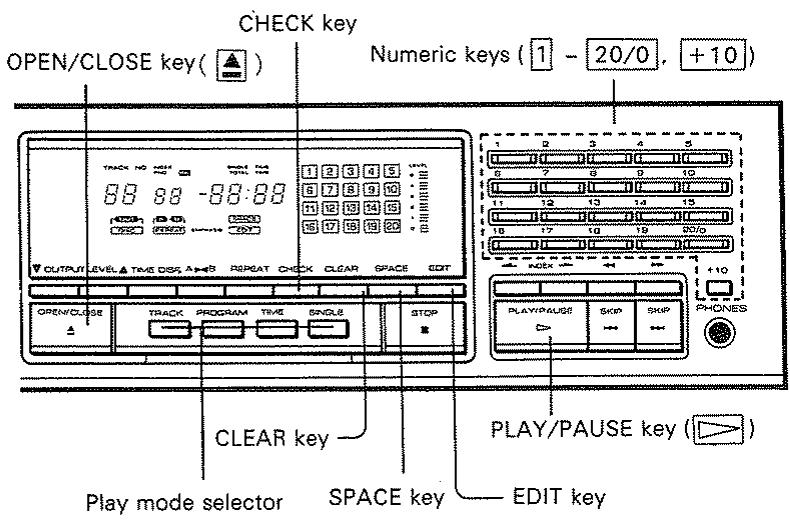
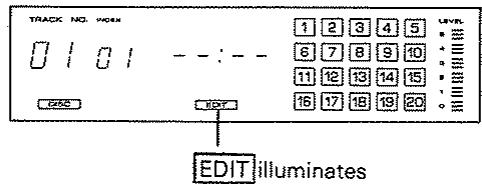
When EDIT key is pressed
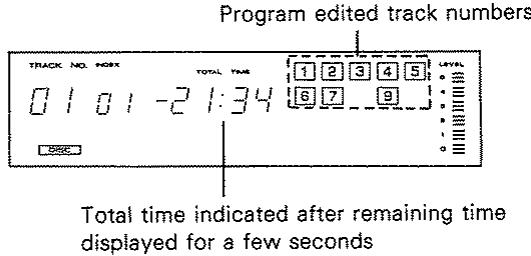
When editing is completed
■ Editing track numbers in order
- Press the EDIT key when the player is stopped.
- Play mode changes to program mode.
- While the EDIT indicator is illuminating, set the time from 1 to 99 minutes with the numeric keys.
Example: When wishing to edit within 23 minutes Press the +10 key twice and 3 key once.
- The editing function starts and the track numbers to be stored within the set time are program edited automatically from the first one.
■ Editing from a particular track
(Example: When editing from the 6th track)
After programming track number 6 only, press the EDIT key and input the time.
Checking contents of edited program
Press the CHECK key.
- When the CHECK key is pressed, the whole program is displayed in order automatically.
Each time the CHECK key is pressed thereafter, the track numbers are displayed from the first one on in the order they were edited.
Playing
Press the PLAY/PAUSE key.
- Recordings with little waste can be made on tapes of a length corresponding to the time set when editing.
Erasing a edited program
All the edited program contents will be erased if you perform any of the following operations:
① Pressing the play mode selector and selecting other than program mode.
② Pressing the OPEN/CLOSE key when the tray is closed.
③ If the player is stopped and you press the CLEAR key as many times as there are tracks in the program.
④ Turning off the power.
Notes:
- Up to a maximum of 20 tracks can be edited using this function.
- When editing after having programmed particular tracks of more than two, if these programmed tracks are given priority and there is set time to spare, tracks which have not been programmed will automatically be added.
- If even one track is programmed beyond track number 43, the editing function will not operate.
TIME mode playing
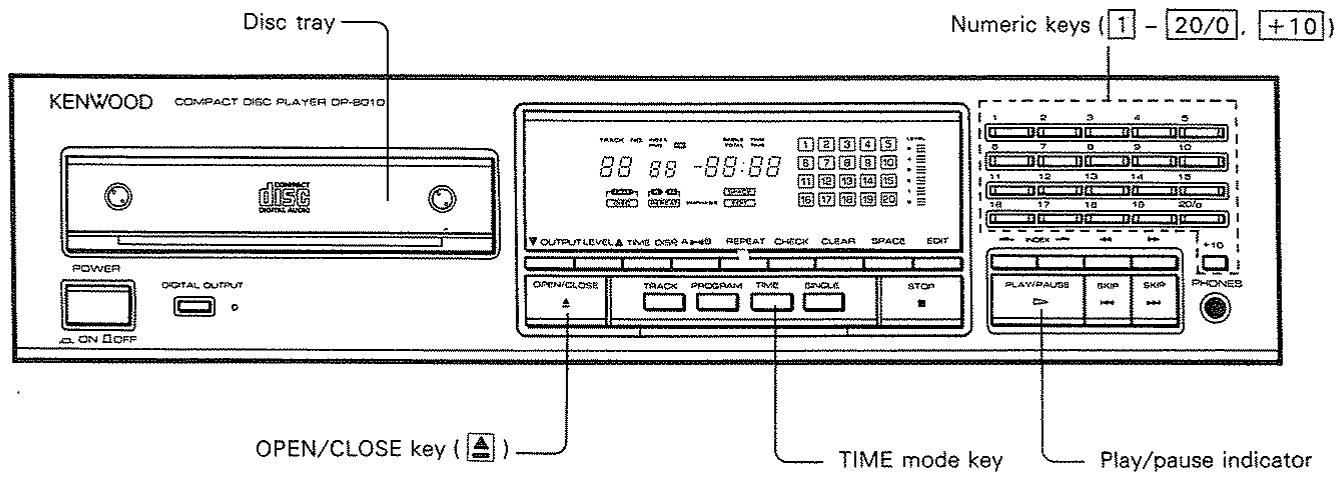
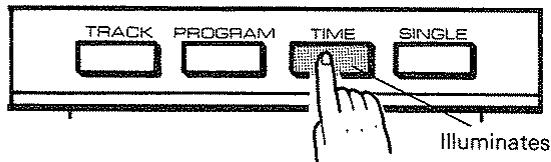
Press the TIME for play mode selector
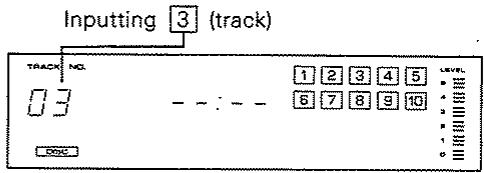
Example: When you want to play from a point 2 minutes 15 seconds in the 3rd track
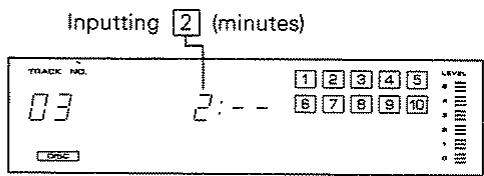
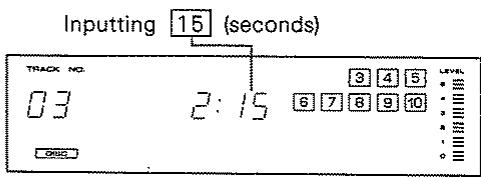
Playing after a required time has elapsed on a track
- Press the TIME mode key.
- Input the desired track number with numeric keys 1 - 20 / 0, +10 .
- Input the time lapse to the point you want the track to start playing with the numeric keys.
A few seconds after the play/pause indicator () illuminates, the track starts playing from the point specified.
If you specify a time greater than the playing time for the desired track, it starts playing from the beginning.
If the tray is open, operation is the same. When you specify the track and time, the disc tray will close and play will begin automatically.
Canceling TIME mode
Switch the play mode selector to another mode (TRACK mode, SINGLE mode, etc.).
The TIME mode can also be canceled by pressing the OPEN/CLOSE key
Automatically starts playing from 2 minutes 15 seconds in the 3rd track.
Note: If you specify the time using the label and other time displays, the timing for the start of playing may be slightly out.
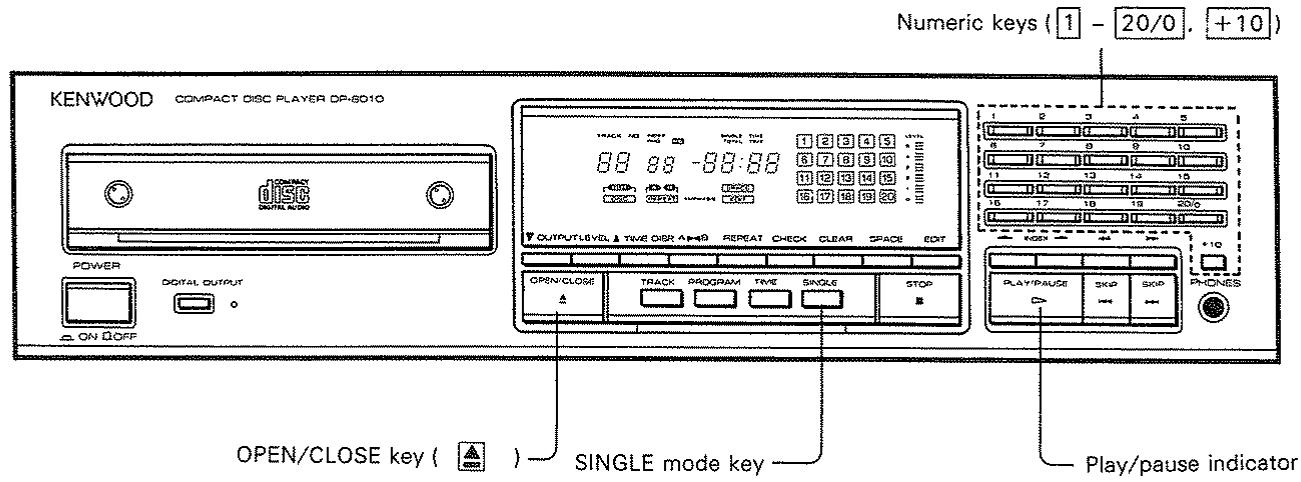
SINGLE mode playing
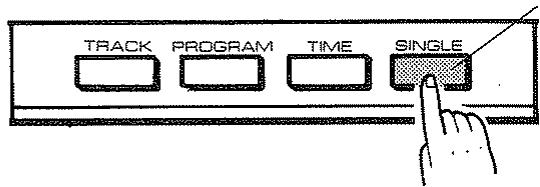
Illuminates
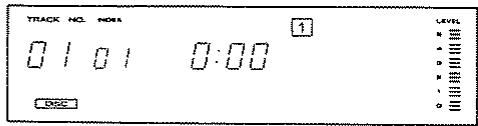
When SINGLE mode key pressed
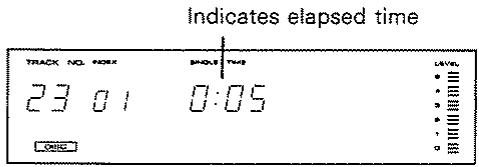
Example showing 23rd track specified
Playing one particular track only
You can play one track you like only.
- Press the SINGLE mode key.
- Input the desired track number with numeric keys 1 - 20/0, +10 .
Input example
For track 23 press +10 twice and then 3 once.
The play/pause indicator () illuminates and the desired track starts playing.
If the tray is open, operation is the same.
Finishing play after current track
Press the SINGLE mode key while using another play mode (TRACK mode, PROGRAM mode, TiME mode).
The player stops when the track currently being played finishes.
Canceling SINGLE mode
Switch the play mode selector to another mode (TRACK mode, PROGRAM mode, TIME mode, etc.).
- The SINGLE mode can also be canceled by pressing the OPEN/CLOSE key.
Repeated playing
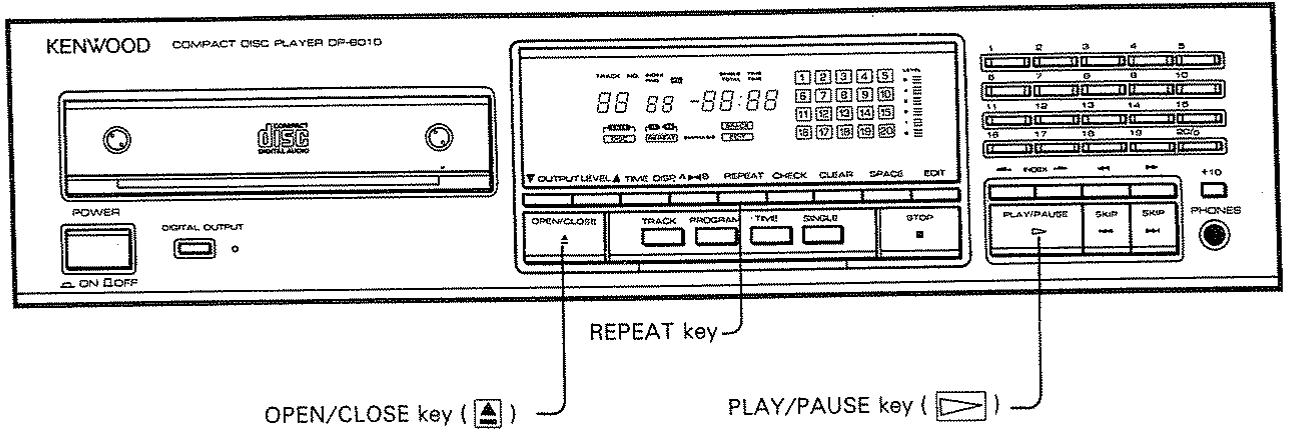
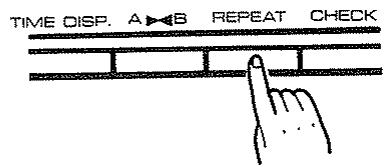
When pressing REPEAT key
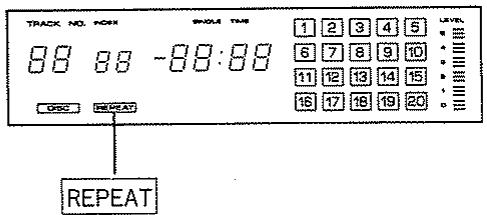
REPEAT indicator illuminates
Repeated playing
- Press the REPEAT key.
The REPEAT indicator illuminates.
-
Press the PLAY/PAUSE key
-
When in the track mode, all the tracks on the disc are played repeatedly.
- When in the program mode, all the tracks programmed are played repeatedly.
- When in the single mode, one track only is played repeatedly.
Canceling repeat operation
Press the REPEAT key a second time.
Press the OPEN/CLOSE key when you wish to stop repeated play.
EMPHASIS indicator
When a track with pre-emphasis (high-area emphasis) is played, the DE-EMPHASIS (high-area compensation) circuit is activated and the EMPHASIS indicator illuminates.
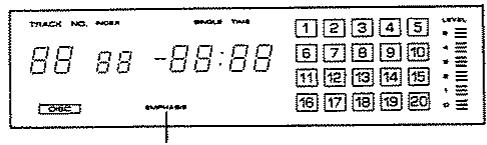
EMPHASIS illuminates (red)
Sectional repeated playing
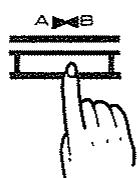
When pressing the section repeat key
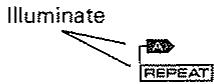
The starting point (A) will be specified
When pressing the section repeat key again

The end point (B) will be also specified

Repeat section
Repeating play between two points
This function is useful to listen to a particular section of the disc repeatedly.
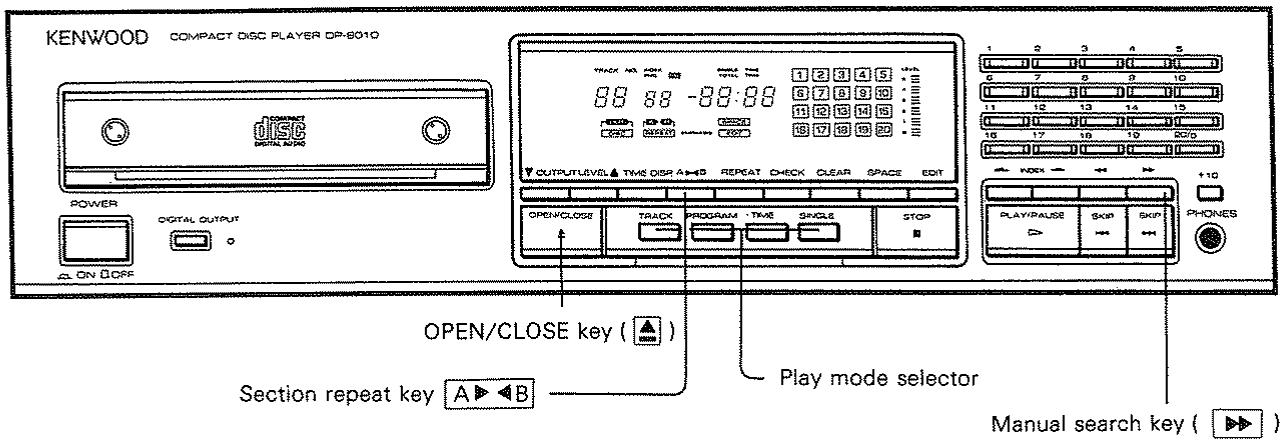
- While listening to the music in any play mode, press the repeat section key A B
The starting point (A) will be specified.
- Keep listening or use the forward manual search key >> to advance rapidly and press the section repeat key A B again.
At the same time the point (B) illuminates to indicate the end of the repeated play, there is a return to point (A) in readiness for playing the same section of music again.
- You can also specify the end point (B) at a few tracks beyond the point (A).
- A section spanning a number of tracks cannot be specified when in the program mode.
Canceling interval section repeat
Press the section repeat key A B once more.
- It can also be canceled by pressing the play mode selector key and switching to another mode.
- Section repeat can also be canceled by pressing the OPEN/CLOSE key.
Index playing/Spacing function
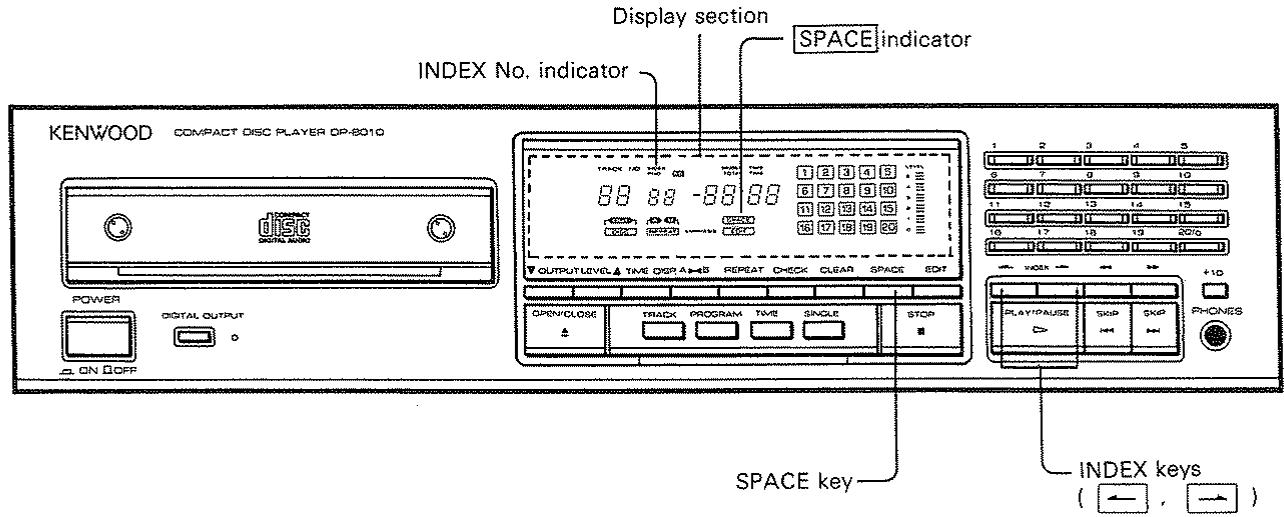
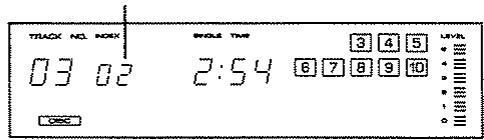
Example showing INDEX No. display
Index playing
Any number of points within single popular medley and classical music tracks can be marked off by recorded index numbers.
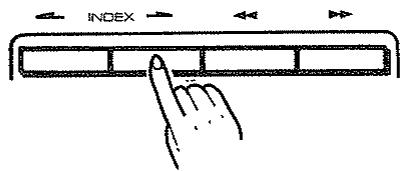
This kind of disc can be played from the points indexed on the track by pressing the INDEX key (or -) during play or during a pause.
Even with discs in which index number for specific purposes are not recorded, by pressing the INDEX key continuously the numbers on the display are made to change (increase or decrease). When you release your finger, there is a return to INDEX No. 01 and the play starts from the beginning.
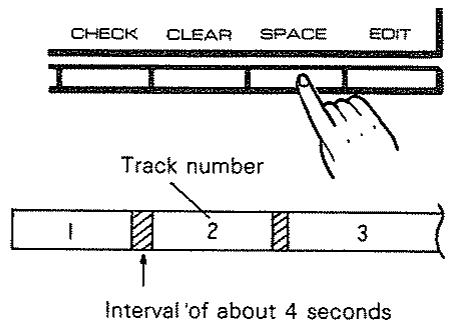
Making space between tracks
This function automatically creates an interval of about four seconds between tracks.
This is used to find out the beginning of a track.
1. Press the SPACE key.
-
The indicator lights, and an interval of about four seconds will occur after each track.
The total required time is displayed with the intervals added. -
To cancel, press the SPACE key again.
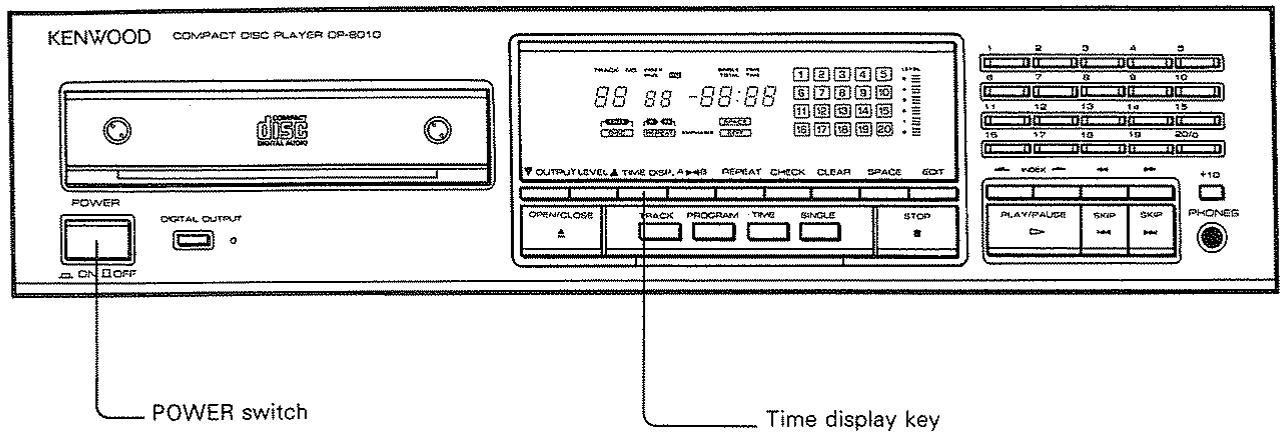
Changing time display
Each time you press the time display key during play or stop in any play mode, the time display changes in the order as on the left.
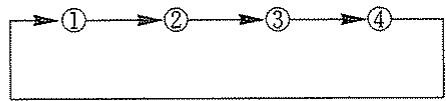
Order of changing time display
① The elapsed time for the track
$$ \begin{array}{c} \text {S I N G L E T I M E} \ \vdots \vdots \vdots \vdots \end{array} $$
② The remaining time for the track
$$ \begin{array}{l} \text {S I N G L E T I M E} \ - \square : \square \end{array} $$
③ The elapsed time for the whole disc (program)
$$ \begin{array}{c c} \text {T O T A L} & \text {T I M E} \ \square & : 4 \ \square & \square \end{array} $$
The remaining time for the whole disc (program)
$$ \begin{array}{c c} \text {T O T A L} & \text {T I M E} \ - 3 5: & 1 5 \end{array} $$
DP-8010
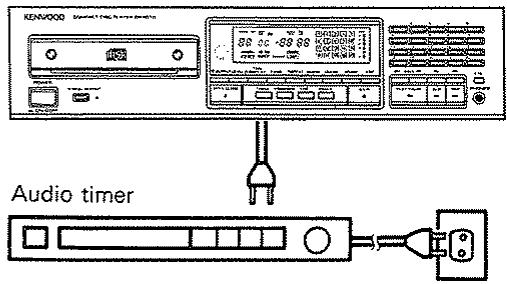
To wall power socket
Note:
This player stores time information for up to 43 tracks stored in the disc. When discs having 44 or more tracks recorded on them are played, or when the total time of the program reaches 100 minutes or more, the time may not be displayed. In such a case the display may show ------.
Timer playing
Plug the CD player's AC power plug into the audio timer. Load a disc. Leave the CD player's power switch turned on and set the audio timer to the desired time.
- Play will begin from the first track on the disc. (The track mode is selected automatically when the power 'turns on.)
Notes:
- Refer to the instruction manual for the timer.
- Be careful of your amplifier volume setting when using an audio timer.
What appears to be a malfunction may not always be serious. First, check the following items before consult the service personnel.
| Symptom | Cause | Remedy |
| No power is applied with the POWER switch ON. | 1. Power plug is loosely connected. 2. With the power plug connected to the linking power socket of an amplifier, the power of the amplifier is turned off. | 1. Insert the power plug firmly to the AC outlet. 2. Turn the amplifier's power ON. |
| Disc inserted but will not play. Disc OUT indicator is on and no response from PLAY/PAUSE key | 1. Disc is loaded upside down. 2. Disc is dirty. 3. Disc is cracked. 4. Condensation occurred on the optical lens unit. 5. The transportation screw has not been removed. | 1. Load the disc again with its label side up. 2. Wipe off the dust on the surface of the disc referring to "Cleaning of compact disc." 3. Replace the disc with a new one. 4. Leave the player for about 1 hour so that the condensation is removed. 5. Remove the transportation screw. |
| No sound. | 1. Disc is not loaded. 2. Play mode is not entered (The PLAY/ PAUSE indicator (> ) is not illuminating.) 3. Disc is too dirty. 4. Disc is cracked. 5. The connection cords are inserted loosely. 6. VARIABLE output is used but output level has been reduced to zero. 7. When using the DIGITAL OUTPUT terminal; DIGITAL OUTPUT switch is not ON. | 1. Load a disc and press the PLAY/PAUSE key. 2. Press the PLAY/PAUSE key. 3. Wipe off the dust on the disc surface referring to "Cleaning of compact disc". 4. Replace the disc with a new one. 5. Connect all connection cords firmly. 6. Use remove control OUTPUT LEVEL UP key, or rear panel output level adjustment screw to raise output level. 7. Turn the DIGITAL OUTPUT switch ON. |
| Music is interrupted. (Sound is skipped.) | 1. Disc is too dirty. 2. Disc is cracked. 3. Oscillation is applied to this unit. | 1. Wipe off the dust on the disc surface referring to "Cleaning of compact disc". 2. Replace the disc with a new one. 3. Try selecting a place where no strong vibration occur by changing the installation place, etc. |
| Play starts when POWER is turned ON. | If the disc is loaded, this player will play from the beginning of the first tune when the power is turned ON. | If automatic play is not required, remove the disc from the player before turning the power OFF. |
Specifications
[Format]
Type: Compact disc player
Read system: Non-contact optical pickup
Rotational speed: About 200 to 500 rpm
[Audio]
Frequency response: 4 Hz ~ 20 kHz
Signal-to-noise ratio: more than 112 dB
Total harmonic
distortion: 0.0015% at 1 kHz
Channel separation: more than 110 dB at
1 kHz
Wow flutter: Below measurable limit
Output
LINE (FIXED): 2.0 V
(VARiable): 0 ~ 2.0 V
Digital (COAXIAL): 0.5 V p-p. 75 ohms
(OPTICAL): -15 dBm ~ -21 dBm
Headphone jack: 60 mW (8 ohms)
[General]
Power consumption: 25 W
Maximum dimensions: W: 440 mm (17-5/16")
H: 121 mm (4-3/4")
D:361mm(14-3/16")
Weight: 9.6 kg (21.2 lb)
[Wireless remote control unit]
Model: RC-P8010
Type: Infrared pulse
Power supply: DC 3 V (two R6/AA
batteries)
Maximum dimensions: W: 64 mm (2-1/2")
H:18mm(11/16")
D:176mm(6-15/16")
Weight: 121 g (with batteries)
0.27 Ib