
LAPAC2600 - Point d'accès sans fil LINKSYS - Notice d'utilisation et mode d'emploi gratuit
Retrouvez gratuitement la notice de l'appareil LAPAC2600 LINKSYS au format PDF.

| Type de produit | Point d'accès sans fil dual-band AC2600 |
| Marque | Linksys |
| Modèle | LAPAC2600 |
| Dimensions (approx.) | 200 mm x 200 mm x 40 mm |
| Poids (approx.) | 500 g |
| Alimentation | PoE+ (802.3at) ou adaptateur secteur 12V CC |
| Interfaces réseau | 2 ports Ethernet RJ45 Gigabit (1 avec PoE+, 1 non-PoE) |
| Fréquences radio | 2,4 GHz et 5 GHz |
| Débit maximal | Jusqu'à 800 Mbps (2,4 GHz) + 1733 Mbps (5 GHz) |
| Normes sans fil | 802.11 a/b/g/n/ac |
| Nombre de SSID | Jusqu'à 8 par radio |
| Sécurité sans fil | WEP, WPA/WPA2-Personal, WPA/WPA2-Enterprise, RADIUS |
| Gestion | Interface Web (HTTP/HTTPS), SNMP, Bonjour, LLDP |
| Fonctions avancées | Portail captif, ACL, cluster (jusqu'à 16 AP), WDS, Workgroup Bridge, Fast Roaming 802.11r |
| VLAN | Oui, avec gestion des VLAN taggés/untaggés |
| QoS | WMM, prioritisation 802.1p |
| Alimentation PoE | Nécessite PoE+ (802.3at) car consommation > 15W |
| Température de fonctionnement | 0°C à 40°C |
| Entretien et nettoyage | Nettoyer avec un chiffon sec, ne pas utiliser de produits liquides |
| Sécurité | Fixation murale ou au plafond incluse, éviter les températures élevées |
| Pièces détachées et réparabilité | Aucune pièce réparable par l'utilisateur ; contacter le support Linksys |
| Garantie | Consultez la documentation produit ou le site Linksys |
FOIRE AUX QUESTIONS - LAPAC2600 LINKSYS
Questions des utilisateurs sur LAPAC2600 LINKSYS
0 question sur cet appareil. Repondez a celles que vous connaissez ou posez la votre.
Poser une nouvelle question sur cet appareil
Téléchargez la notice de votre Point d'accès sans fil au format PDF gratuitement ! Retrouvez votre notice LAPAC2600 - LINKSYS et reprennez votre appareil électronique en main. Sur cette page sont publiés tous les documents nécessaires à l'utilisation de votre appareil LAPAC2600 de la marque LINKSYS.
MODE D'EMPLOI LAPAC2600 LINKSYS
LINKSYS
User Guide
AC2600 Dual-Band Wireless Access Point
LAPAC2600
Contents
Chapter 1 - Quick Start Guide 4
Package Contents 4
Physical Details 4
Mounting Guide 5
Chapter 2 -Quick Start 7
Overview 7
Setup Using a Web Browser 7
Setup Wizard. 9
Chapter 3 - Configuration 13
Administration 13
LAN 24
Wireless. 30
Captive Portal 64
ACL 76
Cluster 83
Chapter 4 - System Status 92
Status 92
Chapter 5 - Maintenance. 103
Maintenance 103
Diagnostics 110
Appendix A - Troubleshooting 113
Overview 113
General Problems 113
Appendix B - About Wireless LANs 115
Overview 115
Wireless LAN Terminology 115
Appendix C - PC and Server Configuration 119
Overview 119
Using WEP 119
Using WPA2-PSK 120
Using WPA2-Enterprise 120
802.1x Server Setup (Windows 2000 Server) 122
802.1x Client Setup on Windows XP 132
Using 802.1x Mode (without WPA) 139
Chapter 1 – Quick Start Guide
Package Contents
- Linksys Wireless Access Point
- Quick Start Guide
- Ethernet Cable
- AC Power Adapter
- CD with Documentation
- Mounting Bracket
- Mounting Kit
Ceiling Mount Back Plate - Drilling Layout Template
Physical Details
LED behavior
| LED Color | Activity | Status |
| Green | Blinking | System is booting. |
| Solid | System is normal; no wireless devices connected. | |
| Blue | Blinking | Software upgrade in process. |
| Solid | System is normal; at least one wireless device connected. | |
| Red | Solid | Booting process or update failed; hard reset or service required. |
Ports and Button
Power Port—Connect the AC power adapter to this port.
Note—Use only the adapter that came with your access point.
Ethernet Port 1—Use an RJ45 (CAT5e or better) cable to connect the LAPAC2600 to network devices such as routers, switches and computers. This port supports PoE+ (IEEE 802.3at). You may use the port to power LAPAC2600 by using PoE+ switch or injector.
Note—System power consumption is over 15W. Make sure your PoE switch or injector is 803.2at-capable (PoE+) and provides sufficient power. If your PoE switch or injector is not 802.3at-capable, use the provided power adapter. If the PoE and AC power adapters are connected to the LAPAC2600 at the same time, the device will get power from PoE.
Ethernet Port 2—This is a non-PoE Ethernet port. It can be used instead of Ethernet port 1 but requires an AC power adapter.
Note—LAG (Link Aggregation) is enabled by default on Ethernet Port 1 and 2. Refer to your switch configuration guide, and enable one LAG with LACP (802.3ad Link Aggregation Control Protocol) on the switch if you intend to plug two Ethernet cables into switch. In this configuration, it is highly recommended that AC power and PoE be used in tandem in case of support power failure and/or link failure. If your switch does not support LAG, you can only use one Ethernet port at a time on your LAPAC2600.
Reset Button—Press and hold this button for less than 15 seconds to power cycle device. Press and hold for longer than 15 seconds to reset the device to factory default settings.
Mounting Guide
To avoid overheating, do not install your access point if ambient temperatures exceed 104^ (40^) . Install on a flat, stable surface, near the center of your wireless coverage area making sure not to block vents on the sides of the device enclosure.
Wall Installation
- Position drilling layout template at the desired location.
- Drill four screw holes on the mounting surface. If your Ethernet cable is routed behind the wall, mark Ethernet cable hole as well.
- Secure the mounting bracket on the wall with anchors and screws.
- If your Ethernet cable is routed behind the wall, cut or drill the Ethernet cable hole you marked in Step 2. Feed the Ethernet cable through the hole.
- Connect the Ethernet cable and/or AC power adapter to your device.
- Slide the device into the bracket. Turn clockwise until it locks into place.
Ceiling Installation
- Select ceiling tile for mounting and remove tile.
- Position drilling layout template at the desired location.
- Drill four screw holes and Ethernet cable hole on the surface of ceiling tile.
- Place back plate on the opposite side of ceiling tile. Secure mounting bracket to the ceiling tile with flathead screw and nut. Route the Ethernet cable through the Ethernet cable hole.
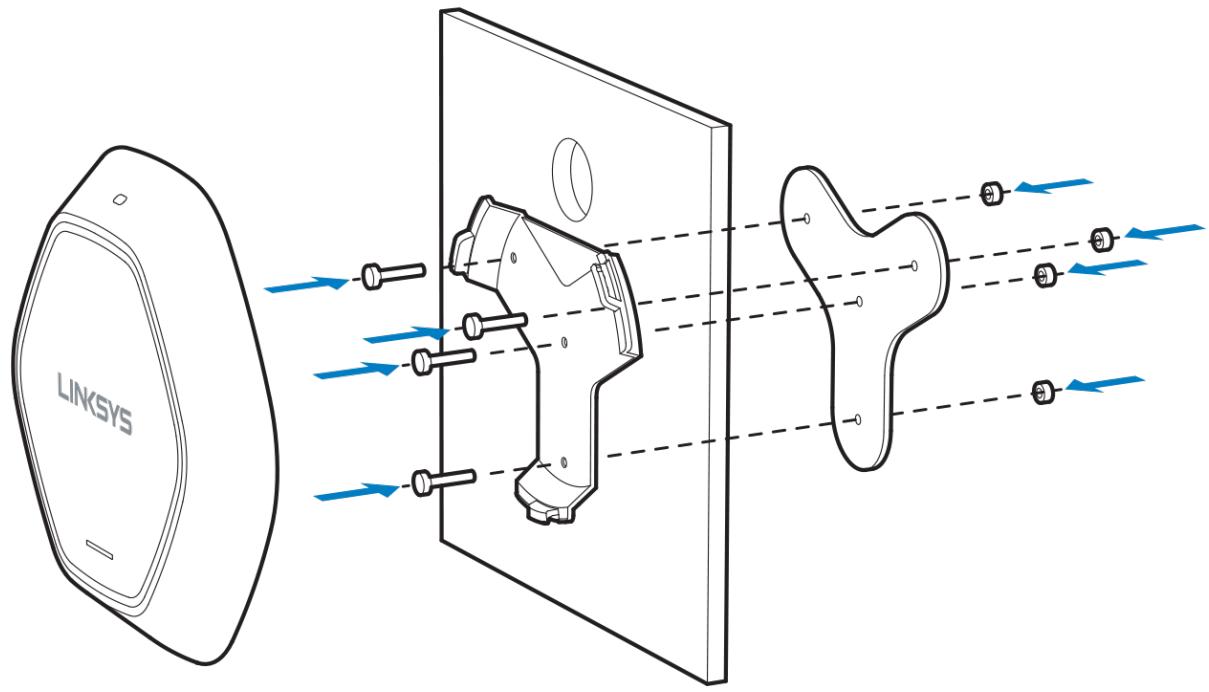
- Replace tile in ceiling.
- Connect the Ethernet cable and/or AC power adapter to your device
- Slide the device into the bracket. Turn access point clockwise until it locks.
IMPORTANT—Improper or insecure mounting could result in damage to the device or personal injury. Linksys is not responsible for damages caused by improper mounting.
Chapter 2 –Quick Start
Overview
This chapter describes the setup procedure to connect the wireless access point to your LAN, and configure it as an access point for your wireless stations.
Wireless stations may also require configuration. For details, see Appendix C - Wireless Station Configuration (p. 119).
The wireless access point can be configured using a web browser.
Note—Licenses and notices for third party software used in this product may be viewed on http://supportlinksys.com/en-us/licenses. Please contact http://supportlinksys.com/en-us/gplcodecenter for questions about GPL source code requests.
Setup Using a Web Browser
Your browser must support JavaScript. The configuration program has been tested on the following browsers:
- Firefox 3.5 or later, Chrome 8 or later, Safari 5 or later
- Internet Explorer 8 or later
Setup Procedure
Make sure device is powered on before you continue setup. If LED light is off, check that AC power adapter, or PoE cable, is properly connected on both ends.
Access device's browser-based setup:
- Use the included cable to connect the access point to your network via a network switch or router.
- Open a web browser on a computer connected to your network. Enter the IP address of your access point. By factory default, the IP address will be assigned by a DHCP server (usually the network router). If there is no DHCP server on your network, the default IP address is 192.168.1.252/255.255.255.0.
Note—Use a computer hardwired to the same network as your access point for browser-based setup access. Access to browser-based setup via Wi-Fi is disabled by default.
-
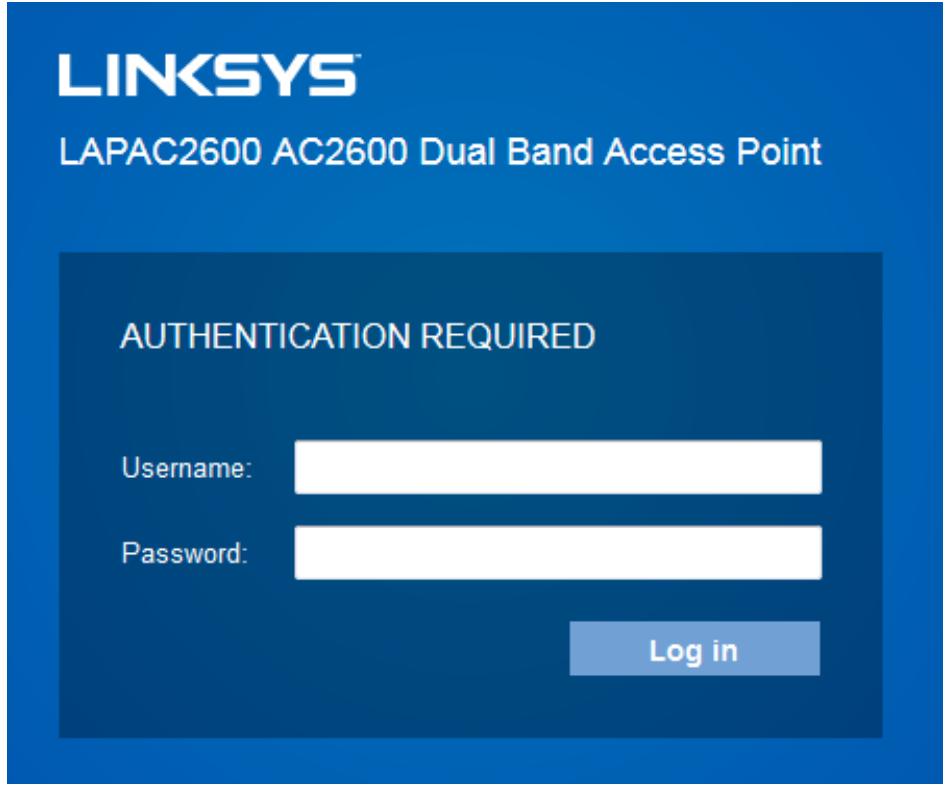
Type in default username: "admin", and password: "admin".
-
Click Log in to launch the browser-based setup and follow the on-screen instructions.
If you can't connect:
It is likely that your PC's IP address is incompatible with the wireless access point's IP address. This can happen if your LAN does not have a DHCP Server. If there is no DHCP server in your network, the access point will fall back to its default IP address: 192.168.1.252, with a network mask of 255.255.255.0.
Or, if your PC's IP address is not compatible with this, you must change your PC's IP address to an unused value in the range 192.168.1.1 ~ 192.168.1.254, with a network mask of 255.255.255.0. See Appendix A - Windows TCP/IP (p. 113) for details for this procedure.
Setup Wizard
If you are setting up the access point as a standalone device, run the Setup Wizard. If the access point will be part of a cluster - master or slave - go to Configuration > Cluster > Settings & Status page instead.
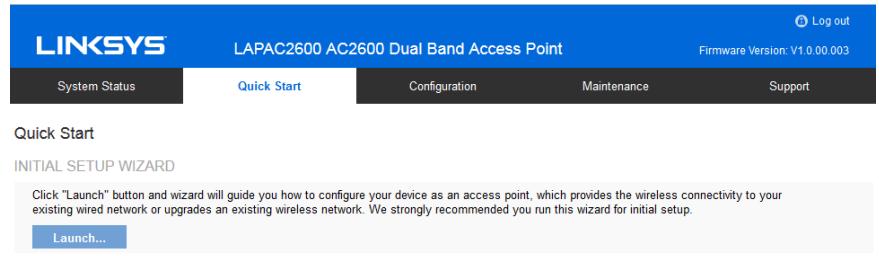
- Click the Quick Start tab on the main menu.
© 2016 Belkin International, Inc. and/or its subsidiaries and affiliates, including Linksys, LLC. All rights reserved.
- On the first screen, click Launch...
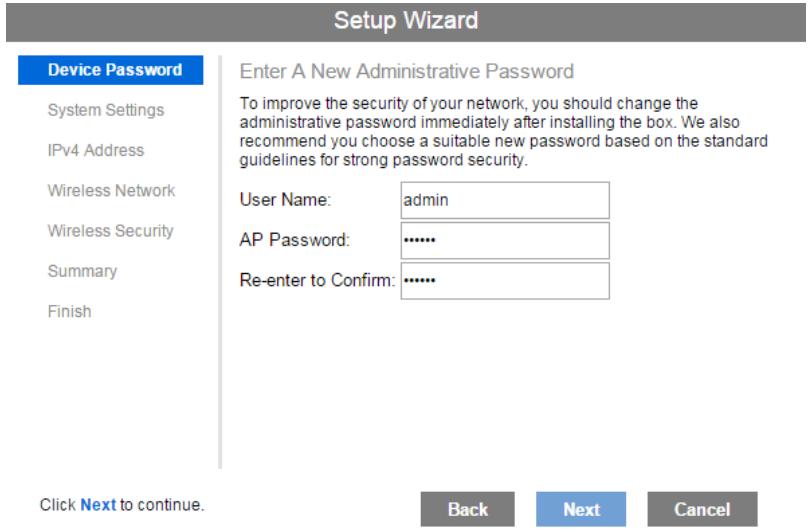
- Set the password on the Device Password screen, if desired.
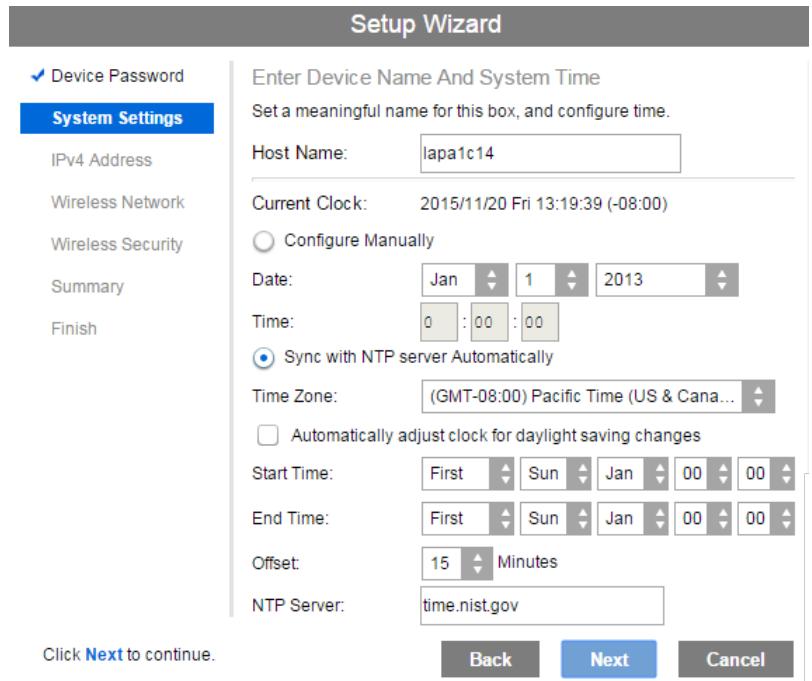
- Configure the time zone, date and time for the device on System Settings screen.
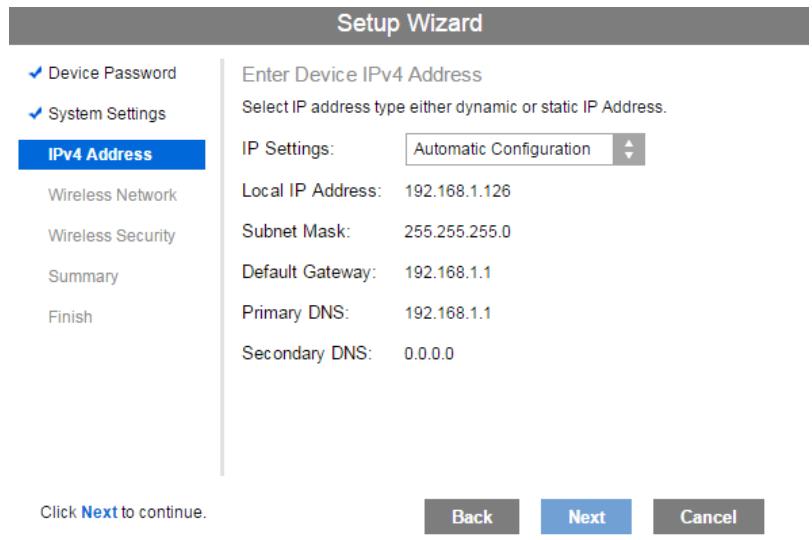
- On the IPv4 Address screen configure the IP address of the device (Static or Automatic) then click Next.
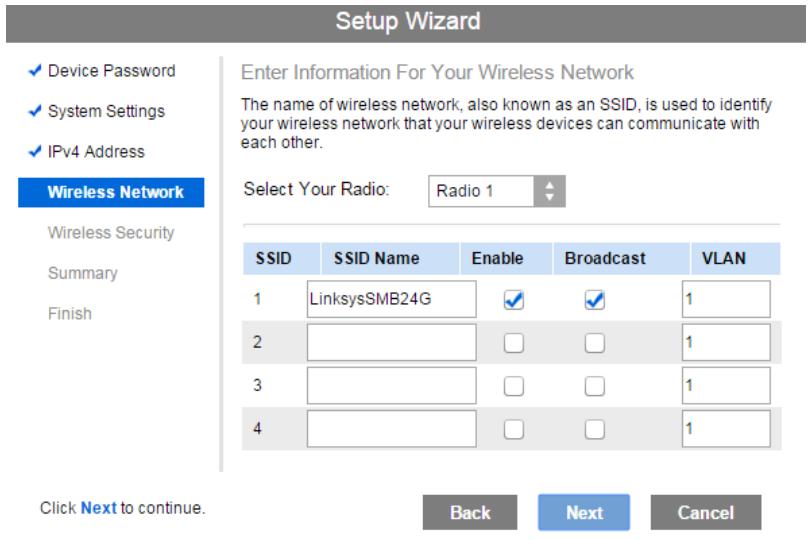
- Set the SSID information on the Wireless Network screen. Click Next. If you want to configure more than four SSIDs, go to Configuration > Wireless > Basic Settings. The access point supports up to eight SSIDs per radio.
- On the Wireless Security Screen, configure the wireless security settings for the device. Click Next. If you are looking for security options that are not available in the wizard, go to Configuration > Wireless Security page. The access point supports more sophisticated security options there.
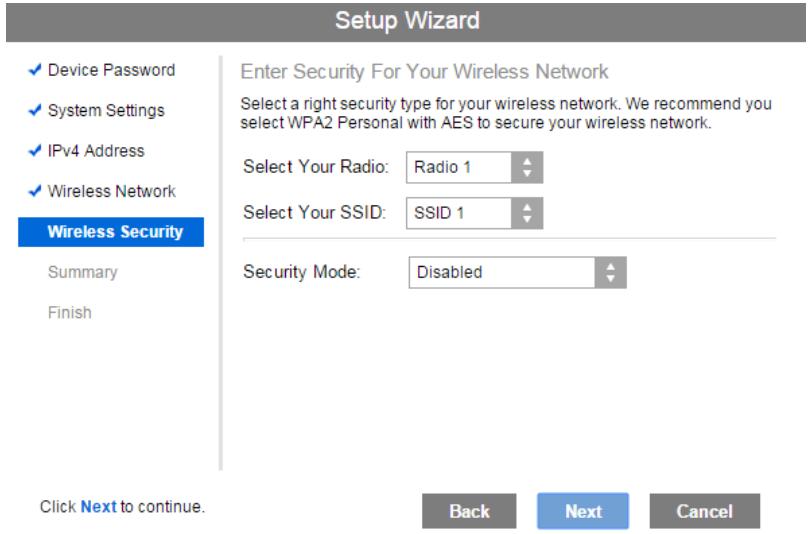
- On the Summary screen, check the data to make sure they are correct and then click Submit to save the changes.
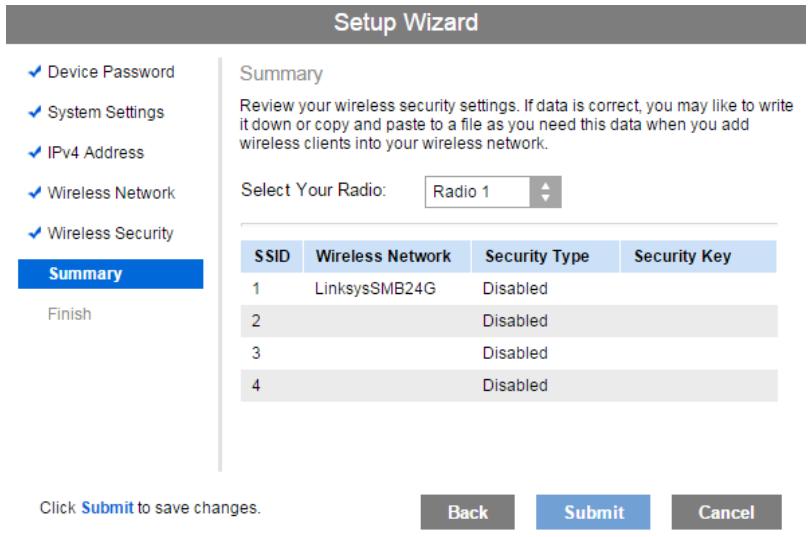
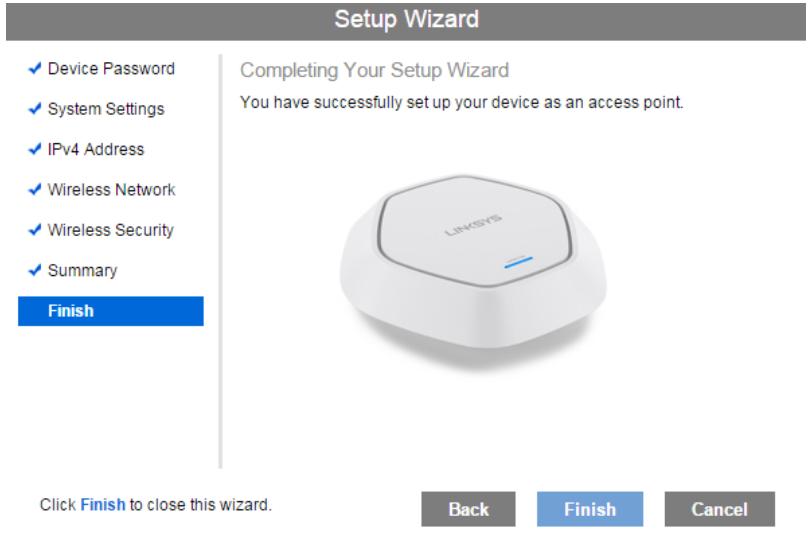
- Click Finish to leave the wizard.
Chapter 3 – Configuration
Administration
User Accounts
Go to Configuration > Administration and select User Accounts to manage user accounts. The access point supports up to five users: one administrator and four normal users.
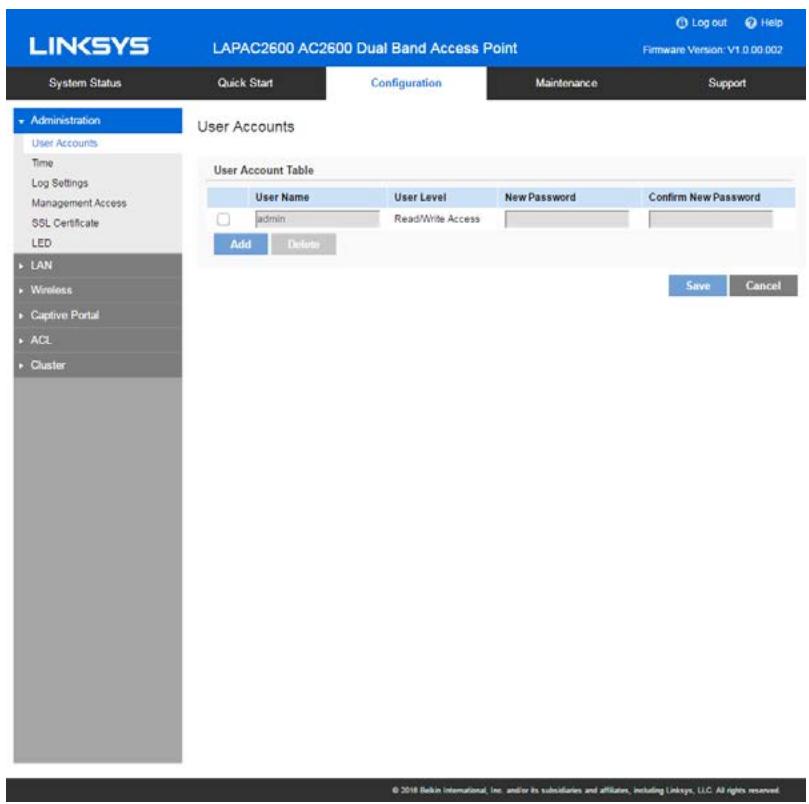
| User Account Table | |
| User Name | Enter the User Name to connect to the access point's admin interface. User Name is effective once you save settings. User Name can include up to 63 characters. Special characters are allowed. |
| User Level | Only administrator account has Read/Write permission to the access point's admin interface. All other accounts have Read Only permission. |
| New Password | Enter the Password to connect to the access point's admin interface. Password must be between 4 and 63 characters. Special characters are allowed. |
| Confirm New Password | Re-enter password. |
Time
Go to Configuration > Administration and select Time to configure system time of the device.
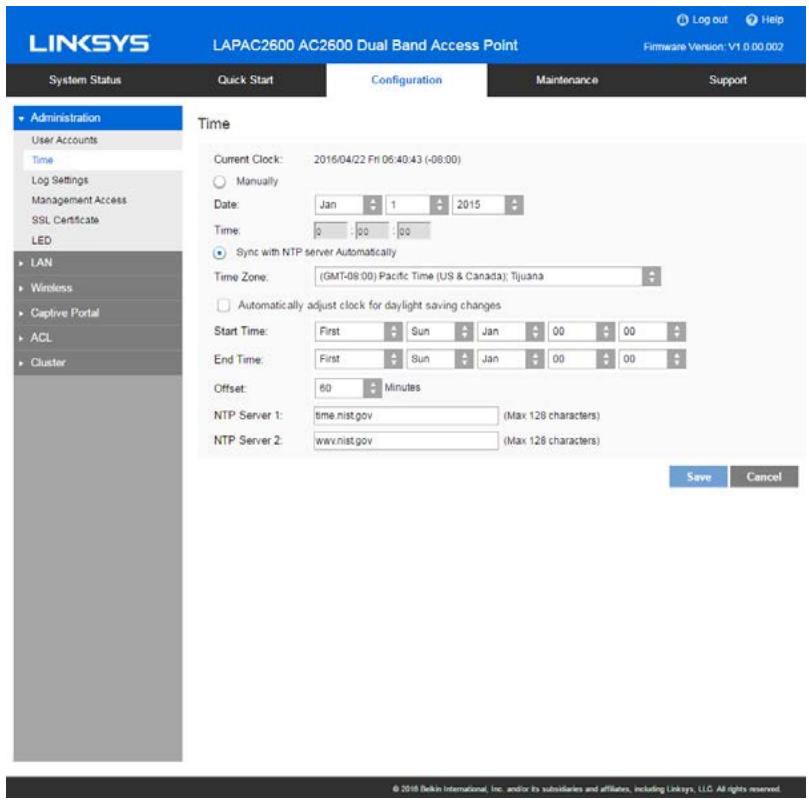
| Time | |
| Current Time | Display current date and time of the system. |
| Manually | Set date and time manually. |
| Automatically | When enabled (default setting) the access point will get the current time from a public time server. |
| Time Zone | Choose the time zone for your location from the drop-down list. If your location observes daylight saving time, enable Automatically adjust clock for daylight saving changes. |
| Start Time | Specify the start time of daylight saving. |
| End Time | Specify the end time of daylight saving. |
| Offset | Select the adjusted time of daylight saving. |
| NTP | |
| NTP Server 1 | Enter the primary NTP server. It can be an IPv4 address or a domain name. Valid characters include alphanumeric characters, " _", "- " and ".Maximum length is 64 characters. |
| NTP Server 2 | Enter the secondary NTP server. It can be an IPv4 address or a domain name. Valid characters include alphanumeric characters, " _", "- " and ".Maximum length is 64 characters. |
Log Settings
Go to Configuration > Administration and select Log Settings to configure logs. Logs record various types of activity on the access point. This data is useful for troubleshooting, but enabling all logs will generate a large amount of data and adversely affect performance.
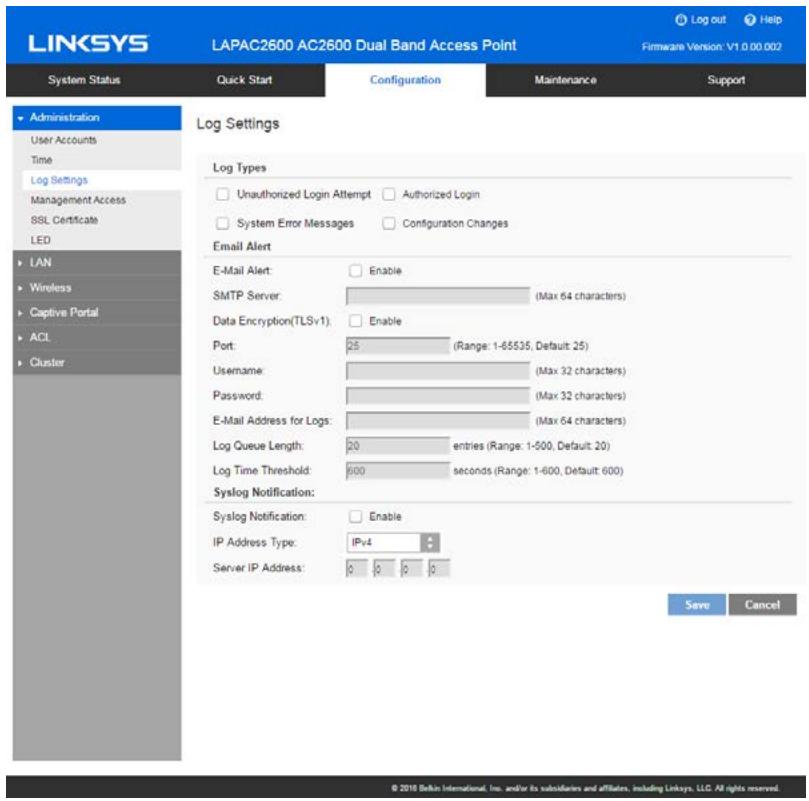
| Log Types | |
| Log Types | Select events to log. Checking all options increase the size of the log, so enable only events you believe are required. |
| Email Alert | |
| Email Alert | Enable email alert function. |
| SMTP Server | Enter the e-mail server that is used to send logs. It can be an IPv4 address or a domain name. Valid characters include alphanumeric characters, " ", "- " and ".". Maximum length is 64 characters. |
| Data Encryption | Enable if you want to use data encryption. |
| Port | Enter the port for the SMTP server. The port is a value from 1 to 65535 and default is 25. |
| Username | Enter theUsername to login to your SMTP server. TheUsername can include up to 32 characters. Special characters are allowed. |
| Password | Enter the Password to login to your SMTP server. The Password can include up to 32 characters. Special characters are allowed. |
| Email Address for Logs | Enter the email address the log messages are to be sent to. Valid characters include alphanumeric characters, "", "- ", "", " and "@". Maximum length is 64 characters. |
| Log Queue Length | Enter the length of the queue: up to 500 log messages. The default is 20 messages. When messages reach the set length the queue will be sent to the specified email address. |
| Log Time Threshold | Enter the time threshold (in seconds) used to check if the queue is full. It's a value from 1 to 600 and default is 600 seconds. |
| Syslog | |
| Syslog Notification | Enable Syslog notification. |
| IP Type | Select the IP type of the syslog server: IPv4 or IPv6. |
| Server IP Address | Enter the IPv4 or IPv6 address of syslog server here. |
Management Access
Go to Configuration > Administration and select Management Access page to configure the management methods of the access point.
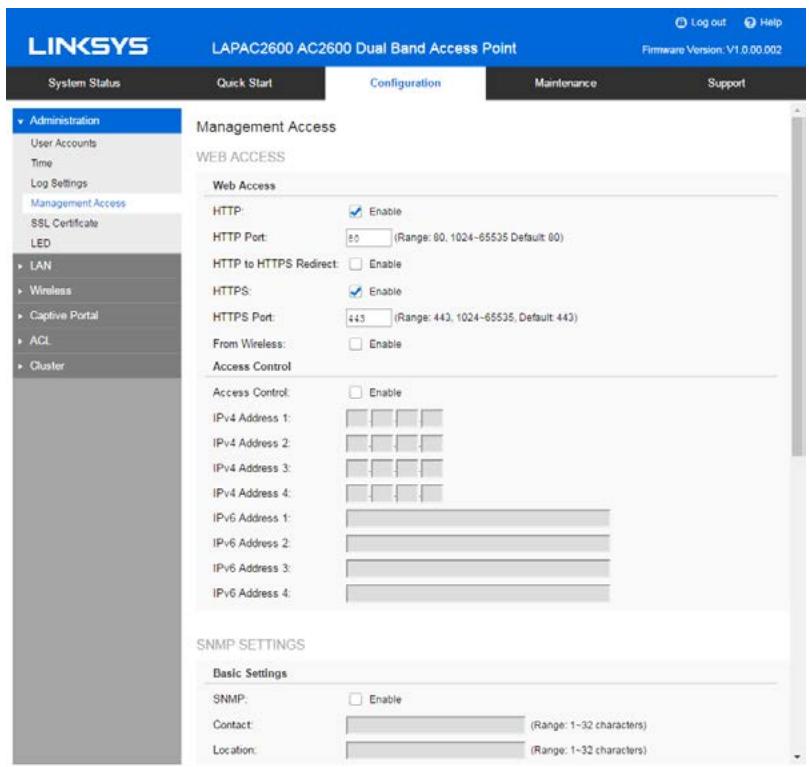
| Web Access | |
| HTTP | HTTP (HyperText Transfer Protocol) is the standard for transferring files (text, graphic images and other multimedia files) on the World Wide Web. Enable to allow Web access by HTTP protocol. |
| HTTP Port | Specify the port for HTTP. It can be 80 (default) or from 1024 to 65535. |
| HTTP to HTTPS Redirect | Enable to redirect Web access of HTTP to HTTPS automatically. This field is available only when HTTP access is disabled. |
| HTTPS | HTTPS (Hypertext Transfer Protocol Secure) can provide more secure communication with the SSL/TLS protocol, which support data encryption to HTTP clients and servers. Enable to allow Web access by HTTPS protocol. |
| HTTPS Port | Specify the port for HTTPS. It can be 443 (default) or from 1024 to 65535. |
| From Wireless | Enable wireless devices to connect to access point's admin page. Disabled by default. |
| Access Control | By default, no IP addresses are prohibited from accessing the device's admin page. You can enable access control and enter specified IP addresses for access. Four IPv4 and four IPv6 addresses can be specified. |
| SNMP Settings | |
| SNMP | Simple Network Management Protocol (SNMP) is a network monitoring and management protocol. Enable or disable SNMP function here. Disabled by default. |
| Contact | Enter contact information for the access point. The contact includes 1 to 32 characters. Special characters are allowed. |
| Location | Enter the area or location where the access point resides. The location includes 1 to 32 characters. Special characters are allowed. |
| SNMP v1/v2 Settings | |
| Get Community | Enter the name of Get Community. Get Community is used to read data from the access point and not for writing data into the access point. Get Community includes 1 to 32 characters. Special characters are allowed. |
| Set Community | Enter the name of Set Community. Set Community is used to write data into the access point. The Set Community includes 1 to 32 characters. Special characters are allowed. |
| SNMP v3 Settings | |
| SNMP v3 Settings | Configure the SNMPv3 settings if you want to use SNMPv3. Username: Enter the username. It includes 0 to 32 characters. Special characters are allowed. Authentication Protocol: None or HMAC-MD5. Authentication Key: 8 to 32 characters. Special characters are allowed. Privacy Protocol: None or CBC-DES. Privacy Key: 8 to 32 characters. Special characters are allowed. |
| Access Control | |
| Access Control | When SNMP is enabled, any IP address can connect to the access point MIB database through SNMP. You can enable access control to allow specified IP addresses. Two IPv4 and two IPv6 addresses can be specified. |
| SNMP Trap | |
| Trap Community | Enter the Trap Community server. It includes 1 to 32 characters. Special characters are allowed. |
| Trap Destination | Two Trap Community servers are supported: can be IPv4 or IPv6. |
SSL Certificate
Go to Configuration > Administration and select SSL Certificate to manage the SSL certificate used by HTTPS.
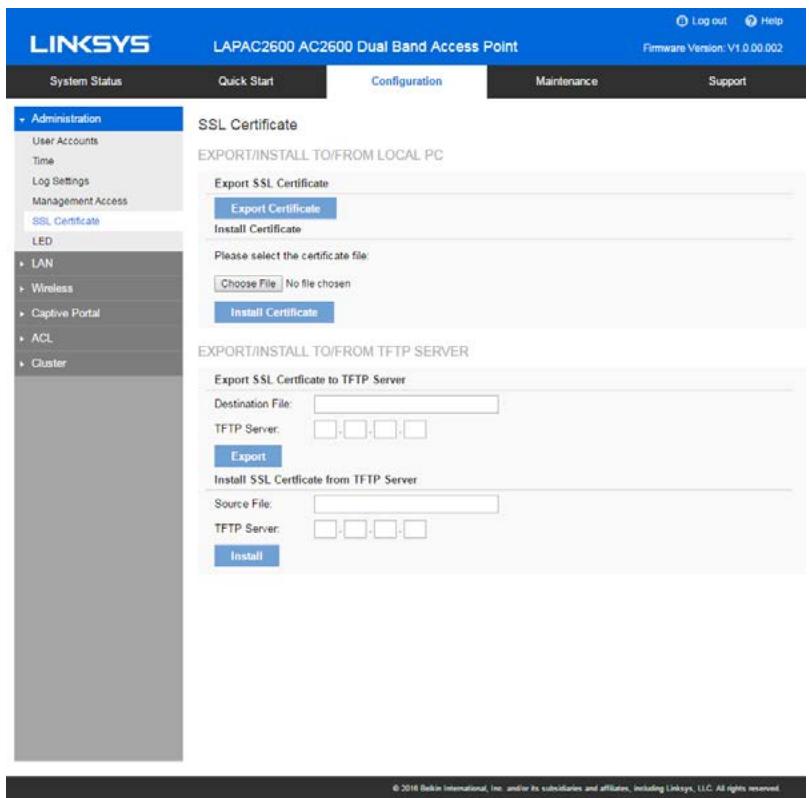
| Export/Restore to/from Local PC | |
| Export SSL Certificate | Click to export the SSL certificate. |
| Install Certificate | Browse to choose the certificate file. Click Install Certificate. |
| Export to TFTP Server | |
| Destination File | Enter the name of the destination file. |
| TFTP Server | Enter the IP address for the TFTP server. Only support IPv4 address here. |
| Export | Click to export the SSL certificate to the TFTP server. |
| Restore from TFTP Server | |
| Source File | Enter the name of the source file. |
| TFTP Server | Enter the IP address for the TFTP server. Only support IPv4 address here. |
| Install | Click to install the file to the device. |
LED
Go to Configuration > Administration and select LED to enable or disable the LED on the top cover of LACAP2600.
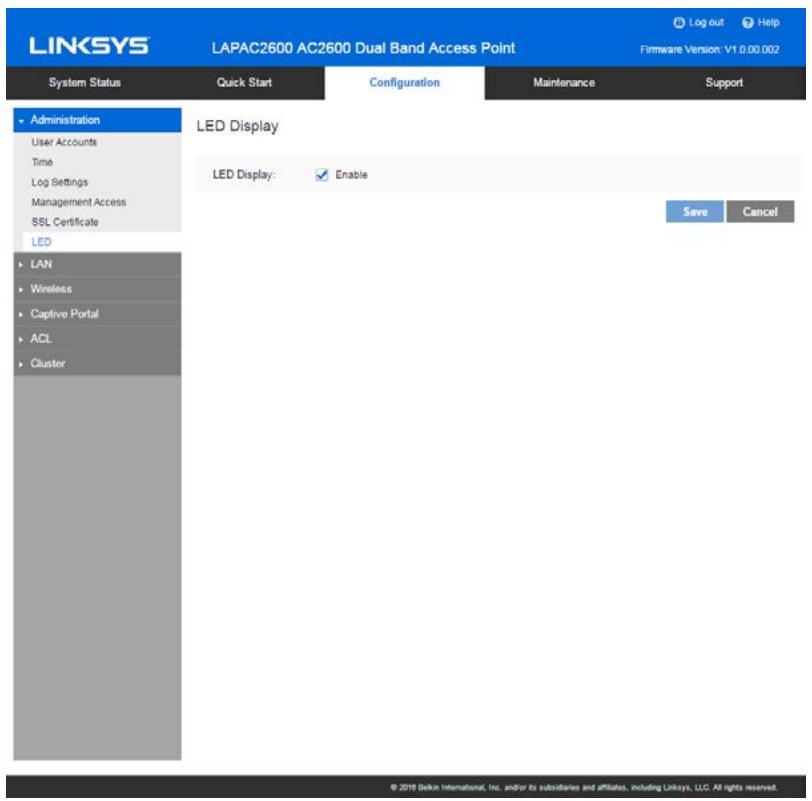
| LED | |
| LED Display | If disabled, the LED will be off even when the access point is working. By default, LED is enabled (on). |
LAN
Network Setup
Go to Configuration > LAN > Network Setup to configure basic device settings, VLAN settings and settings for the LAN interface, including static or dynamic IPv4/IPv6 address assignment.
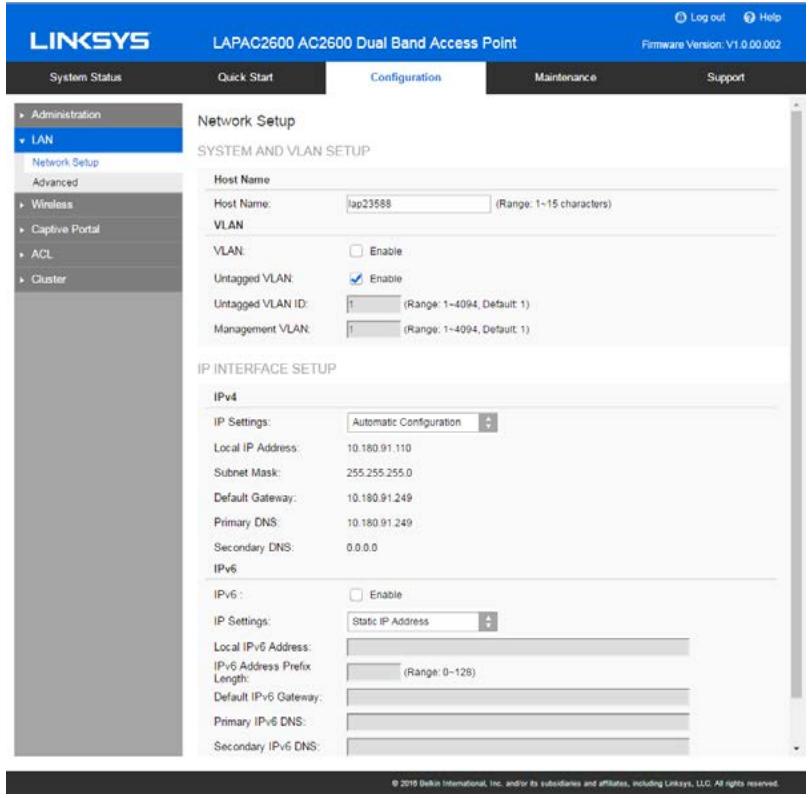
| TCP/IP | |
| Host Name | Assign a host name to this access point. Host name consists of 1 to 15 characters. Valid characters include A-Z, a-z, 0-9 and -. Character cannot be first and last character of hostname and hostname cannot be composed of all digits. |
| VLAN | Enables or disables VLAN function. |
| Untagged VLAN | Enables or disables VLAN tagging. If enabled (default), traffic from the LAN port is untagged when the following conditions are met: 1) VLAN ID is equal to Untagged VLAN ID and 2) untagged traffic can be accepted by LAN port. If disabled, traffic from the LAN port is always tagged and only tagged traffic can be accepted from LAN port. By default, all traffic on the access point uses VLAN 1, the default untagged VLAN. All traffic will be untagged until you disable the untagged VLAN, change the untagged traffic VLAN ID, or change the VLAN ID for a SSID. |
| Untagged VLAN ID | Specifies a number between 1 and 4094 for the untagged VLAN ID. The default is 1. Traffic on the VLAN that you specify in this field is not be tagged with a VLAN ID when forwarded to the network. Untagged VLAN ID field is active only when untagged VLAN is enabled. VLAN 1 is the default for both untagged VLAN and management VLAN. |
| Management VLAN | The VLAN associated with the IP address you use to connect to the access point. Provide a number between 1 and 4094 for the Management VLAN ID. The default is 1. |
| IPv4/v6 | |
| IP Settings | Select Automatic Configuration or Static IP Address. |
| IP Address | Enter an unused IP address from the address range used on your LAN. |
| Subnet Mask | Enter the subnet mask for the IP address above. |
| Default Gateway | Enter the gateway for the IP address above. |
| Primary DNS | Enter the DNS address. |
| Secondary DNS | Optional. If entered, this DNS will be used if the Primary DNS does not respond. |
Advanced
Go to Configuration > LAN > Advanced to configure advanced network settings of the access point.
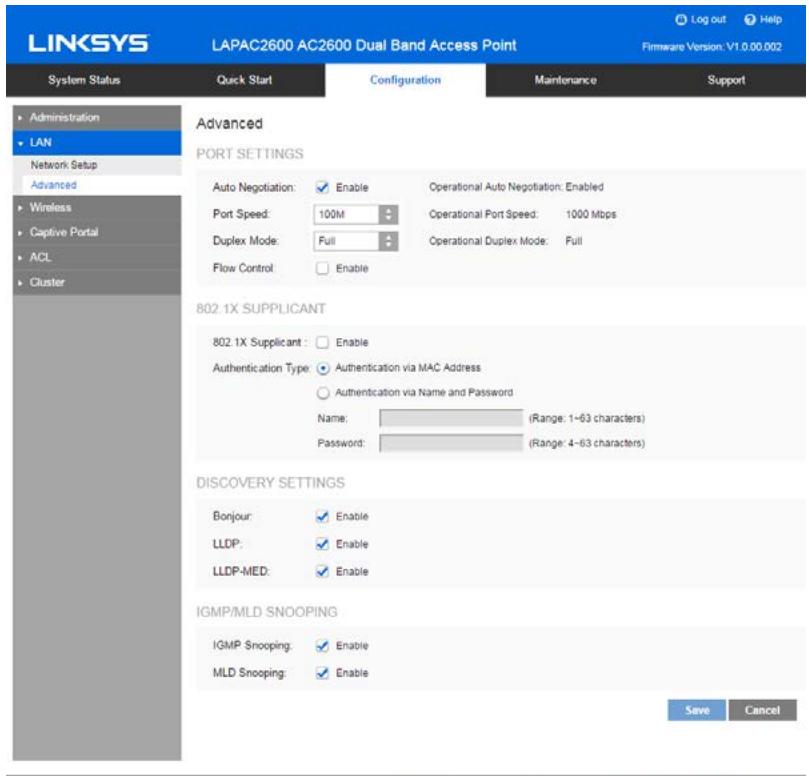
2016 Del Rio International, Inc. and/or its subsidiaries and affiliates, including Linksys, LLC. All rights reserved.
| Port Settings | |
| Auto Negotiation | If enabled, Port Speed and Duplex Mode will become grey and cannot be configured. If disabled, Port Speed and Duplex Mode can be configured.Note—LAG (Link Aggregation) is enabled by default on Ethernet port 1 and 2. It is highly recommended you keep auto negotiation enabled on both sides of an aggregate link. Enable LACP (Link Aggregation Control Protocol) on this specific LAG interface when you create LAG interface on switch. If you have to disable auto negotiation, ensure link speed and duplex (Full) are identical on both sides. |
| Operational Auto Negotiation | Current Auto Negotiation mode of the Ethernet port. |
| Port Speed | Select the speed of the Ethernet port. Available only when Auto Negotiation is disabled. The option can be 10M, 100M or 1000M (default). |
| Operational Port Speed | Displays the current port speed of the Ethernet port. |
| Duplex Mode | Select the duplex mode of the Ethernet port. Available only when Auto Negotiation is disabled. The option can be Half or Full (default). |
| Operational Duplex Mode | Displays the current duplex mode of the Ethernet port. |
| Flow Control | Enable or disable flow control of the Ethernet port. |
802.1x Suppliant
| 802.1x Supplicant | Enable if your network requires this access point to use 802.1X authentication in order to operate. |
| Authentication | This feature supports following two kinds of authentication: • Authentication via MAC Address Select this if you want to use MAC Address for authentication. The access point uses lowercase MAC address for Name and Password, like xxxxxxxxxx. • Authentication via Name and Password Select this if you want to use name and password for authentication. Name - Enter the login name. The name includes 1 to 63 characters. Special characters are allowed. Password - Enter the desired login password. The password includes 4 to 63 characters. Special characters are allowed. |
Discovery Settings
| Bonjour | Enable if administrator wants the access point to be discovered by Bonjour enabled devices automatically. If VLAN is enabled, the discovery packets will be sent out via management VLAN only. The access point supports http and https services. |
| LLDP | Enable if administrator wants the access point to be discovered by switch by LLDP protocol. Information such as product name, device name, firmware version, IP address, MAC address and so on will be advertised. |
| LLDP-MED | Enable if administrator wants the access point to be discovered by switch by LLDP-MED protocol. Information such as product name, device name, firmware version, IP address, MAC address and so on will be advertised. |
IGMP/MLD Snooping
| IGMP Snooping | IGMP (Internet Group Management Protocol) is a communications protocol used by hosts and adjacent routers on IP networks to establish multicast group memberships. IGMP is an integral part of IP multicast. IGMP snooping streamlines multicast traffic handling by examining (snooping) IGMP membership report messages from interested hosts, multicast traffic is limited to the subset of ports on which the hosts reside. IGMP snooping is enabled by default in the access point The access point supports IGMPv1, IGMPv2 and IGMPv3 in IGMP Snooping. |
| MLD Snooping | MLD (Multicast Listener Discovery) is a component of the Internet Protocol Version 6 (IPv6) suite. MLD is used by IPv6 routers for discovering multicast listeners on a directly attached link, much like IGMP is used in IPv4. Multicast Listener Discovery (MLD) Snooping provides multicast containment by forwarding traffic only to those clients that have MLD receivers for a specific multicast group (destination address). The access point maintains the MLD group membership information by processing MLD reports and generating messages so traffic can be forwarded to ports receiving MLD reports. MLD snooping is enabled by default in the access point The access point supports MLDv1 and MLDv2 in MLD Snooping. |
Wireless
Basic Settings
- Go to Configuration > Wireless > Basic Settings to configure your wireless radio and SSIDs. Advanced wireless settings such as Band Steering, Channel Bandwidth, are on the Advanced Settings screen.
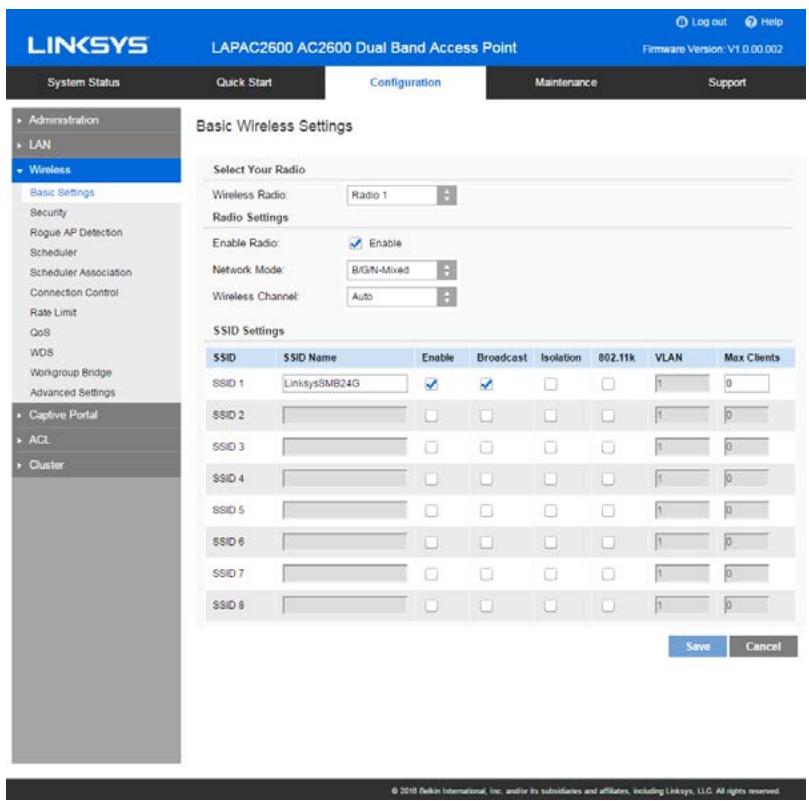
| Basic Wireless Settings | |
| Wireless Radio | Select the wireless radio from the list. Radio 1 is for 2.4 GHz, and Radio 2 is for 5 GHz. |
| Enable Radio | Enable or disable the wireless radio. |
| Wireless Mode | Select the desired option for radio 1: G only - allow connection by 802.11G wireless stations only. N only - allow connection by 802.11N wireless stations only. B/G-Mixed - allow connection by 802.11B and G wireless stations only. B/G/N-Mixed (Default) - allow connections by 802.11N, 802.11B and 802.11G wireless stations. Select the desired option for radio 2: N/A-Mixed - allow connection by 802.11A and N wireless stations only. N only - allow connection by 802.11N wireless stations only. AC only - allow connection by 802.11AC wireless stations only. A/N/AC-Mixed - allow connection by 802.11A, 802.11N and 802.11AC wireless stations. |
| Wireless Channel | Select wireless channel of the radio. If Auto is selected, the access point will select the best available channel when device boots up. If you experience lost connections and/or slow data transfers, manually change the channel until you find which channel is best. |
| SSID Settings | |
| SSID Name | Enter the desiredSSID Name. EachSSID must have a unique name. The name includes 1 to 32 characters. |
| Broadcast | Enable or disable the broadcast of theSSID. When the access point does not broadcast itsSSID, the network name is not shown in the list of available networks on a client station. Instead, you must enter the exact network name manually into the wireless connection utility on the client so that it can connect. |
| Isolation | Enable or disable isolation among clients of theSSID. If enabled, wireless clients cannot communicate with others in the sameSSID. It is disabled by default. |
| 802.11k | Enable or disable 802.11k of theSSID. The 802.11k protocol provides mechanisms for APs and clients to measure the available radio resources dynamically. In an 802.11k enabled network, APs and clients can send neighbor reports, beacon reports, and link measurement reports to each other. This allows the APs and clients to take appropriate connection actions for next hop if client has weak connection to current AP. |
| VLAN ID | Enter the VLAN ID of theSSID. Used to tag packets which are received from the wireless clients of theSSID and sent from Ethernet or WDS interfaces. Applicable only when VLAN function is enabled. VLAN function can be configured in Configuration -> LAN -> Network Setup screen. |
| Max Clients | Enter the number of clients that can connect to theSSID. The range is from 0 to 32 and 0 means no limit. |
Security
Go to Configuration > Wireless > Security to configure security settings of SSIDs to provide data protection over the wireless network.
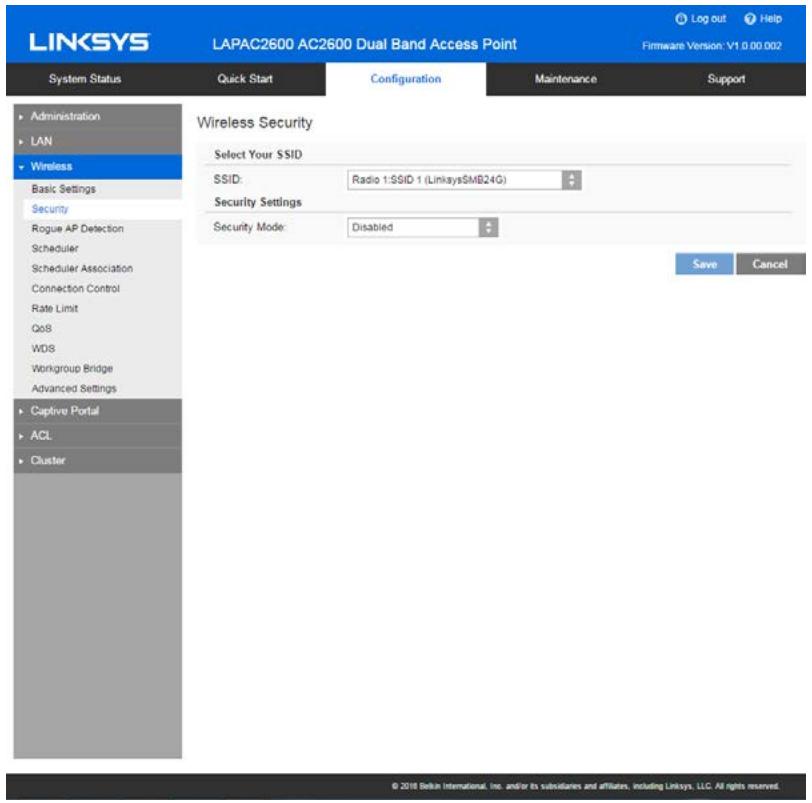
| Security | |
| Select SSID | Select the desired SSID from the drop-down list. |
| Security Mode | Select the desired security method from the list. |
Security Mode
- Disabled - No security. Anyone using the correct SSID can connect to your network.
- WEP - The 802.11b standard. Data is encrypted before transmission, but the encryption system is not very strong.
- WPA2-Personal - This is a further development of WPA-PSK, and offers even greater security, using the AES (Advanced Encryption Standard) method.
-
WPA/WPA2-Personal - This method, sometimes called Mixed Mode, allows clients to use either WPA-Personal (with TKIP) or WPA2-Personal (with AES).
-
WPA2-Enterprise - Requires a RADIUS Server on your LAN to provide the client authentication according to the 802.1x standard. Data transmissions are encrypted using the WPA2 standard.
If this option is selected:
- This access point must have a client login on the RADIUS Server.
Each user must authenticate on the RADIUS Server. This is usually done using digital certificates.
Each user's wireless client must support 802.1x and provide the RADIUS authentication data when required. -
All data transmission is encrypted using the WPA2 AES standard. Keys are automatically generated, so no key input is required.
-
WPA/WPA2-Enterprise - This method, sometimes called Mixed Mode, allows clients to use either WPA-Enterprise (with TKIP) or WPA2-Enterprise (with AES).
- RADIUS - RADIUS mode utilizes RADIUS server for authentication and dynamic WEP key generation for data encryption.
WEP
This is the 802.11b standard. Data is encrypted before transmission, but the encryption system is not very strong.
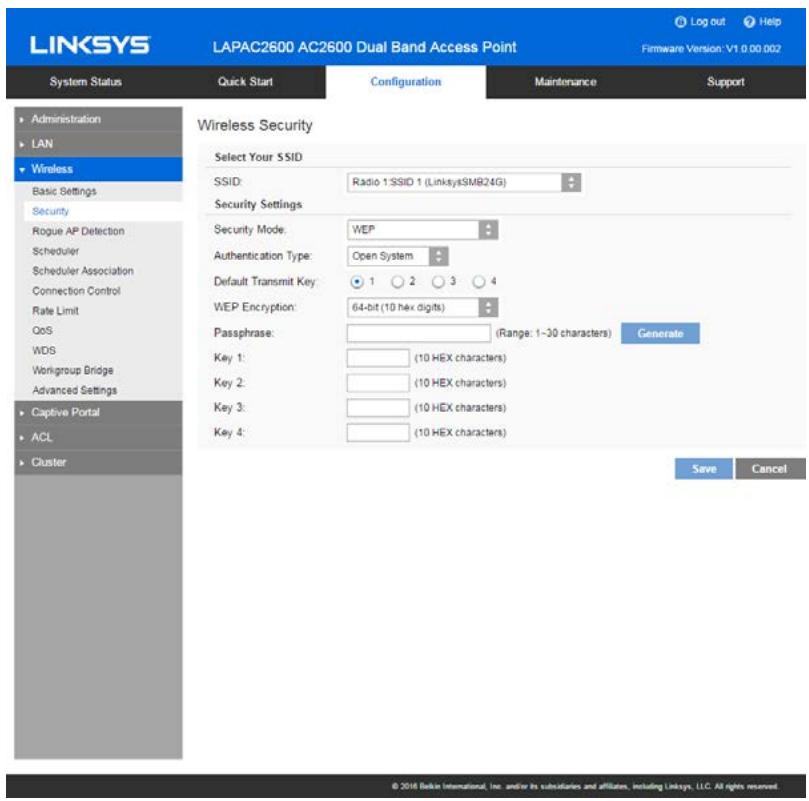
| WEP | |
| Authentication | Select Open System or Shared Key. All wireless stations must use the same method. |
| Default Transmit Key | Select a transmit key. |
| WEPEncryption | Select an encryption option, and ensure your wireless stations have the same setting: 64-Bit Encryption - Keys are 10 Hex characters. 128-Bit Encryption - Keys are 26 Hex characters. |
| Passphrase | Generate a key or keys, instead of entering them directly. Enter a word or group of printable characters in the Passphrase box and click the Generate button to automatically configure the WEP key. It consists of 1 to 30 characters. |
| Key Value | Enter a key in hexadecimal format. Note—Due to hardware limitations, one set of WEP key is supported per radio. |
This is a further development of WPA-Personal, and offers even greater security.
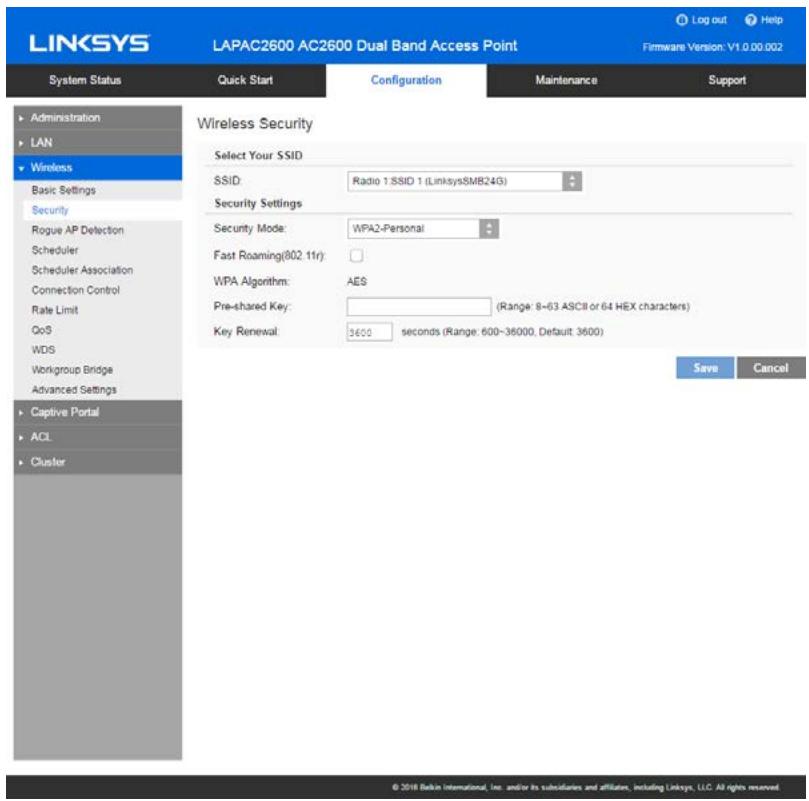
| WPA2-Personal | |
| Fast Roaming(802.11r) | Enable or disable Fast Roaming (802.11r). Fast Roaming (802.11r) minimizes the delay when a voice client transitions from one BSS to another within the same ESS. Fast BSS Transition establishes security and QoS states at the target AP before or during a re-association. This minimizes the time required to resume data connectivity when a BSS transition happens. Important Points to Remember: • Fast Roaming (802.11r) is operational only if the wireless client has support for 802.11r standard. If the client does not have support for 802.11r standard, it falls back to normal WPA2 authentication method. • If Fast Roaming (802.11r) is enabled, some clients without 802.11r supported may fail to connect to the network. • Only one SSID of the AP can be enabled with Fast Roaming (802.11r). |
| WPA Algorithm | The encryption method is AES. Wireless stations must also use AES. |
| Pre-shared Key | Enter the key value. It is 8 to 63 ASCII characters or 64 HEX characters. Other wireless stations must use the same key. |
| Key Renewal | Specify the value of Group Key Renewal. It's a value from 600 to 36000 and default is 3600. WPA automatically changes secret keys after a certain period of time. The group key interval is the period of time in between automatic changes of the group key, which all devices on the network share. Constantly keying the group key protects your network against intrusion, as the would-be intruder must cope with an ever-changing secret key. |
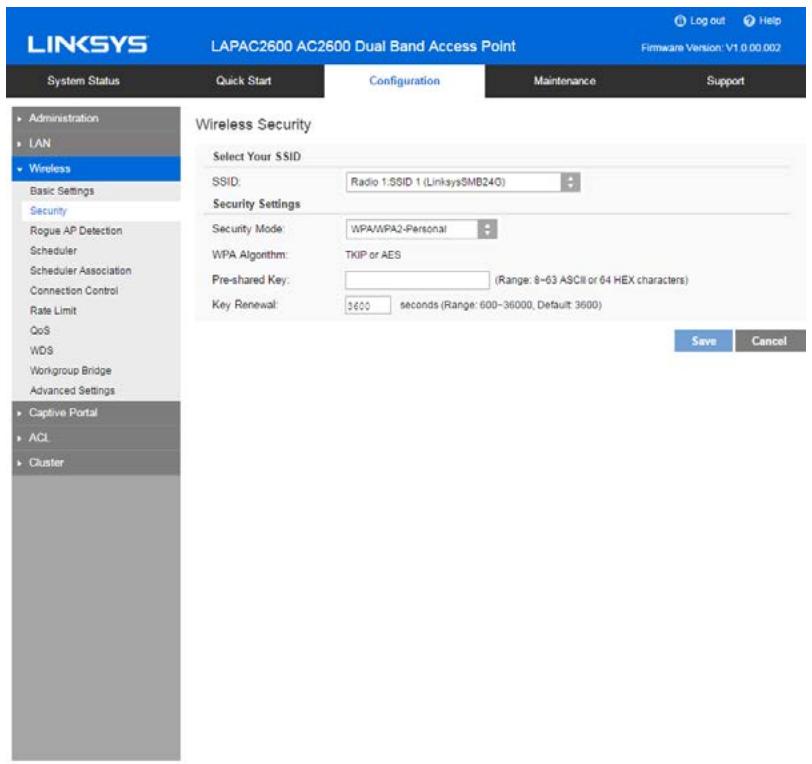
This method, sometimes called Mixed Mode, allows clients to use either WPA-Personal or WPA2- Personal.
© 2015 Delkin International, Inc. and/or its subsidiaries and affiliates, including Linksys, LLC, All rights reserved.
| WPA/WPA2-Personal | |
| WPA Algorithm | The encryption method is TKIP or AES. |
| Pre-shared Key | Enter the key value. It is 8 to 63 ASCII characters or 64 HEX characters. Other wireless stations must use the same key. |
| Key Renewal | Specify the value of Group Key Renewal. It's a value from 600 to 36000, and default is 3600. WPA automatically changes secret keys after a certain period of time. The group key interval is the period of time in between automatic changes of the group key, which all devices on the network share. Constantly keying the group key protects your network against intrusion, as the would-be intruder must cope with an ever-changing secret key. |
WPA2-Enterprise
This version of WPA2-Enterprise requires a RADIUS Server on your LAN to provide the client authentication. Data transmissions are encrypted using the WPA2 AES standard.
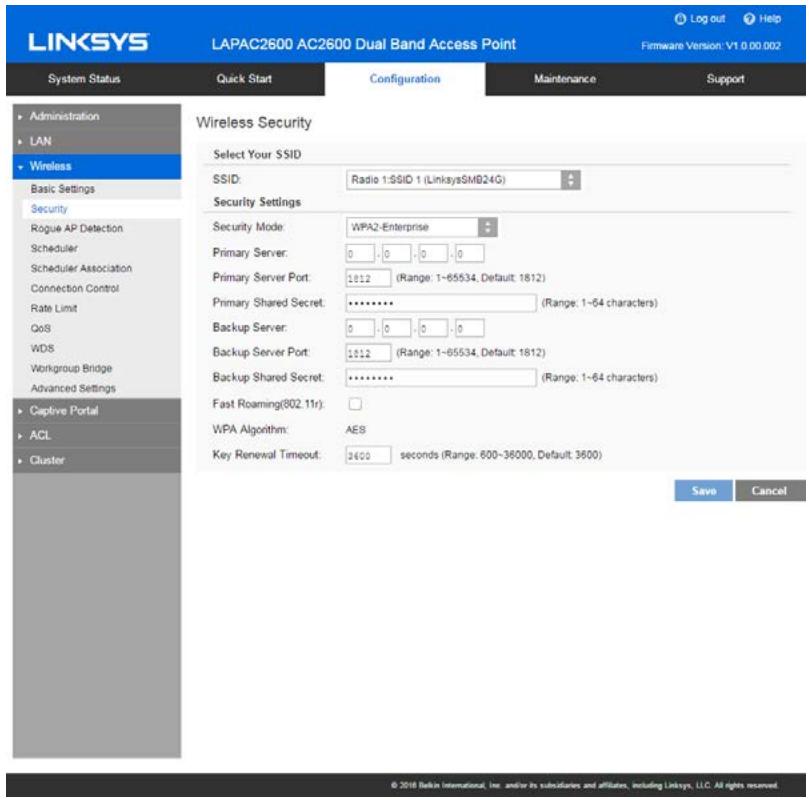
WPA2-Enterprise
Fast Roaming (802.11r)
Enable or disable Fast Roaming (802.11r).
Fast Roaming (802.11r) minimizes the delay when a voice client transitions from one BSS to another within the same ESS. Fast BSS Transition establishes security and QoS states at the target AP before or during a re-association. This minimizes the time required to resume data connectivity when a BSS transition happens.
Important Points to Remember:
- Fast Roaming (802.11r) is operational only if the wireless client has support for 802.11r standard. If the client does not have support for 802.11r standard, it falls back to normal WPA2 authentication method.
- If Fast Roaming (802.11r) is enabled, some clients without 802.11r supported may fail to connect to the network.
- Only one SSD of the AP can be enabled with Fast Roaming (802.11r).
Primary Server
Enter the IP address of the RADIUS Server on your network.
Primary Server Port
Enter the port number used for connections to the RADIUS Server. It is a value from 1 to 65534, and default is 1812.
Primary Shared Secret
Enter the key value to match the RADIUS Server. It consists of 1 to 64 characters.
Backup Server
The Backup Authentication Server will be used when the Primary Authentication Server is not available.
Backup Server Port
Enter the port number used for connections to the Backup RADIUS Server. It's a value from 1 to 65534, and default is 1812.
Backup Shared Secret
Enter the key value to match the Backup RADIUS Server. It consists of 1 to 64 characters.
WPA Algorithm
The encryption method is AES.
Key Renewal Timeout
Specify the value of Group Key Renewal. It is a value from 600 to 36000, and default is 3600.
WPA automatically changes secret keys after a certain period of time. The group key interval is the period of time in between automatic changes of the group key, which all devices on the network share.
Constantly keying the group key protects your network against intrusion, as the would-be intruder must cope with an ever-changing secret key.
WPA/WPA2-Enterprise
WPA/WPA2-Enterprise requires a RADIUS Server on your LAN to provide the client authentication. Data transmissions are encrypted using WPA/WPA2 standard.
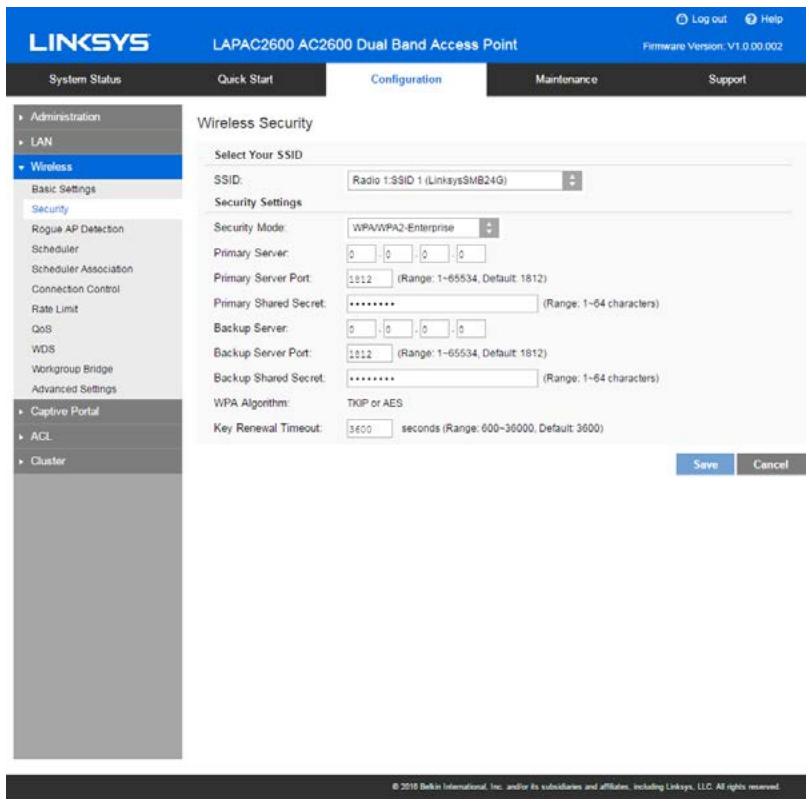
WPA/WPA2-Enterprise
| Primary Server | Enter the IP address of the RADIUS Server on your network. |
| Primary Server Port | Enter the port number used for connections to the RADIUS Server. It is a value from 1 to 65534, and default is 1812. |
| Primary Shared Secret | Enter the key value to match the RADIUS Server. It consists of 1 to 64 characters. |
| Backup Server | The Backup Authentication Server will be used when the Primary Authentication Server is not available. |
| Backup Server Port | Enter the port number used for connections to the Backup RADIUS Server. It is a value from 1 to 65534, and default is 1812. |
| Backup Shared Secret | Enter the key value to match the Backup RADIUS Server. It consists of 1 to 64 characters. |
| WPA Algorithm | The encryption method is TKIP or AES. |
| Key Renewal Timeout | Specify the value of Group Key Renewal. It is a value from 600 to 36000, and default is 3600 second. WPA automatically changes secret keys after a certain period of time. The group key interval is the period of time between automatic changes of the group key, which all devices on the network share. Constantly keying the group key protects your network against intrusion, as the would-be intruder must cope with an ever-changing secret key. |
RADIUS
Use RADIUS server for authentication and dynamic WEP key generation for data encryption.
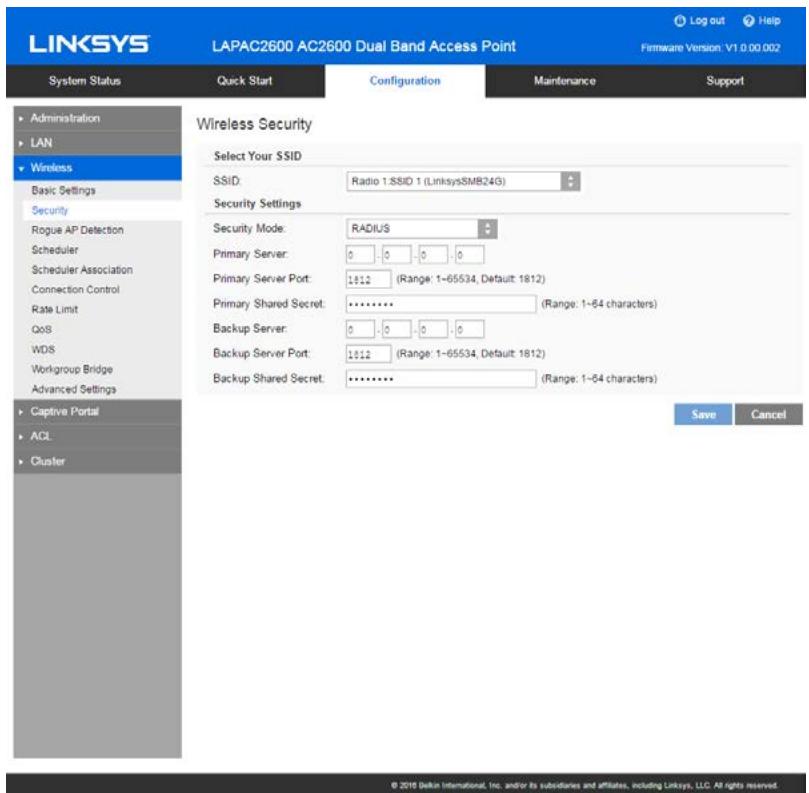
| Authentication Server | |
| Primary Server | Enter the IP address of the RADIUS Server on your network. |
| Primary Server Port | Enter the port number used for connections to the RADIUS Server. It is a value from 1 to 65534, and default is 1812. |
| Primary Shared Secret | Enter the key value to match the RADIUS Server. It consists of 1 to 64 characters. |
| Backup Server | The Backup Authentication Server will be used when the Primary Authentication Server is not available. |
| Backup Server Port | Enter the port number used for connections to the Backup RADIUS Server. It is a value from 1 to 65534, and default is 1812. |
| Backup Shared Secret | Enter the key value to match the Backup RADIUS Server. It consists of 1 to 64 characters. |
Rogue AP Detection
Go to Configuration > Wireless > Rogue AP Detection to detect the unexpected or unauthorized access point installed in a secure network environment.
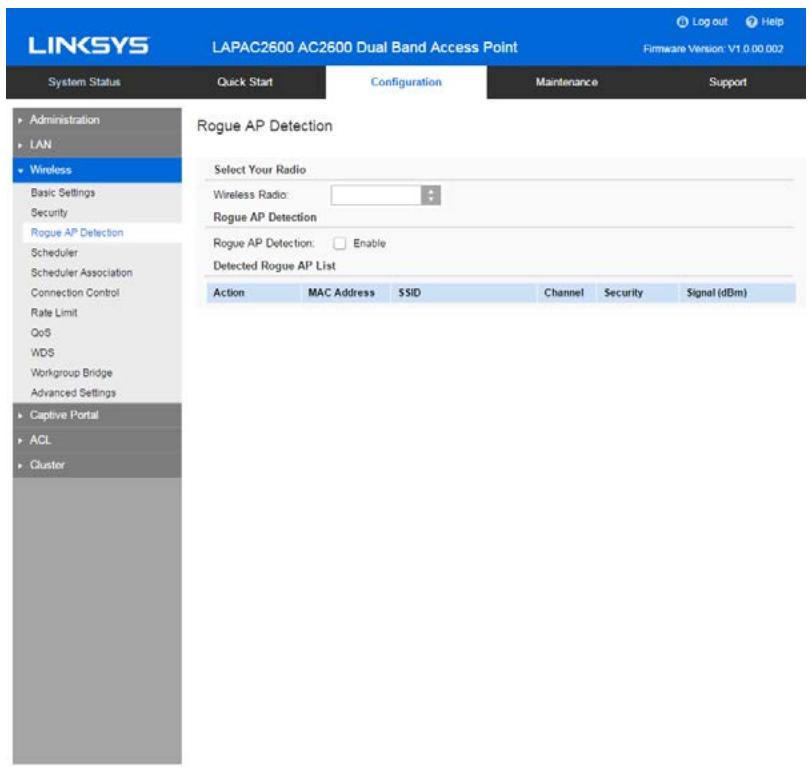
2016 Delin International, Inc. and/or its subsidiaries and affiliates, including Linkys, LLC. All rights reserved.
| Radio | |
| Wireless Radio | Select the desired radio from the list. Radio 1 is for 2.4GHz, and Radio 2 is for 5GHz. |
| Rogue AP | Enable or disable Rogue AP Detection on the selected radio. Note—Scanning happens when rouge AP is enabled or you can click Refresh to trigger scanning again. |
| Detected Rogue AP List | |
| Action | Click Trust to move the AP to the Trusted AP List. |
| MAC Address | The MAC address of the Rogue AP. |
| SSID | TheSSID of the Rogue AP. |
| Channel | The channel of the Rogue AP. |
| Security | The security method of the Rogue AP. |
| Signal | The signal level of the Rogue AP. |
| Trusted AP List | |
| Action | Click Untrust to move the AP to the Rogue AP List. |
| MAC Address | The MAC address of the Trusted AP. |
| SSID | TheSSID of the Trusted AP. |
| Channel | The channel of the Trusted AP. |
| Security | The security method of the Trusted AP. |
| Signal | The signal level of the Trusted AP. |
| New MAC Address | Add one trusted AP by MAC address. |
Scheduler
- Go to Configuration > Wireless > Scheduler to configure a rule with a specific time interval for SSIDs to be operational. Automate enabling or disabling SSIDs based on the profile definition. Support up to 16 profiles and each profile can include four time rules.

| Scheduler | |
| Wireless Scheduler | Enable or disable wireless scheduler on the radio. It is disabled by default. If disabled, even if some SSIDs are associated with profiles, they will be always active. |
| Scheduler Operational Status | |
| Status | The operational status of the scheduler. |
| Reason | The detailed reason for the scheduler operational status. It includes the following situations. · System time is outdated. Scheduler is inactive because system time is outdated. · Administrative Mode is disabled. Scheduler is disabled by administrator. · Active Scheduler is active. |
| Scheduler Profile configuration | |
| New Profile Name | Enter the name for new profile. |
| Profile Name | Select the desired profile from the list to configure. |
| Day of the Week | Select the desired day from the list. Option None means this time rule is disabled. |
| Start Time | Choose the start time. |
| Finish Time | Choose the finish time. |
Scheduler Association
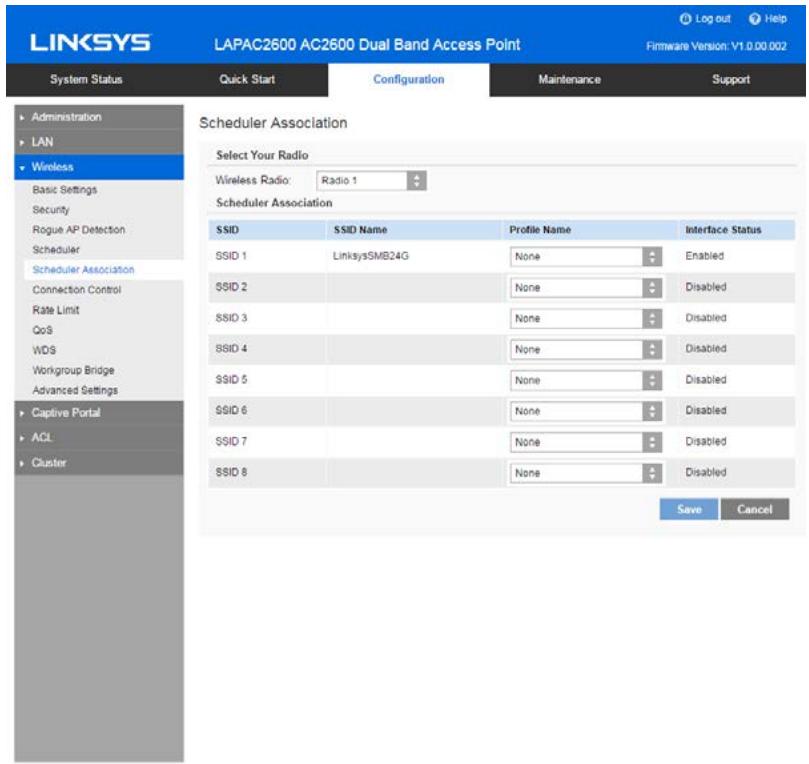
Go to Configuration > Wireless > Scheduler Association to associate defined scheduler profiles with SSDs.
© 2019 Delkin International, Inc. and/or its subsidiaries and affiliates, including Linksys, LLC. All rights reserved.
| Radio | |
| Wireless Radio | Select the desired radio from the list. Radio 1 is for 2.4 GHz, and Radio 2 is for 5 GHz. |
| Scheduler Association | |
| SSID | The index ofSSID. |
| SSID Name | The name of theSSID. |
| Profile Name | Choose the profile that is associated with theSSID. If the profile associated with theSSID is deleted, then the association will be removed. Option None means no scheduler profile is associated. |
| Interface Status | The status of theSSID. It can be Enabled or Disabled. Scheduler only works when theSSID is enabled. |
Connection Control
Go to Configuration > Wireless > Connection Control to define whether listed client stations may authenticate with the access point.
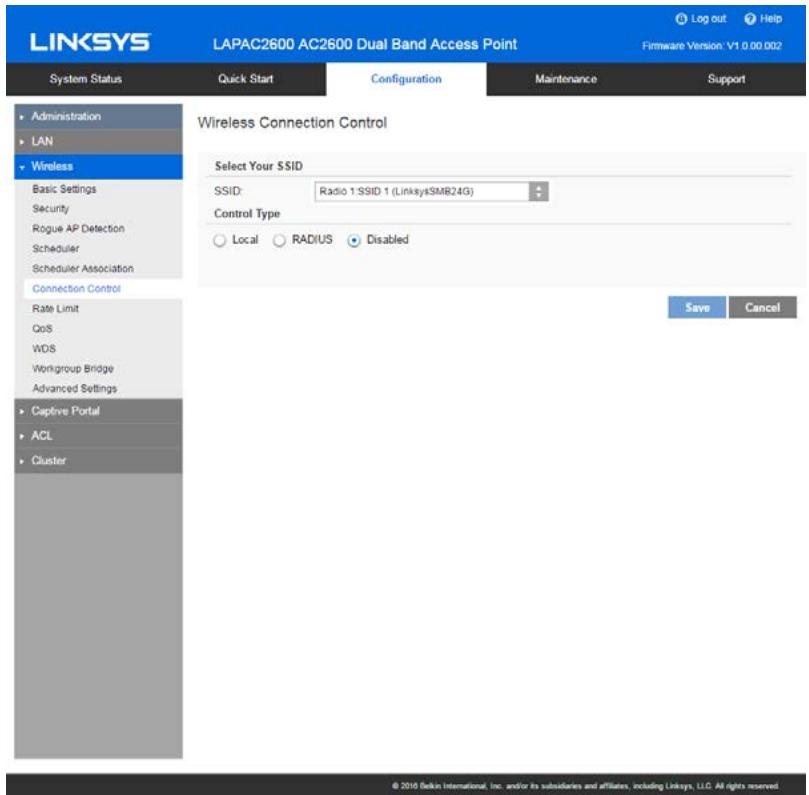
| SSID | Select the desiredSSID from the list. |
| Control Type | Select the option from the drop-down list as desired. • Local: Choose either Allow only following MAC addresses to connect to wireless network or Prevent following MAC addresses from connection to wireless network. You can enter up to 20 MAC addresses of wireless stations or choose the MAC address from Wireless Client List. • RADIUS Primary/Backup RADIUS Server - Enter the IP address of the RADIUS Server. Primary/Backup RADIUS Server Port- Enter the Port number of the RADIUS Server. Primary/Backup Shared Secret - This is shared between the wireless access point and the RADIUS Server while authenticating the device attempting to connect. • Disabled |
Rate Limit
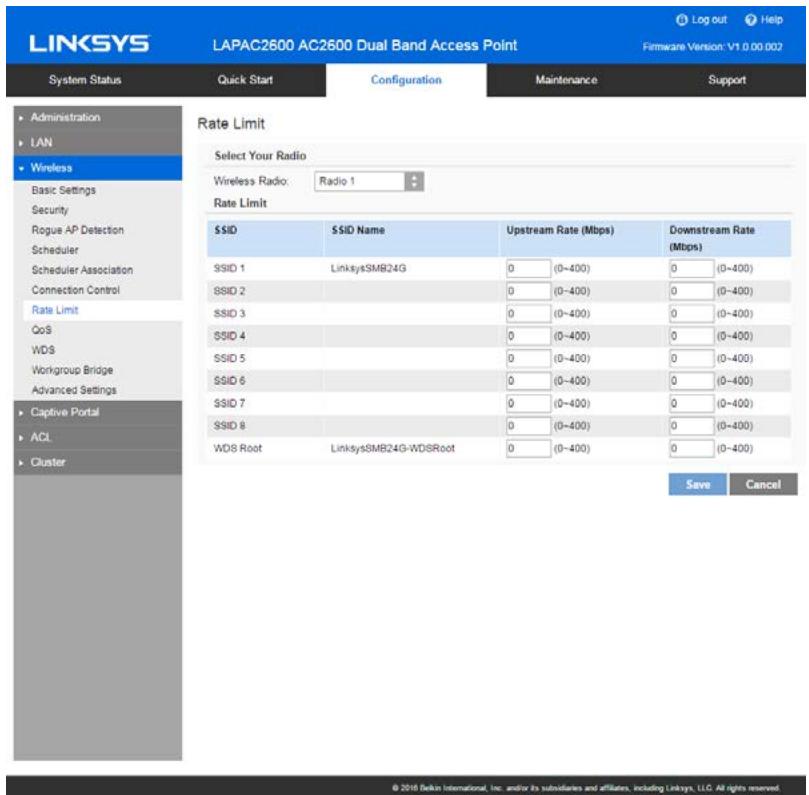
Go to Configuration > Wireless > Rate Limit to limit downstream and upstream rate of SSDs.
| Radio | |
| Wireless Radio | Select the desired radio from the list. Radio 1 is for 2.4GHz, and Radio 2 is for 5GHz. |
| Rate Limit | |
| SSID | The index ofSSID. |
| SSID Name | The name of theSSID. |
| Upstream Rate | Enter a maximum upstream rate for theSSID. The range is from 0 to 400 Mbps for Radio 1 and from 0 to 1000 Mbps for Radio 2; 0 means no limitation. |
| Downstream Rate | Enter a maximum downstream rate for theSSID. The range is from 0 to 400 Mbps for Radio 1 and from 0 to 1000 Mbps for Radio 2; 0 means no limitation. |
QoS
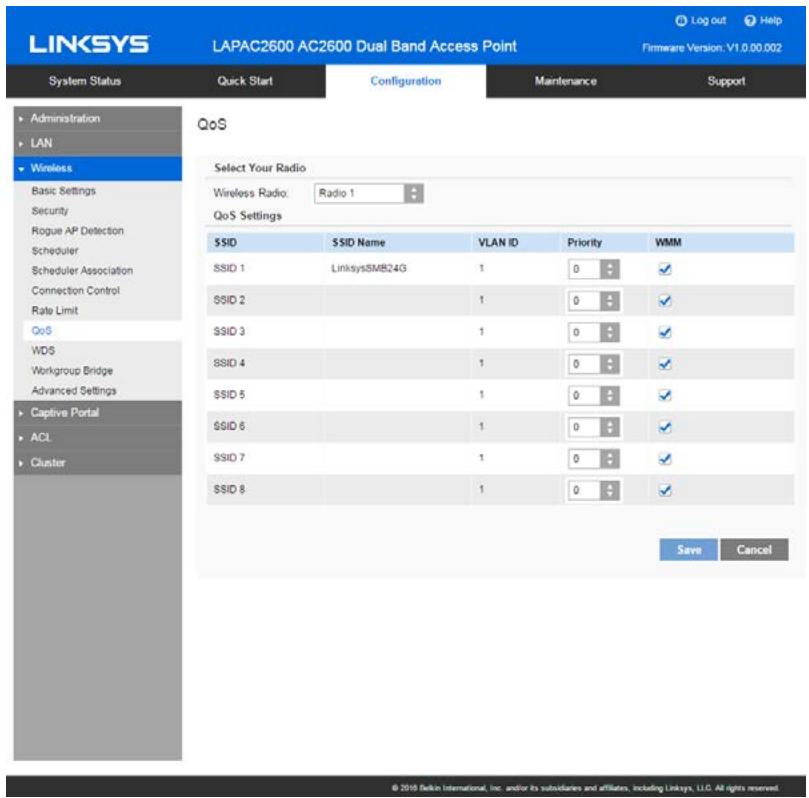
Go to Configuration > Wireless > QoS (Quality of Service) to specify priorities for different traffic coming from your wireless client. Lower priority traffic will be slowed down to allow greater throughput or less delay for high priority traffic.
| QoS Setting | |
| Wireless Radio | Select the desired radio from the list. Radio 1 is for 2.4GHz, and Radio 2 is for 5GHz. |
| QoS Settings | |
| SSID | The index ofSSID. |
| SSID Name | The name of theSSID. |
| VLAN ID | The VLAN ID of theSSID. |
| Priority | Select the priority level from the list. VLAN must be enabled in order to set priority. The 802.1p will be included in the VLAN header of the packets which are received from theSSID and sent from Ethernet or WDS interface. |
| WMM | Enable or disable WMM. WMM (Wi-Fi Multimedia) is a component of the IEEE 802.11e wireless LAN standard for QoS. WMM provides prioritization of wireless data packets from different applications based on four access categories: voice, video, best effort, and background. For an application to receive the benefits of WMM QoS, both it and the client running that application have to have WMM enabled. Legacy applications that do not support WMM and applications that do not require QoS, are assigned to the best effort category, which receives a lower priority than voice and video. WMM is enabled by default. |
WDS
Go to Configuration > Wireless > WDS (Wireless Distribution System) to expand a wireless network through multiple access points instead of linking them with a wired backbone.
WDS only works and interacts with LAPN300, LAPN600, LAPAC1200, LAPAC1750 or LAPAC2600 devices.
The access point can act as WDS Root or WDS Station:
- WDS Root - Receives WDS connections from remote WDS Stations.
- WDS Station - Connects to remote WDS Root. Supports up to 4 WDS Stations on each wireless radio.
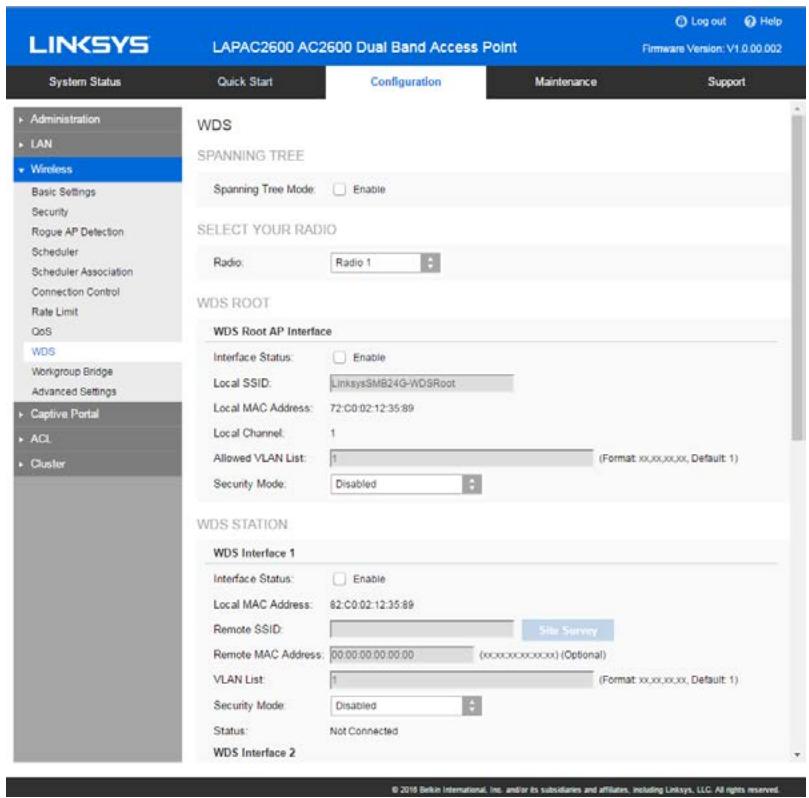
| Spanning Tree (recommended if you configure WDS connections) | |
| Spanning Tree | When enabled, STP helps prevent switching loops. |
| WDS Settings | |
| Radio | Select the desired radio from the list. Radio 1 is for 2.4 GHz, and Radio 2 is for 5 GHz. |
| WDS Root | |
| Interface Status | Enable or Disable the WDS Root. Be sure the following settings on WDS Root device are determined and configured. The WDS Station must use the same settings as Root afterwards. • Radio • IEEE 802.11 Mode • Channel Bandwidth • Channel Note—It is highly recommended that static channel is configured on both APs. Do not use Auto channel option when you enable WDS, as both APs in a WDS link must be on the same radio channel. If Auto option is configured, there is chance two access points run on different channels and WDS link cannot establish. Workgroup Bridge and WDS will not work at the same time on one wireless radio. When Workgroup Bridge is enabled, WDS will be disabled automatically on the same radio. |
| LocalSSID | Enter name of the WDS RootSSID (used when connected by WDS Stations). |
| Local MAC Address | MAC address of the WDS RootSSID. |
| Local Channel | The channel used by WDS RootSSID. WDS stations must use same channel as the WDS Root. Channel can be changed in Basic Settings page. |
| Allowed VLAN List | Enter the list of VLANs accepted by the WDS Root. When VLAN is enabled, WDS Root receives from WDS Stations only packets in the VLAN list. Packets not in the list will be dropped. The VLAN list is only applicable when VLAN is enabled. The VLAN list includes 1 to 16 VLAN IDs separated by ", " such as "100,200,300,400,500,600,700,800". |
| Security Settings | Setting can be Disabled, WPA-Personal, WPA2-Personal, WPA2-Enterprise or WPA/WPA2-Enterprise. |
| WDS Station | |
| Interface Status | Enable or disable the WDS Station. Before configuring a WDS Station, be sure the following settings of the device are identical to the WDS Root that will be connected. • Radio • IEEE 802.11 Mode • Channel Bandwidth • Channel Note—It is highly recommended that static channel is configured on both APs. Do not use Auto channel option when you enable WDS, as both APs in a WDS link must be on the same radio channel. If Auto option is configured, there is chance two access points run on different channels and WDS link cannot establish. Workgroup Bridge and WDS will not work at the same time on one wireless radio. When Workgroup Bridge is enabled, WDS will be disabled automatically on the same radio. |
| Remote SSID | Enter the name of the Root's SSID. Click Site Survey and choose from the list. You must do this for WDS Station to connect to a remote WDS Root. |
| Remote MAC Address | MAC address of the access point on the other end of the WDS link. Optional WDS Station connects to remote WDS Root by matching SSIDs. When there is more than one remote WDS Root with the same SSID, the WDS Station can differentiate them by MAC address. The format is xx:xx:xx:xx:xx:xx. |
| VLAN List | Enter the list of VLANs that are accepted by the WDS Station. When VLAN is enabled, the WDS Station forwards to the remote WDS Root only packets in the VLAN list. Packets not in the VLAN list cannot be forwarded to the remote WDS Root. The VLAN List is only applicable when VLAN is enabled. The VLAN list includes 1 to 8 VLAN IDs separated by "", such as "100,200,300,400,500,600,700,800". |
| Security Mode | The type of encryption to use on the WDS link. It must be unique to the access point on the other end of the WDS link. The options are Disabled, WPA Personal, WPA2 Personal, WPA Enterprise or WPA2 Enterprise. |
| Status | Status of the WDS interface. It can be Disabled, Connected or Not Connected. |
Workgroup Bridge
Go to Configuration > Wireless > Workgroup Bridge to extend the accessibility of a remote network. In Workgroup Bridge mode, the access point acts as a wireless station (STA) on the wireless LAN. It can bridge traffic between a remote wired network and a wireless LAN.
When Workgroup Bridge is enabled, SSID configuration still works to provide wireless services to clients.
All access points participating in Workgroup Bridge must have the identical settings for Radio interface, IEEE 802.11 mode, Channel Bandwidth, Channel (Auto is not recommended).
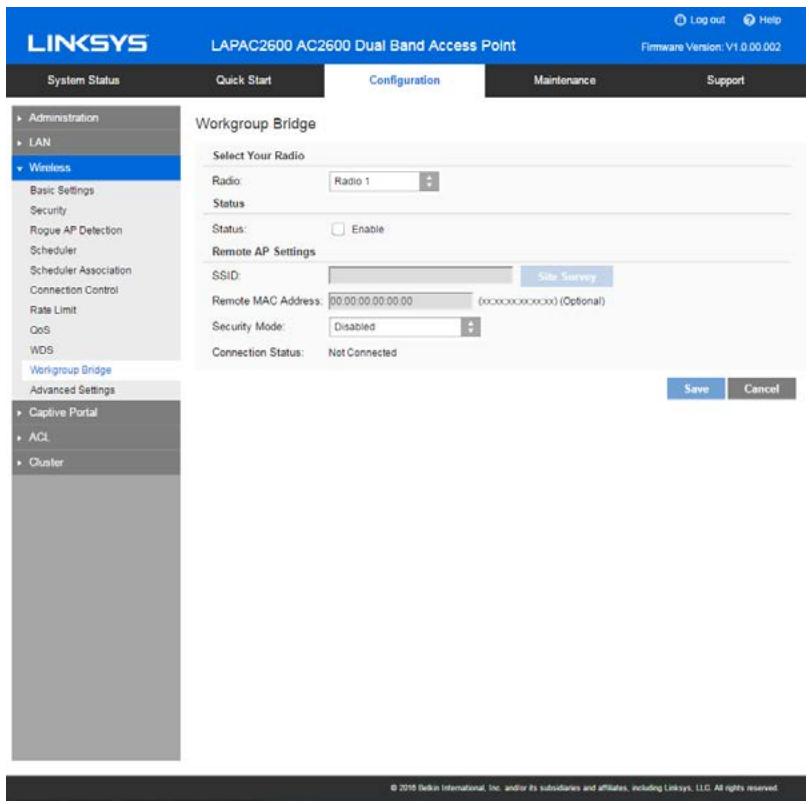
| Workgroup Bridge | |
| Radio | Select the desired radio from the list. Radio 1 is for 2.4 GHz, and Radio 2 is for 5 GHz. |
| Workgroup Bridge Status | |
| Status | Enable or disable Workgroup Bridge function. Before configuring Workgroup Bridge, make sure all devices in Workgroup Bridge have the following identical settings. • Radio • IEEE 802.11 Mode • Channel Bandwidth • Channel Note—It is highly recommended that static channel is configured on both APs. Do not use the Auto channel option when you enable Workgroup Bridge, as both APs in a Workgroup Bridge link must be on the same radio channel. If Auto option is configured, there is a chance two access points will run on different channels which prevents Workgroup Bridge link from being established. |
| Remote AP Settings | |
| SSID | Enter the name of theSSID to which Workgroup Bridge will connect. Click Site Survey to choose from the list. You must do this for Workgroup Bridge to connect to a remote access point. |
| Remote MAC Address | Normally, Workgroup Bridge connects to a remote access point by matchingSSID. When more than one remote access point has the sameSSID, Workgroup Bridge can connect to different remote access points. Optional: You can specify the MAC address of the remote access point to limit Workgroup Bridge's connection to a specific remote access point. The format is xx:xx:xx:xx:xx:xx. |
Security Mode
Select the desired mode from the list.
- Disabled
WPA-Personal
WPA2-Personal
WPA-Enterprise
WPA2-Enterprise
Advanced Settings
Go to Configuration >Wireless >Workgroup Bridge to configure advanced parameters of wireless radios.
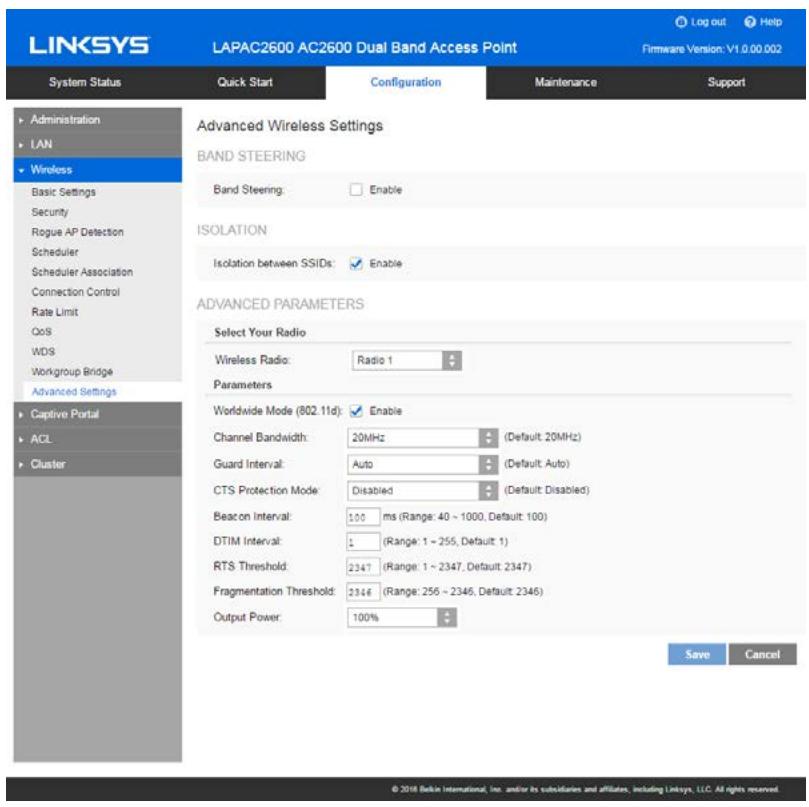
| Band Steering | |
| Band Steering | Enable or disable Band Steering function. Band Steering is a technology that detects whether the wireless client is dual-band capable. If it is, band steering pushes the client to connect to the less-congested 5GHz network. It does this by actively blocking the client's attempts to connect with the 2.4GHz network. |
| Isolation | |
| Isolation between SSIDs | Define whether to isolate traffic between SSIDs. If enabled, wireless clients in different SSIDs cannot communicate with each other. Enabled by default. |
| Advanced Parameters | |
| Wireless Radio | Select the desired radio from the list. Radio 1 is for 2.4GHz, and Radio 2 is for 5GHz. |
| Worldwide Mode (802.11d) | Worldwide Mode (802.11d) enables the access point to direct connected wireless devices to radio settings specific to where in the world the devices are in use. |
| Channel Bandwidth | Select the designed channel bandwidth for the wireless radio. 20MHz - Select if you are not using any 802.11n wireless devices. 20/40MHz - Select if you are using both 802.11n and non-802.11n wireless devices. 20/40/80MHz - Select if you are using 802.11ac, 802.11n and non-802.11n wireless devices. |
| Guard Interval | Select the guard interval manually for Wireless-N connections. The two options are Short (400nanoseconds) and Long (800nanoseconds). The default is Auto. |
| CTS Protection Mode | CTS (Clear-To-Send) Protection Mode boosts the access point's ability to catch all Wireless-G transmissions, but it severely decreases performance. By default, CTS Protection Mode is disabled, but the access point will automatically enable this feature when Wireless-G devices are not able to transmit to the access point in an environment with heavy 802.11b traffic. |
| Beacon Interval | The access point transmits beacon frames at regular intervals to announce the existence of the wireless network. Enter the interval between the transmissions of beacon frames. The value range is between 40 and 1000 milliseconds and default is 100 milliseconds. |
| DTIM Interval | Enter the Delivery Traffic Information Map (DTIM) period, an integer from 1 to 255 beacons. The default is 1 beacon. The DTIM message is an element included in some beacon frames. It indicates which client stations, currently sleeping in low-power mode, have data buffered on the access point awaiting pickup. The DTIM period that you specify indicates how often the clients served by this WAP device should check for buffered data still on the access point awaiting pickup. For example, if you enter 1, clients check for buffered data on the access point at every beacon. If you enter 10, clients check on every 10th beacon. |
| RTS Threshold | Enter the Request to Send (RTS) Threshold value, an integer from 1 to 2347. The default is 2347 octets. The RTS threshold indicates the number of octets in a Medium Access Control Protocol Data Unit (MPDU) below which an RTS/CTS handshake is not performed. Changing the RTS threshold can help control traffic flow through the access point, especially one with a lot of clients. If you specify a low threshold value, RTS packets are sent more frequently, which consumes more bandwidth and reduces the throughput of the packet. However, sending more RTS packets can help the network recover from interference or collisions that might occur on a busy network, or on a network experiencing electromagnetic interference. |
| Fragmentation Threshold | Enter the fragmentation threshold, an integer from 256 to 2346. The default is 2346. The fragmentation threshold is a way of limiting the size of packets (frames) transmitted over the network. If a packet exceeds the fragmentation threshold you set, the fragmentation function is activated and the packet is sent as multiple 802.11 frames. If the packet being transmitted is equal to or less than the threshold, fragmentation is not used. Setting the threshold to the largest value (2,346 bytes, which is the default) effectively disables fragmentation. Fragmentation involves more overhead because of the extra work of dividing up and reassembling of frames it requires, and because it increases message traffic on the network. However, fragmentation can help improve network performance and reliability if properly configured. |
| Output Power | Select the output power of the access point. If many access points exist, lower power can reduce the signal interference among them. |
Captive Portal
Captive Portal is a method of securing access to the Internet from within a wireless network. Users must enter authentication credentials before their wireless client devices can access the Internet.
Global Configuration
Go to Configuration > Captive Portal > Global Configuration to change settings and modify captive portal authentication access port number if needed.
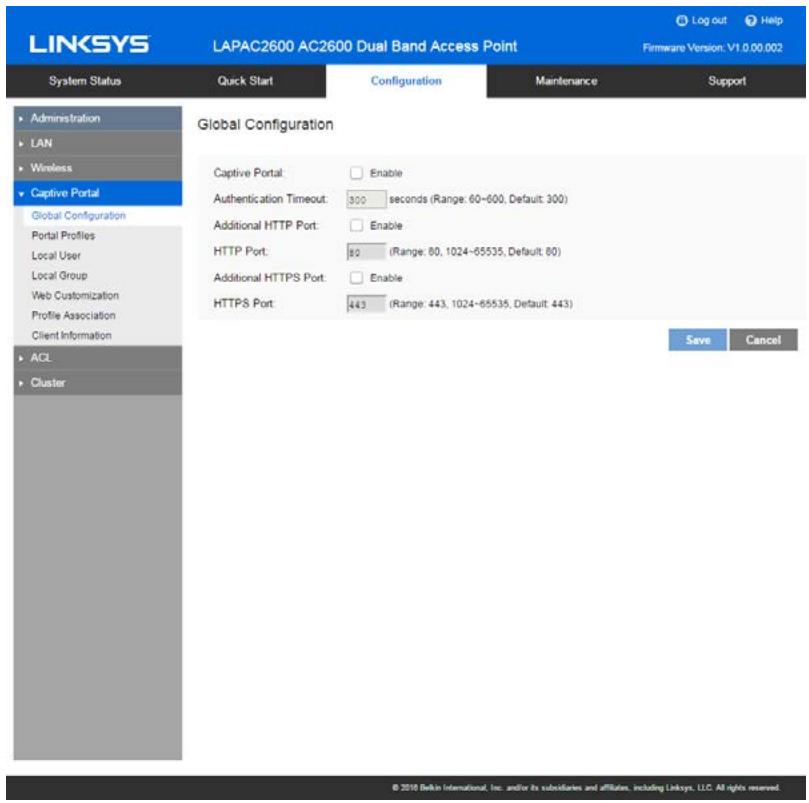
| Captive Portal | Enable or Disable Captive Portal function globally. Captive Portal is disabled by default. |
| Authentication Timeout | The number of seconds the access point keeps an authentication session open with a wireless client. If the client fails to enter authentication credentials within the timeout period, the client may need to refresh the web authentication page. The range is from 60 to 600 seconds. Default is 300. |
| Additional HTTP Port | HTTP portal authentication uses the HTTP management port by default. You can configure an additional port for that process. |
| HTTP Port | Once Additional HTTP Port is enabled, define an additional port for HTTP protocol. The value can be 80 or 1024 to 65535 and is 80 by default. The HTTP Port must be different from the HTTP port in Administration > Management Access page. |
| Additional HTTPS Port | HTTPS portal authentication uses the HTTPS management port by default. You can configure an additional port for that process. |
| HTTPS Port | Once Additional HTTPS Port is enabled, define an additional port for HTTPS protocol. The value can be 443 or 1024 to 65535 and is 443 by default. The additional HTTPS Port must be different from the HTTPS port in Administration > Management Access page. |
Portal Profiles
Go to Configuration > Captive Portal > Portal Profiles to define detailed settings for Captive Portal profile. Create up to two profiles.
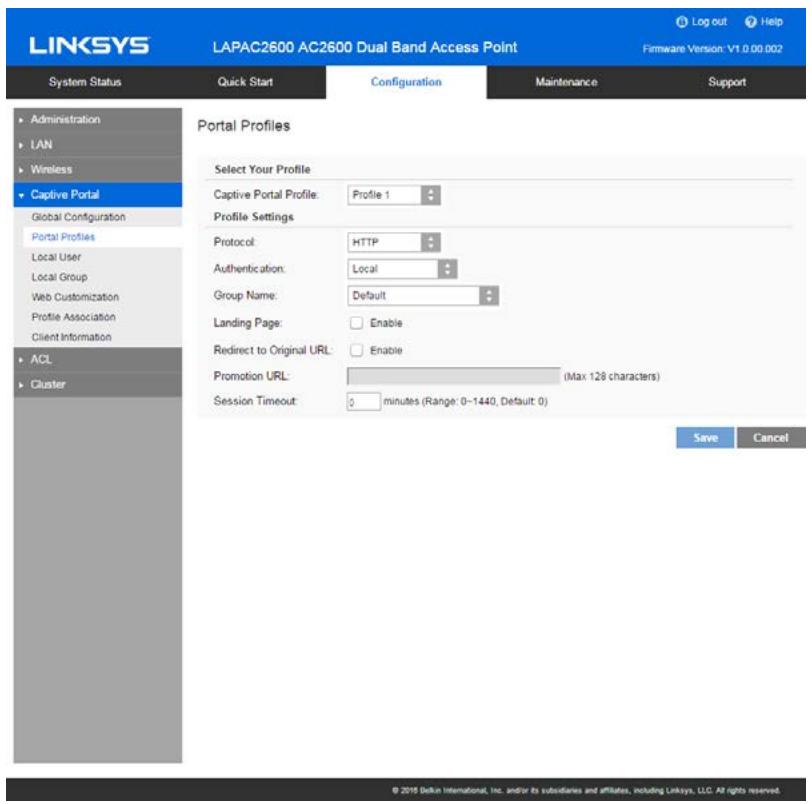
| Portal Profiles | |
| Captive Portal Profile | Select a profile to configure. |
| Protocol | Select the protocol used to access the Portal Authentication web server. It can be HTTP or HTTPS. |
| Authentication | Select an authentication method for clients. Local - The access point uses a local database to authenticated wireless clients. Radius - The access point uses a database on a remote RADIUS server to authenticate wireless clients. The RADIUS server must support EAP-MD5. Password Only - Wireless clients only need a password.Username is unnecessary. No Password - Wireless clients accept defined terms to access the wireless network. Password and username both are unnecessary. |
| Landing Page | Enable Landing Page to determine where authenticated wireless clients will be directed after logging in at Captive Portal. Choose Original URL or Promotion URL. |
| Redirect to Original URL | If Landing Page is enabled, this setting redirects authenticated wireless clients from the Captive Portal login screen to the URL the user typed in. |
| Promotion URL | Enter a URL to which authenticated clients will be redirected from the Captive Portal login page. Landing Page must be enabled and Redirect to Original URL must be disabled. |
| Session Timeout | Set the session time in minutes. The access point will disconnect authenticated clients when the session time expires. Session time can range from 0 to 1440 minutes. The default is 0 minutes, which means no timeout. |
| Local Authentication | |
| Group Name | Assigns an existing group to the profile. All users who belong to the group are permitted to access the network through this portal. The option 'Default' means a group which includes all users. |
| Radius Authentication | |
| Primary Server | Enter the IP address of the RADIUS Server on your network. |
| Primary Server Port | Enter the port number used for connections to the RADIUS Server. |
| Primary Shared Secret | Enter the key value to match the RADIUS Server. |
| Backup Server | The Backup Authentication Server will be used when the Primary Authentication Server is not available. |
| Backup Server Port | Enter the port number used for connections to the Backup RADIUS Server. |
| Backup Shared Secret | Enter the key value to match the Backup RADIUS Server. |
| Password Only Authentication | |
| Password | The password for the profile. Wireless clients only need one password to access the wireless network. |
Local User
- Go to Configuration > Captive Portal > Local User to configure user settings for Captive Portal. Up to 128 users are supported.
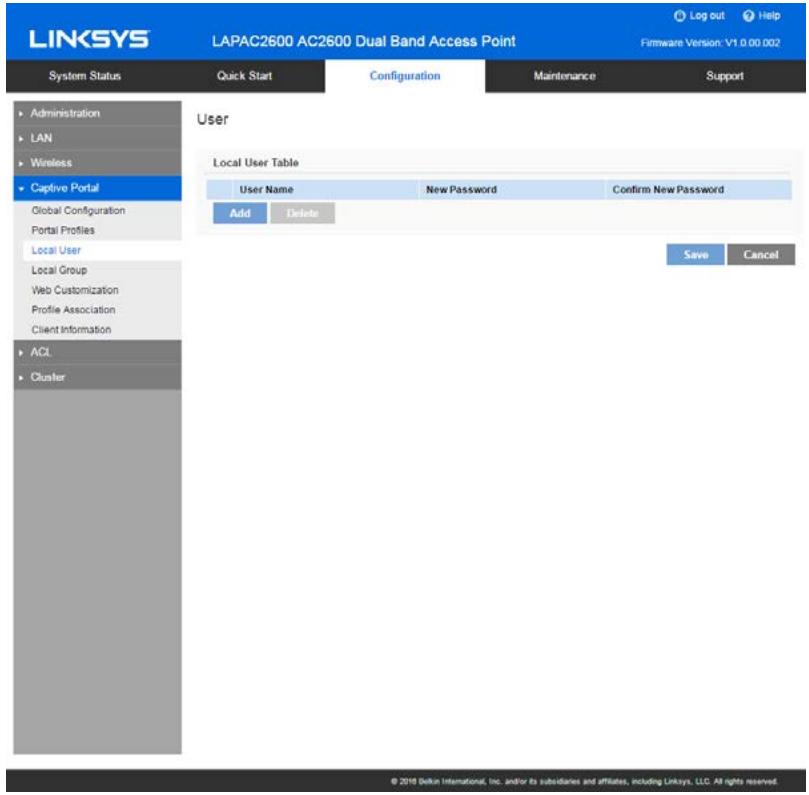
| User Name | Enter the name of the user account. The user name includes 1 to 32 characters. Special characters except ': and ';' are allowed. |
| Password | Enter the password of the user account. The password must be between 4 and 32 characters in length. Special characters except ': and ';' are allowed. |
| Confirm Password | Re-enter the password to confirm it. |
Local Group
Go to Configuration > Captive Portal > Local Group to configure group settings. Groups include multiple local users and are mapped to Captive Portal profiles. Up to two groups are supported.
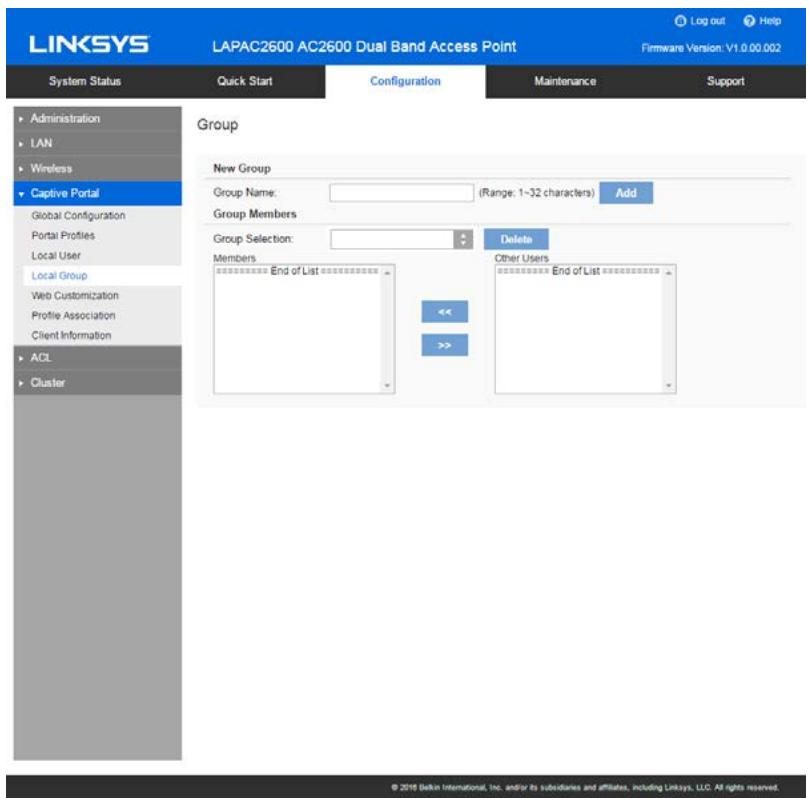
| Group Name | Enter the name of the new group. The group name includes 1 to 32 characters. Special characters except ': and ';' are allowed. Click Add. |
| Group Selection | Select one group to delete or configure its user members. |
| Members | User members of the selected group. You can select one user and click ">=" button to remove it. |
| Other Users | Other users which don't belong to the selected group. You can select one user and click "<=" button to add it into the group. |
Web Customization
Go to Configuration > Captive Portal > Web Customization to customize the authentication web page of Captive Portal.
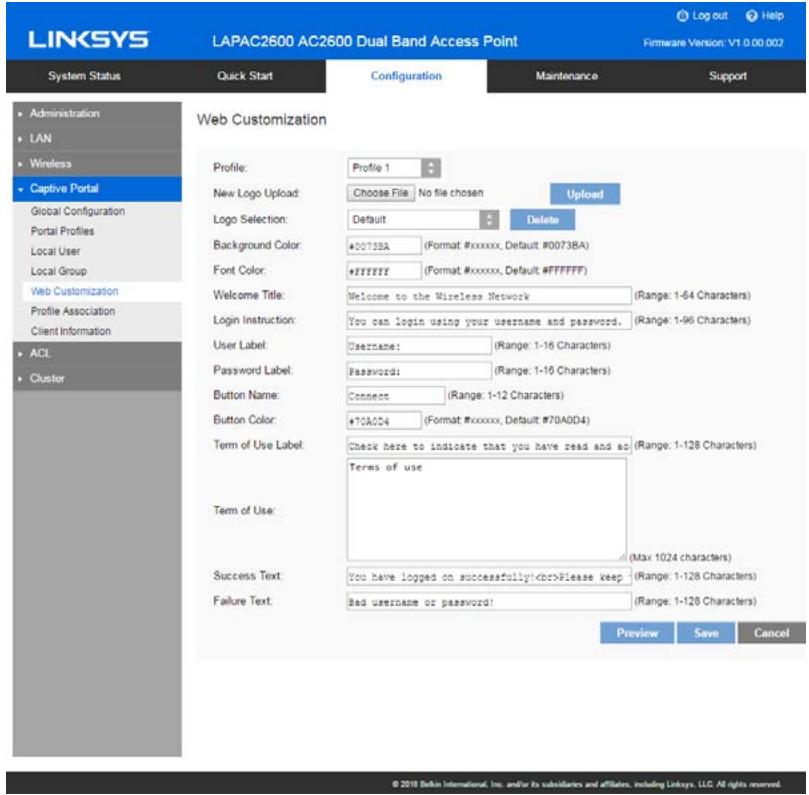
| Profile | Select a profile to configure. |
| New Logo Upload | Logos display in the web page. Select an image file from your local PC and click Upload. Formats .gif, .png and .jpg are supported. File size cannot exceed 5KB. One profile can support one default and one new logo image. If a second new logo is uploaded, it will replace the first new logo. |
| Logo Selection | Select a logo image from the list. |
| Background Color | The HTML code for the background color in 6-digit hexadecimal format. The default is #0073BA. |
| Font Color | The HTML code for the font color in 6-digit hexadecimal format. The default is #FFFFFF. |
| Welcome Title | Customize text to go with your logo. The default is Welcome to the Wireless Network. |
| Login Instruction | Customize text to go with the login box. Default text for different authentication options: Local Authentication/Radius Authentication You can login using your username and password. Password Only Authentication You can login using your password. Local Authentication Click Connect to login. |
| User Label | Customize the username text box. Enter up to 16 characters. The default isUsername. |
| Password Label | Customize the user password text box. Enter up to 16 characters. The default is Password. |
| Button Name | Customize the text that appears in the log in button. Enter up to 12 characters. The default is Connect. |
| Button Color | The HTML code for the background color of the button in 6-digit hexadecimal format. The default is #70A0D4. |
| Terms of Use Label | Customize the text to go with the checkbox. Enter up to 128 characters. The default is Check here to indicate that you have read and accepted the following Terms of Use. |
| Terms of Use | Customize the text to go with Terms of Use. Enter up to 1024 characters. The default is Terms of Use. |
| Success Text | Customize the text that shows when the client has been authenticated. The default is You have logged on successfully! Please keep this window open when using the wireless network. |
| Failure Text | Customize the text that shows when authentication fails. Enter up to 128 characters. The default is Bad username or password. |
Profile Association
Go to Configuration > Captive Portal > Profile Association to associate defined Captive Portal profiles with SSIDs.
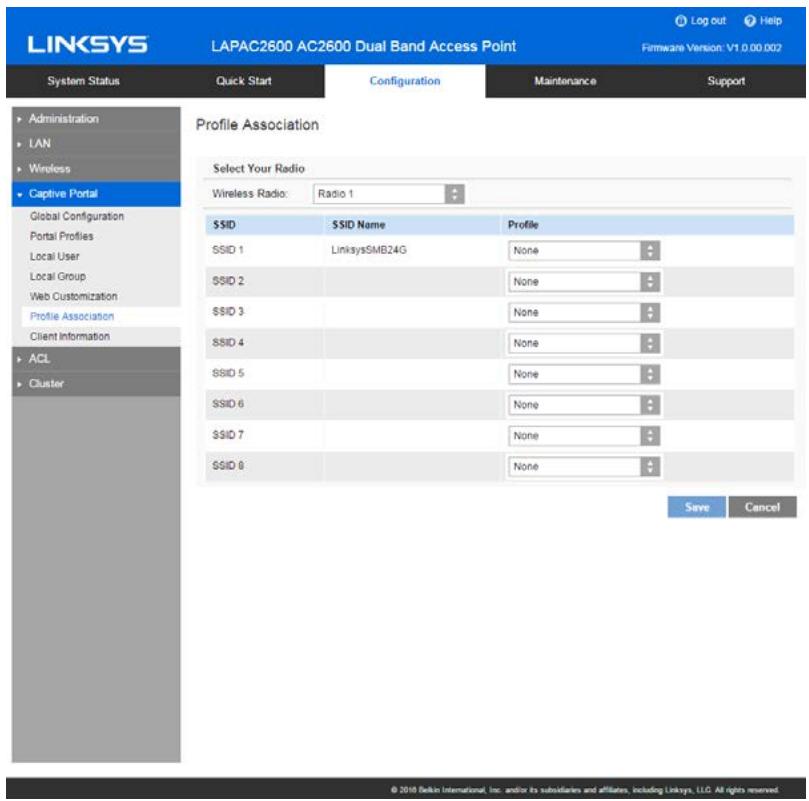
| SSID | A list of available SSIDs. |
| SSID Name | The name of theSSID. |
| Profile Name | Choose the profile that is associated with theSSID. If the profile associated with theSSID is deleted, then the association will be removed. If None is selected, it means no profile is associated. |
Client Information
Go to Configuration > Captive Portal > Client Information to view the status of wireless clients that are authenticated by Captive Portal.
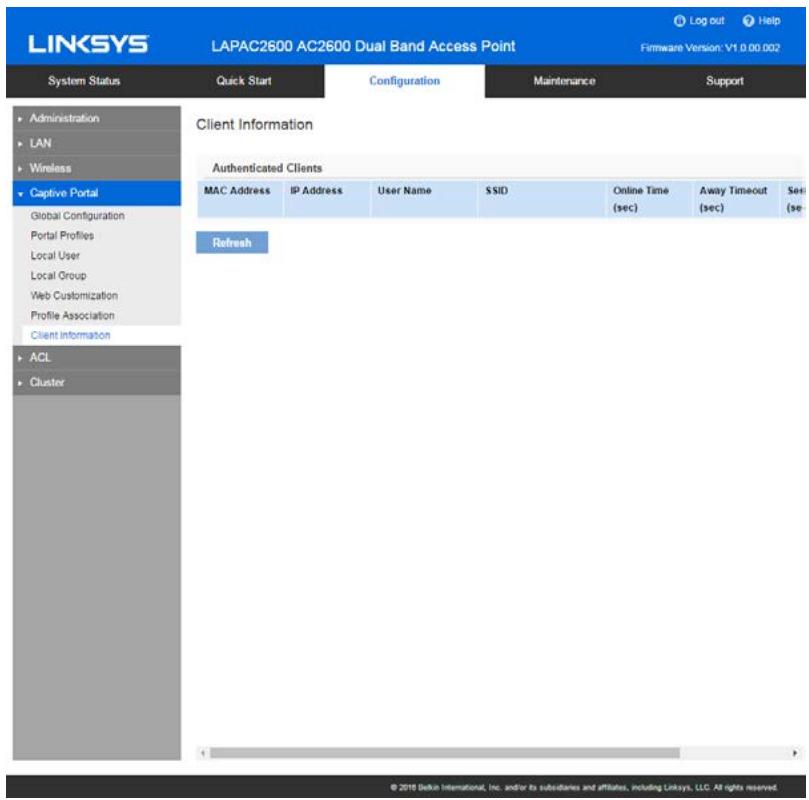
| MAC Address | MAC address of the client. |
| IP Address | IP address of the client. |
| User Name | User name used by the client to log in. |
| SSID Name | Name of theSSID to which the client is connected. |
| Online Time | How long the client has been online. Measured in seconds. |
| Away Timeout | An authenticated client that has been disconnected from the access point has a specific amount of time within which it may reconnect without re-authentication. The timer starts when the client disconnects from theSSID. After the time reaches zero, the client is de-authenticated. If the timeout is set to 0, the client is not de-authenticated. Measured in seconds. |
| Session Timeout | The remaining time of the authenticated session. The timer starts when the client is authenticated. After the time reaches zero, the client is de-authenticated. If the value is fixed to 0, the session won't time out. Measured in seconds. |
ACL
ACLs are a collection of permit and deny conditions that can block unwarranted attempts to reach network resources.
Each ACL is a set of up to 10 rules. Each rule specifies whether the contents of a given field should be used to permit or deny access to the network. Rule can be based on various criteria and may apply to one or more fields with a packet. The priority of each rule will be determined by the rule index. Rule index number 1 has the highest priority to process and rule index number 10 is the last one to process. There is an implicit deny for traffic that does not match any rules.
Once ACL has been created and configured, bind your ACL to the wireless interface. The ACL can be applied to the traffic sent from a wireless client to the access point (upstream) or from the access point to a wireless client (downstream).
To create ACLs and associate them to an interface, perform the following steps.
- Create ACLs.
To add a new ACL, type in a name and choose IPv4 or IPv6. Click Add ACL. To add a rule to a specific ACL, select the ACL name from the ACL Names dropdown list, and select a priority from the Rule Index dropdown list. After that, you can define what kind of traffic to permit or deny. Always remember there is an implicit deny for traffic that does not match any rules.
- Associate the ACL with wireless interfaces by using ACL Association page.
To modify ACLs not in use, you have the following options.
- You can unbind the ACL from a specific wireless interface by selecting None on the ACL Association page.
- If you don't need an ACL anymore, you can delete it. To delete an ACL, select it from the ACL Name dropdown list and click Delete ACL.
- If you like to delete a rule associated with an ACL, click Reset next to Rule Index. That rule will go back to default mode, all matching criteria for this specified rule will be gone.
ACL Profiles
Go to Configuration > ACL > ACL Profiles to configure ACL profiles and their rules.
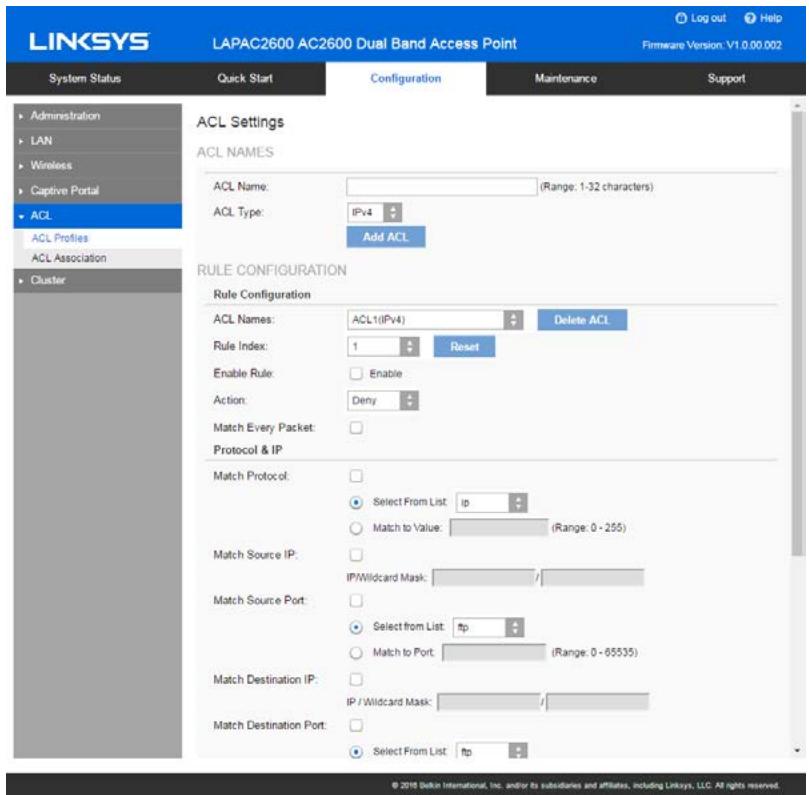
| ACL Profile | |
| ACL Name | A name can include from 1 to 32 alphanumeric characters to identify an ACL. |
| ACL Type | Configuration type of ACL is IPv4 or IPv6. Click Add ACL to add one new ACL profile. |
| Rule Configuration | |
| ACL Names | Select a profile to configure. An ACL profile includes ACL name and type. Click Delete ACL to delete an ACL. |
| Rule Index | Select and configure a new rule for the selected ACL. |
| Enable Rule | Enable or disable the ACL rule. It's disabled by default. |
| Action | Whether the ACL rule permits or denies an action. |
| Match Every Packet | Rule matches the frame or packet regardless of its contents. If this is checked, you cannot configure any other matching condition listed below; e.g., Protocol, Source IP/Port, Destination IP/Port. |
| Match Protocol | Use a Layer 3 or Layer 4 protocol as a matching condition. Set the protocol value with following methods. • Select From List IP - Internet Protocol ICMP - Internet Control Message Protocol IGMP - Internet Group Management Protocol TCP - Transmission Control Protocol UDP - User Datagram Protocol • Match to Value Set a protocol with protocol ID from 0 to 255. |
| Match Source IP | Permit or deny packet by source IP address. ·If the ACL type is IPv4, set an IPv4 address and its wildcard mask. |
| Note—Wildcard 0 means to match that value, 1 means don't match. For example, a mask of 0000 0000 0000 0000 0000 1111 1111 which means that you match on the bits where there is 0 and don't match on the bits where there are 1s. You need to translate the 1s to a decimal integer and you write 0 for each four zeros. In this example since 1111 1111 equals to 255, the wildcard mask would be written as 0.0.0.255. To match traffic by source IP address from 192.168.2.0 to 192.168.2.254, enter the source IP as 192.168.2.0 and wildcard mask as 0.0.0.255. To match a specific source IP address e.g. 192.168.2.100, enter the source IP as 192.168.2.100 and wildcard mask as 0.0.0.0. | |
| ·If the ACL type is IPv6, set an IPv6 address and its prefix length. The range for IPv6 prefix length is 0 to 128. | |
| Match Source Port | Permit or deny packet by a source port identified in the datagram header. ·Select from List FTP - Port 21 FTP Data - Port 20 HTTP - Port 80 SMTP - Port 25 SNMP - Port 161 Telnet - Port 23 TFTP - Port 69 ·Match to Port Enter a single destination port number for matched packets. The port range is 0-65535. |
| Match Destination IP | Permit or deny packet by destination IP address. ·If the type of ACLs is IPv4, set an IPv4 address and its wildcard mask. Note—Wildcard 0 means to match that value, 1 means don't match. For example, a mask of 0000 0000 0000 0000 0000 1111 1111 which means that you match on the bits where there is 0 and don't match on the bits where there are 1s. You need to translate the 1s to a decimal integer and you write 0 for each four zeros. In this example since 1111 1111 equals to 255, the wildcard mask would be written as 0.0.0.255. To match traffic by destination IP address from 192.168.2.0 to 192.168.2.254, enter destination IP as 192.168.2.0 and wildcard mask as 0.0.0.255. To match a specific destination IP address e.g. 192.168.2.100, enter the destination IP as 192.168.2.100 and wildcard mask as 0.0.0.0. ·If the type of ACLs is IPv6, set an IPv6 address and its prefix length as destination IP. The range for IPv6 prefix length is 0 to 128. |
| Match Destination Port | Permit or deny packet by a destination port identified in the Datagram header. ·Select from List Choose a port by port name. FTP - Port 21 FTP Data - Port 20 HTTP - Port 80 SMTP - Port 25 SNMP - Port 161 Telnet - Port 23 TFTP - Port 69 ·Match to Port Enter a single destination port number for matched packets. The port range is 0-65535. |
| Match IP DSCP | Matches packets based on IP DSCP value. · Select From List Choose a DSCP value from the list. default Match packets with default dscp (000000) af11 Match packets with AF11 dscp (001010) af12 Match packets with AF12 dscp (001100) af13 Match packets with AF13 dscp (001110) af21 Match packets with AF21 dscp (010010) af22 Match packets with AF22 dscp (010100) af23 Match packets with AF23 dscp (010110) af31 Match packets with AF31 dscp (011010) af32 Match packets with AF32 dscp (011100) af33 Match packets with AF33 dscp (011110) af41 Match packets with AF41 dscp (100010) af42 Match packets with AF42 dscp (100100) af43 Match packets with AF43 dscp (100110) cs1 Match packets with CS1(precence 1) dscp (001000) cs2 Match packets with CS2(precence 2) dscp (010000) cs3 Match packets with CS3(precence 3) dscp (011000) cs4 Match packets with CS4(precence 4) dscp (100000) cs5 Match packets with CS5(precence 5) dscp (101000) cs6 Match packets with CS6(precence 6) dscp (110000) cs7 Match packets with CS7(precence 7) dscp (111000) ef Match packets with EF dscp (101110) · Match to Value A custom DSCP value from 0 to 63. |
| Match IP Precedence | Matches packets based on their IP Precedence value from 0 to 7. This is applicable only when the type of ACLs is IPv4. |
| Match IP TOS | Matches a type of service from the dropdown list. This is applicable only when the type of ACLs is IPv4. Normal Service - 0000 Minimize Monetary Cost - 0001 Maximize Reliability - 0010 Maximize Throughput - 0100 Minimize Delay - 1000 |
| IPv6 Flow Label | A number that is unique to an IPv6 packet is used by end stations to signify QoS handling in routers. The range is 0 to 1048575. |
ACL Association
Go to Configuration > ACL > ACL Association to associate defined ACL profiles with SSIDs.
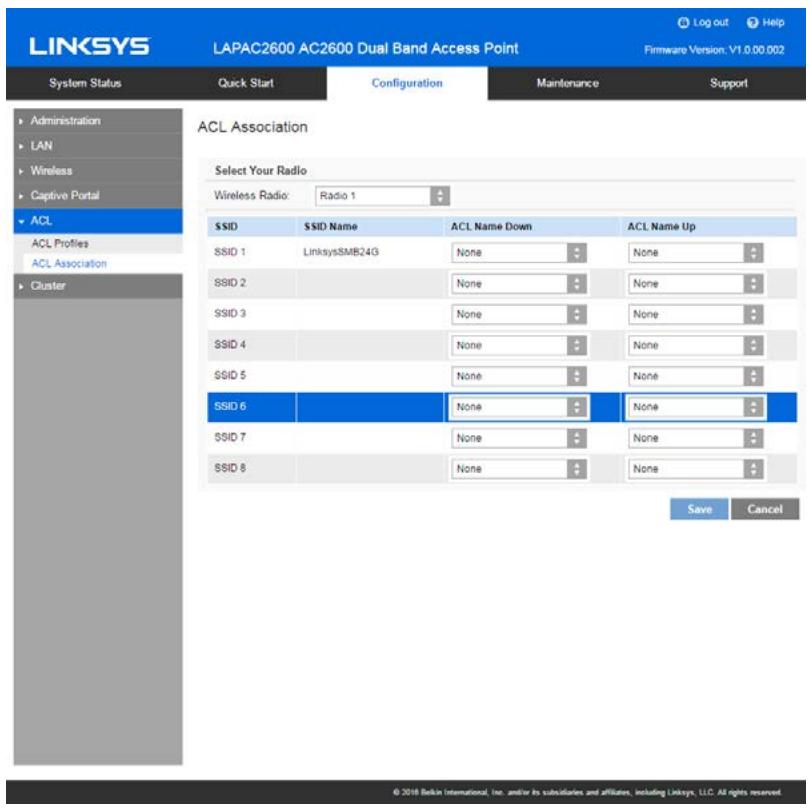
ACL Association
| SSID | The index ofSSID. |
| ACL Name Down | Choose the profile that is associated with theSSID for downstream (from access point to wireless client) traffic. If the profile associated with theSSID is deleted, the association will be removed. If None is selected, no profile is associated. After switching the packet or frame to the outbound interface, the ACL's rules are checked for a match. The packet or frame is transmitted if it is permitted and discarded if it is denied. |
| ACL Name Up | Choose the profile that is associated with theSSID for upstream (from wireless client to access point) traffic. If the profile associated with theSSID is deleted, the association will be removed. If None is selected, no profile is associated. When a packet or frame is received by the access point, the ACL's rules are checked for a match. The packet or frame is processed if it is permitted and discarded if it is denied. |
Cluster
The cluster function provides a centralized method to administer and control wireless services across multiple devices. When access points are clustered, you can view, deploy, configure, and secure the wireless network as a single entity.
The access points within a cluster must have the same management VLAN configured. A cluster can support 16 LAPAC2600access points as long as they are same model number.
In each cluster, one access point must be manually configured as the master access point. There can only be one master in a cluster. This master will propagate configuration information, such as wireless settings, time settings etc. to the other team members within a cluster. Login to the master access point to change sharable parameter settings instead of slaves.
When firmware is upgraded on the master, all slaves within the same cluster will receive the upgrade.
Clustered access points share these configurations:
- User Accounts
Time Settings - Log Settings
Management Access
Discovery Settings
IGMP/MLD Snooping - Wireless Network Mode
SSID Settings
- Wireless Security
Rogue AP Detection
- Wireless Scheduler
- Wireless Scheduler Association
- Wireless Connection Control
- Rate Limit
QoS
Advanced Wireless Settings
Captive Portal Settings - Ethernet Port Settings
- VLAN Settings
ACL Settings
These configurations are not shared by clustered access points:
IP Settings
WDS
Output Power
- Hostname
Workgroup Bridge
Wireless Channel
802.1x Supplicant
Settings & Status
Go to Configuration > Cluster > Settings & Status to manage the AP cluster function.
Choose a member type.
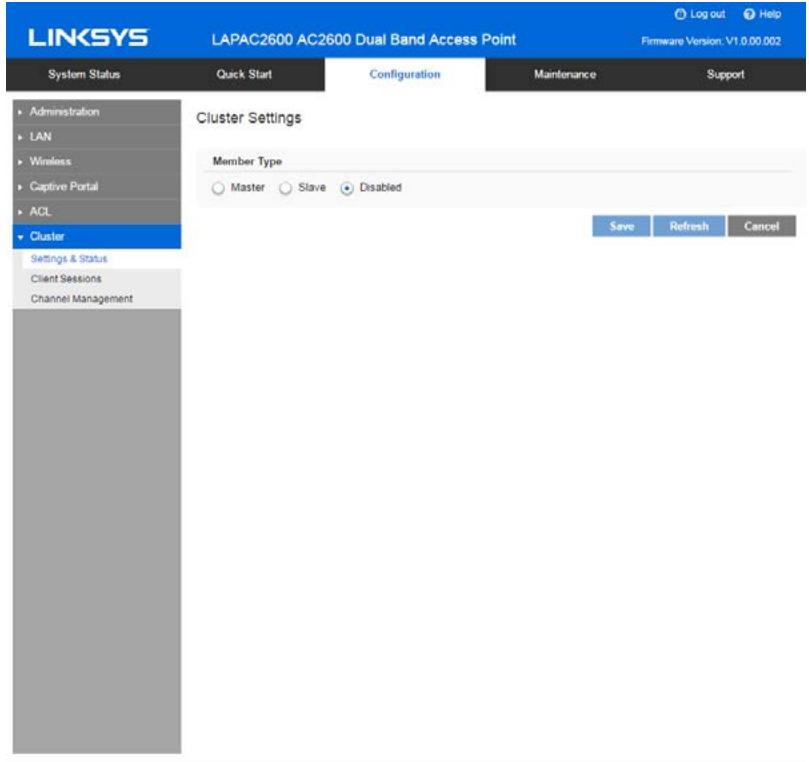
| Type | Disabled—Disable the cluster function. Master—Enable the cluster function and assign the access point to be the master. Note—If system detects there is one Master already existed in the same cluster, the new access point that likes to become master will be assigned to slave automatically. Slave—Enable the cluster function and assign the access point to be the slave. Note—When the cluster function is enabled, WDS and workgroup bridge will be disabled automatically. |
Master
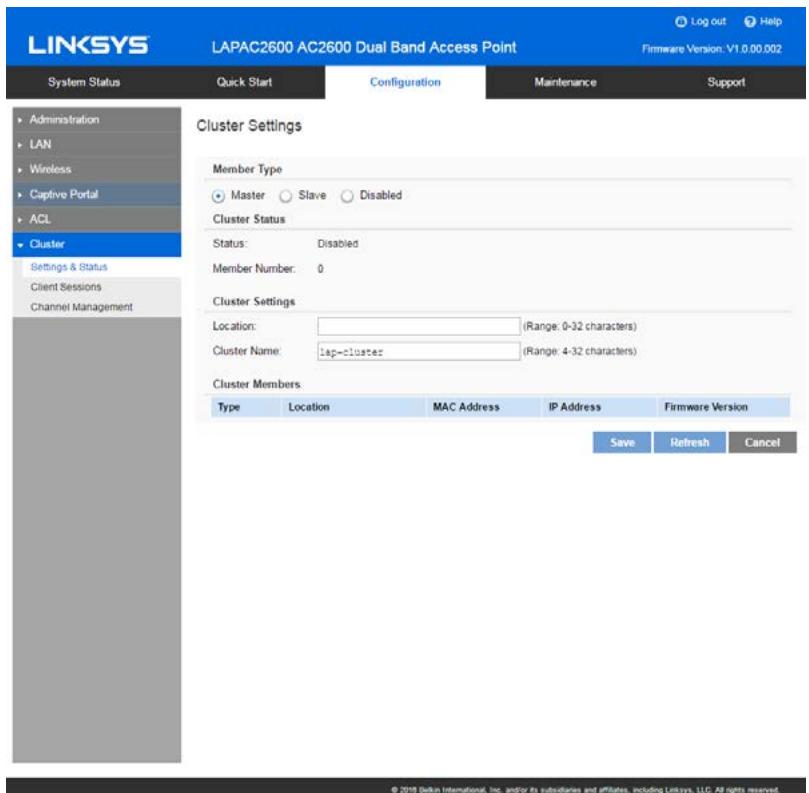
| Status | Disabled—Cluster function is disabled. Active—Cluster function is enabled and master is active. Active (Backup Master)—Cluster function is enabled and backup master is active. Inactive (Cannot reach the master)—Cluster function is enabled but it's inactive because device cannot reach the master. |
| Member Number | Number of the active members in the cluster. If an access point joins the cluster but is powered off or cannot reach the master, it is not counted. |
| Location (Optional) | Where the access point is physically located; for example, Reception. Length is from 0 to 32 bytes. |
| Cluster Name | Name of the cluster for the LAP device to join; for example, “lab cluster”. All access points with the same cluster name belong to the same cluster. Length of this value is from 4 to 32 bytes and special characters are allowed. This is a mandatory field if the cluster function is turned on. |
| Backup Master | When an access point works as a cluster slave, it can be enabled as a backup master. When master gets offline, it will take the role of master. When the backup master begins to work, it will send advertisements and slaves will send keep-alive and report sessions to it. When shareable settings are modified in it, it will share them to all slaves. When master gets online again, this backup master AP will stop the master function and let original master AP take over master role. |
Client Sessions
Go to Configuration > Cluster > Client Sessions to see the status of wireless clients within the cluster.
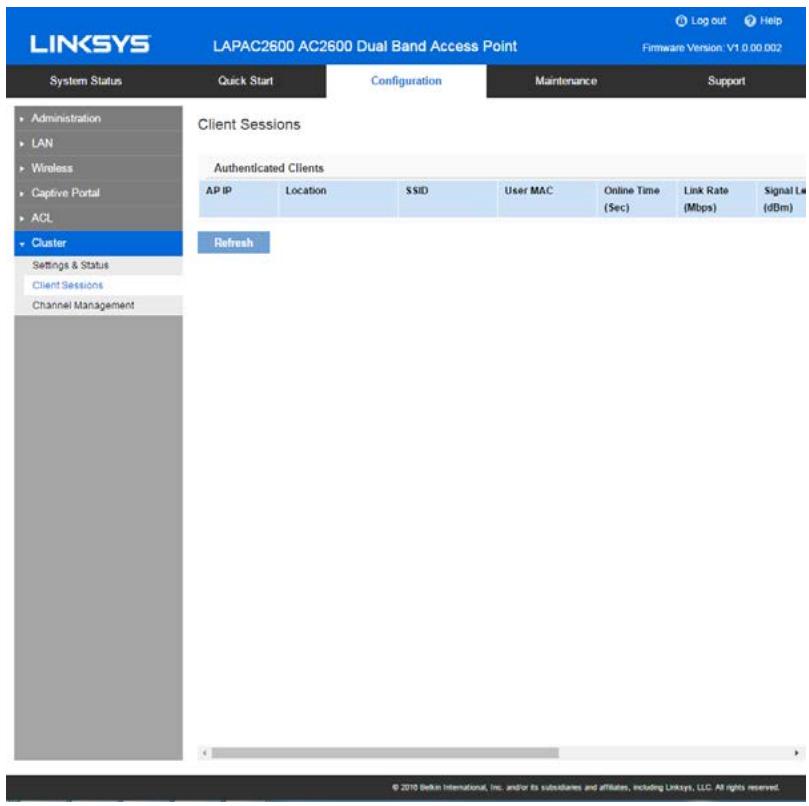
The session is the period of time in which a user on a client device (station) with a unique MAC address maintains a connection with the wireless network. The session begins when the WLAN client logs on to the network, and the session ends when the WLAN client either logs off intentionally or loses the connection for some other reason.
When one wireless client of Captive Portal roams from one access point to another in the same cluster, it need not re-authenticate.
| IP Address | IP address of the access point to which the client connects. |
| Location | Location of the access point to which the client connects. |
| SSID | SSID name of the access point to which the client connects. |
| User MAC | MAC address of the client. |
| Online Time | Displays how long this client has been online since it is authenticated. Unit is second. |
| Link Rate | Indicates the link rate of the client. Unit is Mbps. |
| Signal | The signal strength of the client is displayed. Unit is dBm. |
| Rx Total | The total bytes which are received from the client by the access point. Unit is Byte. |
| Tx Total | The total bytes which are sent to the client by the access point. Unit is Byte. |
| Rx Rate | Current transfer rate of the data which are received from the client by the access point. Unit is Kbps. |
| Tx Rate | Current transfer rate of the data which are sent to the client by the access point. Unit is Kbps. |
Channel Management
Go to Configuration > Cluster > Channel Management to manage the channel assignments for access points within a cluster.
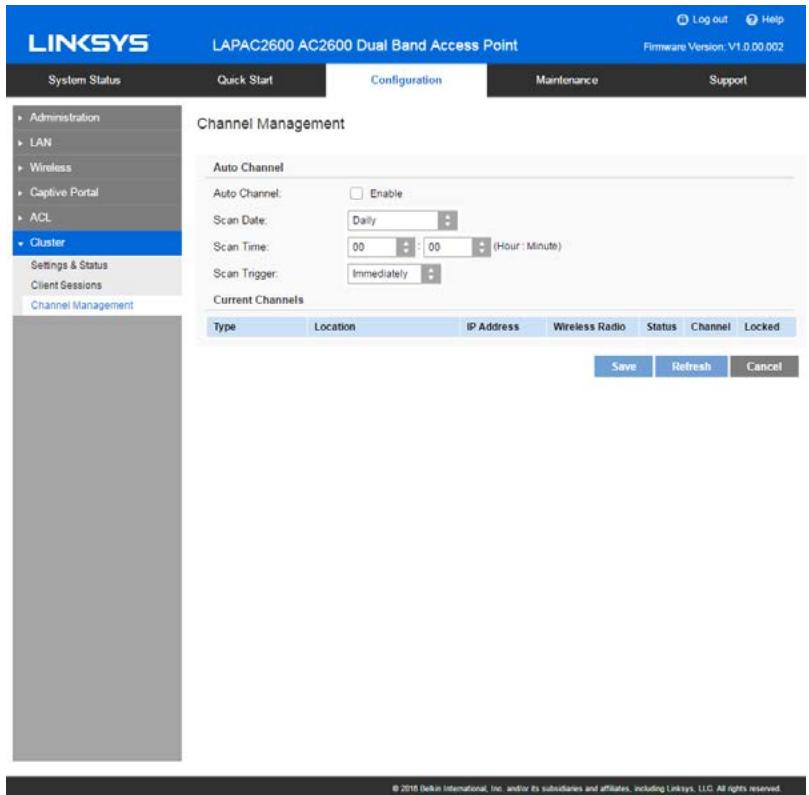
When channel management is enabled, the access point automatically assigns radio channels within a cluster. Auto channel assignment reduces mutual interference (or interference with other access points outside of its cluster) and maximizes Wi-Fi bandwidth to help maintain efficient communication over the wireless network.
| Auto Channel | |
| Auto Channel | Access point scans available Wi-Fi channels and changes the channel if better network performance is possible. Disabled by default. |
| Scan Day | Choose the day of the week when Auto Channel scans Wi-Fi channels. You may choose specific days or have the access point scan and select the best channel daily. |
| ScanTime | Choose the time of day when Auto Channel performs scan. |
| Scan Trigger | Because Auto Channel will change the channel if it finds a better one, you can choose when to allow a scan. • Immediately - Scan according to the day/time specified. • No Clients - Scan only if no clients are connected to the wireless radio. If there are clients connected, the access point will complete the Auto Channel operation the next scheduled time when no clients are connected. |
| Current Channels | |
| Type | Member type of the access point. It can be Master, Slave or Backup Master. |
| Location | Where the access point is physically located |
| IP Address | IP address of the access point. |
| Wireless Radio | 1 stands for 2.4Ghz radio, and 2 stands for 5Ghz radio. |
| Status | Status of the wireless radio. It can be Active or Inactive. |
| Channel | Current channel number of the wireless radio. |
| Locked | Select if you feel the current channel is the best for that radio. |
Chapter 4 - System Status
Status
System Summary
Go to System Status > Status > System Summary for status of the access point.
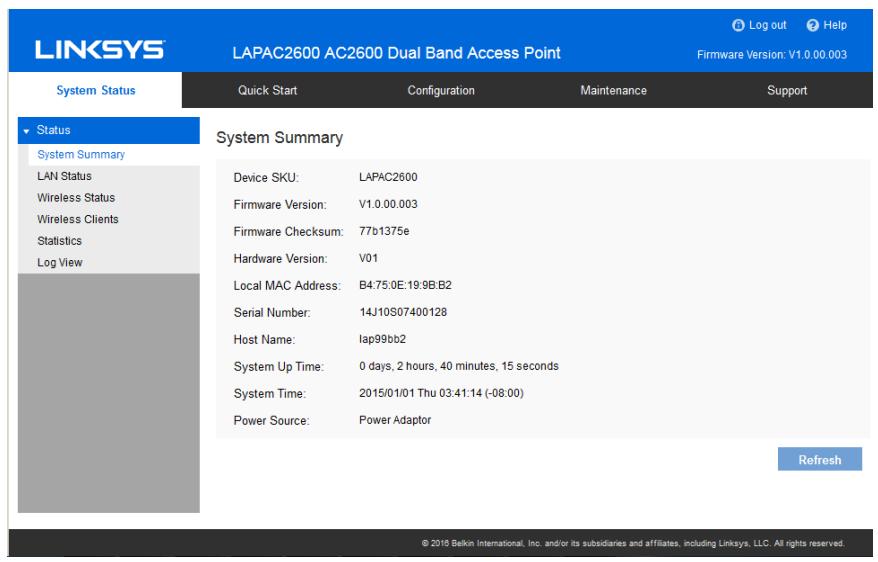
| System Summary | |
| Device SKU | The SKU is often used to identify device model number and region. |
| Firmware Version | The version of the firmware currently installed. |
| Firmware Checksum | The checksum of the firmware running in the access point. |
| Hardware Version | The version of the hardware. |
| Local MAC Address | The MAC (physical) address of the wireless access point. |
| Serial Number | The serial number of the device. |
| Host Name | The host name assigned to the access point. |
| System Up Time | How long the system has been running since the last restart or reboot. |
| System Time | The current date and time. |
| Power Source | The power source of the access point. It can be Power over Ethernet (PoE) or Power Adapter. When two power sources are plugged in, Power Adaptor will be displayed. |
| LAG Status | Indicates the status of LAG (Link Aggregation). It can be "Inactive" or "Active" ·When LAG is inactive, only one Ethernet port works at a given time. ·LAG only works when link speed and duplex of the two Ethernet ports are the same and duplex must be Full. LACP does not support half-duplex. ·LAG is based on 802.3ad LACP (Link Aggregation Control Protocol) so it works only when link ends of the two Ethernet ports of the Access Ports also support 802.3ad LACP and enable it. |
| Buttons | |
| Refresh | Click to update the data on the screen. |
LAN Status
Go to System Status >Status >LAN Status to see settings and status of LAN interface.
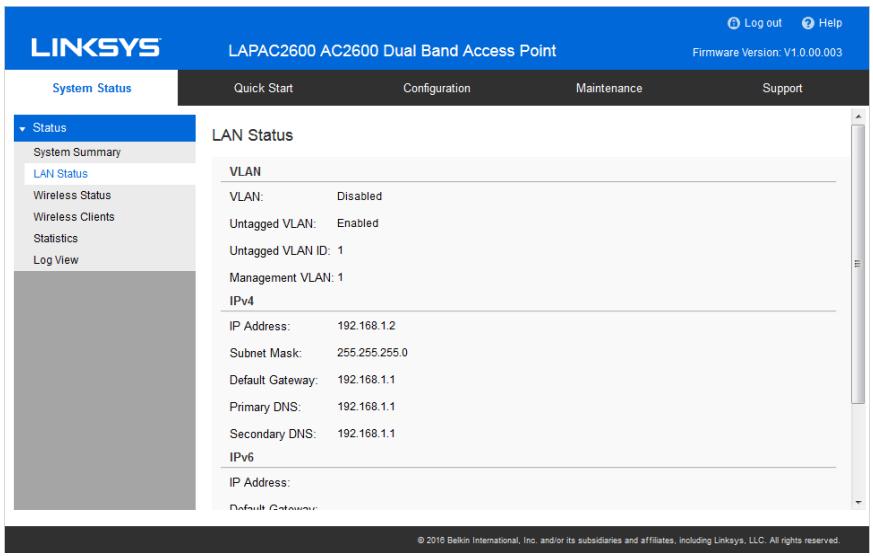
| VLAN | |
| VLAN | Enabled or disabled (default). |
| Untagged VLAN | Enabled (default) or disabled. When enabled, and if its VLAN ID is equal to Untagged VLAN ID, all traffic is untagged when sent from LAN ports. Untagged traffic can be accepted by LAN ports. If disabled, traffic is always tagged when sent from LAN port and only tagged traffic can be accepted from LAN port. By default, all traffic on the access point uses VLAN 1, the default untagged VLAN. This means that all traffic is untagged until you disable the untagged VLAN, change the untagged traffic VLAN ID, or change the VLAN ID for a SSID. |
| Untagged VLAN ID | Displays the untagged VLAN ID. Traffic on the VLAN that you specify in this field is not be tagged with a VLAN ID when forwarded to the network. VLAN 1 is the default ID for untagged VLAN and management VLAN. |
| Management VLAN | Displays the Management VLAN ID. The VLAN associated with the IP address you use to connect to the access point. Provide a number between 1 and 4094 for the Management VLAN ID. The default is 1. This VLAN is also the default untagged VLAN. If you already have a management VLAN configured on your network with a different VLAN ID, you must change the VLAN ID of the management VLAN on the access point. |
| IPv4/v6 | |
| IP Address | The IP address of the wireless access point. |
| Subnet Mask | The Network Mask (Subnet Mask) for the IP address above. |
| Default Gateway | Enter the gateway for the LAN segment to which the wireless access point is attached (the same value as the PCs on that LAN segment). |
| Primary DNS | The primary DNS address provided by the DHCP server or configured manually. |
| Secondary DNS | The secondary DNS address provided by the DHCP server or configured manually. |
Wireless Status
Go to System Status >Status >Wireless Status to see settings and status of wireless radios and SSDs.
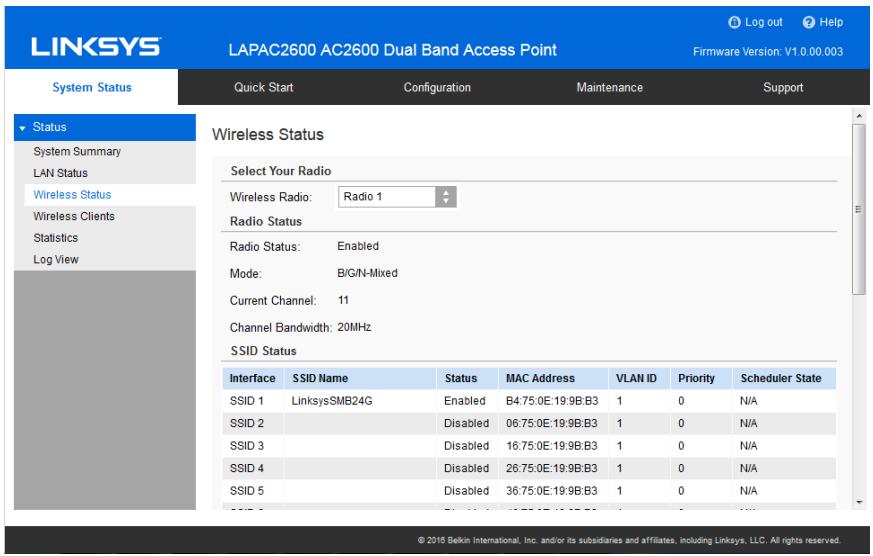
| Radio Status | |
| Wireless Radio | Select the desired radio from the list. Radio 1 is for 2.4GHz, and Radio 2 is for 5GHz. |
| Radio Status | Indicates whether the radio is enabled. |
| Mode | Current 802.11 mode (a/b/g/n/ac) of the radio. |
| Channel | The channel currently in use. |
| Channel Bandwidth | Current channel bandwidth of the radio. When set to 20 MHz, only the 20 MHz channel is in use. When set to 20/40 MHz, Wireless-N connections will use 40 MHz channel, but Wireless-B and Wireless-G will still use 20 MHz channel. |
| SSID Status | |
| Interface | SSID index. |
| SSID Name | Name of theSSID. |
| Status | Status of theSSID: Enabled or Disabled. |
| MAC Address | MAC Address of theSSID. |
| VLAN ID | VLAN ID of theSSID. |
| Priority | The 802.1p priority of theSSID. |
| Scheduler State | N/A-No scheduler is enabled on theSSID, or theSSID is disabled by administrator. Active-TheSSID is enabled. Inactive-TheSSID is disabled. |
| WDS Root | |
| Status | Status of the WDS Root: Enabled or Disabled. |
| Local SSID | Name of the WDS Root. |
| Local MAC | MAC Address of the WDS Root. |
| VLAN List | VLAN List of the WDS Root. When VLAN function is enabled, WDS Root only receives packets in the VLAN list from WDS Stations and packets not in the list will be dropped. |
| WDS Station | |
| Interface | The index of WDS Station. |
| Status | Status of the WDS Station: Enabled or Disabled. |
| Local MAC | MAC Address of the WDS Root. |
| Remote SSID | SSID of the destination access point which is on the other end of the WDS link to which data is sent or handed-off and from which data is received. |
| Remote MAC | MAC Address of the destination access point which is on the other end of the WDS link to which data is sent or handed-off and from which data is received. |
| Connection Status | Status of the WDS Station: Disabled, Connected or Not Connected. |
| Workgroup Bridge Status | |
| Status | Status of the Workgroup Bridge: Enabled or Disabled. |
| Local MAC | MAC address of the Workgroup Bridge. |
| Remote SSID | SSID of the destination access point on the other end of the Workgroup Bridge link to which data is sent and from which data is received. |
| Remote MAC | MAC address of the destination access point on the other end of the Workgroup Bridge link to which data is sent and from which data is received. |
| Connection Status | Status of the Workgroup Bridge: Disabled, Connected or Not Connected. |
Wireless Clients
Go to System Status > Status > Wireless Clients to see connected clients based on each wireless interface.
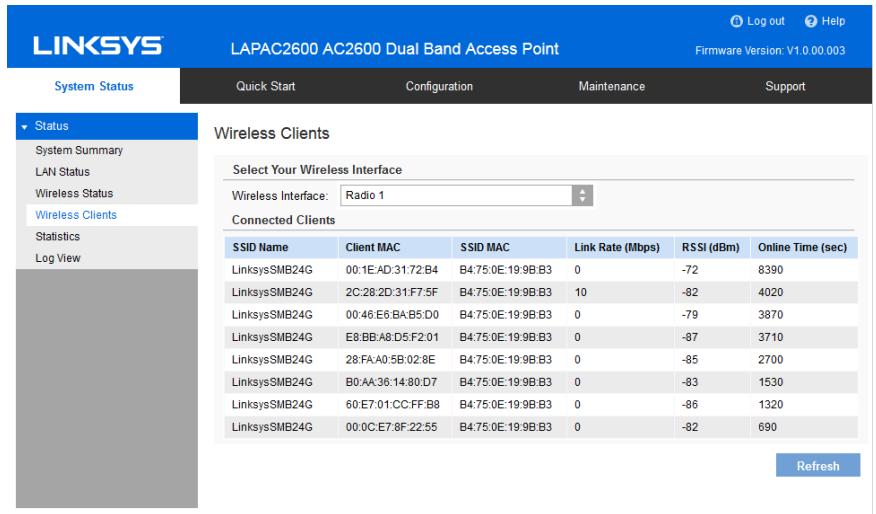
© 2016 Belkin International, Inc. and/or its subsidiaries and affiliates, including Linksys, LLC. All rights reserved.
| Wireless Interface | Select the desired interface from the list. The interfaces include eight SSIDs per radio. |
| SSID Name | Name of theSSID to which the client connects. |
| Client MAC | The MAC address of the client. |
| SSID MAC | MAC of theSSID to which the client connects. |
| Link Rate | The link rate of the client. Unit is Mbps. |
| RSSI | The signal strength of the client. Unit is dBm. |
| Online Time | How long this client has been online. Unit is seconds. |
Statistics
Go to System Status > Status > Statistics to see real-time statistics on data transmitted and received based on each SSID per Radio, and LAN interface.
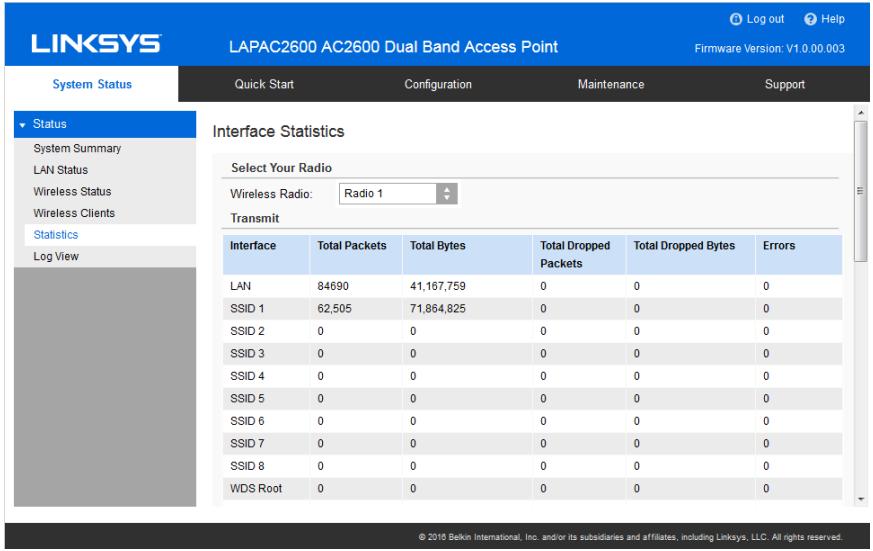
| Wireless Radio | Select the desired radio from the list. Radio 1 is for 2.4GHz, and Radio 2 is for 5GHz. |
| Transmit/Receive | • Total Packets—The total packets sent (in Transmit table) or received (in Received table) by the interface. • Total Bytes—The total bytes sent (in Transmit table) or received (in Received table) by the interface. • Total Dropped Packets—The total number of dropped packets sent (in Transmit table) or received (in Received table) by the interface. • Total Dropped Bytes—The total number of dropped bytes sent (in Transmit table) or received (in Received table) by the interface. • Errors—The total number of errors related to sending and receiving data on this interface. |
Log View
Go to System Status > Status > Log View to see a list of system events such as login attempts and configuration changes.
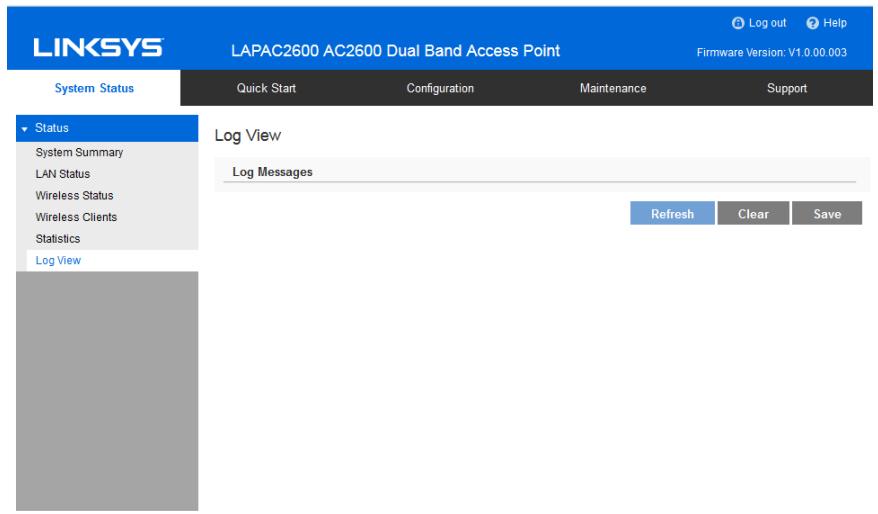
© 2016 Belkin International, Inc. and/or its subsidiaries and affiliates, including Linksys, LLC. All rights reserved.
| Log Messages | |
| Log Messages | Show the log messages. |
| Buttons | |
| Refresh | Update the data on screen. |
| Save | Save the log to a file on your PC. |
| Clear | Delete the existing logs from device. |
Chapter 5 – Maintenance
Maintenance
Firmware Upgrade
Go to Maintenance > Maintenance > Firmware Upgrade to upgrade the firmware in the wireless access point by using HTTP/HTTPS, or TFTP.
Check the Linksys support website (http://www.linksys.com/support) and download the latest firmware release to a storage device or PC. Perform the firmware upgrade by following the steps below.
If an access point works as master of an AP cluster, all slaves within the same cluster will be updated, as well.
Do not power off the device or disconnect the Ethernet cable during the upgrade. The access point will reboot automatically after the upgrade is complete.
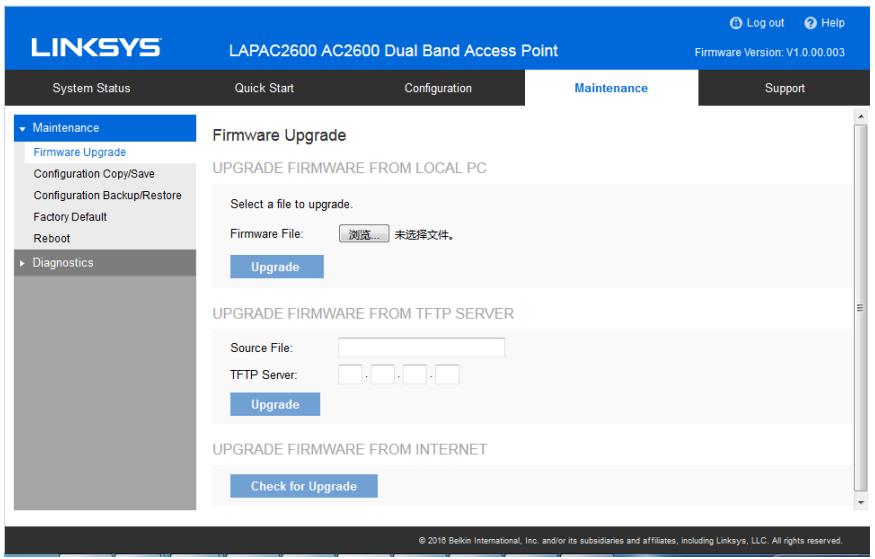
To perform the firmware upgrade from local PC:
- Click Choose File to navigate to the location of the upgrade file.
- Select the upgrade file. Its name will appear next to the Choose File button.
- Click Upgrade.
To perform the firmware upgrade from TFTP server:
- Enter the IP address of the TFTP server and the source file. The source file is the firmware filename you stored in your TFTP server. Only IPv4 addresses are supported.
- Click Upgrade.
To perform a firmware upgrade from the Internet:
- Click Check for Upgrade to see if there is new firmware available.
- Click the OK on the popup dialogue box to start the firmware download and upgrade if a new version of firmware is available.
Configuration Copy/Save
Go to Maintenance > Maintenance > Configuration Copy/Save to copy configurations within the access point and delete copied configurations.
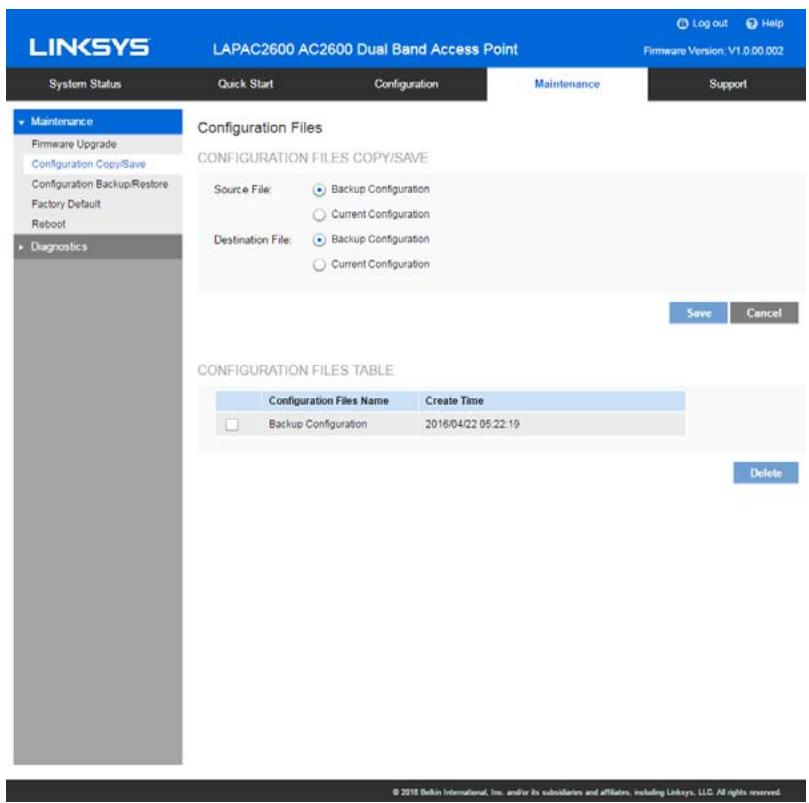
| Configuration files copy/save | |
| Configuration Files | There are two kinds of configuration files in the access point. • Backup Configuration — An additional configuration file saved in the flash memory for use as a backup. • Current Configuration — The configuration which is running in the device currently. When device boots up, device will read the settings from this file. |
| Configuration Files Copy/Save | Copy configuration file from one to another. Source Configuration can be one of following: • Backup Configuration (if it exists) • Current Configuration Destination Configuration can be one following: • Backup Configuration • Current Configuration Need note that Source Configuration and Destination Configuration cannot be same and if you copy Backup Configuration to Current Configuration, device will reboot after the copy. |
| Configuration Files Table | |
| Configuration Files Name | Configuration files which are copied in the access point. |
| Create Time | Creating time of configuration files in the access point. |
Configuration Backup/Restore
Go to Maintenance > Maintenance > Configuration Backup/Restore to download the configuration file from the device. You can save it to external storage, e.g., your PC, or network storage. You can also upload a previously saved configuration file from external storage to the device. It is highly recommended you save one extra copy of the configuration file to external storage after you are done with access point setup.
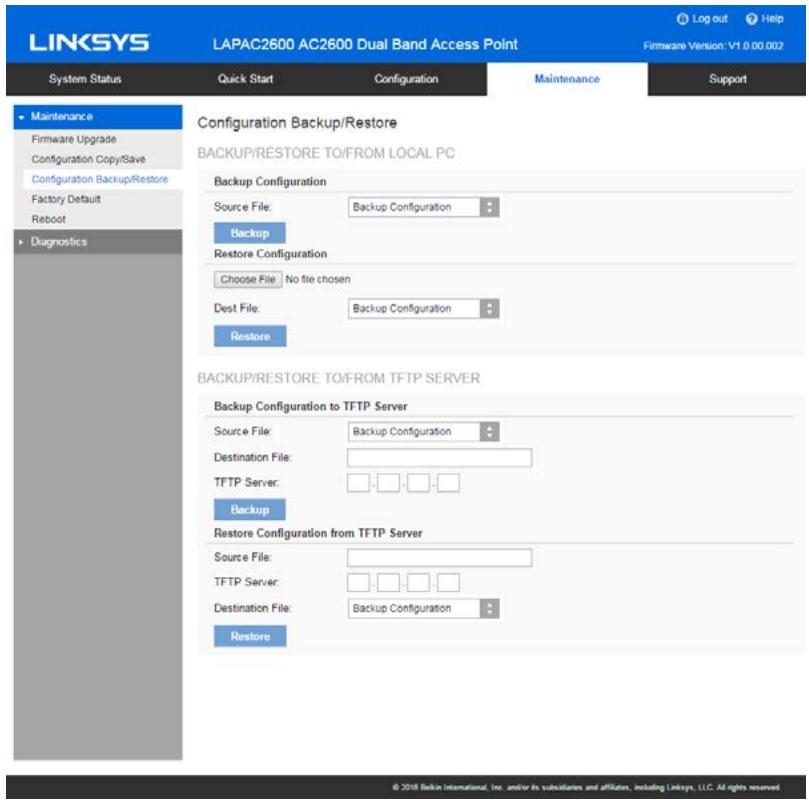
| Backup/Restore to/from Local PC | |
| Backup Configuration | Once you have the access point working properly, you should back up the settings to a file on your computer. You can later restore the access point's settings from this file, if necessary. To create a backup file of the current settings: • Choose a source file. It can be Backup Configuration or Current Configuration. • Click Backup. • If you don't have your browser set up to save downloaded files automatically, locate where you want to save the file, rename it if you like, and click Save. |
| Restore Configuration | To restore settings from a backup file: 1. Choose a destination file. It can be Backup Configuration or Current Configuration. 2. Click Choose File. 3. Locate and select the previously saved backup file. 4. Click Restore. |
| Backup/Restore to/from TFTP server | |
| Backup Configuration | To create a backup file of the current settings: 1. Choose a source file. It can be Backup Configuration or Current Configuration. 2. Enter the destination file name you plan to save in TFTP server. 3. Enter the IP address for the TFTP server. Only IPv4 addresses are supported. 4. Click Backup. |
| Restore Configuration | To restore settings from a backup file: 1. Choose a destination file and it can be Backup Configuration or Current Configuration. 2. Enter the source file name stored in TFTP server. 3. Enter the IP address for the TFTP server. Only IPv4 addresses are supported. 4. Click Restore. |
Factory Default
It's highly recommended you save your current configuration file before you restore to factory default settings. To save your current configuration file, click Maintenance > Configuration Backup/Restore.
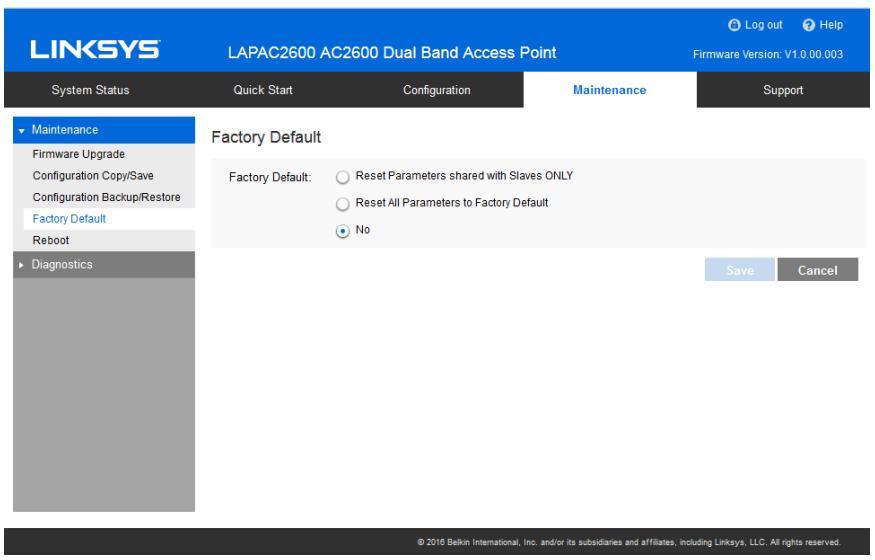
Factory Default
To restore your access point to its factory defaults, select an option and click Save.
- Reset Parameters shared with Slaves ONLY When current AP is a master of a cluster, select this option to restore all sharable parameters of current AP and its slaves to factory defaults. Cluster settings and non-sharable parameters will not reset.
- Reset All Parameters to Factory Default
No Don't restore to factory defaults.
Reboot
Go to Maintenance > Maintenance > Reboot to power cycle the device. The current configuration file will remain after reboot.
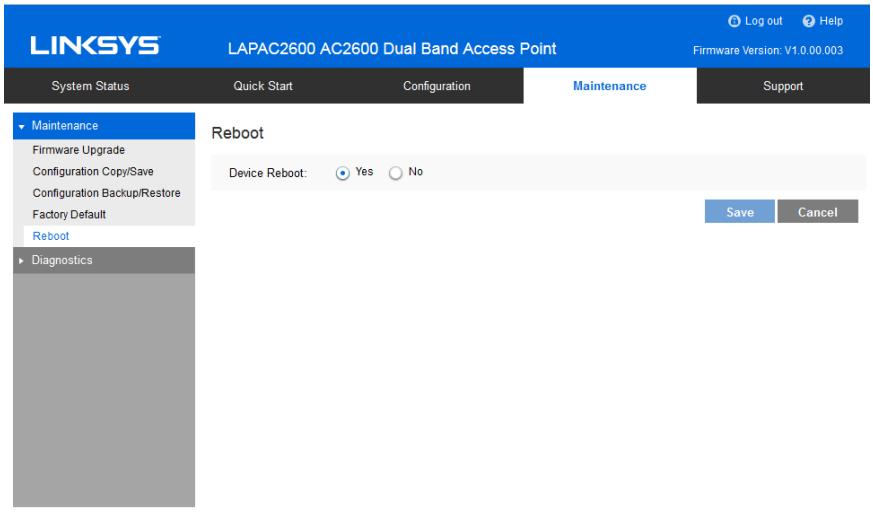
| © 2016 Belkin International, Inc. and/or its subsidiaries and affiliates, including Linksys, LLC. All rights reserved. | |
| Device Reboot | If you click Save when the Yes radio button is selected, the device will power cycle. |
Diagnostics
Ping Test
Go to Maintenance > Diagnostics > Ping Test to determine the accessibility of a host on the network.
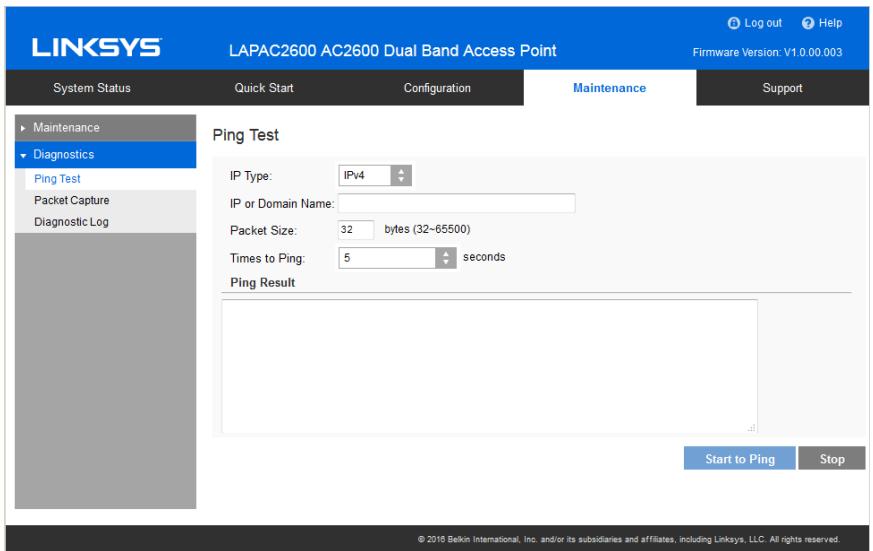
| General | |
| IP Type | Enter the IP type of destination address. |
| IP or URL Address | Enter the IP address or domain name that you want to ping. |
| Packet Size | Enter the size of the packet. |
| Times to Ping | Select the desired number from the drop-list. • 5 • 10 • 15 • Unlimited |
Packet Capture
Go to Maintenance > Diagnostics > Packet Capture to capture and store 802.3 packets received and transmitted by the access point based on one specified network interface. The network interface can be radio, SSID or LAN.
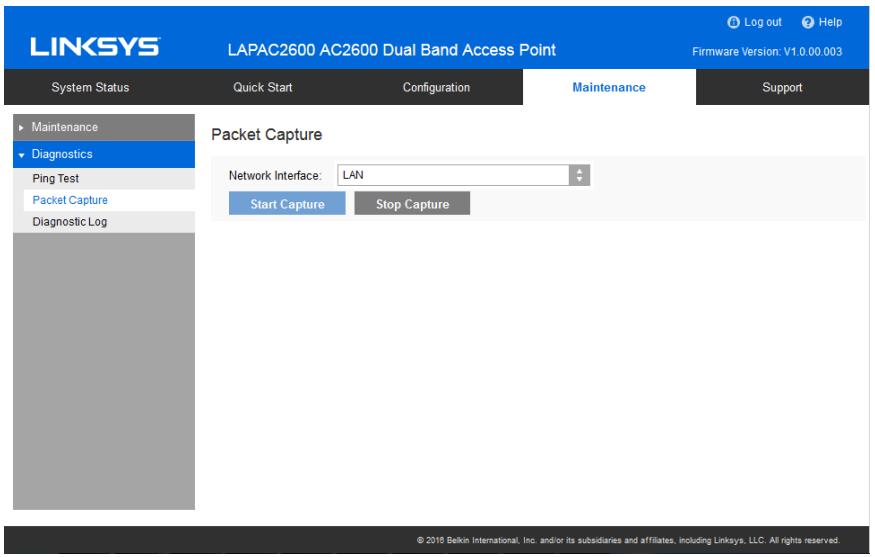
| Network Interface | Select the desired network interface from the drop-down list. The interface can be Radio, SSID or Ethernet. |
| Start Capture | Click to start the capture. You will be asked to specify a local file to store the packets. |
| Stop Capture | Click to stop the capture. |
Diagnostic Log
Go to Go to Maintenance > Diagnostics > Diagnostic Log to get system detail information, such as configuration file, system status and statistics data, hardware information, operational status. The information is useful in troubleshooting and working with technical support.
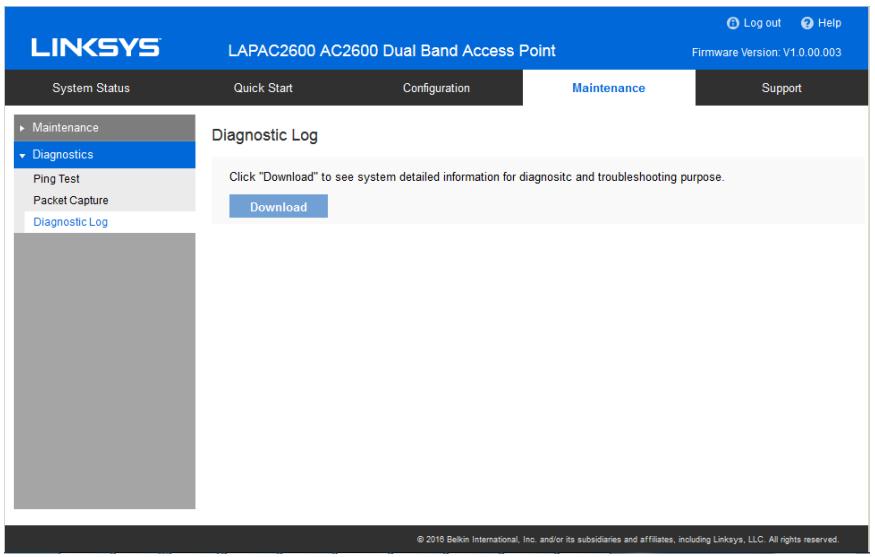
Click Download to download the device diagnostic log into a local file.
Appendix A - Troubleshooting
Overview
This chapter covers some common problems encountered while using the wireless access point, and some possible solutions to them. If you follow the suggested steps and the wireless access point still does not function properly, contact your dealer for further advice.
General Problems
I can't find new access point on my network.
Check the following:
- The wireless access point is properly installed, LAN connections are OK, and it is powered ON. Check the LEDs for system and port status.
- Ensure that your PC and the wireless access point are on the same network segment. (If you don't have a router, this must be the case.)
- You can use the following method to determine the IP address of the wireless access point, and then try to connect using the IP address, instead of the name.
To find the access point's IP address:
- Open a MS-DOS Prompt or Command Prompt Window.
- Use the Ping command to ping the wireless access point. Enter "ping" followed by the default name of the wireless access point. Default name is "lap" followed by the last five characters of device MAC address (e.g., ping lap964d6).
- Check the output of the ping command to determine the IP address of the wireless access point, as shown below.
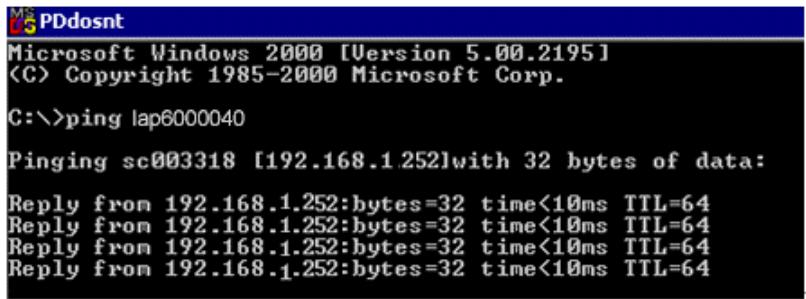
If your PC uses a fixed (static) IP address, ensure that it is using an IP address that is in the network segment (subset) with the wireless access point. On Windows PCs, you can use Control Panel >Network to check the properties for the TCP/IP protocol.
If there is no DHCP Server found, the wireless access point will roll back to an IP address and mask of 192.168.1.252 and 255.255.255.0.
My PC can't connect to the LAN via the wireless access point.
Check the following:
- The SSID and security settings on the PC match the settings on the access point.
- On the PC, the wireless mode is set to Infrastructure.
- If using the Access Control feature, the PC's name and address is in the Trusted Stations list.
- If using 802.1x mode, ensure the PC's 802.1x software is configured correctly. See Appendix C(p. 122) for details of setup for the Windows XP 802.1x client. If using a different client, refer to the vendor's documentation.
Appendix B - About Wireless LANs
Overview
Wireless networks have their own terms and jargon. You must understand many of these terms in order to configure and operate a wireless LAN.
Wireless LAN Terminology
Modes
Wireless LANs can work in either of two (2) modes:
- Ad-hoc
Infrastructure
Ad-hoc Mode
Ad-hoc Mode does not require an access point or a wired (Ethernet) LAN. Wireless stations, e.g., notebook PCs with wireless cards, communicate directly with each other.
Infrastructure Mode
In Infrastructure Mode, one or more access points are used to connect wireless stations, e.g., notebook PCs with wireless cards, to a wired (Ethernet) LAN. The wireless stations can then access all LAN resources.
Note—Access points can only function in Infrastructure Mode, and can communicate only with wireless stations that are set to Infrastructure Mode.
SSID/ESSID
BSS/SSID
A group of wireless stations and a single access point, all using the same ID (SSID), form a Basic Service Set (BSS).
Using the same SSID is essential. Devices with different SSIDs are unable to communicate with each other.
ESS/ESSID
A group of wireless stations, and multiple access points all using the same ID (ESSID), form an Extended Service Set (ESS).
Different access points within an ESS can use different channels. To reduce interference, it is recommended that adjacent access points use different channels.
As wireless stations are physically moved through the area covered by an ESS, they will automatically change to the access point that has the least interference or best performance.
Channels
- The wireless channel sets the radio frequency used for communication.
-
Access points use a fixed channel. You can select the channel used. This allows you to choose a channel that provides the least interference and best performance. For USA and Canada, the following channels are available:
-
2.4GHz:
to 2.462 GHz; 11 channels
- 5GHz:
5.180 to 5.240 GHz; 4 channels
5.745 to 5.825 GHz; 5 channels
- When using multiple access points it is better if adjacent access points use different channels to reduce interference. The recommended channel spacing between adjacent access points is five channels, e.g., use Channels 1 and 6, or 6 and 11.
- In Infrastructure Mode wireless stations normally scan all channels looking for an access point. If more than one access point can be used, the one with the strongest signal is used. (This can only happen within an ESS.)
- If using Ad-hoc Mode (no access point) all wireless stations should be set to use the same channel. However, most wireless stations will still scan all channels to see if there is an existing Ad-hoc group they can join.
WEP
WEP (Wired Equivalent Privacy) is a standard for encrypting data before it is transmitted. This is desirable because it is impossible to prevent snoppers from receiving any data which is transmitted by your wireless stations. If the data is encrypted, it is meaningless unless the receiver can decrypt it.
If WEP is used, the wireless stations and the wireless access point must have the same settings.
WPA-PSK
In WPA-PSK, like WEP, data is encrypted before transmission. WPA is more secure than WEP. The PSK (pre-shared key) must be entered on each wireless station. The 256-bit encryption key is derived from the PSK, and changes frequently.
WPA2-PSK
This is a further development of WPA-PSK, and offers even greater security, using the AES (Advanced Encryption Standard) method of encryption. It should be used if possible.
WPA-Enterprise
This version of WPA requires a RADIUS server on your LAN to provide the client authentication according to the 802.1X standard. Data transmissions are encrypted using the WPA standard. If this option is used:
- The access point must have a client login on the RADIUS server.
Each user must have a user login on the RADIUS server.
Each user's wireless client must support 802.1X and provide the login data when required.
All data transmission is encrypted using the WPA standard. Keys are automatically generated, so no key input is required.
WPA2-Enterprise
This version of WPA2 requires a RADIUS server on your LAN to provide the clientauthentication according to the 802.1X standard. Data transmissions are encrypted using the WPA2 standard.
If this option is used:
- The access point must have a client login on the RADIUS server.
Each user must have a user login on the RADIUS server.
Each user's wireless client must support 802.1X and provide the login data when required.
All data transmission is encrypted using the WPA2 standard. Keys are automatically generated, so no key input is required.
802.1x
This uses the 802.1X standard for client authentication, and WEP for data encryption. If possible, you should use WPA-Enterprise instead, because WPA encryption is much stronger than WEP encryption.
If this option is used:
- The access point must have a client login on the RADIUS server.
Each user must have a user login on the RADIUS server. - Each user's wireless client must support 802.1X and provide the login data when required.
- All data transmission is encrypted using the WEP standard. You only have to select the WEP key size; the WEP key is automatically generated.
Appendix C - PC and Server Configuration
Overview
All wireless stations need to have settings that match the wireless access point. These settings depend on the mode in which the access point is being used.
- If using WEP or WPA2-PSK, it is only necessary to ensure that each wireless station's settings match those of the wireless access point, as described below.
- For 802.1x modes, configuration is much more complex. The RADIUS server must be configured correctly, and setup of each wireless station is also more complex.
Using WEP
For each of the following items, each wireless station must have the same settings as the wireless access point.
| Mode | On each PC, the mode must be set to Infrastructure. |
| SSID (ESSID) | This must match the value used on the wireless access point. The default value is LinksysSMB24Gfor radio 1 and LinksysSMB5G for radio 2. Note—TheSSID is case sensitive. |
| Wireless Security | Each wireless station must be set to use WEP data encryption. The key size (64 bit, 128 bit) must be set to match the access point. The key values on the PC must match the key values on the access point. Note—One set of WEP keys is supported per radio. |
Using WPA2-PSK
For each of the following items, each wireless station must have the same settings as the wireless access point.
| Mode | On each PC, the mode must be set to Infrastructure. |
| SSID (ESSID) | This must match the value used on the wireless access point. The default value is LinksysSMB24Gfor radio 1 and LinksysSMB5Gfor radio 2. Note—TheSSID is case sensitive. |
| Wireless Security | On each client, wireless security must be set to WPA2-PSK. • The pre-shared key entered on the access point must also be entered on each wireless client. • The encryption method (e.g. TKIP, AES) must be set to match the access point. |
Using WPA2-Enterprise
This is the most secure and most complex system.
WPA-Enterprise mode provides greater security and centralized management, but it is more complex to configure.
Wireless Station Configuration
For each of the following, wireless stations must have the same settings as the wireless access point.
| Mode | On each PC, the mode must be set to Infrastructure. |
| SSID (ESSID) | This must match the value used on the wireless access point. The default value is LinksysSMB24Gfor radio 1 and LinksysSMB5Gfor radio 2. Note—The SSID is case sensitive. |
| 802.1xAuthentication | Each client must obtain a certificate for authentication for the RADIUS server. |
| 802.1xEncryption | Typically, EAP-TLS is used. This is a dynamic key system, so keys do NOT have to be entered on each wireless station. You can also use a static WEP key (EAP-MD5). The wireless access point supports both methods simultaneously. |
RADIUS Server Configuration
If using WPA2-Enterprise mode, the RADIUS server on your network must be configured as follows:
It must provide and accept certificates for user authentication.
- There must be a client login for the wireless access point itself.
- The wireless access point will use its default name as its client login name. (However, your RADIUS server may ignore this and use the IP address instead.)
- The Shared Key, set on the Security screen of the access point, must match the Shared Secret value on the RADIUS server.
- Encryption settings must be correct.
802.1x Server Setup (Windows 2000 Server)
This section describes using Microsoft Internet Authentication Server as the RADIUS server, since it is the most common RADIUS server available that supports the EAP-TLS authentication method.
The following services on the Windows 2000 Domain Controller (PDC) are also required.
- dhcpd
-dns - rras
- webserver (IIS)
RADIUS Server (Internet Authentication Service)
Certificate Authority
Windows 2000 Domain Controller Setup
- Run dc promo.exe from the command prompt.
- Follow all of the default prompts, ensure that DNS is installed and enabled during installation.
Services Installation
- Select the Control Panel > Add/Remove Programs.
- Click Add/Remove Windows Components from the left side.
-
Ensure that the following components are selected.
-
Certificate Services—After enabling this, you will see a warning that the computer cannot be renamed and joined after installing certificate services. Select Yes to select certificate services and continue
- World Wide Web Server—Select World Wide Web Server on the Internet Information Services (IIS) component.
- From the Networking Services category, select Dynamic Host Configuration Protocol (DHCP), and Internet Authentication Service (DNS should already be selected and installed).
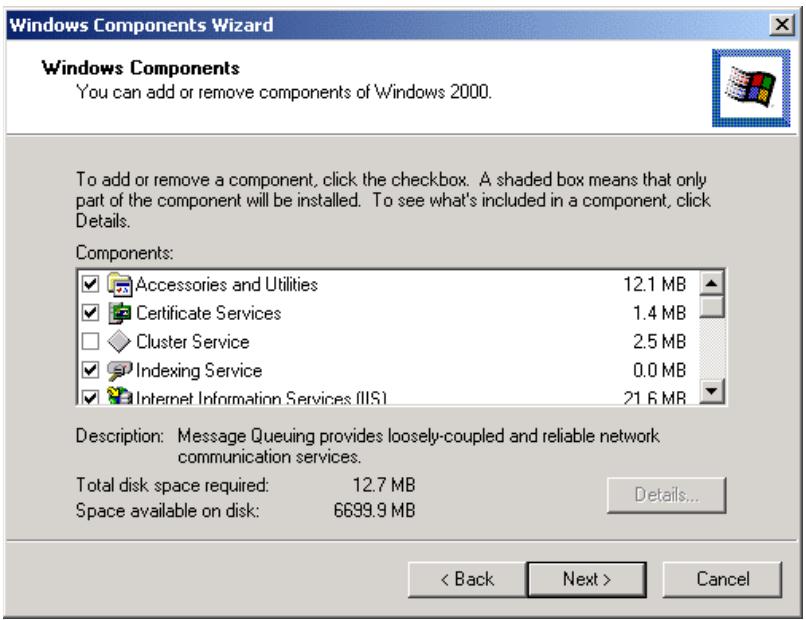
4. Click Next.
- Select Enterprise root CA, and click Next.
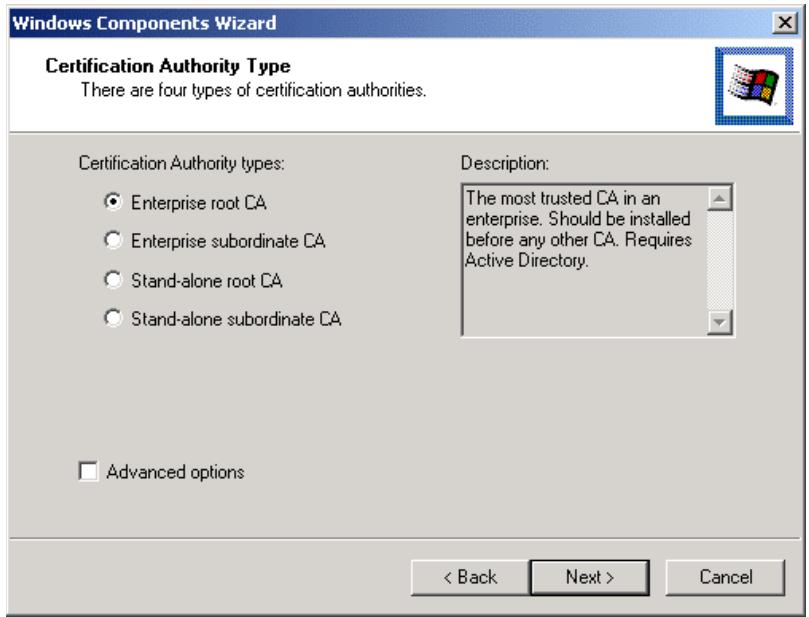
- Enter the information for the Certificate Authority, and click Next.
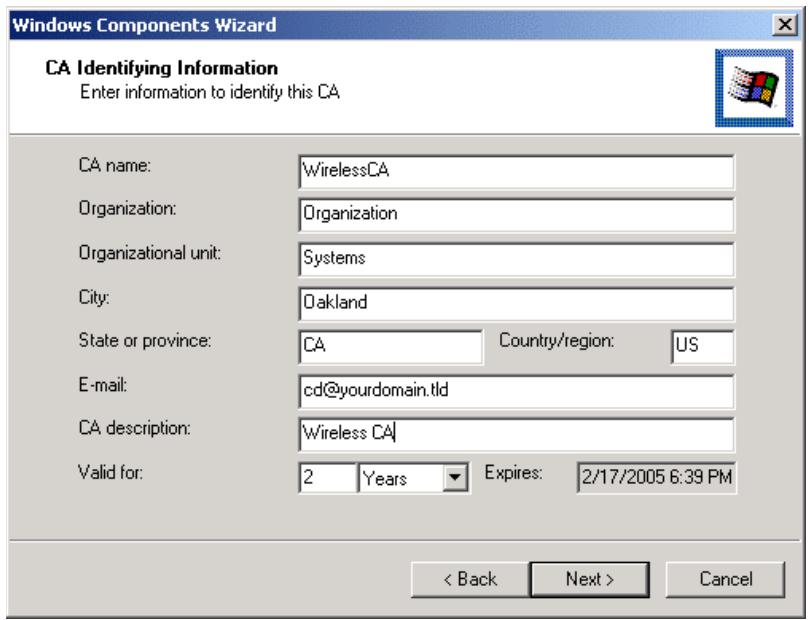
- Click Next if you don't want to change the CA's configuration data.
- Installation will warn you that Internet Information Services are running, and must be stopped before continuing. Click OK, then Finish.
DHCP server configuration
- Click on Start > Programs > Administrative Tools > DHCP.
- Right-click on the server entry, and select New Scope.
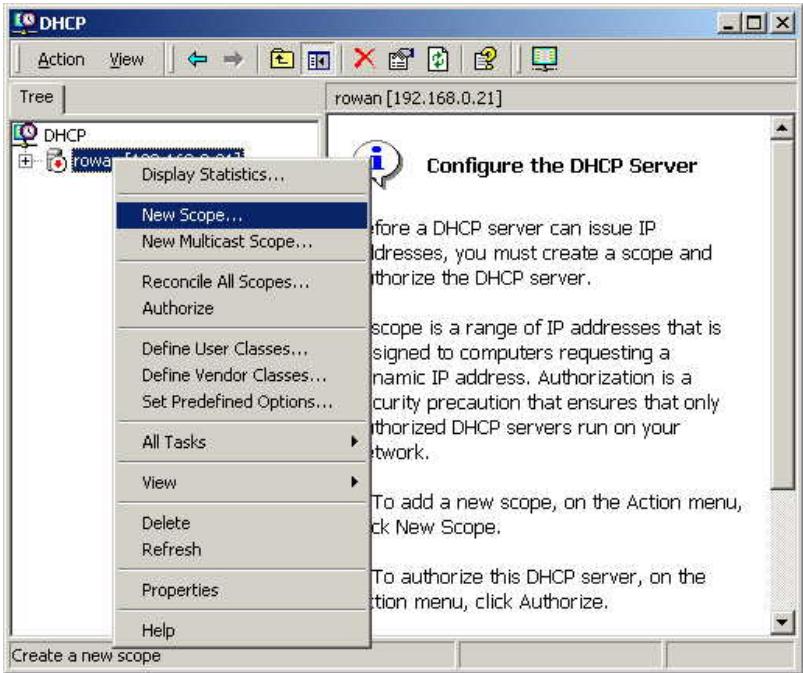
- Click Next when the New Scope Wizard Begins.
-
Enter the name and description for the scope, click Next.
-
Define the IP address range. Change the subnet mask if necessary. Click Next.
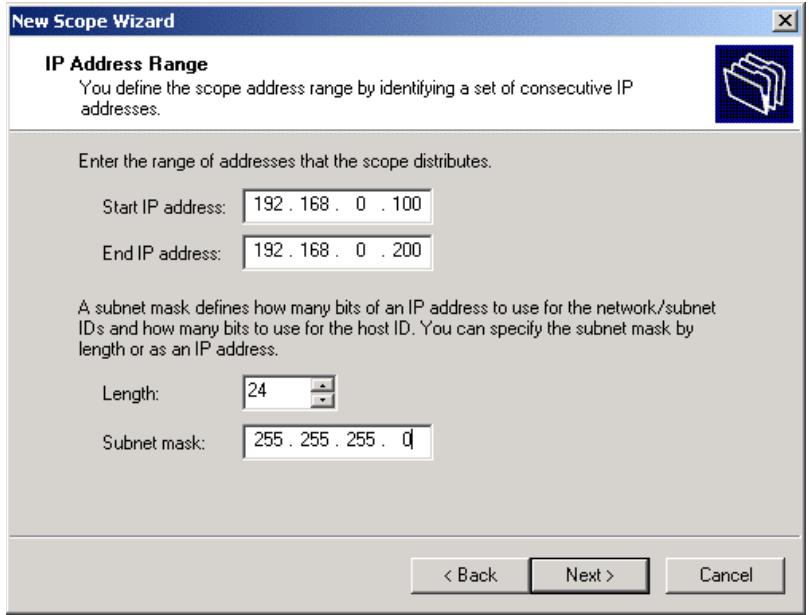
- Add exclusions in the address fields if required. If no exclusions are required, leave it blank. Click Next.
- Change the Lease Duration time if preferred. Click Next.
- Select Yes, I want to configure these options now, and click Next.
- Enter the router address for the current subnet. The router address may be left blank if there is no router. Click Next.
- For the parent domain, enter the domain you specified for the domain controller setup, and enter the server's address for the IP address. Click Next.
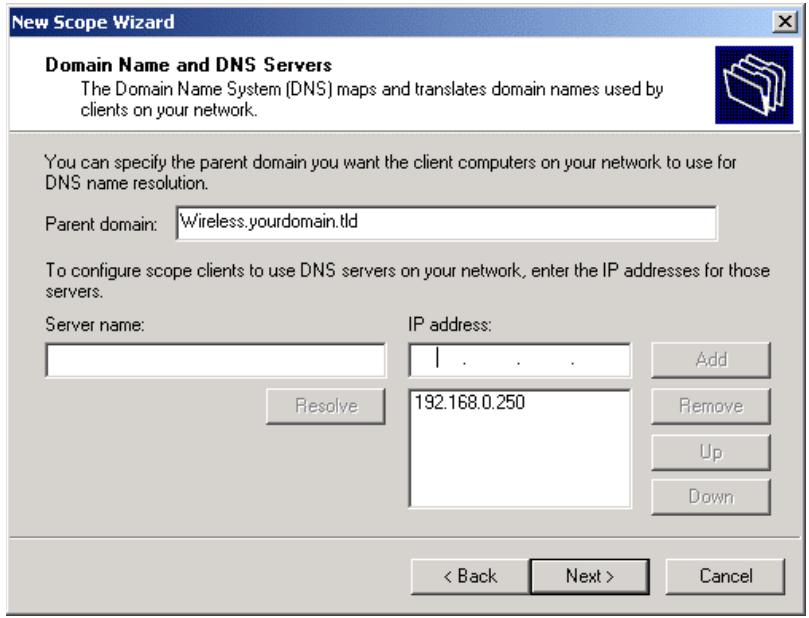
- If you don't want a WINS server, just click Next.
-
Select Yes, I want to activate this scope now. Click Next, then Finish.
-
Right-click on the server, and select Authorize. It may take a few minutes to complete.
Certificate Authority Setup
- Select Start > Programs > Administrative Tools > Certification Authority.
- Right-click Policy Settings, and select New > Certificate to Issue.
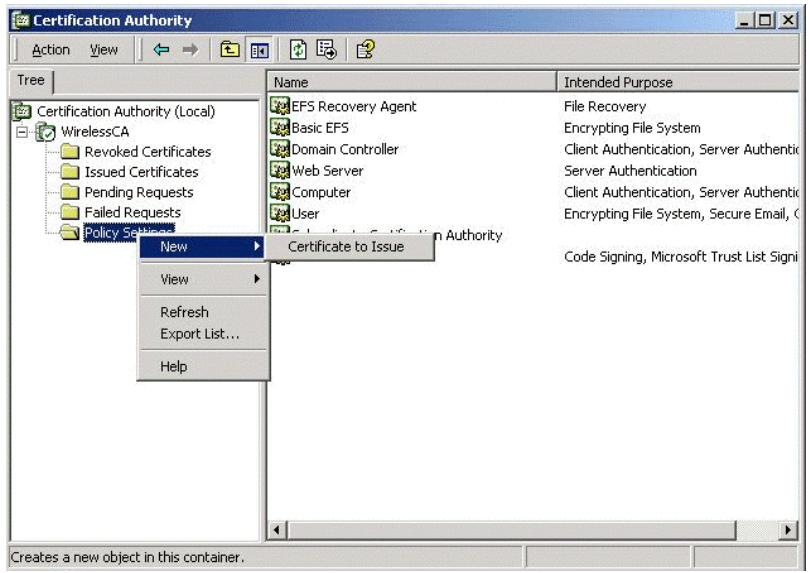
- Select Authenticated Session and Smartcard Logon (select more than one by holding down the Ctrl key). Click OK.
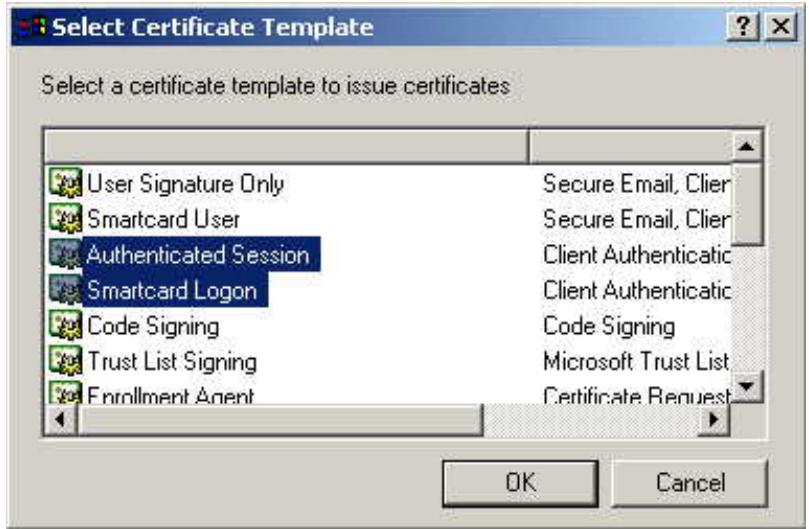
- Select Start > Programs > Administrative Tools > Active Directory Users and Computers.
- Right-click on your active directory domain, and select Properties.
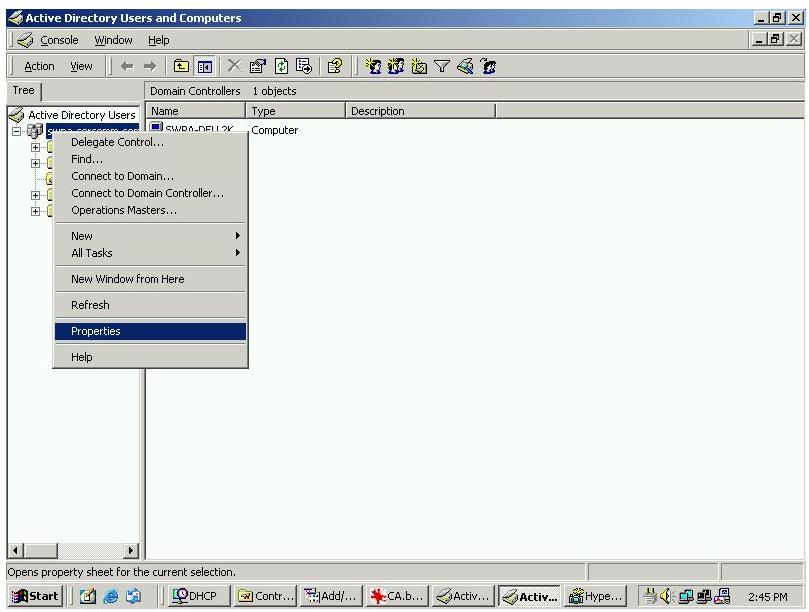
- Select the Group Policy tab, chooseDefault Domain Policy then click Edit.
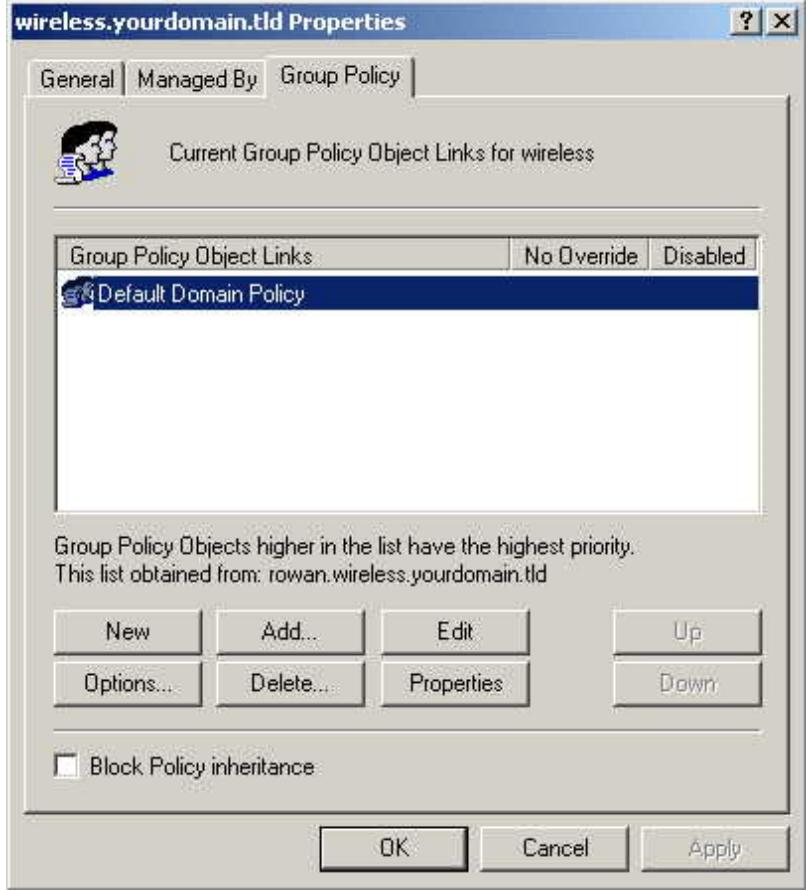
- Select Computer Configuration > Windows Settings > Security Settings > Public Key Policies, right-click Automatic Certificate Request Settings > New > Automatic Certificate Request.
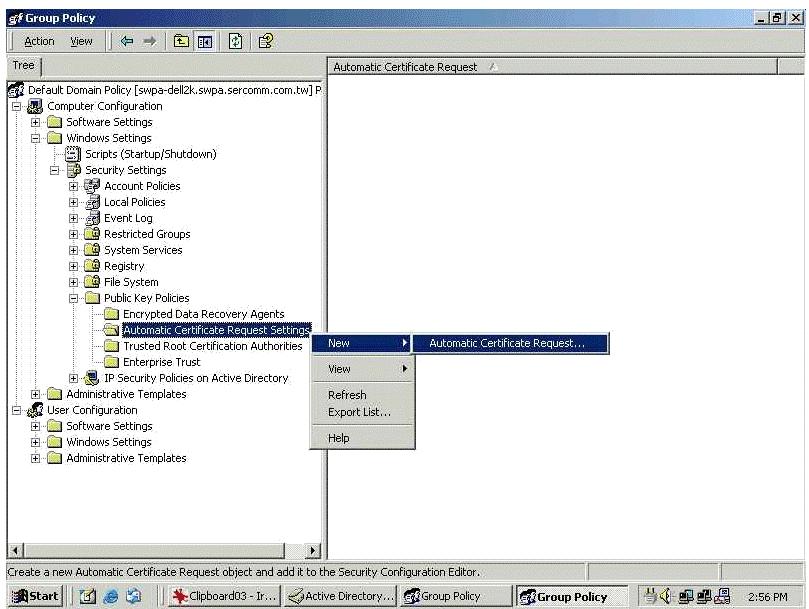
- When the Certificate Request Wizard appears, click Next.
- Select Computer, click Next.
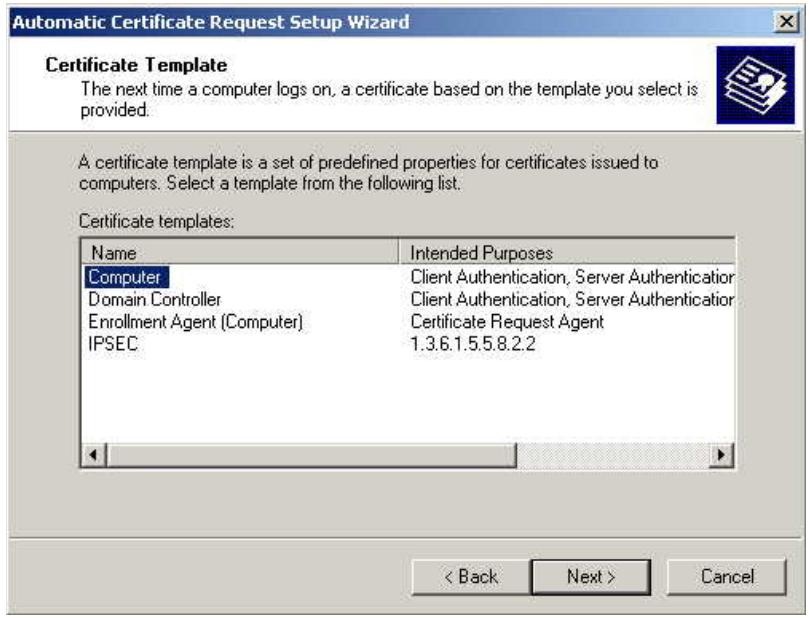
- Ensure that your Certificate Authority is checked, click Next.
- Review the policy change information and click Finish.
- Click Start>Run, type "cmd" and press Enter. Enter "secede /refreshpolicy machine_policy". This command may take a few minutes to take effect.
Internet Authentication Service (RADIUS) Setup
- Select Start > Programs > Administrative Tools > Internet Authentication Service.
- Right-click on Clients, and select New Client.
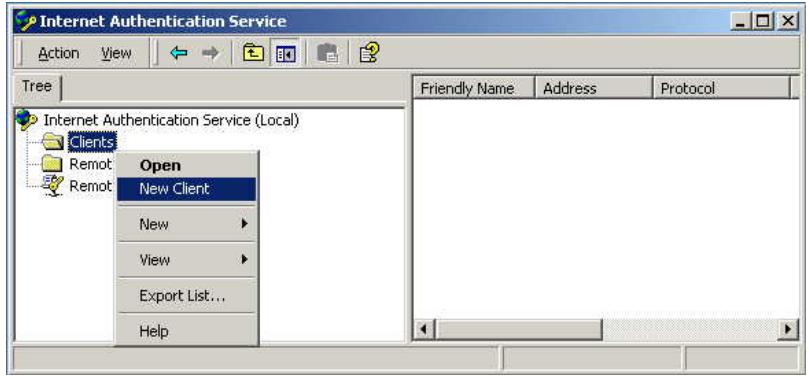
- Enter a name for the access point, click Next.
- Enter the address or name of the wireless access point, and set the shared secret, as entered on the Security Settings of the wireless access point.
- Click Finish.
- Right-click on Remote Access Policies, select New Remote Access Policy.
- Assuming you are using EAP-TLS, name the policy "eap-tls", and click Next.
- Click Add...
If you don't want to set any restrictions and a condition is required, select Day-And-Time-Restrictions, and click Add...
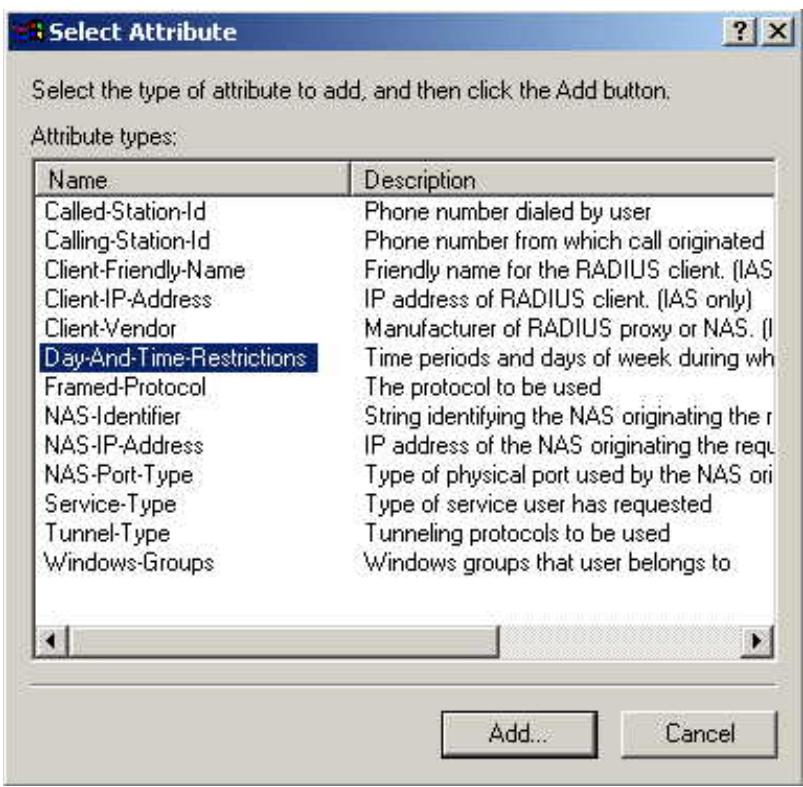
- Click Permitted, then OK. Select Next.
- Select Grant remote access permission. Click Next.
- Click Edit Profile... and select the Authentication tab. Enable Extensible Authentication Protocol, and select Smart Card or other Certificate. Deselect other authentication methods listed. Click OK.
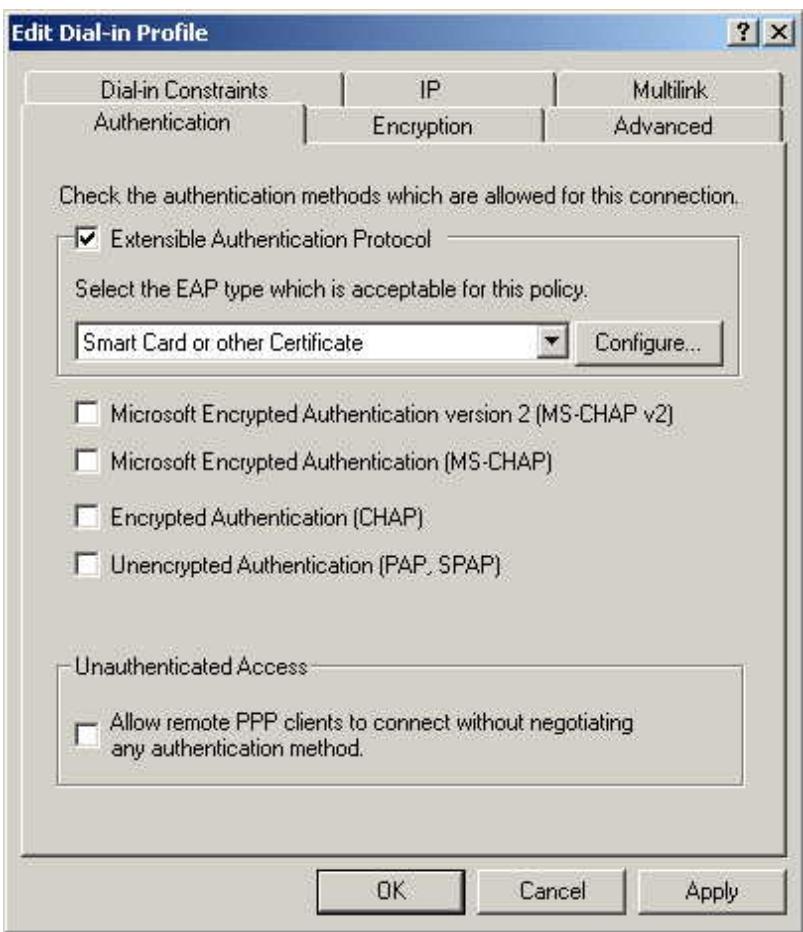
- Select No if you don't want to view the help for EAP. Click Finish.
Remote Access Login for Users
- Select Start > Programs > Administrative Tools > Active Directory Users and Computers.
- Double-click on the user who you want to enable.
- Select the Dial-in tab, and enable Allow access. Click OK.
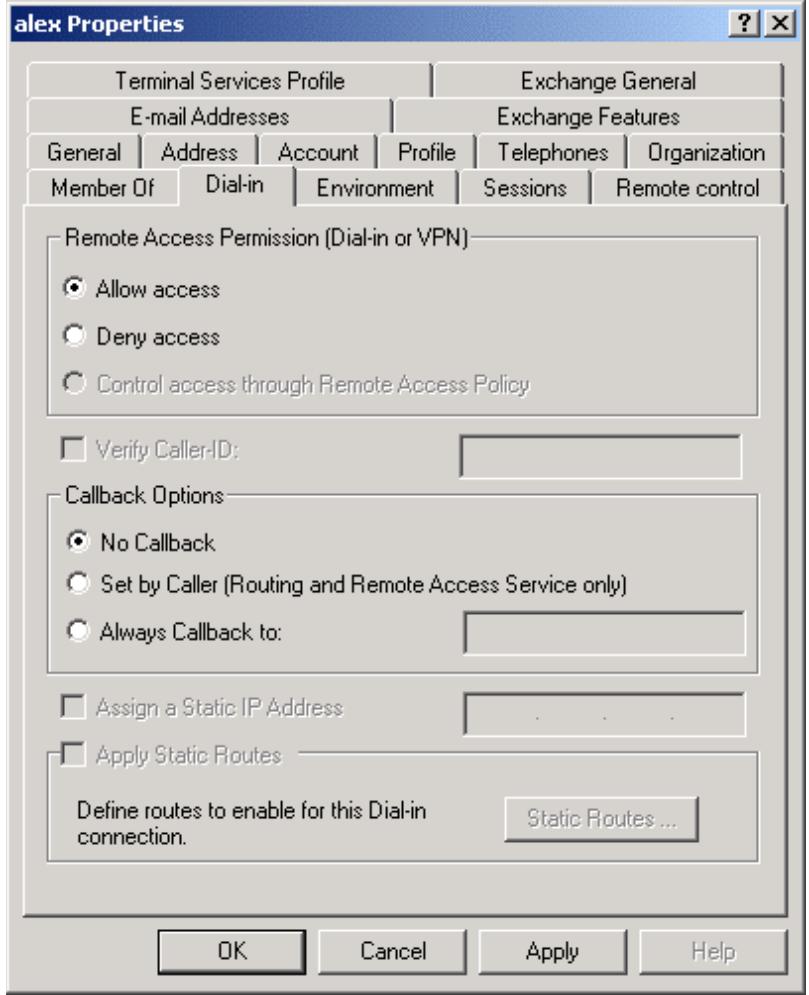
802.1x Client Setup on Windows XP
Windows XP ships with a complete 802.1x client implementation. If using Windows 2000, you can install SP3 (Service Pack 3) to gain the same functionality.
If you don't have either of these systems, you must use the 802.1x client software provided with your wireless adapter. Refer to your vendor's documentation for setup instructions.
The following instructions assume:
You are using Windows XP.
- You are connecting to a Windows 2000 server for authentication.
- You already have a login (Username and password) on the Windows 2000 server.
Client Certificate Setup
- Connect to a network that doesn't require port authentication.
- Start your Web browser. In the address box, enter the IP address of the Windows 2000 Server, followed by "/certsrv", e.g., "http://192.168.0.2/certsrv".
- You will be prompted for a user name and password. Enter the User name and Password assigned to you by your network administrator, and click OK.
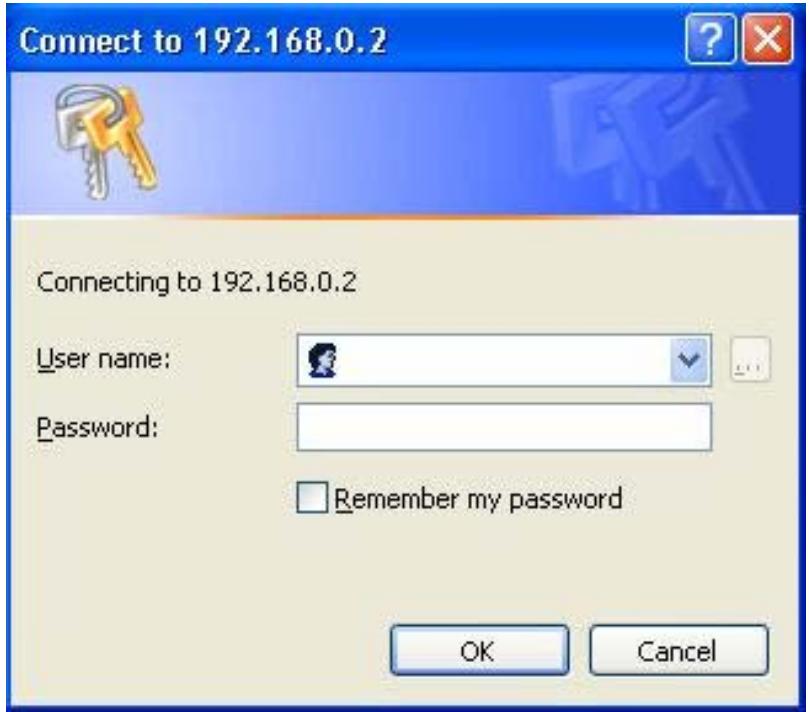
- On the first screen (below), select Request a certificate, click Next.
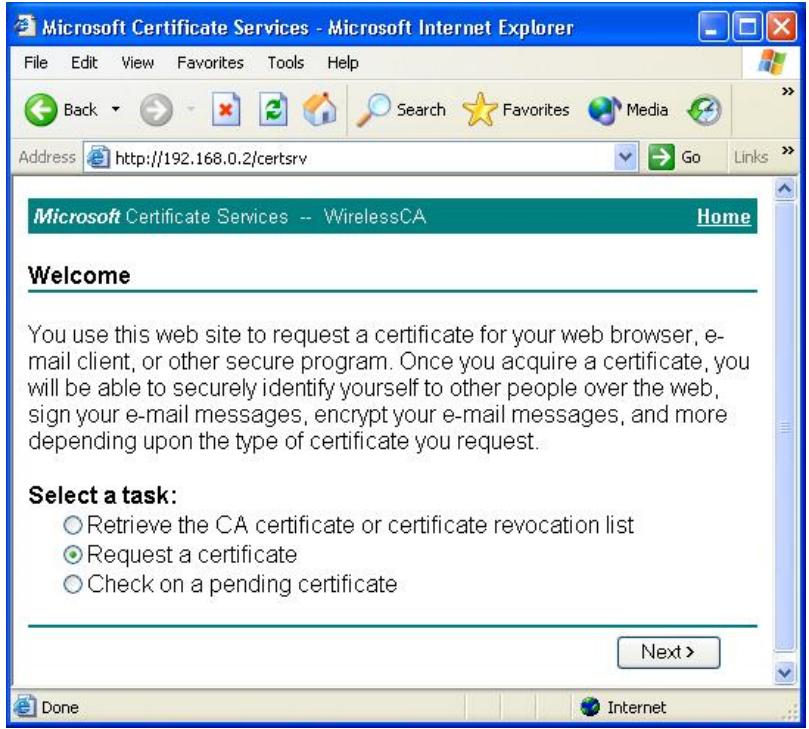
- Select User certificate request and selectUser Certificate, click Next.
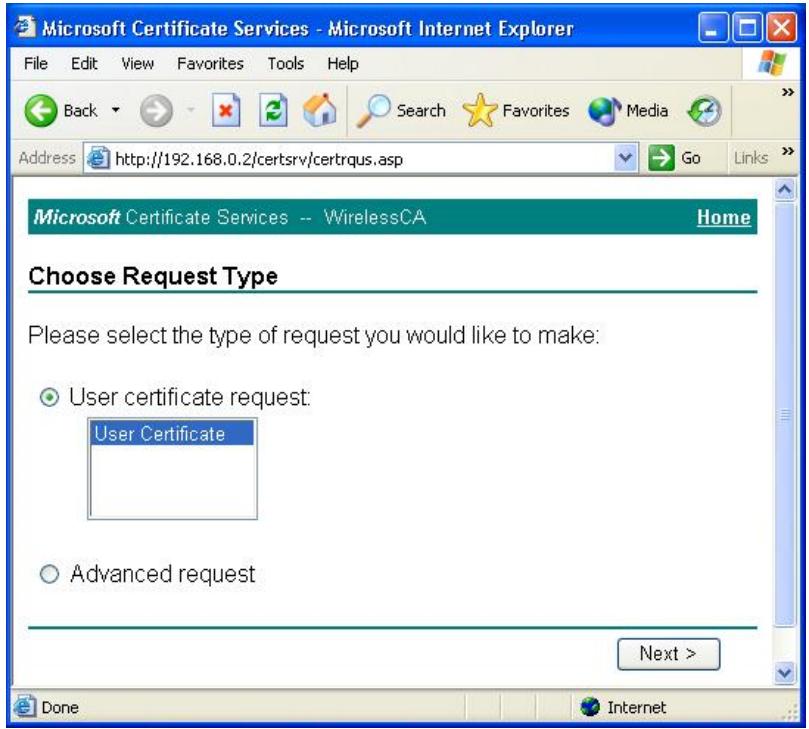
- Click Submit.
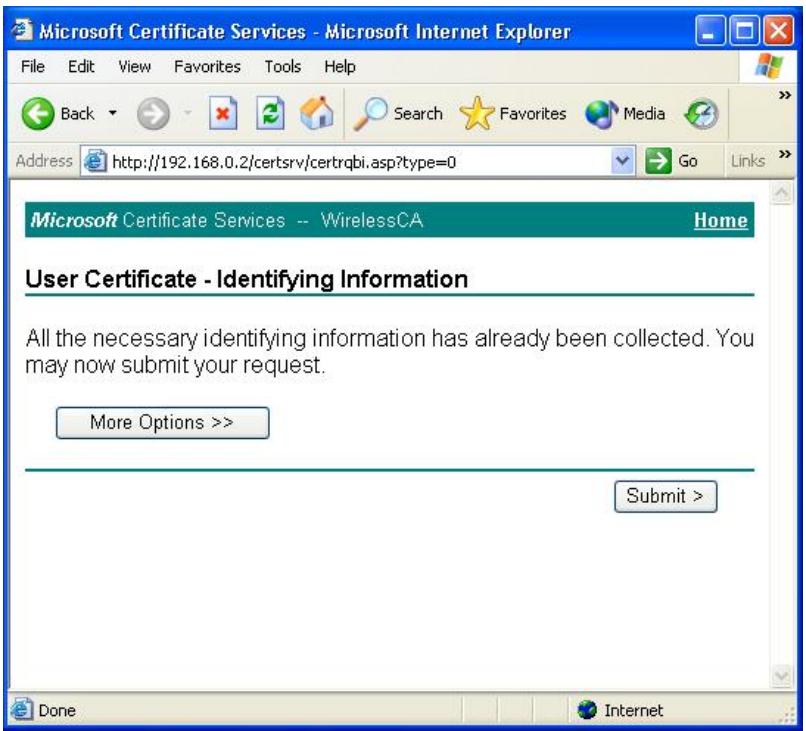
- A message will be displayed, and the certificate will be returned to you. Click Install this certificate.
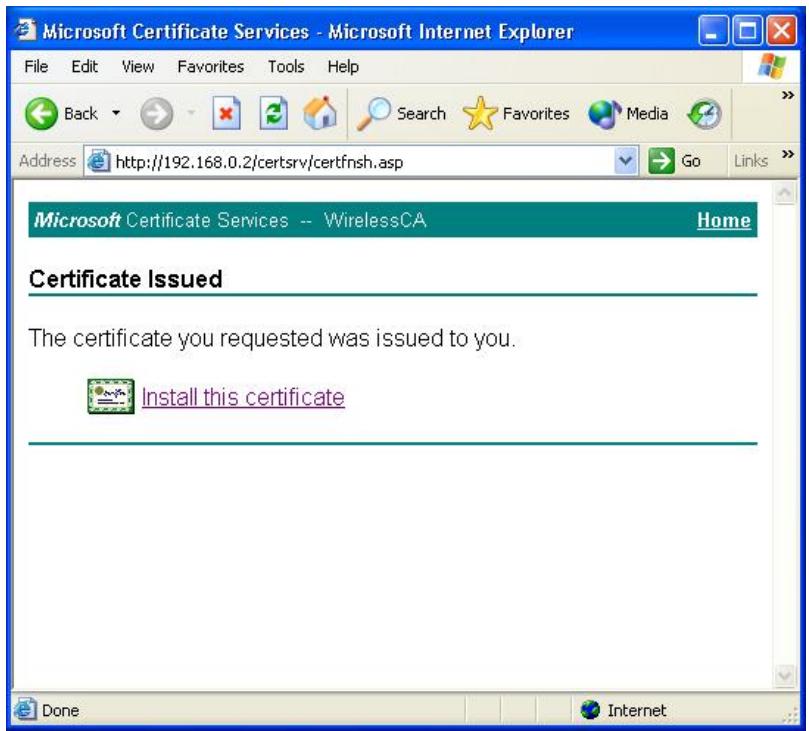
- You will receive a confirmation message. Click Yes.
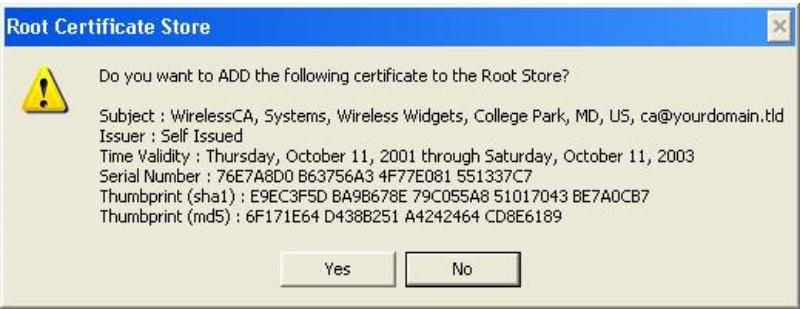
Certificate setup is now complete.
802.1x Authentication Setup
- Select Start > Control Panel > Network Connections.
- Right-click on the Wireless Network Connection, and select Properties.
- Select the Authentication tab, and ensure that Enable network access control using IEEE 802.1X is selected, and Smart Card or other Certificate is selected from the EAP type.
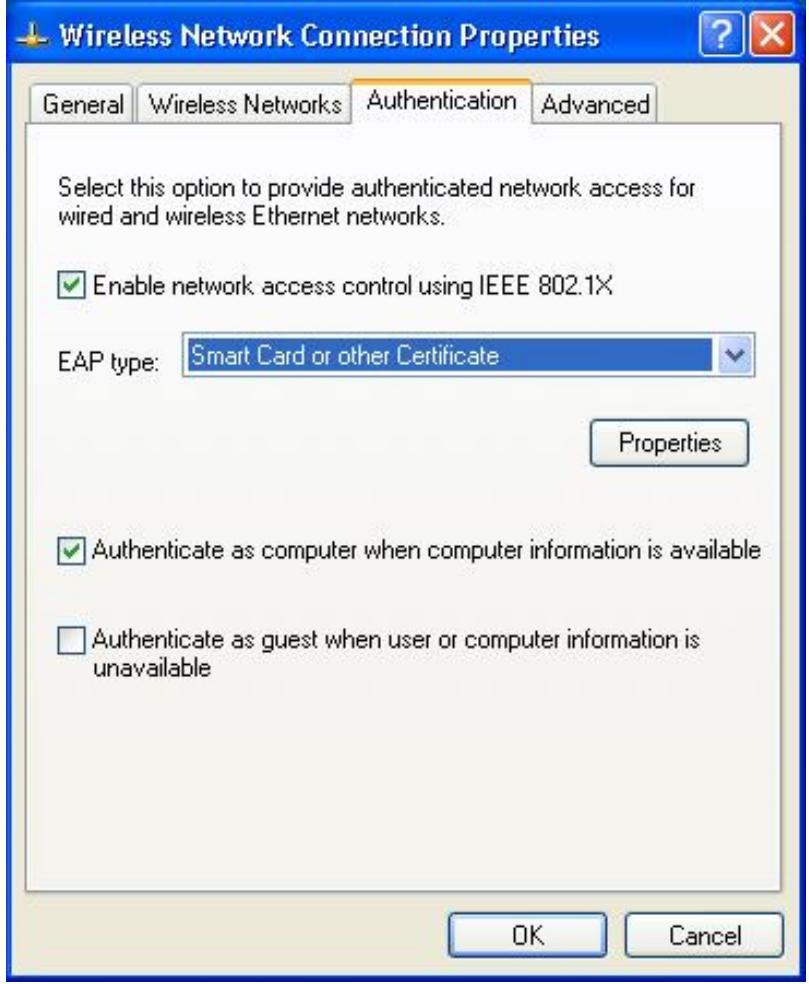
Encryption Settings
The encryption settings must match the access point's on the wireless network you wish to join.
- Windows XP will detect any available wireless networks, and allow you to configure each network independently.
- Your network administrator can advise you of the correct settings for each network. 802.1x networks typically use EAP-TLS. This is a dynamic key system, so there is no need to enter key values.
Enabling Encryption
To enable encryption for a wireless network:
- Click on the Wireless Networks tab.
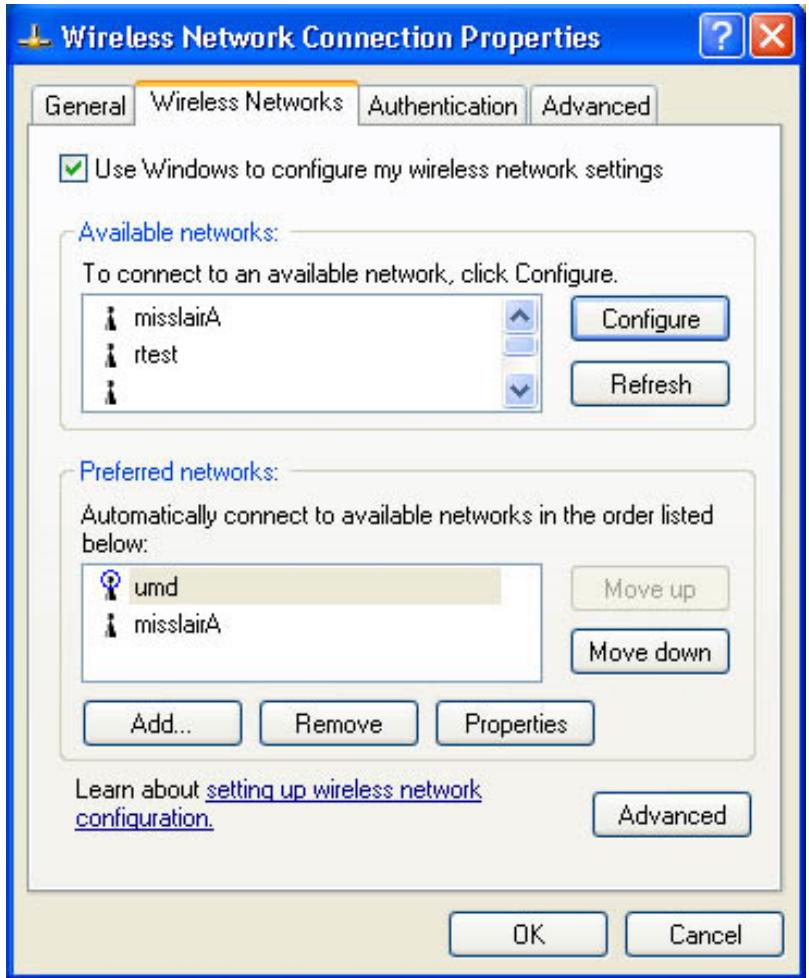
- Select the wireless network from the Available networks list, and click Configure.
- Select and enter the correct values, as advised by your network administrator. For example, to use EAP-TLS, you would enable Data encryption, and click the checkbox for the setting The key is provided for me automatically, as shown below.
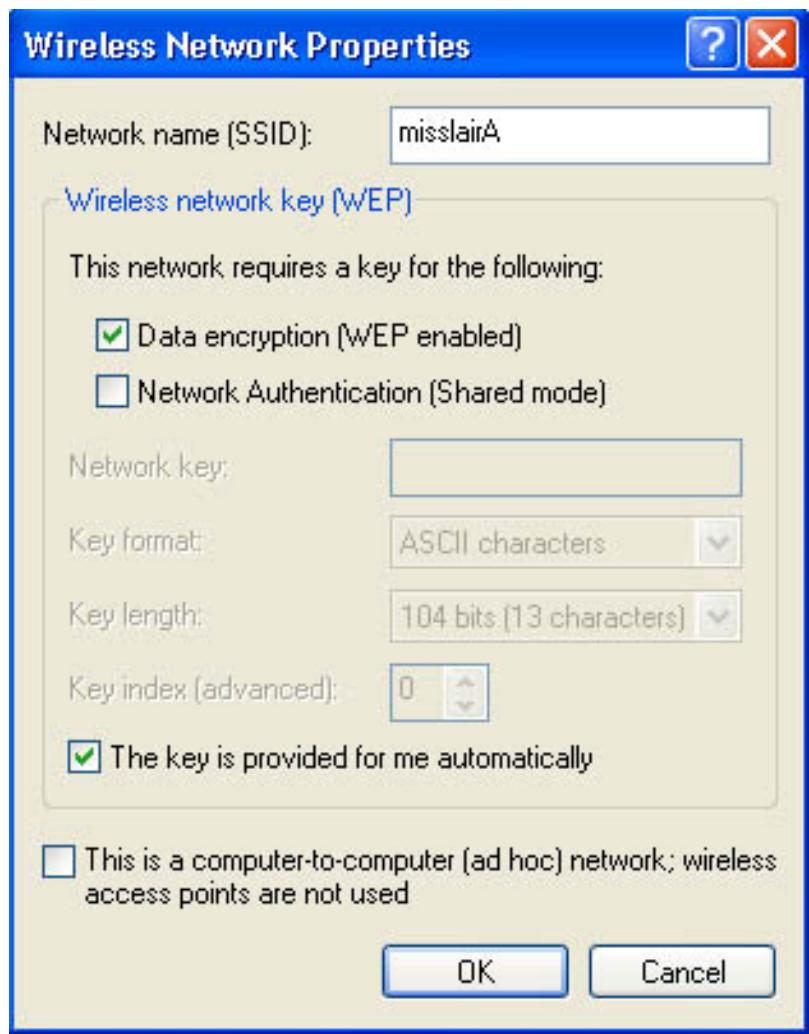
Setup for Windows XP and 802.1x client is now complete.
Using 802.1x Mode (without WPA)
This is very similar to using WPA-Enterprise.
The only difference is that on your client, you must NOT enable the setting The key is provided for me automatically.
Instead, you must enter the WEP key manually, ensuring it matches the WEP key used on the access point.
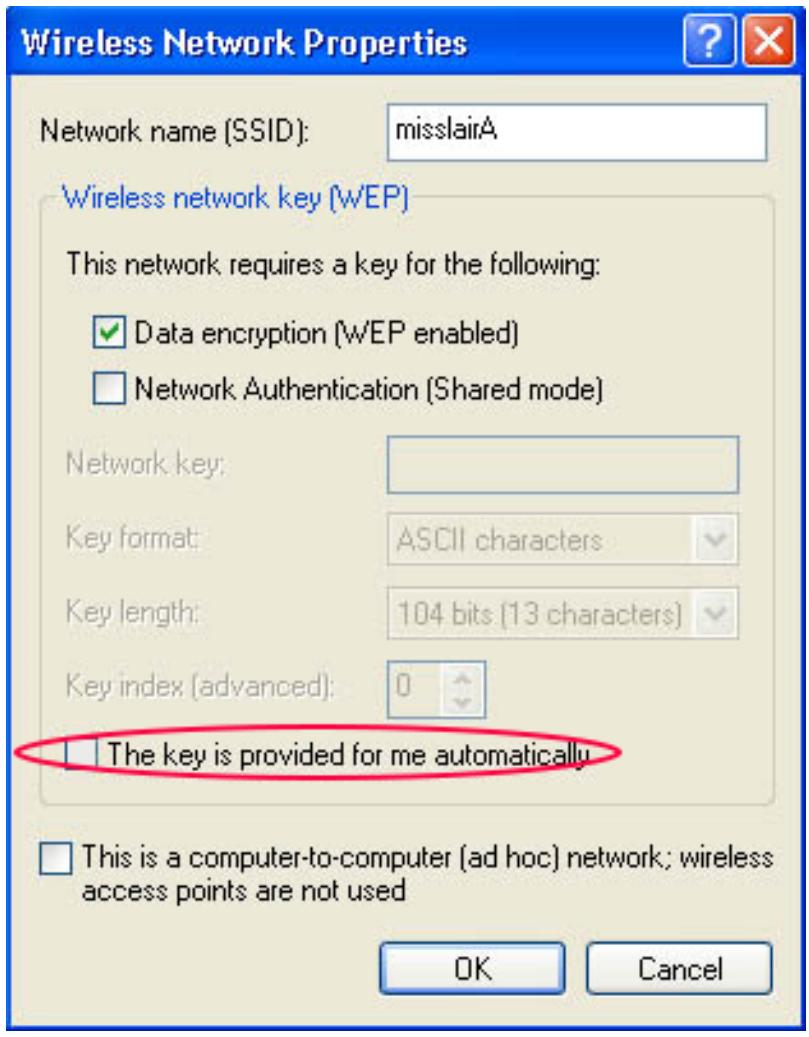
Note—On some systems, the 64-bit WEP key is shown as 40-bit and the 128-bit WEP key is shown as 104-bit. This difference arises because the key input by the user is 24 bits less than the key size used for encryption.
LNKPG-00333 Rev. A00