SHIELD ANDROID TV - Box multimédia NVIDIA - Notice d'utilisation et mode d'emploi gratuit
Retrouvez gratuitement la notice de l'appareil SHIELD ANDROID TV NVIDIA au format PDF.

| Type d'appareil | Téléviseur |
| Port HDMI | HDCP compatible |
| Câble HDMI recommandé | HDMI 2.0 haute vitesse |
| Connexion Internet | Wi-Fi ou Ethernet |
| Compte requis | Compte Google |
| Alimentation | Alimentation par câble secteur |
| Contrôleur | Contrôleur SHIELD TV compatible |
| Mode veille | Automatique après inactivité |
| Installation | Plug and play HDMI et alimentation |
| Compatibilité réseau | Wi-Fi et Ethernet |
| Entrées HDMI | Non précisé |
| Résolution vidéo | Non précisé |
| Audio | Non précisé |
| Dimensions | Non précisé |
| Poids | Non précisé |
| Langue de l'interface | Multilingue |
FOIRE AUX QUESTIONS - SHIELD ANDROID TV NVIDIA
Questions des utilisateurs sur SHIELD ANDROID TV NVIDIA
0 question sur cet appareil. Repondez a celles que vous connaissez ou posez la votre.
Poser une nouvelle question sur cet appareil
Téléchargez la notice de votre Box multimédia au format PDF gratuitement ! Retrouvez votre notice SHIELD ANDROID TV - NVIDIA et reprennez votre appareil électronique en main. Sur cette page sont publiés tous les documents nécessaires à l'utilisation de votre appareil SHIELD ANDROID TV de la marque NVIDIA.
MODE D'EMPLOI SHIELD ANDROID TV NVIDIA
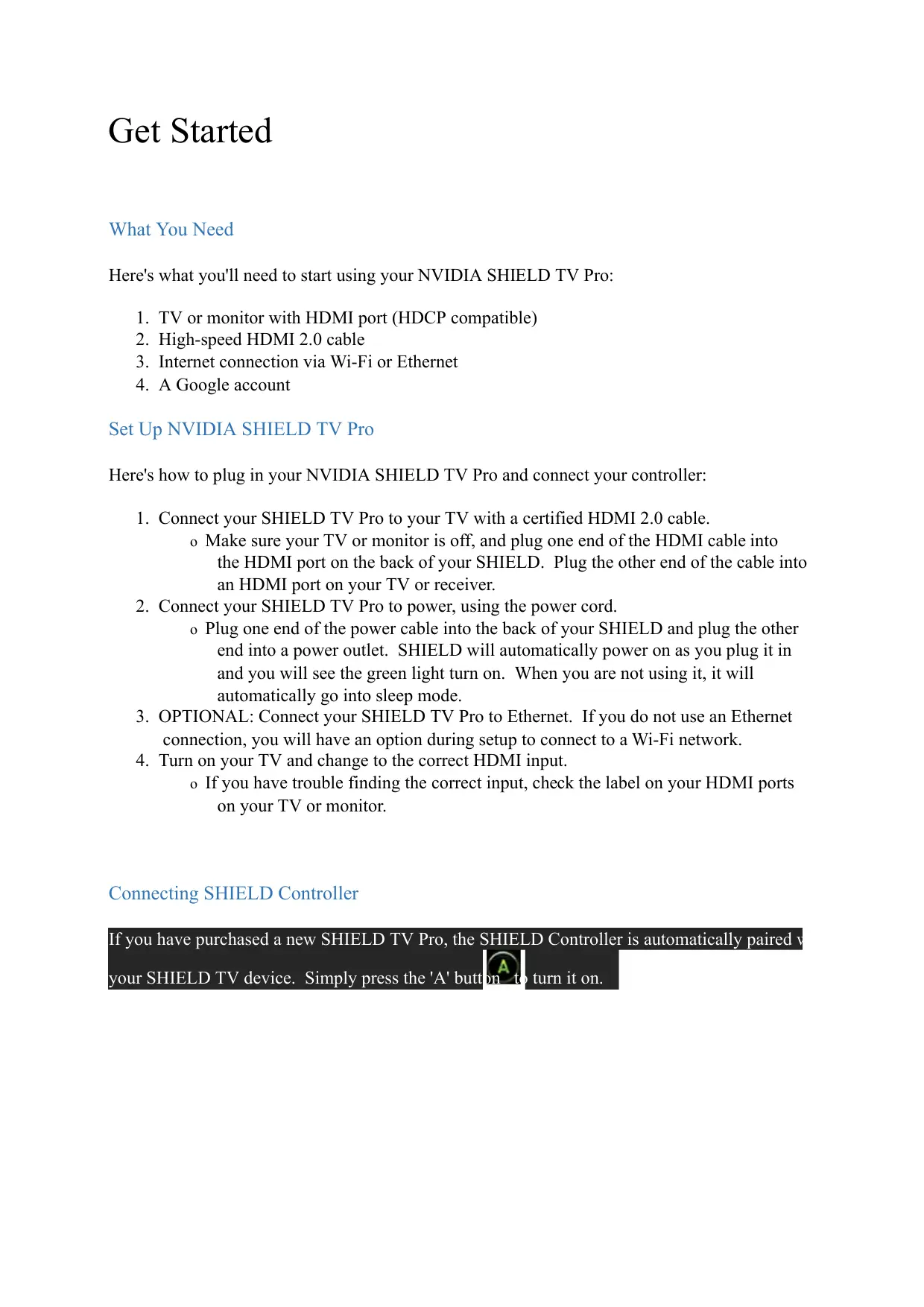
Get Started
What You Need
Here's what you'll need to start using your NVIDIA SHIELD TV Pro:
- TV or monitor with HDMI port (HDCP compatible)
- High-speed HDMI 2.0 cable
- Internet connection via Wi-Fi or Ethernet
- A Google account
Set Up NVIDIA SHIELD TV Pro
Here's how to plug in your NVIDIA SHIELD TV Pro and connect your controller:
- Connect your SHIELD TV Pro to your TV with a certified HDMI 2.0 cable.
o Make sure your TV or monitor is off, and plug one end of the HDMI cable into the HDMI port on the back of your SHIELD. Plug the other end of the cable into an HDMI port on your TV or receiver. - Connect your SHIELD TV Pro to power, using the power cord.
o Plug one end of the power cable into the back of your SHIELD and plug the other end into a power outlet. SHIELD will automatically power on as you plug it in and you will see the green light turn on. When you are not using it, it will automatically go into sleep mode. - OPTIONAL: Connect your SHIELD TV Pro to Ethernet. If you do not use an Ethernet connection, you will have an option during setup to connect to a Wi-Fi network.
- Turn on your TV and change to the correct HDMI input.
- If you have trouble finding the correct input, check the label on your HDMI ports on your TV or monitor.
Connecting SHIELD Controller
If you have purchased a new SHIELD TV Pro, the SHIELD Controller is automatically paired v
your SHIELD TV device. Simply press the 'A' button to turn it on.