
Q2005 - Ordinateur portable GIGABYTE - Notice d'utilisation et mode d'emploi gratuit
Retrouvez gratuitement la notice de l'appareil Q2005 GIGABYTE au format PDF.

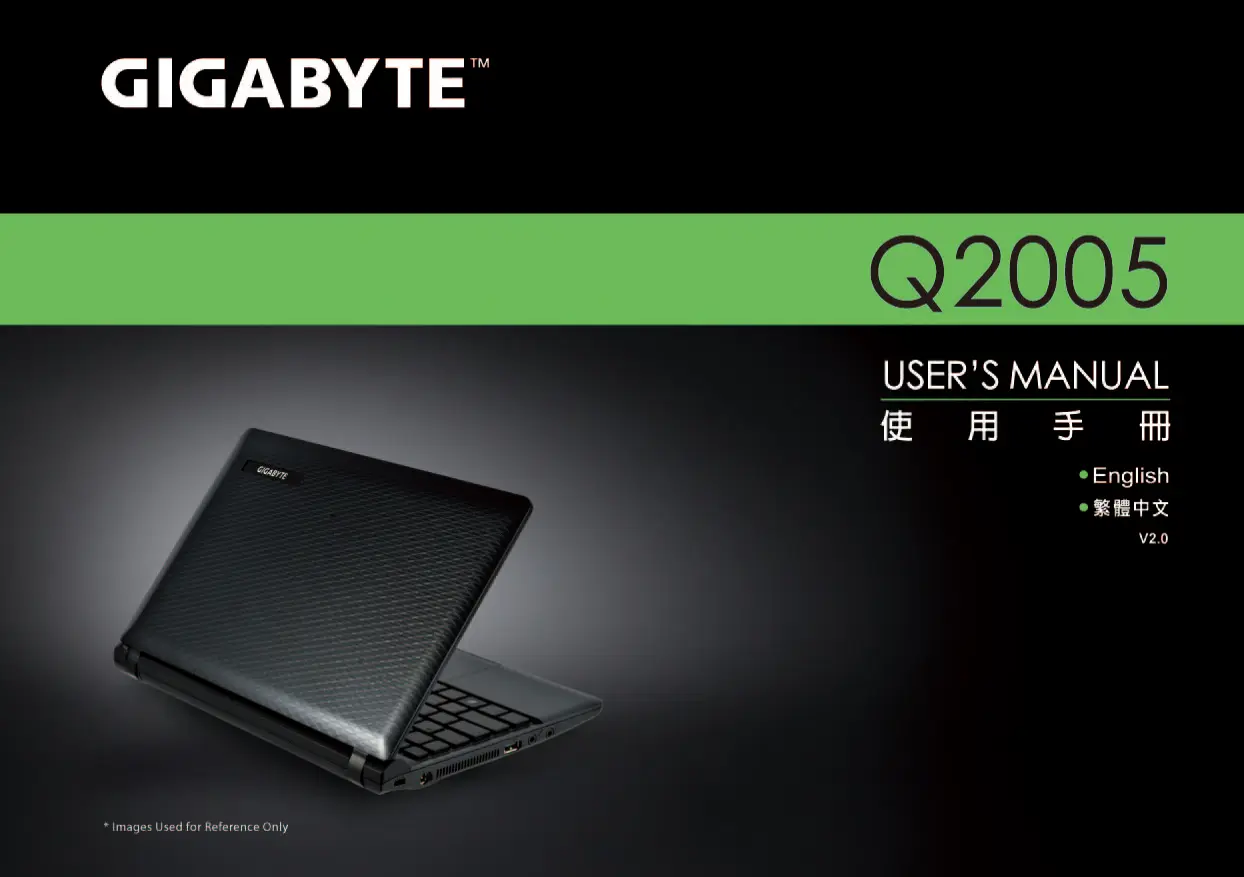


| Type de produit | Ordinateur portable |
| Marque | GIGABYTE |
| Modèle | Q2005 |
| Processeur | Intel Atom N550/N570 |
| Système d'exploitation | Windows 7 |
| Chipset | Mobile Intel NM10 |
| Mémoire vive | 1 x DDR3 1066/1333 MHz |
| Écran | 10.1 pouces, 1024 x 600 pixels |
| Disque dur | 2.5 pouces SATA 5400 tr/min, 250/320/500 Go |
| Lecteur optique | Aucun |
| Connectivité | Wi-Fi 802.11 b/g/n, Bluetooth 3.0 (optionnel), Ethernet 10/100 |
| Ports | 3x USB 2.0, 1x D-Sub, 1x RJ45, prise microphone, prise casque, lecteur de carte 8-en-1 |
| Webcam | 0,3 mégapixel intégrée |
| Alimentation | Adaptateur secteur 30 W |
| Batterie | Lithium-ion 3 ou 6 cellules |
| Dimensions (L x P x H) | 266 x 185 x 19,7 ~ 27,1 mm |
| Poids | Environ 1,05 kg (batterie 3 cellules) / 1,2 kg (batterie 6 cellules) |
| Garantie | 1 an |
| Nettoyage | Utiliser un chiffon microfibre ; pour le châssis, détergent dilué (1:5) ; pour le clavier, alcool isopropylique ; pour l'écran, kit spécifique ou mélange 50% alcool isopropylique et 50% eau distillée |
| Sécurité | Utiliser uniquement l'adaptateur fourni ; ne pas obstruer les ventilations ; ne pas exposer aux liquides ; éteindre avant nettoyage ; éviter les températures extrêmes |
| Réparabilité | Ne pas tenter de réparation soi-même ; contacter un centre de service agréé GIGABYTE |
FOIRE AUX QUESTIONS - Q2005 GIGABYTE
Questions des utilisateurs sur Q2005 GIGABYTE
0 question sur cet appareil. Repondez a celles que vous connaissez ou posez la votre.
Poser une nouvelle question sur cet appareil
Téléchargez la notice de votre Ordinateur portable au format PDF gratuitement ! Retrouvez votre notice Q2005 - GIGABYTE et reprennez votre appareil électronique en main. Sur cette page sont publiés tous les documents nécessaires à l'utilisation de votre appareil Q2005 de la marque GIGABYTE.
MODE D'EMPLOI Q2005 GIGABYTE
Q2005
USER'S MANUAL
使用手册
English
繁體中文
V2.0
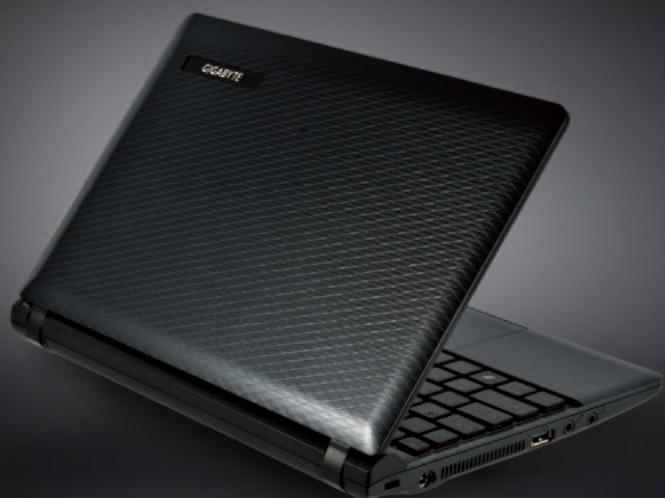
Copyright © 2010 GIGABYTE TECHNOLOGY CO., LTD.
All Rights Reserved
GIGABYTE Q2005 Series Notebooks User's Manual
Date Issued: 2011/03
This manual takes you, step by step, through setting up and using your new Notebook PC. Information in this manual has been carefully checked for accuracy and is subject to change without prior notice.
No part or parts of this manual may be reproduced, stored in a retrieval system, or transmitted, in any form or by any means, electronic, mechanical, by photocopy, recording, or otherwise, without prior written consent.
Trademarks
Product names used herein are for identification purposes only and may be the trademarks of their respective companies. Microsoft® , MS-DOS, Windows®, and Windows® Sound System are trademarks of the Microsoft Corporation.
Intel® & Atom™. are registered trademarks of Intel Corporation.
General Safety Precautions
In order to ensure your safety and the safety of your notebook, we ask that you carefully follow these safety precautions.

CAUTION: Using your notebook for long periods of time, with the base resting directly on exposed skin, can cause injury, burns or discomfort from the heat buildup that is generated from the base of your portable computer.
- After removing the notebook from the box, please ensure that all packaging materials are kept out of the reach of small children as they can cause a potential choking hazard. The packaging materials should be safely stored away in the event that it may be used again for safe transportation of the notebook.
- Ensure that the AC Adaptor and power cable are placed in a safe area where it cannot be tripped over or stepped on. The AC Adaptor should be situated in a well ventilated area and should have nothing resting on or covering it.
- Before turning on the notebook, ensure that it is placed on a level surface with at least 10cm of clearance around the air vents, which will aid in proper cooling.
- Do not obstruct the air vents of the notebook and do not insert any foreign objects into this space. Doing this may cause a short circuit or may cause the CPU fan to malfunction, resulting in the risk of a fire or electric shock. This may eventually render permanent damage to the notebook.
- Do note press or touch the display panel.
-
Only use the AC Adaptor that is provided with the notebook or that which is recommended by the manufacturer. Using non-recommended or non-approved parts may cause damage or increase the risk of a fire or explosion. In the event that another AC Adaptor is required, advice should be sought from a GIGABYTE service agent, in order to make sure that the correct part is recommended.
-
Please follow the battery installation guidelines. Incorrect installation of batteries may increase the risk of a fire or explosion.
- Only replace old batteries with the same or an alternative compatible battery that is recommended by GIGABYTE or an authorized GIGABYTE Service Centre.
- Before connecting the notebook to the power outlet, make sure that the voltage rating of the AC Adaptor is compatible with the power specification in the country where you are located.
- When using an extension cord, please make sure that the total sum of ampere ratings for all connected devices does not exceed the total ampere capacity for the circuit. Please check the instructions on Page 18~21.
- Before removing the battery from the notebook, make sure firstly that the notebook is switched off and secondly that the AC Adaptor is disconnected from the electrical wall socket. Once this is done, it would be safe to remove the battery.

Do not carry the notebook battery, loose, in your handbag, backpack or pocket where loose metal objects (money, keys, chains, pens, etc) may be present. The metal objects can short circuit the terminals of the battery resulting in overheating that could cause a fire hazard. In the event that you need to transport the battery separately from the notebook, please place it inside an anti-static bag.
- Discard old worn out batteries according to the instructions on Page VI. Never throw batteries into a fire as this can cause an explosion.
- Never attempt to repair or service the notebook yourself. Please refer all repairs and servicing to qualified service personnel at a GIGABYTE Authorized Service Centre.
Travel Tips
Although notebooks are designed to be as robust as possible to cater for a mobile lifestyle, extreme care and caution should be taken when travelling. When travelling by land, sea or air, every precaution should be taken to make sure that the notebook is well secured when it is not in use.
- The most essential accessory you should have when travelling is a good carry case for your notebook. The case should be well padded to protect your notebook from drops and bumps, etc and should be big enough to hold the size of notebook.
- Make sure there is enough room to carry your AC Adaptor and spare battery etc. Only carry the necessary items in your carry case, as the weight can become tedious especially when walking long distances or waiting in long queue's.
- When travelling by air, never book your notebook in with checked baggage. Always declare it as hand baggage so that you can carry it into the airplane cabin with you. Most airlines allow two pieces of hand baggage with one of them being a bag or carry case with a portable notebook. Please consult your local airline for more details.
- When placing your notebook on an X-Ray, make sure that you keep a close eye on it when it is one the conveyor belt. Hold on to your notebook until the last minute before placing it on the conveyor. In some airports it could be stolen while you are stuck in a queue waiting to pass through the metal detector.
- Notebooks and hard drives can pass through X-Ray machines but never allow these to pass through a metal detector. This can cause data loss to the hard drive.
- Never place your notebook in the overhead storage compartment as this can make it susceptible to damage caused by turbulence that may be experienced during the flight or in other case theft. You can
store your notebook under your seat, where it is always in sight.
- You should take every precaution to protect your notebook from dust, dirt, liquid spillage, food droppings, extreme weather conditions and direct exposure to sunlight.
- When travelling between different climates, from one extreme to another, condensation may occur inside the notebook. If this does happen, please allow sufficient time for the moisture to evaporate completely, before attempting to switch on.
- When travelling from extremely colder to extremely warmer climates in a short space of time, and vice versa, please allow the notebook some time to adapt to the change in environment.
Usage Tips
- When unplugging the power connector from the notebook, please hold and pull on the connector or the strain relief loop to disconnect. Do not pull the power cord itself as this can cause damage to the cable or the notebook.
- In the event of an electrical storm, please disconnect the notebook from the power source and unplug any network or telephone cables that may be connected to the notebook.
- Do not use the notebook near water sources, like bathtubs, washing basins, kitchen or laundry sinks or swimming pools. Liquid that can spill onto the notebook by accident can cause electric shock to you and damage to the notebook.
Cleaning Tips
When cleaning the notebook, please make sure that the notebook is switched off and disconnected from the power source and that the battery is removed.
Notebook Cover:
Use a microfiber or lint free soft cotton cloth and kitchen detergent (mix 5 parts water to 1 part detergent).
- Wet the cloth and wring out all excess liquid and wipe the surfaces clean.
- Take extra care to make sure that the cloth is damp and not very wet, especially when cleaning around the air vents and other openings as too much liquid in the cloth could drip onto the external components causing damage to the notebook.
- Do not clean the keyboard with this liquid.
Keyboard:
- It is advisable to use a can of compressed air to clean debris that maybe caught underneath the keys.
- Isopropyl alcohol can be used to clean the keys by dipping a lint-free soft cloth into it, wringing out the excess liquid and wiping the keys.
- Allow to dry for at least 5 minutes.
LCD:
It is best to use a microfiber cloth to clean the surface of the LCD.
- If there are any marks or stains present, it would be wise to use commercially available LCD cleaning kit. When using a commercially available LCD cleaning kit, never spray the liquid directly onto the screen. You must spray it onto the cleaning cloth and then wipe the screen clean.
- If this is not available then you can mix 50% isopropyl alcohol and 50% distilled water to clean the surface of the LCD screen.
- Dip the lint free soft cotton cloth into the solution, wringing out excess liquid.
- The cloth must be damp but not dripping with liquid.
Take care not to let any excess liquid drip into the notebook.
- Start from the top of the LCD surface and wipe from side to side.
- Continue with this until the entire LCD surface has been cleaned.
- Wipe the display with a clean, dry lint free soft cotton or microfiber cloth.
- Wait for the LCD surface to dry completely and then close the lid.

Be careful when using Isopropyl Alcohol as this is a flammable liquid. Please keep away from children, naked flames or a notebook that is switched on.
Warranty Guidelines
All warranty repairs and service must be carried out by a GIGABYTE Authorized Repair Centre.
GIGABYTE Limited Warranty:
GIGABYTE warrants, that the GIGABYTE branded Notebook is free of any defects in materials and workmanship under normal use during the warranty period.
- All GIGABYTE supplied AC adaptors and batteries carry a 1 year limited warranty.
- The warranty is effective from date of purchase.
- If proof of purchase cannot be shown, then the warranty will be determined based on the date of manufacture.
- The limited warranty is only valid for GIGABYTE branded or supplied hardware.
- In the event that a defect arises in materials or workmanship and proof is shown of this defect, GIGABYTE will, through its authorized service provider or partner, repair the product at no extra charge, using new or refurbished replacement parts in order to fulfill the warranty obligations.
- If, during the warranty period, GIGABYTE or its service provider is unable to repair the product, the product will be replaced with a comparable product that is new or refurbished.
Warranty Limitations:
The GIGABYTE Limited Warranty does not cover the following...
- Software, including the operating system and applications supplied with the product. This also includes third party software that may be installed after purchase.
- Third party hardware, products and accessories not supplied by GIGABYTE. This also includes third party hardware that may be bundled with the notebook or notebook.
- Products with missing or defaced labels and/or serial numbers
- Products damaged by environmental factors, which include oxidation
- Products damaged by natural disasters or acts of God.
- Physical Damages which include, but not limited to, the following:
Unauthorized modifications, repairs or servicing
- Misuse, abuse, neglect or failure to follow instructions in the user manual.
Improper assembly
- Damages caused by transport due to improper packaging or mishandling by the courier company unless transport is part of the warranty conditions in certain countries.
Electric damage resulting from faulty or failed electric power or power surges.
Damaged or cracked components
Liquid damage
Regulatory Notices & Certifications
Federal Communications Commission Notice:
This equipment has been tested and found to comply with the limits for a Class B digital service, pursuant to Part 15 of the FCC rules. These limits are designed to provide reasonable protection against harmful interference in a residential installation.
Any changes or modifications made to this equipment may void the user's authority to operate this equipment. This equipment generates, uses, and can radiate radio frequency energy. If not installed and used in accordance with the instructions, may cause harmful interference to radio communications. However, there is no guarantee that interference will not occur in a particular installation. If this equipment does cause harmful interference to radio or television reception, which can be determined by turning the equipment off and
on, the user is encouraged to try to correct the interference by one or more of the following measures:
Reorient or relocate the receiving antenna.
- Increase the separation between the equipment and receiver.
- Connect the equipment into an outlet on a circuit different from that to which the receiver is connected.
- Consult the dealer or an experienced radio/TV technician for help.
- All external cables connecting to this basic unit must be shielded. For cables connecting to PCMCIA cards, see the option manual or installation instructions.
RF Exposure:
This equipment must be installed and operated in accordance with provided instructions and must not be co-located or operating in conjunction with any other antenna or transmitter. End-users and installers must be provide with antenna installation instructions and transmitter operating conditions for satisfying RF exposure compliance.
CE Notice (European Union):
This symbol indicates this Booktop Q2005 notebook complies with the EMC Directive and the European Union's Low Voltage Directive. This symbol also indicates that Q2005 meets the following technical standards:
- EN 55022 — "Limitations and Methods of Measurement for the Radio Interferences of Information Technology Equipment."
- EN 55024 — "Information technology equipment - Immunity characteristics - Limits and methods of measurement."
- EN 61000-3-2 — "Electromagnetic compatibility (EMC) - Chapter 3: Limits - Section 2: Limits on the harmonic current emissions (Equipment input current up to and including 16 A per phase)."
- EN 61000-3-3 — "Electromagnetic compatibility (EMC) - Chapter 3: Limits - Section 3: Limits on the voltage fluctuations and flicker in low-voltage power supply systems for equipment with rate current up to and including 16 A."

NOTE: EN 55022 emissions requirements provide for two classifications
Class A governs commercial use
Class B is governs residential use
For CB:
- Only use batteries designed for this computer. The wrong battery type may explode, leak or damage the computer
- Do not remove any batteries from the computer while it is powered on.
- Do not continue to use a battery that has been dropped, or that appears damaged (e.g. bent or twisted) in any way. Even if the computer continues to work with a damaged battery in place, it may cause circuit damage, which may possibly result in fire.
- Recharge the batteries using the notebook's system. Incorrect recharging may make the battery explode.
- Do not try to repair a battery pack. Refer any battery pack repair or replacement to your service representative or qualified service personnel.
- Keep children away from, and promptly dispose of a damaged battery. Always dispose of batteries carefully. Batteries may explode or leak if exposed to fire, or improperly handled or discarded.
- Keep the battery away from metal appliances.
- Affix tape to the battery contacts before disposing of the battery.
- Do not touch the battery contacts with your hands or metal objects.
BSMI Notice (Taiwan Only)
Most Q2005 computers are classified by the Bureau of Standards, Meteorology and Inspection (BSMI) as Class B information technology equipment (ITE).

R32323
The symbol above must be attached to the product indicating compliance with the BSMI standard.
Battery Disposal & Caution
The product that you have purchased contains a rechargeable battery. The battery is recyclable. At the end of its useful life, under various state and local laws. It may be illegal to dispose of this battery into the municipal waste stream. Please check with your local solid waste officials for details in your area for recycling options or proper disposal. Danger of explosion if battery is incorrectly replaced. Replace only with the same or equivalent type recommended by the manufacturer. Discard used battery according to the manufacturer's instructions.
Replaceable Batteries
If any equipment is provided with a replaceable battery, and if replacement by an incorrect type could result in an explosion (for example, with some lithium batteries), the following applies:
- If the battery is placed in an operator access area, there shall be a marking close to the battery or a statement in both the operating and the servicing instructions;
- If the battery is placed elsewhere in the equipment, there shall be a marking close to the battery or a statement in the servicing instructions.
This marking or statement shall include the following or similar text:
CAUTION
RISK OF EXPLOSION IF BATTERY IS REPLACED
WITH AN INCOMPATIBLE BATTERY TYPE.
DISPOSE OF USED BATTERIES
ACCORDING TO THE INSTRUCTIONS
Introduction
Congratulations and thank you for purchasing the GIGABYTE notebook computer. This portable notebook computer provides excellent multimedia functionality and is designed to provide you reliable, no fuss computing.
This manual will explain to you, step by step, how to setup and begin using your Q2005. It provides basic configuring, operation, care and troubleshooting guidelines.
Content
General Safety Precautions.
Travel Tips
Usage Tips
Cleaning Tips. III
Warranty Guidelines IV
Regulatory Notices & Certifications..
Battery Disposal & Caution.. VI
Introduction VIII
Chapter 1 Before You Start
1.1 Make Sure You Have Everything 2
1.2 Familiarize Yourself with the Computer 2
1.3 Top View 3
1.4 Left View 4
1.5 Right View 4
1.6 Back View 5
1.7 Bottom View 5
Chapter 2 Getting Started
2.1 Power Sources 7
2.2 Recharging the Battery 8
2.3 Starting Your Notebook 9
2.4 Status LED Indicators 9
2.5 Using Function Keys 10
2.6 Using the Touch Pad 11
Chapter 3 GIGABYTE Smart Recovery
3.1 GIGABYTE Smart Recovery 13
Chapter 4 Troubleshooting
4.1 Identifying the Problem 15
4.2 GIGABYTE Service Information 15
Appendix
Q2005 Specifications 17
International Country Voltage 18
Plug Type 22

Chapter 1 Before You Start
This chapter provides basic information to help you get started and to use the Q2005 notebook.
Some of the features described herein may not function properly or at all unless used in conjunction with the pre-installed operating system. Any change to the operating system may cause improper function.
1.1 Make Sure You Have Everything
When you receive your notebook PC, unpack it carefully and check to make sure you have all the items listed below. For a pre-configured model you should have the following:
GIGABYTE Notebook Computer
- Lithium-lon battery
- AC adapter with power cord
- Driver disc
- Quick Start Guide
Once you have checked and confirmed that your notebook system is complete, read through the following pages to learn about all of your notebook components.

NOTE: Depending on the model you purchased, the actual appearance of your notebook may vary from that shown in this manual. These images are for illustration purposes.
1.2 Familiarize Yourself with the Computer
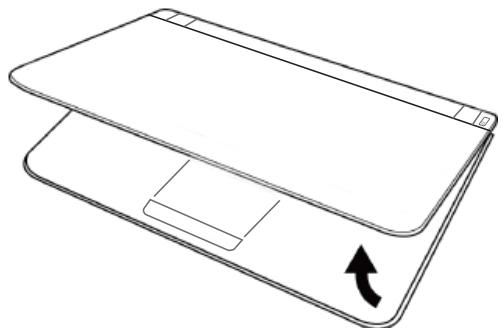
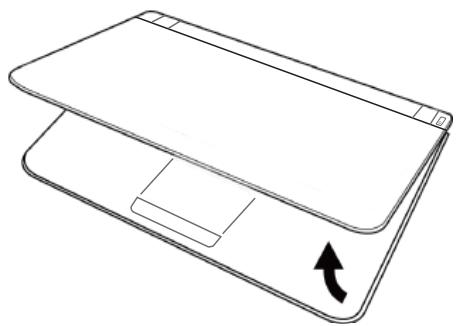
Opening the Display Panel
To open the display panel, simply lift the lid up. Use your one hand to hold the machine and use the other to open the display panel. When closing the lid, be sure not to slam it closed.
1.3 Top View
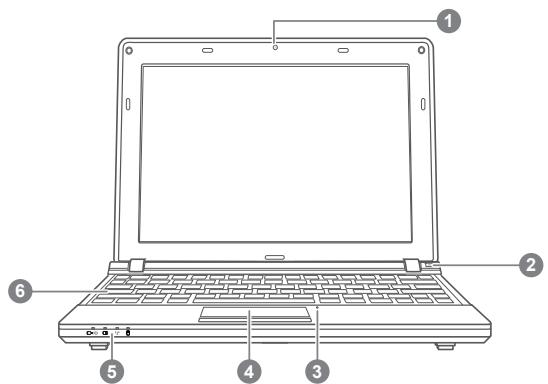
The following is an overview of the front of the notebook.
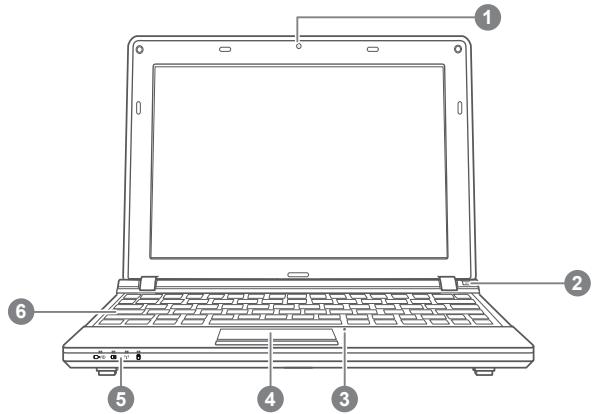
| NO. | Item | Function |
| 1 | Webcam | The built-in webcam is available either as a 0.3M pixel camera. It allows you to snap a photo a photo, create a video or take part in a video conference with just a click. |
| 2 | Power Button | This button turns your notebook on and off or puts it to sleep. (See suspend/power on button in the power on Section 2.3 for more information.) |
| 3 | Microphone | The built-in microphone allows for the reception and transmission of voice and/or other audio data to any program capable of utilizing the microphone. |
| 4 | Touchpad | The touchpad pointing device is a mouse-like cursor control with buttons and a touch sensitive movement pad. |
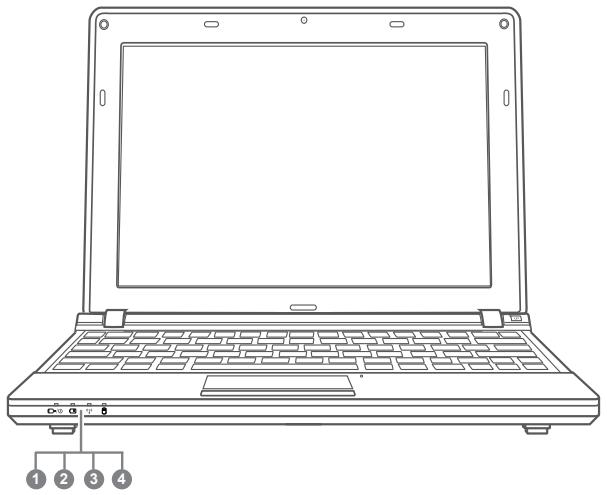
| 5 | Status LED Indicators | The Status LED Indicators correspond to specific operating modes. These modes are: Power On/Suspend Status Indicator, Battery Status LED, Wireless Transmission Activity Indicator, Hard Disk Drive (HDD) Activity Indicator |
| 6 | Keyboard | The keyboard comes with 83 keys, including dedicated Windows® keys. |
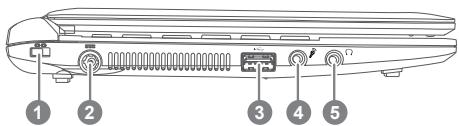
1.4 Left View
The following is a brief description of the left side of the notebook.
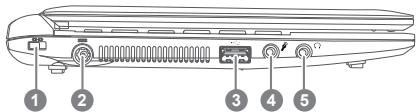
| NO. | Item | Function |
| 1. | Kensington Lock Slot | The Kensington lock slot allows you to secure your notebook to an immovable object with an optional security cable. |
| 2. | DC-in Jack | The DC-in jack allows you to plug in the AC adapter to power your notebook and charge the internal Lithium-iron battery. |
| 3. | USB 2.0 Port | The USB ports allow you to connect Universal Serial Bus devices. They support v2.0 of the USB standard, which allows data exchange rates as high as 480 Mb/s. |
| 4. | Microphone Jack | The microphone jack allows you to connect an external microphone. |
| 5. | Headphone Jack | The headphone jack allows you to connect headphones or external speakers and amplifiers. |
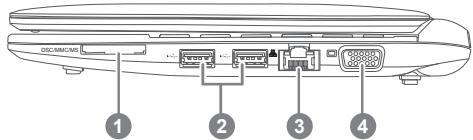
1.5 Right View
The following is a brief description of the right side of the notebook.
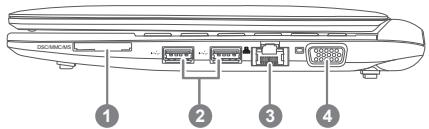
| NO. | Item | Function |
| 1. | Memory Card Reader | The 8 in 1 Card Reader offers • MMC / RSMMC • SD / Mini SD / SDHC • MS / MS Pro /MS Duo |
| 2. | USB 2.0 Port | The USB ports allow you to connect Universal Serial Bus devices. They support v2.0 of the USB standard, which allows data exchange rates as high as 480 Mb/s. |
| 3. | LAN (RJ-45) Port | The LAN port is designed to support a 10/100 Base-TX standard RJ-45 plug. |
| 4. | External Monitor Port (D-Sub) | The external monitor port allows you to connect anexternal display. |
1.6 Back View
The following is an overview of the back of the notebook.
The battery is inserted from the back of the notebook.

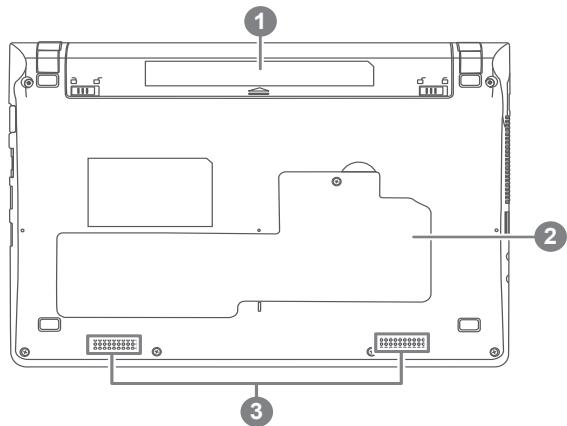
1.7 Bottom View
The following is an overview of the bottom of the notebook.
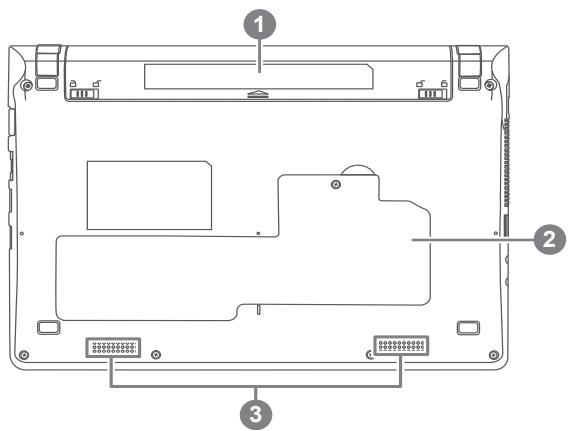
| NO. | Item | Function |
| 1 | Battery Bay | The battery bay contains the internal Lithium-iron battery. It holds the battery in place using two locking clips. The battery can be removed for storage or to replace with a charged battery. |
| 2 | Wireless, Memory Compartment | The Wireless, Memory Compartment contains the computer's Wireless and Memory Module. |
| 3 | Speakers | The built-in dual speakers allow for stereo sound. |
Chapter 2 Getting Started
This chapter will show you the various ports and components of the Q2005, and familiarizes you with the notebook. Certain parts of the notebook can be upgraded by the user while others are fixed and cannot be changed.
2.1 Power Sources
Your computer has two types of power sources: A Lithium-iron battery and an AC adapter.
Connecting the Power Adapters
The AC adapter provides power for operating your notebook PC as well as charging the battery.
Connecting the AC Adapter
1.Plug the DC output cable into the DC power jack of your notebook.
2.Plug the AC adapter into an AC electrical outlet.
Switching from AC Adapter Power to Battery Power
- Be sure that you have at least one charged battery installed.
2.Remove the AC adapter. Your notebook will automatically switch from DC power to battery power.

CAUTION: The Lithium-1on battery does not ship with a precharge initially. You will need to connect the AC adapter to use your notebook PC at the first time.
It is recommended that only the AC Adapter supplied with the Q2005 is used. Any other adapter could cause damage or malfunction and might result in injury.
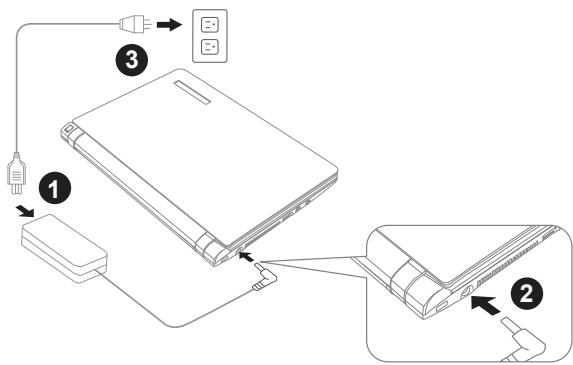
- Connect the power cord to the AC adapter.
- Connect the AC adapter to the DC power port of your computer.
- Connect the AC adapter power cord to an AC outlet.
2.2 Recharging the Battery
The Lithium-Ion battery is recharged internally using the AC adapter. To recharge the battery, make sure the battery is installed and the computer is connected to the AC adapter.
There is no "memory effect" in Lithium-ion batteries; therefore you do not need to discharge the battery completely before recharging. The charge times will be significantly longer if your notebook PC is in use while the battery is charging. If you want to charge the battery more quickly, put your computer into Suspend mode or turn it off while the adapter is charging the battery.
Low Battery State
When the battery charge is low, a notification message appears. If you do not respond to the low battery message, the battery continues to discharge until it is too low to operate. When this happens, your notebook PC goes into Suspend mode. There is no guarantee your data will be saved once the notebook reaches this point.

CAUTION: To protect your notebook from damage, use only the power adapter that came with it because each power adapter has its own power output rating.
Once your notebook PC goes into Suspend mode as a result of a dead battery, you will be unable to resume operation until you provide a source of power either from an adapter or a charged battery. Once you have provided power, you can press the Suspend/Resume button to resume operation. In Suspend mode, your data is maintained for some time, but if a power source is not provided promptly, the Power indicator stops flashing and then goes out, in which case you have lost the data that was not saved. Once you provide power, you can continue to use your computer while an adapter charges the battery.
Battery Replacement
There is danger of explosion if an incorrect battery type is used for replacement. For computers equipped with a replaceable Lithium-ion battery pack, the following applies:
- If the battery is placed in an OPERATOR ACCESS AREA, there shall be a marking close to the battery, or a statement in both the operating and the servicing instructions;
- If the battery is placed elsewhere in the computer, there shall be a marking close to the battery or a statement in the servicing instructions.
The marking or statement shall include the following or similar text:

CAUTION: Risk of explosion if battery is replaced with an incorrect type. Dispose of used batteries according to the instructions.
- If you happen to leave your battery pack to go through an extended period of self-discharge, say more than three months, the battery voltage level will become too low and needs to be Pre-Charged (to bring the battery voltage level high enough) before it automatically resumes its normal Fast Charge. Pre-Charge may take 30 minutes. Fast Charge usually takes 2~3 hours.
2.3 Starting Your Notebook
Suspend/Power On Button
The suspend/power on switch is used to turn on your notebook from its off state. Once you have connected your AC adapter or charged the internal Lithium-lon battery, you can power on your notebook by pressing the suspend/power on button located above the keyboard. If you need to take an extended break, press the button again to turn it off.

CAUTION: Do not carry your notebook around with the power on or subject it to shocks or vibration, as you risk damaging the hard disk.
When you power on your notebook, it will perform a Power On Self Test (POST) to check the internal parts and configuration for correct functionality. If a fault is found, your computer emits an audio warning and/or displays an error message.
Depending on the nature of the problem, you may be able to continue by starting the operating system or by entering the BIOS setup utility and revising the settings. After satisfactory completion of the Power On Self Test (POST), your notebook loads the installed operating system.

CAUTION Never turn off your notebook during the Power On Self Test (POST), or an unrecoverable error may occur.
2.4 Status LED Indicators
The status indicator lights correspond to specific operating modes. These modes are: Power on/ Suspend status, Battery/AC Adapter status, and wireless transmission activity, Hard Disk Drive (HDD) Activity Indicator.

| NO. Symbol | Item | Function | |
| 1 | Power On/ Suspend Status Indicator | This light illuminates when the computer is powered on, and flashes when the computer is in suspend mode. | |
| 2 | III Battery Status LED | The battery indicator tells you whether the Lithium-lon battery is charging or is already fully charged.. · If you are charging your battery, the battery indicator remains on even if your notebook is shut off. · If there is no battery activity, the power adapters are not connected, or the power switch is Off, the battery indicator will also be off. · Batteries subjected to shocks, vibrations or extreme temperatures can be permanently damaged. | |
| 3 | (▲) Wireless Transmission Activity Indicator | The wireless transmission activity indicator tells you whether your computer is connected to a bluetooth/ wireless network or not. | |
| 4 | ○ Hard Disk Drive (HDD) Activity Indicator | The hard disk drive(HDD) activity indicator tells you whether your internal hard drive is being accessed and, if so, how fast. | |
2.5 Using Function Keys
The keyboard has a numeric keypad for easy numeric data input. Pressing the Fn + NumLk keys turns on/off the numeric keypad. It also features function keys to allow you to change operational features instantly. The function keys (F1 - F12 etc.) will act as hot keys when pressed while the Fn key is held down. In addition to the basic function key combinations, visual indicators are available when the hot key driver is installed.
Table 3 - Function Keys & Visual Indicators
| Keys | Function/Visual Indicators | |
| Fn + F1 | Touchpad Toggle | |
| Fn + F2 | Turn LCD Backlight Off (Press a key to or use Touch pad to turn on) | |
| Fn + F3 | Mute Toggle | |
| Fn + F4 | Sleep Toggle | |
| Fn + F5 / F6 | Volume Decrease / Increase | |
| Fn + F7 | Display Toggle | |
| Fn + F8 / F9 | Brightness Decrease / Increase | |
| Fn + F10 | PC Camera Power Toggle | |
| Fn + F11 | WLAN Module Power Toggle | |
| Fn + F12 | Bluetooth Module Power Toggle (Optional) | |
2.6 Using the Touchpad
A Touchpad pointing device comes built into your computer. It is used to control the movement of the pointer to select items on your desktop and use applications on the notebook.
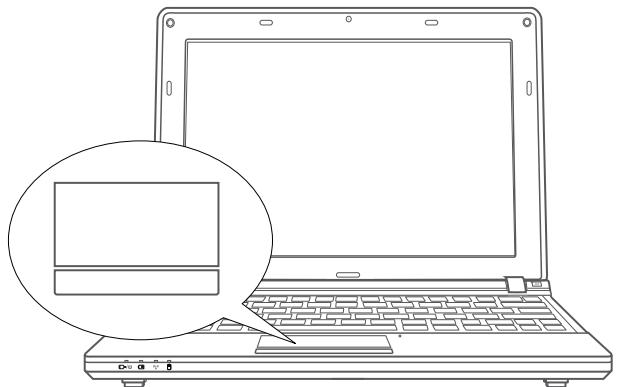
The Touchpad consists of a cursor control, a left and right button, and a scroll bar. The cursor control works the same way a mouse does, and moves the cursor around the display. It only requires light pressure from the tip of your finger. The left and right buttons function the same as mouse buttons. The actual functionality of the buttons may vary depending on the application that is being used. The scroll bar allows you to navigate quickly through pages, without having to use the on-screen cursor to manipulate the up and down scroll bars.

Clicking:
Clicking means pushing and releasing a button. To left-click, move the cursor to the item you wish to select, press the left button once, and then immediately release it. To right click, move the mouse cursor to the item you wish to select, press the right button once, and then immediately release it. You also have the option to perform the clicking operation by tapping lightly on the Touchpad once.
Double-Clicking:
Double-clicking means pushing and releasing the left button twice in rapid succession. This procedure does not function with the right button. To double-click, move the cursor to the item you wish to select, press the left button twice, and then immediately release it. You also have the option to perform the double-click operation by tapping lightly on the Touchpad twice.
Dragging:
Dragging means pressing and holding the left button while moving the cursor. To drag, move the cursor to the item you wish to move. Press and hold the left button while moving the item to its new location and then release it. Dragging can also be done using the Touchpad. First, tap the Touchpad twice over the item you wish to move, making sure to leave your finger on the pad after the final tap. Next, move the object to its new location by moving your finger across the Touchpad, and then release your finger. Using the Scroll bar allows you to navigate through a document quickly without using the window's scroll bars. This is particularly useful when you are navigating through on-line pages.

Chapter 3 GIGABYTE Smart Recovery
3.1 GIGABYTE Smart Recovery
System Recovery - Restore your Q2005 Operating System.
The hard drive of the Q2005 has a hidden partition that contains a full backup image of the operating system that can be used to recover the system in the event that something happens to the operating system.

If the hard drive is removed or the partition deleted, the recover options will no longer be available and a recovery service will be needed.
Launch System Recovery
The system recovery feature is part of the notebookinstallation and it ships preset from the factory. The options menu allows you to launch the Windows Recovery tool to reinstall the operating system to factory defaults.
Below will briefly describe how to launch the recovery tool and to get the recovery started.
- Turn off or restart the notebook.
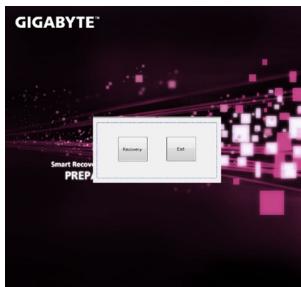
- Turn the notebook on and press and hold the F9 key to launch the tool.
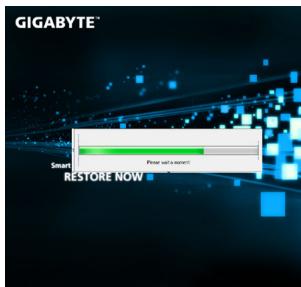
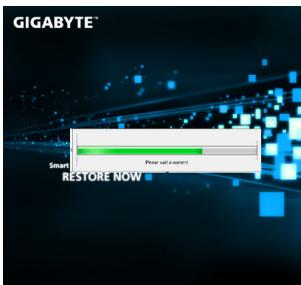
- The recovery window will open and give you the option to "Recovery" in the toolbar. You will be prompted if you want to recovery. Click on "Recovery" to begin the repair if you do.
- The "Recovering" window will open and begin the recovery.
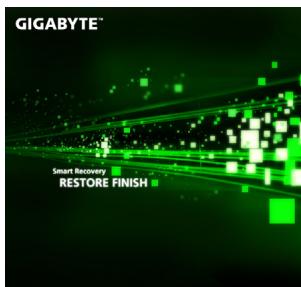
5.Once it is complete you will be prompted to reboot the notebook.

Chapter 4 Troubleshooting
This section will briefly cover some frequently encountered problems and questions and provide a quick guide to assist with solve these problems. Most problems can be resolved quickly, simply and easily and are not always a system problem. Should you encounter a problem that is not yet or differently listed, please consult the GIGABYTE Website www.gigabyte.com or call your unit supplier for assistance.
For website assistance go to the Support Downloads section of www.gigabyte.com for telephonic assistance please call the supplier of your unit or take the unit to the supplier directly for assistance.
Troubleshooting
Your notebook PC is sturdy and subject to few problems in the field. However, you may encounter simple setup or operating problems that you can solve on the spot, or problems with peripheral devices, that you can solve by replacing the device. The information in this section helps you isolate and resolve some of these straightforward problems and identify failures that require service.
4.1 Identifying the Problem
If you encounter a problem, go through the following procedure before pursuing complex troubleshooting:
- Turn off your notebook.
2.Make sure the AC adapter is plugged into your notebook and to an active AC power source.
3.Make sure that any card installed in the PC card slot is seated properly. You can also remove the card from the slot, thus eliminating it as a possible cause of failure.
4.Make sure that any devices connected to the external connectors are plugged in properly. You can also disconnect such devices, thus eliminating them as possible causes of failure. - Turn on your notebook. Make sure it has been off at least 10 seconds before you turn it on.
- Go through the boot sequence.
7.If the problem has not been resolved, contact your support representative.
Before you place the call, you should have the following information ready so that the customer support representative can provide you with the fastest possible solution
Product name
Product configuration number
- Product serial number
Purchase date
- Conditions under which the problem occurred
- Any error messages that have occurred
- Hardware configuration
- Type of device connected, if any
See the Configuration Label on the bottom of your notebook for configuration and serial numbers.
Copyright-protected technology This product incorporates copyright protection technology that is protected by U.S. patents and other intellectual property rights. Use of this copyright protection technology must be autho-rized by Macrovision, and is intended for home and other limited viewing uses only unless otherwise authorized by Macrovision. Reverse engineering or disassembly is prohibited.
4.2 GIGABYTE Service Information
More service information please link to GIGABYTE official website: www.gigabyte.com

Appendix
Q2005 Specifications
| Specifications | |
| CPU | Intel® Atom™ Processor N550/N570 |
| OS | support Windows 7 |
| Chipsets | Mobile Intel® NM10 |
| System Memory | Single channel DDR3 (support 1066/1333MHz) |
| LCD | 1O.1" LCD 1024X 600 |
| Hard Disk Drive | 2.5" 9.5mm SATA HDD 5400rpm(Supports capacities of 250/320/500 GB) |
| Optical Drive | NONE |
| I/O Port | 3x USB 2.0, D-SUBx1 1x RJ45, Mic-n, Earphone-out, 8-in-1 Card Reader,DC-in Jack |
| Audio | 2 channels |
| Bluetooth | Bluetooth 3.0(optional) |
| Webcam | Built-in 0.3M pixels webcam |
| LAN | Ethernet 10/100 Base T |
| Wireless LAN | 802.11 b/g/n |
| Embedded HSDPA | N/A |
| Protection | N/A |
| AC Adaptor | 30W |
| Battery | Li-ion, 6-Cell or 3-Cell |
| Dimension | 266 (W) x 185 (D) x19.7~ 27.1(H) mm |
| Carry Bag | N/A |
| Net Weight | ~1.05 kg (with 3 cell battery) / 1.2kg (with 6 cell ) |
| Warranty | 1 year |
International Country Voltage
| Region | Voltage | Frequency |
| Afghanistan | 240V | 50 Hz |
| Albania | 220V | 50 Hz |
| Algeria | 230V | 50 Hz |
| American Samoa | 120V | 60 Hz |
| Andorra | 230V | 50 Hz |
| Angola | 220V | 50 Hz |
| Anguilla | 110V | 60 Hz |
| Antigua | 230V | 60 Hz |
| Argentina | 220V | 50 Hz |
| Armenia | 230V | 50 Hz |
| Aruba | 127V | 60 Hz |
| Australia | 230V | 50 Hz |
| Austria | 230V | 50 Hz |
| Azerbaijan | 220V | 50 Hz |
| Azores | 220V | 50 Hz |
| Bahamas | 120V | 60 Hz |
| Bahrain | 230V | 50 Hz |
| Balearic Islands | 220V | 50 Hz |
| Bangladesh | 220V | 50 Hz |
| Barbados | 115V | 50 Hz |
| Belarus | 220V | 50 Hz |
| Belgium | 230V | 50 Hz |
| Belize | 110V / 220V | 60 Hz |
| Benin | 220V | 50 Hz |
| Bermuda | 120V | 60 Hz |
| Bhutan | 230V | 50 Hz |
| Bolivia | 220V | 50 Hz |
| Bonaire | 127V | 50 Hz |
| Bosnia | 220V | 50 Hz |
| Botswana | 231 V | 50 Hz |
| Brazil | 127V / 220 V | 60 Hz |
| Brunei | 240V | 50 Hz |
| Bulgaria | 230V | 50 Hz |
| Burkina Faso | 220V | 50 Hz |
| Burundi | 220V | 50 Hz |
| Cambodia | 230V | 50 Hz |
| Cameroon | 220V | 50 Hz |
| Canada | 120V | 60 Hz |
| Canary Islands | 220V | 50 Hz |
| Cape Verde | 220V | 50 Hz |
| Cayman Islands | 120V | 60 Hz |
| Central African Republic | 220V | 50 Hz |
| Chad | 220V | 50 Hz |
| Channel Islands | 230V | 50 Hz |
| Chile | 220V | 50 Hz |
| China (mainland only) | 220V | 50 Hz |
| Colombia | 120V | 60 Hz |
| Comoros | 220V | 50 Hz |
| Congo-Brazzaville | 230V | 50 Hz |
| Congo-Kinshasa | 220V | 50 Hz |
| Cook Islands | 240V | 50 Hz |
| Costa Rica | 120V | 60 Hz |
| Côte d'lvoire | 230V | 50 Hz |
| Croatia | 230V | 50 Hz |
| Cuba | 110V | 60 Hz |
| Cyprus | 240V | 50 Hz |
| Czech Republic | 230V | 50 Hz |
| Denmark | 230V | 50 Hz |
| Djibouti | 220V | 50 Hz |
| Dominica | 230V | 50 Hz |
| Dominican Republic | 110V | 60 Hz |
| East Timor | 220V | 50 Hz |
| Ecuador | 120V | 60 Hz |
| Egypt | 220V | 50 Hz |
| El Salvador | 115V | 60 Hz |
| Equatorial Guinea | 220V | 50 Hz |
| Eritrea | 230V | 50 Hz |
| Estonia | 230V | 50 Hz |
| Ethiopia | 220V | 50 Hz |
| Faroe Islands | 220V | 50 Hz |
| Falkland Islands | 240V | 50 Hz |
| Fiji | 240V | 50 Hz |
| Finland | 230V | 50 Hz |
| France | 230V (formerly 220V) | 50 Hz |
| French Guiana | 220V | 50 Hz |
| Gaza Strip | 230V | 50 Hz |
| Gabon | 220V | 50 Hz |
| Gambia | 230V | 50 Hz |
| Georgia | 220V | 50 Hz |
| Germany | 230V (formerly 220V) | 50 Hz |
| Ghana | 230V | 50 Hz |
| Gibraltar | 240V | 50 Hz |
| Greece | 230V (formerly 220V) | 50 Hz |
| Greenland | 220V | 50 Hz |
| Grenada | 230V | 50 Hz |
| Guadeloupe | 230V | 50 Hz |
| Guam | 110V | 60 Hz |
| Guatemala | 120V | 60 Hz |
| Guinea | 220V | 50 Hz |
| Guinea-Bissau | 220V | 50 Hz |
| Guyana | 240V | 60 Hz |
| Haiti | 110V | 60 Hz |
| Honduras | 110V | 60 Hz |
| Hong Kong | 220V | 50 Hz |
| Hungary | 230V (formerly 220V) | 50 Hz |
| Iceland | 230V | 50 Hz |
| India | 220V | 50 Hz |
| Indonesia | 127V / 230V | 50 Hz |
| Iran | 220V | 50 Hz |
| Iraq | 230V | 50 Hz |
| Ireland | 230V (formerly 220V) | 50 Hz |
| Isle of Man | 240V | 50 Hz |
| Israel | 230V | 50 Hz |
| Italy | 230V (formerly 220V) | 50 Hz |
| Jamaica | 110V and 220V | 50 Hz |
| Japan | 100 V | 50 Hz / 60Hz |
| Jordan | 230V | 50 Hz |
| Kazakhstan | 220V | 50 Hz |
| Kenya | 240V | 50 Hz |
| Kiribati | 240V | 50 Hz |
| Kuwait | 240V | 50 Hz |
| Kyrgyzstan | 220V | 50 Hz |
| Laos | 230V | 50 Hz |
| Latvia | 220V | 50 Hz |
| Lebanon | 240V | 50 Hz |
| Lesotho | 220V | 50 Hz |
| Liberia | 120V / 240V | 50 Hz |
| Libya | 127V | 50 Hz |
| Lithuania | 230V (formerly 220V) | 50 Hz |
| Liechtenstein | 230V | 50 Hz |
| Luxembourg | 230V (formerly 220V) | 50 Hz |
| Macau S.A.R. of China | 220V | 50 Hz |
| Macedonia | 220V | 50 Hz |
| Madagascar | 127V / 220 V | 50 Hz |
| Madeira | 220V | 50 Hz |
| Malawi | 230V | 50 Hz |
| Malaysia | 240V | 50 Hz |
| Maldives | 230V | 50 Hz |
| Mali | 220V | 50 Hz |
| Malta | 230V | 50 Hz |
| Martinique | 220V | 50 Hz |
| Mauritania | 220V | 50 Hz |
| Mauritius | 230V | 50 Hz |
| Mexico | 127V | 60 Hz |
| Micronesia | 120V | 60 Hz |
| Moldova | 220-230V | 50 Hz |
| Monaco | 127V / 220 V | 50 Hz |
| Mongolia | 230 V | 50 Hz |
| Montenegro | 220V | 50 Hz |
| Montserrat (Leeward Is.) | 230V | 60 Hz |
| Morocco | 127V / 220 V | 50 Hz |
| Mozambique | 220V | 50 Hz |
| Myanmar/Burma | 230V | 50 Hz |
| Namibia | 220V | 50 Hz |
| Nauru | 240V | 50 Hz |
| Nepal | 230V | 50 Hz |
| Netherlands | 230V (formerly 220V) | 50 Hz |
| Netherlands Antilles | 127V / 220V | 50 Hz |
| New Caledonia | 220V | 50 Hz |
| New Zealand | 230V | 50 Hz |
| Nicaragua | 120V | 60 Hz |
| Niger | 220V | 50 Hz |
| Nigeria | 240V | 50 Hz |
| North Korea | 220V | 50 Hz |
| Norway | 230V | 50 Hz |
| Okinawa | 100 V | 60 Hz |
| Oman | 240V | 50 Hz |
| Pakistan | 230V | 50 Hz |
| Panama | 110V | 60 Hz |
| Papua New Guinea | 240V | 50 Hz |
| Paraguay | 220V | 50 Hz |
| Peru | 220V | 60 Hz |
| Philippines | 220V | 60 Hz |
| Poland | 230V | 50 Hz |
| Portugal | 220V | 50 Hz |
| Puerto Rico | 120V | 60 Hz |
| Qatar | 240V | 50 Hz |
| Réunion | 220V | 50 Hz |
| Romania | 230V (formerly 220V) | 50 Hz |
| Russian Federation | 220V | 50 Hz |
| Rwanda | 230V | 50 Hz |
| St. Kitts and Nevis | 110V / 230V | 60 Hz |
| St. Lucia (Winward Is.) | 240V | 50 Hz |
| St. Vincent (Winward Is.) | 230V | 50 Hz |
| São Tomé and Príncipe | 220V | 50 Hz |
| Saudi Arabia | 127V / 220V | 60 Hz |
| Senegal | 230V | 50 Hz |
| Serbia | 220V | 50 Hz |
| Seychelles | 240V | 50 Hz |
| Sierra Leone | 230V | 50 Hz |
| Singapore | 230V | 50 Hz |
| Slovakia | 230V | 50 Hz |
| Slovenia | 230V | 50 Hz |
| Somalia | 220V | 50 Hz |
| South Africa | 220V | 50 Hz |
| South Korea | 220V | 60 Hz |
| Spain | 230V (formerly 220V) | 50 Hz |
| Sri Lanka | 230V | 50 Hz |
| Sudan | 230V | 50 Hz |
| Suriname | 127V | 60 Hz |
| Swaziland | 230V | 50 Hz |
| Sweden | 230V | 50 Hz |
| Switzerland | 230V | 50 Hz |
| Syria | 220V | 50 Hz |
| Tahiti | 110V / 220V | 60 Hz / 50 Hz |
| Taiwan | 110V | 60 Hz |
| Tajikistan | 220V | 50 Hz |
| Tanzania | 230V | 50 Hz |
| Thailand | 220V | 50 Hz |
| Togo | 220V | 50 Hz |
| Tonga | 240V | 50 Hz |
| Trinidad & Tobago | 115V | 60 Hz |
| Tunisia | 230V | 50 Hz |
| Turkey | 230V | 50 Hz |
| Turkmenistan | 220V | 50 Hz |
| Uganda | 240V | 50 Hz |
| Ukraine | 220V | 50 Hz |
| United Arab Emirates | 220V | 50 Hz |
| United Kingdom | 230V (formerly 240V) | 50 Hz |
| United States of America | 120V | 60 Hz |
| Uruguay | 230V (formerly 220V) | 50 Hz |
| Uzbekistan | 220V | 50 Hz |
| Vanuatu | 230V | 50 Hz |
| Venezuela | 120V | 60 Hz |
| Vietnam | 220V | 50 Hz |
| Virgin Islands | 110V | 60 Hz |
| Western Samoa | 230V | 50 Hz |
| Yemen | 230V | 50 Hz |
| Zambia | 230V | 50 Hz |
| Zimbabwe | 220V | 50 Hz |
Plug Type
| Country | Plug Type | Plug Picture | Connector Type | Connector Picture |
| USA | LP-30B | LS15 | ||
| Canada | ||||
| Japan | LP-54 | LS15 | ||
| Taiwan | LP-53 | LS15 | ||
| China | PC-323 | LS15 | ||
| Korea | LP-E04 | LS15 | ||
| England | LP-60L | LS15 | ||
| Singapore | ||||
| South Africa | PE-364 | LS15 | ||
| PE-361 | LS15 | |||
| Australia | LP-23A | LS15 | ||
| Germany | LP-33 | LS15 | ||
| France | ||||
| Sweden | ||||
| Finland | ||||
| Norway | ||||
| Belgium | ||||
| Netherlands | ||||
| Austria | ||||
| Switzerland | LP-37 | LS15 | ||
| Denmark | LP-38 | LS15 | ||
| Italy | PE-336 | LS15 |
版权所有©2010屬於技嘉科技股份有限公司
保留所有權利
Q2005系列筆記型電腦使用手冊
二版:2011/03
本手册可引導您設定和使用全新Q2005筆記型電腦。本手册資訊之正確性皆經過查核,如有變更恕不另行通知。
如果事先未獲得書面許可,不得以任何形式或電子、機械、照相、記錄等任何方式重製本手冊、儲存於檢索系統中或加以傳播。
商標
GIGABYTE™ 為技嘉科技股份有限公司之註冊商標。
本手冊提及之所有其他品牌或產品名稱皆為其所屬公司之商標或註冊商標。
Microsoft®、MS-DOS、Windows®及Windows®Sound System皆為Microsoft Corporation之商標。
Intel®、Atom™皆為Intel Corporation之註冊商標。
安全說明
在使用您的Q2005系列筆記型電腦時,請遵守以下安全準則以保護您自己和您的筆記型電腦。

小心:使用筆記型電腦時,請勿長時間將電腦的底部直接接触皮膚。長時間使用後,熱量會累積在電腦底部。若與皮膚持續接觸會造成不適感或灼傷。
·當您將筆記型電腦從外箱取出後,請將包裝組件放置於幼童不易取得之處,以免誤食造成窒息。
·請勿將物品壓在變壓器的電源線上,此外請將電源線置於安全處以避免將人拌倒或遭人踩踏。使用電腦或為電池充電時,請將變壓器放置於通風處,如桌面或地板上。請勿以紙張或其他物品覆蓋變壓器以免阻礙通風。
·使用筆記型電腦時,務必保持散熱孔周邊至少10公分距離暢通。
·請勿將任何物品插入筆記型電腦的散熱孔。否則會造成短路,進而導致火災或觸電。
·請勿用手觸摸或按壓液晶螢幕。
·限使用筆記型電腦製造商隨附的變壓器和電池。使用其他類型的電池或變壓器可能會讓發生火災或爆炸的風險提高。
·電池的裝入方式不正確可能會導致爆炸。
·若需更換電池時,限定使用製造商建議的相同或相容電池。
·連接筆記型電腦與電源之前,請確認變壓器的額定電壓符合可用電源的電壓。各國電壓列表請參考第18-21頁。
·使用延長線連接變壓器時,請確認所有連接裝置的電流總量是否超出延長線的電流總容量。
·從筆記型電腦取出電池時,請先關機並從插座拔下變壓器,然後取出電池。

小心:攜帶電池時,請勿將電池放在口袋、皮包或其他容器中,否則金屬物體(如車鑰匙)可能會讓電池的電極短路。若需要單獨寄送電池時,請放置在防靜電袋子裡寄送。
·請依照製造商指示回收廢棄電池。勿將電池投入火中,否則會產生爆炸。請參考第VI頁之說明。
·請勿自行維修筆記型電腦。維修服務請洽技嘉各地服務據點。
商務旅行須知
雖然筆記型電腦設計很堅固以符合行動生活的需求,但在旅行時還是需要特別注意以下幾件事:
- 最重要的旅行配件是電腦保護袋,好的電腦保護袋必須具備防碰撞的緩衝襯墊且尺寸要夠大才能完整包覆筆記型電腦。
·確保電腦保護袋有足夠的空間擺放變壓器。請勿放置過多物品,以避免壓壞筆記型電腦的液晶螢幕。
·勿將筆記型電腦放在行李箱託運,筆記型電腦需視為手提行李。每家航空公司規定的手提行李件數不同,搭機前請先向當地航空公司詢問規定細節。
·您可讓筆記型電腦接受X光機的安全檢查,當把電腦放入輸送帶時,請留意筆記型電腦以免被竊取。
·切勿讓筆記型電腦接受金屬探測器的檢查,因為金屬探測器會造成硬碟資料遺失。
·勿將筆記型電腦置於機舱內頭頂置物箱,因途中若遇亂流時容易四處滑動造成筆記型電腦損壞,請置於座椅下方可視之處。
·請避免筆記型電腦、電池和硬碟承受環境中的危險,如塵土、灰塵、食物、液體高低溫以及陽光直接照射。
·當筆記型電腦移往溫度或濕度差異極大的環境時,筆記型電腦的內外可能會發生凝結現象。為了避免電腦受損,繼續使用前請等候一段時間,直到濕氣蒸發為止。
·由低/高溫環境將筆記型電腦移至高/低溫環境時,開啟電源前請等候一段時間,直到電腦適應新環境為止。
使用須知
- 拔下電源線時,請務必拉拔電源線的接頭或鬆脫裝置,請勿拉拔電源線本體。拔下接頭時,請垂直拉出以免接腳彎曲。連接電源線之前,請另外注意接頭的方向是否正確與對齊。
·為了避免觸電的風險,請勿在打雷時插拔任何纖線。
·勿在周遭有水的地方使用筆記型電腦,如浴缸、洗手台、廚房、洗衣間的水槽、潮濕的地下室或游泳池。液體滴落在筆記型電腦內會造成觸電或是腐蝕電子線路。
清潔電腦須知
清潔筆記型電腦之前,請先關機,接著拔下電源線並取出電池。
筆記型電腦外殼:
將廚房清潔劑和清水以1:5比例稀釋後再用軟質擦拭布蘸取擦拭。
·將軟質擦拭布擰乾擦拭表面及底部機殼。
鍵盤:
·利用吹塵器具噴出的高壓氣體吹出鍵盤下方的灰塵與髒污。
·可用軟質擦拭布沾幾滴異丙醇清潔鍵盤。
- 擦拭完請留5分鐘讓鍵盤自然乾燥。
面板:
·建議使用奈米清潔擦拭布清潔面板。
·如面板表面有髒汗,請使用市面上液晶螢幕專用清潔產品清除。當使用清潔產品時,請將清潔液噴在擦拭布上,再用擦拭布擦拭板,千萬不可將清潔液直接噴在螢幕上。
·如果沒有液晶螢幕專用清潔液也可用異丙醇與水以1:1的比例稀釋後,再用擦拭布沾稀釋液擰乾後清潔螢幕。

酒精(異丙醇)是一種易燃的液體,在使用時要小心謹慎,請遠離兒童,火焰或是已開機的筆記本型電腦
保固服務
產品維修及服務都需透過技嘉授權的服務中心。
技嘉保固:
技嘉保證所有技嘉品牌的筆記型電腦及行動電腦出廠前均受到嚴密的品質控管。若在正常使用的情況下故障且產品尚在保固期限內,技嘉將提供您免費的保固維修服務。
·本產品隨機所附的電池及變壓器,自購買日起提供一年全球保固。
·維修時若未出具購買憑證,則保固期自本公司製造日算起。
·隨機所附贈的軟體光碟、電腦保護袋及其他附件贈品恕不在保固範圍內。
·假如產品經證實原料或組裝有瑕疵,技嘉服務中心將用新的或整修後的料件免費維修,完成保固義務。
- 若在保固期内,技嘉服務中心無法提供相同料件修復,將會以類似的新料件或修復過後的料件取代。
保固限制:
技嘉保固範圍不包含以下
·軟體:包含作業系統、產品隨附軟體及使用者自行安裝之軟體恕不在保固範圍內。驅動程式及軟體光碟因涉及版權問題,使用者若因故遺失或毀損時本公司恕無法提供保固服務及接受付費購買。
·其他廠商提供之硬體、產品或配件。
·產品貼附的貼紙。
·產品因受環境因素而損壞,如氧化。
·因天炎或遇不可抗力造成之損壞。
·人為損壞
·自行拆裝、任意變更規格。
·未遵照使用手册指示不當使用。
·購買後因搬遷、移動摔落而導致故障損壞時。
·使用非本公司原之配件所引起之故障或損壞。
·損毀的零件。
·受液體潑灌造成的損壞。
法規須知
聯邦通訊委員會須知:
本設備係依照美國聯邦委員會規範第15條之規定測試,結果符合B級數位化服務之各項限制。這些限制之用意旨在規定住宅安裝時應提供適當之保護,以防範不良干擾。
擅自對本設備進行變更或修改將導致使用者喪失操作本設備之權利。本設備產生、使用並發出無線電頻率能量。若未遵守說明進行安裝與使用時,恐干擾無線電通訊。然而,對於特定之安裝並不保證不會造成干擾。如本設備確對收音機或電視機接收造成不良干擾(可藉由開關設備之方式確認),則用戶可透過下述方法試著解除干擾:
- 重新調整接收天線之方向。
·拉開設備與接收器之間距。
·將設備接至不同插座上,讓設備與接收器各自使用不同的電路。
·洽詢經銷商或具相關經驗的無線電/電視技術人員尋求協助。
·所有連接至本機的外部纖線均應使用屏蔽纖線。若是連接至PCMCIA卡的纖線,請參照配件手冊或安裝說明。
射频曝露值
本設備必須依據所提供的指示安裝及操作,且不得與任何其他天線或發射機並置或共同操作。必須對一般使用者及安裝人員提供天線安裝指示及發射機操作條件,以滿足射頻曝露值的法規要求。
CE須知(歐盟):
此標誌代表本Q2005系列筆記型電腦符合EMC規範及歐盟的低電壓規範。此標誌同時代表本Q2005系列符合以下技術標準:
EN55022—「資訊技術設備之無線電干擾的測量方法與限制。」
EN55024—「資訊技術設備—電磁耐受特性—測量方法與限制。」
EN 61000-3-2—「電磁相容性(EMC)一第3章:限制一第2節:諧波放射限制(每相位輸入電流最高且包括16A的設備)。」
EN 61000-3-3—「電磁相容性(EMC)一第3章:限制一第3節:額定電流最高且包括16A之設備,其低電壓供電系統之電壓變動限制。」

注意:EN55022放射要求提供兩種分類
A級適用於商業用途
B級適用於住宅用途
針對CB:
請僅使用專為本電腦所設計的電池。不正確的電池類型可能會造成爆炸、漏電或損壞電腦
- 請勿在開啟電源時取出電腦的電池
- 請勿繼續使用已掉落的電池,或是出現任何損壞狀況(例如彎曲或扭曲)的電池。即使電腦能夠以受損的電池繼續運作,也可能造成電路損壞,並造成火災。
·請使用筆記型電腦的系統為電池充電。不正確的充電方式可能會導致電池爆炸。
·請勿嘗試自行修理電池。請交由維修代表或合格維修人員進行任何電池修理或更換。
·請勿讓兒童接觸受損的電池,並立即加以丟棄。請務必謹慎處理電池。若曝露在火焰中、不當處理或棄置,可能會造成電池爆炸或漏電。 - 請將電池遠離金屬設備。
- 在棄置電池之前,請在電池接觸點上黏貼膠帶。
- 請勿以雙手或金屬物體碰觸電池接觸點。
BSMI須知(限台灣):
經濟部標準檢驗局(BSMI)將大部分的筆記型電腦歸類為B級資訊技術設備(ITE)。

R32323
產品必須貼上以上標誌,代表符合BSMI標準的規定。
電池棄置及注意事項
您所購買的產品含有可充電電池。這種電池可回收。依美國許多州及各地法律,在電池使用壽命結束時,若將本電池棄置在都市廢棄物流中,有可能構成違法。請洽詢您當地固體廢棄物主管單位,以瞭解您所在區域的回收方案或適當的處理方式。如果電池更換不當,可能會有爆炸的危險。只能以相同或廠商建議之同類型電池進行更換。請依照製造商指示說明回收廢棄電池。
電池安全使用指南
本筆記型電腦使用的是鋅電池。請勿在潮濕或腐蝕性的環境中使用電池。請勿將產品放置、存放或靠近熱源、至於高溫位置、放在強烈日照下、放在微波爐或加壓容器中,並且請勿暴露於60度C(140度F)以上的溫度中。違反這些指南將可能導致電池漏液、鱸蝕、過熱、爆炸或起火,並可能導致人身傷害或物品損傷。請勿穿刺、打開或拆解電池。如果電池發生漏液且您不小心碰觸到漏出的液體,請立即以大量清水沖洗並尋求醫療協助。基於安全理由,且為延長電池的使用壽命,在0度C(32度F)以下或40度C(104度F)以上的溫度中將無法進行充電。環境操作溫度0度C到35度C。
新購買的電池需經過二至三次的完整充放電週期才能達到最高效能。此電池可進行數百次的充電和放電,但最終仍會達到使用壽命。當開機時間異常短於正常時間時,請購買新的電池。您只能使用技嘉核准的電池,並使用技嘉專為此裝置核准的專用充電器位電池進行充電。
電池指能針對其設計目的使用。請勿使用任何已損壞的充電器或電池。請勿將電池短路。以錢幣、金屬片或筆之類的金屬物品直接連接電池的正極(+)和負極(-)終端(外觀類似像電池上的金屬條)
時,可能會不小心引發短路。例如,當您將備用電池放置在口袋或皮包內舊可能發生這種情況。將終端短路可能會損壞電池或連接的物品。
如果您將電池放置在過熱或熱冷的環境中(例如夏天或冬天的密閉車廁內),可能會導致電池容量和使用壽命縮短。請務必將電池保持介於15度C至25度C(59度F至77度F)的環境中。過熱或過冷的電池會讓裝置在短期內無法運作,即使電池已充滿電亦然。在極度過低的溫度下更會使得電池效能受到限制。
請勿將電池丟置火焰中,這樣可能會導致爆炸。電池如果受損也可能爆炸。廢棄電池的處理應符合當地法規。請盡量將電池回收處理。切勿當成一般家庭廢棄物處理。無線裝置可能會受到電池干擾,並因而影響效能。
可能引發爆炸的環境:
當處於可能引發爆炸的環境時,請關閉您的裝置並遵守所有的指示和說明。可能引發爆炸的環境包括一般建議關閉汽車引擎的區域。此類區域的火花可能引發爆炸或火災,進而導致人身傷害或甚至死亡。靠近加油站的加油槍時請關閉筆記型電腦。在燃料補給站、儲存區和配送區、化學工廠或進行爆破作業的區域使用無線設備時,請遵守其相關限制。可能引發爆炸的環境一般(但不見得全部)都會加以標示,包括:船甲板下方、輸送或儲存化學物質的設備、使用液態石油氣(如丙烷或丁烷)的車輛,以及空氣中含有化學物質或石粒、灰塵或金屬粉塵等粒子的區域。請勿在禁用行動電話或可能造成干擾或危險的區域啟動筆記型電腦。
前言
感謝您選擇技嘉科技Q2005系列筆記型電腦。這台可攜式筆記型電腦提供最佳的多媒體性能,讓您可放心地使用。
這本操作手冊包含了安裝步驟和使用的必備資訊,提供基本功能配置、操作、保養及疑難排解。
目錄
安全説明
商務旅行須知
使用須知
清潔電腦須知 III
保固服務
法規須知 IV
電池安全使用指南.. VI
前言 VII
第一章 開始使用前
1.1 確認應有品項 2
1.2 熟悉您的電腦 2
1.3 上視圖
1.4 左視圖
1.5 右視圖
1.6 後視圖
1.7 底視圖
第二章 開始使用筆記型電腦
2.1 電源
2.2 電池重新充電 8
2.3 開啟您的筆記型電腦 9
2.4 紅態指示燈 9
2.5 使用功能键 10
2.6 使用觸控板 11
第三章 GIGABYTE Smart Recovery
3.1 GIGABYTE Smart Recovery 13
第四章 疑難排解
4.1 疑难排解 15
4.2 技嘉服務資訊 15
附錄
Q2005規格 17
各國電壓列表 18
各國轉接頭 22

第一章 開始使用前
本章介紹開始使用Q2005筆記型電腦的基本操作資訊。
一些本文所述的功能可能工作異常或根本無法工作,除非與預先安裝的作業系統搭配。對作業系統所做的任何更改可能會導致不正確的運作。
1.1 確認應有品項
收到您的筆記型電腦時,請小心打開包裝,並確認有下列各品項。預先裝配好的筆記型電腦應有下列品項:
筆記型電腦
銅電池
交流變壓器及電源線
驅動程式
快速使用指引
檢查並確認電腦系統完備之後,請閱讀以下的說明,以瞭解您的筆記型電腦各組件。

注意:依據您購買的機型,您的筆記型電腦外觀可能會與本手冊中所顯示的圖片不同。
1.2 熟悉您的電腦
打開顯示面板
若要打開螢幕,只需將螢幕向上掀開即可。
關閉螢幕時,絕不可用力蓋上顯示螢幕蓋。
1.3 上視圖
以下所示為本筆記型電腦的上視圖
| NO. | 項目 | 說明 |
| 1 | 網路攝影機 | 內建30萬畫素相機,可讓您輕鬆拍攝快照或進行視訊聊天、視訊會議。 |
| 2 | 電源開關 | 此按鈕可開啟及關閉行動電腦的電源,並可切換至休眠模式。 (如需詳細資訊,請參閱章節2.3 開啟您的筆記型電腦的「暫停/開機按鍵」)。 |
| 3 | 麥克風 | 內建麥克風可接收聲音或其他音頻資料,並傳輸到可接收這類輸入的任何程式。 |
| 4 | 觸控板 | 觸控板是類似滑鼠的游標控制器,有二個按鈕以及一個對手指觸摸很靈敏的平板。 |
| 5 | 系統LED 狀態指示燈 | 狀態指示燈配合各特定操作模式。 這些模式包括:開機/待命狀態、電池/AC變壓器狀態、無線傳輸活動和硬碟機活動(HDD)。 |
| 6 | 鍵盤 | 具備Windows專用鍵的標準鍵盤。 |
1.4 左視圖
以下所示為本筆記型電腦的左視圖
| # | 項目 | 說明 |
| 1. | Kensington 防盜插槽 | Kensington防盜插槽可讓您用一條選配的安全接線,將筆記型電腦固定在一個無法移動的物體上,以確保安全。 |
| 2. | 電源插孔 | 變壓器輸入埠,提供您使用一般電源給筆記型電腦供電,以及對電腦內的鋅電池充電。 |
| 3 | USB連接埠 | USB連接埠可用來連接USB裝置。USB埠支援USB標準v2.0版本,資料交換速率高達480Mb/s。 |
| 4 | 麦克風插孔 | 麦克風插孔可外接一個單聲道麦克風。 |
| 5 | 耳機插孔 | 耳機插孔可用來連接耳機、外接喇叭及放大器。 |
1.5 右視圖
以下所示為本筆記型電腦的右視圖
| #. | 項目 | 說明 |
| 1. | 多合一讀卡機 | 八合一讀卡機,可支援以下的記憶卡: ● MMC / RSMMC ● SD / Mini SD / SDHC ● MS / MS Pro /MS Duo |
| 2 | USB連接埠 | USB連接埠可用來連接USB裝置。USB埠支援USB標準v2.0版本,資料交換速率高達480Mb/s。 |
| 3 | LAN (RJ-45)連接埠 | LAN連接埠支援10/100 Base-T標準RJ-45插頭。 |
| 4 | 外接顯示器連接埠(D-Sub) | 連接外接螢幕及投影機。 |
1.6 後視圖
以下所示為本筆記型電腦的後視圖,電池由電腦後側至入。

1.7 底視圖
以下所示為本筆記型電腦的底視圖
| # | 項目 | 說明 |
| 1 | 鋰電池槽 | 鋰電池槽內有一內接式鋰電池。 |
| 2 | 網卡及記憶體模組槽 | 網卡及記憶體模組安裝於此槽內,打開外蓋即可更換主記憶體。 (提醒:使用者自行更換零組件所造成的毀損不在本產品保固範疇。) |
| 3 | 立體聲喇叭 | 內建雙聲道喇叭、提供立體音效。 |
第二章 開始使用筆記型電腦
本章將帶您認識Q2005各式各樣的連接埠及零件,並讓您熟悉您的筆記型電腦。筆記型電腦的某些零件可以讓使用者升級,同時有些則是固定不能變更的。
2.1 電源
本產品可使用兩種電源:鋰電池或交流變壓器。
連接變壓器:
交流變壓器提供筆記型電腦操作時所需電源,並且將電池充電。
連接交流電變壓器:
- 將直流電的輸出纖線插入筆記型電腦的直流電源插座。
- 將交流電壓器插入交流電電源插座。
由交流電源切換為電池電源:
- 確定至少安裝一個充好電的電池。
- 拔掉交流電壓器。電腦就會自動由直流電源切換為電池電源。

購買本電腦時,鋰電池尚未充電。開始使用本電腦時,應將交流電壓器連接上去。
我們建議只使用隨貨搭配的變壓器,使用其他任何變壓器可能會造成筆記型電腦損害或故障,並可能會對人體造成傷害。
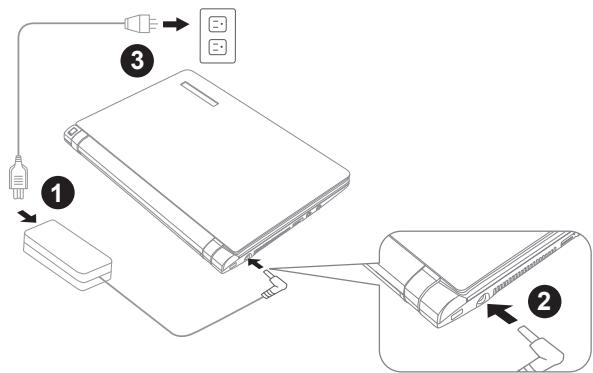
1.將電源線接上變壓器。
2. 將變壓器連接到筆記型電腦的電源插孔。
3. 將電源線插入電源插座。
2.2 電池重新充電
電腦內的鋰電池可經由交流電變壓器重新充電。要將鋰電池重新充電,請先確定已妥當裝入電池,而且電腦以連接交流電源。
鋅電池並沒有「記憶功能」,因此在重新充電前,並不需要將鋅電池完全放電。電池充電期間,如果正在使用筆記型電腦,充電時間會明顯比較長。如果縮短充電時間,請在充電時,將電腦切換為暫停模式或關機。
低電量狀態:
電池電量低時,會出現通知訊息。如果您不回應電池電量不足的訊息,電池將持續放電,直到電量過低而無法操作為止。發生此種情況時,您的筆記型電腦將進入閒置模式,當電腦達到此情況時,並不保證您的資料將被儲存。

注意:為保護您的筆記型電腦免於受損,請務必使用隨附的變壓器,因為每一個變壓器都有規定的電源輸出率。
一旦因為電池沒電而使電腦進入暫停模式,除非由變壓器或另一個充好電的電池提供電源,否則電腦無法恢復作業。重新提供電源後,就可以按暫停/開機按鈕來恢復作業。待機模式時,您電腦內的資料都會暫時保留,但如果等到電源指示燈停止閃爍,終究熄滅,您還沒有接上外接電源,那所有未存檔的資料都會消失。提供電源後就可以一邊使用電腦,一邊讓電池充電。
電池更換:
更換使用不正確類型的電池,可能會引發爆炸。對於可更換鋰電池組的電腦,務必遵循下列準則:
如果電池的設置位置允許使用者自行更換,電池附近應有標示,或註明操作和維修指示。
如果電池的設置位置允許使用者自行更換,電池附近應有標示,或註明維修指示。標示或說明應包含下列類似文字。

注意:更換使用不正確的電池,可能引發爆炸。廢棄電池的處理方式須遵照說明指示。
*若電池閒置自行放電超過三個月,則電池的電壓位準會變過低,而在電池自動恢復成正常充電前,需要預先充電(提高到足夠的電池電壓位準),預先充電可能需花費30分鐘,快速充電通常需花費2-3小時。
2.3 開啟您的筆記型電腦
暫停/開機按鈕:
按下暫停/開機按鈕可開啟筆記型電腦。接上交流電壓器或充好電的鋰電池後,就可以按下鍵盤上的暫停/開機按鈕來啟動筆記型電腦。如果您需要離開一段時間,請按同一個按鈕,將電腦關機。

注意:不要帶著已開機的筆記型電腦四處走動,也不要讓筆記型電腦受到撞擊或震動,否則硬碟有損壞的危險。
啟動後,筆記型電腦會執行開機自我測試(POST),以檢查內部零件及配置是否功能正確。如果偵測到錯誤,電腦會發出警告聲,並顯示錯誤訊息。
視問題的性質而定,您可能可以繼續執行作業系統,或是進入BIOS設定程式,然後修改設定。
成功的完成自我開機測試(POST)後,筆記型電腦會載入已安裝的作業系統。

注意:電腦執行開機自我測試(POST)時,請勿關機,否則可能會發生無法復原的錯誤。
2.4 系統LED指示燈
狀態指示燈配合各特定操作模式。這些模式包括:「開啟/待機」狀態、電池/AC變壓器狀態、無線傳輸活動和硬碟活動(HDD)。
| # | 圖示 | 項目 | 功能 |
| 1 | 開機/待命指示燈 | 電腦電源開啟時,此燈號會亮起,而電腦處於待命模式時,此燈號會閃爍。 | |
| 2 | III | 電池指示燈 | 電池指示燈顯示電池正在充電或已充飽電。 ●如果您正在為電池充電,即使您的行動電腦已經關機,電池指示燈仍會保持亮起。 ●如果沒有電池活動、未連接變壓器,或電源為關閉時,電池指示燈將會熄滅。 ●電池如果遭受撞擊、震動、極端的溫度,可能會導致永久性的損壞。 |
| 6 | (1) | 無線傳輸活動 狀態指示燈 | 「無線傳輸活動」指示燈會顯示您的電腦是否連接到藍牙/無線網路。 |
| 4 | (2) | 硬碟(HDD) 存取指示燈 | 硬碟(HDD)存取指示燈顯示硬碟是否正被存取,以及存取的速度。 |
2.5 使用功能键
您的電腦擁有12個功能鍵,F1~F12。功能鍵的指令用途會隨應用軟體而有所不同。請參考軟體的說明文件,以確定各個功能鍵的使用方法。
| Specifications | |||
| Fn+F1 | 開啓或關閉觸控面版 | ON | OFF |
| Fn+F2 | 開啓或關閉LCD背光(按任何一鍵或是觸控面版即可啟動) | ||
| Fn+F3 | 開啓或關閉電腦聲音 | ON | |
| Fn+F4 | 筆記型電腦進入暫停模式,按電源則可讓電腦回到操作模式。 | ||
| Fn+F5/F6 | 降低電腦音量/提高電腦音量 | ||
| Fn+F7 | 選擇是否送出電腦畫面 | ||
| Fn+F8/F9 | 降低螢幕亮度/提高螢幕亮度 | ||
| Fn+F10 | 開啓或關閉網路視訊 | ON | OFF |
| Fn+F11 | 開啓或關閉無線網路 | ON | OFF |
| Fn+F12 | 開啓或關閉藍芽裝置 | ON | OFF |
2.6 使用觸控板
觸控板是與電腦整合在一起的指標裝置。觸控板用來控制指標,可讓您選擇顯示螢幕上的項目。
觸控板包含一個游標控制介面、左鍵與右鍵。游標控制器的作用與滑鼠在螢幕上移動游標相同。只要用指尖輕壓,就可以在螢幕上移動游標。左鍵與右鍵的作用與滑鼠的按鍵相同。這些按鍵的實際功能視應用軟體而定,可能會有所不同。
點一下
點一下是按一下按鈕,然後放掉。左點一下是把游標移到選定的項目,按一下左鍵,然後馬上放掉。右點一下可選擇功能,按一下右鍵,然後馬上放掉。您也可以在觸控板上輕敲一下,效果與點一下相同。
點二下
點兩下是連續快速的按二下左鍵,然後放掉。右鍵並沒有這個功能。要點二下,先把游標移到選定的項目,按二下左鍵,然後馬上放掉。您也可以在觸控板上輕敲二下,效果與點二下相同。
拖曳
拖曳就是移動游標時按住左鍵。把游標移到您想移動的項目,按住左鍵,然後把該項目拖曳到新的位置,再放開左鍵。使用觸控板也可以拖曳。首先,在要被移動的項目上點二下,點二下後,手指必須留在觸控板上。接下來,手指在觸控板上移動,將該項目移動到新的位置,然後放開手指。

第三章 GIGABYTE Smart Recovery
3.1 GIGABYTE Smart Recovery
系統還原 - 修復您的Q2005筆記型電腦作業系統
當作業系統使用上出現不穩定的情況,Q2005的硬碟有一個隱藏磁區,其內容為作業系統的完整備份映像檔,可以用來救援系統將硬碟還原到出廠預設值。

如果硬碟有更換過或刪除該隱藏磁區,還原選項將無法使用,需送維修中心還原。
啟動系統還原
系統還原功能的部份是工廠在筆記型電腦出貨前預先安裝的。該選項可以啟動Windows故障還原工具,重新安裝作業系統為出廠預設值。
下面將簡要介紹如何啟動還原工具,並開始還原系統。
1.關機或重新啟動筆記型電腦。
2.啟動筆記型電腦後,按著F9按鍵幾秒鐘以啟動還原工具。
3.還原視窗會打開,工具列會有還原選項,如您確定要系統還原,點選還原選項,就開始進行修復。
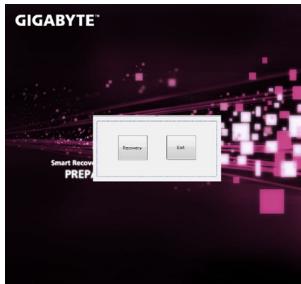
4.還原的視窗會打開並開始進行系統還原。
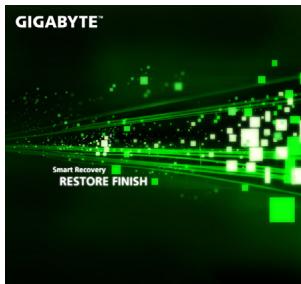
5.當完成系統還原時即可重新啟動筆記型電腦。

第四章 疑難排解
這章節提供您若機器需送修前您可自行先檢查的步驟。您也可參考技嘉科技官方網站 www.gigabyte.com.tw 或是直接與您購買的經銷商連擊尋求專業協助。
4.1 疑難排解
找出問題
使用本產品時如果碰到了問題,在進一步送修前,先按下列程序檢查:
- 先將筆記型電腦關機。
- 確認交流電變壓器已插入筆記型電腦,並且連接到交流電電源。
- 確認外接的裝置已插穩。或者拔掉這些裝置,以排除其造成問題的可能原因。
4.筆記型電腦開機。關機與開機間隔至少10秒。
5.執行一遍開機程序。
6.如果仍然不能解決問題,請聯絡專門維修人員。
聯絡維修人員前,請先準備好以下資料,以便維修人員提供最迅速有效服務:
產品名稱
產品配置號碼
產品序號
購買日期
問題發生時的狀況
請查看筆記型電腦底部的配置標籤,以確定筆記型電腦的配置及序號。
版權保護技術
本產品內建受到美國專利以及其他智慧財產權保護的版權保護技術,必須經過Macrovision授權才可使用本版權保護技術,並且除非經過Macrovision授權,否則不得在家庭之外的地點觀賞使用。嚴禁逆向工程或分解。
4.2 技嘉服務資訊
更多的服務資訊,請連結到技嘉官方網站:
www.gigabyte.com.tw
附錄
Q2005規格
| Specifications | |
| 處理器 | Intel Atom Processor N550/N570 |
| 作業系統 | 支援 Windows 7 作業系統 |
| 顯示晶片 | Mobile Intel NM10 |
| 記憶體 | DDR3 (支援 1066/1333MHz) |
| 顯示螢幕 | 1O.1吋解析度 1024X600 |
| 驅動式硬碟 | 2.5” 9.5 mm SATA 硬碟 5400rpm (支援硬碟容量有250/320/500 GB) |
| 光碟機 | 無搭載光碟機 |
| I/O 连接埠 | USB 2.0 X3、D-SUB X1、RJ45X1、麥克風、耳機插孔、八合一讀卡機及電源輸入 |
| 音效 | 二聲道 |
| 藍牙 | 藍牙 3.0(選配) |
| 網路相機 | 內鍵30萬畫素視訊鏡頭 |
| 通訊 | 10/100 Base T 乙太網路 |
| 無線網路 | 802.11 b/g/n 無線網路 |
| 嵌入式 HSDPA | 無支援 |
| 安全裝置 | 無支援 |
| 電源供應器 | 30瓦 |
| 電池 | Li-ion、6-Cell or 3-Cell |
| 尺寸 | 266(寬)X185(深)X19.7~27.1(高)公厘 |
| 手提袋 | 選購 |
| 重量 | ~1.05 公斤(含:3 cell 電池)/1.2kg(含:6 cell 電池) |
| 保固 | 1 年 |
各國電壓列表
| 區域 | 電壓 | 頻率 |
| 阿富汗 | 240V | 50 Hz |
| 阿爾巴尼亞 | 220V | 50 Hz |
| 阿爾及利亞 | 230V | 50 Hz |
| 美屬薩摩亞 | 120V | 60 Hz |
| 安道爾 | 230V | 50 Hz |
| 安哥拉 | 220V | 50 Hz |
| 安圭拉 | 110V | 60 Hz |
| 安提瓜 | 230V | 60 Hz |
| 阿根廷 | 220V | 50 Hz |
| 亞美尼亞 | 230V | 50 Hz |
| 阿魯巴 | 127V | 60 Hz |
| 澳大利亞 | 230V | 50 Hz |
| 奥地利 | 230V | 50 Hz |
| 阿塞拜疆 | 220V | 50 Hz |
| 亞速爾群島 | 220V | 50 Hz |
| 巴哈馬 | 120V | 60 Hz |
| 巴林 | 230V | 50 Hz |
| 巴利阿里群島 | 220V | 50 Hz |
| 孟加拉國 | 220V | 50 Hz |
| 巴巴多斯 | 115V | 50 Hz |
| 白俄羅斯 | 220V | 50 Hz |
| 比利時 | 230V | 50 Hz |
| 伯利茲 | 110V / 220V | 60 Hz |
| 貝寧 | 220V | 50 Hz |
| 百慕達 | 120V | 60 Hz |
| 不丹 | 230V | 50 Hz |
| 玻利維亞 | 220V | 50 Hz |
| 博內爾 | 127V | 50 Hz |
| 波黑 | 220V | 50 Hz |
| 博茨瓦納 | 231 V | 50 Hz |
| 巴西 | 127V / 220 V | 60 Hz |
| 文萊 | 240V | 50 Hz |
| 保加利亞 | 230V | 50 Hz |
| 布基納法索 | 220V | 50 Hz |
| 布隆迪 | 220V | 50 Hz |
| 柬埔寨 | 230V | 50 Hz |
| 喀麥隆 | 220V | 50 Hz |
| 加拿大 | 120V | 60 Hz |
| 加那利群島 | 220V | 50 Hz |
| 佛得角 | 220V | 50 Hz |
| 開曼群島 | 120V | 60 Hz |
| 中非共和國 | 220V | 50 Hz |
| 查德 | 220V | 50 Hz |
| 海峽群島 | 230V | 50 Hz |
| 智利 | 220V | 50 Hz |
| 中國大陸 | 220V | 50 Hz |
| 哥倫比亞 | 120V | 60 Hz |
| 科摩羅 | 220V | 50 Hz |
| 剛果-布拉薩 | 230V | 50 Hz |
| 剛果-金夏沙 | 220V | 50 Hz |
| 庫克群島 | 240V | 50 Hz |
| 哥斯達黎加 | 120V | 60 Hz |
| 科特迪瓦共和國 | 230V | 50 Hz |
| 克羅埃西亞共和國 | 230V | 50 Hz |
| 古巴 | 110V | 60 Hz |
| 塞普勒斯 | 240V | 50 Hz |
| 捷克共和國 | 230V | 50 Hz |
| 丹麥 | 230V | 50 Hz |
| 吉布地 | 220V | 50 Hz |
| 多米尼克 | 230V | 50 Hz |
| 多明尼加共和國 | 110V | 60 Hz |
| 東帝汶 | 220V | 50 Hz |
| 厄瓜多爾 | 120V | 60 Hz |
| 埃及 | 220V | 50 Hz |
| 薩爾瓦多 | 115V | 60 Hz |
| 赤道幾內亞 | 220V | 50 Hz |
| 厄立特里亞 | 230V | 50 Hz |
| 愛沙尼亞 | 230V | 50 Hz |
| 衣索比亞 | 220V | 50 Hz |
| 法羅群島 | 220V | 50 Hz |
| 福克蘭群島 | 240V | 50 Hz |
| 斐濟 | 240V | 50 Hz |
| 芬蘭 | 230V | 50 Hz |
| 法國 | 230V (舊規220V) | 50 Hz |
| 法屬圭亞那 | 220V | 50 Hz |
| 加薩走廊 | 230V | 50 Hz |
| 加彭 | 220V | 50 Hz |
| 甘比亞 | 230V | 50 Hz |
| 喬治亞 | 220V | 50 Hz |
| 德國 | 230V (舊規220V) | 50 Hz |
| 迦納 | 230V | 50 Hz |
| 直布羅陀 | 240V | 50 Hz |
| 希臘 | 230V (舊規220V) | 50 Hz |
| 格陵蘭 | 220V | 50 Hz |
| 格瑞納達 | 230V | 50 Hz |
| 瓜德羅普 | 230V | 50 Hz |
| 關島 | 110V | 60 Hz |
| 瓜地馬拉 | 120V | 60 Hz |
| 幾內亞 | 220V | 50 Hz |
| 幾內亞-比索 | 220V | 50 Hz |
| 蓋亞那 | 240V | 60 Hz |
| 海地 | 110V | 60 Hz |
| 宏都拉斯 | 110V | 60 Hz |
| 香港 | 220V | 50 Hz |
| 匈牙利 | 230V (舊規220V) | 50 Hz |
| 冰島 | 230V | 50 Hz |
| 印度 | 220V | 50 Hz |
| 印尼 | 127V / 230V | 50 Hz |
| 伊朗 | 220V | 50 Hz |
| 伊拉克 | 230V | 50 Hz |
| 愛爾蘭 | 230V (舊規220V) | 50 Hz |
| 英國屬地曼島 | 240V | 50 Hz |
| 以色列 | 230V | 50 Hz |
| 義大利 | 230V (舊規220V) | 50 Hz |
| 牙買加 | 110V及220V | 50 Hz |
| 日本 | 100 V | 50 Hz / 60Hz |
| 約旦 | 230V | 50 Hz |
| 哈薩克 | 220V | 50 Hz |
| 肯亞 | 240V | 50 Hz |
| 吉里巴斯共和國 | 240V | 50 Hz |
| 科威特 | 240V | 50 Hz |
| 吉爾吉斯斯坦 | 220V | 50 Hz |
| 寮國 | 230V | 50 Hz |
| 拉脫維亞 | 220V | 50 Hz |
| 黎巴嫩 | 240V | 50 Hz |
| 賴索托 | 220V | 50 Hz |
| 賴比瑞亞 | 120V / 240V | 50 Hz |
| 利比亞 | 127V | 50 Hz |
| 立陶宛 | 230V (舊規 220V) | 50 Hz |
| 列支敦斯登 | 230V | 50 Hz |
| 盧森堡 | 230V (舊規 220V) | 50 Hz |
| 澳門 | 220V | 50 Hz |
| 馬其頓 | 220V | 50 Hz |
| 馬達加斯加 | 127V / 220 V | 50 Hz |
| 馬德拉 | 220V | 50 Hz |
| 馬拉威 | 230V | 50 Hz |
| 馬來西亞 | 240V | 50 Hz |
| 馬爾地夫 | 230V | 50 Hz |
| 馬利 | 220V | 50 Hz |
| 馬爾他 | 230V | 50 Hz |
| 馬提尼克 | 220V | 50 Hz |
| 茅利塔尼亞 | 220V | 50 Hz |
| 模里西斯 | 230V | 50 Hz |
| 墨西哥 | 127V | 60 Hz |
| 密克羅尼西亞 | 120V | 60 Hz |
| 摩爾多瓦 | 220-230V | 50 Hz |
| 摩納哥 | 127V / 220 V | 50 Hz |
| 蒙古 | 230 V | 50 Hz |
| 蒙特內哥羅共和國 | 220V | 50 Hz |
| 蒙特塞拉特 | 230V | 60 Hz |
| 摩洛哥 | 127V / 220 V | 50 Hz |
| 莫三比克 | 220V | 50 Hz |
| 緬甸 | 230V | 50 Hz |
| 納米比亞 | 220V | 50 Hz |
| 諾魯 | 240V | 50 Hz |
| 尼泊爾 | 230V | 50 Hz |
| 荷蘭 | 230V (舊規 220V) | 50 Hz |
| 荷屬安地列斯 | 127V / 220V | 50 Hz |
| 新喀里多尼亞 | 220V | 50 Hz |
| 紐西蘭 | 230V | 50 Hz |
| 尼加拉瓜 | 120V | 60 Hz |
| 尼日 | 220V | 50 Hz |
| 奈及利亞 | 240V | 50 Hz |
| 北韓 | 220V | 50 Hz |
| 挪威 | 230V | 50 Hz |
| 沖繩 | 100 V | 60 Hz |
| 阿曼 | 240V | 50 Hz |
| 巴基斯坦 | 230V | 50 Hz |
| 巴拿馬 | 110V | 60 Hz |
| 巴布亞紐幾內亞 | 240V | 50 Hz |
| 巴拉圭 | 220V | 50 Hz |
| 秘魯 | 220V | 60 Hz |
| 菲律賓 | 220V | 60 Hz |
| 波蘭 | 230V | 50 Hz |
| 葡萄牙 | 220V | 50 Hz |
| 波多黎各 | 120V | 60 Hz |
| 卡達 | 240V | 50 Hz |
| 留尼旺島 | 220V | 50 Hz |
| 羅馬尼亞 | 230V (舊規 220V) | 50 Hz |
| 俄羅斯聯邦 | 220V | 50 Hz |
| 魯安達 | 230V | 50 Hz |
| 聖克里斯多福尼維斯 | 110V / 230V | 60 Hz |
| 聖露西亞 | 240V | 50 Hz |
| 聖文森 | 230V | 50 Hz |
| 聖多美與普林希比共和國 | 220V | 50 Hz |
| 沙島地阿拉伯 | 127V / 220V | 60 Hz |
| 塞內加爾 | 230V | 50 Hz |
| 塞爾維亞 | 220V | 50 Hz |
| 塞席爾群島 | 240V | 50 Hz |
| 獅子山 | 230V | 50 Hz |
| 新加坡 | 230V | 50 Hz |
| 斯洛伐克 | 230V | 50 Hz |
| 斯洛維尼亞共和國 | 230V | 50 Hz |
| 索馬利亞 | 220V | 50 Hz |
| 南非 | 220V | 50 Hz |
| 南韓 | 220V | 60 Hz |
| 西班牙 | 230V (舊規220V) | 50 Hz |
| 斯里蘭卡 | 230V | 50 Hz |
| 蘇丹 | 230V | 50 Hz |
| 蘇利南 | 127V | 60 Hz |
| 史瓦濟蘭 | 230V | 50 Hz |
| 瑞典 | 230V | 50 Hz |
| 瑞士 | 230V | 50 Hz |
| 敘利亞 | 220V | 50 Hz |
| 大溪地島 | 110V / 220V | 60 Hz / 50 Hz |
| 台灣 | 110V | 60 Hz |
| 塔吉克 | 220V | 50 Hz |
| 坦尚尼亞 | 230V | 50 Hz |
| 泰國 | 220V | 50 Hz |
| 多哥 | 220V | 50 Hz |
| 多加 | 240V | 50 Hz |
| 千里達托貝哥 | 115V | 60 Hz |
| 突尼西亞 | 230V | 50 Hz |
| 土耳其 | 230V | 50 Hz |
| 土庫曼 | 220V | 50 Hz |
| 烏干達 | 240V | 50 Hz |
| 烏克蘭 | 220V | 50 Hz |
| 阿拉伯聯合大公國 | 220V | 50 Hz |
| 英國 | 230V (舊規240V) | 50 Hz |
| 美國 | 120V | 60 Hz |
| 烏拉圭 | 230V (舊規220V) | 50 Hz |
| 烏茲別克斯坦 | 220V | 50 Hz |
| 萬那杜 | 230V | 50 Hz |
| 委內瑞拉 | 120V | 60 Hz |
| 越南 | 220V | 50 Hz |
| 維爾京群島 | 110V | 60 Hz |
| 西薩摩亞 | 230V | 50 Hz |
| 葉門 | 230V | 50 Hz |
| 尚比亞 | 230V | 50 Hz |
| 辛巴威 | 220V | 50 Hz |
Q2005轉接頭
| 國別 | 轉接頭型號 | 轉接頭圖示 | 轉接頭型號 | 轉接頭圖示 |
| 美國 | LP-30B | LS15 | ||
| 加拿大 | ||||
| 日本 | LP-54 | LS15 | ||
| 台灣 | LP-53 | LS15 | ||
| 中國 | PC-323 | LS15 | ||
| 韓國 | LP-E04 | LS15 | ||
| 英國 | LP-60L | LS15 | ||
| 新加坡 | ||||
| 南非 | PE-364 | LS15 | ||
| PE-361 | LS15 | |||
| 澳洲 | LP-23A | LS15 | ||
| 德國 | LP-33 | LS15 | ||
| 法國 | ||||
| 瑞典 | ||||
| 芬蘭 | ||||
| 挪威 | ||||
| 比利時 | ||||
| 荷蘭 | ||||
| 奥地利 | ||||
| 瑞士 | LP-37 | LS15 | ||
| 丹麥 | LP-38 | LS15 | ||
| 義大利 | PE-336 | LS15 |
www.gigabyte.com
- Q2005
- USER'S MANUAL
- 使用手册
- Trademarks
- General Safety Precautions
- Travel Tips
- Usage Tips
- Cleaning Tips
- Notebook Cover:
- Keyboard:
- LCD:
- Warranty Guidelines
- GIGABYTE Limited Warranty:
- Warranty Limitations:
- Regulatory Notices & Certifications
- RF Exposure:
- CE Notice (European Union):
- For CB:
- BSMI Notice (Taiwan Only)
- Battery Disposal & Caution
- Replaceable Batteries
- Introduction
- Content
- Chapter 1 Before You Start
- Chapter 2 Getting Started
- Chapter 3 GIGABYTE Smart Recovery
- Chapter 4 Troubleshooting
- Appendix
- Make Sure You Have Everything
- Familiarize Yourself with the Computer
- Opening the Display Panel
- Top View
- Left View
- Right View
- Back View
- Bottom View
- Power Sources
- Connecting the Power Adapters
- Connecting the AC Adapter
- Switching from AC Adapter Power to Battery Power
- Recharging the Battery
- Low Battery State
- Battery Replacement
- Starting Your Notebook
- Suspend/Power On Button
- Status LED Indicators
- Using Function Keys
- Using the Touchpad
- Clicking:
- Double-Clicking:
- Dragging:
- GIGABYTE Smart Recovery
- Launch System Recovery
- Troubleshooting
- Identifying the Problem
- GIGABYTE Service Information
- 版权所有©2010屬於技嘉科技股份有限公司
- 保留所有權利
- 安全說明
- 商務旅行須知
- 使用須知
- 清潔電腦須知
- 保固服務
- 法規須知
- 射频曝露值
- CE須知(歐盟):
- 針對CB:
- BSMI須知(限台灣):
- 電池棄置及注意事項
- 電池安全使用指南
- 可能引發爆炸的環境:
- 前言
- 目錄
- 第一章 開始使用前
- 第二章 開始使用筆記型電腦
- 第三章 GIGABYTE Smart Recovery
- 第四章 疑難排解
- 附錄
- 確認應有品項
- 熟悉您的電腦
- 上視圖
- 左視圖
- 右視圖
- 後視圖
- 底視圖
- 電源
- 連接變壓器:
- 連接交流電變壓器:
- 由交流電源切換為電池電源:
- 電池重新充電
- 低電量狀態:
- 電池更換:
- 開啟您的筆記型電腦
- 系統LED指示燈
- 使用功能键
- 使用觸控板
- 點一下
- 點二下
- 拖曳
- 疑難排解
- 找出問題
- 版權保護技術
- 技嘉服務資訊
Marque : GIGABYTE
Modèle : Q2005
Catégorie : Ordinateur portable