
POWERLINE - Réseau D-LINK - Notice d'utilisation et mode d'emploi gratuit
Retrouvez gratuitement la notice de l'appareil POWERLINE D-LINK au format PDF.


| Type de produit | Adaptateur CPL PowerLine AV 500 |
| Marque | D-Link |
| Modèle | DHP-500AV (kit de démarrage) |
| Débit maximal | 500 Mbps |
| Ports réseau | 1 port Ethernet Gigabit (10/100/1000) |
| Alimentation | 100-240 VAC, 50/60 Hz |
| Sécurité réseau | Cryptage AES 128 bits, bouton Simple Connect |
| Température de fonctionnement | 0 °C à 40 °C |
| Température de stockage | -10 °C à 70 °C |
| Humidité de fonctionnement | 10 % à 90 % HR |
| Humidité de stockage | 5 % à 90 % HR |
| Certifications | FCC Part 15 Classe B, CE Classe B, C-Tick, UL, CE LVD |
| Contenu de l'emballage | 2 adaptateurs, 2 câbles Ethernet CAT5, CD-ROM, guide d'installation rapide |
| Fonctionnalités principales | Plug & Play, utilitaire de gestion, mise à jour du firmware, prise en charge du streaming HD |
| Installation | Brancher sur une prise murale directe, connecter le câble Ethernet |
| Sécurité d'utilisation | Ne pas ouvrir le boîtier, éviter l'humidité, utiliser une prise avec mise à la terre |
| Entretien et nettoyage | Débrancher, essuyer avec un chiffon humide sans solvant |
| Configuration réseau | Bouton Simple Connect ou utilitaire PowerLine AV |
| Compatibilité système | Windows 7, Vista, XP (SP3) |
FOIRE AUX QUESTIONS - POWERLINE D-LINK
Questions des utilisateurs sur POWERLINE D-LINK
0 question sur cet appareil. Repondez a celles que vous connaissez ou posez la votre.
Poser une nouvelle question sur cet appareil
Téléchargez la notice de votre Réseau au format PDF gratuitement ! Retrouvez votre notice POWERLINE - D-LINK et reprennez votre appareil électronique en main. Sur cette page sont publiés tous les documents nécessaires à l'utilisation de votre appareil POWERLINE de la marque D-LINK.
MODE D'EMPLOI POWERLINE D-LINK
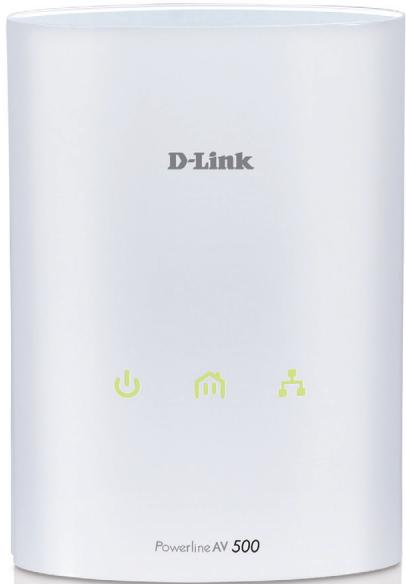
User Manual
PowerLine AV 500 Network Starter Kit
Table of Contents
Product Overview. 3
Package Contents 3
System Requirements 3
Introduction 4
Features 4
Hardware Overview 5
LEDs 5
Connection 6
Hardware Installation 7
Push Button Security 8
Using the Setup Wizard 10
Configuration. 11
Security 13
PowerLine Installation Considerations 15
Troubleshooting 17
Technical Specifications 18
Package Contents

Two D-Link DHP-500AV PowerLine AV 500 Adapters

Two CAT5 Ethernet Cables

CD-ROM with Software and User Manual

Quick Install Guide
System Requirements
- Windows® 7, Windows Vista®, XP (with Service Pack 3)
- PC with 233MHz Processor, 64MB Memory
- Ethernet Adapter (100Mbit/s)
Introduction
D-Link announces a fast, 500Mbps* PowerLine AV 500 Adapter Starter Kit that allows you to connect your home computers, networking devices and gaming devices through the most pervasive medium in your house, the electric Power lines. With the PowerLine AV 500 Adapter, you can share high speed connection of up to 500Mbps for quality gaming, superior HD media streaming, and faster file transfer.
Features
- Provides Ethernet to PowerLine Connection
- Fast Data Transfer Rate of Up to 500Mbps*
One Gigabit Ethernet port - Plug & Play, Easy Installation
- Easy to use Management Utility
- Firmware Upgrade Support
- Push Button Security
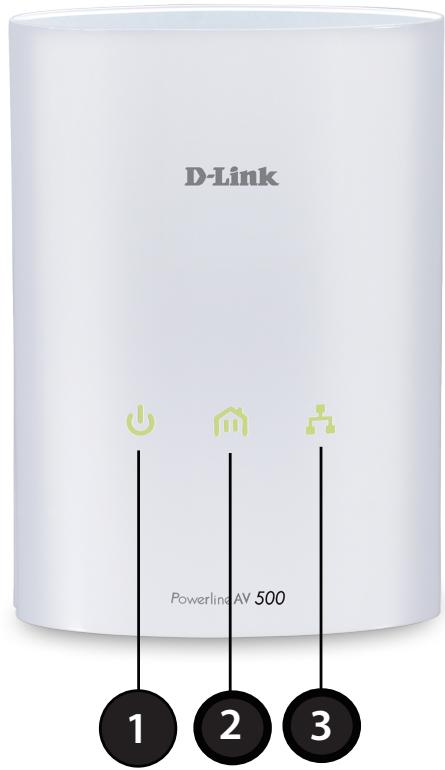
Hardware Overview LEDs
| 1 | Power LED | • Solid. The device is receiving electrical power. • Blinking. The device is setting itself up after reset or security button was pressed. • Off. The device is not receiving electrical power. |
| 2 | PowerLine LED | • Solid. The device is connected to a PowerLine network. • Blinking. The device is transmitting data. • Off. The device has not found any other compatible PowerLine devices using the same encryption key. The color indicates the PowerLine link rate: • Green. The PowerLine link rate is faster than 80 Mbps. • Amber. The PowerLine link rate is between 50 Mbps and 80 Mbps. • Red. The PowerLine link rate is less than 50 Mbps. |
| 3 | Ethernet LED | • Solid. The Ethernet port is linked but there is no data traffic. • Blinking. The device is transmitting data. • Off. There is no Ethernet connection. |
Hardware Overview Connection
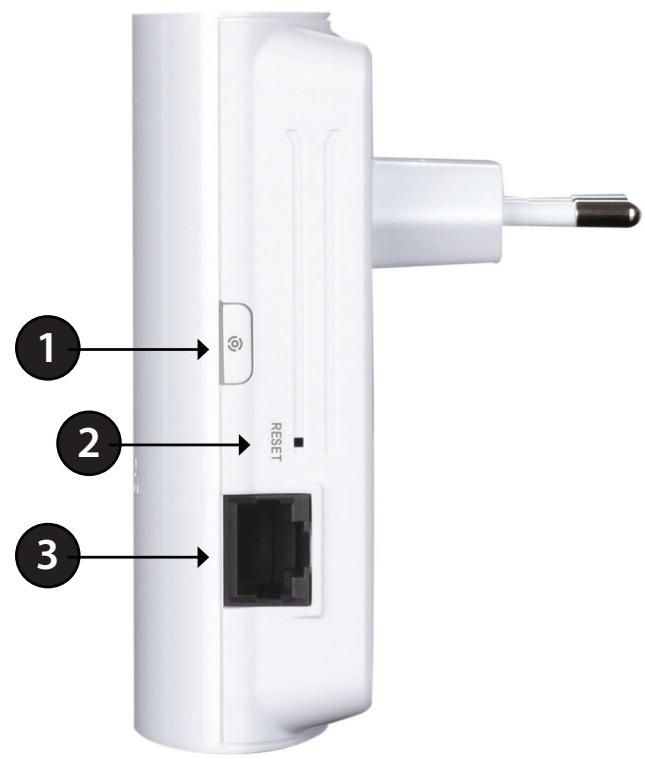
| 1 | Simple Connect Button | Press to secure your network. Refer to page 8 for more information. |
| 2 | Reset Button | Press and hold the button for 1 second to reset to factory default. |
| 3 | Gigabit Ethernet Port | Connect the CAT5 Ethernet cable to the PowerLine AV 500 Adapter Gigabit Ethernet port. |
Hardware Installation
Power
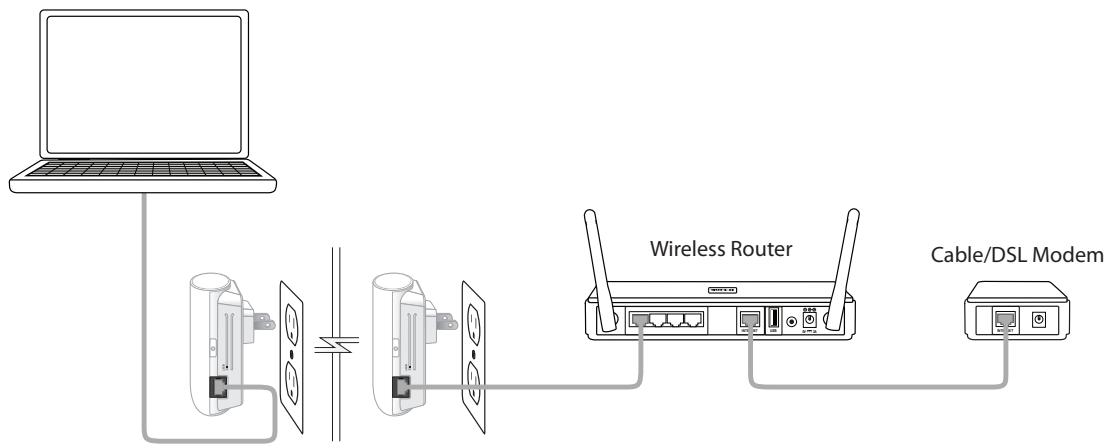
Plug in the PowerLine AV 500 Adapter into an AC wall outlet.
Note: Power source is confirmed when the Power LED on the Adapter is illuminated.
Recommendations:
- For optimal results, use in a regular wall outlet without other products plugged into the same outlet. Connecting this product to a power strip or a surge protector may adversely affect the performance of this product.
- Avoid using the PowerLine AV 500 Adapter in an electrical outlet that is located near an appliance that uses a lot of power, such as a washer or dryer or refrigerator.
Connect the Ethernet Cable
Connect the included Ethernet cable to the network cable connector located on the Adapter and attach the other end of the Ethernet cable to the network or PC. Network Connectivity is confirmed when the Ethernet LED on the Adapter is illuminated.
Push Button Security
Understanding PowerLine AV Network Security
The PowerLine AV 500 Adapter Starter Kit on the same network must use an identical encryption key. The default encryption key of each PowerLine AV 500 Adapter Starter Kit is HomePlugAV. All PowerLine AV devices with default encryption key can communicate with each other.
It's recommended to create a private encryption key for network security purpose. The private encryption key allows you to protect your network from unauthorized access via the PowerLine network. To create a private encryption key instead of the default encryption key, please follow below steps:
1. All Adapters
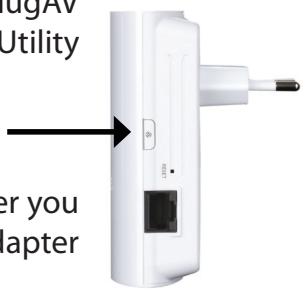
Plug in all the PowerLine AV 500 adapters to be configured and make sure each device's encryption key is set to HomePlugAV (default value). If the encryption key is not set to the default value, press the Reset button for 2 second or use PowerLine AV Utility on your CD for resetting it to the default value.
2. First Adapter
Press the Simple Connect button of the first adapter for no more than two seconds. The Power LED will start blinking after you release the button. The adapter will create a private, randomly generated encryption key that each PowerLine AV 500 Adapter Starter Kit will use.
3. Second Adapter
Within two minutes of pushing the Simple Connect button on the first adapter, press the Simple Connect button on the second adapter in your PowerLine network for no more than two seconds. The Power LED will start blinking after you release the button.
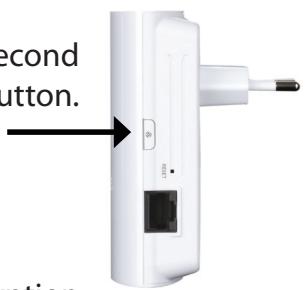
Note: Both Security Connect buttons must be pressed within two minutes.
4. PowerLine Network
After above network security setup steps, your PowerLine network will be securely configured with the same network encryption key. The adapters will memorize the security settings even if they are unplugged.
Note: To change the private encryption key, please reset the adapter back to its default value by pressing the Reset button for 2 second and then follow the security setup procedure above.
5. Adding More Adapters
If you would like to add more than two adapters, press the button on the additional adapter for no more than two seconds. The Power LED will start blinking after you release the button. Then, press the button on any adapter in your existing PowerLine network for no more than two seconds. The Power LED will start blinking after you release the button.
Note: Both Simple Connect buttons must be pressed within two minutes. After the above network security setup steps, your PowerLine network will be securely configured with the same network encryption key.
Using the Setup Wizard
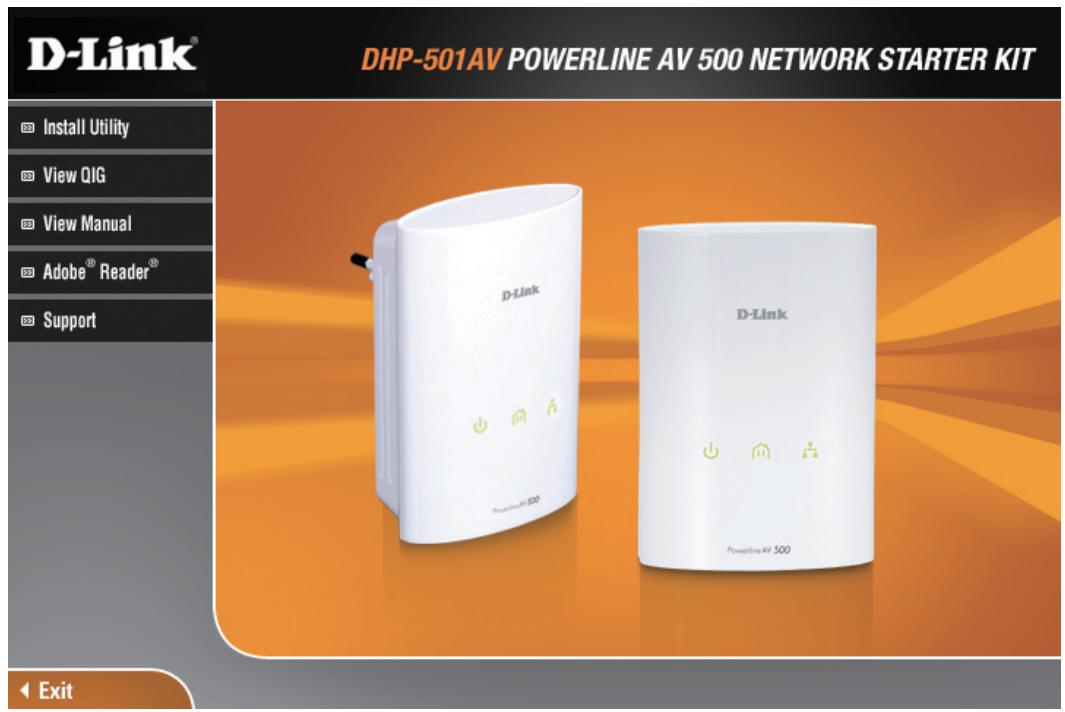
Follow the simple steps below to run the Setup Wizard to guide you quickly through the installation process. Insert the D-Link DHP-501AV CD into your CD-ROM drive. If the CD Autorun function does not automatically start on your computer, click Start > Run. In the Run command box type "D:\autorun.exe", where D: represents the drive letter of your CD-ROM. If it does start, proceed to the next screen.
Click on Install Utility to begin.
Note: In order to properly install the PowerLine AV utility, you will first need to install WinPcap.
Configuration
After you have completed the D-Link PowerLine AV Utility installation wizard, double-click the D-Link PowerLine AV Utility icon on your desktop to start the configuration of the DHP-501AV.
Double-click the D-Link PowerLine AV Utility icon
The D-Link PowerLine AV Utility provides you the option of setting your own PowerLine network and the network information for the connected PowerLine devices.
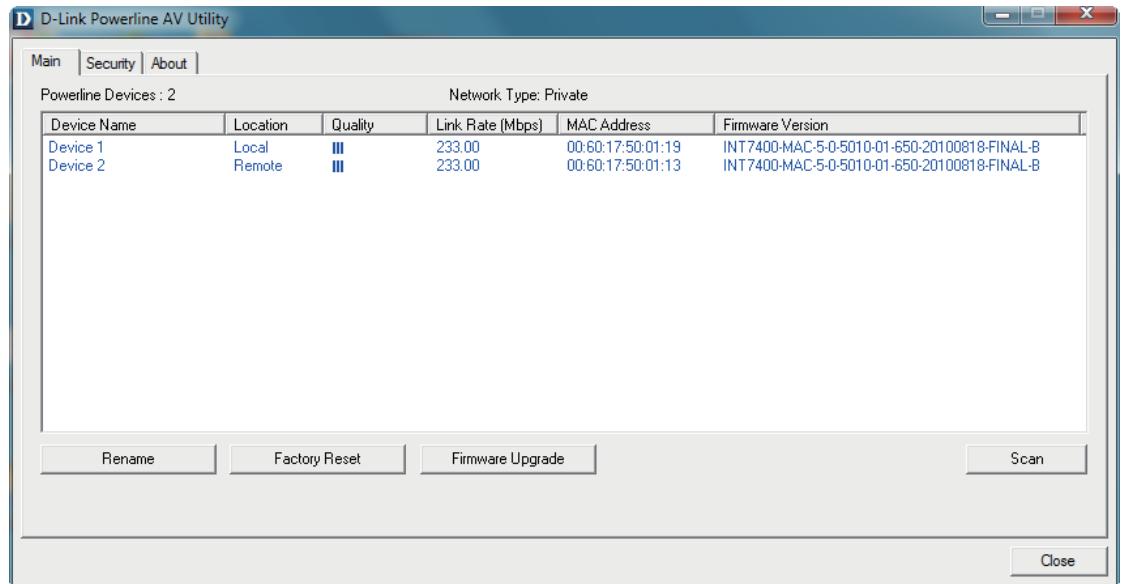
Device Name: Shows the name of devices that have been discovered. The device's name is initially set by the utility itself.
Location: Shows if the device is local or remote.
-
Quality: Shows the network connection quality of the connected device.
-
Three squares - Suitable for HD video stream connection.
- Two squares - Suitable for SD video stream connection.
- One square - Suitable for data and Internet activity connection.
Link Rate: Shows the link rate of the connected PowerLine device.
MAC Address: Shows the MAC address of the connected PowerLine device.
Firmware Shows the firmware version of the connected PowerLine Version: device.
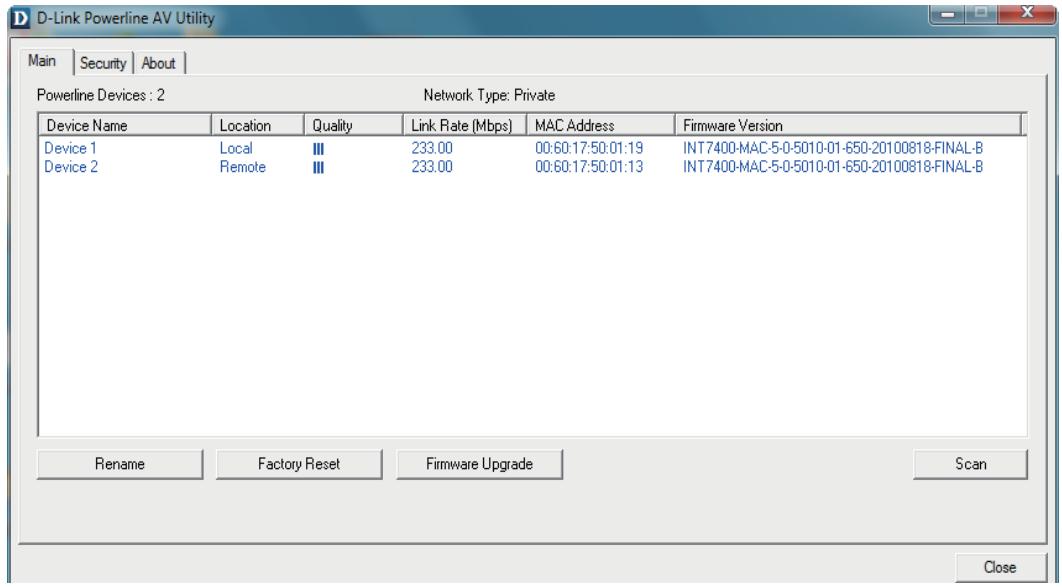
Security
Understanding the Encryption Key setting:
The PowerLine devices on the same network must use an identical encryption key. The default encryption key for each PowerLine device is HomePlugAV. All devices with a default encryption key can communicate with each other. It's recommended to create a private encryption key for network security purpose. The private encryption key allows you to protect your network from unauthorized access via the PowerLine network.
Setting your private Encryption Key
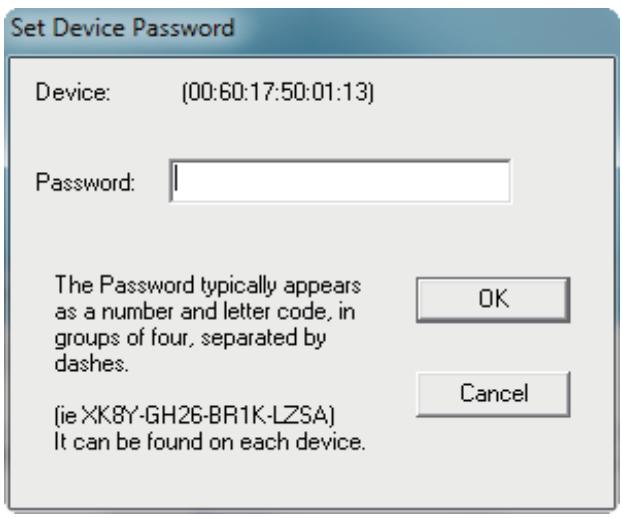
- Enter the device's password before changing the encryption key:
- Local Device: You do not need to enter the device's password before changing the encryption key.
- Remote Device: You must enter the device's password before changing the encryption key.
Note: Each device has a unique device password on the device label.
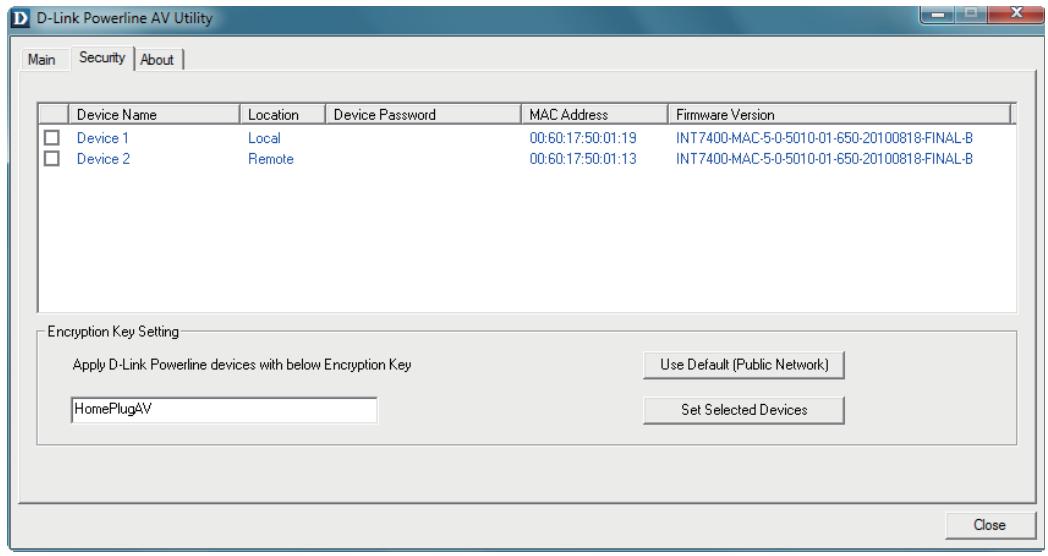
- Select the remote device and then enter the device's password into the Set Device Password window. Then click OK.
- Select the PowerLine devices that you would like to apply the encryption key setting. Then, type your private encryption key into the Encryption Key Setting field and click Set Selected Devices. The utility will show a message once the setting is complete.
Adding a Device to your PowerLine Network
If you use the default encryption key within the existing PowerLine network and the new device retains the default encryption key, you can just plug the new device into a power outlet. All the devices should communicate with each other.
If the encryption key within existing PowerLine network has been customized, you have two ways to add the new device to your PowerLine network.
- You can use the PowerLine AV Utility to apply the customized encryption key in your record to the new device. Then all devices can communicate with each other by using the customized encryption key.
- You can use the PowerLine AV Utility to set all devices within the existing PowerLine network and the new device back to the default encryption key first. Then, follow the 1 to 3 steps of "Setting your private Encryption Key". Your PowerLine network will be securely configured with a customized encryption key and all devices will be able to communicate with each other after your setting.
PowerLine Installation Considerations
Plan the location of your PowerLine devices:
- Connect PowerLine devices to electrical outlets that are not controlled by a wall switch to avoid accidentally turning off power to the device.
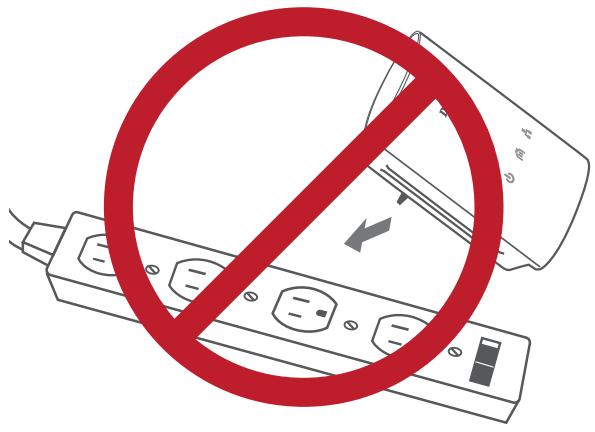
- Do not connect the PowerLine devices to an extension cord, surge protector, or power strip as this might prevent it from working correctly, or reduce the network performance.
- Avoid using the PowerLine devices in an electrical outlet that is located near an appliance that uses a lot of power, such as a washer or dryer, or a refrigerator. This may prevent the adapter from working correctly, or negatively impact network performance.
- Verify that your PowerLine devices are electrically rated to operate with the power available in your location.
- To help prevent against electrical shock, be sure to plug the power cables into properly grounded electrical outlets.
- The PowerLine device is equipped with a three-pronged plug to help ensure proper grounding. Do not use adapter plugs or remove the grounding prong from the cable.
7. Important safety instructions
Please read all of the safety and operating instructions before using your device:
- Do not open the device or attempt to repair or service the device.
- Only use the included power adapter to power your device.
- Ensure that the device is plugged into the wall in a vertical position, with the ports facing down.
- Use the device in a dry location, and avoid placing it in humid environments.
- Do not submerge the device in liquid or attempt to clean it with liquids or solvents. To clean the device, disconnect it from the power outlet and use a damp towel.
- Keep the device out of direct sunlight.
- Do not cover or block the vents on the device.
- Make sure that the device has adequate room for ventilation.
- Avoid placing the device near a heater or radiator.
- The device should be located only where sufficient ventilation can be ensured.
- The purpose of this product is to create a constant network connection for your devices. If you wish to power down this product, please simply unplug it from the power outlet.
Troubleshooting
- PowerLine AV utility does not start correctly:
Reinstall the utility.
- PowerLine AV utility does not detect the PowerLine AV Network Adapter:
Please make sure your PowerLine AV 500 Adapter is correctly plugged and connected to the computer or network device.
- I can't configure any parameter of the PowerLine AV 500 Adapter, an error is shown when I try to configure it:
Please make sure you have not unplugged the PowerLine AV 500 Adapter while configuring it.
- I changed the connection cable to another Network adapter and now the utility does not work correctly:
Please restart the utility each time you disconnect the connection cable.
- I'm having a lot of problems configuring my network:
If you are having problems configuring the network with two or more PowerLine AV devices, please reset all the Network adapters and start configuring the adapters again.
Technical Specifications
Network Ports
One 10/100/1000 Ethernet port
EMC
FCC Part 15 Class B
- CE Class B
C-Tick
AC Input
100 240VAC, 50/60Hz
Safety
- UL, CE LVD
Encryption
- 128 bit AES
Operation Temperature
· 0^ 40^
Storage Temperature
-10°C ~ 70°C
Humidity
Operation: 10% 90% RH
- Storage: 5% 90% RH
- User Manual
- PowerLine AV 500 Network Starter Kit
- Table of Contents
- Product Overview. 3
- Hardware Installation 7
- Push Button Security 8
- Using the Setup Wizard 10
- Troubleshooting 17
- Technical Specifications 18
- Package Contents
- System Requirements
- Introduction
- Features
- Hardware Overview LEDs
- Hardware Overview Connection
- Hardware Installation
- Power
- Recommendations:
- Connect the Ethernet Cable
- Push Button Security
- Understanding PowerLine AV Network Security
- All Adapters
- First Adapter
- Second Adapter
- PowerLine Network
- Adding More Adapters
- Using the Setup Wizard
- Configuration
- Security
- Understanding the Encryption Key setting:
- Setting your private Encryption Key
- Adding a Device to your PowerLine Network
- PowerLine Installation Considerations
- Important safety instructions
- Troubleshooting
- Technical Specifications
- Network Ports
- EMC
- AC Input
- Safety
- Encryption
- Operation Temperature
- Storage Temperature
- Humidity
Marque : D-LINK
Modèle : POWERLINE
Catégorie : Réseau