MODE D'EMPLOI BOOM 2 ULTIMATE EARS
BOOM 2 | GETTING STARTED > BOOM 2 | TAP CONTROLS
BOOM 2 | TAP CONTROLS
natural_image
Line drawing of a hand holding a rectangular object with a plus sign, no text or symbols present
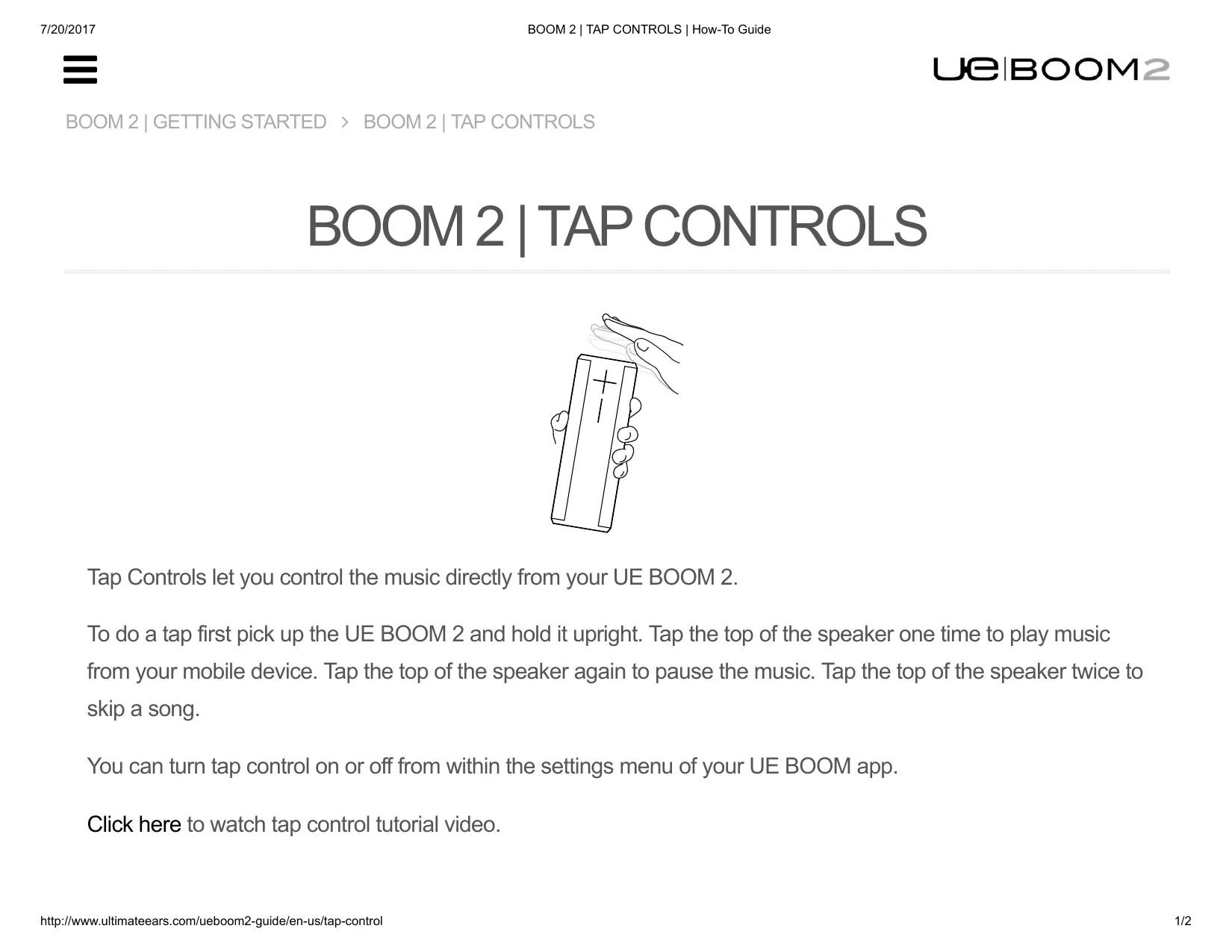
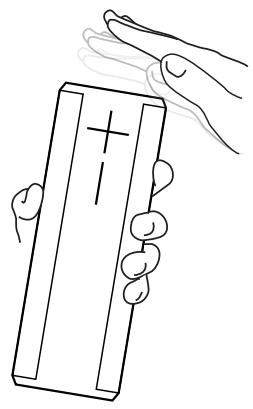
Tap Controls let you control the music directly from your UE BOOM 2.
To do a tap first pick up the UE BOOM 2 and hold it upright. Tap the top of the speaker one time to play music from your mobile device. Tap the top of the speaker again to pause the music. Tap the top of the speaker twice to skip a song.
You can turn tap control on or off from within the settings menu of your UE BOOM app.
Click here to watch tap control tutorial video.


BOOM 2 | GETTING STARTED > BOOM 2 | POWER
BOOM 2 | POWER
natural_image
Simple diagram with a circle containing an 'I' and two smaller circles above it, no text or symbols present.
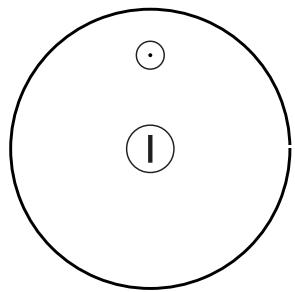
Power - ON / OFF
When powered on, UE BOOM 2 automatically reconnects to the last mobile device it was connected to.
UE BOOM 2 will automatically turn itself off after 15 minutes of inactivity to save battery life.


BOOM 2 | GETTING STARTED > BOOM 2 | PLAY MUSIC
BOOM 2 | PLAY MUSIC
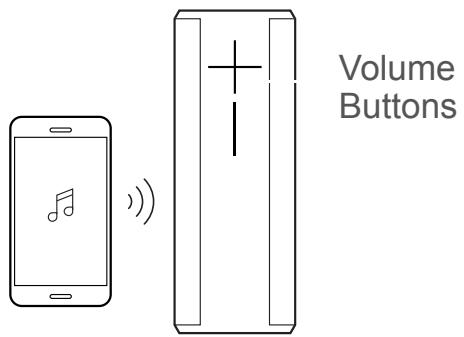
Once UE BOOM 2 is on and connected to your mobile device, just hit play to begin streaming your music.
You can control the volume from your mobile device, or directly from your UE BOOM 2.


GETTING STARTED
natural_image
Simple diagram with a circle containing an internal symbol (labeled I) and two small dots above it, no text or numbers present.
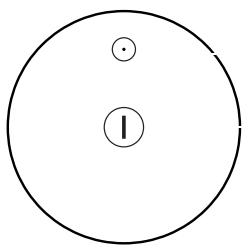
Bluetooth
Power - ON / OFF

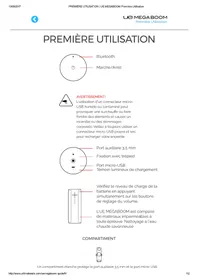
Check battery charge level by pressing the + and - volume buttons simultaneously.
UE BOOM 2 is made with lifeproof and waterproof materials. To wash, use warm soapy water.
natural_image
Simple circular diagram with concentric circles and dots, no text or symbols present
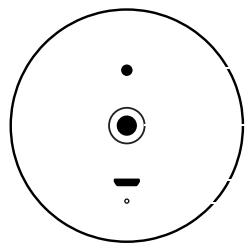
3.5mm aux-in port
Tripod mount insert
Micro USB port
Charge LED
WEATHER DOOR
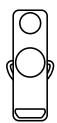
Integrated weather door protects the 3.5mm aux-in port and Micro USB port.
D-RING

Removable D-Ring reveals standard tripod mount insert.
MICRO-USB
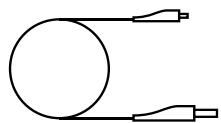
Recharge UE BOOM 2 via the Micro USB port.
POWER
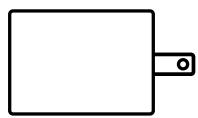
Use the included power supply and USB cable for quickest recharge.
BOOM 2 | GETTING STARTED > BOOM 2 | CONNECT
BOOM 2 | CONNECT
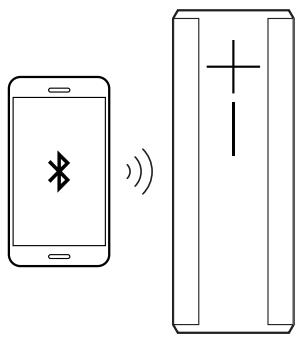
To pair UE BOOM 2 with your mobile device, press and hold the Bluetooth button until you hear the tone.
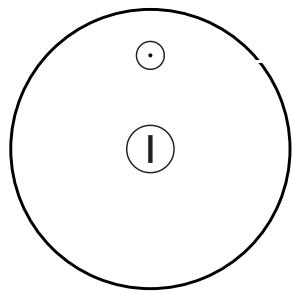
Bluetooth Button
Go to the Bluetooth settings on your mobile device and select UE BOOM 2 from the list.
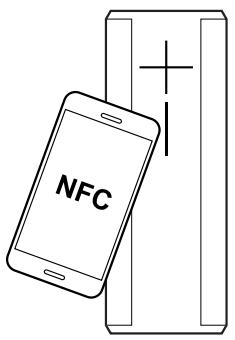
For NFC-enabled devices, hold your device directly against the UE BOOM 2, as shown, to pair and connect.


BOOM 2 | GETTING STARTED
natural_image
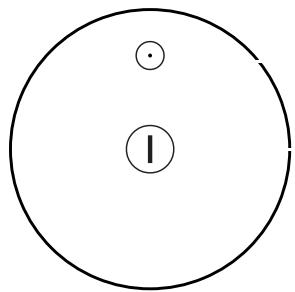
Simple diagram with a circle containing two labeled circles: one with a dot and the other with an 'I' inside (no text or symbols beyond these)
Bluetooth
Power - ON / OFF
natural_image
Simple line drawing of a battery with an open section and two vertical bars (no text or symbols)
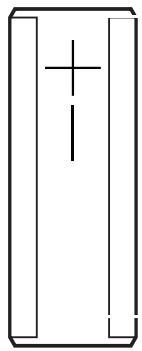
Check battery charge level by pressing the + and - volume buttons simultaneously.
UE BOOM 2 is made with lifeproof and waterproof materials. To wash, use warm soapy water.
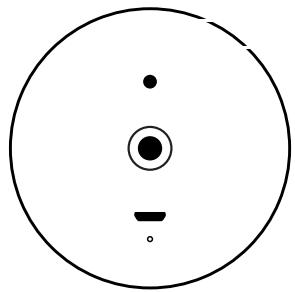
3.5mm aux-in port
natural_image
Simple circular diagram with concentric circles and dots, no text or symbols present
Tripod mount insert
Micro USB port
Charge LED
WEATHER DOOR
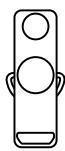
Integrated weather door protects the 3.5mm aux-in port and Micro USB port.
D-RING

Removable D-Ring reveals standard tripod mount insert.
MICRO-USB
natural_image
Simple line drawing of a circular object connected to two protruding devices (no text or symbols)
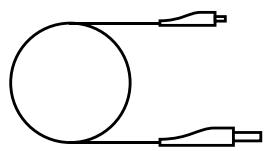
Recharge UE BOOM 2 via the Micro USB port.
POWER
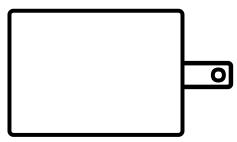
Use the included power supply and USB cable for quickest recharge.

BOOM 2 | GETTING STARTED > BOOM 2 | DOUBLE UP
BOOM 2 | DOUBLE UP
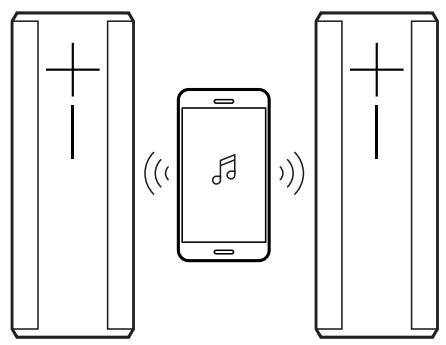
Connect two UE BOOM 2s together for bigger sound.
Use the Double Up option on the home page of this app and follow the on-screen instruction.
You can also Double Up the UE BOOM 2 with a UE MEGABOOM, Shop Nowor UE BOOM that has been updated with the latest firmware. Use the Double Up option on the home page of this app and follow the on-screen instructions.
Or to Double Up without the app, simultaneously press the Bluetooth and + buttons on the speaker that is playing music. Then press the Bluetooth button twice on the speaker that you want to add.
Double Up Lock:
Use Double Up Lock to have the speakers automatically Double Up the next time they are both powered on together.
To enable “automatic” Double Up, toggle the “Double Up Lock” setting to ON in the “Settings” section of this app.